
Privacy in practice
Read App Privacy Report for a photo app, then choose what to change
Read iPhone App Privacy Report for photo apps. Trace app and in-app website connections, review Photos access and choose a more focused privacy next step.
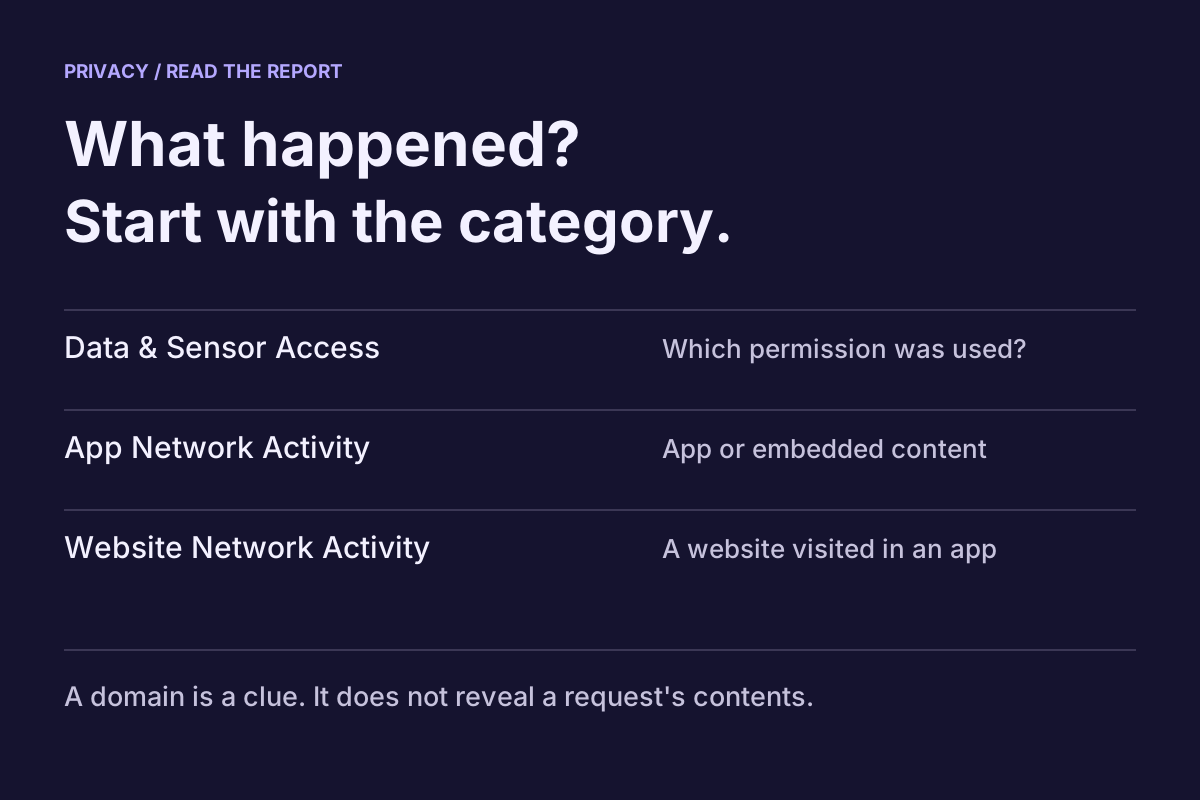
Identify whether an App Privacy Report entry concerns permission access, an app connection or a website opened inside an app. That distinction gives you a useful next question: which action needed this access, and what does the publisher say happens to the information?
This guide helps you investigate a photo app without turning an unfamiliar domain into a guess about your pictures. We make Vault Max. The instructions follow Apple's documentation; the examples below are teaching cases rather than measurements of Vault Max traffic.
Start with one ordinary action
Choose a harmless task you can describe precisely: select a sample picture, open an existing item, or read the app's online help. Avoid combining all three in one trial. Write down the app, action and approximate time before reviewing the report.
For example, “opened a help article after viewing the sample photo” contains two possible sources of activity. “Viewed one sample photo without opening help” is a narrower question. Neither trial establishes everything an app might do, but separating actions makes a developer question much easier to answer.
You do not need to upload a real private document to learn this routine. Keep your working collection intact while investigating.
Enable recording before the activity you want to inspect
Apple's App Privacy Report instructions give this route: Settings → Privacy & Security → App Privacy Report → Turn on App Privacy Report. Recording begins then; allow information to accumulate. Turning the report off clears its history. The report is encrypted and stored on your device.
If yesterday's event happened before collection began, leave that event unresolved. Enabling a report today cannot reconstruct an earlier observation. Before changing a setting that clears history, retain any relevant details you still need privately.
Choose the category that answers your question
Apple describes four views covering the past seven days:
| Report view | What it describes |
|---|---|
| Data & Sensor Access | When and how often an app accessed categories such as Photos, Camera or Location |
| App Network Activity | Domains contacted directly by an app or by content inside it |
| Website Network Activity | Domains contacted by websites visited within apps |
| Most Contacted Domains | Domains contacted most frequently across apps and in-app web content |
For a Photos entry, inspect the app and data type. For a connection, record both its domain and the view where you found it. A list headed with an app's name can include embedded content; investigate the source before assigning the connection to the photo-storage operation.
Follow a domain back to the action
Suppose a photo app opens an online help page. That page may load material from another domain. Finding the domain after reading help gives you a different question from finding an unexplained connection during an entirely local viewing task.
Use the report's available app, website and domain details to narrow your description. Prefer “this domain appeared while this help page was open” over “the app sent my library.” Keep unfamiliar spelling in your note rather than guessing an owner from a familiar-looking name.
The most-contacted list is useful for choosing something to investigate. Frequency alone cannot tell you whether a connection carried an image, delivered page content or served another purpose. Start with one entry that relates to your concern instead of treating the longest list as a score.
Practice choosing a next step
The four fictional cases below let you compare an observation with a reasonable response. They do not read your device or accept report files.
Read the evidence before drawing a conclusion
What can this App Privacy Report record tell you?
These four fictional cases separate a recorded event from the assumptions someone might attach to it. Choose a case, check the strongest supported reading, then review a next step.
App Network Activity
Example Planner · content.example.invalid · 10:12
Invented names, domain names and times. This is not a report from your device.Choose a reading, or review the full explanation below.
Interpret this record
- What the record supports
- A contact with content.example.invalid was recorded in this app's network activity during the displayed history. App activity can include embedded third-party content.
- What it cannot establish
- The domain name alone does not identify the transmitted data, the purpose, or whether native app code or embedded content initiated the contact. It does not prove a private photo was sent.
- A concrete next step
- Compare the time with an action you remember. If needed, repeat one ordinary action, inspect the new history, and check the developer's explanation of that domain and its data use.
Read all four fictional records and their limits
A domain under App Network Activity
App Network Activity. Example Planner · content.example.invalid · 10:12
- What the record supports
- A contact with content.example.invalid was recorded in this app's network activity during the displayed history. App activity can include embedded third-party content.
- What it cannot establish
- The domain name alone does not identify the transmitted data, the purpose, or whether native app code or embedded content initiated the contact. It does not prove a private photo was sent.
- A concrete next step
- Compare the time with an action you remember. If needed, repeat one ordinary action, inspect the new history, and check the developer's explanation of that domain and its data use.
A website viewed inside an app
Website Network Activity. help.example.invalid · images.example.invalid · 10:14
- What the record supports
- A website viewed within an app contacted images.example.invalid. The row belongs to Website Network Activity.
- What it cannot establish
- A website's network activity is not proof that the app's native code made the same request. A domain contact also does not reveal the complete request contents.
- A concrete next step
- Check which website was open and when. Compare it with the app's separately listed activity before deciding which website or app setting to change.
Camera access in Data & Sensor Access
Data & Sensor Access. Example Scanner · Camera · 10:18
- What the record supports
- The report recorded camera access by Example Scanner during the displayed history.
- What it cannot establish
- Permission use alone does not establish whether a photo or video was saved, what it contained, or whether anything was uploaded.
- A concrete next step
- Compare the timestamp with your use of the scanner. Review Settings > Privacy & Security > Camera, and turn off that app's access if you do not want it to use the camera.
An empty report just after enabling it
New collection period. App Privacy Report enabled at 10:20 · no entries yet
- What the record supports
- This newly enabled example report has no collected entries yet. App Privacy Report starts collecting after it is enabled.
- What it cannot establish
- An empty new history says nothing about activity before collection began. It cannot establish that an app has never accessed a permission or a network domain.
- A concrete next step
- Use the app normally after enabling the report, then return to review the collected period. Keep the collection start time in mind when interpreting missing entries.
This exercise does not access device settings, reports, permissions or network history. The .invalid domains are fictional examples. A report observation is not a security verdict.
You can apply the same method directly:
- Permission use matches your action: note what you requested and check whether the continuing permission remains useful.
- A website appears during in-app browsing: investigate that website and its loaded content alongside the host app's explanation.
- An app connection remains unexplained: ask about that domain and the particular action before assigning it a purpose.
- The expected history is missing: check the collection start and report view before repeating a harmless action.
Each outcome leaves you with a question you can act on. None requires calling the app safe or unsafe from one entry.
Compare the observation with the right privacy statement
Open the exact app's App Store product page and privacy policy. Apple's privacy-information explanation says the label is developer-reported and can cover several uses of an app. Look for the operation you actually performed: local viewing, optional cloud backup, online editing or browsing help.
Access and collection also have different meanings. Apple's developer guidance defines collection around transmitting information off the device with access beyond servicing a real-time request. A Photos permission entry describes access; it does not settle that separate collection question.
If the explanation remains unclear, ask: “While I performed this action, this domain appeared in this report category. What feature contacts it, and what information is transmitted and retained?” Include the app version and system version. Share only the relevant details; a full report may reveal unrelated activity.
Change a permission deliberately, then check the task
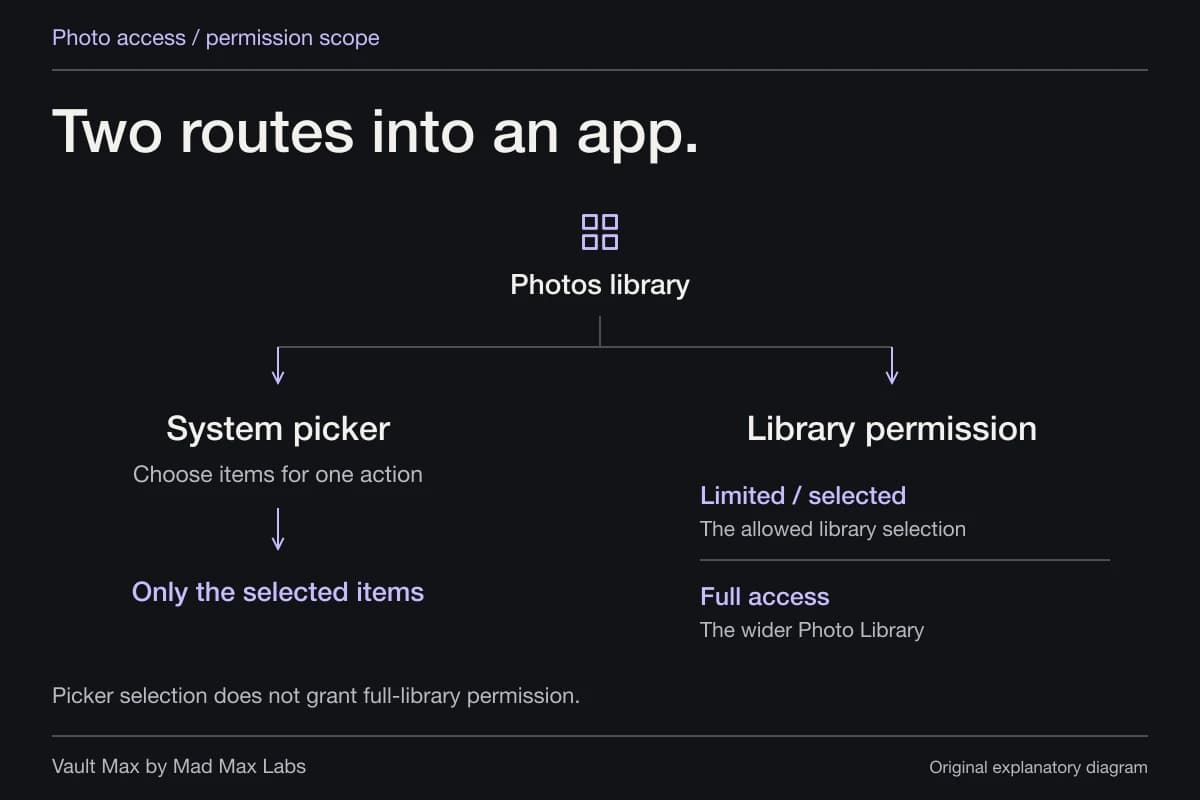
Apple's permission controls let you review access under Settings → Privacy & Security, then the relevant information category. Choose access that fits what you need the app to do.
After a change, try the same harmless task. If it stops working, decide whether that feature is worth the requested access. Our photo-permissions guide follows selected copies, library access and retained files in more detail. Removing access does not retrieve an already delivered attachment.
For missing history, also check browsing context: Apple excludes network activity from private browsing sessions in browser apps, while network activity and websites visited in non-browser apps with private modes remain represented. An empty view therefore needs context; it cannot answer every privacy question.
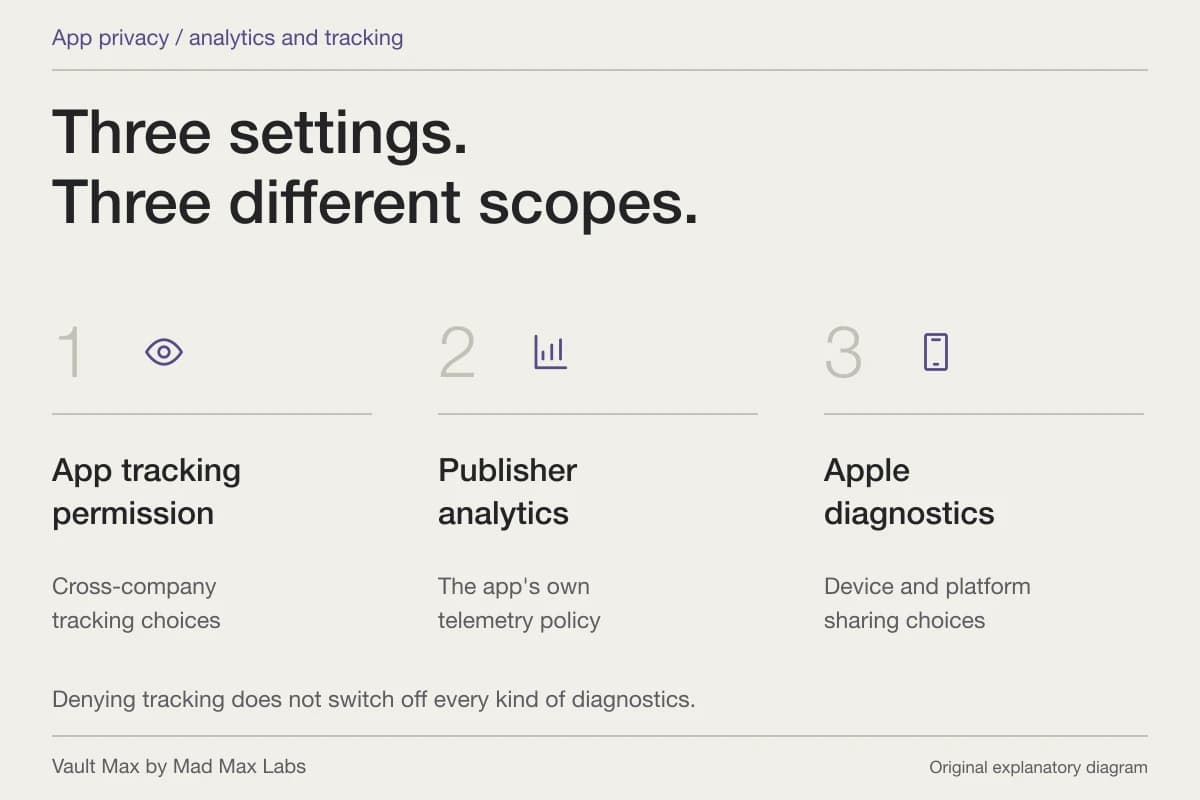
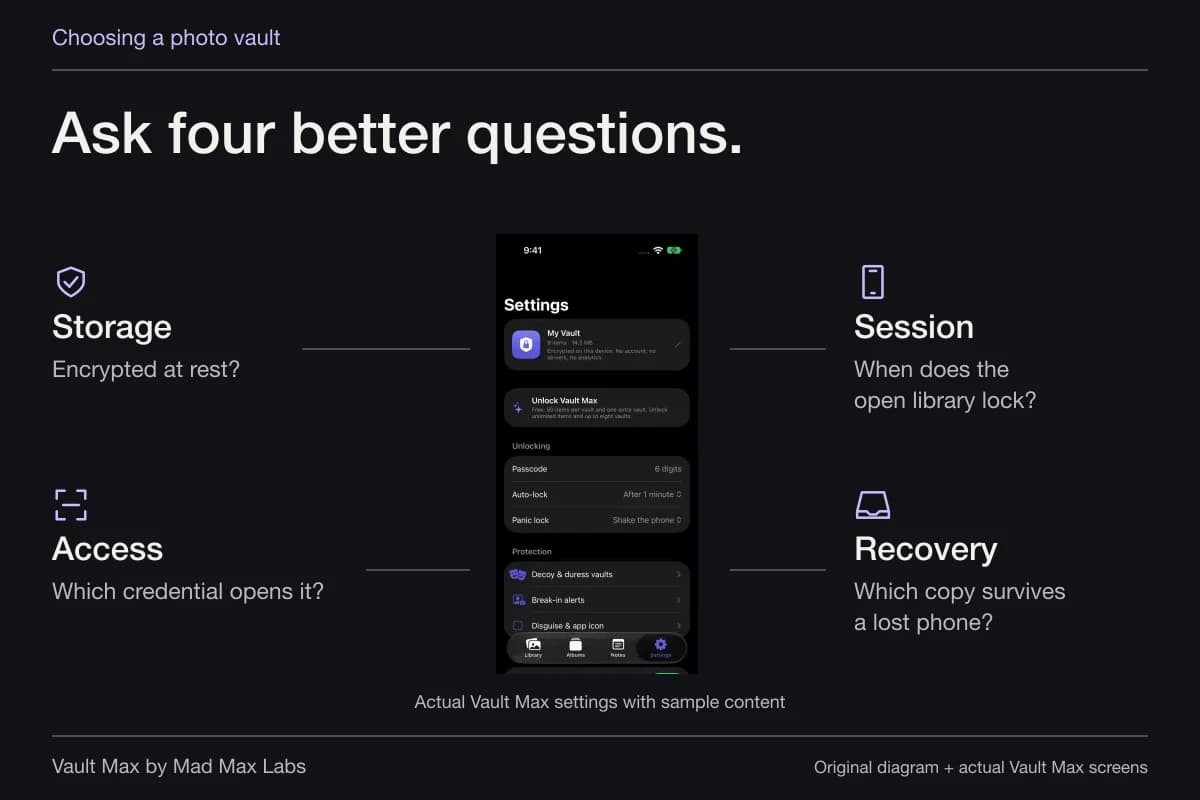
Finish by recording the observation, the explanation you found and the setting you changed, if any. Use the analytics-settings guide for Apple's diagnostics and tracking choices, or the photo-vault safety checklist for storage, locking and recovery. Those are separate decisions that this investigation can help you make.
Common questions
Does a domain in App Privacy Report prove a photo was uploaded?
A connection gives you a lead to investigate. It does not tell you which picture, if any, was sent. Ask about the feature, destination and data handling before drawing a conclusion.
Can one short trial explain every feature in an app?
One task answers a bounded question. Allow for delayed behavior and investigate cloud backup, purchases, web content and local viewing separately. Ask about the exact app version, domain and action when an explanation is missing.
Does removing Photos permission delete an app's existing copies?
Changing permission controls future access through that route. Copies already imported, saved or uploaded need their own storage or service controls. Preserve anything important before deleting an app or its files.
Continue reading
More guides
Practical tips for your private library. Swipe or scroll to choose your next guide.
5 guides to explore