
Privacy in practice
Use the Weather cover without location access
Pick a city yourself for the Vault Max Weather cover. See its forecast without granting location access and find the unlock screen if weather is unavailable.
Vault Max 1.1 is available. Get the update on the App Store, then follow the walkthrough below.
Watch the manual city setup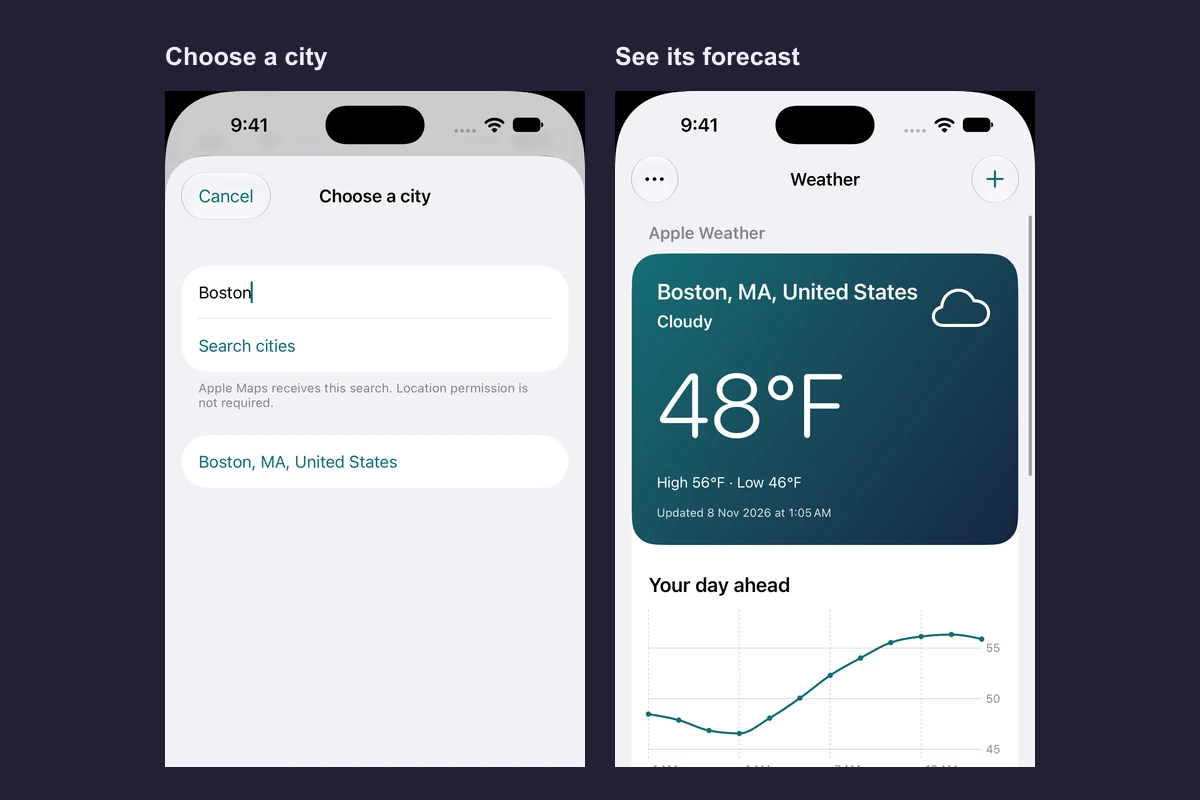
For weather on your Vault Max cover without giving it your iPhone’s location, tap Choose city and pick a place manually. Vault Max gets the forecast for that city. Use current location is a separate choice.
See the city search and forecast
Native recording · iPhone 18 Pro
Choose a forecast city without using current location
Follow the city search on the real Weather cover. Location access is off on this sample phone. Boston is selected by hand.
- Tap Choose city
The city search opens from the cover.
- Select a result
Check the city and region before you pick one.
- Check the forecast and Options
The cover uses the city you chose. The unlock menu stays at the top.
Set up the Weather cover
- Unlock Vault Max and open Settings → Disguise & app icon → Weather.
- Try the cover first, or tap Use Weather and lock the vault to apply it.
- Tap Choose city, type the place you want, and select the matching city and region. Wait for the forecast to show the location you picked.
- Keep using the city option if you want to leave device location permission off. You can review access in iPhone Settings → Privacy & Security → Location Services. Apple’s Location Services guide
Pick a city and keep the unlock route handy
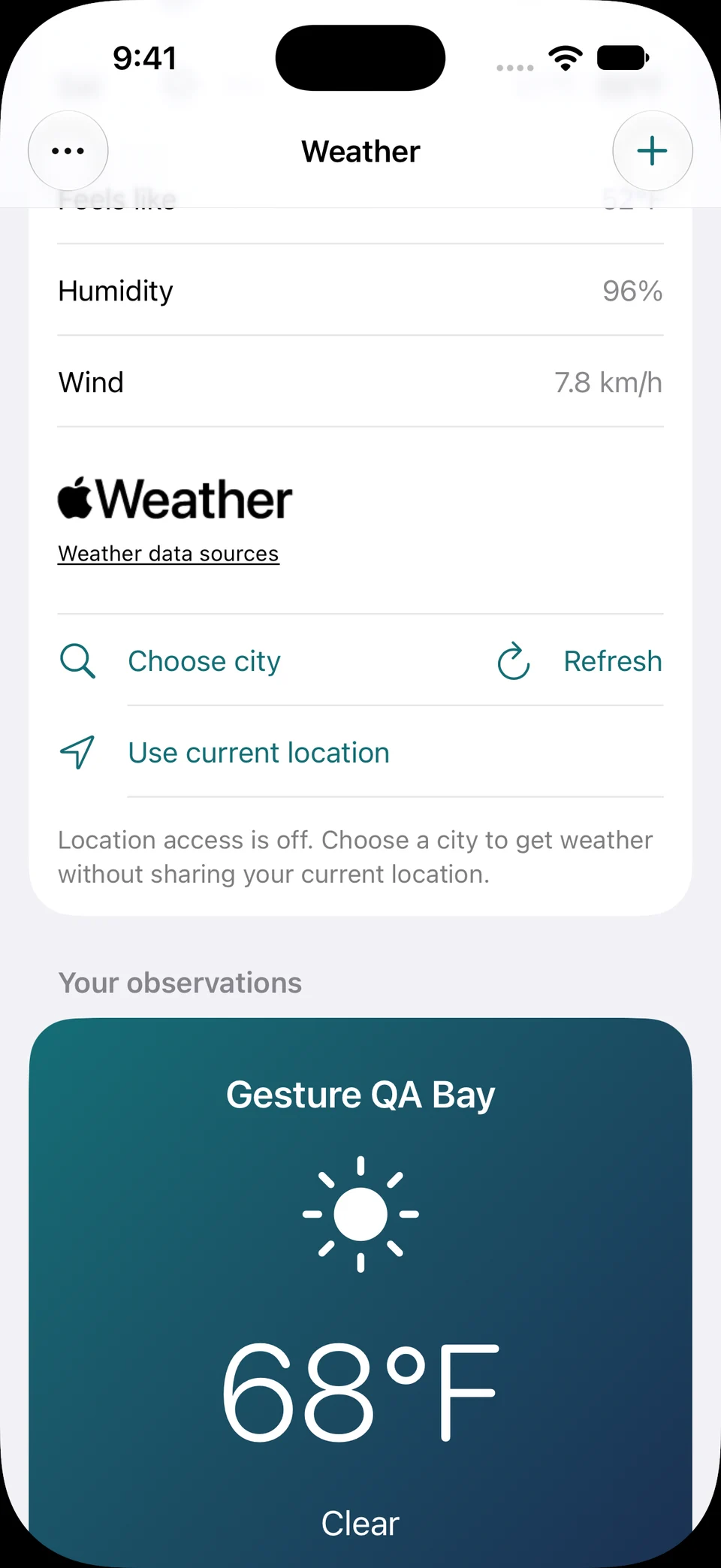
Screen 01 / 04
Choose a place by hand
Use Choose city to pick a forecast location. Use current location is a separate action.
These are captured screens. The browser walkthrough makes no location request.
Vault Max 1.1 · Location access off on the sample phone. Select a screen for a closer look.
Know what the city choice shares
Choosing a city skips the request for your iPhone’s current location. Apple Maps receives the city search. Apple Weather receives the coordinates for the place used in the forecast. Those coordinates can come from a city you select yourself. Vault Max’s private photos, files and notes stay separate from that request. Vault Max privacy policy
If you prefer a nearby forecast, Use current location asks for approximate location. Choose the route that matches what you want to share. You can also pick a different cover and keep using Vault Max with the same credential.
Open the vault when the forecast is slow
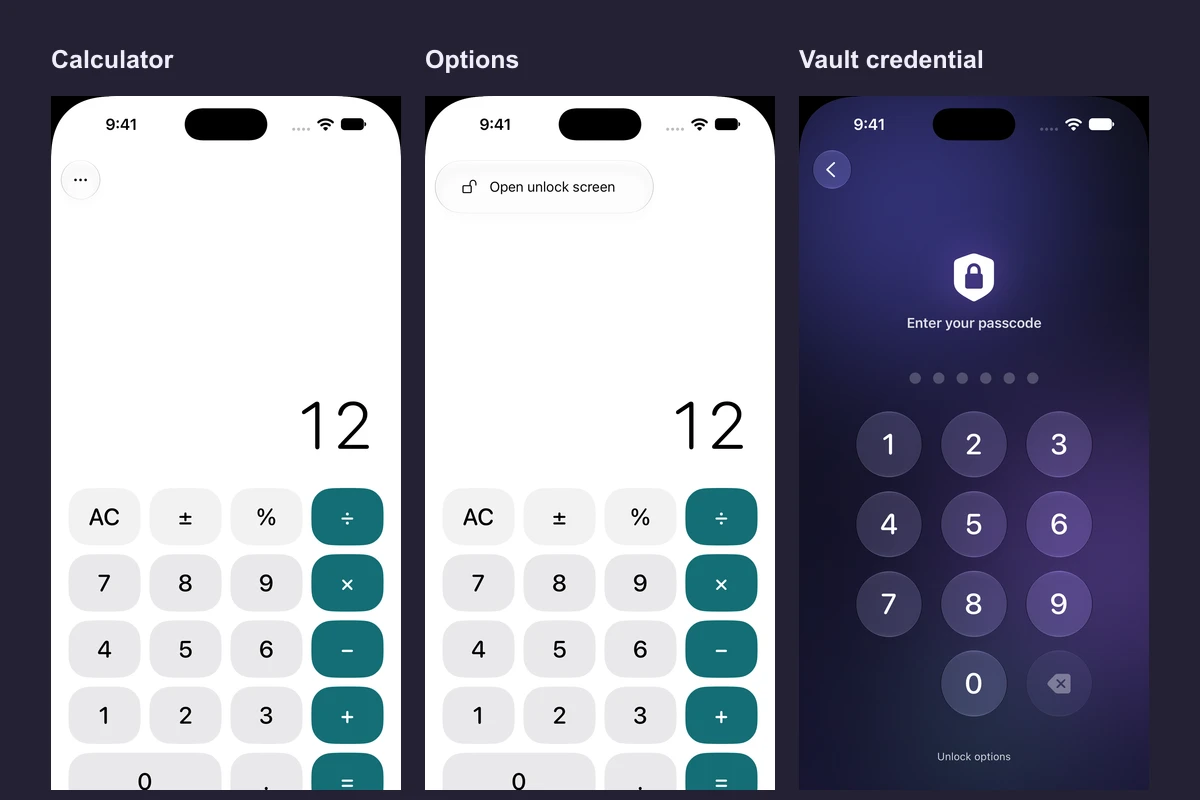
Tap the three dots → Open unlock screen and use your usual PIN, password or pattern. This route works before the forecast loads. With the default Weather gesture, you can also touch and hold the temperature after it appears.
If you were switching cities and the old place is still shown, check the forecast’s city label. Try the search again with the city and region. If your immediate goal is to reach your files, use Options first and check the forecast later.
Check which place the forecast is for
If you search for a city name that exists in several places, look for the state, region or country on the result before tapping it. The forecast label should match the place you chose. In the recording, the cover switches to Boston, MA, United States. This is useful if you want to check weather for a destination while staying somewhere else.
If the cover still shows an old forecast, check the place and the Updated time before relying on it. Use Refresh when a city is already set. When the city search or forecast is unavailable, leave location off and retry the manual route when you have a connection. Open the vault through Options if you need your files in the meantime.
The live forecast and the entries under Your observations serve different jobs. The forecast comes from Apple Weather for the selected place. An observation is a record you write yourself. It stays on the cover and can be read while the vault is locked.
Decide between Weather and Desk
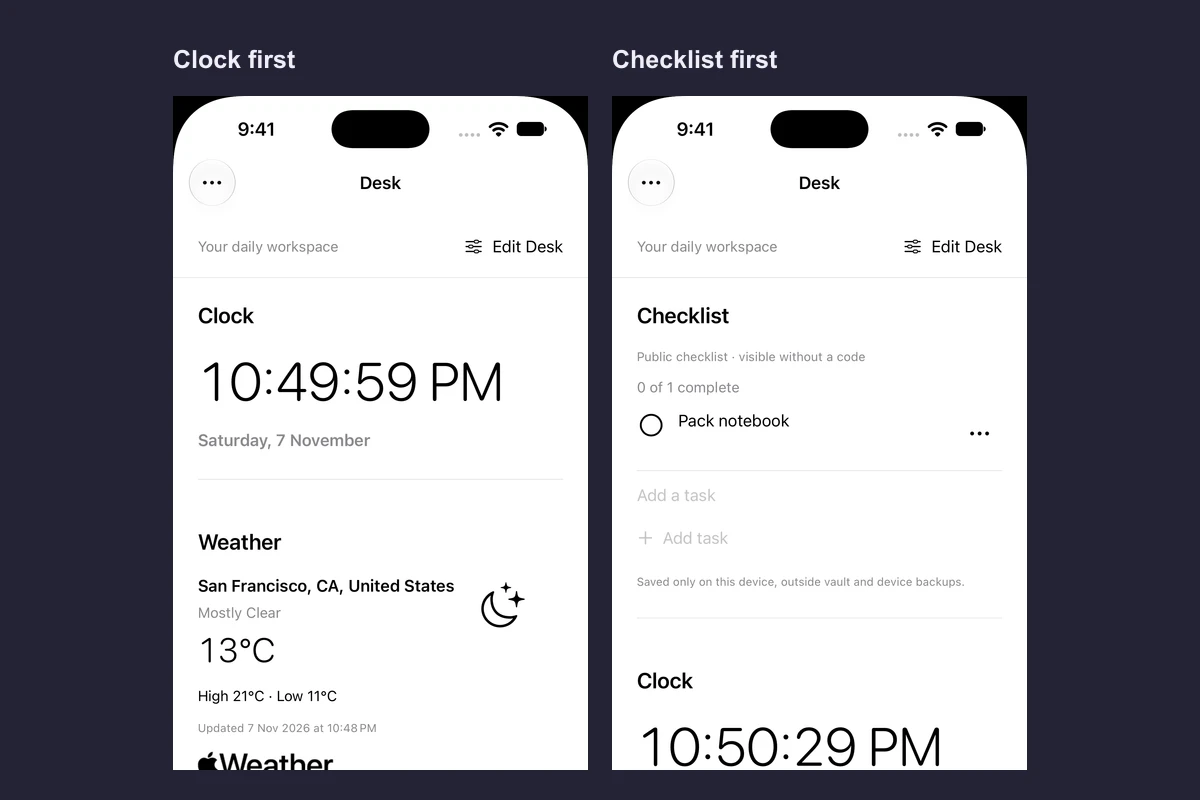
Choose Weather if the forecast is the main thing you want on the locked screen. The Weather cover also has a separate notebook for observations you can read without unlocking. Choose Desk if you want a smaller forecast alongside a clock or checklist. Desk’s Weather module is optional and you can remove it from the arrangement.
Common questions
Does the Weather cover work if location permission is off?
You can choose a city manually. City search uses Apple Maps, and Apple Weather receives coordinates for the forecast location.
What if Weather won’t load and I need to unlock?
Tap the three dots at the top left of the cover and choose Open unlock screen. The normal vault entry works before the forecast loads.
Continue reading
More guides
Practical tips for your private library. Swipe or scroll to choose your next guide.
4 guides to explore