
Privacy in practice
Set up the Vault Max Desk cover on iPhone
Desk is a little dashboard you can use while Vault Max is locked. Check the time, see the weather or tick off a reminder. You choose what goes where.
Vault Max 1.1 is available. Get the update on the App Store, then follow the walkthrough below.
Try the Desk editor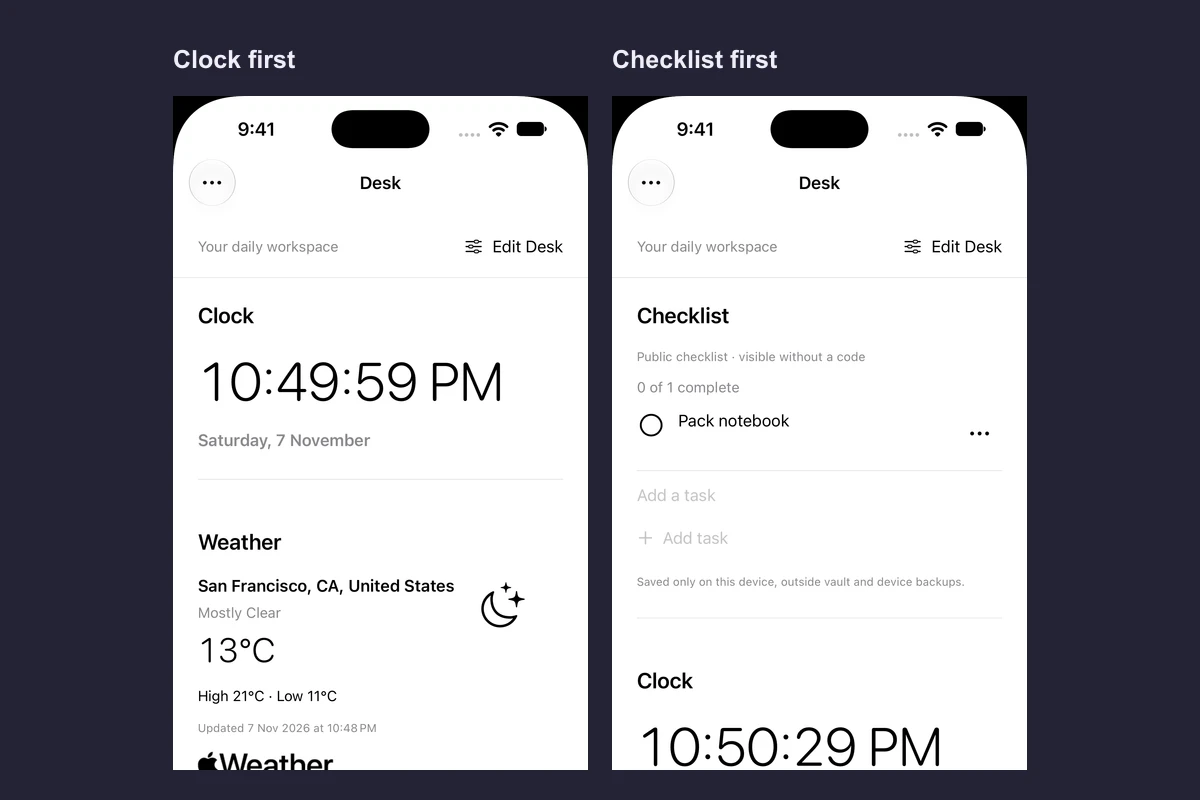
Desk, Clock and Weather are three separate covers inside Vault Max. Choose Clock for a screen focused on the time or Weather for the forecast. Choose Desk to arrange a clock, optional weather and a checklist together. You pick one cover at a time.
Watch the layout change in the app
Native recording · iPhone 18 Pro
Put your checklist first and tick off a reminder
Watch someone move the checklist above the clock, then tick off Pack notebook while the vault stays locked.
- Tap Edit Desk
See what’s on Desk and in what order.
- Move Checklist to the top
It moves above the clock and weather.
- Save and tick off Pack notebook
The checklist is now the first thing you see.
Get back to your private vault
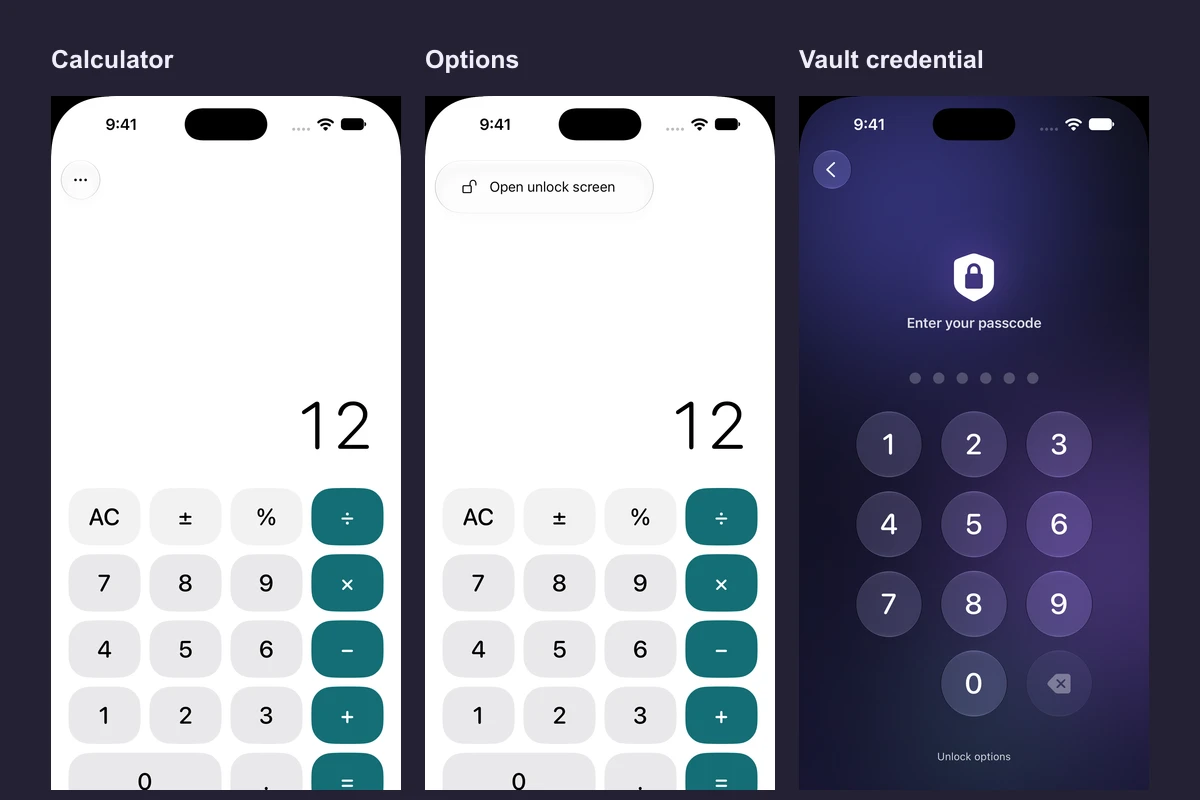
Tap the three dots (Options) in the top left of Desk, then tap Open unlock screen and unlock as usual. Use the same two taps on the standalone Clock or Weather cover. Anyone who opens Desk can see its reminders.
Try Desk and save an arrangement
Desk is available in Vault Max 1.1 on iOS 26 or later.
- Unlock Vault Max and open Settings → Disguise & app icon → Desk. You can also open What’s new in 1.1 in Settings and choose Try Desk.
- Tap Try this cover to use the preview. Tap Done to return to Settings. The preview is separate from your saved checklist and cover choice.
- Open Customize this cover → Arrange and style Desk. Add or remove Clock, Weather and Checklist. Use Move up or Move down to set the reading order.
- Pick Compact or Expanded for each module. You can give modules titles and adjust the appearance, accent or clock style. Tap Save to keep the arrangement.
- Tap Use Desk and lock the vault to see the result. Try the unlock steps above before relying on the cover.
Vault Max 1.1 simulator captures. Select a screen for a closer look.
See what happens when you rearrange Desk
Put the checklist where you’ll see it
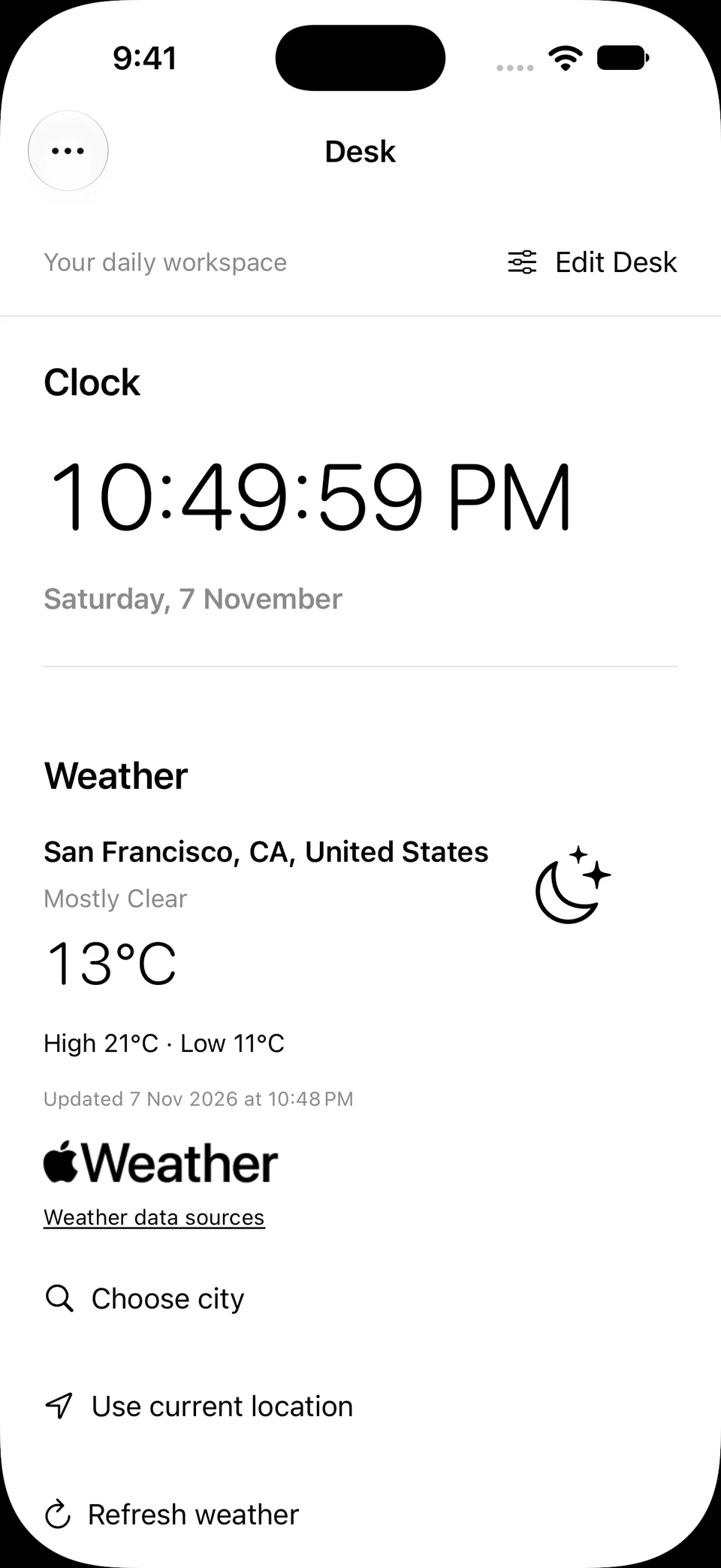
Screen 01 / 05
Clock comes first
Desk follows the module order on a narrow display. Open Edit Desk to bring reminders closer to the top.
The Desk checklist is visible while the vault is locked. This walkthrough uses sample reminders.
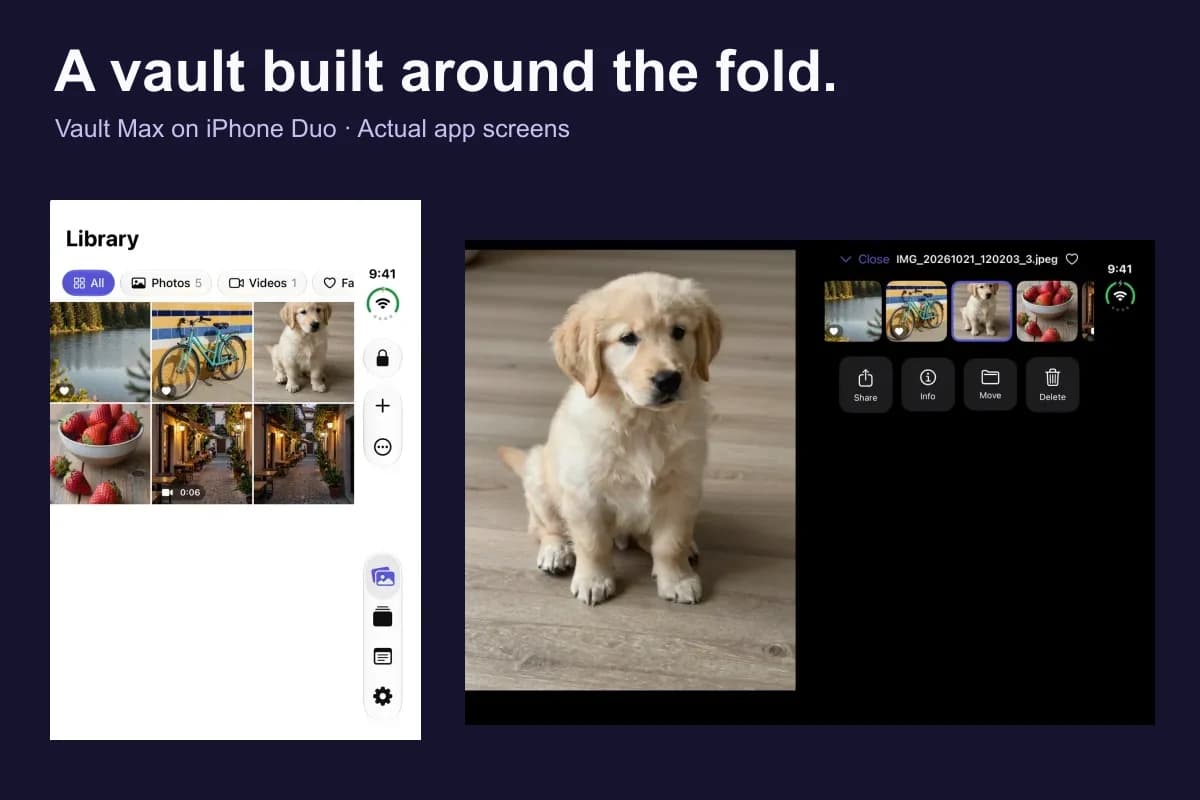
Try the edit before copying it to your phone. The highlighted controls show where to open the editor, move a module and save. On a narrow display, the modules follow the order you set. On a wide display such as the open iPhone Duo, neighboring compact modules can share a row. An expanded module uses the row. Try making Checklist compact and moving it above Weather. The wide sample makes it easier to see when the two compact neighbors can sit together.
Vault Max 1.1 Desk capture, open iPhone Duo simulator. Select a screen for a closer look.
Build a layout around one everyday use
Two things before leaving. Put Checklist first and move Clock below it. Use simple reminders such as “Pack notebook” and “Water plants.” If Weather pushes your reminders below the fold, remove Weather from this arrangement. You can add it again later.
A quick glance at the time. Put Clock first and choose a display style you can read at your usual viewing distance. Keep Checklist lower if you want it close at hand. Rename a module only if the new title makes its job clearer. The cover title and each module title are separate settings.
A wider display on Duo. Put two compact modules next to each other in the list if you want them to have a chance to share a row. Place an expanded checklist after them for more room. Return to the cover and check it with the phone open as you would actually use it. The phone layout follows the same order in a narrower stack.
Decide what belongs on the cover
Use the checklist for ordinary reminders such as watering plants. Anyone who can reach the cover can read its tasks. Desk checklist data stays on the device outside the private vault and is excluded from vault and device backups. Keep account details, personal documents and sensitive notes inside the vault, and use the encrypted backup routine for the files you depend on.
For weather, either search for a city or choose to allow approximate location for a nearby forecast. Apple Maps receives city searches and Apple Weather receives forecast coordinates when you use those options. You can also remove Weather and use the other modules. Vault Max privacy policy · Choose a forecast city without location access
Fix a layout you changed by mistake
If you are still in Edit Desk, use Cancel to discard that draft. If you saved and want to start again, open Edit Desk and use Use default arrangement, then Save. Removing Checklist hides the module from Desk. Its existing tasks stay on the device and can reappear when you add Checklist back. Use the task’s own controls when you intend to remove a reminder.
If you were experimenting in Try Desk, close the preview and reopen your normal Desk to check your saved arrangement and tasks. Preview edits apply to the temporary workspace.
If you want a simpler return path, select Vault Max lock screen from the chooser. You can also keep Desk and use Options → Open unlock screen whenever you need to reach your private collection.
Common questions
Are Desk checklist items encrypted in my vault?
Desk tasks are available without unlocking. They are stored on the device separately from the private vault and are excluded from vault and device backups. Keep sensitive notes inside the vault.
Do I need location access to use Desk?
No. You can use Desk with Clock and Checklist alone. If you add Weather, search for a city without granting location permission, or choose the optional nearby forecast.
Continue reading
More guides
Practical tips for your private library. Swipe or scroll to choose your next guide.
4 guides to explore