
Back up Vault Max before changing your iPhone
Create a password-protected Vault Max backup, choose where to save it, and understand restore and recovery before moving or erasing your iPhone.
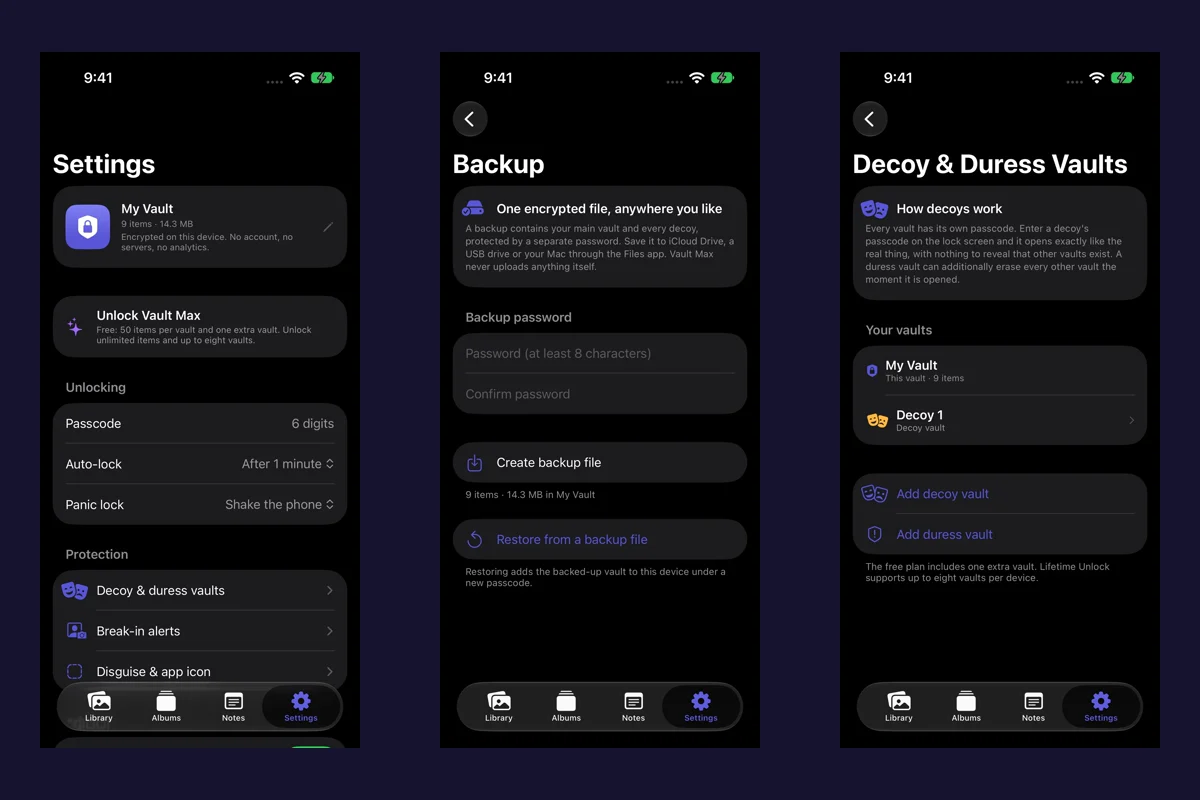
Actual Vault Max screens with sample content.
Before changing phones, create an encrypted .vaultmax backup, save it somewhere you can reach without
the old phone, and keep its password. Restore that file in Vault Max on the destination phone and check
the contents before erasing the original device. Restoring an App Store purchase does not restore your
private photos or files.
Sample Vault Max library. Select a screen for a closer look.
Two different credentials
Your vault passcode opens a vault on the device. Your backup password protects the exported backup file. During restore, you supply the backup password and choose a new vault passcode.
Keep track of both. An app account cannot recover either for you because Vault Max does not have an account system or a server copy of your library. If the original vault is still accessible but you have lost an old backup's password, you can create a fresh backup with a new password. That does not unlock the old backup.
Vault Max with sample content. Use the controls to pause or replay.
Create the backup while you still have access
- Open the vault you want to back up and go to Settings → Encrypted backup.
- Enter and confirm a backup password. The current interface requires at least eight characters; use a password that is difficult to guess and keep it somewhere separate from the phone.
- Choose Create backup file and wait for the file-saving step.
- Use the Files picker to save the
.vaultmaxfile to the destination you intend to use.
The backup contains the selected main vault and its included descendant vaults. It is not a promise that every unrelated vault on the device has been exported. Check the scope before relying on it.
The Files picker can save to different providers or locations. Choosing iCloud Drive means using that provider to store your encrypted file; Vault Max does not upload a library to its own servers. A copy saved only on the phone will not help if you lose or erase that phone.
Sample Vault Max library. Select a screen for a closer look.
Restore on the destination
During first launch, choose Restore from a backup. An existing installation also offers restore from the backup screen. Select the saved file, enter its backup password, and choose and confirm a new vault passcode when prompted.
Restoring adds the backed-up vault to the destination installation. Included child vaults need new passcodes assigned in Settings → Decoy & duress vaults. A restored duress vault's erase action stays off until it has a passcode. Read the restore screen's explanation before relying on those vaults.
If restore reports an error, preserve the backup file and the old installation. An error message is a reason to investigate, not a reason to remove your remaining working copy.
Vault Max with sample content. Use the controls to pause or replay.
Check the result before erasing the old phone
Open several restored photos, play a video if you keep videos, and check notes and documents that matter to you. Check included child vaults after assigning their passcodes. Confirm that the backup file and its password are still available outside the old phone.
This is also a useful time to decide when you will make the next backup. An exported file is a snapshot; it does not automatically gain the items you import afterward.
Sample Vault Max library. Select a screen for a closer look.
Purchases and private files are separate
Restore Purchases asks Apple's store to restore eligible paid access. Your App Store entitlement does
not contain your encrypted media, and it cannot substitute for a .vaultmax backup.
If a subscription expires, Vault Max keeps existing items available to open, export, delete and back up. You can protect your existing data without first renewing a subscription.
If you have already lost the phone
An existing readable backup and its password provide a restore path. Without access to the original vault or a usable backup, we cannot retrieve a server copy. There is no Vault Max server copy to request.
Read Vault Max help before making changes to your remaining copies. Vault Max on the App Store.
More guides
- Moving your photo vault to a new iPhone: a Vault Max checklistPlan a new-iPhone move with a Vault Max backup, a careful restore, checks for media and child vaults, and a final checklist before handing off the old phone.
- Forgot your Vault Max passcode? Check these recovery paths firstCheck biometric access, credential type and encrypted backups before changing anything. Understand which Vault Max recovery paths can preserve your files.
- How to import photos, videos and files into Vault MaxFollow Photos, Files and share-sheet import routes in Vault Max, verify your saved items, handle originals carefully, and organize a private media library.
- Using a photo vault without an account or cloud librarySee how a local iPhone photo vault works without an app account, what Apple purchases use, and how backup destinations change your cloud choices.
- Hidden album vs photo vault on iPhone: which do you need?Compare the iPhone Hidden collection with a separate photo vault: access, copies, backup and recovery, explained with real Vault Max screens and short demos.
- How to hide photos on iPhone, with or without a separate vaultHide photos with Apple's Hidden album or import them into Vault Max. Learn what happens to originals, how to check your copies, and when to make a backup.
- Vault Max privacy features: break-in photos, decoy vaults and quick locksExplore Vault Max's break-in photos, calculator disguise, decoy vaults, private camera, panic lock and encrypted backups, with app screens and footage.