
Forgot your Vault Max passcode? Check these recovery paths first
Check biometric access, credential type and encrypted backups before changing anything. Understand which Vault Max recovery paths can preserve your files.
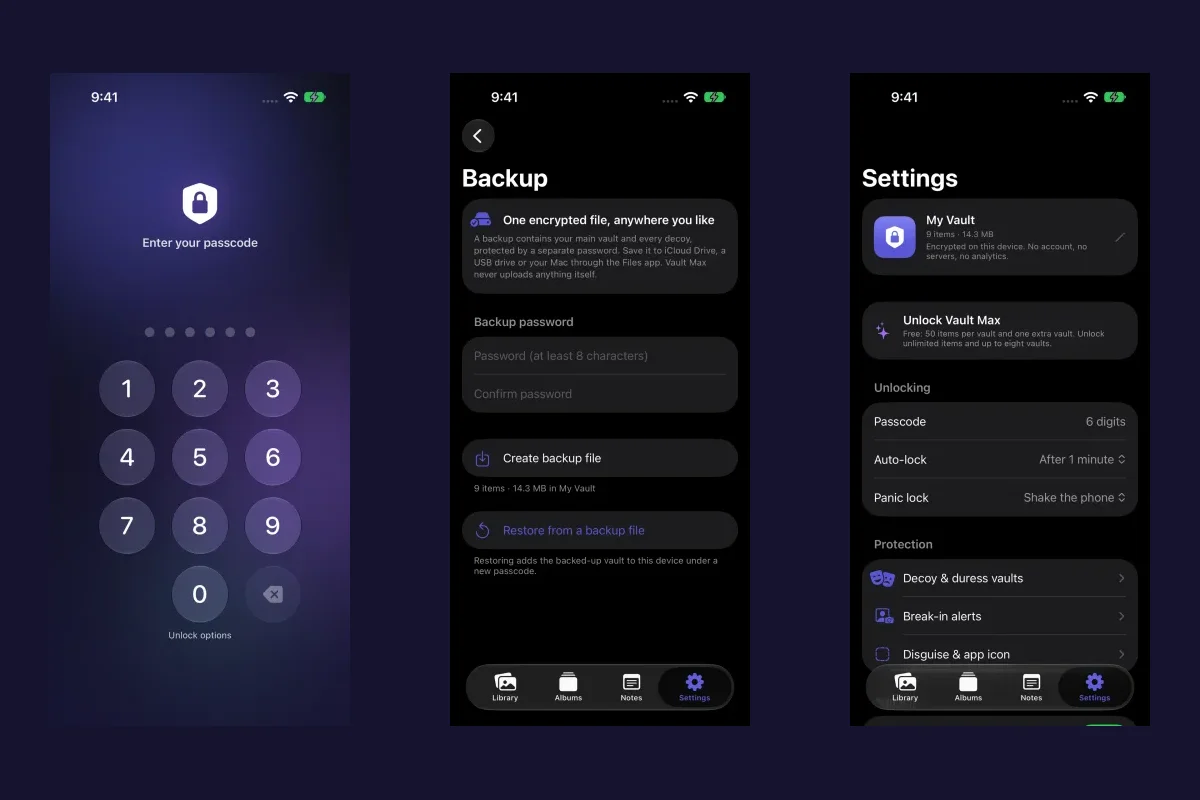
Actual Vault Max screens with sample content.
If you forgot your Vault Max passcode, preserve the existing installation and check whether an already
enabled biometric unlock still opens the vault. A readable .vaultmax backup and its backup password
offer another recovery path: restoring lets you choose a new vault credential. Vault Max has no account
reset email or server library that support can use to retrieve your encrypted files.
Avoid deleting the app, erasing the phone or repeatedly guessing while you assess the copies and credentials you still have. None of those actions recovers the missing code.
Sample Vault Max library. Select a screen for a closer look.
Check which credential you are entering
Vault Max supports a 4-, 6- or 8-digit PIN, a password, or a pattern. Use Unlock options on the regular lock screen to select the type you originally set. Changing the displayed entry method does not change or reset the credential that protects the vault.
Your iPhone device passcode, Apple Account password and Vault Max backup password are not substitutes for the vault credential. If you use multiple vaults, their separate codes can open different libraries. An unfamiliar or empty decoy library is not proof that the main library has been erased.
Vault Max with sample content. Use the controls to pause or replay.
Wrong-code attempts trigger increasing delays. If a countdown appears, wait for it rather than trying to work around it. Also remember that an intentionally configured duress code can have destructive behavior; do not experiment with codes you assigned for that purpose.
If Face ID or Touch ID still opens the vault
Try the biometric option only if you had already enabled it for the vault you need. Availability depends on the existing enrollment and device state. It is not a universal fallback that can be enabled from outside the locked library.
Once inside, check that it is the right vault and immediately create an encrypted backup:
- Open Settings → Encrypted backup.
- Enter and confirm a new backup password that you can keep safely.
- Choose Create backup file and save the
.vaultmaxfile somewhere you can access independently. - Keep the original vault and backup while you verify a restore.
Vault Max with sample content. Use the controls to pause or replay.
Changing the vault passcode in Settings asks for the current code. Biometric access therefore does not make that change screen a forgotten-passcode reset. An exported backup gives you a different route: restore it using the backup password and choose a new vault credential during restore.
If an older backup password is also lost but the vault is still openable, create a fresh backup with a new password. That new file does not unlock the old archive.
If you have an existing backup and know its password
Find the .vaultmax file and preserve a copy. On a fresh Vault Max installation, choose Restore from a
backup. An unlocked installation also provides Settings → Encrypted backup → Restore from a backup file.
Opening a recognized .vaultmax file in Vault Max can bring up the restore screen as well.
Select the file, supply its backup password, and follow the prompts to choose and confirm a new vault credential. Restoring adds the backed-up vault to the installation; it does not reset the passcode of the inaccessible original vault.
Sample Vault Max library. Select a screen for a closer look.
The restore only recovers the snapshot saved in that file. Items added after the backup are not magically included. Included child vaults need new passcodes assigned after restore, and a restored duress vault's erase action remains off until it has a passcode. Read the restore explanation carefully.
Before removing any remaining copy, open restored photos, play videos and inspect important notes or documents. The backup walkthrough covers those checks.
If neither the vault nor a usable backup is accessible
Without a working vault unlock method or a readable backup with its password, there is no supported way for us to reconstruct the encrypted library. Support cannot send a replacement vault code or download a server copy of your photos.
Buying paid access or tapping Restore Purchases does not recover the media. Those actions concern Apple purchase entitlements. They do not supply encryption credentials or a backup of your files.
Sample Vault Max library. Select a screen for a closer look.
Keep any remaining files and backup candidates while you investigate. If you contact support, describe the error, your access to the original device, and whether you have a backup. Keep actual passcodes, backup passwords and private pictures out of the support message.
Make the next recovery easier
Keep the vault credential and backup password in a place you can retrieve when the phone is unavailable. Make fresh backups after important imports and check a restore before retiring an old device. Biometric unlock is convenient, but you still need a recovery plan that survives changes to the phone.
For your next upgrade, use the new-iPhone migration guide. For normal lock and break-in settings, read Vault Max privacy features.
More guides
- Back up Vault Max before changing your iPhoneCreate a password-protected Vault Max backup, choose where to save it, and understand restore and recovery before moving or erasing your iPhone.
- Moving your photo vault to a new iPhone: a Vault Max checklistPlan a new-iPhone move with a Vault Max backup, a careful restore, checks for media and child vaults, and a final checklist before handing off the old phone.
- Vault Max privacy features: break-in photos, decoy vaults and quick locksExplore Vault Max's break-in photos, calculator disguise, decoy vaults, private camera, panic lock and encrypted backups, with app screens and footage.
- Hidden album vs photo vault on iPhone: which do you need?Compare the iPhone Hidden collection with a separate photo vault: access, copies, backup and recovery, explained with real Vault Max screens and short demos.
- How to hide photos on iPhone, with or without a separate vaultHide photos with Apple's Hidden album or import them into Vault Max. Learn what happens to originals, how to check your copies, and when to make a backup.
- How to import photos, videos and files into Vault MaxFollow Photos, Files and share-sheet import routes in Vault Max, verify your saved items, handle originals carefully, and organize a private media library.
- How to set up break-in photos in Vault MaxSet up Vault Max break-in photos, choose a wrong-code threshold, review saved attempt records, and understand camera permissions and missing-photo results.
- Set up a decoy photo vault in Vault MaxCreate a Vault Max decoy with its code, add a separate collection, check which library opens, and understand backup, capacity and duress-vault differences.
- Use Vault Max as a calculator photo vault on iPhoneSet up Vault Max's calculator disguise, unlock with a PIN and equals, find the password or pattern fallback, and understand what the icon changes reveal.
- Using a photo vault without an account or cloud librarySee how a local iPhone photo vault works without an app account, what Apple purchases use, and how backup destinations change your cloud choices.