
Moving your photo vault to a new iPhone: a Vault Max checklist
Plan a new-iPhone move with a Vault Max backup, a careful restore, checks for media and child vaults, and a final checklist before handing off the old phone.
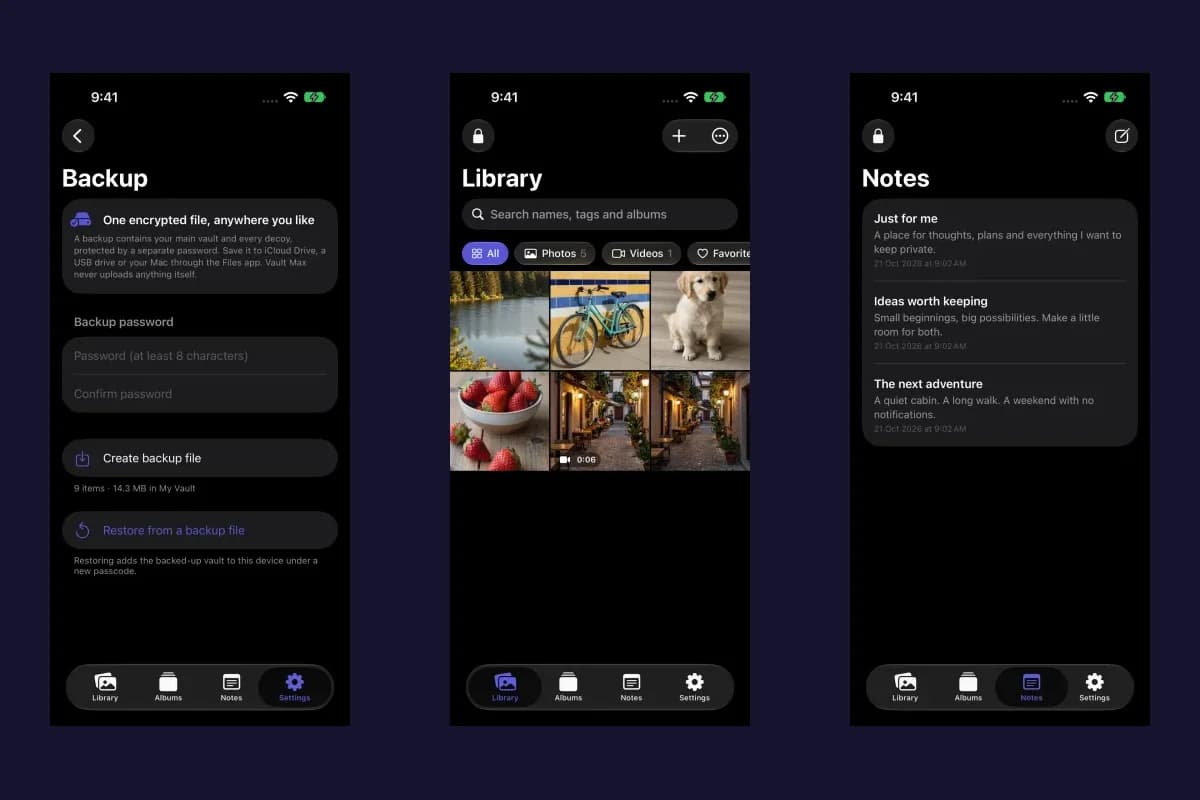
Actual Vault Max screens with sample content.
Before moving Vault Max to a new iPhone, make a fresh encrypted .vaultmax backup, save it somewhere
reachable without the old phone, and keep its password. On the destination, restore that file and check
the recovered items before erasing or trading in your original device.
Apple's phone-transfer tools help set up the new iPhone. An independent Vault Max export gives you a specific recovery file for your vault rather than leaving the only working copy on the device you are about to hand over.
Sample Vault Max library. Select a screen for a closer look.
1. Inventory what needs to move
Open the original phone and identify the vaults and content you want to preserve. Check photos, videos, notes and documents, plus any decoy or duress vaults you use. Look at what the export includes: a backup contains the selected main vault and its included descendants, not every unrelated library you might have created.
Make sure you know the current vault credential and can keep the exported backup password. The backup password is a separate credential. If you have already lost access, start with forgotten-passcode recovery before changing the installation.
Sample Vault Max library. Select a screen for a closer look.
2. Make a fresh recovery file outside the old phone
In Settings → Encrypted backup, enter and confirm a backup password, choose Create backup file, and
save the .vaultmax archive through the Files picker. Use a destination you can access on the new
phone, and keep the password somewhere separate from the archive.
Choosing a provider such as iCloud Drive stores the encrypted export with that provider. It does not create a Vault Max account or automatic library sync. A backup saved only in local storage on the old phone can disappear with that phone.
Vault Max with sample content. Use the controls to pause or replay.
Follow the detailed backup instructions if this is your first export. Pause important new imports after making the final snapshot, or make another backup if the library changes. A saved archive does not update itself.
3. Set up the new iPhone
Apple's Quick Start guide describes phone setup and the available transfer choices. For wireless Quick Start, the original phone needs Wi-Fi and Bluetooth; keep the devices nearby and connected to power while the transfer completes.
Keep your independent Vault Max archive even if a general device transfer appears to succeed. Copying app files alone does not guarantee that their required Keychain material comes with them. In particular, an unencrypted computer backup can leave vault files without the device key they need. The existence of an app icon or a storage-size entry is not a check that your vault opens.
4. Open the library or restore your Vault Max export
Open Vault Max on the destination and check its state. If the transferred vault opens and contains the
expected items, continue with the content checks below. If you are starting fresh, choose Restore from
a backup at first launch and select the saved .vaultmax file.
Enter the backup password, then choose and confirm a new vault credential when prompted. An existing unlocked installation offers restore in Settings → Encrypted backup. Restore adds a vault; it does not merge its contents into another library automatically.
Sample Vault Max library. Select a screen for a closer look.
If a destination installation says the vault cannot be opened because its key is missing, keep the old phone and the archive intact. Follow the displayed recovery instructions only after you have confirmed the independent backup and its password. Do not erase your only accessible source to troubleshoot a destination error.
5. Verify content and recheck privacy settings
Open representative photos at full size. Play several videos, check Live Photo motion where relevant, and inspect important notes and files. Compare the restored content with the original while both are available. Check the items that would be hardest to replace first.
Vault Max with sample content. Use the controls to pause or replay.
Included child vaults need new passcodes assigned in Settings → Decoy & duress vaults after an archive restore. A restored duress vault's erase action stays off until it has a passcode. Review those settings deliberately rather than testing a destructive code against your only copy.
Also review biometric unlock, auto-lock, panic lock, calculator disguise and break-in alerts on the new device. Camera capture for break-in alerts needs camera permission and an available front camera. Your old phone's behavior is not evidence that each new-device permission has been granted.
The feature guide explains these controls. If paid access needs to be restored, use Restore Purchases with the appropriate Apple purchase account. That restores eligible paid access, not your media library.
6. Finish the old-phone handoff only after the checks
Keep a readable archive and its password after the new vault is working. Then follow Apple's sell, give away or trade-in checklist for the device handoff. Apple warns that manually deleting synced content while signed in can remove it from iCloud and connected devices; use its device handoff instructions instead of improvising a cleanup.
This guide provides the Vault Max export-and-restore workflow. The screenshots and loops show actual simulator UI with sample content; they are not a recording of a completed transfer between two physical iPhones. Verify your own destination library before retiring the original.
More guides
- Back up Vault Max before changing your iPhoneCreate a password-protected Vault Max backup, choose where to save it, and understand restore and recovery before moving or erasing your iPhone.
- Forgot your Vault Max passcode? Check these recovery paths firstCheck biometric access, credential type and encrypted backups before changing anything. Understand which Vault Max recovery paths can preserve your files.
- How to import photos, videos and files into Vault MaxFollow Photos, Files and share-sheet import routes in Vault Max, verify your saved items, handle originals carefully, and organize a private media library.
- Vault Max privacy features: break-in photos, decoy vaults and quick locksExplore Vault Max's break-in photos, calculator disguise, decoy vaults, private camera, panic lock and encrypted backups, with app screens and footage.
- Hidden album vs photo vault on iPhone: which do you need?Compare the iPhone Hidden collection with a separate photo vault: access, copies, backup and recovery, explained with real Vault Max screens and short demos.
- How to hide photos on iPhone, with or without a separate vaultHide photos with Apple's Hidden album or import them into Vault Max. Learn what happens to originals, how to check your copies, and when to make a backup.
- How to set up break-in photos in Vault MaxSet up Vault Max break-in photos, choose a wrong-code threshold, review saved attempt records, and understand camera permissions and missing-photo results.
- Set up a decoy photo vault in Vault MaxCreate a Vault Max decoy with its code, add a separate collection, check which library opens, and understand backup, capacity and duress-vault differences.
- Use Vault Max as a calculator photo vault on iPhoneSet up Vault Max's calculator disguise, unlock with a PIN and equals, find the password or pattern fallback, and understand what the icon changes reveal.
- Using a photo vault without an account or cloud librarySee how a local iPhone photo vault works without an app account, what Apple purchases use, and how backup destinations change your cloud choices.