
Use Vault Max as a calculator photo vault on iPhone
Set up Vault Max's calculator disguise, unlock with a PIN and equals, find the password or pattern fallback, and understand what the icon changes reveal.
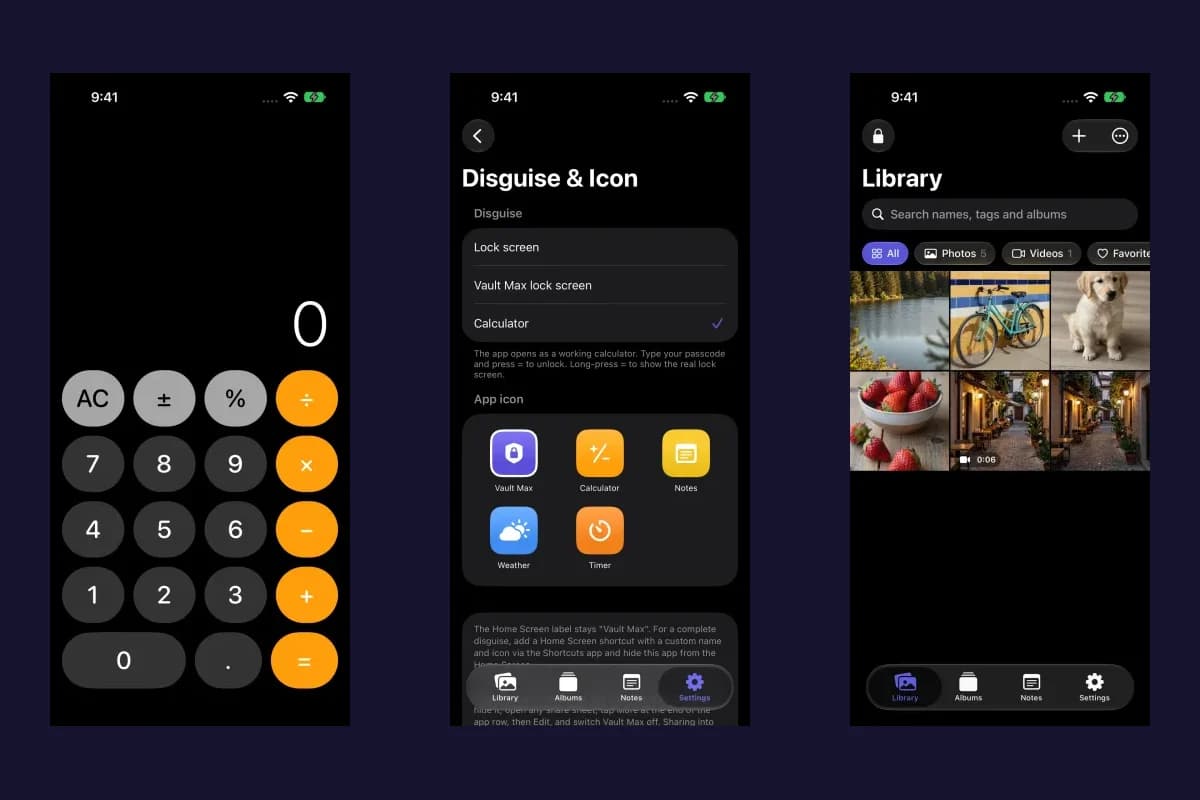
Actual Vault Max screens with sample content.
To use Vault Max's calculator disguise, open Settings → Disguise & app icon and choose Calculator. When the vault is locked, the app opens as a working calculator. For a PIN vault, enter the vault PIN and press equals to unlock. Press and hold equals to reveal the regular lock screen, including when you use a password or pattern.
The calculator gives the locked app a discreet entry interface. Your vault credential still controls access to the encrypted photo, video, file and note library behind it. Choose the appearance and the credential deliberately; each serves a different purpose.
Turn on calculator disguise
- Unlock Vault Max and open Settings.
- Choose Disguise & app icon.
- Under Lock screen, select Calculator.
- Return to the library, lock the vault, and check that the calculator appears.
Sample Vault Max library. Select a screen for a closer look.
If you prefer the standard keypad later, return to the same setting and select Vault Max lock screen. Changing the disguise does not import pictures, change your vault PIN or create a second library.
Unlock with a PIN and equals
Start a fresh number entry, type your vault PIN and press equals. The entered credential must match the vault you want to open, including its PIN length. If you have been doing calculations, use AC before entering the PIN so you are not continuing an earlier expression.
Vault Max with sample content. Use the controls to pause or replay.
The calculator also performs normal calculations. A calculation result by itself is not evidence that the vault opened. Check that you have reached the expected library before adding or opening private content.
Do not copy the sample PIN shown in footage for your own vault. Keep your chosen credential available independently of the calculator appearance and any biometric shortcut you use.
Reach the regular lock screen for passwords, patterns or other options
Press and hold equals to reveal the regular Vault Max lock screen. Use that route for password or pattern entry, or whenever you want the regular Unlock options menu. Selecting the correct entry method helps you enter the credential you originally chose; it does not reset that credential.
Sample Vault Max library. Select a screen for a closer look.
If a wrong-code countdown appears, wait for it before trying again. If the credential itself is lost, follow the forgotten-passcode guide and preserve the existing installation while you check biometric access and usable backups.
Choose an icon with a clear understanding of what changes
The same Disguise & Icon screen offers Vault Max, Calculator, Notes, Weather and Timer artwork. Choose an icon you can recognize. The Home Screen label remains Vault Max when you change the app's alternate icon.
Sample Vault Max library. Select a screen for a closer look.
iOS also lists a Vault Max action in other apps' share sheets. If you want to remove that shortcut from the app row, open a share sheet, choose More → Edit, and switch Vault Max off there. That changes the share-sheet entry; it does not remove your vault or alter its stored contents.
Apple offers separate system controls for locking or hiding eligible apps. Review Apple's current app-hiding guide if you want to use those controls as well. Availability and behavior depend on the app and account conditions Apple describes. Calculator appearance is not a promise that the app is absent from every system surface or purchase record.
Keep private storage and recovery part of the setup
Once inside the vault, use + → From Photos or From Files to add existing items, or choose Private Camera for a new capture. Verify imported copies before deciding what to do with originals. The calculator disguise does not remove existing copies elsewhere on the phone.
Sample Vault Max library. Select a screen for a closer look.
Follow the import guide for source-copy checks and the backup walkthrough for encrypted exports. If you use separate collections, the decoy-vault guide explains how different credentials open different libraries. Calculator disguise is included in the free plan, alongside the other security features.
More guides
- Set up a decoy photo vault in Vault MaxCreate a Vault Max decoy with its code, add a separate collection, check which library opens, and understand backup, capacity and duress-vault differences.
- How to set up break-in photos in Vault MaxSet up Vault Max break-in photos, choose a wrong-code threshold, review saved attempt records, and understand camera permissions and missing-photo results.
- How to hide photos on iPhone, with or without a separate vaultHide photos with Apple's Hidden album or import them into Vault Max. Learn what happens to originals, how to check your copies, and when to make a backup.
- Forgot your Vault Max passcode? Check these recovery paths firstCheck biometric access, credential type and encrypted backups before changing anything. Understand which Vault Max recovery paths can preserve your files.
- A photo vault built for iPhone Duo: explore Vault Max's layoutsSee Vault Max on iPhone Duo: a wider photo grid, split viewer, filmstrip, focused notes and optional fold-to-lock, with fresh real app screens and footage.
- Back up Vault Max before changing your iPhoneCreate a password-protected Vault Max backup, choose where to save it, and understand restore and recovery before moving or erasing your iPhone.
- Encrypted notes on iPhone: write, save and protect them in Vault MaxCreate encrypted notes in Vault Max on iPhone and Duo. Follow the editor, saving, locking, deletion and backup steps, with fresh app screens and loops.
- Hidden album vs photo vault on iPhone: which do you need?Compare the iPhone Hidden collection with a separate photo vault: access, copies, backup and recovery, explained with real Vault Max screens and short demos.
- How to import photos, videos and files into Vault MaxFollow Photos, Files and share-sheet import routes in Vault Max, verify your saved items, handle originals carefully, and organize a private media library.
- Moving your photo vault to a new iPhone: a Vault Max checklistPlan a new-iPhone move with a Vault Max backup, a careful restore, checks for media and child vaults, and a final checklist before handing off the old phone.
- Panic lock on iPhone: quickly close your Vault Max sessionSet up Vault Max panic lock, choose shake or face down, and understand manual lock, background auto-lock and Duo fold-to-lock with fresh real app screens.
- Private Camera on iPhone: take photos straight into Vault MaxUse Vault Max Private Camera to save new photos and videos inside your encrypted vault. Learn the controls, permissions, albums, saving and backup steps.
- Using a photo vault without an account or cloud librarySee how a local iPhone photo vault works without an app account, what Apple purchases use, and how backup destinations change your cloud choices.
- Vault Max privacy features: break-in photos, decoy vaults and quick locksExplore Vault Max's break-in photos, calculator disguise, decoy vaults, private camera, panic lock and encrypted backups, with app screens and footage.