
A photo vault built for iPhone Duo: explore Vault Max's layouts
See Vault Max on iPhone Duo: a wider photo grid, split viewer, filmstrip, focused notes and optional fold-to-lock, with fresh real app screens and footage.
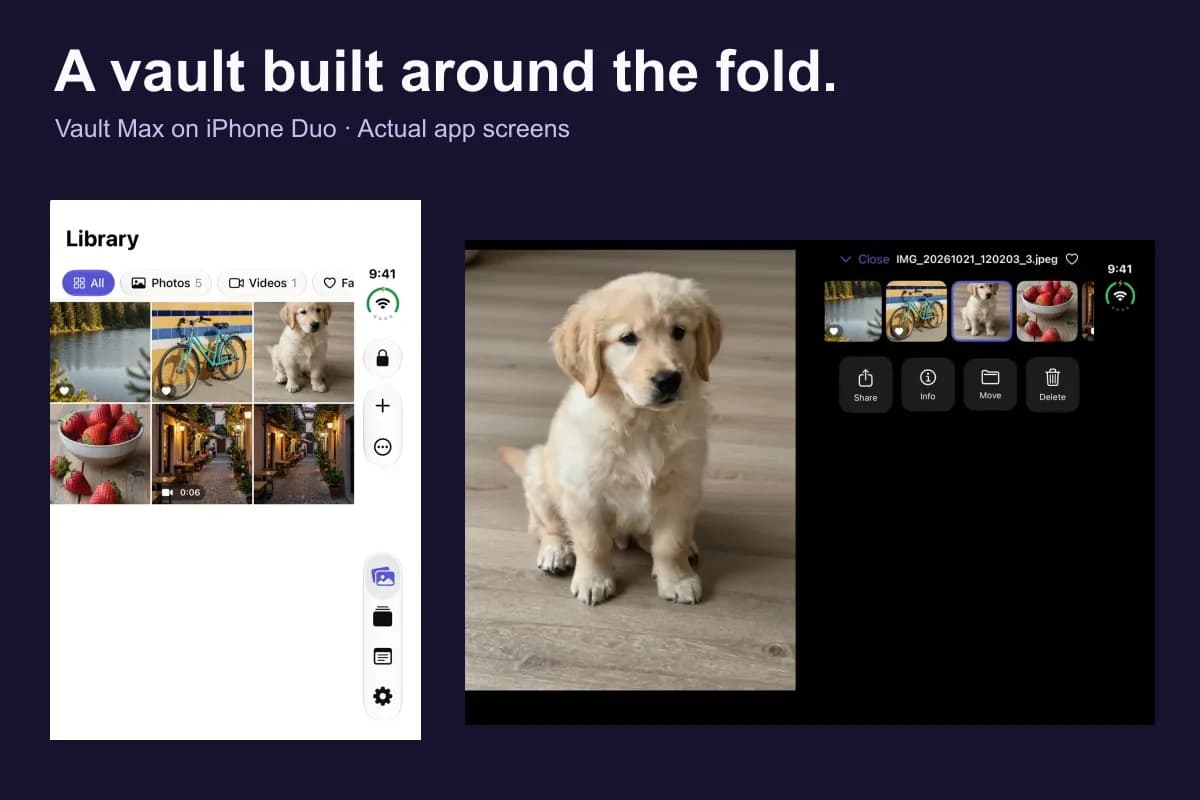
Actual Vault Max screens with sample content.
Vault Max is designed to use iPhone Duo's changing display space and fold posture. The private library adjusts its grid to available width, the partially folded photo viewer can separate the image from its filmstrip and actions, and an optional Lock when folded shut setting connects closing the device with closing the vault session.
Those are useful things to look for when choosing a photo vault for Duo. Installation compatibility alone tells you little about browsing on the larger display, reaching controls or leaving a private session when you fold the phone away. The details of those everyday actions matter.
The fresh real-app screenshots and recordings below show Vault Max 1.0 on an iPhone Duo simulator running iOS 27.1, with sample content. The layout and fold-to-lock examples use native simulator posture controls; physical-device testing is separate.
Start with a usable compact library
With Duo closed, Vault Max presents the library on the outer display. You can browse thumbnails, change the media filter and reach the system controls in the side strip. The compact view still needs to be useful when you want one item quickly and do not want to unfold the phone.
Sample Vault Max library. Select a screen for a closer look.
The sample library contains the same small set of photos and a video used for the layout walkthrough. The important detail is the interface around them: thumbnail density, filter visibility, navigation and where the add and lock controls live.
The Library, Albums, Notes and Settings sections remain the app's familiar destinations. On a normal iPhone they use the corresponding system navigation for that display. On Duo, the system can place controls in its side strip. Vault Max uses native containers and toolbars so those controls can participate in the device's layout.
Open Duo and use the extra width
On the wider open display, the grid expands to use the available width. In our fresh captures, the same library changes from three columns on the outer display to five columns when open. This lets you scan more items across the screen without turning every thumbnail into an oversized card.
Sample Vault Max library. Select a screen for a closer look.
The exact number of columns depends on the available size, thumbnail preferences and text-size settings. Three and five describe these captures, rather than a promise that every orientation and accessibility configuration uses those counts.
Opening the phone does not create another vault or another copy of your media. You are browsing the existing unlocked collection through a different layout. That continuity is useful when you begin with a quick outer-screen check and decide that a photo deserves a closer look.
Keep the image separate from the controls when partially folded
A larger photo viewer is useful, but posture can do more than change the size of the picture. In a supported partially open posture, Vault Max uses a split arrangement for its viewer. One area presents the media; another holds the filmstrip and actions.
Vault Max with sample content. Use the controls to pause or replay.
In the landscape capture below, the photo occupies the left area while the filmstrip and large Share, Info, Move and Delete controls occupy the right. The system's arrangement follows the device's available geometry; the feature should not be understood as a permanently fixed top-and-bottom layout.
Sample Vault Max library. Select a screen for a closer look.
The example uses a harmless sample photo so the interface is easy to inspect. The feature's value is the placement of the viewer and controls, rather than the subject of that photograph. The privacy boundary remains the same vault credential and encrypted collection.
Use the filmstrip to stay oriented in a collection
The filmstrip gives the selected item context. You can see neighboring thumbnails while the larger viewer stays visible, and the current thumbnail is highlighted. This is useful when several images resemble each other or when you are choosing the right item before sharing or moving it.
Compare that with the compact photo view. The outer display can prioritize the image and a concise toolbar, while the split viewer has room for the additional navigation context. Both are useful; they answer different amounts of available space.
Sample Vault Max library. Select a screen for a closer look.
Before exporting anything private, use Info and the visible image to check that you selected the right item. A wider layout can make that decision more comfortable, but sharing still intentionally creates a copy outside the vault in the destination you choose.
Keep albums understandable on the larger display
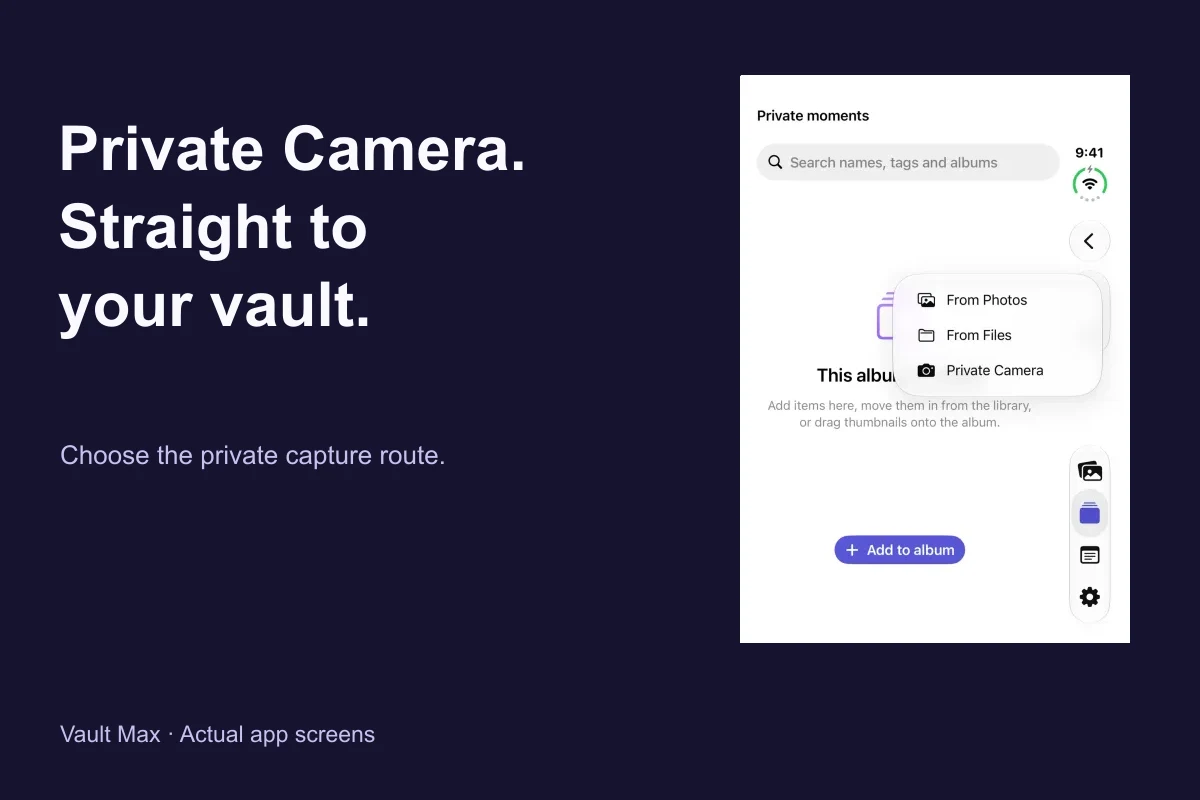
Albums organize items inside the current vault. Opening an album on Duo uses the same add and browsing workflow while fitting the available display. You can start an import there or choose Private Camera for a new capture intended for that album.
Sample Vault Max library. Select a screen for a closer look.
An album is an organizational group, not a new independently locked vault. If you need a separate credential and collection, read the decoy-vault guide. If you want to capture something new, the Private Camera guide explains the capture route, permissions and saving checks.
Private Camera still needs working camera hardware. The Duo simulator screens in this guide do not establish a new photo or video capture on a physical Duo, and the sample photographs should not be read as newly captured camera results.
Use a focused editor for encrypted notes
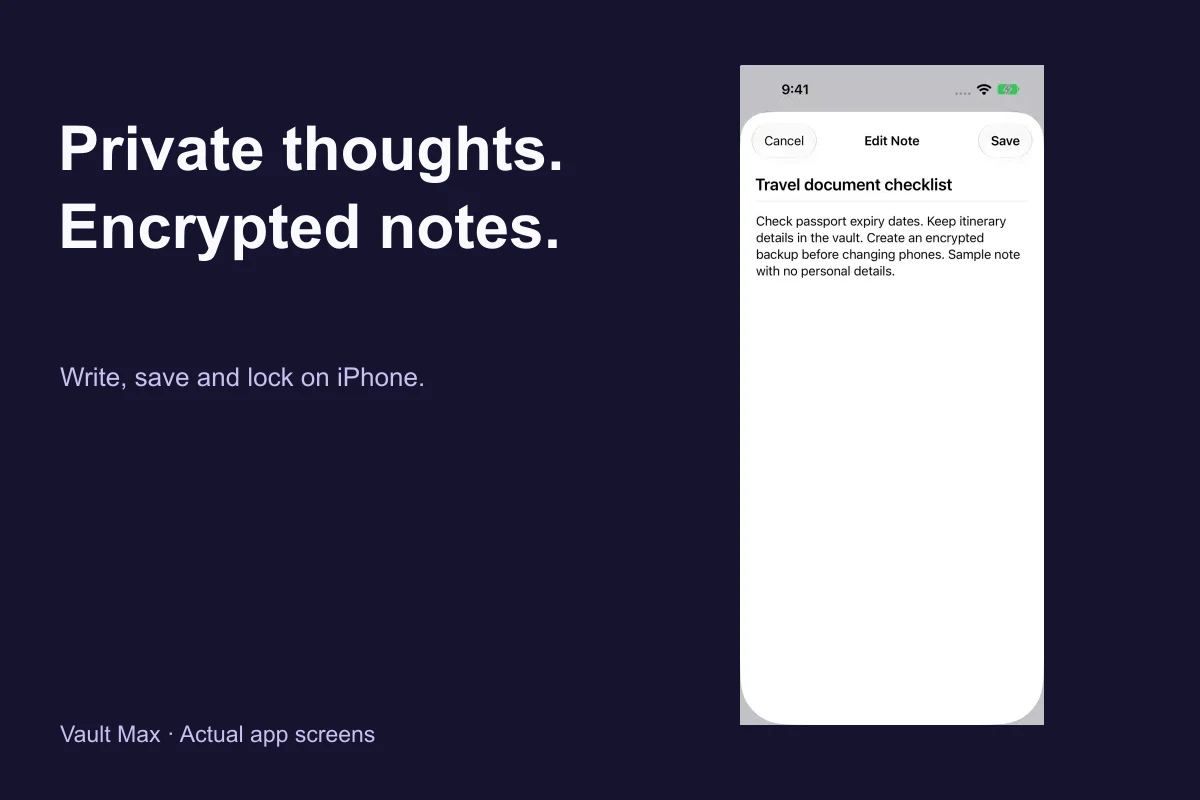
Private information is not always a photograph. Vault Max includes text notes for the written details that belong with your media. On open Duo, the note editor uses a focused sheet within the wider application, keeping the title, body and save controls together.
Sample Vault Max library. Select a screen for a closer look.
Use Save, reopen the resulting note and check the text before ending the session. Notes remain part of the vault in which you create them. They do not automatically sync through a Vault Max account, and they do not count toward the free plan's photo/video/document capacity limit.
The encrypted-notes walkthrough includes fresh iPhone and Duo creation, save and reopen examples, plus the deletion and backup steps for important text.
Make closing the fold a deliberate privacy action
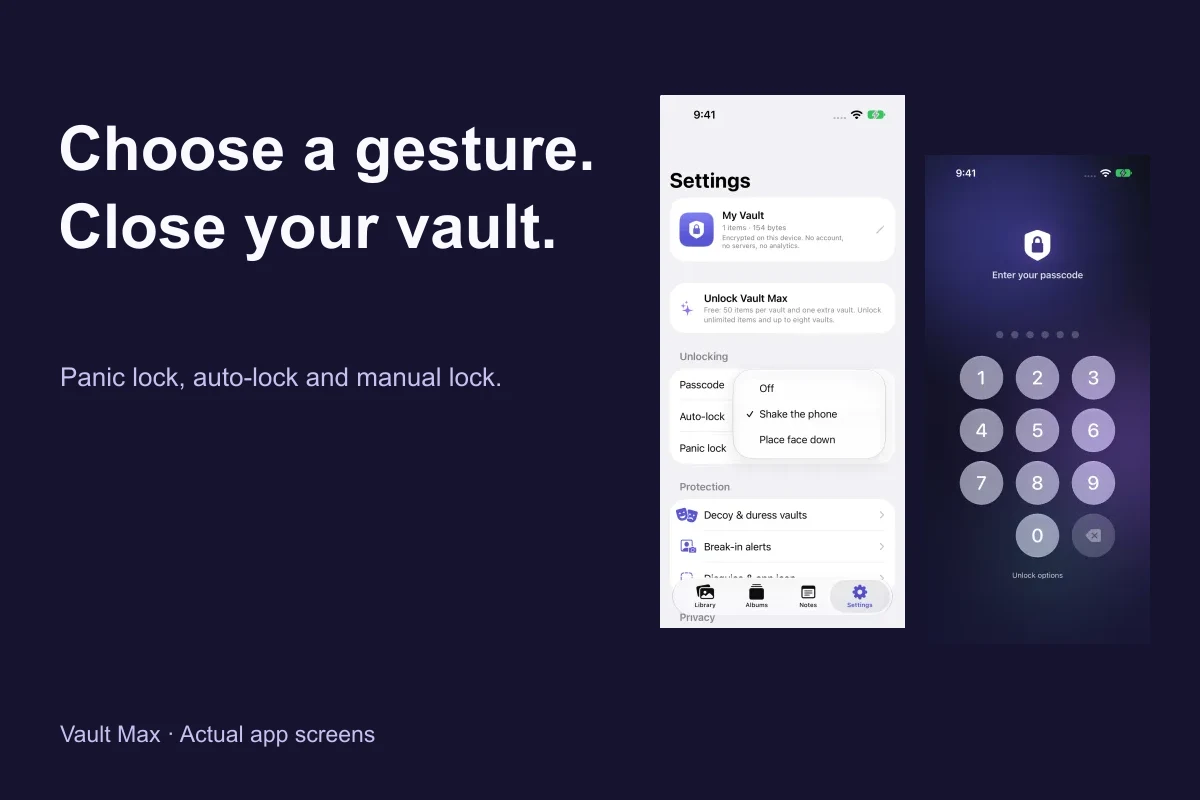
In Settings → Unlocking, enable Lock when folded shut if you want closing an open or partially open Duo to end the unlocked vault session. During this capture session, closing Duo with the option enabled returned the app to its passcode screen.
Sample Vault Max library. Select a screen for a closer look.
This gives the fold a job beyond changing the canvas size. You can browse on the open display, finish checking the item and deliberately close the device to request a lock. Save notes and wait for imports or camera saves to complete before intentionally ending your session.
Manual Lock, panic gestures and background auto-lock remain separate controls. Choose a routine you understand and test it with sample content on your device. The panic-lock guide explains how these options fit together.
Evaluate Duo support with concrete questions
When comparing photo vaults for iPhone Duo, look for demonstrated behavior and clear recovery instructions. A useful comparison checks the tasks you will repeat, rather than relying on a broad “Duo compatible” label or an unsupported claim about other apps.
| Task | What to inspect | Shown here in Vault Max |
|---|---|---|
| Browse while closed | Readable compact layout and reachable navigation | Outer-display grid and system side strip |
| Browse while open | Useful response to extra display width | Wider grid with five columns in this capture |
| Review while partially folded | Media and controls adapt to posture | Split viewer with filmstrip and action panel |
| Write a private note | Editor remains focused and usable | Native note sheet on the open display |
| Finish a session | A clear way to end unlocked access | Optional fold-to-lock plus manual and panic controls |
| Move to another phone | A documented way to retain private content | Encrypted backup and restore workflow |
Use these concrete tasks to compare any photo vault you are considering. Check the app version and device being demonstrated, and distinguish a useful layout screenshot from behavior you have verified on your own phone.
Move from a normal iPhone to Duo with a backup plan
The adaptive interface does not change the responsibility for your data. Vault Max keeps vault content on the device and has no hosted account library to repopulate a new installation. Before replacing the old phone, create an encrypted Vault Max backup, keep its password available and verify the restored content on the destination.
Follow the new-iPhone transfer guide, including its checks before erasing the old device. After restoring, review device-specific settings such as biometrics and fold-to-lock. A restored purchase entitlement is separate from restoring vault photos, videos, documents and notes.
Duo's extra space is most useful when it helps you do an ordinary task clearly: scan more thumbnails, inspect a photo, keep controls separate, write a note and close the session with confidence. Those are the adaptations this walkthrough shows in the real app.
Keep exploring
More guides
Practical tips for your private library. Swipe, scroll or use the arrows.
 8 min read
Private Camera on iPhone: take photos straight into Vault Max
Use Vault Max Private Camera to save new photos and videos inside your encrypted vault. Learn the controls, permissions, albums, saving and backup steps.
 8 min read
Encrypted notes on iPhone: write, save and protect them in Vault Max
Create encrypted notes in Vault Max on iPhone and Duo. Follow the editor, saving, locking, deletion and backup steps, with fresh app screens and loops.
 7 min read
Panic lock on iPhone: quickly close your Vault Max session
Set up Vault Max panic lock, choose shake or face down, and understand manual lock, background auto-lock and Duo fold-to-lock with fresh real app screens.
 5 min read
Moving your photo vault to a new iPhone: a Vault Max checklist
Plan a new-iPhone move with a Vault Max backup, a careful restore, checks for media and child vaults, and a final checklist before handing off the old phone.
 7 min read
Vault Max privacy features: break-in photos, decoy vaults and quick locks
Explore Vault Max's break-in photos, calculator disguise, decoy vaults, private camera, panic lock and encrypted backups, with app screens and footage.
 4 min read
Back up Vault Max before changing your iPhone
Create a password-protected Vault Max backup, choose where to save it, and understand restore and recovery before moving or erasing your iPhone.
 5 min read
Forgot your Vault Max passcode? Check these recovery paths first
Check biometric access, credential type and encrypted backups before changing anything. Understand which Vault Max recovery paths can preserve your files.
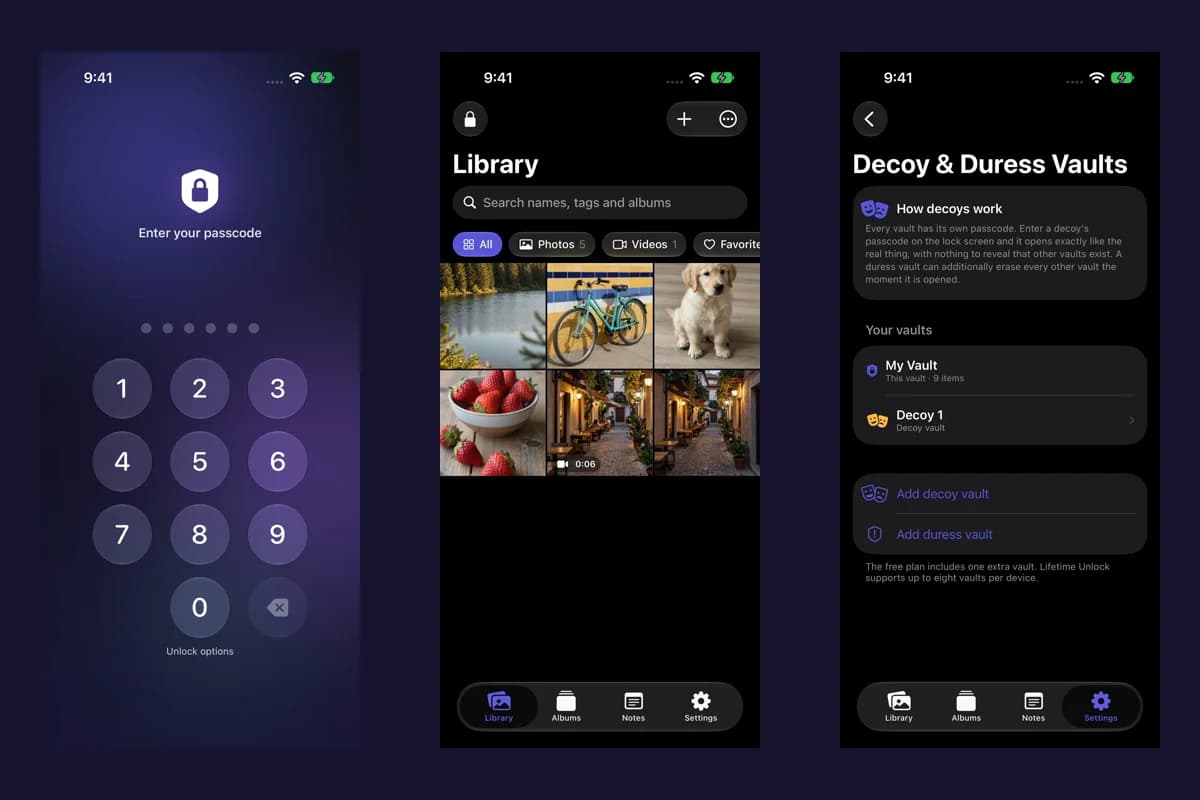 4 min read
Hidden album vs photo vault on iPhone: which do you need?
Compare the iPhone Hidden collection with a separate photo vault: access, copies, backup and recovery, explained with real Vault Max screens and short demos.
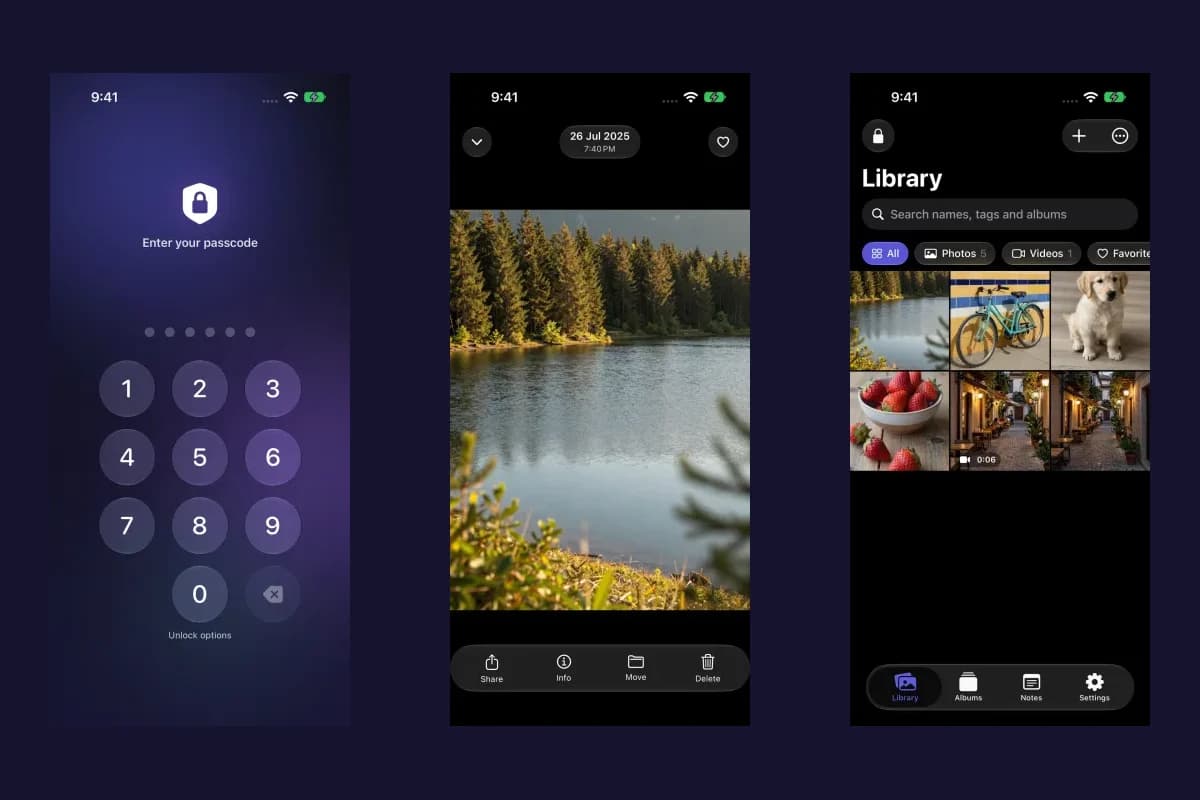 5 min read
How to hide photos on iPhone, with or without a separate vault
Hide photos with Apple's Hidden album or import them into Vault Max. Learn what happens to originals, how to check your copies, and when to make a backup.
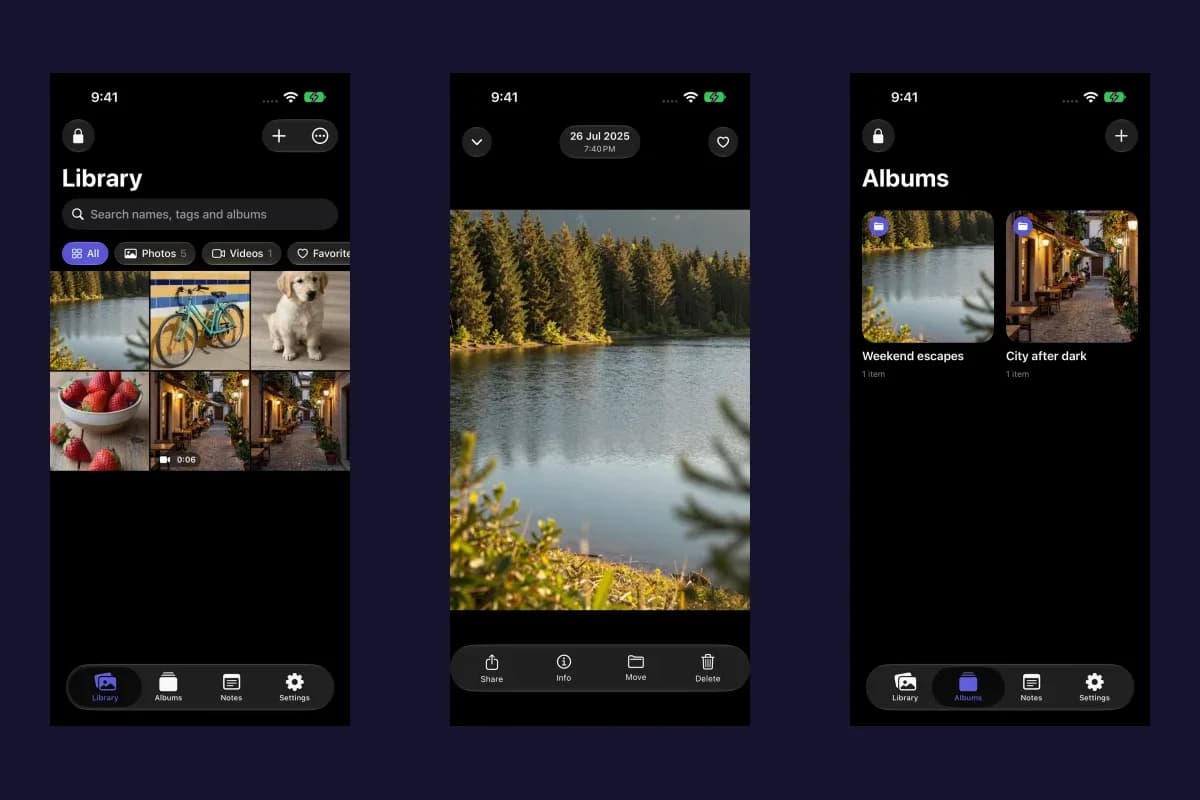 5 min read
How to import photos, videos and files into Vault Max
Follow Photos, Files and share-sheet import routes in Vault Max, verify your saved items, handle originals carefully, and organize a private media library.
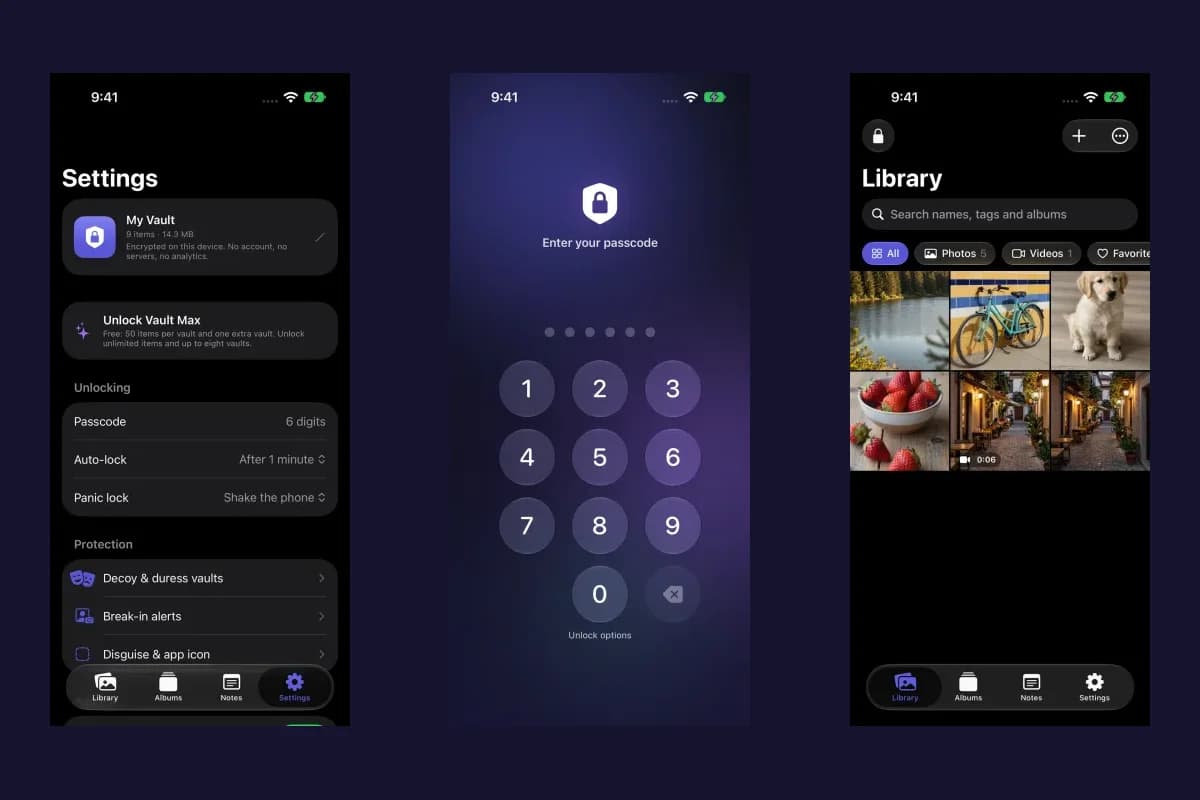 4 min read
How to set up break-in photos in Vault Max
Set up Vault Max break-in photos, choose a wrong-code threshold, review saved attempt records, and understand camera permissions and missing-photo results.
 4 min read
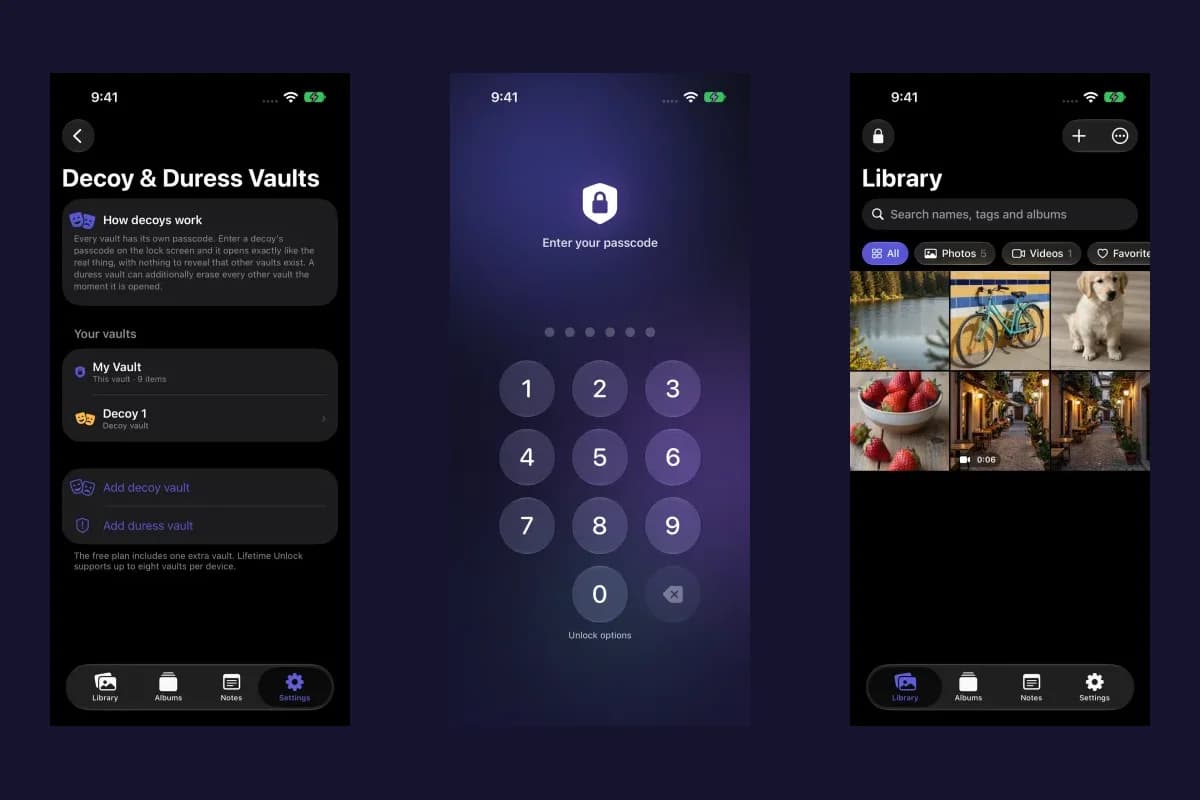
Set up a decoy photo vault in Vault Max
Create a Vault Max decoy with its code, add a separate collection, check which library opens, and understand backup, capacity and duress-vault differences.
 4 min read
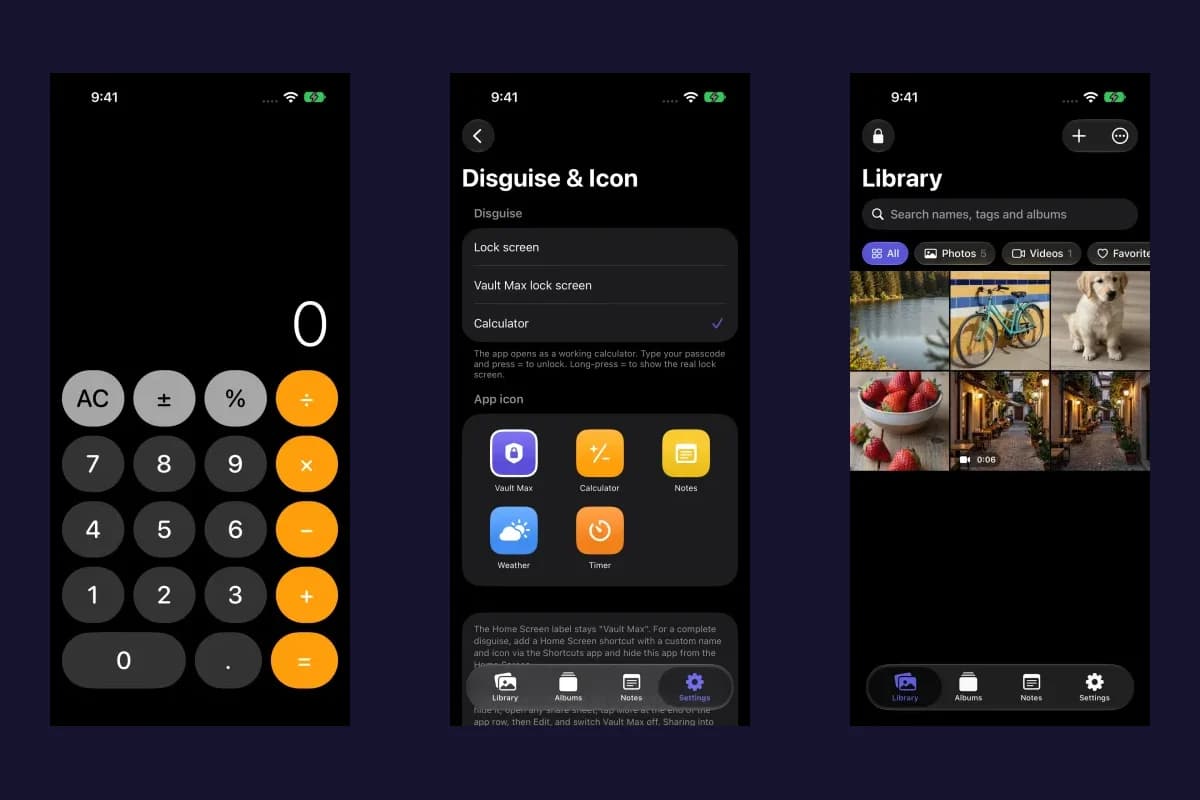
Use Vault Max as a calculator photo vault on iPhone
Set up Vault Max's calculator disguise, unlock with a PIN and equals, find the password or pattern fallback, and understand what the icon changes reveal.
 4 min read
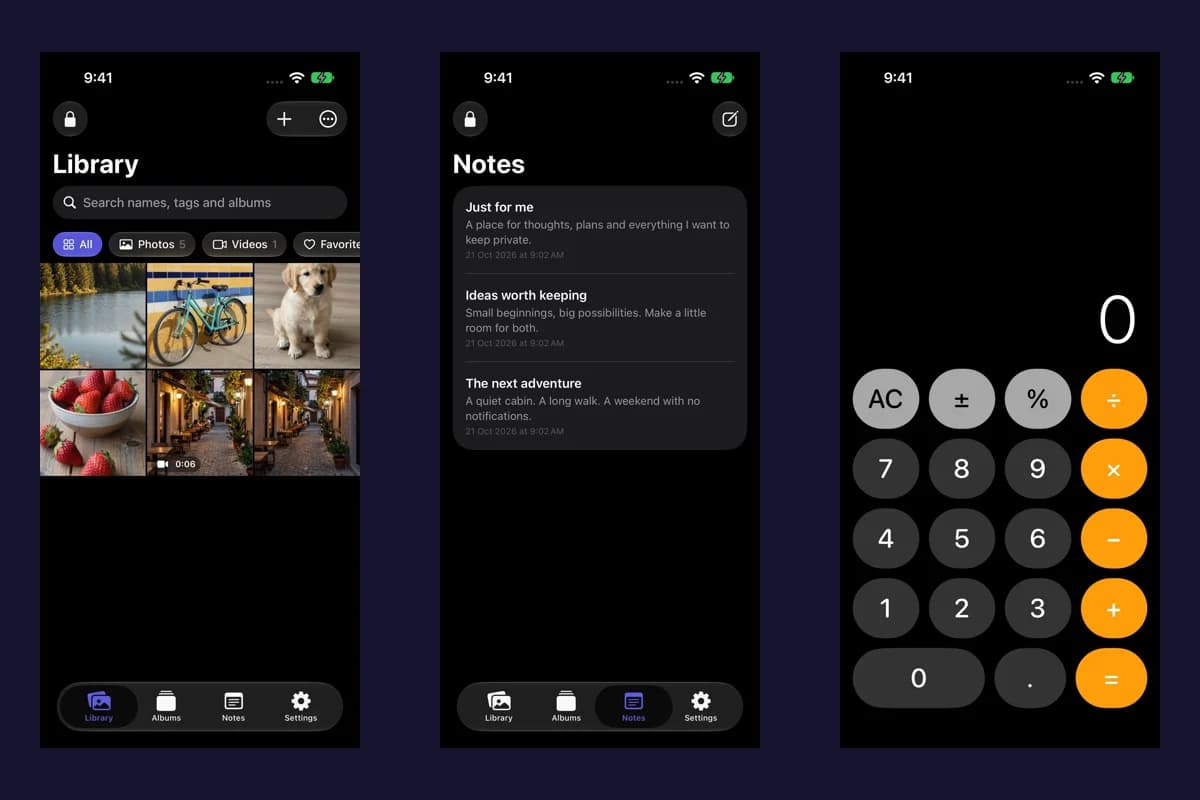
Using a photo vault without an account or cloud library
See how a local iPhone photo vault works without an app account, what Apple purchases use, and how backup destinations change your cloud choices.
14 guides to explore