
Panic lock on iPhone: quickly close your Vault Max session
Set up Vault Max panic lock, choose shake or face down, and understand manual lock, background auto-lock and Duo fold-to-lock with fresh real app screens.
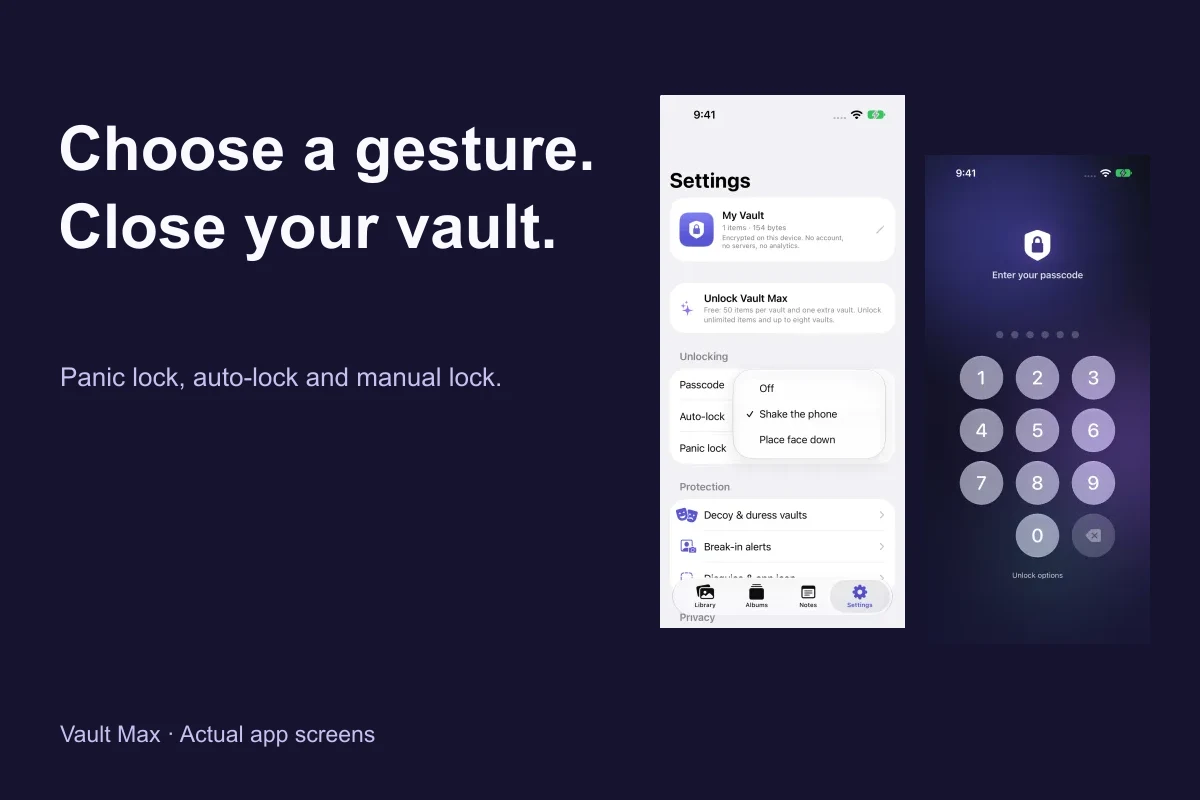
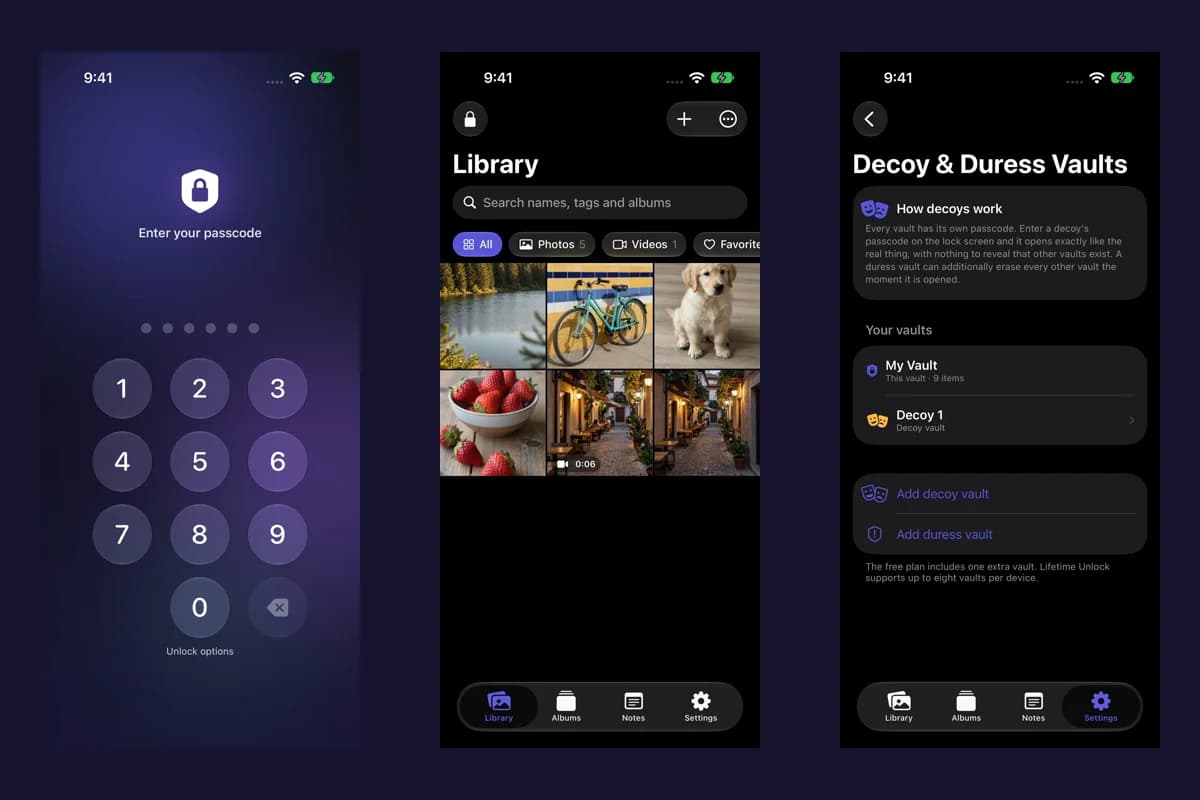
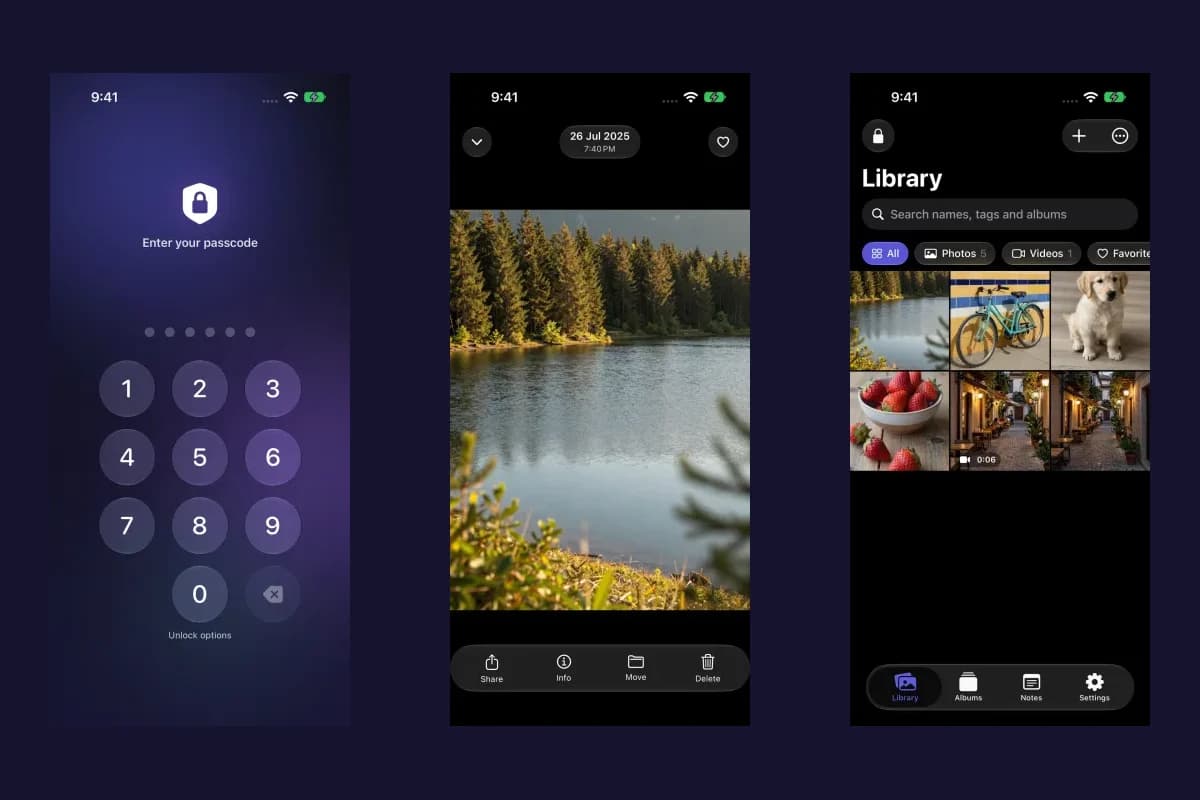
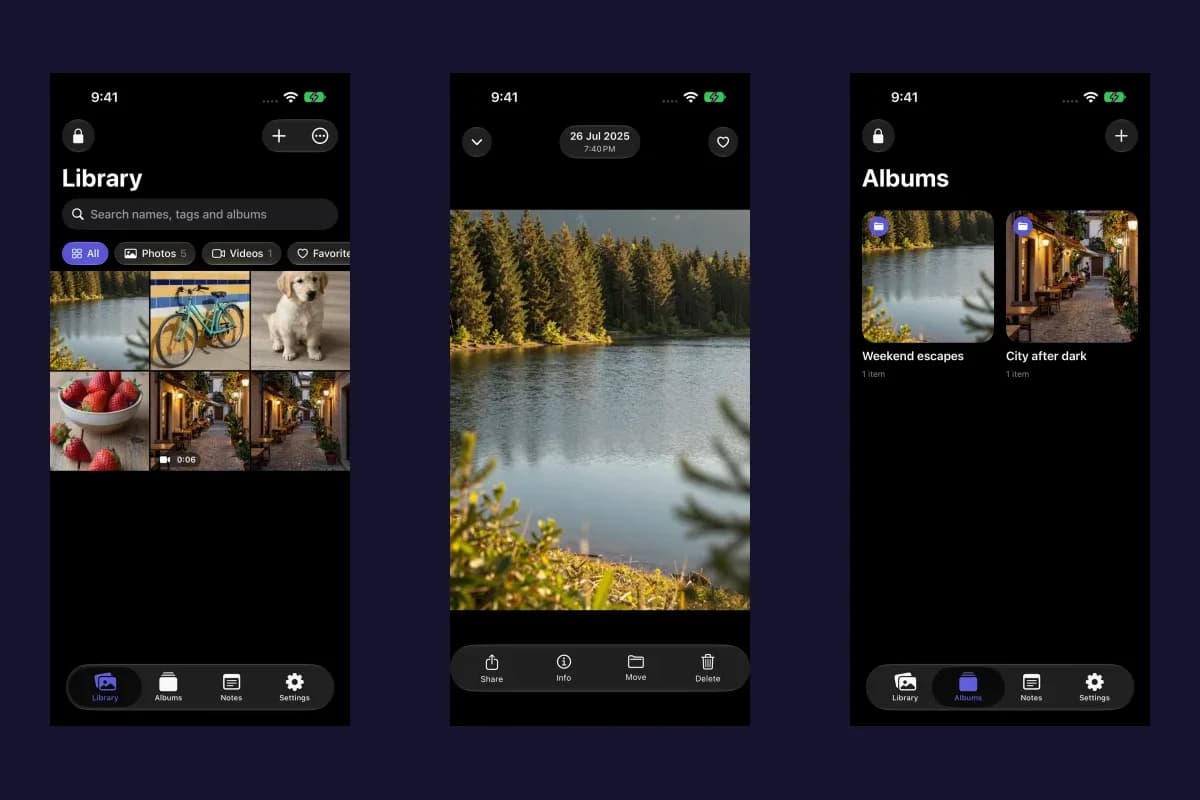
Actual Vault Max screens with sample content.
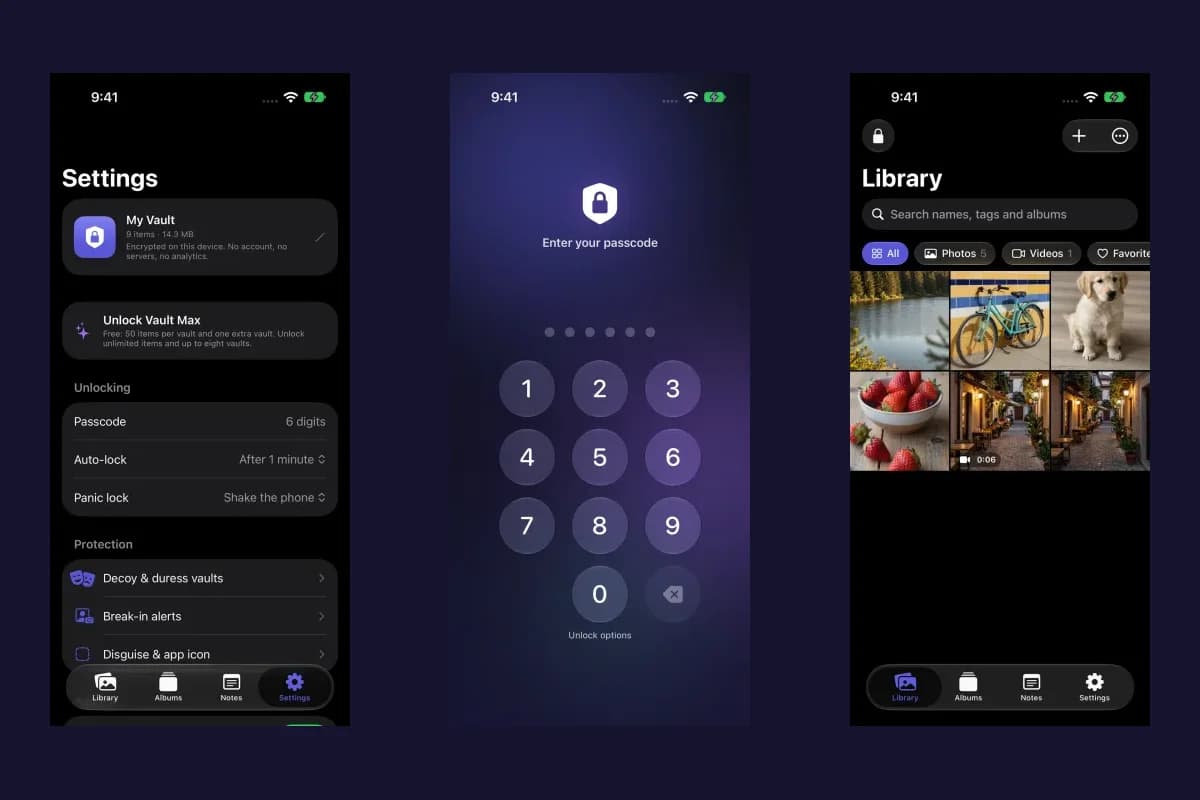
To configure panic lock in Vault Max, unlock your vault and open Settings → Panic lock under Unlocking. Choose Shake the phone or Place face down. The chosen gesture ends the unlocked vault session when the app receives the corresponding motion or orientation event. Choose Off if you want to leave that optional gesture disabled.
A quick lock is useful because a vault can be secure while locked and readable while you are using it. You may finish checking a private photo, put the phone down or need to end a session without navigating through settings. Panic lock gives you another way to reach the vault's locked state.
This guide uses fresh real-app captures from iPhone and Duo simulators. The footage demonstrates changing a panic preference and using manual Lock now. It does not present a settings change as proof that a physical shake or face-down sensor gesture was tested.
Find the setting and choose one gesture
Open the vault, choose Settings and look under Unlocking. Panic lock appears beside Auto-lock. Open it to choose Off, Shake the phone or Place face down. The picker selects one panic behavior at a time, so decide which action you want to use in everyday situations.
Sample Vault Max library. Select a screen for a closer look.
If you regularly set the phone face down on a desk, that action may fit your routine. If you want a deliberate motion that you can perform while holding it, consider the shake option. Start with sample content and check the result on the device you actually use before relying on muscle memory.
See what the picker changes
The setting is a preference for the app's response to an event. Selecting Place face down does not itself lock the current session. You can return to the library after selecting it, save what you are working on and try the corresponding action.
Vault Max with sample content. Use the controls to pause or replay.
If accidental locks become inconvenient, choose another gesture or Off. Turning this picker Off disables the optional panic gesture; the manual lock controls and the separate background auto-lock setting remain available.
Try the gesture with a saved sample item
A short rehearsal is useful. Save a sample note or import a disposable sample image, then return to the library with no unsaved work open. Choose the panic gesture, perform it on your device and check that the private session closes. Unlock again using your usual method and verify that the saved sample is still there.
This confirms two things that a screenshot of Settings cannot: that you recognize the gesture you selected, and that the device delivers the event in your actual usage. A motion setting is not a promise that every movement, every angle or every system state produces an identical result.
Sample Vault Max library. Select a screen for a closer look.
If your test leaves the vault open, confirm the preference and retry from the main app with saved sample content. Use a manual Lock control whenever you need a definite end to the session while you investigate. Do not use repeated wrong credentials as a test of panic lock; that exercises the unlock and lockout workflow instead.
Know the manual route as well
Vault Max exposes a Lock control in its main sections and a Lock now command in Settings. Manual locking is useful even if you use a panic gesture: it gives you a visible, deliberate action when you are already looking at the app.
Vault Max with sample content. Use the controls to pause or replay.
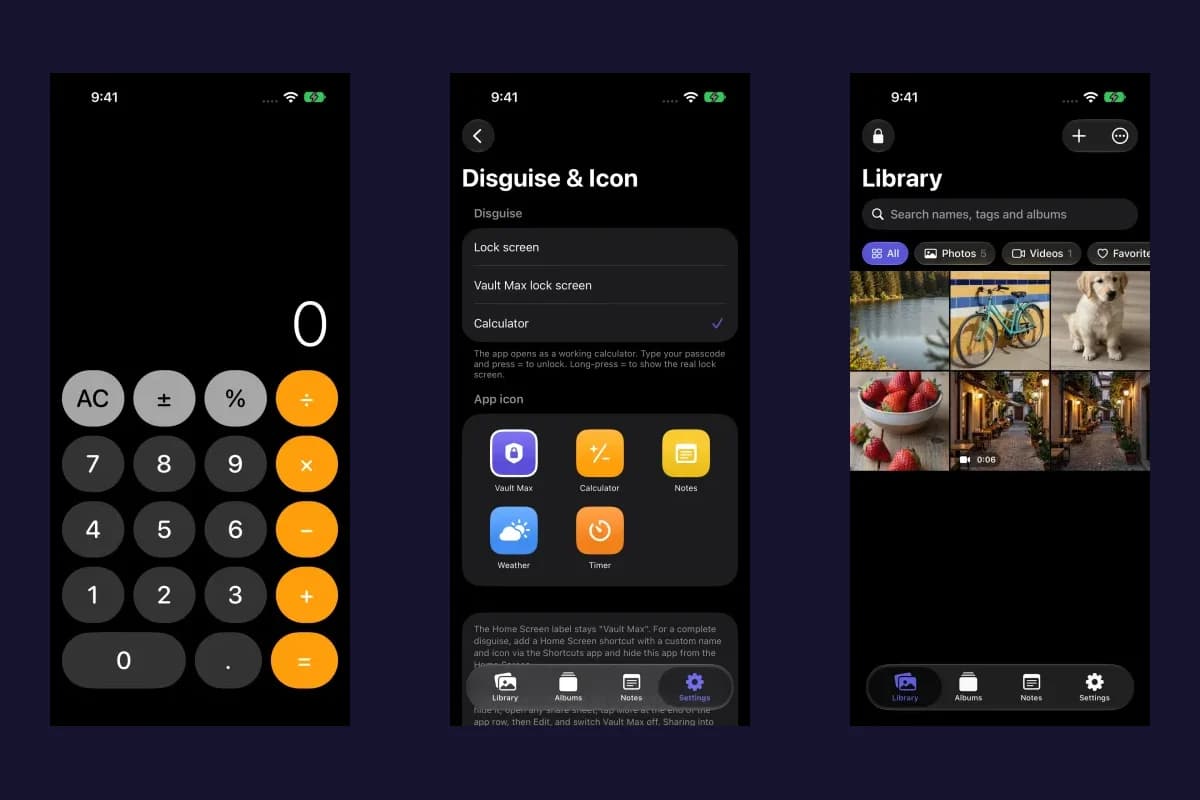
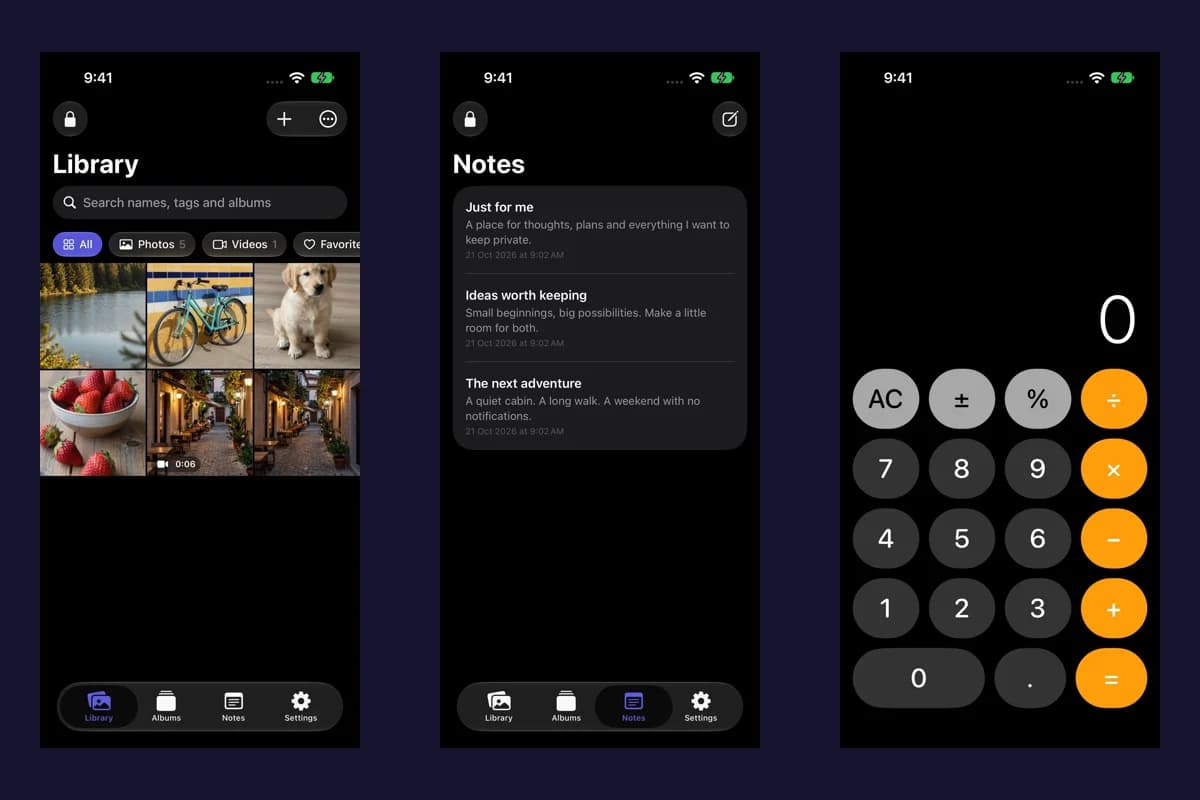
With a normal lock presentation, the credential screen is an easy outcome to recognize. If you enable calculator disguise, the app's locked presentation can look different. Know how to unlock the mode you configured before testing a quick exit with important content.
The vault lock is separate from the phone's own lock screen. You can deliberately close the vault while continuing to use the rest of the phone. Keep the device's own security settings appropriate too, especially when other apps contain copies of the same information.
Set background auto-lock for the moments you leave the app
Auto-lock addresses another common transition: moving away from Vault Max. The available choices are Immediately, After 30 seconds, After 1 minute, After 5 minutes and After 15 minutes.
Immediately locks the vault when the app goes into the background. The delay choices use the time spent away to determine whether the session must lock when you return. Treat them as background/return behavior, rather than a countdown that automatically closes an actively used foreground editor.
Sample Vault Max library. Select a screen for a closer look.
For example, you may want a brief switch to another app to preserve your place, or you may want every background transition to close the vault. Choose based on that tradeoff, then rehearse leaving and returning so the behavior is familiar.
Use the app-switcher privacy cover as another layer
The Hide content in app switcher preference controls the privacy cover when Vault Max becomes inactive. It helps obscure private content in a system snapshot while you move between apps. It serves a different purpose from requiring a credential to reopen the vault.
If you are handing over the phone, deliberately lock the vault before doing so. A covered snapshot alone does not tell you whether a delayed auto-lock interval has expired. Likewise, screenshot shielding is best effort and can vary with iOS; use it as a supporting setting rather than assuming every possible recording path is blocked.
Add fold-to-lock on iPhone Duo
On a supported foldable device, Vault Max exposes Lock when folded shut in Unlocking. With it enabled, closing the device from an open or partially open posture requests a vault lock. That makes a physical change in how you use Duo part of the privacy workflow.
Sample Vault Max library. Select a screen for a closer look.
The Duo walkthrough shows the wider grid and split viewer as well. Save notes and let imports or captures finish before you intentionally end a session. A quick lock should not become a substitute for checking that an important operation completed.
Separate the jobs of the different controls
| Control | When it helps | What to check |
|---|---|---|
| Panic lock | A configured shake or face-down action during use | Selected gesture and the result on your device |
| Manual Lock / Lock now | A deliberate visible end to the session | The app returns to its configured locked presentation |
| Background auto-lock | Leaving Vault Max and returning later | The selected interval and elapsed time away |
| App-switcher cover | Obscuring an inactive app snapshot | Privacy cover enabled in Settings |
| Duo fold-to-lock | Closing a supported foldable device | Lock when folded shut enabled |
Together, these controls cover different parts of a normal session. You do not need the longest list of enabled options to have a useful routine. Pick the ones you understand, verify their behavior and retain a reliable way back into your vault.
Protect saved content and recovery options
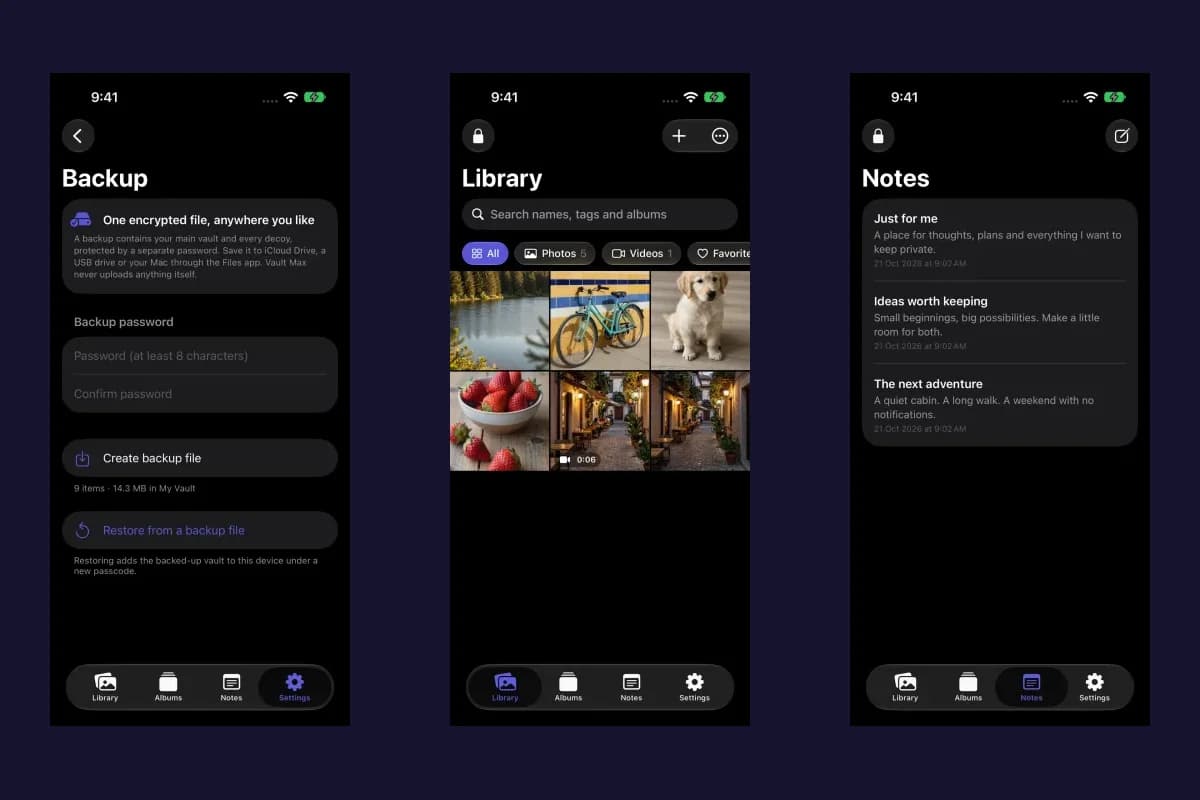
Locking ends access to the current session; it does not create a backup. Keep an encrypted archive of irreplaceable content and retain its password. Before changing phones, follow the transfer guide.
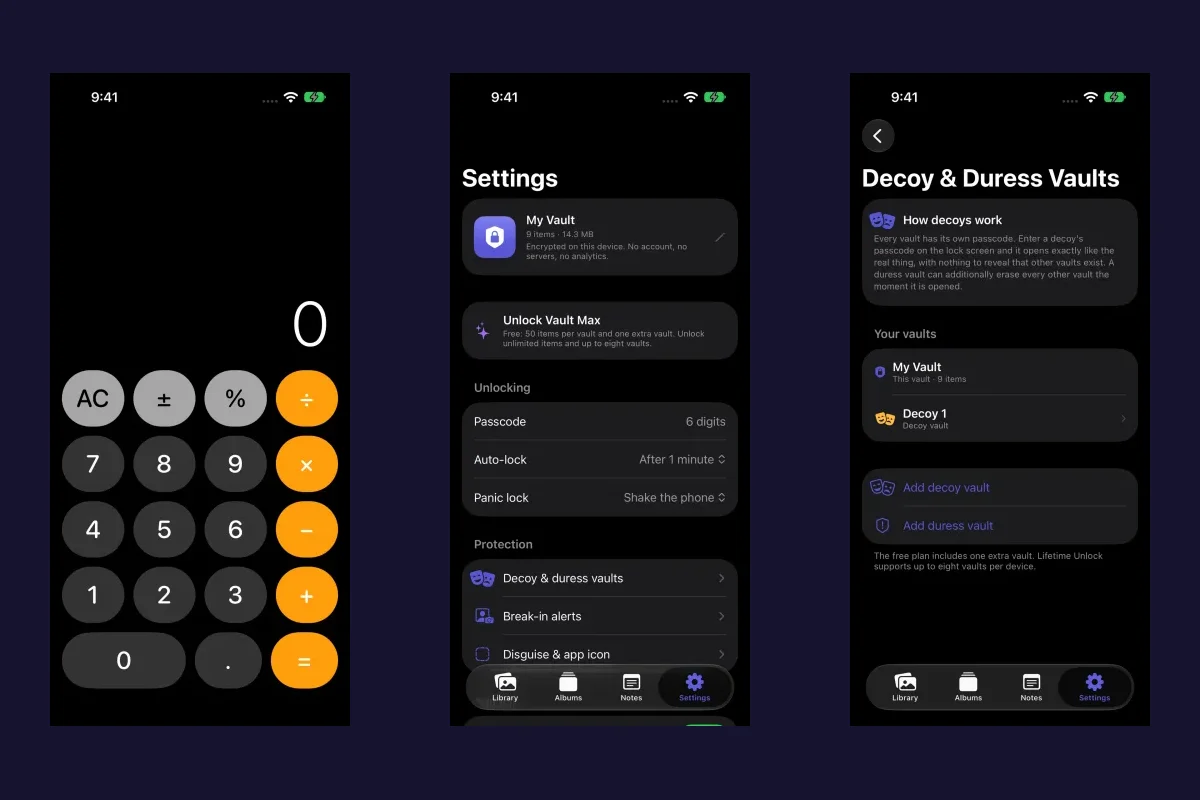
Panic lock also does not select a decoy credential or configure a duress action. Those settings have their own workflow. Read the decoy and duress guide before enabling an action that can affect another vault's content.
Common questions
Does panic lock delete my saved photos or notes?
Panic lock requests a vault lock. Saved content remains in the vault for the next successful unlock. Destructive duress behavior is a separately configured feature, and a lock is not evidence that an unfinished draft or capture was saved.
Why do I see a calculator after locking?
Calculator disguise changes the locked presentation when enabled. Use the unlock route for that mode. The calculator interface does not mean your private library was erased or that a new vault was created.
Can I recover a forgotten credential by turning panic lock off?
No. The gesture preference is not a recovery mechanism. Use the forgotten-passcode guide to assess available unlock or backup options before erasing app data or trying repeated guesses.
Keep exploring
More guides
Practical tips for your private library. Swipe, scroll or use the arrows.
 8 min read
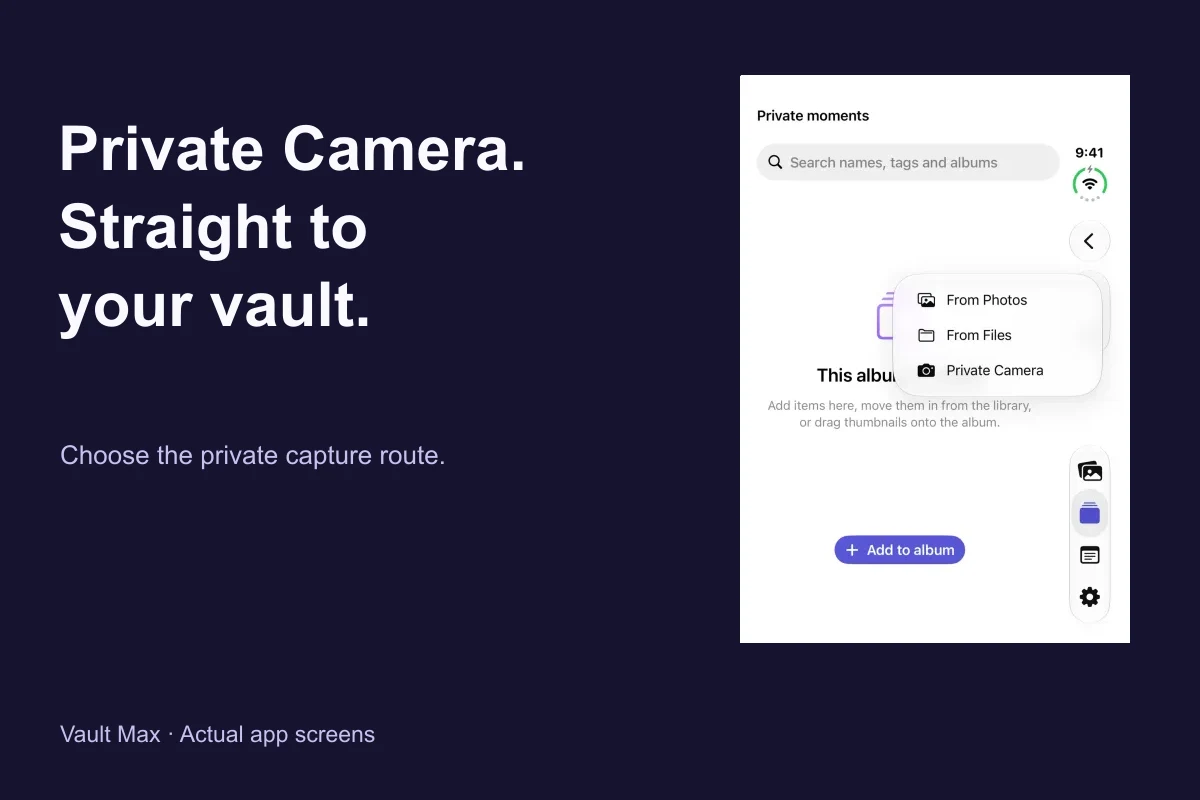
Private Camera on iPhone: take photos straight into Vault Max
Use Vault Max Private Camera to save new photos and videos inside your encrypted vault. Learn the controls, permissions, albums, saving and backup steps.
 8 min read
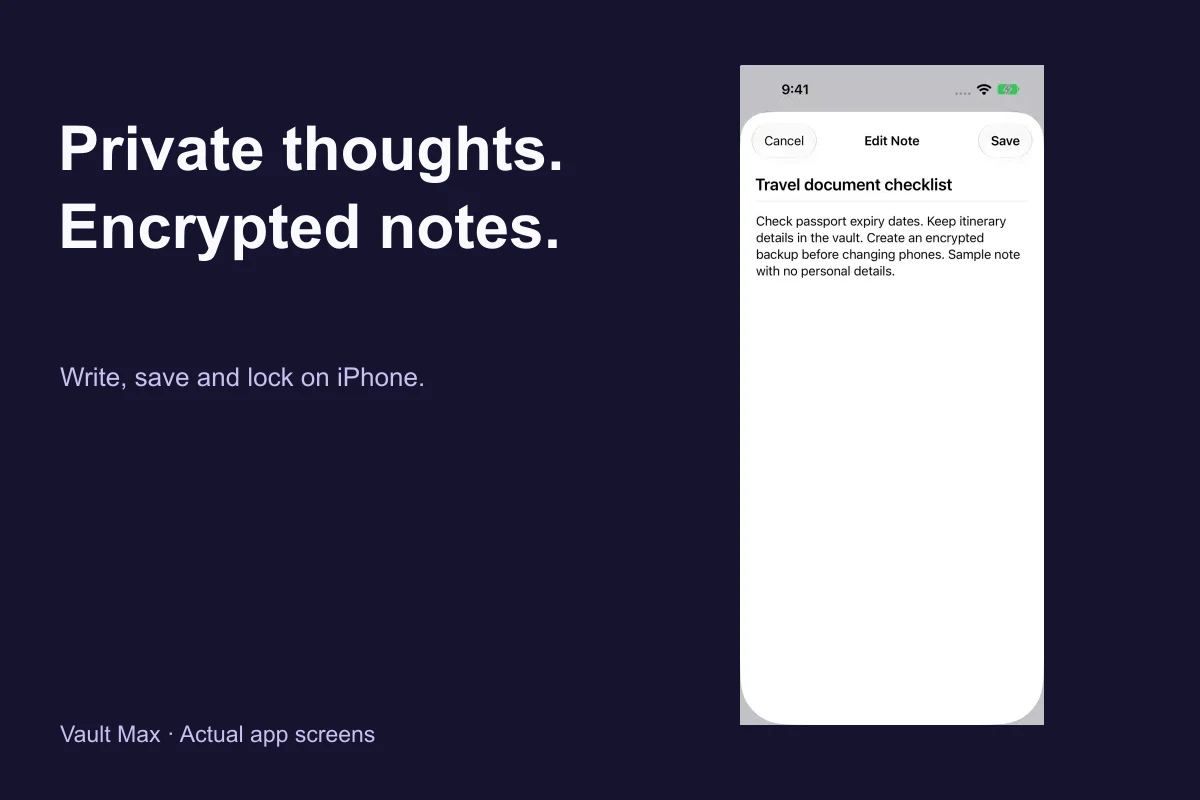
Encrypted notes on iPhone: write, save and protect them in Vault Max
Create encrypted notes in Vault Max on iPhone and Duo. Follow the editor, saving, locking, deletion and backup steps, with fresh app screens and loops.
 9 min read
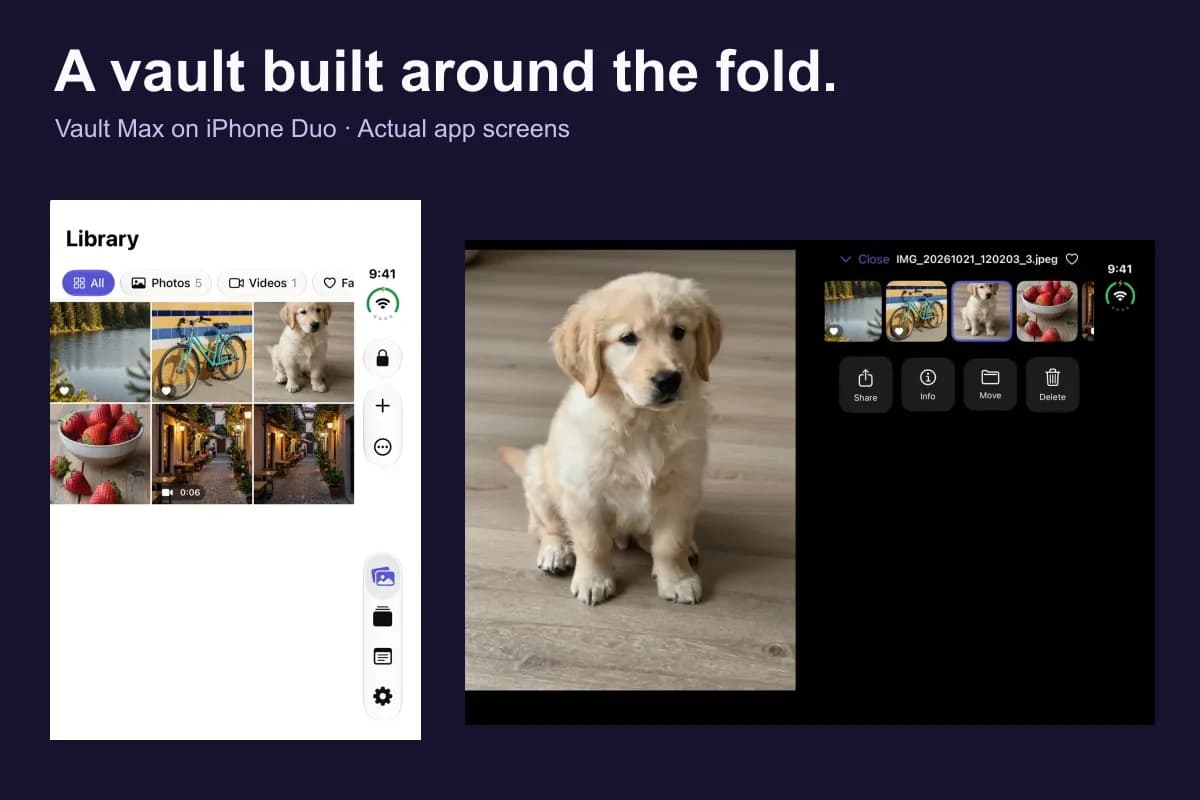
A photo vault built for iPhone Duo: explore Vault Max's layouts
See Vault Max on iPhone Duo: a wider photo grid, split viewer, filmstrip, focused notes and optional fold-to-lock, with fresh real app screens and footage.
 4 min read
Use Vault Max as a calculator photo vault on iPhone
Set up Vault Max's calculator disguise, unlock with a PIN and equals, find the password or pattern fallback, and understand what the icon changes reveal.
 4 min read
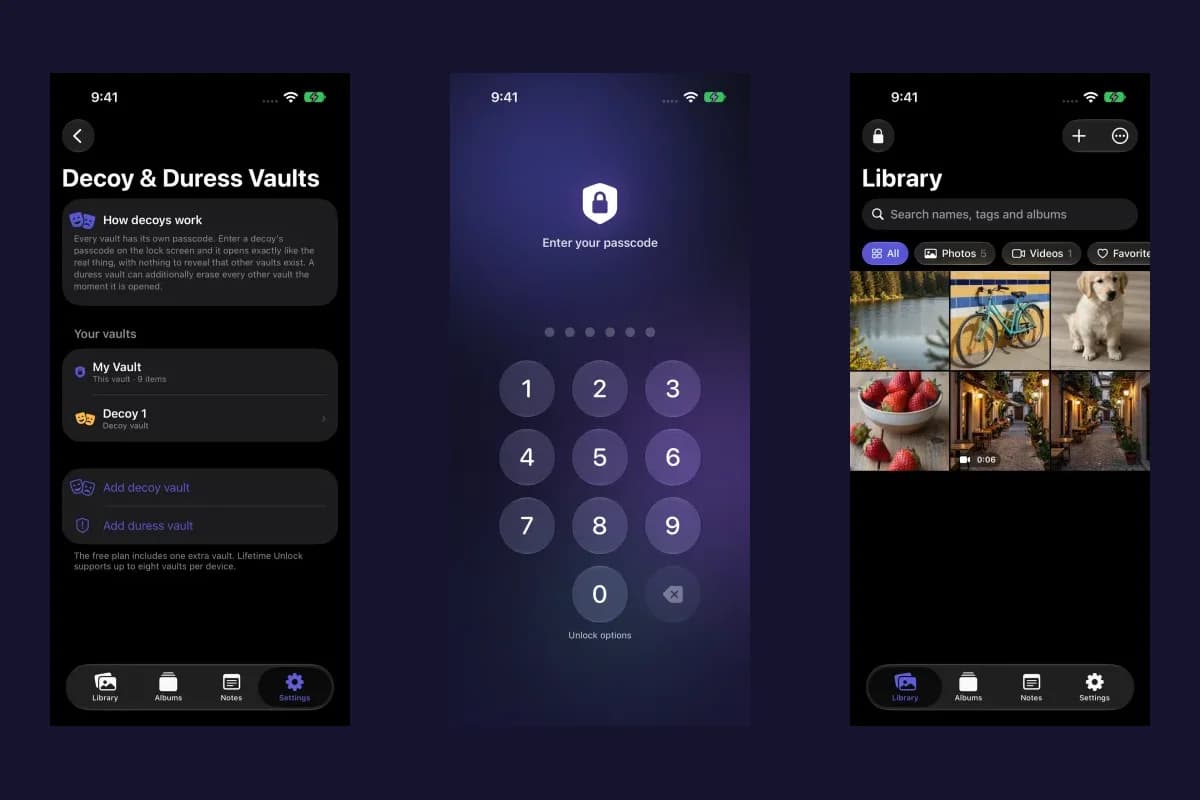
Set up a decoy photo vault in Vault Max
Create a Vault Max decoy with its code, add a separate collection, check which library opens, and understand backup, capacity and duress-vault differences.
 4 min read
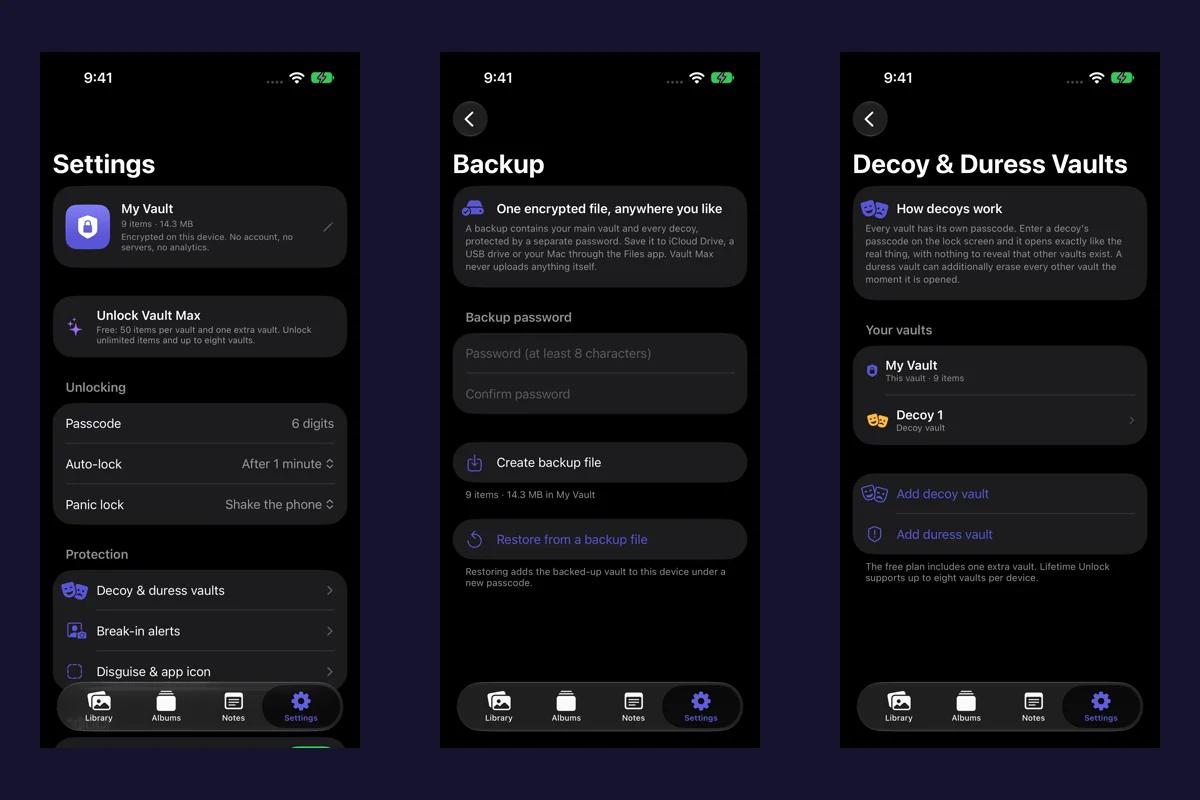
Back up Vault Max before changing your iPhone
Create a password-protected Vault Max backup, choose where to save it, and understand restore and recovery before moving or erasing your iPhone.
 5 min read
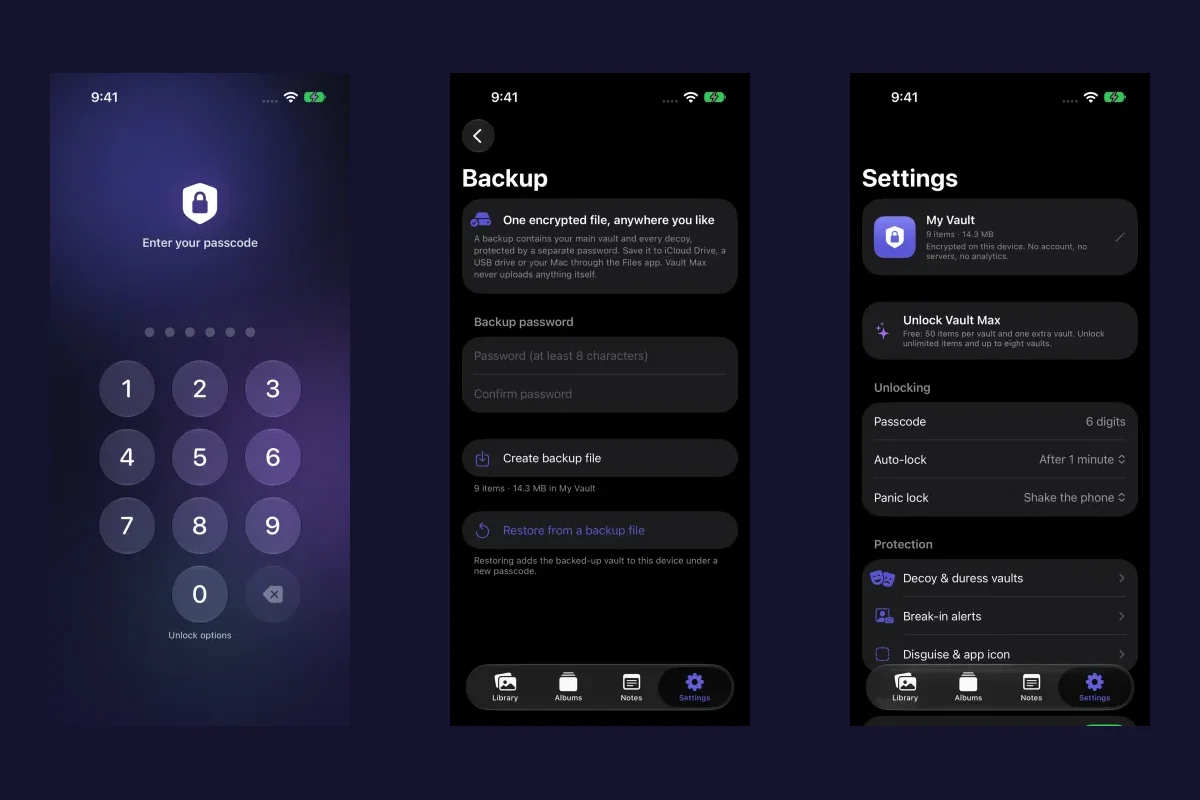
Forgot your Vault Max passcode? Check these recovery paths first
Check biometric access, credential type and encrypted backups before changing anything. Understand which Vault Max recovery paths can preserve your files.
 4 min read
Hidden album vs photo vault on iPhone: which do you need?
Compare the iPhone Hidden collection with a separate photo vault: access, copies, backup and recovery, explained with real Vault Max screens and short demos.
 5 min read
How to hide photos on iPhone, with or without a separate vault
Hide photos with Apple's Hidden album or import them into Vault Max. Learn what happens to originals, how to check your copies, and when to make a backup.
 5 min read
How to import photos, videos and files into Vault Max
Follow Photos, Files and share-sheet import routes in Vault Max, verify your saved items, handle originals carefully, and organize a private media library.
 4 min read
How to set up break-in photos in Vault Max
Set up Vault Max break-in photos, choose a wrong-code threshold, review saved attempt records, and understand camera permissions and missing-photo results.
 5 min read
Moving your photo vault to a new iPhone: a Vault Max checklist
Plan a new-iPhone move with a Vault Max backup, a careful restore, checks for media and child vaults, and a final checklist before handing off the old phone.
 4 min read
Using a photo vault without an account or cloud library
See how a local iPhone photo vault works without an app account, what Apple purchases use, and how backup destinations change your cloud choices.
 7 min read
Vault Max privacy features: break-in photos, decoy vaults and quick locks
Explore Vault Max's break-in photos, calculator disguise, decoy vaults, private camera, panic lock and encrypted backups, with app screens and footage.
14 guides to explore