
How to import photos, videos and files into Vault Max
Follow Photos, Files and share-sheet import routes in Vault Max, verify your saved items, handle originals carefully, and organize a private media library.
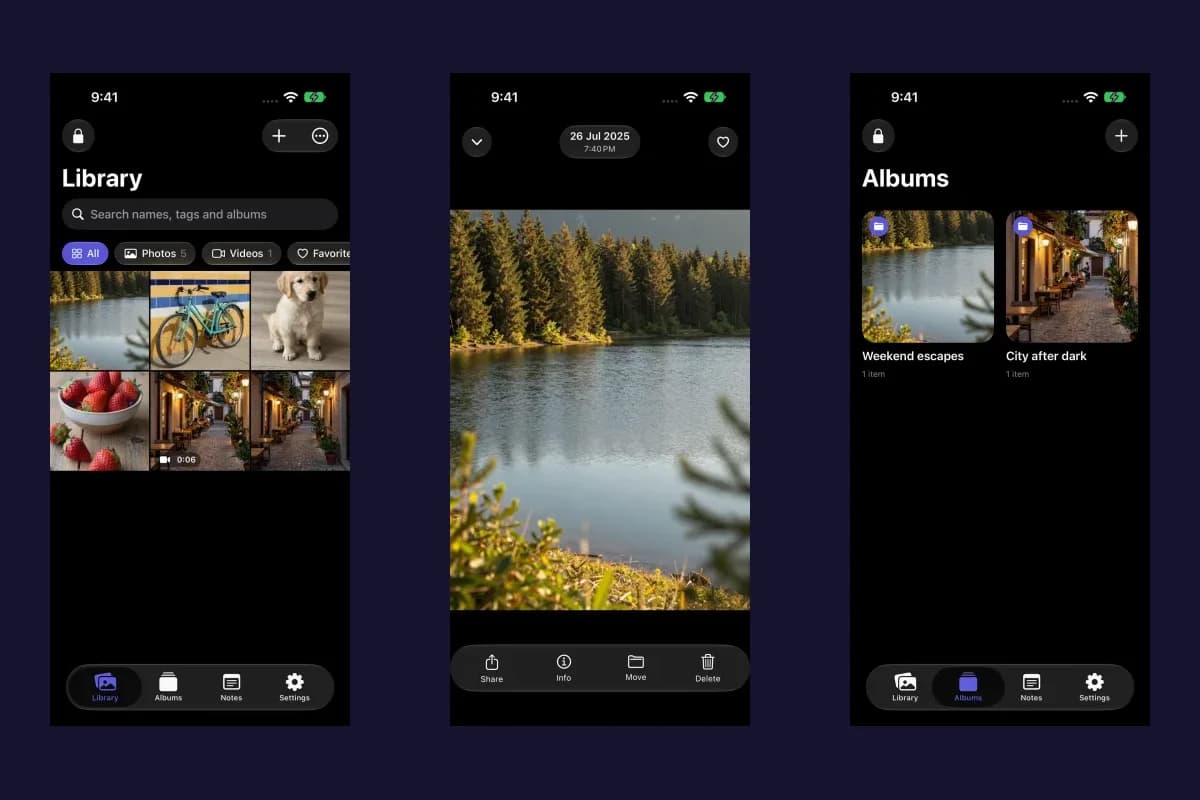
Actual Vault Max screens with sample content.
Open your vault, tap the + button in Library, and choose From Photos or From Files. Select the items, wait for import to finish, and open the saved copies before deleting any originals. Vault Max also accepts supported file attachments through the iOS share sheet and can capture new pictures and video with its Private Camera.
Start with a small batch so you can see the whole process. You do not need to move your entire photo library to learn how the vault works.
Sample Vault Max library. Select a screen for a closer look.
Import from Photos
- Unlock the vault that should receive the items.
- In Library, tap + → From Photos.
- Choose the photos and videos in the system picker and finish the selection.
- Keep an eye on import progress and any error message.
- Open the resulting items in Vault Max and check that the batch contains what you intended.
The system picker lets you select media without granting Vault Max general access to browse your whole photo library. Deleting originals afterward is a separate operation with its own Photos access and iOS confirmation requirements.
Vault Max with sample content. Use the controls to pause or replay.
For a Live Photo, check both the still and motion by touching and holding the opened item. Vault Max preserves the motion companion when the source provides it; if it cannot obtain the pair, an import may contain the still image alone. Verify that behavior before removing an irreplaceable source.
Choose whether to keep the originals
After a successful Photos import, Vault Max can show Delete the originals from Photos? The choices include deleting the imported originals, keeping them, or keeping them and turning off future prompts. The delete route asks iOS to perform the deletion; it can fail if the needed access is unavailable.
Choose to keep the originals if you want to review the imported copies and make a backup first. If a delete attempt fails, check Photos rather than assuming those copies have disappeared.
Vault Max with sample content. Use the controls to pause or replay.
Photos keeps deleted items in Recently Deleted for 30 days unless you remove them permanently sooner. If iCloud Photos is enabled, deletion affects the connected library on other devices too. Review Apple's deletion guidance before permanently removing originals. Also check any separate copies you previously sent or saved.
Bring in PDFs and other files
Choose + → From Files and select one or more items from the Files picker. This route is useful for documents and media already stored in Files. If a chosen provider needs to download the source first, let that finish before expecting an import to complete.
The file is imported into Vault Max. Its original in Files or the selected provider remains a separate copy to manage. After importing a document, open it in the vault and check the pages or content you need. An item appearing as a thumbnail is only the start of that check.
Share supported attachments into the vault
From an app that offers file attachments through the iOS share sheet, select Vault Max. If it is not visible, look in the share sheet's additional app options. The extension encrypts supported attachments for the main vault, including when that vault is locked; open and unlock Vault Max afterward to bring those deposits into the library.
This route handles supported files. Plain text and web links are skipped with feedback. A share-sheet deposit is also different from selecting a destination decoy vault inside the unlocked app.
Sample Vault Max library. Select a screen for a closer look.
Check the result in Vault Max before assuming the source attachment has been stored successfully. If the free-plan limit prevents adoption, resolve the capacity message and check the library again.
Capture something new inside Vault Max
Choose + → Private Camera to take a new photo or record a video directly for the vault. Camera access is needed; recording audio with video also needs microphone access. Wait for the save to complete and check the item in Library.
For text, use + → New Note or the Notes section. Notes are kept inside the encrypted vault and do not count toward the free plan's photo, video and file limit.
Sample Vault Max library. Select a screen for a closer look.
Organize the imported collection
Use albums, favorites and search to keep larger batches manageable. Importing from within an album puts the new items into that album. If you are importing into a separate vault, unlock that vault first and confirm that its library is the one you intend to fill.
Vault Max with sample content. Use the controls to pause or replay.
The free plan allows 50 counted photos, videos and files per vault, plus one extra vault. Optional subscriptions and Lifetime Unlock add unlimited items and support up to eight total vaults per device. If a batch stops or shows an error, keep the originals and inspect what actually arrived before retrying.
Back up after an important import
New imports do not appear in an older exported backup automatically. Create a fresh .vaultmax file in
Settings → Encrypted backup, keep its password, and save it outside this phone when you need a recovery
copy. Follow the backup guide for the full process.
Then choose the lock controls you want: auto-lock, panic lock, calculator disguise and optional break-in alerts are covered in the feature guide.
More guides
- How to hide photos on iPhone, with or without a separate vaultHide photos with Apple's Hidden album or import them into Vault Max. Learn what happens to originals, how to check your copies, and when to make a backup.
- Back up Vault Max before changing your iPhoneCreate a password-protected Vault Max backup, choose where to save it, and understand restore and recovery before moving or erasing your iPhone.
- Vault Max privacy features: break-in photos, decoy vaults and quick locksExplore Vault Max's break-in photos, calculator disguise, decoy vaults, private camera, panic lock and encrypted backups, with app screens and footage.
- Forgot your Vault Max passcode? Check these recovery paths firstCheck biometric access, credential type and encrypted backups before changing anything. Understand which Vault Max recovery paths can preserve your files.
- Hidden album vs photo vault on iPhone: which do you need?Compare the iPhone Hidden collection with a separate photo vault: access, copies, backup and recovery, explained with real Vault Max screens and short demos.
- How to set up break-in photos in Vault MaxSet up Vault Max break-in photos, choose a wrong-code threshold, review saved attempt records, and understand camera permissions and missing-photo results.
- Moving your photo vault to a new iPhone: a Vault Max checklistPlan a new-iPhone move with a Vault Max backup, a careful restore, checks for media and child vaults, and a final checklist before handing off the old phone.
- Set up a decoy photo vault in Vault MaxCreate a Vault Max decoy with its code, add a separate collection, check which library opens, and understand backup, capacity and duress-vault differences.
- Use Vault Max as a calculator photo vault on iPhoneSet up Vault Max's calculator disguise, unlock with a PIN and equals, find the password or pattern fallback, and understand what the icon changes reveal.
- Using a photo vault without an account or cloud librarySee how a local iPhone photo vault works without an app account, what Apple purchases use, and how backup destinations change your cloud choices.