
How to hide photos on iPhone, with or without a separate vault
Hide photos with Apple's Hidden album or import them into Vault Max. Learn what happens to originals, how to check your copies, and when to make a backup.
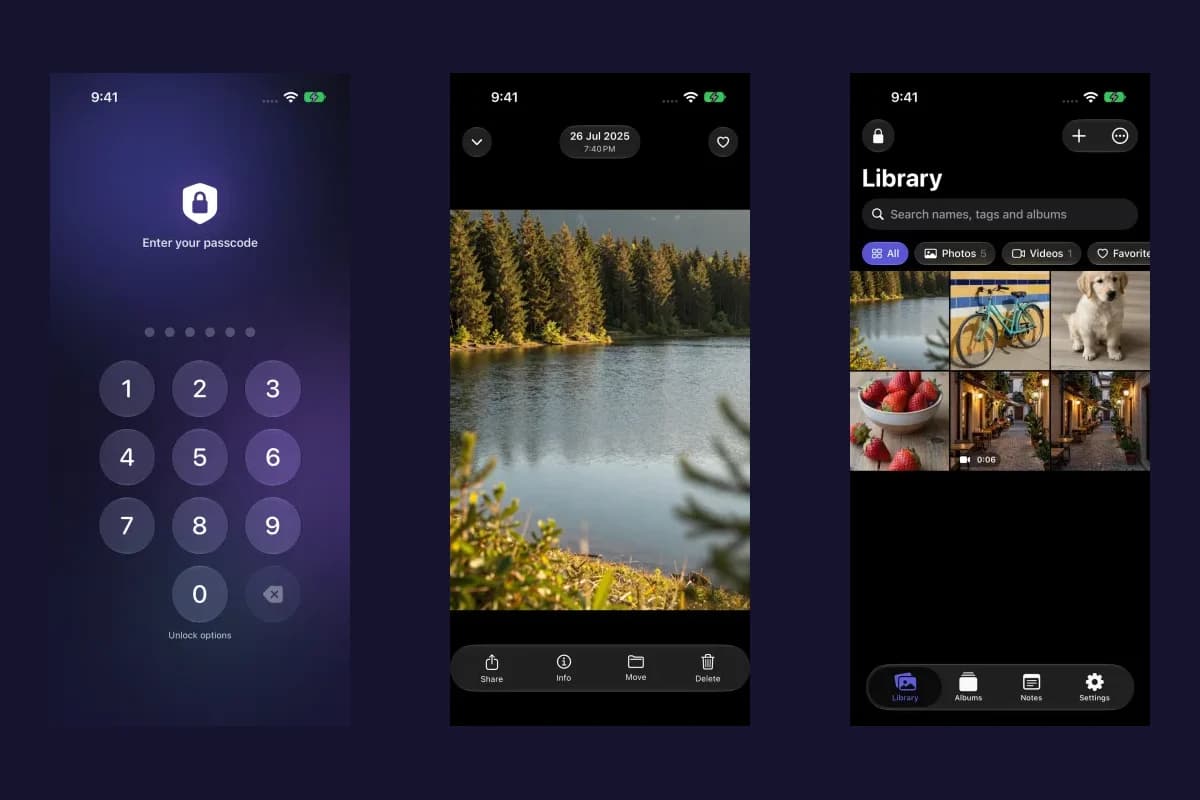
Actual Vault Max screens with sample content.
To hide a photo on iPhone, open it in Photos, tap the More button, and choose Hide. For several items, use Select first. Apple's built-in Hidden collection is a useful option when you want those pictures out of the main Photos view. If you want a separate library with its own vault credential, import the items into Vault Max and check the imported copies before deciding what to do with the originals.
The two approaches have different storage and recovery paths. Choose the one that matches how you want to open, organize and back up your private pictures.
Hide pictures using the iPhone Photos app
- Open Photos and choose a picture or video.
- Tap More → Hide, or touch and hold its thumbnail and choose Hide.
- Confirm the choice. For a batch, select the items before using More → Hide.
To find them again, open Collections → Utilities → Hidden and authenticate. To remove the Hidden collection from view, go to Settings → Apps → Photos and turn off Show Hidden Album. Re-enable that setting when you need to find the collection.
The collection is locked by default on current iOS, using the device's authentication. Hiding items keeps them in Photos; with iCloud Photos, their hidden state also follows your other connected devices. See Apple's Hidden album instructions for the current controls.
Use Vault Max for a separate private library
Vault Max stores imported photos in its own encrypted library. You choose a vault passcode, password or pattern during setup, with optional biometric unlock. That vault credential is separate from the iPhone's device passcode. No Vault Max account is needed to create the library.
Sample Vault Max library. Select a screen for a closer look.
The Hidden album versus photo vault comparison explains the storage differences in more detail. Apple's Photos protections are useful; choose a separate vault when its independent credential, organization and export workflow suit your needs.
Import a small batch, then open it
In the unlocked Vault Max library, tap + → From Photos. Choose a few pictures or videos in the system picker and finish the selection. Wait for import to complete, then open each item you intend to remove from Photos. Check the full image, play videos, and check motion on any Live Photos that matter to you.
Vault Max with sample content. Use the controls to pause or replay.
Vault Max can offer Delete the originals from Photos? after a successful import. You can keep the originals, decline future prompts, or choose deletion and respond to iOS's permission and confirmation steps. An import is not a reason to skip checking the result.
For the complete route, including Files and share-sheet imports, follow how to move photos into Vault Max.
Decide what happens to the Photos originals
Keeping the originals gives you another copy, but those copies remain in Photos. Importing into Vault Max does not automatically hide every existing copy in Photos, Messages, Files, a shared album, or a backup you made earlier. Review the locations that apply to your pictures.
If you delete Photos originals, remember that Photos retains them in Recently Deleted for 30 days unless you permanently remove them sooner. With iCloud Photos, deletion also affects connected devices. Check your vault copies and backup before making a permanent deletion. Apple's deletion and recovery guide explains that final step.
Sample Vault Max library. Select a screen for a closer look.
Organize private pictures without returning them to Photos
Create albums inside Vault Max for different projects or collections. Use the photo and video filters, search, and favorites to find an item in the encrypted library. Opening a Vault Max album does not require exporting those items back into the system photo library.
Vault Max with sample content. Use the controls to pause or replay.
You can also use + → Private Camera for new pictures and videos captured directly into the vault. This is useful when the next picture should start in the private library. It still needs a backup if you want to recover it after losing the phone.
Add the privacy controls you will actually use
Settings includes auto-lock, a panic-lock gesture and optional calculator disguise. Break-in alerts can attempt a front-camera photo after a configured number of wrong vault-code attempts, when enabled and camera access is available. Decoy vaults offer separate libraries opened by their own credentials.
Sample Vault Max library. Select a screen for a closer look.
Read the Vault Max feature guide for setup details and the difference between a decoy and a duress vault. These controls complement a clear import and backup plan.
Keep a recovery copy
Once the collection is where you want it, create a password-protected .vaultmax backup in Settings →
Encrypted backup. Save it somewhere reachable without this iPhone and keep the backup password
separately. The file is a snapshot, so make a new one after adding important items.
Our backup walkthrough covers the file and restore steps. If you already have an access problem, read forgotten Vault Max passcodes before deleting or reinstalling anything.
More guides
- How to import photos, videos and files into Vault MaxFollow Photos, Files and share-sheet import routes in Vault Max, verify your saved items, handle originals carefully, and organize a private media library.
- Hidden album vs photo vault on iPhone: which do you need?Compare the iPhone Hidden collection with a separate photo vault: access, copies, backup and recovery, explained with real Vault Max screens and short demos.
- Vault Max privacy features: break-in photos, decoy vaults and quick locksExplore Vault Max's break-in photos, calculator disguise, decoy vaults, private camera, panic lock and encrypted backups, with app screens and footage.
- Back up Vault Max before changing your iPhoneCreate a password-protected Vault Max backup, choose where to save it, and understand restore and recovery before moving or erasing your iPhone.
- Forgot your Vault Max passcode? Check these recovery paths firstCheck biometric access, credential type and encrypted backups before changing anything. Understand which Vault Max recovery paths can preserve your files.
- How to set up break-in photos in Vault MaxSet up Vault Max break-in photos, choose a wrong-code threshold, review saved attempt records, and understand camera permissions and missing-photo results.
- Moving your photo vault to a new iPhone: a Vault Max checklistPlan a new-iPhone move with a Vault Max backup, a careful restore, checks for media and child vaults, and a final checklist before handing off the old phone.
- Set up a decoy photo vault in Vault MaxCreate a Vault Max decoy with its code, add a separate collection, check which library opens, and understand backup, capacity and duress-vault differences.
- Use Vault Max as a calculator photo vault on iPhoneSet up Vault Max's calculator disguise, unlock with a PIN and equals, find the password or pattern fallback, and understand what the icon changes reveal.
- Using a photo vault without an account or cloud librarySee how a local iPhone photo vault works without an app account, what Apple purchases use, and how backup destinations change your cloud choices.