
Private Camera on iPhone: take photos straight into Vault Max
Use Vault Max Private Camera to save new photos and videos inside your encrypted vault. Learn the controls, permissions, albums, saving and backup steps.
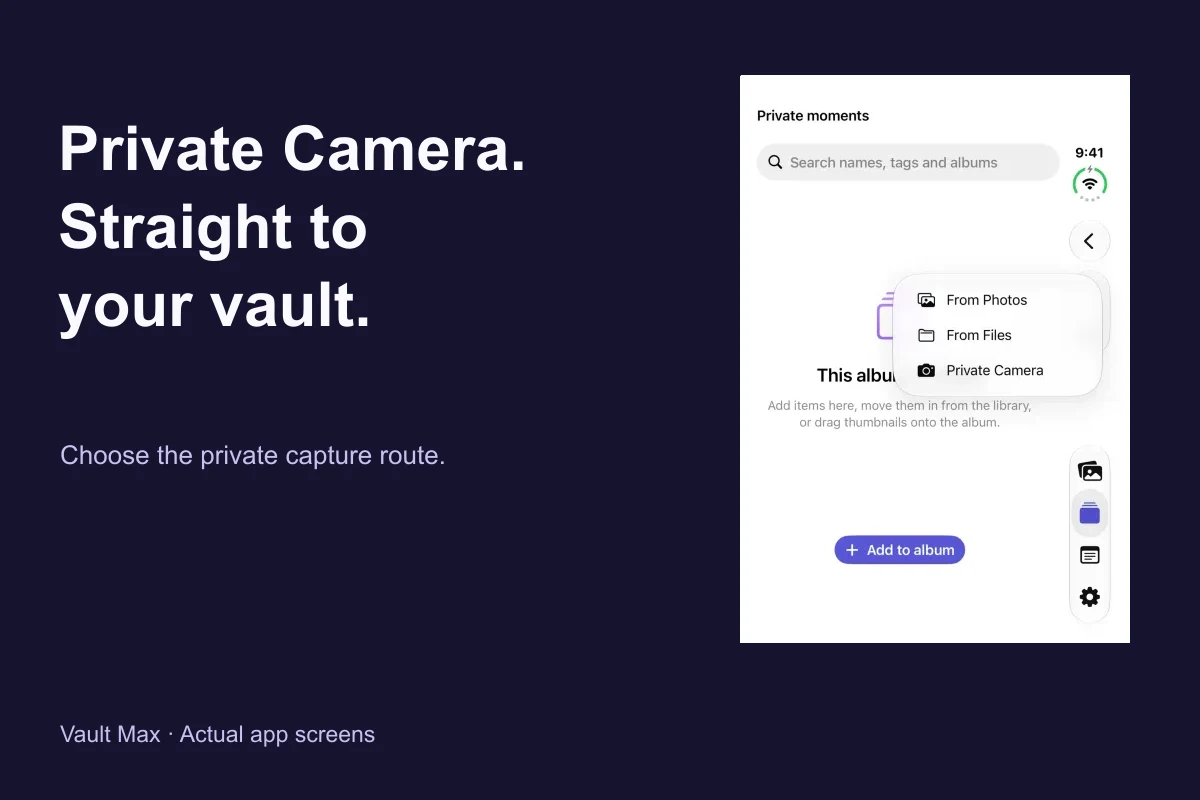
Actual Vault Max screens with sample content.
To take a photo directly into Vault Max, unlock your vault, open the plus menu and choose Private Camera. Allow camera access, use Photo mode, take the picture and wait for the saved-to-vault confirmation. For a private video, switch to Video, allow microphone access if you want sound, record, stop and wait for saving to finish.
Private Camera puts new captures into your encrypted vault without adding them to Apple's Photos library. That is useful when you want a private record to begin in the right place: a personal document, a reference picture or a short video you intend to keep separate from the camera roll.
This guide uses fresh recordings of the real app's navigation and sample vaults on iPhone and iPhone Duo simulators. The simulator has no usable camera, so the visuals explain where to begin, how albums fit in and how to recognize an unavailable camera. They do not depict a new hardware photo or video being captured.
Choose Private Camera for new content, import for existing content
There are two different starting points. Private Camera is for something you are about to photograph or record. From Photos and From Files bring an existing item into the vault. Picking the right route avoids confusion about where another copy may already exist.
If you took a picture with Apple's Camera app yesterday, opening Private Camera today does not move that picture. Use the photo import walkthrough, check the imported result and handle the original separately. Likewise, an image you later export or share from Vault Max becomes a copy outside the vault's control.
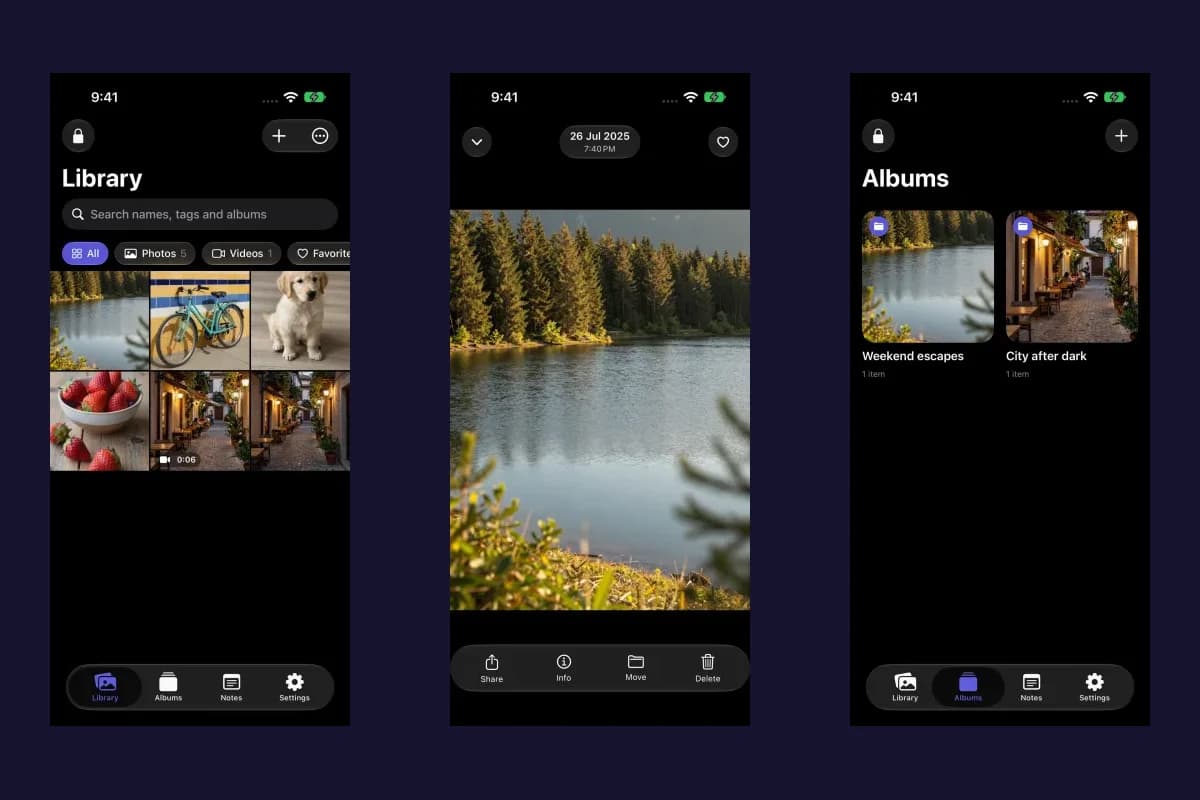
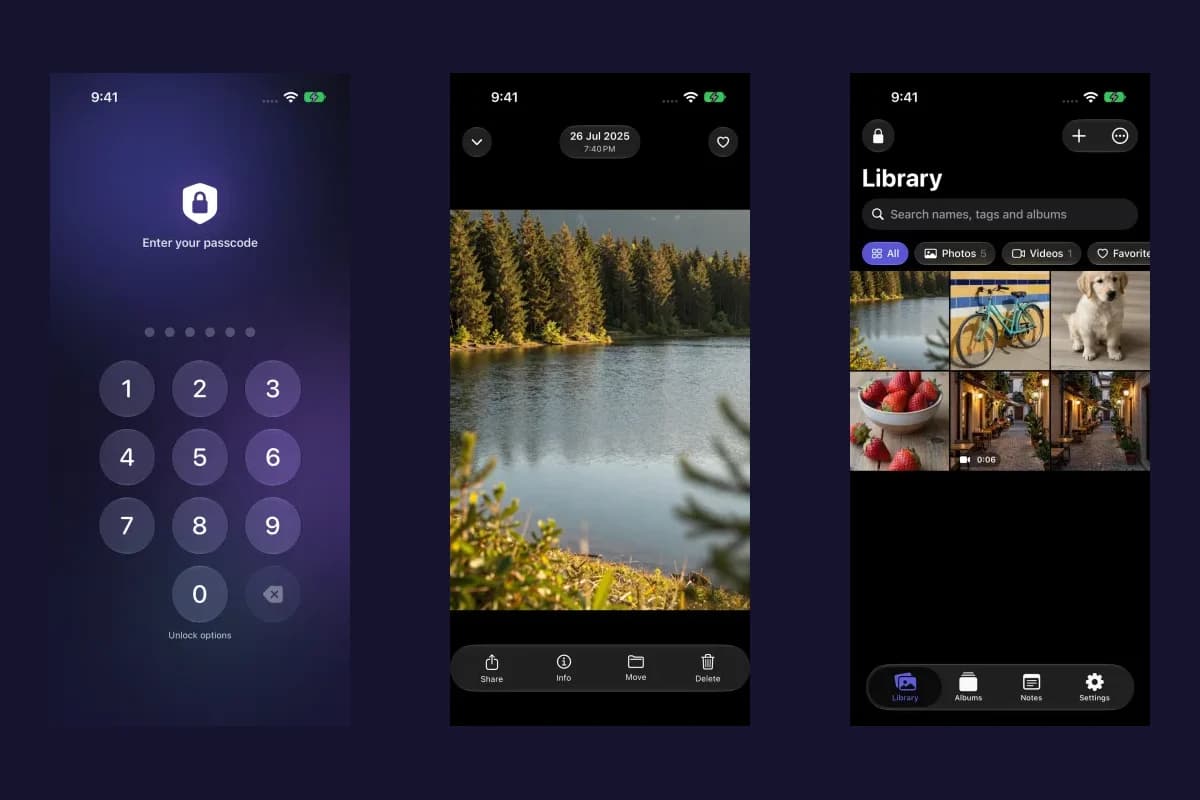
Sample Vault Max library. Select a screen for a closer look.
A separate vault can simplify organization as well as privacy. You might keep reference photographs in an album and the written context in an encrypted note. Give those items useful names or album labels after saving, rather than relying on a long sequence of camera-generated filenames.
Prepare the vault before opening the camera
Open the vault in which you want the new content to live. Check that you can unlock it reliably and that the phone has enough free storage. The camera is a way to add items; it does not remove the free plan's capacity limit for photos, videos and documents.
Next, decide whether the capture belongs in a particular album. Starting inside an album keeps that context attached to the camera flow. Starting from the main Library is convenient when you want to sort the result afterward. An album organizes items within a vault; it does not create a second credential or a separately locked space.
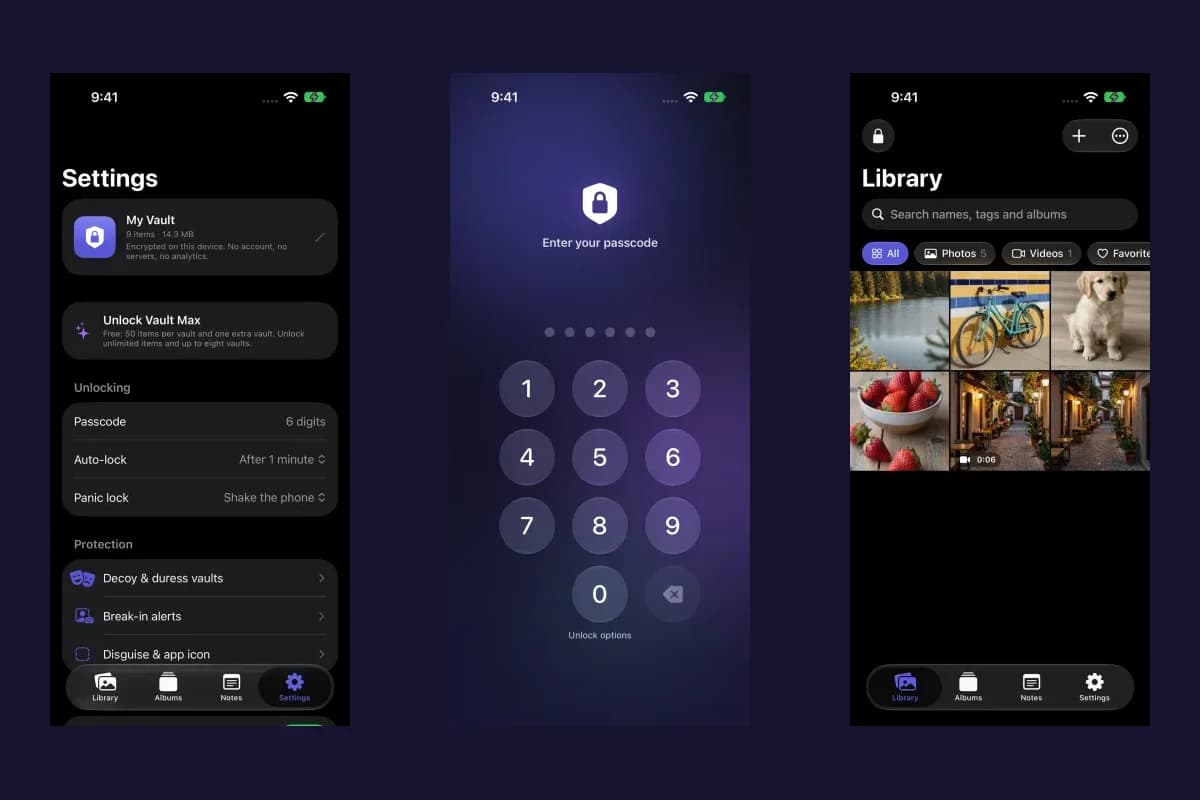
Sample Vault Max library. Select a screen for a closer look.
Open Private Camera from an album
Open the album, choose the plus menu and select Private Camera. The album menu contains the relevant ways to add media there. You can also use Add to album to begin adding content. The exact placement of system controls can change with your iPhone model and Duo posture.
Vault Max with sample content. Use the controls to pause or replay.
If you change your mind before capturing, close the camera and return to the album. You can choose an existing photo instead or prepare another album first. There is no need to take a disposable picture just to get past the camera screen.
Take a photo and confirm it was saved
On a device with an available camera, the camera view provides a Photo/Video mode selector, a shutter and a switch-camera control. In Photo mode, frame your subject, use Switch camera if needed and tap Take photo. Keep the app open while the capture is processed and saved.
Look for the saved to vault count before treating the operation as complete. A shutter animation alone is not a durable copy. When you finish, close the camera, return to the library or album and open the item to check that it is the result you intended to keep.
For a document, inspect the text and edges before putting the original away. For a personal reference photo, check that the relevant detail is readable. These checks are more useful than assuming every quick capture will be sharp, correctly framed and complete.
Record a private video, including its sound
Switch to Video before starting a recording. Vault Max requests microphone access when you enter video mode, so taking still photos does not require an advance microphone decision. If microphone access is off, the app explains that videos will have no sound.
Tap Record video to start and Stop recording to finish. Wait for the video to save, then play it inside the vault and check both the picture and sound you expected. The mode selector and camera switch are unavailable during recording or saving; finish the current operation before changing them.
An interruption can pause camera access, and a call or another app may temporarily need the camera. Read the state shown in the camera view. If a recording cannot be saved, do not discard an irreplaceable original or assume a retry has happened automatically.
Understand the camera states and permissions
Camera access is off means Vault Max does not currently have permission to use it. Review Settings → Privacy & Security → Camera and allow Vault Max if you want to capture. For video sound, review Microphone separately. Apple documents these controls in its hardware-access guide.
Camera paused means access was interrupted, such as when a call or another app uses the camera. No camera available means the device does not expose a camera the app can use. These are different conditions, so repeatedly tapping a shutter is not a useful response to all three.
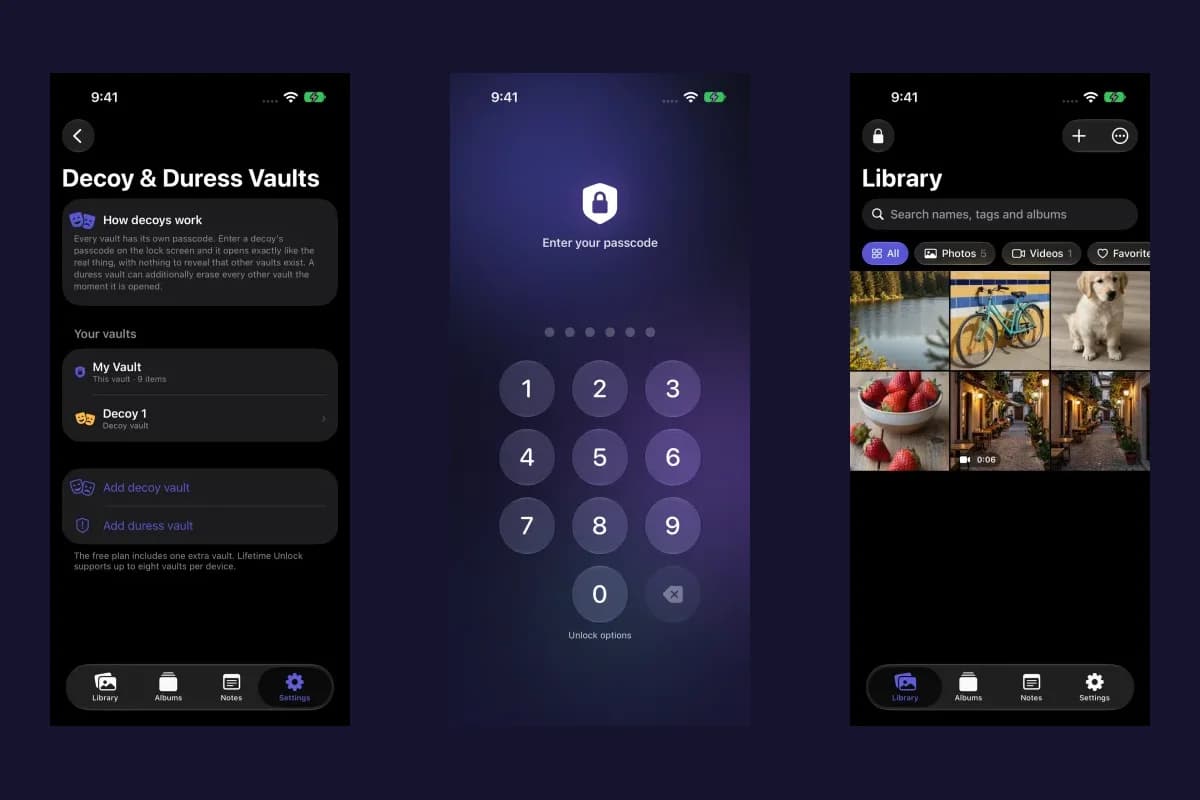
Sample Vault Max library. Select a screen for a closer look.
If permission is allowed but the camera is interrupted, finish the conflicting activity and reopen Private Camera. If saving fails, check free storage and the message shown by the app. If the vault is at its free media limit, manage capacity or choose a paid plan before expecting additional captures to be accepted.
Keep sharing and metadata decisions separate
Private capture answers where a new item starts. Sharing answers where a copy goes afterward. Opening a photo in the vault keeps viewing inside the app; sending it to another app or saving it to a destination intentionally creates an external copy.
Vault Max has a Remove photo location & camera data setting for supported photo sharing. This applies to photos; videos, Live Photo motion clips and documents retain their embedded metadata. Do not treat the setting as a promise that every file type loses all identifying information.
Before sharing a sensitive record, inspect the visible content too. A location name written on a sign or a document number photographed on a page remains part of the image even if embedded photo metadata is removed. Select the destination and recipient as carefully as you select the file.
Finish with a deliberate lock
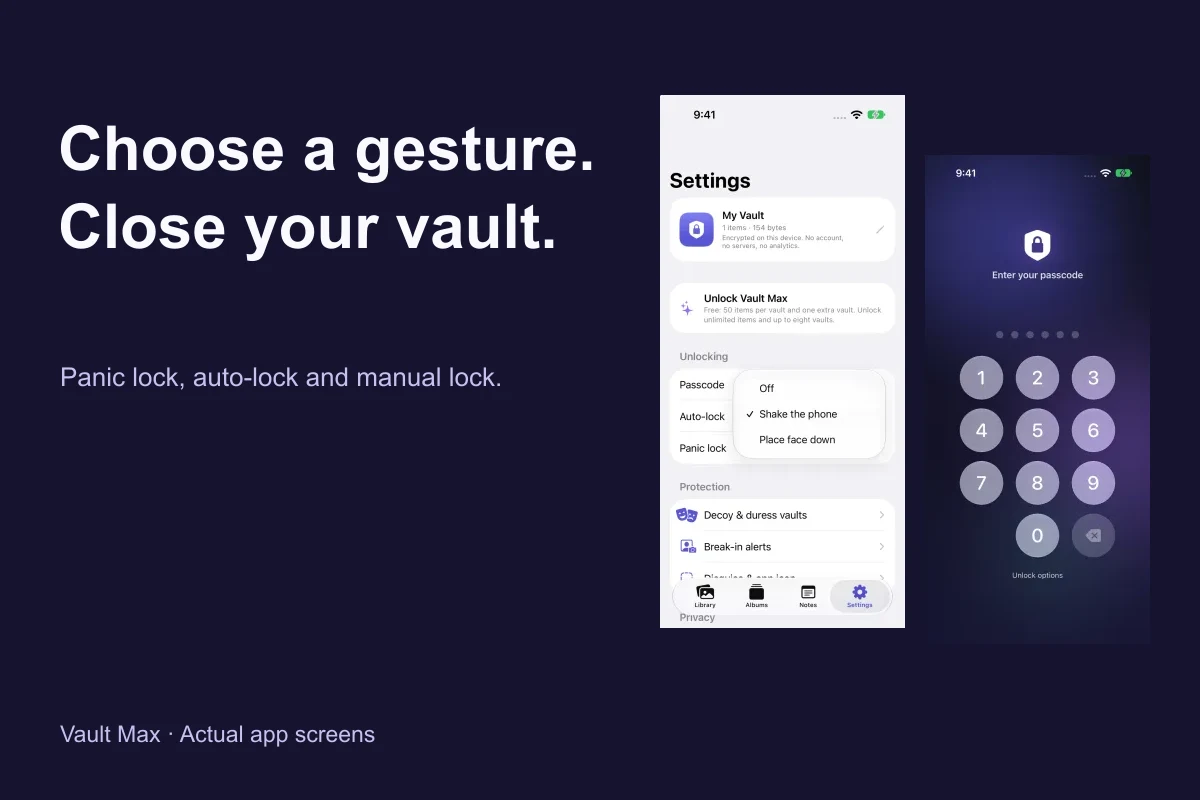
After checking the saved result, close any editor or camera view and lock the vault when you are finished. Vault Max offers manual locking, background auto-lock and optional panic gestures. On Duo, there is also an optional Lock when folded shut setting.
Vault Max with sample content. Use the controls to pause or replay.
The panic-lock guide explains how those controls differ. Make saving and checking the item part of your routine before ending a capture session, especially when the content would be difficult to recreate.
Back up private captures before they become irreplaceable
An item that exists only inside an on-device vault still needs a recovery plan. Create an encrypted Vault Max backup, retain its separate password and keep a usable copy somewhere you can reach after losing the phone. Do this before replacing, erasing or repairing the device.
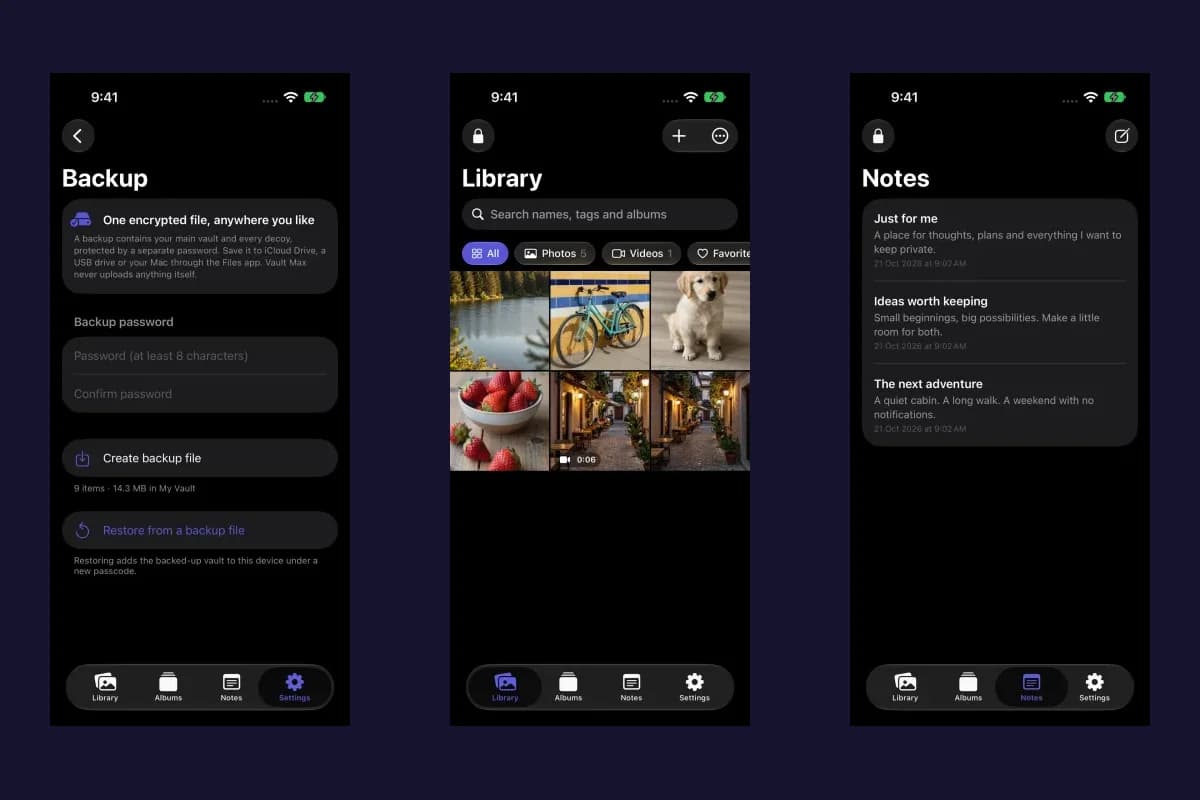
Sample Vault Max library. Select a screen for a closer look.
Follow the backup guide for the full procedure. A purchase restoration restores eligible App Store entitlements; it does not download your photos or videos from a Vault Max server. Vault Max has no app account or hosted media library to recover for you.
Common questions
Does Private Camera hide photos I already took?
Existing photos need to be imported. Private Camera creates new vault content. Use the import guide and verify the result before deciding what to do with any original in Photos, Recently Deleted or another storage location.
Can I use it without an account or internet connection?
Vault Max does not require an app account or upload camera content to its own servers. Core vault storage is on the device. App Store purchases and entitlement restoration are separate StoreKit activities that may need connectivity.
Does a camera capture create a Photos copy?
The app's Private Camera saves through the vault import path and does not add the capture to Photos. An export you deliberately make later is a separate external copy. This distinction is why starting a new private capture inside the app can be simpler than importing and cleaning up an existing camera-roll item.
Keep exploring
More guides
Practical tips for your private library. Swipe, scroll or use the arrows.
 5 min read
How to import photos, videos and files into Vault Max
Follow Photos, Files and share-sheet import routes in Vault Max, verify your saved items, handle originals carefully, and organize a private media library.
 8 min read
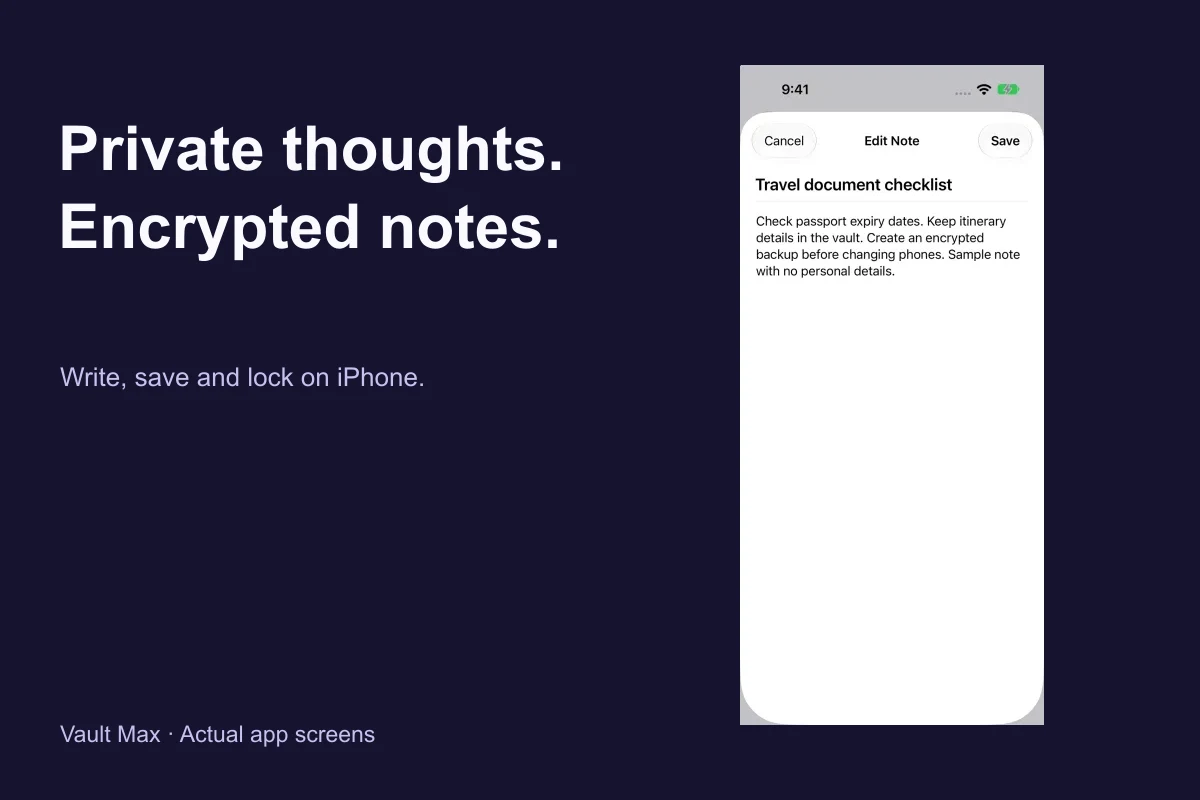
Encrypted notes on iPhone: write, save and protect them in Vault Max
Create encrypted notes in Vault Max on iPhone and Duo. Follow the editor, saving, locking, deletion and backup steps, with fresh app screens and loops.
 7 min read
Panic lock on iPhone: quickly close your Vault Max session
Set up Vault Max panic lock, choose shake or face down, and understand manual lock, background auto-lock and Duo fold-to-lock with fresh real app screens.
 9 min read
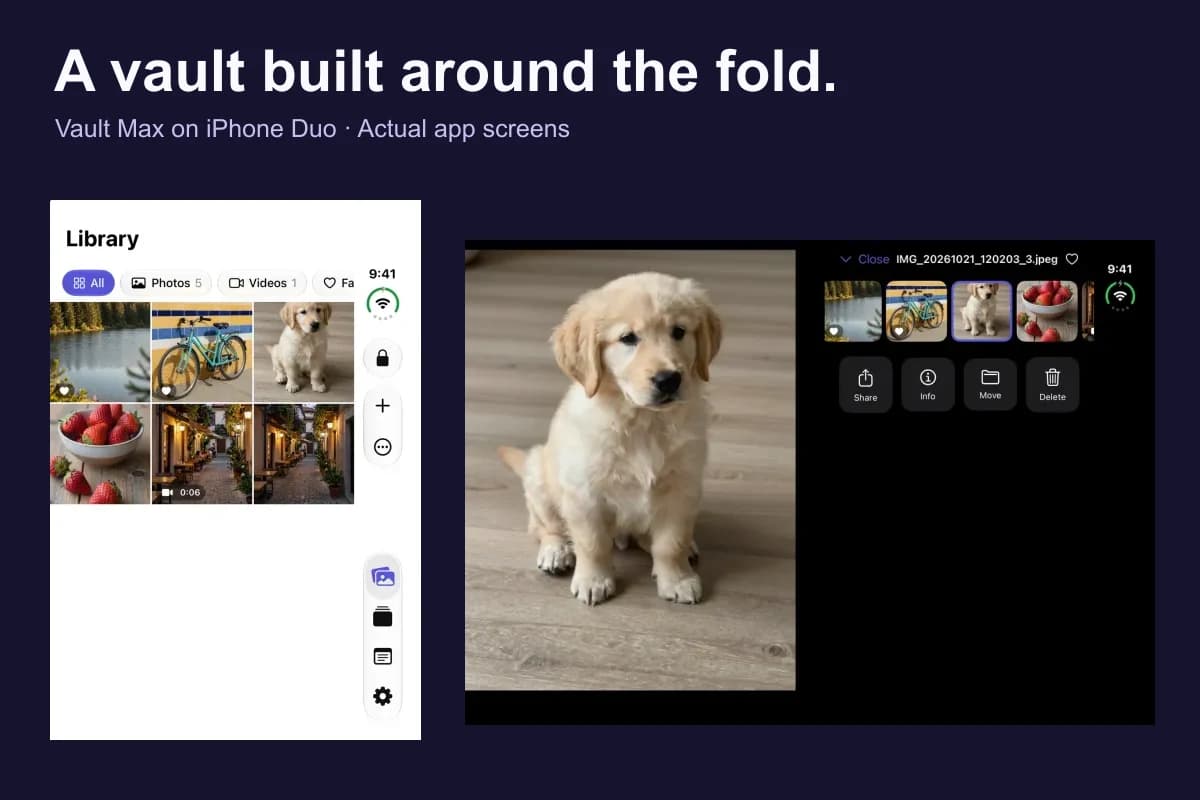
A photo vault built for iPhone Duo: explore Vault Max's layouts
See Vault Max on iPhone Duo: a wider photo grid, split viewer, filmstrip, focused notes and optional fold-to-lock, with fresh real app screens and footage.
 4 min read
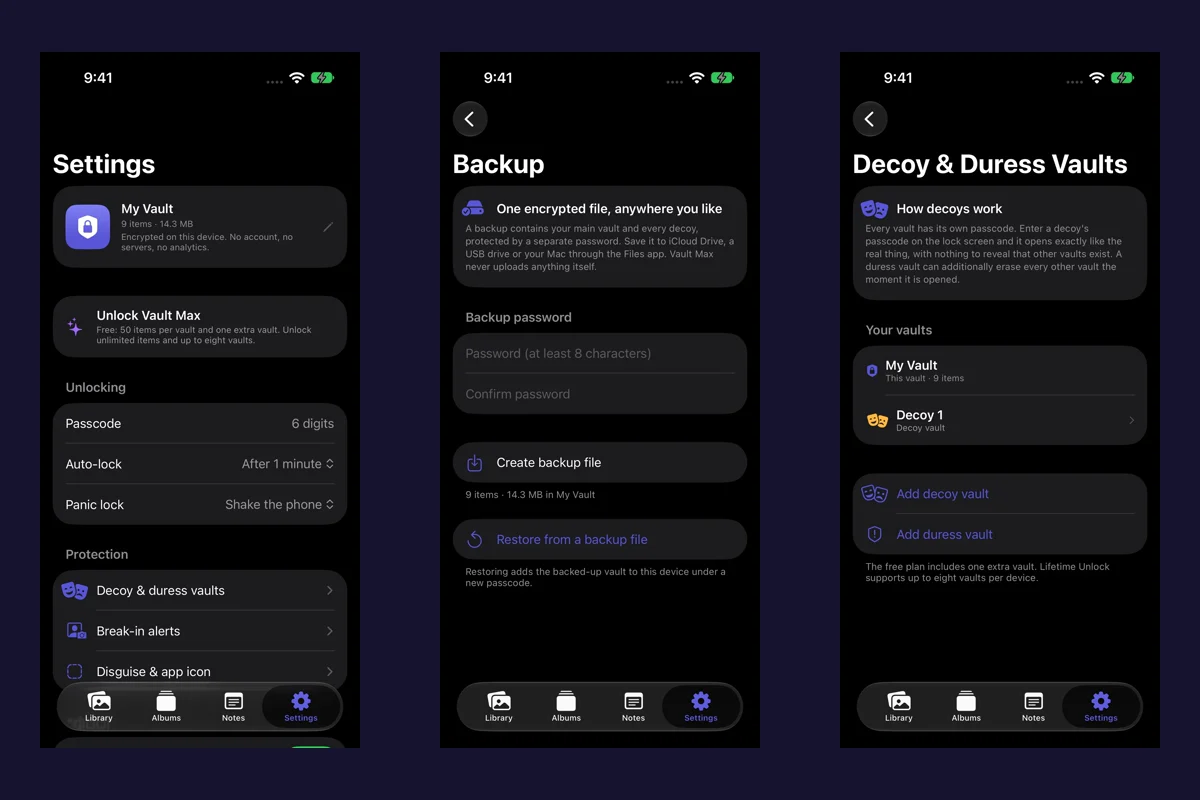
Back up Vault Max before changing your iPhone
Create a password-protected Vault Max backup, choose where to save it, and understand restore and recovery before moving or erasing your iPhone.
 5 min read
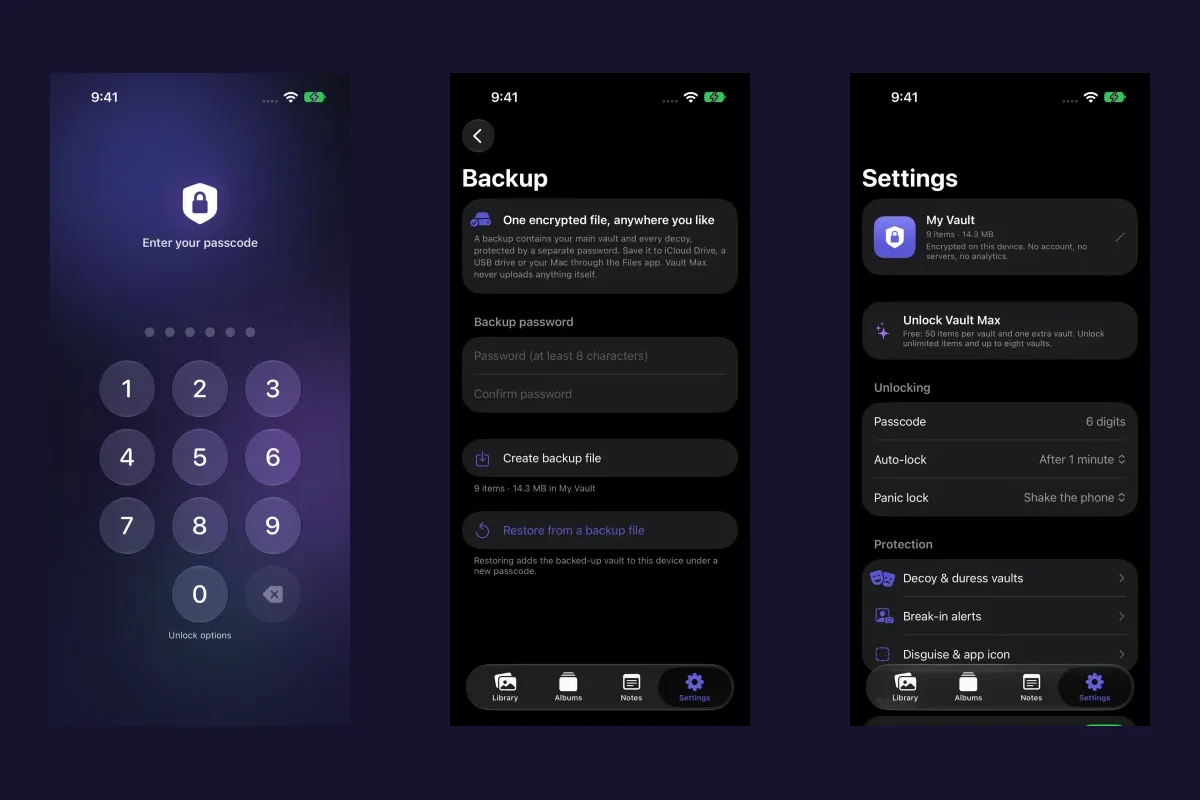
Forgot your Vault Max passcode? Check these recovery paths first
Check biometric access, credential type and encrypted backups before changing anything. Understand which Vault Max recovery paths can preserve your files.
 4 min read
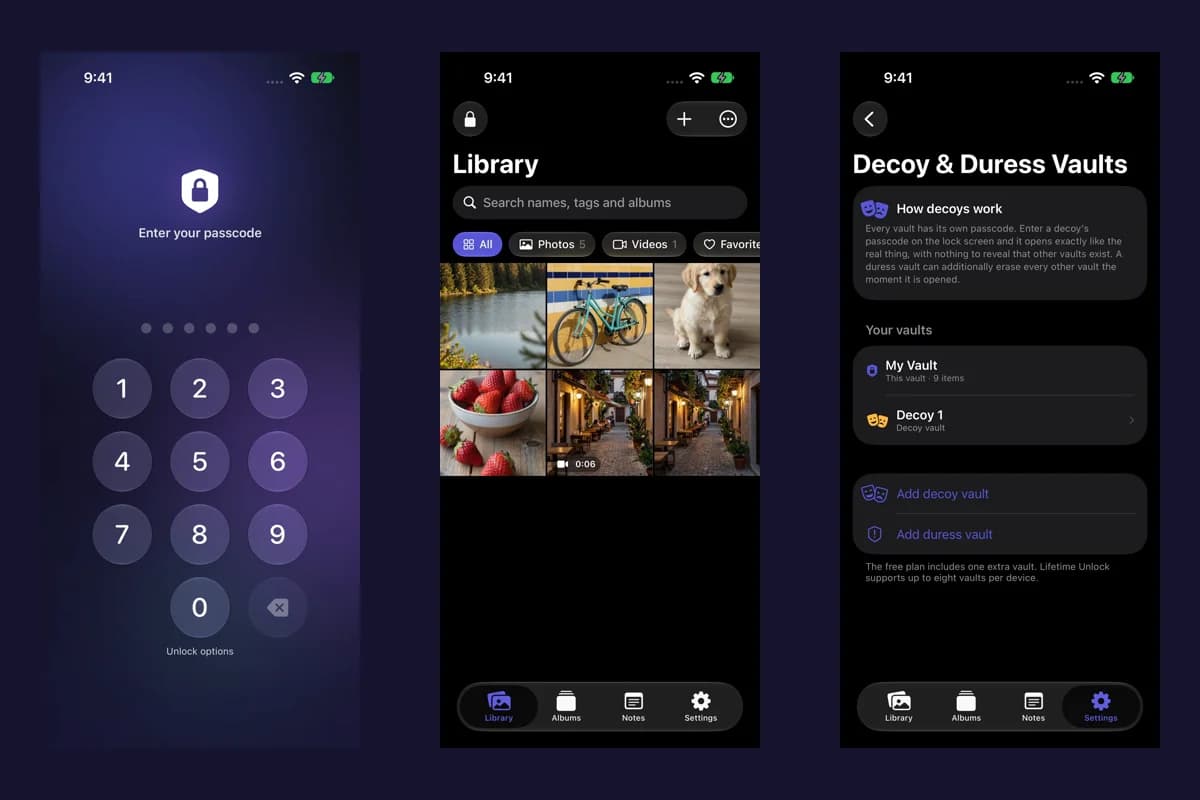
Hidden album vs photo vault on iPhone: which do you need?
Compare the iPhone Hidden collection with a separate photo vault: access, copies, backup and recovery, explained with real Vault Max screens and short demos.
 5 min read
How to hide photos on iPhone, with or without a separate vault
Hide photos with Apple's Hidden album or import them into Vault Max. Learn what happens to originals, how to check your copies, and when to make a backup.
 4 min read
How to set up break-in photos in Vault Max
Set up Vault Max break-in photos, choose a wrong-code threshold, review saved attempt records, and understand camera permissions and missing-photo results.
 5 min read
Moving your photo vault to a new iPhone: a Vault Max checklist
Plan a new-iPhone move with a Vault Max backup, a careful restore, checks for media and child vaults, and a final checklist before handing off the old phone.
 4 min read
Set up a decoy photo vault in Vault Max
Create a Vault Max decoy with its code, add a separate collection, check which library opens, and understand backup, capacity and duress-vault differences.
 4 min read
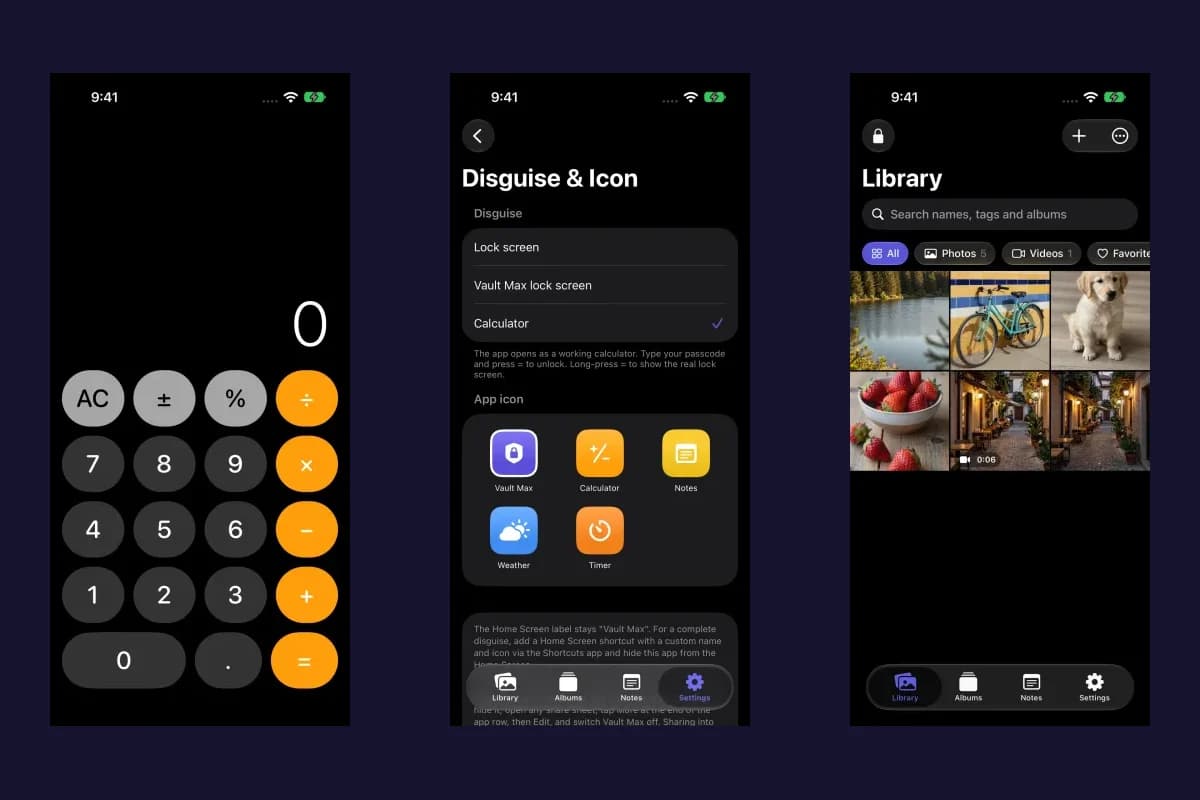
Use Vault Max as a calculator photo vault on iPhone
Set up Vault Max's calculator disguise, unlock with a PIN and equals, find the password or pattern fallback, and understand what the icon changes reveal.
 4 min read
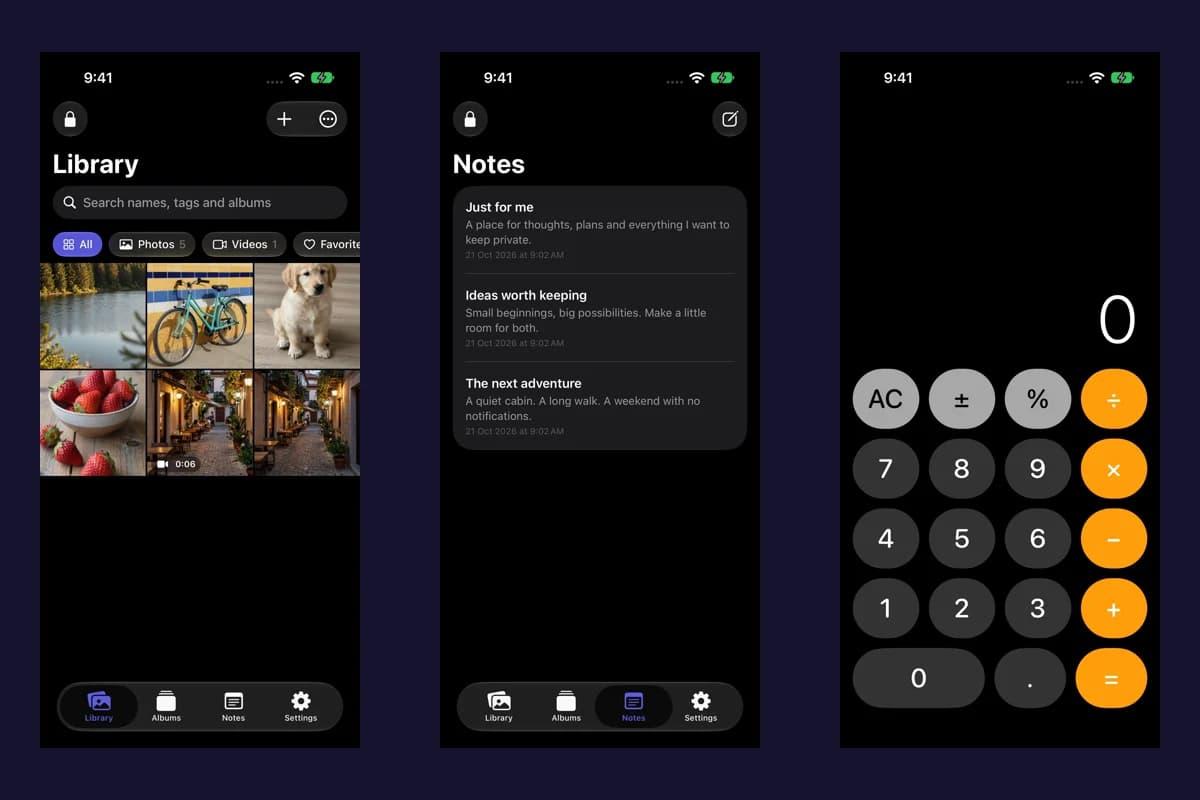
Using a photo vault without an account or cloud library
See how a local iPhone photo vault works without an app account, what Apple purchases use, and how backup destinations change your cloud choices.
 7 min read
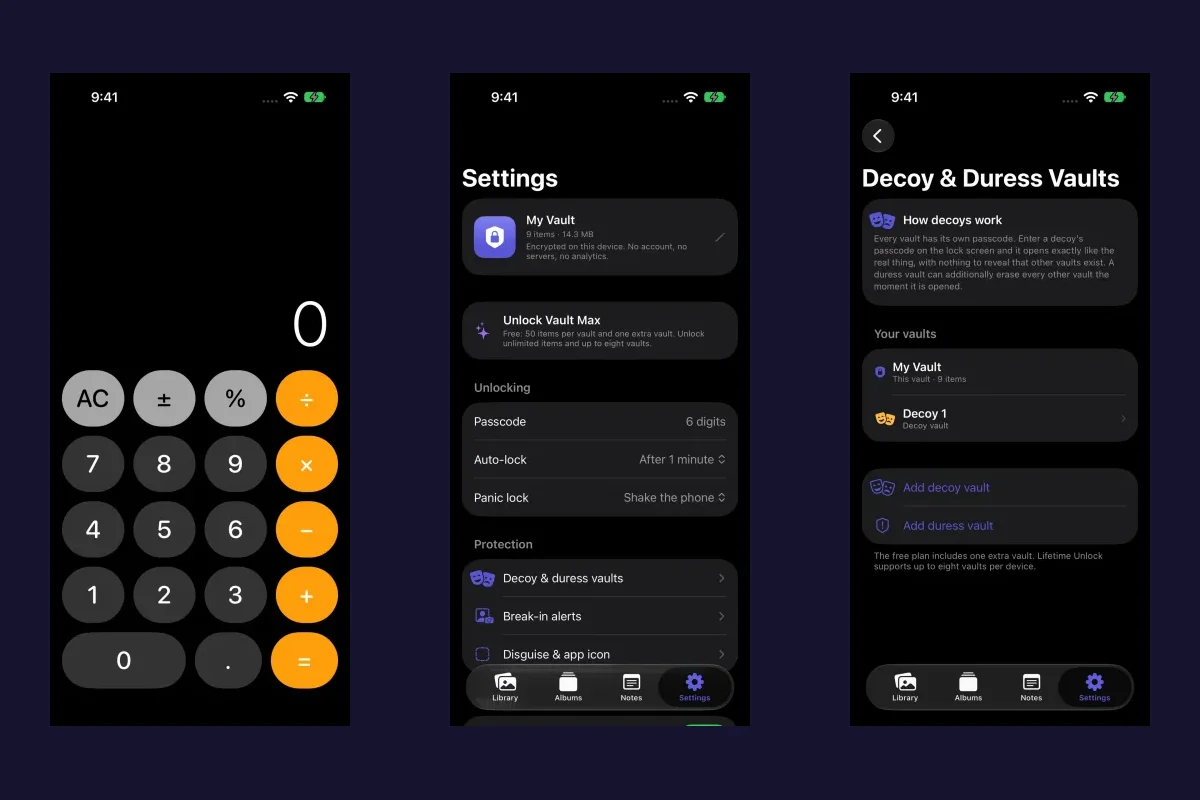
Vault Max privacy features: break-in photos, decoy vaults and quick locks
Explore Vault Max's break-in photos, calculator disguise, decoy vaults, private camera, panic lock and encrypted backups, with app screens and footage.
14 guides to explore