
Encrypted notes on iPhone: write, save and protect them in Vault Max
Create encrypted notes in Vault Max on iPhone and Duo. Follow the editor, saving, locking, deletion and backup steps, with fresh app screens and loops.
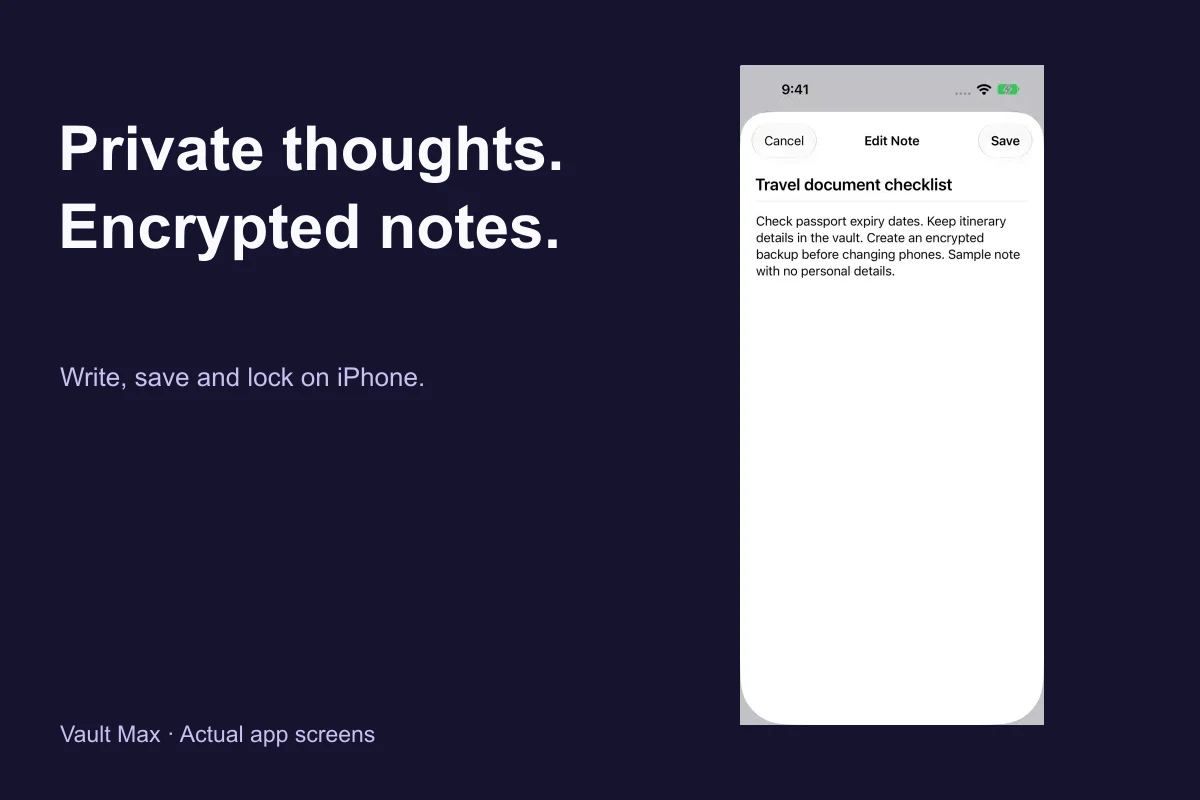
Actual Vault Max screens with sample content.
To create an encrypted note in Vault Max, unlock your vault, open Notes, choose New note, enter a title and text, then tap Save. Open the saved row to check it. When you finish, lock the vault so the text and its preview are no longer available in an unlocked session.
Notes are useful for the context that a private photograph cannot hold: a travel checklist, a personal reference, ideas for a project or the explanation that belongs beside a document. Vault Max stores the note body as encrypted vault content. Its title and list preview belong to the encrypted vault index, rather than a public note list outside the lock.
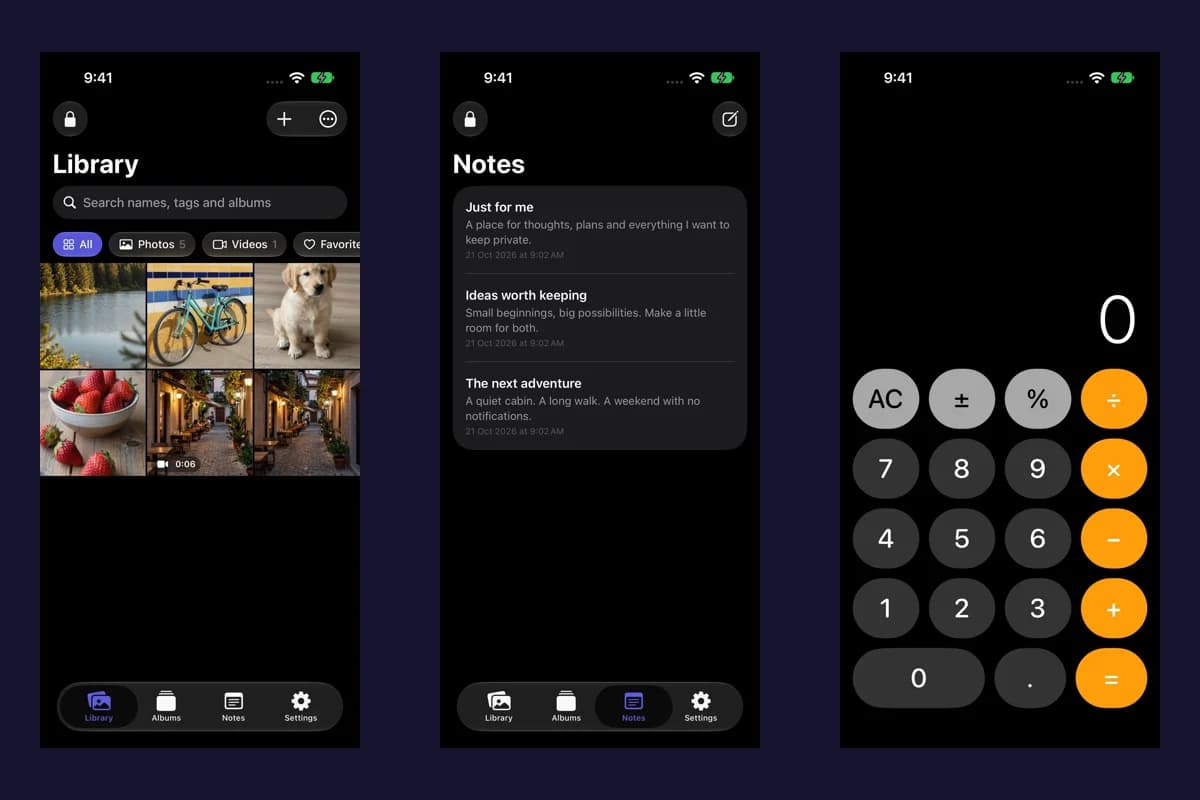
The screens and recordings below were captured freshly from the real app on iPhone and iPhone Duo simulators. The travel checklist and weekend plans are sample text. They show actual creation, saving and reopening, without using anyone's real private information.
Decide what belongs in a note
A text note is a good fit when the information is mostly words and you want it with your private library. For example, a travel album can hold a document image while a note holds the checklist for preparing the trip. The text remains editable without taking another screenshot of the same information.
Use separate files or media items for documents, photos and videos. Vault Max's note editor is a straightforward title-and-text editor. It does not turn the note into a scanned document, a collaborative page or a database with custom fields. Keeping that distinction clear makes your private collection easier to maintain.
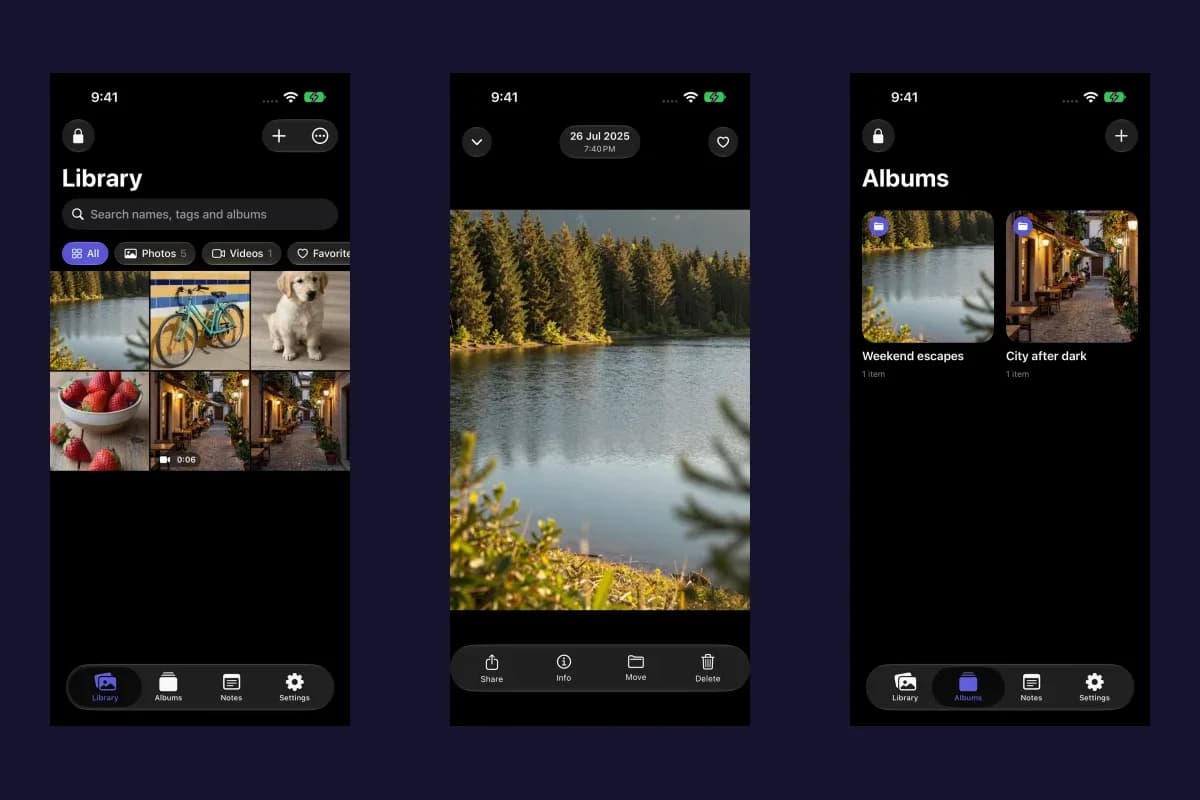
Sample Vault Max library. Select a screen for a closer look.
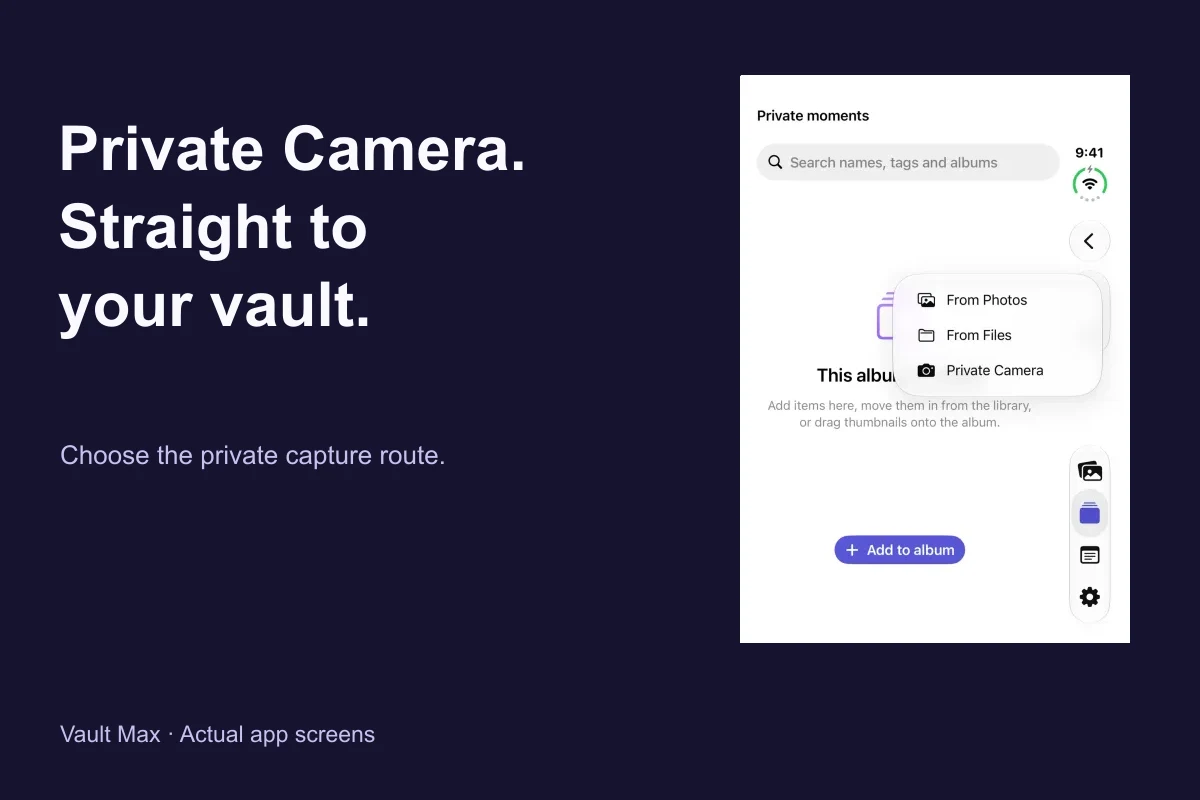
For a new photo, use Private Camera. For an existing file, use the relevant import route. You can organize related media into an album, then use a clear note title to make its written context recognizable in Notes.
Create your first encrypted note
- Unlock the vault that should contain the note.
- Open the Notes section using the app's system navigation.
- Choose New note, either from the empty state or the compose button.
- Give the note a meaningful title and enter its text.
- Tap Save and wait for the editor to finish.
- Open the saved note from the list and check its contents.
You can also begin a note from the main Library's add menu. Whichever entry point you use, check the current vault first. A note created in one vault does not automatically appear when you unlock another vault with a different credential.
Vault Max with sample content. Use the controls to pause or replay.
At least a title or some text is needed before Save becomes available. A meaningful title is still worthwhile even for a short note: it is easier to recognize “Travel document checklist” later than a list of Untitled note entries.
Save deliberately, then verify the result
Treat Save as an explicit action. Do not assume that typing, switching sections or closing the app has committed a draft. When a note matters, save it, reopen it and check the text before leaving the session. This also catches mistakes such as entering the right title above the wrong body.
If the app reports that it could not save the note, read the message and resolve the problem before dismissing the editor. Low storage is one thing to check. Repeatedly creating new copies makes the result harder to track; first establish whether the current note saved successfully.
Sample Vault Max library. Select a screen for a closer look.
The list shows recent modifications first. It includes a short body preview so you can distinguish similar titles. That is convenient while the vault is open, and it is another reason to end an unlocked session when other people can see the screen.
Reopen and update an existing note
Choose the note's row to open Edit Note. Check the title and body, make your changes, then use Save again. Use Cancel when you want to leave the editor without committing the current changes. The simple two-field layout keeps everyday corrections direct.
Vault Max with sample content. Use the controls to pause or replay.
For a checklist, plain text is enough to record what you have done and what is left. If you type hyphens or numbered lines, they are text in your note; this guide is not claiming interactive task boxes, rich formatting or attachment controls that the editor does not show.
Sample Vault Max library. Select a screen for a closer look.
Understand what the vault lock protects
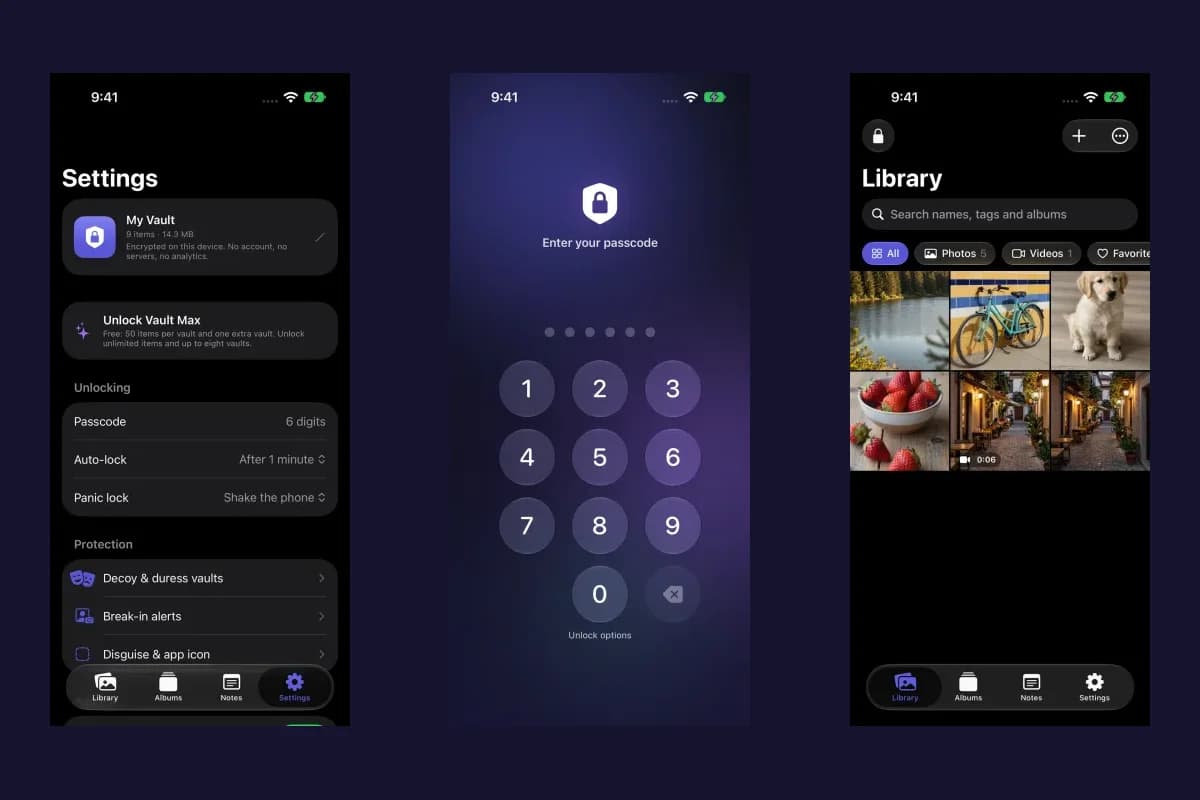
The vault credential controls access to the collection containing the note. Vault Max encrypts the body using its vault storage system, with the note title and preview in the encrypted index. The editor displays readable text after you unlock because you need to be able to read and change it.
That means encryption at rest and a visible unlocked editor solve different parts of the problem. If you hand someone the phone with a note open, they can see the text. A separate passcode prompt does not appear for every note inside the already unlocked vault.
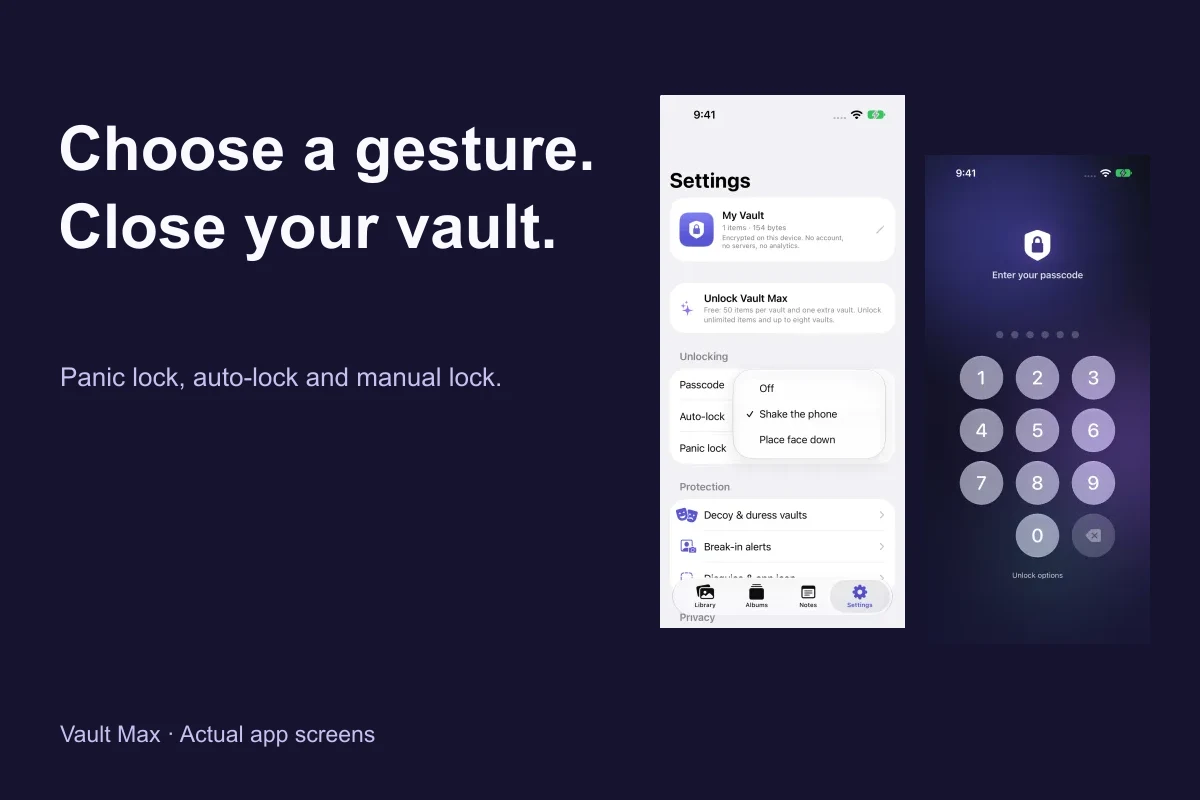
Use the Lock control when you are finished. Configure background auto-lock to suit how you use the app, and consider an optional panic gesture if a quick way to close the vault is useful. The locking guide explains these options without treating a hidden screen as a guarantee about every external copy.
Keep copies outside the vault in mind
If you begin with text from an email, a message or another note app, creating a Vault Max note does not remove the original. Review the source separately if your goal is to reduce copies. Copying text onto a clipboard or sharing it through another app is also a separate decision from storing it in the vault.
Screenshot protection is a best-effort optional feature that can vary with iOS. It is not a reason to ignore who can see an unlocked display. Similarly, a privacy cover in the app switcher is useful for obscuring a snapshot; it does not replace an actual vault lock.
Vault Max is local to the device and does not sync these notes to a Vault Max account. If you use the app on another phone, plan the transfer through a supported backup and restore workflow rather than expecting a sign-in to populate the list.
Write on Duo without changing the basic workflow
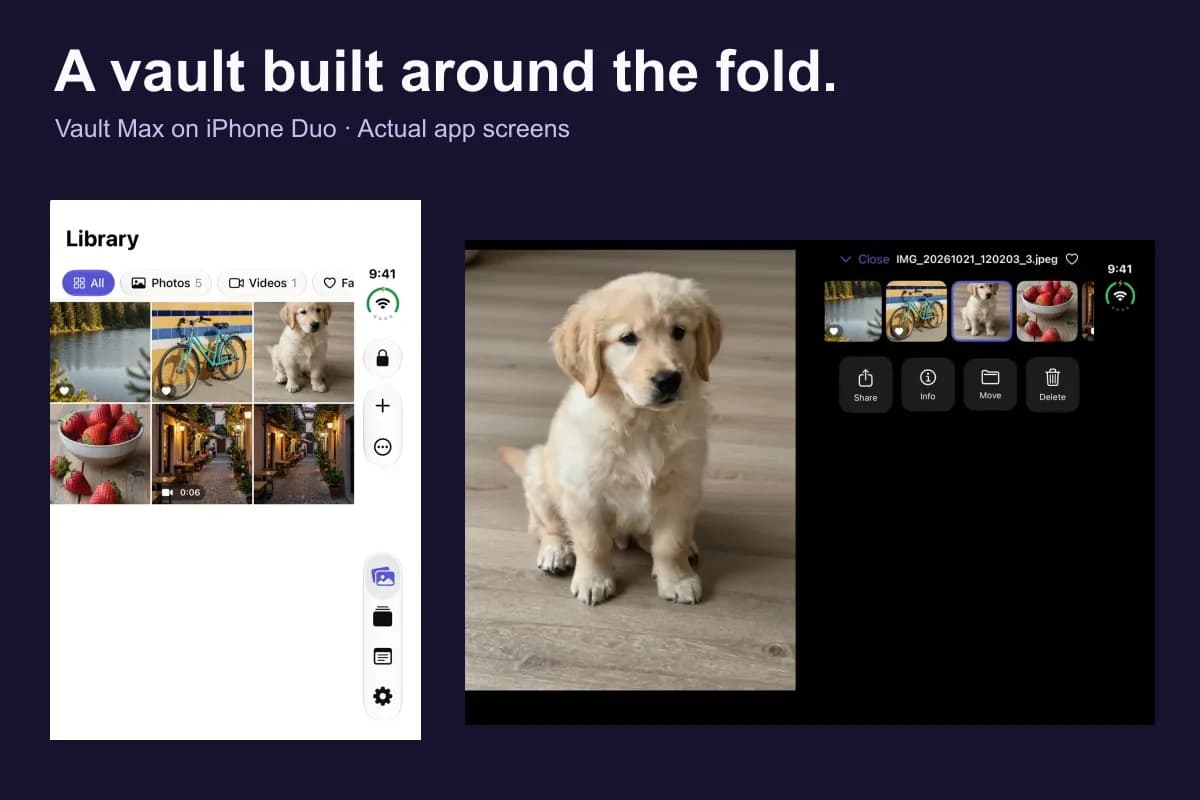
Duo gives you different amounts of room when it is closed and open. Vault Max uses the system navigation and editor presentation appropriate to the available display. In the fresh open-Duo capture, the note editor appears as a focused sheet within the wider app instead of stretching the text across the entire screen.
Sample Vault Max library. Select a screen for a closer look.
The Duo guide also shows the wider media grid, the partially folded viewer and optional fold-to-lock. Those are separate adaptations; a larger note editor alone would not explain the app's full Duo behavior.
Delete a note with the recovery window in mind
In the Notes list, swipe a saved note to reveal Delete. Deletion moves the item to the vault's Trash. Review Settings → Trash if you need to recover an item that is still retained there. Check the configured retention period before relying on Trash as a recovery path.
Trash is useful for an accidental deletion, but it is not your backup strategy. Emptying retained content, letting its retention expire or losing the phone can leave you without that recovery option. Do not test deletion on the only copy of an irreplaceable note just to learn the interface.
Include important notes in an encrypted backup
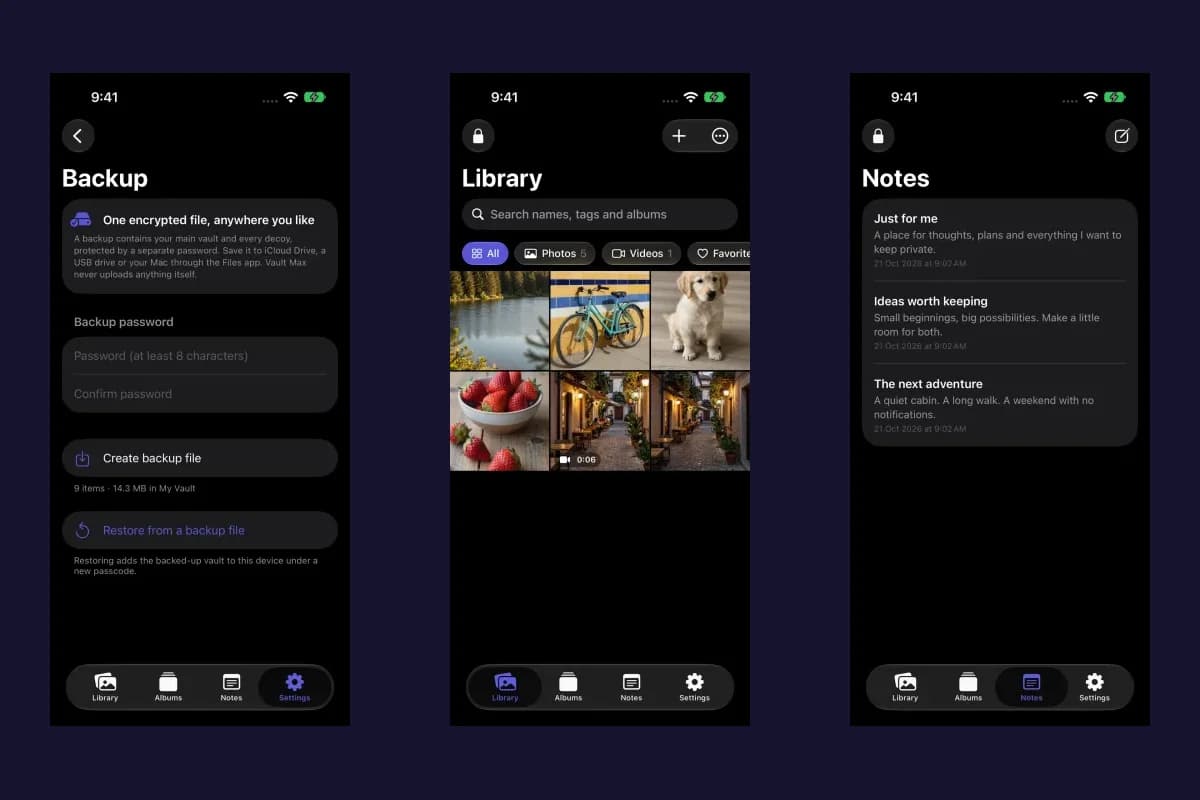
Create a Vault Max encrypted backup before moving to a new iPhone, erasing the current phone or leaving important information with only one device copy. Keep the backup password separately and retain access to the archive. The backup walkthrough explains the preparation and restore decisions.
If you forget the vault credential, an App Store purchase restoration does not recover your text. There is no Vault Max account password reset that can open the vault. Read the forgotten-passcode guide before making changes that could remove your remaining recovery options.
Common questions
Are encrypted notes included in the free plan?
Yes. Notes do not count toward the free plan's 50-photo/video/document limit. You can continue using notes without buying additional media capacity. Paid plans change the relevant capacity limits, rather than creating the basic note-encryption feature.
Are these the same notes as Apple Notes?
No. This guide describes notes created inside Vault Max. They are part of the vault's own content and backup workflow. Creating one does not add it to Apple Notes or set up iCloud note synchronization.
Can every vault have its own notes?
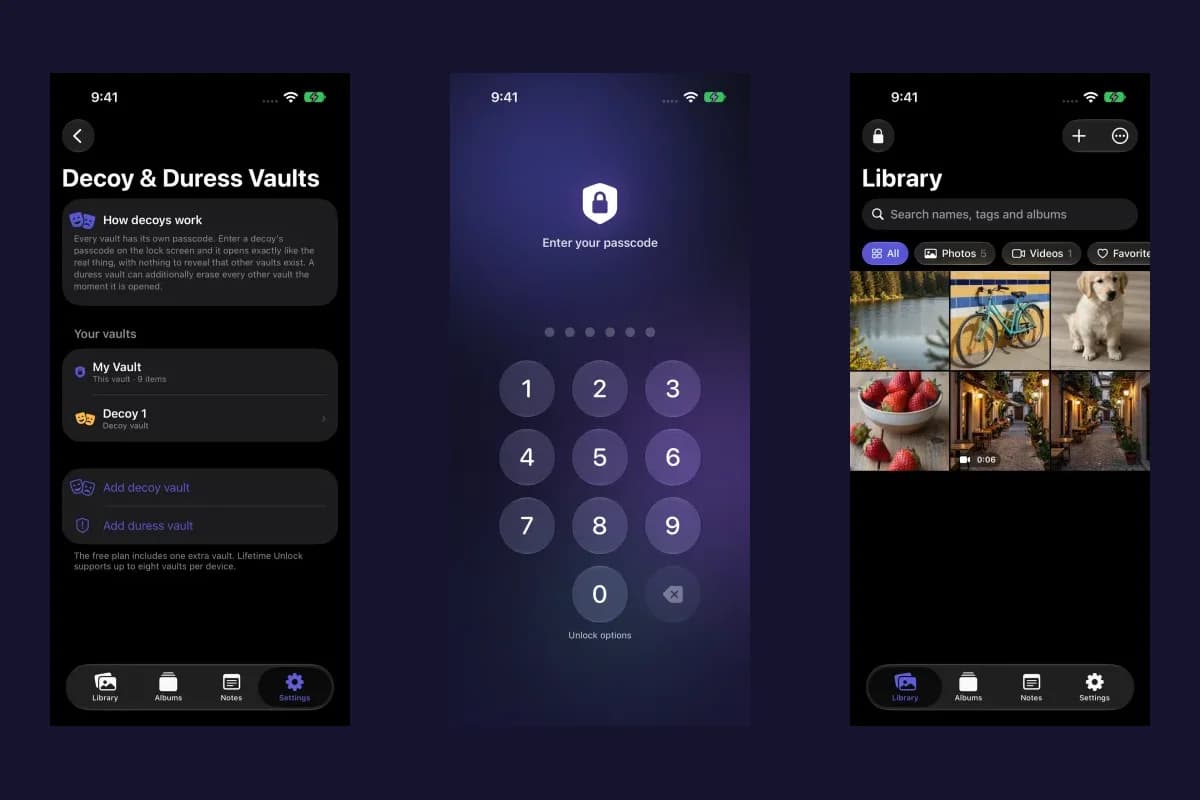
Notes belong to the vault session in which you create them. Before writing or looking for a note, confirm that you have opened the intended vault. A decoy vault can have its own ordinary-looking content; that does not make it a backup of another vault's notes.
Keep exploring
More guides
Practical tips for your private library. Swipe, scroll or use the arrows.
 8 min read
Private Camera on iPhone: take photos straight into Vault Max
Use Vault Max Private Camera to save new photos and videos inside your encrypted vault. Learn the controls, permissions, albums, saving and backup steps.
 7 min read
Panic lock on iPhone: quickly close your Vault Max session
Set up Vault Max panic lock, choose shake or face down, and understand manual lock, background auto-lock and Duo fold-to-lock with fresh real app screens.
 9 min read
A photo vault built for iPhone Duo: explore Vault Max's layouts
See Vault Max on iPhone Duo: a wider photo grid, split viewer, filmstrip, focused notes and optional fold-to-lock, with fresh real app screens and footage.
 5 min read
Forgot your Vault Max passcode? Check these recovery paths first
Check biometric access, credential type and encrypted backups before changing anything. Understand which Vault Max recovery paths can preserve your files.
 4 min read
Back up Vault Max before changing your iPhone
Create a password-protected Vault Max backup, choose where to save it, and understand restore and recovery before moving or erasing your iPhone.
 4 min read
Hidden album vs photo vault on iPhone: which do you need?
Compare the iPhone Hidden collection with a separate photo vault: access, copies, backup and recovery, explained with real Vault Max screens and short demos.
 5 min read
How to hide photos on iPhone, with or without a separate vault
Hide photos with Apple's Hidden album or import them into Vault Max. Learn what happens to originals, how to check your copies, and when to make a backup.
 5 min read
How to import photos, videos and files into Vault Max
Follow Photos, Files and share-sheet import routes in Vault Max, verify your saved items, handle originals carefully, and organize a private media library.
 4 min read
How to set up break-in photos in Vault Max
Set up Vault Max break-in photos, choose a wrong-code threshold, review saved attempt records, and understand camera permissions and missing-photo results.
 5 min read
Moving your photo vault to a new iPhone: a Vault Max checklist
Plan a new-iPhone move with a Vault Max backup, a careful restore, checks for media and child vaults, and a final checklist before handing off the old phone.
 4 min read
Set up a decoy photo vault in Vault Max
Create a Vault Max decoy with its code, add a separate collection, check which library opens, and understand backup, capacity and duress-vault differences.
 4 min read
Use Vault Max as a calculator photo vault on iPhone
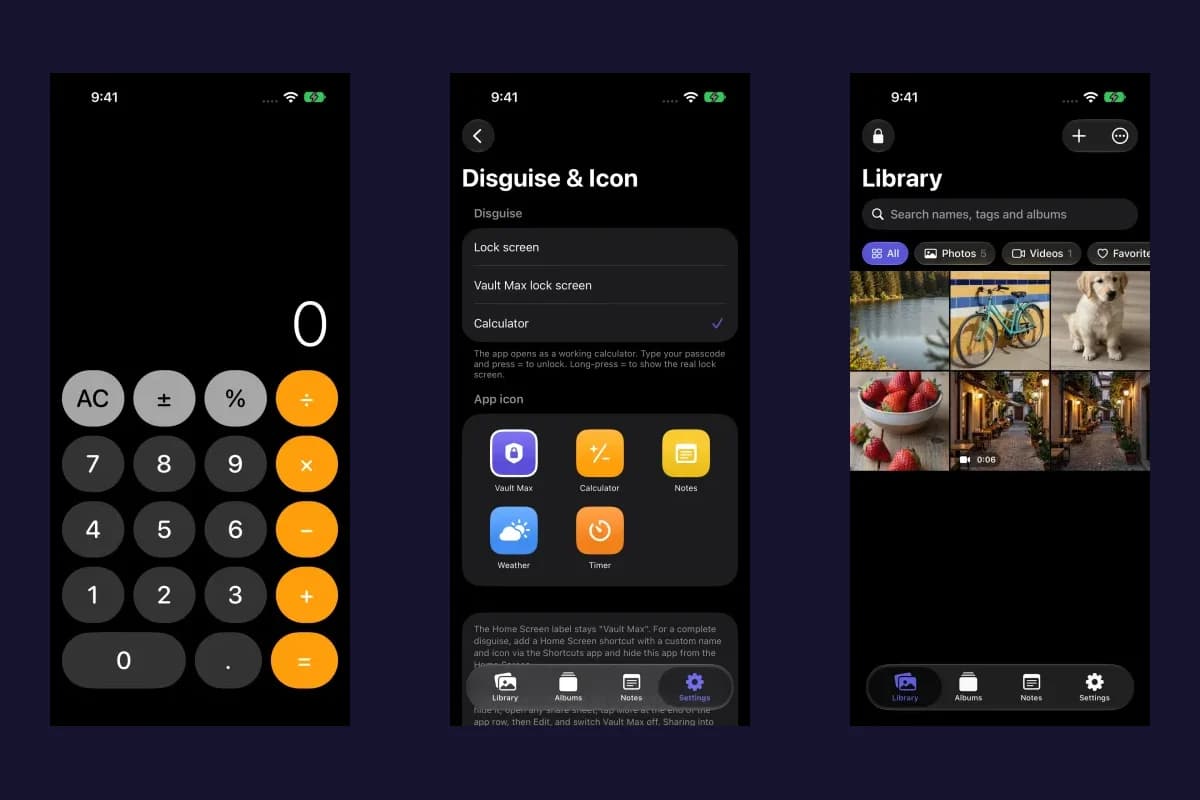
Set up Vault Max's calculator disguise, unlock with a PIN and equals, find the password or pattern fallback, and understand what the icon changes reveal.
 4 min read
Using a photo vault without an account or cloud library
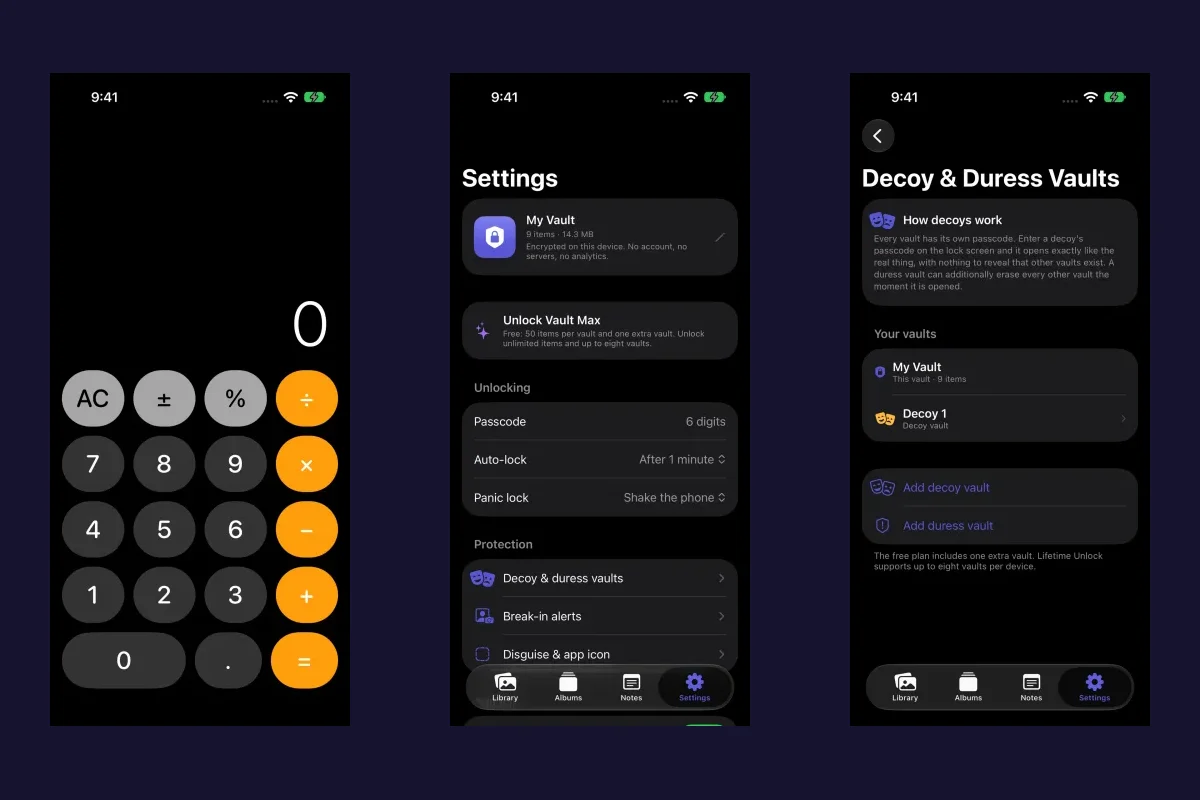
See how a local iPhone photo vault works without an app account, what Apple purchases use, and how backup destinations change your cloud choices.
 7 min read
Vault Max privacy features: break-in photos, decoy vaults and quick locks
Explore Vault Max's break-in photos, calculator disguise, decoy vaults, private camera, panic lock and encrypted backups, with app screens and footage.
14 guides to explore