
Privacy in practice
Find files with Vault Max’s three library layouts
Switch between Gallery, Comfortable and List in Vault Max 1.1. Open the same sample files in each view and choose the layout that helps you find them.
Vault Max 1.1 is available. Get the update on the App Store, then follow the walkthrough below.
Try the three library views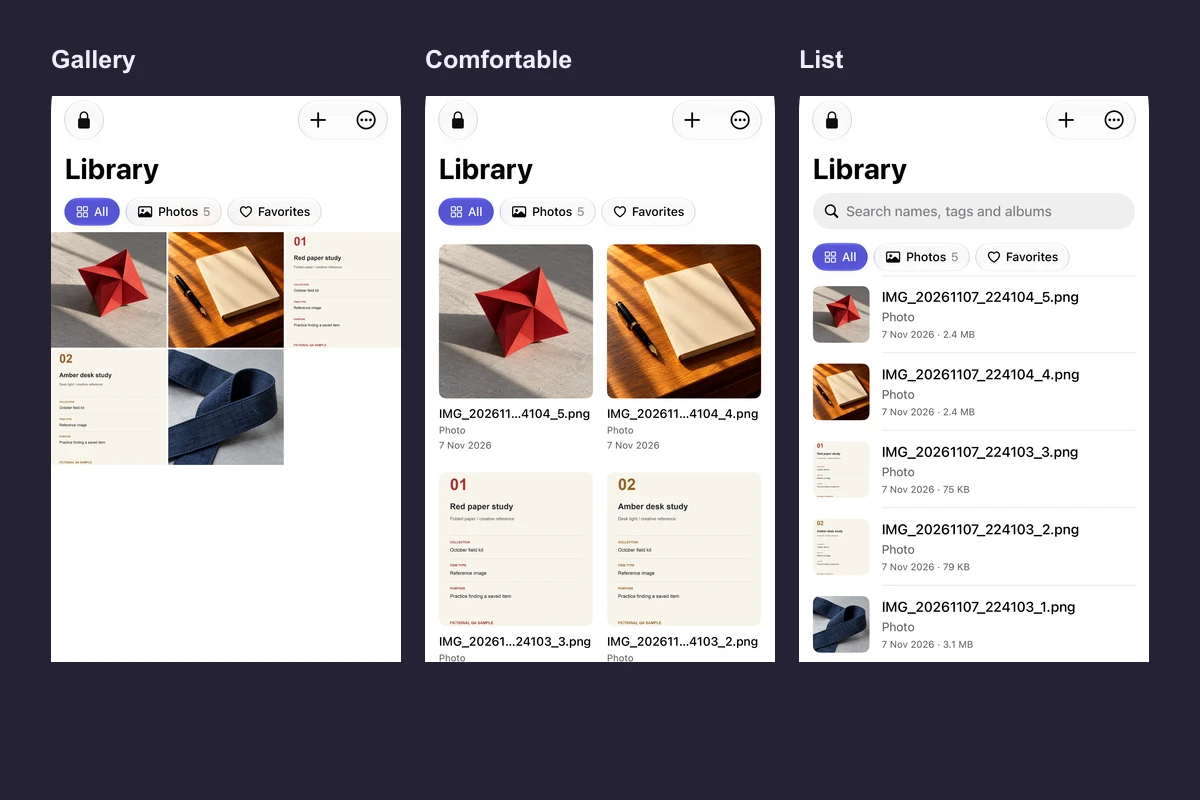
Use Gallery to scan thumbnails, Comfortable to see larger images with names, and List to read filenames and sizes at a glance. These views in Vault Max 1.1 display the same collection. You can change the view any time on iPhone and iPad running iOS 26 or later.
Watch one collection switch views
Native recording · iPhone 18 Pro
Switch the same collection from Gallery to List
Follow the real Library More menu as the same sample images change from thumbnails to rows. Watch the filename and size become visible before the item is opened.
- Open More → Layout
The menu presents Gallery, Comfortable and List.
- Try Comfortable
Bigger thumbnails show names and dates.
- Choose List and open a file
Rows make it easier to identify the item before opening the viewer.
Switch views in the Library
- Unlock Vault Max and open Library.
- Open More → Layout and choose Gallery, Comfortable or List. You can also change it from Settings → Library layout.
- Open the item you were looking for and check its details. Return to the Library and try a different layout to see how it presents the same item.
Your choice applies to Library and albums on the device. Pinch in Gallery or Comfortable to adjust image size. List uses rows, which leave more room for a long filename.
Compare views on the same sample
Find the indigo fabric across three layouts
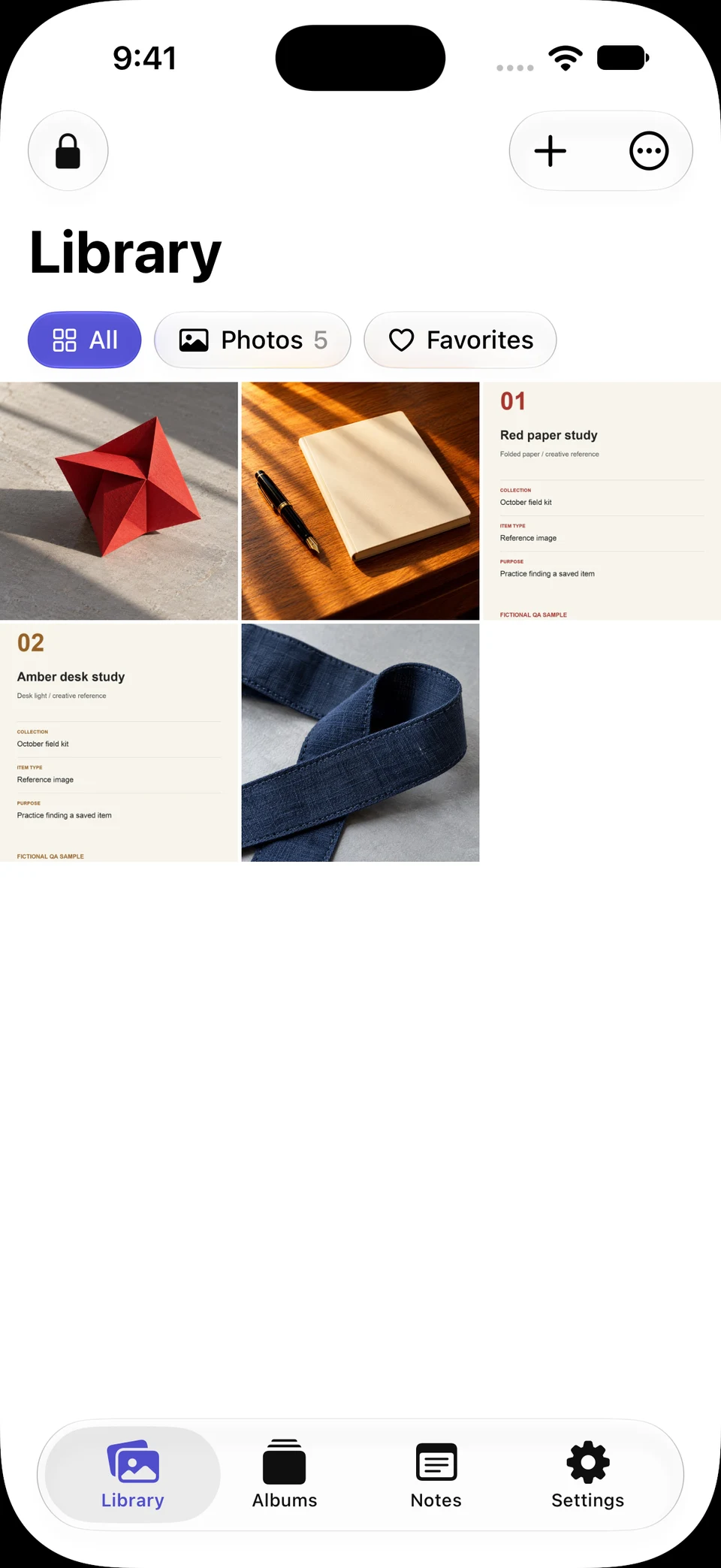
Screen 01 / 07
Start with the pictures
Gallery puts more thumbnails in view. Open More to choose a layout that also gives you filenames.
The same five sample imports are shown in each view. Changing the layout leaves the collection in place.
The exercise uses the same seeded sample collection as the recording. Use More → Layout on the captured screen and find the indigo fabric. In Gallery, thumbnail appearance gives the first clue. Comfortable adds the name and type while keeping a larger picture. List puts names, dates and sizes in rows so you can compare items that look alike.
Gallery · image first
Comfortable · image and name
List · name and size
Compare the same imported image set without changing a filter. Tap any screen to zoom into the filenames, dates and sizes.
Select a screen to inspect it.Pick the view for the task
Gallery suits a familiar photo collection. Start here when you remember what an image looks like. Use the photo or video filter to narrow the thumbnails.
Comfortable helps when you want to see a picture and its name together. If two images look similar, compare the visible names and dates before opening one.
List works well for documents, long filenames and versions such as “signed” and “draft.” Use the file type and size as clues, then open the document to check the page you need before you share, move or delete it.
Test the difference on a job you do often
Imagine you have two versions of a reference image. In Gallery, they look nearly identical at thumbnail size. Use List to compare filenames, dates and sizes before opening either. If you mostly recall the picture rather than the filename, start in Comfortable so you can read both at once. Marking the correct item as a favorite gives you a narrower filter on your next visit.
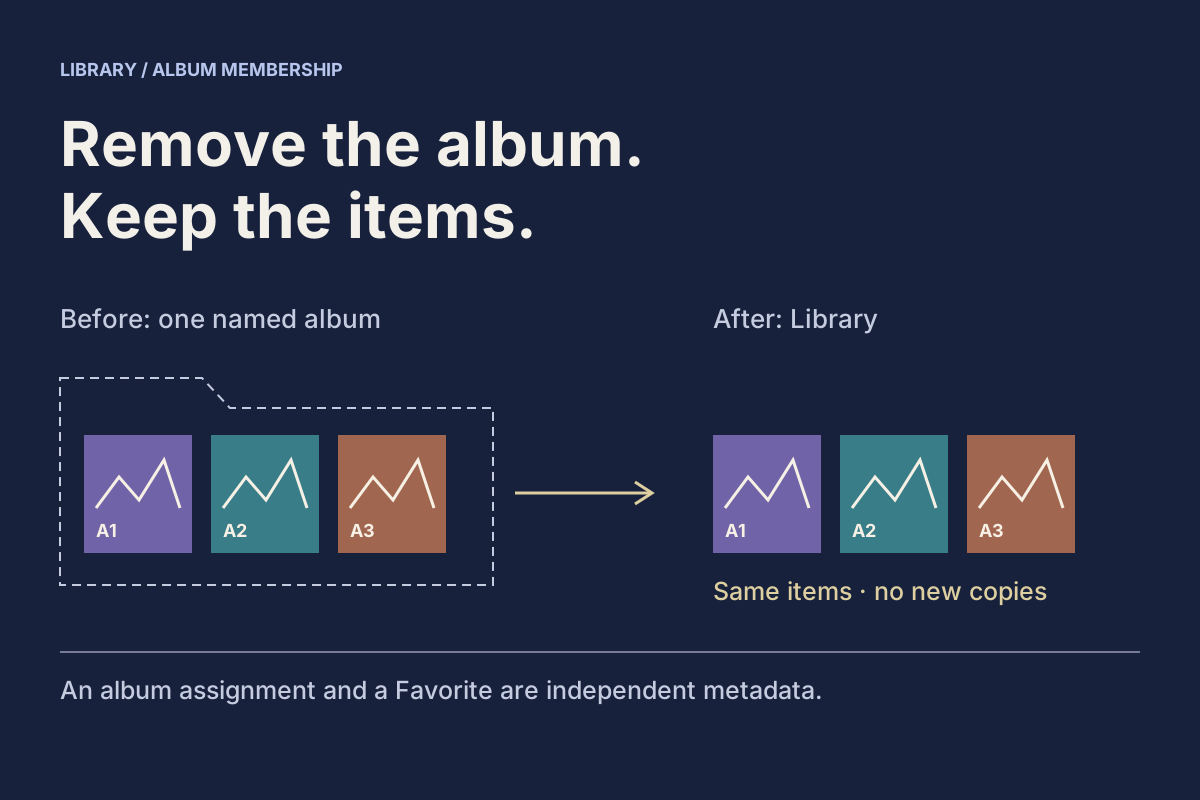
For a larger collection, change one thing at a time. Start in Library with All selected, choose a layout, then apply a media filter. That makes it easier to tell whether an item is hidden by the filter or merely presented differently. A view change does not transfer a file into or out of an album. If you are trying to change where you browse an item, check the album membership guide.
When opening an item for a handoff, use Info to confirm the actual name and type. If you are about to share it, inspect the destination copy after the share step. Similar thumbnail colors, near-identical names, and an old filter are common reasons people pick the wrong file. Start with one known sample before organizing a batch.
When the file still seems missing
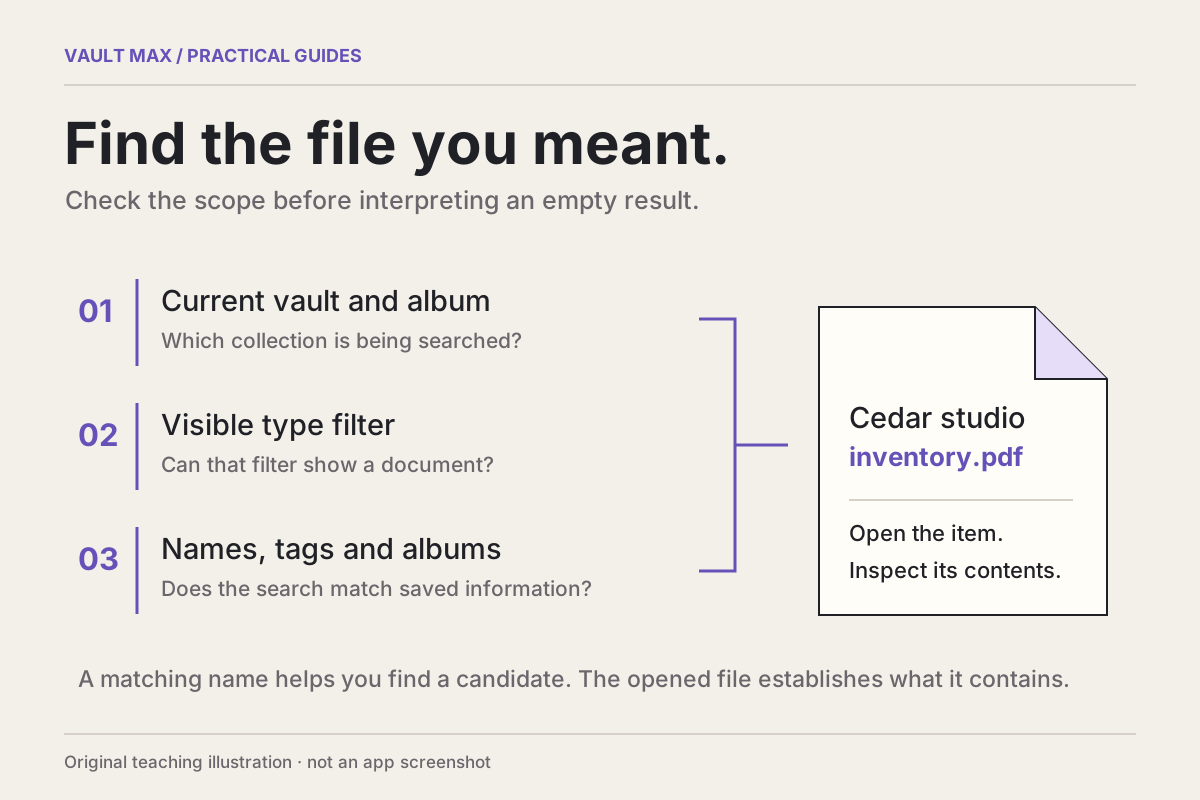
Clear any search and filter first. Check whether you are looking in Library, inside an album, or in a different vault opened by a different credential. When you know part of the name, use Library search. When the name is generic, switch to List and check the type and date. Once you identify the right file, give it a more descriptive name so the next search is easier.
For a file you imported recently, check that the import finished and open the saved copy. If it never arrived, keep your original and work through the import troubleshooting guide. Switching layout leaves your files and album membership in place.
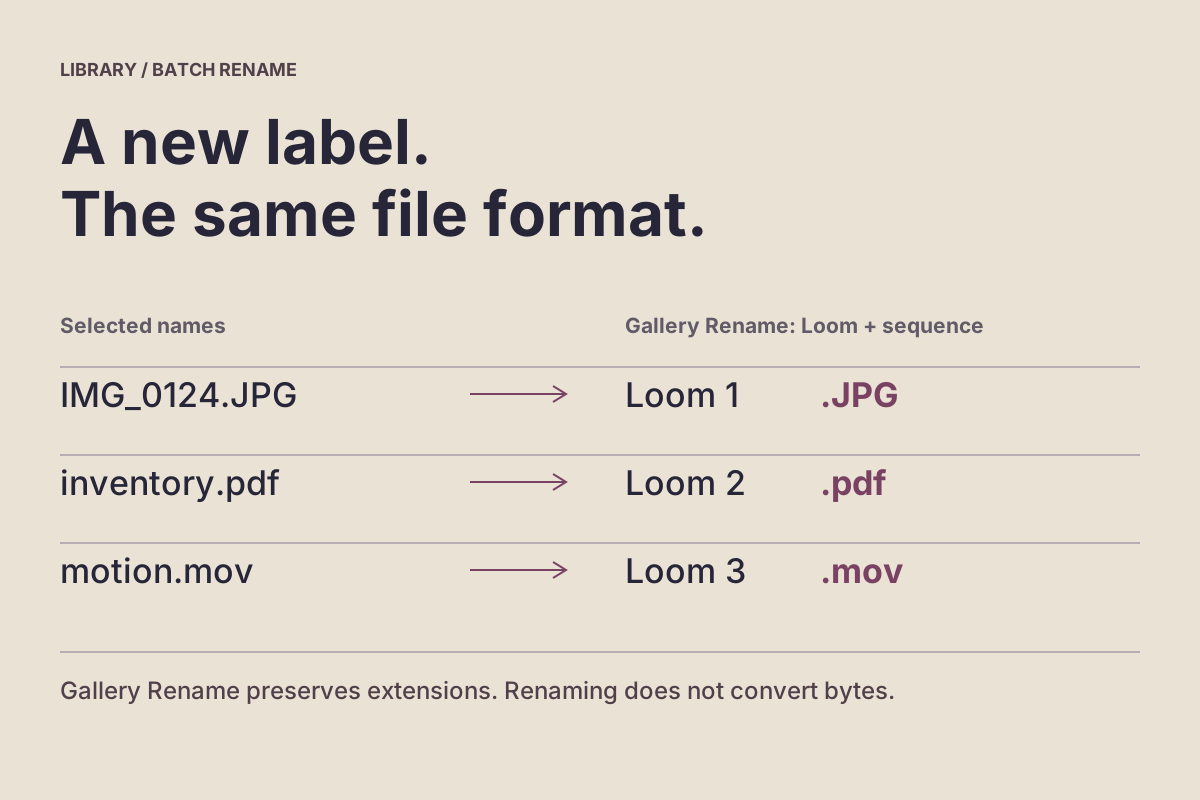
For example, if you expected a PDF named “reference” but only remember what was inside, try the Documents filter and clear the search. Then check likely filenames and open the candidates. If you find the right item with a generic import name, rename it once you have confirmed it is the right version. The next search should use a word that actually appears in the saved name.
Common questions
Does changing the layout move or duplicate my photos?
Changing the layout changes the way you browse the same items. Your files, albums and credentials stay in place.
Can I see PDF filenames and sizes in my vault?
Yes. Choose List in Vault Max 1.1 to see filenames, file types, dates and sizes together. Comfortable also shows names, dates and file types below larger thumbnails.
Continue reading
More guides
Practical tips for your private library. Swipe or scroll to choose your next guide.
4 guides to explore