
Privacy in practice
Photo vault not importing on iPhone? Find where the transfer stops
Troubleshoot a failed photo vault import on iPhone: check the source, picker, cloud download, capacity and destination before retrying a smaller batch.
Keep the originals, identify the last stage that worked, and retry one item only after checking what already arrived. An import can stop before selection, while the source is being downloaded, during saving or when you look for the result. Those situations need different checks.
We make Vault Max. The steps below explain its routes and give you a way to describe the same problem in another app. They do not assume a missing thumbnail means a lost file, or that changing a permission will solve every transfer.
First, name the stage that failed
Write down the source app, the route you used and the result you saw. For example: “From Photos, three ordinary pictures selected, two appeared in Library, one error shown.” That is more useful than repeating a large import and watching the overall count.
| What happened | Check next | Completion evidence |
|---|---|---|
| The item is absent from the picker | The source library and the picker's search or filters | You can identify and select the intended source |
| Selection finished but saving stalled | Source availability, device space and the displayed error | One small test finishes and opens in the vault |
| Only part of a batch appeared | The items already saved and any capacity message | Every intended item has a recorded result |
| A share-sheet deposit seems missing | The main vault after unlocking | The supported attachment appears and opens there |
| Import worked but source deletion failed | The separate Photos deletion result | You know which source copies still exist |
An app that closes before you can reach Library has a different problem. Use the app-won't-open guide while keeping its data in place.
Check the source before changing the vault
Open the intended photo or video in Photos. For a document, open it in Files or the provider that owns it. Check enough of the actual content to recognize it, rather than relying on its filename or a small preview.
Apple explains that Optimize Storage can keep smaller local versions while originals remain in iCloud. A visible picture therefore does not establish that every full-resolution resource is already on the phone. Allow the source to load on a working connection, then try a small import again. A cloud-backed Files provider can likewise need to retrieve its file first.
Do not turn off synchronization or delete the source to force a retry. Changing a whole library's storage arrangement is a much larger action than investigating one transfer. If the source itself cannot open, resolve that first and preserve any independently accessible copy.
Use the intended route and collection
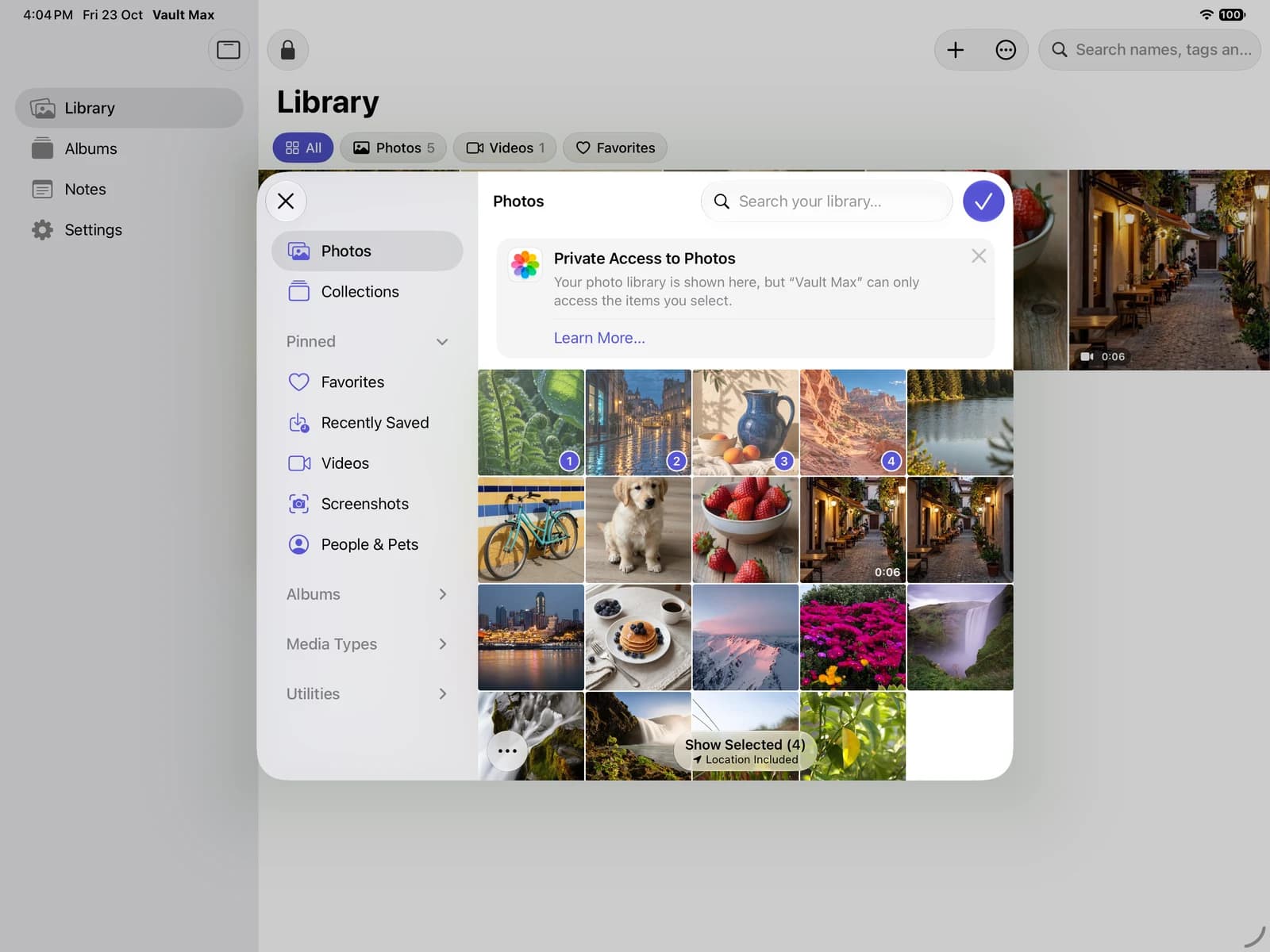
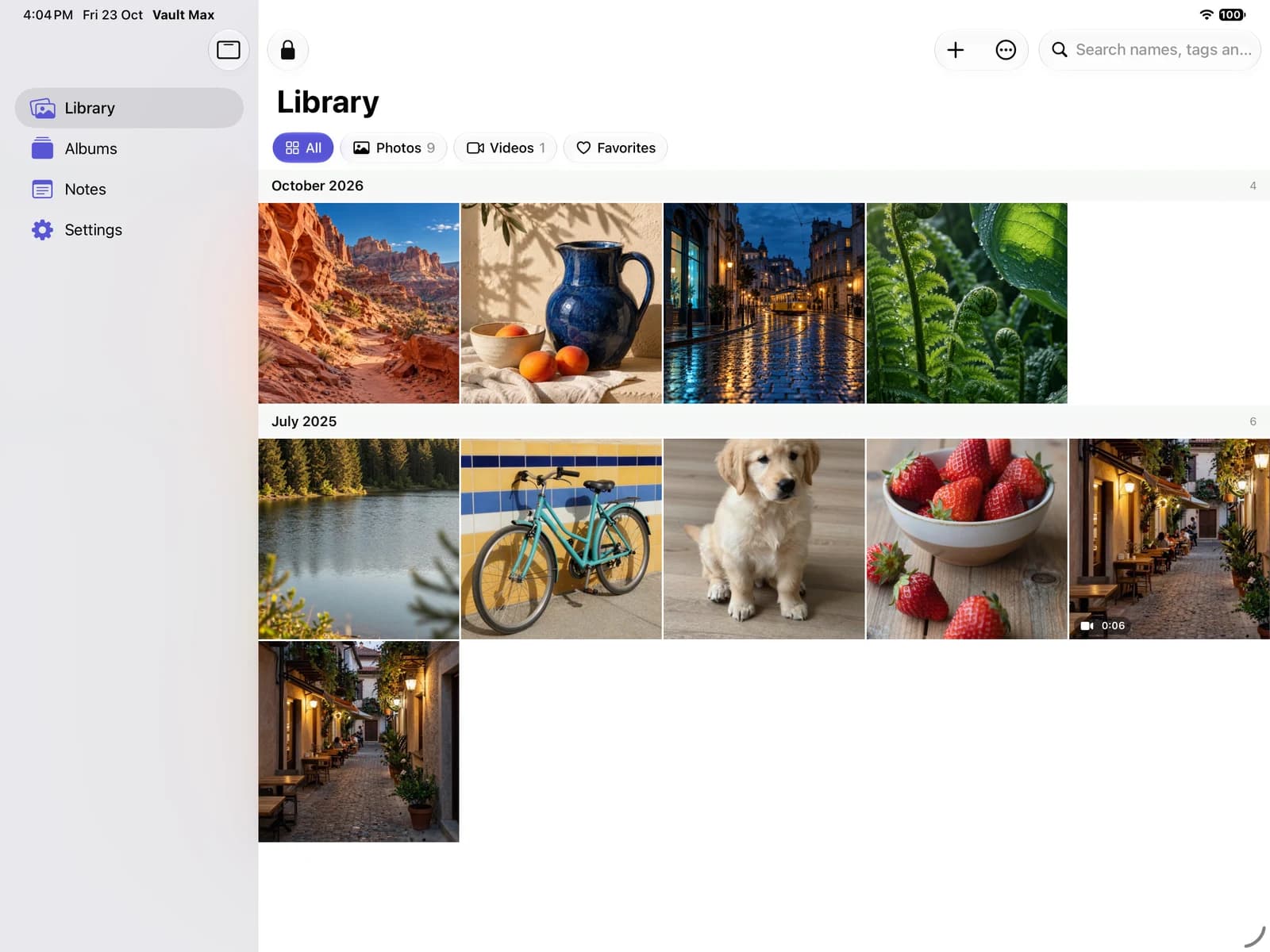
In Vault Max, unlock the destination vault and choose Library → + → From Photos for a Photos item. Choose From Files for a file held in Files. If you are working inside an album, remember which album should receive the result.
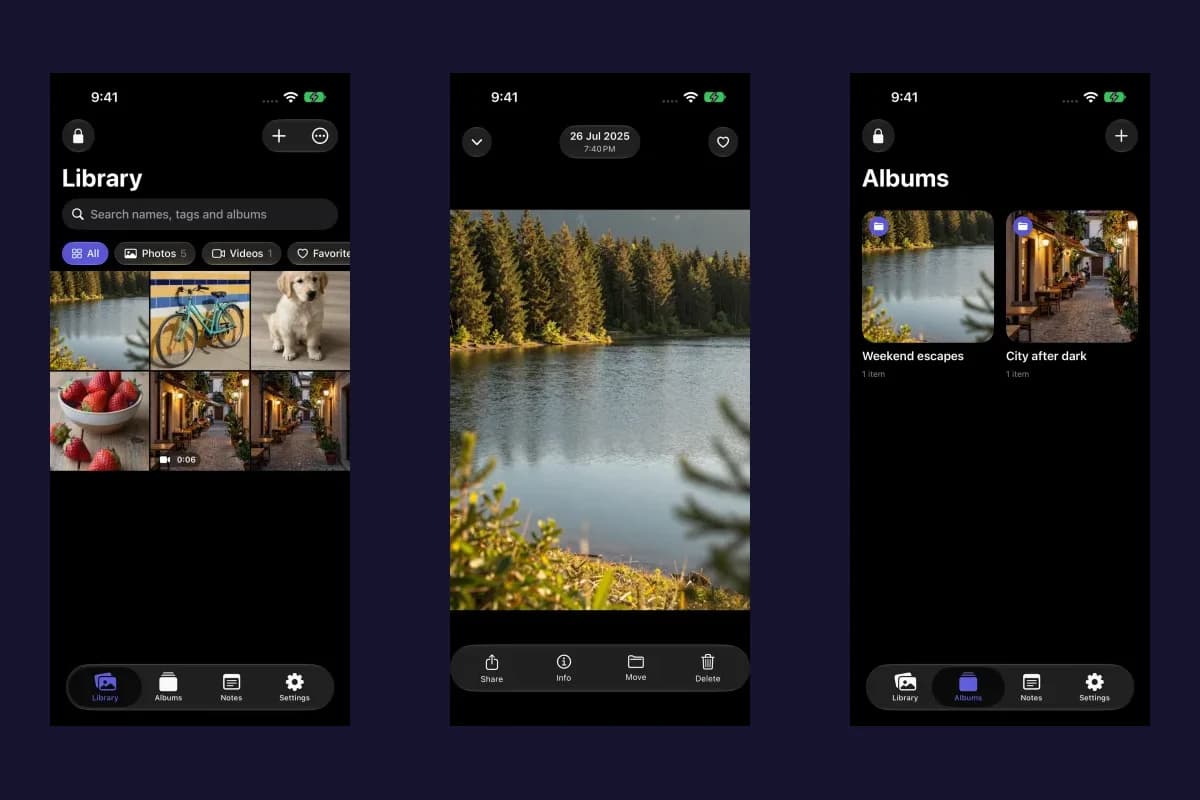
Sample Vault Max library. Select a screen for a closer look.
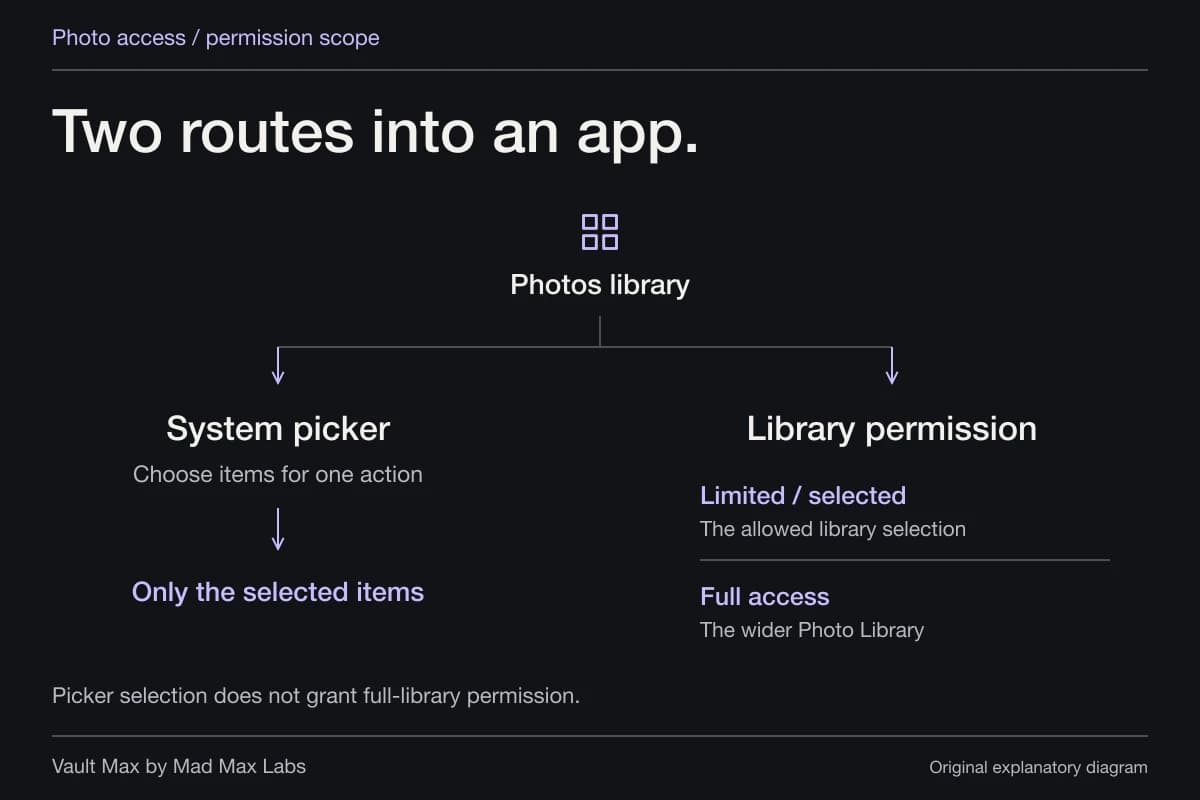
Apple's system Photos picker can supply selected items without giving an app general access to the library. Vault Max uses that approach. Its absence from a broad-access permission list is not, by itself, proof that From Photos cannot work.
If a different vault asks for direct library access, inspect that app's permission and instructions. Do not grant every app full access as a general troubleshooting step. The photo-access guide explains the distinction.
Separate an import error from an originals-deletion error
Vault Max can ask whether to delete originals after a successful Photos import. That operation has its own Photos access and system confirmation. A failure there can leave the imported vault copy intact while the Photos copy remains.
Check both places. If the vault item opens, record that import as successful even if source deletion did not finish. Keep the original while you assess the content and recovery plan. Granting deletion access does not retrospectively prove that the imported picture, video or Live Photo contains everything you need.
For a Live Photo, verify motion separately using the Live Photos guide. A still image alone is not evidence that its motion companion transferred.
Check device space and app capacity separately
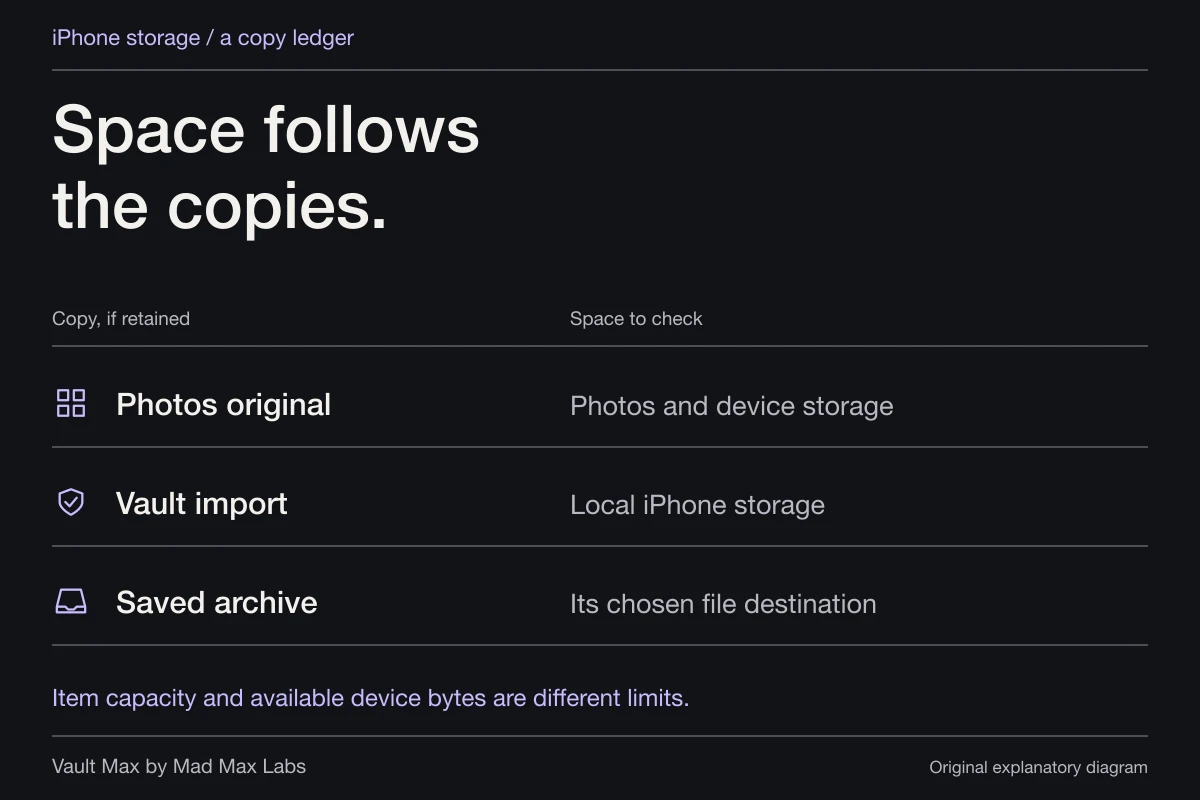
Open Settings → General → iPhone Storage to inspect physical space. Apple's storage guide distinguishes storage used by apps from their documents and data. A paid app plan cannot increase the phone's physical capacity.
Vault Max's free allowance is 50 counted photos, videos and documents per vault. Text notes do not use that item allowance. An app-capacity message therefore calls for a different decision from an iPhone-storage message. Read the exact wording before buying a plan or removing anything.
If you need space, start with replaceable downloads whose removal you understand. Do not clear a private vault's data to make room for its own import. The space guide covers the larger storage decision.
Review a partial batch before retrying
Return to the expected vault, clear any search or restrictive media filter, and inspect the intended album and Library. Identify the items already saved. A total count can be misleading if the collection already contained similar pictures.
Try one missing, harmless item. If that works, continue in manageable batches and reconcile each result. If one particular file fails repeatedly, record its type, approximate size, source and error. Do not rename a file extension and assume you converted its contents.
For a share-sheet route, Vault Max adopts supported attachments into the main vault after it unlocks. Plain text and web links are skipped with feedback. Check the main collection and any capacity message before treating the deposit as missing. Sending through the extension does not select a decoy collection.
Open the actual result, then make recovery current
For photos, inspect the picture at a useful size. For documents, check the needed pages. For video, play the beginning, seek farther in and check the sound if it matters.
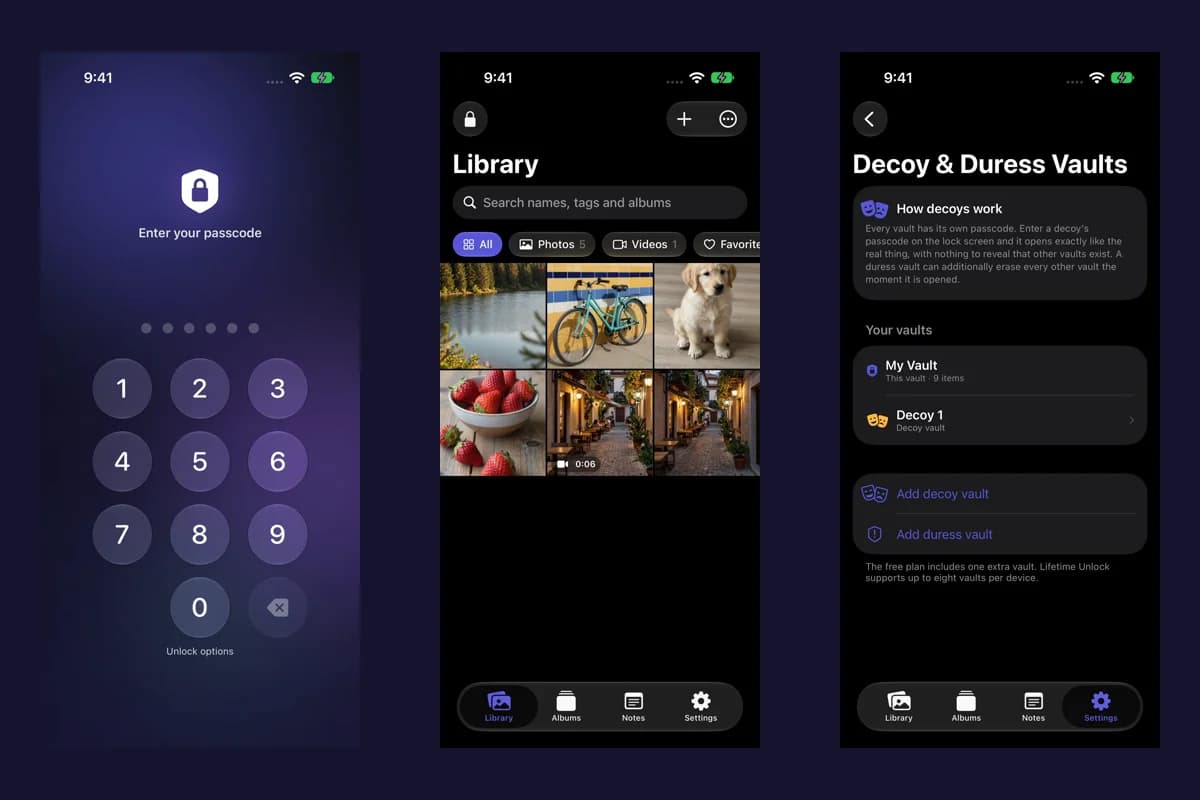
Vault Max with sample content. Use the controls to pause or replay.
When the important items are verified, make a fresh encrypted backup. An older archive does not gain today's imports automatically. Keep its password and a recovery copy you can reach if the phone is unavailable.
If the failure continues, contact the app's support with the stage, version, route and exact error. Use a harmless reproduction file where possible. Keep passwords, private media and recovery archives out of an initial support message. The useful endpoint is a readable saved item or a precise unresolved problem, with the originals still available.
Common questions
Does Vault Max need full Photos access to import a picture?
Its From Photos route uses Apple's system picker, which provides the items you select without granting general library access. A request to delete originals afterward is a separate operation and can require additional access.
Why can I see a photo but not import it?
A thumbnail does not establish that the full source is available to the importing app. Check that the item opens in its source, allow any cloud download to finish, read the import error and try one harmless item through the intended route.
Should I retry the entire failed batch?
First inspect what actually arrived. A batch may have saved some items before stopping. Record the missing items and retry a small subset so you can distinguish a new result from duplicates.
Continue reading
More guides
Practical tips for your private library. Swipe or scroll to choose your next guide.
5 guides to explore