
Privacy in practice
Find a private file in Vault Max: check the name, album and filter
Find a saved photo or document in Vault Max with filename, tag and album search. Check the current vault, album and type filter before treating it as missing.
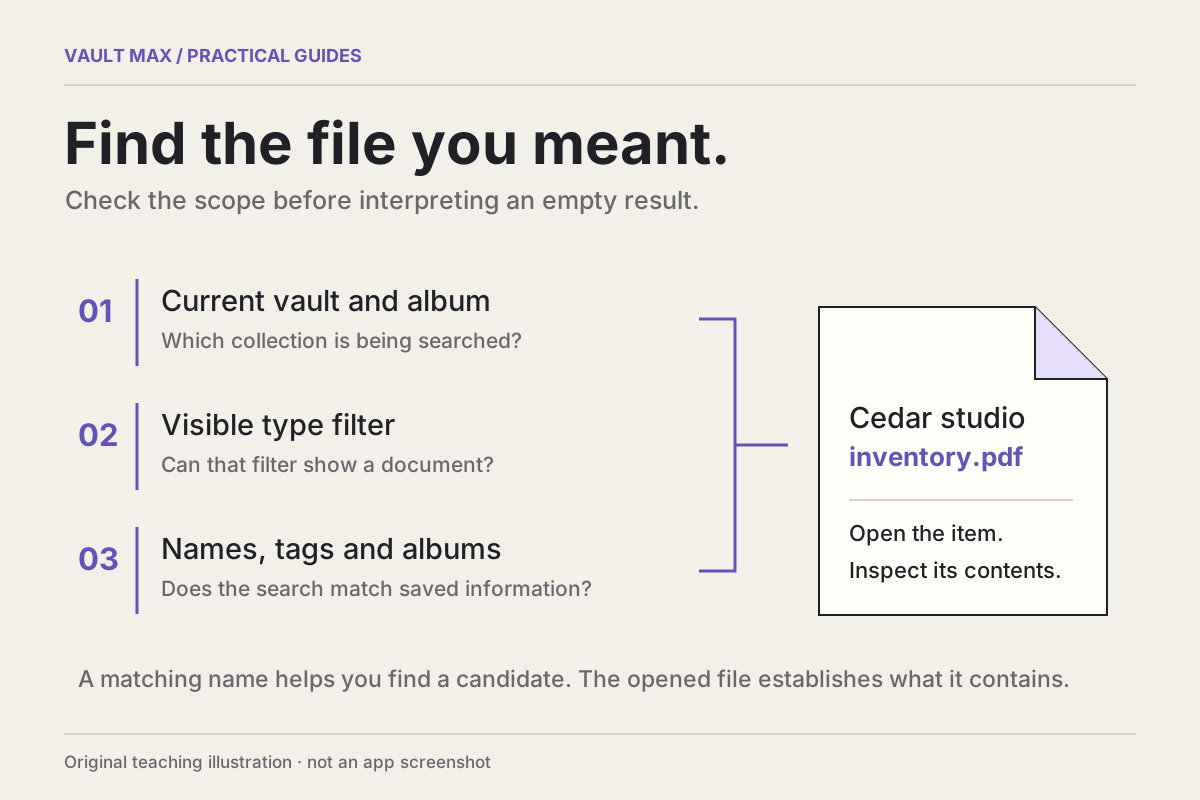
Check the open vault, album and file-type filter, then search for part of the saved filename or album name. Vault Max's gallery searches the items available in that view. An empty result can describe a narrow view rather than a missing file.
Suppose you saved a Cedar studio inventory PDF beside several reference pictures. You remember the project, but the gallery is showing Photos inside a different album. Typing the right word cannot make that view include a document from elsewhere. Widening the scope and choosing the appropriate filter is the useful first correction.
Try the retrieval problem with a sample collection
Use the fictional library below to change the scope, filter and query. Look at which items remain and why. The exercise models the search rules; it does not inspect your collection, unlock another vault or find text inside a document.
A small fictional library
Find Cedar studio inventory.pdf
All five example items exist in the library below. Change the scope and query to see why a known file can be absent from the visible results. These controls search only this page’s fixed sample data.
A substring can match a filename; it does not need to be the whole name.
Known target / PDF
Cedar studio inventory.pdf
The target is outside the current result set:
- The Photos filter excludes this item.
Photo items only; a PDF is excluded.
2 of 5 sample items shown
- Red paper inventory card.pngNo album · No tags
- Amber desk inventory card.pngNo album · No tags
2 example results. Target excluded. The Photos filter excludes this item.
Recorded example / Actual iPhone screens
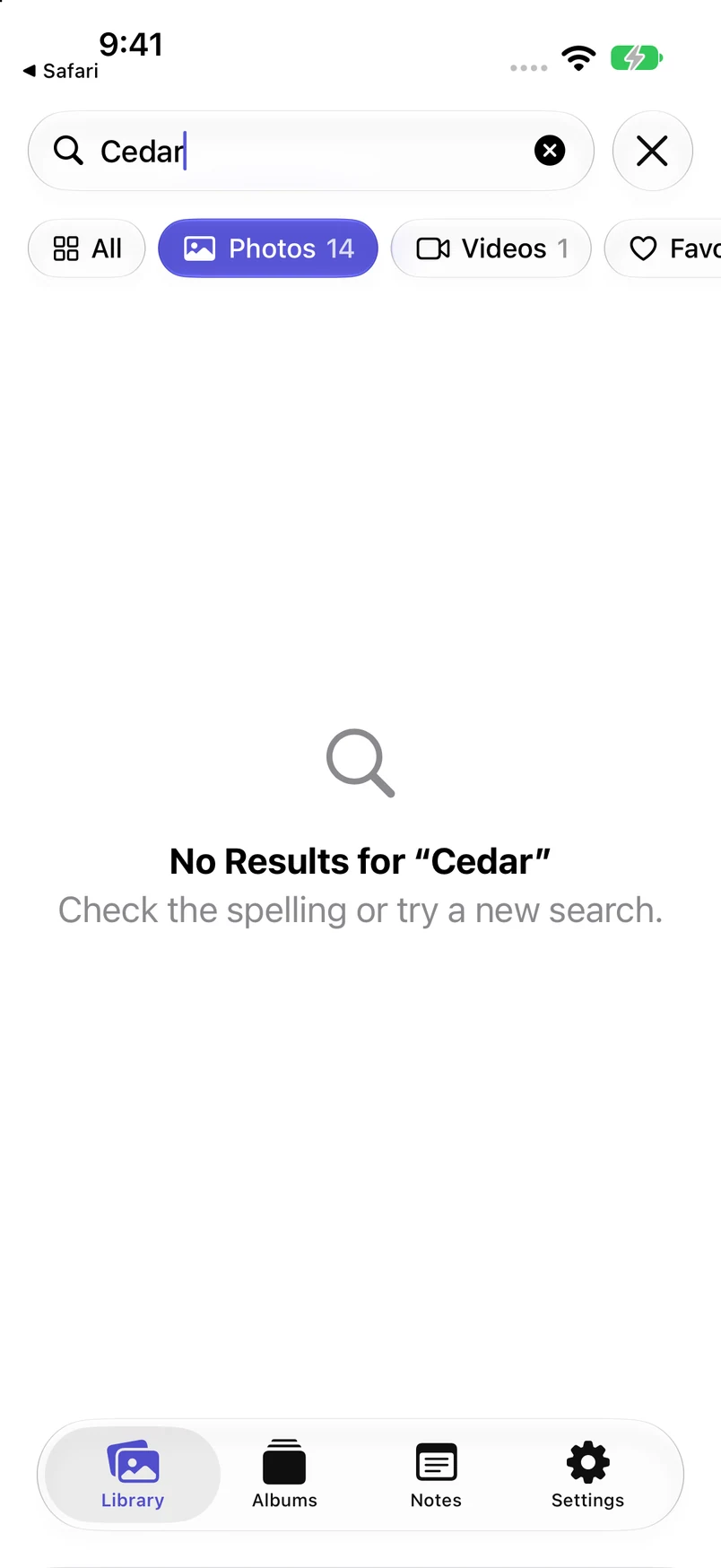
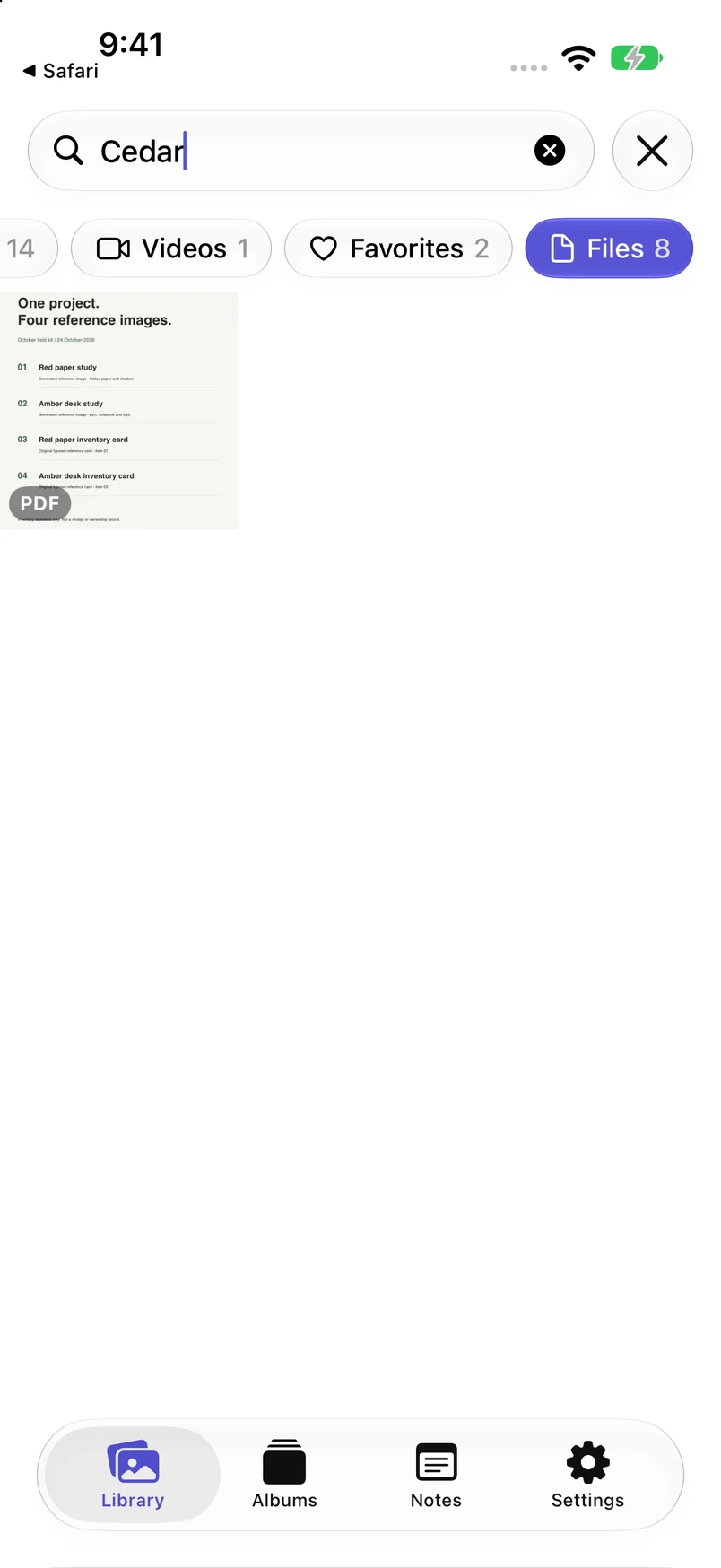
One Cedar query, two filters, one identified PDF
These screenshots use the real sample collection, whose imported photos have app-assigned IMG filenames. The fictional names, tag and album in the exercise above are separate teaching assumptions; those model states are not all captured here.
The recorded query is Cedar. Photos is selected and no item matches this view. Its 14 badge describes photo items in the scope before the text query, not 14 query results.
Select the complete screen for a closer look.
Open complete screenshot: Photos: no matching itemThe query is still Cedar. Files now includes one matching PDF thumbnail. Its 8 badge is the document count before the query. The thumbnail alone is a candidate; inspect the opened item to confirm its identity.
Select the complete screen for a closer look.
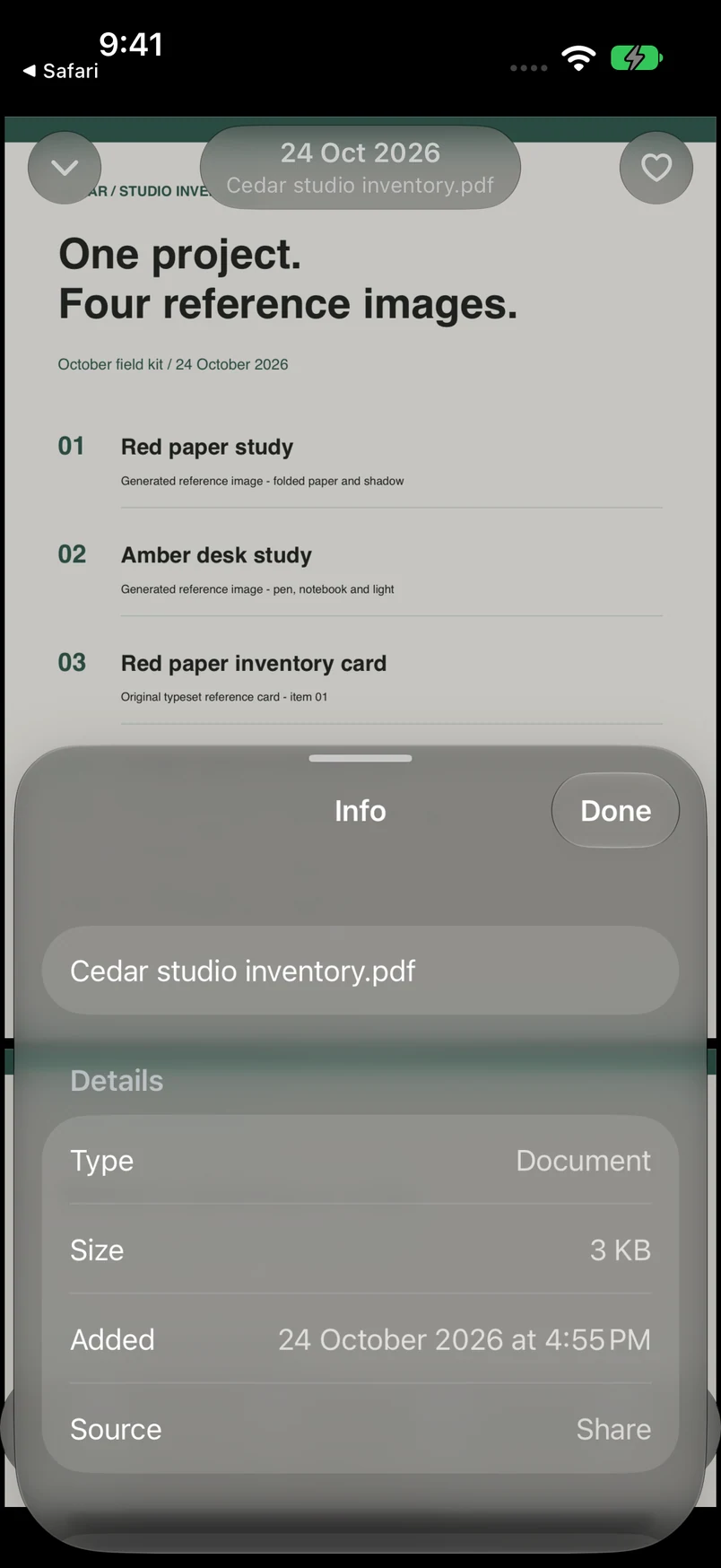
Open complete screenshot: Files: one PDF thumbnailThe actual Info sheet shows Cedar studio inventory.pdf, type Document, size 3 KB and source Share. Its visible identity is useful alongside the contents; it is separate from the search result count.
Select the complete screen for a closer look.
Open complete screenshot: Info: confirm the filenameRecorded screen: Photos: no matching item. This changes the screenshot shown, not the app.
Read the sample library and every search rule
The five fictional names are listed below. The PDF and the two Cedar study photos are assumed to have album October field kit and tag cedar-kit. The two inventory-card images have no assigned album or tag. All are in My Vault and none is favorited. The other example vault and album are empty.
- Cedar studio inventory.pdf — document; October field kit; tag cedar-kit.
- Cedar red paper study.png — photo; October field kit; tag cedar-kit.
- Cedar amber desk study.png — photo; October field kit; tag cedar-kit.
- Red paper inventory card.png — photo; no album; no tags.
- Amber desk inventory card.png — photo; no album; no tags.
First choose where and what is searched
The current vault is the search boundary. Library covers its live gallery items; a selected album narrows that to items assigned to that album. This does not search another encrypted vault. Notes use their own area, and items in the app’s Trash are outside this live gallery.
- All. Photos, videos and documents in this gallery scope.
- Photos. Photo items only; a PDF is excluded.
- Videos. Video items only; this fictional library has none.
- Favorites. Favorited gallery items, excluding notes; no example item is marked favorite.
- Files. Document items only, including this example PDF.
Then match one query against names, tags or album names
The trimmed whole query is checked as a case-insensitive substring of each filename, tag or assigned album name. It is not a separate-words search. The fixed examples use English text; this small model does not reproduce every language’s localized matching behavior.
- No search words
- With no query, the vault, album and type filters still apply.
- inventory — part of a filename
- A substring can match a filename; it does not need to be the whole name.
- cedar-kit — an example tag
- The model assumes this tag was assigned to three example items. Tags must exist before a tag query can match.
- October field kit — an album name
- An item’s assigned album name can match the query. Choosing an album scope separately restricts which items are searched.
- cedar inventory — separated words
- The app checks the whole trimmed query as one substring in each name, tag or album. These separated words are not a contiguous substring of Cedar studio inventory.pdf.
- allocation — hypothetical PDF body text
- Suppose allocation appears only inside the PDF. This gallery search does not read PDF body text or perform OCR, so that word cannot match through the document’s contents.
Work through the missing-PDF example
- Start in My Vault, Library, Photos, with inventory as the query. The two inventory-card PNGs match; the PDF is excluded by Photos.
- Choose Files or All. The PDF now passes the type check and its filename matches inventory.
- Choose another empty example album or vault. The PDF disappears because the location scope excludes it, even with a matching query.
- Return to My Vault and Library; try cedar-kit or October field kit. The three items with that assumed tag or album match under All; Files still shows only the PDF.
- Try cedar inventory or hypothetical PDF-only allocation. Neither matches the PDF’s searchable fields. Clear or replace the phrase; a zero-result view does not establish file loss.
Use the full file-finding walkthrough. If access itself is lost, use the credential routes before changing the installation.
A source-based teaching model with fictional sample metadata, not a search of your library or a capture of every possible app state. No search text, filenames, passwords or files are collected; choices reset when the page is left.
The goal is to identify one saved item with a repeatable route back. You should be able to explain which collection contains it and which words in its metadata helped you find it.
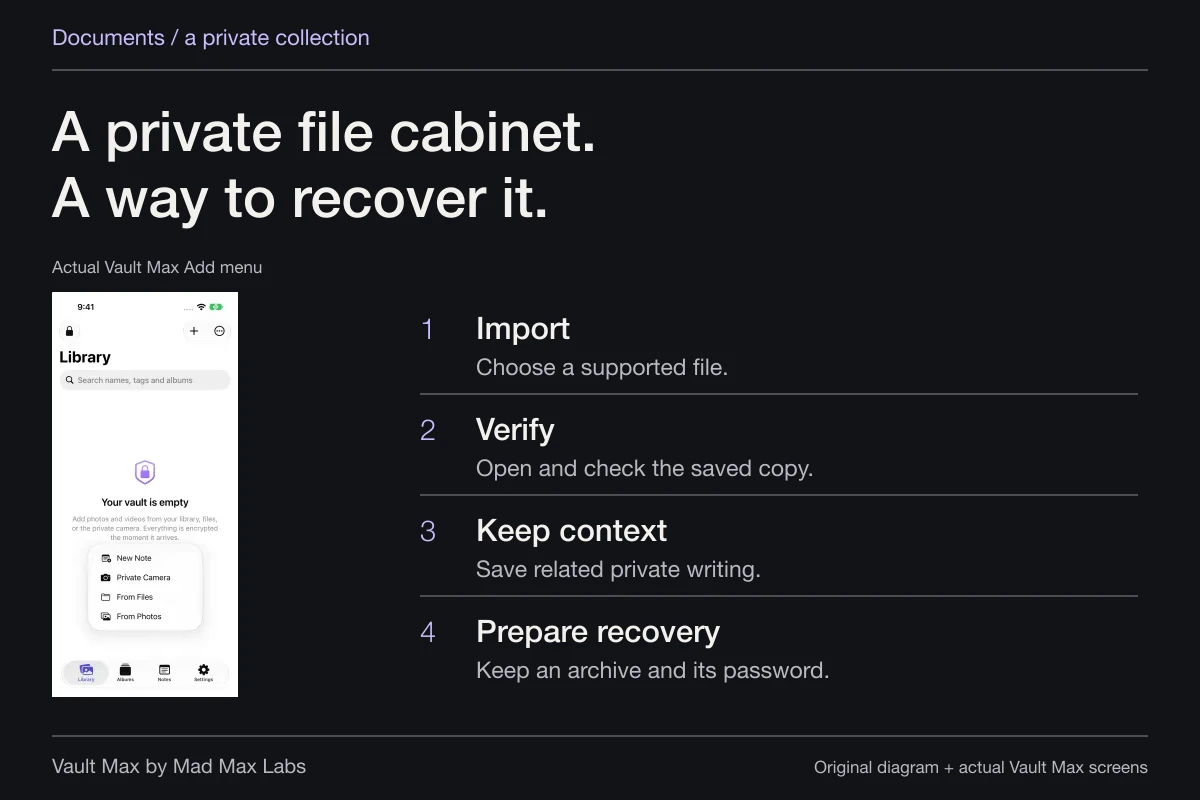
For your own harmless practice, save the fictional two-page Cedar inventory PDF to a known location, then import it through From Files. Find the saved vault item by name and open it. Downloading the source alone does not put it into Vault Max; retain that source while checking the import.
Start in the collection that holds the item
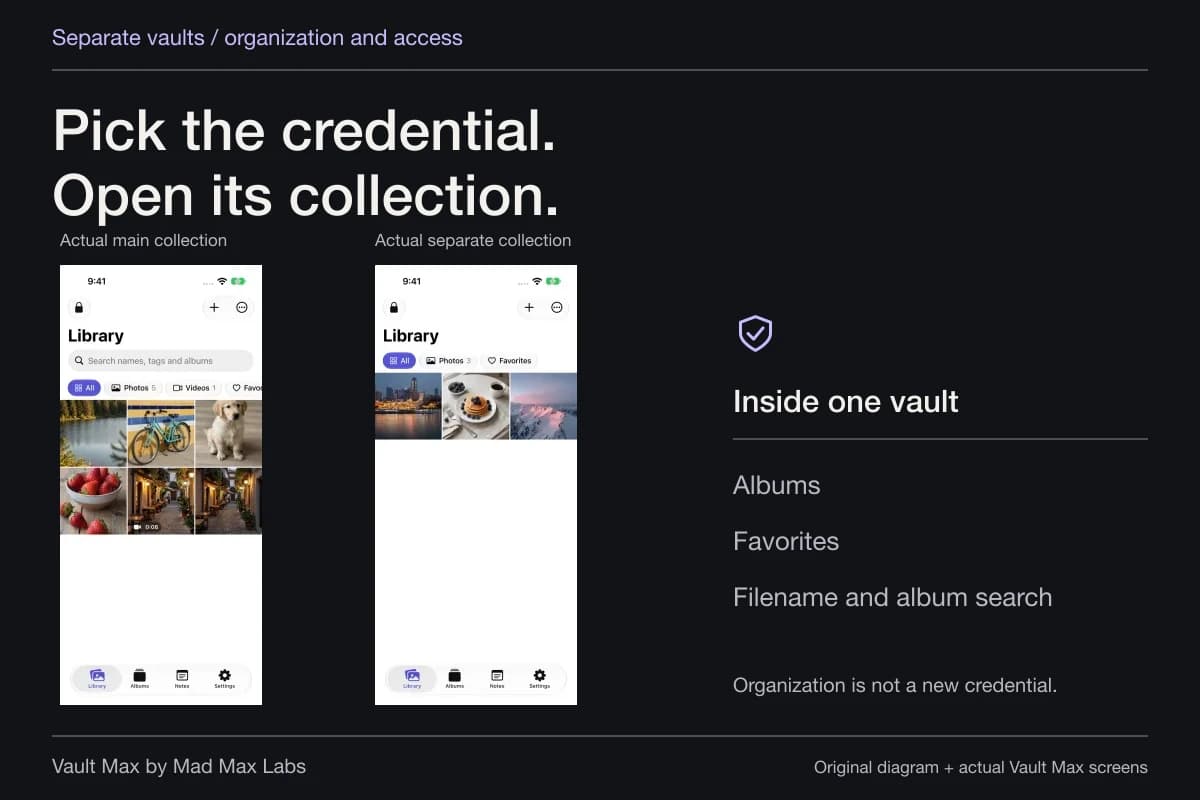
A vault credential opens its matching collection. Gallery search works inside that open collection; it is not a search across every separately credentialed vault or another installation. If you deliberately keep two projects under different ordinary credentials, use the credential for the project you are trying to retrieve.
Stay with your known setup. Optional destructive duress behavior is a different feature and is unnecessary for finding an ordinary saved document. Our separate-collection guide explains the organizational and credential choices.
An iPhone and iPad also have their own working collections. Installing Vault Max on both does not establish automatic library synchronization. If a file was imported only on the tablet, look there or follow the established transfer plan; repeating a search on the phone does not create the missing import.
Widen the album scope before repeating the query
Look at the visible title. Library and a named album describe different scopes. Searching inside an album limits the eligible items to that album. Return to the broader library when you are unsure which group contains the file.
Albums organize saved items. They do not make a document another file type or give a favorite a second imported copy. A name such as Cedar studio can help retrieve the items assigned to that album when the current scope allows them.
If several projects use the same generic album name, inspect the actual file before taking the next action. A search match tells you why an item was included; it does not tell you that you chose the right version for a particular recipient or task.
Vault Max · Actual iPad screen, fictional references and generated study images. Select a screen for a closer look.
Choose the filter for the object you remember
Use Files for PDFs and other saved documents, Photos for photograph items, Videos for videos and Favorites for marked media or documents. All includes the current scope's media and documents. Your encrypted writing has its own Notes view.
This gives you a simple diagnostic sequence: return to the intended vault's library, select All, clear the query and inspect what is present. Then narrow the view deliberately. If you are looking for the inventory PDF, Files removes unrelated photos from that search; Photos excludes the document you wanted.
The number beside a filter describes its items in the current scope before the query. It can remain larger than the number of matching thumbnails. Judge the query from the displayed results instead of treating the filter count as the number of text matches.
The recorded iPhone examples in the explorer keep Cedar as the query while changing Photos to Files. Inspect that real filter change alongside the fictional exercise. The recorded library's counts describe its own sample collection, so they differ from the exercise's five items.
Use a word the saved metadata actually contains
The gallery checks the saved filename, any stored tags and the containing album name with a case-insensitive text match. Start with one distinctive fragment. A short word such as inventory can be more useful than guessing a long title exactly.
The query is a piece of text to match, rather than a command language. Do not assume that several separate words will be combined as independent filters, or that a phrase printed inside a photographed page will match its filename. If a longer query fails, clear it and try a simpler part you recognize.
Tags participate when present in the saved metadata. This guide does not require a new tag-editing workflow. Names and album assignments are practical starting points you can inspect directly. Keep passwords, document numbers and unnecessary personal details out of filenames merely to make them searchable.
| What you remember | Useful first attempt | Expectation to keep clear |
|---|---|---|
| Part of the saved file's name | Search that distinctive fragment | Inspect the matching item and its version |
| The project album | Search its name from a suitable scope | The album name can match several assigned items |
| Only the object's type | Choose Files, Photos or Videos | A type filter narrows the eligible view |
| A sentence inside a PDF | Locate and open the document | Gallery metadata search does not read PDF paragraphs |
| A private note | Open Notes and find the writing there | The media gallery is a different view |
Open the candidate and inspect its identity
Once a candidate appears, open it. For a picture, inspect the subject and useful detail. For a document, read the relevant pages and confirm that you chose the intended version. A tile with the right project word can still be an earlier draft.
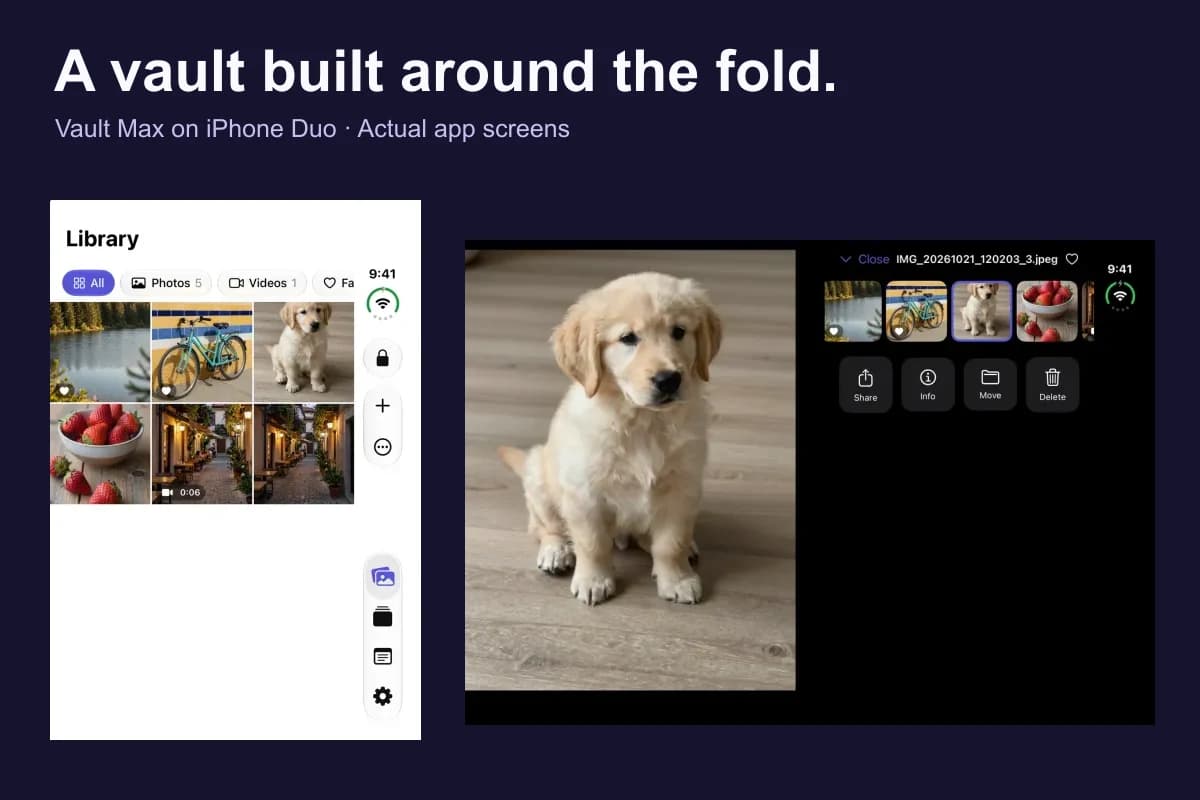
Vault Max · Actual Duo simulator screen, generated study image. Select a screen for a closer look.
Use the item's Info controls when available to inspect the name and details such as type, size, added date, source and album. Use that identity alongside the visible contents to distinguish similarly named drafts and choose the version you need.
Document viewing uses the system's available preview support. Finding a PDF in the gallery is separate from searching its page text. Apple's Preview guide describes text search within an opened PDF in Preview; that capability should not be assumed to describe Vault Max's gallery query or every scanned image's text.
If the item still does not appear
Check the intake result and the source you retained. A source PDF still in Files may never have completed its import into this vault. Apple's Files finding guide helps locate that original, while our import walkthrough follows the supported intake routes.
If you deliberately deleted the vault item, inspect the app's Trash and its configured retention before taking another action. A live gallery query does not search deleted items. Keep remaining sources and recovery archives while investigating; repeated imports can create additional copies without explaining what happened to the first one.
Make the successful route easier next time
After finding the correct version, give it a recognizable name and useful album assignment. Mark an important item as a favorite when that offers a convenient return path. Lock the vault, reopen it normally and repeat the retrieval once.
That short return trip checks the routine you actually need: reach the right collection, choose a suitable view, find the item and inspect it. The document-cabinet guide connects that retrieval habit with preparation, private context and a recovery archive you can reach without the device.
Common questions
What does Vault Max gallery search match?
The current gallery search checks the filename, stored tags and containing album name within the selected scope and filter. It uses a case-insensitive text match. It is not a full-device search or a search through PDF paragraphs, picture text or encrypted note bodies.
Why can a PDF disappear when I select Photos?
Photos limits the gallery to photo items. Choose Files for documents or All for the current scope's media and documents, then check the album and query. Changing the filter changes the visible view; it does not itself remove the saved item.
Does the number beside a filter show the current search results?
The filter count describes matching item types in the current scope before the text query is applied. Read the actual result grid separately. An album containing several photos can show a single filename match while its Photos count remains larger.
Continue reading
More guides
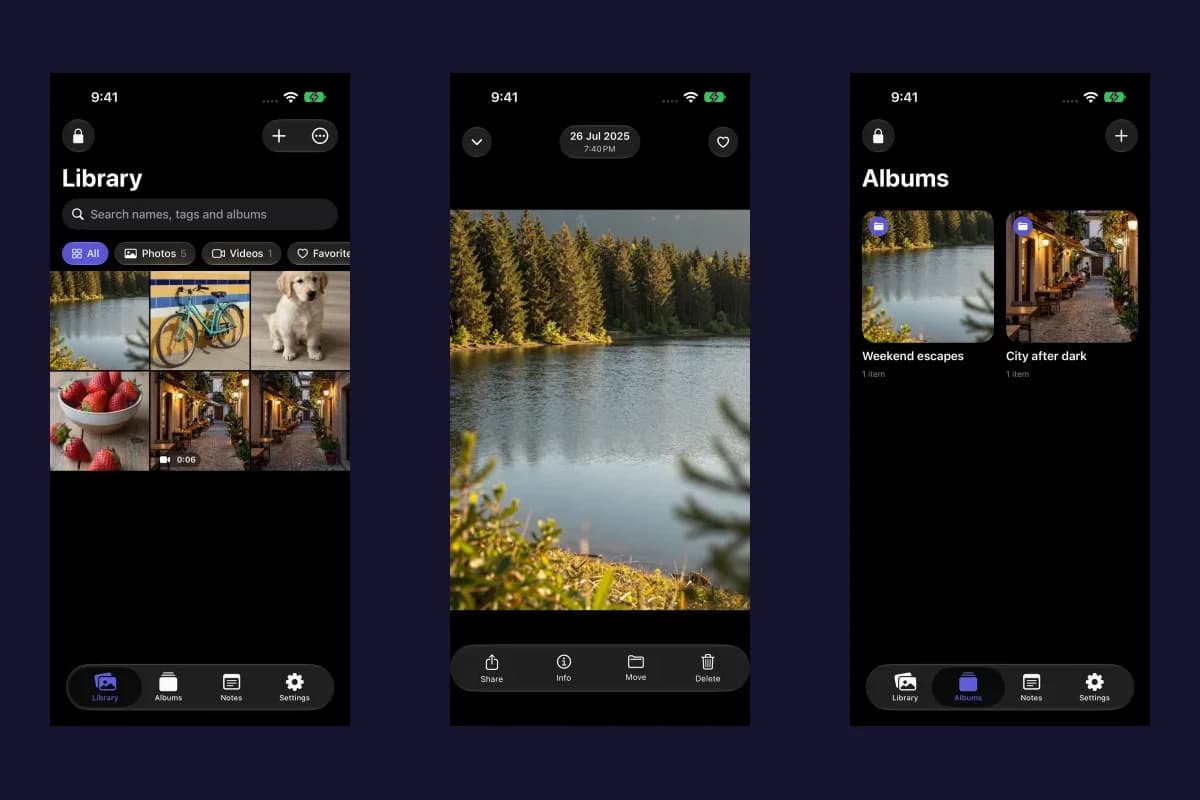
Practical tips for your private library. Swipe or scroll to choose your next guide.
5 guides to explore