
Privacy in practice
Store sensitive documents on iPhone in a cabinet you can actually use
Build a private document cabinet on iPhone: prepare readable files, verify vault imports, add useful context, retrieve the right version and plan recovery.
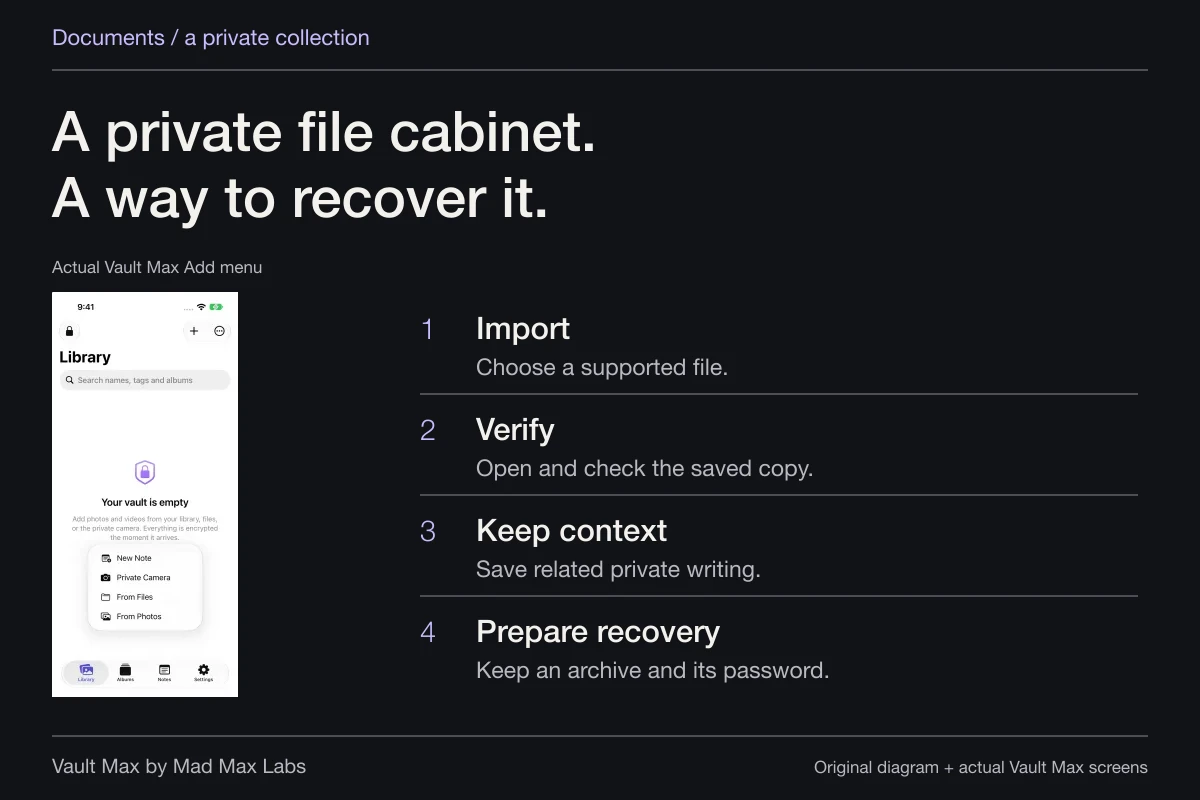
A useful private document cabinet needs more than a saved picture. Keep readable files, a recognizable organization scheme and a recovery copy you can open without the phone. Vault Max brings selected documents, photographs and encrypted writing into a local collection with its own credential, without requiring an app account or hosting the cabinet on our servers.
Build the routine with one harmless sample before moving something important. Prepare the file, import it, inspect it, find it again after locking and create a recovery archive. Each step answers a different practical question; a successful import is the middle of that journey.
Decide which document you need to retain
Start with the purpose of the copy. You may want a reference while away from home, a record of the version you received or a private place for a personal project's paperwork. Keep the file that serves that purpose, rather than saving every preview and attachment without a plan.
For a passport or ID reference, check that the needed pages and sides are present and legible. Use your own requirements to decide what to keep; a readable reference image does not become a replacement for the original document just because it is in a vault. This guide concerns storing the copy, not deciding what another organization will accept.
Avoid entering real document numbers into a public example or practice collection. A blank sample page with an invented title is enough to learn the import, preview and backup routes. Only move valuable material once those actions are familiar.
- 1
Import
Choose the supported file through the available import route.
- 2
Verify
Open a preview and check the actual file before changing its source.
- 3
Keep context
Save related private writing as an encrypted note inside the vault.
- 4
Prepare recovery
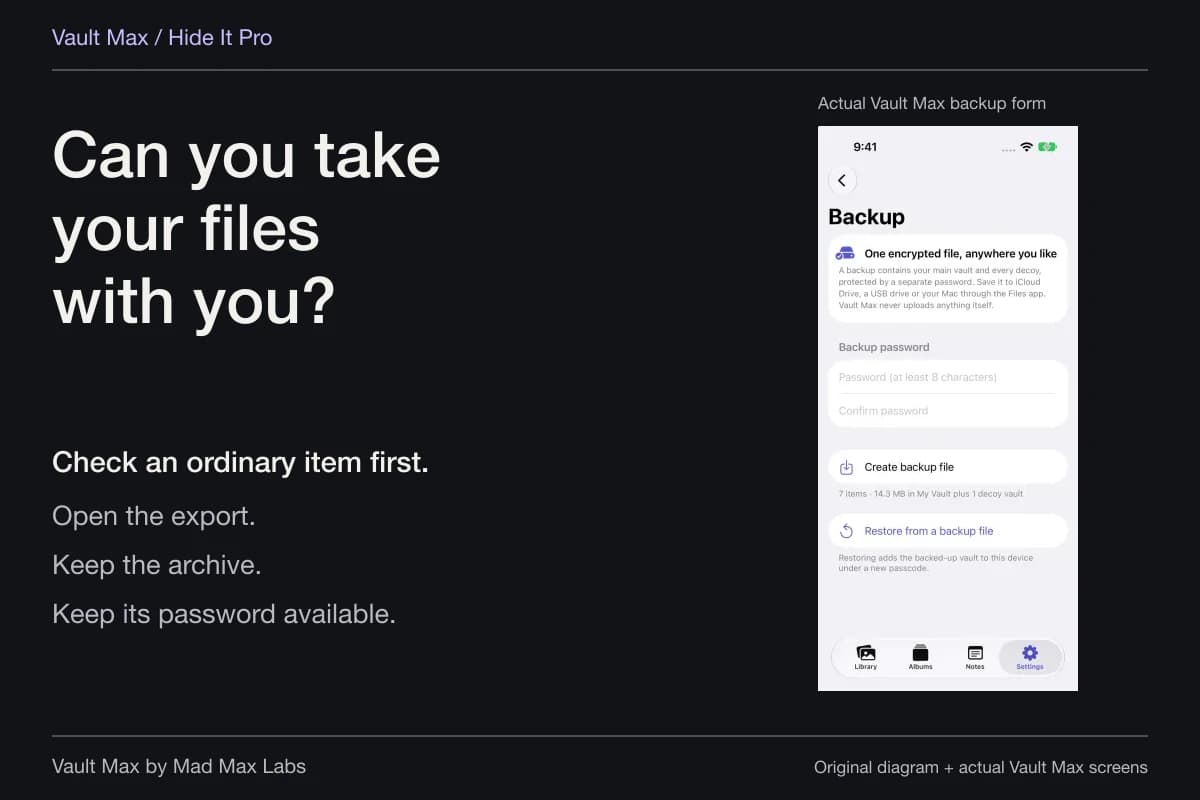
Create a current archive and keep its password available.
File preview, note saving and recovery are distinct jobs. Do not assume a PDF preview edits, scans or recognizes document text.
Prepare a readable file before importing it
If you already have the PDF, keep that file as your starting point. A screenshot of its first page is a different, potentially incomplete record. Check the page count and confirm that the file opens through its current location before making another copy.
For paper material, Apple's current Preview scanning guide describes Scan Documents. Capture the pages, review their thumbnails and use the available crop, rotation or color adjustments before finishing. Inspect all required pages while the paper is still in front of you.
Name and save the result in a location you can identify. Apple's Preview file-management guide covers saving, renaming, duplicating and moving the file. That location will be the source for your import; preparing a document outside Vault Max does not automatically place it inside the private collection.
Take a moment to check the edges, small text and any page that was captured at an angle. If a page is missing or unreadable, correct the source before treating the digital copy as useful. Encryption can protect unreadable bytes just as effectively as readable ones; it cannot repair a bad scan.
Give the cabinet a credential and a clear structure
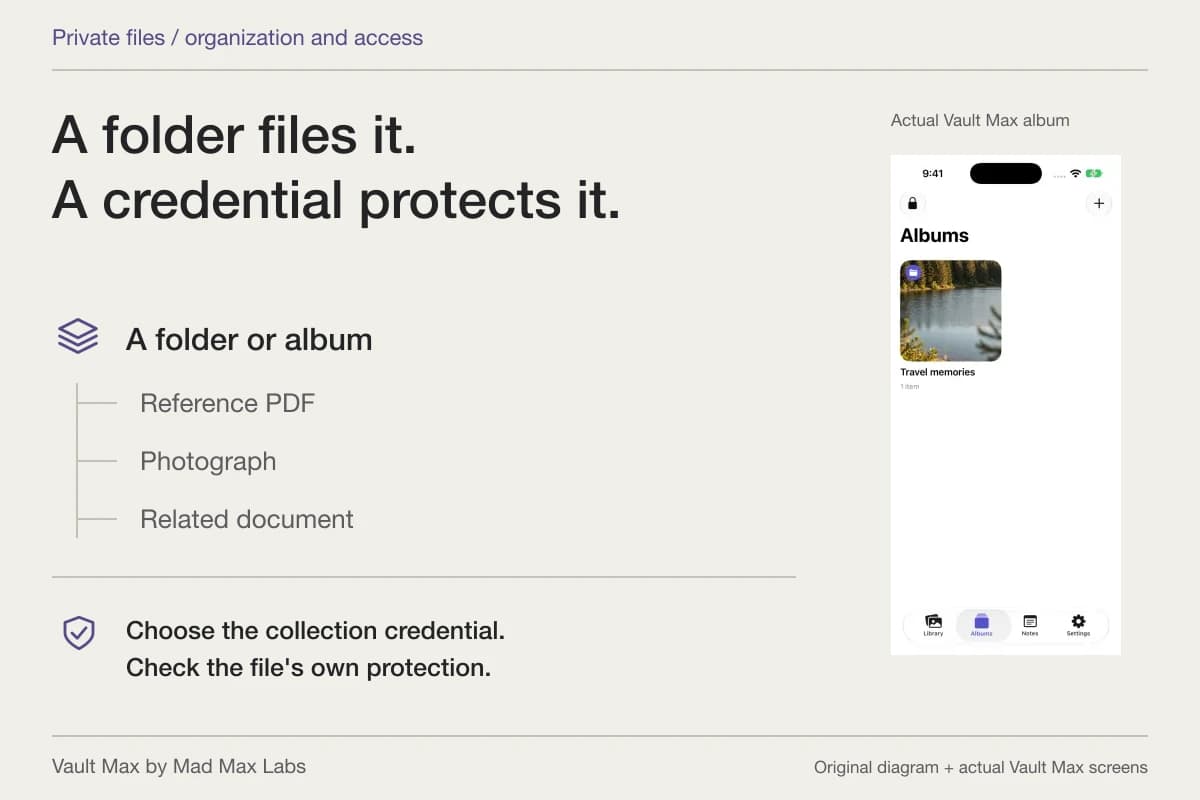
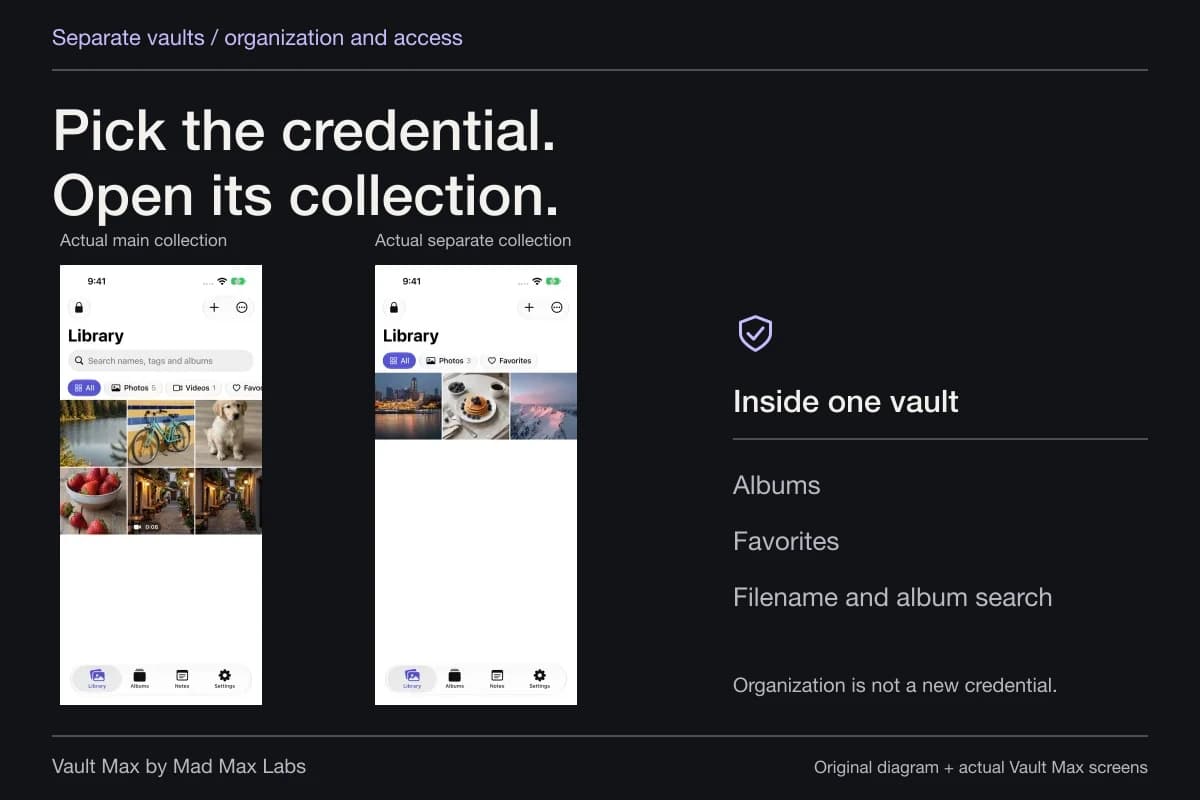
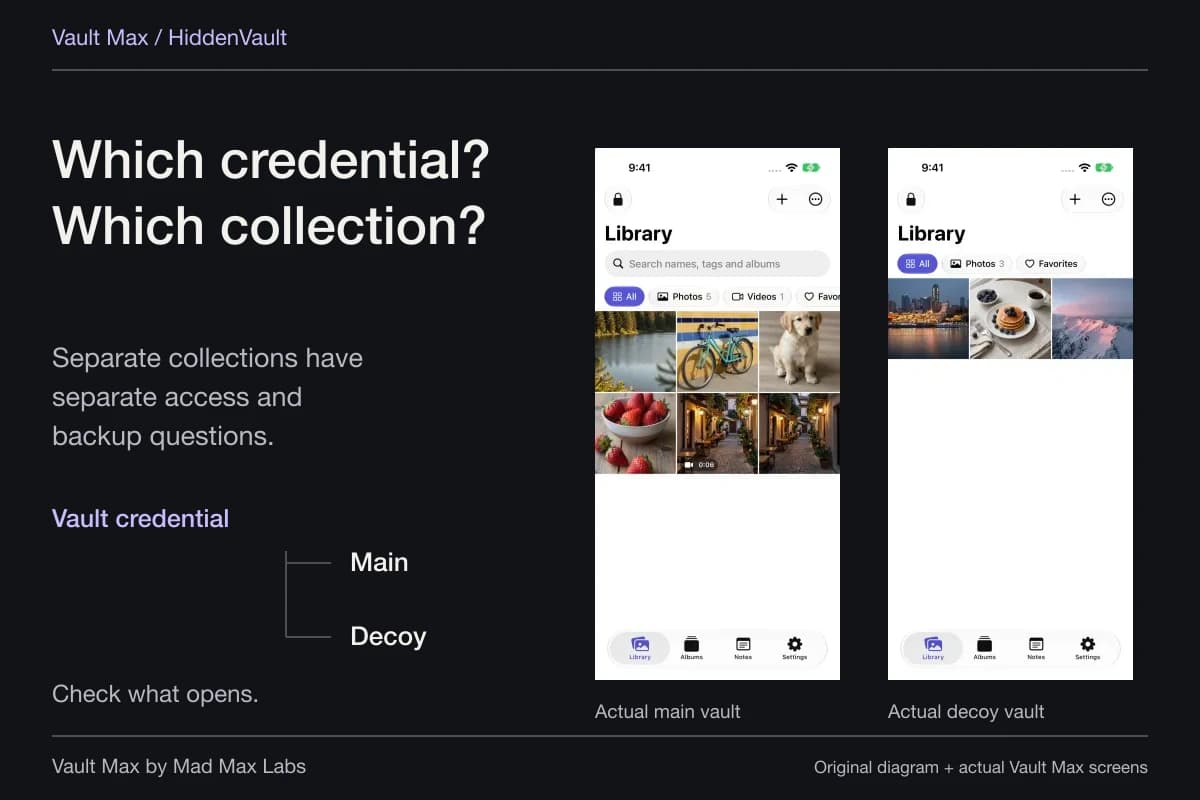
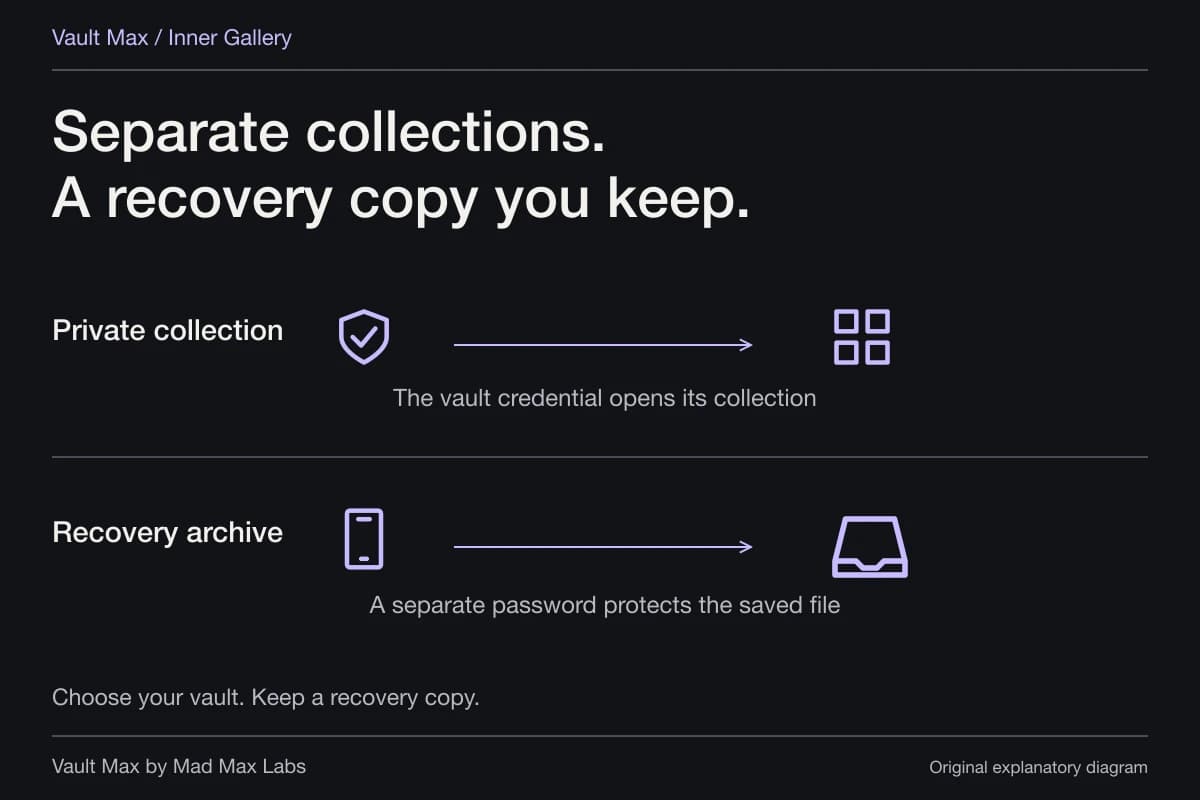
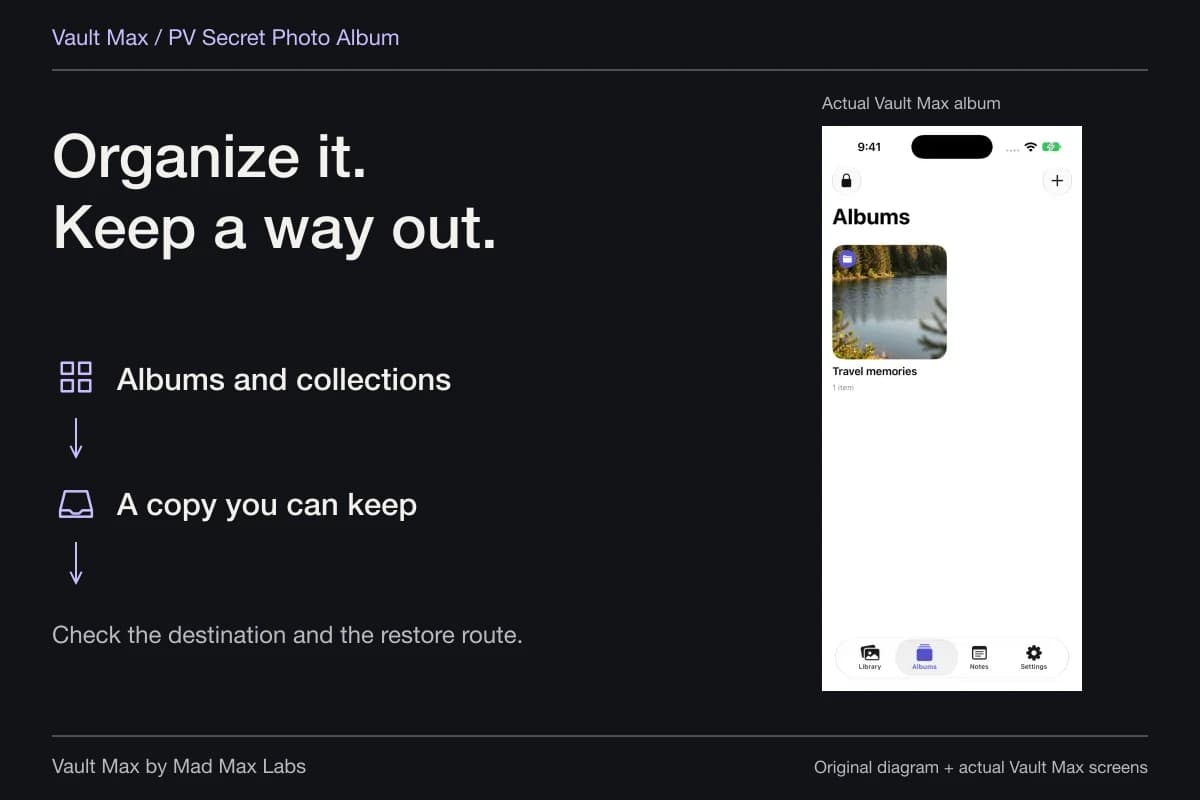
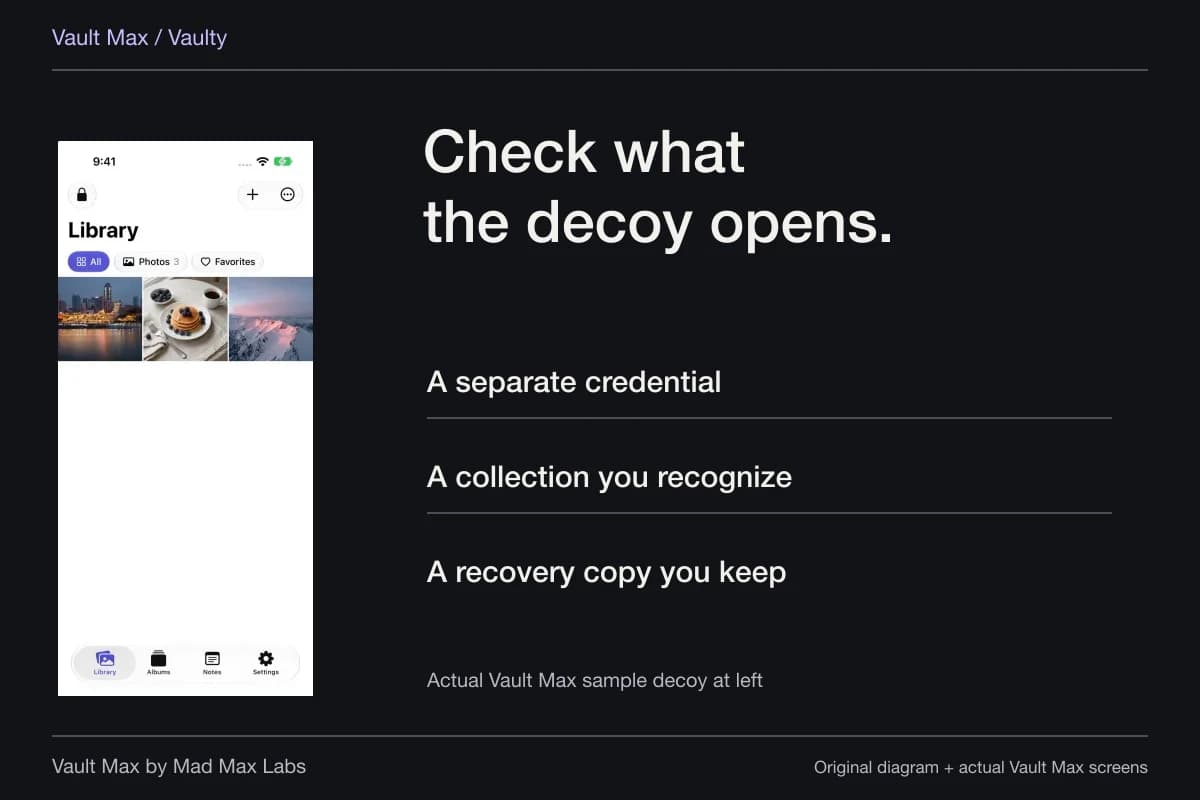
Choose the vault that should hold this group of documents. A distinct vault credential is useful when the collection should open with a secret separate from the phone's passcode. Albums then organize the items inside that open collection; they do not add an independent password to each folder.
Use an album name that describes the collection's job. A small travel-reference album might hold selected document images and an itinerary PDF. A personal project might use its own album with dated file names. Keep unrelated material out of the same group if it needs a different access boundary.
In Vault Max, an item has one album assignment, while Favorites is a separate flag for returning to an important item. Moving something between albums is an organization action. It does not send it to a service or create a new automatic backup.
Import through the route that matches the file
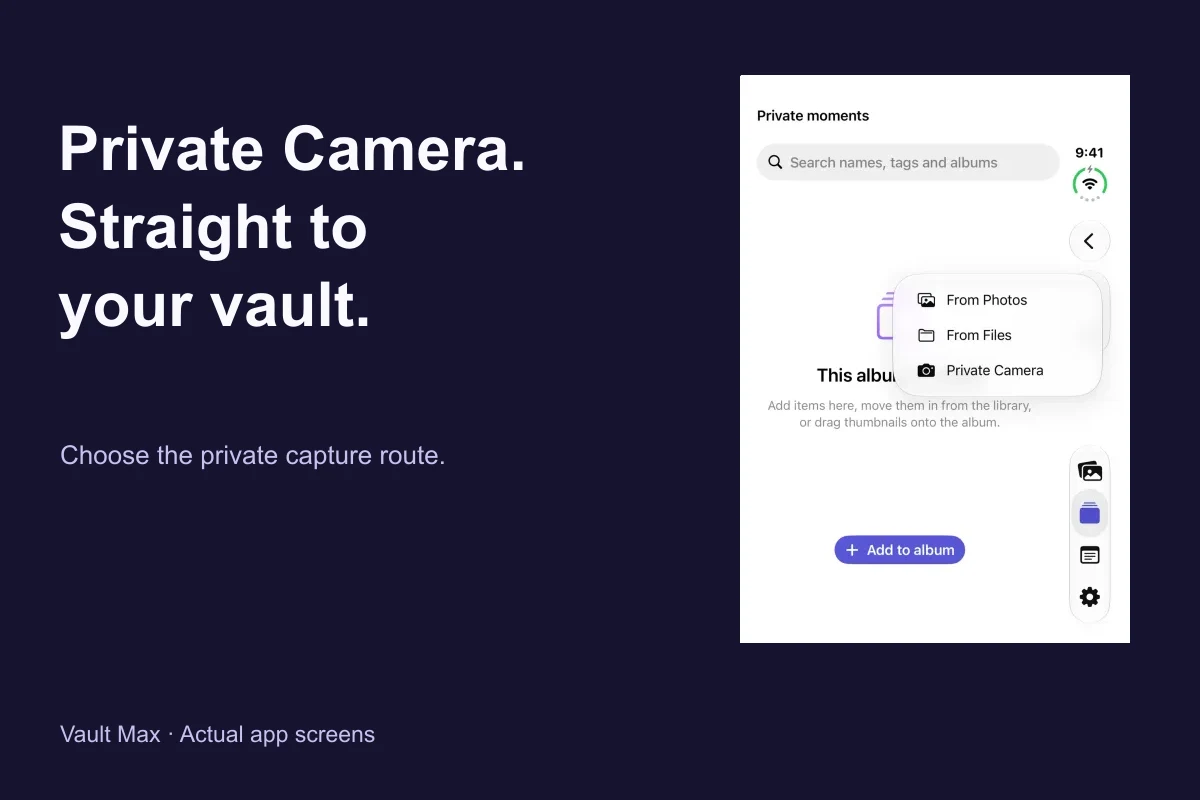
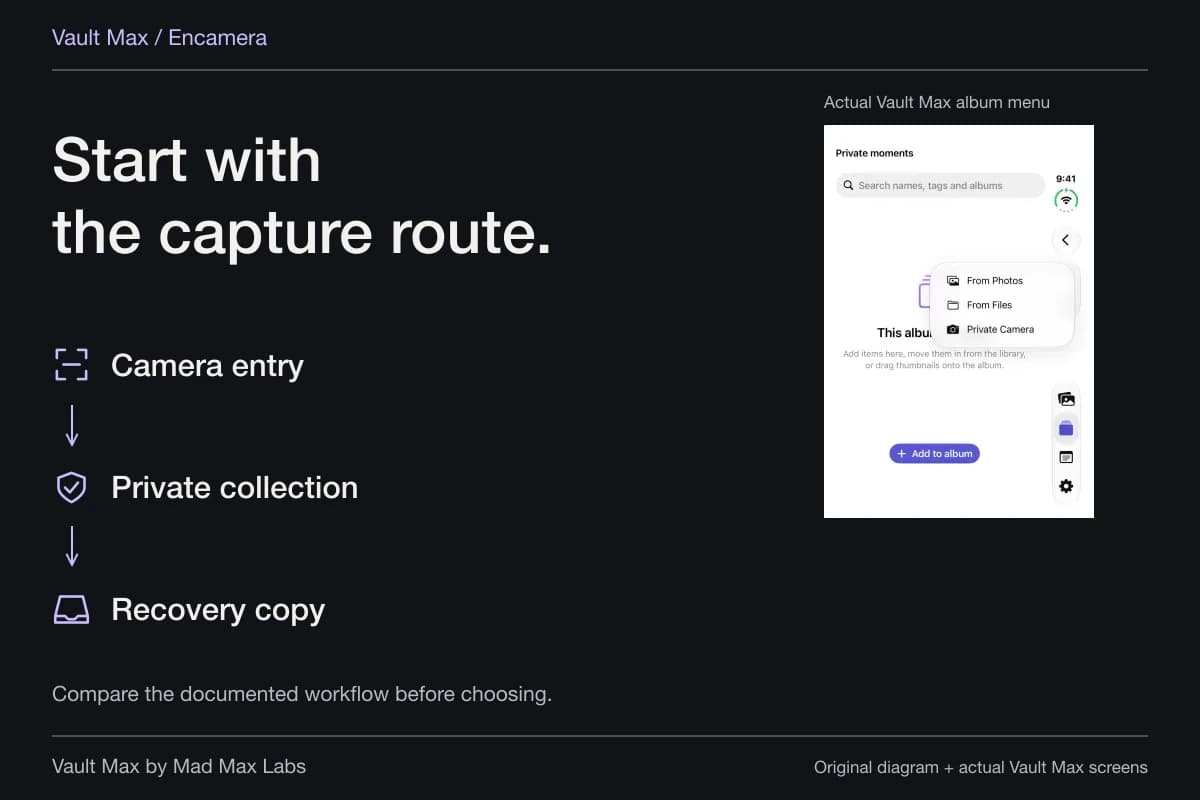
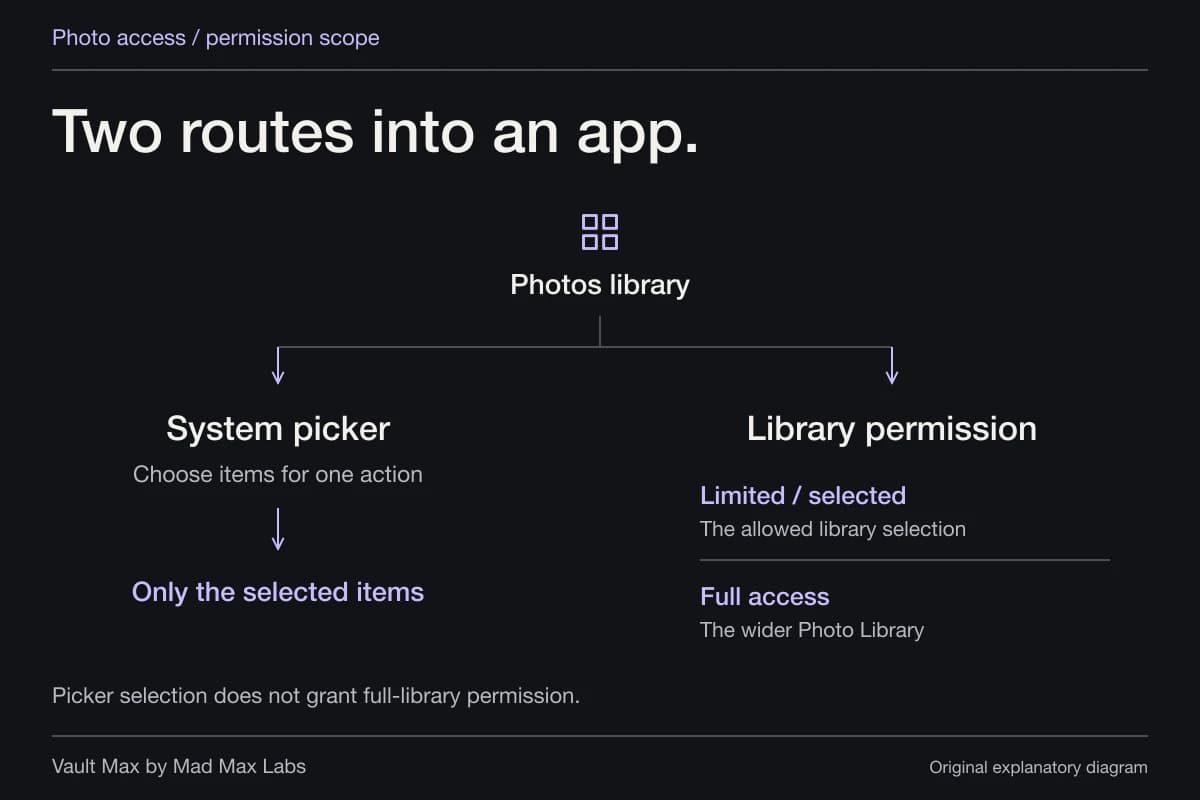
Choose From Files for the saved PDF or other document. For a photograph already in Photos, use From Photos and select the intended image. Vault Max's system Photos picker supplies chosen items without requiring general library permission just to import them.
Wait for the operation to finish and open the resulting item. Document previews use Quick Look, so test the actual format you plan to keep. Confirm the pages, readable details and correct version; for a document photograph, inspect the full image rather than judging it only from a thumbnail.
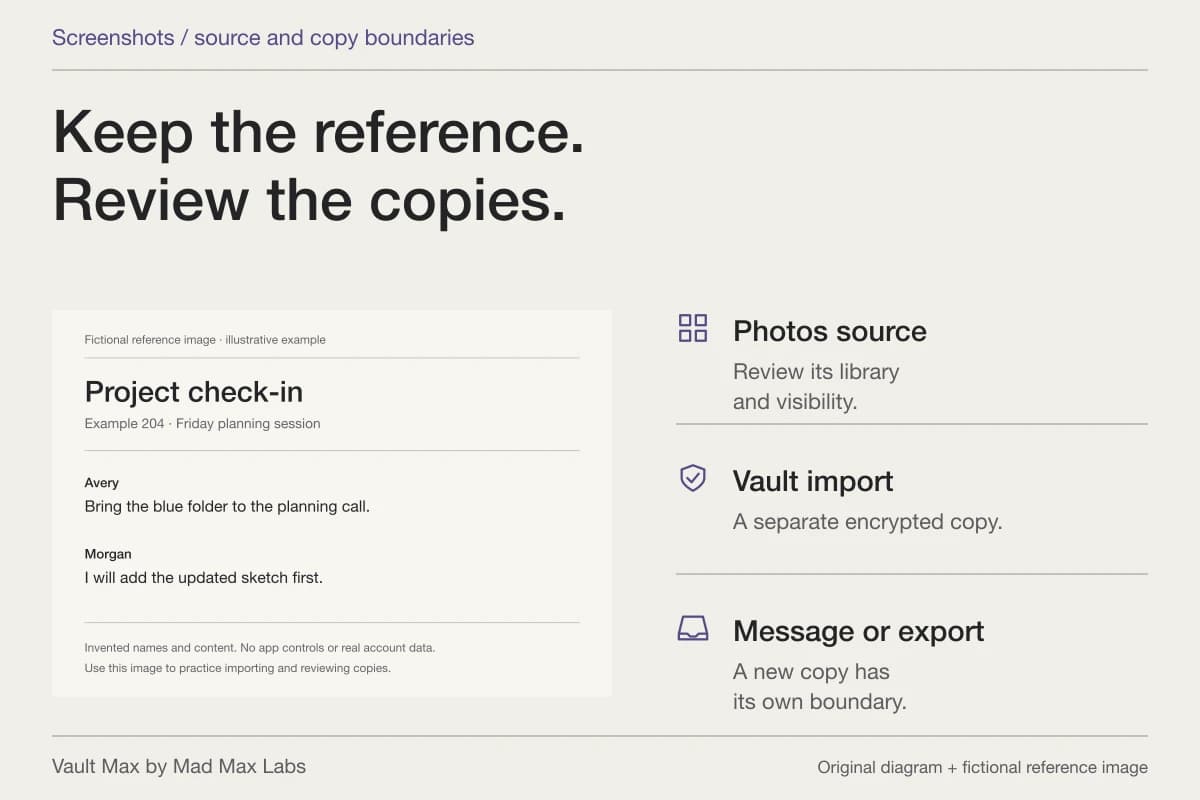
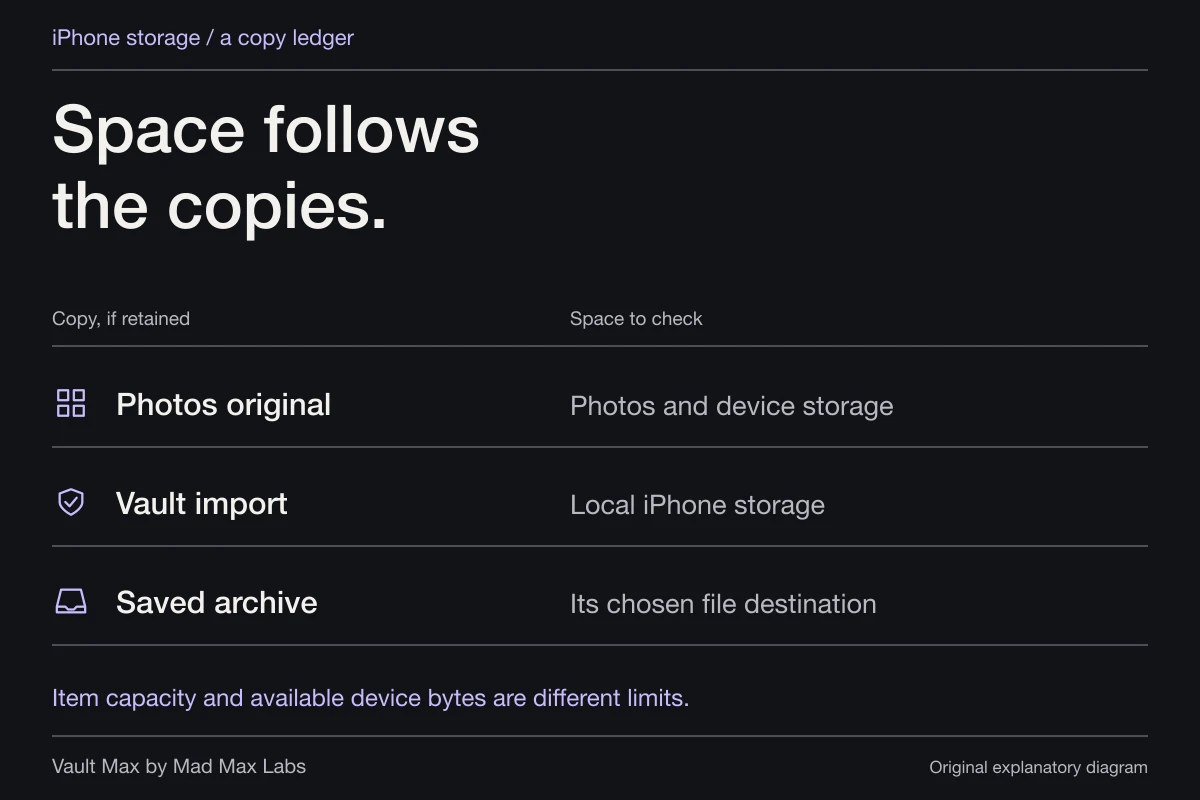
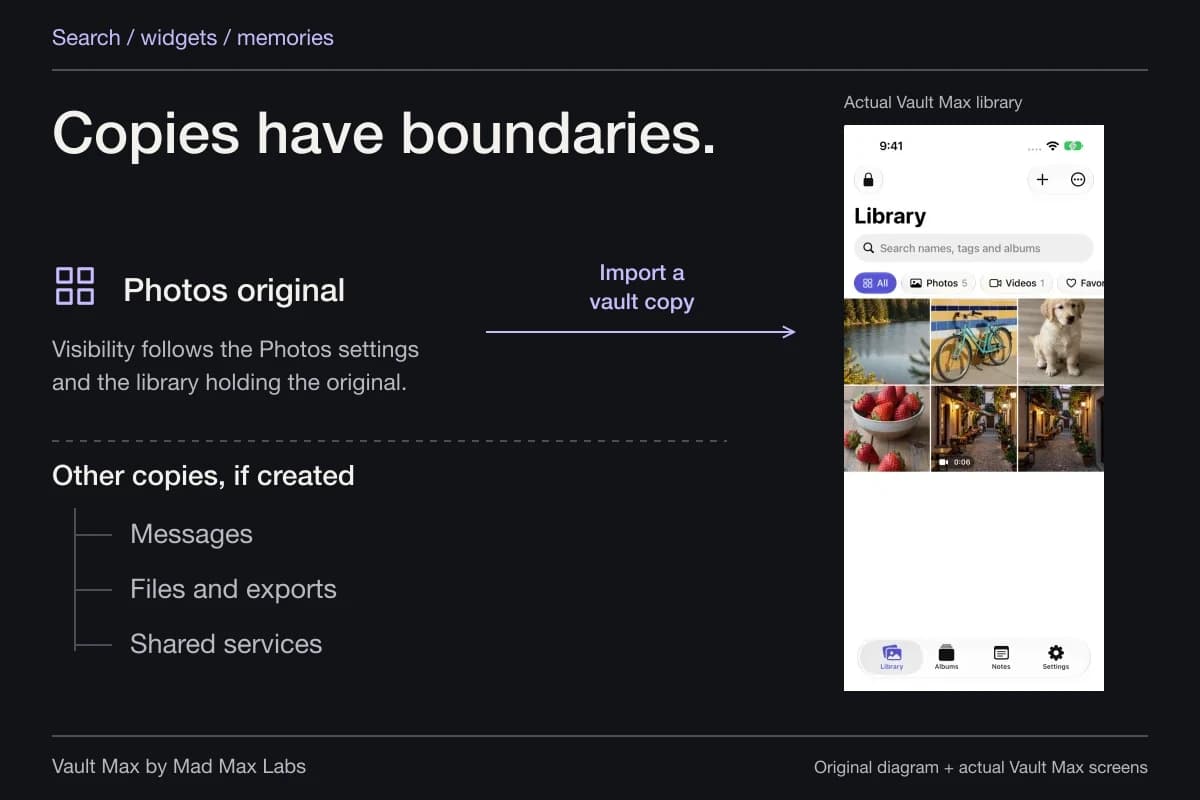
Keep the source available until you have completed that check. Importing creates a separate encrypted vault copy. It does not rewrite the original in Files, remove an email attachment or recall a document already shared with someone else.
Bring in the prepared file
Keep useful context privately
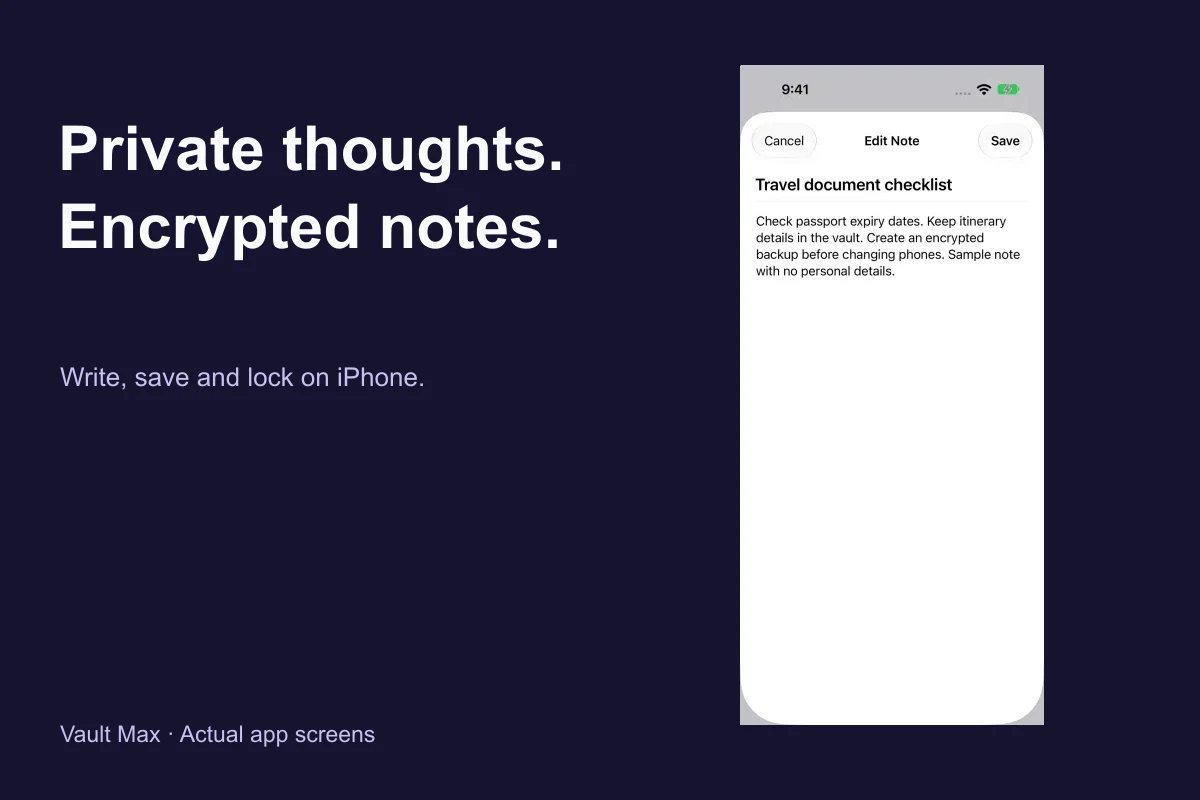
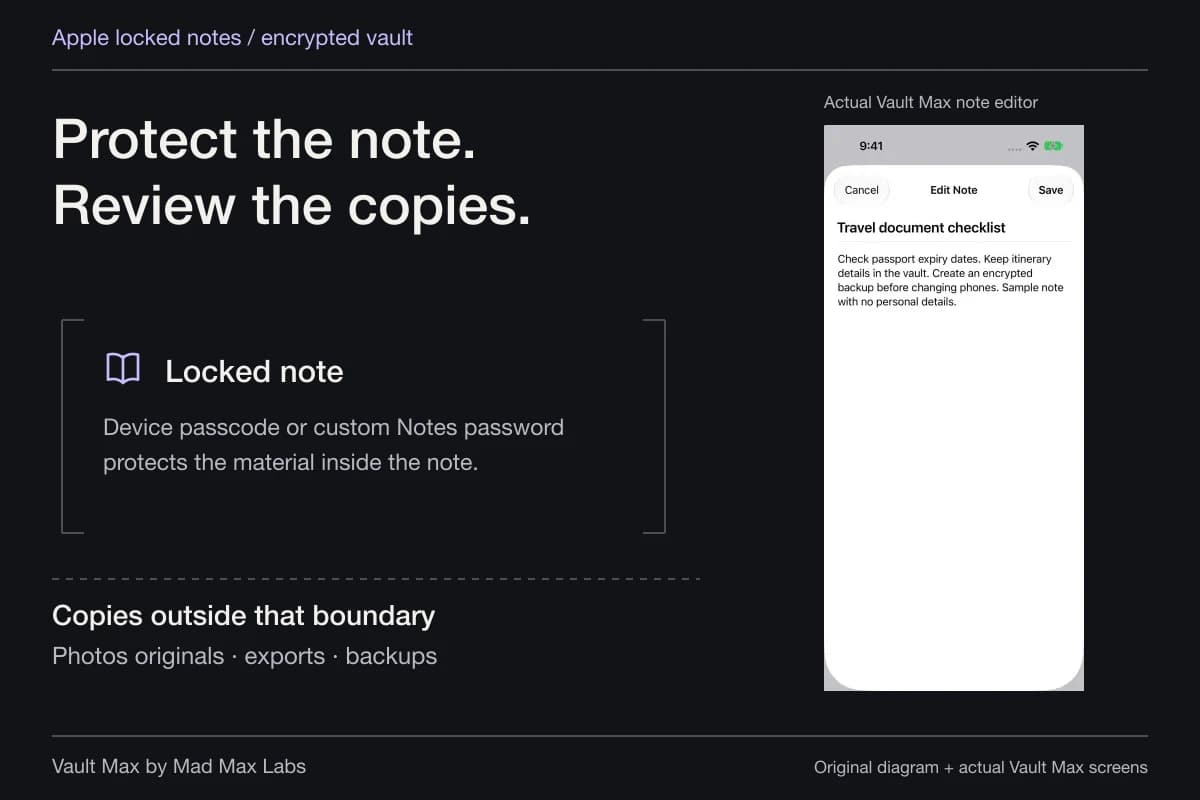
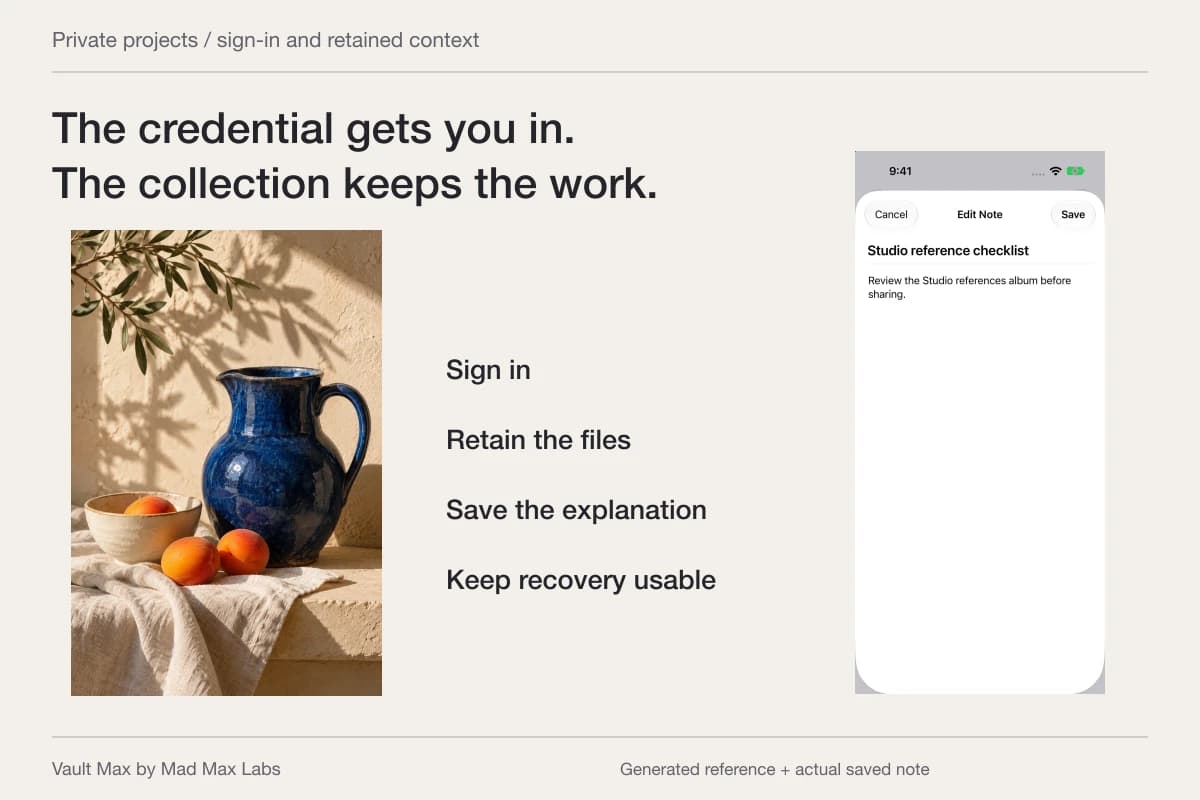
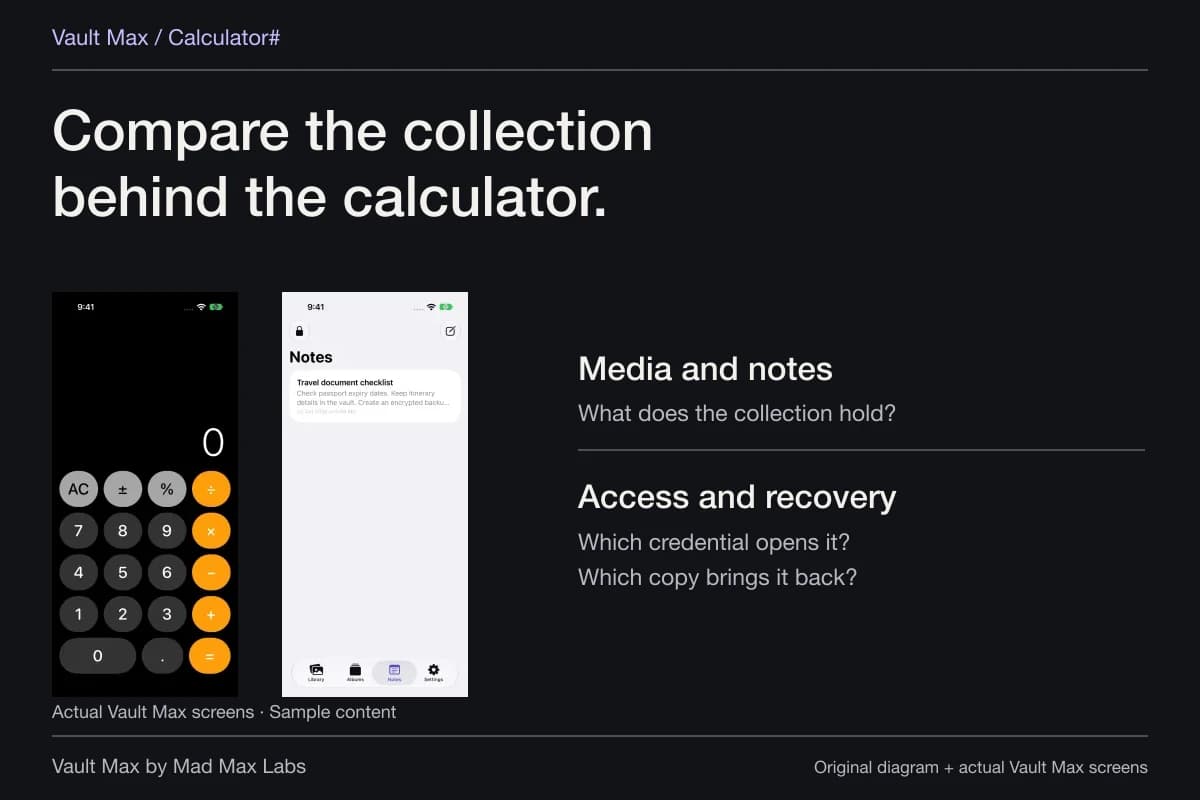
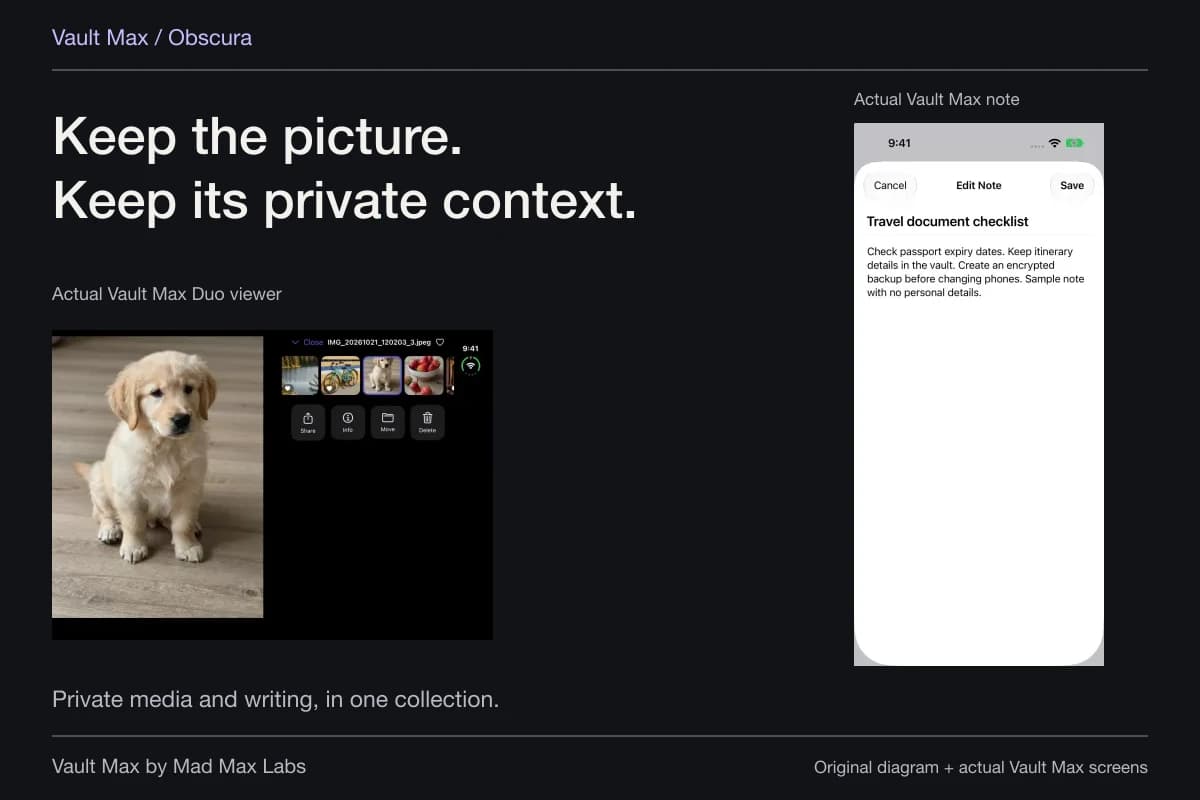
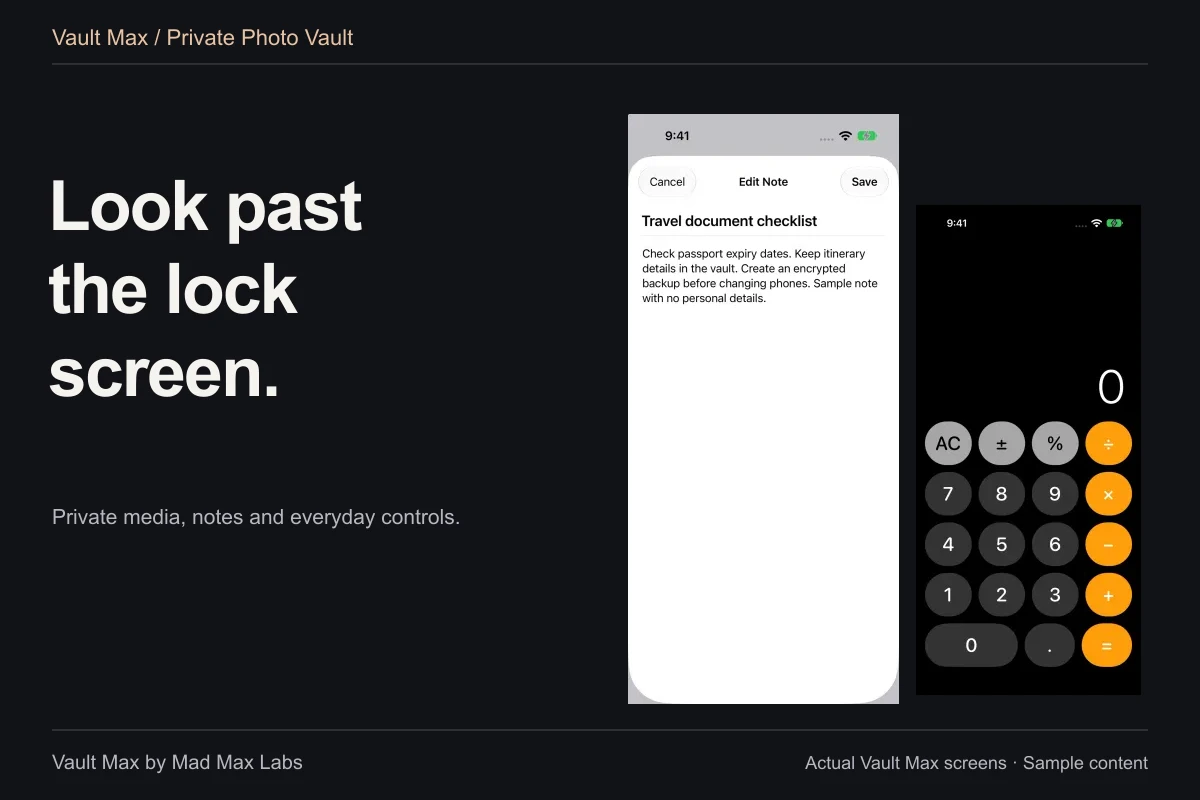
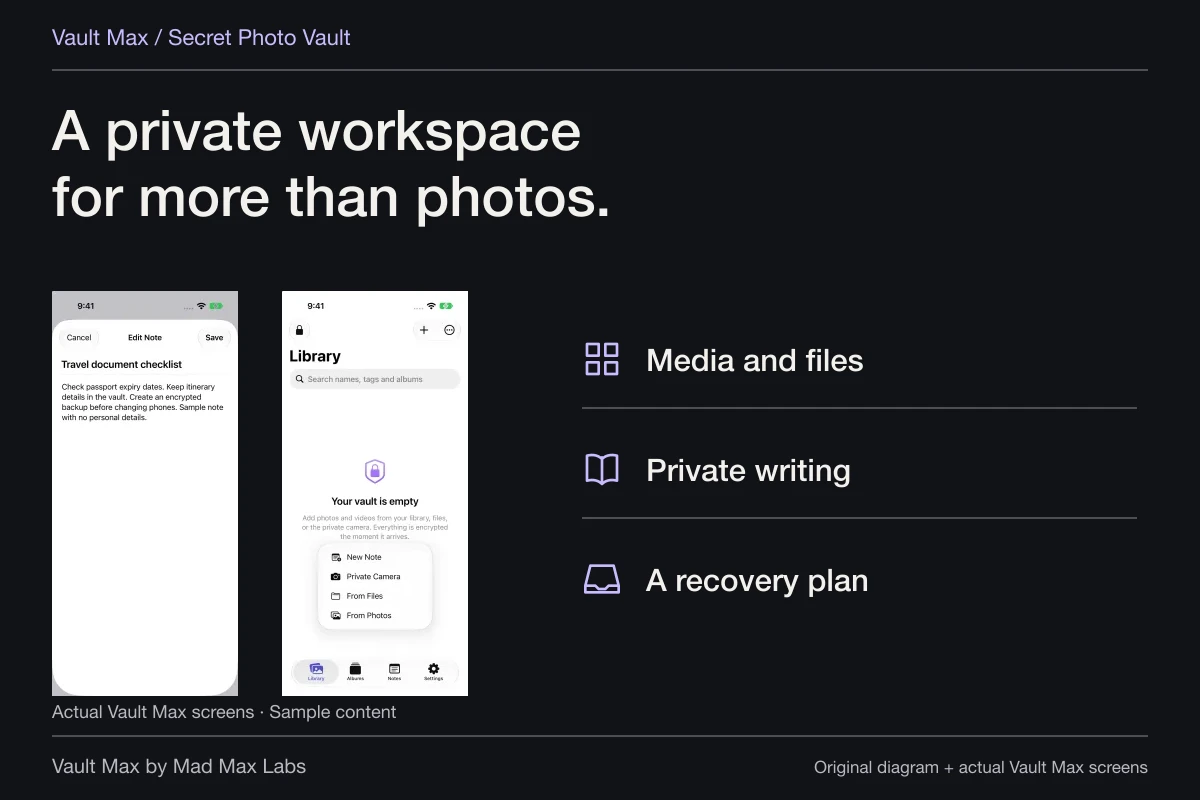
These real sample screens show the From Files intake and a saved travel checklist. The note illustrates context beside a document collection; neither screen is a scan, a PDF preview or a real identity record.
Select a screen to inspect it.Add context without changing the document
A short encrypted note can explain why a file is there, when you obtained it or which version you intended to use. Vault Max's editor saves a plain-text title and body, and the Notes list shows the saved title, preview and modification date. Reopen the note after saving to check the text you meant to retain.
Use that writing for context, rather than transcribing an entire document unnecessarily. A note saying which pages belong together can be useful. A second hand-typed copy of every sensitive field creates another record to maintain, with another opportunity for a transcription error.
Keep the note workflow distinct from document editing. Saving a note does not alter the imported PDF, add a signature to it or attach a password to an exported version. The notes guide follows creation, save, reopening and recovery in more detail.
Make retrieval part of the setup
Leave the collection, lock it and return later using the intended credential. Find the document by its name or album. Gallery search matches names and album information in the current scope; it does not promise to search every word printed inside a PDF or document photograph.
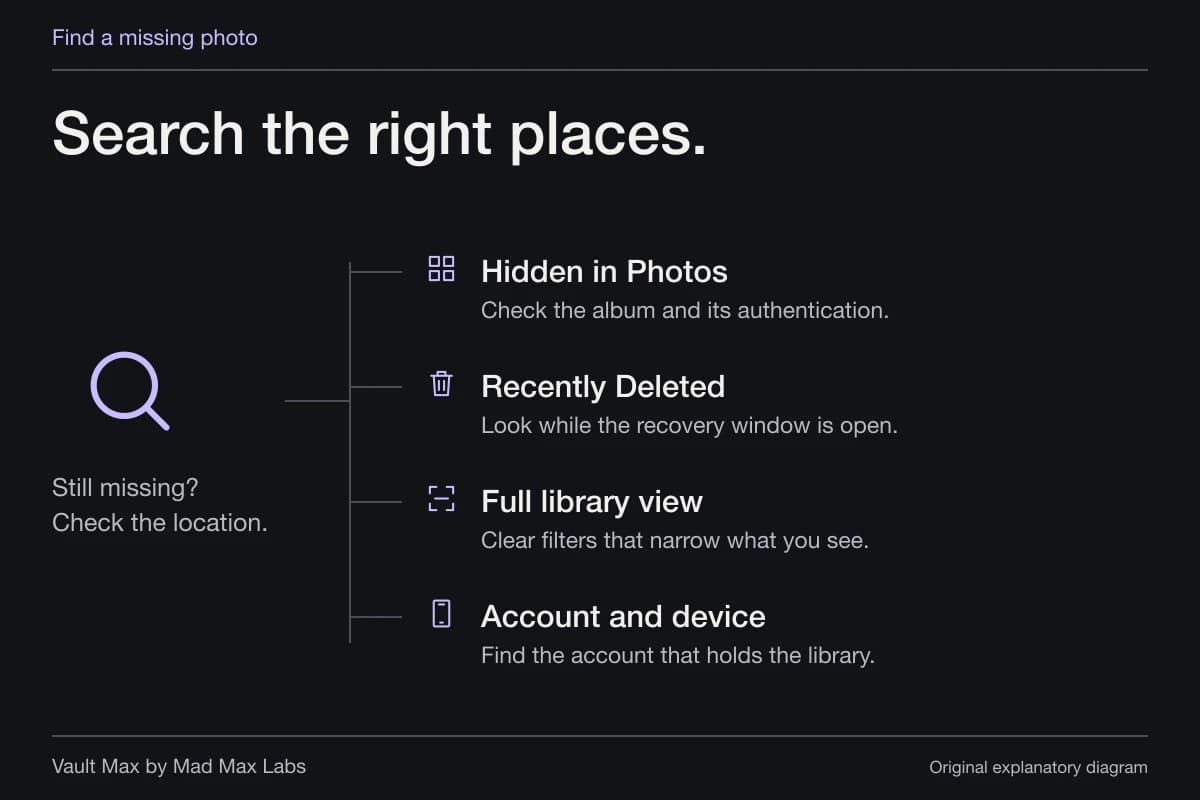
Try a filename that distinguishes the version you need. Dates can help when several similar files exist. If a search gives no result, inspect the current album and type filter before concluding the file disappeared. A reference cabinet is useful only when you can retrieve the right item under ordinary conditions.
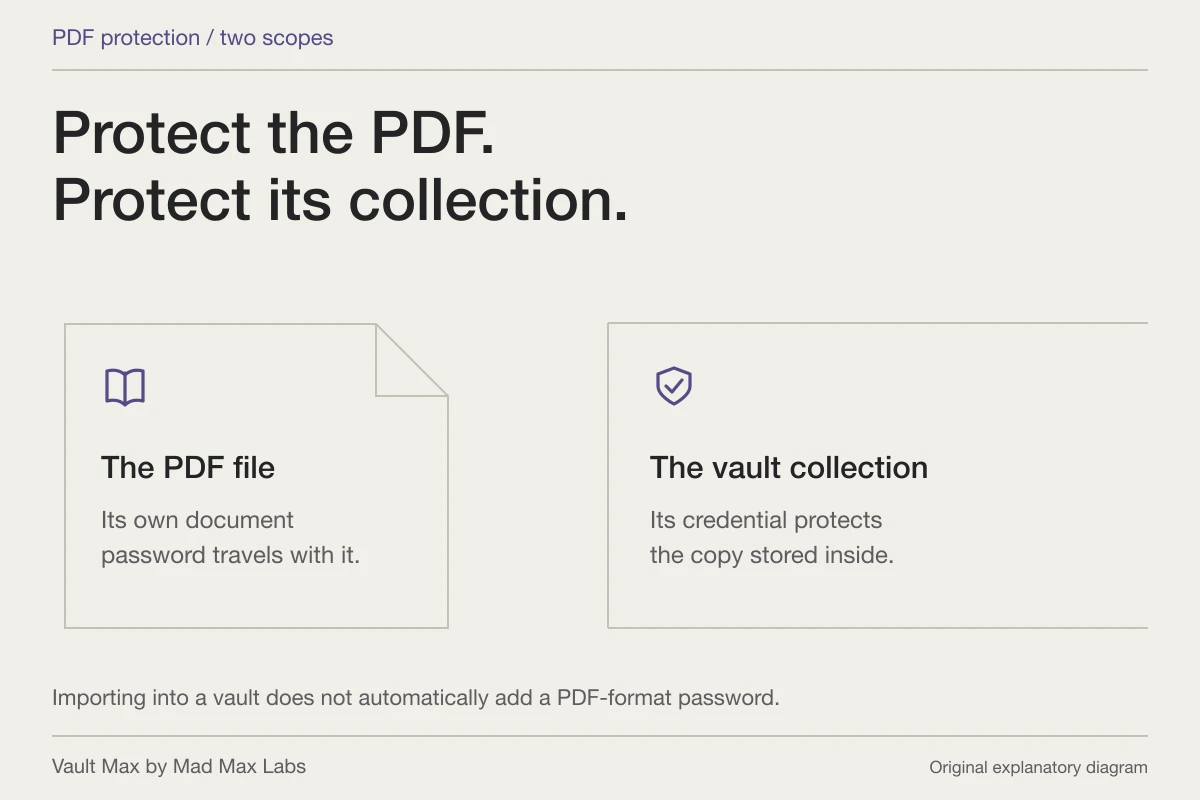
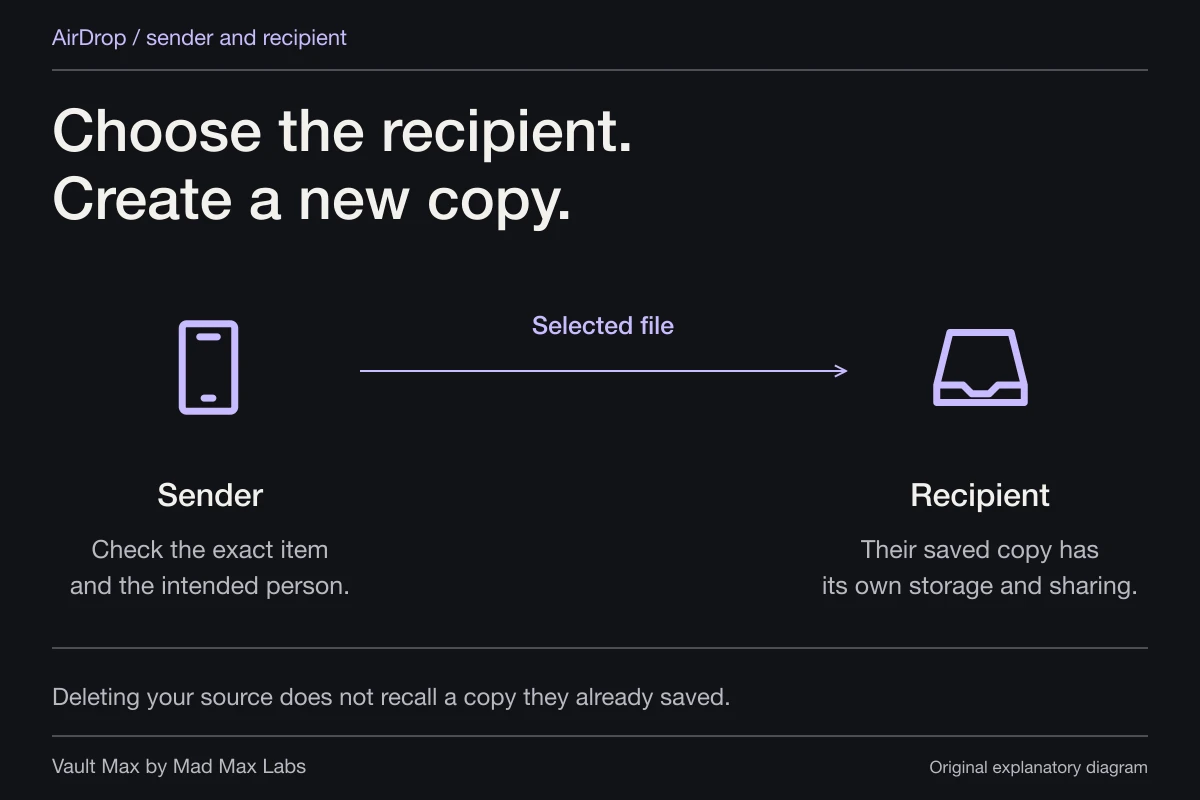
For sharing, open the exact item you intend to provide and check its contents. An ordinary export creates a usable copy outside the vault. The recipient does not inherit your vault credential, and closing the collection does not revoke the exported file. Apply any required portable PDF protection before relying on it outside the cabinet.
Keep the recovery copy independent
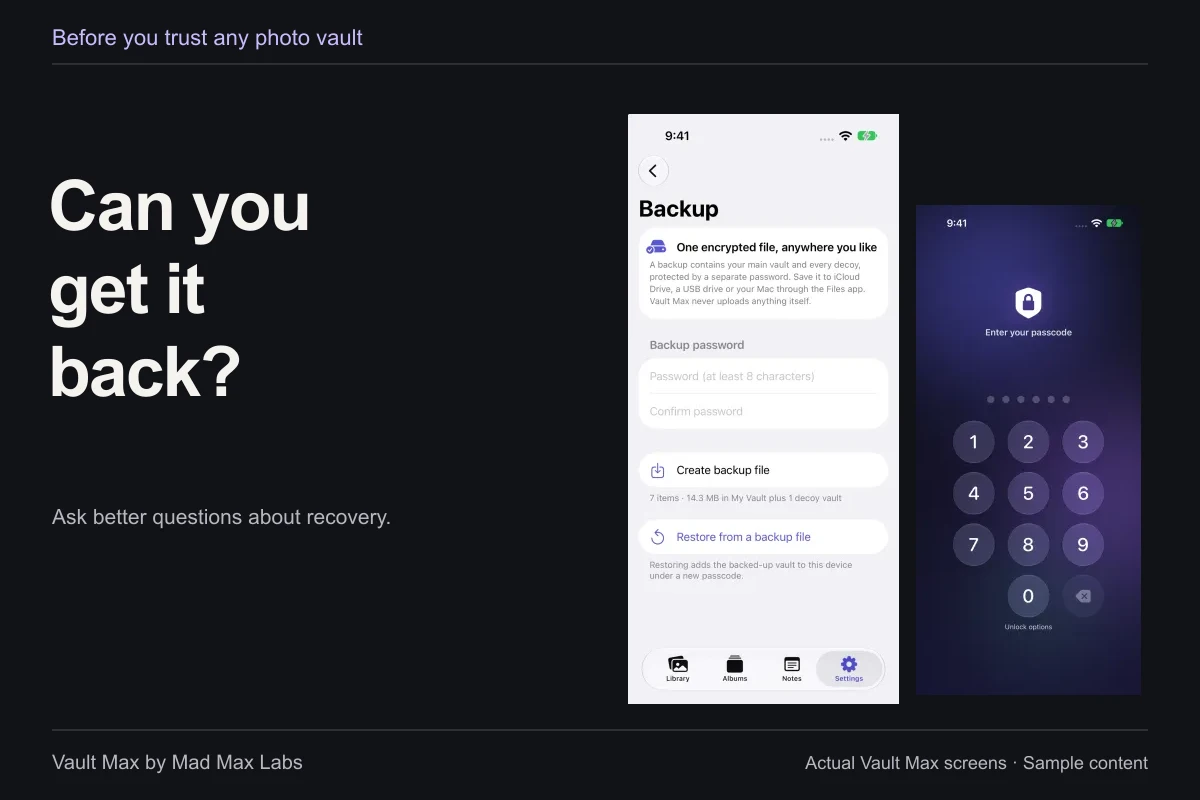
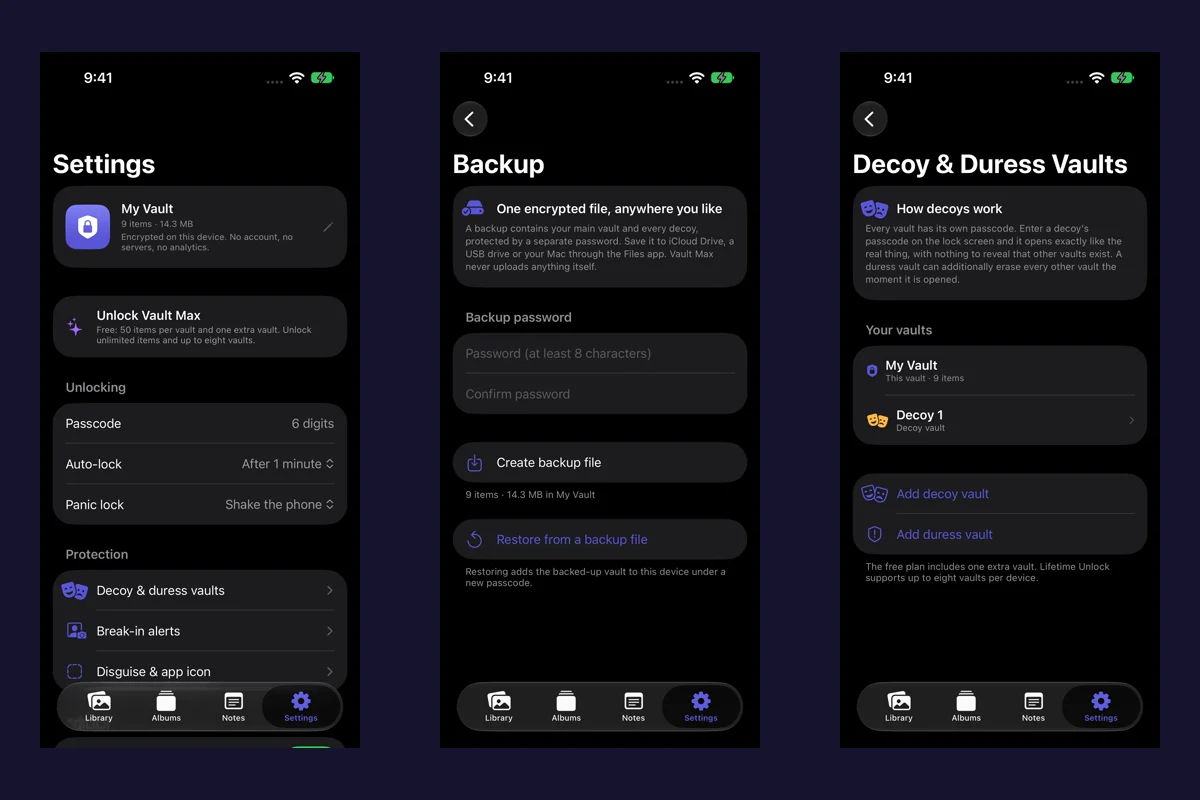
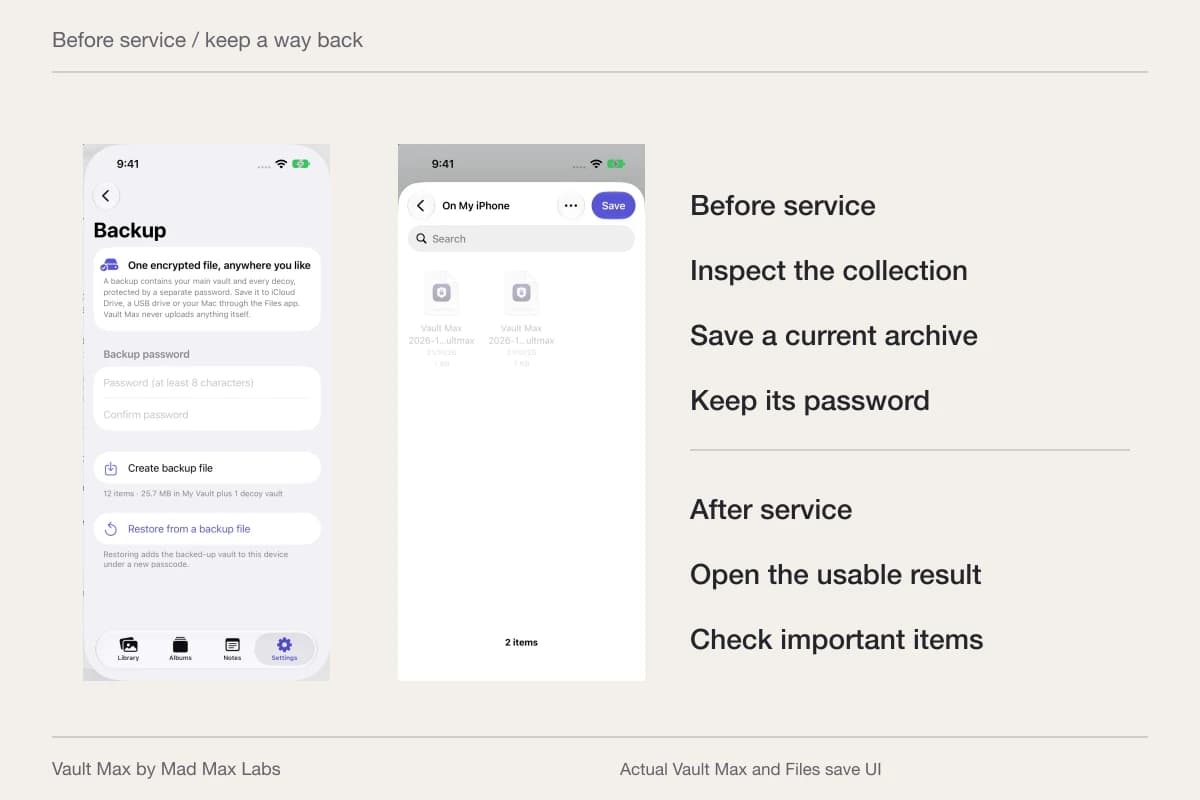
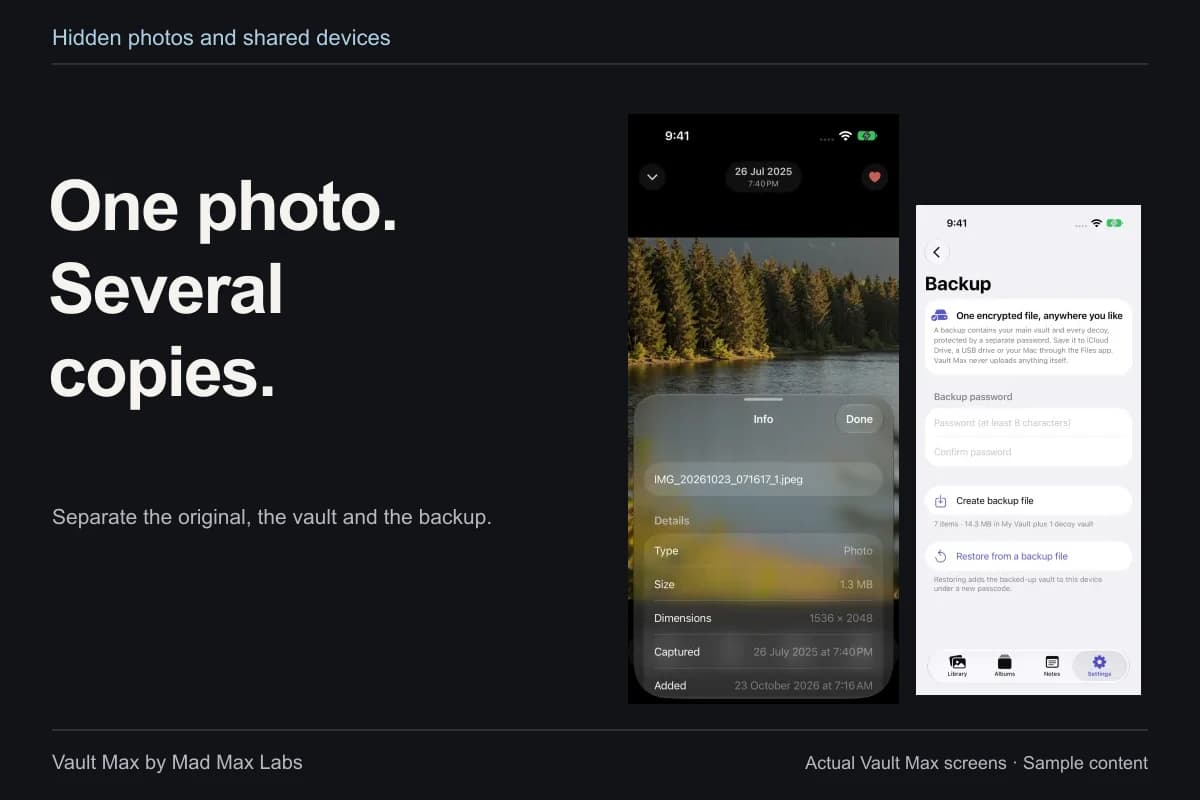
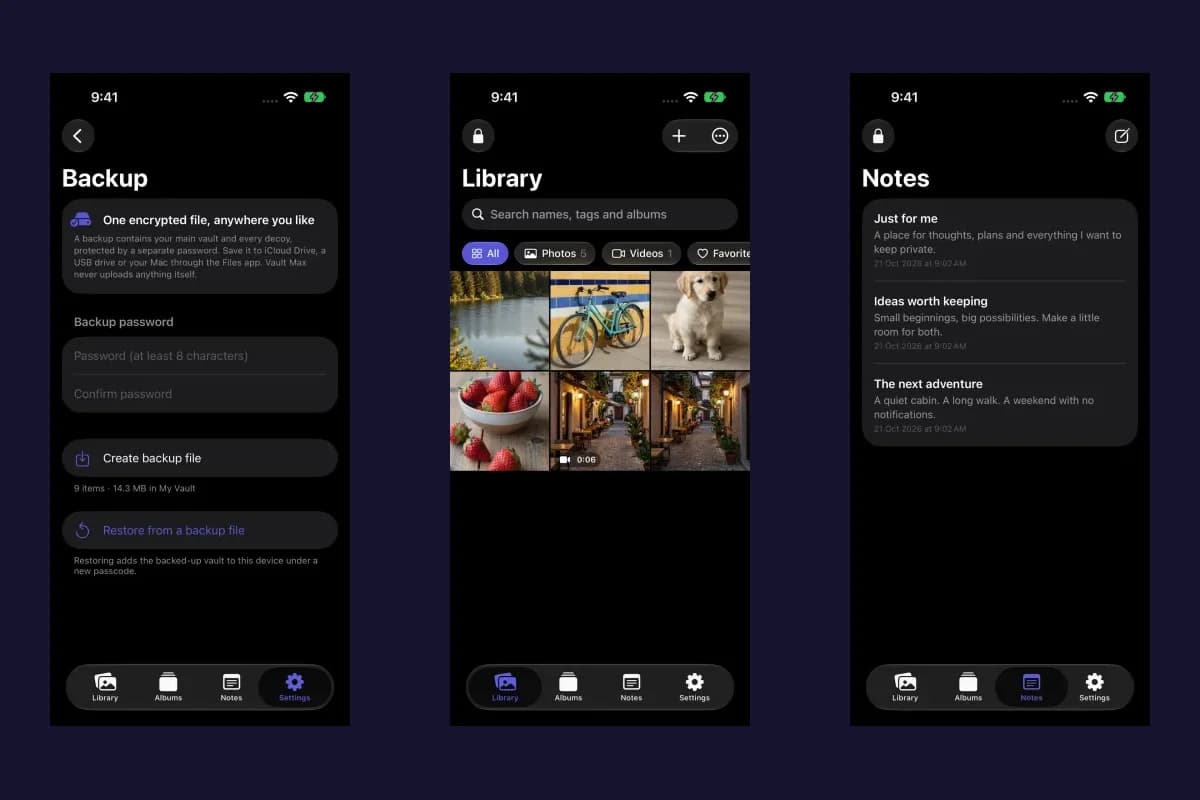
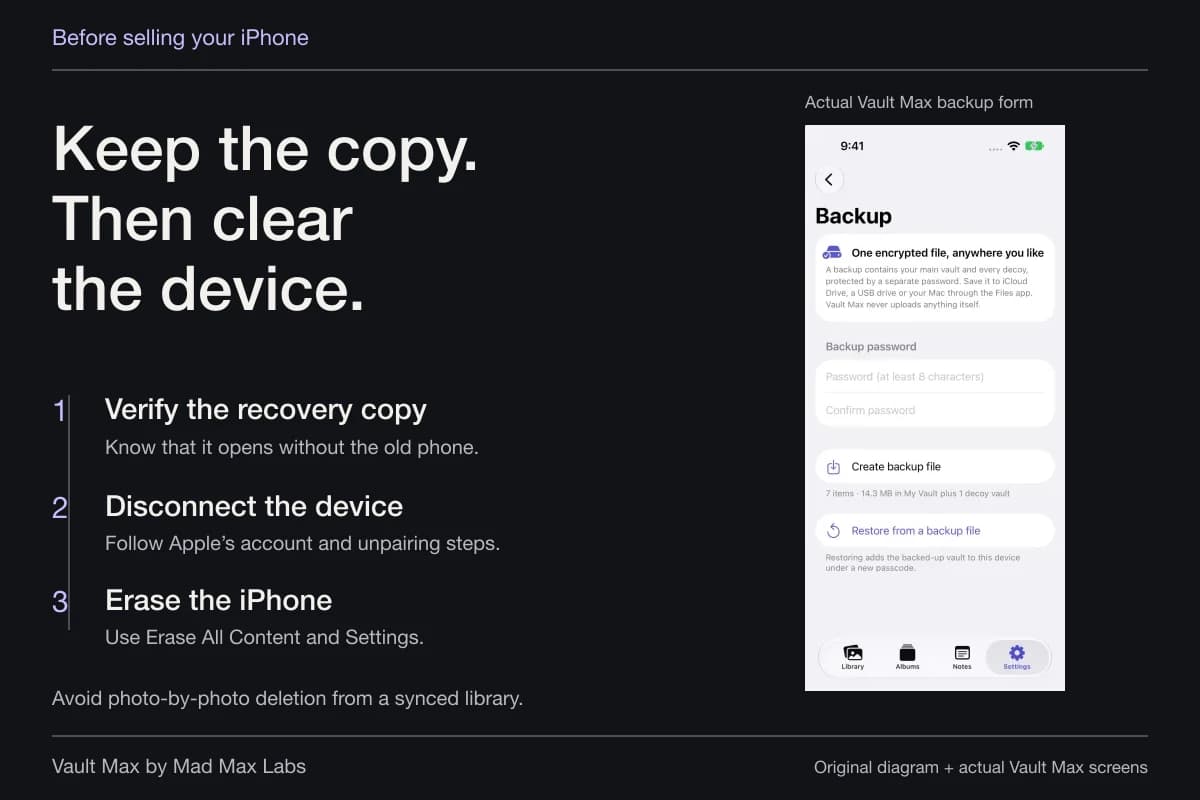
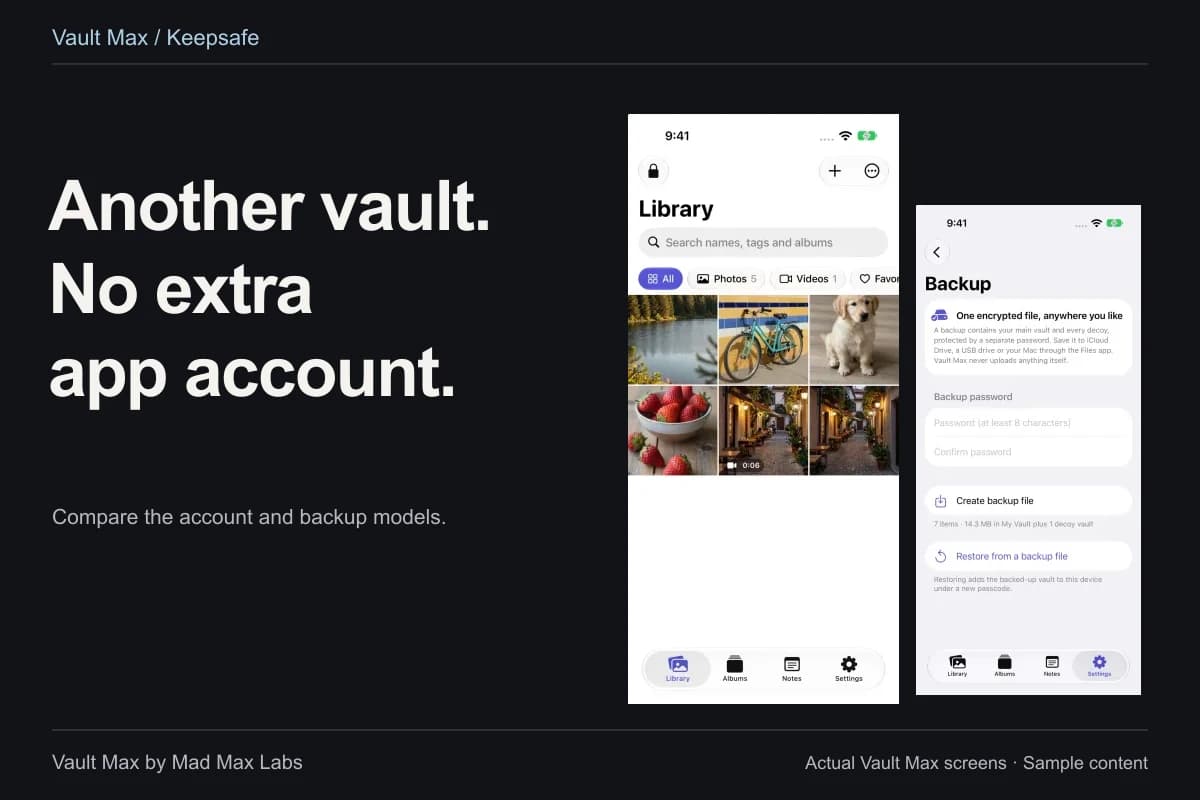
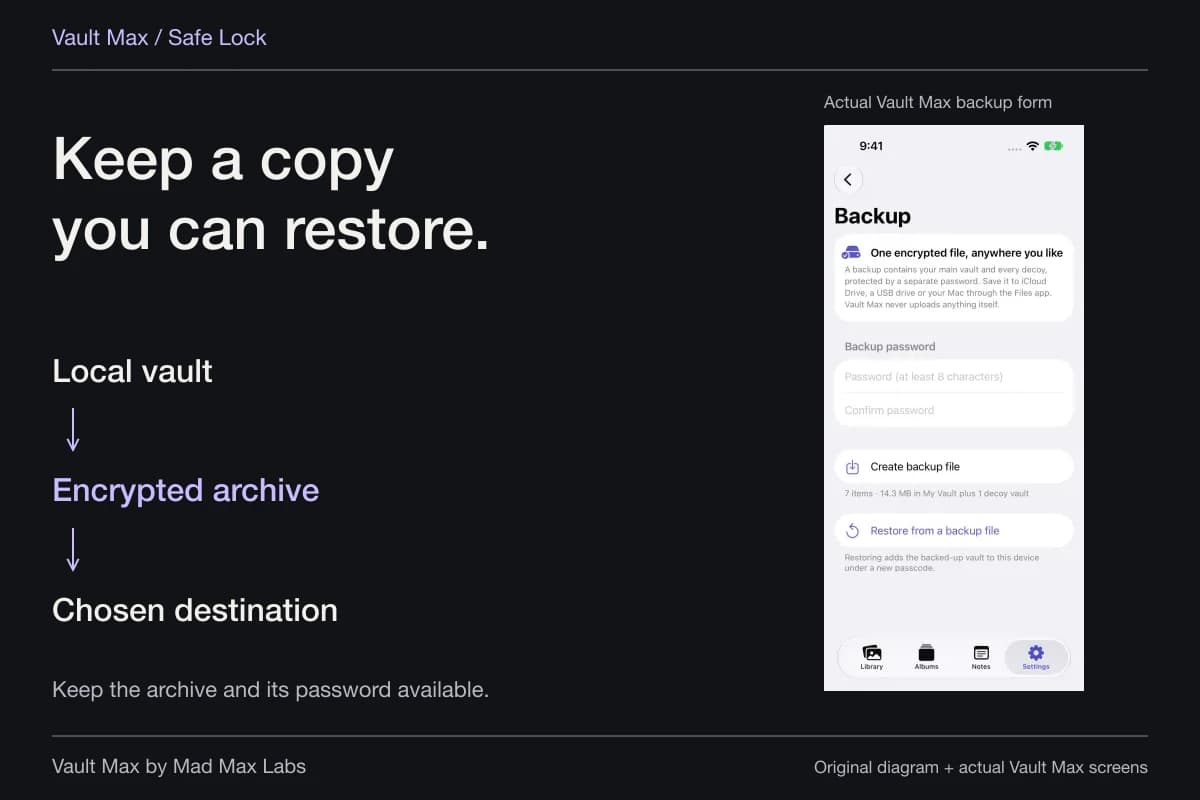
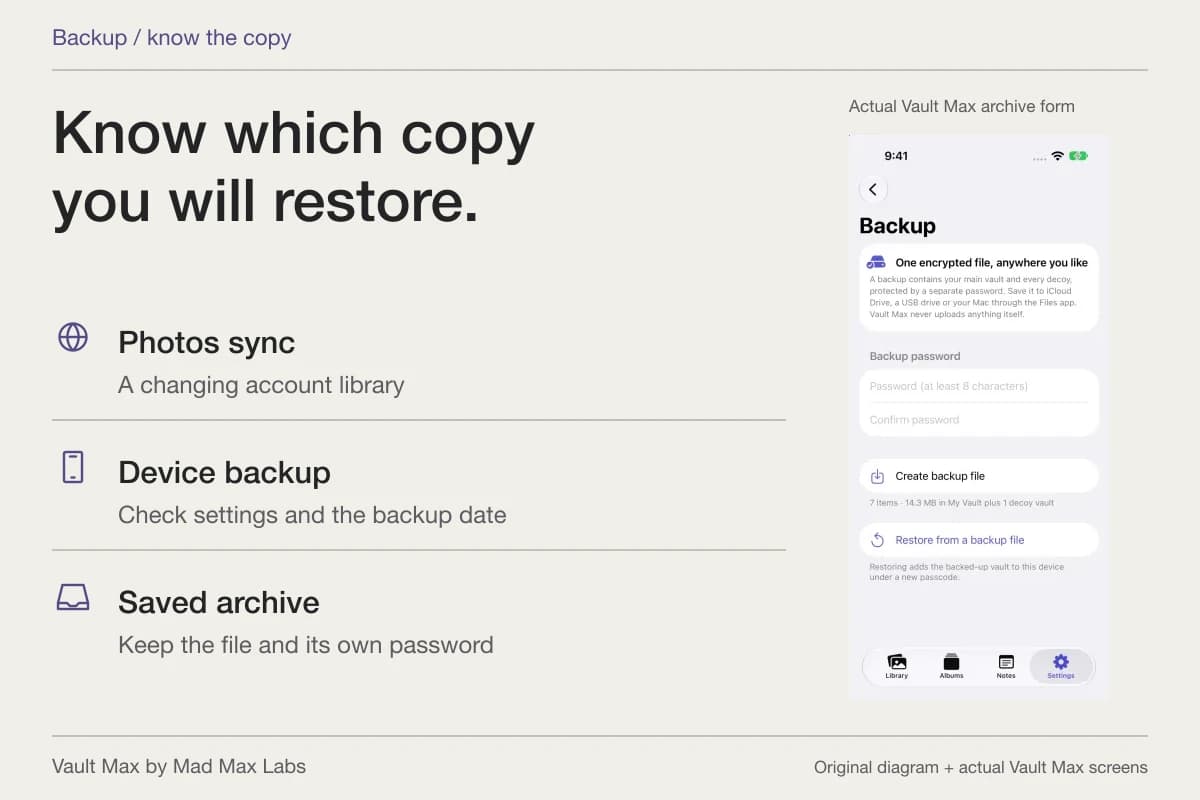
Create a separately password-protected .vaultmax archive after the cabinet contains the material you need. Choose a destination accessible without the phone, and retain the archive password independently. The archive includes the saved collection and its included child vaults, with documents and notes preserved as part of that snapshot.
Refresh it after meaningful changes. A newer document or revised note does not appear inside an older archive automatically. Restoring an App Store purchase retrieves an eligible entitlement, rather than a developer-hosted document cabinet waiting to download.
Review retained sources only after you have a usable private copy and a recovery plan. For an outside copy you decide to remove, use that location's own controls and understand any sync relationship. A vault import does not silently change the contents of Downloads, Photos, messages or another provider's storage.
- Check required pages, legibility and the exact source file.
- Use the intended vault credential and a recognizable album.
- Confirm contents and preview before changing a needed source.
- Save and reopen a short note without duplicating sensitive fields unnecessarily.
- Use the actual name, album and filter to retrieve the right version.
- Refresh the archive and keep its password accessible without the old phone.
Tap a box as you go. Checks reset when you leave this page.
Vault Max's security features and notes are free to try. Learn the cabinet's full routine with sample material first; the result should be a collection you can use confidently, not a pile of files whose location and recovery depend on memory.
Common questions
Can Vault Max store a PDF or a photographed document?
Yes. Import a saved PDF through From Files or select a document photograph through the Photos picker. Vault Max encrypts its own copy. Inspect the content and preview before removing a source you need.
Does Vault Max scan a paper document into a PDF?
This workflow uses Apple's Preview scanner or an existing file to prepare the document, then imports the result into Vault Max. Private camera capture and a document-scanning workflow are different functions.
Can a private note replace the document?
Keep the readable source document when you need it. An encrypted note can add context, dates or a checklist inside the vault, while the document remains a separate item with its own contents.
Continue reading
More guides
Practical tips for your private library. Swipe or scroll to choose your next guide.
74 guides to explore