
Privacy in practice
Is iCloud Photos encrypted? What changes with a private vault
Understand standard iCloud Photos encryption, Advanced Data Protection and an on-device private vault, including sharing, recovery and backup choices.
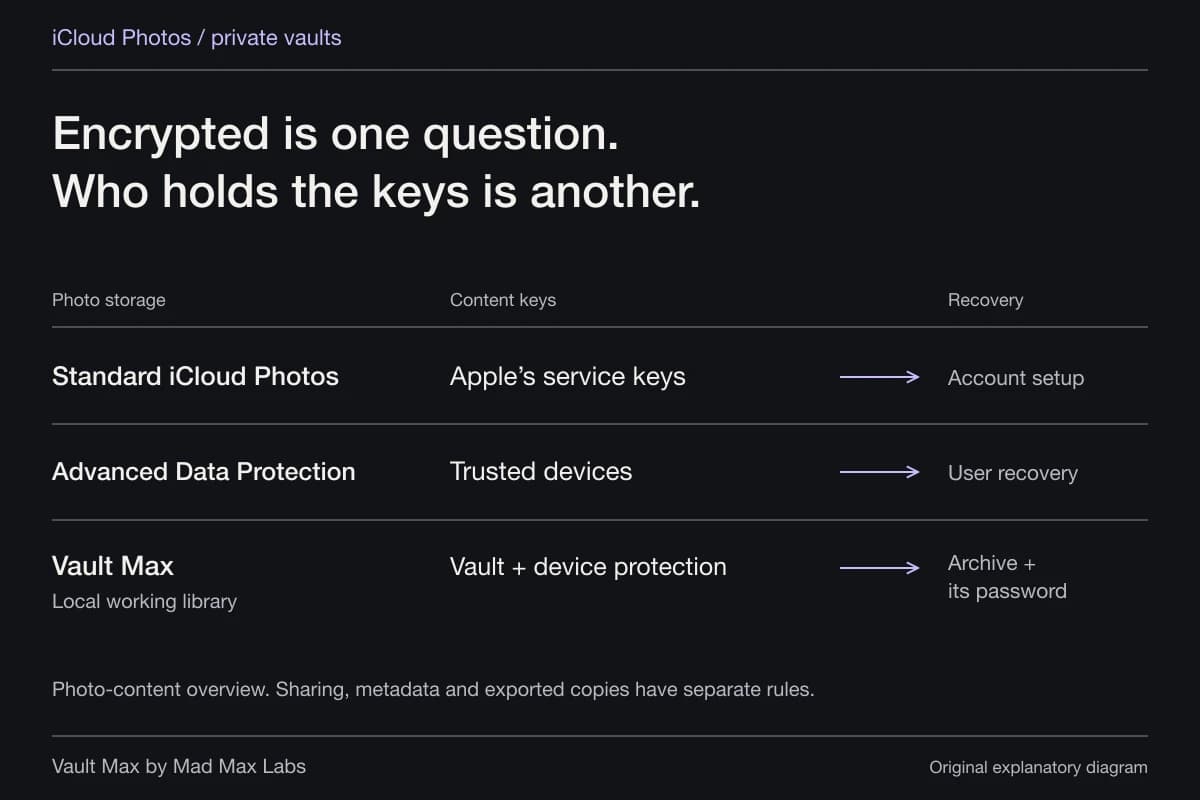
Yes, iCloud Photos is encrypted. Under Apple's standard data protection, Photos is encrypted in transit and on Apple's servers, with keys held by Apple. With Advanced Data Protection enabled, Photos gains end-to-end encryption with keys controlled by trusted devices. Apple's iCloud security overview documents both arrangements.
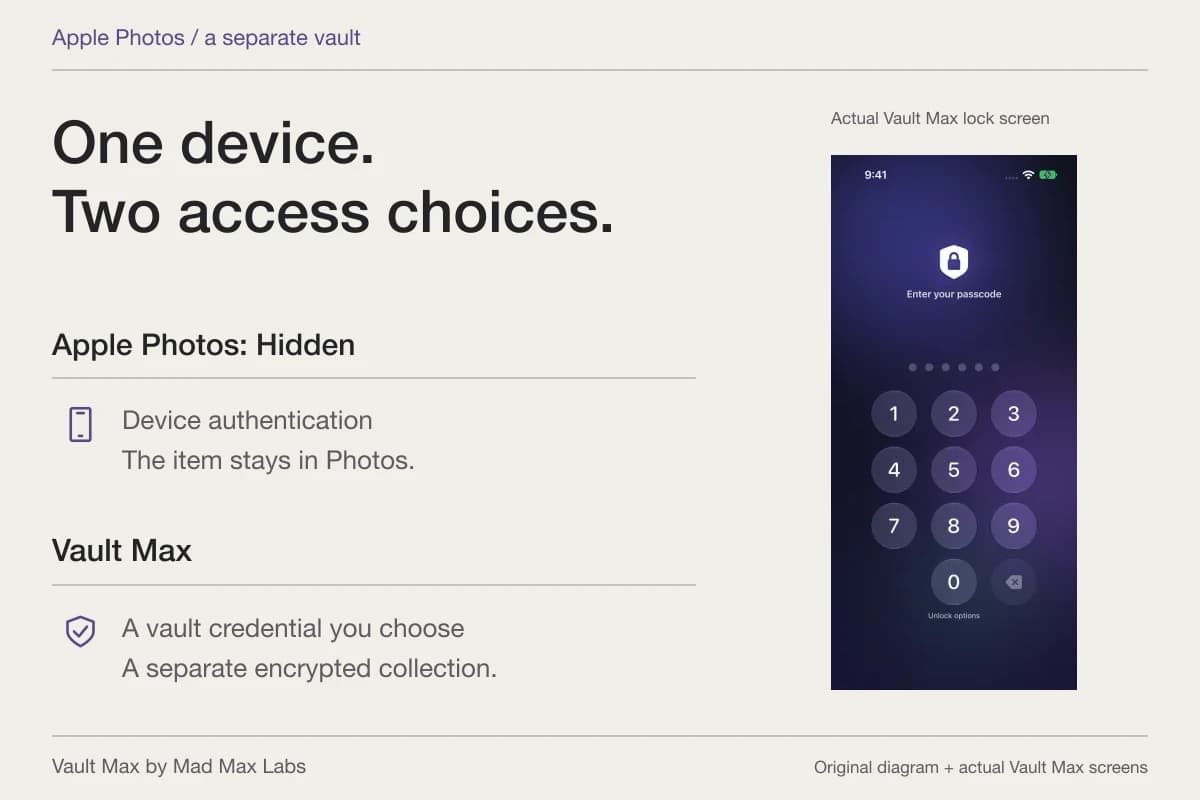
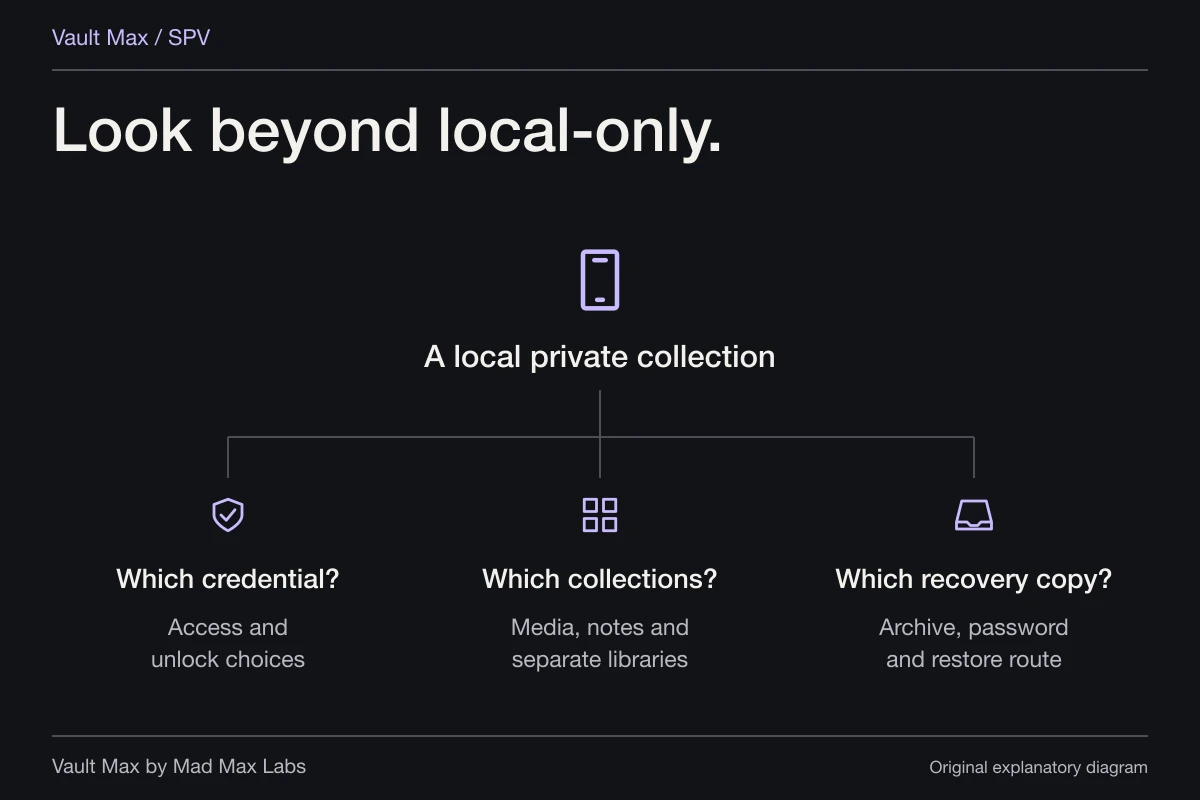
A private vault answers another question: who can open a particular collection on your phone, and where does that collection live? Vault Max adds a separately encrypted on-device library with its own credential. You can use it alongside iCloud Photos. You still need to account for originals, shared copies and backups.
Ask which boundary you are trying to protect
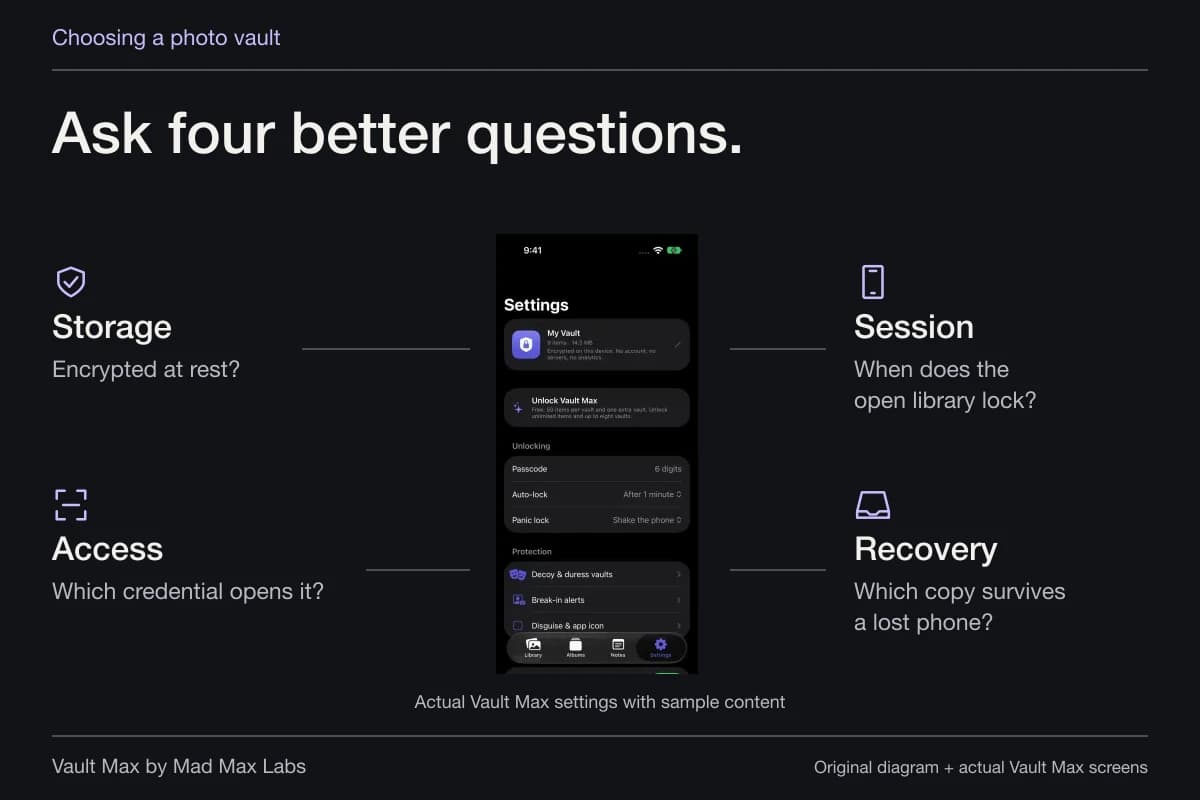
“Are my photos secure?” is a large question. Break it into something you can check. Do you want to protect a library stored in the cloud? Keep a personal collection away from someone who knows your phone code? Avoid placing a new picture in the Photos library? Recover a collection after losing the device?
Those goals can require different choices. An account protection setting does not remove a photograph from an unlocked screen. A separate app code does not make a Photos original vanish from iCloud. A local-only library does not survive a lost phone unless you preserve a usable recovery copy.
Photo contentKey custody and recovery
- iCloud PhotosStandard protection
- Apple holds the service keysContent is encrypted in transit and at rest. Account recovery depends on account setup.
- iCloud PhotosAdvanced Data Protection
- Trusted devices control content keysEligible photo content is end-to-end encrypted. Keep a working recovery method.
- Vault MaxWorking library
- Local vault credential + device protectionNo Vault Max-hosted library. Exported archives have their own password and chosen destination.
Follow one ordinary sample photograph through those boundaries. Note where its original exists, how you open each copy and where a backup would come from. That exercise is more informative than choosing an app because its page contains the largest encryption number.
Standard protection and Advanced Data Protection differ over key control
Under standard protection, Apple can use its stored keys to support access and recovery. Advanced Data Protection changes that arrangement for Photos and other covered categories: trusted devices retain the keys, so Apple cannot recover the end-to-end encrypted content for you. Some metadata remains under standard protection. These distinctions are listed in Apple's security overview.
The practical question is how much recovery responsibility you want to take on. Before enabling Advanced Data Protection, understand how you would regain access if your normal device were unavailable. Do not reduce the choice to “encrypted” versus “not encrypted”; both modes use encryption.
If a checklist or comparison calls all ordinary iCloud photos unencrypted, it has skipped an important fact. If it calls every iCloud Photos feature end-to-end encrypted merely because one setting is enabled, it has skipped another.
Check availability and recovery before changing settings
Apple's Advanced Data Protection setup guide describes the required account configuration, compatible device software and recovery methods. On iPhone, review Settings → your name → iCloud → Advanced Data Protection and follow the instructions shown for your account.
Apple requires a recovery contact or recovery key before activation. Review that arrangement while your devices still work. A recovery contact can help with account recovery without being given your photo library. Keep your recovery plan distinct from whatever password you use for a separate app's exported archive.
Availability also matters. Apple's UK notice says new users there cannot enable Advanced Data Protection. Check the current information applicable to your region rather than assuming that an instruction written for another account will match your screen.
Shared content needs its own check
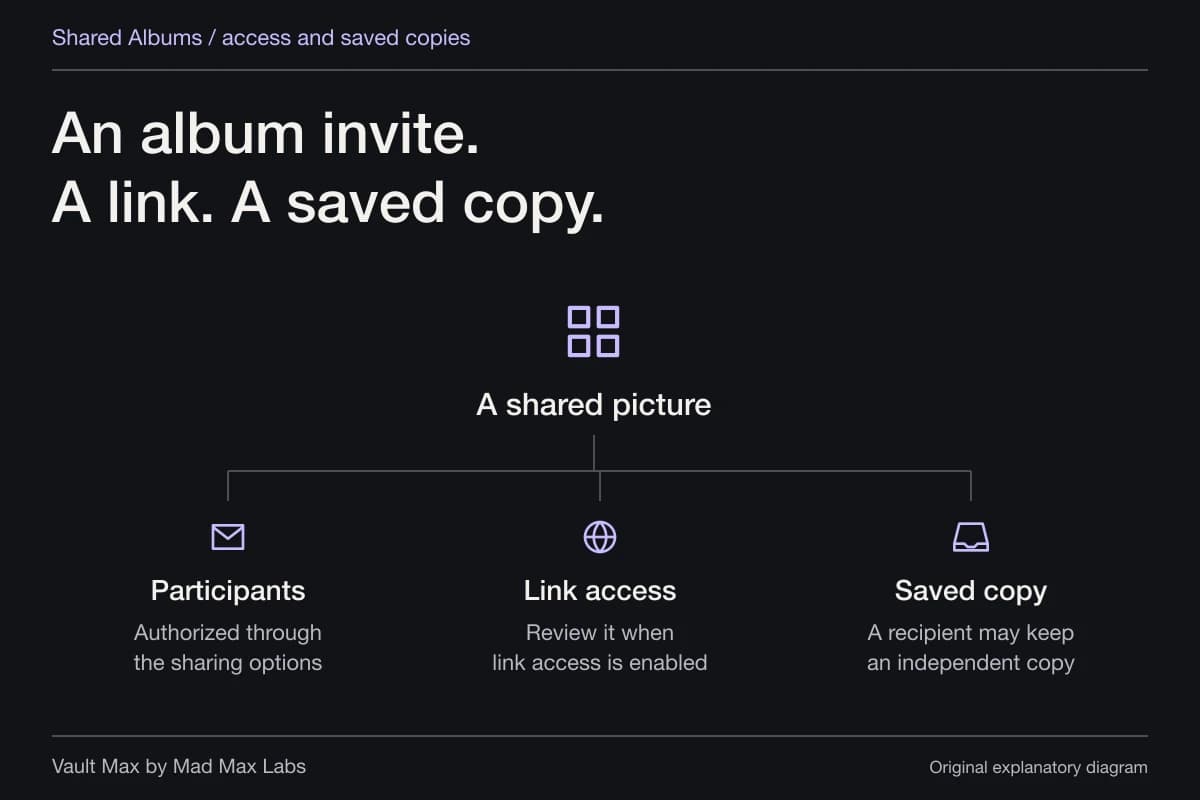
End-to-end encryption does not revoke a person's legitimate access to something you shared. Even within Apple's cloud features, the protection differs by route. Apple's Platform Security guide explains the sharing rules: supported collaboration can retain end-to-end protection when all participants have Advanced Data Protection, while Shared Albums and certain link-sharing routes are exceptions.
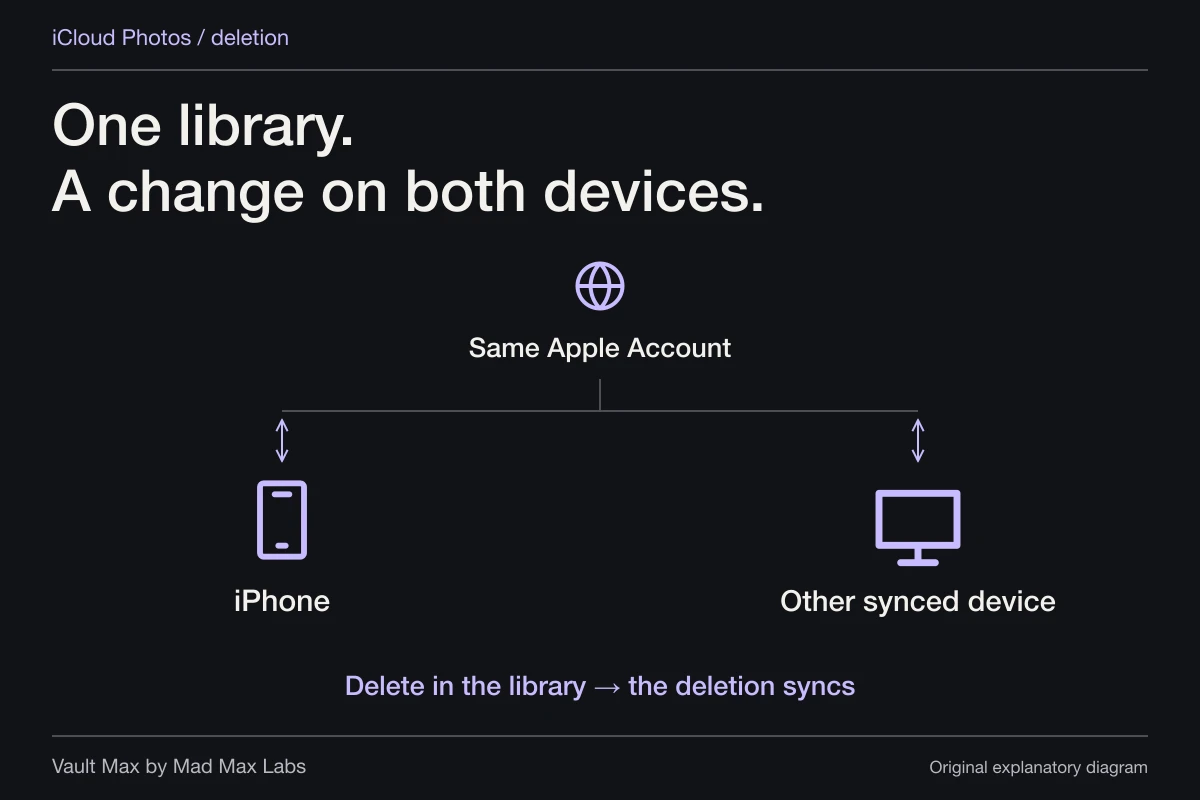
Shared Photo Library and Shared Albums are different features. Know which one holds a picture before making a privacy decision. Also distinguish “hidden” from “unshared.” Moving a shared-library picture to Hidden does not create a private collection that excludes its participants. The Hidden photos and shared devices guide follows that specific case.
What Vault Max adds on the device
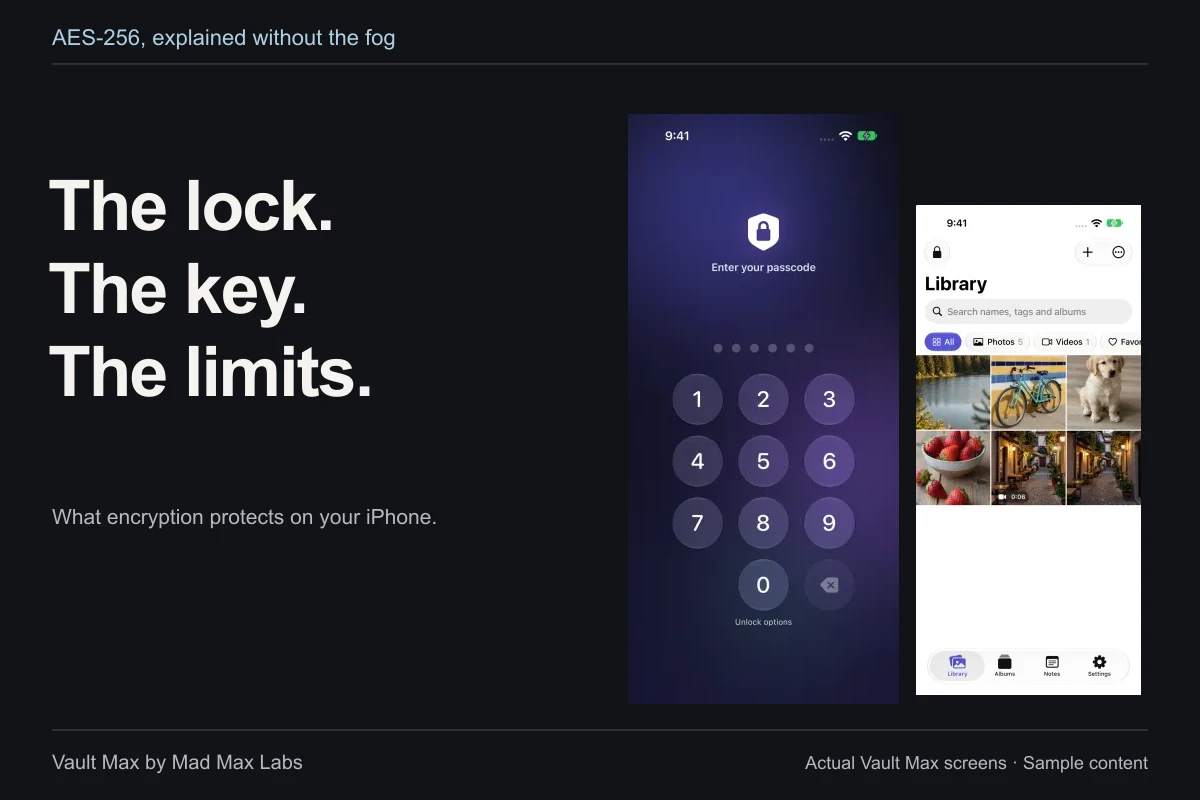
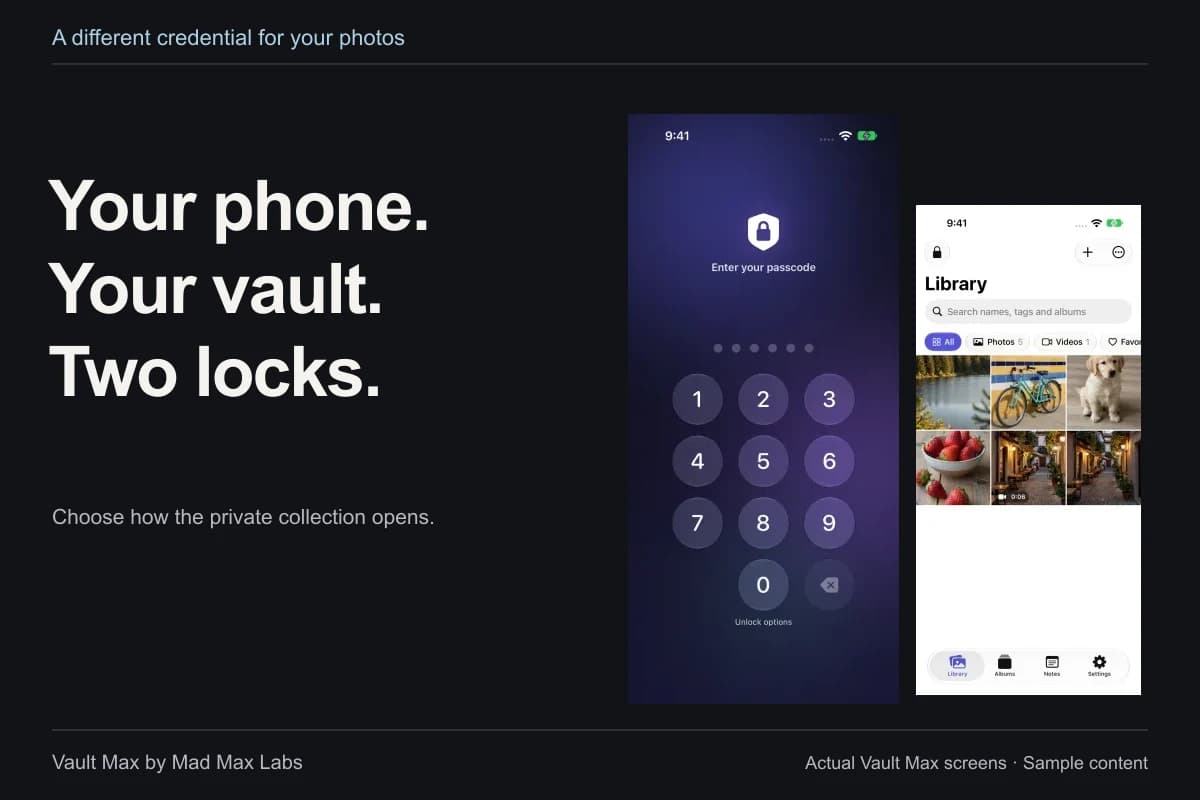
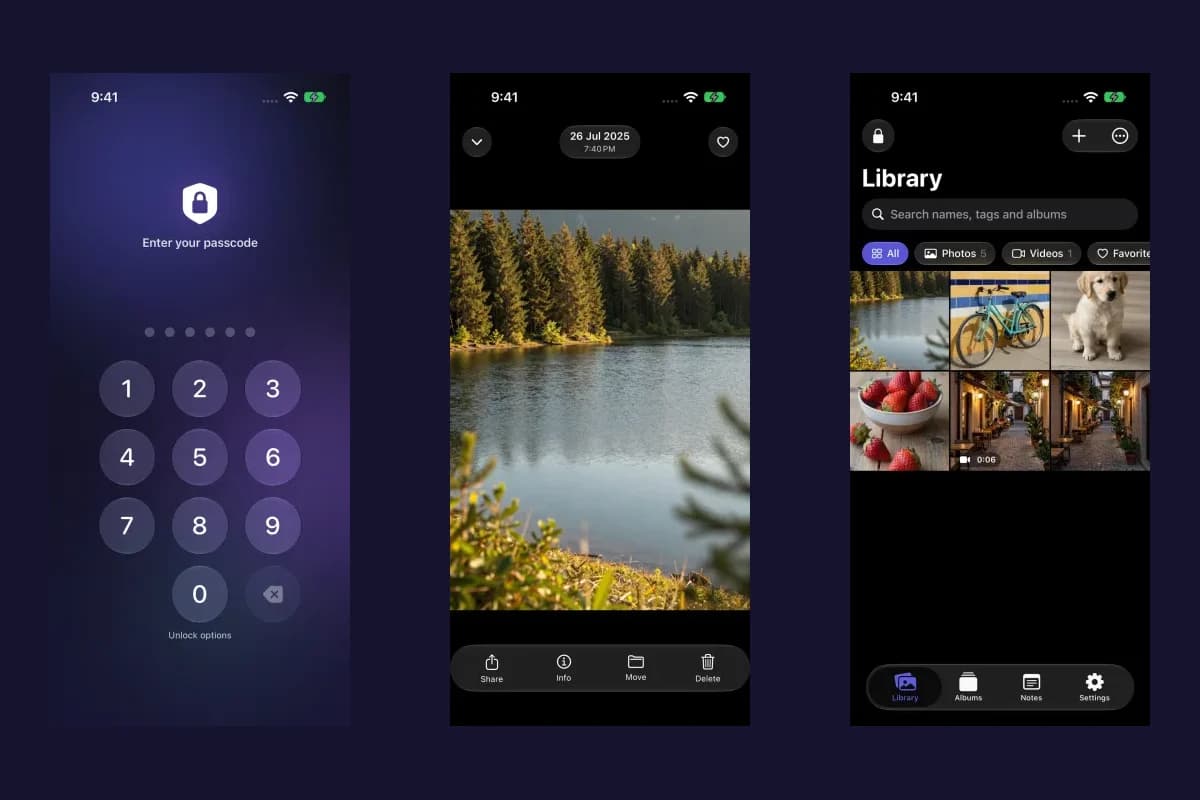
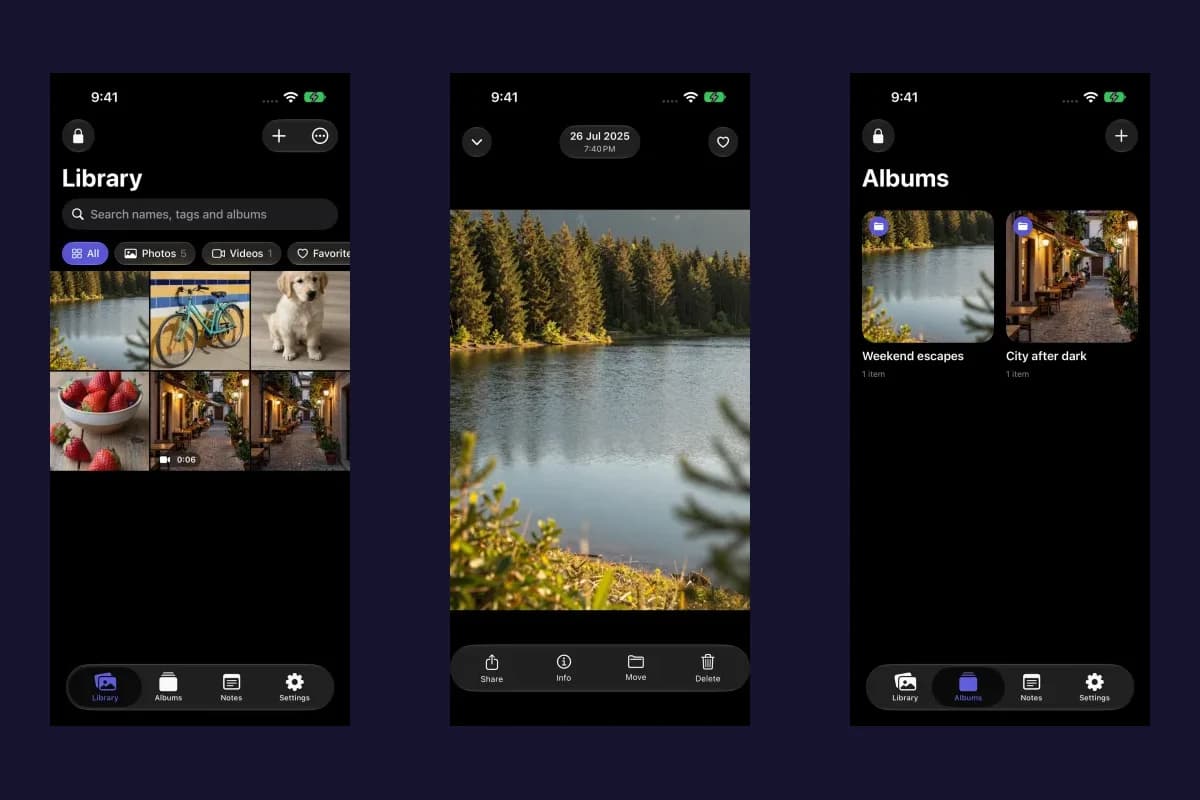
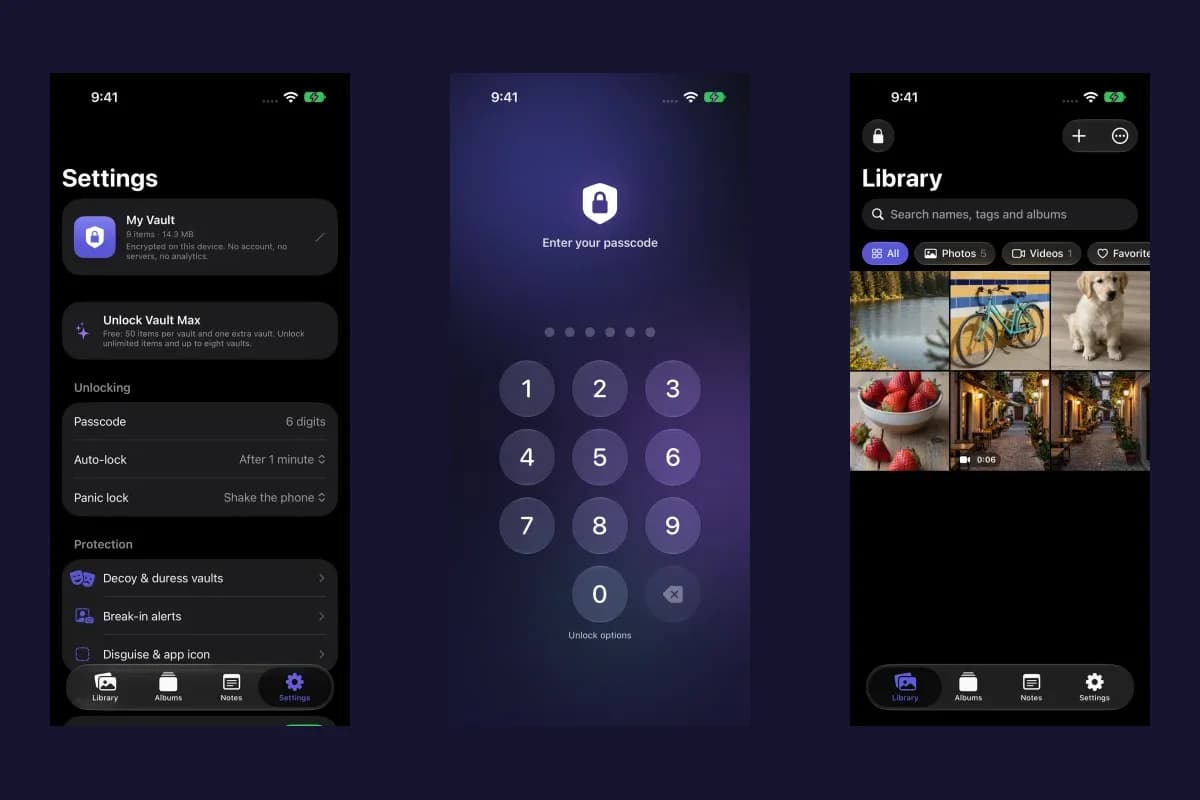
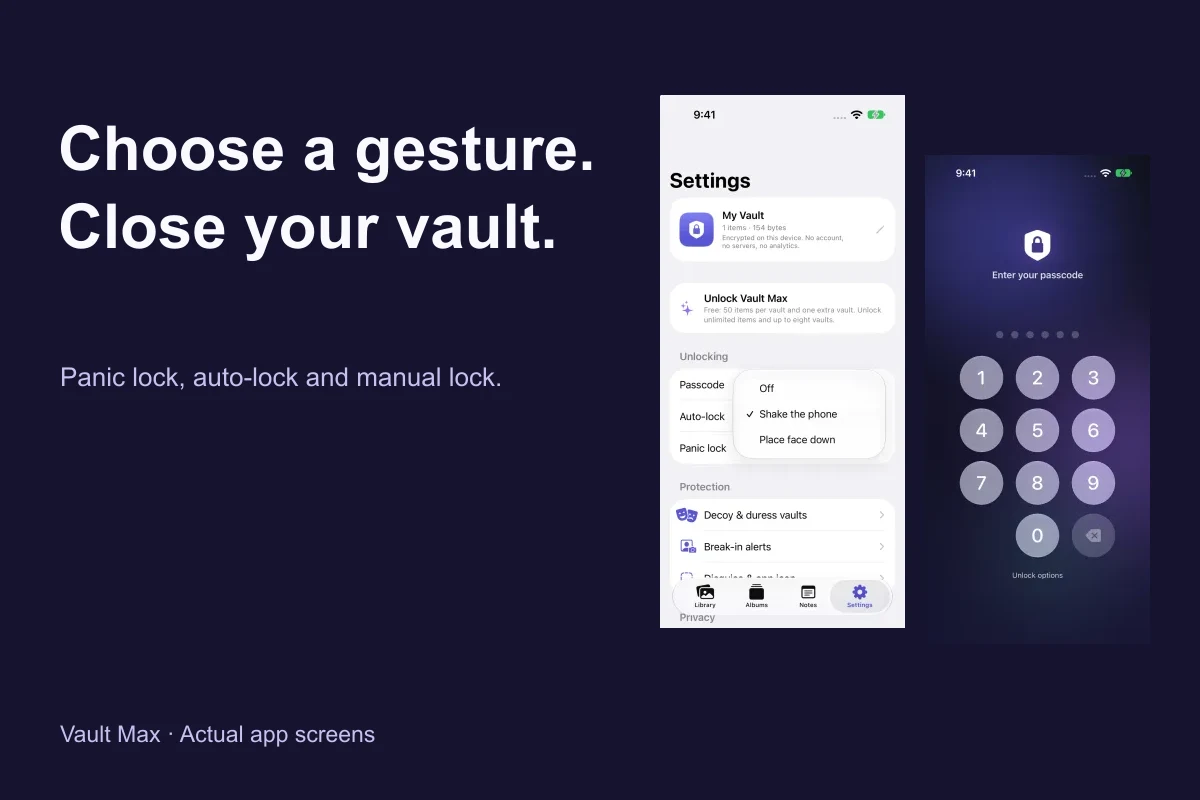
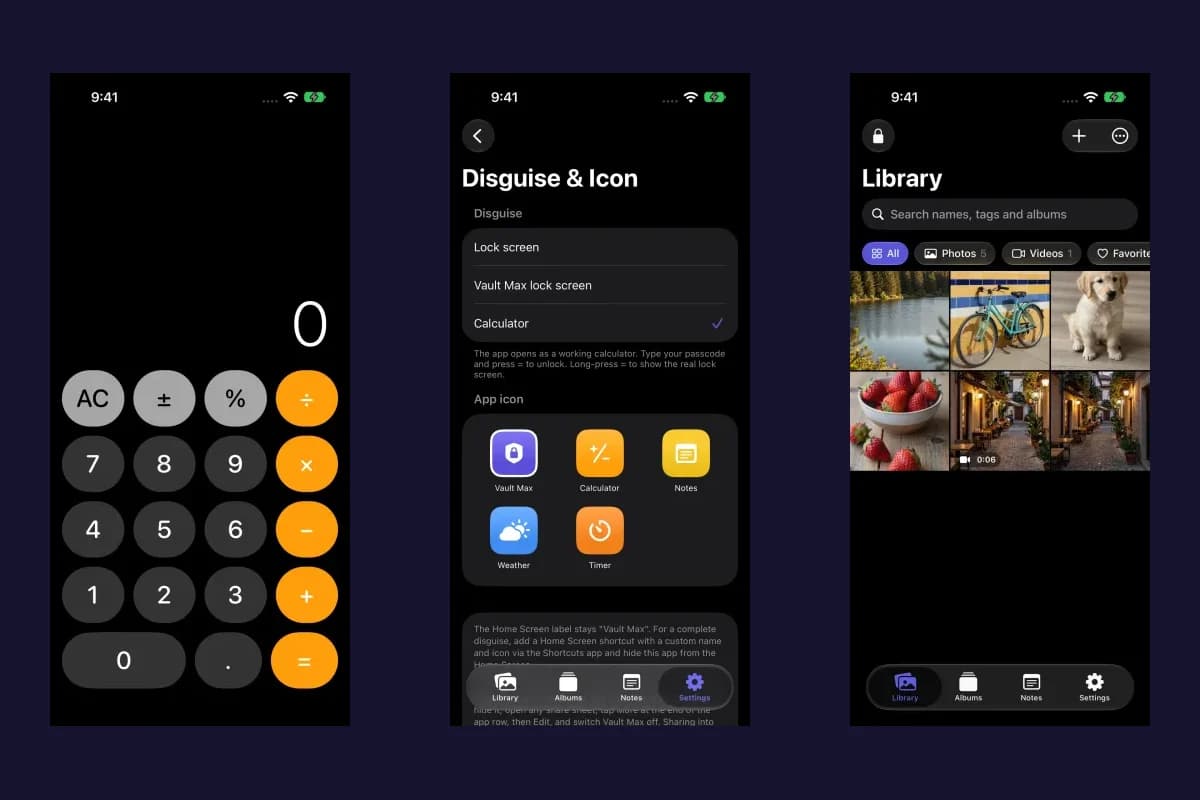
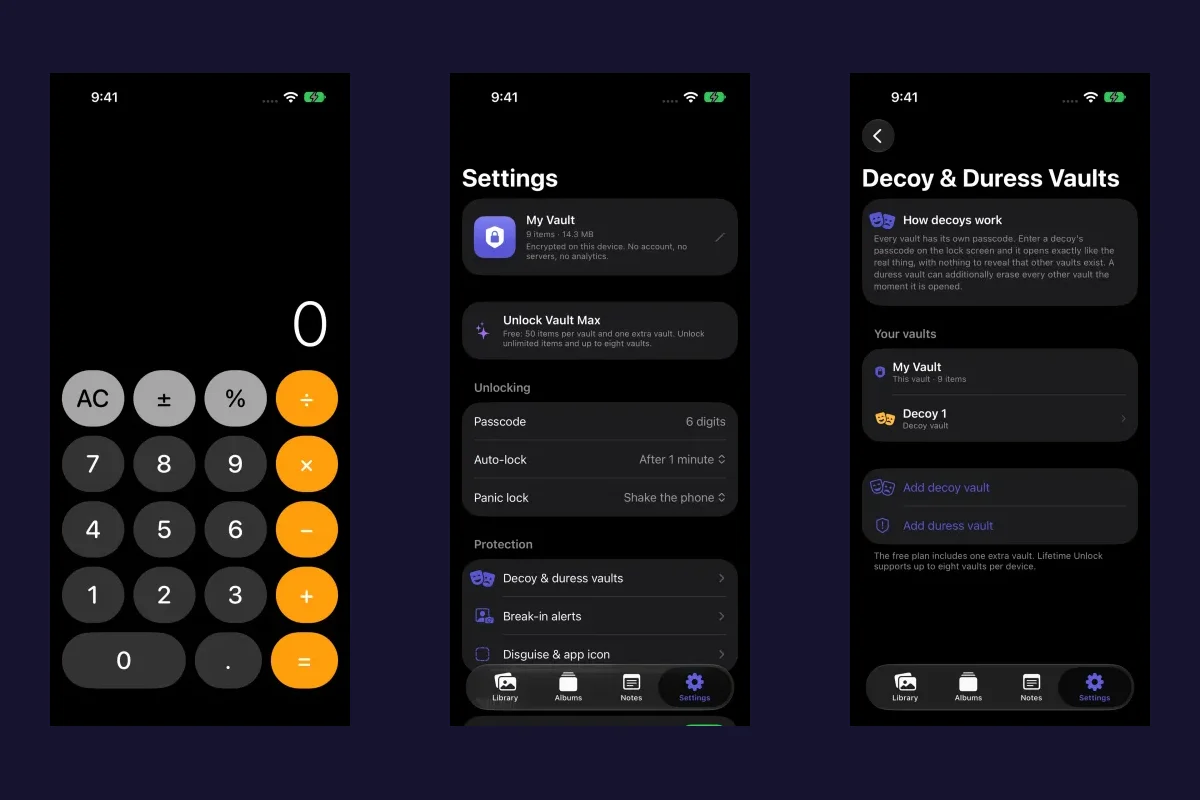
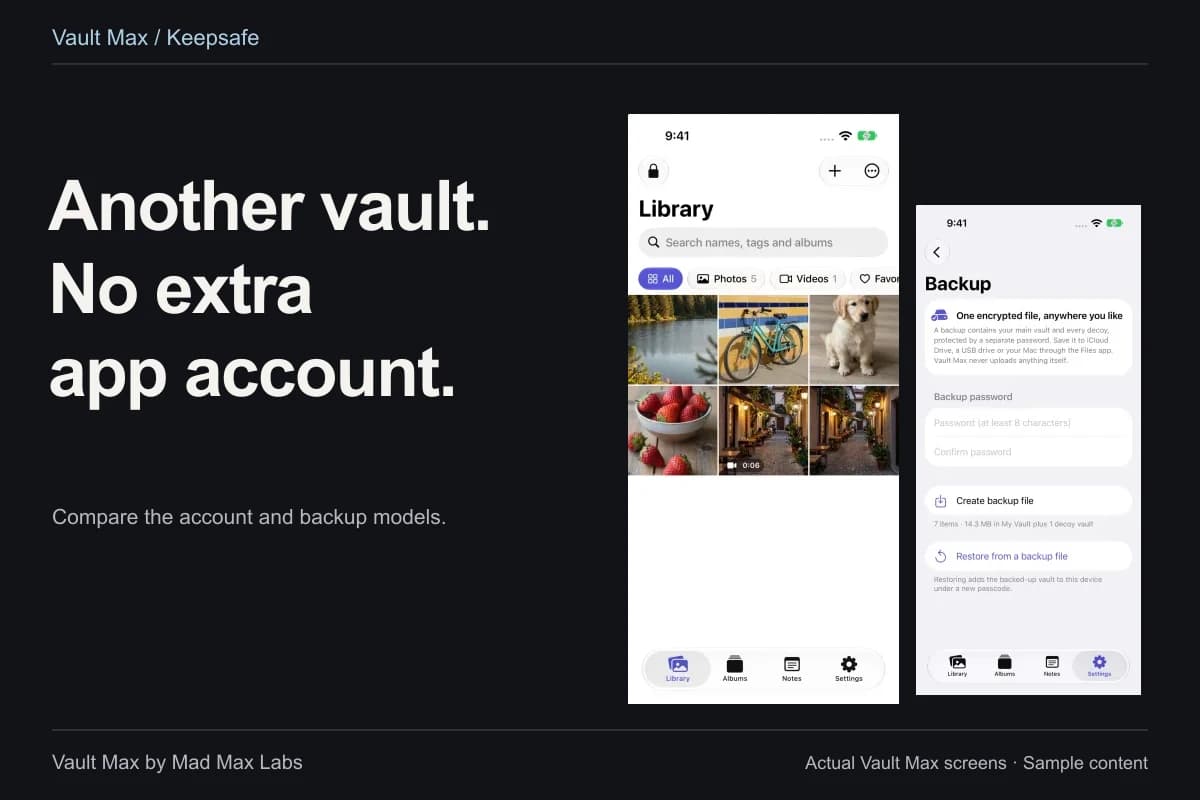
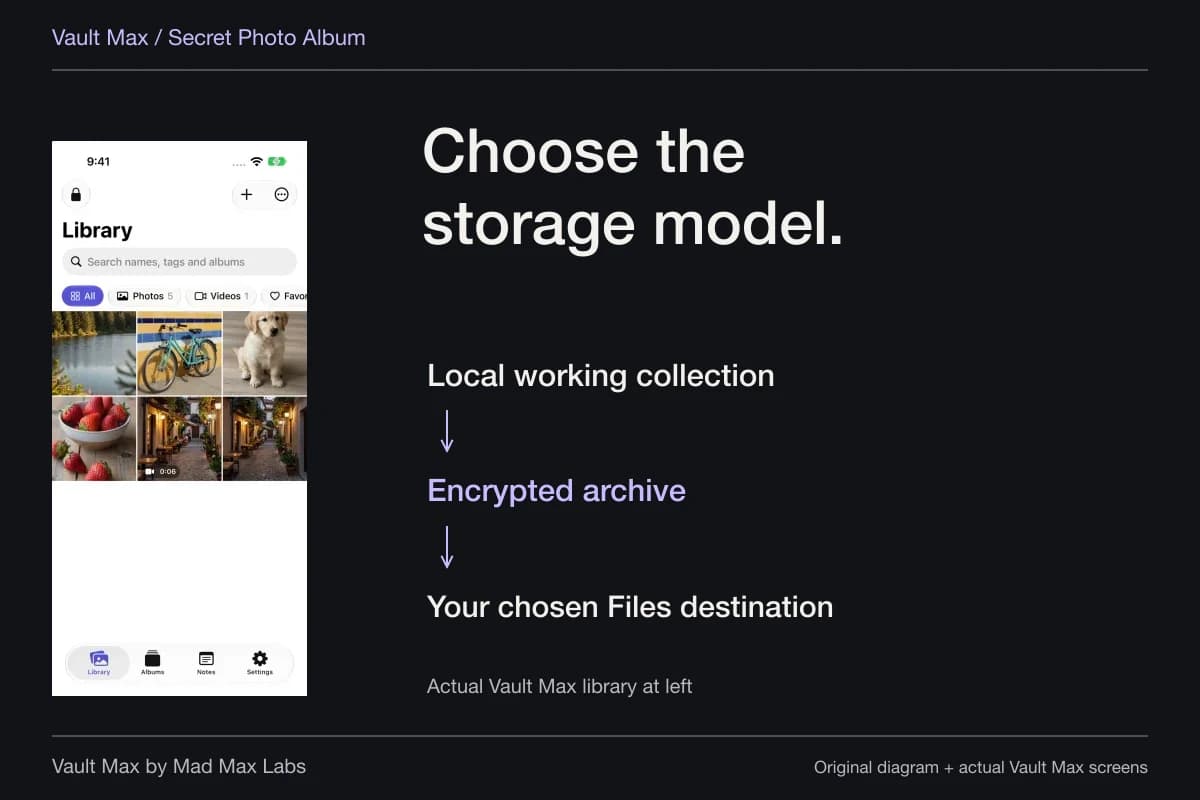
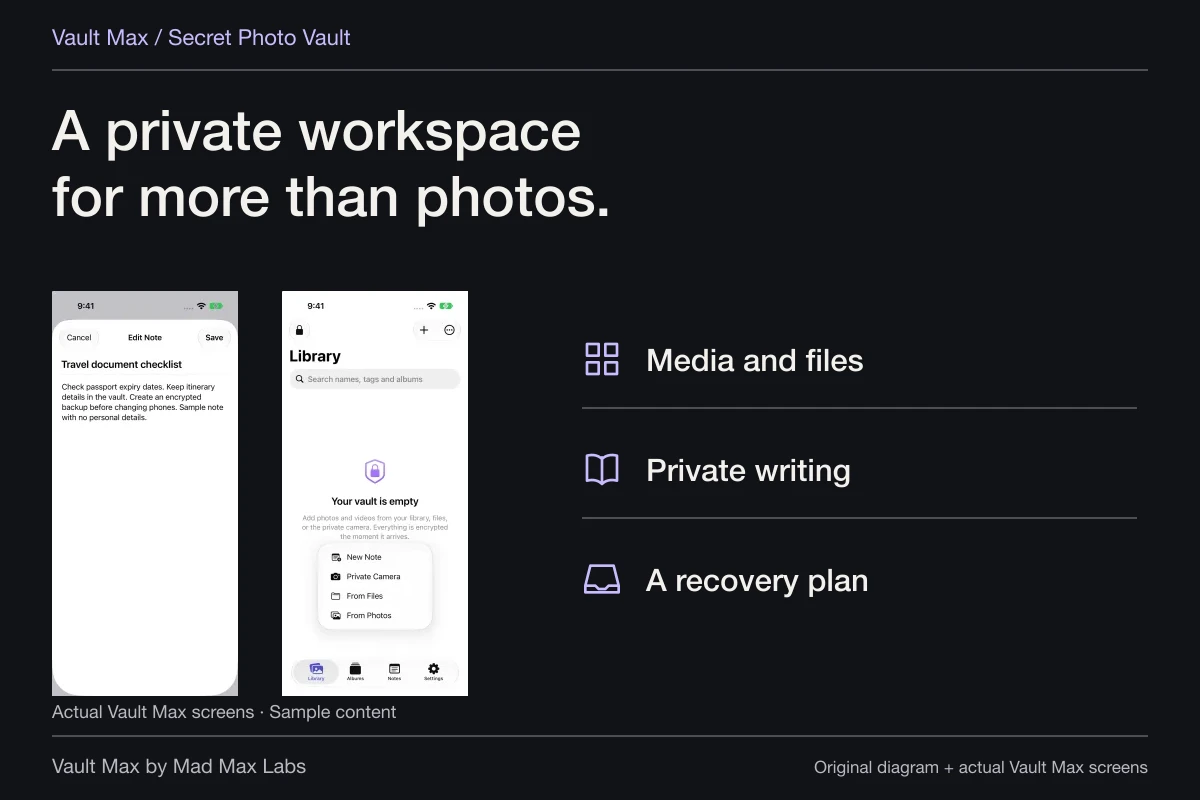
Vault Max stores imported photos, videos, documents and notes in an encrypted local vault. Its stored-content encryption uses AES-256-GCM. You choose a vault credential separately from the iPhone device passcode, and the app does not require a Vault Max account or upload your working library to a Vault Max server.
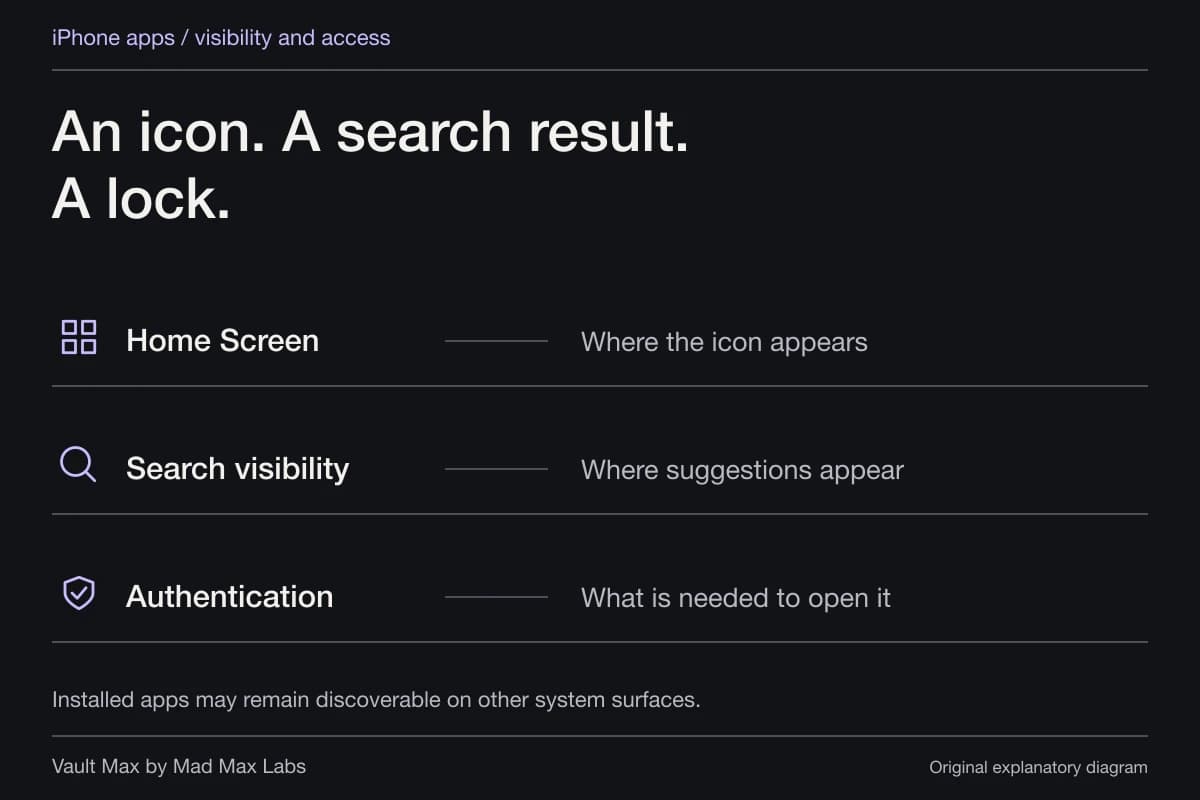
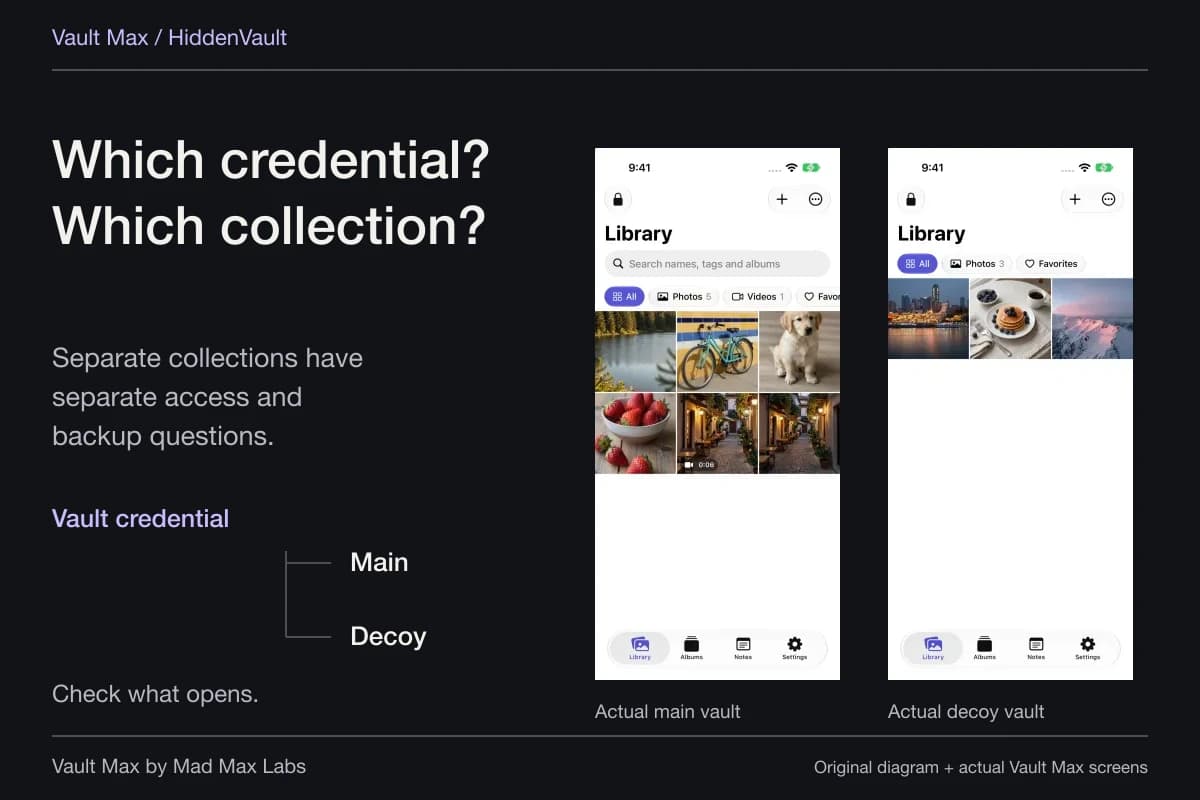
That suits a different access goal from keeping a large Photos library available across Apple devices. You can leave everyday pictures in Photos and keep a separate personal collection inside the vault. A distinct vault credential is useful when you deliberately allow someone ordinary phone access but want another access step for selected files.
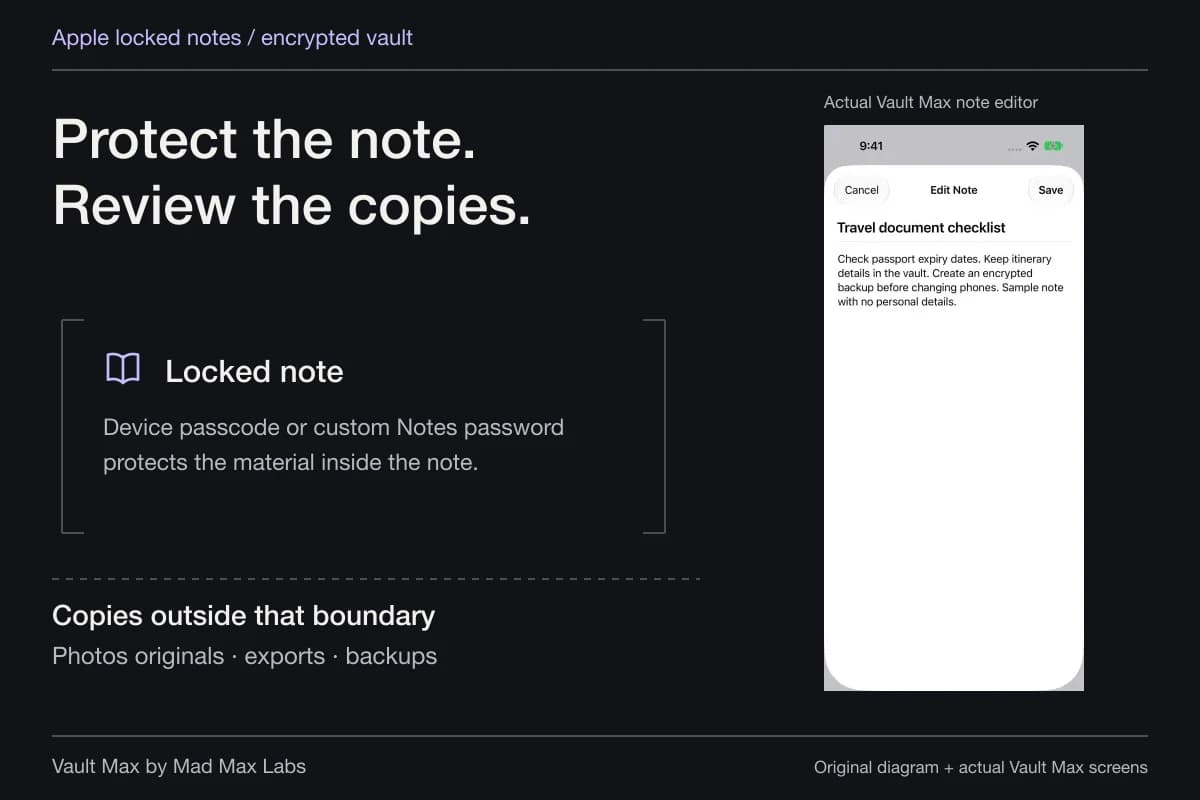
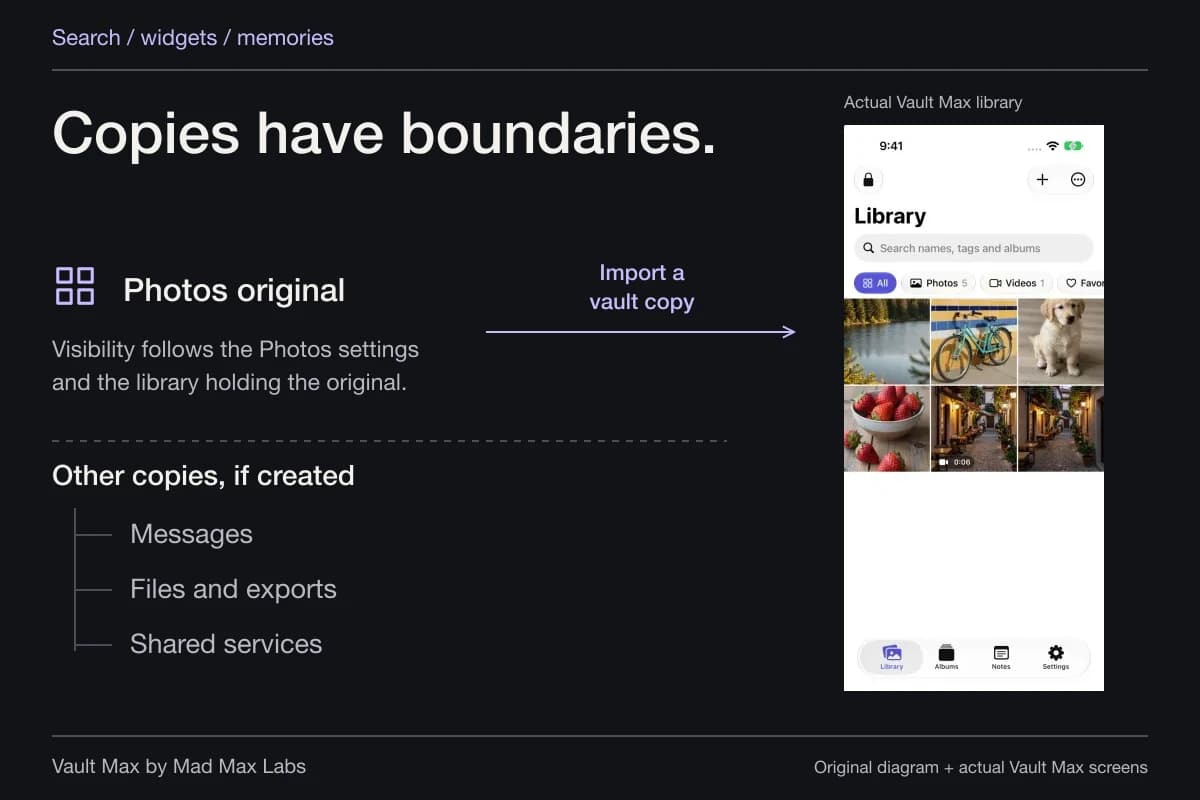
The limits still apply. An unlocked viewer displays readable content. A Photos original can remain in iCloud after import. A picture deliberately shared from the vault becomes a copy outside its control. The encryption guide explains what stored-file protection does and does not cover.
A cloud destination and an encrypted vault archive can coexist
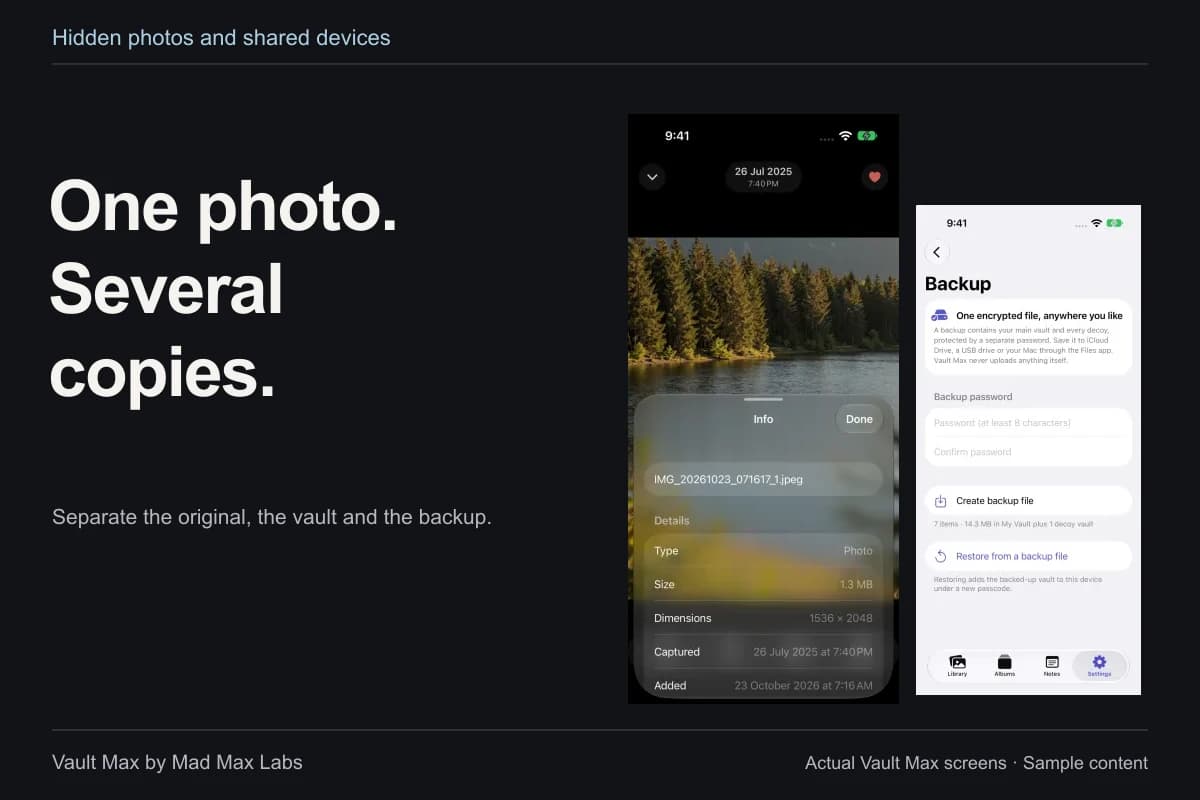
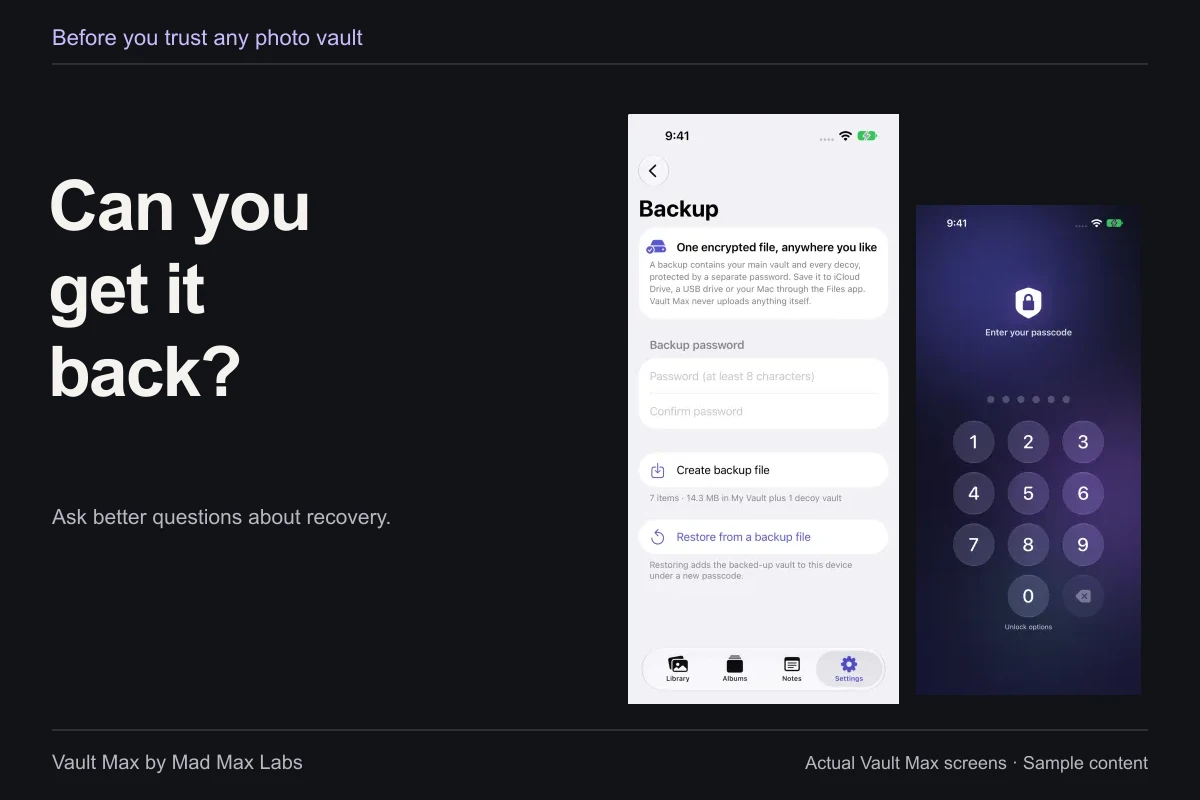
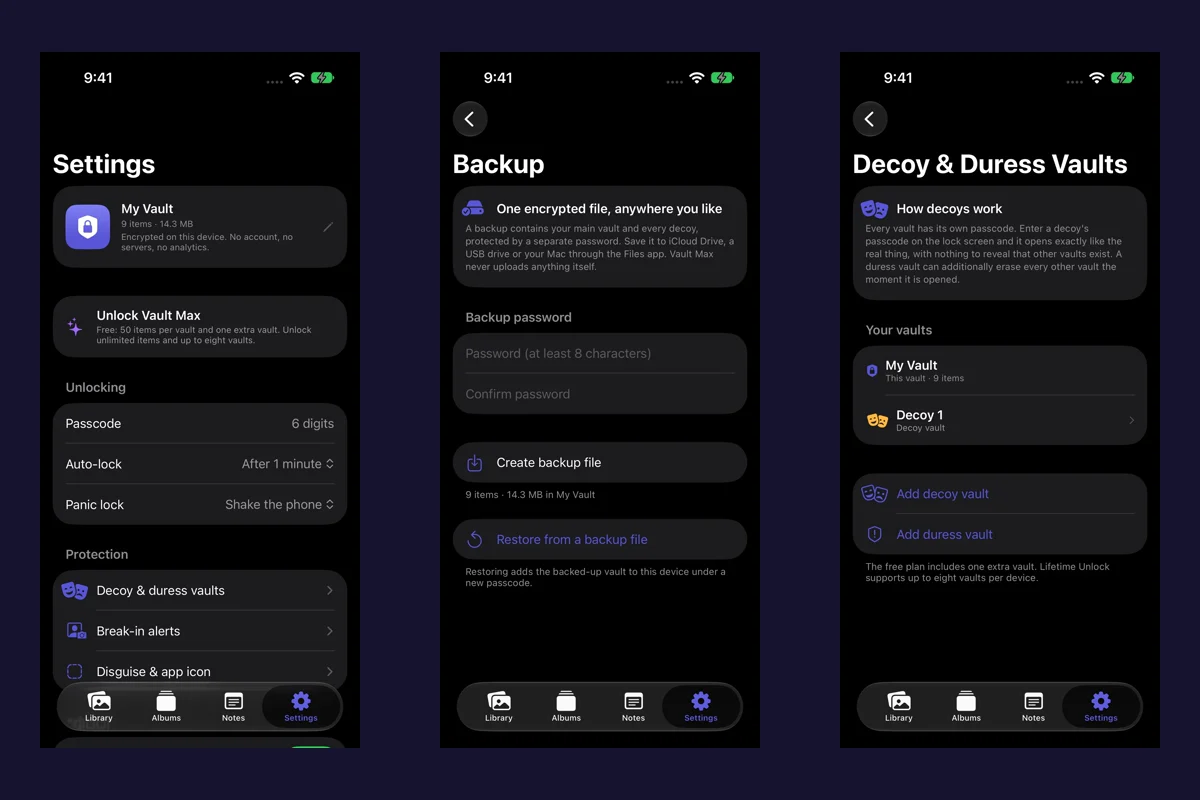
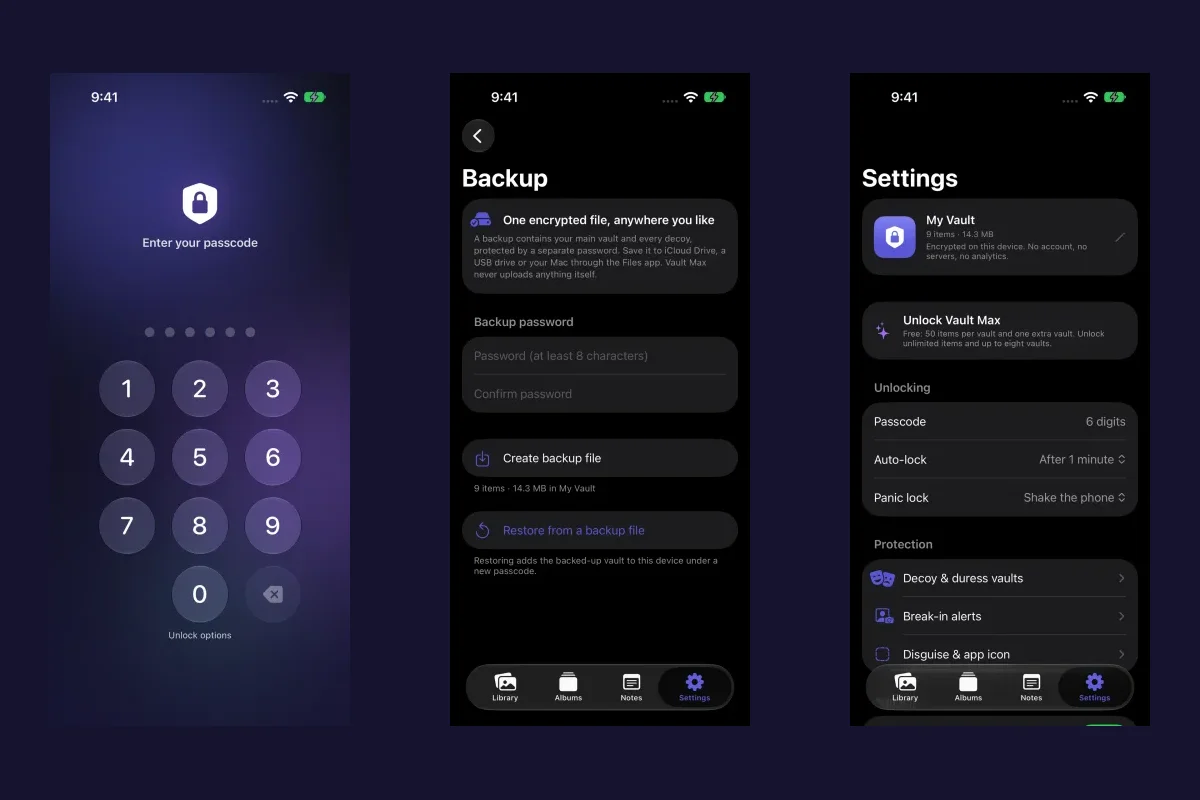
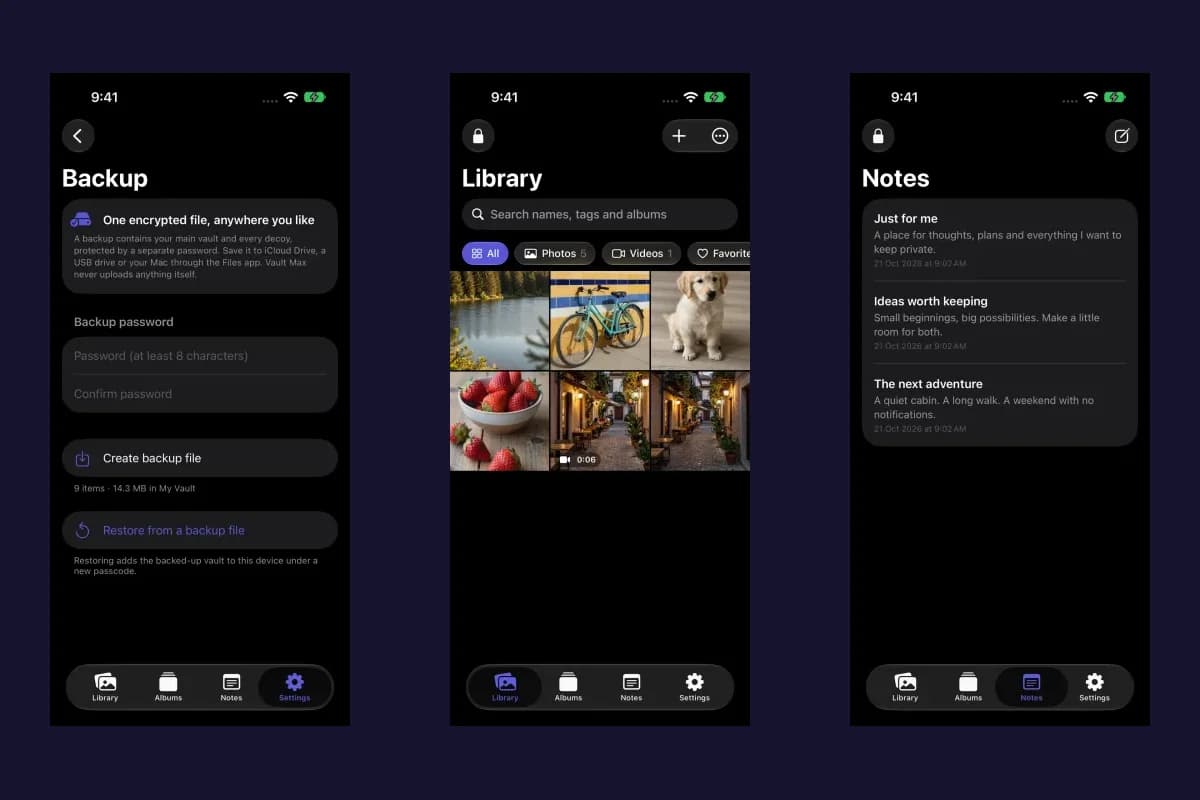
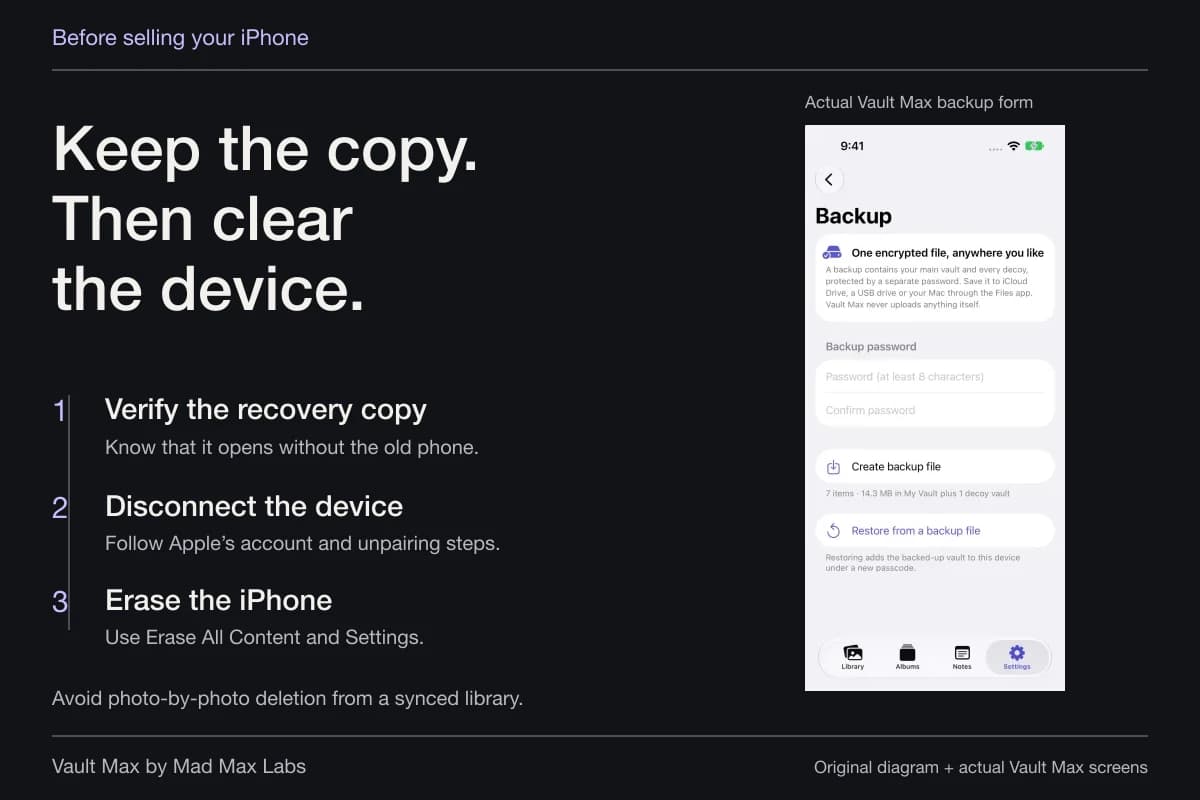
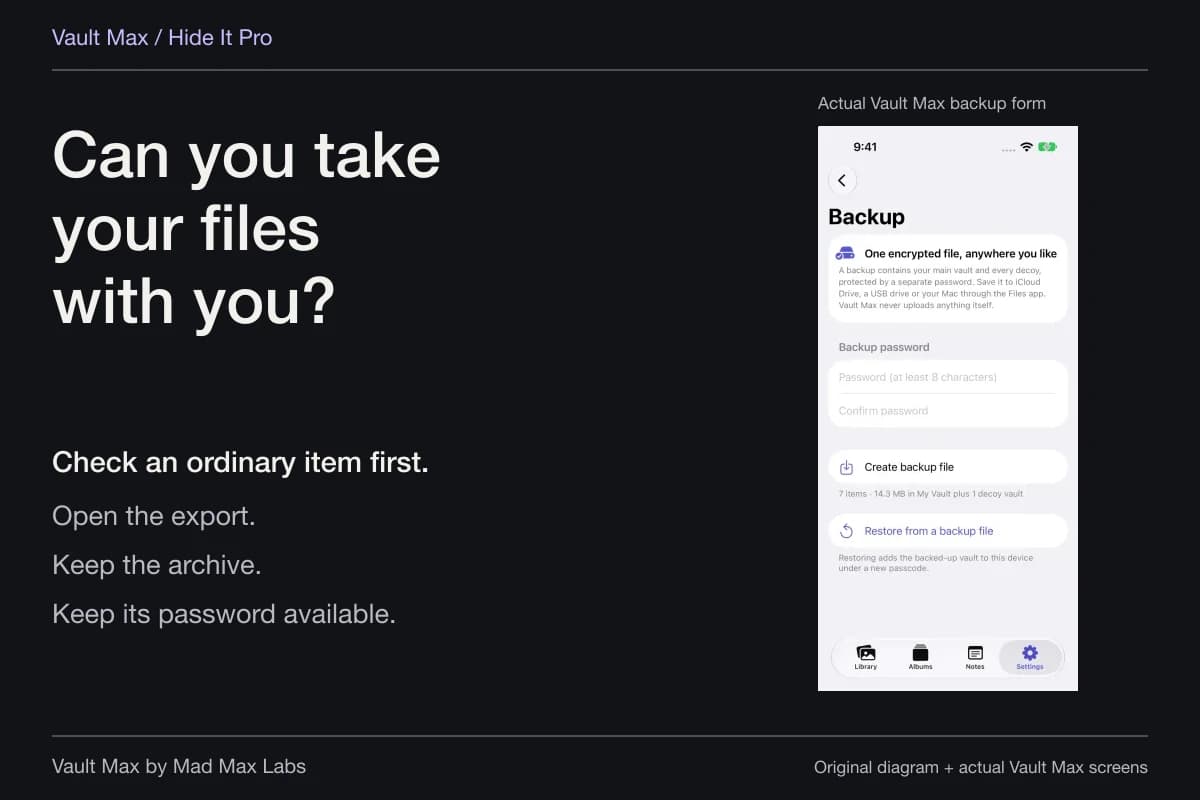
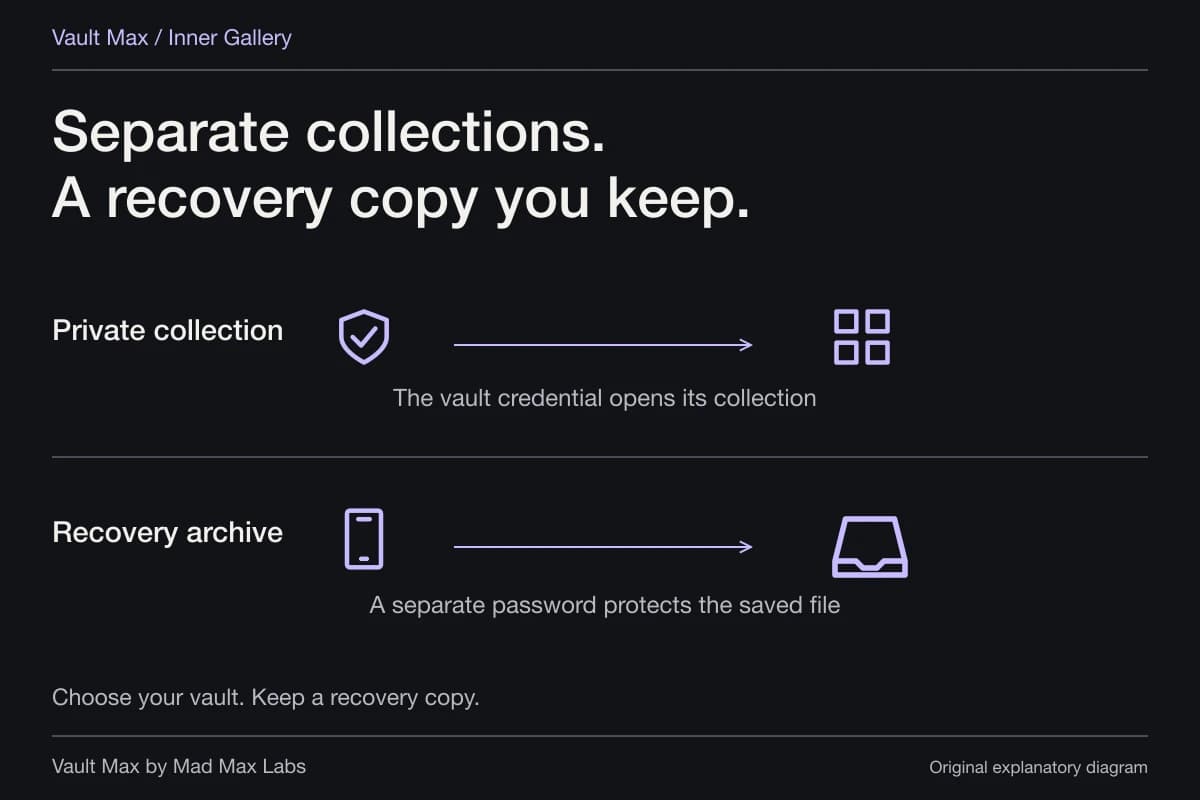
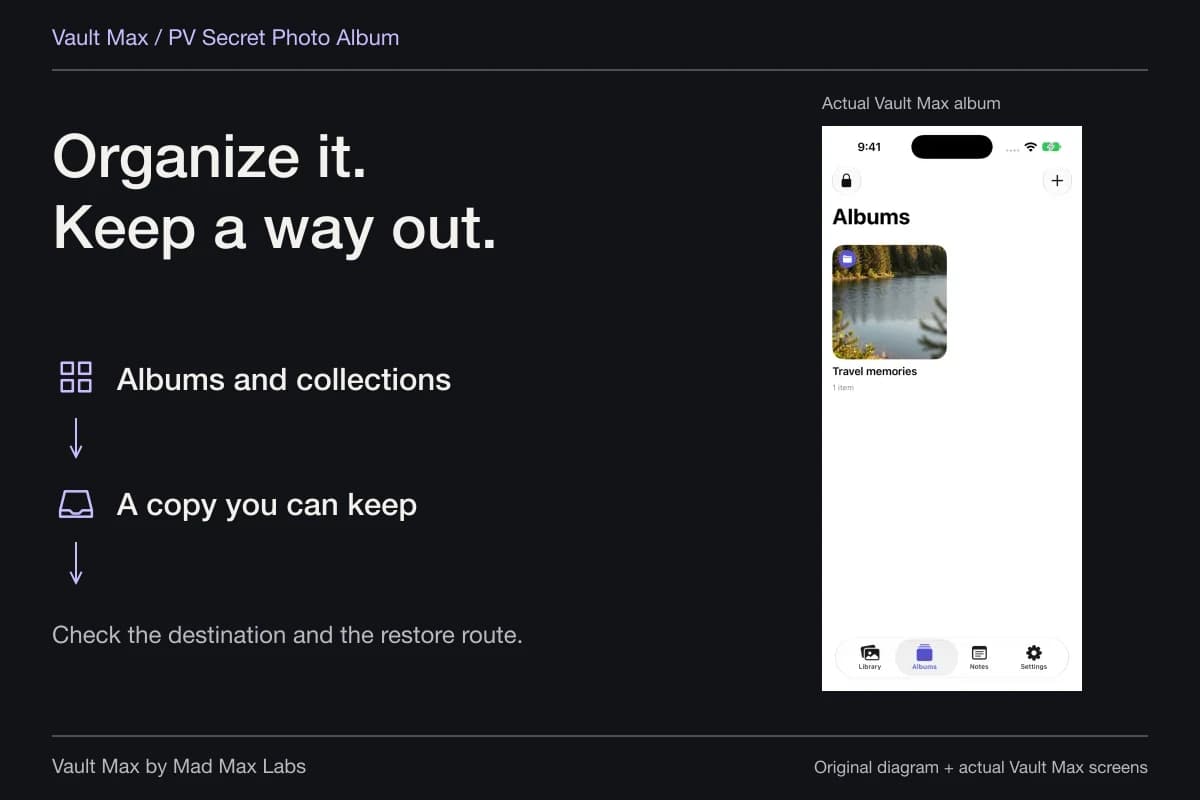
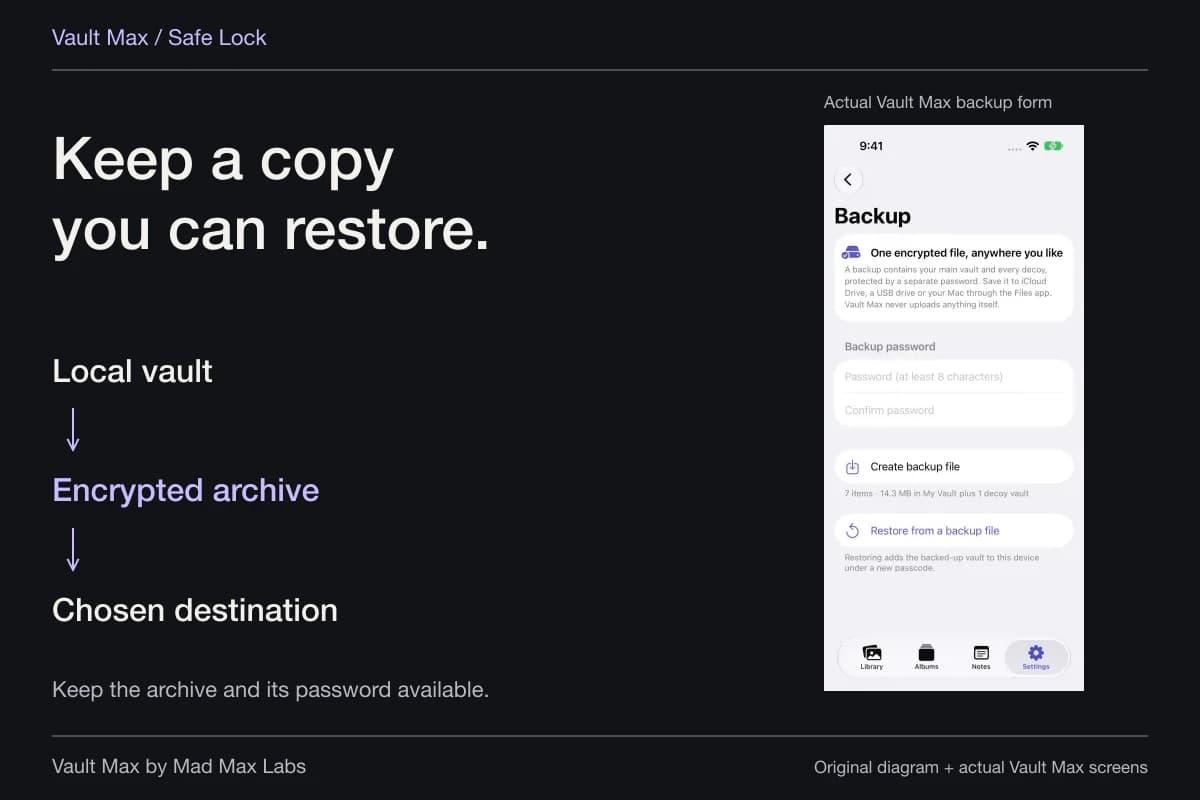
Vault Max creates a password-protected .vaultmax archive and lets you choose its Files destination. Saving it in iCloud Drive uses Apple's cloud storage for that encrypted file. It does not turn the app into a Vault Max-hosted library or an automatic photo-sync service.
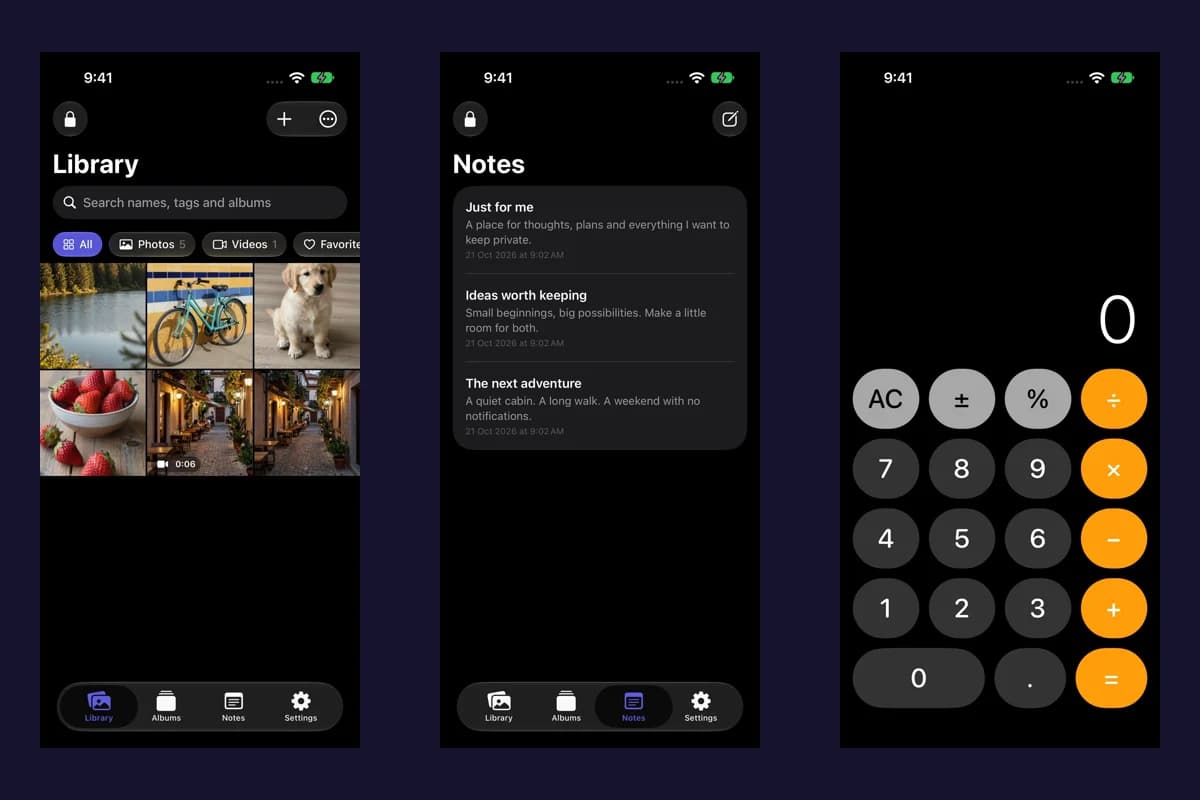
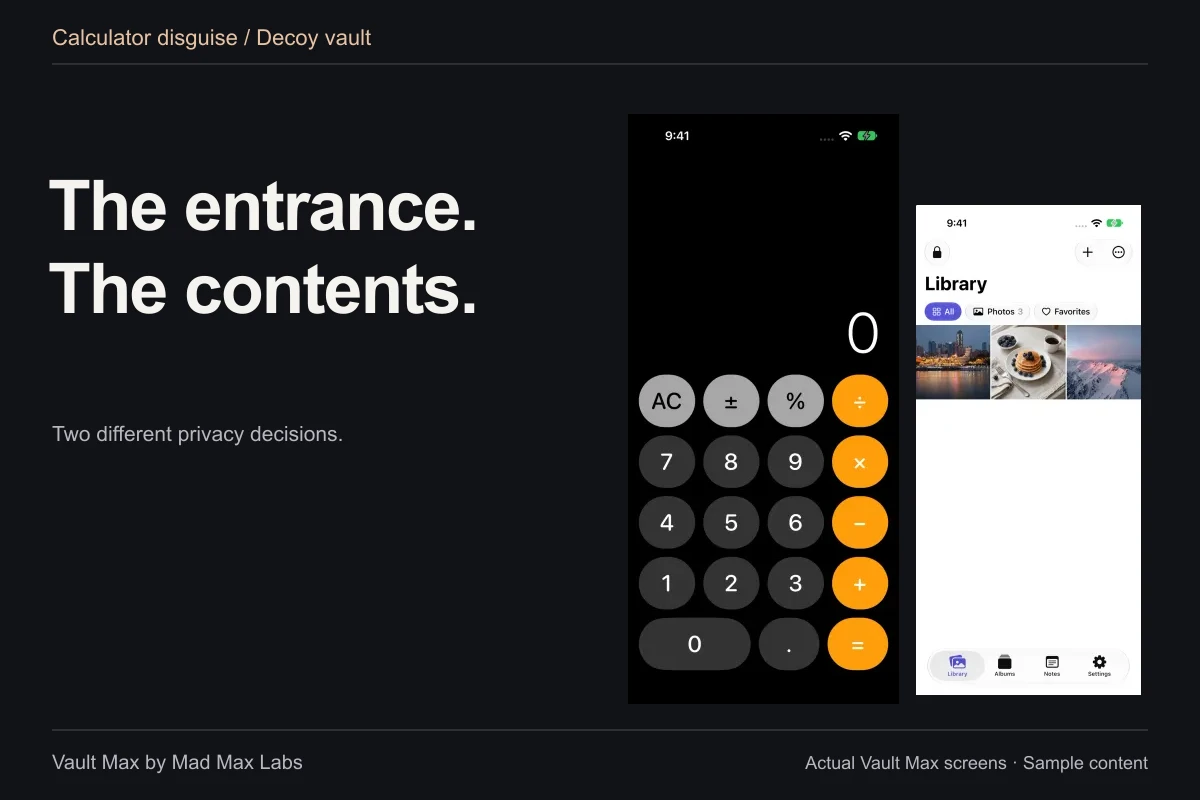
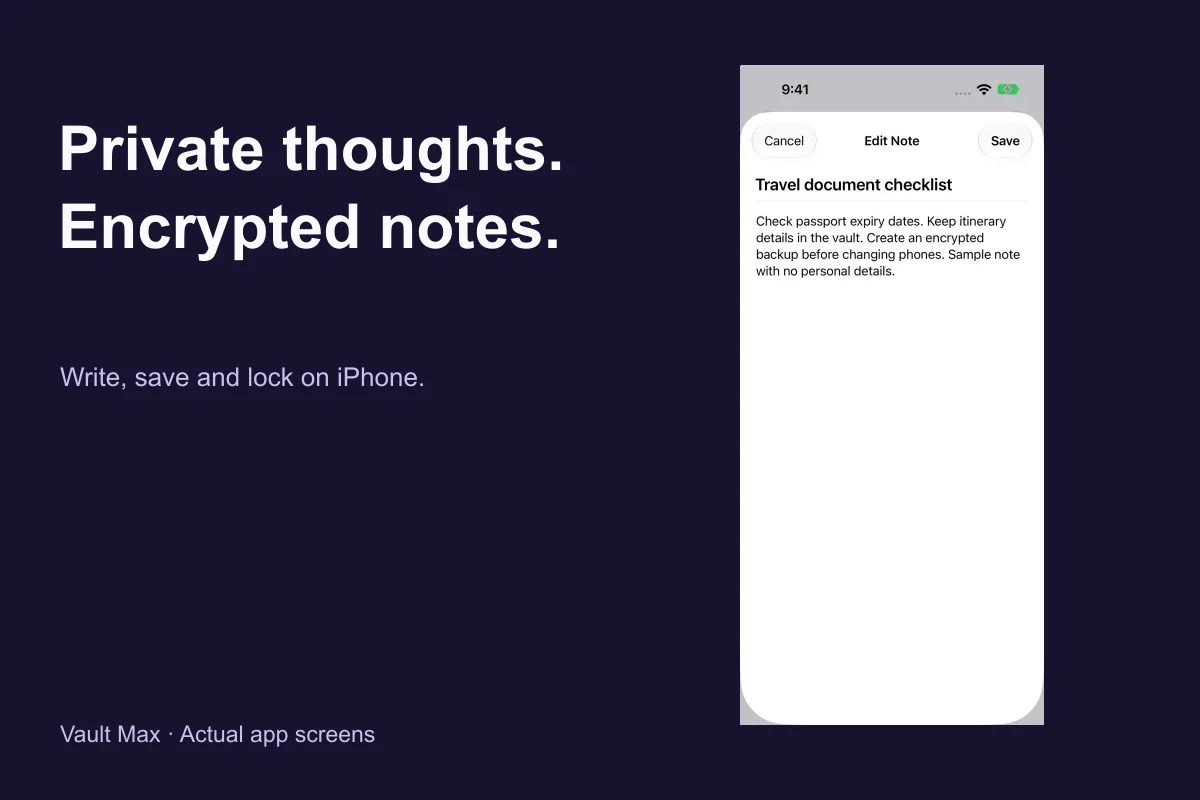
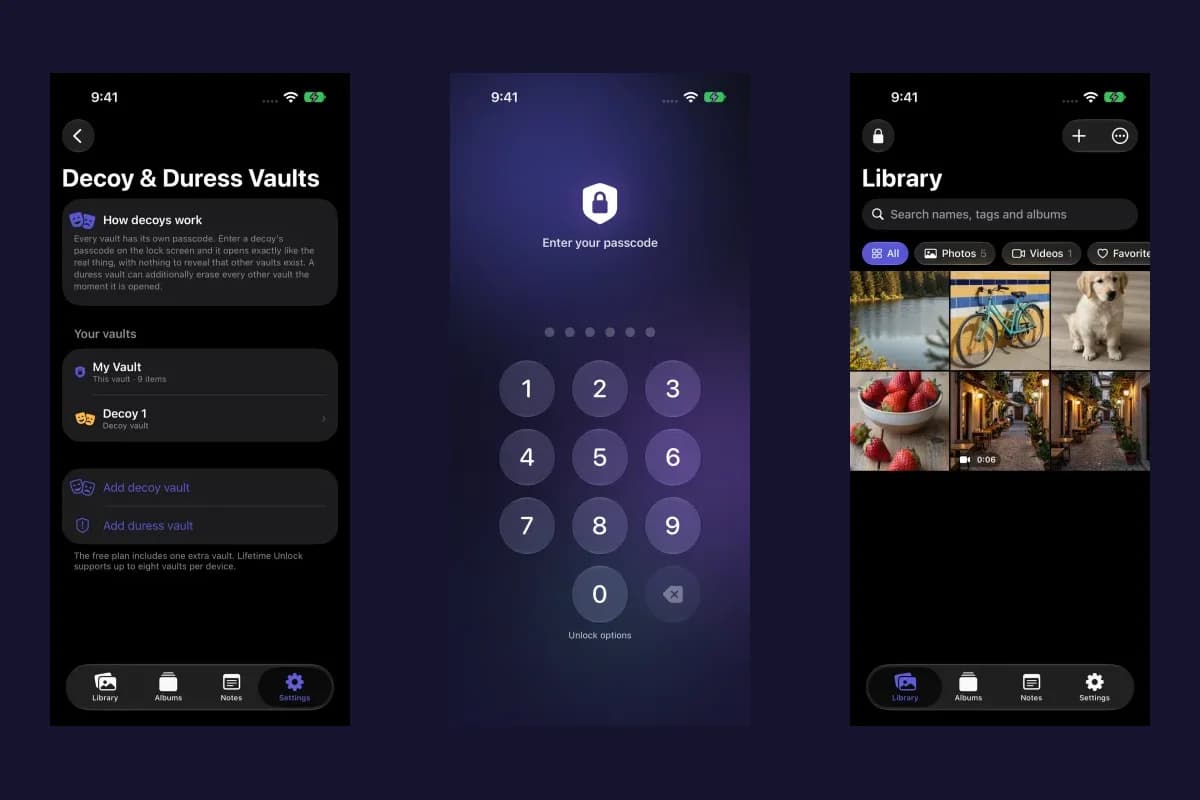
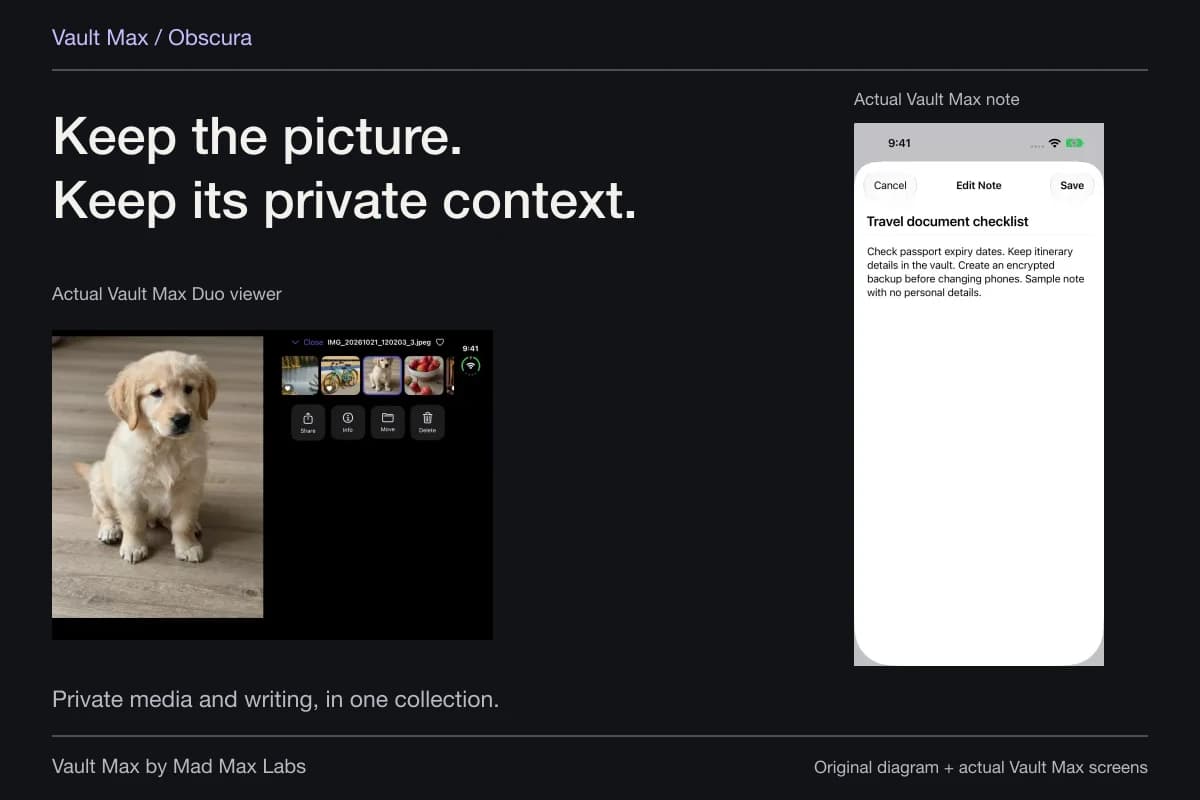
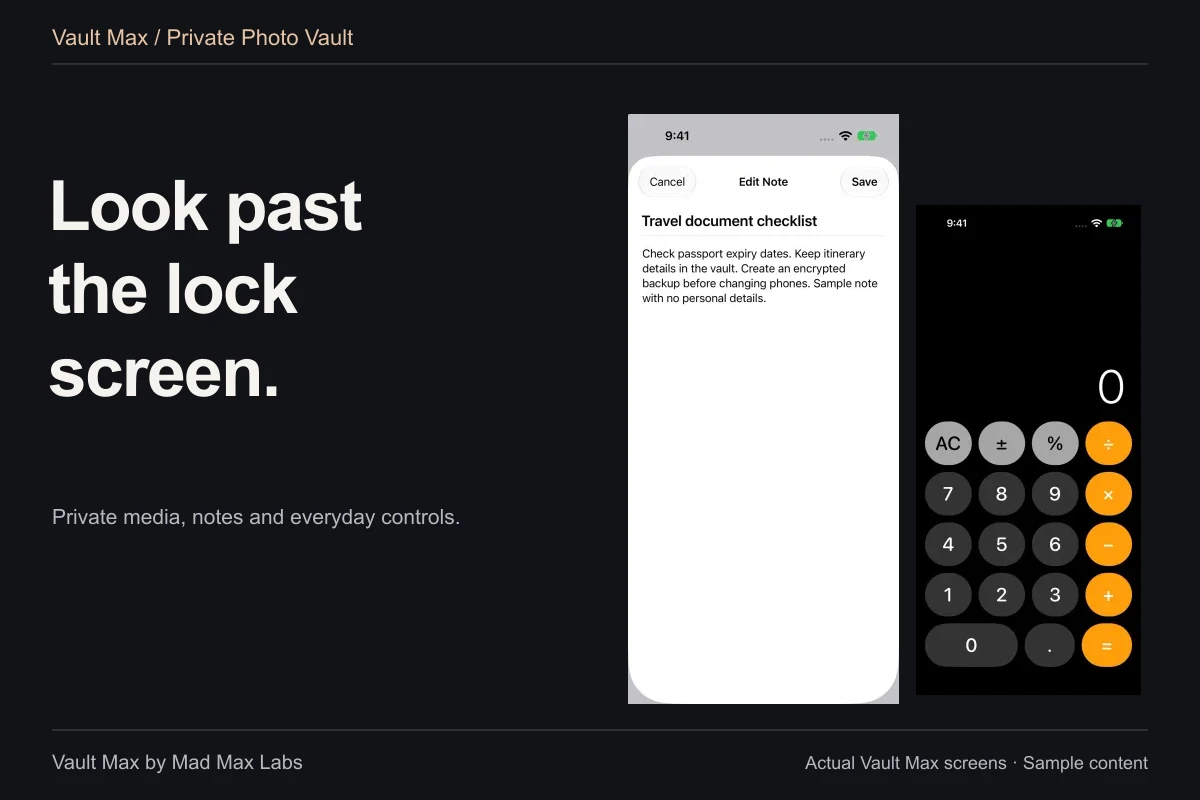
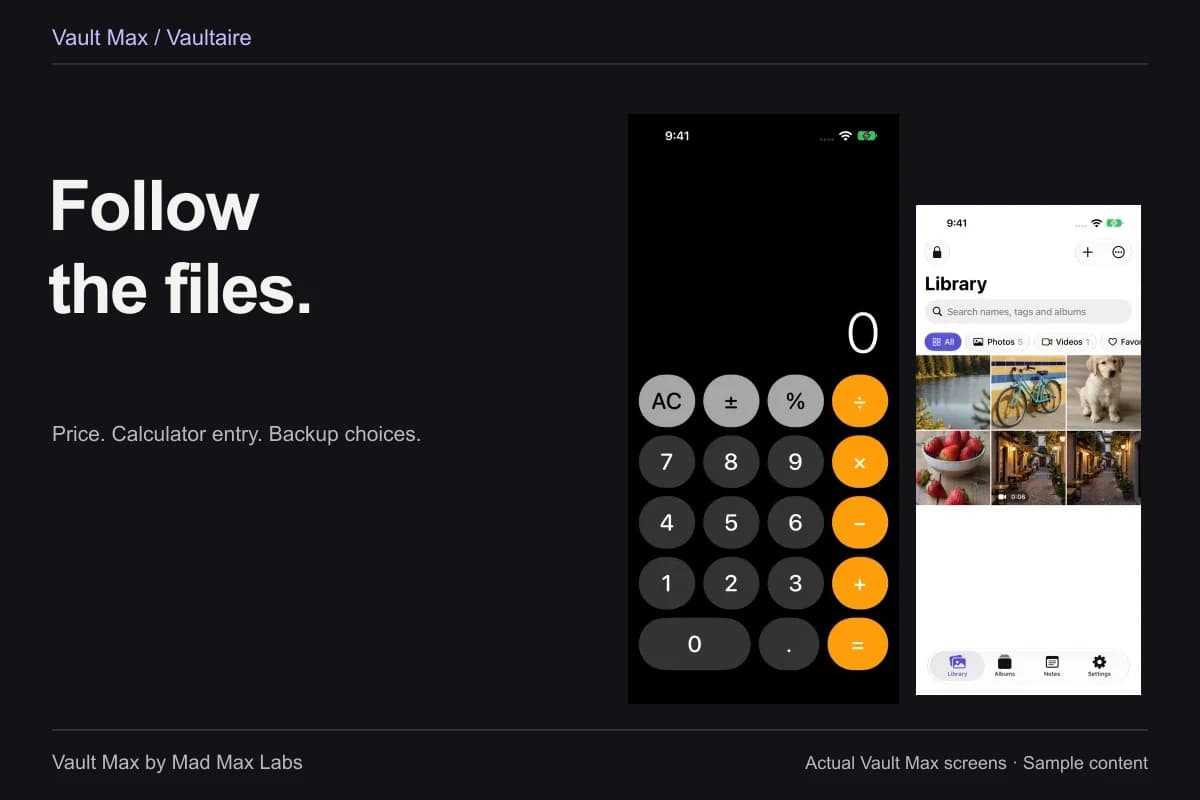
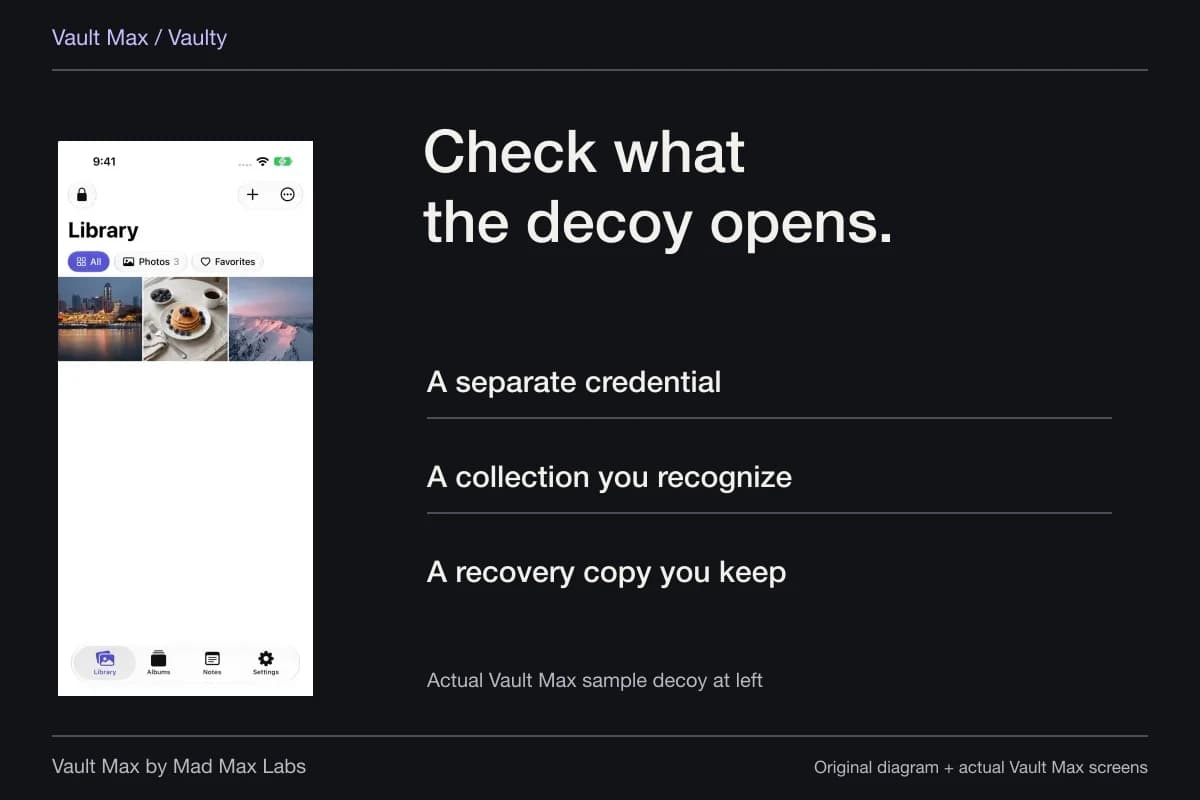
Sample Vault Max library. Select a screen for a closer look.
Review Include in iPhone backups too. Your working storage, device-backup configuration and explicit archive destination are separate choices. Keep the archive password independently available, make fresh snapshots after important changes and verify recovered content before retiring the original phone.
You do not have to pick one slogan for the entire setup. Use iCloud Photos when its synchronization fits your needs, review Apple's account protections, and choose a separate vault when you want selected files behind their own credential and storage boundary. Then document the copies and recovery methods you actually use.
Continue reading
More guides
Practical tips for your private library. Swipe or scroll to choose your next guide.
50 guides to explore