
Privacy in practice
Hidden photos, iCloud and shared devices: where does the picture go?
Hiding a photo does not remove it from iCloud. Learn what syncs, how shared libraries differ, and how Vault Max changes the location of a private copy.
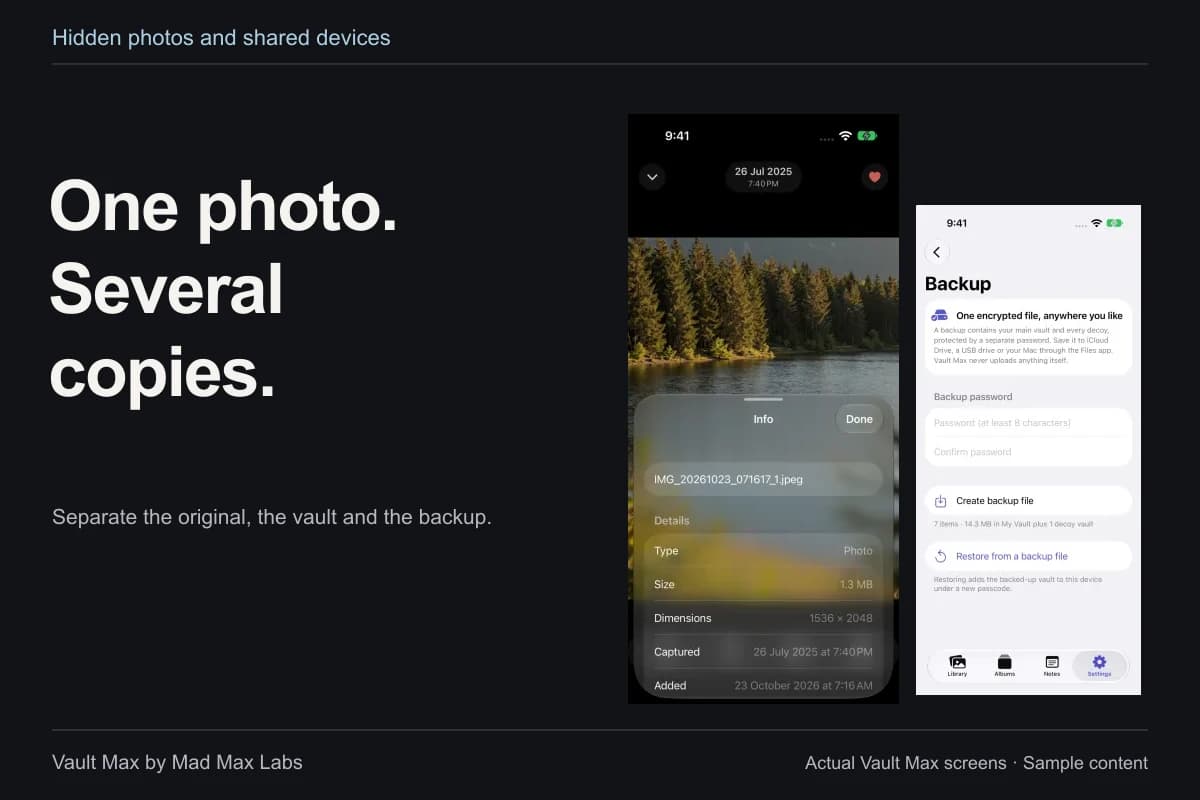
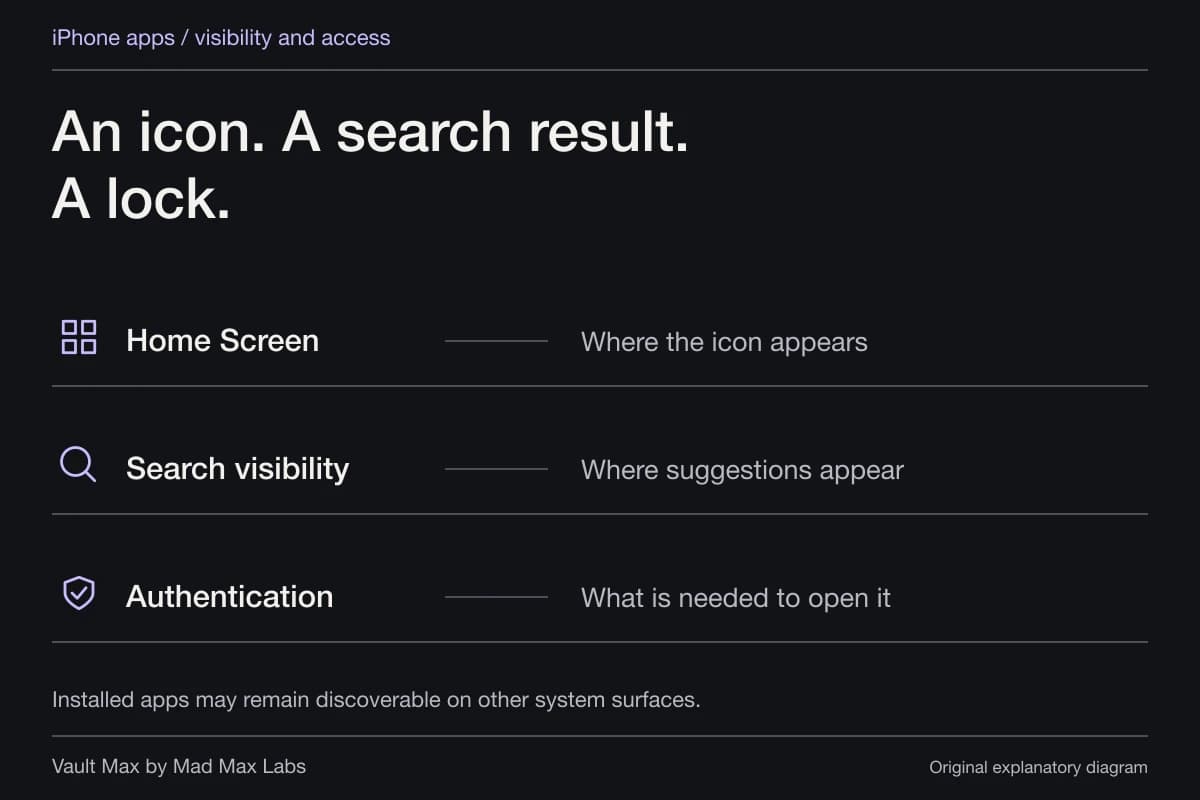
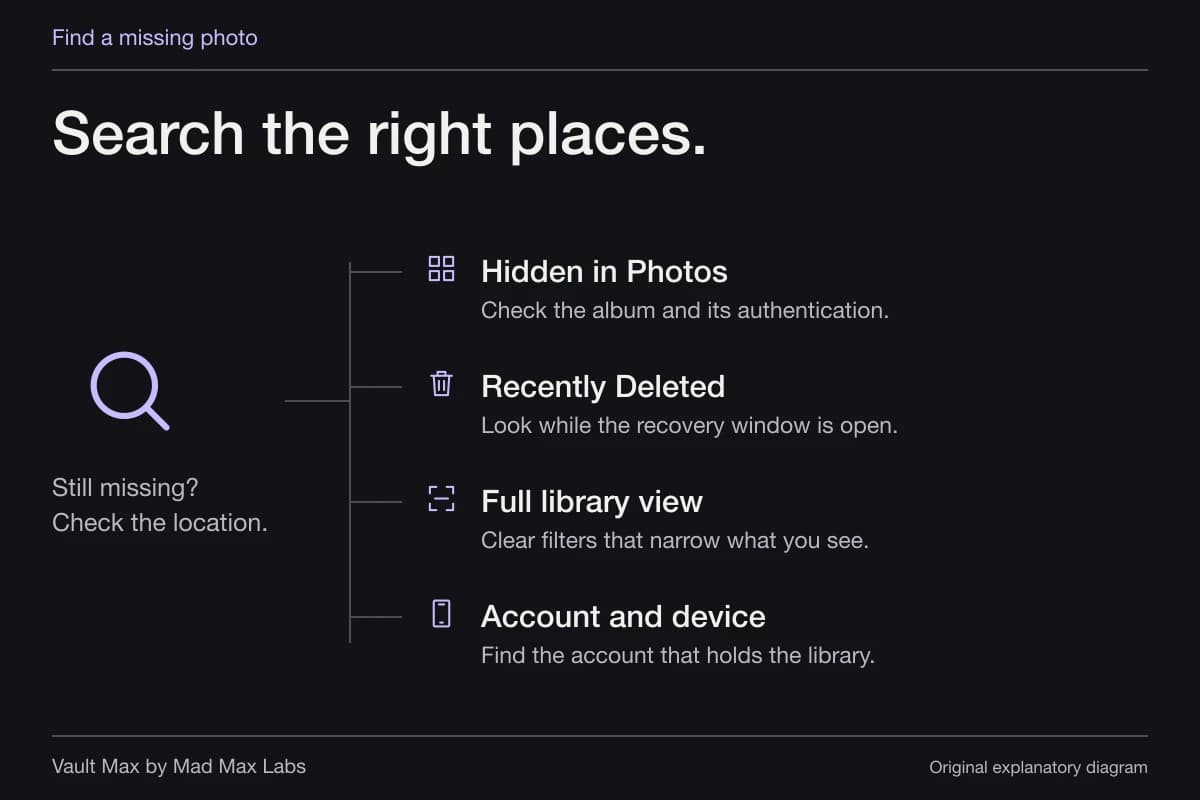
If you use iCloud Photos, hiding a picture on your iPhone also hides it on your other synced devices. It does not remove the picture from iCloud. Hidden describes where it appears in the Photos interface, not a separate storage destination.
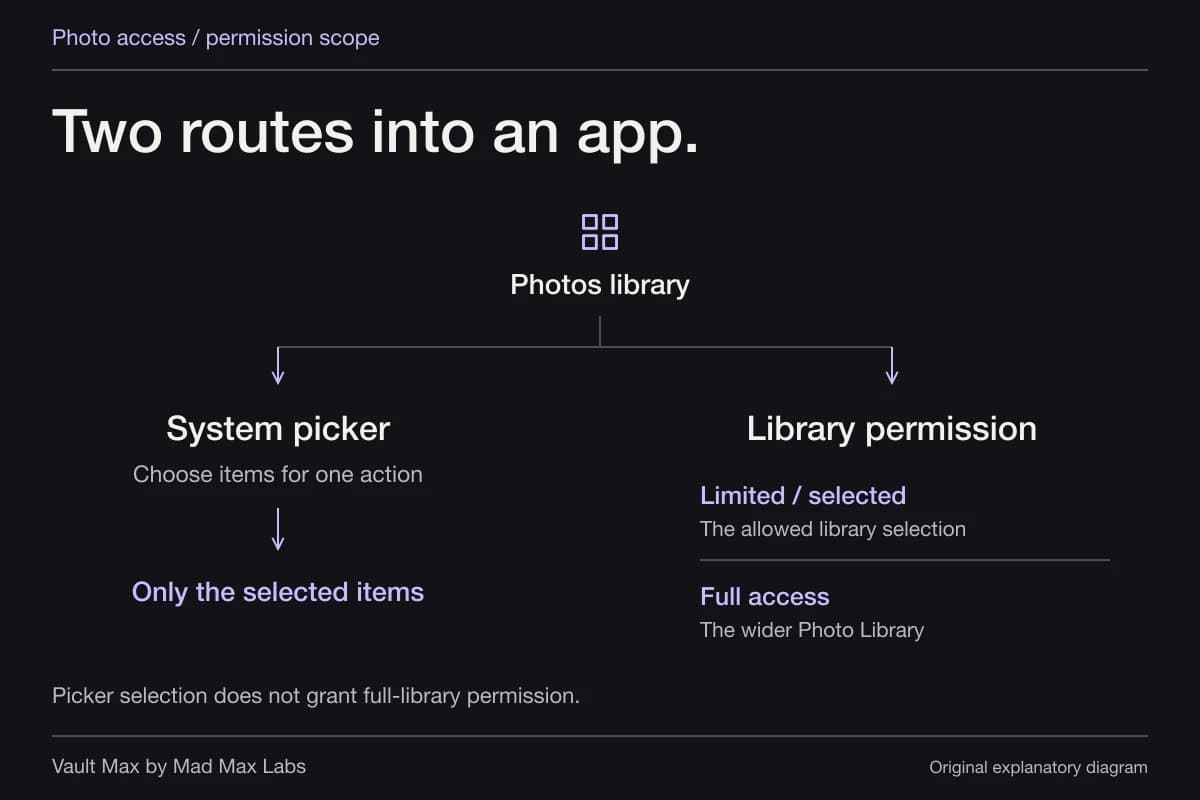
That is the first distinction to make when a family iPad, a shared Mac or an old phone enters the picture. Then check which Apple Account is in use, whether the photograph belongs to a shared library, and whether you have made other copies. One setting does not answer all four questions.
Hiding changes visibility while iCloud Photos keeps syncing
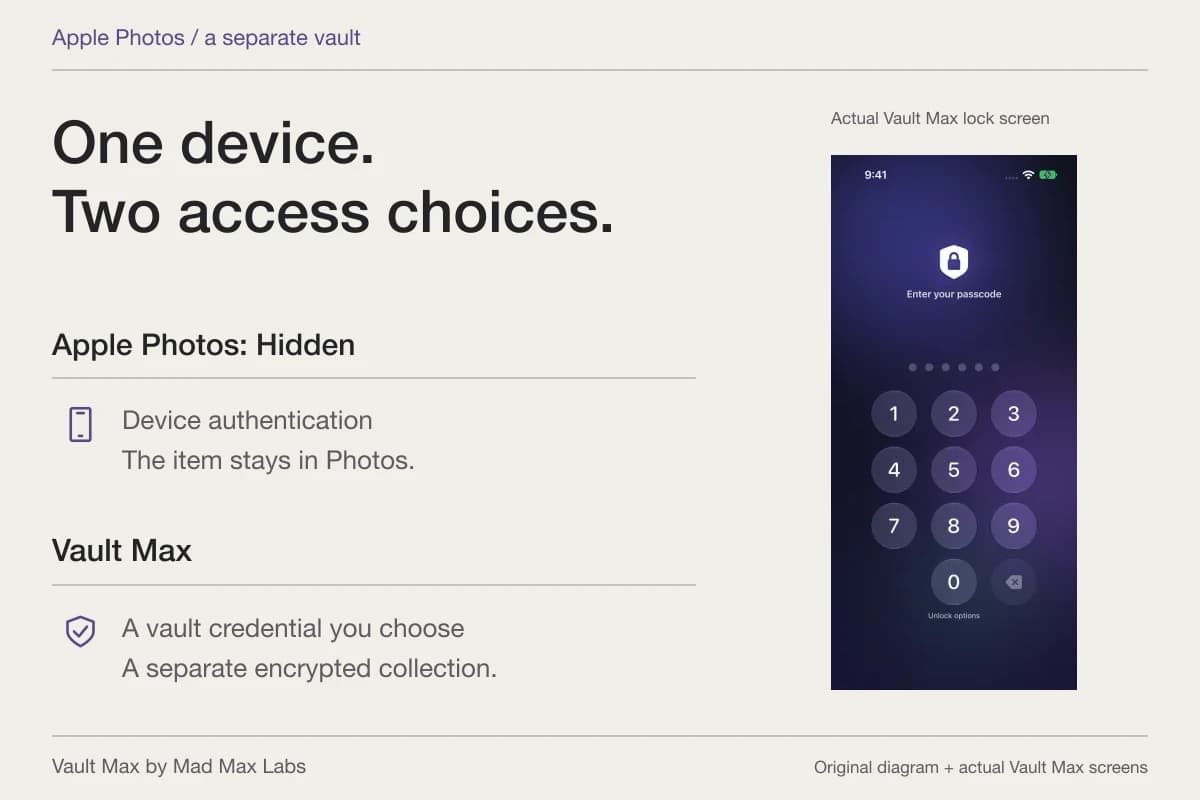
Apple's Hidden album instructions explain that hidden items leave the normal Photos views and that the hidden state follows them across devices using iCloud Photos. The items remain available through Hidden, subject to the authentication and settings on the relevant device.
Turning off Show Hidden Album removes that collection from view in Photos. It is not an instruction to delete its contents from iCloud. Someone using an appropriately accessible device or account may have a different route to the same library. Apple's iCloud.com guidance also describes viewing hidden items on the web.
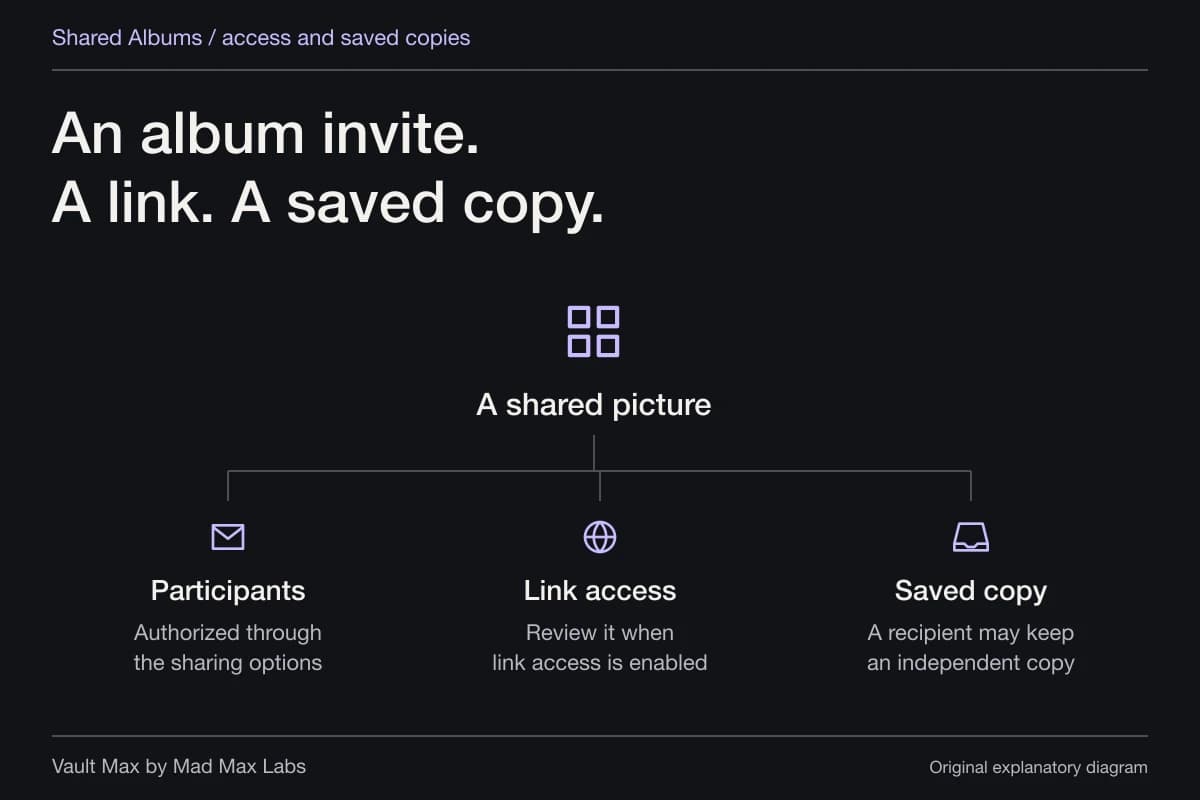
Separate three situations people call “shared”
A household sharing one Apple Account is not the same as several people using Family Sharing with their own accounts. Nor is either arrangement automatically the same as contributing pictures to an iCloud Shared Photo Library.
Apple says that when a family shares an iCloud+ subscription, each member uses their own Apple Account and their photos and documents stay private. Sharing storage capacity alone does not hand everyone the same photo library.
Shared Photo Library is different. Apple's hidden-photo guidance for iCloud.com says that hiding a photo in that shared library moves it to Hidden for all participants, where they can view or unhide it. Hiding is not a way to make a shared-library item private from its participants.
| Arrangement | What to check |
|---|---|
| Your devices using the same iCloud Photos account | The hidden state syncs; the picture remains in that Photos library |
| Family members sharing iCloud+ with separate accounts | Sharing storage does not itself merge their private libraries |
| iCloud Shared Photo Library | Participants can access hidden shared-library items |
| A Vault Max import | A separate encrypted copy is added on the device; review the Photos original independently |
| A Vault Max archive saved to iCloud Drive | The encrypted backup uses that cloud destination; it is not the working Photos library |
Importing into Vault Max creates a different copy
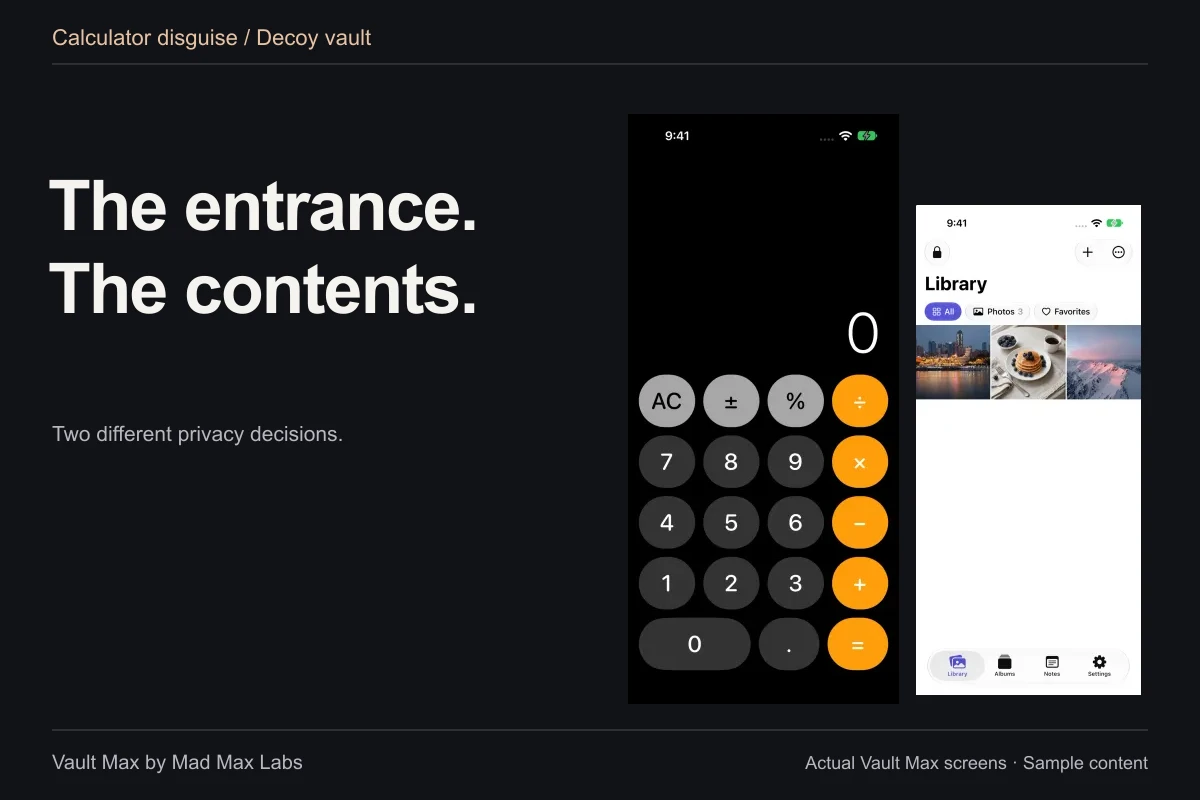
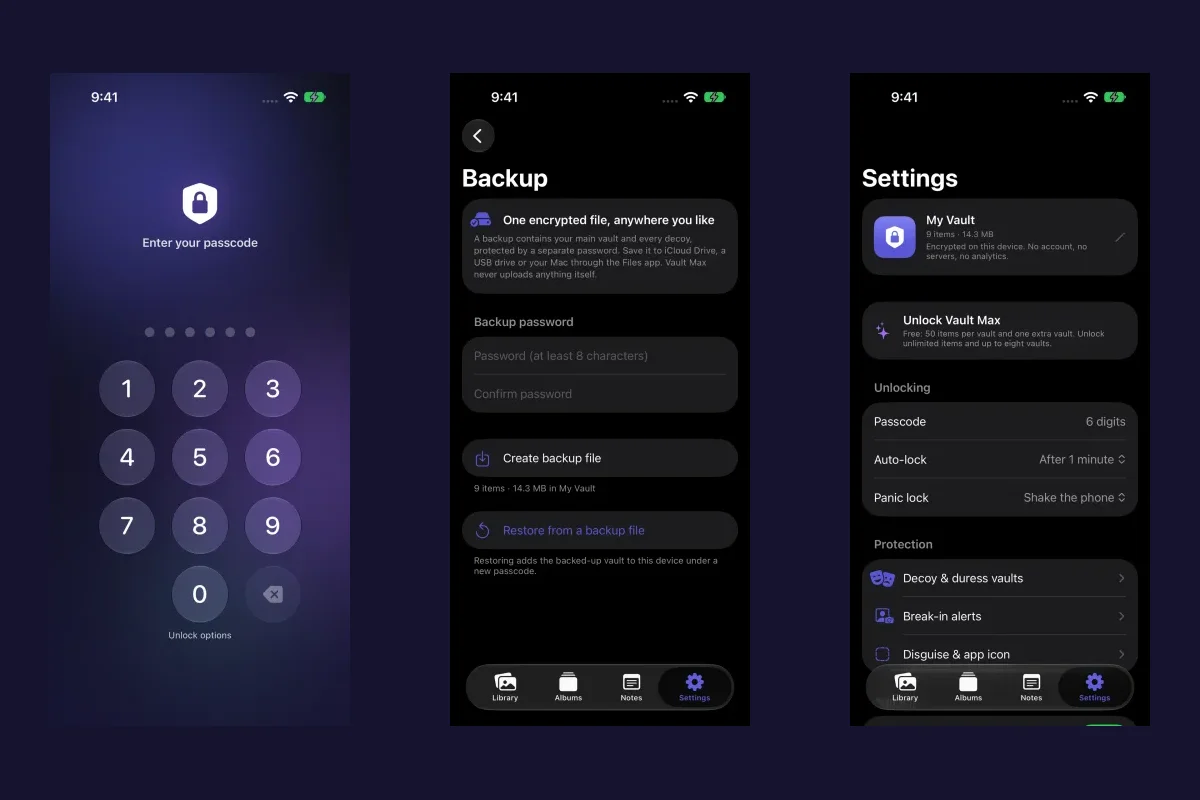
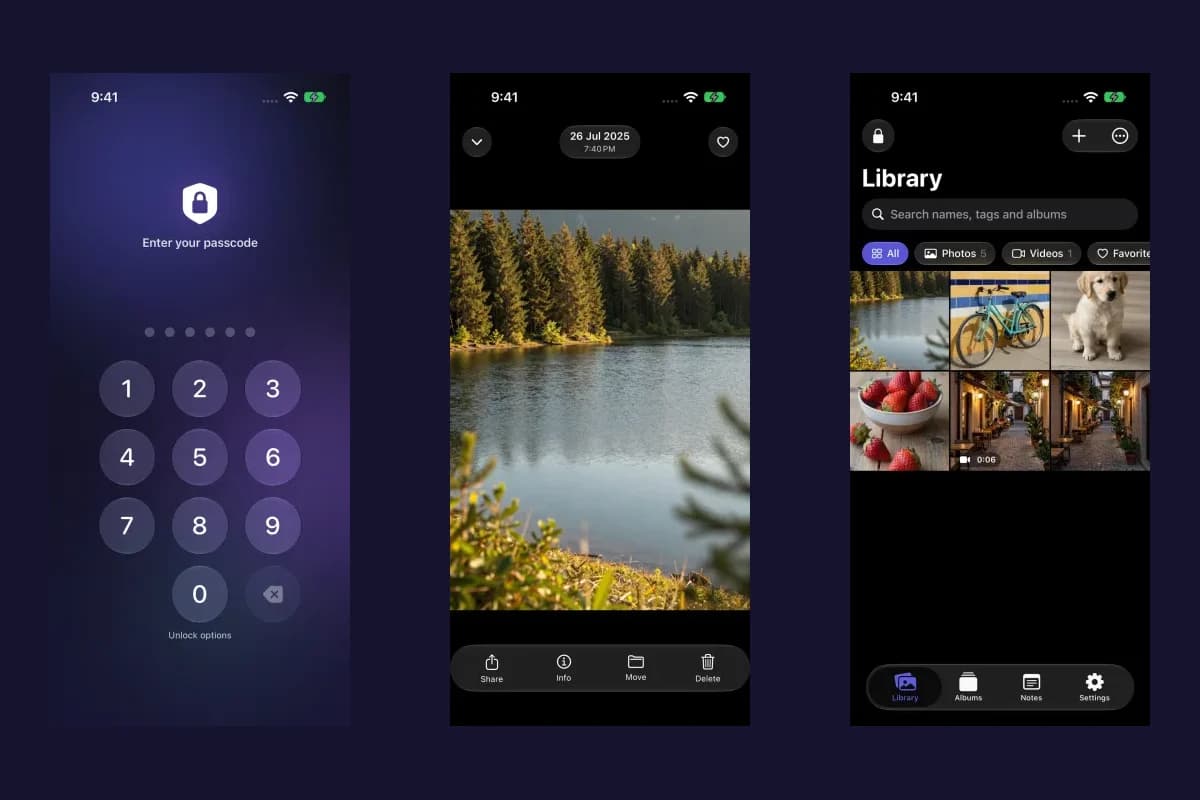
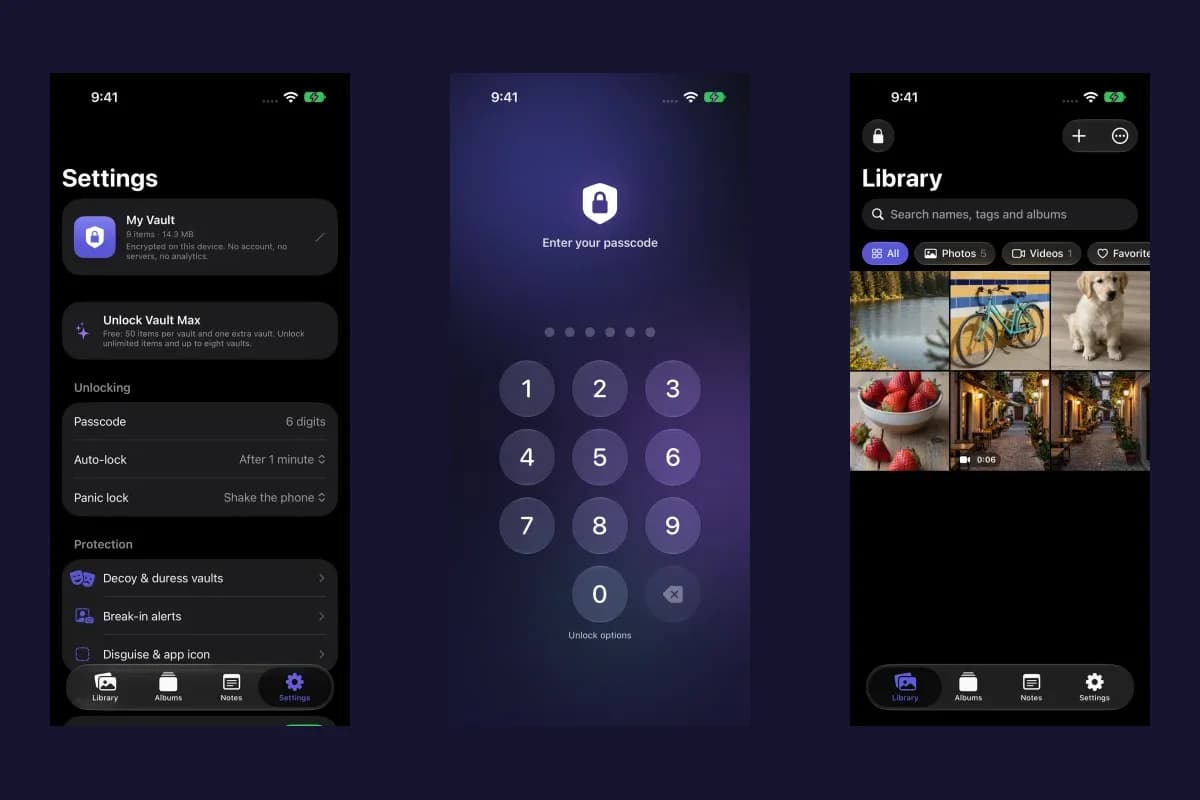
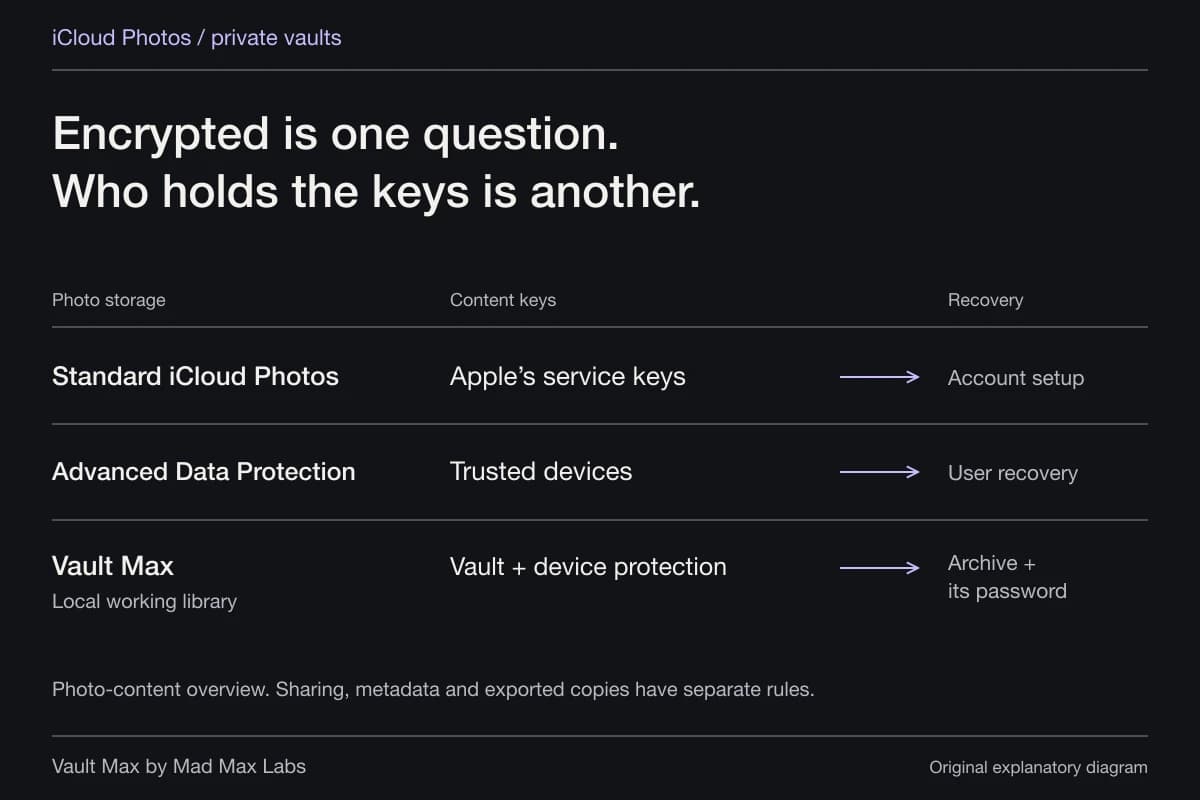
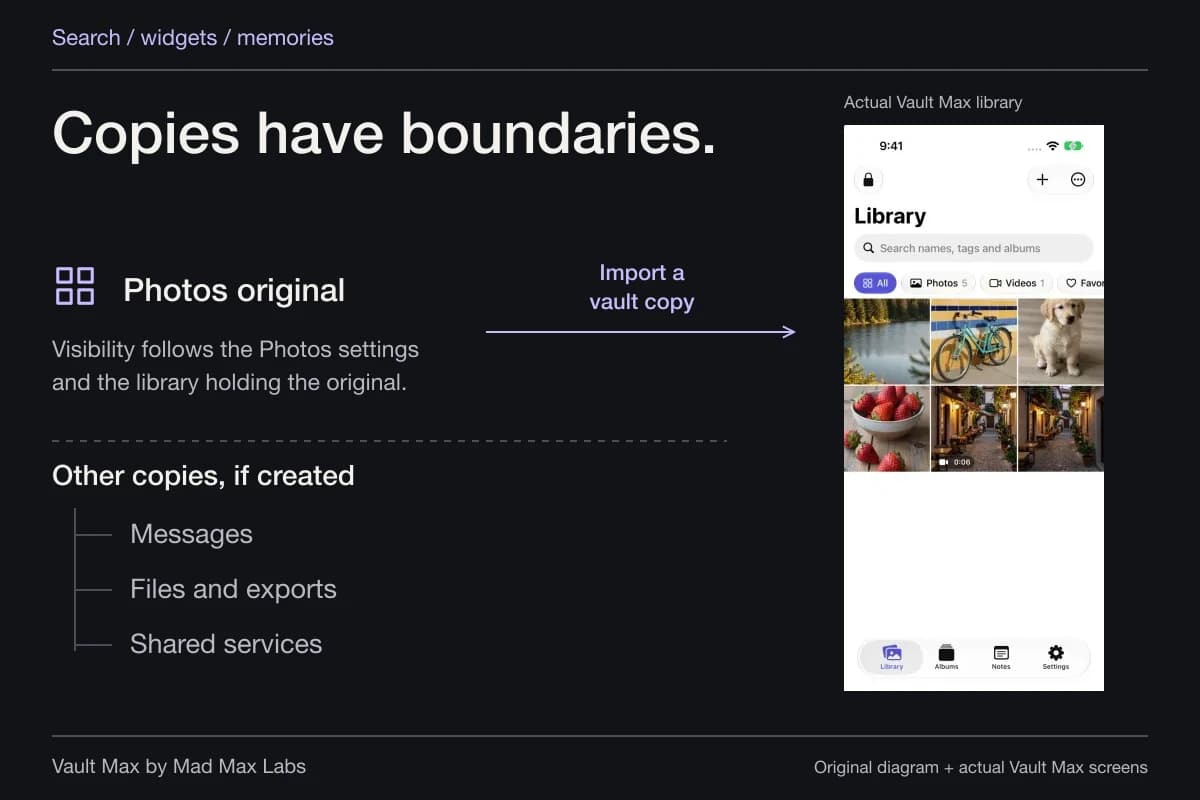
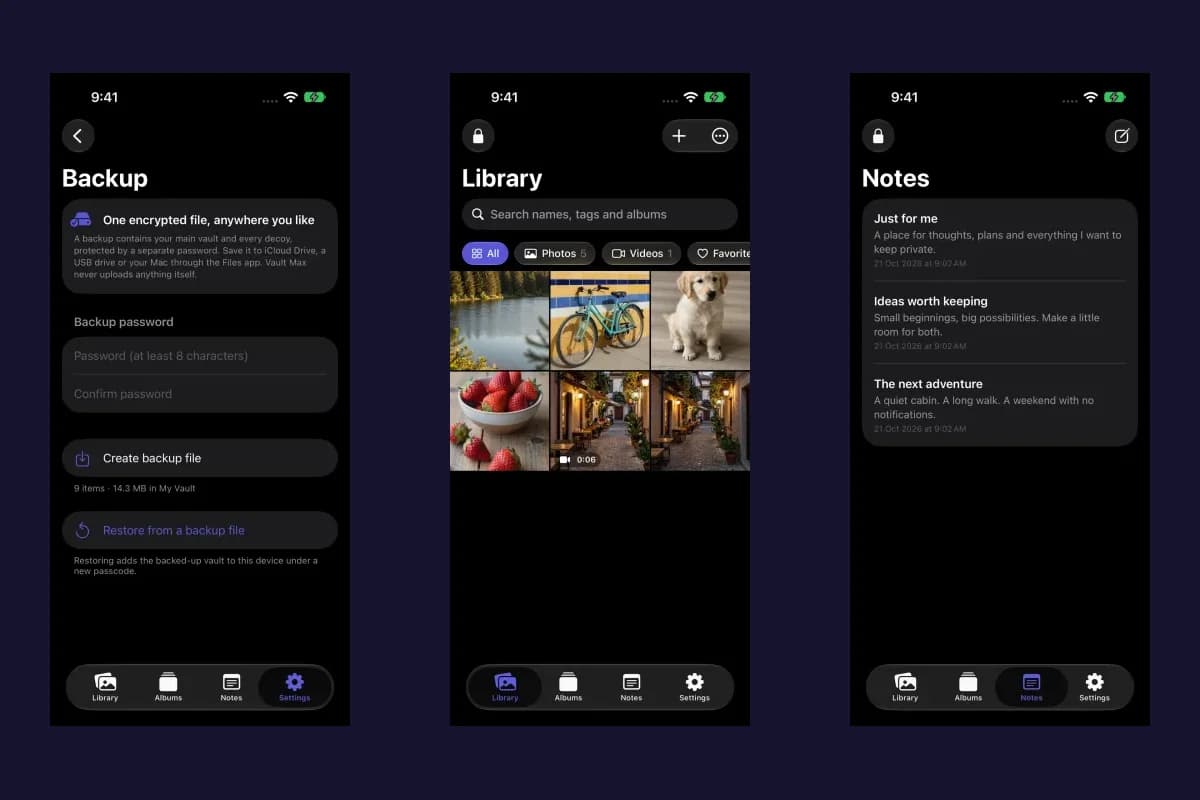
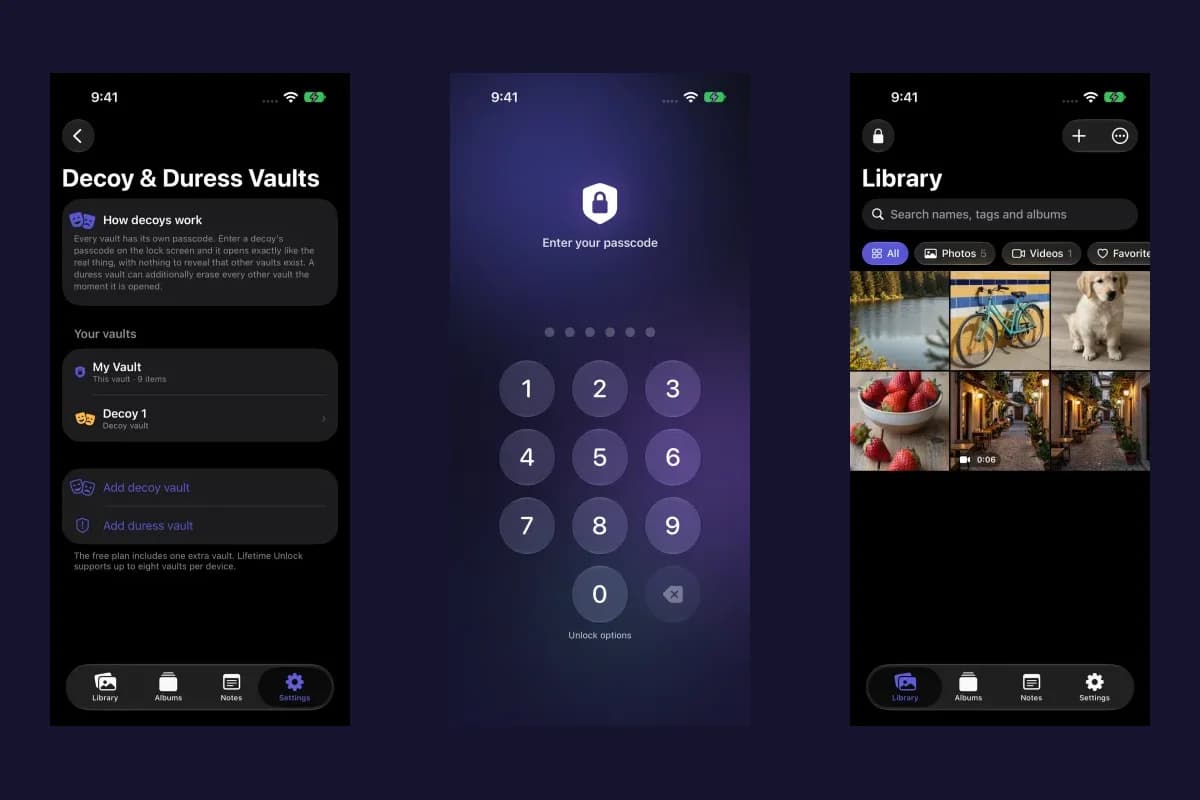
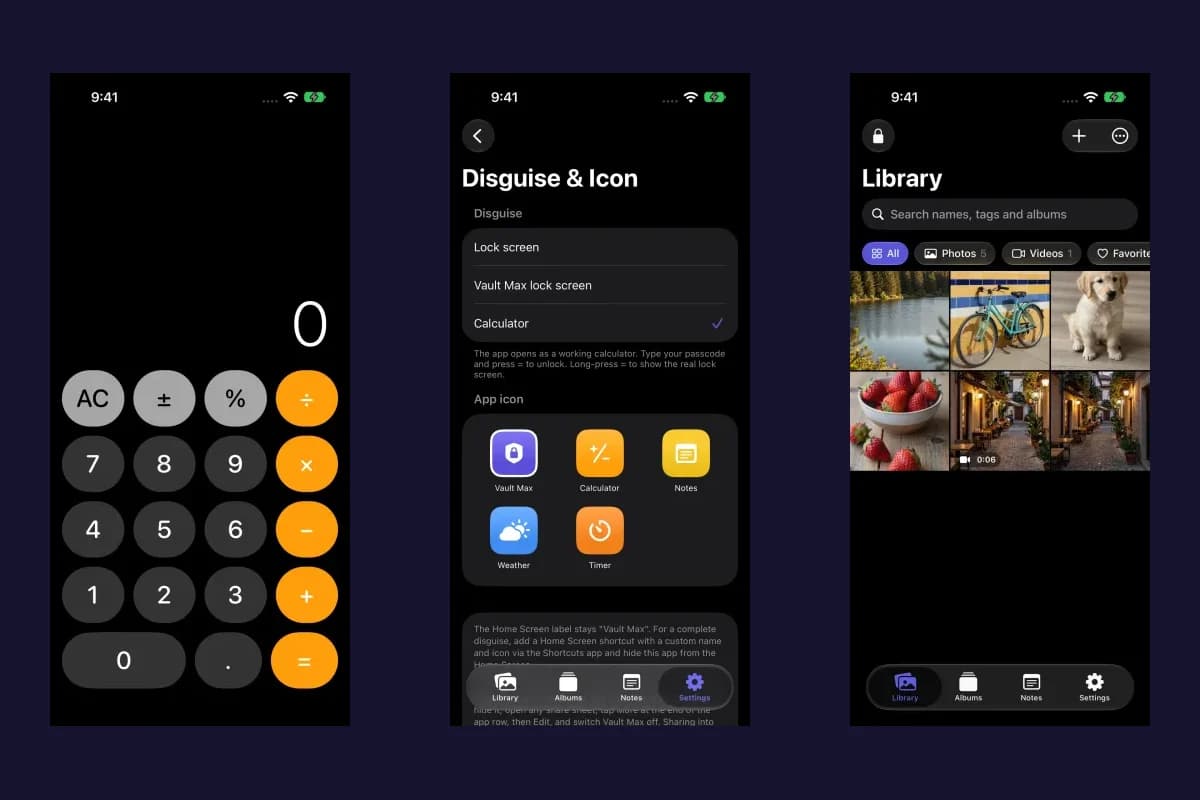
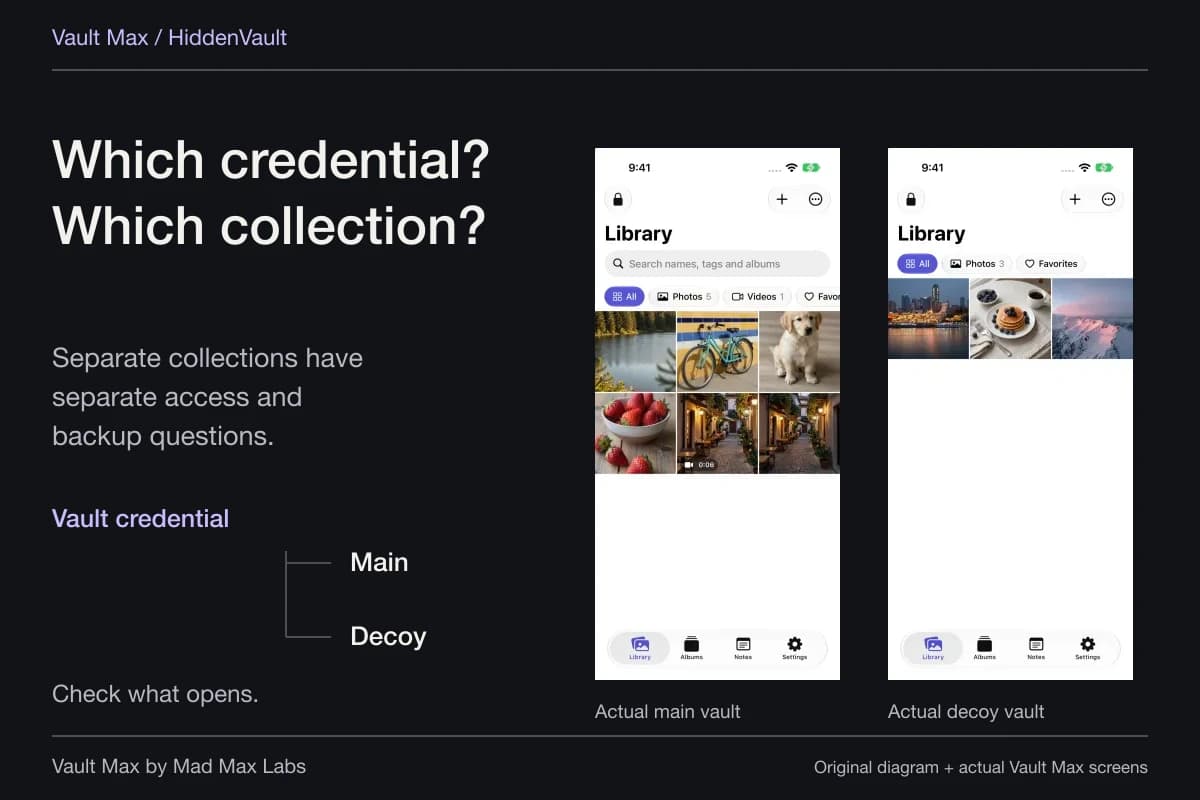
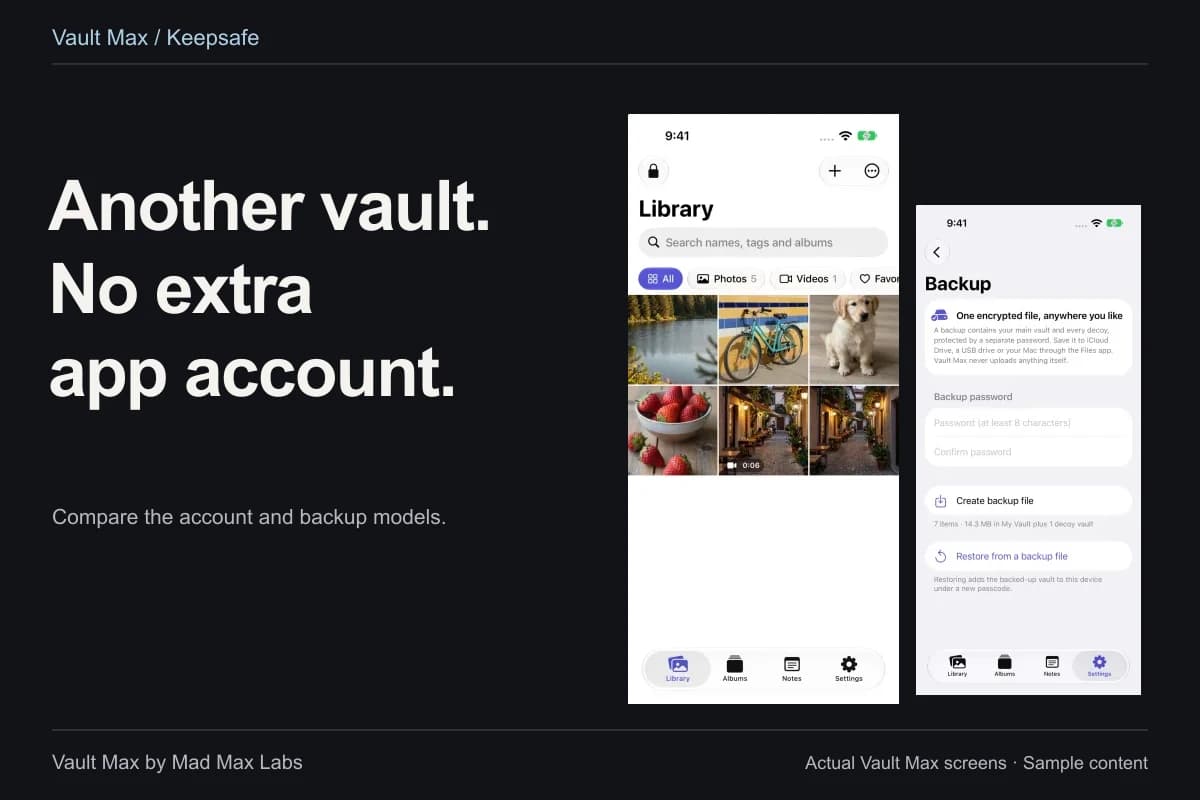
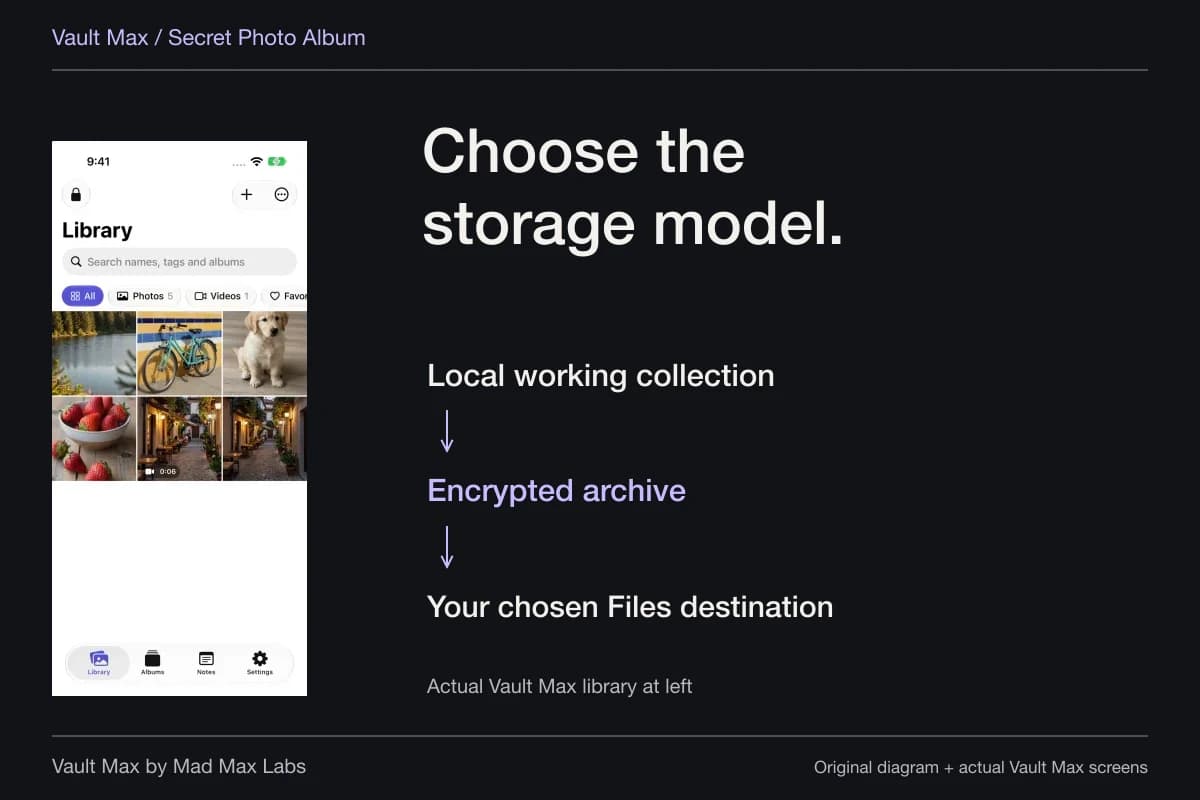
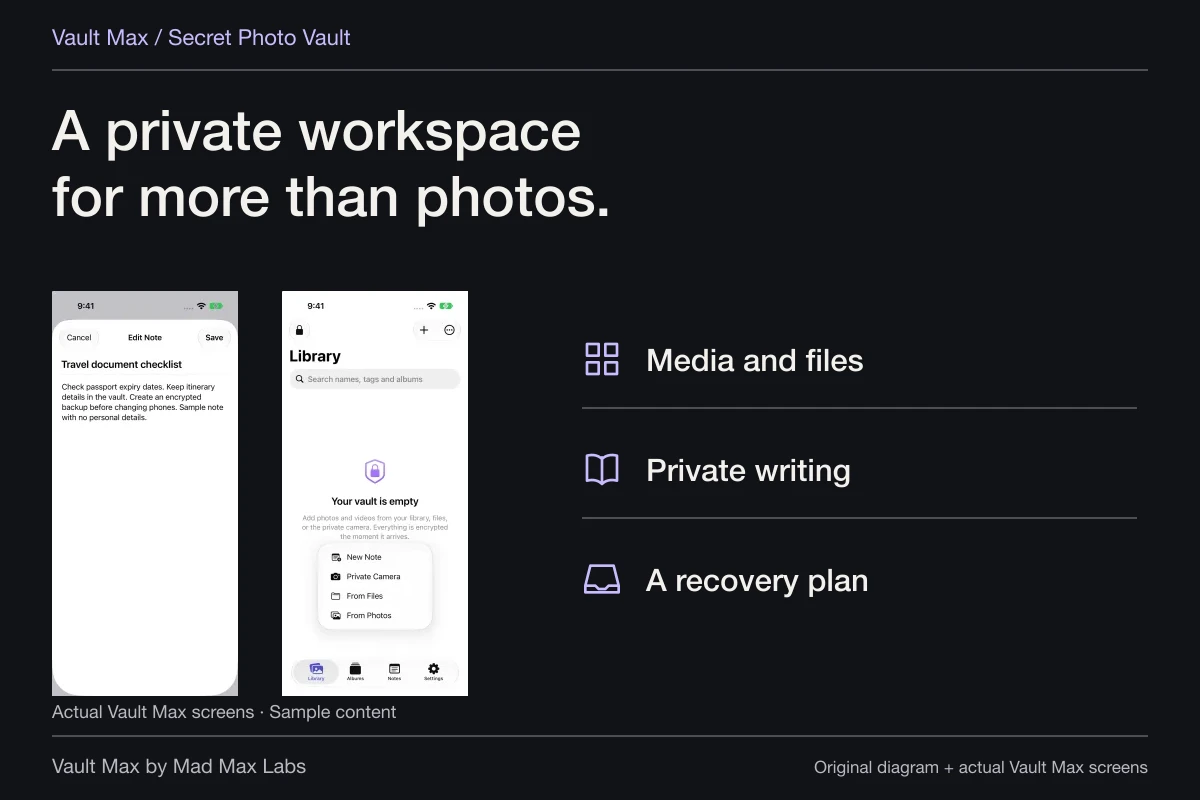
Vault Max stores its working library on the device behind its own credential. It does not require a Vault Max account or sync your media to a Vault Max server. Importing from Photos adds a vault copy; it does not automatically reverse earlier sharing or change the storage destination of the Photos original.
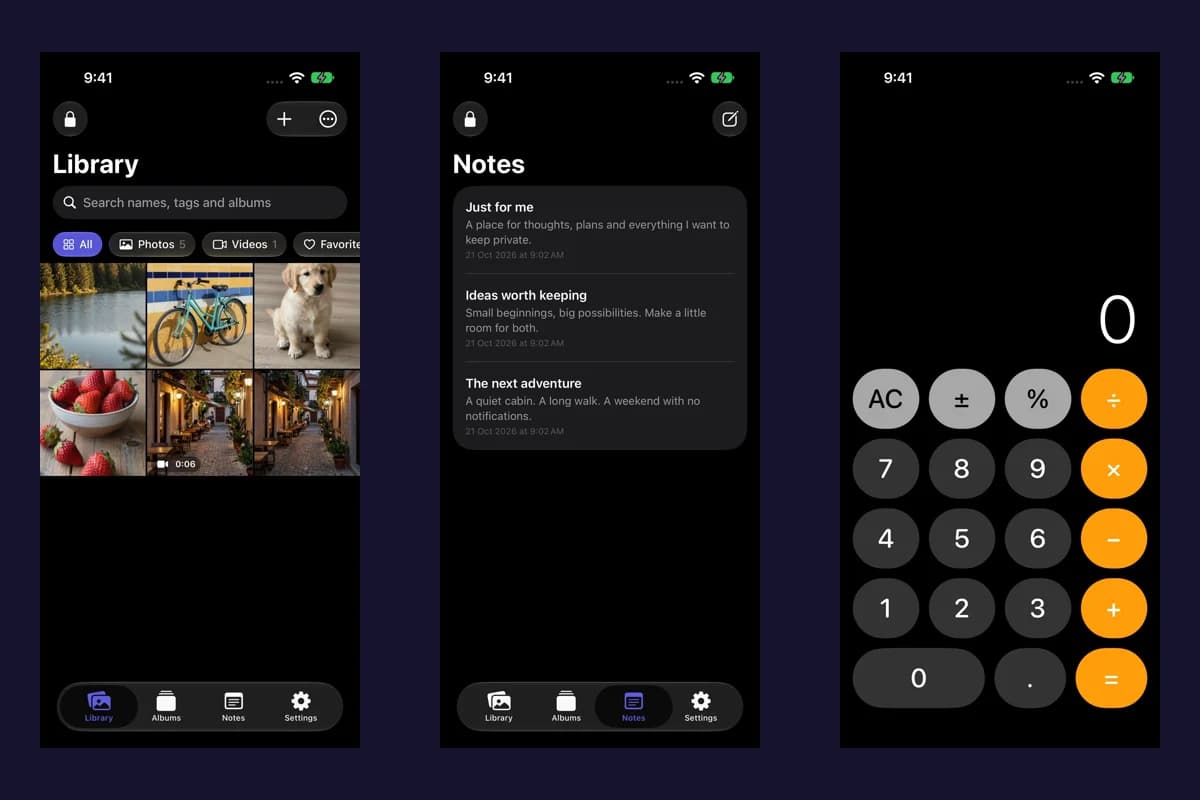
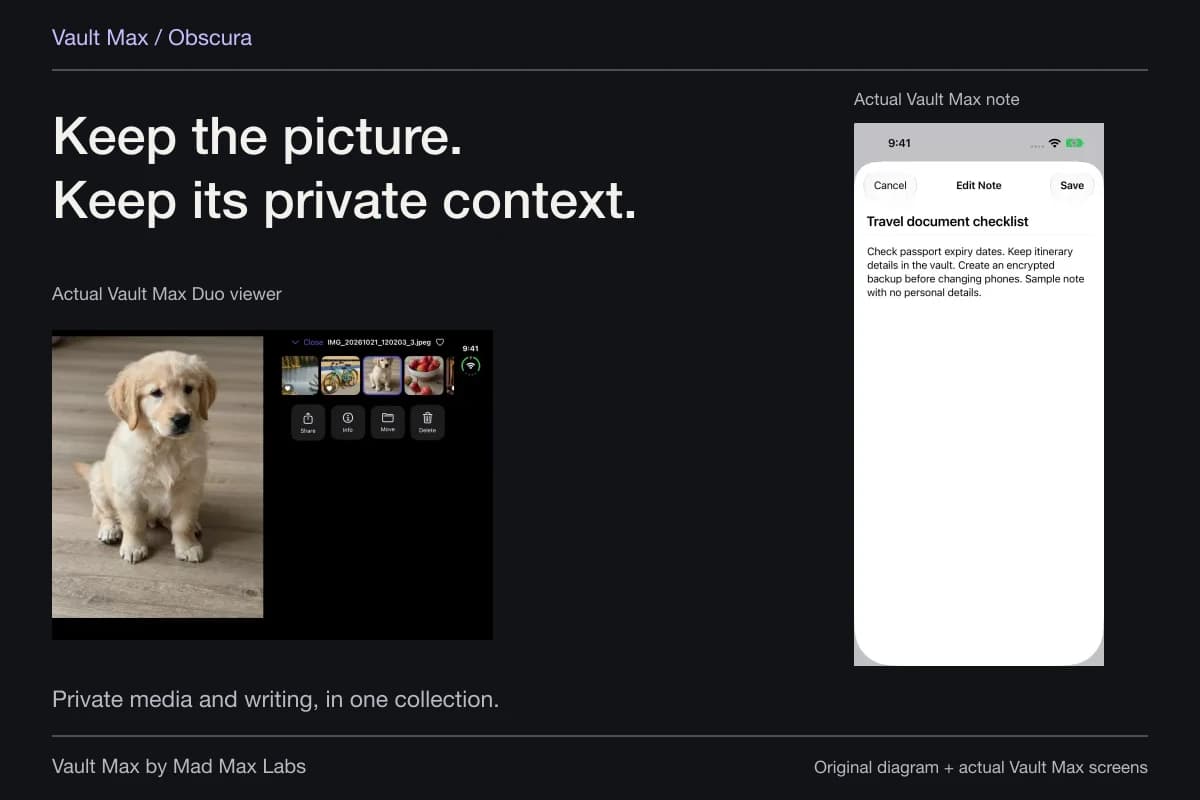
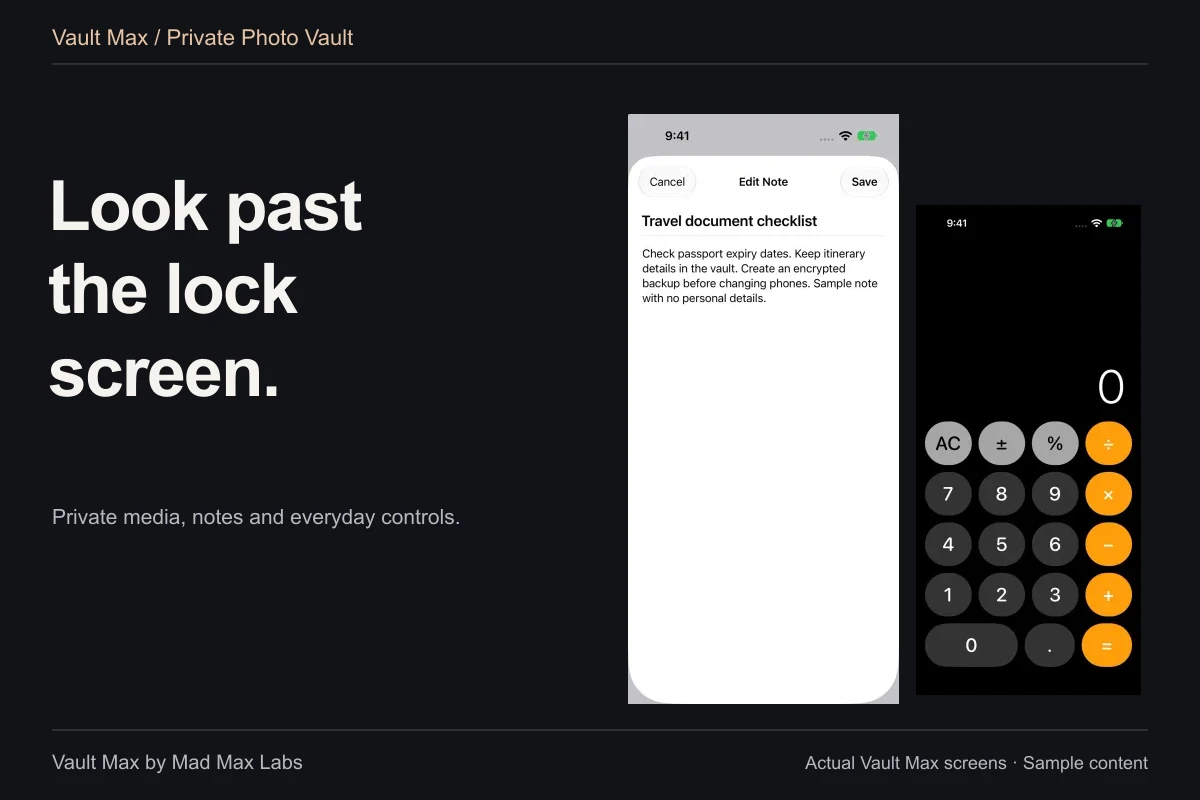
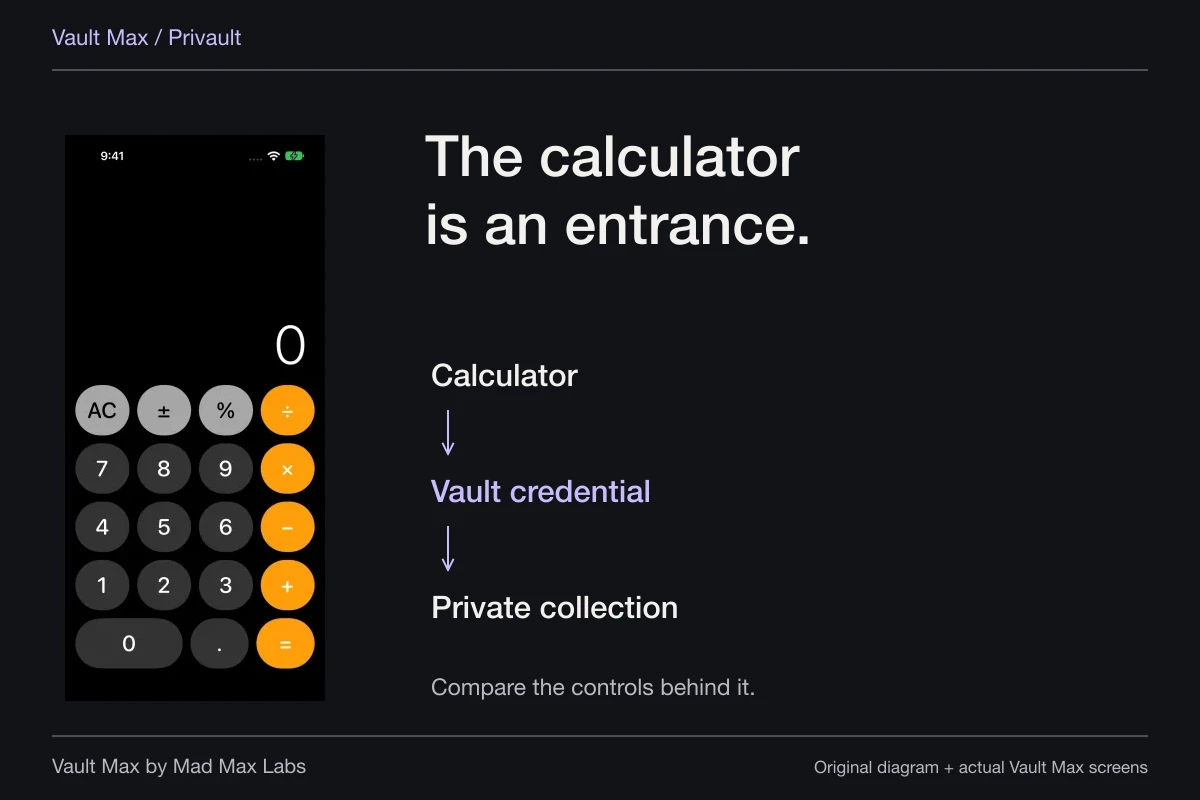
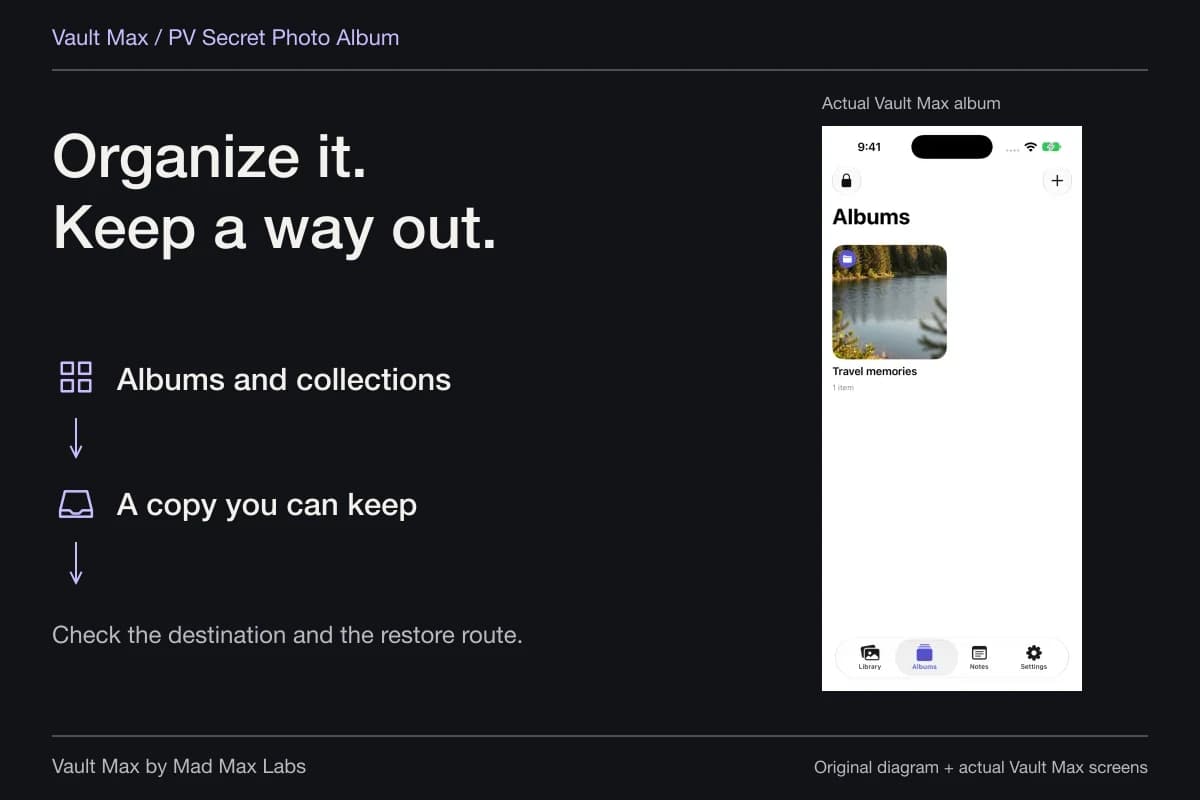
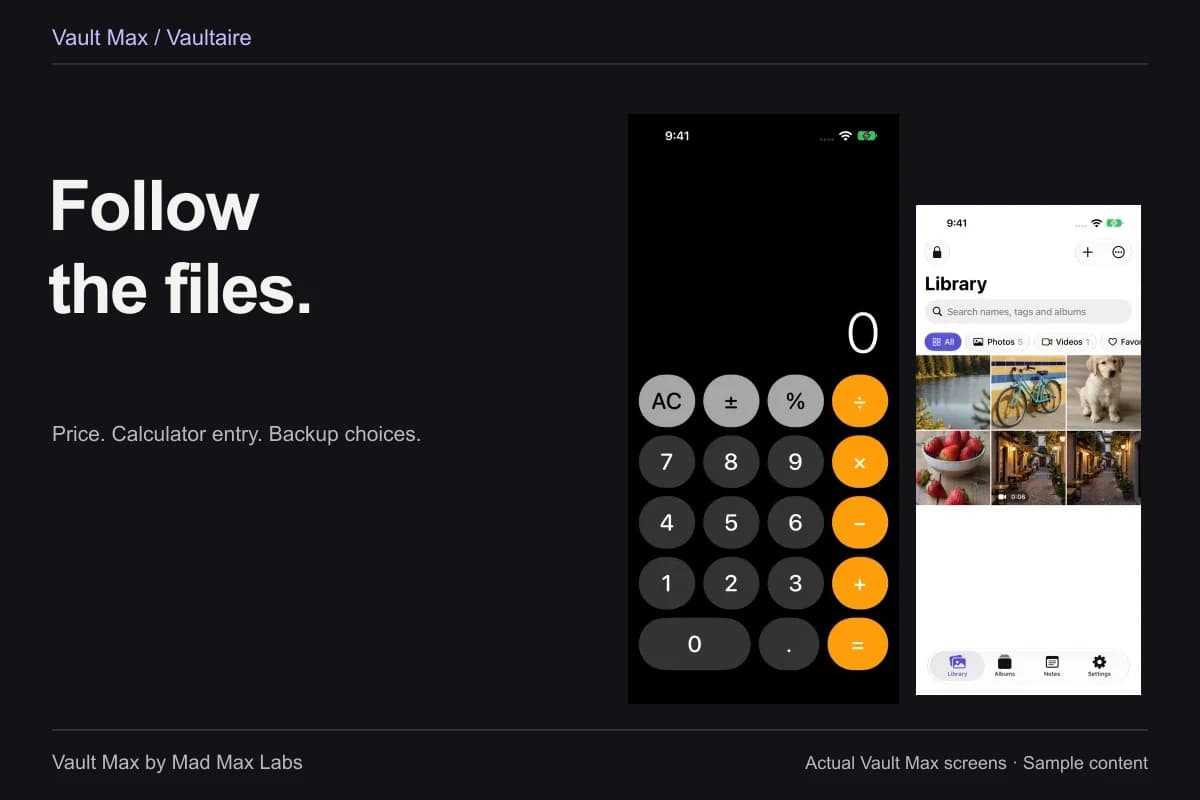
Sample Vault Max library. Select a screen for a closer look.
The import walkthrough explains how to check the result before responding to an offer to remove originals. Do not use an important photograph as the first experiment with an unfamiliar storage workflow.
Deletion is a separate decision with wider effects
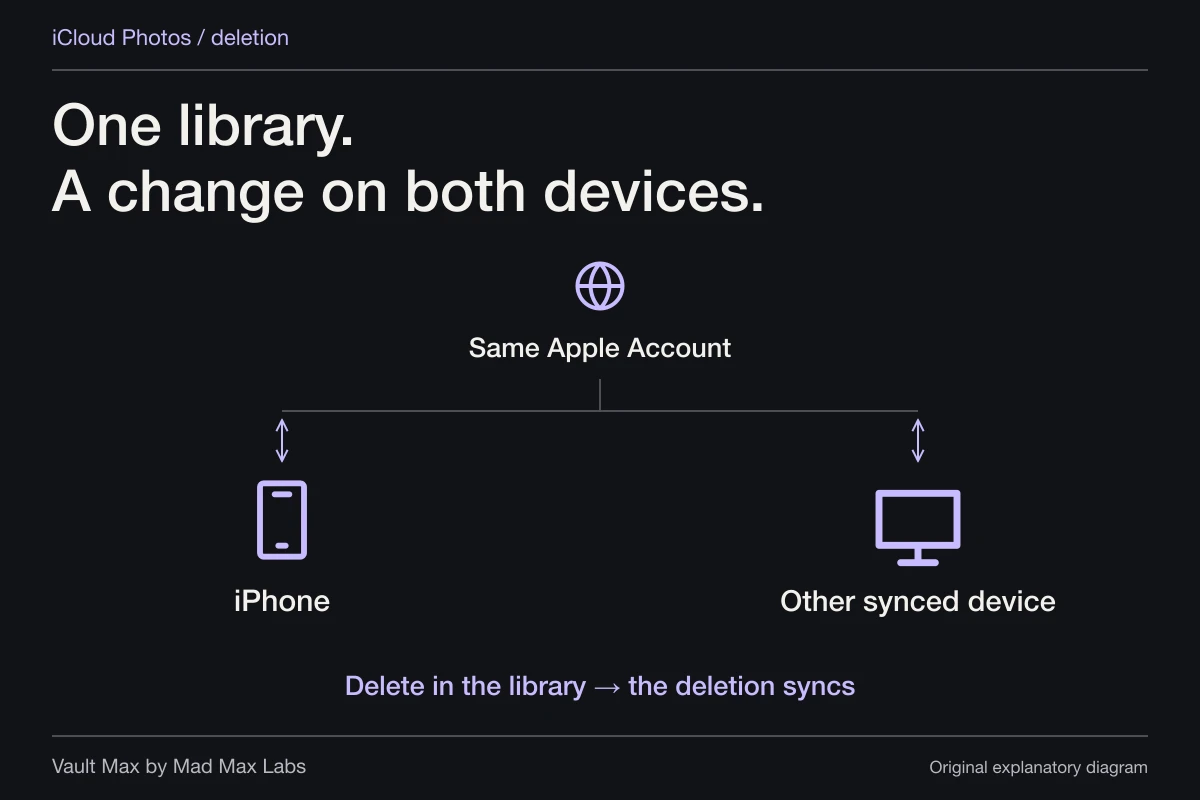
Apple's deletion guidance says that deleting an item with iCloud Photos enabled deletes it on the other devices using that account. Deleted items ordinarily remain recoverable in Recently Deleted for 30 days; permanent deletion from there removes that recovery option.
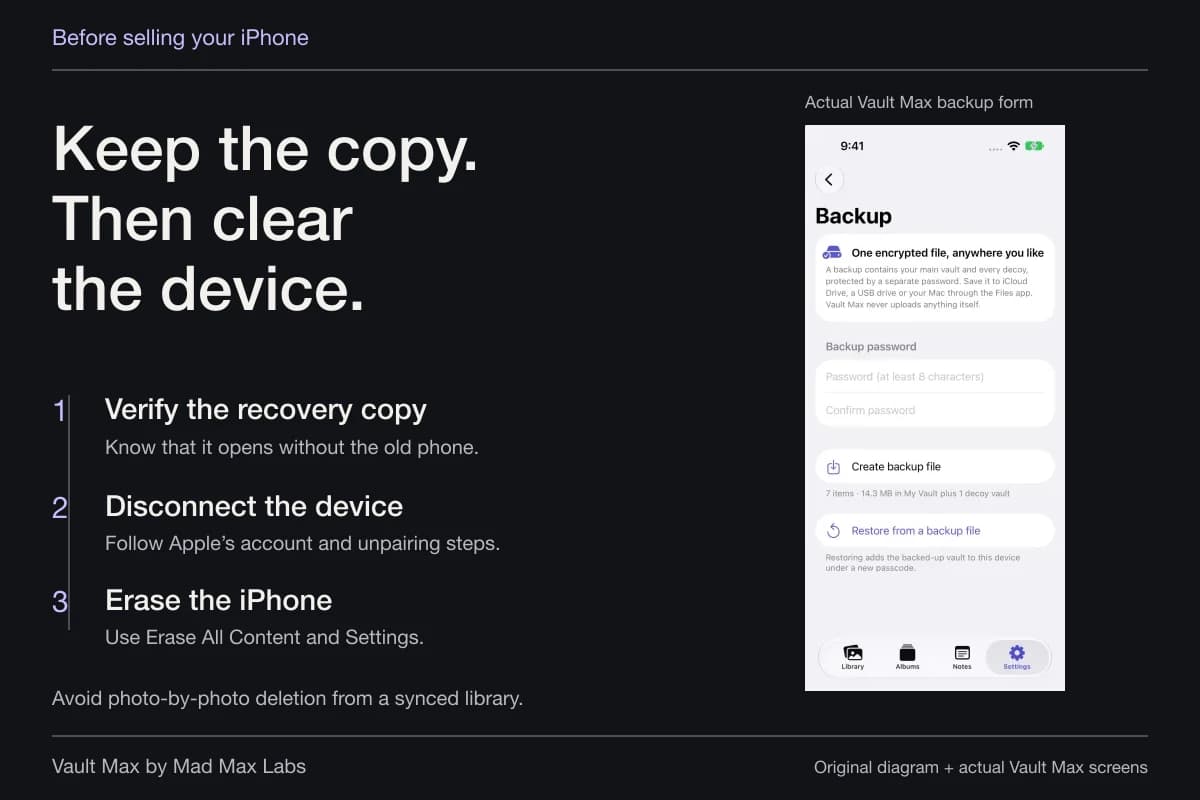
Before removing an original, check the vault copy and make an independently usable recovery archive. Do not assume that an old synced device is a spare backup of a library whose deletions it also receives. If the picture was already sent elsewhere, deleting your Photos original does not reach into the recipient's copy.
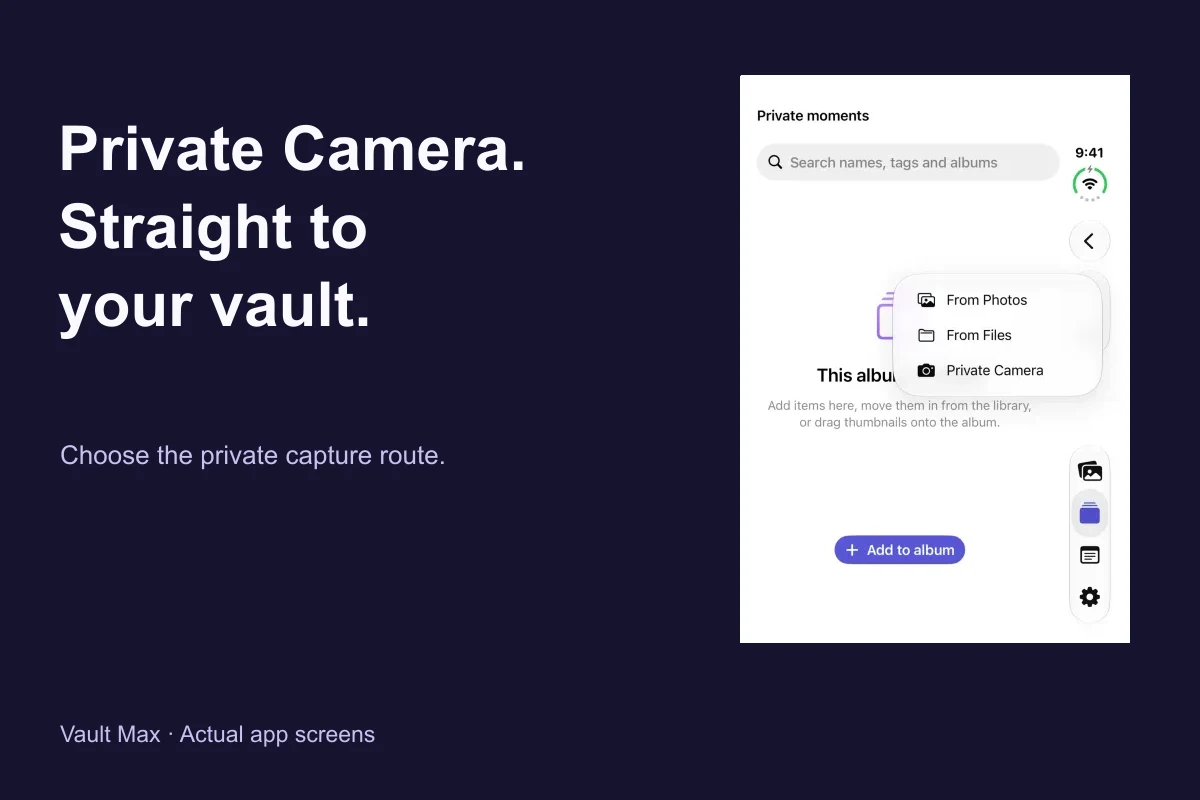
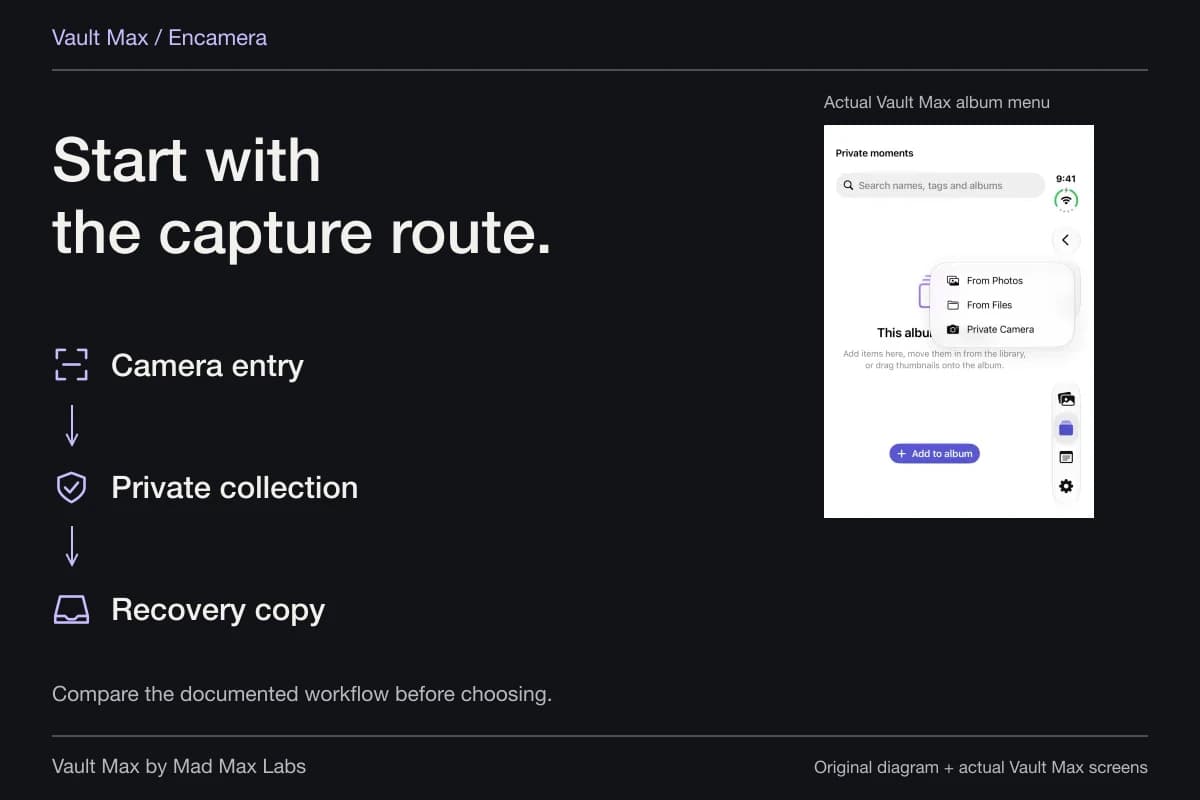
For future captures, Vault Max Private Camera starts photos and videos in the vault without adding them to the Photos library. That changes where a new capture begins. It cannot relocate yesterday's camera-roll picture or undo a previous share.
Decide whether your backup uses cloud storage
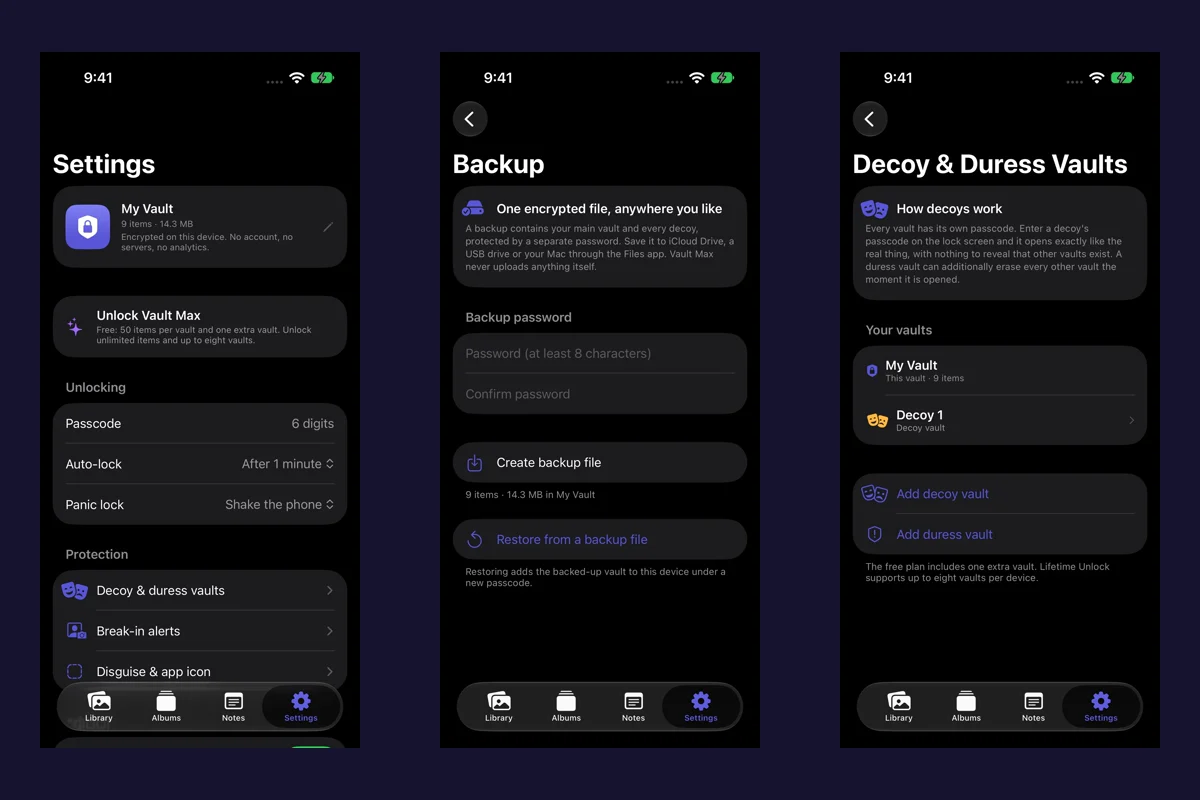
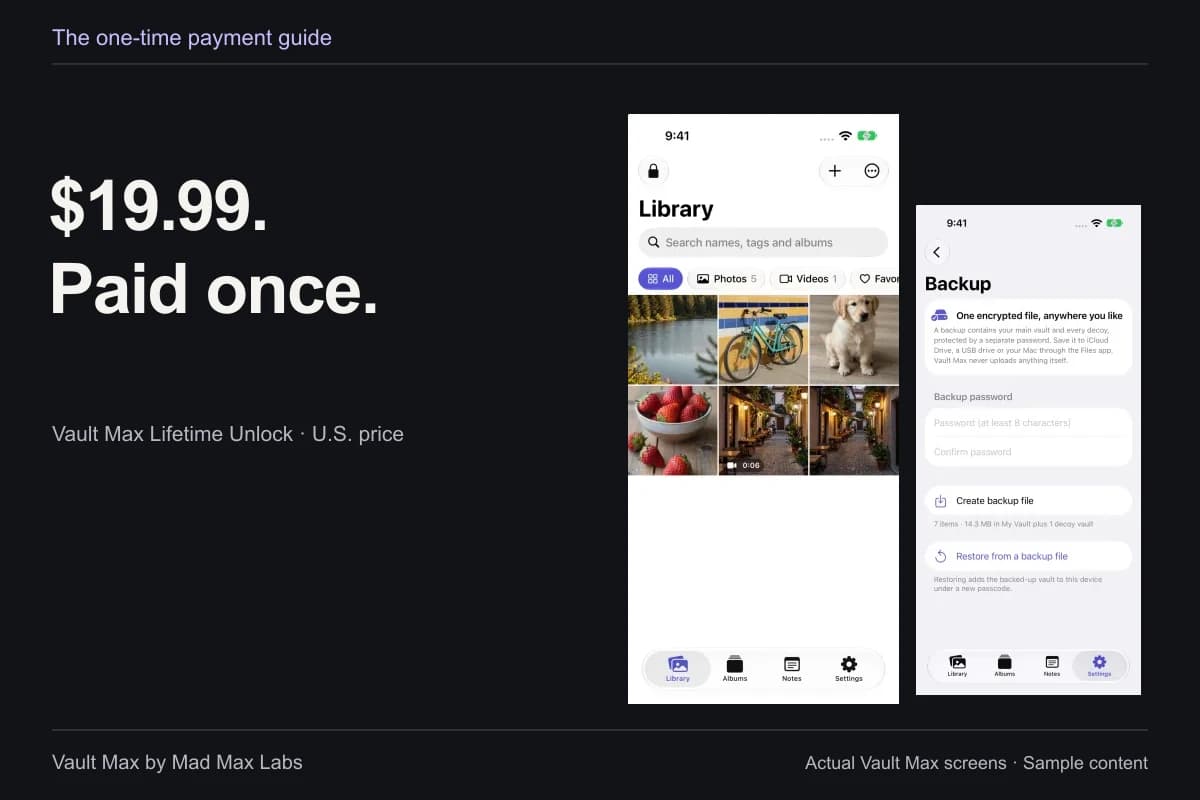
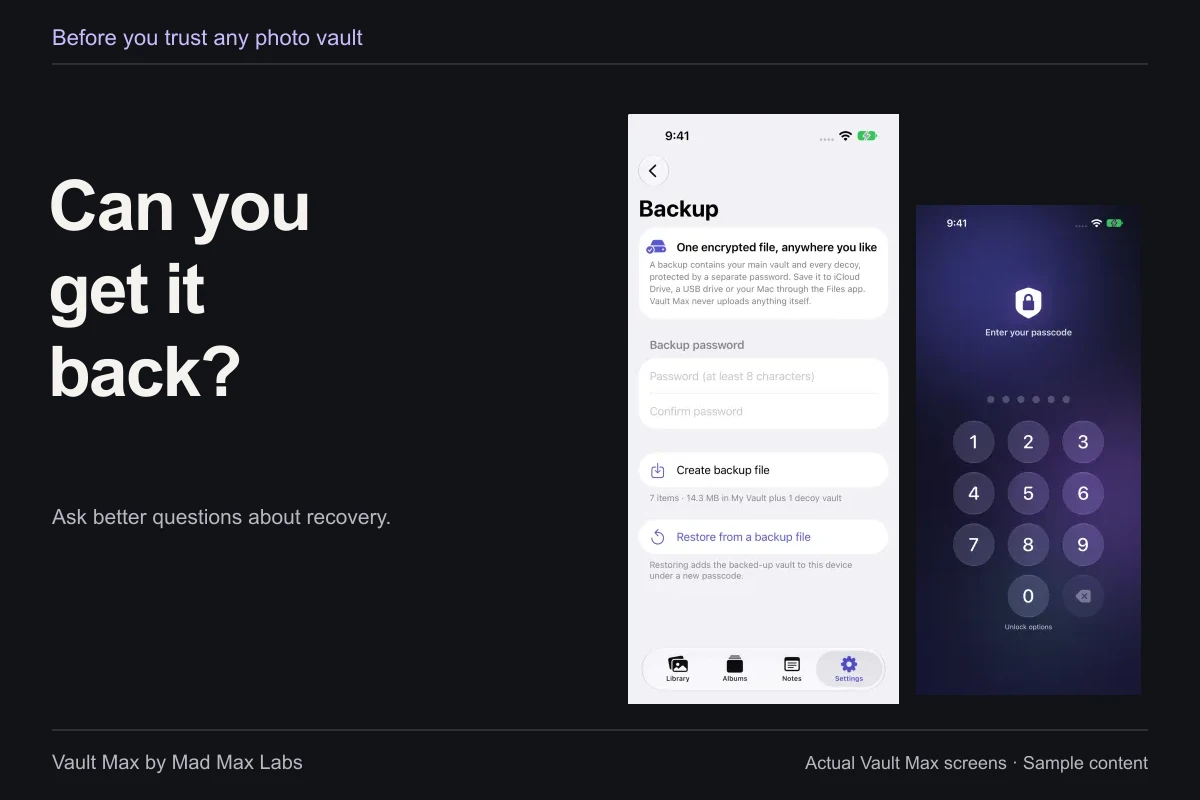
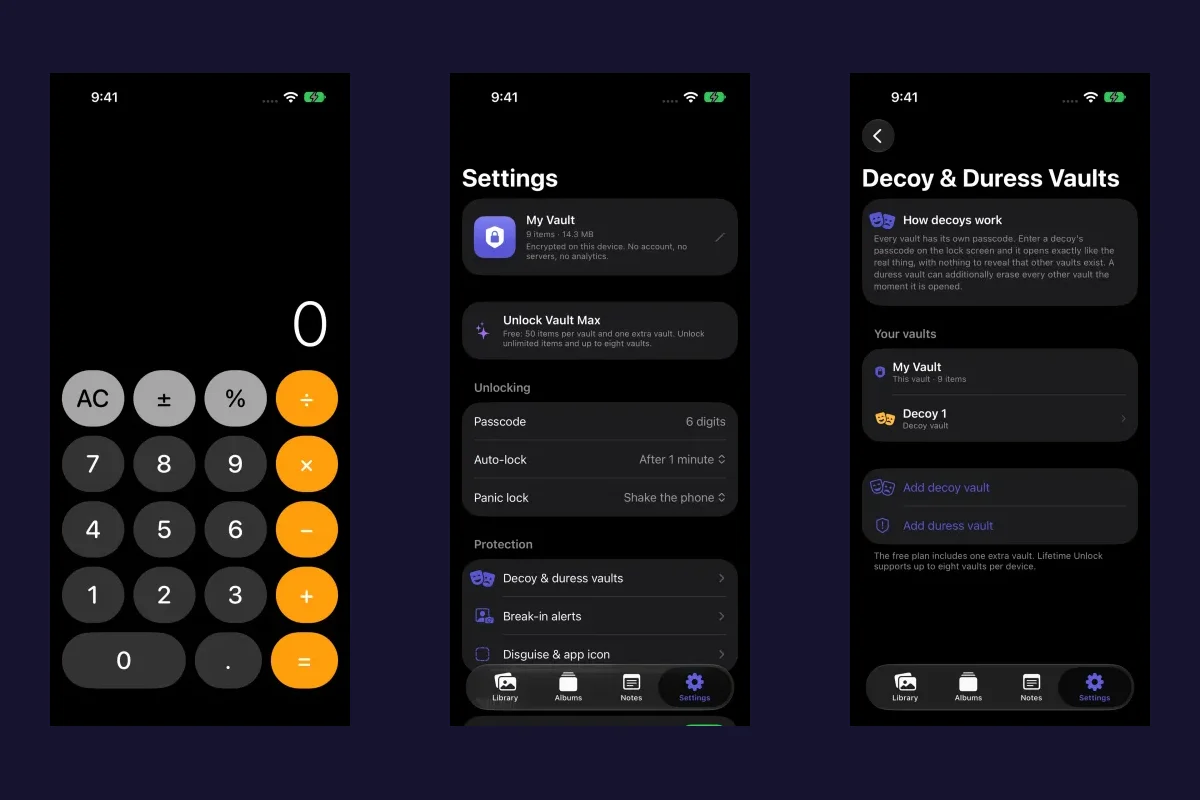
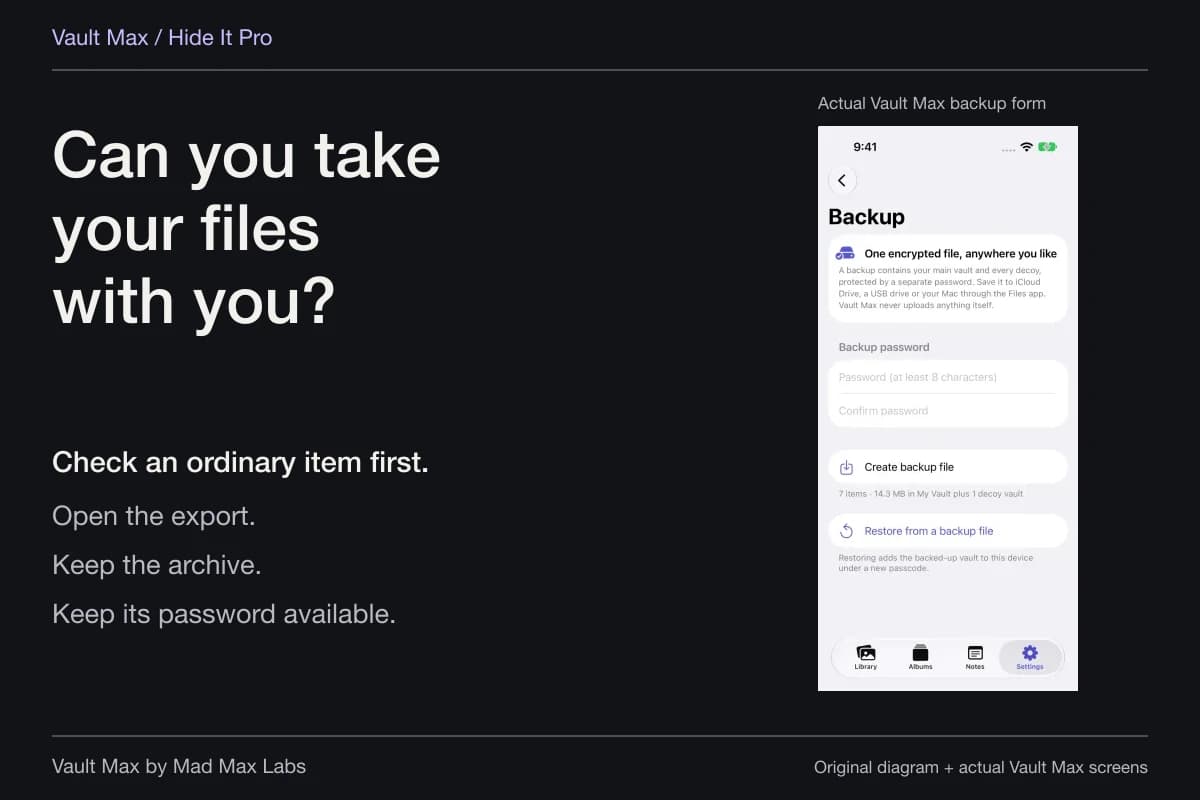
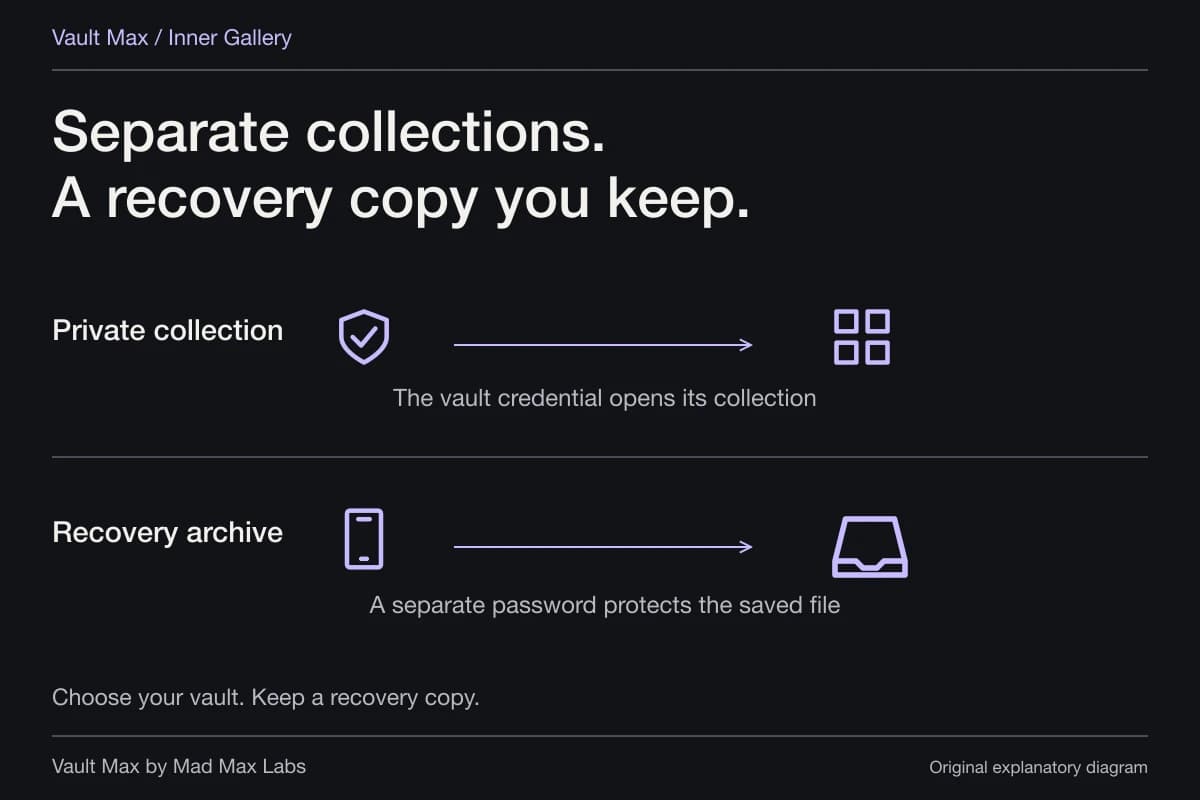
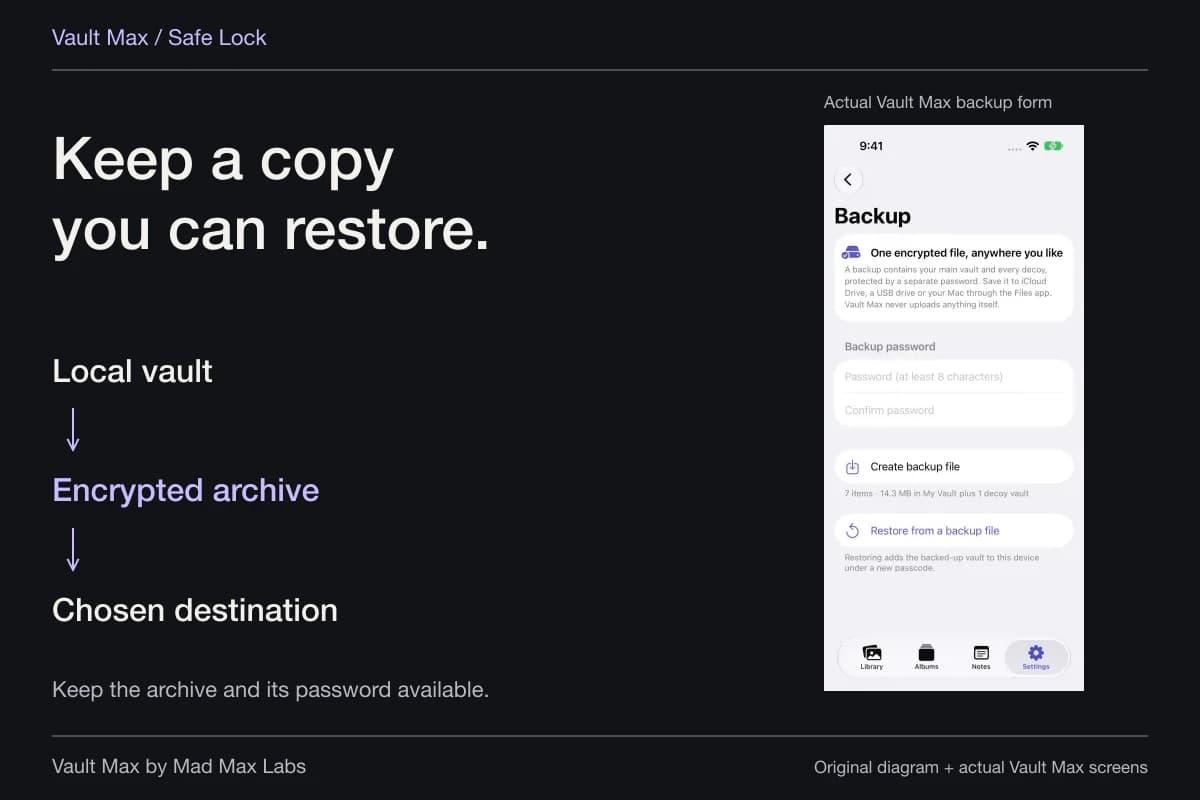
The working library and its backups are different objects. Vault Max can export a password-protected .vaultmax archive through Files. Saving that file in iCloud Drive uses iCloud for that archive. Choosing a suitable external or local destination gives it a different storage location.
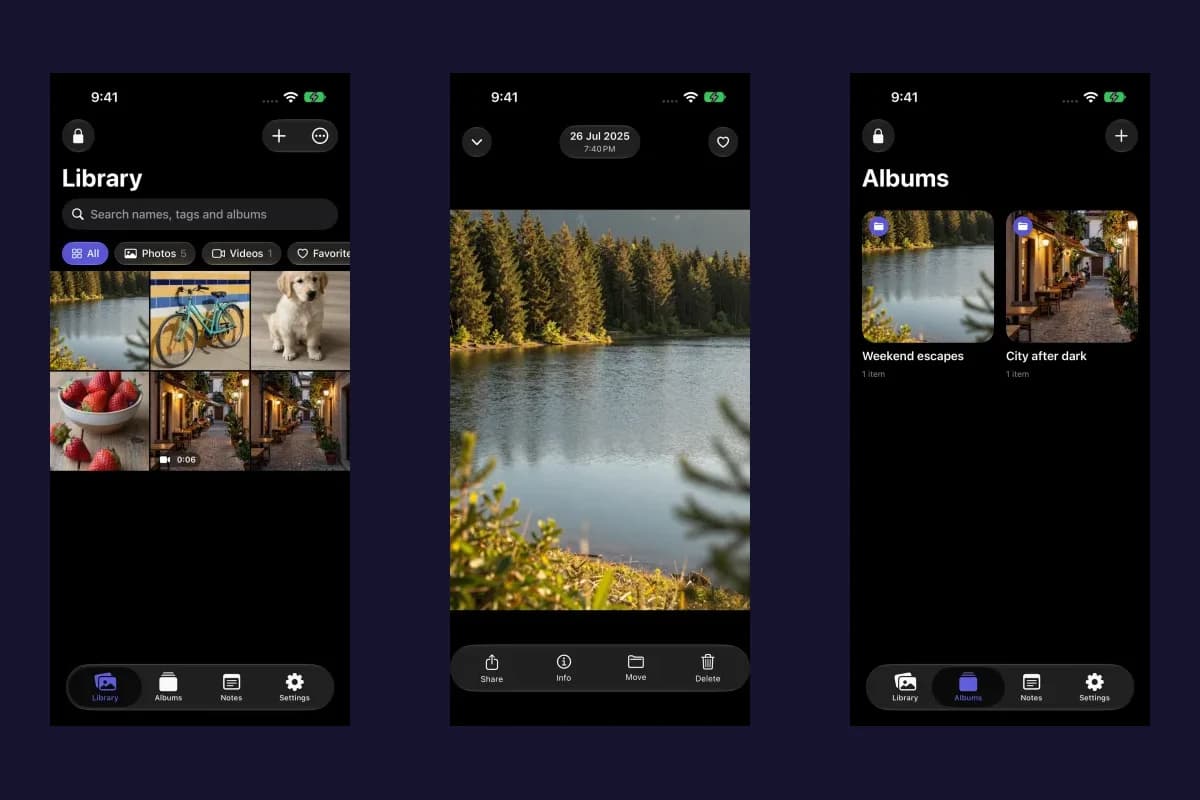
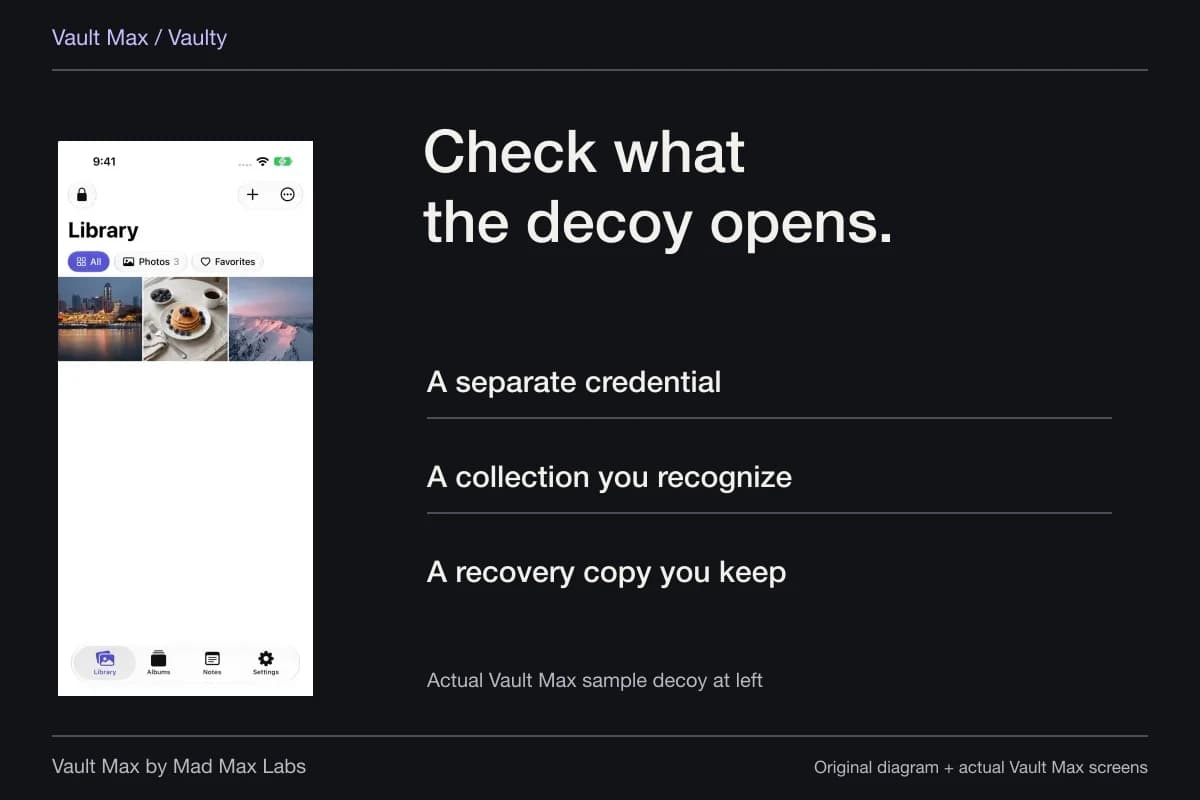
Sample Vault Max library. Select a screen for a closer look.
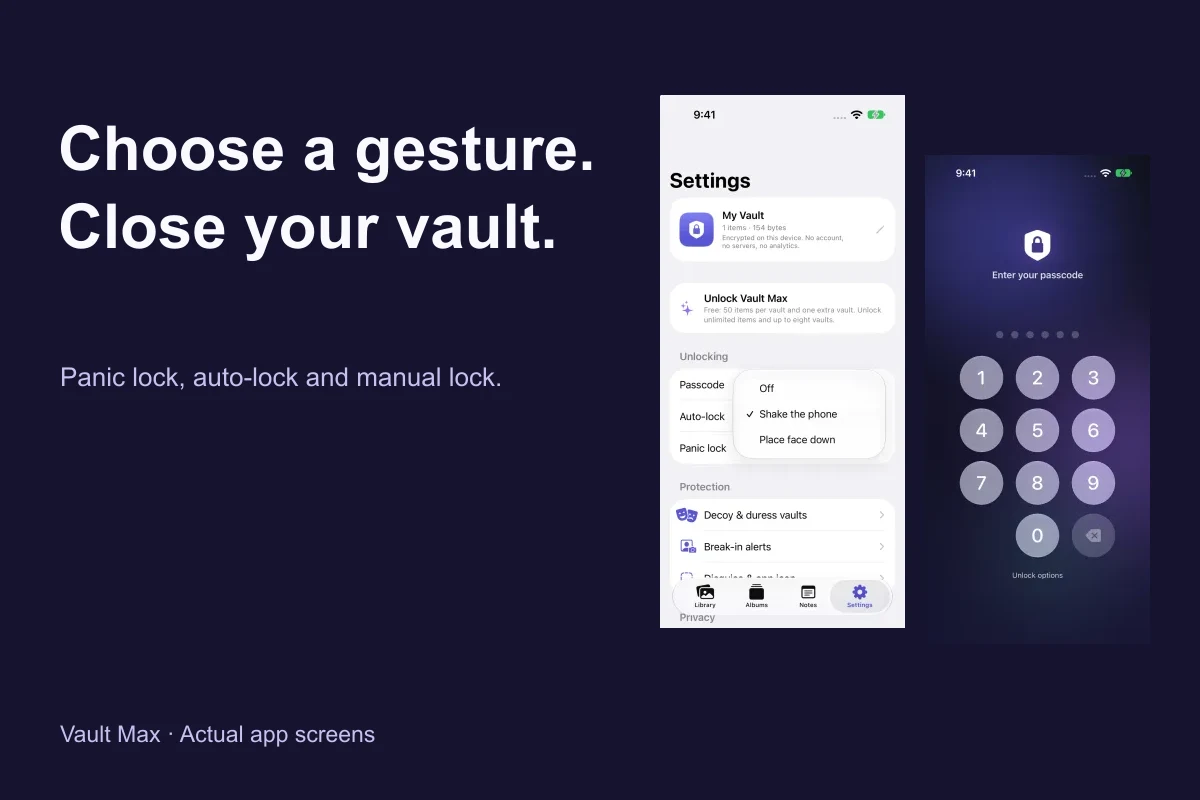
The app also has an Include in iPhone backups setting. Review it together with your device-backup arrangements. On-device working storage, Photos synchronization and a backup provider are three separate choices.
Trace one ordinary picture before changing your library
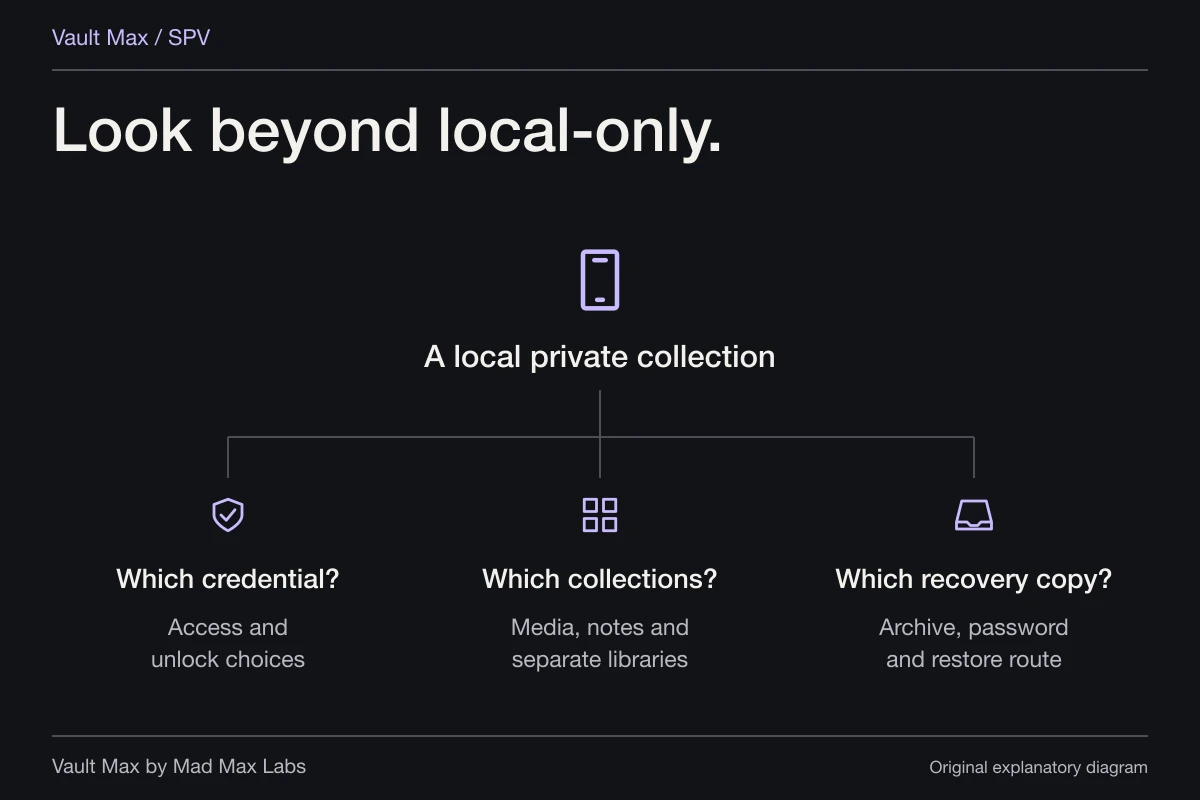
Choose an unimportant sample and list where it exists: Photos, synced devices, shared libraries, messages, the vault and any archive. Check each location you can access. This is a useful inventory exercise, not a claim that this guide has inspected your Apple Account or tested your devices.
Once the map is clear, decide which copies you intend to retain and how you will recover them. The right privacy choice follows from that map. A Hidden label alone cannot tell you where every copy lives.
Continue reading
More guides
Practical tips for your private library. Swipe or scroll to choose your next guide.
50 guides to explore