
Privacy in practice
Calculator vault vs decoy vault: two different privacy jobs
A calculator disguise changes the locked screen. A decoy code opens a different library. Compare their roles, limits and setup in Vault Max for iPhone.
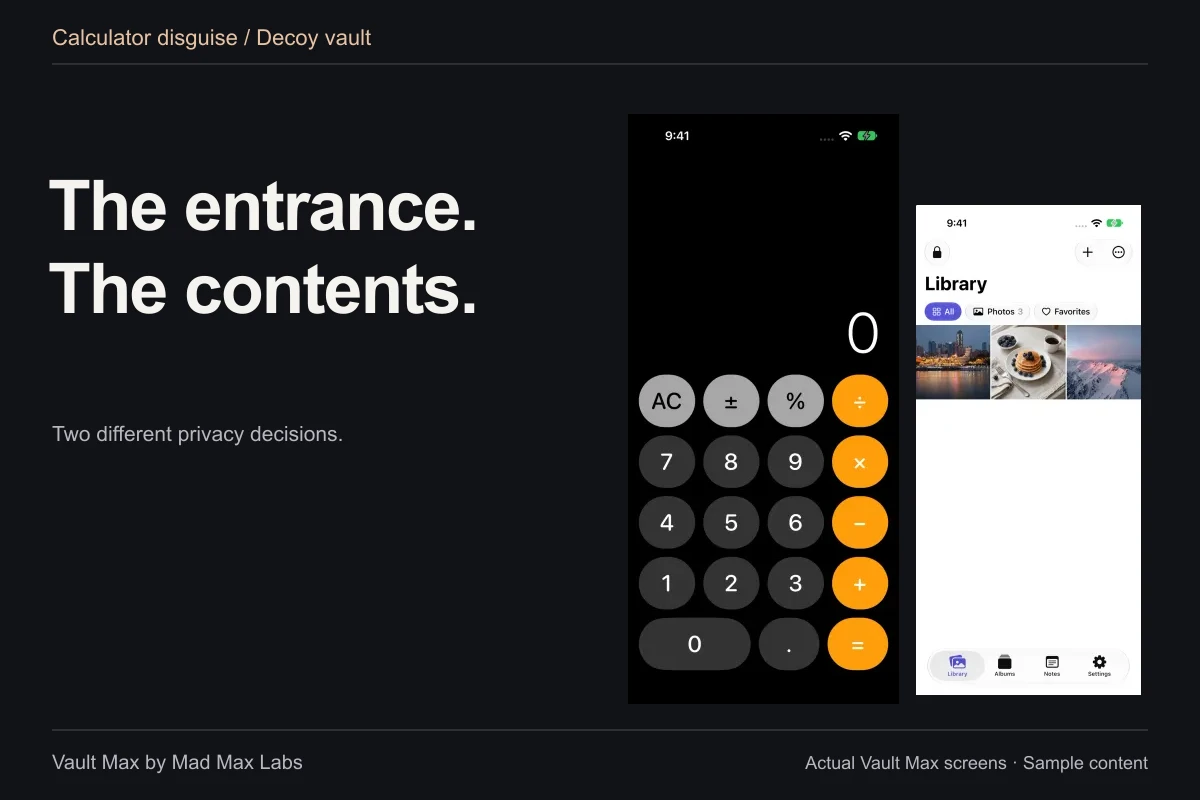
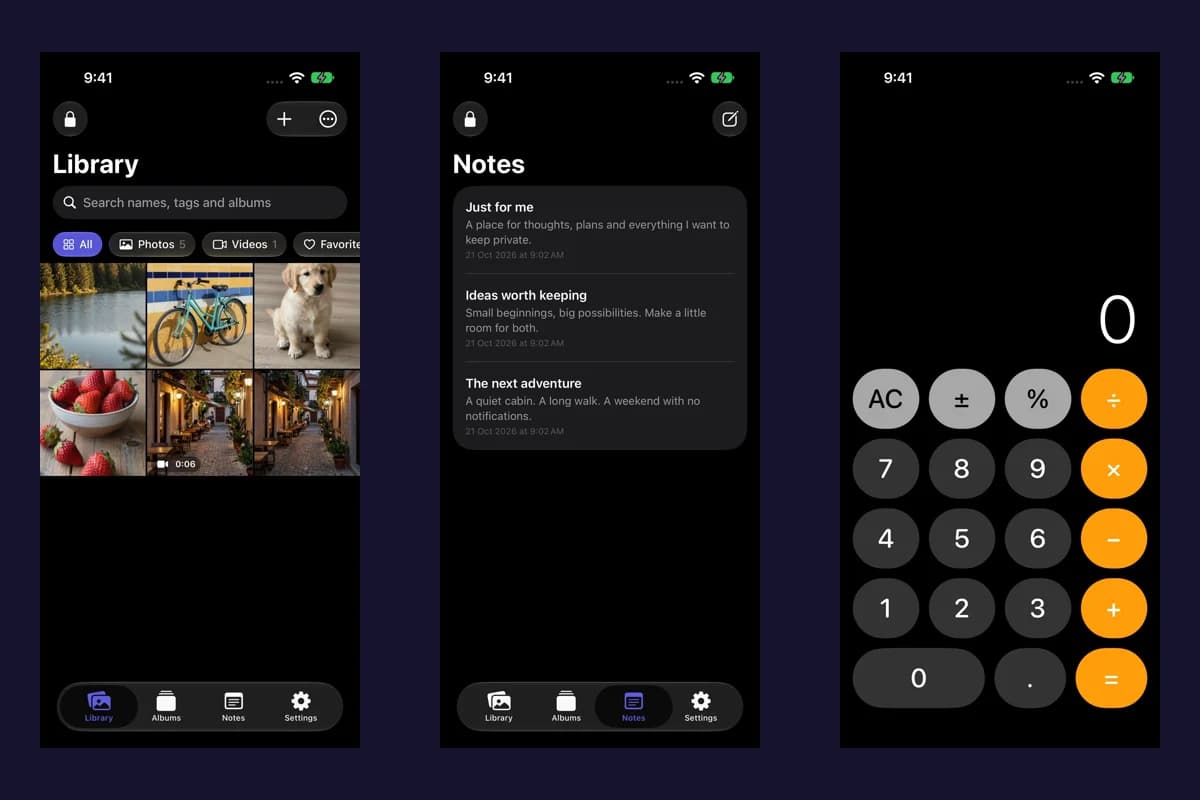
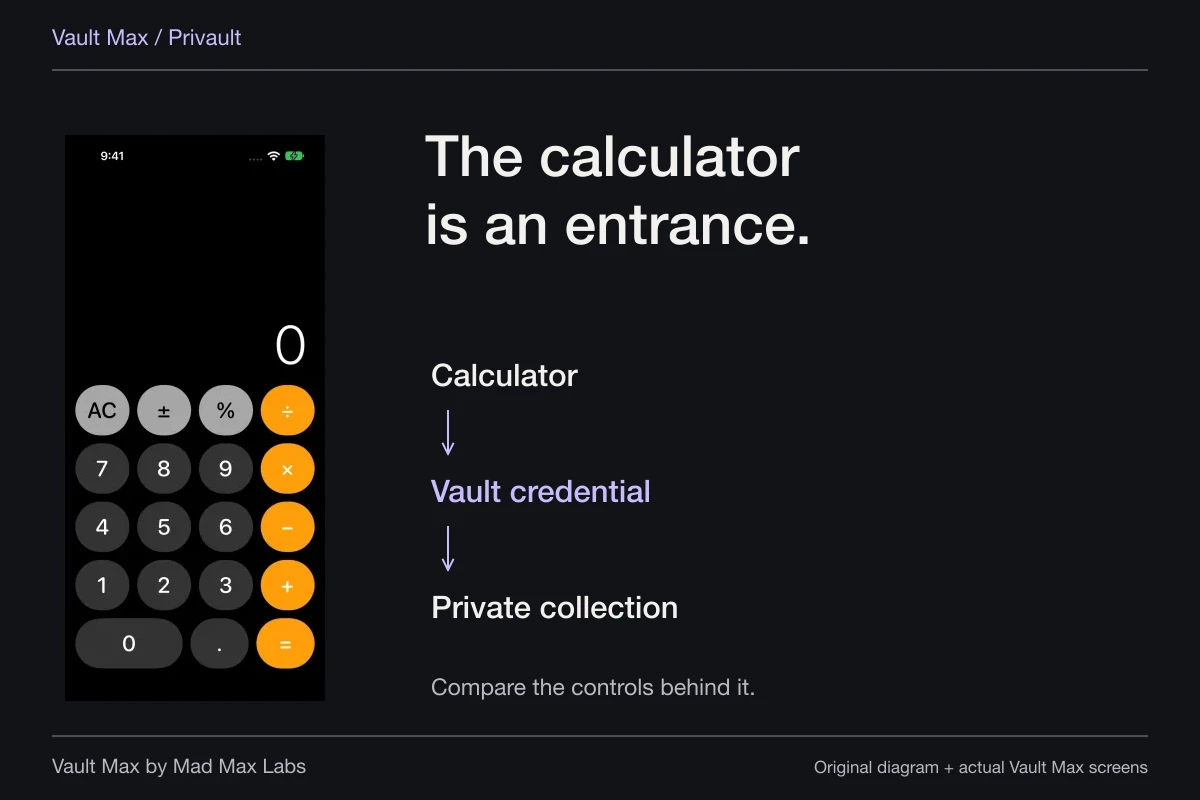
A calculator disguise changes what you see before unlocking the app. A decoy vault changes which private collection opens after you enter a credential. In Vault Max, you can use either feature on its own or use both together.
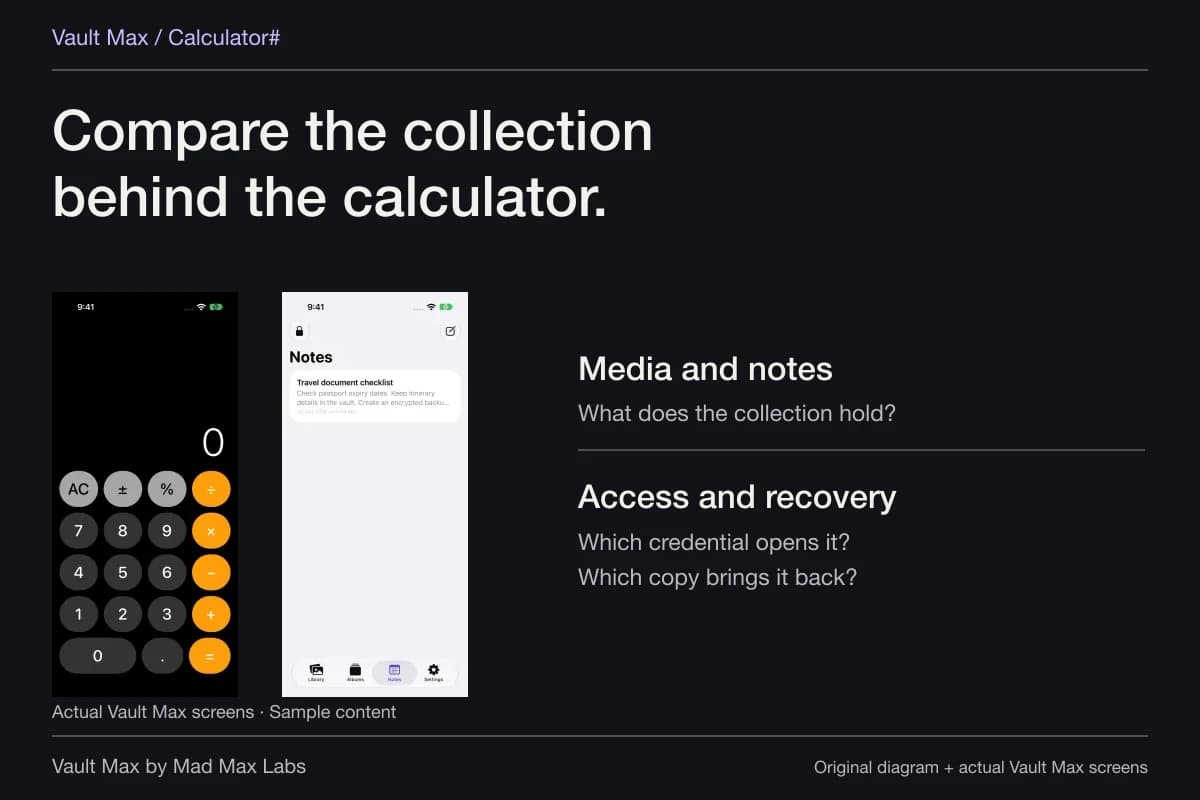
That distinction matters when comparing calculator photo vaults. A working calculator tells you about the entry screen. It does not tell you whether the app supports separate vaults, how files are encrypted or what happens if you lose your phone. Decide which problem you need to solve before choosing a feature.
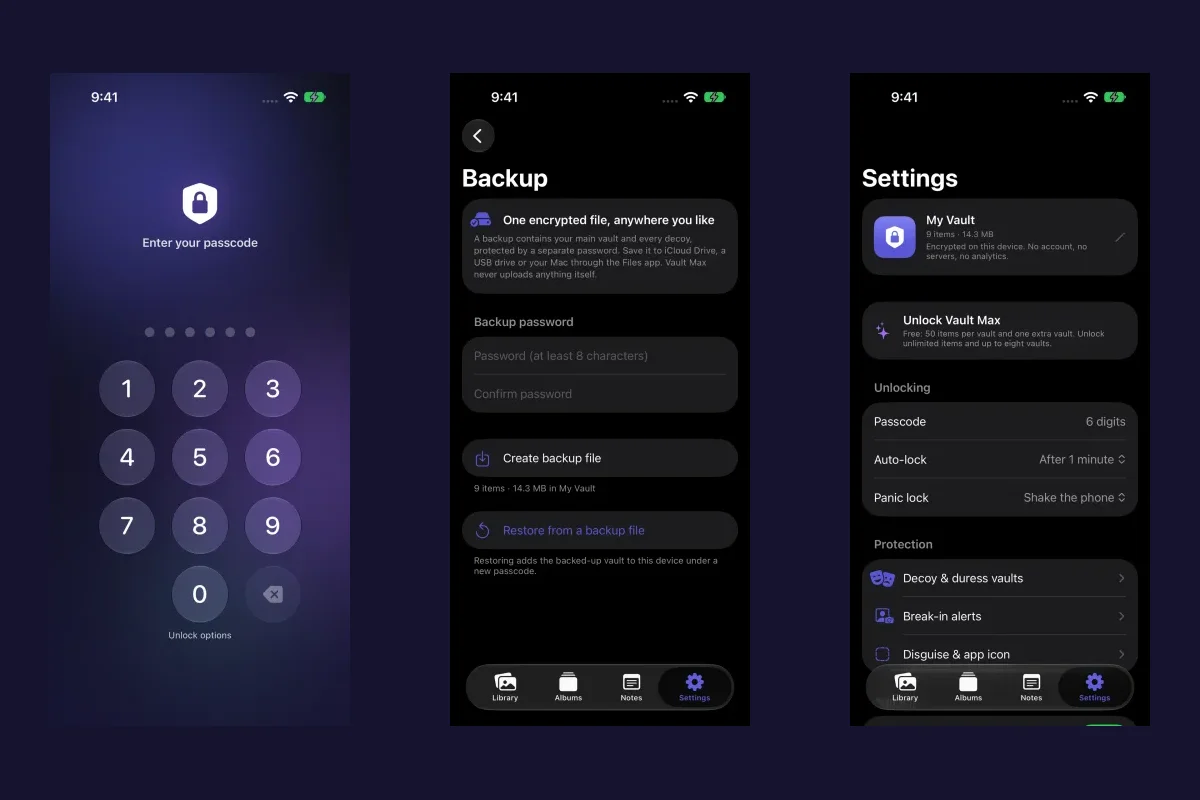
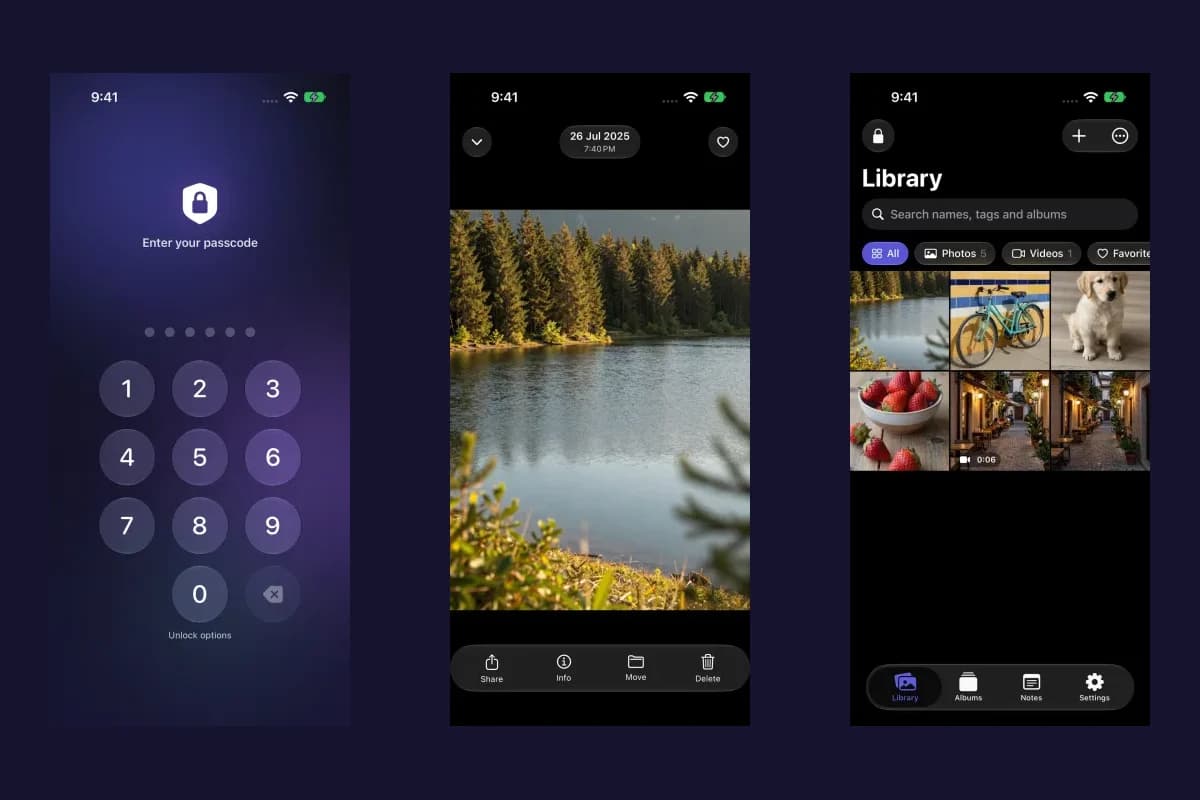
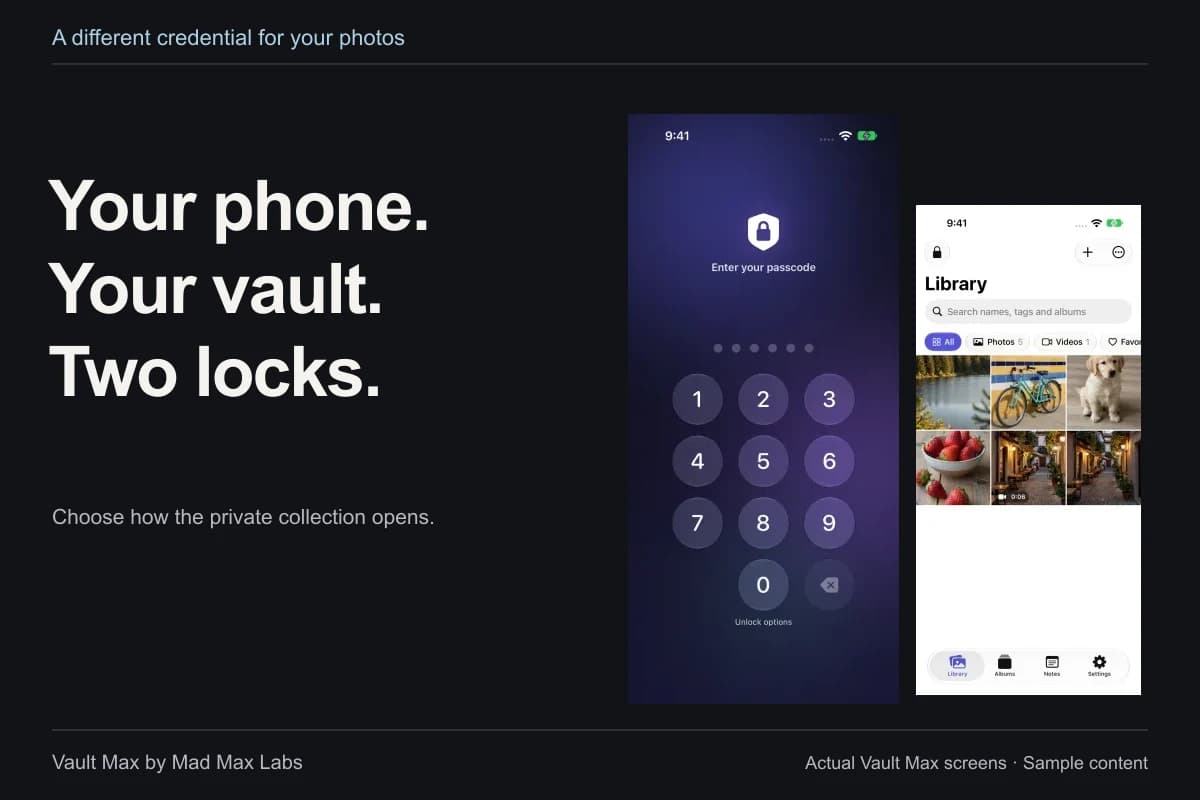
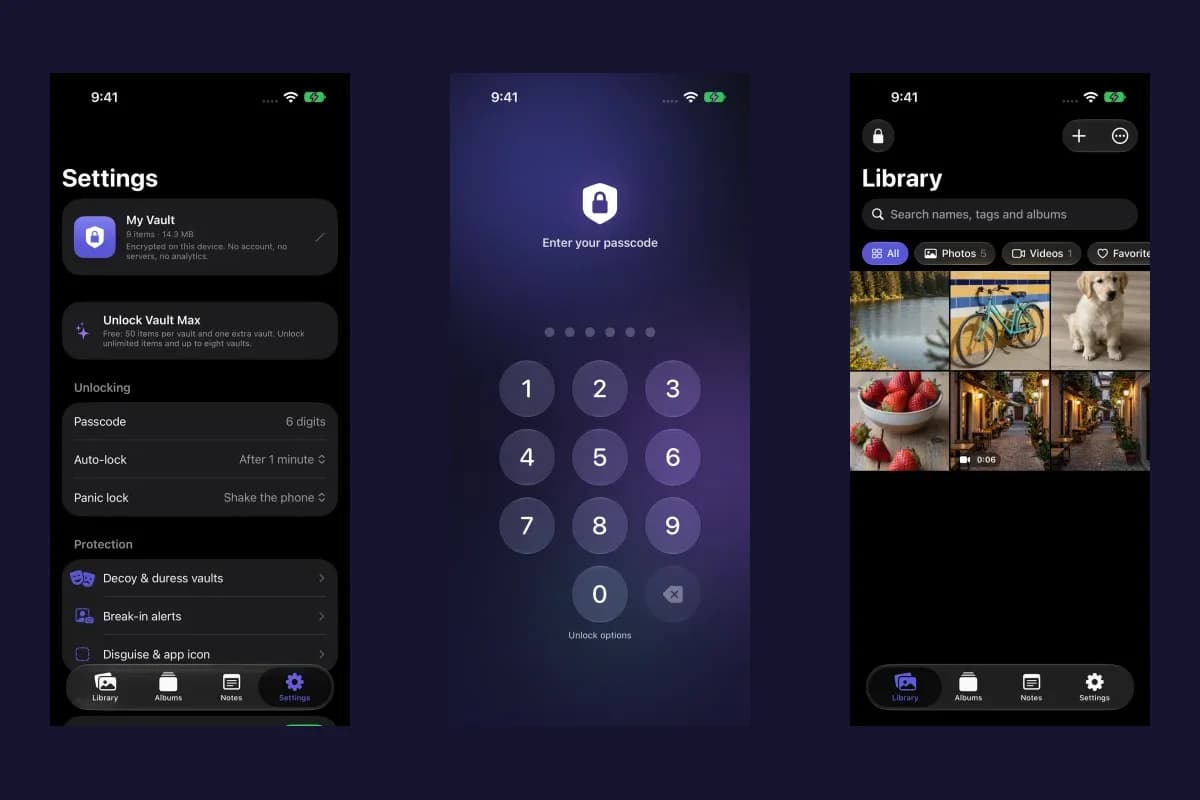
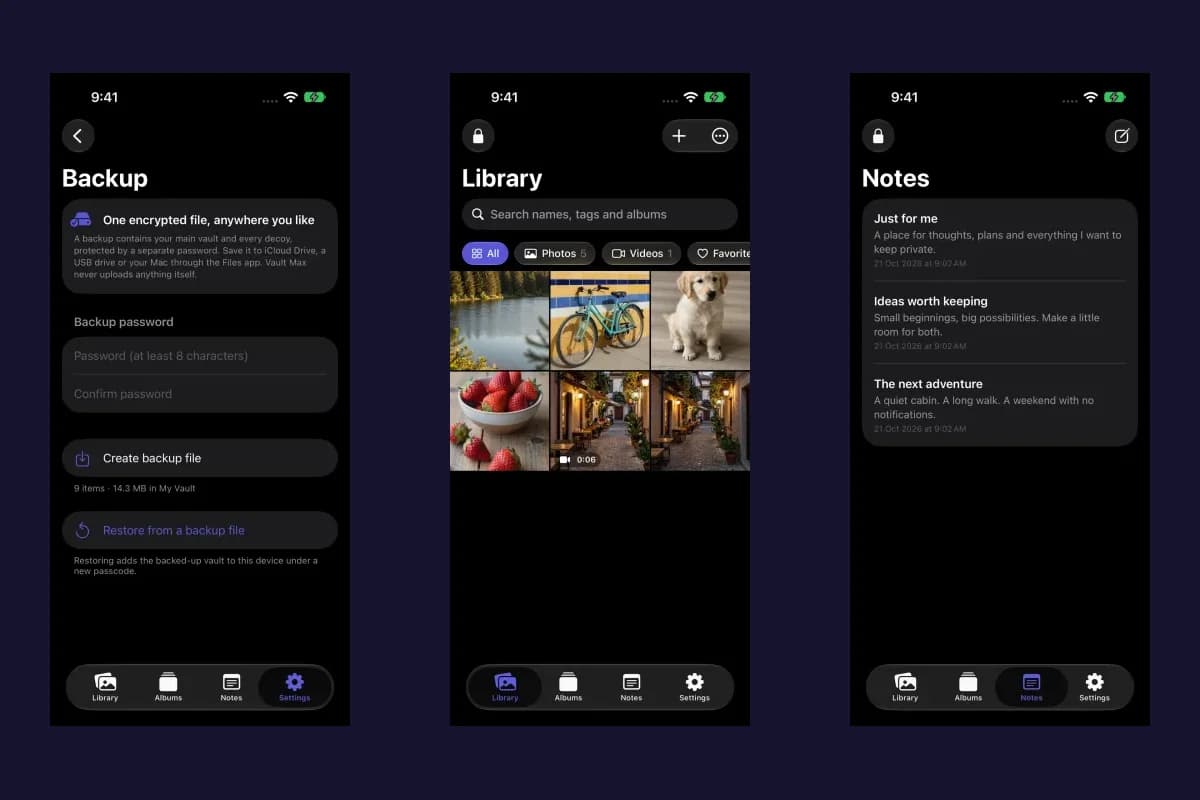
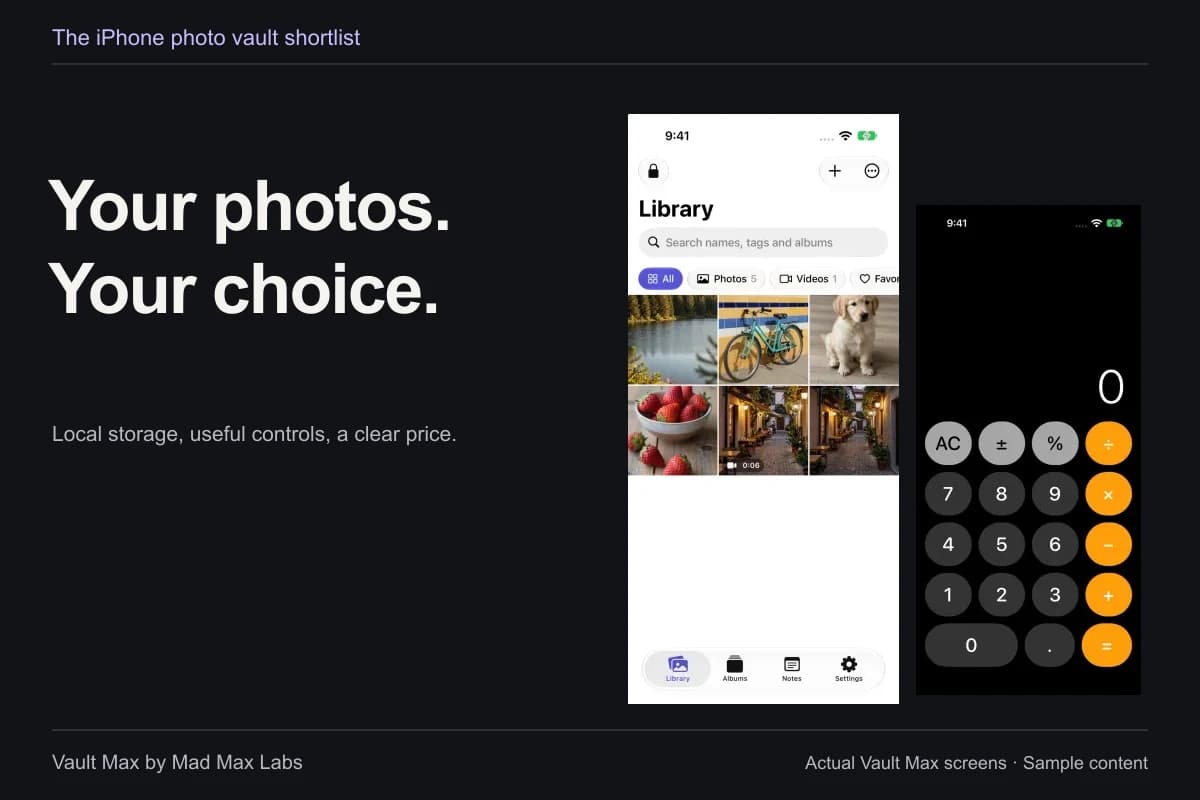
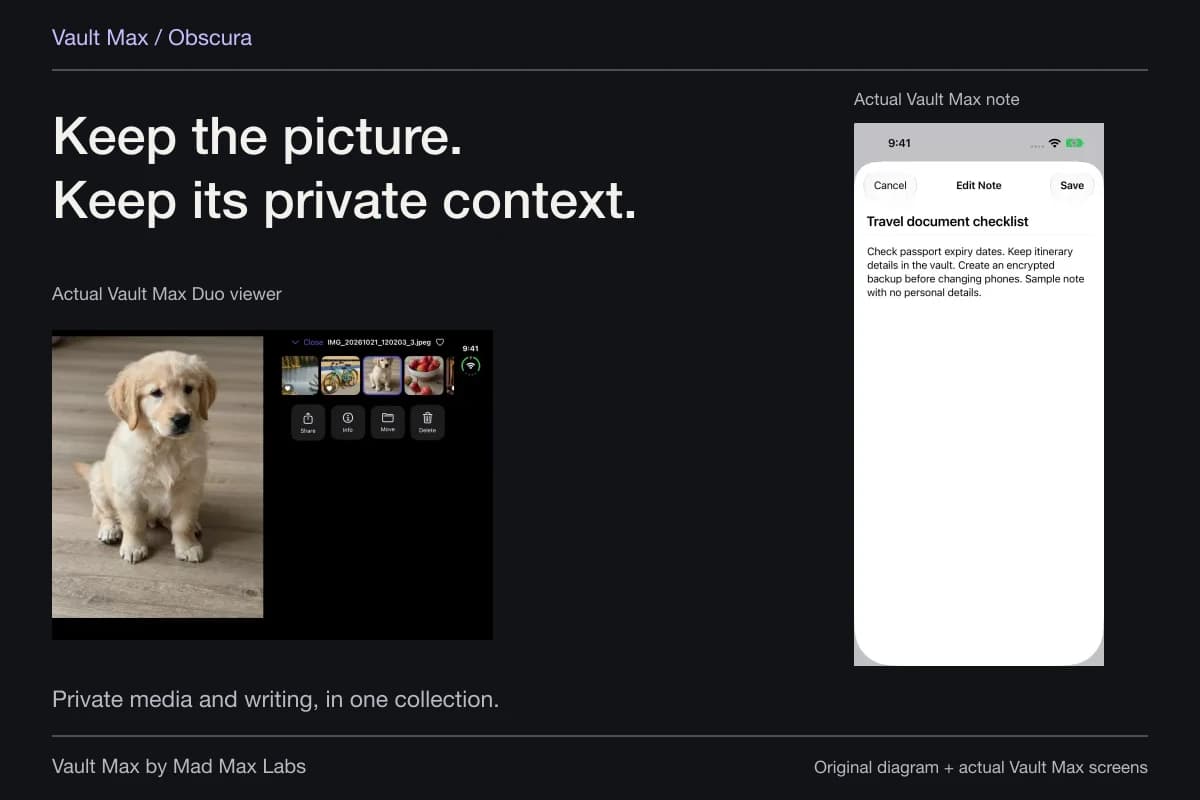
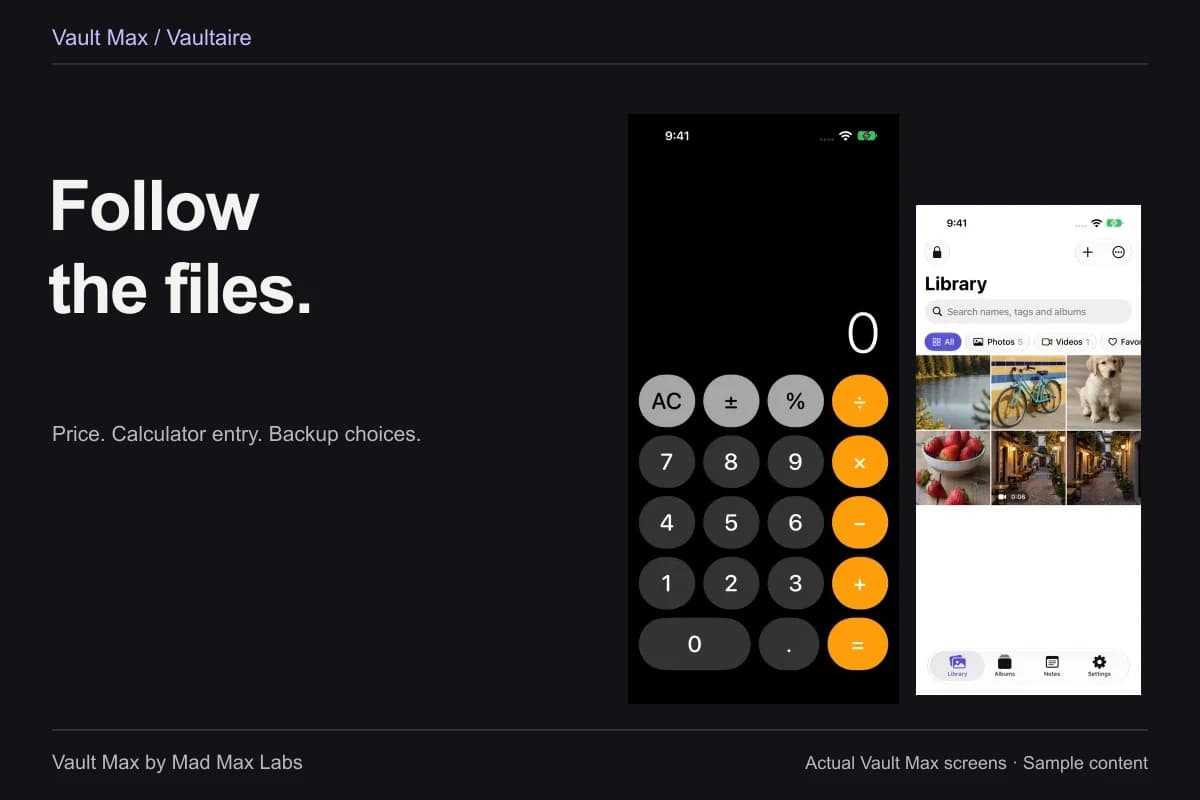
Sample Vault Max library. Select a screen for a closer look.
Choose calculator disguise for a discreet entry screen
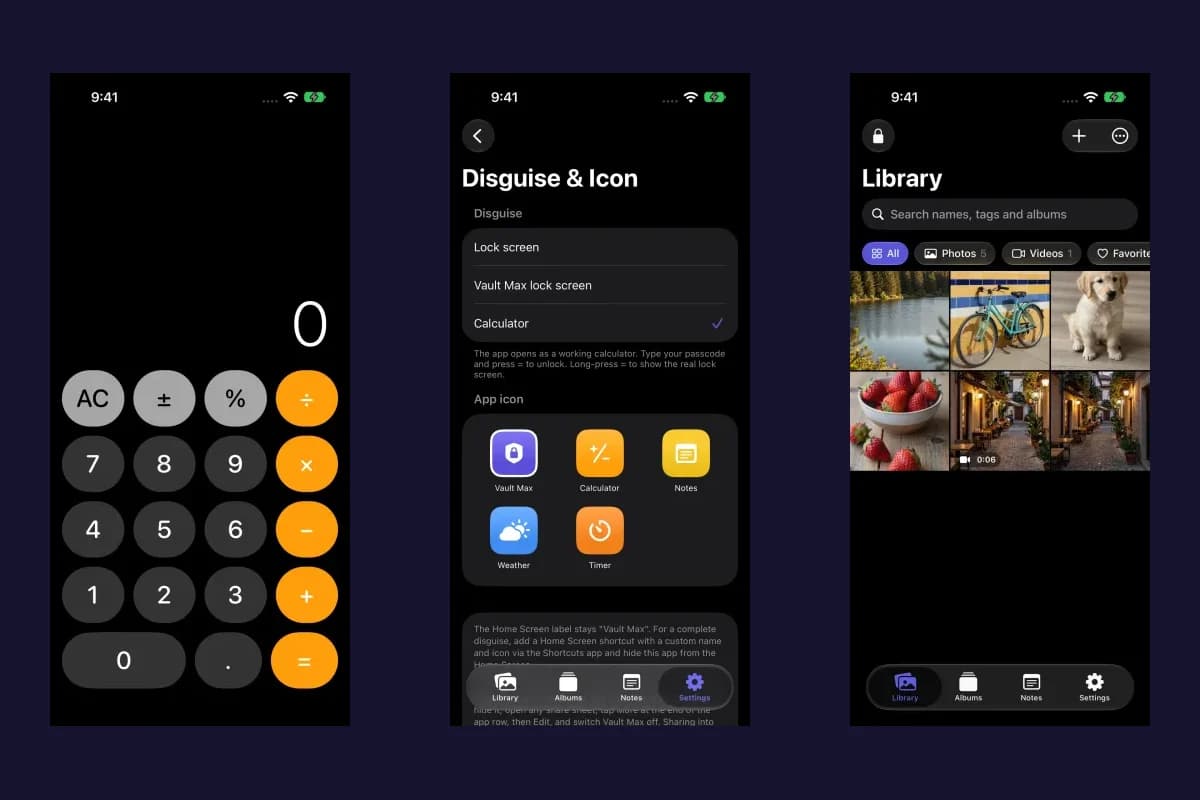
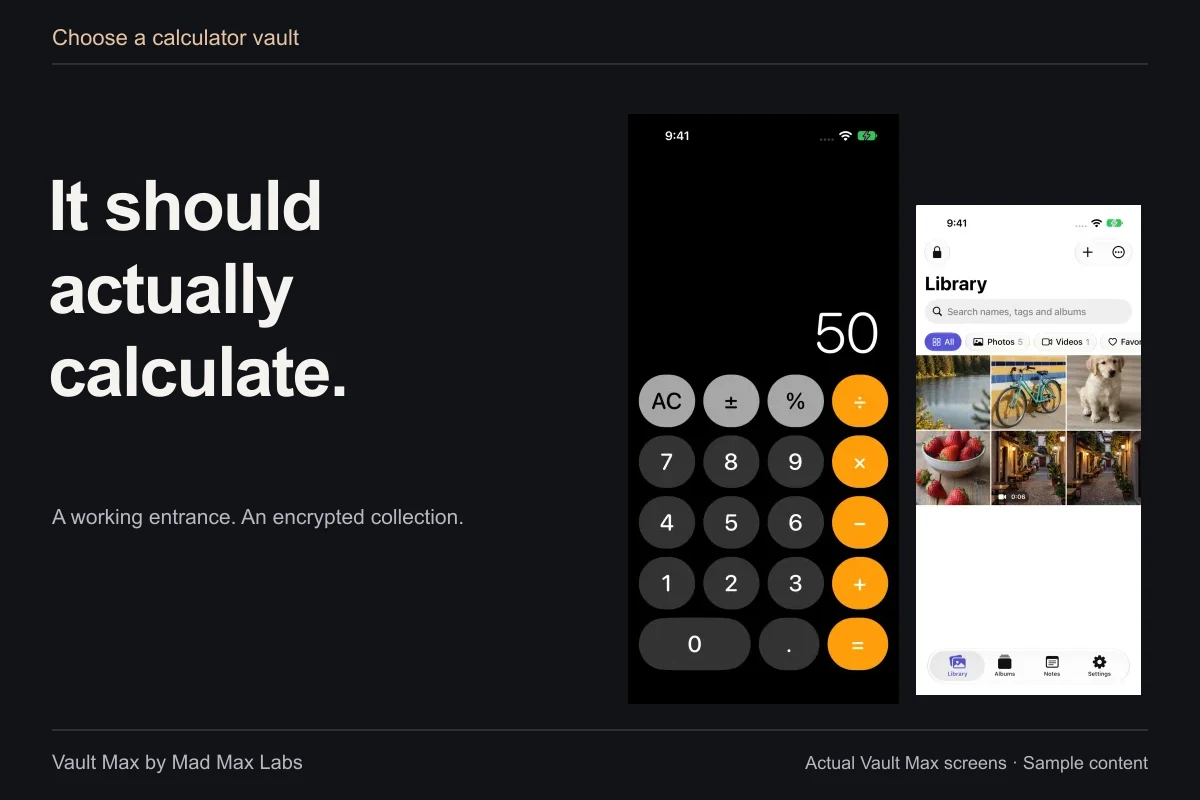
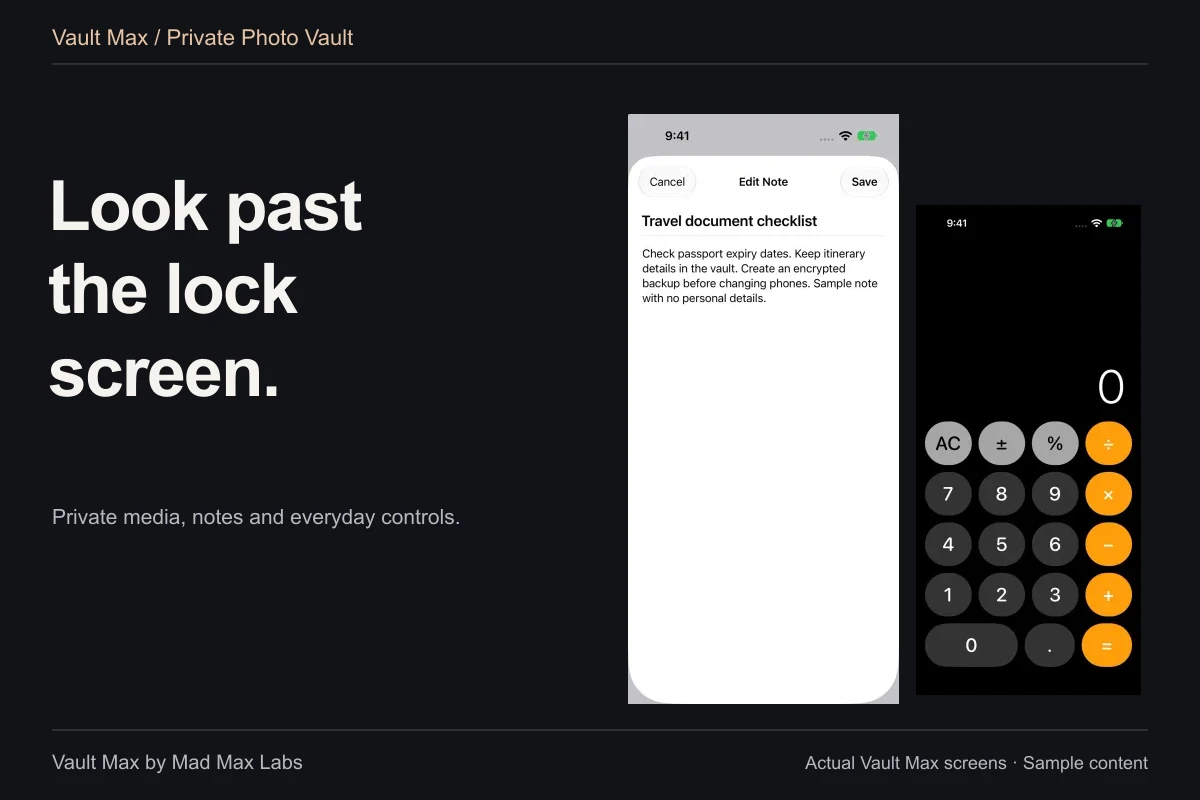
Perhaps you open your phone on a train and would rather bring up a calculator than a prominent vault keypad. That is the job of calculator disguise. Vault Max's version performs ordinary arithmetic. With PIN entry configured, typing a matching vault PIN and pressing equals opens that vault.
Enable it in Settings → Disguise & app icon. You can also choose alternate icon artwork. The Home Screen label remains Vault Max, so an icon change does not rename the app or remove it from system surfaces.
Vault Max with sample content. Use the controls to pause or replay.
You still need a familiar fallback. Press and hold equals to reveal regular credential entry, including the route for a password or pattern. Practice that while you have access. A disguise that confuses its owner is not a useful improvement.
Choose a decoy when different credentials should open different content
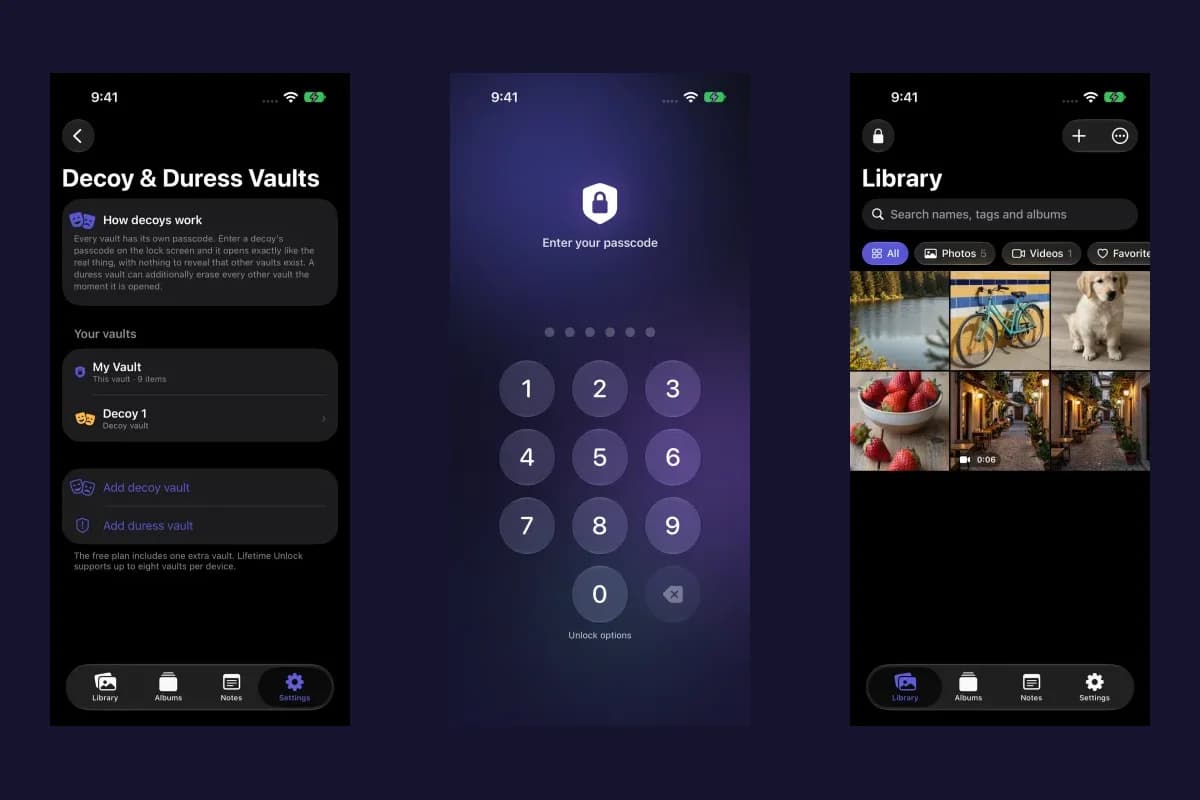
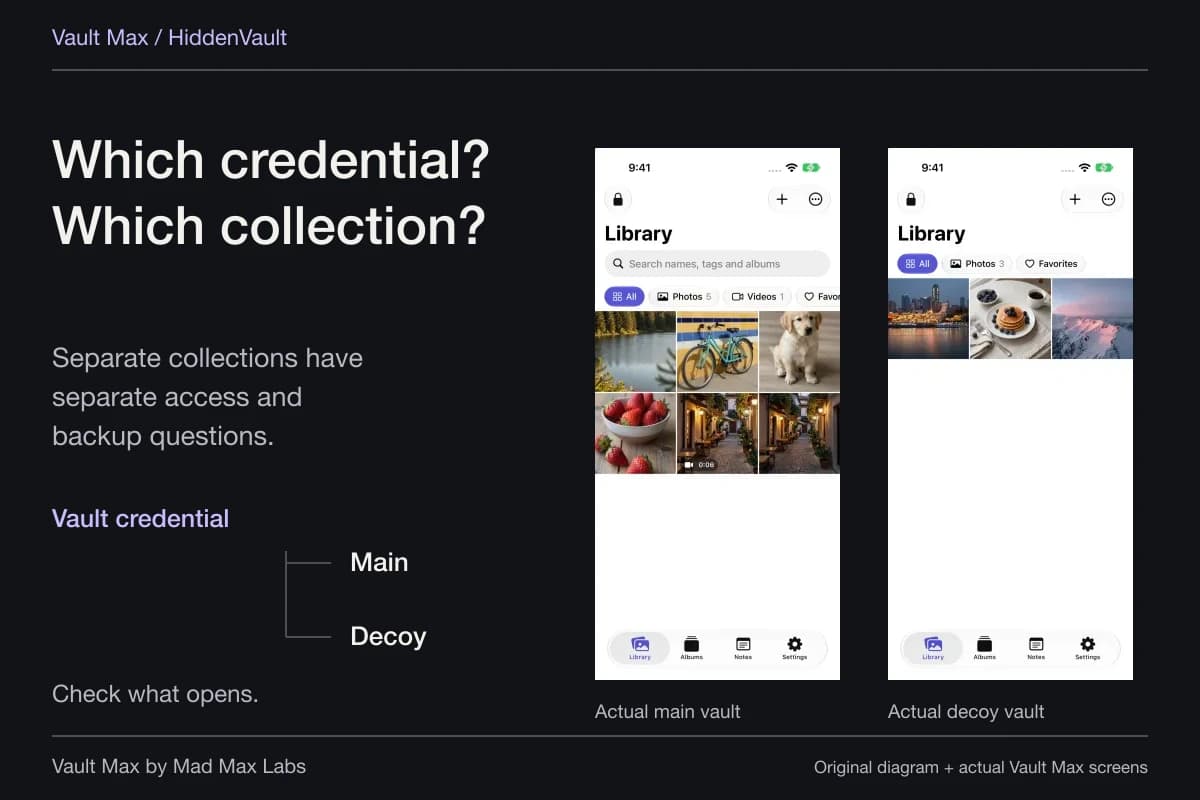
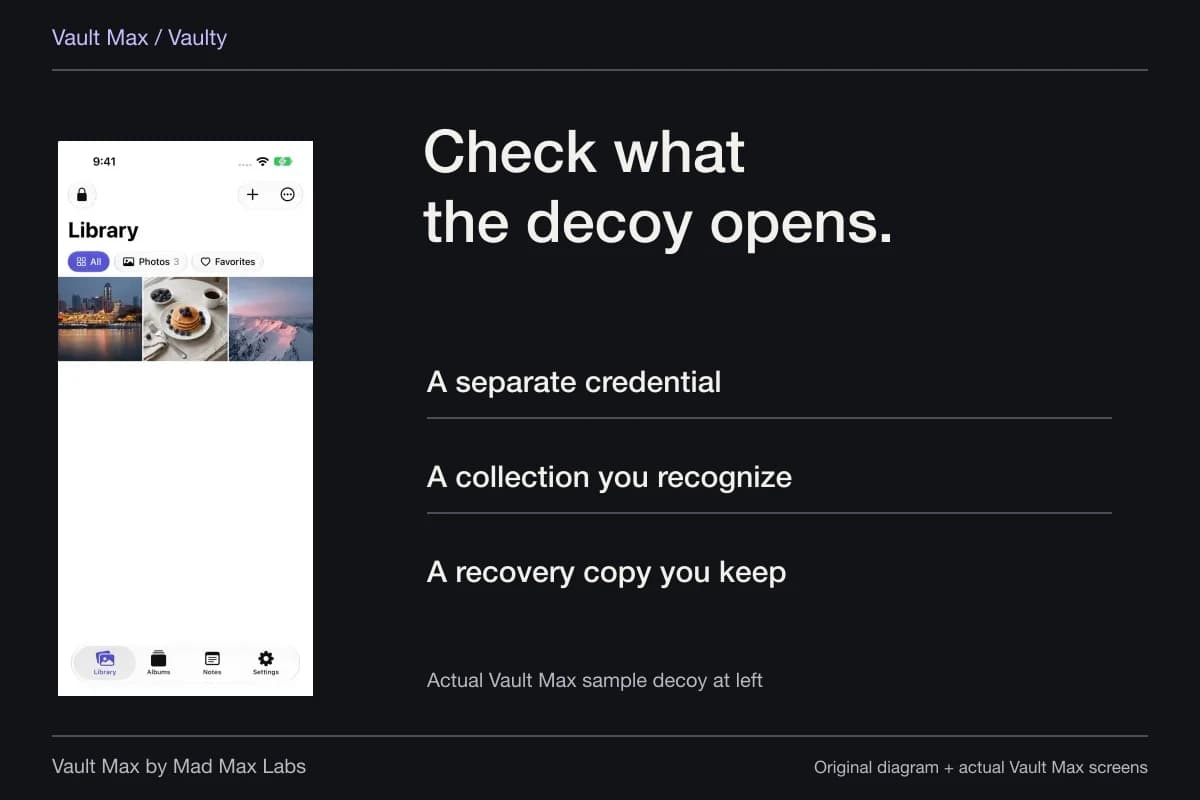
A decoy is a separate collection with its own credential. Enter the main code and the main library opens. Enter the decoy code and you get the decoy's library, with only the content you put there.
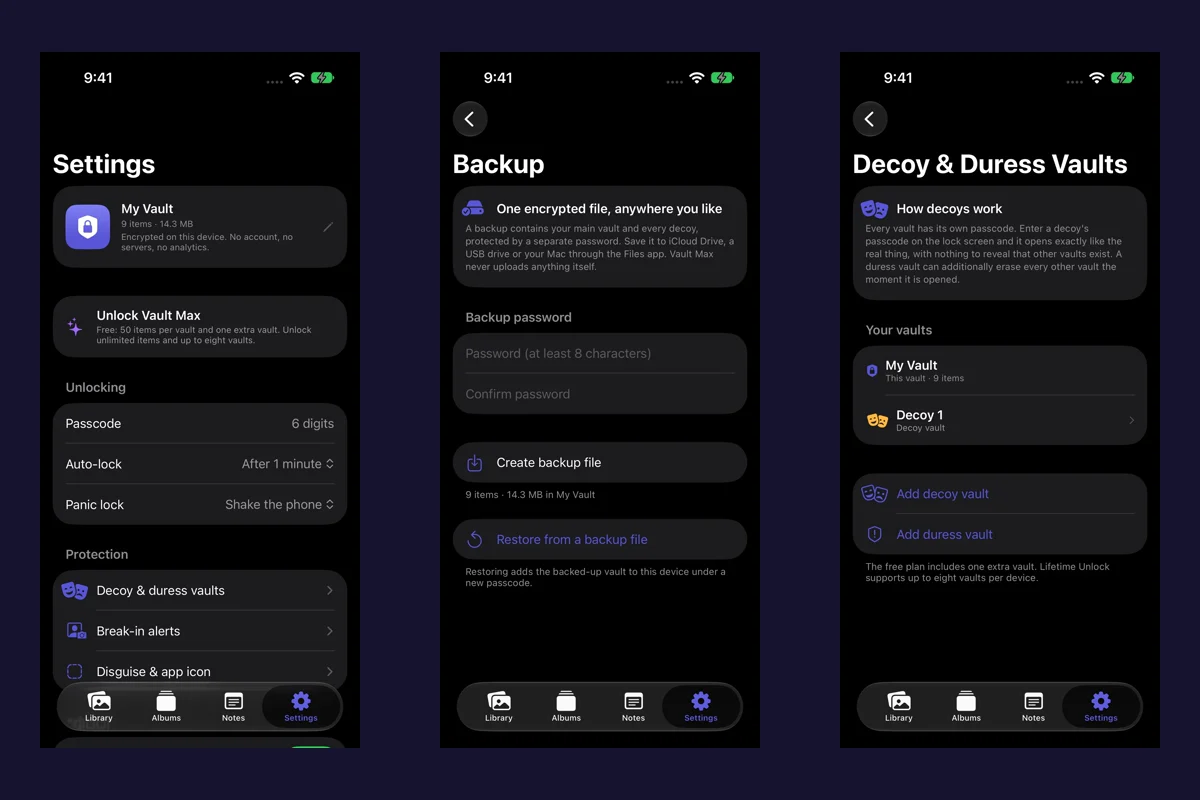
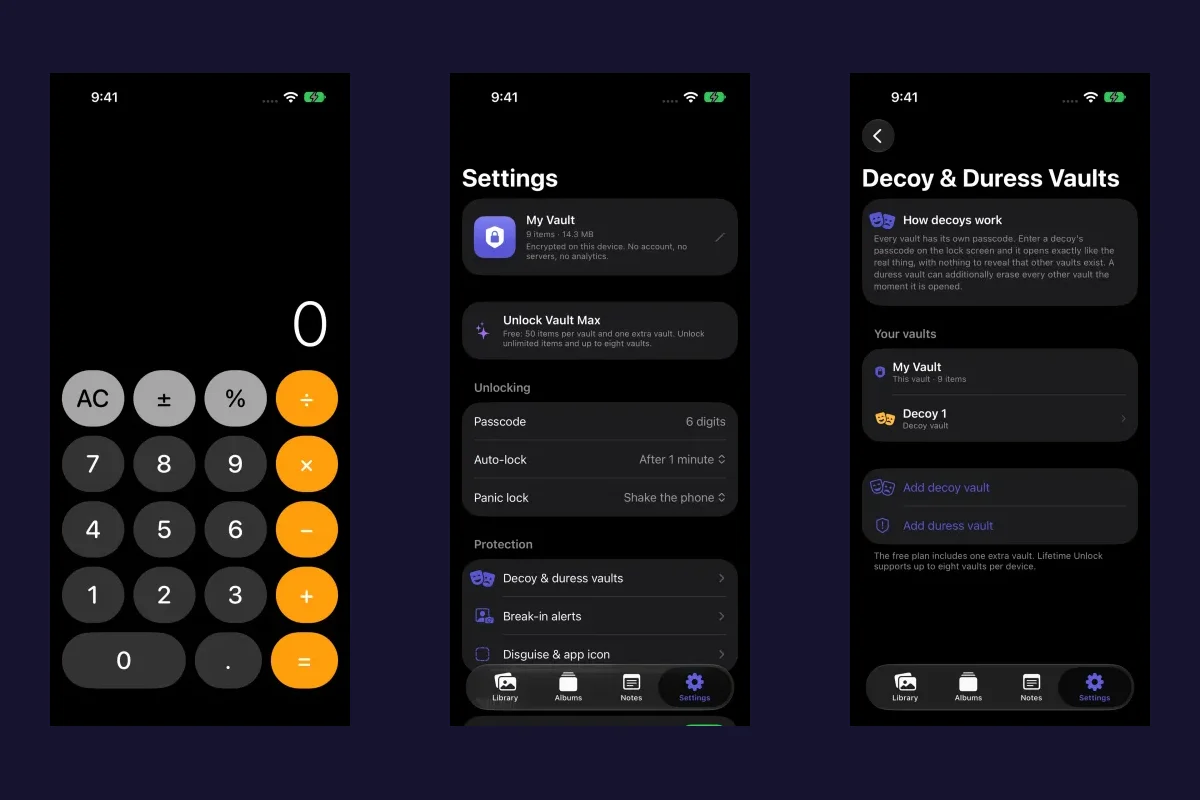
Create it from the main vault through Settings → Decoy & duress vaults → Add decoy vault. Its private management label helps you identify it from the owner's settings. Inside the child, the normal interface calls the collection My Vault.
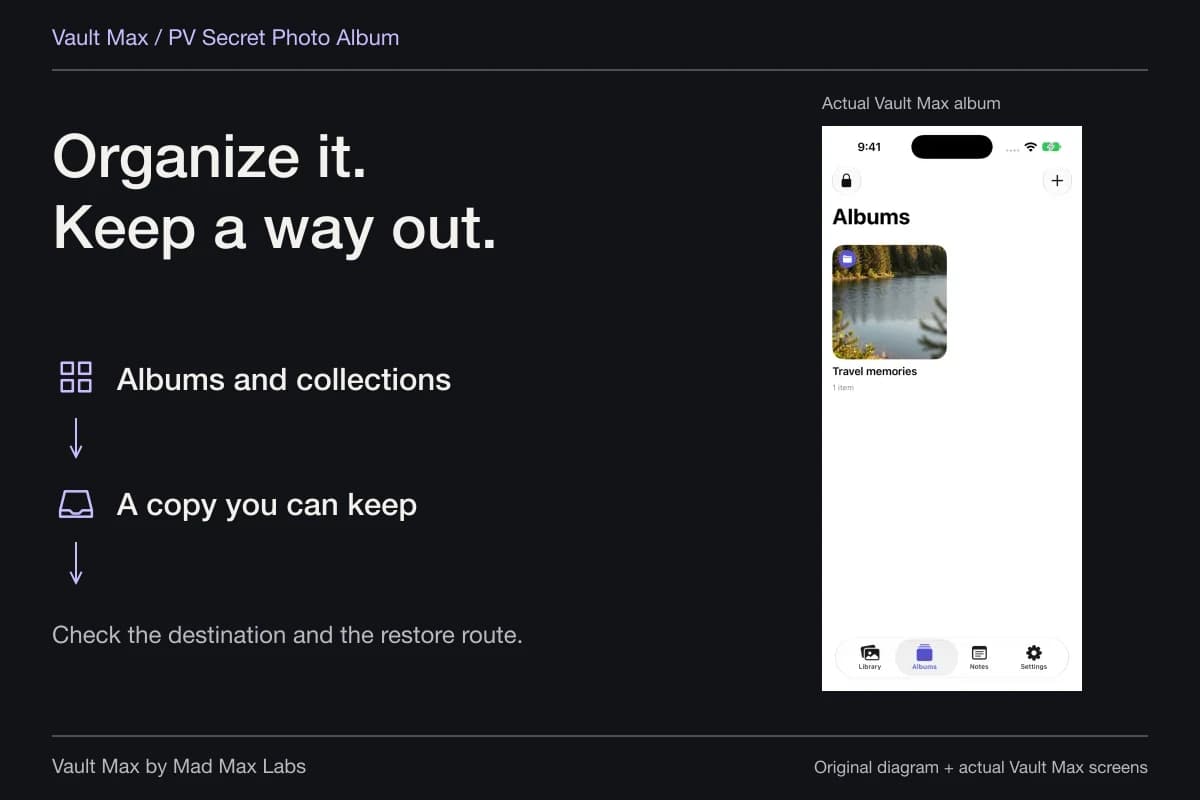
Creating the decoy does not copy your main photographs into it. Add a few harmless, recognizable items so you can tell the libraries apart. An album is different again: it groups items within one vault without giving the group a separate unlock code.
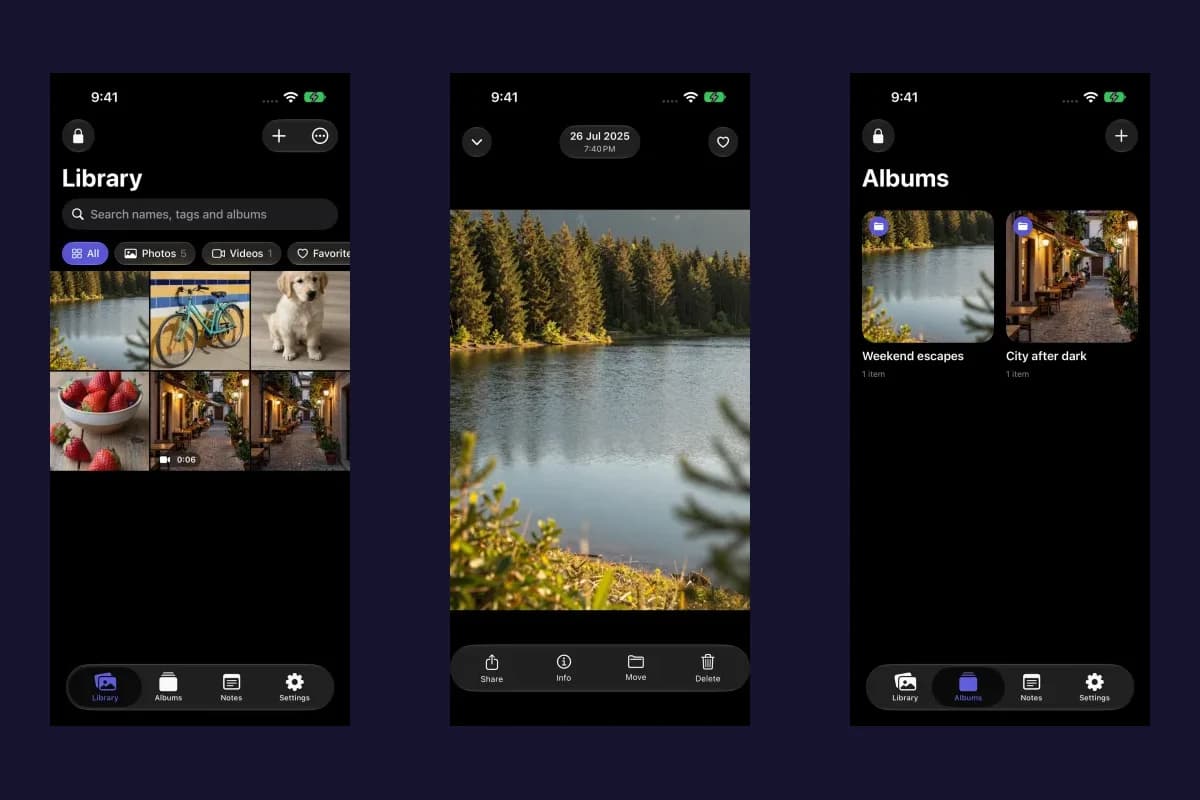
Sample Vault Max library. Select a screen for a closer look.
Use both when you want both behaviors
With calculator disguise active, the PIN still identifies the vault to open. You do not need one calculator app for the main library and another calculator app for the decoy.
Set up and check one feature at a time. First confirm that each credential reaches the expected collection using normal entry. Then enable the calculator and repeat the check with PIN plus equals. If you use biometrics, verify which vault that existing enrollment opens; do not assume Face ID selects a different collection because you intended to enter its code.
| What you want | Relevant control | What it does not do |
|---|---|---|
| An ordinary calculator when the app is locked | Calculator disguise | Create another library |
| Different codes for different collections | Decoy vault | Hide the installed app from iOS |
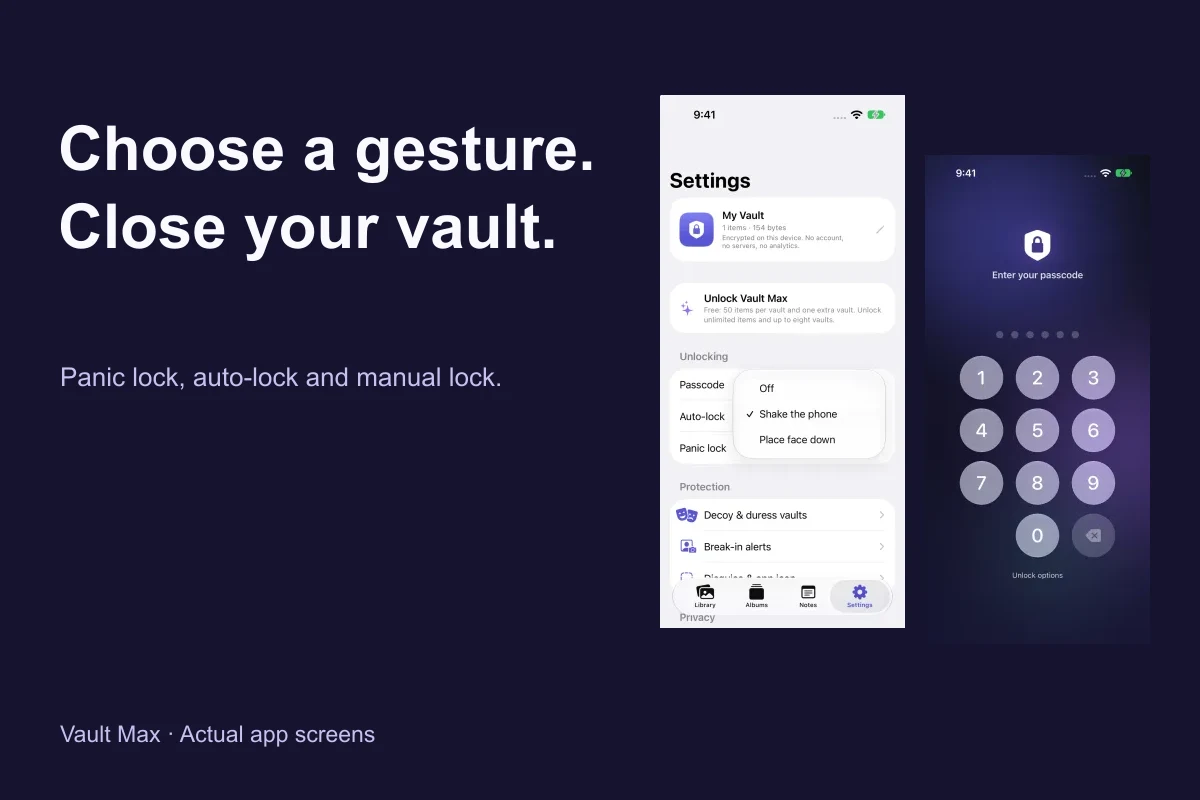
| Close the collection quickly | Manual lock, panic lock or auto-lock | Create a recovery copy |
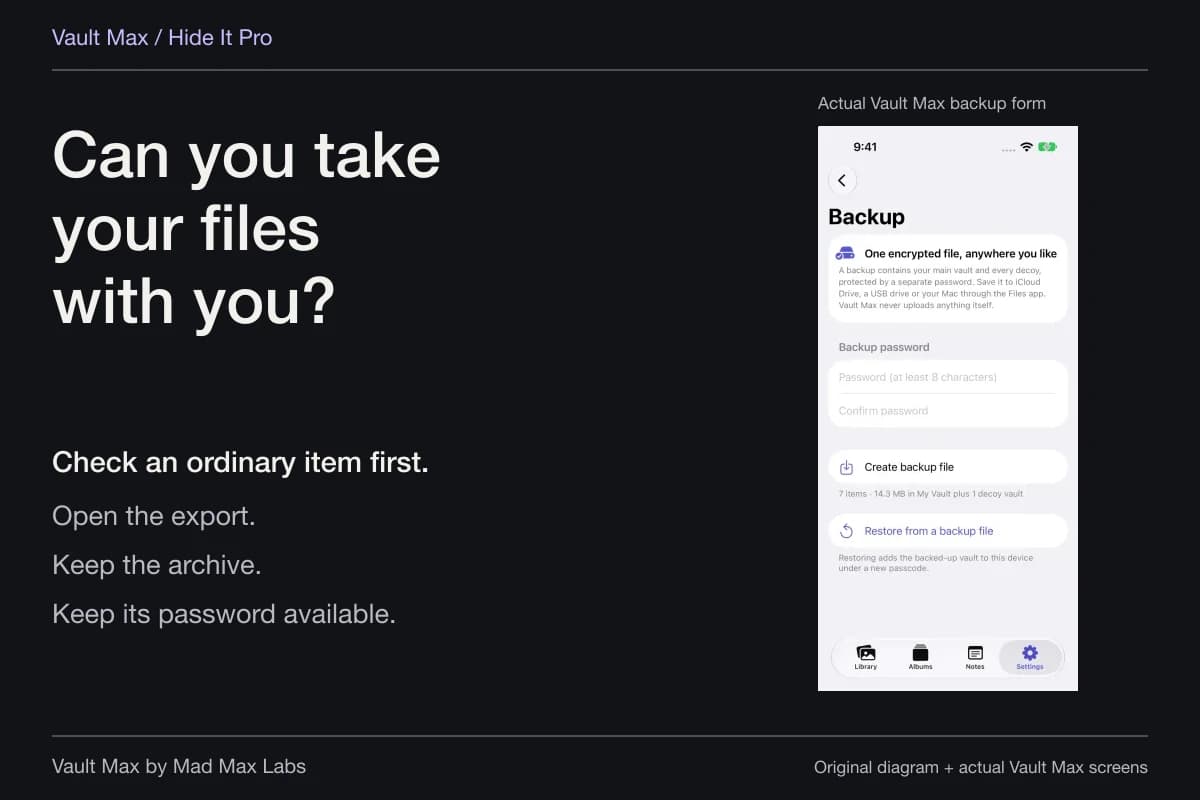
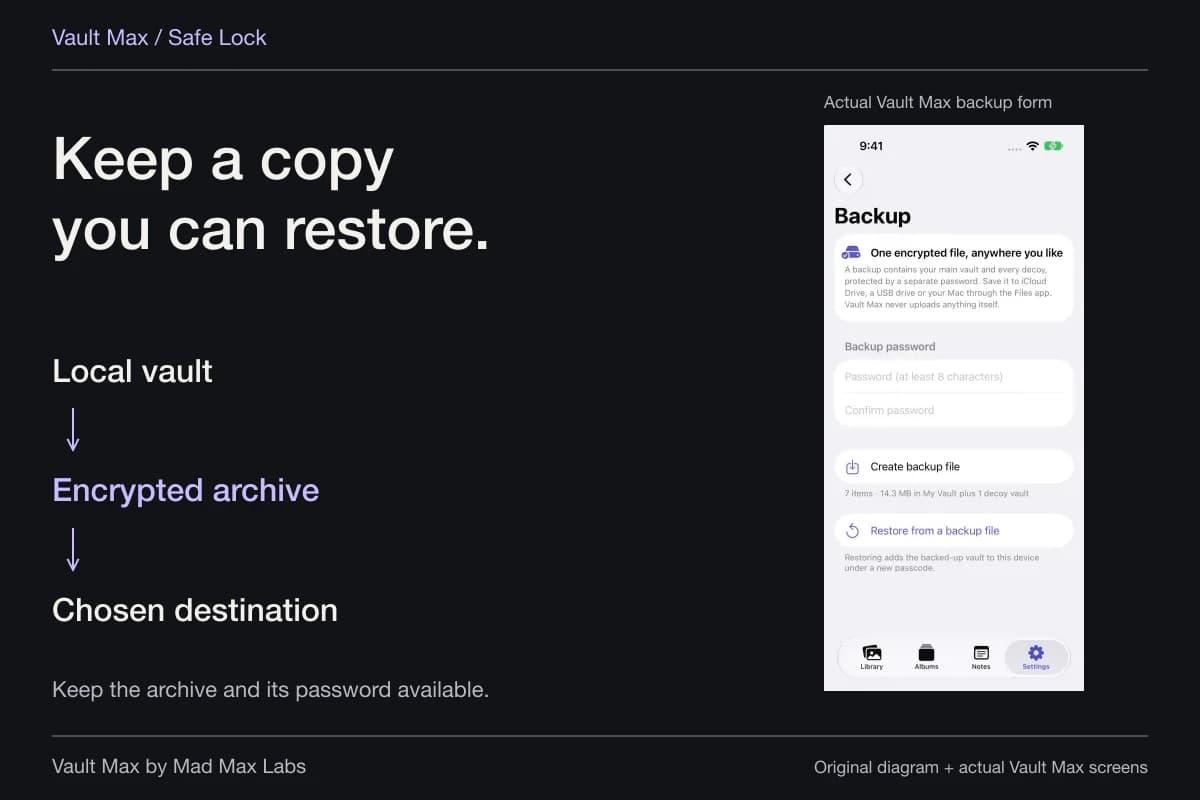
| Recover after losing the phone | An independently accessible backup and its password | Update an old snapshot automatically |
Keep destructive duress behavior out of an ordinary decoy setup
Vault Max also supports a duress role with a separately configurable action. It can open its own collection, or it can erase every other vault on that installation when its credential is entered.
That erase action is permanent locally, with no undo and no additional unlock-time warning. It is not required to use an ordinary decoy. Choose Add decoy vault when a separate, non-destructive collection is your goal, and do not experiment with a credential assigned to destructive behavior.
Neither a decoy nor a calculator can guarantee another person's reaction under pressure. Treat them as product behaviors you understand, rather than a promise about a confrontation.
Check the limits that a screenshot cannot show
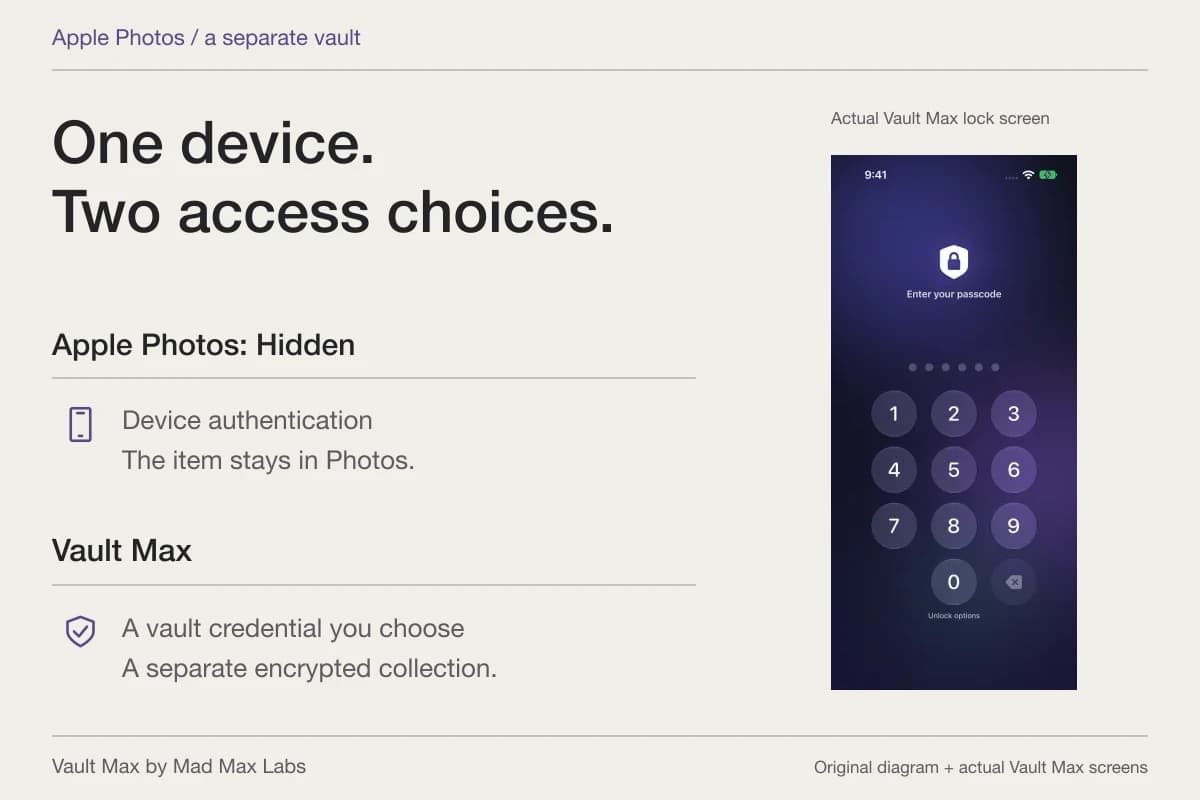
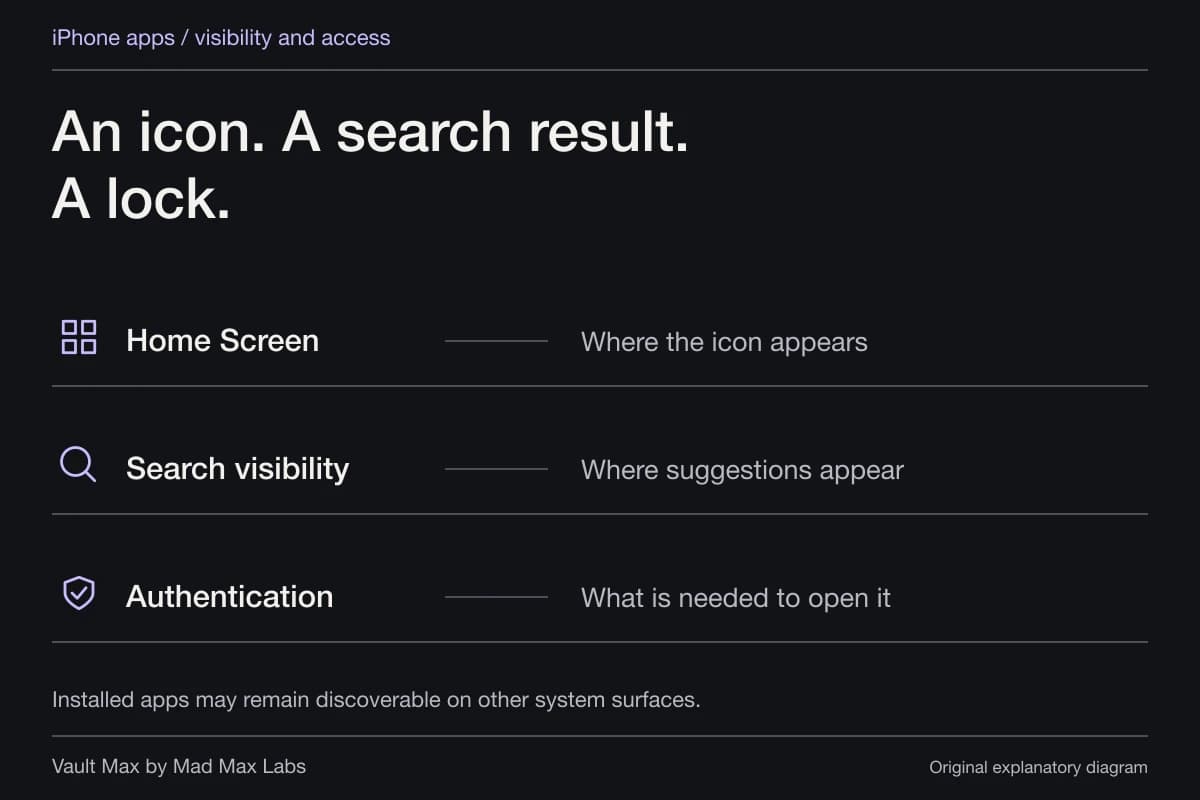
Disguise does not make an app unfindable. Apple's guidance on locking and hiding iPhone apps describes separate system controls; even hidden apps have a management entry in Settings. Vault Max's icon choices do not replace those controls.
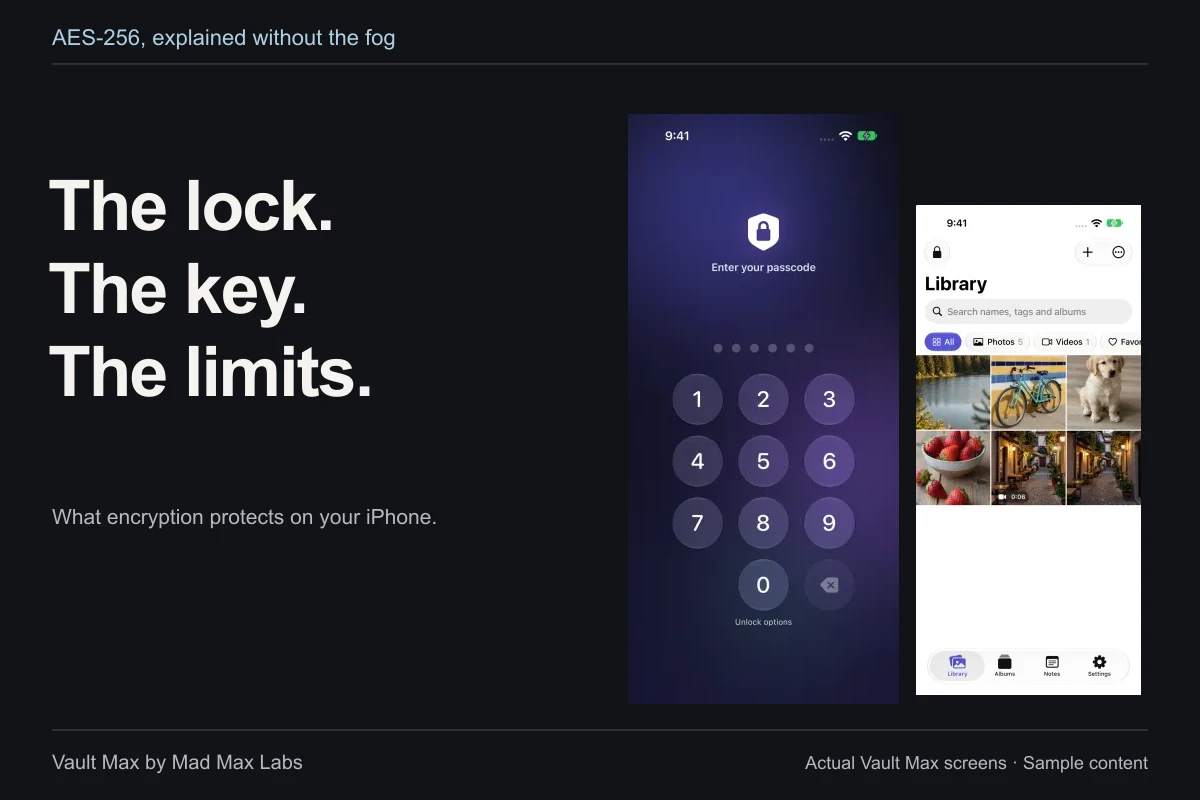
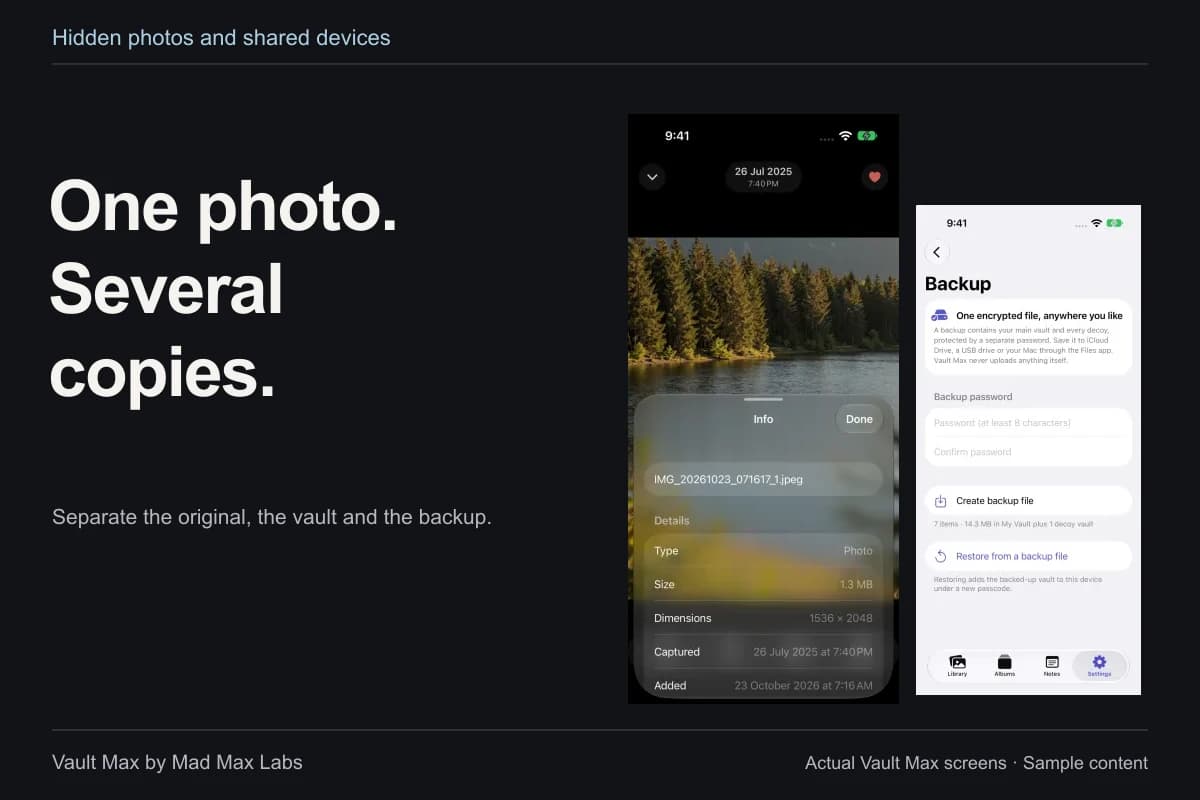
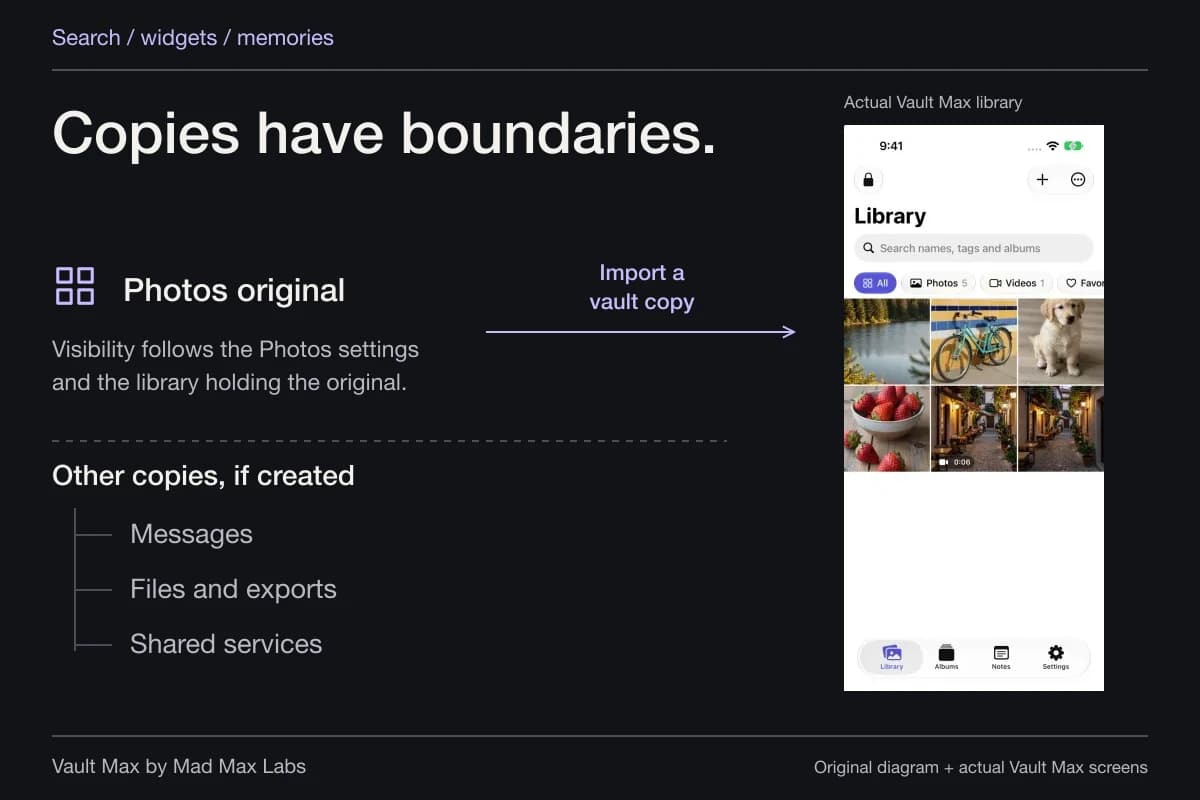
Encryption is another question. Vault Max uses AES-256-GCM for stored vault content, independently of the entry appearance. Originals left in Photos and copies you deliberately share remain outside that vault copy's protection. See what photo-vault encryption covers before relying on any lock-screen design.
Try a small check before adding important files
Use harmless content and your own private credentials for this exercise:
- Open the main collection and note one recognizable item.
- Open the ordinary decoy and add a different recognizable item.
- Lock the app, enter each known credential deliberately and check the contents.
- If you enabled calculator disguise, repeat with PIN plus equals and try the long-press fallback.
- Finish by locking the app and checking that the content is no longer visible.
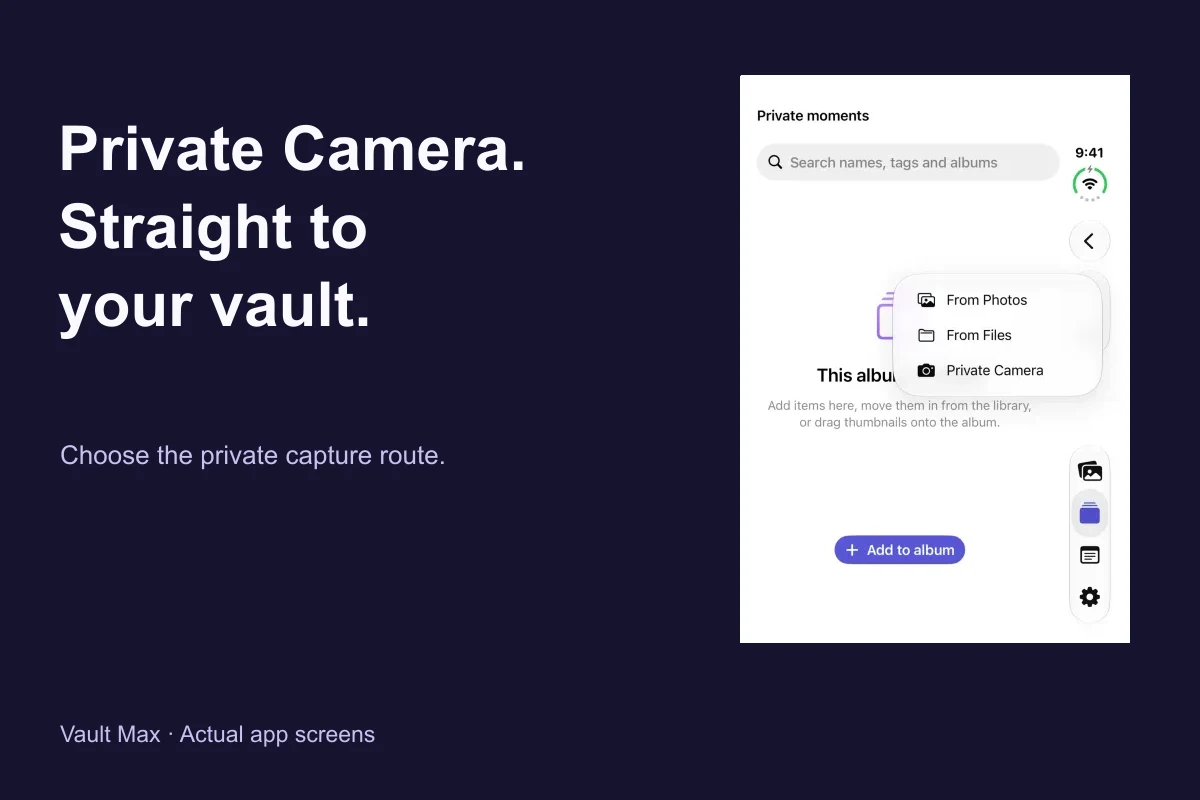
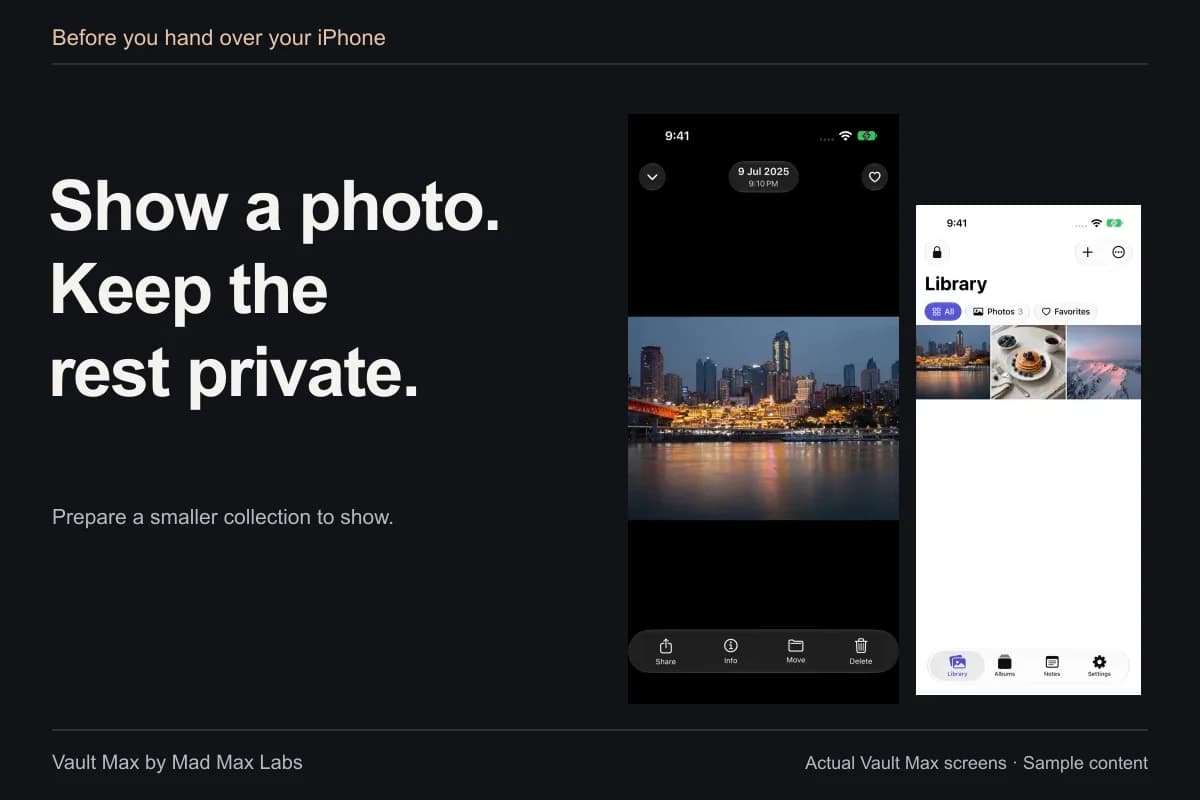
The images here are actual Vault Max simulator captures with sample content. They illustrate the interface and separate collections; they do not demonstrate a real-world coercion event or an independent security assessment.
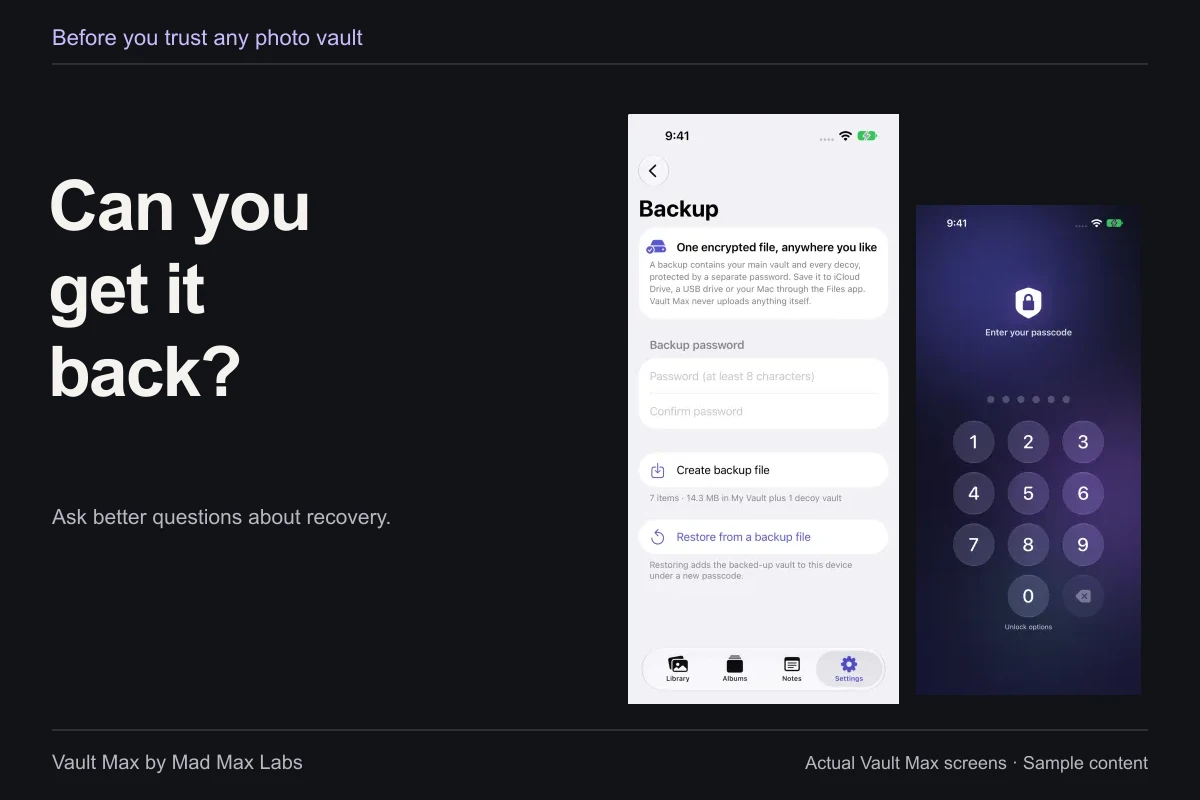
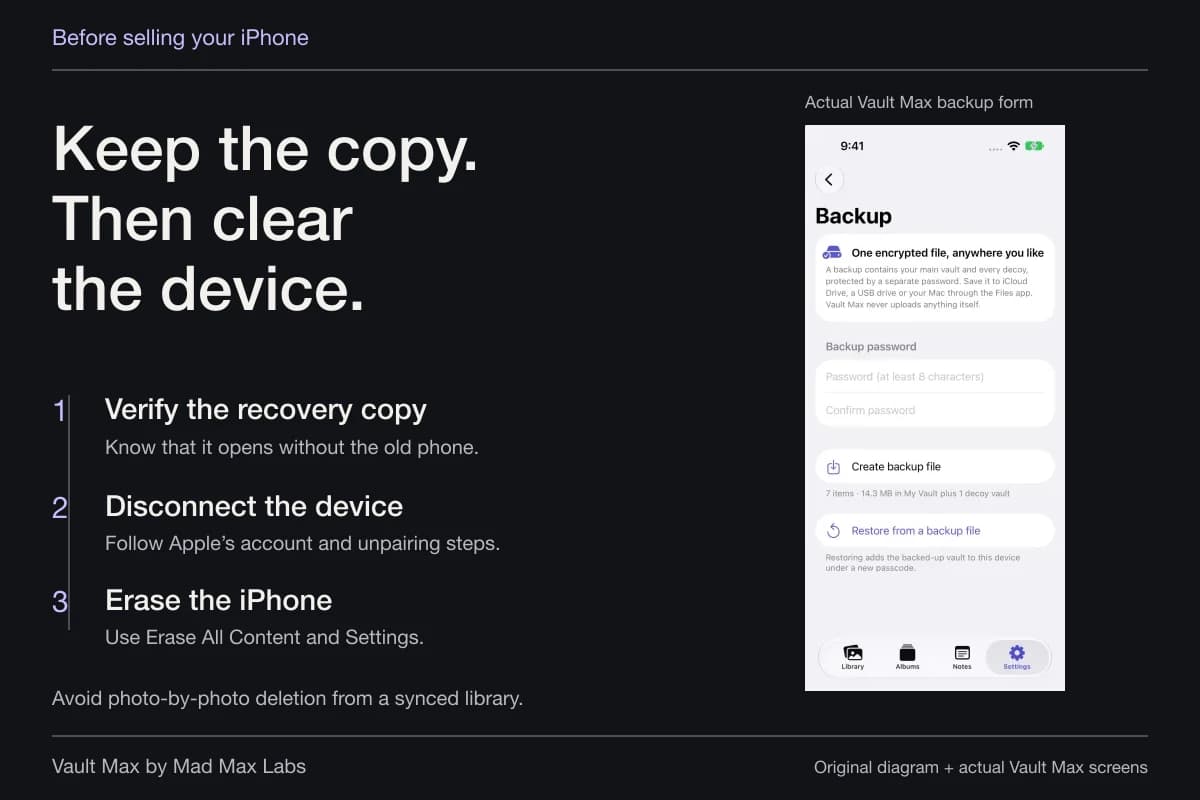
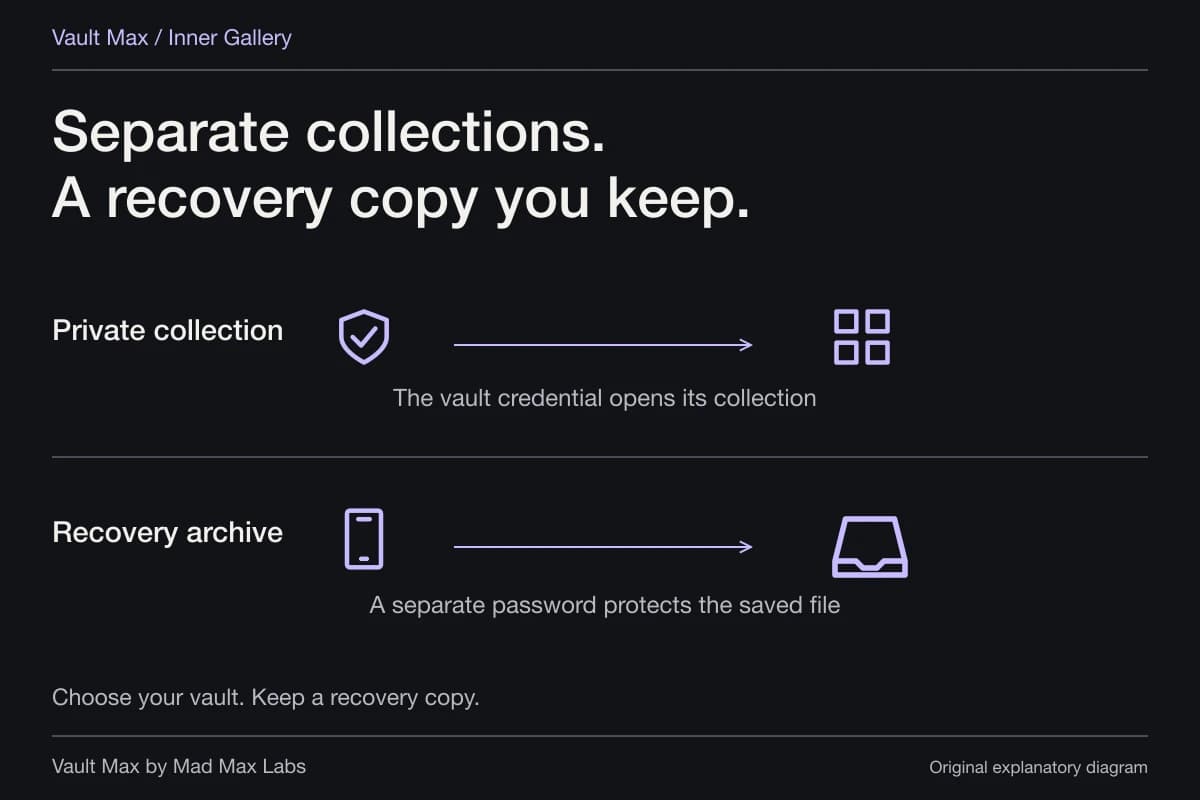
Once the behavior feels familiar, follow the calculator setup guide or decoy walkthrough for the detailed controls. Then make an encrypted recovery archive. Two libraries on the same phone still leave you with one phone to lose.
Continue reading
More guides
Practical tips for your private library. Swipe or scroll to choose your next guide.
50 guides to explore