
Privacy in practice
Keep private photos out of iPhone search, widgets and Memories
Review Photos suggestions, Search settings, widgets and original copies on iPhone. Learn which control changes visibility and where a vault import helps.
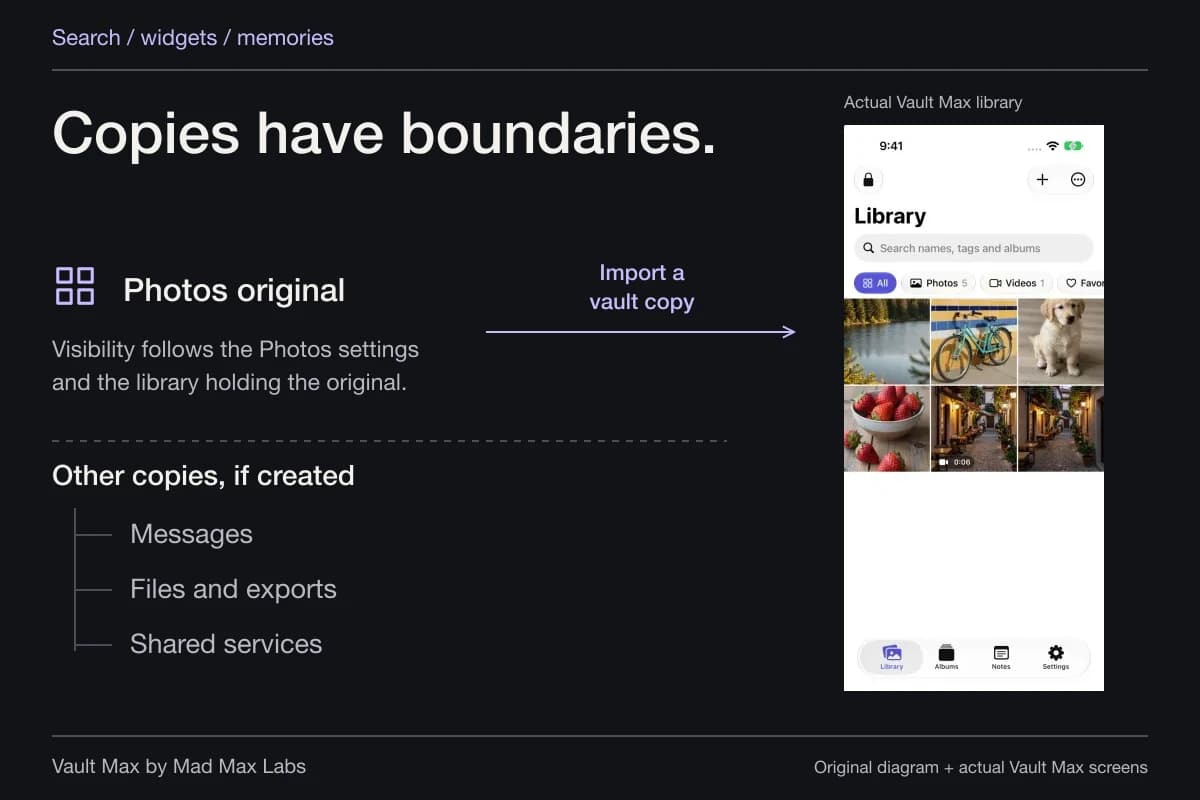
Review three separate places: suggestions inside Photos, app and content results in iPhone Search, and the widgets actually placed on your screens. Then account for the original picture. Importing a photo into a private vault does not automatically change the original's visibility elsewhere.
This is easy to miss when a picture resurfaces months after you organized it. The file may be exactly where you left it, while a recommendation, widget or shared copy brings it back into view. Follow the copy and the surface that displayed it instead of looking for one universal “hide everywhere” switch.
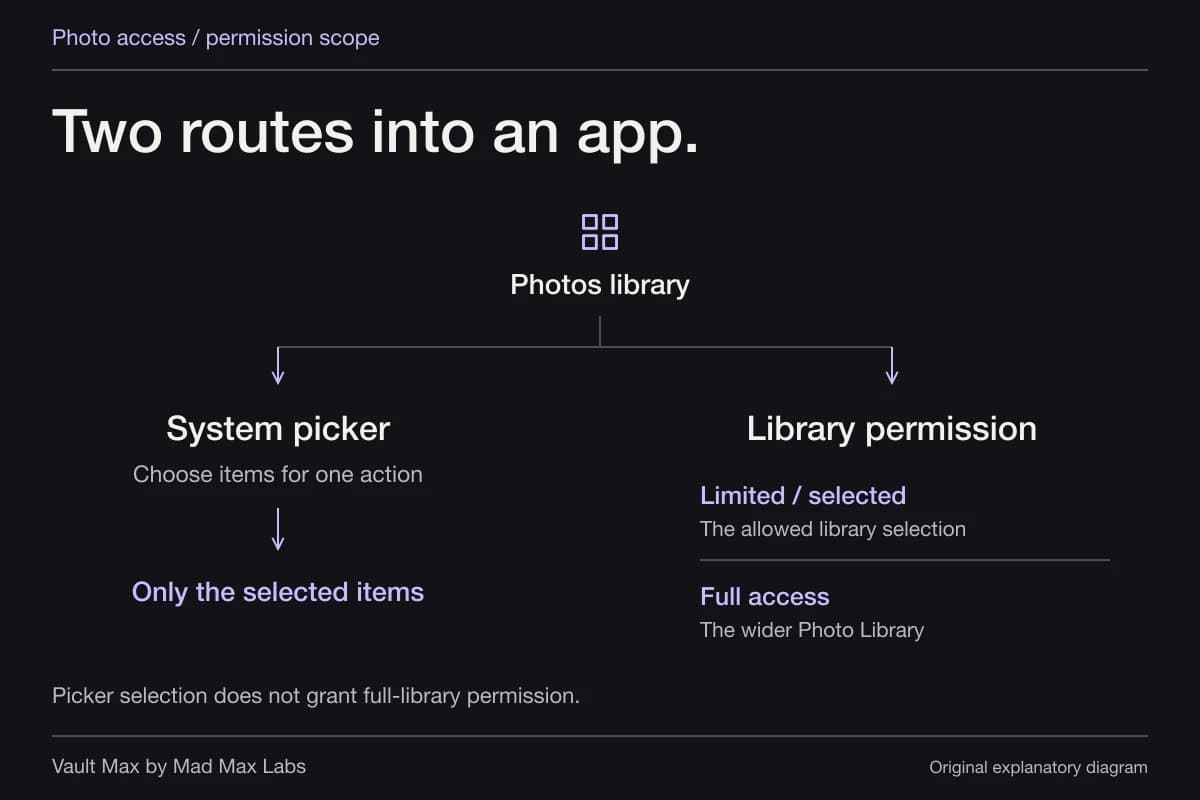
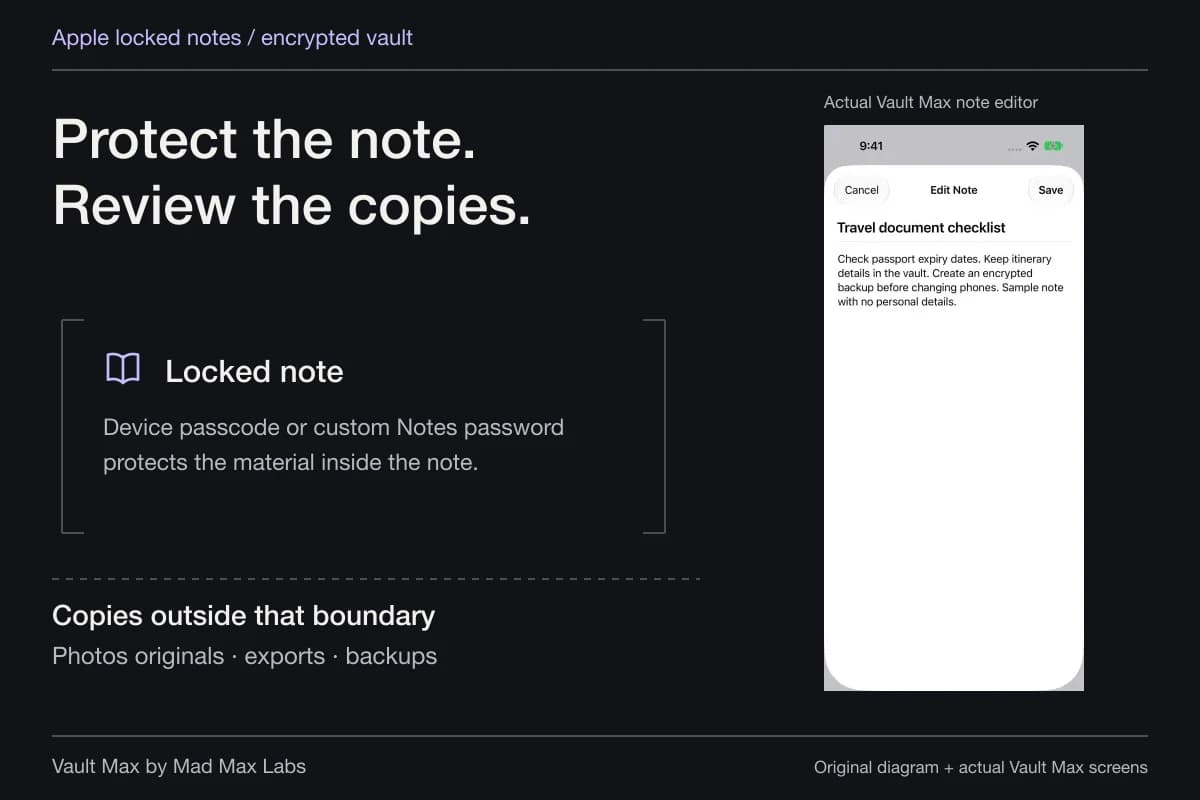
Photos original
Its visibility follows the Photos settings and library it belongs to.
Review this copy separatelyVault Max copy
A separate encrypted item in the local vault library.
Open it and verify the import- Messages
- Files and exports
- Shared albums or services
Each location has its own visibility, access and deletion rules.
Start with the surface that surprised you
Was the picture inside a Photos collection, a featured memory, a Home Screen widget, an iPhone Search result or another app? Note that location before changing settings. Those routes have different controls.
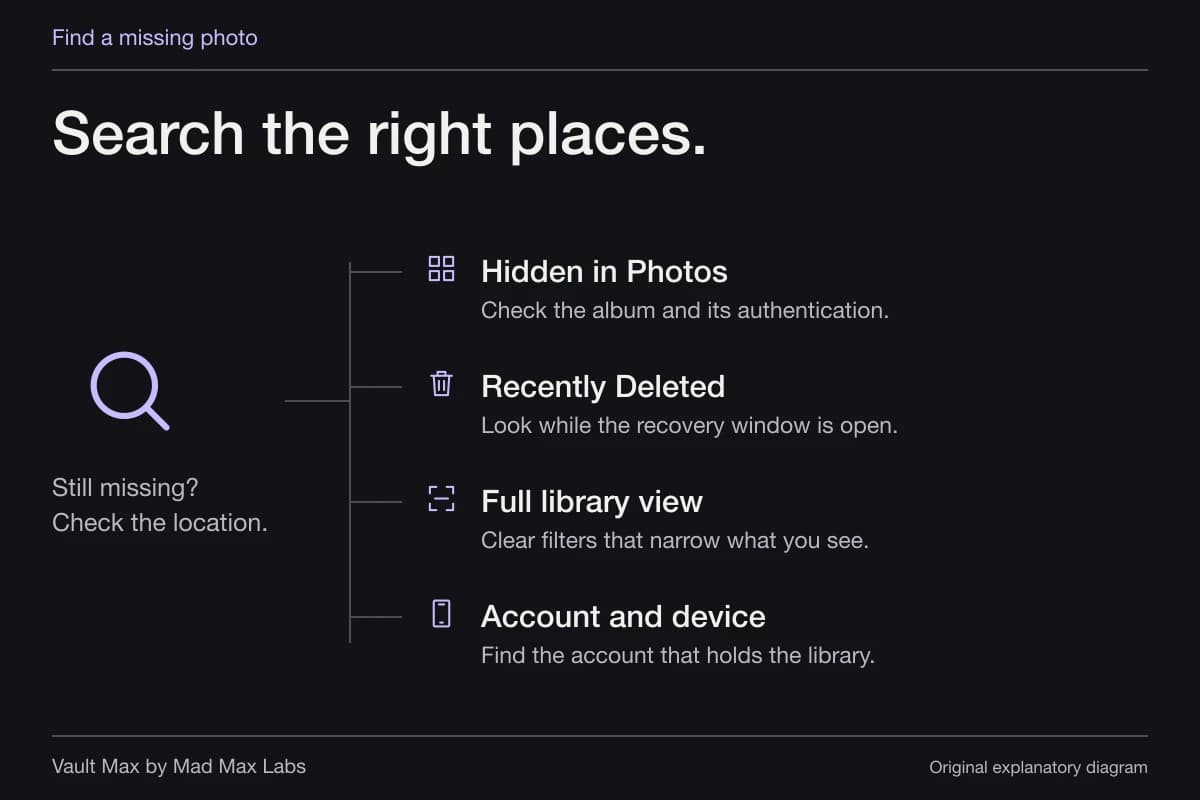
If the content is irreplaceable, keep a verified recovery copy before deleting anything. A visibility problem rarely needs a hurried library-wide deletion. For a missing picture rather than an unwanted appearance, use the missing-photo search guide to inspect the likely locations first.
Apple changes labels and layouts across iOS releases. The paths below follow its current guidance; use the corresponding feature name on your installed version and verify the result on the screen you actually use.
Turn off Photos featured content when you do not want suggestions
Apple's current Photos guide describes opening Collections, tapping the account control and turning off Show Featured Content. This addresses automatically featured material. Holiday-event suggestions have a separate control.
For a particular person, Apple also provides choices to feature that person less or never feature them. That can be more proportionate than changing your whole library when the issue is a particular recurring suggestion. Apple's personal-safety guide explains related memory and suggestion controls.
Treat those as presentation preferences. They do not relocate the picture into a separate vault, remove a shared copy or change who can open the original collection. After changing the setting, revisit the Photos surface that prompted the change.
Review Search at the app level
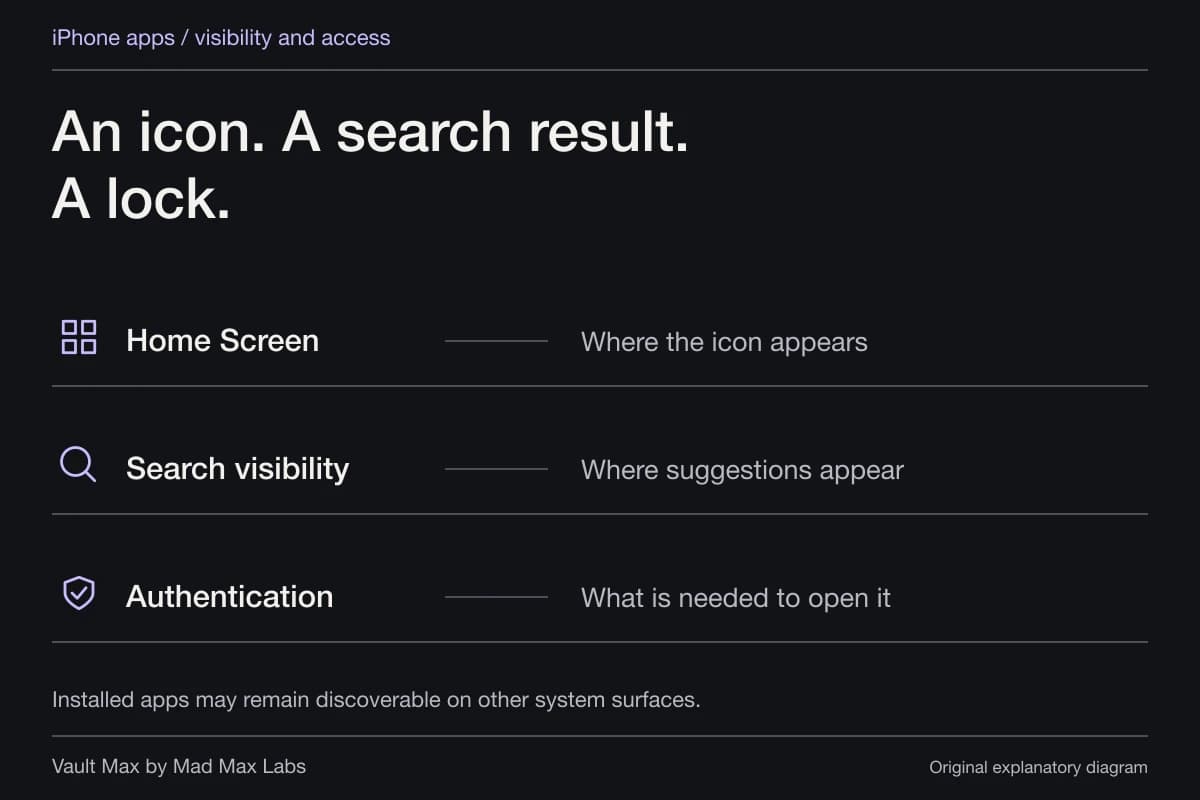
Spotlight is the search surface you can open from the iPhone Home Screen. It differs from searching inside Photos. Changing one does not tell you everything about the other.
Apple's Search instructions explain app-specific controls under Settings → Search. Depending on the app and available options, you can review whether the app or its content appears in search, alongside suggestion choices. Apple's iPhone search guide also explains that third-party app content appears where the app supports that integration.
Inspect the apps that hold copies: Photos, Files, messaging apps and any relevant service. Hiding a Photos result cannot remove a separate attachment from a different app's results. Removing the Home Screen Search button only removes that shortcut; it is not a substitute for these content settings.
Inspect the widgets you have actually placed
Review the Home Screen, widget stacks, Today View and Lock Screen. A widget can be easy to overlook inside a stack that rotates, or on a screen you rarely open while configuring the phone.
Apple's widget guide explains editing widgets and stacks and controlling Today View access while locked. Edit or remove the widget that does not belong in your routine, then check the relevant screen again. A widget's own available configuration depends on its provider.
Do not infer a device-wide result from a single clean Home Screen. The useful check is concrete: inspect the screens you use while the phone is locked and unlocked, including the stack or view where the picture appeared. This is a recommended owner check, rather than a claim that we tested every iPhone configuration.
| Where the picture appears | What to review | What that change does not establish |
|---|---|---|
| Featured content inside Photos | Photos featured-content and person suggestions | That the original moved into separate encrypted storage |
| iPhone Search | Search options for each app holding a copy | That search inside every other app is disabled |
| A widget or stack | That widget, its settings and the screens where it is placed | That all other display surfaces are configured |
| The main Photos library | Hidden status, authentication and source-copy choices | That messages, exports or shared copies disappeared |
Hidden status and a separate vault solve different parts
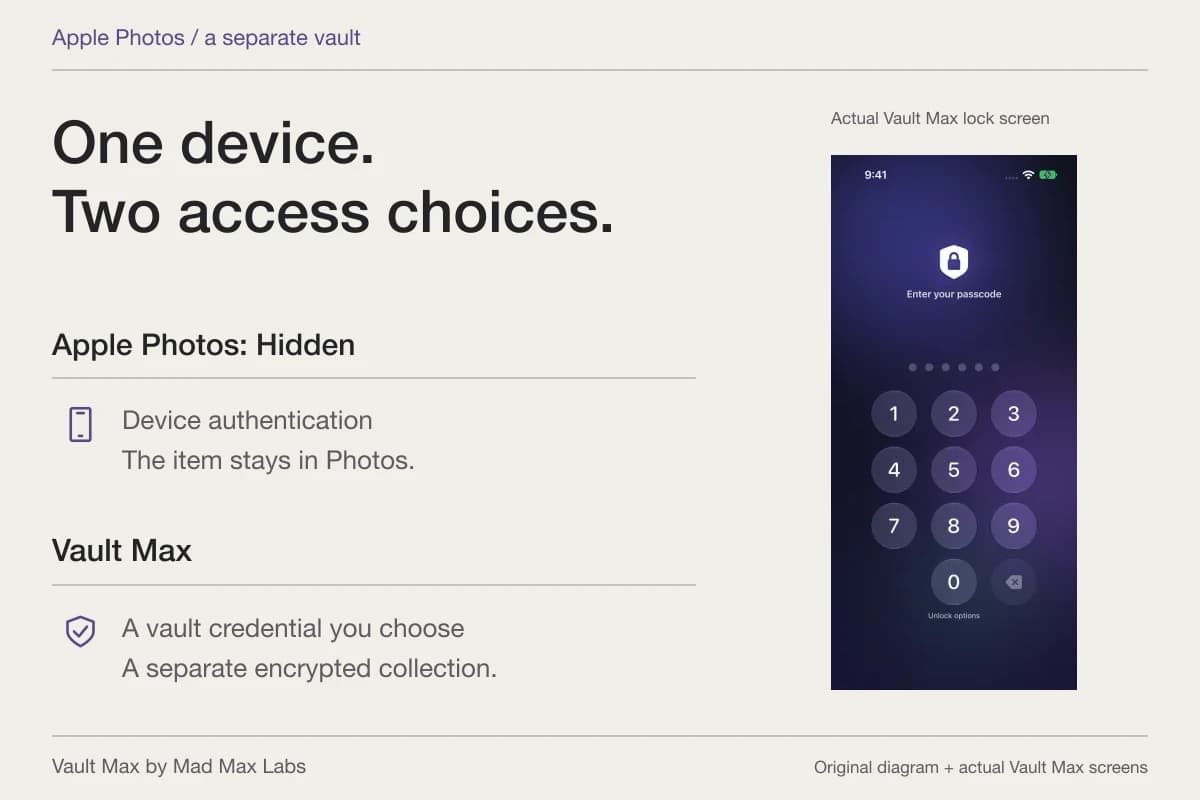
Apple's hide and delete guide explains that hidden pictures move to Hidden rather than the normal Photos views, with authentication enabled by default on supported current systems. You can also change whether the Hidden collection itself is shown.
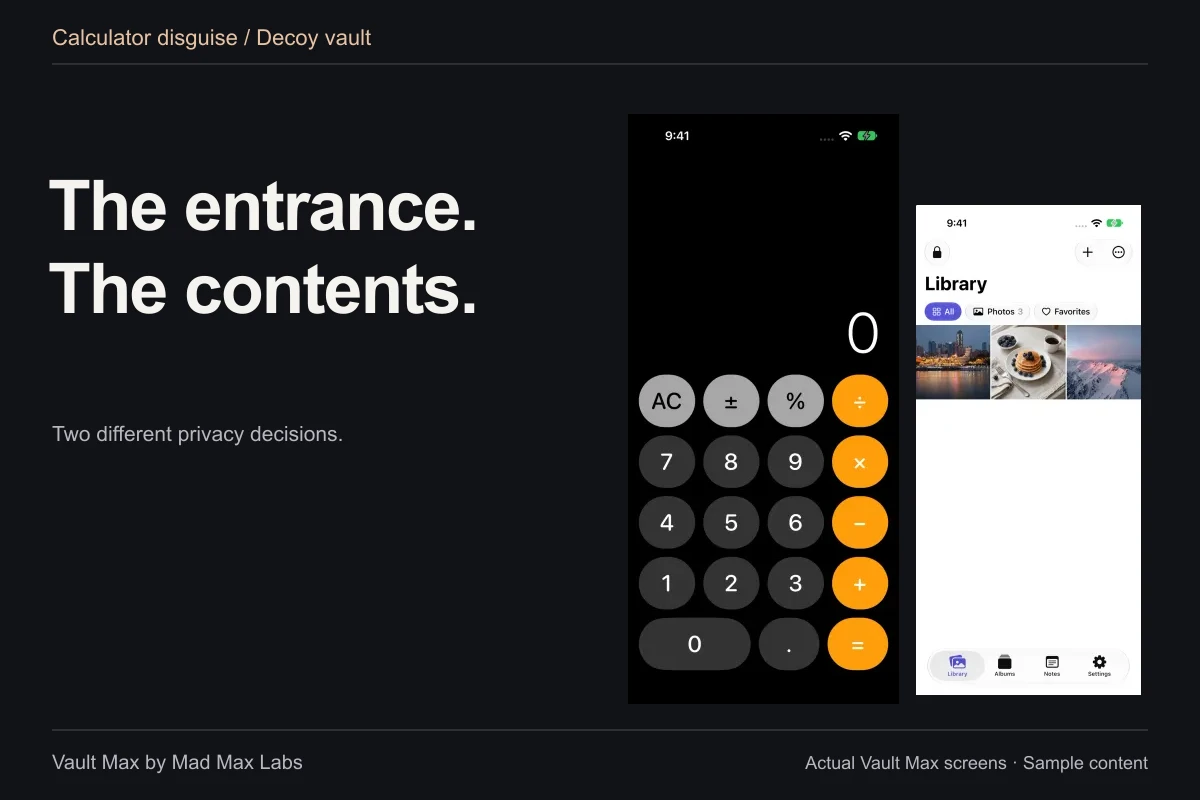
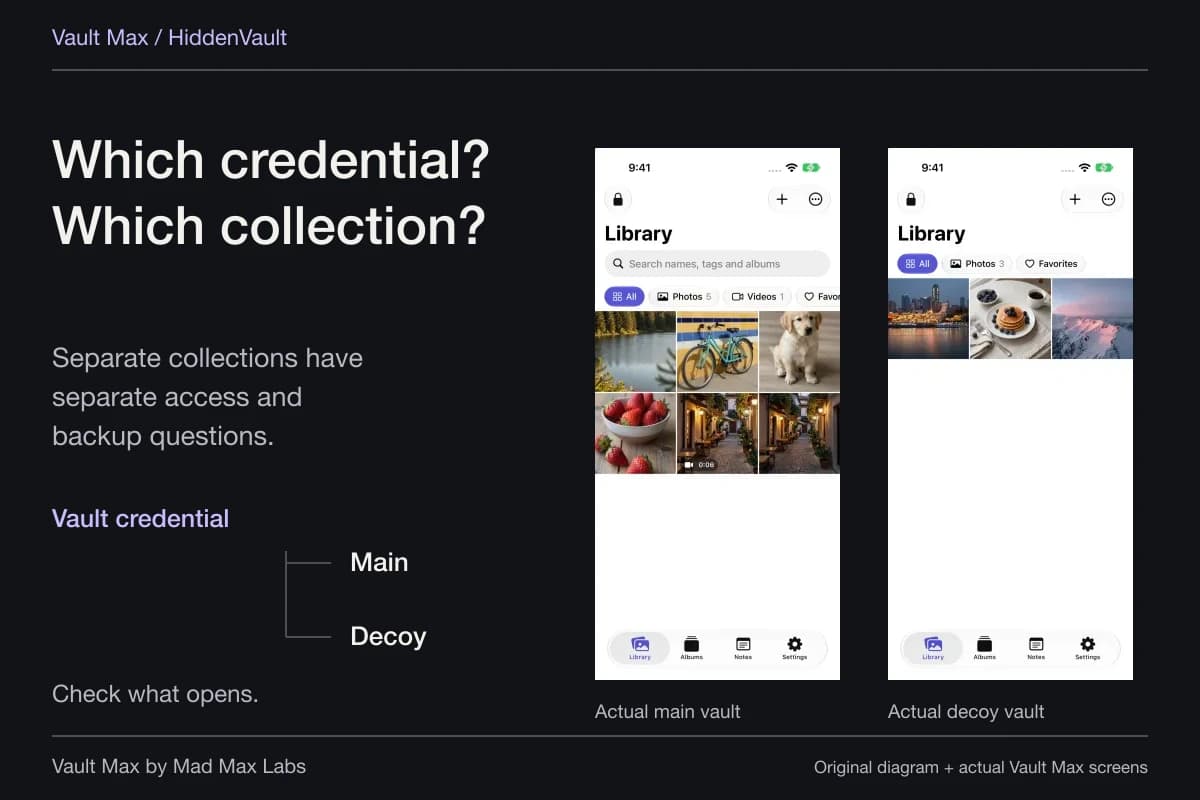
That is a useful built-in option. It still belongs to the Apple Photos library and account model. The Hidden album comparison explains the difference from keeping a separate vault collection with its own credential.
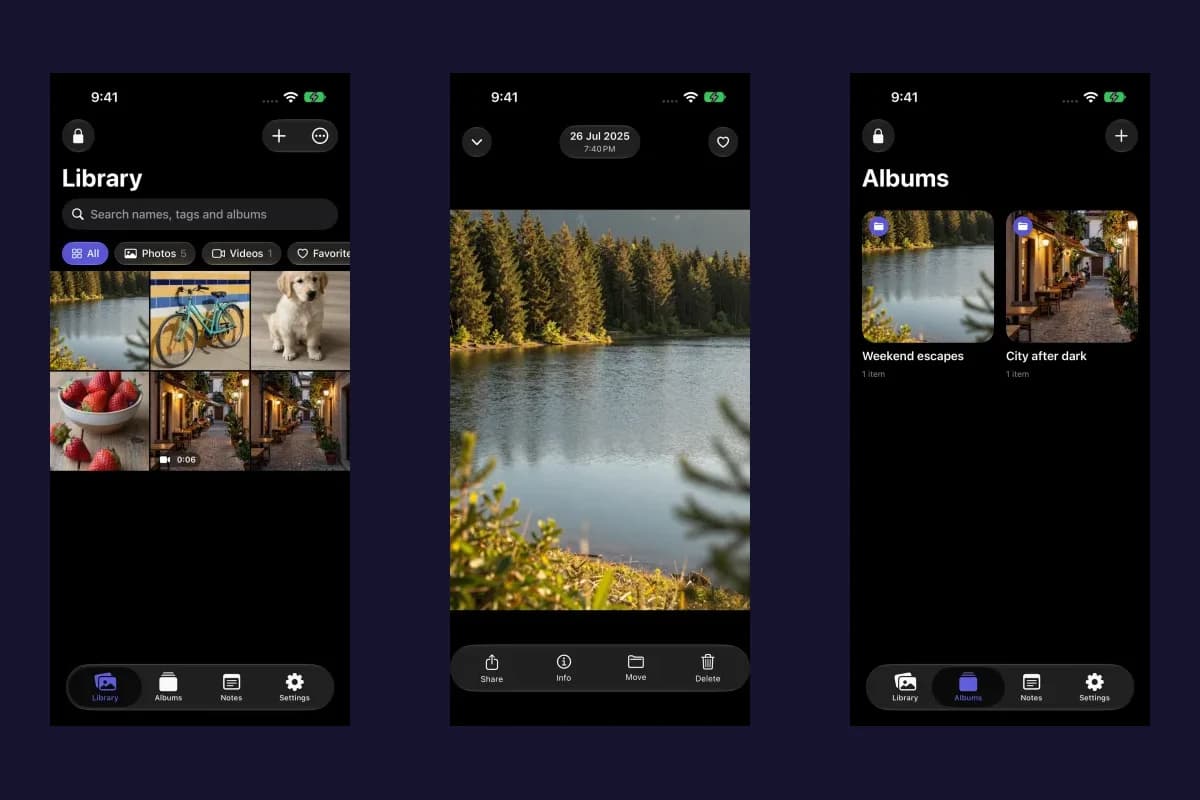
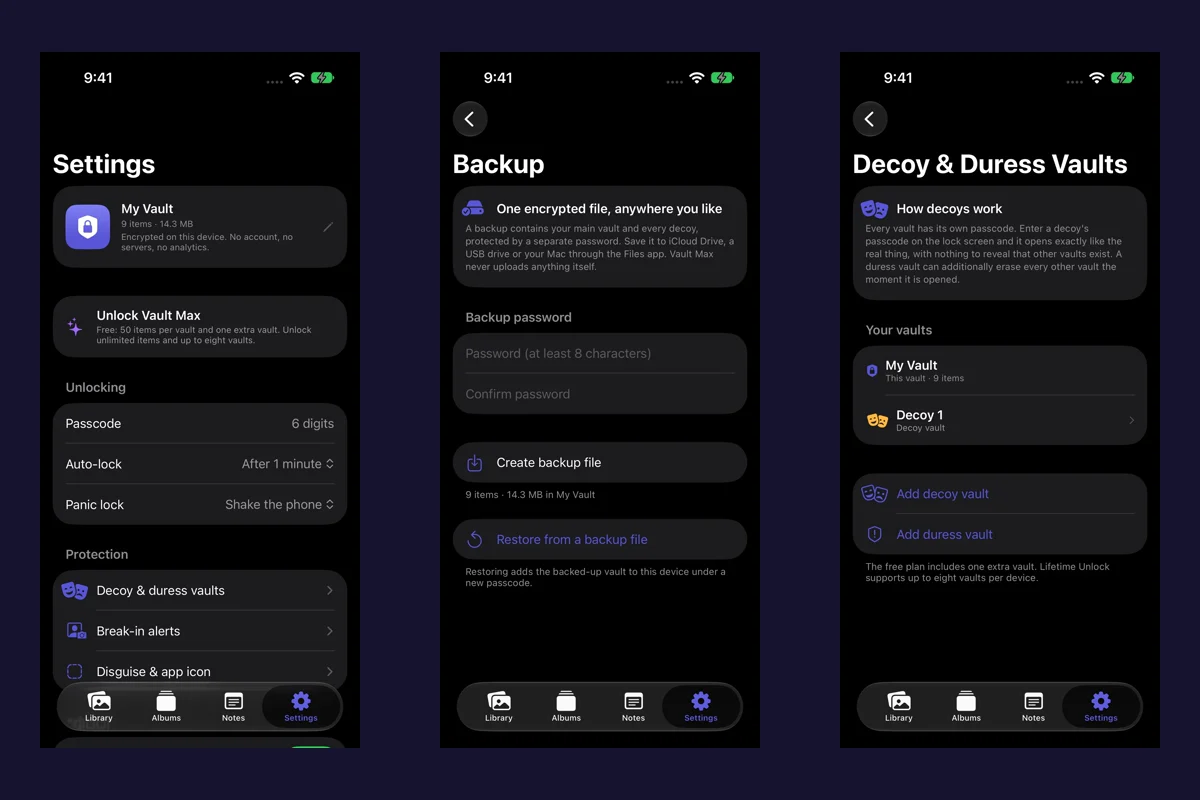
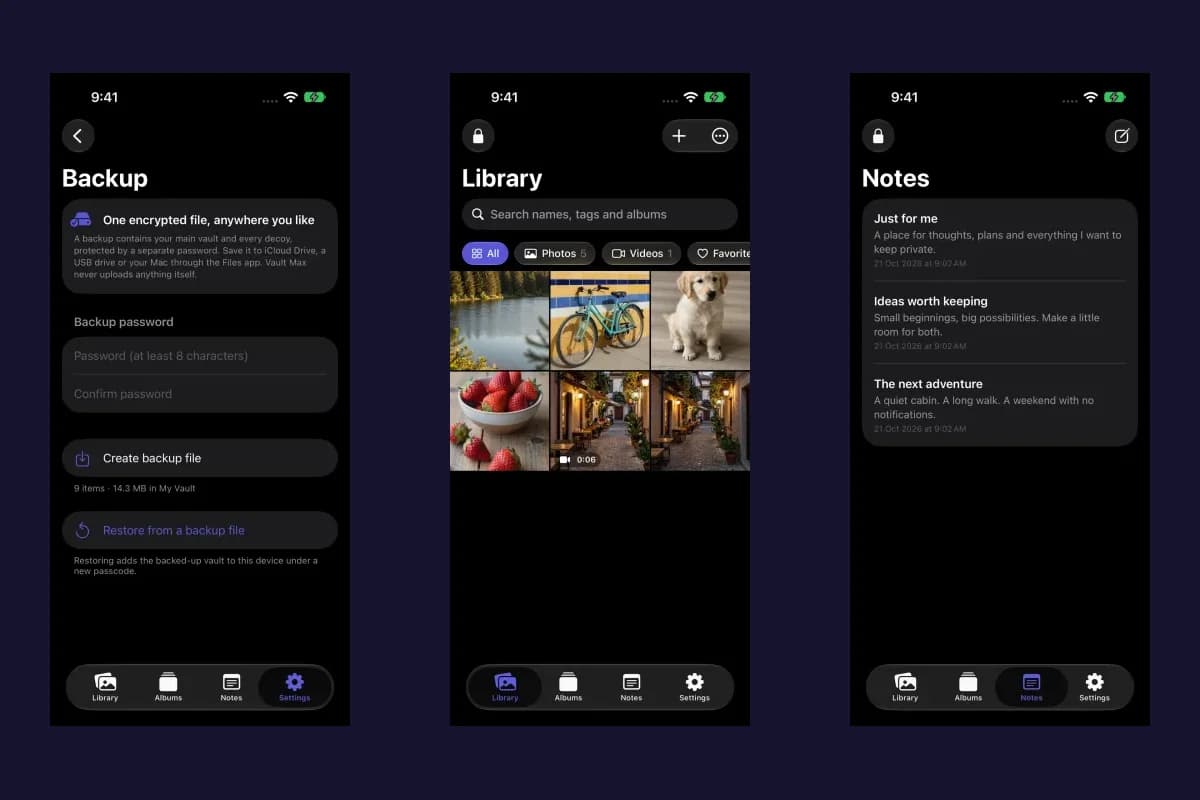
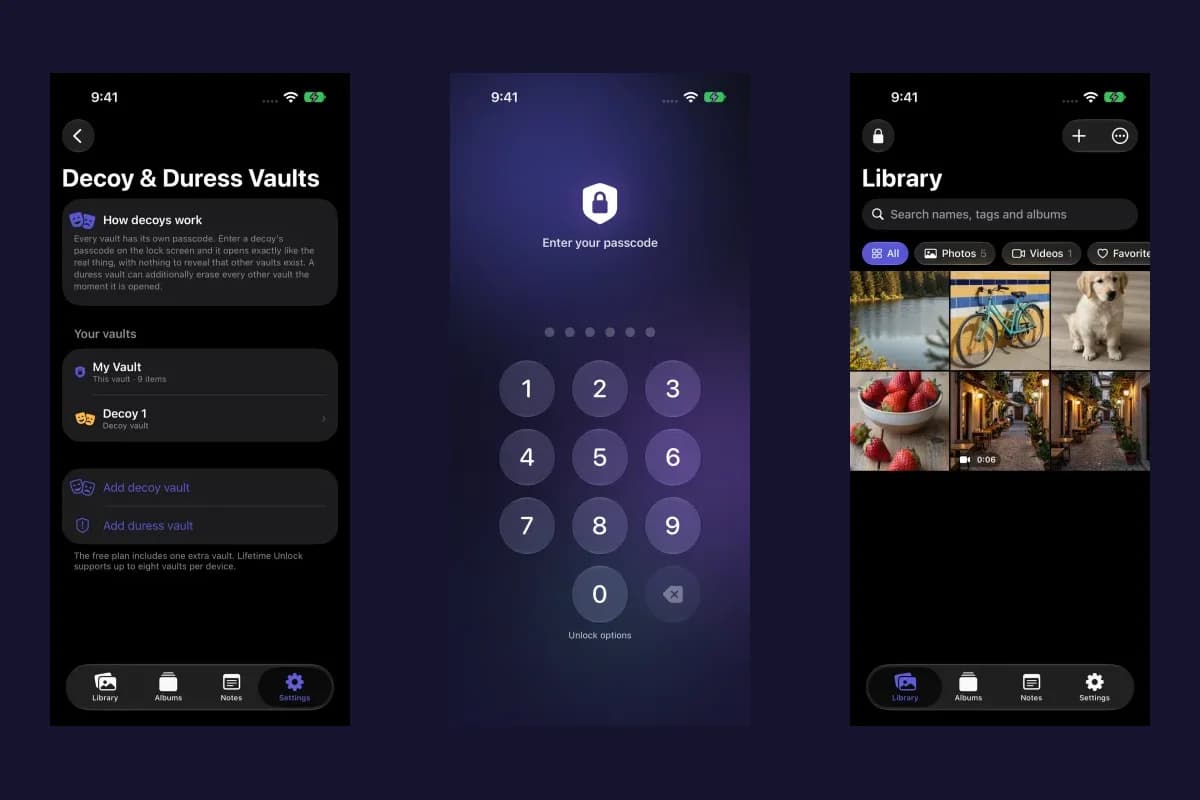
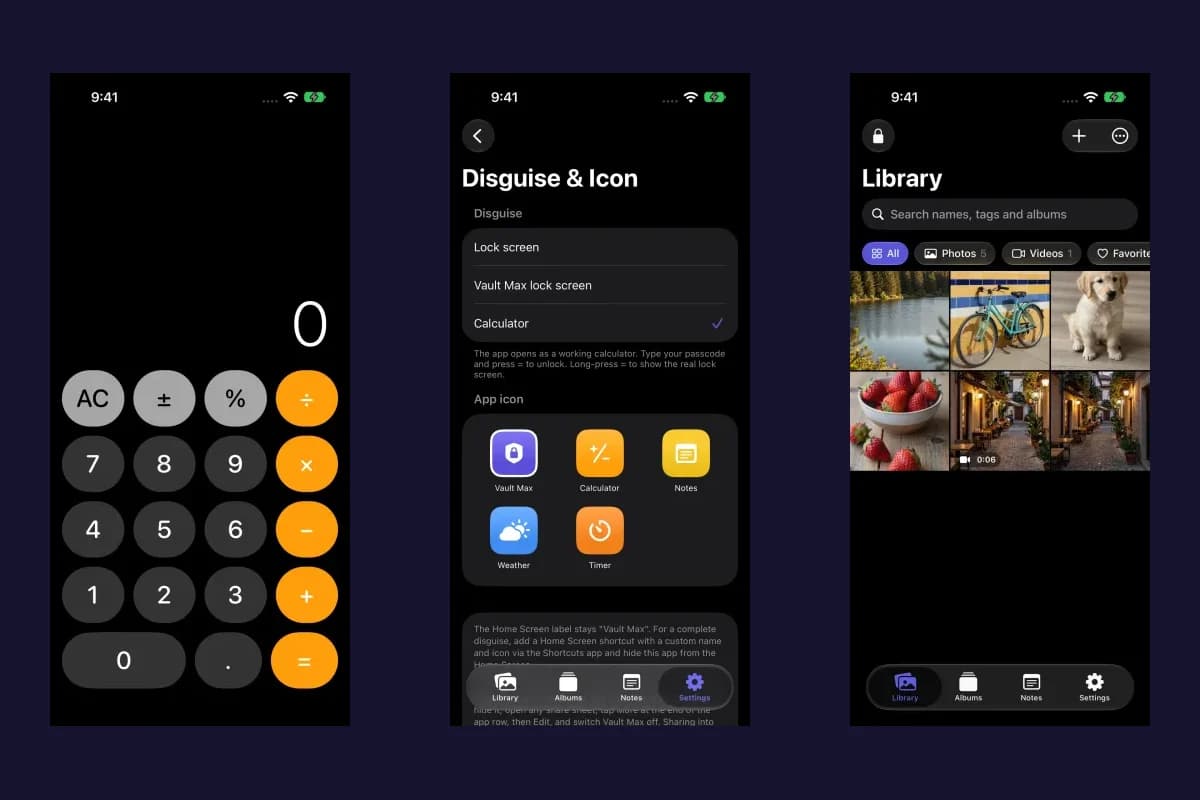
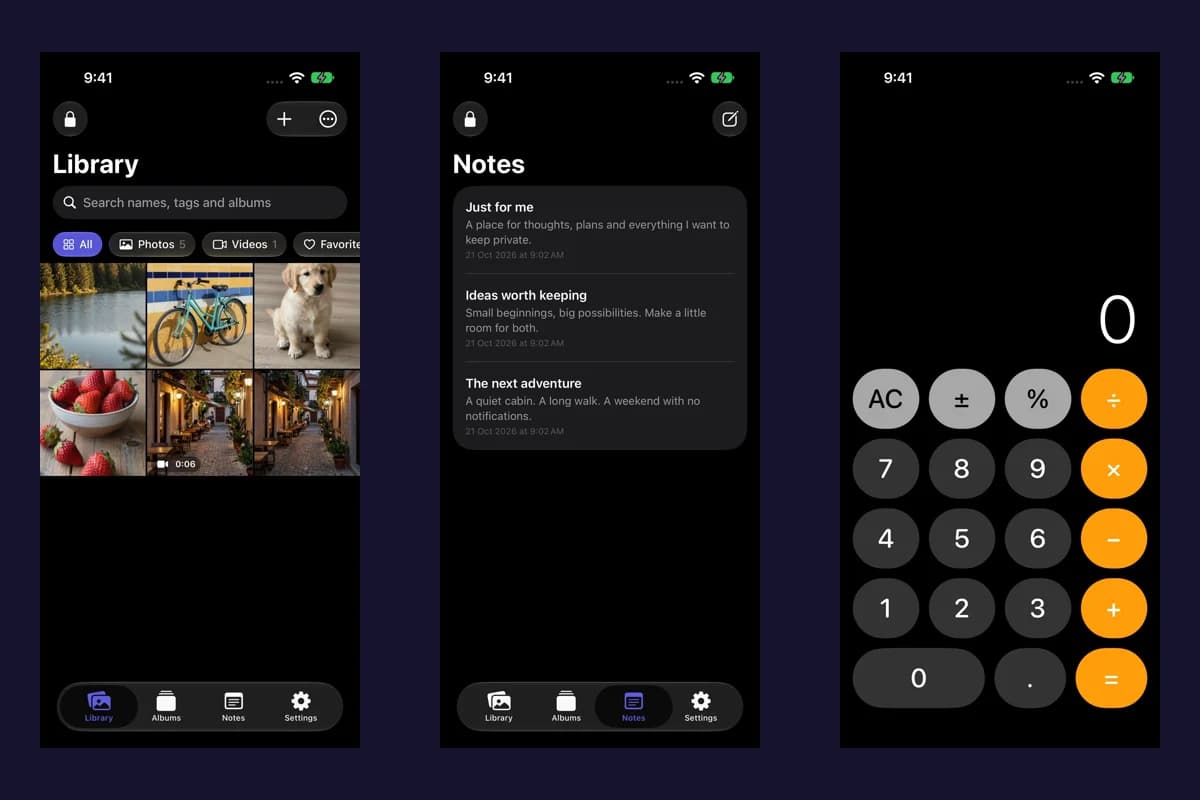
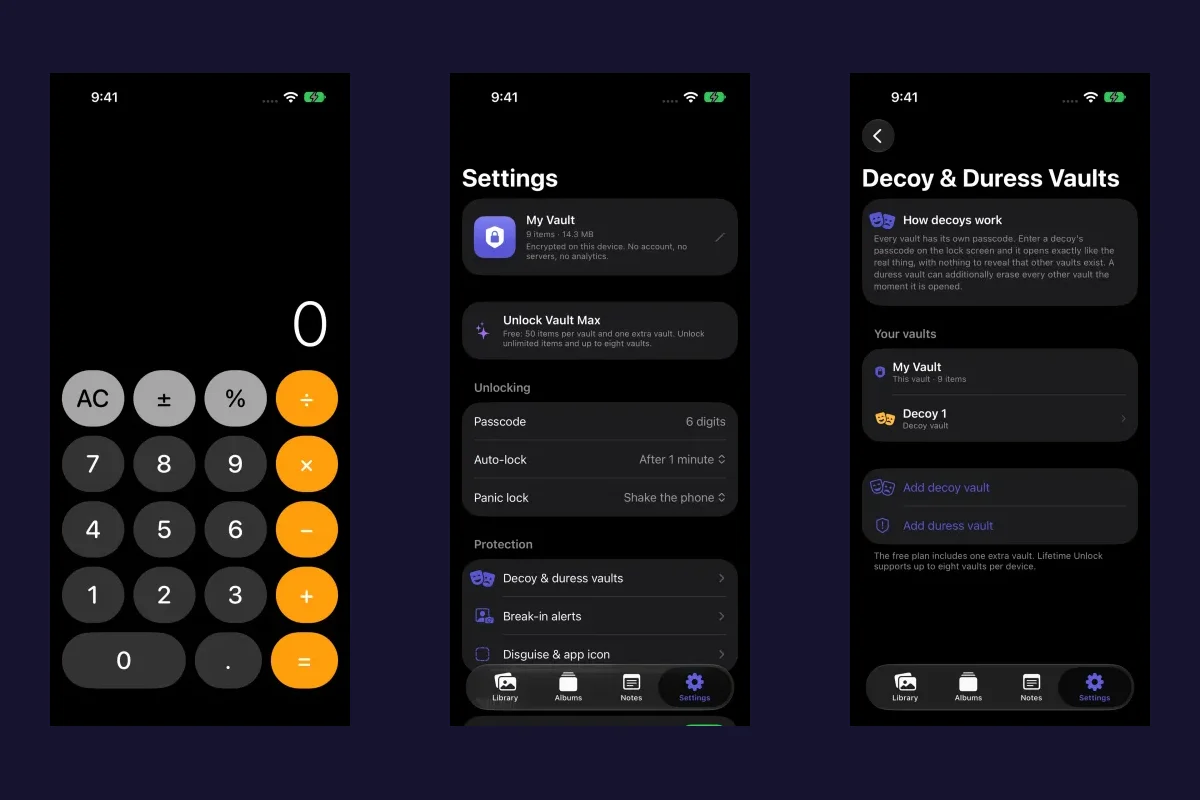
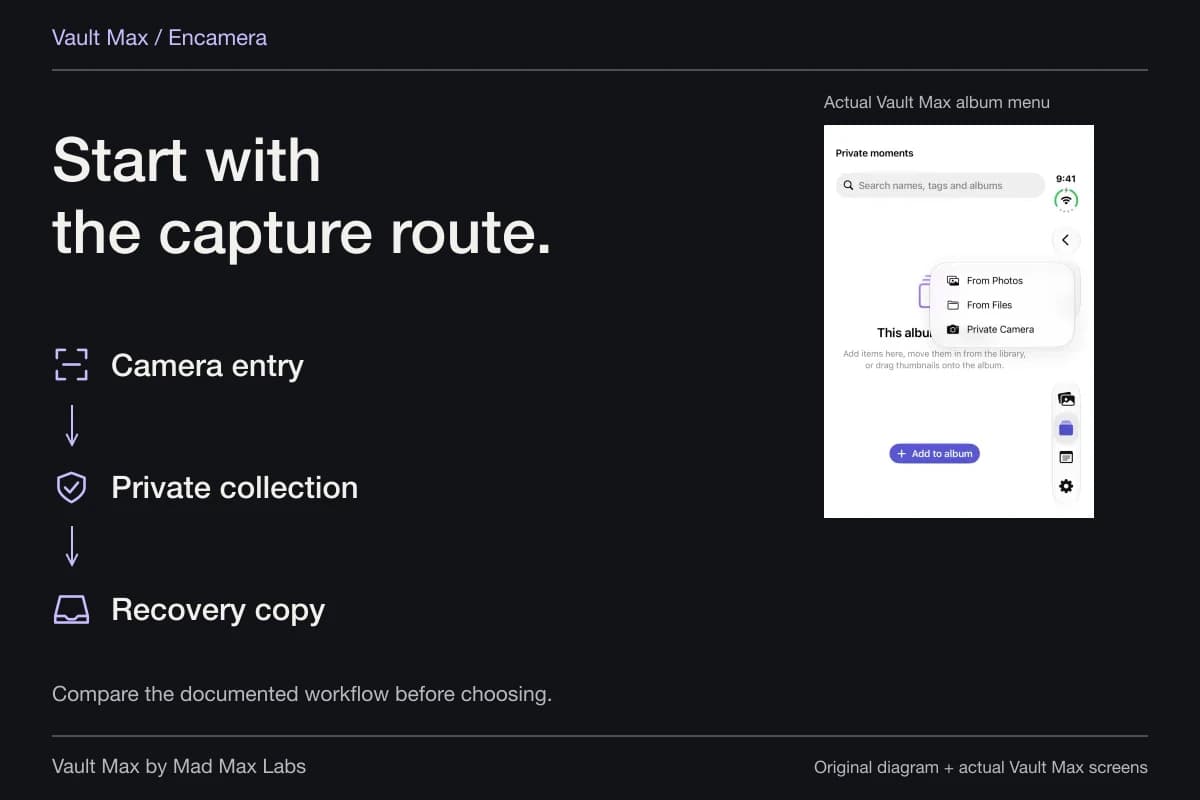
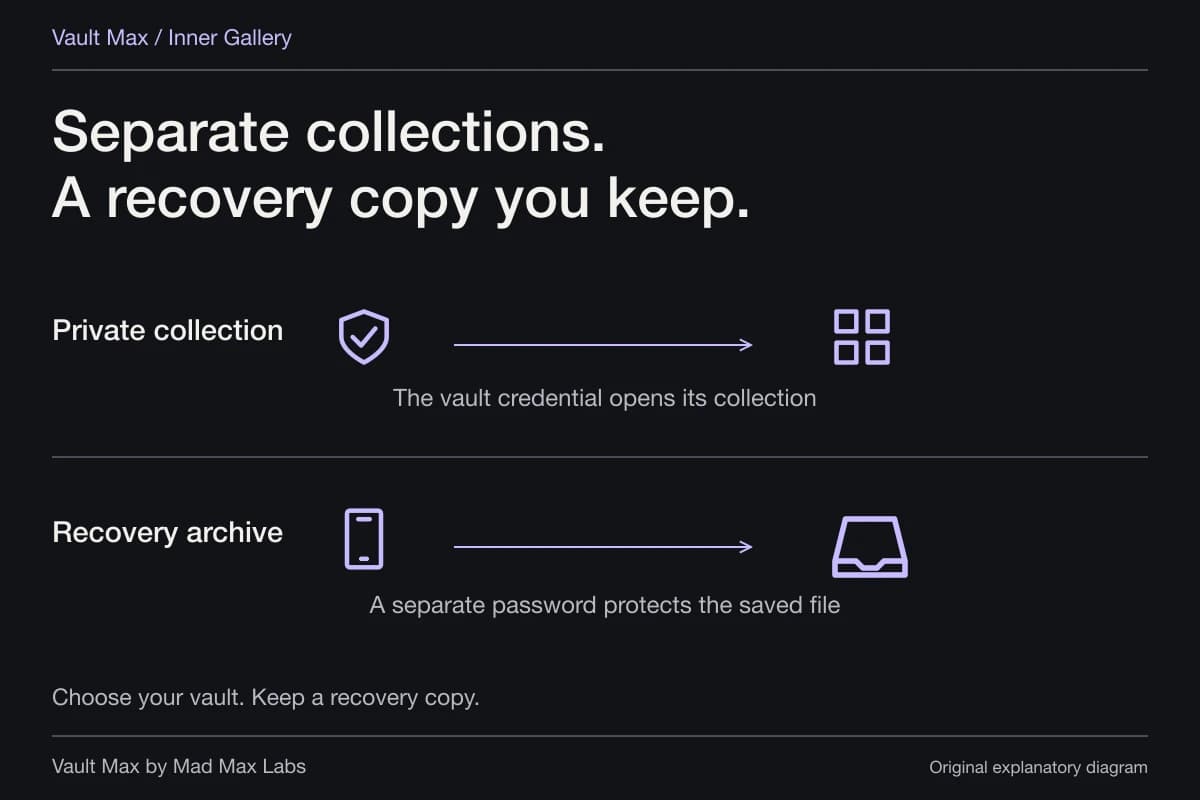
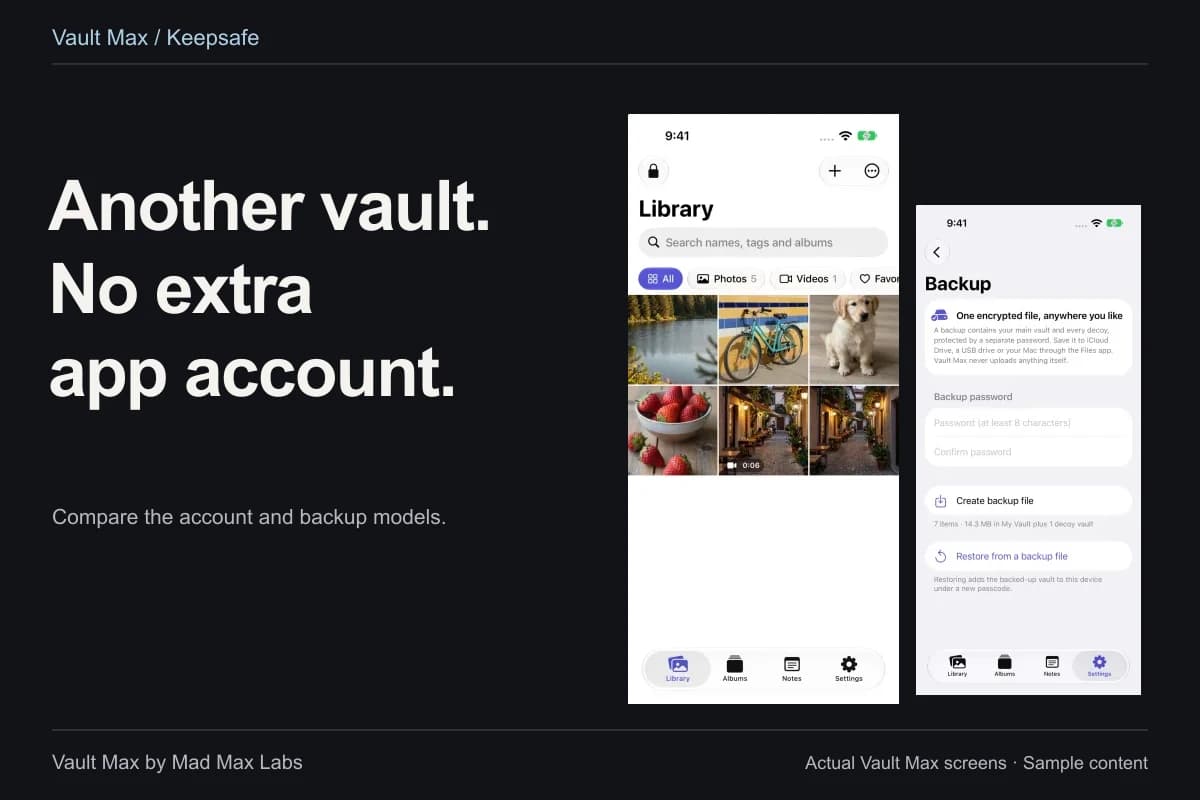
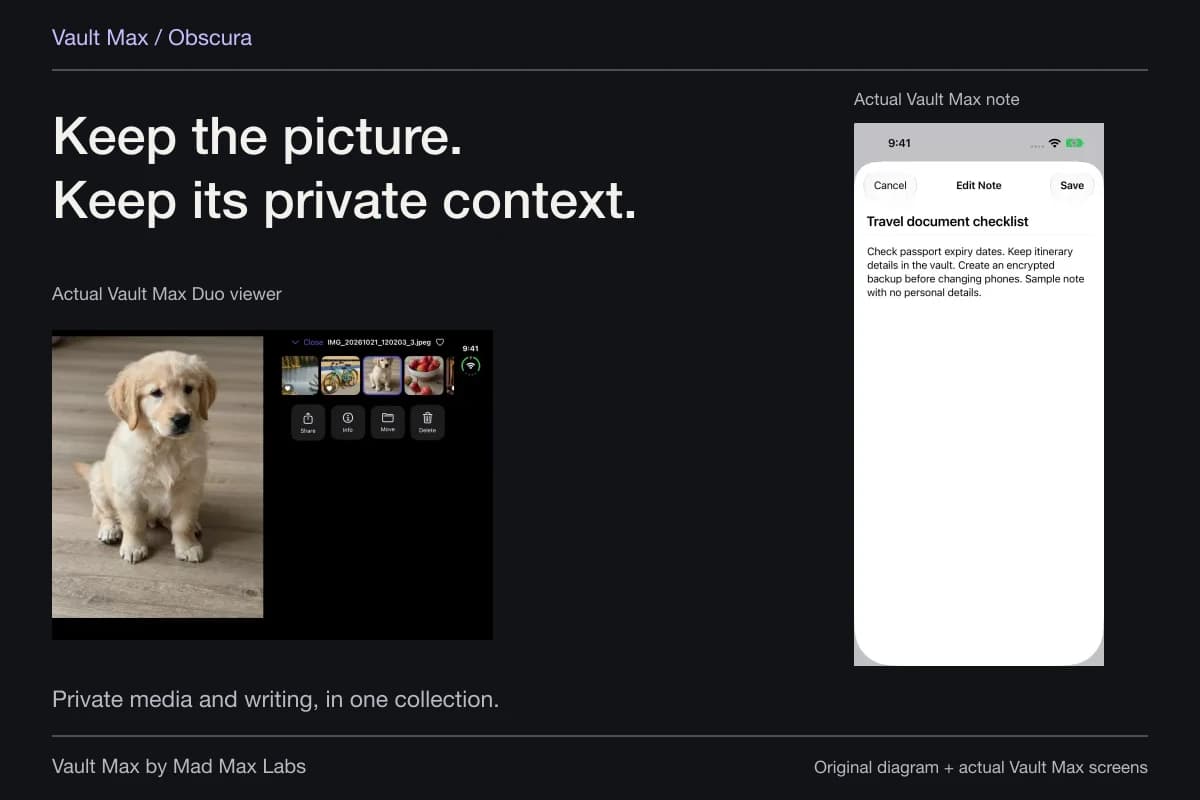
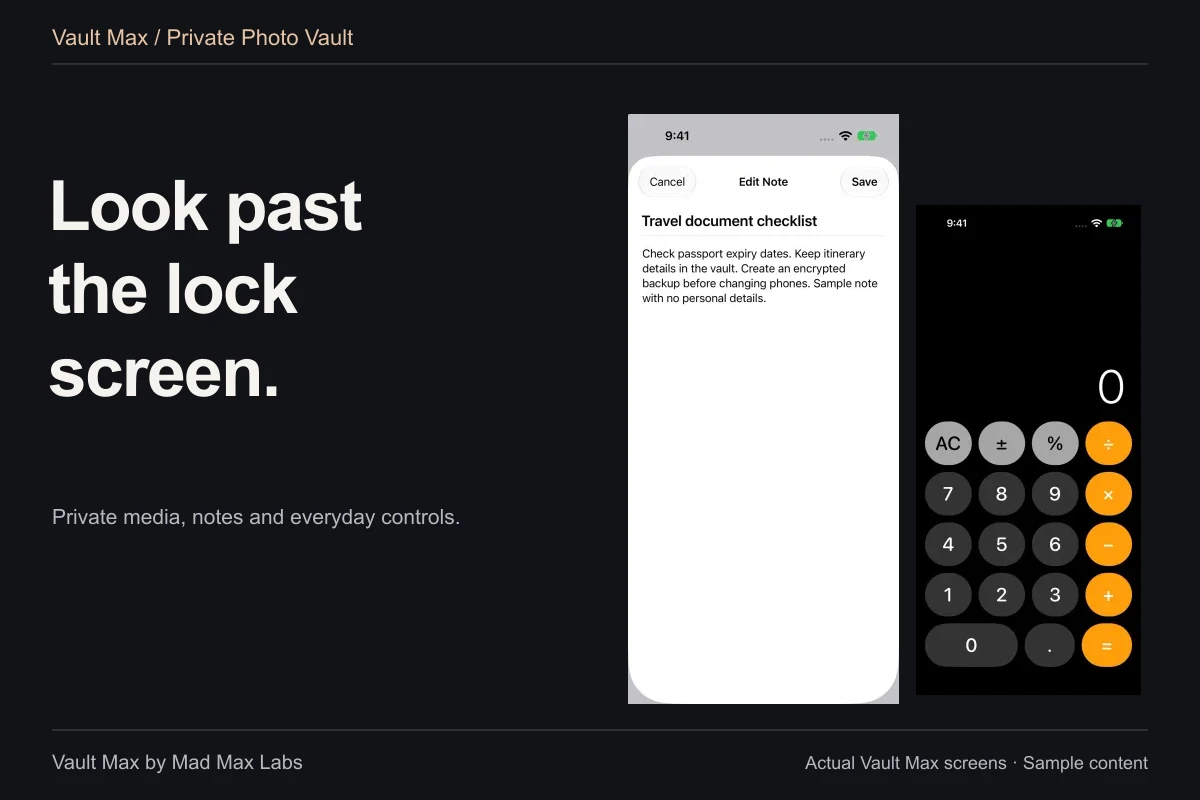
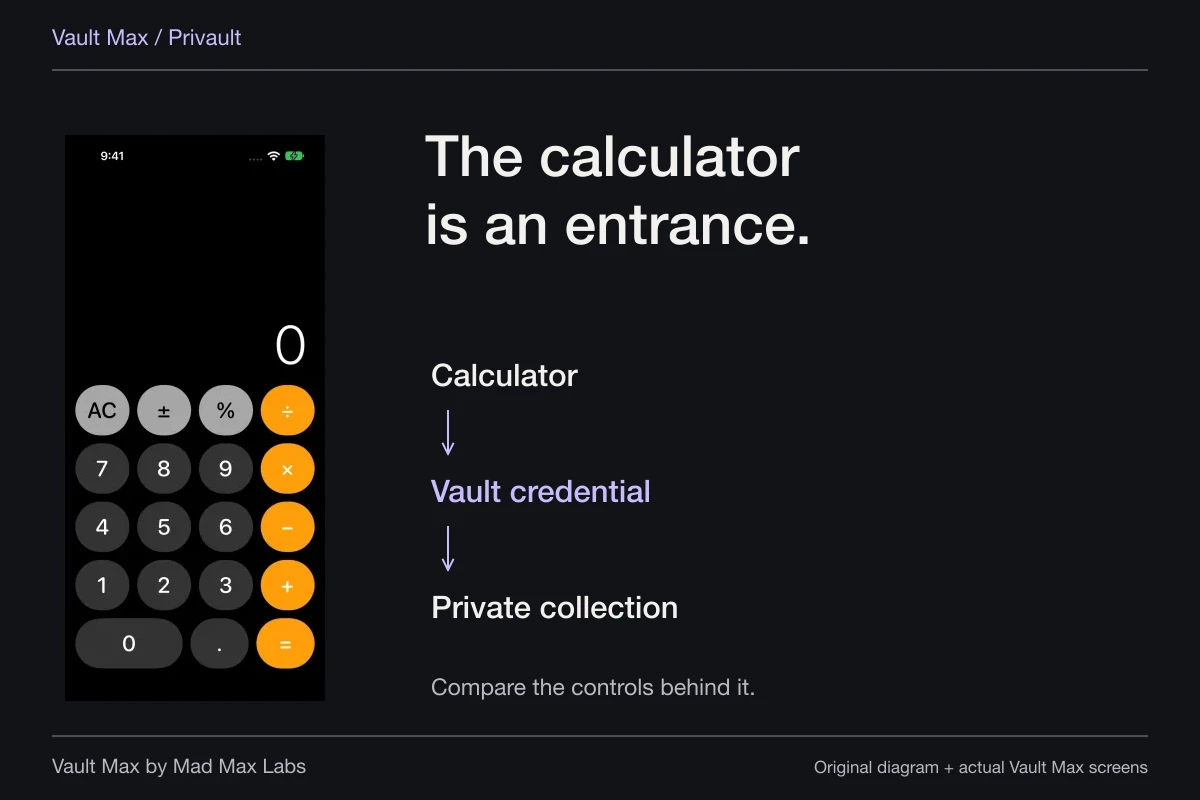
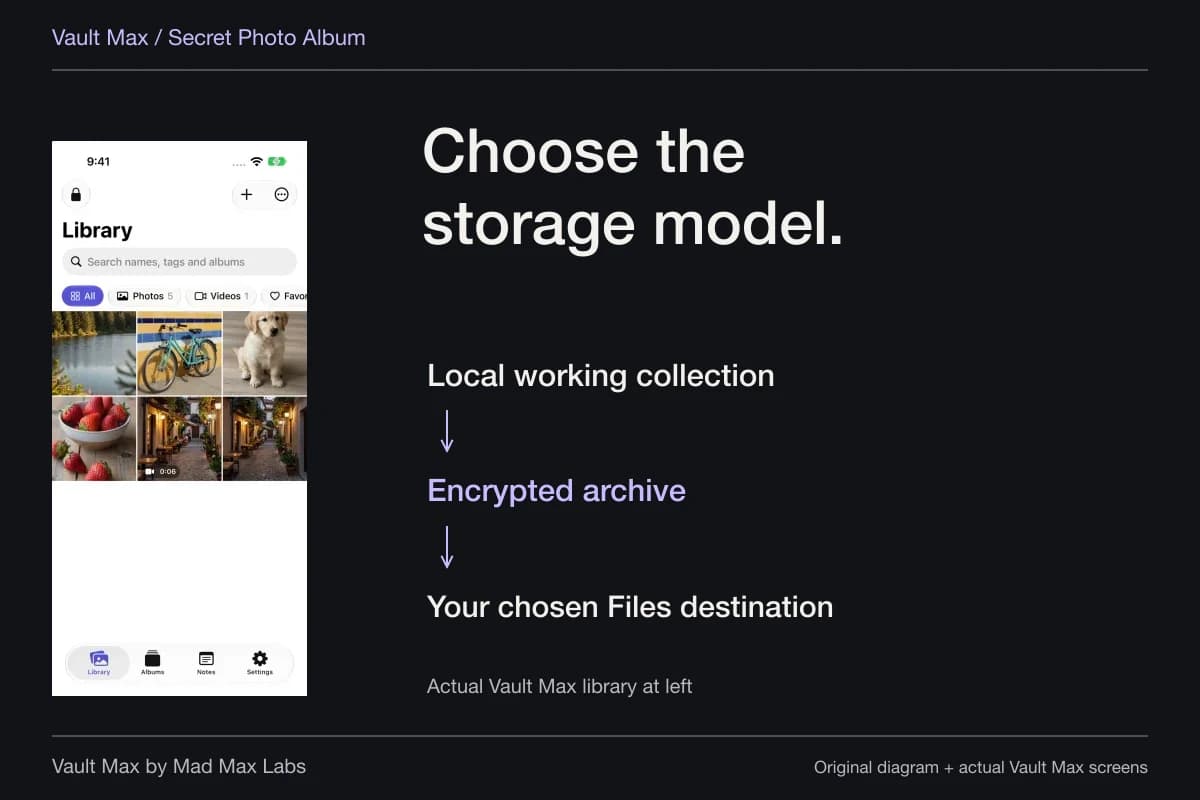
Vault Max imports selected material into an encrypted local library. It does not require a Vault Max account or host that library on our servers. That describes the vault copy. It does not make the original Photos item, an exported file or an existing cloud copy inherit the vault's protections.
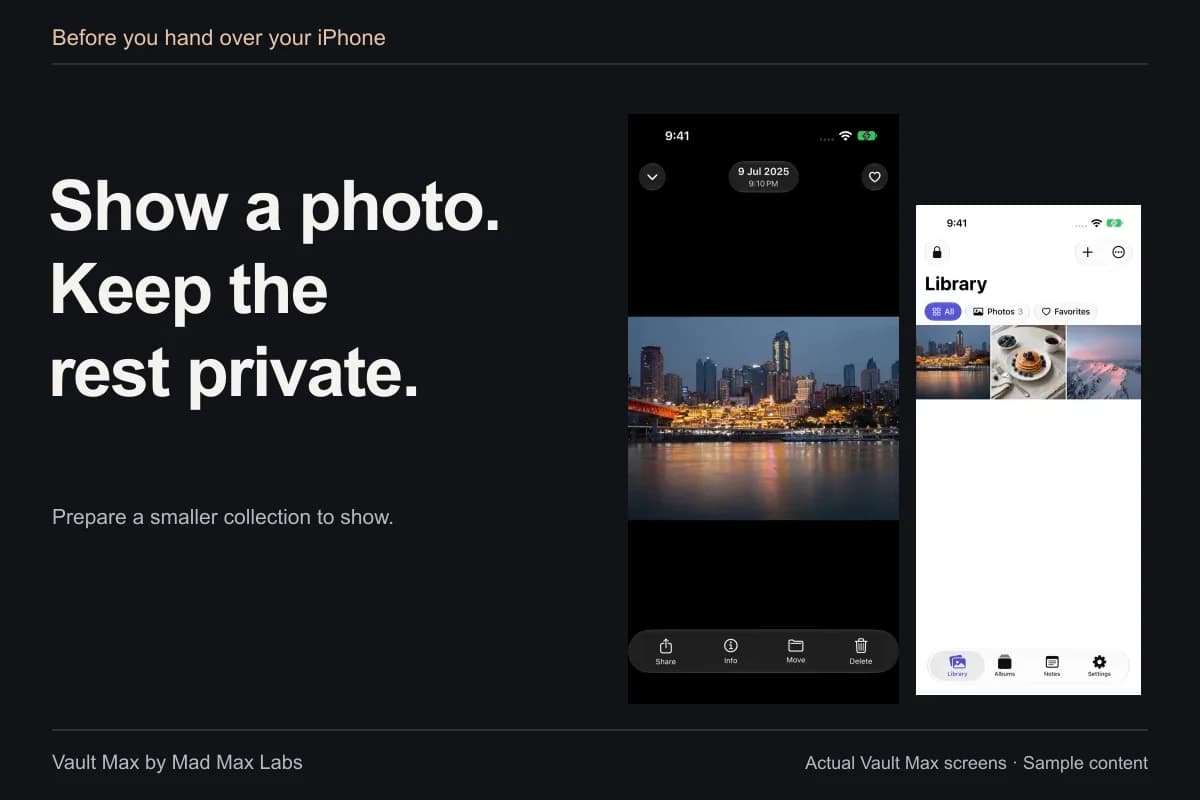
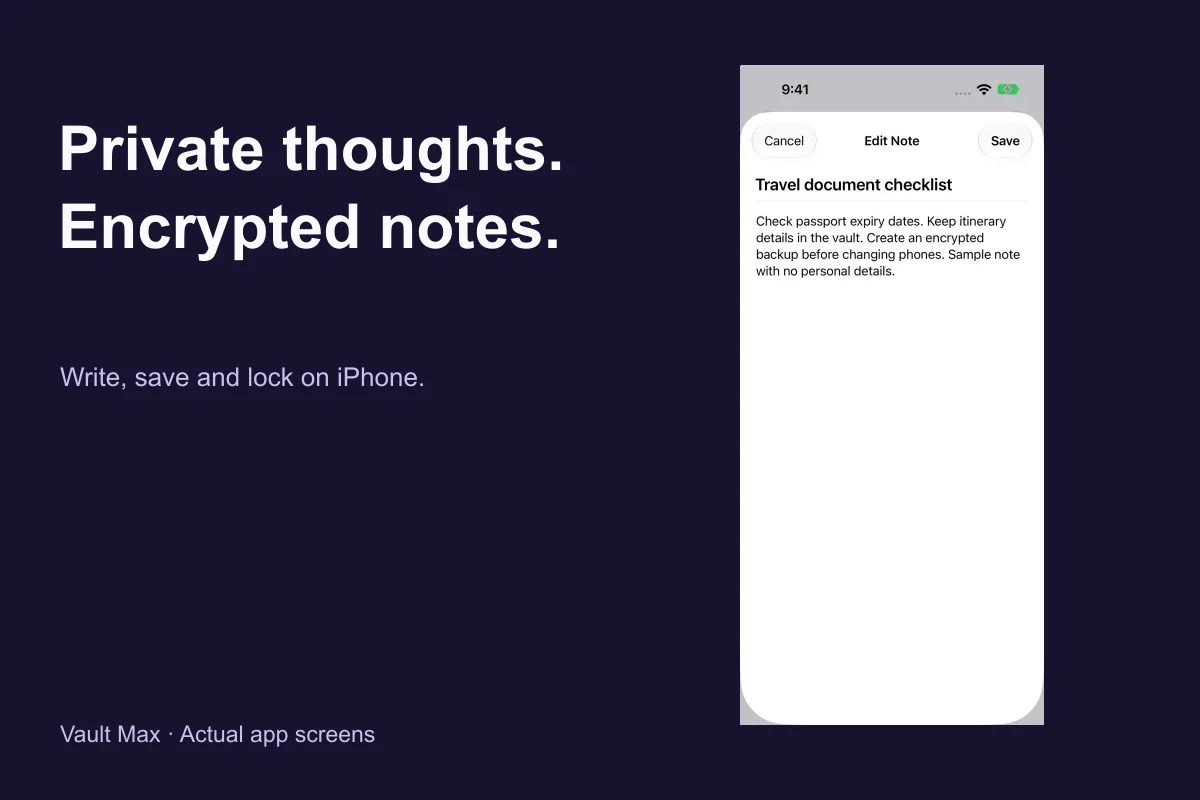
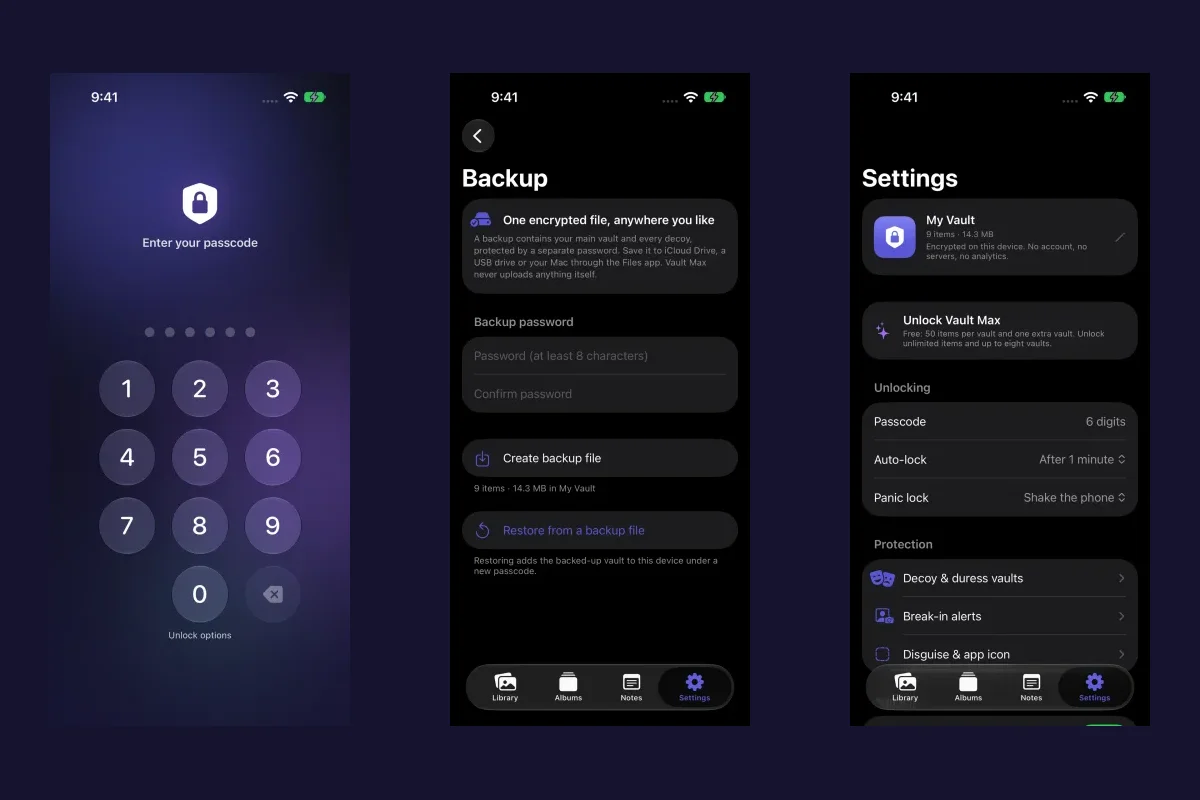
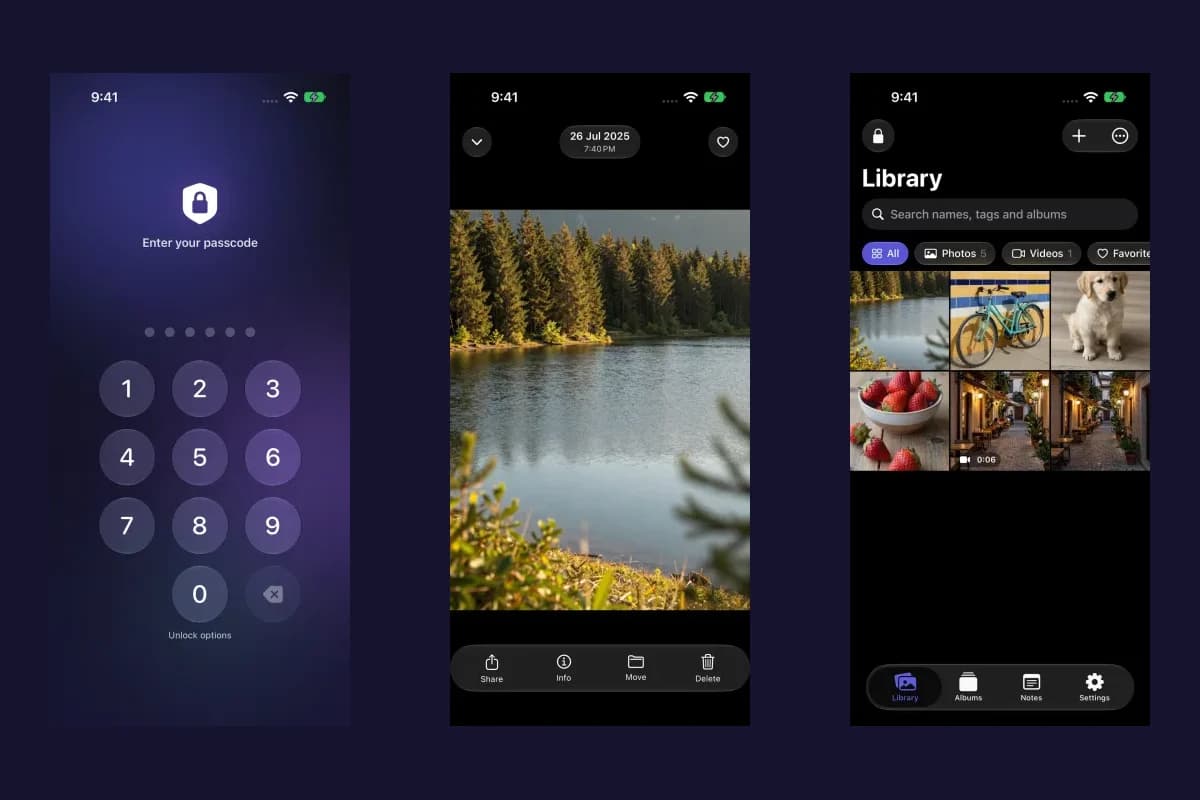
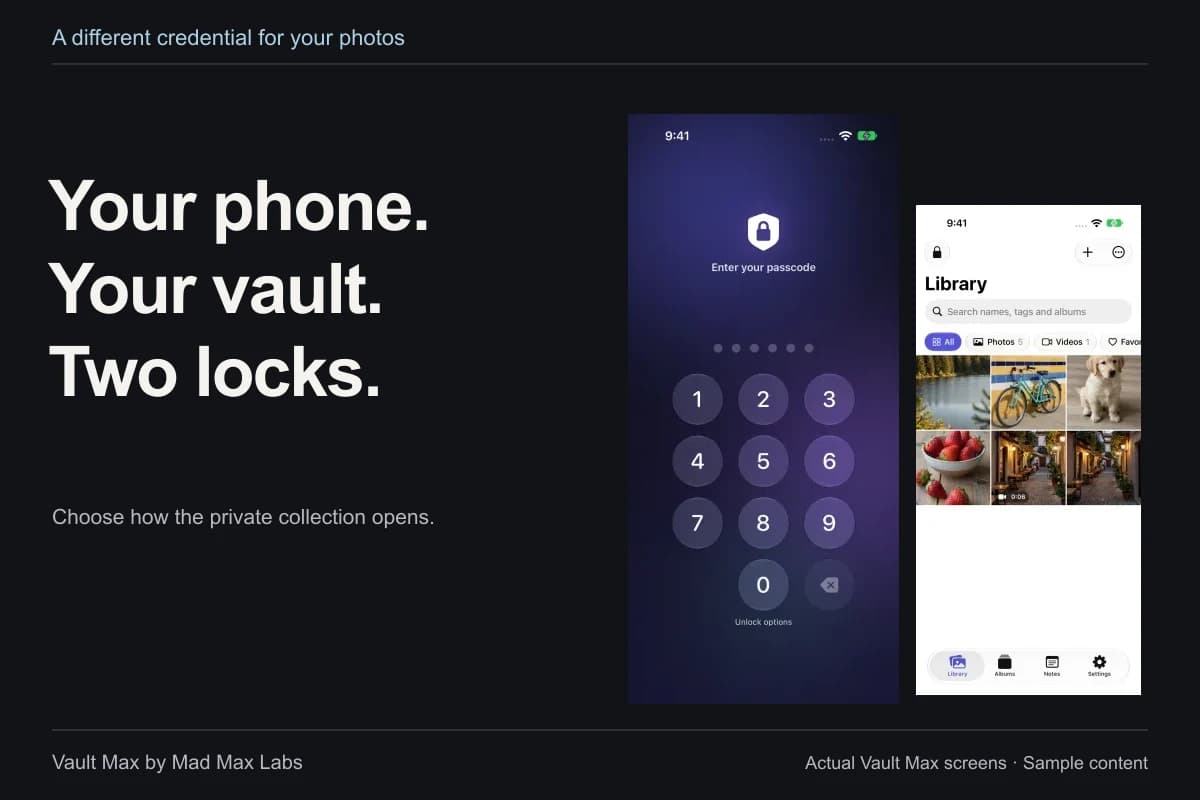
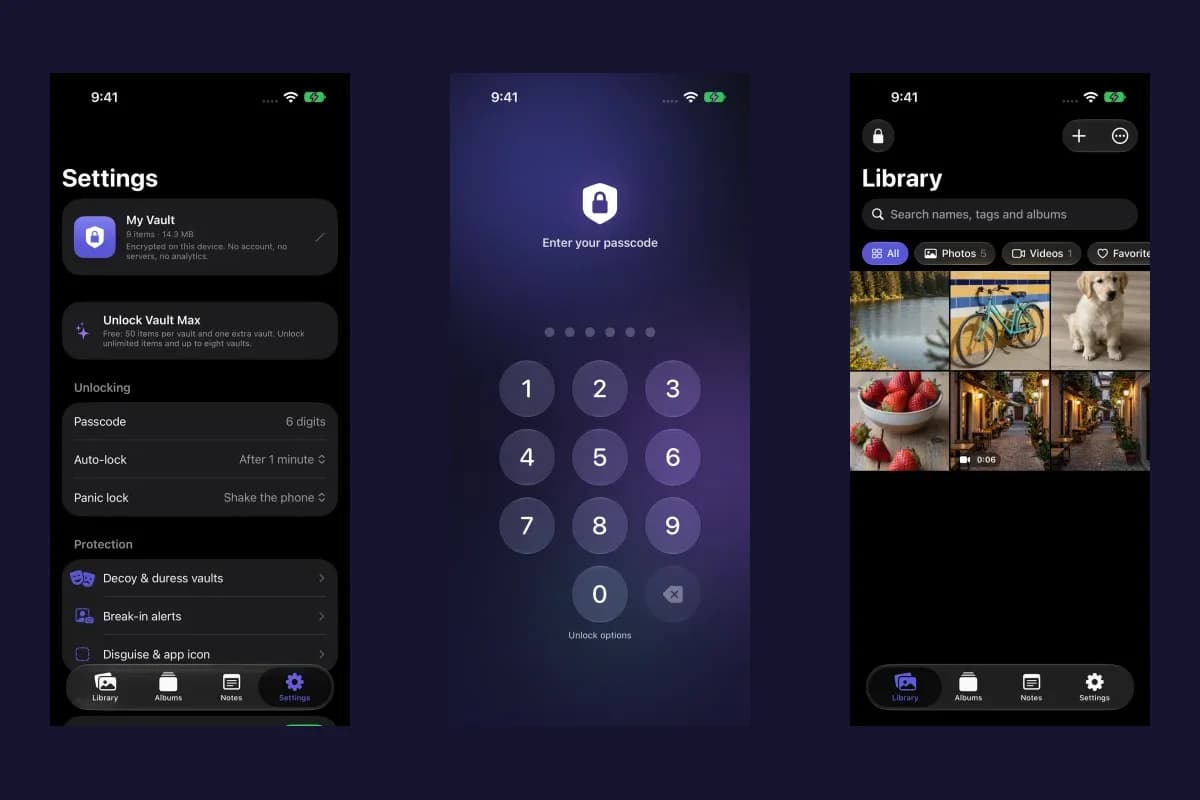
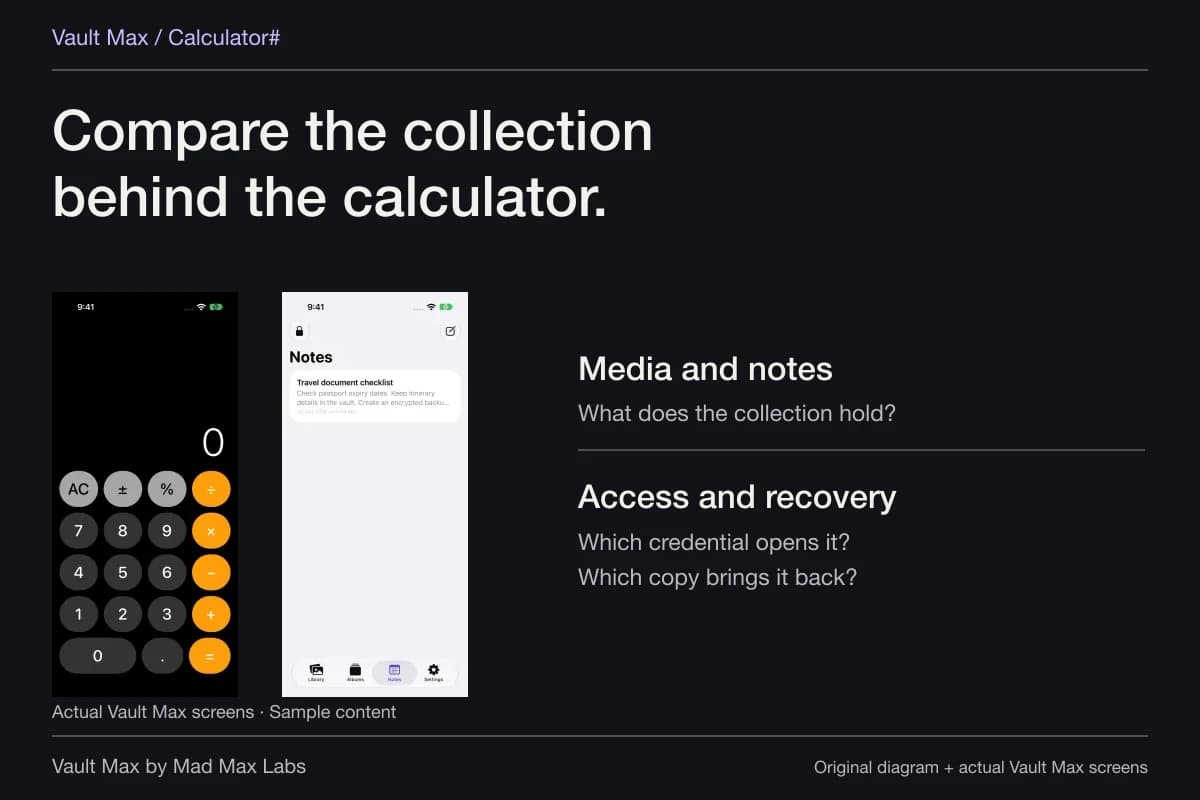
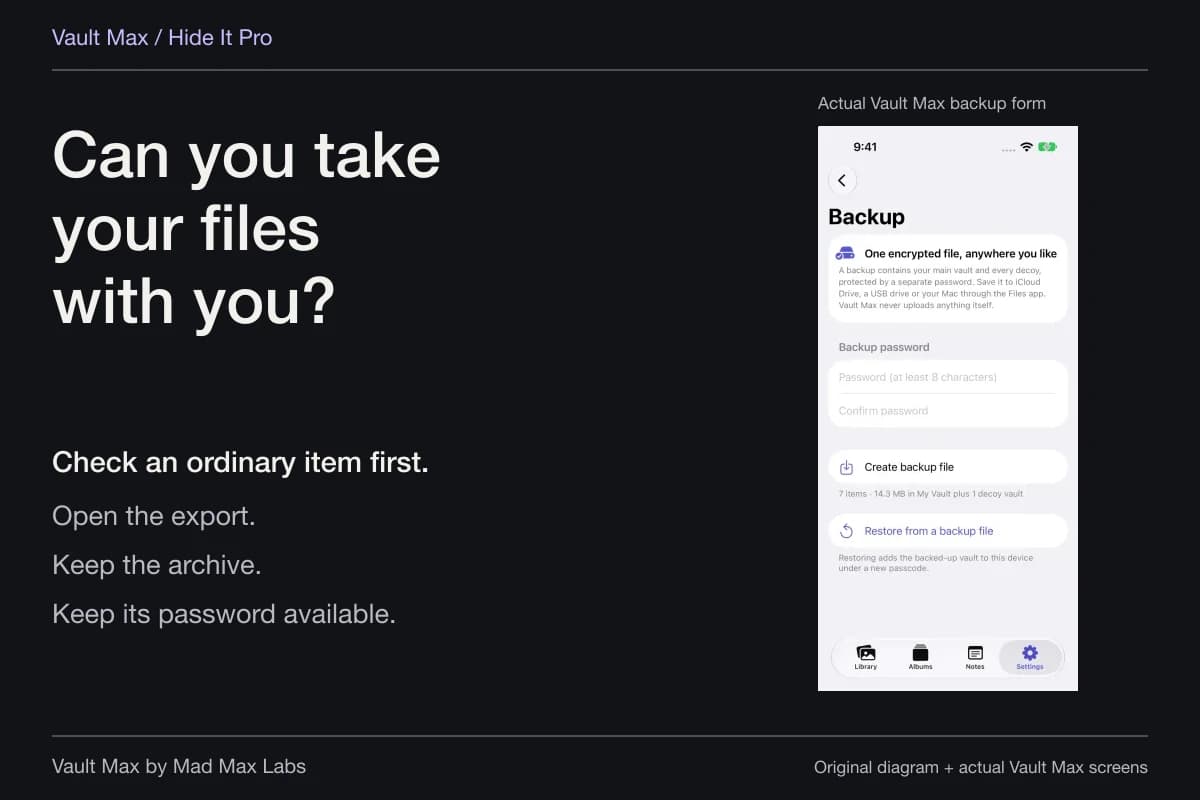
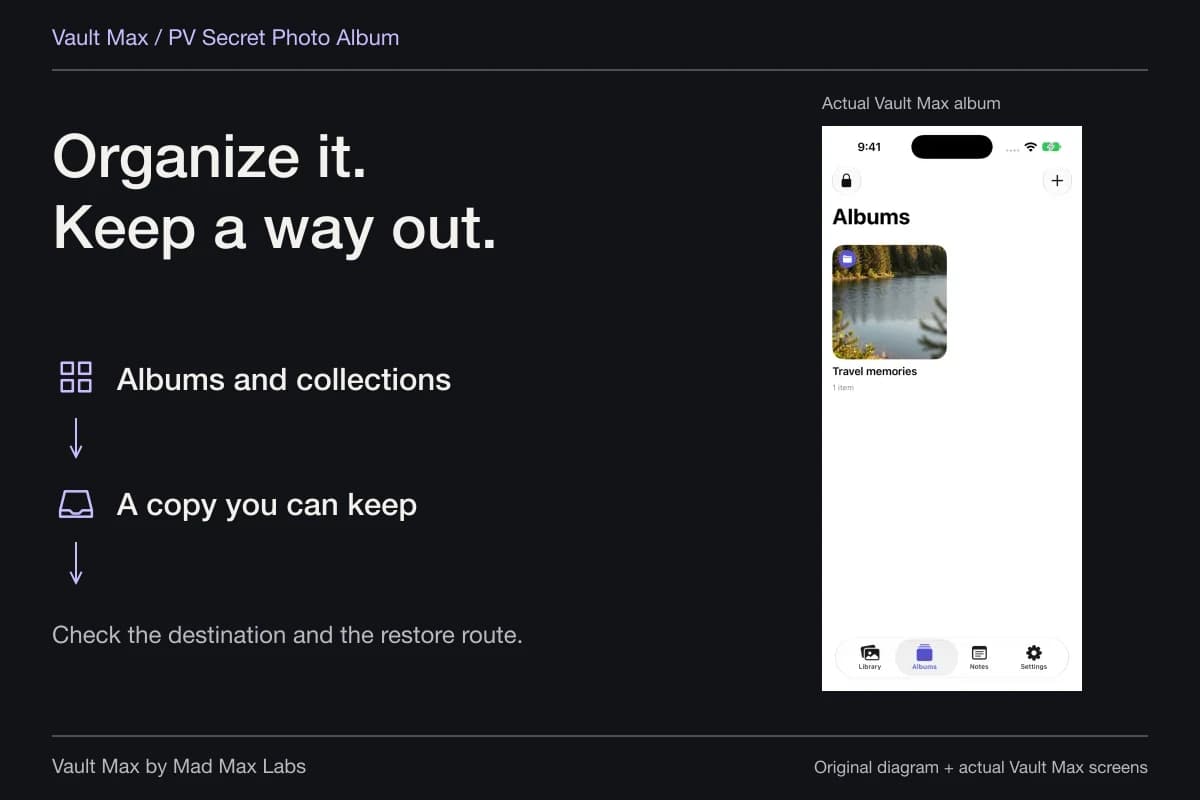
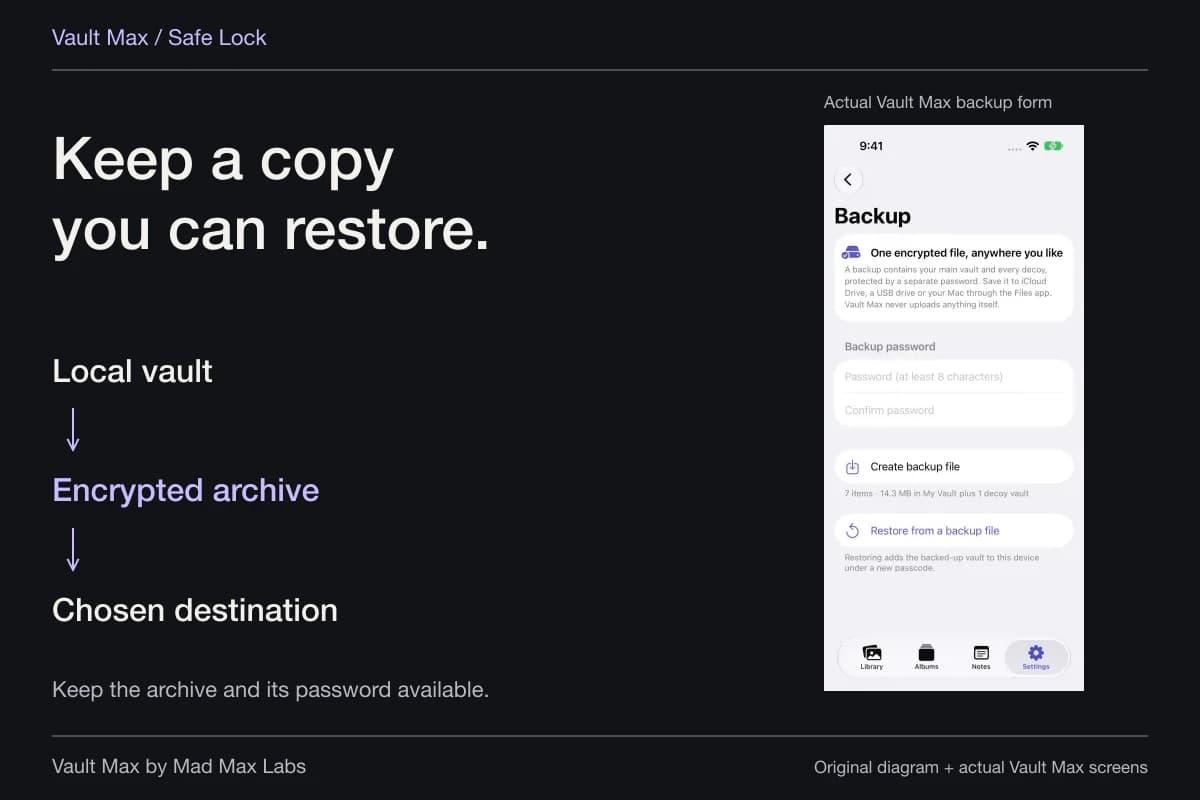
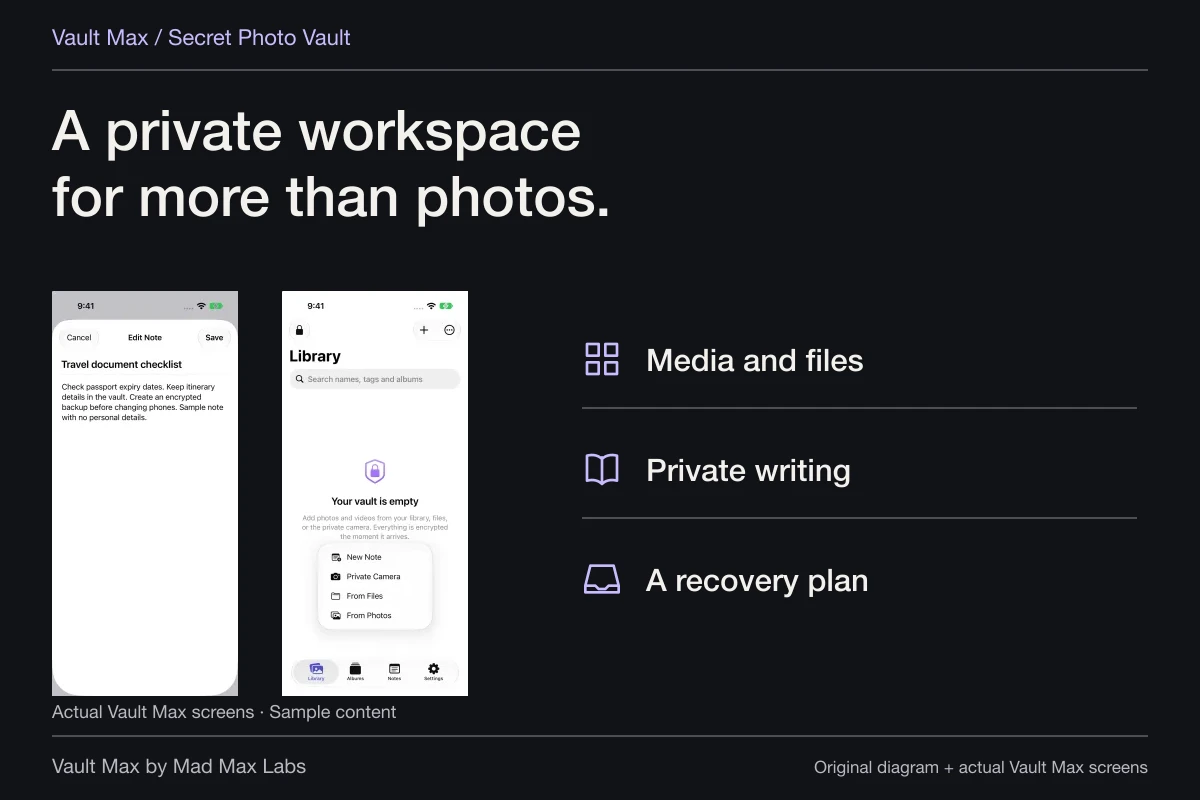
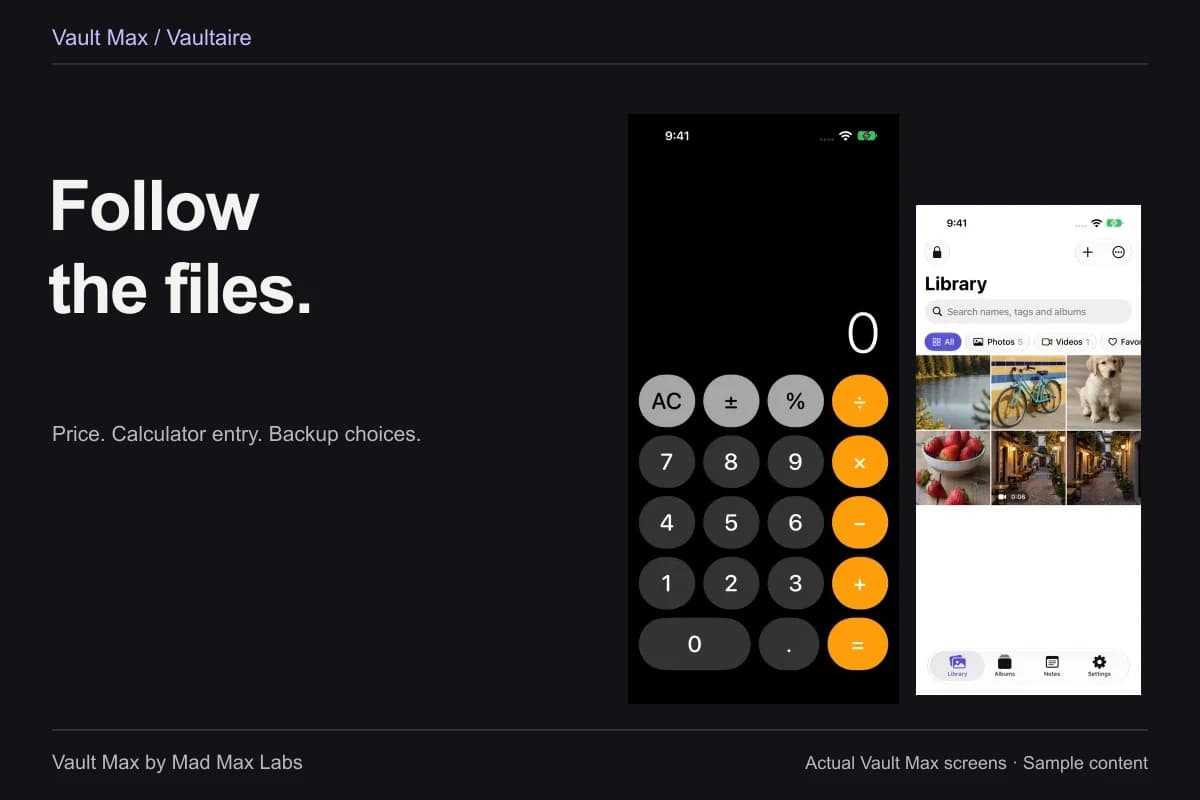
Sample Vault Max library. Select a screen for a closer look.
Finish by following the copies
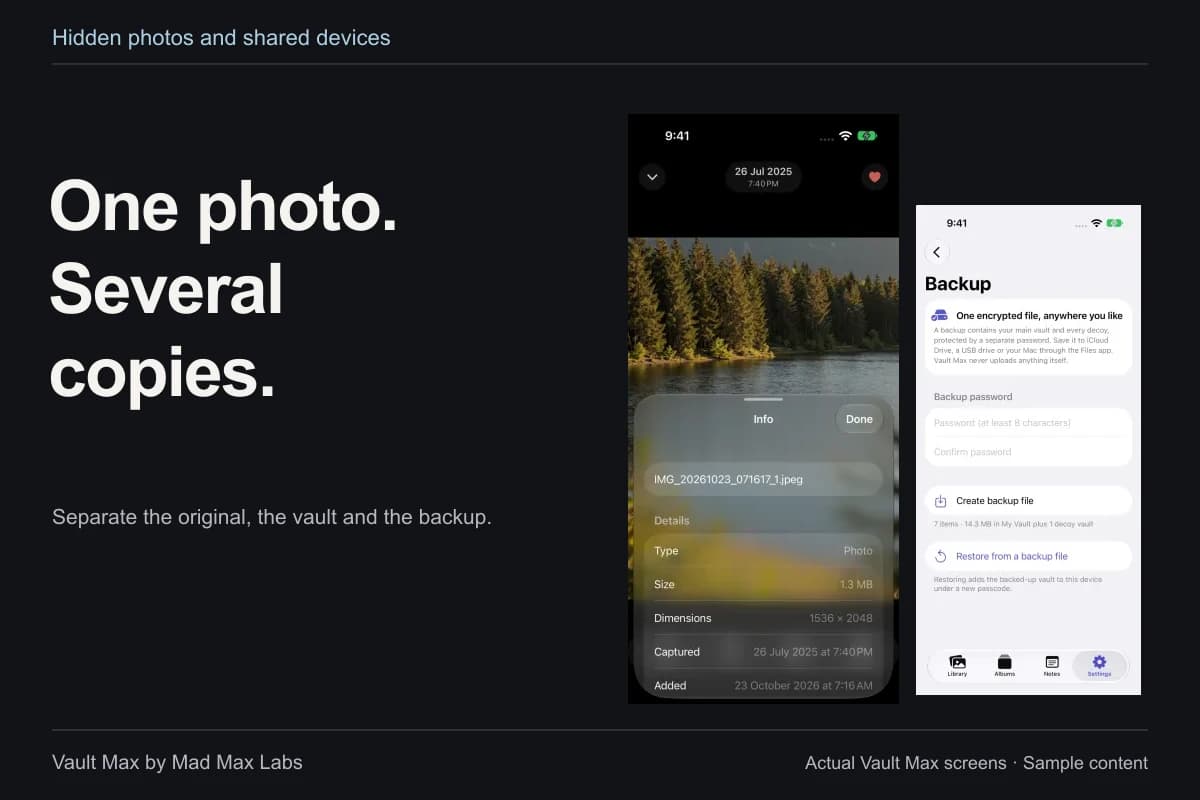
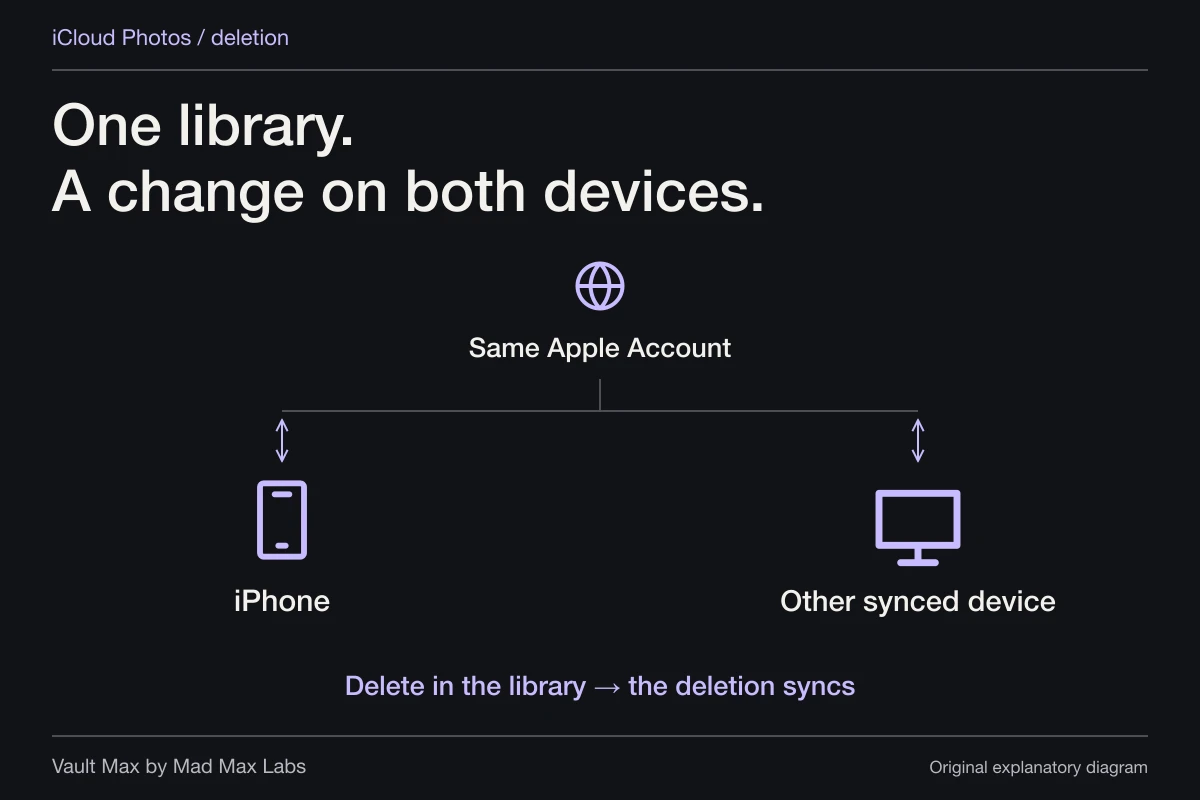
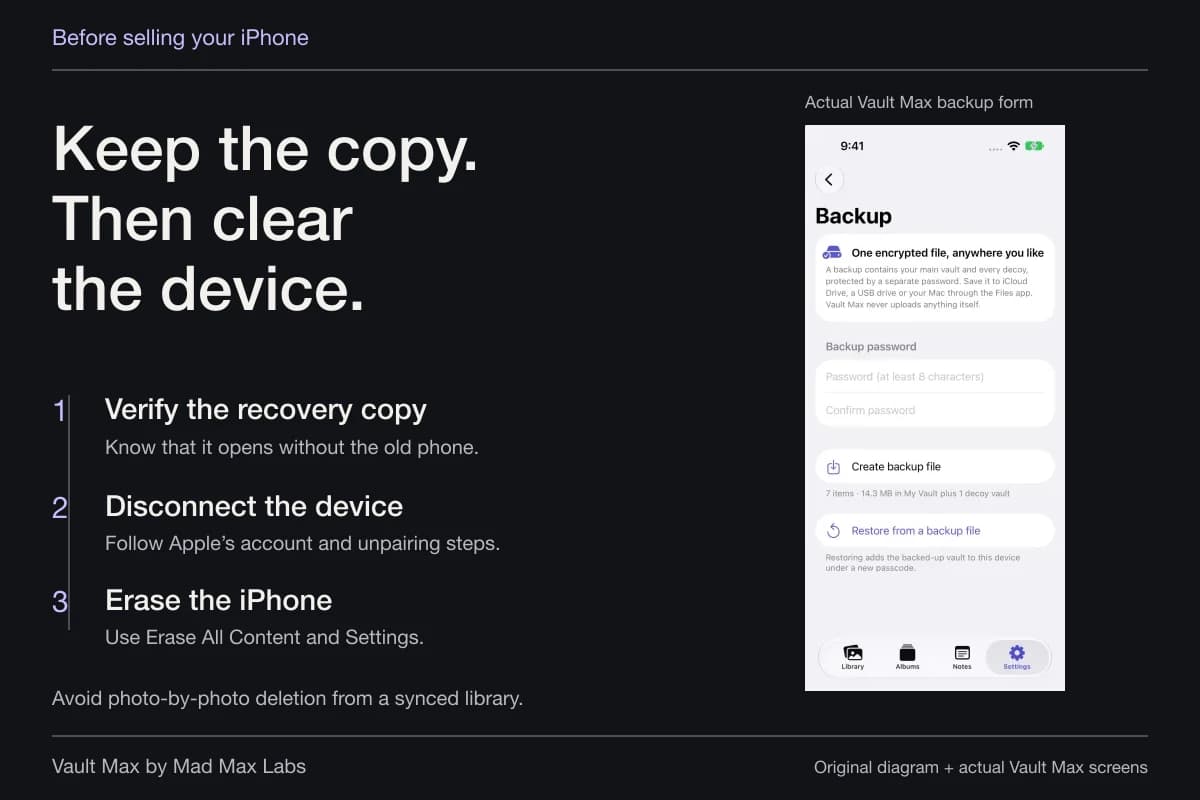
Open an imported sample in Vault Max before changing its source. If you choose to remove the Photos original, account for Recently Deleted and iCloud Photos syncing. Deleting from a synced Photos library can affect other devices using that library too.
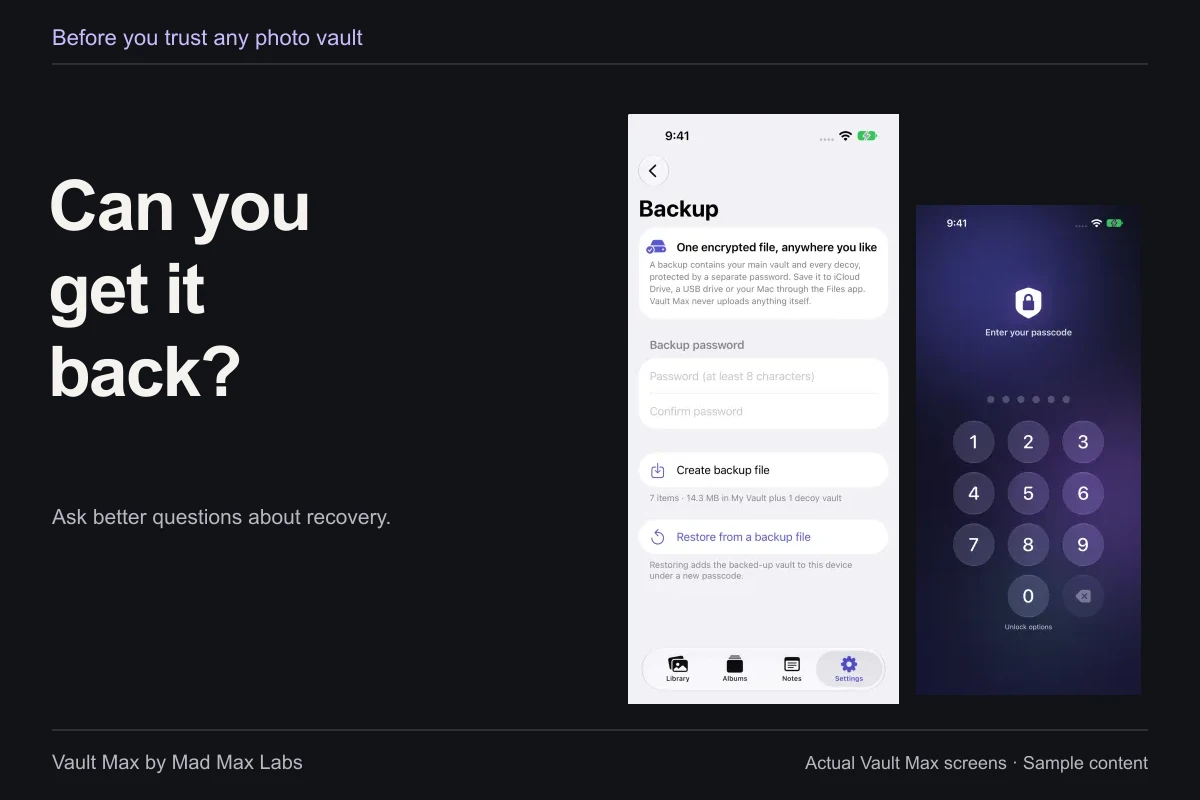
Also check copies you deliberately created: a message attachment, shared album, exported file or backup destination. Each has its own access and retention rules. Keep a recovery copy you understand rather than assuming a second synced screen is an independent backup.
- Identify whether the appearance came from Photos, Search, a widget or another app.
- Use the relevant featured-content, app-search or widget control.
- Open the imported sample before changing its source.
- Review other apps, synced libraries and shared files that still hold a copy.
Tap a box as you go. Checks reset when you leave this page.
The useful result is a collection whose location and access you can explain, plus screens you have checked yourself. A quiet widget alone cannot answer where all the copies went.
Common questions
Does removing the Search button hide photos from Spotlight?
Removing the Home Screen Search button changes that shortcut. It does not replace the app-specific Search and content controls or the visibility settings inside Photos.
Does importing a picture into a vault remove it from Photos suggestions?
Importing makes a separate vault copy. If the original remains in Photos, its visibility still follows Photos settings. Verify the import, then manage the source and any other copies deliberately.
Is turning off featured content the same as encrypting a private collection?
No. Featured-content controls affect suggestions. A separate encrypted vault addresses storage and access to the vault copy. Check both the place holding the file and the surfaces that may display it.
Continue reading
More guides
Practical tips for your private library. Swipe or scroll to choose your next guide.
50 guides to explore