
Privacy in practice
Show one photo on iPhone without handing over your private library
Showing someone just one picture? Compare keeping hold of the phone, Guided Access with Touch off, and a locked Vault Max library before handing it over.
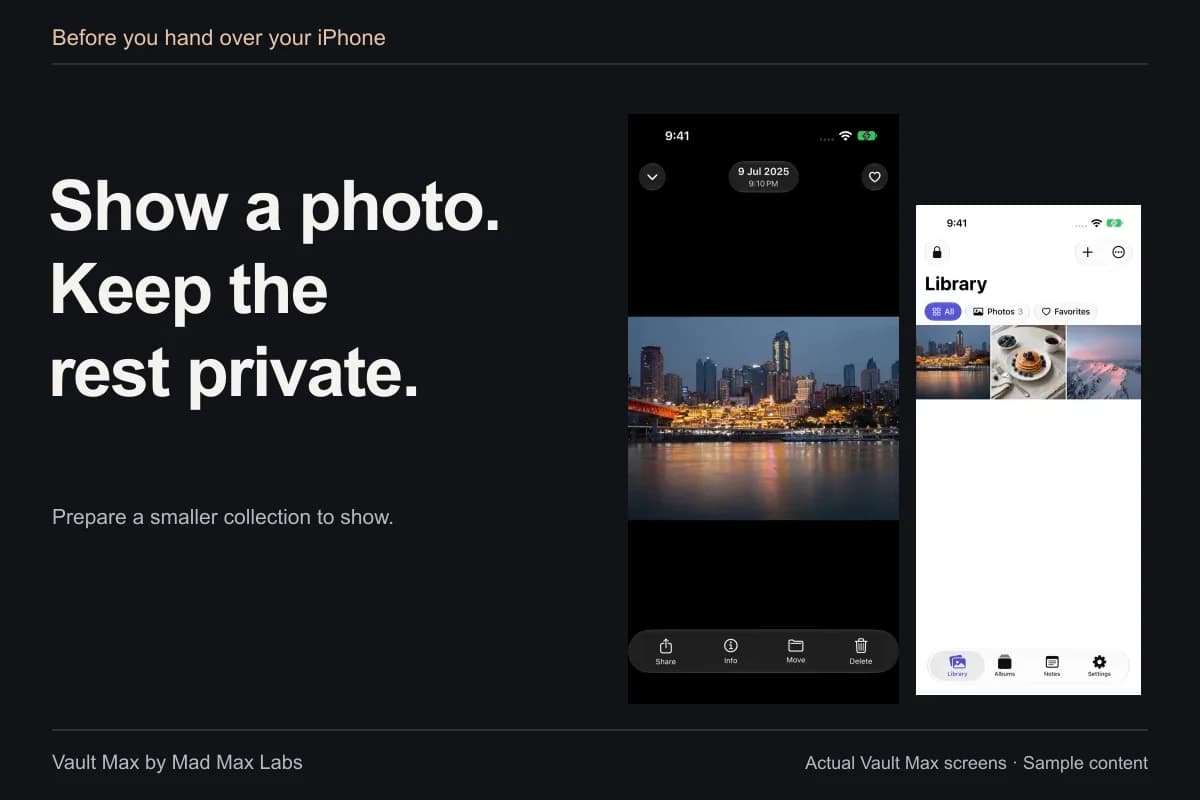
You want to show a friend one picture. You do not want the next swipe to become a tour of your camera roll. The simplest option is to keep hold of the phone. If you hand it over for a still image, Apple's Guided Access can restrict interaction; turn Touch off when your goal is viewing without swiping.
A separate private library solves a different part of the problem. Keep private items in a locked Vault Max collection while you show ordinary pictures elsewhere. Opening a photograph inside an unlocked vault does not, by itself, lock the viewer to that one item.
Choose the handoff before opening the picture
Think about what the other person needs to do. Looking at a picture, zooming into a detail and receiving their own copy are three different requests.
If they only need to look, holding the phone yourself avoids changing system settings or creating another file. Frame the image before showing it and keep the device in your hands. That still exposes the visible picture to the person looking at it; it is simply a more controlled way to show it.
If they need to examine it for a while, Guided Access may fit. If they need their own copy, share deliberately and accept that the recipient can retain it. No vault lock can recall a photograph someone has already received.
| The request | A useful approach | The tradeoff |
|---|---|---|
| Let me see that picture | Keep hold of the phone and display the item | You control navigation; the displayed image is visible |
| Let me hold the phone to look | Consider Guided Access with Touch off for a still image | No swiping or pinch-to-zoom while touch is disabled |
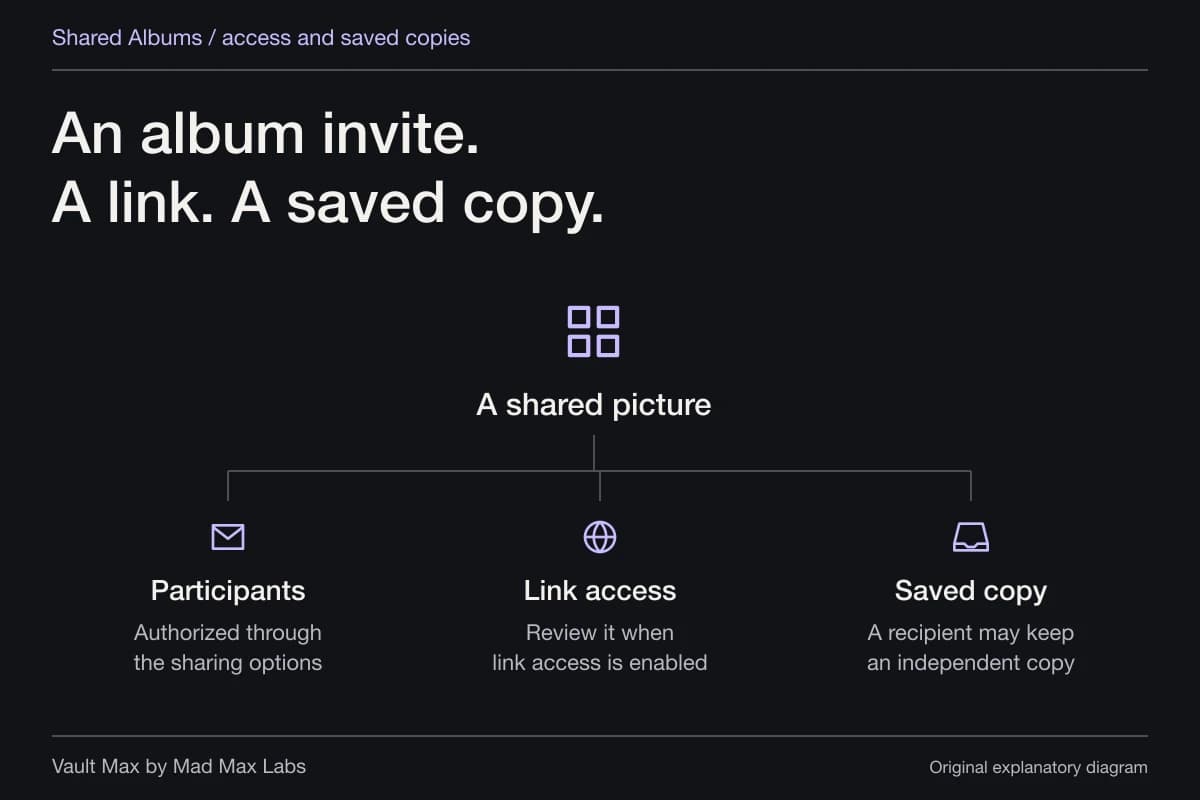
| Send it to me | Choose a recipient and share a copy deliberately | A new copy leaves your private collection |
| Borrow your phone for another task | Lock Vault Max before the handoff | The private library should not remain an open session |
One app is not automatically one photo
Apple's iPhone Guided Access guide describes temporarily restricting the device to a single app and choosing which controls remain available. That does not automatically stop navigation inside the app.
A photo viewer can still offer a swipe to the next item, a back control, thumbnails or a share button if touch remains enabled. For a static picture, the relevant option is to ignore screen touches, rather than merely preventing an app switch. You also give up tapping and pinch-to-zoom, so choose the framing first.
Prepare Guided Access before the handoff
Following Apple's current Guided Access instructions:
- Open Settings → Accessibility → Guided Access, enable it and set its passcode options.
- Open the picture you intend to show.
- Start Guided Access with the side-button triple-click, or the Home button on older models. Choose Guided Access if the shortcut menu appears.
- In Session Settings or Options, turn Touch off, then start the session.
Apple notes that an app's previous Guided Access settings may be reused. Check the active behavior yourself with a harmless picture. To finish on current iOS versions, triple-click the relevant button, authenticate and choose End; Apple's article gives the older-version exception. Apple also notes that emergency services and Crash Detection are unavailable during a Guided Access session, so end it when finished.
These steps summarize Apple's documentation. We have not tested your device settings or measured a Vault Max/Guided Access combination for this article. Practice starting and ending the session before relying on it during a handoff.
Keep private files separate from the picture you are showing
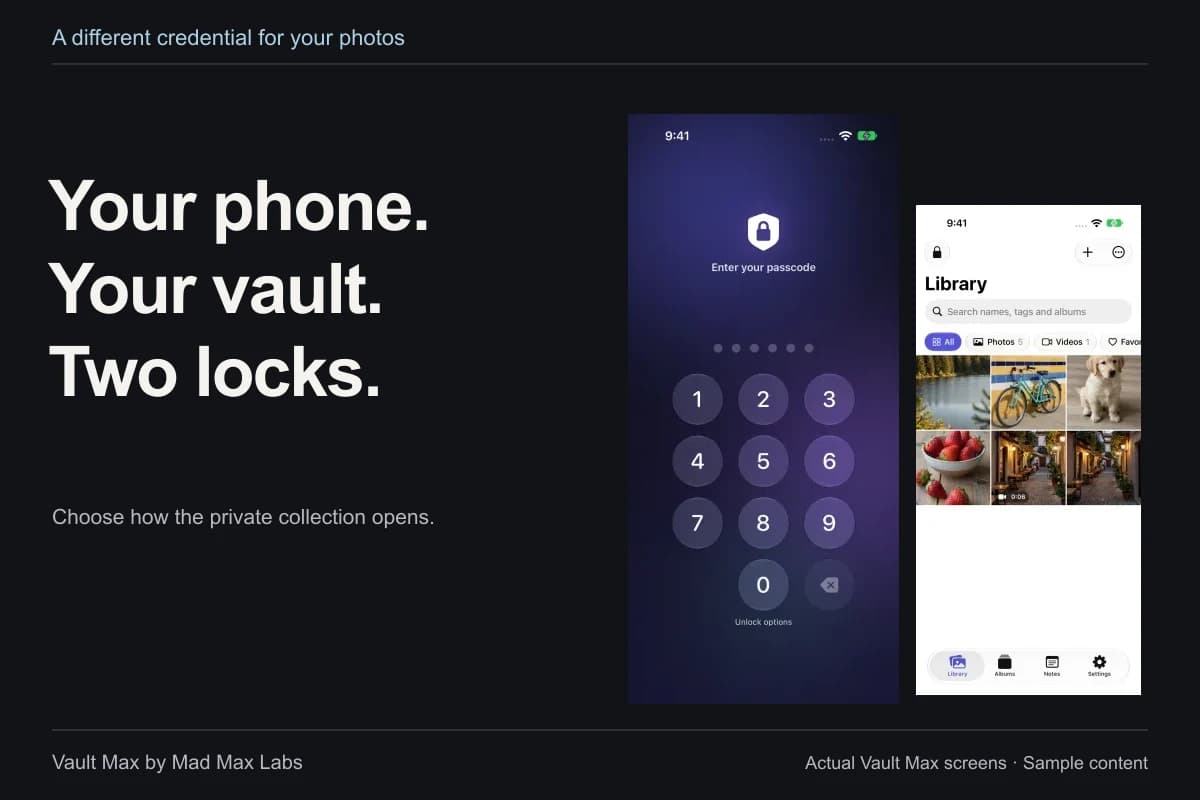
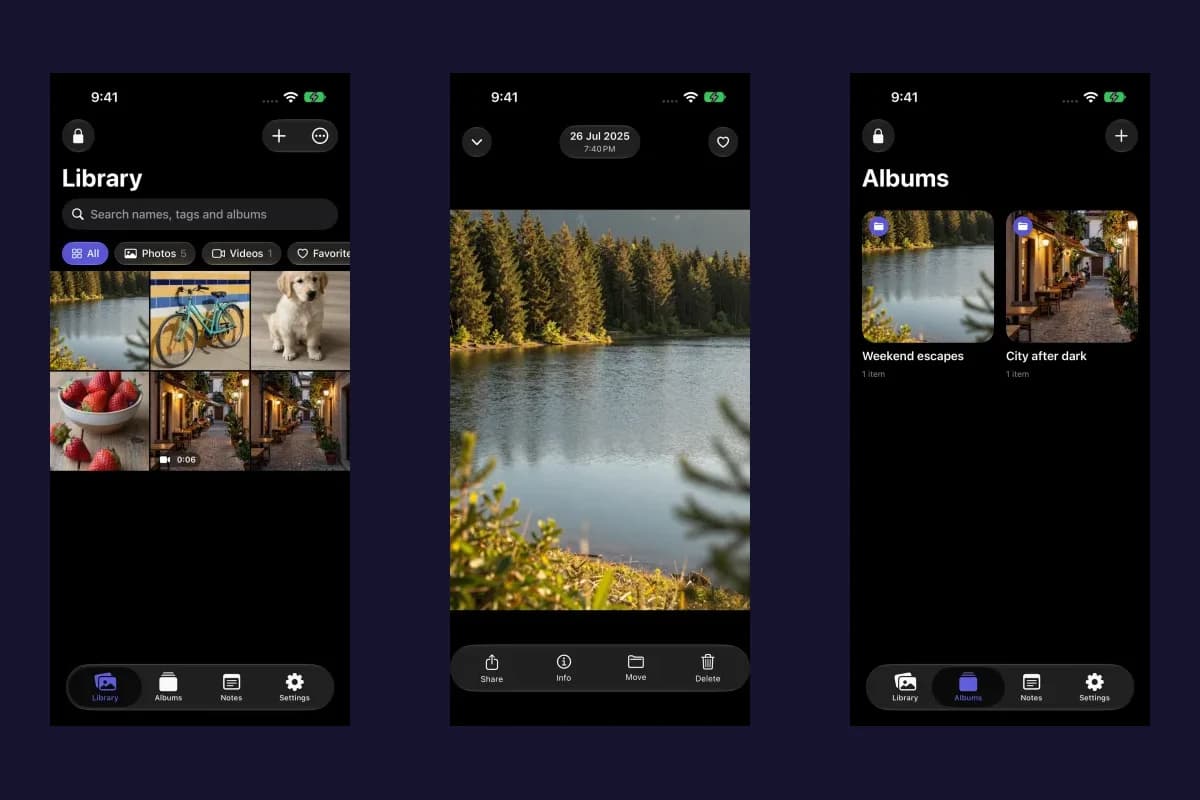
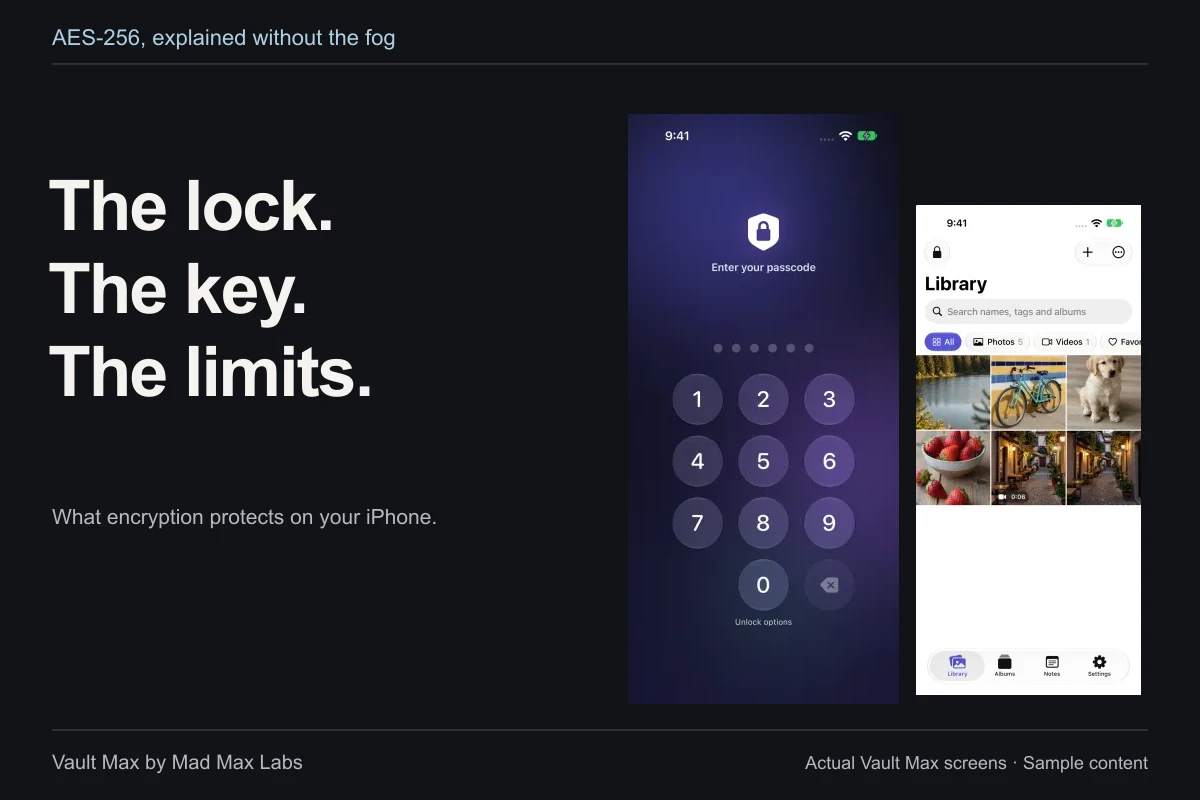
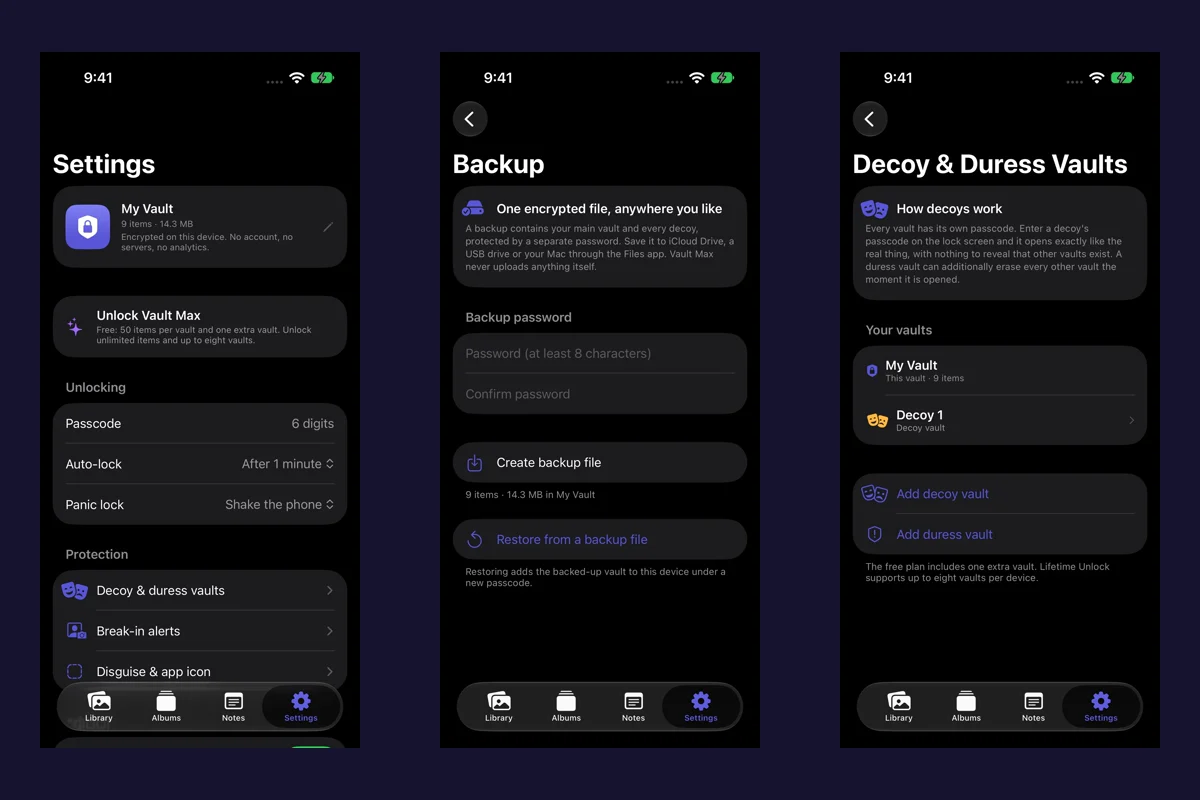
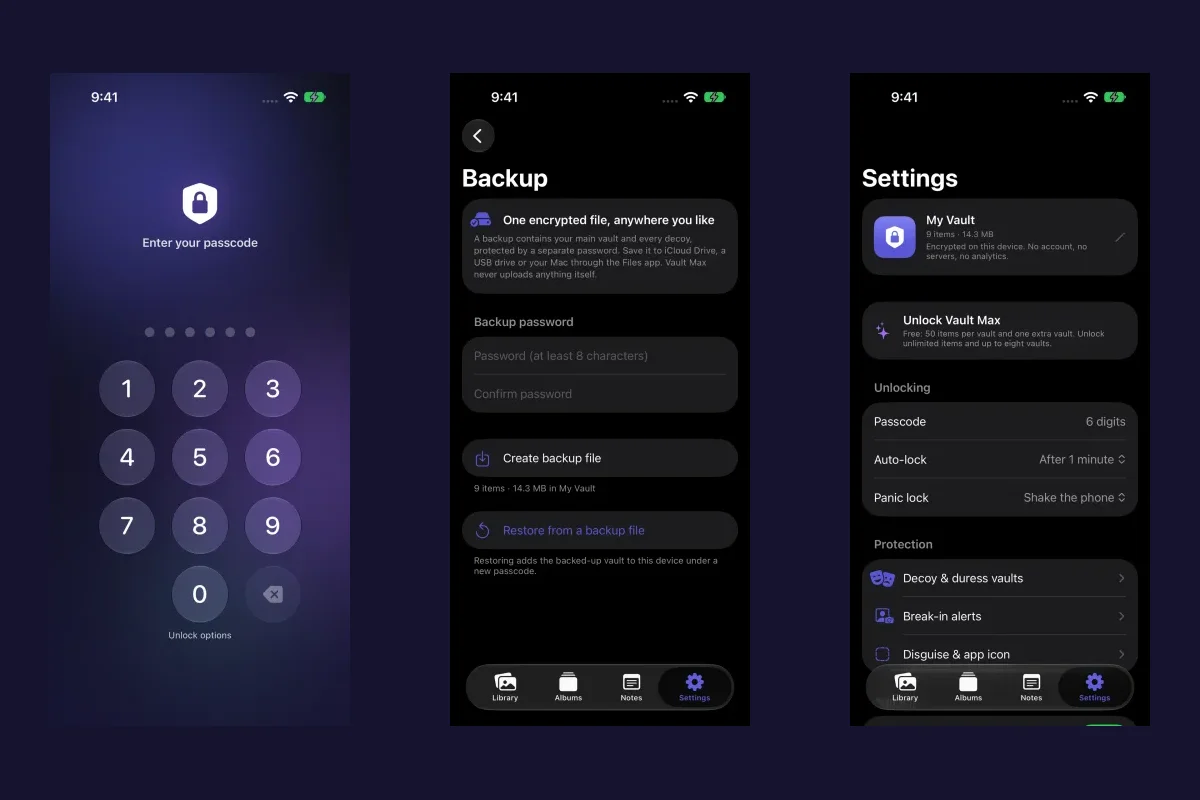
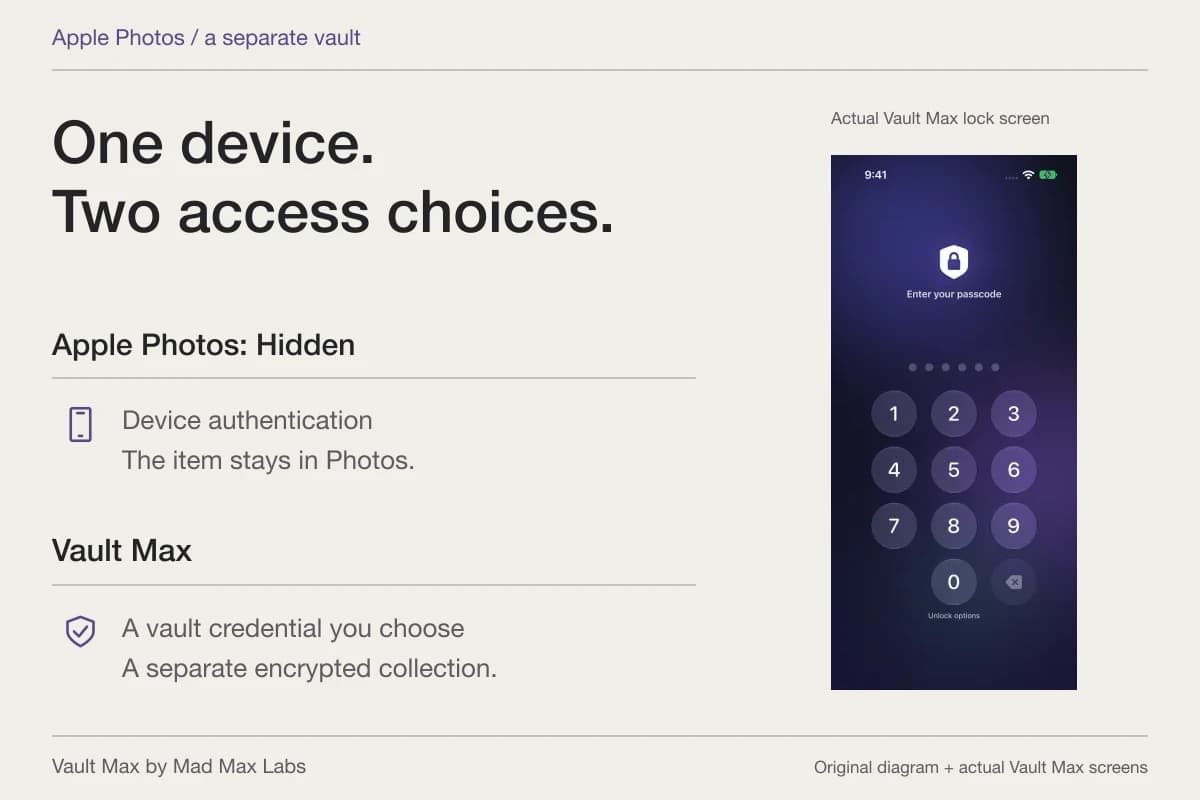
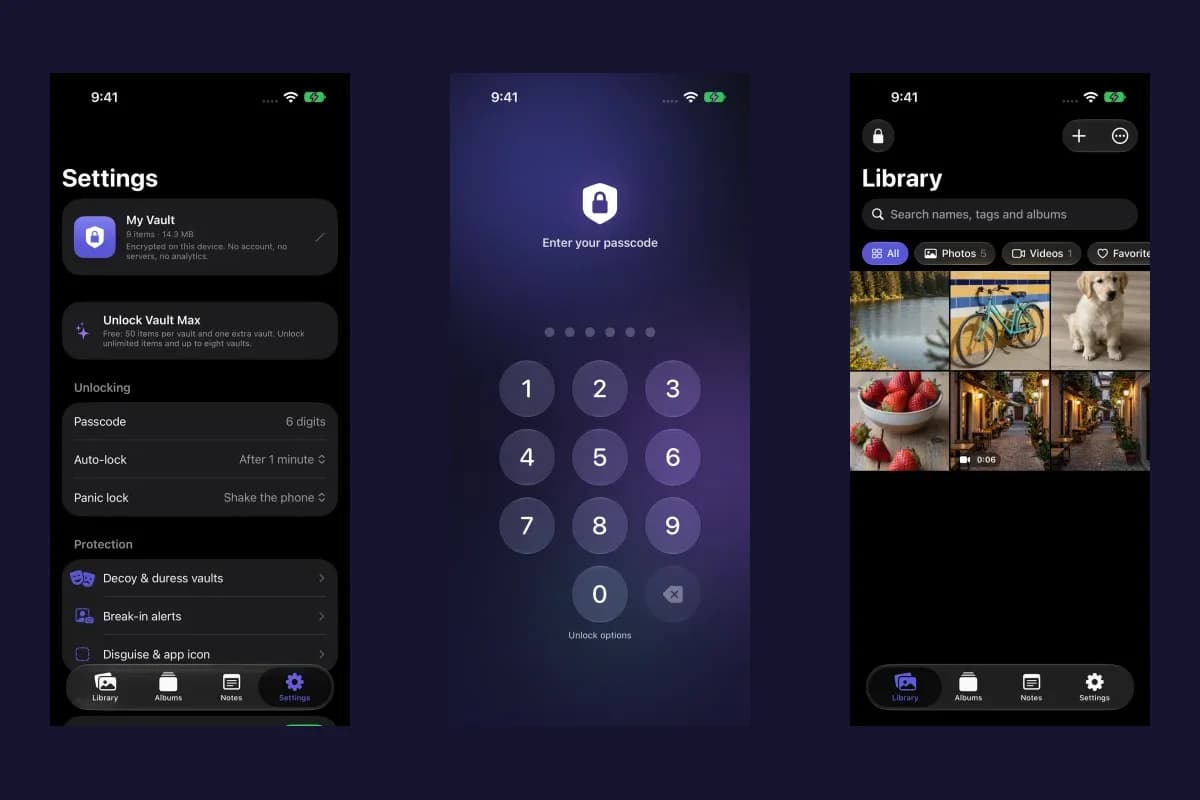
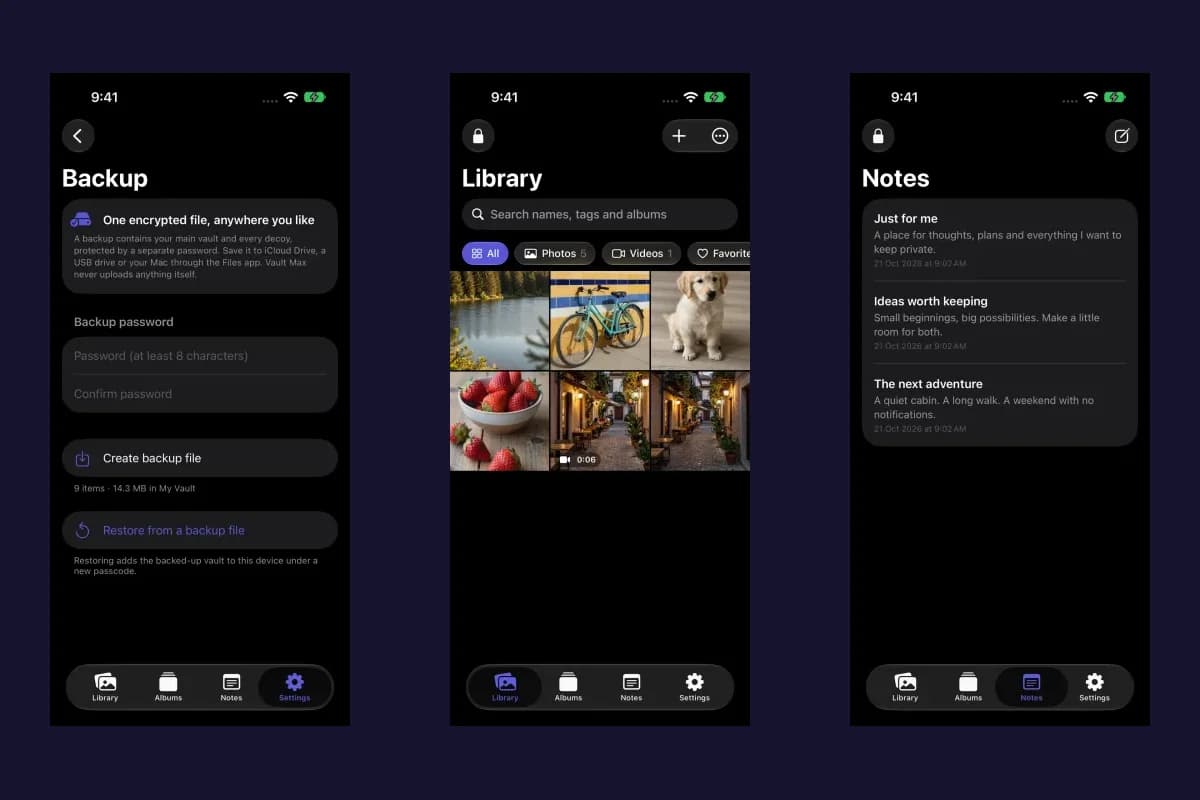
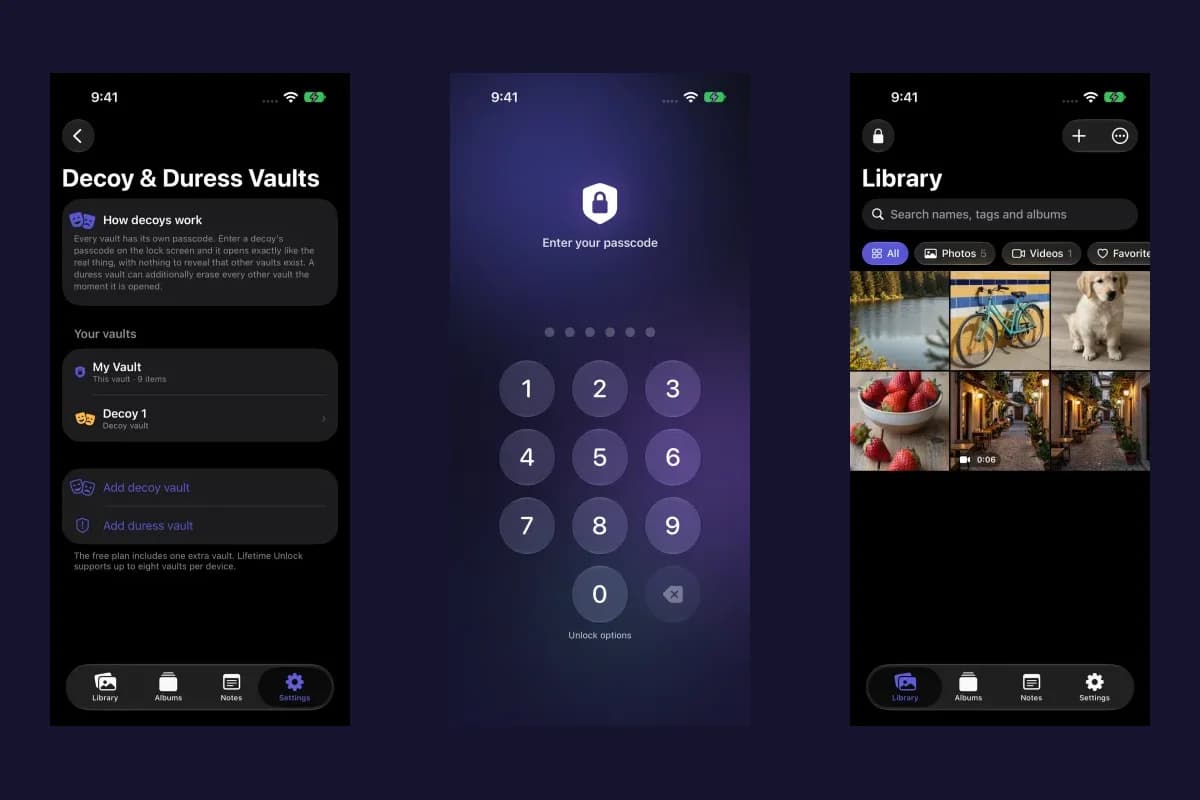
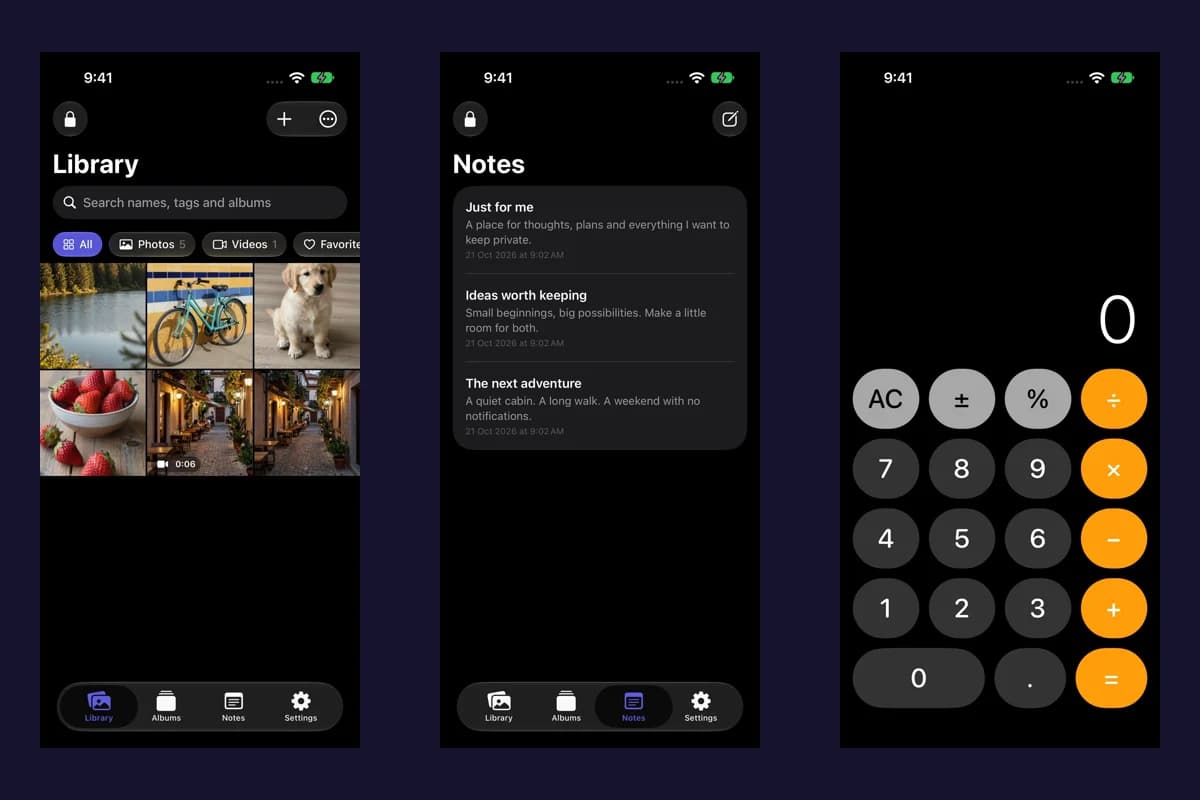
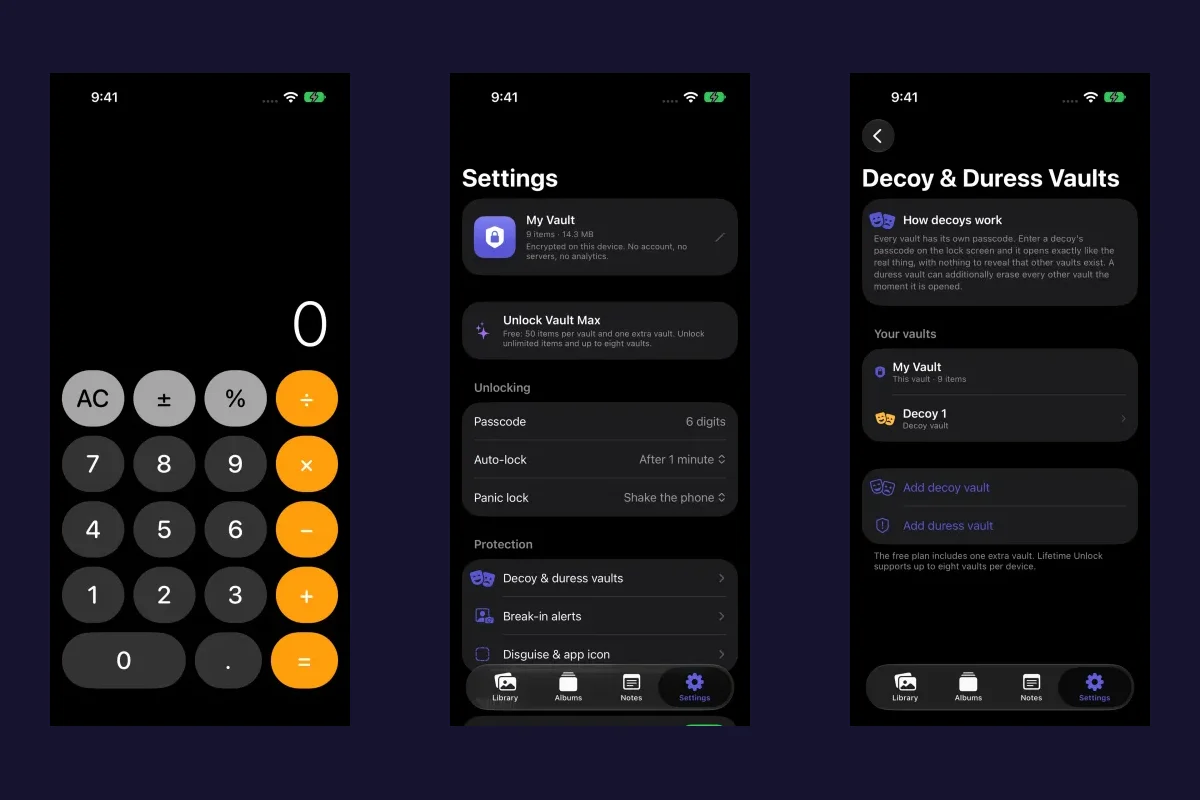
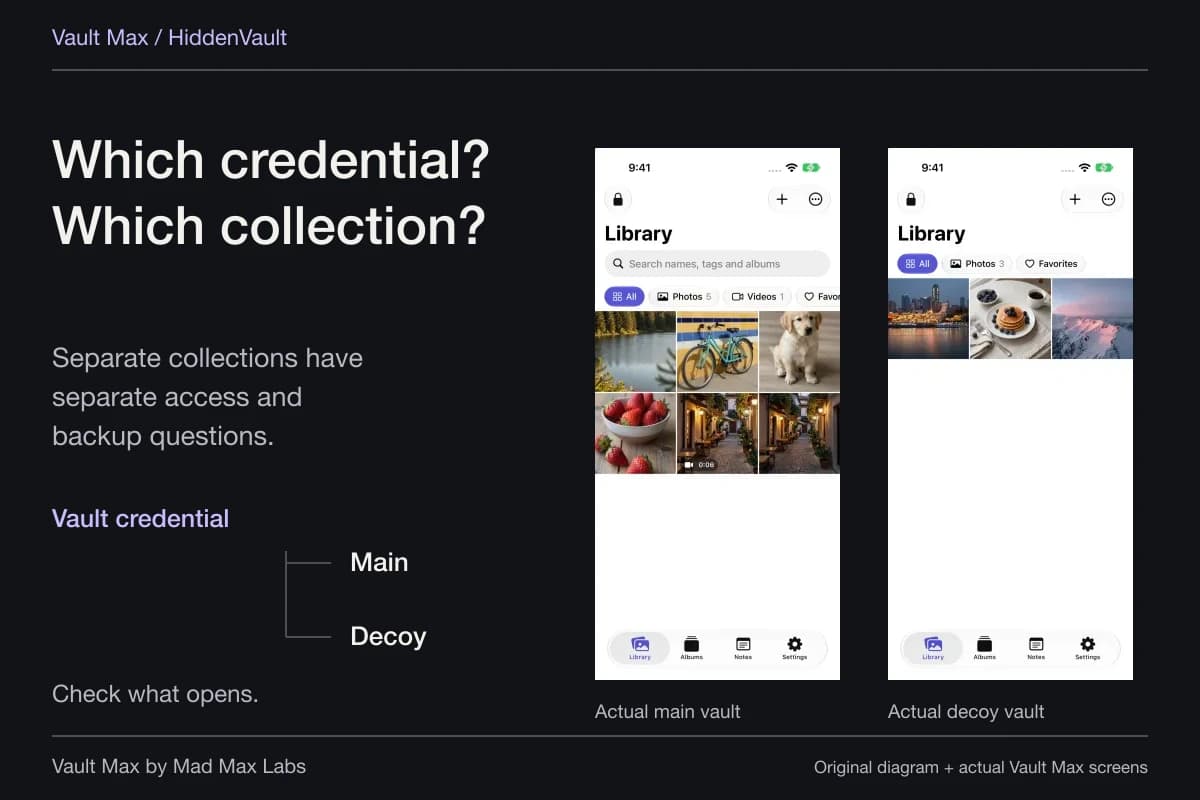
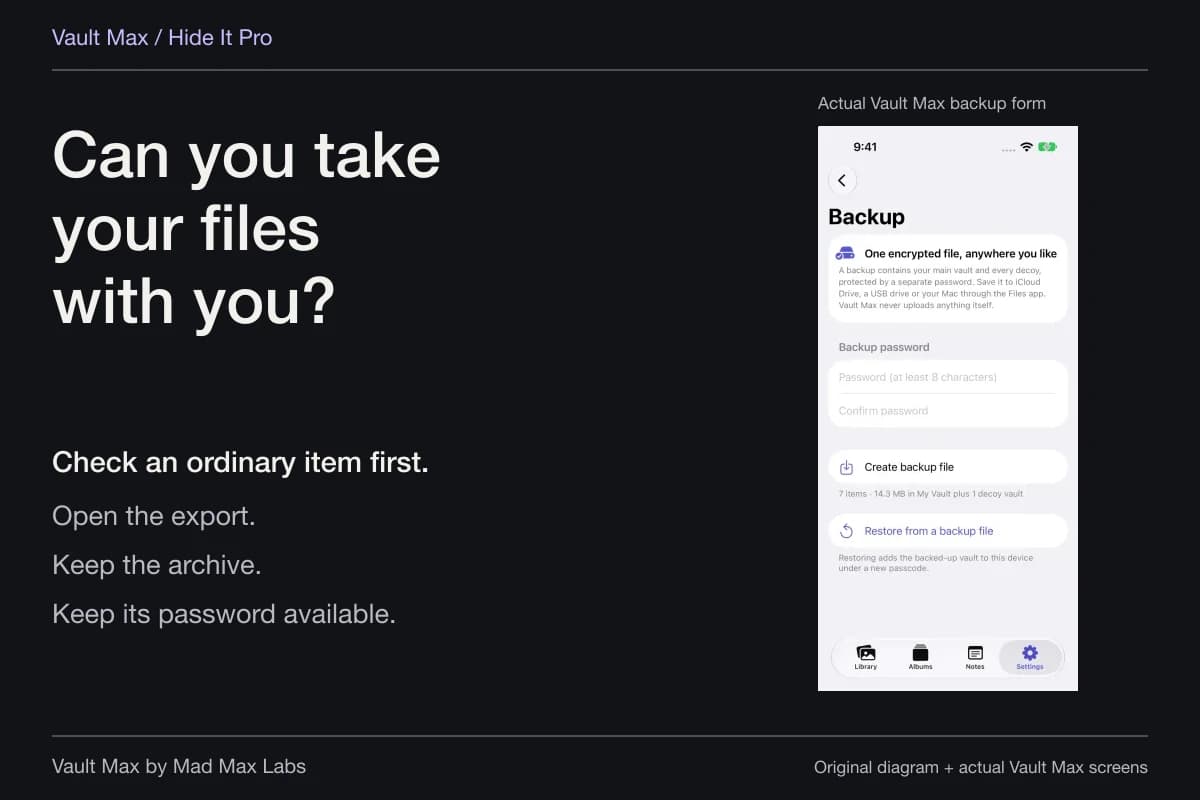
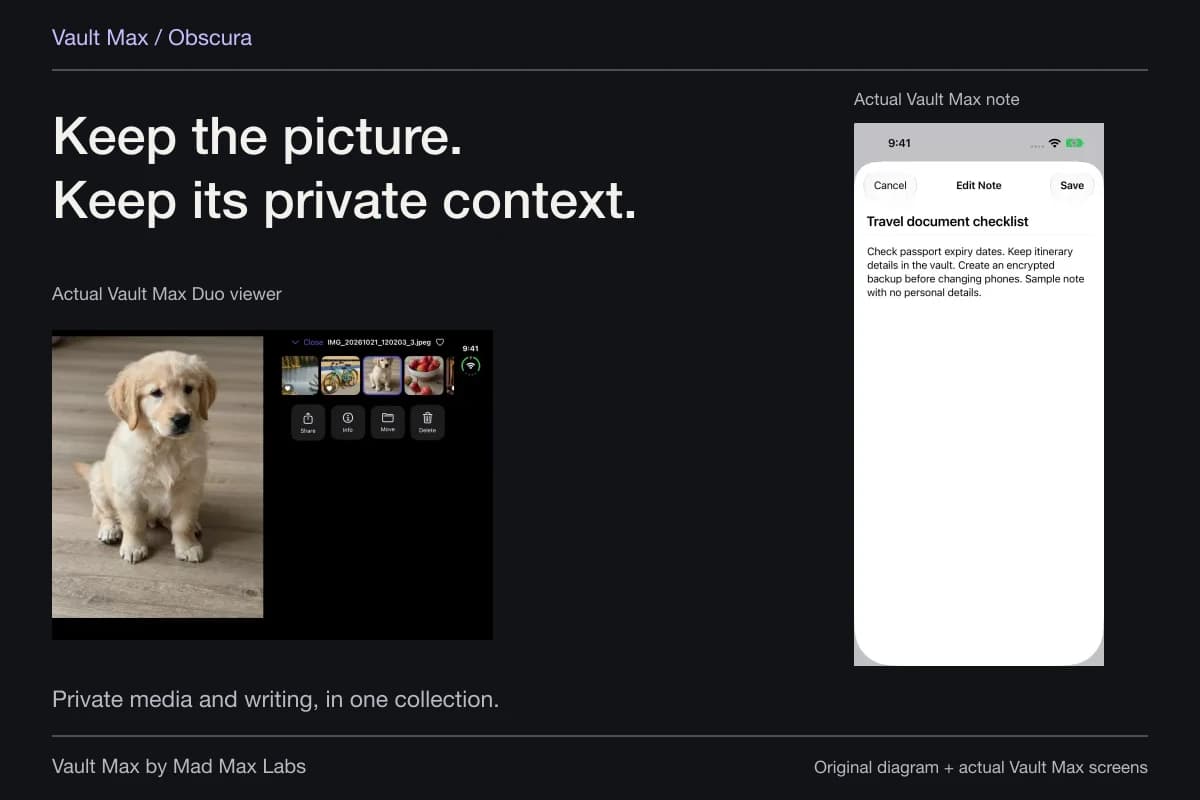
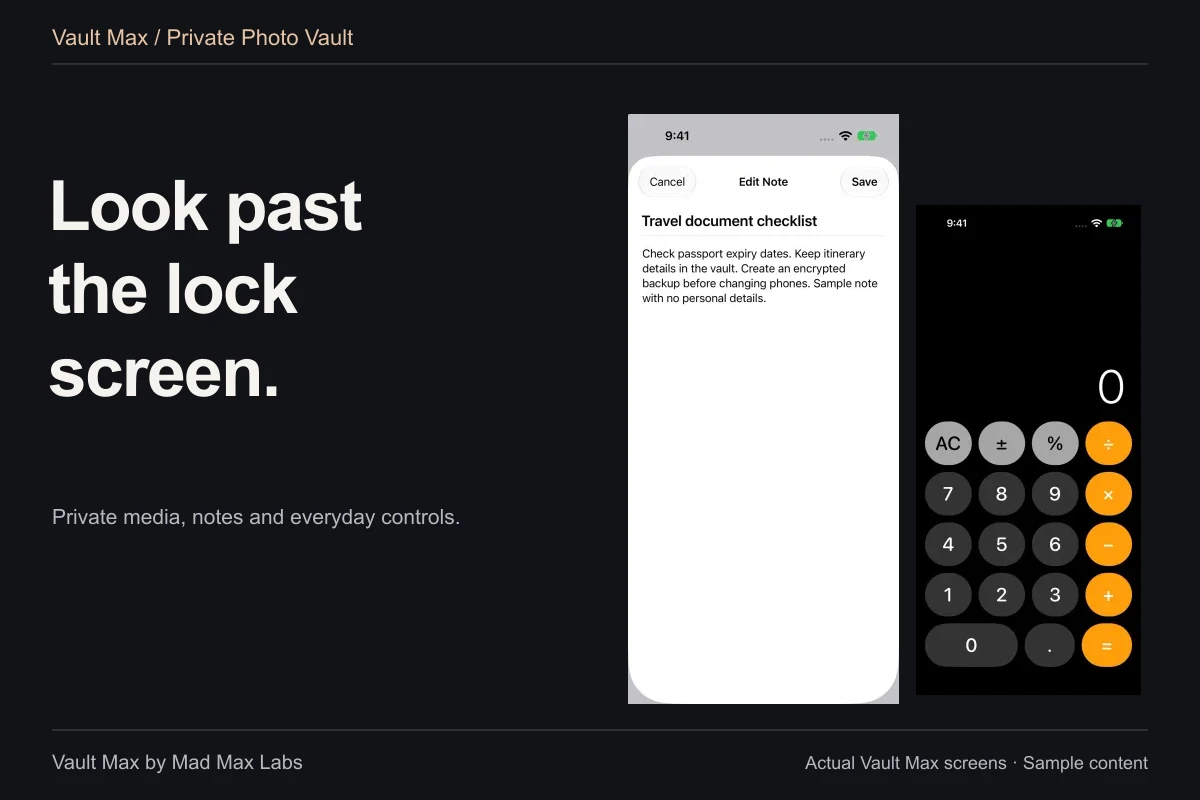
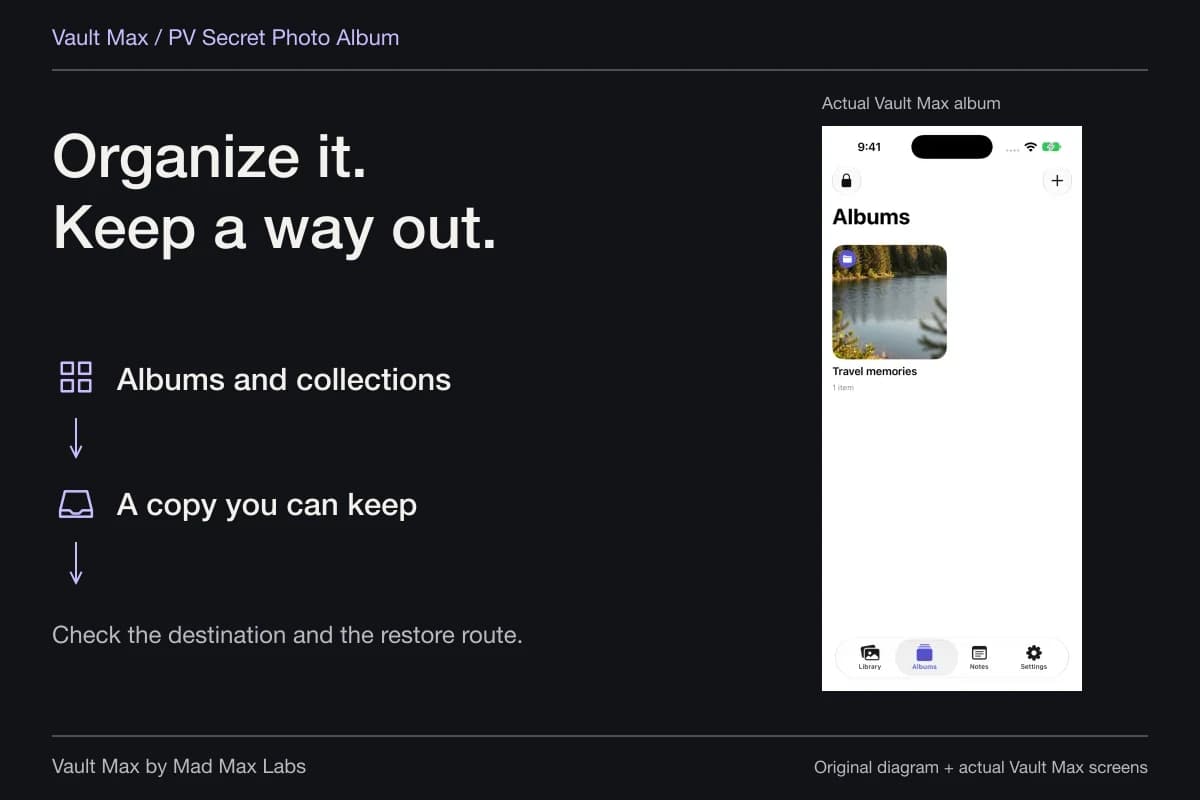
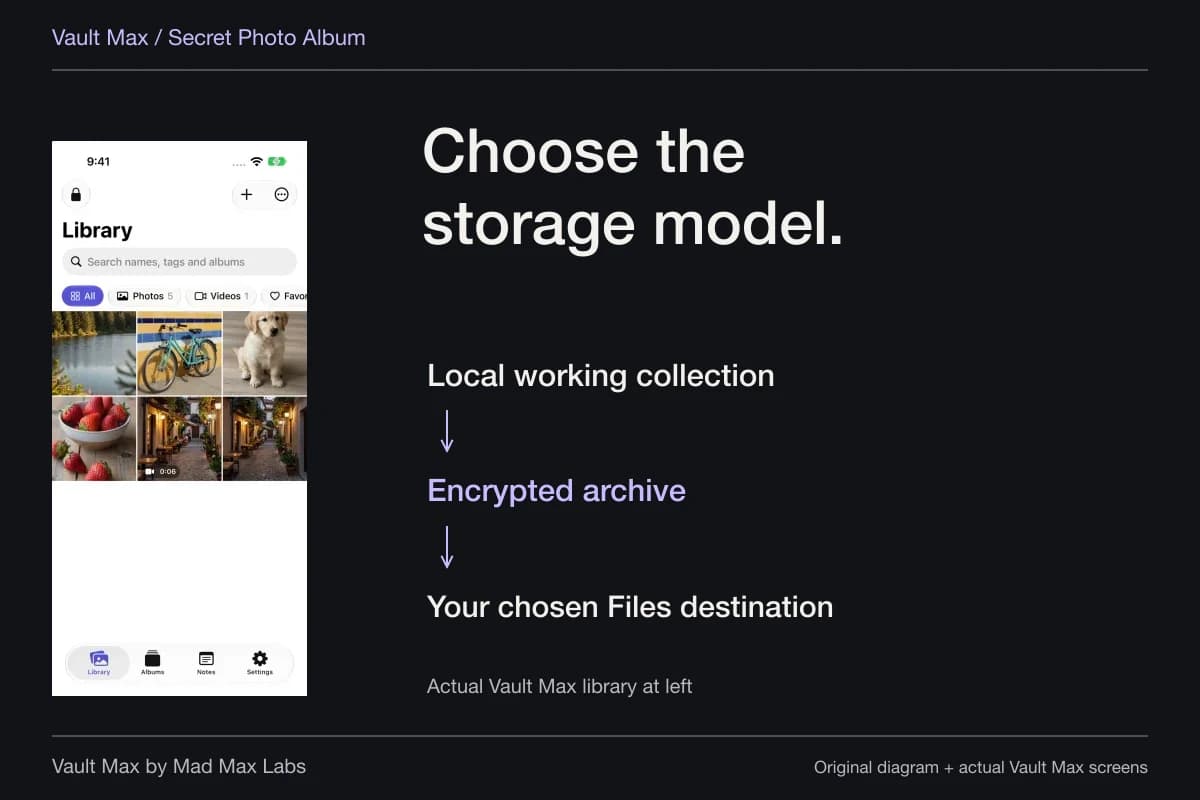
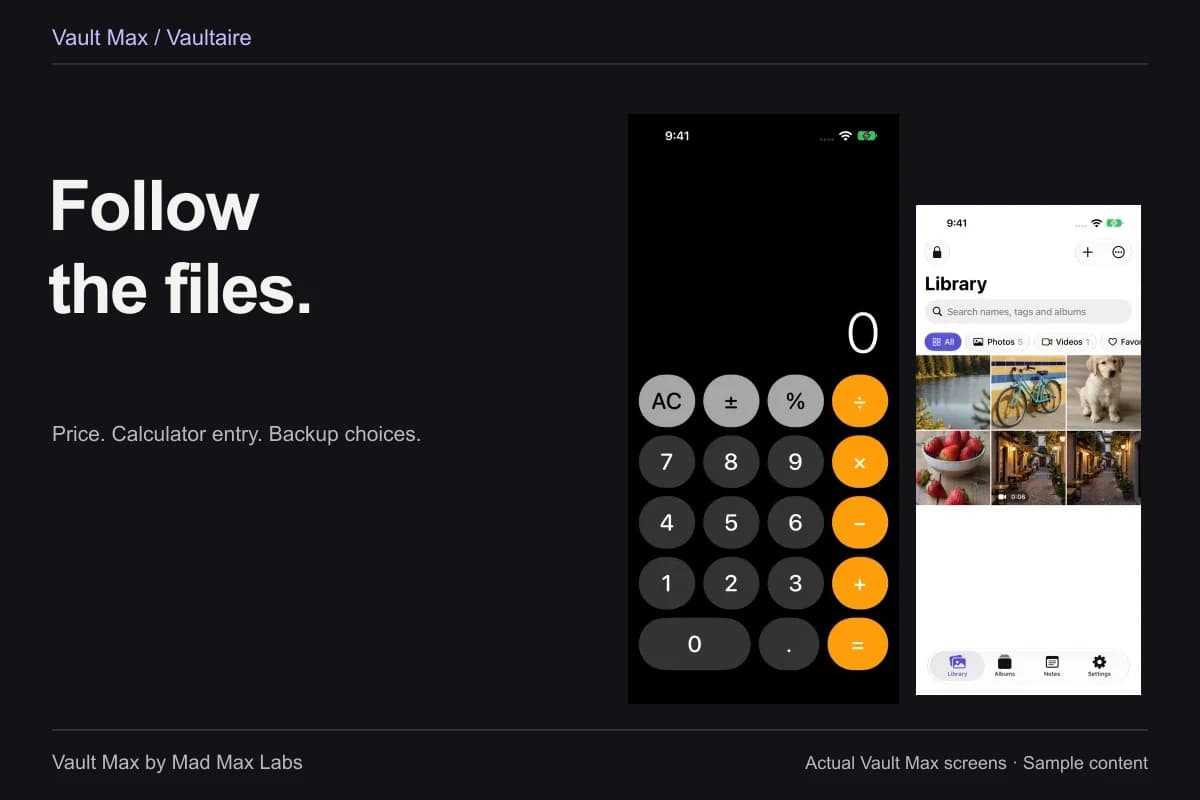
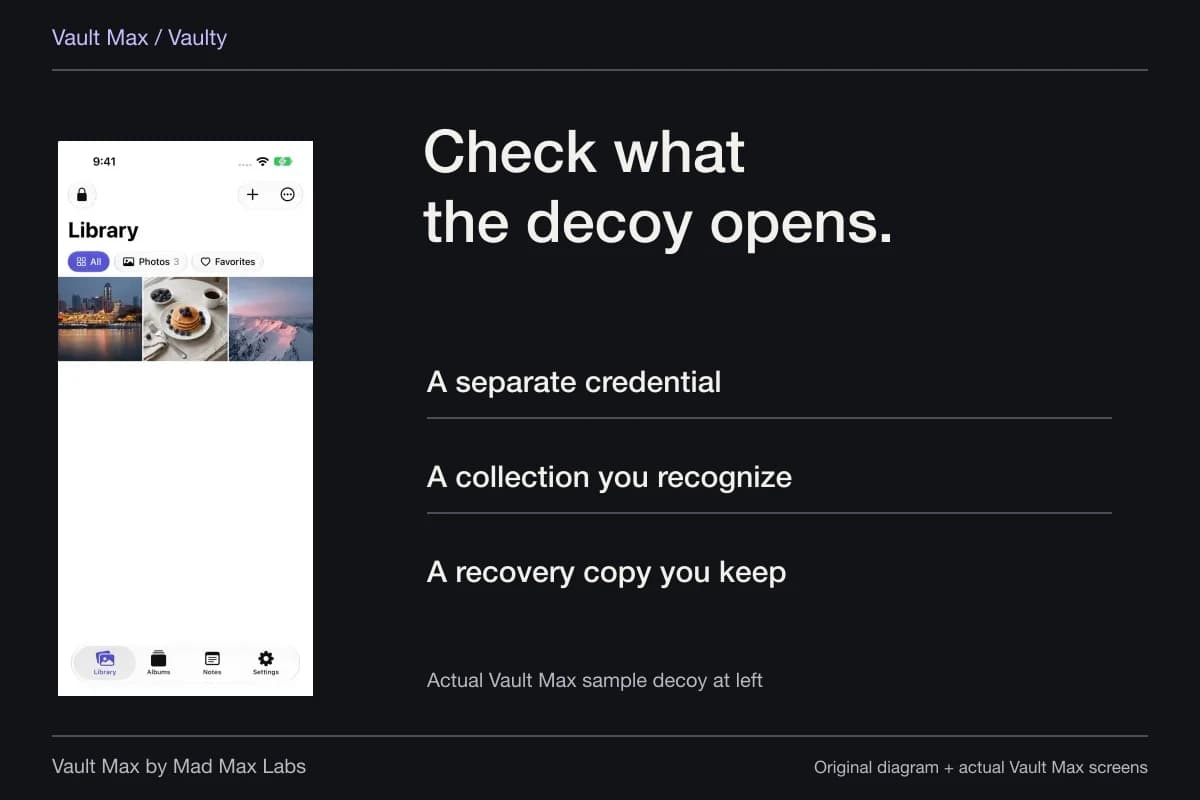
If you regularly lend someone your phone, a separately locked private collection can simplify the preparation. Vault Max stores imported media behind a vault credential, with optional biometric entry. Ordinary photos can stay available in Photos while the vault remains closed.
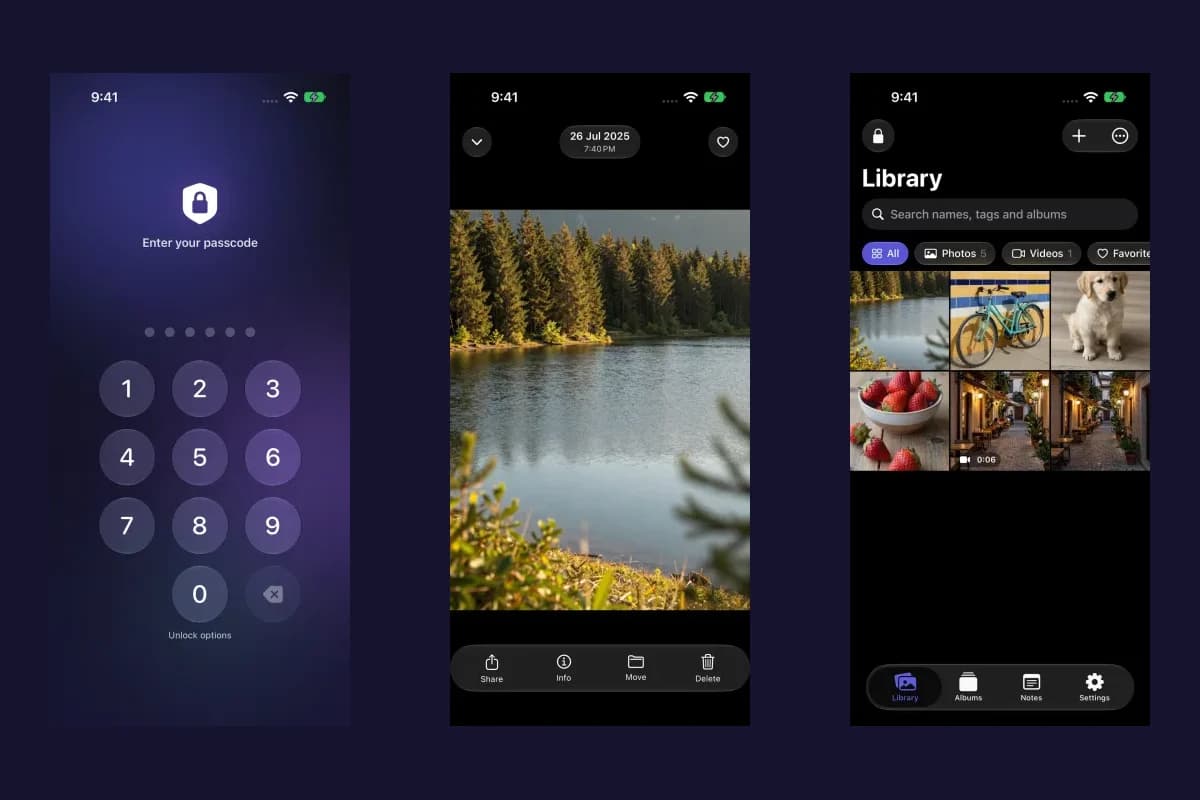
Sample Vault Max library. Select a screen for a closer look.
If the picture you want to show is inside Vault Max, you can keep the phone in your hands while viewing it. Exporting or sharing it is another choice, but that intentionally creates an external copy. Do not describe that copy as still protected by the vault's credential.
Close the private session when the viewing is over
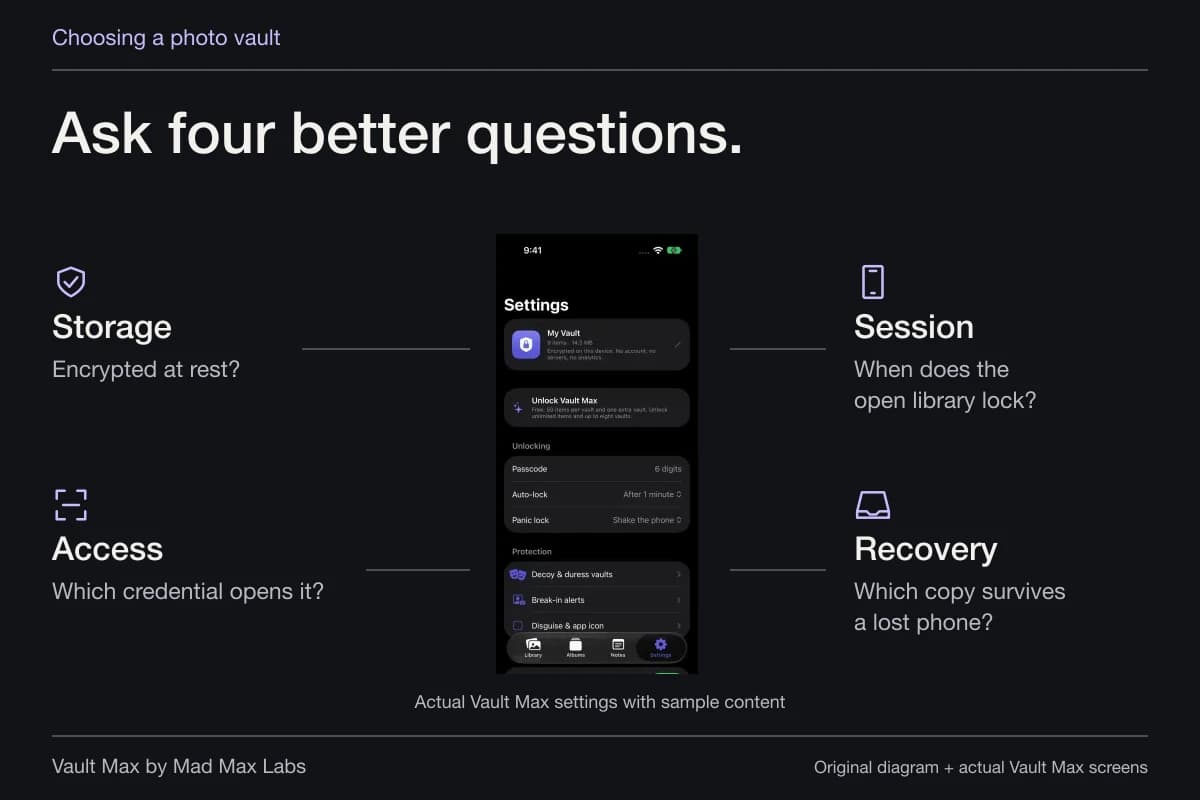
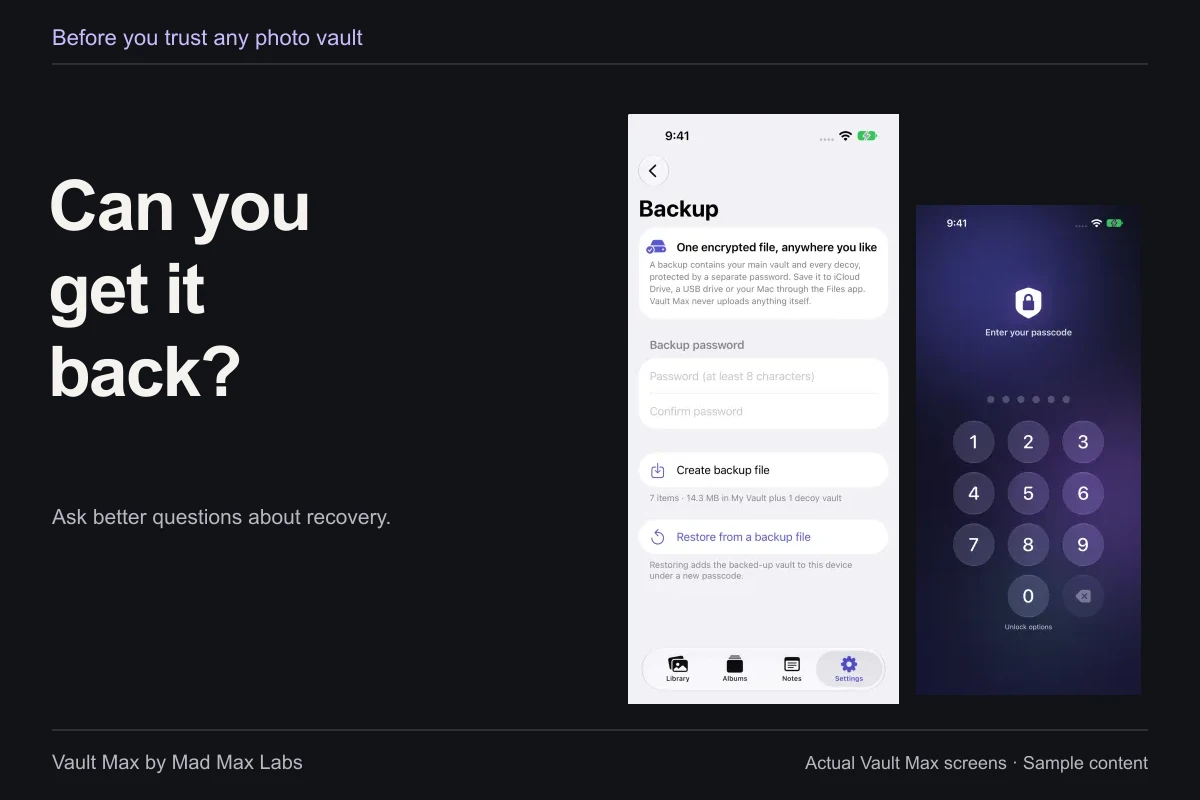
Use Vault Max's manual lock and verify that credential entry appears before giving someone the device for a different task. Check your background auto-lock setting too: leaving an app and explicitly locking it are not interchangeable when a grace period is configured.
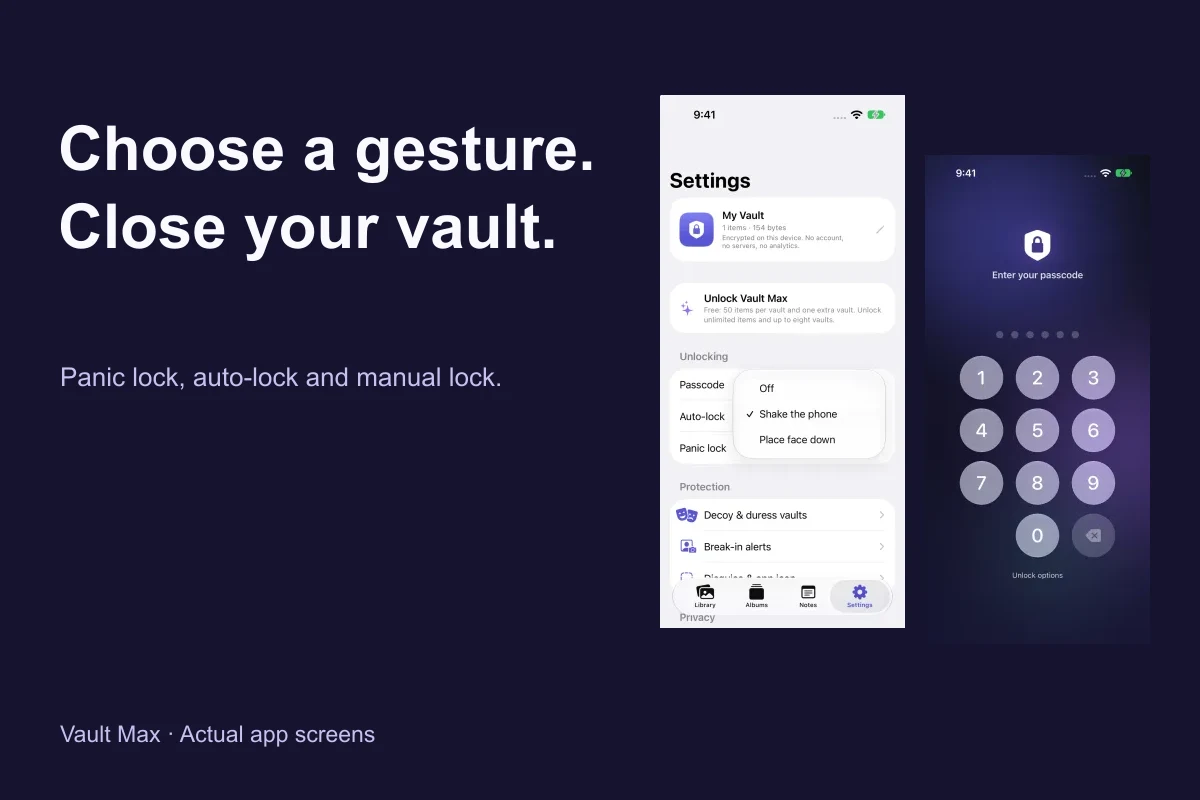
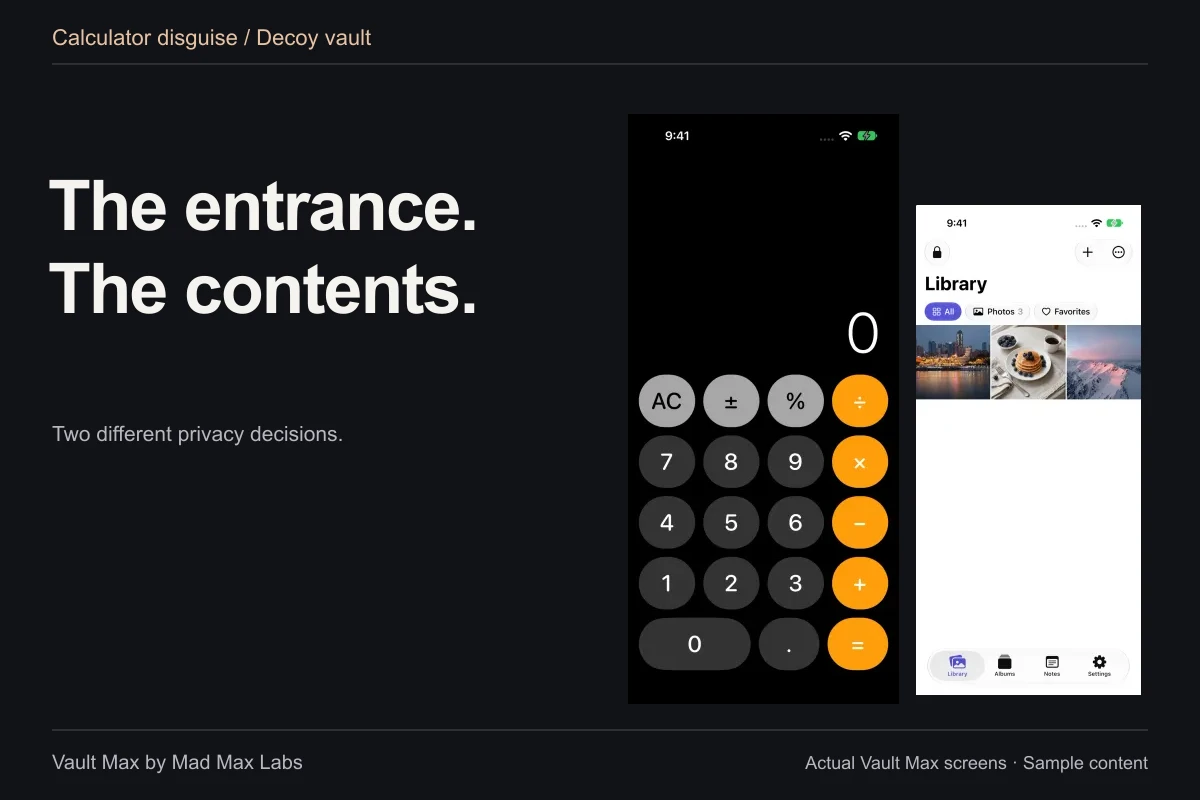
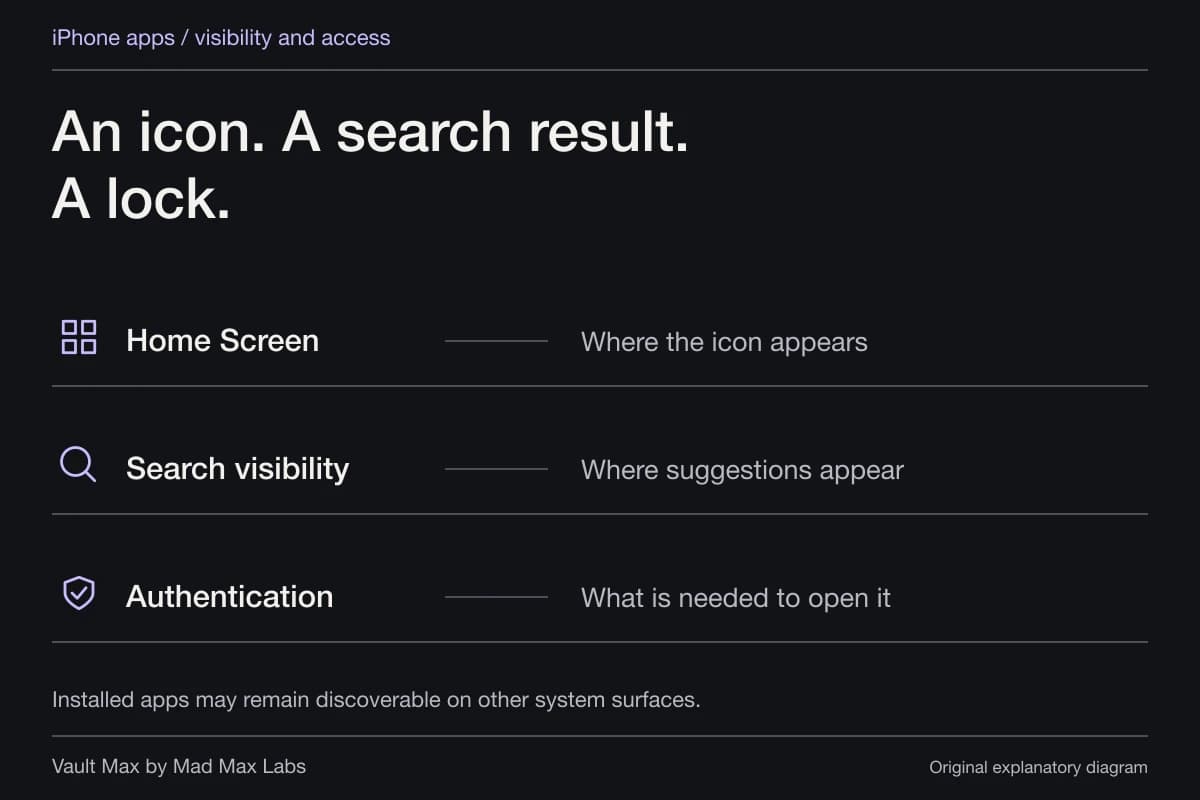
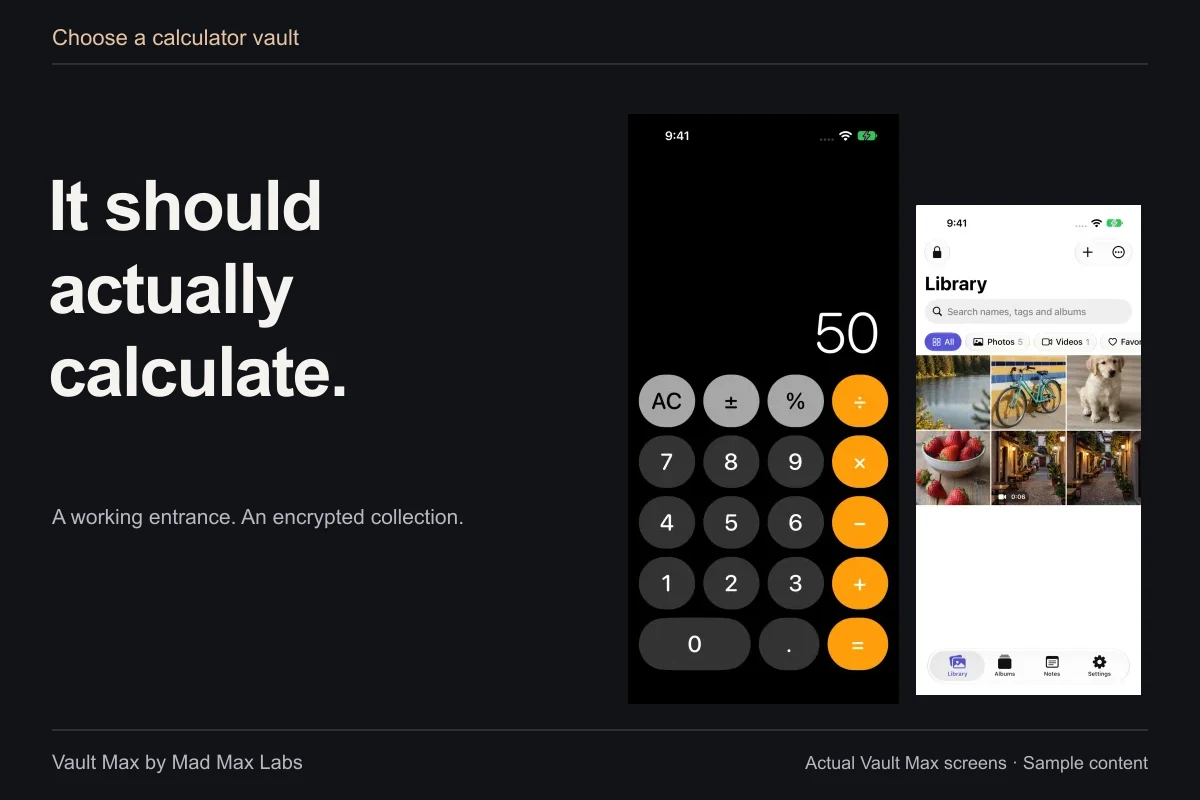
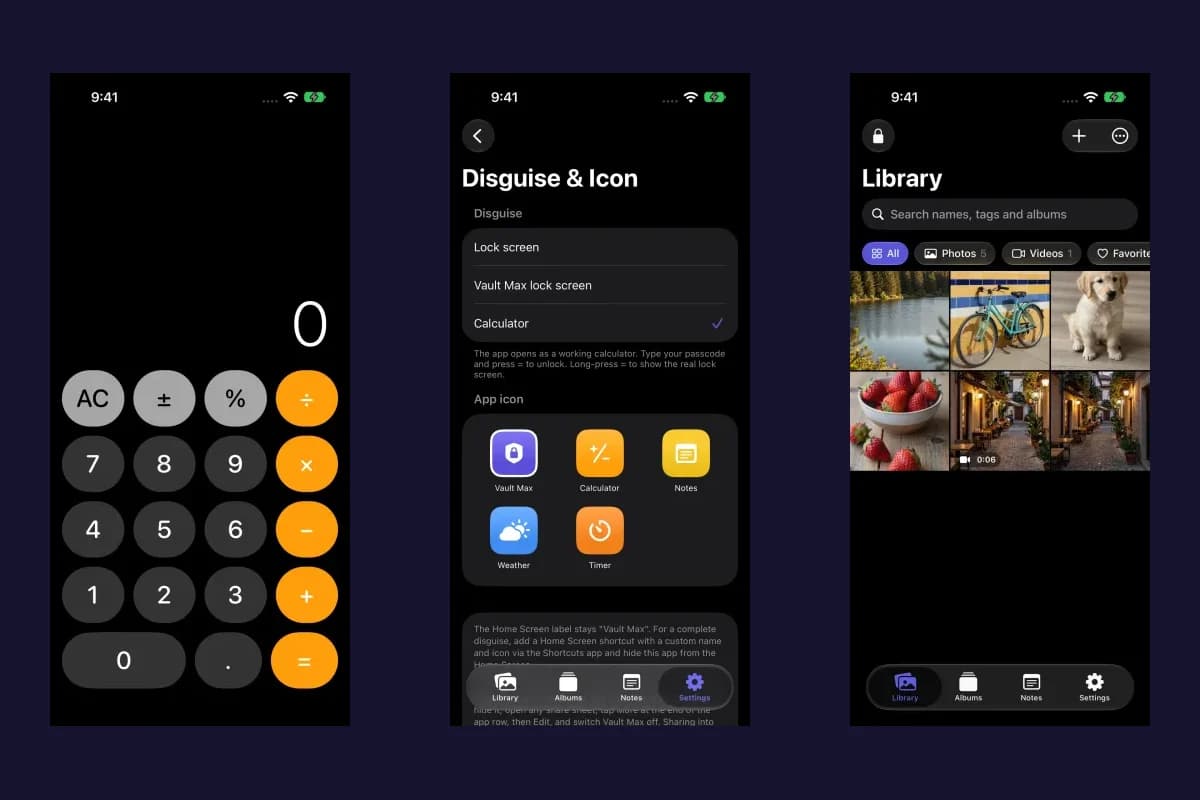
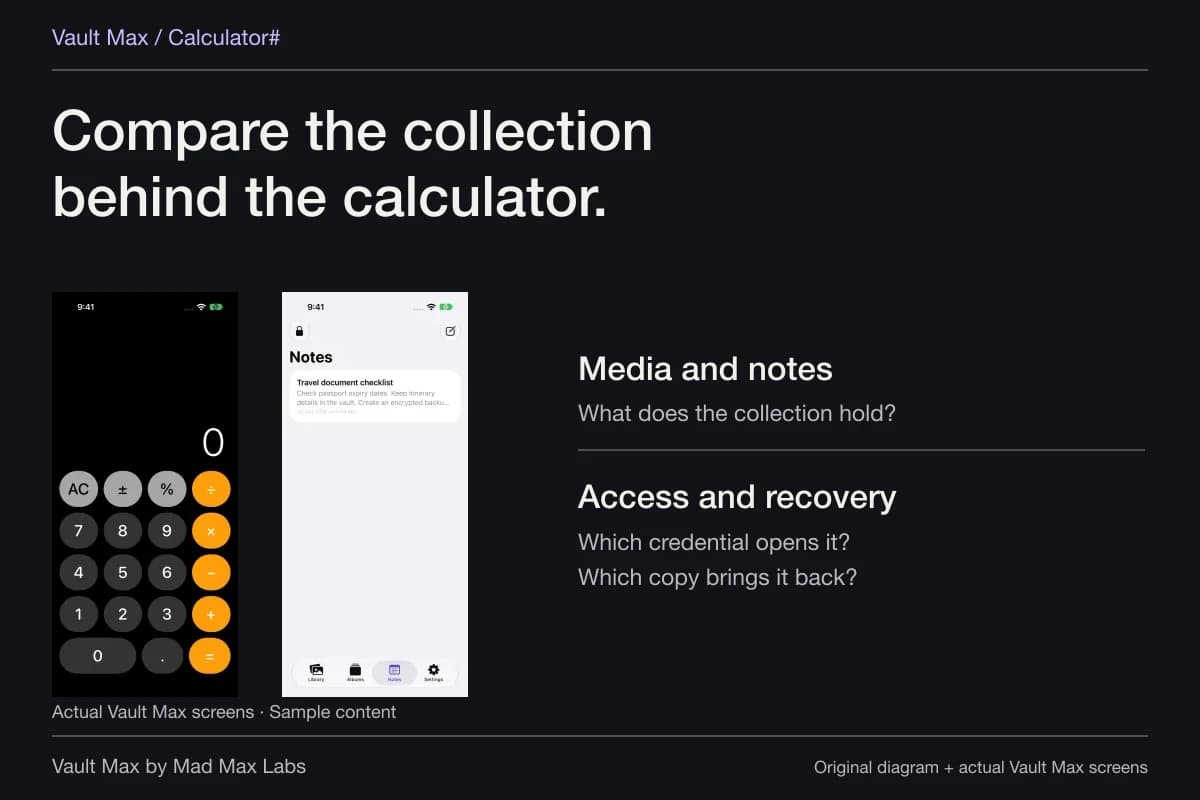
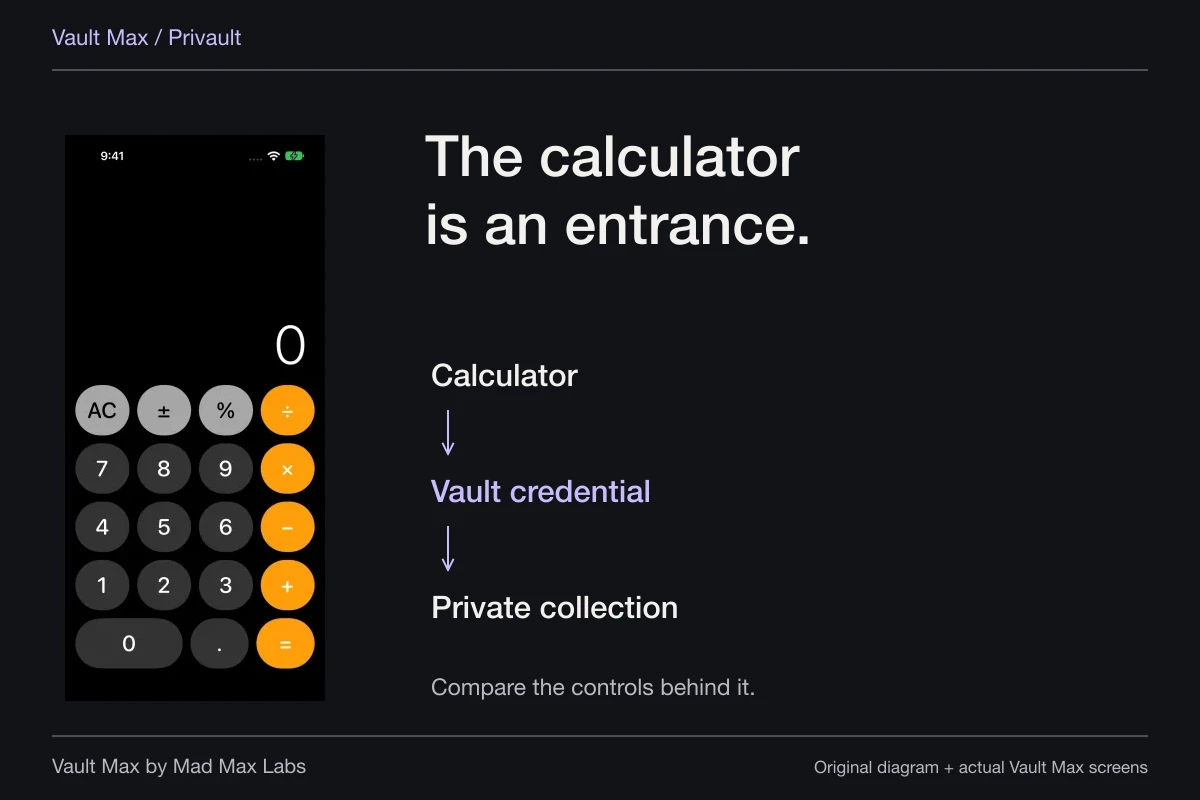
Optional panic gestures offer another quick way to close the session, but learn the normal lock route as well. A calculator disguise changes the locked entry screen; it is not a one-photo viewing mode.
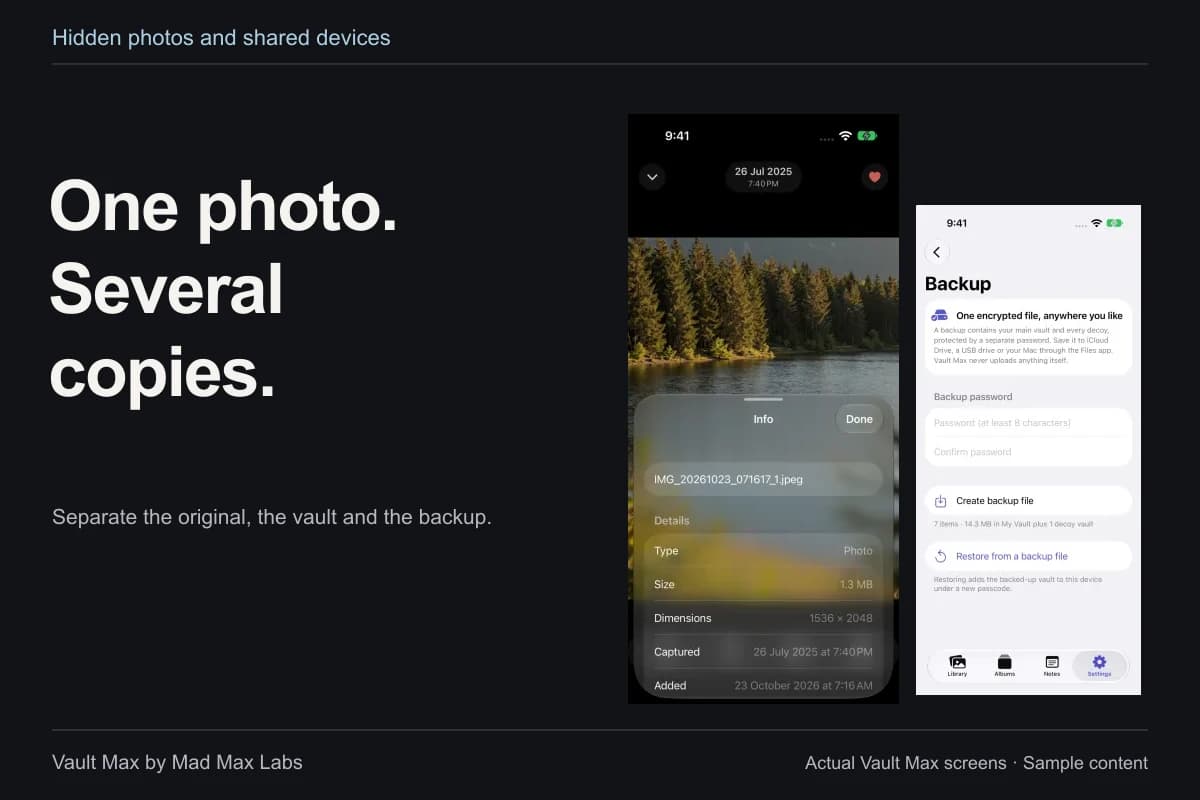
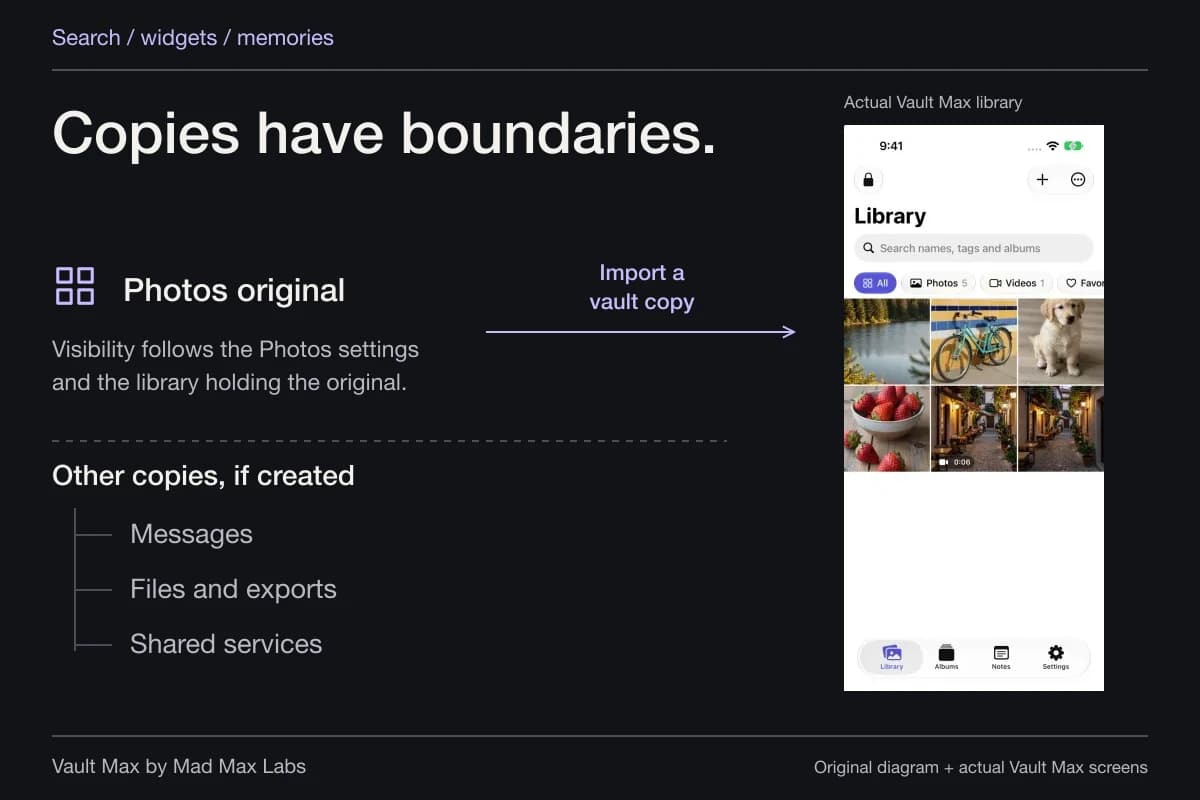
Finally, remember the original in Photos. Importing a private picture into Vault Max does not make a retained Photos copy disappear. Follow the import walkthrough and check both locations. A careful handoff begins with knowing which collection you are actually opening.
Continue reading
More guides
Practical tips for your private library. Swipe or scroll to choose your next guide.
50 guides to explore