
Privacy in practice
Private photos before selling your iPhone: what to keep and check
Selling or trading in an iPhone? Preserve private photos and Vault Max archives, check recovery on the destination, then follow Apple's device-erase steps.
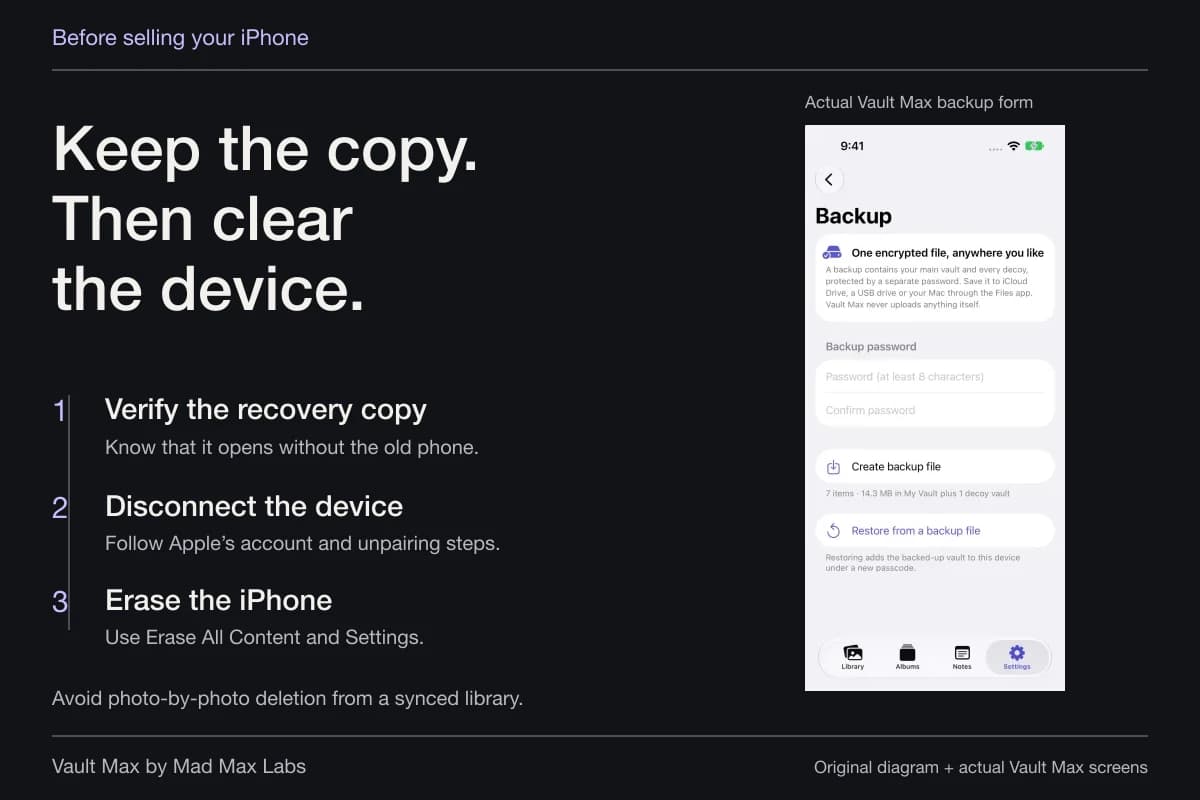
Before selling your iPhone, preserve the private files you want, check that you can use them without the old device, then erase the device using Apple's handoff procedure. Do not clean it up by manually deleting synced photographs: Apple's before-you-sell guide distinguishes those deletions from erasing the phone itself.
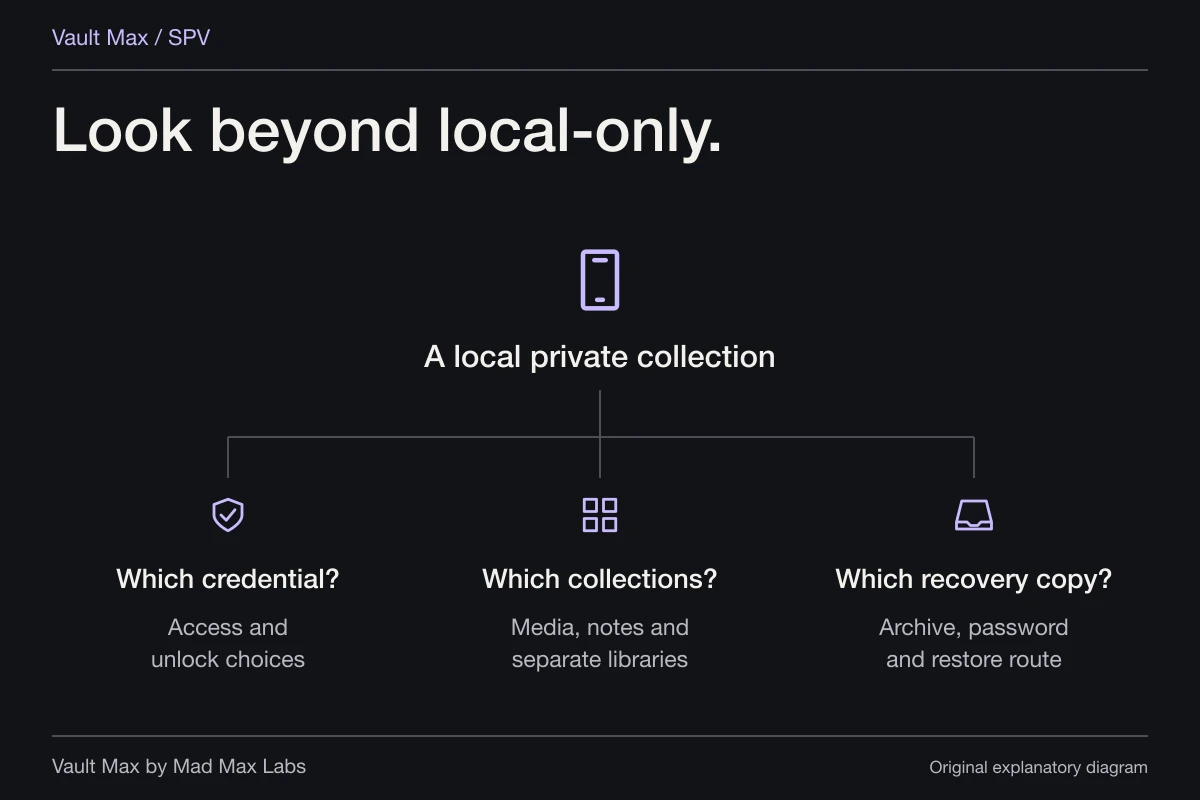
The awkward part is that private pictures may be spread across Photos, Hidden, messages, Files and a separate vault. A new phone appearing to work does not establish that every collection made the move. Use the old device as your reference until the destination and recovery copies have been checked.
Start with a stop condition, not the trade-in appointment
Decide what must be true before you hand over the phone. “My private library opens on the destination, and an independent archive is reachable” is a concrete condition. “I tapped Back Up” is an action whose result still needs checking.
If you have not obtained a destination device, an independently accessible archive becomes especially important. Keep the file, its separate password and enough information to recognize which collection it contains. Do not leave their only copies in a folder or password note on the phone being sold.
Back up and verify
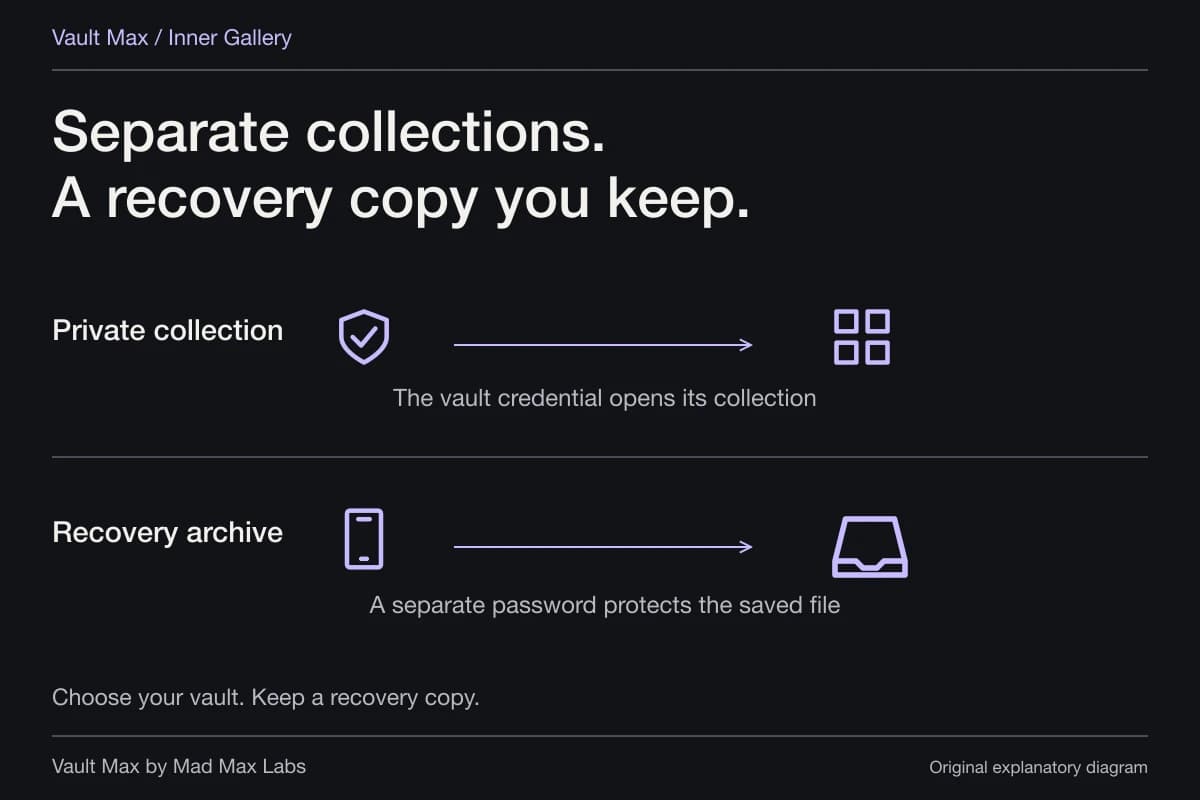
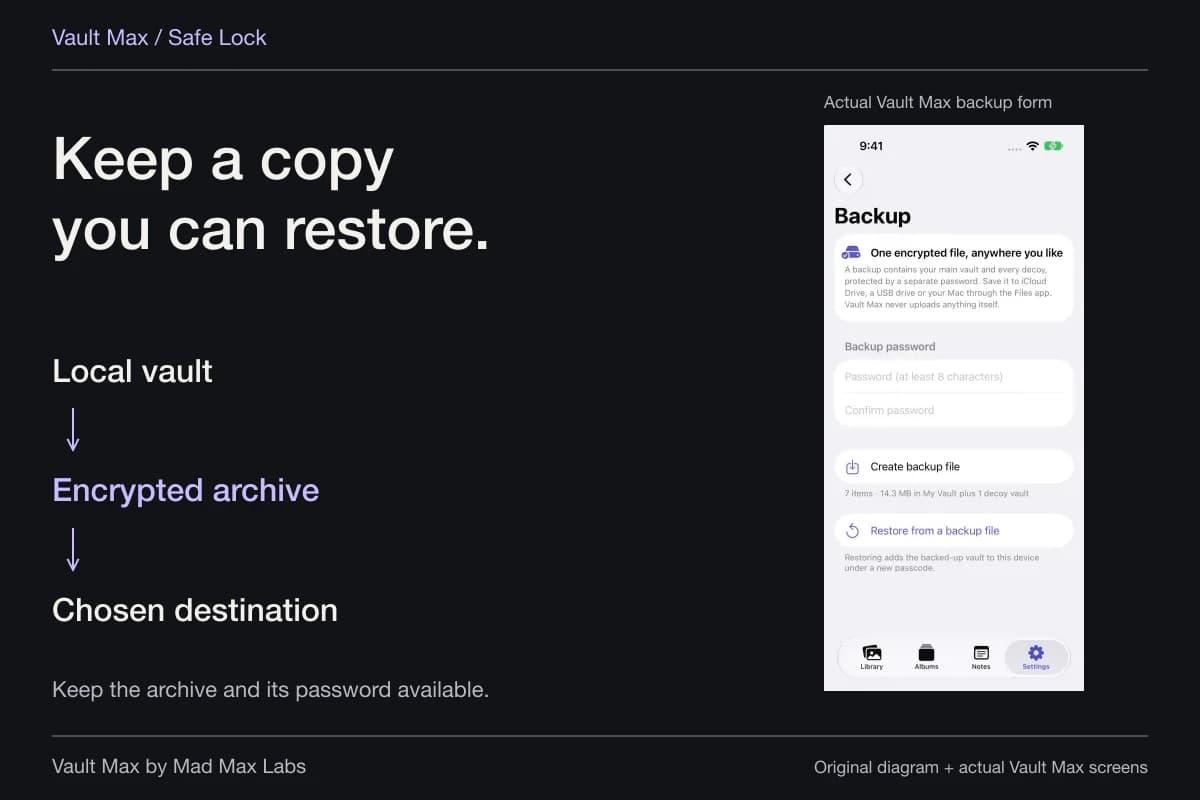
Keep a recovery copy you can open without relying on the phone you are selling.
Disconnect the device
Follow Apple’s instructions to unpair accessories and sign out of your account.
Erase the iPhone
Use Erase All Content and Settings after the recovery copy is ready.
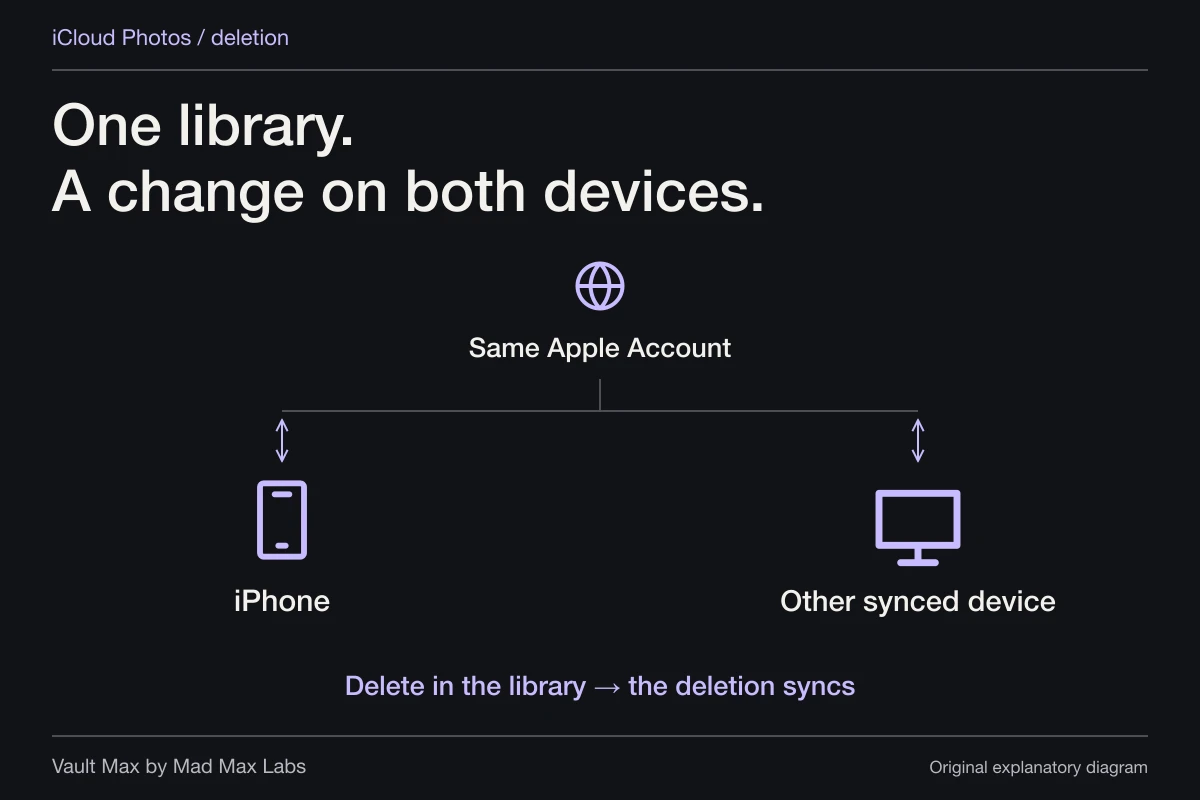
Deleting pictures one by one can delete them from a synced library too. Erasing a device is a different operation.
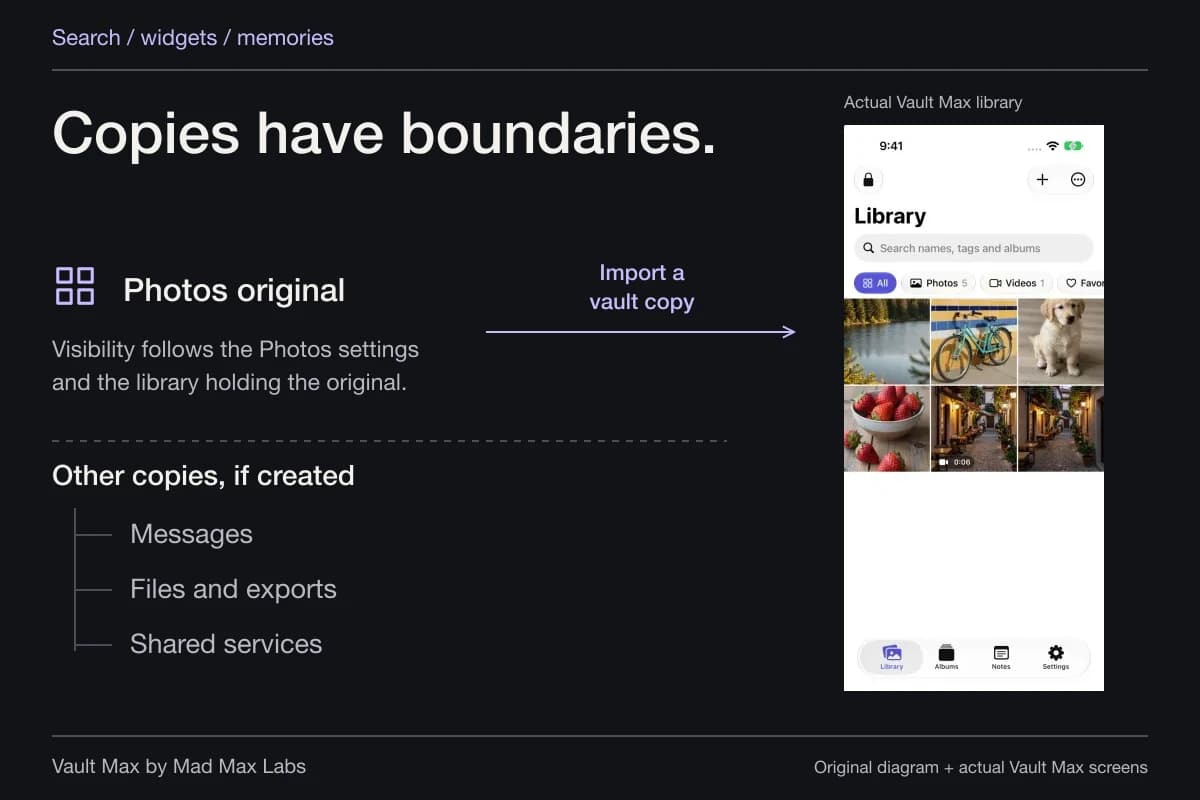
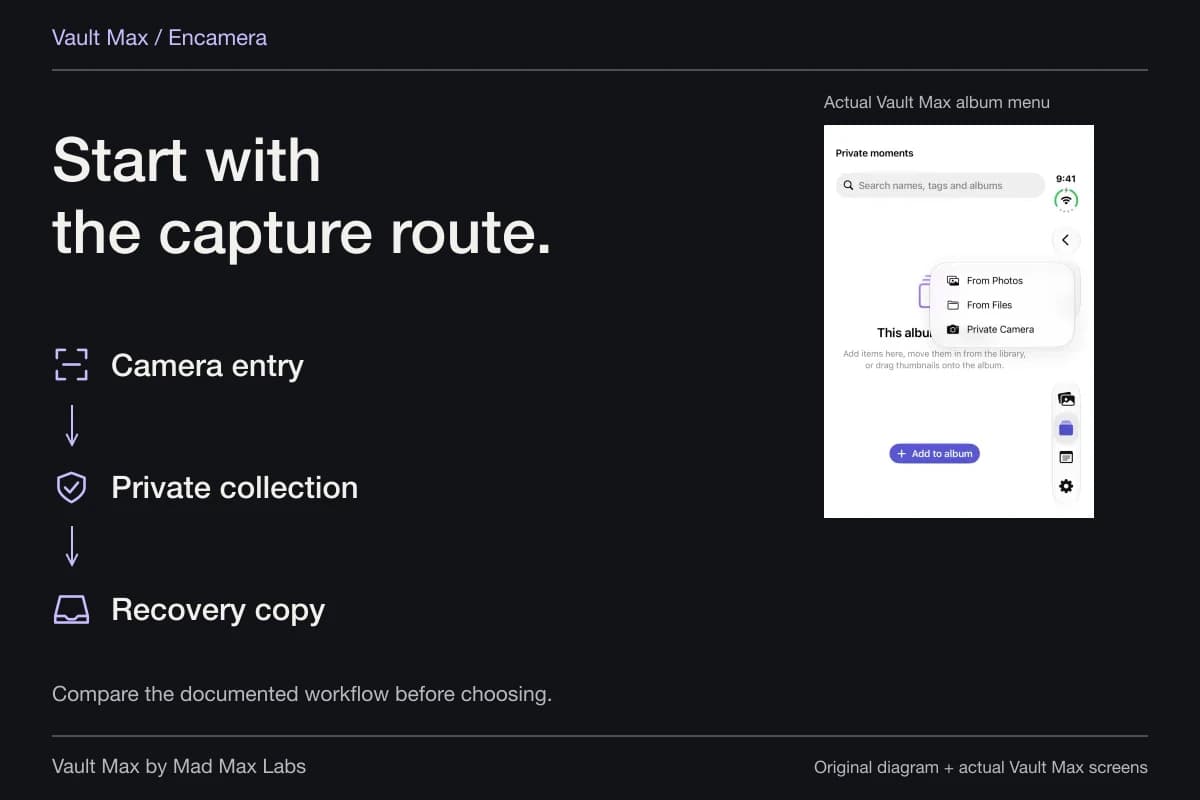
Follow the diagram in order. If one step fails, preserve what still works and resolve that step. A buyer waiting downstairs is not a reason to erase the only collection you can currently open.
Inventory the private collection as well as the camera roll
Open each place where you intentionally store personal pictures. In Photos, account for Hidden and shared-library views. Check any documents saved through Files, plus photographs kept in message conversations. You do not need to duplicate everything indiscriminately; you do need to know what you intend to retain.
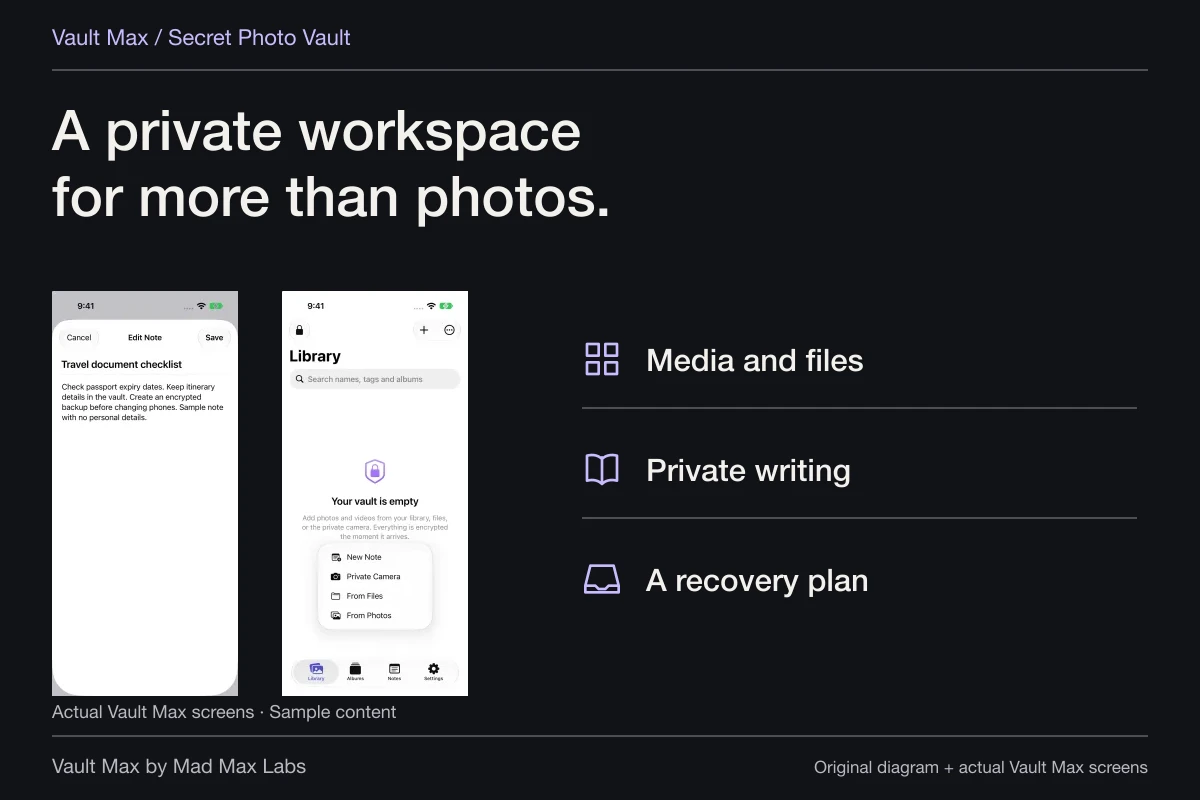
For Vault Max, inspect the main vault and any child collections you use. Remember notes and documents, not just the photo grid. Make a short inventory using descriptions that will help you recognize the destination later: a recent video, a particular document and a note with a known title are more useful than “lots of pictures.”
Keep that inventory private. It is a working aid for you, not something to send a buyer, post in a sale listing or include with support screenshots. If you make demonstration pictures of the device, choose an empty or harmless screen.
Make a current Vault Max recovery archive while the source opens
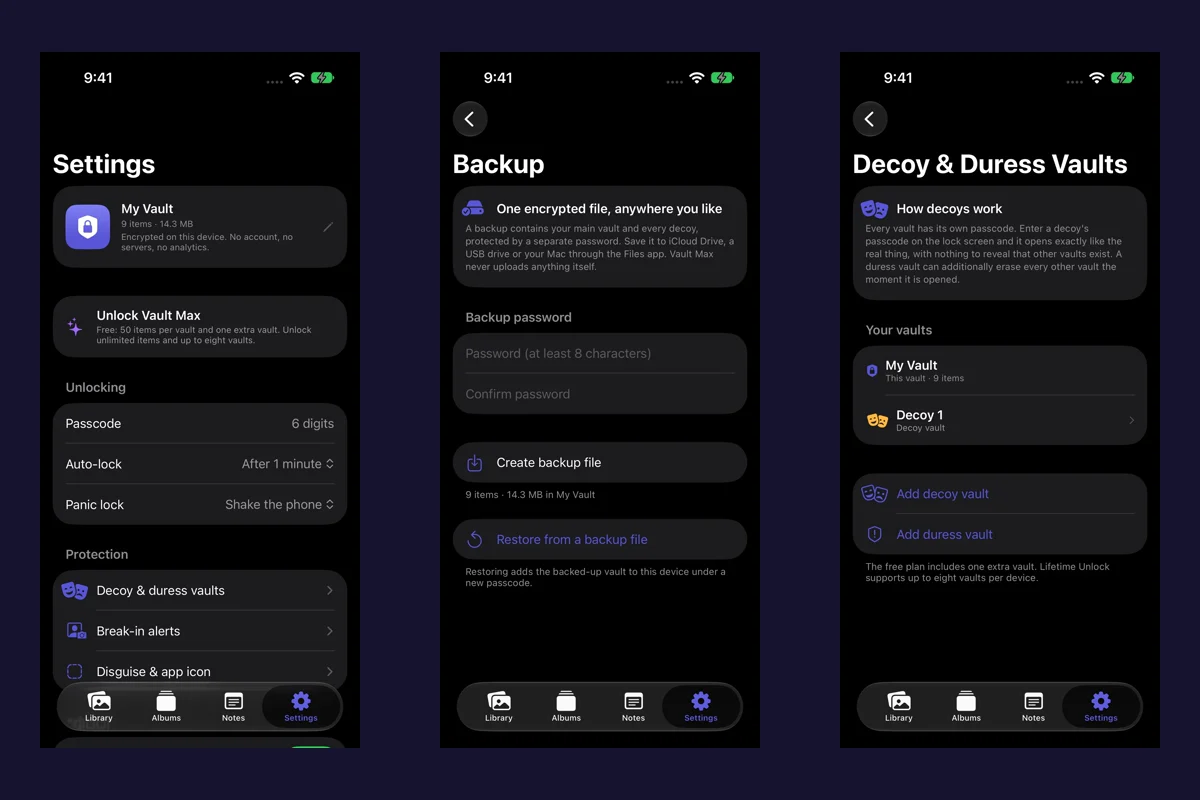
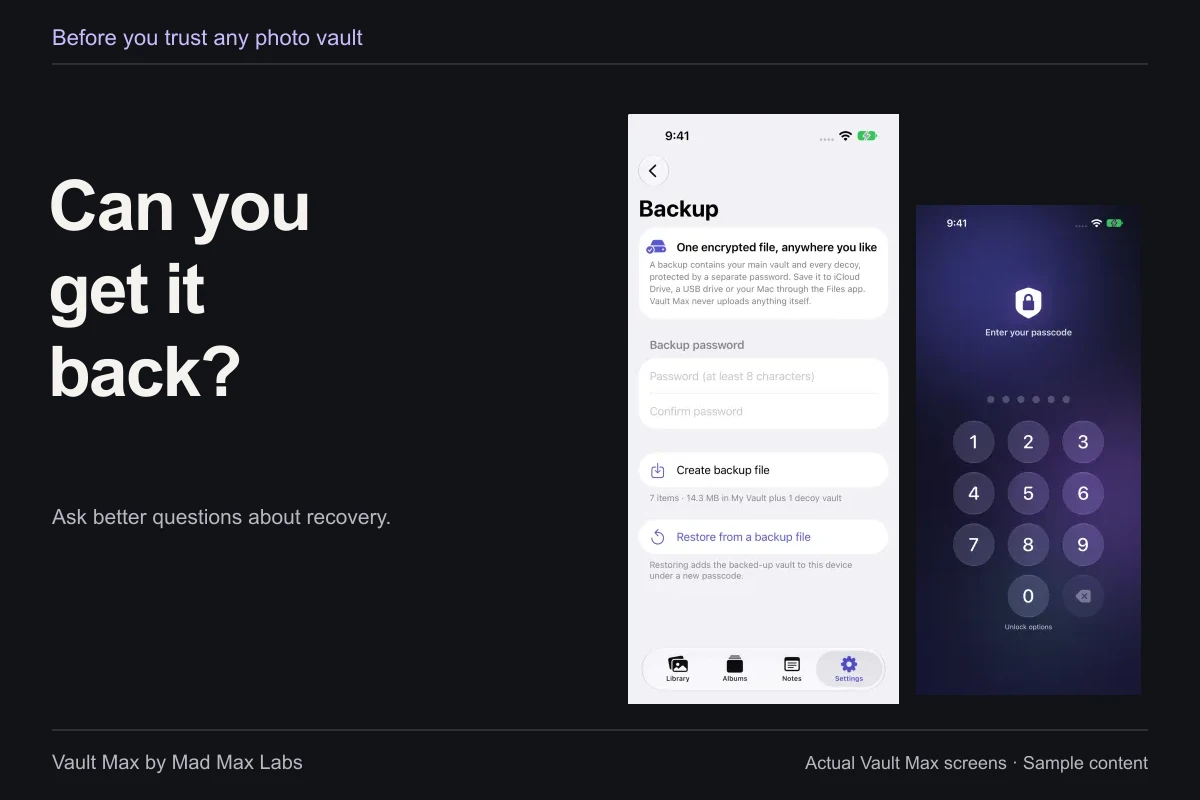
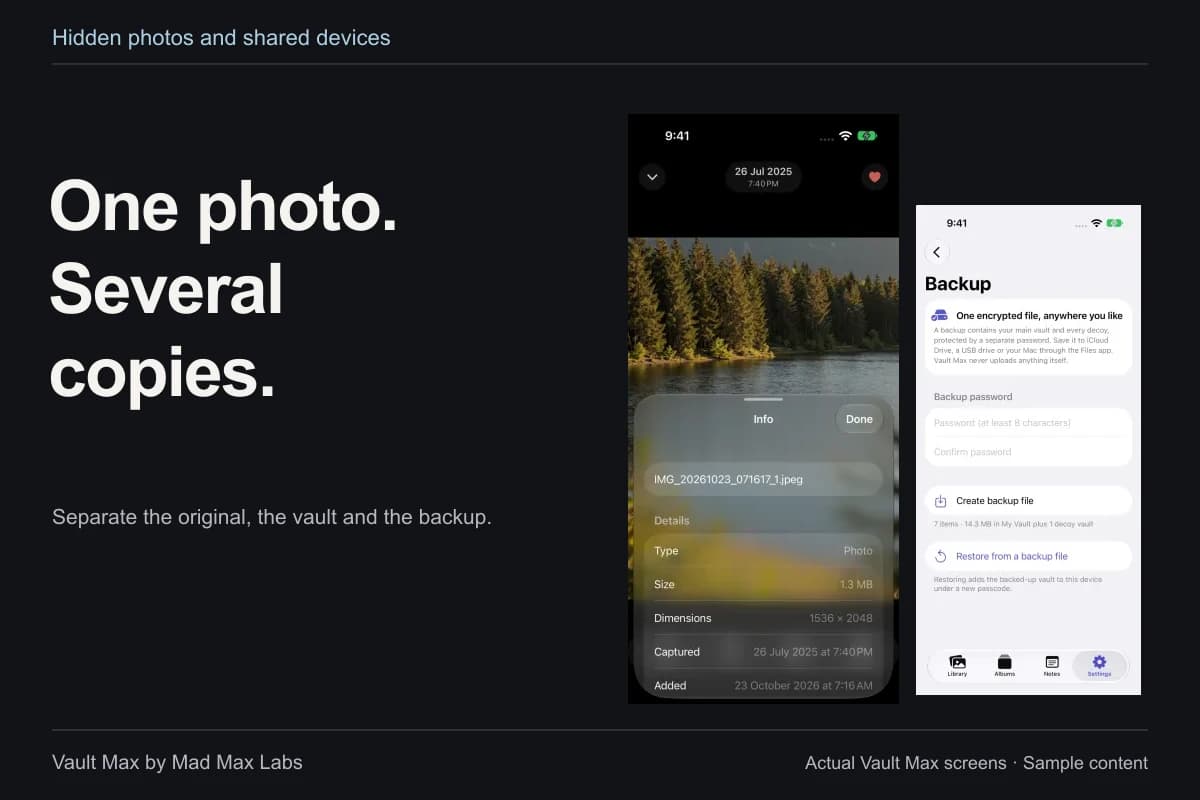
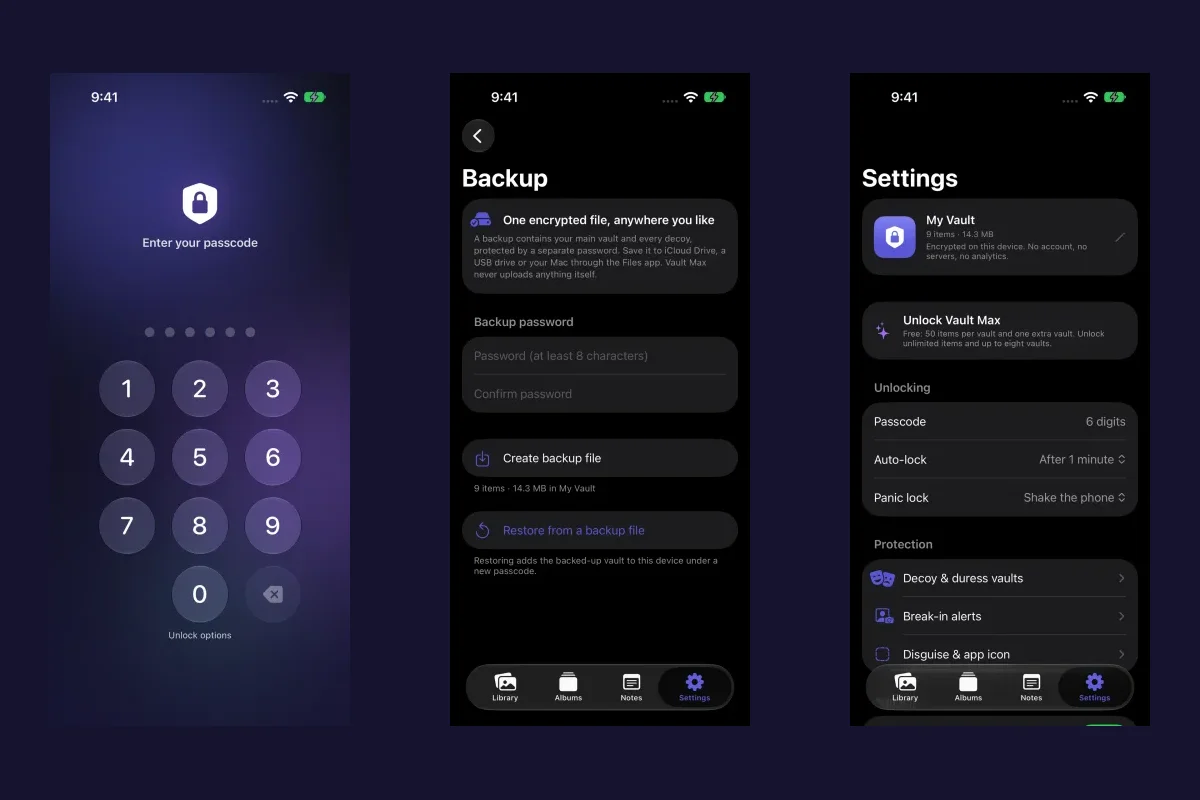
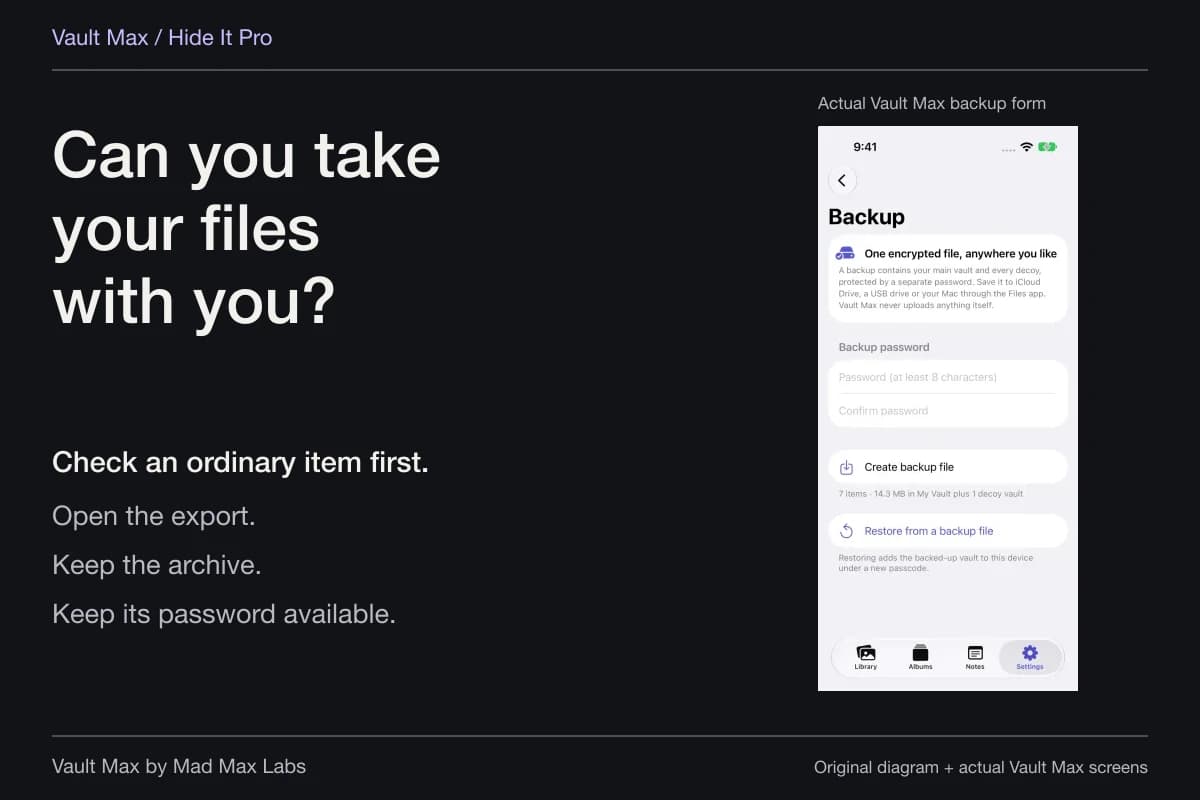
From the main vault, open Settings → Encrypted backup. Create a .vaultmax file with a separate backup password and save it through Files. The form explains its coverage: the main vault and its included child vaults. Use the detailed backup guide for the full create-and-restore sequence.
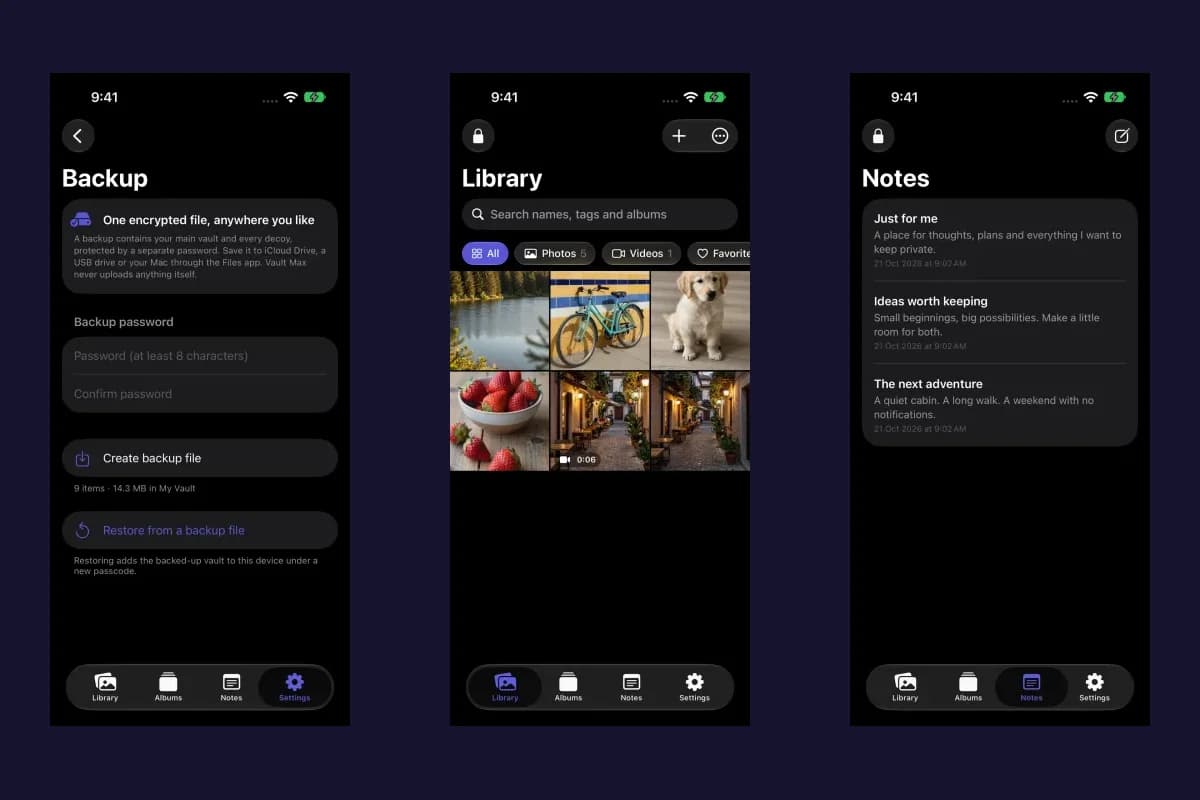
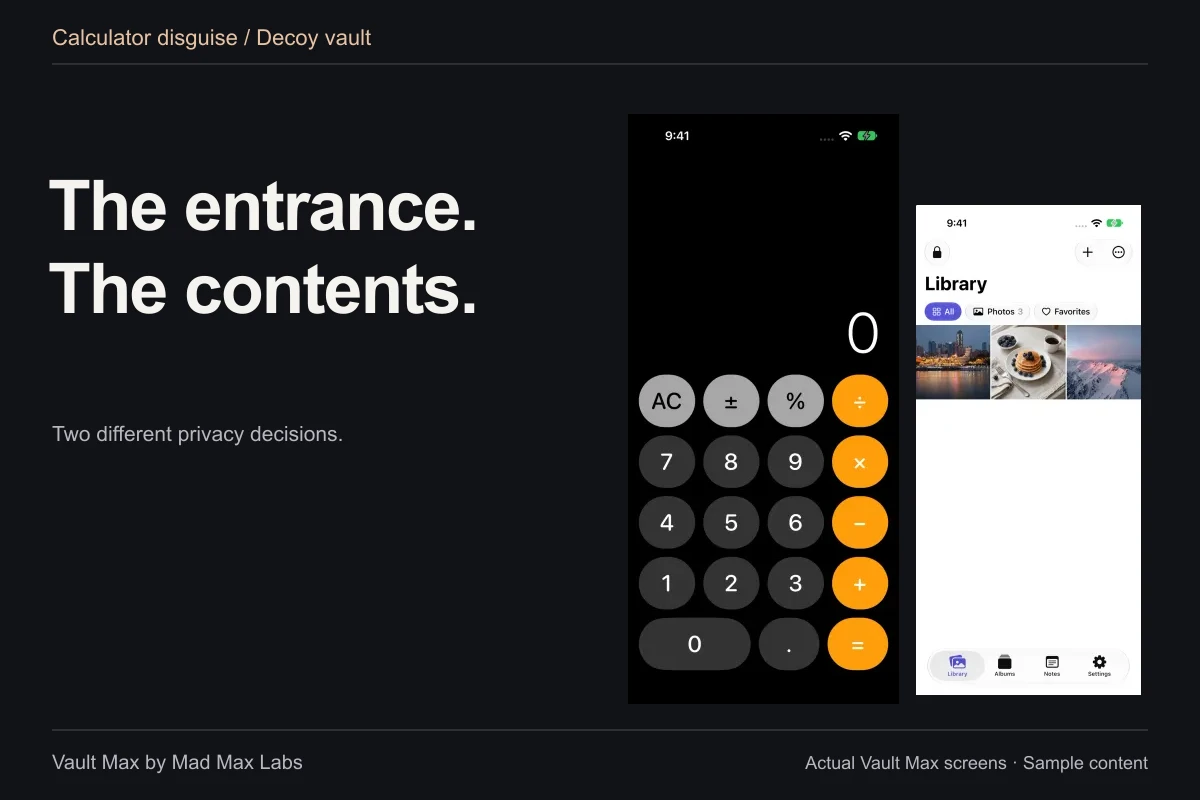
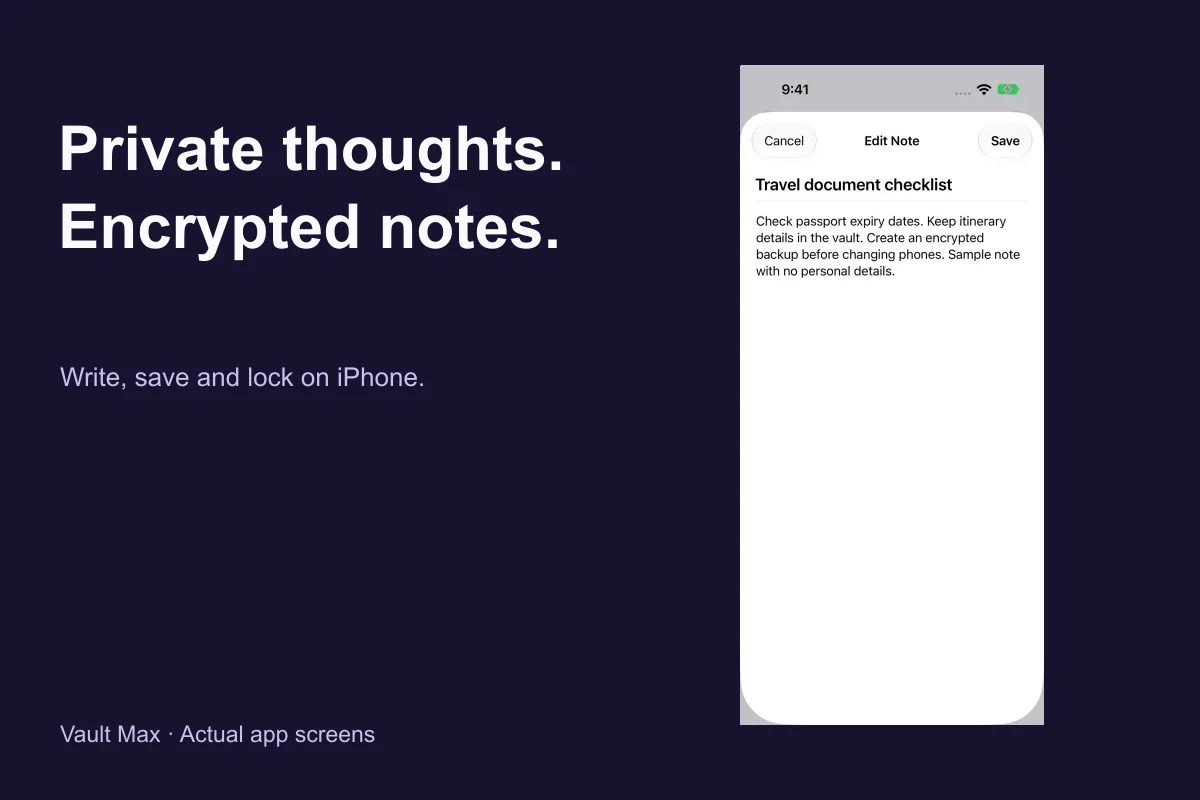
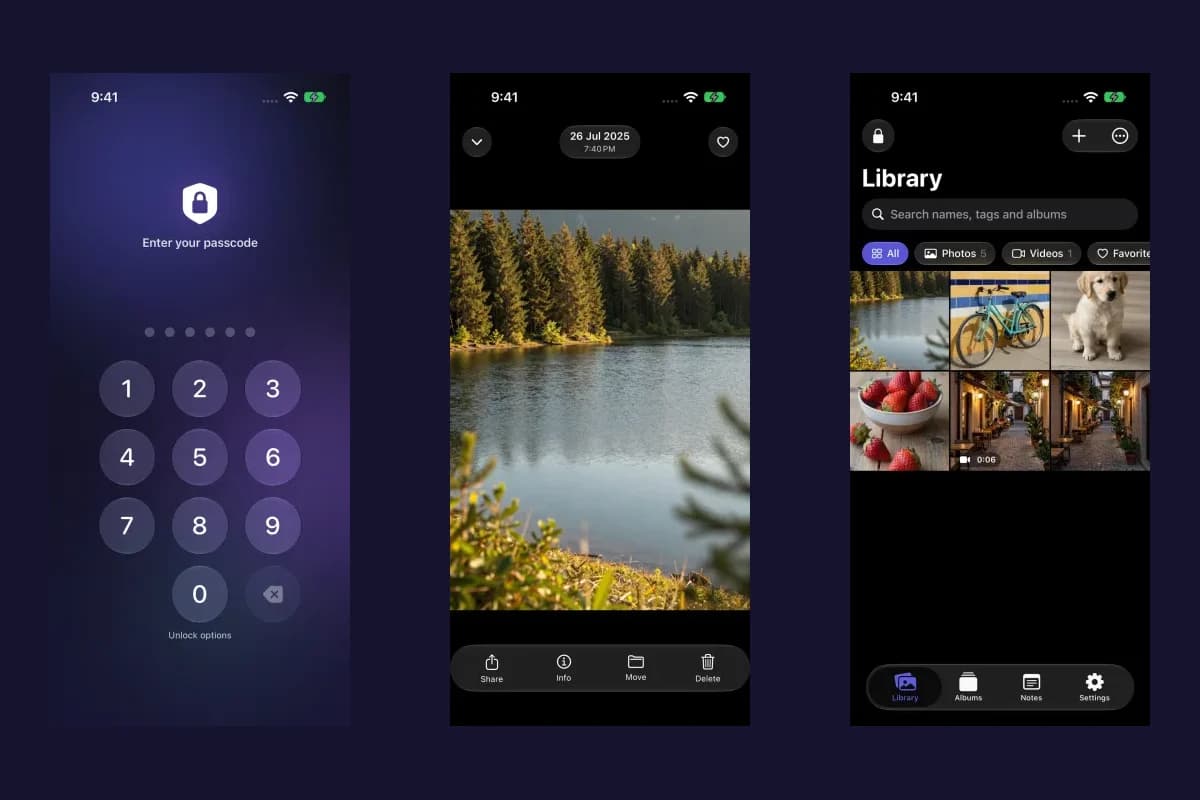
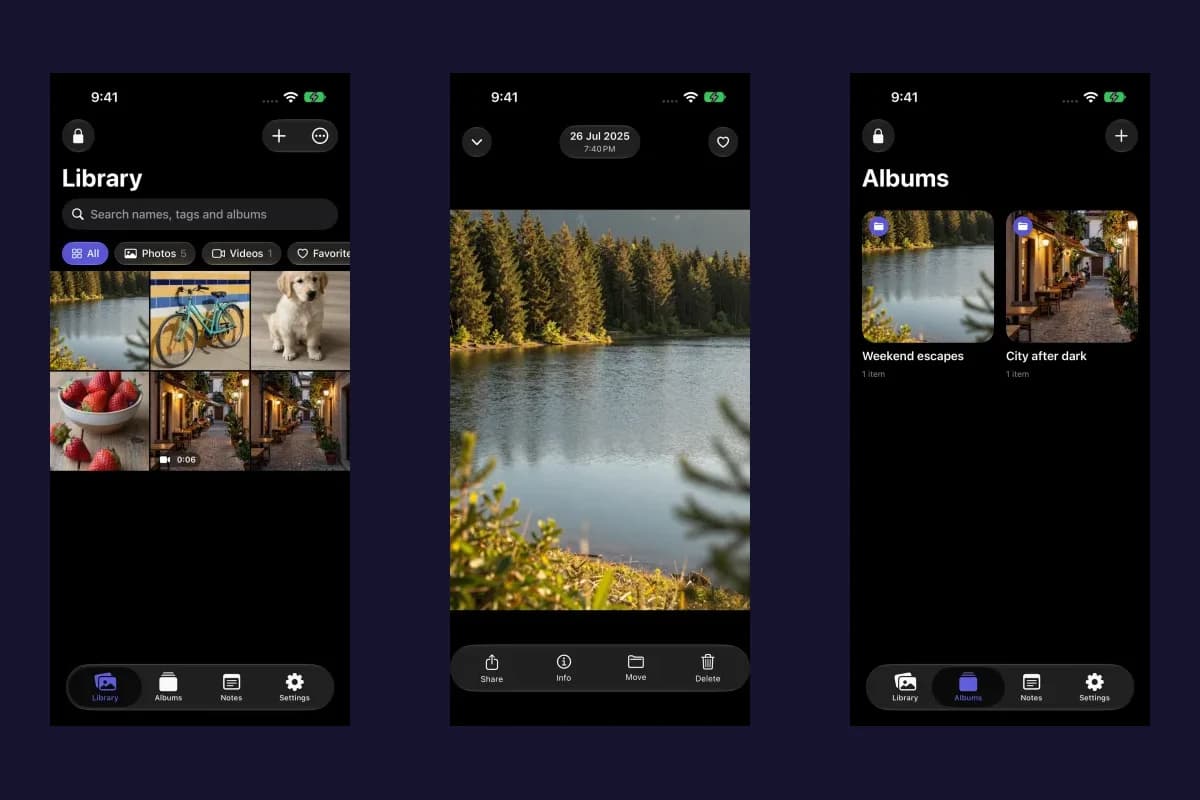
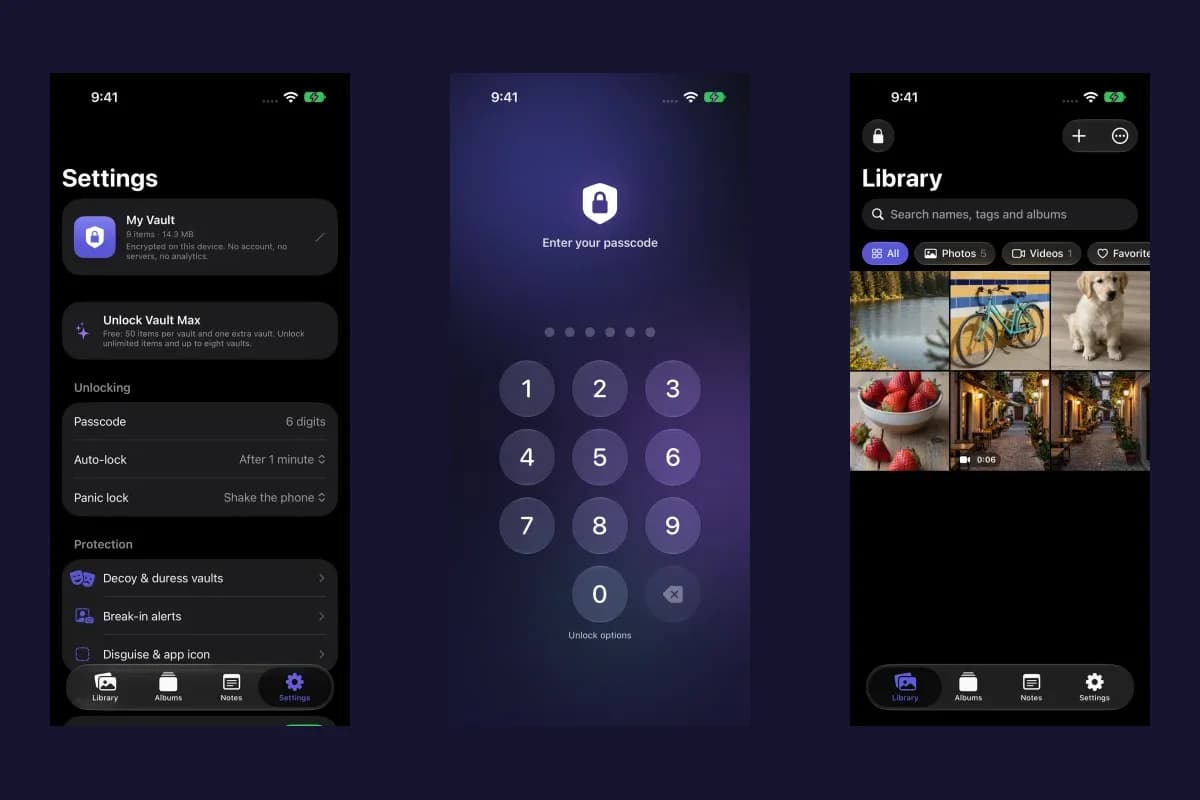
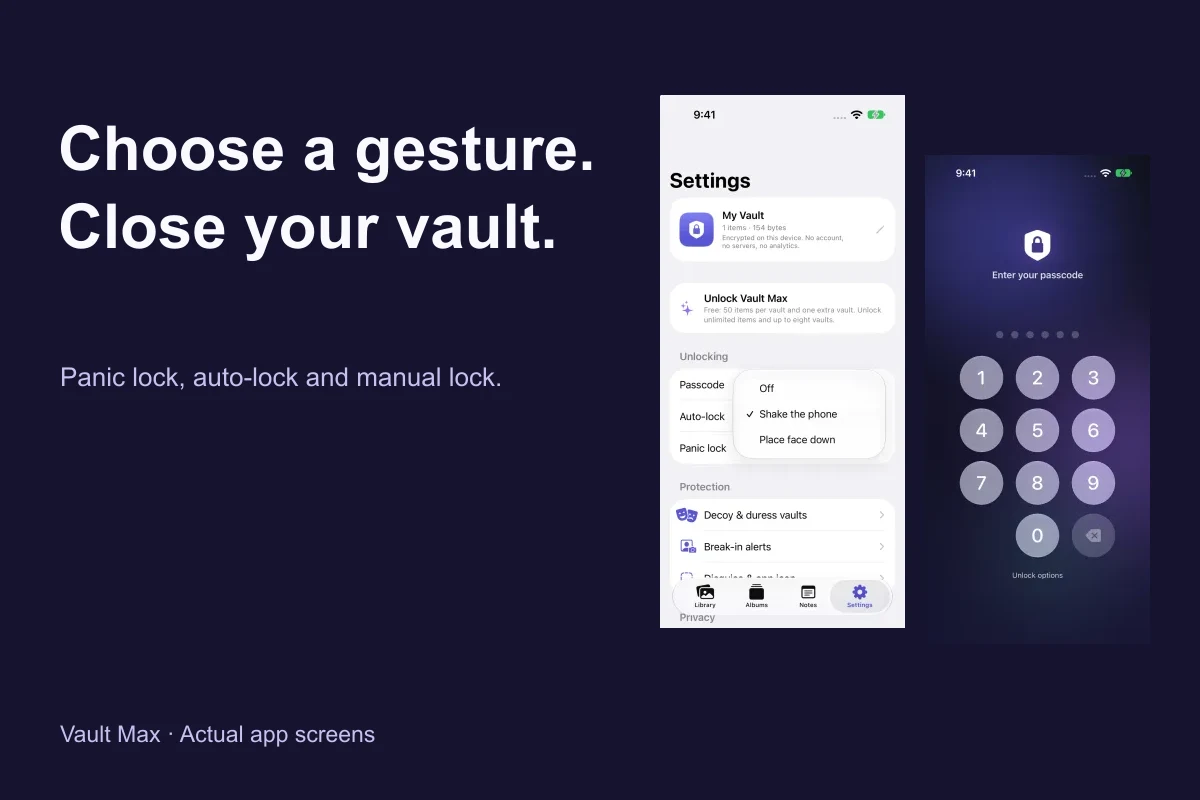
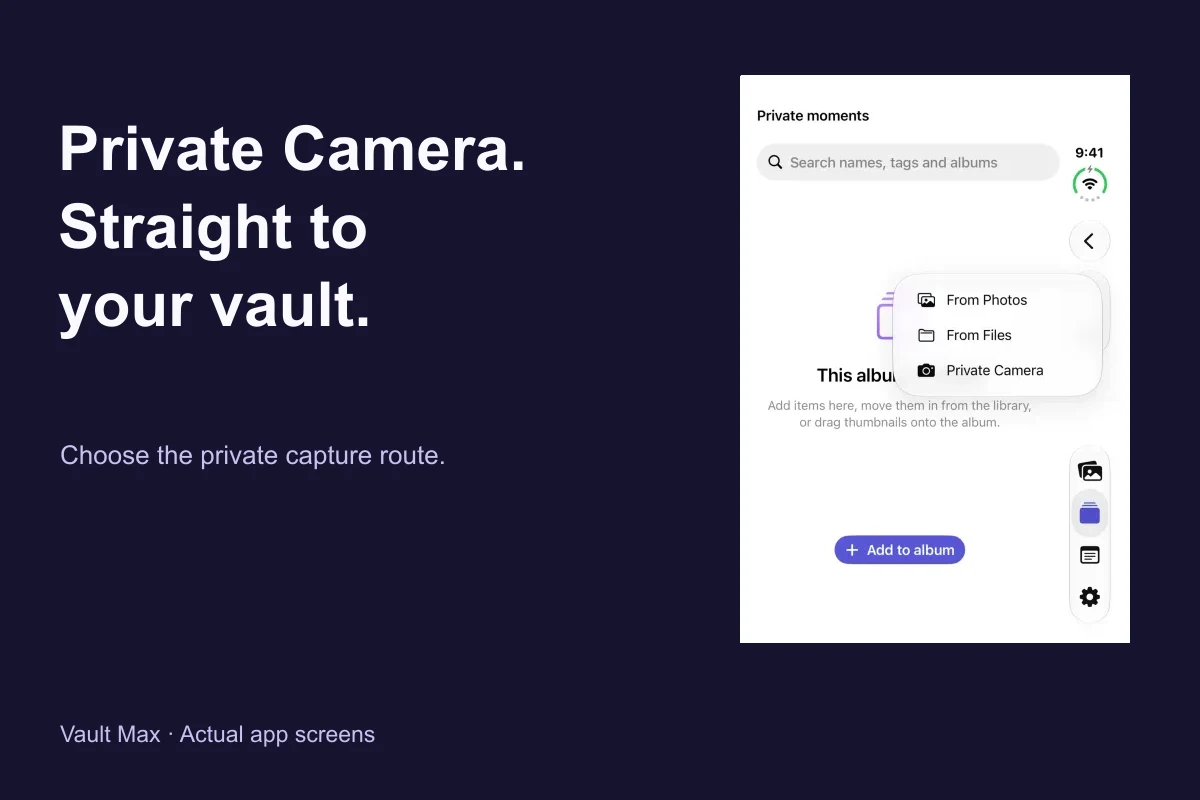
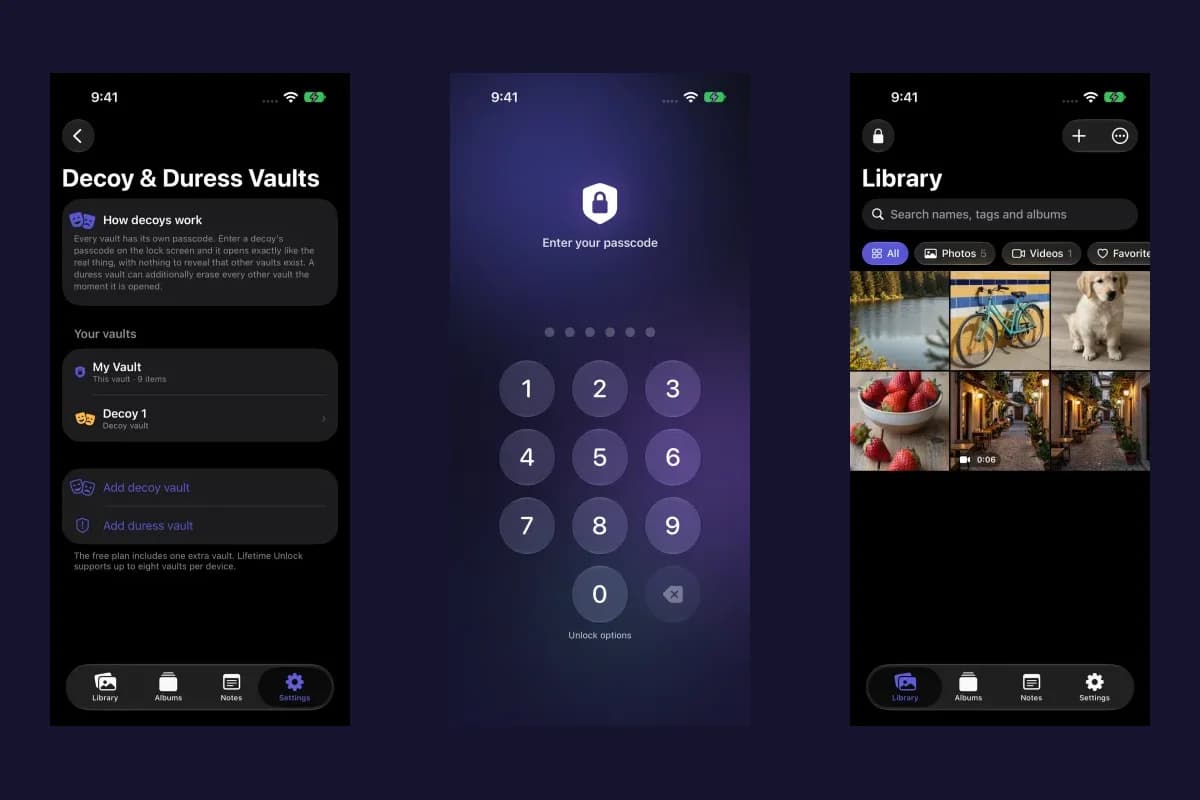
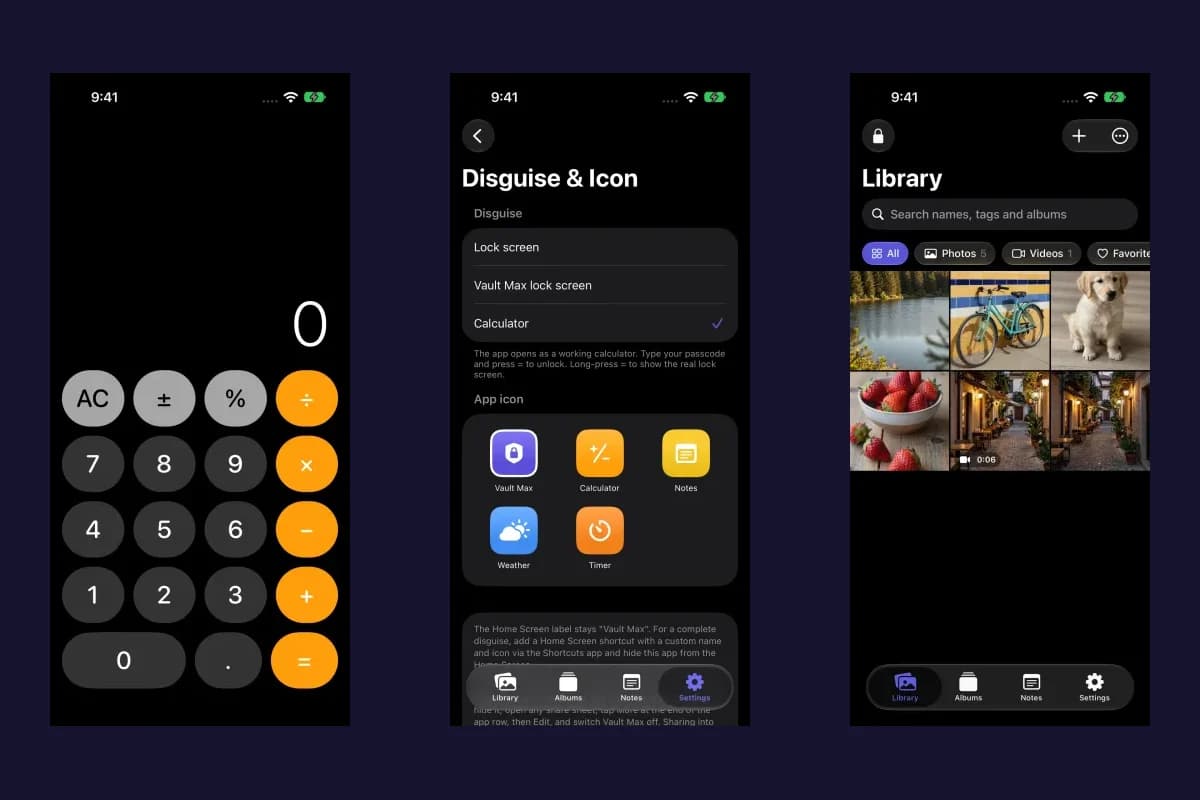
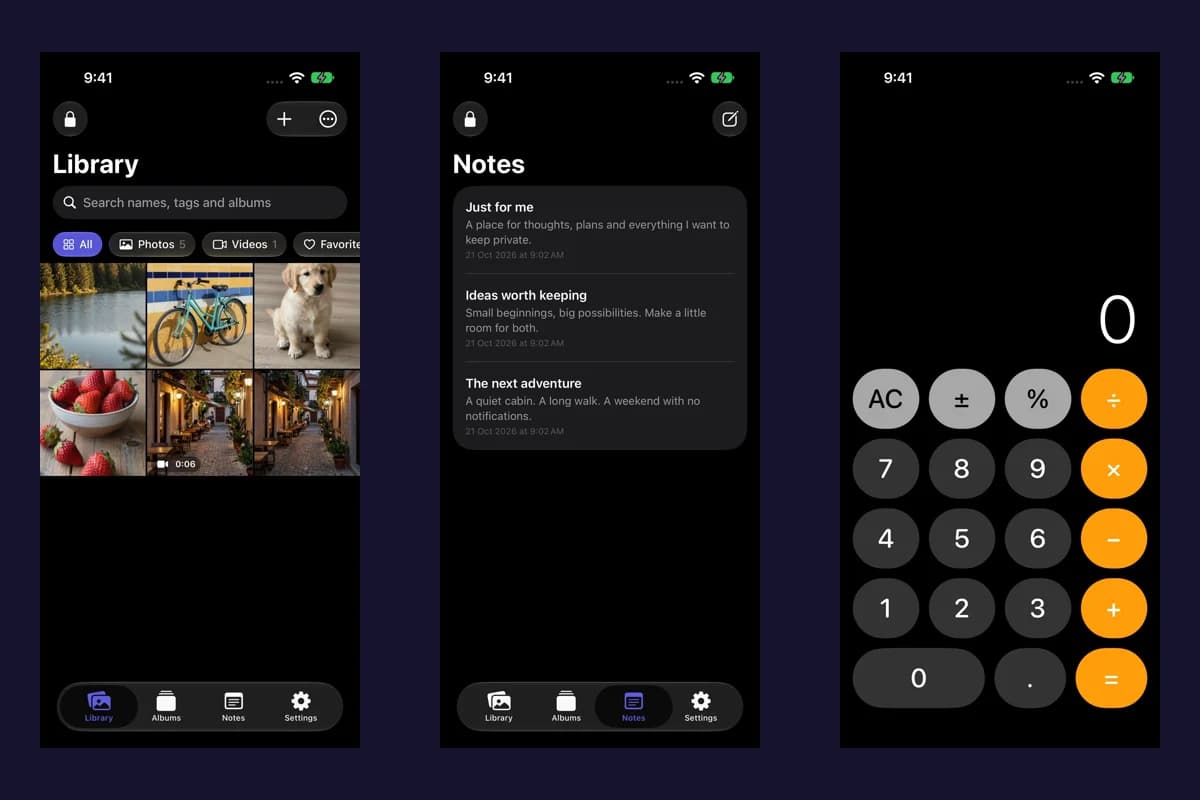
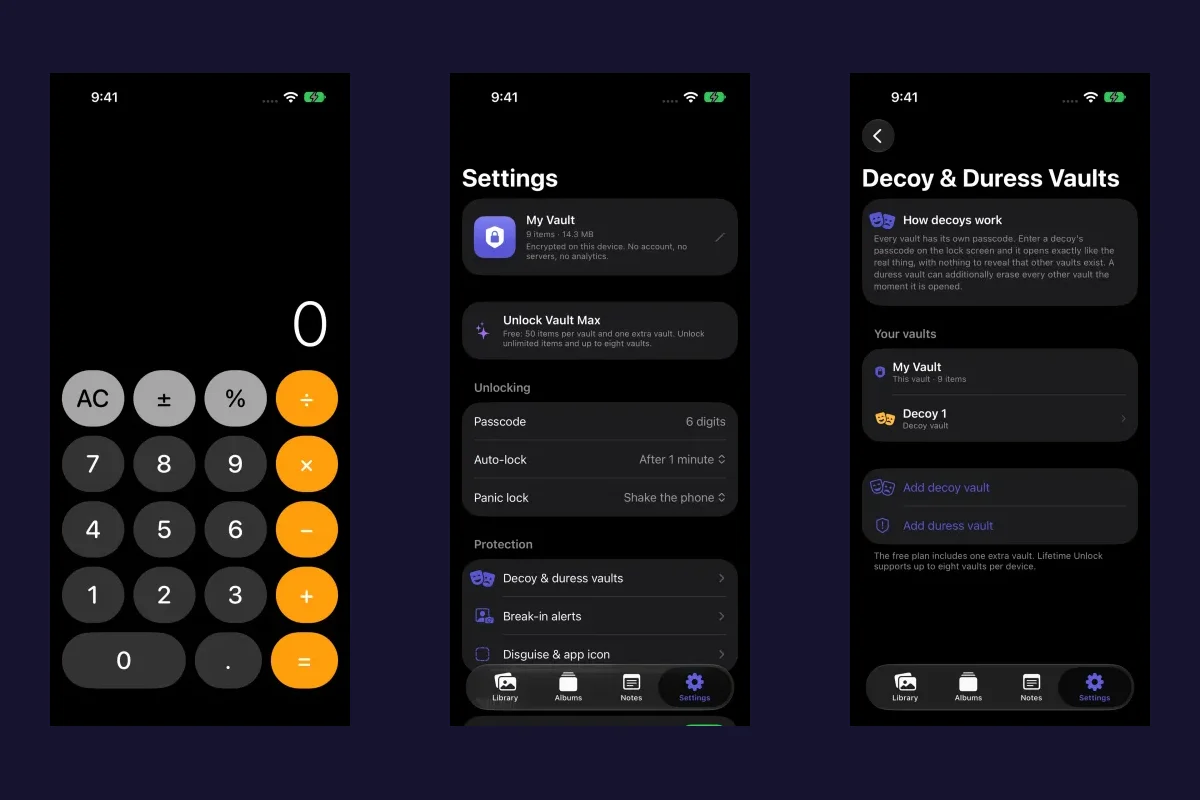
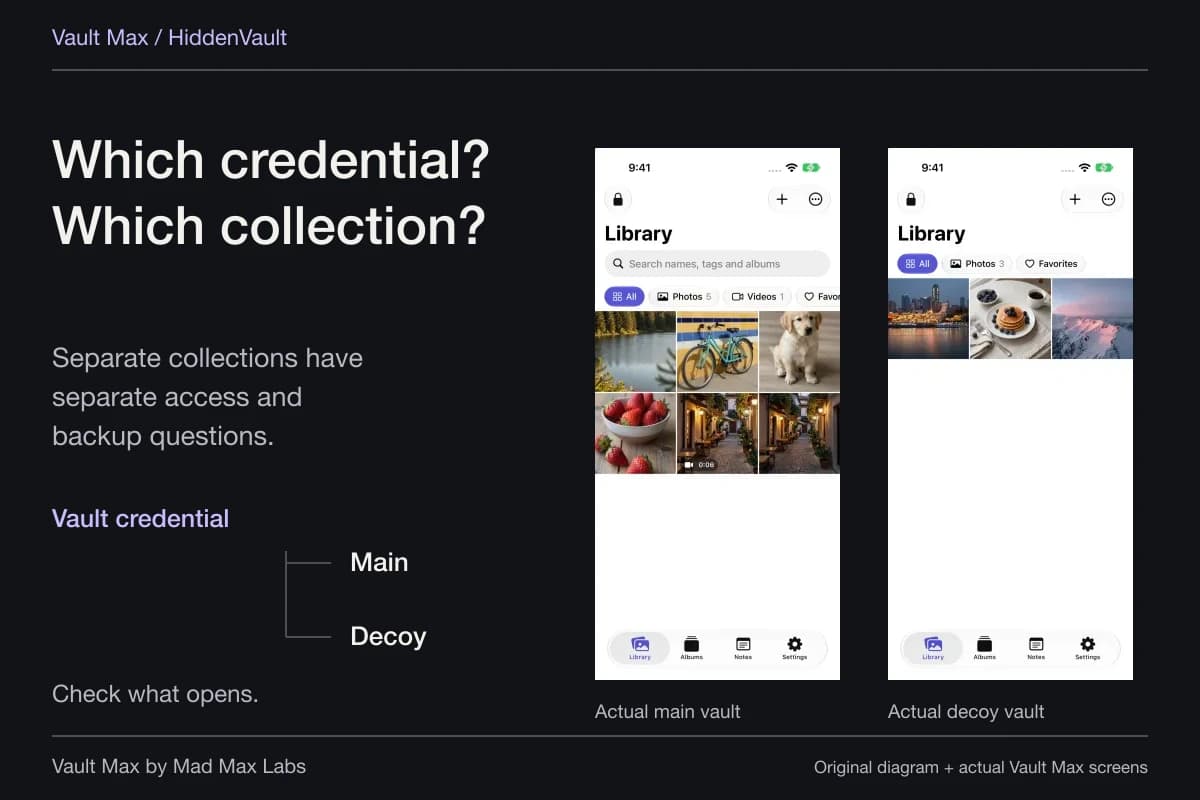
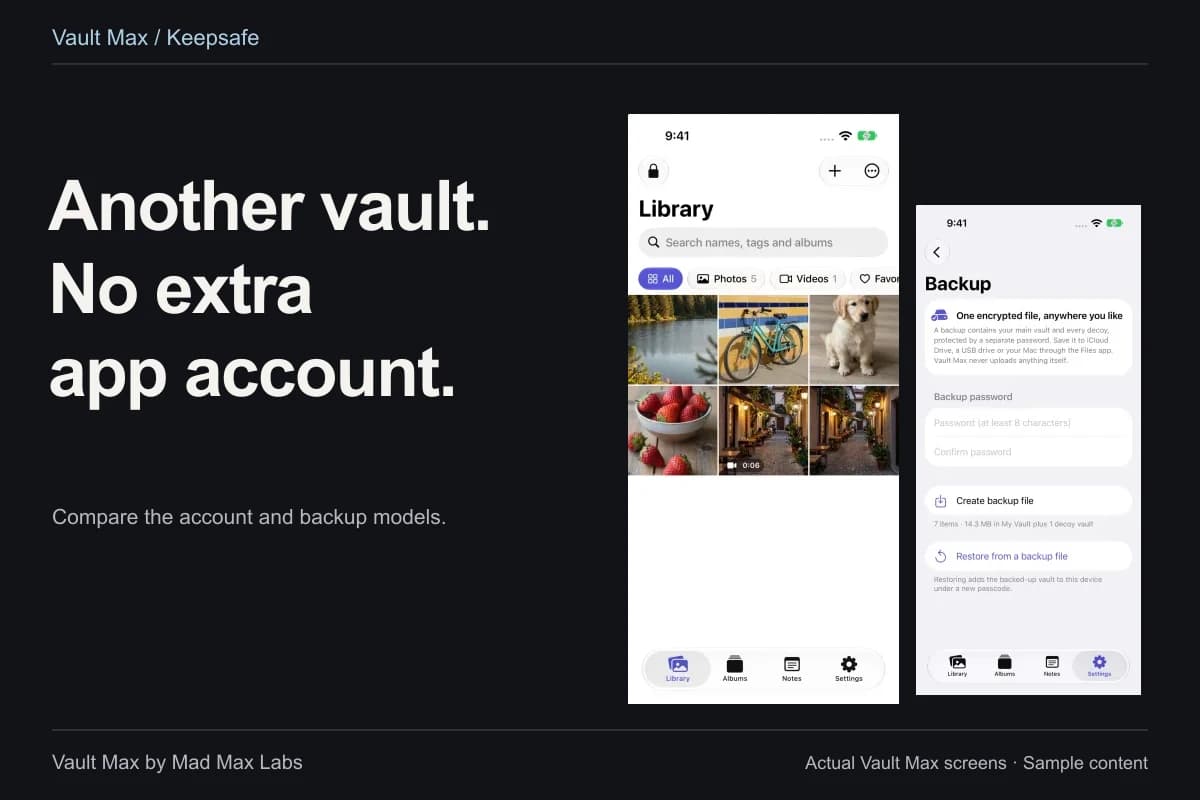
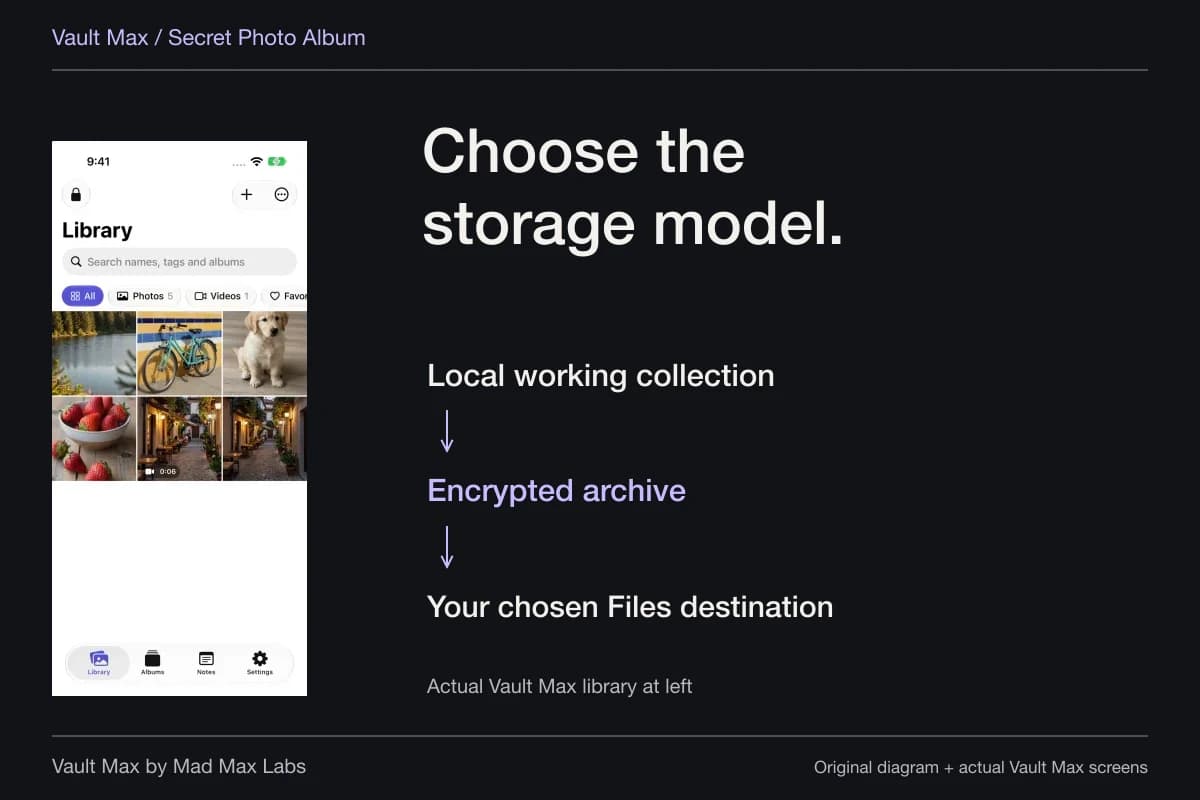
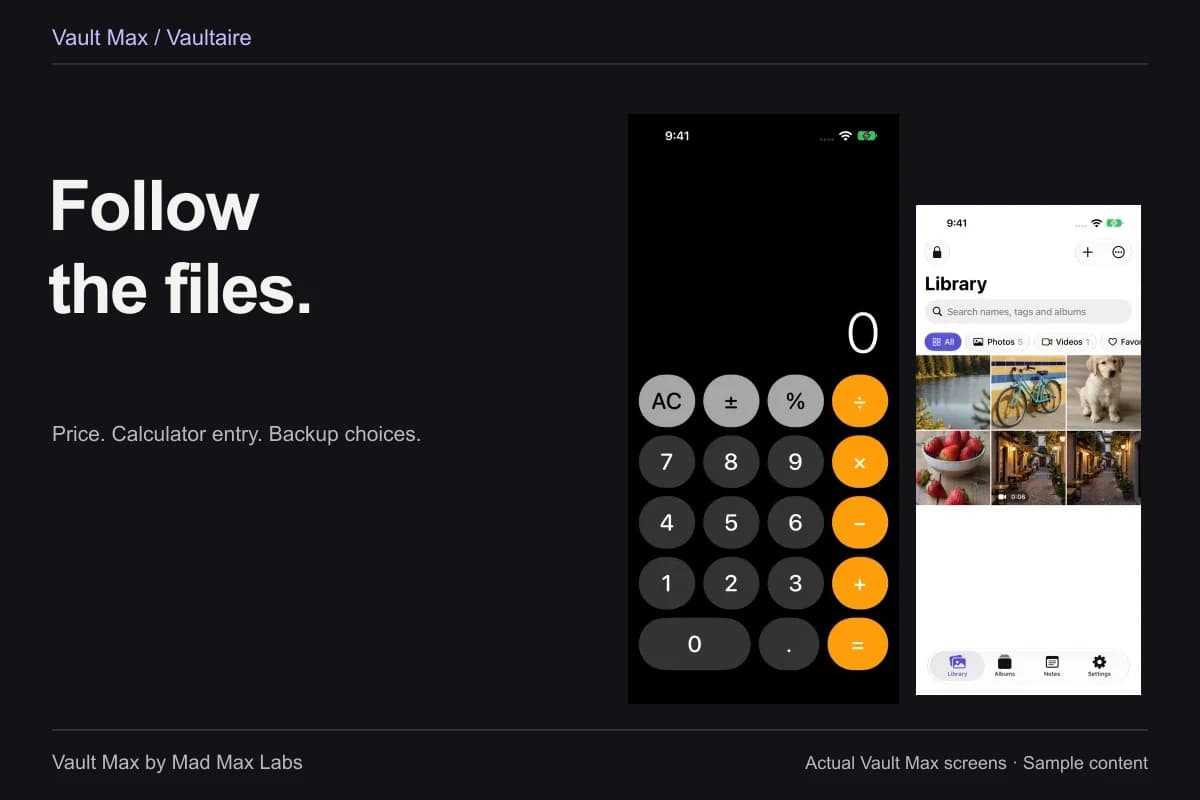
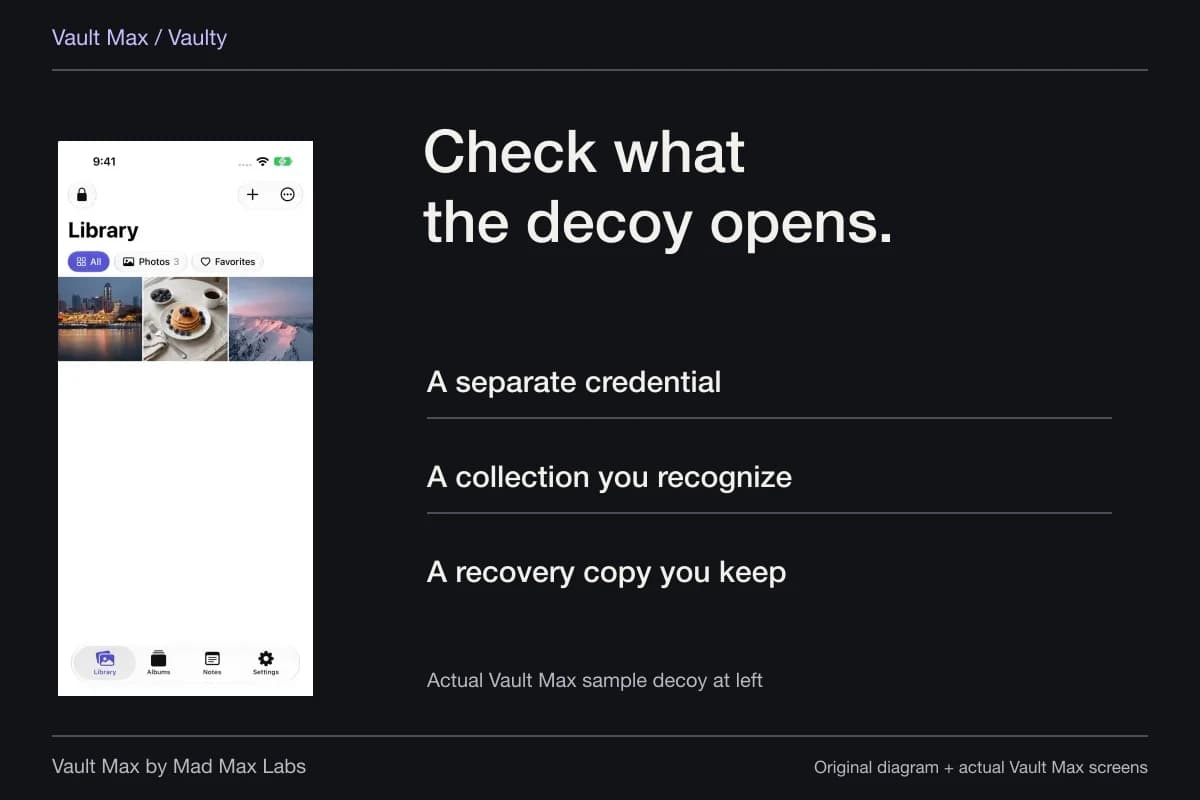
Sample Vault Max library. Select a screen for a closer look.
Choose a destination you can reach without the old phone. iCloud Drive uses that provider for the encrypted archive; a suitable external drive or computer-accessible location offers another route. A file saved only on the source phone leaves with the device or disappears when it is erased.
Make the final archive after your final important import or edit. An older snapshot does not update itself. Keep a known usable copy while checking a newer one, and record the date so you can distinguish the current collection from a previous export.
Verify content on the destination before releasing the source
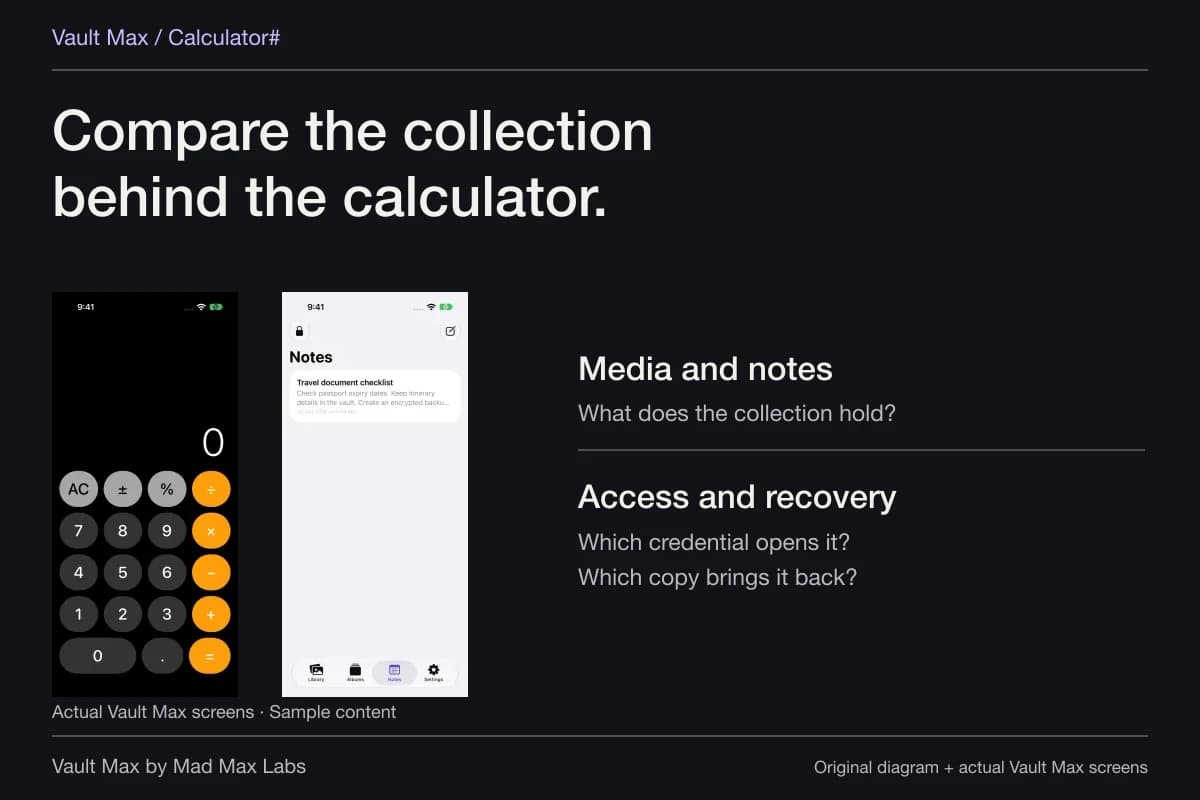
If you are moving to another iPhone, follow the Vault Max transfer checklist. Open or restore the intended collection and inspect actual content. Check a full-size photo, play a video with its expected sound, read an important note and open a document.
A thumbnail count is useful, but it cannot show that a particular video plays or the document you need is readable. Check the latest items too: they are the ones an old archive is most likely to miss.
Included child vaults need new credentials assigned after an archive restore. A restored duress vault's erase action remains off until it has a credential. Read the restore explanation and deliberately check which code opens which collection. Do not experiment with a code assigned to destructive duress behavior.
Restoring an Apple purchase entitlement is a separate task. It does not supply your pictures, archive password or vault keys. A working paid plan with an empty collection is not proof that the private files have been transferred.
Keep cloud cleanup separate from preparing the phone for sale
You may want to retain photographs in iCloud while removing your data from the old device. Do not try to achieve that by selecting all pictures in a still-synced Photos library and pressing Delete. That changes the shared library state, rather than merely preparing a piece of hardware for a new owner.
The same principle applies to other private stores. Deleting the Vault Max app, emptying its Trash or invoking a destructive duress action is not a migration step. Those actions can remove the working copy you still need for verification. Preserve first, check second, erase the device at the appropriate final stage.
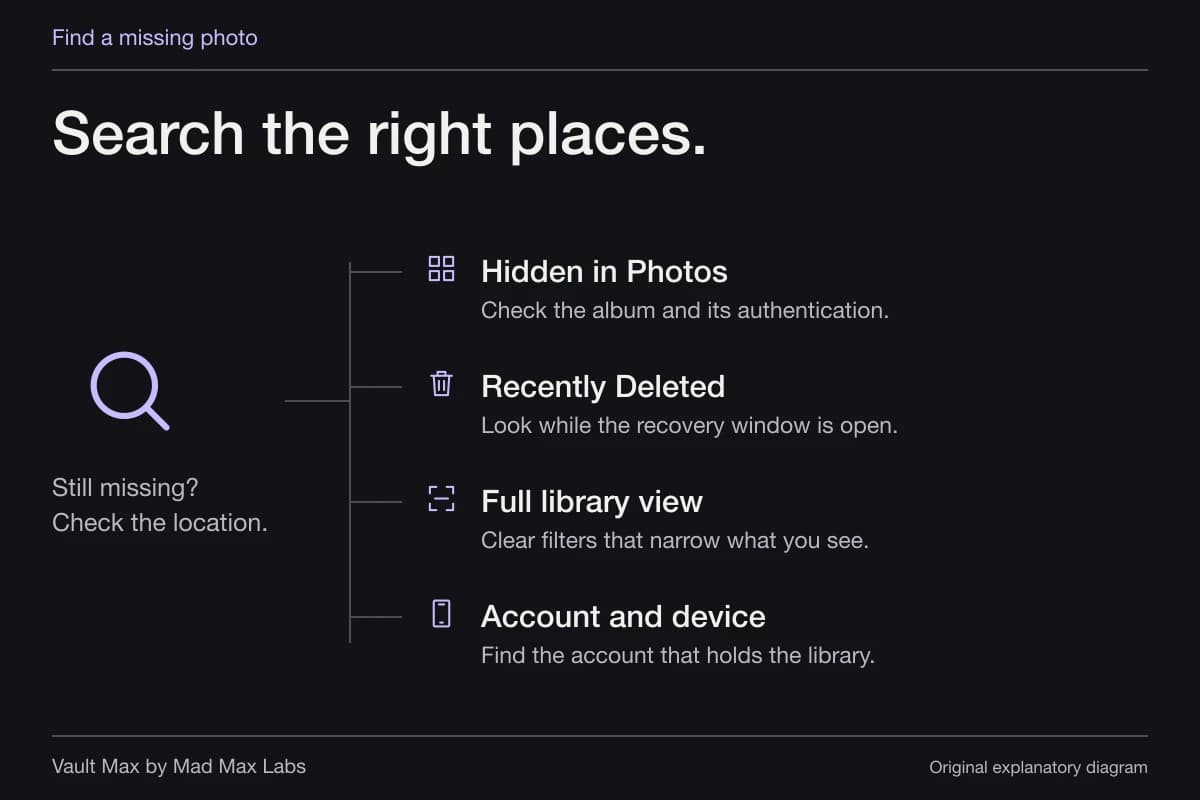
If a picture is missing during the inventory, stop the handoff and use the missing-photo search guide. A device reset makes a poor diagnostic tool for finding a misplaced file.
Follow Apple's final device-handoff procedure
After checking preservation, use Apple's current sale and trade-in instructions. They cover backup and transfer, unpairing an Apple Watch where applicable, signing out and using Settings → General → Transfer or Reset iPhone → Erase All Content and Settings. Follow the version-specific prompts, including the eSIM choice for a phone being sold.
Apple states that erasing the device this way does not delete your content from iCloud. Its procedure also addresses Find My and Activation Lock. Check the instructions for your device and account; hiding the Photos icon or merely signing out while keeping data on the phone does not complete the handoff.
- If something is missing, keep the phone and resolve the gap.
- Open representative files, including the newest important items.
- Its file and password are reachable independently.
- Use the actual handoff procedure after preservation, not manual deletion of synced photos.
Tap a box as you go. Checks reset when you leave this page.
Continue reading
More guides
Practical tips for your private library. Swipe or scroll to choose your next guide.
50 guides to explore