
Privacy in practice
How to lock photos with a separate password on iPhone
Want private photos behind a code different from your iPhone passcode? Learn what the Hidden album uses and how a separate Vault Max credential works.
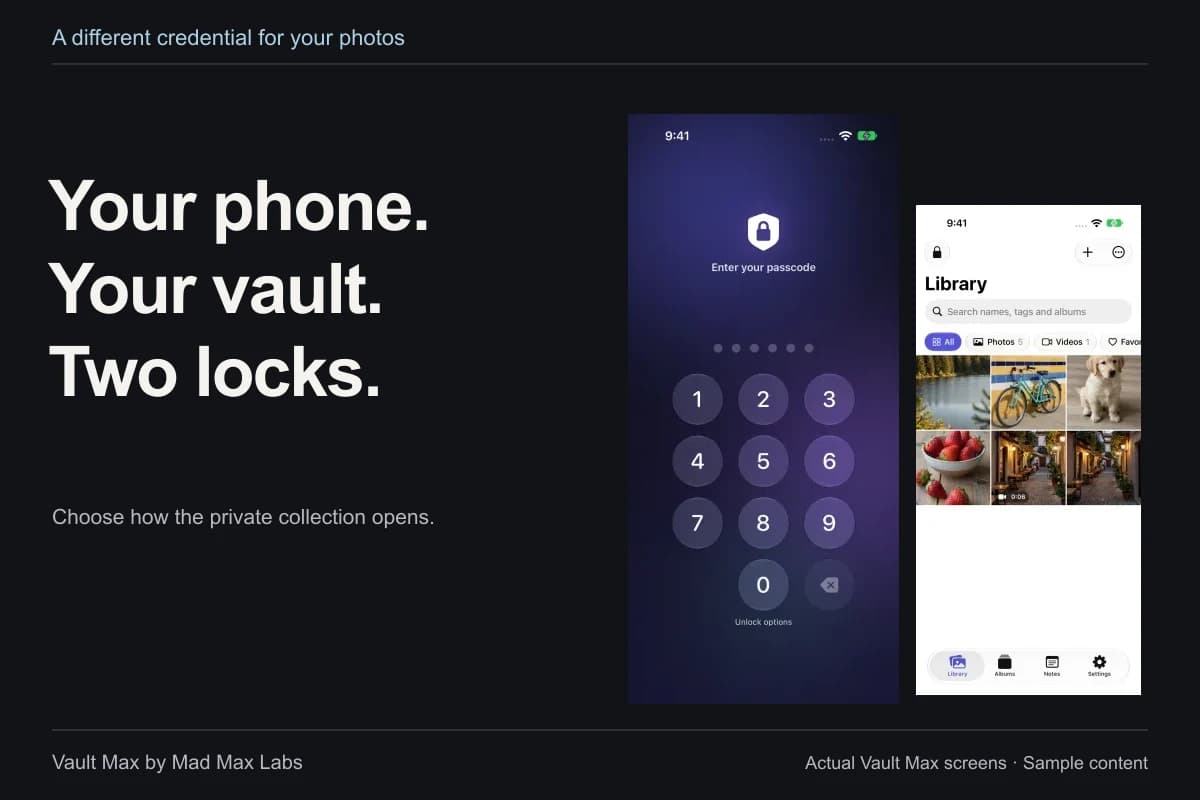
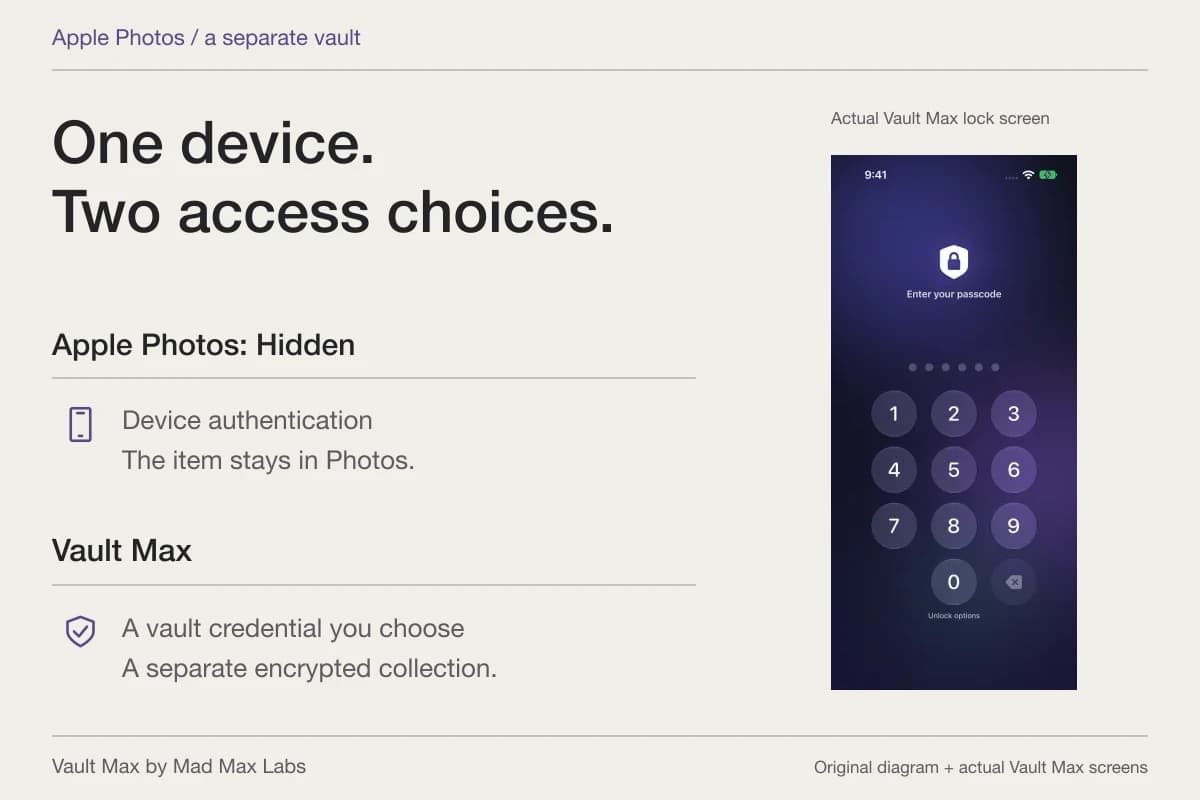
To put private photos behind a password different from your iPhone's passcode, use a separate vault with its own credential. Apple's Hidden album uses the device's authentication methods; hiding a photograph does not give that album a new password you choose.
Vault Max lets you create a separate vault credential during setup, then import the photos you want to keep there. You can choose a PIN, password or pattern. Optional biometric unlock is a separate convenience choice. The important part is to choose a credential different from the phone code that someone else may already know.
Be clear about which code you want to keep separate
Perhaps your partner knows your iPhone code for navigation in the car. Perhaps a family member occasionally uses the phone. You may be comfortable with that access and still want a private document or personal photograph behind another credential.
Apple's privacy overview describes Hidden and Recently Deleted as locked collections that use Face ID, Touch ID or the device passcode. That is helpful built-in protection. It is a different arrangement from choosing an additional password for a separate library.
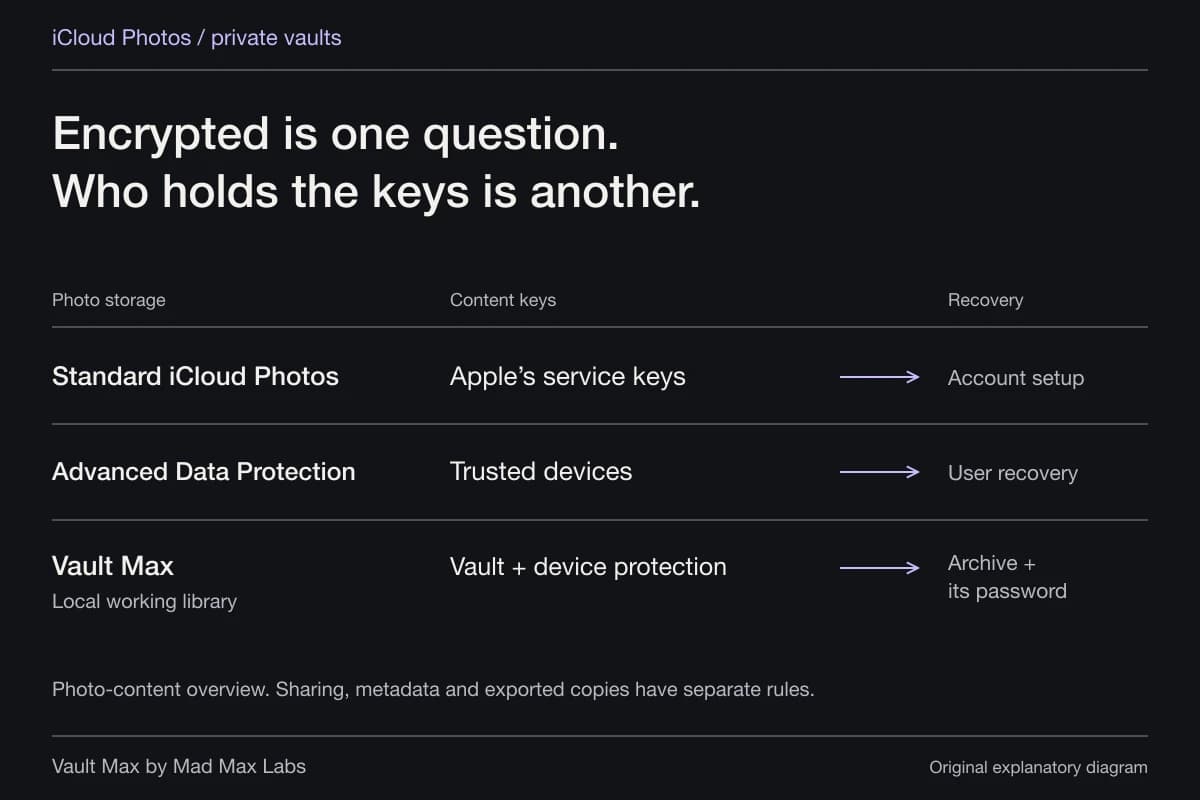
Do not confuse turning off Show Hidden Album with changing the authentication method. One controls whether that collection appears in Photos; it does not create a new secret. The Hidden album comparison explains the broader storage and recovery differences.
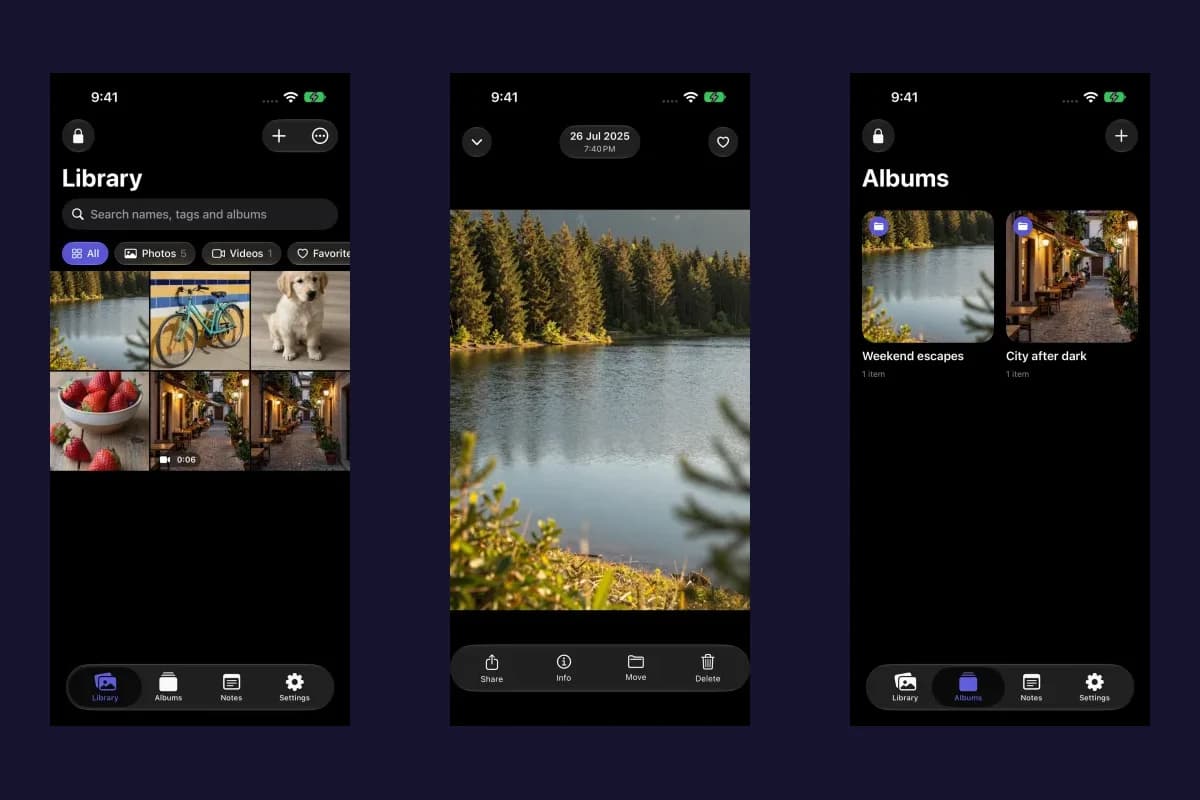
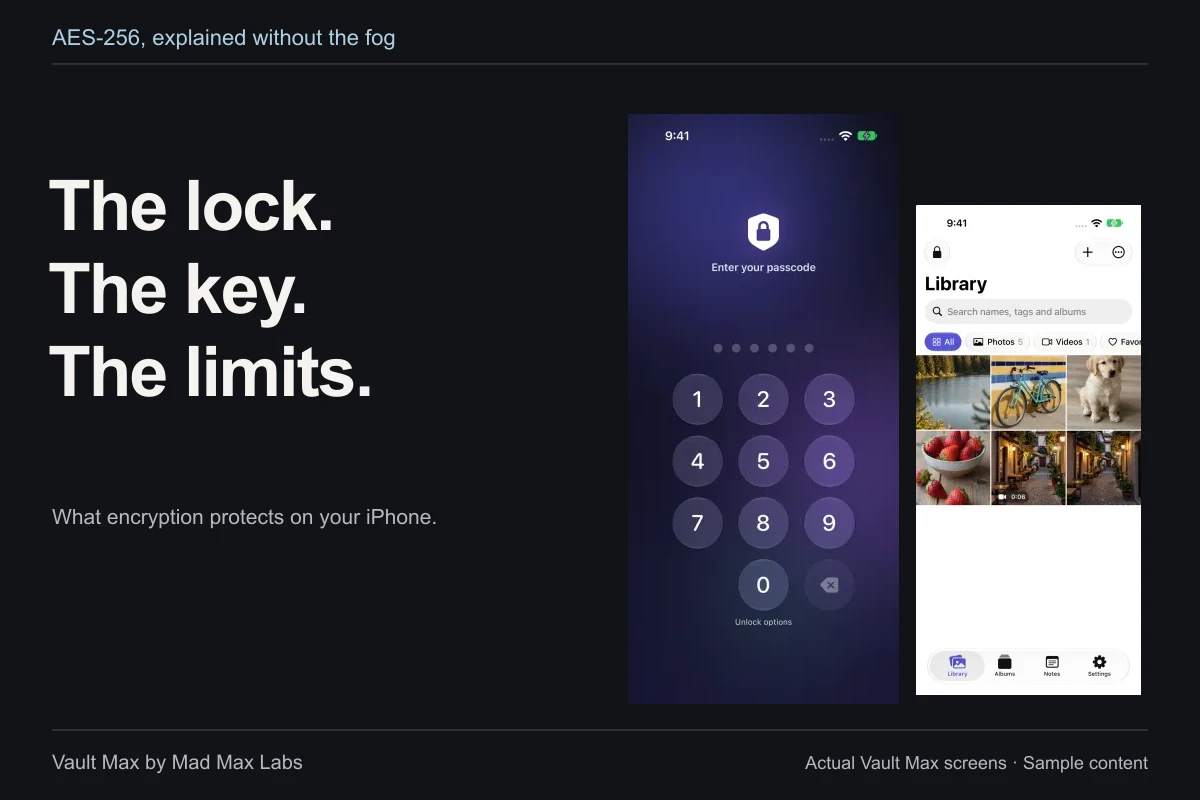
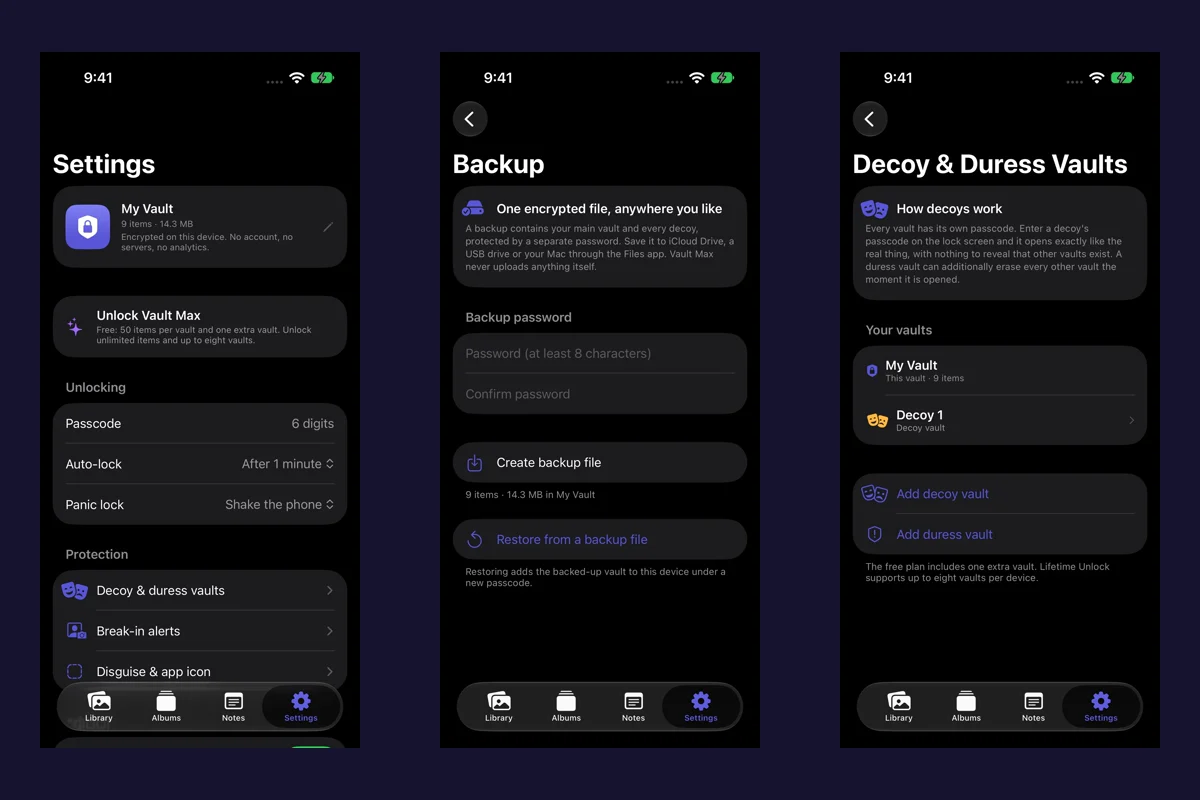
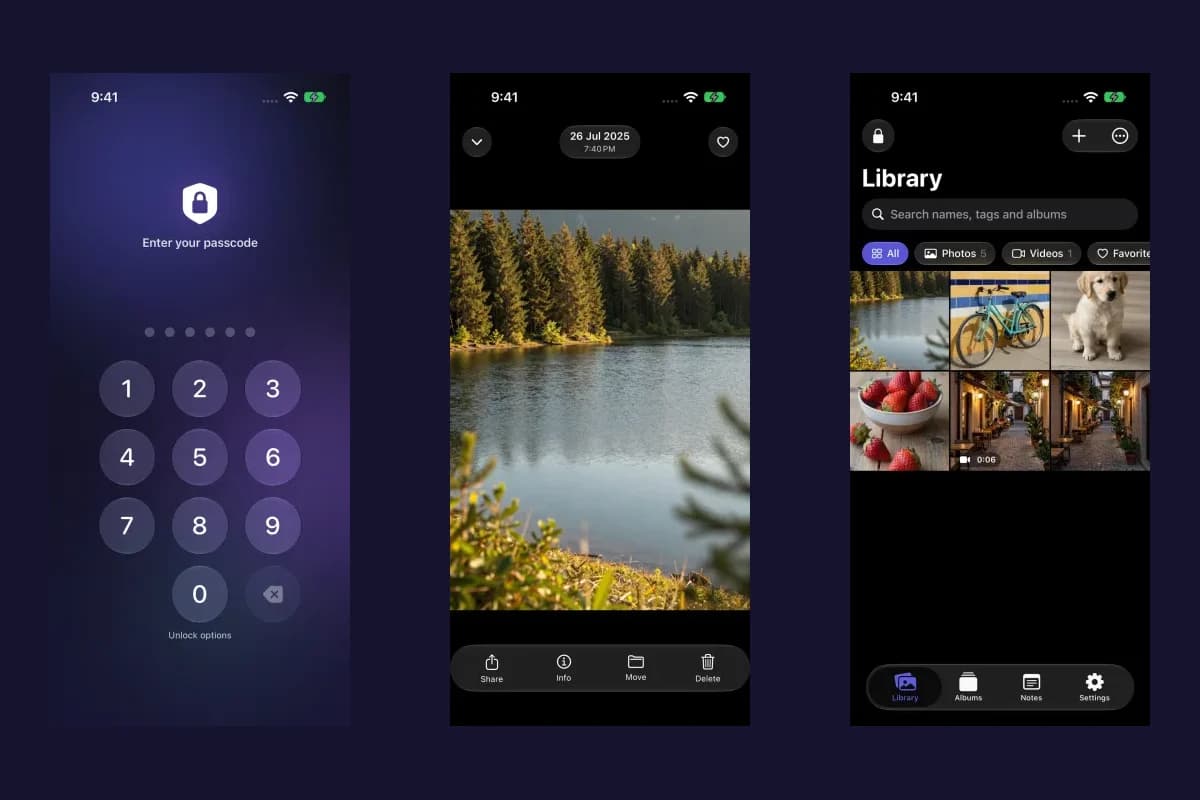
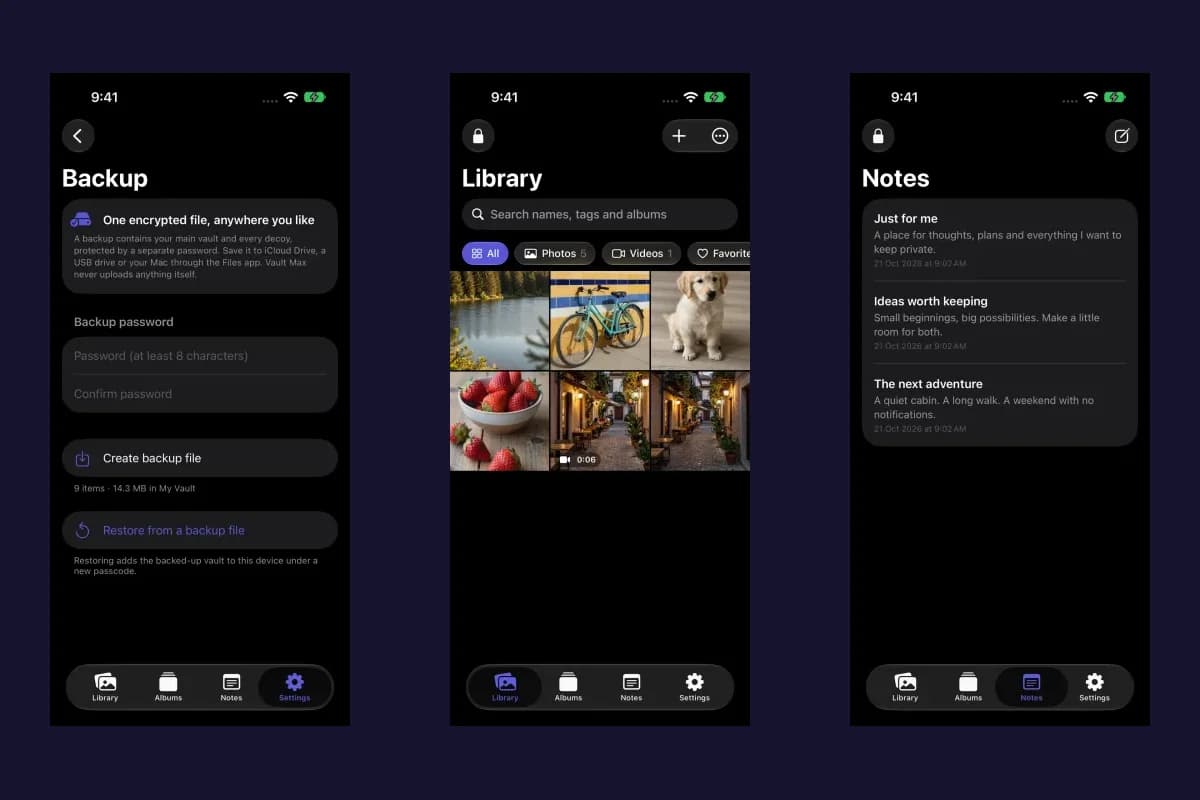
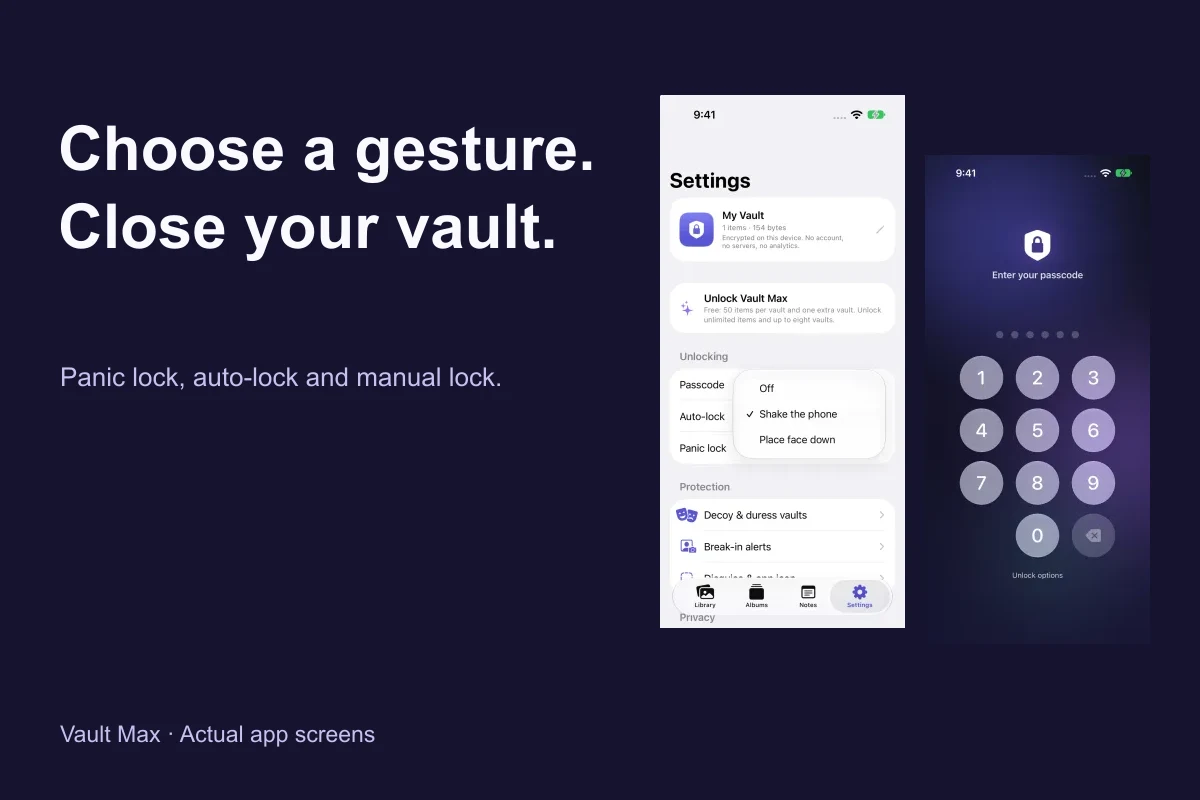
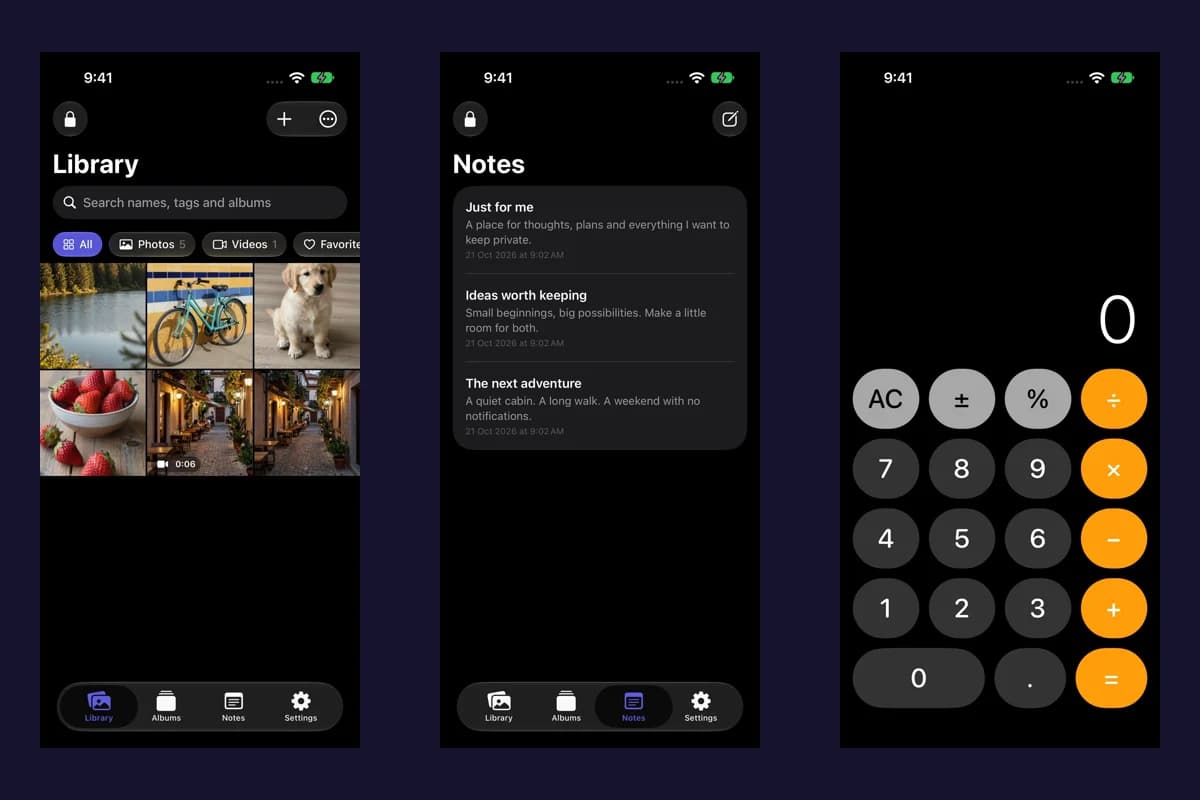
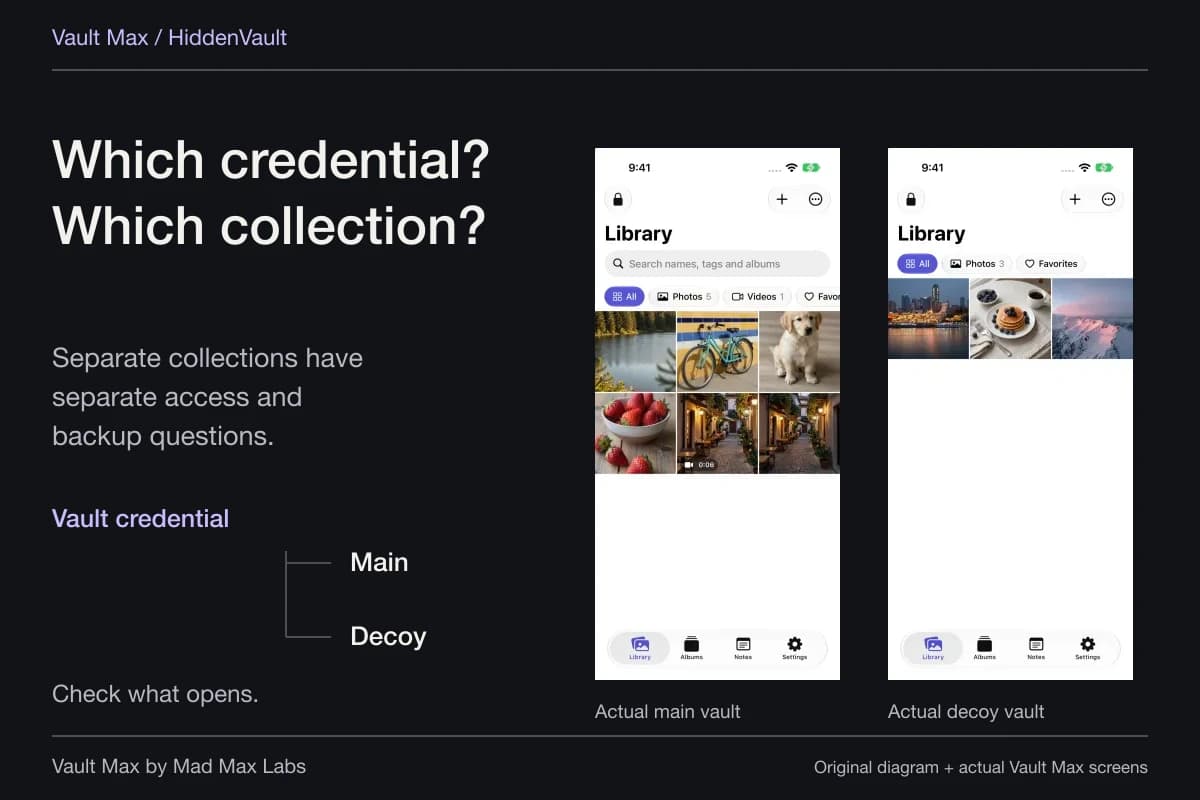
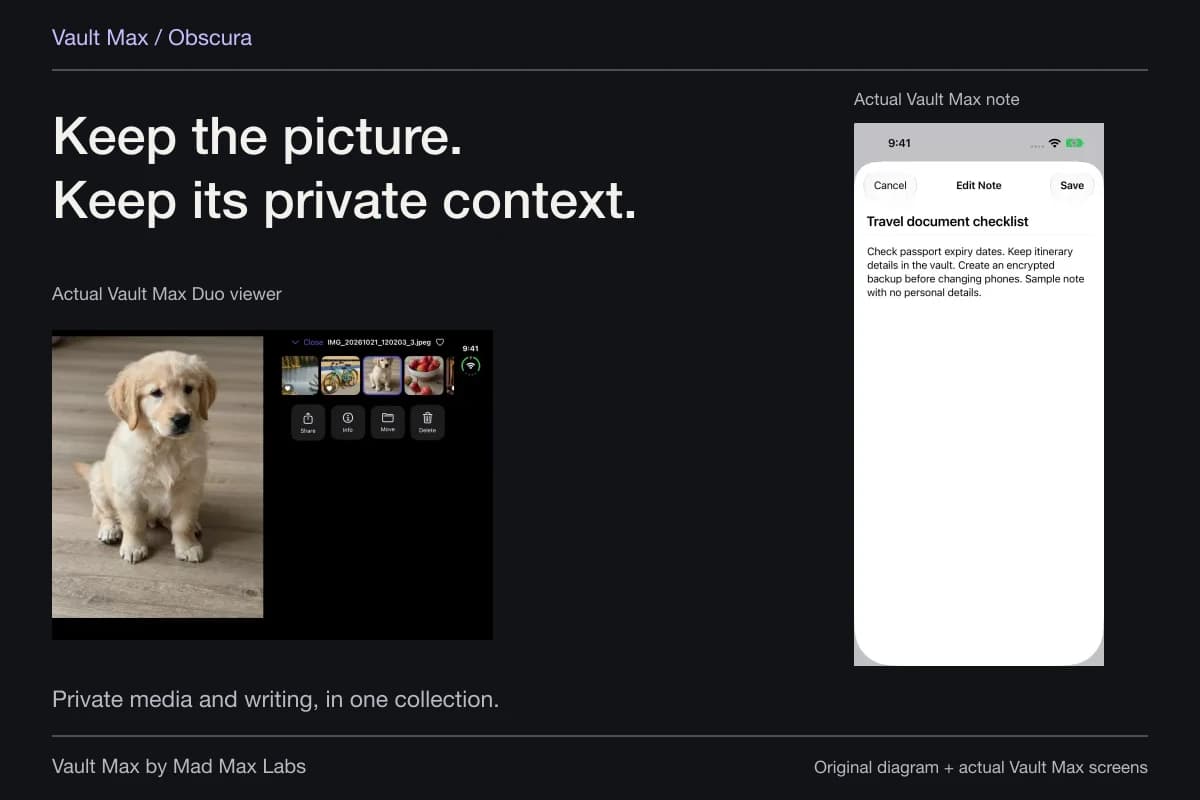
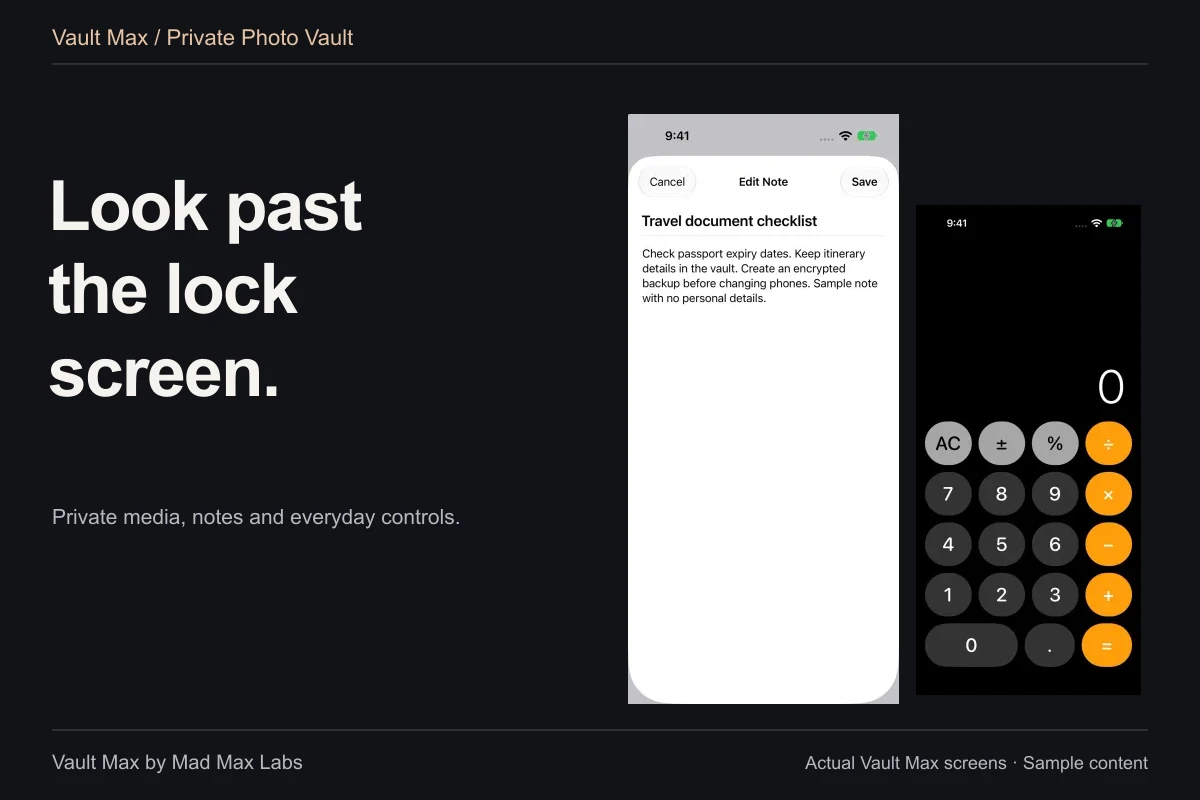
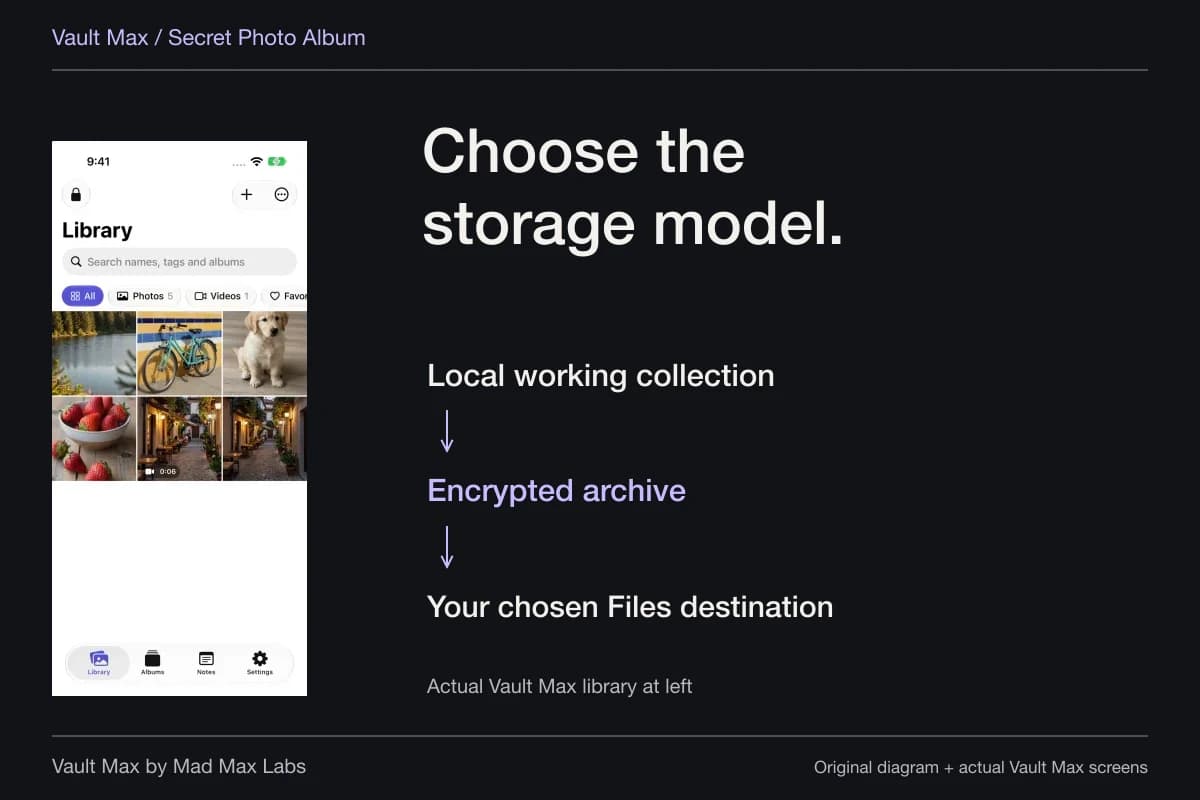
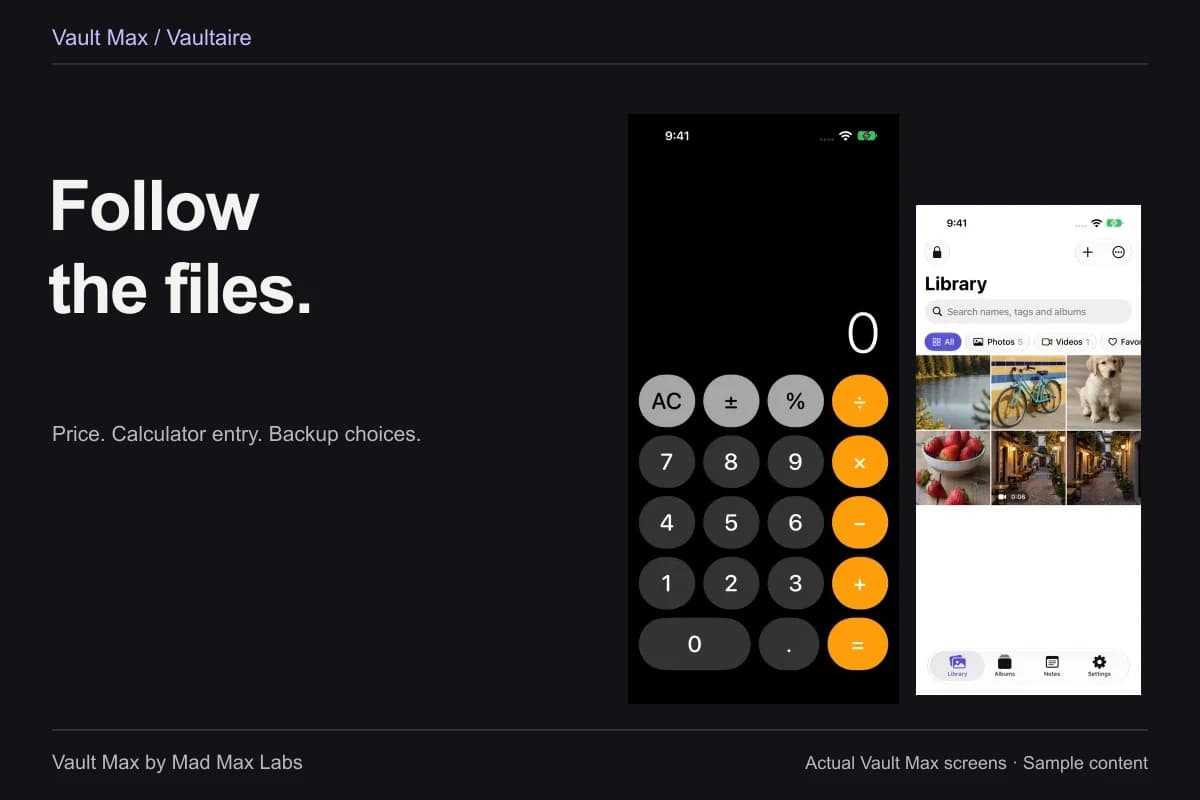
Sample Vault Max library. Select a screen for a closer look.
Set up the private collection before importing everything
Download Vault Max, create a vault and choose its credential. A longer password can suit someone comfortable typing it; a PIN may be more convenient for frequent entry. Pick something you can retain without relying on a single unlocked phone to remember it for you.
Avoid reusing the device passcode. Also avoid obvious personal dates and the codes visible in public app demonstrations. Separate software credentials offer little separation if you deliberately set them to the same value.
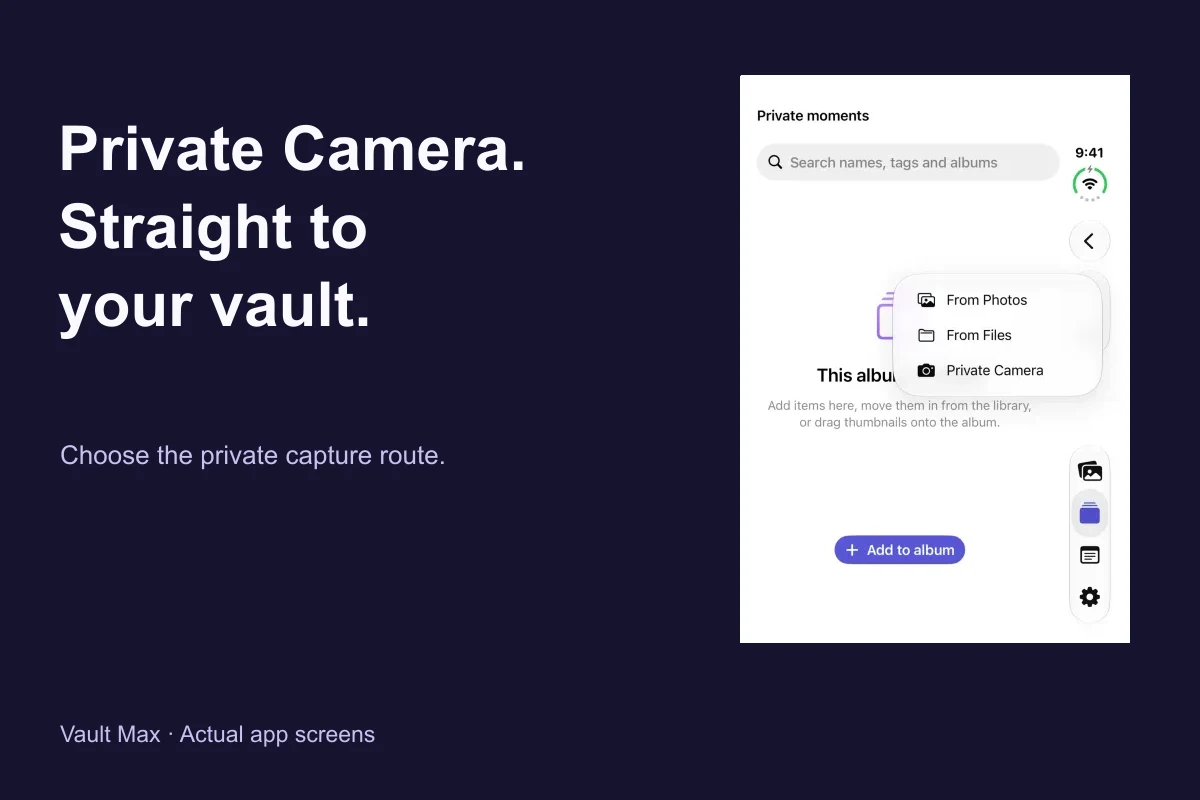
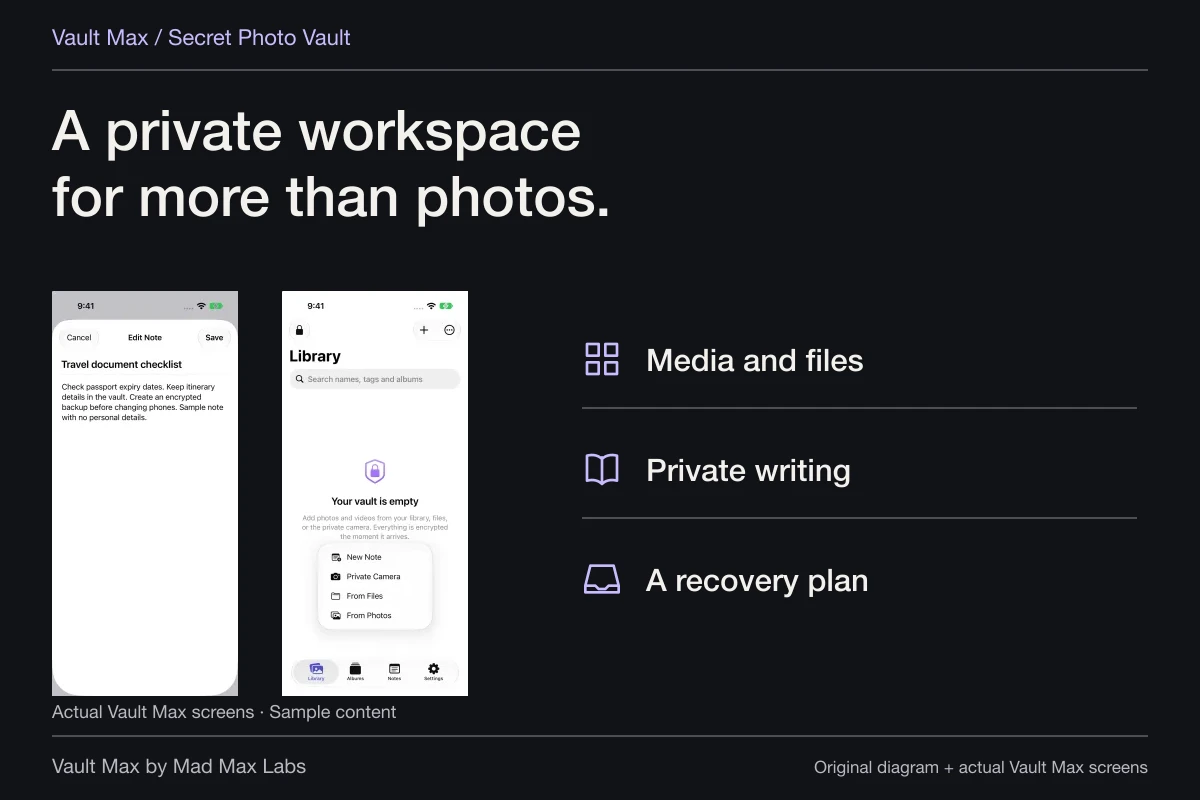
Begin with two or three ordinary pictures. Open + → From Photos, select the sample items and let the import finish. Open a picture inside Vault Max to check that it is the file you intended. The import guide covers albums, documents, shared attachments and the original-copy decision in detail.
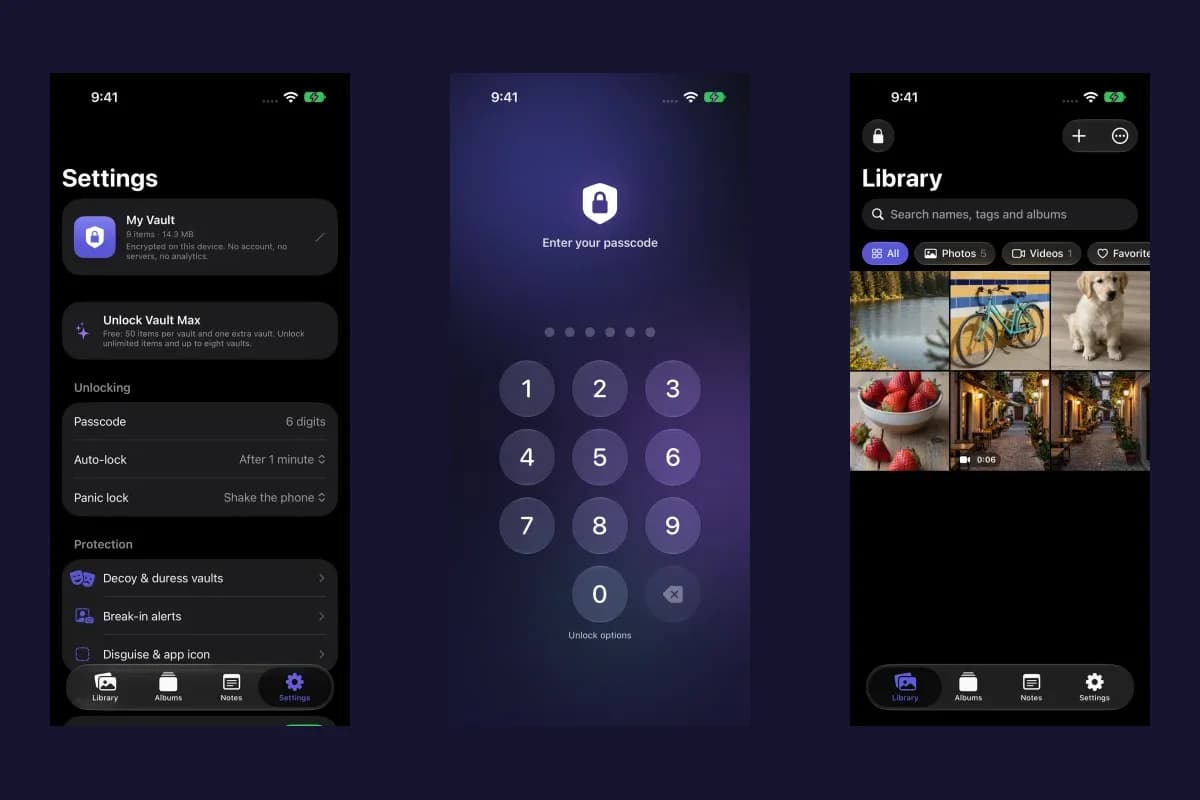
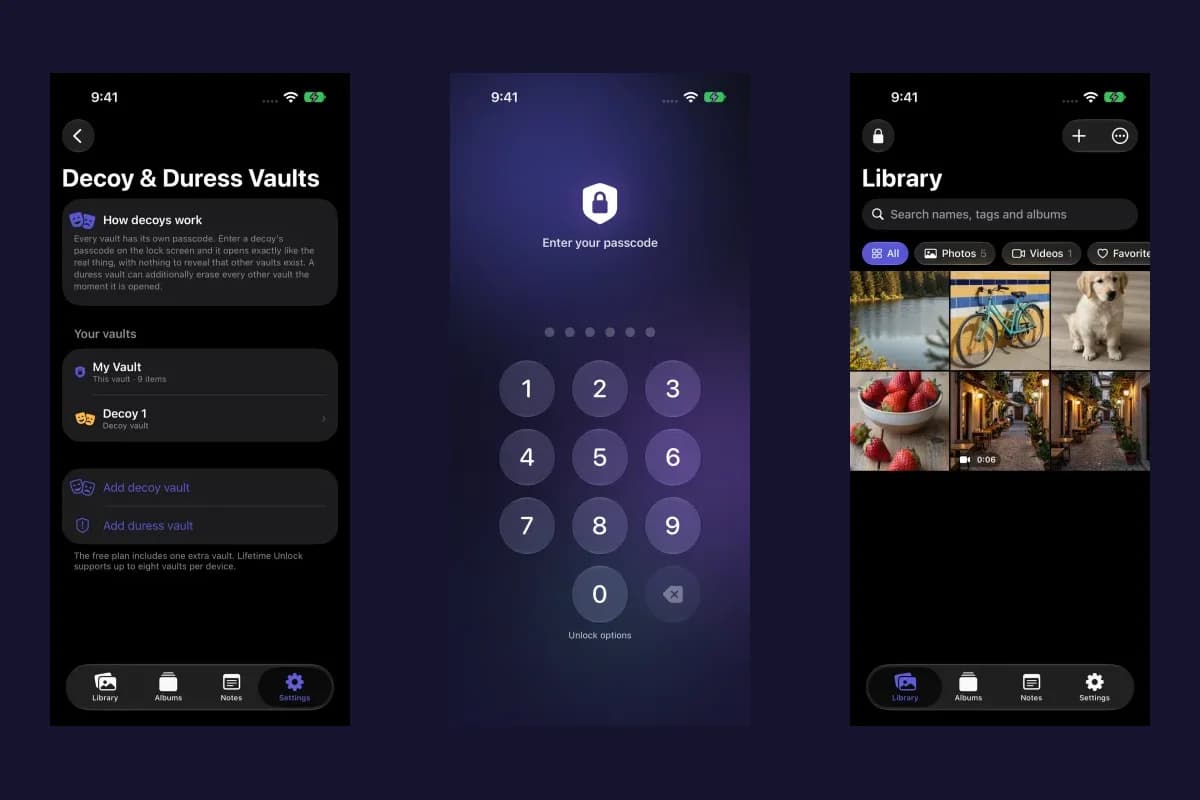
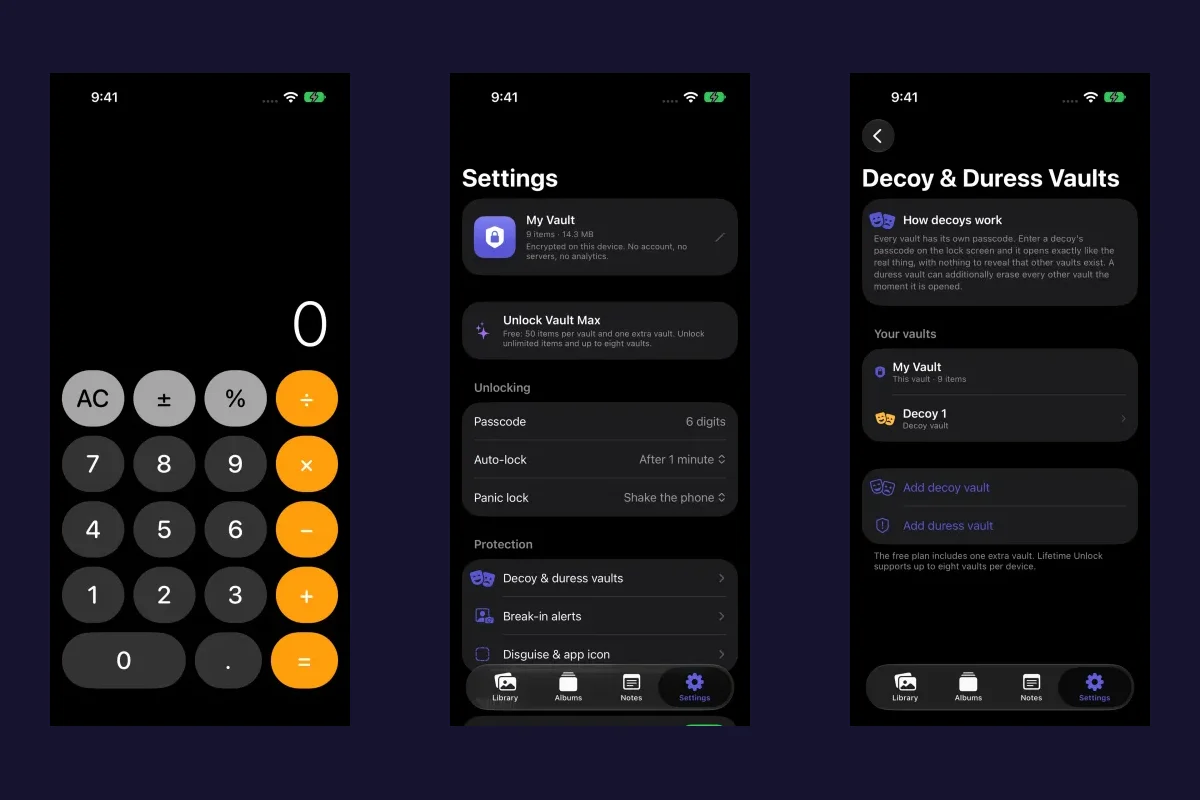
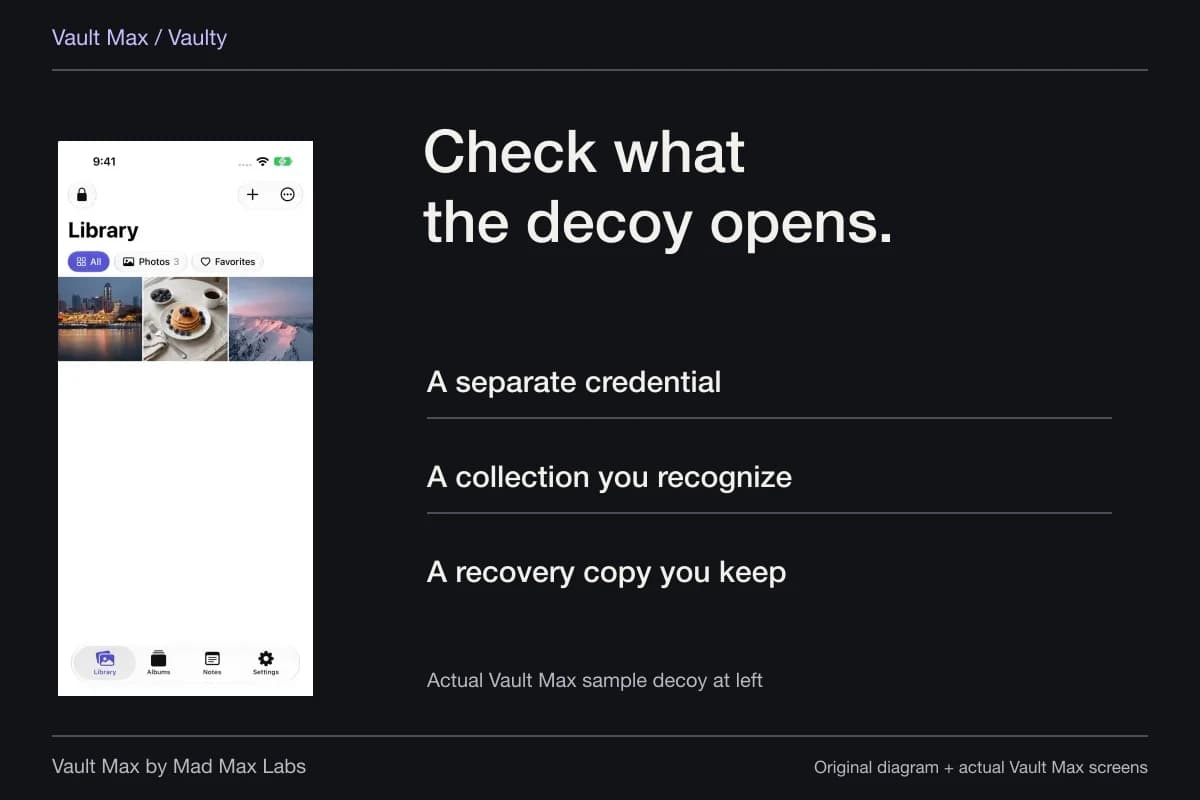
Sample Vault Max library. Select a screen for a closer look.
Check the access boundary yourself
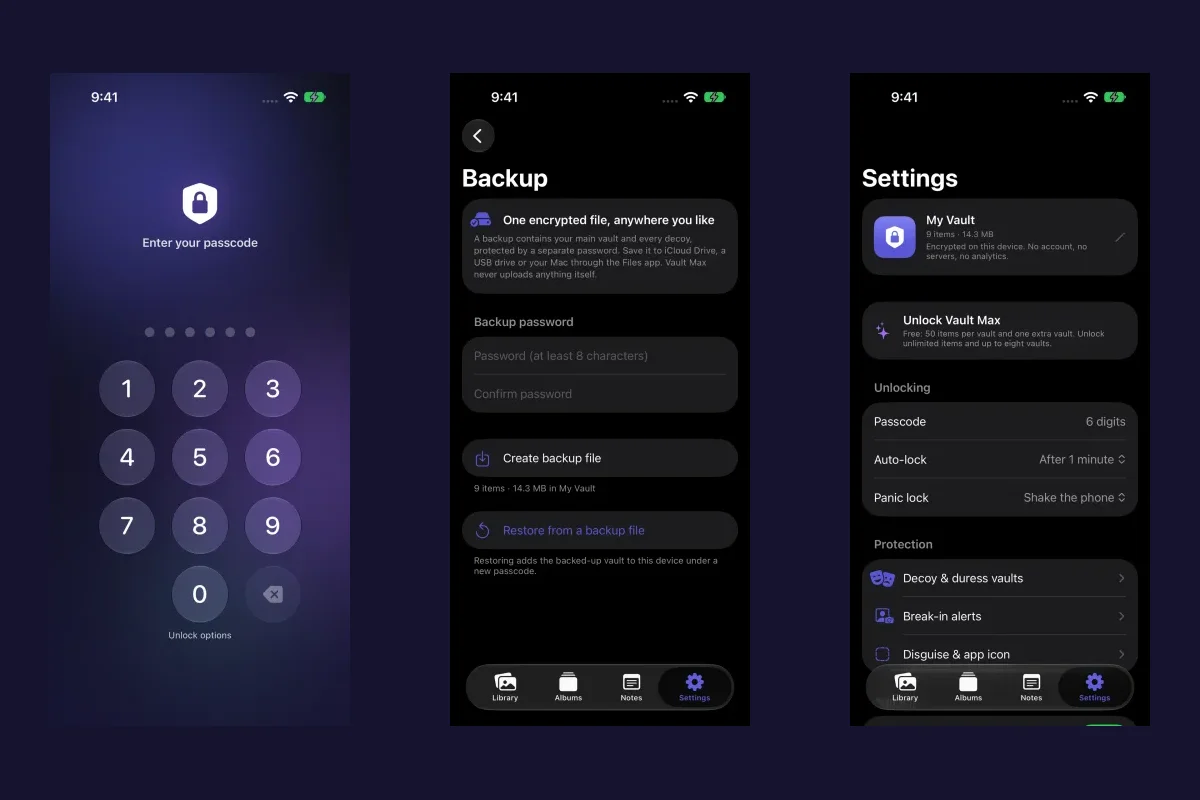
Lock Vault Max using its manual lock control. Reopen the app and confirm that it asks for the vault credential. Enter the correct code and check that the expected collection appears. Repeat deliberately after leaving the app so you understand your background auto-lock setting too.
If you enable biometrics, test that route separately. A convenient biometric prompt does not change which typed credential belongs to the vault, and you still need to retain that credential. If you use multiple vaults, check which collection biometric enrollment opens.
These are checks to perform on your own installation. The screenshots in this guide are real simulator captures with sample files; they do not establish how your phone's biometric enrollment or current settings behave.
| Action | What it separates |
|---|---|
| Choose a vault credential different from the phone code | Access to the private collection from ordinary device unlock |
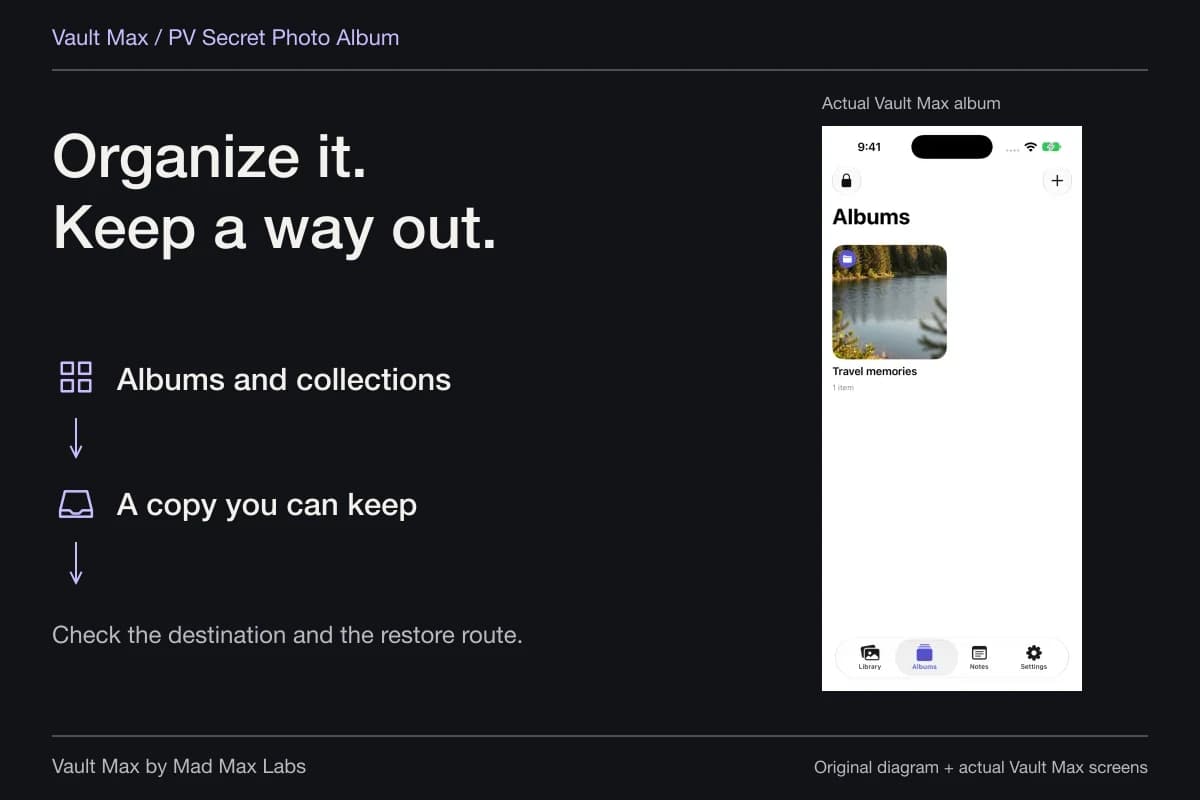
| Create an album | Organization inside the currently open vault |
| Create an ordinary decoy vault | Content reached by different vault credentials |
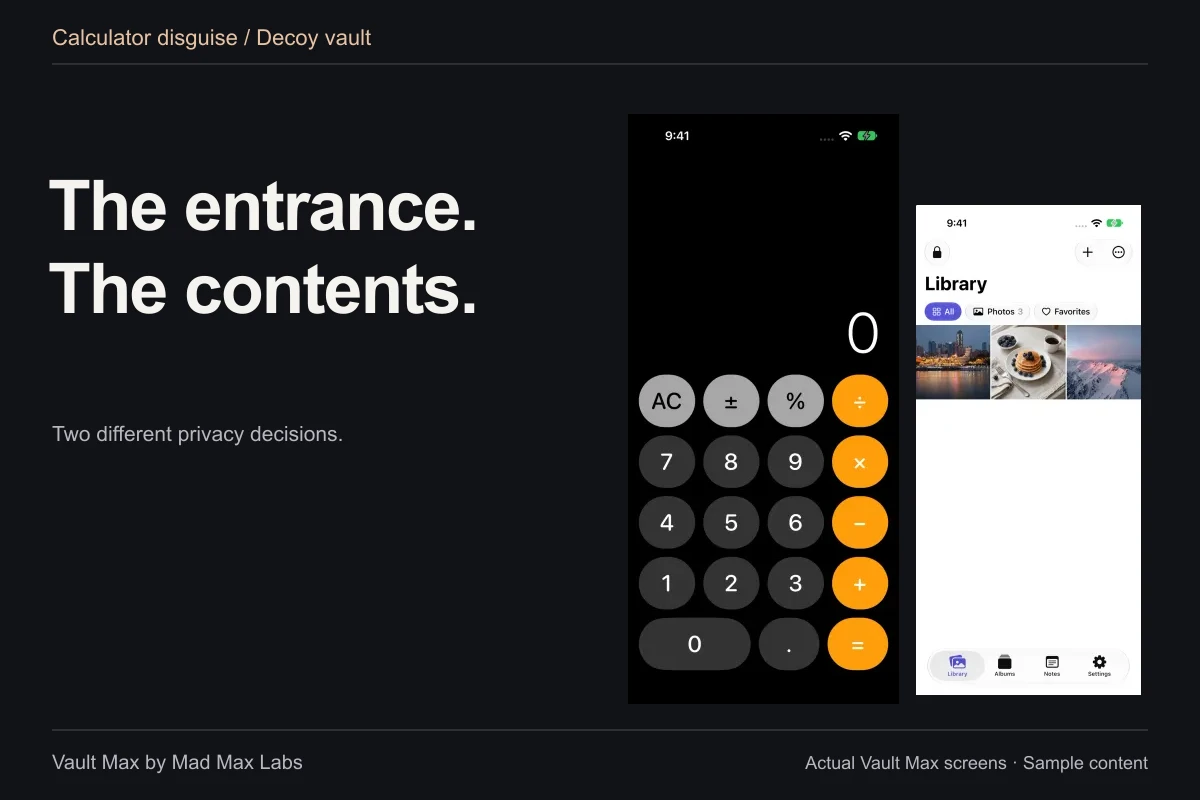
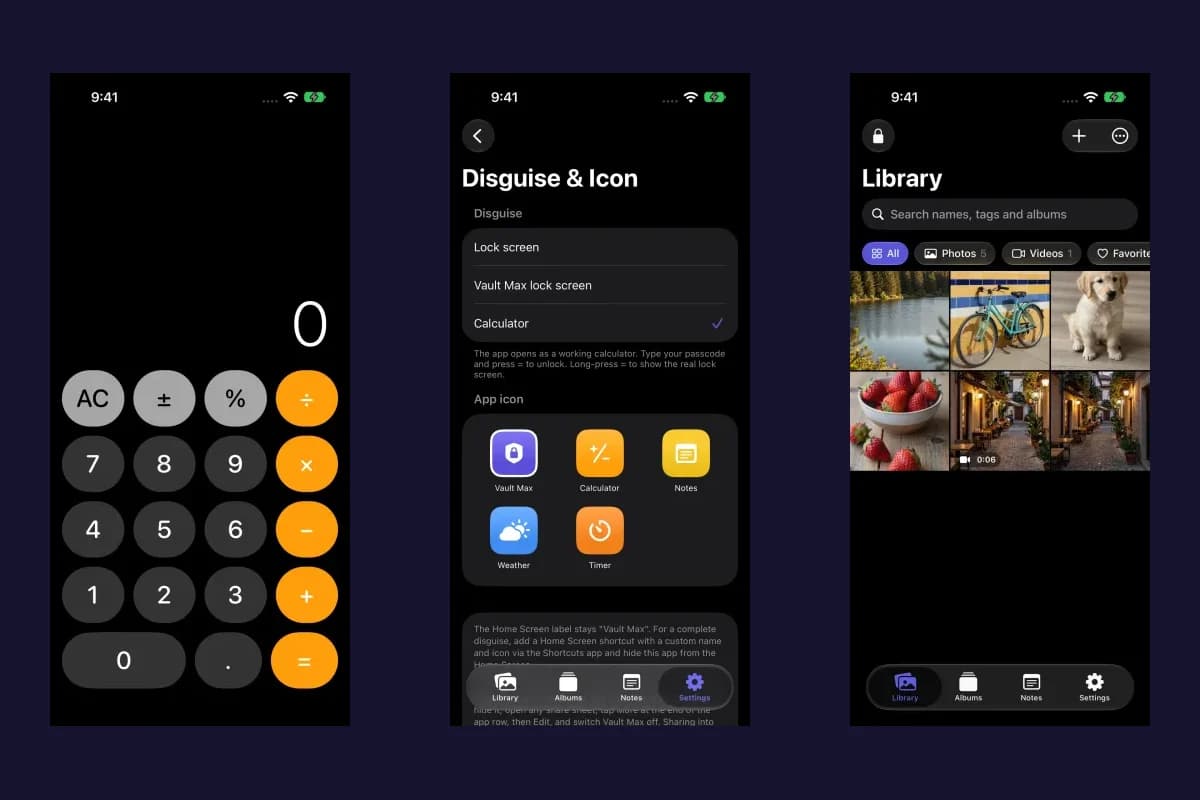
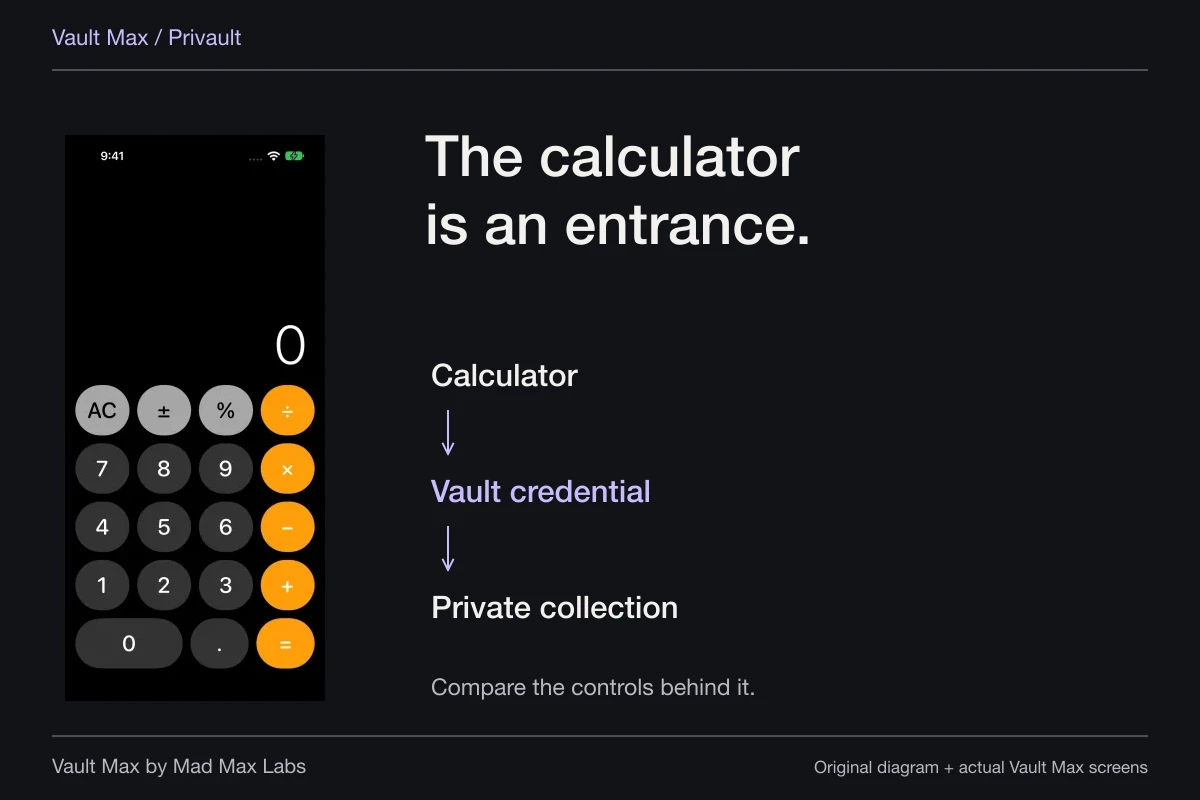
| Enable calculator disguise | The appearance of the app's locked entry screen |
Deal with the Photos copy separately
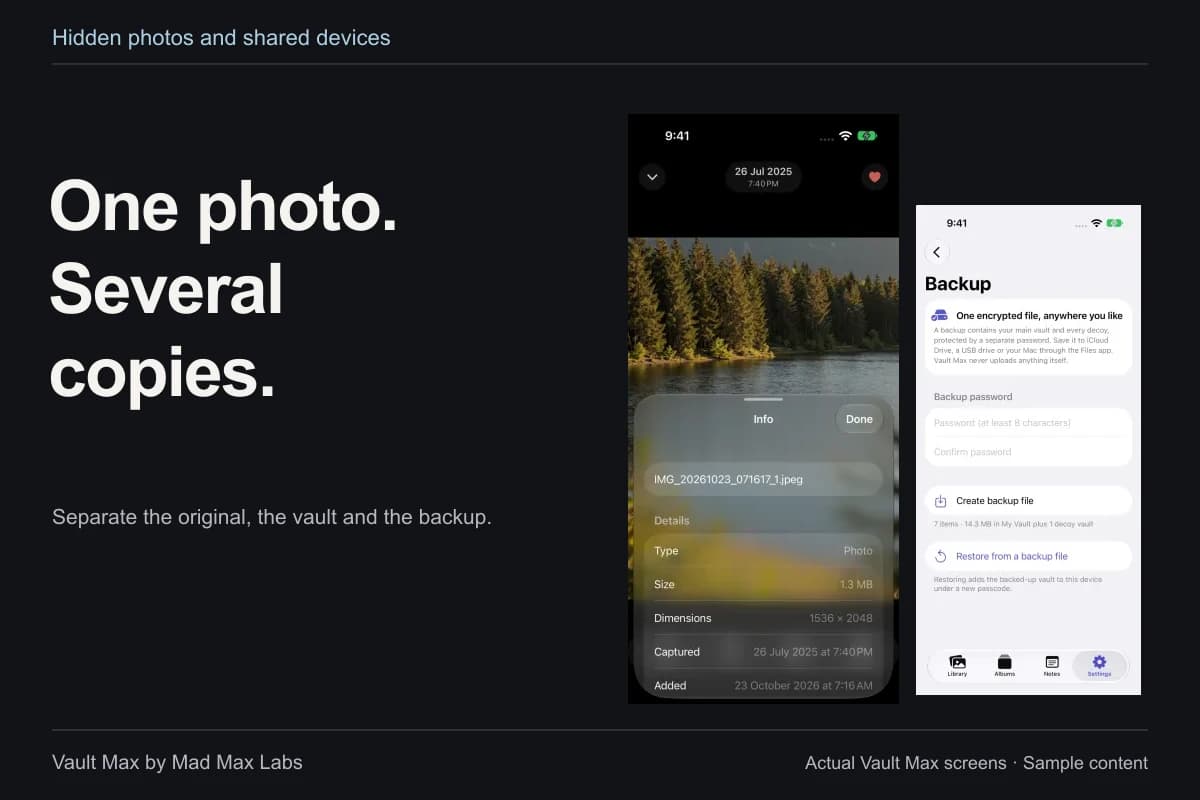
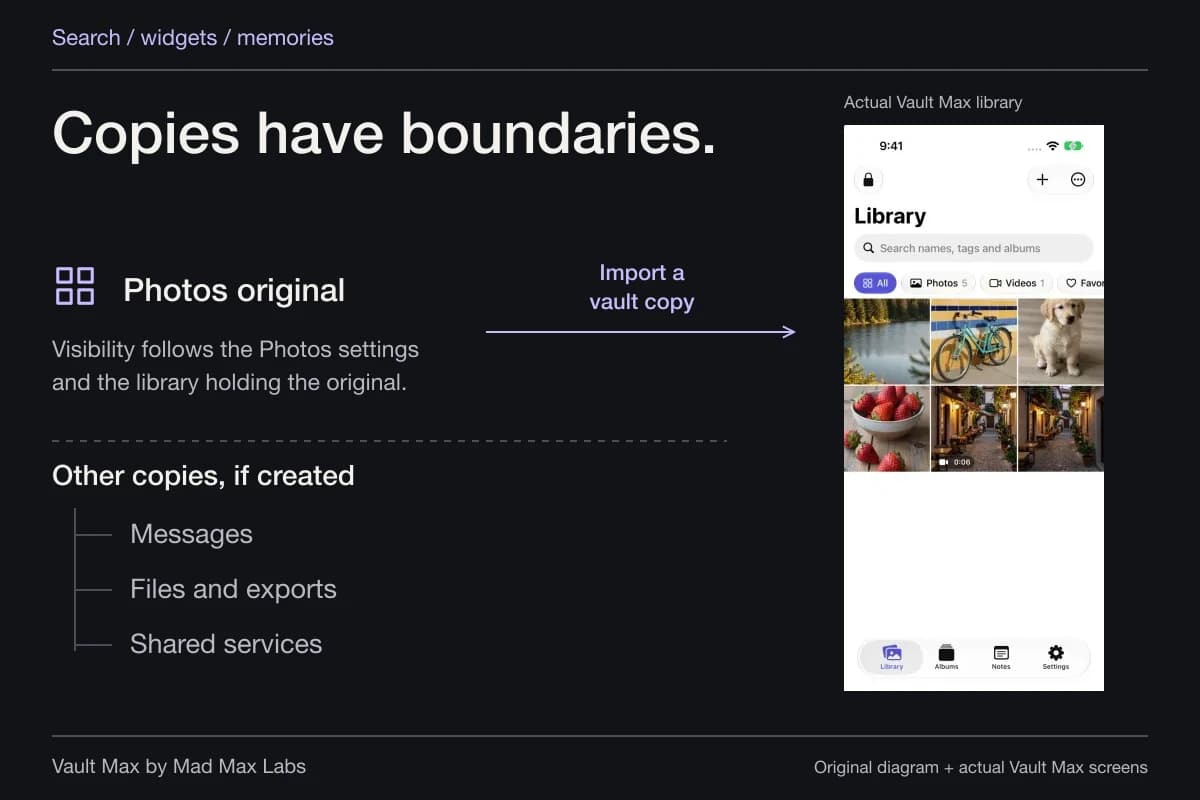
Importing does not retroactively password-protect the original in Photos. If you leave that copy visible, someone browsing Photos may still see it without ever opening Vault Max.
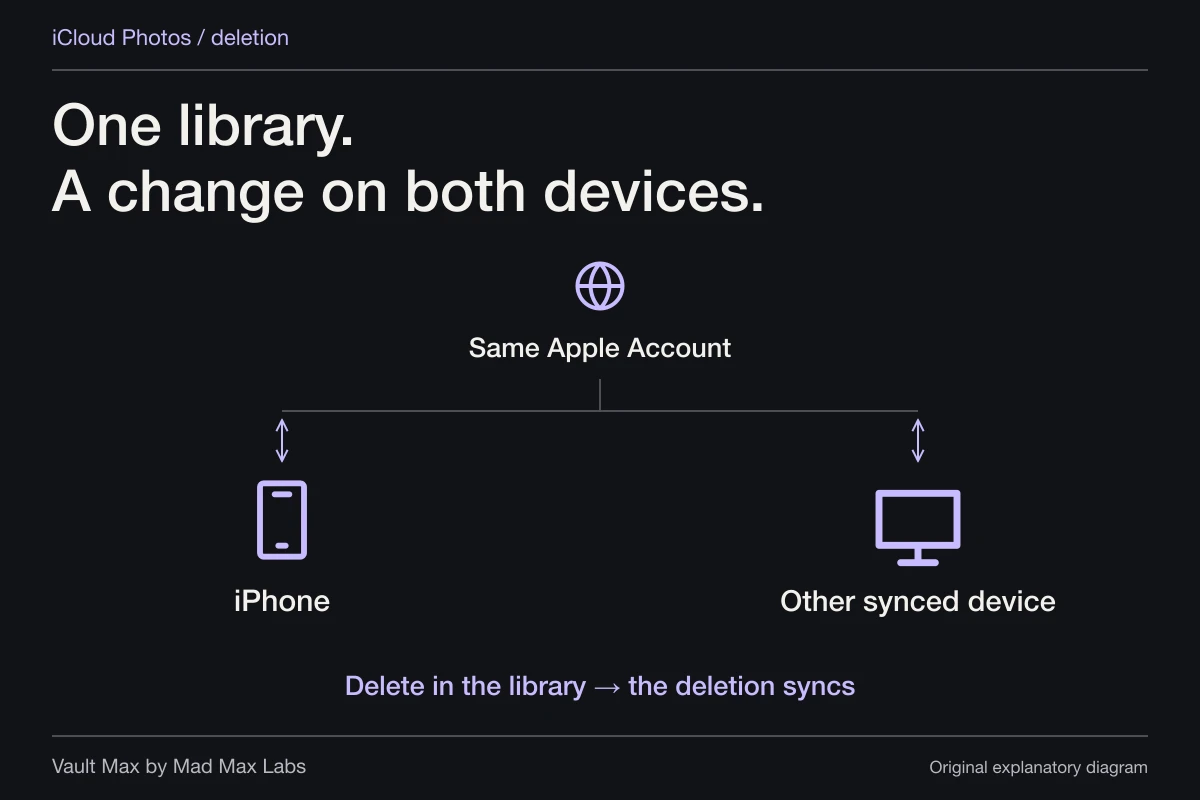
Check the vault result and make a usable backup before considering removal of an original you cannot replace. If iCloud Photos is enabled, understand its cross-device behavior first. Copies in messages, shared albums and other apps need their own review.
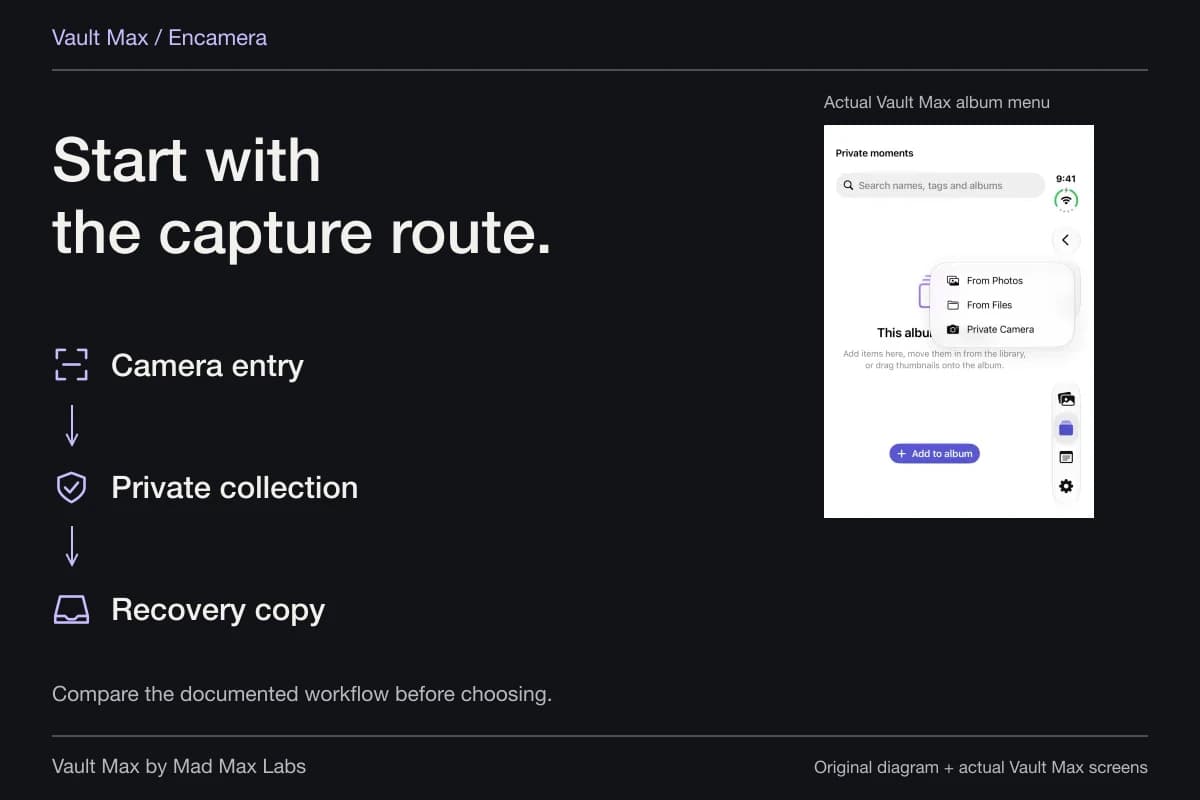
For something new, Private Camera starts a photo or video inside Vault Max rather than in the Photos library. Camera and microphone permissions still apply when relevant.
A different password needs a recovery plan
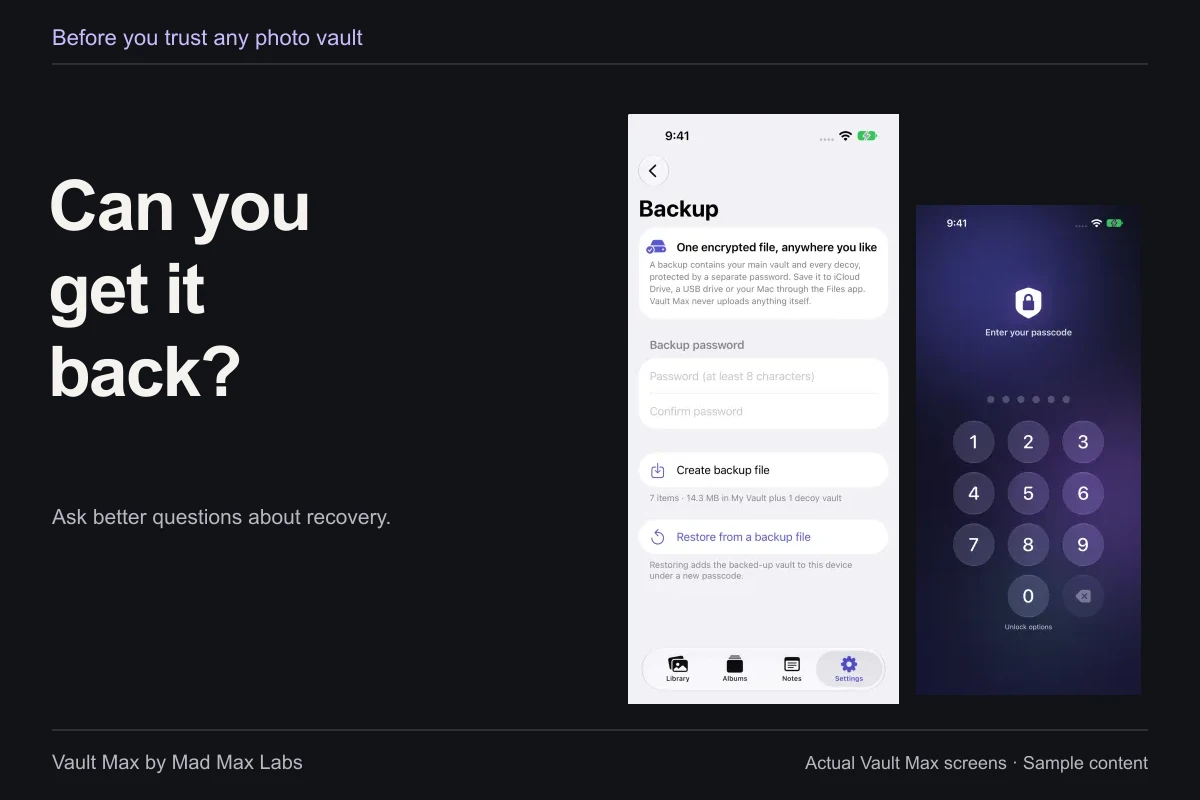
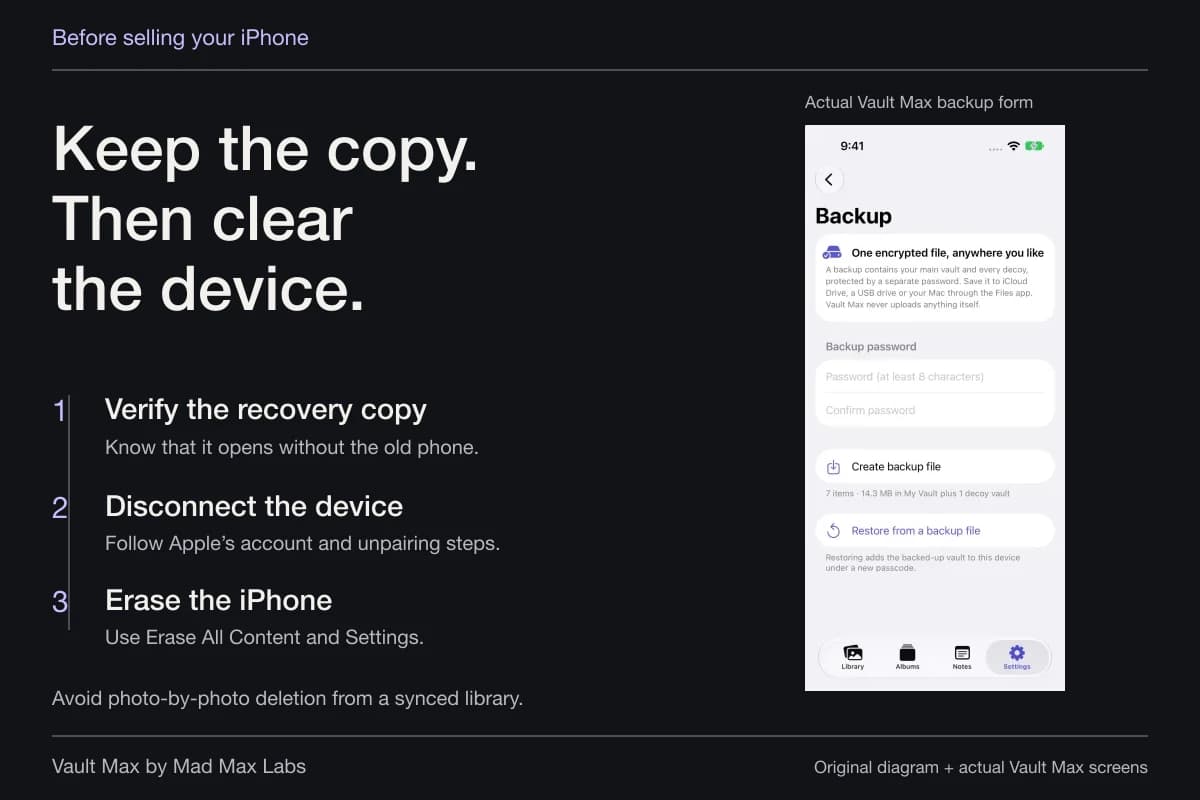
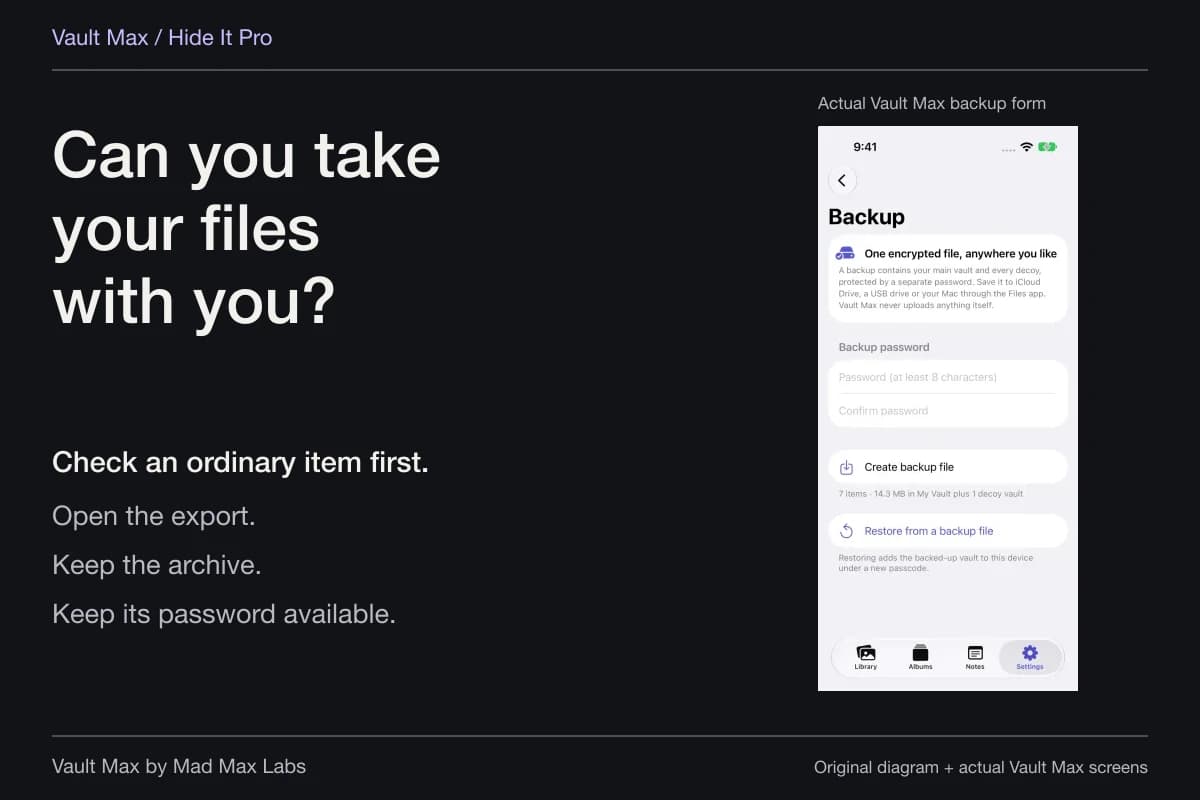
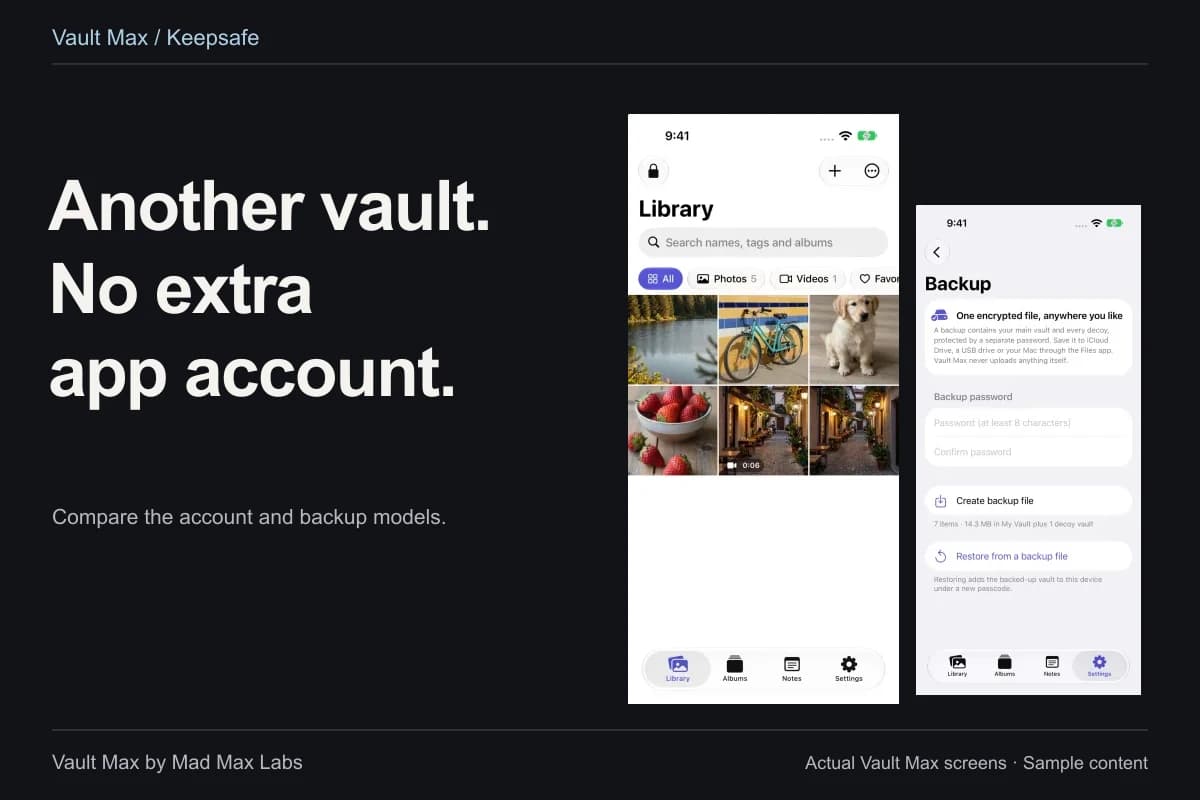
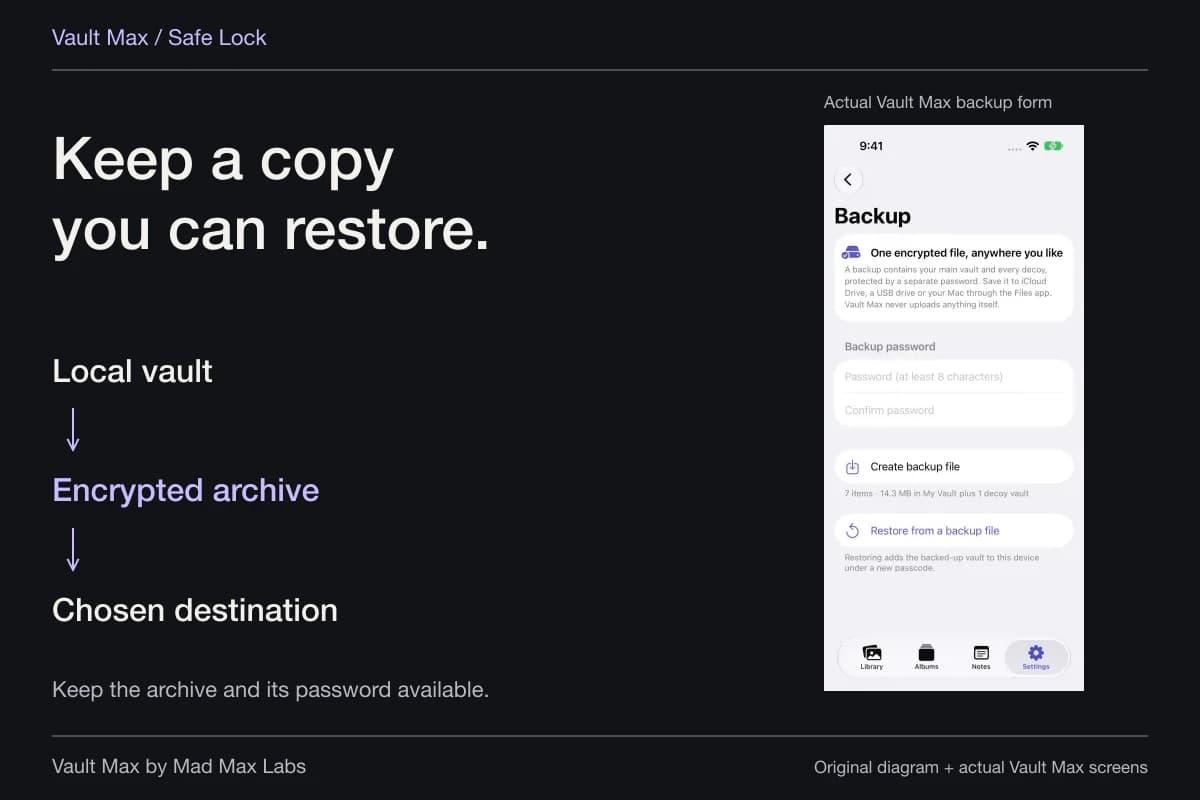
An additional credential gives you another secret to keep. Vault Max cannot email a reset link that reconstructs the original vault's encryption keys. If already-enabled biometrics still grant access after you forget the code, make an encrypted backup while you can. Changing the code in Settings still requires the current one.
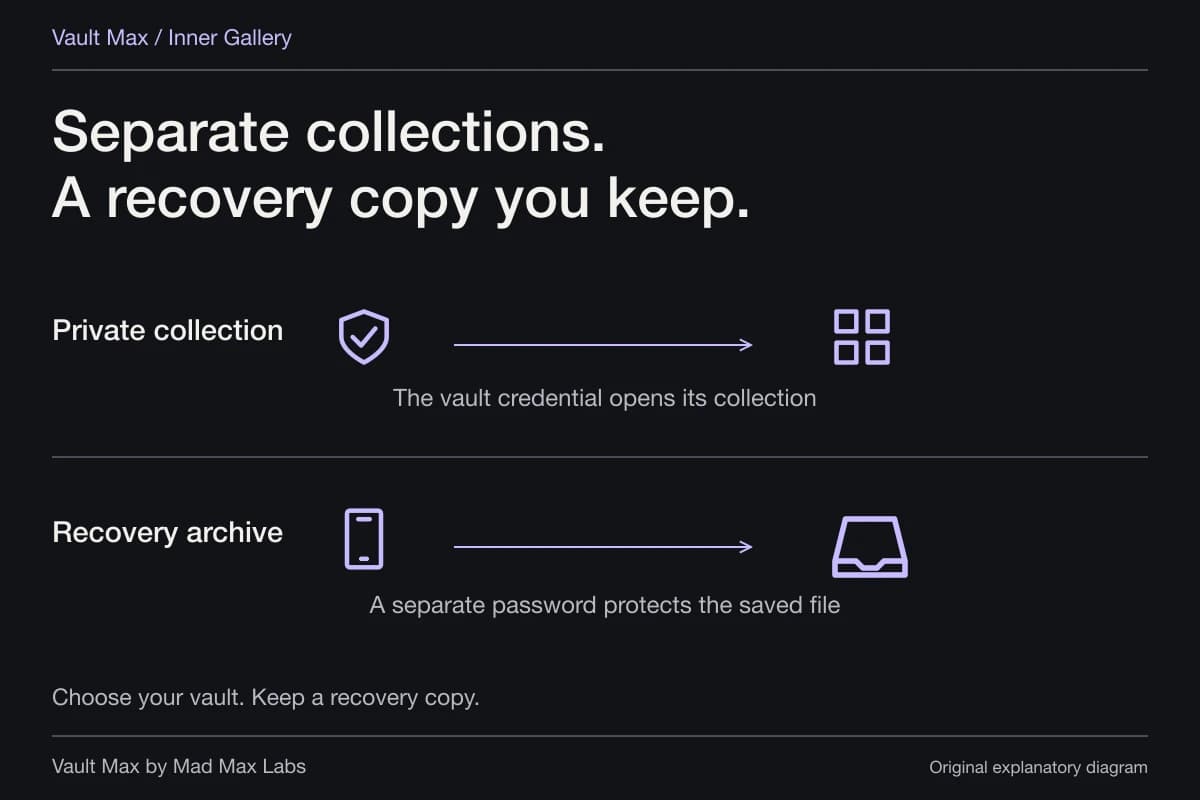
A readable .vaultmax archive and its separate backup password let you restore the saved collection under a new vault credential. Keep that file and password reachable if the phone is lost. Follow the recovery checklist before making the vault your only remaining copy.
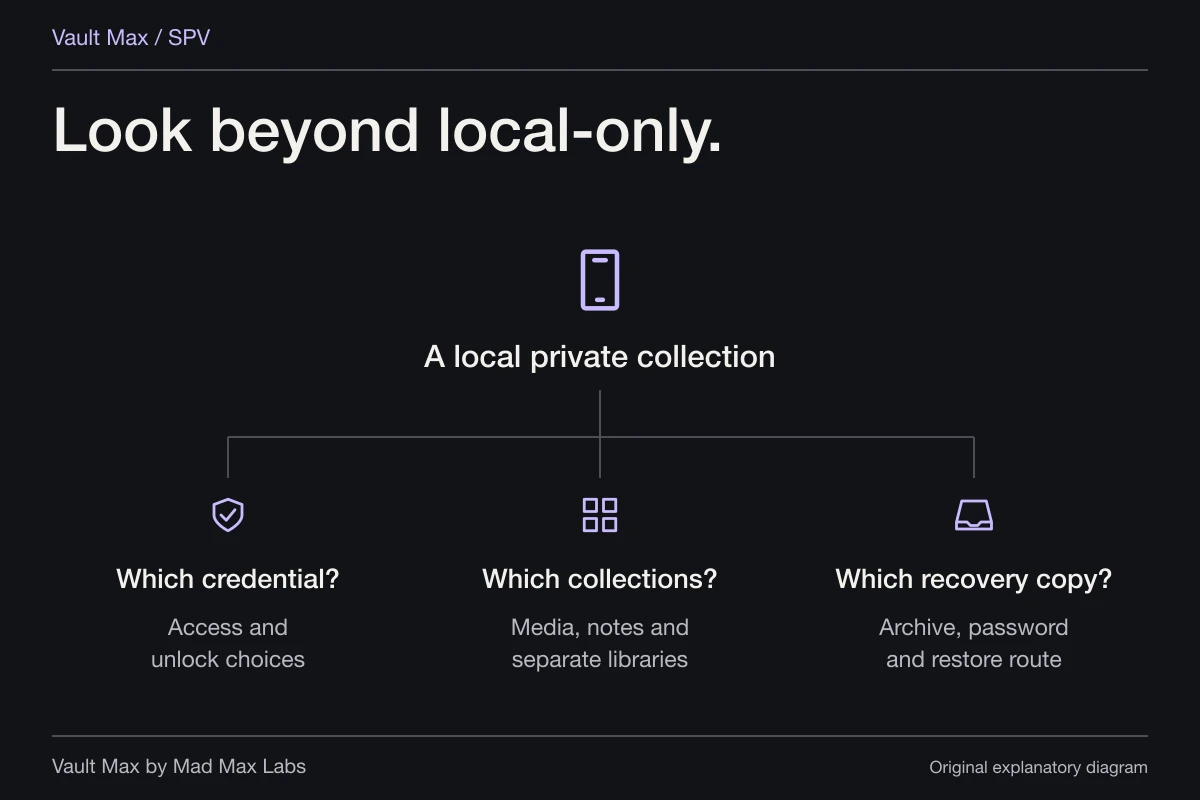
The practical goal is straightforward: a private collection that opens with the credential you intended, closes when you finish and can be recovered using a plan you understand. Start with a sample, check each part and then bring in the important files.
Continue reading
More guides
Practical tips for your private library. Swipe or scroll to choose your next guide.
50 guides to explore