
Privacy in practice
Delete photos from iPhone but keep iCloud? Choose the right operation
Keep your photos in iCloud while reducing iPhone storage: compare Optimize Storage, turning off sync for one device and deleting from a synced library.
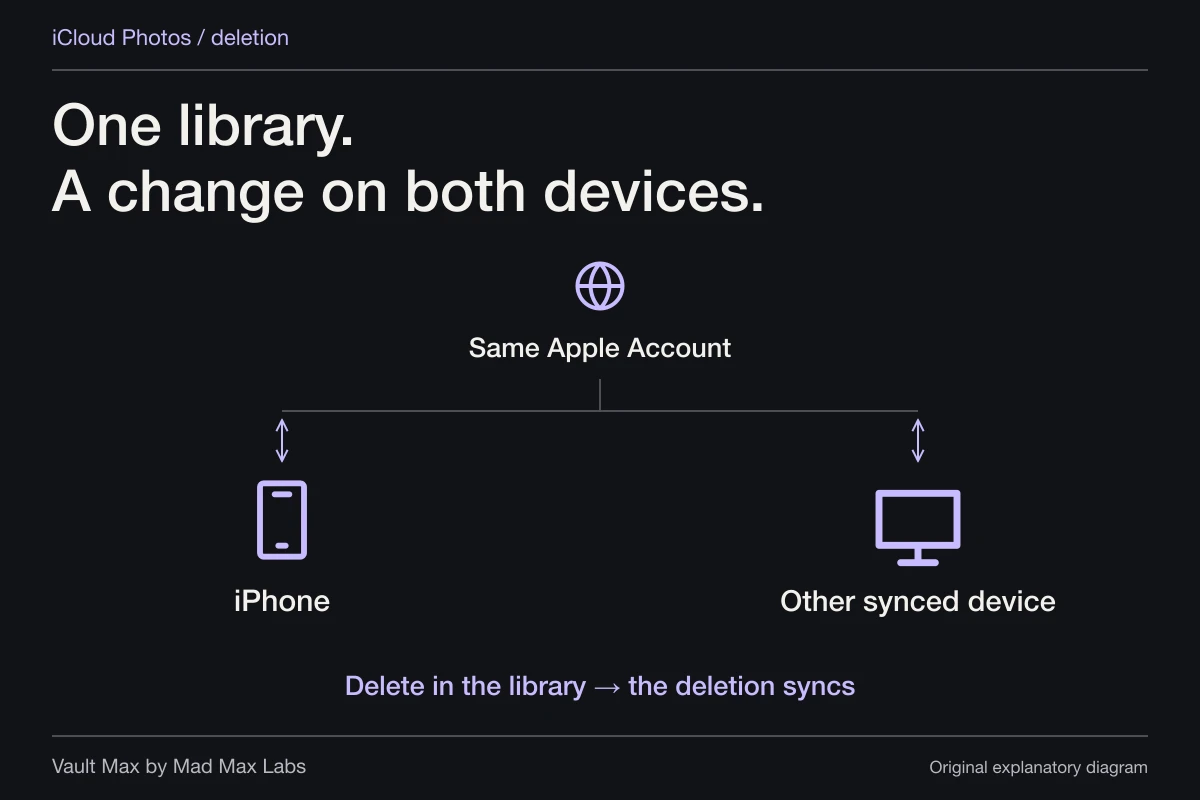
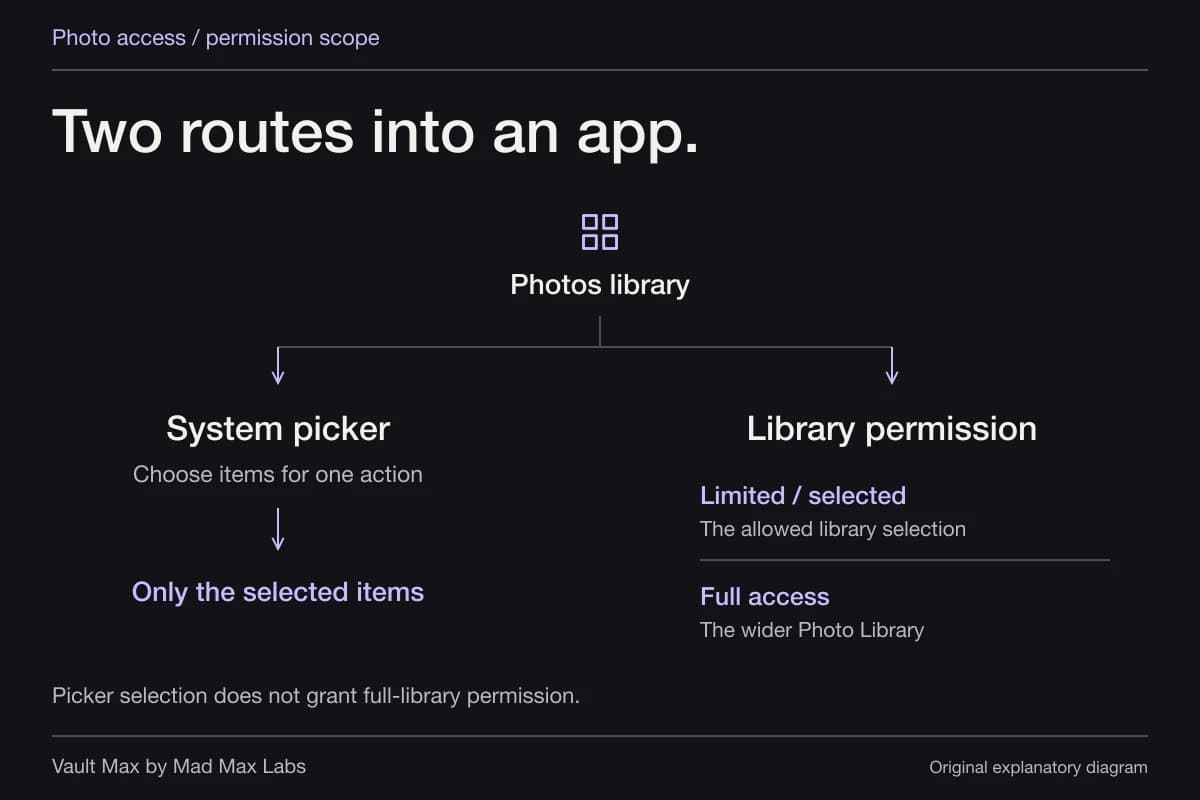
If Sync this iPhone is enabled for iCloud Photos, deleting a picture in Photos also deletes it from iCloud and the other synced devices. It is not a “remove this download only” command. If your goal is more room while keeping the library, start with Optimize Storage. If you want this phone disconnected from that library, review Apple's per-device sync-off route instead.
The distinction matters because “delete from my phone” can mean three different things: reduce storage, stop showing a synced library here, or remove a photograph everywhere. Pick the intended result before tapping a trash icon.
First decide what you want to keep using
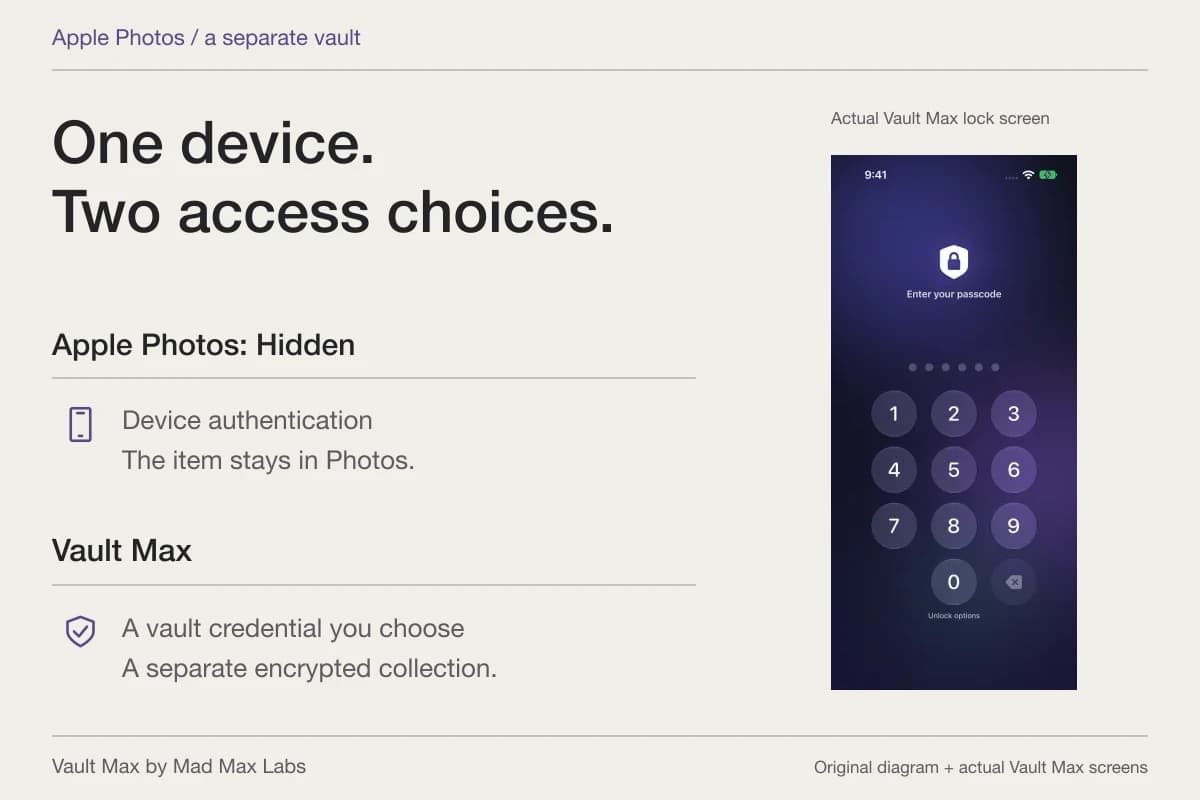
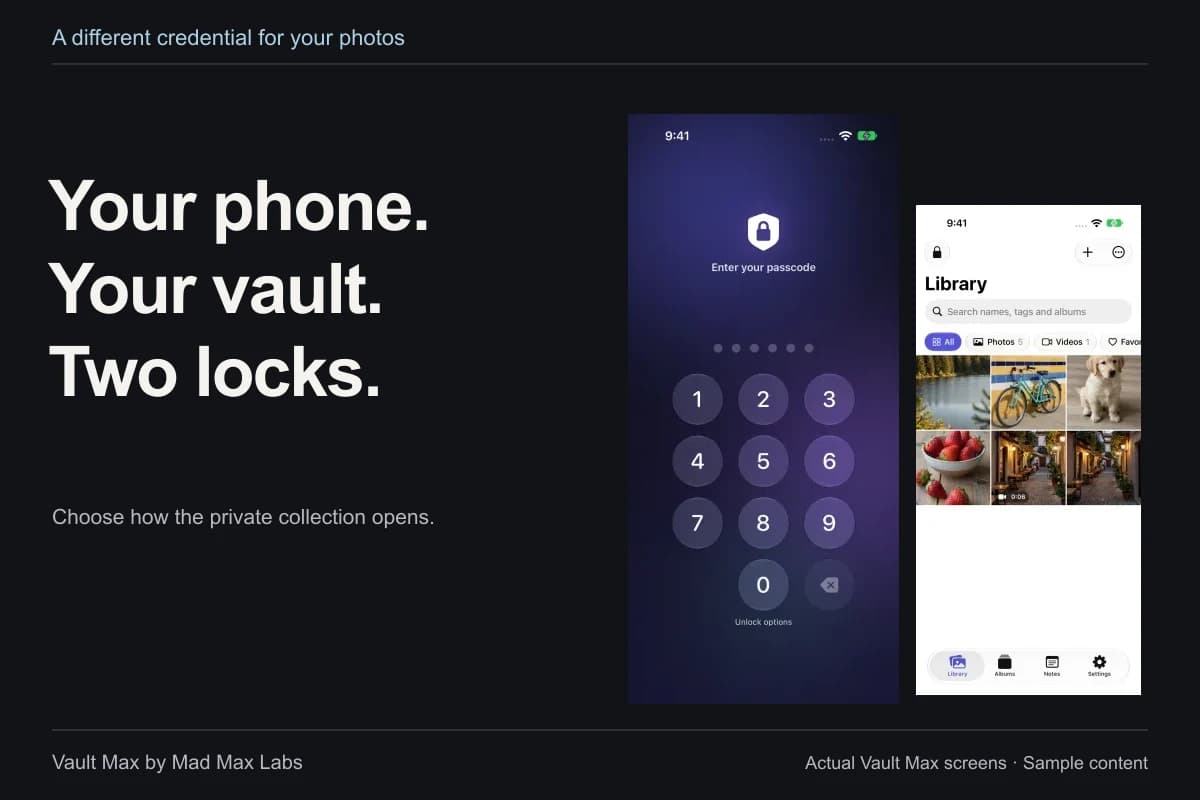
If you want to browse the same photo library on this iPhone tomorrow, optimization usually matches the goal better than dismantling synchronization. If you are retiring the phone, use the device-handoff procedure. If you want selected pictures behind a different credential, that is a private-library question rather than a storage-cache setting.
One iCloud Photos library
Same Apple Account · iCloud Photos enabled
- Your iPhoneA view of the same library
- Another synced deviceA view of the same library
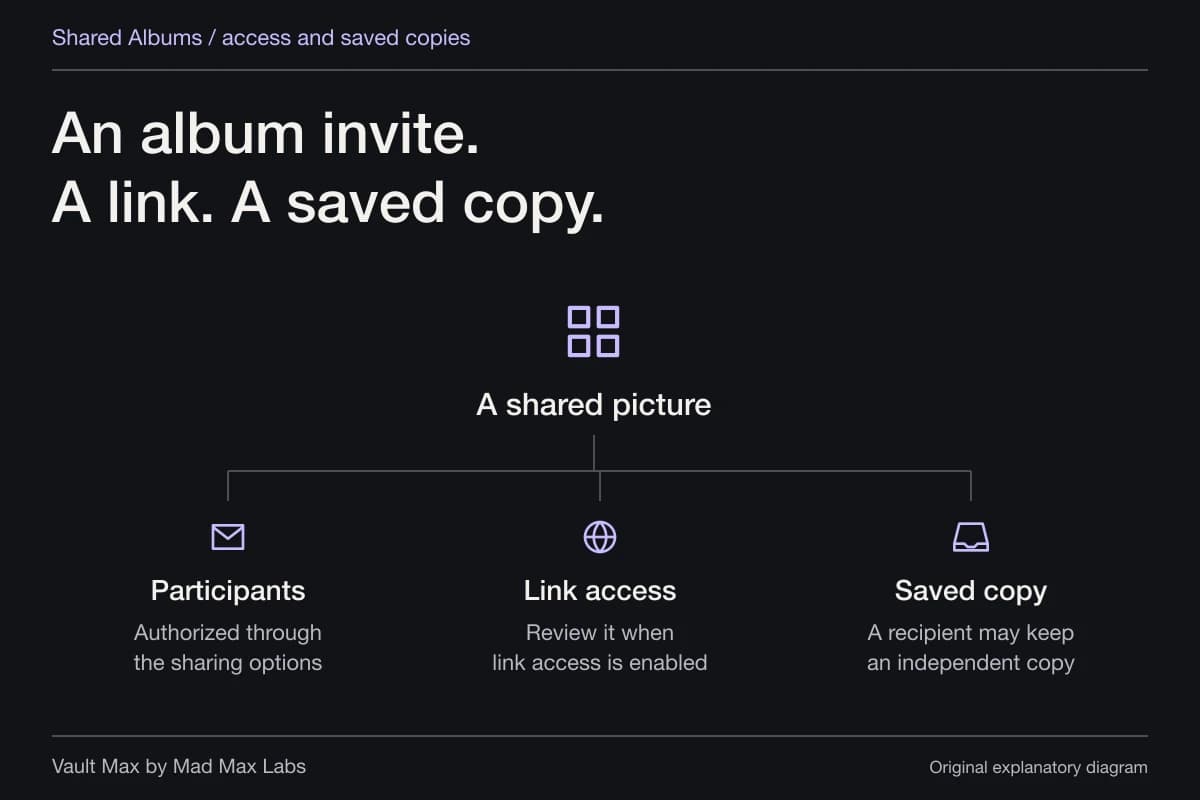
An independently exported recovery archive is a separate copy. It needs its own storage and restore plan.
Read the outcome on the branch you choose. A synchronized library deliberately carries edits and deletions between devices; a local copy and an independent archive have different jobs. Adding cloud storage capacity does not turn the Delete button into a local-only operation.
For storage pressure, consider Optimize Storage
Apple's iCloud Photos guide explains that Optimize Storage keeps space-saving versions on the device while originals remain in iCloud. Full-size versions can be downloaded when needed. This keeps the library available without requiring every original to remain fully downloaded all the time.
On current iPhone software, review Settings → your name → iCloud → Photos, then the iPhone storage choice. Apple's instructions distinguish current wording from iOS 26 and earlier, so follow the options shown on your device. Choose Optimize Storage when that is the behavior you want.
Optimization does not mean the Photos app uses zero local space. You still have a working library, previews and content the device needs. Do not assume an exact amount of recovered space or immediate removal of every downloaded original.
Also check upload status before assuming the cloud already holds a new picture. A thumbnail in Photos is not by itself proof that an upload completed. If the library reports paused syncing, follow Apple's sync-status guidance rather than deleting recent pictures to force space.
For a phone you want disconnected, review per-device sync-off
Apple documents a different operation in How to turn off iCloud Photos. Turning it off on one device stops new uploads, edits and deletions from synchronizing between that device and the iCloud Photos library.
The iPhone path is Settings → your name → iCloud → Photos → Sync this iPhone off. The subsequent choices distinguish downloading a copy from Remove from iPhone. Read the prompts and verify that the library you intend to retain is present in the correct iCloud account before choosing removal.
Preserve irreplaceable originals independently first, including any recent files that have not uploaded. If a prompt or sync state does not match your expectation, stop and resolve that state rather than choosing whichever button sounds closest. Turning off sync changes the relationship between libraries; it is not a substitute for knowing where your only complete copy lives.
Afterward, new pictures taken on this disconnected phone will not follow the old automatic upload arrangement. Keep that changed behavior in mind. A setting chosen to remove a library today can otherwise become a surprise when tomorrow's picture never appears on another device.
Do not choose account-wide deletion to remove one device's copies
The same Apple sync-off article describes an account-wide Turn Off and Delete Photos operation under iCloud storage management. That operation schedules removal of the cloud library. It is different from switching off Sync this iPhone for a single device.
If your goal is to keep photographs in iCloud, that account-wide deletion route does not match it. Names such as “turn off,” “remove” and “delete” need their destination attached. Read whether a confirmation refers to this phone, the synced library or iCloud storage before accepting it.
What happens if you already deleted the picture?
Start with Photos → Collections → Utilities → Recently Deleted and look for the intended items. Apple's recovery instructions describe the normal 30-day recovery window. Use Recover if the item is there and you want it back.
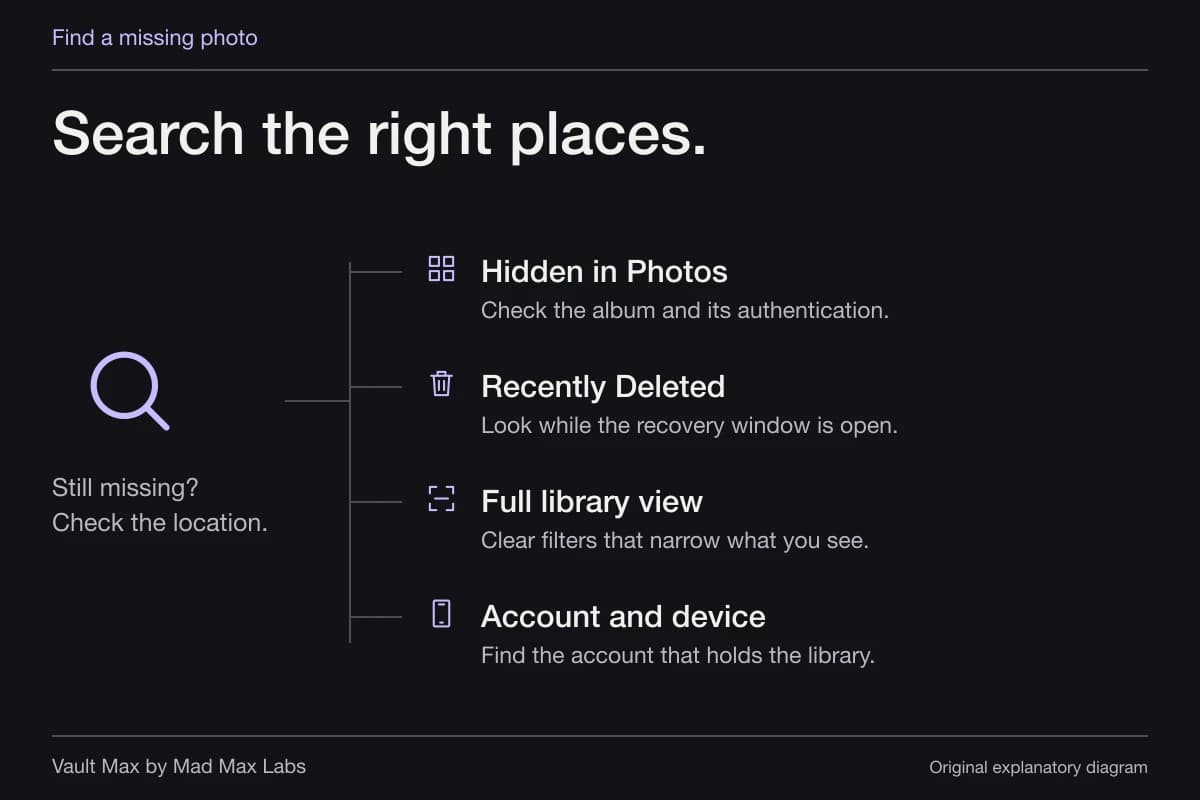
Do not empty Recently Deleted while investigating. If you cannot find the image, follow the missing-photo search through Hidden, the correct account, library views and other available copies. A backup is useful only if it actually contains the photograph you need.
Selling the phone calls for a device erase after preservation
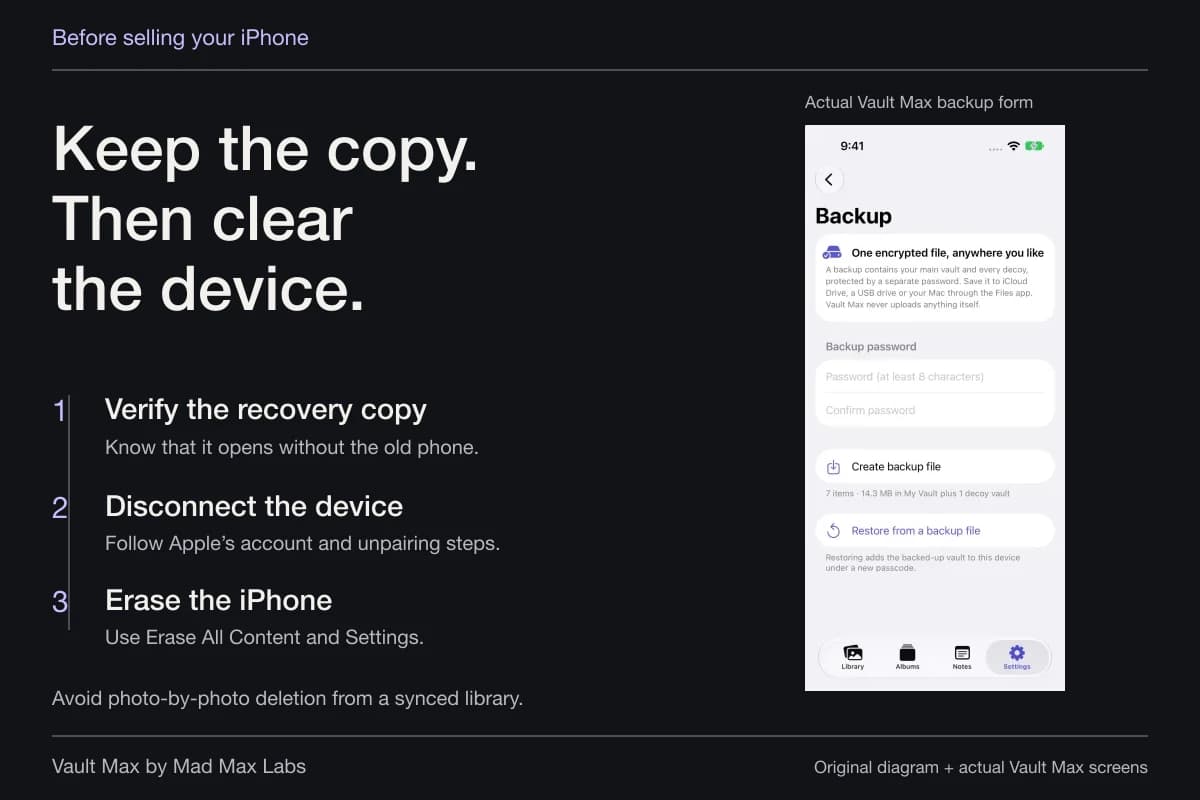
If this question comes up because you are selling or trading in an iPhone, do not manually delete the synced camera roll as preparation. Preserve and verify your files, then follow Apple's account and Erase All Content and Settings instructions. The private-photo handoff checklist explains that sequence.
Preparing a device for its next owner and deleting a picture from your ongoing cloud library are different tasks. A successful handoff should leave your preserved collection usable elsewhere, rather than leave you hoping that synced deletion did not reach it.
A private vault changes access, not the meaning of sync deletion
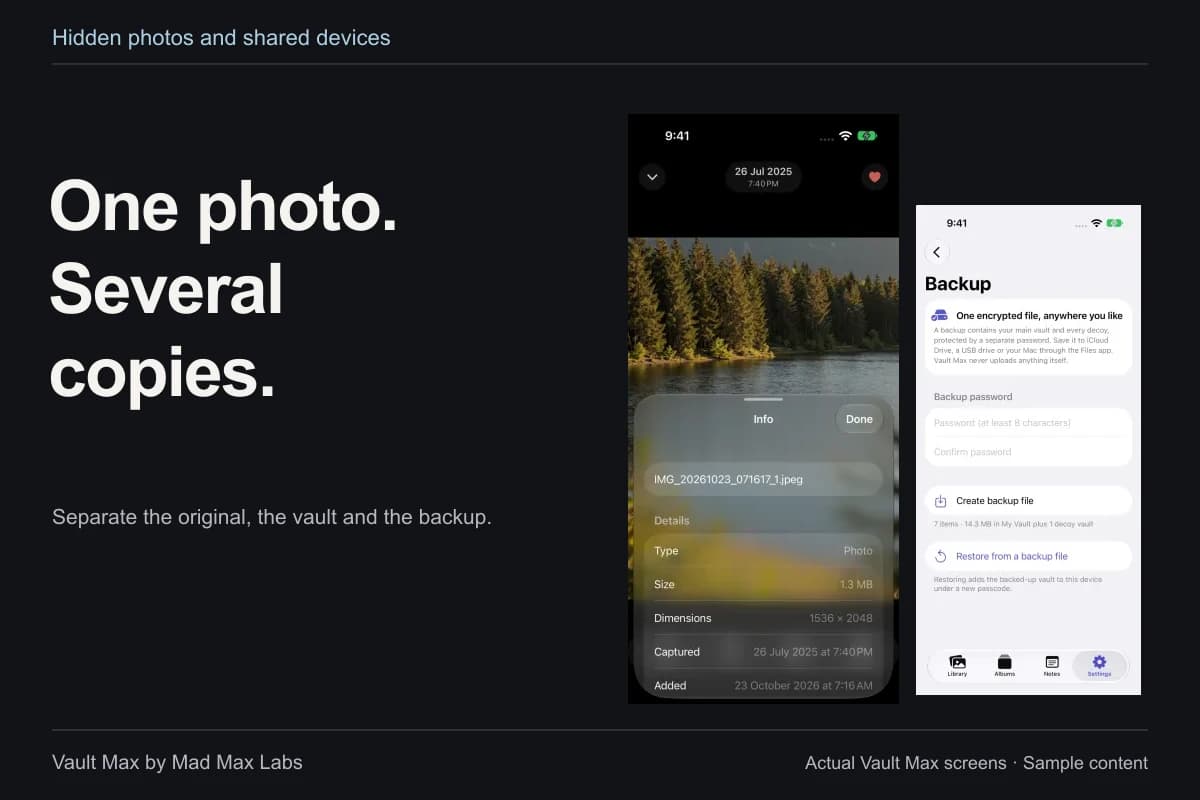
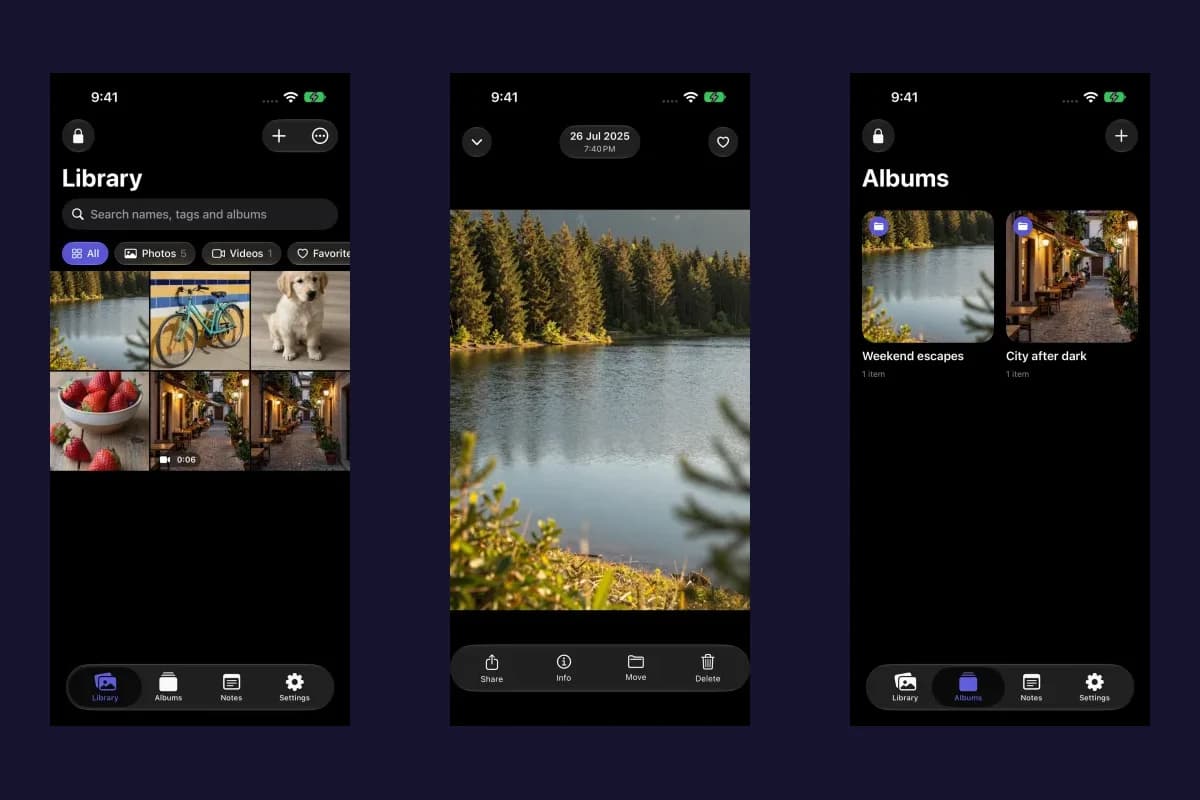
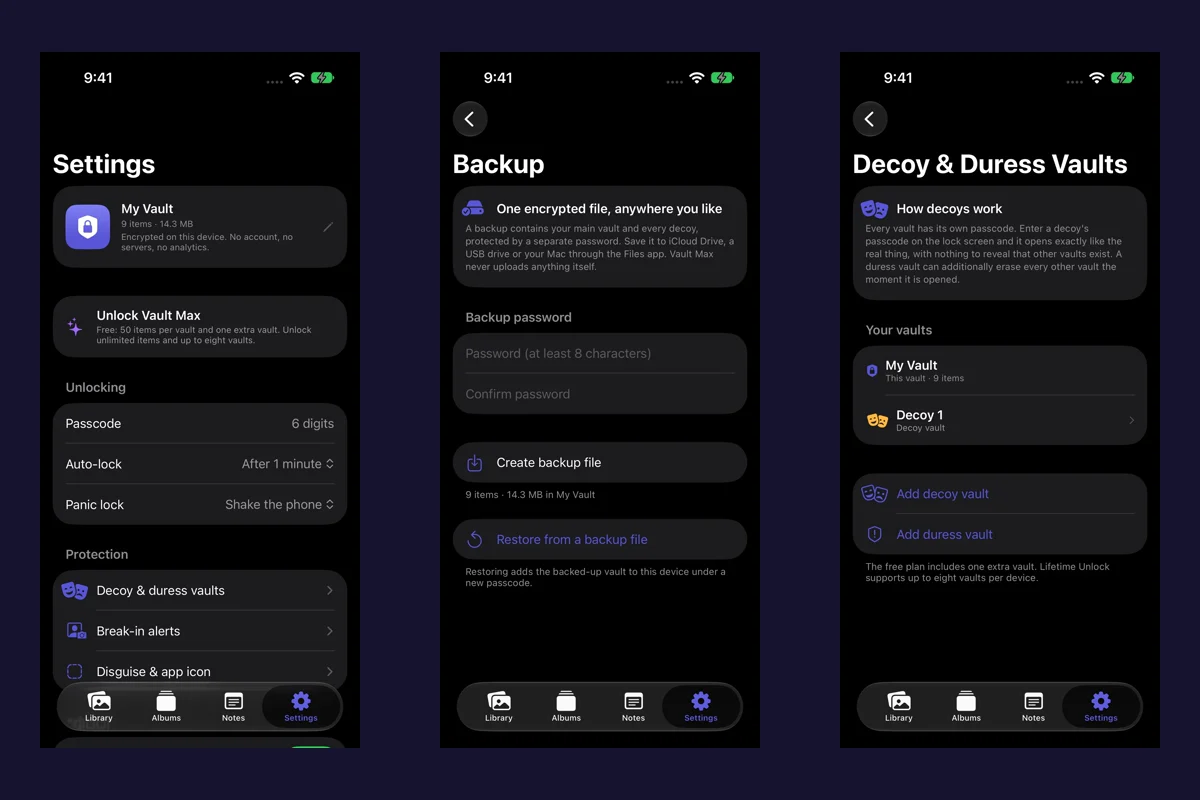
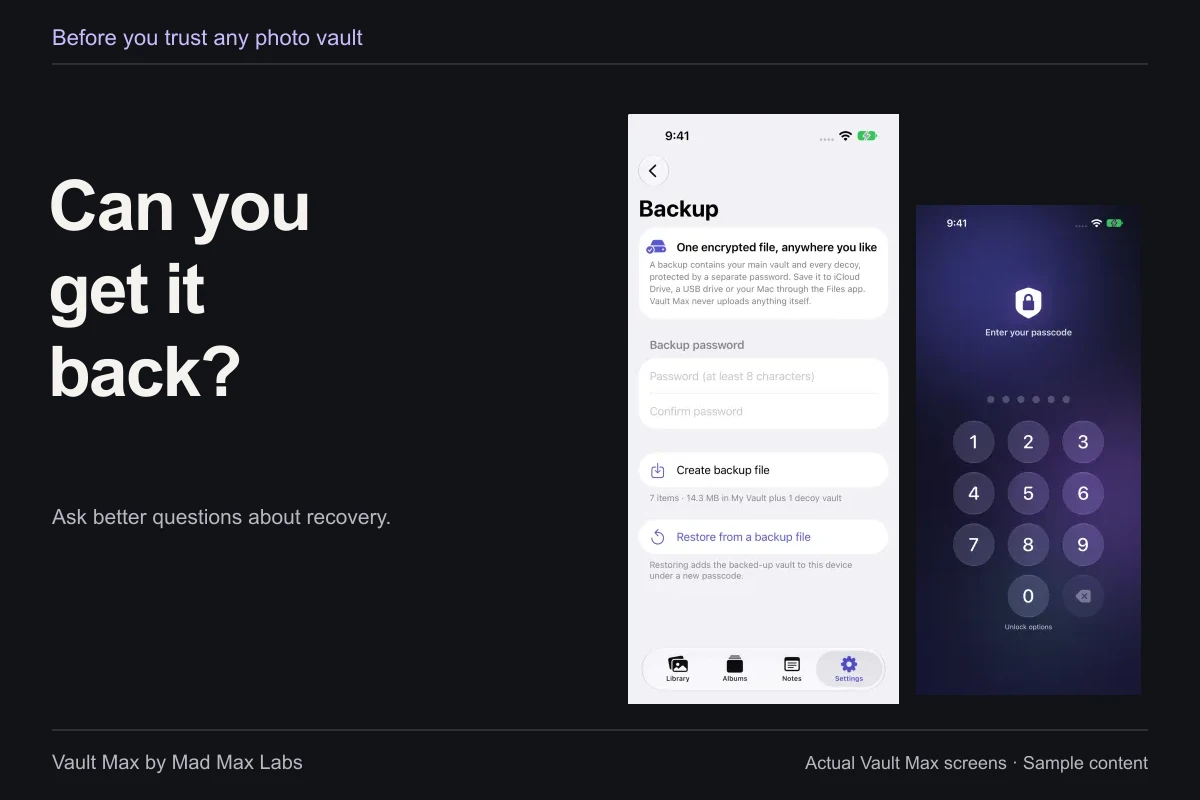
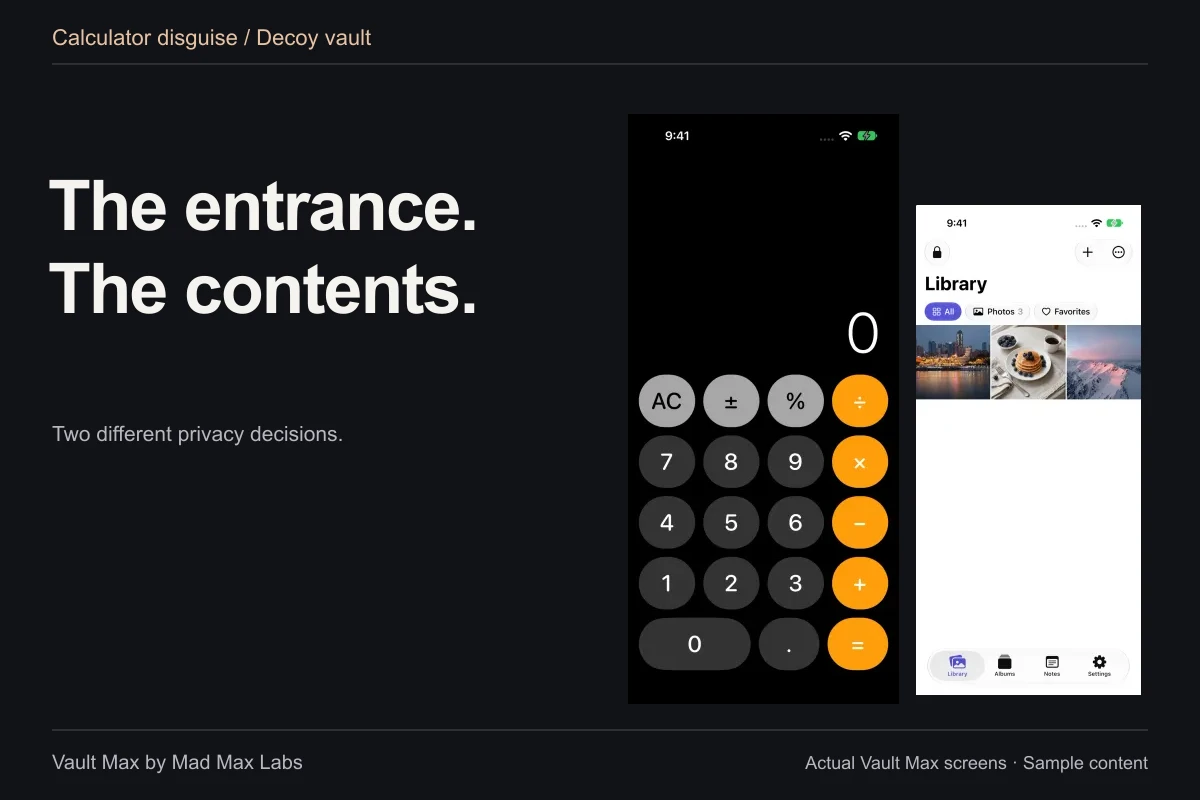
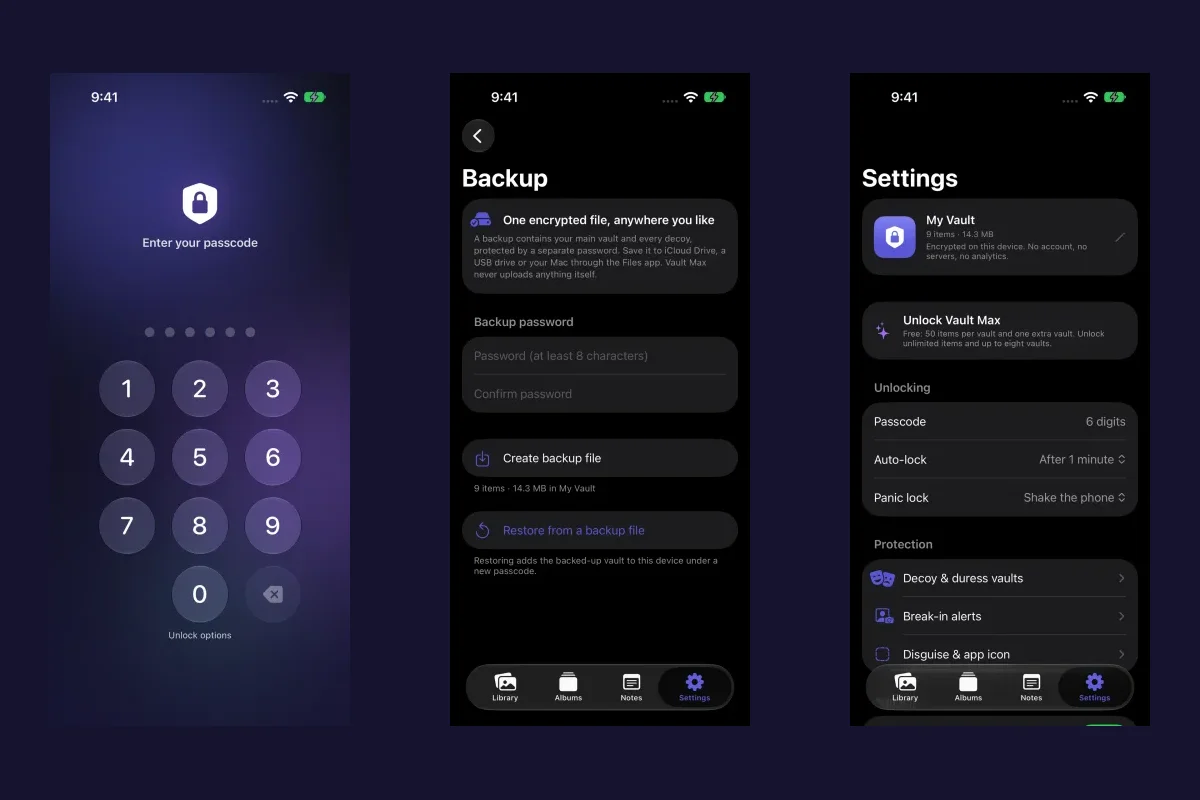
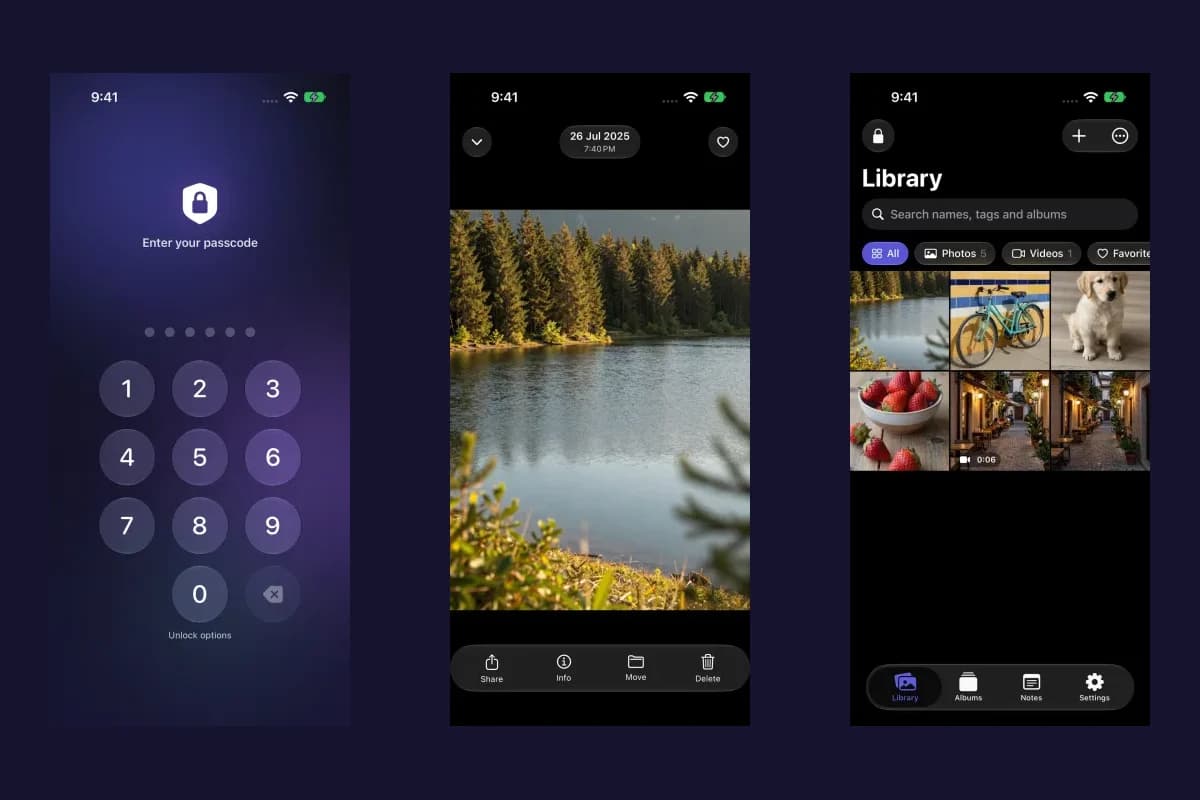
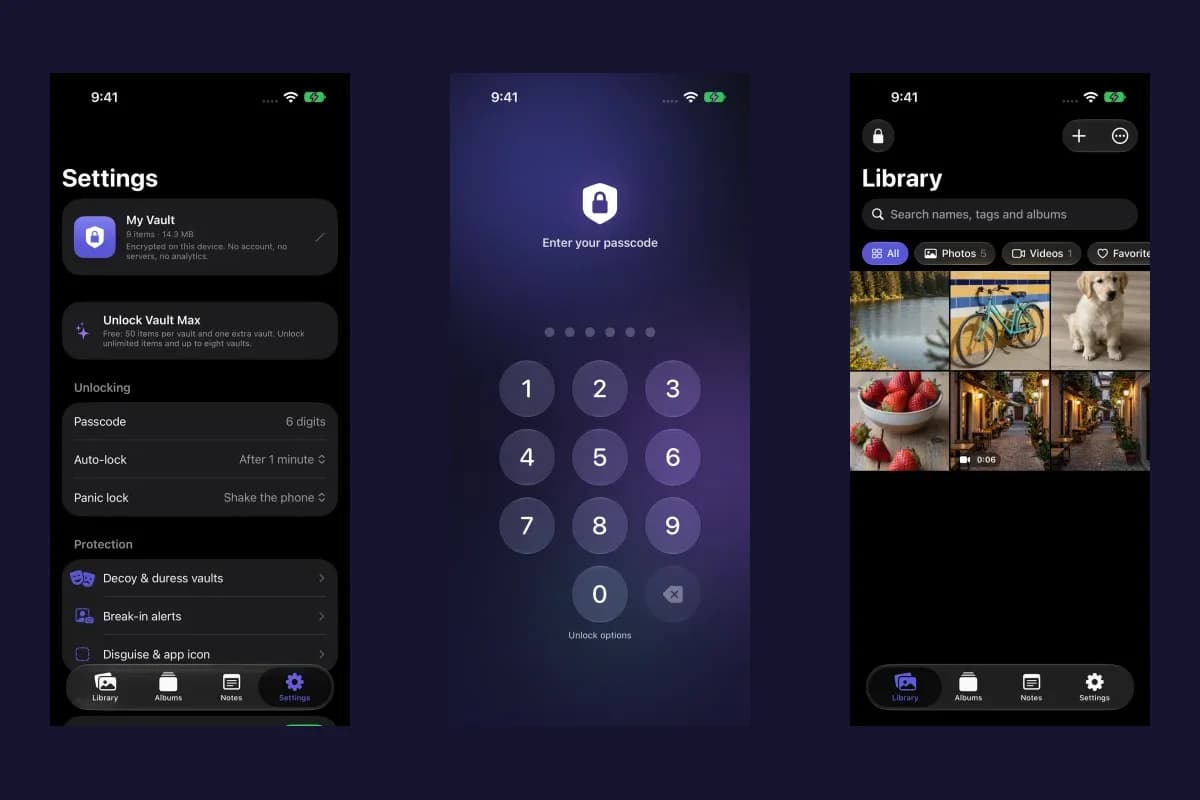
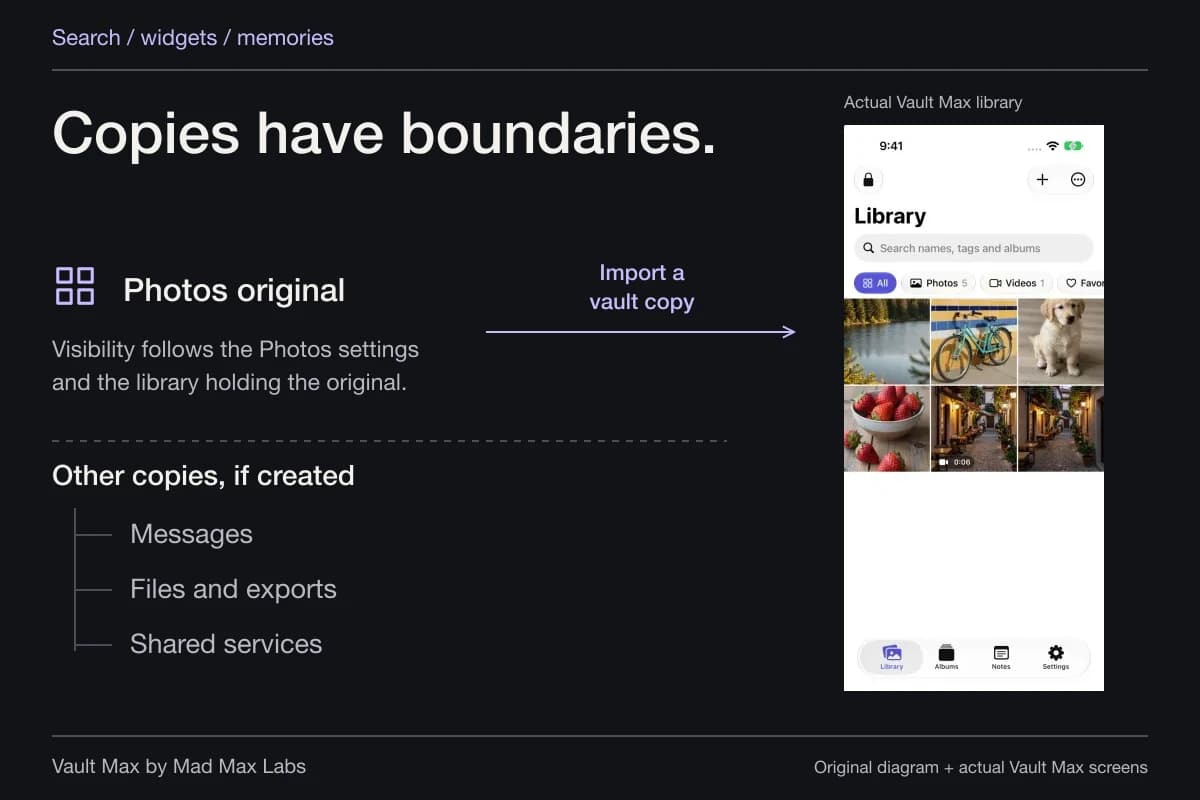
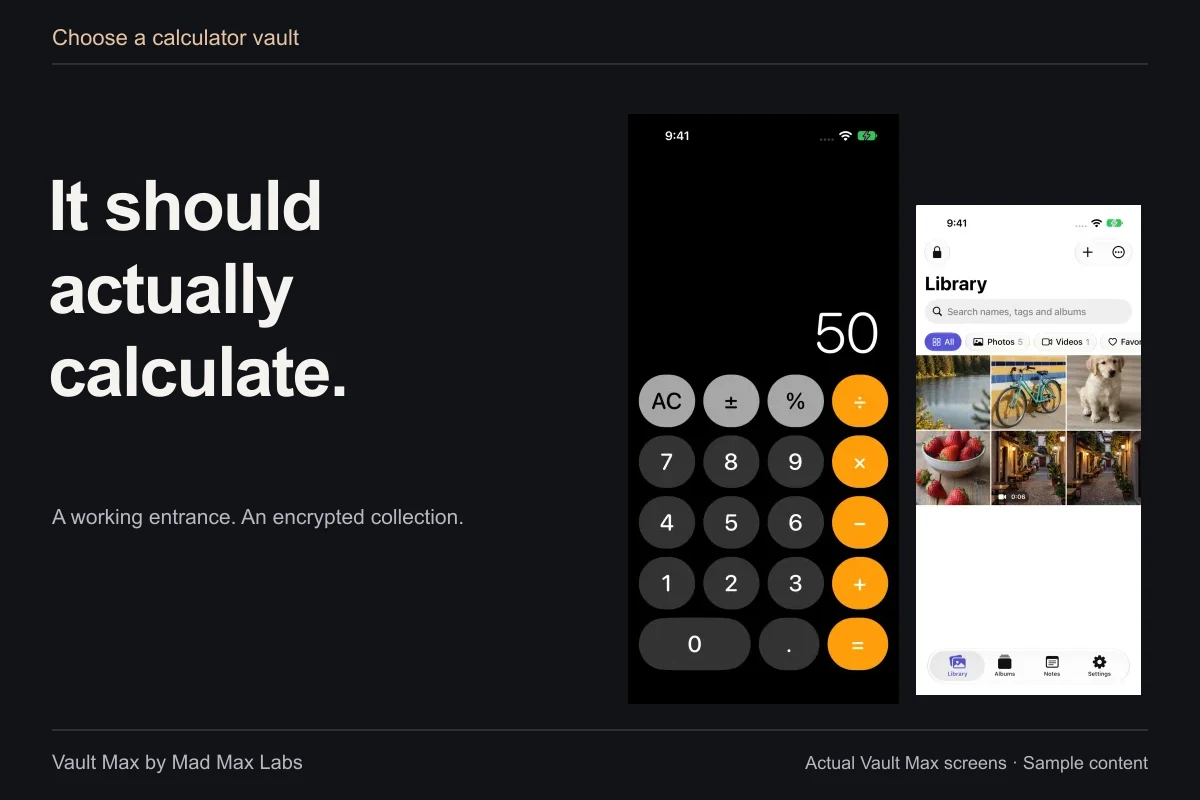
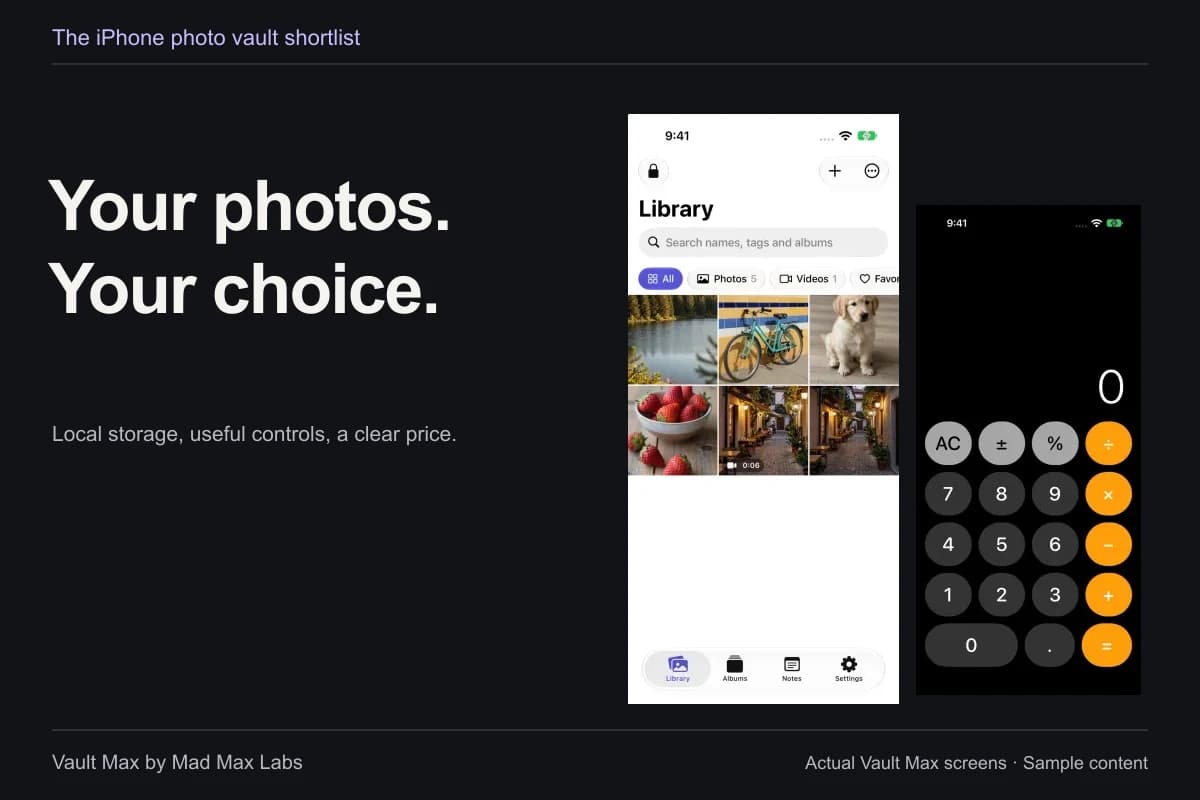
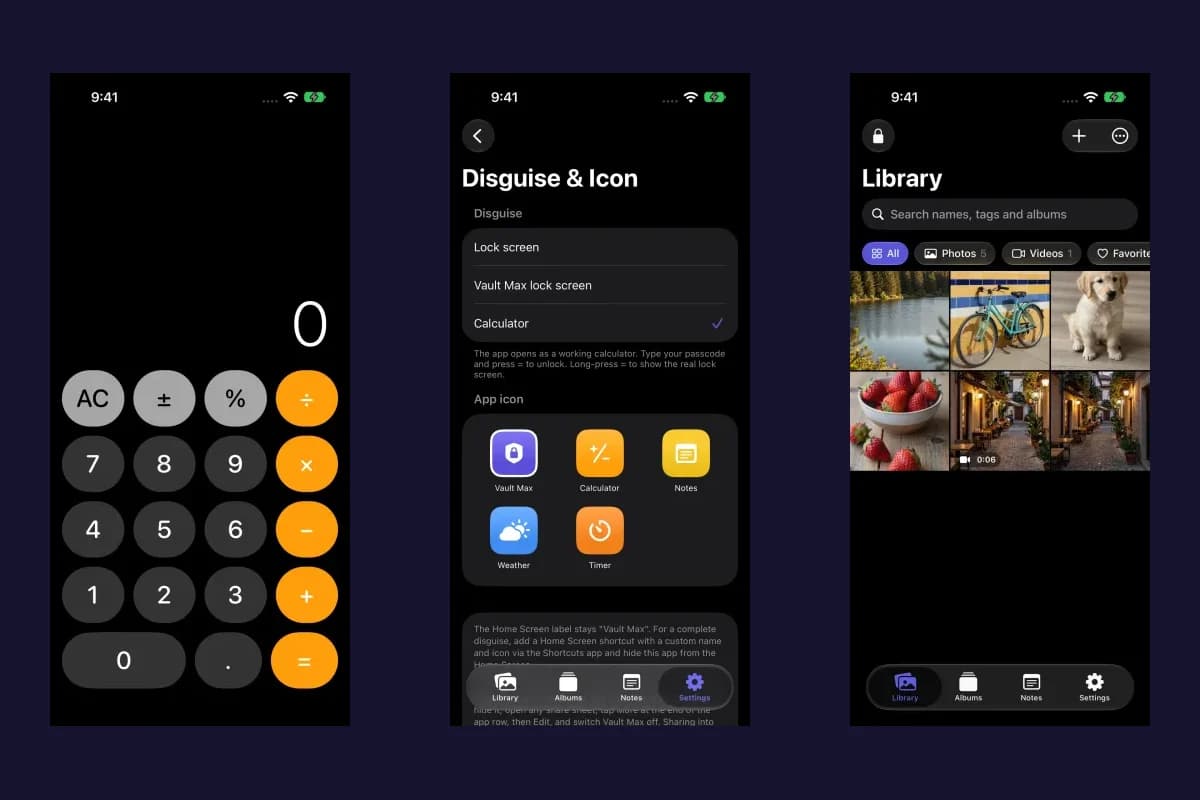
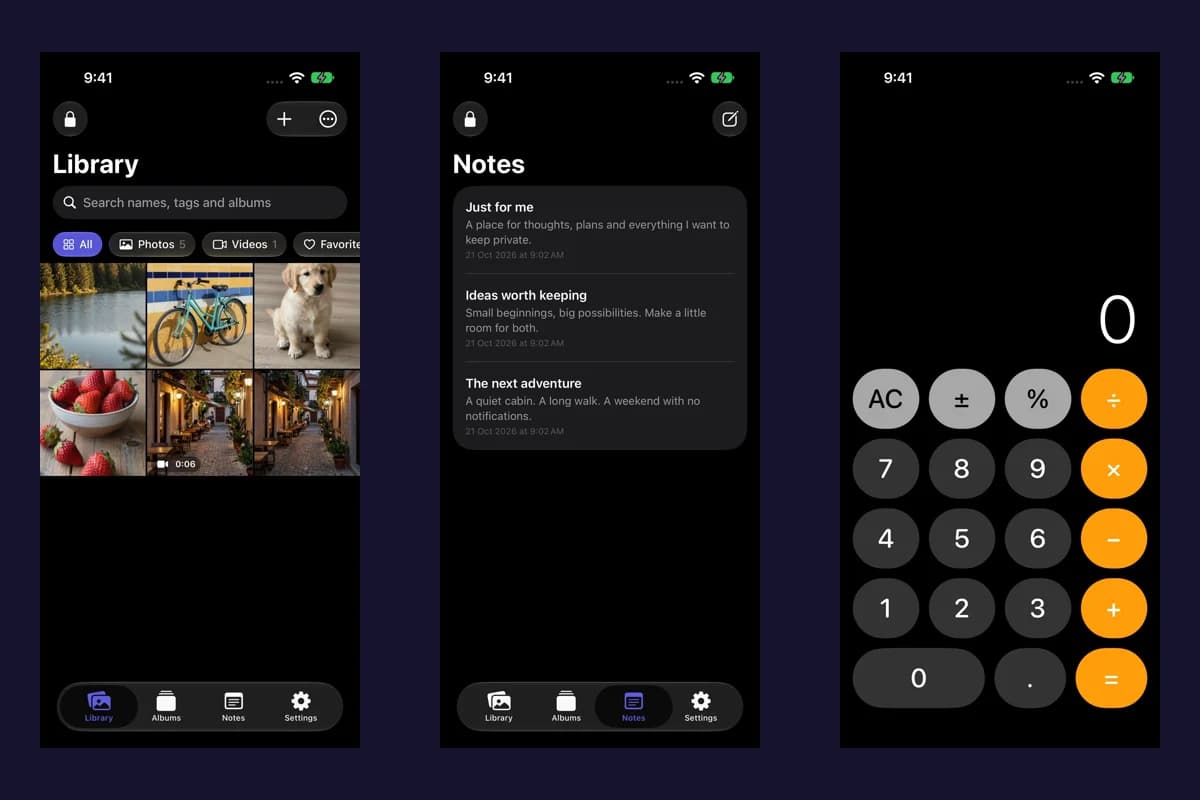
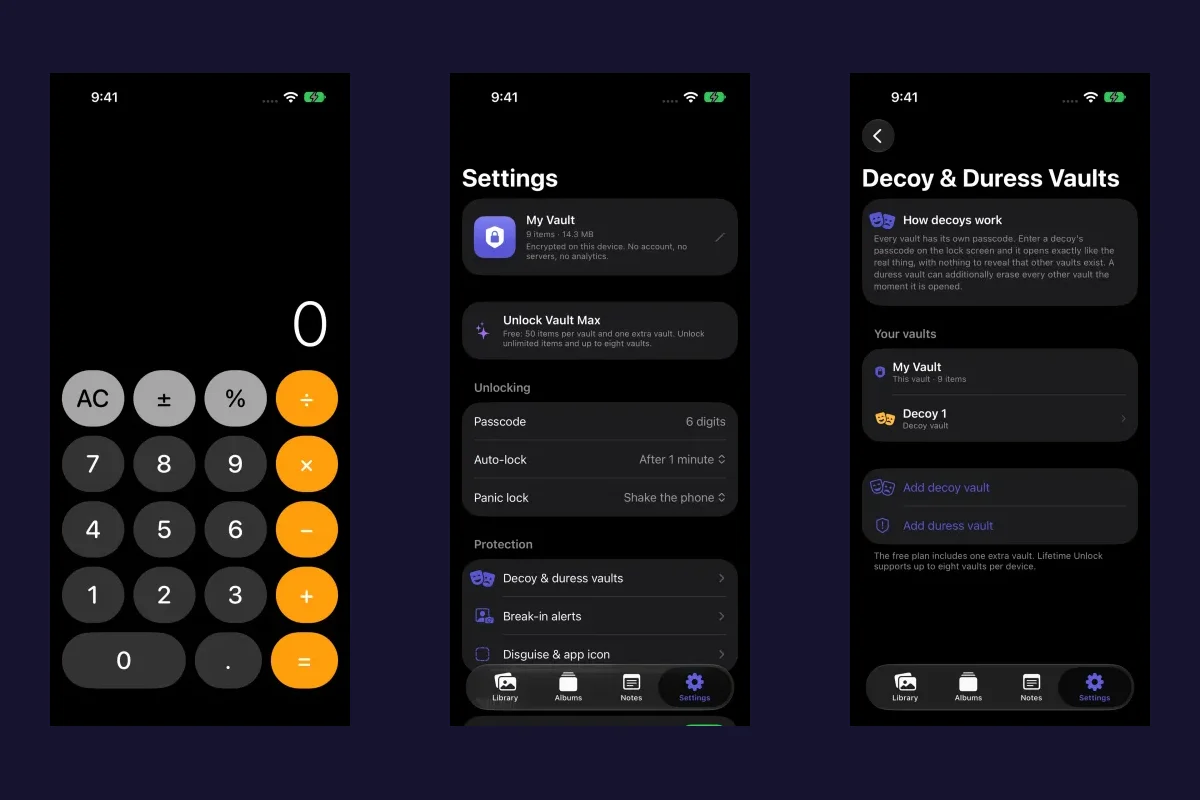
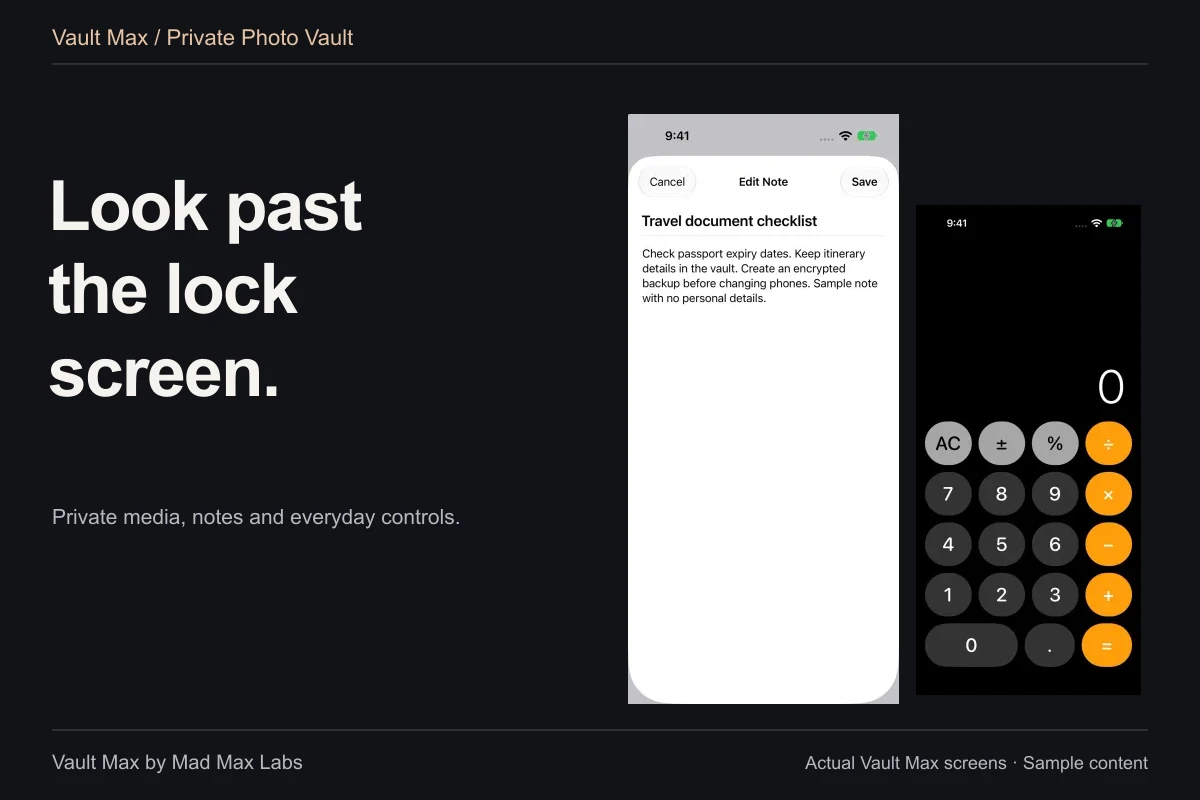
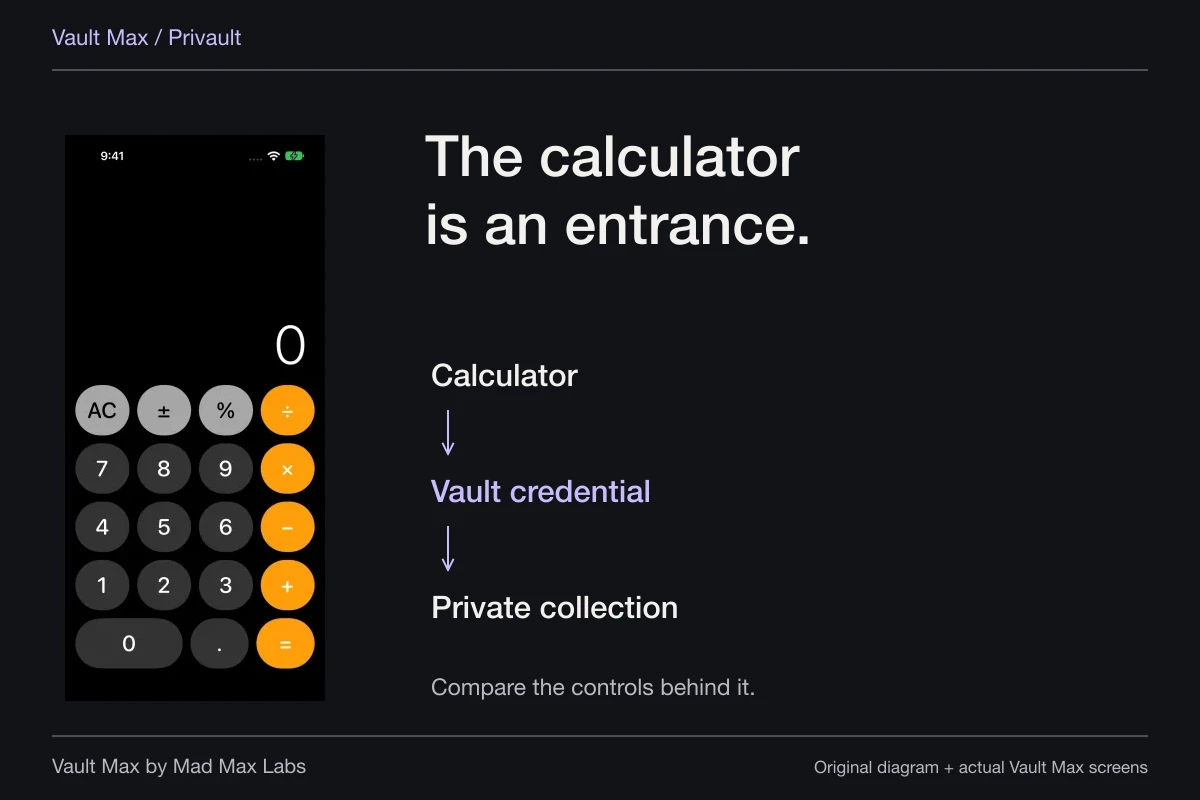
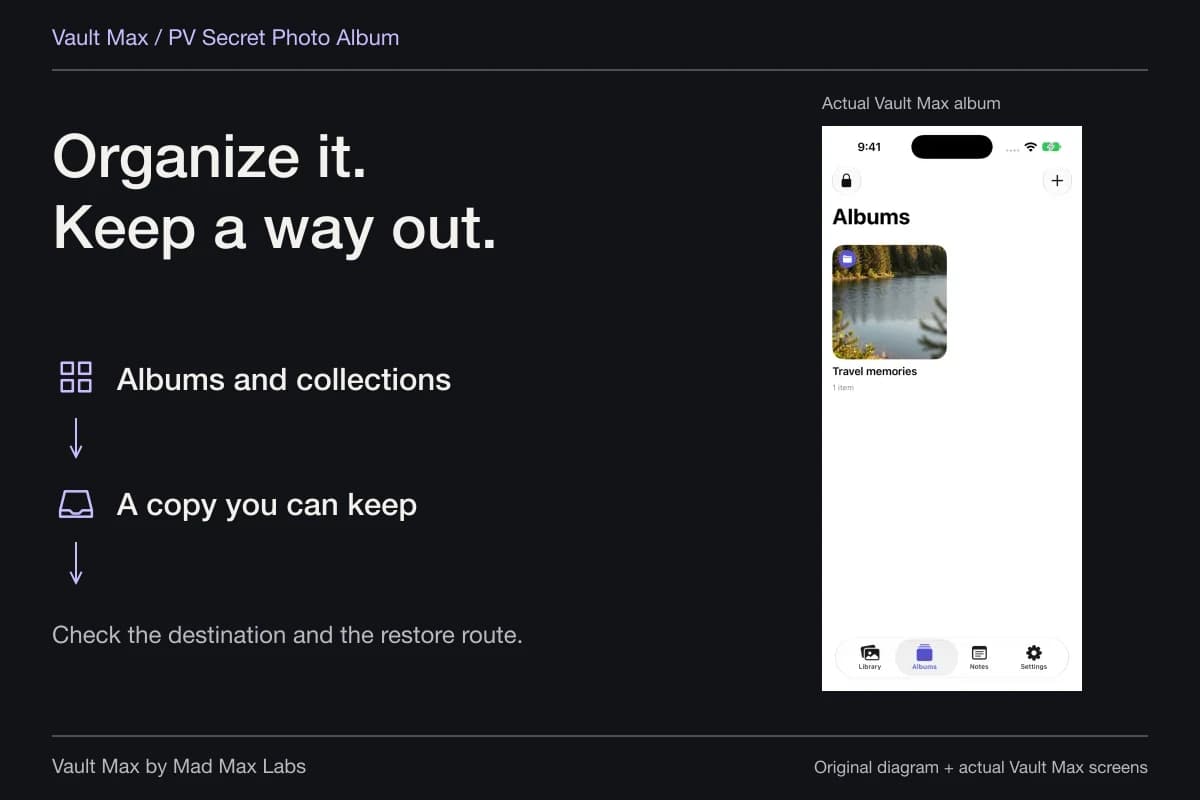
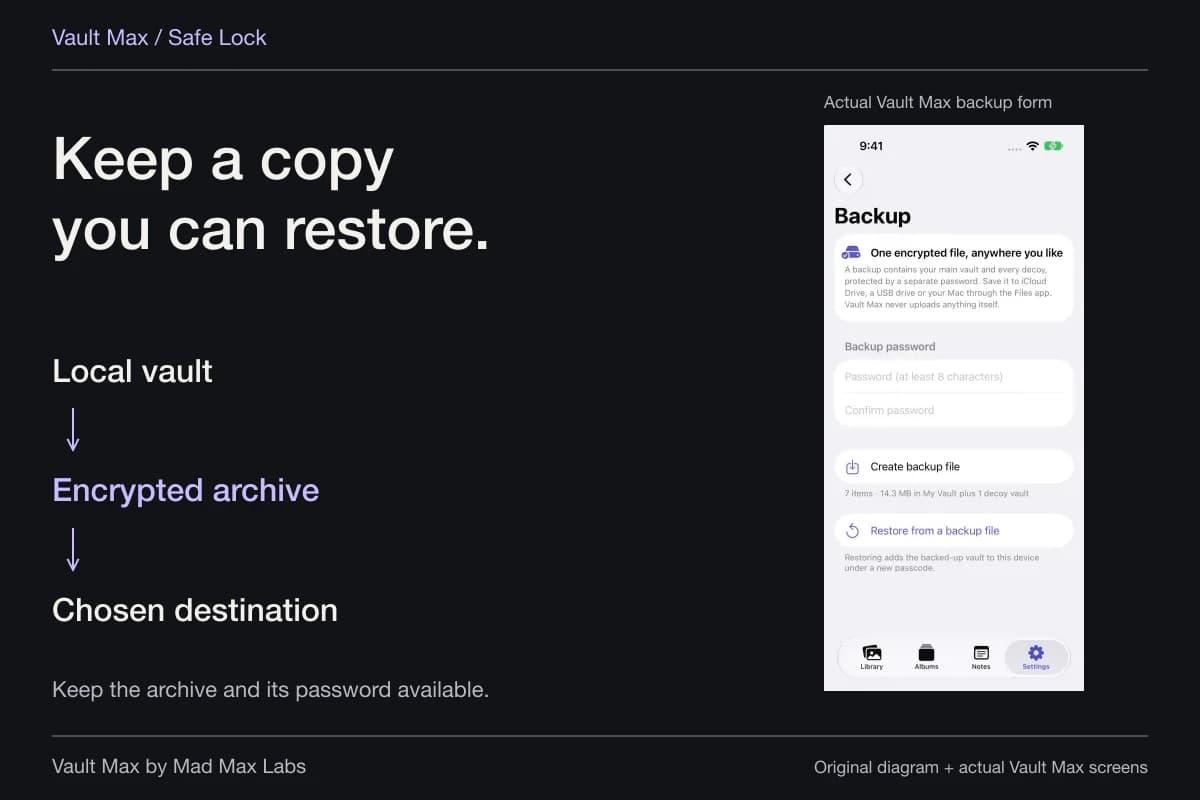
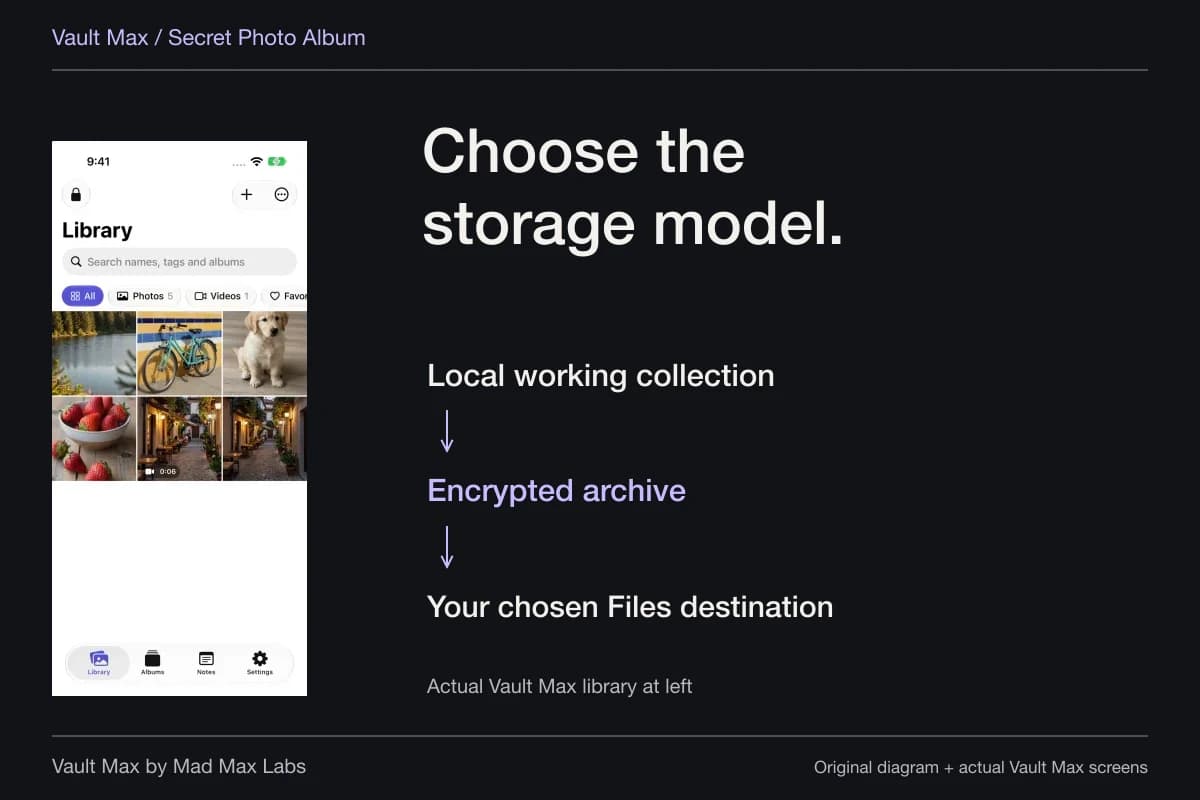
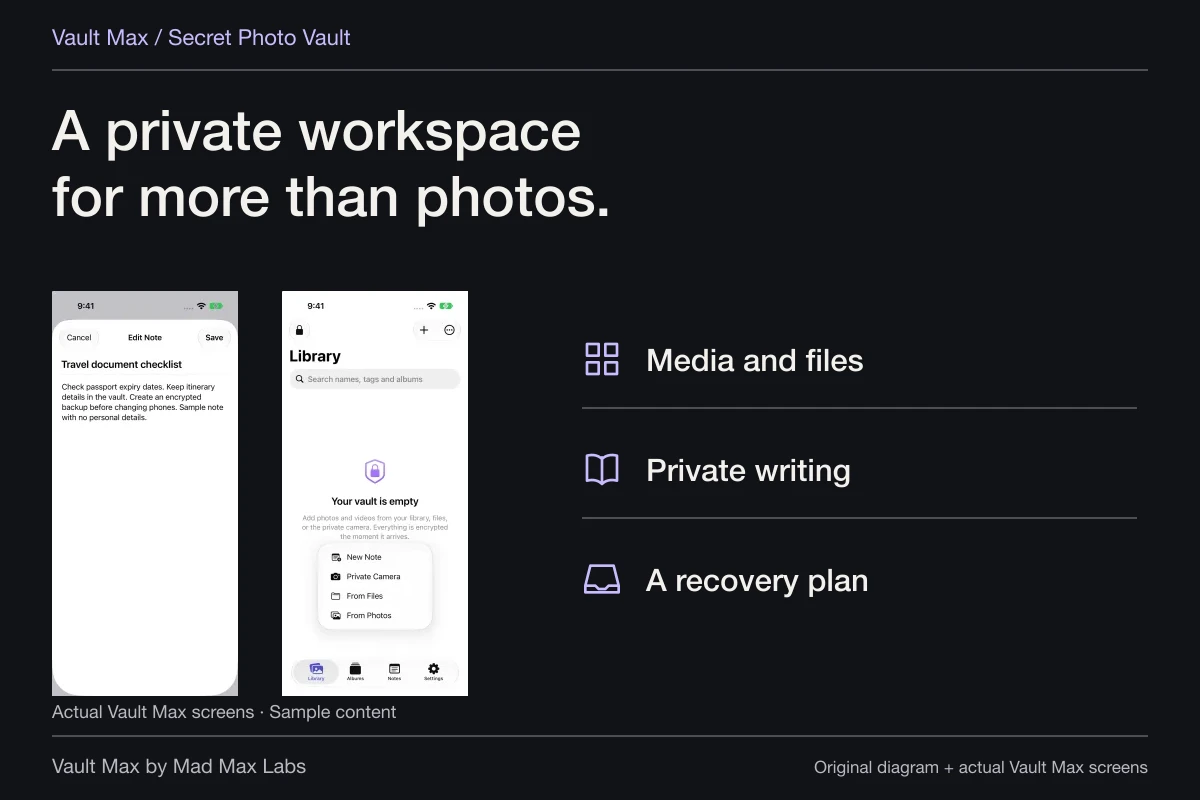
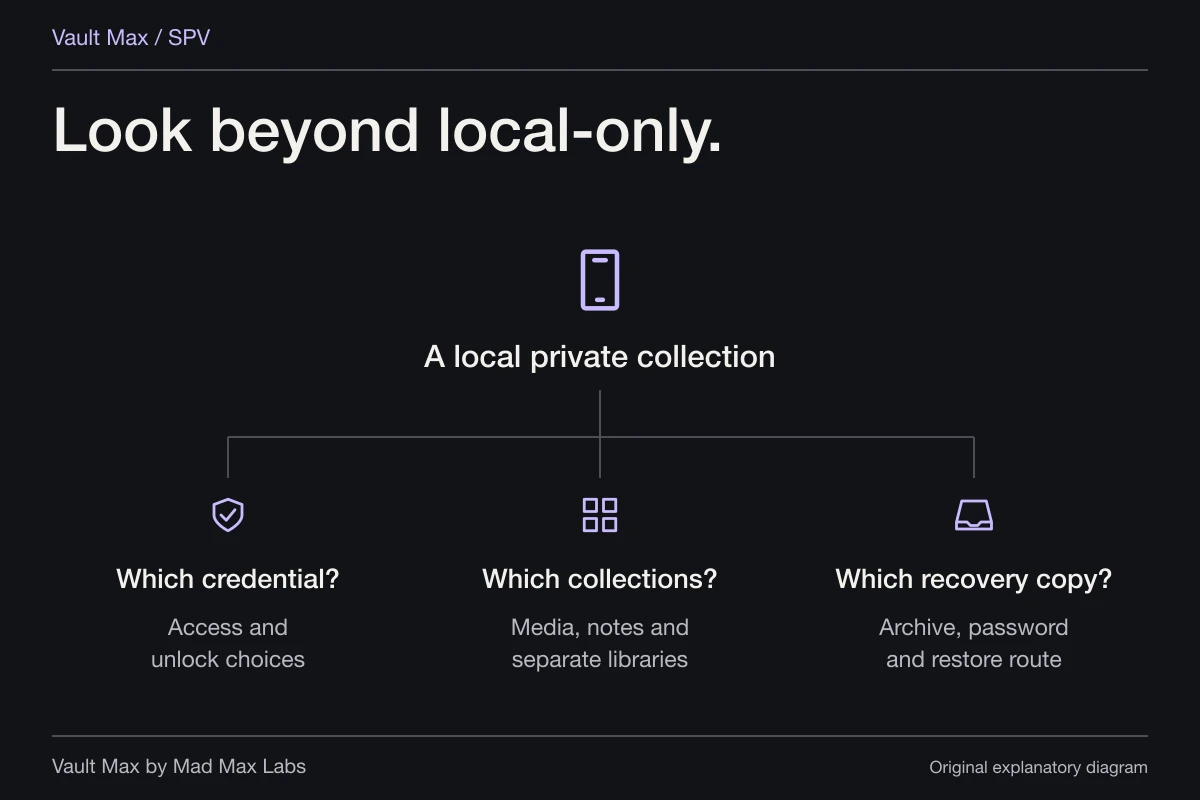
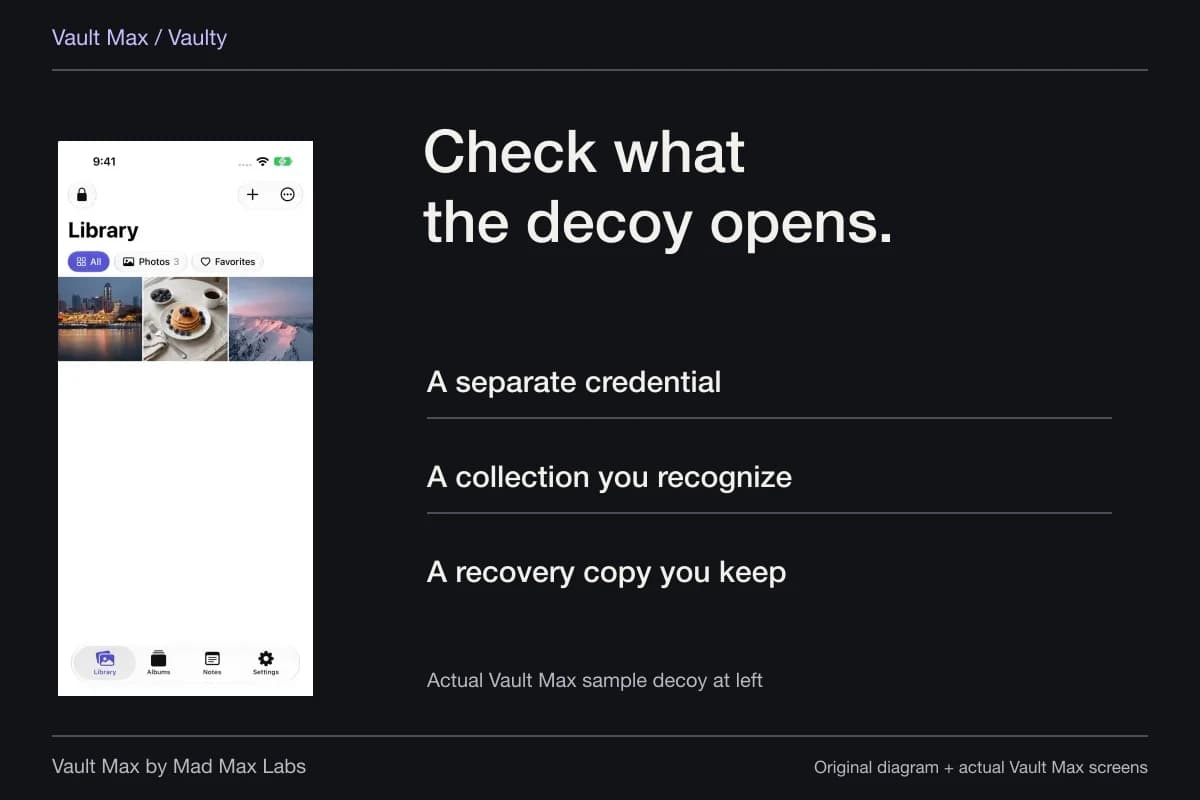
Vault Max can hold a separate encrypted collection behind its own credential. Importing from Photos adds a vault copy. It does not change the Delete behavior of the original Photos library, and retaining both copies can use additional device storage.
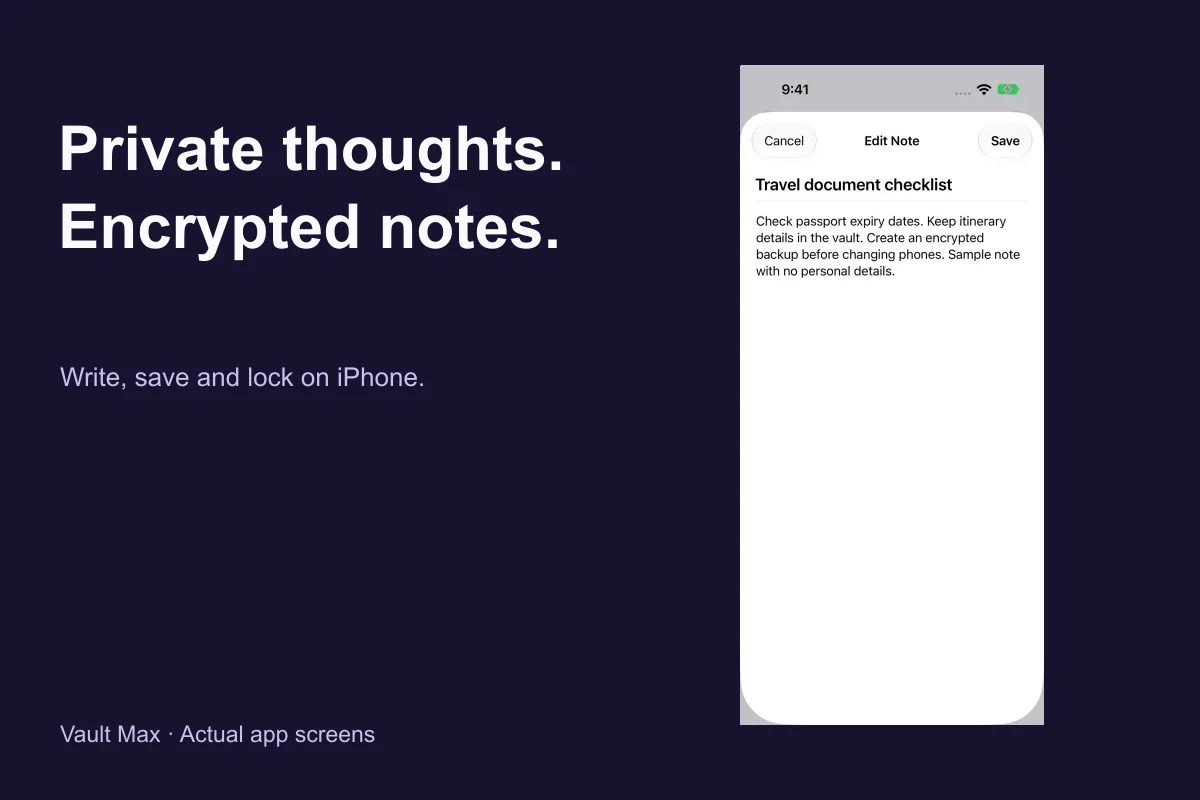
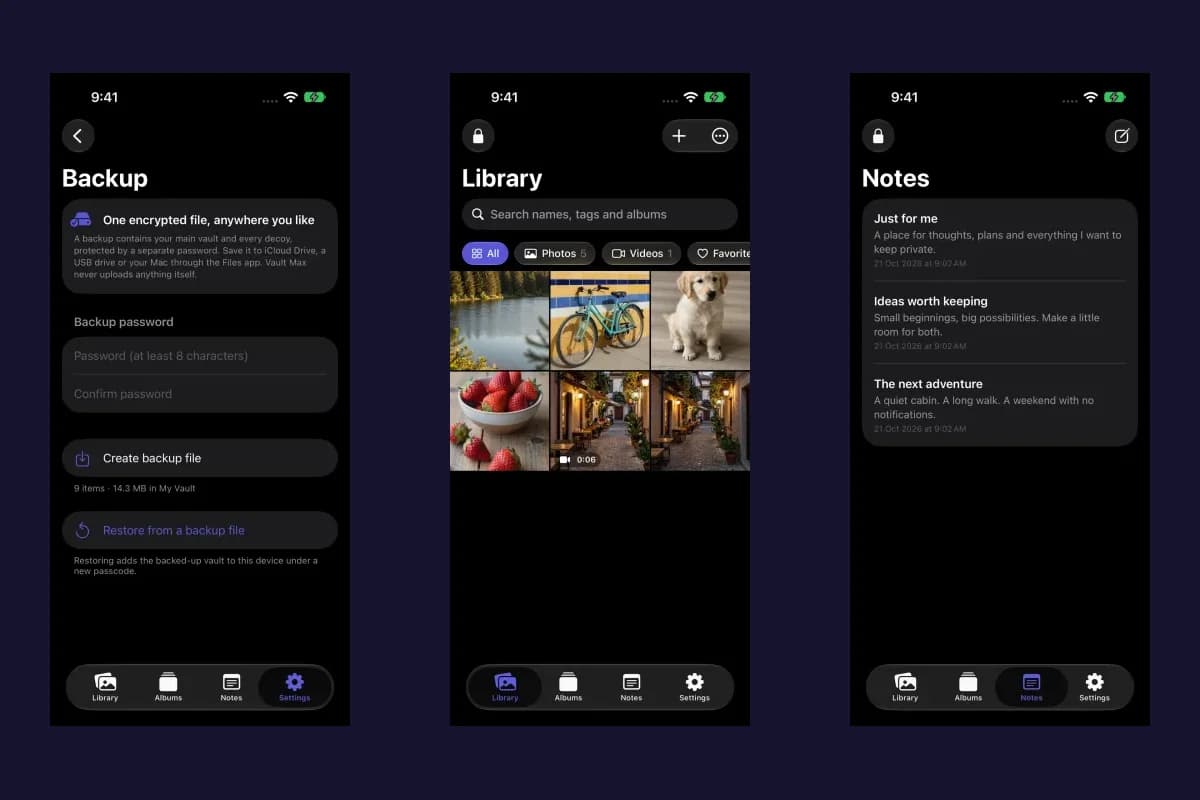
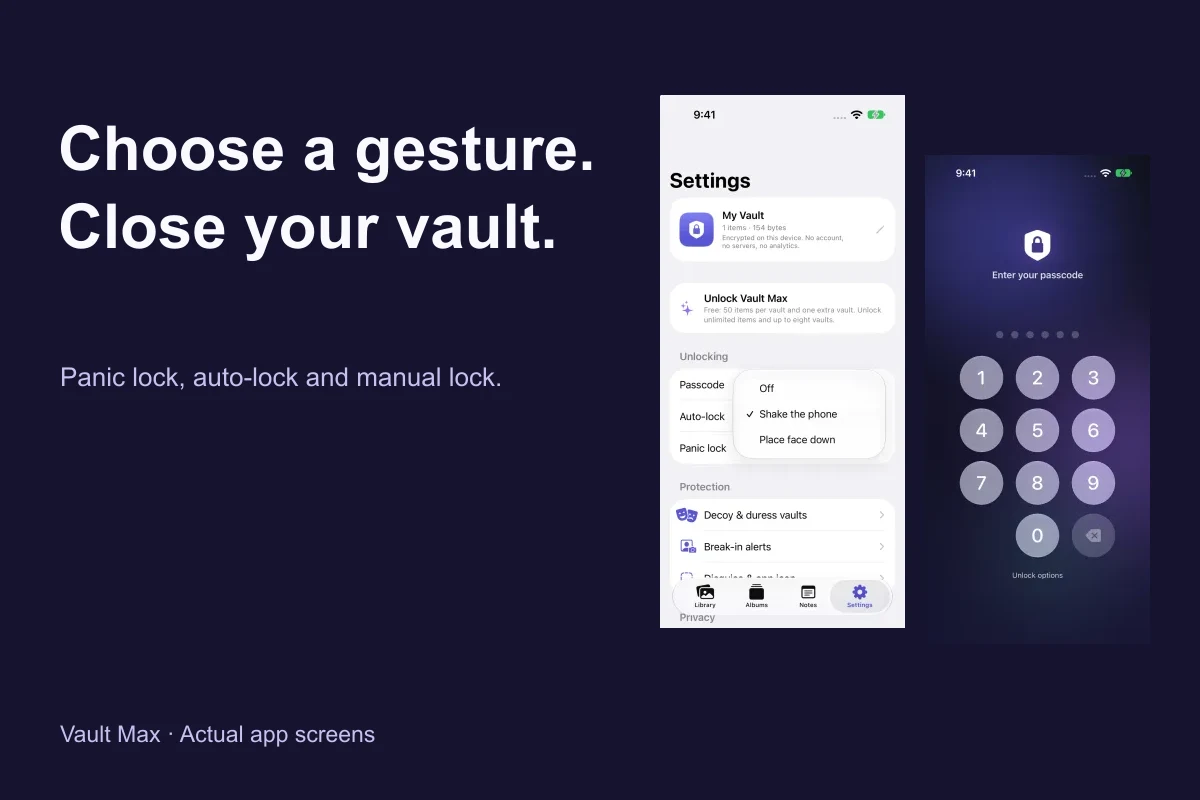
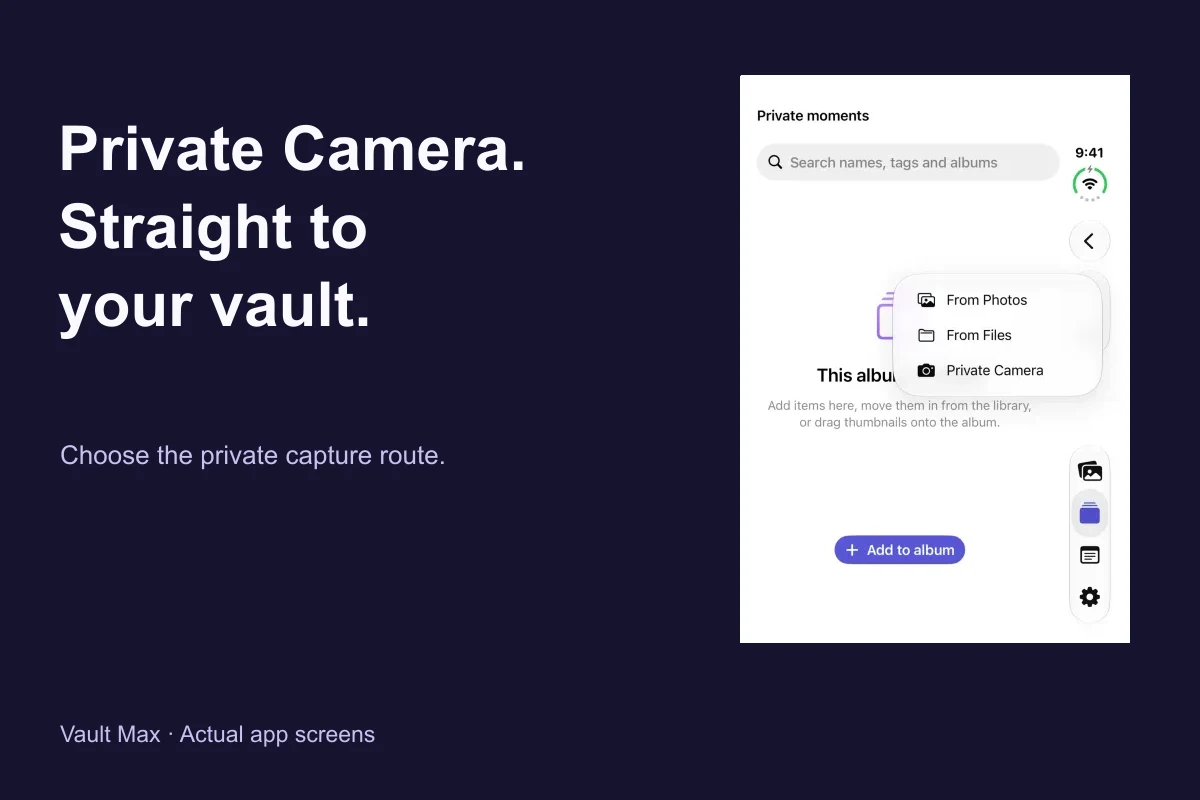
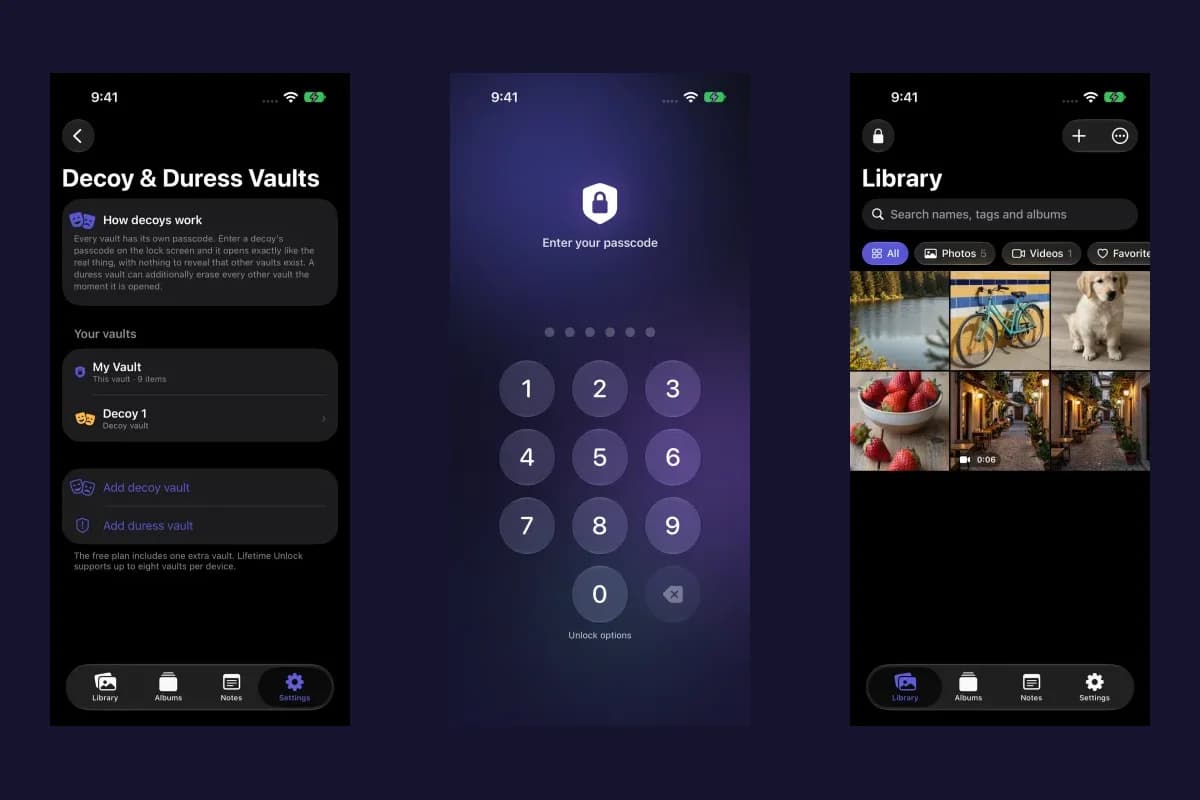
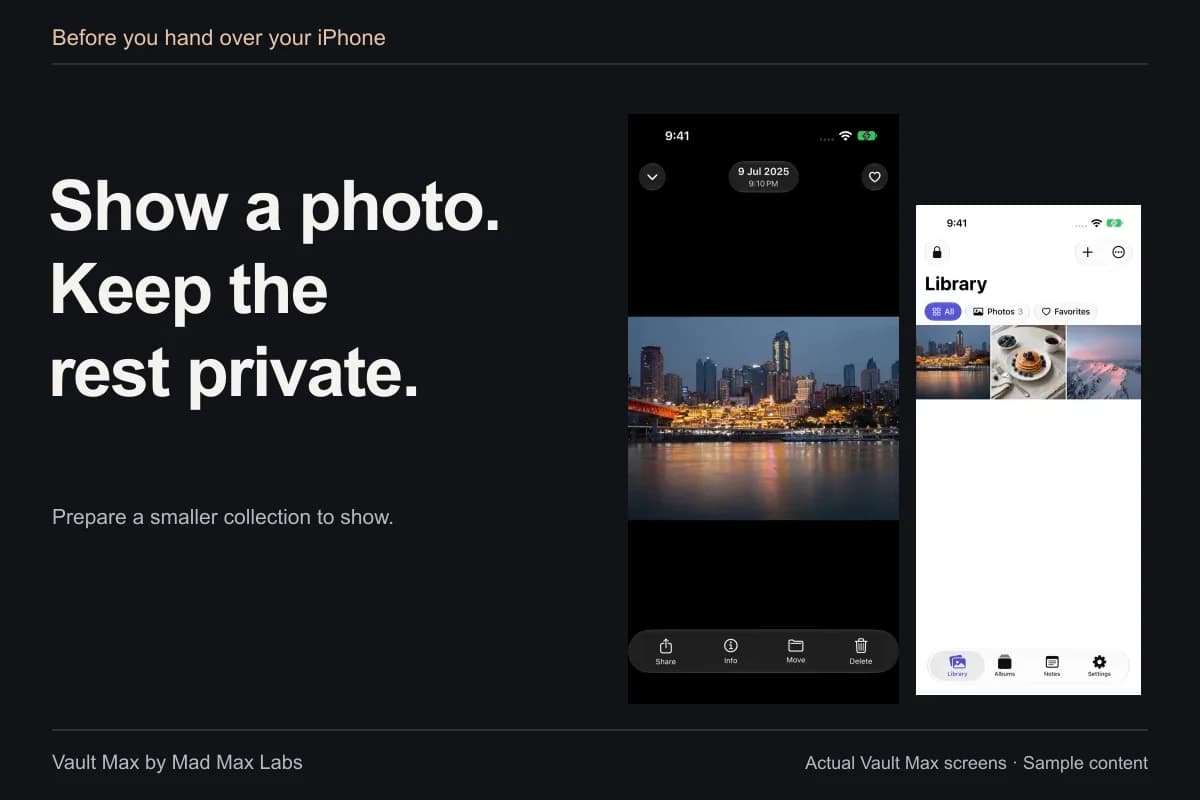
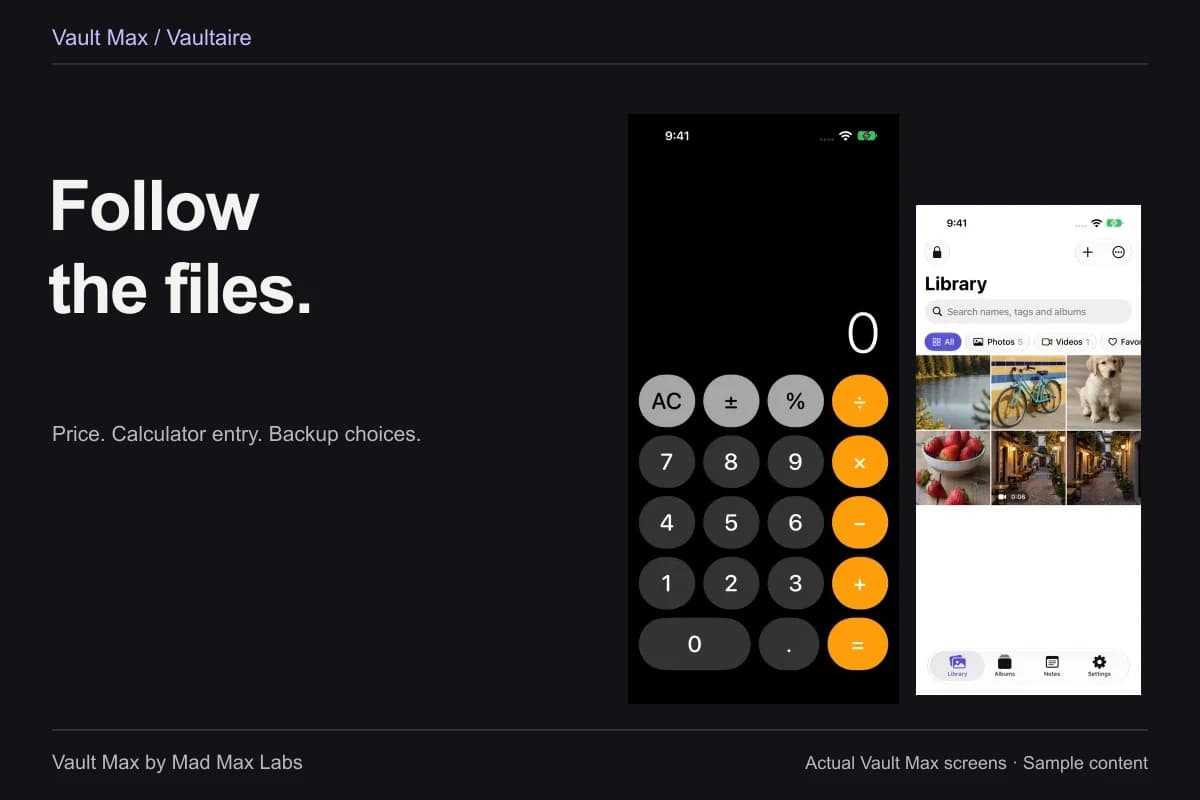
Sample Vault Max library. Select a screen for a closer look.
If privacy is your goal, inspect the import and original-copy workflow. If saving space is the goal, start with the storage controls that answer it. Neither a new vault nor a cloud subscription excuses skipping the question that matters: which copy will still exist after this action?
Before you proceed, state the intended result in one sentence. “Keep browsing with smaller local copies,” “disconnect this phone while retaining the cloud library,” and “erase the phone for sale” lead to different procedures. That sentence is a useful final check against the wording on the screen.
Continue reading
More guides
Practical tips for your private library. Swipe or scroll to choose your next guide.

50 guides to explore