
Privacy in practice
Hide or lock an iPhone app: choose the control that matches the job
Compare iPhone app hiding, app locking, Home Screen removal and Screen Time. Learn what stays visible and how a separate vault credential changes access.
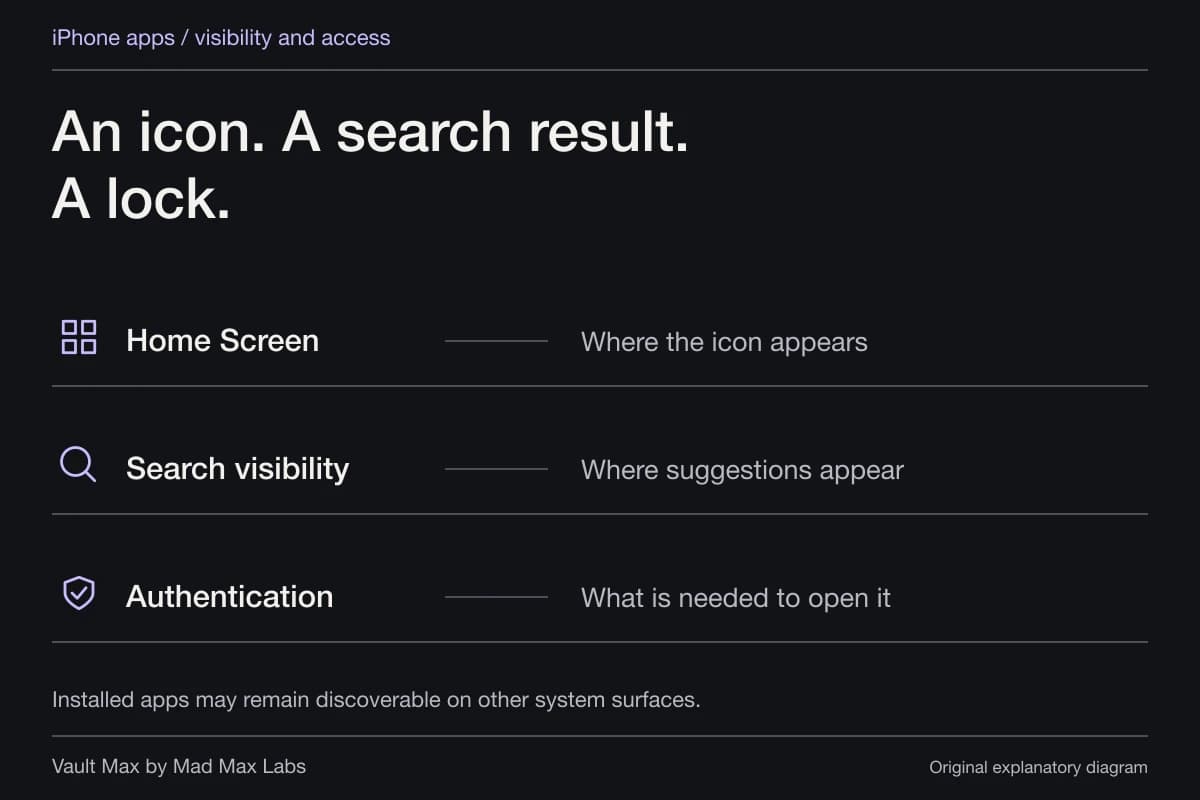
Use app locking when you want authentication before an app opens. Use hiding when you also want an eligible app removed from ordinary discovery surfaces. Removing its Home Screen shortcut or setting a Screen Time allowance does a different job.
Start with a concrete question. Do you want a tidier Home Screen, fewer search results, another authentication step, or a private collection with a credential separate from the phone? Matching the control to that question saves you from configuring an elaborate workaround that never addresses the access you meant to change.
- Home Screen
- Where the icon appearsRemoving a Home Screen icon does not uninstall the app.
- Search visibility
- Where the app or content is suggestedReview the system’s app-specific search and suggestion controls.
- OS authentication
- What is required to open itSupported app locking and hiding controls have their own authentication rules.
An installed app may remain discoverable through Settings, Screen Time or purchase history, depending on the surface and its rules.
A missing icon is not an access test
An app can leave the Home Screen without leaving the phone. Apple's App Library guidance explains that apps can live in App Library even when they are no longer on a Home Screen page.
That arrangement is useful for organization. It does not, by itself, mean the app demands a new credential. If a shortcut disappeared after you reorganized a screen, check App Library before deleting and reinstalling anything. Reinstalling a local-data app can introduce an avoidable recovery problem.
For an access check, try the opening route you expect someone to use. An absent shortcut only answers a question about that shortcut. The Search and widgets guide covers other places where an original or app-held copy might appear.
Use the system lock deliberately
Apple's current lock-and-hide instructions start with holding an app icon and choosing Require Face ID, Touch ID or Passcode, depending on the device. Available choices depend on the app and system configuration.
Before relying on the change, open the app, finish the ordinary task and leave it. Return through the same route and check that authentication is required. Then locate the control for removing the requirement. Knowing how to undo a configuration is part of knowing how to use it.
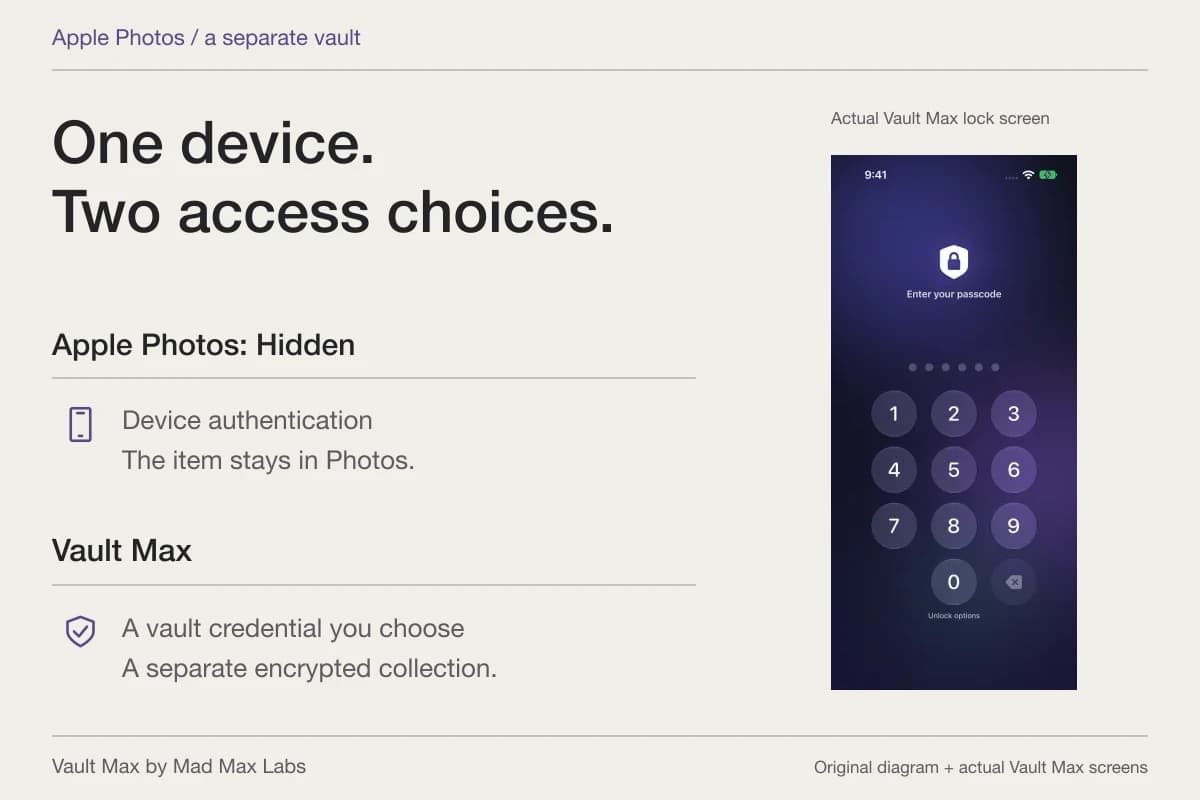
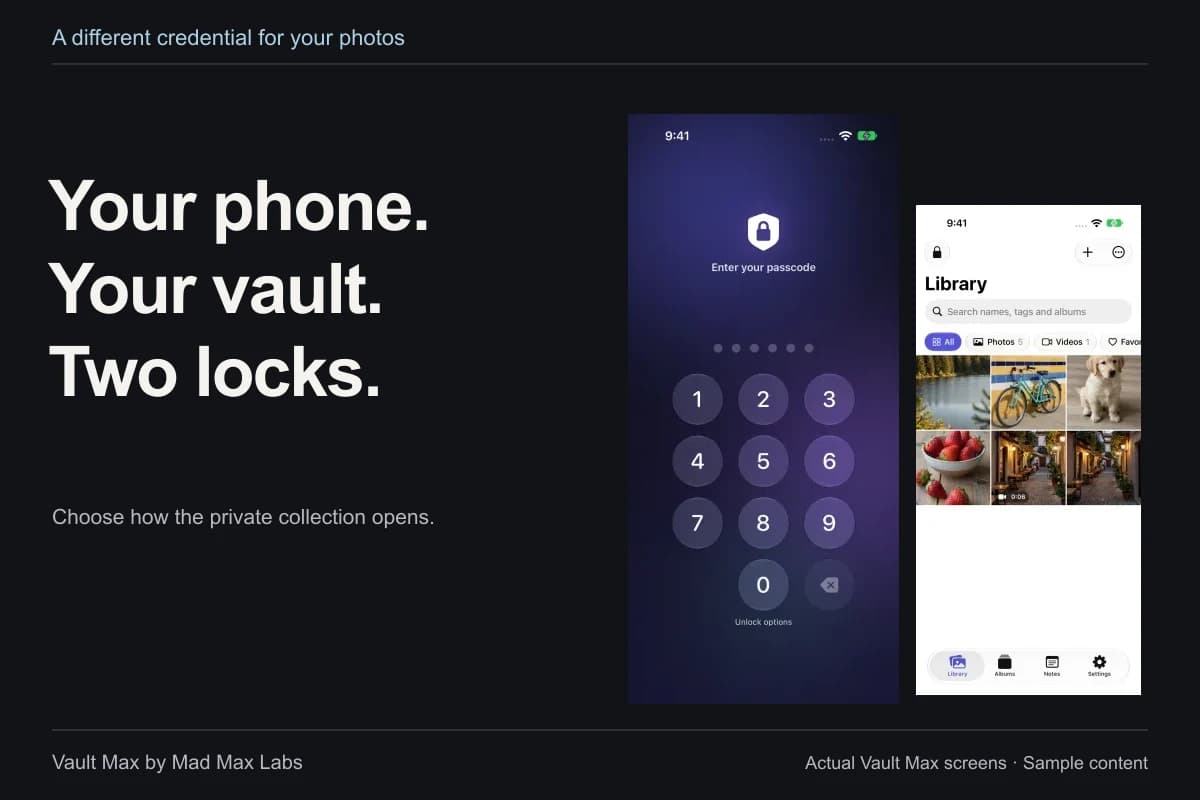
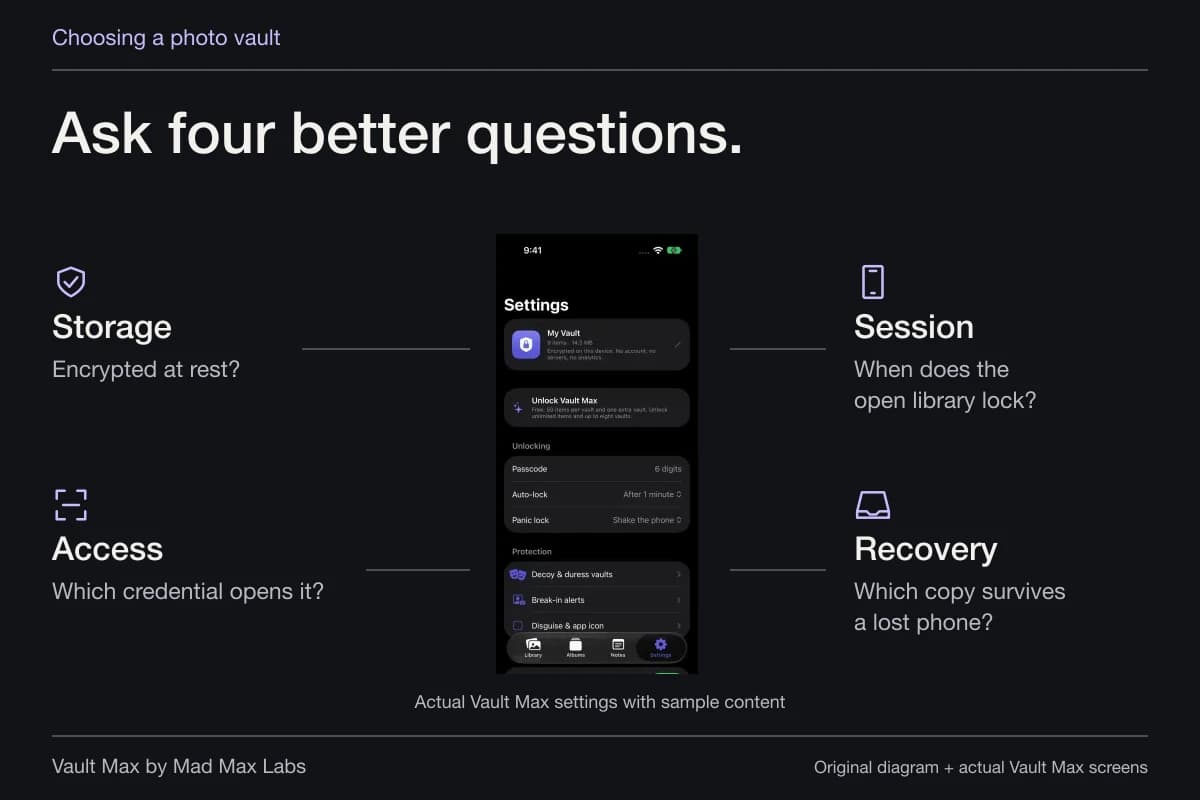
The system credential is still a central part of this arrangement. A separate vault credential can be useful when you want a different secret for selected content. Consider that distinction before assuming an app-lock prompt necessarily creates a password independent of the phone.
Hiding adds a visibility change
For eligible downloaded apps, Apple's hide option moves the app into an authenticated Hidden folder in App Library. It is different from putting an ordinary icon inside a folder with a vague name.
Apple's personal-safety explanation says the app can remain visible elsewhere on the phone. It also describes family-management limits: a teenager's parent or guardian may still see the download and usage through the family setup. Hiding on one device does not silently configure every device on the account.
Treat those limits as part of the feature. Do not use a hidden icon as proof that an installation is undetectable, or promise someone that their family or account-management screens have changed. For a borrowed phone, decide which ordinary opening routes and visible content need attention, then inspect those routes directly.
Screen Time manages use, rather than encrypting a collection
Screen Time can set schedules, allowances and content restrictions. Apple's current Time Allowances guide describes controlling how long categories and apps can be used. Older versions can use labels such as App Limits or Downtime.
Those controls are useful for a different reason from a vault lock. A time allowance describes permitted use; it does not tell you how a photo file is encrypted, which backup contains it or what happens after an intentional export. A Screen Time passcode and the app's own credential also have different recovery arrangements.
Avoid building your privacy routine around a timed shortcut you do not understand. Start with the supported app-lock control when access is the actual goal. Use Screen Time for the scheduling or management job you intend it to do.
| Your goal | Control to inspect | A separate question |
|---|---|---|
| Remove a shortcut from the Home Screen | Home Screen / App Library organization | Can the installed app still open elsewhere? |
| Require authentication before opening | System app lock, where supported | Which device credential can satisfy it? |
| Hide an eligible app from ordinary discovery | Hide and Require authentication | Which account/system surfaces still list it? |
| Manage time or permitted features | Screen Time allowances and restrictions | How is the app's own data protected? |
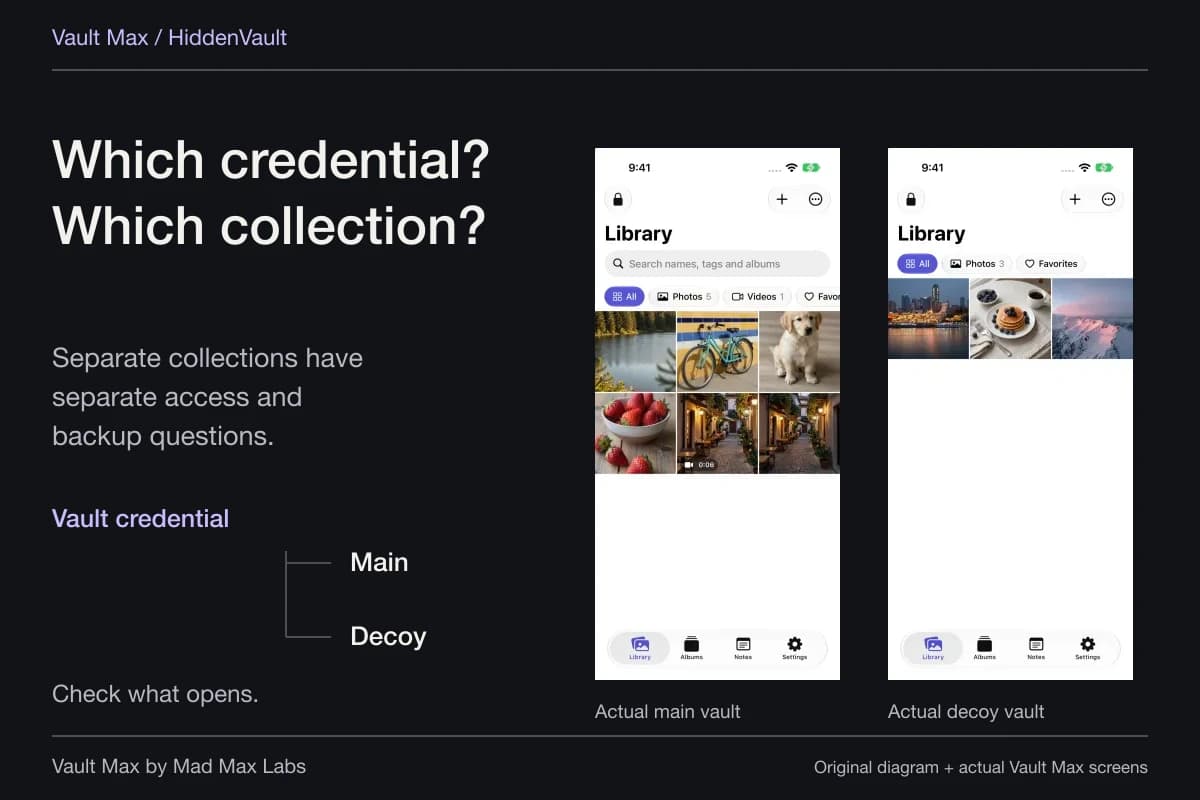
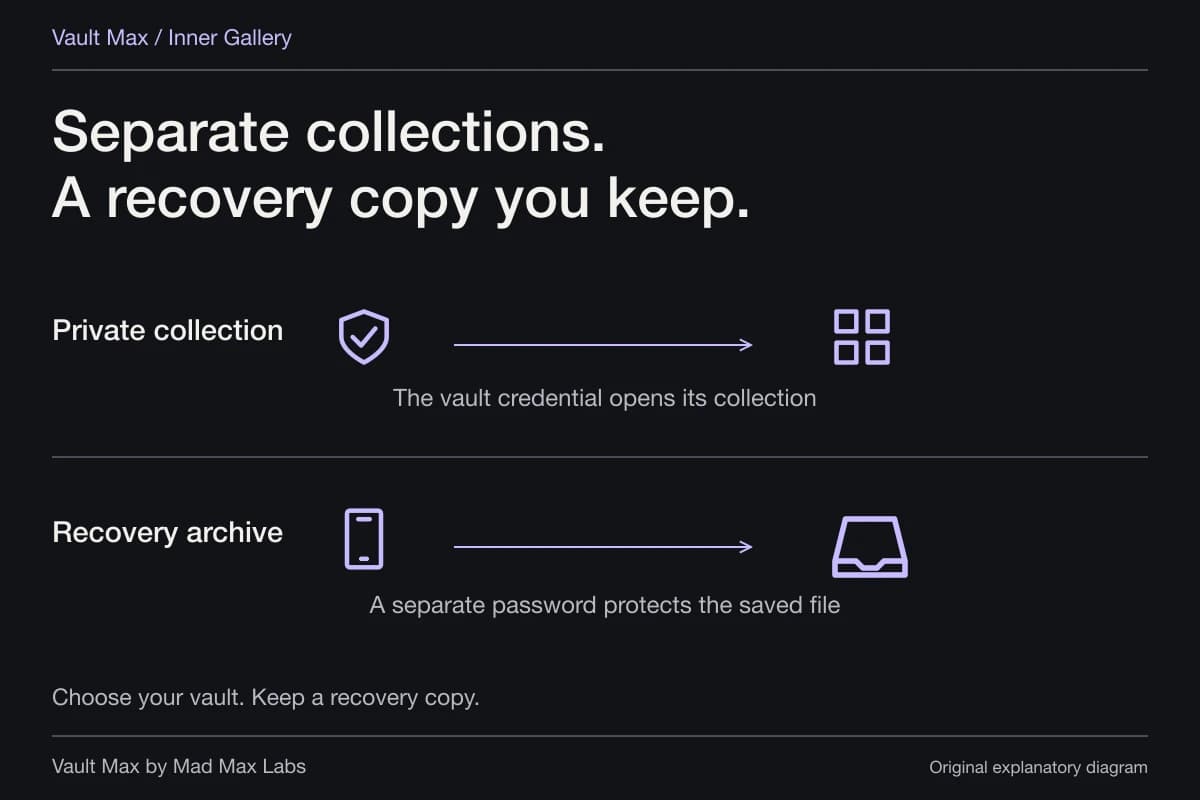
| Use a distinct secret for selected private files | A separate vault credential | Where are the originals and usable backups? |
Where the calculator entrance fits
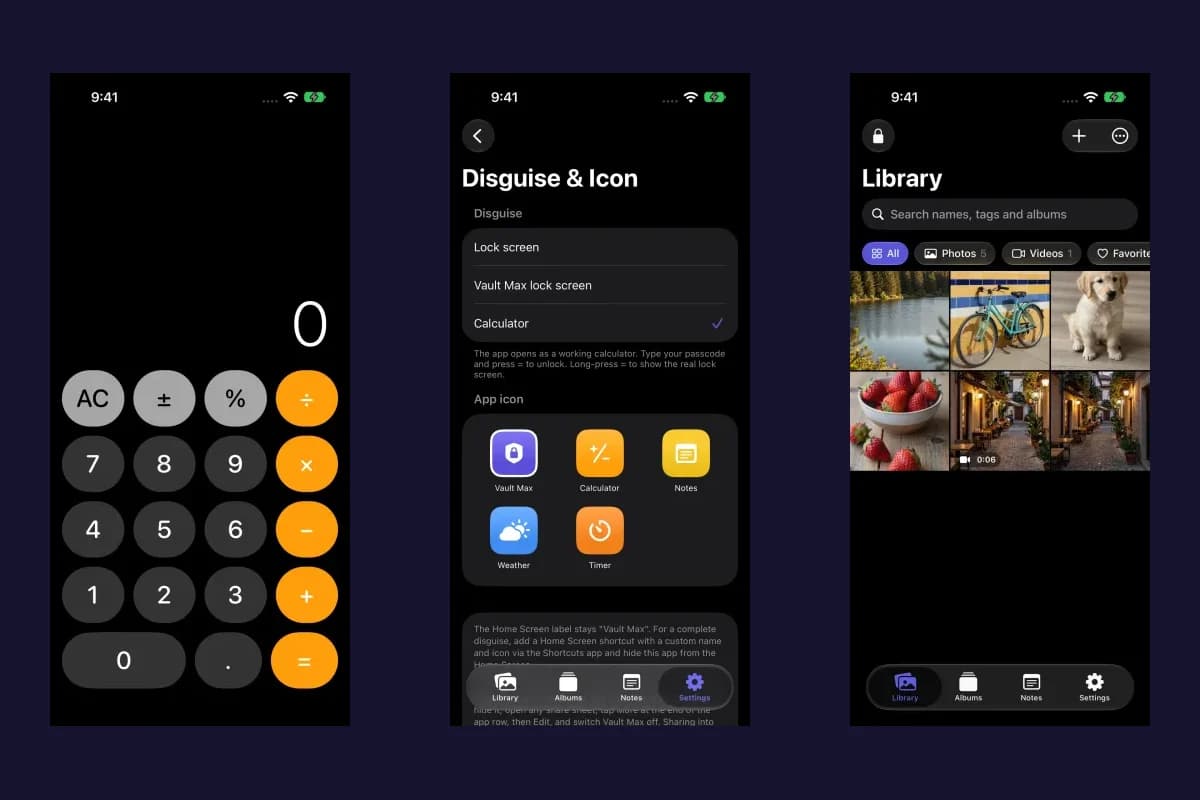
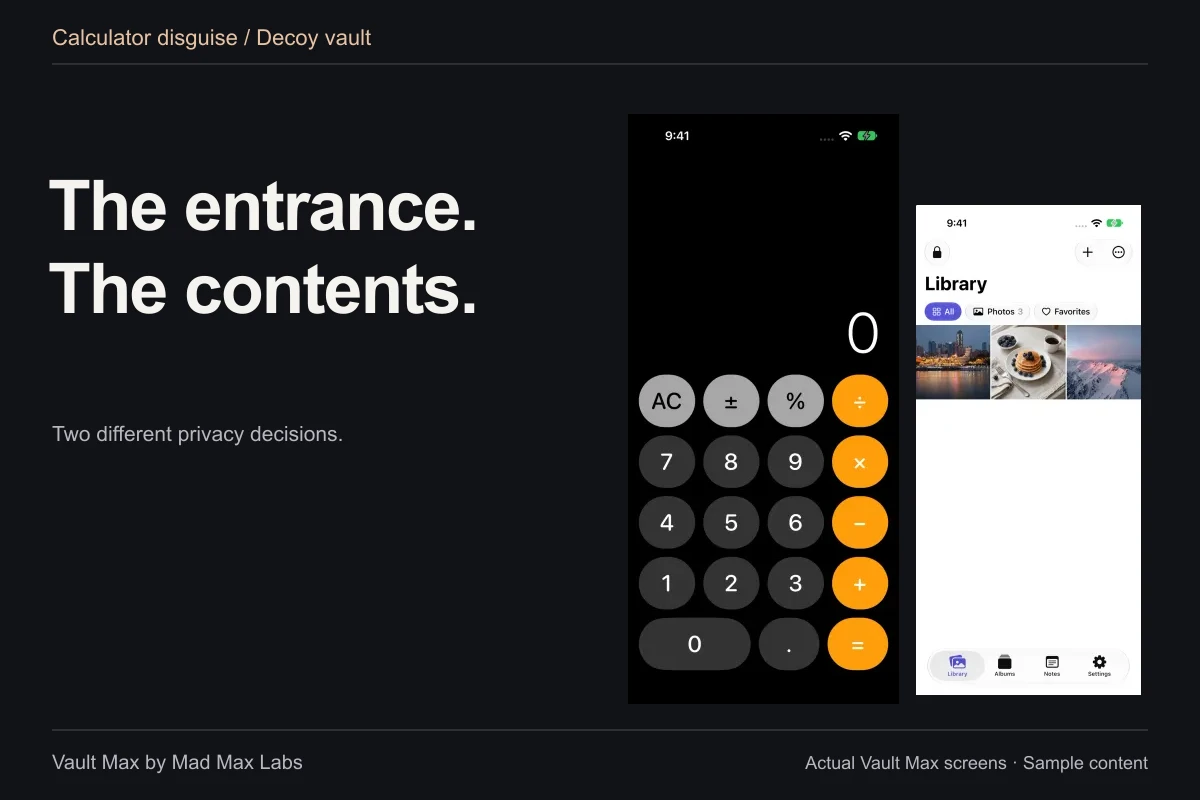
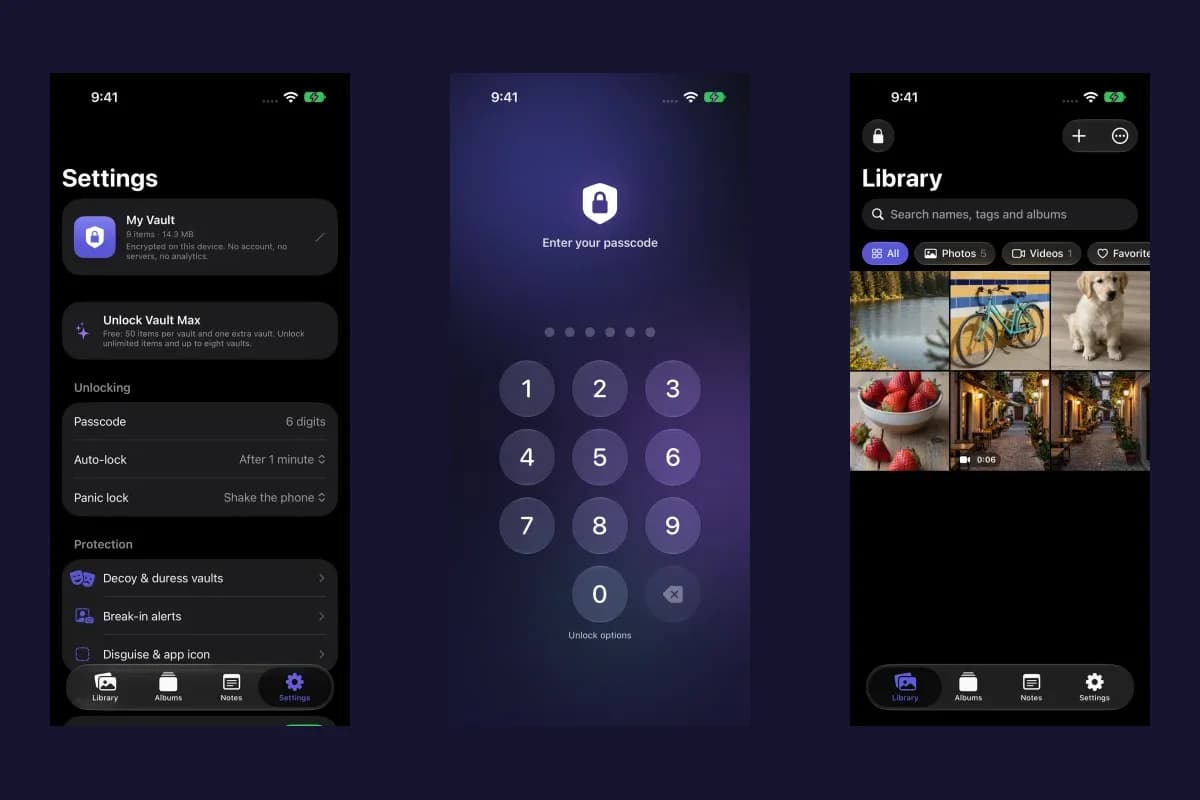
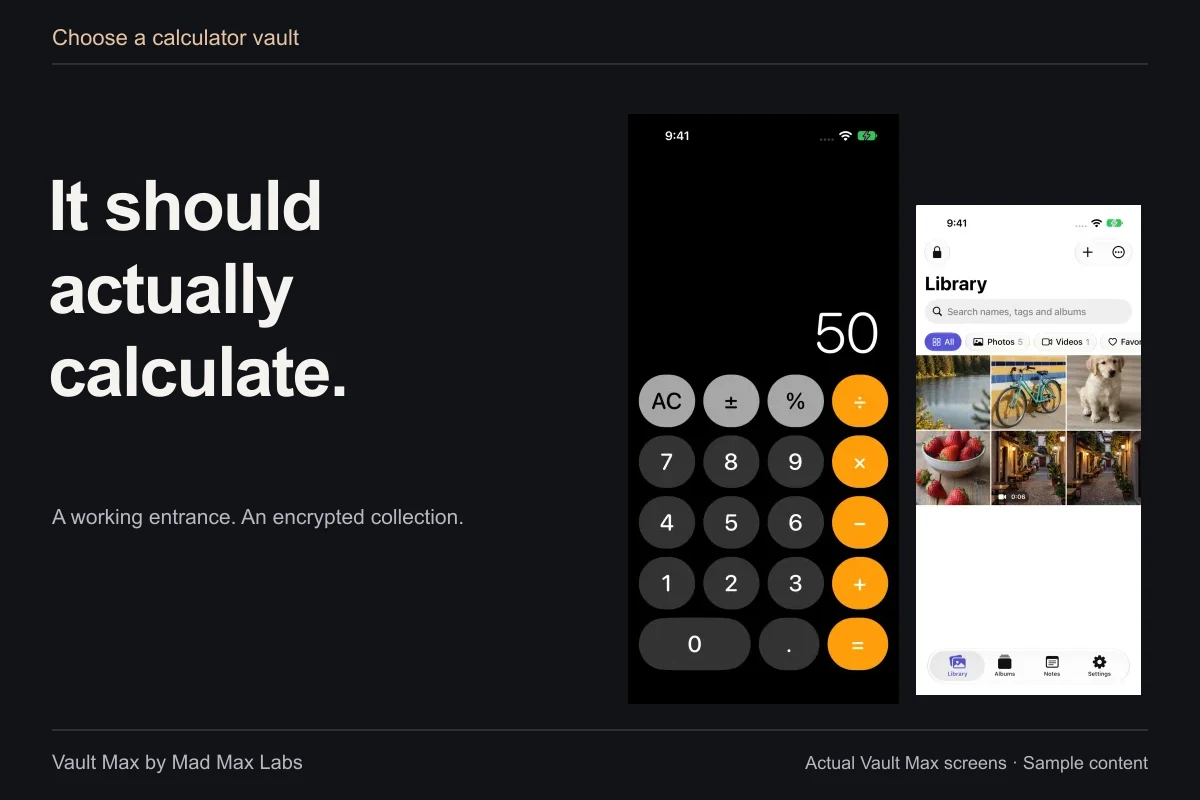
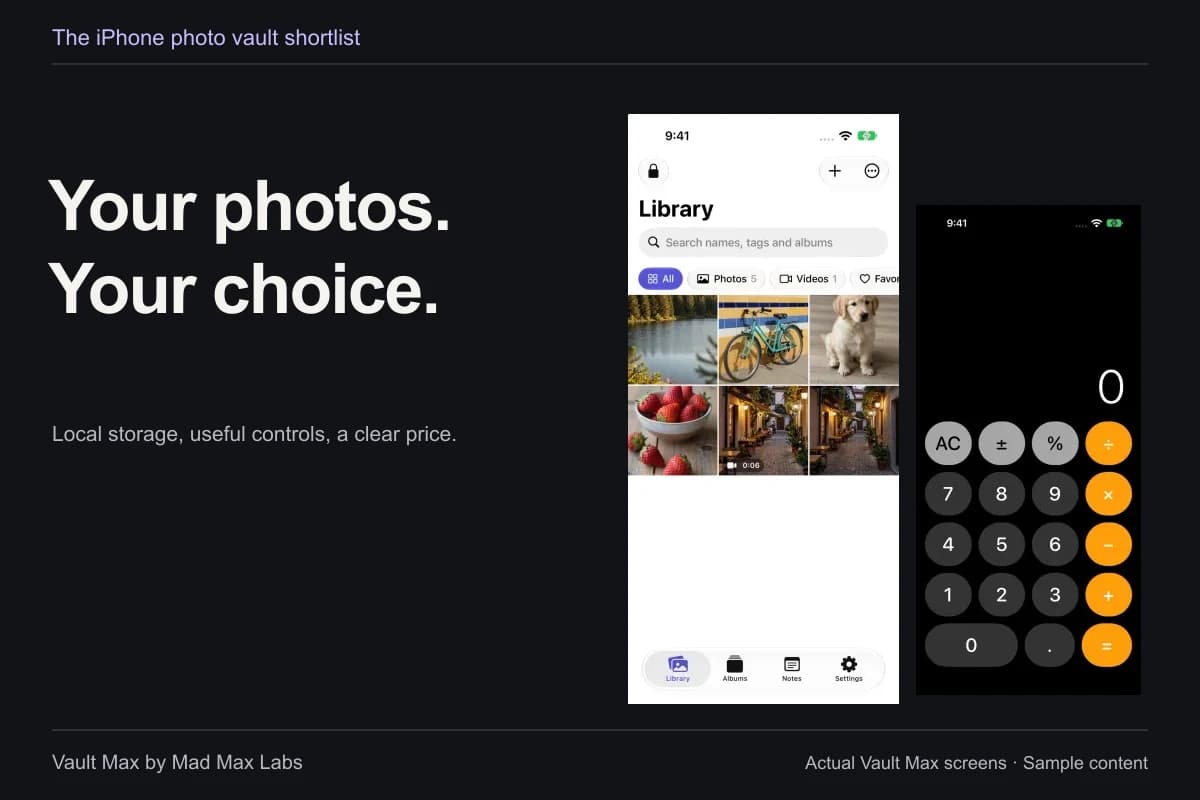
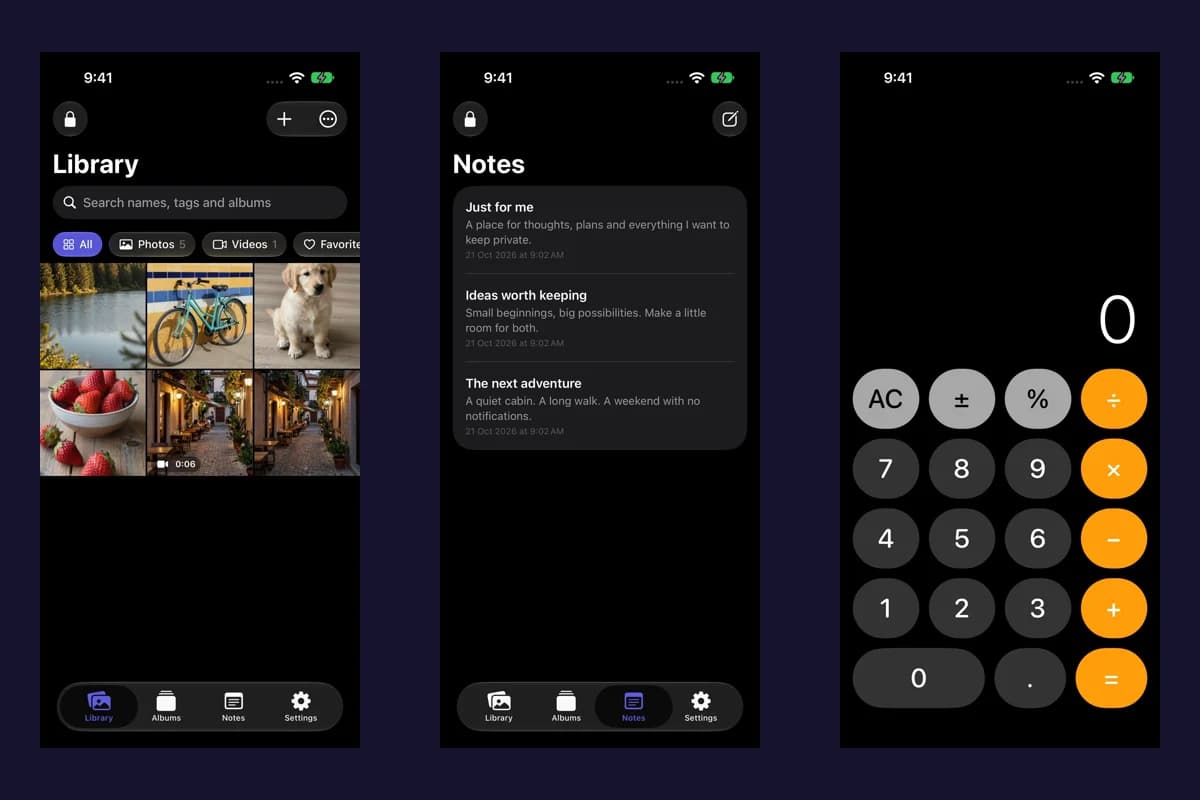
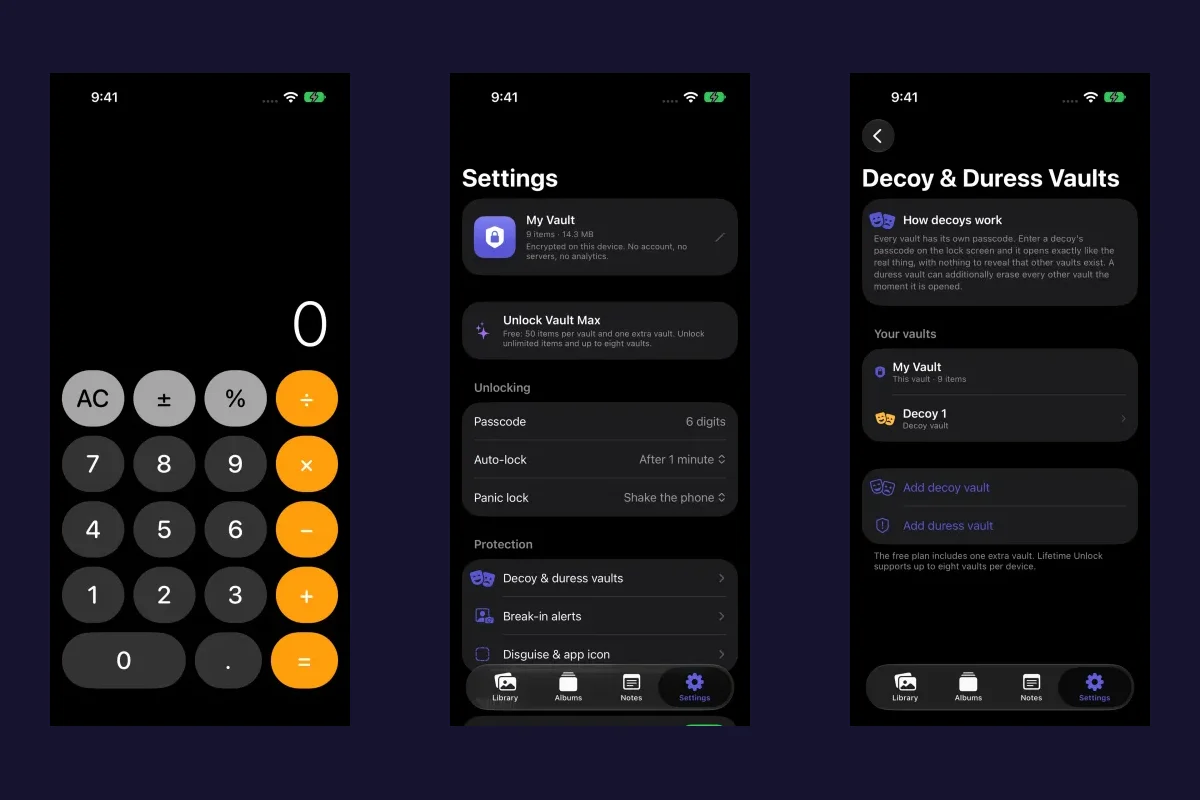
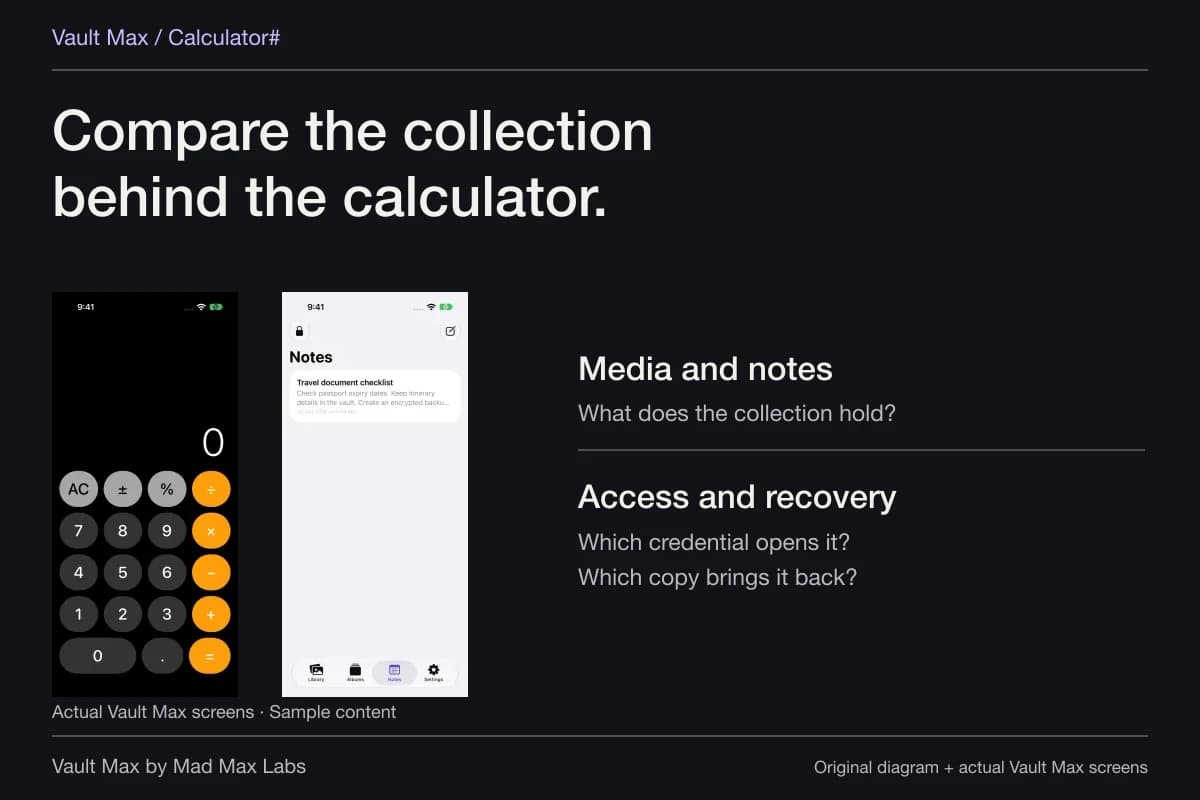
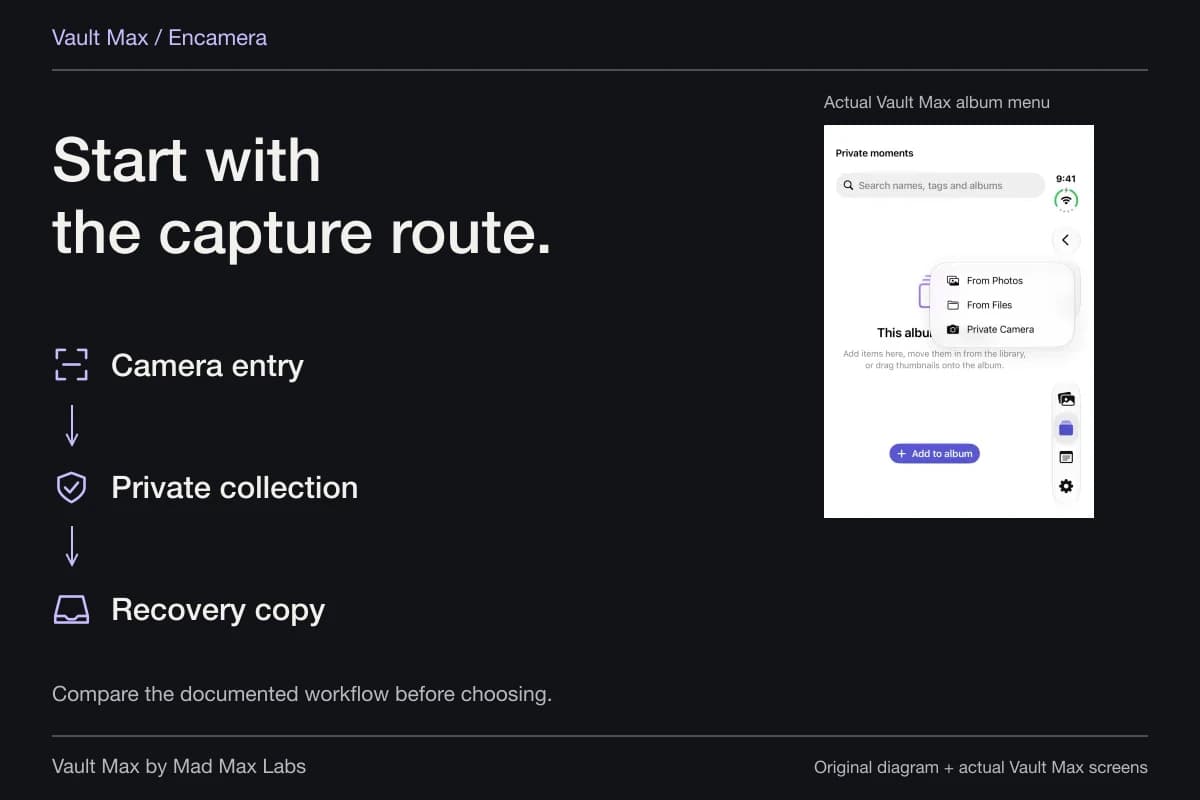
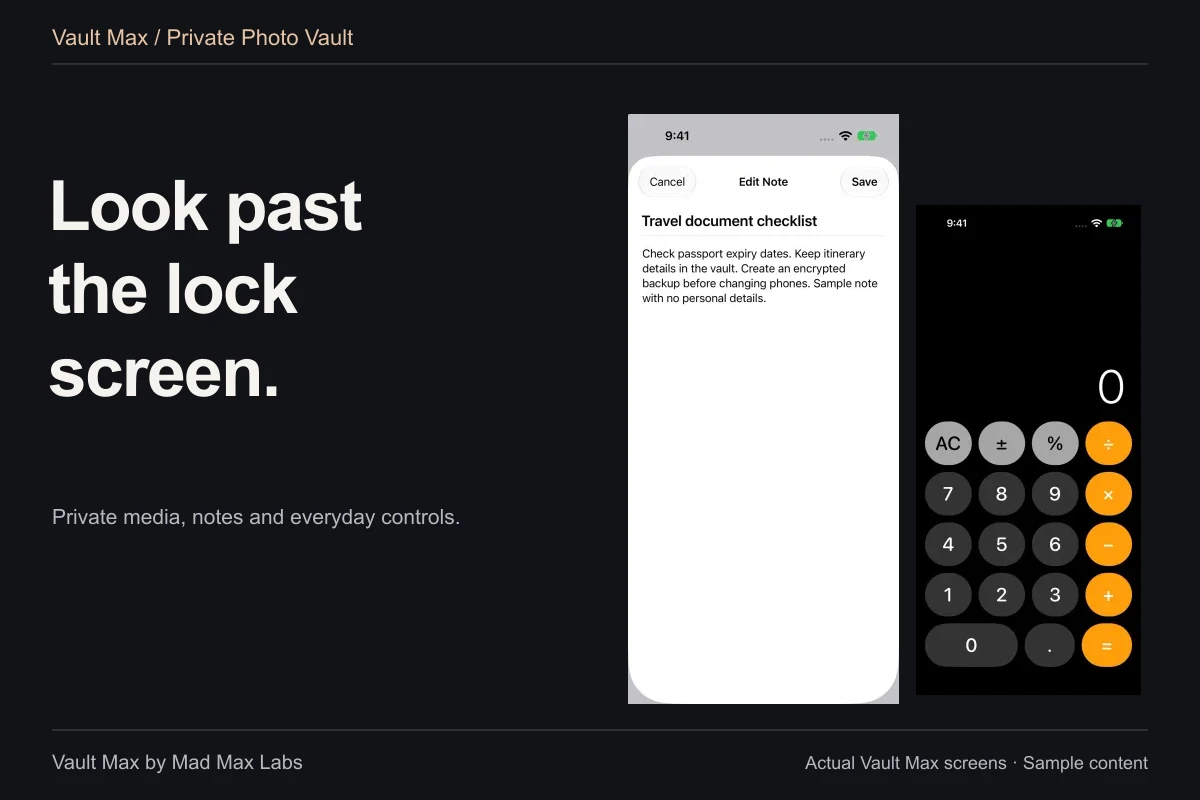
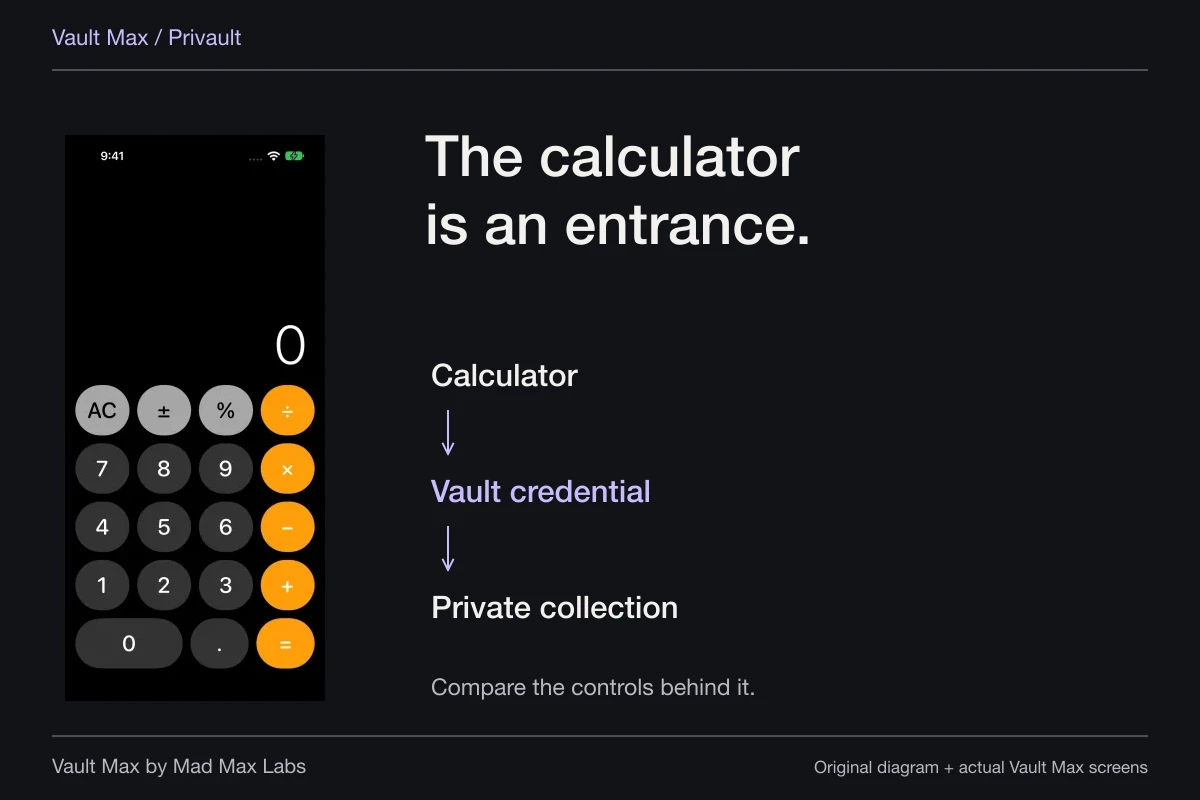
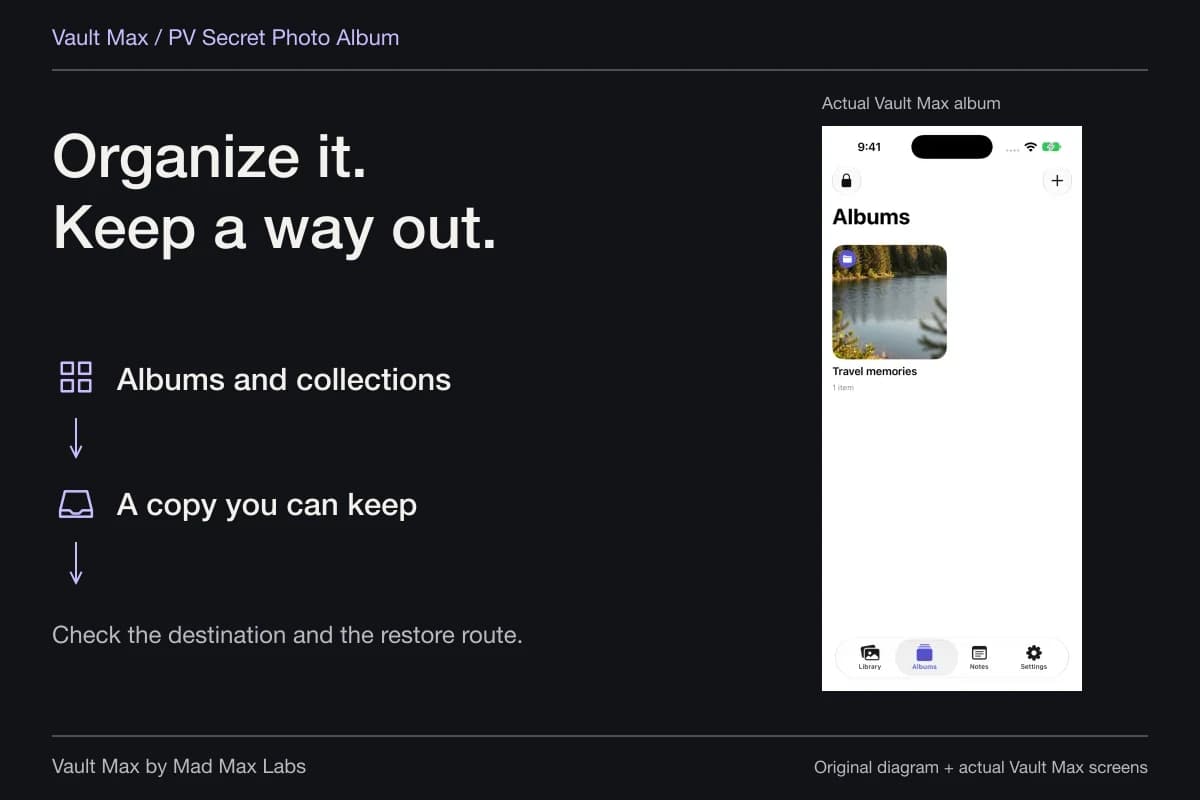
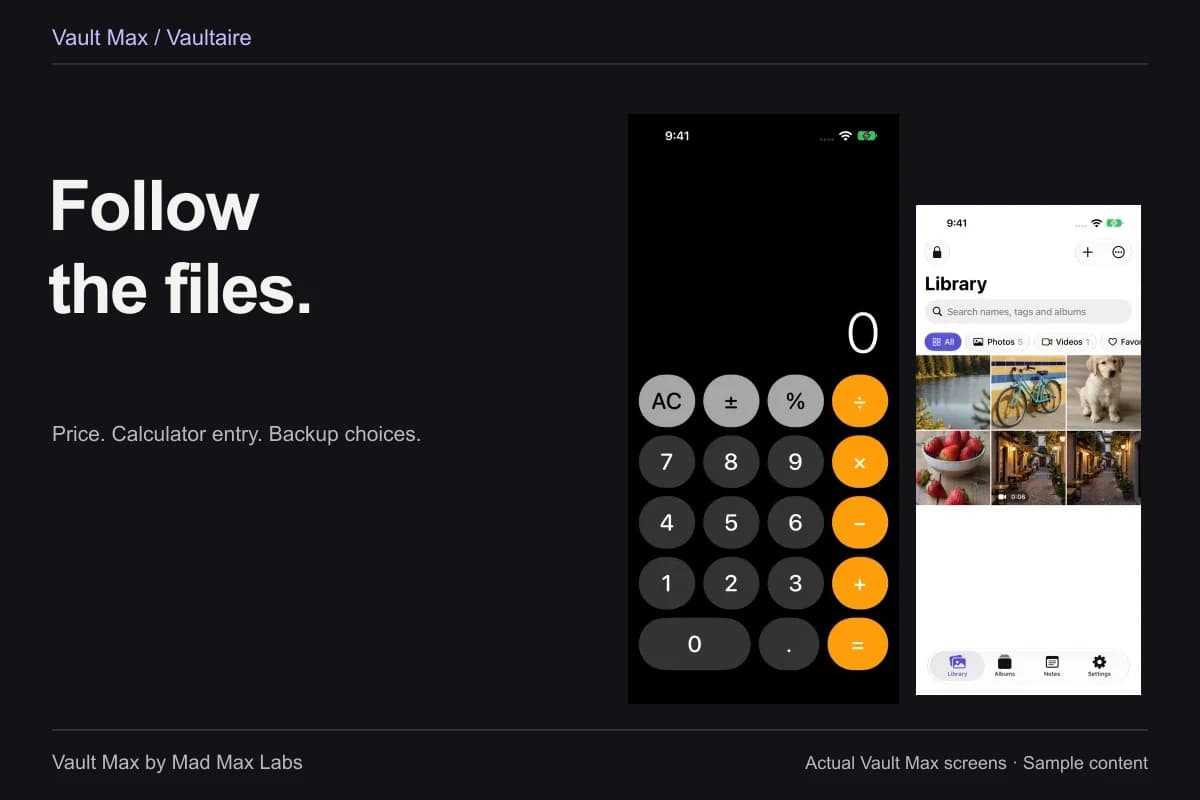
Vault Max can open as a working calculator. After enabling the mode, ordinary arithmetic leaves the private library closed. Entering the vault PIN and pressing equals opens the matching collection; holding equals provides the regular credential route.
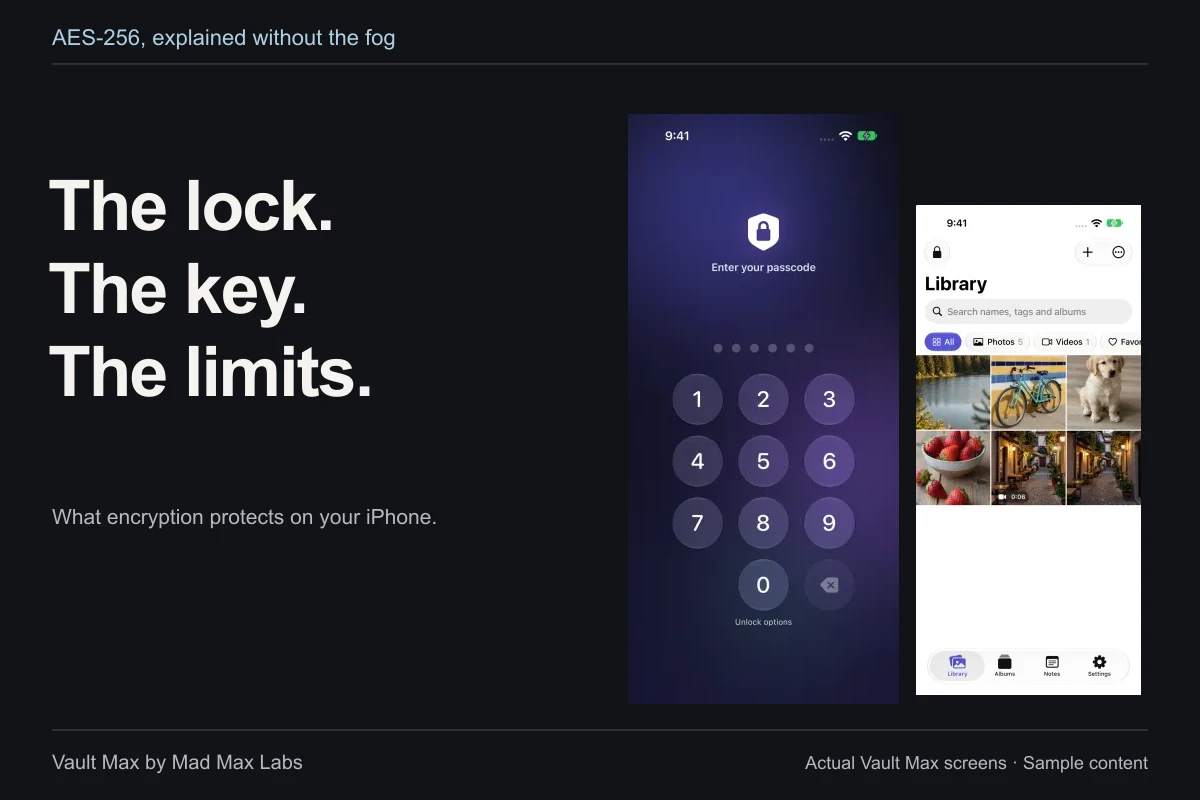
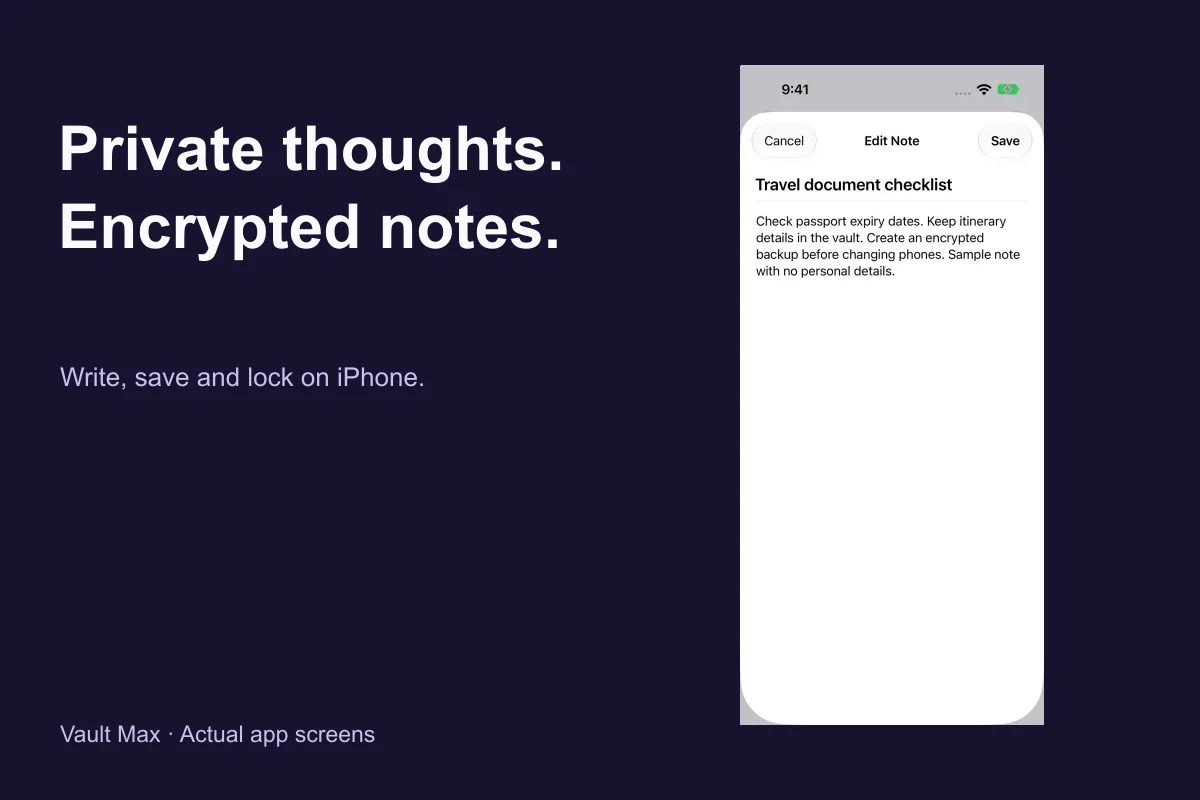
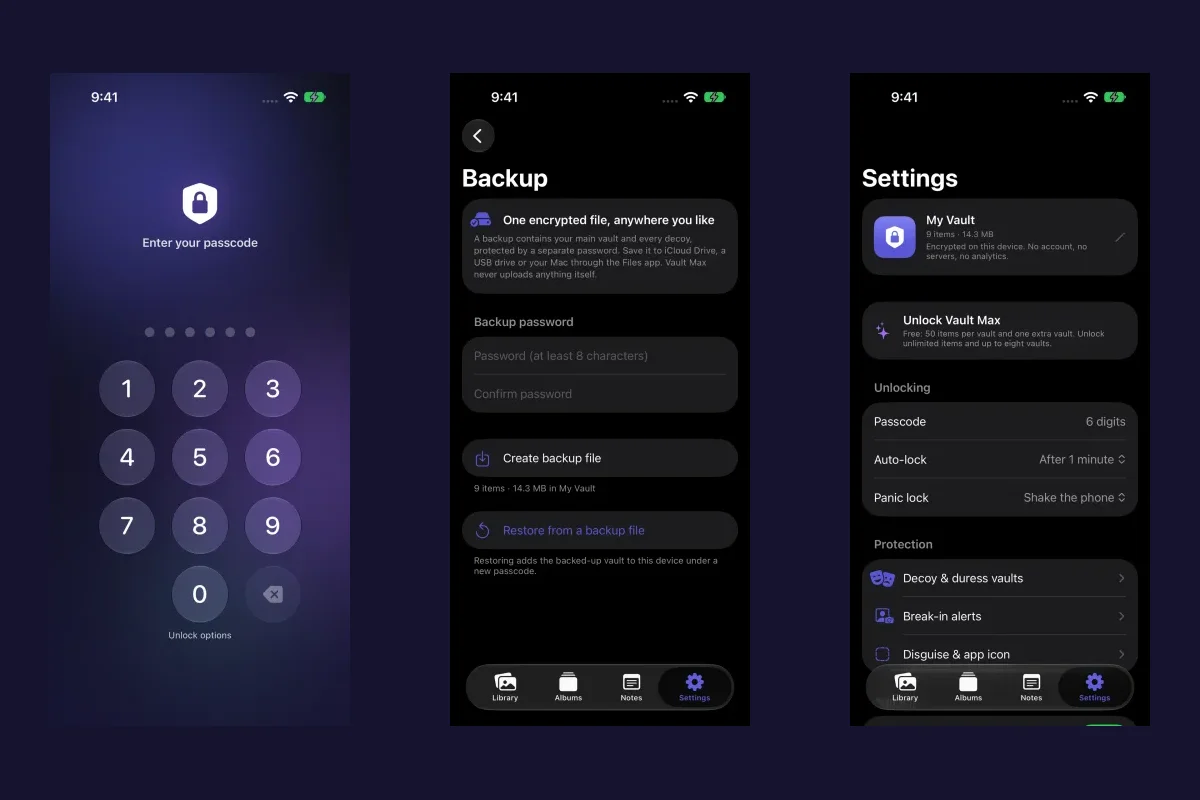
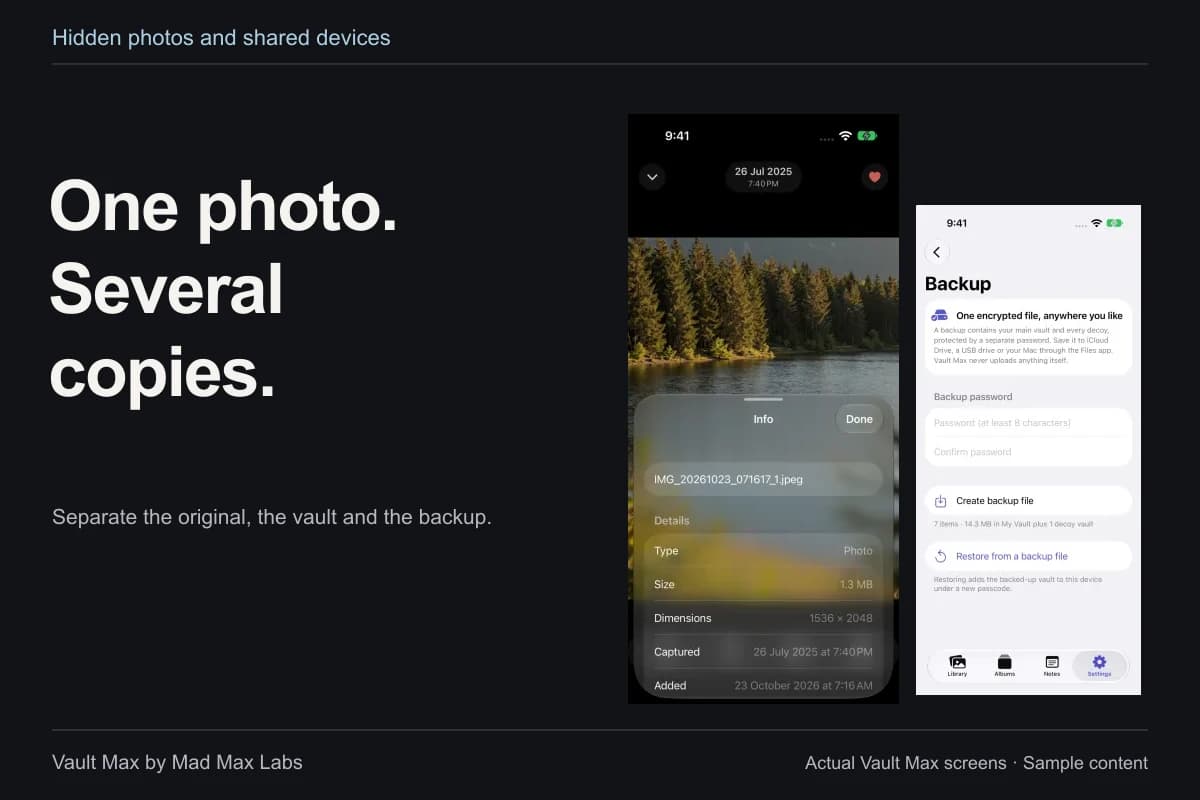
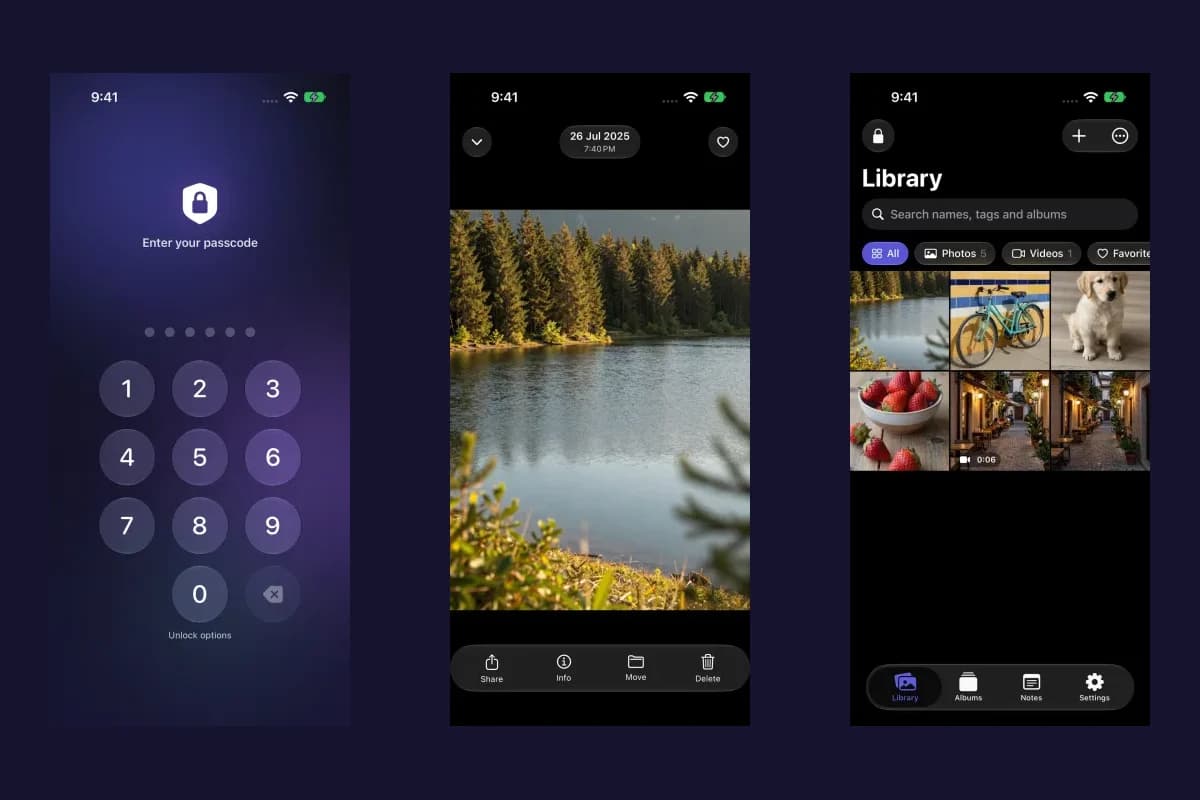
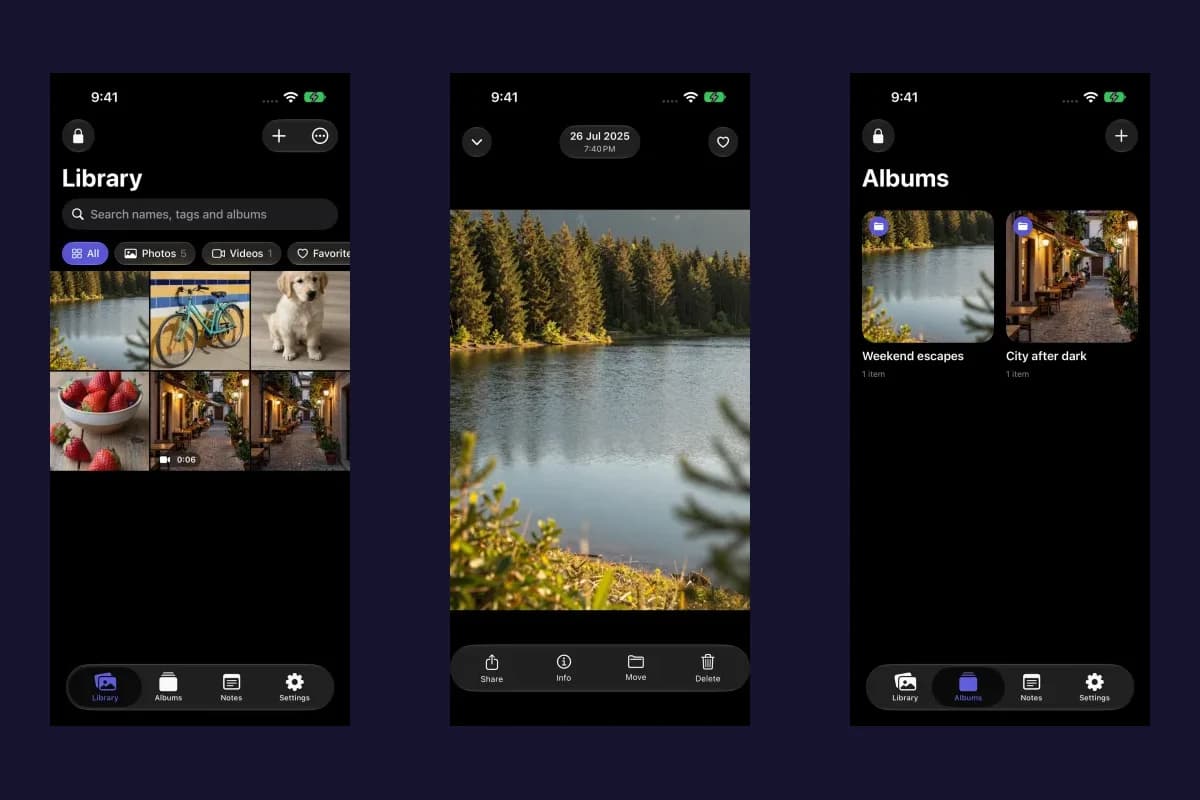
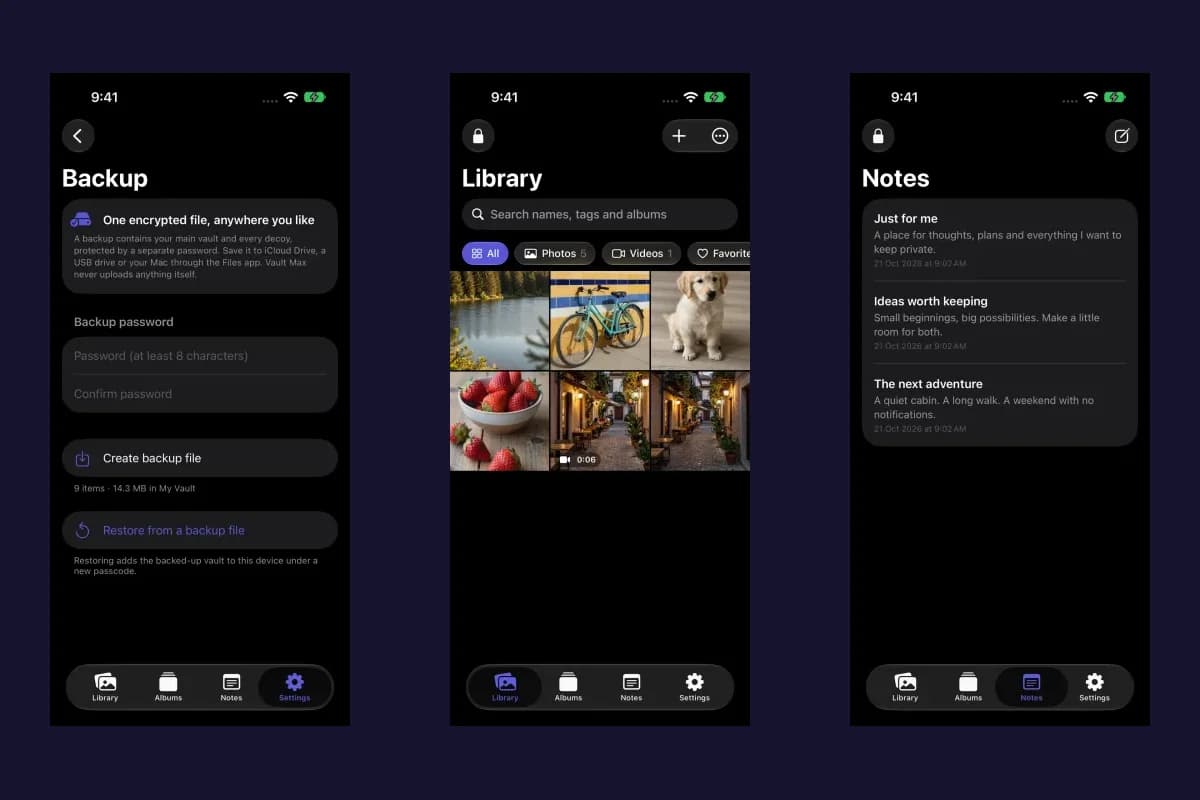
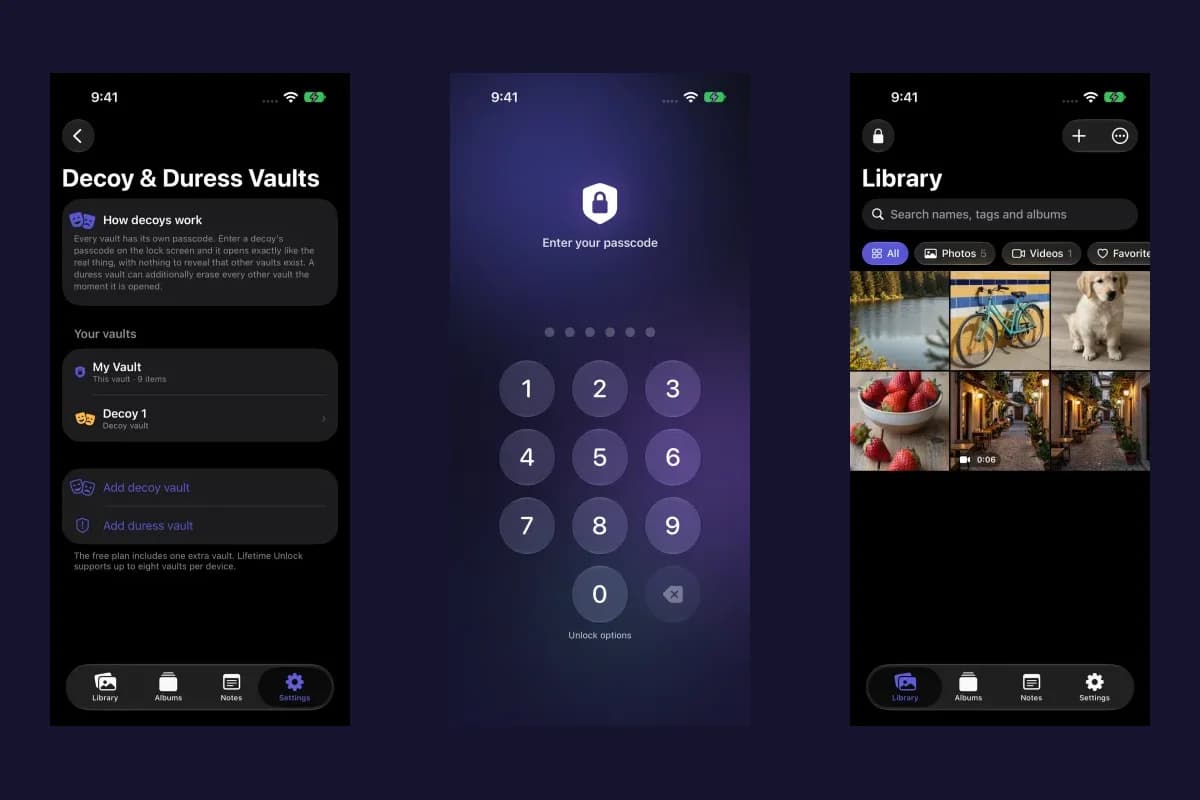
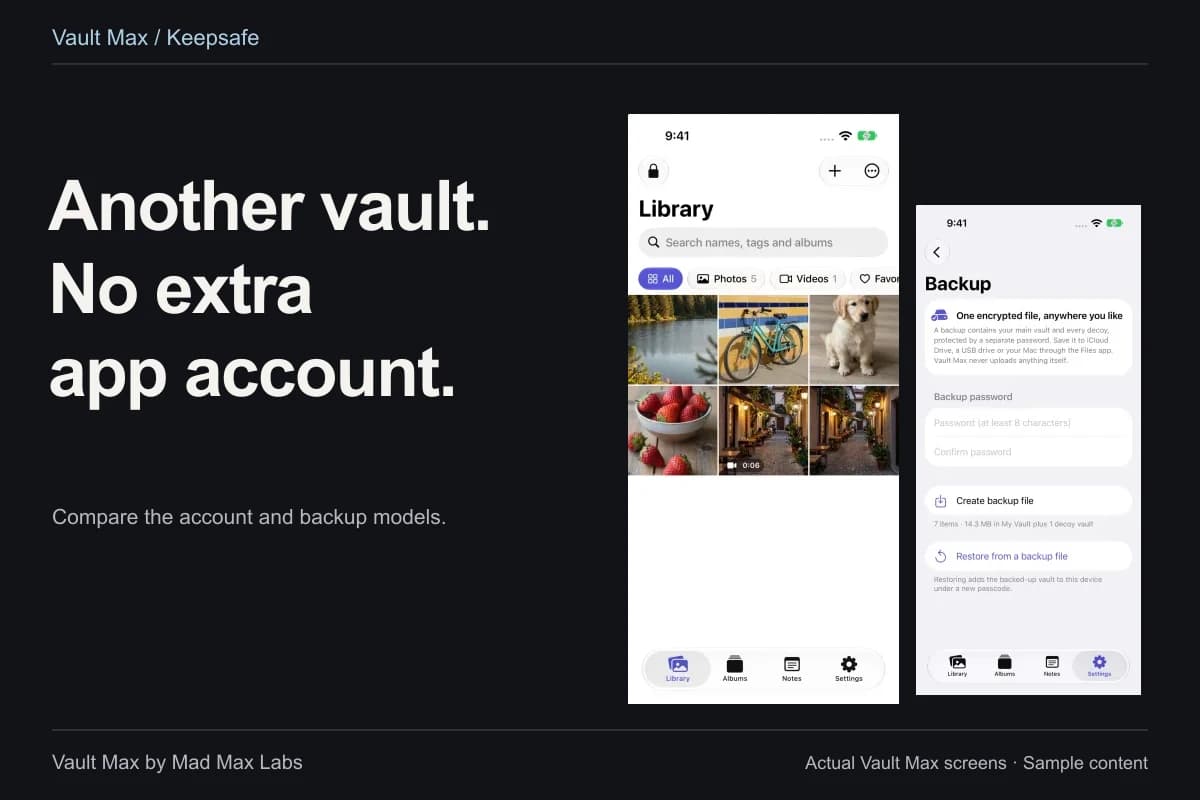
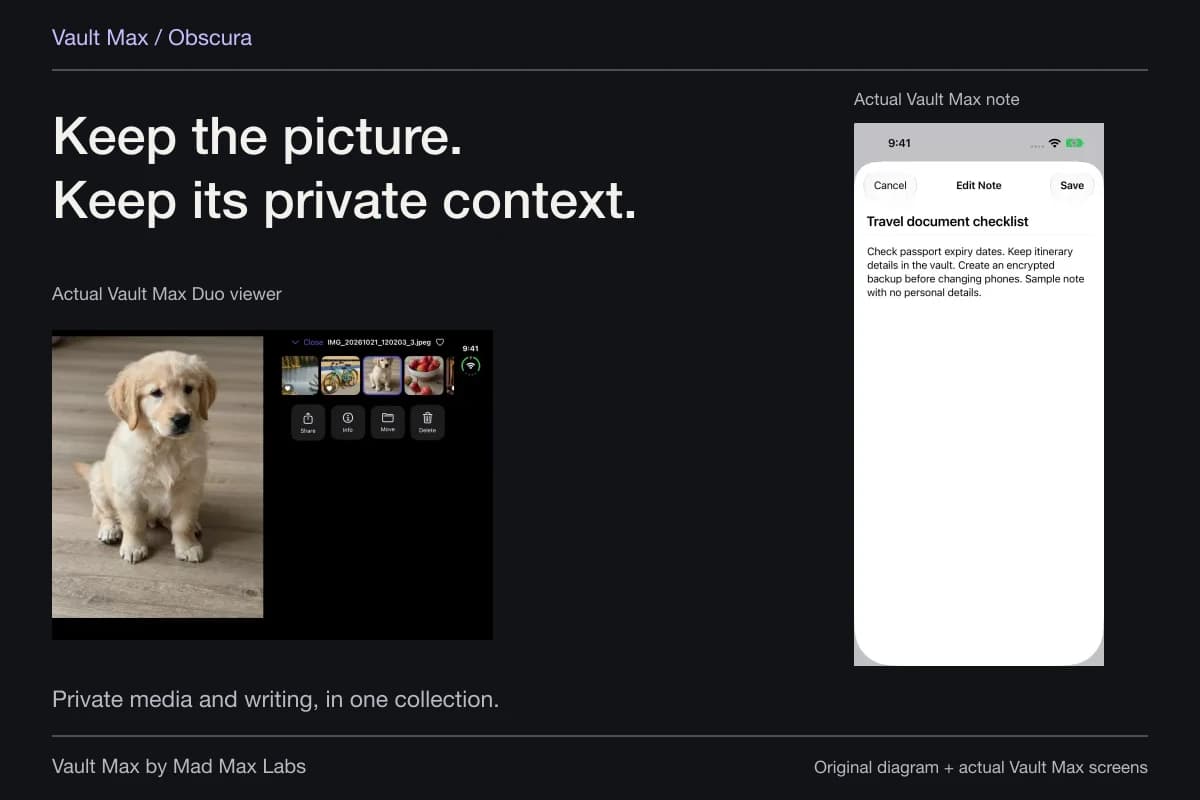
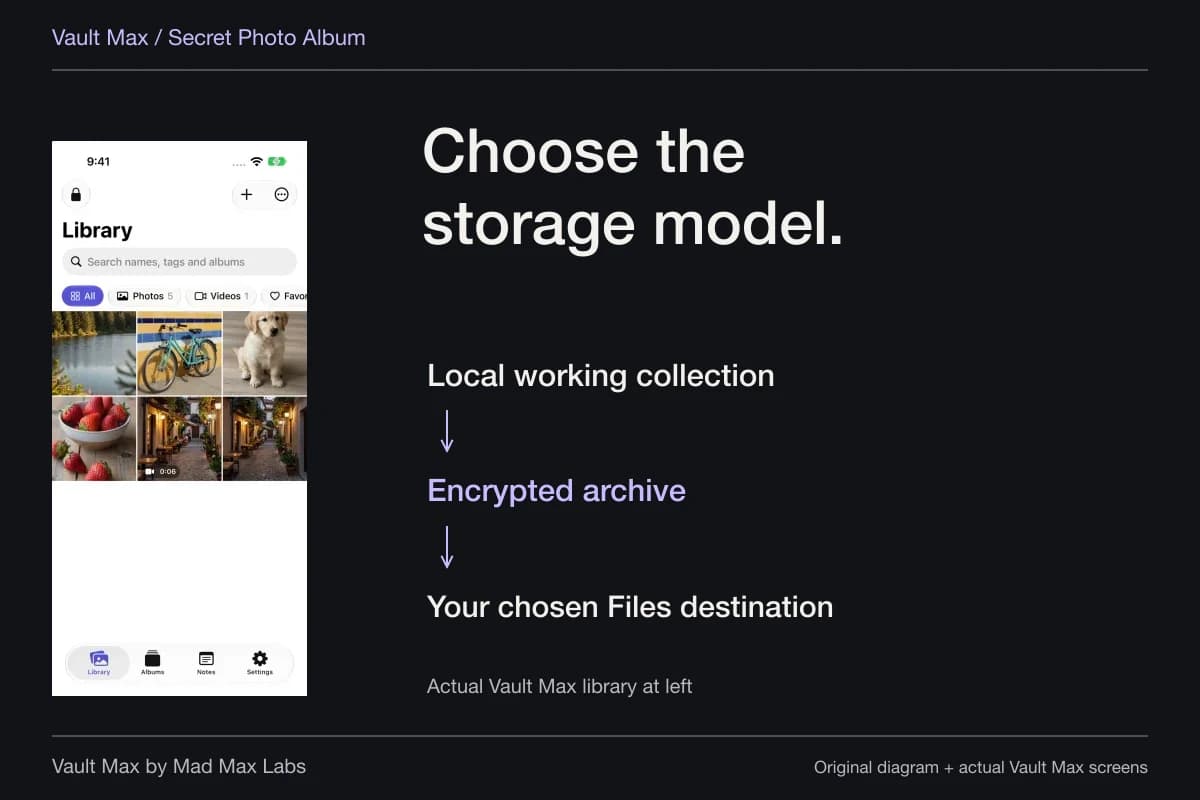
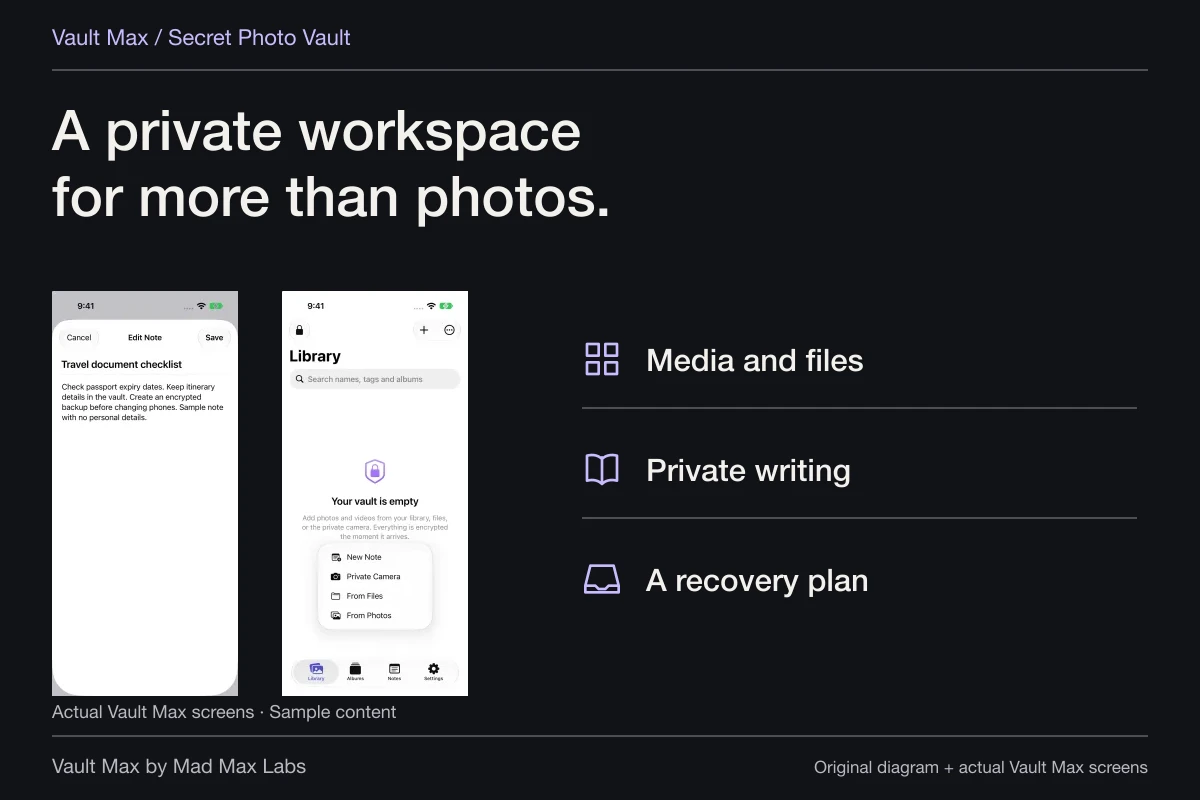
Sample Vault Max library. Select a screen for a closer look.
This can make everyday entry more discreet. It does not turn a third-party app into Apple's Calculator, erase its App Store history or configure iOS hiding for you. The calculator walkthrough shows the supported route using public sample credentials.
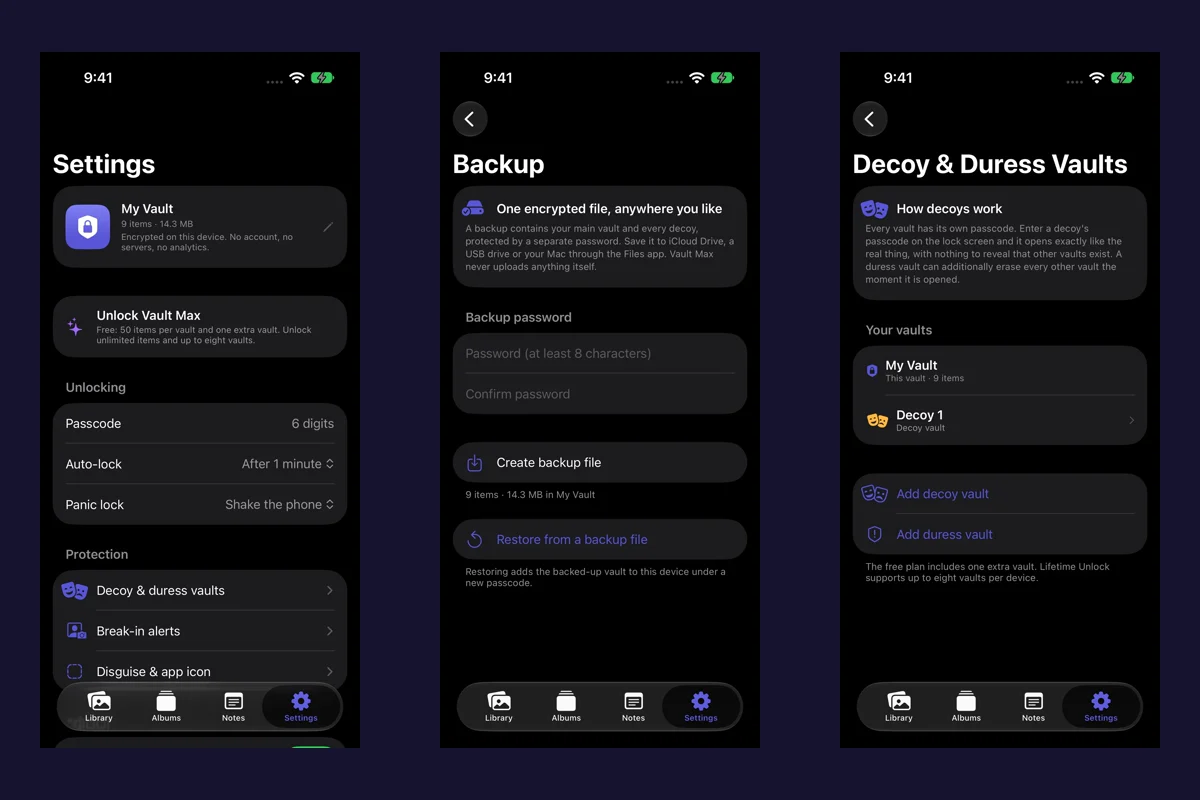
Vault Max stores its imported files in a separate encrypted local collection, without an app account or developer-hosted library. That is the storage decision underneath the presentation. The credential guide explains what to choose when separation from the phone's code matters most.
Keep a way back in
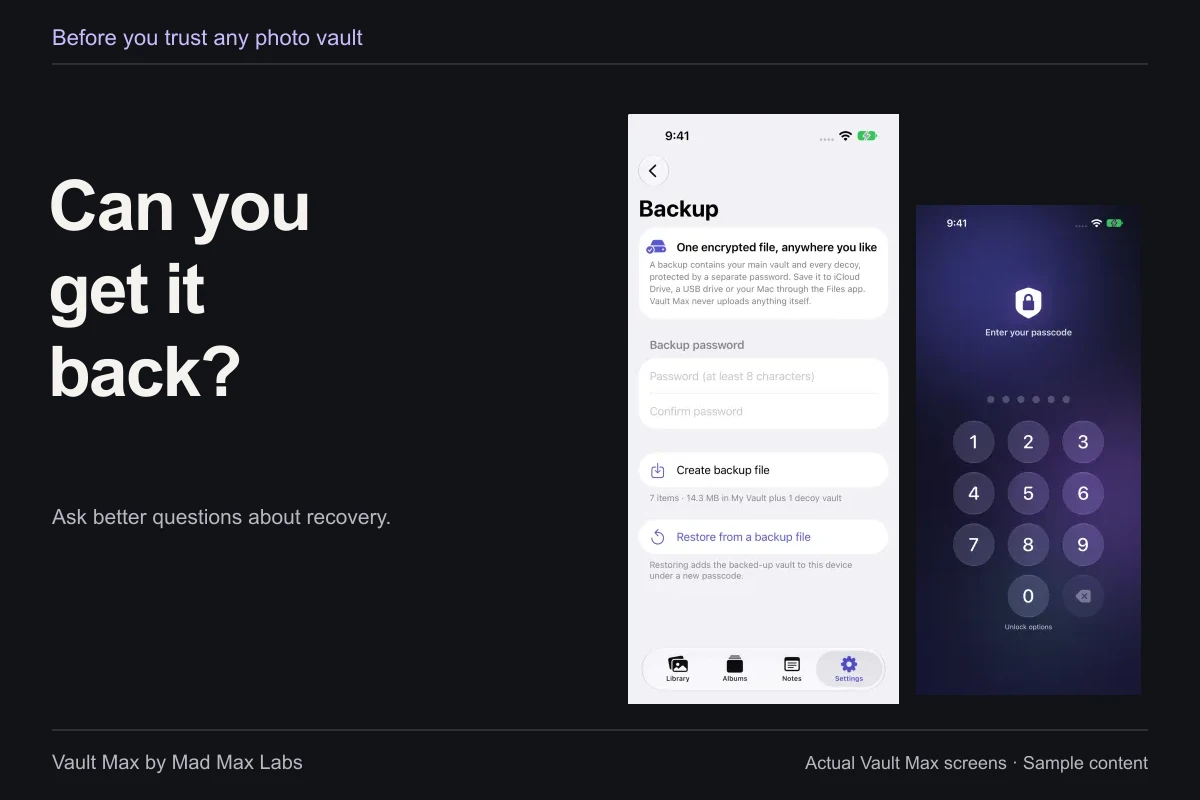
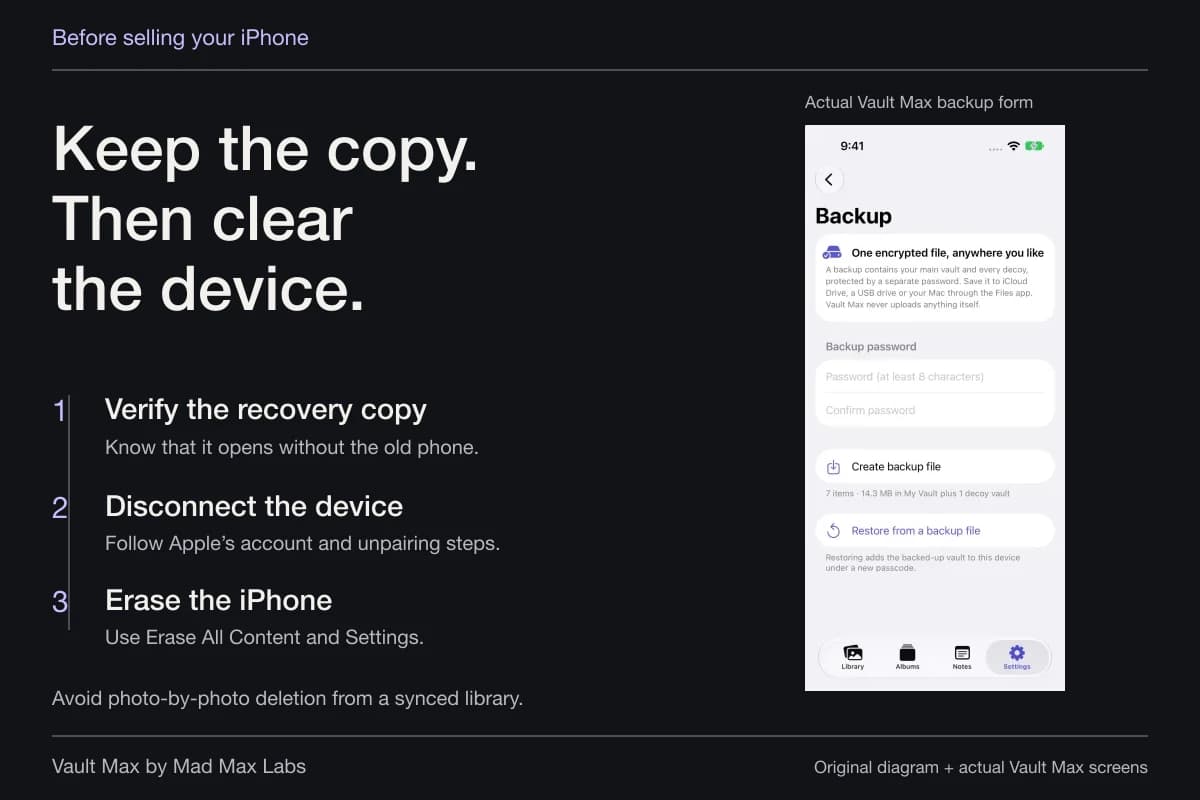
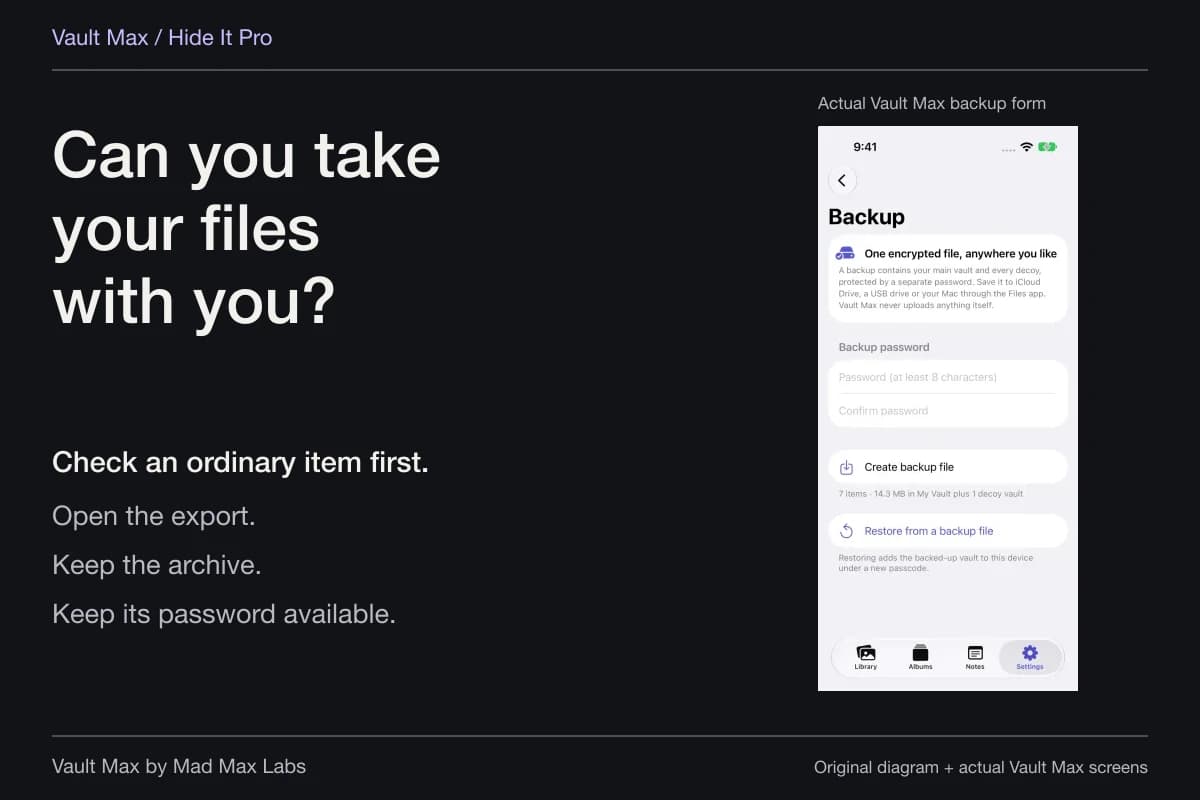
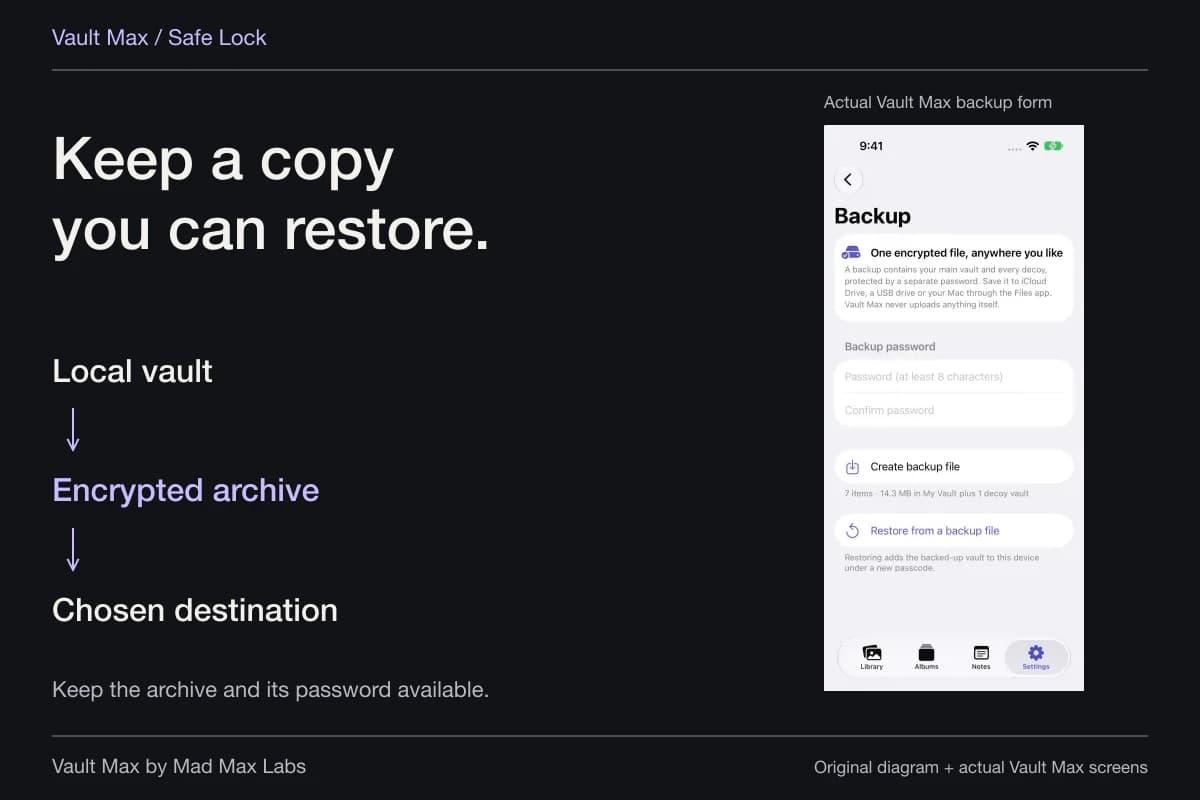
Before experimenting with visibility, make sure you know how to find the app again. Keep its real name, the system location used to reveal it and the credential route you chose. For a vault, preserve a usable recovery archive before changing or removing the installation.
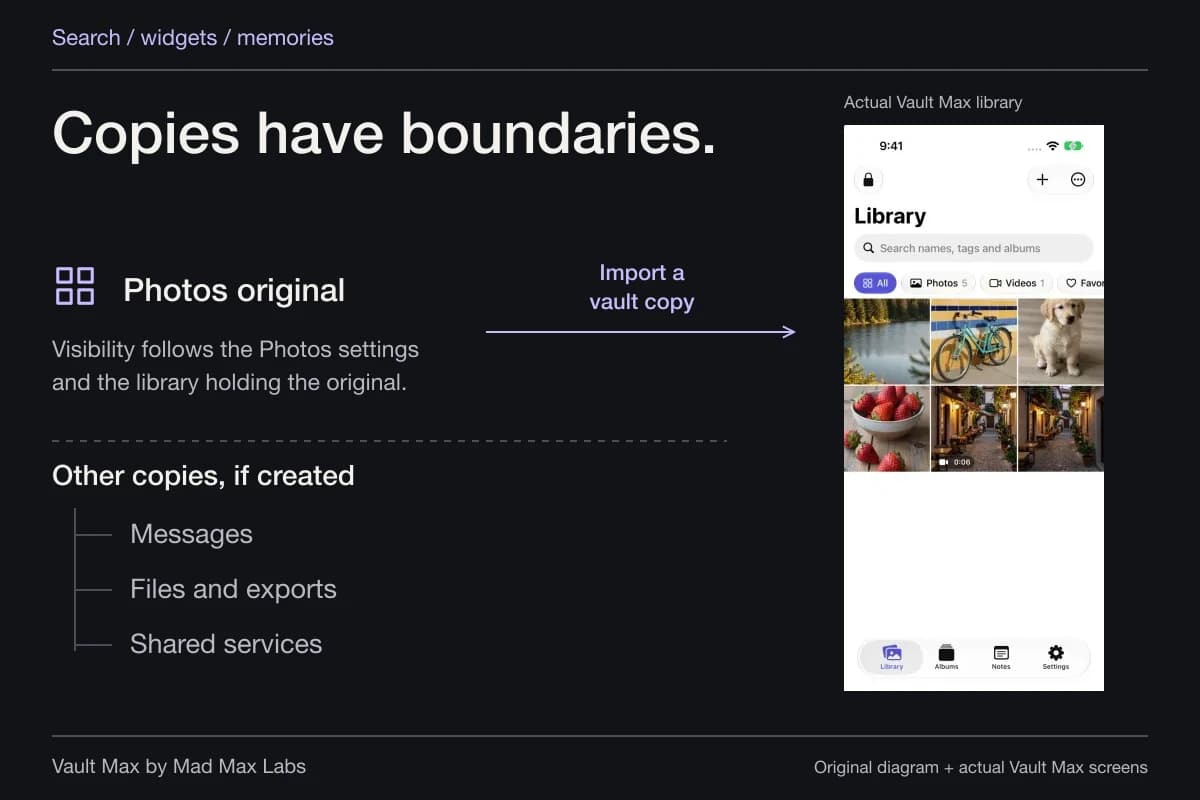
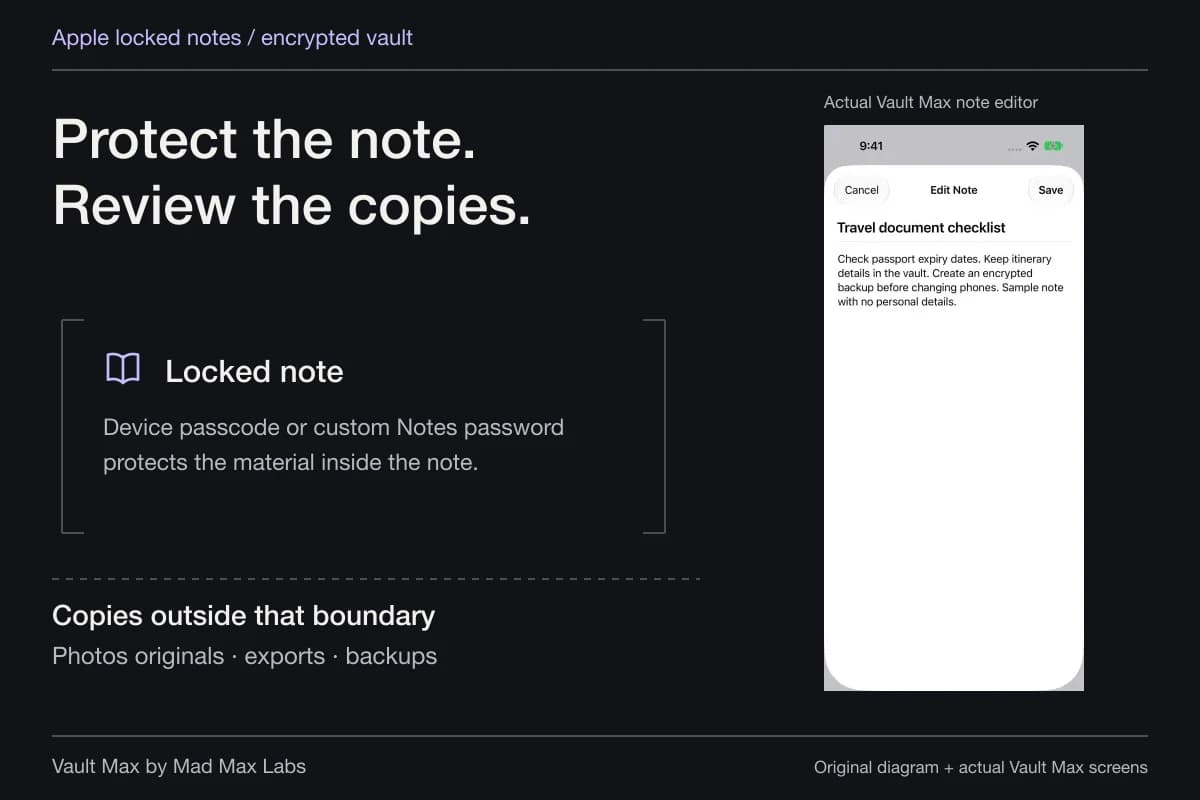
An exported image, a Photos original and a message attachment remain separate copies. Hiding or locking the vault does not reach into those destinations and change their permissions. Follow the file you care about, rather than treating every similarly named privacy switch as the same protection.
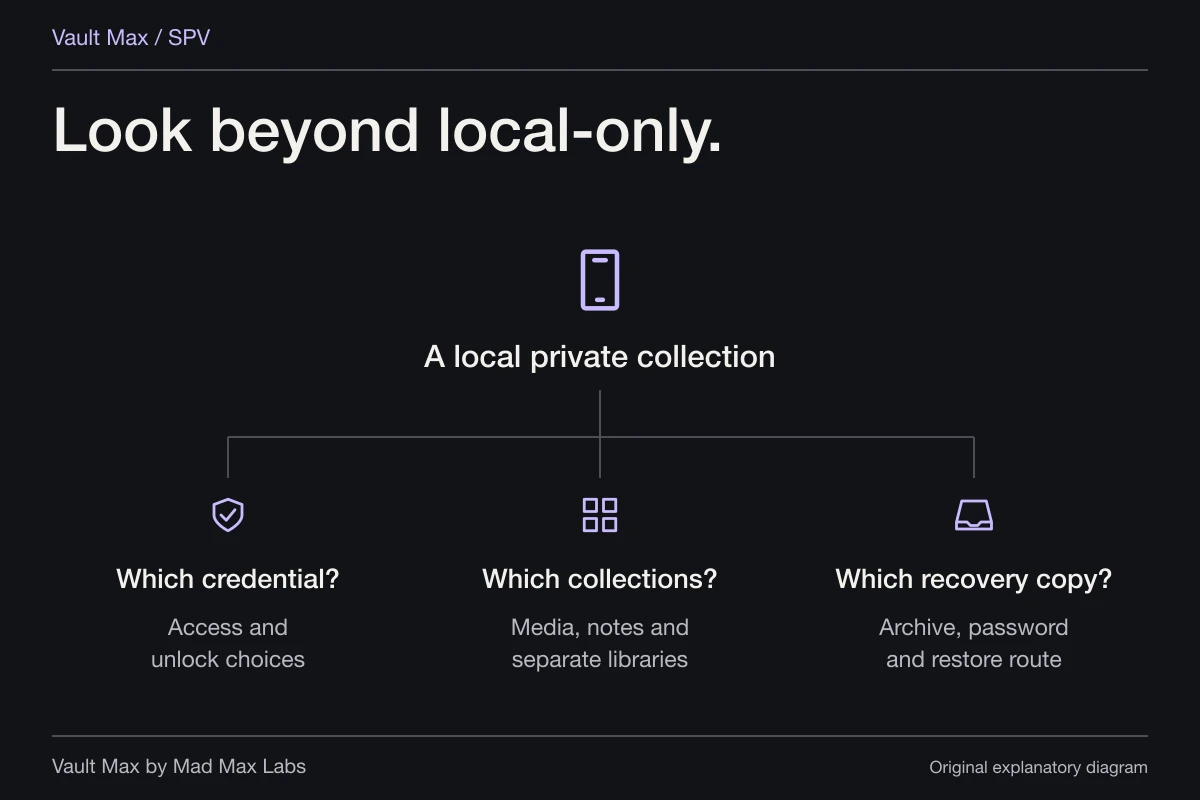
- Visibility, authentication, time management or a separate private collection?
- Read the exact lock/hide choices available on your installed version.
- Inspect the real authentication result and learn how to undo the setting.
- Know where the app, its credential and a usable backup can be found.
Tap a box as you go. Checks reset when you leave this page.
Common questions
Does removing an app from the Home Screen lock it?
No. Removing a Home Screen shortcut, hiding an eligible app and requiring authentication are different actions. Use the system's lock or hide option when that is your goal, and check the resulting state.
Can a hidden iPhone app still be found?
Apple says a hidden app remains visible in some system locations. Its installation or usage can also matter for account and family-management surfaces. Hiding is not a guarantee that no one can discover the app.
Does a calculator entrance replace Apple's app-hiding controls?
No. Vault Max's working calculator changes the app's entry presentation. Its Home Screen label remains Vault Max. System hiding and locking are separate controls, and none recalls exported or shared files.
Continue reading
More guides
Practical tips for your private library. Swipe or scroll to choose your next guide.
50 guides to explore