
Privacy in practice
Missing iPhone photos? Check Hidden, deleted items and the right library
Search the right iPhone photo locations before changing anything: Hidden, Recently Deleted, Recovered, iCloud library views and Vault Max collections.
If an iPhone photo is missing, start with where you last saw it. For Apple Photos, check Hidden, Recently Deleted, the selected library view and your iCloud account before changing settings. For a picture stored in Vault Max, check the intended vault and its Trash. The two apps hold different collections.
Avoid deleting apps, emptying recovery folders or resetting the phone while you search. Those actions do not identify the missing item and can remove copies you still have. First work out whether the picture is out of view, awaiting synchronization or genuinely absent from the places you can access.
Choose the search route from the last known location
“It was on my phone” is a starting point, but try to be more specific. Did you see it in Photos, open it inside a private vault, receive it in a message or save it through Files? A photograph inside a message may never have been saved to Photos at all.
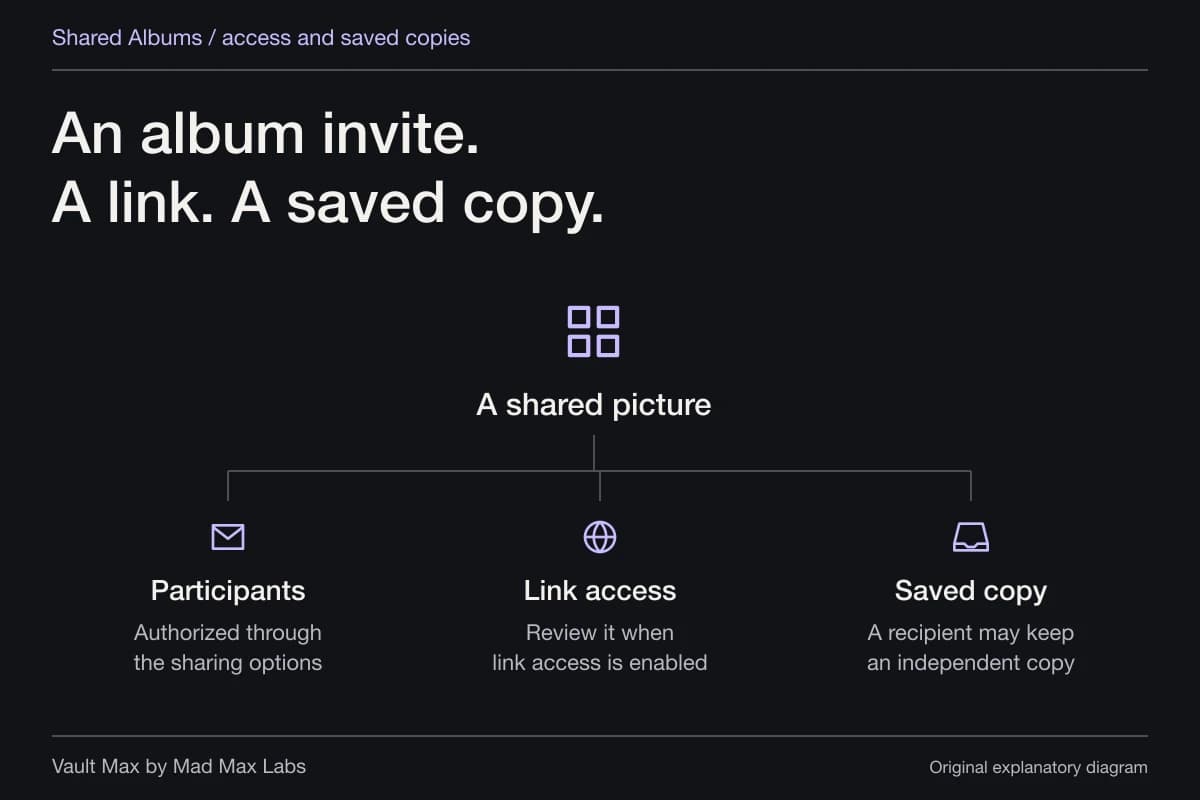
Think of a recognizable date, subject or filename. If you recently changed phones, keep the old device available. If the picture was shared with someone, note that an independently retained copy may exist, without assuming that every recipient kept it.
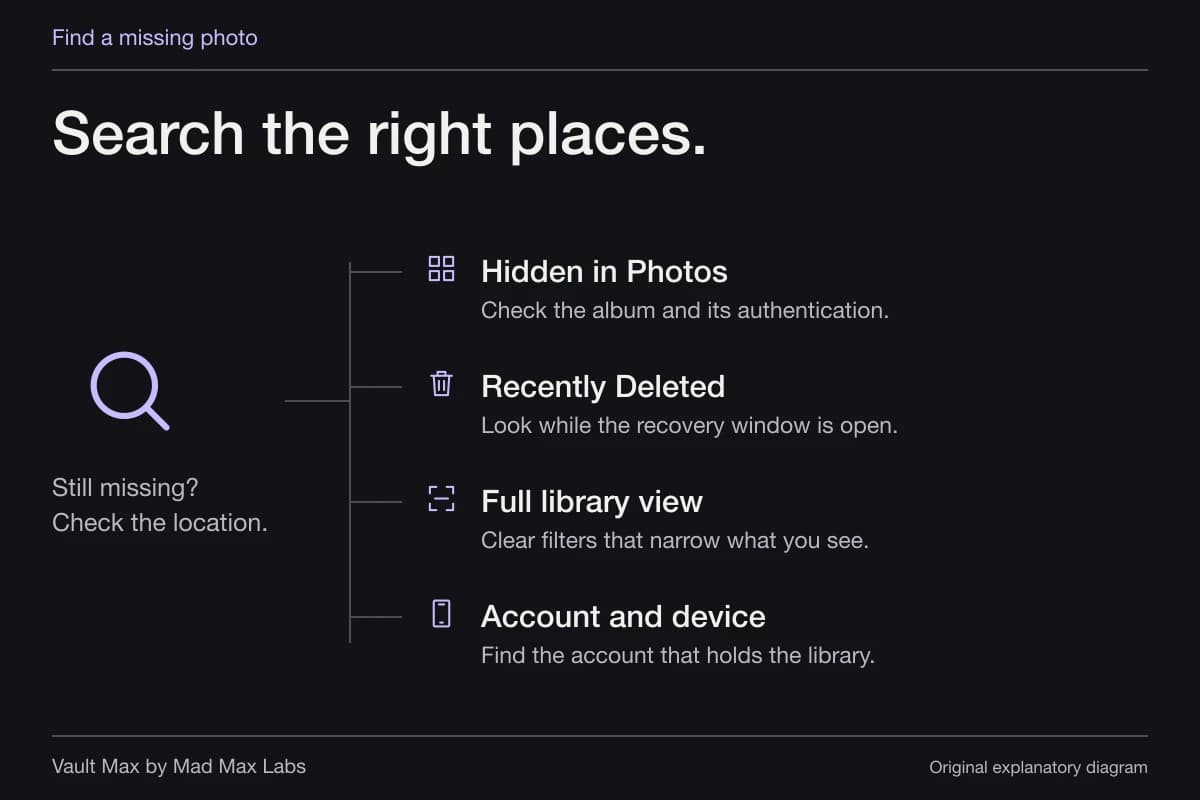
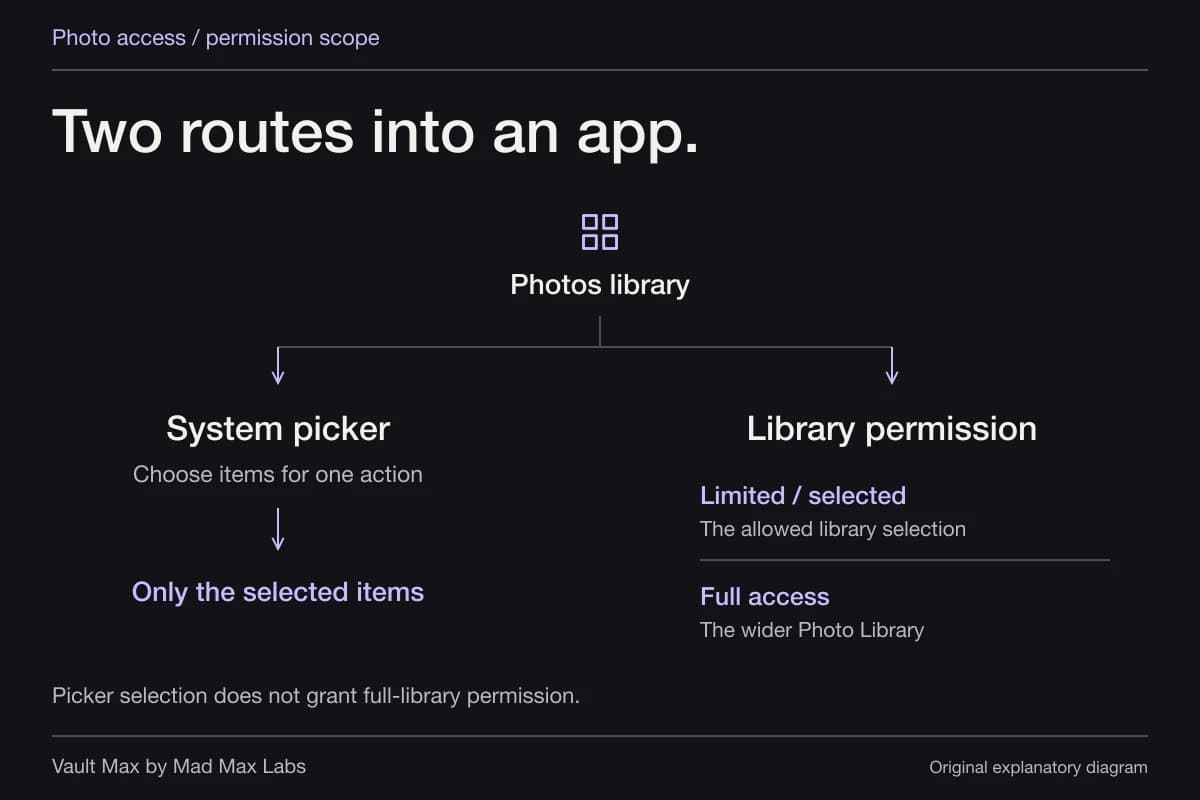
Hidden in Photos
Open Apple’s Hidden album with the device’s required authentication.
Recently Deleted
Check Apple Photos while the item is still inside its recovery window.
Library views
Clear filters and check the full collection, not just one view.
Account and device
Check which Apple Account and devices hold that library.
Follow one branch at a time and record what you find. An empty folder is evidence about that folder, not proof that the picture has disappeared from every collection or backup.
In Photos, check whether the item is hidden
Open Photos, go to Collections → Utilities → Hidden and authenticate if asked. If Hidden is not visible, review Settings → Apps → Photos → Show Hidden Album. Apple's Hidden album guide explains that hiding an item removes it from ordinary Photos views; hiding the collection itself changes whether that entry appears.
If you find the picture, decide whether you want to unhide it or simply confirm that it is still present. You do not need to change its privacy state merely to establish that it exists. With iCloud Photos, its hidden state also applies on the other synced devices.
Check Recently Deleted before its recovery window closes
In Photos, open Collections → Utilities → Recently Deleted, authenticate and inspect the items. If you find the intended photograph, use Recover. Apple's deletion and recovery instructions describe the normal 30-day recovery window.
Do not confuse Recover with Delete. Permanently deleting an item from this collection removes that recovery option. Also remember that an ordinary album is an organizational view, not an independent backup of its photographs. Deleting an item from the library can remove it from the albums where it appeared.
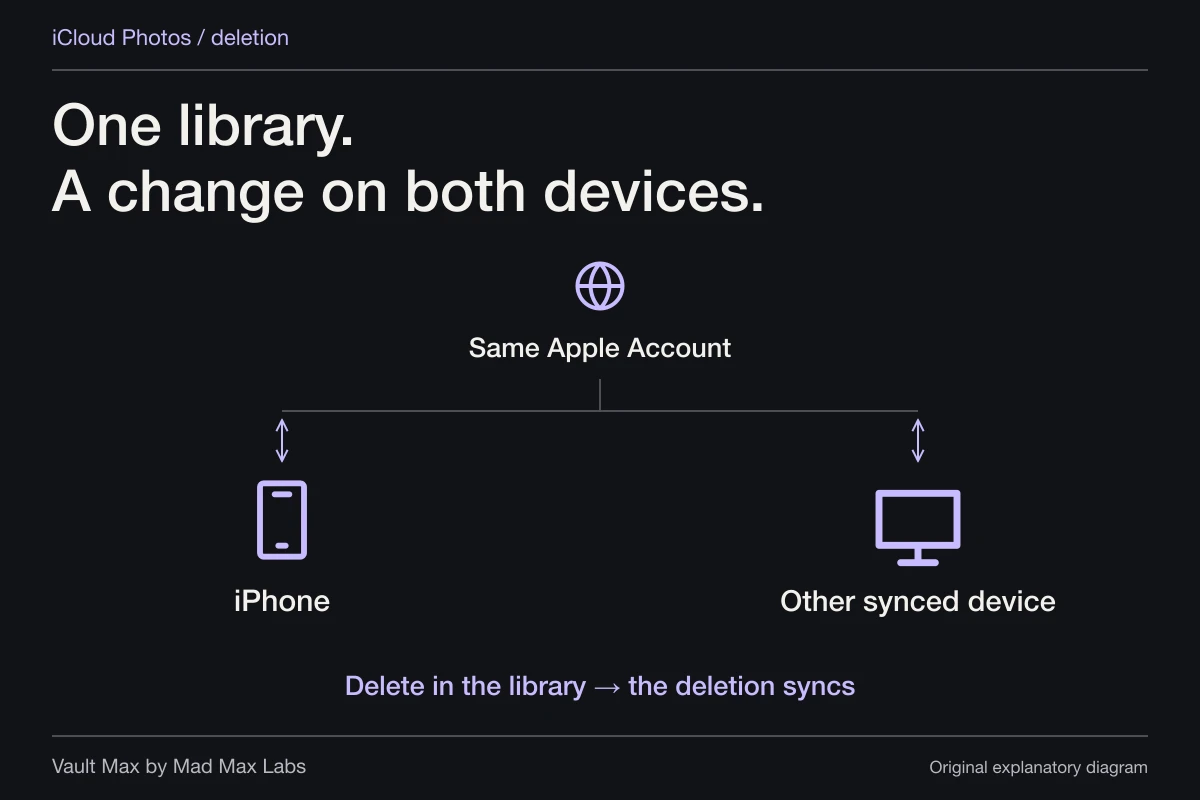
If iCloud Photos is enabled, a deletion can apply across synced devices. An old phone connected to the same library may therefore show the same deletion instead of preserving a spare copy. Look for deliberately saved independent files or archives when you need an earlier version.
Look for Recovered if Photos offers it
Apple's Recovered album documentation describes another, narrower case. On supported software, Photos can identify pictures or videos present on the device but outside its current library. Recovered appears under Utilities only when eligible content has been found.
If the album exists, unlock it and inspect the relevant items. Choose Restore to Library for a picture you want to preserve. The separate Permanently Delete action removes it immediately rather than placing it in Recently Deleted.
The absence of Recovered does not establish that you missed a setting. Nor is it a promise that every deleted photograph can be reconstructed. It is one documented search location when Photos has identified that particular kind of recoverable content.
Check the account, library view and sync status
Make sure the device uses the Apple Account that holds the library you expect. If you participate in iCloud Shared Photo Library, inspect Both Libraries, Personal Library and Shared Library as appropriate. Apple's missing-photo checklist covers those account and library distinctions.
A synchronization delay can also explain why a recent picture appears on one device but not another. Inspect the library status shown from the Photos profile control and follow its message. Apple's sync troubleshooting guide recommends power, Wi-Fi and time for the library to finish; it specifically advises against turning off iCloud Photos as a troubleshooting shortcut.
If a photograph is visible on an independently accessible device or in the correct account's web library, preserve a usable copy before making wider changes. Do not sign out of accounts or toggle synchronization repeatedly merely to see whether the count changes.
For Vault Max, confirm which collection the credential opens
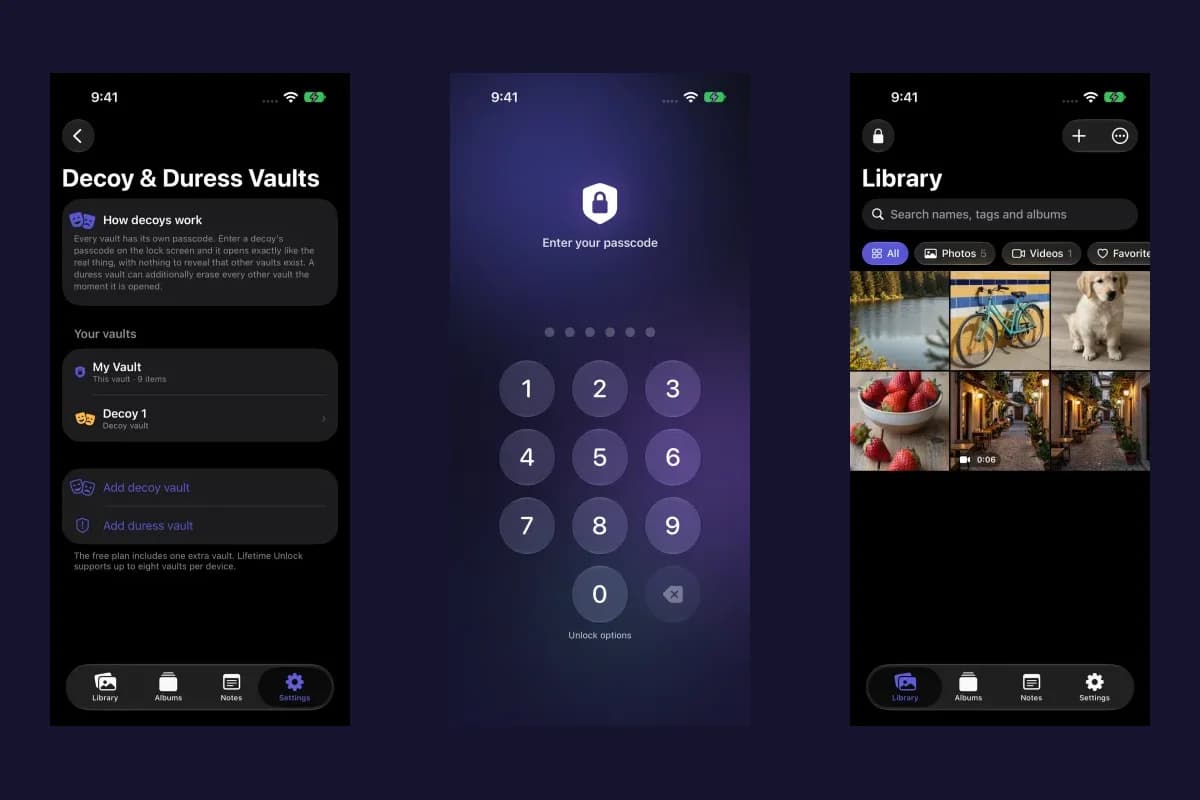
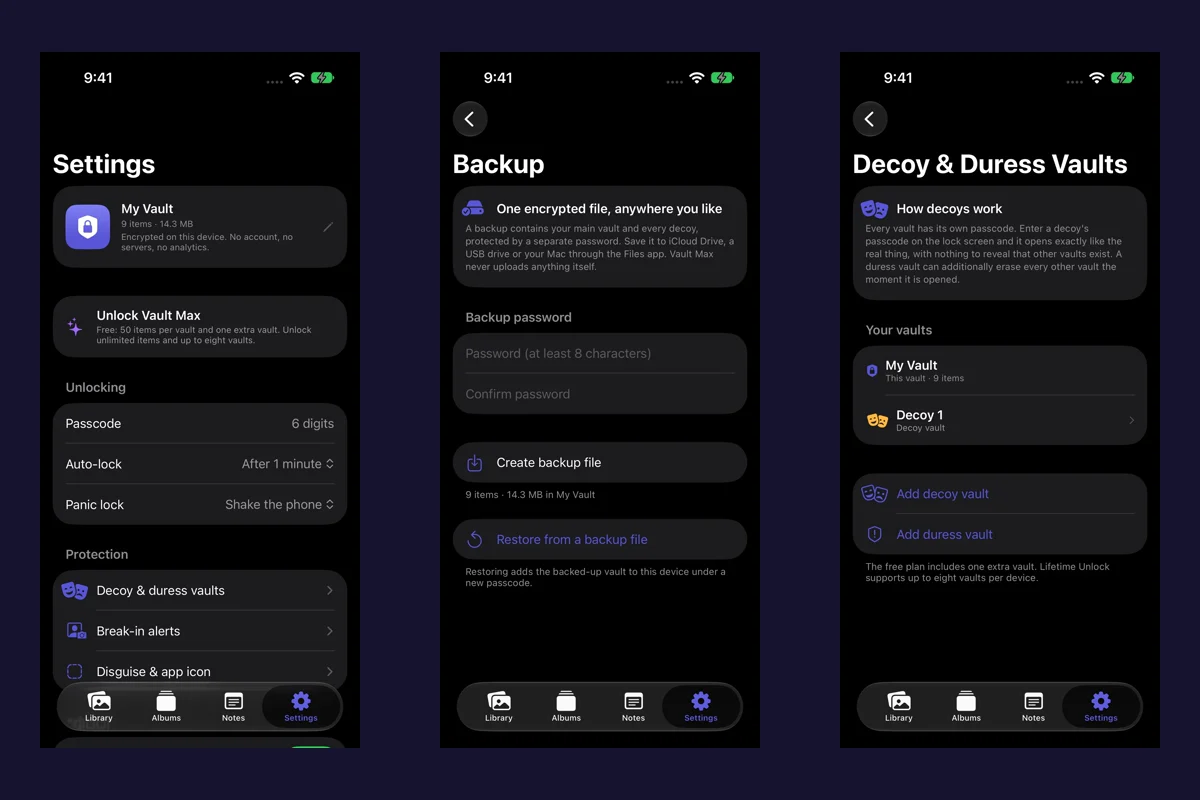
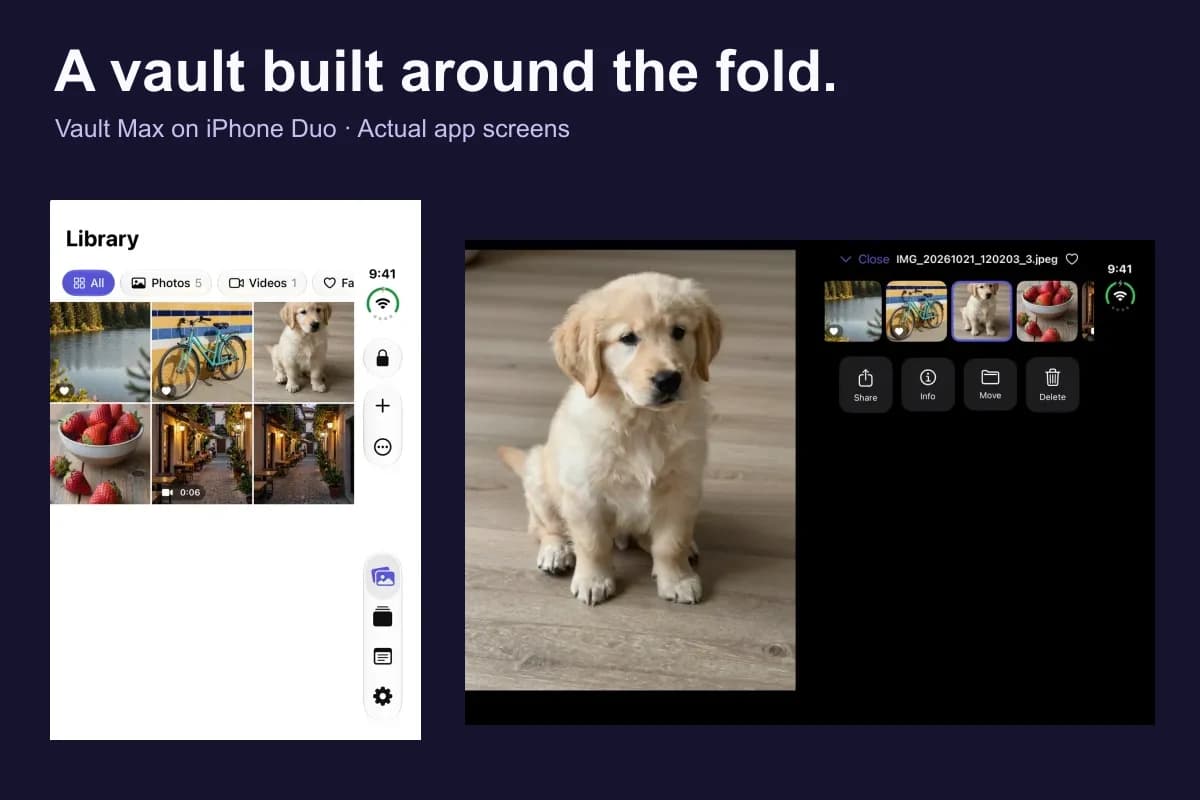
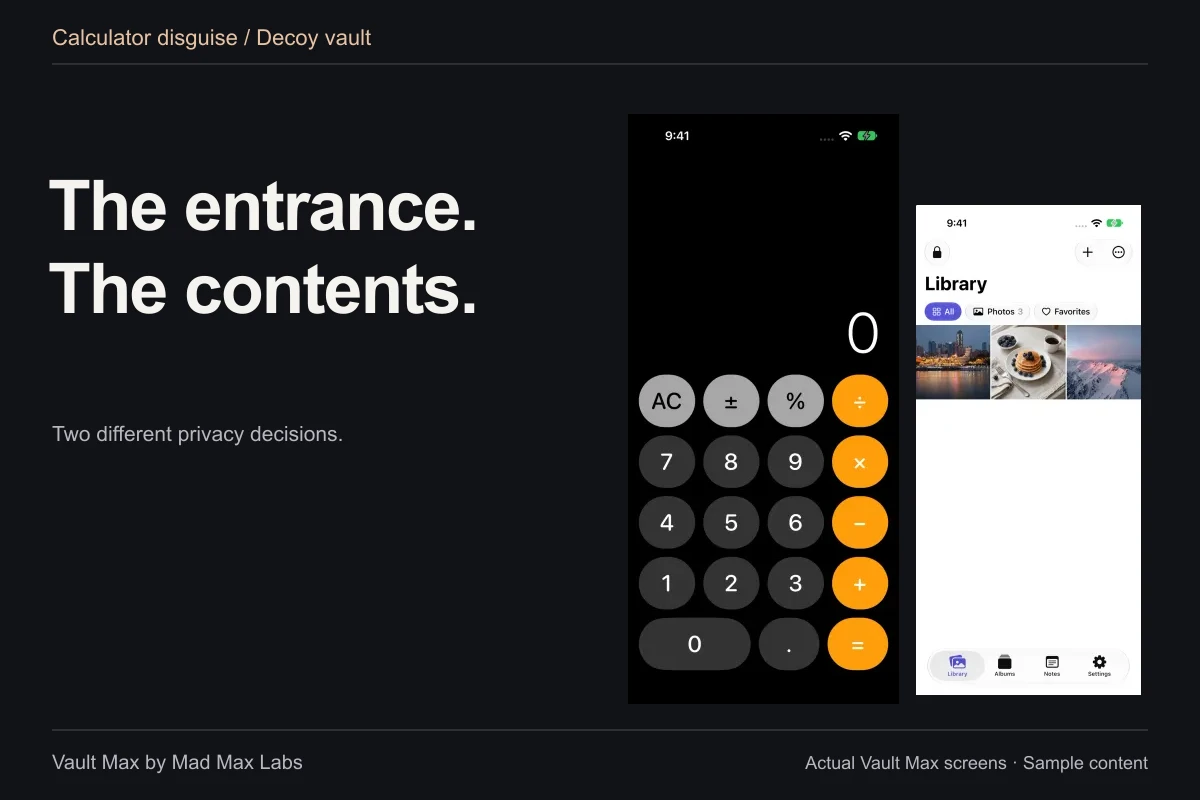
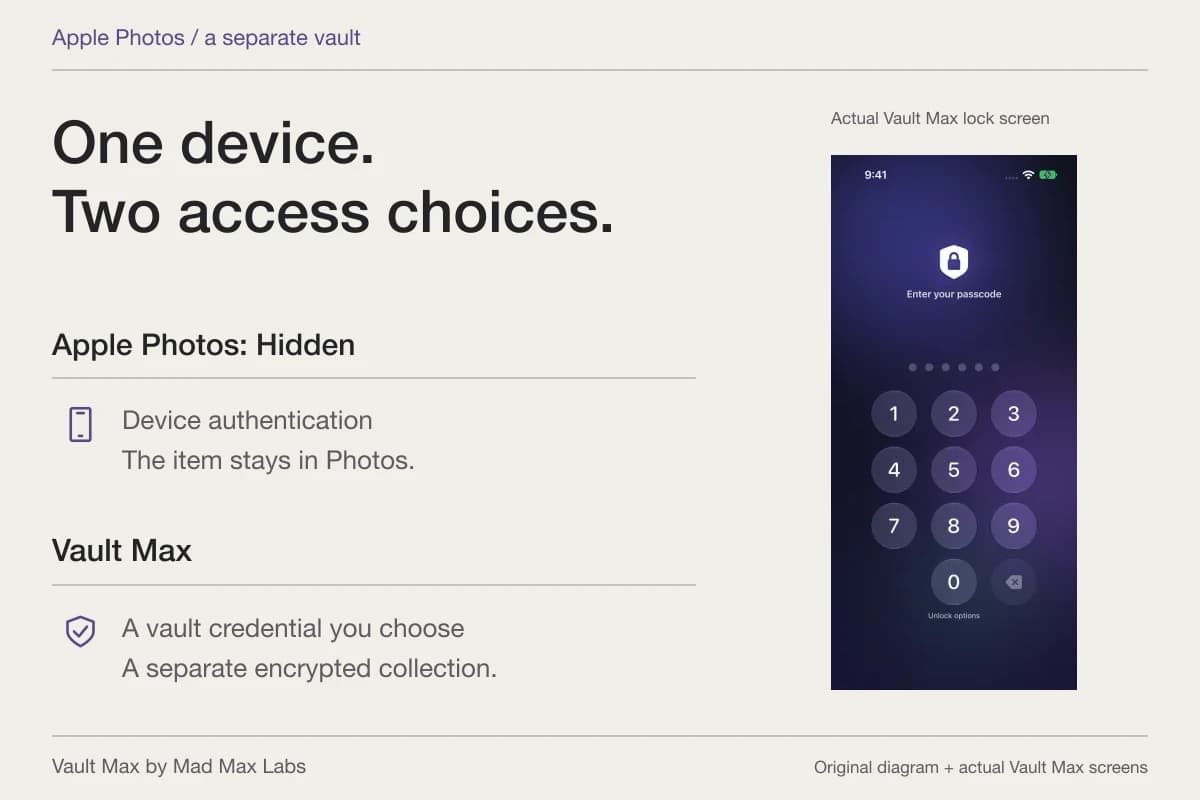
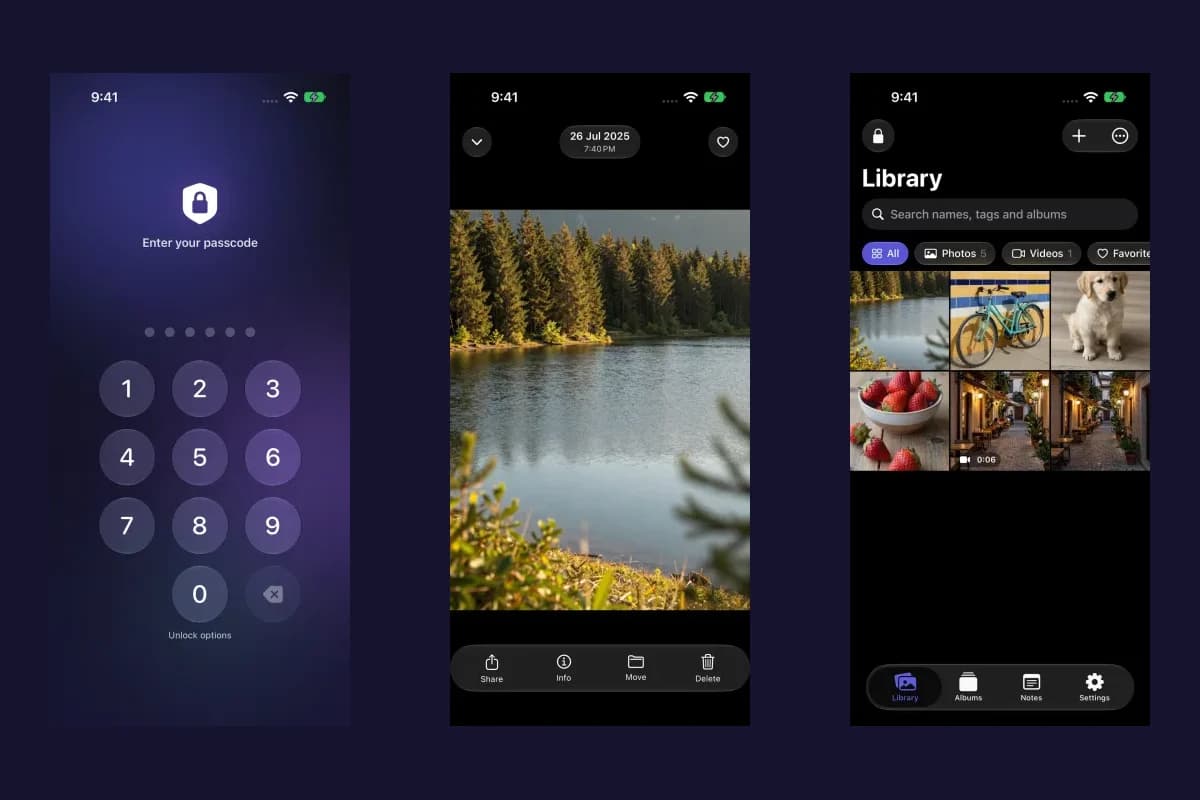
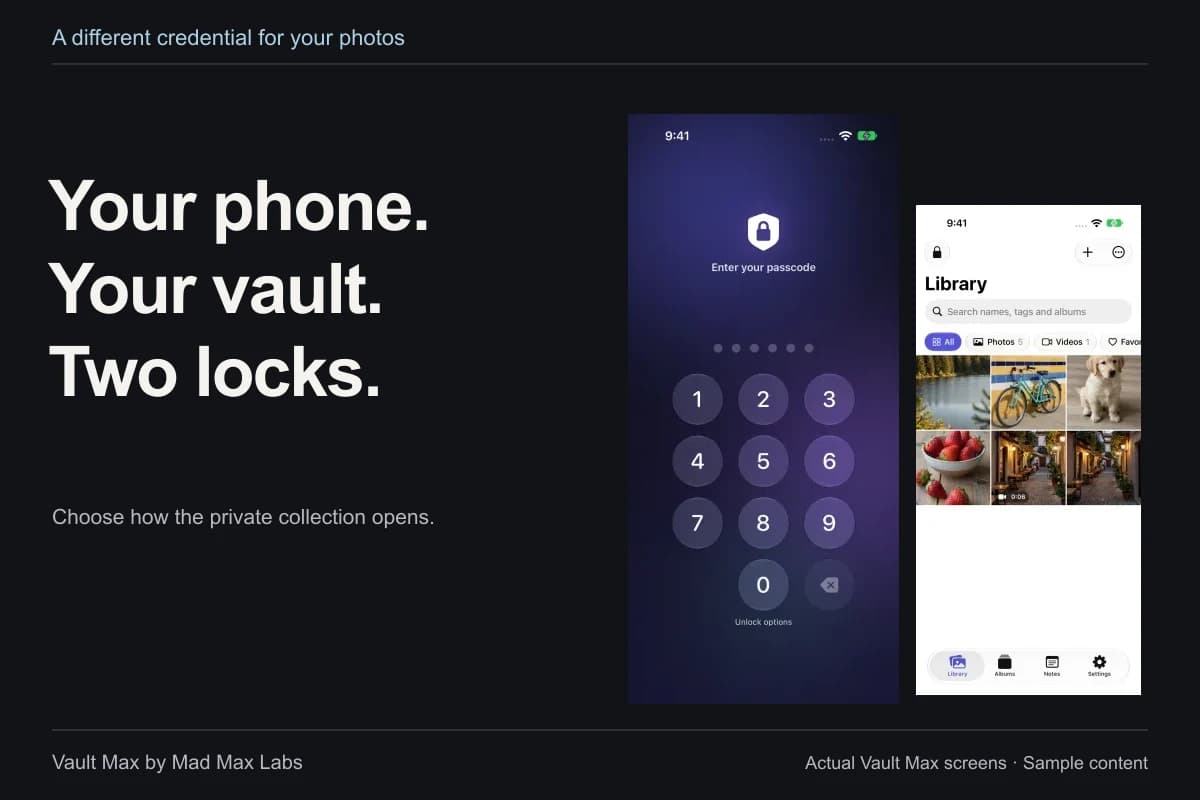
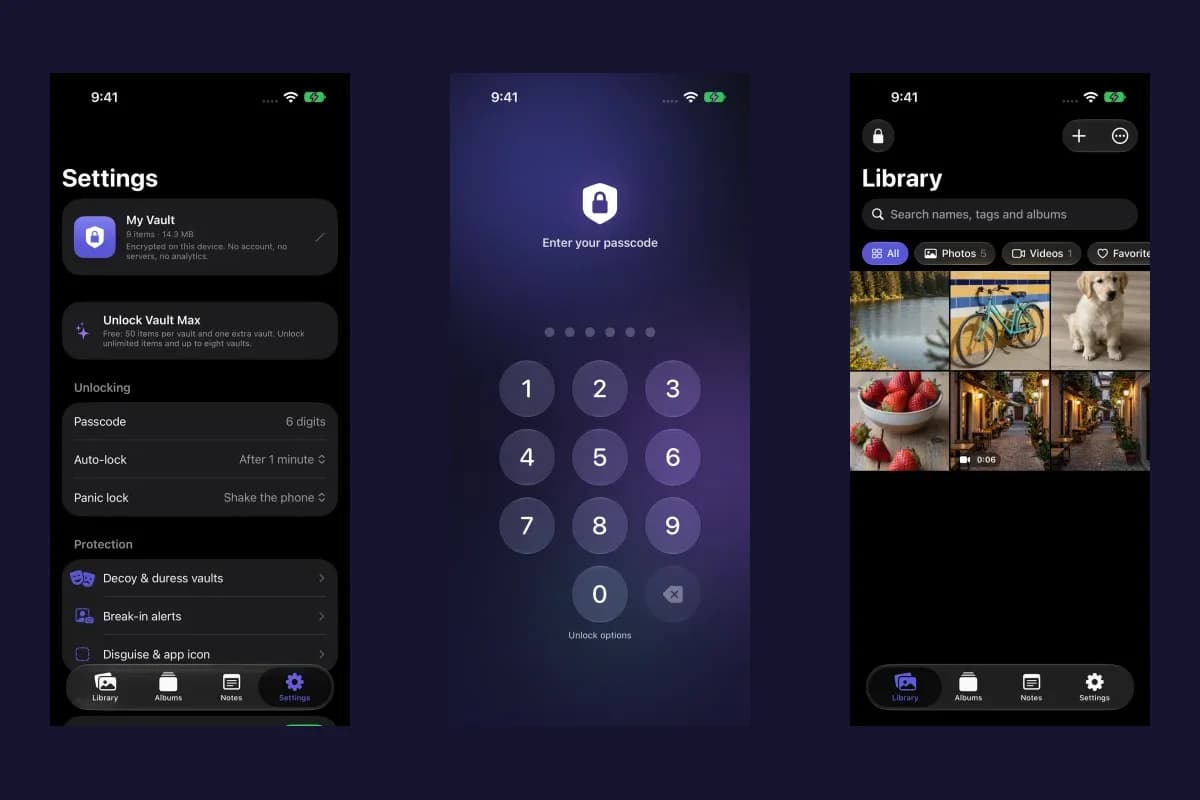
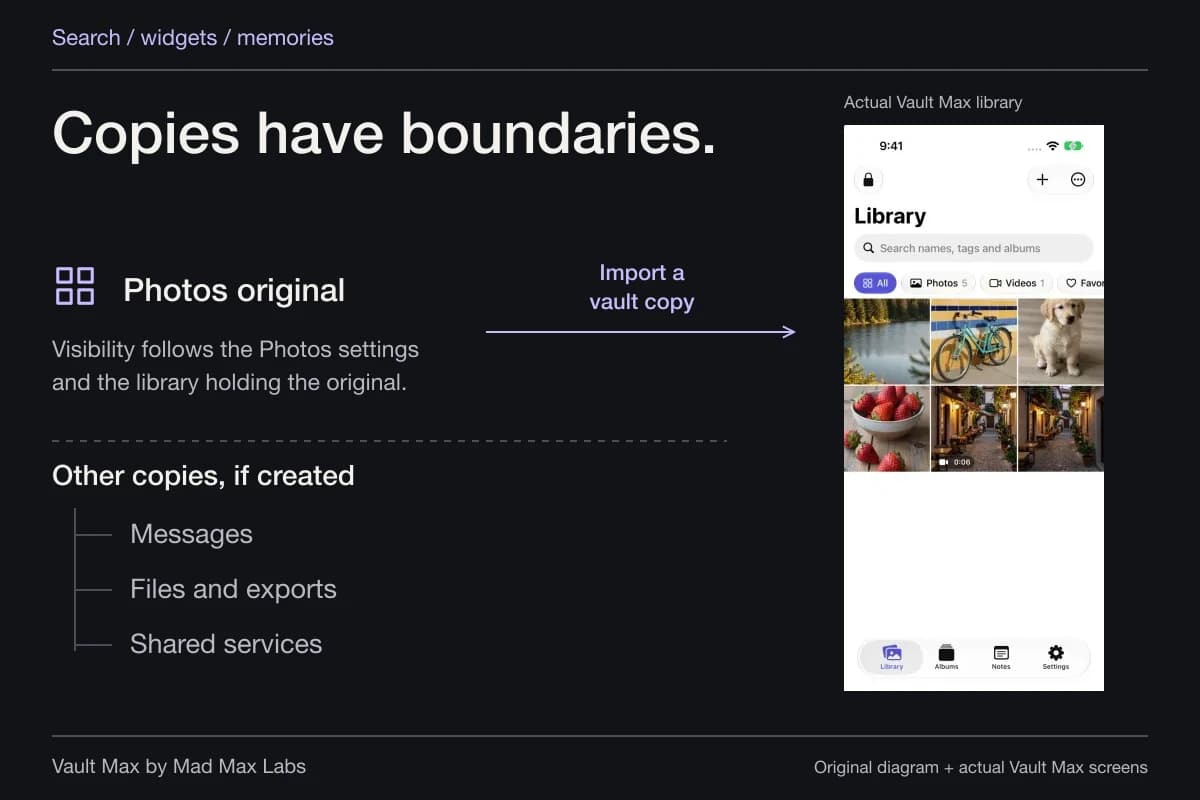
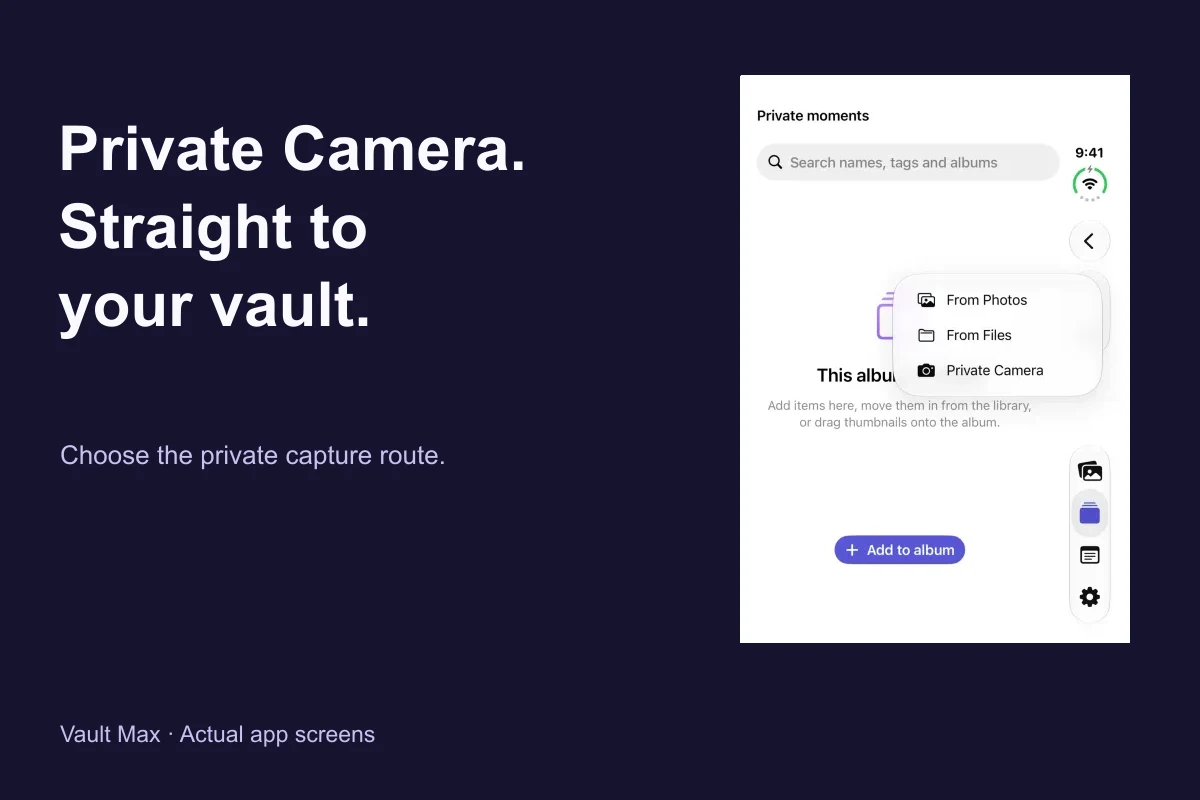
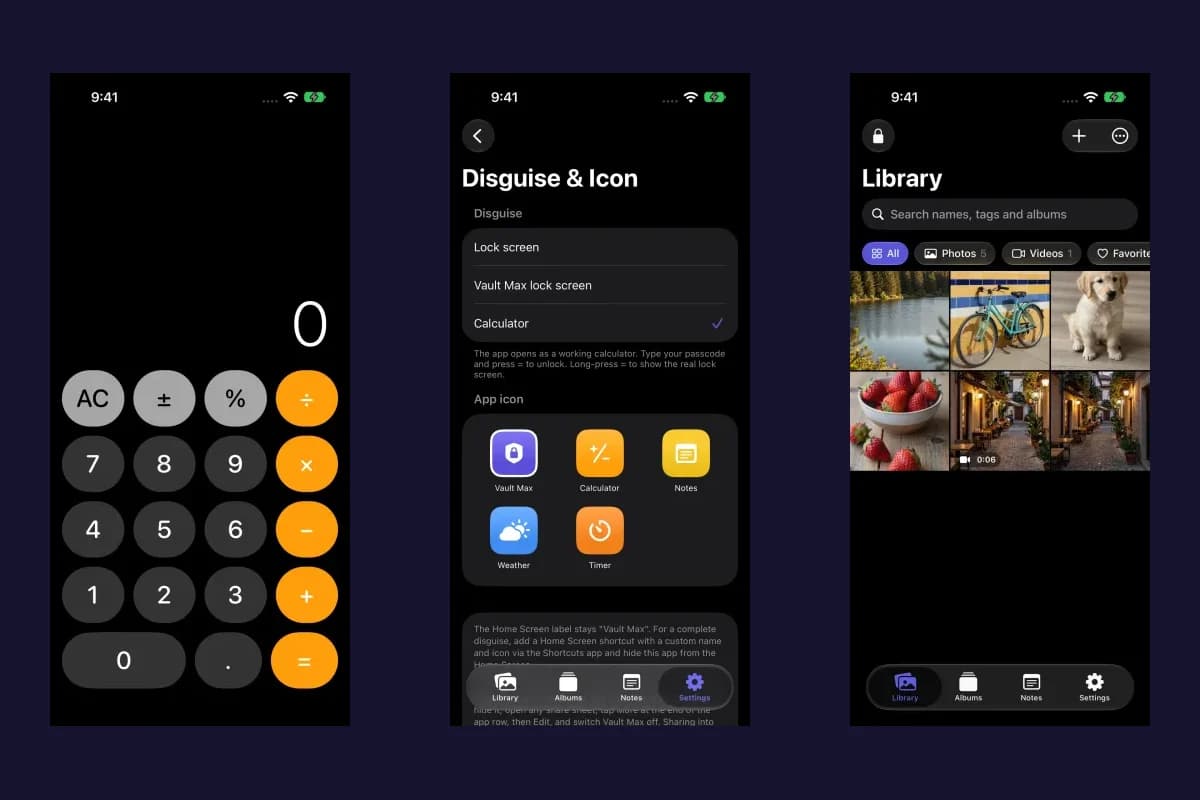
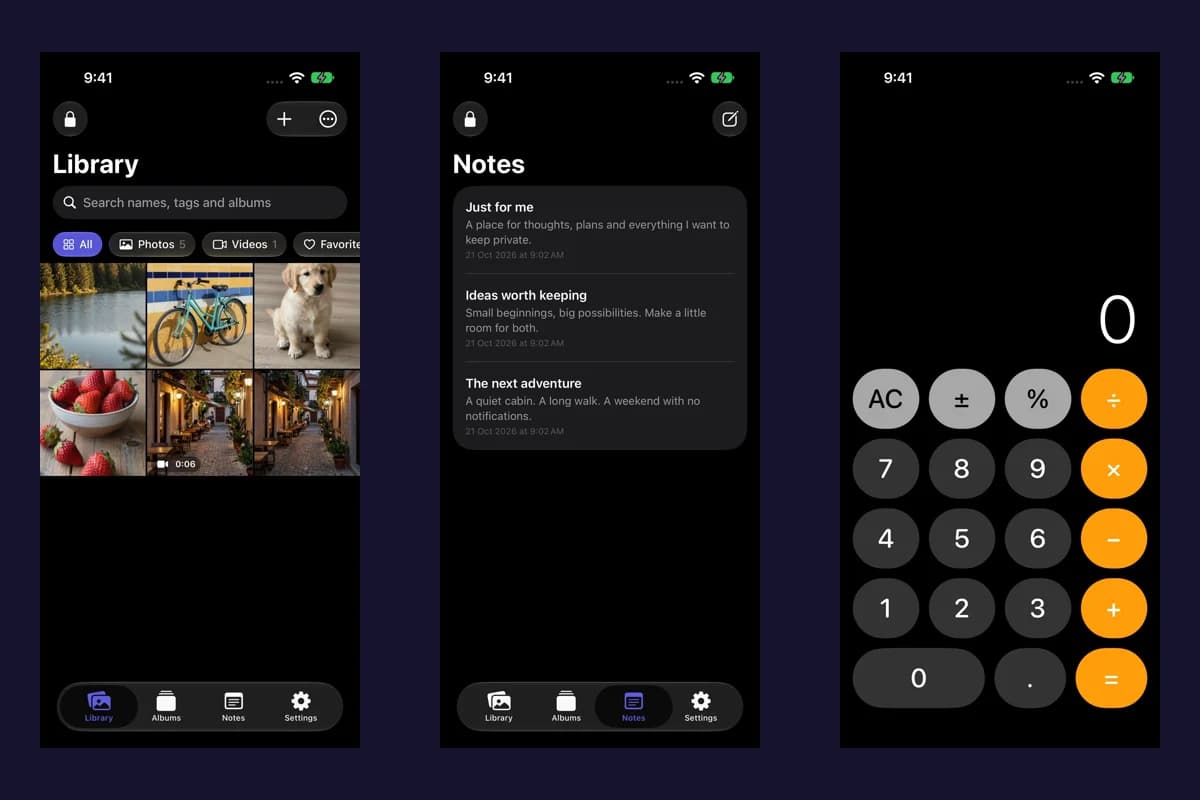
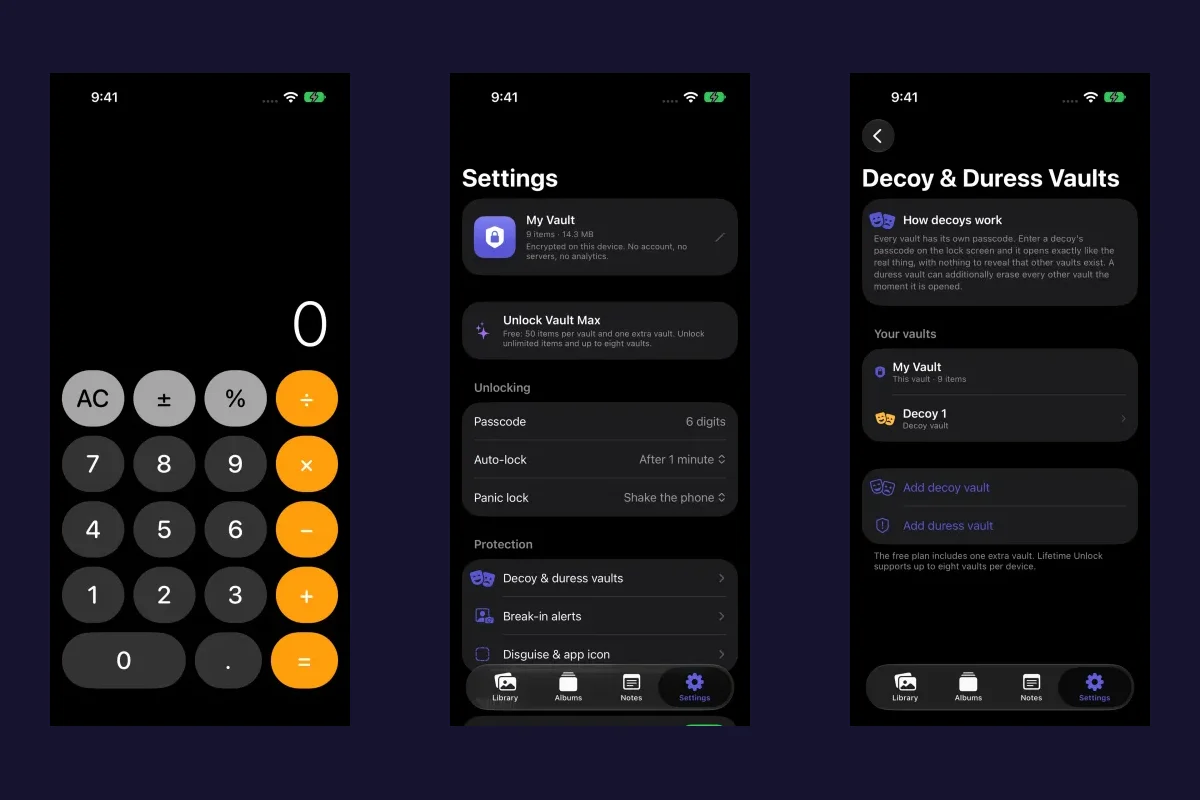
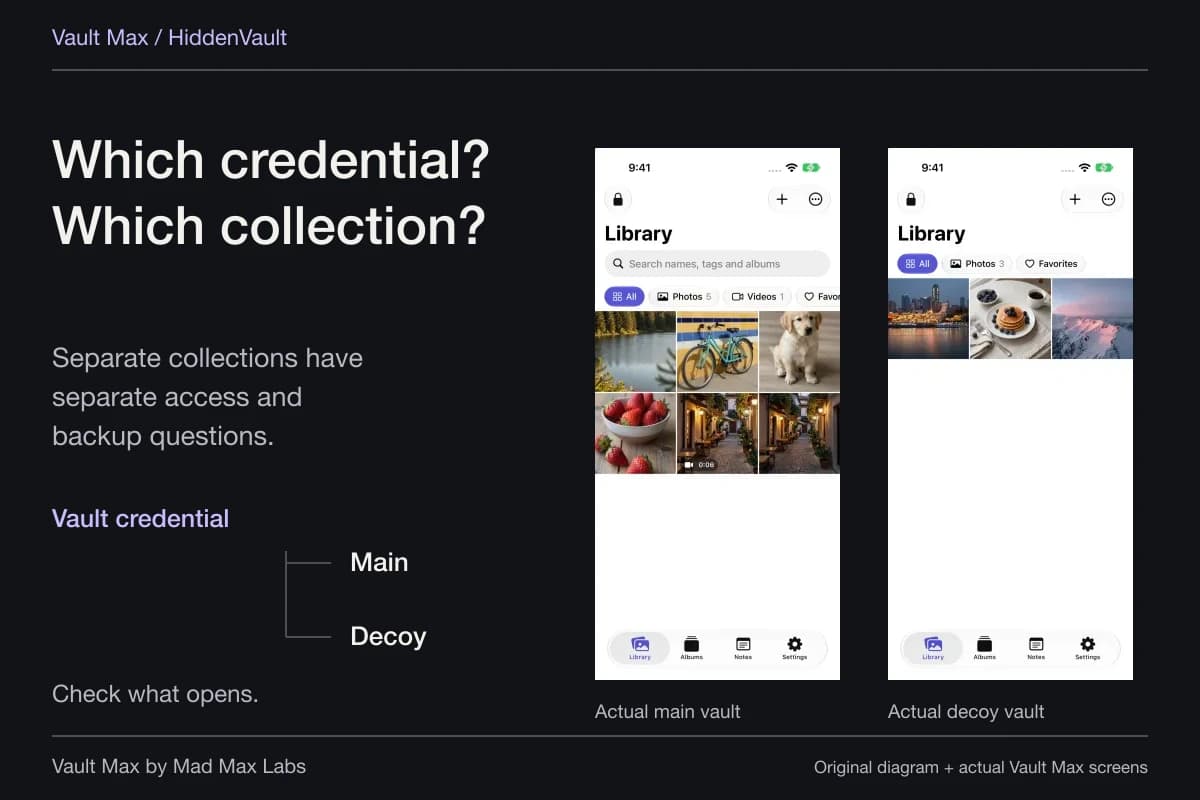
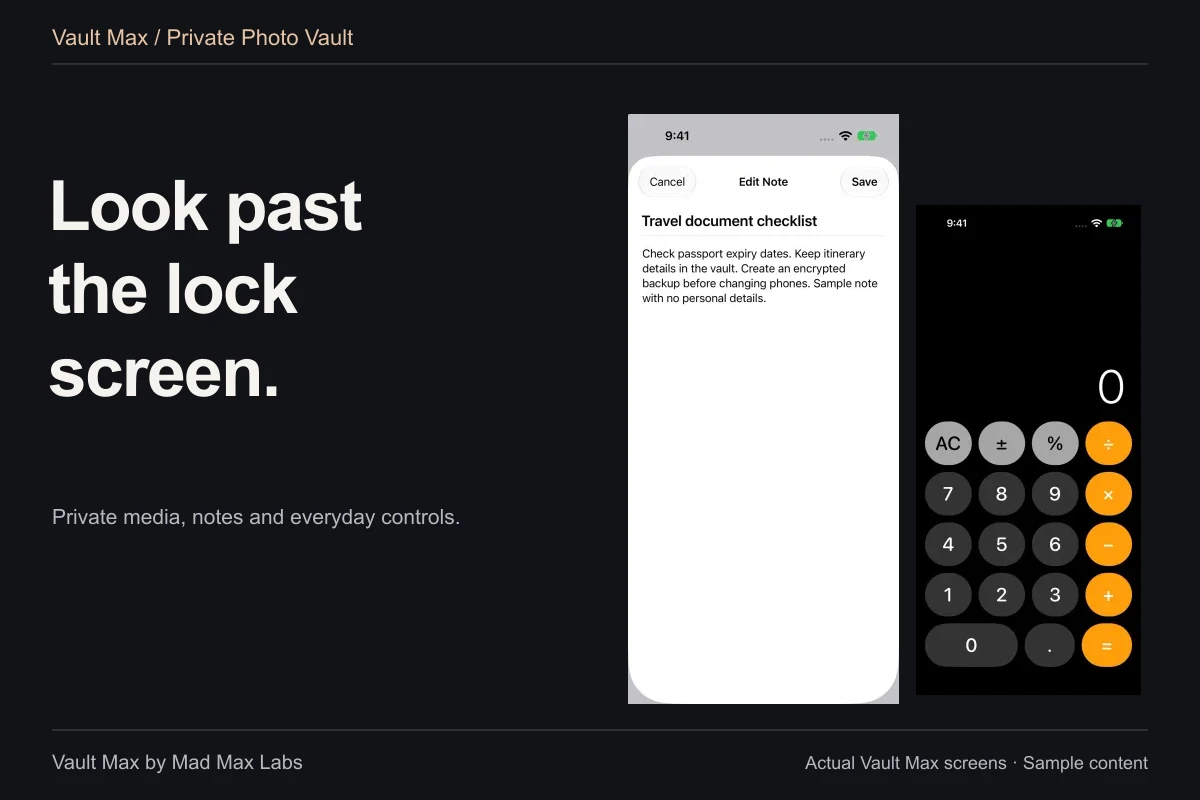
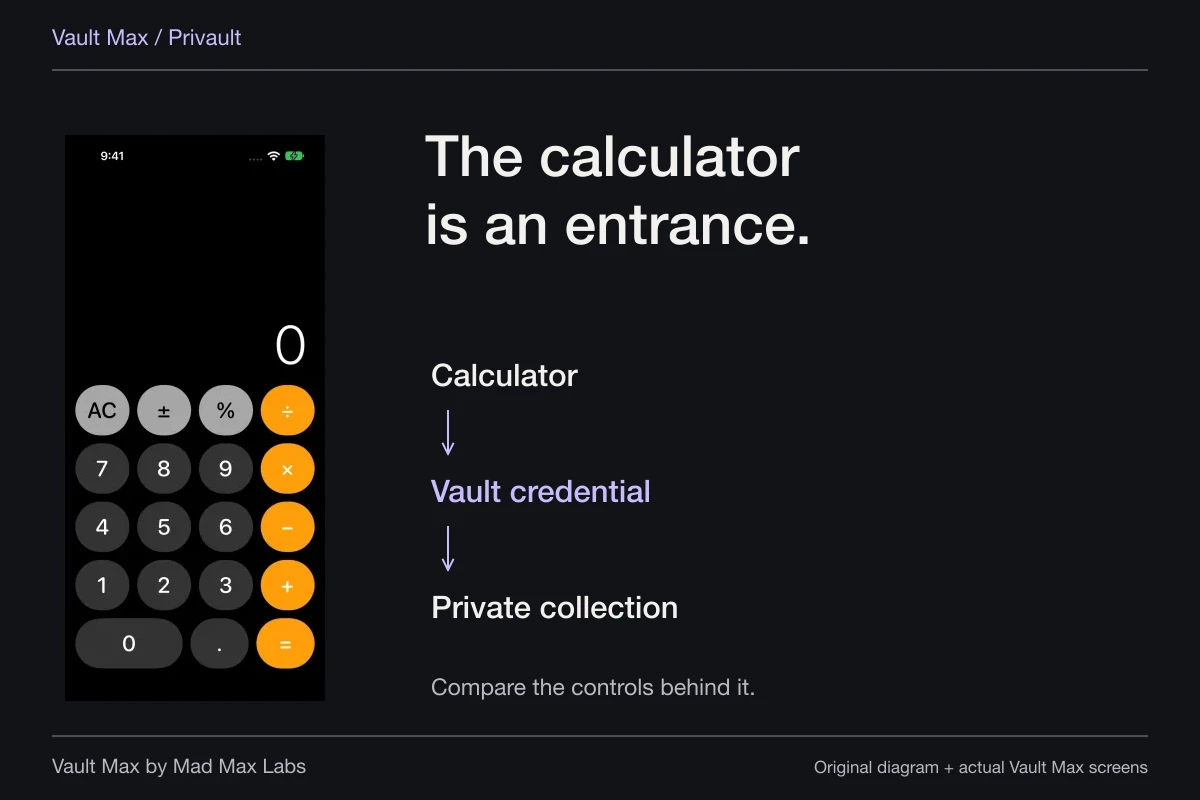
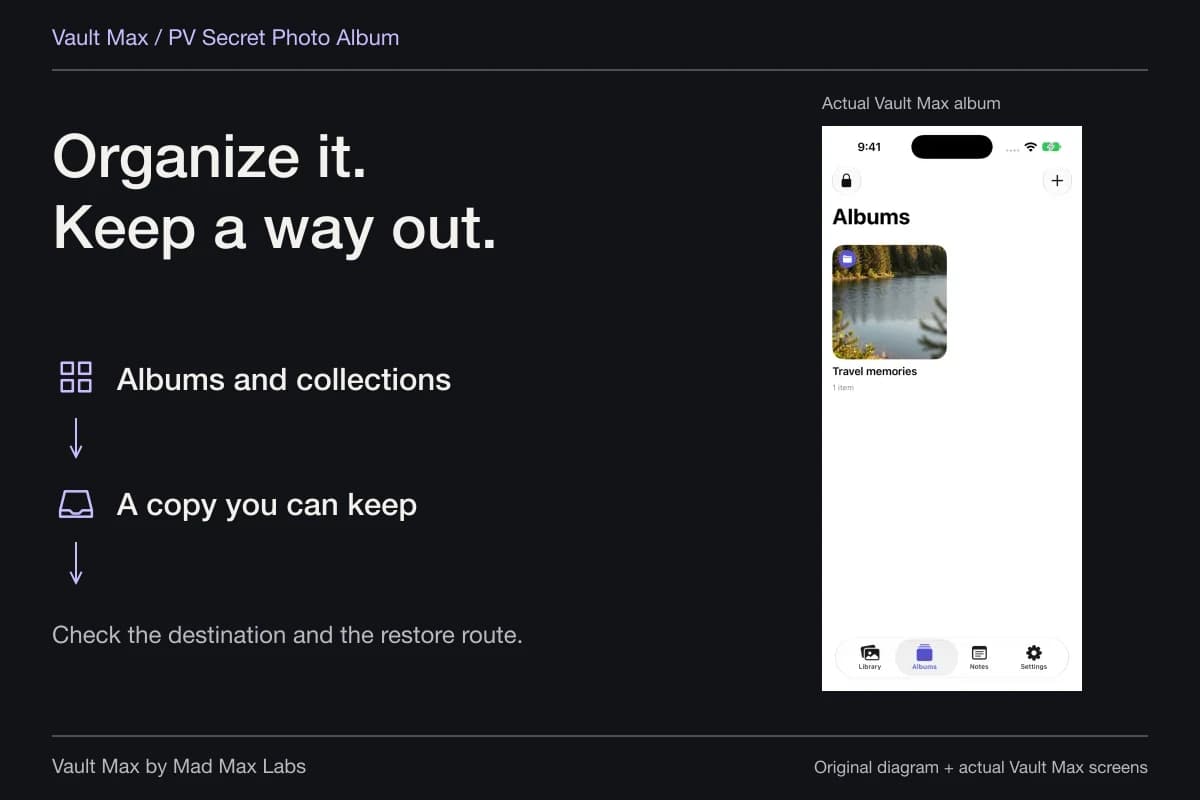
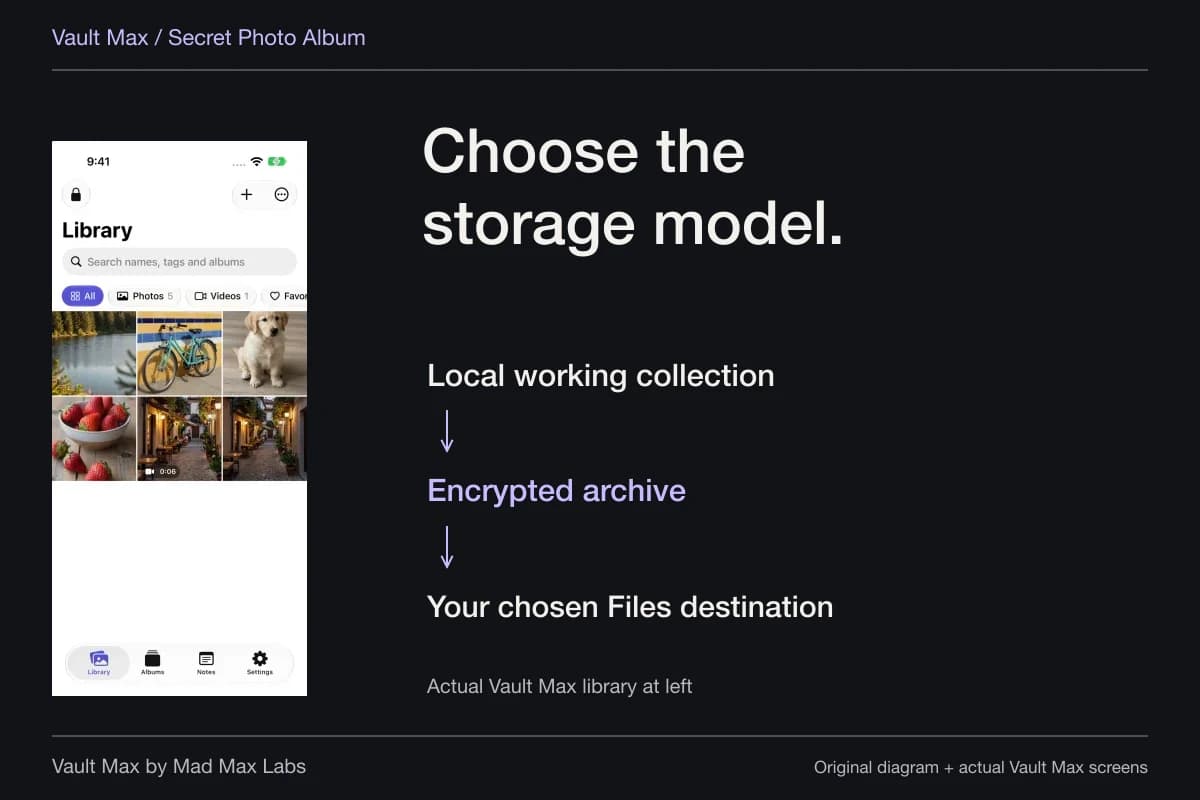
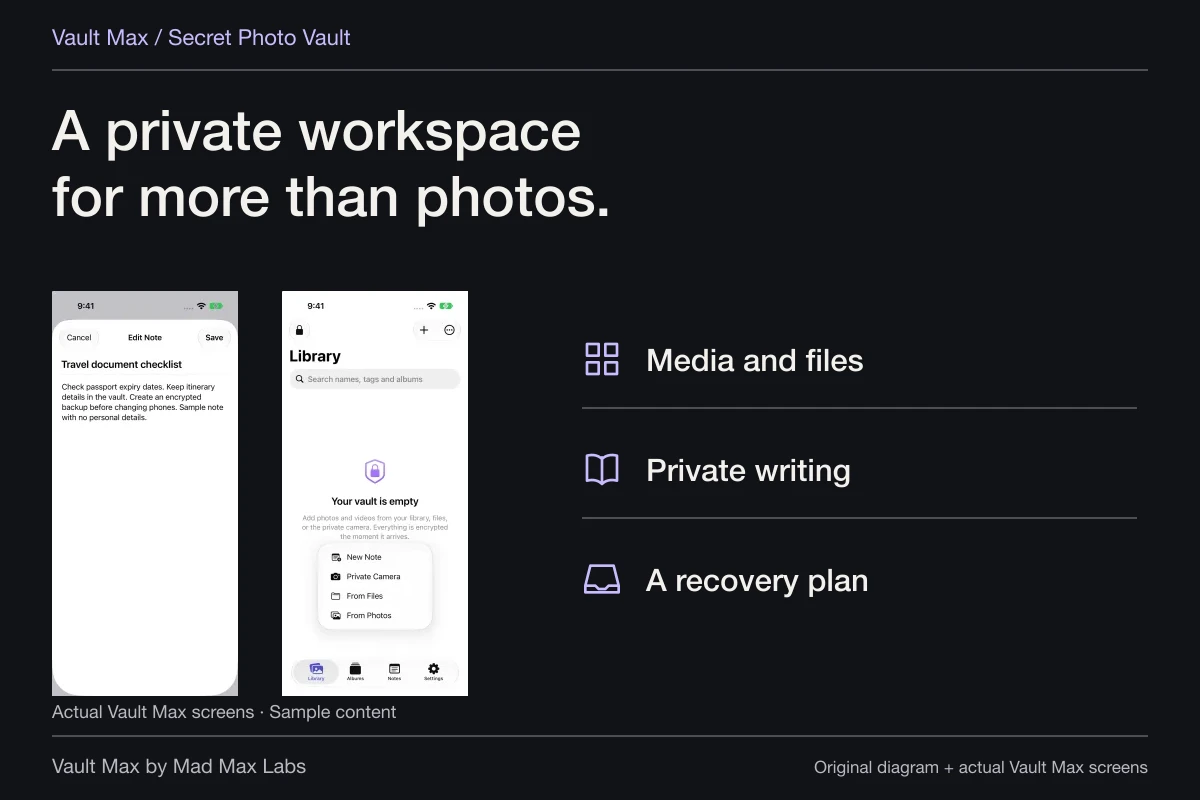
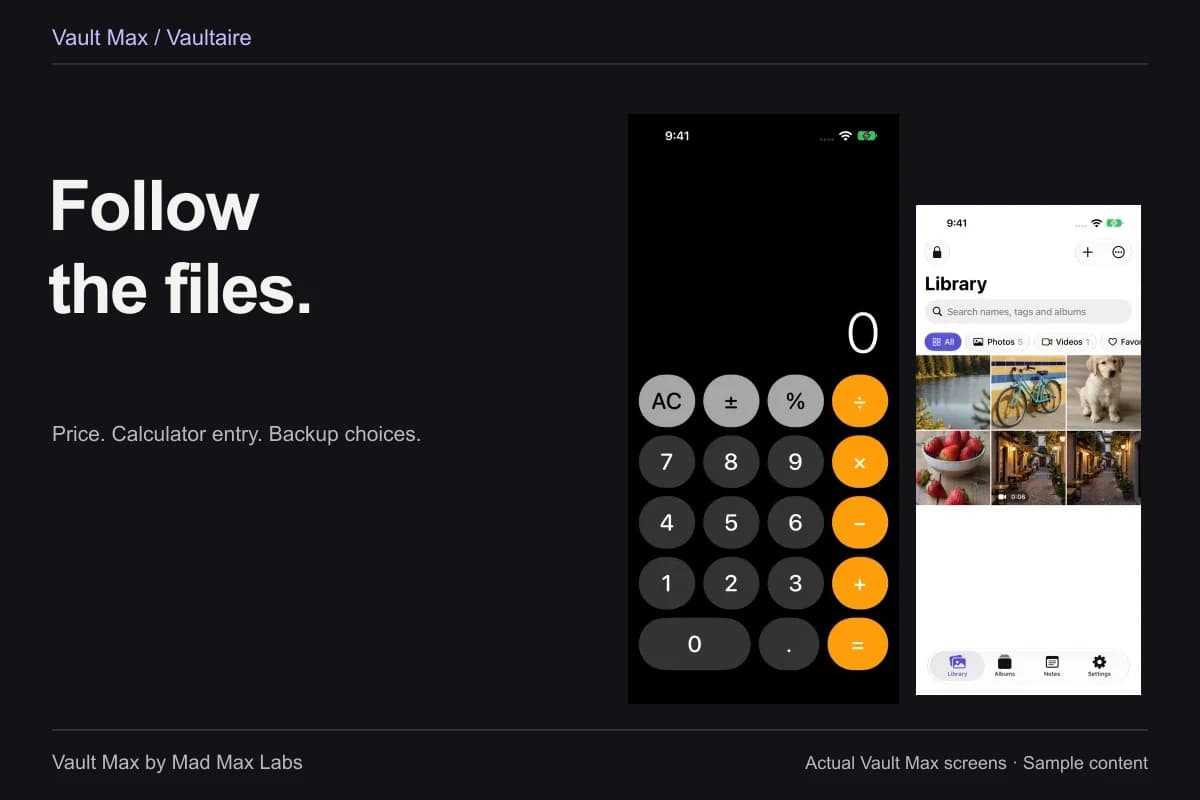
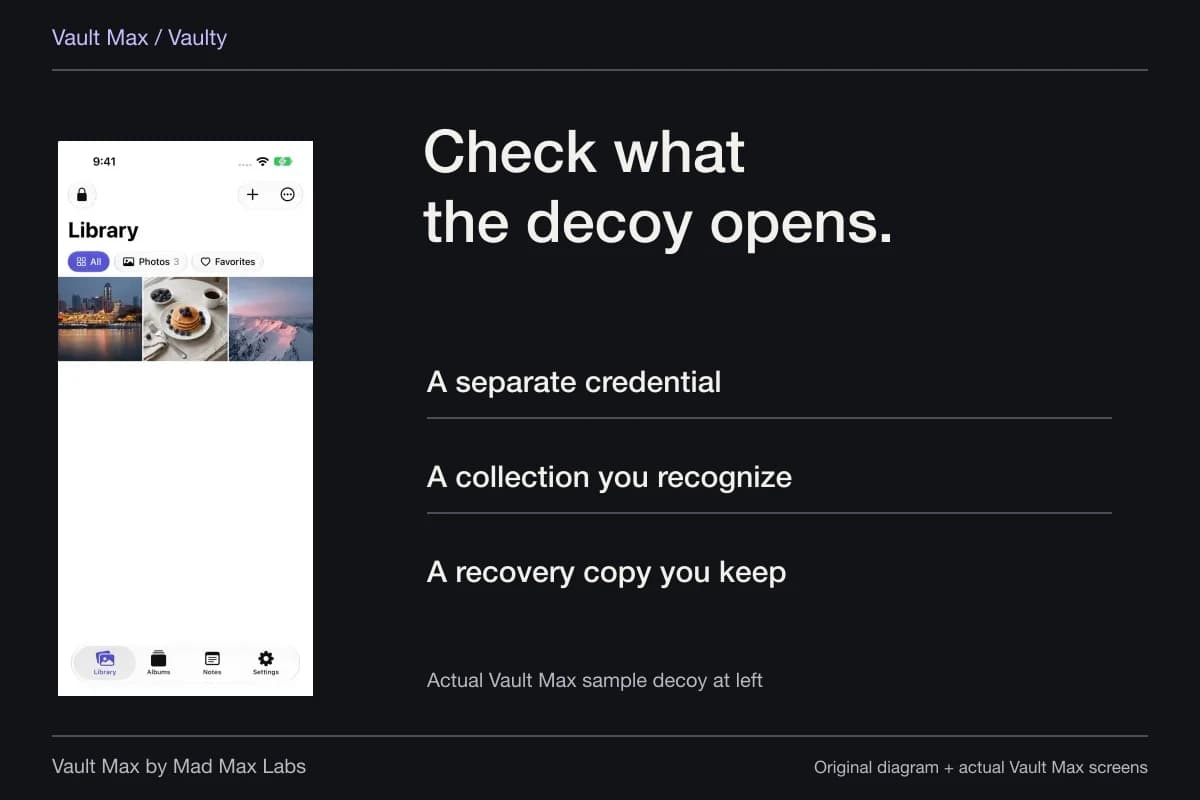
Vault Max is separate from Photos. Importing directly through its From Photos menu adds a copy to the current vault. Items sent through the iOS share extension are ingested into the main vault after that vault unlocks, so check the main collection for those. If you use more than one vault, entering a different valid credential can open a different collection with the same familiar Library interface.
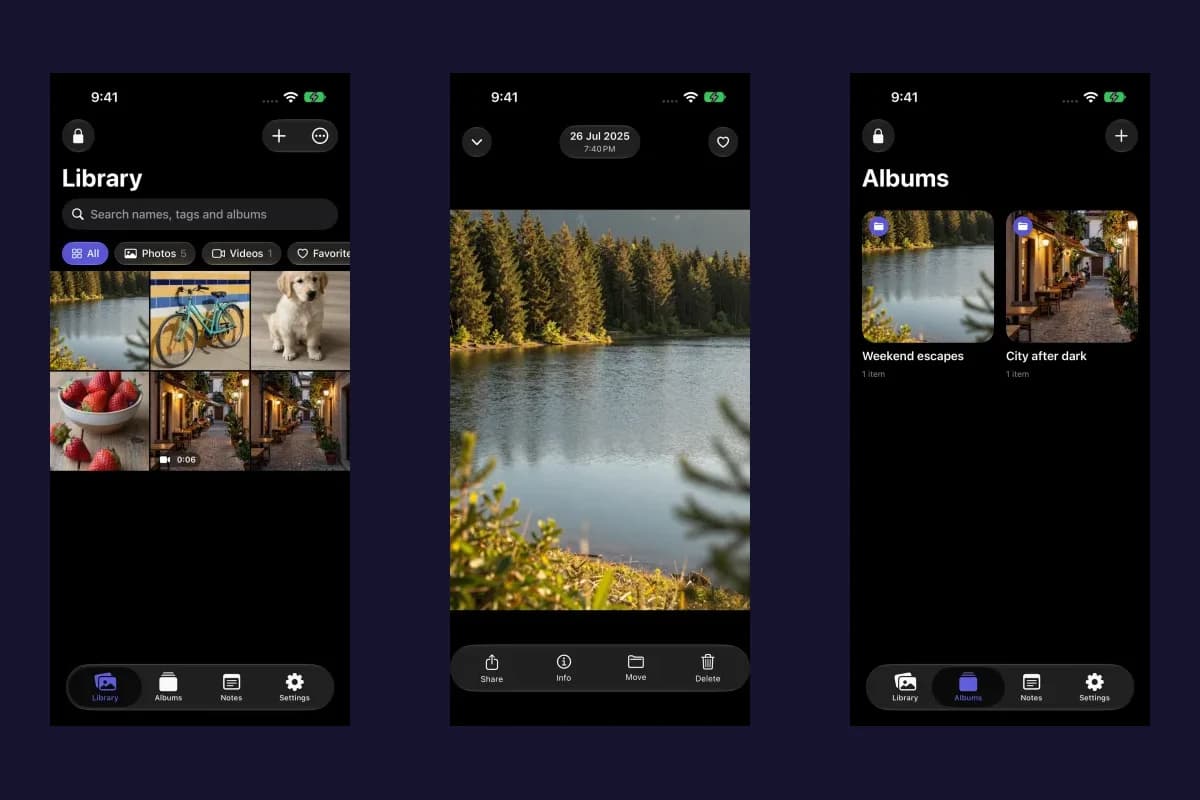
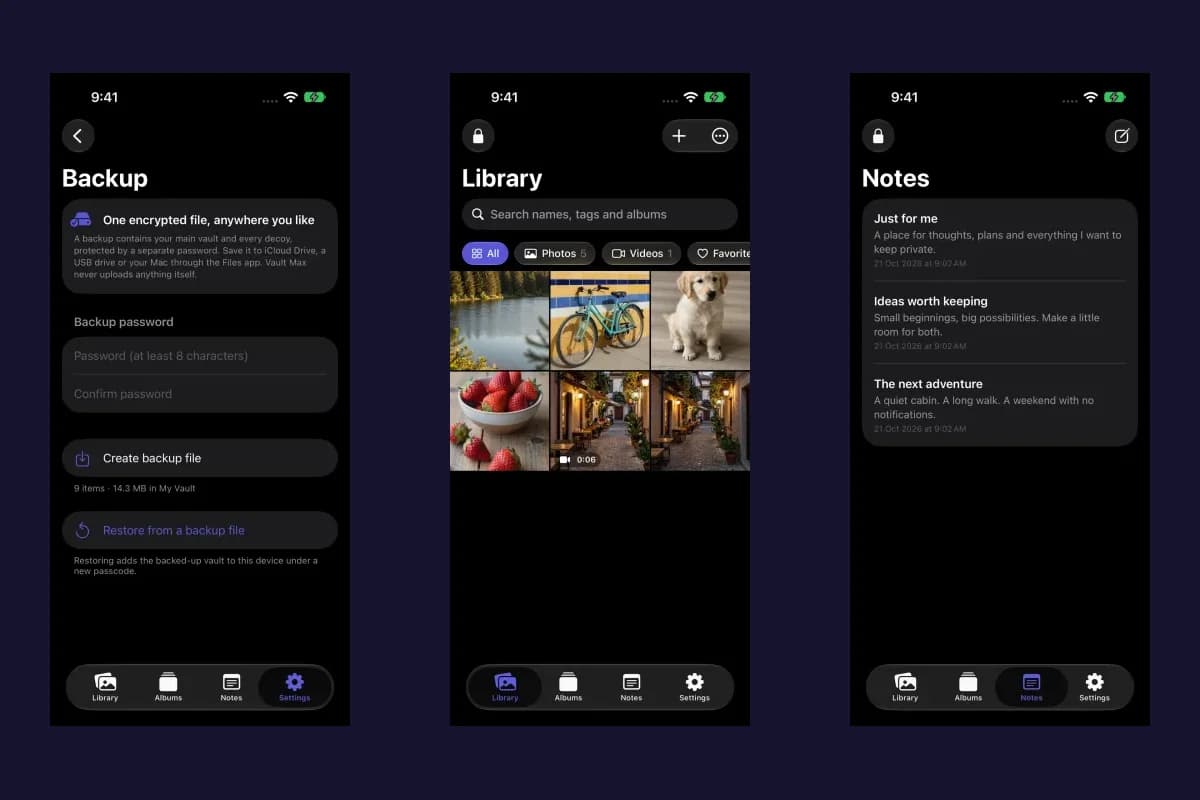
Sample Vault Max library. Select a screen for a closer look.
Use the expected main credential and inspect the content. Do not experiment with a code assigned to destructive duress behavior. Check albums and media filters too. If an item was recently removed inside Vault Max, open Settings → Trash in the relevant vault and look for Restore on the item's leading swipe action.
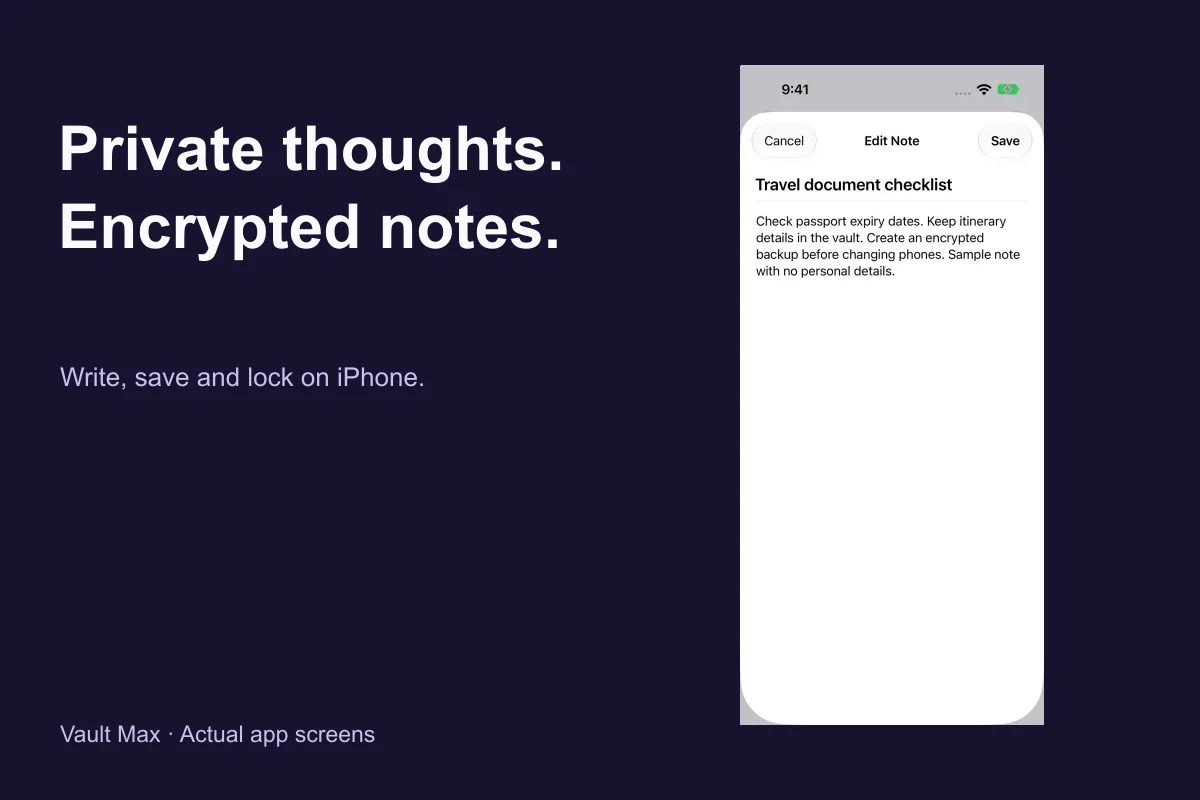
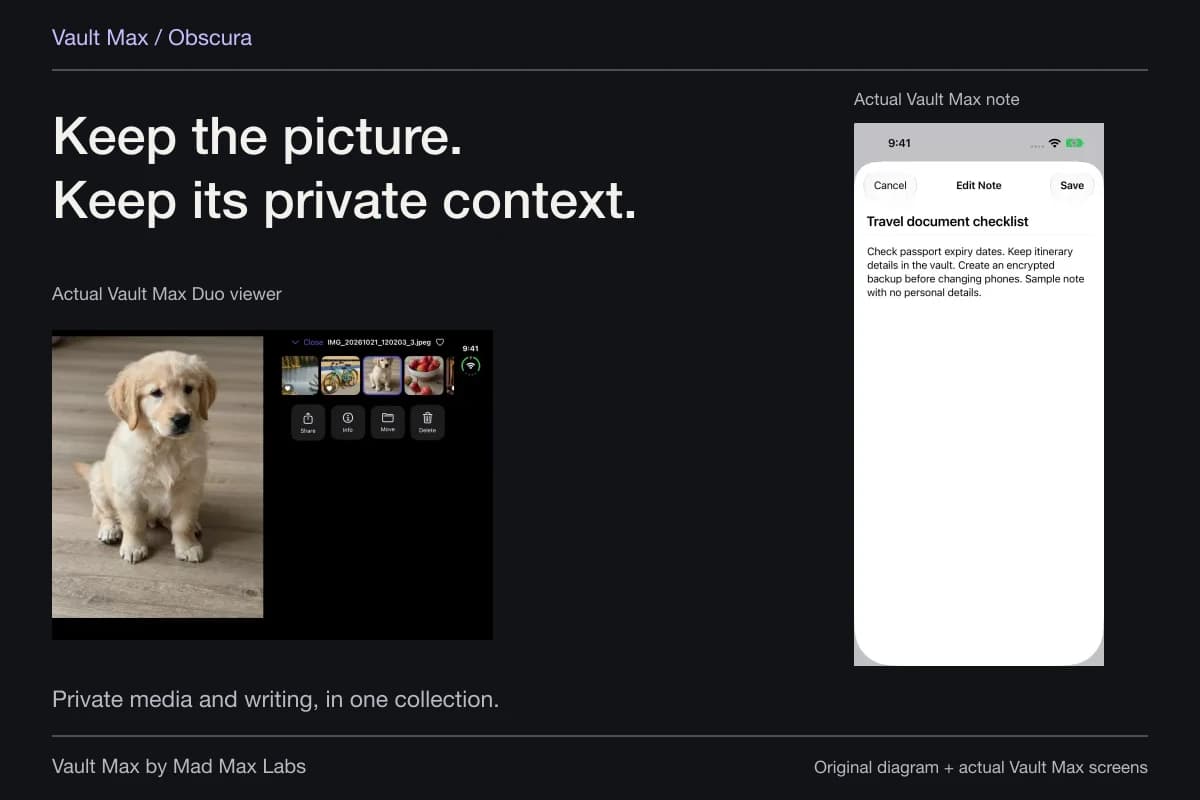
Vault Max's Trash retention can be set to 7, 30 or 90 days. It is different from Apple's Recently Deleted collection. Erase and Empty permanently remove vault items; do not use them while trying to recover one. A deleted note and a missing photo may also call for different checks, so preserve whatever still opens.
Use backups for the snapshot they actually contain
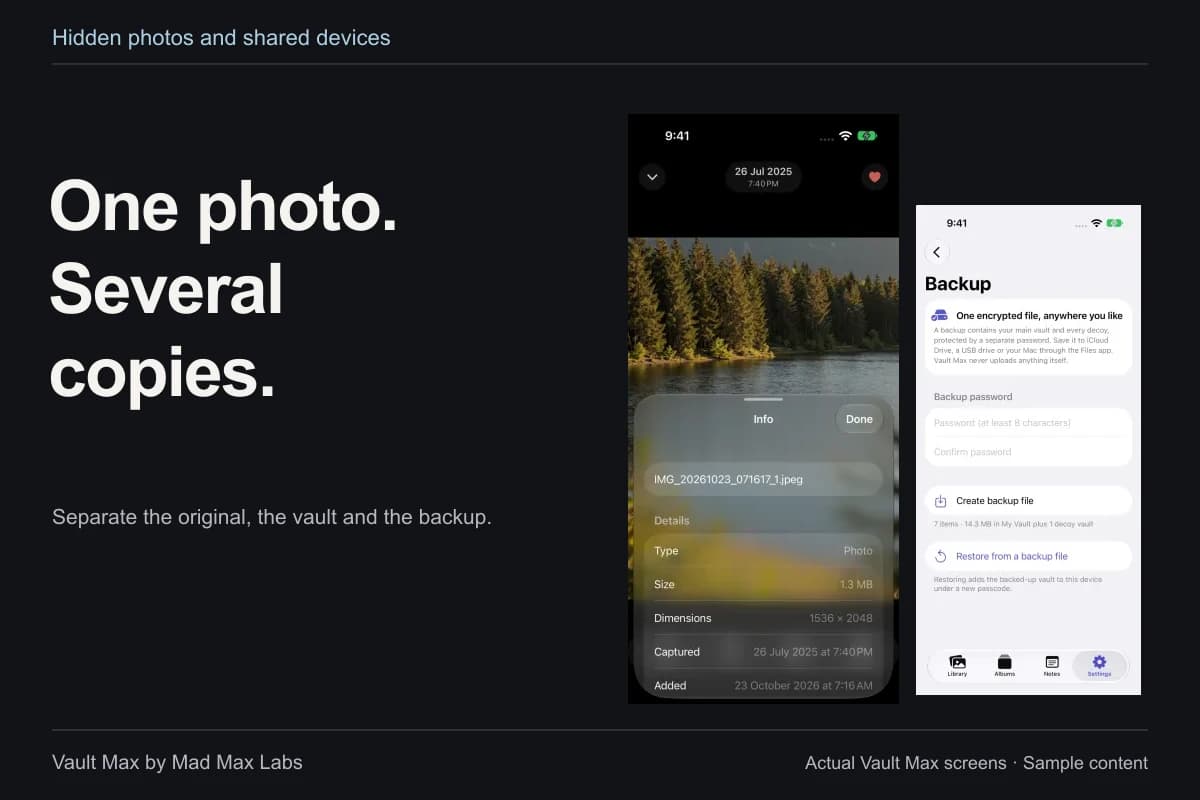
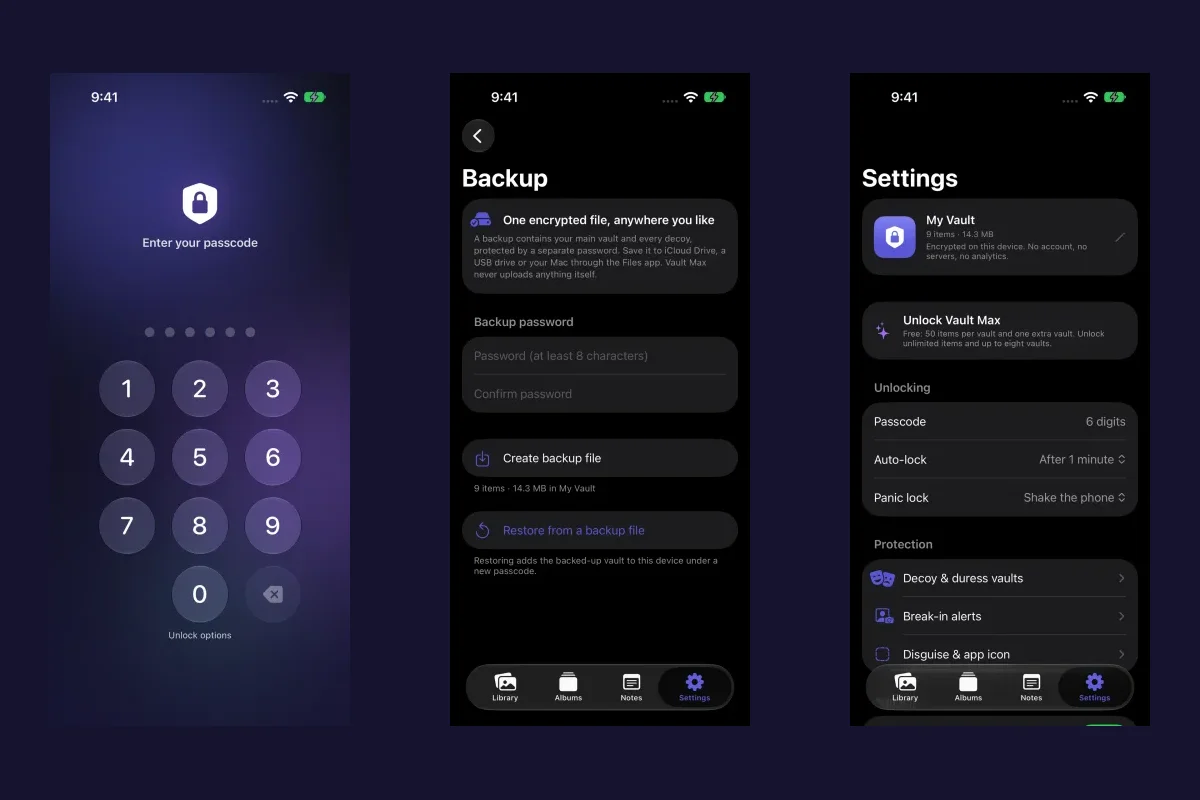
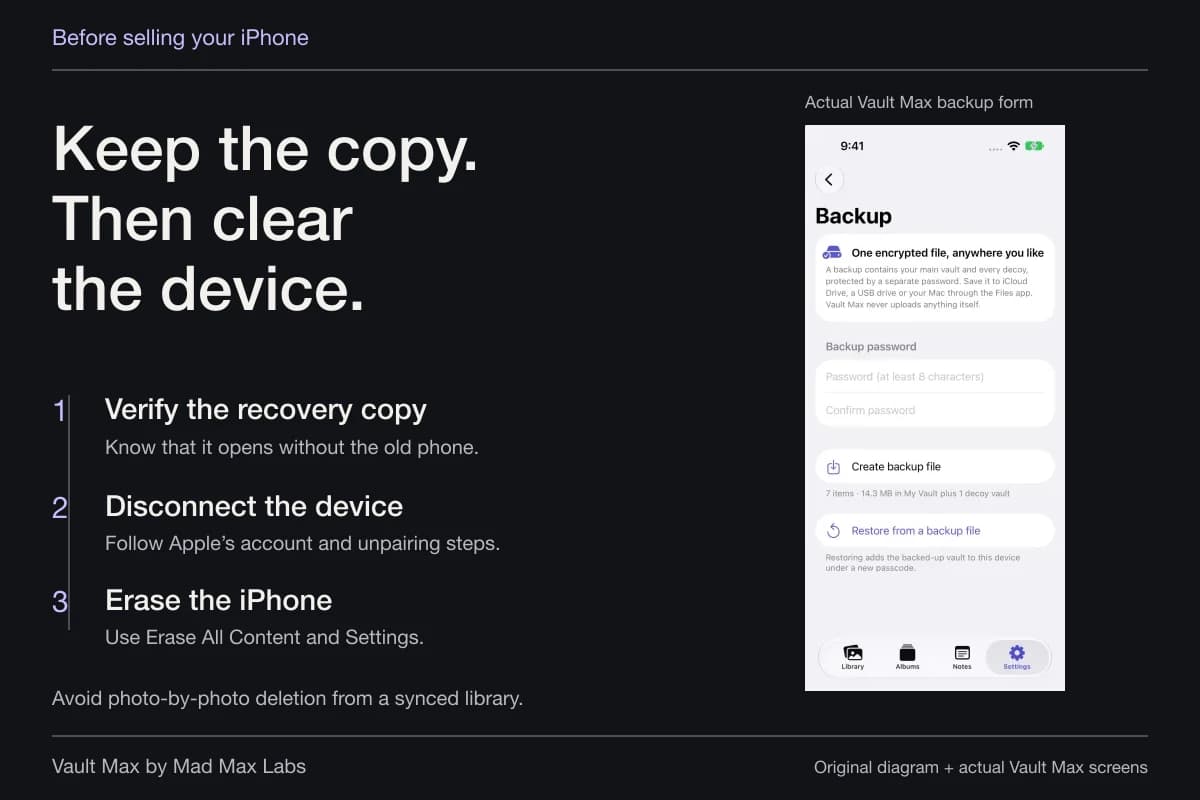
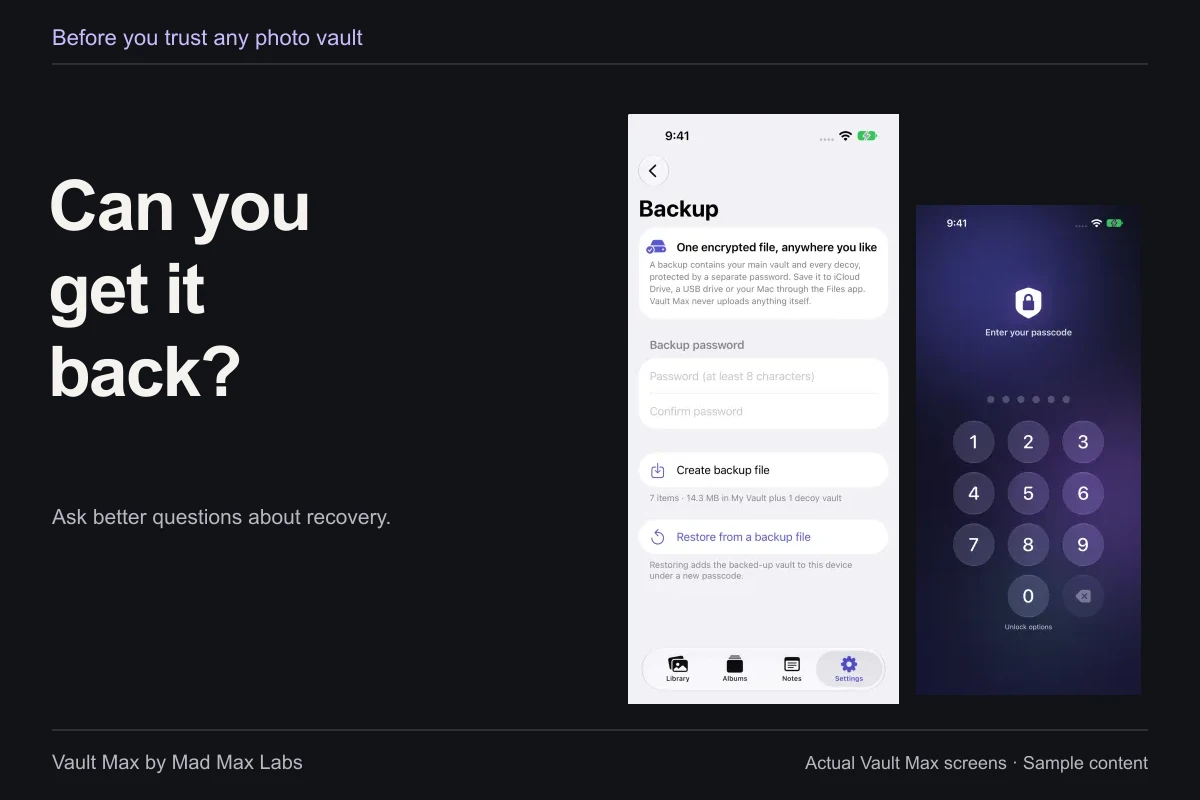
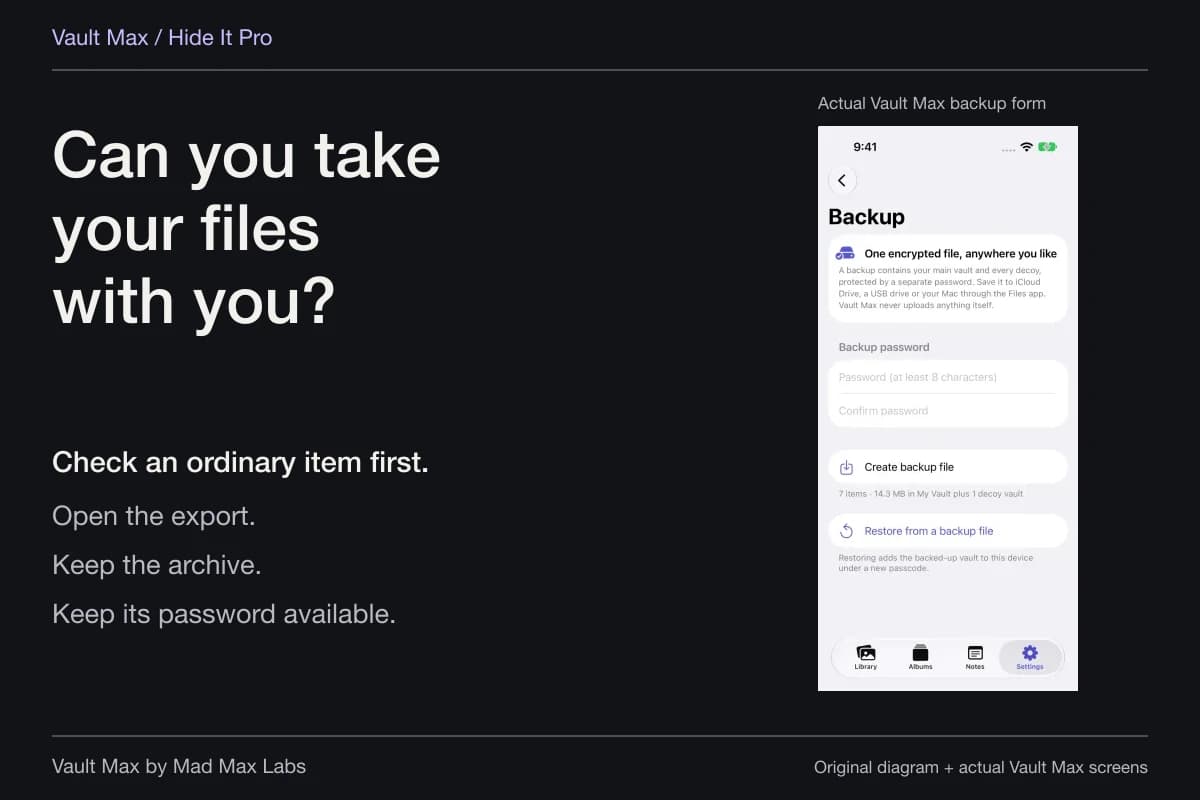
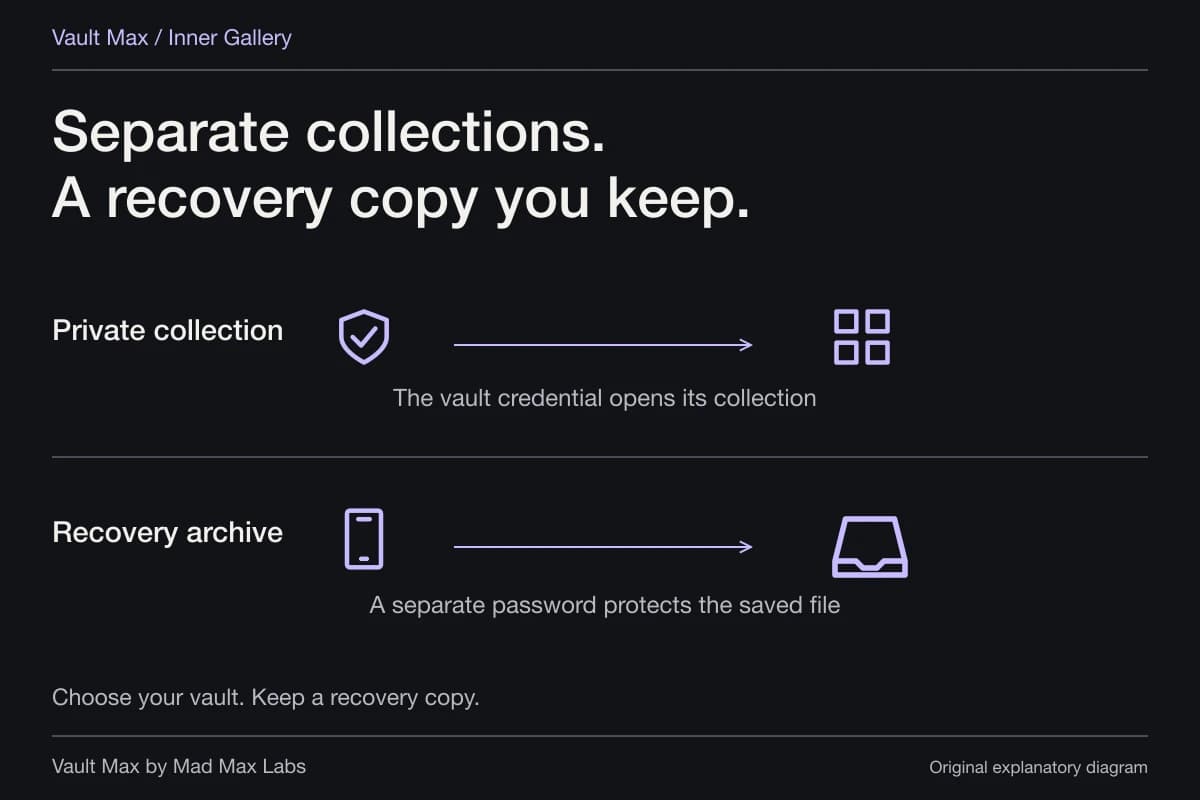
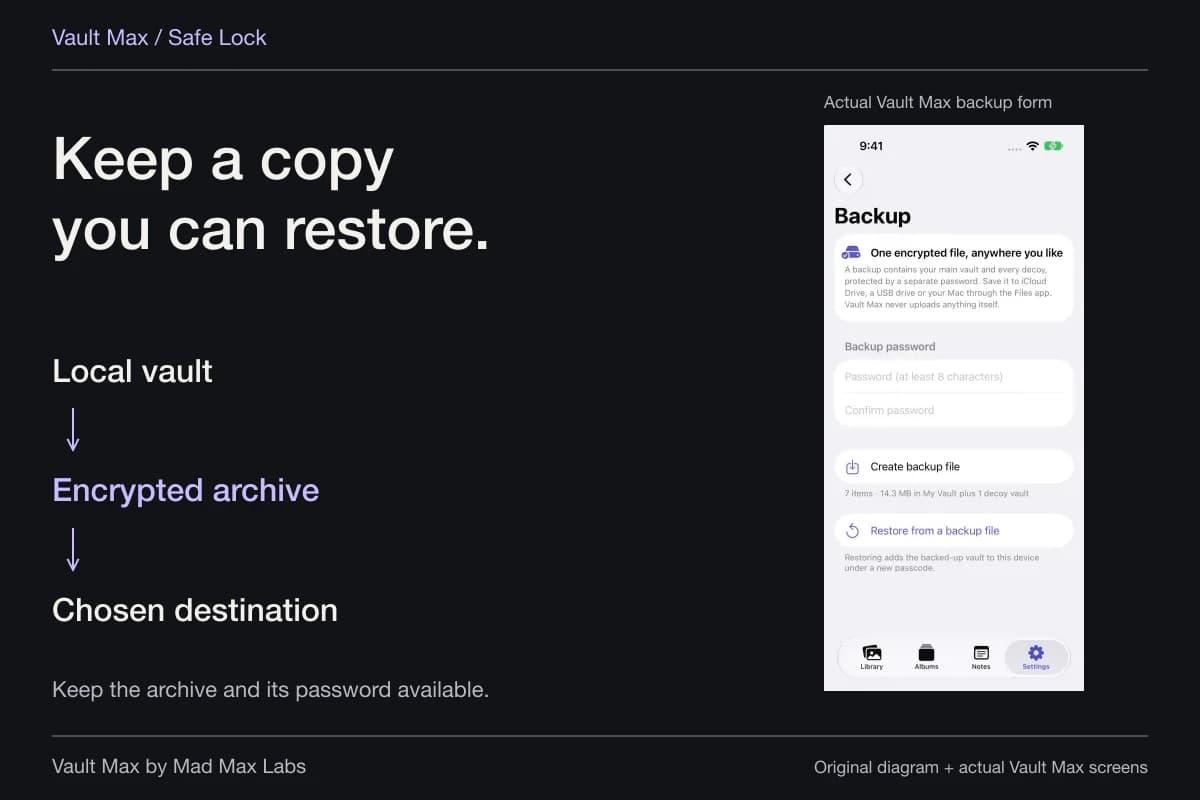
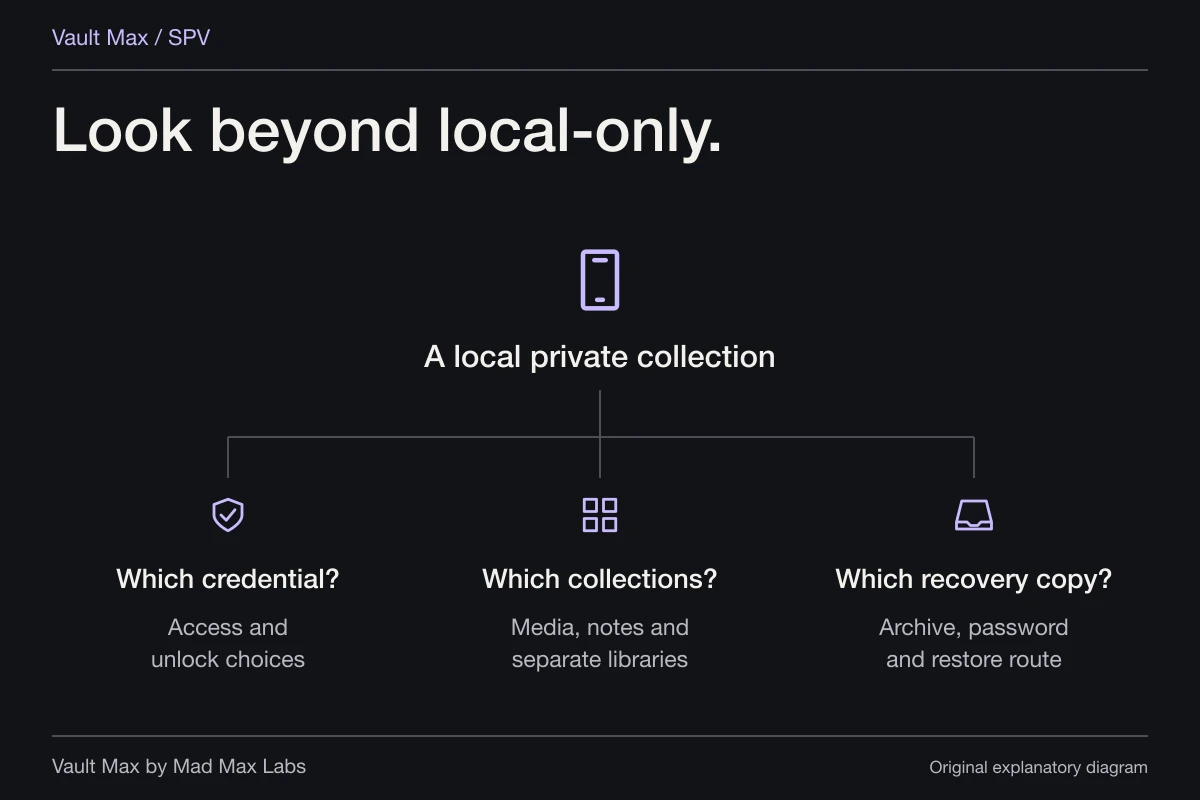
If the picture is absent from accessible working collections, look for a backup made when it was present. A .vaultmax archive requires its separate backup password. Restoring it recovers that snapshot under a new vault credential; it cannot add an item that was never included.
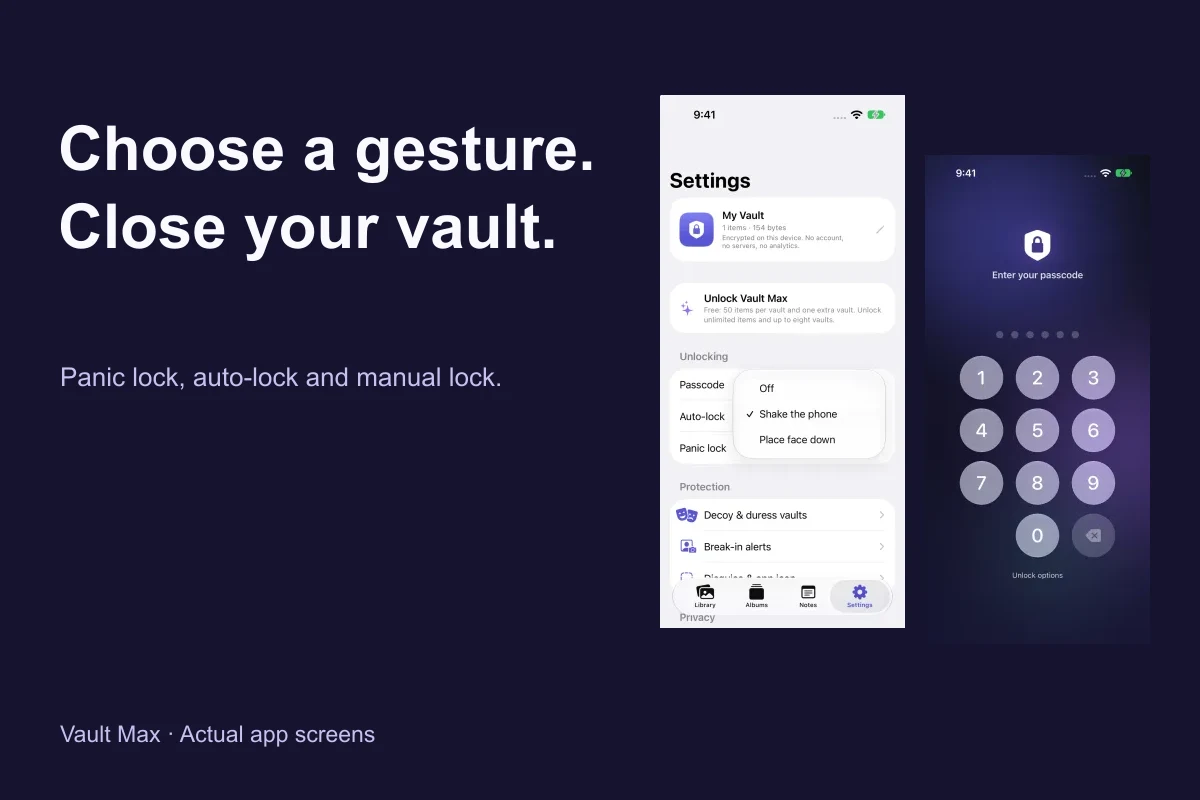
Keep the current installation and candidate archives while inspecting the result. Restoring an App Store purchase does not restore private media. If the vault code itself is the problem, follow the forgotten-passcode guide before altering app data.
If no supported unlock path, recoverable item or usable backup remains, we cannot promise a way to recreate the missing content. A recovery app's advertising is not evidence that it can retrieve your particular file. Keep the remaining copies and contact the relevant provider with the error and circumstances, without sending passwords or private pictures.
Once the search is resolved, make a fresh recovery plan. The useful result is a photograph you can actually open and a clear record of where the protected copy now lives.
Continue reading
More guides
Practical tips for your private library. Swipe or scroll to choose your next guide.

50 guides to explore