
Privacy in practice
AirDrop privacy on iPhone: choose the audience, then the file
Review AirDrop receiving settings, newer transfer codes and recipient copies. Keep private photos in their own collection until you choose what to share.
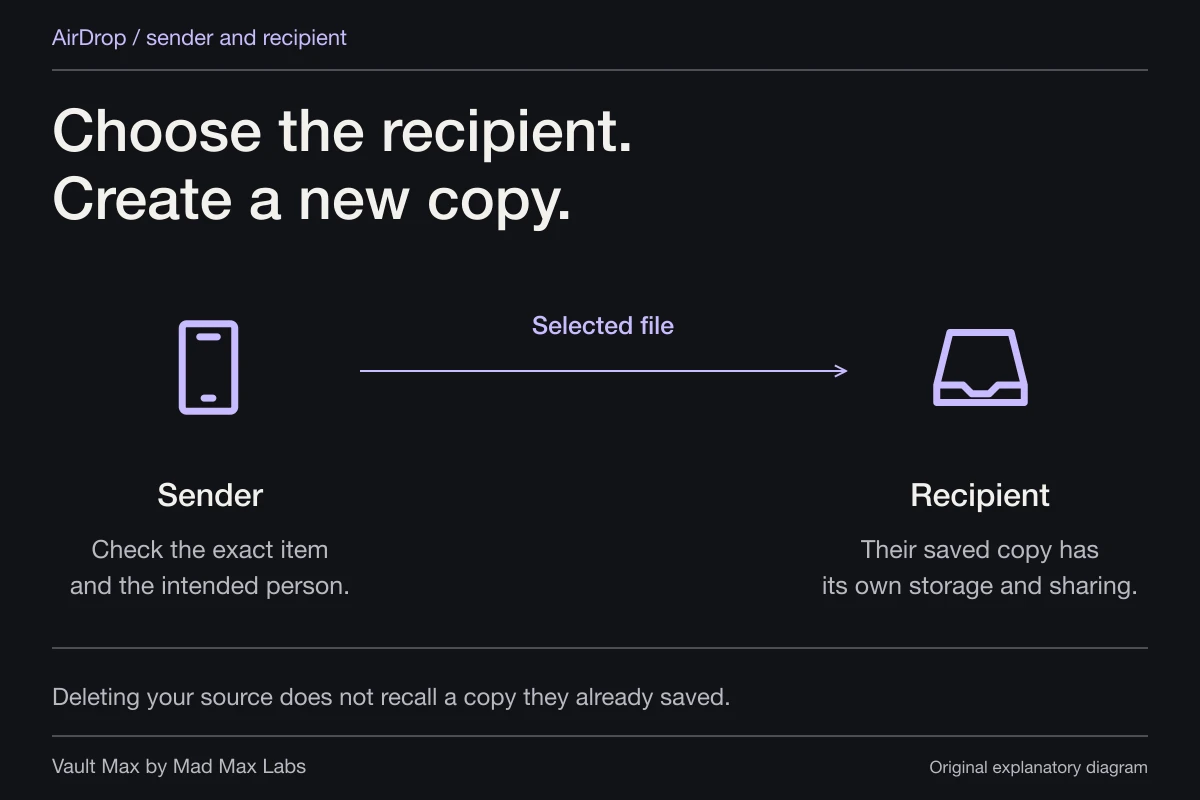
Choose who may send to your iPhone through AirDrop's receiving control, then separately choose what you send out. Use Receiving Off when you do not want incoming transfers. Contacts Only and Everyone for 10 Minutes serve different audiences. On qualifying newer systems, a transfer from a non-contact can also involve an AirDrop code.
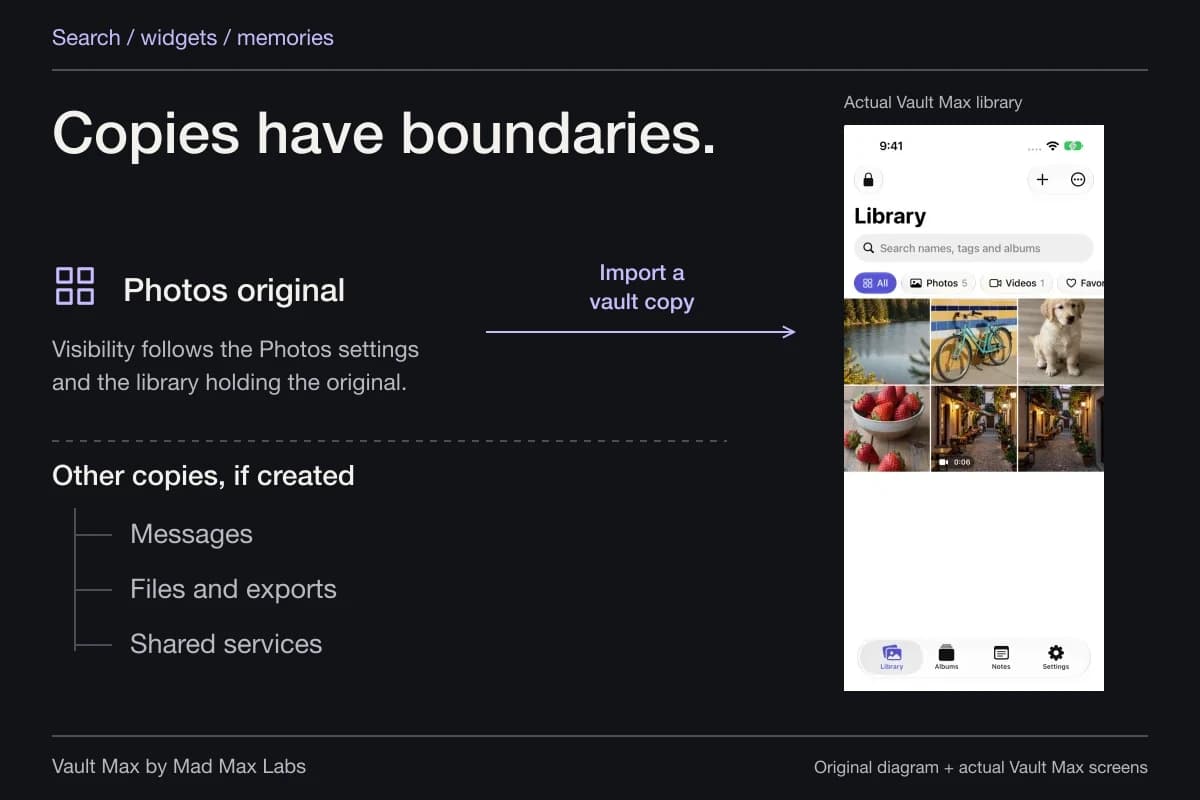
For private pictures, finish with a second question: where will the received file live? A safe working collection and a deliberate sharing action fit together. Vault Max keeps your chosen media and notes in its encrypted library until you choose an export; the recipient controls the copy they receive.
Sender
- Verify the exact item
- Verify the intended recipient
- Review metadata and the copy you are sharing
Recipient
The saved file follows the recipient’s storage, sharing and deletion choices.
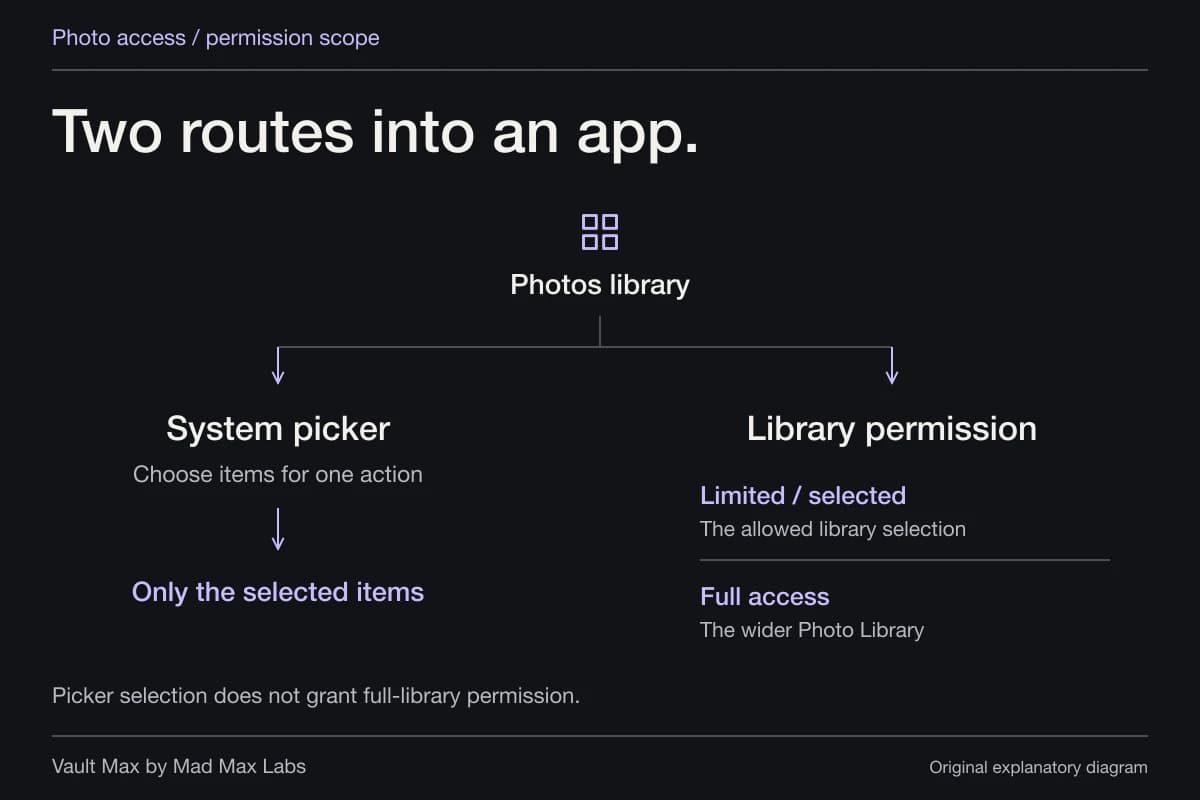
Deleting the source does not recall this copy.Receiving visibility does not grant access to your photo library. Current approval and code requirements depend on the people, devices and iOS versions involved.
Set the receiving audience for the moment
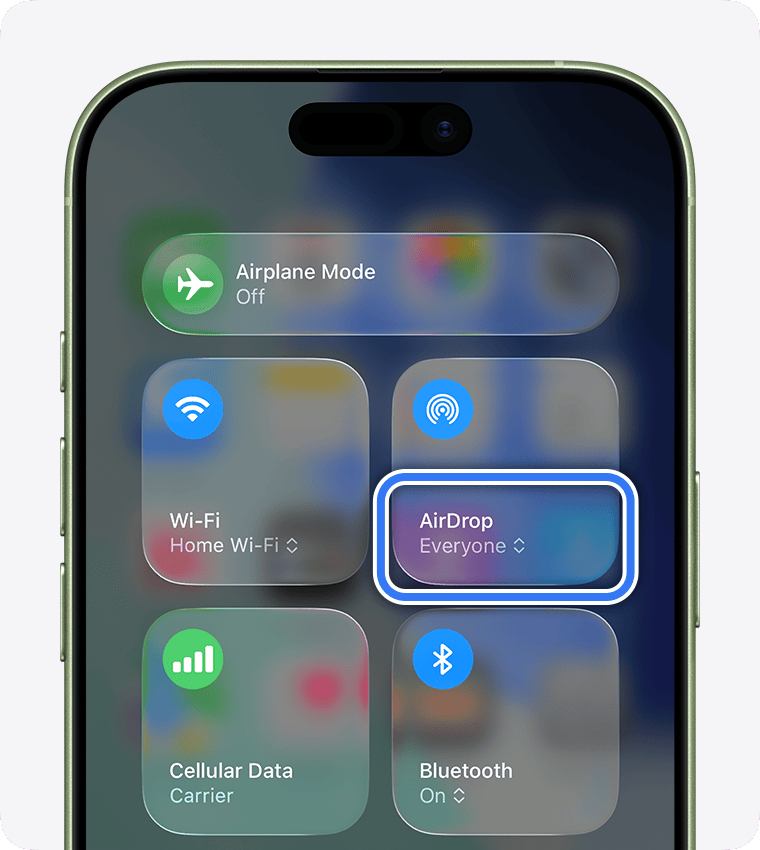
Open Control Center, expand the connectivity controls and inspect AirDrop. Apple's current AirDrop instructions explain the receiving choices. Everyone for 10 Minutes returns to a narrower state after its interval; the resulting state depends on Apple Account sign-in.
Use that temporary choice for a transfer you actually intend. At a group event, first identify the person sending the picture, then enable the appropriate receiving setting. Once the task is complete, review the control again rather than leaving its state to memory.
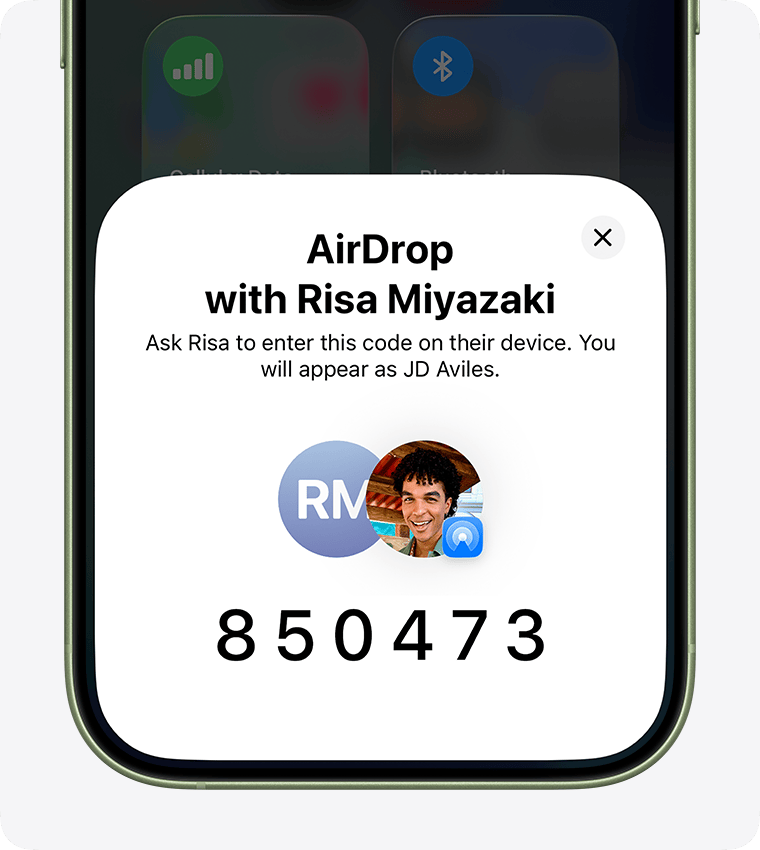
Publisher-supplied screenshots. Source material, not a hands-on test.
The receiving audience controls who may offer a transfer. Everyone for 10 Minutes is temporary; receiving permission does not open a private library.
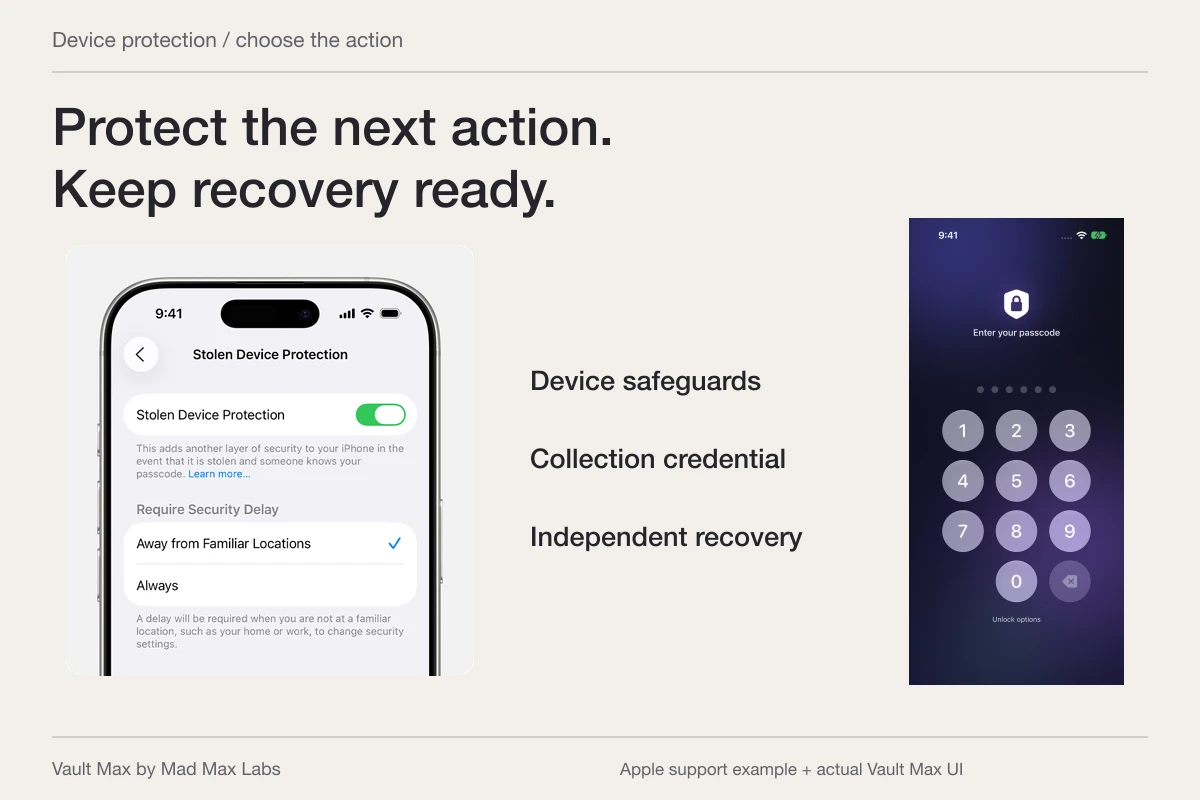
Open the full-size source imageApple documents an AirDrop code for a non-contact transfer when both devices use iOS 26.2 or later. This published example does not show a transfer we performed.
Open the full-size source imageAn unsolicited offer is a reason to inspect your receiving setup. It does not establish that someone opened your photo library. Likewise, accepting an item supplies content to your device; it is not permission for the sender to inspect all your other files.
Read the code prompt on newer systems
Apple's current help describes codes for non-contact sharing when both iPhone devices run iOS 26.2 or later. The recipient obtains a code and provides it to the intended sender. The same help explains a temporary Other Known relationship that can allow further transfers without another code, and how to forget that person early.
Treat the prompt as part of the current transfer. Verify who is present and which person you are communicating with. A recognizable device name is useful context, but checking the person and the intended item is still worthwhile when several devices are nearby.
The code authorizes that sharing arrangement. It does not encrypt a PDF with a portable document password or change the destination app's saved-file rules. If the document itself needs a password after delivery, make that a separate file-preparation decision before the transfer.
Inspect the selection before choosing the recipient
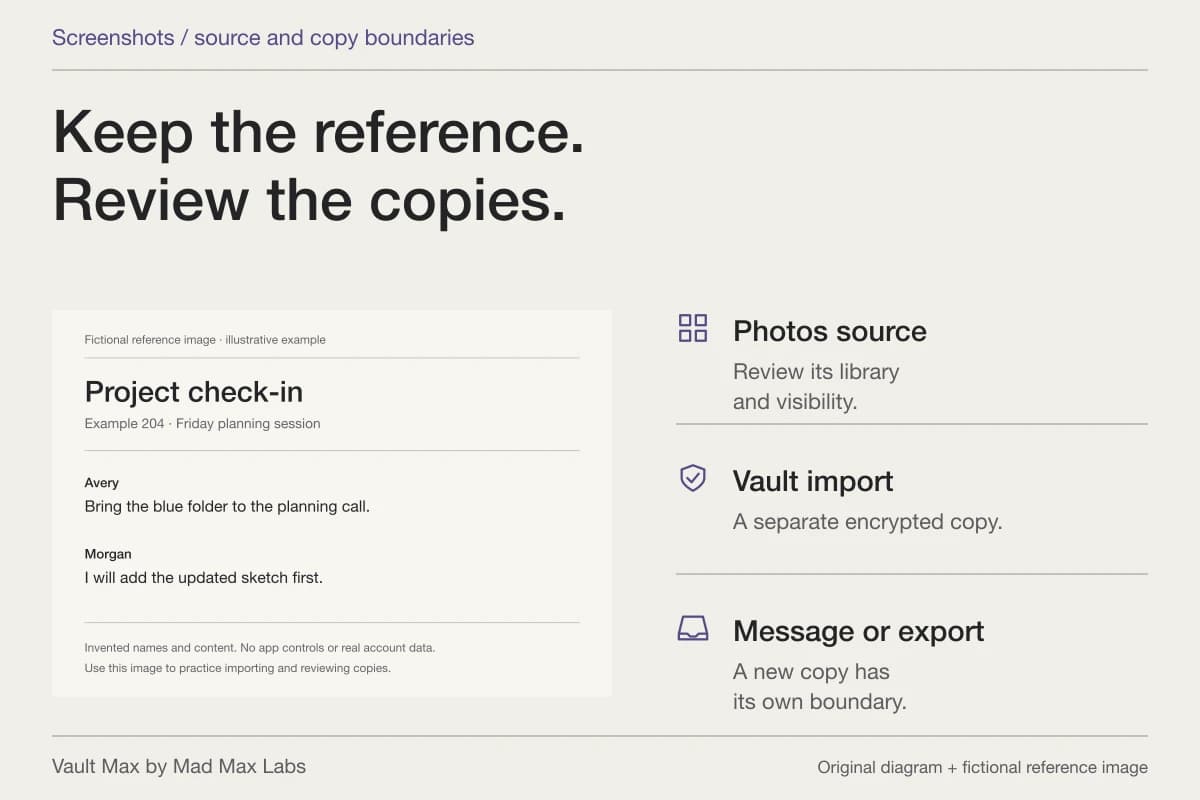
Open the exact item you intend to share. For a picture, inspect its edges and any visible names or account details. For a screenshot, check the surrounding message and notification content as well as the part you meant to show. The private screenshots guide covers those copies in more detail.
If selecting several items, review the set. Similar thumbnails can hide different versions of a document or almost-identical photographs. Finish the selection before moving quickly through the share sheet.
This is also a good place to distinguish showing from sending. If a friend only needs to see a picture while you hold the phone, showing one selected item may fit better than creating a recipient copy. Choose the action around the actual reason for sharing.
| Moment | Decision | What to inspect |
|---|---|---|
| Before an incoming offer | Who may send to this phone | Receiving Off, contacts or the temporary wider audience |
| Before sending | Which content leaves the working collection | The complete image/document and selected batch |
| At recipient selection | Which device/person receives it | The actual intended recipient and current prompt |
| During newer non-contact sharing | Whether to establish the code-based transfer | The recipient's code and known-person relationship |
| After receipt | Where the new copy was saved | Photos, Files or the destination used on that device |
Delivery protection and destination privacy have different jobs
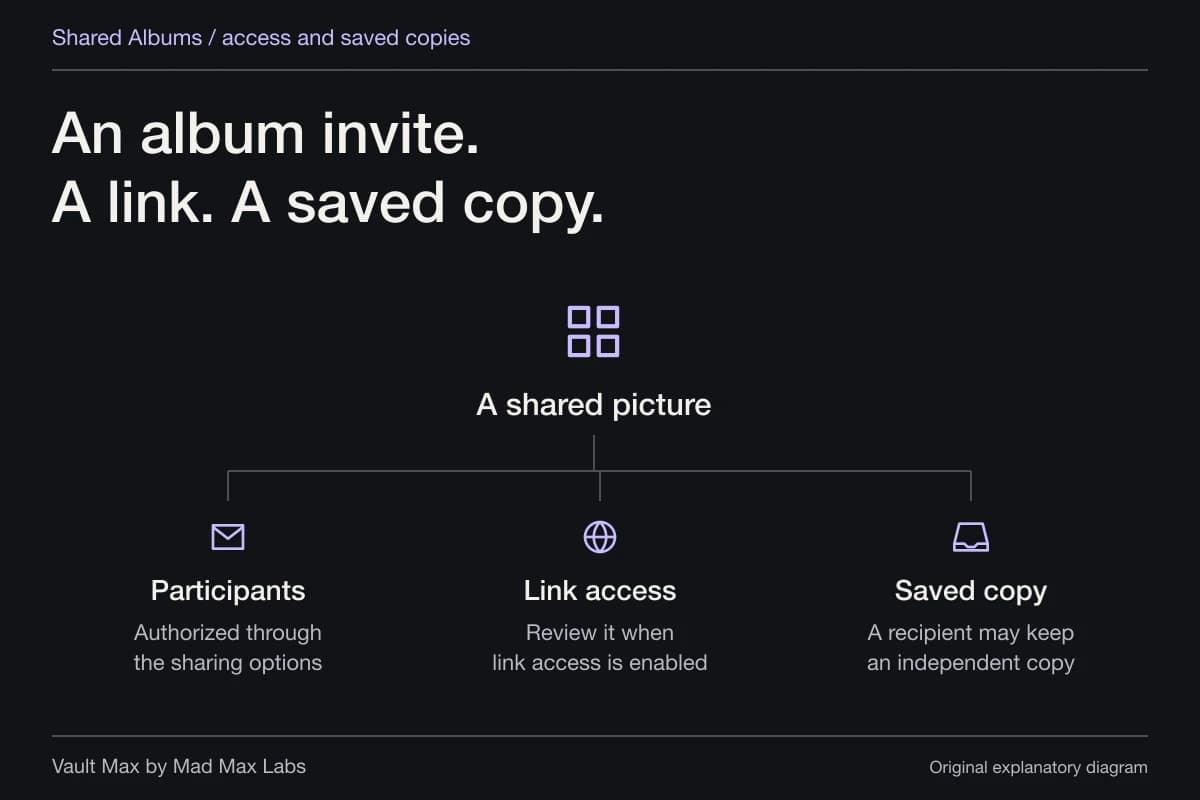
Apple documents encrypted AirDrop transfers. That protects the connection described by its design. After delivery, the file is available at the recipient's destination. They can have reasons to save, edit or forward it.
Imagine sending a receipt to a friend who paid for part of a trip. The received receipt may become a Files item, an attachment in an expense conversation or a copy in a document folder. Turning off AirDrop later does not administer those records.
For your own devices, check the actual destination too. Apple's AirDrop user guide explains that same-account transfers can be accepted automatically and that destination behavior varies by content and device. A successful transfer is not proof that the item arrived inside your chosen private vault.
Keep a useful private collection before sharing
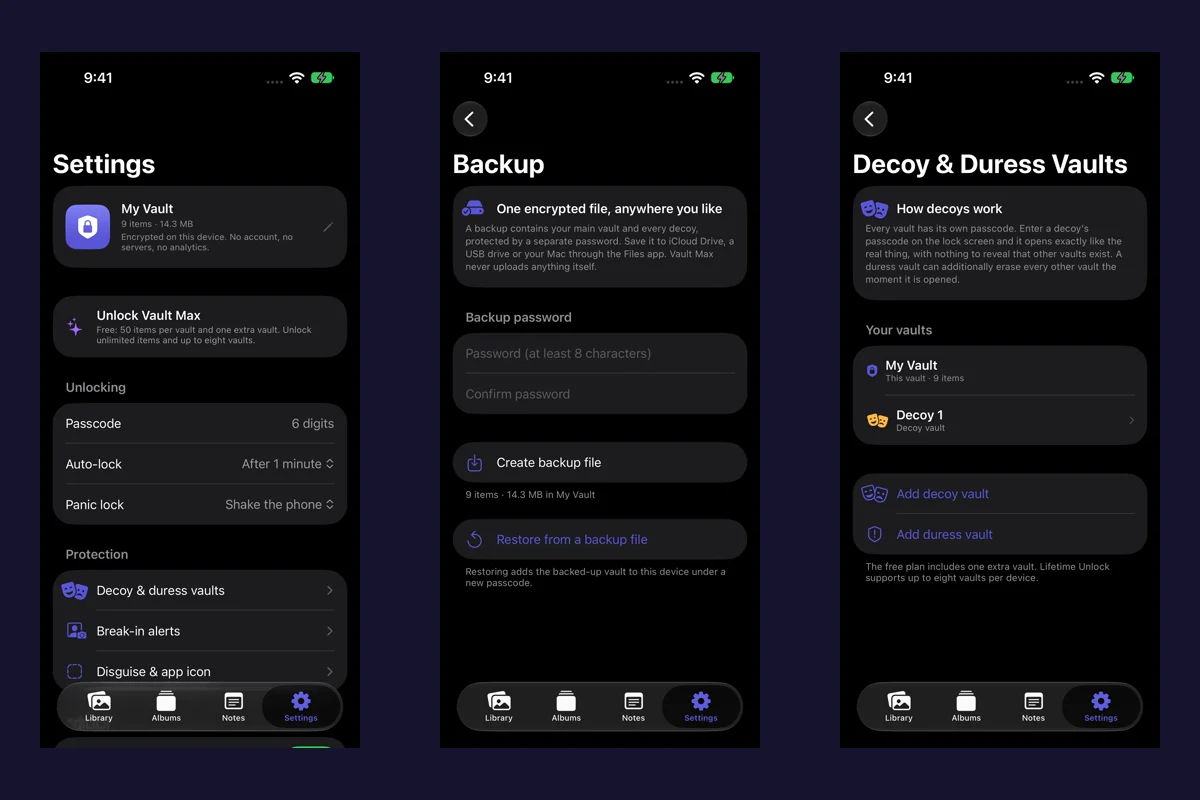
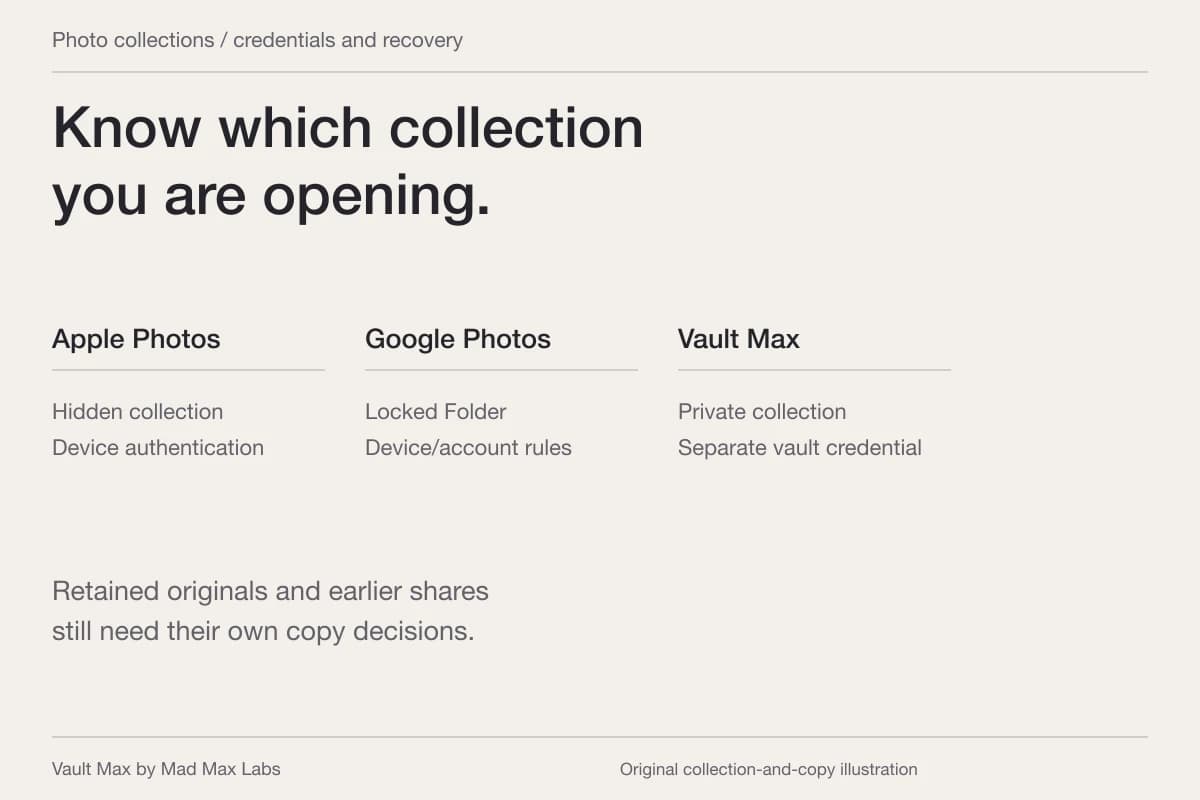
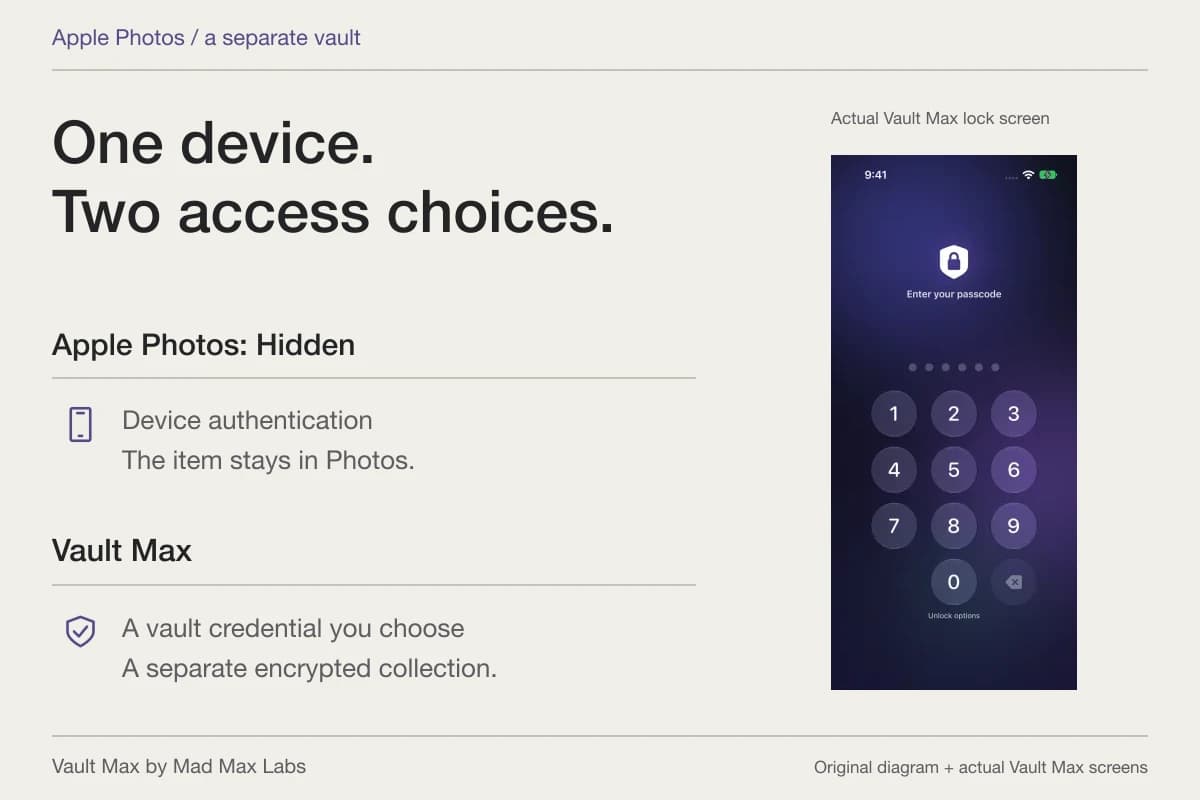
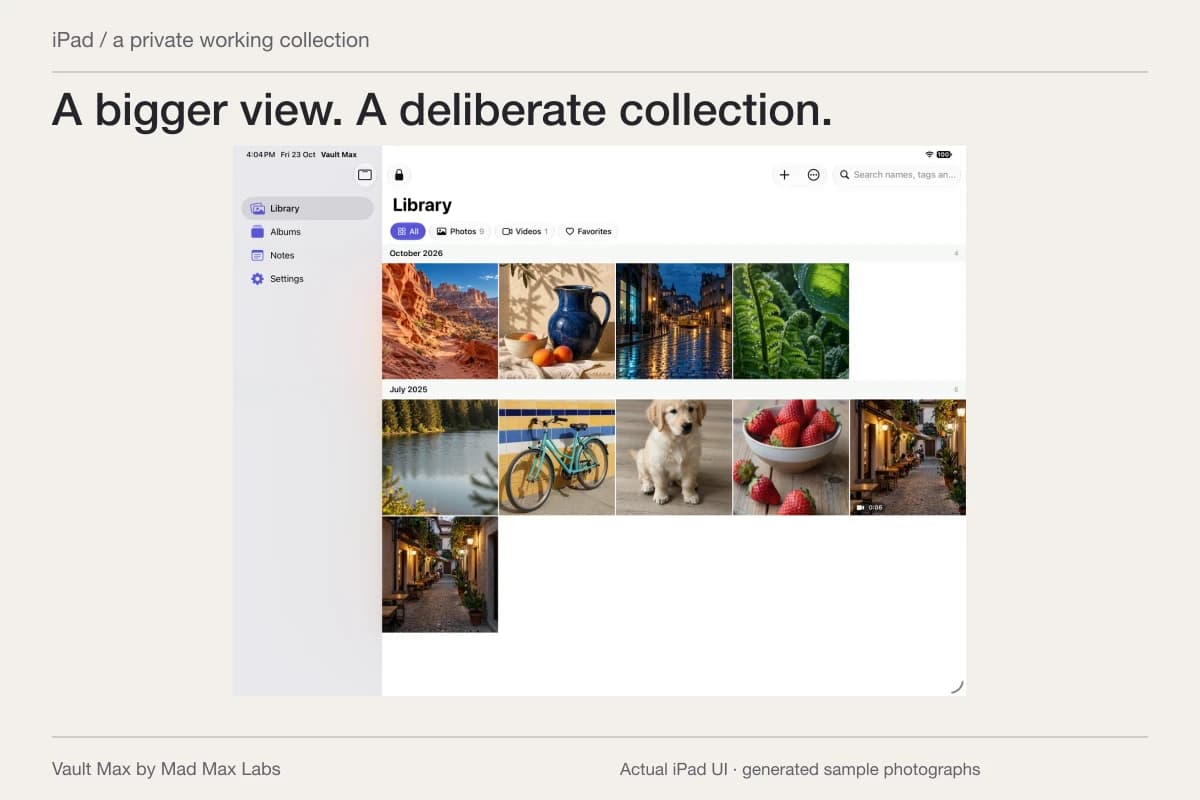
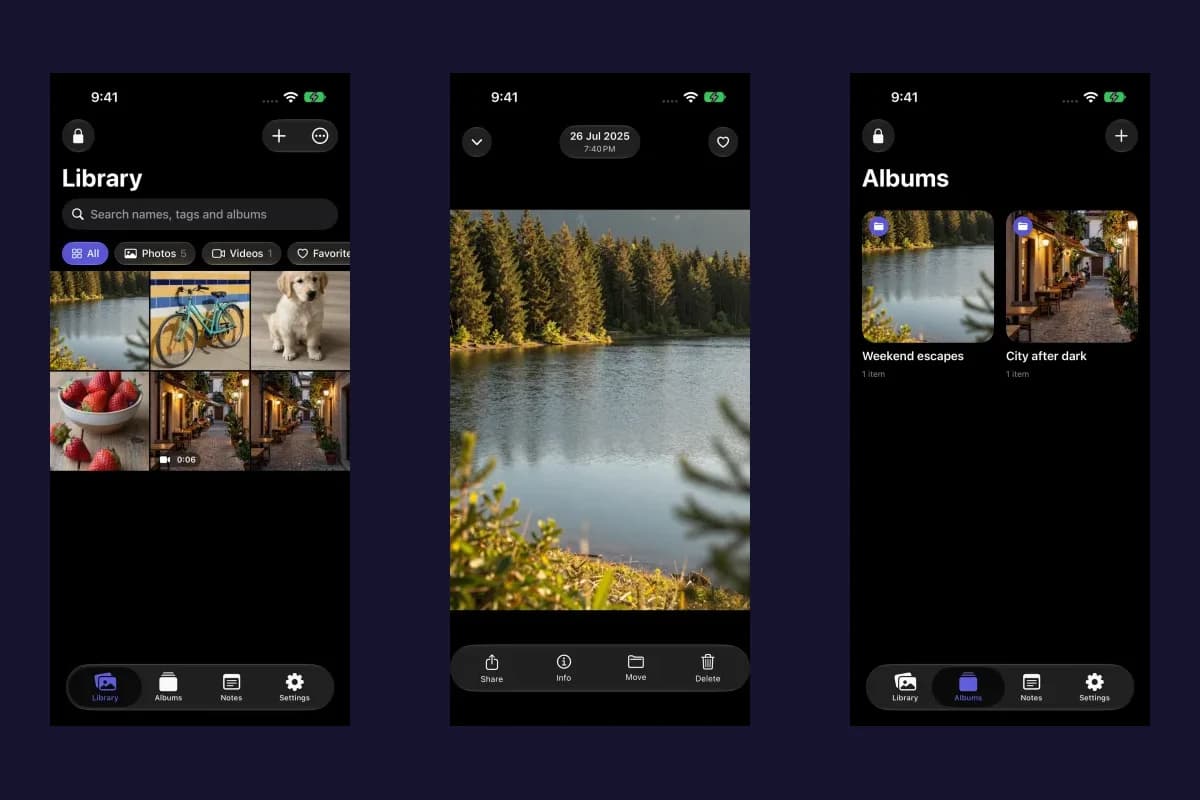
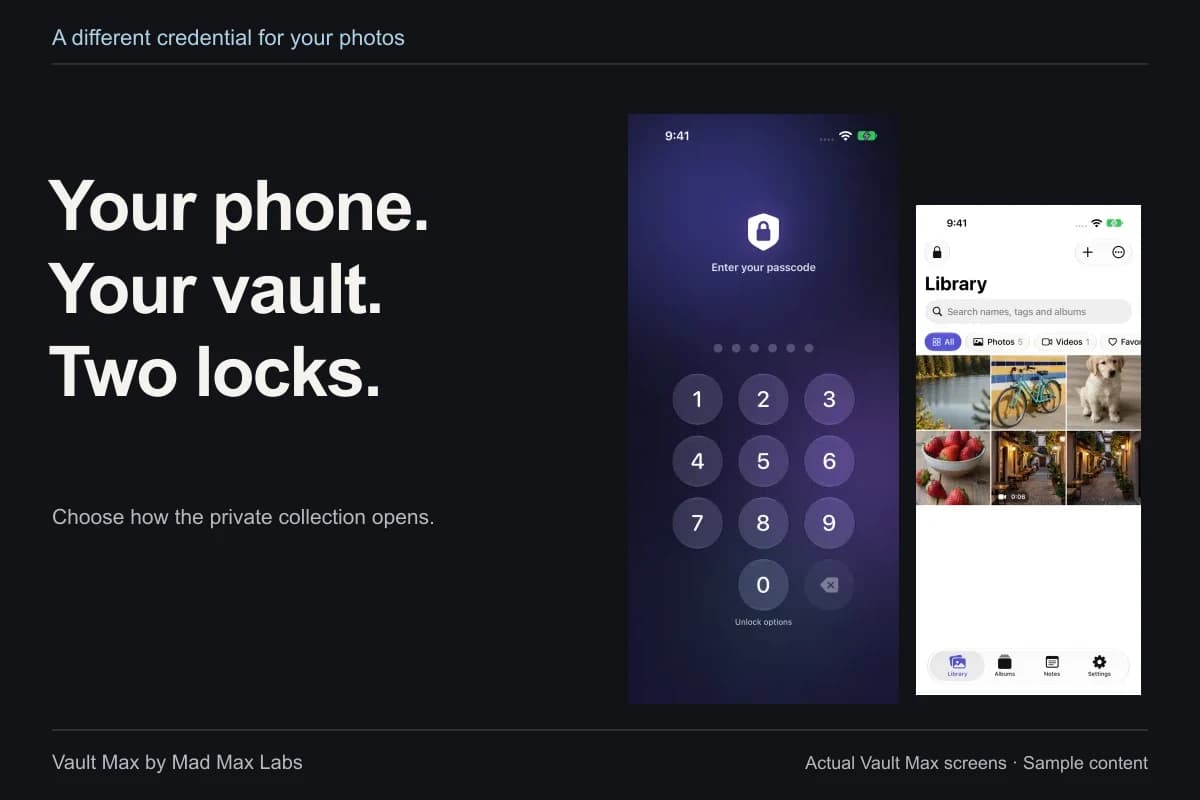
Vault Max can hold imported photos, documents and encrypted notes behind its own credential. It has no Vault Max account or provider-hosted photo library. That is useful for maintaining your working collection independently of the places you deliberately send a copy.
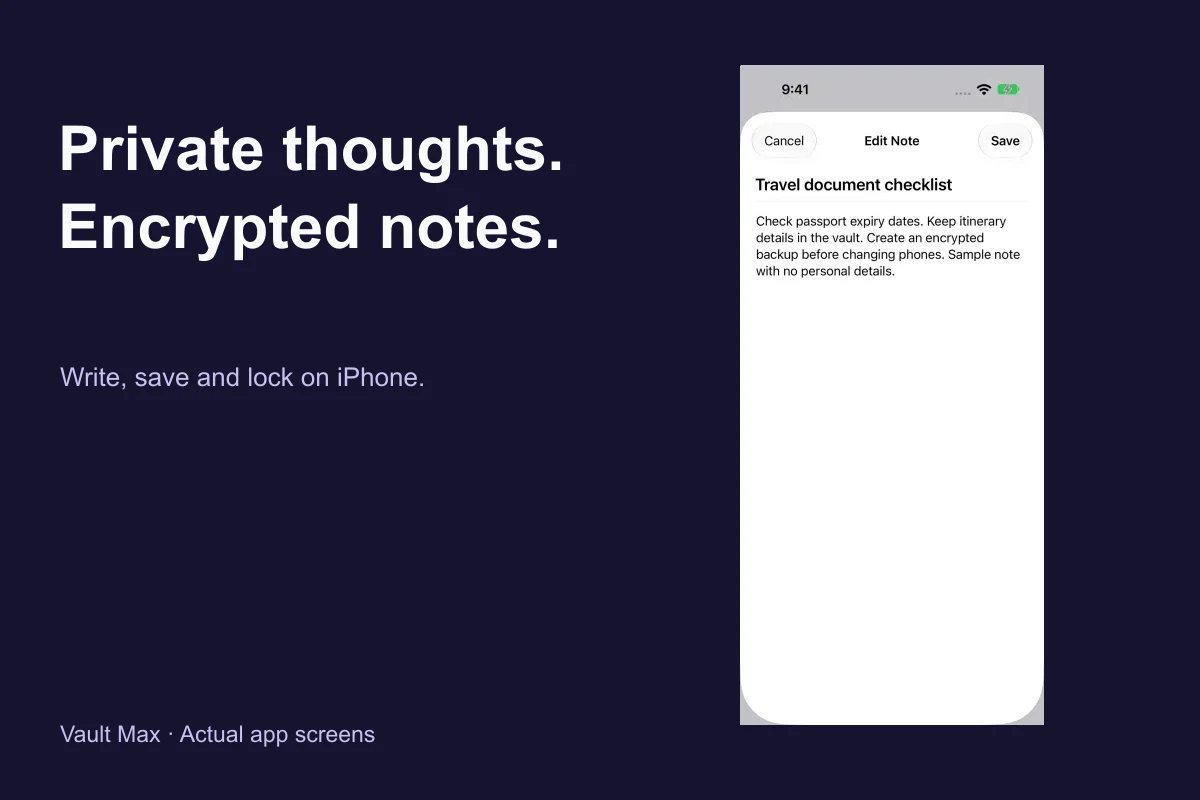
Use a note for context you want to retain privately: which version of a document is current, what a photograph records or the date you last updated a collection. Give that context a clear title. You may need to send the picture without sending every private explanation around it.
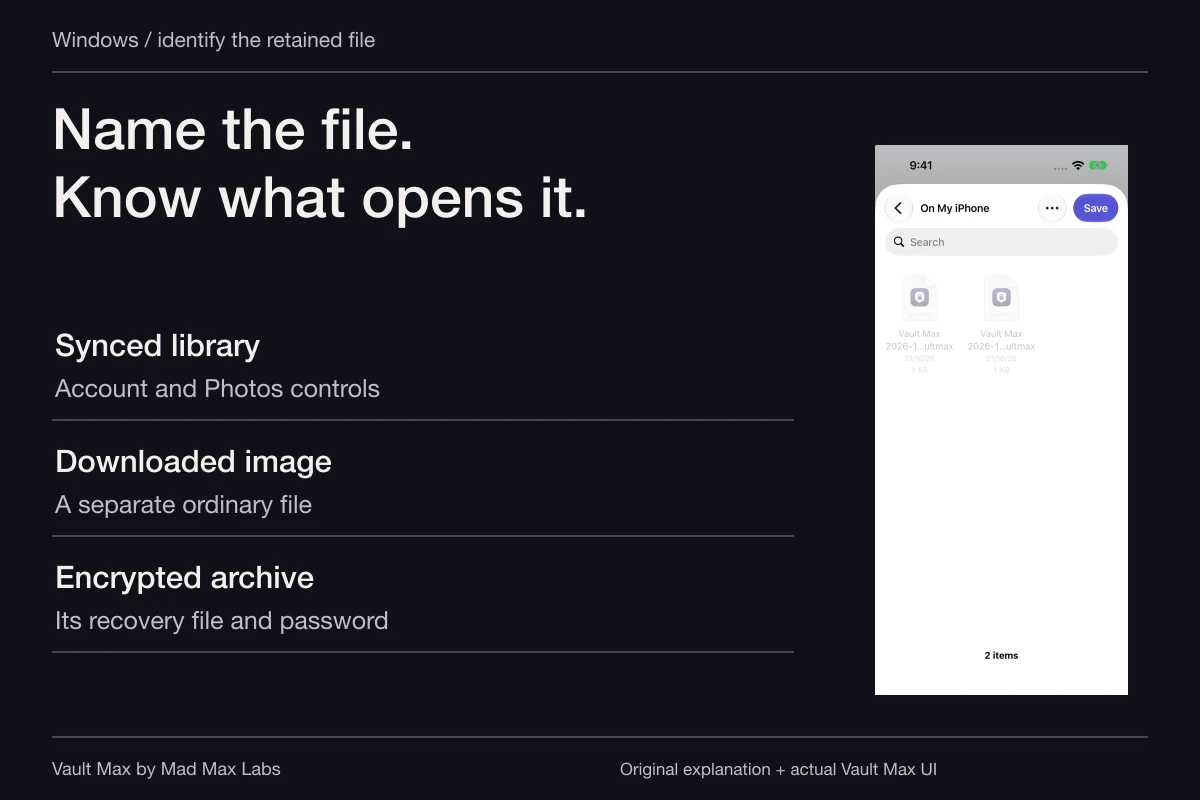
Identify the intended item
Close the working session
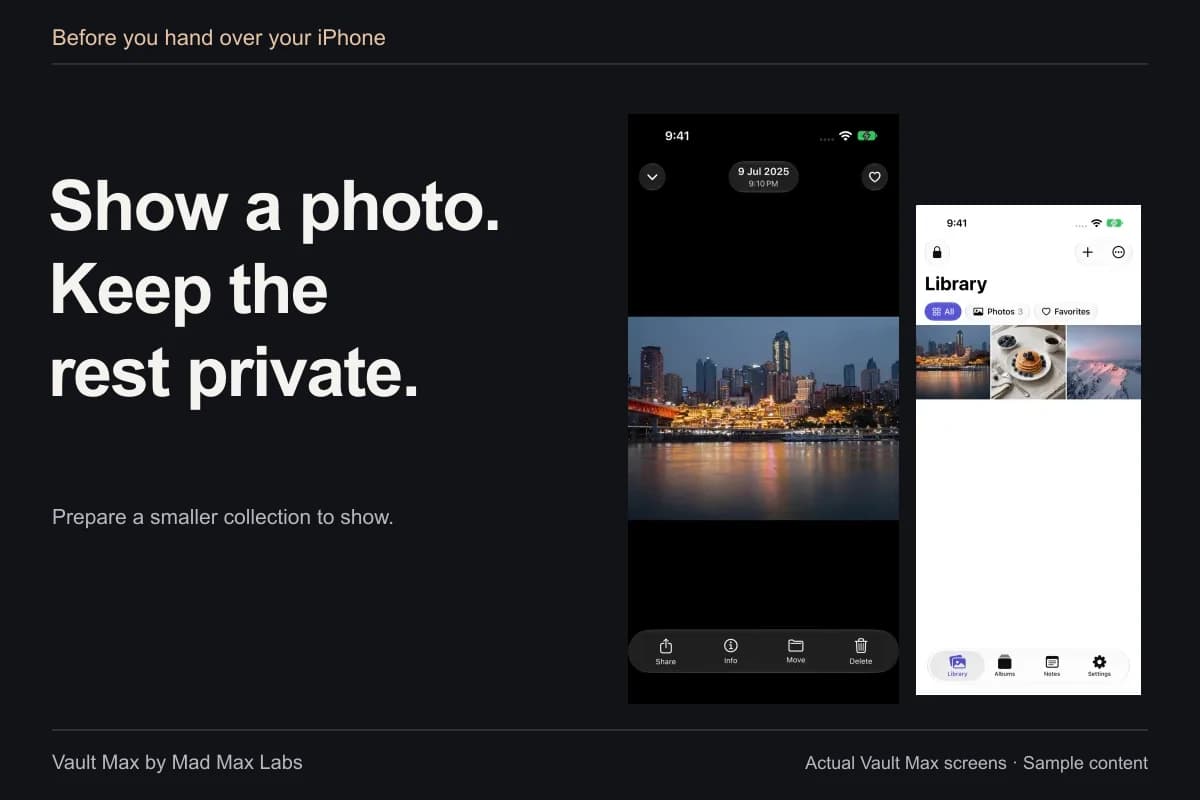
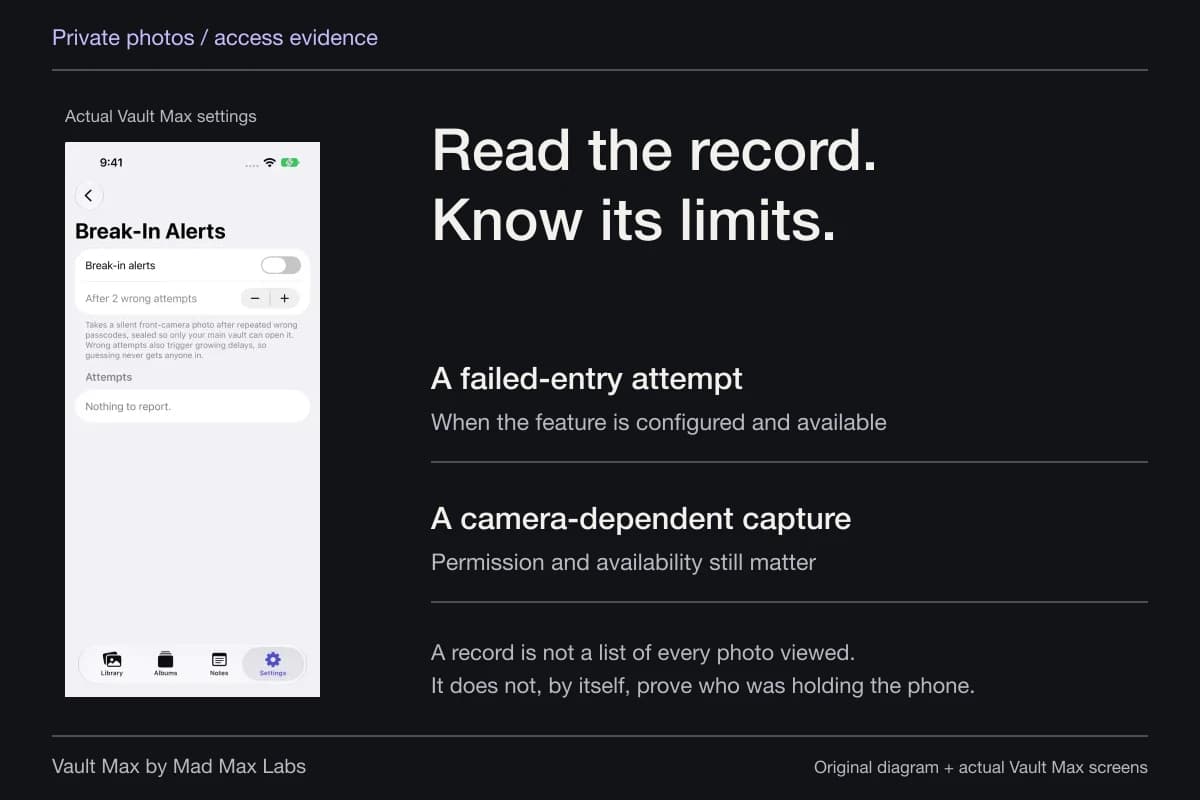
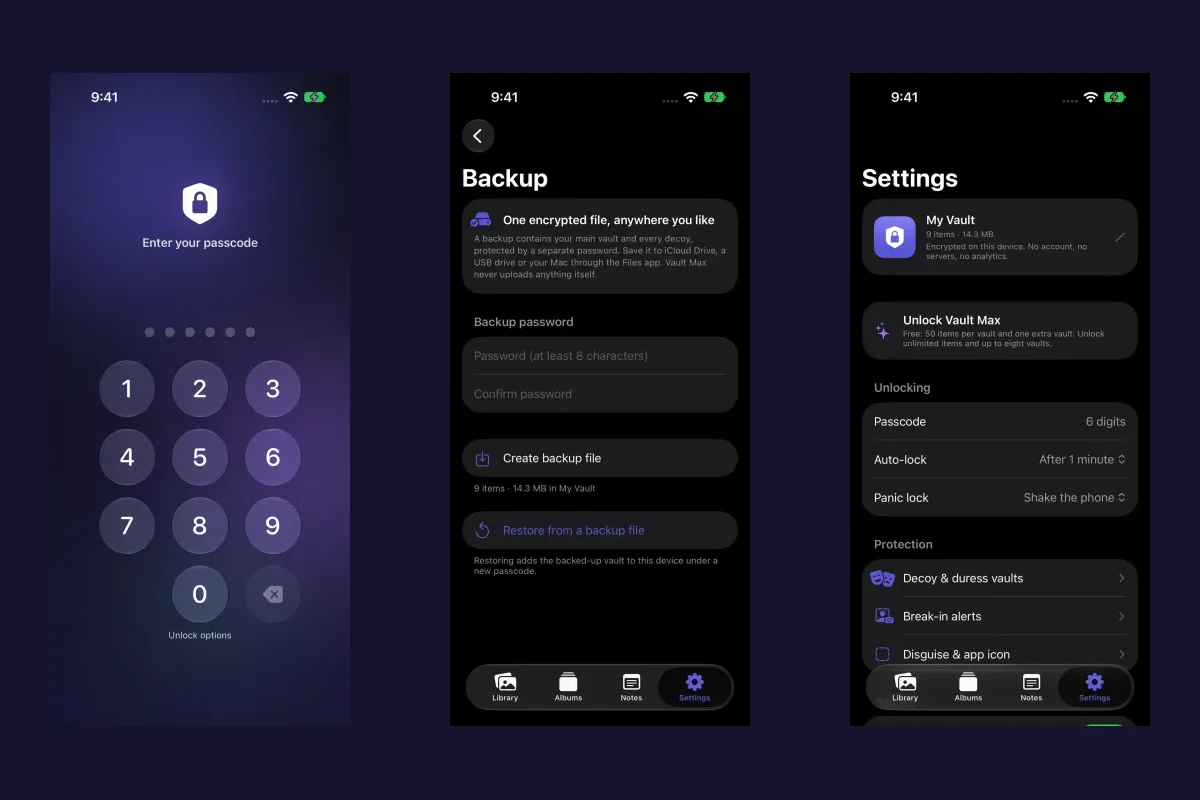
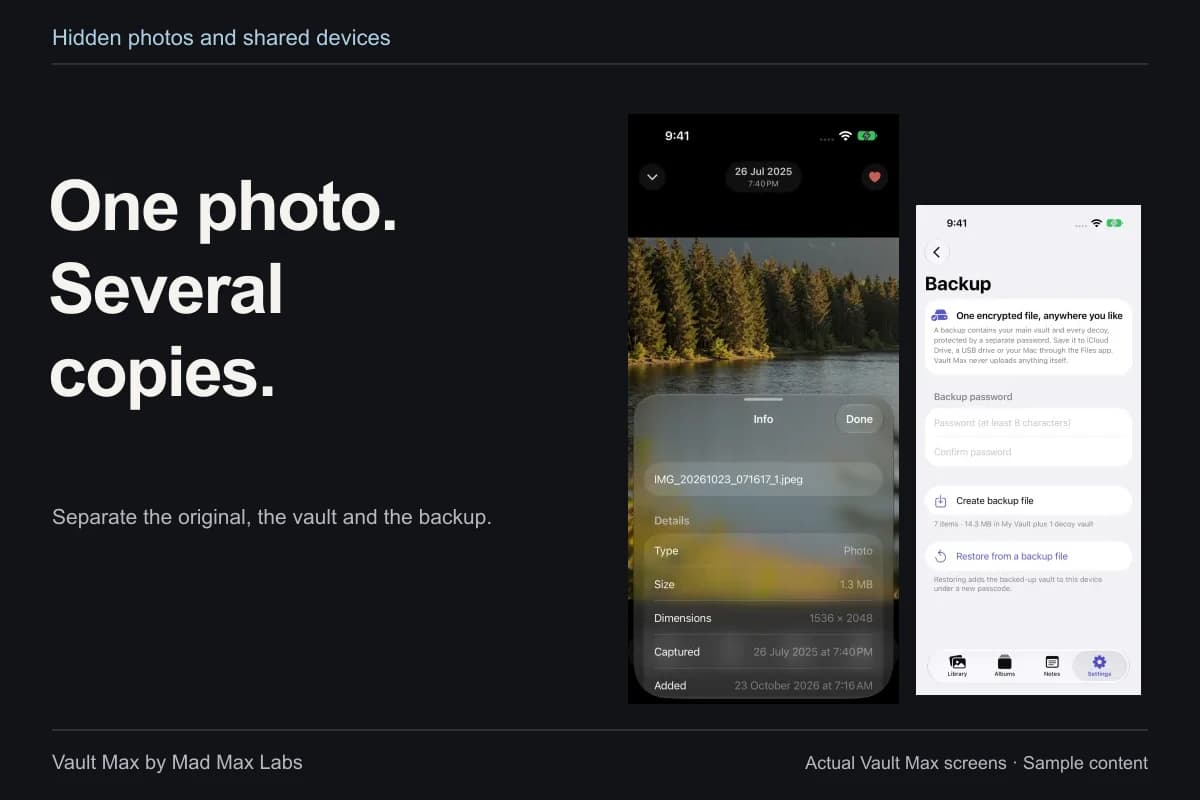
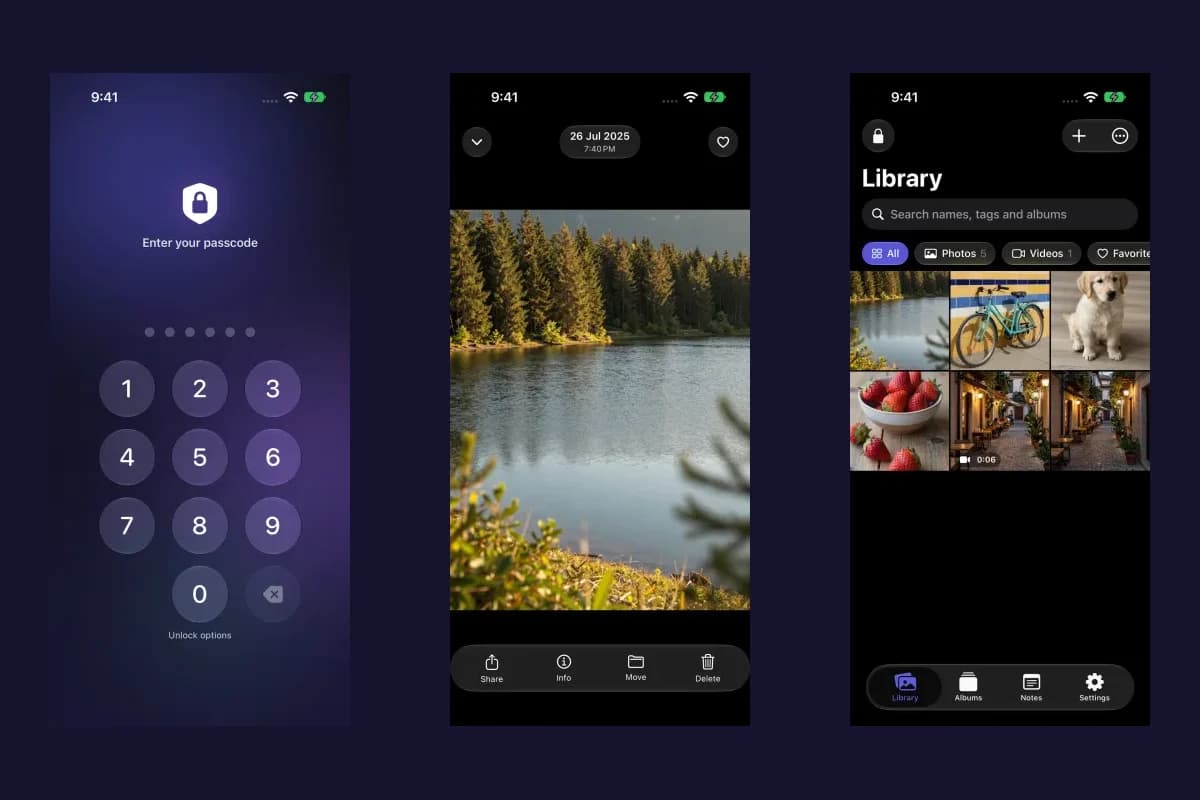
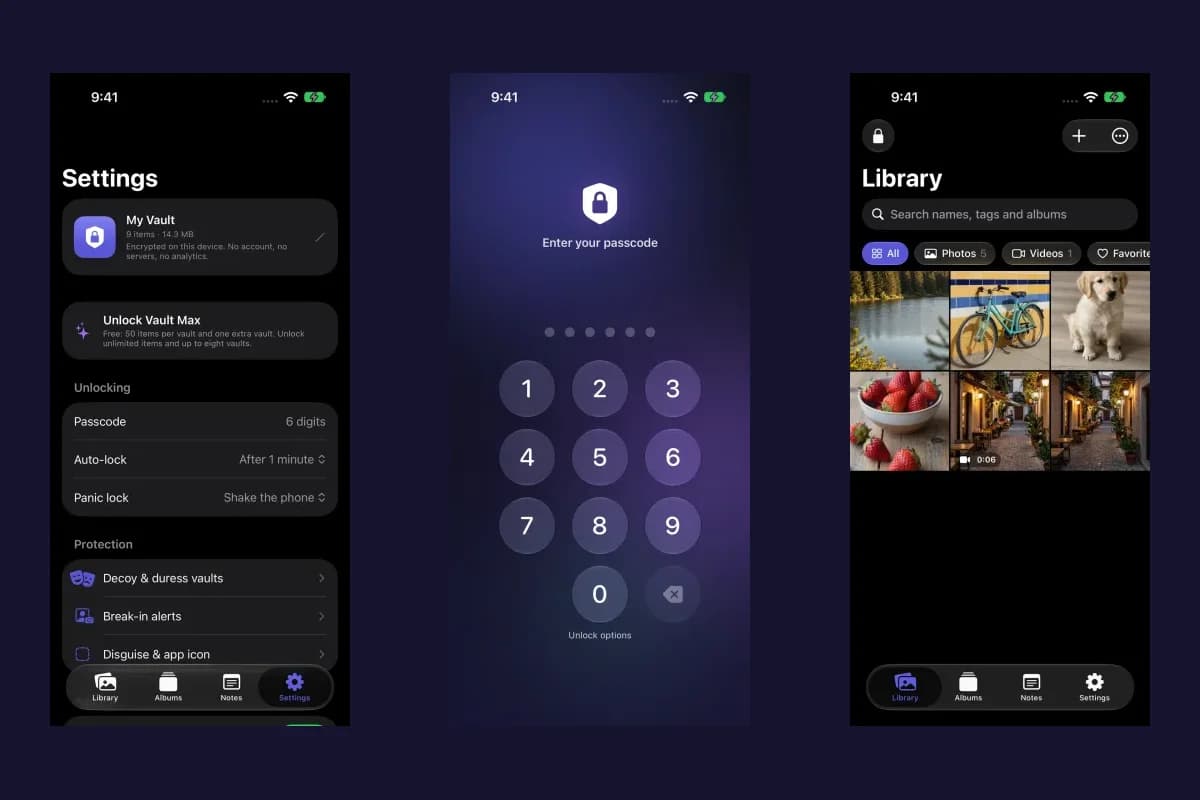
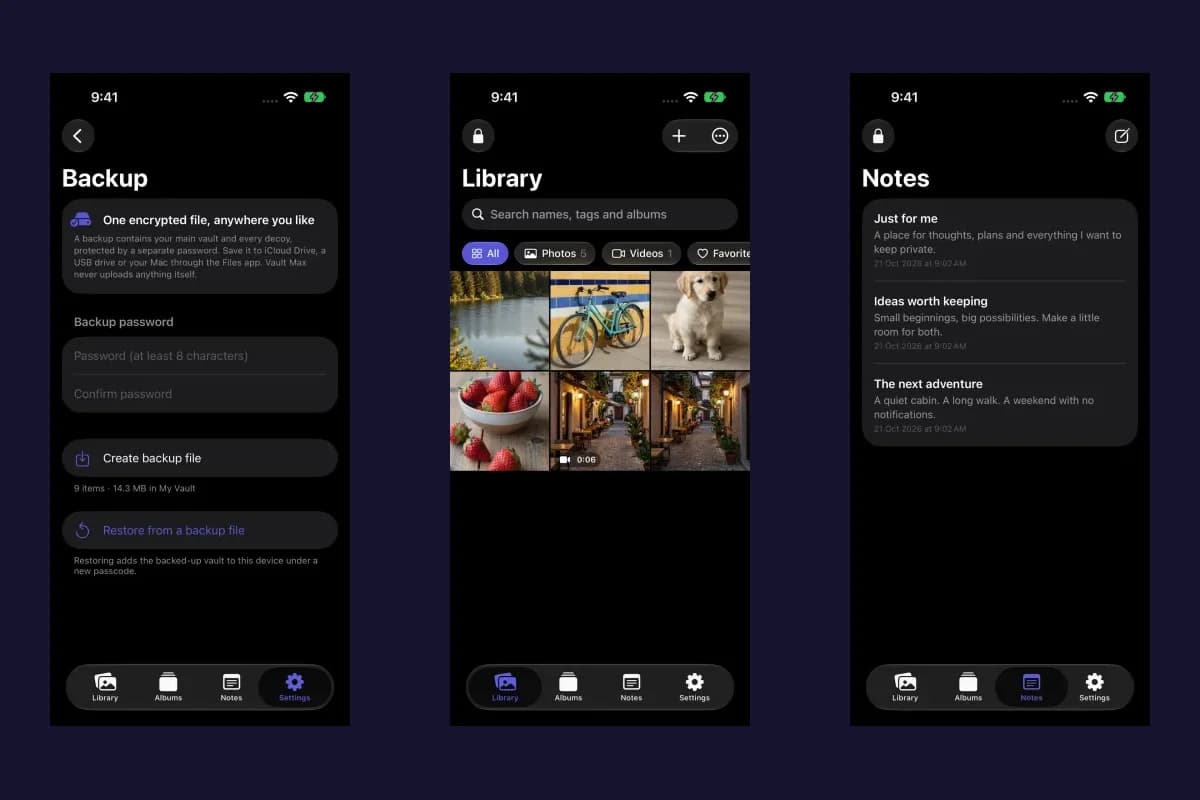
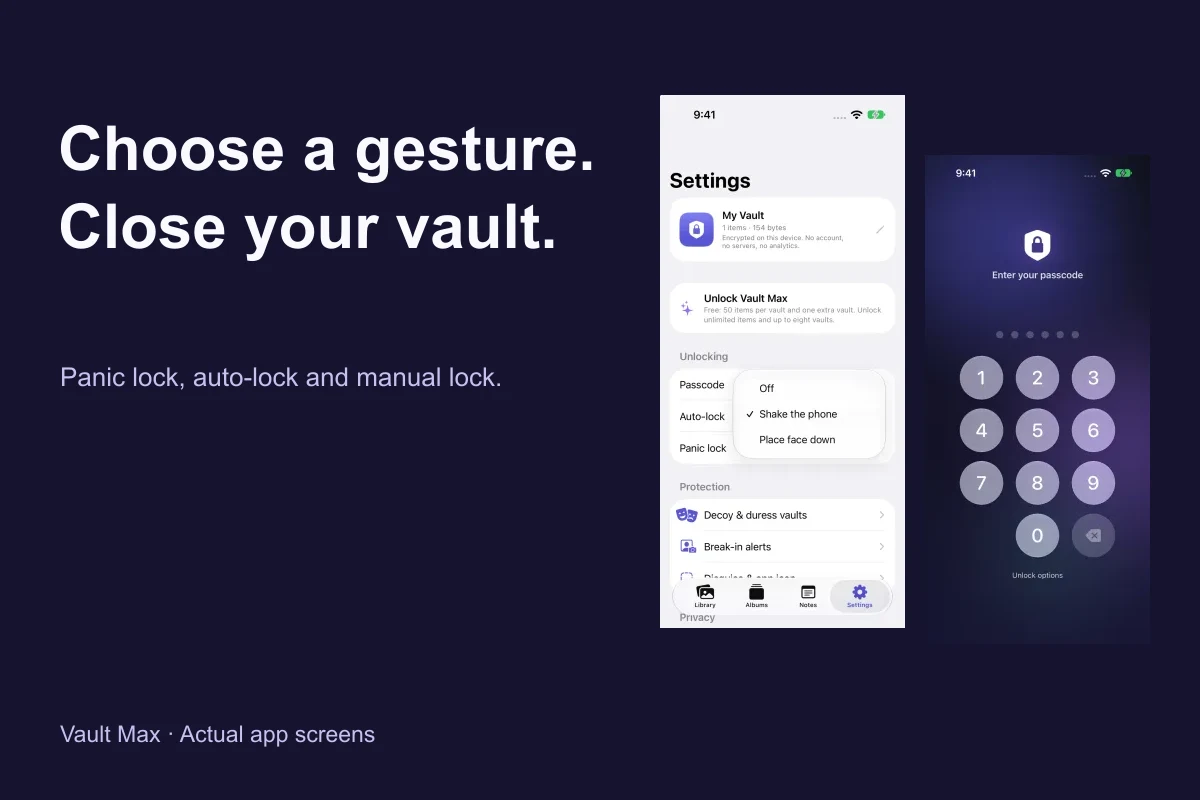
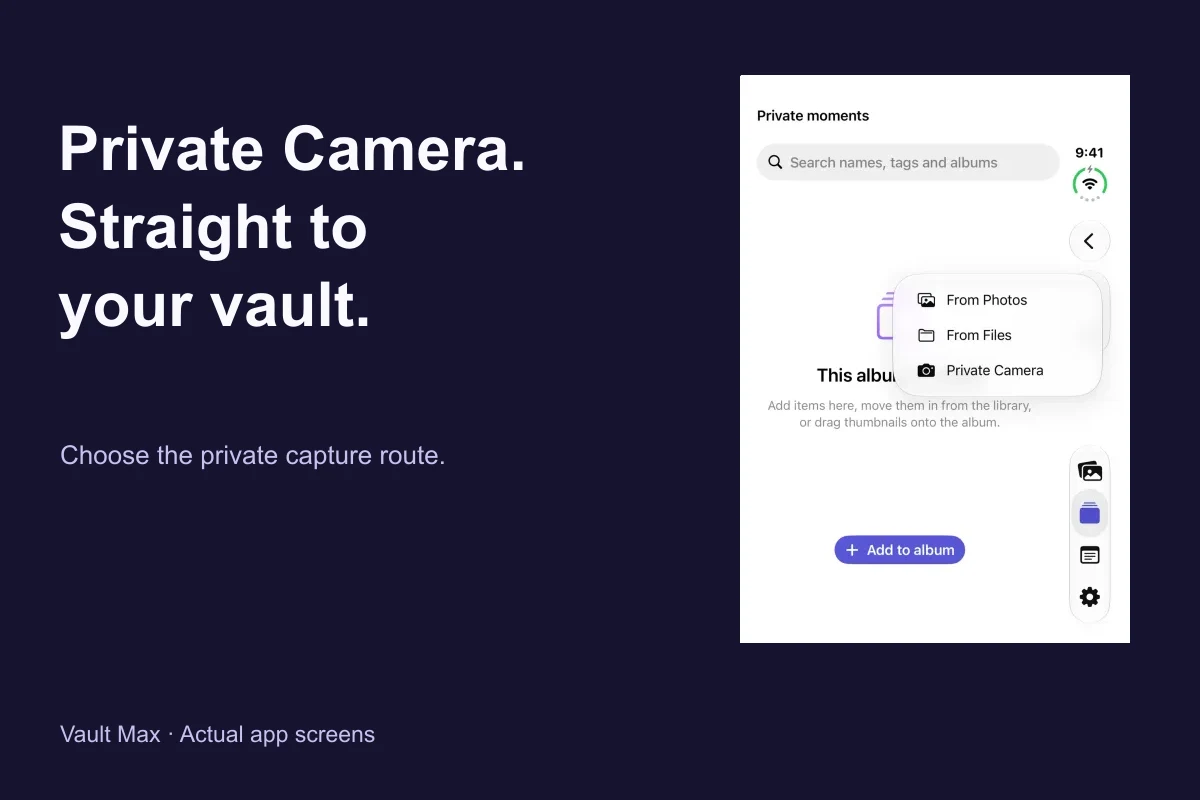
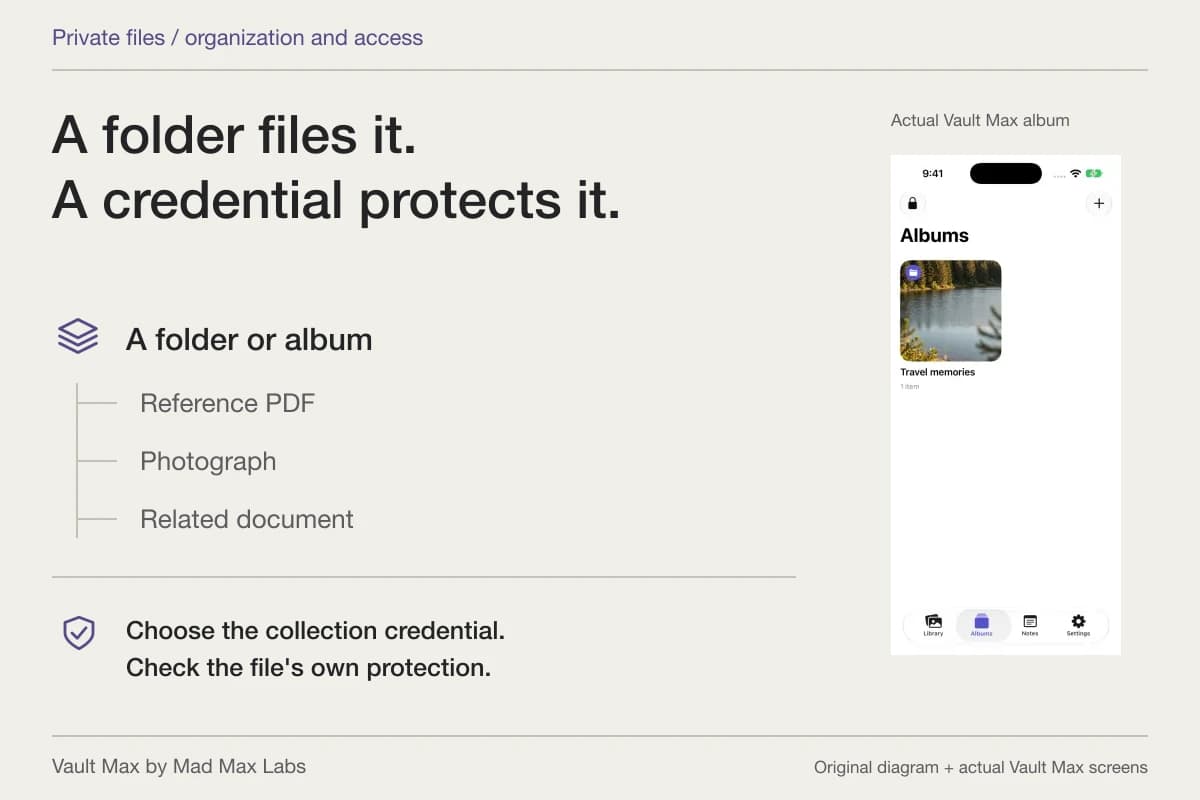
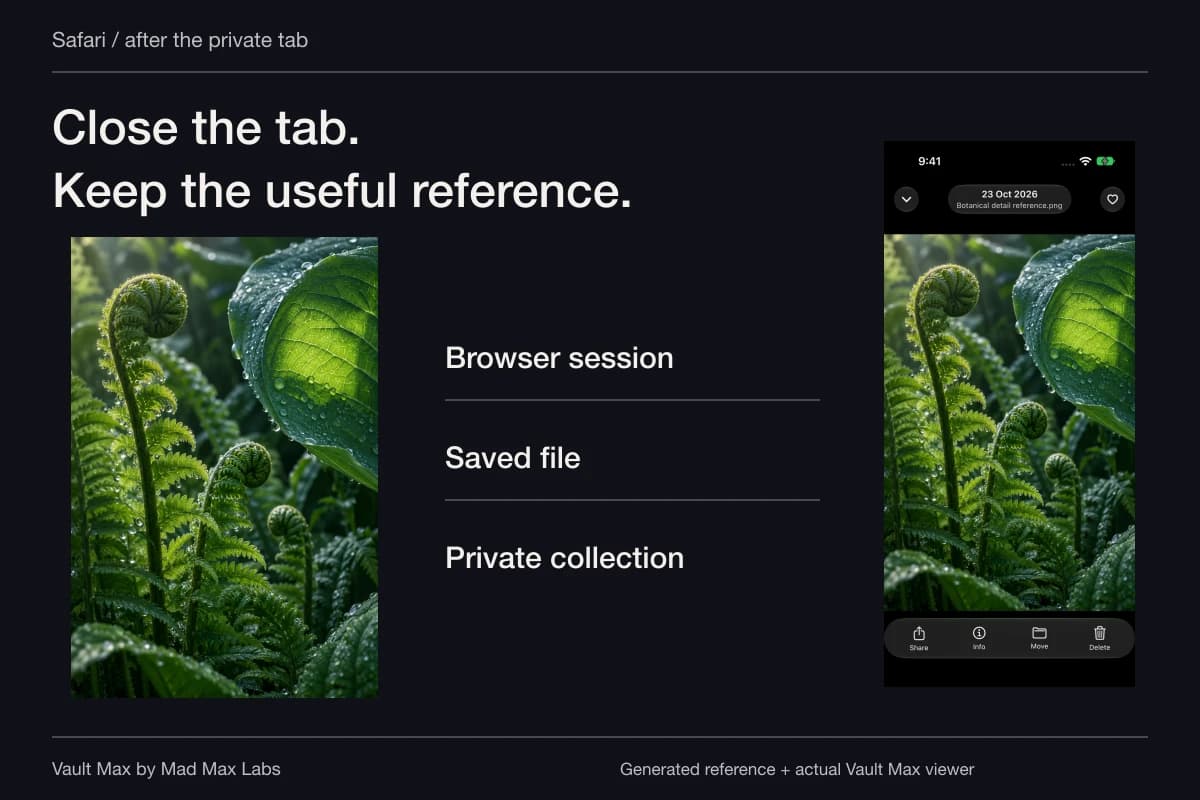
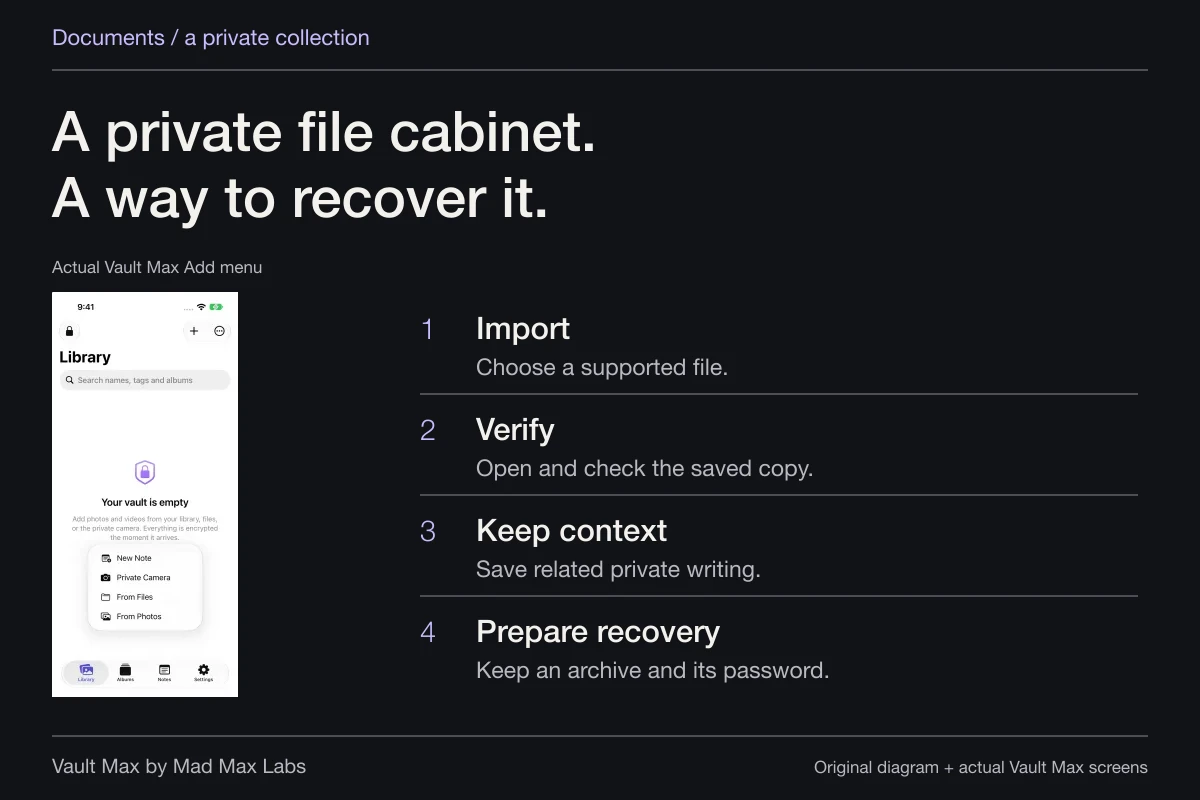
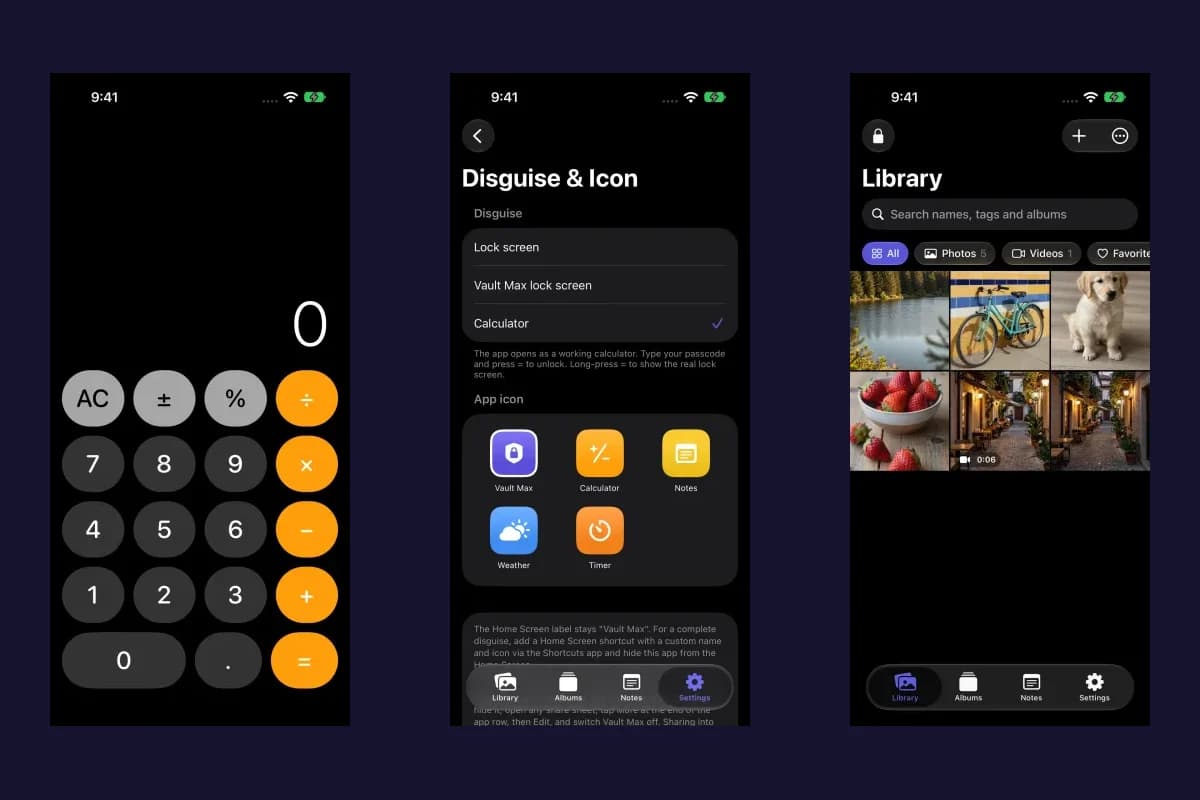
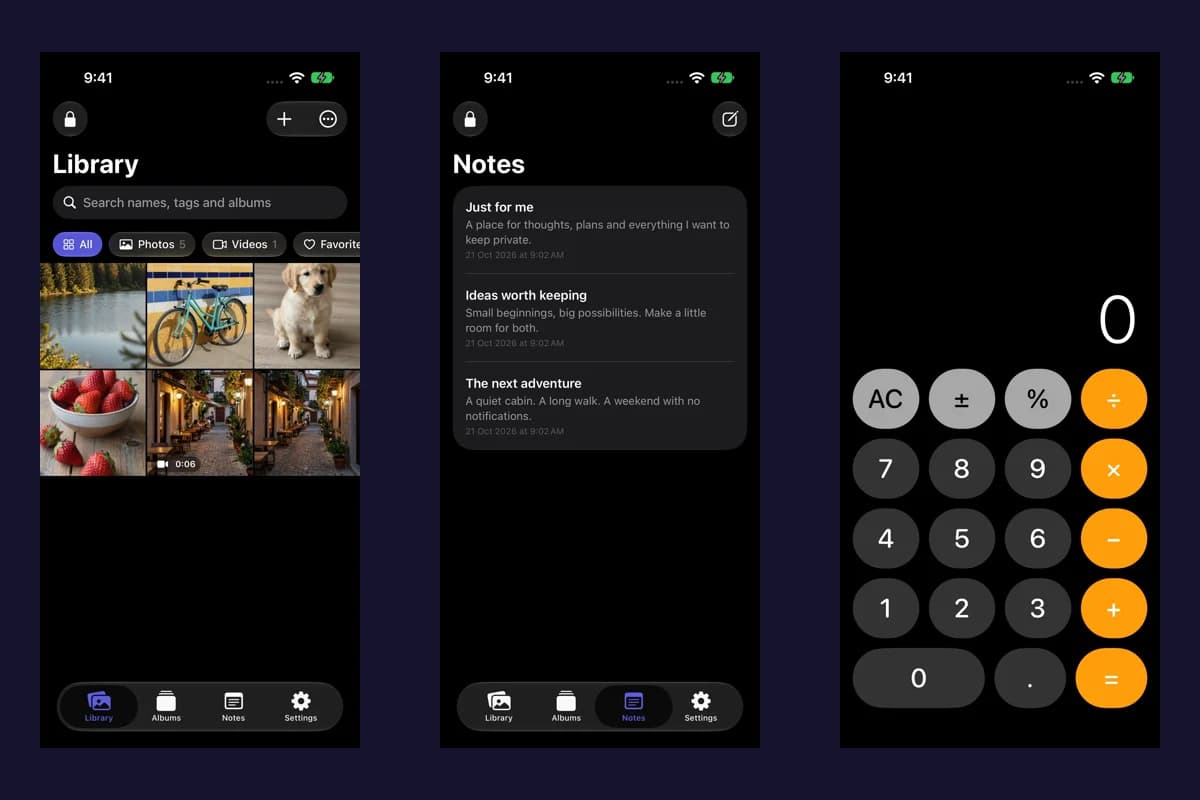
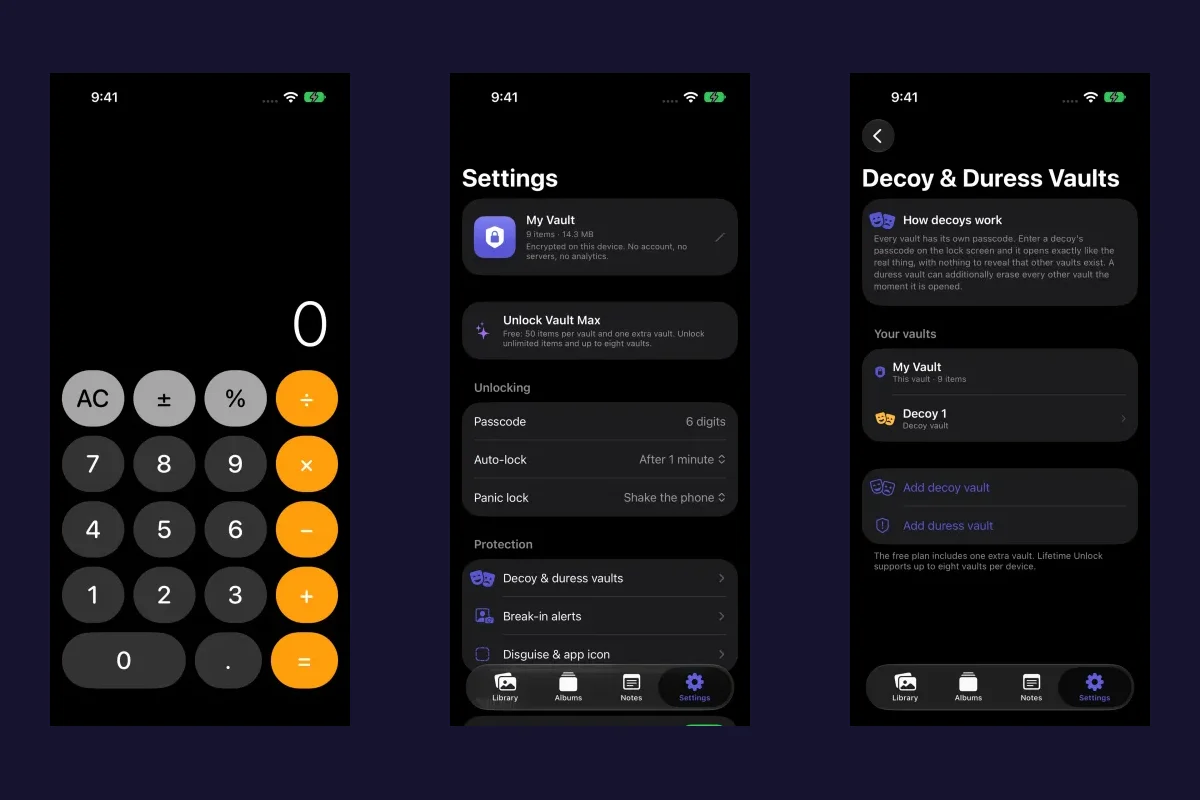
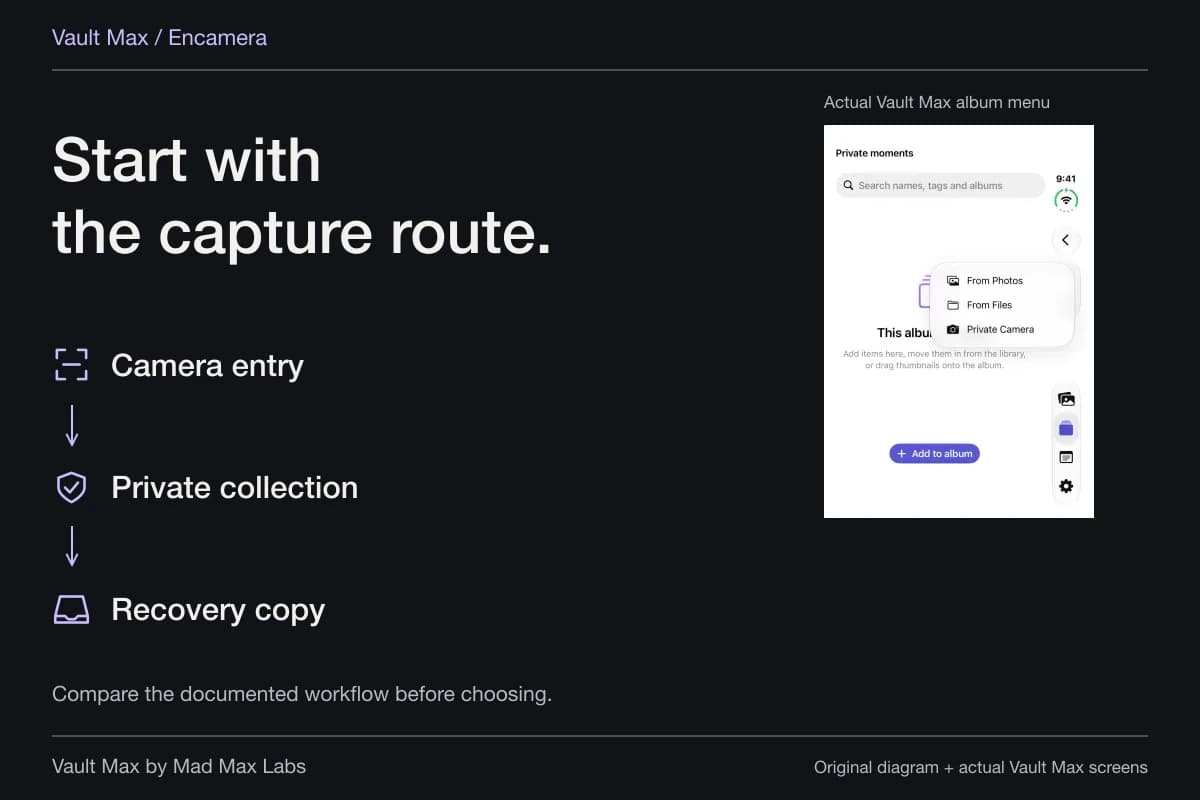
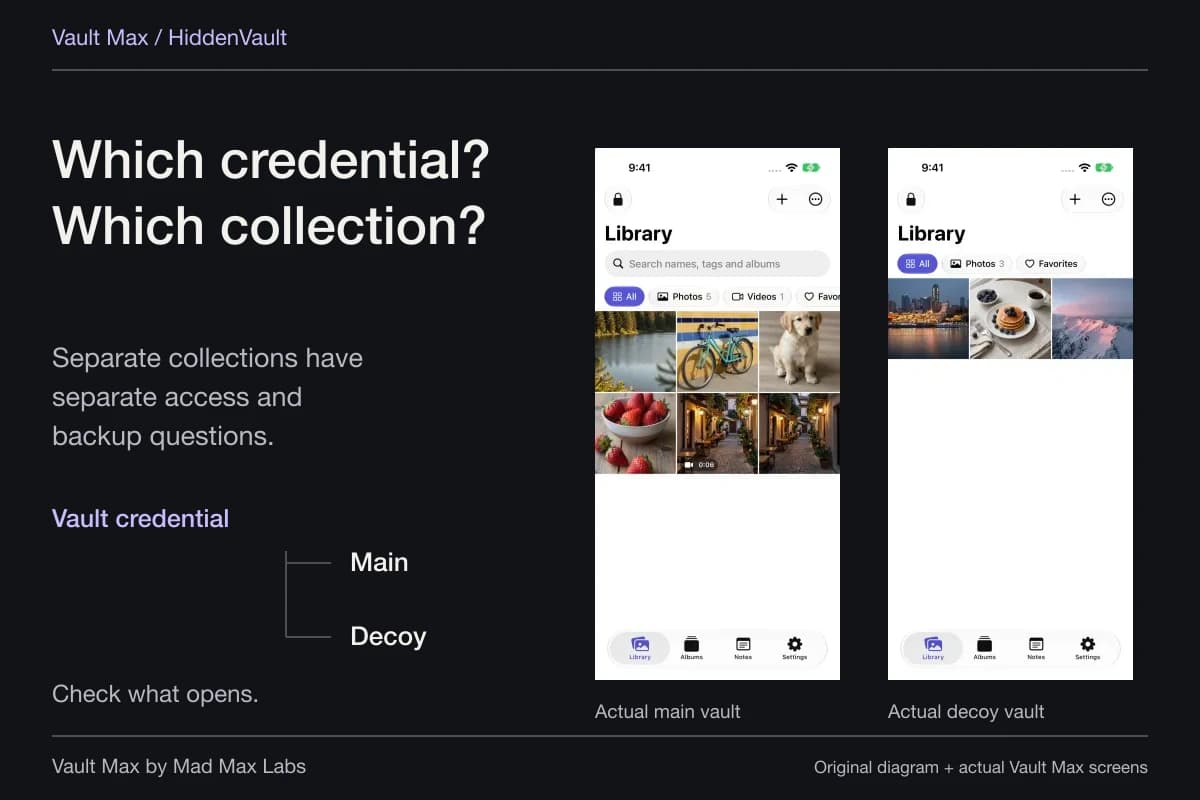
These actual sample screens show file identification and the manual lock action. They help explain the preparation and finish around sharing; they do not depict an AirDrop transfer performed from this sample.
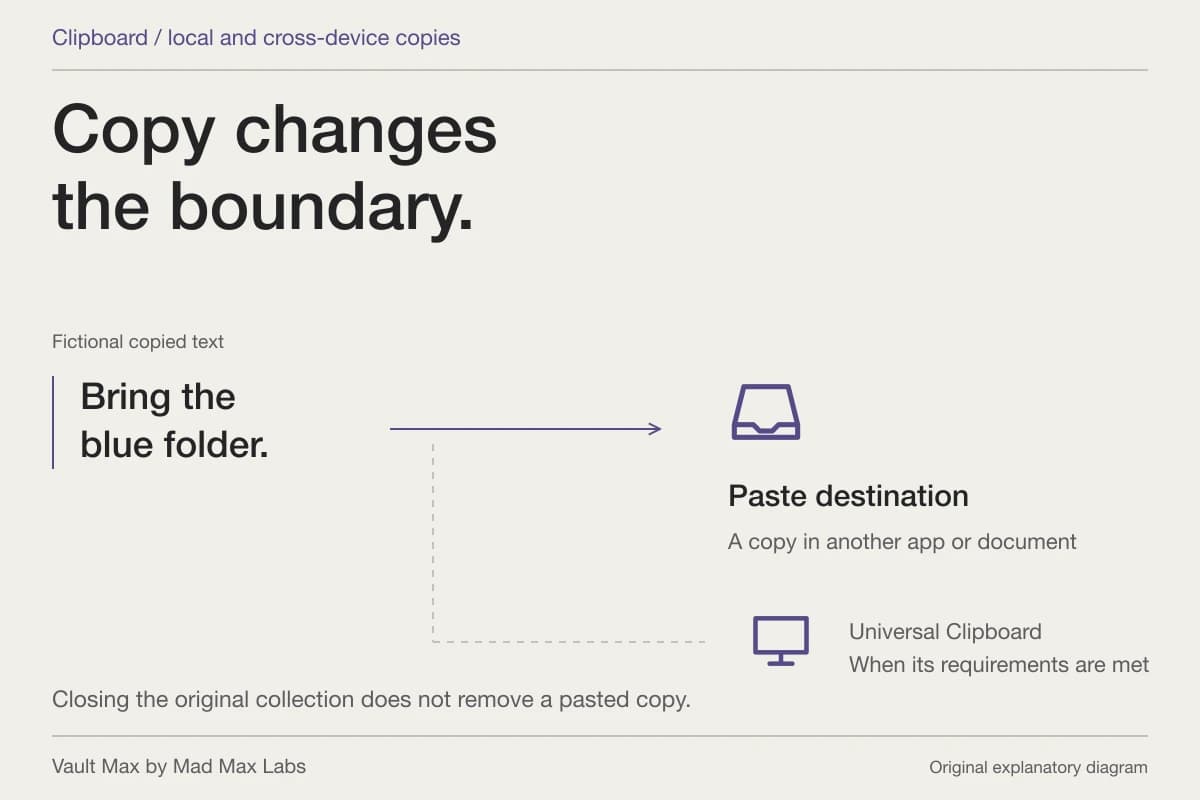
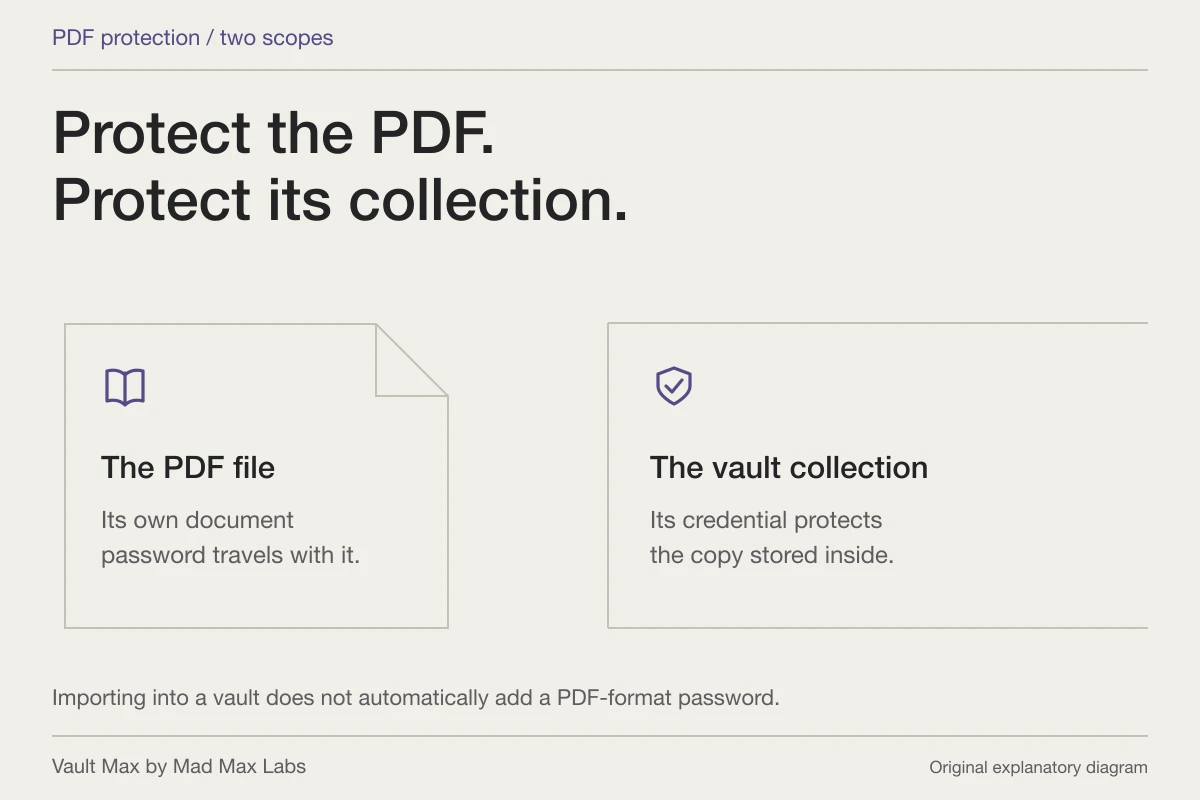
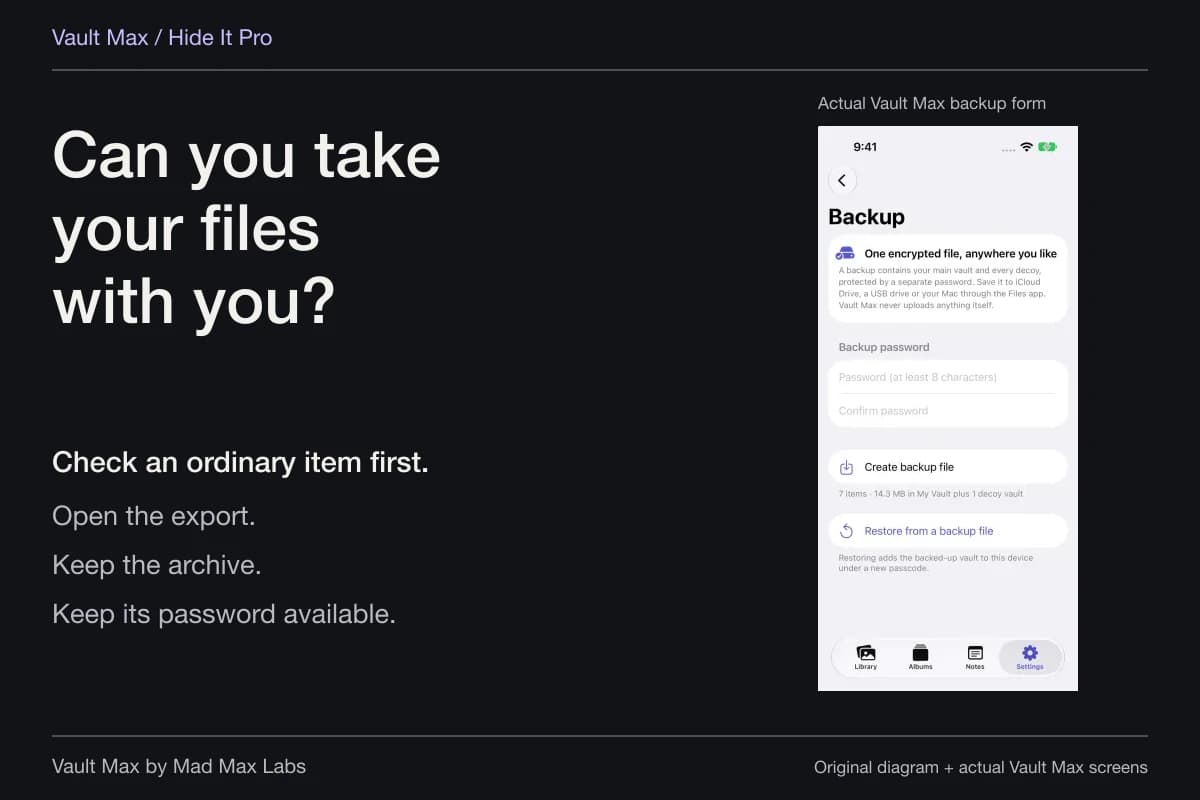
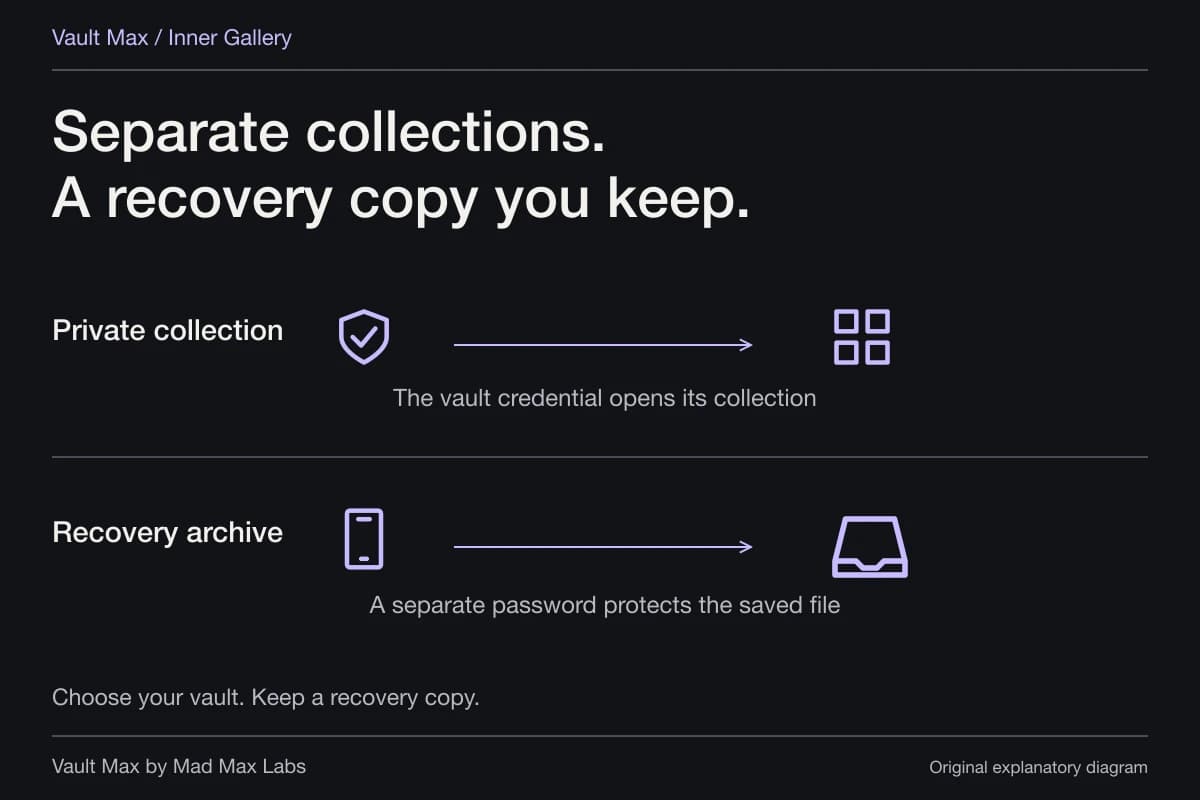
Review a normal export as a new destination copy. The vault credential protects the item while it is held in the vault; it does not become a password automatically attached to every exported file.
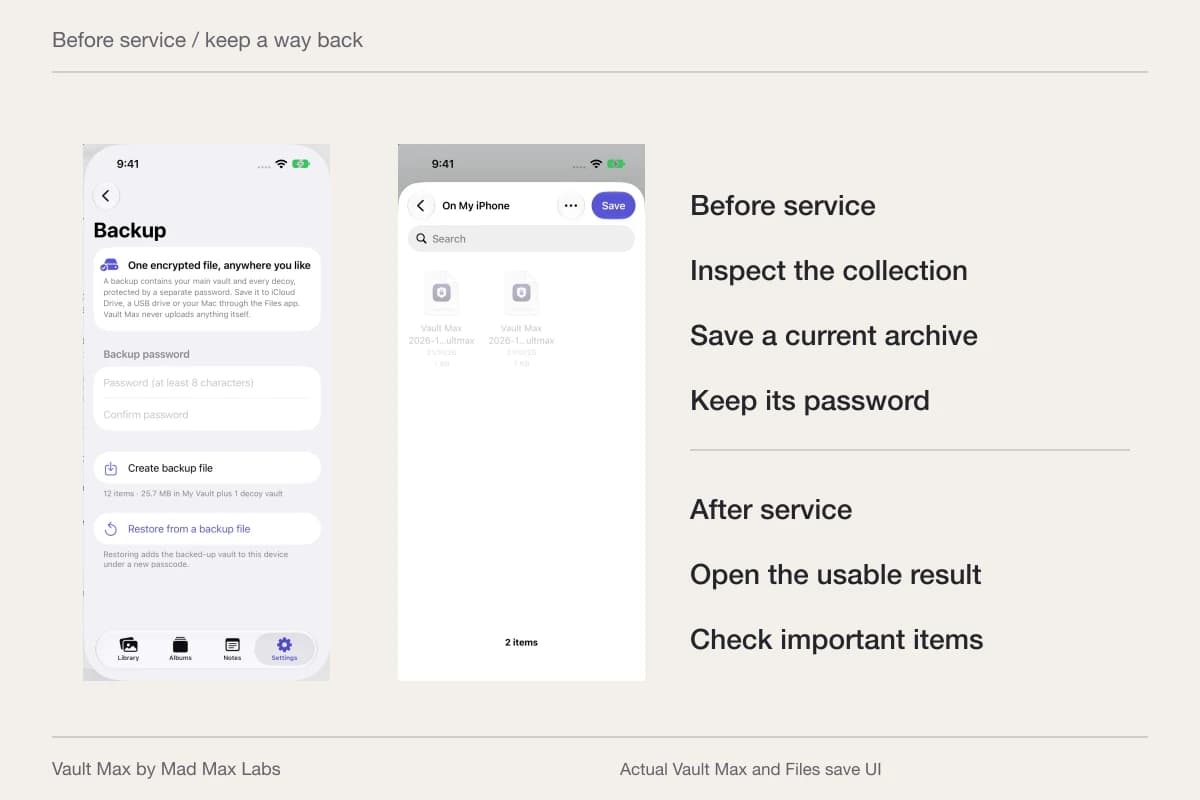
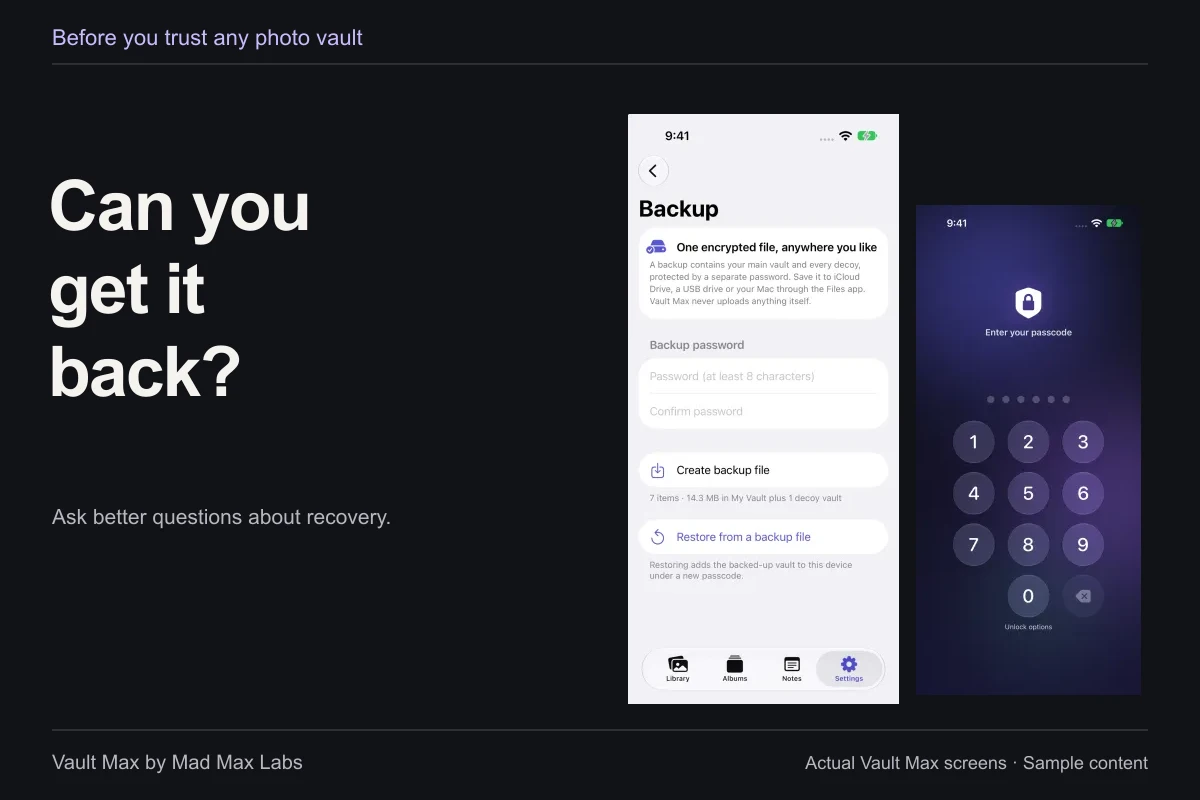
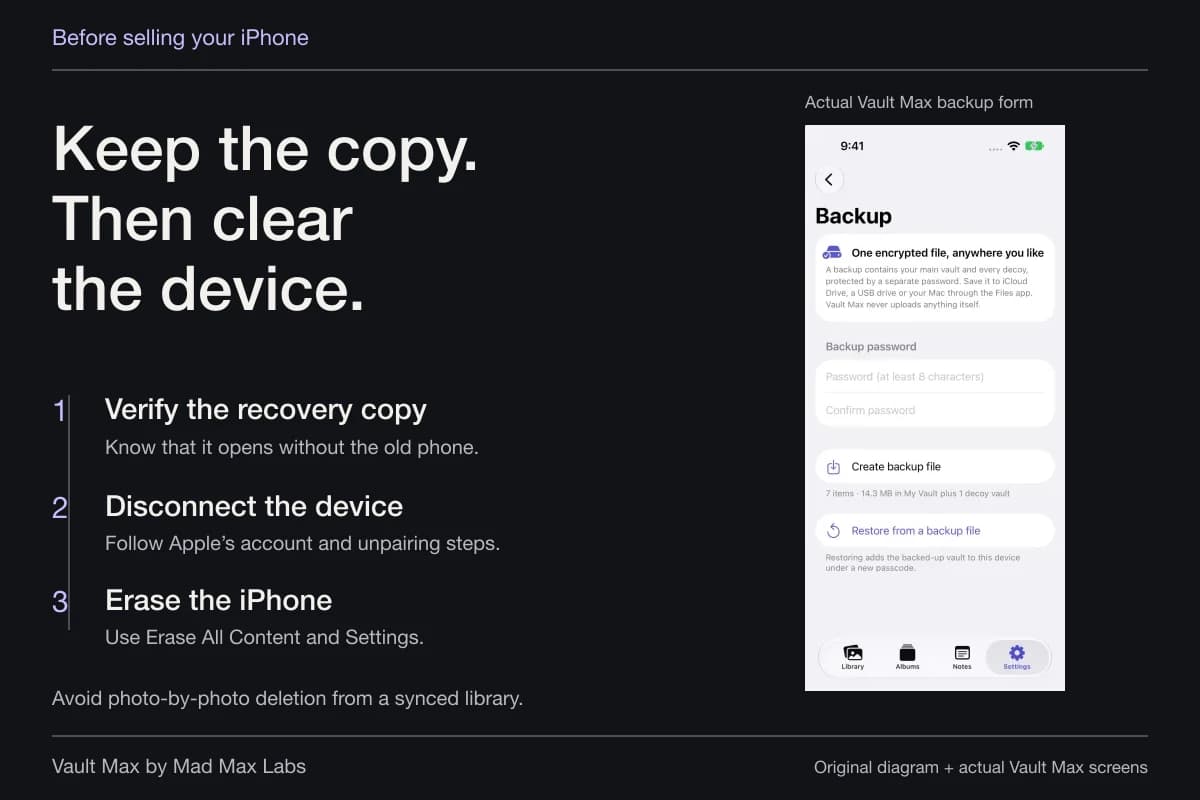
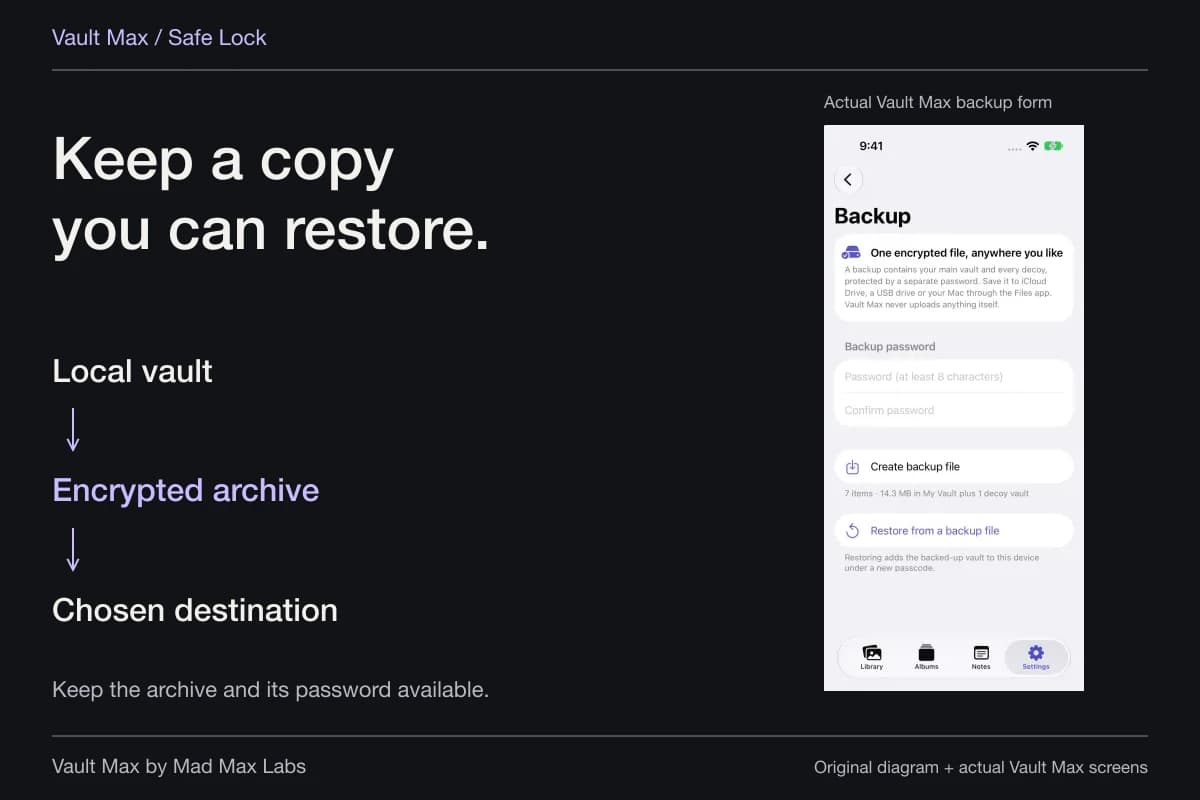
Keep important material recoverable through an encrypted archive and its separate password. A file sent to a friend for a particular purpose is a different arrangement from a recovery archive you maintain for yourself.
Troubleshoot the transfer without changing unrelated privacy choices
If the intended person does not appear, check the practical setup first: proximity, Wi-Fi, Bluetooth and the recipient's receiving audience. Follow Apple's current instructions for Personal Hotspot and contact matching. If a code prompt appears, use that prompt rather than instructions for an older version.
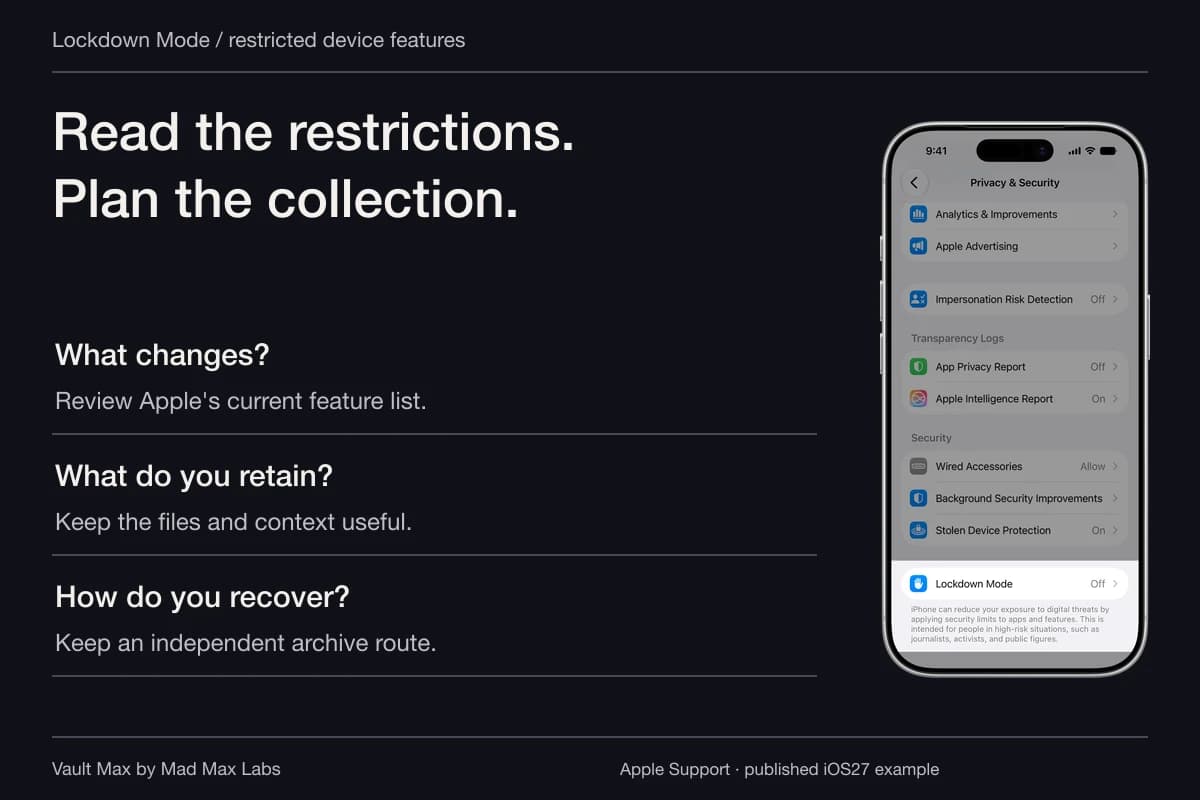
School or work management can also affect available features. Review the authorized device configuration with its administrator where appropriate. A vault is not a way to bypass those restrictions.
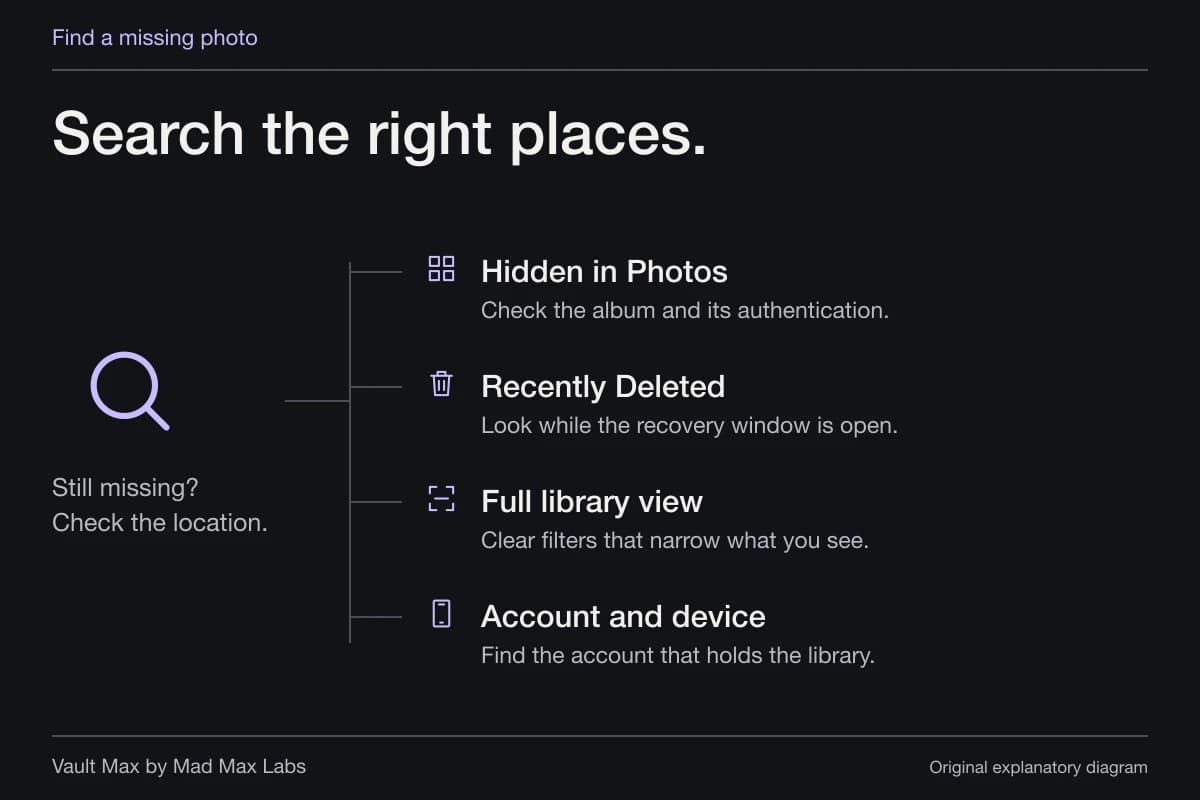
If a transfer appears complete but the item is missing, investigate the recipient's destination and content type before sending several more copies. Ask them to open the received item. A clear completion check prevents confusion between a transfer invitation and a usable saved file.
- Inspect incoming AirDrop settings for the current situation.
- Check the full item and each selected version before opening the share sheet.
- Use the actual recipient and any current code prompt.
- Know where the receiver's copy lives and close your own private session when finished.
Tap a box as you go. Checks reset when you leave this page.
Common questions
Can someone browse my photos because AirDrop is on?
AirDrop receiving controls who can offer a transfer; it is not a remote photo-library browser. Sending involves selecting content and a destination. Review the actual file, recipient and any current acceptance/code step.
How do I stop unwanted AirDrop offers?
Review the AirDrop receiving control in Control Center and choose Receiving Off when you do not want transfers, or the appropriate contacts setting for your task. Everyone for 10 Minutes is temporary. Account, managed-device and OS conditions can affect available options.
What is an AirDrop code?
Apple documents a recipient-generated code for non-contact transfers on qualifying newer systems, including when both iPhone devices use iOS26.2 or later. Follow the actual transfer prompt. The code is not a password added to the received file.
Can I recall a photo by turning AirDrop off afterward?
Turning off receiving controls future incoming offers. A file already received has its own destination and copies. It does not become remotely revocable through your AirDrop switch or a sender's vault lock.
Continue reading
More guides
Practical tips for your private library. Swipe or scroll to choose your next guide.


74 guides to explore