
Privacy in practice
Stolen Device Protection and private photos: set up the layers you actually need
Check Stolen Device Protection, locked apps and a separate vault credential. Build a practical private-photo routine with access and recovery choices.
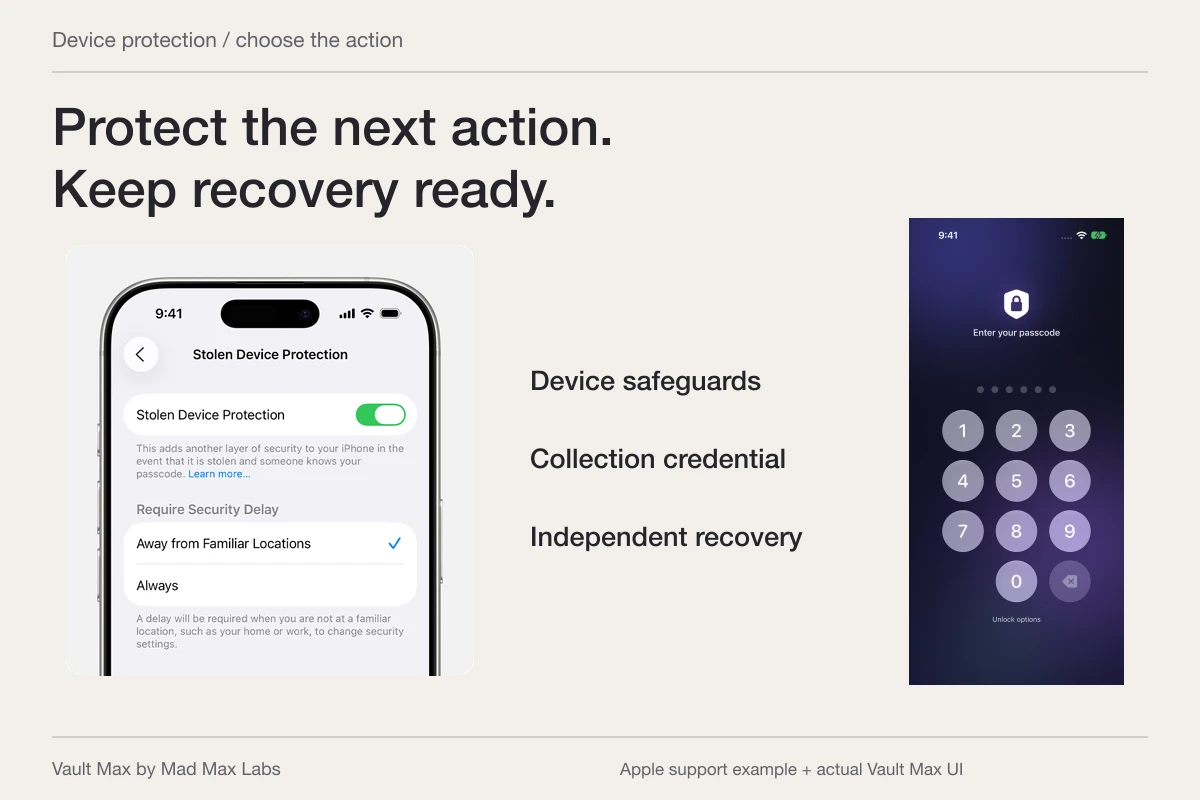
Use Stolen Device Protection for Apple's protected device and account actions, check the system app lock separately, and give your private collection a different credential if you want that boundary too. You can use all three in the same routine.
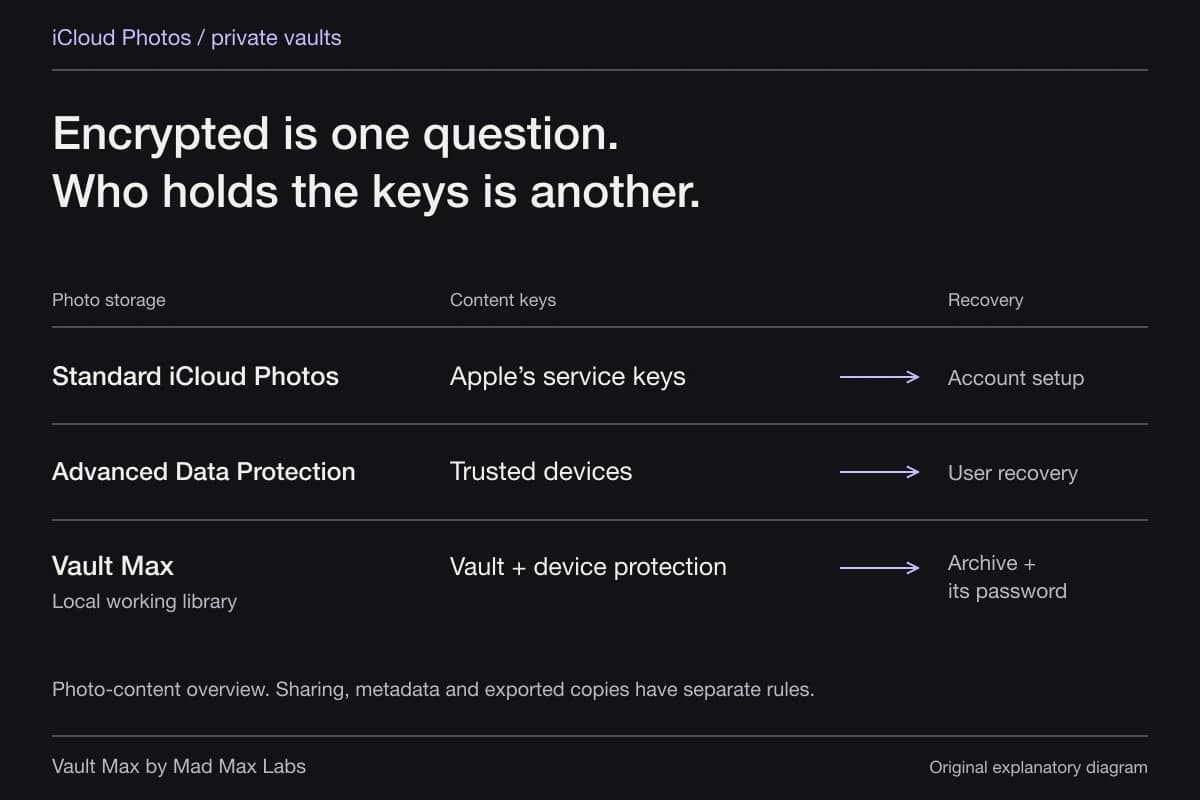
Vault Max makes that third choice practical: selected photographs, documents and writing live in an encrypted on-device collection behind its own credential. It does not need a Vault Max account. That is useful even when the concern is ordinary borrowed-phone access rather than a theft. Apple's safeguards still handle their own, wider job.
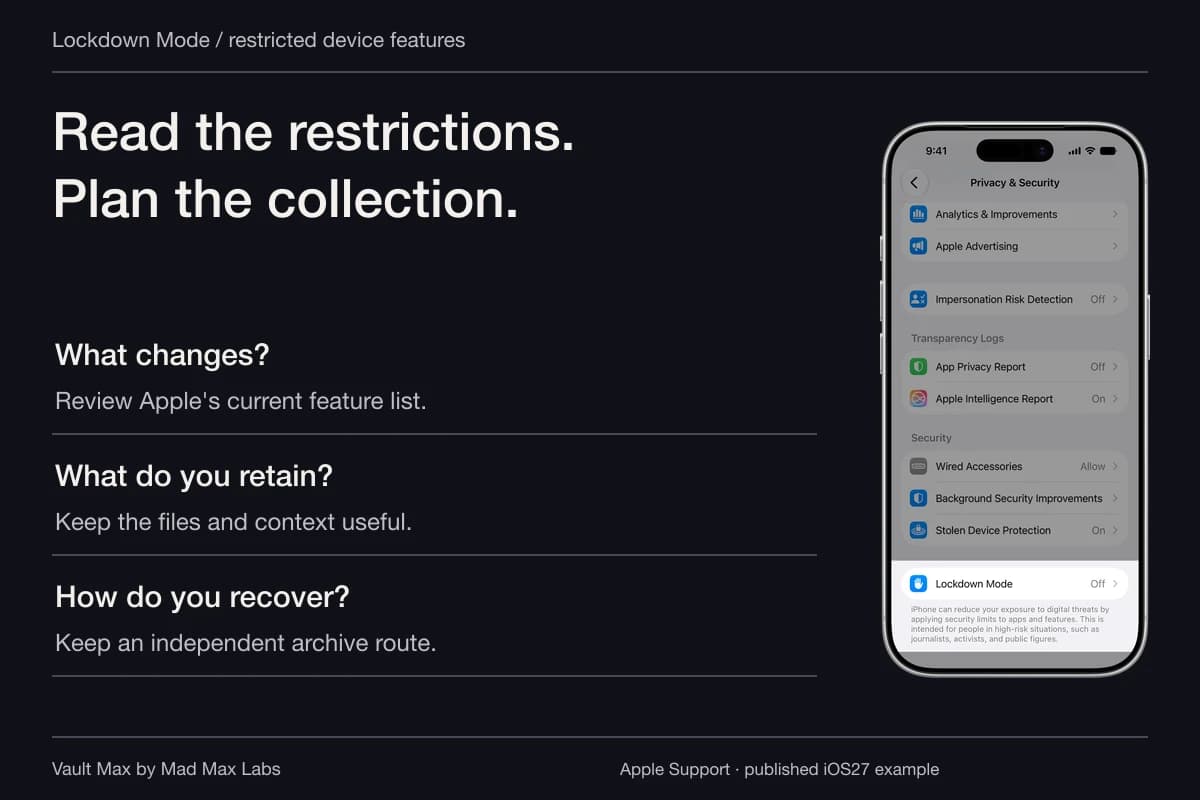
First check what Stolen Device Protection actually protects
Apple's Stolen Device Protection reference distinguishes biometric-only actions from security changes that also require a delay. For example, protected actions include opening a locked app and turning off Lost Mode; critical account changes can require an hour and another biometric authentication.
These requirements normally depend on being away from familiar locations. Apple also offers Always. The feature must be enabled before the phone is lost or stolen; it may already be on, so inspect its current state rather than assuming.
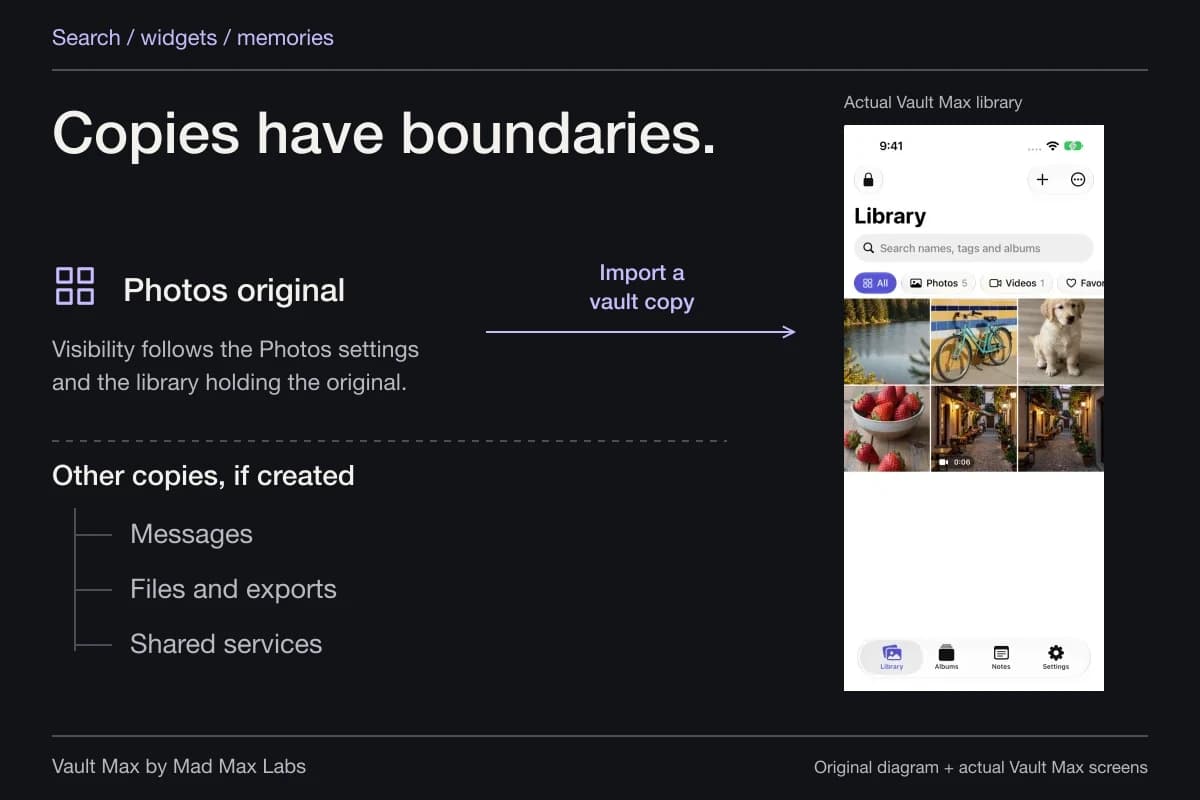
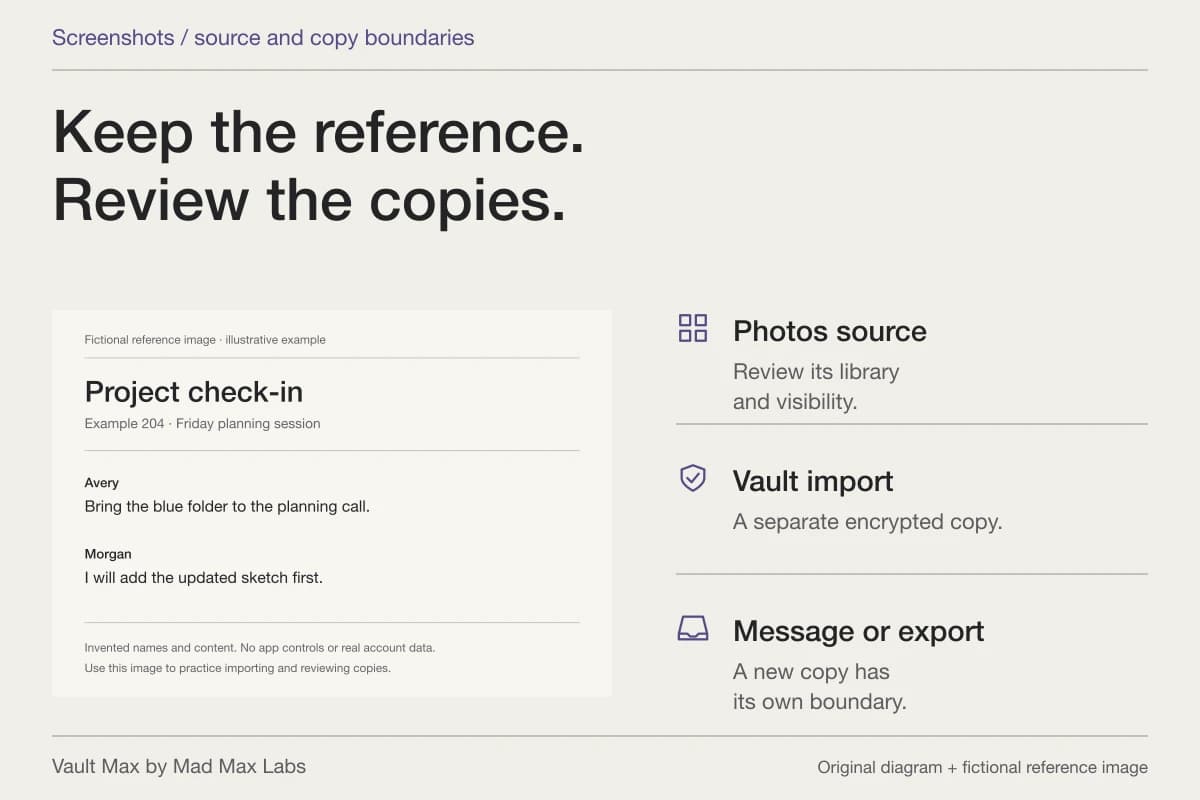
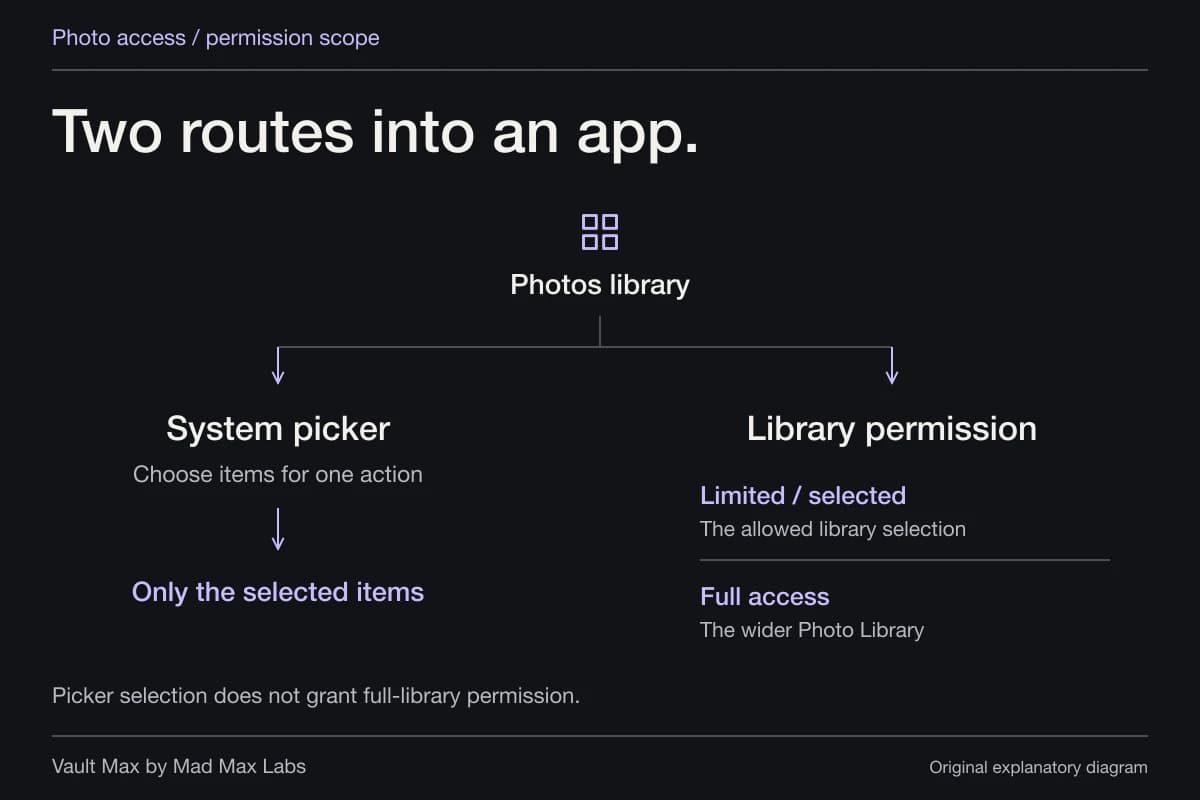
The setting is not an instruction to move photos, delete exports or create a separate vault. If you have pictures in Photos, a shared library, Downloads and an app, identify those locations independently. A device-wide security name does not make all those copies one collection.
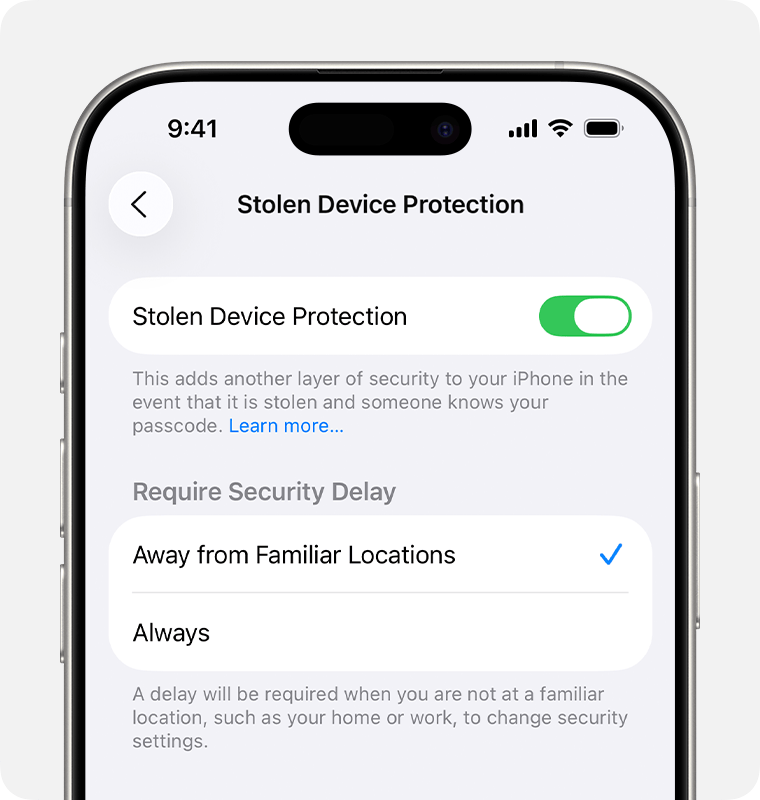
Apple's published iOS26 example shows Stolen Device Protection on with Away from Familiar Locations selected. The Always choice changes when additional safeguards apply. This source image illustrates the setting; it is not a location-sensitive authentication test.
Apple Support · published iOS26 exampleChoose when the additional safeguards apply
Open Settings → Face ID & Passcode or Touch ID & Passcode, enter the device passcode and select Stolen Device Protection. Review its state and location policy. Apple's Personal Safety instructions explain the setup and the option to require the extra measures at all locations.
Choose Always under Require Security Delay if you want those additional requirements regardless of familiar location. Understand the consequence for your own future changes as well: account or security maintenance can take longer. Plan deliberate changes while you have access to the necessary authentication and time.
Apple requires the relevant device and account setup, including Find My, biometrics and two-factor authentication. If the option is unavailable or a change is delayed, follow the onscreen explanation and Apple's requirements. Avoid treating a delay as a reason to dismantle unrelated protections.
Lock the app you intend to protect
For a supported app, touch and hold its Home Screen icon and choose Require Face ID or Require Touch ID. Apple's locked-app guidance explains the important interaction: a normal app lock can accept the device passcode; with Stolen Device Protection away from familiar locations, opening that locked app requires biometrics without a passcode fallback.
This is why “someone knows my phone PIN” does not have one universal answer. The app's lock state, Stolen Device Protection and its location policy affect the result. Check the actual settings on your phone rather than relying on an old description of iOS app locking.
Do not hand an unlocked private screen to someone as a test. Learn the setup using harmless material, leave the app and inspect its normal reopening behavior yourself. That everyday check is different from proving all theft conditions or deliberately trying to simulate a familiar-location decision.
Keep Hidden, app locking and a vault distinct
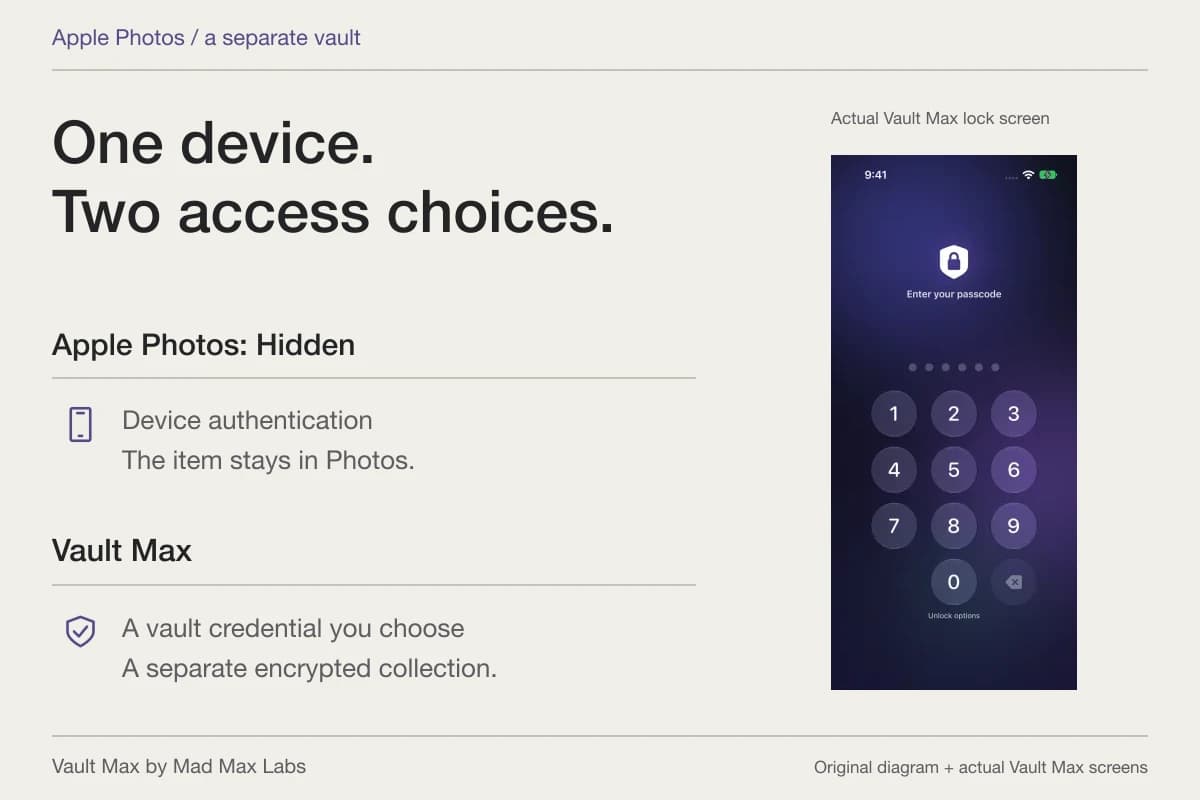
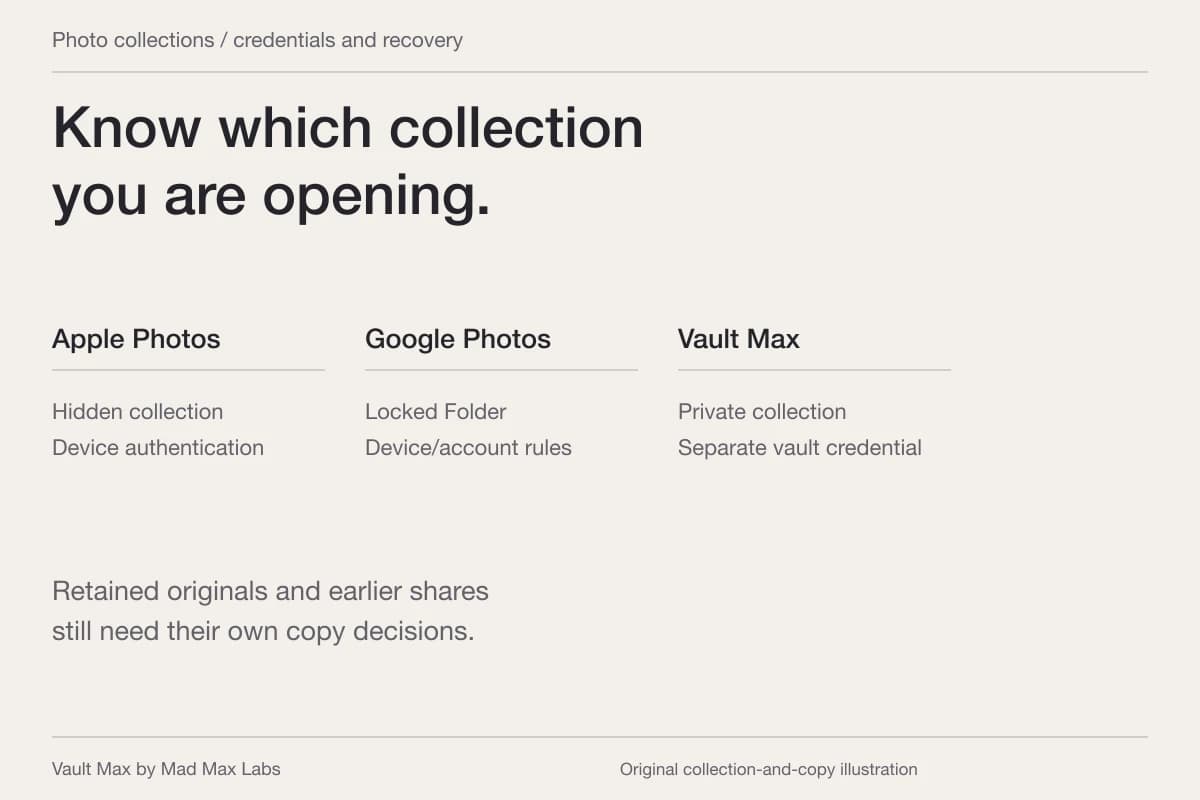
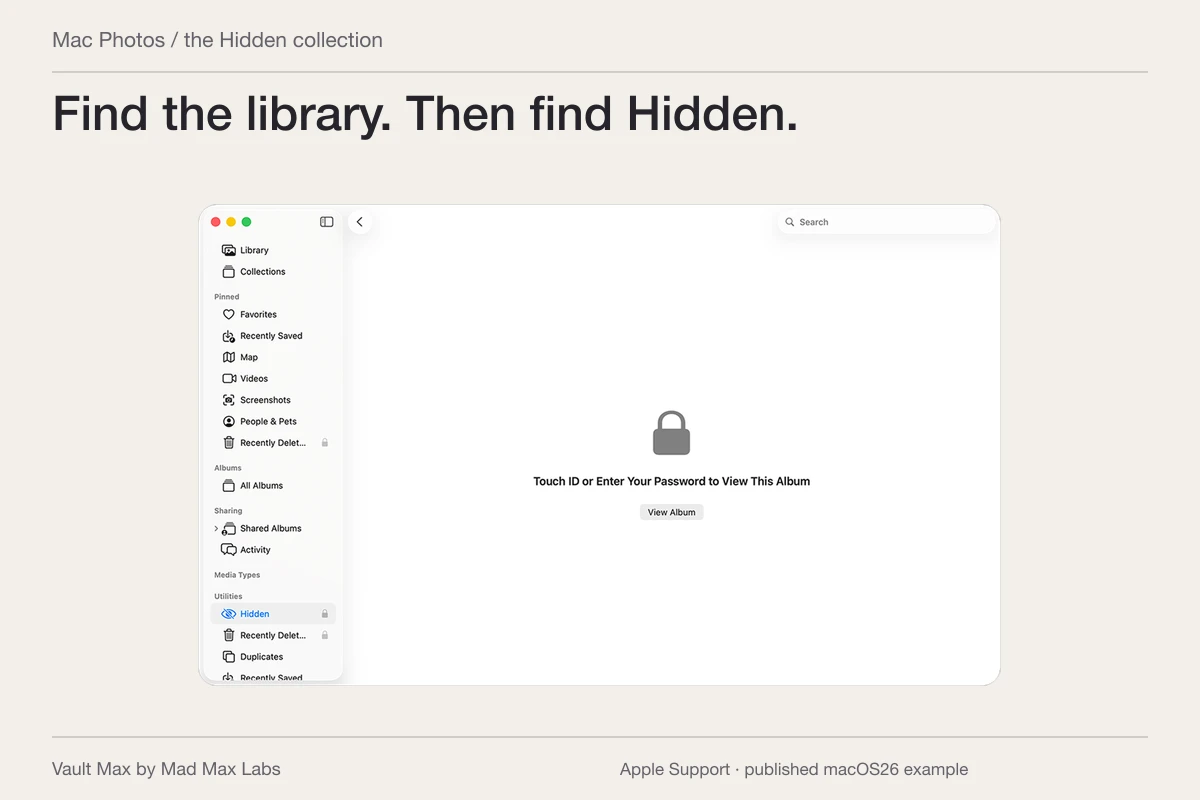
Apple's Hidden album removes selected items from ordinary Photos browsing and requires authentication by default on supported current systems. It remains part of the Photos library. Its account and sync arrangement still matter.
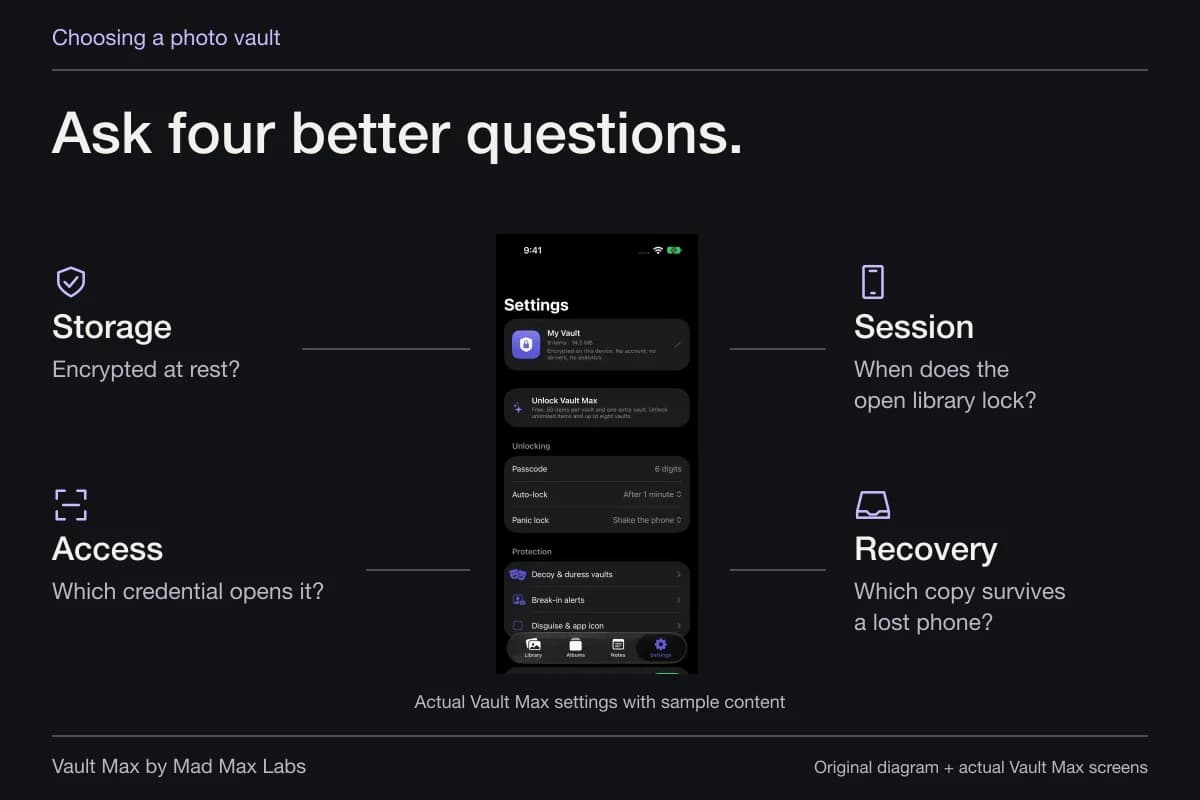
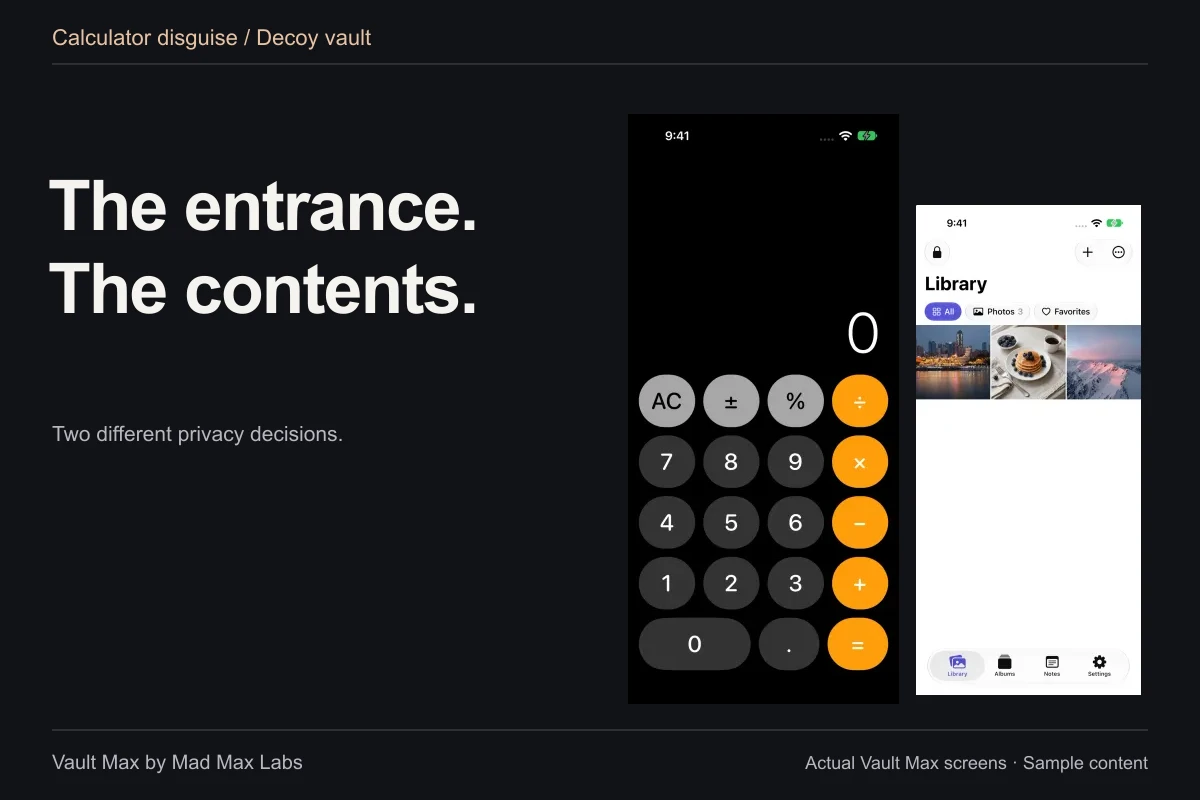
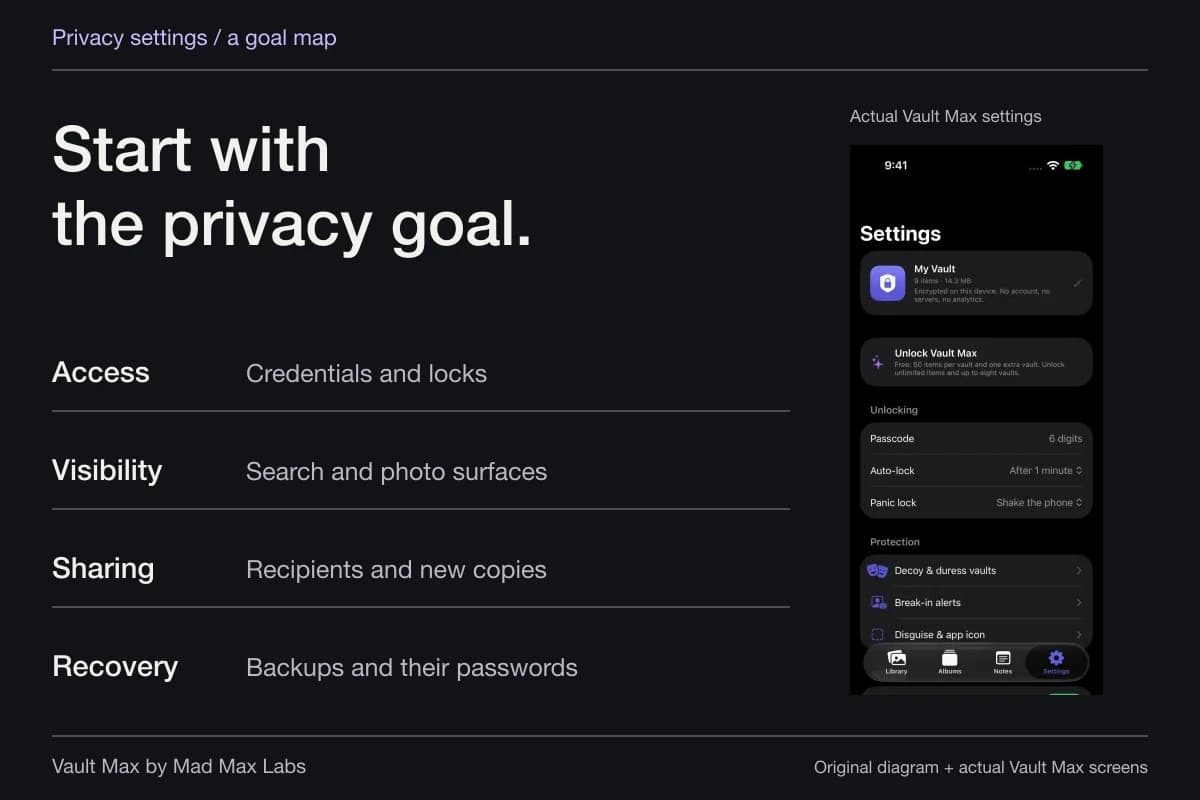
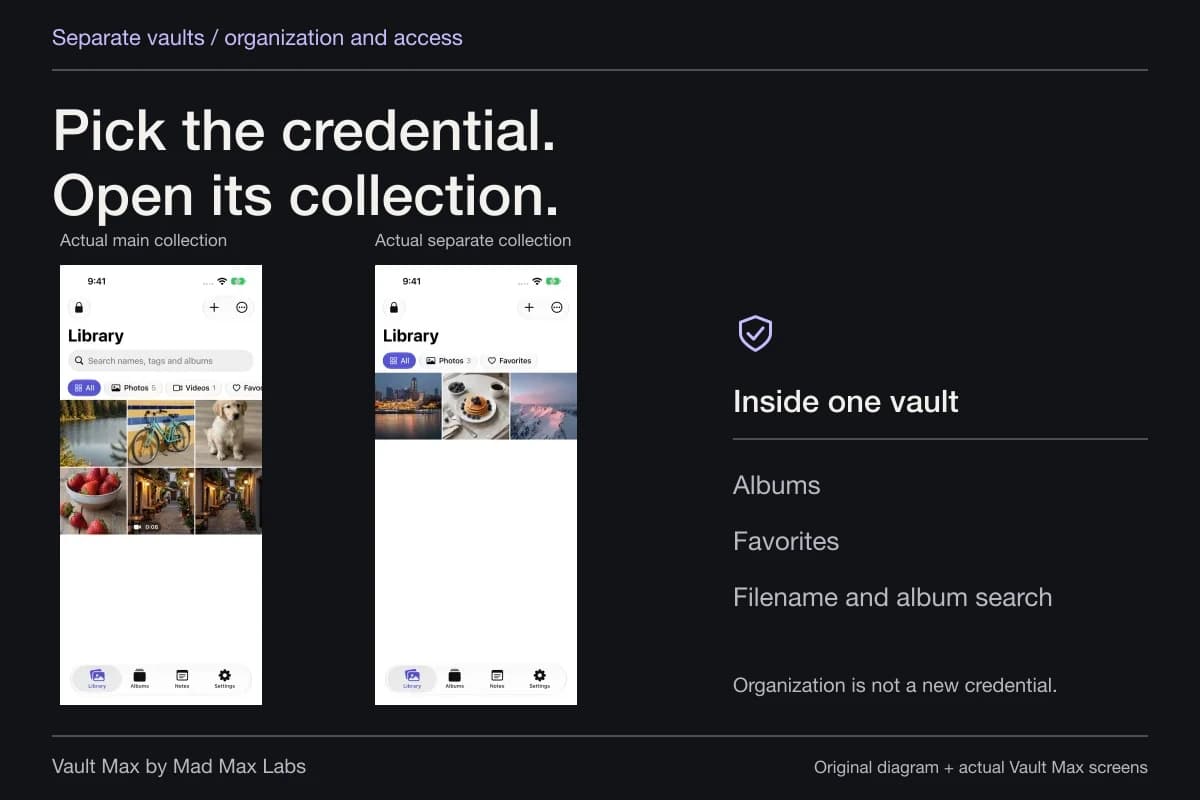
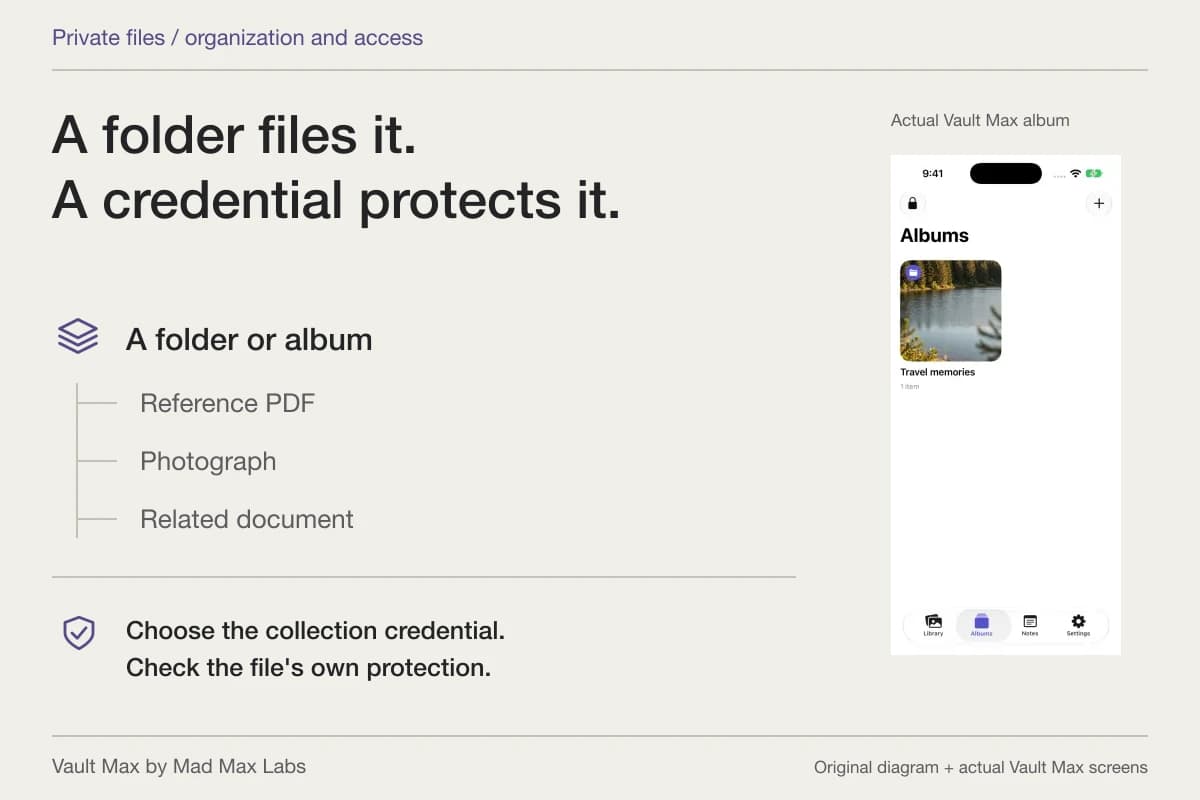
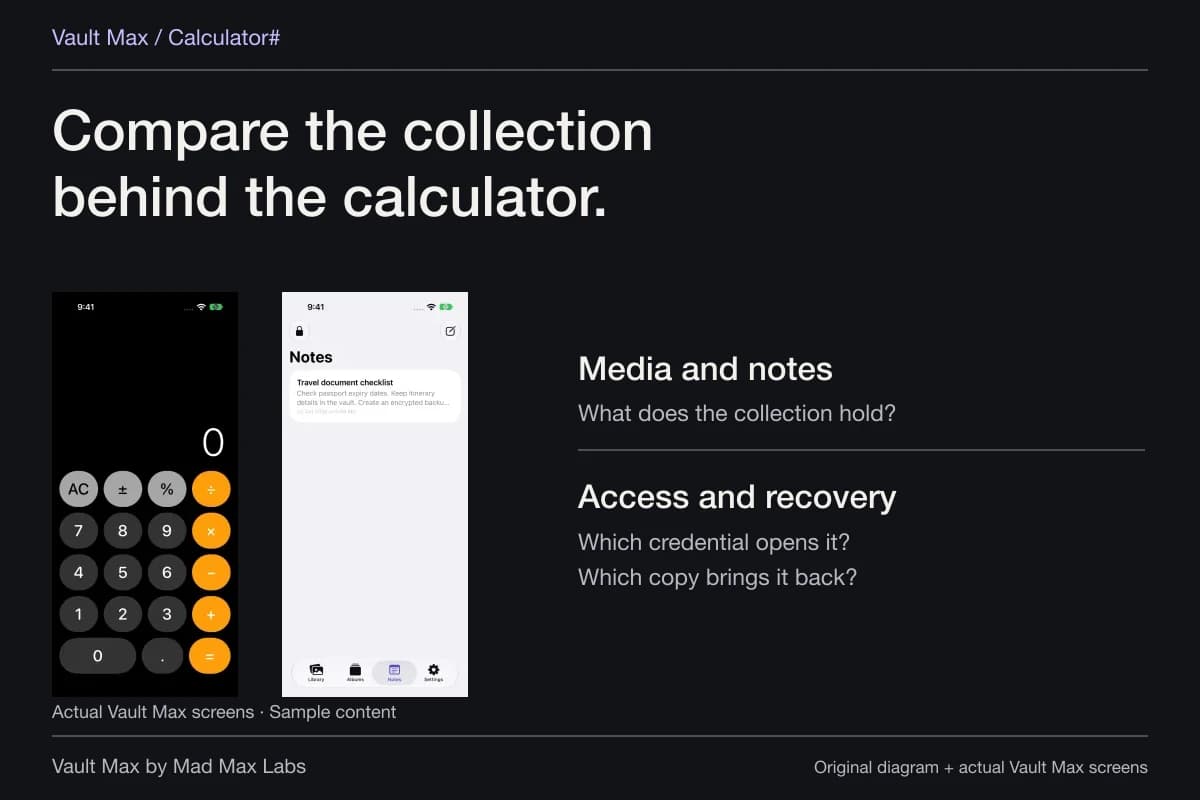
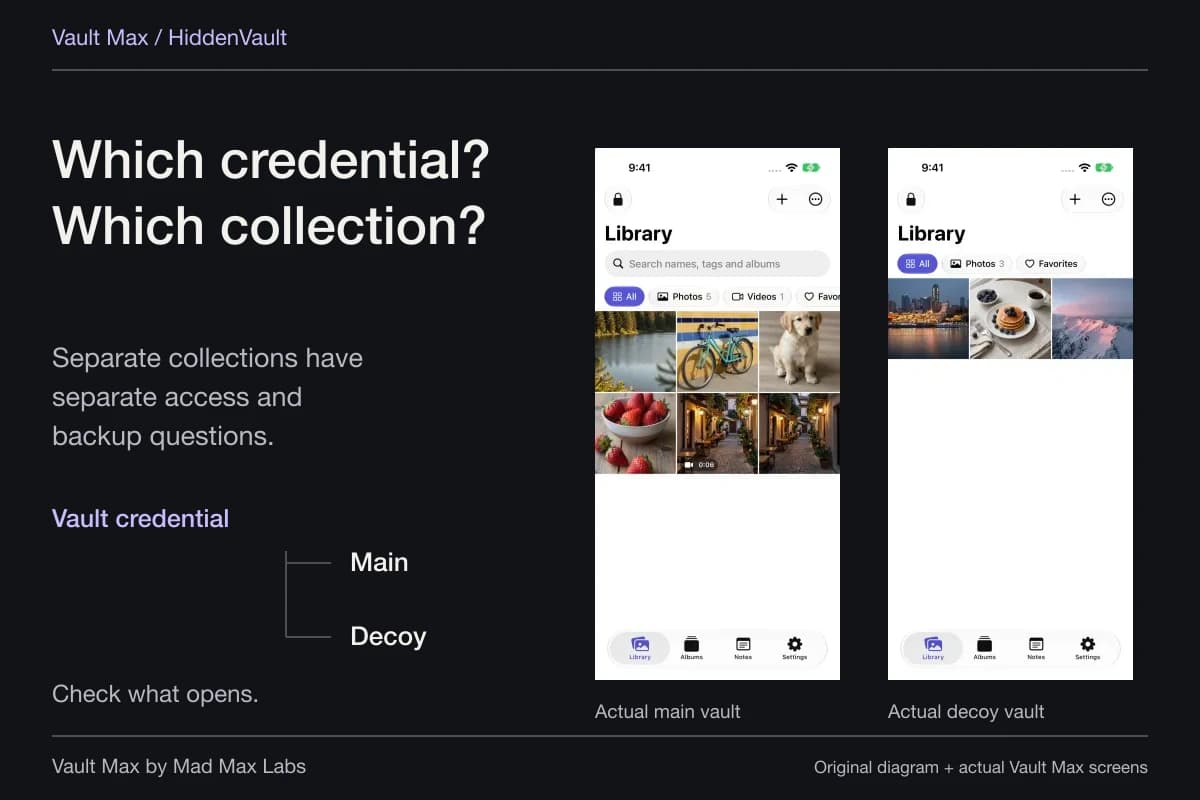
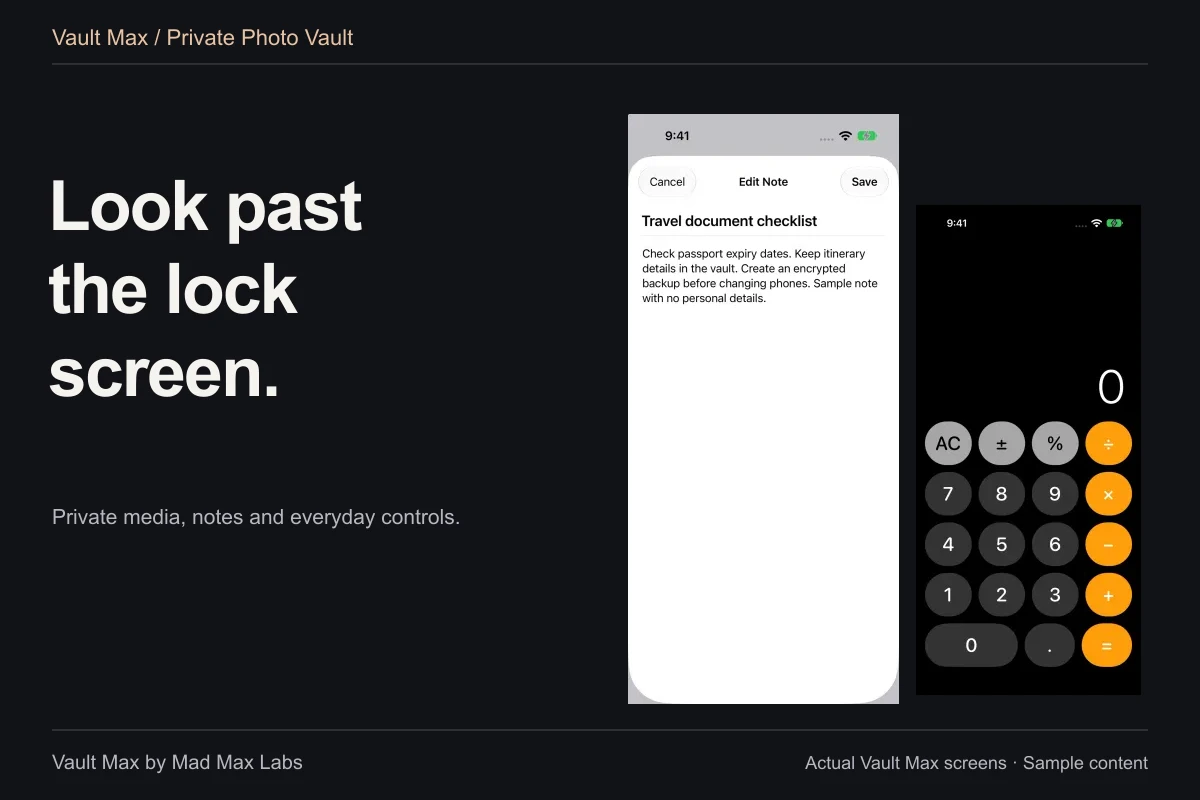
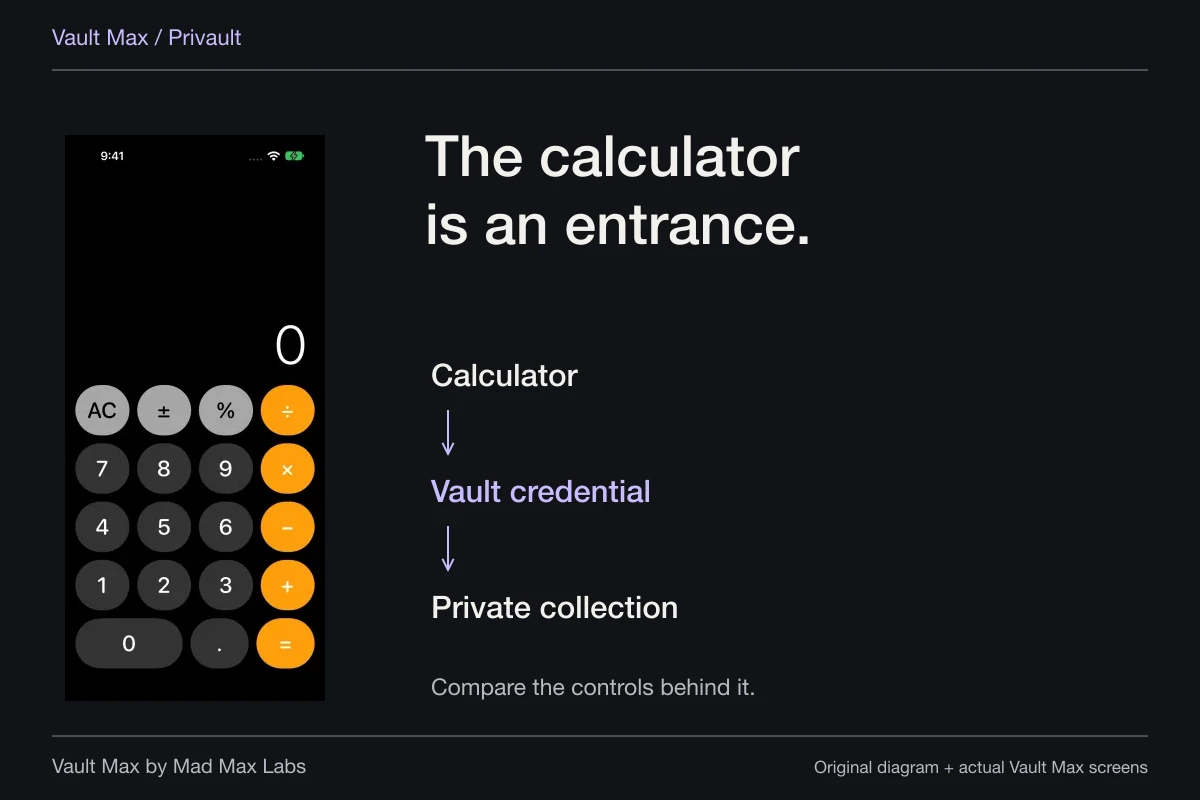
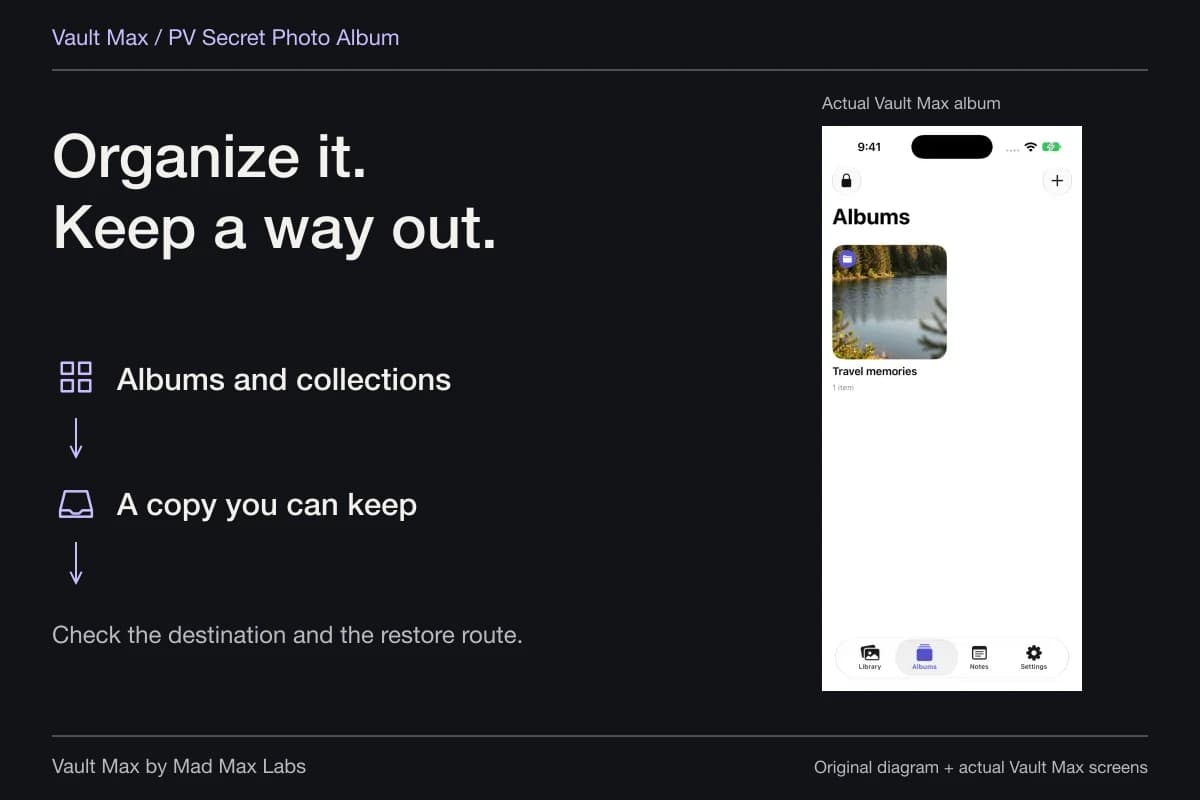
Vault Max gives the selected collection a separate home and credential. Its albums organize content inside that home; they are not additional locks. A working calculator entrance changes how you enter the vault, while an ordinary alternate vault reaches different content. Choose those features for their actual routines rather than treating every privacy control as another name for the same thing.
| Control | Useful job | Question to answer |
|---|---|---|
| Stolen Device Protection | Extra requirements for Apple's protected actions | Is it enabled, and when do the safeguards apply? |
| System app lock | Authentication before opening the chosen supported app | Is this app actually locked? |
| Photos Hidden | Keep selected items out of ordinary library browsing | Which library and authentication route apply? |
| Vault Max credential | Open a separate encrypted local collection | Is its credential distinct from the phone's? |
| Encrypted archive | Preserve a recoverable snapshot | Can I reach the file and its password without this phone? |
Give Vault Max a credential you did not already share
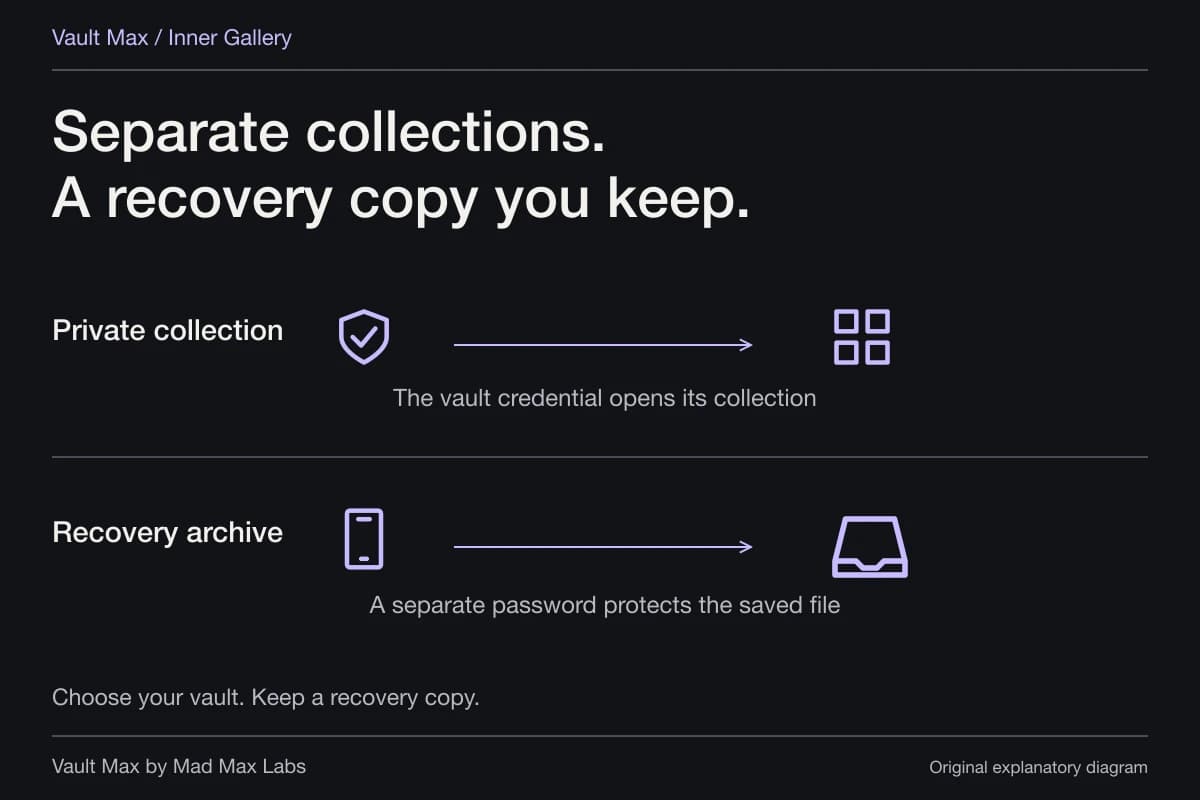
When setting up the vault, choose a credential different from the phone's passcode. Reusing the same code defeats the particular separation you were trying to create. Start with a small sample import, reopen the saved item and close the vault before expanding the collection.
For existing access, review the separate-password walkthrough. If you need to change the vault credential, do it while you know the current one. Already-enabled biometrics may preserve access, but the change-passcode screen requires the current vault code. Create a recovery archive while access is available if there is any uncertainty.
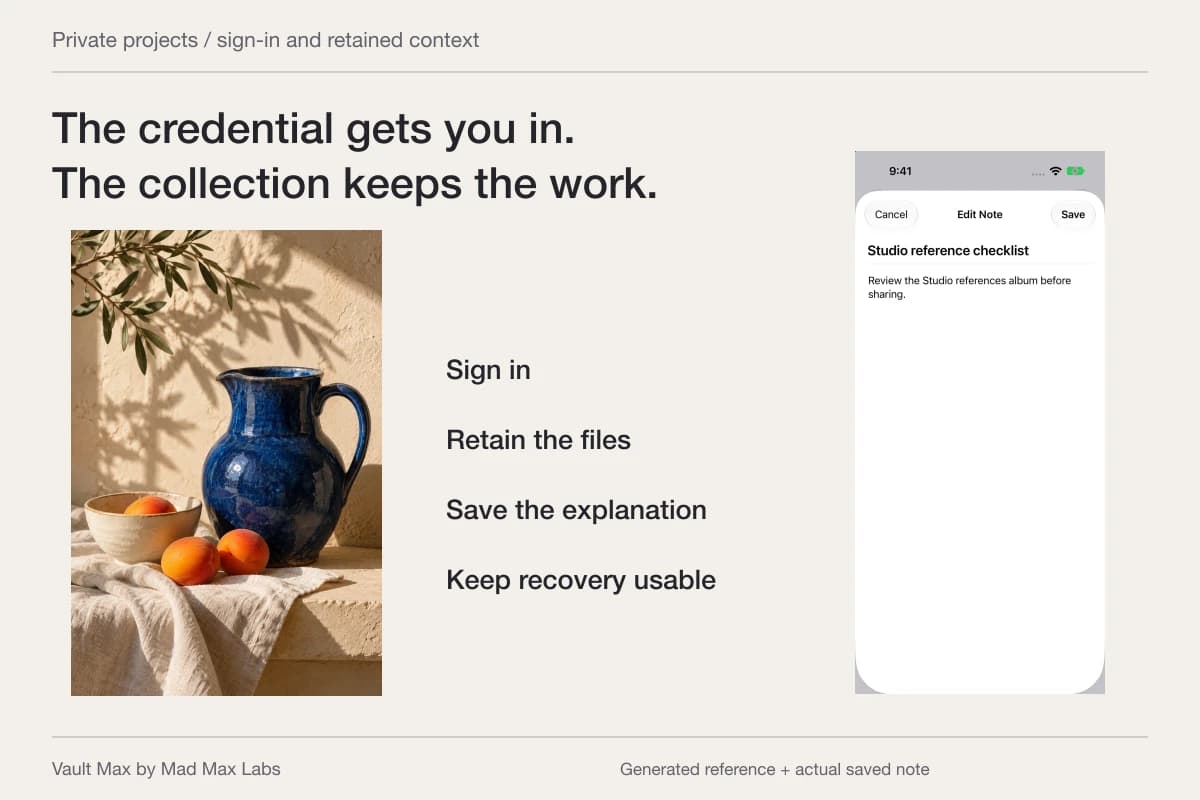
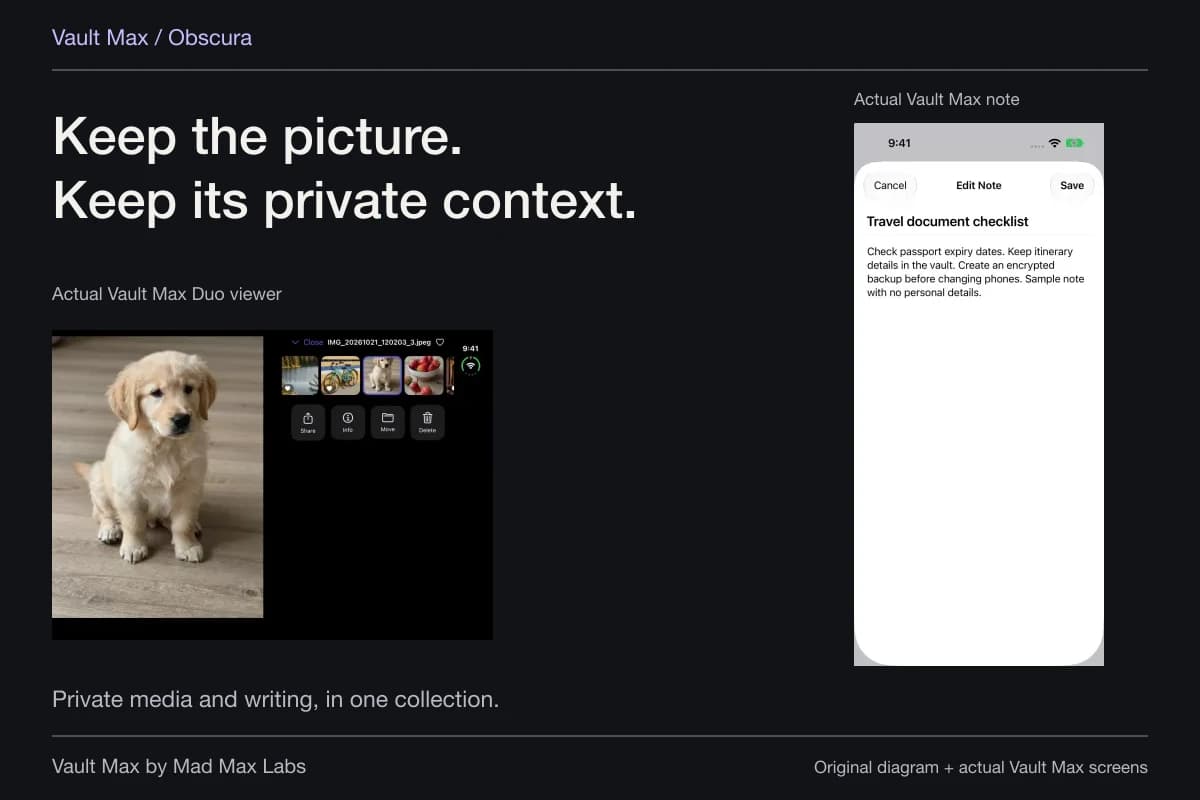
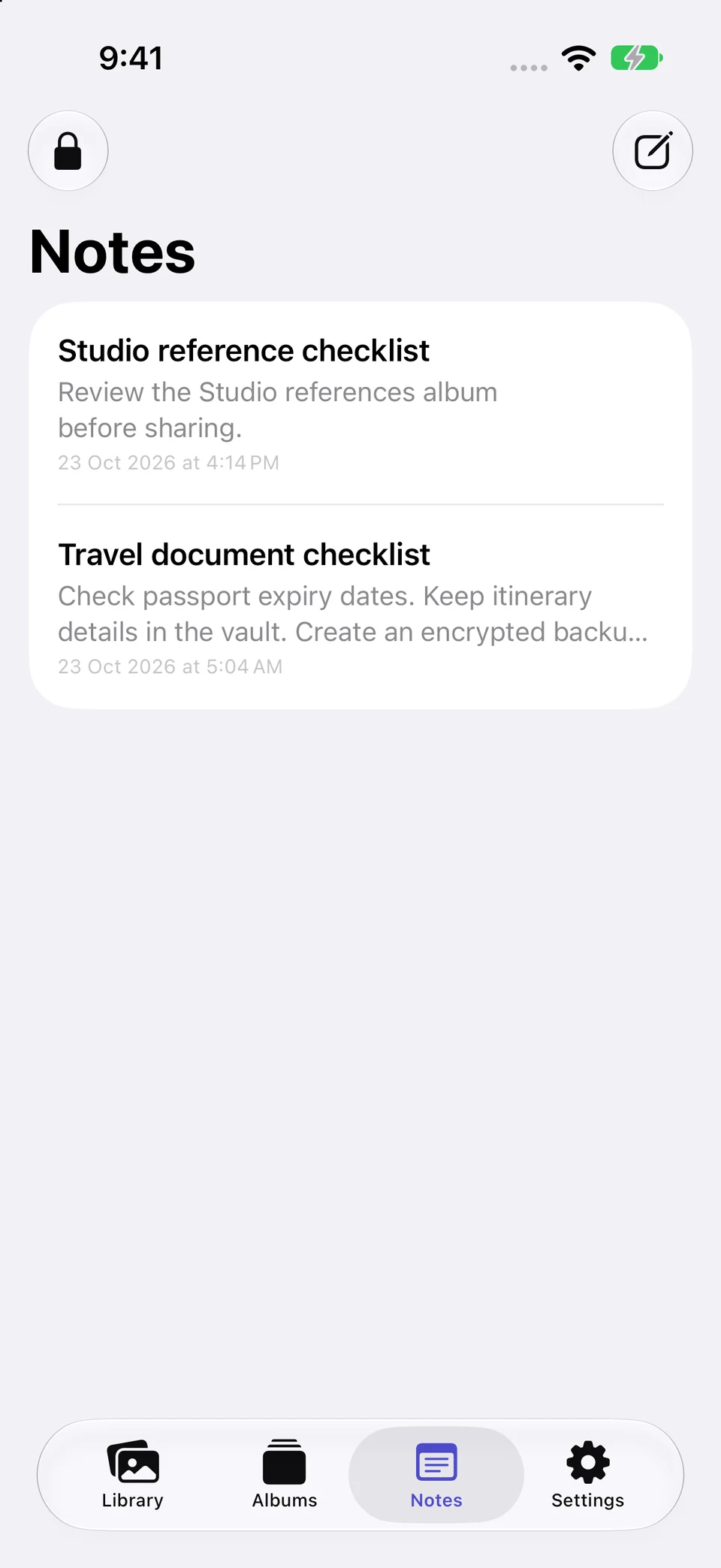
Then make the collection useful. Put related media in a recognizable album and save an explanation in an encrypted note when context matters. Vault Max's plain-text notes belong to its private Notes view and are included in its archive. You do not need to scatter the explanation through an unrelated message thread to remember what a picture means.
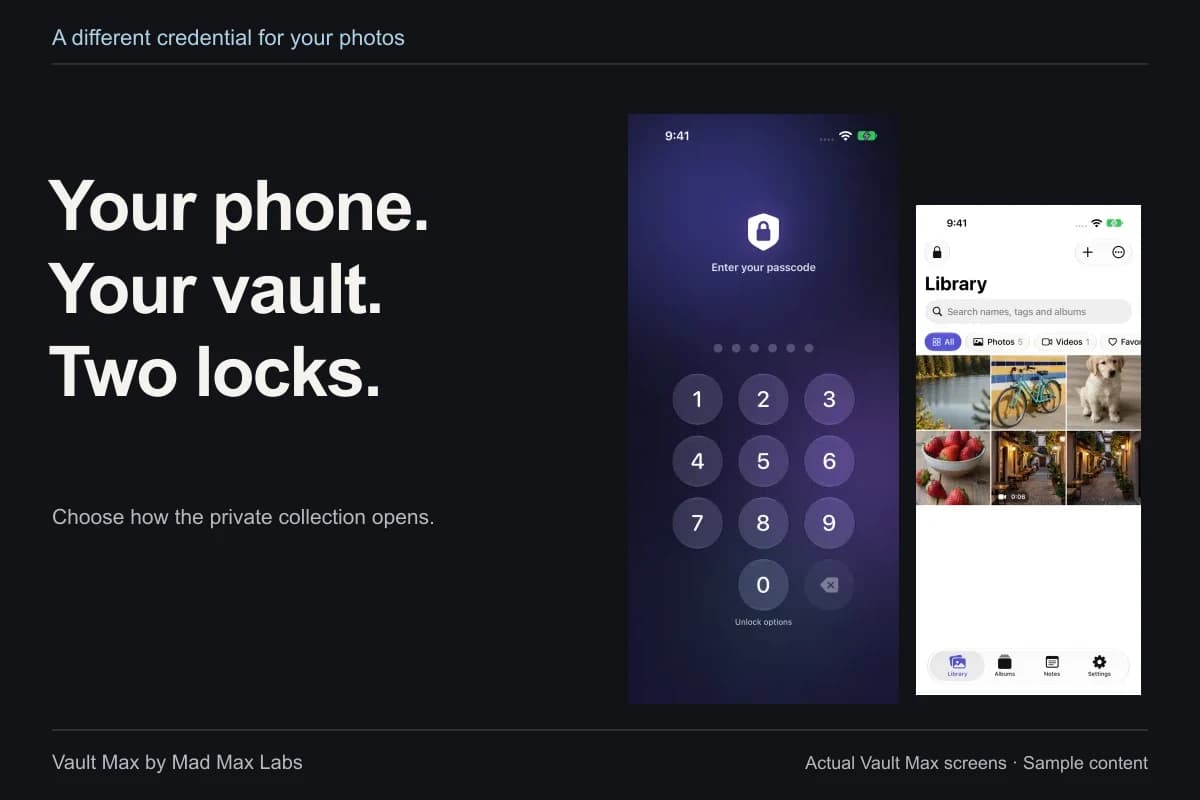
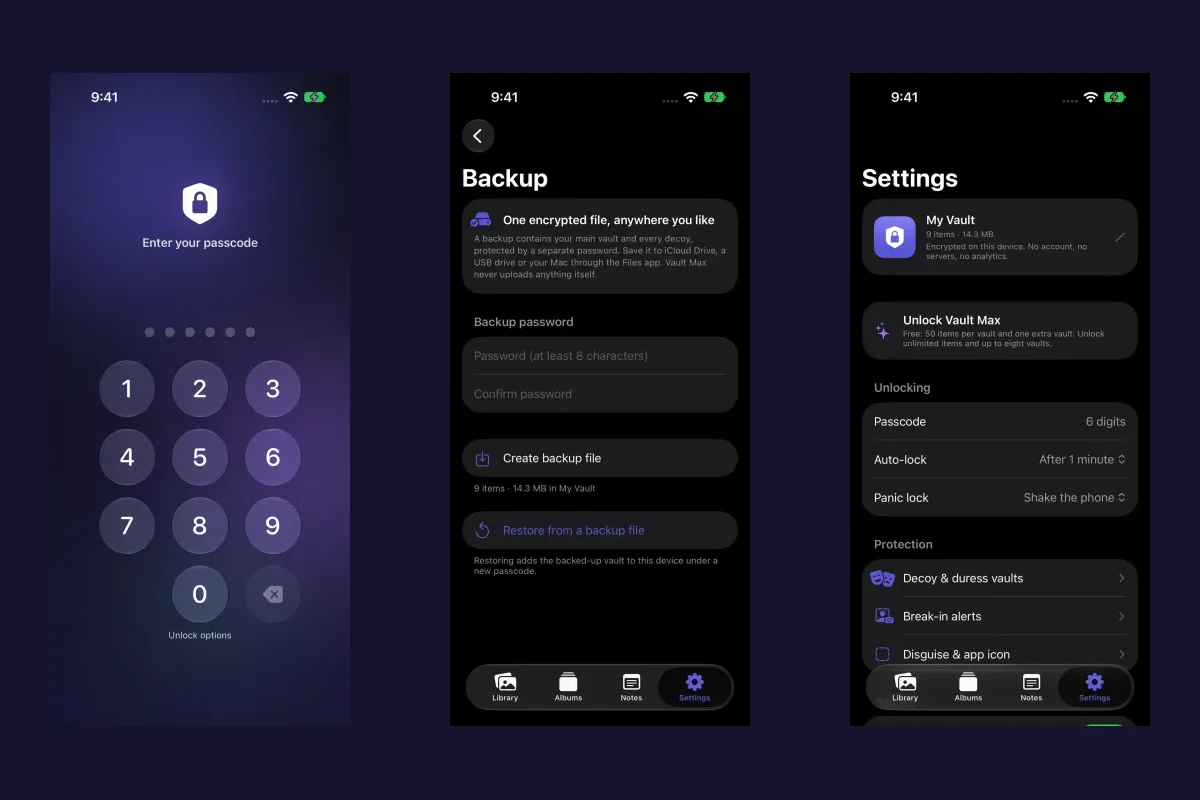
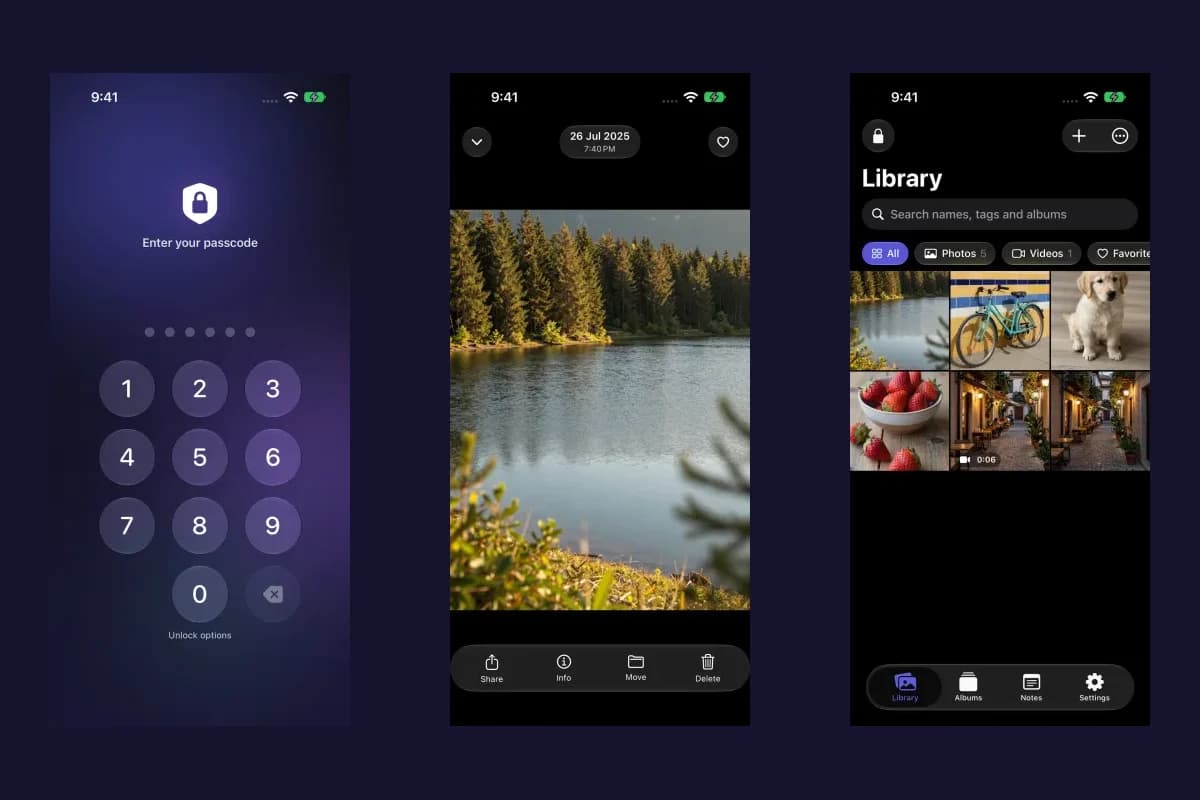
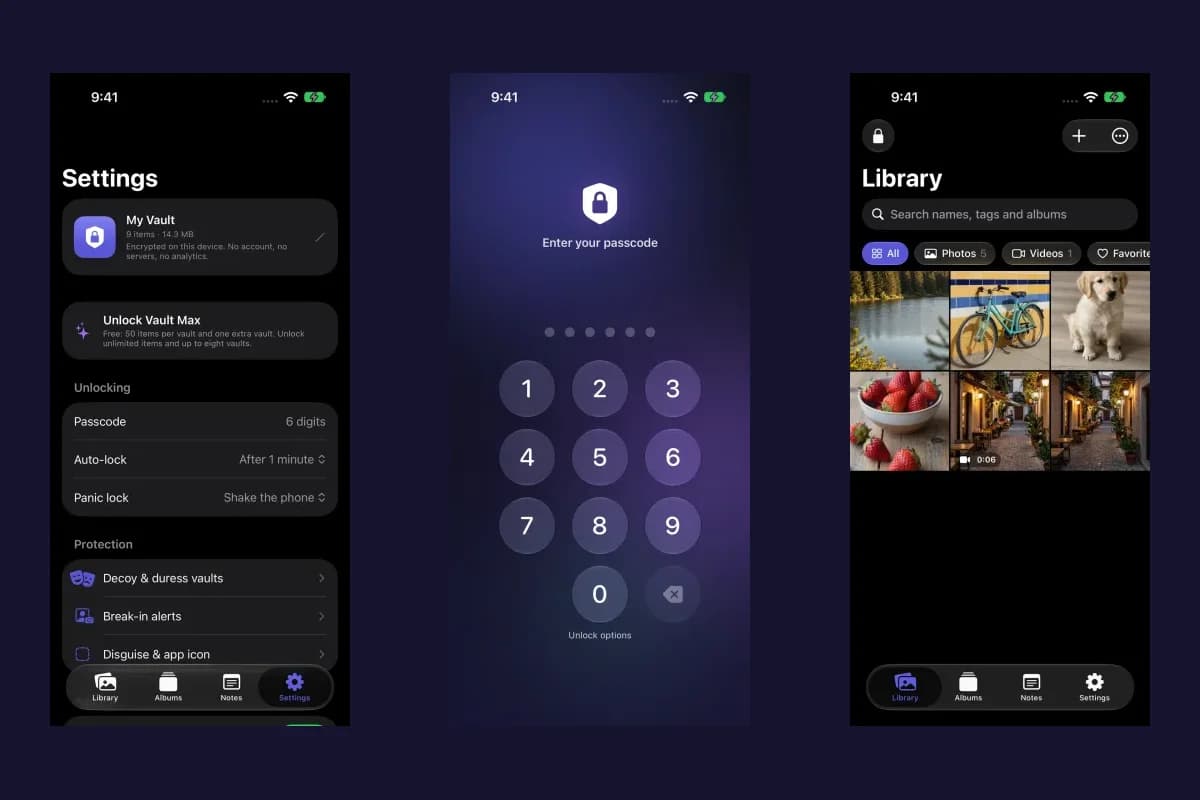
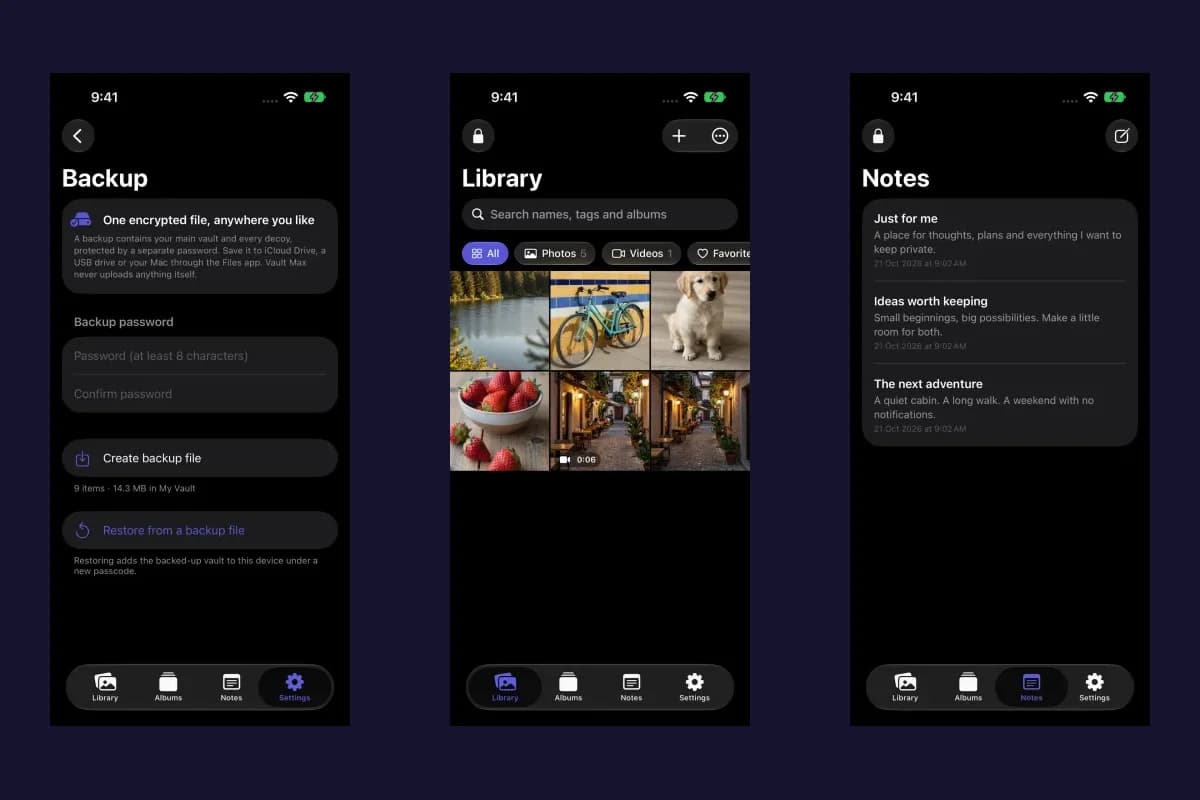
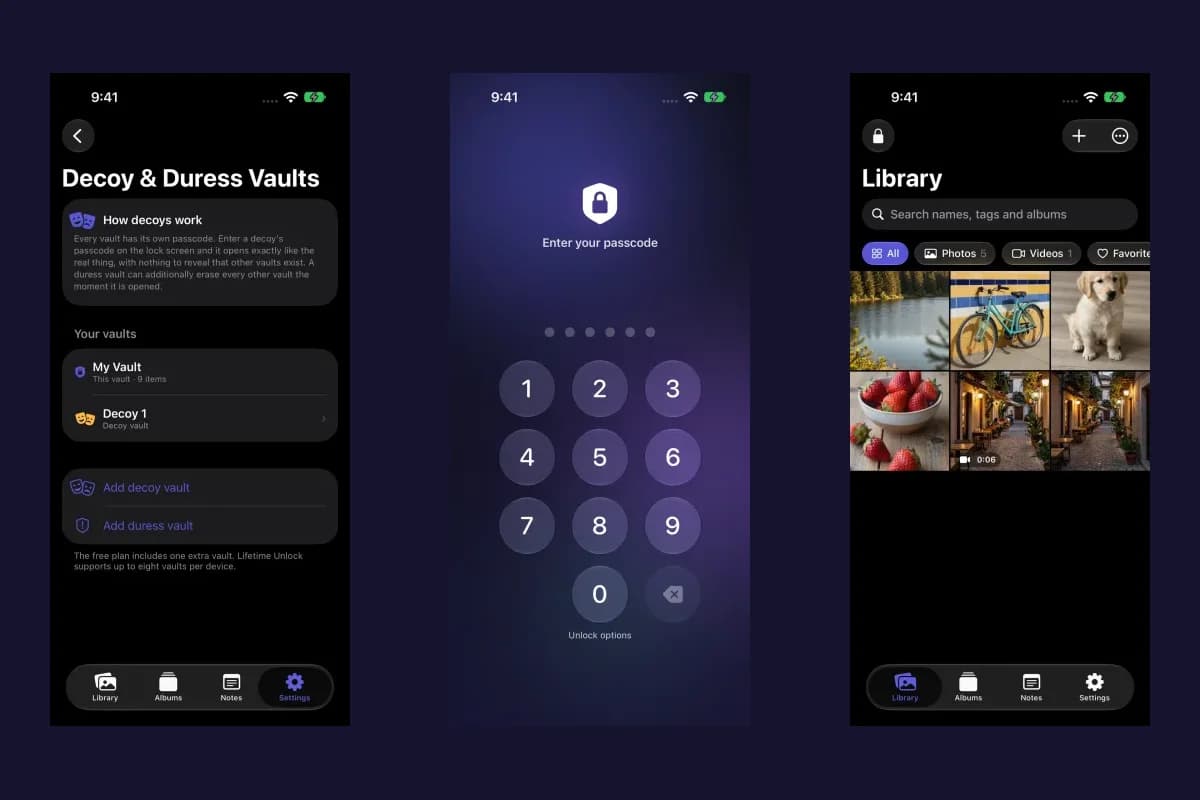
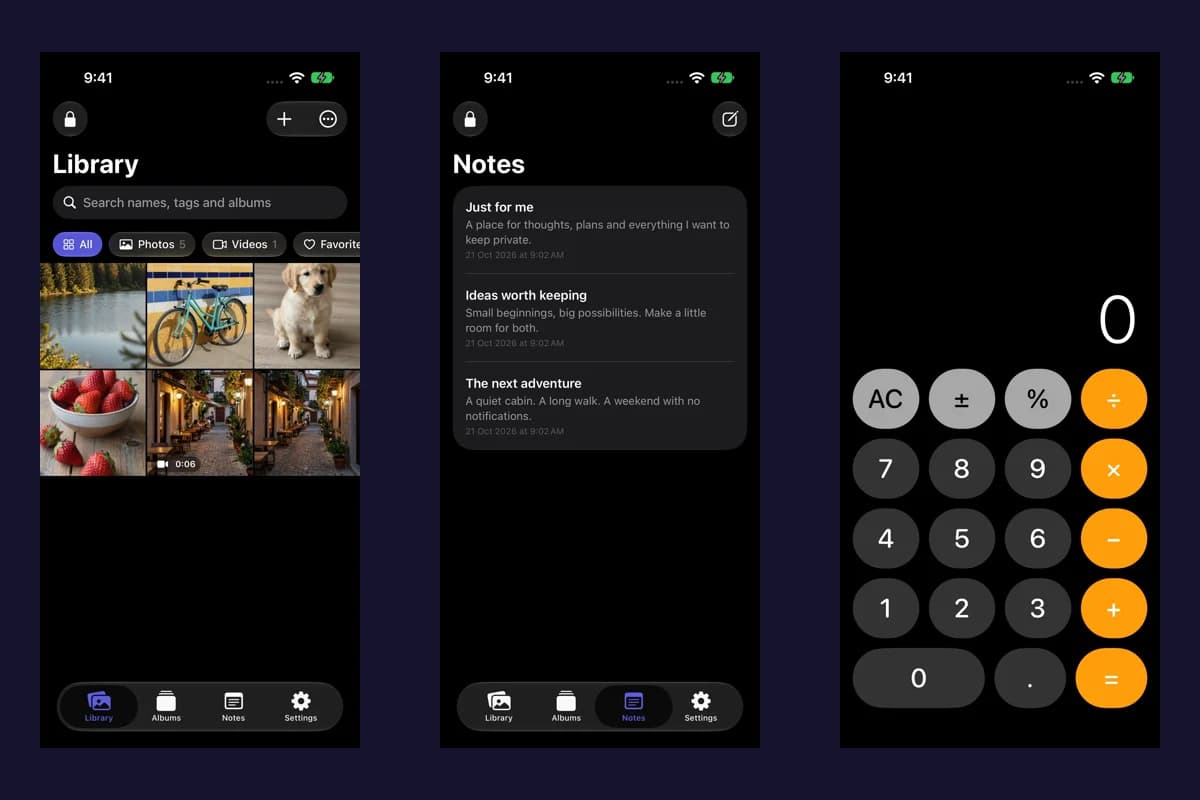
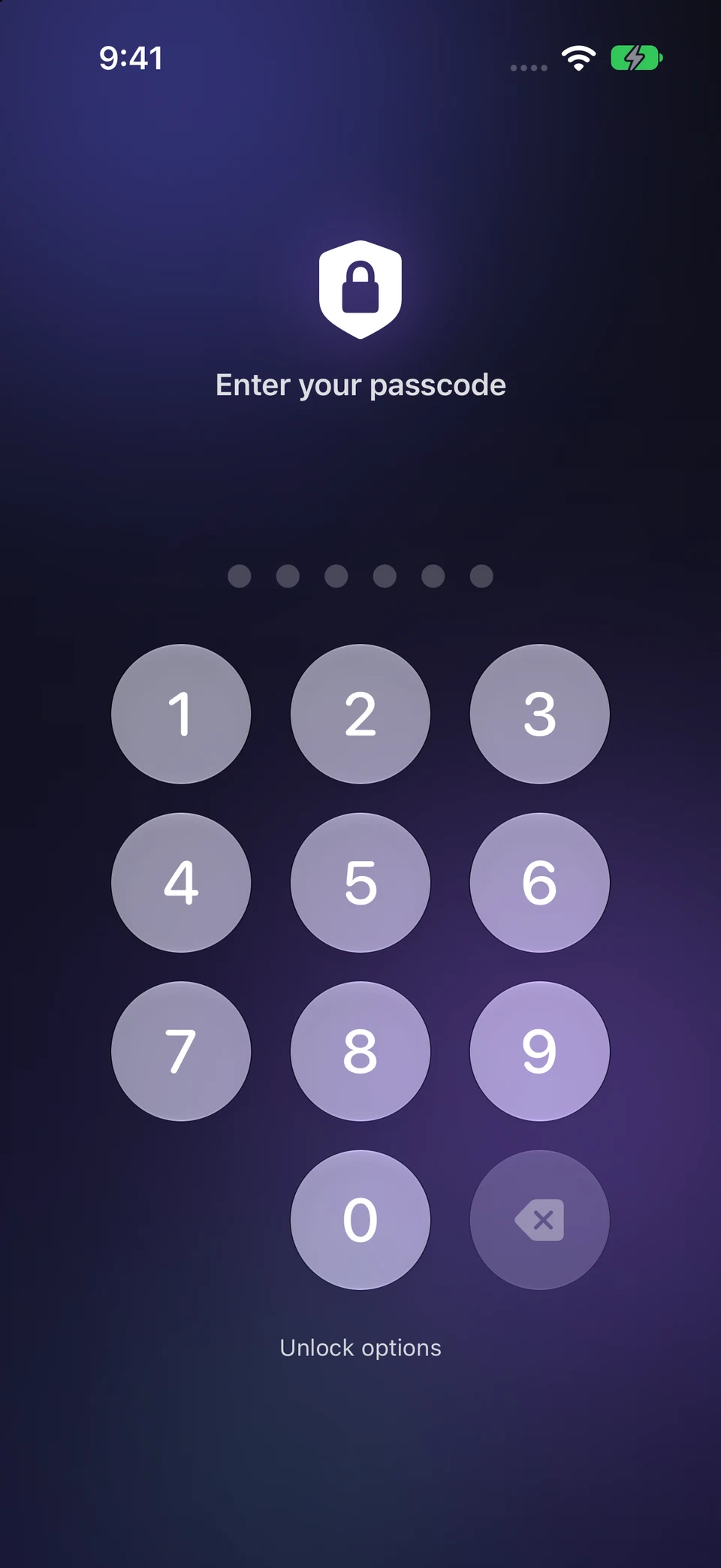
The actual credential screen follows a manual lock; the Notes list contains saved fictional project context. These illustrate normal Vault Max collection work, not a theft scenario or a Stolen Device Protection biometric-fallback test.
Actual Vault Max · QA simulator, generated sample photographsClosed collection
Open original image: Closed collectionSaved private context
Open original image: Saved private contextClose the session, and give recovery its own route
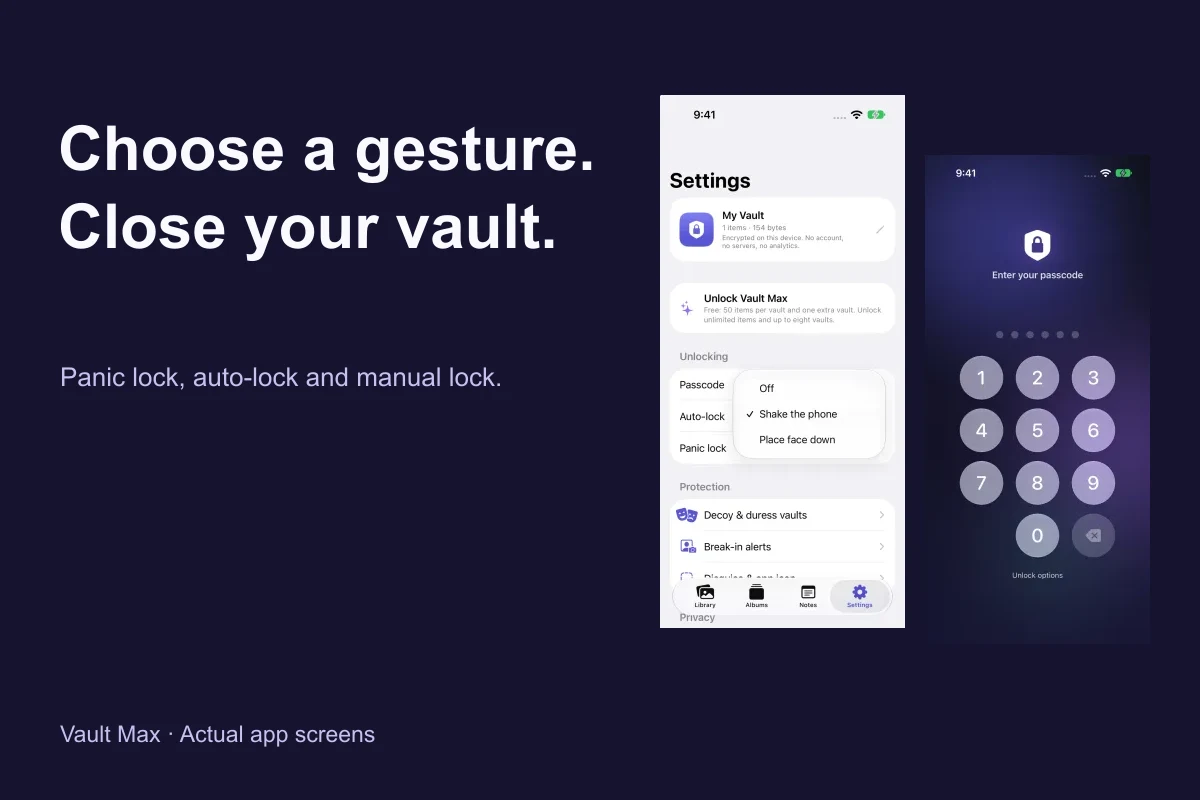
Use Vault Max's lock action when finished and review the auto-lock interval that suits your use. The panic-lock guide explains the optional quick-lock controls. They help you end a session; they do not revoke photographs already sent elsewhere.
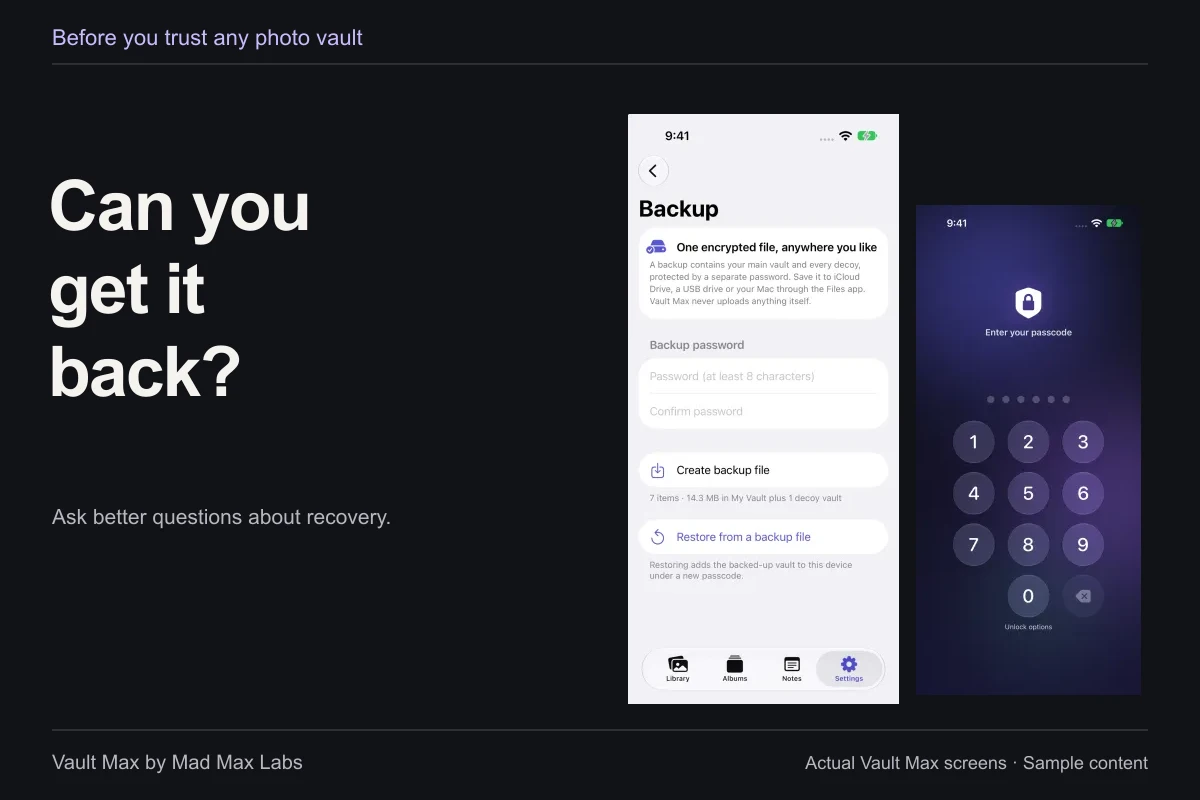
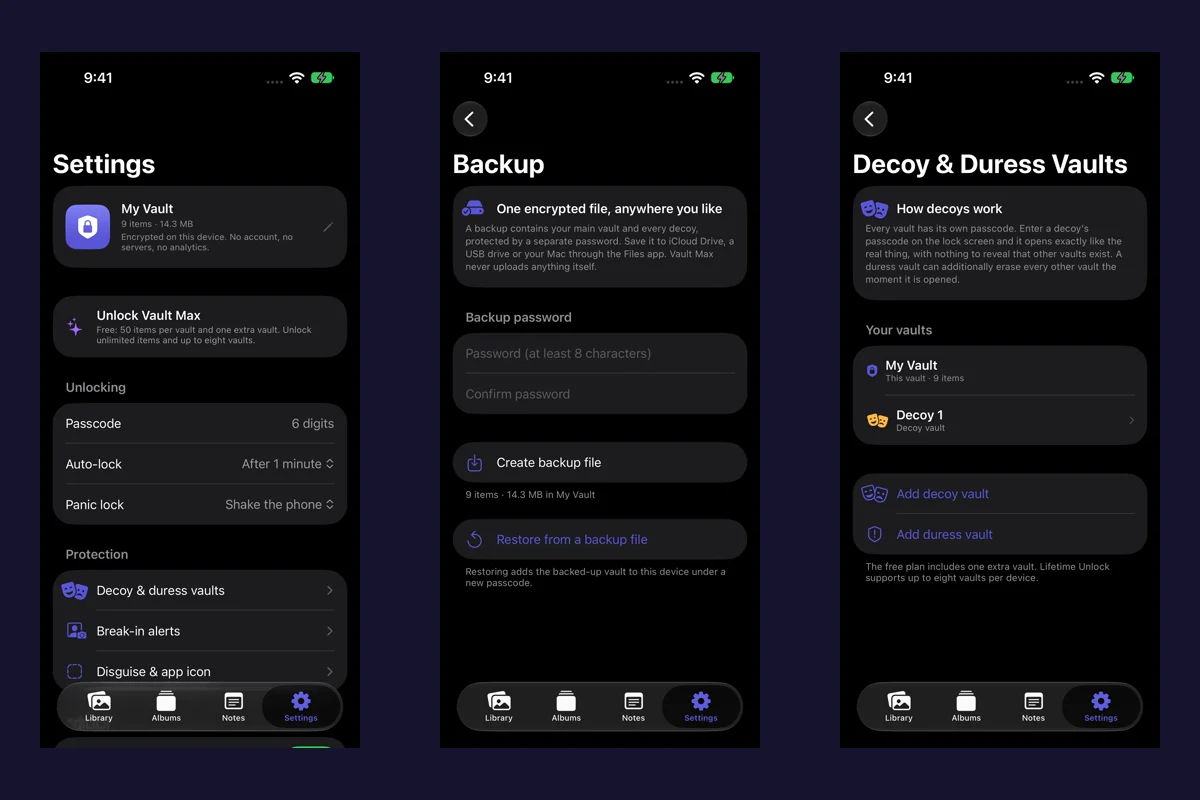
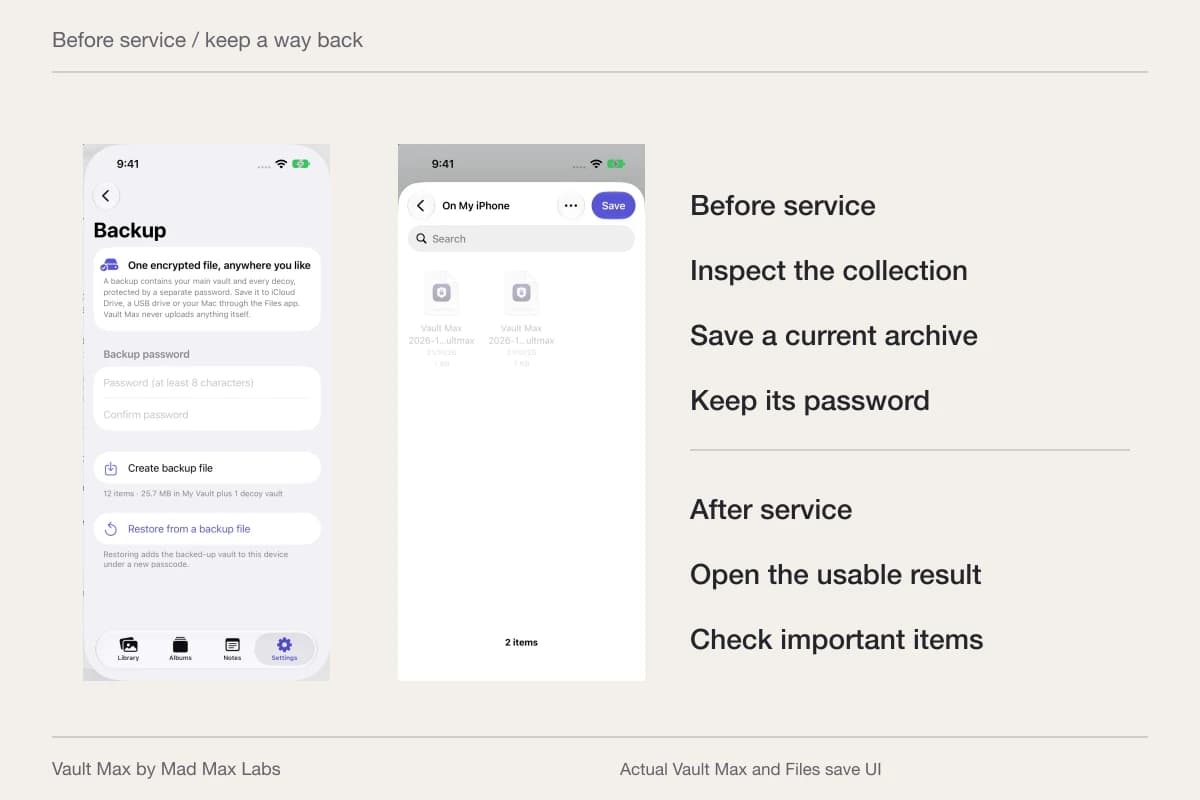
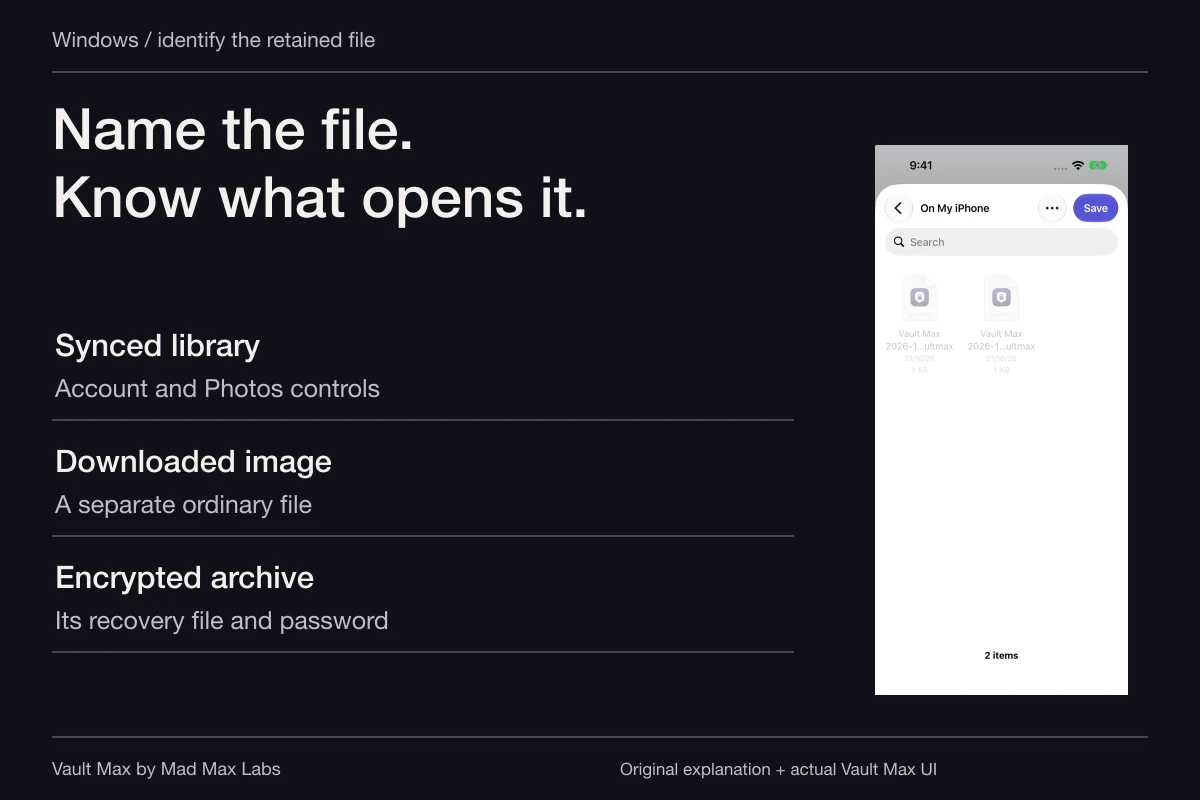
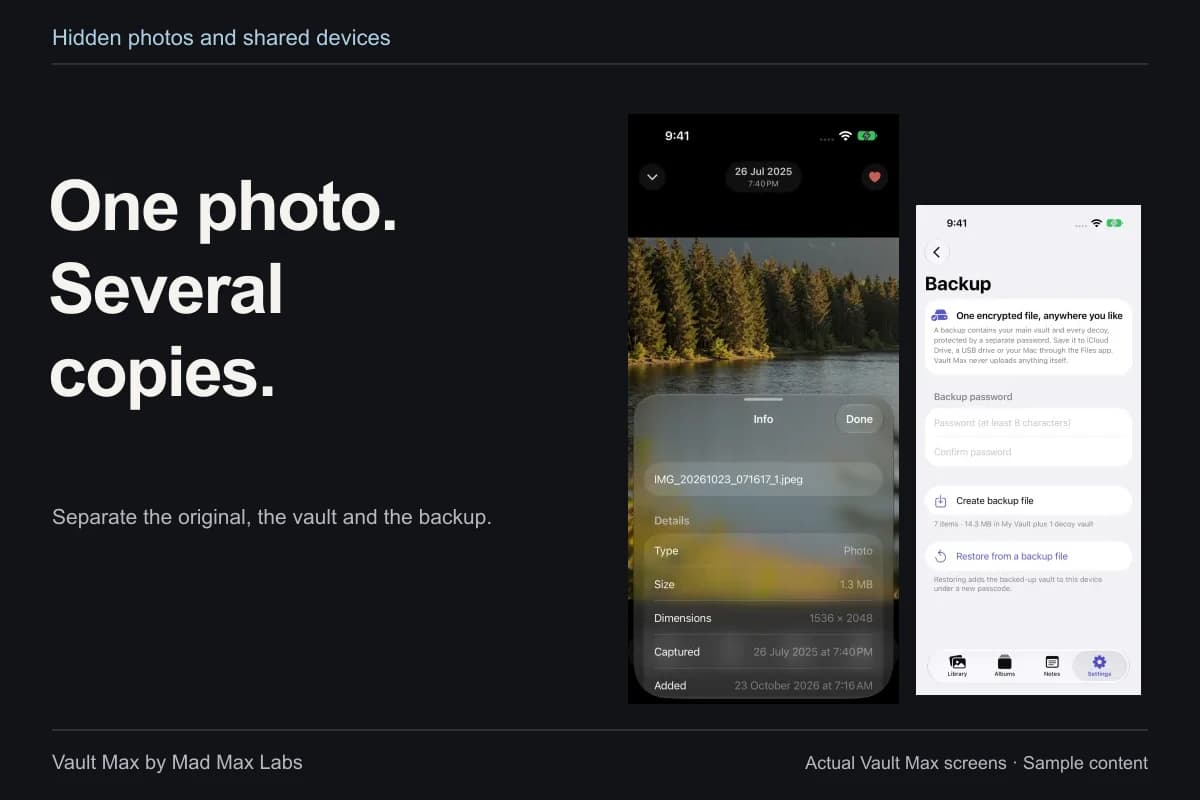
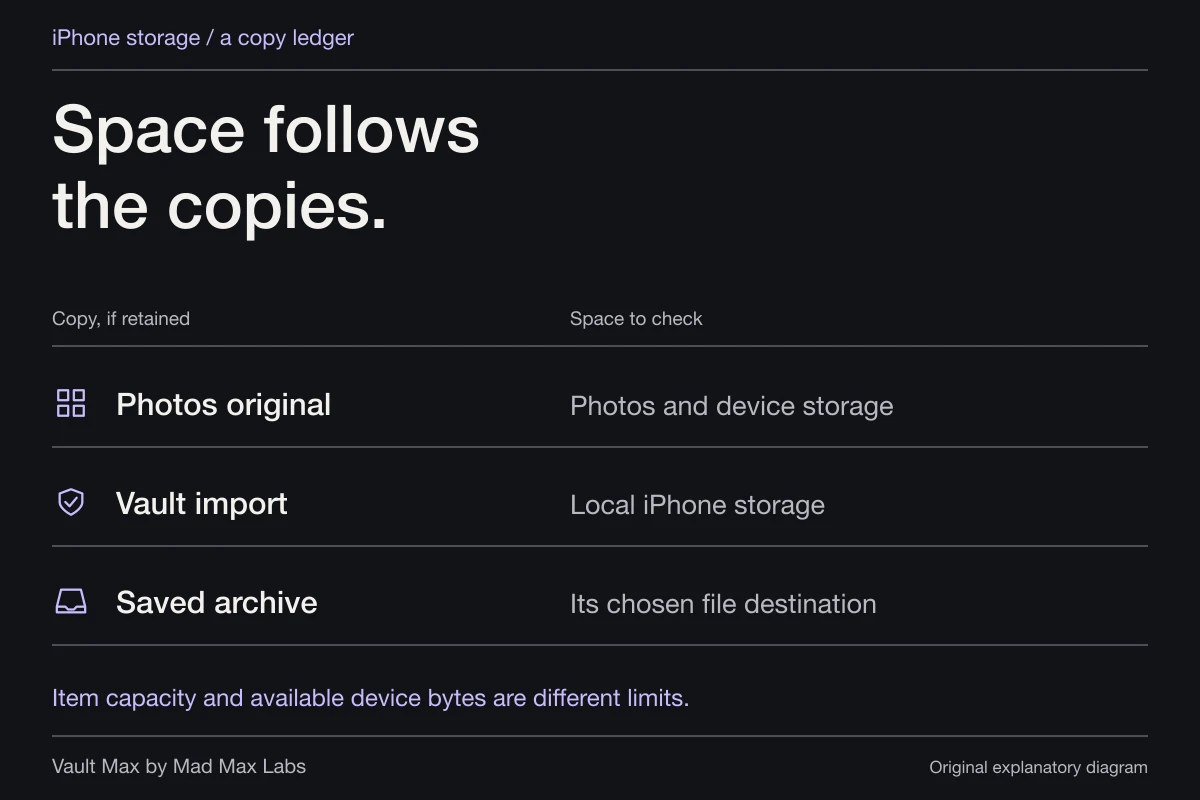
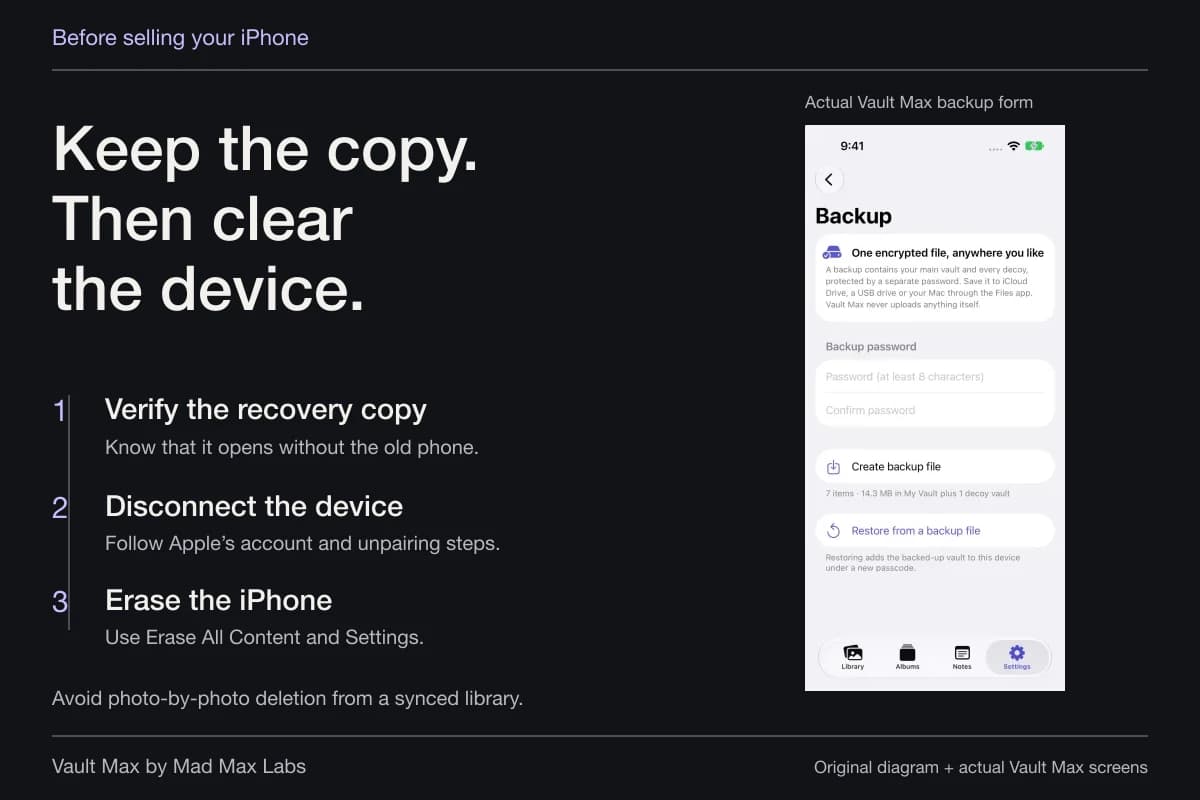
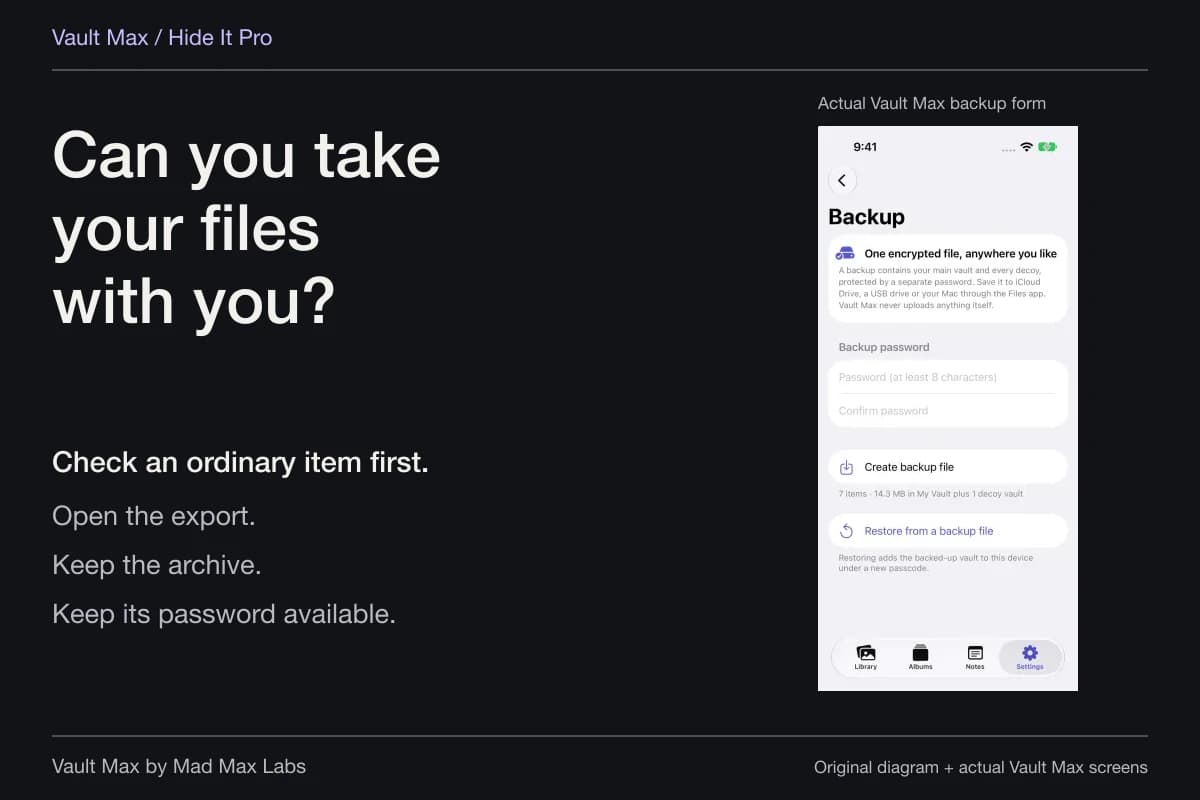
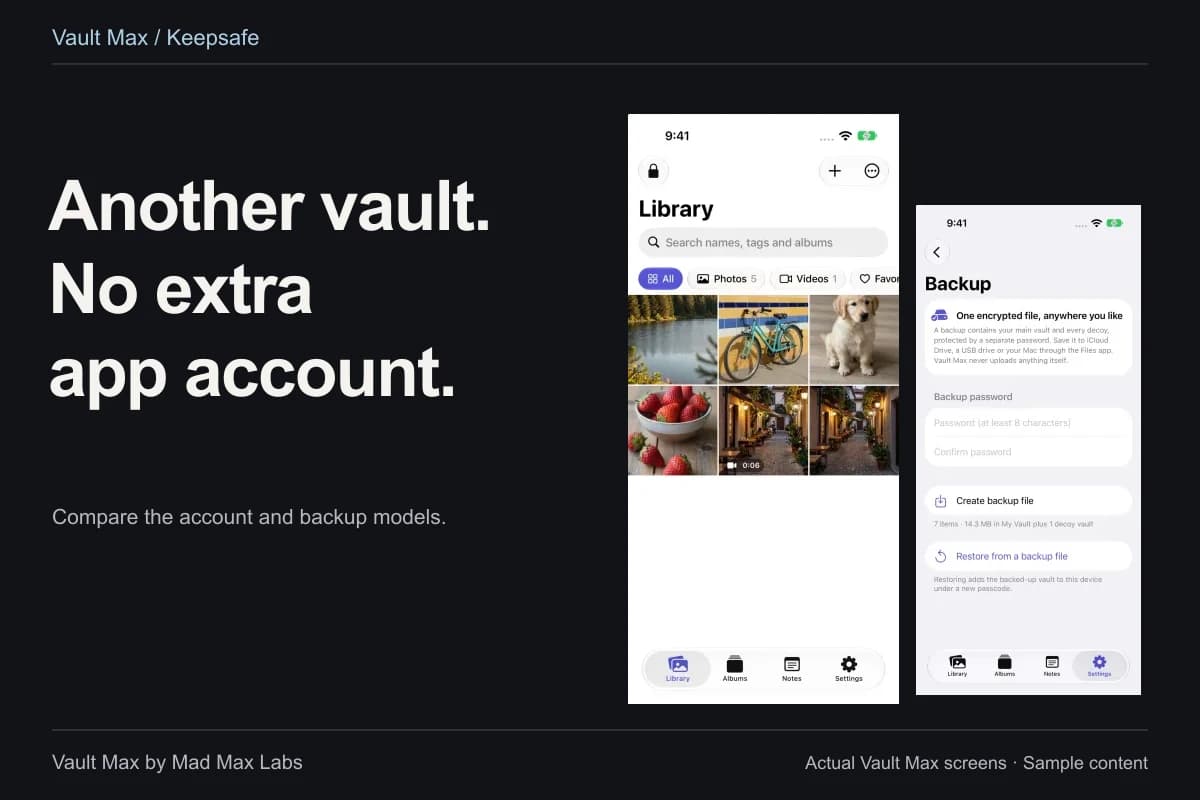
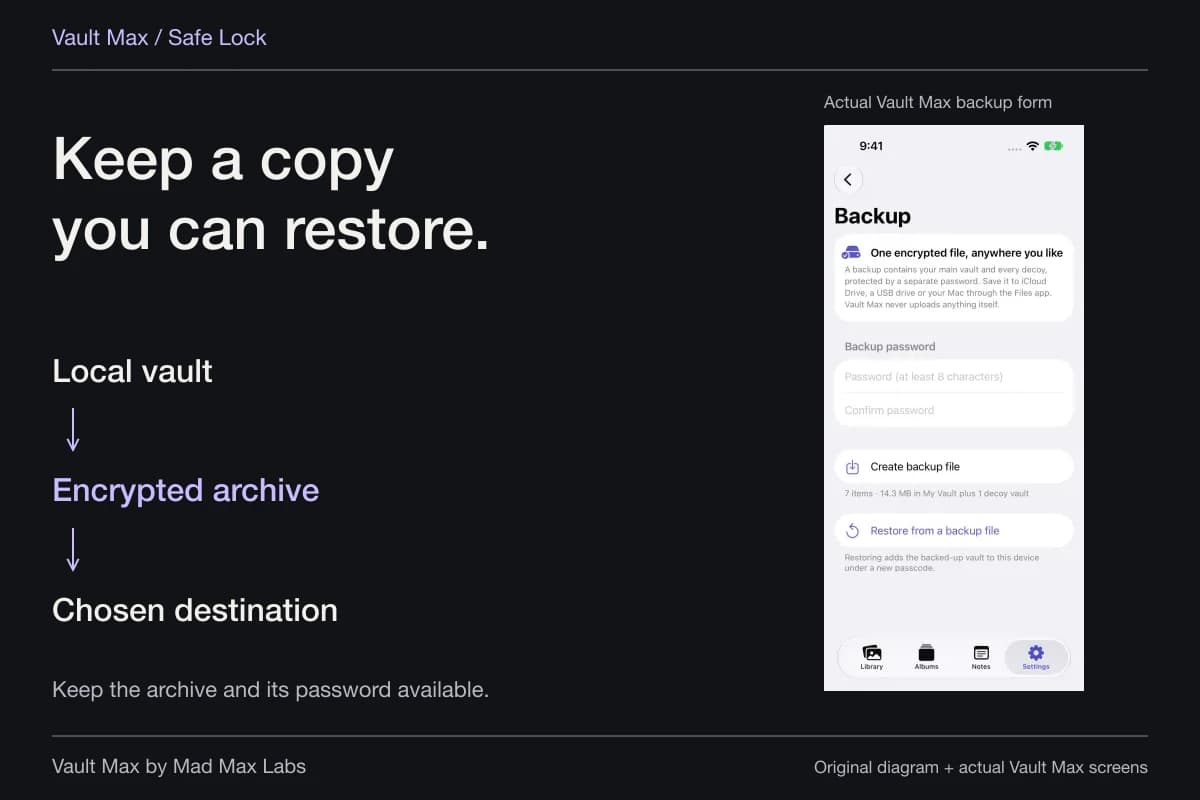
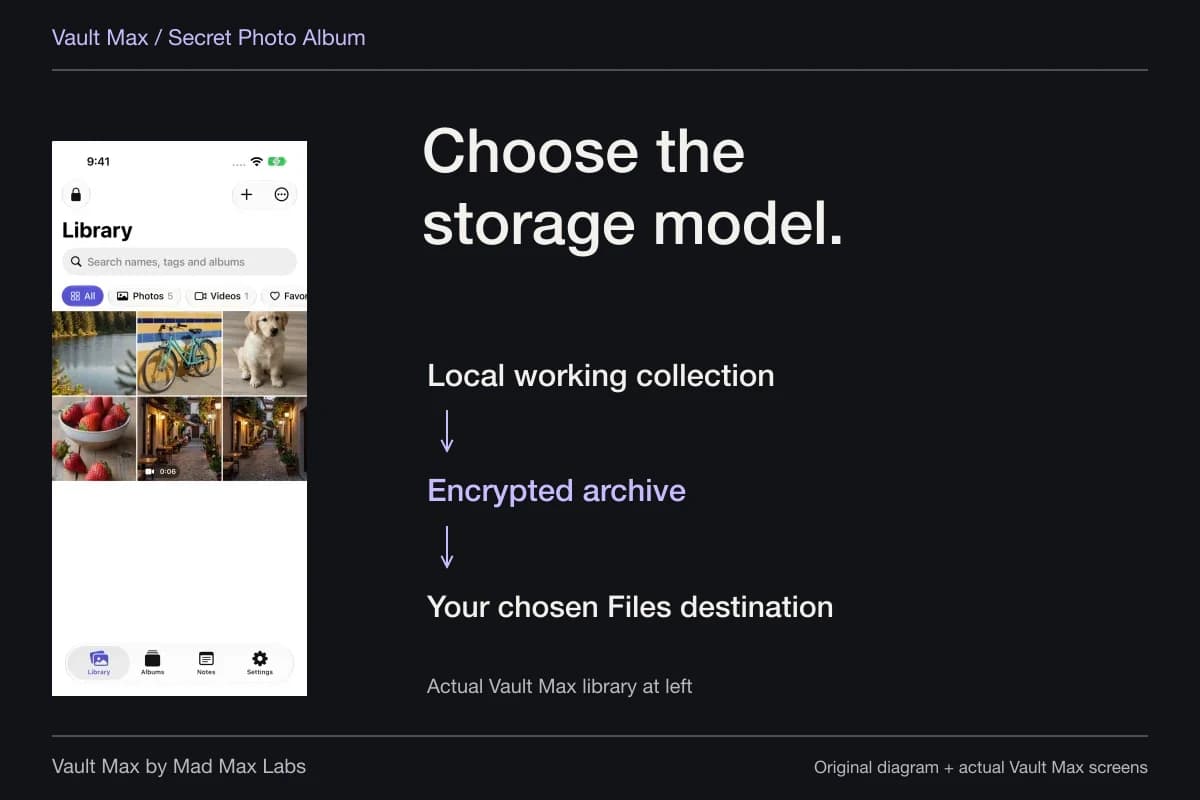
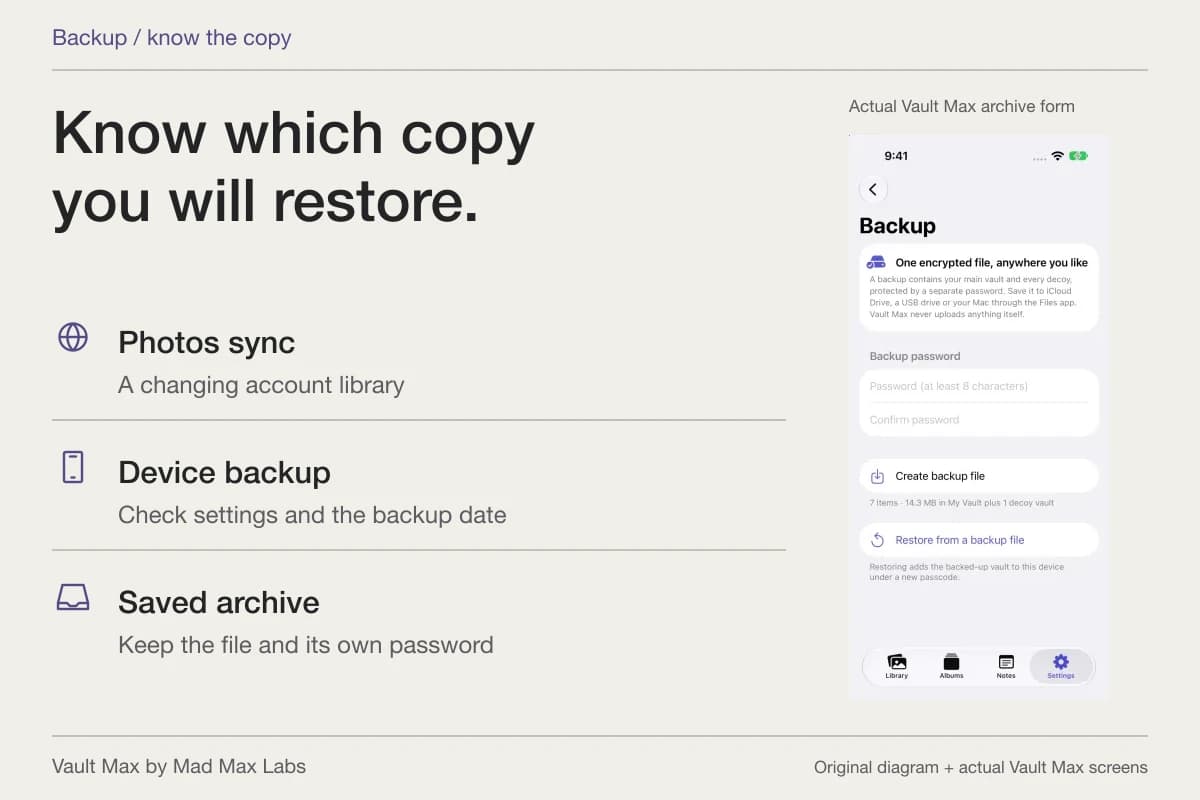
In Backup, create an encrypted .vaultmax archive with a separate password and choose its Files destination. A suitable destination may be local, external or cloud-managed. Keep the recovery file and password accessible without depending on the missing phone. A file saved only on that phone does not solve a lost-phone recovery problem.
Vault Max's Include in iPhone backups setting defaults on, but that is separate from your manual archive. It permits the app's encrypted data to participate in device backup; it does not prove a backup completed. The backup inventory explains those credential and copy distinctions.
If the phone has already been stolen, use Apple's response path
Go directly to Apple's stolen-device instructions. Mark the phone as lost through Find My, review account protection and contact the carrier as appropriate. Do not remove it from Find My: that removes Activation Lock. Do not wait because you remember enabling Stolen Device Protection.
You cannot install a vault after the fact to relocate a stolen phone's photographs. The useful work now is the device/account response and whatever independent recovery copies already exist. Avoid messages asking for a passcode or claiming Apple has found the device; Apple's guide explains that scam risk.
- Check Stolen Device Protection and its location policy.
- Confirm the supported app has Require Face ID or Touch ID enabled.
- Use a different credential and learn the lock/reopen routine with sample content.
- Know the recovery archive, its password and Apple's theft-response route.
Tap a box as you go. Checks reset when you leave this page.
Common questions
Does Stolen Device Protection lock every photo automatically?
It adds safeguards to specific device and account actions. Apple also documents combining it with a system app lock. Check both the protection setting and the app's own lock state instead of assuming every photo location has acquired a new password.
Can someone use my iPhone passcode to open a locked app?
A normal system app lock can use the device passcode. With Stolen Device Protection, Apple requires Face ID or Touch ID without passcode fallback for locked apps away from familiar locations. The Always setting extends the additional safeguards regardless of location.
Can Vault Max replace Find My or Stolen Device Protection?
No. Vault Max provides a separately credentialed encrypted working collection. Apple's device and account protections, theft response and recovery arrangements still matter. Keep a usable encrypted archive in case the phone is unavailable.
Continue reading
More guides
Practical tips for your private library. Swipe or scroll to choose your next guide.

74 guides to explore