
Privacy in practice
iPhone clipboard privacy: follow the text after you copy it
Understand iPhone paste permission, Universal Clipboard and saved private notes. Follow copied text to its destination and review nearby device settings.
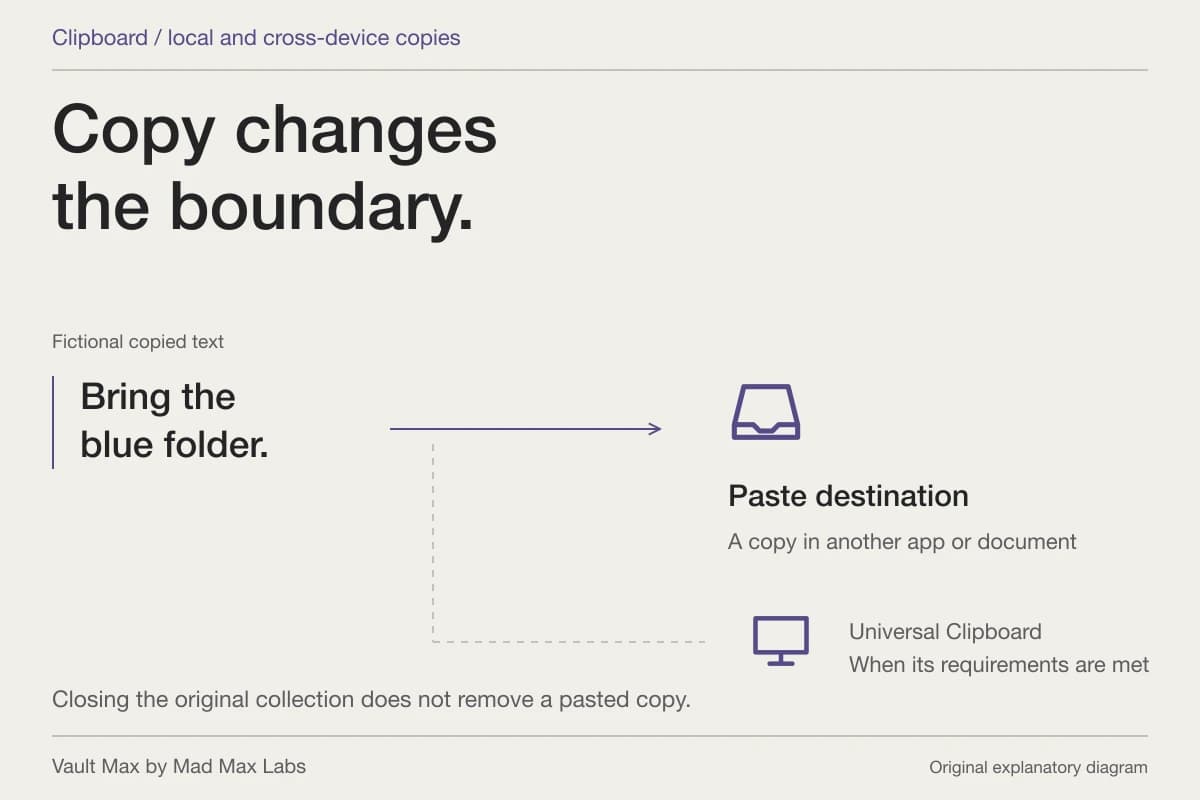
Treat the iPhone clipboard as a temporary way to move information. The useful privacy question is where the text goes after Copy: into the intended editor, another app's saved draft or a nearby device through Universal Clipboard. A saved private note and a clipboard item have different jobs.
For words you want to keep, give them a deliberate home. Vault Max's encrypted notes let you maintain written context alongside private media without an app account. You still choose what to copy, where to paste and when to close the collection.
This guide uses fictional travel-reference text as an example. Keep account credentials, identity documents and other private information out of an experiment you perform to learn these controls.
Original content
Inside its current app or document.
Copy
Content is placed on the system pasteboard.
Paste destination
The receiving app or document gets a copy.
Another compatible device
Universal Clipboard may provide a cross-device route when its requirements and settings are met.
Closing the original vault does not remove text or an image you already pasted elsewhere.
Start with the destination, before pressing Copy
Imagine a short reference: “Collect the spare key on Friday.” You want it in a private travel note. Before copying, open the intended destination and check the document's title. That small check catches a common mistake: pasting useful private context into the wrong conversation or an unrelated draft.
Copying is only the middle of the task. After pasting, inspect the destination and use its save action if required. Close it, reopen it and check the text you meant to retain. A clipboard preview is not evidence that the final record was saved.
If the material already belongs in your private collection, you may be able to write the note directly there. That avoids moving the same text through several temporary drafts. Choose the shortest route that still leaves a recognizable, recoverable saved record.
Read the paste request in context
Apple's privacy controls explanation describes clipboard access transparency. Its UIPasteControl documentation distinguishes programmatic pasteboard requests, which can trigger approval, from a deliberate tap on an appropriate paste control.
A system prompt is therefore information about a particular access request. It is not a complete transcript of what every app did with text during a session. The absence of a fresh prompt also does not tell you whether a previous permission, explicit paste action or another route supplied the content.
When a request surprises you, pause and identify the app making it and the task you started. If you intended to paste into that editor, inspect the resulting text. If the request appeared during an unrelated action, use that app's privacy explanation and available settings to understand it before allowing a broader routine.
Avoid testing this with a real password. An ordinary sentence is enough to learn which app receives the paste and where it appears. You can reproduce the question without spreading sensitive material to additional places.
Universal Clipboard can involve another device
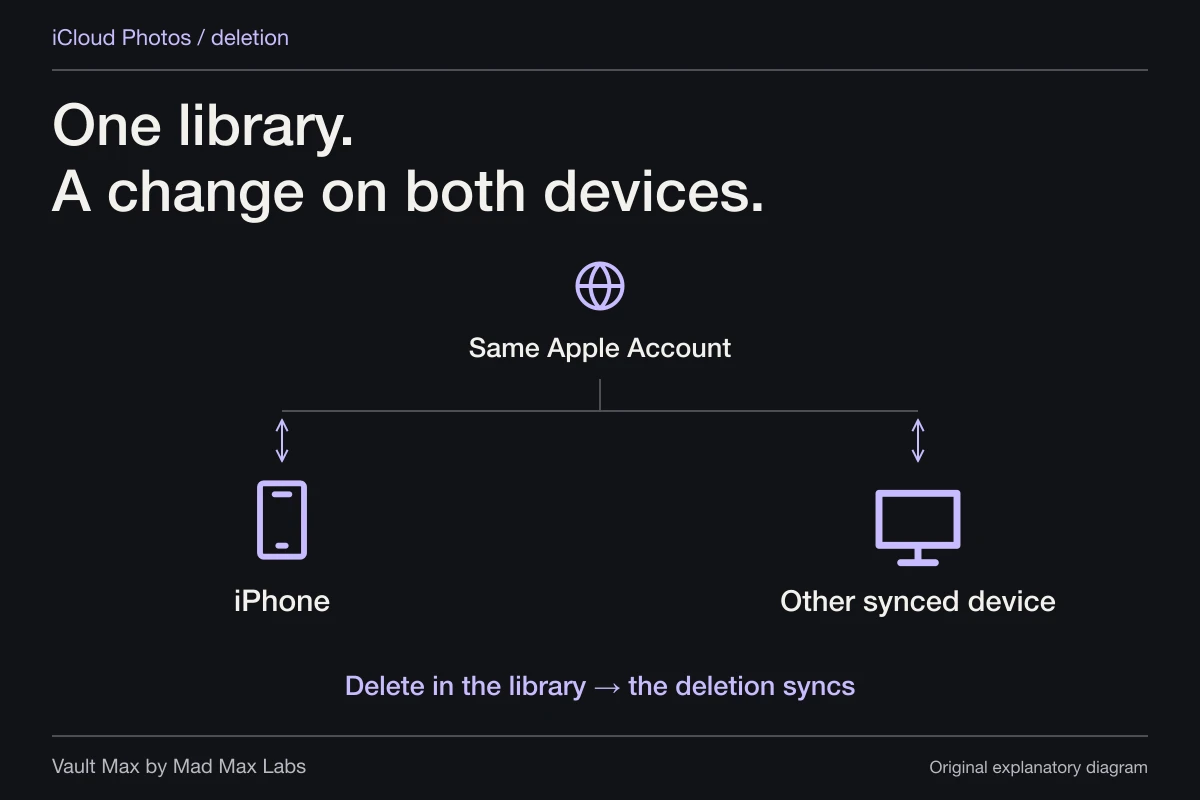
Universal Clipboard can make copied content available on nearby compatible Apple devices using the same Apple Account and the required connectivity and Handoff setup. Apple says the content remains available briefly or until replaced by another copy action. The feature can be convenient when moving a sentence from an iPhone to a Mac document.
Convenience deserves a destination check. A shared Mac using your account is part of a different working arrangement from a Mac only you use. Know which devices participate before assuming copied content is useful solely on the phone in your hand.
Review Settings → General → AirPlay & Continuity → Handoff on current iOS. Older instructions may call the section AirPlay & Handoff. Apple's Handoff setup guide explains the corresponding controls on other Apple devices. Changing Handoff also affects other Continuity tasks, so choose it for the arrangement you actually want.
You do not need to sign out of your account or erase a device to understand this route. Start with an inventory of your own nearby devices and the relevant feature settings. Use a harmless sentence if you want to see where a deliberate paste becomes available.
A pasted copy becomes part of its destination
A draft message, document or note may retain the text after you copy something else. Replacing the current clipboard item does not search those destinations and remove their saved content. The receiving app's storage and sync behavior now matter.
For example, a sentence pasted into a cloud-synced document can become part of that document's own saved history. The same sentence pasted into a message draft is in another app's interface. Review the destination you used, including whether you actually sent the message or simply left it in an editor.
| Stage | What you can inspect | Useful completion check |
|---|---|---|
| Original text | The source note, page or document | You selected only the intended passage |
| Clipboard item | The copy action and any relevant access prompt | You understand the next destination |
| Nearby-device route | Participating account/devices and Handoff setup | The arrangement fits where you work |
| Pasted destination | The actual editor, draft or message | The right document contains the right passage |
| Saved private note | Its title, body and save state | Reopen it and confirm the text is retained |
If you pasted into the wrong destination, correct that destination through its normal supported controls. Check what happened before making a second copy. A deliberate correction is easier to follow than a chain of new drafts whose contents you no longer remember.
Save useful context in the private collection
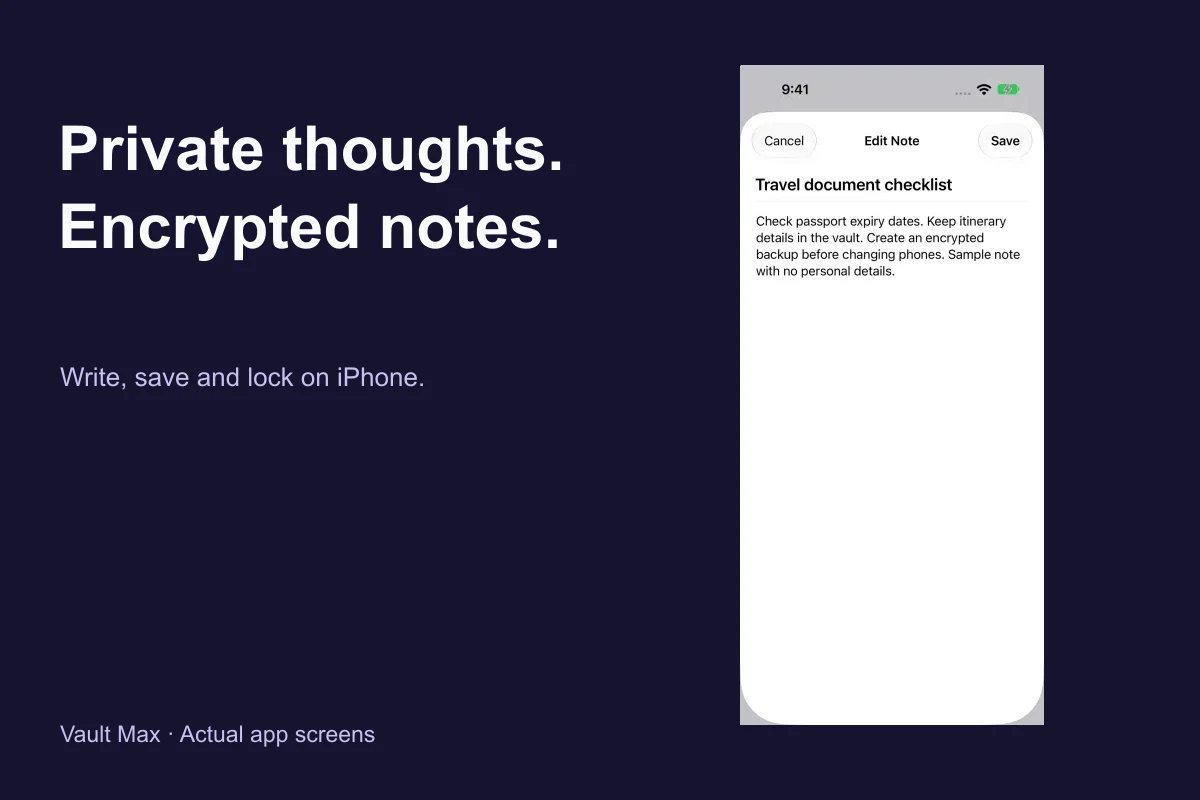
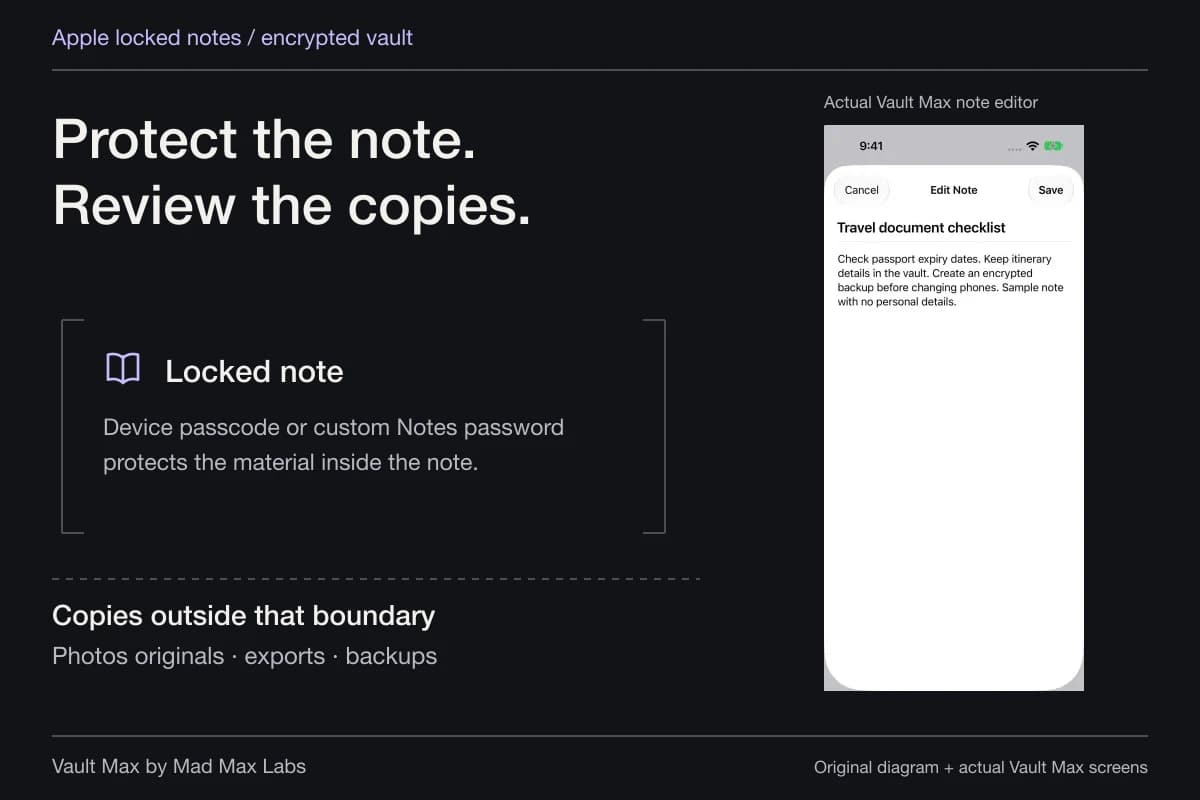
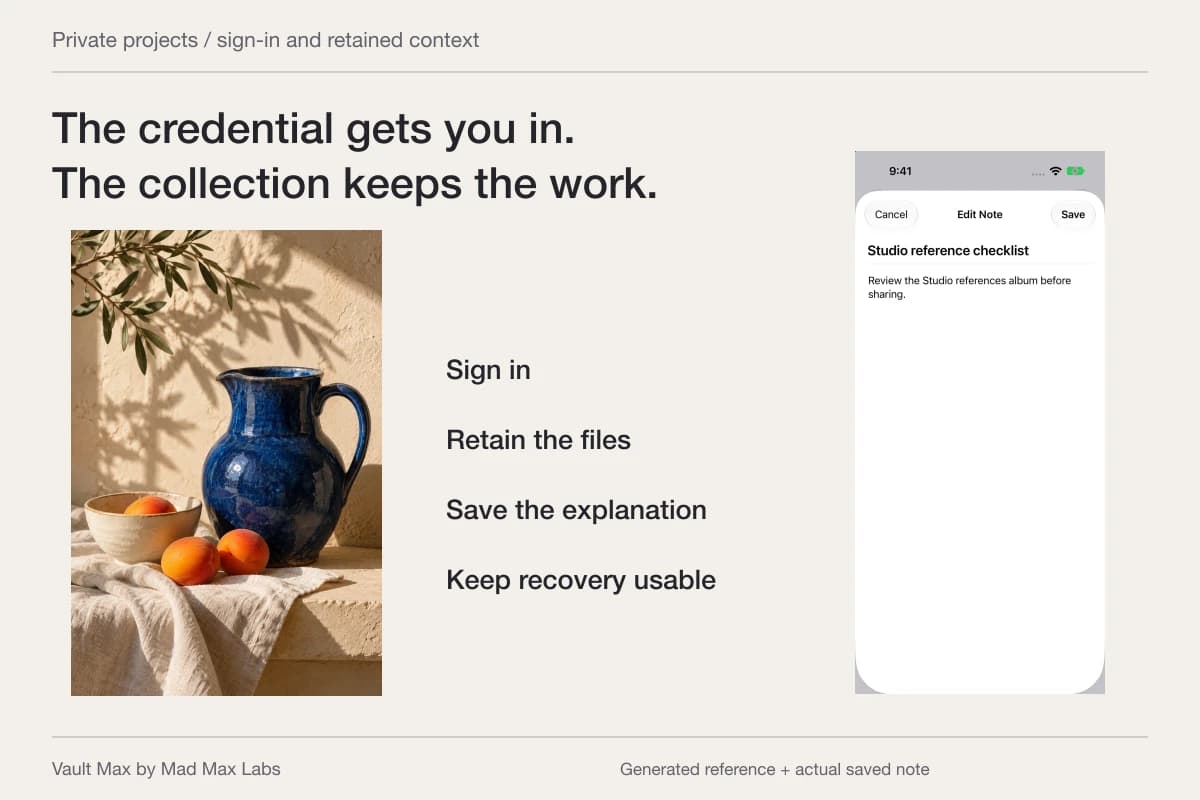
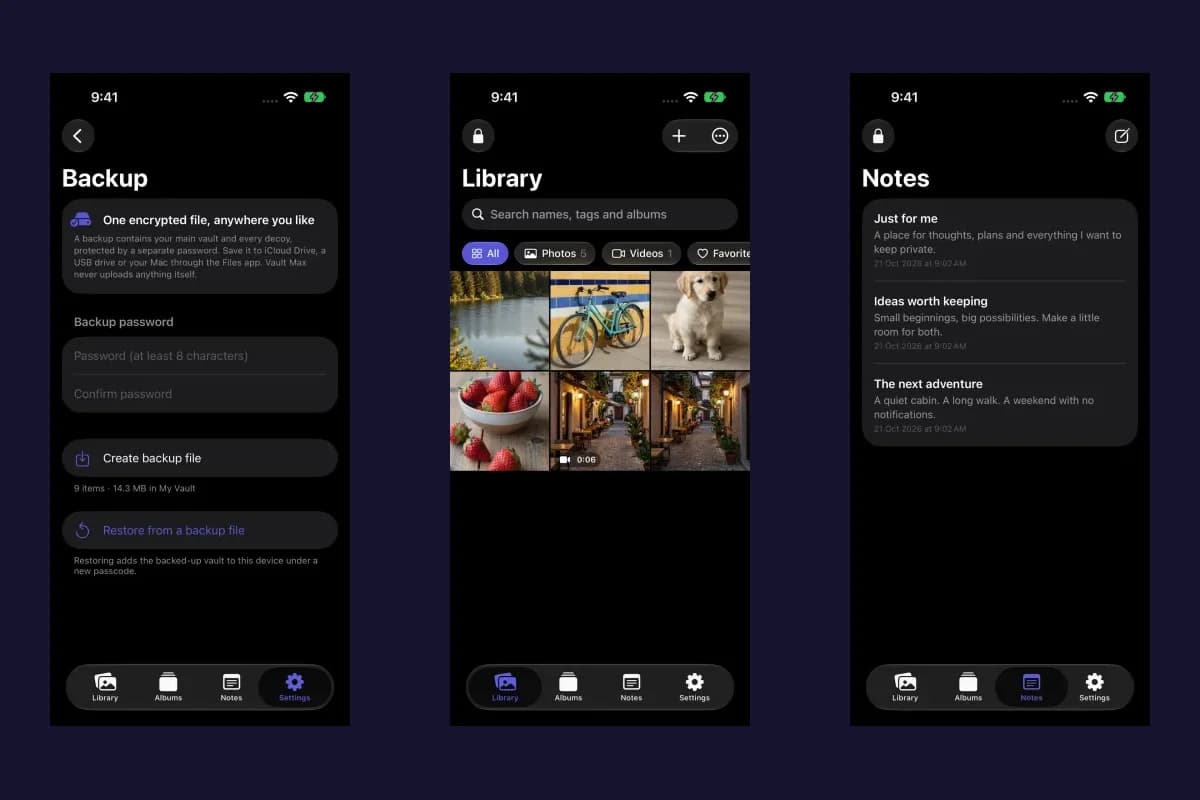
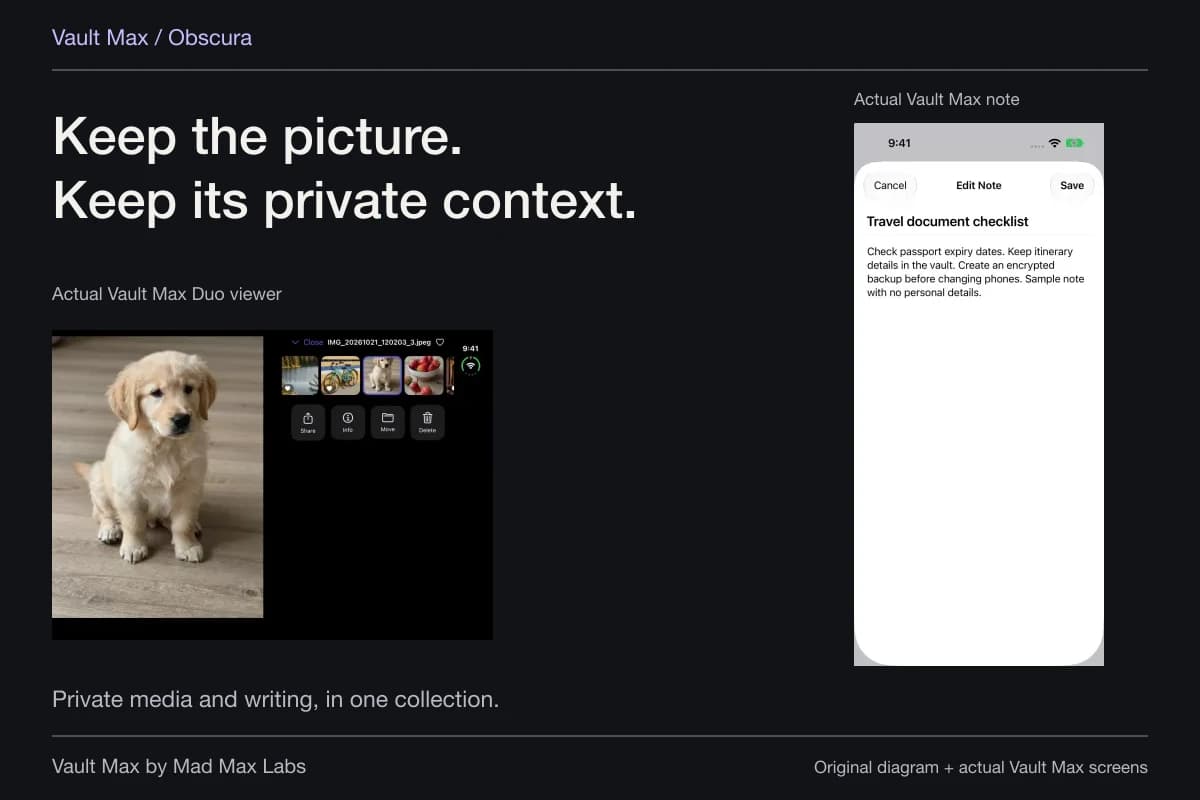
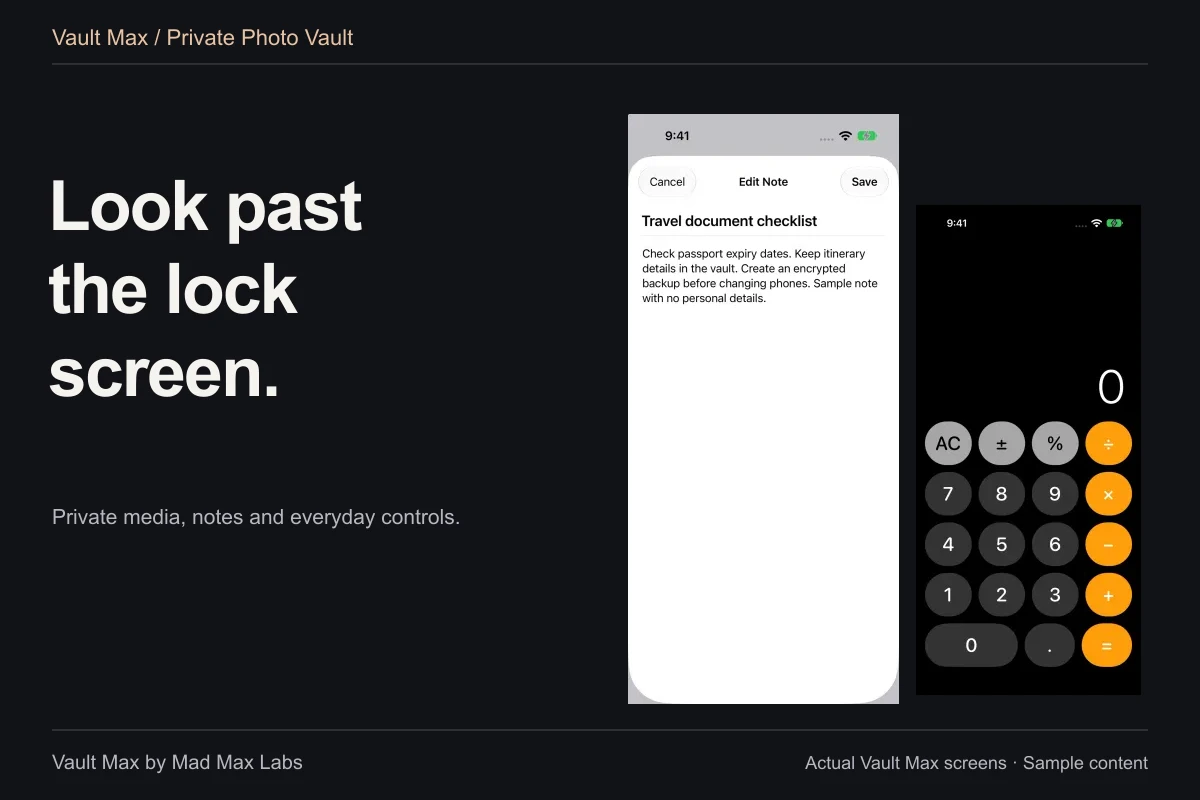
Vault Max notes have a title, a plain-text body and explicit Save and Cancel actions. Create a note, enter recognizable context, save it and reopen the saved row. Notes are encrypted vault content and do not count against the free media-item allowance.
Write and save
Find the saved record
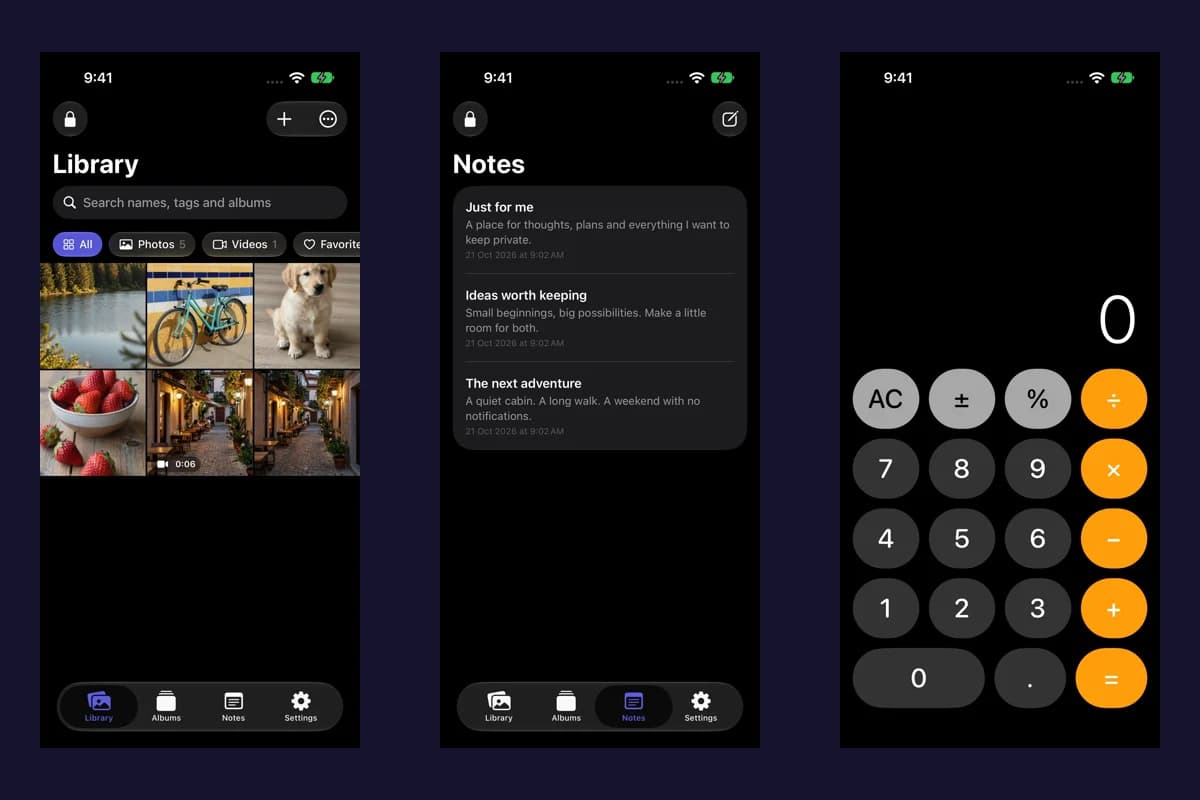
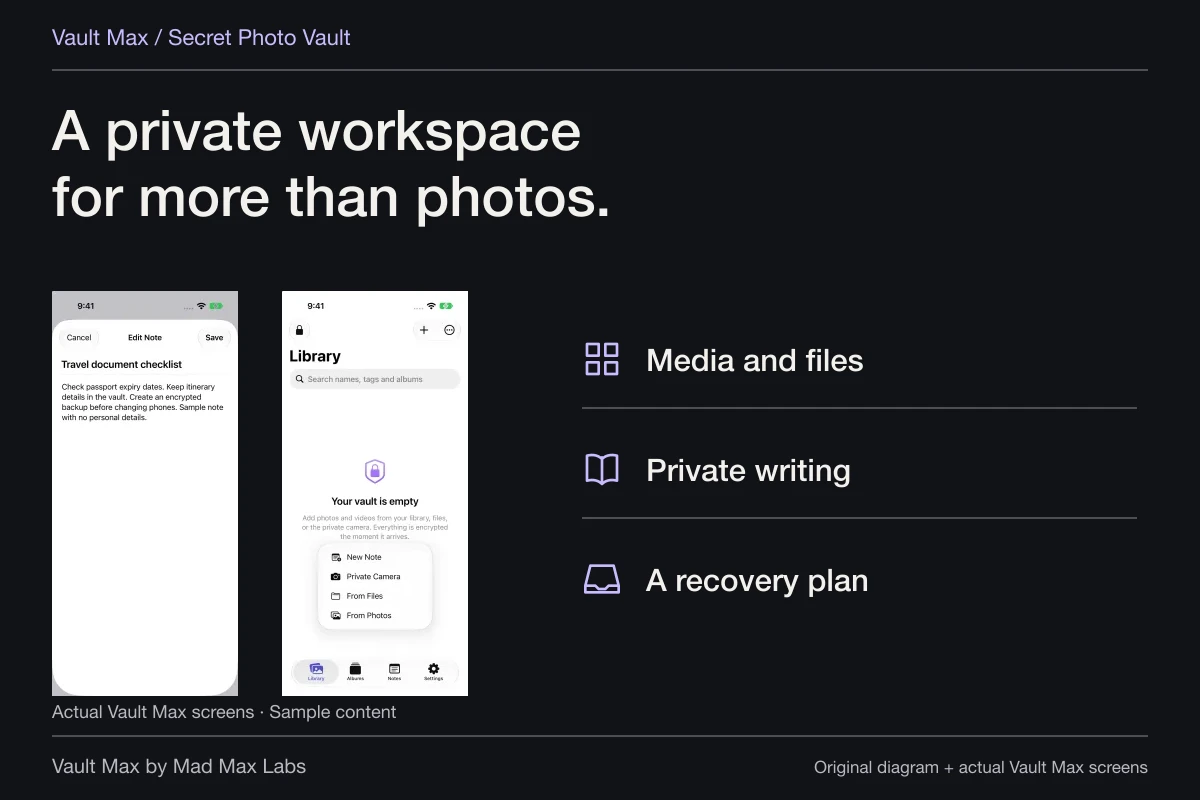
Actual Vault Max sample screens show the editor and the resulting note list. Check the saved title and body; a clipboard item's temporary availability does not replace this saved record.
The notes walkthrough covers saving, reopening and updating. Keep the title useful enough to recognize the subject without making duplicate notes for every small change.
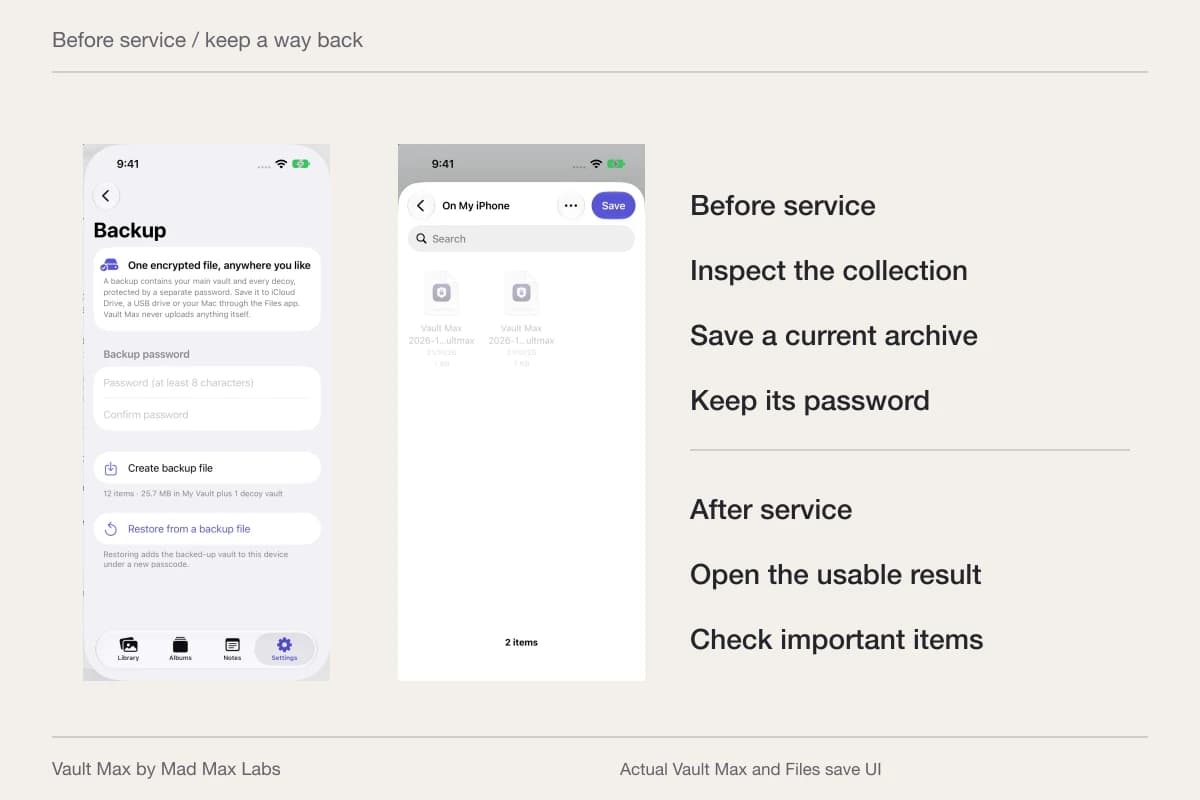
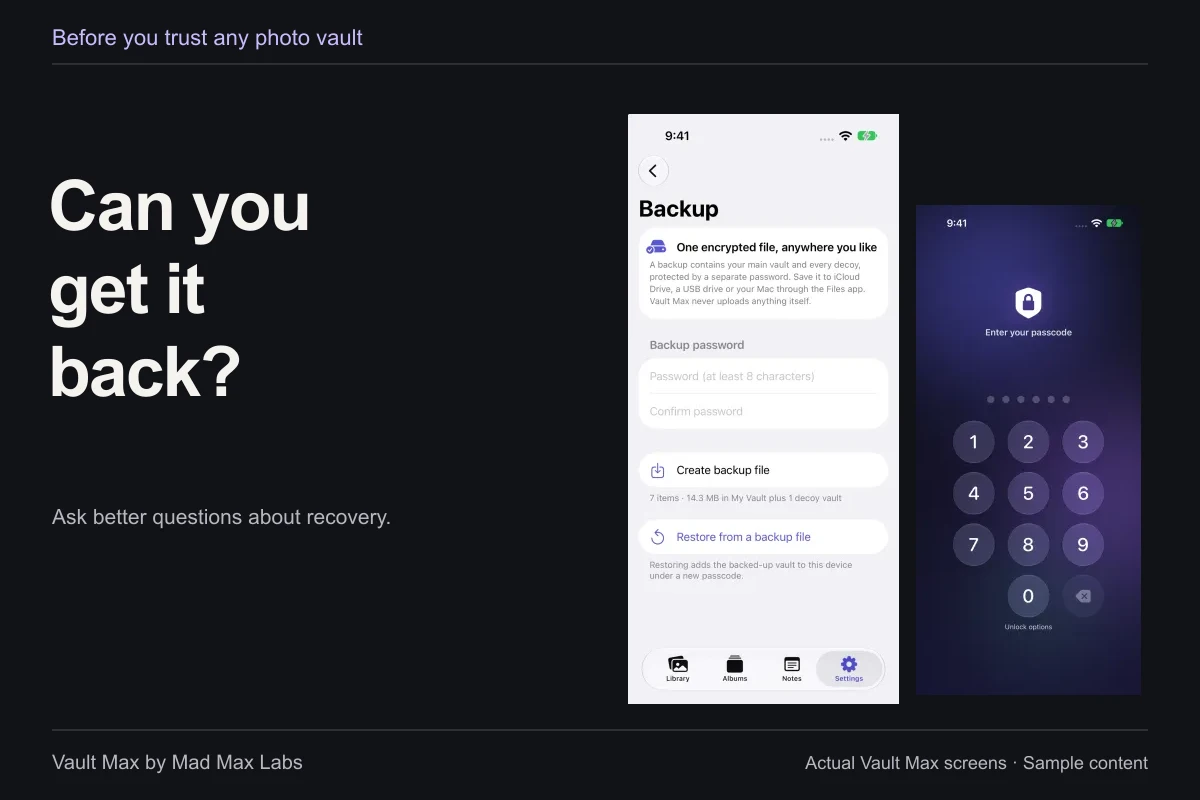
If you choose to copy text out of a private editor, apply the same destination check. The place receiving those words has its own access and retention behavior. Lock the vault when finished, and include important notes in an encrypted recovery archive.
Use a short review for private writing
You do not need a ritual after every ordinary copy. Use extra care when the destination, device or subject deserves it. The aim is to keep a clear record of where meaningful text was retained.
- Confirm its app, document or conversation before copying private text.
- Understand which app is asking to receive clipboard content and why the current task needs it.
- Check the Apple Account and Handoff arrangement used for cross-device copying.
- Reopen the intended record and correct any accidental paste in its own destination.
Tap a box as you go. Checks reset when you leave this page.
Keep the clipboard for moving information and the encrypted note for retaining it. That gives your private writing a useful location, while leaving each intentional paste as a clear decision you can inspect.
Common questions
Can copied iPhone text appear on another Apple device?
Universal Clipboard can make copied content available to nearby compatible devices signed in to the same Apple Account with the required Wi-Fi, Bluetooth and Handoff setup. Review the actual participating devices and Handoff settings.
Does a paste permission prompt appear every time I paste?
No. Apple's documentation distinguishes an app programmatically requesting pasteboard contents from a person deliberately using an appropriate paste control. A missing prompt alone does not establish that content was secretly read or never received.
Does locking a vault recall text I already pasted elsewhere?
No. A pasted destination can hold its own copy. Review that app, draft, message or document separately. Locking Vault Max protects its collection's access; it does not administer other apps' saved text.
Continue reading
More guides
Practical tips for your private library. Swipe or scroll to choose your next guide.

74 guides to explore