
Privacy in practice
Keep screenshots private on iPhone by following every copy
Keep private iPhone screenshots out of an everyday library. Check source apps, Photos, vault imports, messages, exports and the recovery copy you retain.
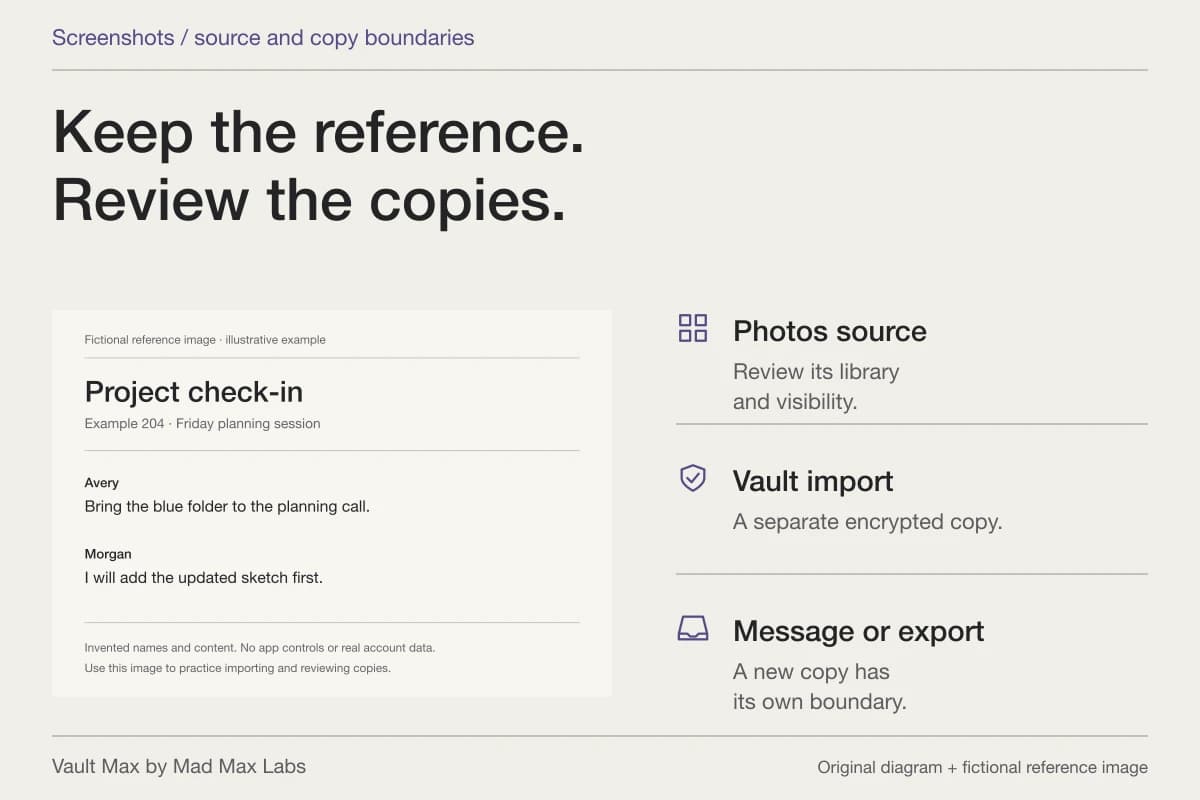
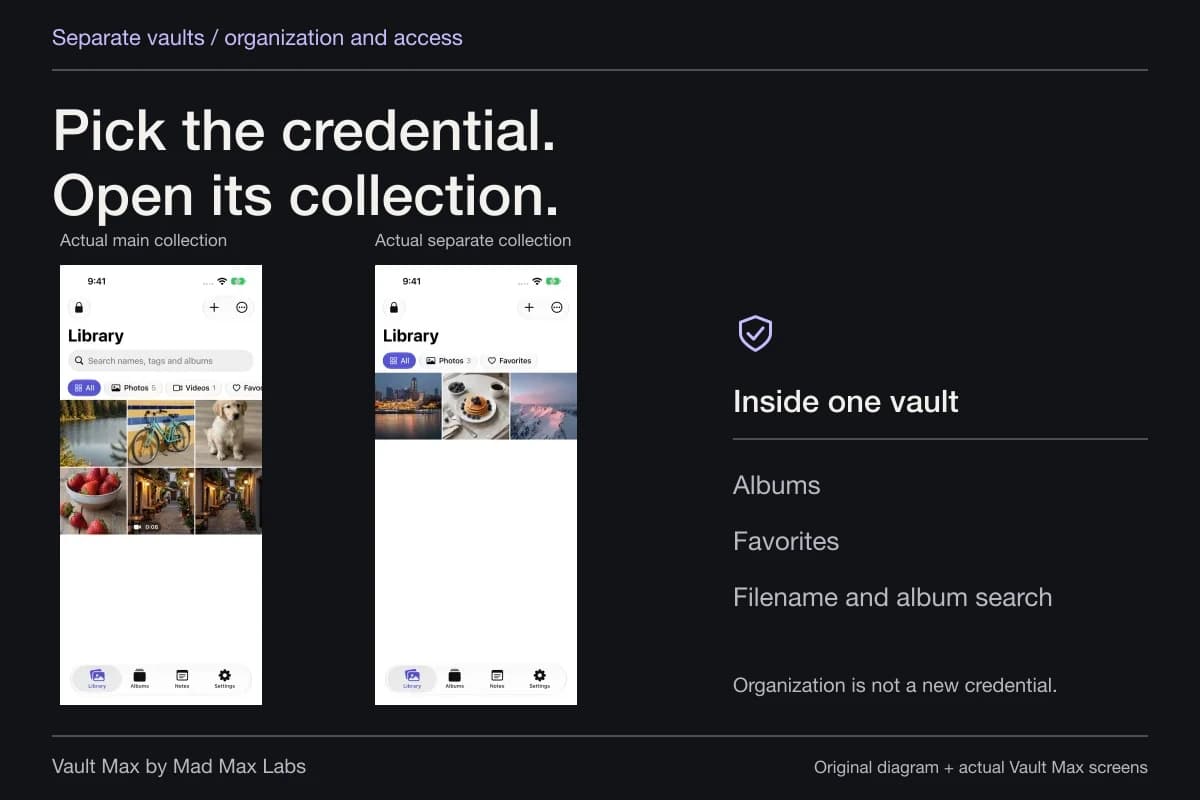
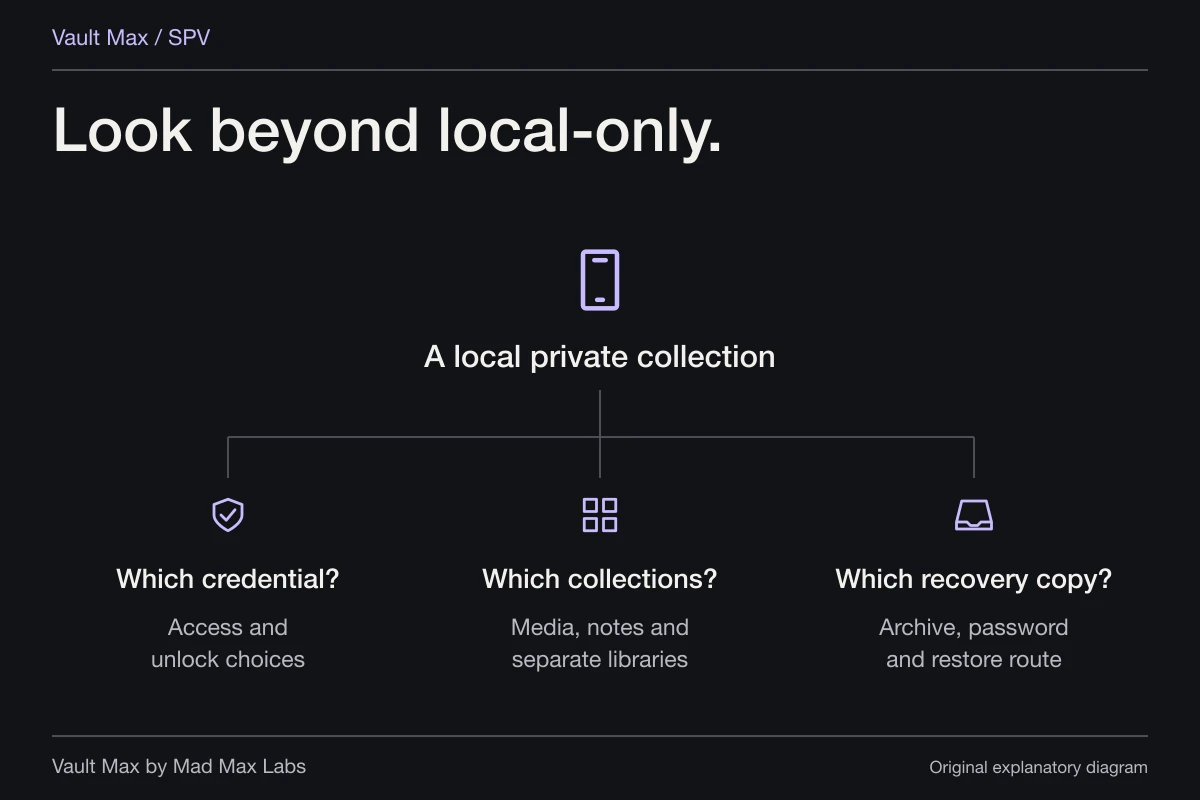
Keep a private screenshot in a separate encrypted collection, then review the Photos original and every place you already sent it. Vault Max gives selected images their own vault credential and local library. Importing one does not close a source conversation, remove a message attachment or recall an exported copy.
A screenshot often looks less consequential than a document because it takes a fraction of a second to make. It can still contain a person's name, an account detail, a private message or context from another app. The useful privacy routine begins with what is visible in the image and follows where each copy goes.
The screenshot and its source are different records
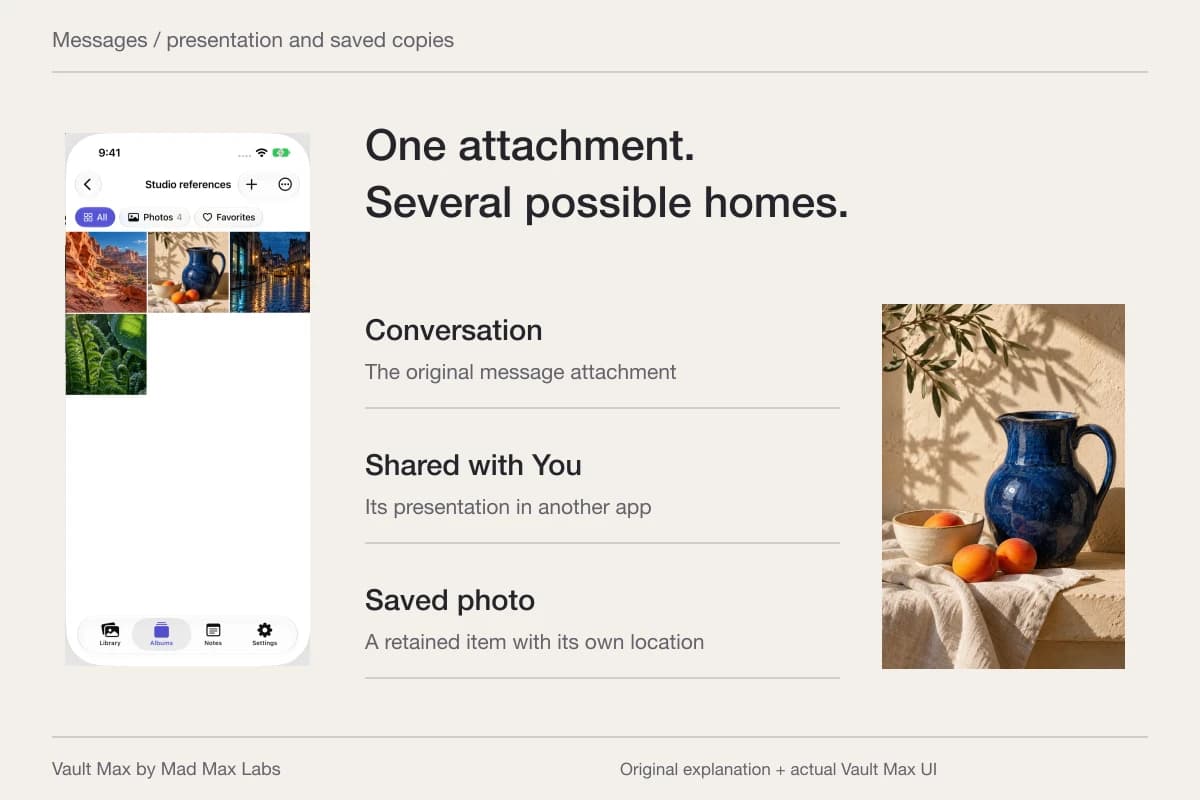
Imagine saving a project check-in so you can remember a reference number and the next meeting date. The original conversation remains in its app. The screenshot becomes an image, and sending that image to someone creates another destination for its contents.
The fictional example in this guide uses an invented project and reference. It is an illustration of those relationships, not a real conversation or evidence that a particular messaging app was tested. You can learn the same routine with an ordinary page containing nothing private.
Before storing the image, decide why you need it. If the only useful part is a reminder, a short private note may serve that purpose without retaining the rest of the conversation. If you need the actual visual record, keep that image and organize it so you can recognize it later.
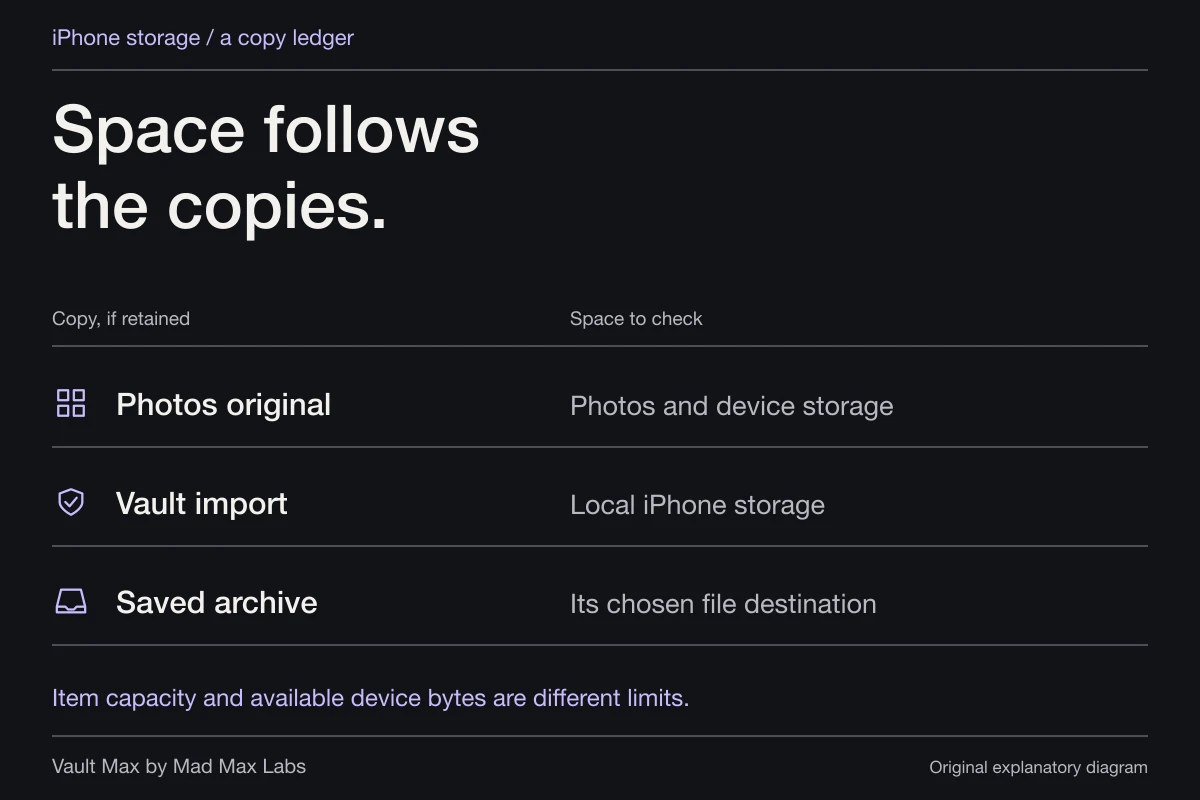
The saved screenshot
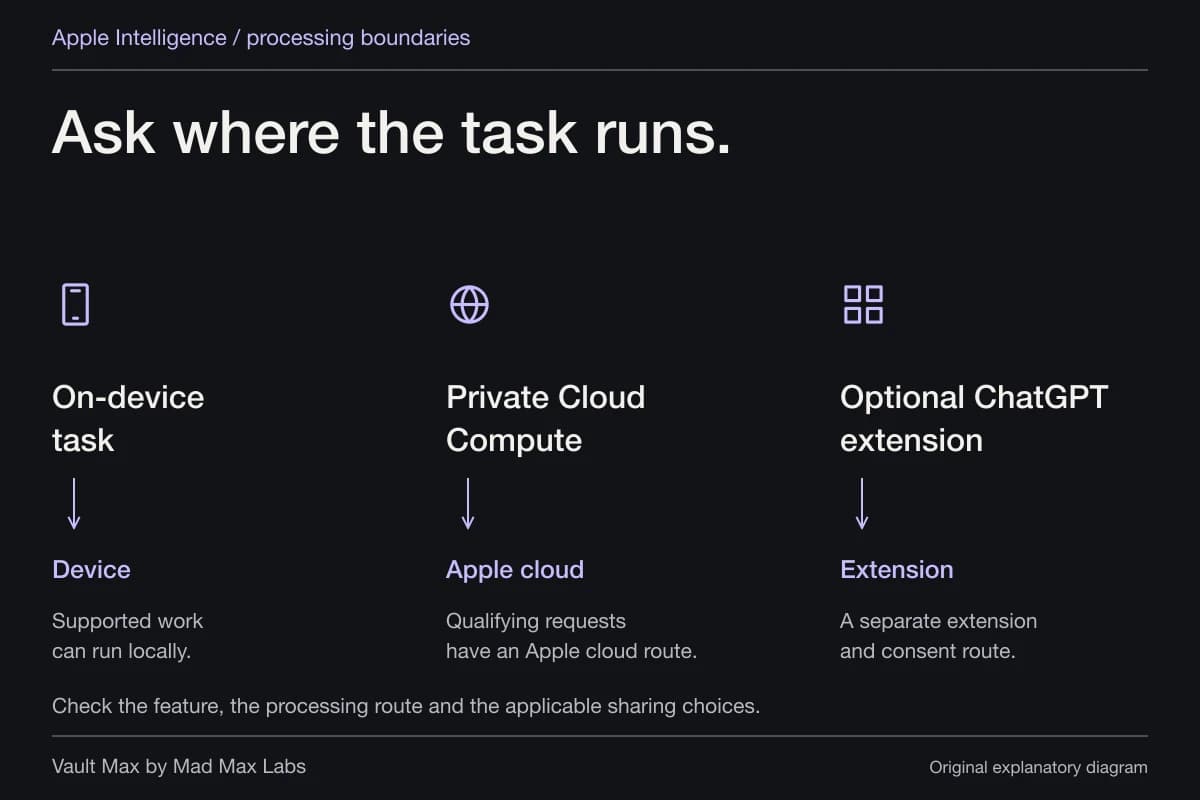
Often stored in Photos. Check that library’s sync and visibility settings.
Vault import
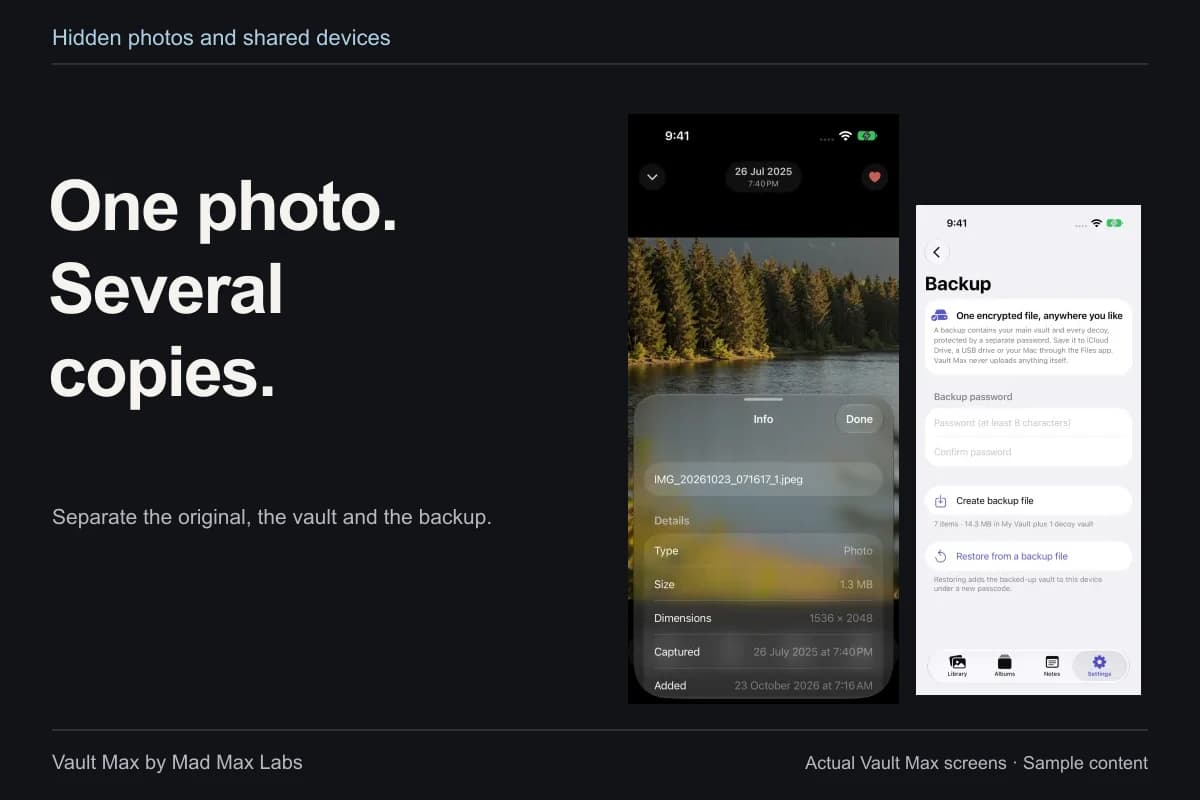
A separate encrypted copy. Verify it before deciding what to do with the source.
Message attachment
A sent or saved copy follows the message service and recipient’s choices.
Files or export
Its destination and file protection determine who can open that copy.
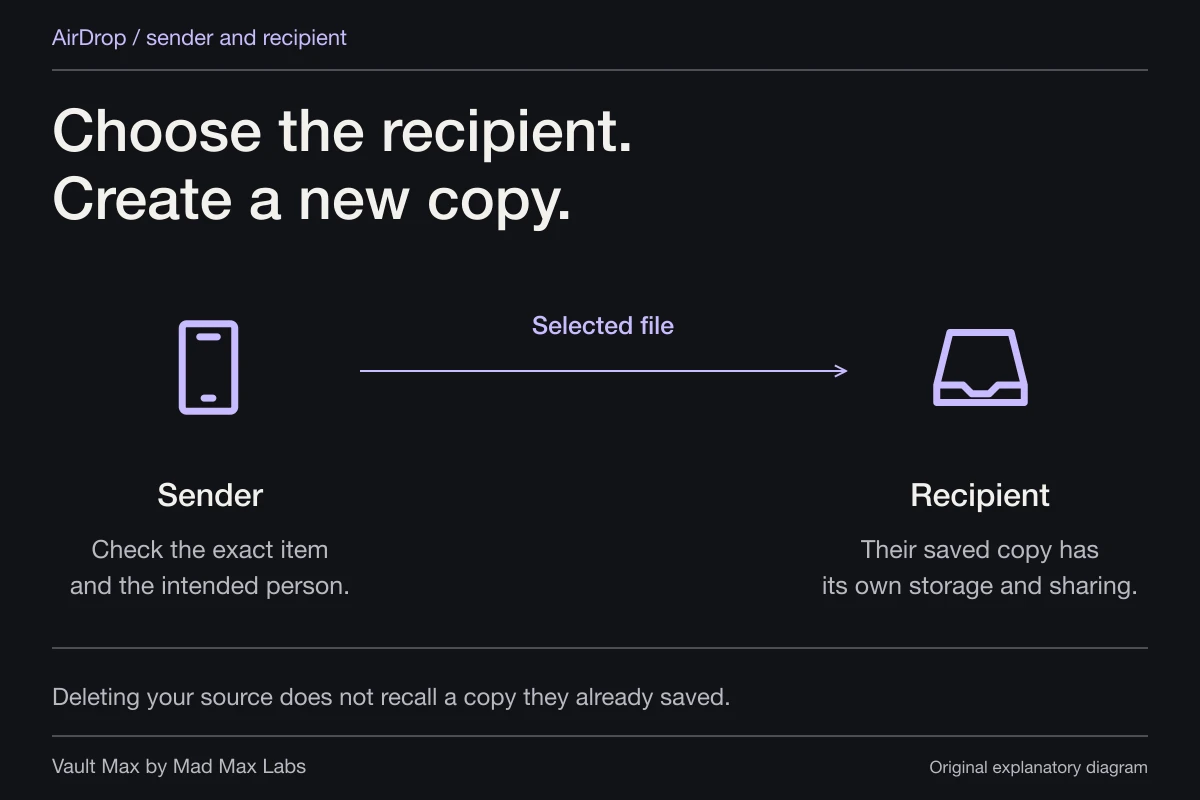
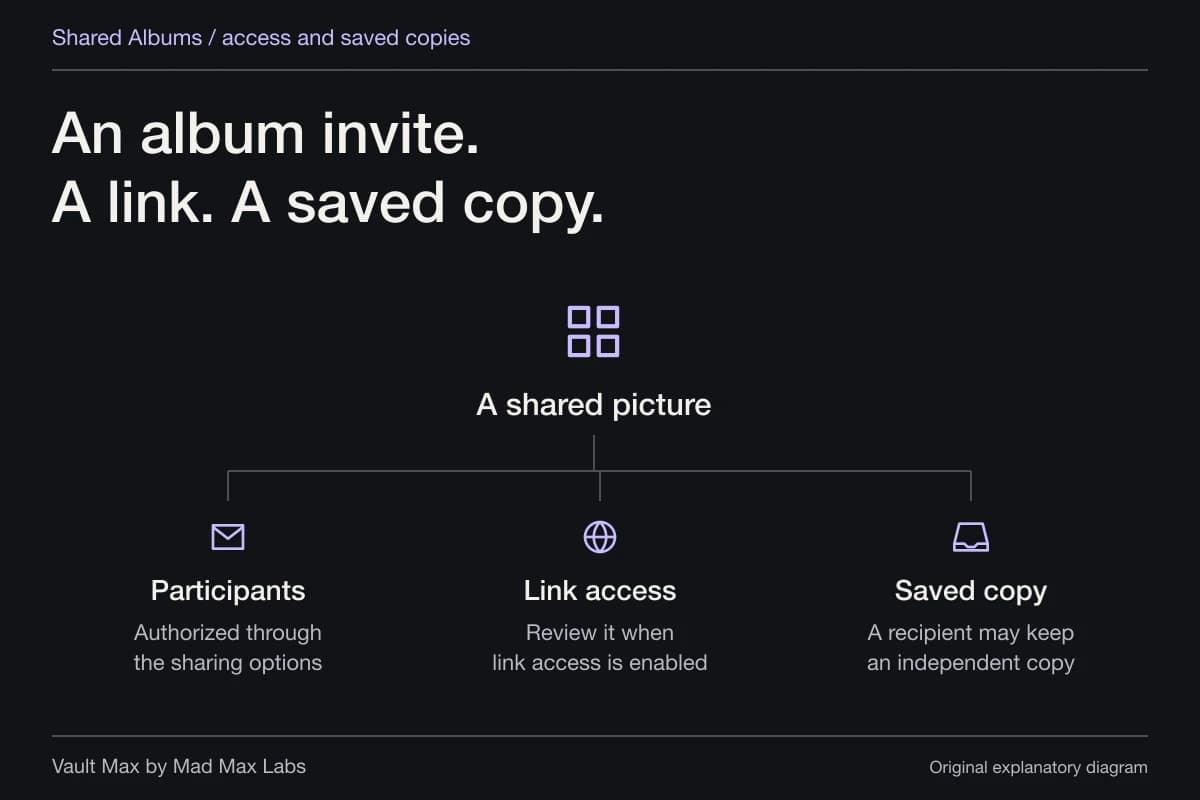
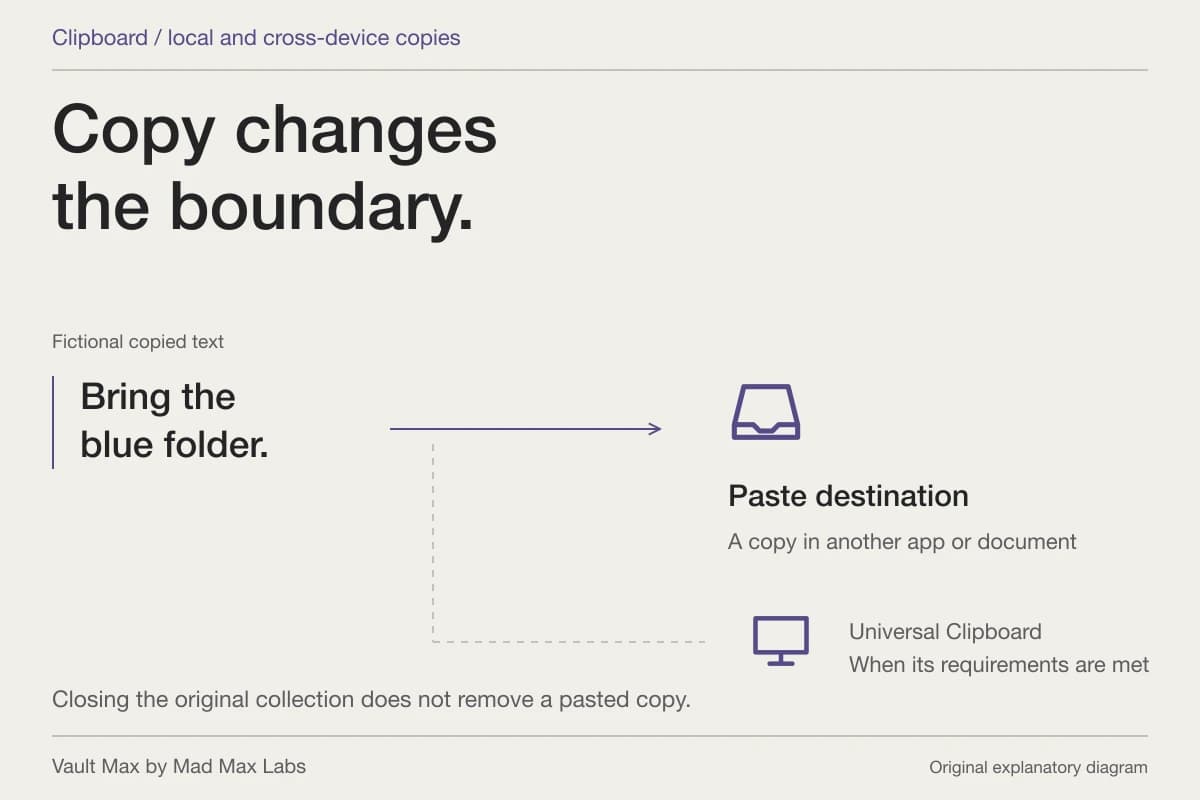
Deleting one copy does not automatically recall every other copy or remove a recipient’s saved file.
Check where the capture was saved
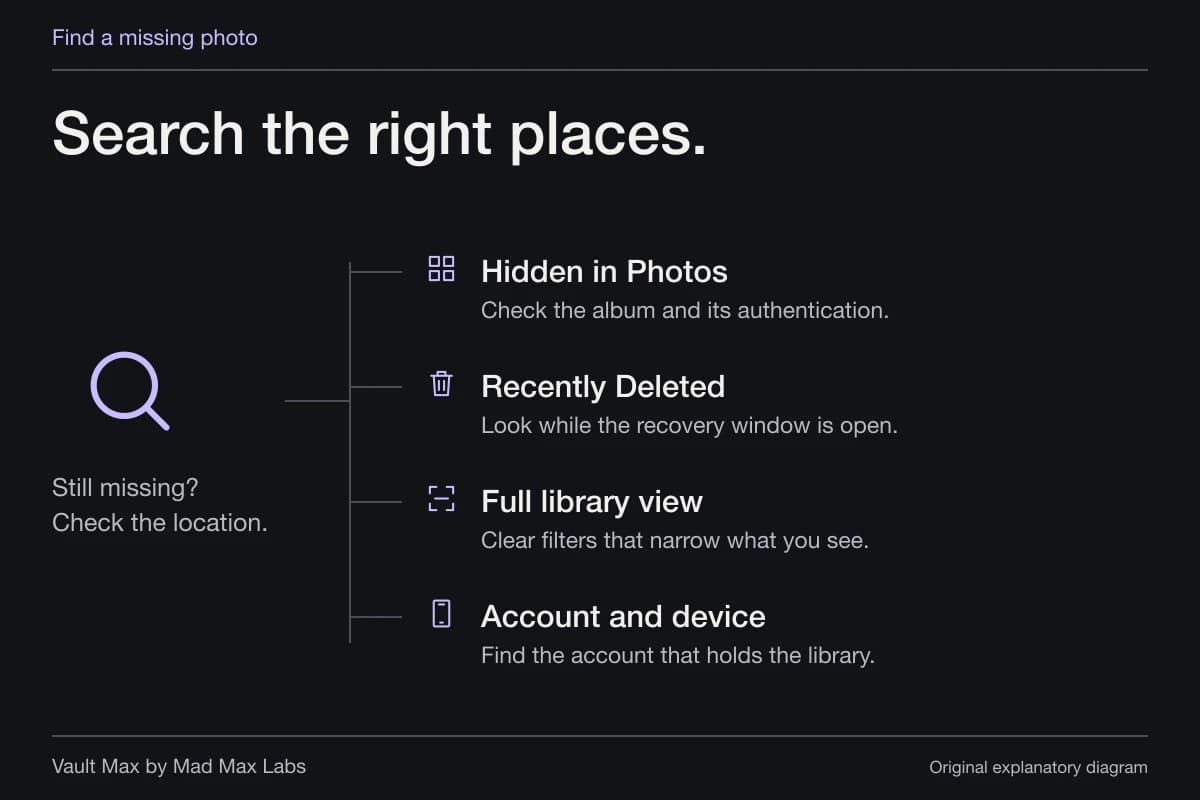
Apple's current screenshot guide explains capture and the Photos Screenshots collection under Media Types. Full-screen preview and temporary-thumbnail settings can affect the immediate save interaction. Inspect the item in its destination instead of assuming dismissing a preview removed it.
The current Screen Capture settings guide also distinguishes SDR and HDR screenshot formats. It describes PNG for SDR and HEIF for HDR. File type is part of identifying the saved copy, rather than proof that its visible contents are safe to share.
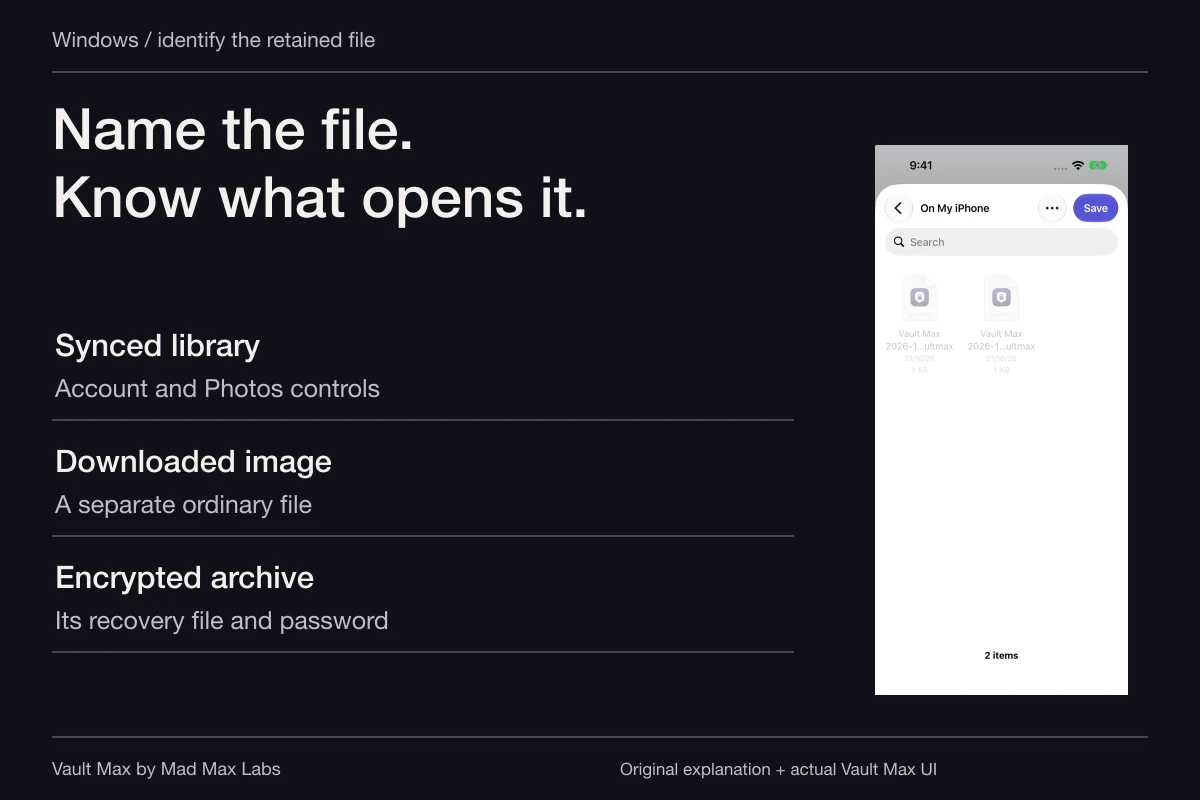
If you deliberately saved or shared the capture somewhere else, inspect that destination too. A file in Files and an item in Photos can be independent records. Use the import route appropriate to the actual saved object, rather than looking indefinitely for it in the wrong picker.
Inspect the whole image before keeping or sharing it
Open the capture at a useful size. Check the title bar, surrounding messages, visible account details and anything near the edges. A tiny thumbnail can conceal the very detail that makes the screenshot private. Full-page captures deserve the same review beyond their first visible portion.
Keep a private reference image separate from a version intended for another person. If you prepare a smaller or edited version, inspect the final file you plan to send. Do not assume a crop preview, a marker stroke or a change to file properties establishes that every sensitive detail has been removed from every copy.
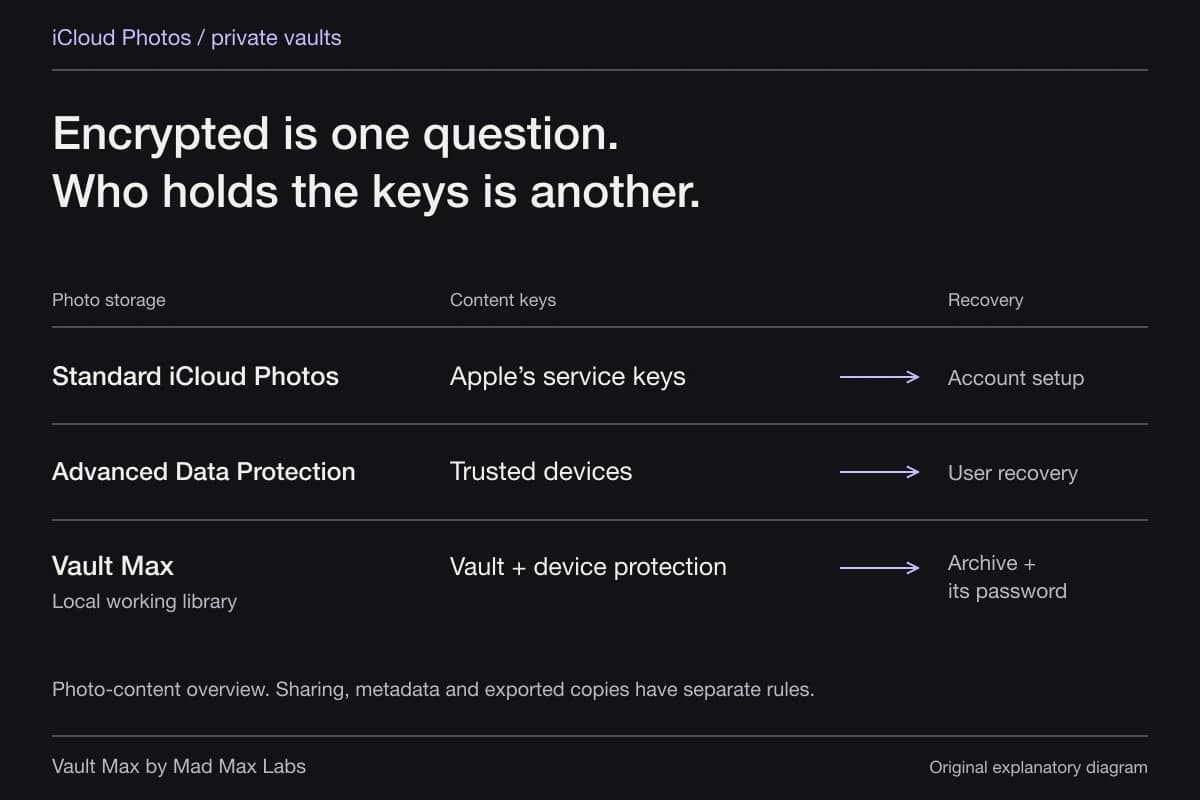
This is a content decision before it is a storage decision. Vault encryption protects the collection in which you keep the image. It does not decide whether the recipient should receive the name, reference number or surrounding conversation still visible inside an intentionally exported screenshot.
Import only the intended screenshot
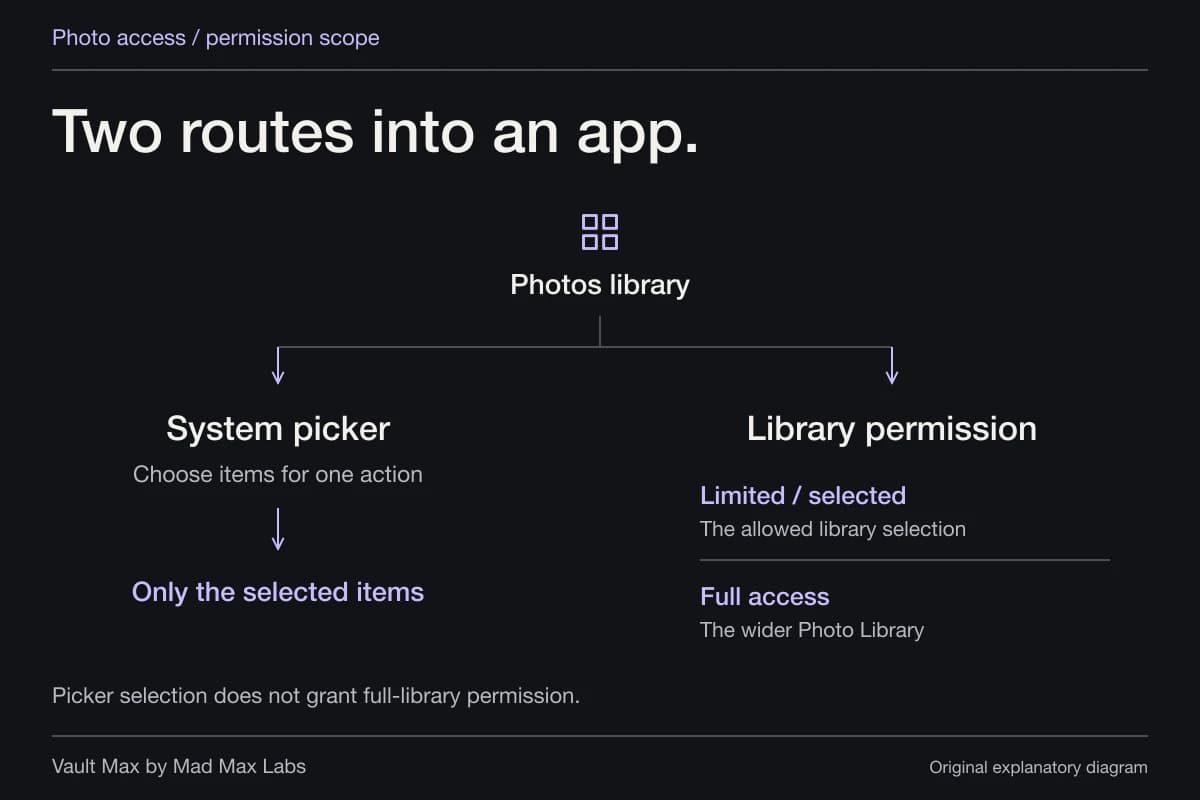
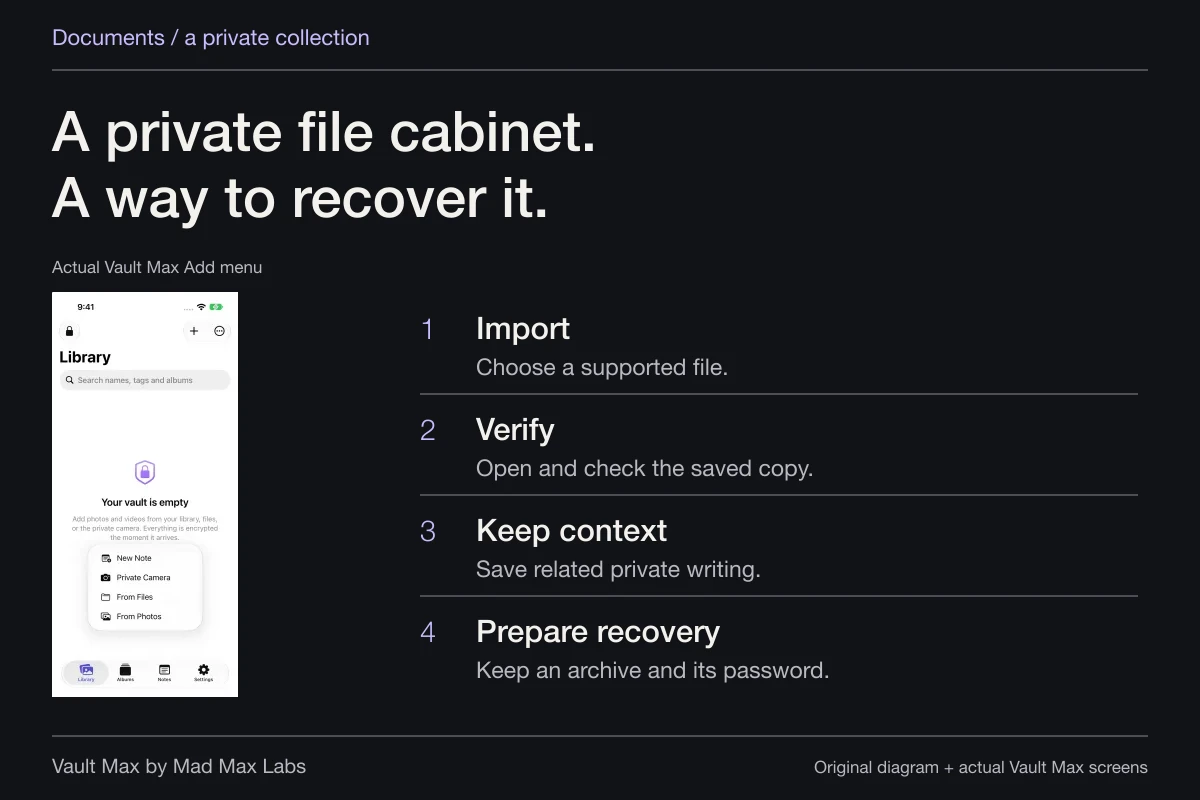
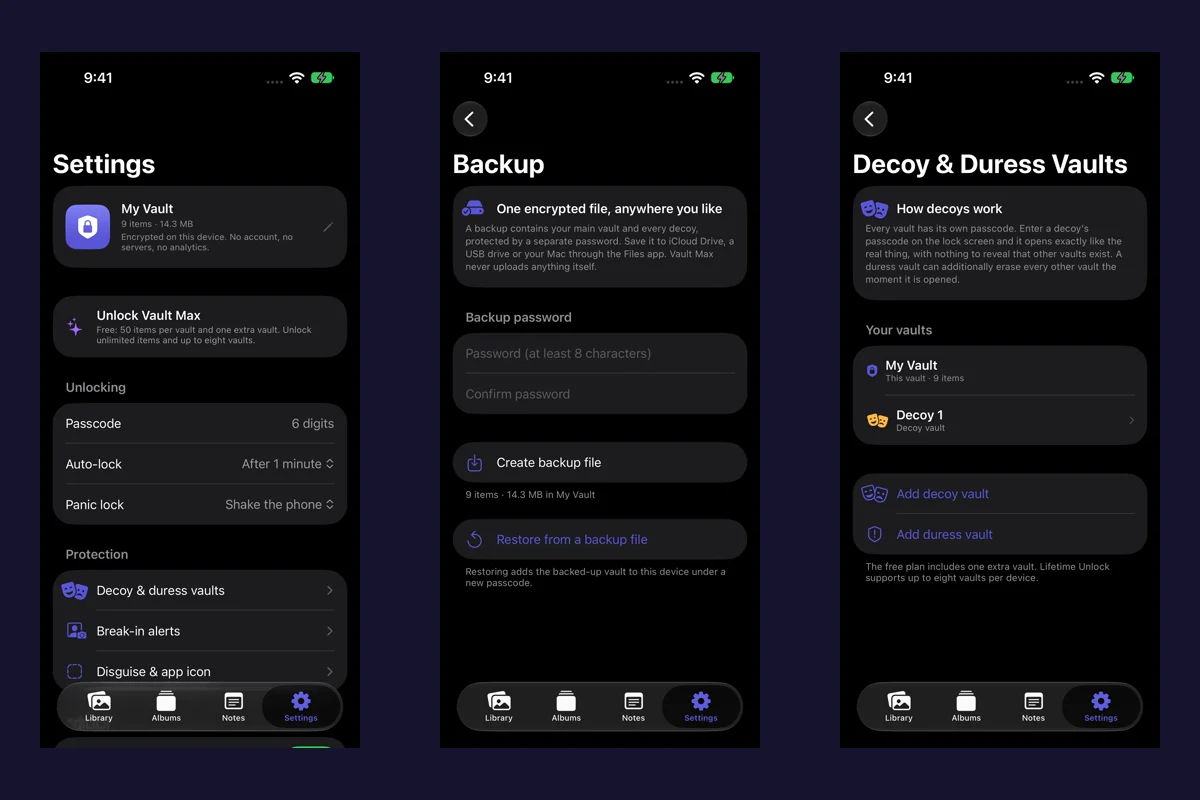
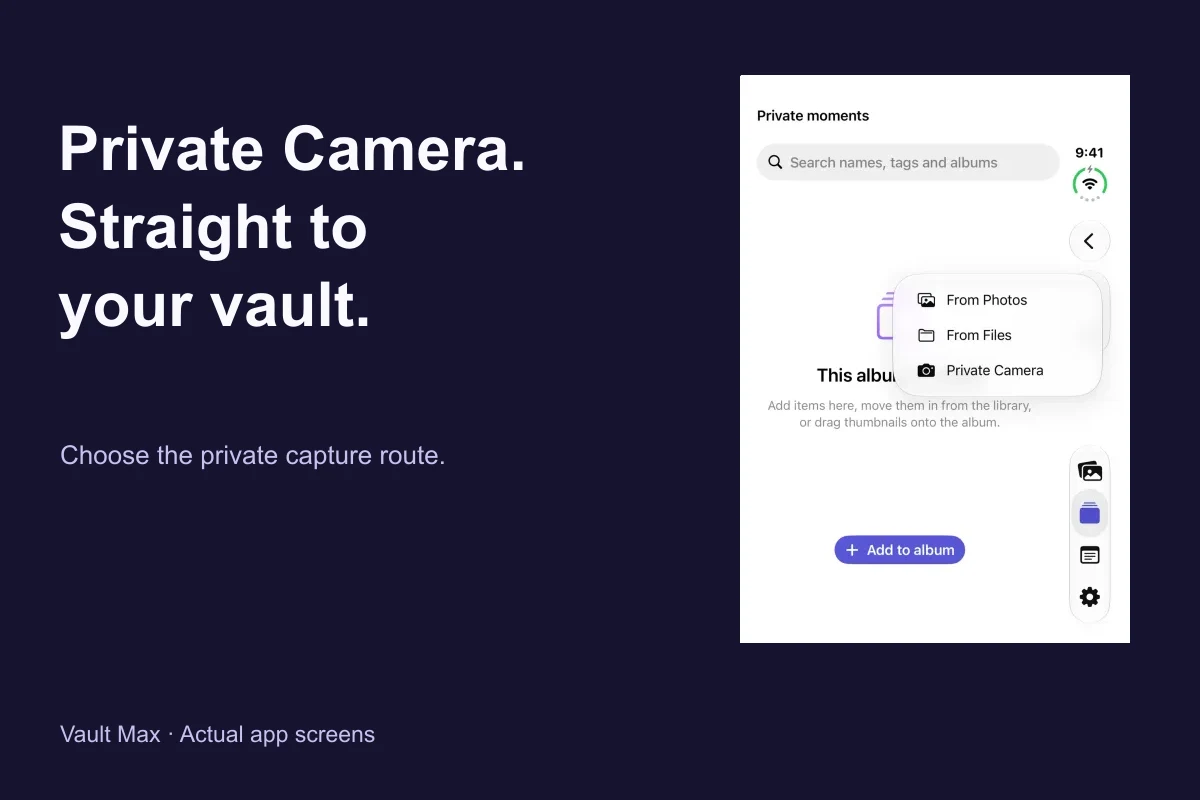
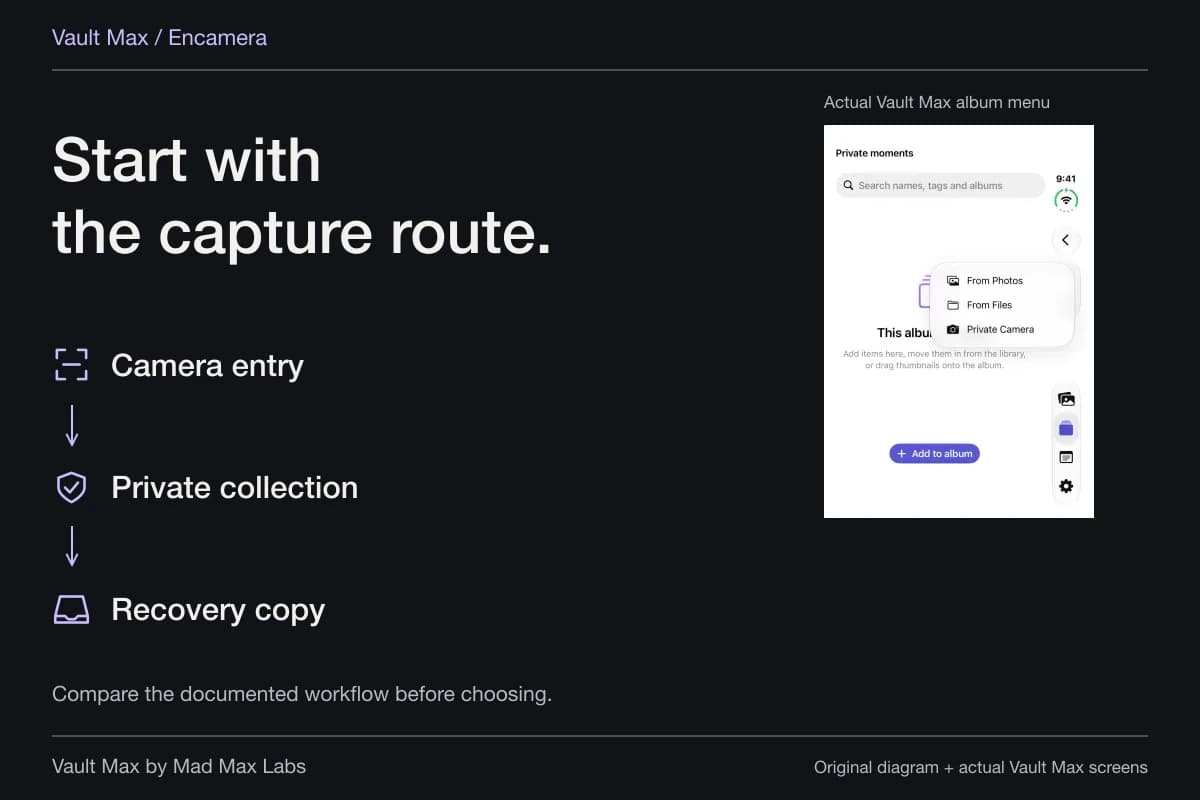
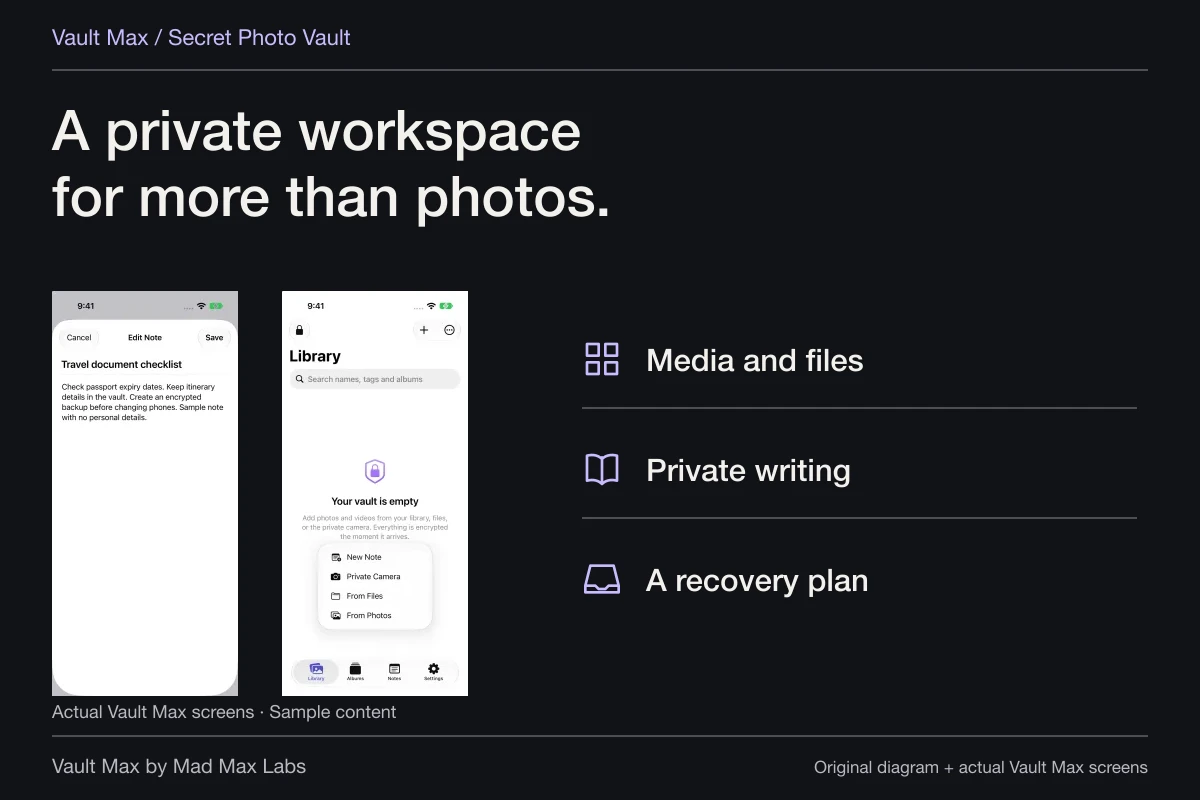
In Vault Max, choose From Photos from the Add menu and select the intended item. The system picker can supply chosen pictures without general library access just for importing. A separate operation, such as deleting a Photos original, has its own permission requirements.
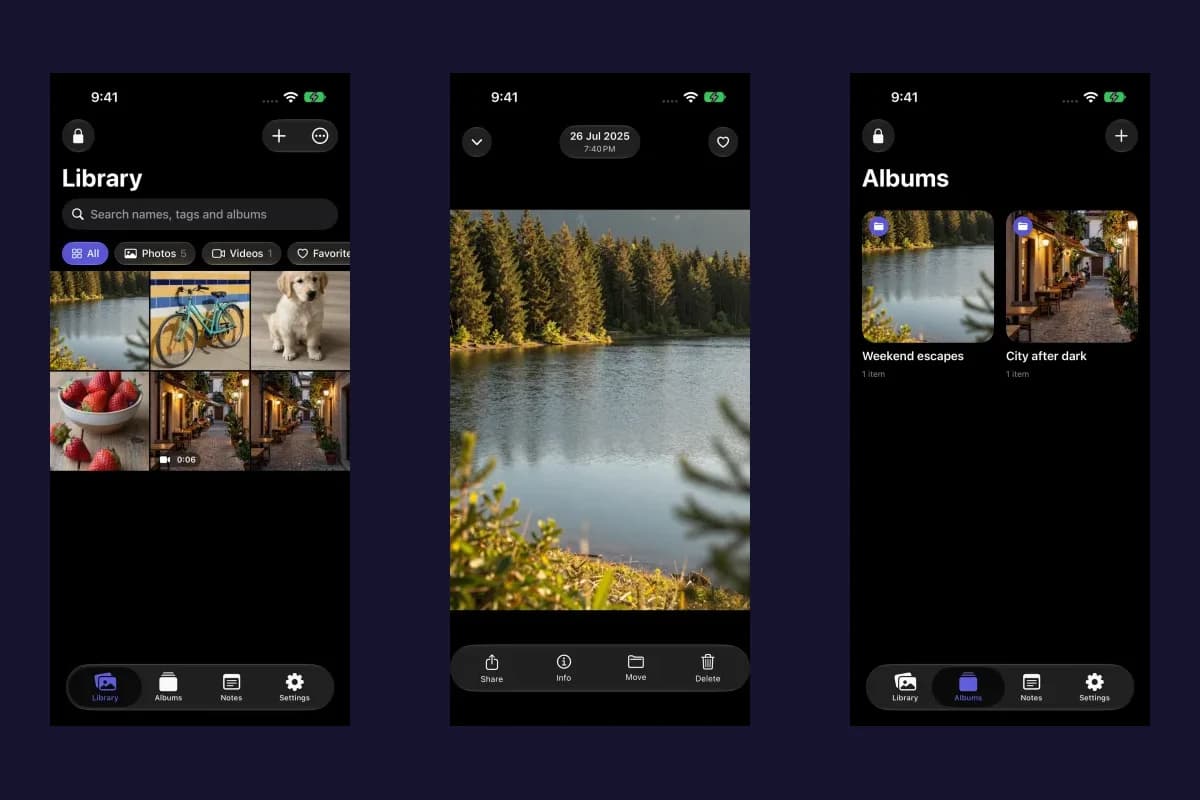
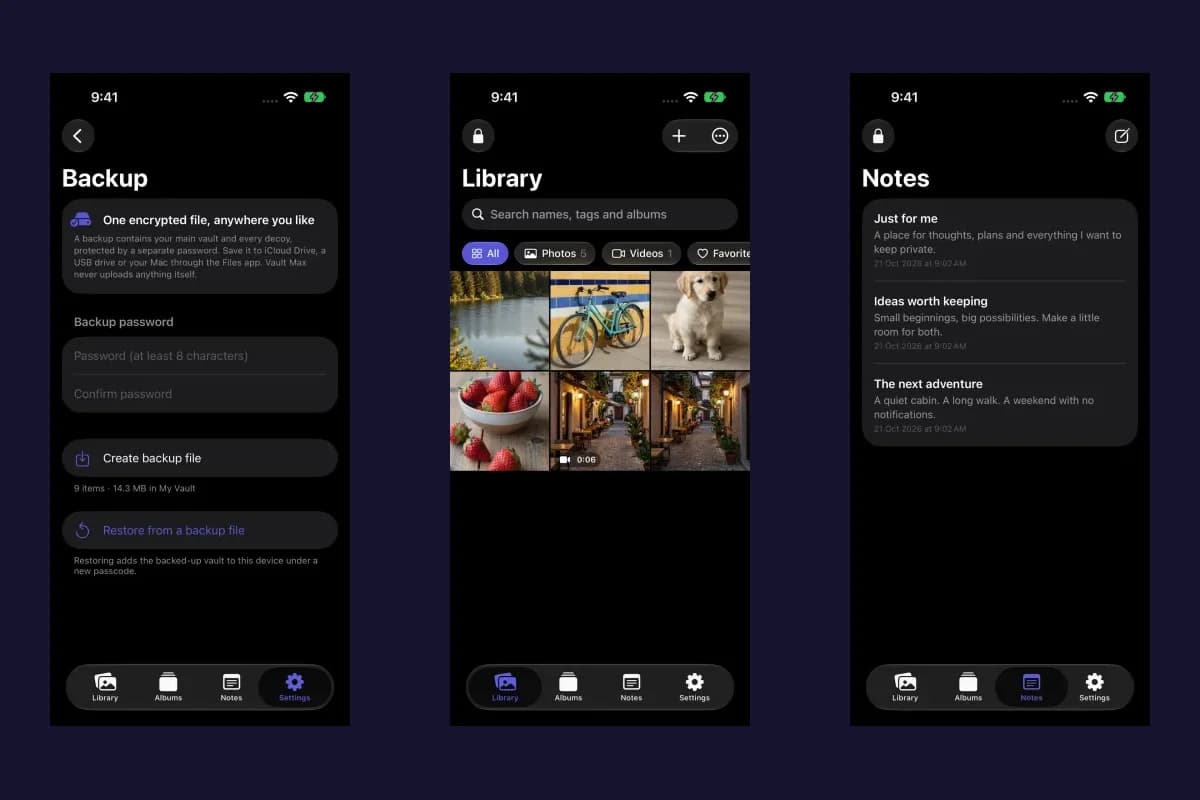
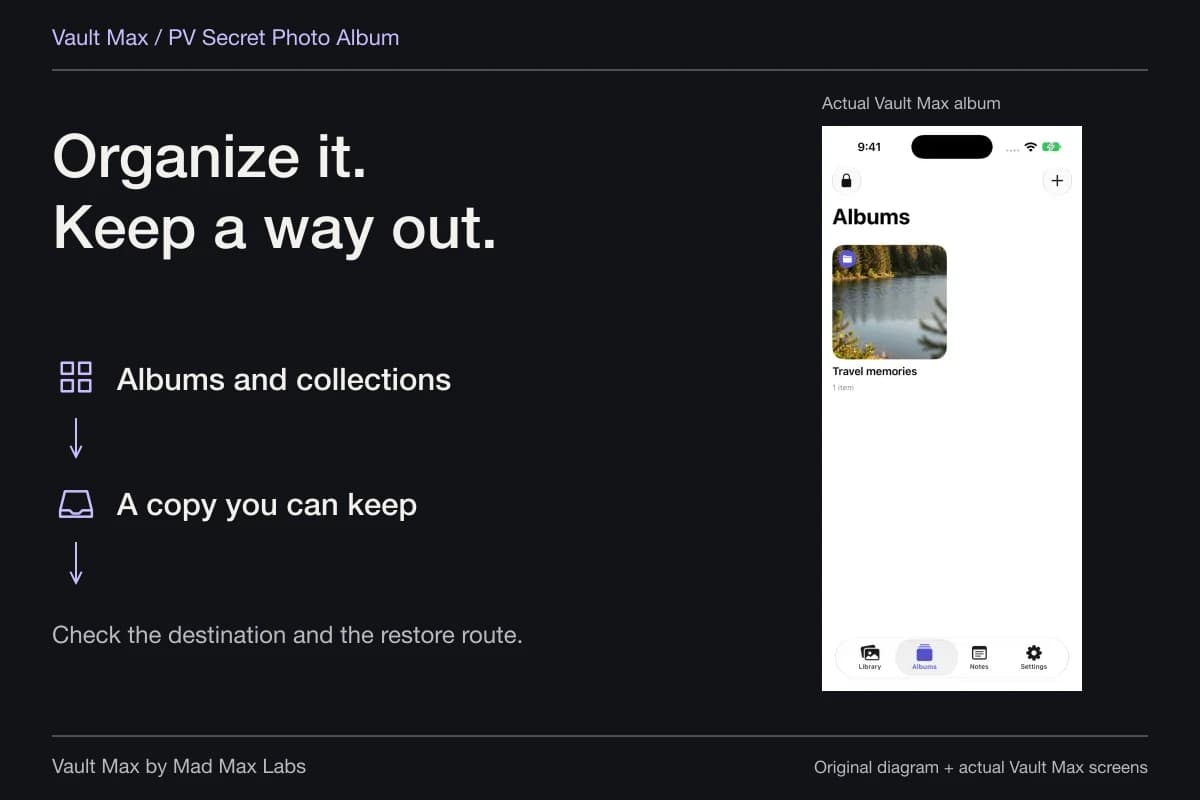
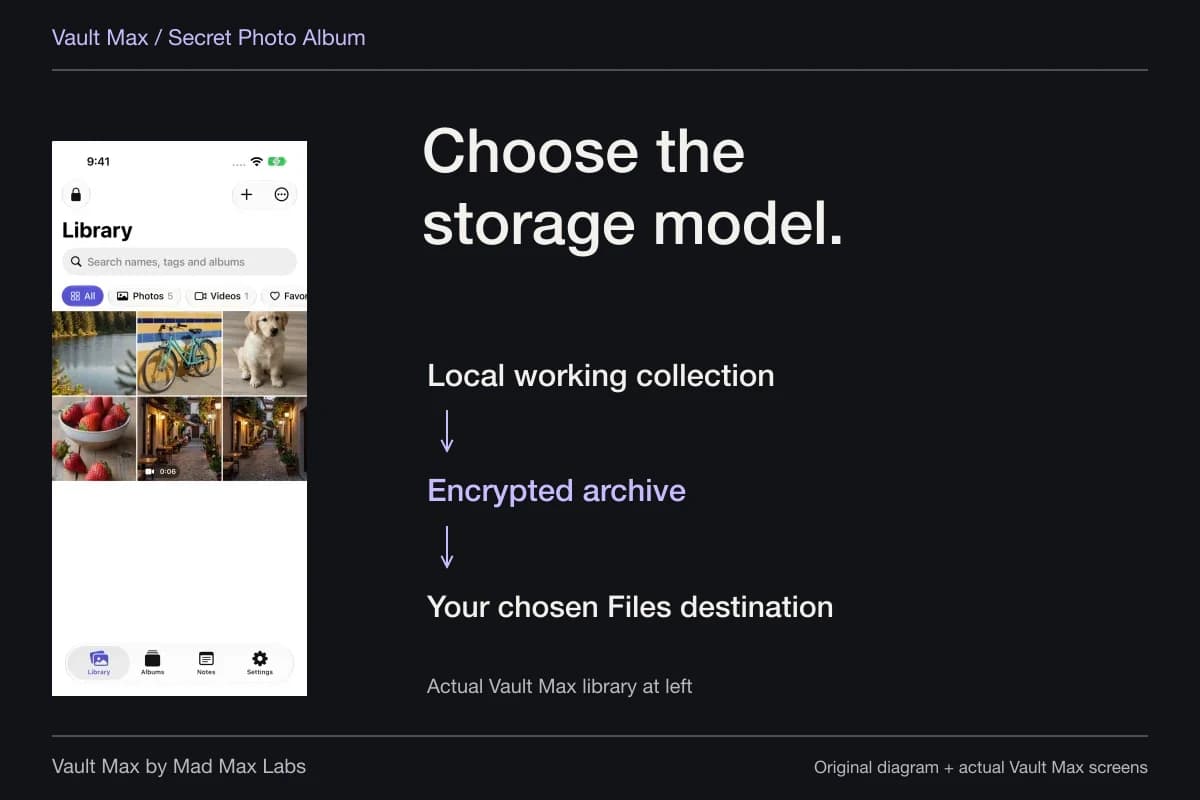
Wait for the import, then open the vault copy and inspect it. Check that the full image is the one you intended to retain, especially if several similar captures were made. Rename it meaningfully or move it into a relevant album. A favorite can mark it for return without creating another file.
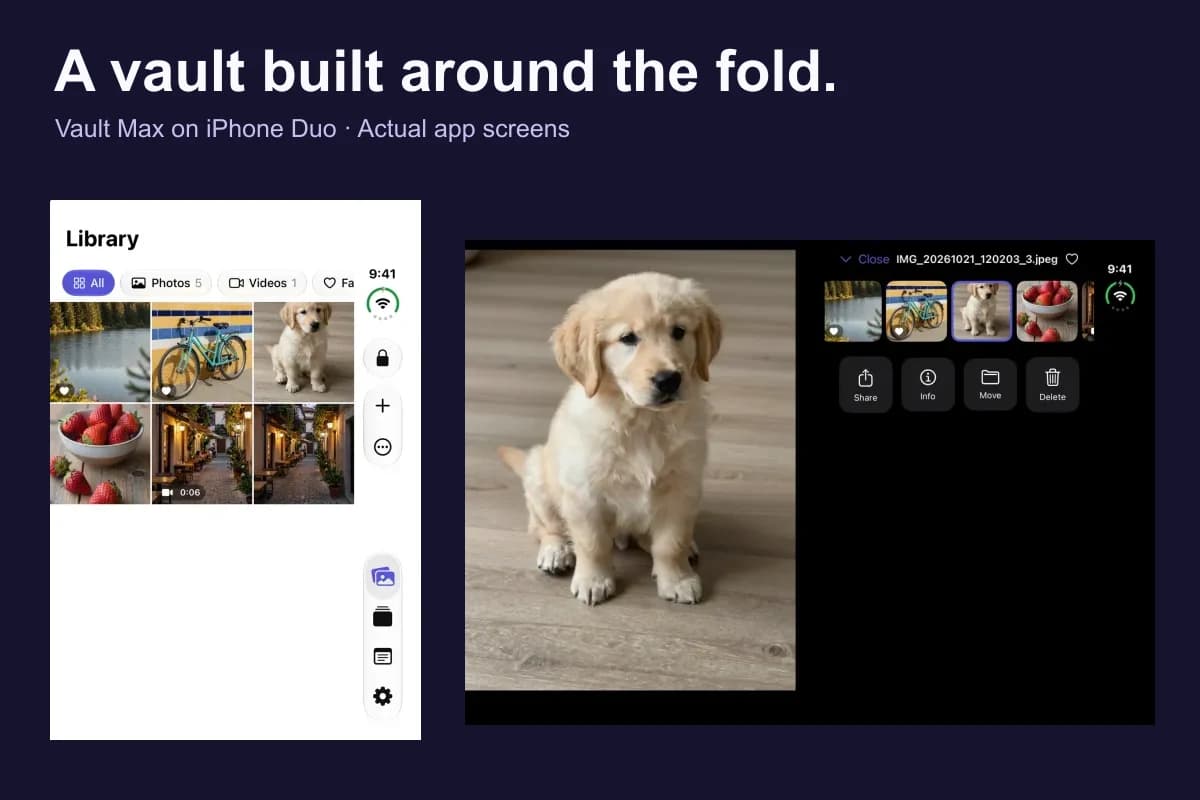
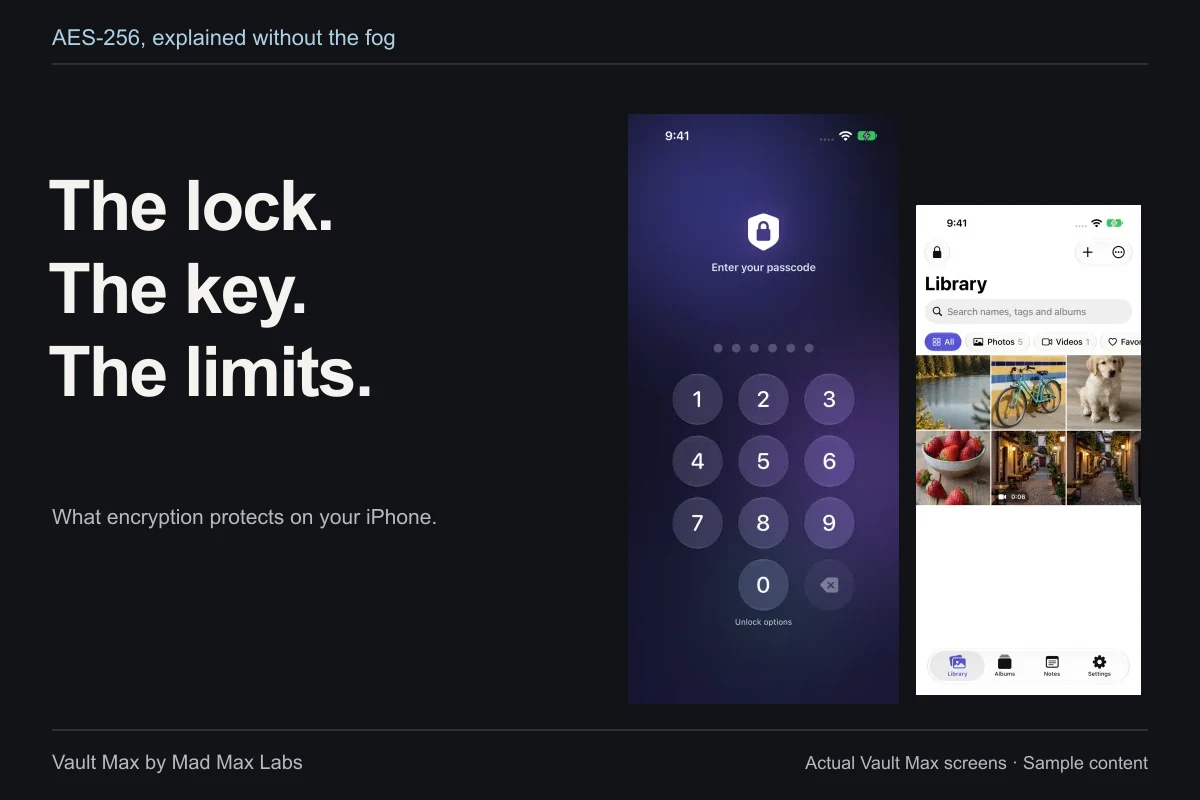
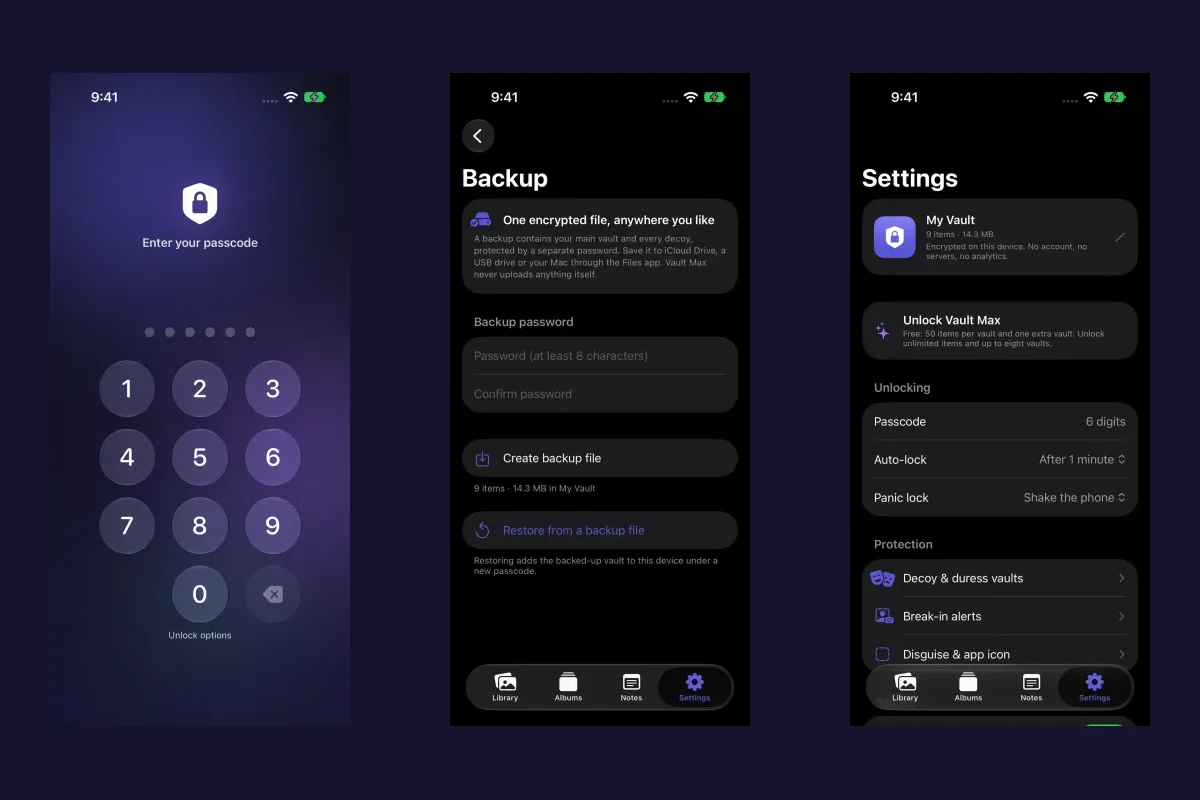
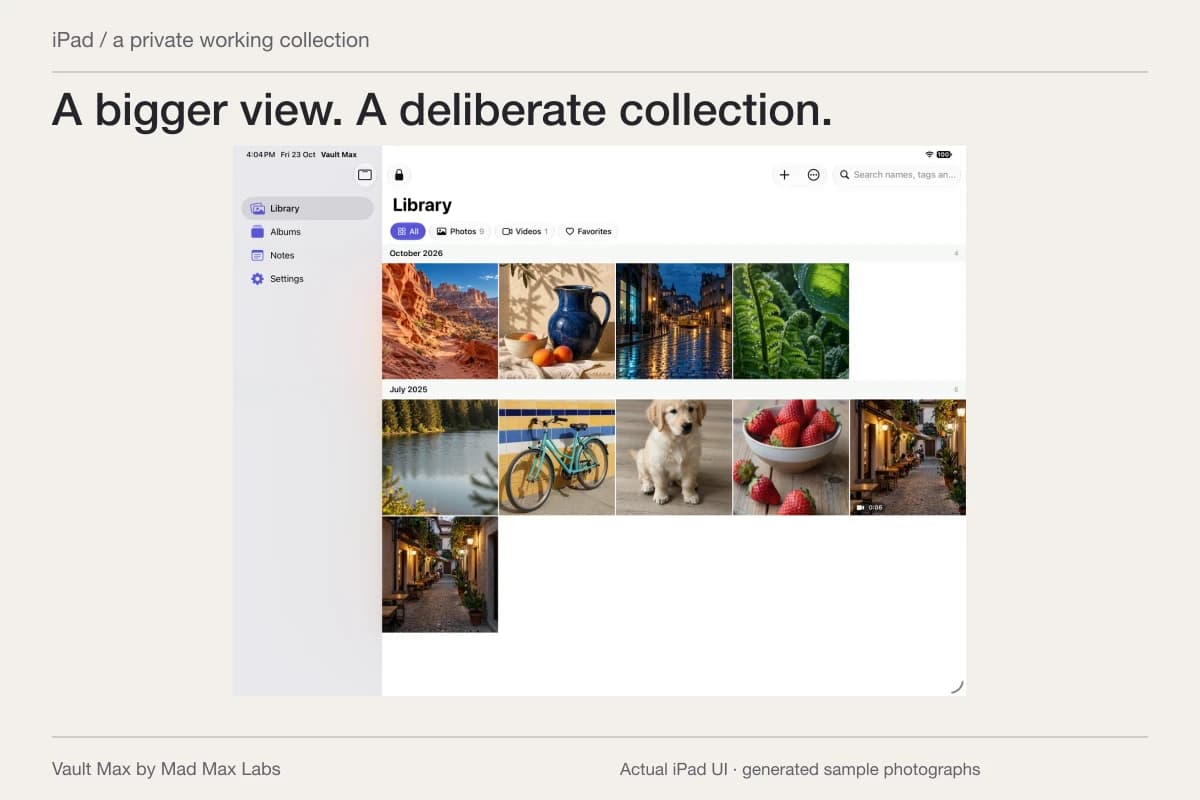
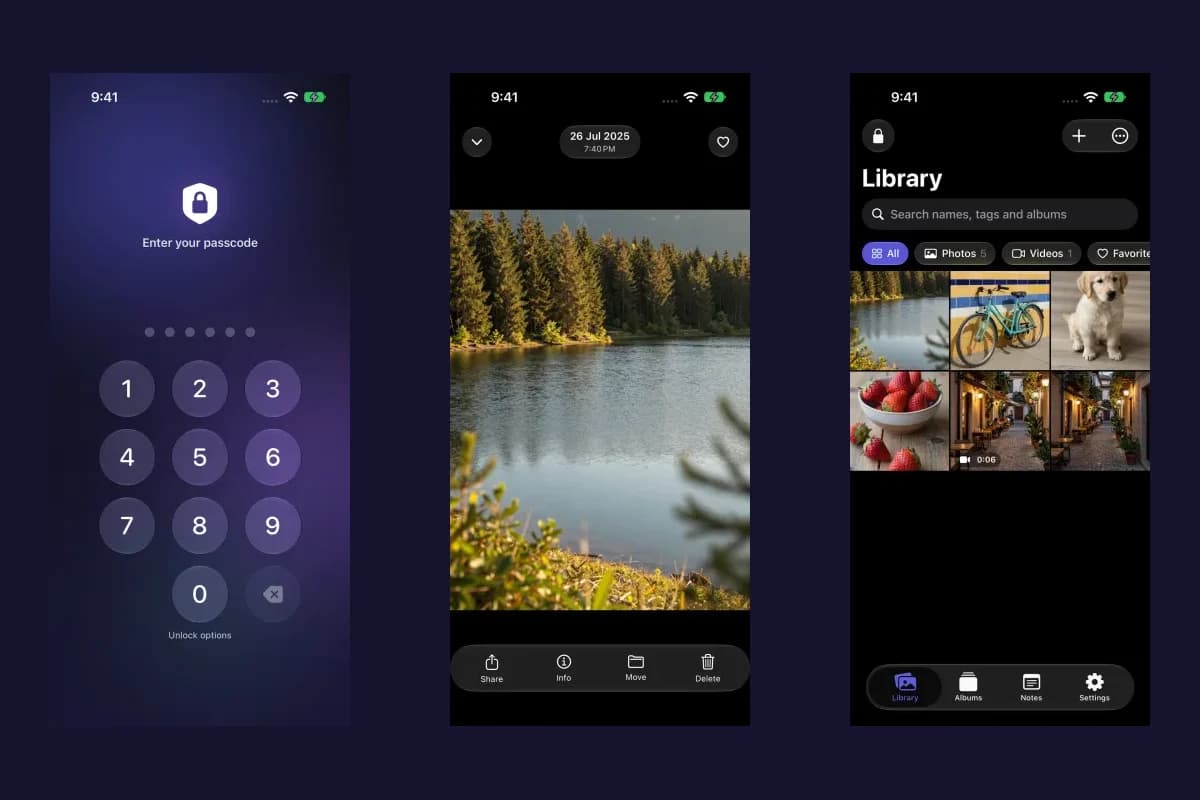
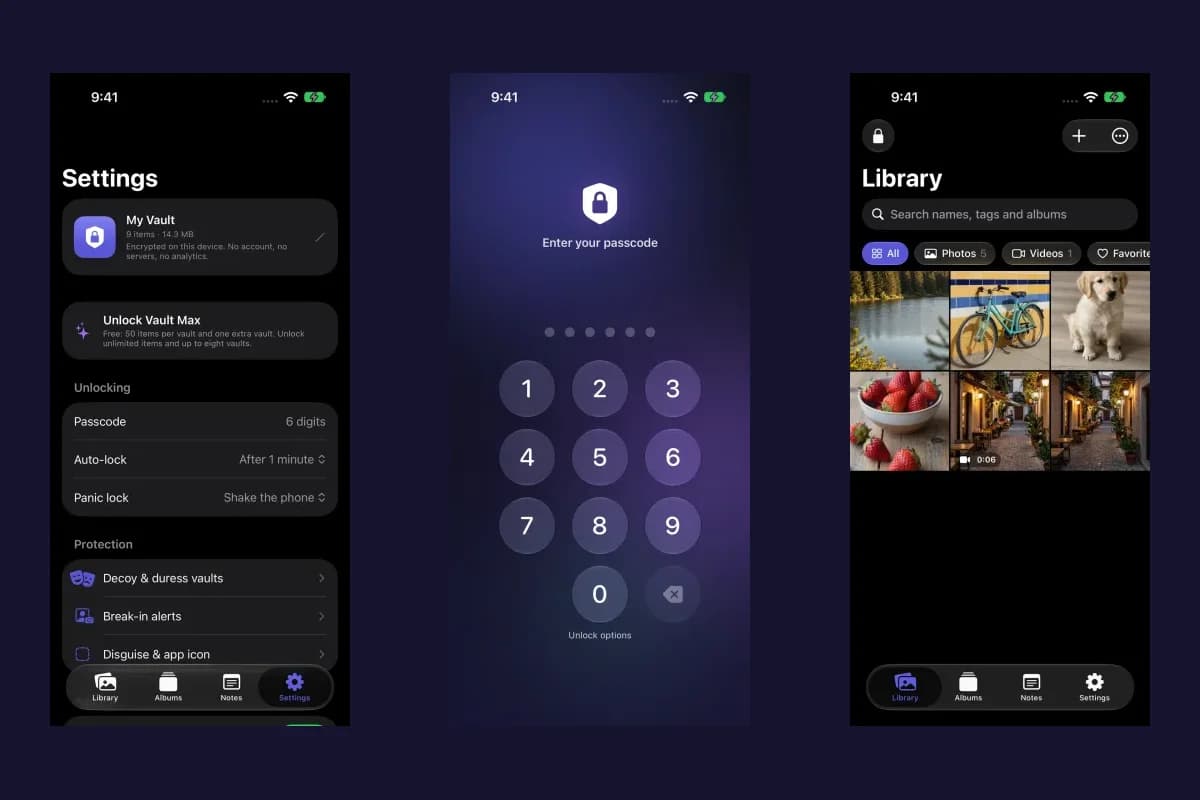
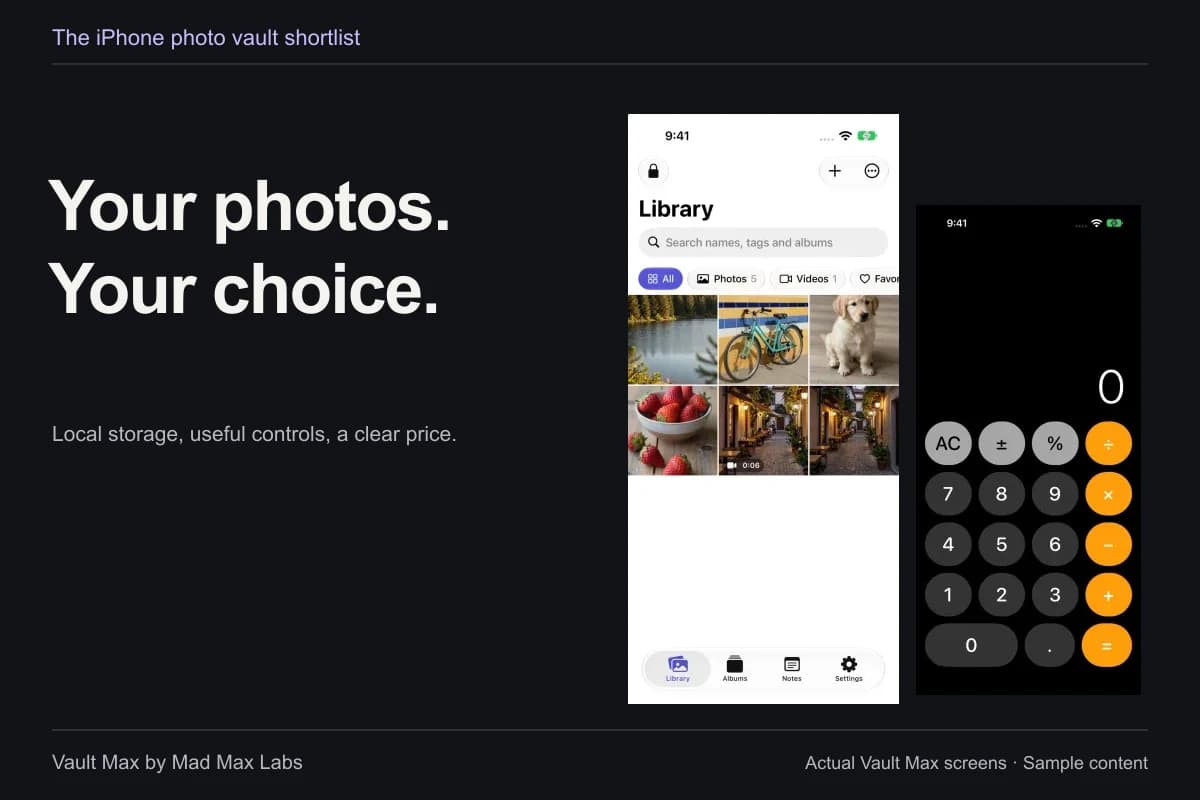
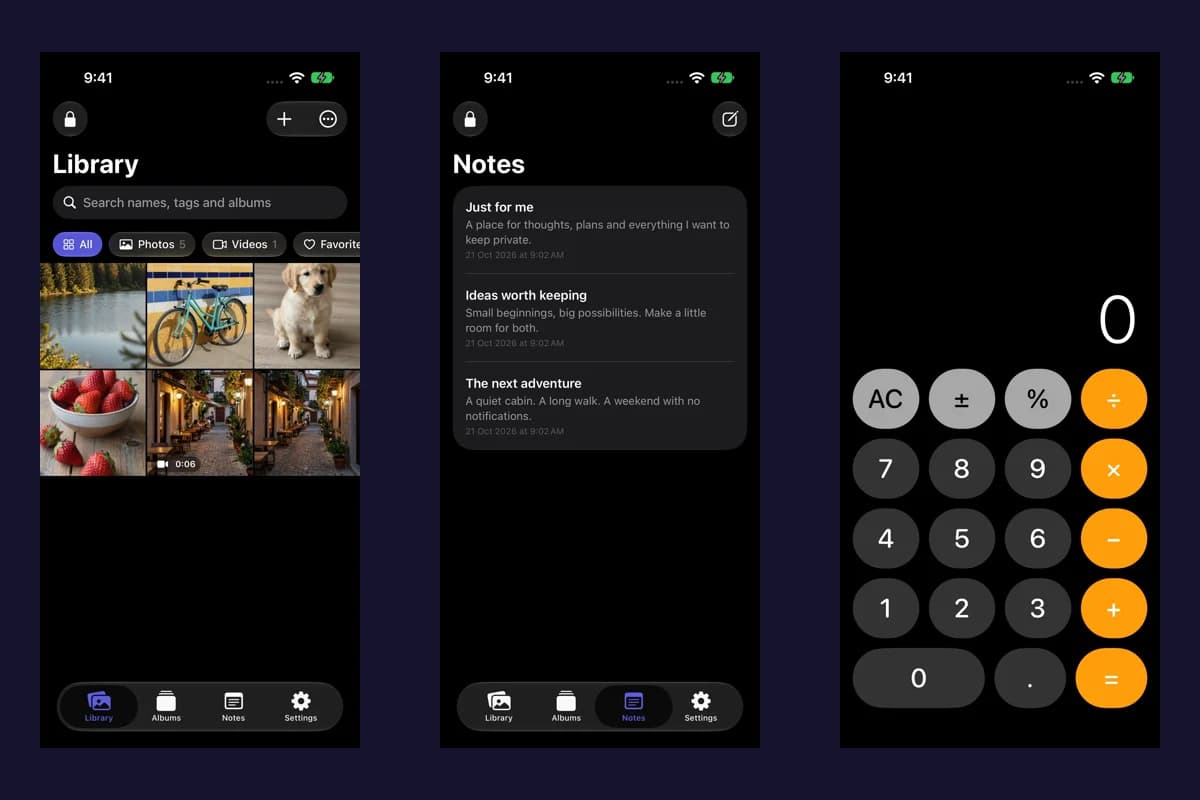
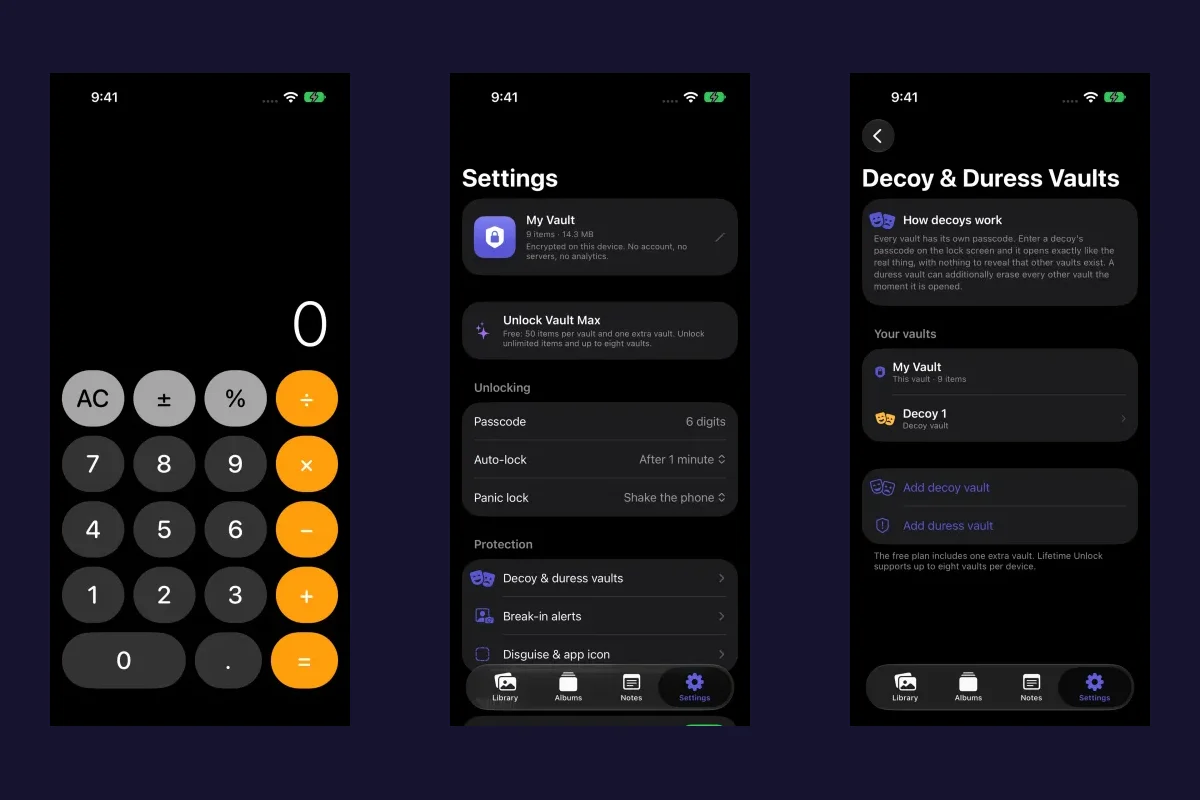
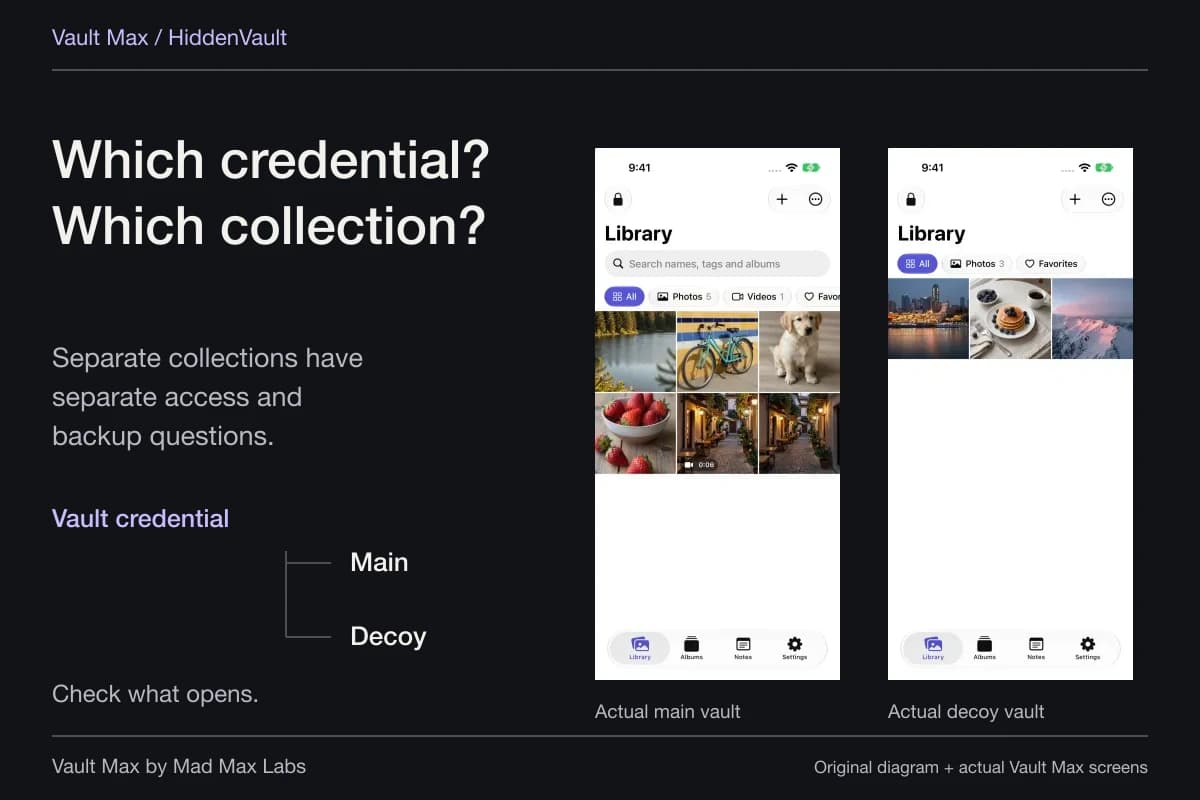
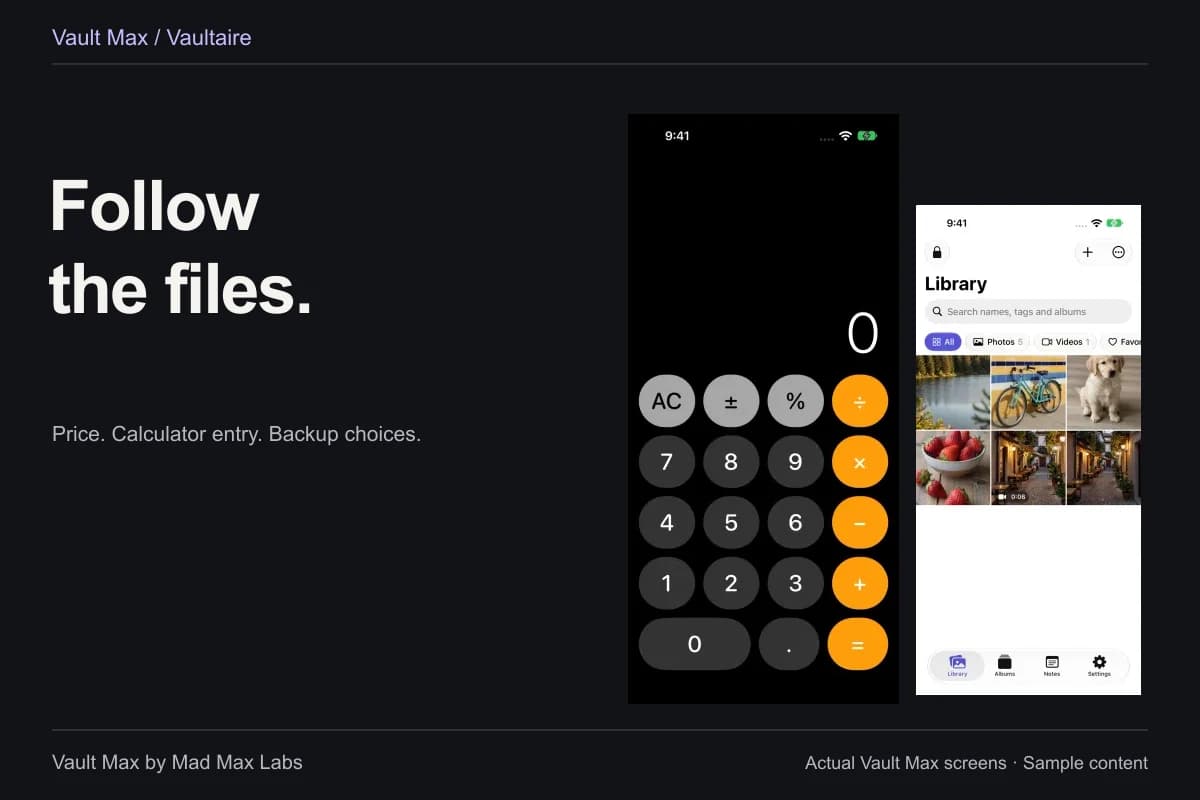
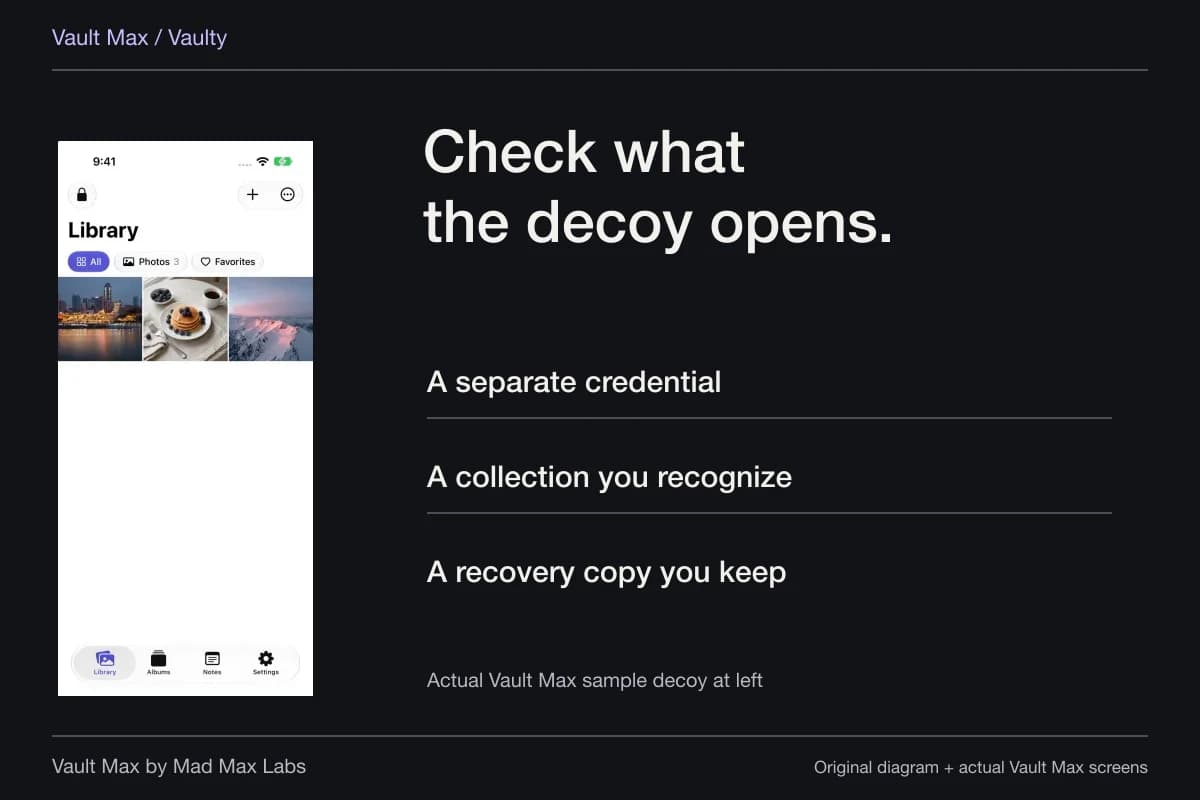
Sample Vault Max library. Select a screen for a closer look.
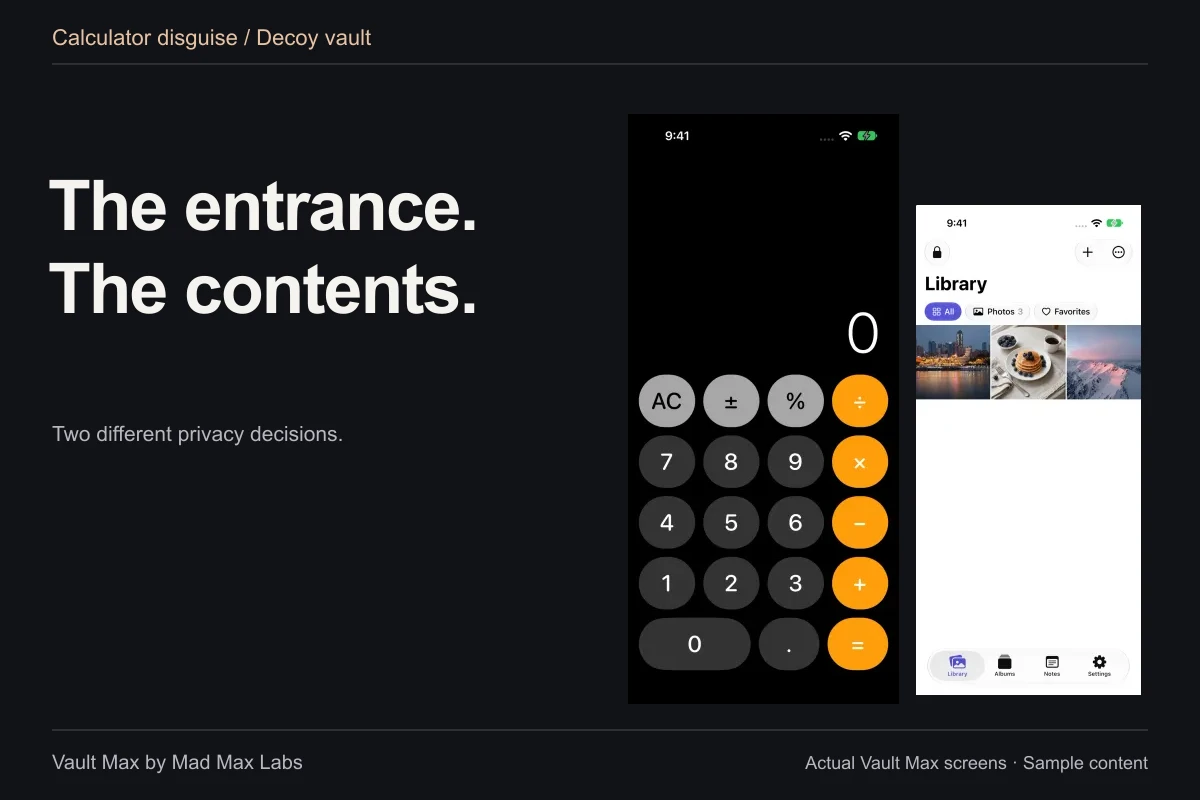
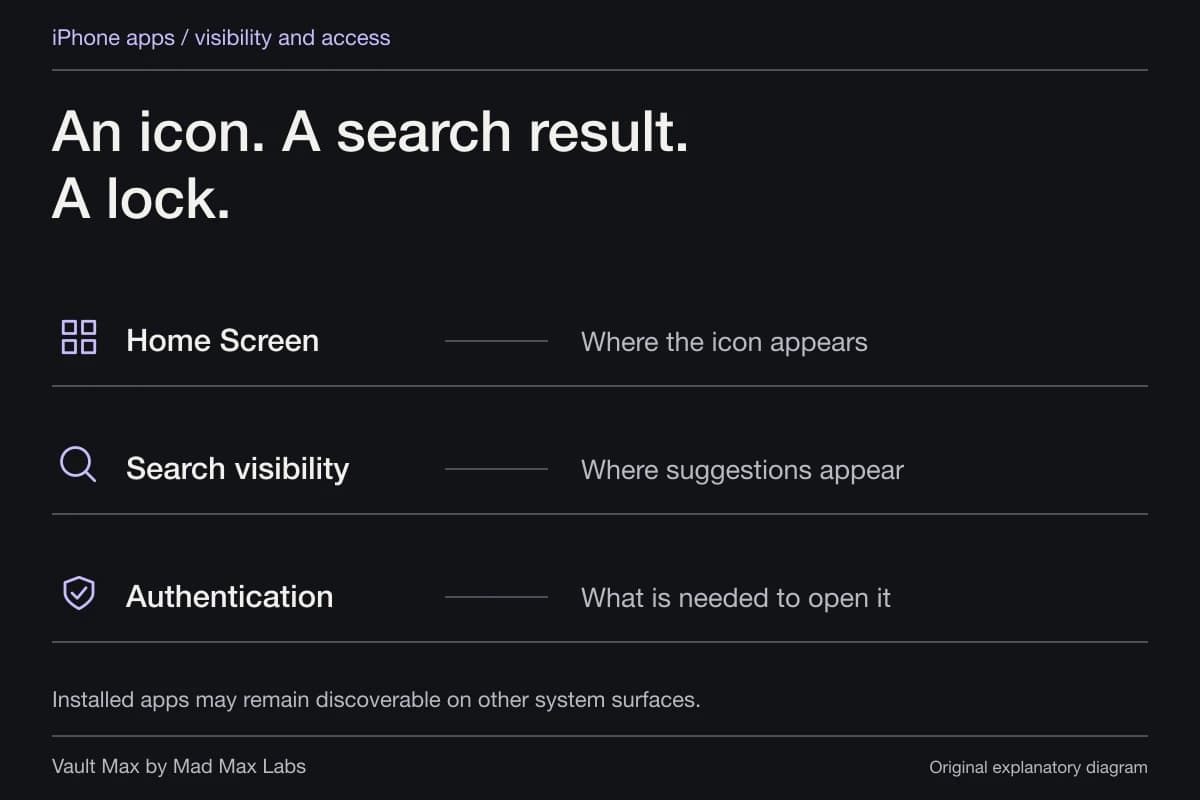
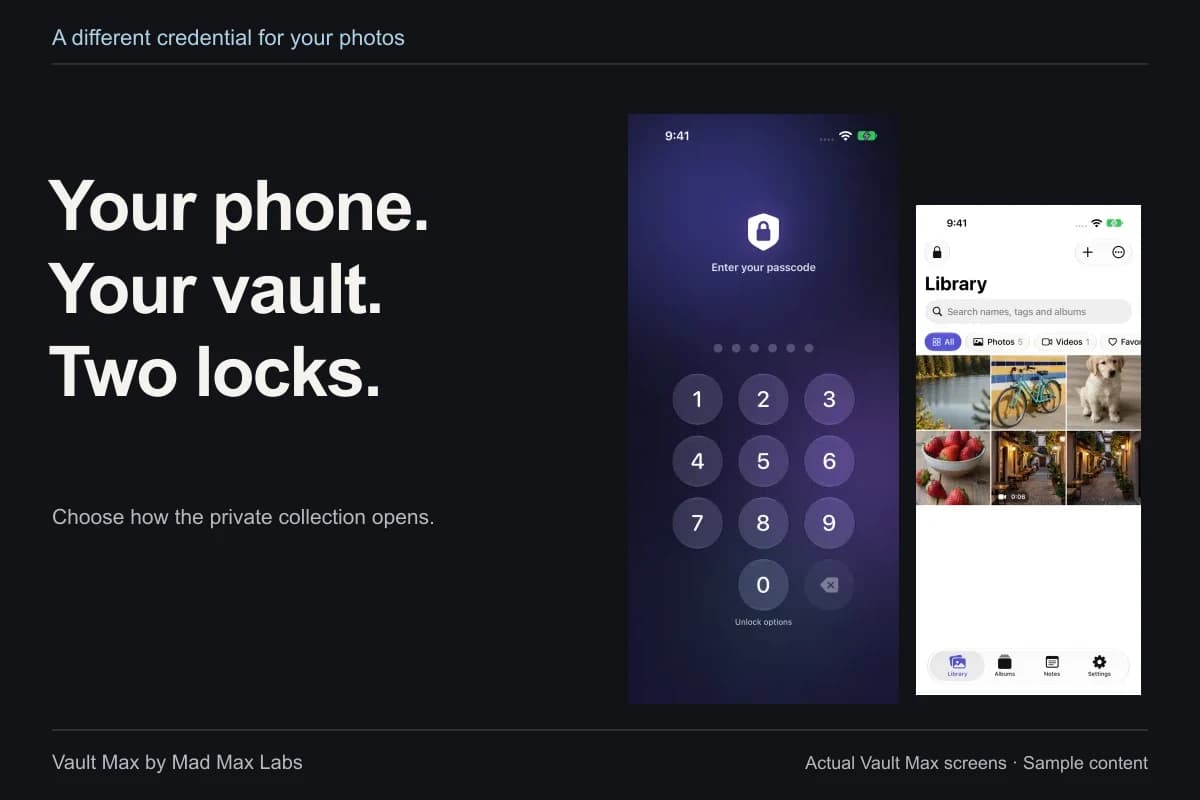
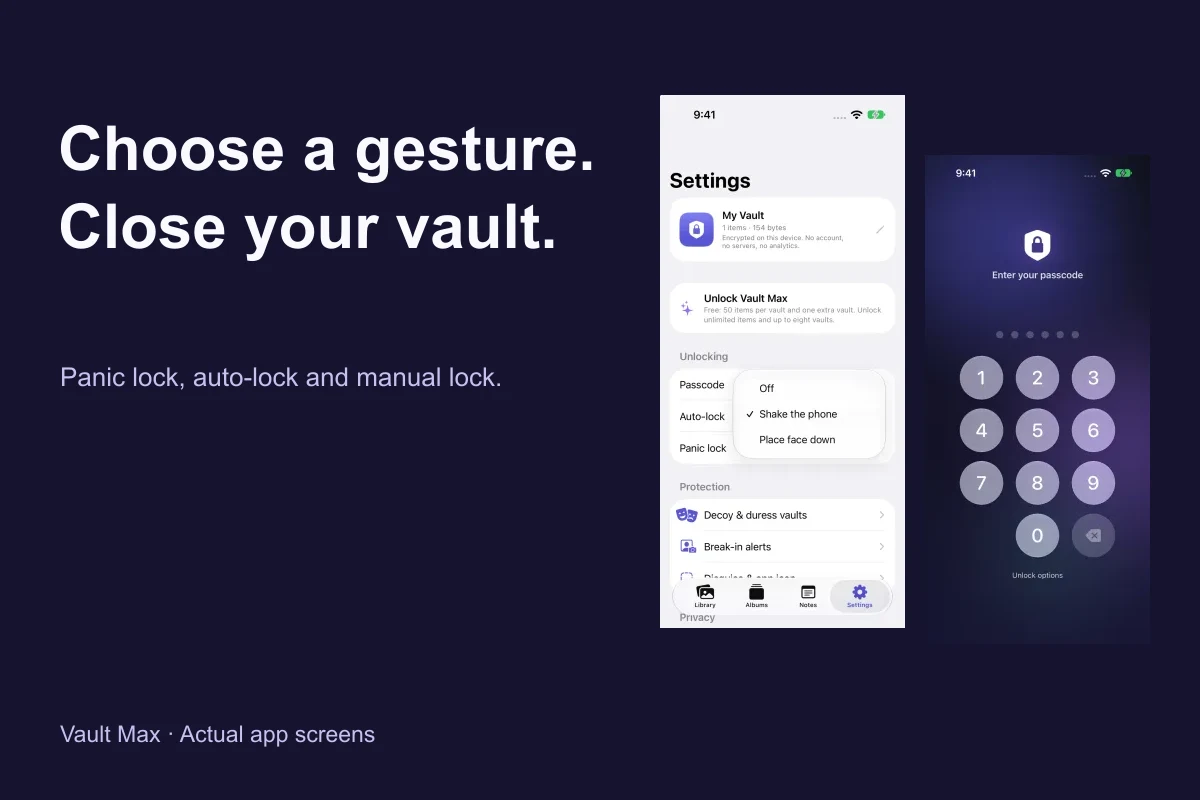
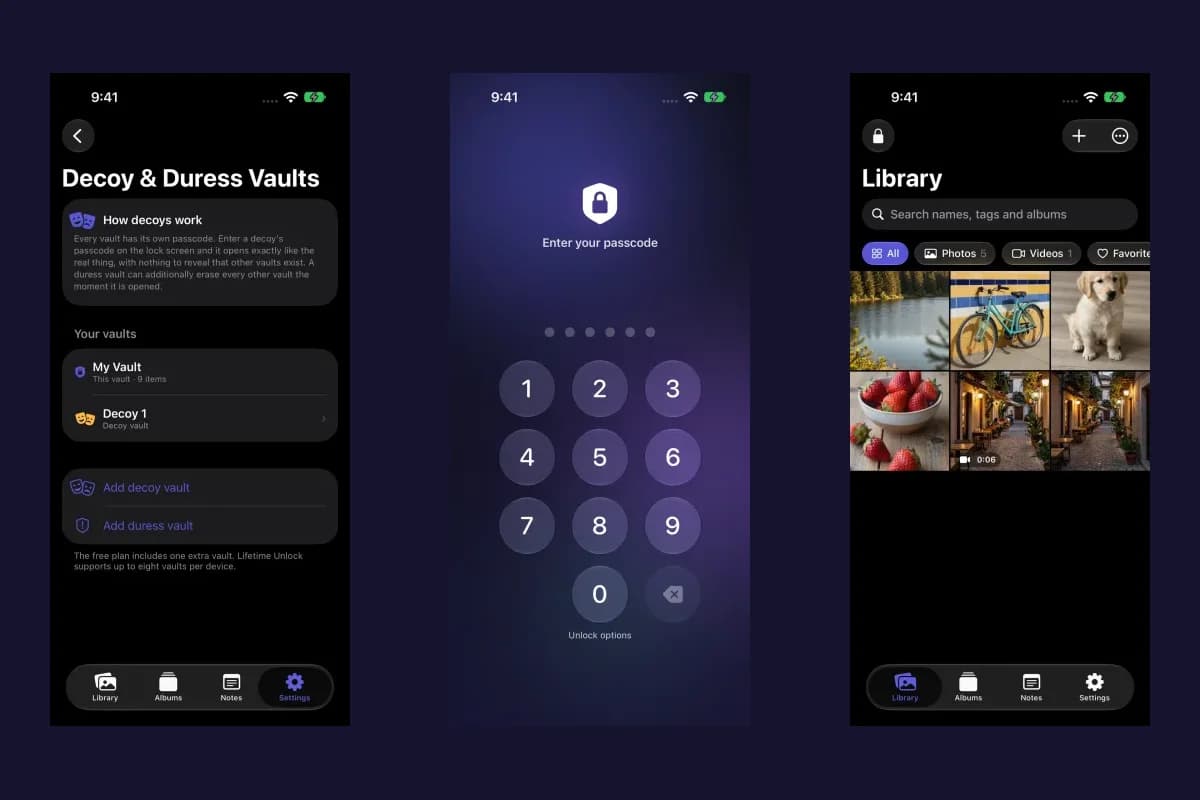
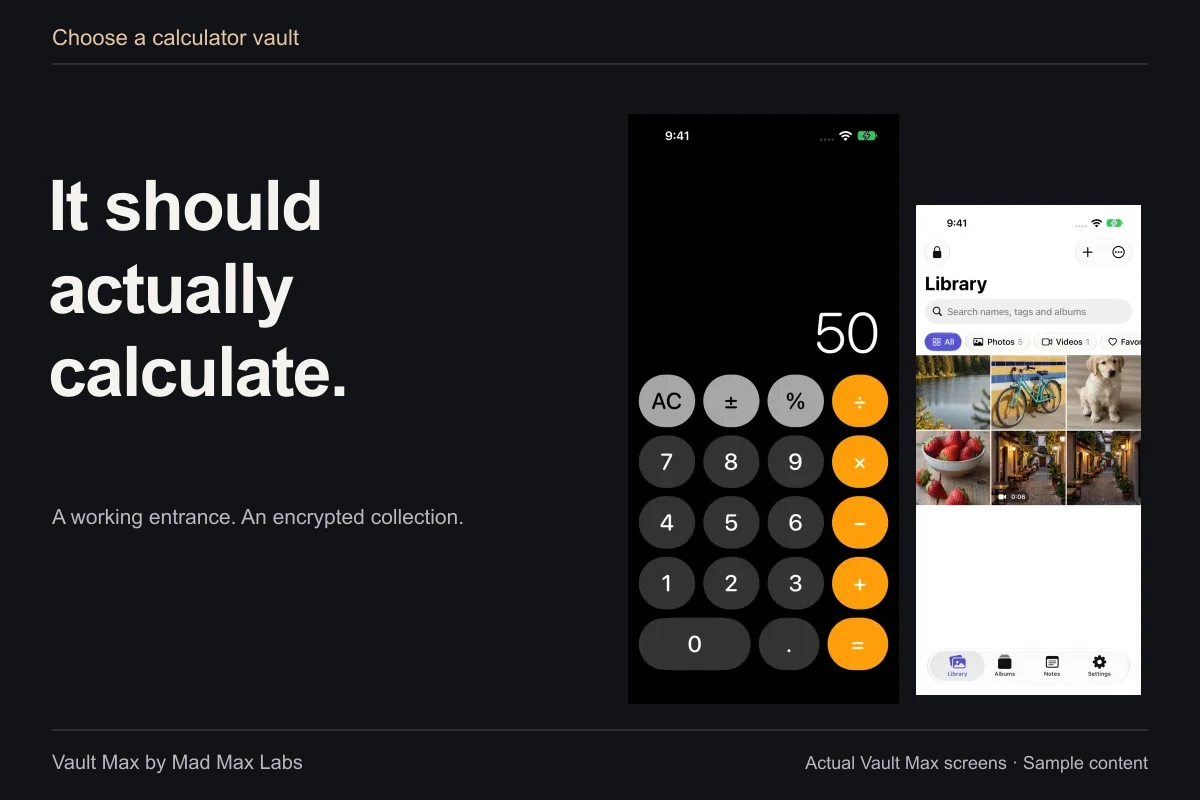
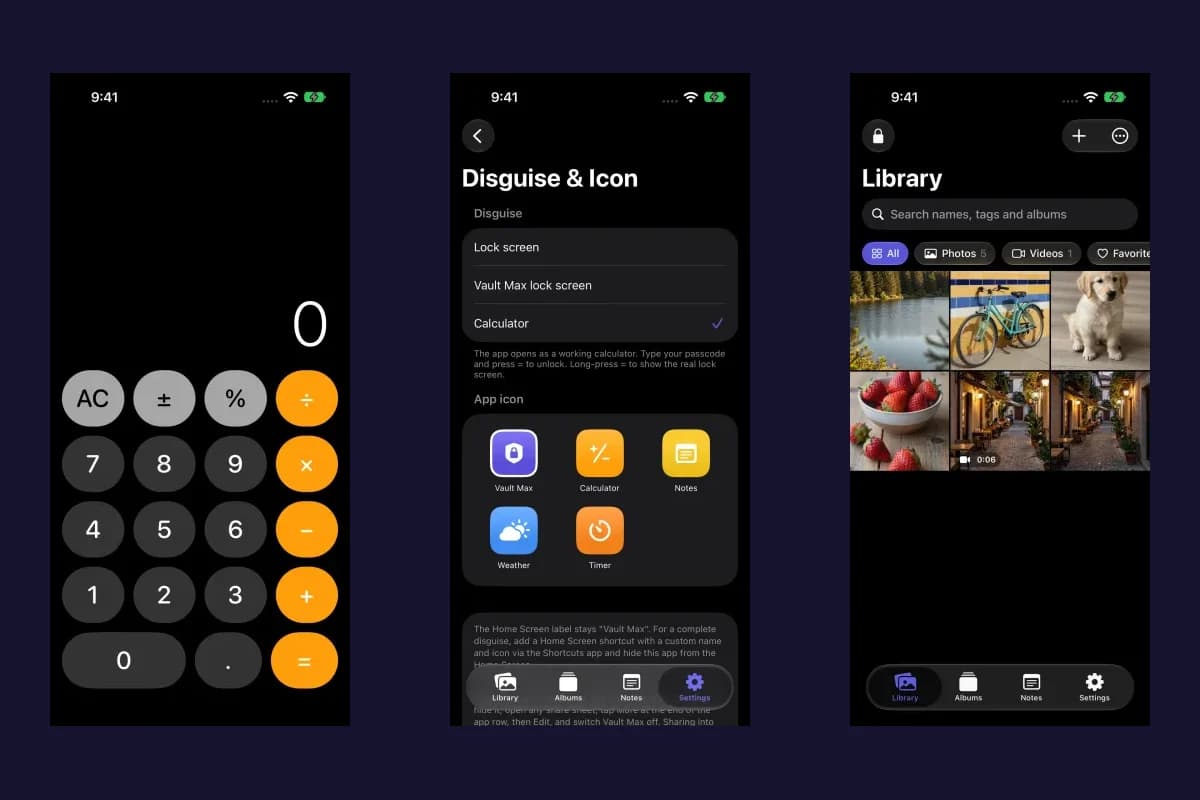
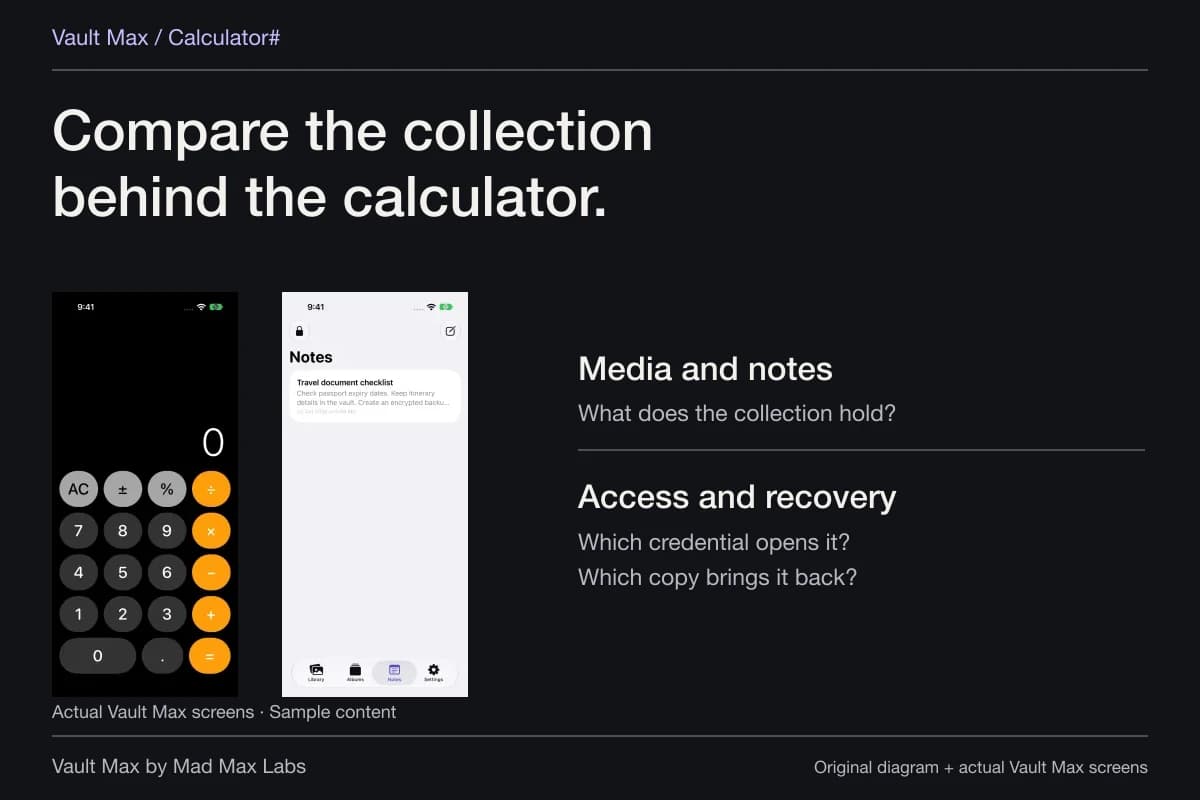
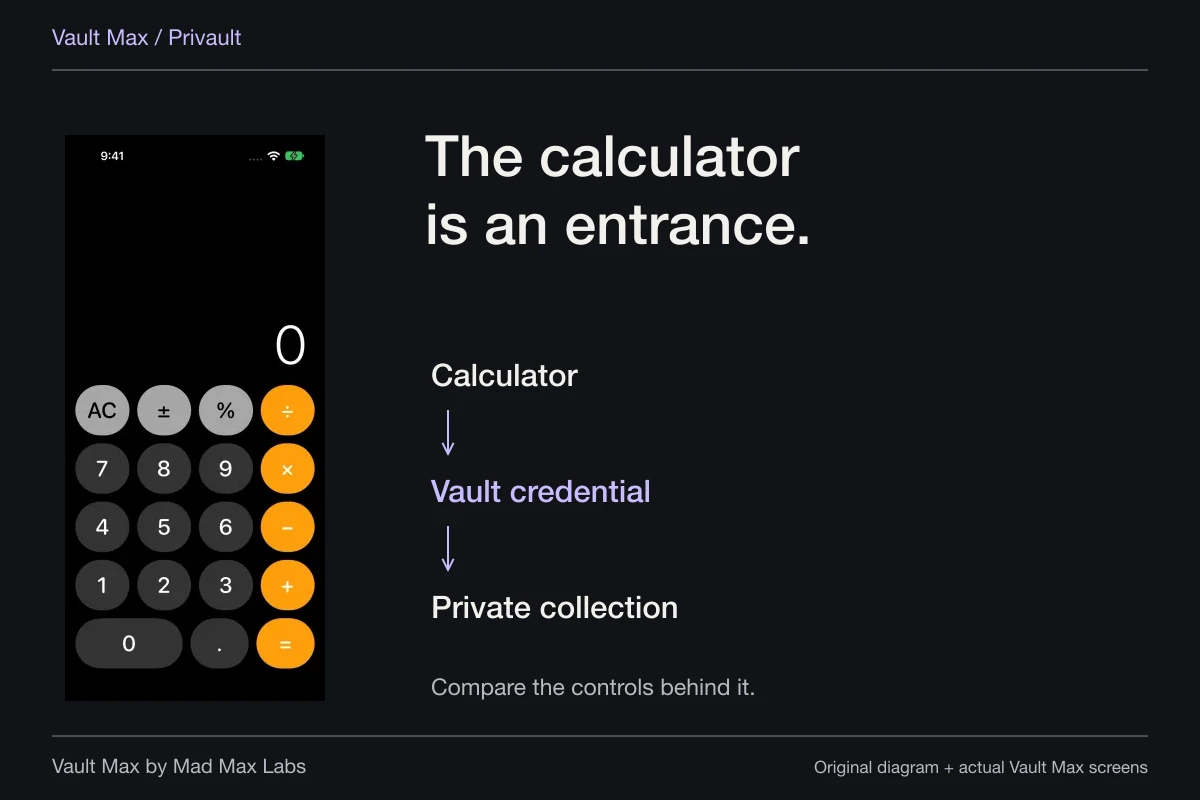
Vault Max's working calculator can provide another entrance to the same protected collection. The vault credential still matters, and ordinary manual lock remains the direct way to close the session. Learn the actual route you intend to use instead of treating a discreet appearance as proof that no one can discover an installed app.
Decide what should happen to the Photos original
After a saved Photos import, Vault Max can offer to delete the originals. Treat that as a separate decision after checking the private result. Keeping the original may be intentional; removing it should also be intentional and supported by a usable recovery plan.
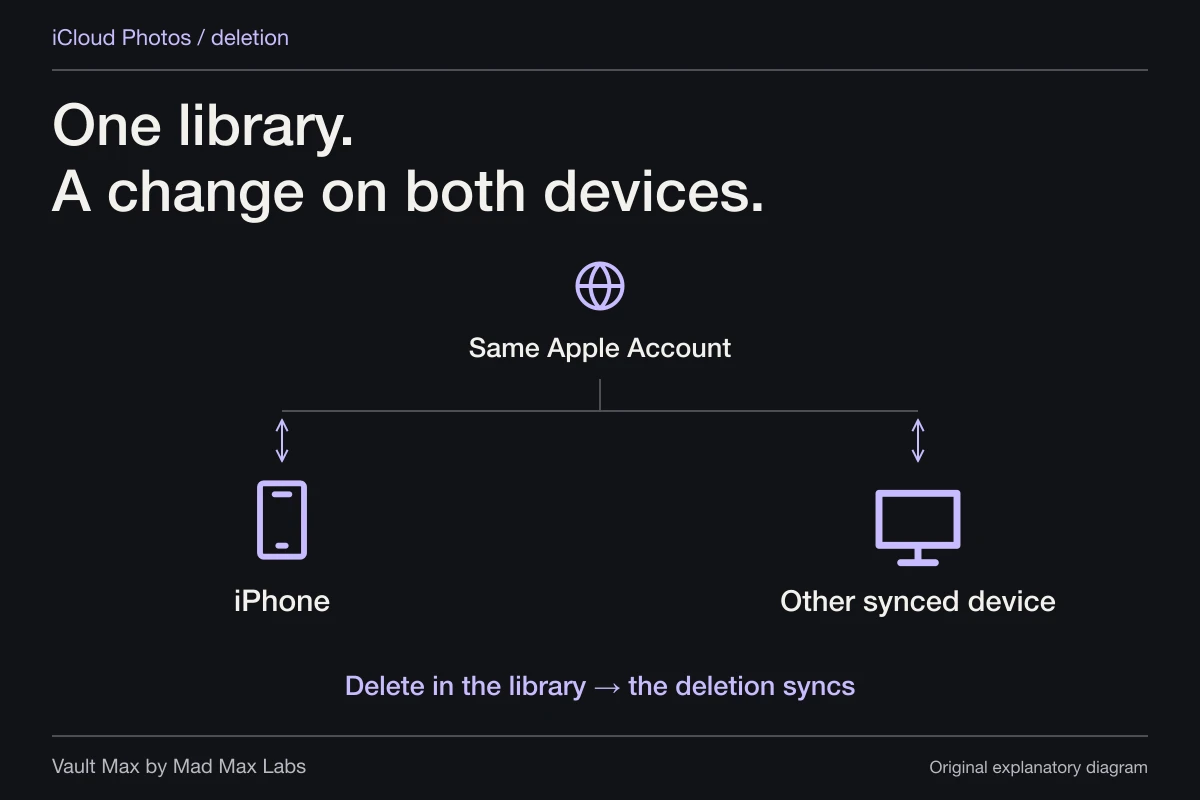
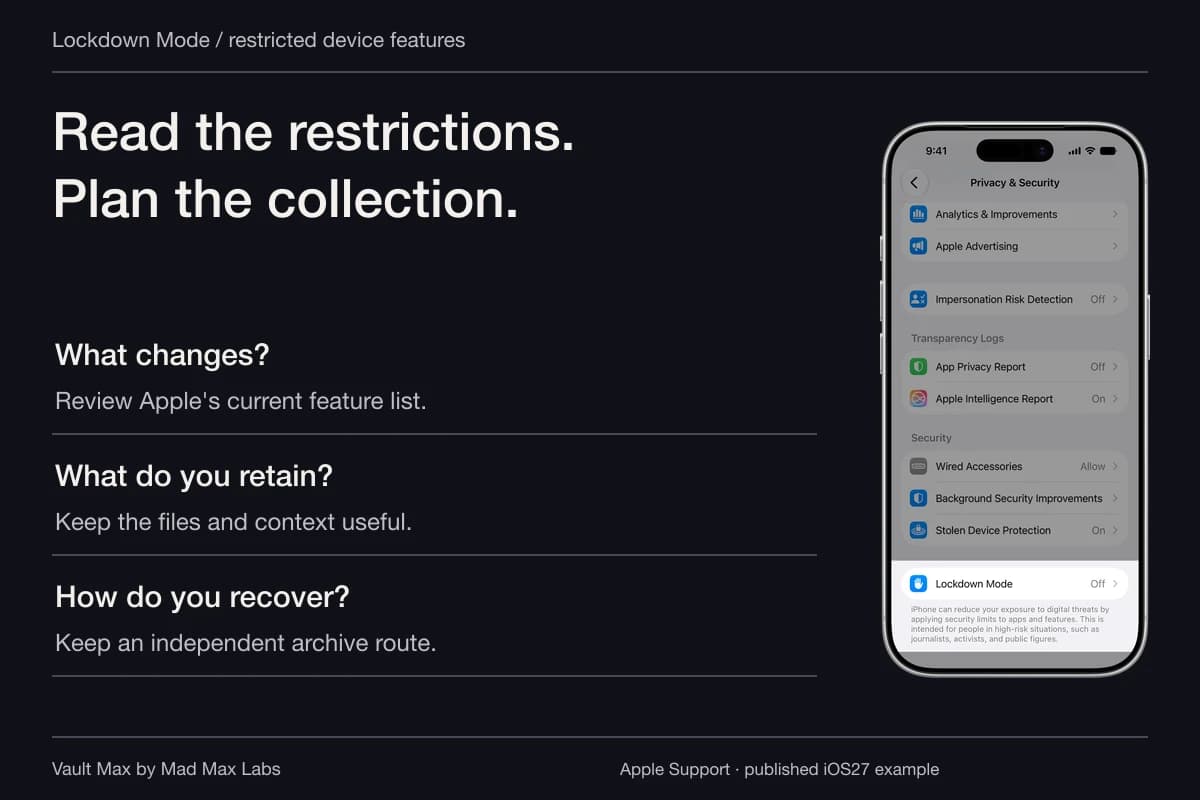
Apple's photo-deletion guidance explains that iCloud Photos deletions affect its synced devices and that Recently Deleted normally retains a recovery window. Removing a screenshot from the ordinary grid is not the same as accounting for its remaining library state.
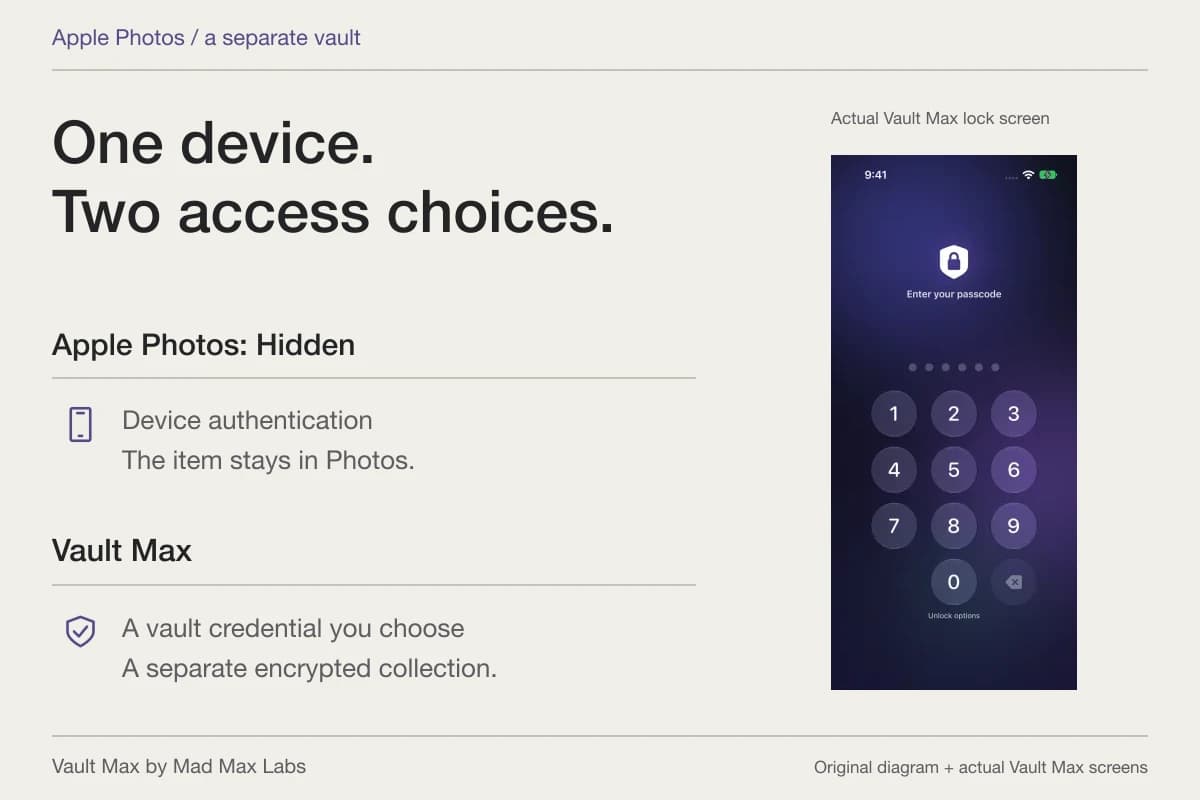
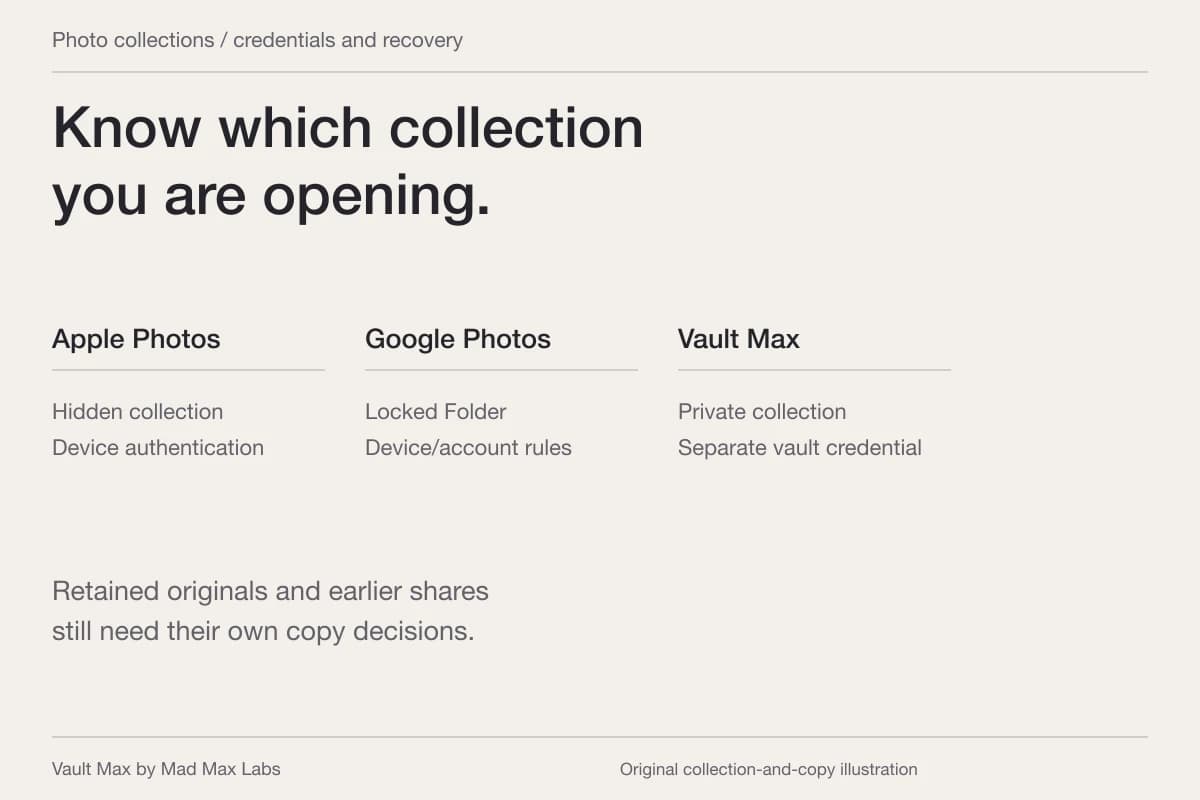
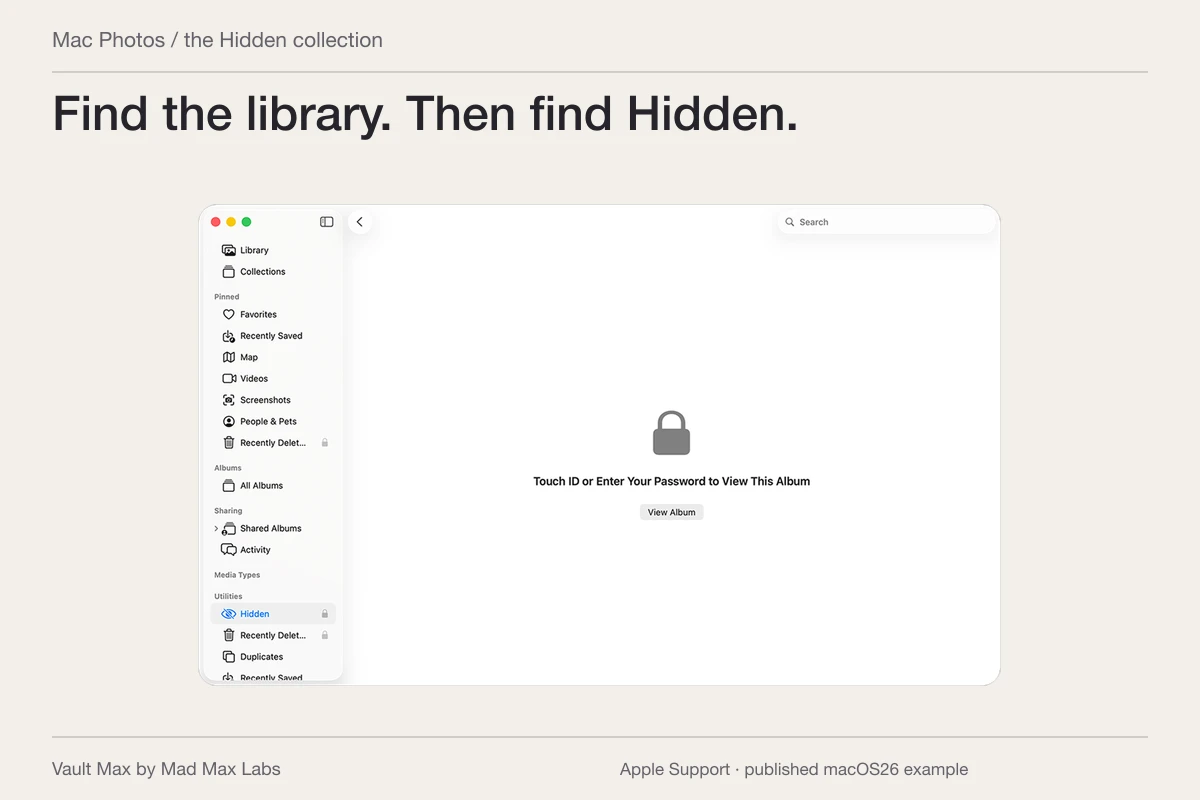
Hiding the Photos item is another presentation and access choice within that library. It does not move the image into Vault Max or remove a previously sent attachment. The Hidden album comparison explains that boundary if you want to choose between retaining a Photos copy and using a separate private collection.
Review message attachments and other intentional destinations
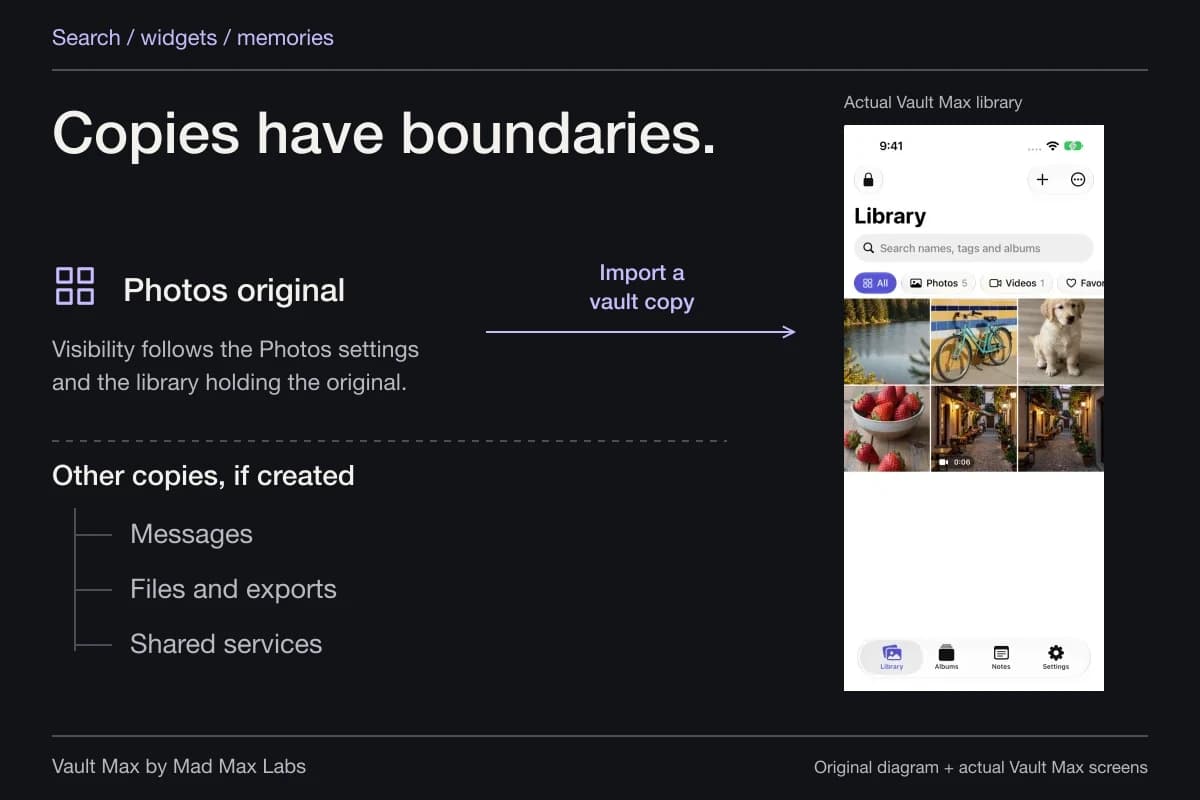
Return to the reason you made the capture. Did you send it in a chat, attach it to an email, save it in Files or place it in a shared album? Those locations need their own decisions. Closing the vault does not alter their access controls.
For an attachment already received by someone else, removing your local screenshot cannot establish that their copy disappeared. They may have saved or forwarded it. Review the destination's supported controls without treating a local delete as a remote recall guarantee.
The source application is another separate record. Deleting a screenshot of a conversation does not delete that conversation. If you want to change what remains in the source app, use its own controls and understand their effect. Revoking a future Photos permission also does not automatically remove an image an app already received.
Keep recovery useful without keeping unnecessary duplicates
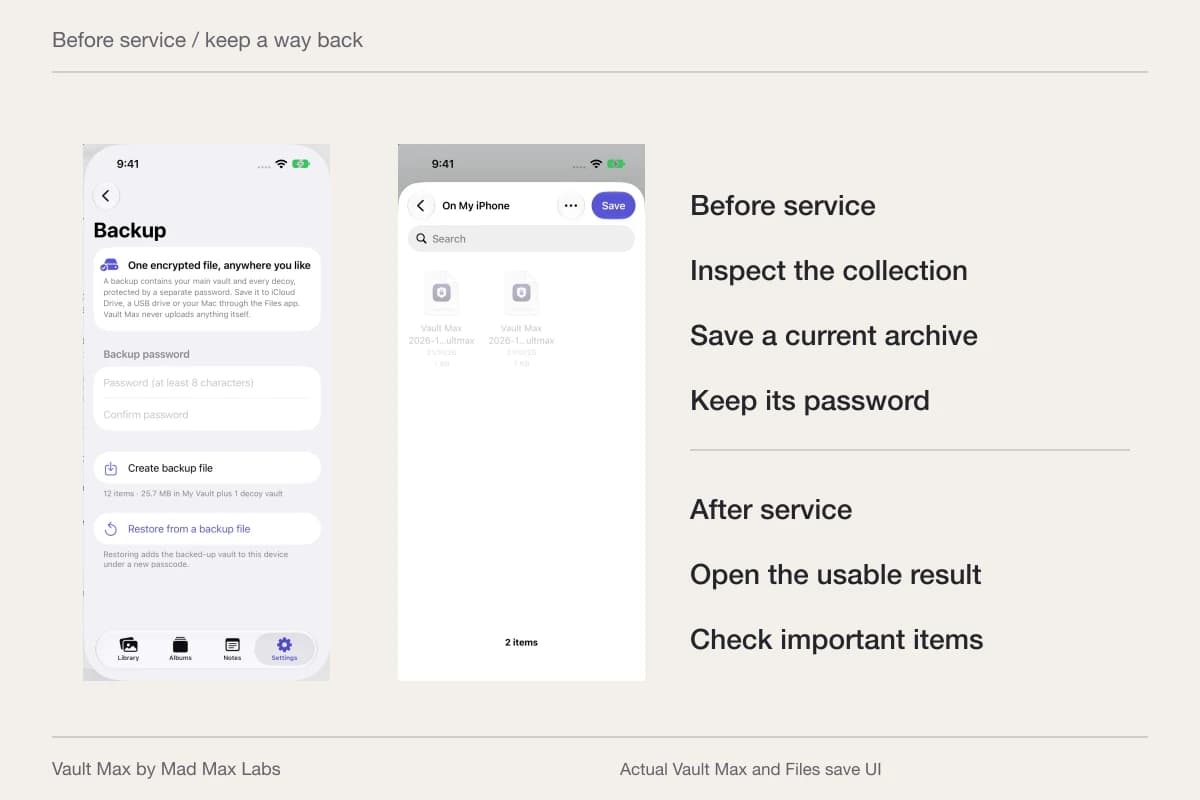
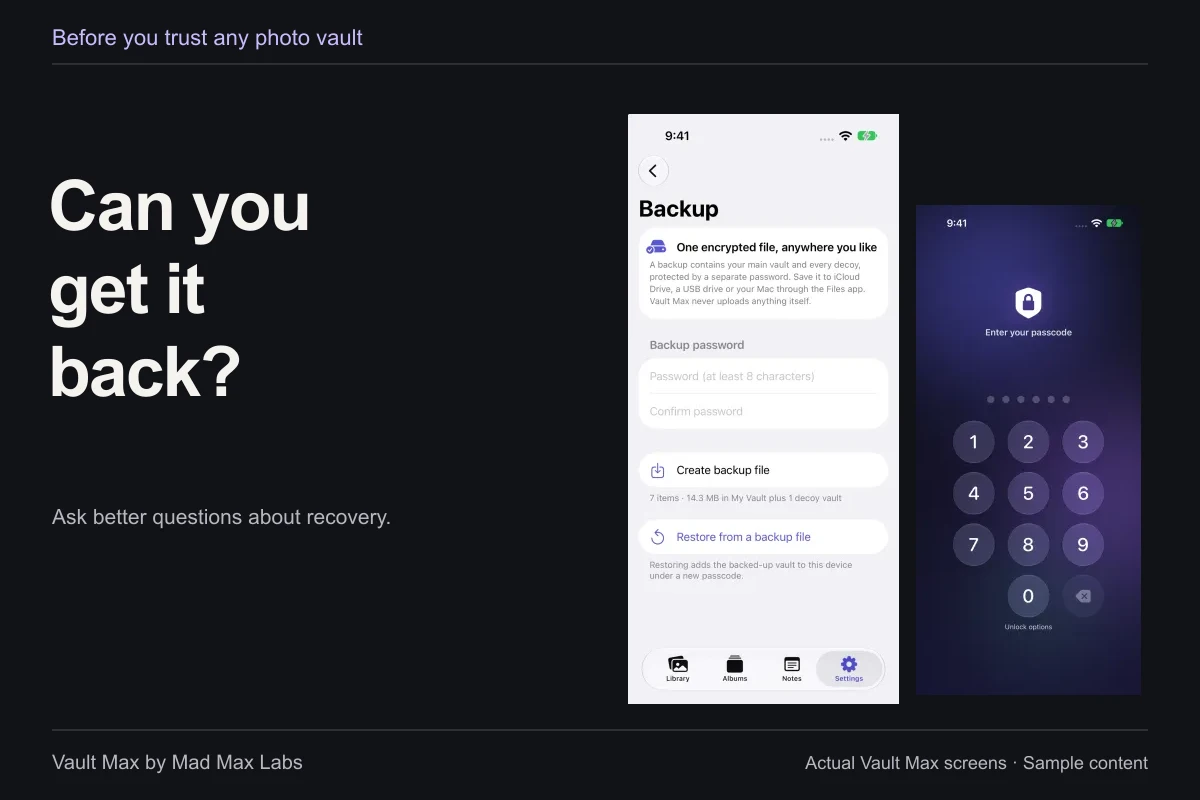
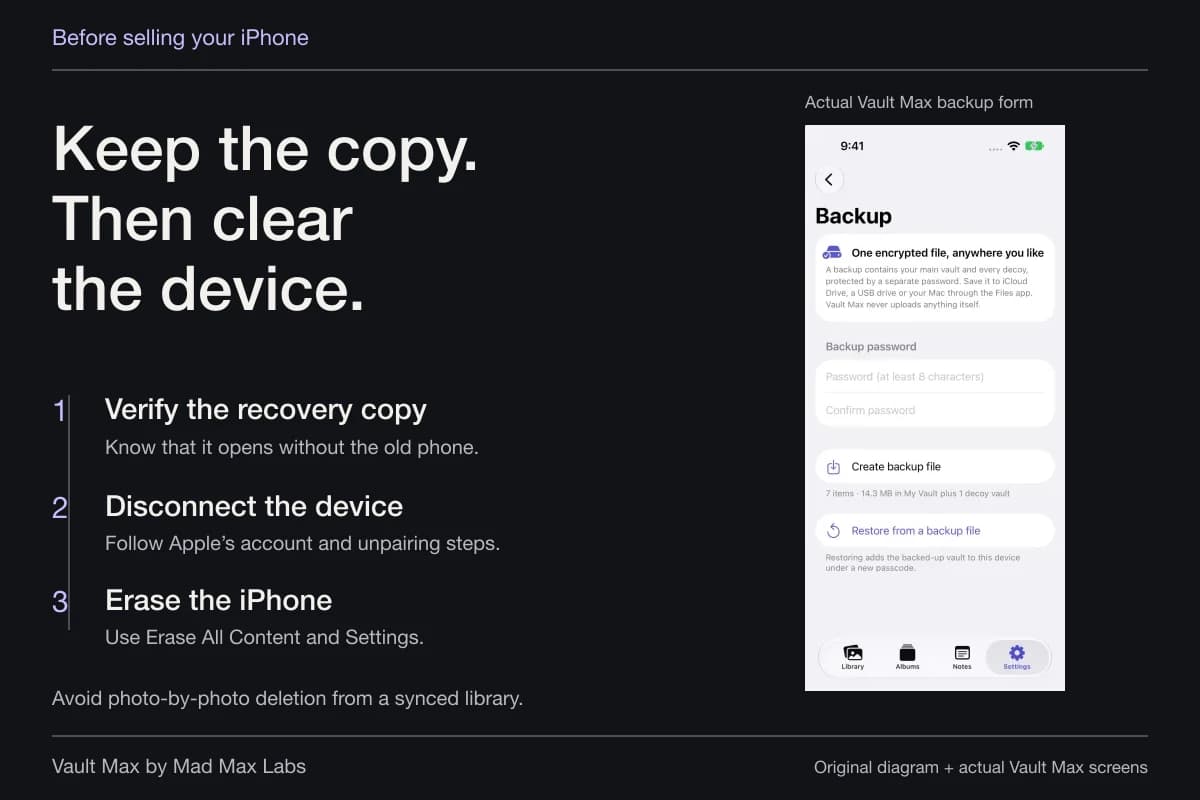
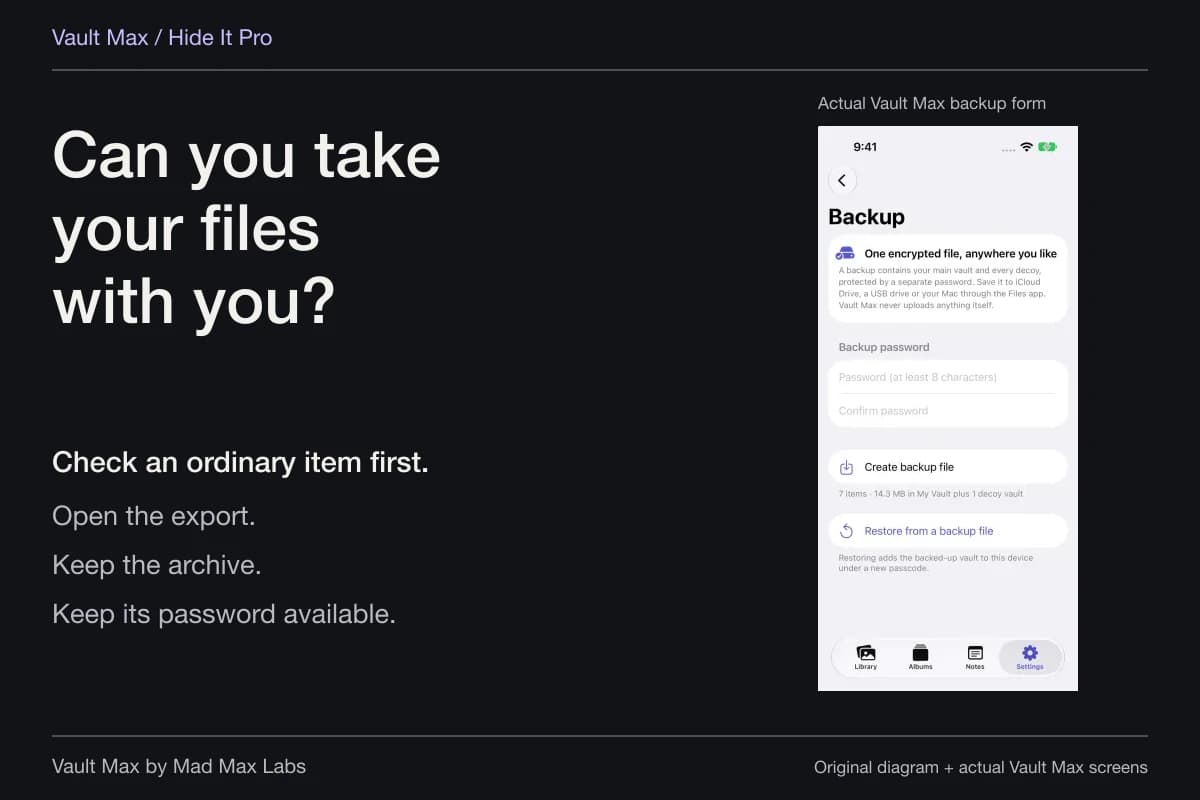
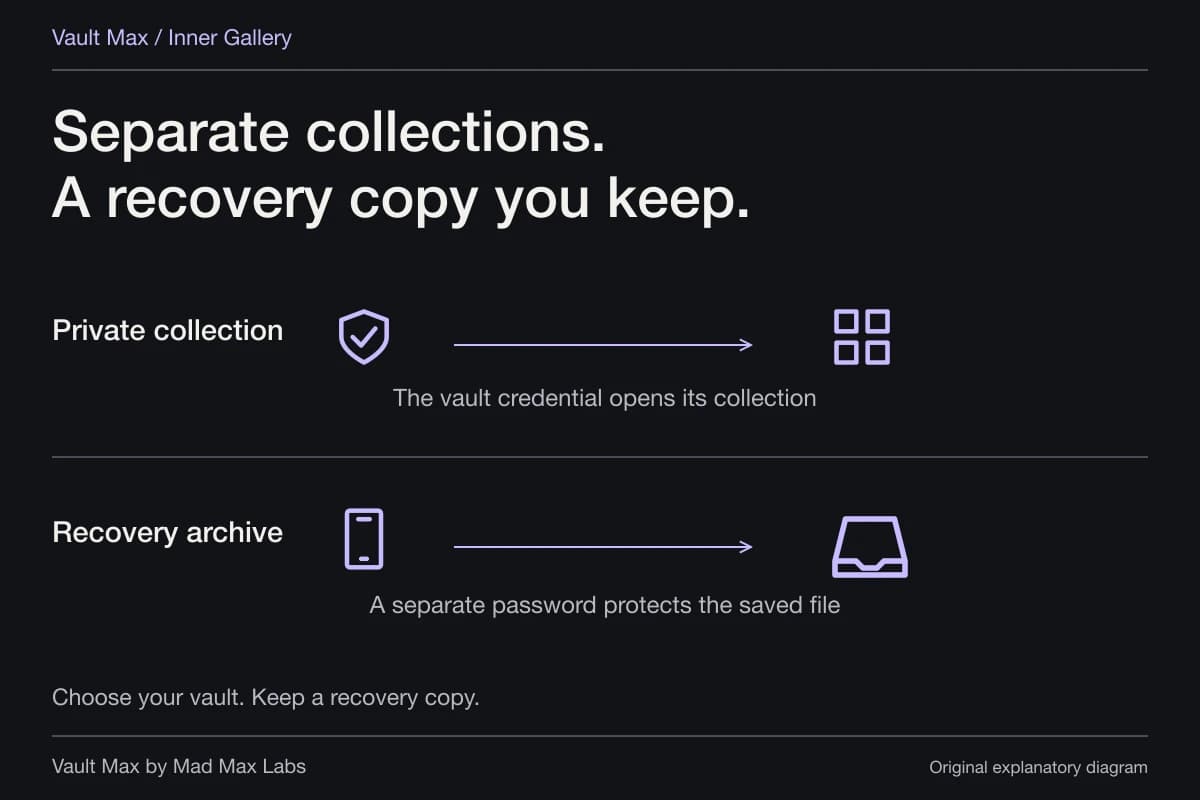
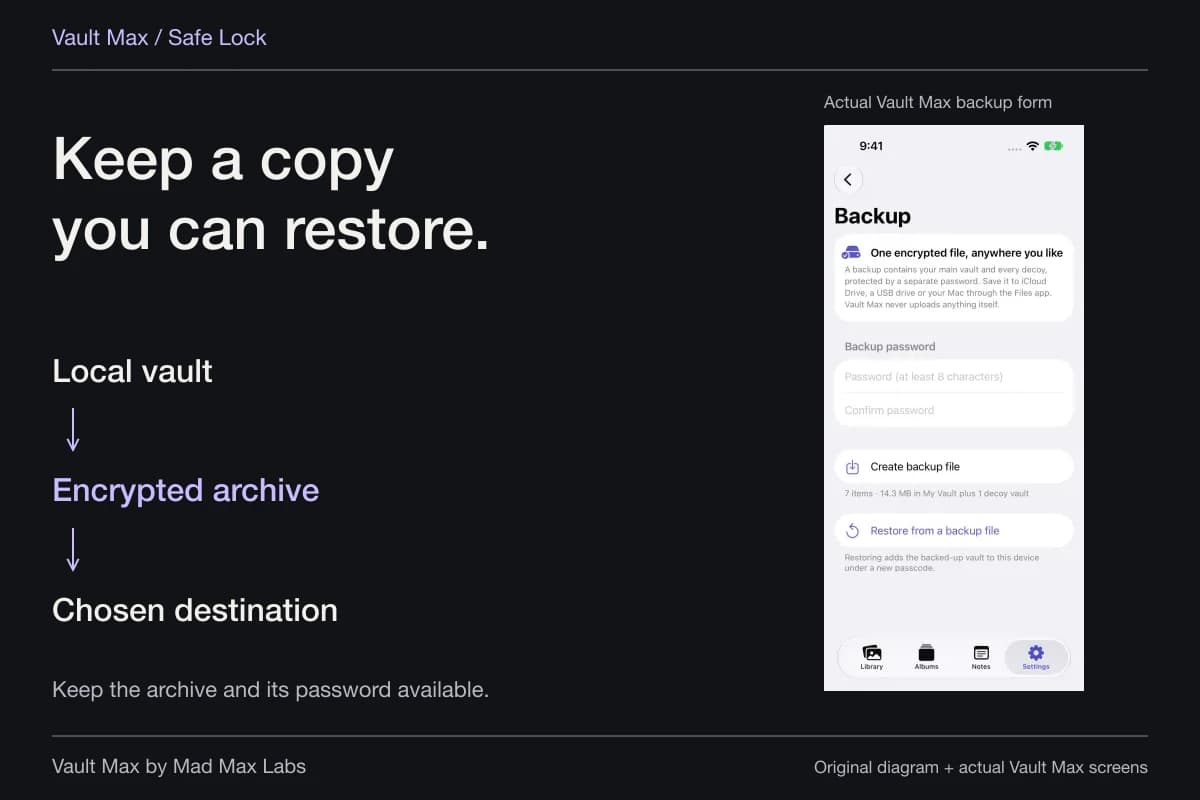
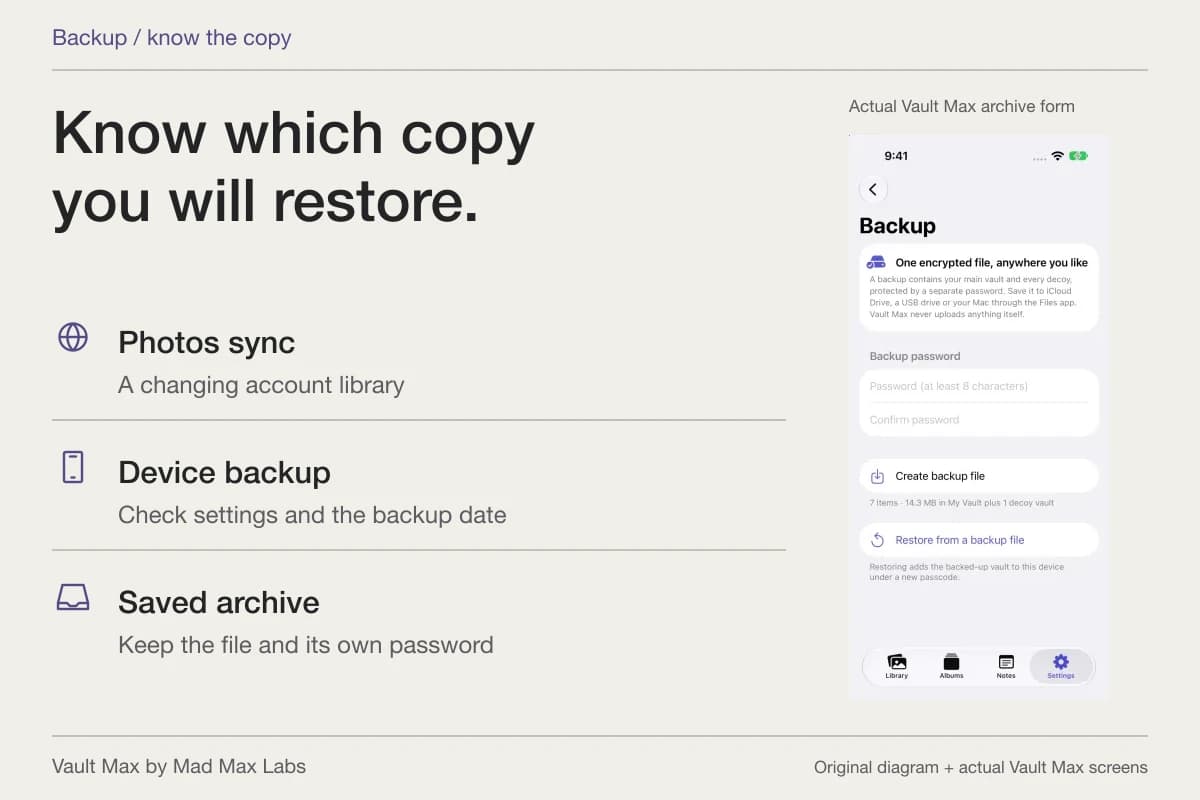
If the screenshot matters enough to retain, include the private collection in a fresh password-protected .vaultmax archive. Keep the file accessible without the old phone and its password independently available. A snapshot needs updating after additions; it does not follow your library automatically.
Give retained screenshots recognizable names and review old ones periodically. A private collection can accumulate expired references just like an ordinary photo library. Removing an item from the vault first moves it to its own Trash; that is distinct from Photos Recently Deleted and from any older archive containing the image.
Choose what you need to keep before making a deletion irreversible. The aim is an understandable set of usable copies, rather than the largest possible number of duplicates or the fastest possible cleanup. Our copy-and-permissions guide explains why a single permission switch cannot administer all those locations.
- Identify the conversation, webpage or application the image records.
- Review its complete visible contents and actual destination.
- Open the vault copy, organize it and practice closing the session.
- Understand sync and Recently Deleted before removing a needed original.
- Messages, Files and recipient downloads retain their own boundaries.
- Refresh the archive and retain its password independently.
Tap a box as you go. Checks reset when you leave this page.
Vault Max's free security features let you practice that full route with harmless material. A useful result is simple: you know which screenshot you kept, which credential opens it and where an independent recovery copy lives.
Common questions
Does importing a screenshot into Vault Max delete it from Photos?
Importing creates a separate encrypted vault item. Vault Max can offer a separate original-deletion action after a saved Photos import, but you should inspect the result and understand the Photos sync and Recently Deleted behavior first.
Does deleting the screenshot remove the original conversation?
No. A screenshot is a copy of what was visible. The message thread, webpage, source app and any screenshot already sent elsewhere have their own storage and deletion controls.
Are all iPhone screenshots PNG files?
Not on every current setting. Apple's current Screen Capture guide describes PNG for SDR screenshots and HEIF for HDR screenshots. Inspect the actual saved item rather than relying on one expected extension.
Continue reading
More guides
Practical tips for your private library. Swipe or scroll to choose your next guide.
74 guides to explore