
Privacy in practice
Stop Shared with You photos appearing on iPhone
Control Shared with You for Photos, one conversation or every supported app. Check saved library copies separately, then organize the photos you retain.
To stop Shared with You photos appearing in Photos, open Settings → Apps → Messages → Shared with You and turn off Photos. You can instead change one conversation, or turn off Automatic Sharing for the supported apps together. Then inspect pictures you deliberately saved: a presentation setting is not a reliable way to clean up every existing copy.
This guide covers Apple's Messages and Shared with You feature. WhatsApp, Instagram and other services have their own saving and sharing controls. First identify the app supplying the picture so you change the setting that belongs to the problem.
Understand the three places a received photo can matter
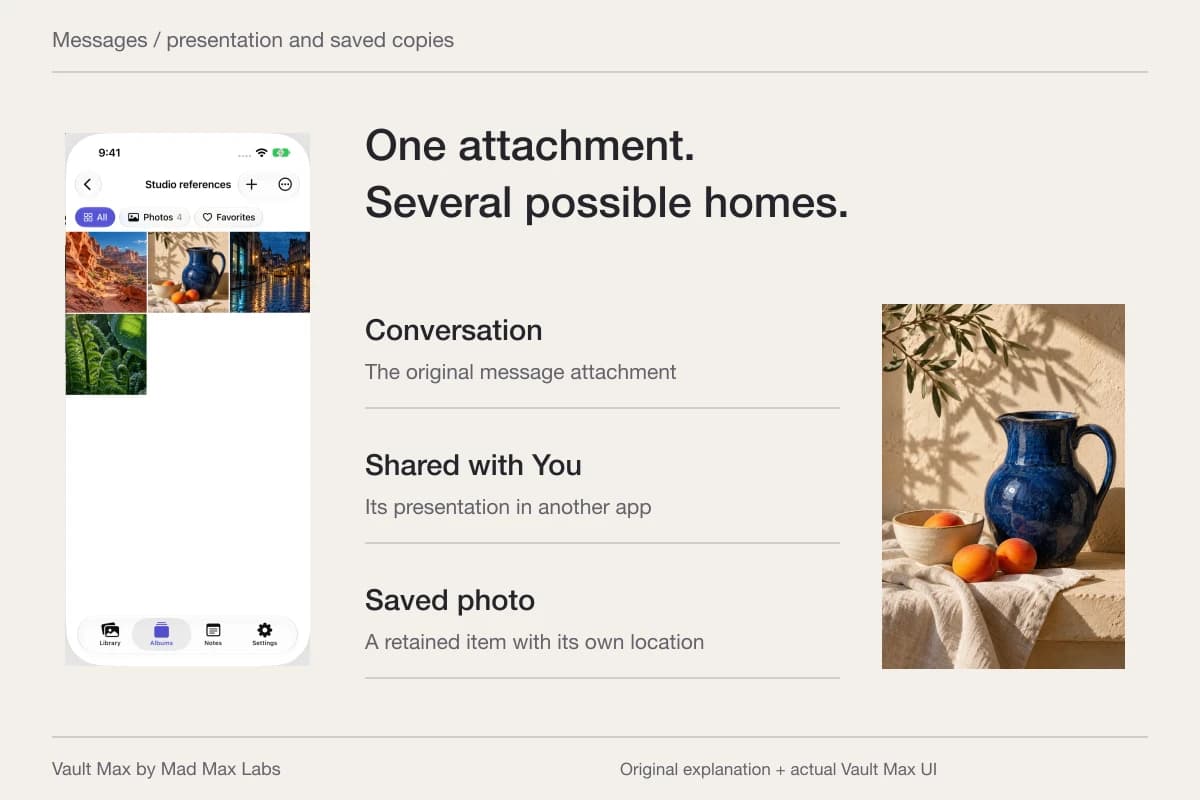
Someone sends you a useful picture in Messages. You may see the attachment in the conversation, see it presented through Shared with You in another supported app, and deliberately save a photo for later. Those experiences can look similar while answering different questions about where you are viewing the item.
Apple's current Messages guide explains Shared with You and its controls. It also documents an explicit Save Photo action for received pictures. Review what you did with the particular item instead of assuming every thumbnail is a newly created, independent file.
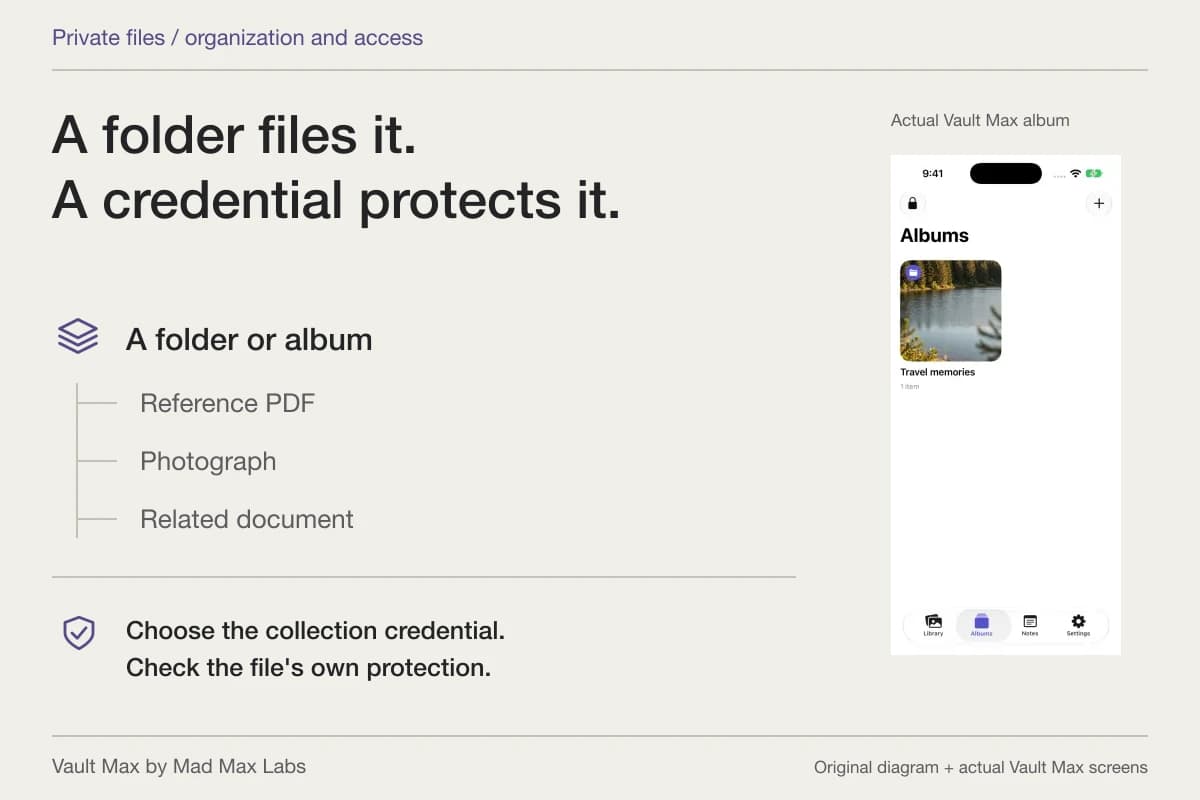
For example, a friend sends a photo of a weekend project. You want the reference, but not every picture from a busy group conversation mixed into everyday browsing. Changing Shared with You addresses the presentation. Keeping one selected reference in an organized private collection addresses what you retain for your own use.
- Shared with You
Presentation in a supported app
Control Photos, one conversation or Automatic Sharing.
Changing presentation is not library cleanup. - You choose Save Photo
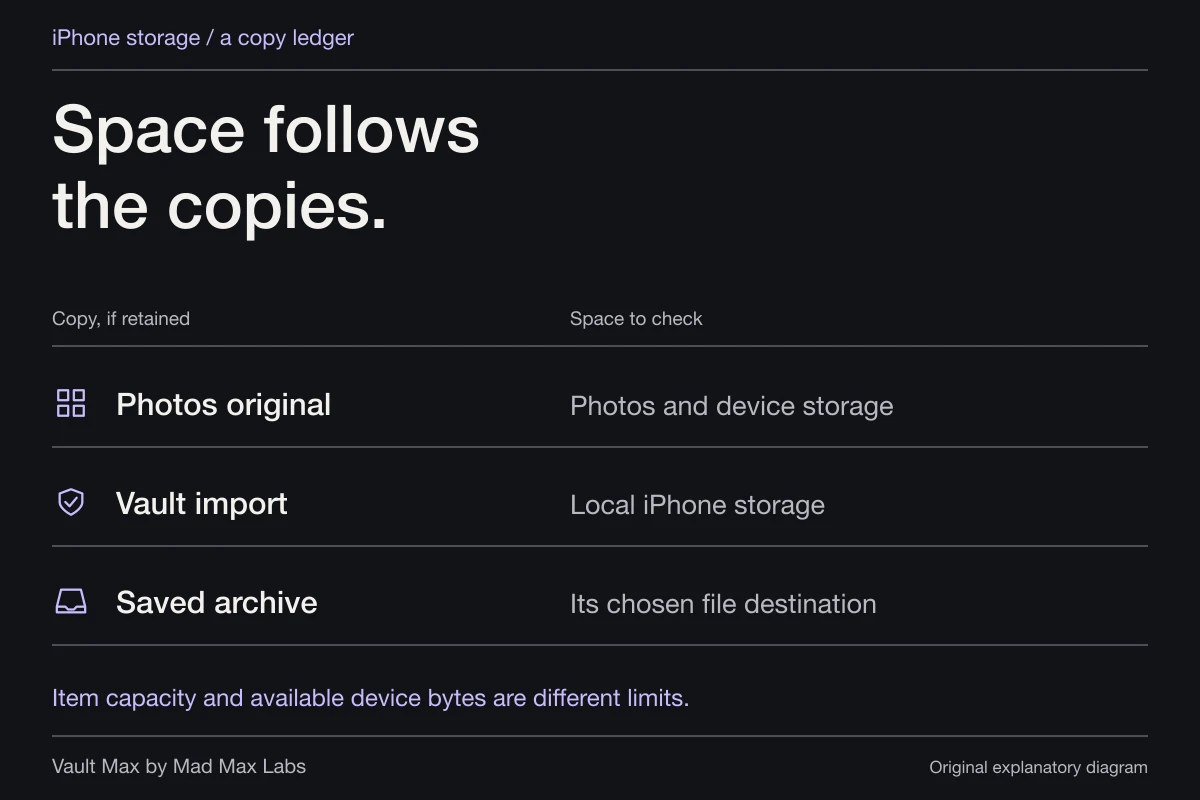
An explicitly retained Photos item
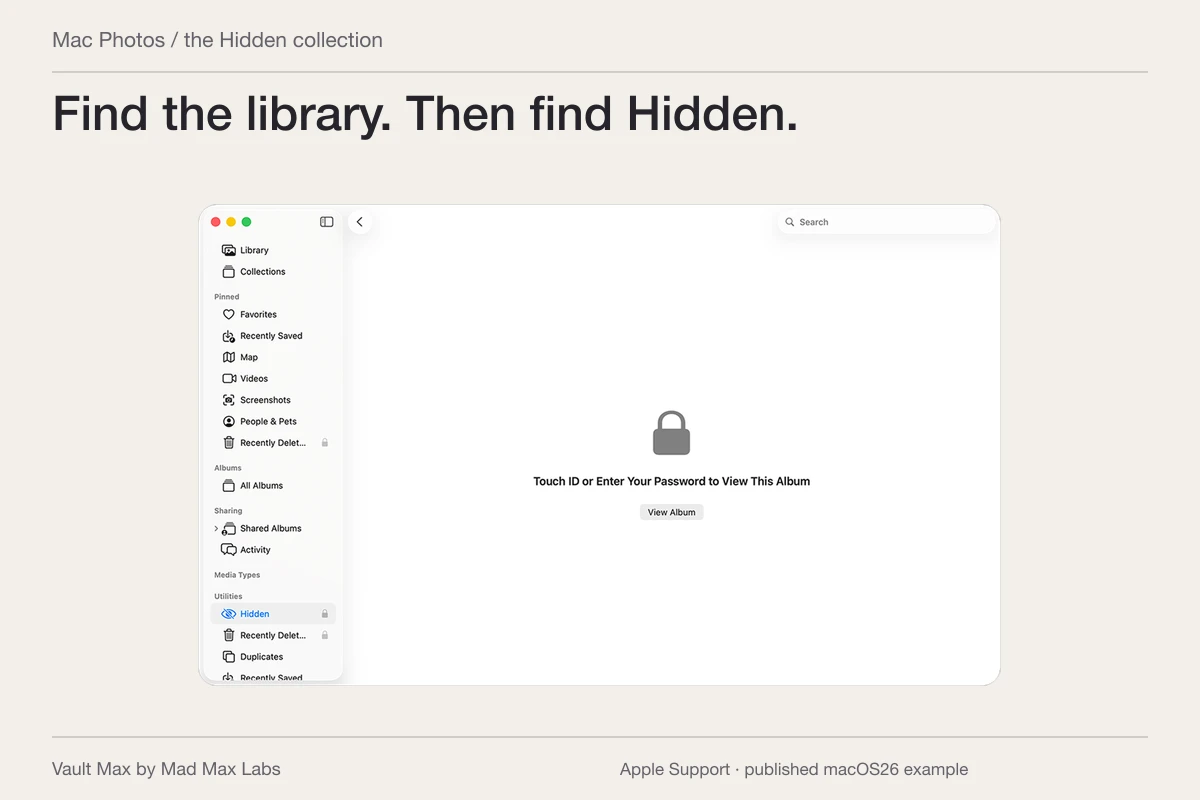
Inspect the saved result and its library’s settings.
Review this copy independently.
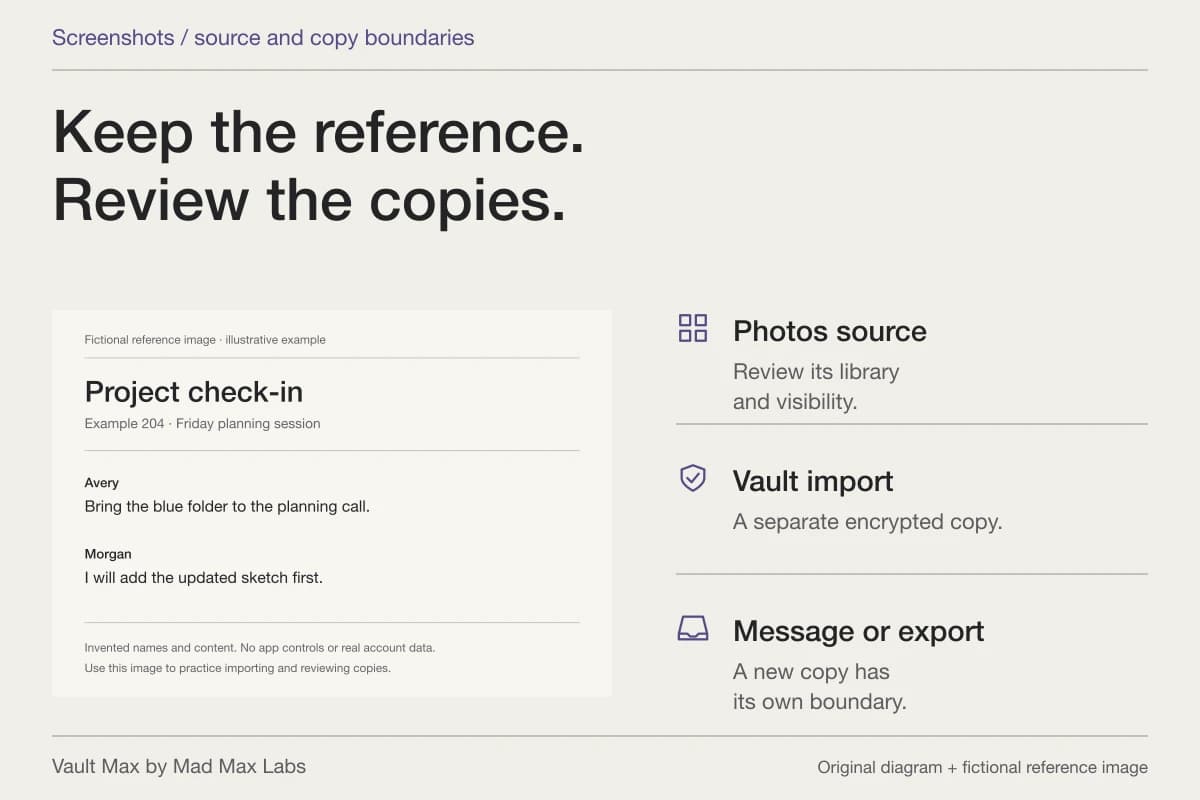
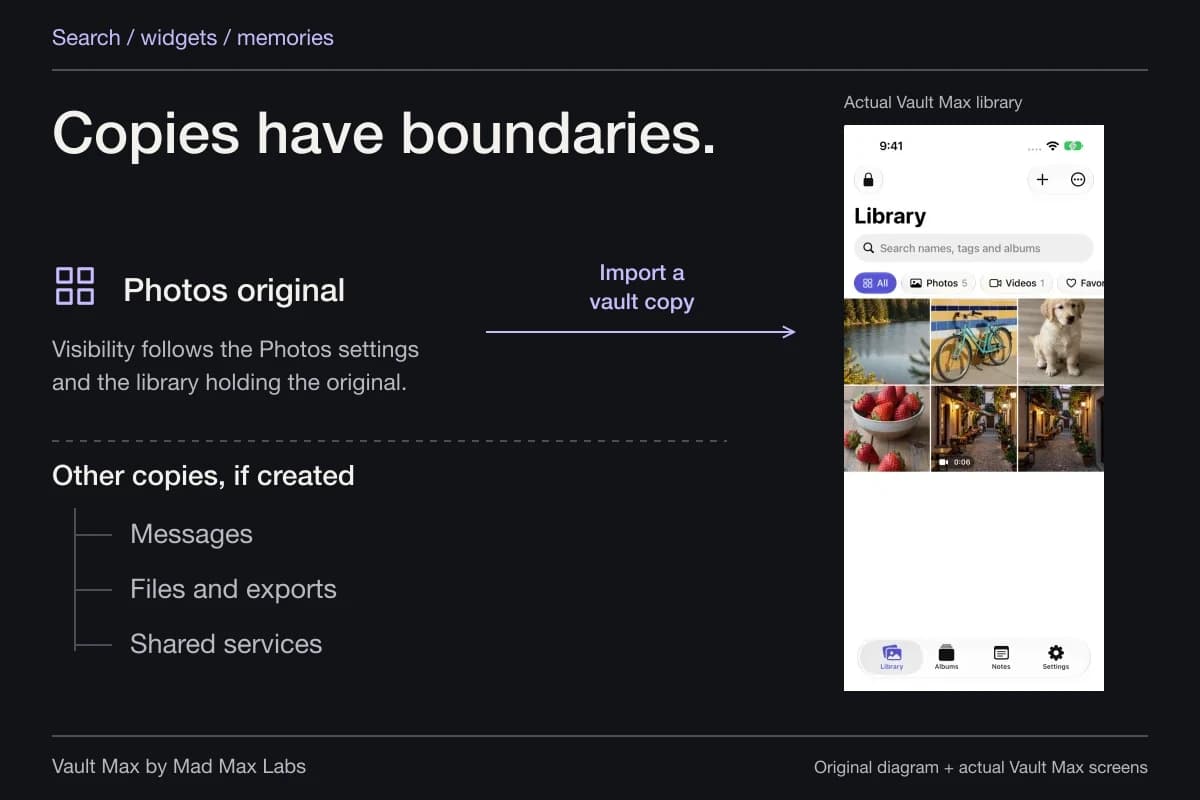
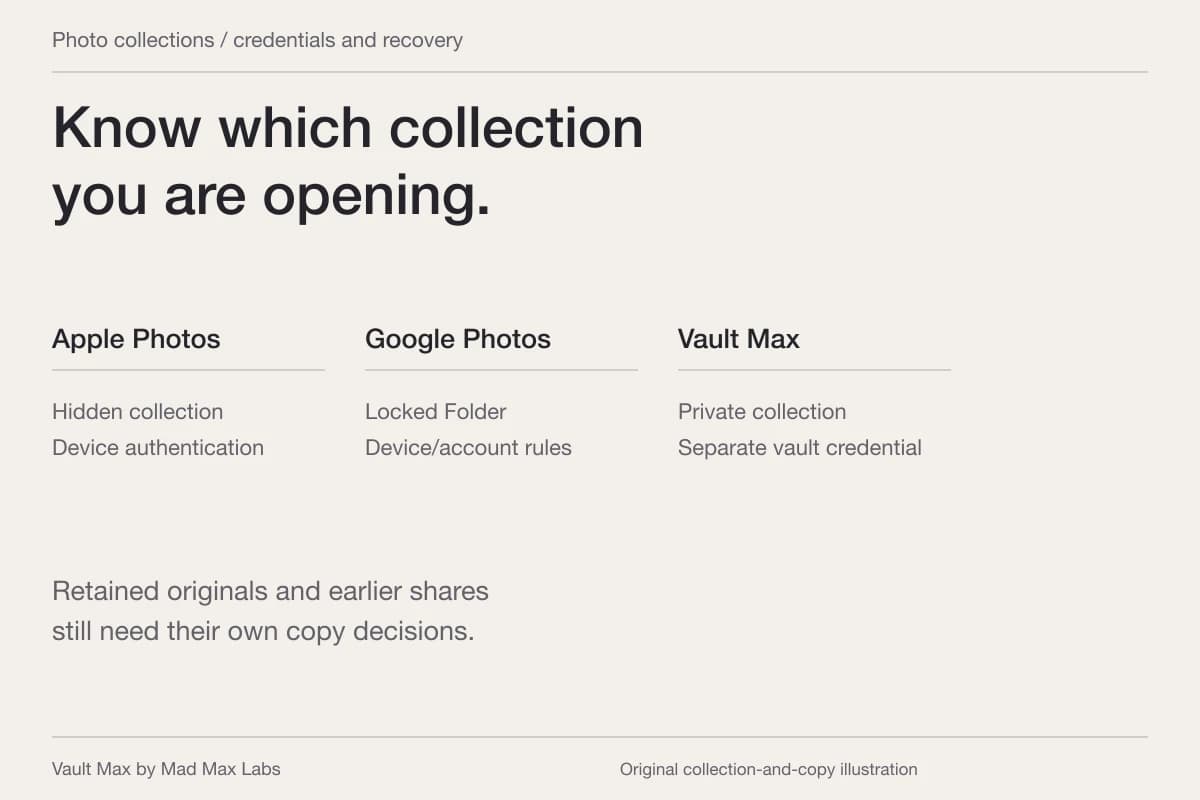
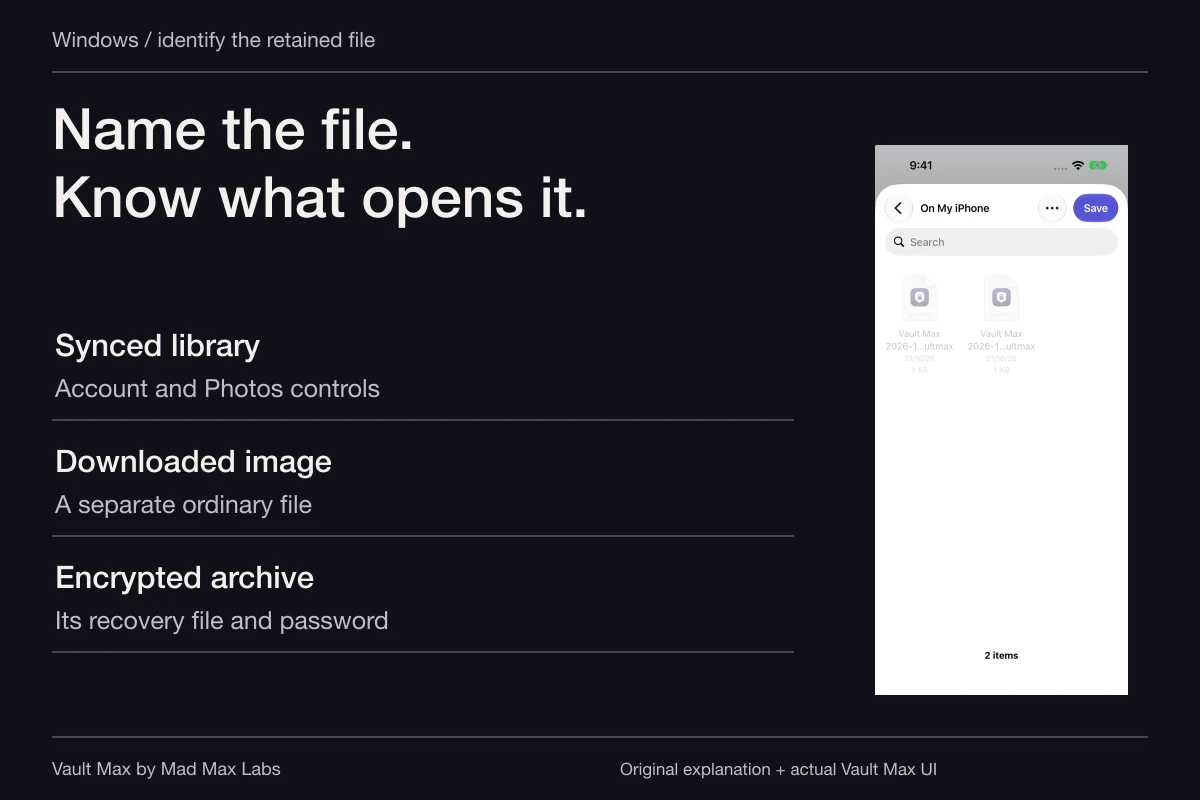
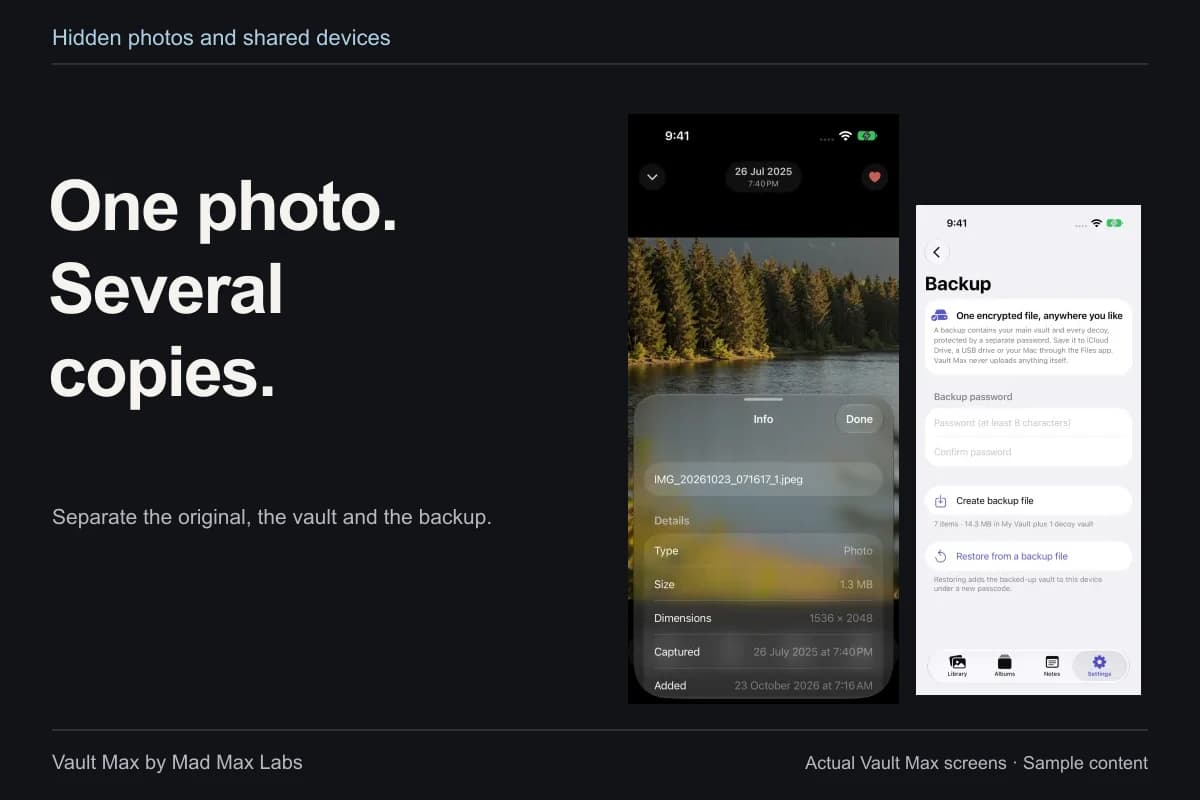
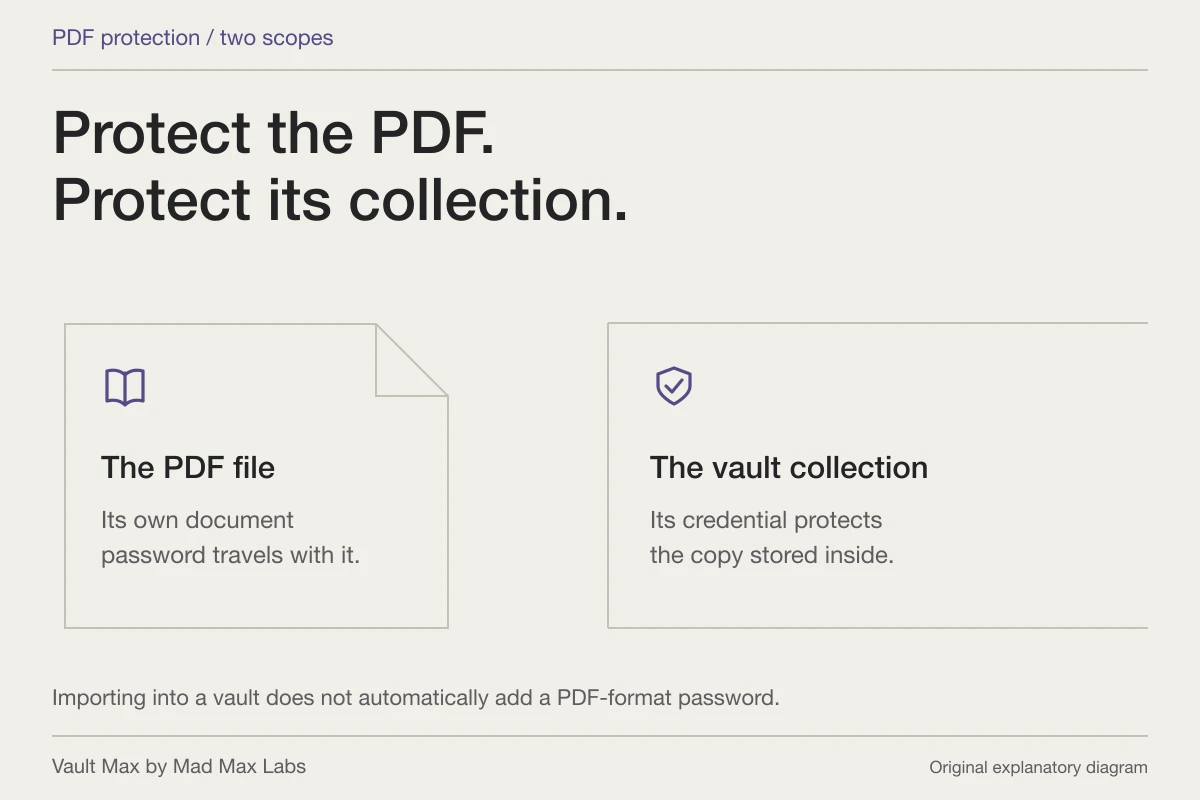
Verify the separate vault copy. The import does not delete the conversation or the Photos original.
Choose the smallest control that solves the problem
If only Photos is the concern, use the Photos switch under Settings → Apps → Messages → Shared with You. Other supported apps can keep their own Shared with You behavior. Apple's personal-safety settings guide documents both app-specific controls and Automatic Sharing.
If you do not want the feature across its supported apps, turn off Automatic Sharing instead. The scope is broader, so decide whether that matches what you want before changing it. You may still find content useful in Music or Safari while preferring a more deliberate Photos collection.
For one conversation, open it in Messages, tap the contact or group icon, open Info, and turn off Shared with You. That is particularly useful when one active group supplies most of the unwanted material. Check the conversation you actually opened; similar group names can make a quick settings change easy to misapply.
Apple's interface varies across software versions. These paths follow the current iOS27 guide. If your conversation details look different, consult the version selector and look for the named feature rather than assuming an absent button means the photo cannot be controlled.
Check the outcome without sending more private material
Return to the app where the unwanted item appeared and inspect that feature. Confirm the setting you changed still has the intended value. If you want to learn its behavior with another person, use an ordinary, non-sensitive picture rather than creating a fresh private attachment as a test.
A setting inspection and a delivery experiment establish different things. The first shows your configuration. The second shows how one harmless item behaves in that particular conversation and software setup. Neither establishes that every older saved file or recipient copy was deleted.
If a picture remains in the main library, inspect it as a possible saved item. If it remains in Messages, you are looking at the conversation record. Do not keep toggling Shared with You in the hope that it will operate a different storage location.
| Your goal | Relevant place | What still needs separate review |
|---|---|---|
| Stop presentation in Photos | Messages settings → Shared with You → Photos | A photo already saved in the library |
| Change one conversation | Conversation details → Info → Shared with You | The original conversation attachment |
| Change supported apps together | Shared with You → Automatic Sharing | Copies intentionally retained or shared elsewhere |
| Keep one private reference | A verified import into the intended vault | The Photos source and any earlier destinations |
Decide which received pictures you actually want to retain
Before deleting or moving anything important, open the full image. Check whether it contains information outside the part you originally noticed: names, surrounding context or a useful detail near an edge. A small thumbnail can be enough to recognize a picture without being enough to assess the entire record.
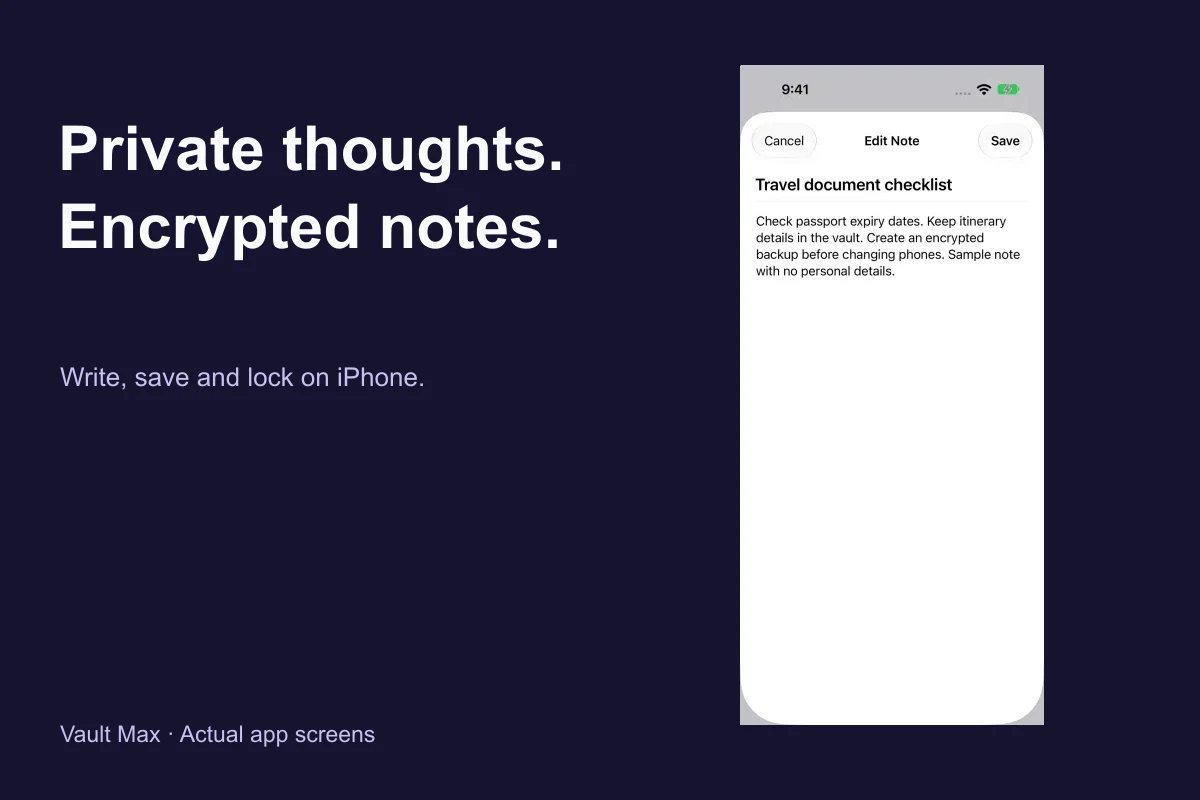
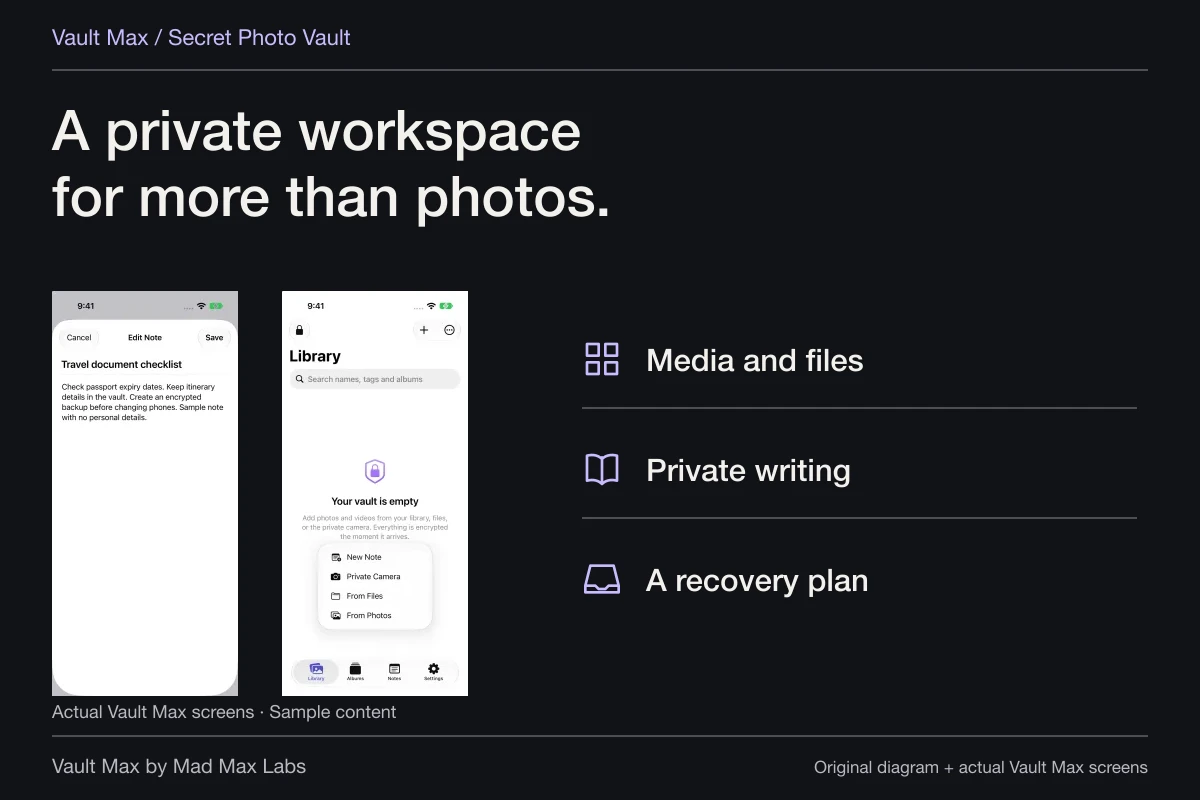
If you need only a short reference, you may prefer an encrypted note containing that context. If you need the visual record, keep the image. The choice is about what remains useful, rather than collecting duplicate screenshots of the same attachment in several apps.
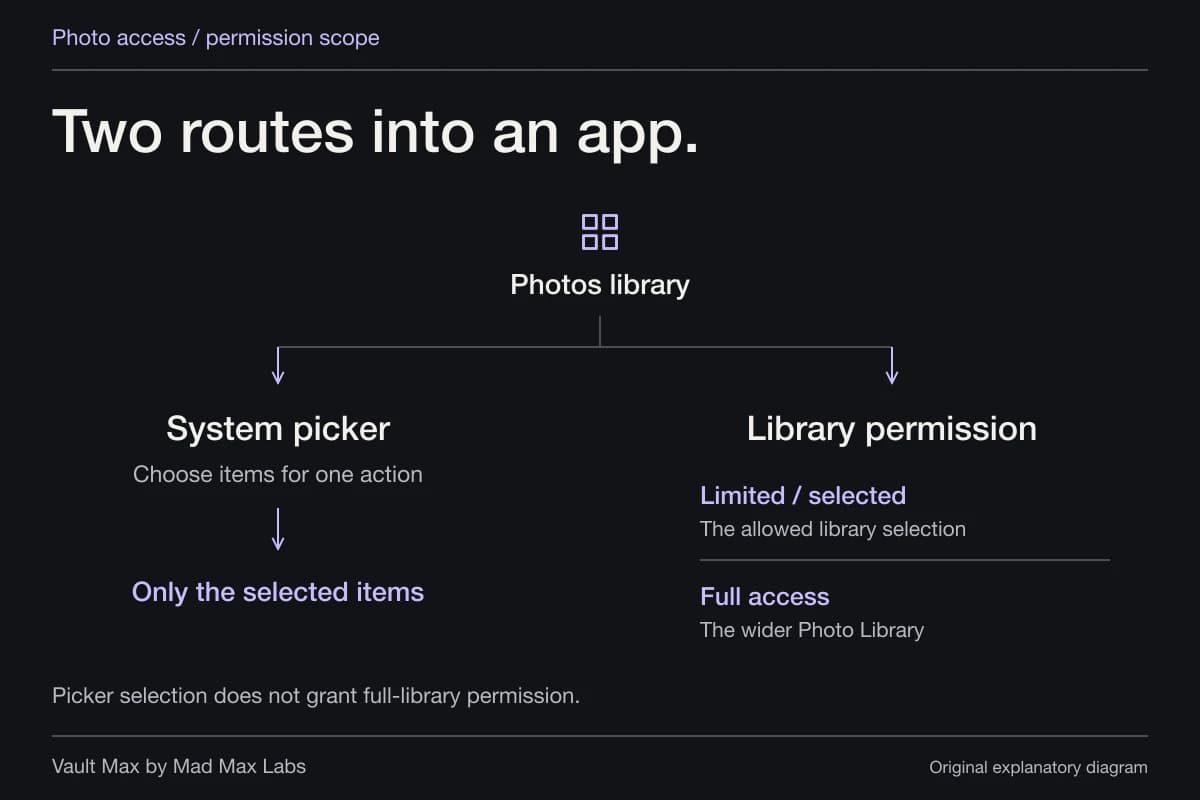
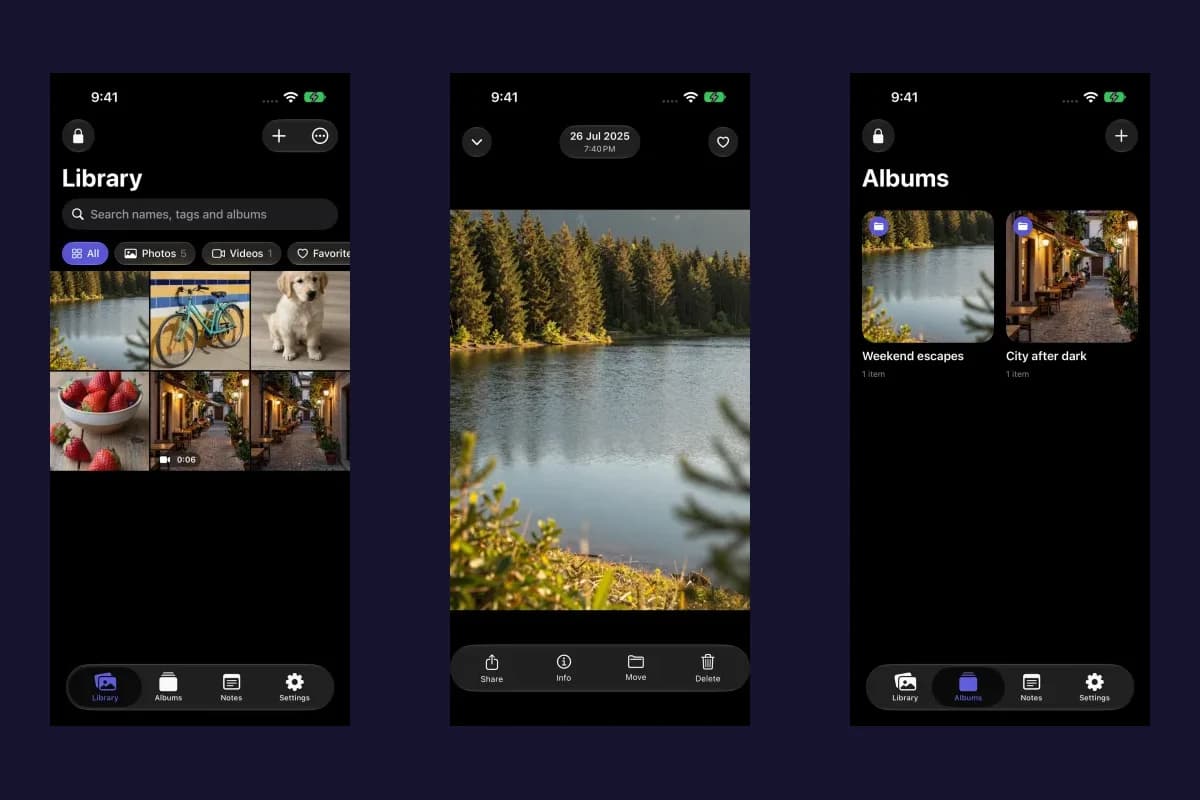
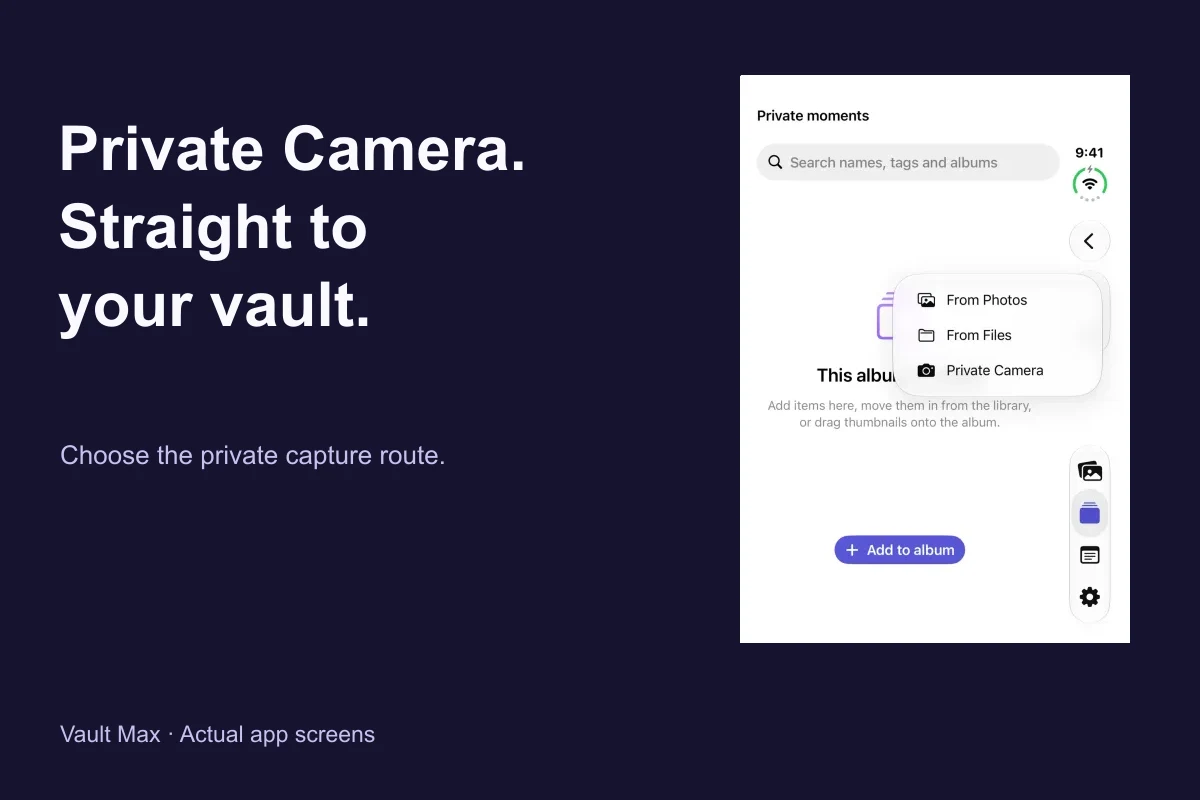
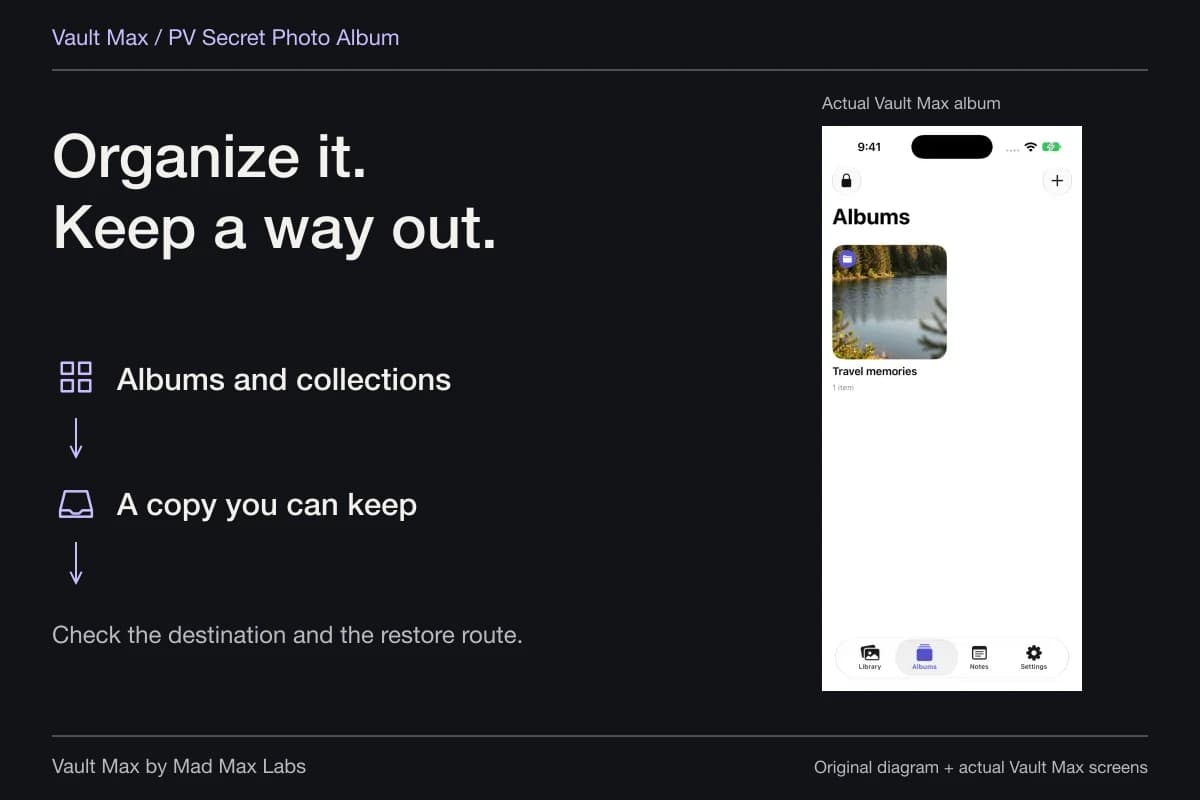
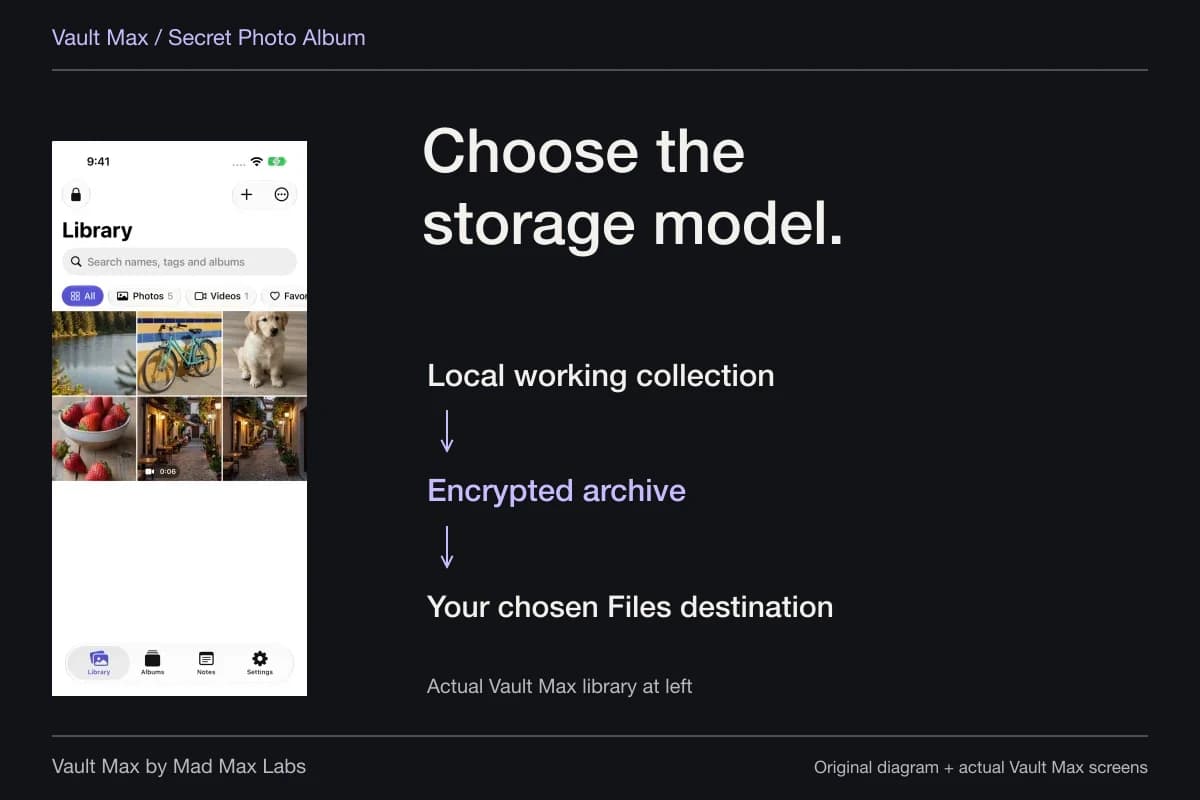
When a received photo is already in Photos, use Vault Max's From Photos import to select it. Wait for the saved result and inspect it in the private collection. Give it a useful name or album so it can be found without browsing through unrelated private items.
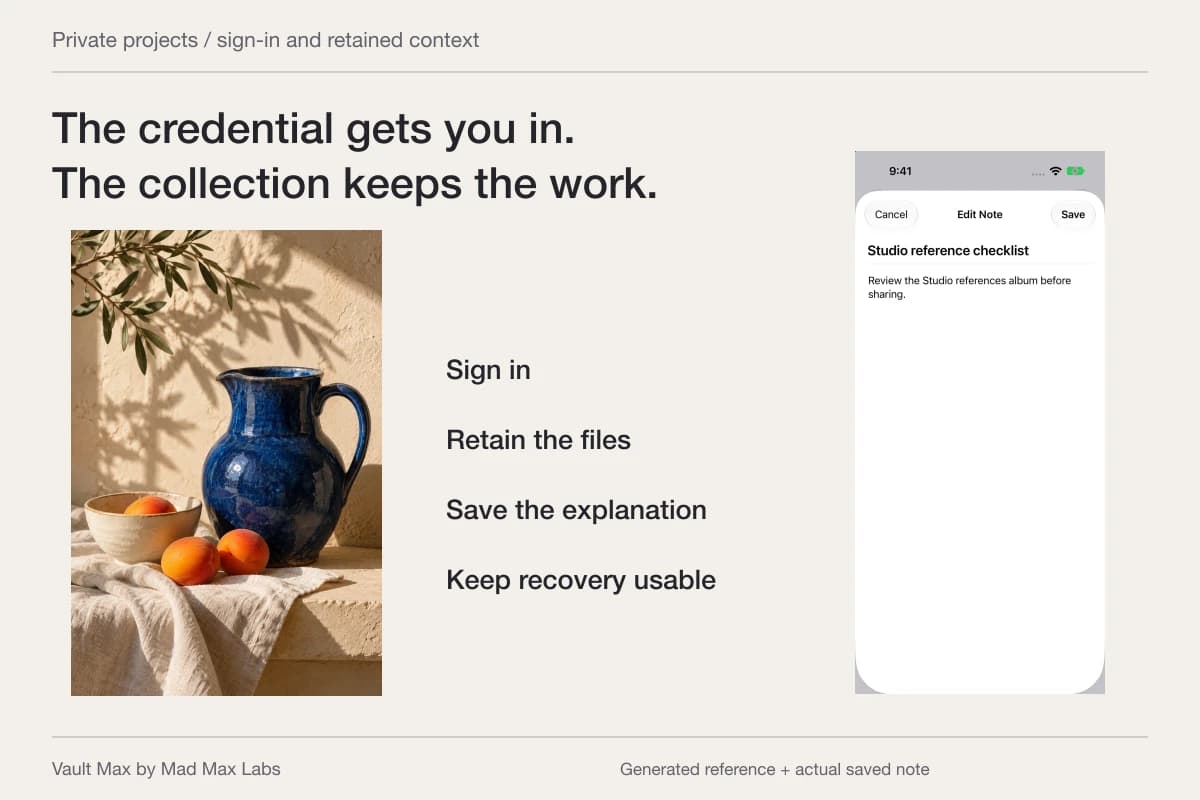
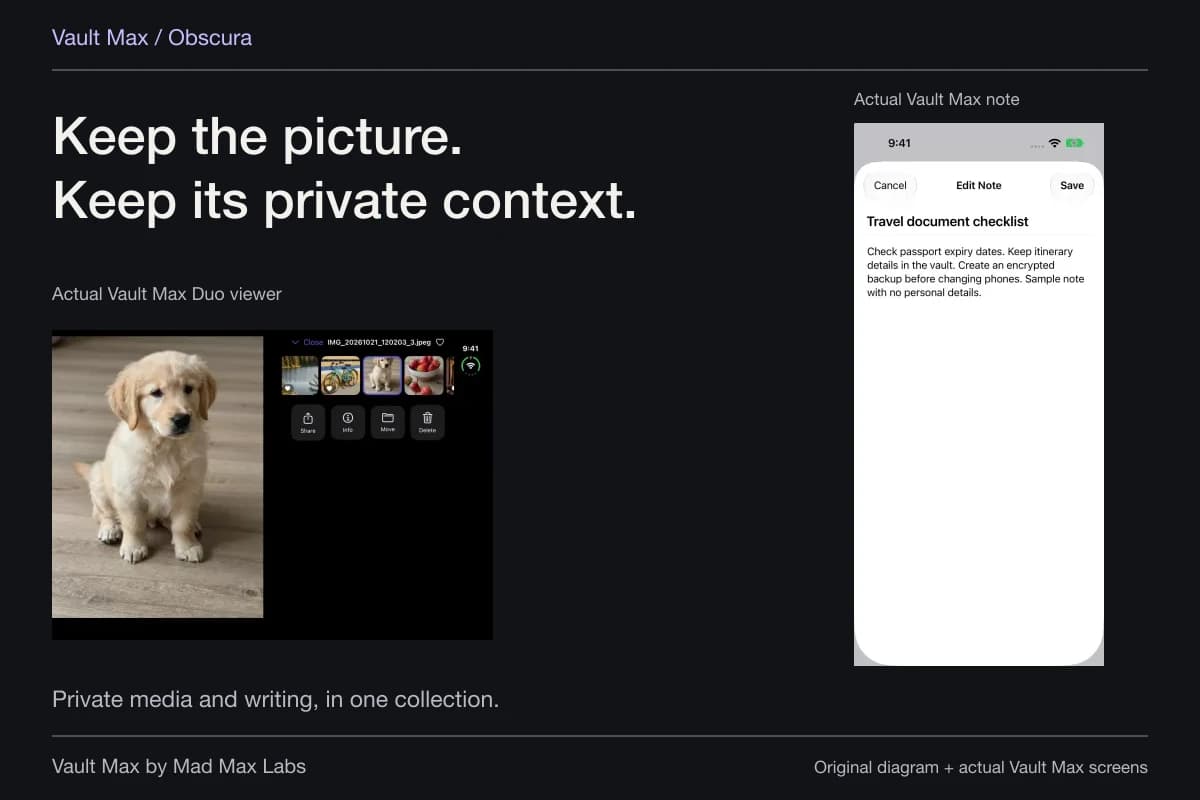
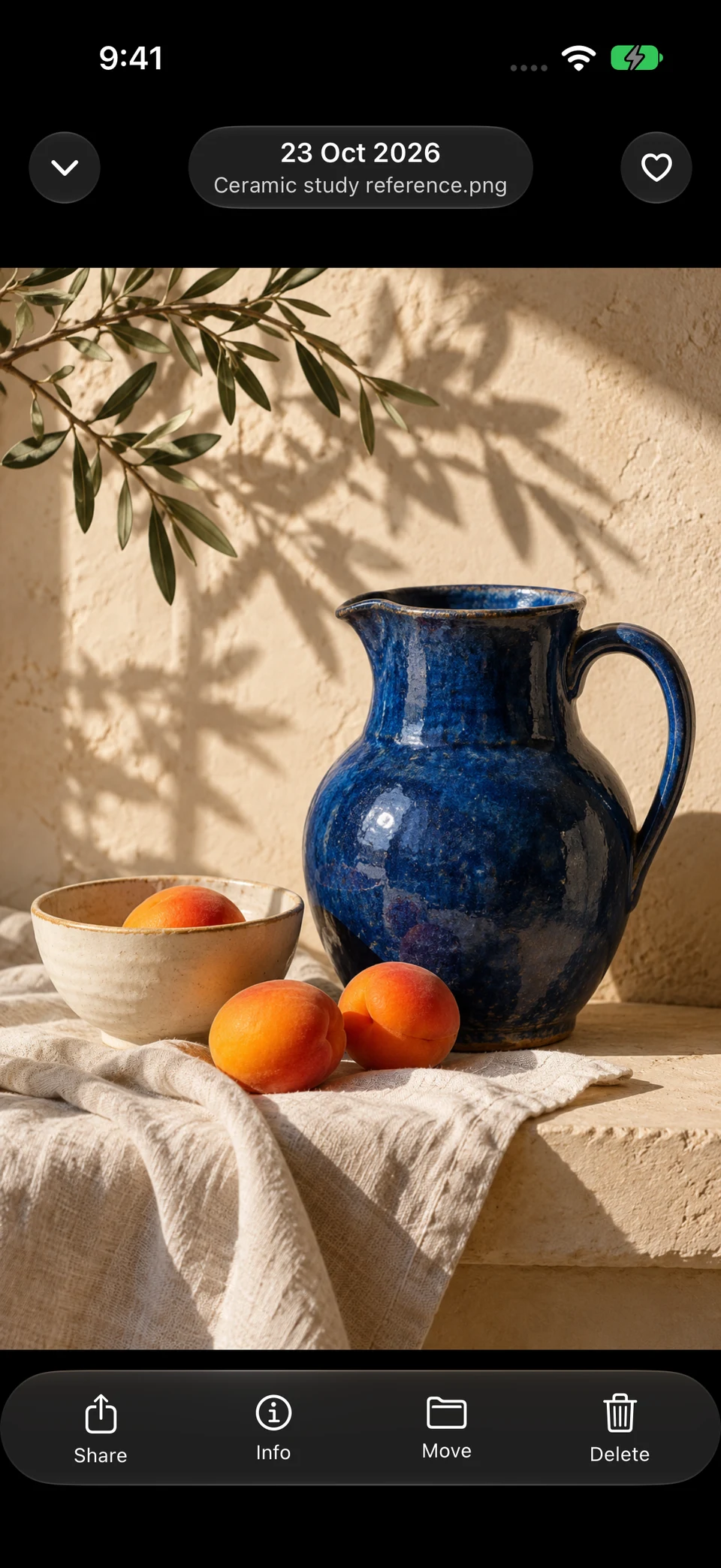
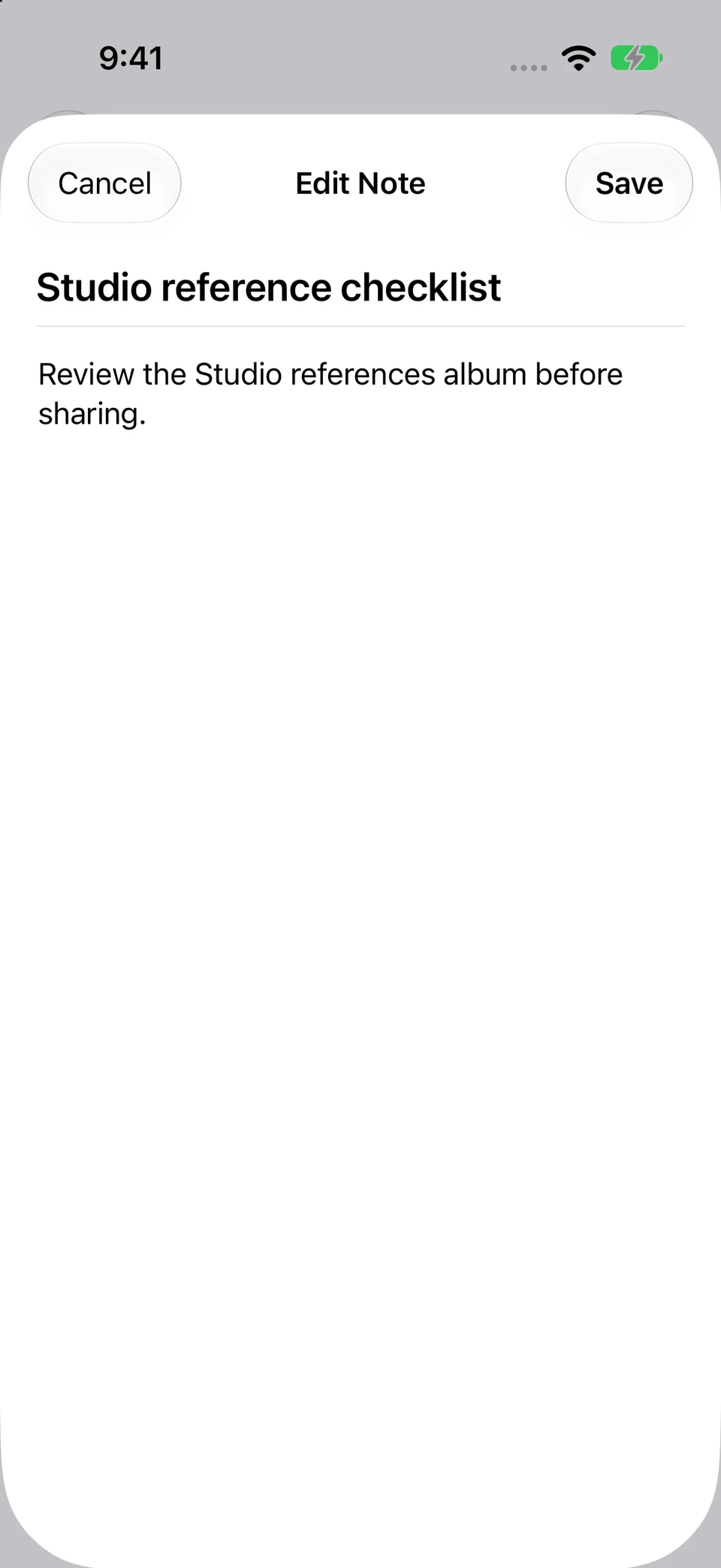
The ceramic still life is generated sample content in the actual Vault Max viewer. The saved note was reopened through the real Notes workflow. These illustrate a private reference routine, not a captured Messages or Shared with You import.
Actual Vault Max · QA simulator, generated sample photographsThe reference photograph
Open original image: The reference photographIts saved context
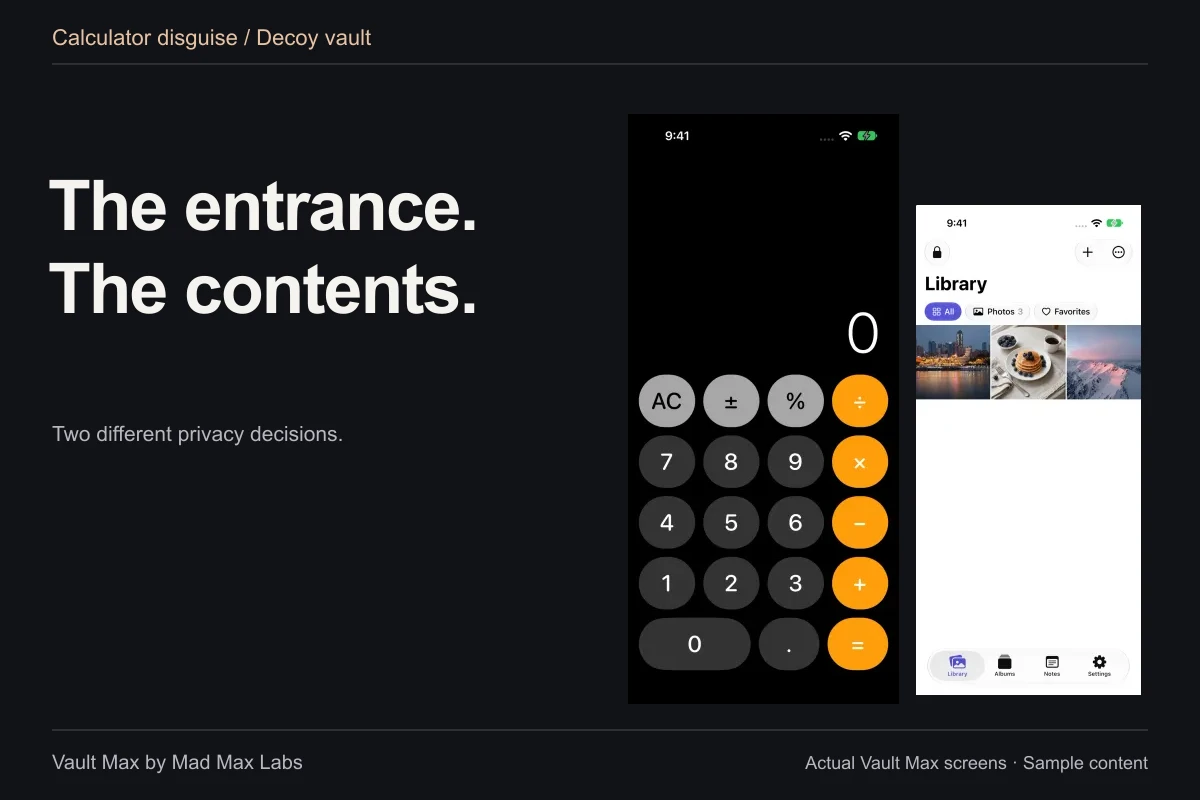
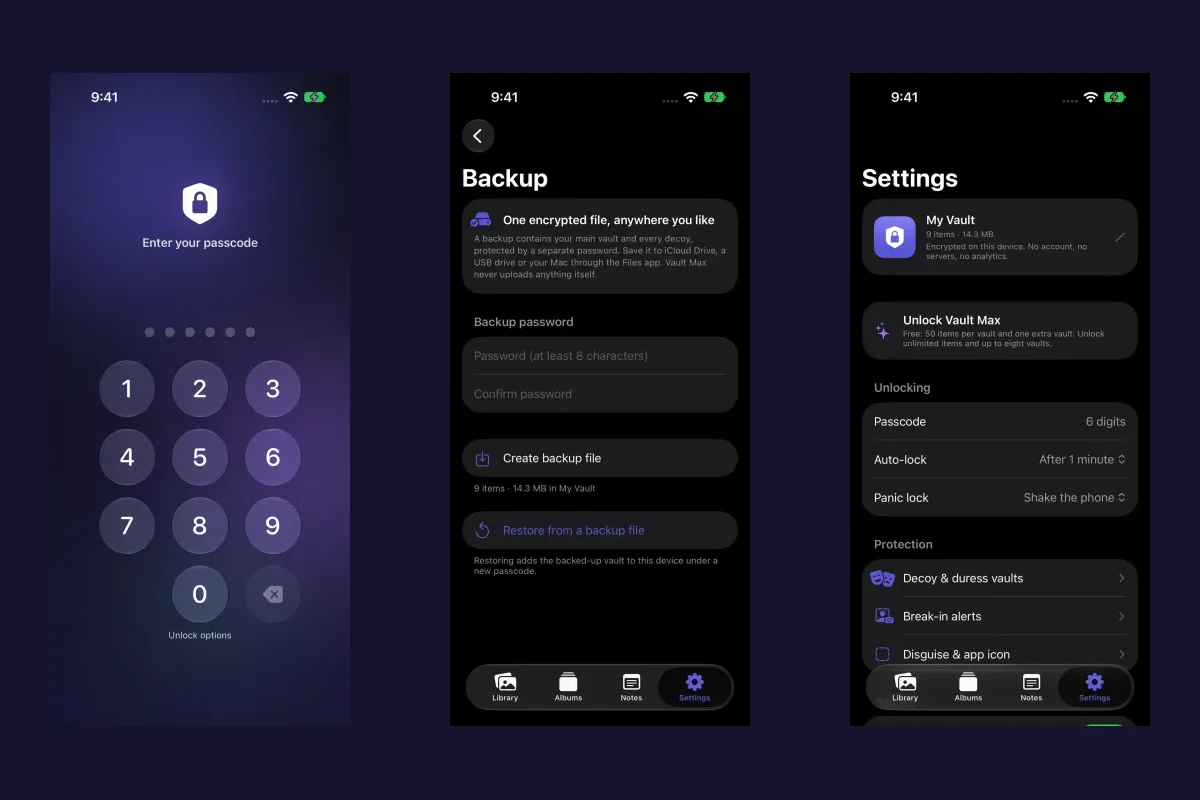
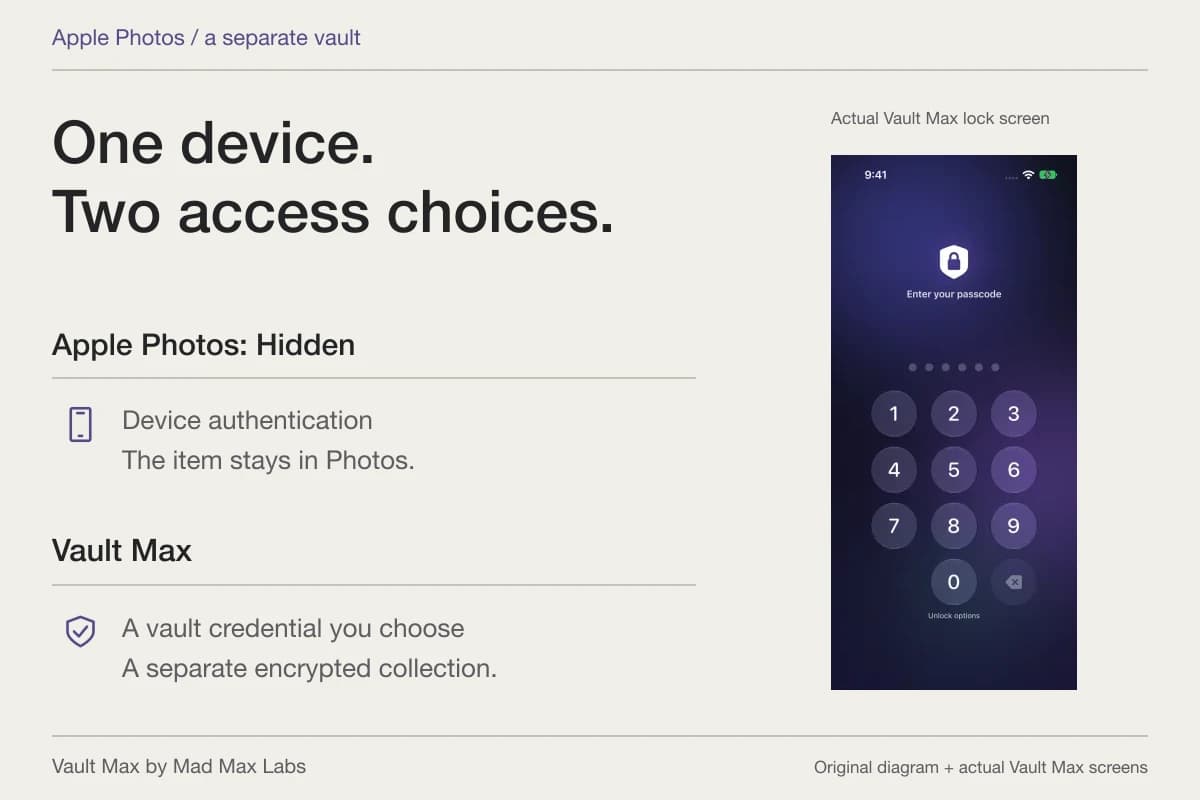
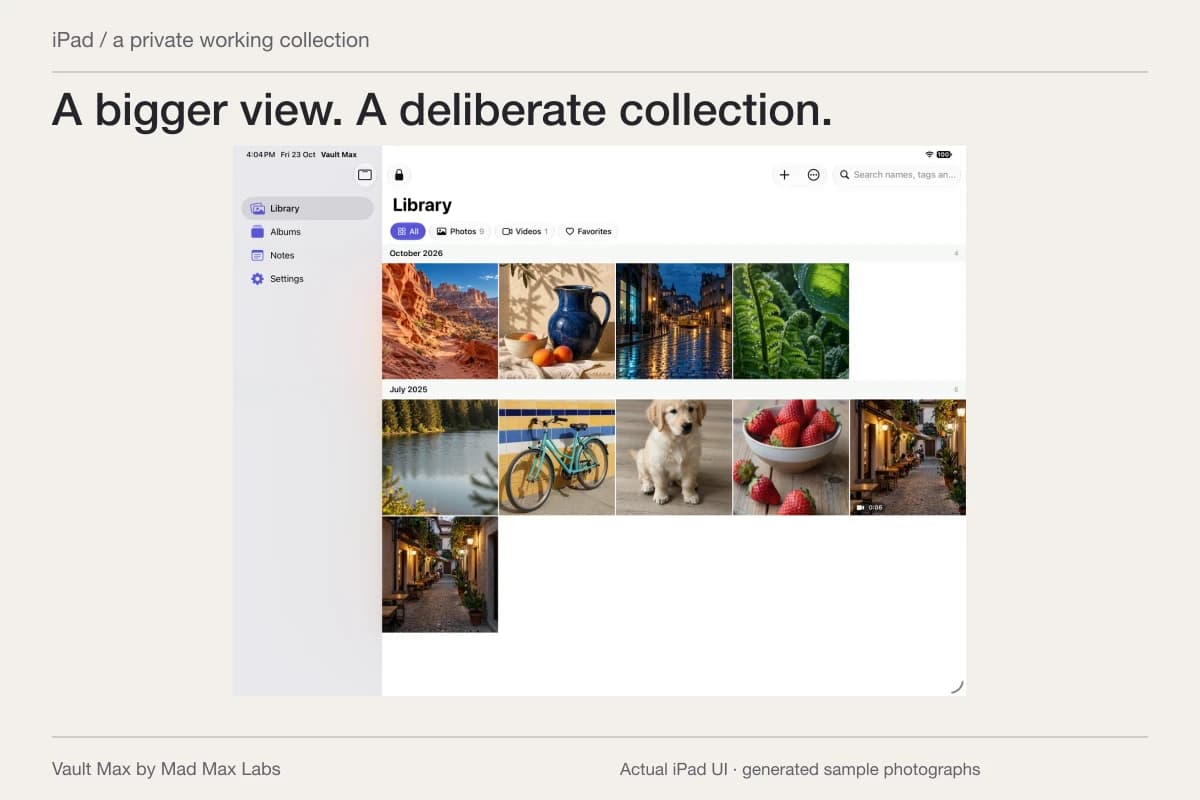
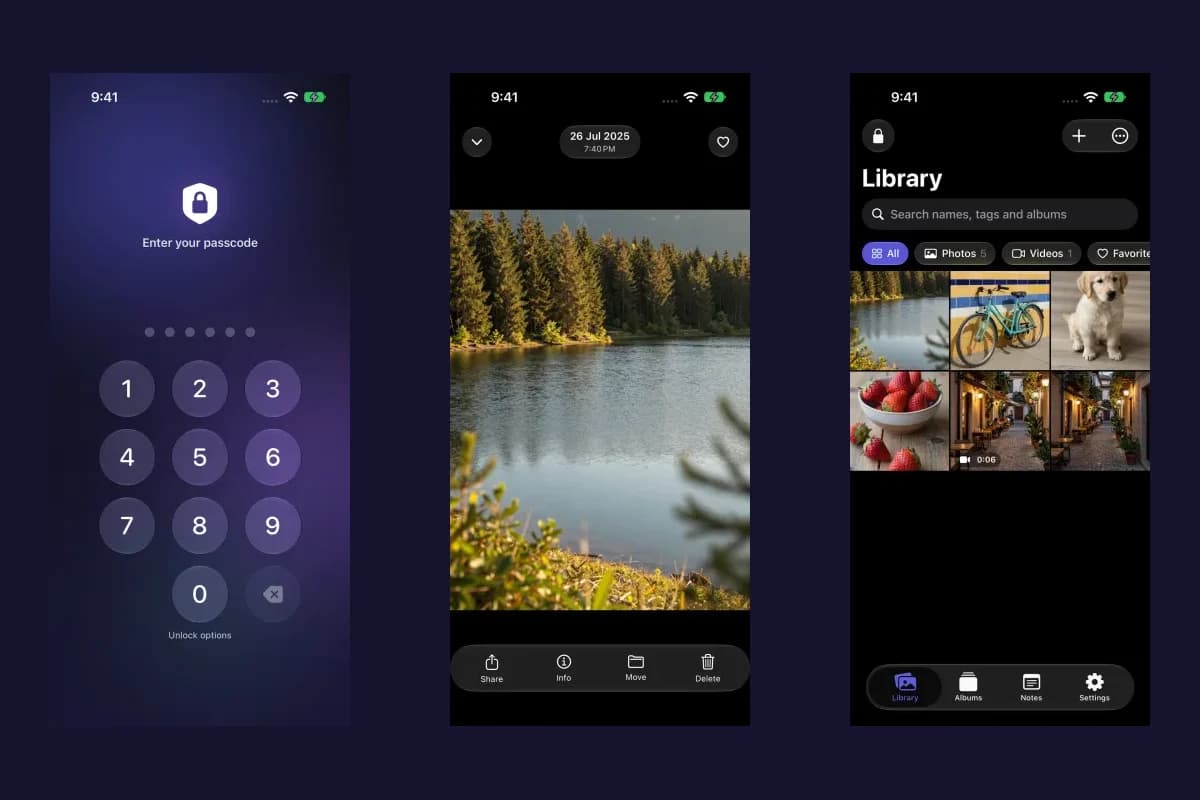
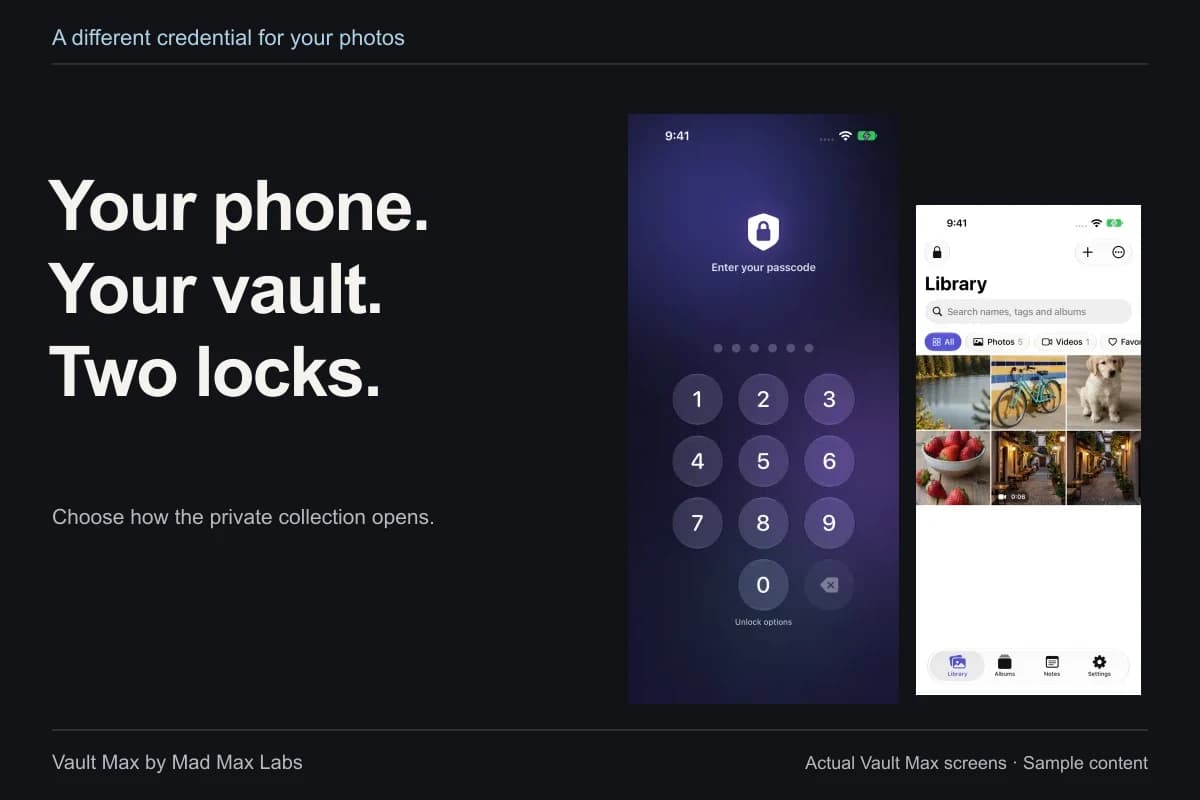
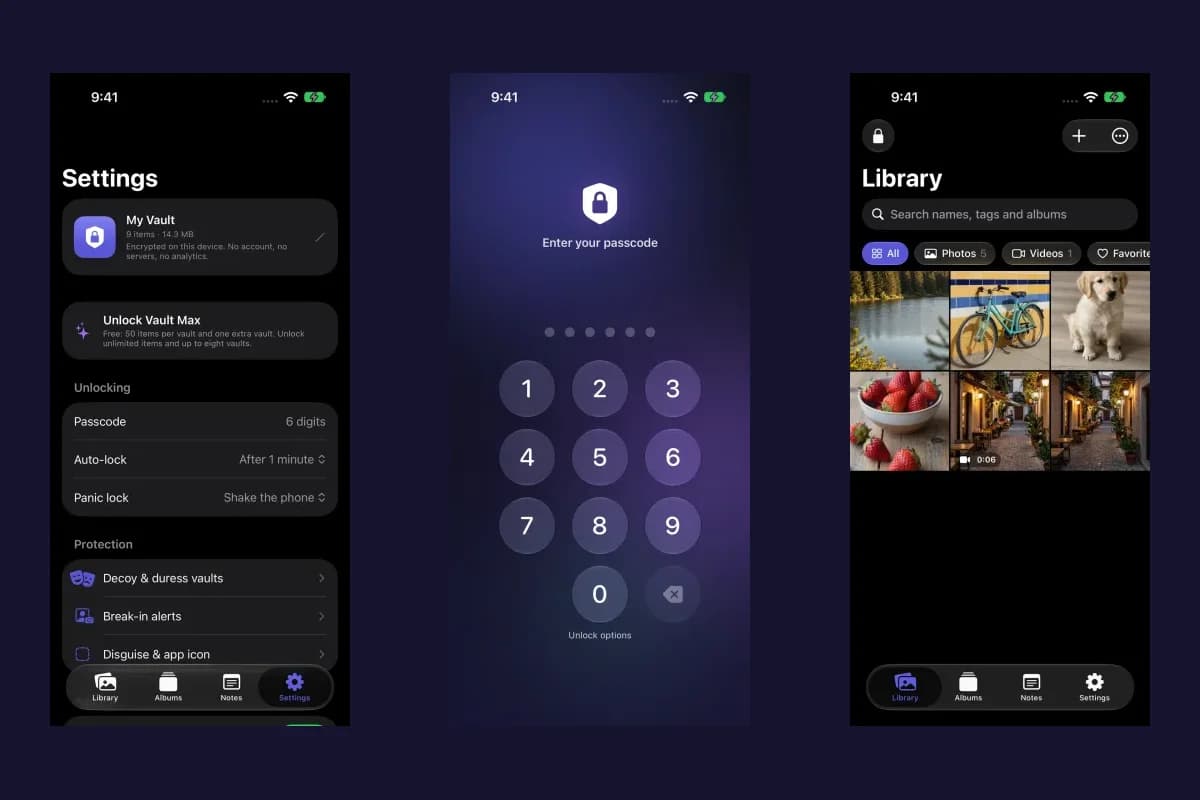
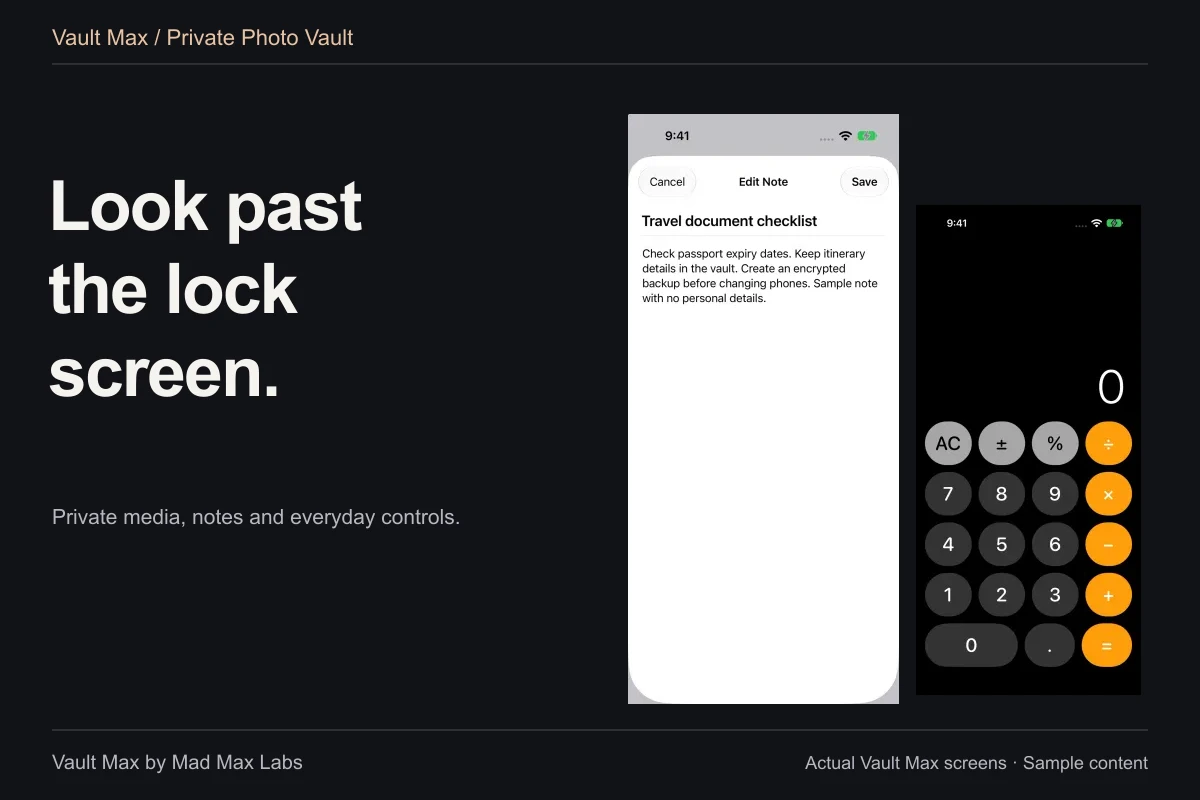
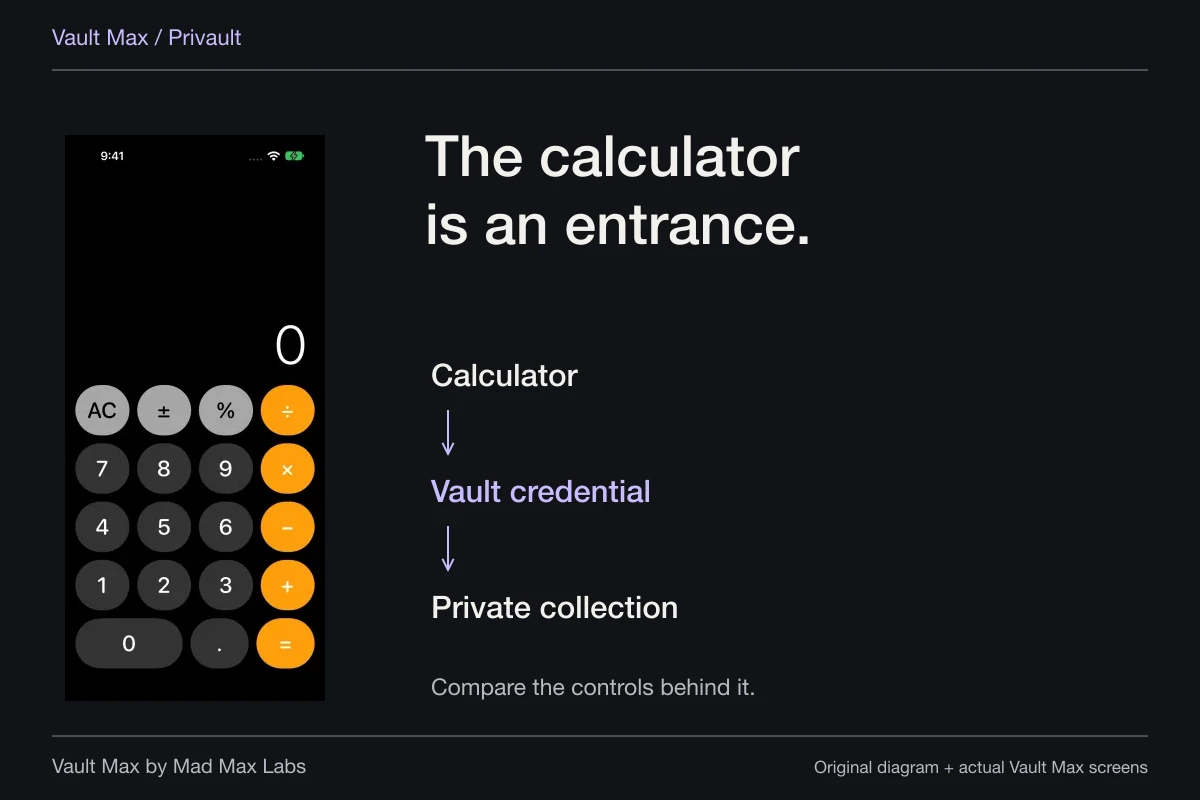
Open original image: Its saved contextMad Max Labs makes Vault Max. Its separate credential, local media collection and encrypted notes give retained references a deliberate home without opening a Vault Max account. They do not change the sender's conversation or administer a file you previously saved in another application.
Treat deletion as a separate decision
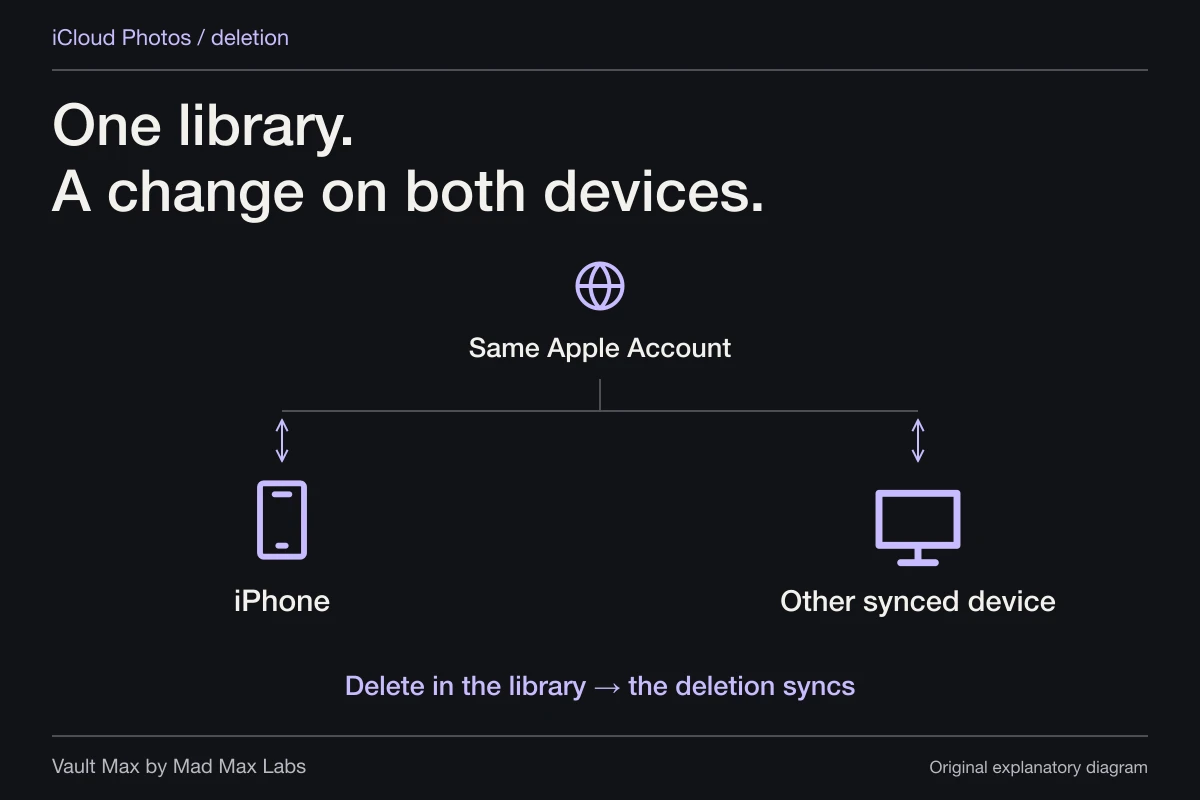
If you decide to remove a Photos original after verifying the vault copy, read the deletion prompt carefully. Apple's photo-deletion instructions explain iCloud Photos propagation and the normal Recently Deleted recovery period. A source removed from the grid can still have a recoverable library state.
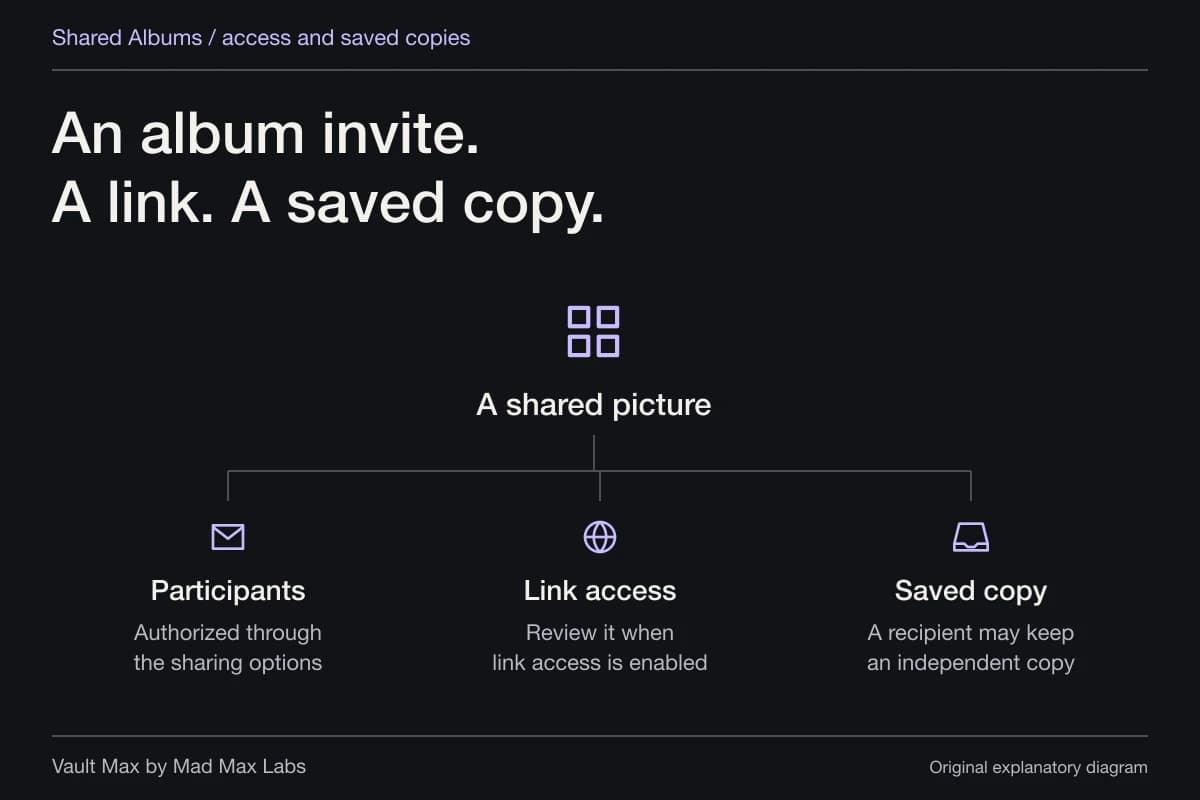
The conversation has another lifecycle. Apple's Messages deletion guide explains managing messages and attachments. Do not assume deleting your copy erases material the other person already received or saved. If the actual concern is a shared album, use the Shared Albums guide rather than a Messages switch.
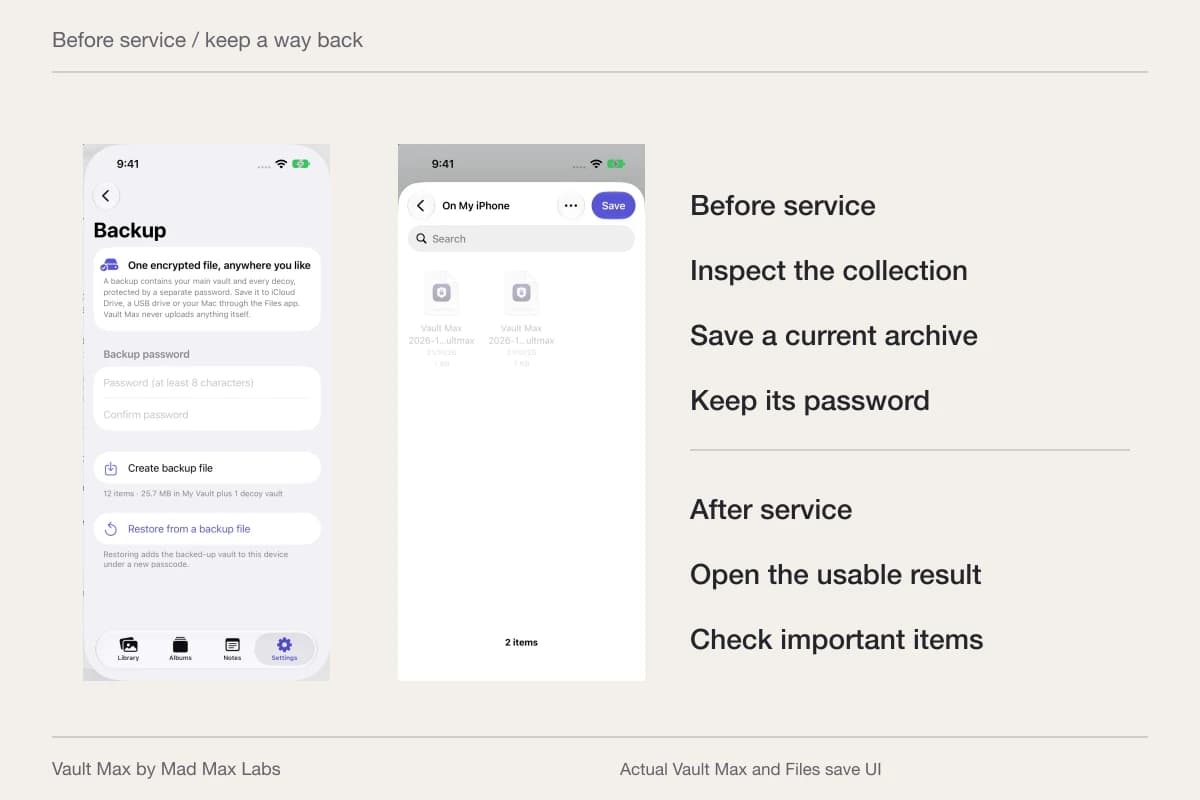
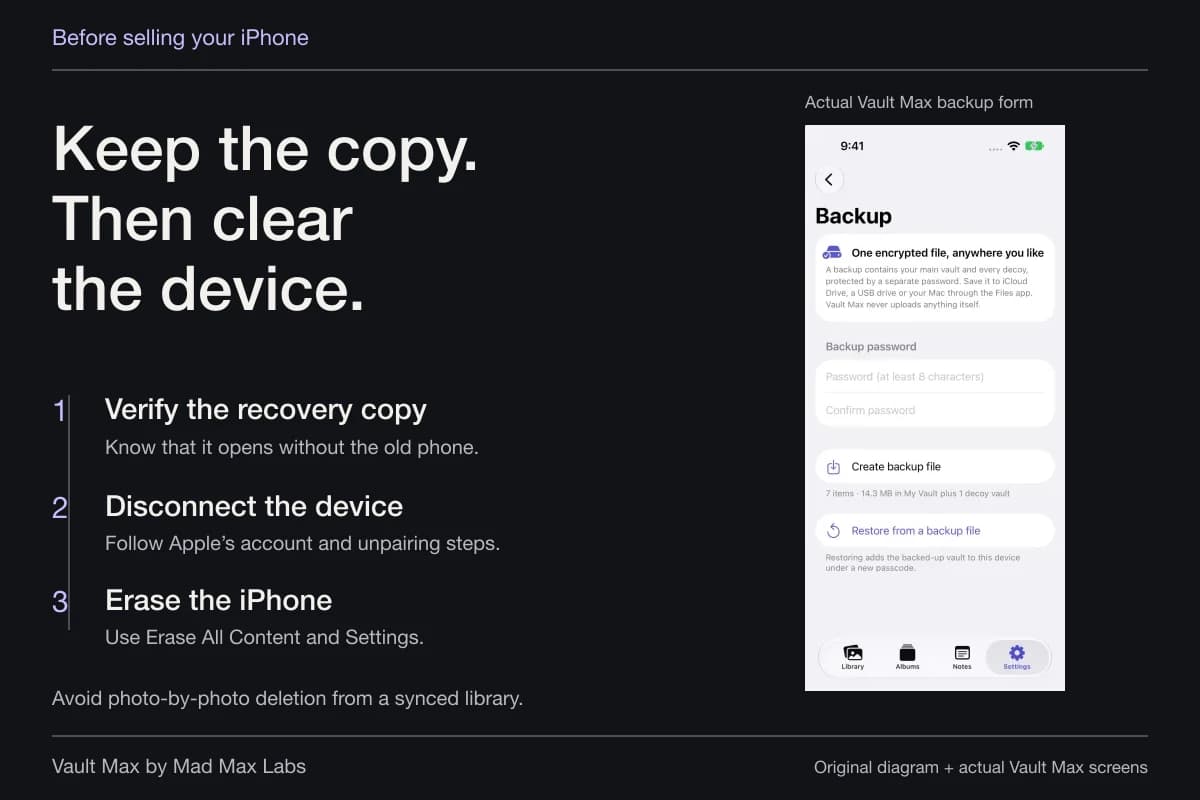
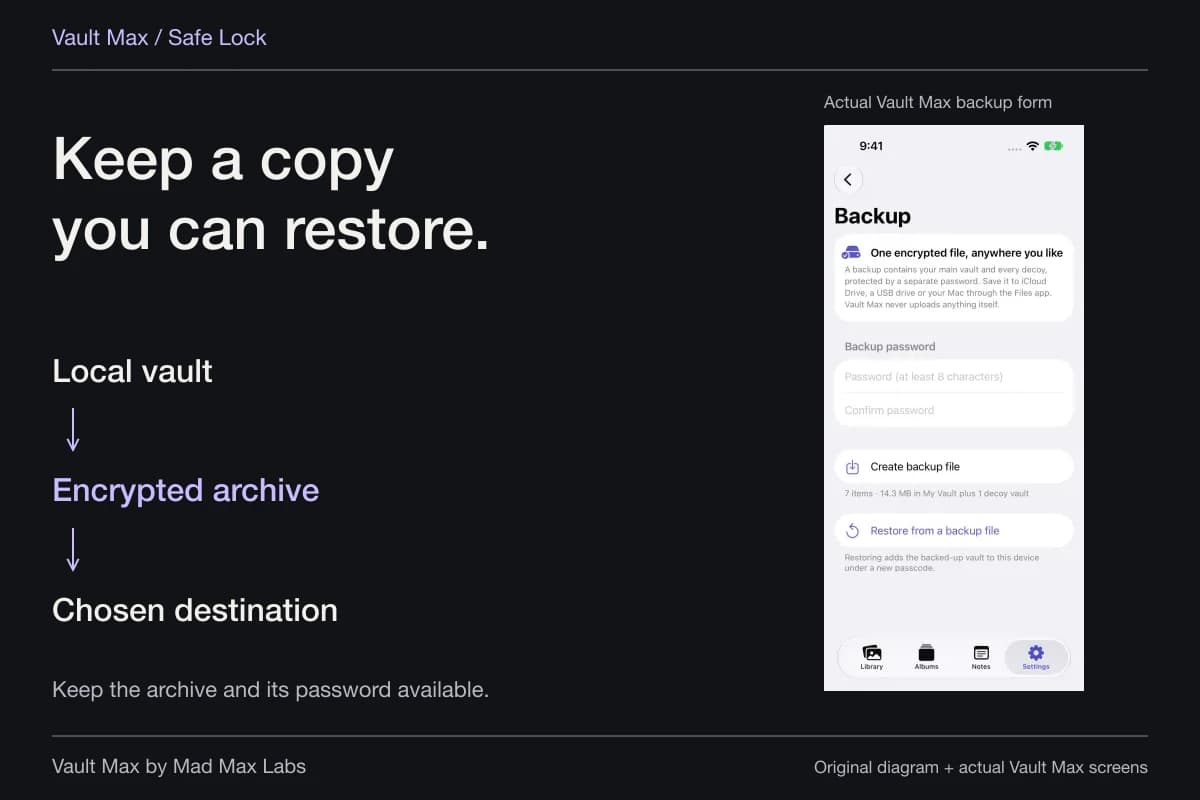
Avoid destructive cleanup while you are still unsure which copy you need. Verify the retained item and make a usable recovery archive first. That sequence lets you simplify the everyday library without depending on an attachment you may later remove from a conversation.
Troubleshoot the source, not just the thumbnail
If the settings seem ineffective, ask where the image is now. A library item, a search result, a Shared with You section and a message attachment are useful clues. Return to that destination's control instead of assuming the same-looking image must be managed by the same switch.
If you do not see a Shared with You section at all, Apple's current guide notes that the sender must be in your contacts for content to appear through the feature. Availability of a section is not proof that no received pictures exist elsewhere. Inspect the actual conversation and the Photos items you retained.
For WhatsApp or a social app, stop here and use that publisher's current instructions. Their automatic-saving controls are separate; changing Messages does not establish a result in another service. This keeps the task small enough to verify and avoids losing a wanted reference while troubleshooting an unrelated app.
- Confirm the picture came through Messages and Shared with You.
- Change Photos, one conversation or Automatic Sharing according to your goal.
- Check the library and conversation separately after changing the presentation setting.
- Open the private import and save only the context you need.
- Keep a current encrypted archive and its password independently available.
Tap a box as you go. Checks reset when you leave this page.
Common questions
How do I turn off Shared with You for Photos?
On current iOS, open Settings, then Apps, Messages and Shared with You. Turn off Photos to change that app's Shared with You behavior, or turn off Automatic Sharing for the supported apps together.
Can I hide Shared with You content from just one conversation?
In Messages, open the conversation and tap the contact or group icon. Apple's current guide then says to tap Info and turn off Shared with You. The control changes how that conversation's content appears in supported apps.
Does turning off Shared with You delete pictures I already saved?
Do not treat it as a library cleanup or a recall of attachments. Inspect a separately saved Photos item, the original conversation and any later exports individually.
Continue reading
More guides
Practical tips for your private library. Swipe or scroll to choose your next guide.
74 guides to explore