
Privacy in practice
Before an iPhone repair: protect the private collection and prepare its way back
Prepare private photos before an iPhone repair. Keep a current archive, read Apple's passcode guidance and follow the repair steps for your iOS version.
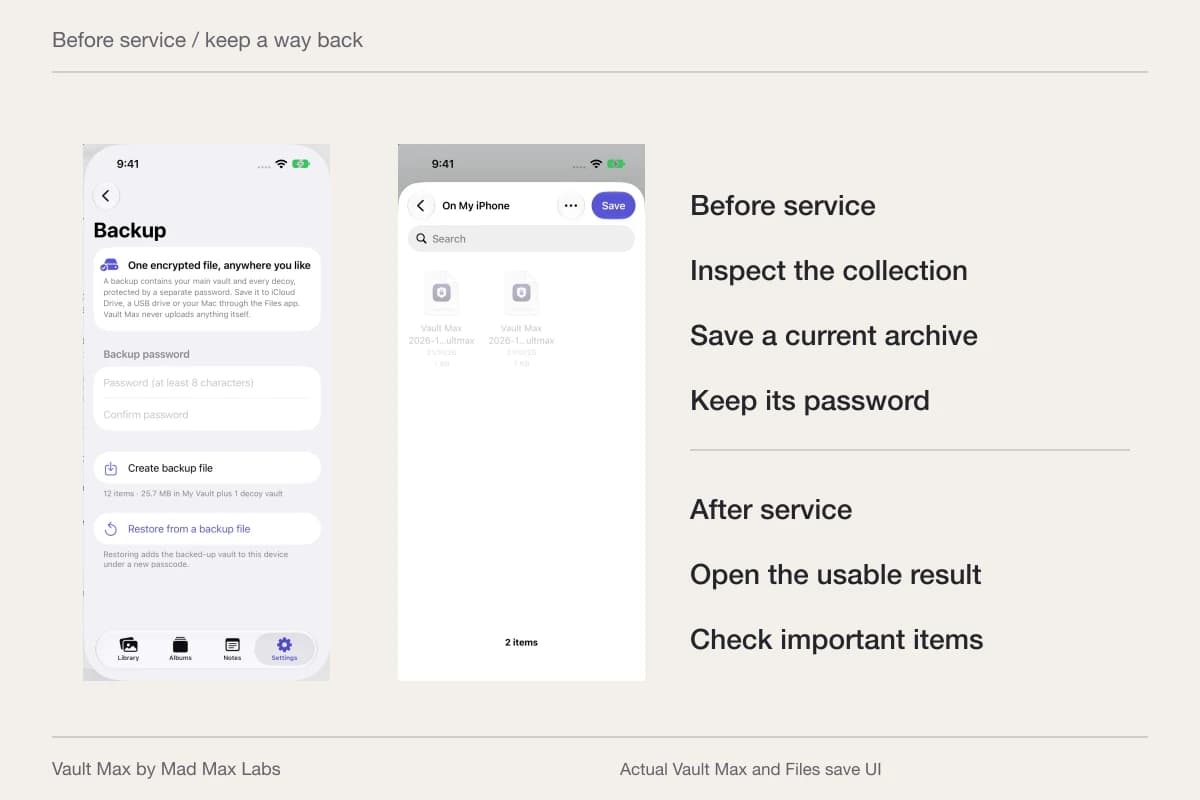
Prepare recovery before handing over an iPhone for repair, and follow Apple's current credential guidance. Apple says its staff and authorized service providers do not ask you to disclose the device passcode or Apple Account password. If software assistance requires you to enter them yourself, remain present. For the private collection, make sure you can reach a current recovery file independently of the phone.
A repair is different from selling the device. You expect to get a working phone back, perhaps with the same installation, but the outcome can still involve erasure or replacement. Vault Max's local encrypted collection, deliberate lock action and separately protected archive give you concrete steps to prepare while access is still available.
Establish what kind of service you are arranging
Read the instructions for the actual appointment or mail-in service. Apple's service-preparation guide is the reference for an Apple Store or Apple Authorized Service Provider appointment. A repair counter's name or an older blog checklist is not a substitute for the instructions applying to your booking.
Ask practical questions before you arrive: will you remain with the device, leave it for assessment or send it away? What preparation does the provider require? Which accessories and purchase or identity information does your booking call for? Resolve those questions while you still have time to make a usable backup.
Avoid writing a device code into a message, booking note or public example. If a software-support task calls for credentials, follow Apple's guidance about entering them yourself and staying present. Know the task being performed rather than treating access to every private app as an ordinary repair requirement.
Check the collection while the screen still works
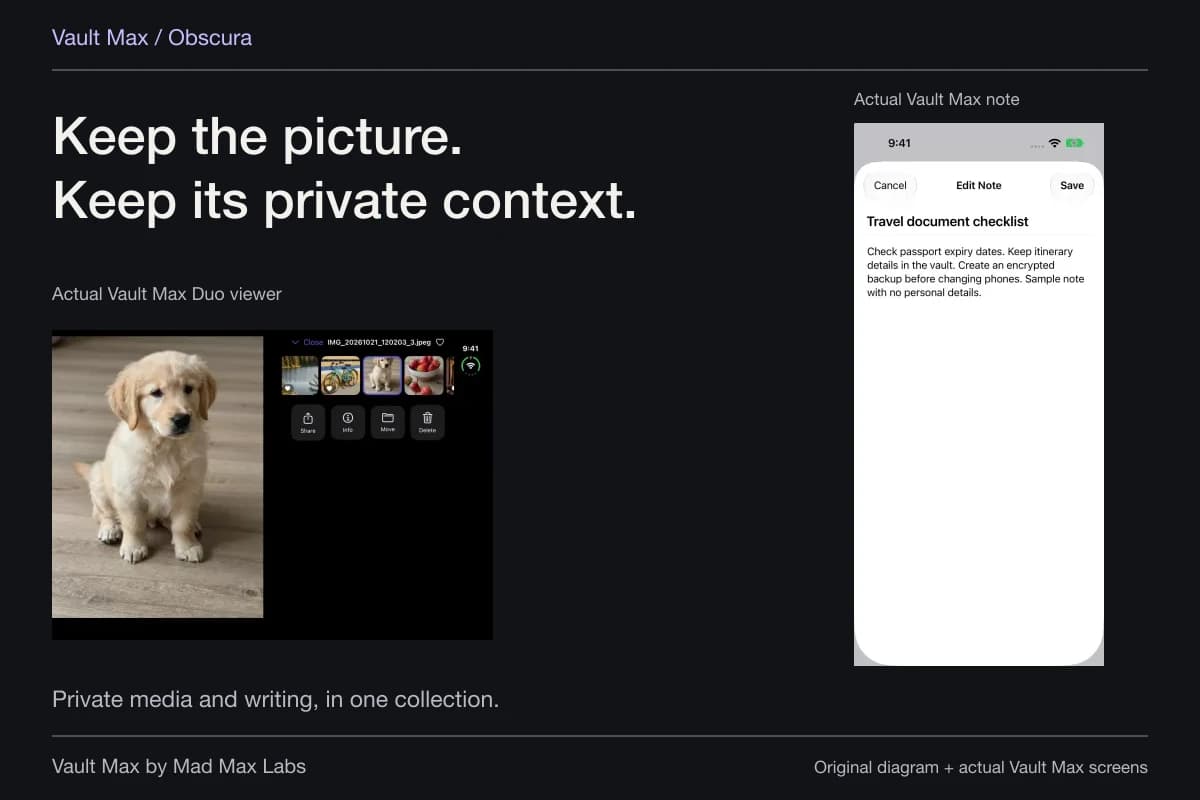
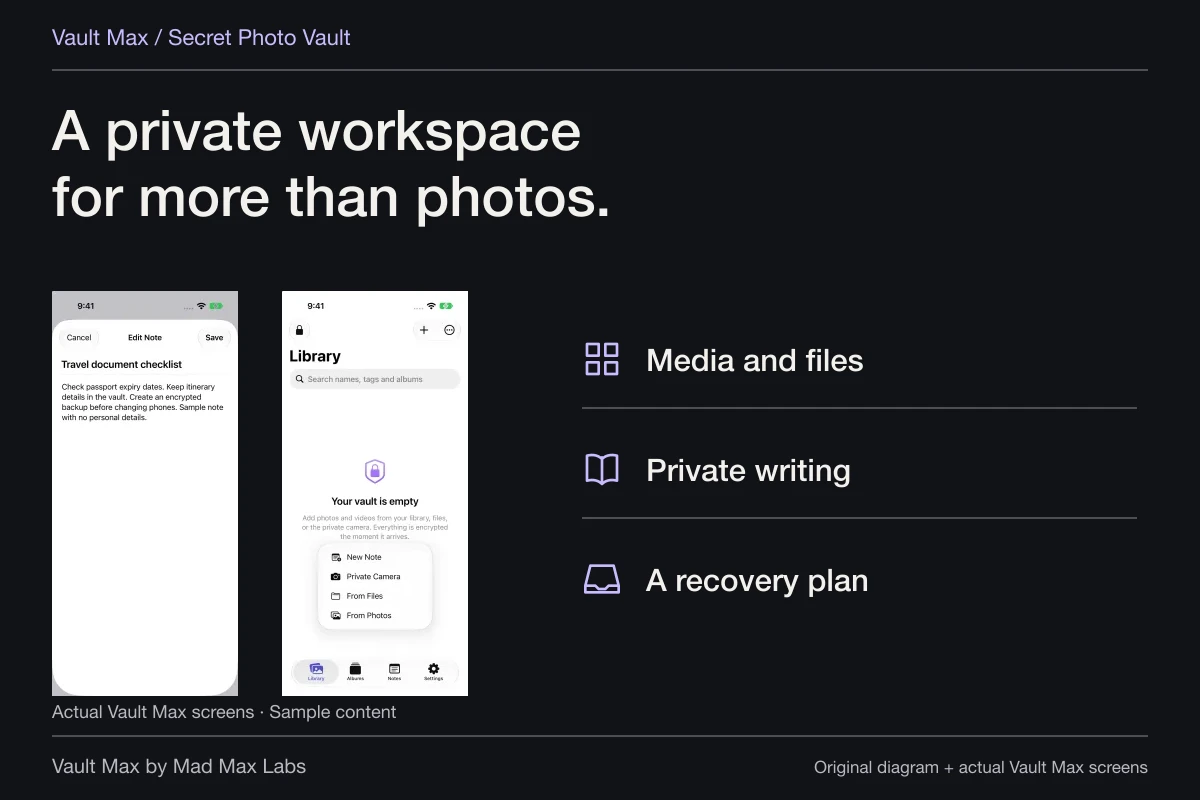
Open the private collection before beginning the handoff preparation. Pick a few meaningful items: a recent photograph, an important document and a useful saved note. Check that you can identify and read them now. This gives you a clear list of what you would want to inspect again after service.
If you already have a backup, check its date and location. A file made before the latest additions does not contain those additions just because it has a reassuring name. If the working vault is accessible, create a current archive rather than relying on memory of the last one.
A temporary screen problem can make this urgent, but do not change settings blindly if you cannot tell what the device is doing. Preserve access and use the service provider's supported instructions. An inaccessible phone is a reason to inventory existing recovery copies, not to assume a new backup can be created remotely.
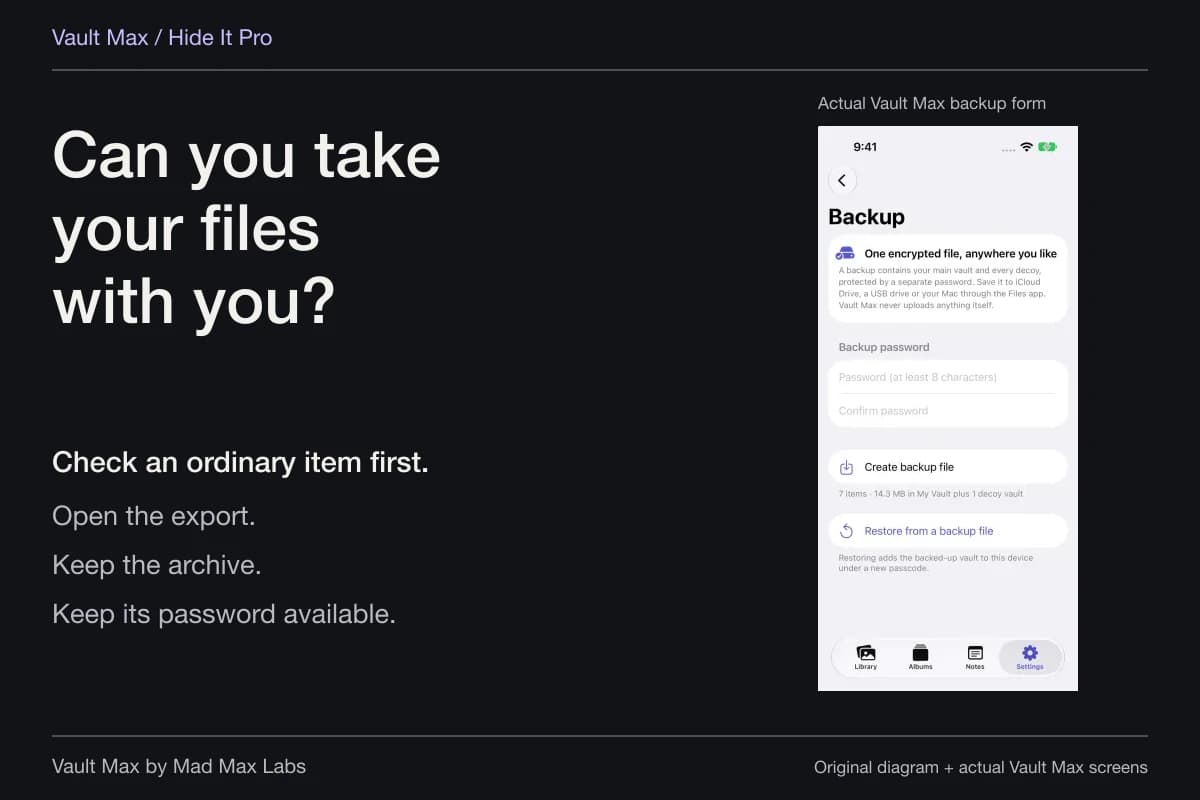
Make a separate Vault Max recovery archive
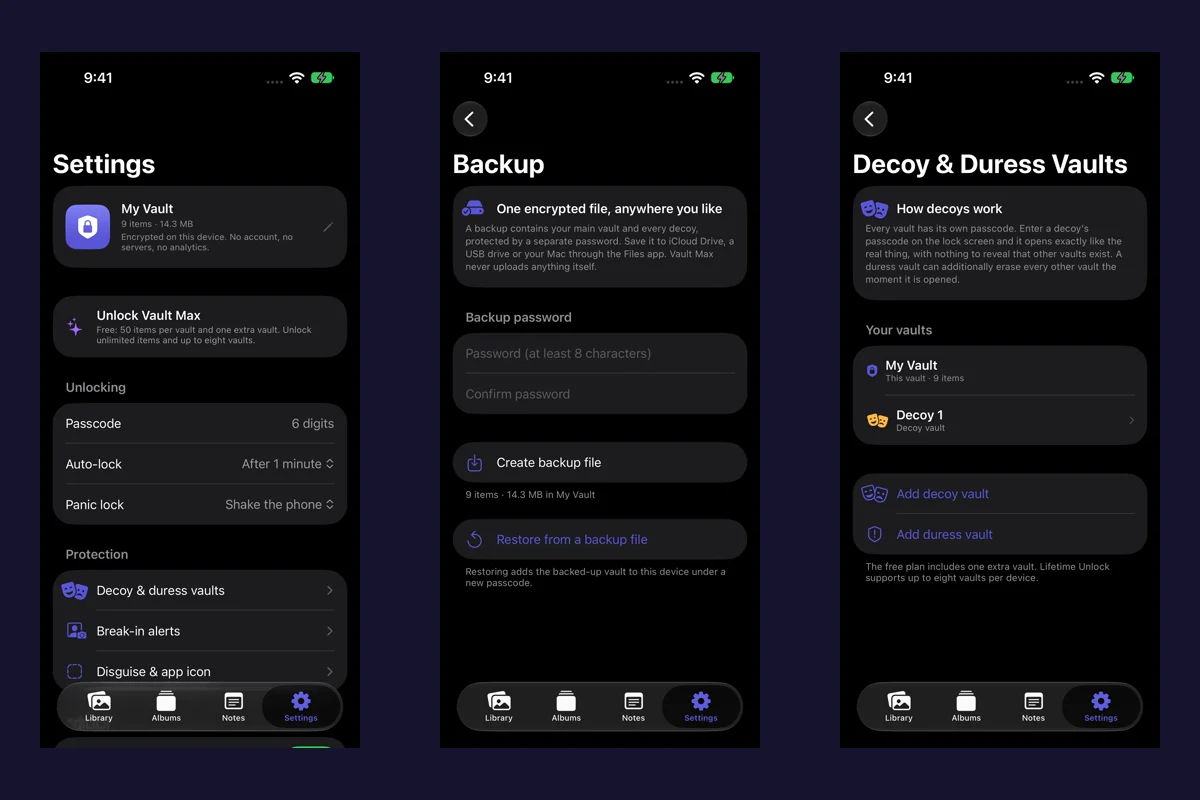
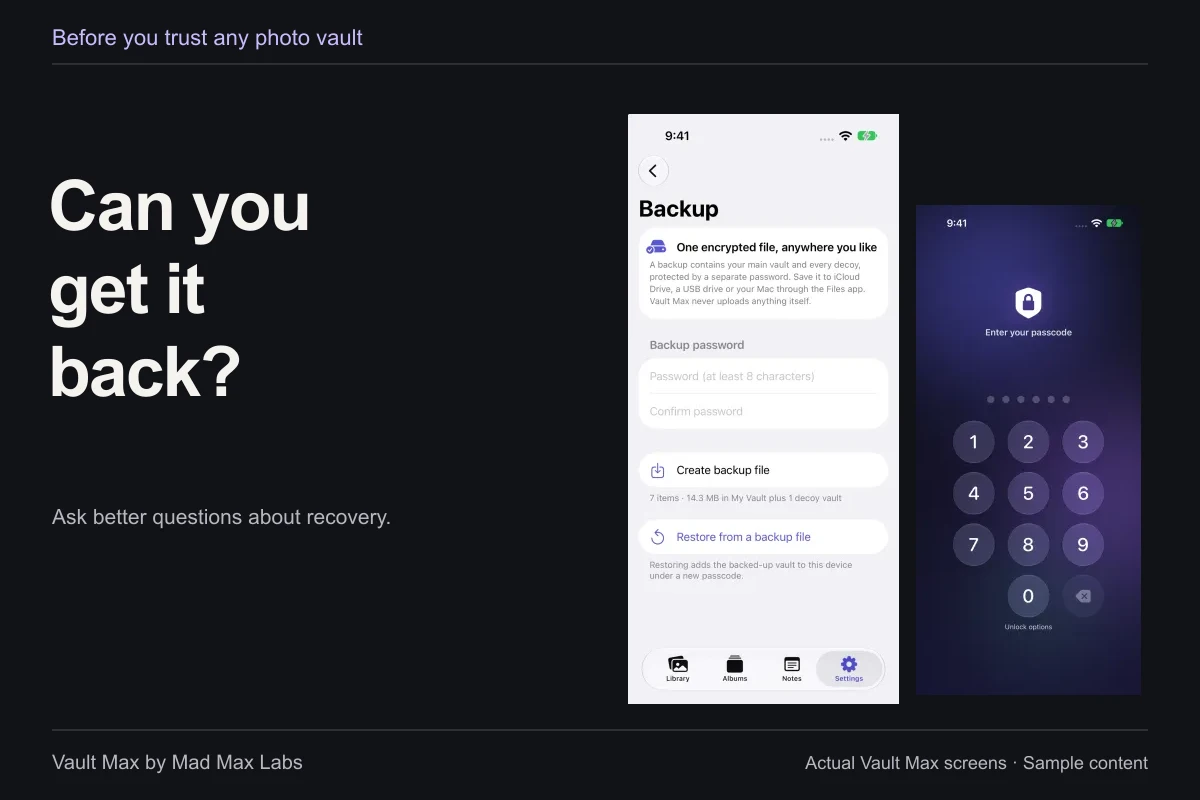
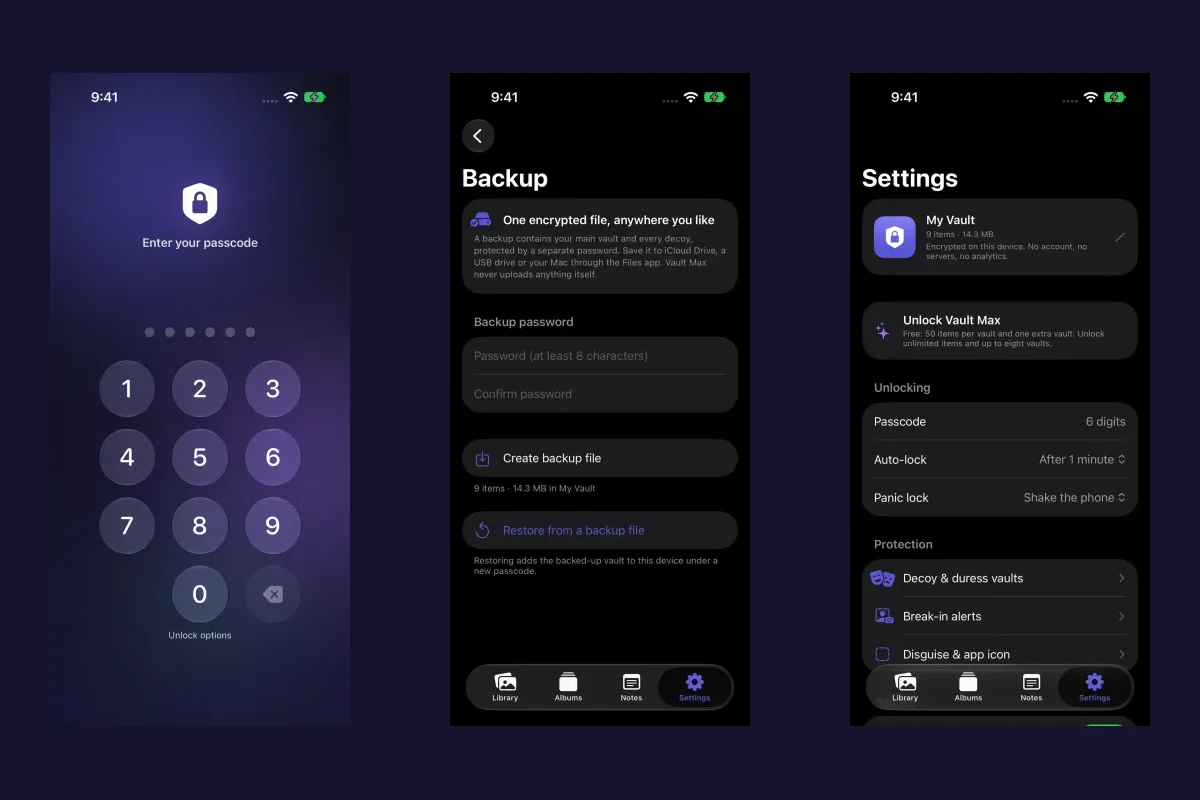
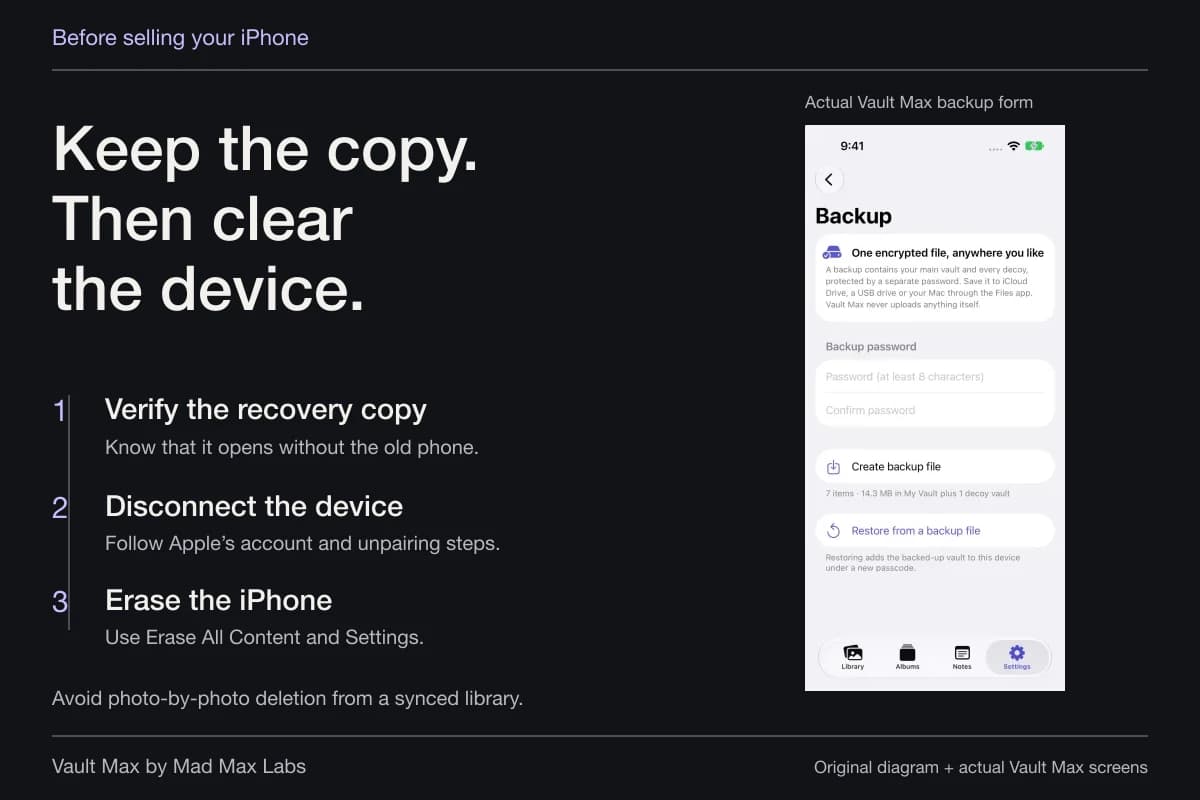
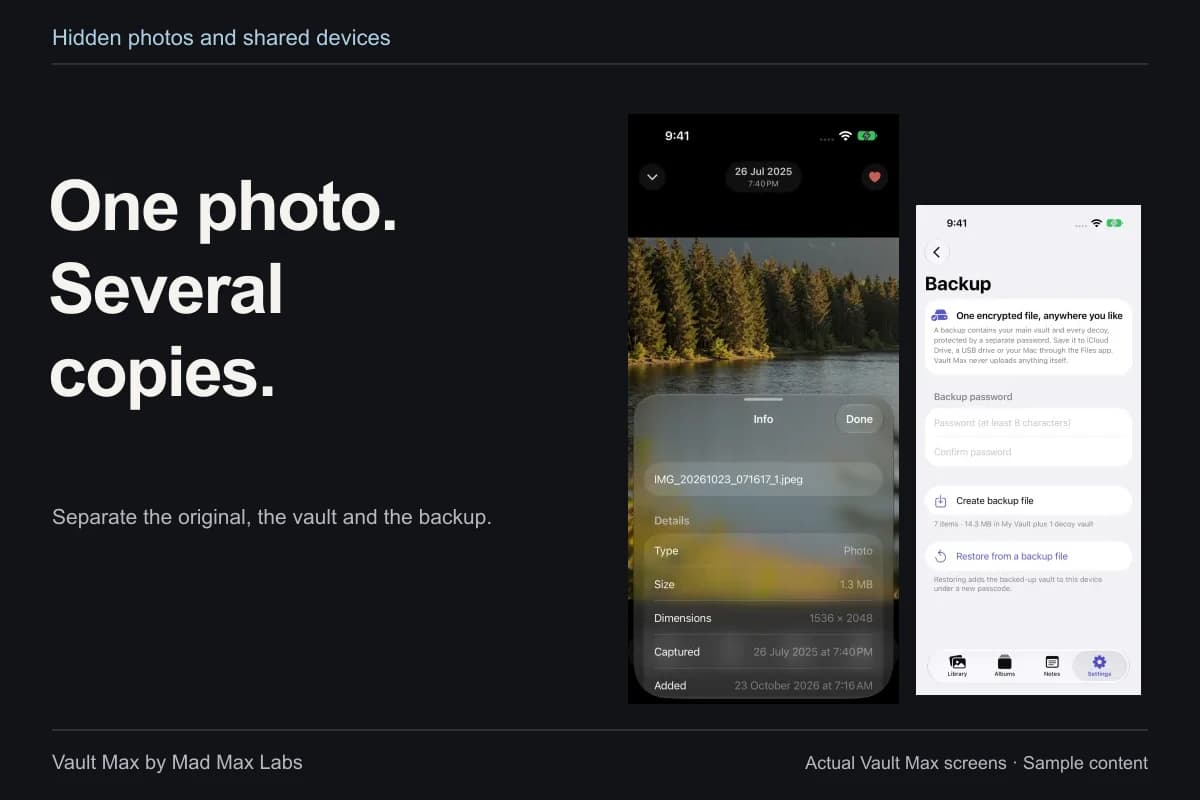
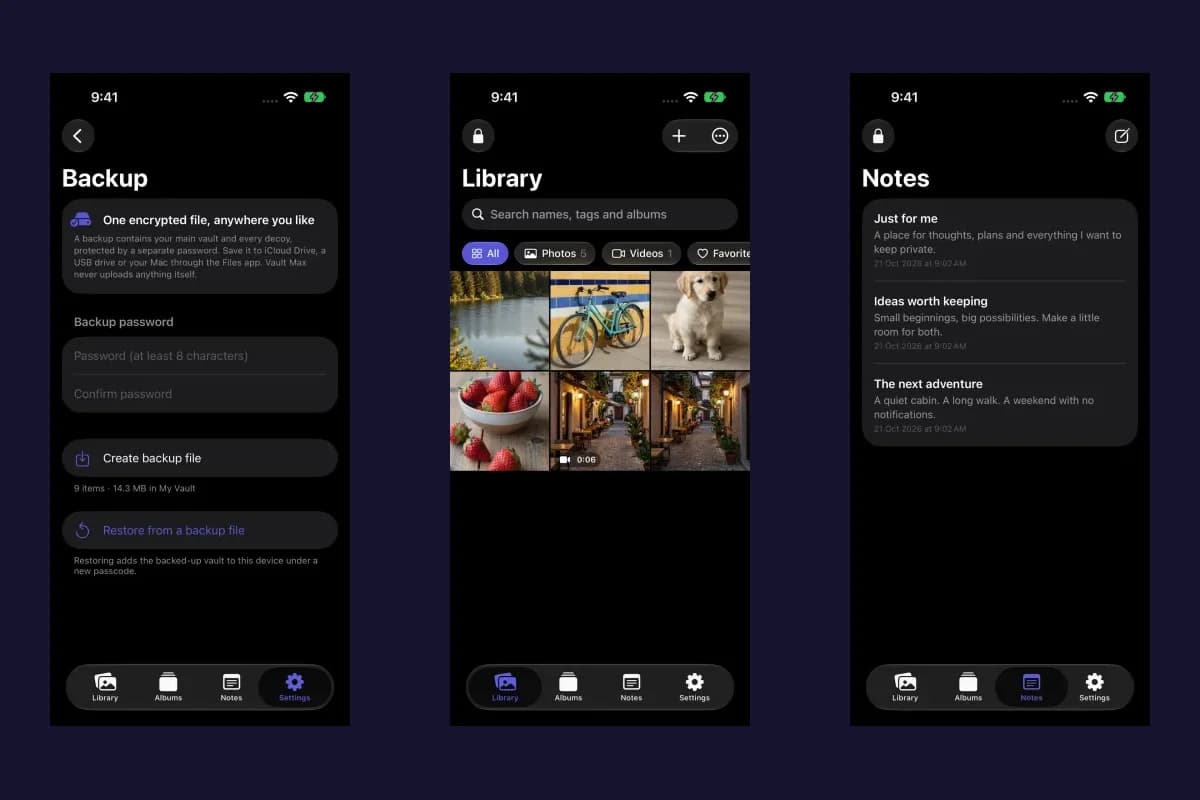
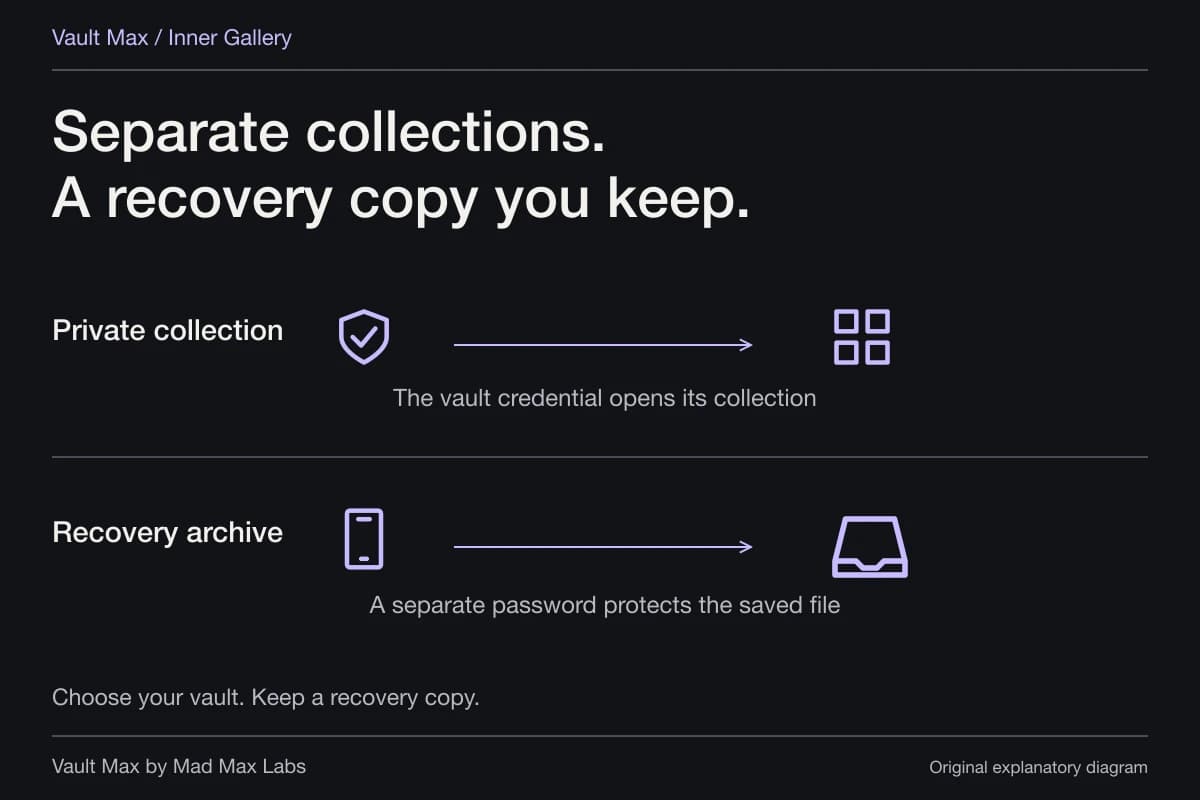
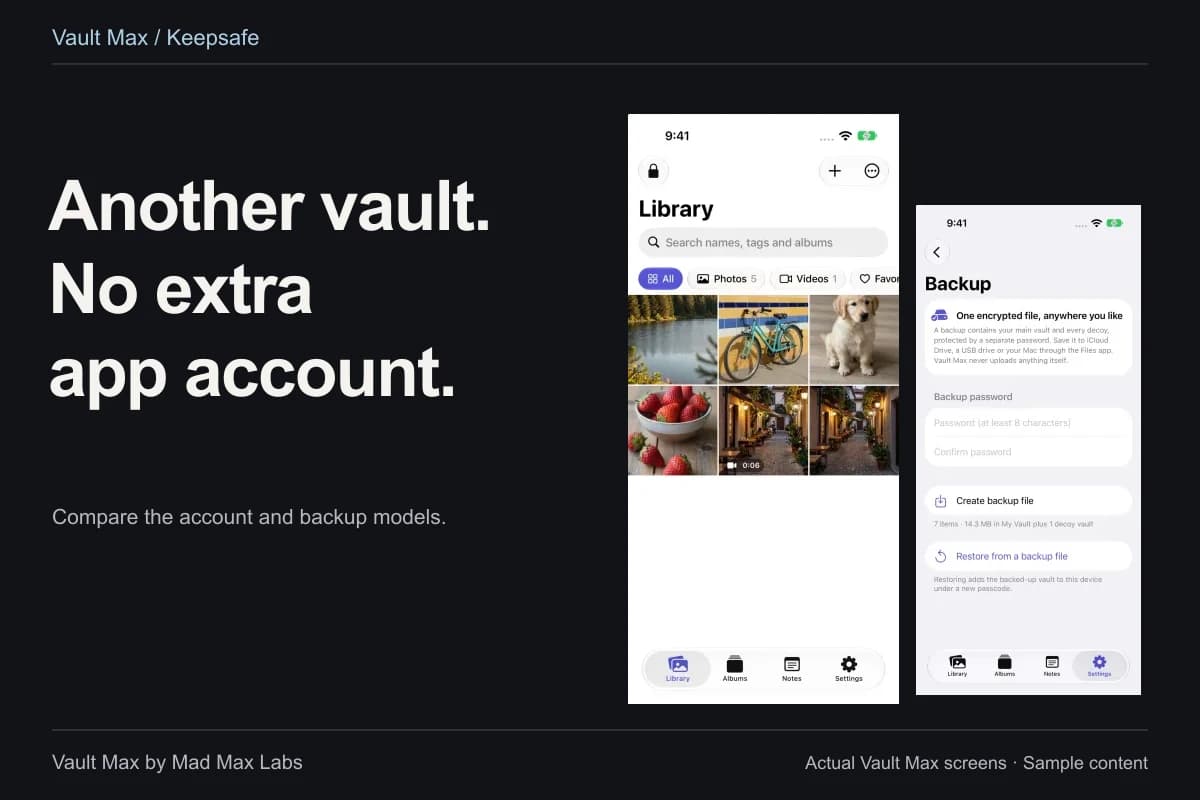
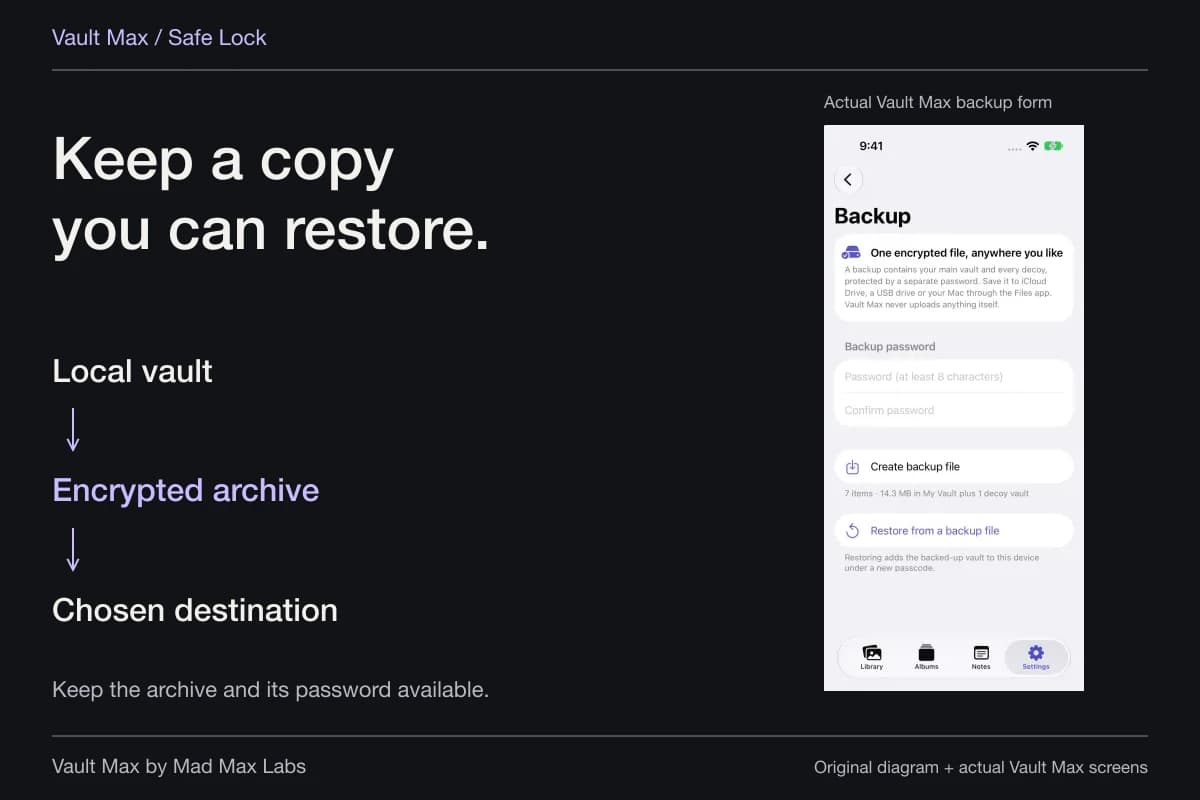
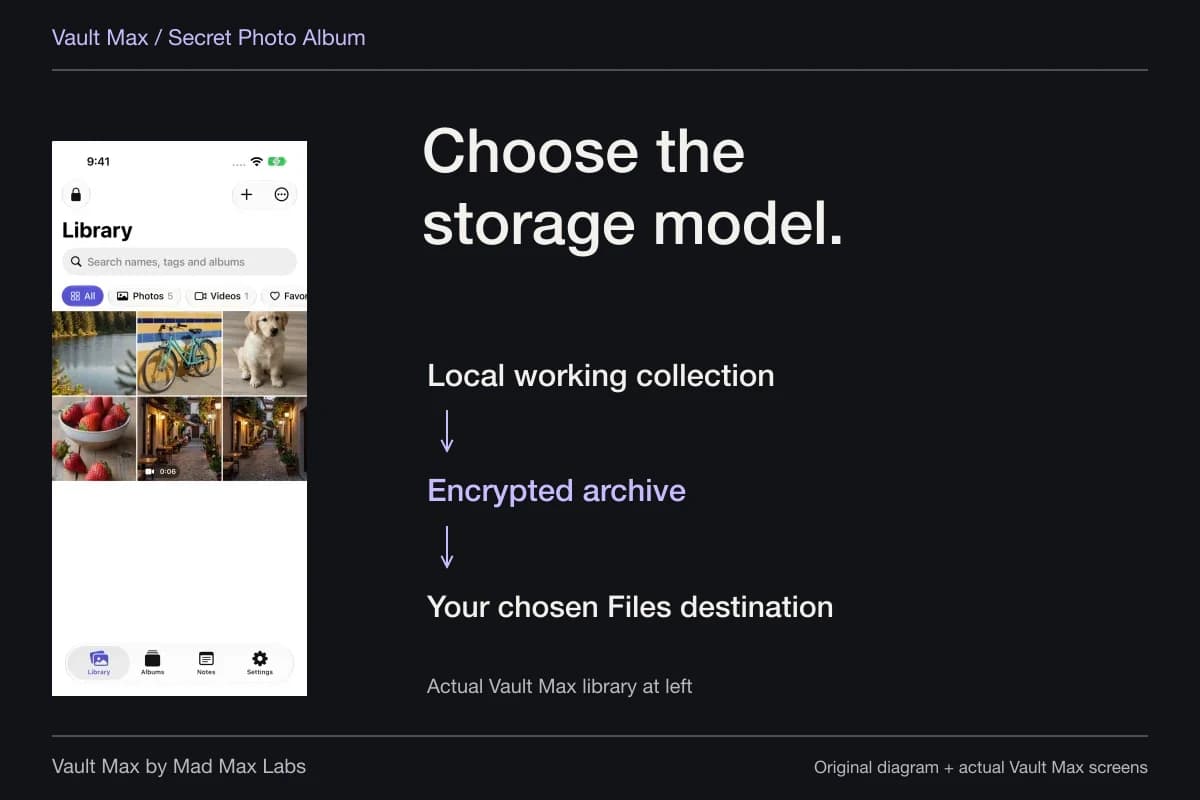
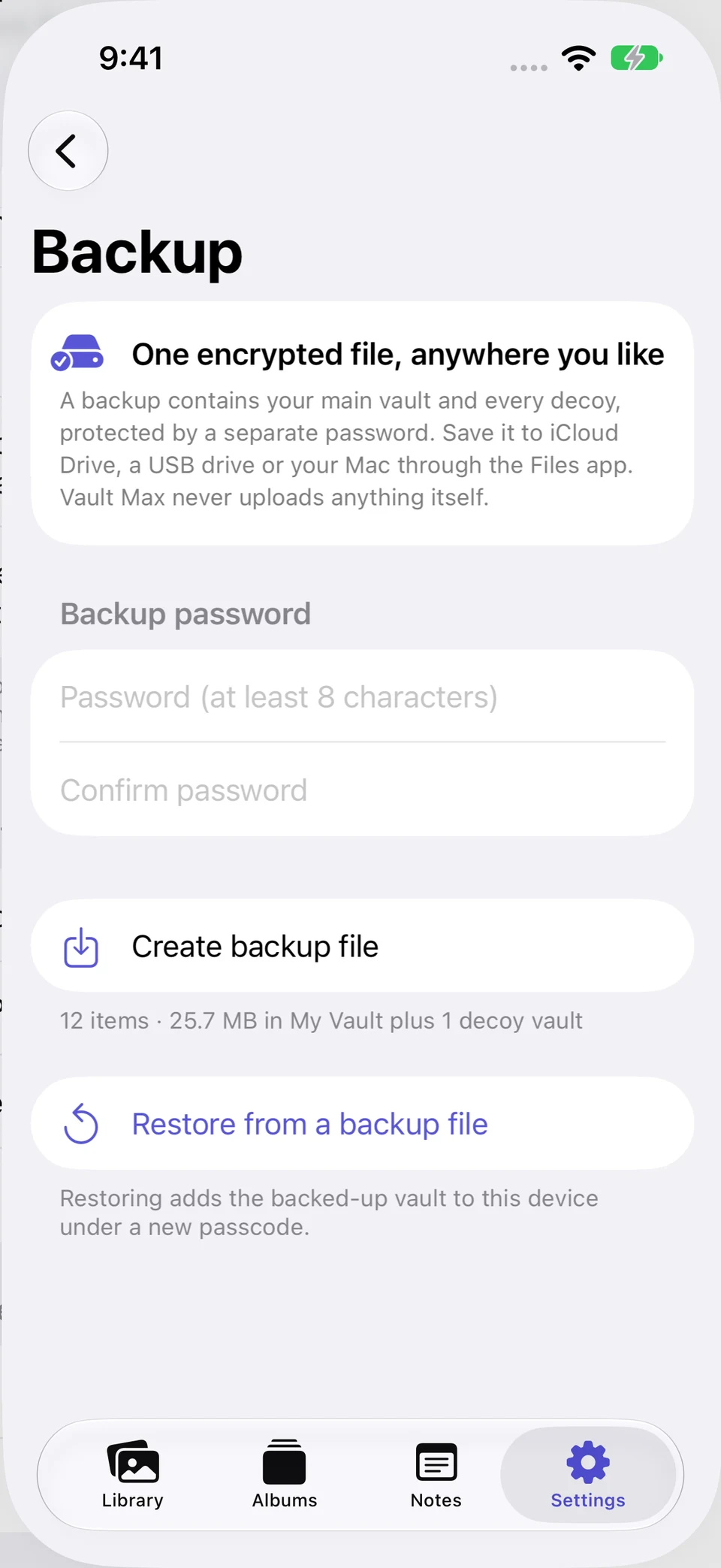
Vault Max stores its working media, documents and writing on the device without a Vault Max account or developer-hosted library. Its recovery archive is an explicit password-protected file. Open the encrypted-backup controls, enter and confirm a strong archive password, and complete the Files save step.
Choose the location for the loss scenario you are preparing for. An archive stored only on the same phone can disappear with that phone. A destination you can reach independently is more useful for a replacement-device repair. If you choose a cloud-backed Files provider, you are choosing where to keep the encrypted archive; Vault Max is not hosting an account copy of the working collection.
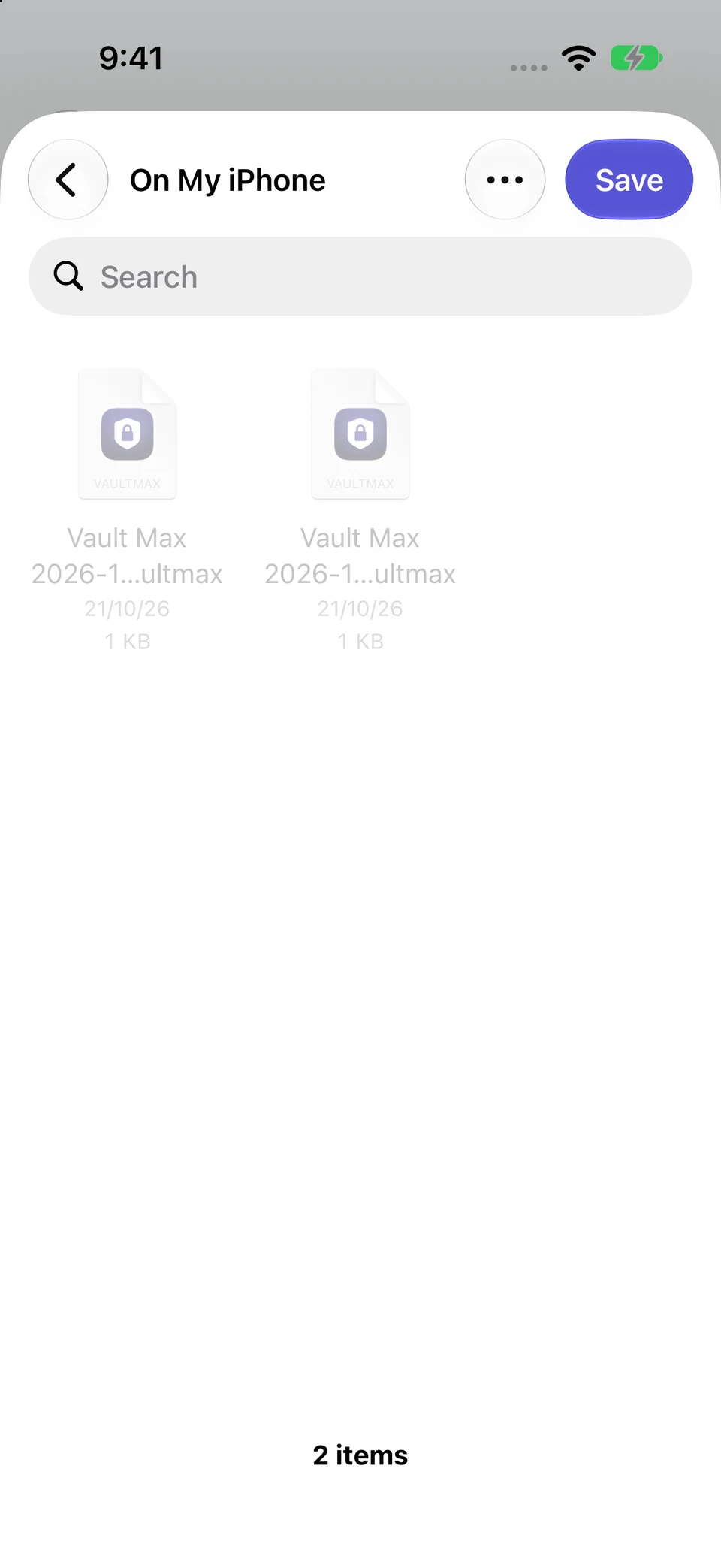
Actual QA screens show the updated archive form and Files save route. A new 29,439,700-byte archive was saved on the QA iPhone and its file hash recorded. It predates the corrected Studio note. That confirms creation and existence only; restore, decryption and archive contents were not validated. Choose a destination reachable without your own phone for a device-loss plan.
Actual Vault Max and iPhone Files · QA captureSet up a new archive
Open original image: Set up a new archiveComplete the file save
Open original image: Complete the file saveKeep the password independently accessible too. If an old archive password is lost but you can still open the working vault, create a fresh archive with a new password. That does not unlock the older file. The backup walkthrough explains archive scope, including the selected vault and included descendants.
Keep the rest of the phone's recovery plan in view
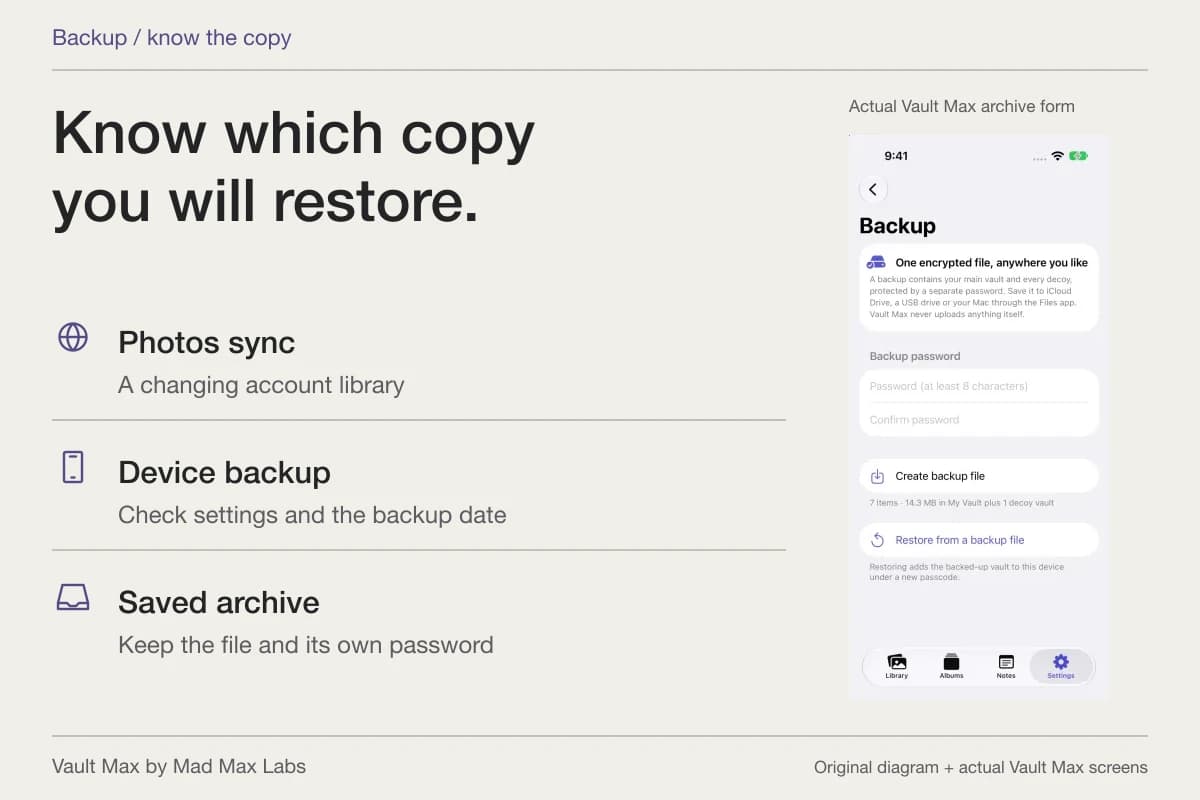
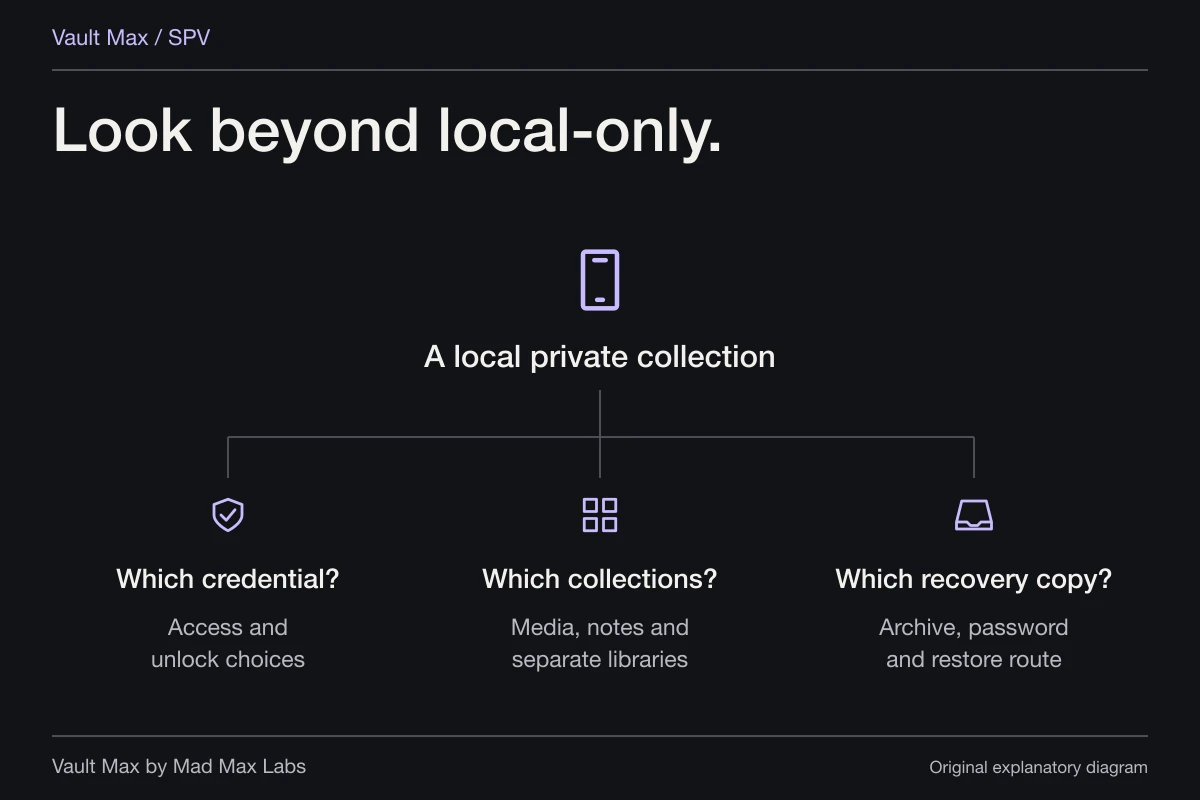
The vault archive is one part of preparing a phone. Apple's device-backup and iCloud arrangements govern other data, and the Photos library has its own synchronization choices. Identify the copies relevant to the material you need after service rather than expecting one backup label to explain everything.
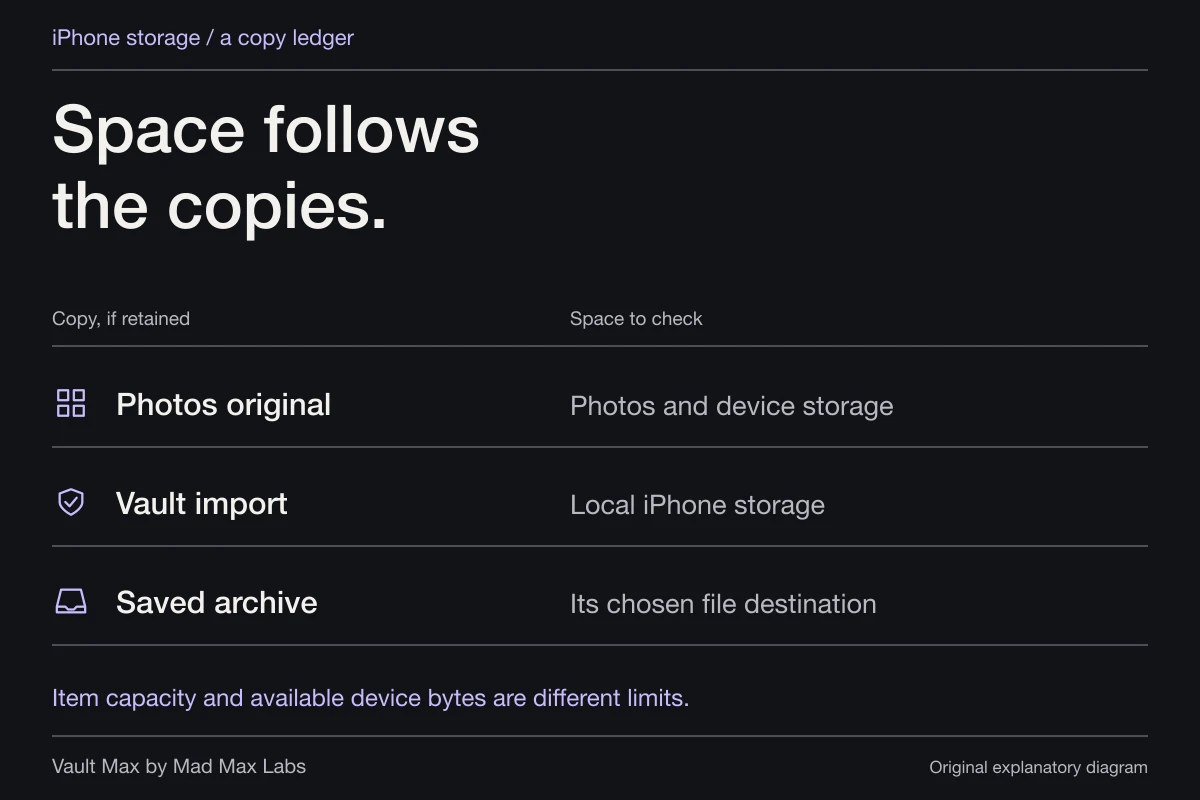
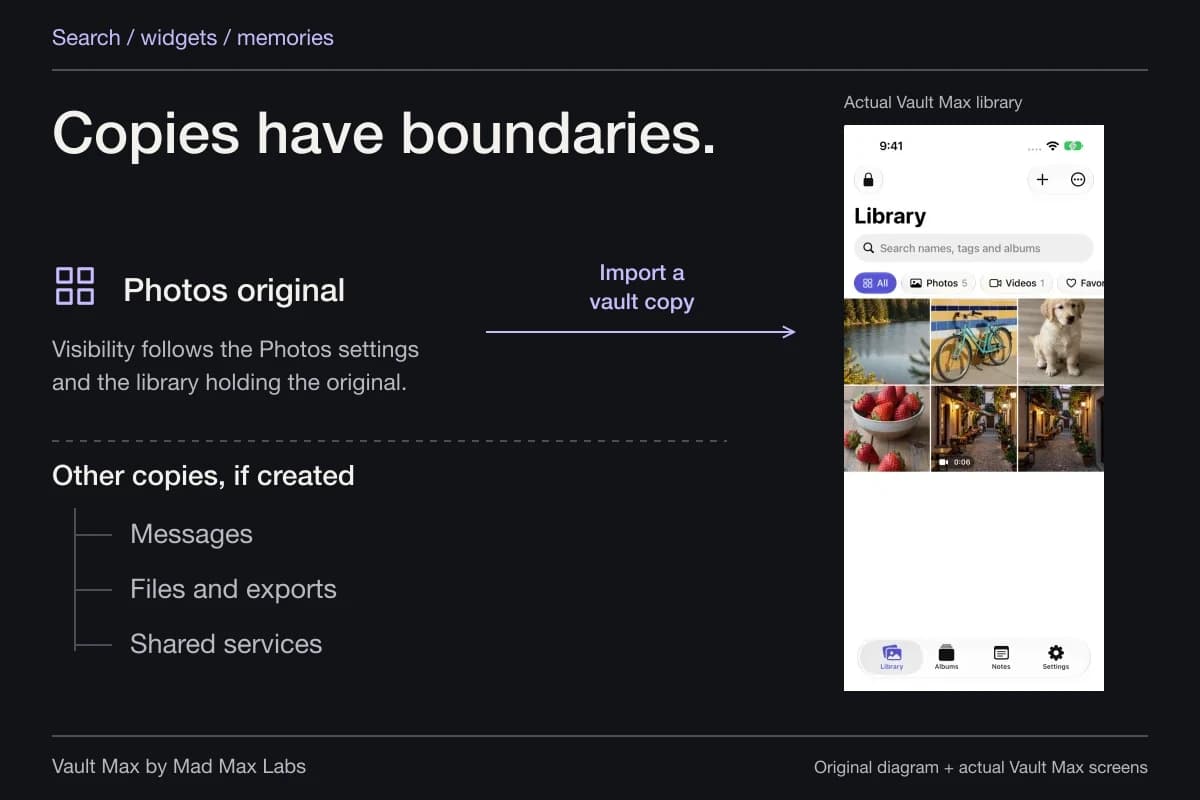
For example, the Photos original of an imported picture can still belong to an iCloud Photos library. The imported vault item belongs to the local vault. The archive is a separately saved snapshot. Write down which copy you intend to recover from and what you need to open it.
Our photo-backup guide explains these routes. Device-backup inclusion settings, archive creation and a confirmed restore are separate observations. If you have not opened a restored collection on a destination, describe that result as pending rather than assuming that seeing a file proves recovery.
Follow the repair-preparation route for your system version
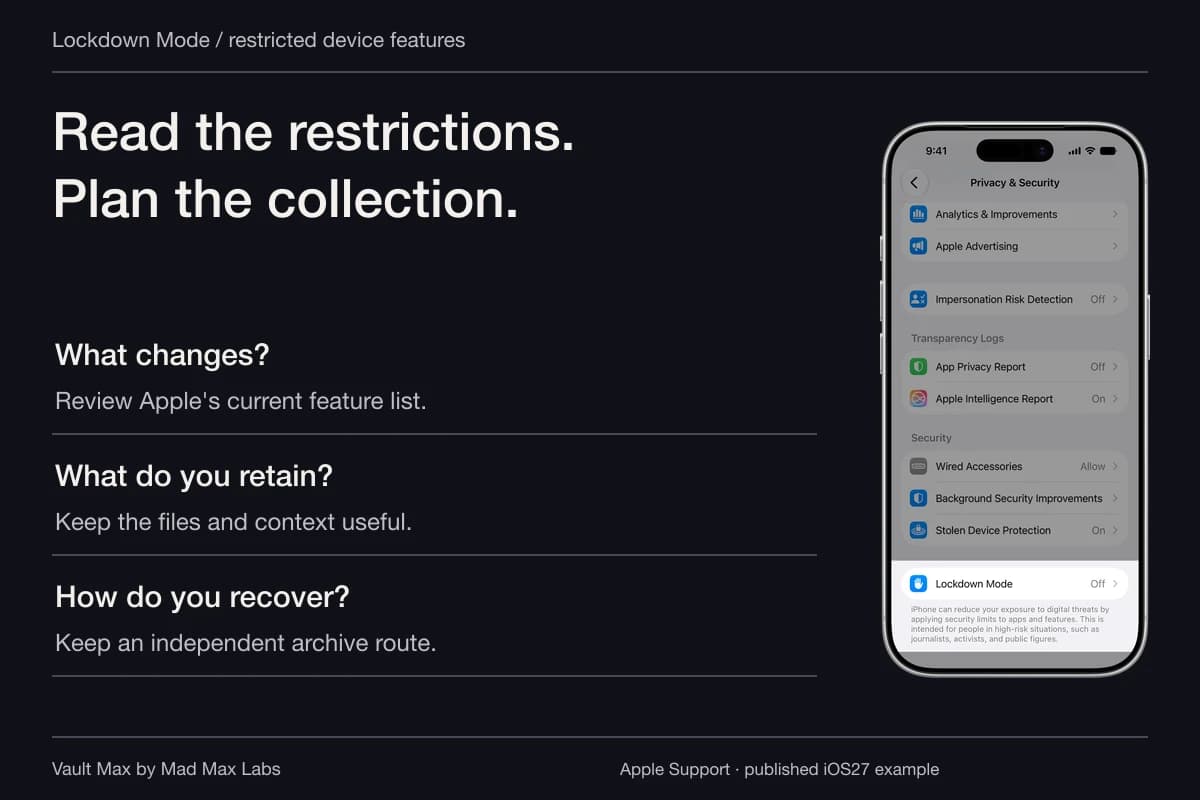
Apple's current service instructions have changed. For iOS 27 or later, they describe Ready for Repair or Trade-In: open Find My, select the device, choose More → Repair or Trade In and follow Enable. For iOS 26 or earlier, the same guide provides the route to turn off Find My.
Use the current instructions and the actual prompts for your device. Do not disable account protections simply because an unrelated older article says every repair follows the same sequence. Your booking and system version matter.
Complete the other applicable steps in Apple's service guide too. If the device is unresponsive, Apple recommends doing the preparation you can and describes web or other-device routes where available. Keep existing backups and account-recovery access intact while investigating what remains possible.
Close the working session before the handoff
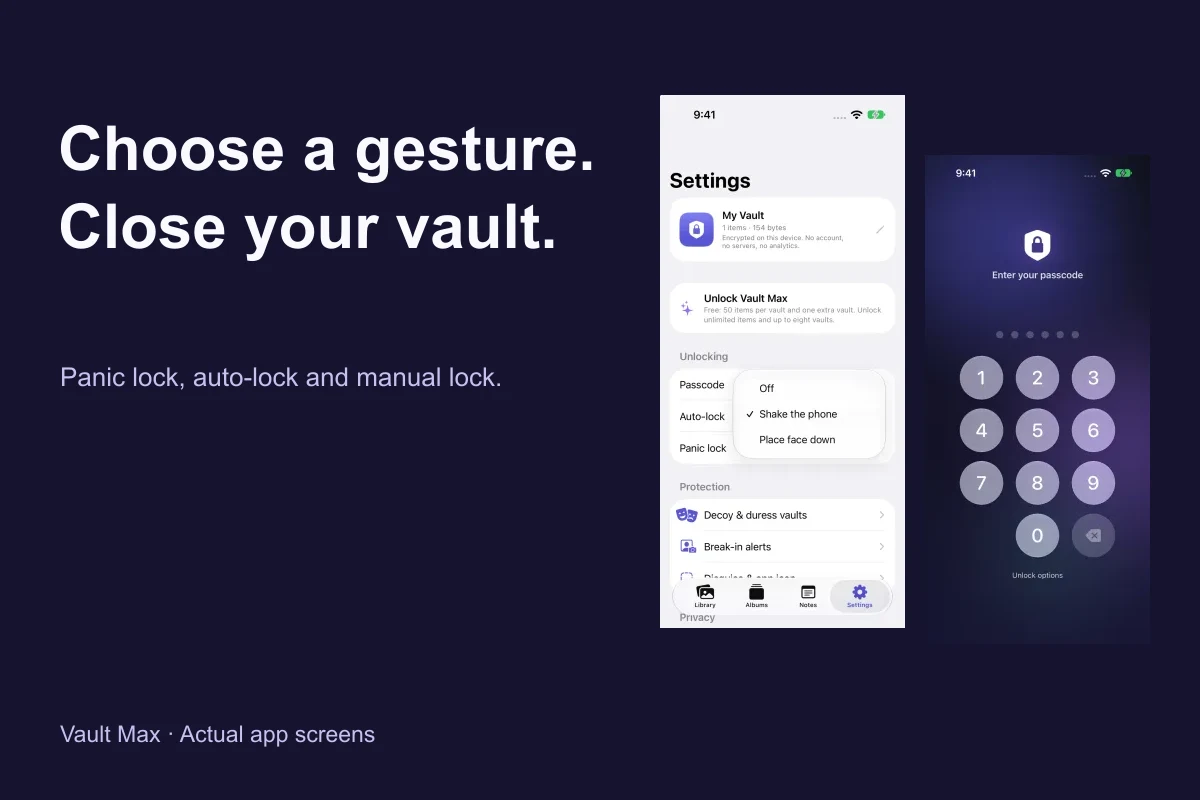
After preparing recovery, lock the vault and verify the expected entry screen. Put the phone into the state requested by the service arrangement. Know which collection you last used and keep the ordinary vault credential separate from the archive password.
A lock is useful for closing the current session. It is not a claim that an app protects a compromised operating system or guarantees what happens during a hardware repair. The practical preparation is stronger when you can explain both the access state and the recovery file you retained.
Inspect the result after service
When the phone returns, follow the service provider's finish steps. If your existing installation remains, reopen the private collection and inspect the specific items you checked before service. If the phone was erased or replaced, follow the supported restore route using your saved archive and its password.
Restoring an App Store purchase restores the relevant entitlement, not the private files themselves. Open important photographs at full size, check documents and reopen saved writing after content restoration. Keep the archive and any usable original until you are satisfied with the result.
- Confirm appointment versus send-away preparation and Apple's credential guidance.
- Identify recent photos, documents and notes you would check after service.
- Complete the file save and keep its password independently accessible.
- Follow current Find My/repair-preparation prompts and your provider's instructions.
- Lock the vault before handoff, then inspect the retained or restored collection after service.
Tap a box as you go. Checks reset when you leave this page.
The useful outcome is a repair handoff you understand: a closed private session, a current recovery route and a short list of content to check when the device comes back. Prepare those while the working collection is still in reach.
Common questions
Should I give a repair technician my iPhone passcode?
Apple says neither it nor Apple Authorized Service Providers will ask for your device passcode, Apple Account password or account-security details. Some software support may require you to enter credentials yourself; Apple says to remain present while the technician has access. Follow the current instructions for the service provider and repair arrangement.
Do I turn off Find My before a repair?
Apple's current service guide distinguishes system versions. iOS 27 and later use Ready for Repair or Trade-In through Find My; iOS 26 and earlier use its documented Find My-off route. Follow Apple's current device-specific instructions rather than an old universal checklist.
Is locking Vault Max enough preparation for a repair?
Locking closes the vault session, but recovery needs separate preparation. Preserve a current usable archive and its independent password before relying on the phone as the only place your collection exists. A repair can involve replacing or erasing the device.
Continue reading
More guides
Practical tips for your private library. Swipe or scroll to choose your next guide.

74 guides to explore