
Privacy in practice
Hidden photos on Mac: find the album, then choose where the private copy belongs
Find a missing Hidden album on Mac, check its lock and iCloud copies, and choose a private home for photos you want outside your everyday Photos library.
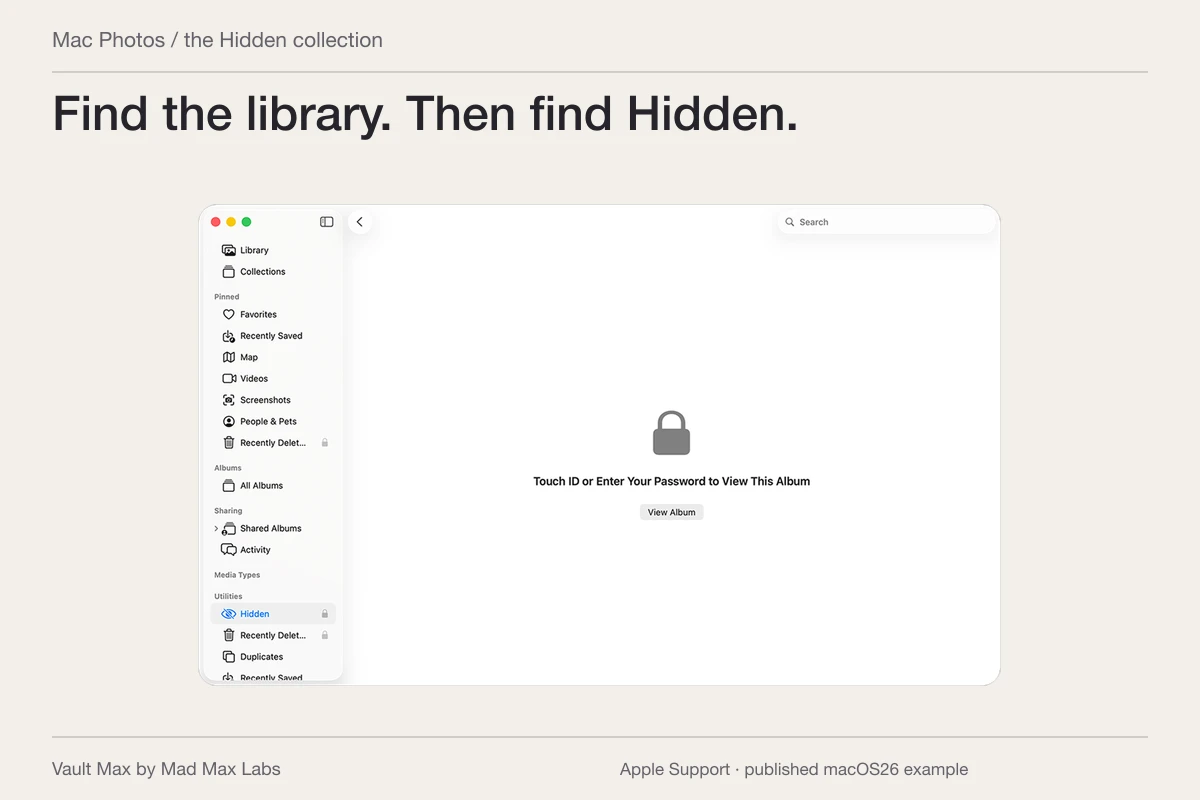
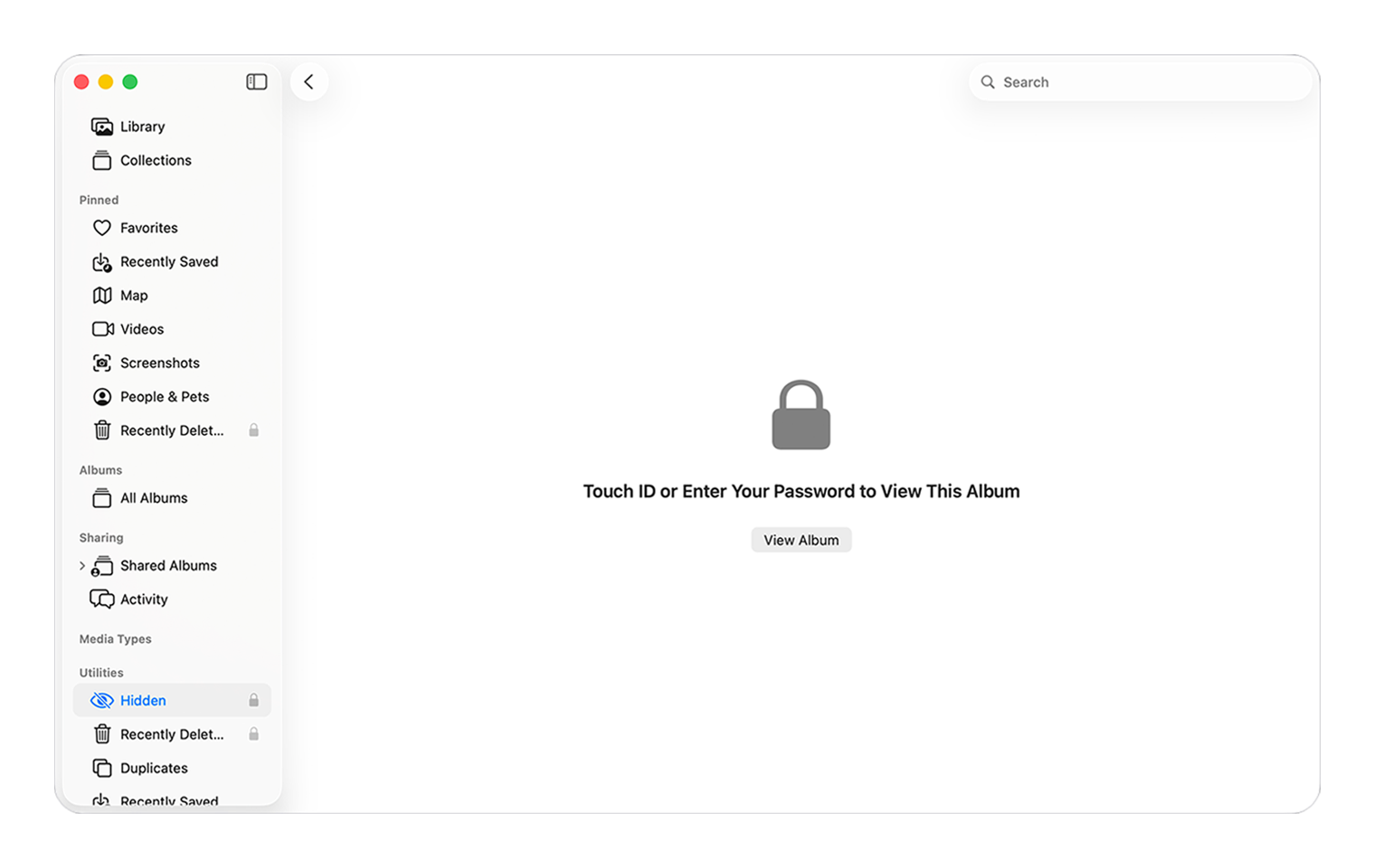
On Mac, open Photos and choose View → Show Hidden Photo Album. Select Hidden under Utilities, then choose View Album and authenticate if prompted. A missing sidebar entry often means the album is concealed, rather than that its photographs have vanished.
Once you find it, decide what you actually want: a tidier Photos library, a separately protected folder of exported files, or a private collection kept on your iPhone or iPad. Each has a useful place. Choosing the destination first saves you from hiding one copy while overlooking another on the desktop.
Find Hidden without moving or deleting anything
Apple's Mac Photos instructions place Hidden below Utilities. If Utilities is collapsed, move the pointer over it and expand the section. The View menu controls whether the Hidden album appears at all.
Unlocking the album and unhiding a photograph are separate actions. You can view a picture privately and leave it hidden. To return it to ordinary Photos views, select it and choose Unhide from its shortcut menu. Use that only when you want the picture back in the visible collection.
Start with one recognizable item. Open it, check that it is the photograph you expected and decide whether it should stay hidden. You do not need to export the entire library or change iCloud settings to answer that first question.
Apple's published macOS26 example shows the Hidden album in Photos. Use it to recognize the collection; the current menu and unlock steps are explained here. This is Apple's example library.
Apple Support · published macOS26 exampleHide a photo, then check the lock
To hide a picture in Photos, select it and choose Image → Hide Photo, or Control-click it and choose Hide Photo. Confirm the action. Apple also documents Command-L as the hide/unhide shortcut in its Hidden album guide.
The useful completion check is simple: the item leaves ordinary library browsing and remains available through Hidden. Closing the Hidden album's sidebar entry afterward changes visibility again; it does not create another password.
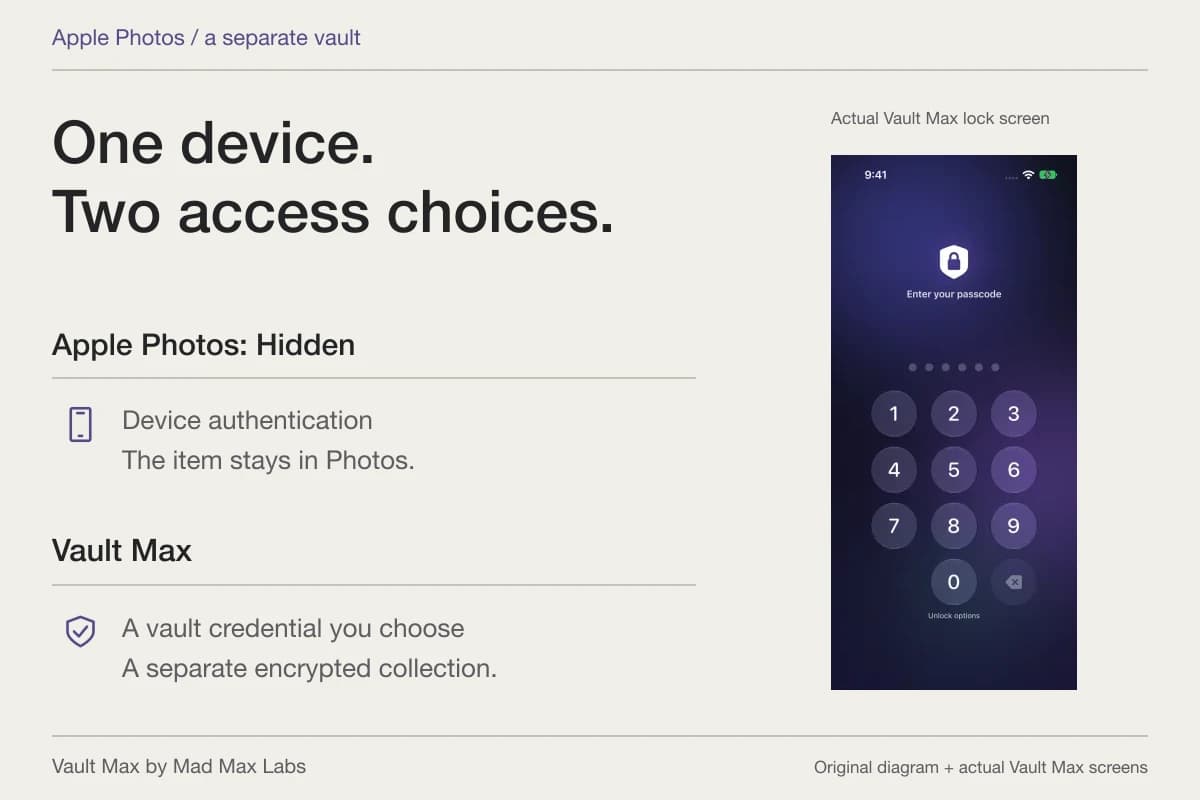
In Photos → Settings → General, review Use Touch ID or password. Apple's Photos settings reference identifies this as the authentication control for Hidden and Recently Deleted. The password is your Mac login password. An album name is not a separate credential.
On a shared physical Mac, also consider who uses the current login. If someone already knows that login password, understand what that means for an album protected by it. Keep your own session locked when you leave rather than treating an invisible sidebar item as the whole access plan.
If the expected photograph still is not there
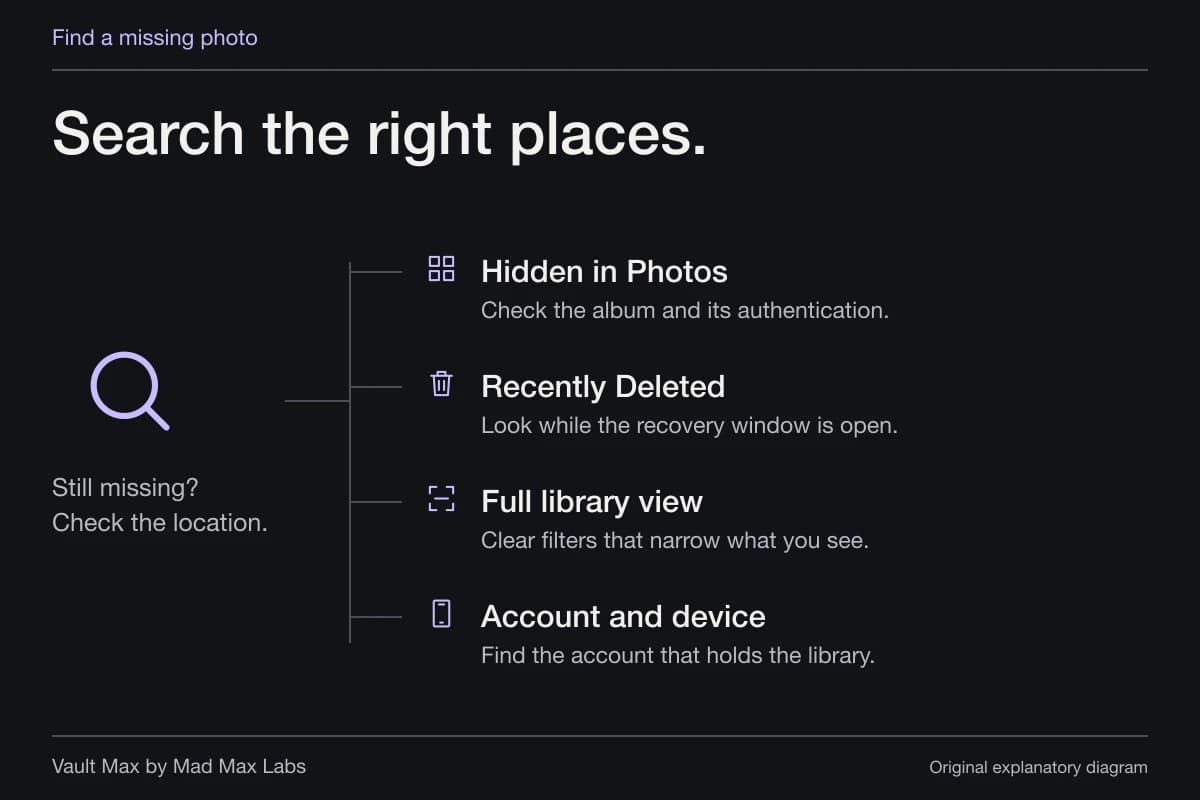
Work through the likely location problems before changing the library. An empty Hidden album, a different open library and an unfinished sync call for different fixes.
| What you see | What to check | Avoid doing first |
|---|---|---|
| No Hidden entry | View → Show Hidden Photo Album and the Utilities section | Deleting or rebuilding the library |
| Hidden appears but is locked | View Album and your supported Mac authentication | Assuming the photo is missing |
| The album opens but the item is absent | The Apple Account, open library and where the item was hidden | Importing every old copy again |
| The item was deleted rather than hidden | Recently Deleted and the available recovery period | Emptying Recently Deleted |
| An exported image is still on the desktop | That ordinary file's location and copies | Expecting Photos Hide to control Finder files |
Apple's missing-photo guidance covers Hidden, Recently Deleted, shared-library views and checking the same Apple Account across devices. If a photograph was deleted, the ordinary Recently Deleted recovery window is 30 days. Recover what you need before reorganizing it.
A hidden iPhone photo can still belong to the Mac's library
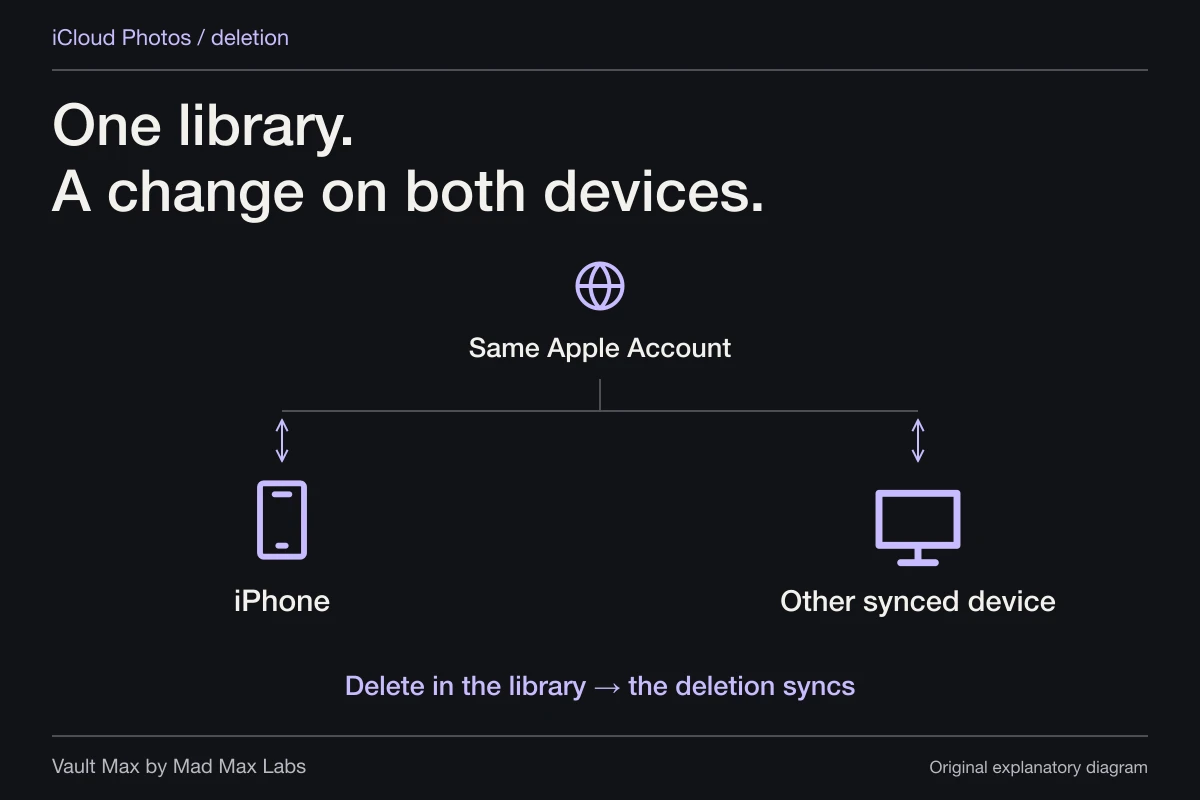
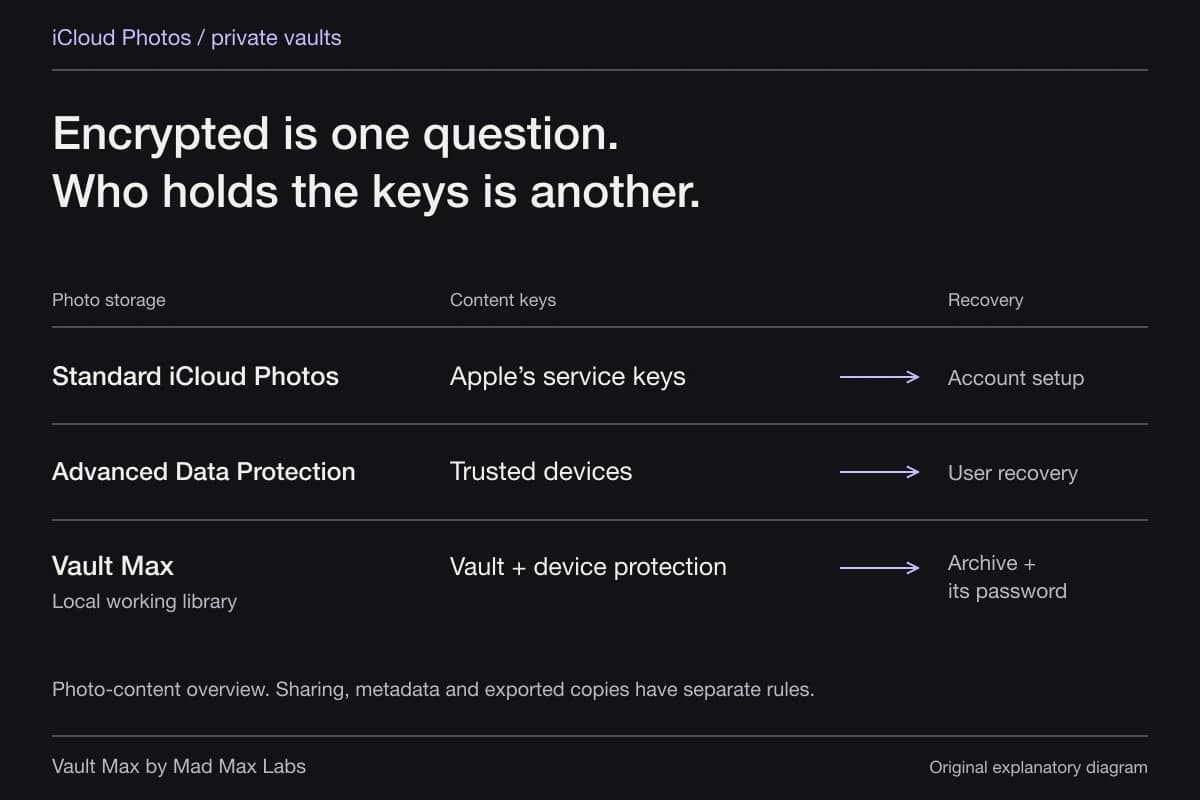
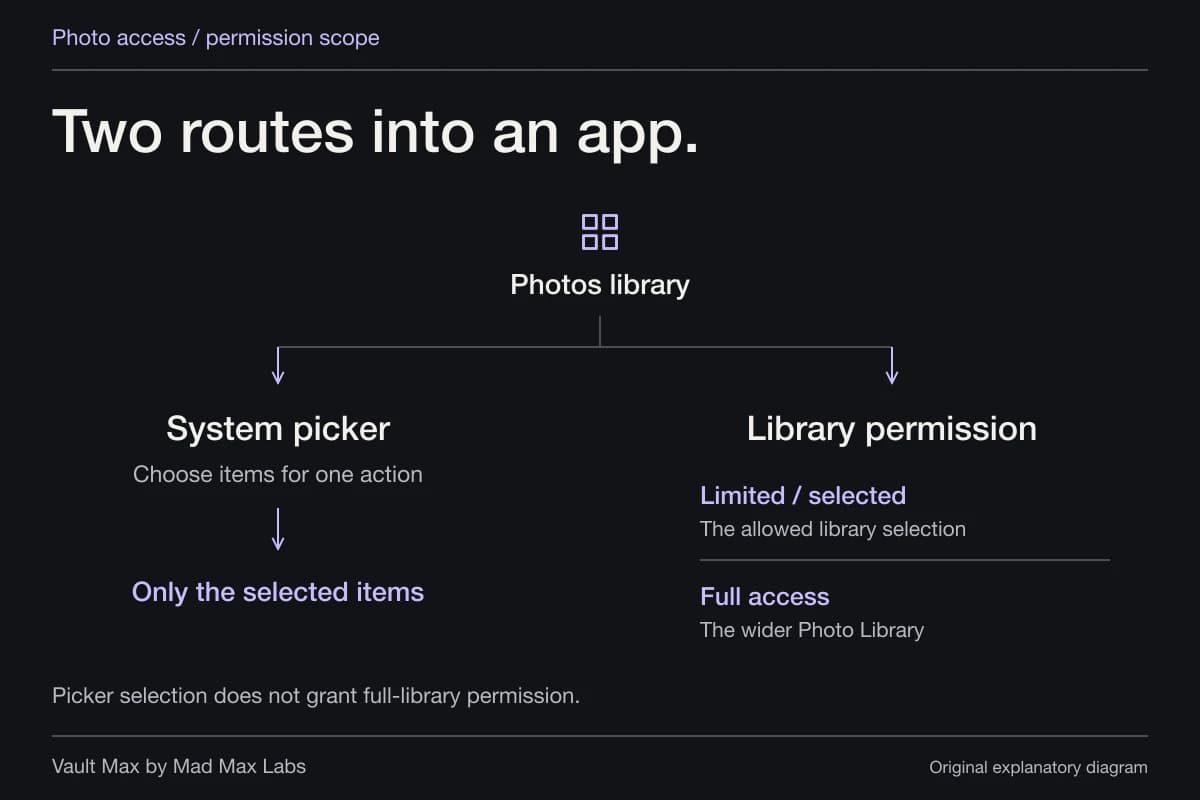
With iCloud Photos enabled for the same account, hiding follows the synced item. It does not withdraw it from iCloud. Conversely, a photograph kept only in a local collection elsewhere will not appear on the Mac just because the same person owns both devices.
Apple's iCloud Photos documentation also makes deletion a library-wide action across participating devices. An old Mac receiving the same deletions is a synced view, not automatically an independent recovery copy.
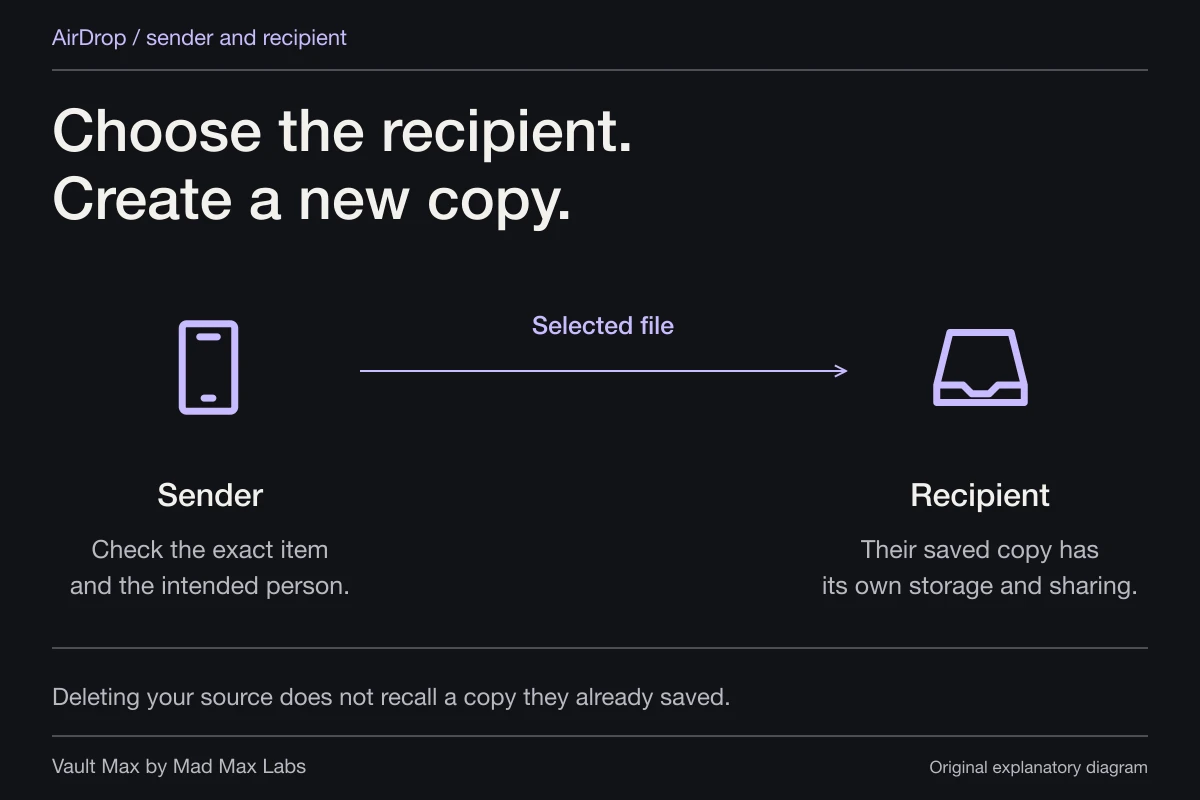
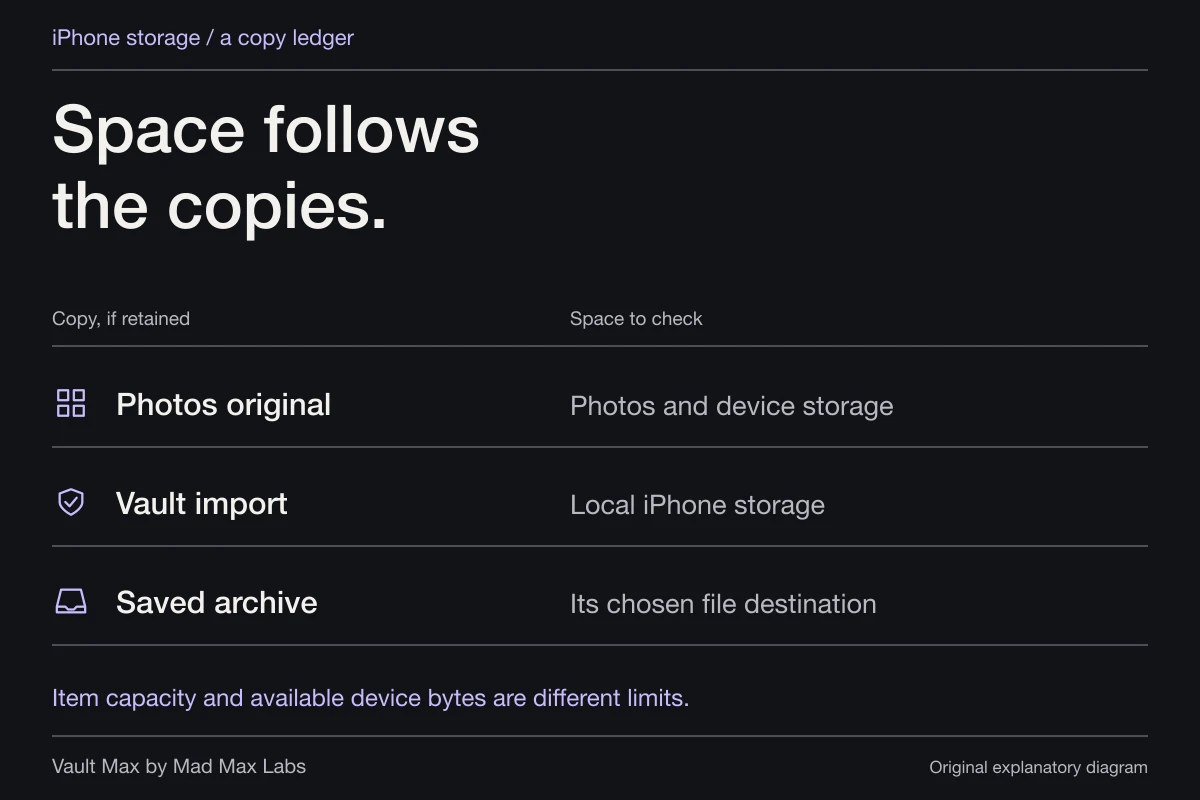
Before removing anything, name the copy you intend to keep. A downloaded export, a Photos-library original and a recovery archive are different objects. Open the retained result and establish recovery before considering source deletion. The shared-device guide explains the account and library distinctions in more detail.
For exported files on Mac, an encrypted disk image has a clear boundary
A Finder folder can be useful organization, but its name or visibility is not an encryption password. For selected exported files that need a separate Mac container, Apple's Disk Utility workflow creates an encrypted disk image.
In Disk Utility, choose File → New Image → Blank Image. Choose its location and size, select a suitable format, choose an encryption option and set the image password. Apple's instructions use a read/write image for a container whose files you will maintain. Copy the intended exported documents or pictures into the mounted image.
Finish by ejecting it. While mounted, its files remain available to someone with access to that session. Preserve the password and a recovery copy: Apple warns that a forgotten disk-image password prevents opening its contents. Check the retained files before deciding what to do with originals. This is a workflow for selected files, not advice to relocate a live Photos library into an improvised container.
Protect the Mac itself as well
FileVault protects the startup disk through the Mac's login arrangement. Apple silicon and T2 Macs already encrypt stored data; enabling FileVault adds a login-dependent protection layer. Keep its recovery route somewhere you can reach without the locked Mac.
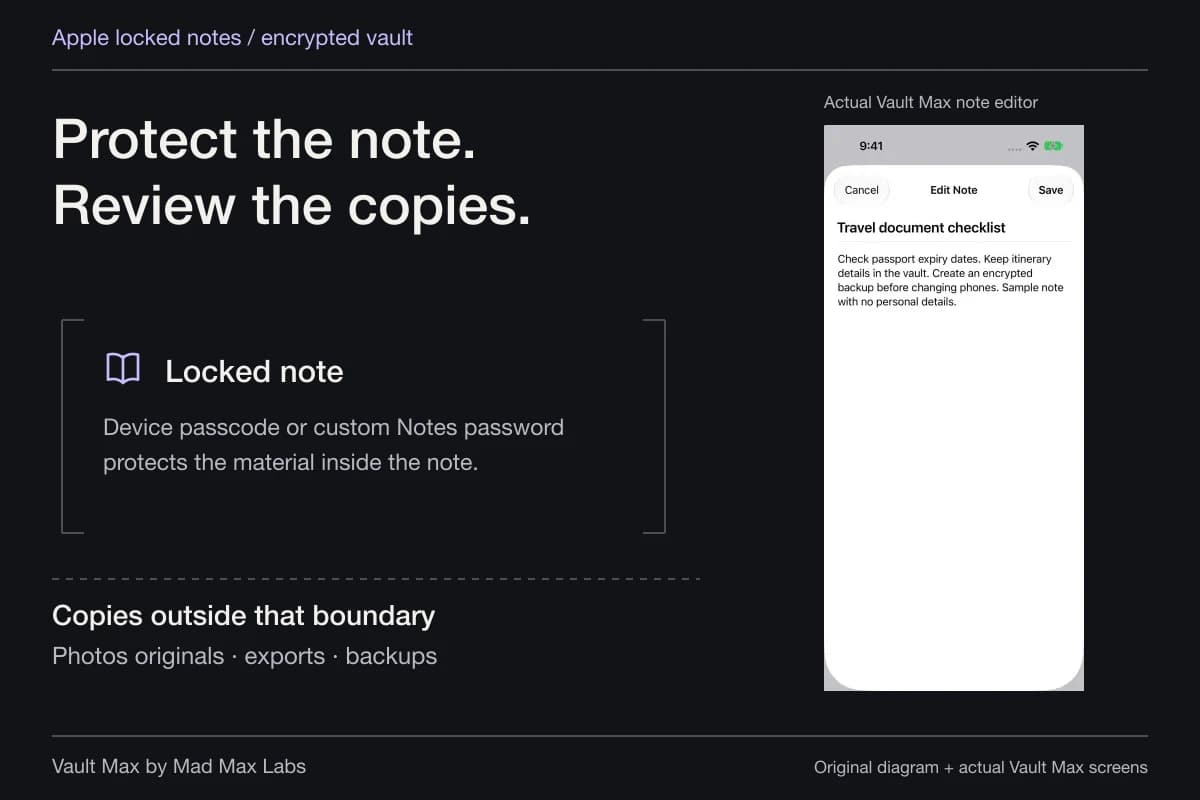
That whole-device protection and a separately closed file container answer different access questions. If you deliberately open an image while someone is using your session, disk encryption does not make the visible picture private from them. Close the work and lock the session when finished.
Keep the private working collection on your phone when that is the job
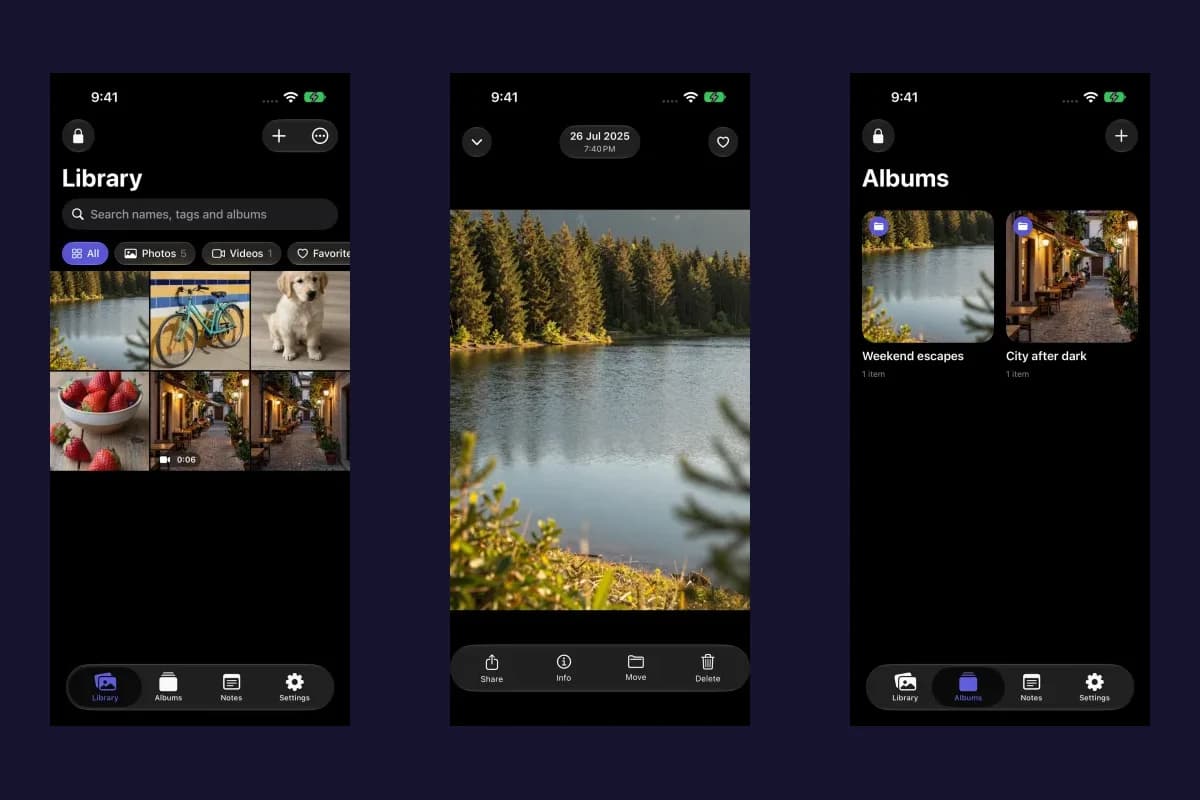
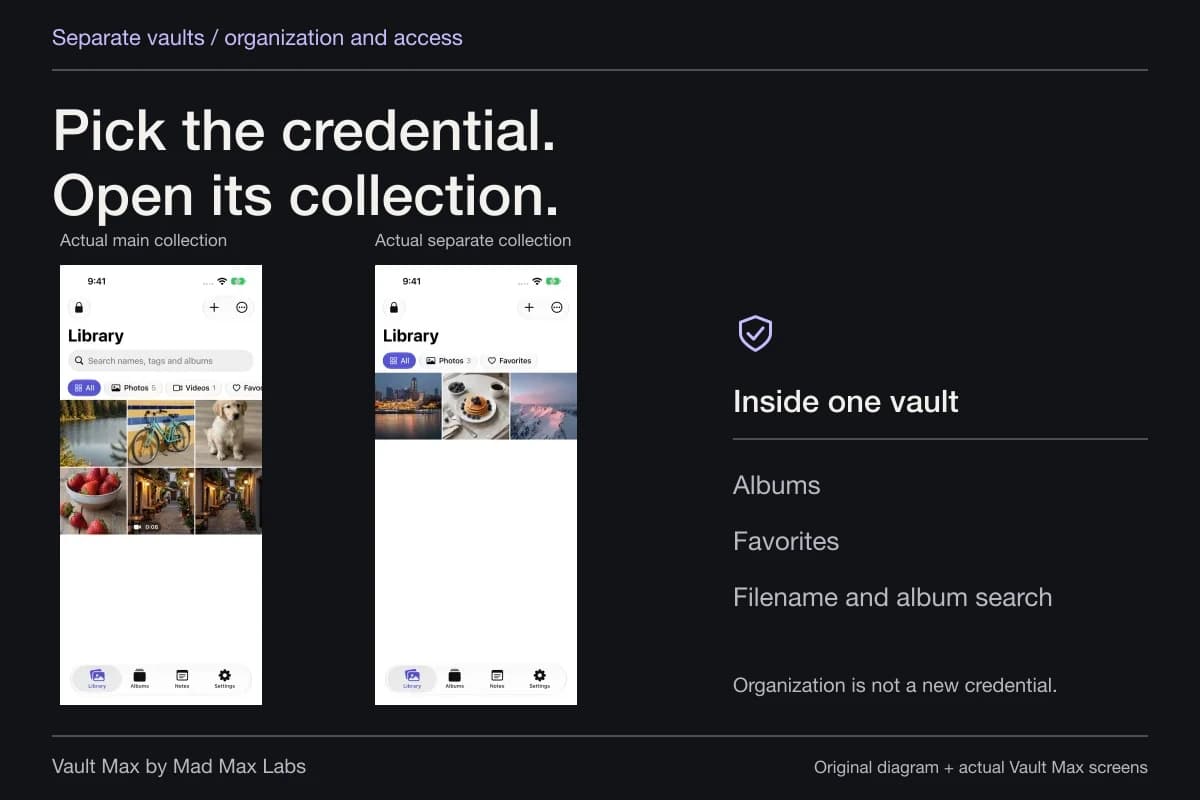
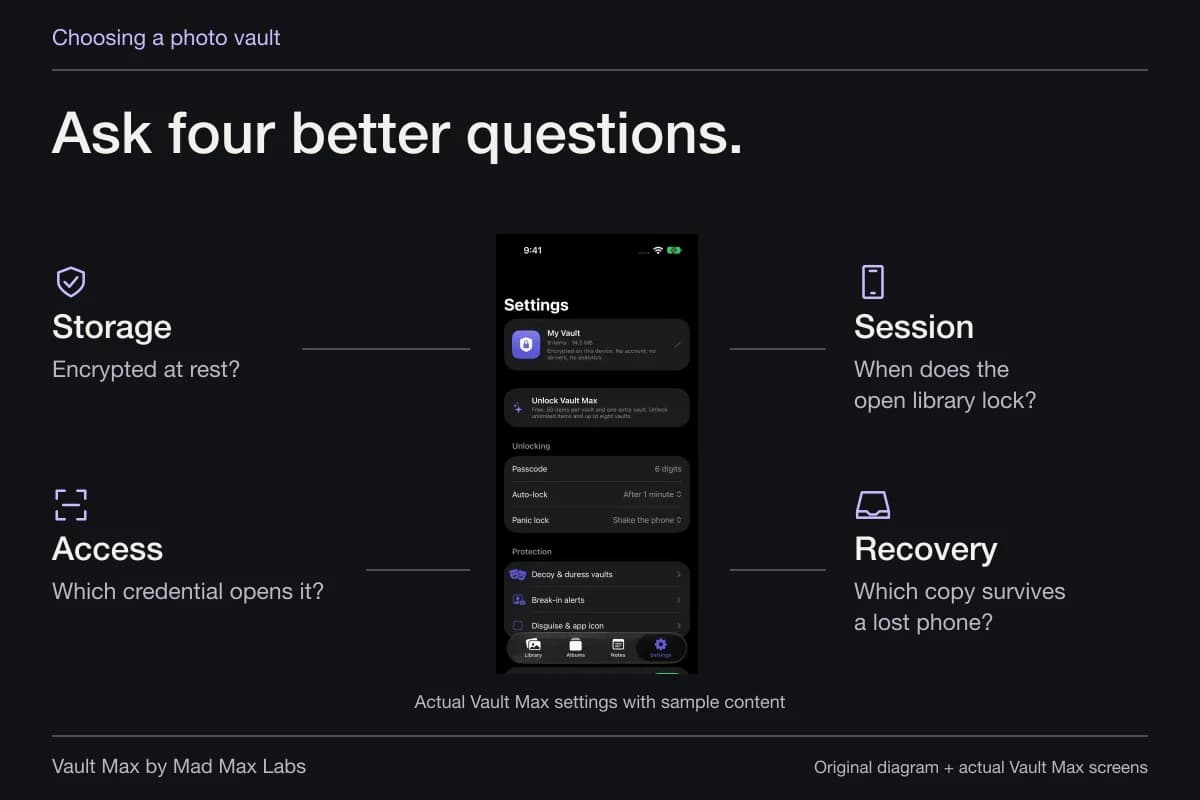
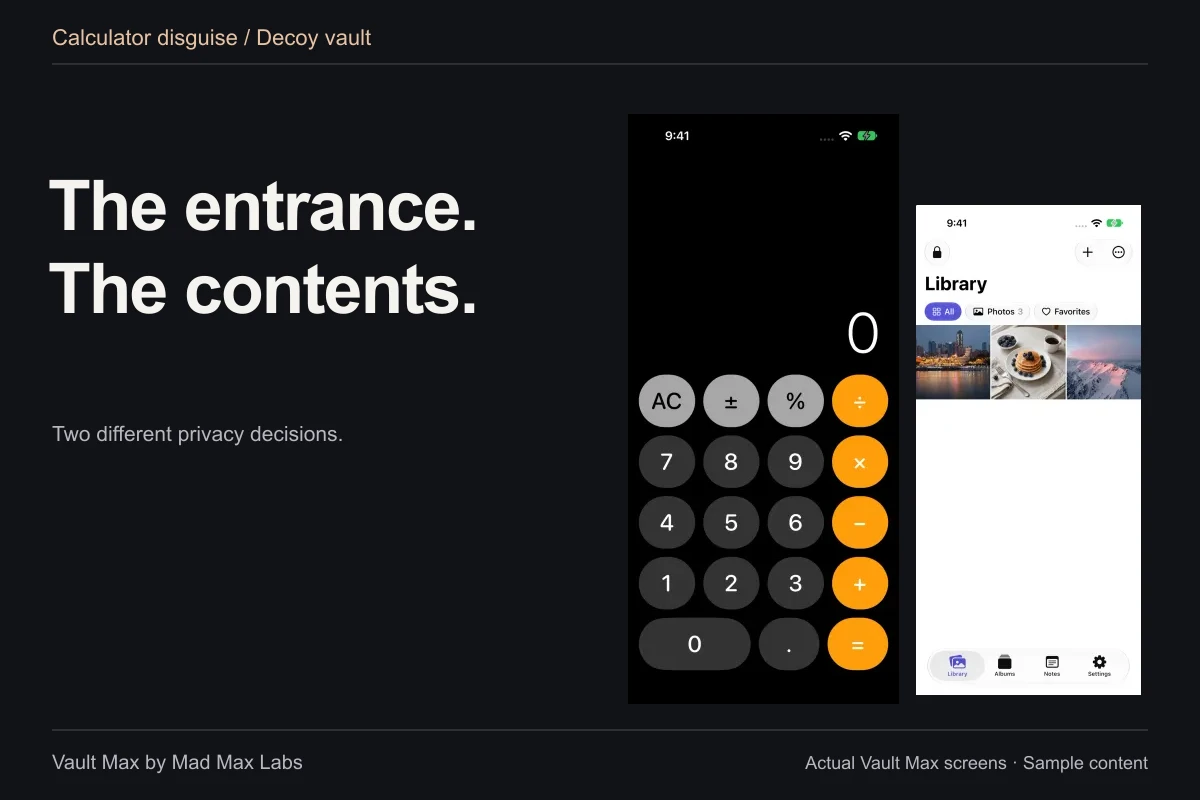
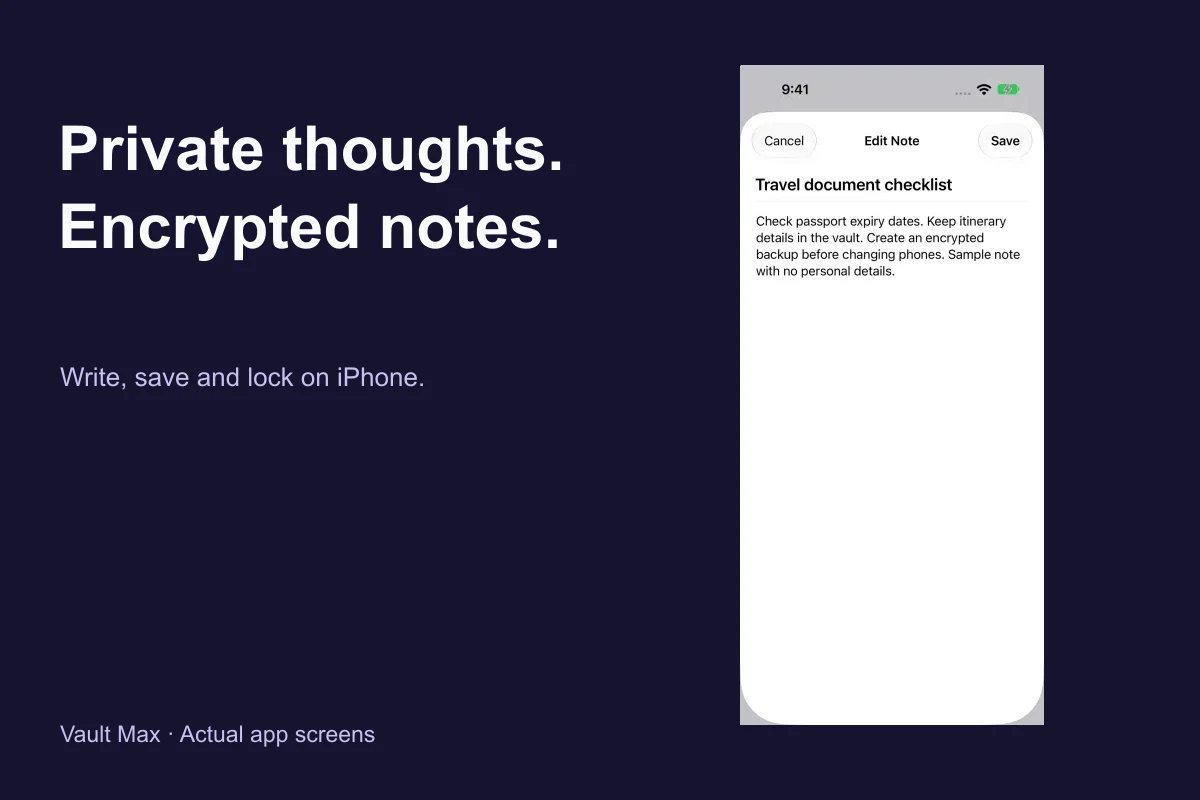
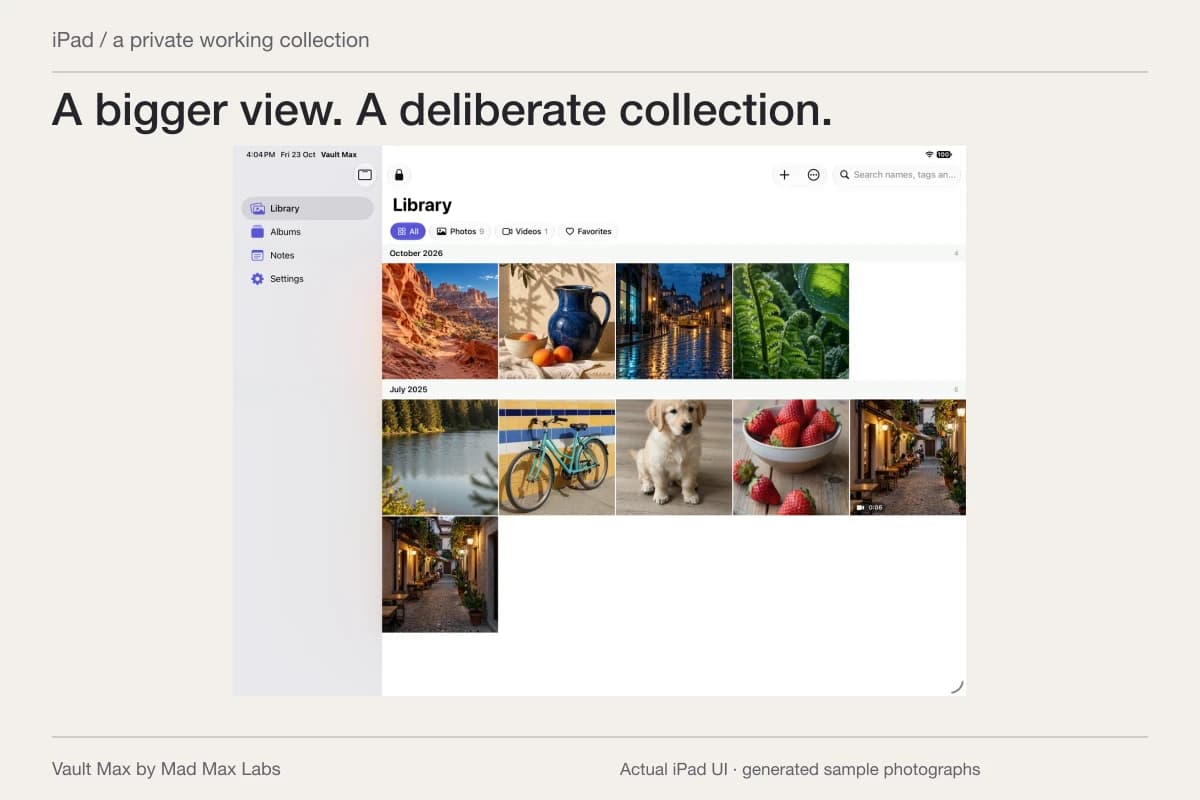
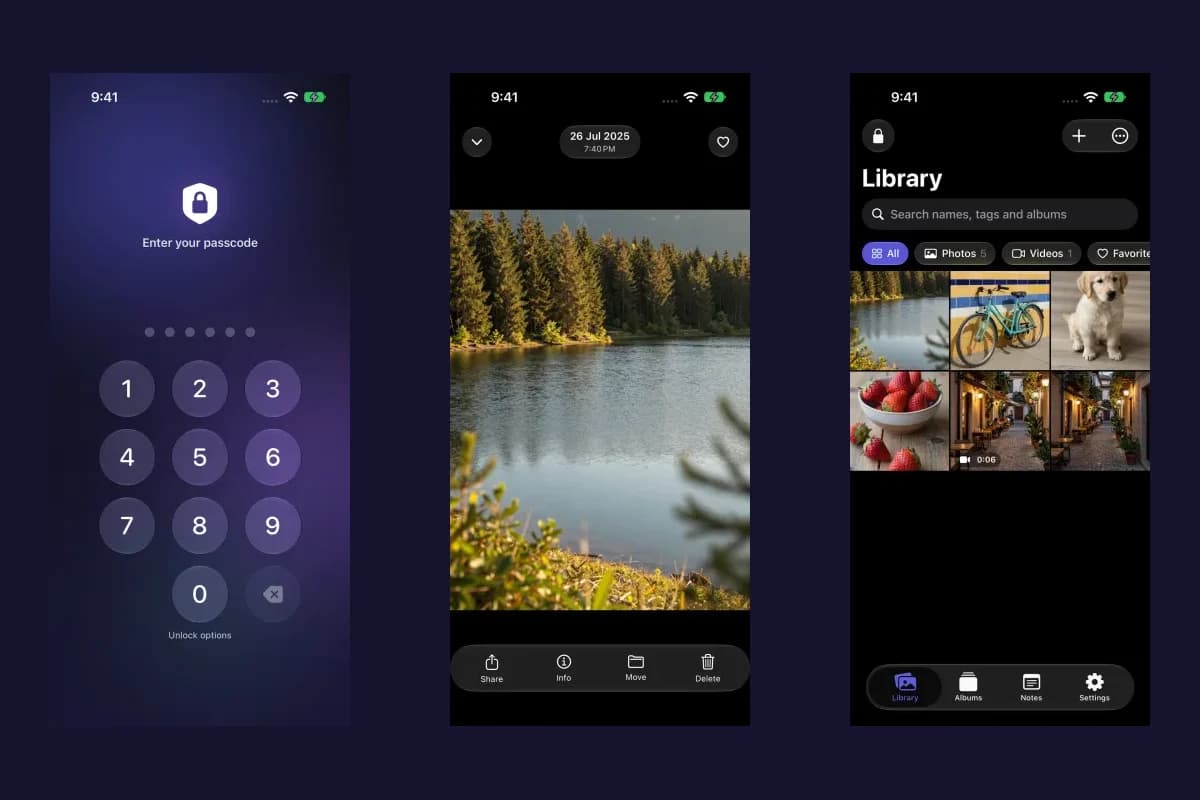
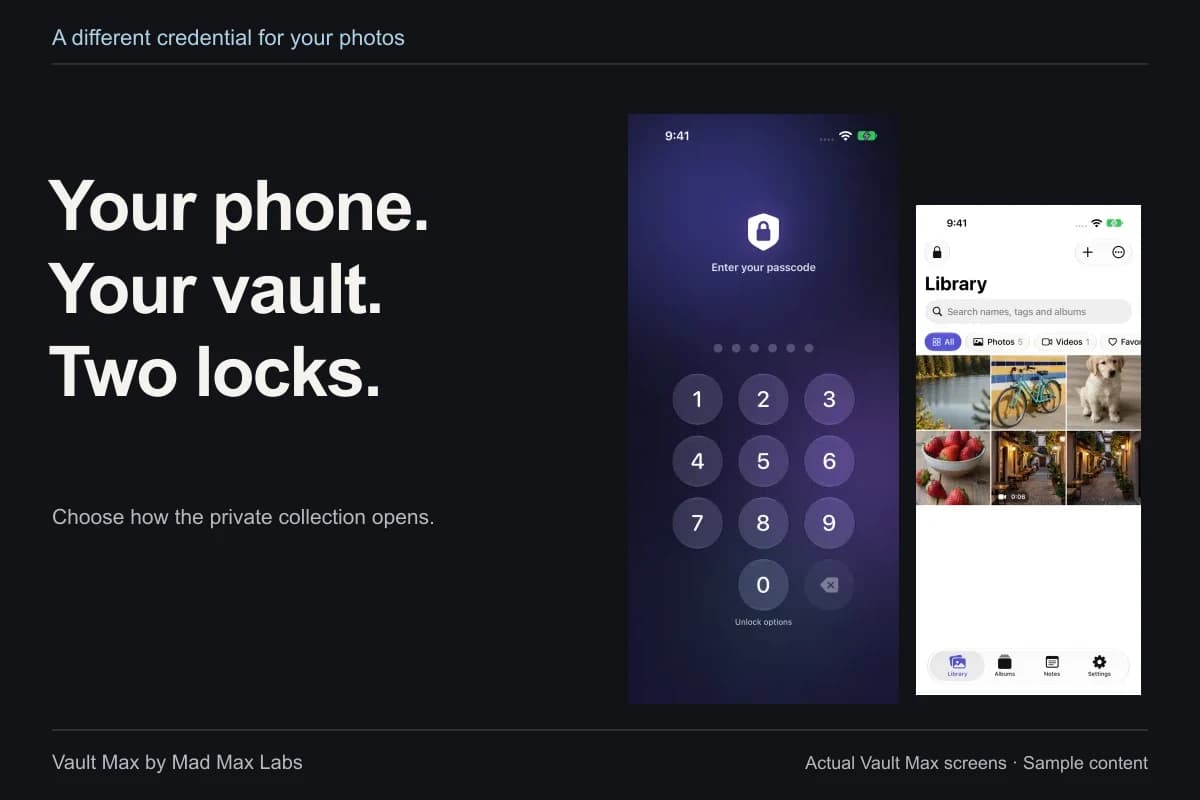
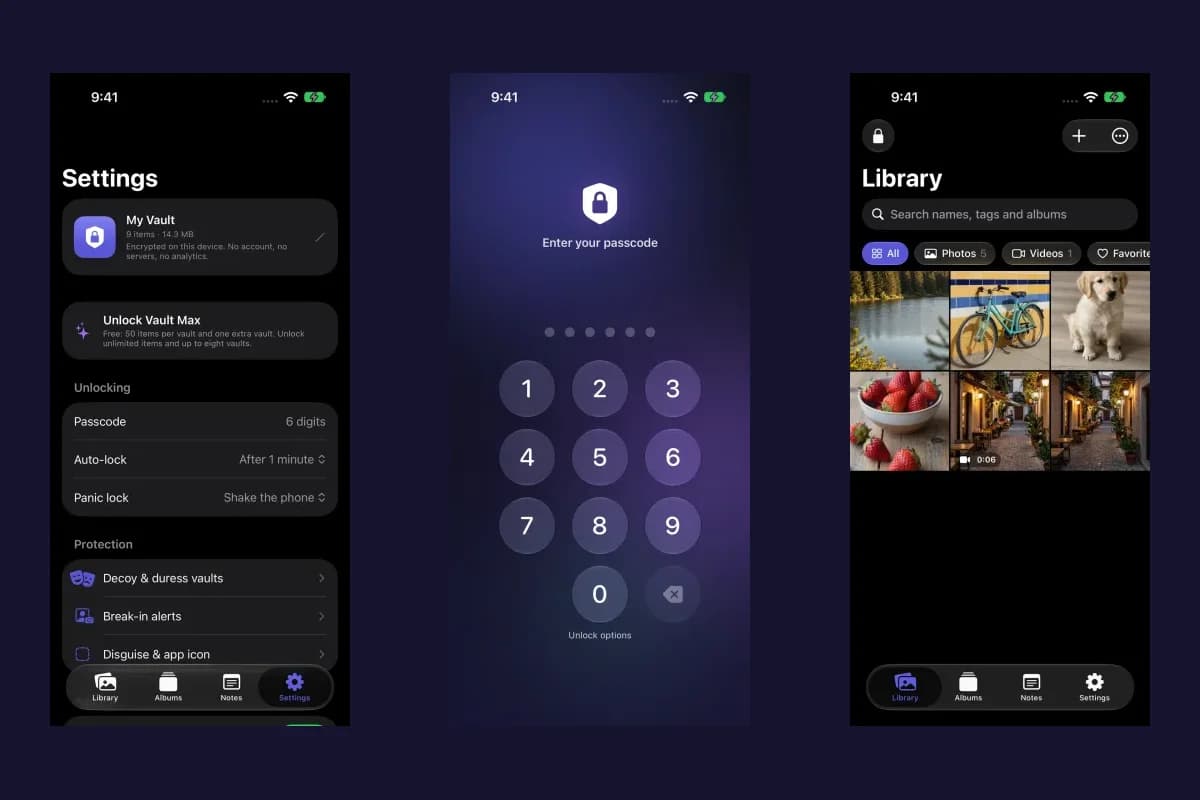
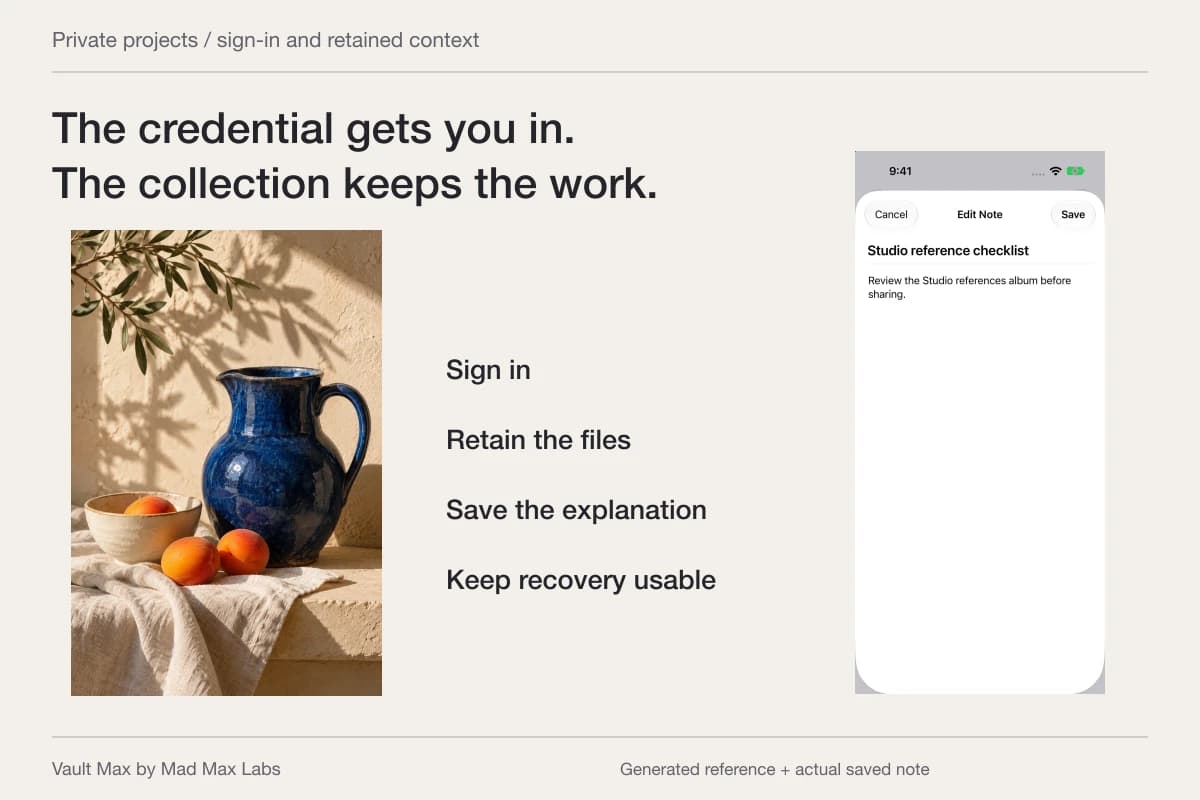
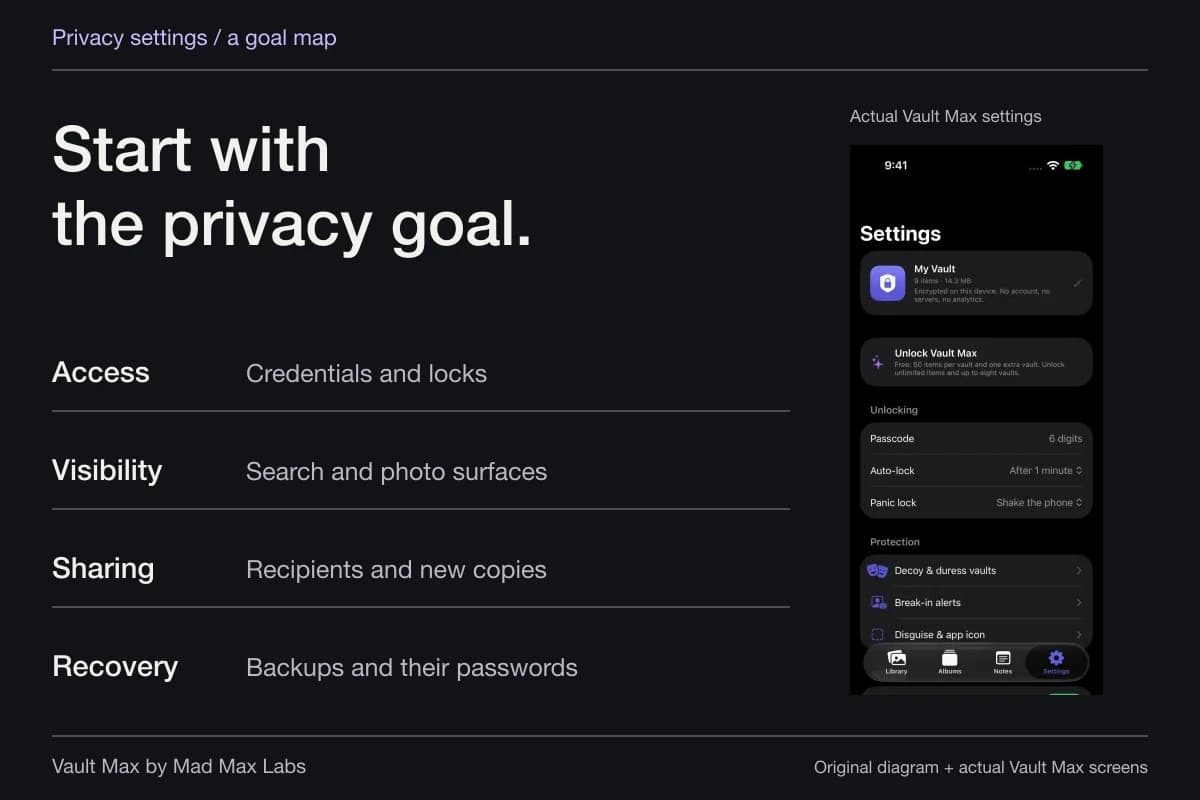
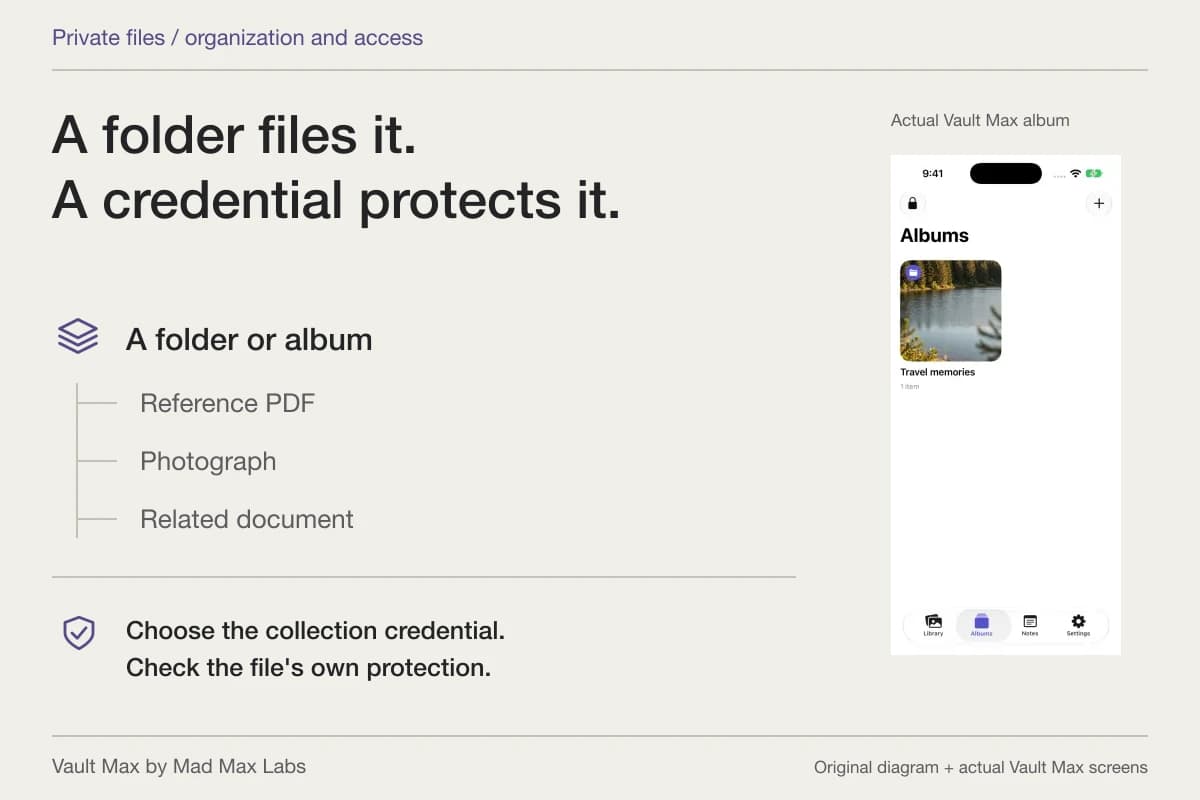
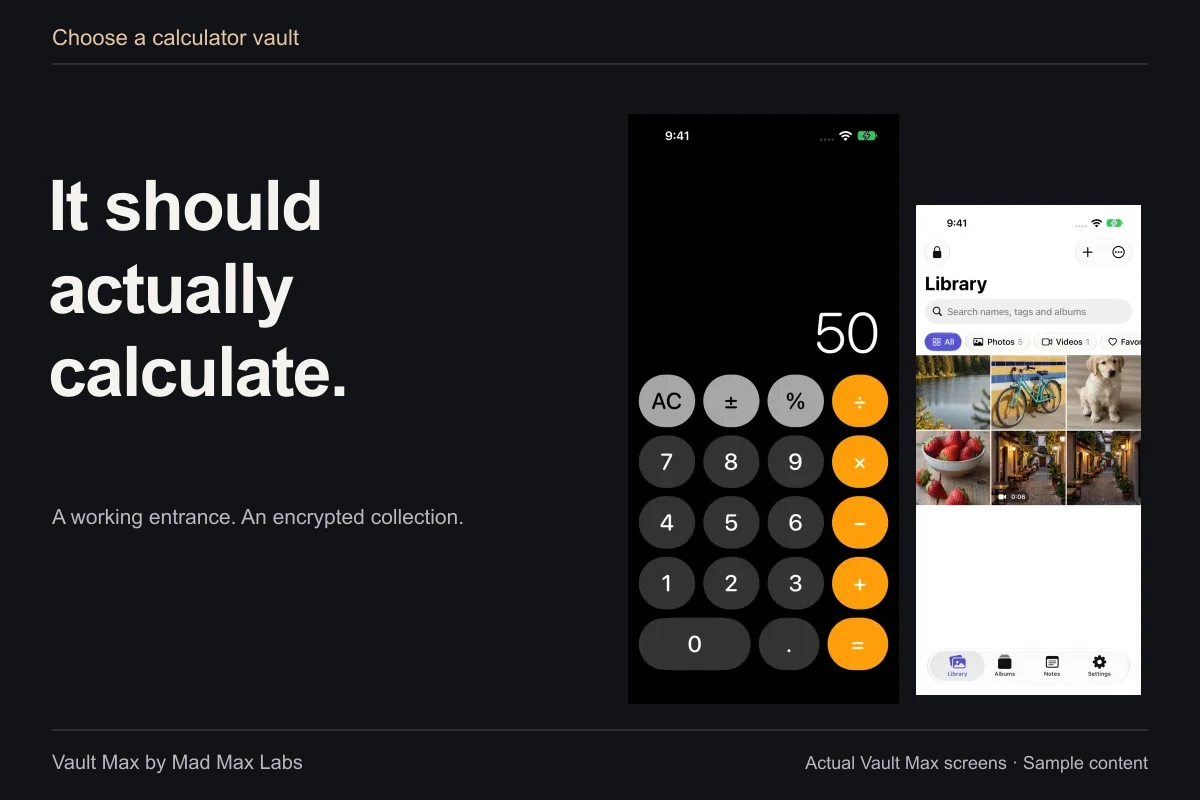
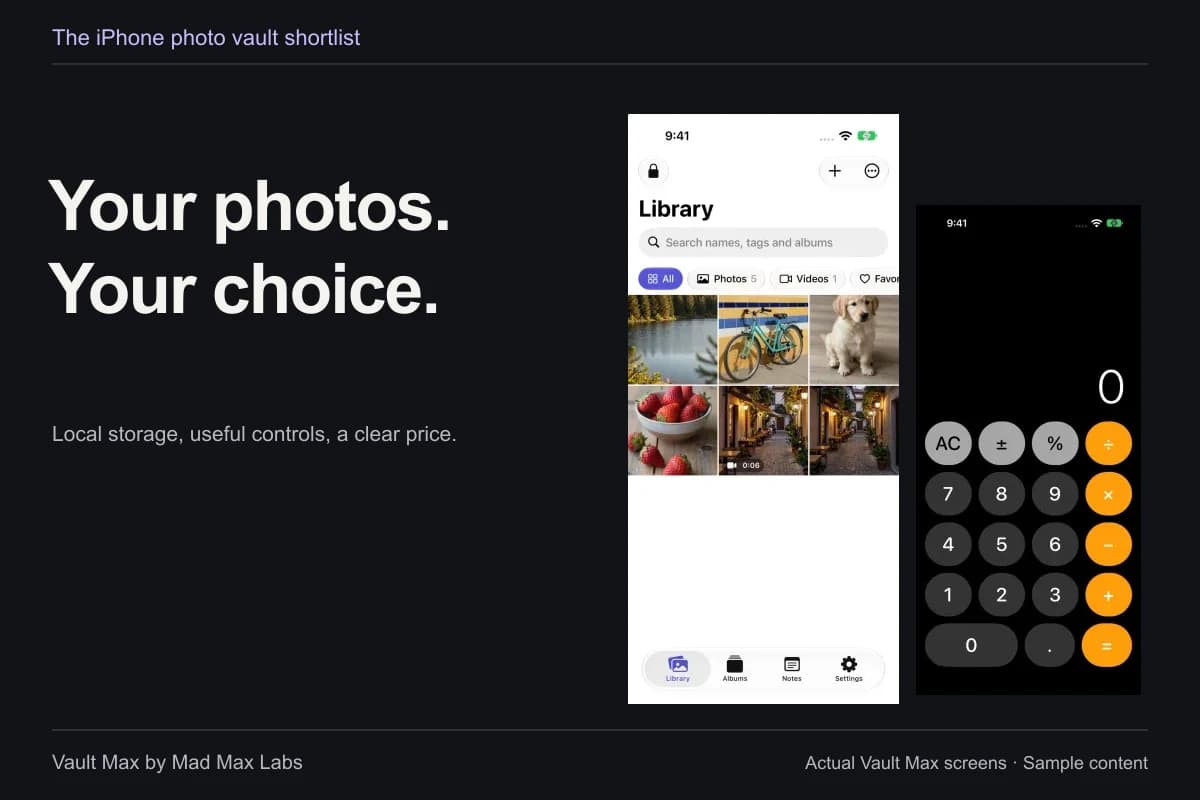
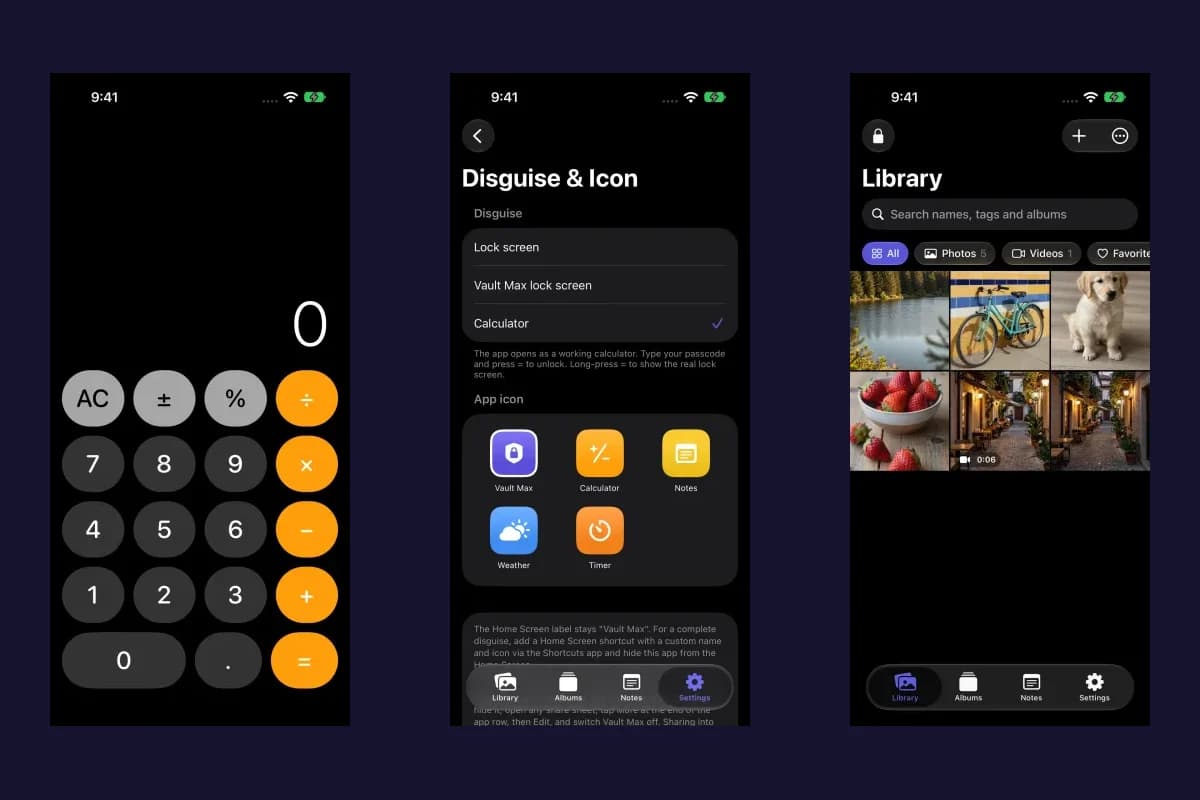
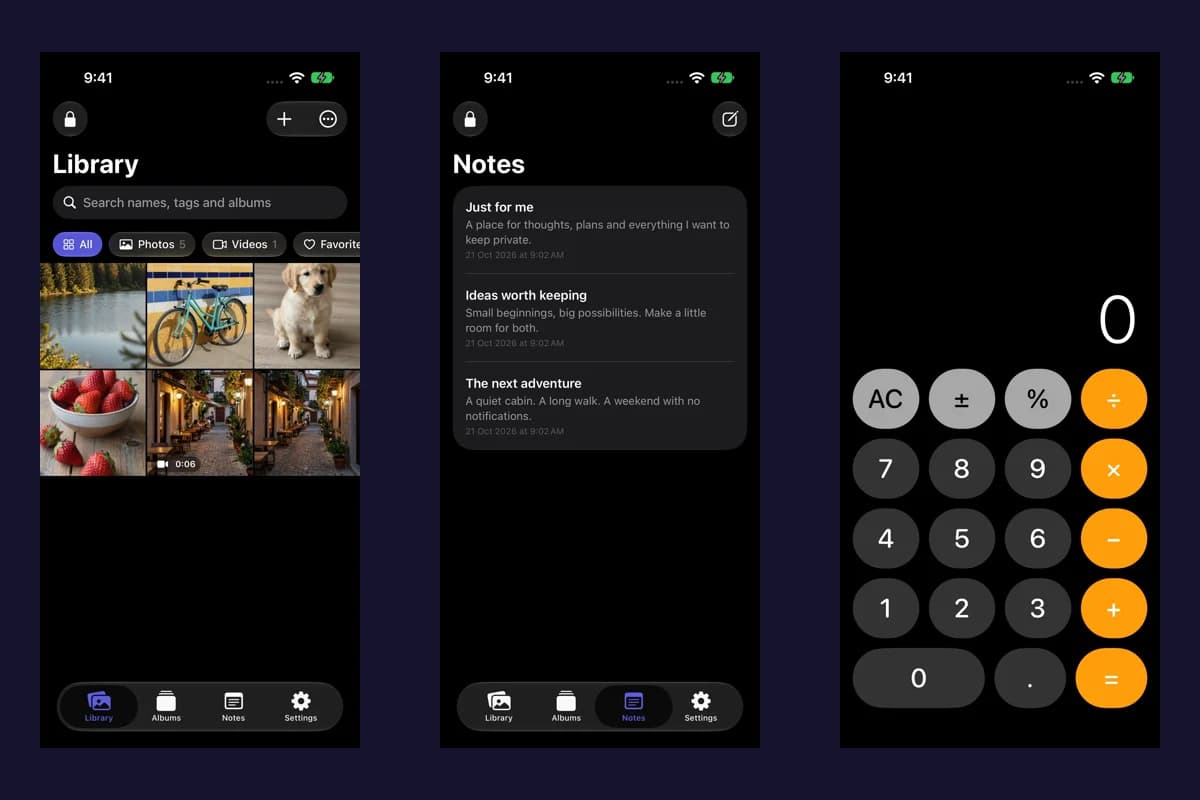
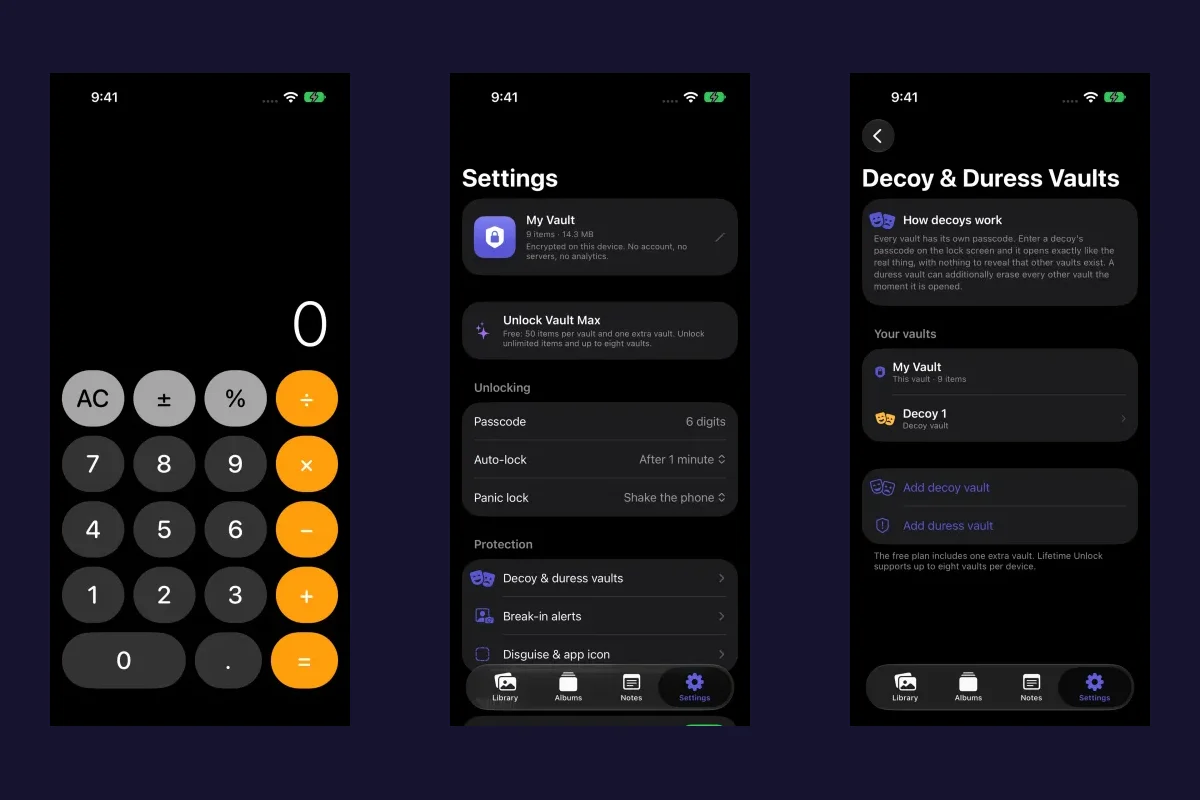
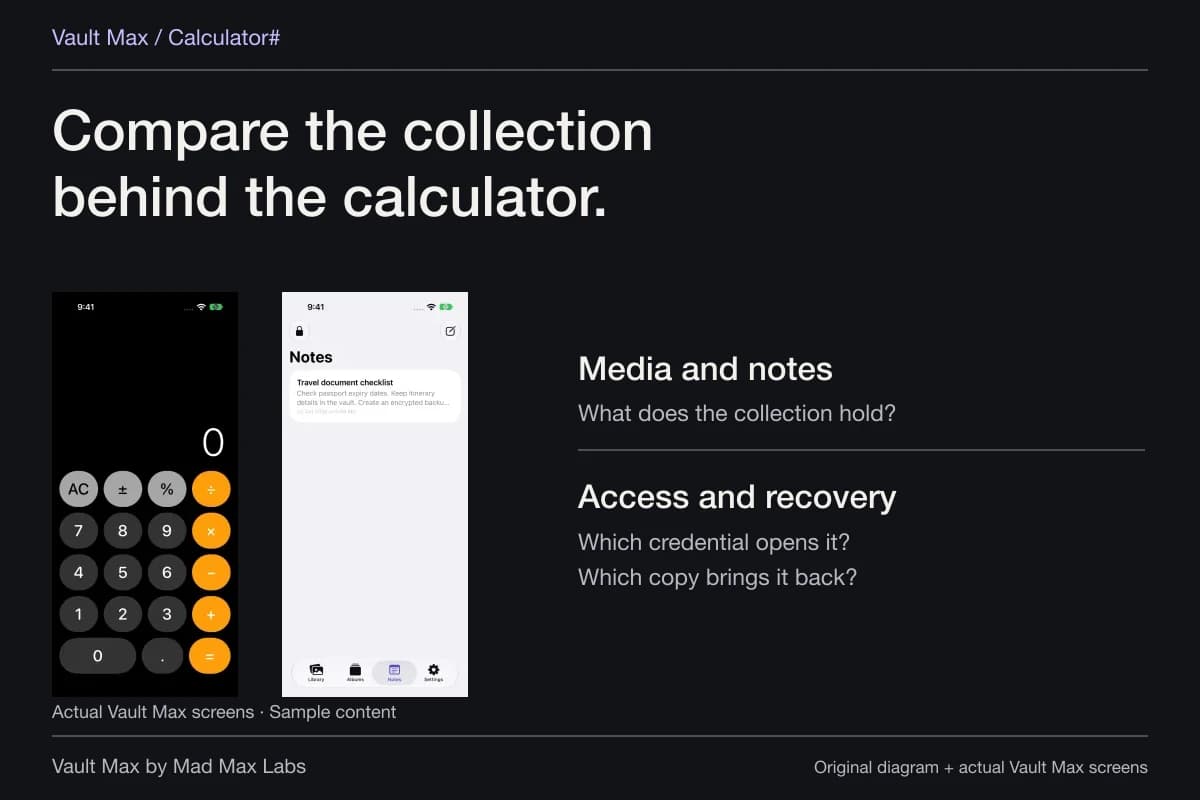
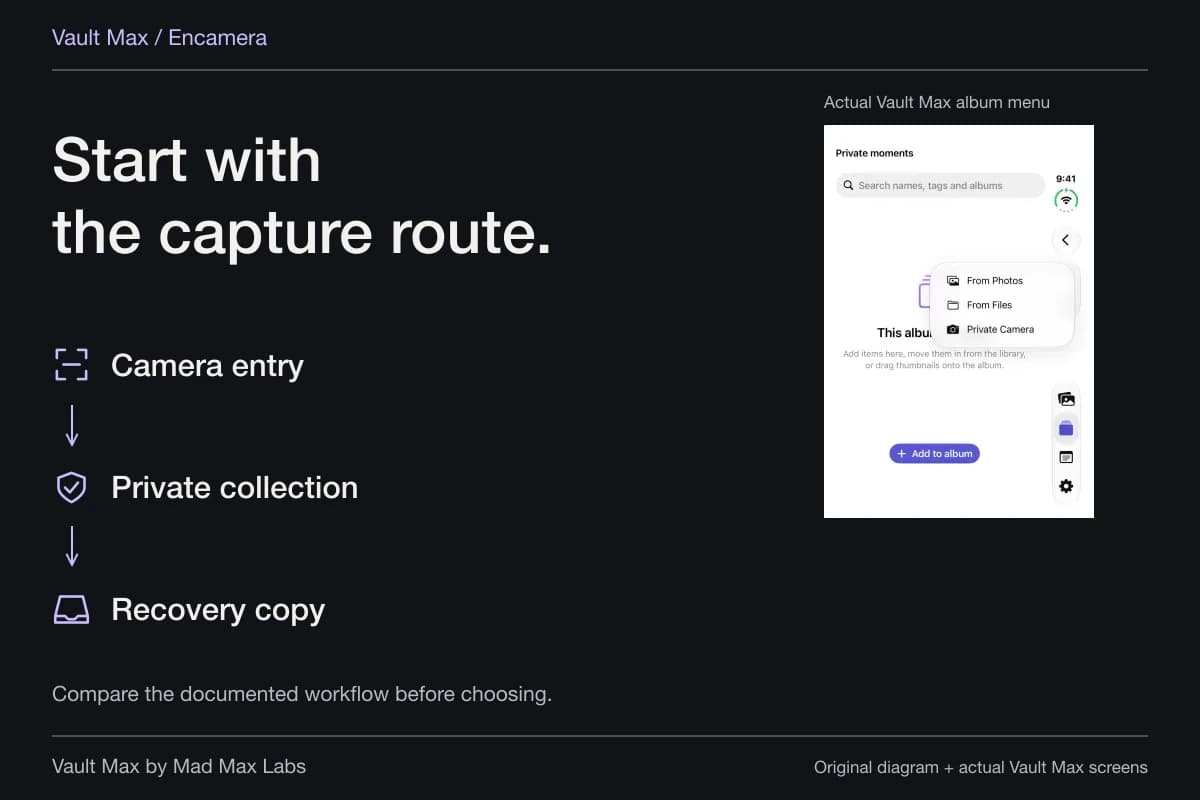
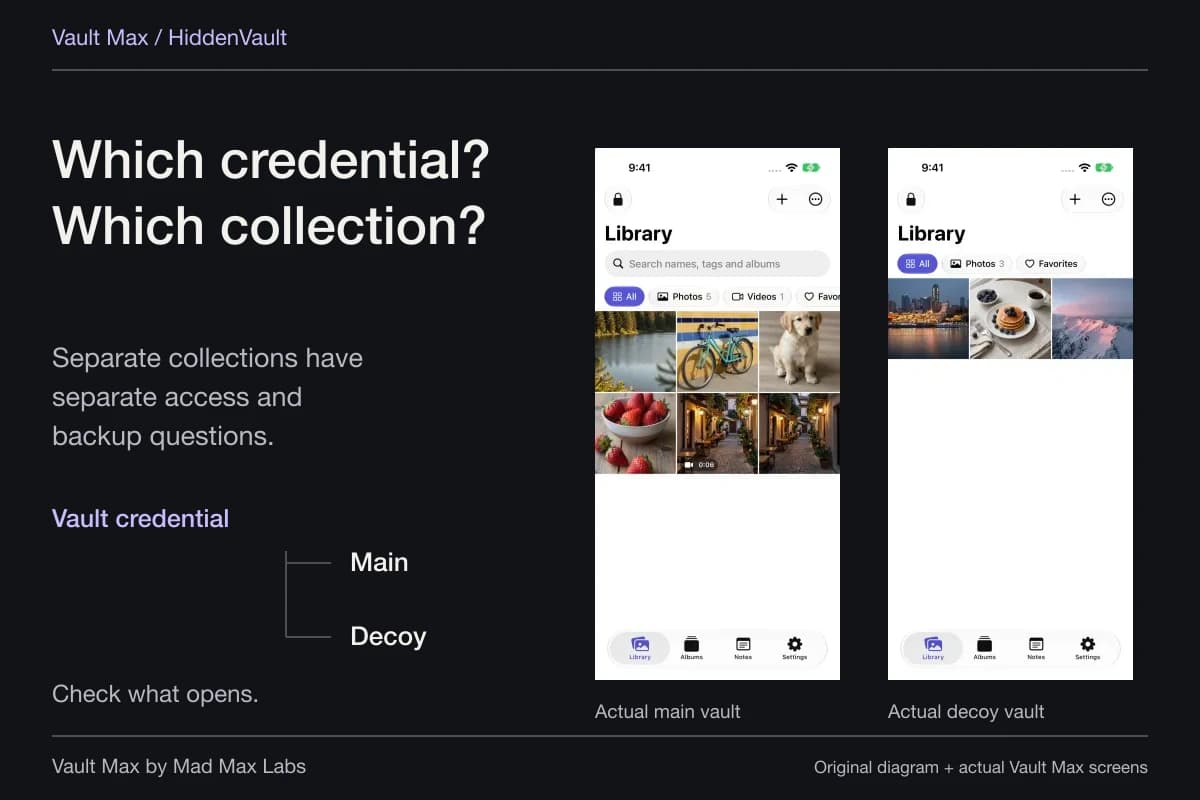
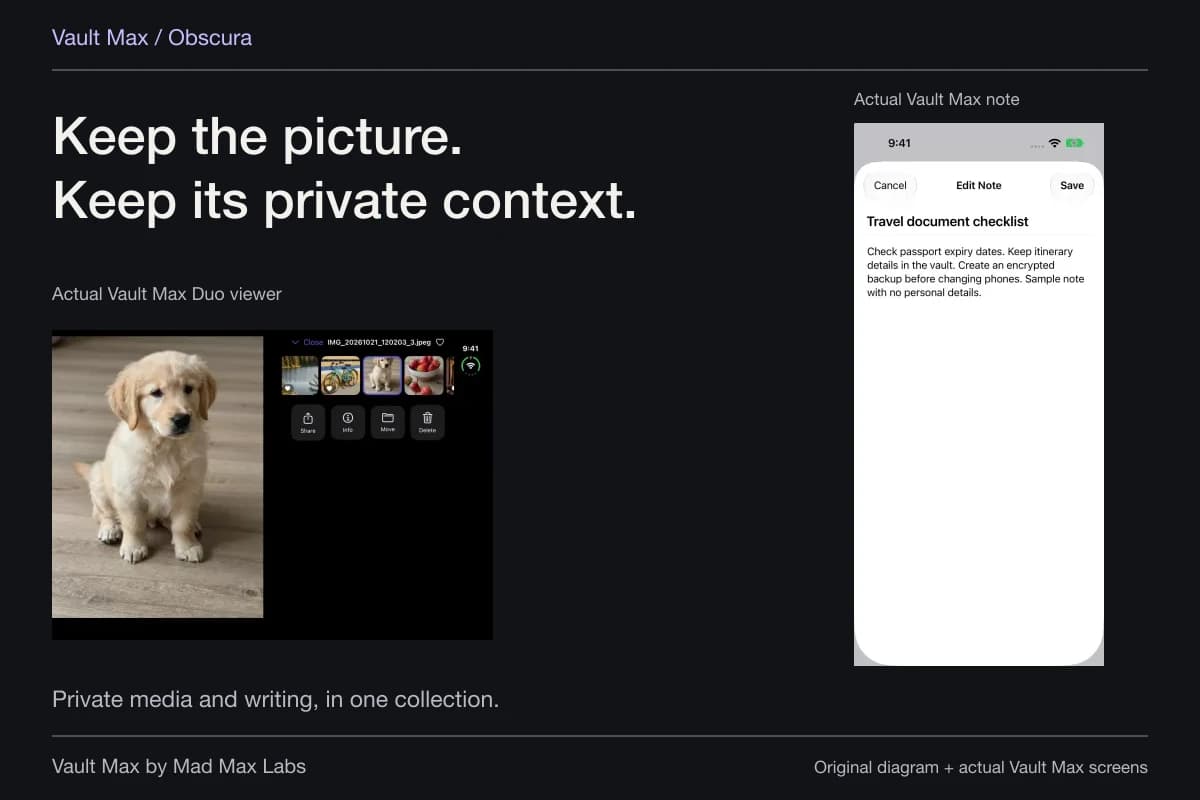
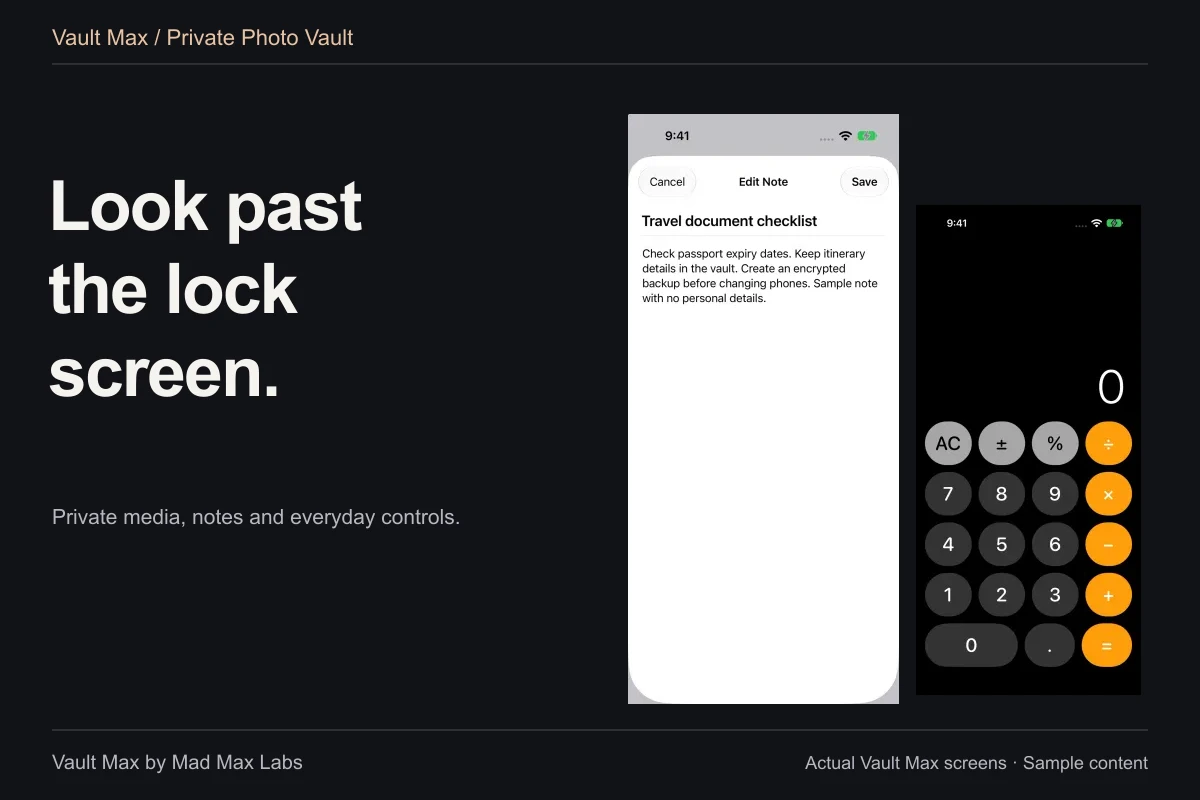
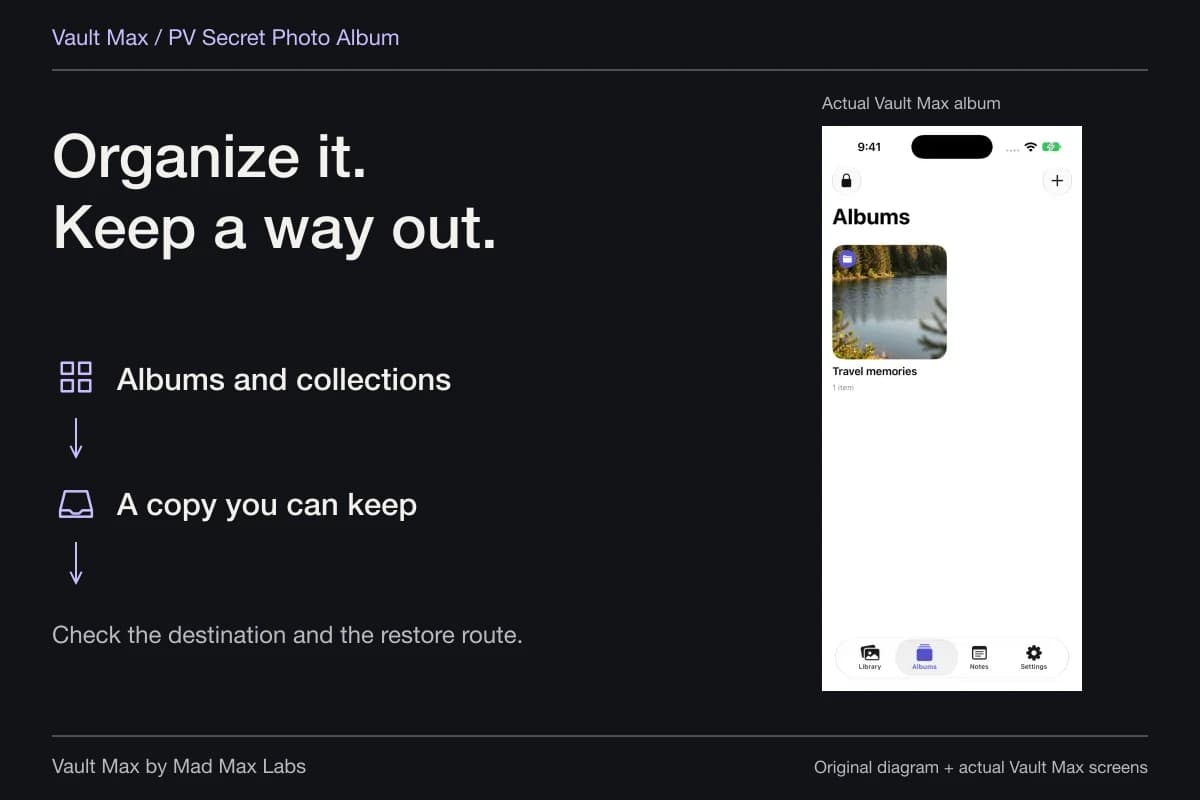
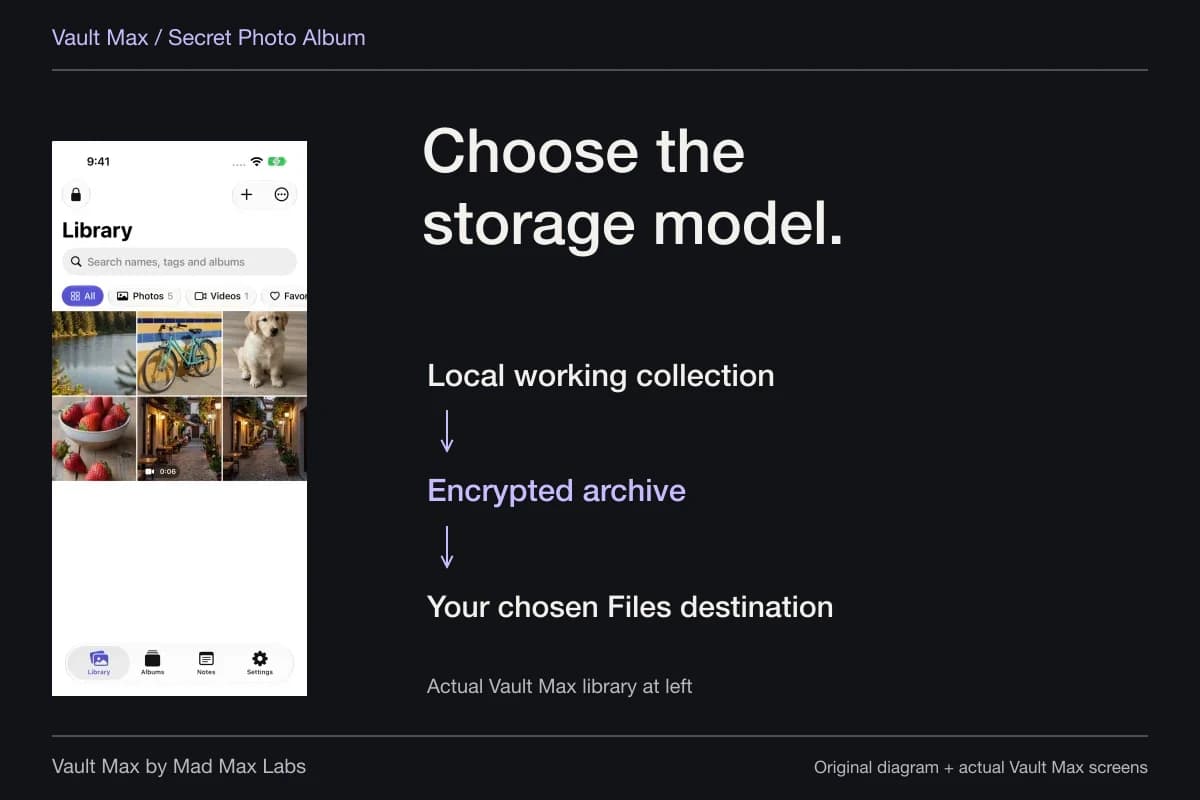
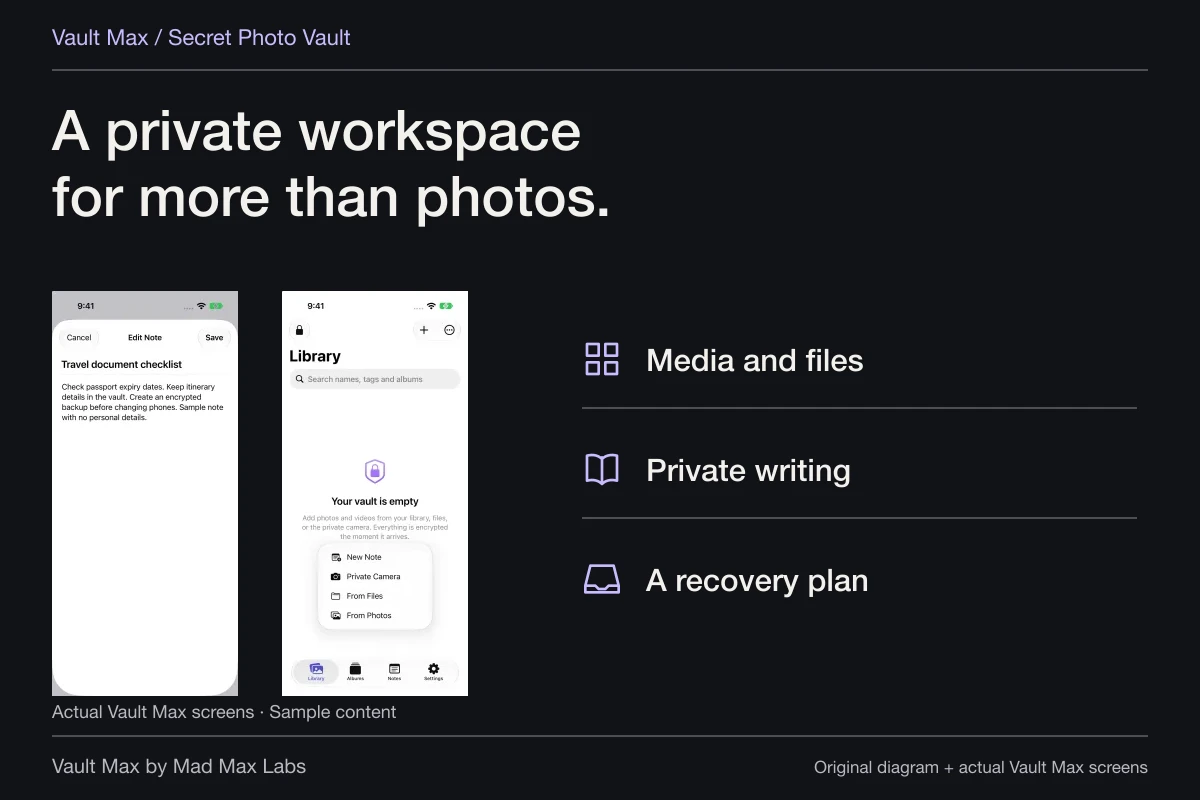
Vault Max gives an iPhone or iPad collection its own credential, encrypted media and files, albums and encrypted text notes. You can keep the photographs and the explanation you wrote about them together in your private routine without creating a Vault Max account.
It is not presented here as a native Mac application. Importing into the mobile vault also does not remove the original from Mac Photos, Downloads or an existing message. Follow the small-import walkthrough, inspect the result and review those original locations separately.
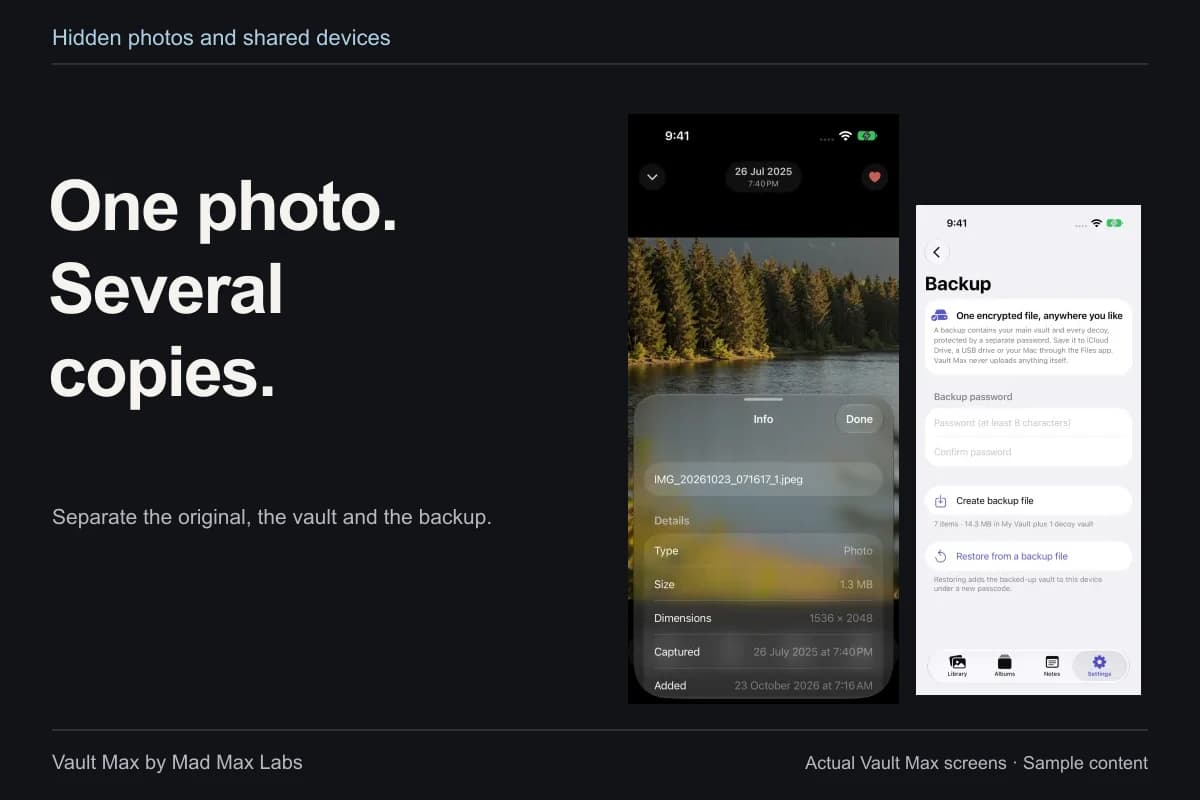
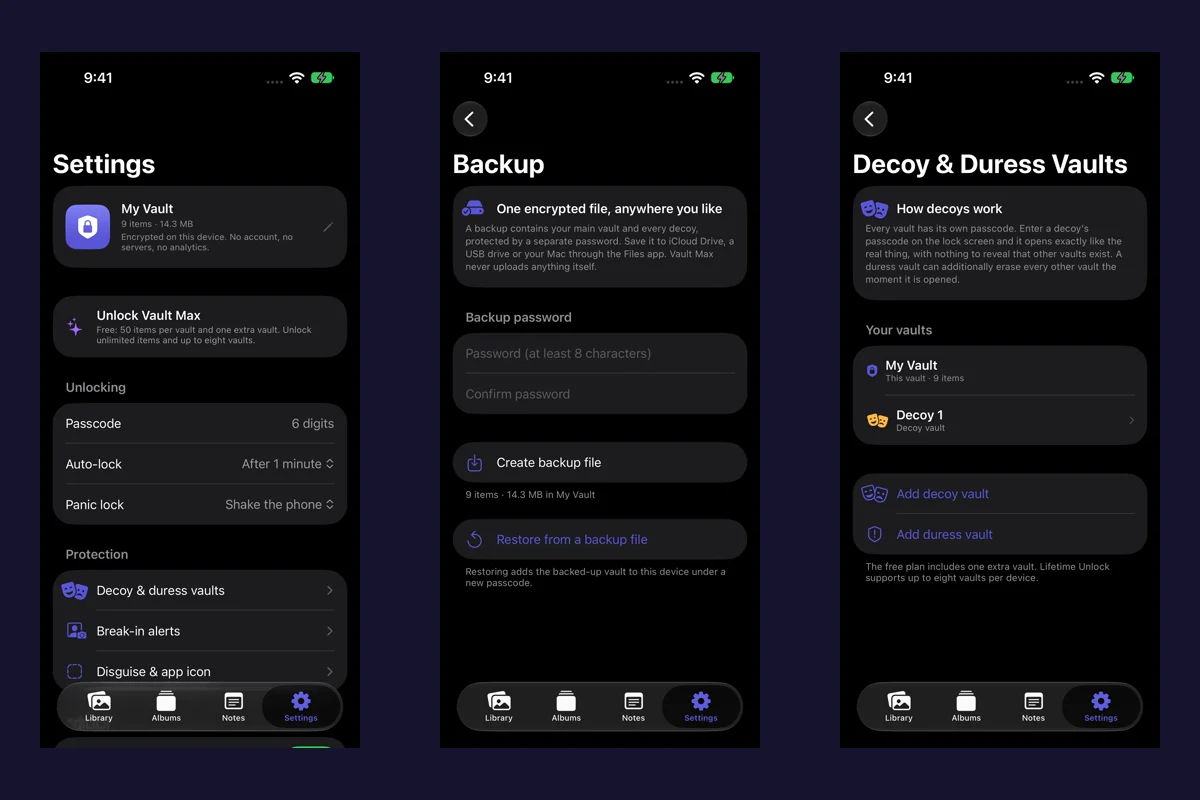
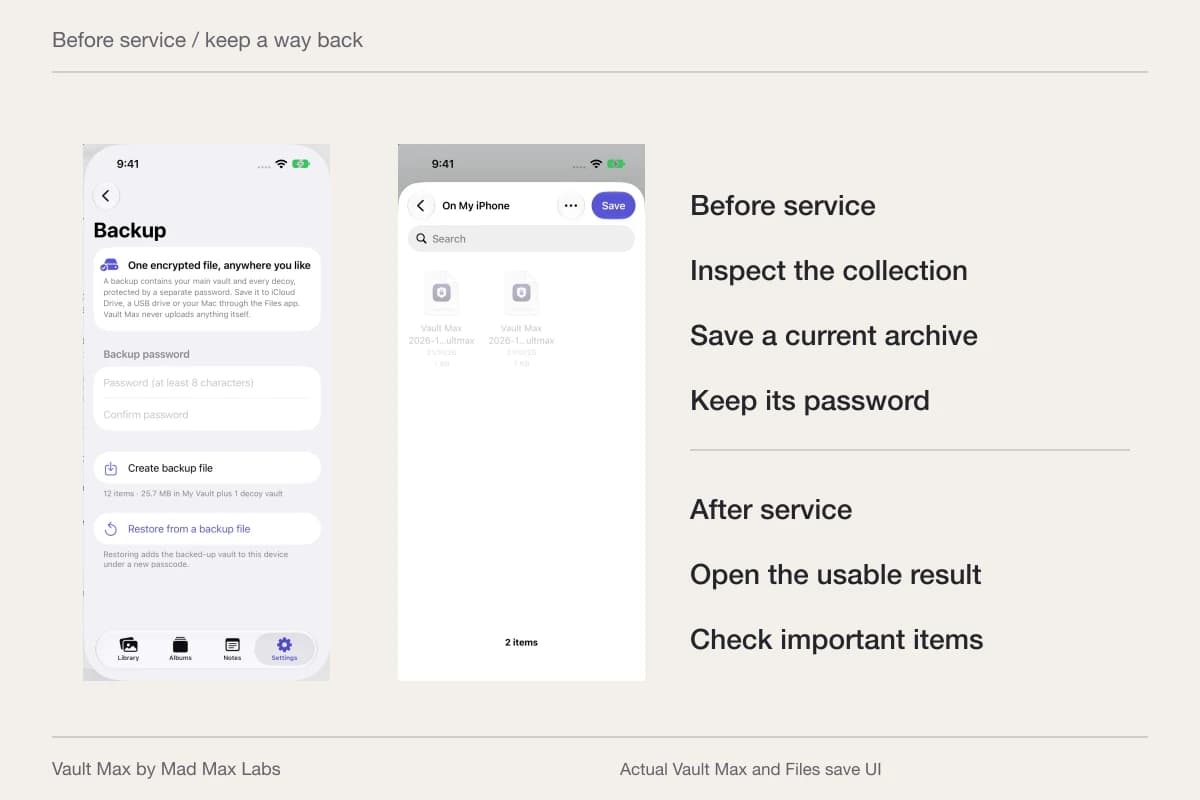
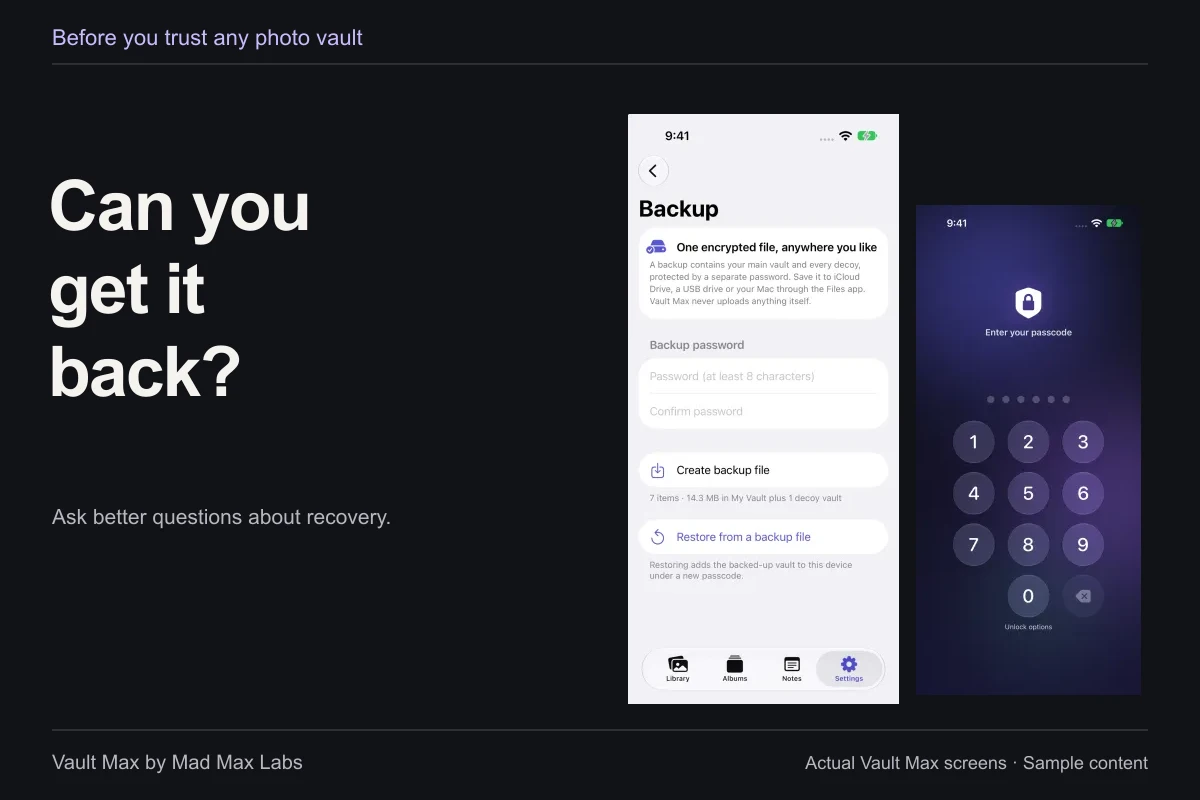
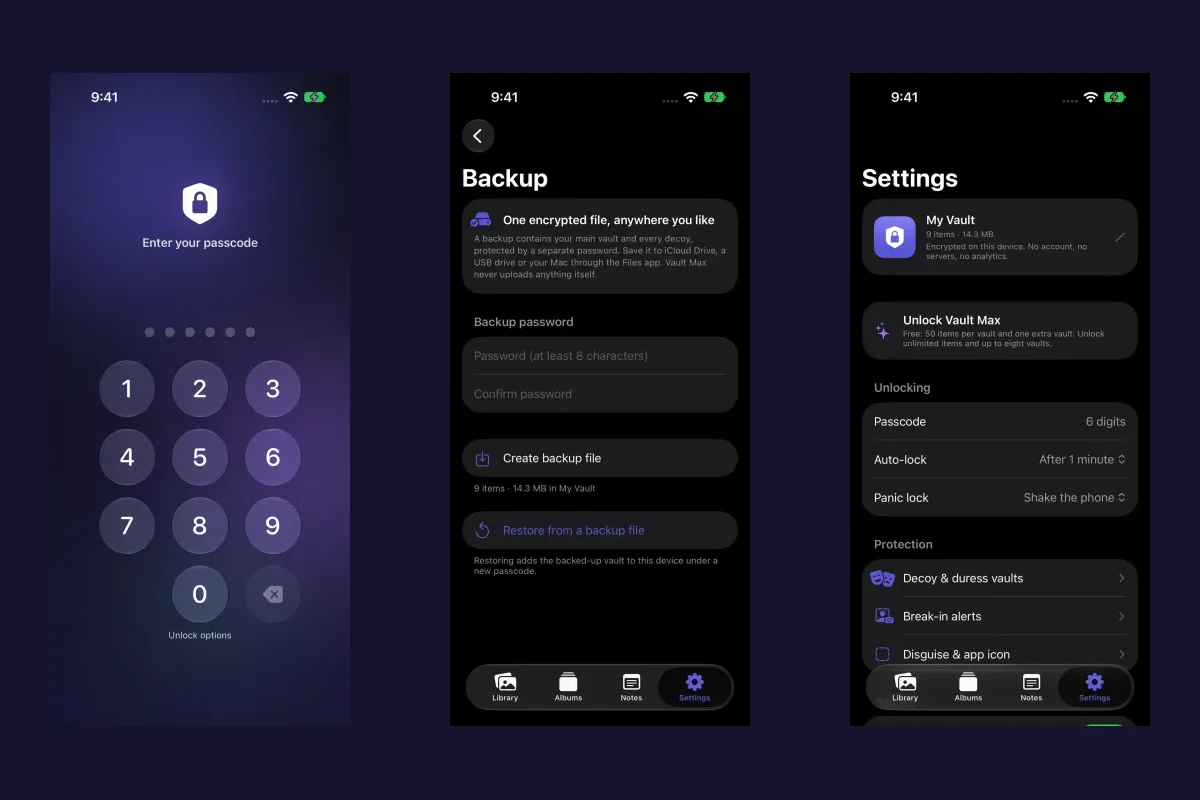
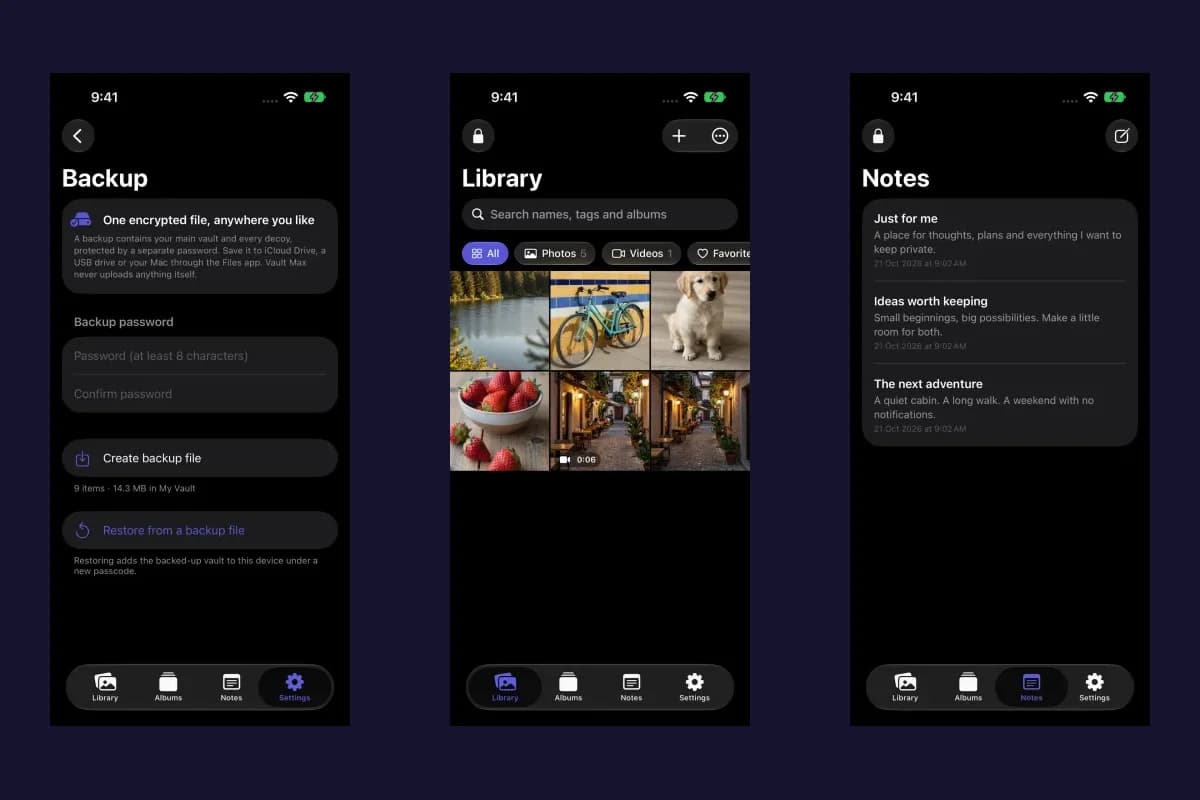
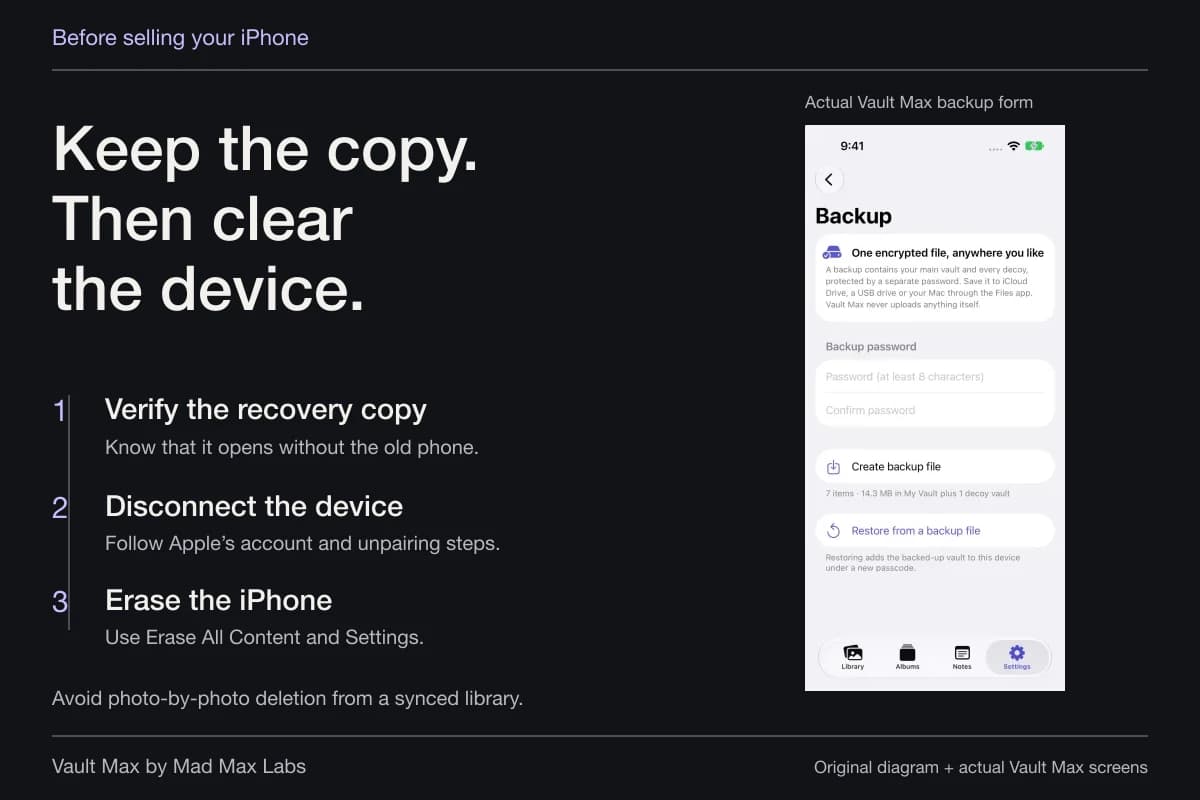
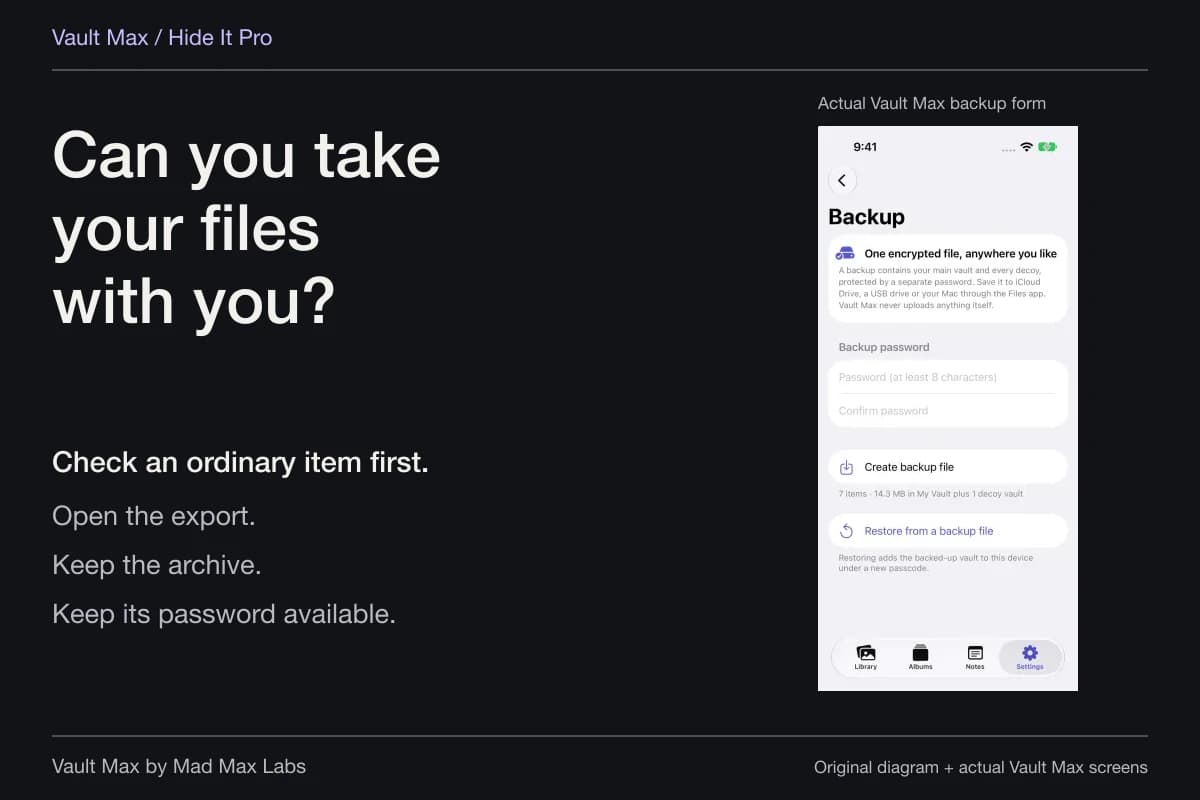
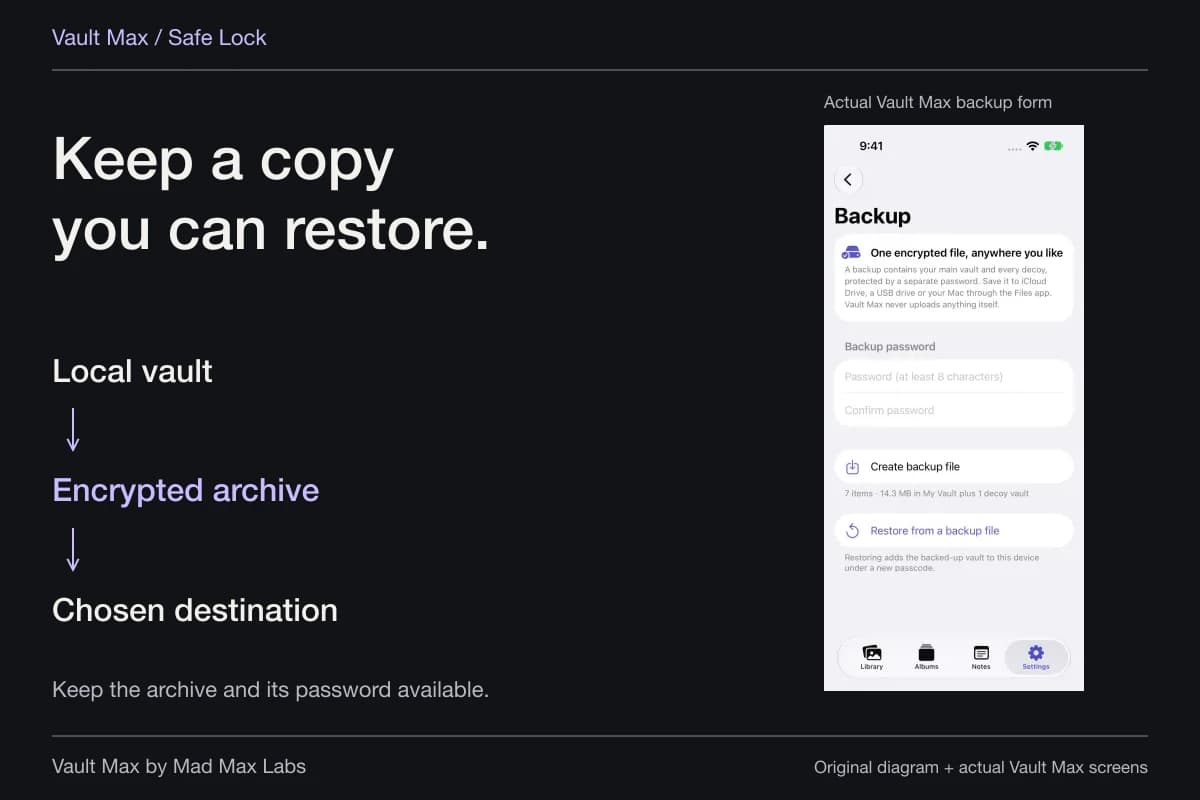
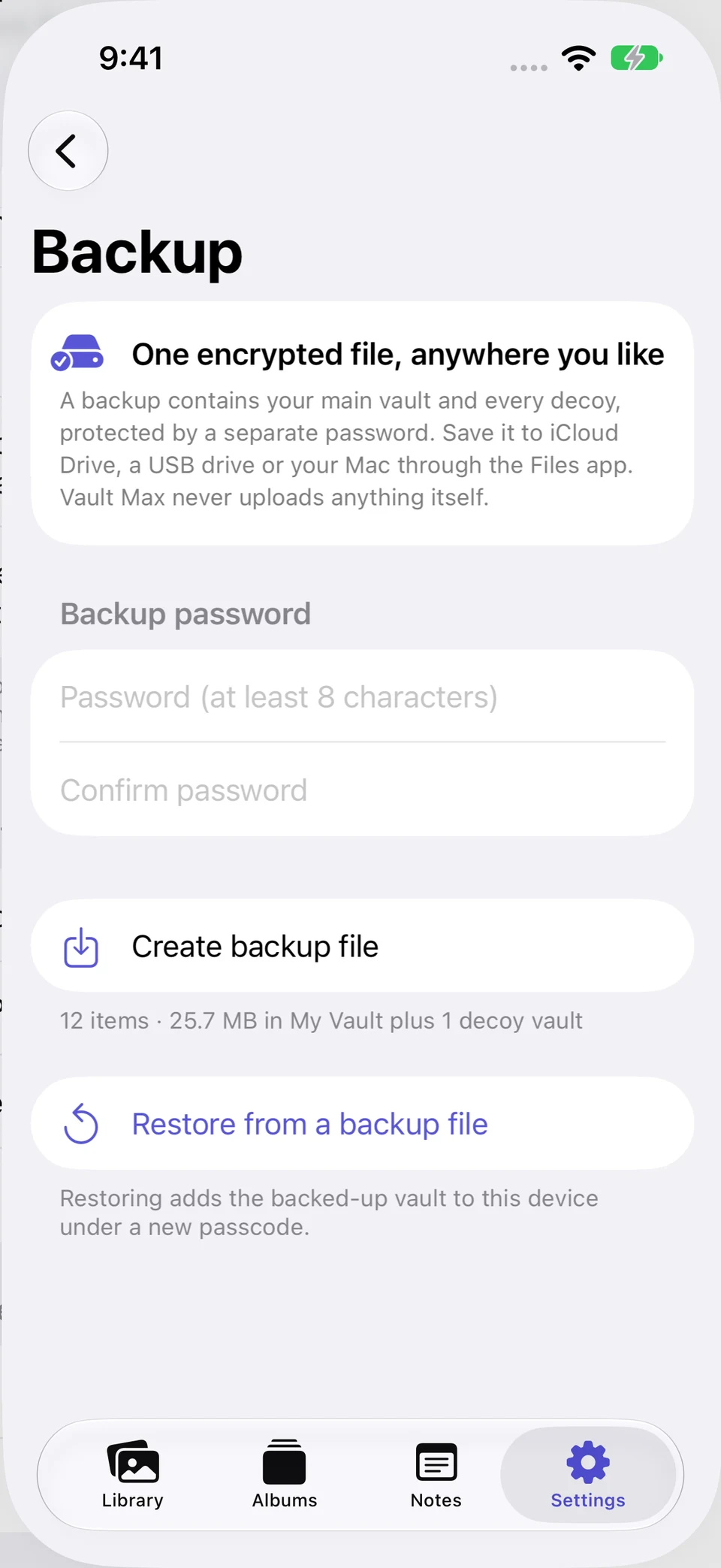
The actual Vault Max form shows the updated sample collection and a separate archive password. It explains preparing a recovery file you can deliberately retain elsewhere. It does not show a desktop Vault Max app, a Mac transfer or a completed restore.
Actual Vault Max · QA simulator, generated sample photographsPrepare the encrypted archive
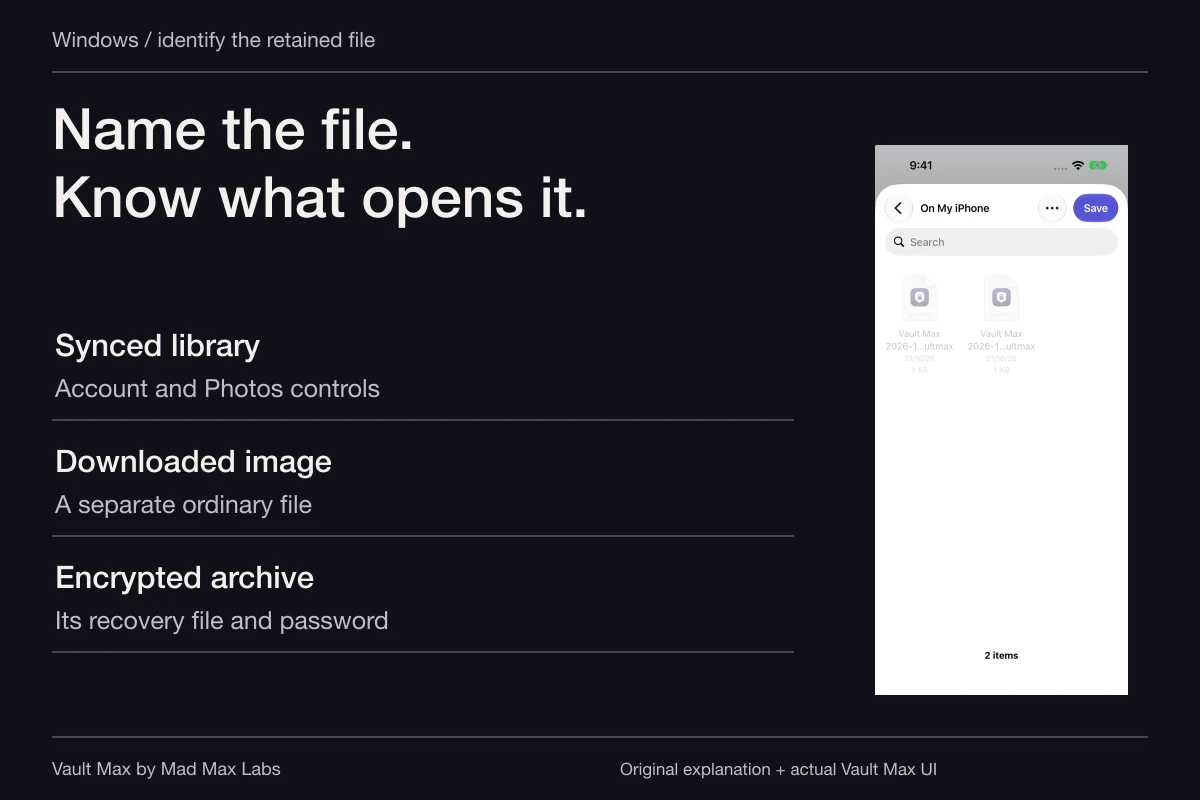
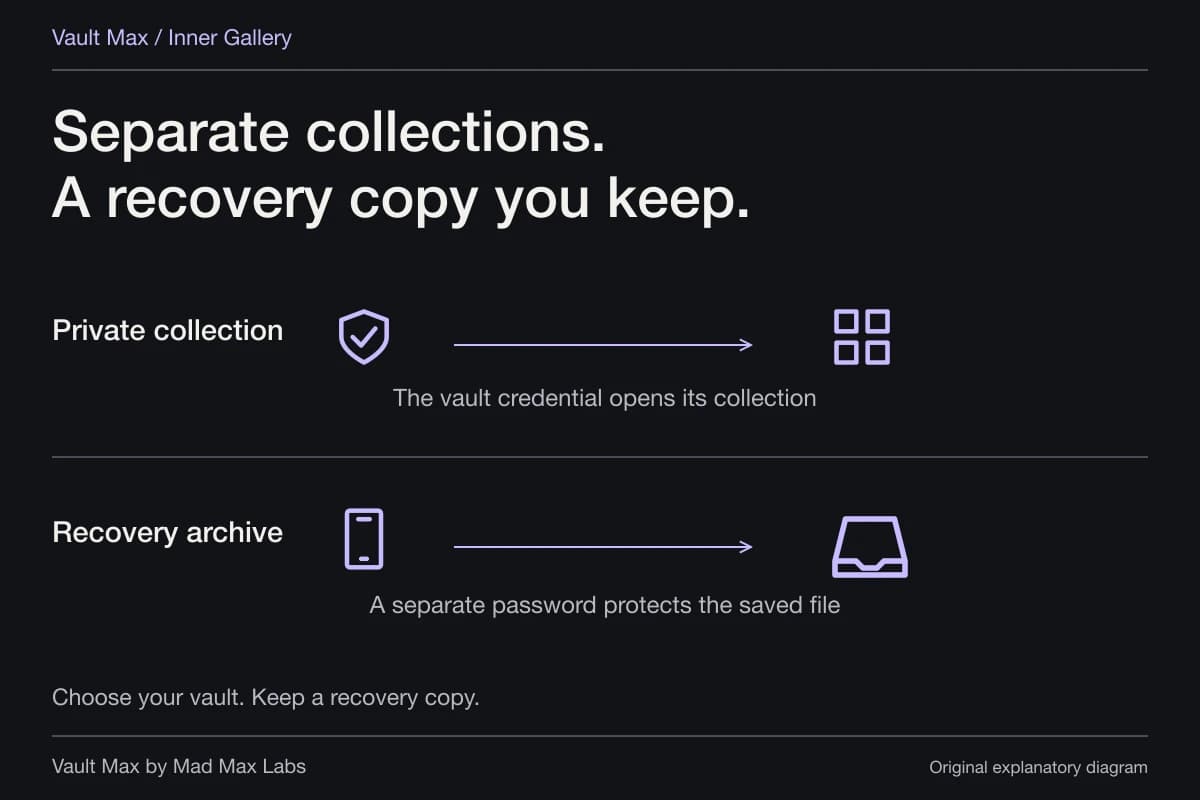
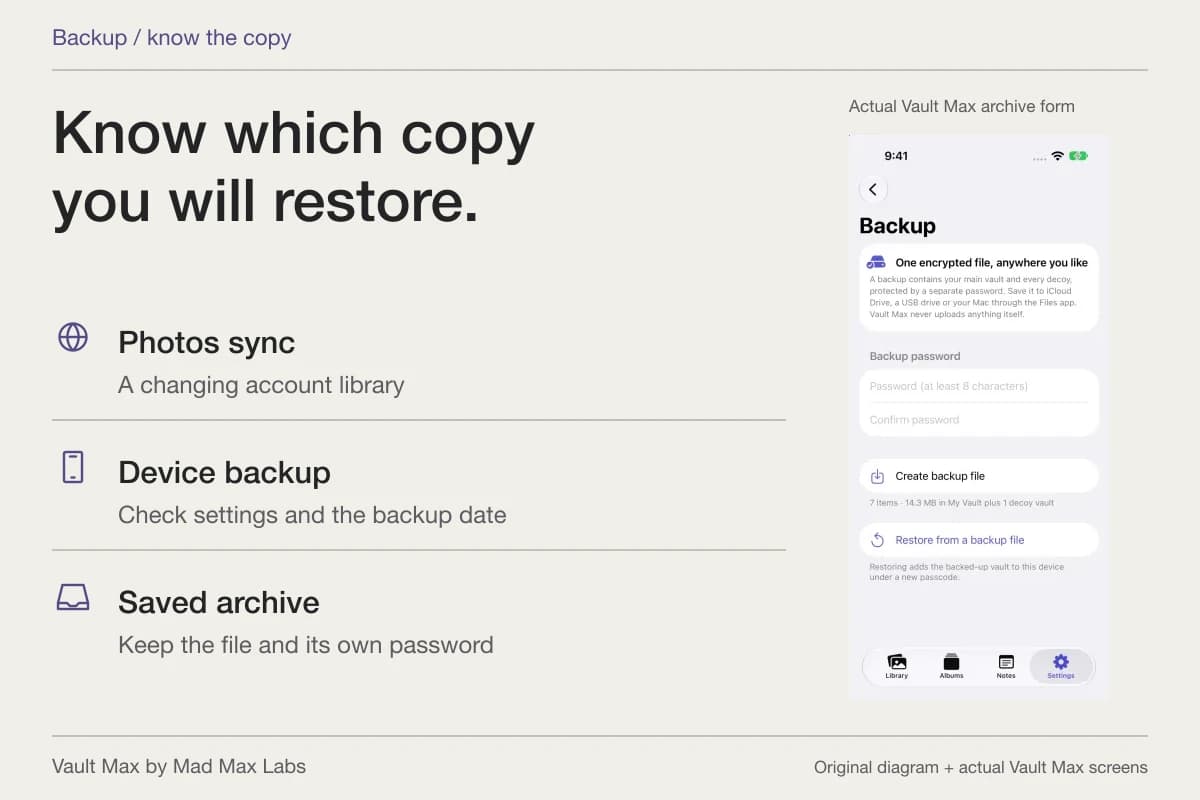
Open original image: Prepare the encrypted archiveA Mac can be one chosen place to retain a .vaultmax recovery archive. The file has its own backup password and is meant for the supported restore workflow. Copying it to a computer does not provide decrypted desktop browsing or automatic synchronization. Record the date and password location so the archive remains useful if the phone is unavailable.
- Check Hidden, the open library and the correct account before moving files.
- Photos authentication, an ejected encrypted file container or a separately credentialed mobile vault.
- Review exports and synced originals independently.
- Keep the needed password and recovery file accessible, then close the container or lock the session.
Tap a box as you go. Checks reset when you leave this page.
Common questions
Where is the Hidden album on Mac?
In Photos, choose View → Show Hidden Photo Album, then select Hidden under Utilities in the sidebar. Expand Utilities if needed. Choose View Album and authenticate when the album is locked.
Does hiding a photo on Mac remove it from iCloud?
No. With iCloud Photos, the hidden state follows the photo across the synced library. Hiding does not delete the photo or remove independently exported copies.
Can I browse a Vault Max archive on my Mac?
A Mac can retain the encrypted .vaultmax recovery file, but it is not a desktop photo library. Use Vault Max's supported restore workflow with the separate archive password on iPhone or iPad.
Continue reading
More guides
Practical tips for your private library. Swipe or scroll to choose your next guide.





74 guides to explore