
Privacy in practice
Password-protect a PDF on iPhone, then decide where the copies belong
Use Apple's Preview to password-protect a PDF on iPhone. Distinguish the portable PDF password from a private vault credential and an archive password.
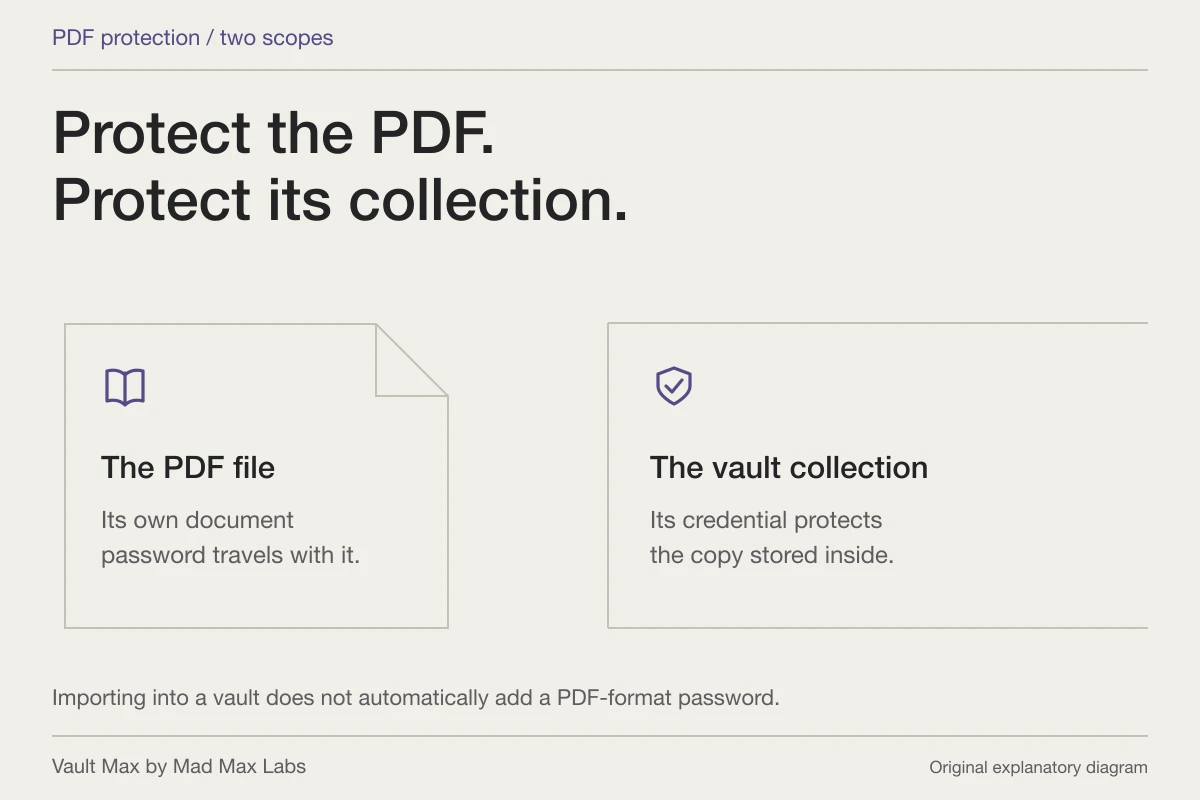
For a PDF that needs its own password, use Preview's PDF Lock control and verify the saved document. For a private collection of files, use a vault credential as a separate layer. Vault Max protects its on-device collection; it does not silently turn every exported document into a password-protected PDF.
These controls can work together. You might keep the working document in a private vault, send a specifically password-protected PDF when needed and retain an independently protected archive for recovery. First decide which object needs to remain protected after it leaves your phone.
Name the object you want to protect
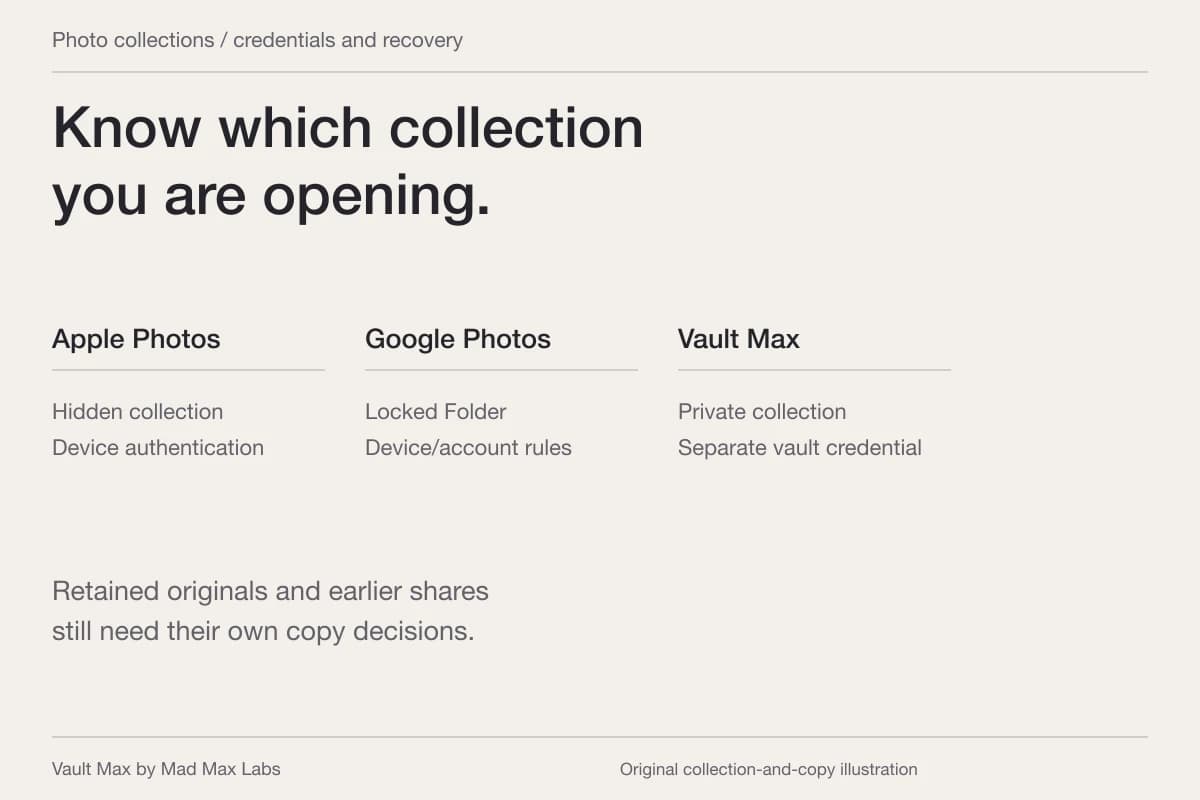
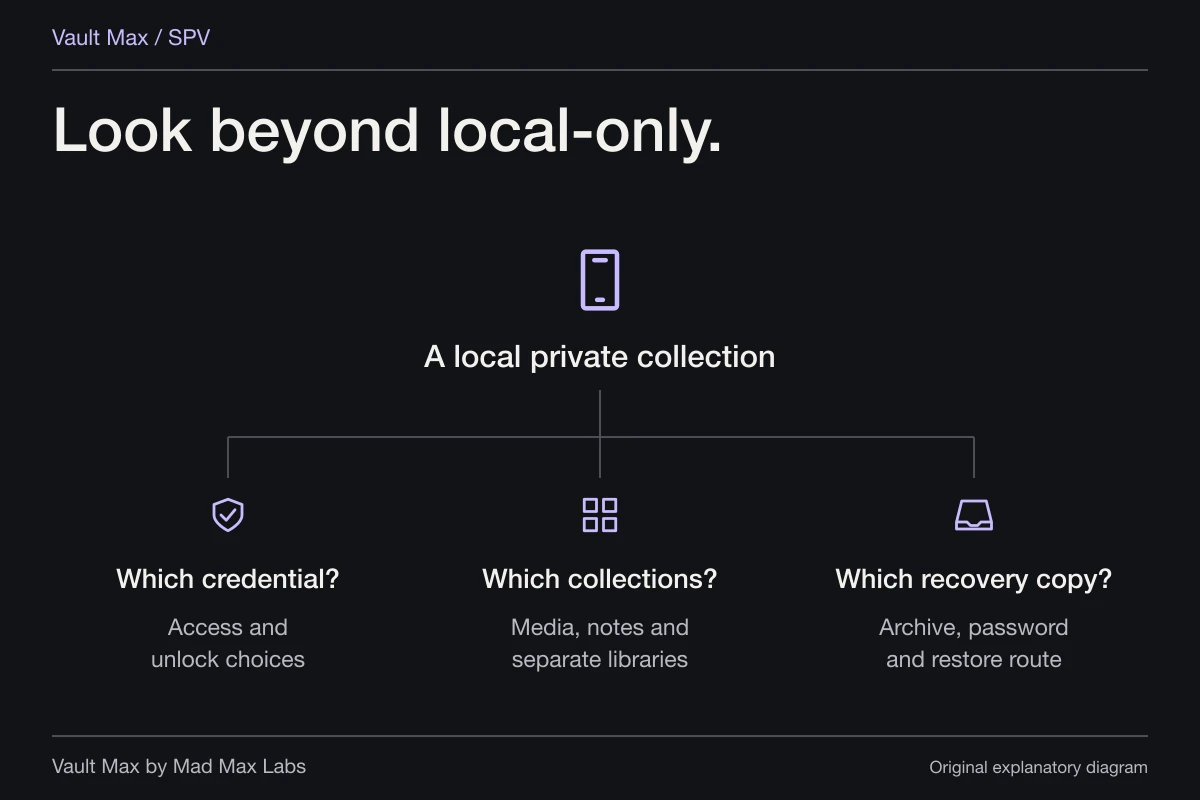
A PDF password belongs to a document. A vault credential belongs to an app's private collection. An archive password belongs to a saved recovery package. Giving all three the same informal name, such as “the file password,” makes a later restore unnecessarily confusing.
Consider a project brief you need to send to one person. If the recipient receives the PDF, they will not be opening your Vault Max collection. Protection that needs to accompany that file must be applied to the portable document itself. Your collection's credential should remain yours.
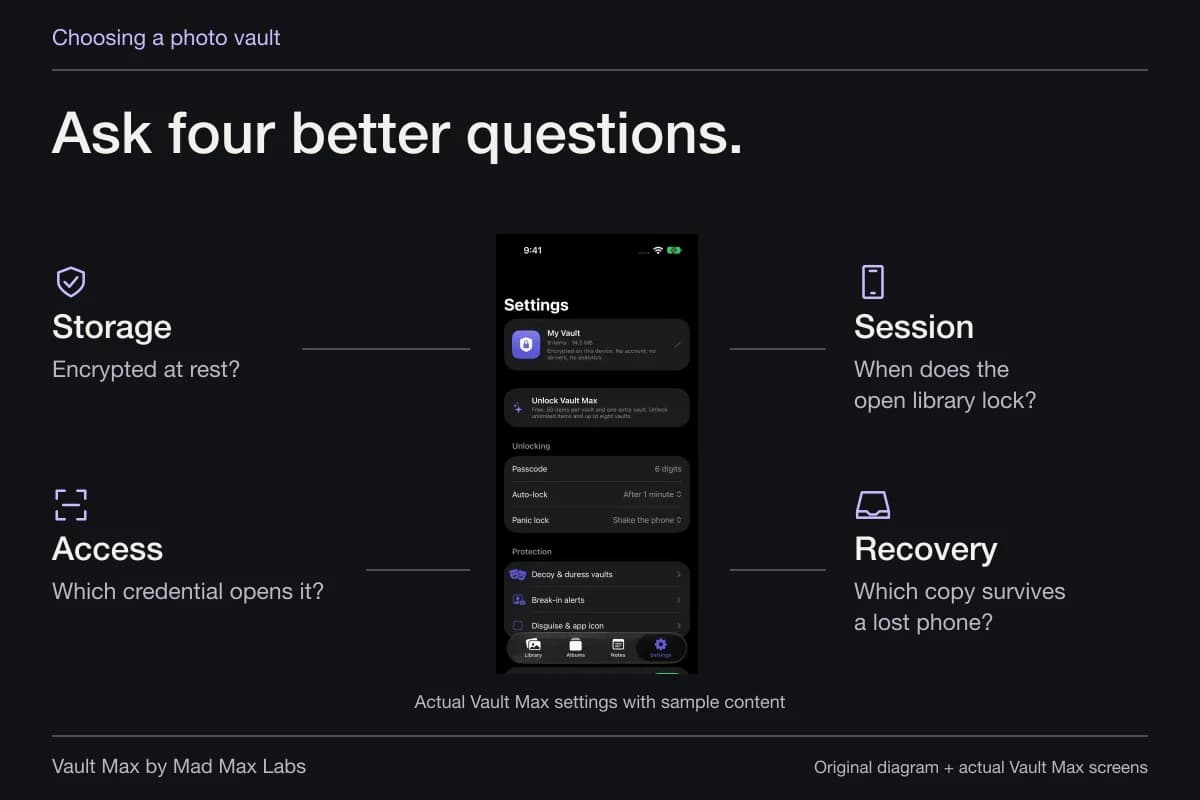
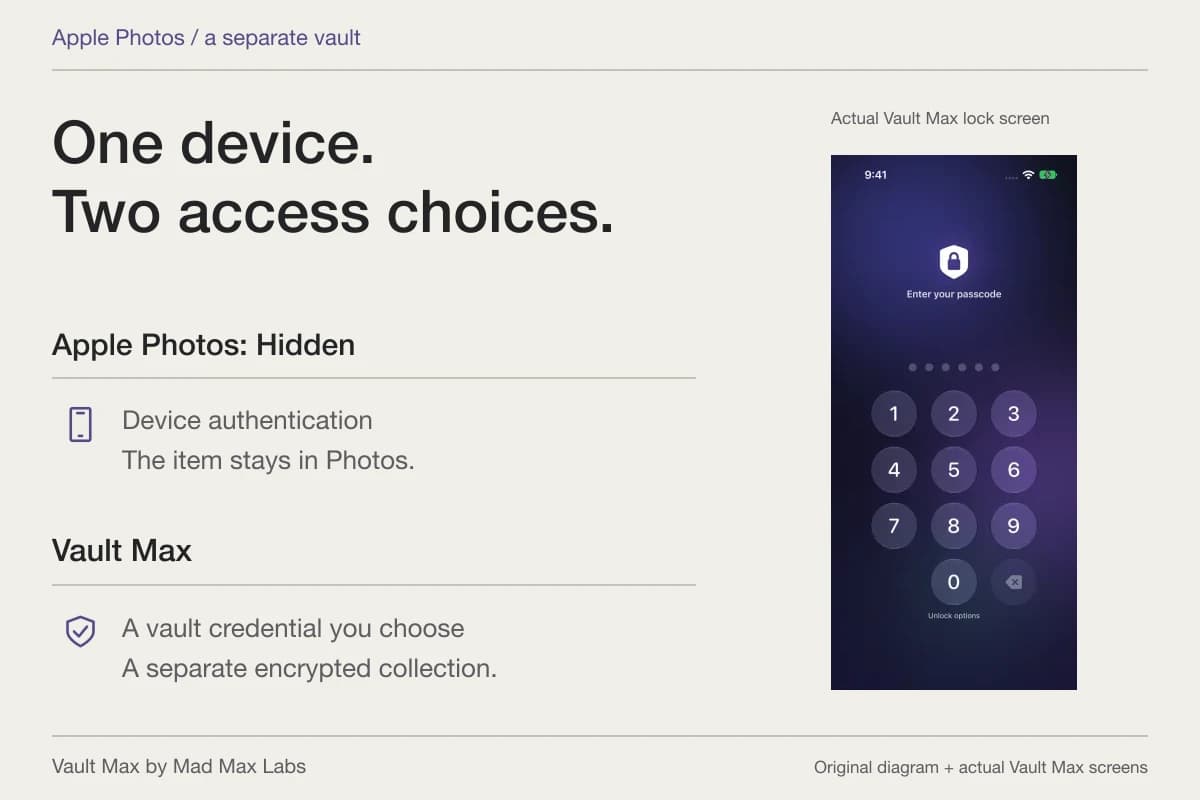
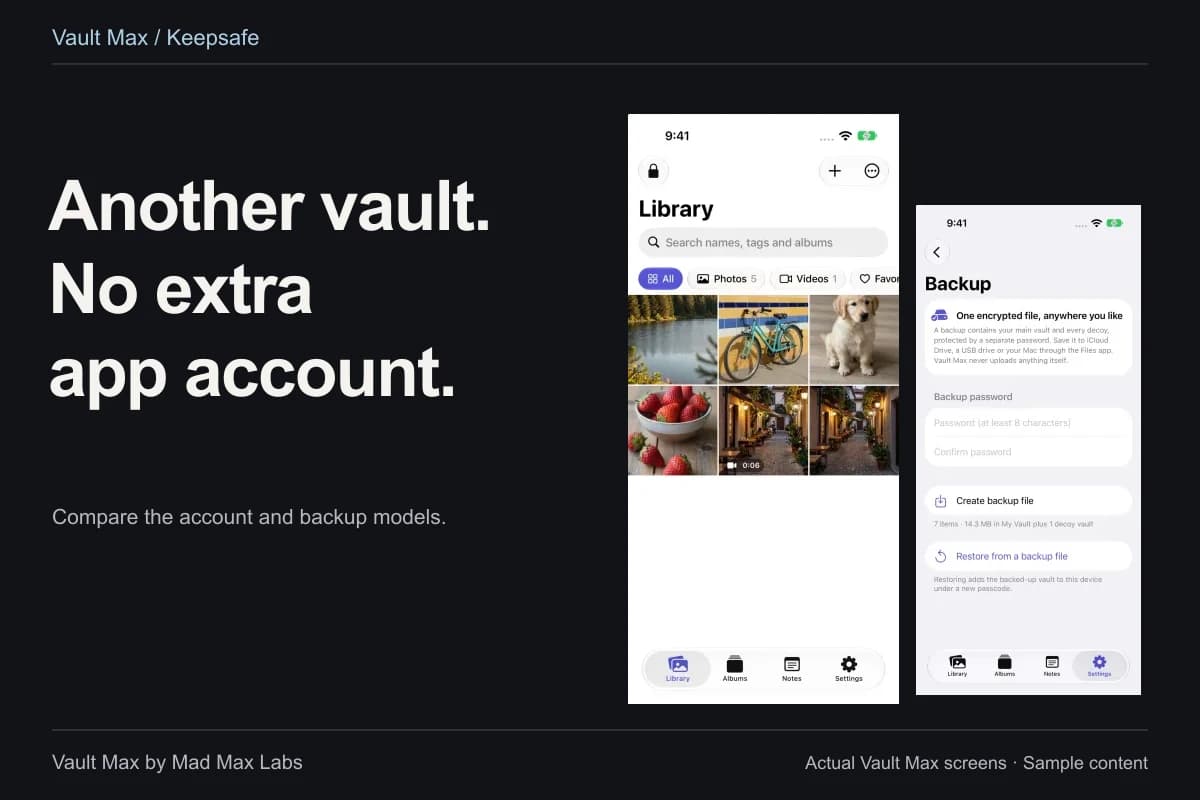
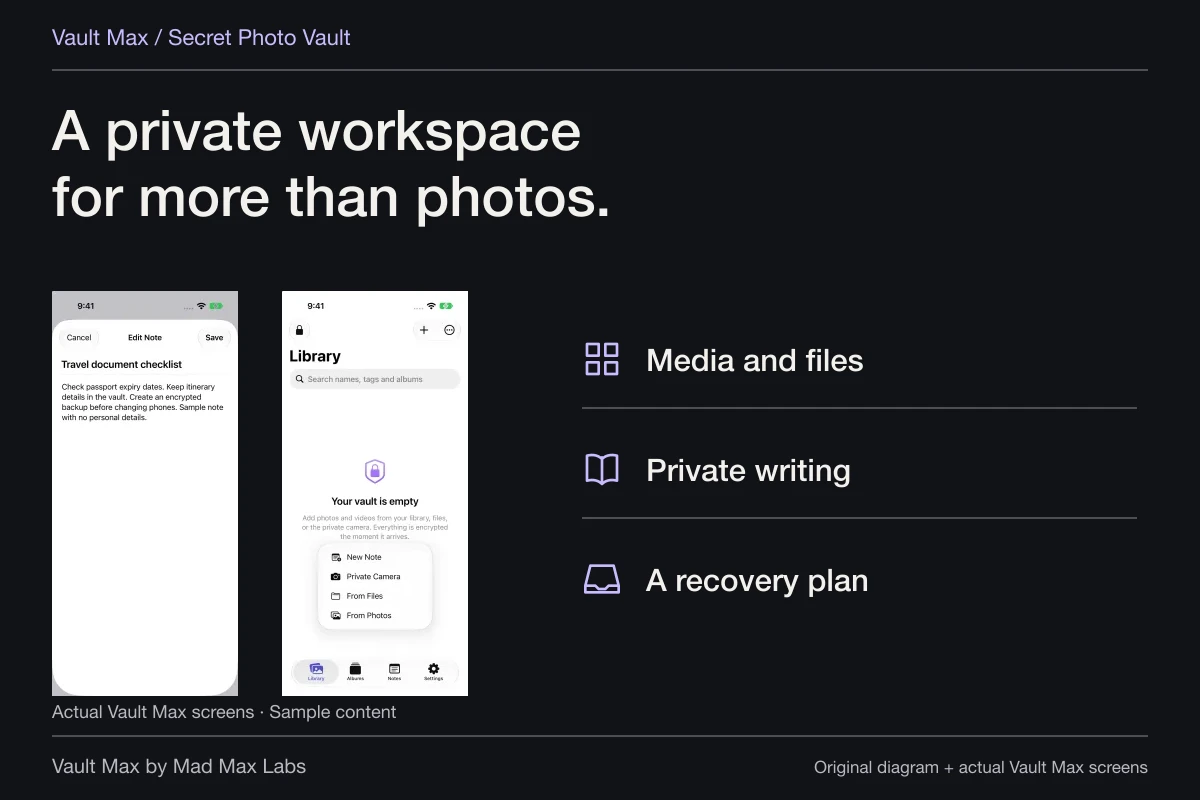
For your own working library, Vault Max supplies a separate encrypted local home for PDFs, other files and private writing. There is no Vault Max account or developer-hosted document library. You choose the vault credential and make deliberate decisions about ordinary exports and archive destinations.
Password-protected PDF
The document’s own password stays with the protected PDF file.
Vault Max
Your vault credential protects the stored, imported copy.
PDF · media · private notesImporting into a vault does not automatically add a PDF-format password to the original or to an exported document.
Apply the PDF password in current Preview
Apple's iOS 27 PDF-lock instructions describe the route in Preview. Open the intended PDF and use the action menu beside its filename. Choose Lock, enter the password in both fields and apply the change. In that documented version, Require Password switches on automatically.
Apple also identifies Duplicate as the way to retain an unprotected copy before making the change. Make that a deliberate decision about your working files. A duplicate is another file to store appropriately, not something to forget in Downloads while assuming the protected version replaced every copy.
Confirm the filename and location when finished. Preview's save, rename and move guide explains those file-management actions. The protected PDF you intend to keep or send must be the one you inspect; similarly named copies can have different contents and protection.
Verify the saved file, not just the settings screen
Close the document and reopen the saved copy through the route you intend to use. Check that the required password works and that the correct pages are present. A successful setting change is useful, but inspecting the actual file catches the simpler mistake of selecting an earlier duplicate.
If the PDF is being sent elsewhere, first test a harmless sample through that destination and an appropriate PDF reader. Different apps can present document controls differently. Do not use a real recipient or your only important file to discover which copy the share action selected.
A password does not make an authorized reader unable to save what they can view. Nor does it remove earlier attachments, printed pages or screenshots. Decide the audience before sharing, and inspect the content you are providing rather than relying only on the existence of a password prompt.
Keep the collection behind its own credential
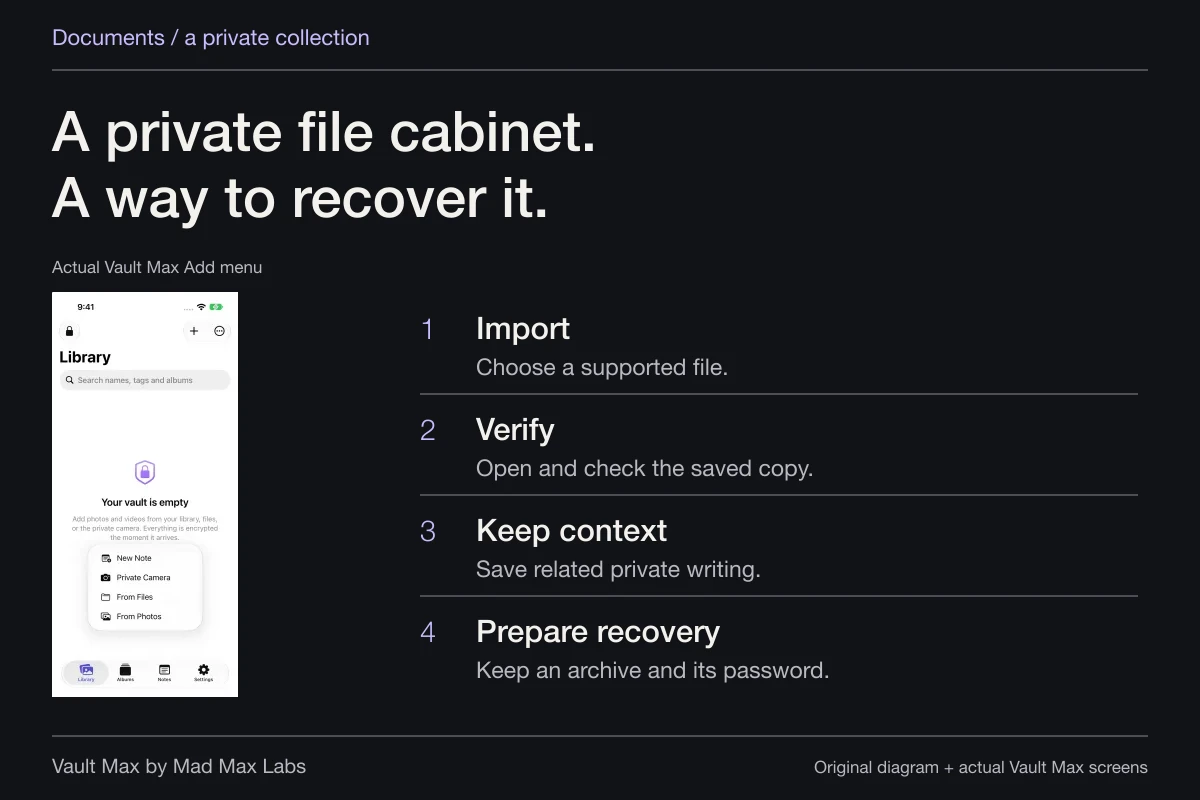
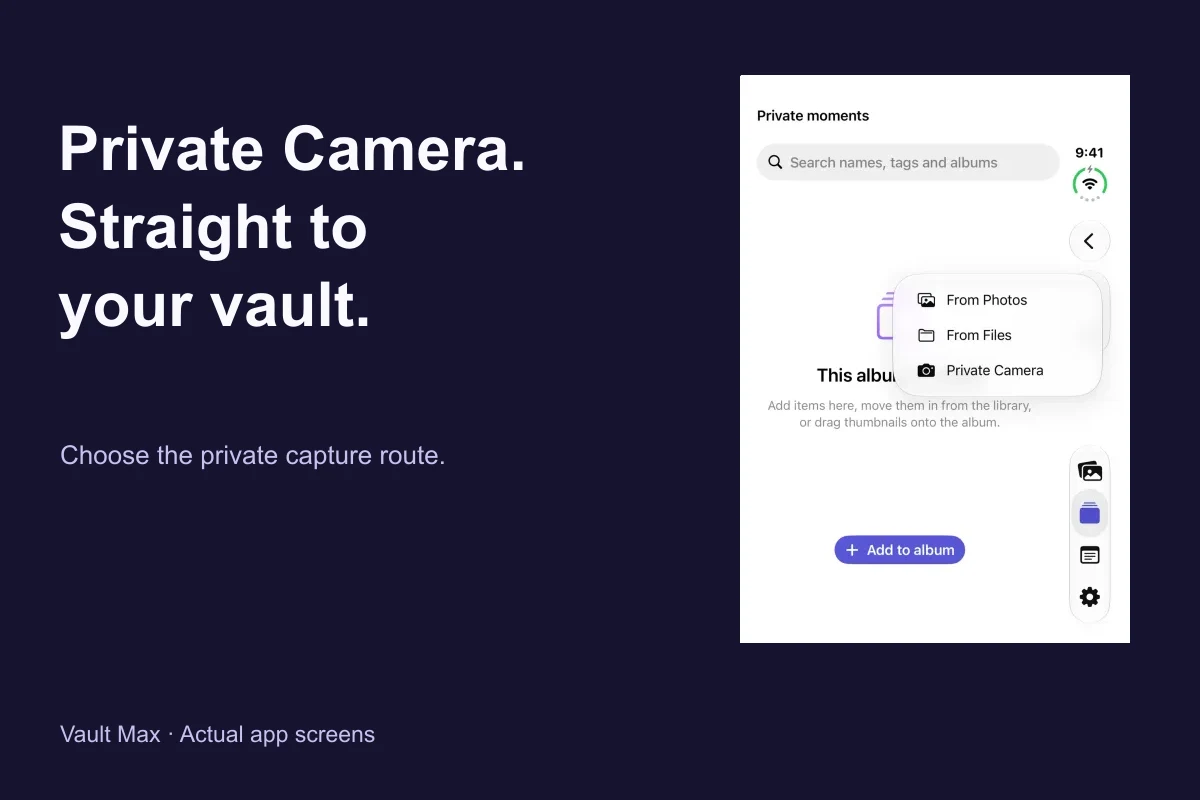
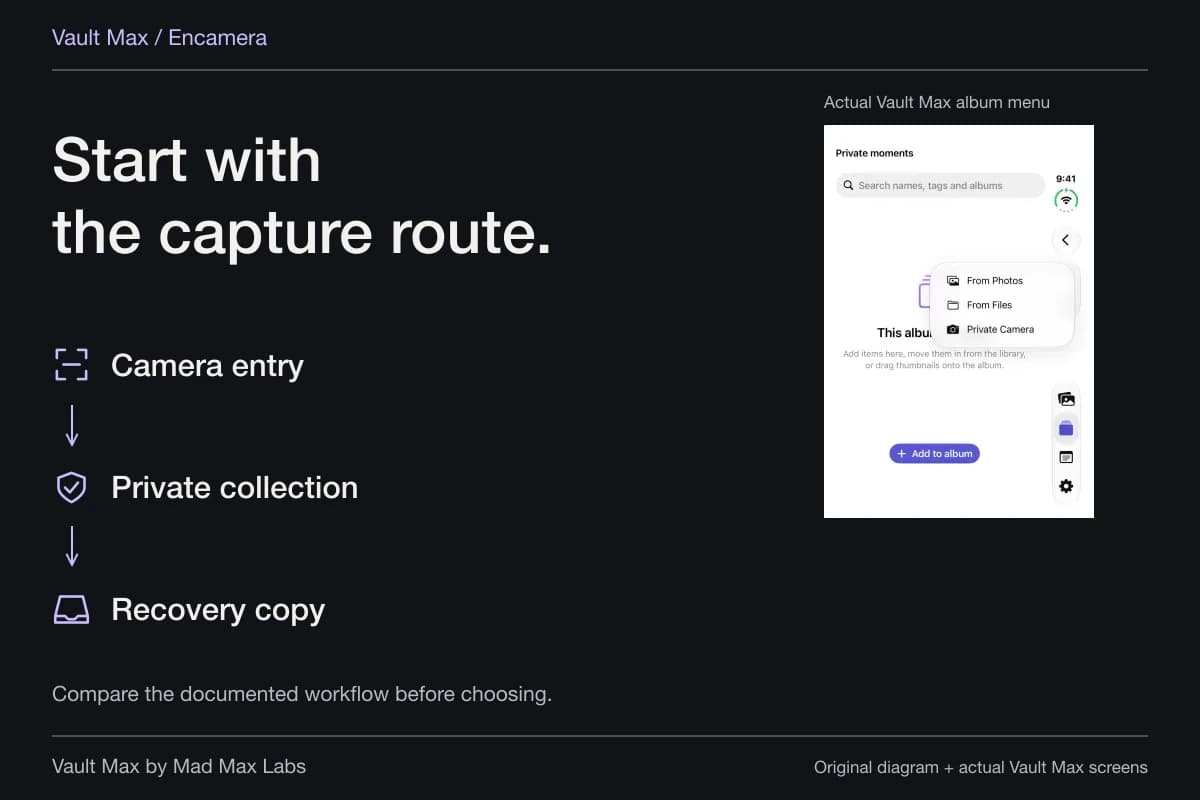
In Vault Max, choose From Files from the Add menu and select the PDF you want to import. The app encrypts its stored copy. Retain the usable source until you have opened the vault item and confirmed it is the document you expected.
Vault Max uses the system's Quick Look support to preview documents. A PDF can also have its own existing password. Those are separate layers; this guide does not promise that every protected or unusual PDF will display identically in every system viewer. Try your representative file while the source remains available.
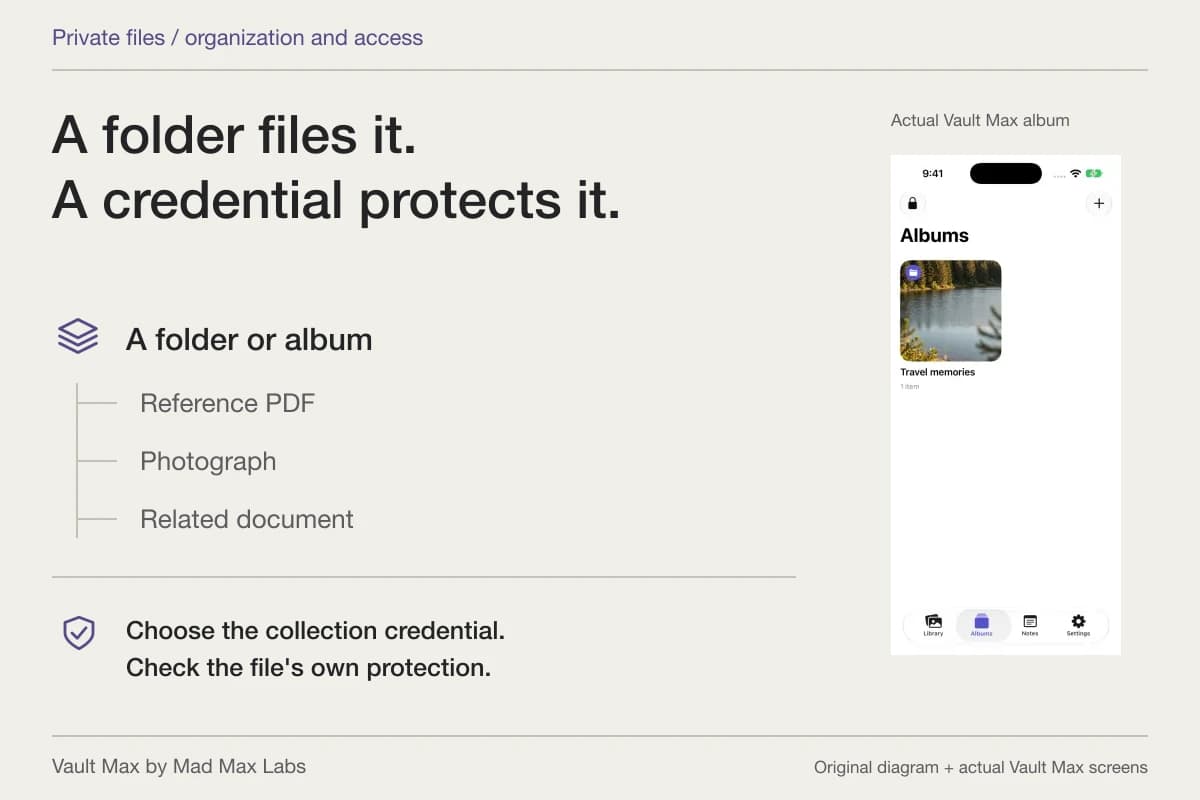
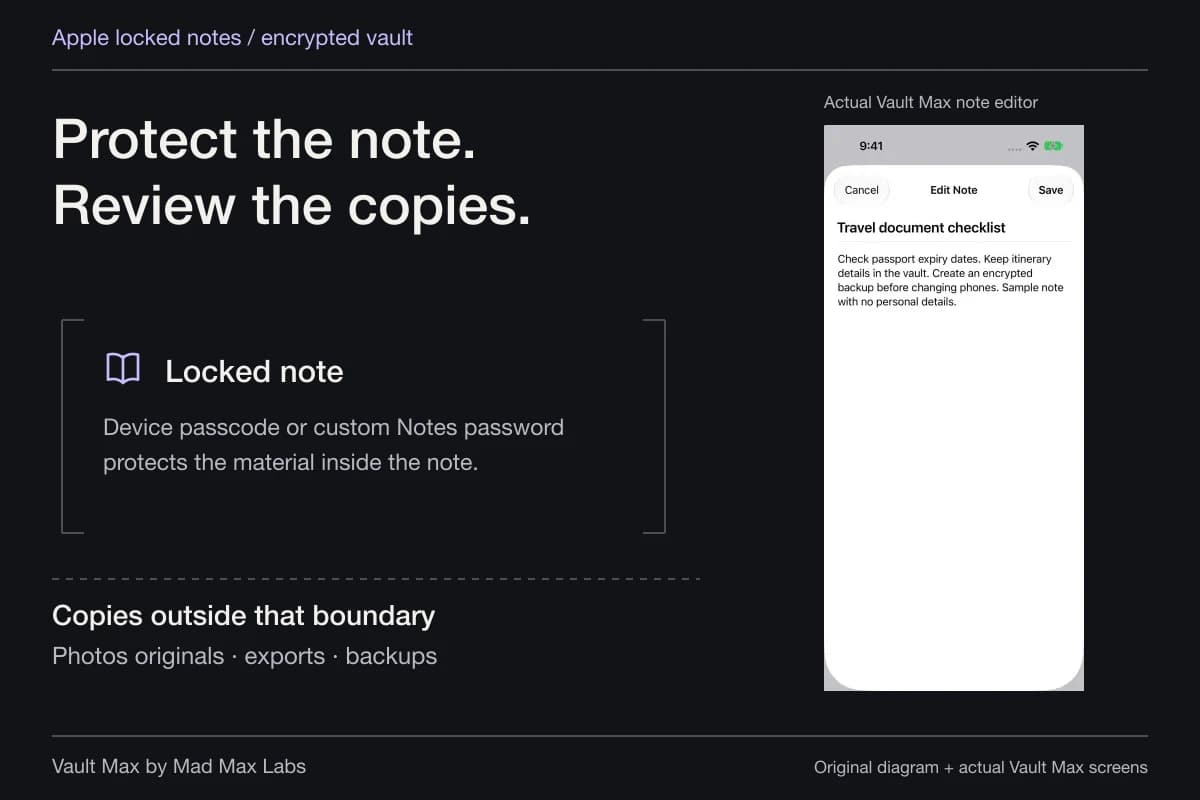
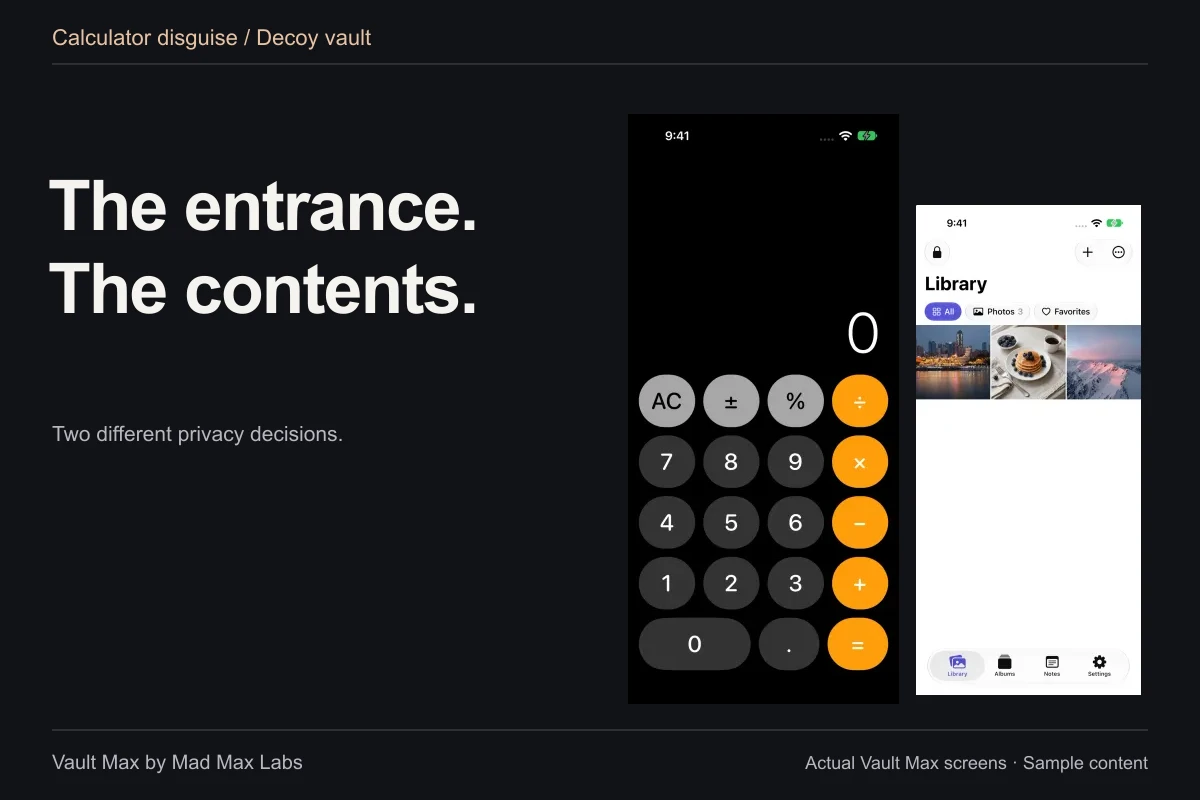
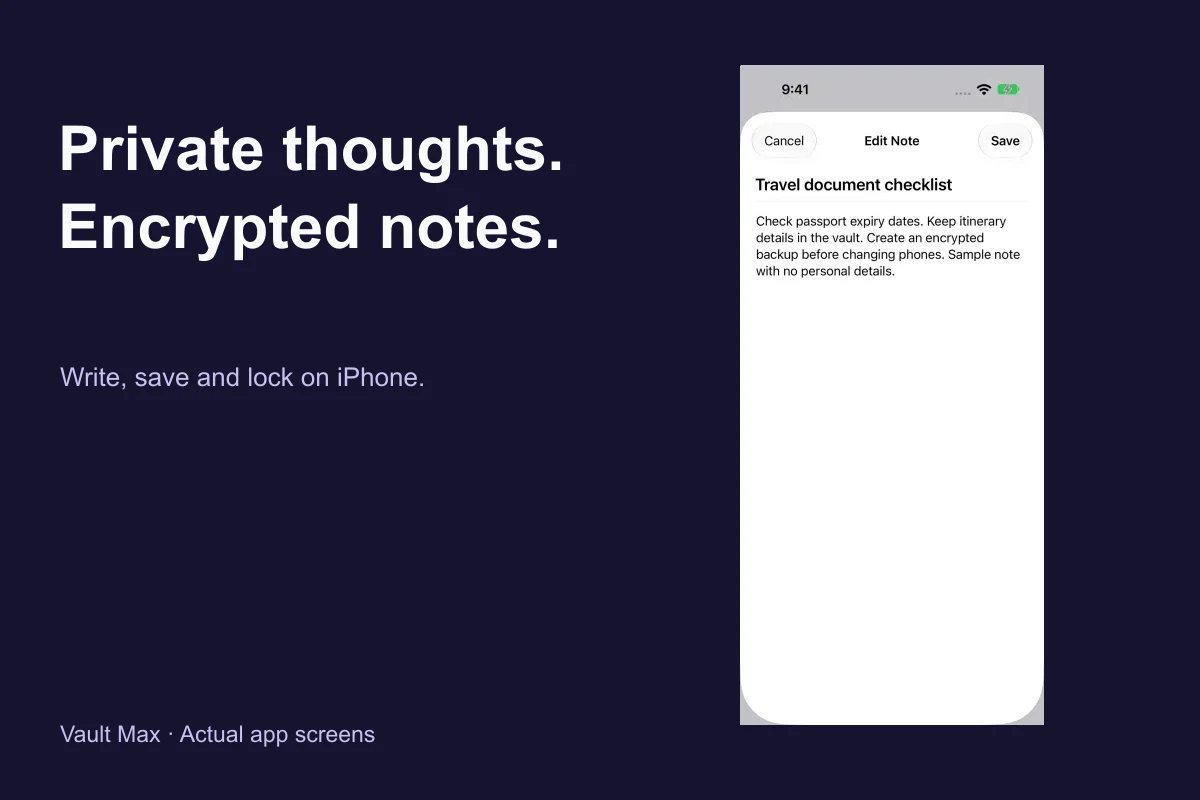
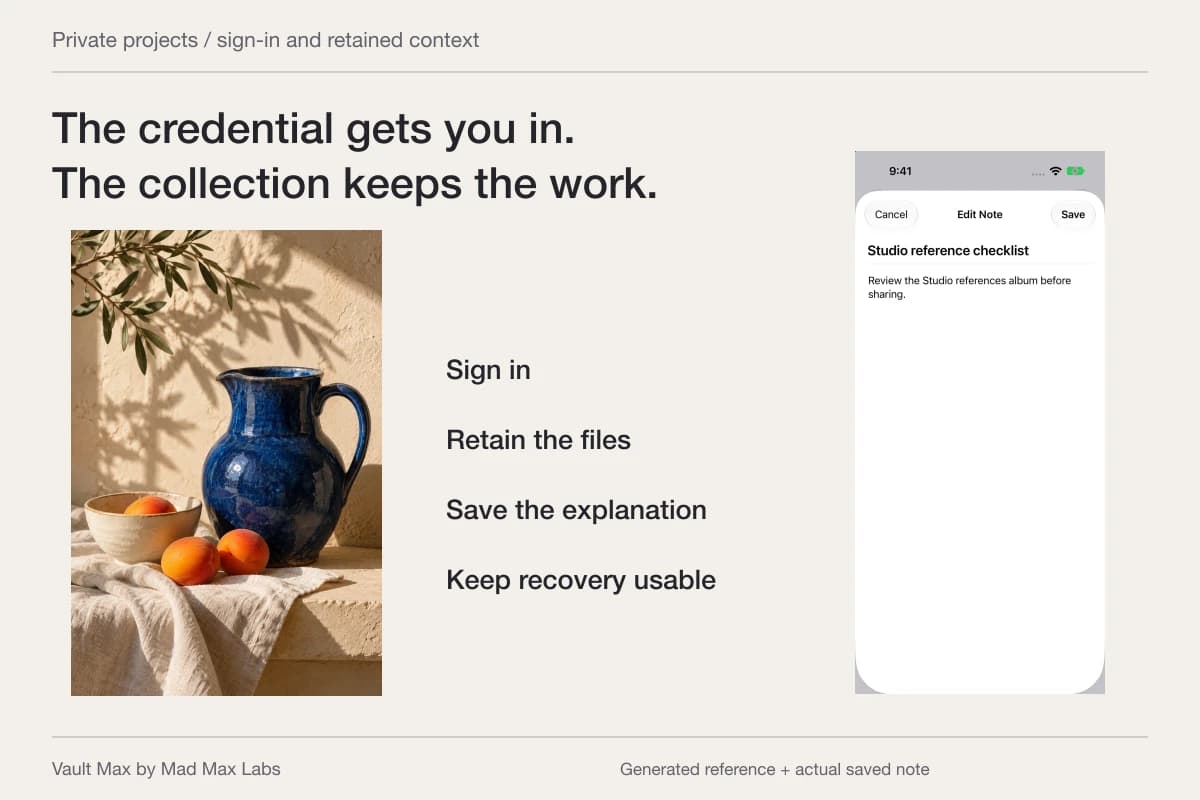
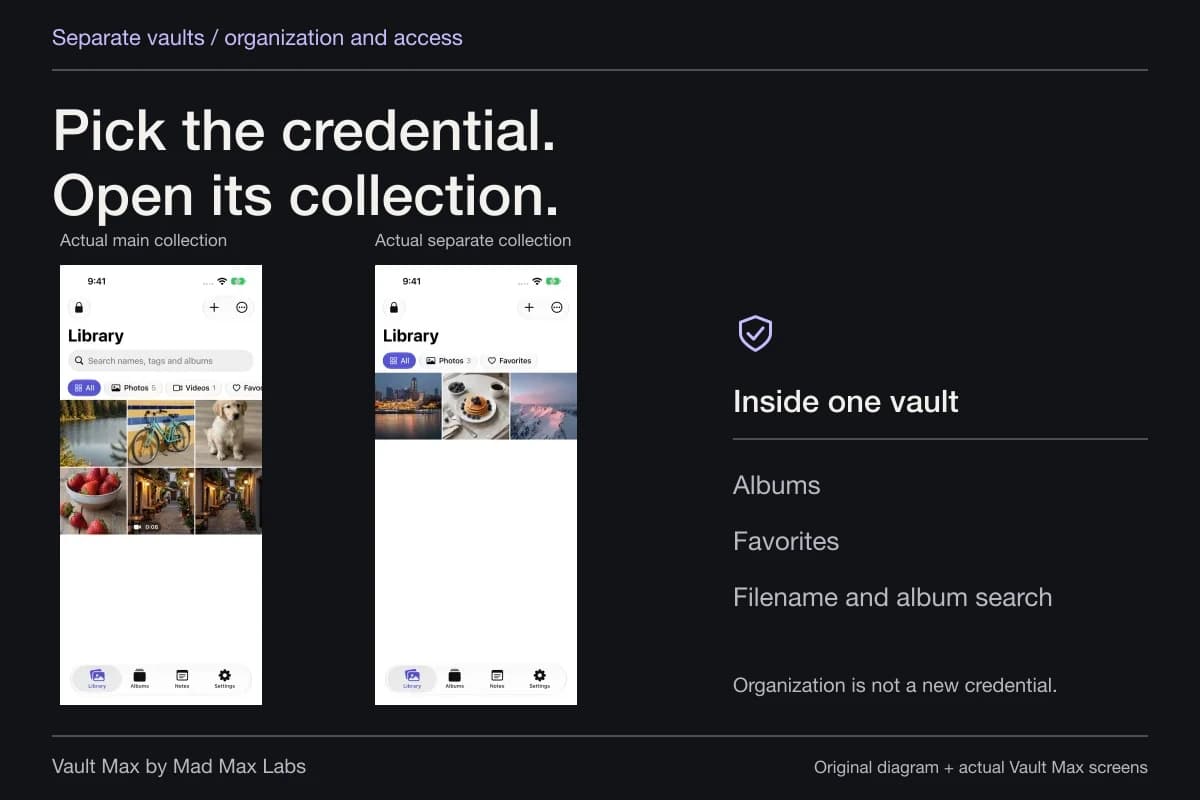
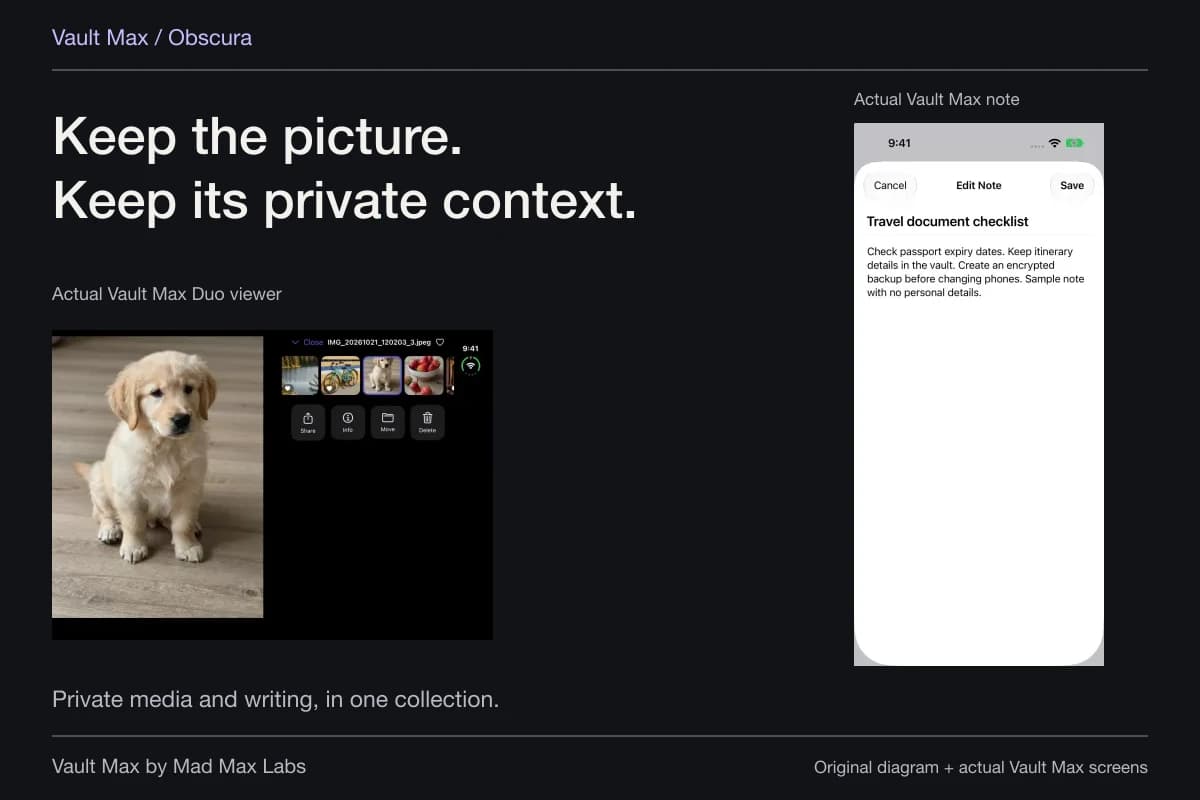
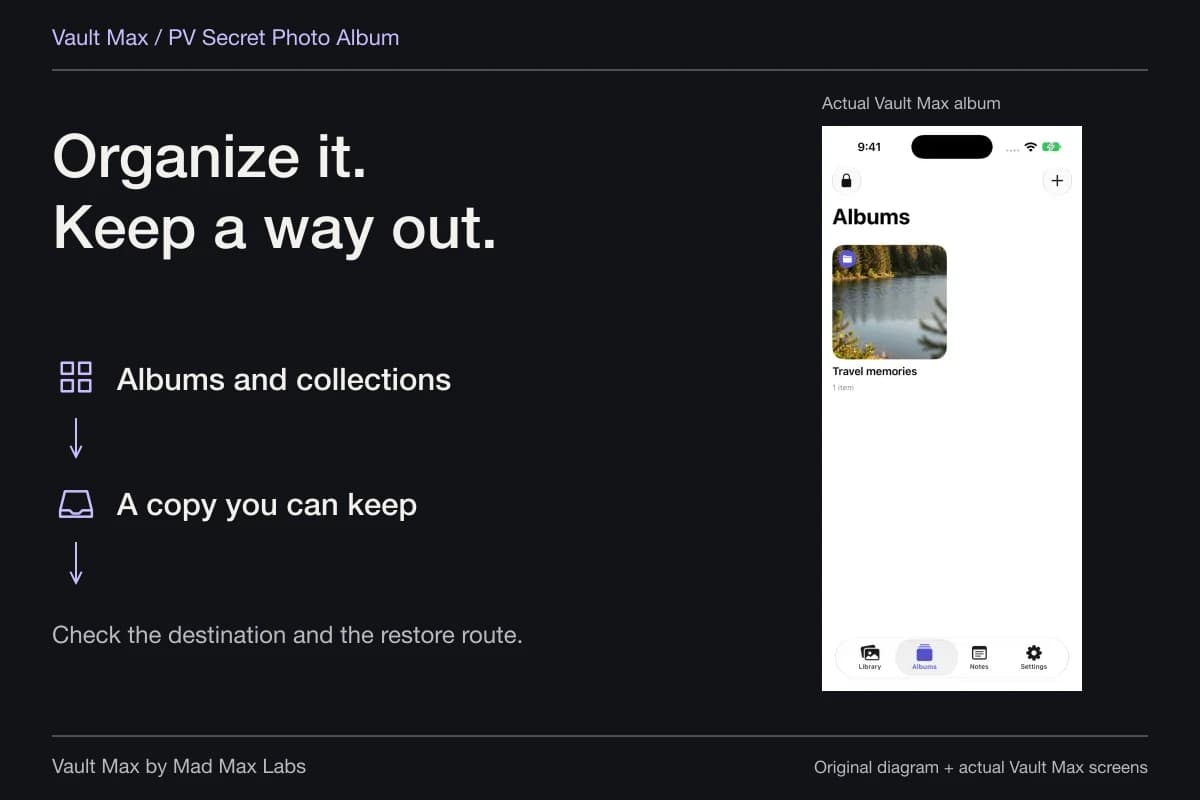
Use a clear filename and an album to make the document easy to find. Put a short explanation in an encrypted note if it needs context. That note is part of your private writing workflow; it does not alter the PDF or create another password embedded inside it.
Understand what an ordinary export creates
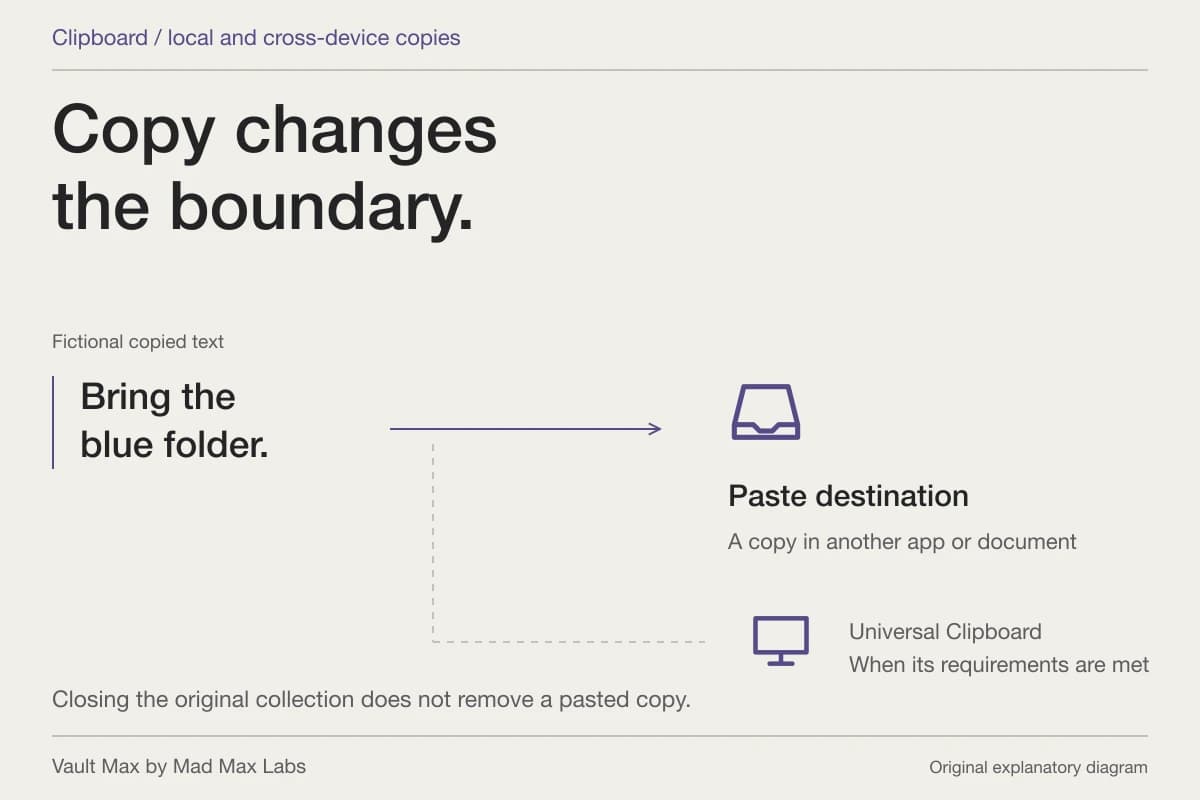
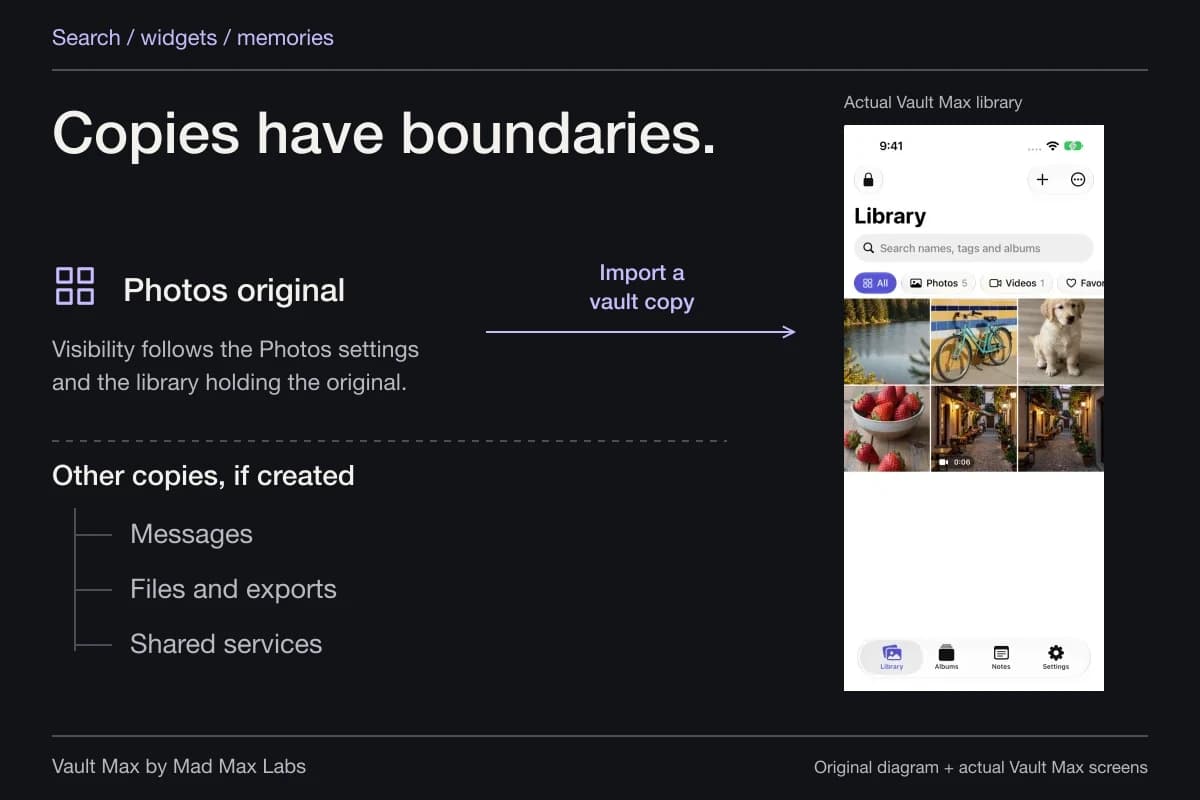
When you share a PDF from Vault Max, the app prepares a usable document copy for the selected destination. The ordinary export does not inherit the vault credential. A PDF already protected before import is different from a plain PDF that was merely stored in an encrypted collection.
That distinction matters when you attach the result to a message or save it into another app. Inspect the received or saved file you actually intend to use. Do not assume that a lock icon on your private collection is a description of an attachment outside it.
Document preview and ordinary export require readable temporary content while performing their task. Vault Max uses scratch files for these operations and clears the relevant preview files on disappearance, with scratch cleanup on lock. Stored encryption and the readable file needed by a viewer are different stages of the workflow.
Create a recovery archive for the private workspace
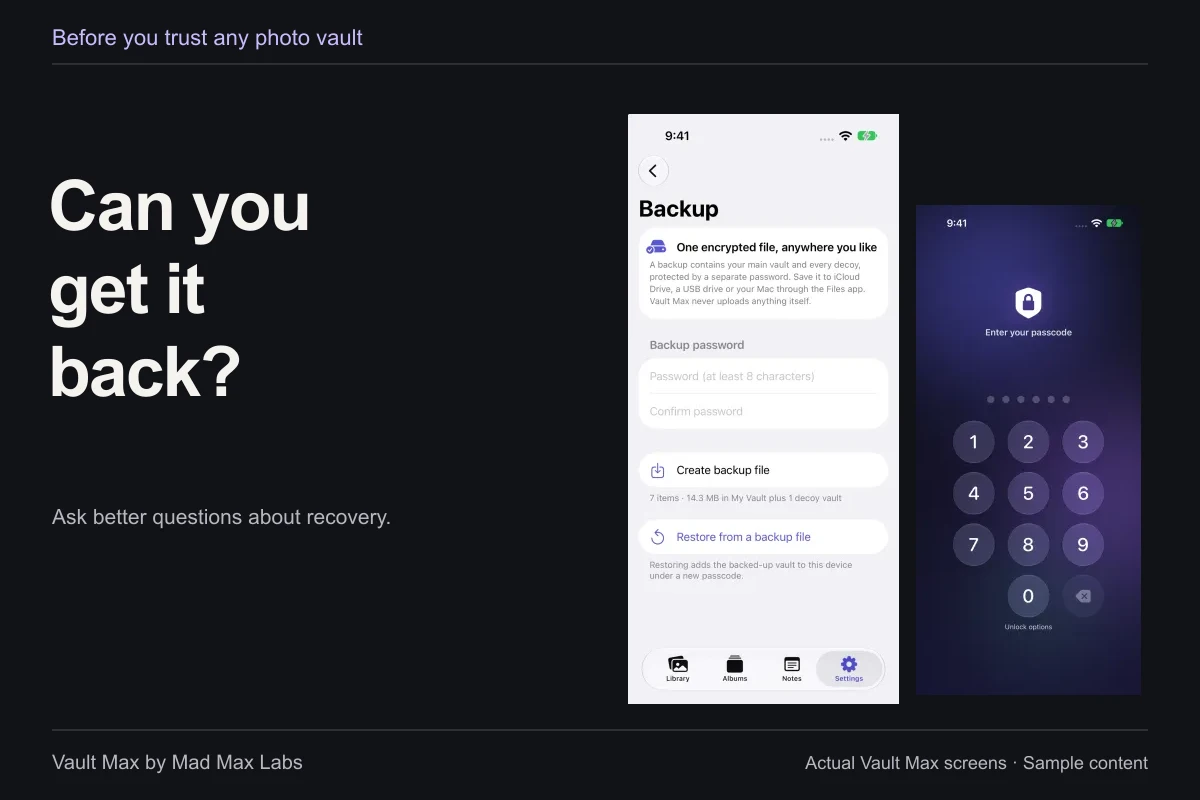
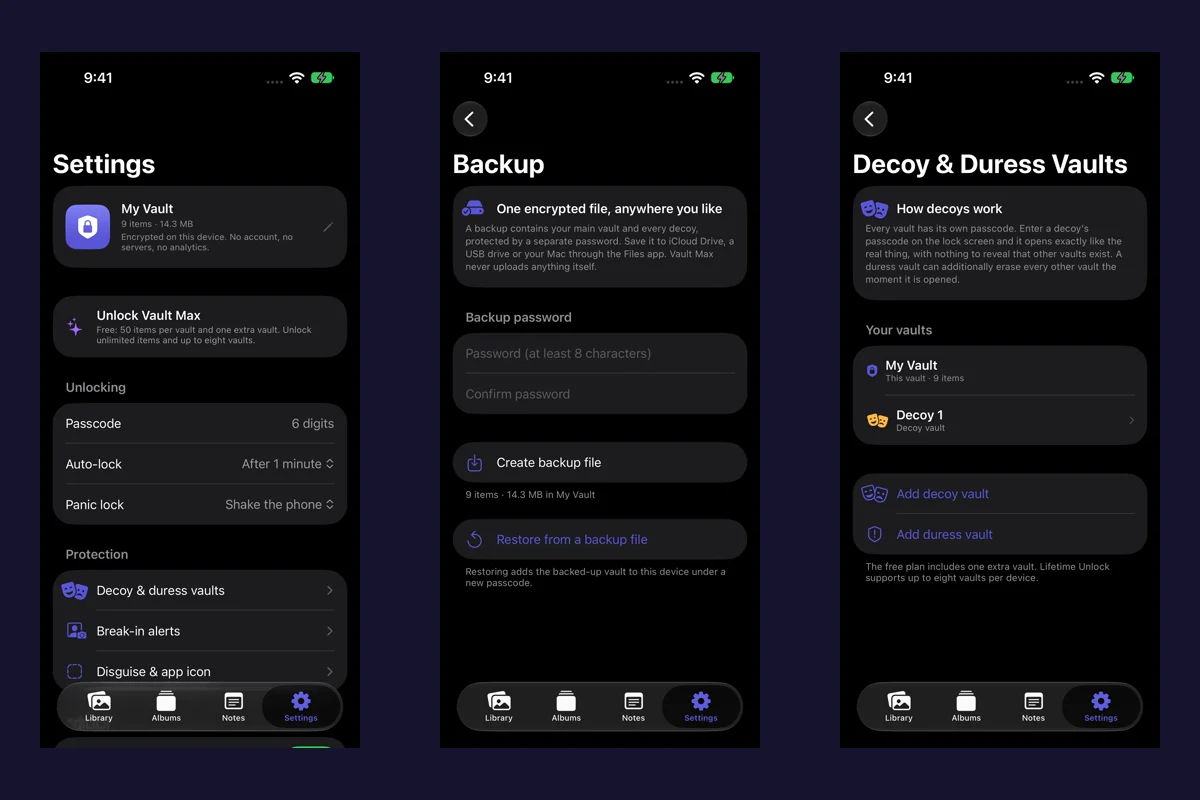
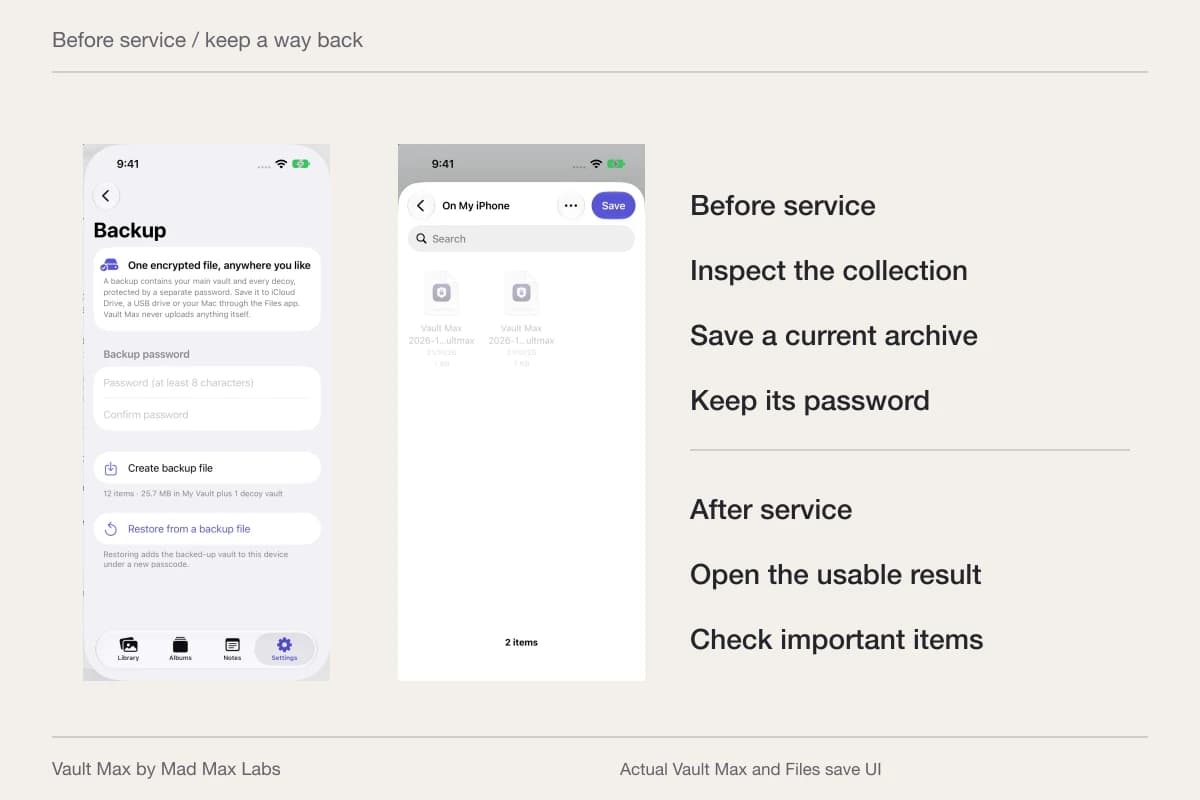
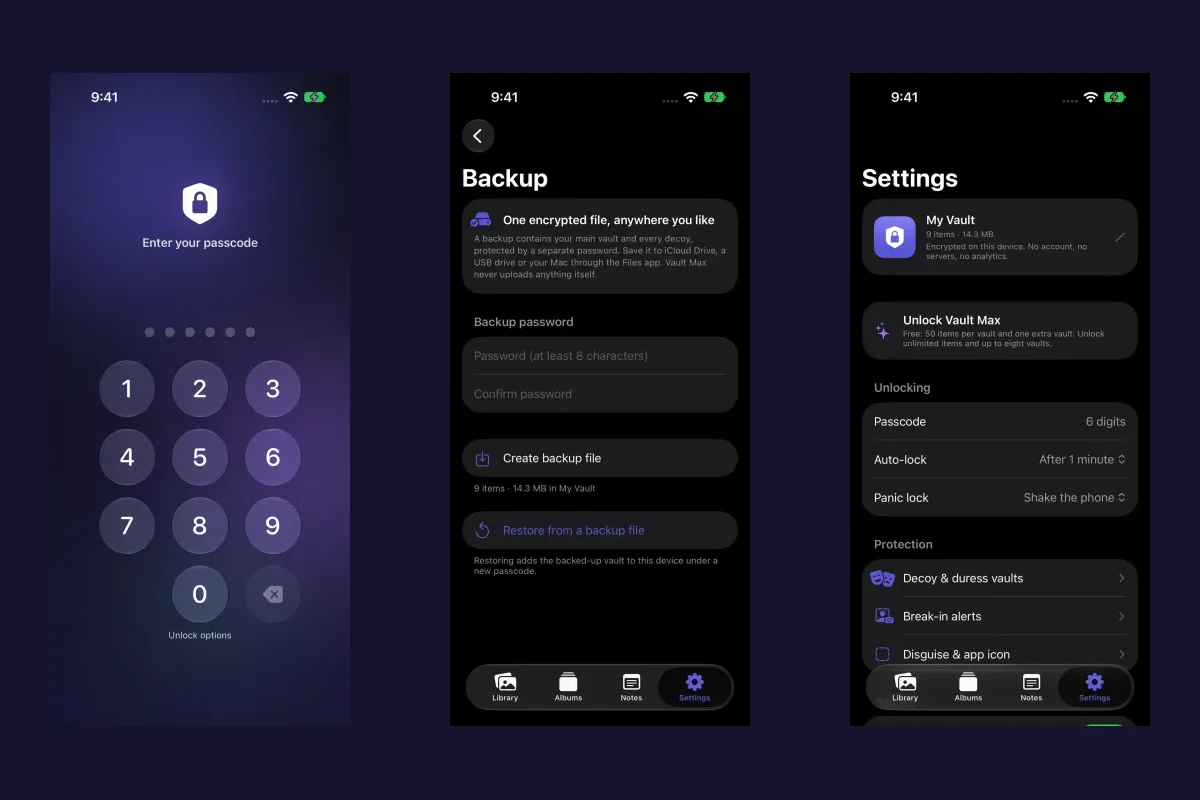
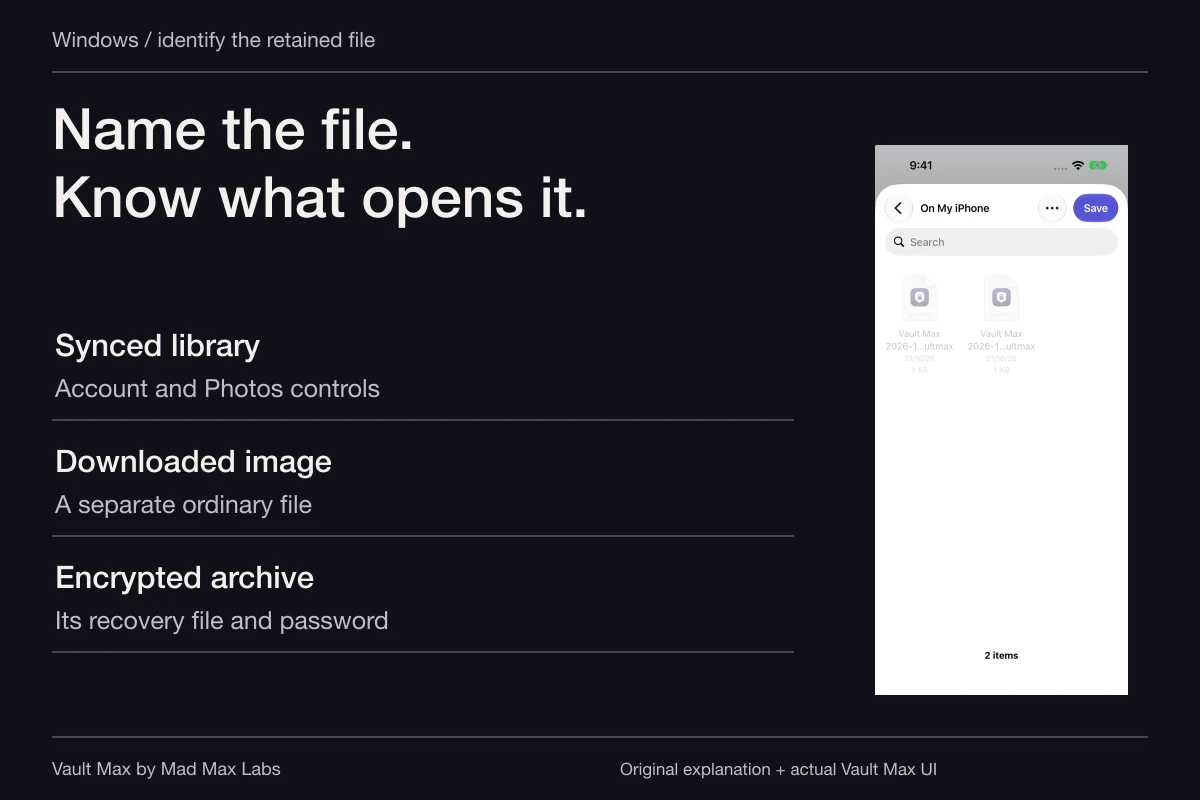
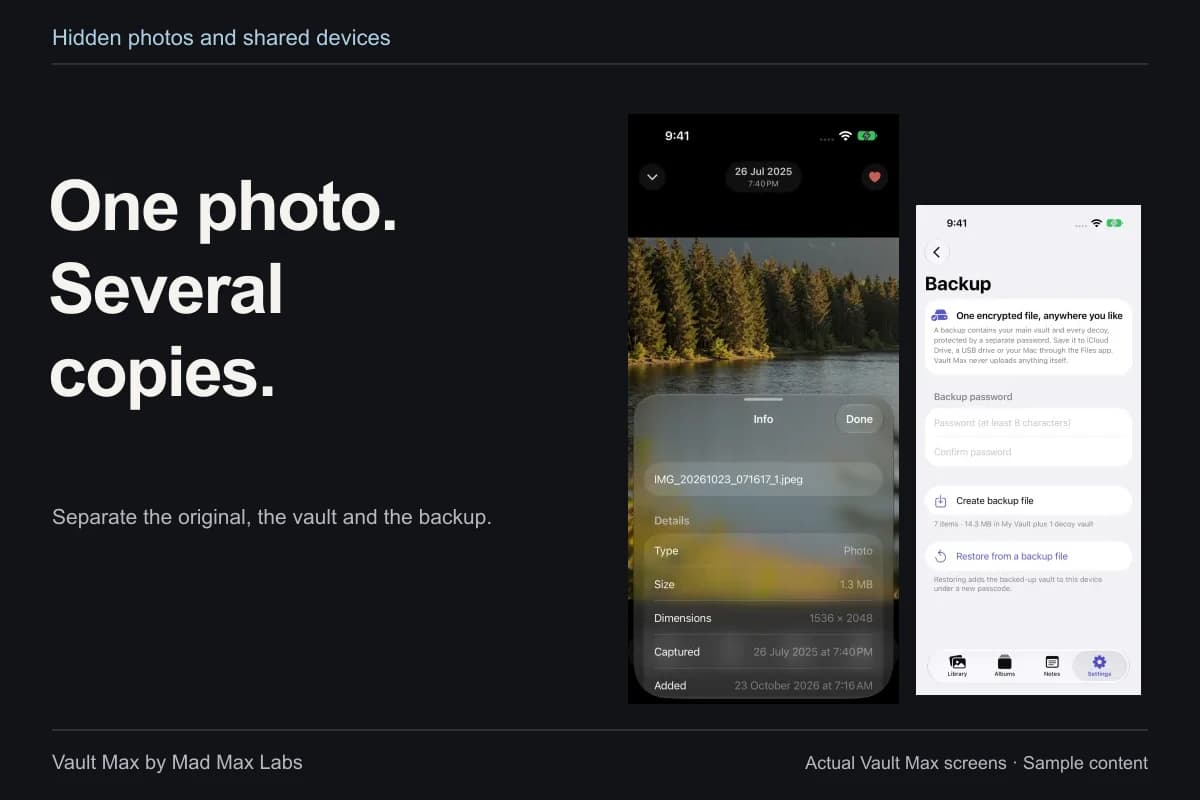
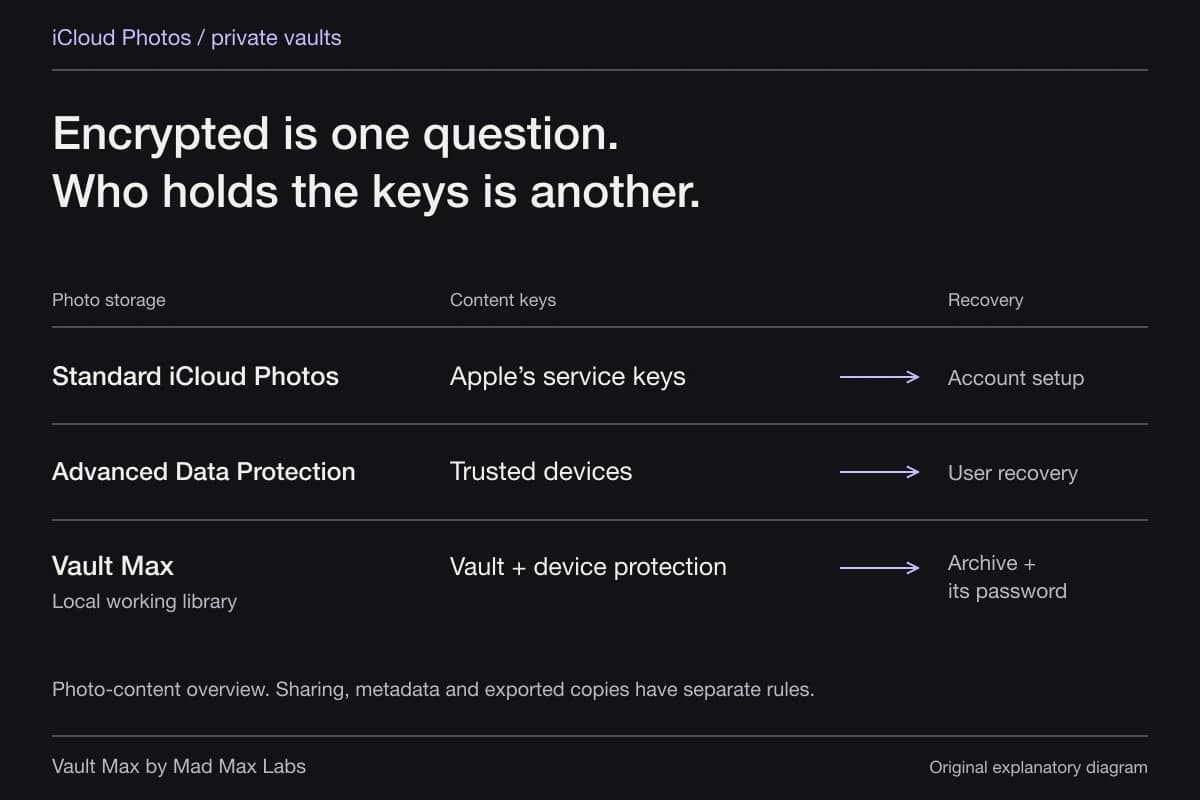
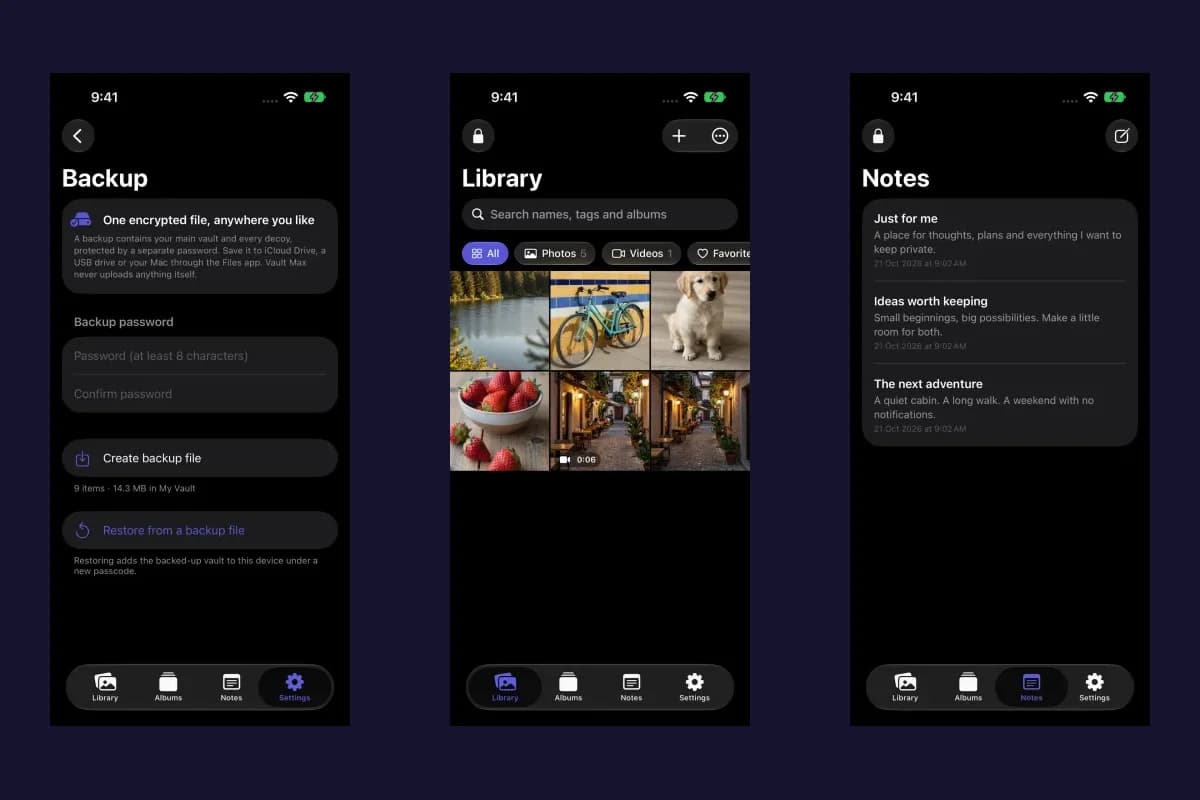
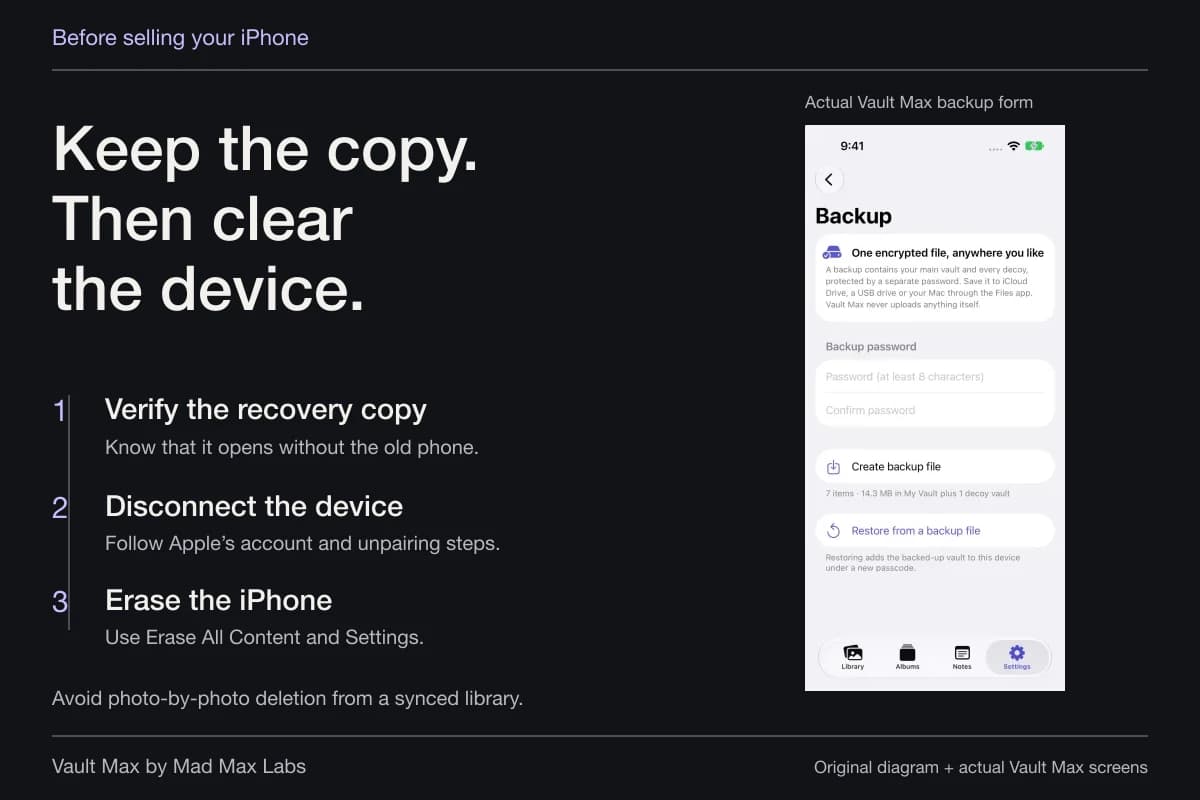
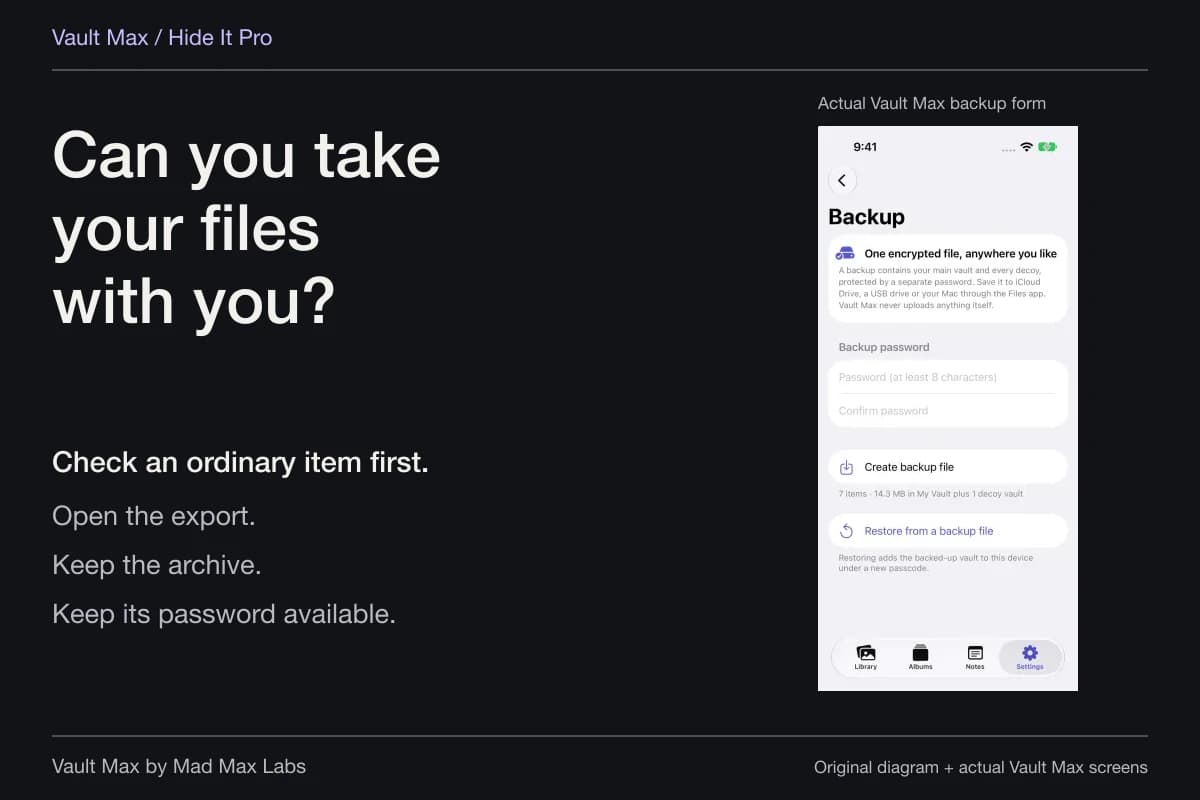
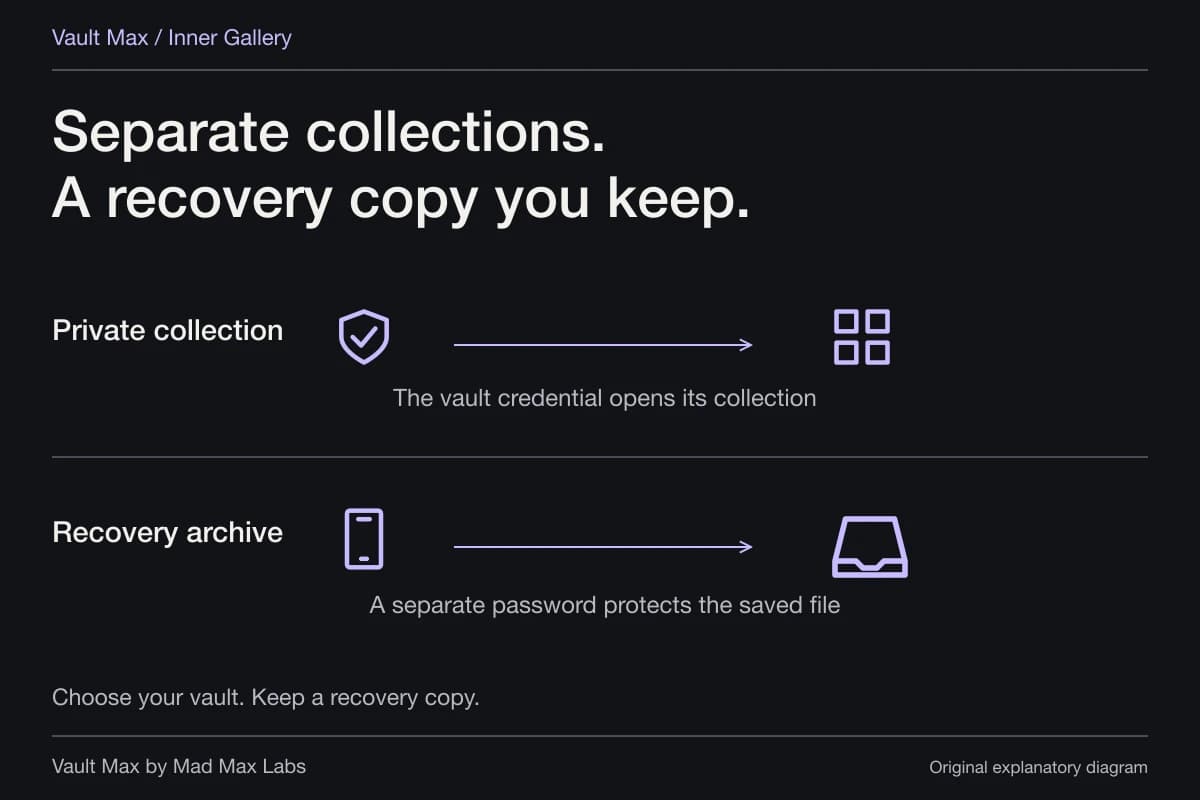
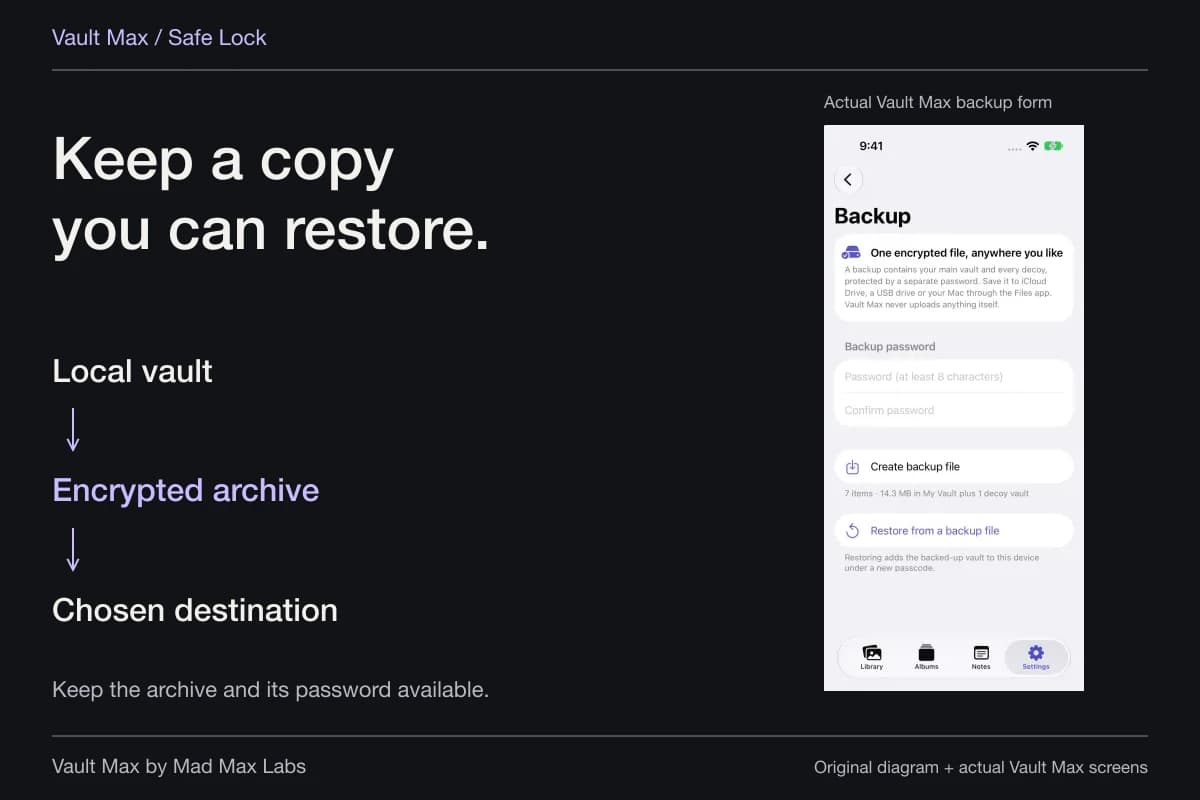
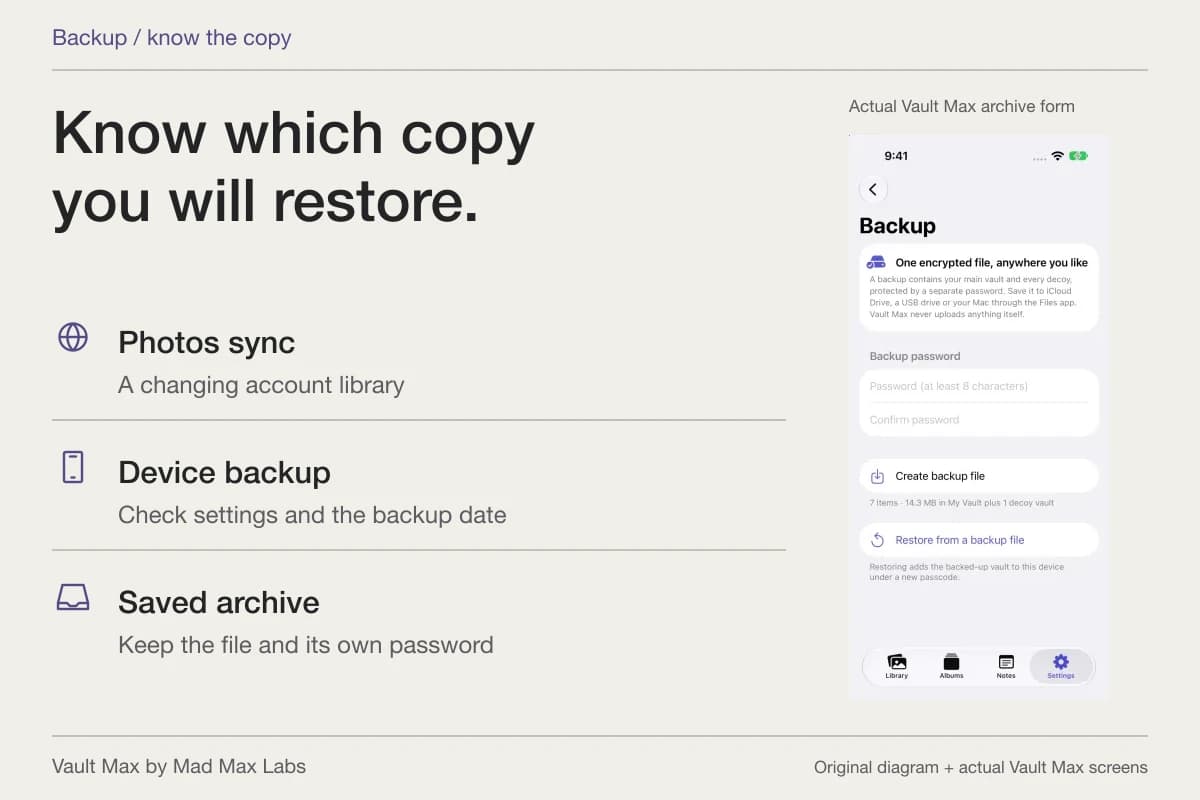
Vault Max's .vaultmax archive uses its own password. It can preserve the saved collection and included child vaults, including files and encrypted notes. Keep the archive somewhere you can reach without the old phone, and retain its password independently.
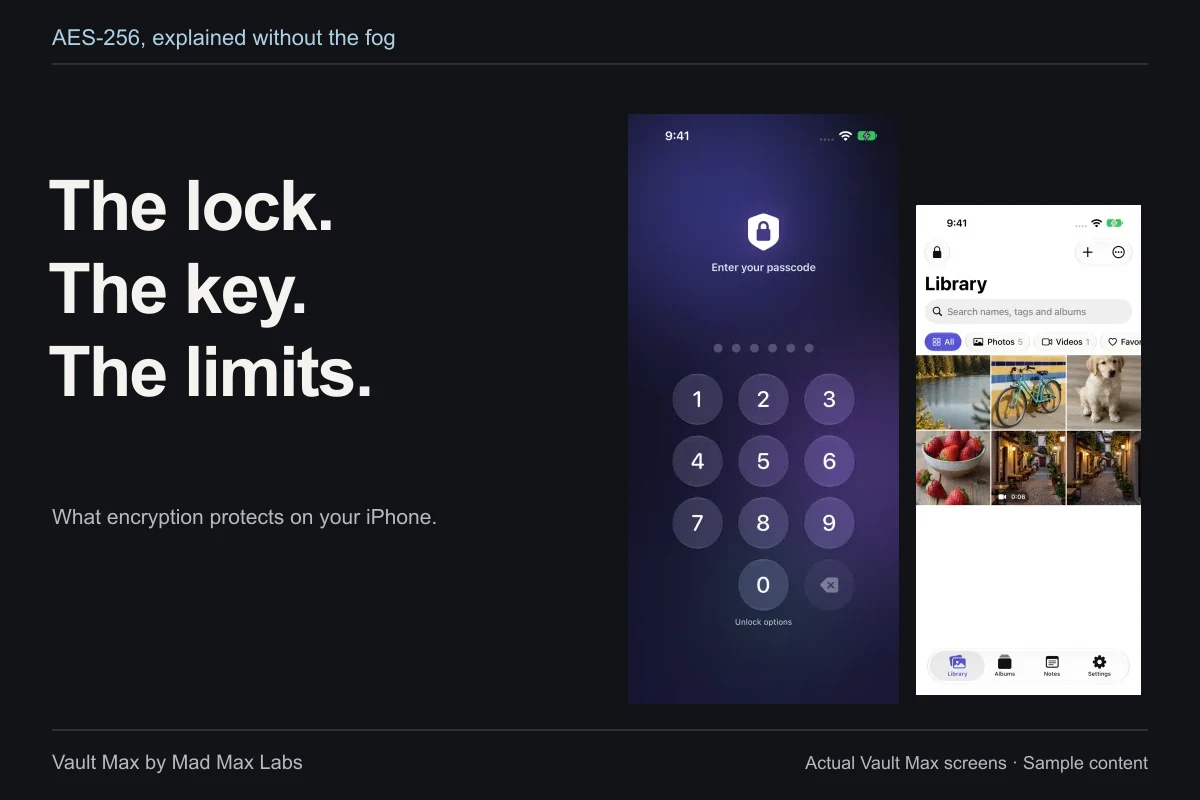
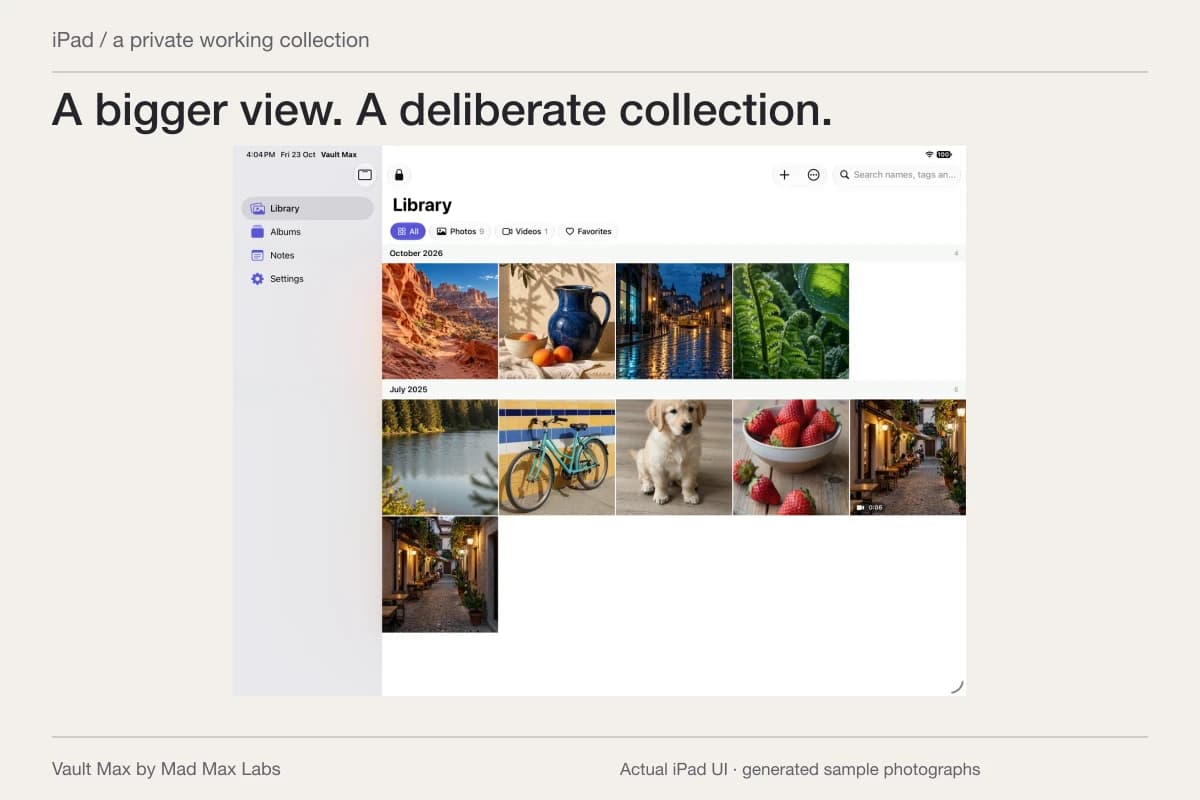
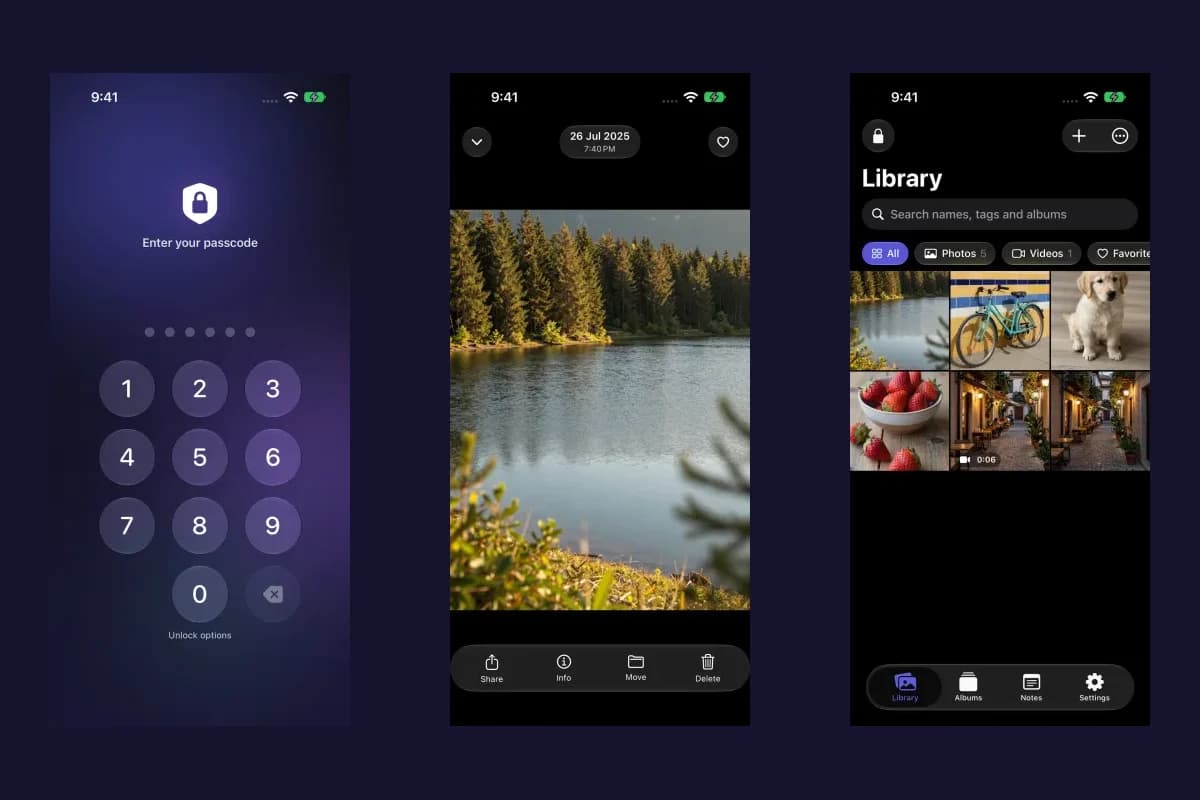
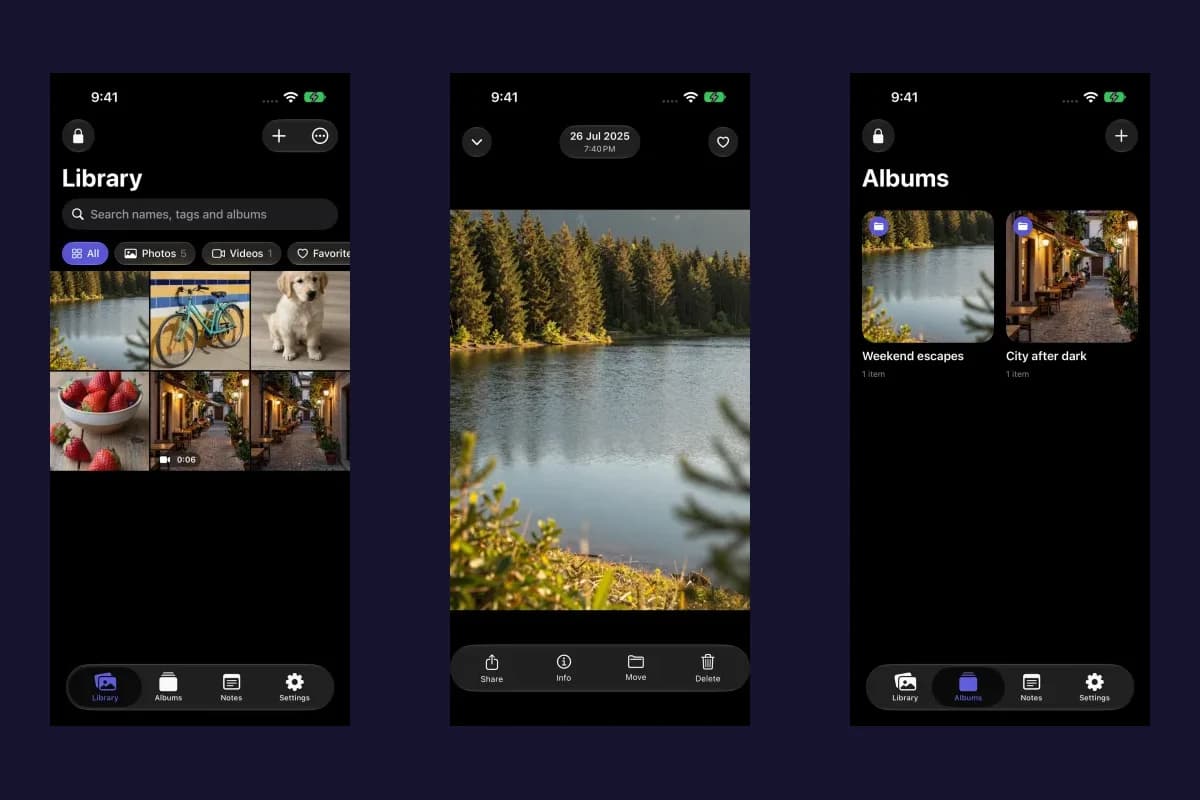
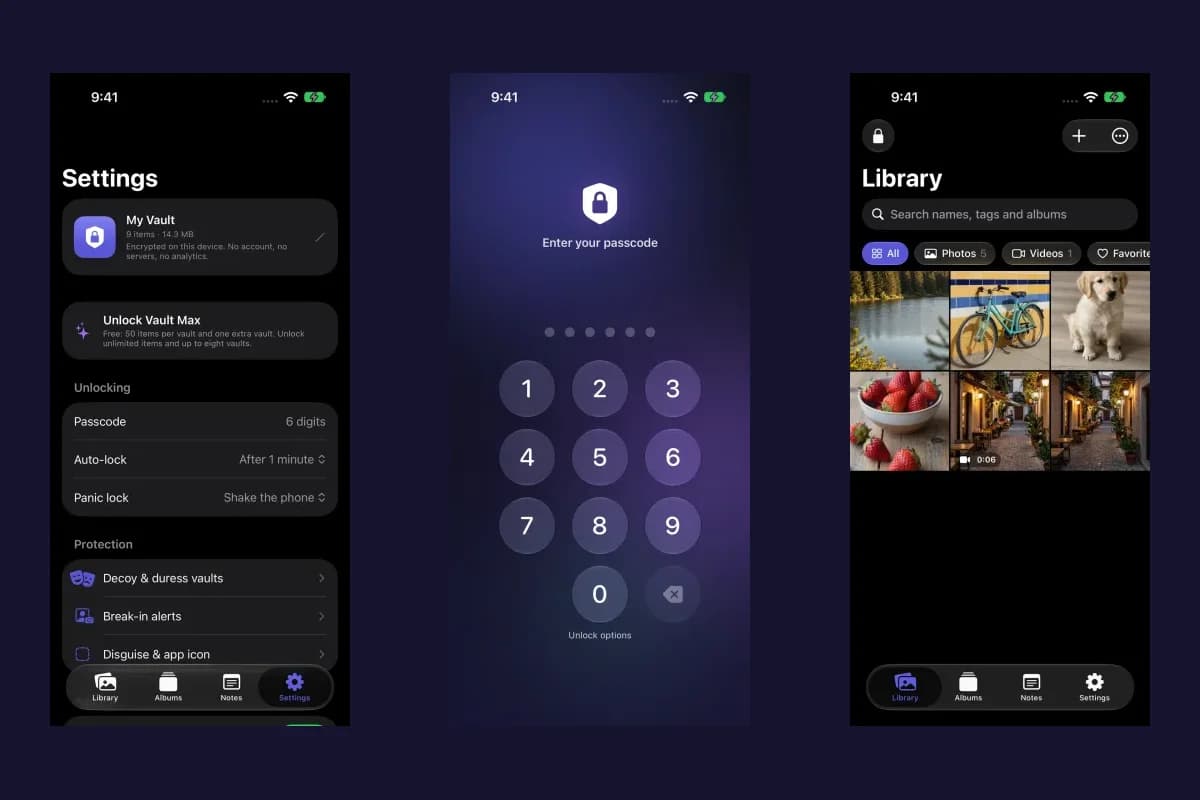
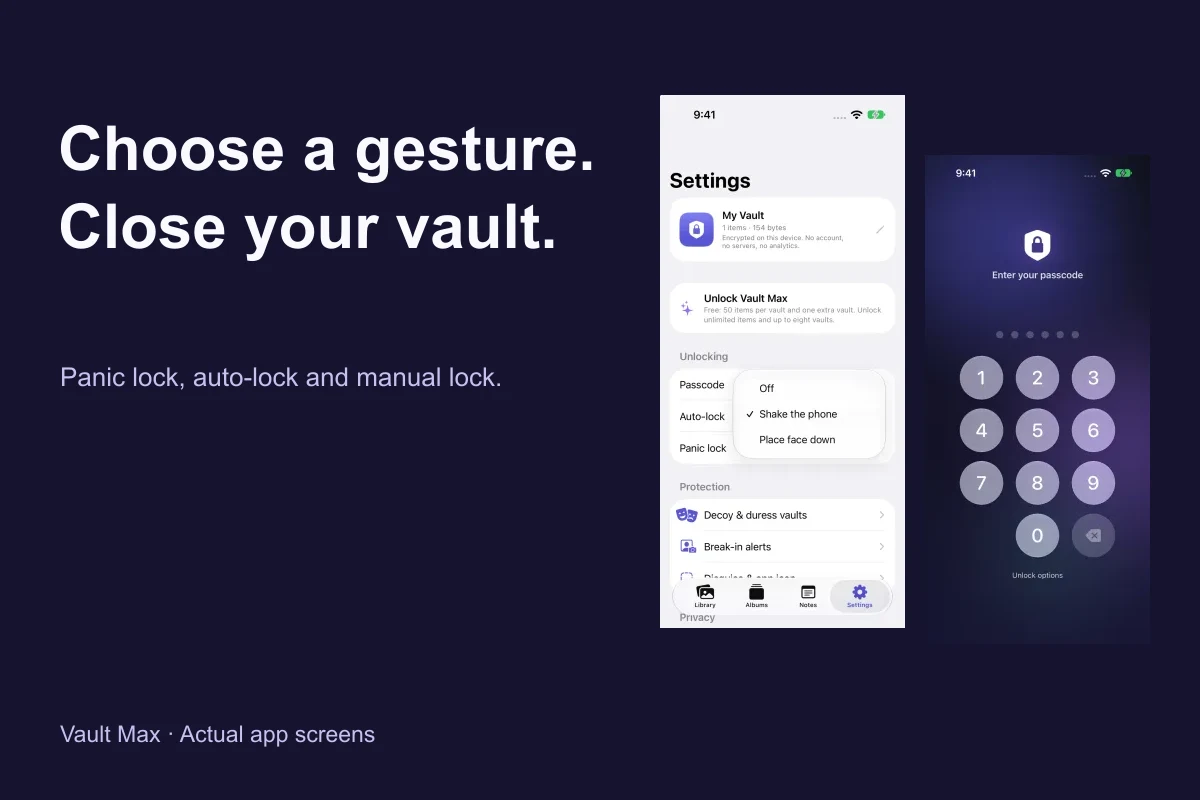
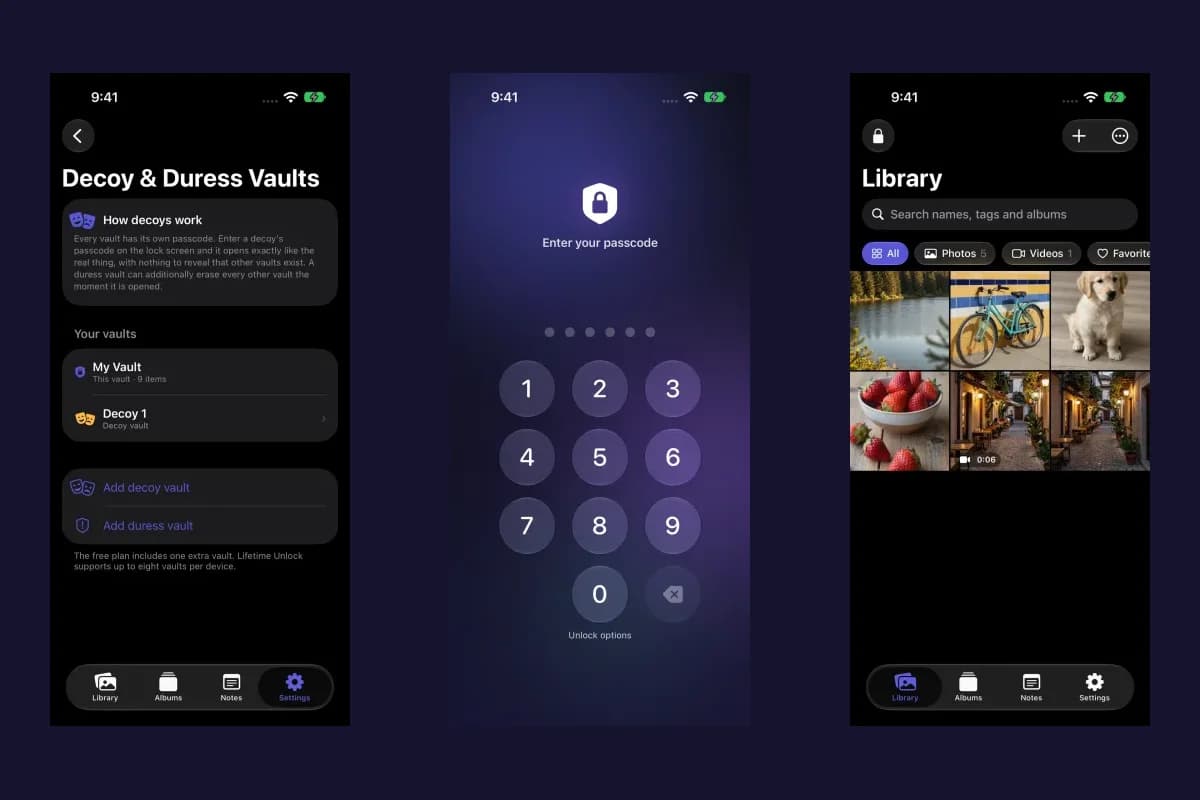
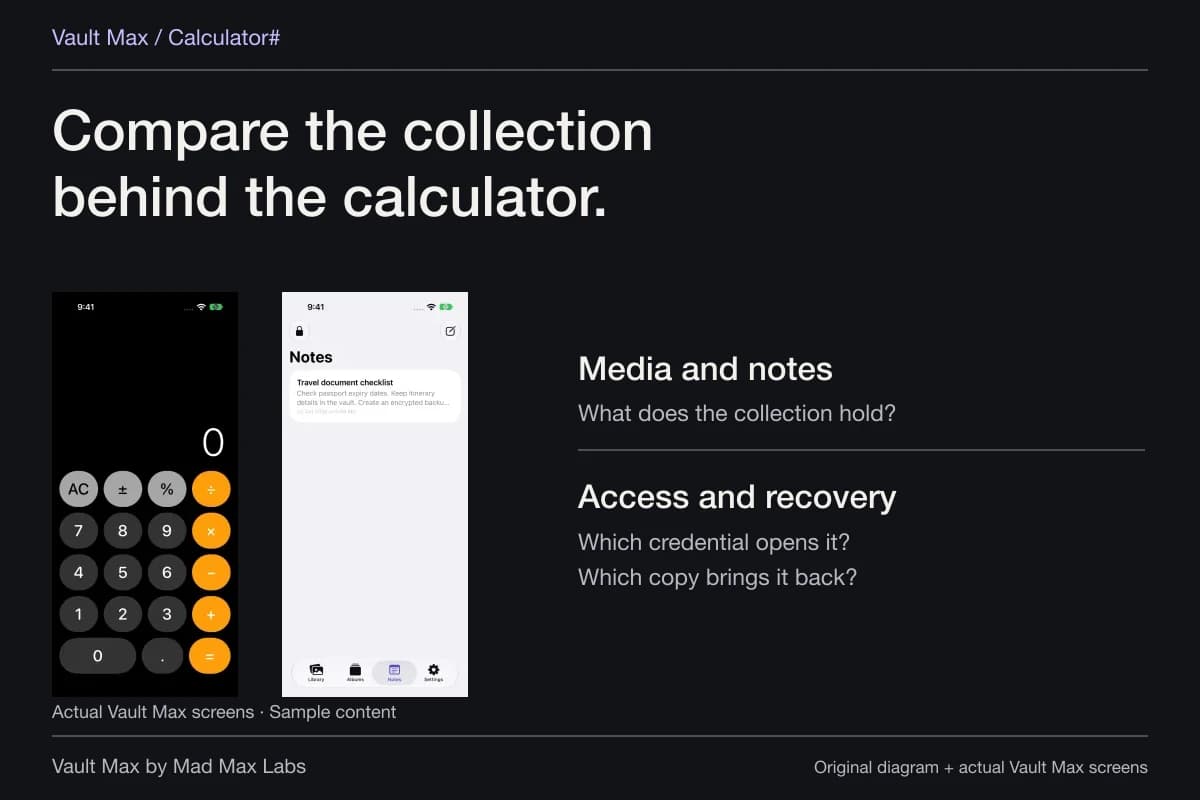
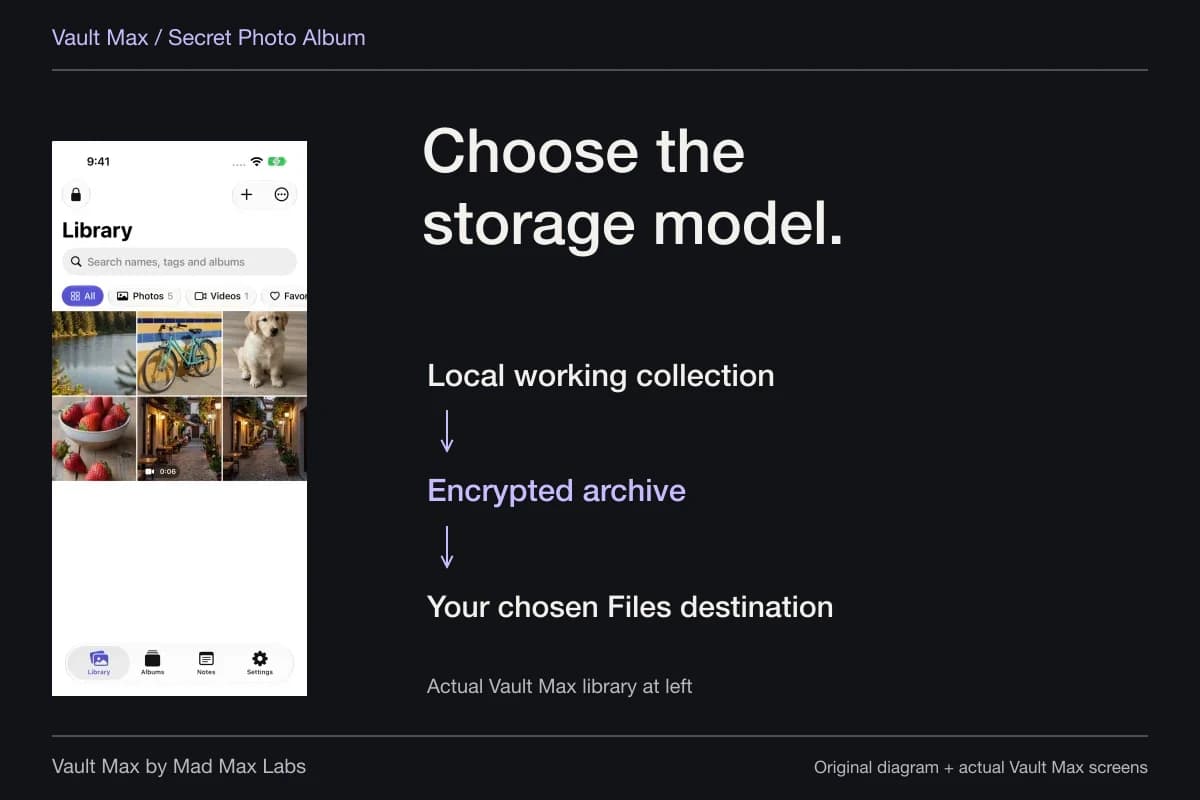
Sample Vault Max library. Select a screen for a closer look.
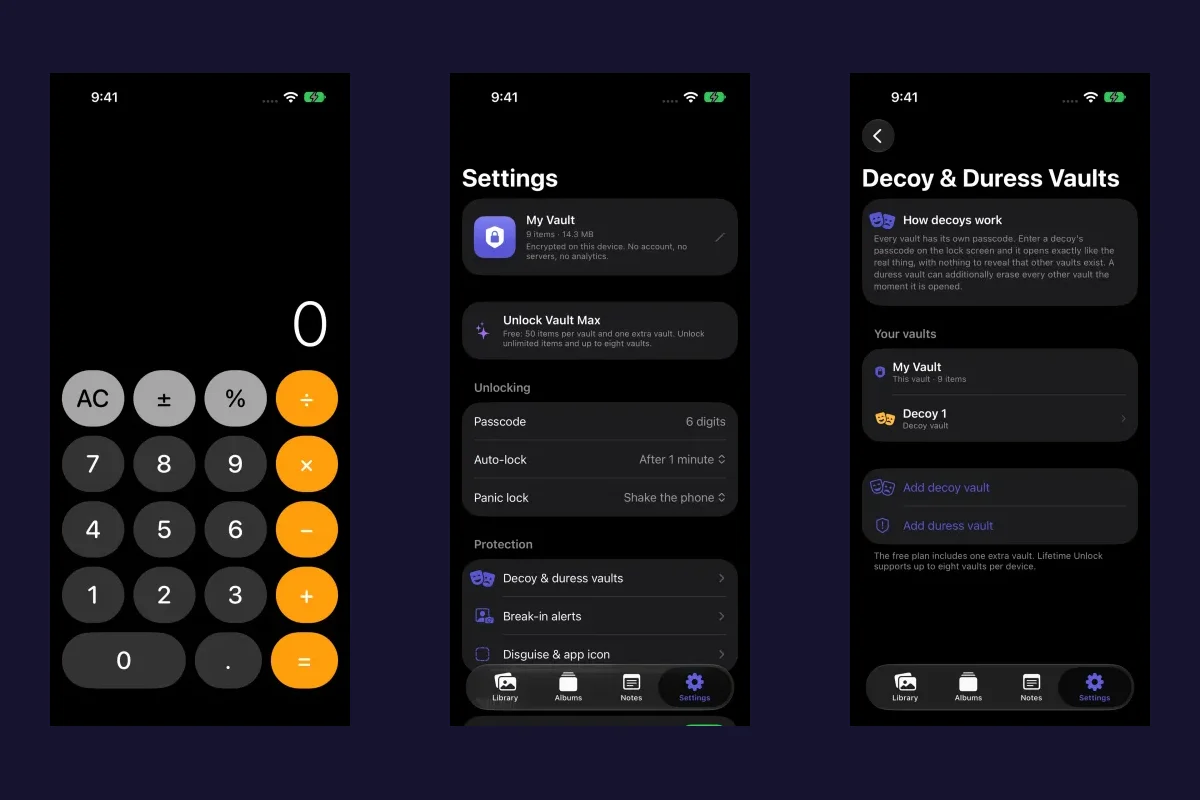
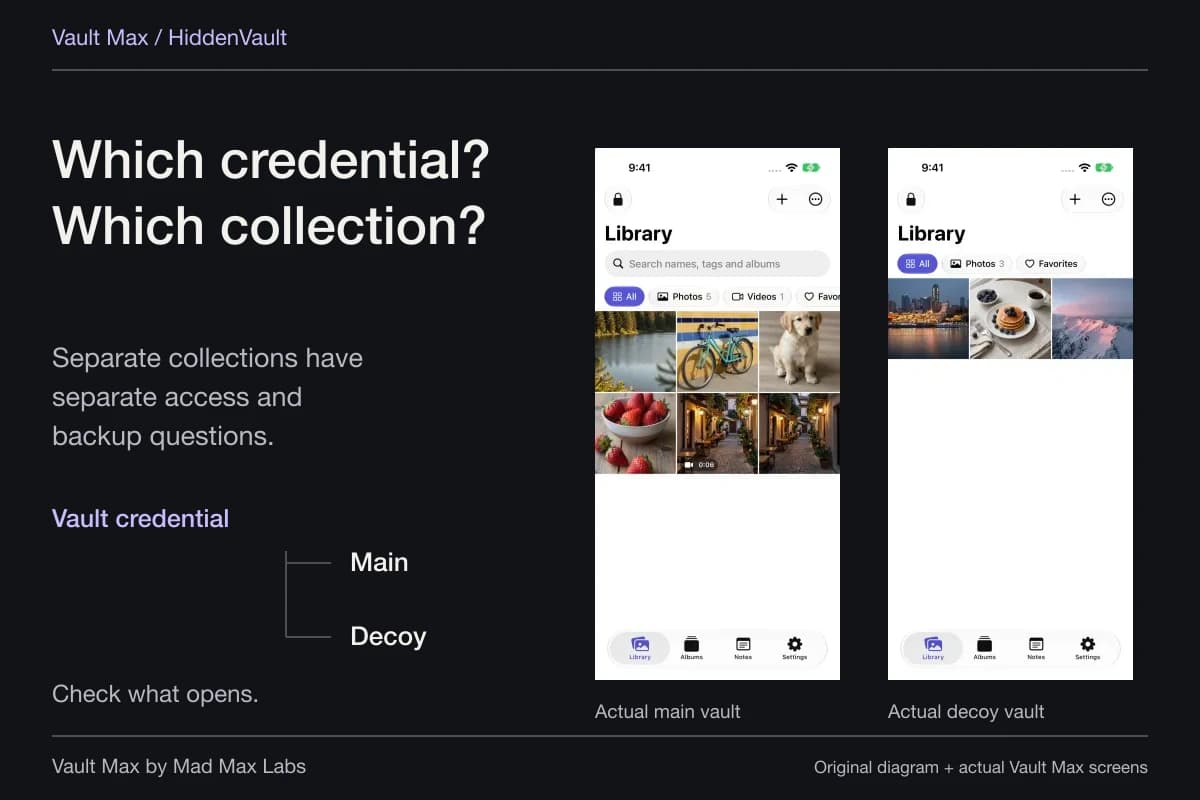
Restore can place the saved primary collection under a new vault credential. Included child credentials are assigned afterwards in Settings under Decoy & duress. This route depends on the archive and its password; it is not a support reset for a forgotten PDF password or a way to recover a missing source file.
Refresh the archive after important additions or revisions. Restoring an Apple purchase retrieves an eligible paid entitlement, not your private documents. The backup checklist helps you establish a usable recovery plan while the current collection is still accessible.
Troubleshoot the right layer
If a file does not open, begin with its location and the object requesting a password. Is this the PDF reader, the Vault Max unlock screen or archive restore? Entering a correct password into the wrong kind of prompt cannot fix the problem.
Next check whether you are holding the latest file or an older duplicate. Keep the working installation and usable source intact while you investigate. If you can still access the collection through an already-enabled route, make a recovery archive before making credential or installation changes.
Record which credential opens each object. Keep that record independently available, rather than storing the only archive-password reminder inside the vault you would need the archive to recover.
- Confirm the filename, pages and destination of the PDF you plan to protect.
- Use Preview's supported action and reopen the actual saved copy.
- Check the private copy while retaining a usable source.
- Understand which file leaves the collection and what opens it.
- Retain the archive and its own password without relying on the old vault.
Tap a box as you go. Checks reset when you leave this page.
For a growing private document collection, Vault Max adds useful organization, encrypted writing and independent vault access around the PDF. Learn that routine with its free security features, then choose capacity based on the files you intend to keep.
Common questions
Can iPhone password-protect a PDF without a separate PDF service?
Apple's current Preview app documents a Lock action for PDFs. Open the PDF, use the action menu beside its filename, select Lock, enter and verify the password, then apply the change. Confirm the result on the actual saved copy.
Does importing a PDF into Vault Max put a password on the exported PDF?
No. Vault encryption protects the stored collection. An ordinary export produces the file for its destination; it does not automatically add a portable PDF password. Existing protection already inside the PDF is a separate layer.
Are the PDF password and Vault Max backup password interchangeable?
They open different objects. The PDF password protects that document. A vault credential opens its local collection, and the archive password opens the separately created .vaultmax recovery snapshot.
Continue reading
More guides
Practical tips for your private library. Swipe or scroll to choose your next guide.

74 guides to explore