
Privacy in practice
Keep private photos off Apple Watch without deleting your library
Stop Apple Watch photo syncing or choose a smaller album. Review Memories, Featured Photos, watch faces and private copies before changing your library.
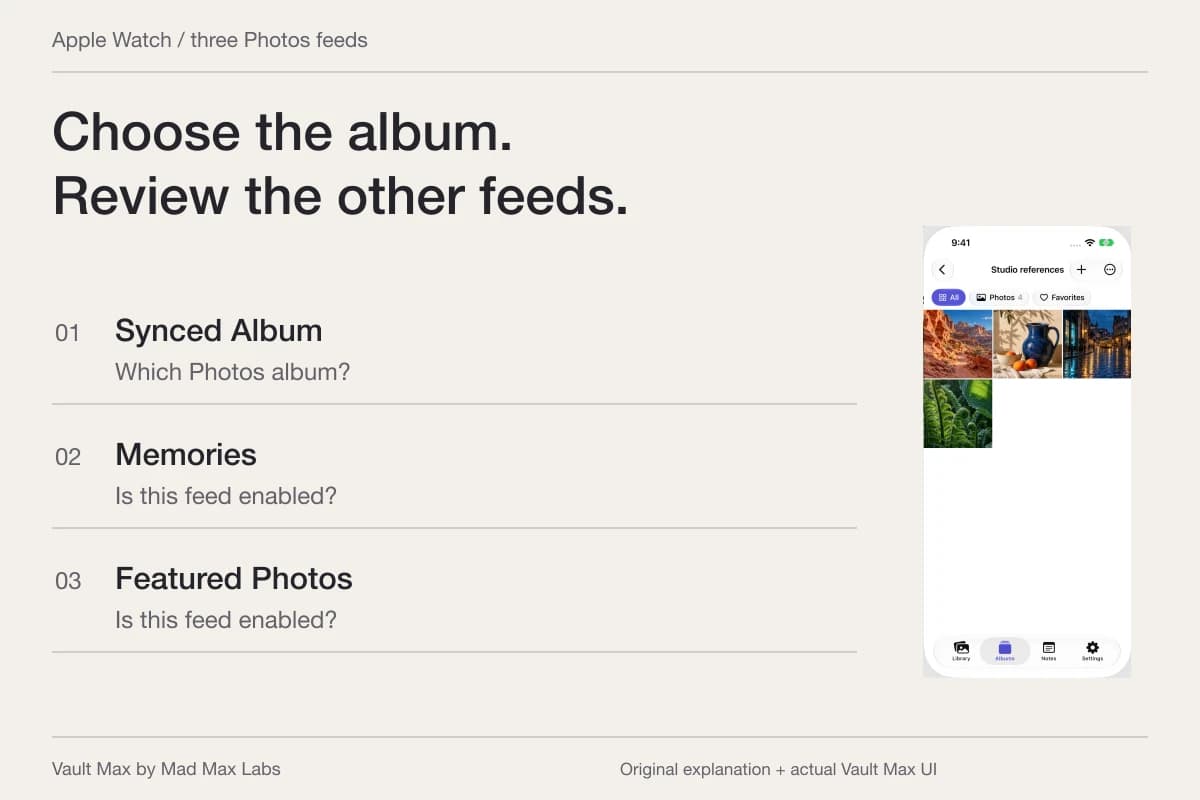
To stop the paired iPhone's selected album, Memories and Featured Photos syncing to Apple Watch, open Watch → My Watch → Photos and turn off Photo Syncing. If you still want a few pictures on your wrist, choose a small, intentional Sync Album instead and review the other photo feeds. Check watch faces separately before considering the job finished.
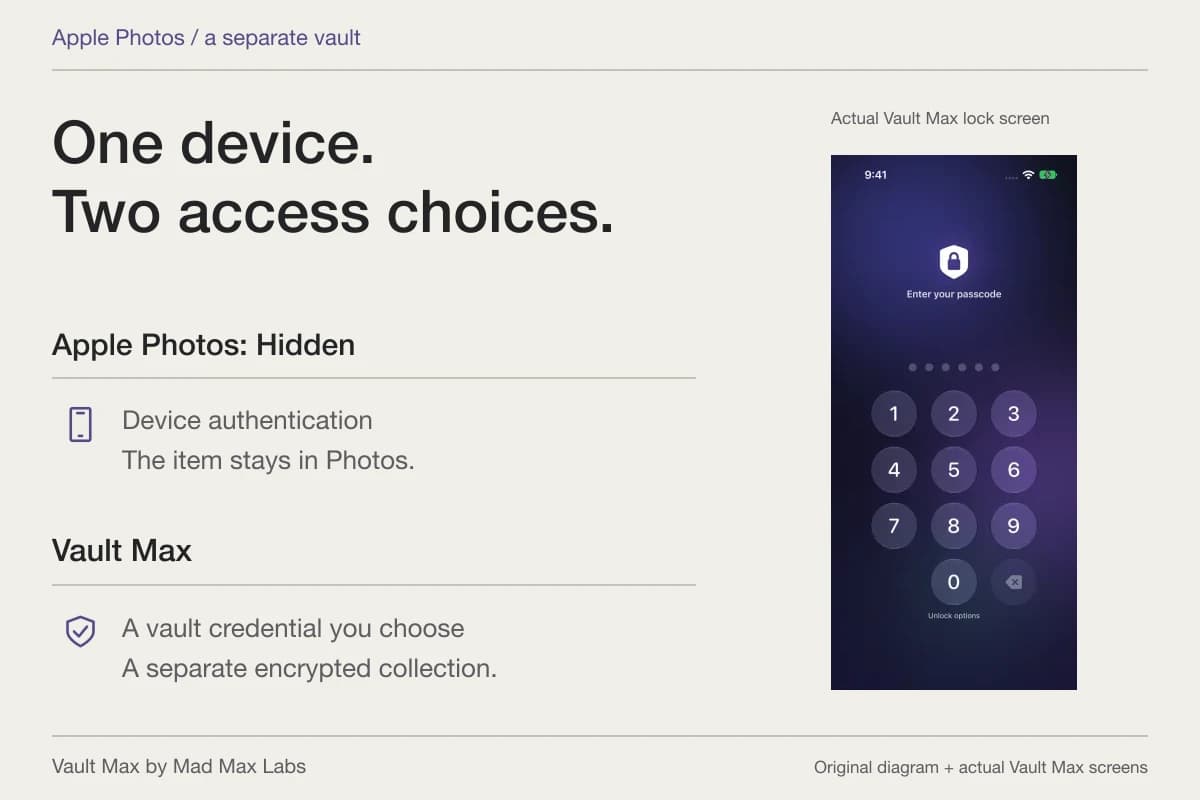
There is no need to delete a whole iPhone library to change what belongs on a watch. For private pictures you want outside that everyday library, Vault Max supplies a separately credentialed local collection. First identify what is feeding the watch, then decide where the originals should live.
Find the source of the picture you noticed
A picture in the Watch Photos app, a picture used as a watch face and an image inside a message are different records. Start with the visible surface. That saves you from changing an album setting and assuming it also changed a conversation or a face you created earlier.
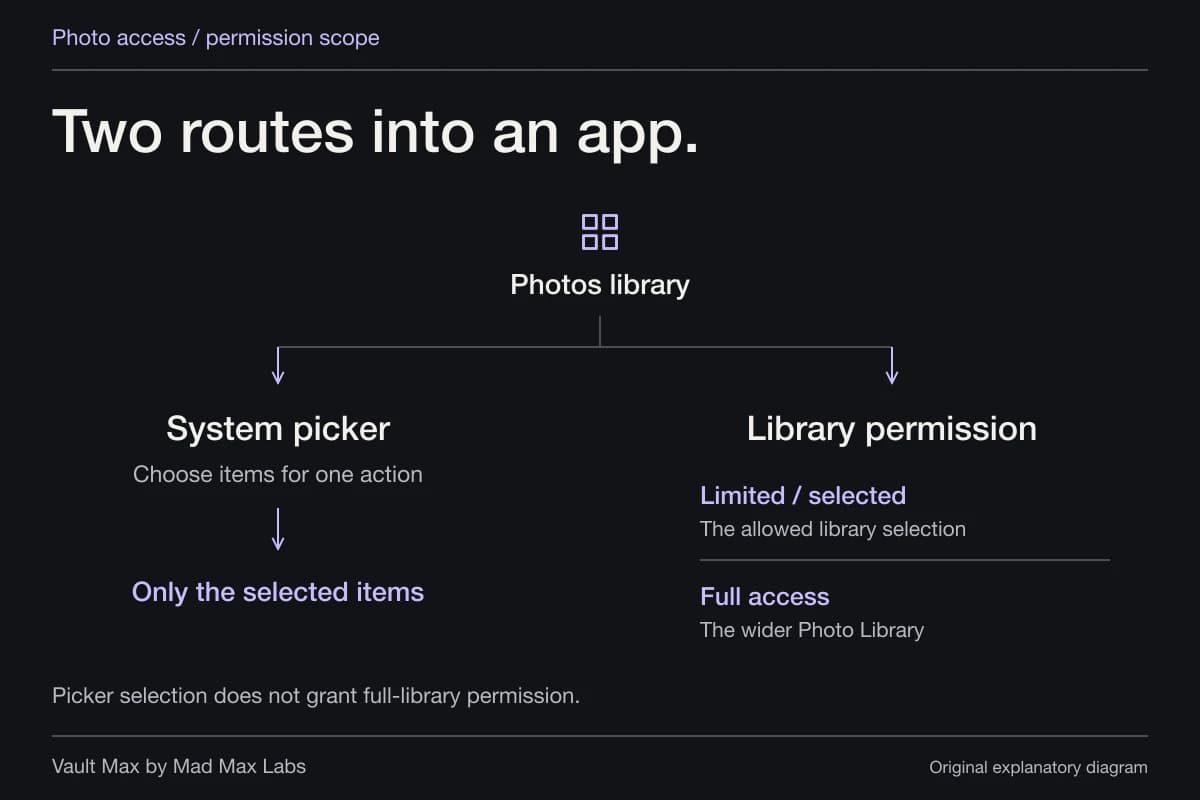
Apple's photo album and storage guide explains that a new watch initially uses Favorites. A favorite flag can therefore matter beyond making an image easier to find on the phone. Check the actual Sync Album selection rather than relying on that initial default.
Think of a weekend away. You want a few landscape pictures on your watch, while a private reference image belongs only in your phone's protected collection. Both may have been marked as favorites for unrelated reasons. A dedicated watch album makes the intended selection easier to understand than a general Favorites collection you use for many jobs.
My Watch · Photos · Photo Syncing
Sync Album
The album you deliberately choose.
Sync Memories
Review this automatic photo feed separately.
Sync Featured Photos
Review this additional selection too.
Turn off Photo Syncing to stop these three feeds, or keep a chosen album and review the other two switches.
Outside that photo-feed choice
- A Photos watch face
Inspect the face’s own selected pictures or collection.
- A message attachment
Review the conversation and its notification settings.
Stop the photo feeds or narrow them deliberately
For the broad photo-sync control, open Watch on the paired iPhone, select My Watch, open Photos, and switch Photo Syncing off. Apple's instructions apply that setting to the chosen album and the two automatic photo feeds. This is the documented starting point when you do not want those collections sent to the watch.
If a small collection is useful, make an ordinary album containing only appropriate pictures. In the Watch app's Photos settings, choose it under Sync Album. Review Sync Memories and Sync Featured Photos separately so your carefully chosen album is not the only feed you considered.
Apple also documents removing a picture from the selected iPhone album to remove it from the watch's synced selection. That is an album-membership action. Read the Photos menu carefully: removing something from an album and deleting it from the library have different consequences.
After making the choice, check the watch itself when it has had an opportunity to update. Do not assume a changed phone switch establishes instant cache removal on every watch. Our instructions describe Apple's controls; they are not a timing test on your paired hardware.
A Photos watch face has another selection to inspect
Apple's current Photos watch-face guide describes faces made from chosen photos, a collection or a shuffled selection. A picture used to tell the time can appear whenever you raise your wrist, which is a different exposure from deliberately opening the Photos app.
Review the faces you actually use through the Watch app. If a photo face is unnecessary, use an ordinary non-photo face. If you keep one, inspect its selected source and the images it can cycle through. Checking only the single image currently displayed can miss the rest of its selection.
Do not assume the Photo Syncing switch recalls every image used by every face. Start from the face's own configuration and inspect the result on the watch. If you cannot establish which images it draws from, choose a simpler face while you consult Apple's current instructions for that software version.
| Surface | Relevant choice | Completion check |
|---|---|---|
| Photos app album | Sync Album or Photo Syncing | Inspect the chosen album on the actual watch |
| Automatic photo selections | Sync Memories and Sync Featured Photos | Confirm both settings match your intention |
| Photos watch face | The face's chosen pictures or collection | Review the face and its possible changing images |
| Message attachment | The conversation and notification settings | Review that app rather than the album control |
| Private phone collection | The vault credential and saved import | Open the right item, then close the vault |
Keep recovery separate from watch storage
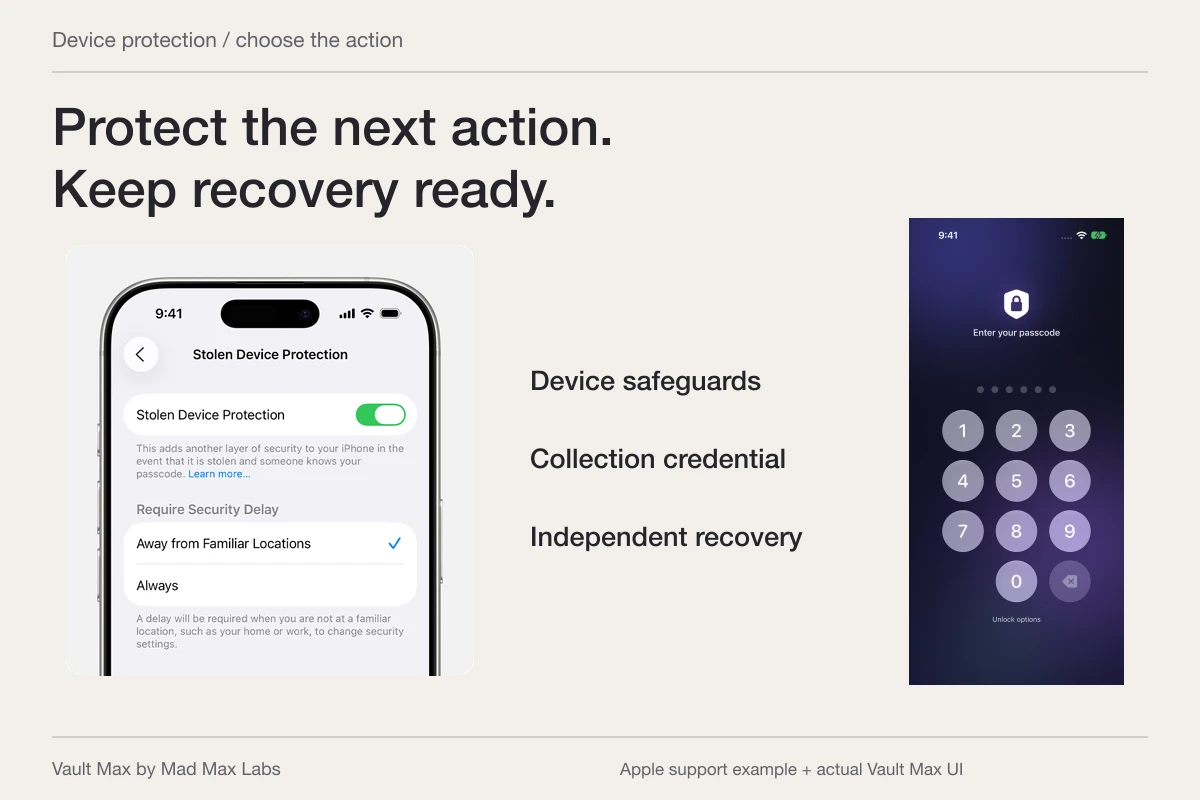
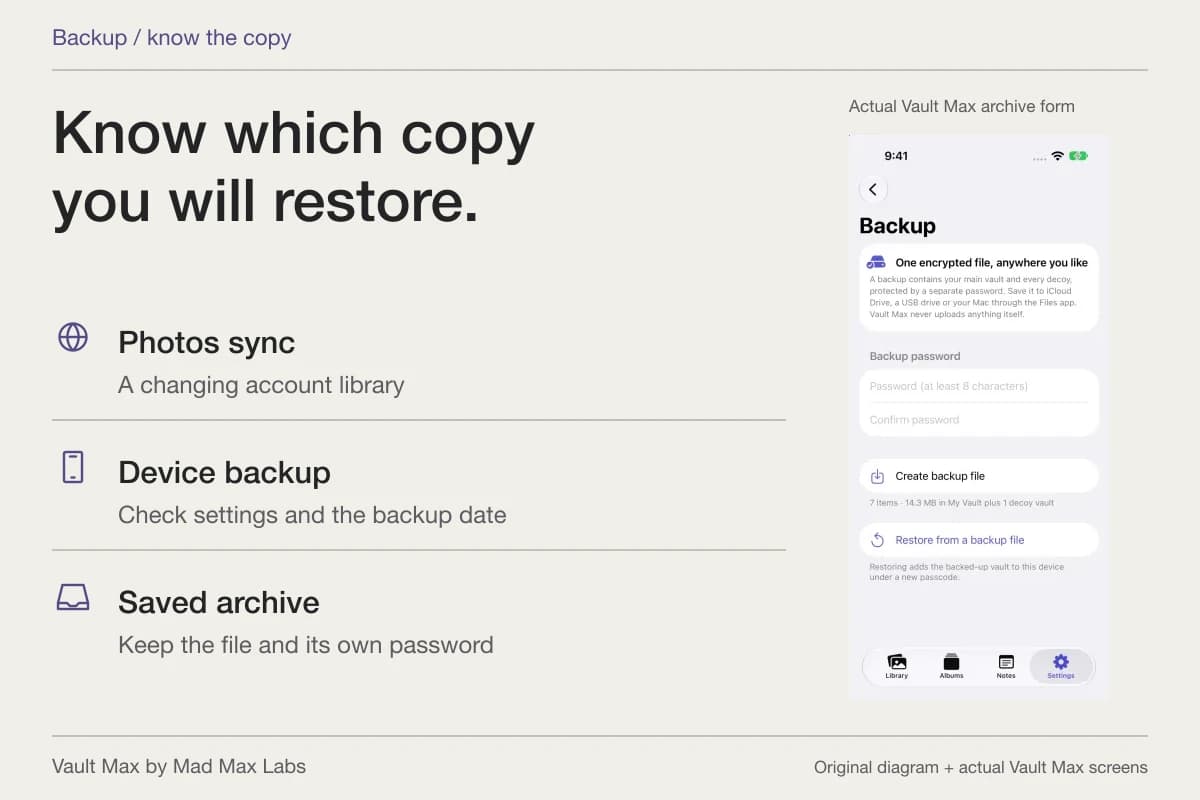
A watch selection is a convenience collection. It should not be your plan for recovering important photos after a phone is lost or replaced. Before changing a needed original, establish which usable copy you would keep if the phone were unavailable.
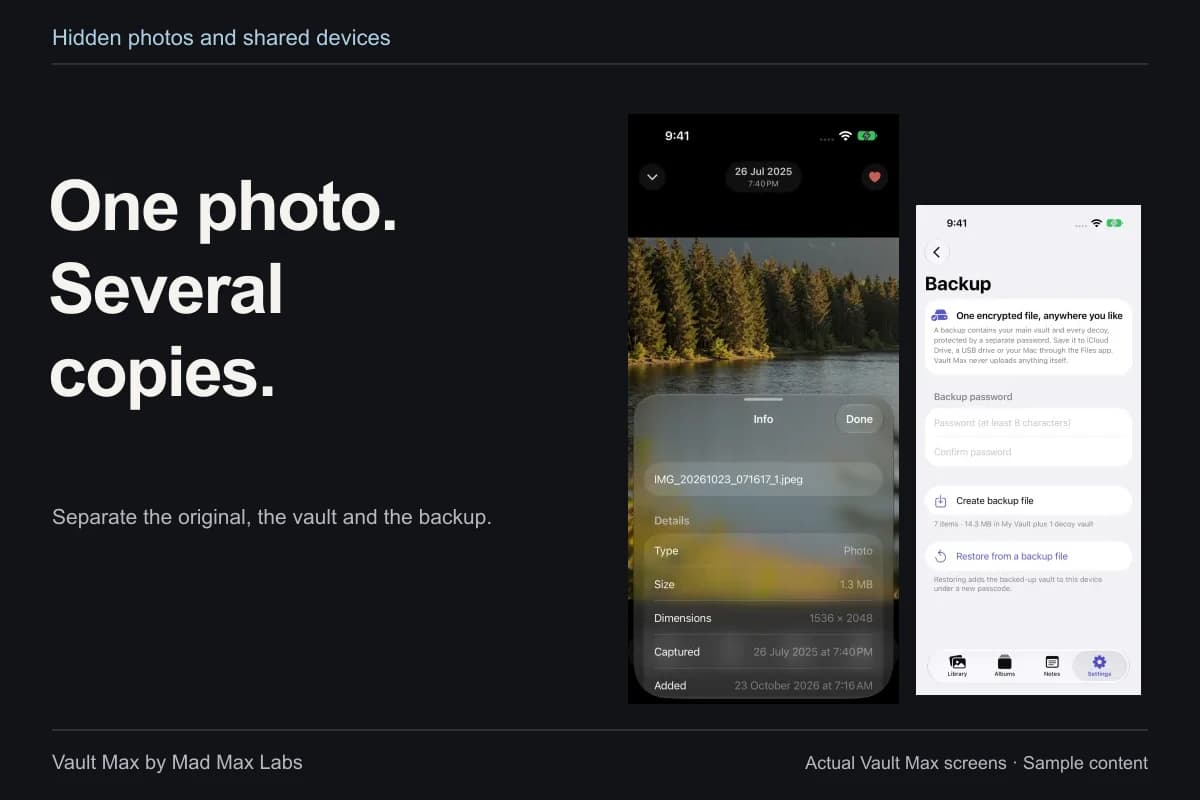
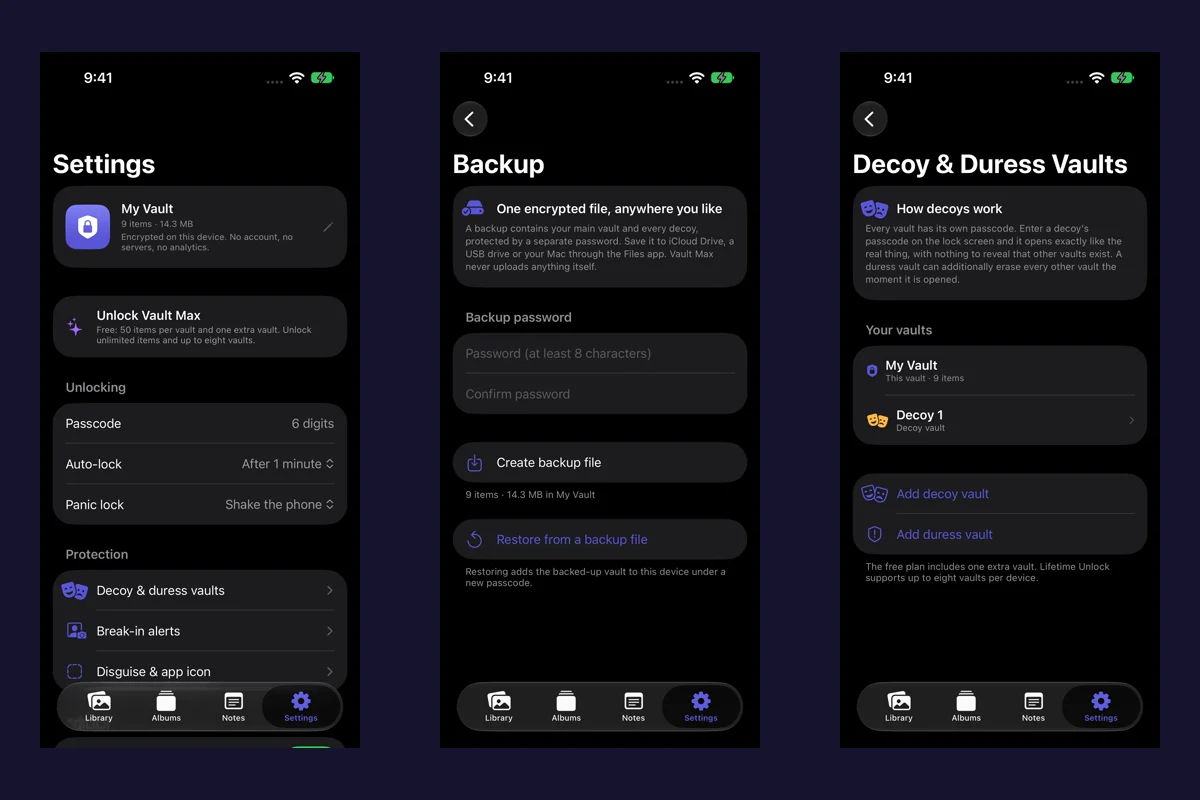
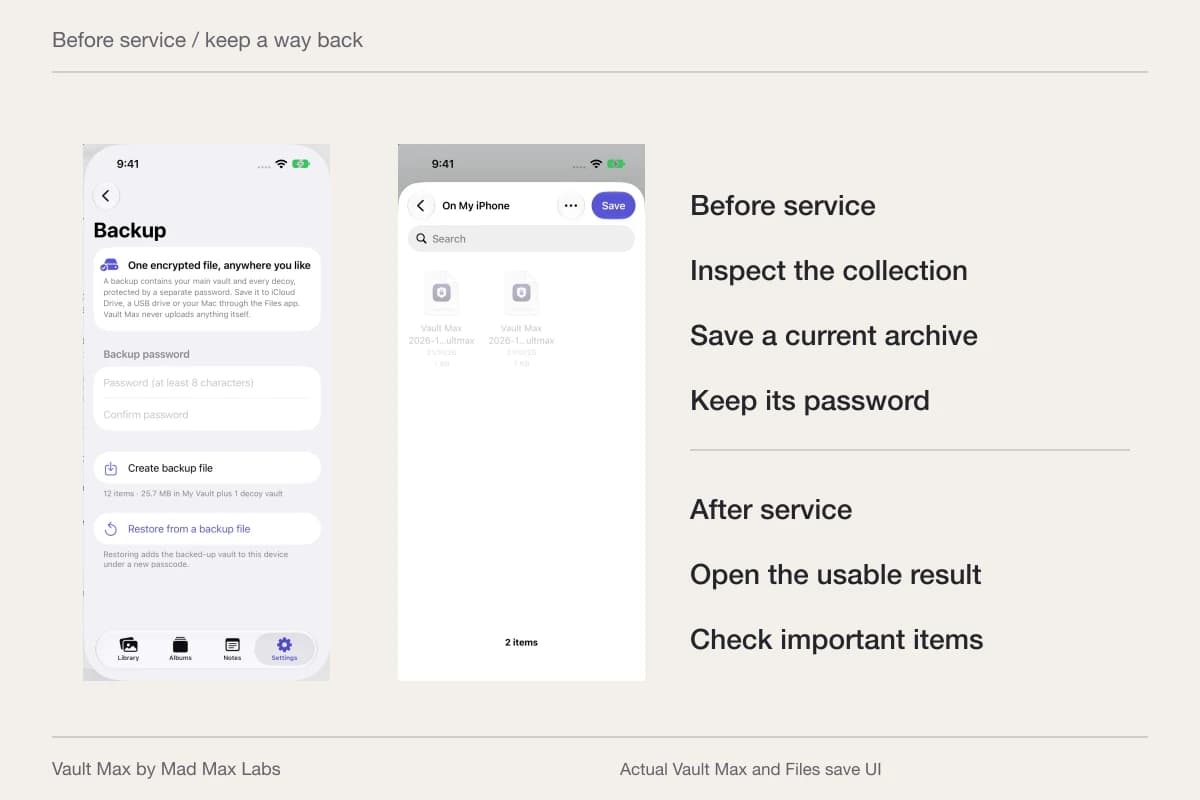
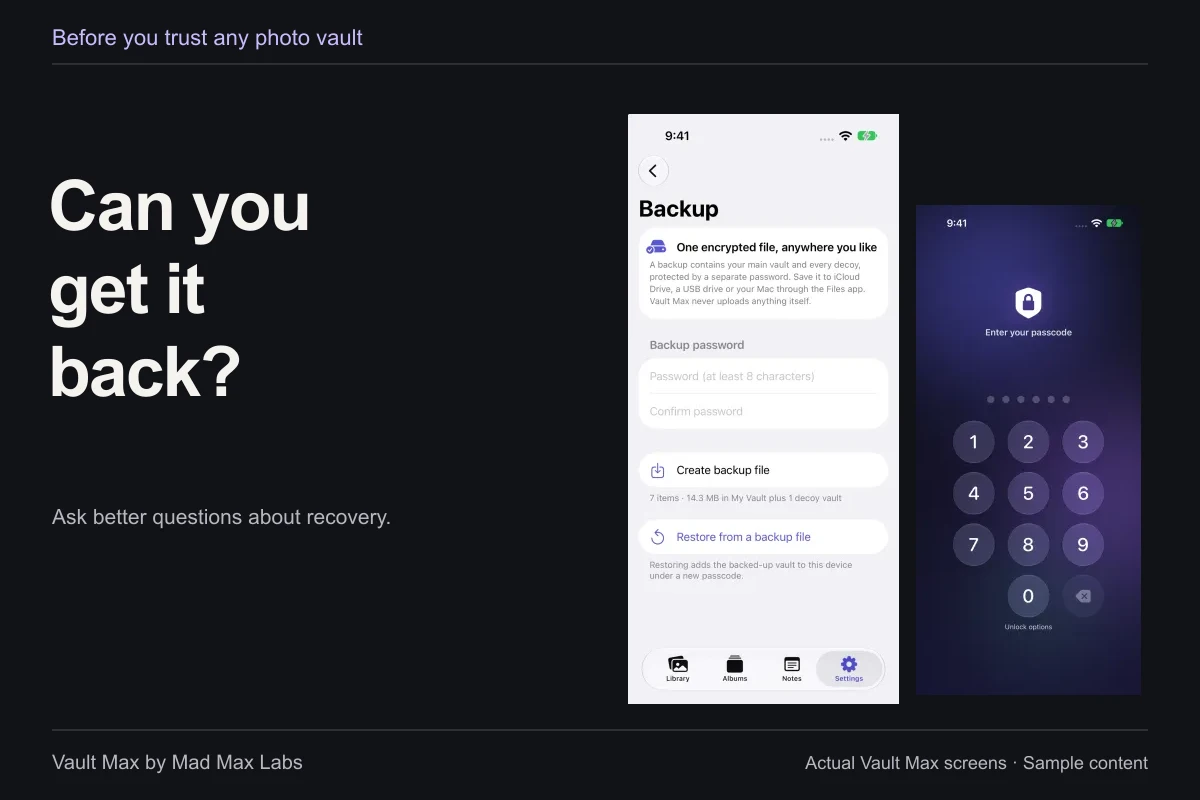
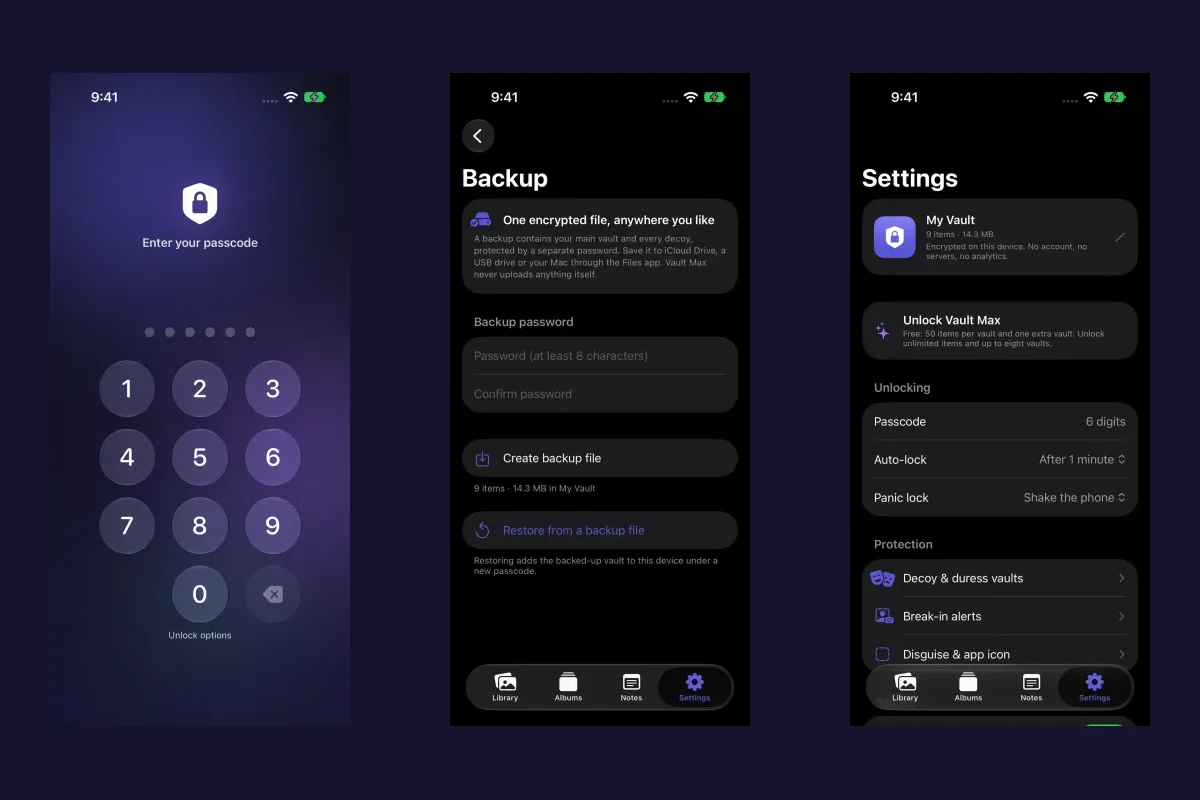
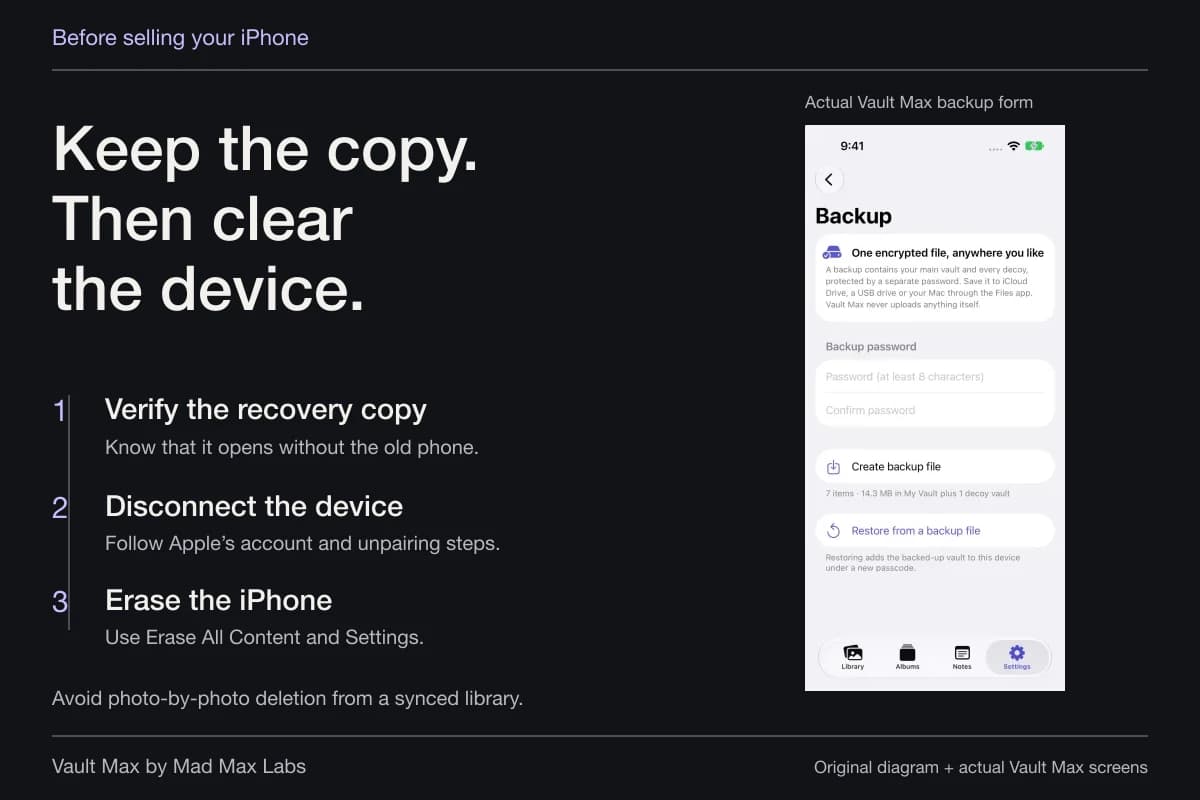
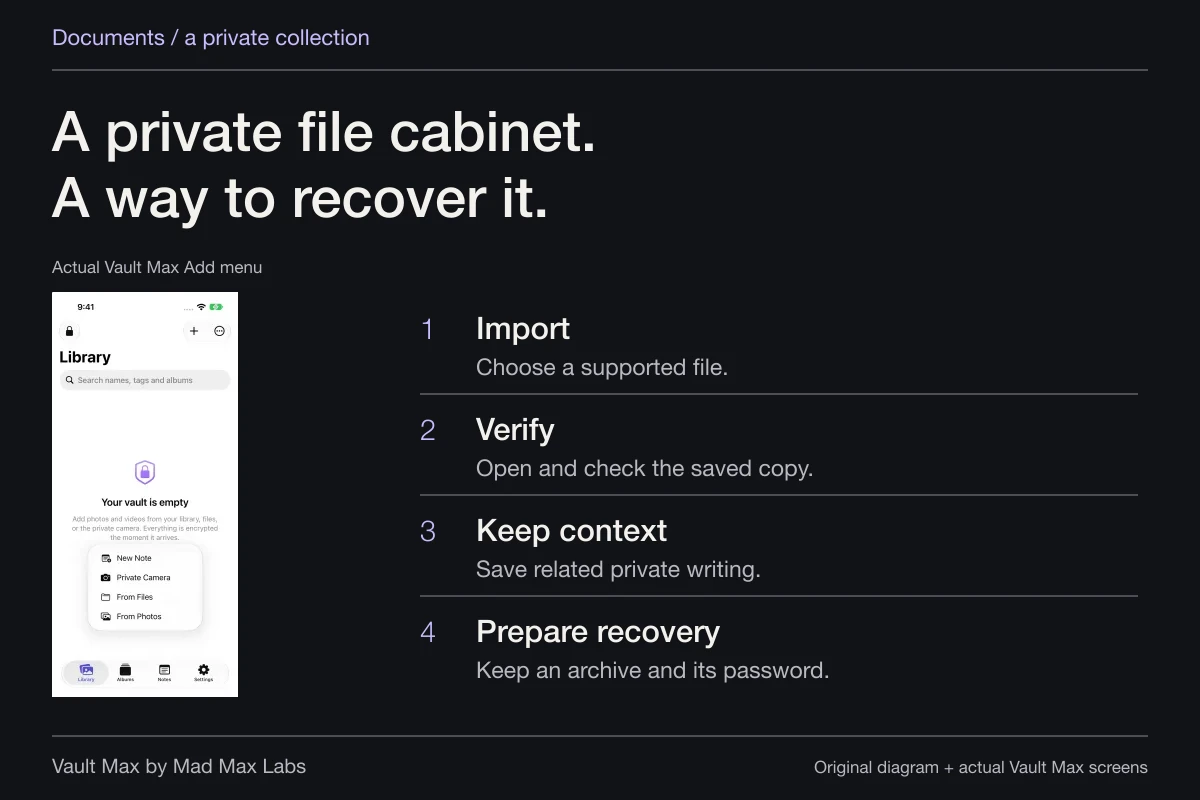
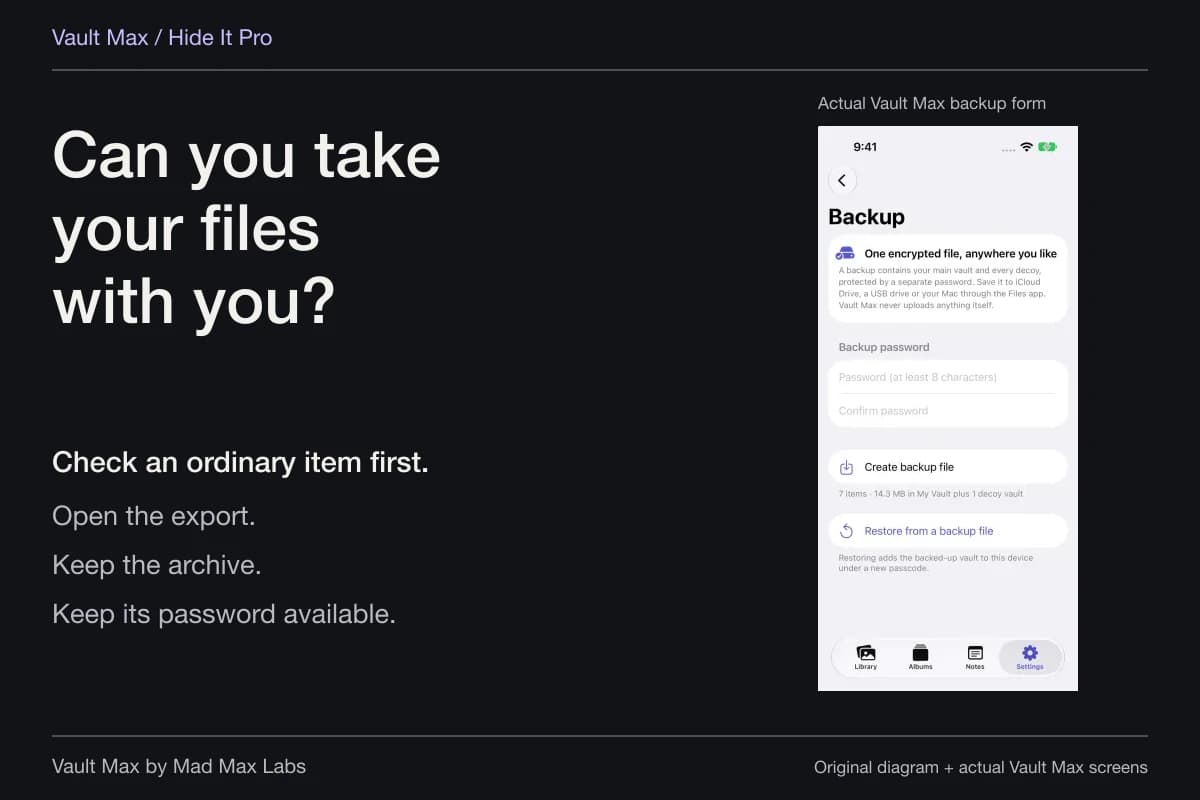
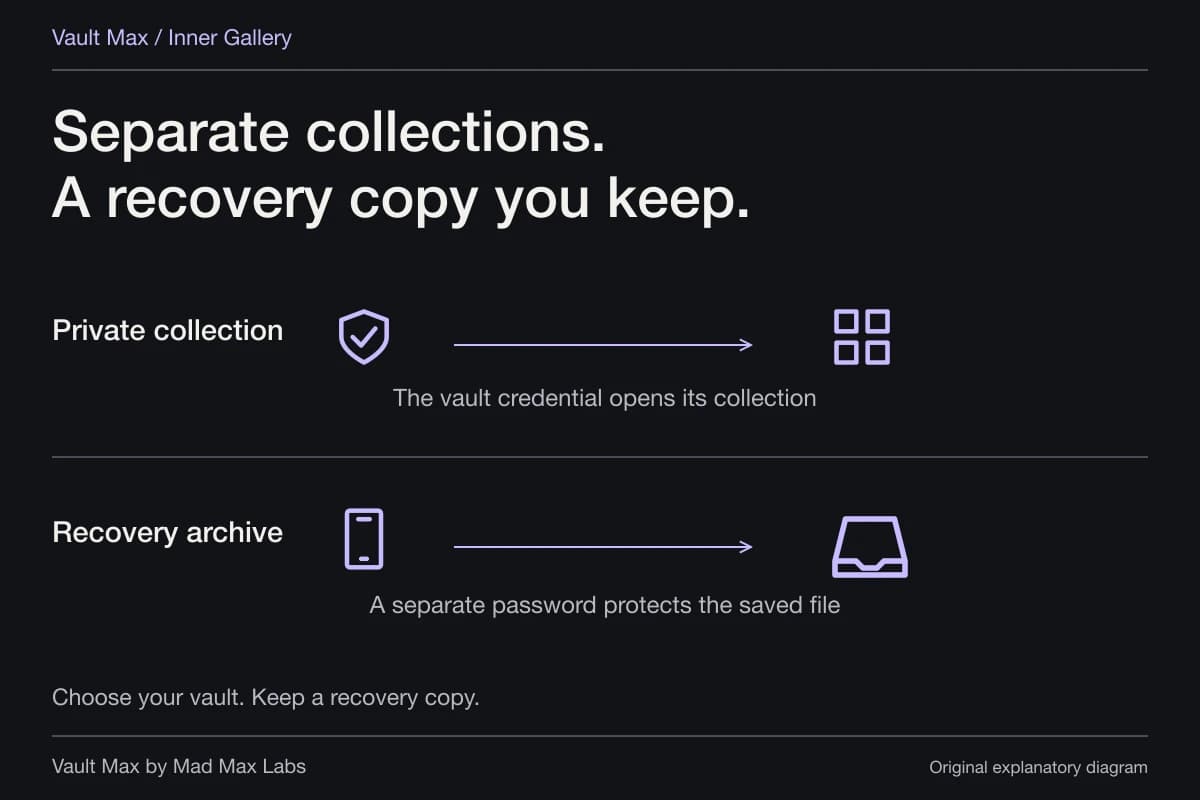
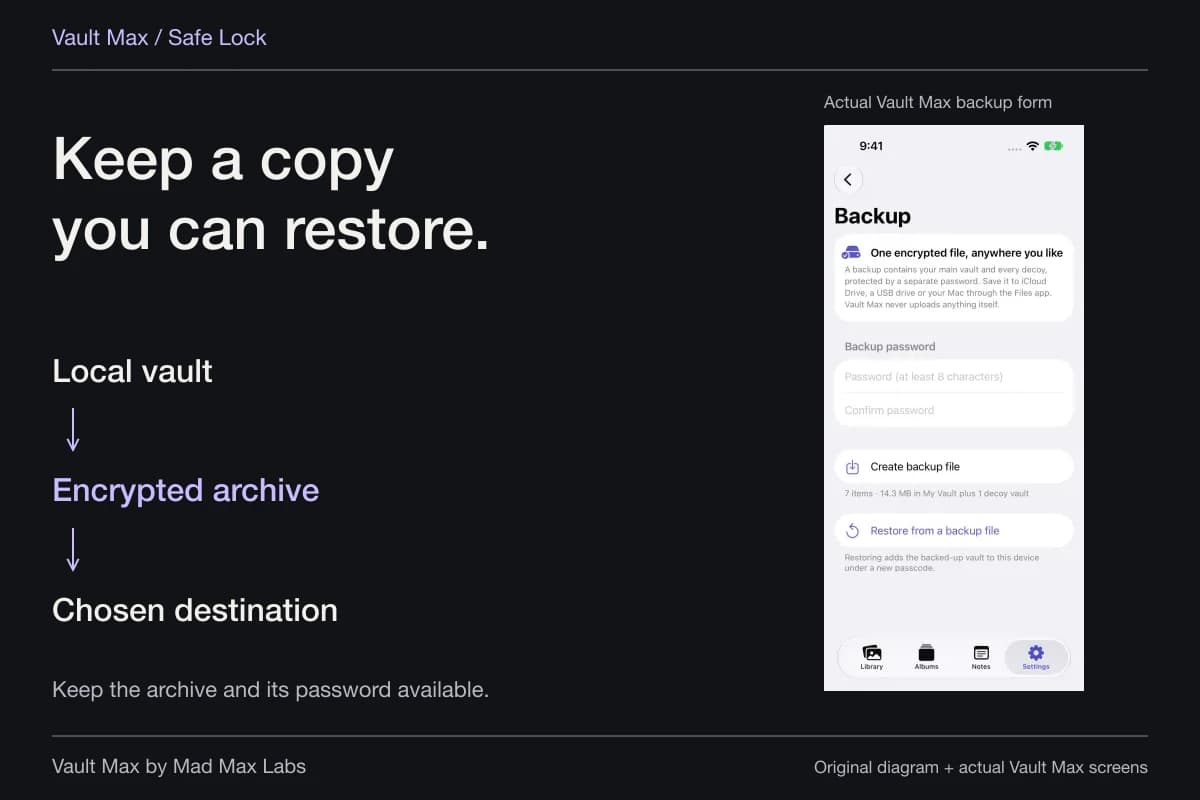
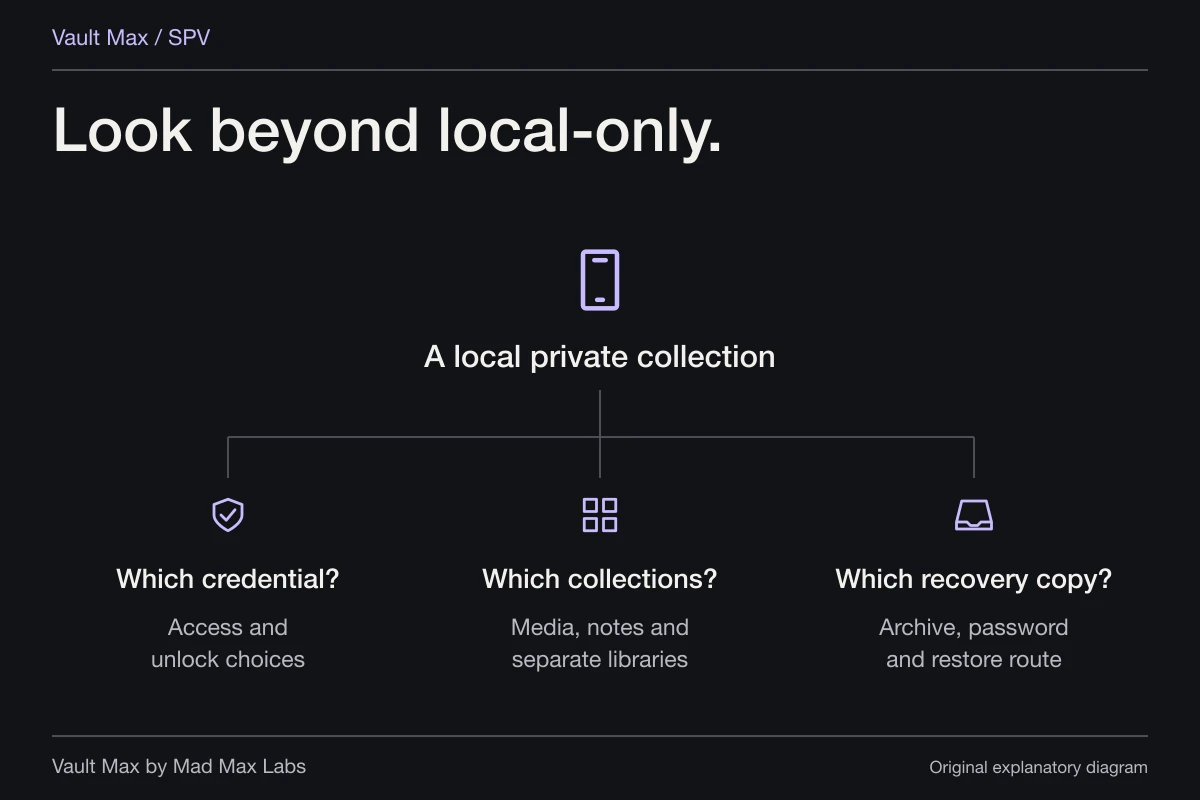
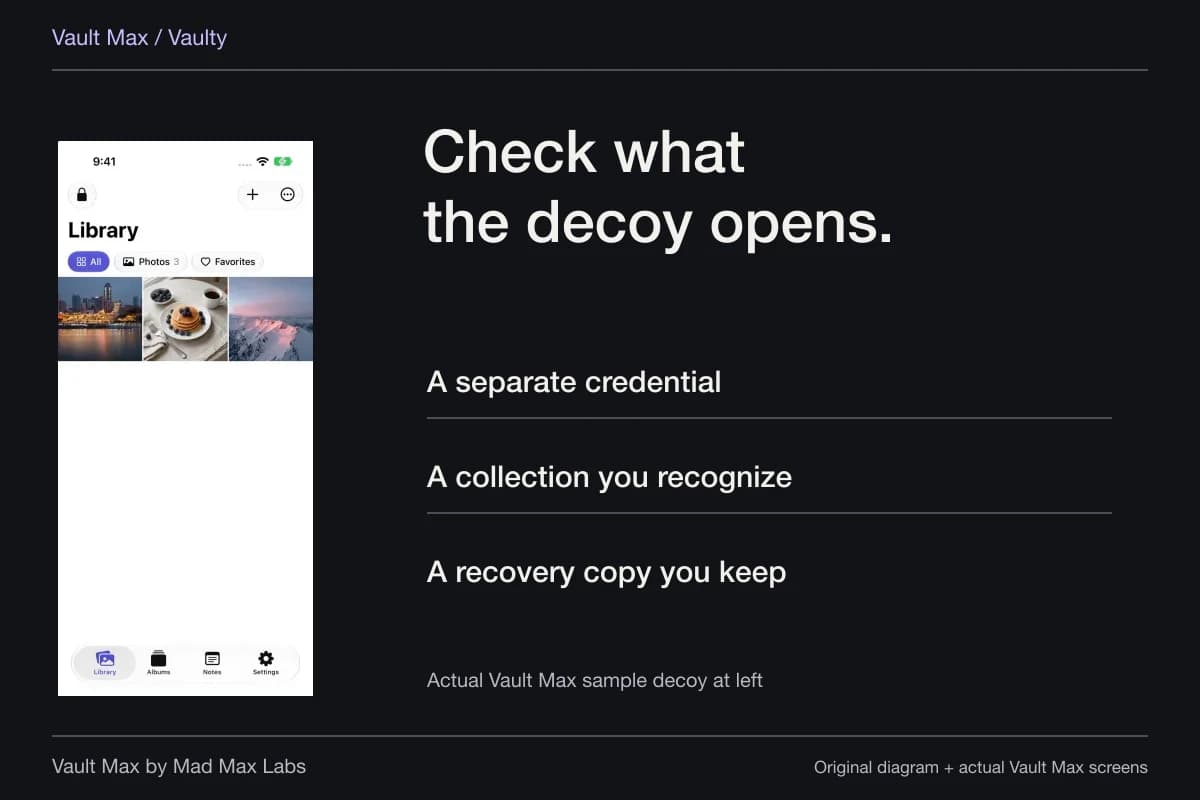
For Vault Max, create a password-protected .vaultmax archive and retain its password independently. The archive is a snapshot, so make a fresh one after meaningful additions. It has a different job from selecting pictures for a watch and a different password from the vault credential you use each day.
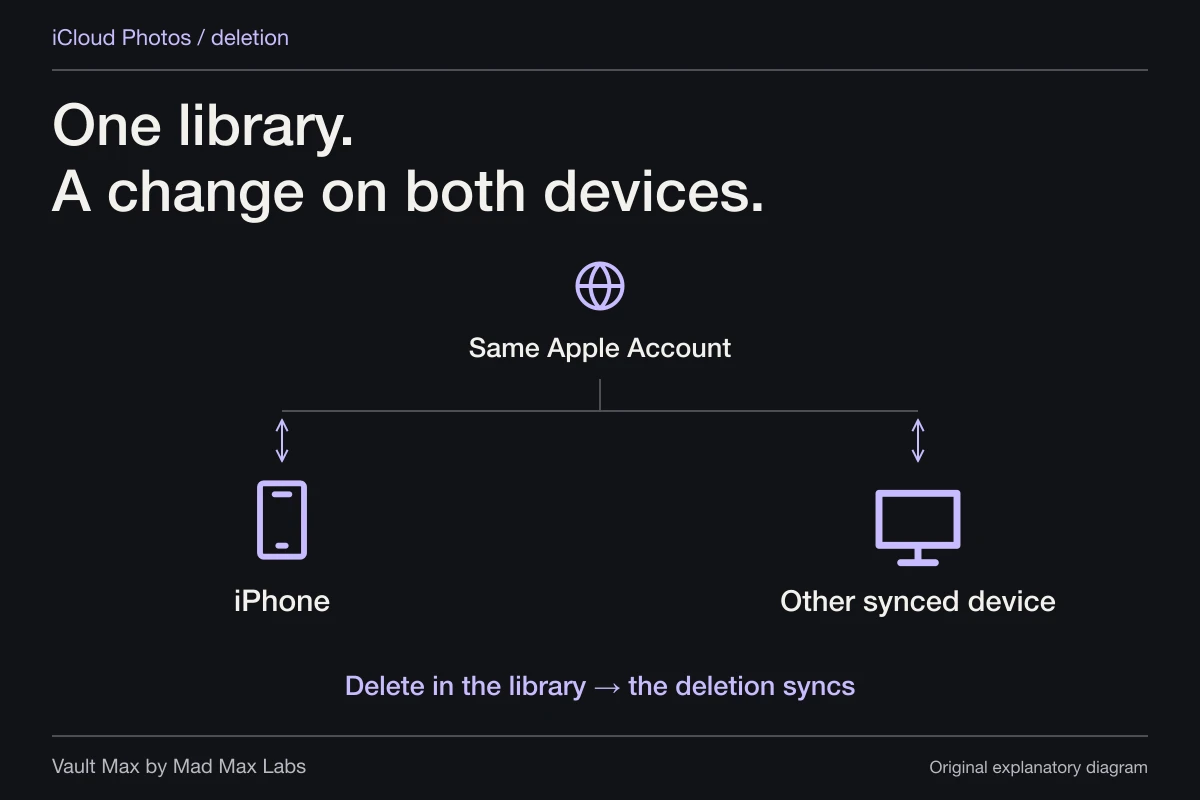
If you still keep the image in Photos, review its iCloud Photos arrangement. Apple's deletion guidance explains that deletion propagates through an iCloud Photos library and that Recently Deleted normally provides a recovery window. Removing the only good source in a hurried watch cleanup can turn a display concern into a recovery problem.
Store the private collection intentionally
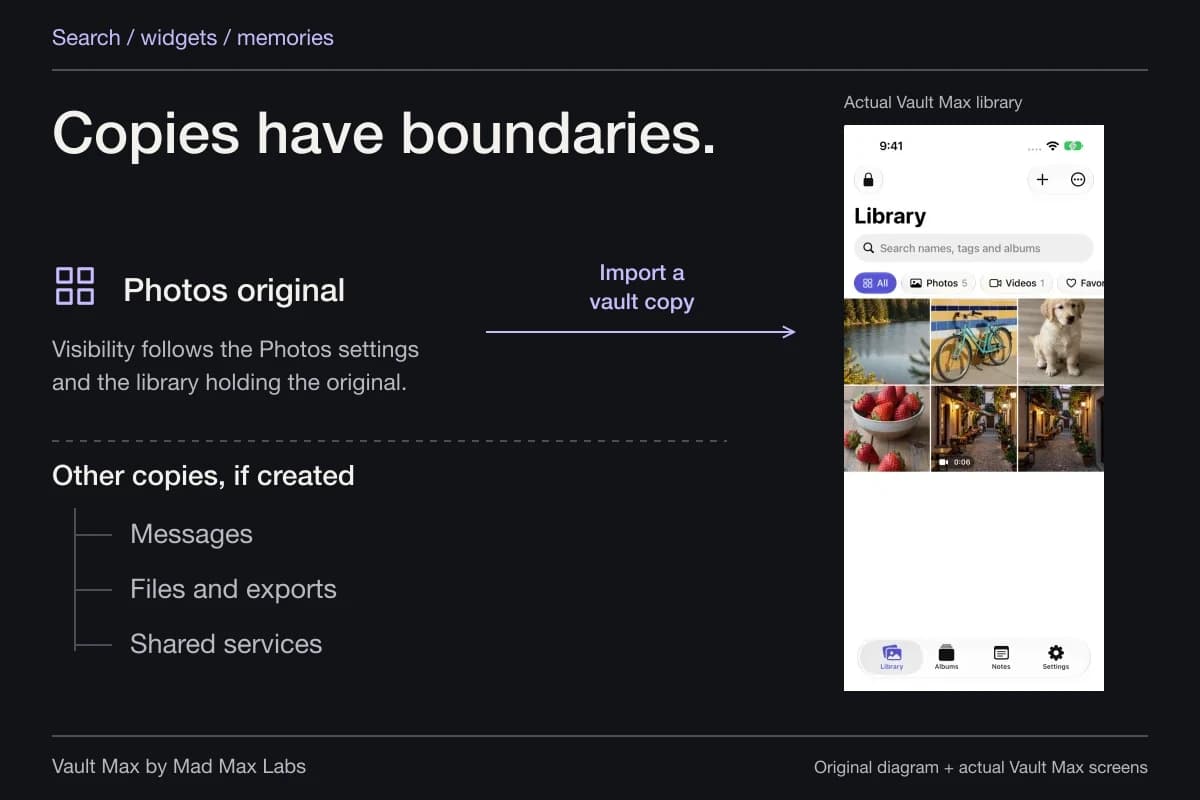
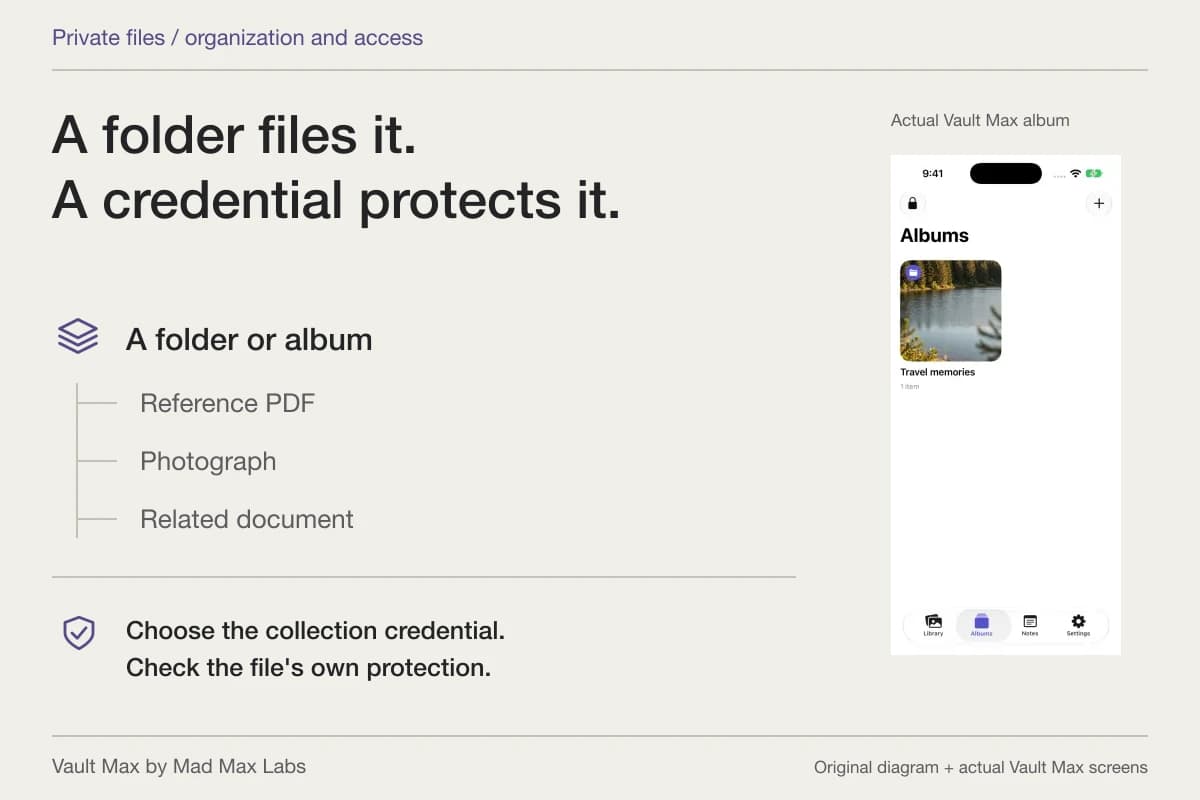
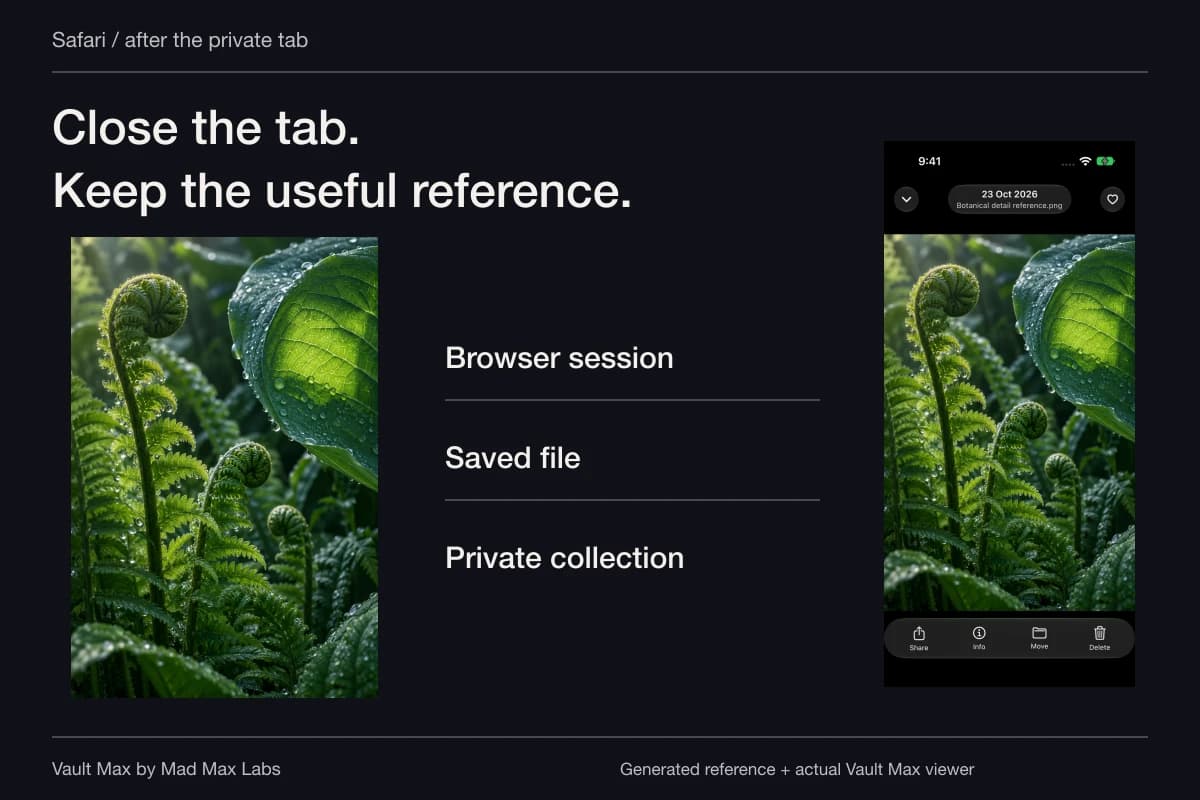
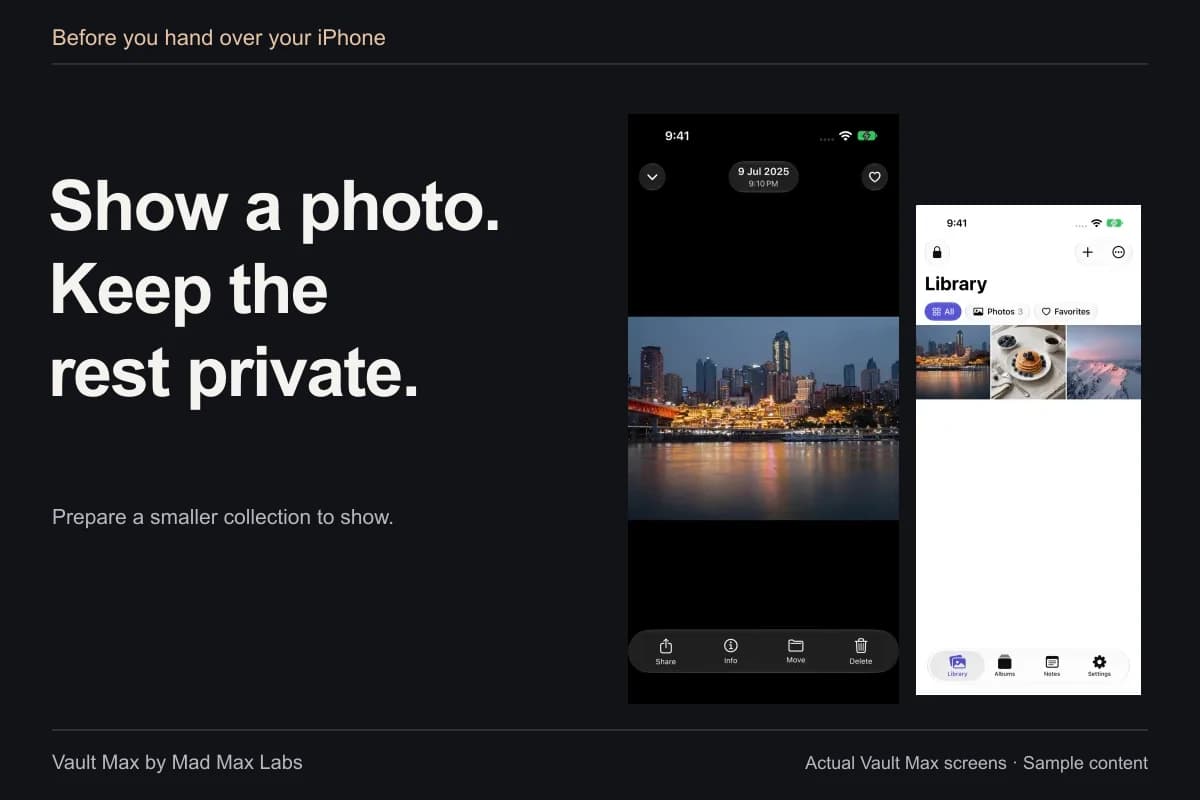
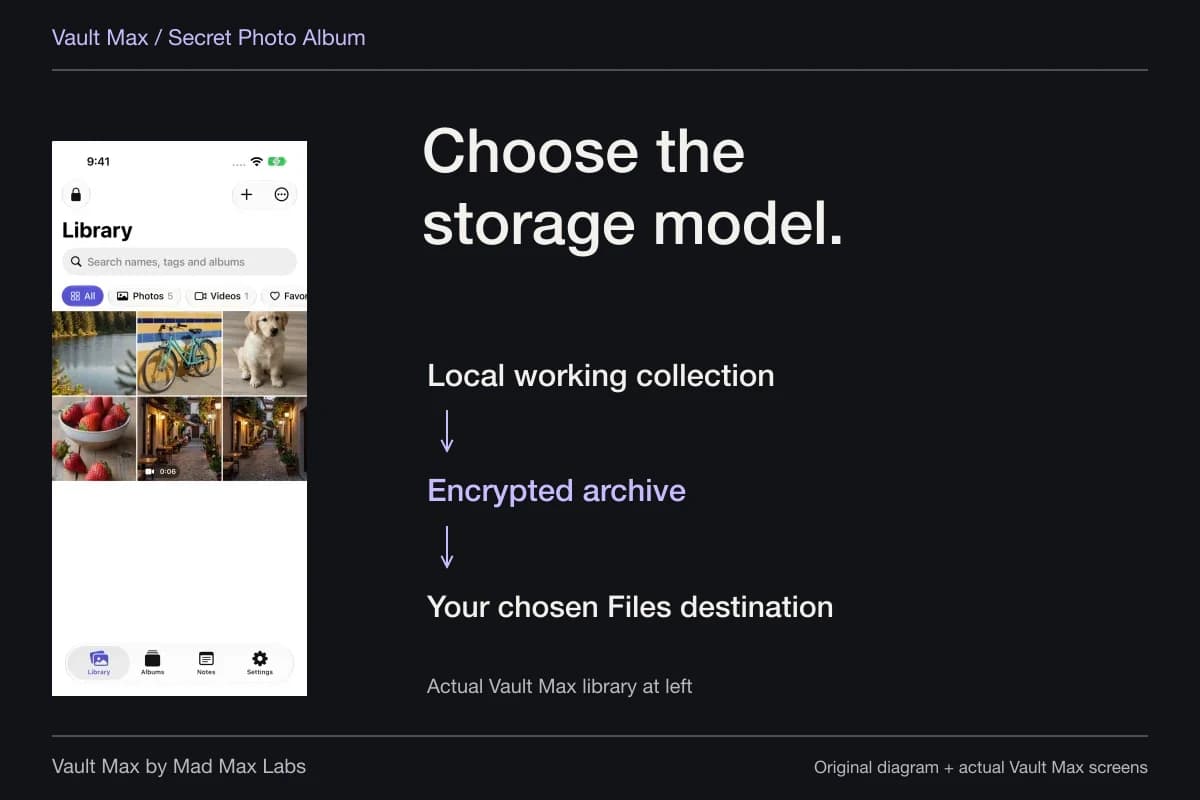
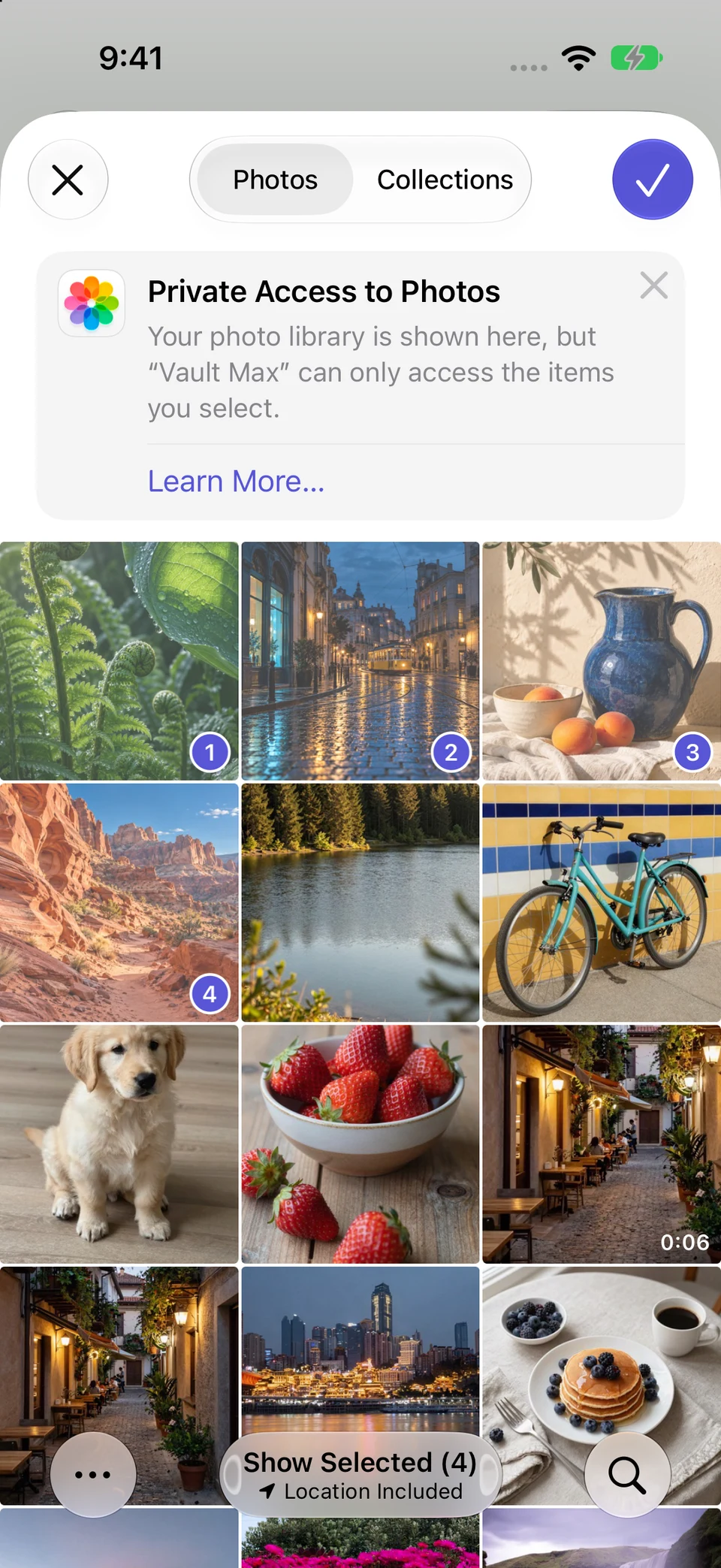
In Vault Max, use From Photos to select the pictures you actually want to retain privately. Wait for the import, open each important result and check its contents. Use a recognizable filename or album so the item remains useful after it leaves the ordinary browsing flow.
Then review the Photos original as a separate decision. A successful vault import does not itself operate the Watch settings, remove an older message attachment or change a face's selection. If you choose to remove an original, understand that source's deletion and sync behavior first.
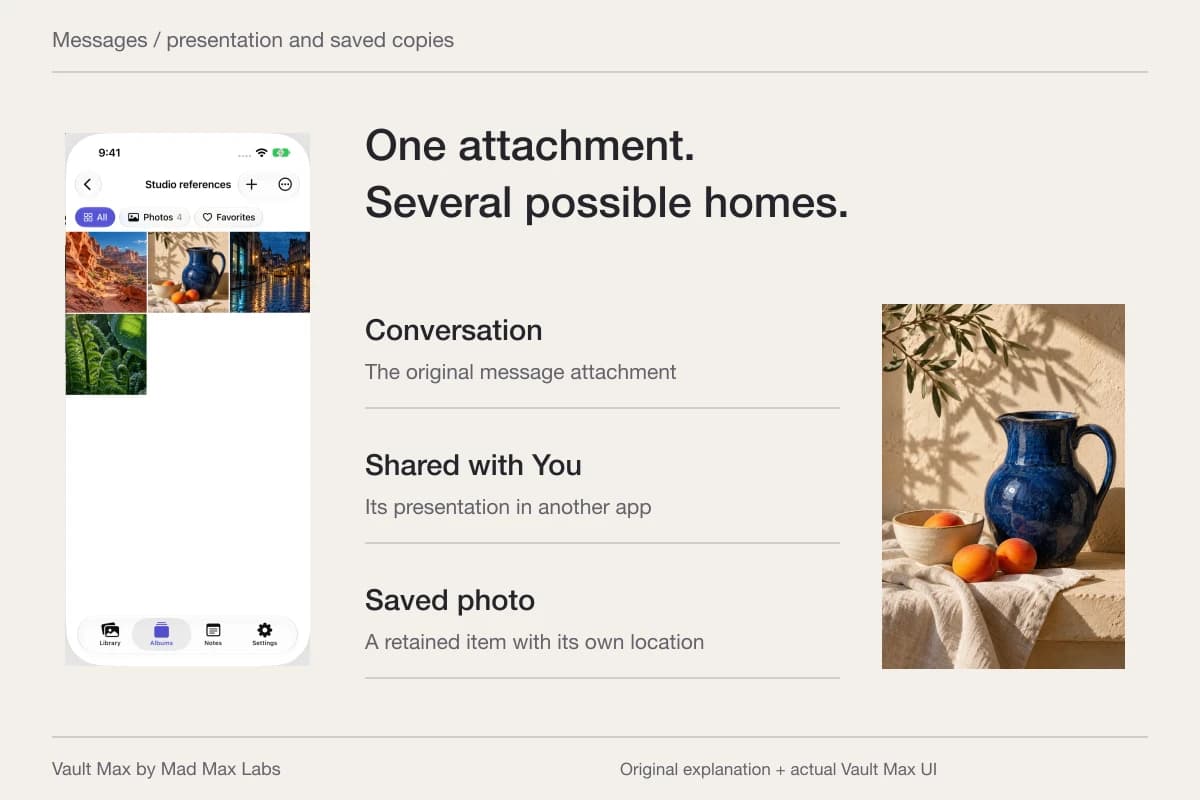
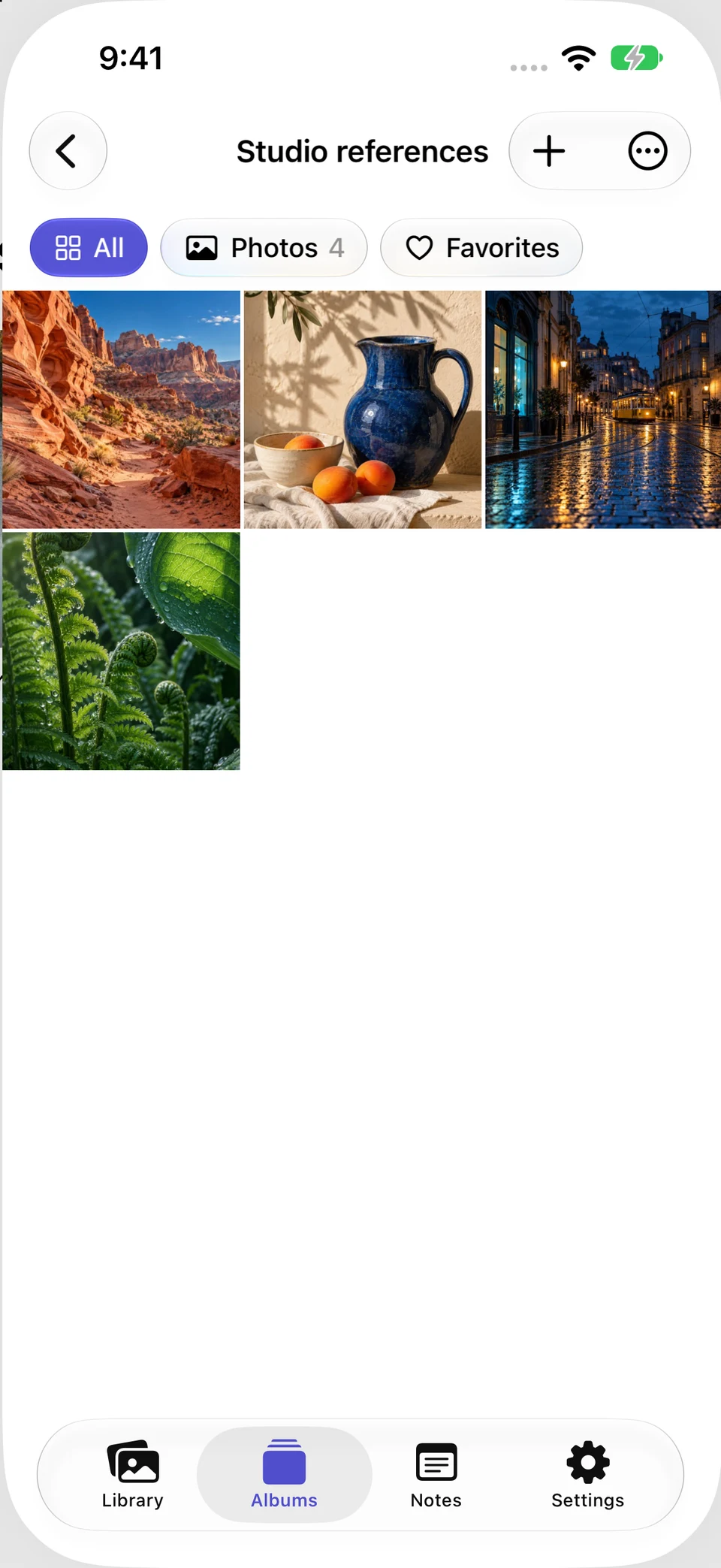
Four generated samples were selected through the actual Photos picker and later organized in Studio references. The sources were kept. This demonstrates an iPhone private collection, not a paired-Watch sync or removal test.
Actual Vault Max · QA simulator, generated sample photographsSelected source items
Open original image: Selected source itemsThe organized vault copies
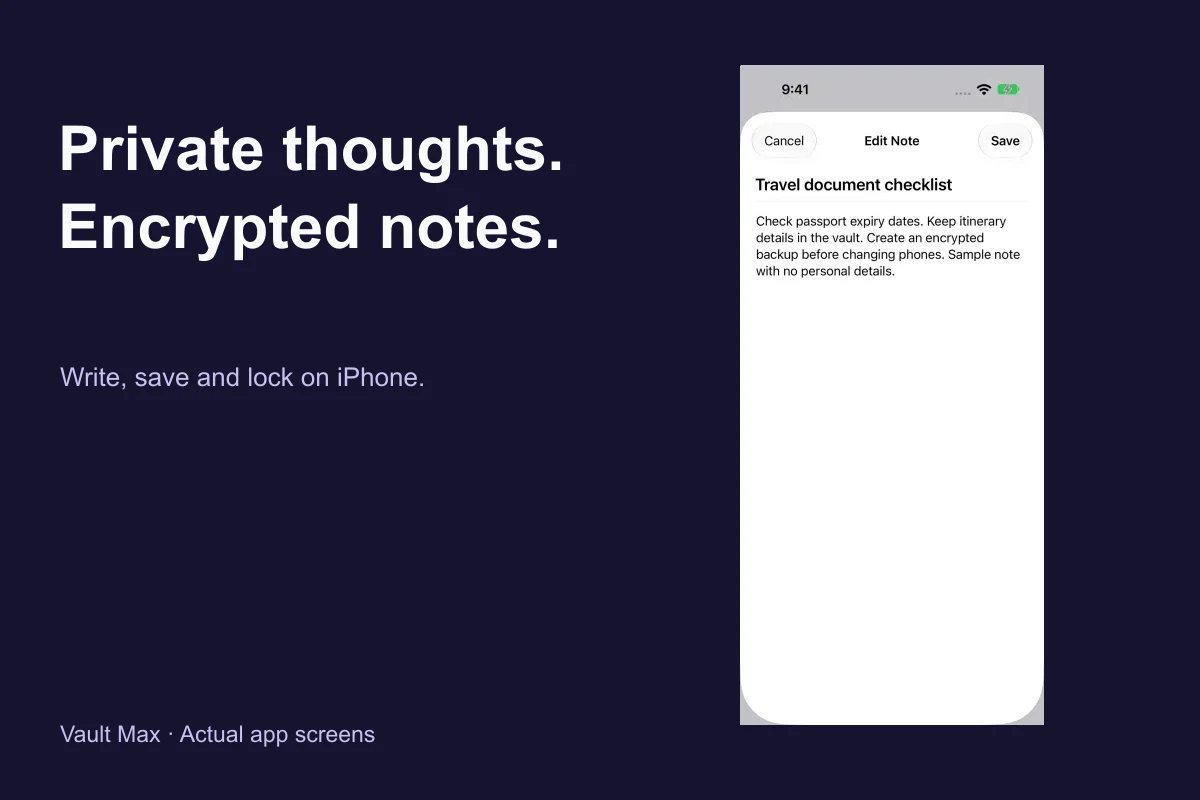
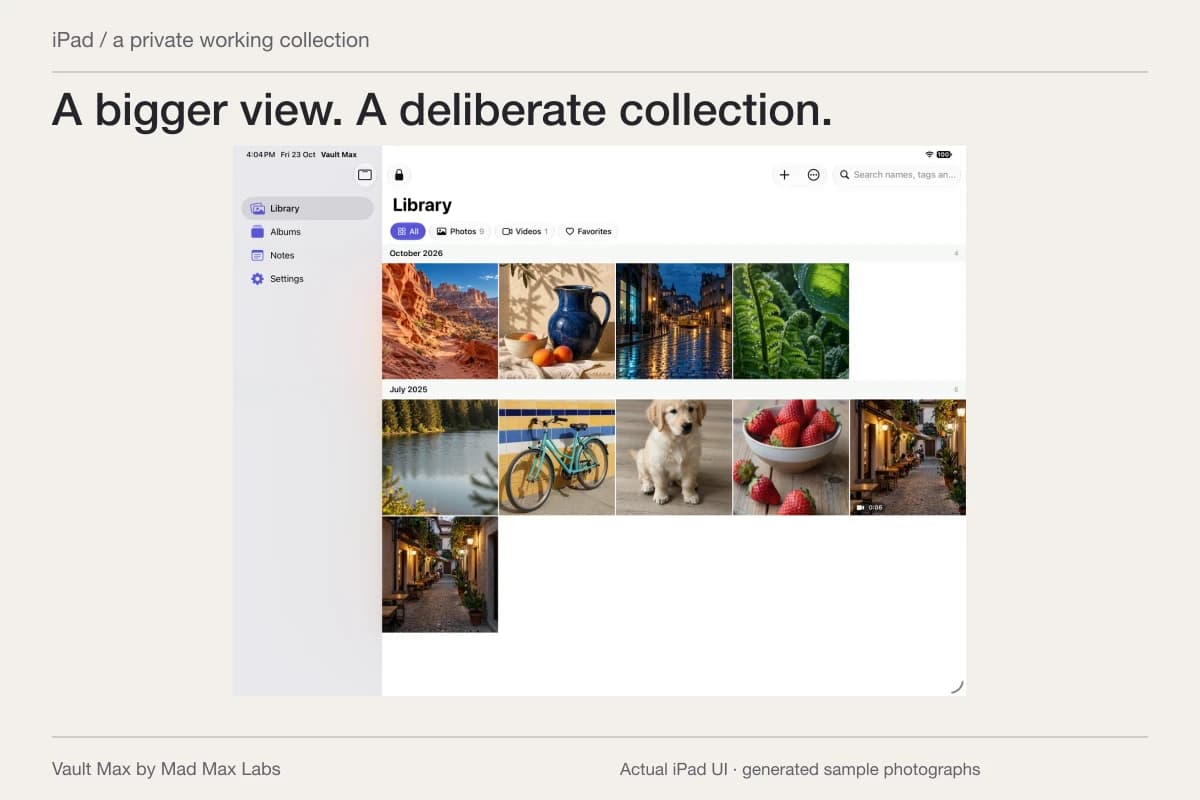
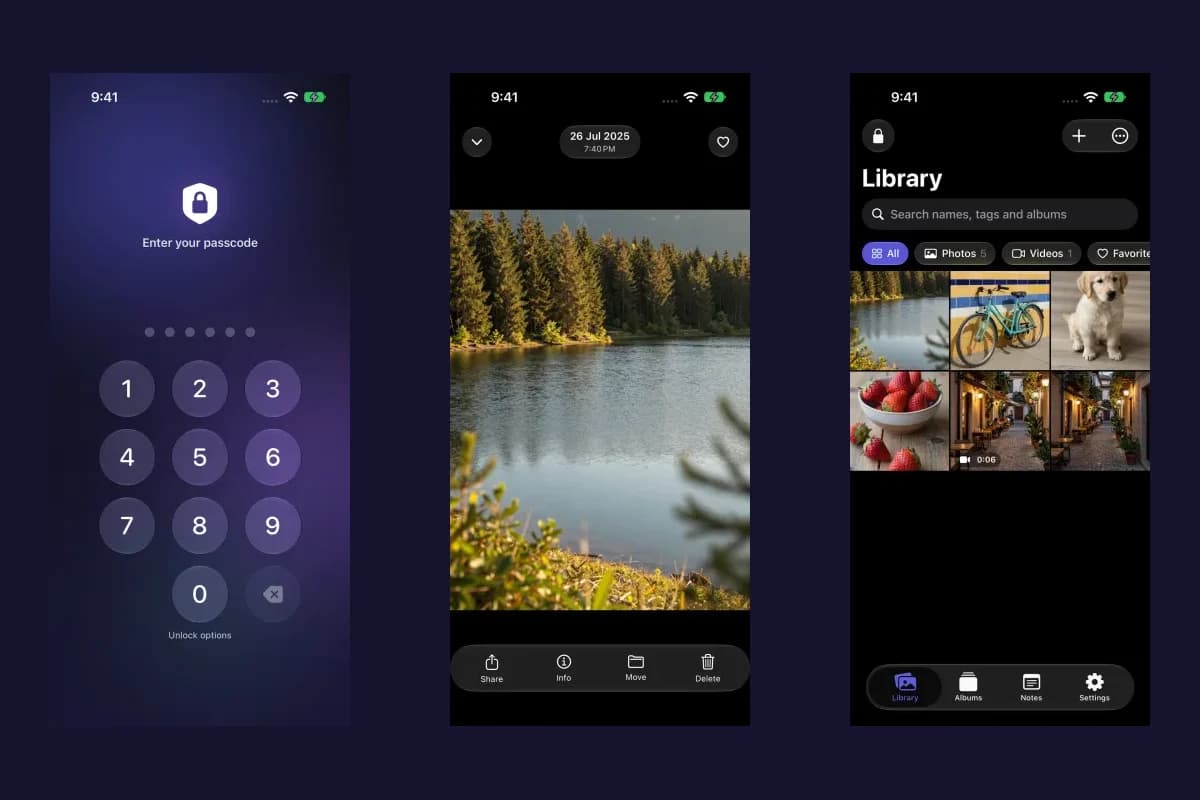
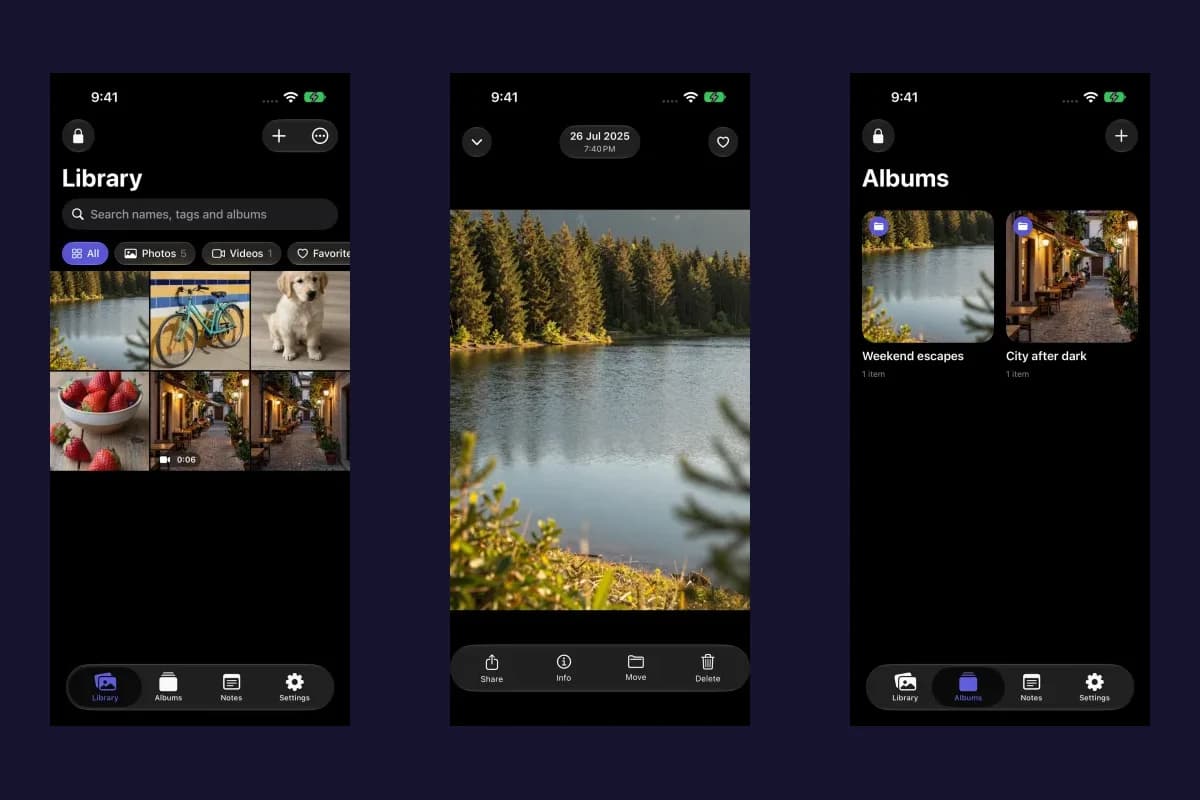
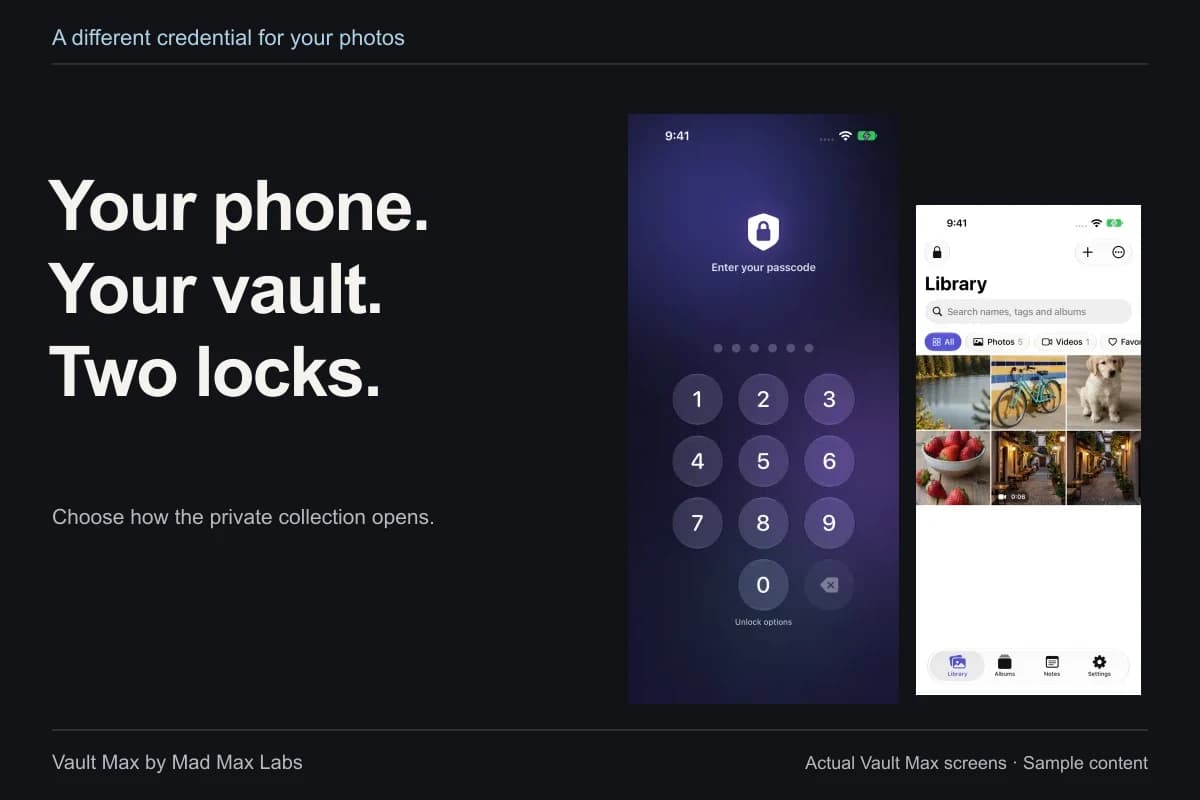
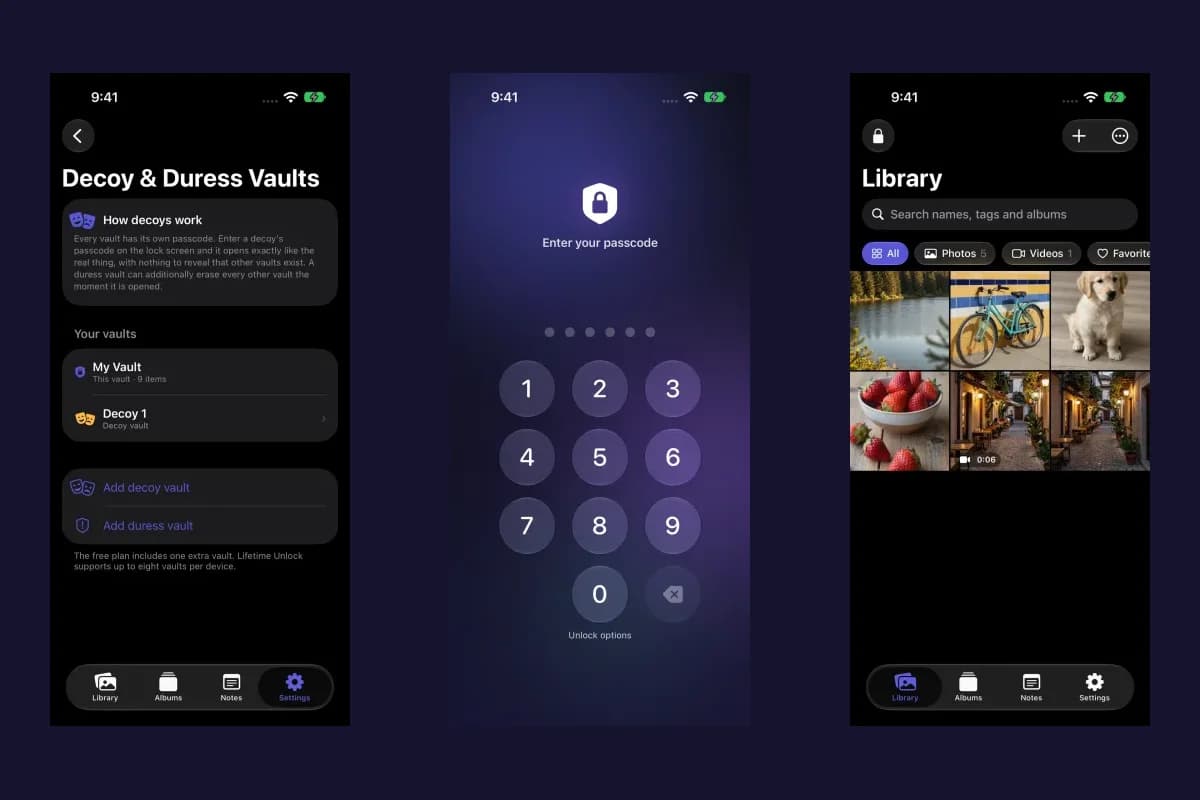
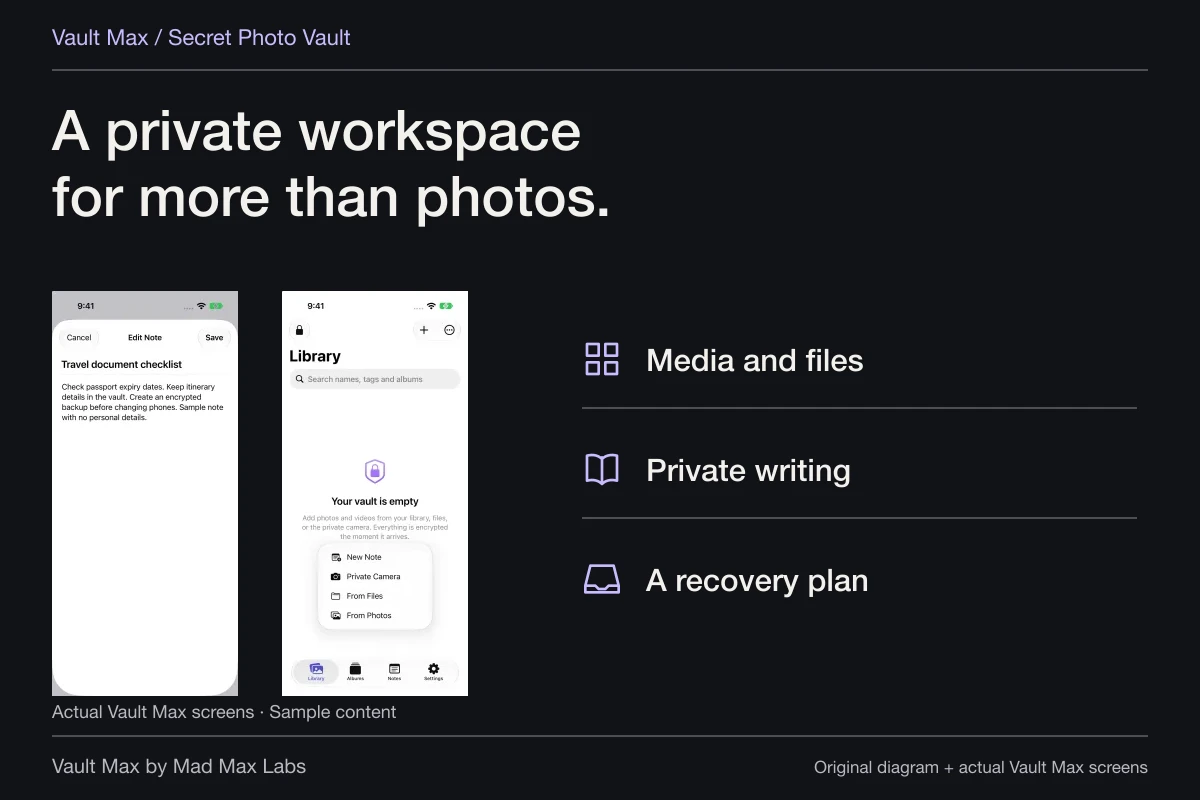
Open original image: The organized vault copiesWe make Vault Max at Mad Max Labs. The app's useful role is keeping selected photos, files and encrypted notes together behind a credential you choose, without a Vault Max account. Manual lock closes the collection when you finish. The separate-password guide explains that access boundary in more detail.
If the picture still appears, return to its surface
If it remains in a watch album, recheck which iPhone album is selected and whether you changed the correct paired watch. If it remains on the clock, inspect the photo face. If it arrives in a message, review the conversation and notification settings. Those observations are more useful than repeatedly deleting unrelated phone pictures.
When a setting is missing or the result remains unclear, compare your software version with Apple's current guide and use Apple Support for the pairing issue. Erasing the watch or reinstalling a private-storage app is not a sensible first troubleshooting step for a collection you have not backed up.
- Identify Photos, a watch face, a message or another app before changing anything.
- Stop Photo Syncing or select a small, appropriate album.
- Check Memories and Featured Photos as well as the chosen album.
- Review the result and the faces you use without assuming instant removal.
- Verify private imports and an independent recovery copy before irreversible cleanup.
Tap a box as you go. Checks reset when you leave this page.
Common questions
How do I stop photos syncing to Apple Watch?
On the paired iPhone, open Watch, choose My Watch, then Photos and turn off Photo Syncing. Apple's guide describes this control for the chosen album, Memories and Featured Photos. Review watch faces and other apps separately.
Can I keep a small photo album on the watch instead?
Yes. In Watch on iPhone, choose My Watch, then Photos and Sync Album. Select a deliberately prepared album and review the separate Sync Memories and Sync Featured Photos settings.
Does importing a photo into Vault Max remove a Watch copy?
Importing saves a separate vault item. It does not operate Apple Watch's photo settings or establish that an existing watch face, message attachment or synced copy was removed. Inspect those destinations separately.
Continue reading
More guides
Practical tips for your private library. Swipe or scroll to choose your next guide.
74 guides to explore