
Privacy in practice
iPhone Passwords, iCloud Keychain and a photo vault: give each item a useful home
Understand Apple Passwords, iCloud Keychain and an encrypted photo vault. Keep sign-in credentials, private media, notes and recovery passwords organized.
Use Apple Passwords and iCloud Keychain for supported sign-in credentials; use a photo vault for the private collection you want to keep and revisit. A website passkey and a photograph of a personal project are different kinds of material. You can give each a sensible home without choosing one app to do every job.
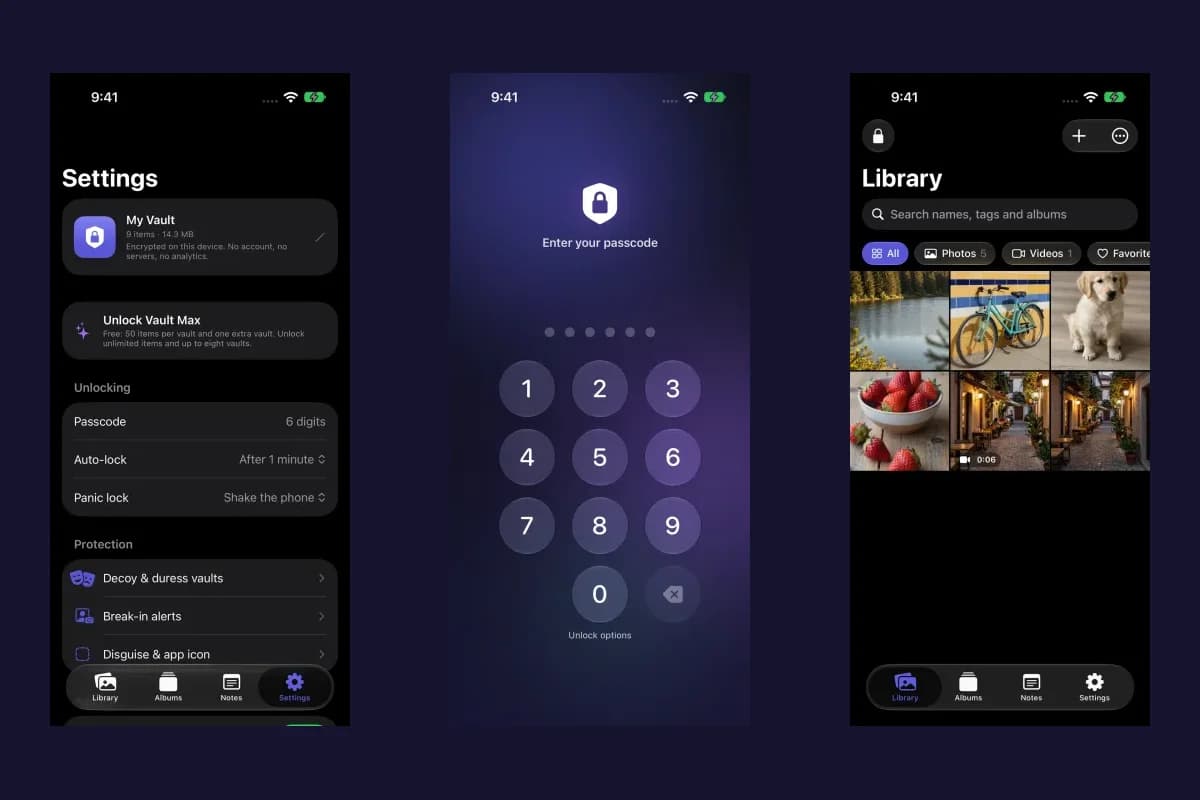
Vault Max's useful contribution is the collection: encrypted photos, documents and written notes on the device, with its own credential and an explicit recovery archive. Apple supplies credential-management tools elsewhere in the system. Understanding both makes it easier to find what you need and recover it later.
What Passwords and iCloud Keychain do together
Apple's Passwords overview describes managing passwords, passkeys and verification codes, as well as identifying certain password weaknesses. iCloud Keychain supplies the cross-device arrangement for supported credentials on approved devices.
Think of a travel booking account. Passwords can help you sign in. The photographs you take on the trip and the reference document you download afterward are separate records. A private collection helps you retain and understand those files; the account credential still belongs in the sign-in routine you trust.
If you enable iCloud Keychain, review the actual devices and sharing arrangement associated with your account. A shared password group is an intentional audience choice. It does not become a private photo collection merely because both kinds of material deserve care.
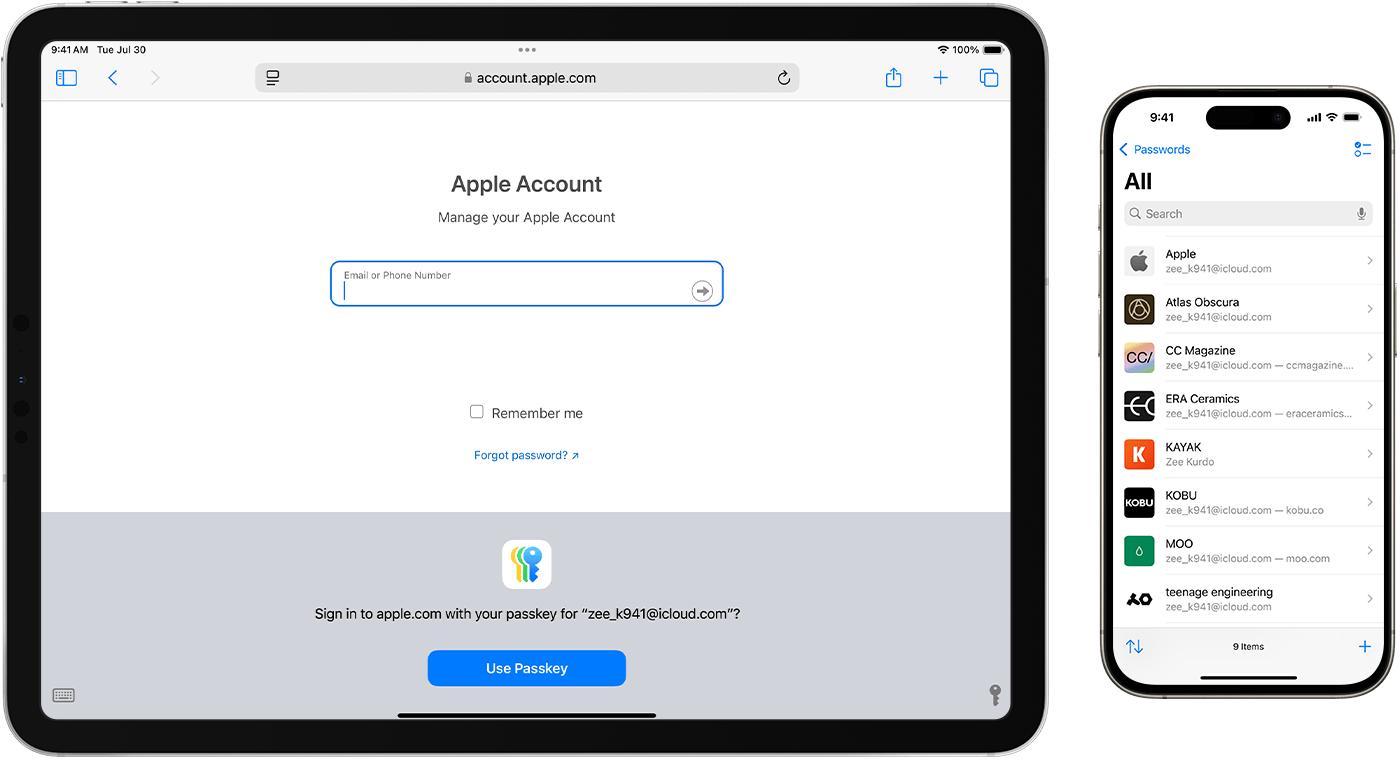
Apple’s published iOS18 example pairs the Passwords list on iPhone with passkey sign-in in Safari on iPad. This illustrates the credential task; it is not our account or a fresh device capture.
Apple Support · published exampleFollow one project through the two tools
Imagine a small home project. You have a supplier login, a PDF reference, several progress photographs and a note explaining which version you chose. The login helps you reach the supplier. The other material helps you remember the project.
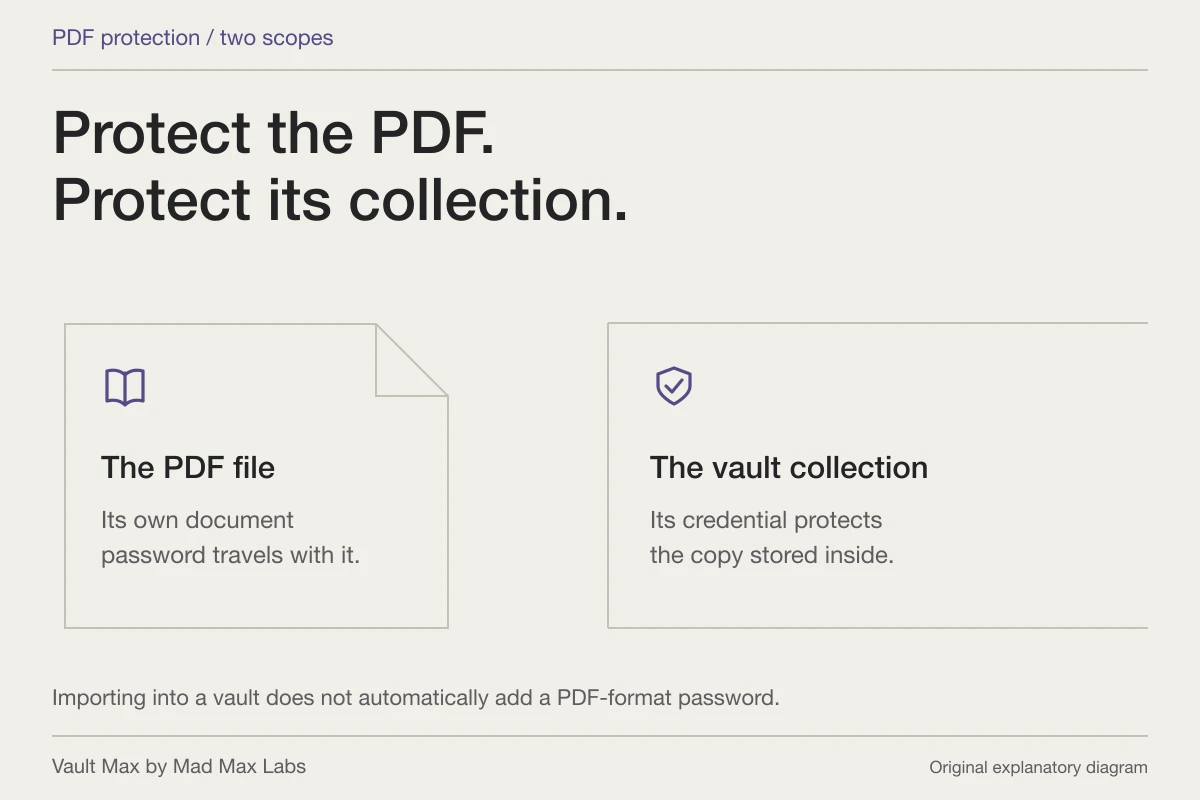
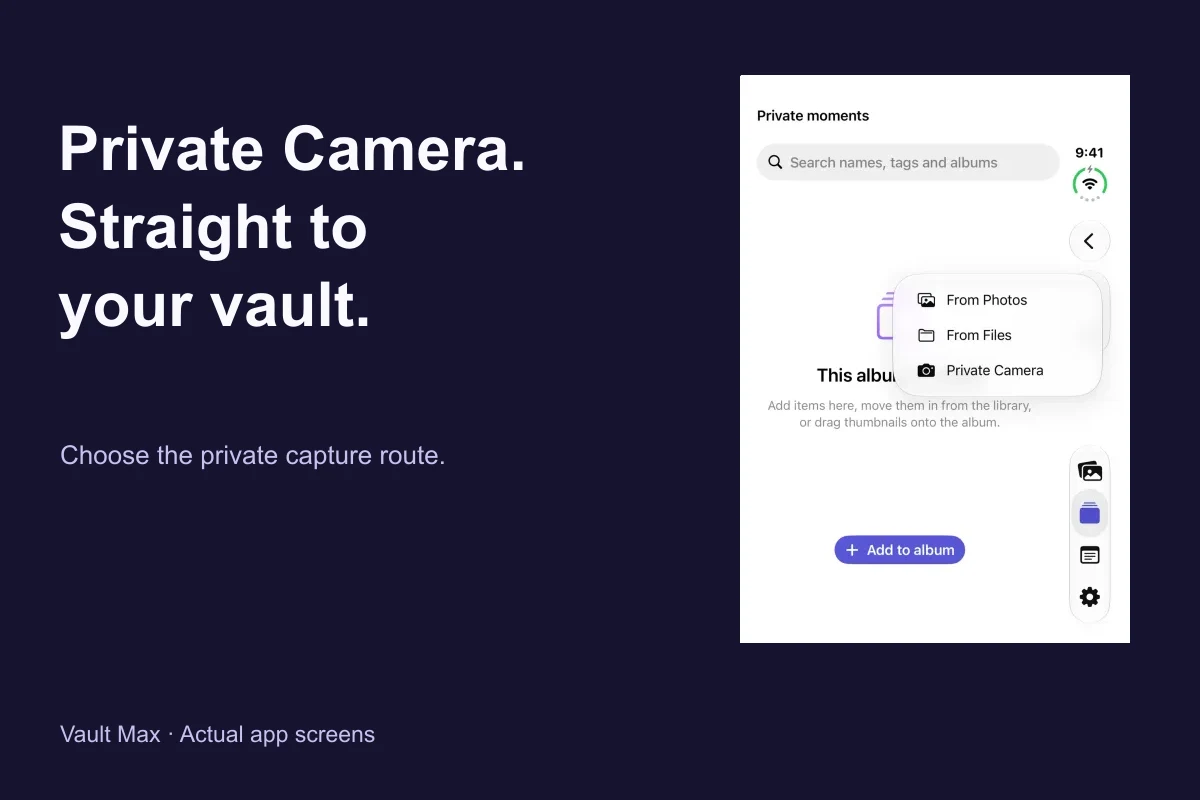
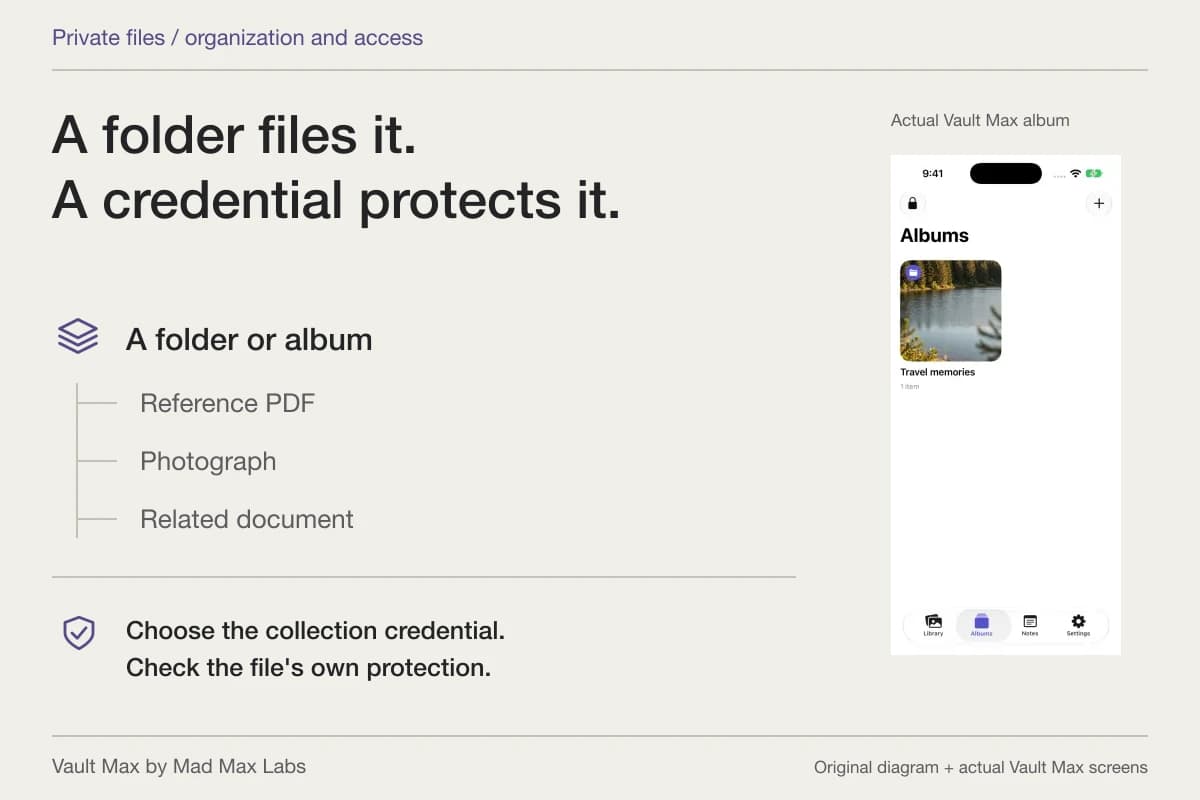
Put the supported sign-in credential in your chosen password manager. In Vault Max, import the photographs and reference file, use a recognizable album and save an explanatory note. When you return, you can find the project without opening the account merely to remember why you kept a particular image.
Use ordinary example material while learning this arrangement. You can check whether the filing makes sense before introducing anything irreplaceable. Give each saved item enough context to recognize it without putting the actual login secret into filenames or album titles.
| Material | Useful task | Completion check |
|---|---|---|
| Website or app credential | Sign in through your chosen credential manager | You can reach the intended account using its supported sign-in route |
| Private photographs | Retain and browse a separate collection | The imported full-size pictures show the expected subjects |
| Reference PDF or file | Keep the version relevant to the project | Its filename and readable content identify the correct version |
| Written explanation | Preserve dates and decisions in an encrypted note | Save and reopen the actual note |
| Recovery archive password | Open a separately saved archive later | It remains available independently of the collection being recovered |
A vault credential is another deliberate access choice
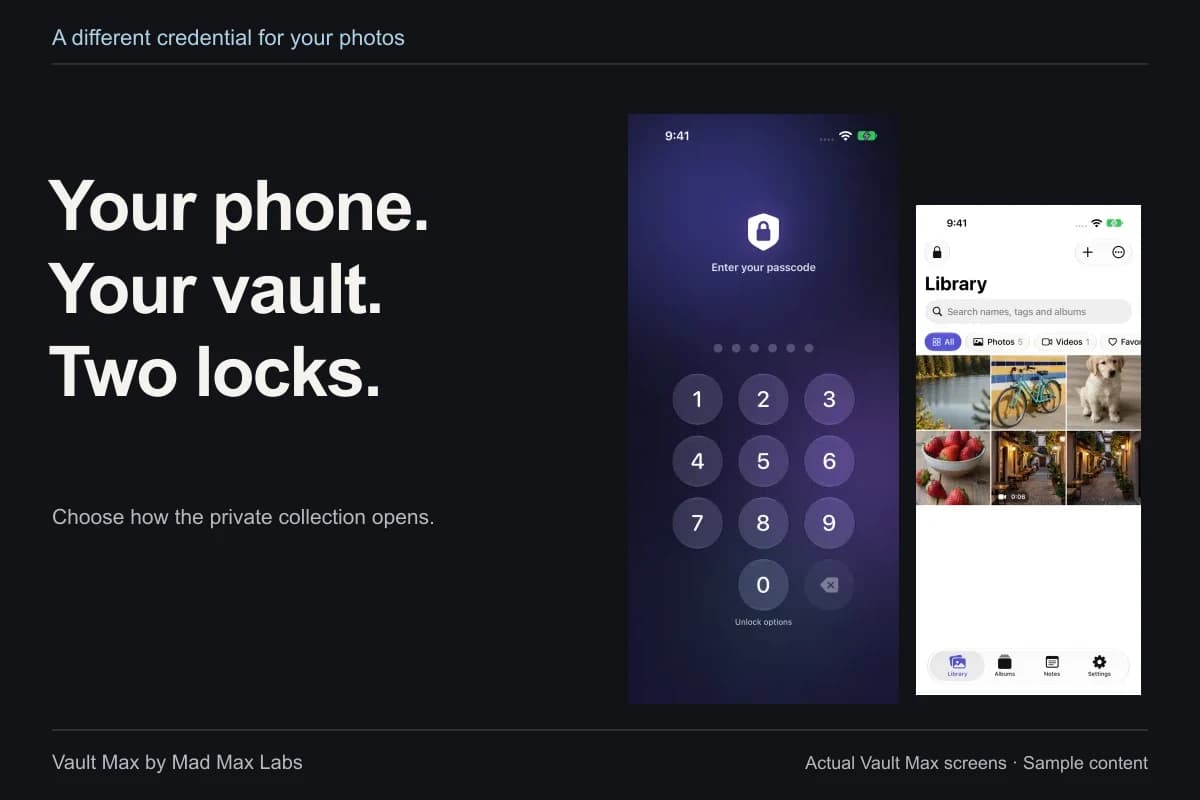
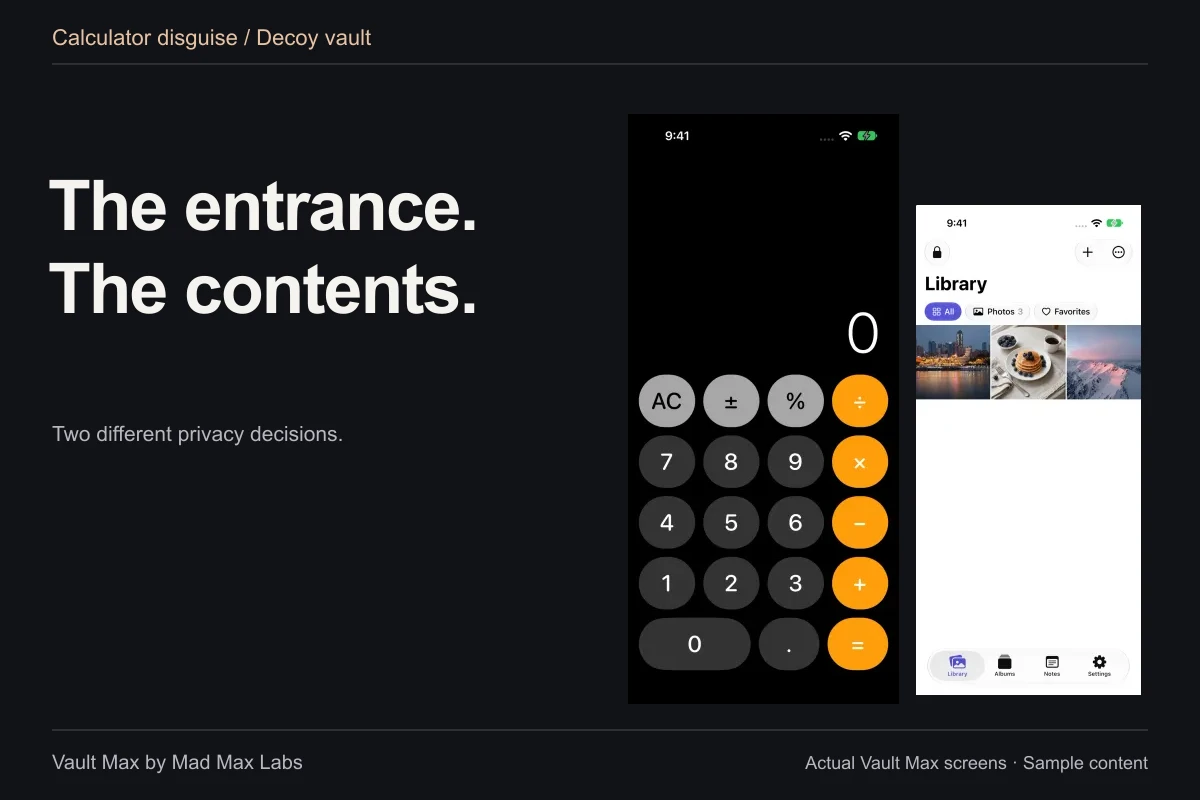
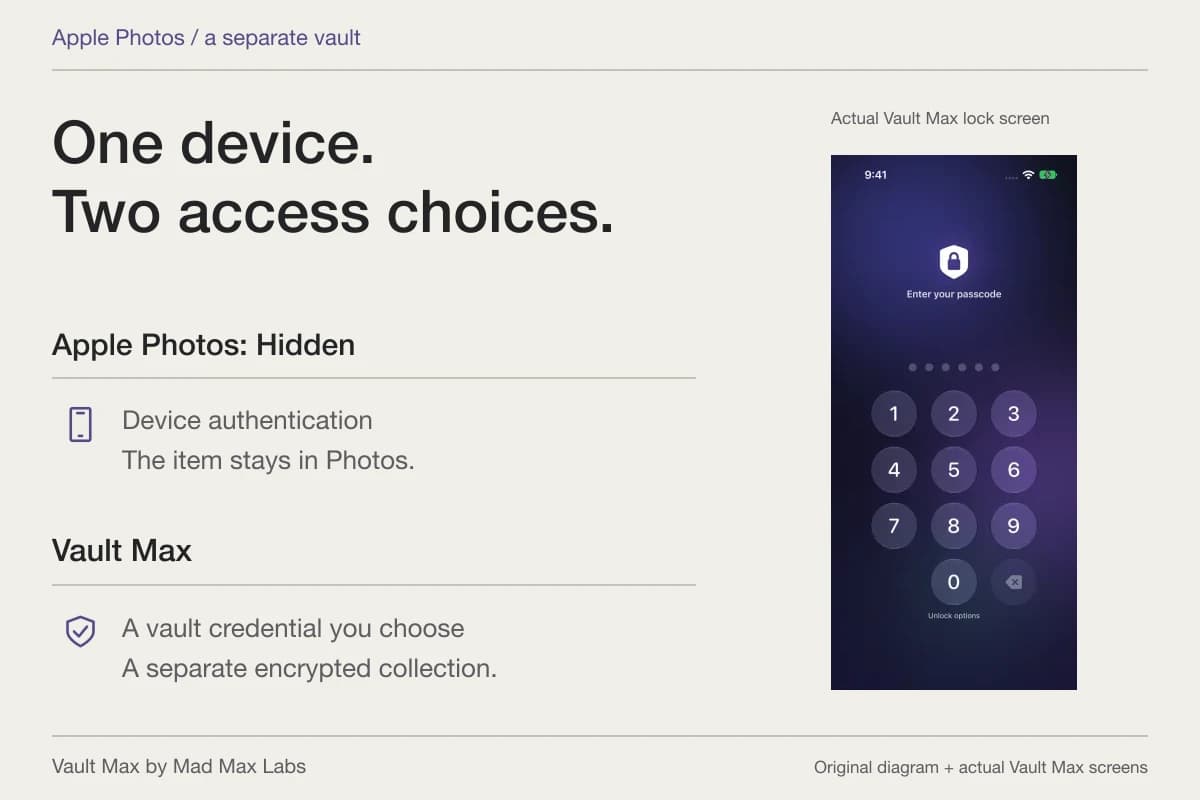
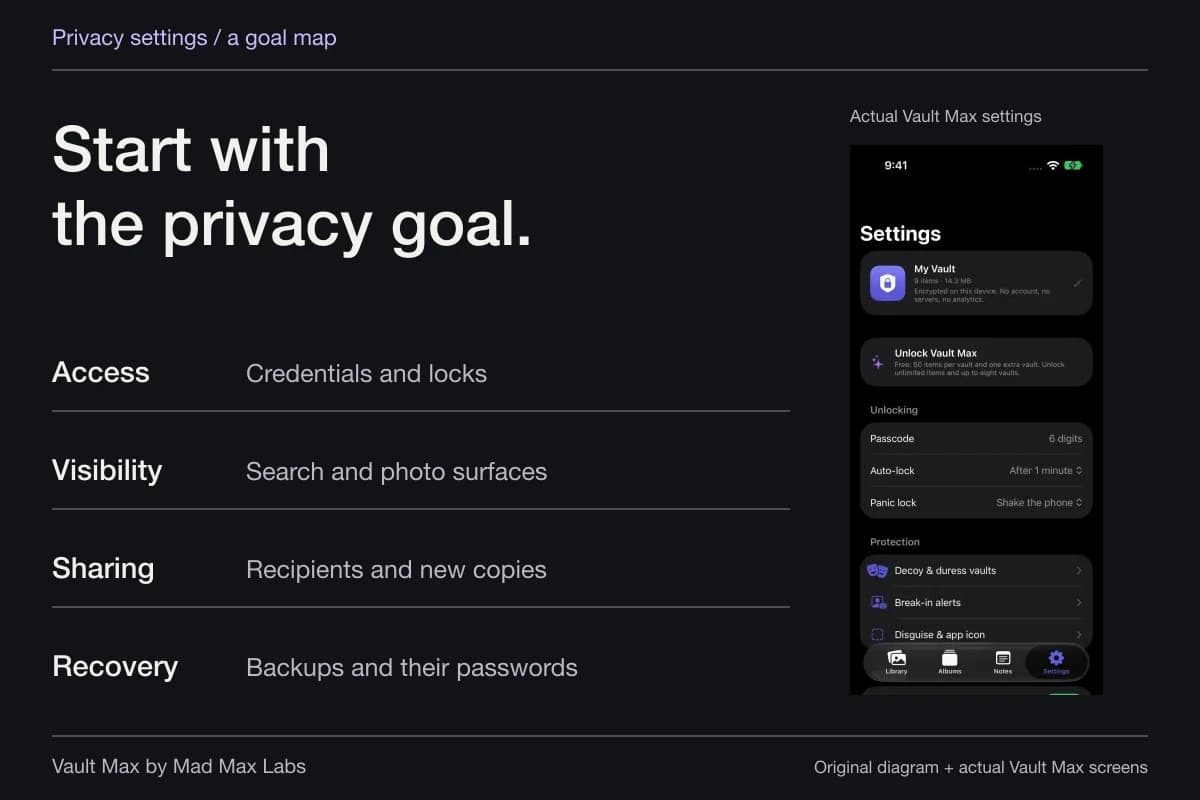
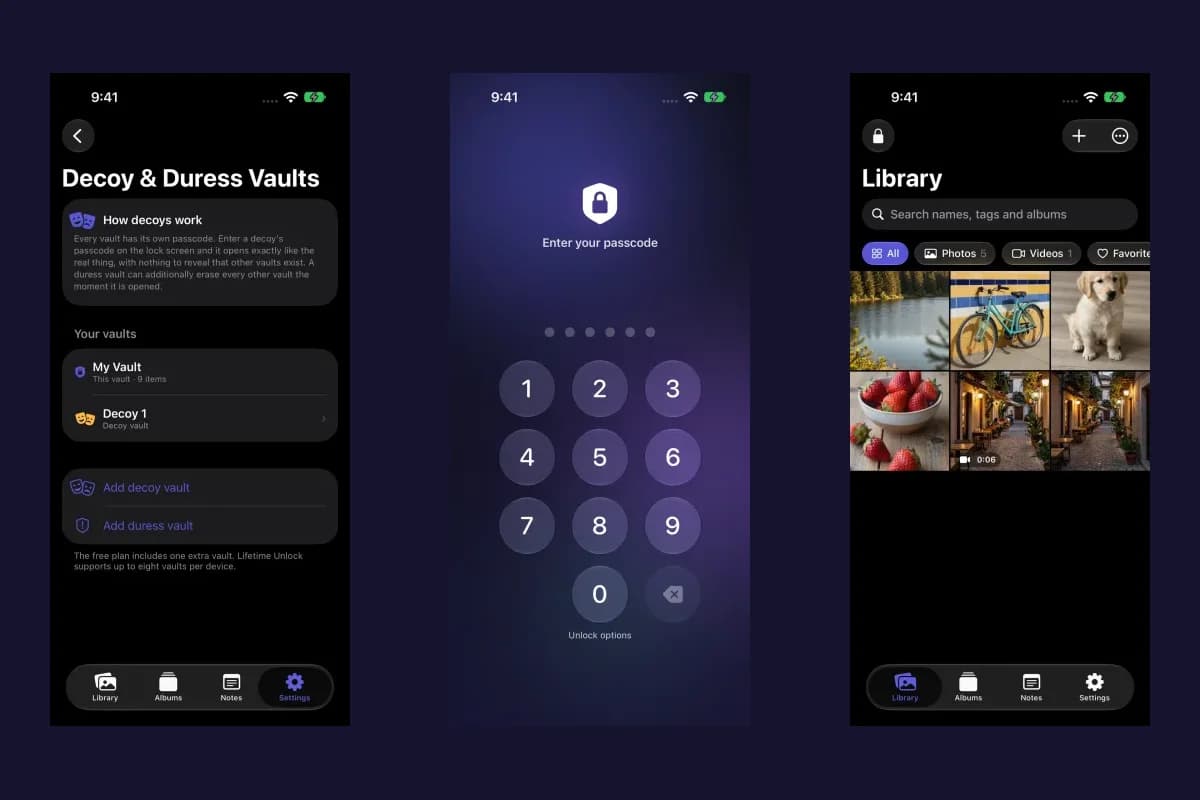
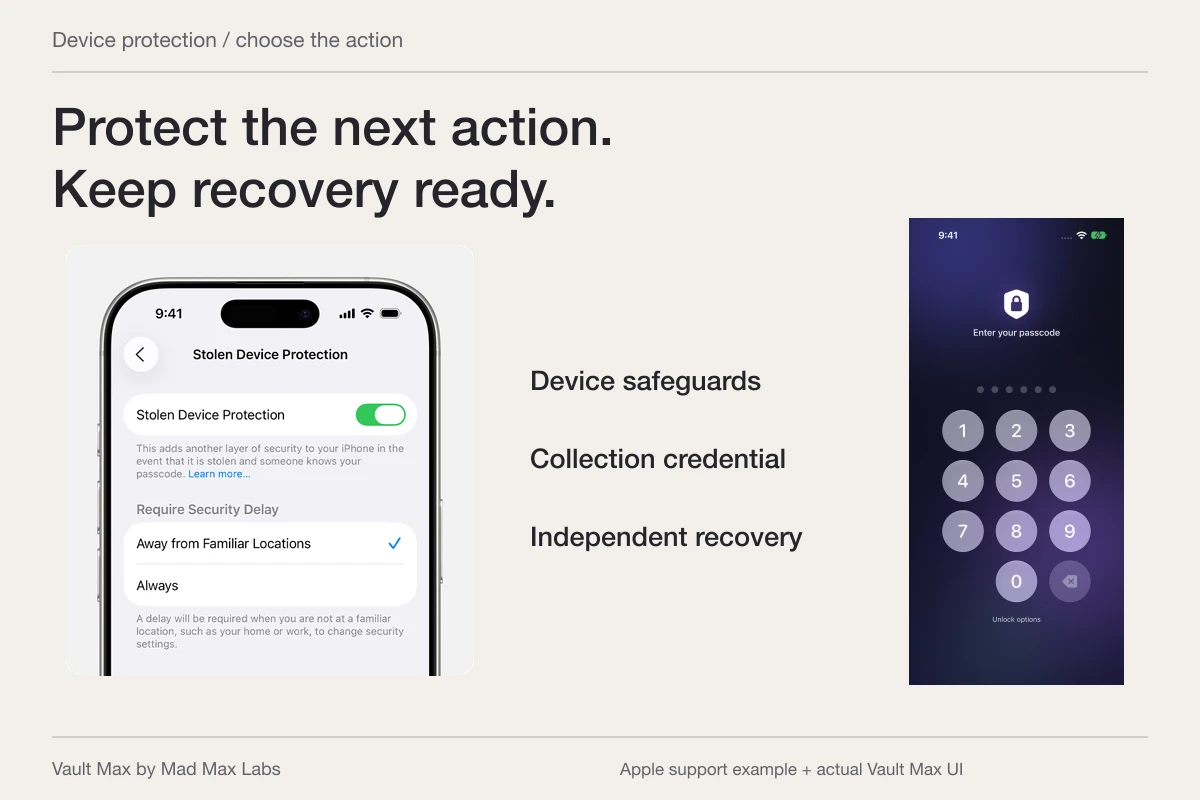
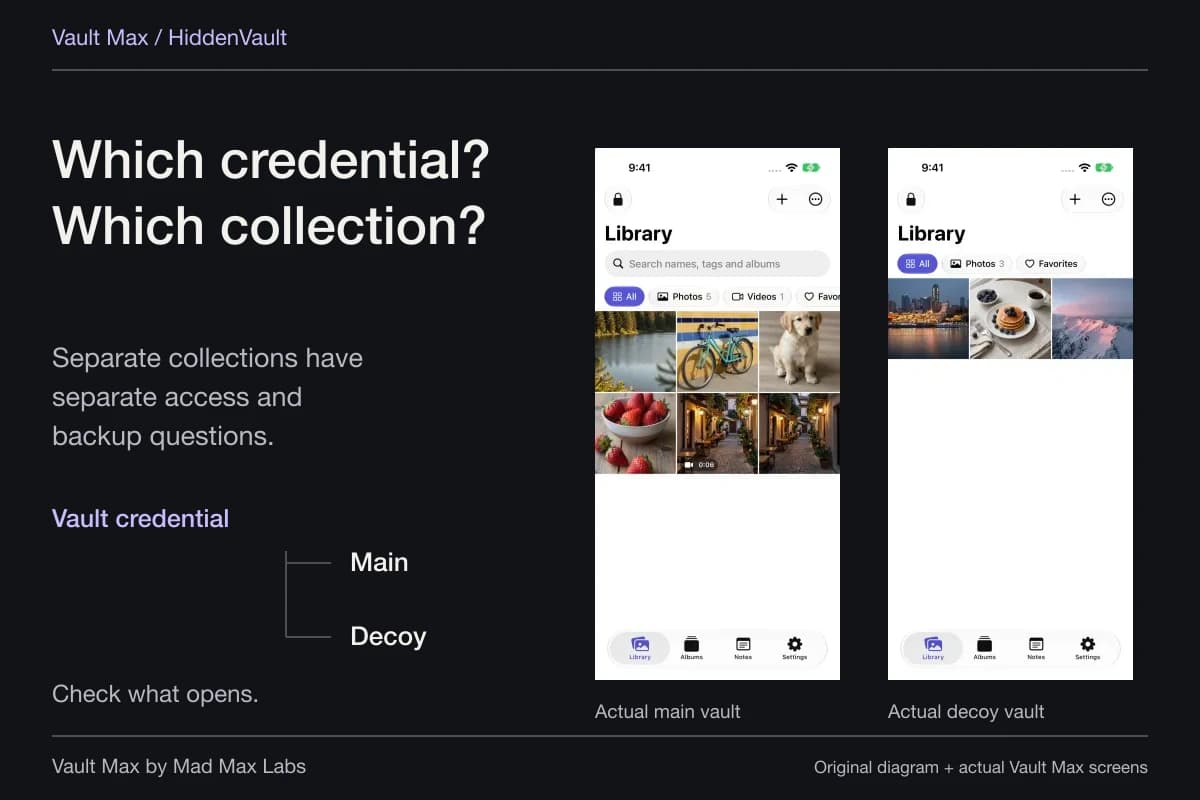
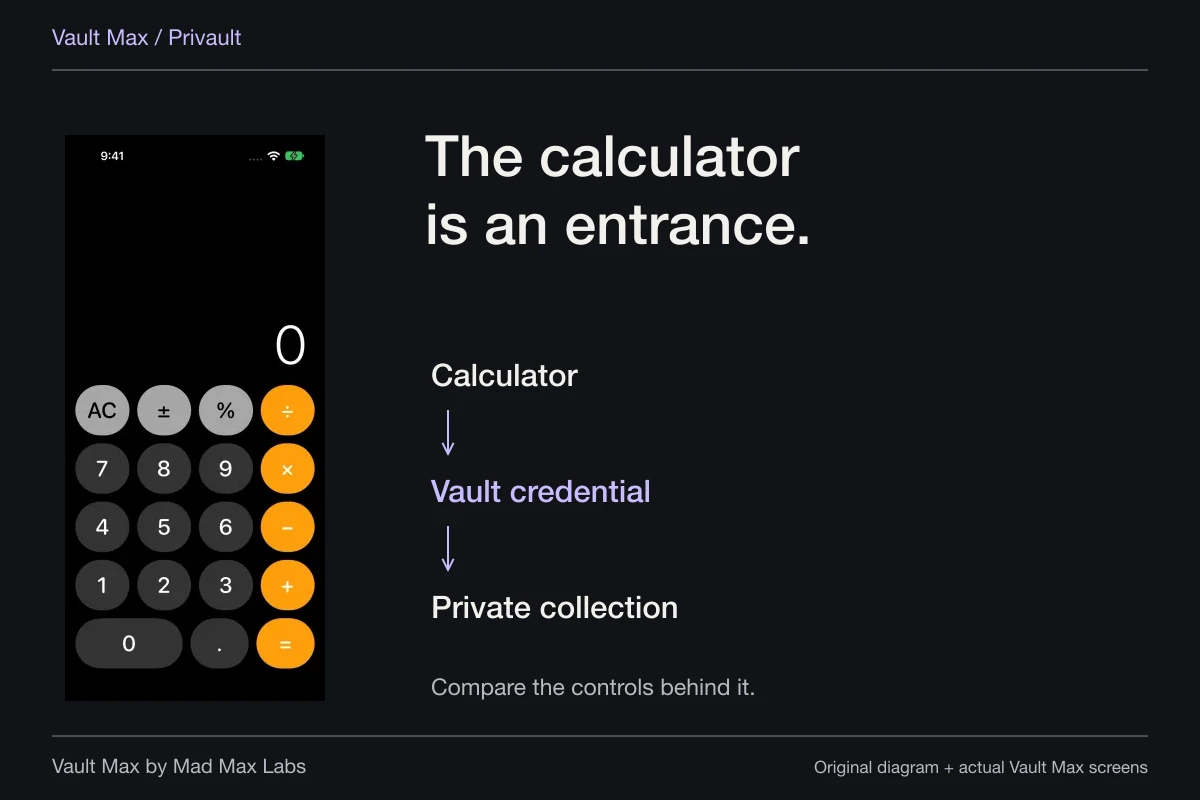
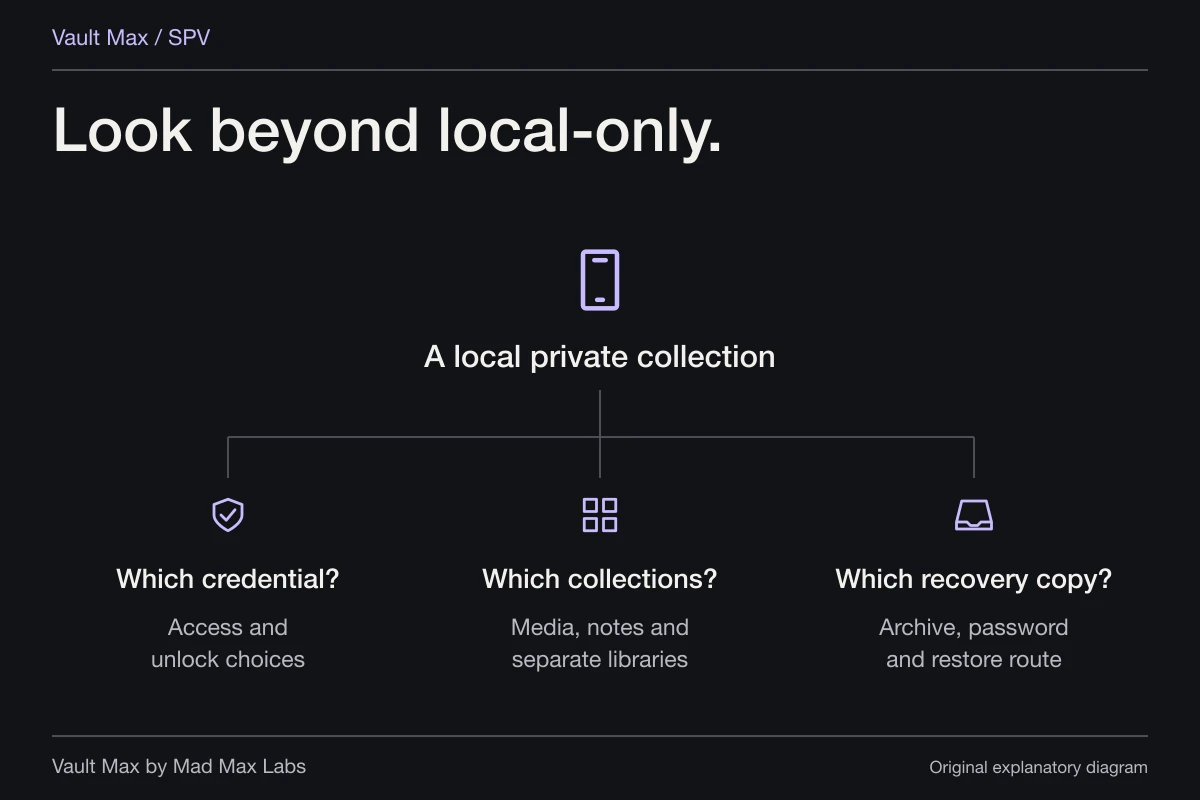
The iPhone code, an account password, the Vault Max credential and an archive password need not be the same secret. Choose them for the access each one permits. If you want selected personal material to have a different entry step from ordinary phone access, use a different vault credential.
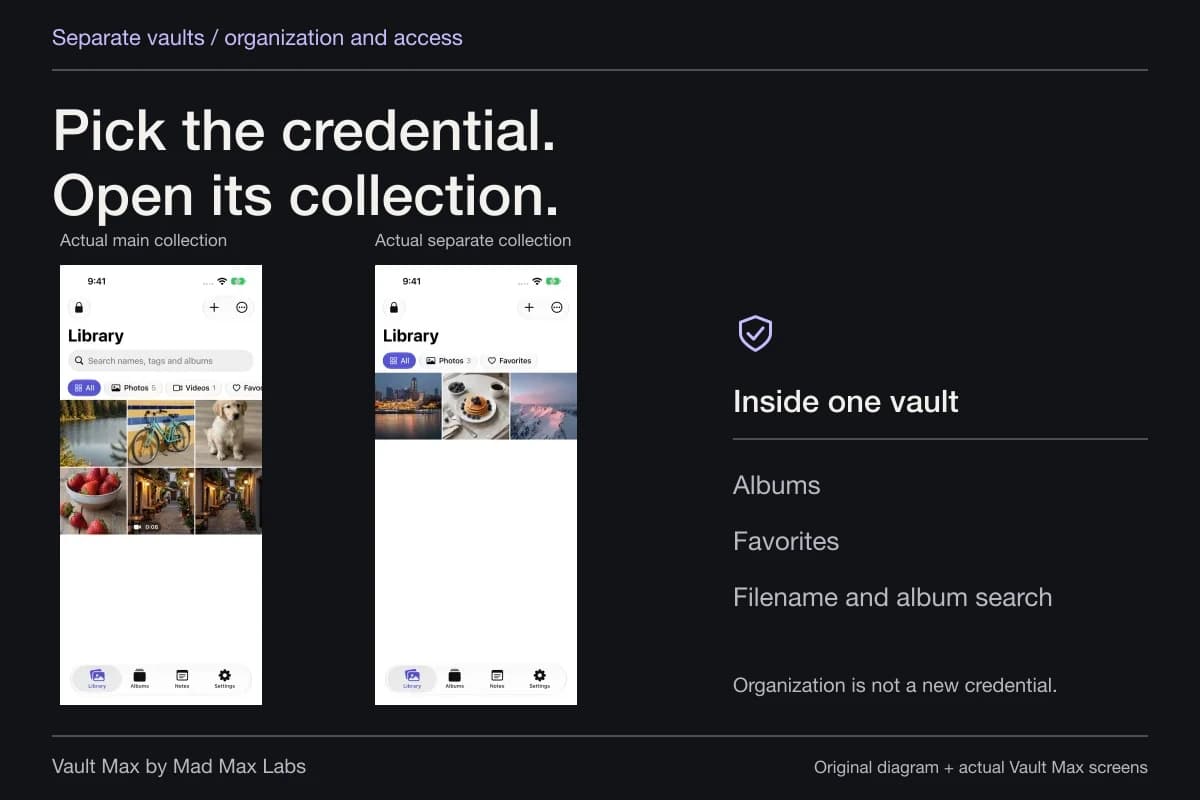
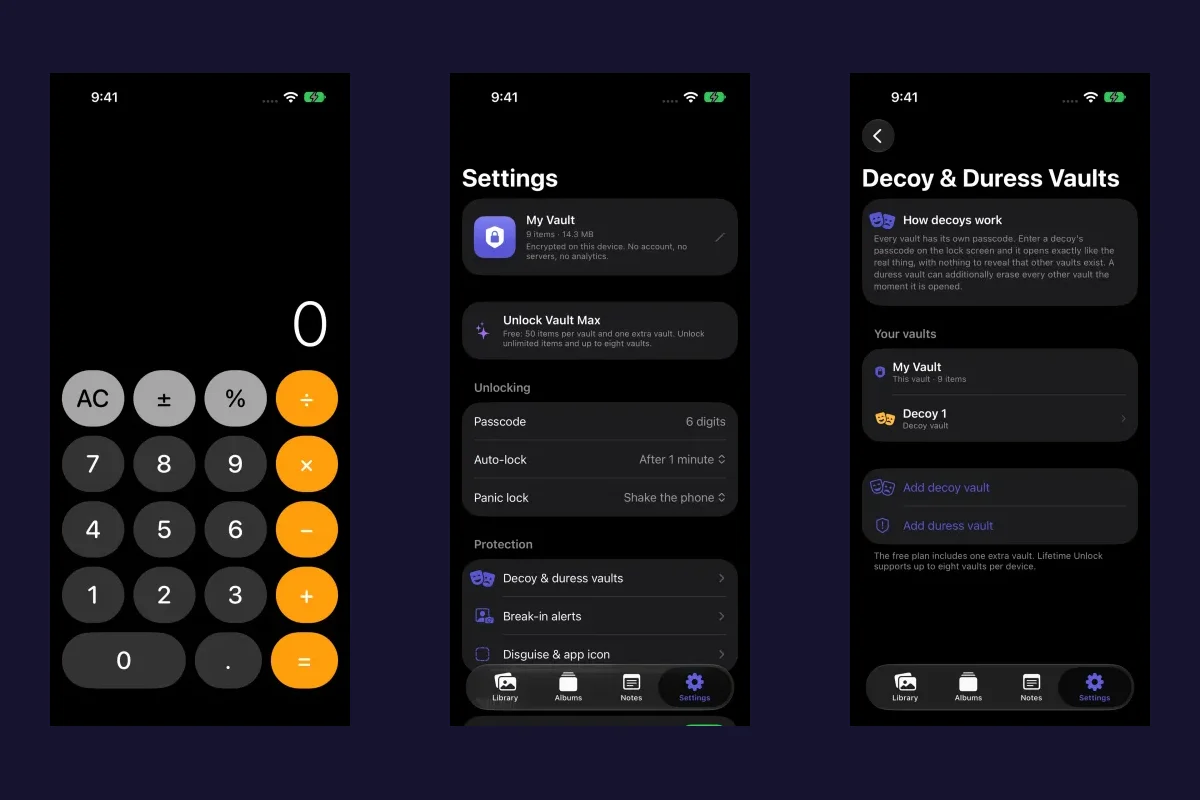
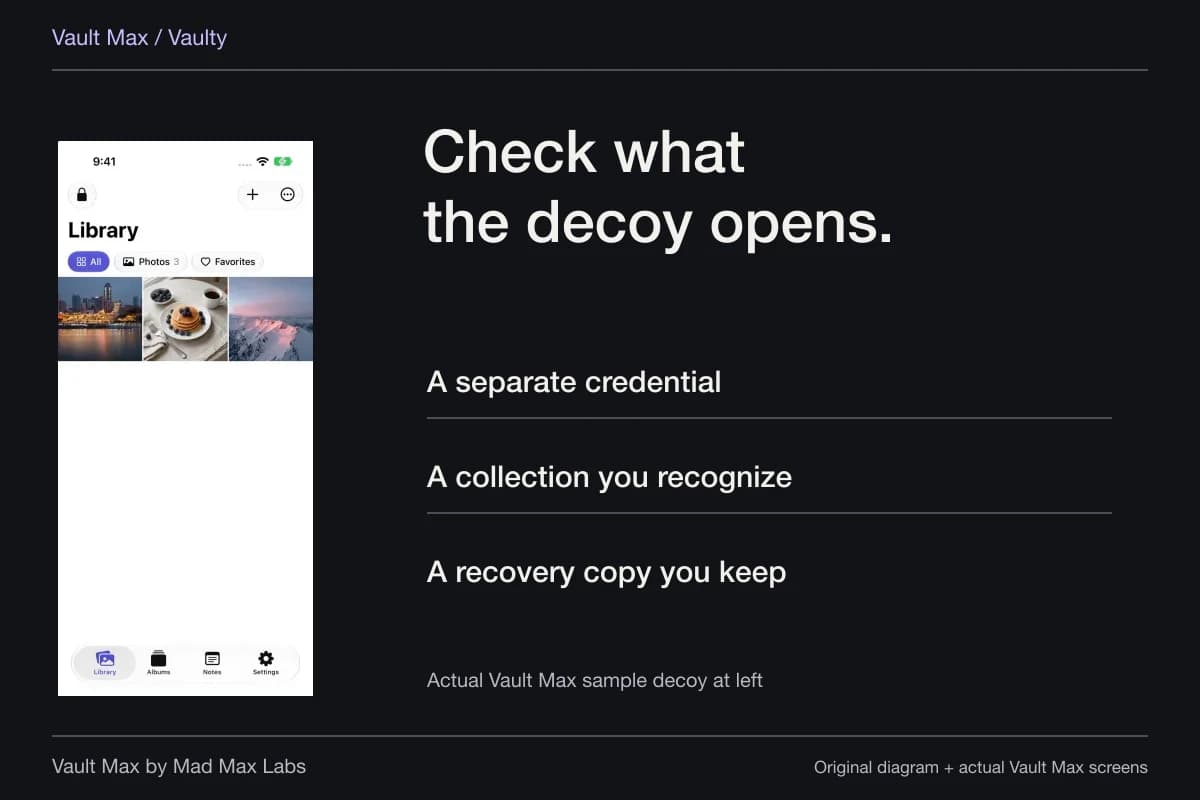
Vault Max can open different ordinary vaults through different credentials. Albums and Favorites then organize the material inside an open collection. The separate-credential guide explains that setup; a recognizable collection is easier to maintain than a growing set of codes with no clear purpose.
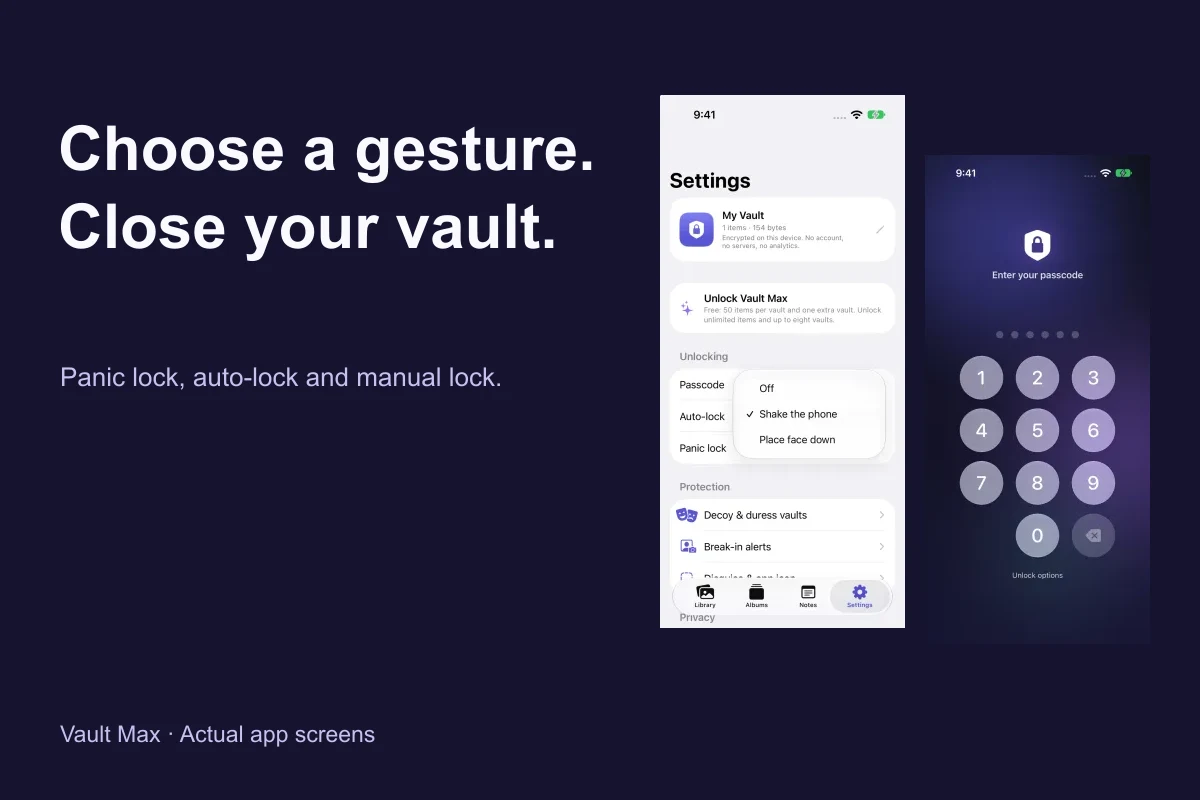
Finish sessions intentionally. A separate code helps at entry, while manual lock and auto-lock determine what happens after use. Learn the finish action before handing the phone to someone else for an unrelated task. The presence of a lock screen in a screenshot does not replace checking your own open session.
Preserve the writing that makes the files meaningful
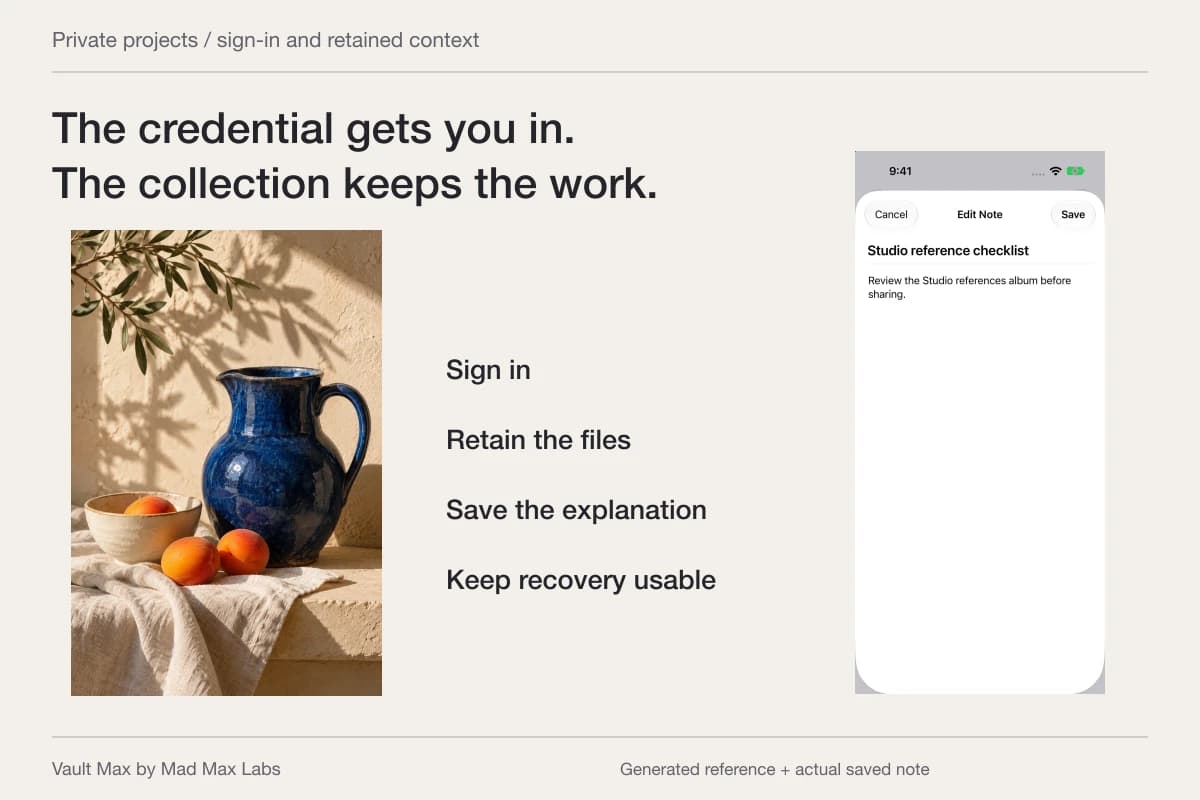
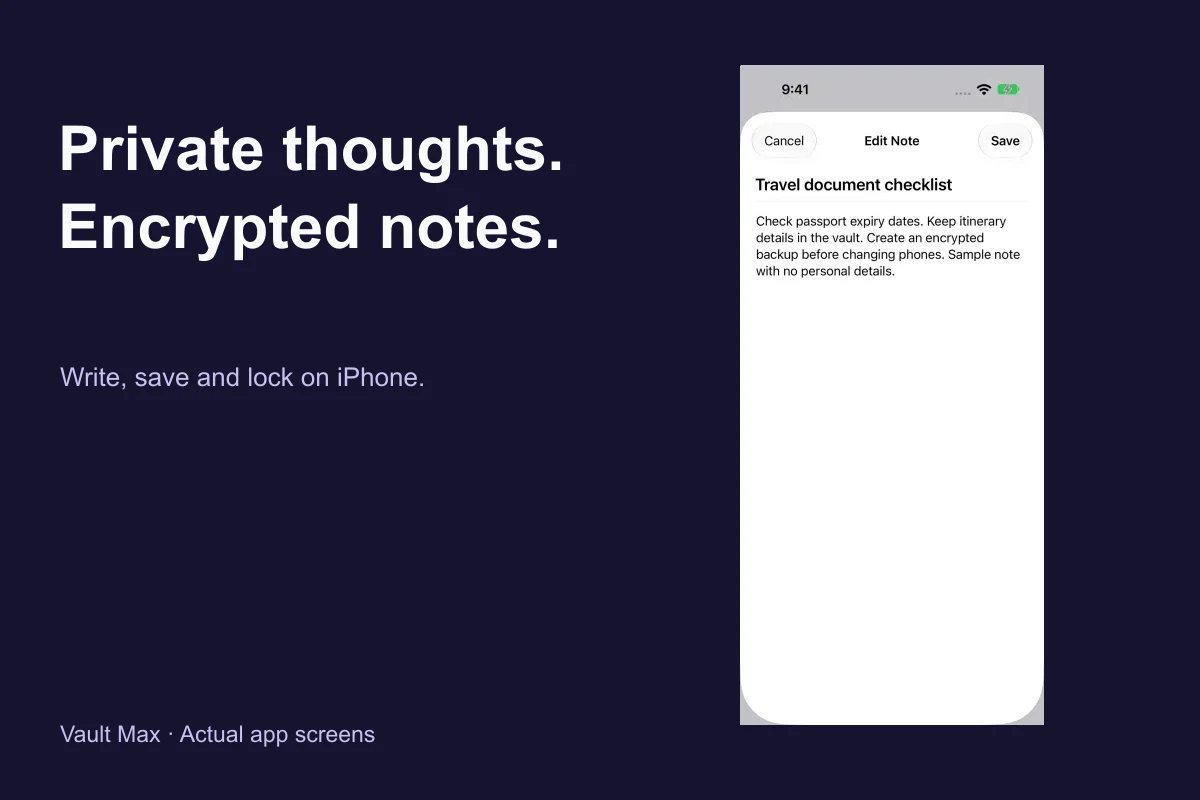
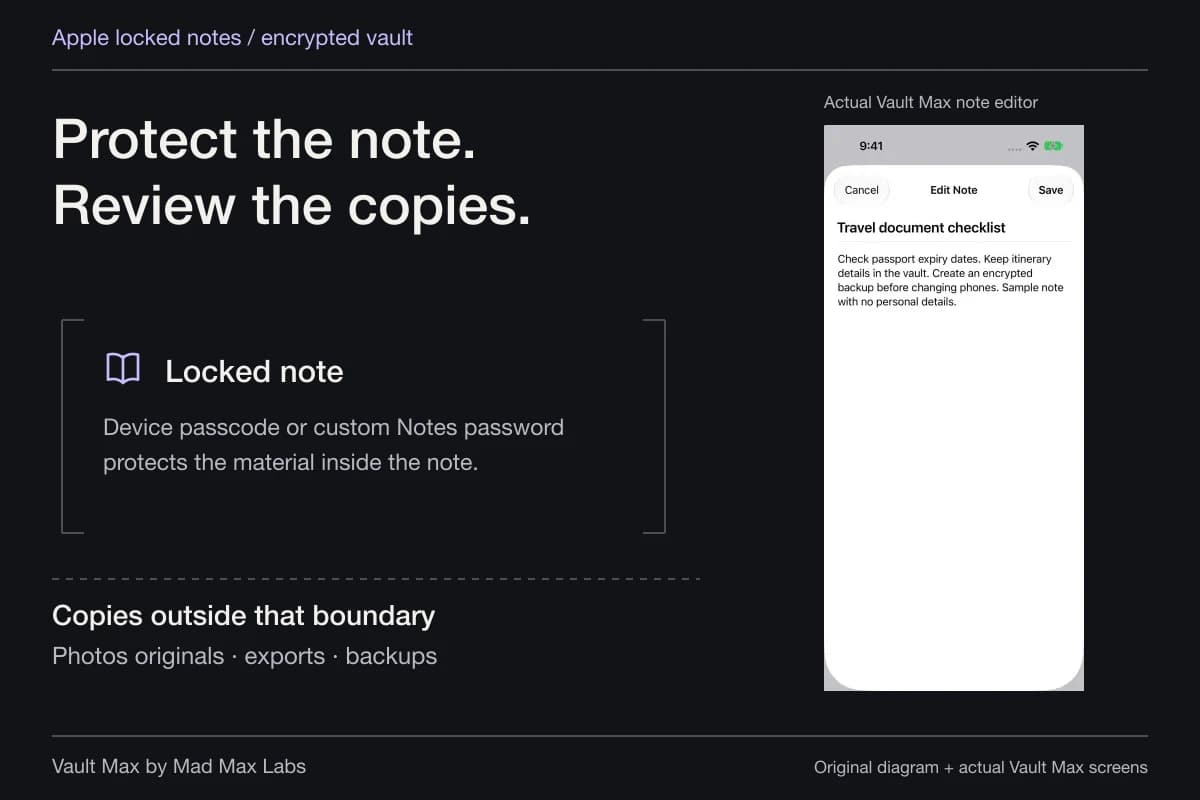
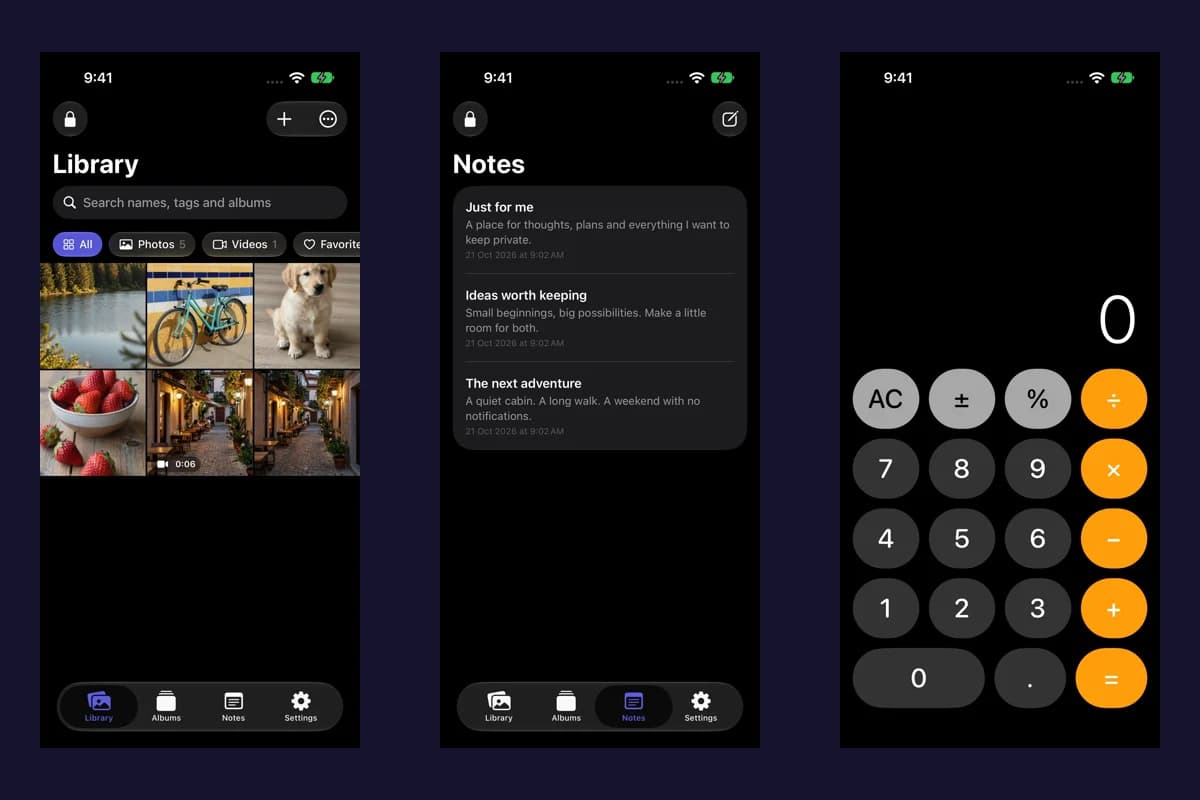
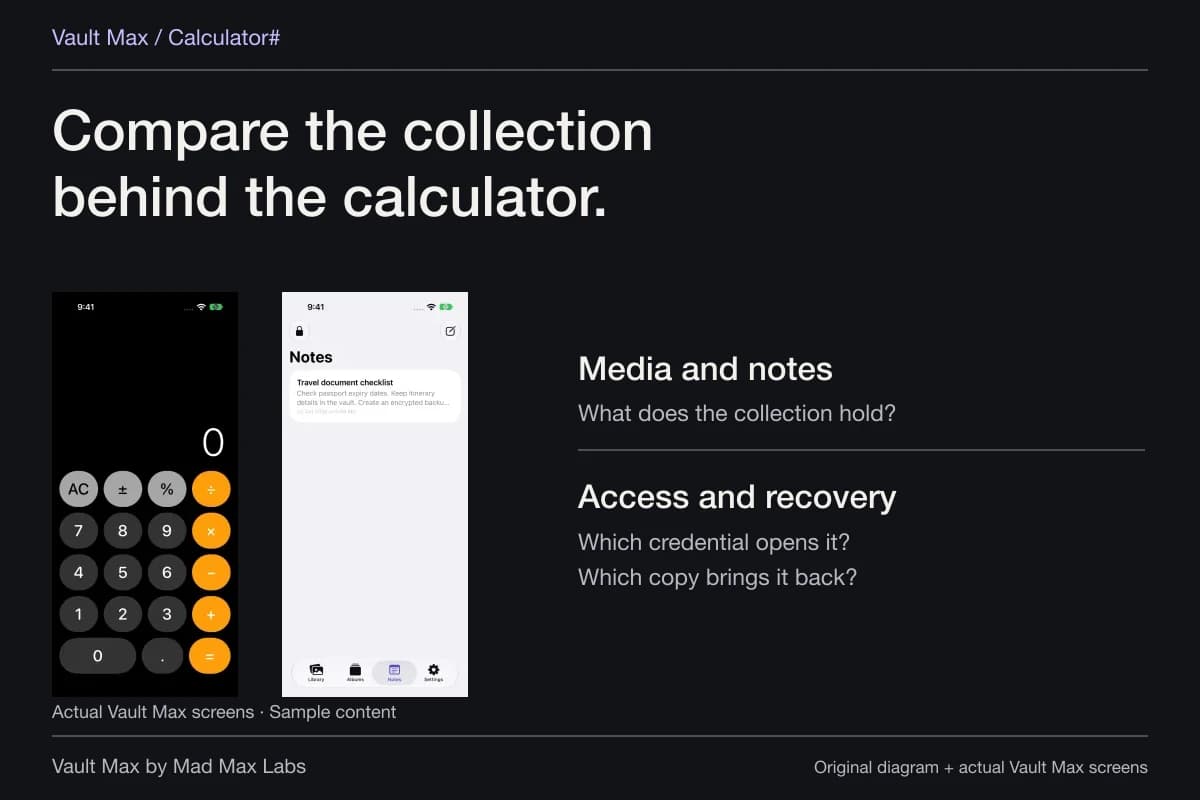
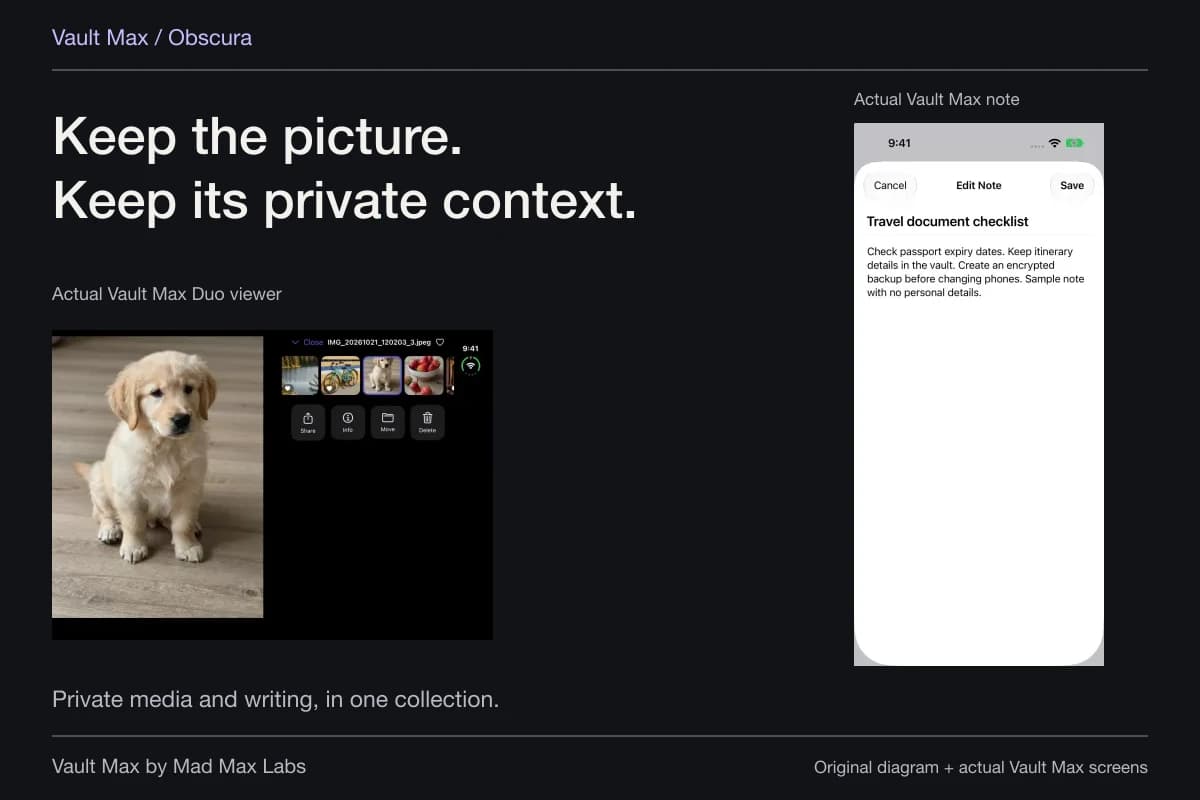
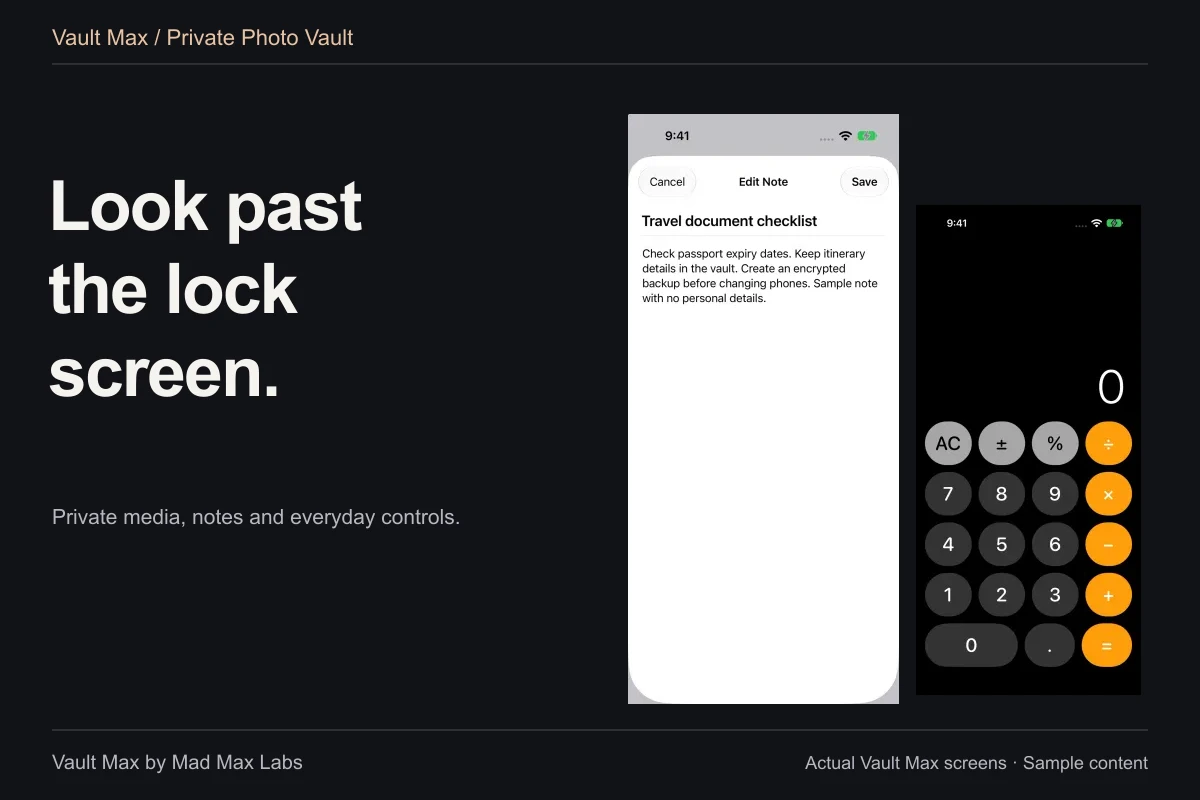
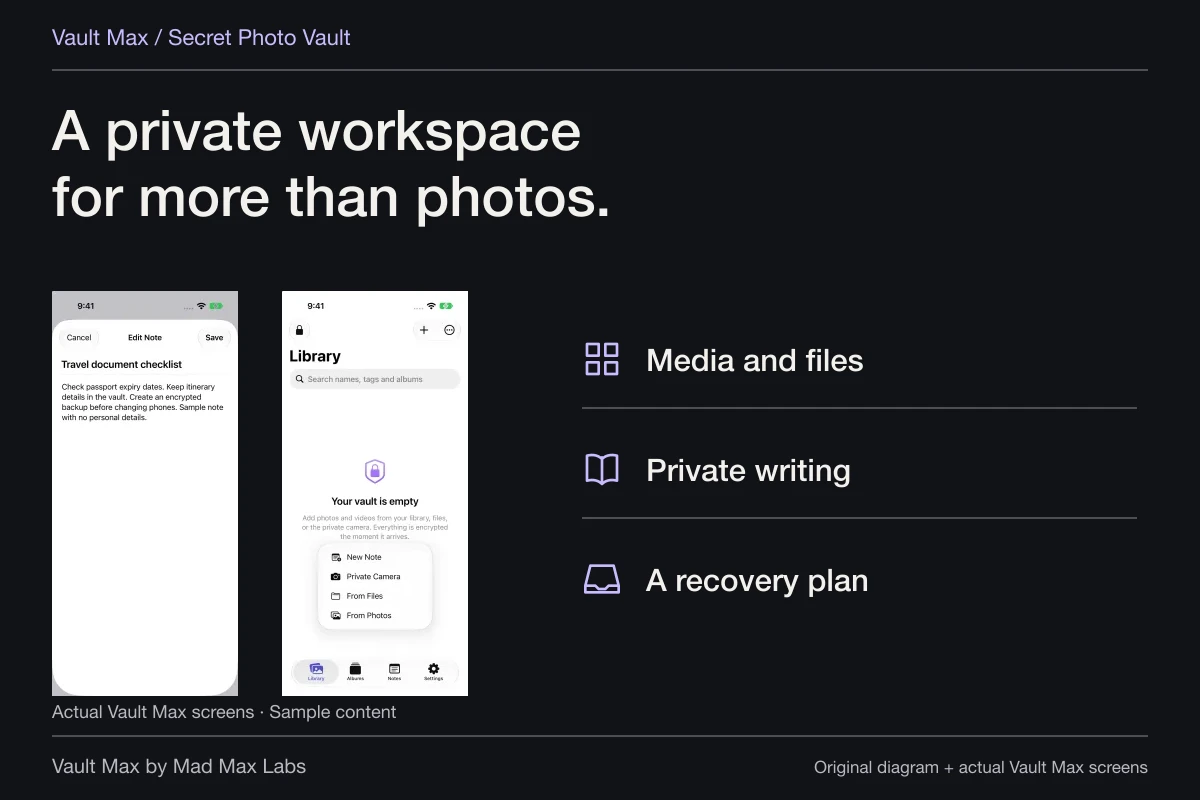
A private note can explain a photograph, identify a current document version or record what you still need to check. Vault Max notes have a title and plain-text body with explicit Save and Cancel actions. Save a small example and reopen it before relying on the workflow.
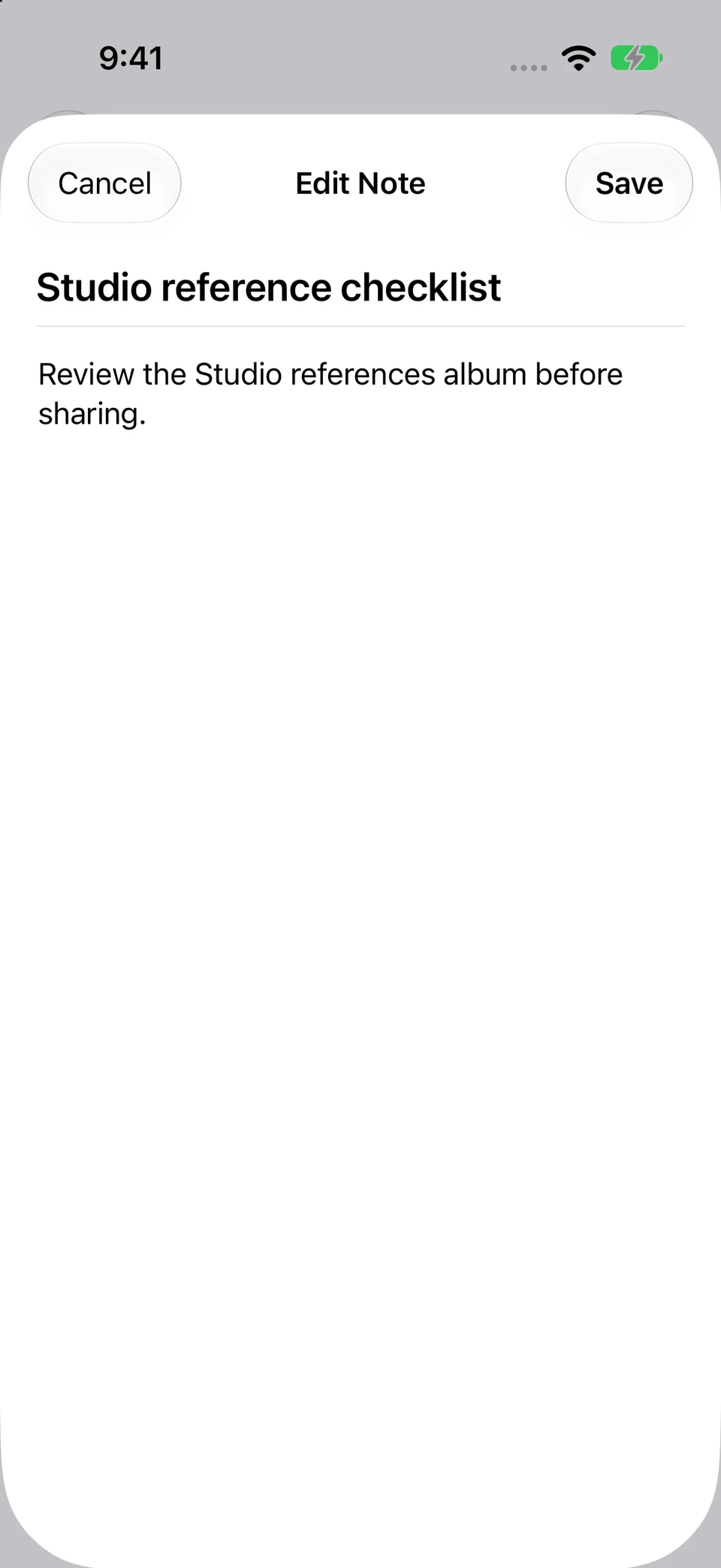
Use a recognizable title such as “Studio reference checklist,” then record useful context. Keep it concise enough that you can scan it next time. The Notes view is the place to reopen that writing; filename and album search in the gallery serves the media collection.
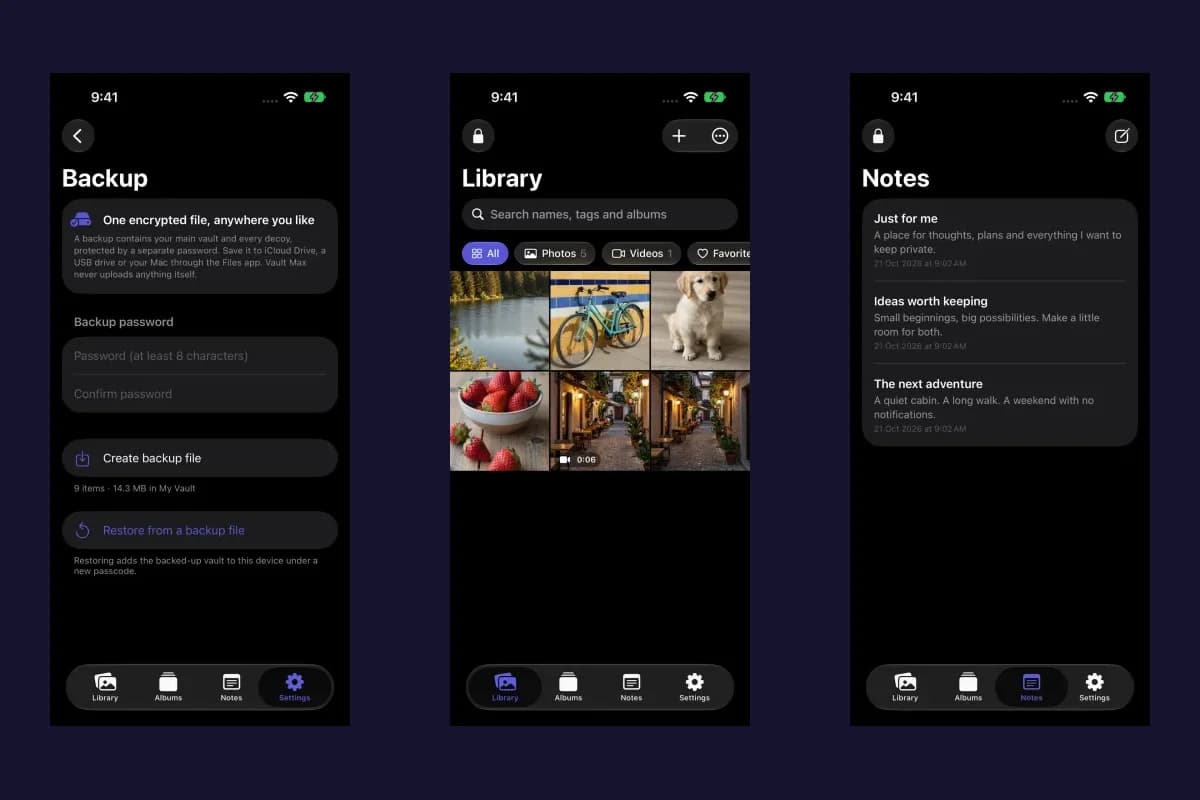
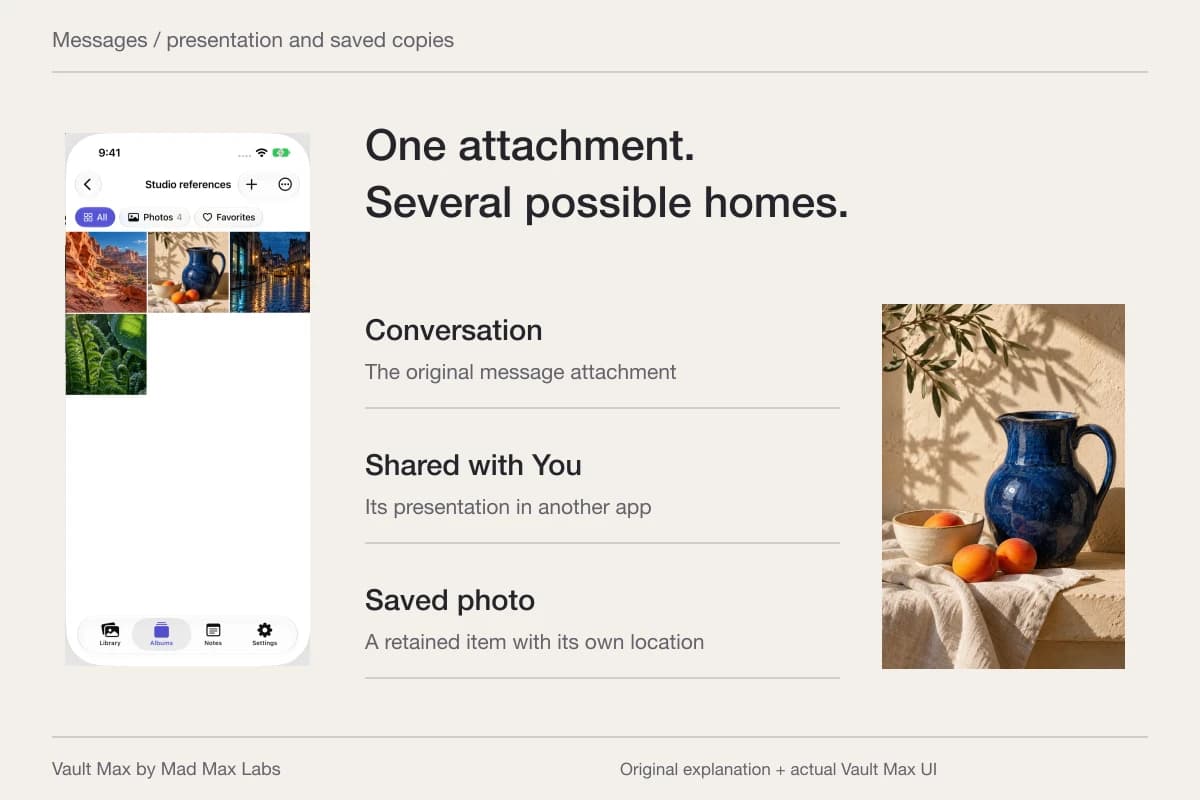
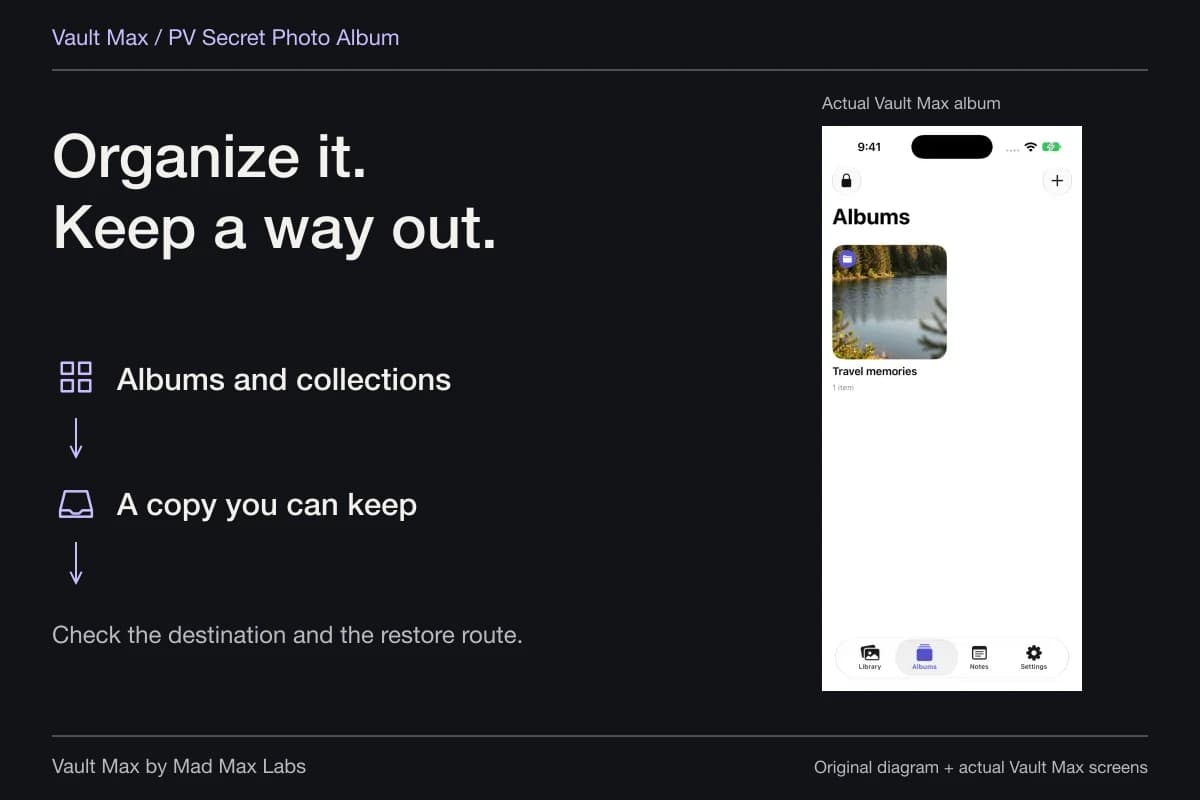
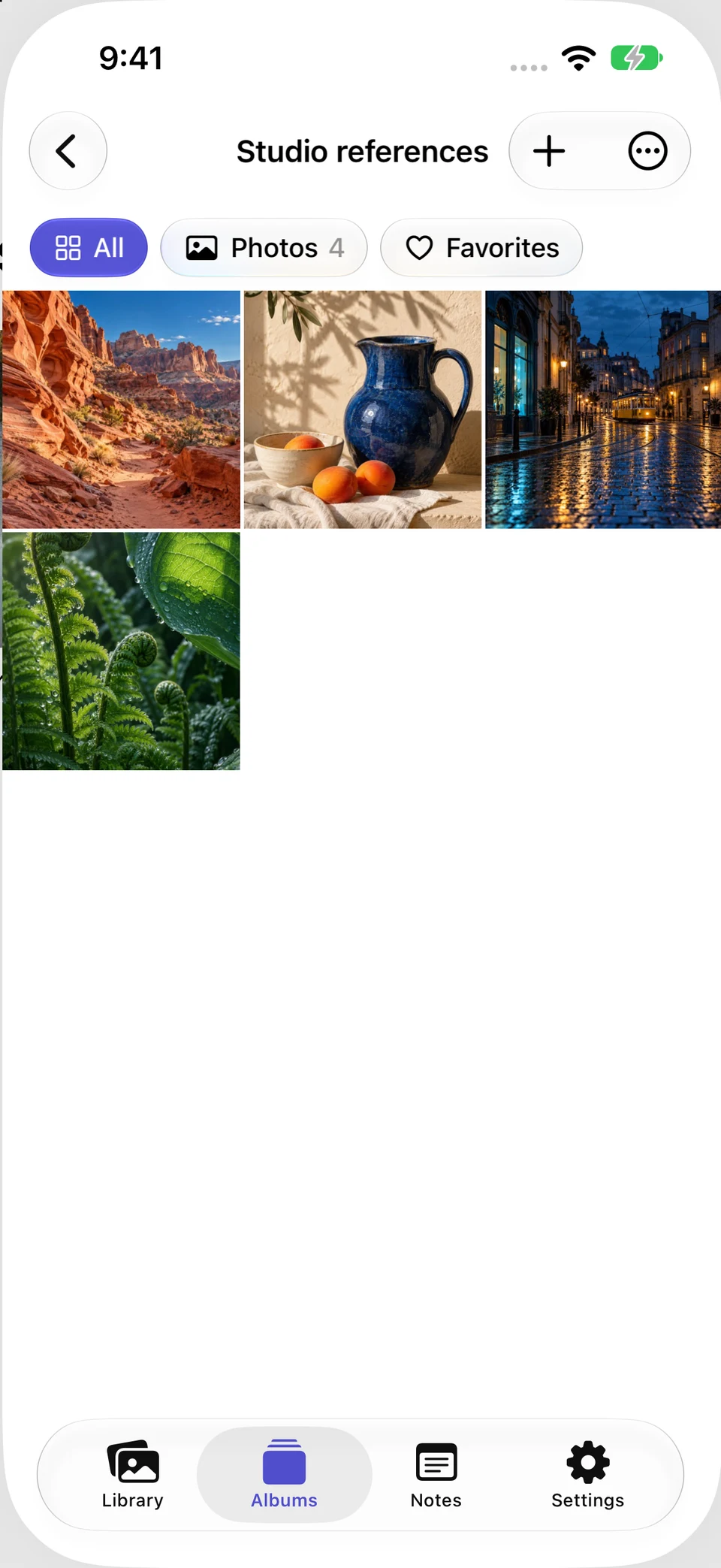
The actual Vault Max album contains four generated examples, and the reopened note preserves a complete reminder. These show private collection work, not password autofill, Keychain import or an account integration.
Actual Vault Max · QA simulator, generated sample photographsRecognizable project files
Open original image: Recognizable project filesSaved written context
Open original image: Saved written contextNotes do not count toward the free media/document allowance and are included in encrypted archives. That makes them practical for the context around a private project. You can add the explanation without spending another counted media slot or turning every sentence into a screenshot.
Keep recovery usable when the normal phone is unavailable
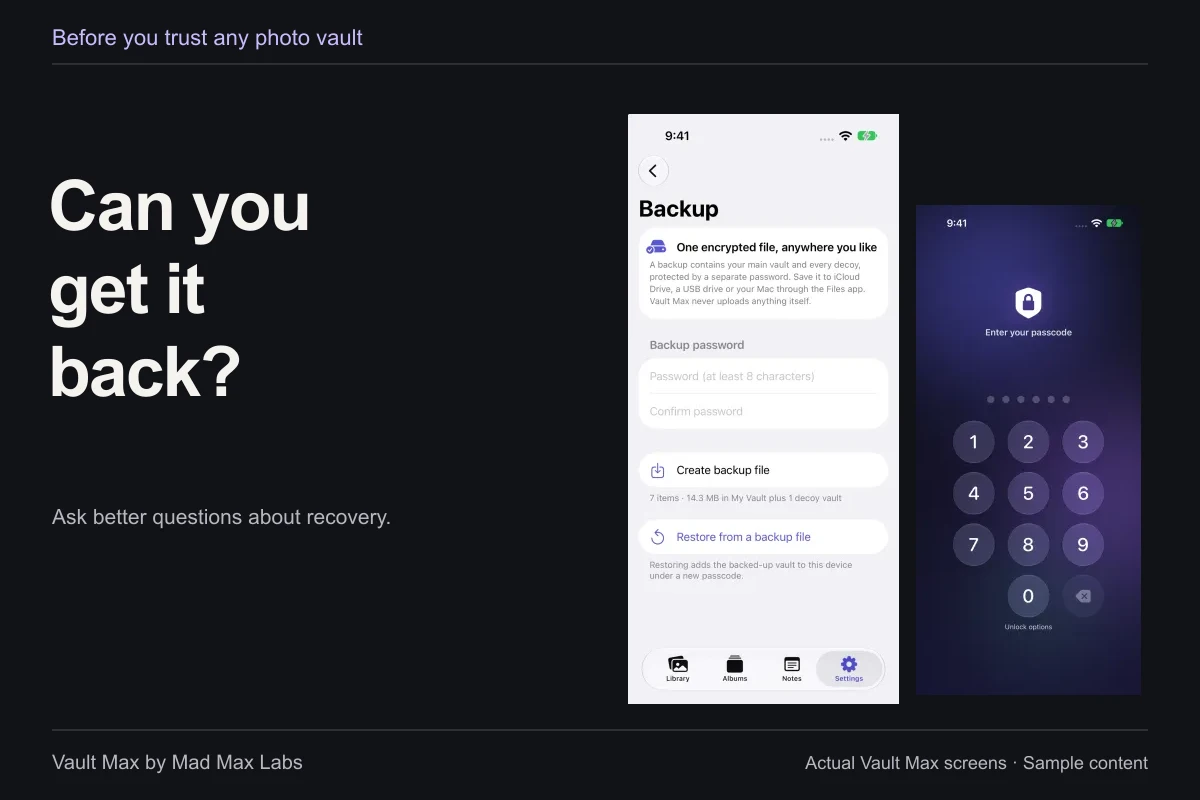
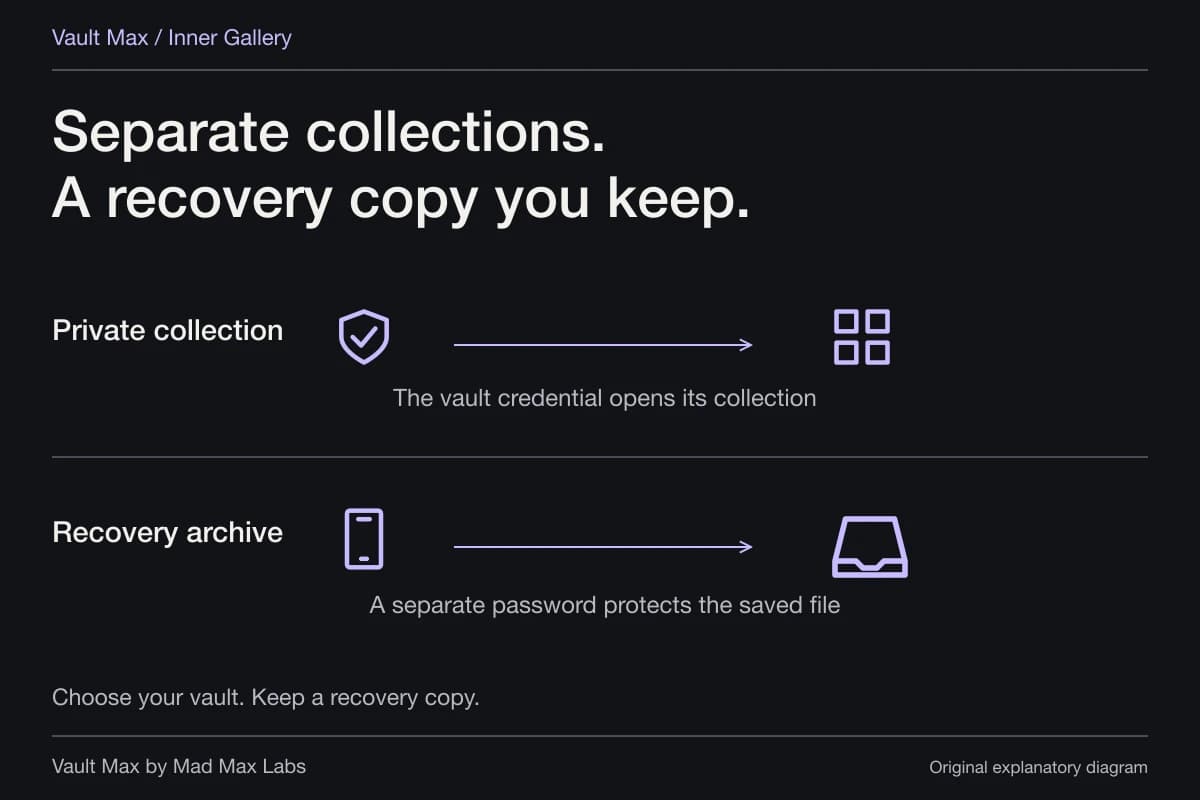
A recovery plan should answer a practical question: what would you reach from another device if this phone stopped working? Having a good archive is useful only if its file and password are available in that situation.
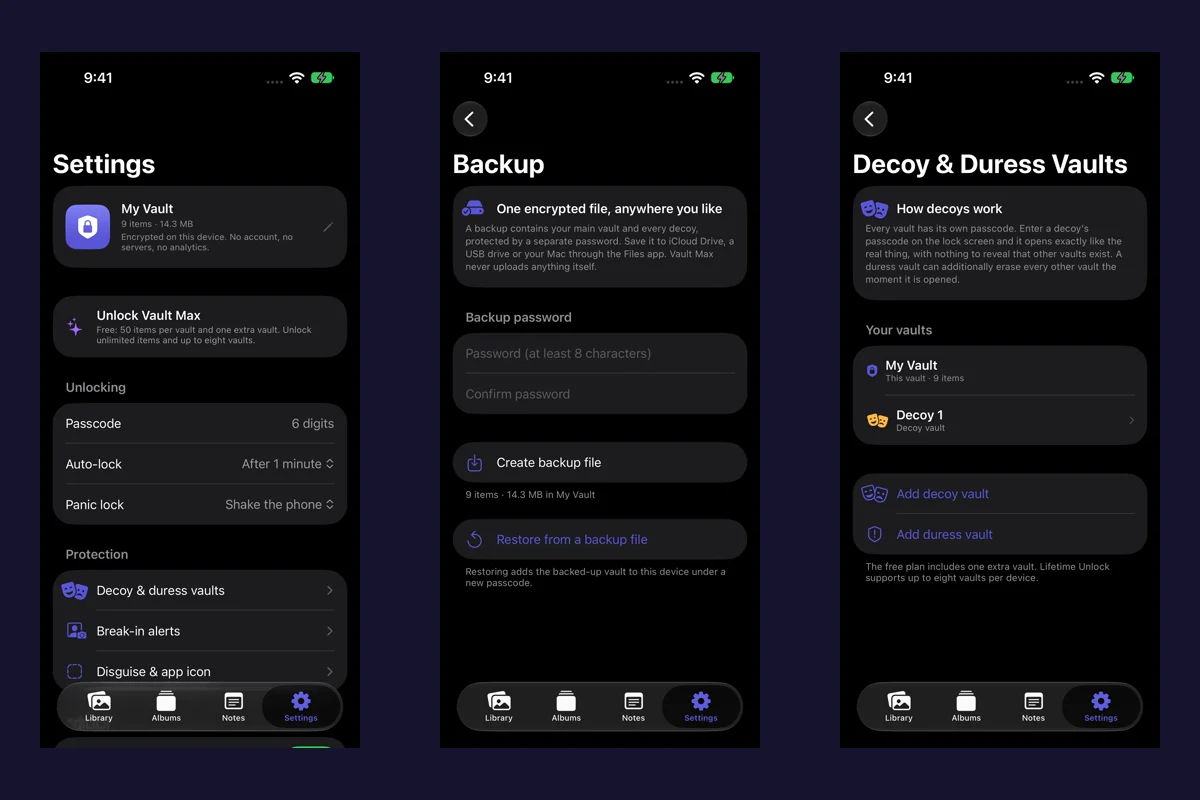
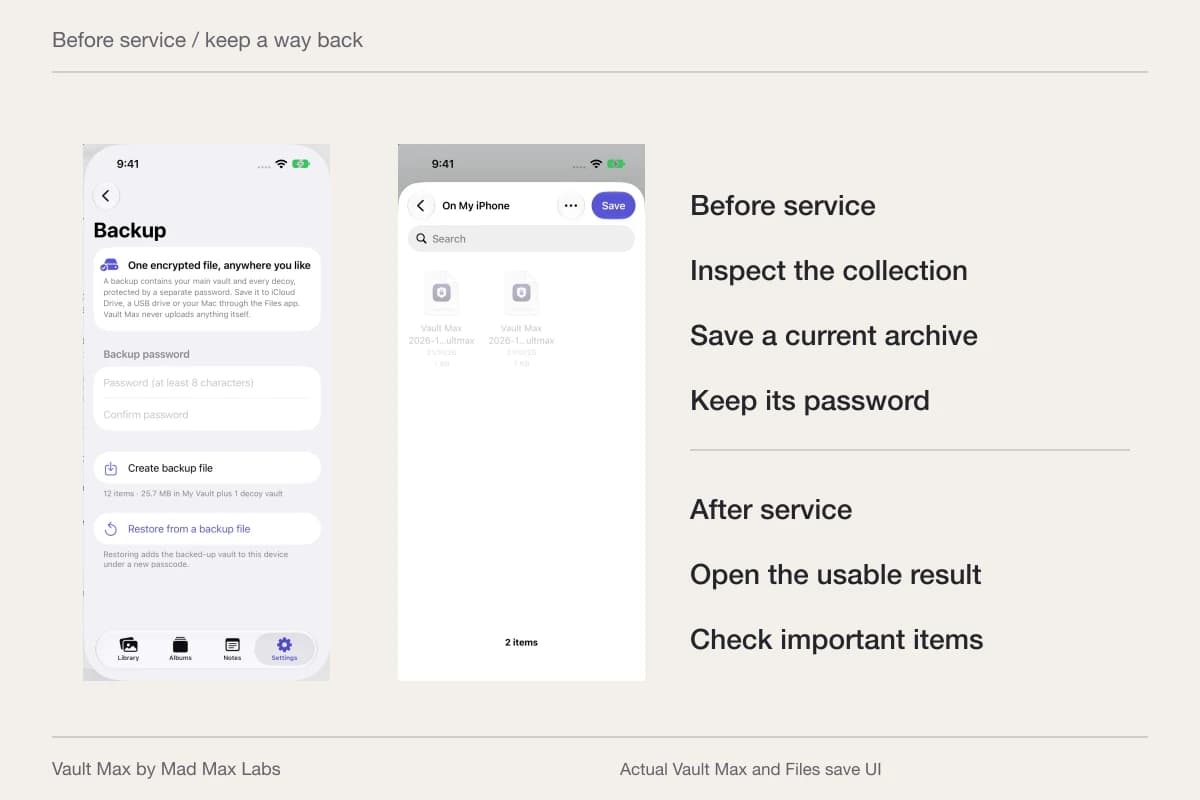
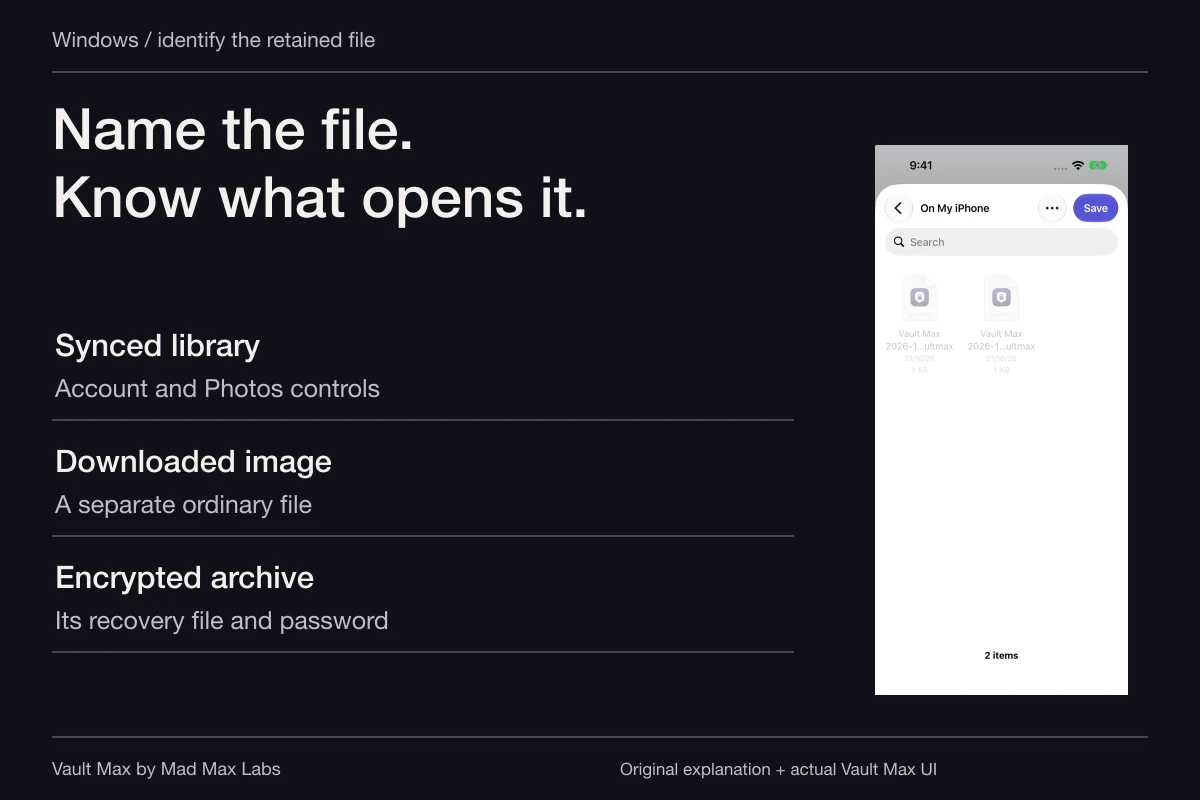
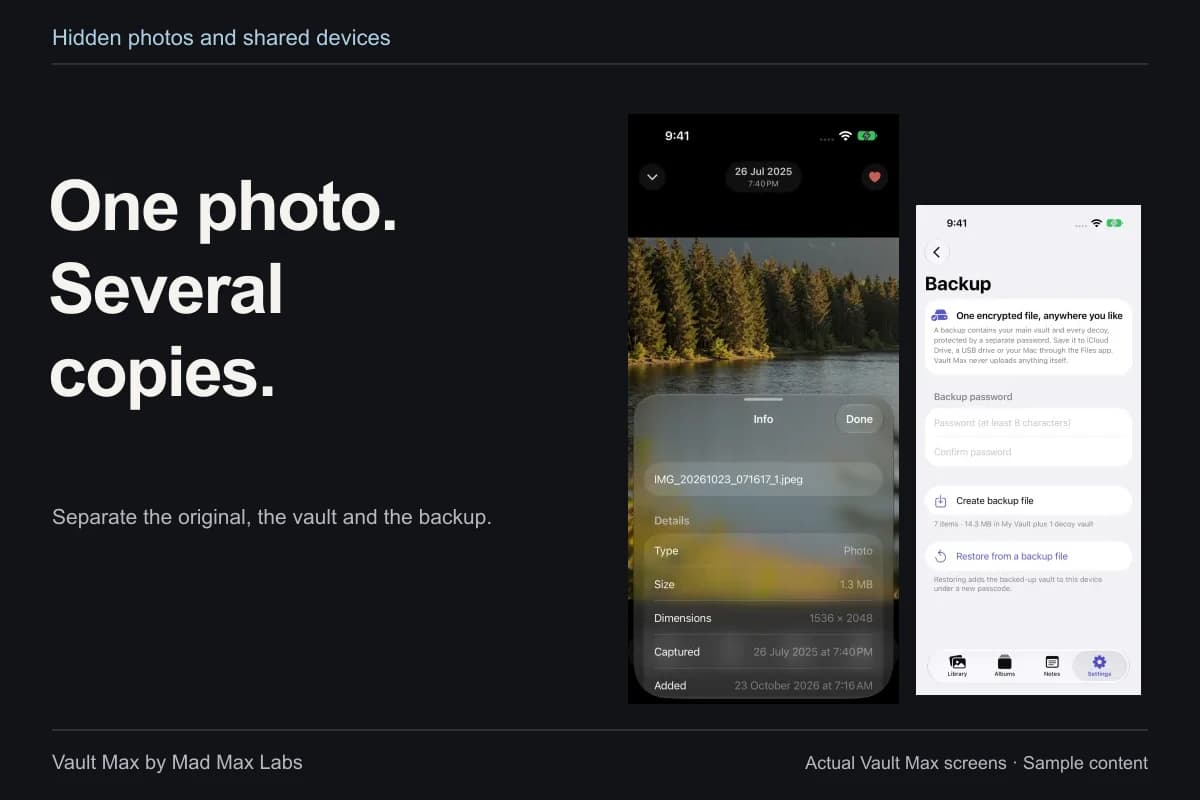
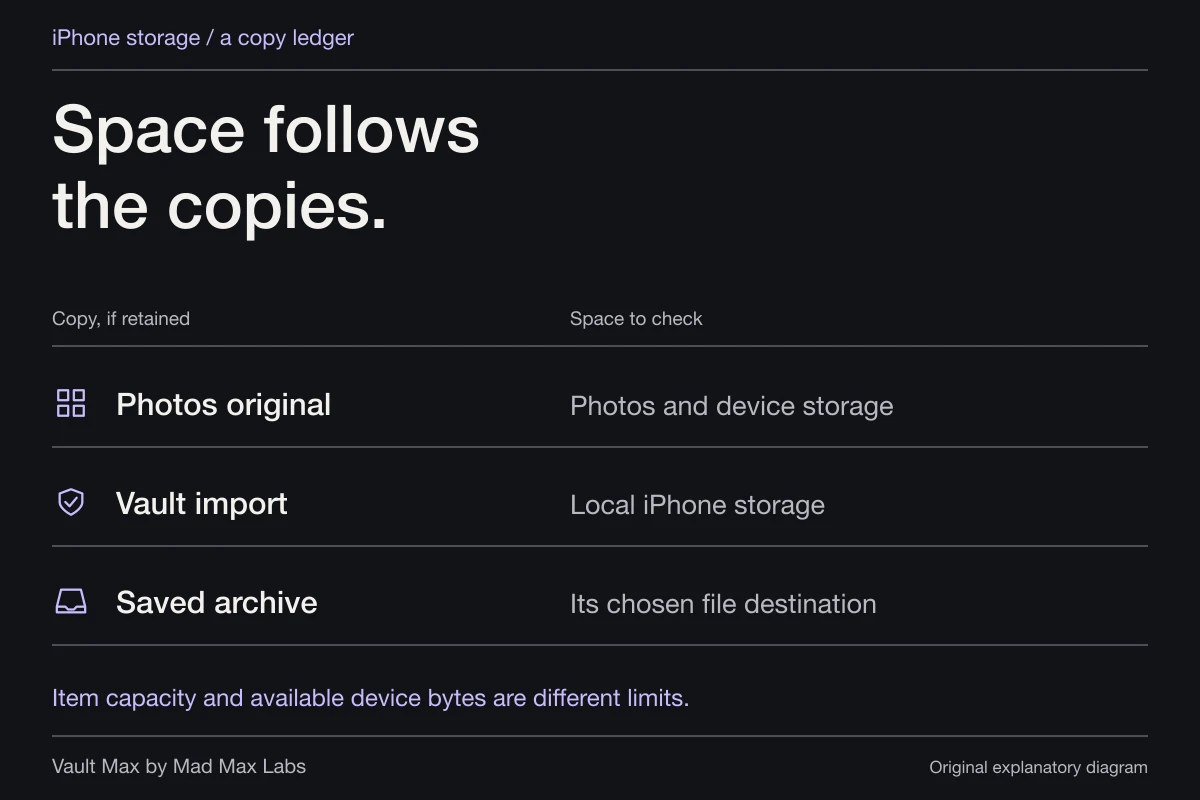
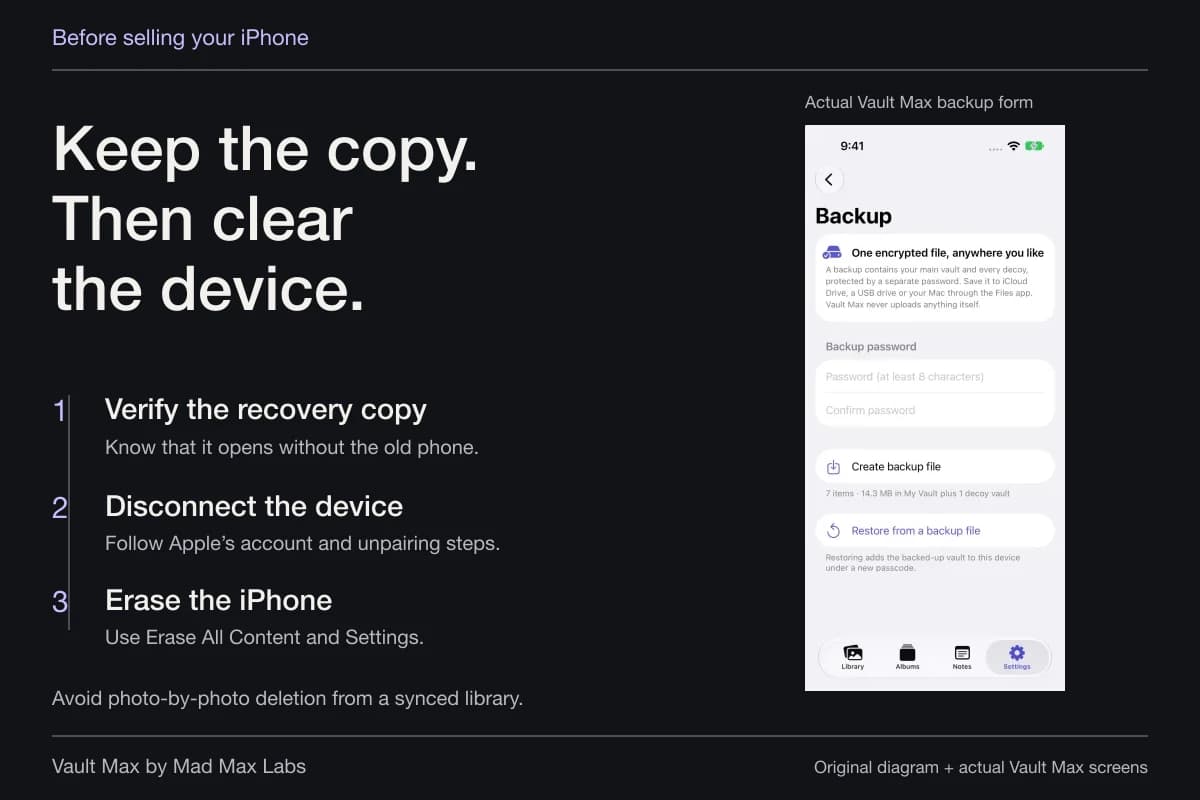
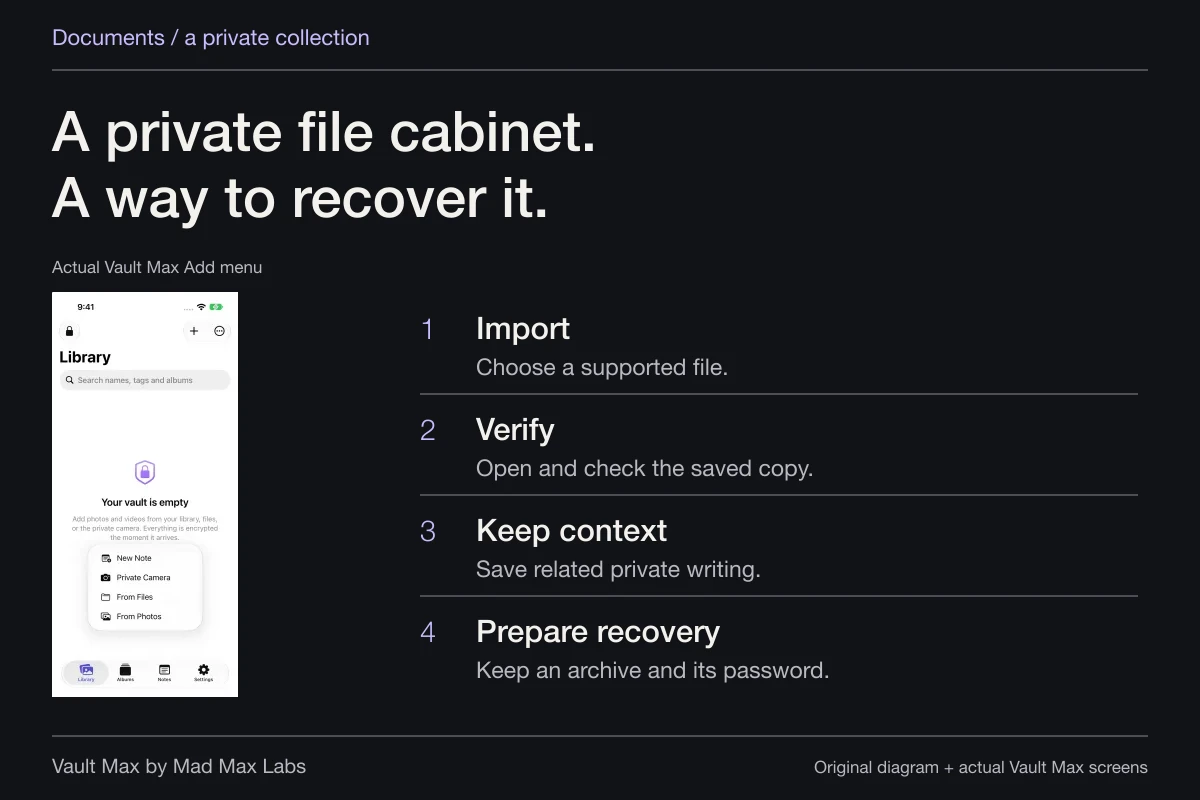
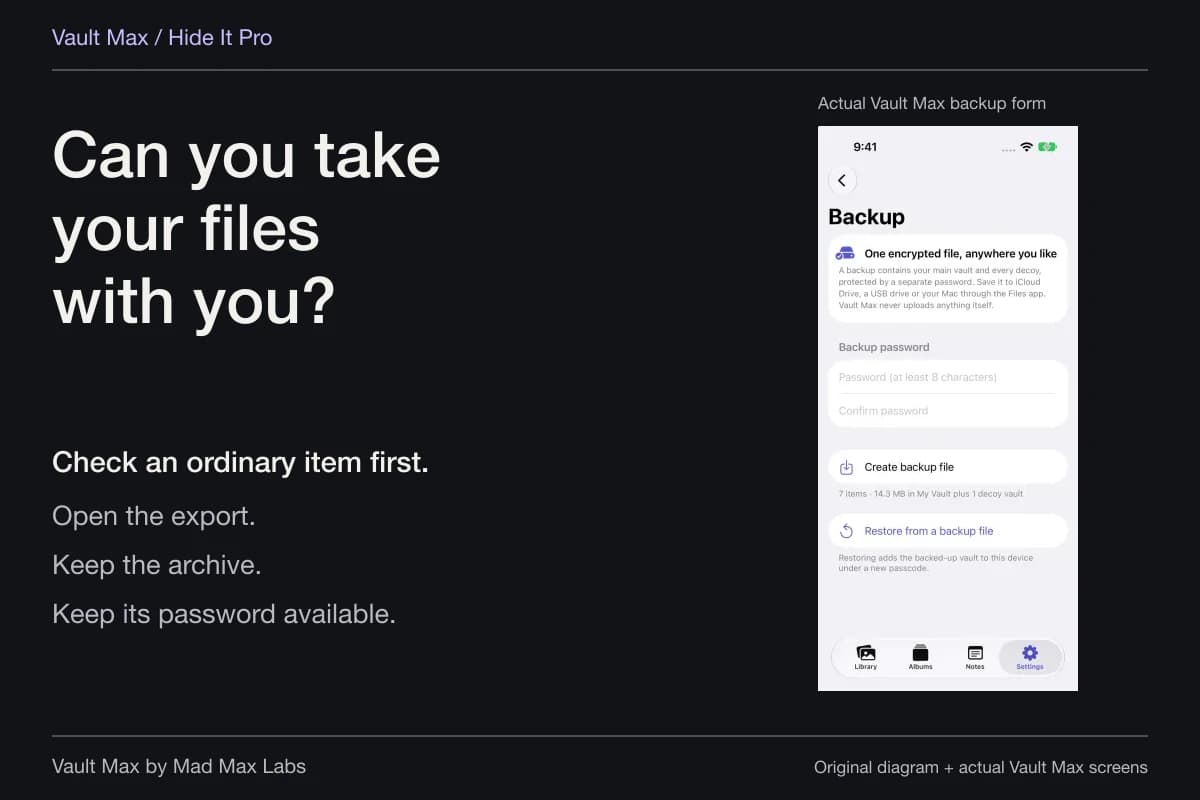
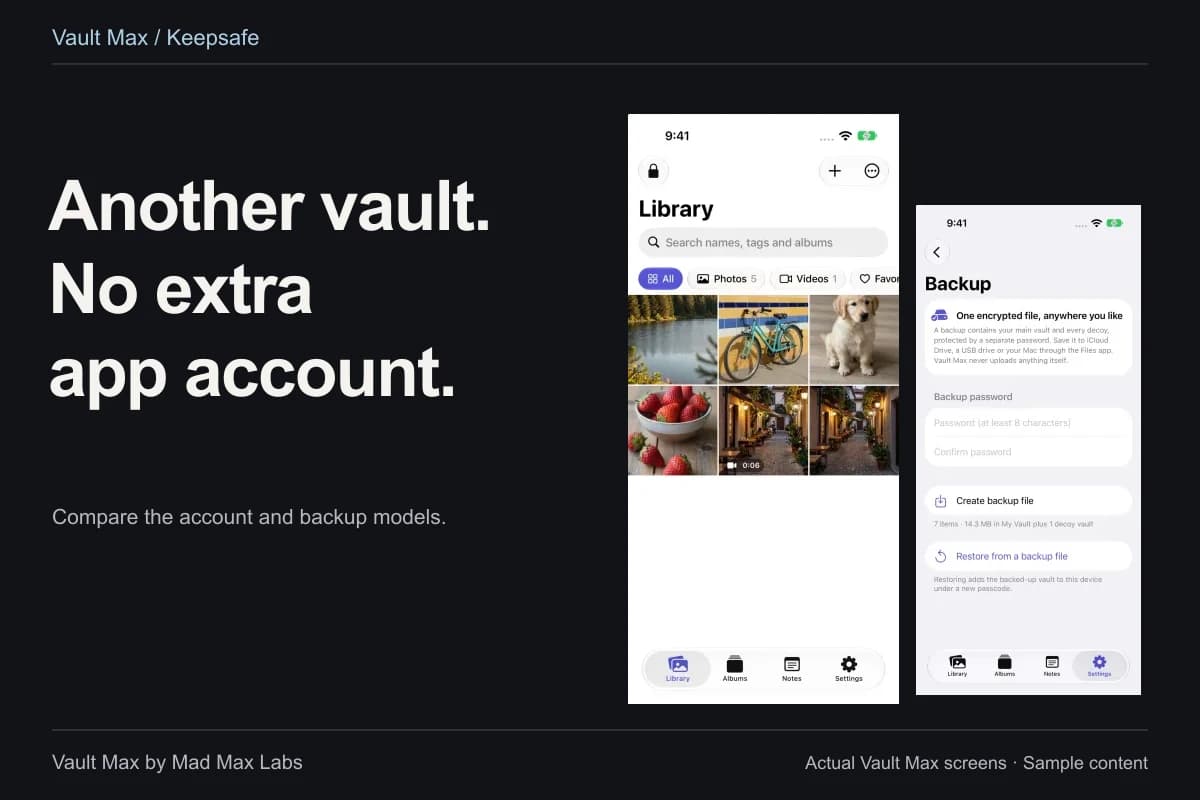
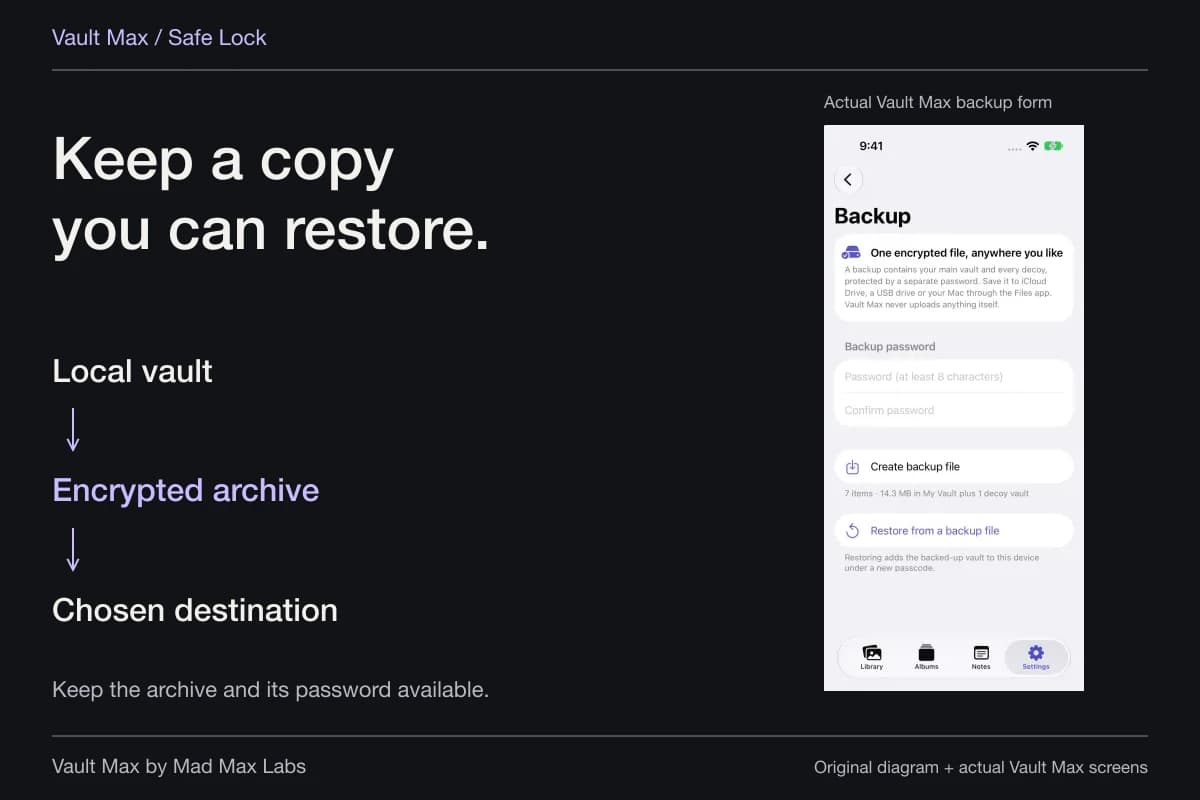
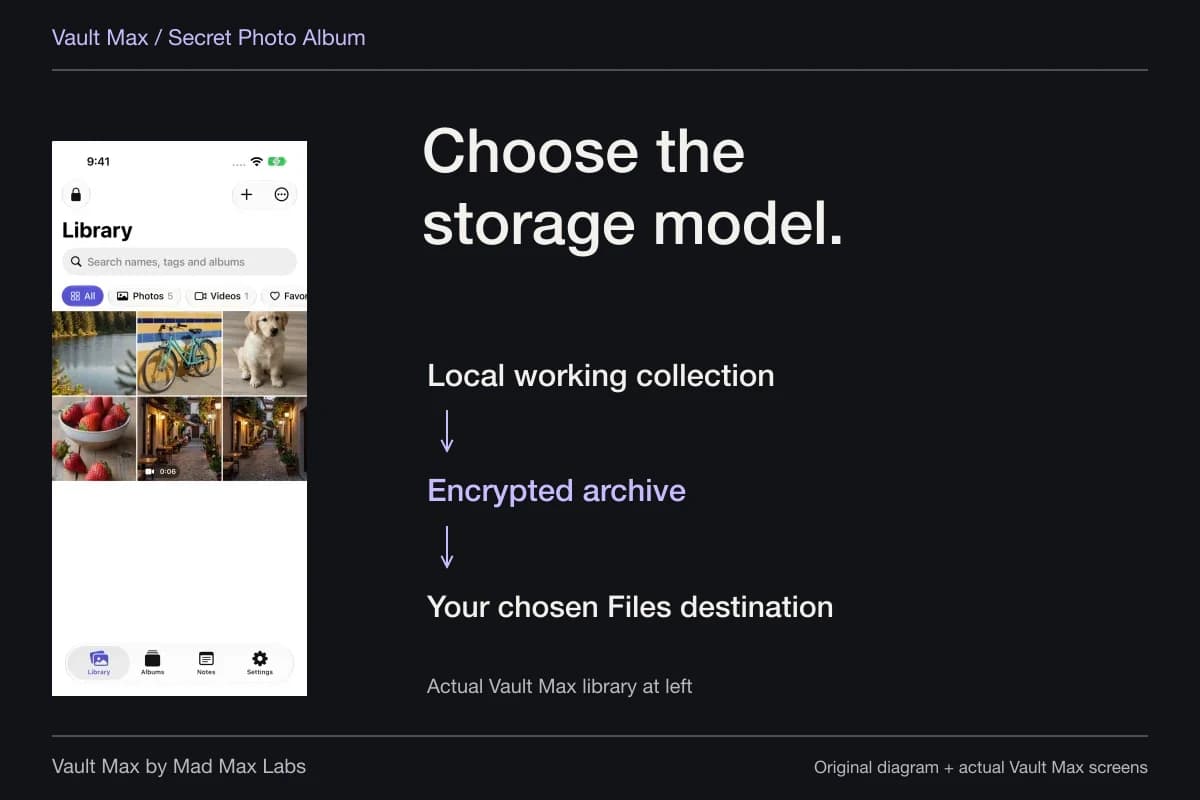
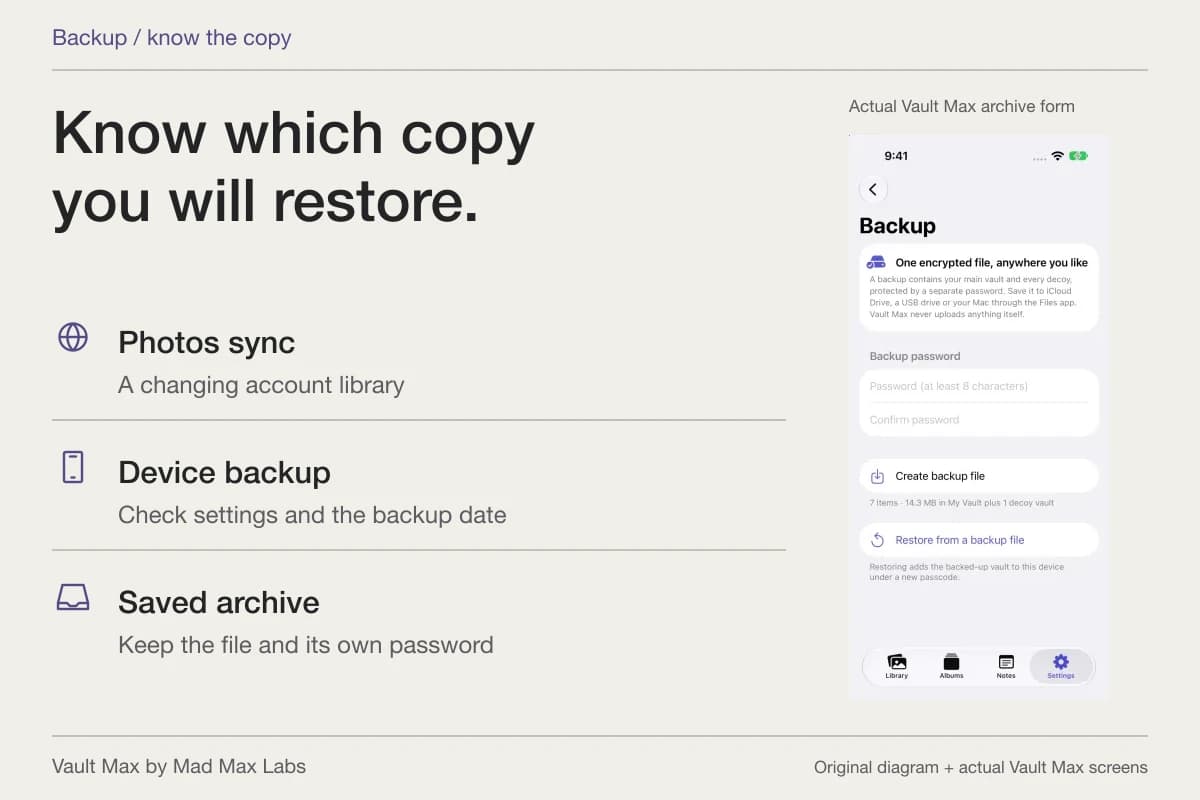
Vault Max exports a separately password-protected .vaultmax archive through Files. Choose a destination deliberately and keep the archive password independently accessible, using a password manager or another suitable arrangement. Do not put its only usable copy inside the very collection it must recover.
Keep the selected destination clear too. A local archive saved only on the same phone shares that phone's loss risk. A cloud-backed Files location is a user-chosen destination for the encrypted file, rather than a Vault Max account hosting the working collection. New additions require a refreshed archive.
Follow the recovery checklist while everything is accessible. A restored App Store purchase affects capacity entitlement, whereas a usable archive restores private content. Keep the original installation and archive until the destination result has been checked.
Avoid creating extra copies during everyday work
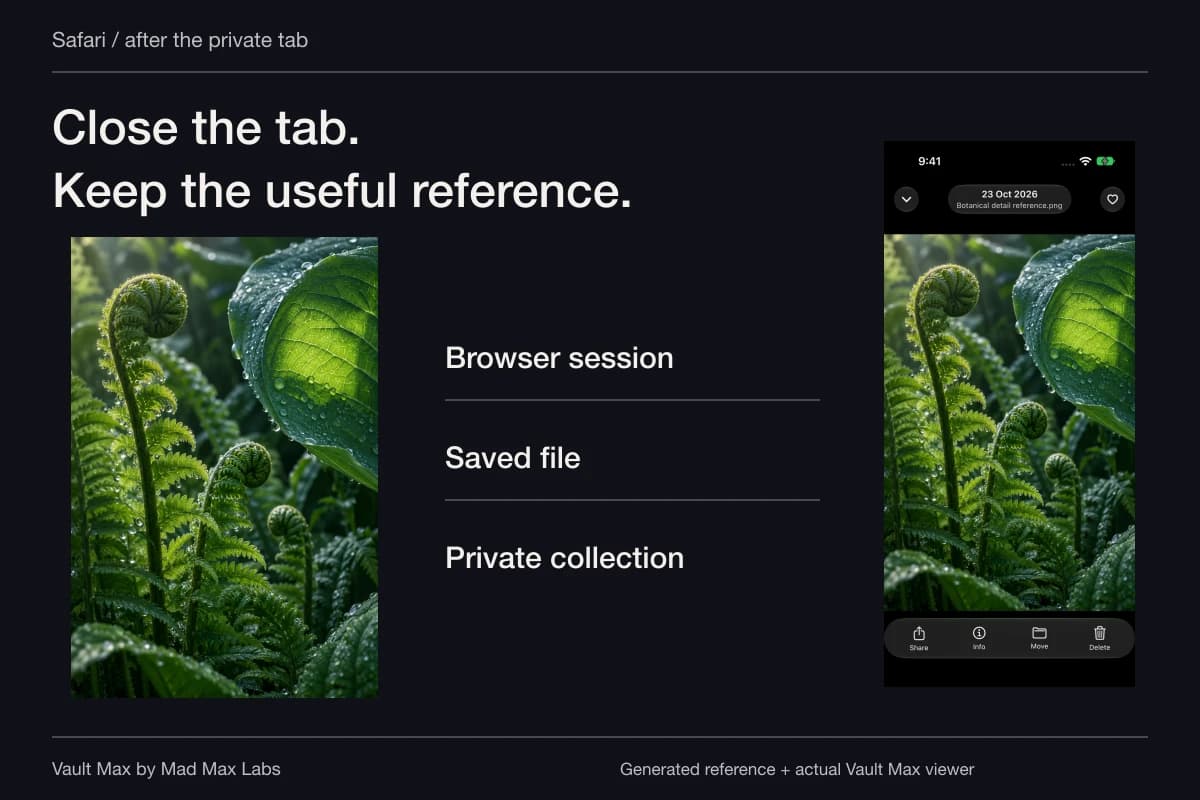
Good filing also reduces unnecessary copying. A credential you can use through its intended sign-in interface does not need to become a camera-roll screenshot. A project explanation you can write directly in an encrypted note does not need a chain of temporary message drafts.
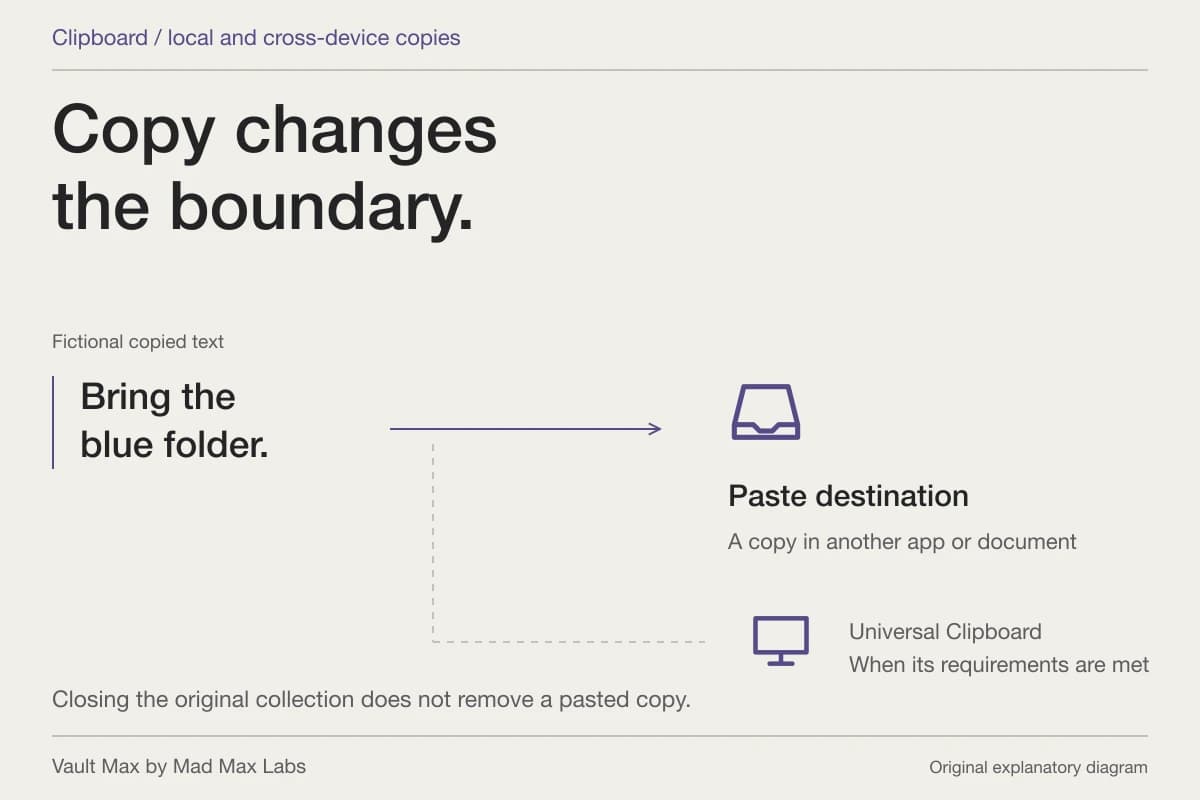
When you intentionally copy text, inspect the destination. A pasted document or message can keep its own copy after the clipboard changes. The clipboard guide follows that process, including nearby-device copying through Universal Clipboard.
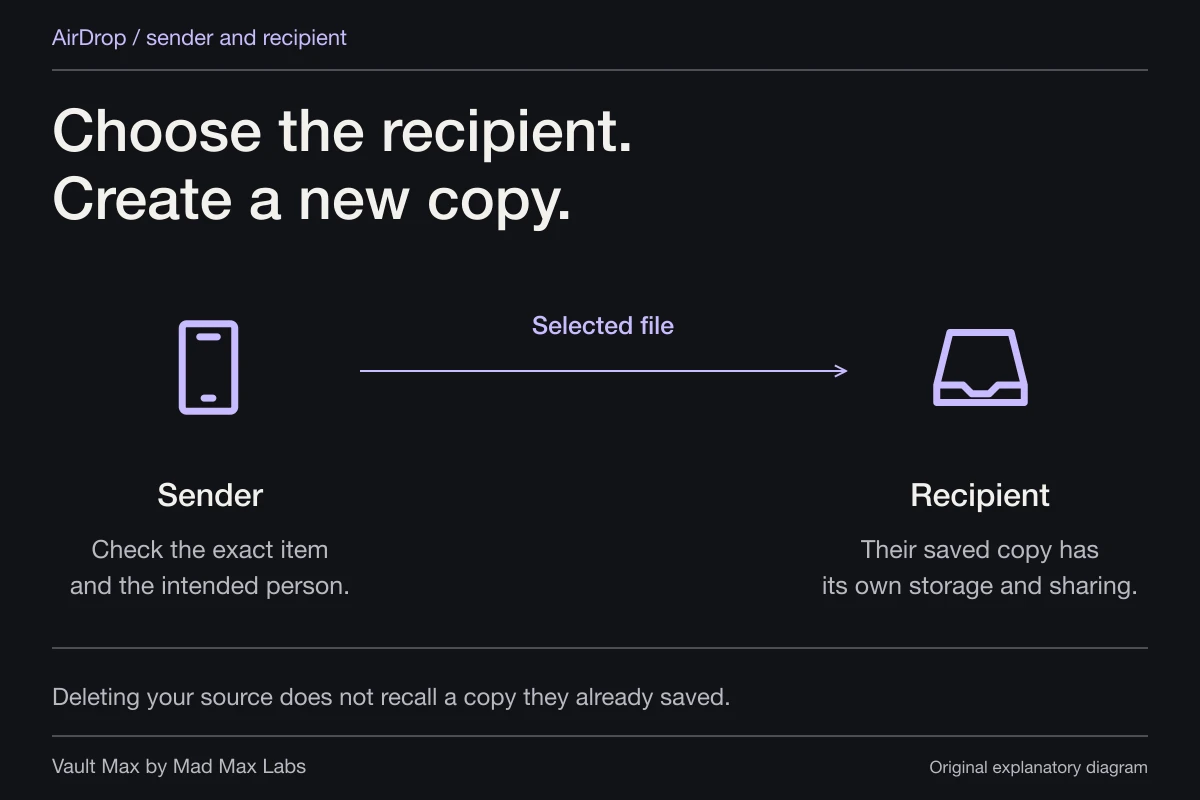
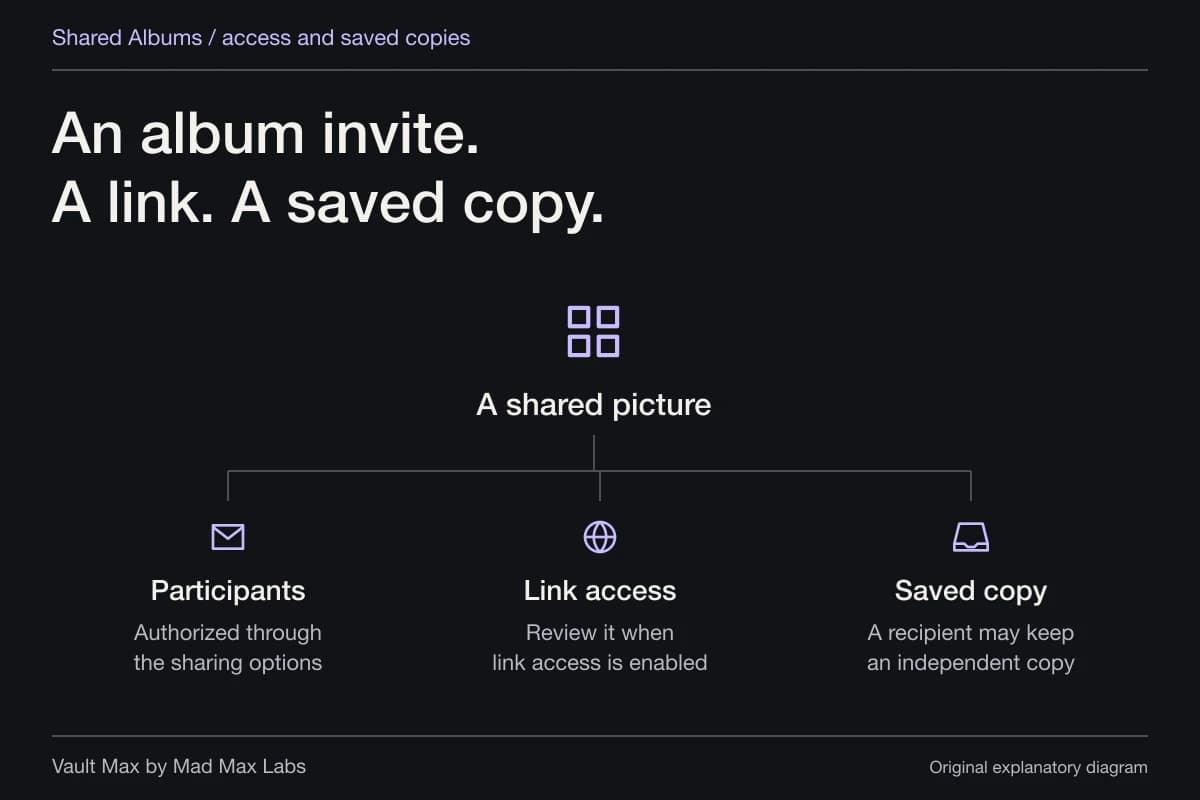
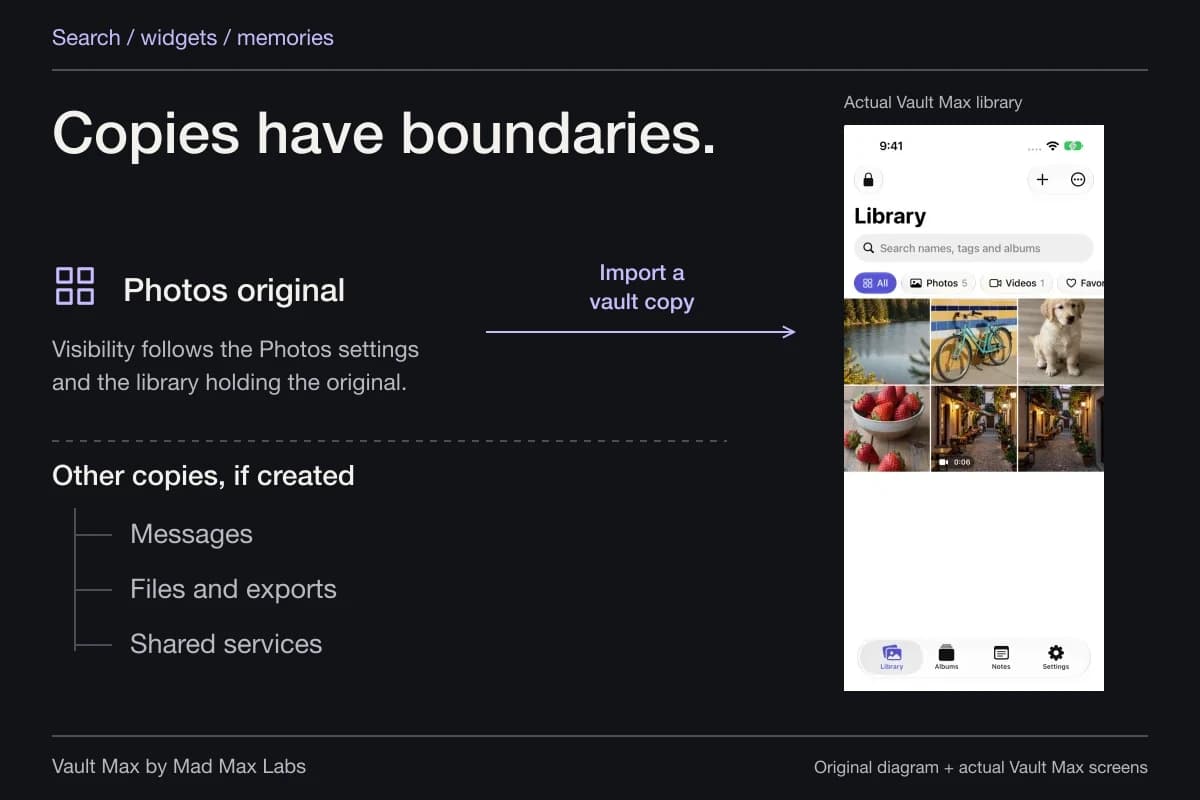
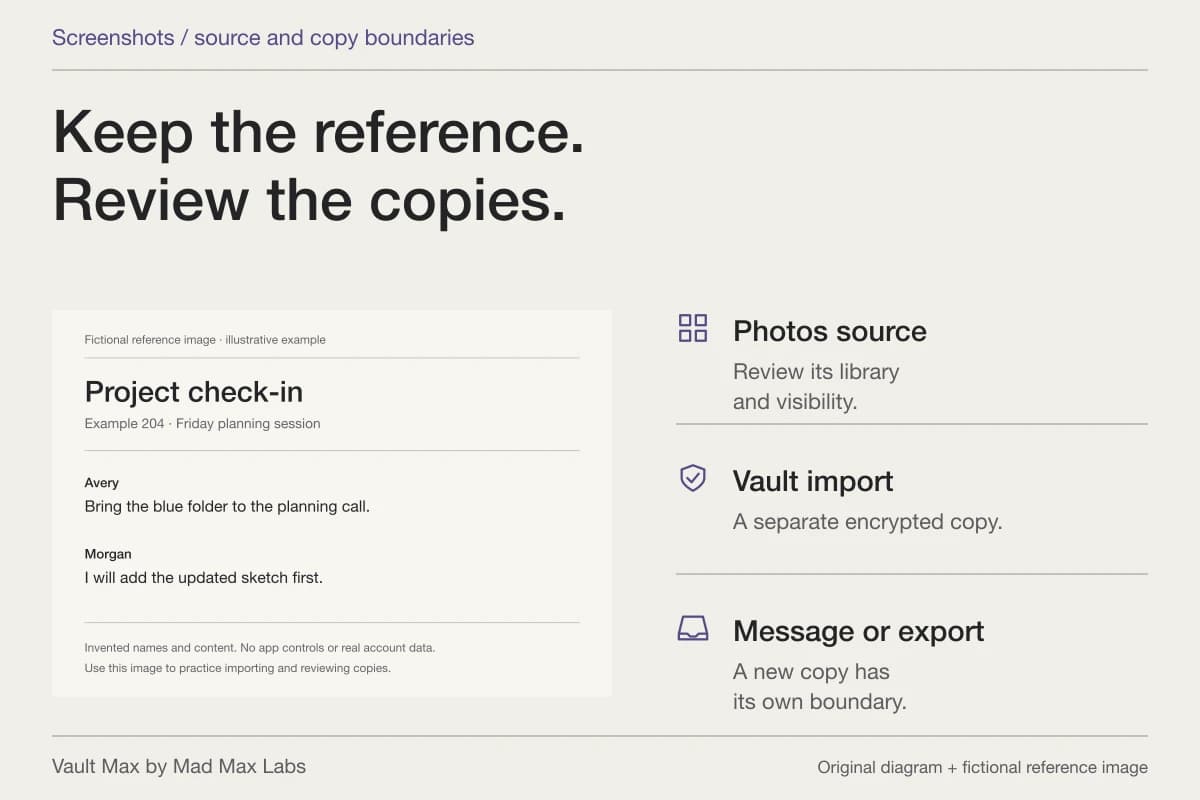
An ordinary export of a photograph or document also creates a usable file outside the vault. Review that destination and recipient deliberately. The private collection can remain well organized while a chosen outside copy follows another app's storage and sharing behavior.
- Keep supported sign-in details in the credential manager you choose.
- Open the actual photograph or reference document in the private collection.
- Use a useful note title, save it and reopen the result.
- Know where the archive and its password remain accessible.
- Lock the vault after use and review intentional outside copies separately.
Tap a box as you go. Checks reset when you leave this page.
A good setup lets you answer two questions quickly: “How do I sign in?” and “Where did I keep the private material?” Vault Max gives the second question a useful local answer, alongside the credential tools you already use.
Common questions
Is iCloud Keychain the same as a photo vault?
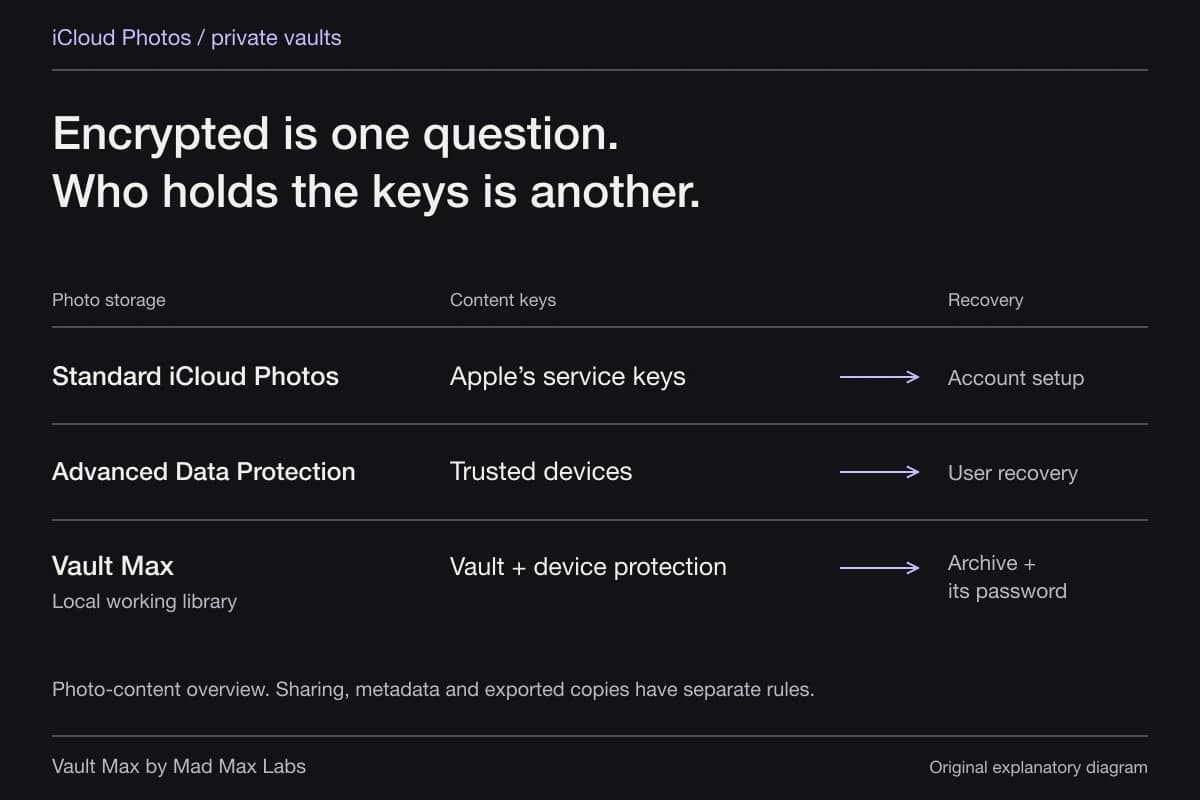
iCloud Keychain keeps supported credentials available across approved devices. Apple's Passwords app helps manage those credentials. A photo vault organizes and protects a collection of media, files and writing. You can use both for their respective tasks.
Can I keep written context with photos in Vault Max?
Yes. Vault Max includes encrypted title-and-body notes with explicit saving and reopening. Notes are included in encrypted archives and do not count against the free media/document allowance.
Should a vault's only recovery password live inside that vault?
Keep a usable recovery route independently available. A password you can reach only after unlocking a lost or inaccessible collection cannot help you open its backup. Choose an appropriate password manager or another independent recovery arrangement.
Continue reading
More guides
Practical tips for your private library. Swipe or scroll to choose your next guide.
74 guides to explore