
Privacy in practice
Does CarPlay show private photos? Check the actual route
Check CarPlay widgets, supported parked video, message announcements and car connections before a trip. Give private photos a separate, recoverable home.
CarPlay does not automatically turn your whole Photos library into a car gallery. Pictures can still reach a display through supported features, so identify the route before changing settings. Current CarPlay includes widgets, and compatible vehicles can play AirPlay video while you are not driving. A car's separate Bluetooth or manufacturer interface deserves its own check.
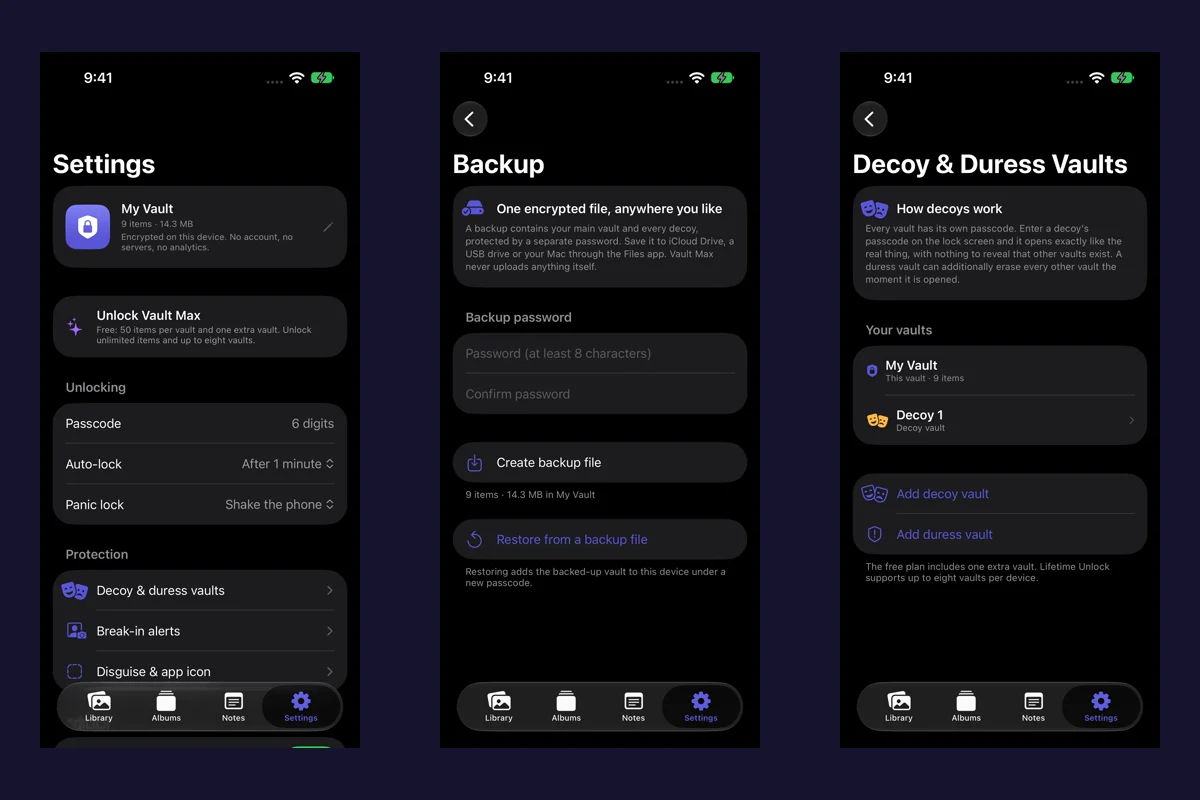
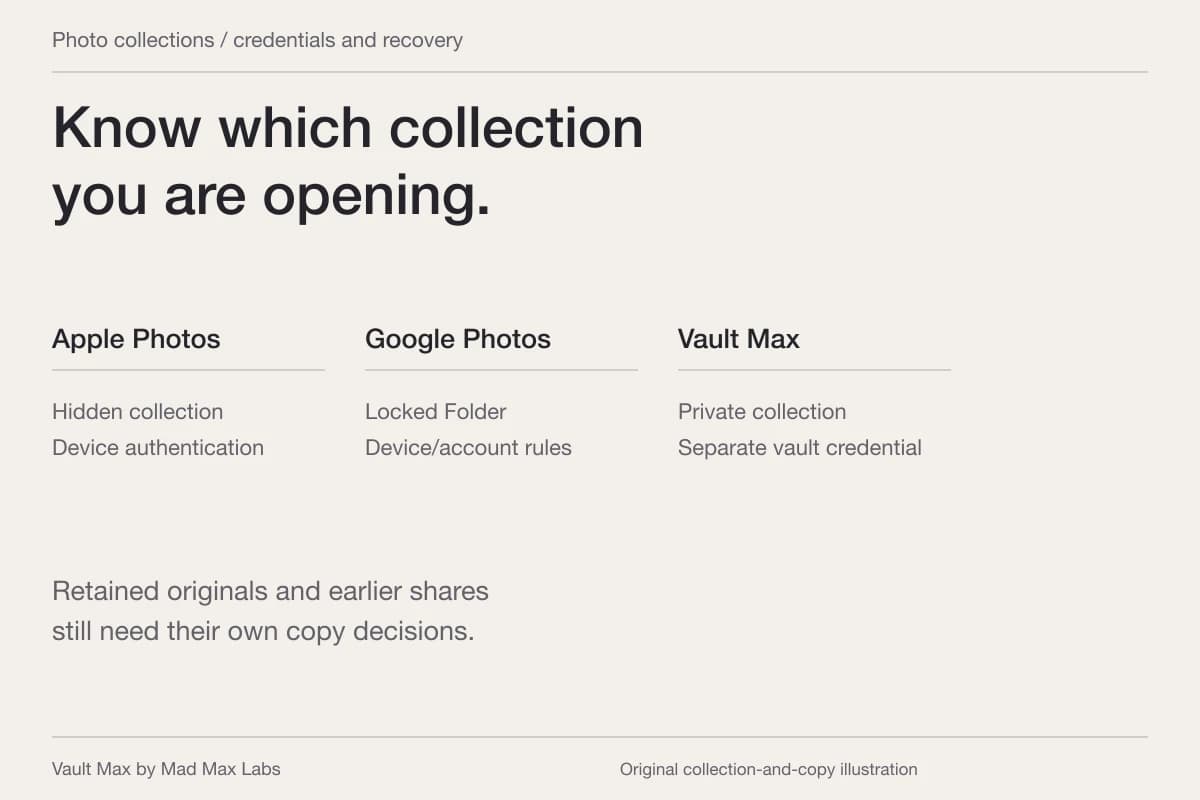
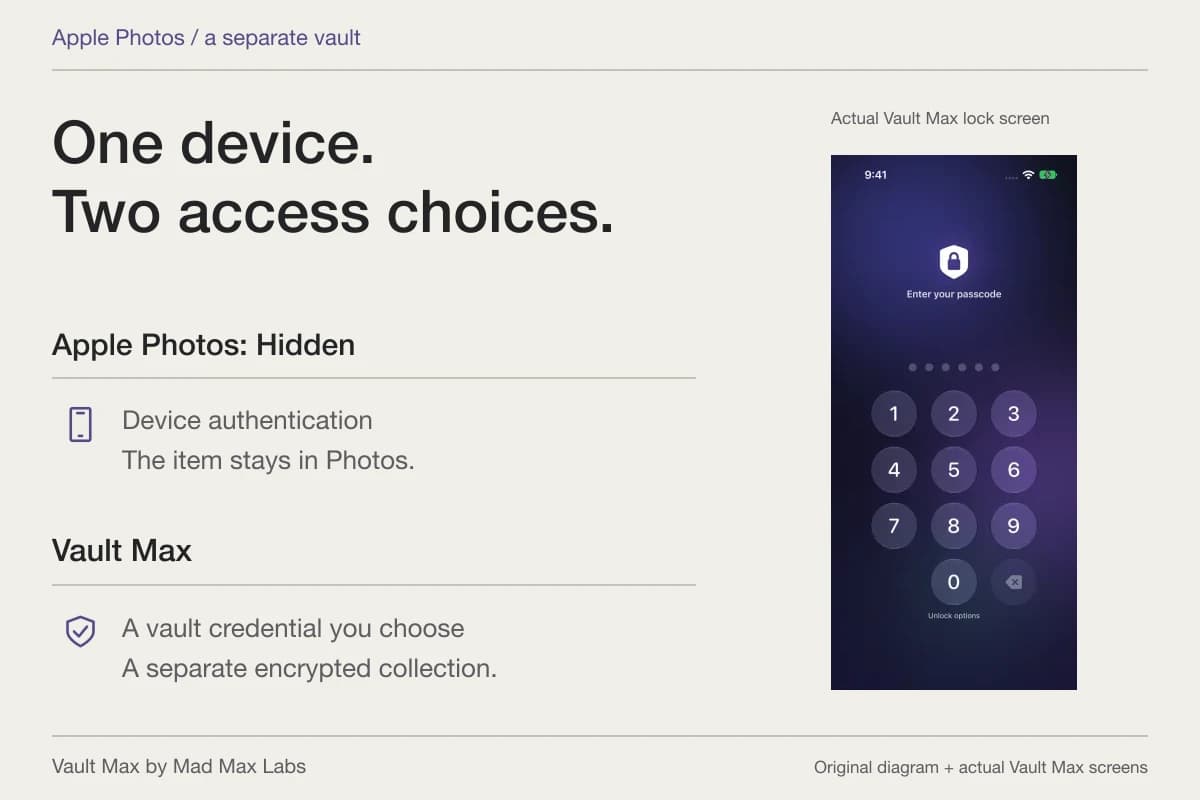
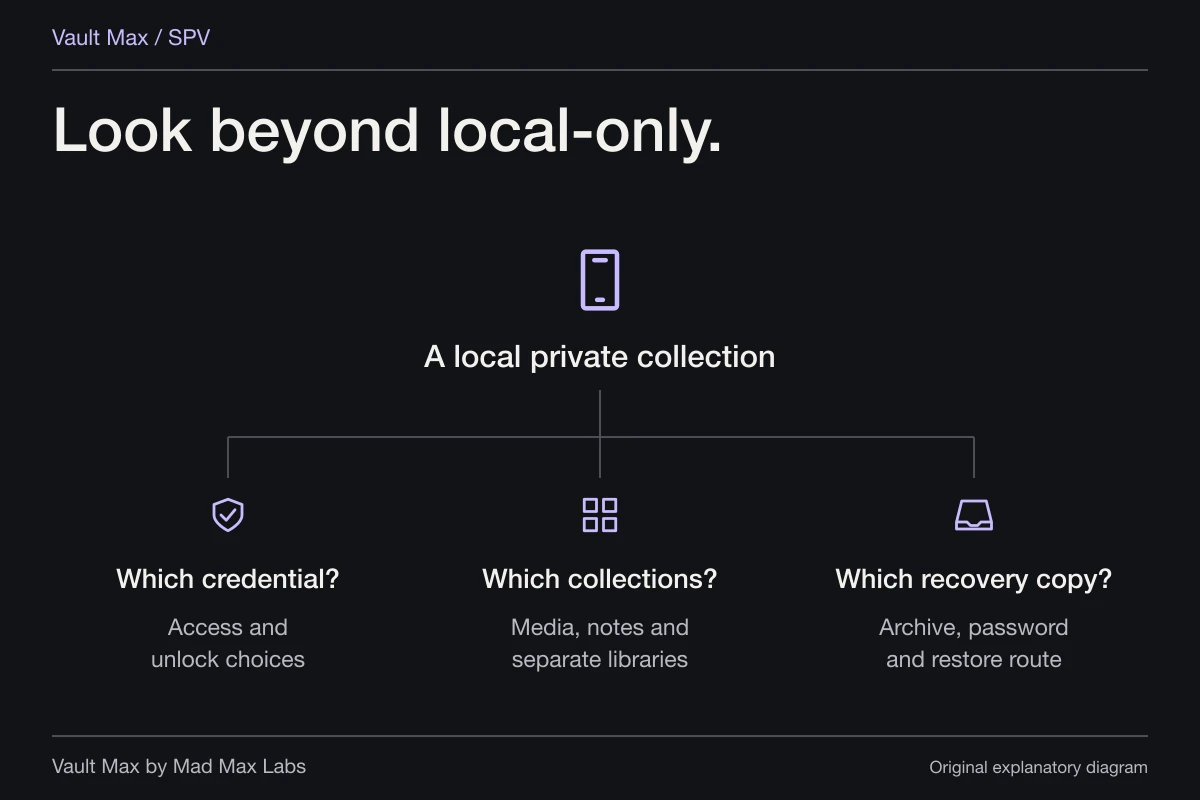
For pictures you want outside your everyday library, Vault Max gives you a local collection with a separate credential. That is a useful storage choice before a journey. The car's display settings and any media you deliberately send elsewhere still need their own decisions.
First, identify what was actually on the screen
If an unexpected image appeared, park before investigating. Note which screen or app showed it: a widget, a playing video, a contact image, an album cover or a manufacturer page. Those are different starting points. A familiar face on a calling screen does not establish that someone opened your private photo collection.
Apple's CarPlay introduction describes supported apps for navigation, calls, messages and media. Only supported apps appear in its app interface. That distinction helps you investigate a specific picture without assuming the car has copied everything on the phone.
It also matters which phone connected. In a family car, the active profile or playback session may belong to another person. Confirm the device and connection before removing useful settings from the wrong phone. Record the relevant app name rather than taking another screenshot of the private image merely to remember the problem.
Identify the source while parked.
- Widgets
- This car’s widget selection
Review configured widgets, Smart Rotate and suggestions. Availability depends on the display.
- Parked video
- A deliberately selected playback destination
Supported AirPlay video in a compatible vehicle, while not driving. Inspect the playing app’s destination.
- Announcements
- Messages read aloud
Check Siri’s announcement controls, even when no private picture is visible.
- Vehicle interface
- The manufacturer’s own system
Review its profile, pairing and retained information using the vehicle’s instructions.
A private vault controls its own collection. It does not administer the car or recall media you deliberately exported.
Review the widgets for this particular car
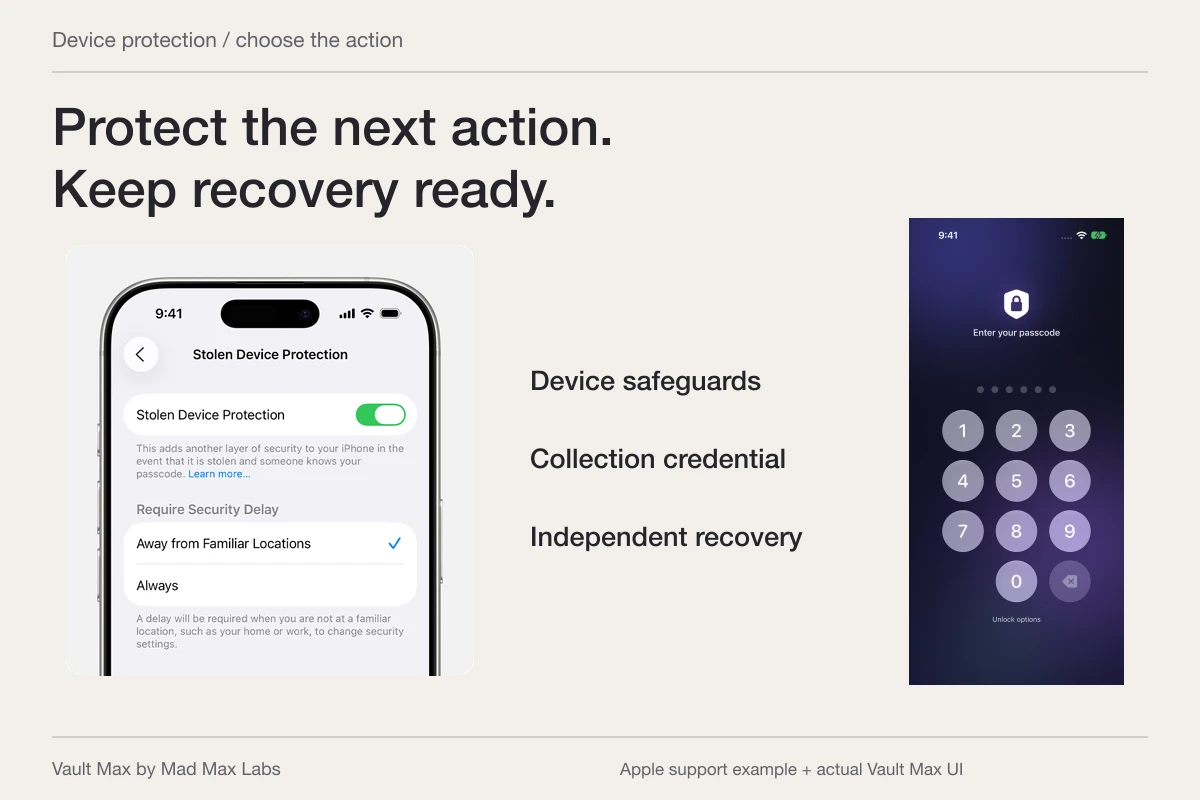
Apple's iOS27 widget instructions put the controls under Settings → General → CarPlay → your car → Widgets. Make changes while you are not driving. Review the actual widgets, remove ones you do not want, and inspect Smart Rotate and Widget Suggestions.
The available arrangement depends on the vehicle's display. Do not assume a screenshot from a different car establishes which widgets yours supports. Apple's documentation of the widget system also does not establish that a particular Photos widget is available on every vehicle.
Read a widget's purpose as well as its name. Ask what information it presents, which collection or account supplies that information, and whether a suggested widget may appear without being the one you last viewed. Remove an unnecessary widget first; a broad library cleanup is a poor substitute for understanding the display control that caused the concern.
When you reconnect, inspect the relevant stack while parked. The useful result is an arrangement you recognize. One harmless screen check cannot prove that every future notification or third-party widget will show exactly the same content.
Check parked video and its selected destination
Current Apple guidance includes video playback with CarPlay. In a supporting vehicle, an app with AirPlay can send video to the CarPlay display when you are not driving. Apple's developer overview also describes compatible video apps and vehicle support.
If a video is involved, open the app playing it on your phone and inspect its AirPlay destination. Apple's stop procedure is to deselect the CarPlay display through that playback control. Check the result on both screens while parked. A supported video route is different from an ordinary still-photo grid, and neither should be inferred from the other's behavior.
This is why “CarPlay can never show personal media” is an unhelpful promise. The practical question is whether you selected a display-capable route and what that app is playing. Do not test it with an intimate video or confidential recording. An ordinary sample is enough to learn the destination selector.
| What you noticed | Inspect first | What the check establishes |
|---|---|---|
| A changing dashboard tile | The car's configured widgets and suggestions | Which displayed feature you have enabled |
| A video while parked | The playing app and AirPlay destination | Where that playback session is directed |
| A message read aloud | Siri's announcement controls | Whether messages are being announced |
| A picture in the car's own interface | The vehicle's profile and manufacturer instructions | Which separate system needs review |
Remember the information passengers can hear
A privacy surprise can be spoken rather than pictured. Apple documents incoming message announcements in CarPlay. Review the announcement setting on your software version and the Announce control in CarPlay. If an older settings walkthrough differs, use Settings search for the feature and consult the version selector in Apple's guide.
Decide whether announcements fit the people riding with you. A sender's name or the text of an ordinary message may be more revealing than a photo thumbnail. Keeping an attachment in a vault does not rewrite the original conversation or silence a notification from another app.
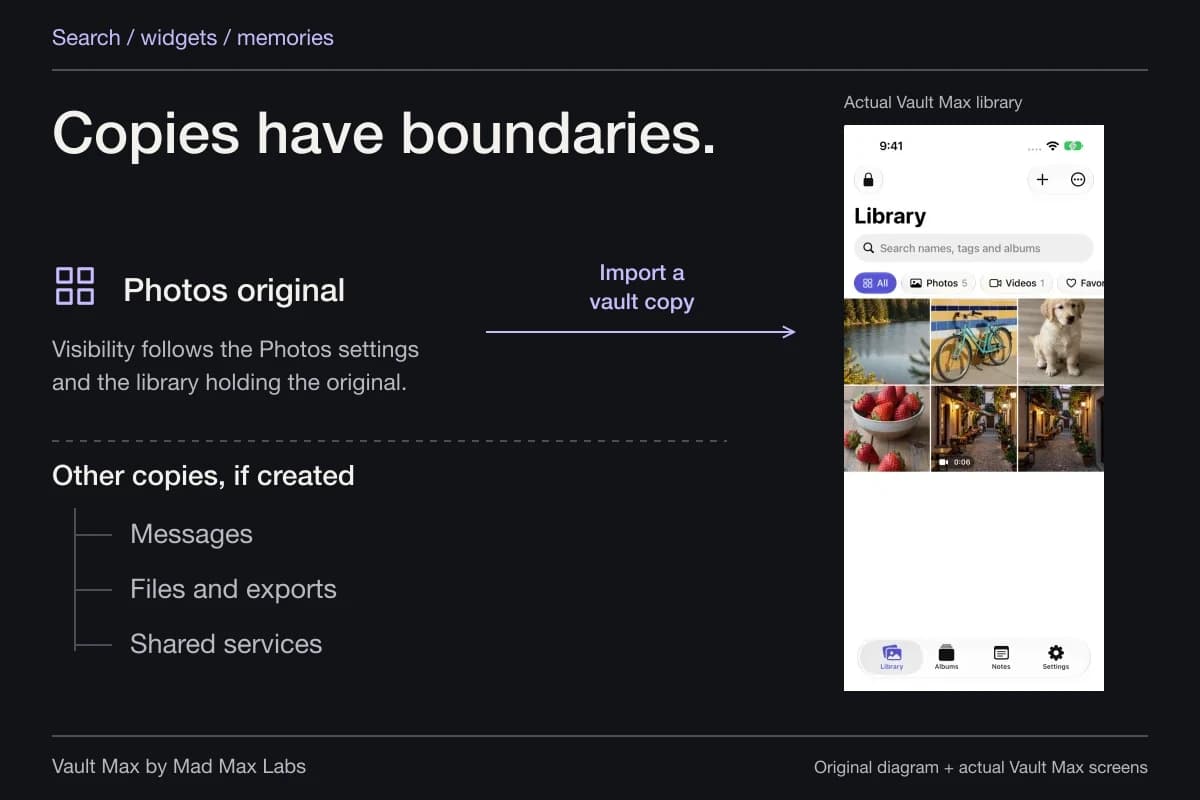
If the concern is information surfacing elsewhere on the phone, our search, widgets and Memories guide covers those separate controls. Review the feature that actually presents the information instead of expecting one switch to manage every screen and speaker.
Give private pictures a separate home before leaving
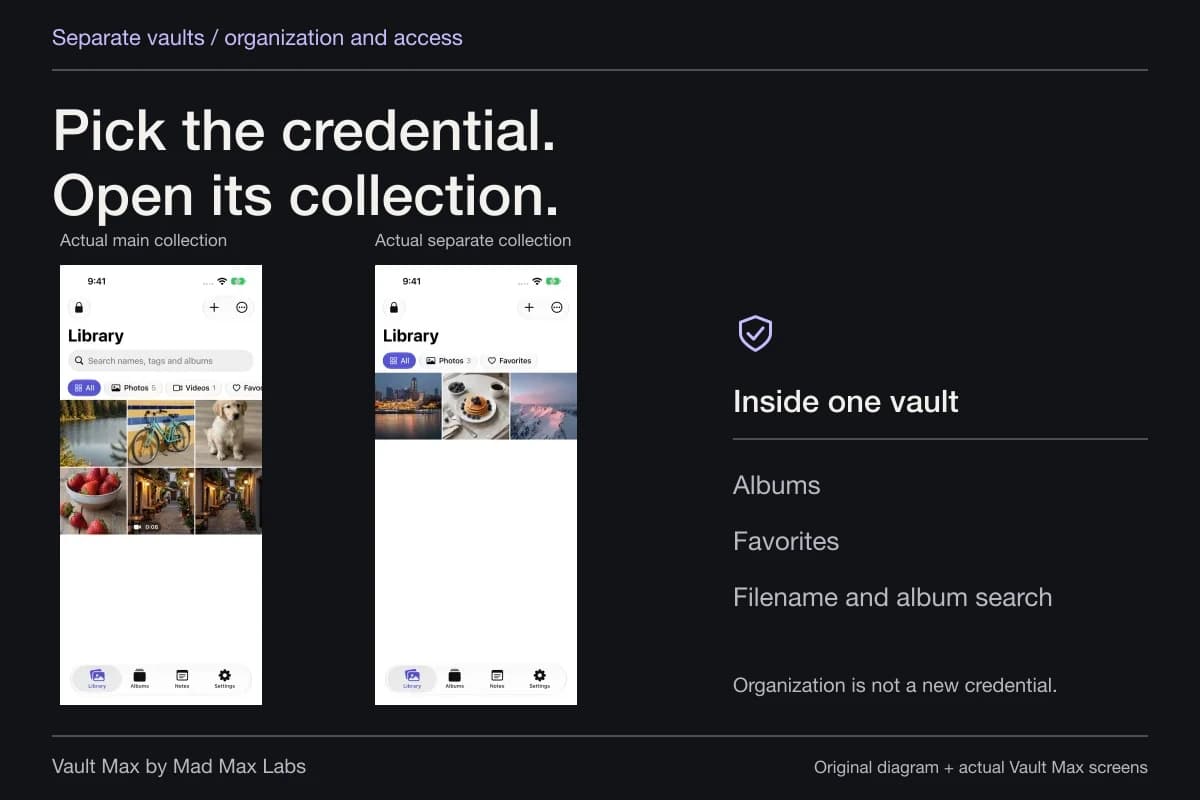
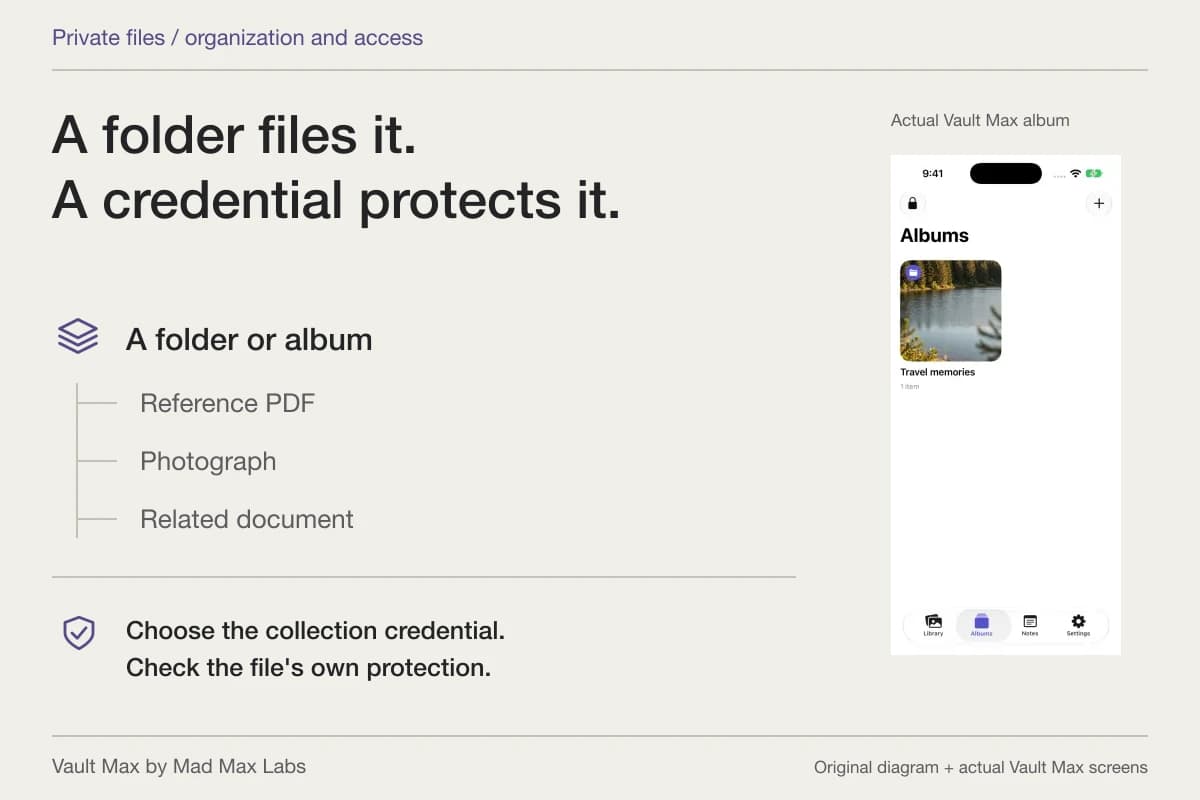
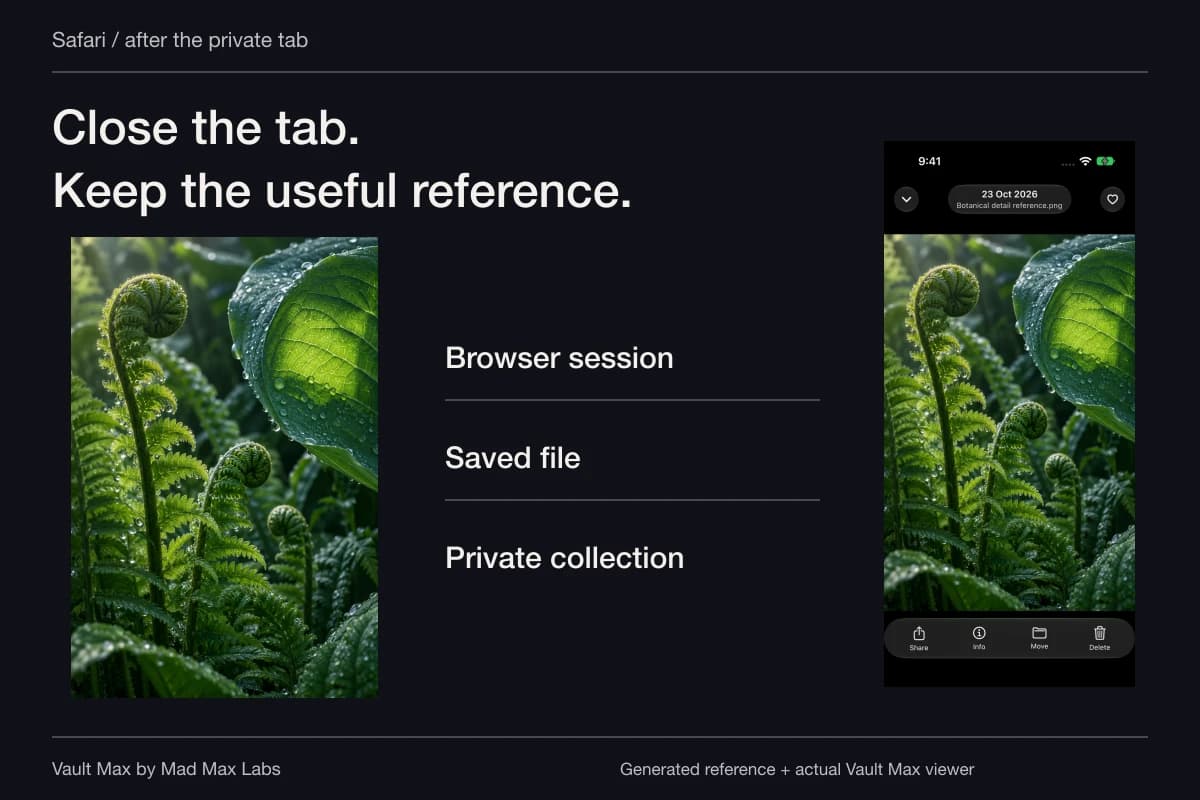
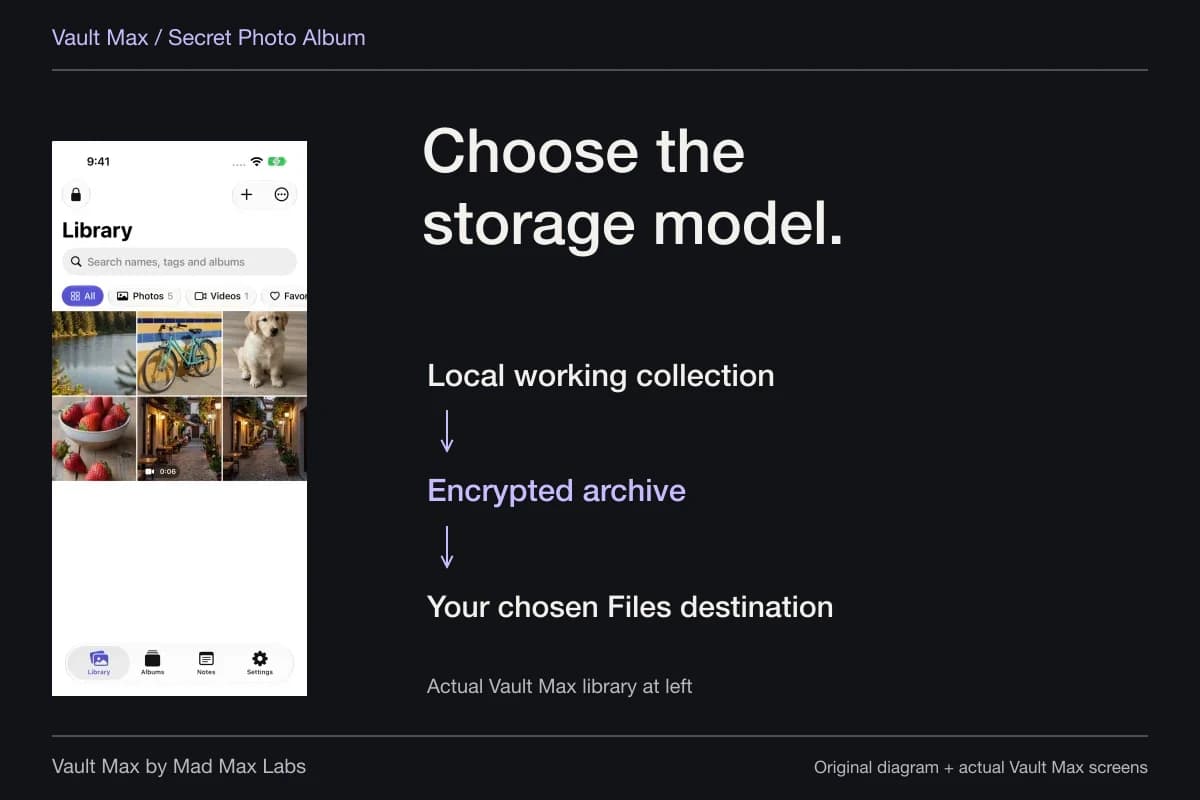
For selected photos, use Vault Max's From Photos import, wait for it to finish and open the saved item. Inspect the complete image, then organize it in a recognizable album. An album helps you find the item inside that vault; the vault credential controls access to the collection.
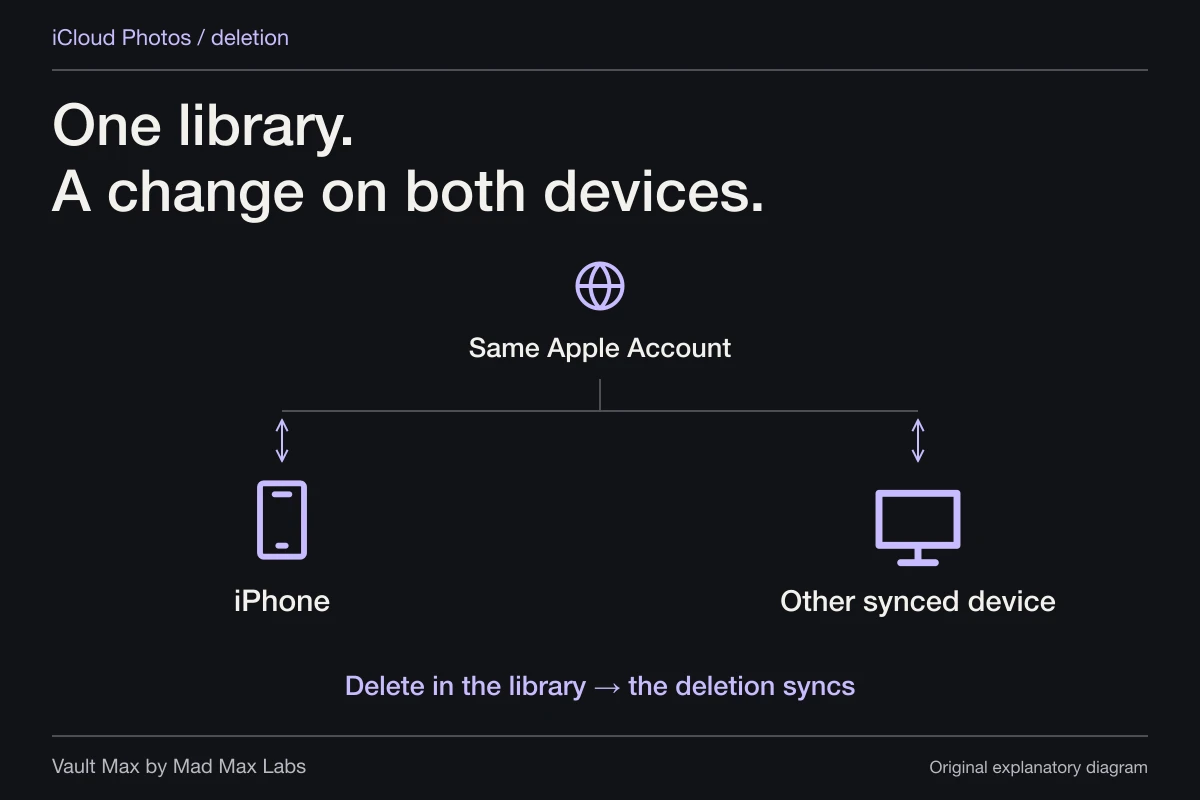
After verifying the result, decide what should happen to the Photos original. Importing creates a private copy. If you choose a separate original-deletion action, account for iCloud Photos and Recently Deleted before removing the only usable source. Earlier message attachments, exports and other people's copies require their own review.
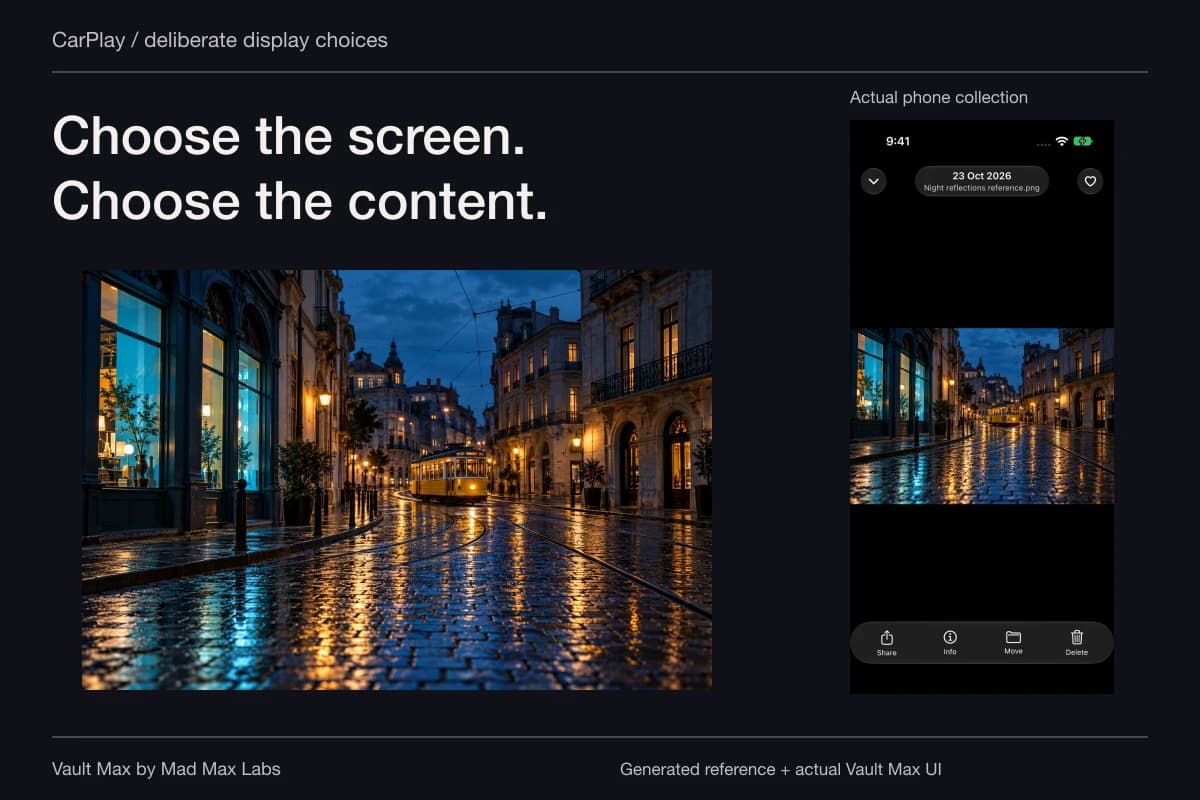
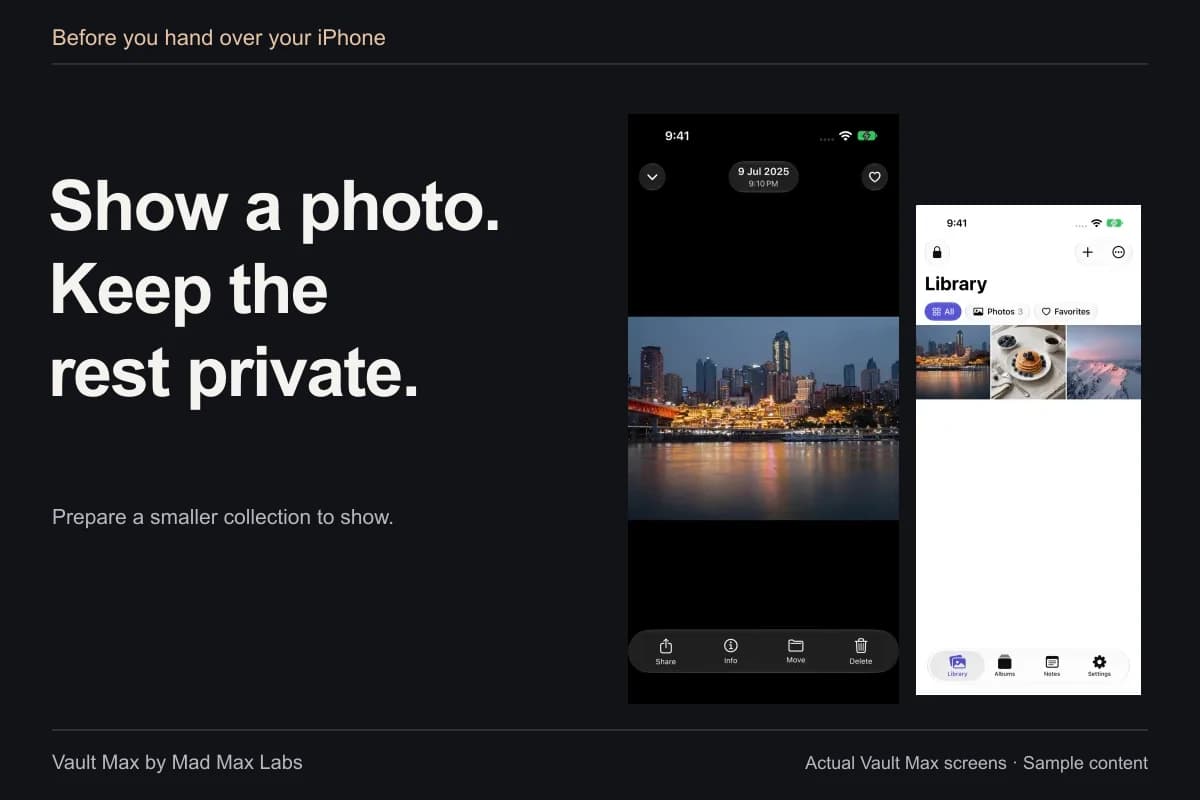
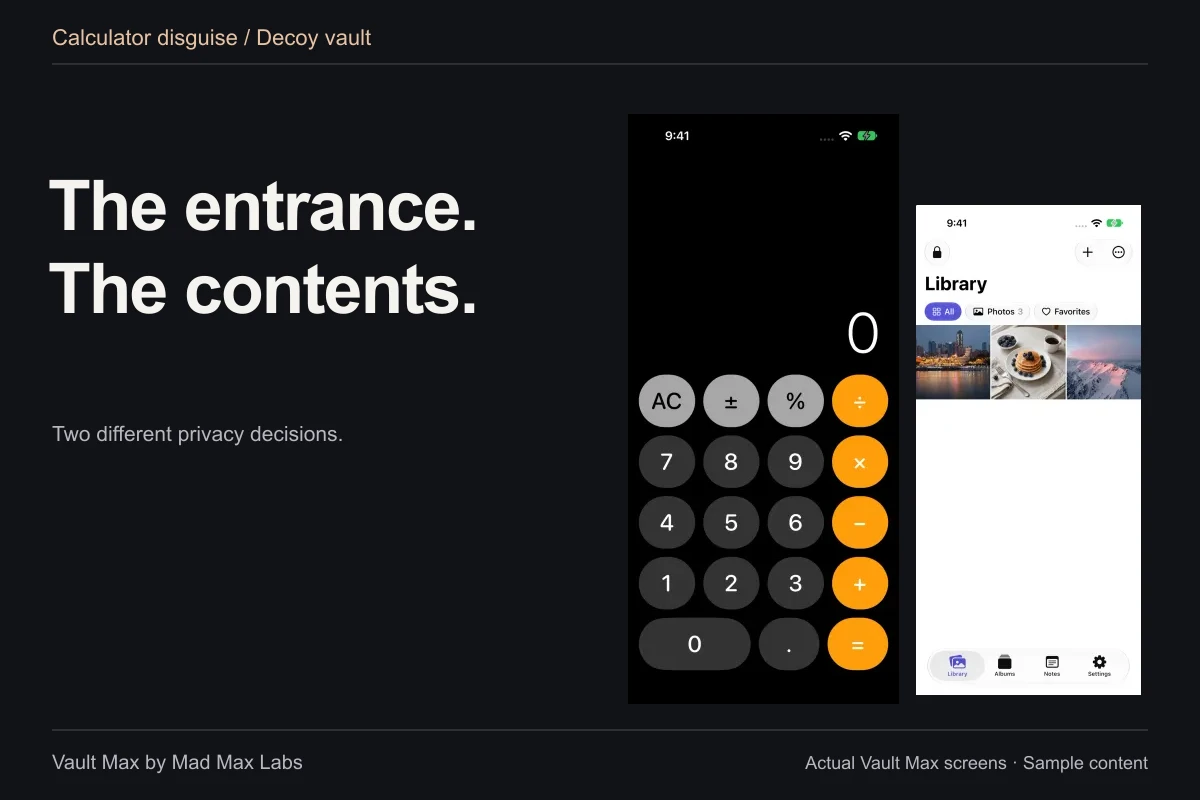
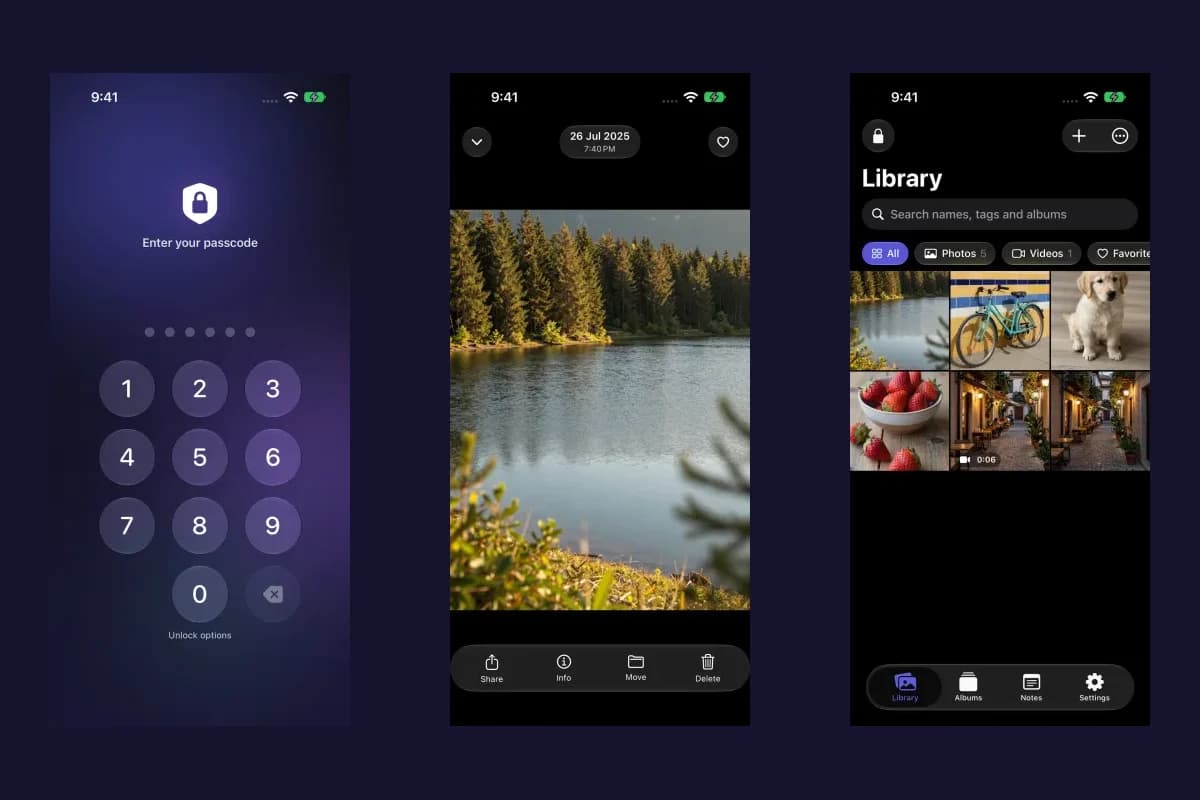
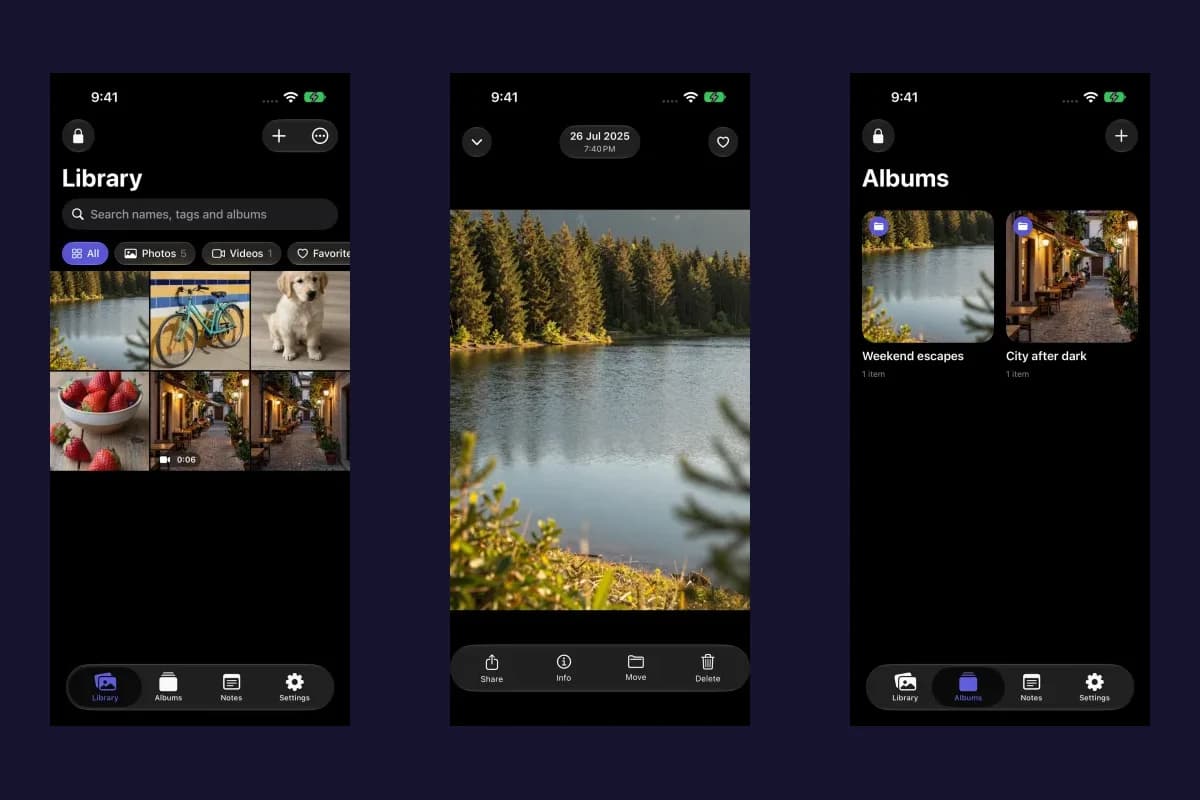
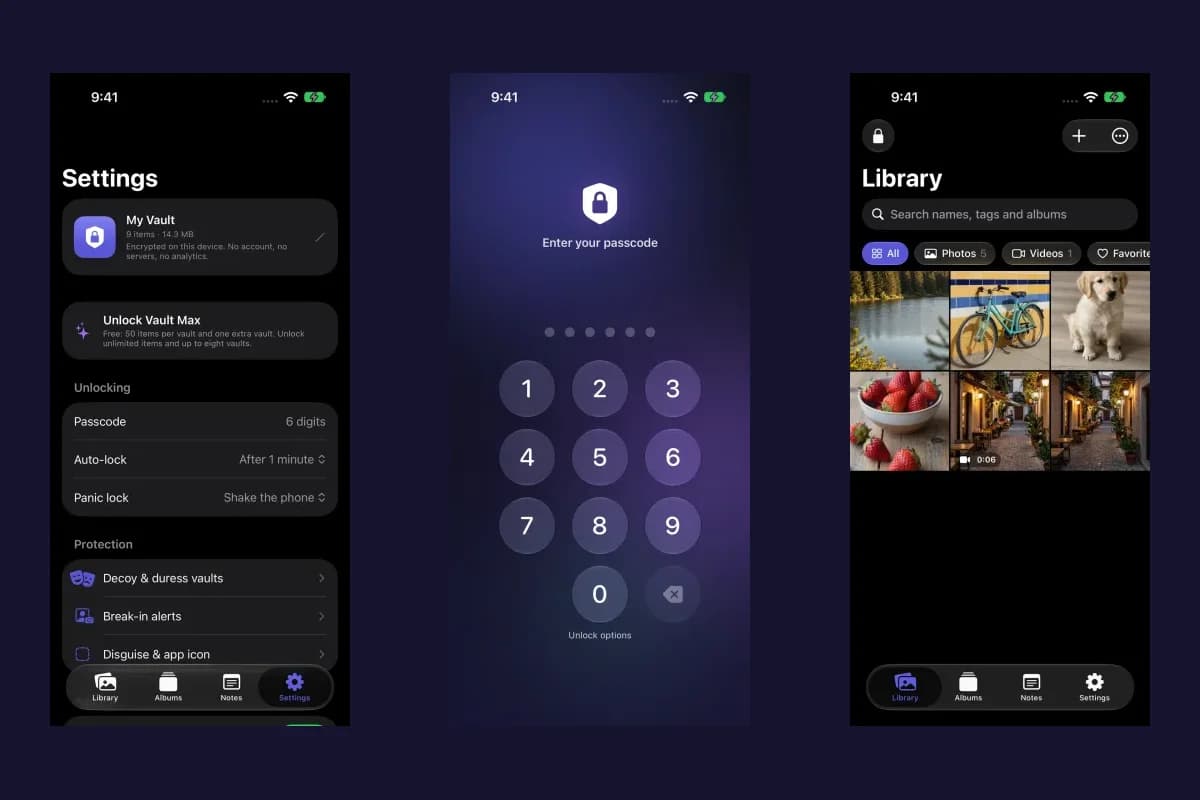
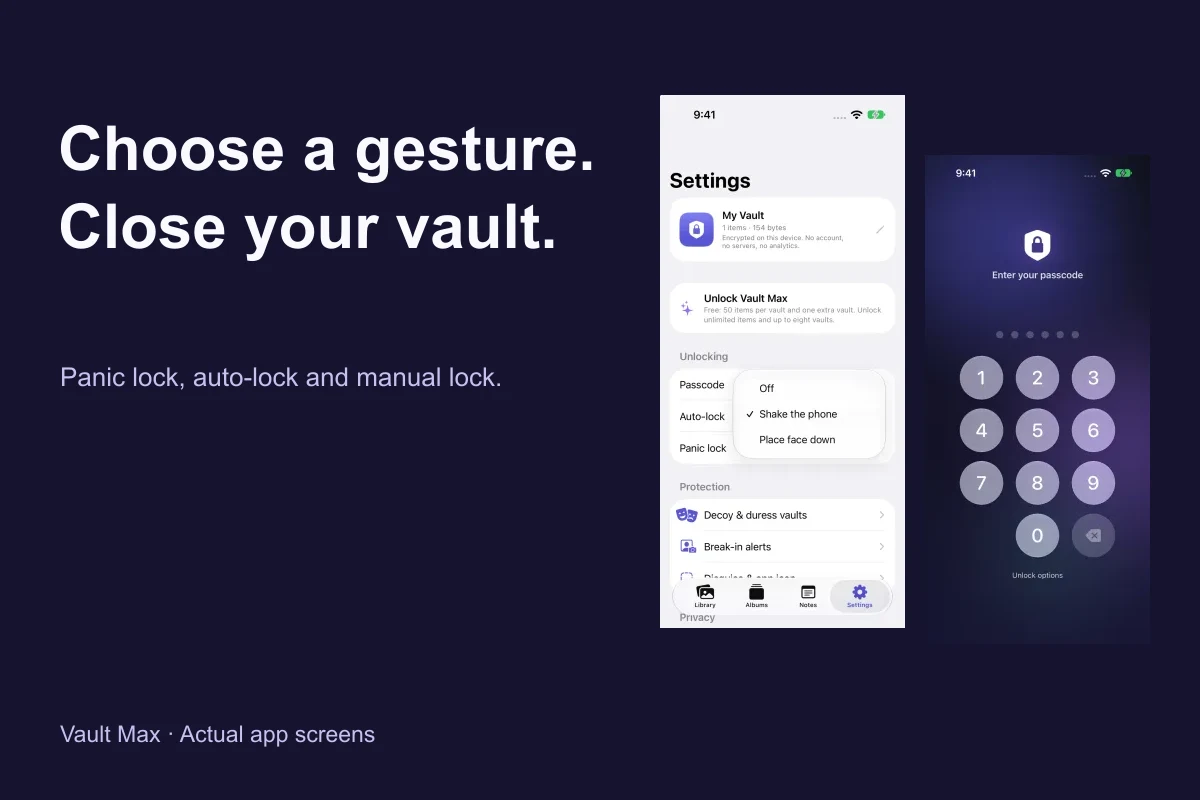
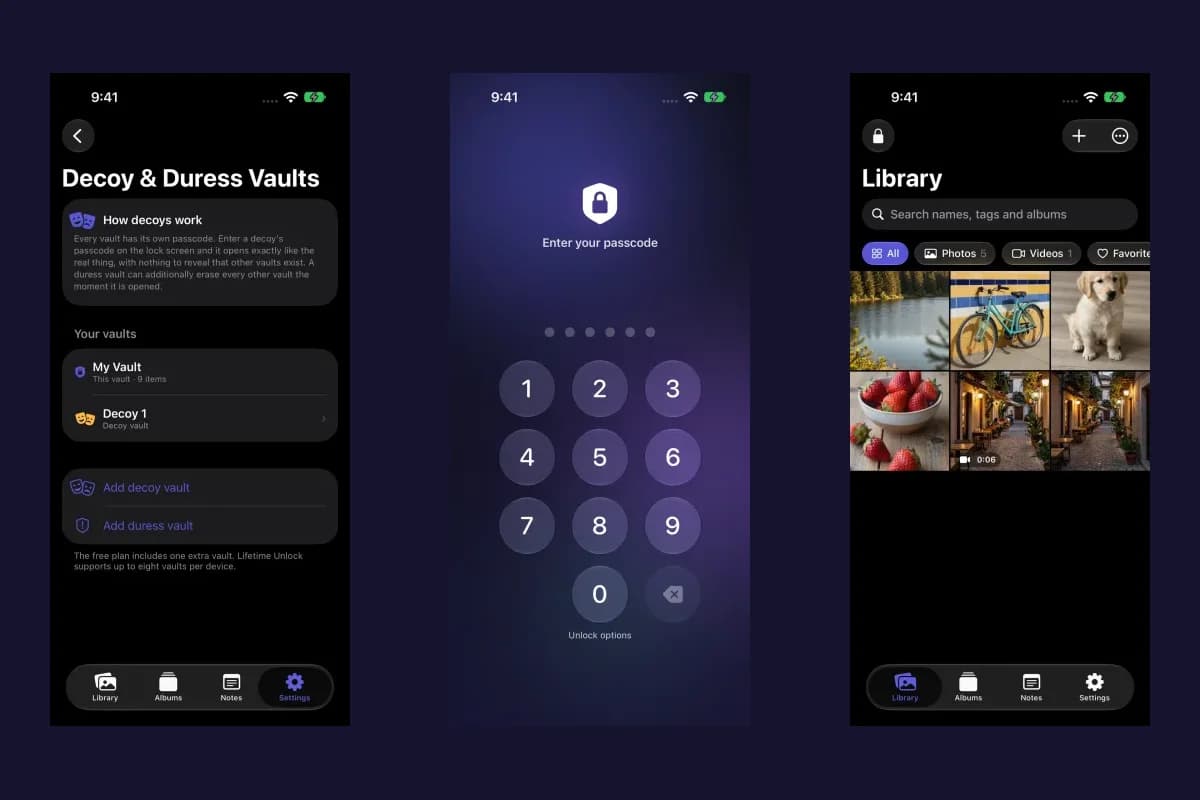
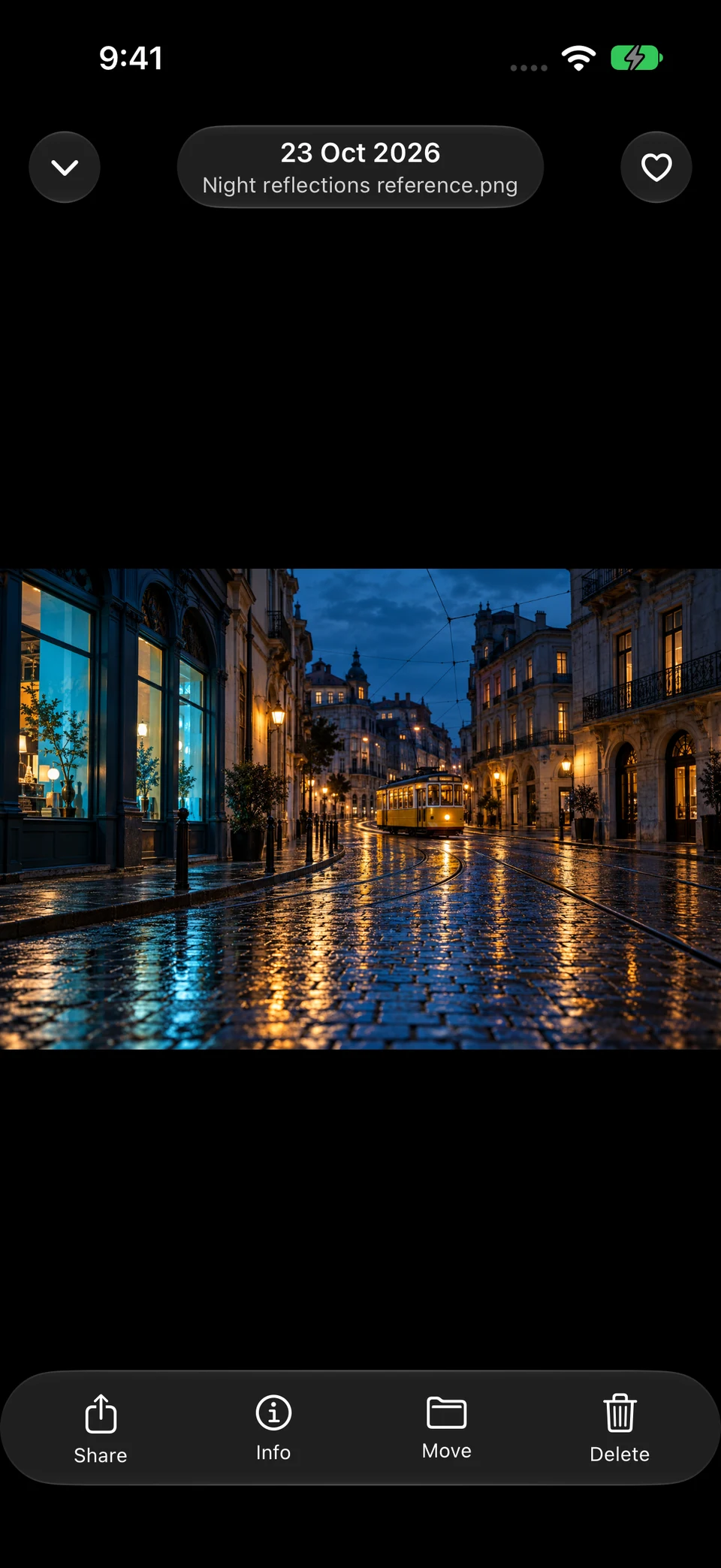
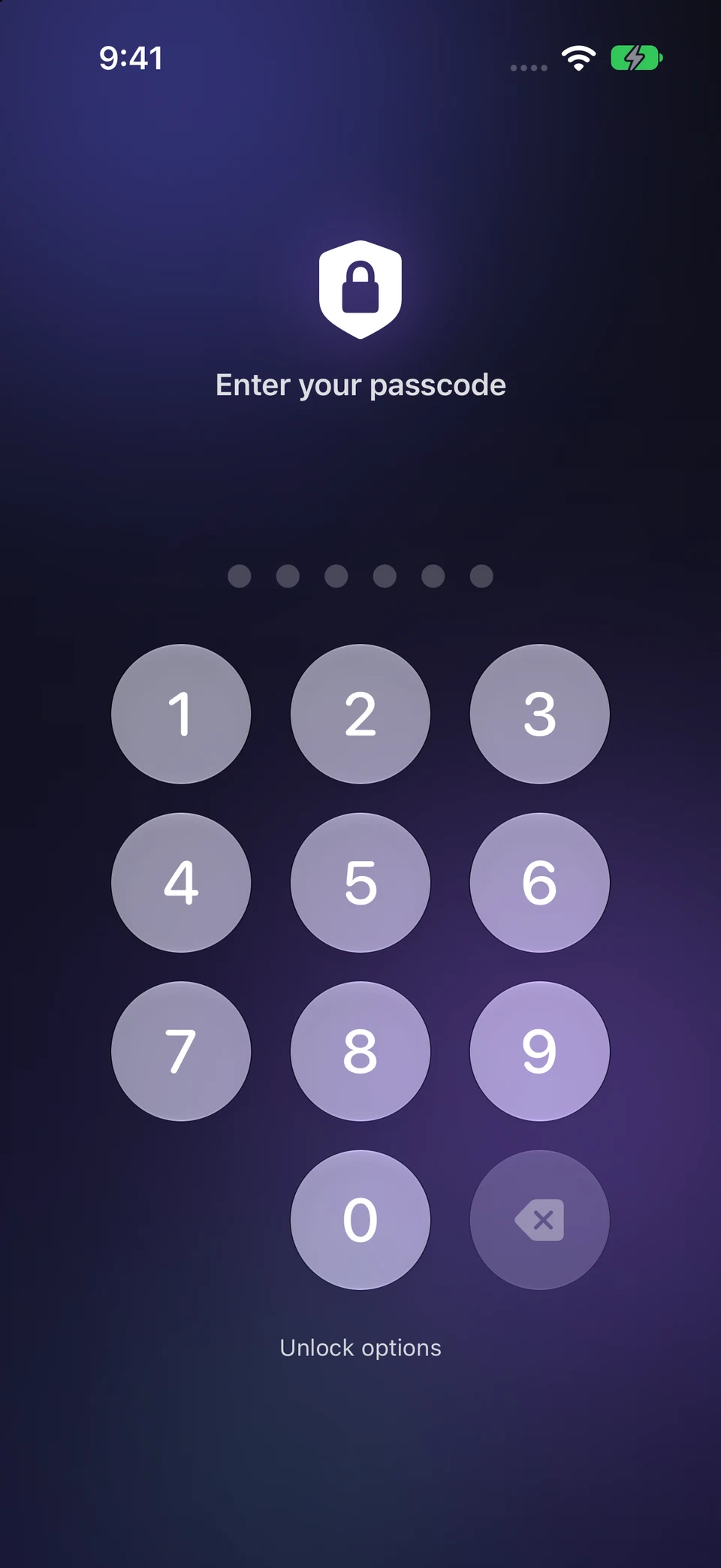
The night-city reference is generated sample content inside the actual Vault Max viewer. The second capture is the credential screen reached after manually locking. These show phone collection access; no vehicle or CarPlay output was tested.
Actual Vault Max · QA simulator, generated sample photographsInspect the chosen item
Open original image: Inspect the chosen itemClose the session
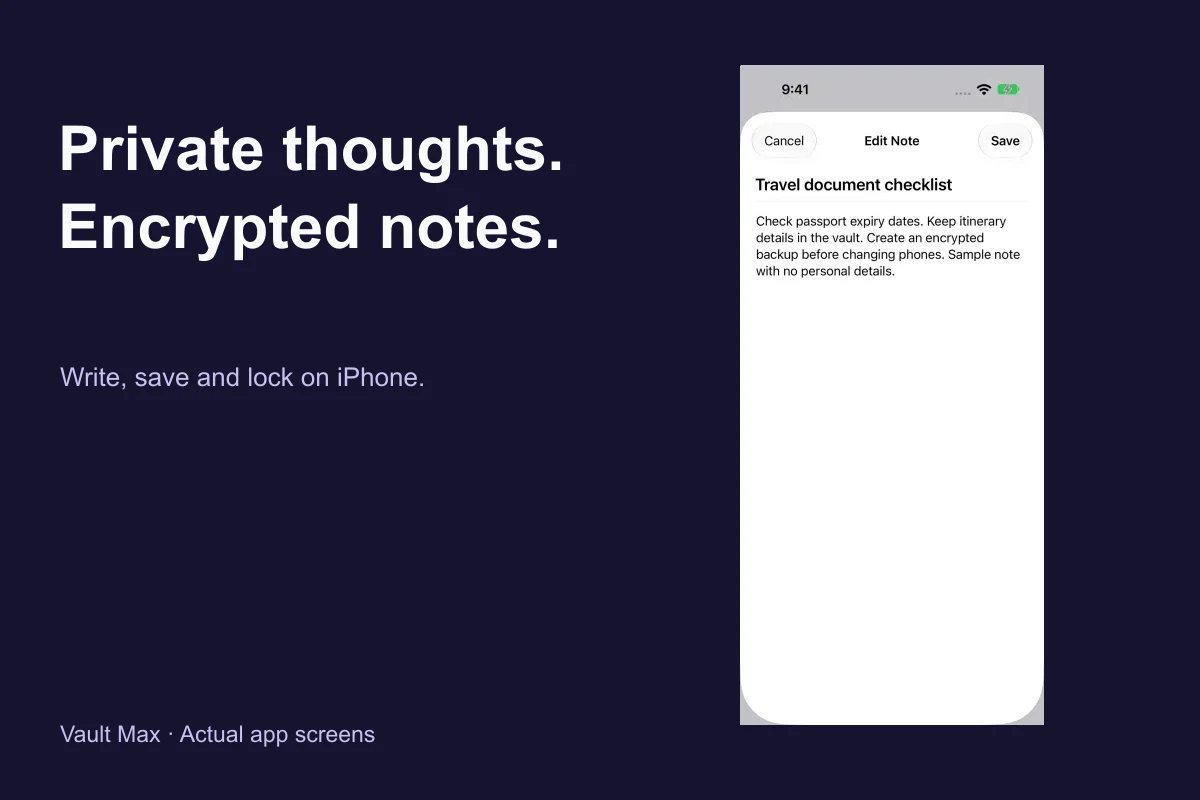
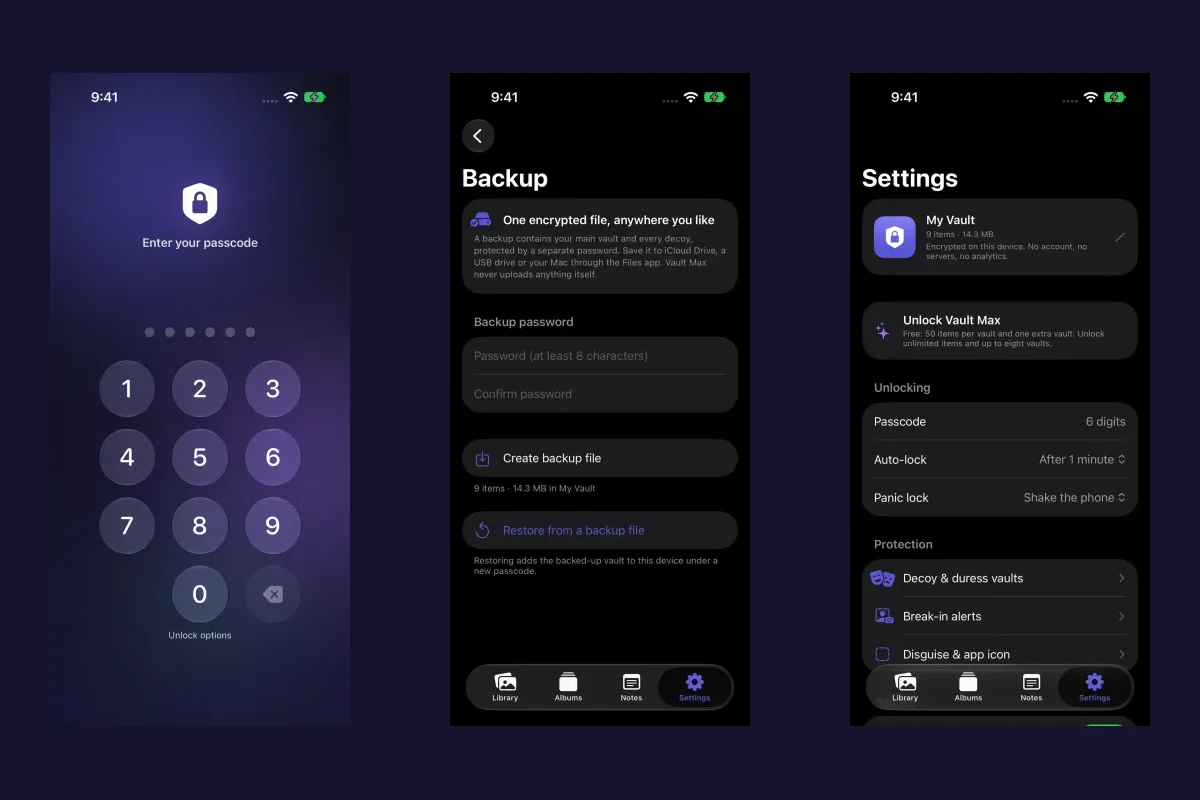
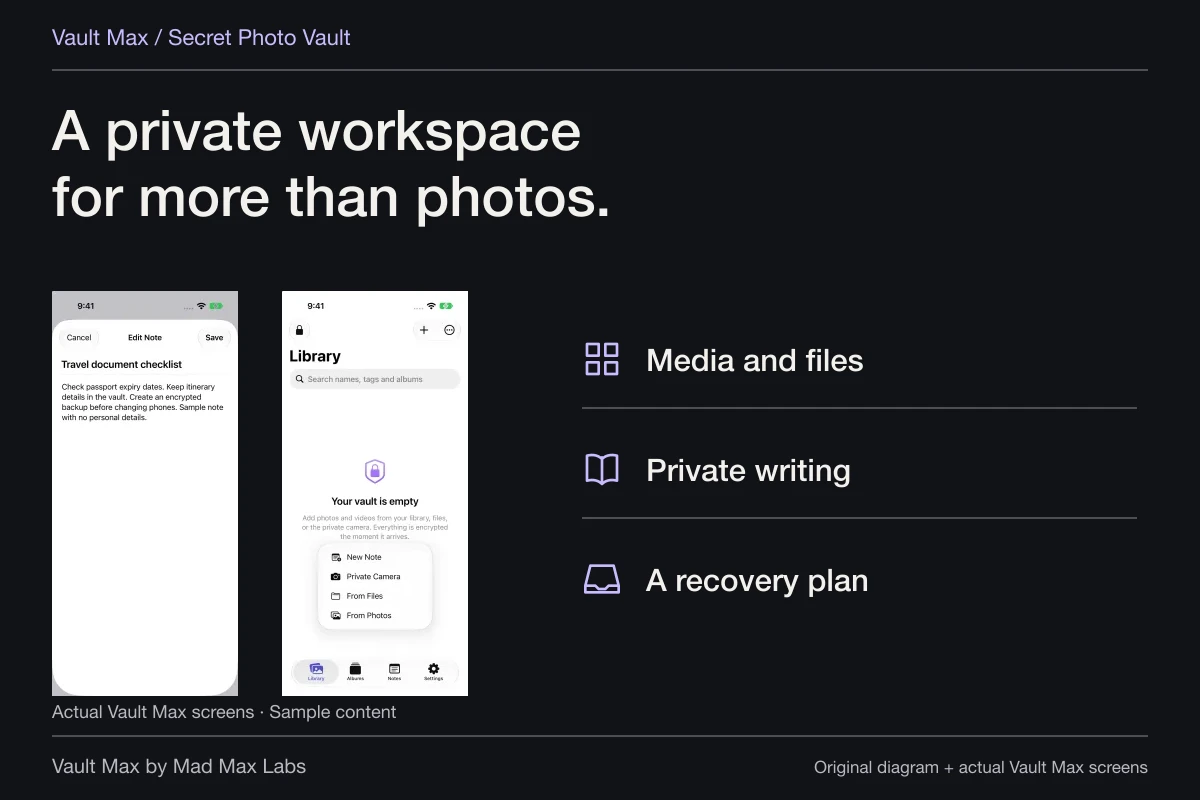
Open original image: Close the sessionMad Max Labs makes Vault Max. Its role here is the separately credentialed collection, encrypted notes for useful private context, and a recoverable archive without creating a Vault Max account. It does not administer a vehicle, recall earlier shares or promise to block media you intentionally export.
Finish the connection, then check the car's own records
Apple's CarPlay troubleshooting page includes Settings → General → CarPlay → your car → Forget This Car. Use the relevant pairing controls when a rental or borrowed-car connection is no longer wanted. Follow the vehicle manual for its separate user-profile and stored-data controls.
Unplugging a cable, ending a playback session and deleting a car profile are distinct actions. If an image remains after the phone disconnects, investigate the car's own interface and manufacturer support rather than treating that as proof it has access to a locked vault.
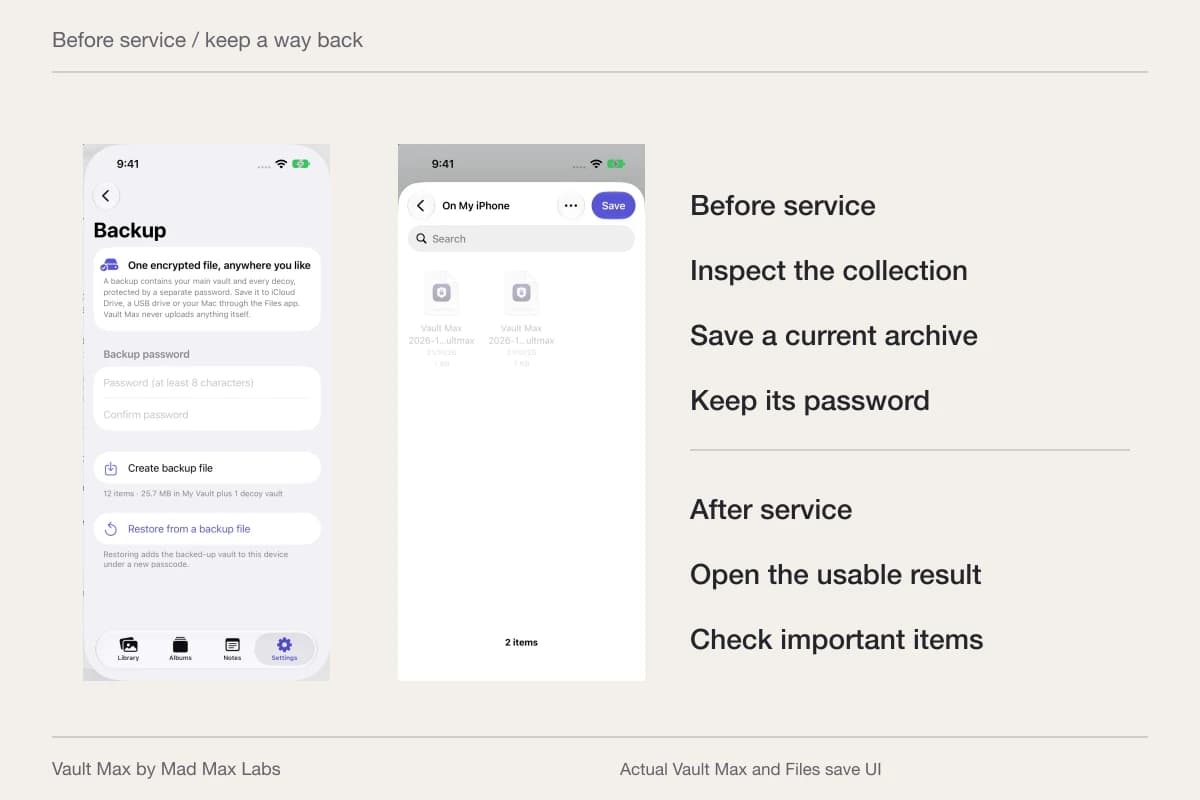
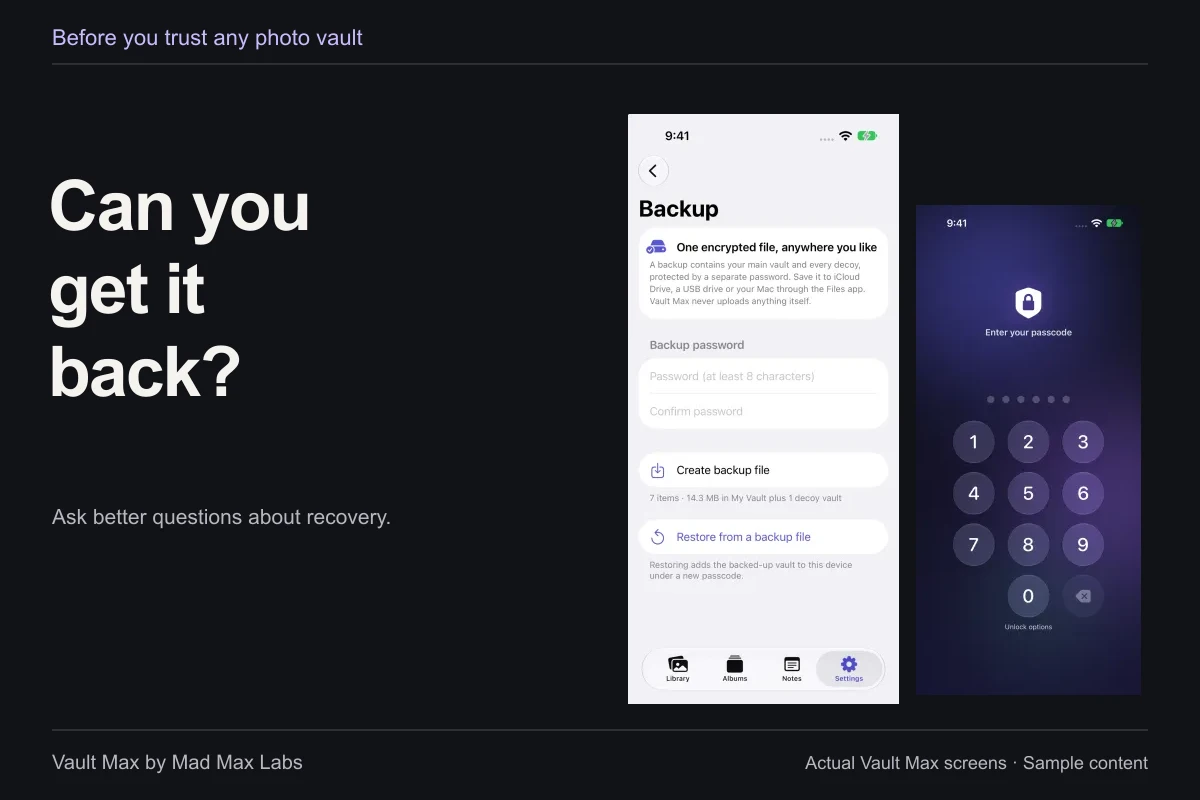
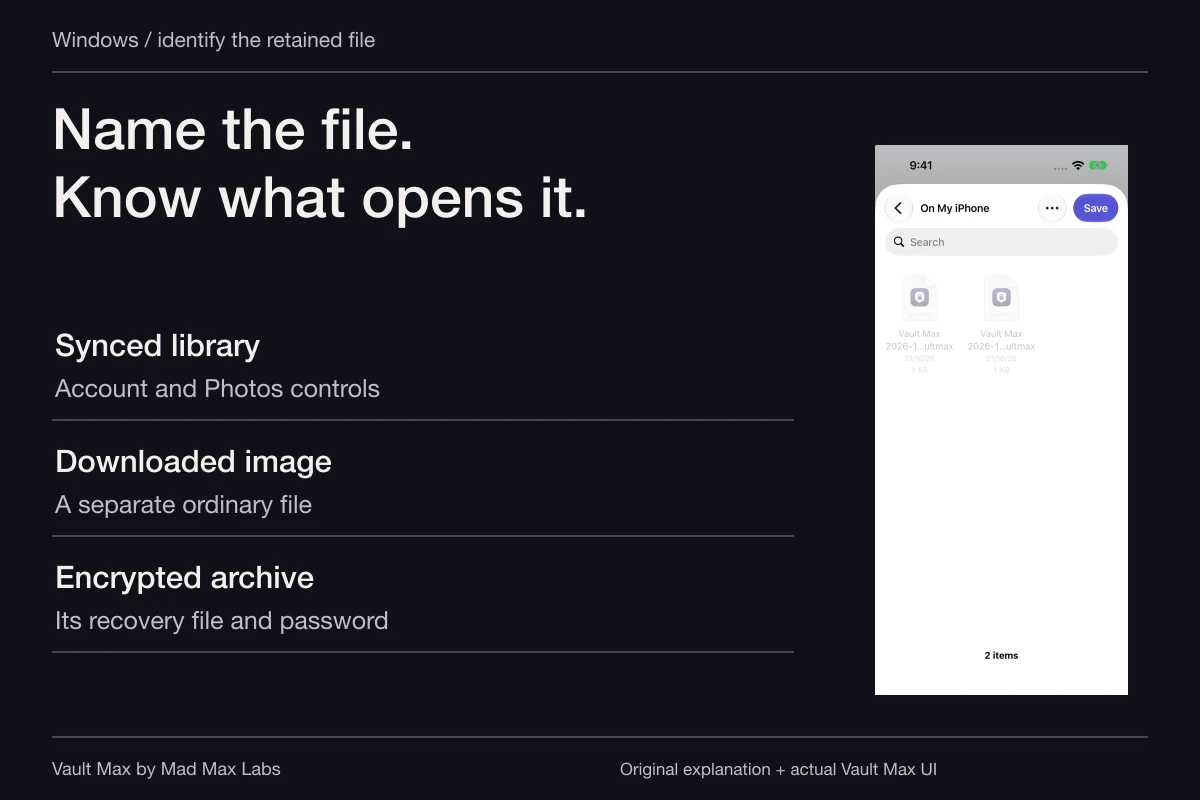
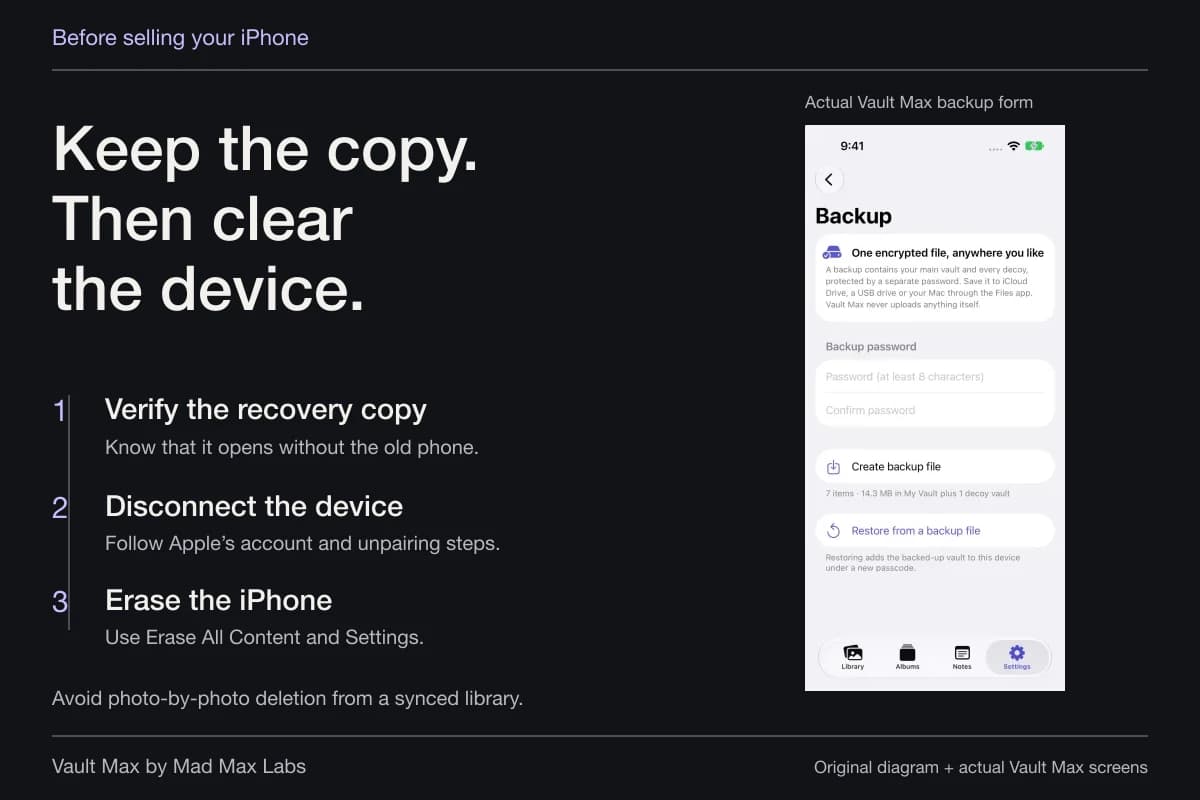
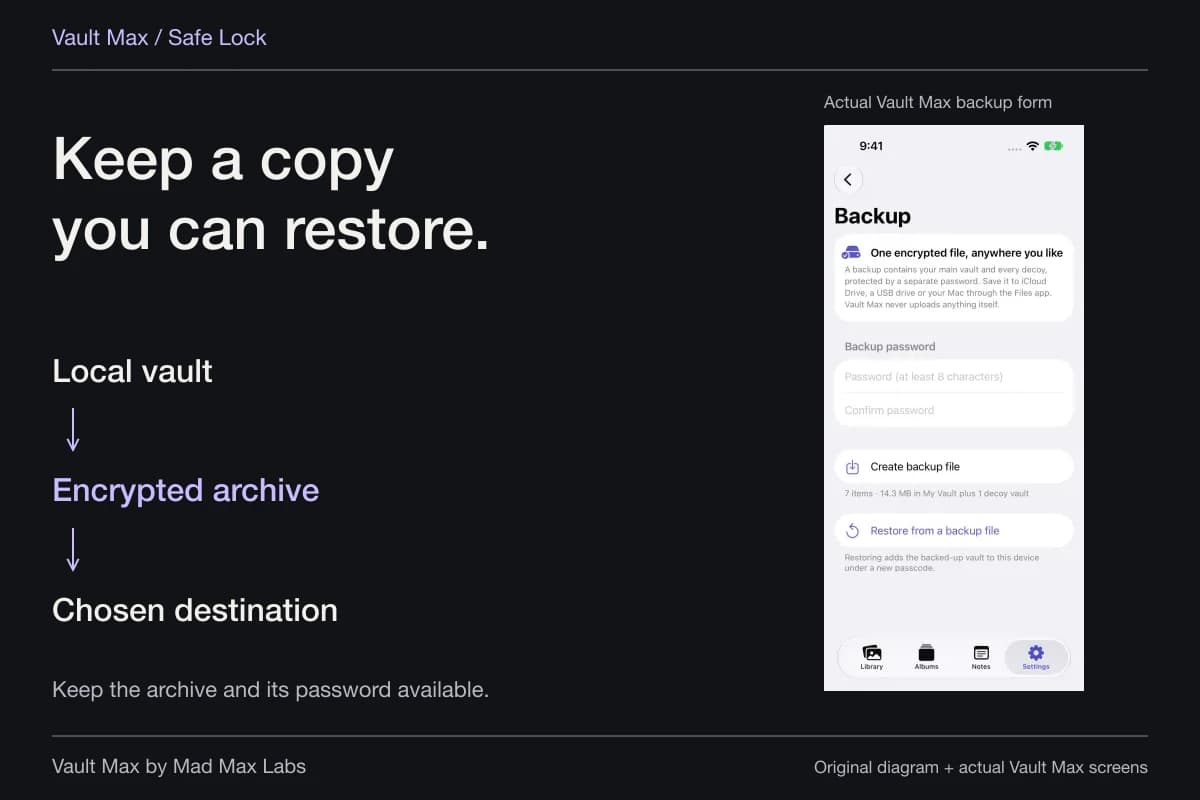
Keep important private items in a fresh password-protected recovery archive. Retain the archive somewhere accessible without the phone and its password independently. A trip is a good reason to check recovery; the car connection itself is not a backup.
- Name the app, widget, playback session or manufacturer feature that showed the information.
- Inspect this car's widgets, suggested content and message announcements.
- End any unwanted AirPlay session through the app that is playing.
- Open the intended vault item, then practice closing the collection.
- Review the iPhone pairing and the vehicle's separate profile controls.
Tap a box as you go. Checks reset when you leave this page.
Common questions
Does connecting to CarPlay automatically mirror my entire iPhone screen?
CarPlay presents supported apps and features rather than serving as an automatic copy of the entire phone interface. Check widgets, the active app and any separately selected playback destination. The car's own Bluetooth or manufacturer interface is another system to inspect.
Can a CarPlay display show video from my iPhone?
Apple's current iOS27 guide describes AirPlay video when you are not driving, on vehicles that support video in car. This is a supported playback route, so an absolute claim that personal media can never reach a car display is too broad.
Does Forget This Car erase everything stored by the vehicle?
Treat it as the iPhone's CarPlay pairing control. Check the vehicle manufacturer's separate instructions for removing its user profile, Bluetooth pairing, contacts or other retained information.
Continue reading
More guides
Practical tips for your private library. Swipe or scroll to choose your next guide.
74 guides to explore