
Privacy in practice
Hide photos on iPad, then make the private collection useful
Hide photos on iPad, find the Hidden album and choose a separate vault credential. Organize private media, save useful notes and prepare encrypted backups.
To hide a picture in Photos on iPad, touch and hold it, choose Hide and confirm. To see it again, open the sidebar, choose Utilities → Hidden and authenticate. If you want selected pictures to require a credential separate from the iPad's own code, put their copies in a separately credentialed vault.
An iPad often changes hands: someone follows a recipe, chooses a film or looks through a holiday album on its larger screen. Decide which collection you are comfortable opening in that situation. Vault Max gives private photos, documents and written notes a local encrypted home that you can organize and close independently of ordinary Photos browsing.
We make Vault Max. This guide covers both the built-in Photos route and a useful private collection on the tablet, including what happens to originals and how to keep the work recoverable.
Hide one sample picture in Photos
Apple's current Hidden album instructions cover iPhone and iPad together, with an important navigation difference: iPad uses the sidebar for Utilities. Begin with an ordinary picture, so you can learn the route without wondering where an important original went.
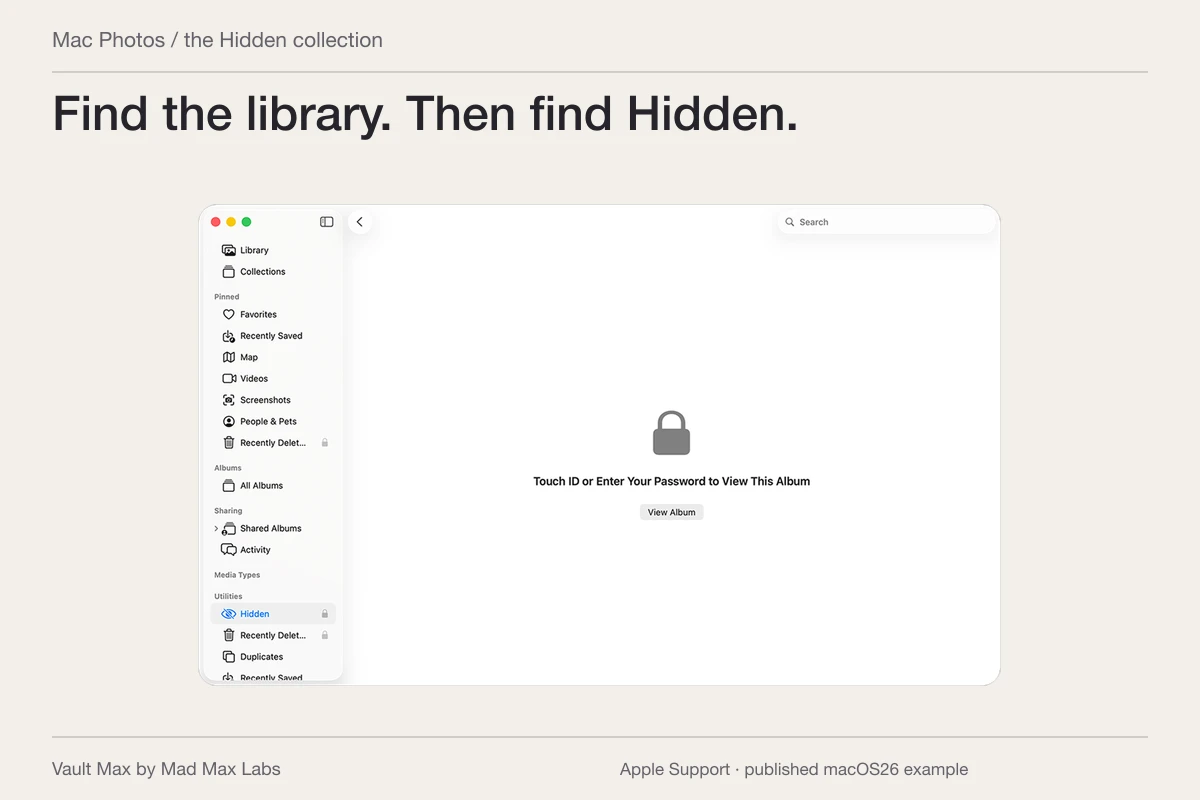
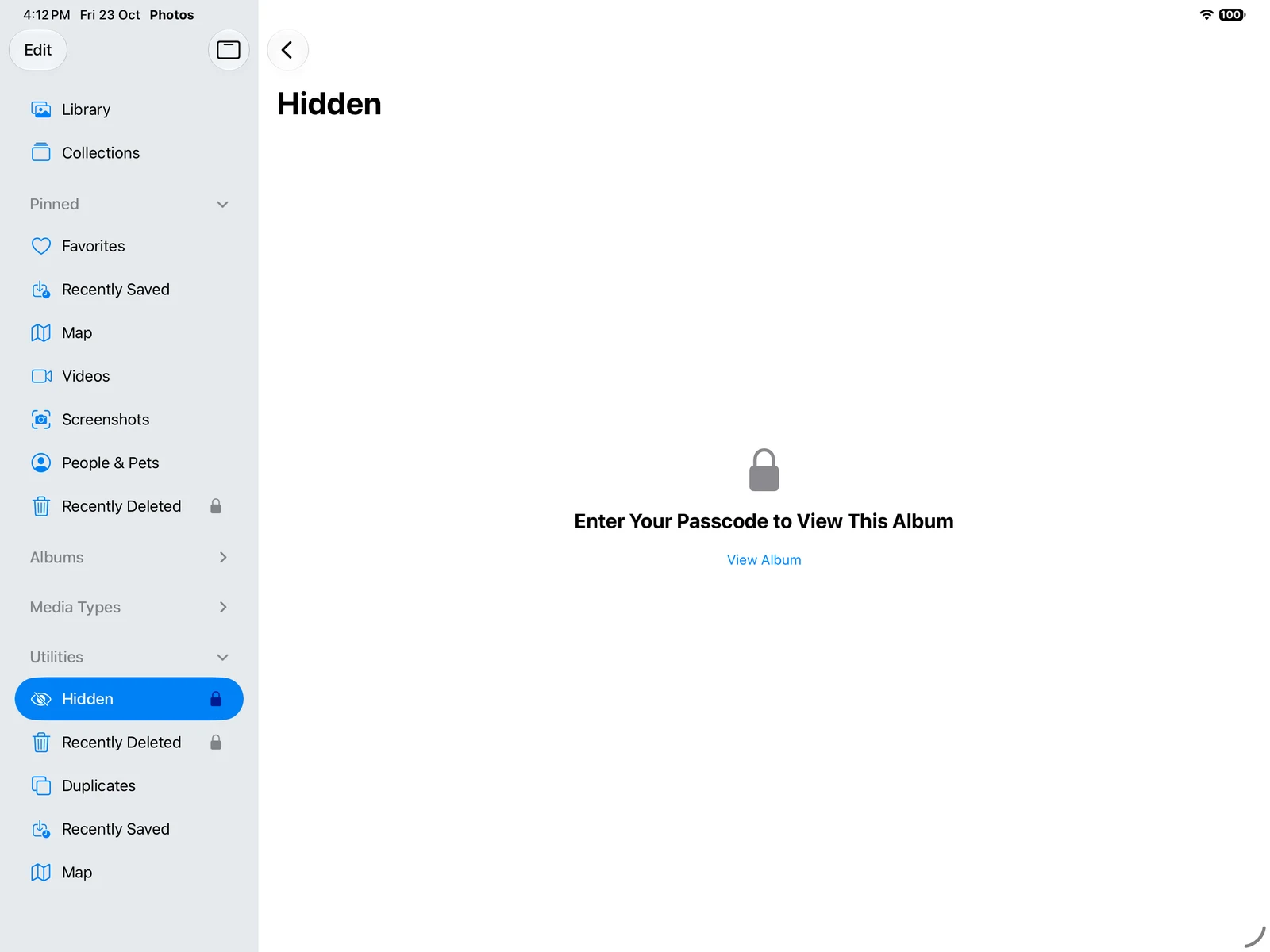
Touch and hold the item, choose Hide and confirm. Then return to the ordinary library and find the Hidden collection from the sidebar. Open it using View Album and the authentication your iPad offers. You have now checked both the action and the way back.
The iPadOS 27 Photos guide also describes this workflow. Follow the version appropriate to your tablet rather than trying to match every icon to an older phone screenshot.
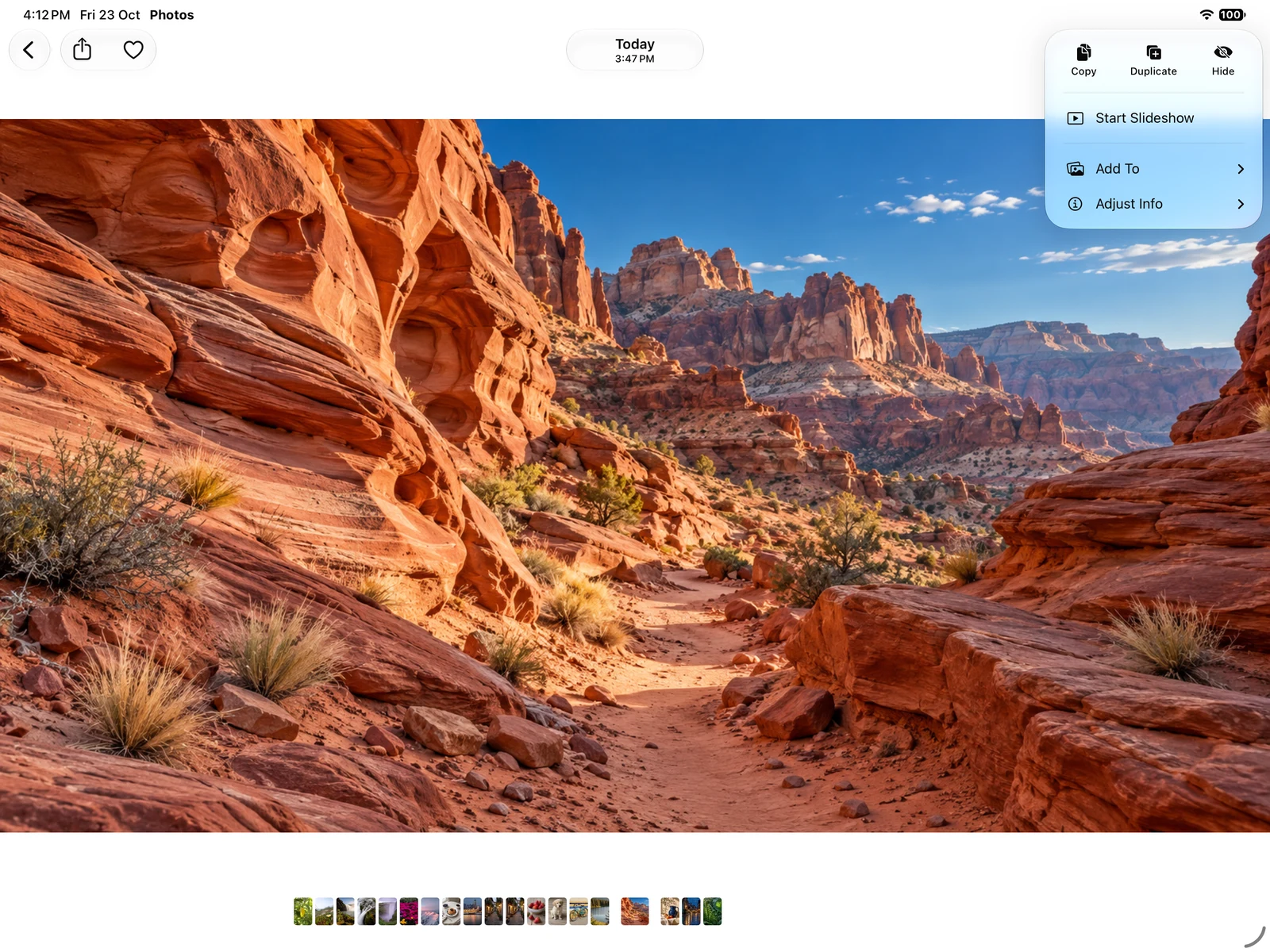
Actual iPadOS27 simulator captures show the Hide command on a generated sample and the Hidden album entry in the sidebar with its authentication prompt. Hide was not activated during this capture, and no Face ID, Touch ID or iCloud test was performed.
Actual Apple Photos · iPadOS27 QA simulatorThe Hide command
Open original image: The Hide commandThe collection and its access prompt
Open original image: The collection and its access promptIf Hidden is missing, check visibility before moving files
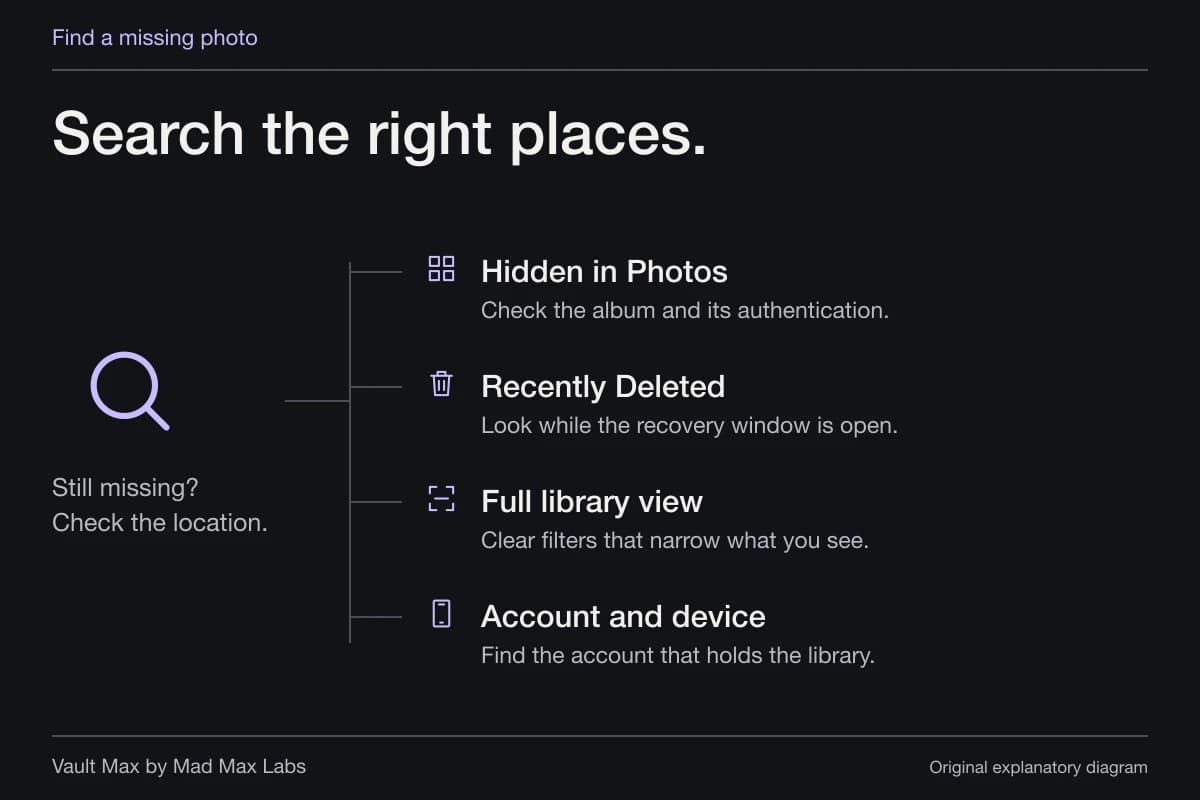
First show the Photos sidebar. A missing navigation panel is a different problem from a missing photograph. Look under Utilities, then review Settings → Apps → Photos → Show Hidden Album if the collection itself is not shown.
Turning off that visibility setting conceals the collection's entry. It does not create a new independent password. Turn it back on when you need to reach those items, then use the normal album authentication. Keep the location of the control in mind before treating a hidden entry as lost data.
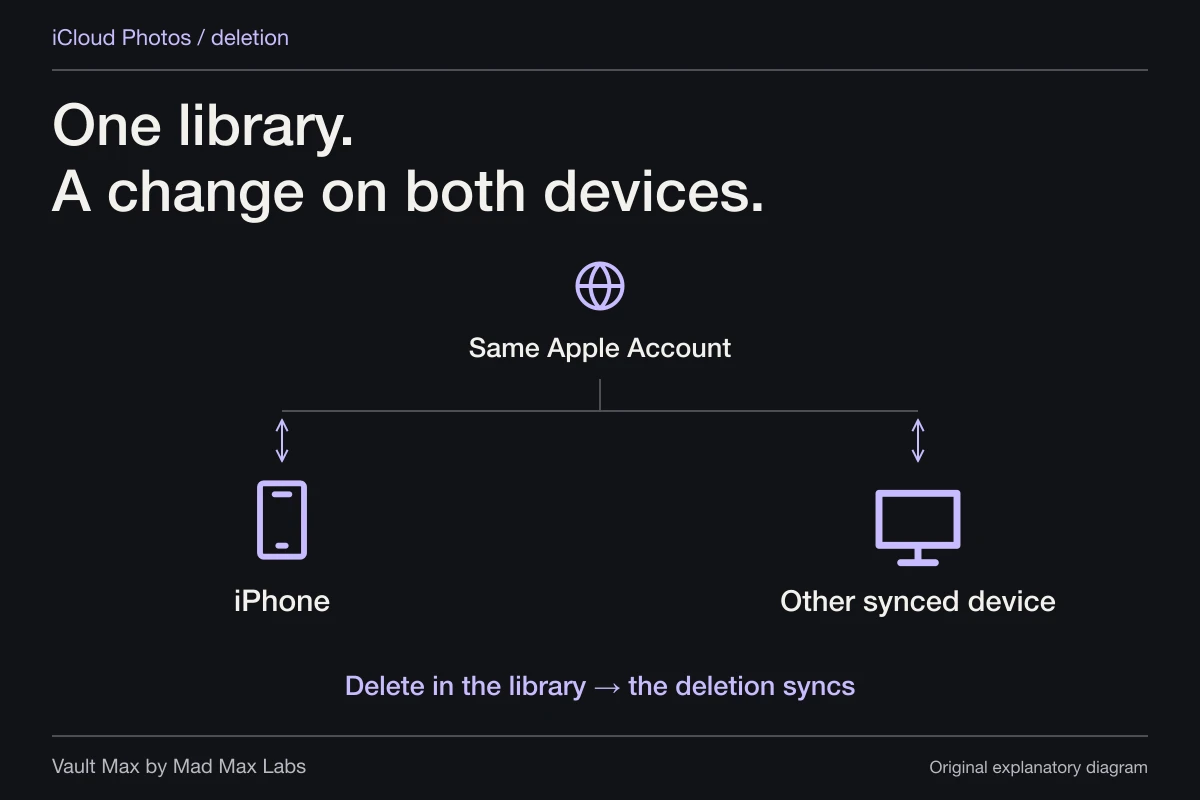
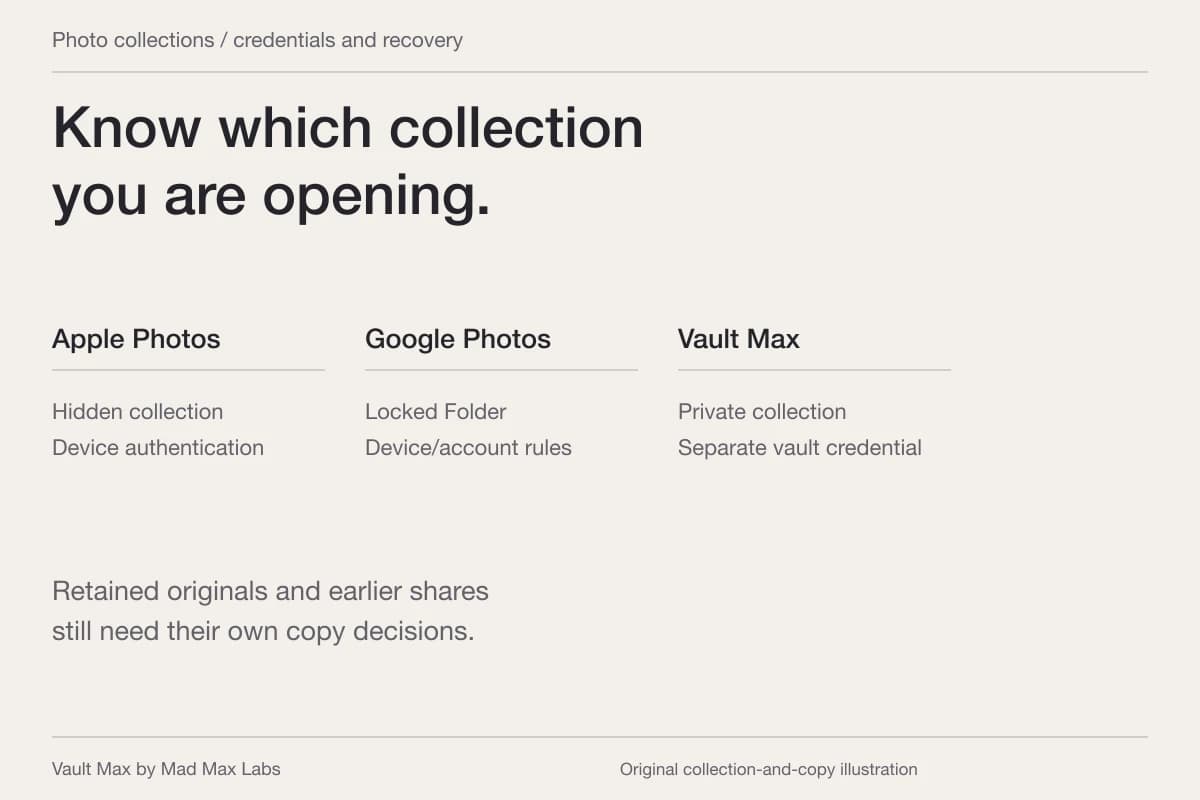
Also check which library and Apple Account you are using. If iCloud Photos is enabled, hiding follows its library arrangement across participating devices. A tablet signed in to another account is not an alternative view of the same local collection. Our shared-device guide explains that distinction in more detail.
Choose what someone should reach after ordinary iPad unlock
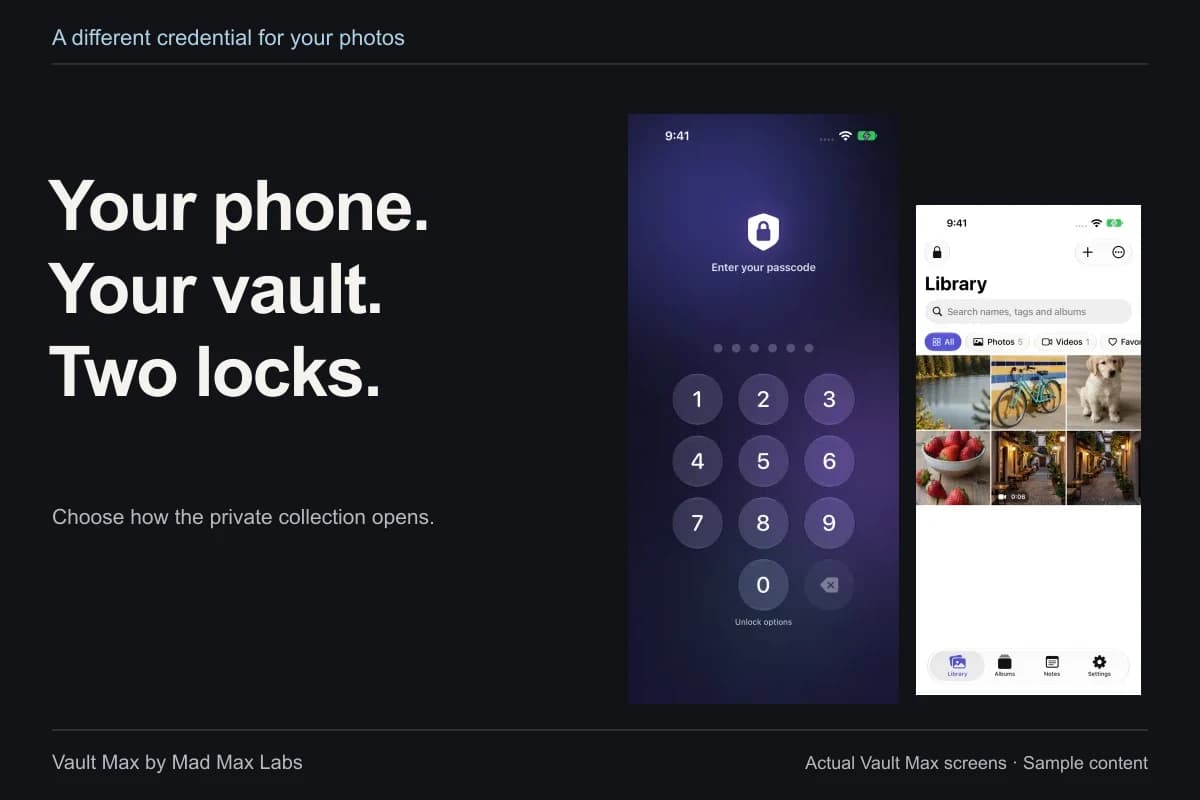
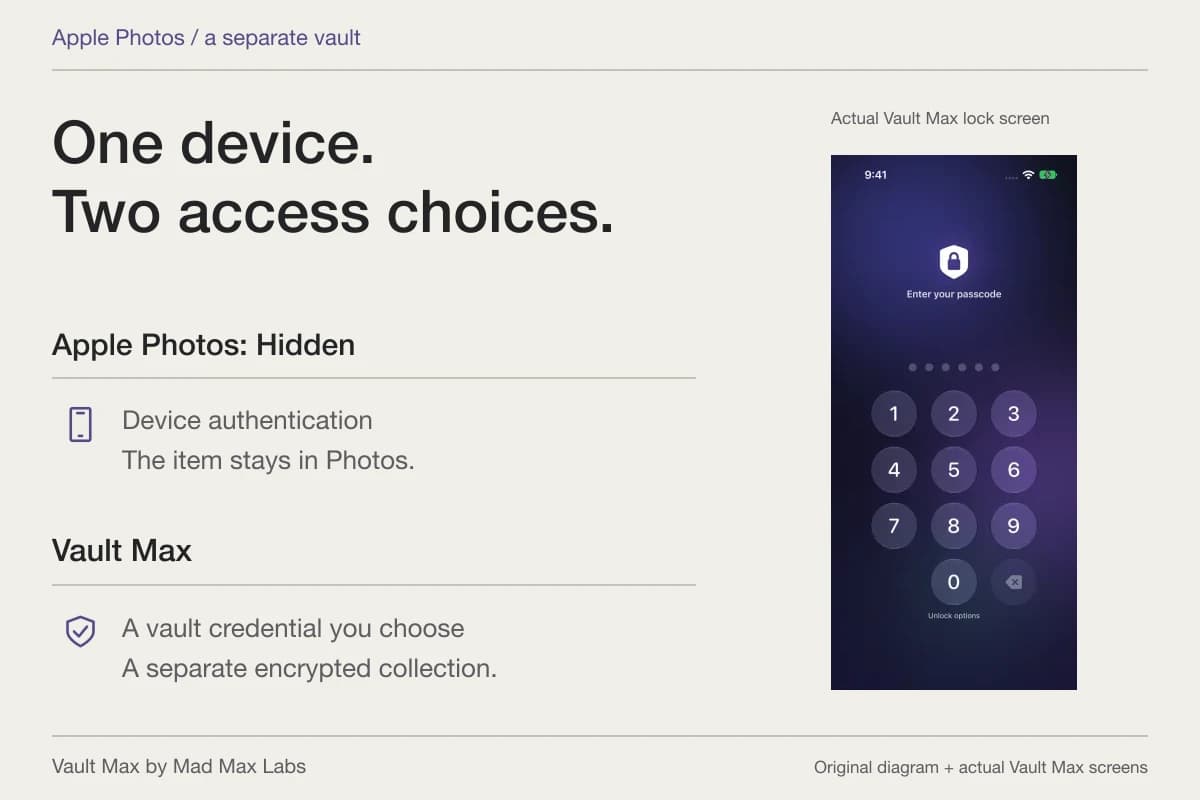
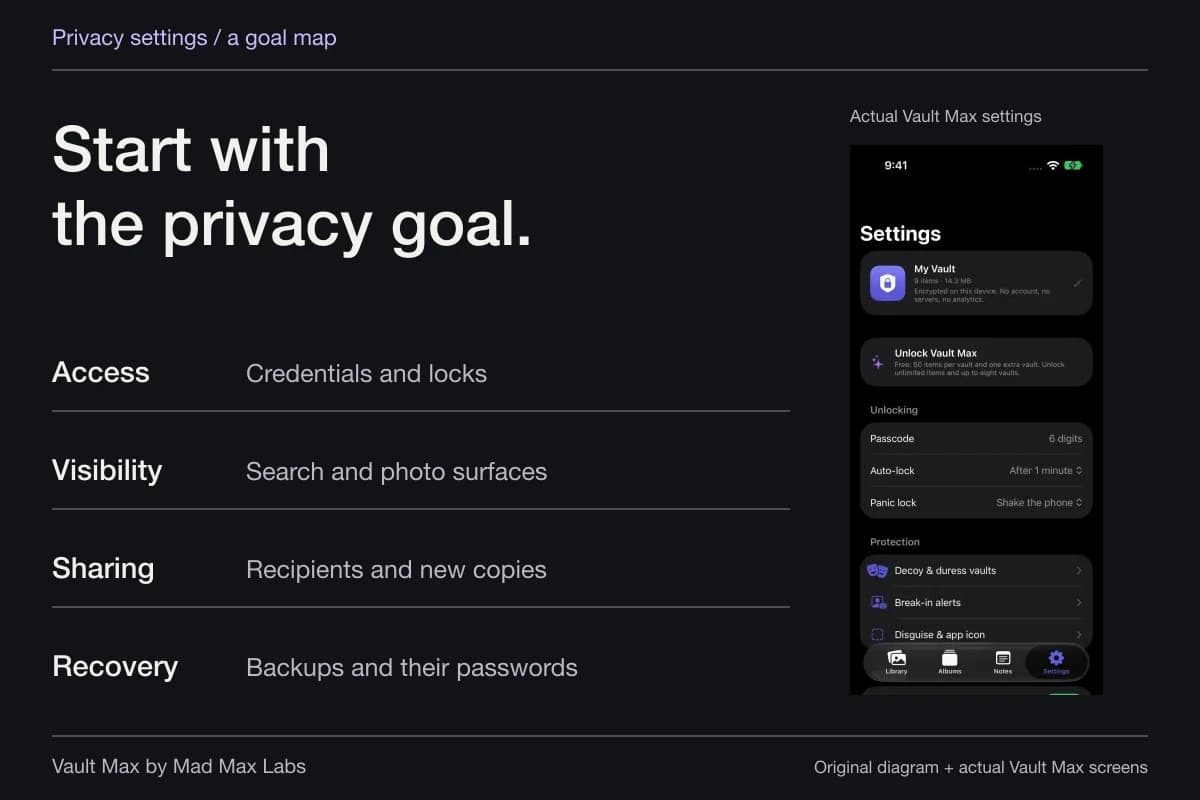
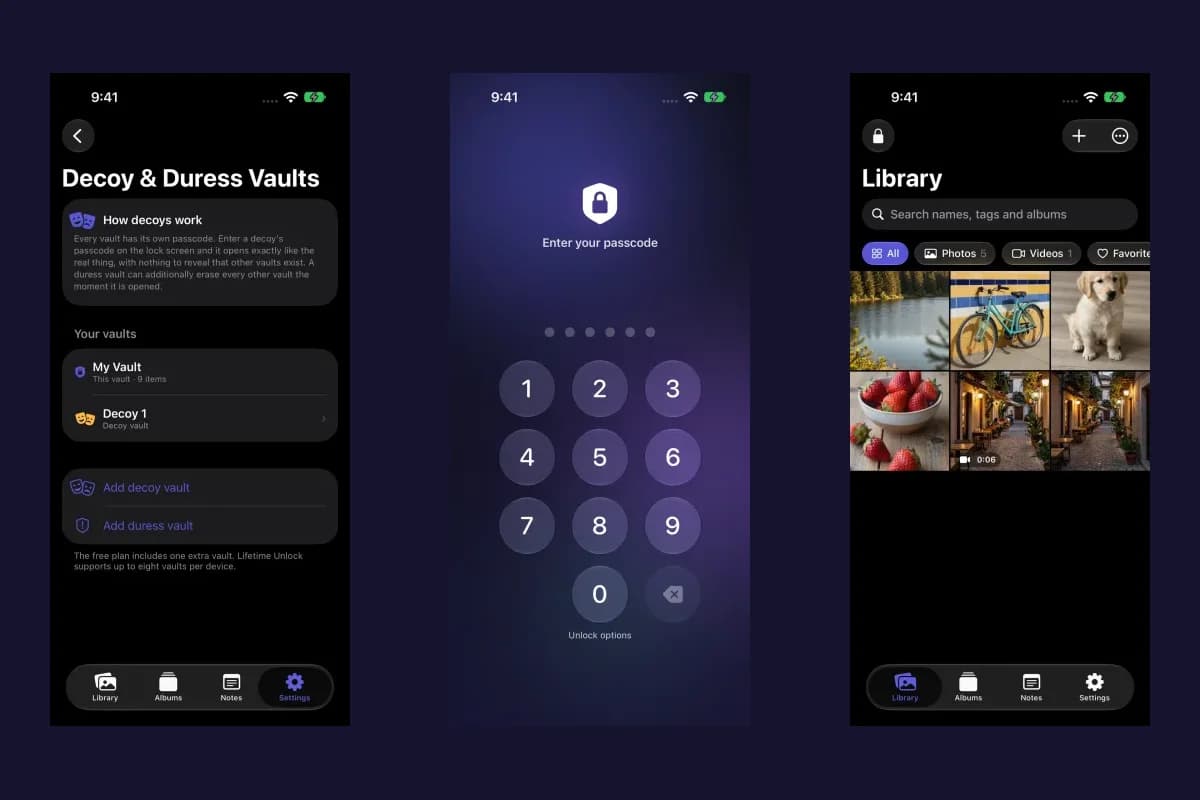
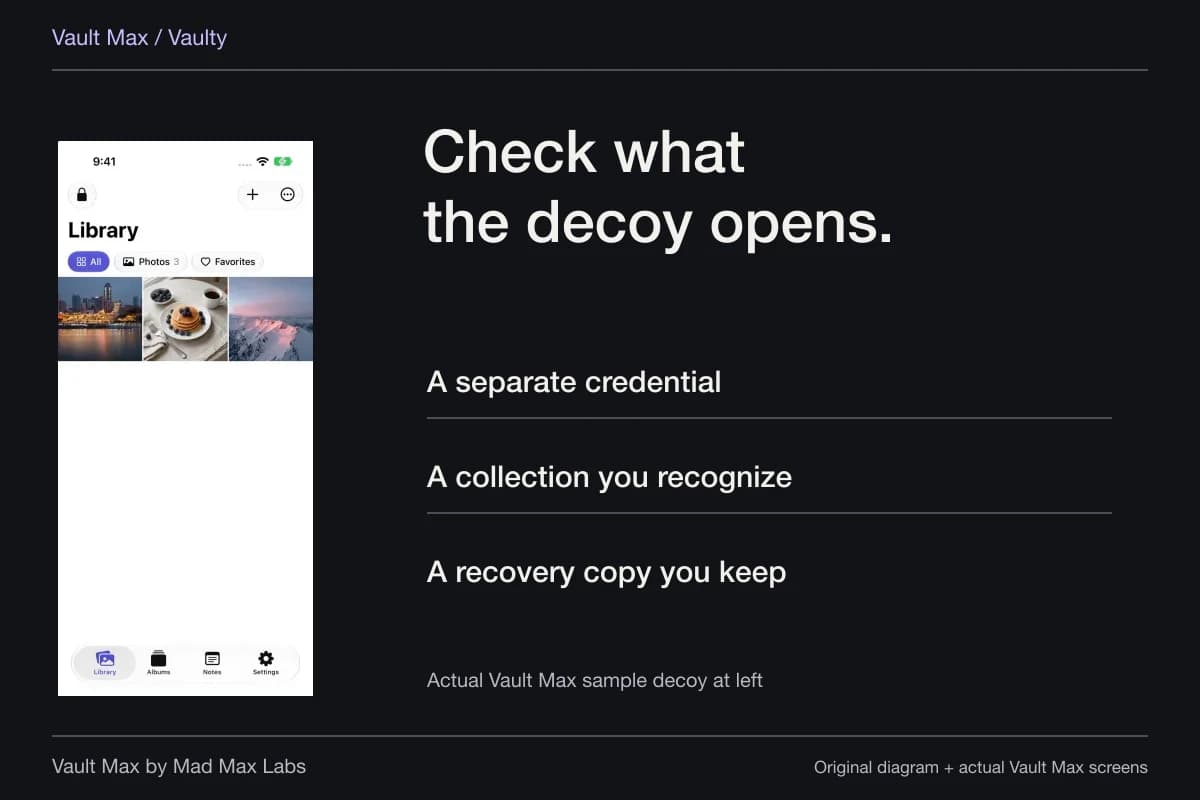
Perhaps you let another person use the tablet but want a personal project kept apart: reference photographs, a PDF and a few lines explaining the latest version. A separate Vault Max credential gives that project its own access step. Use a code distinct from the device passcode when that separation is the reason for creating the collection.
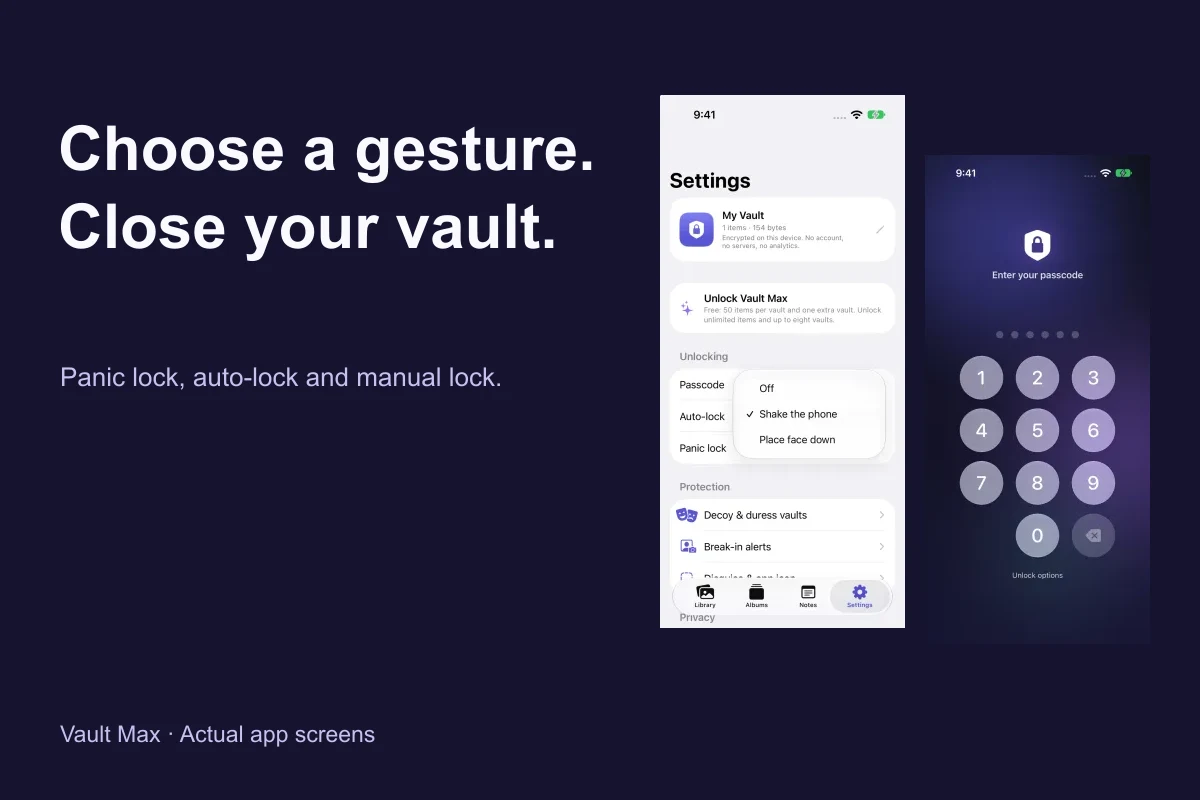
Consider the open session too. A separately protected app still needs to be closed when you finish. Learn the manual lock action and set an auto-lock interval that suits how you use the tablet. Reopening the app should lead through the expected credential rather than straight back into the private item you were showing yourself.
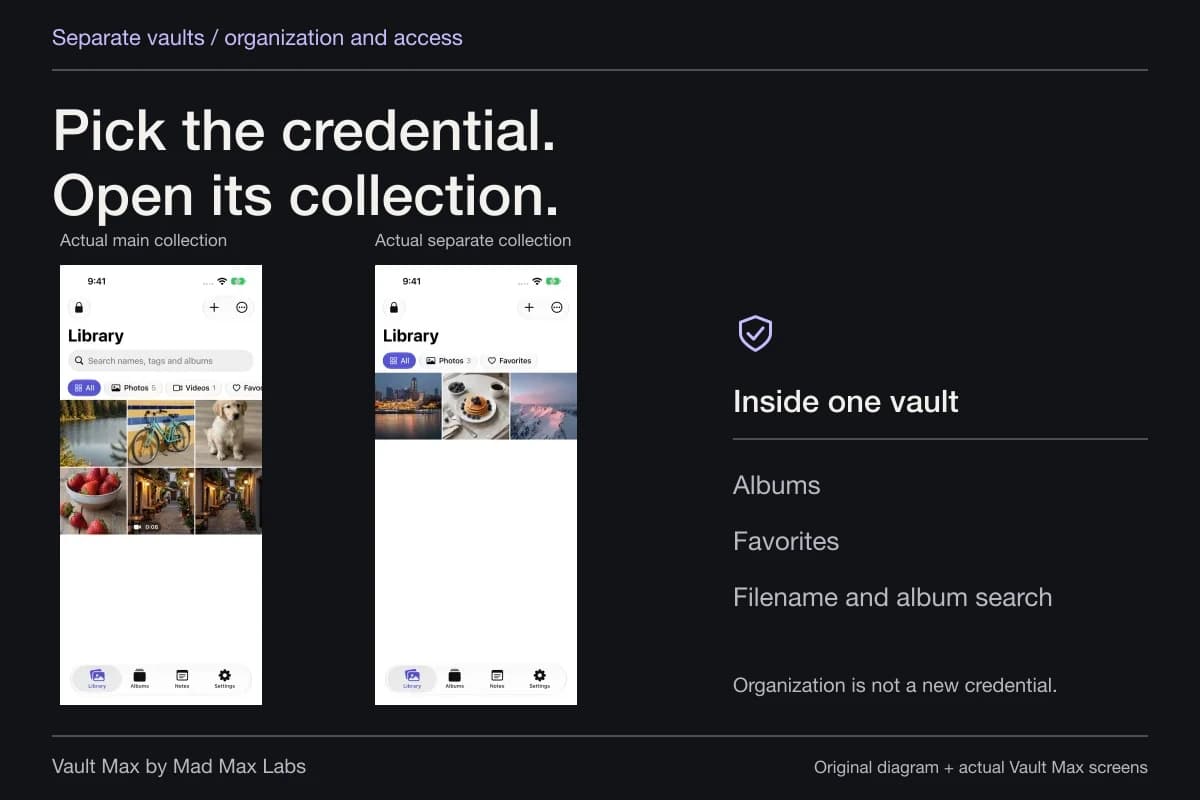
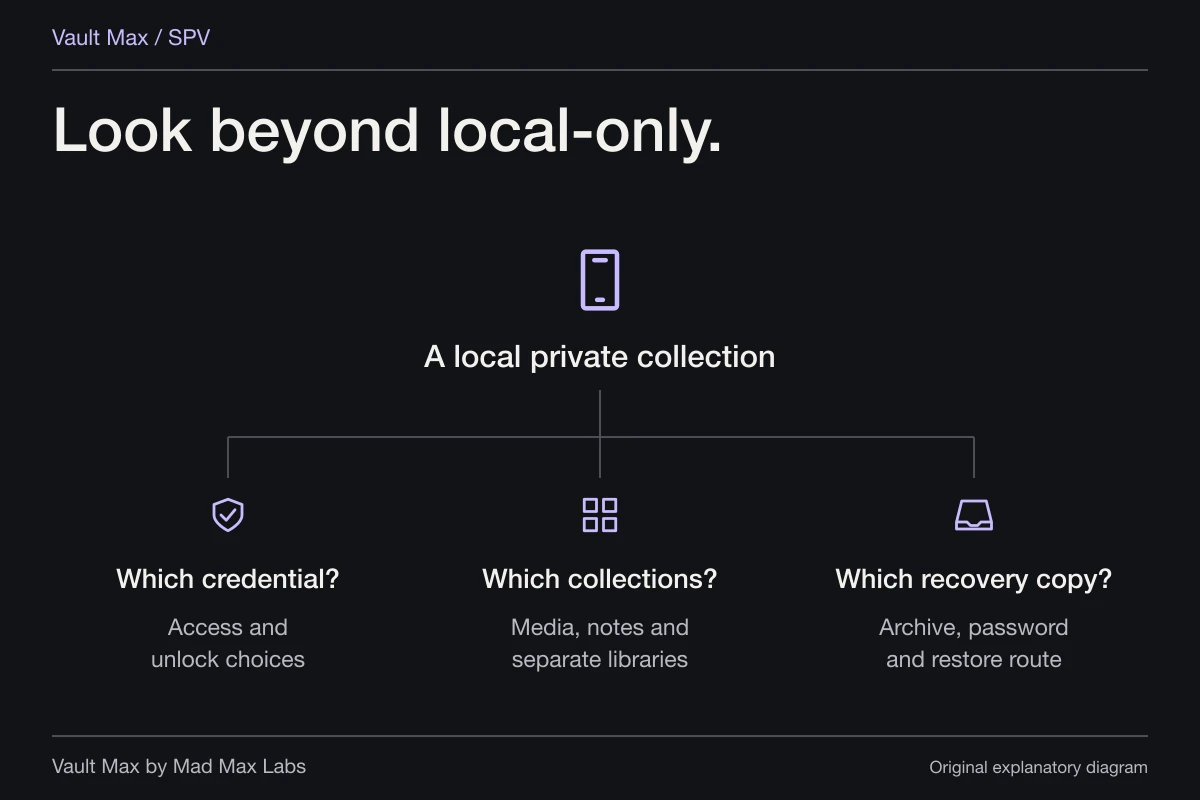
Keep the setup understandable. Albums organize material after a vault opens; another ordinary vault changes which collection a credential reaches. The separate-password walkthrough explains access choices, while the iPad task here is to make that collection comfortable to use on a larger screen.
Import a small collection and inspect the actual result
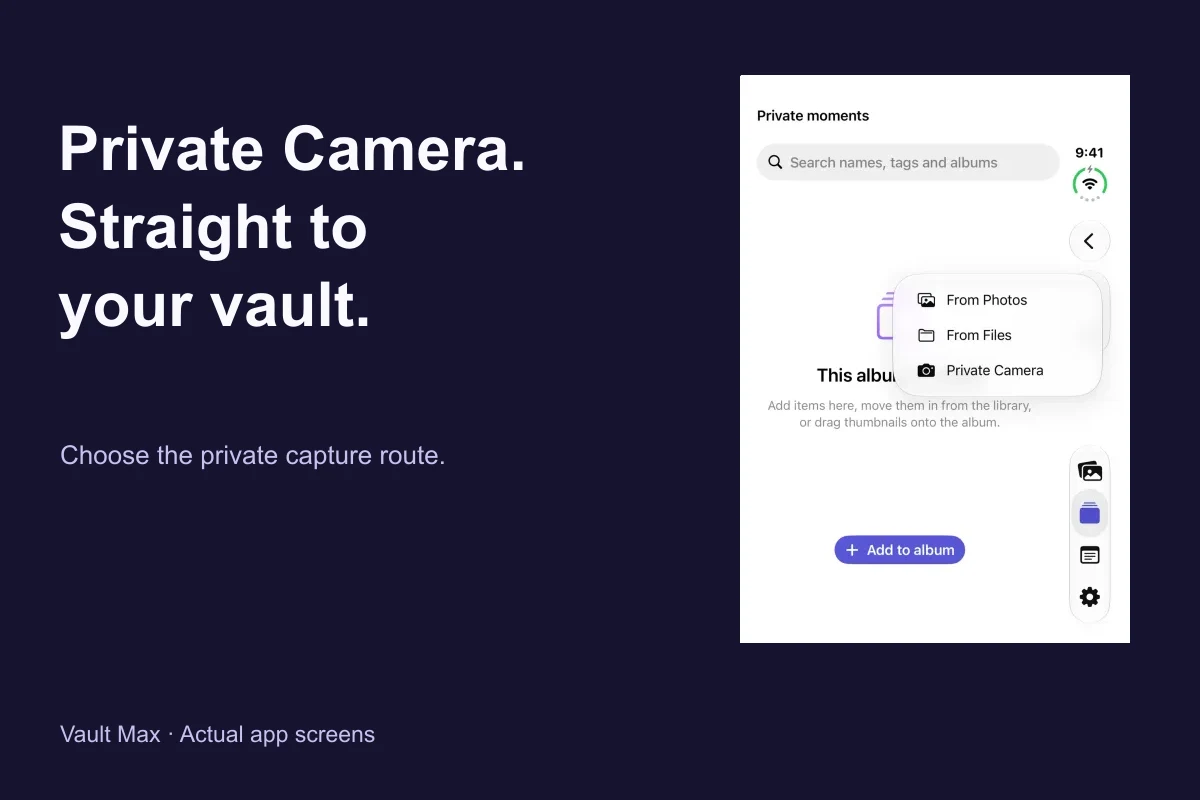
In Vault Max, use Add and the appropriate Photos or Files intake. Select only the examples you intend to retain. Let the import finish, then open a full item, rather than relying on the appearance of a thumbnail.
For a photograph, inspect the subject and detail. For a PDF or another supported document, check the relevant content in the available preview. If you cannot identify the expected result, retain the source and investigate before removing anything from Photos or Files.
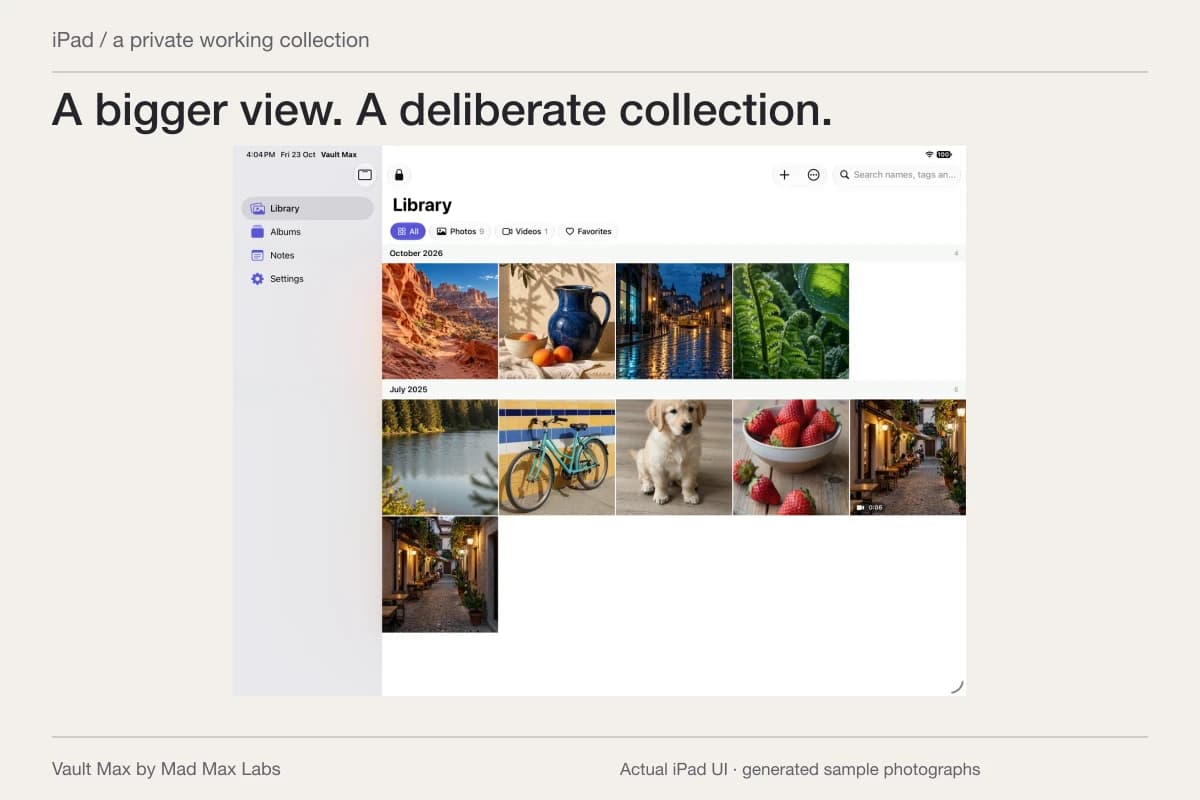
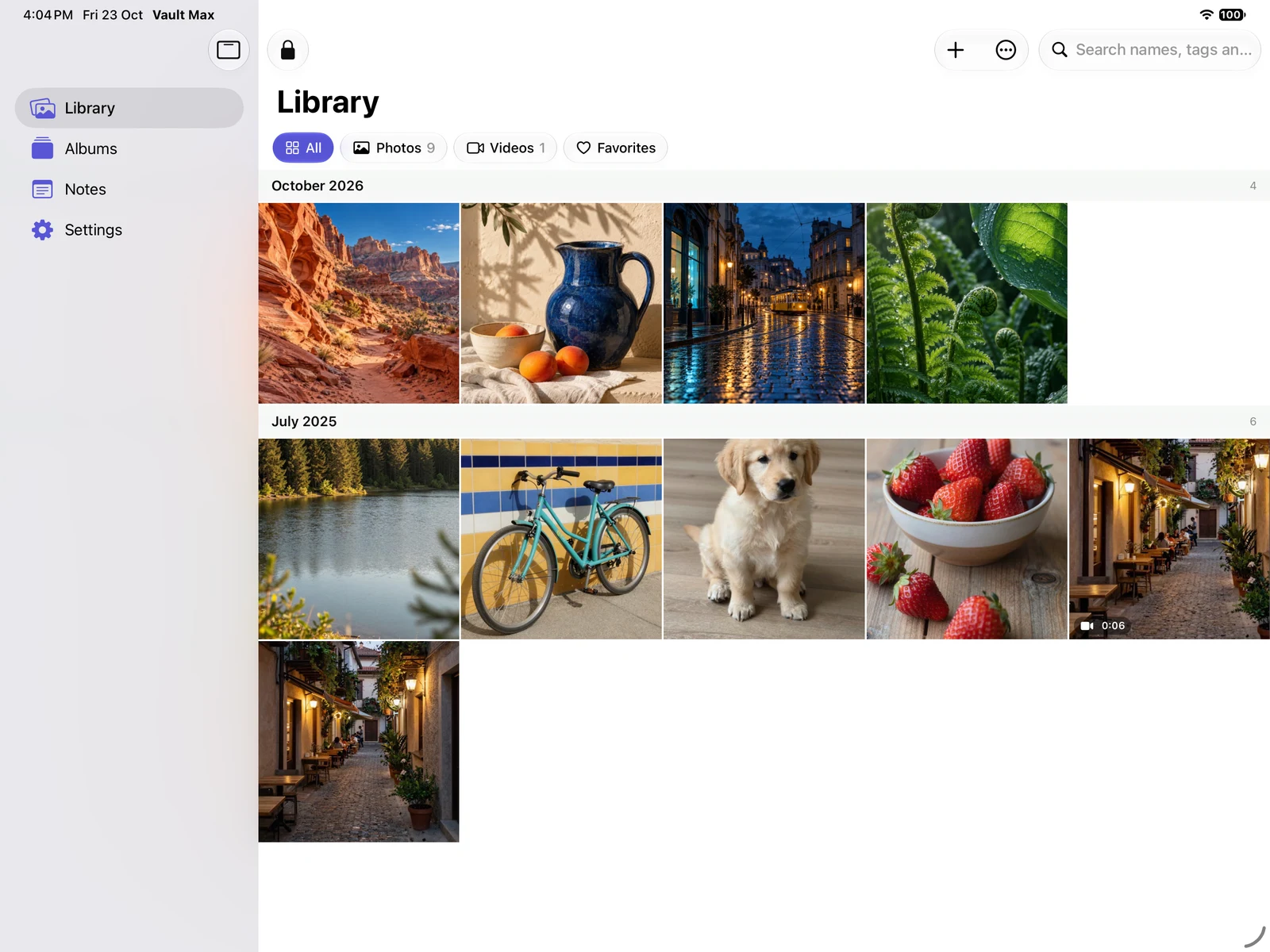
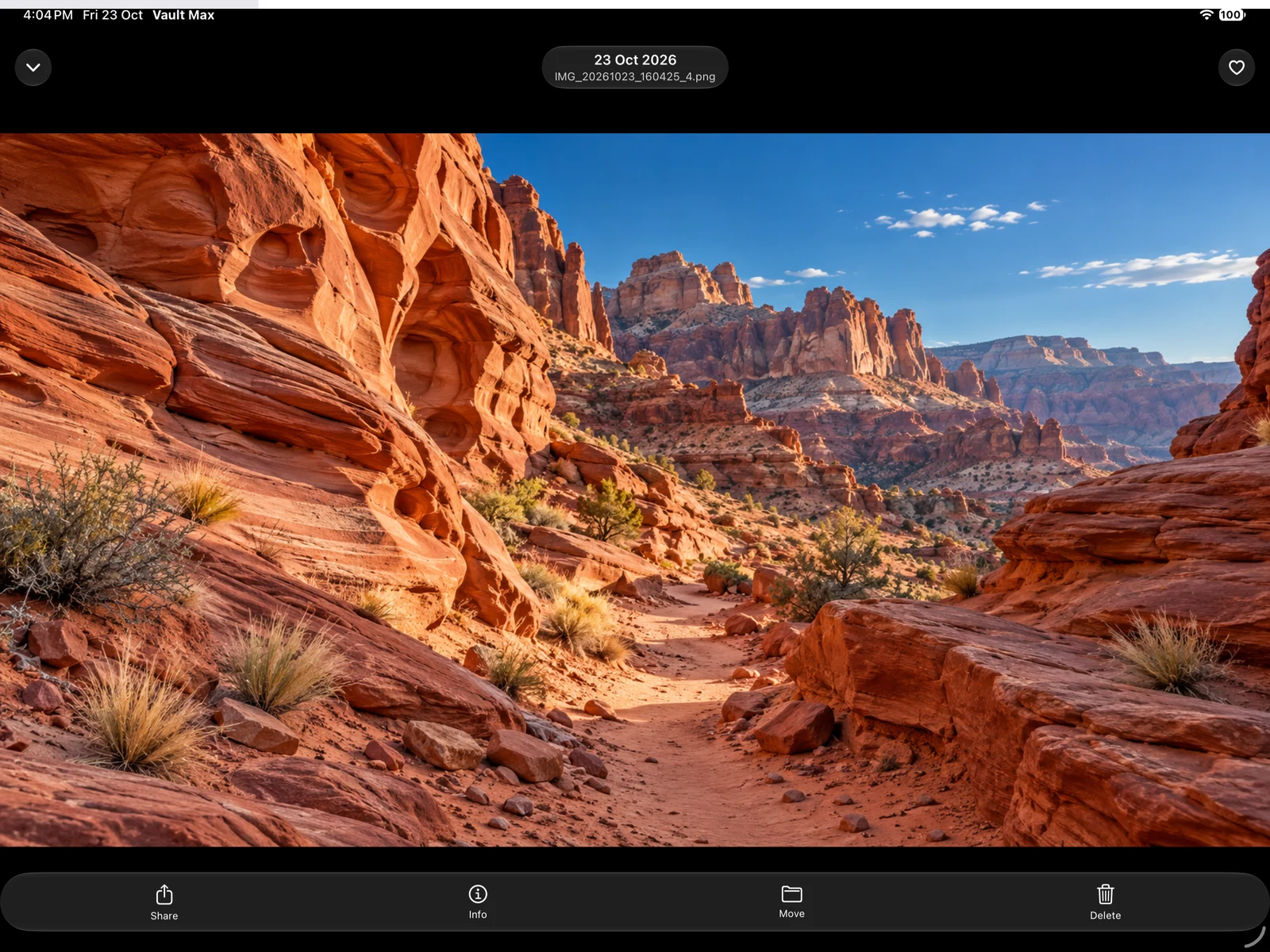
The actual landscape iPad app contains all four new generated samples alongside preserved earlier fixtures. The viewer opens the canyon image at full size. Both are fresh tablet captures, not an enlarged phone mockup or an automatic-sync demonstration.
Actual Vault Max · QA simulator, generated sample photographsThe imported collection
Open original image: The imported collectionInspect the full saved item
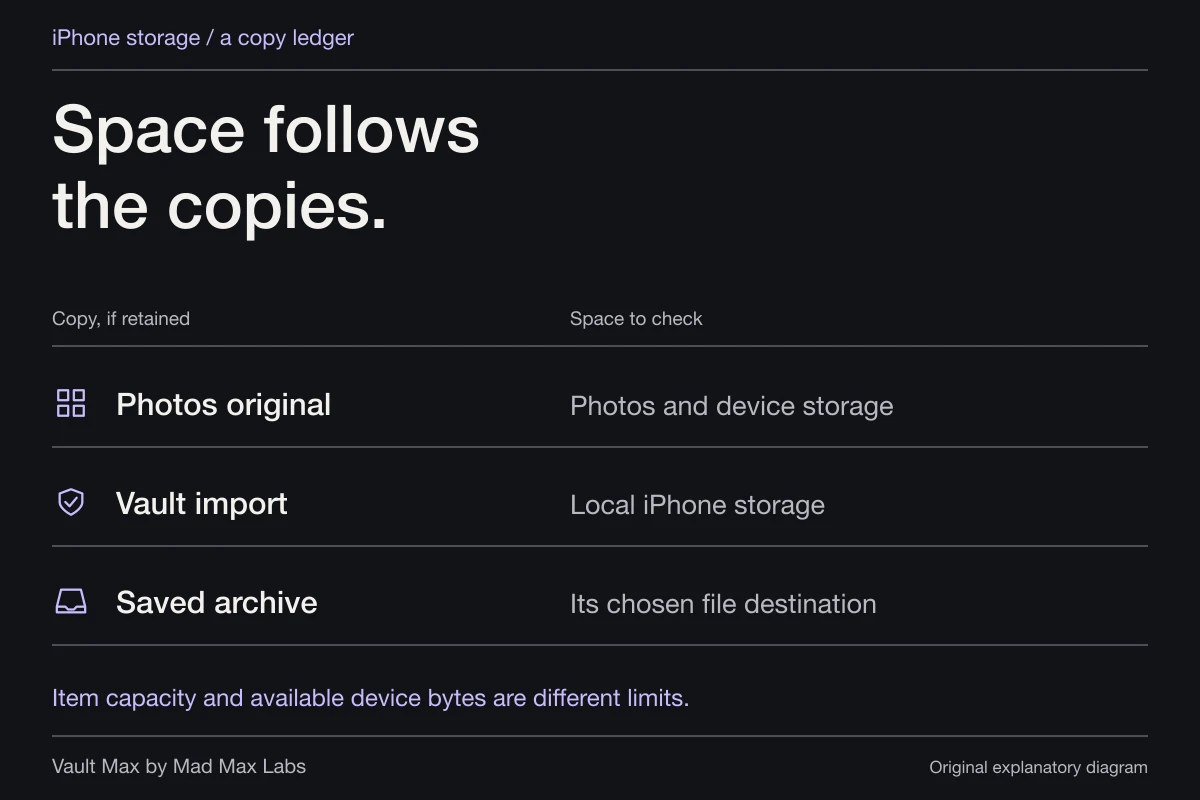
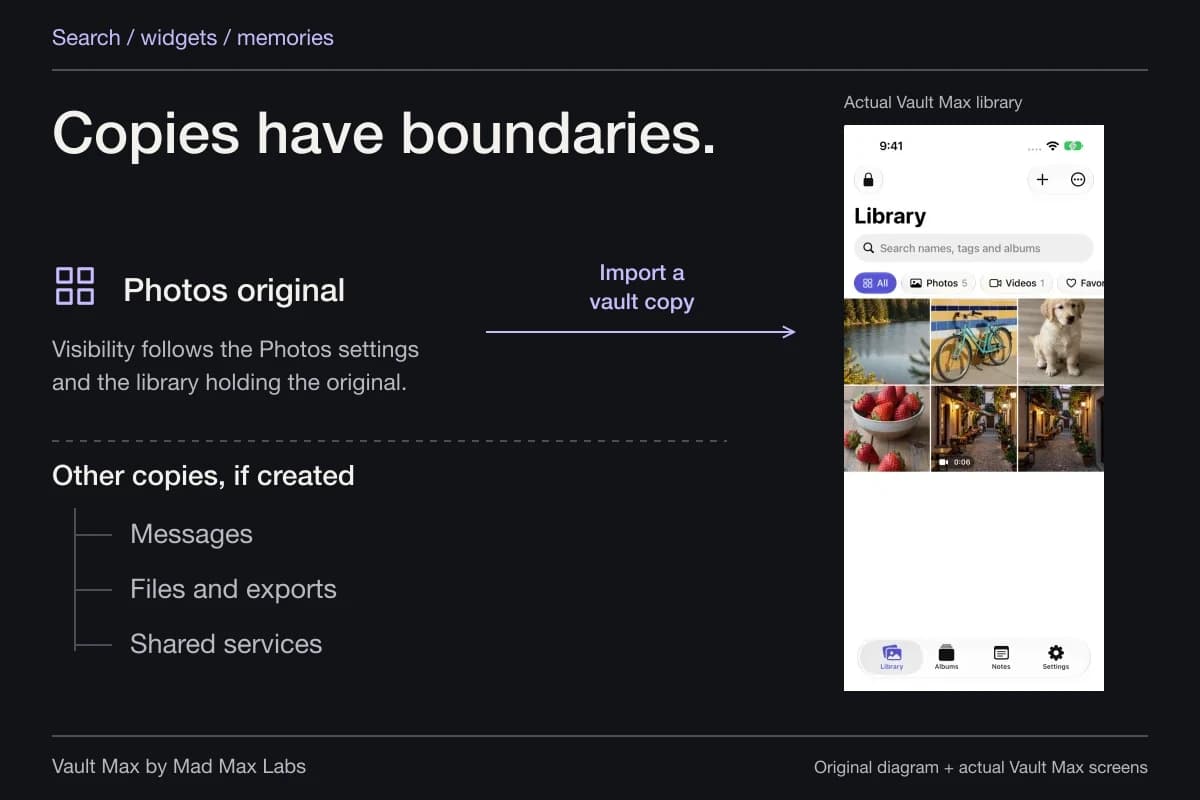
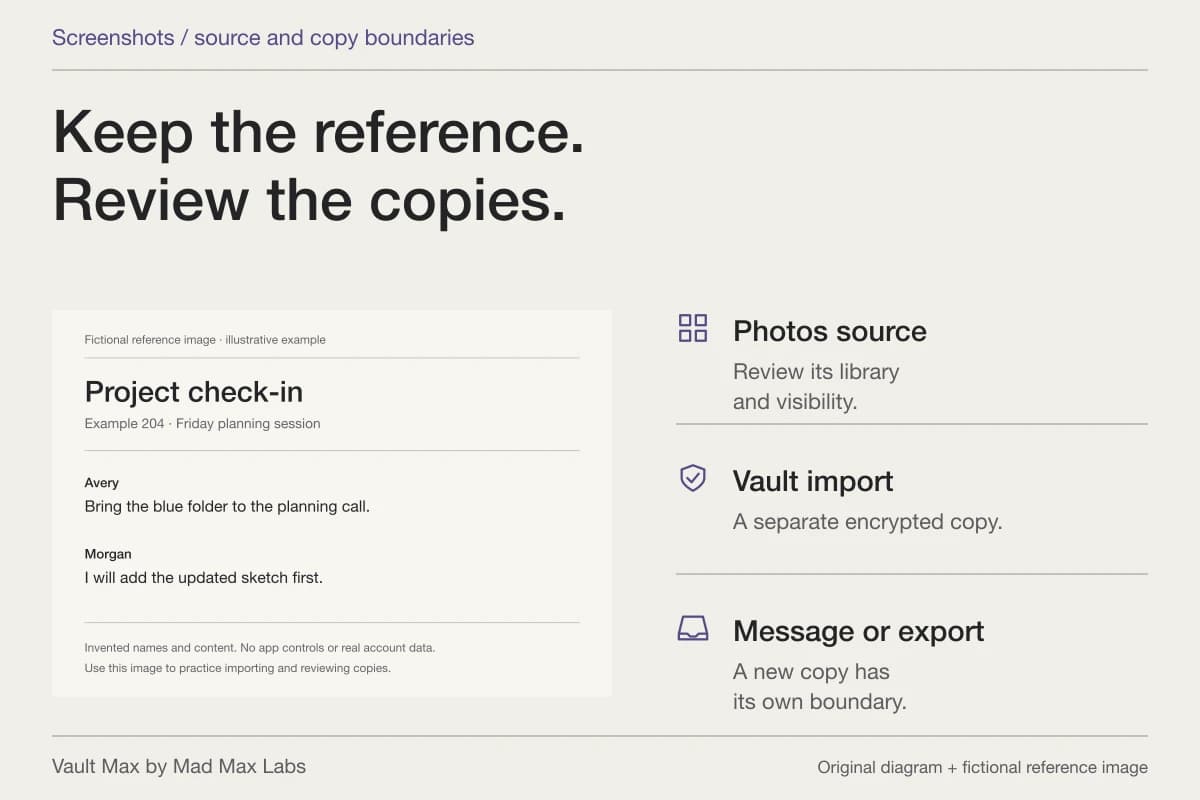
Open original image: Inspect the full saved itemAn import creates a vault copy. The Photos original, any message attachment and a file you exported earlier still need their own decisions. When you are satisfied with the new result, choose deliberately whether to retain the source. An iCloud Photos deletion can affect that synchronized library elsewhere, so source cleanup should follow a checked import and recovery plan.
Put the larger display to work
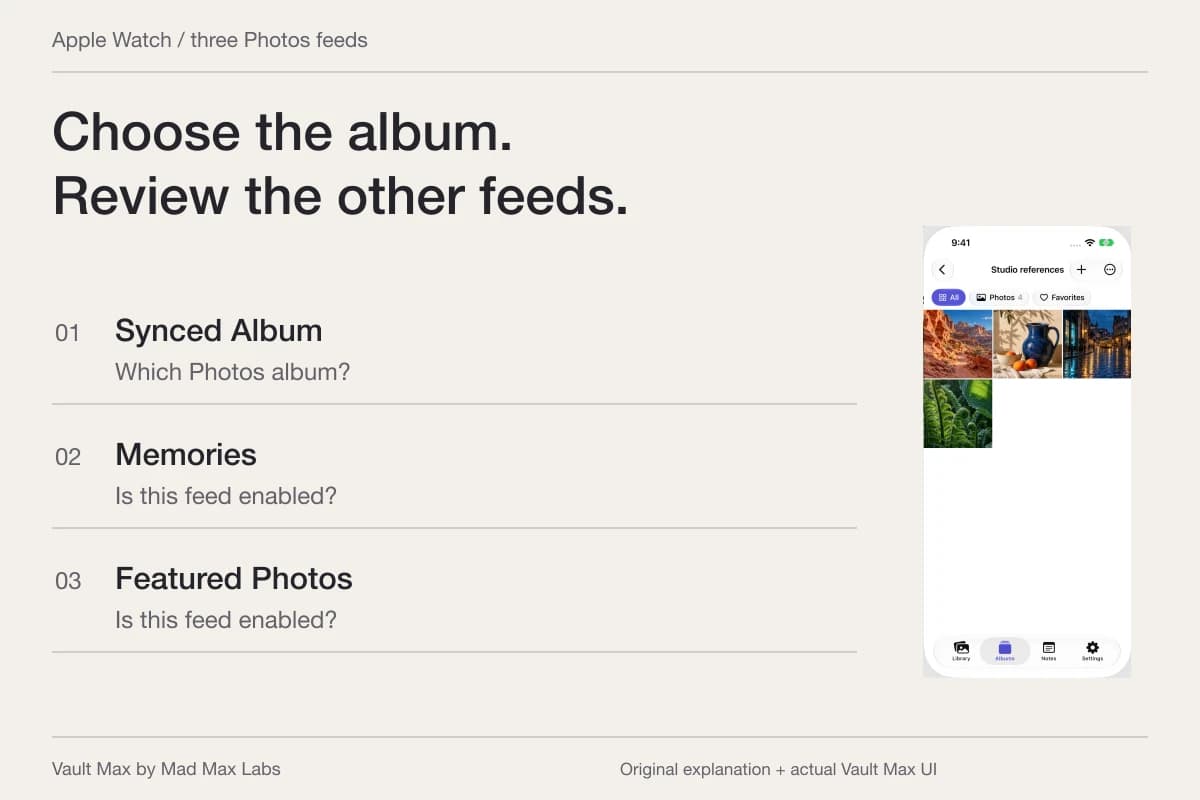
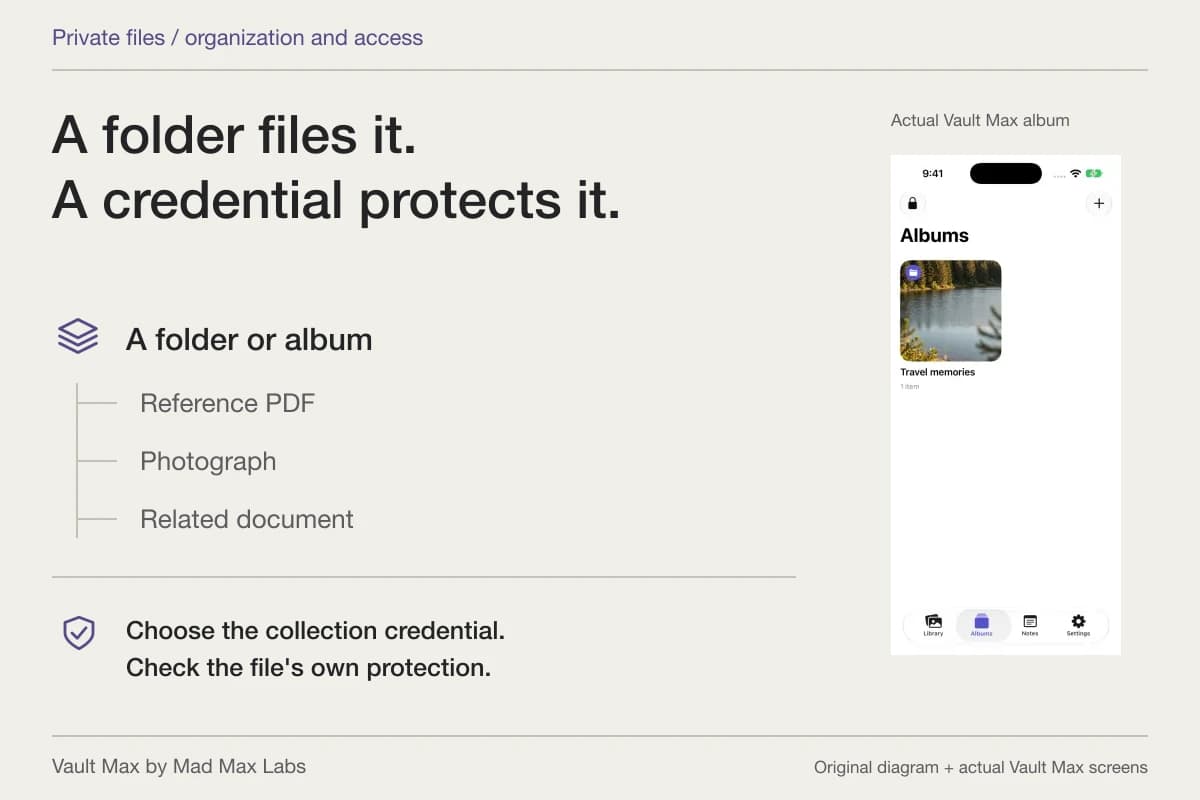
Choose an album name you will recognize next month. “Studio references” is more useful than a succession of “New album” names. A suitable icon and color can help you scan the collection, but the name remains the main clue when you return to it.
Use filenames and album names to retrieve material. If a picture seems missing, check the current filter and collection before assuming the file has gone. Favorites lets you return quickly to a selected item without importing another copy. The collection-maintenance guide develops that routine.
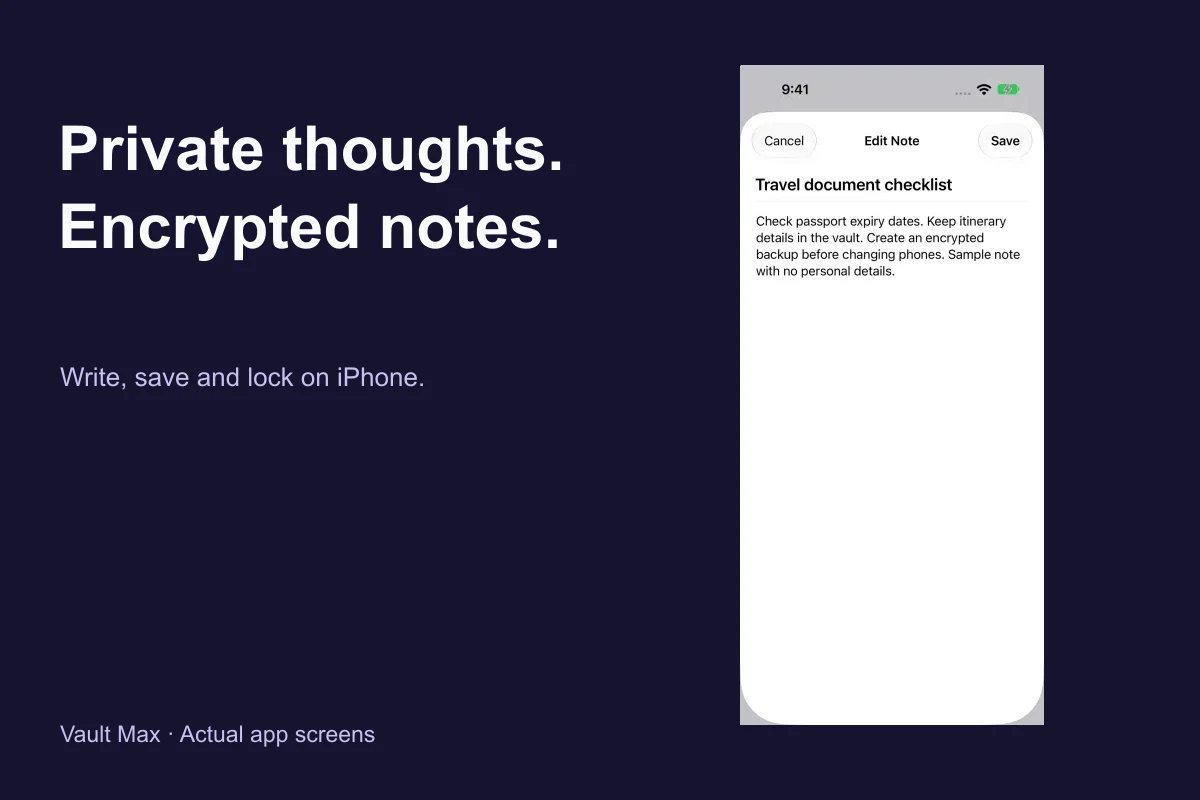
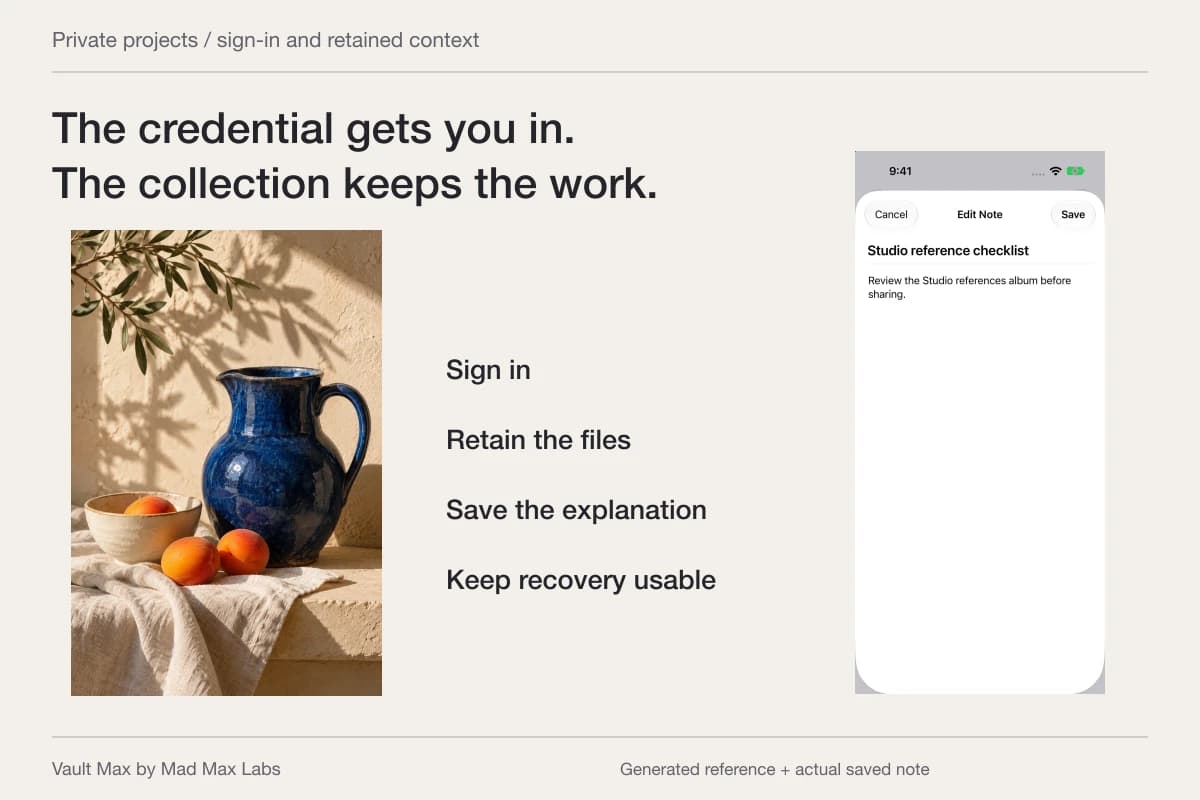
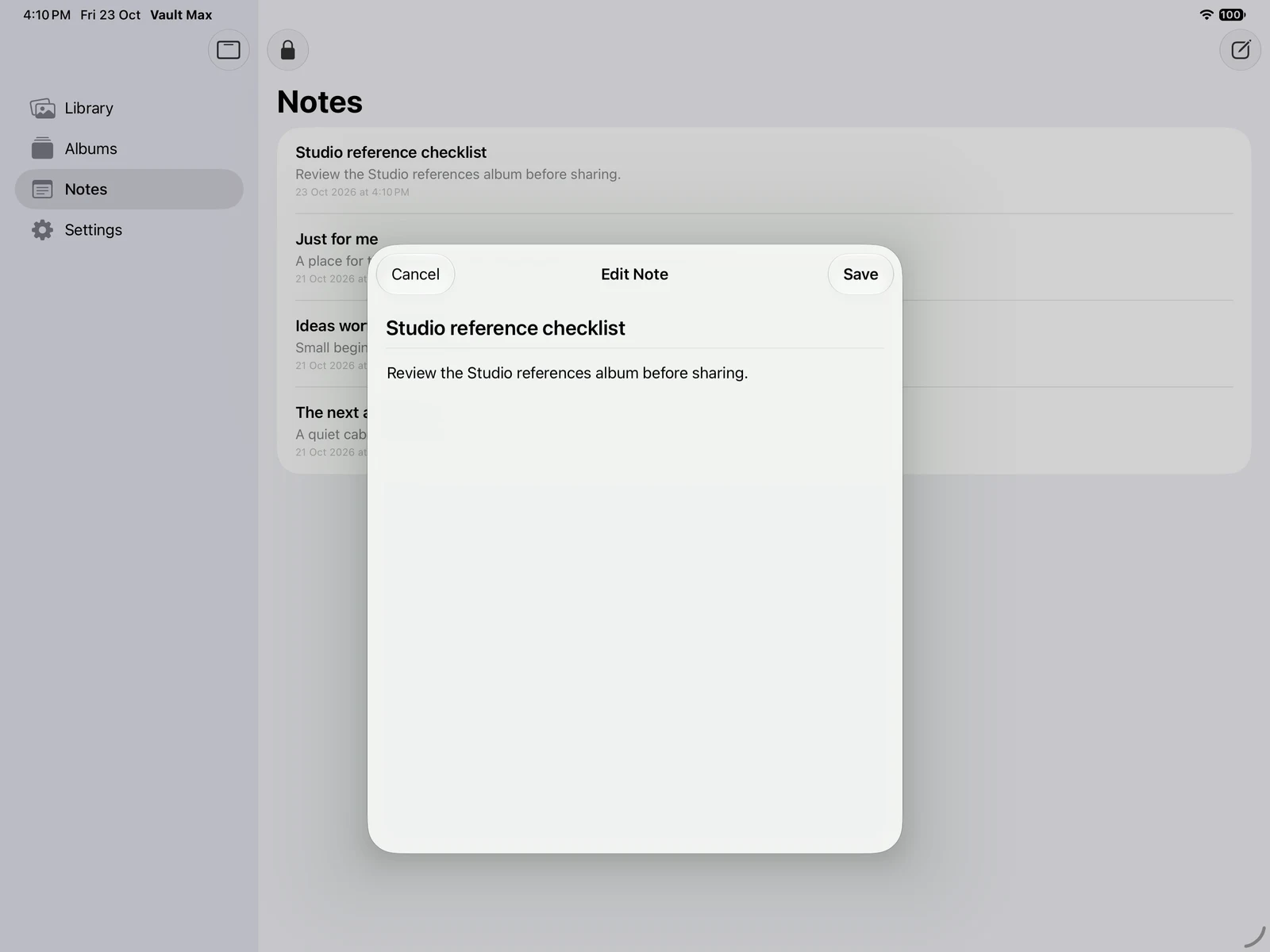
Keep the explanation in an encrypted note: the project, the date and why you retained these particular versions. Save it explicitly and reopen the row to confirm the writing. The photographs and the note serve different purposes, but recognizable names make them easy to use together.
This saved Studio reference checklist was reopened through the actual iPad Notes view. It contains a complete fictional reminder; previous notes were preserved. The system window-resize handle remains part of the intact iPadOS capture.
Actual Vault Max · QA simulator, generated sample photographsThe saved tablet note
Open original image: The saved tablet notePrepare recovery for the tablet you actually use
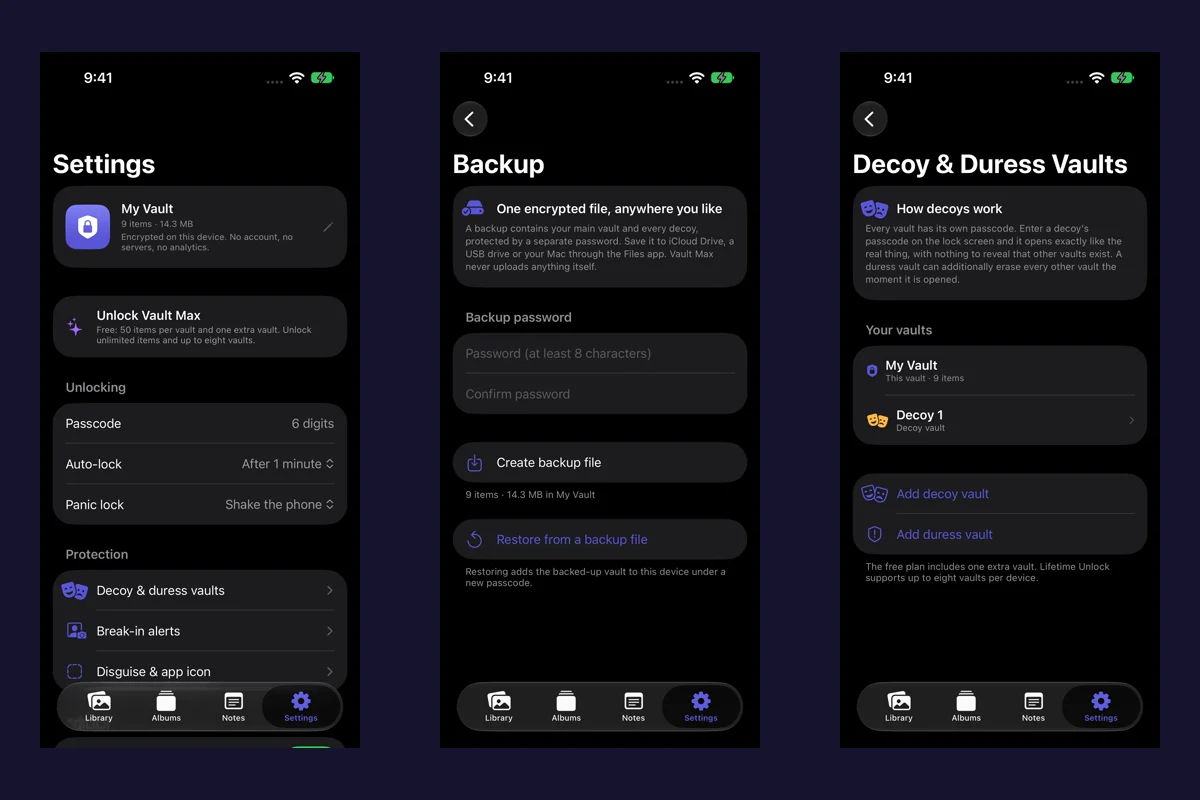
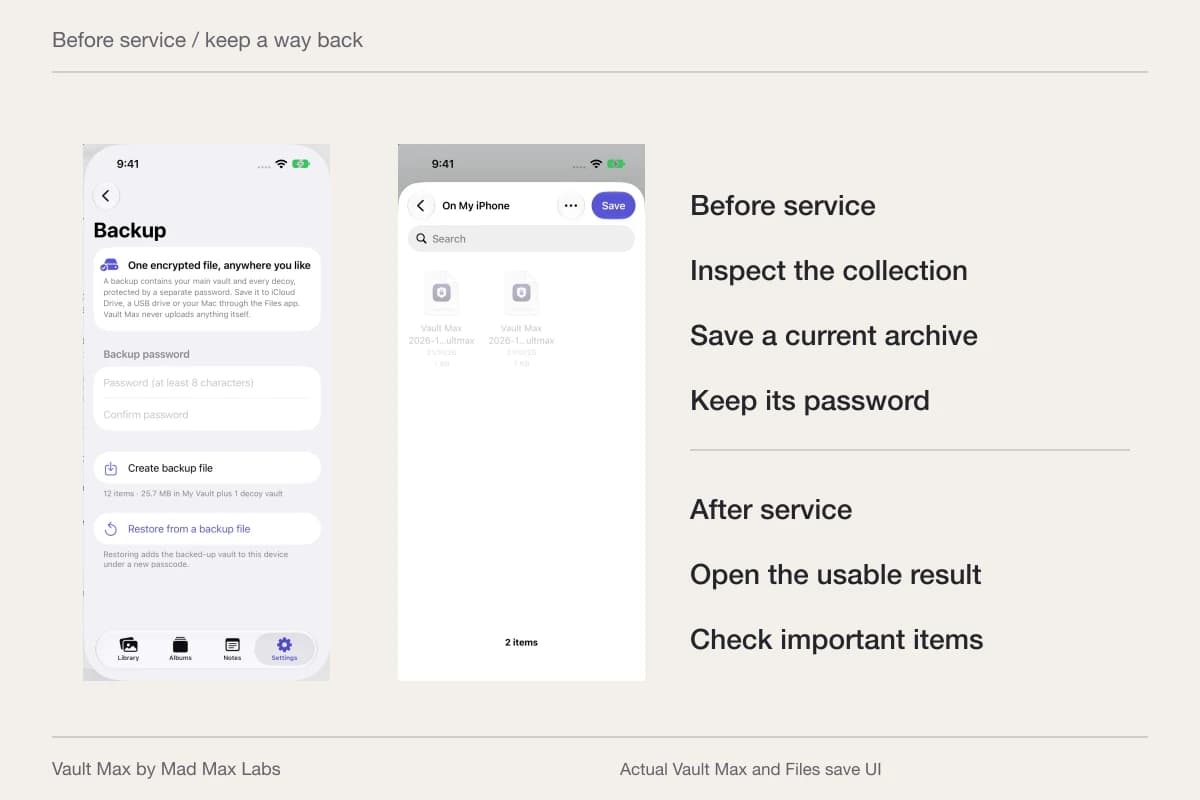
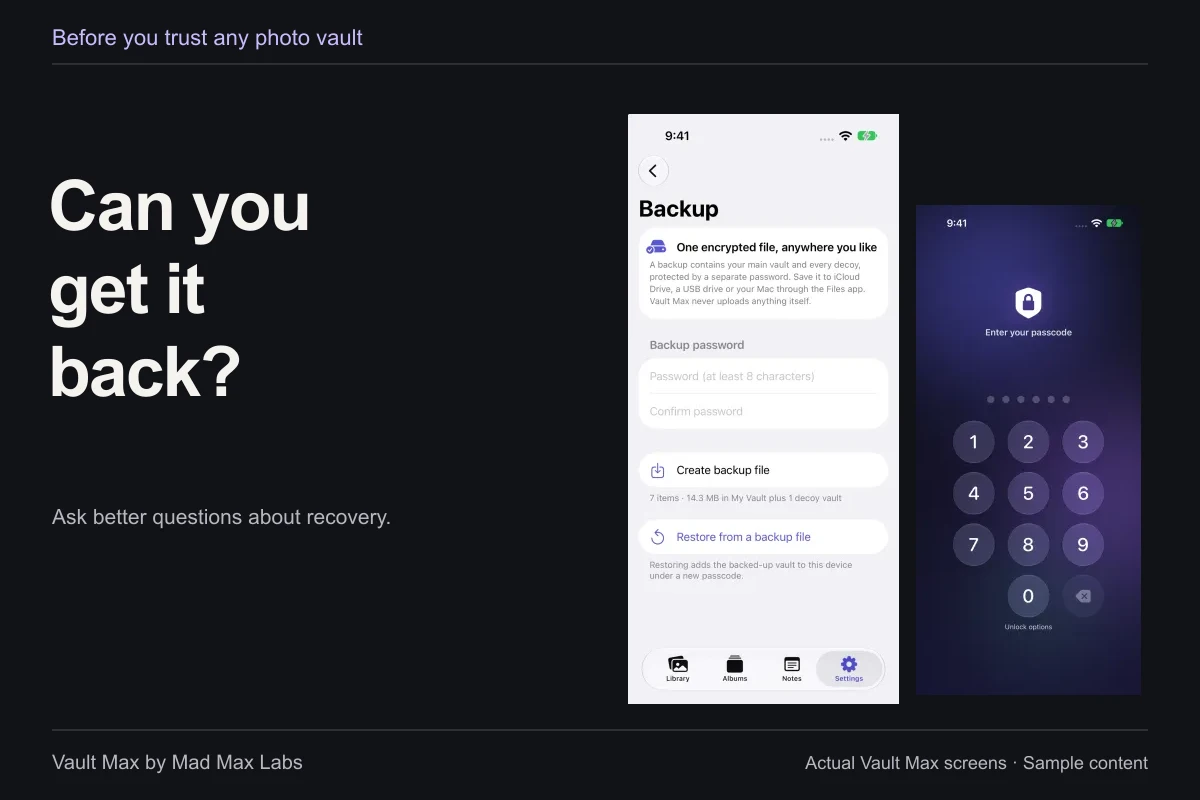
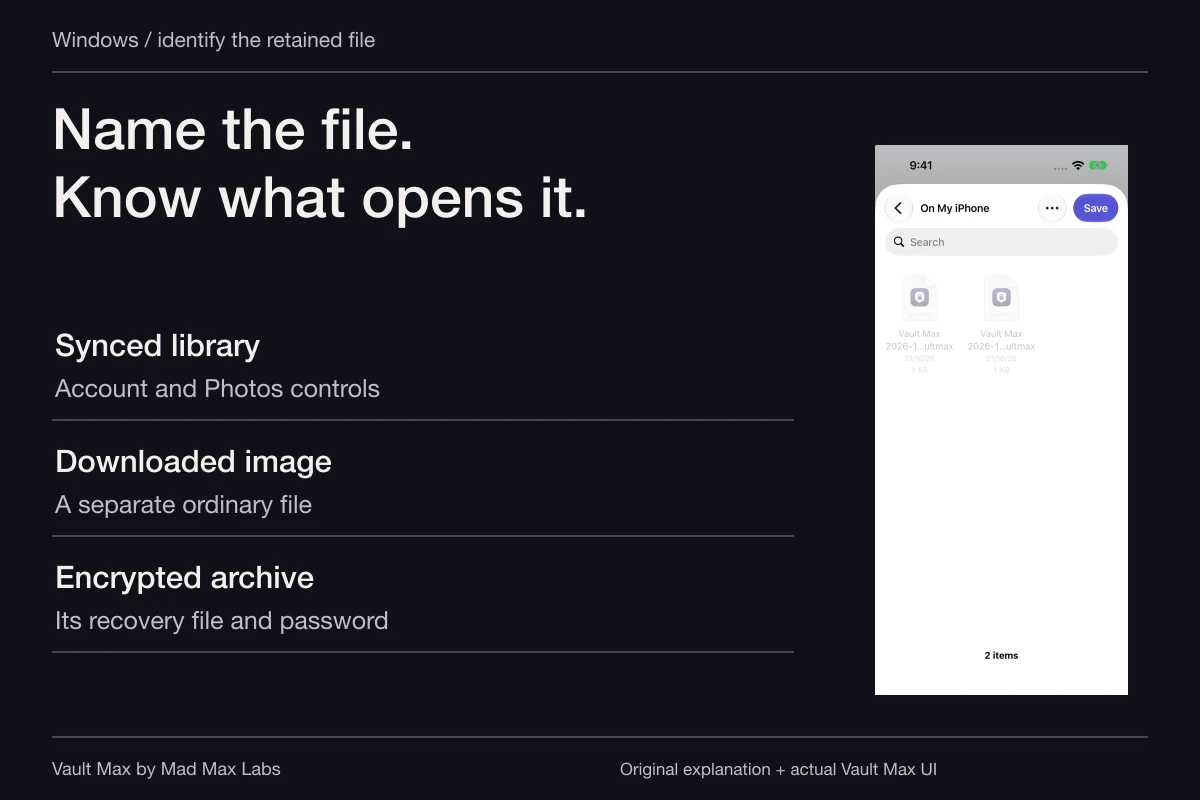
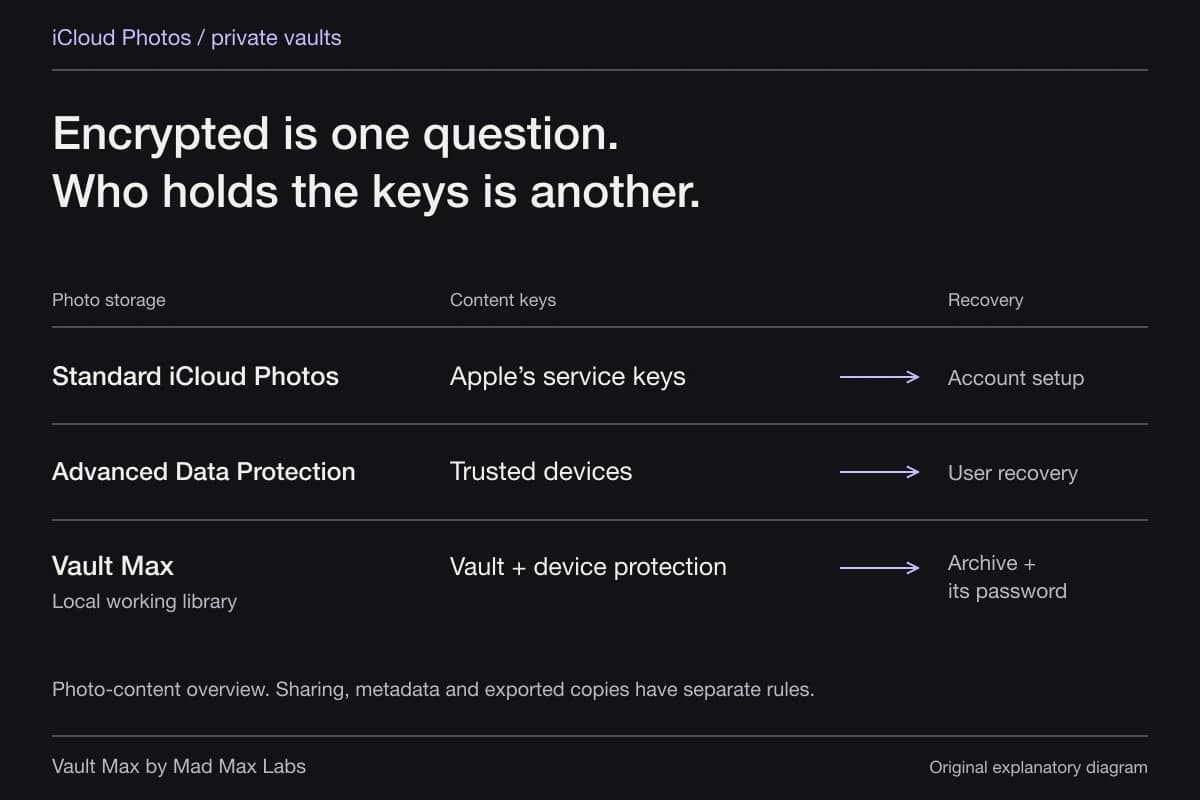
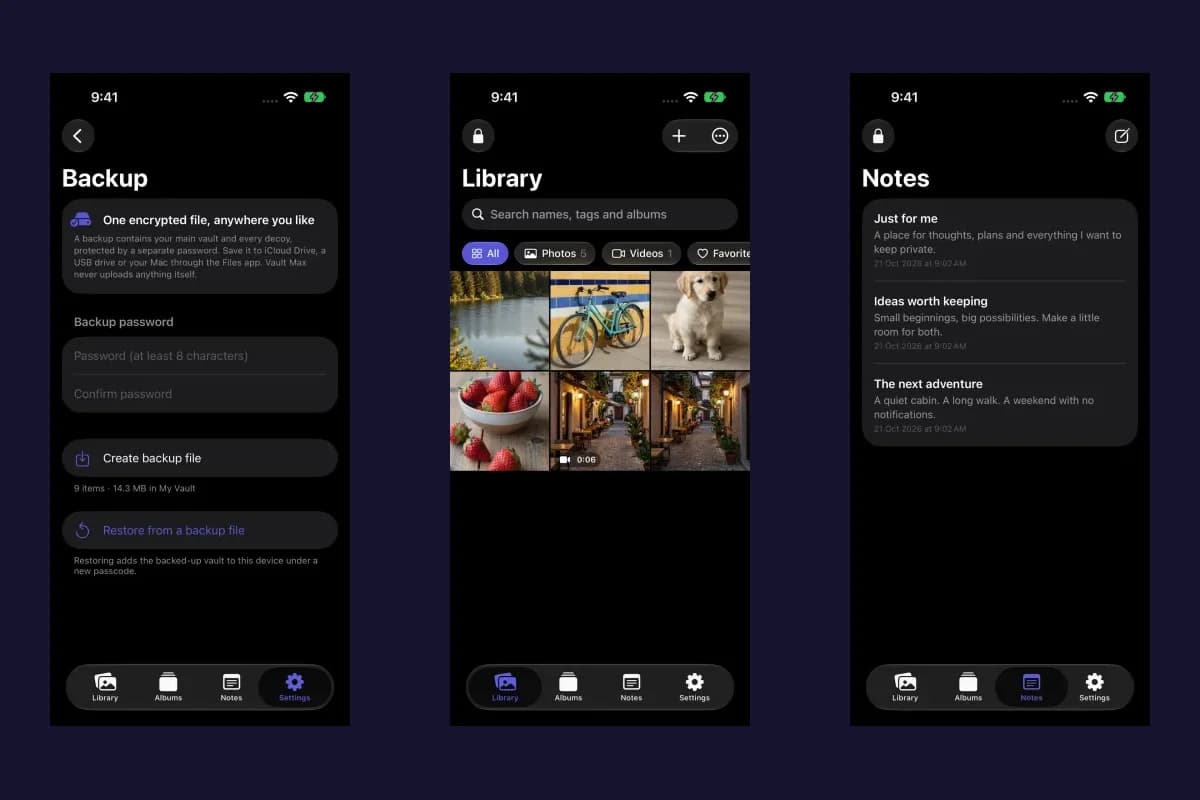
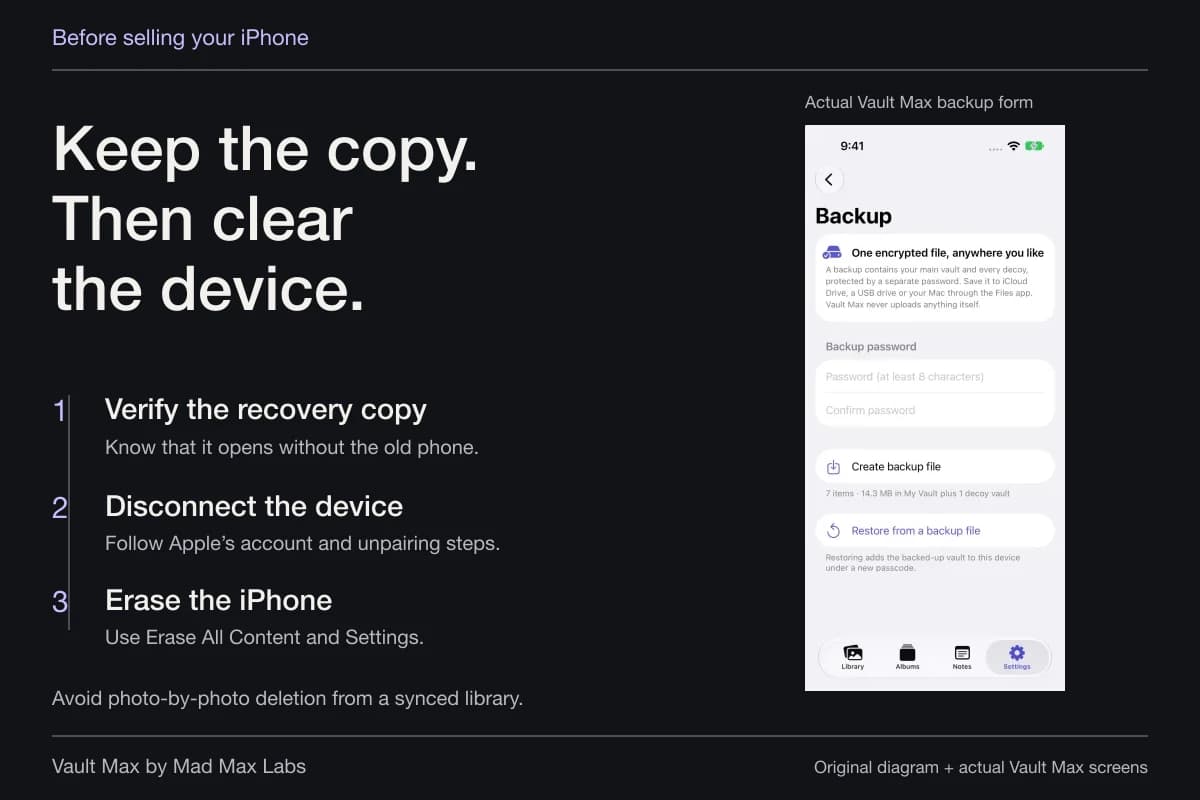
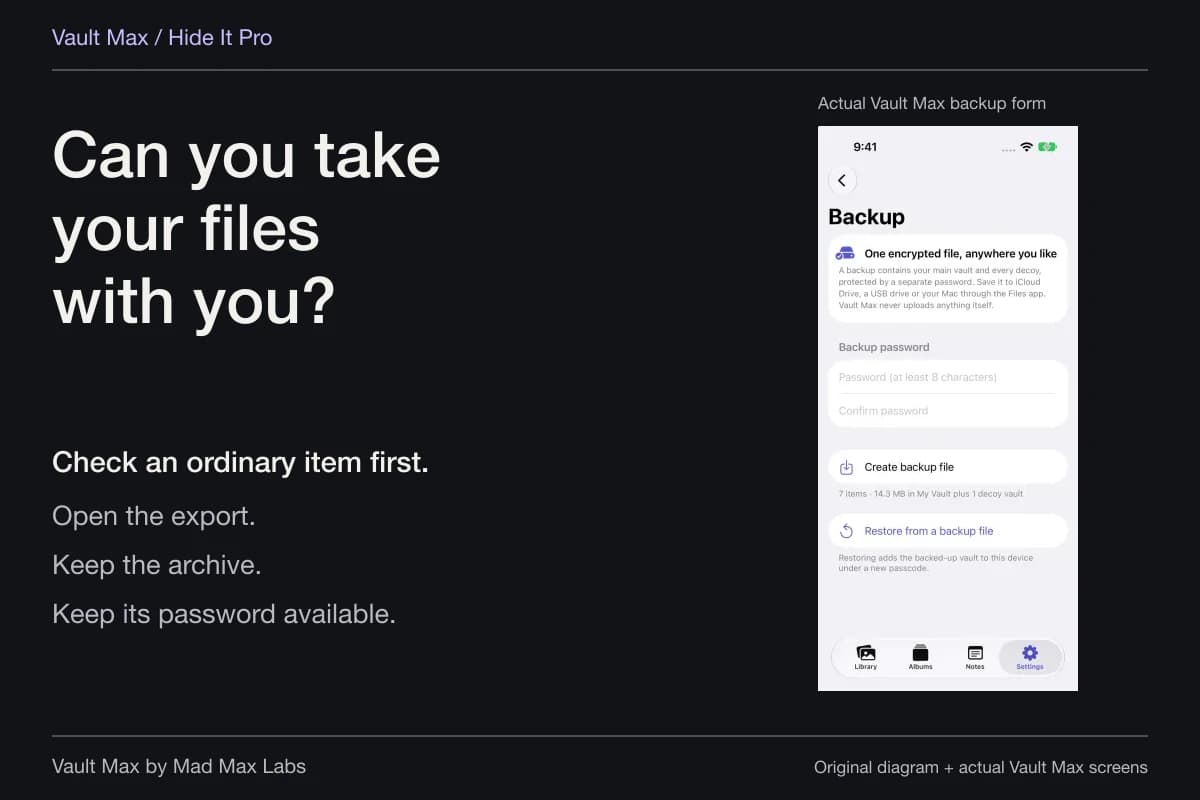
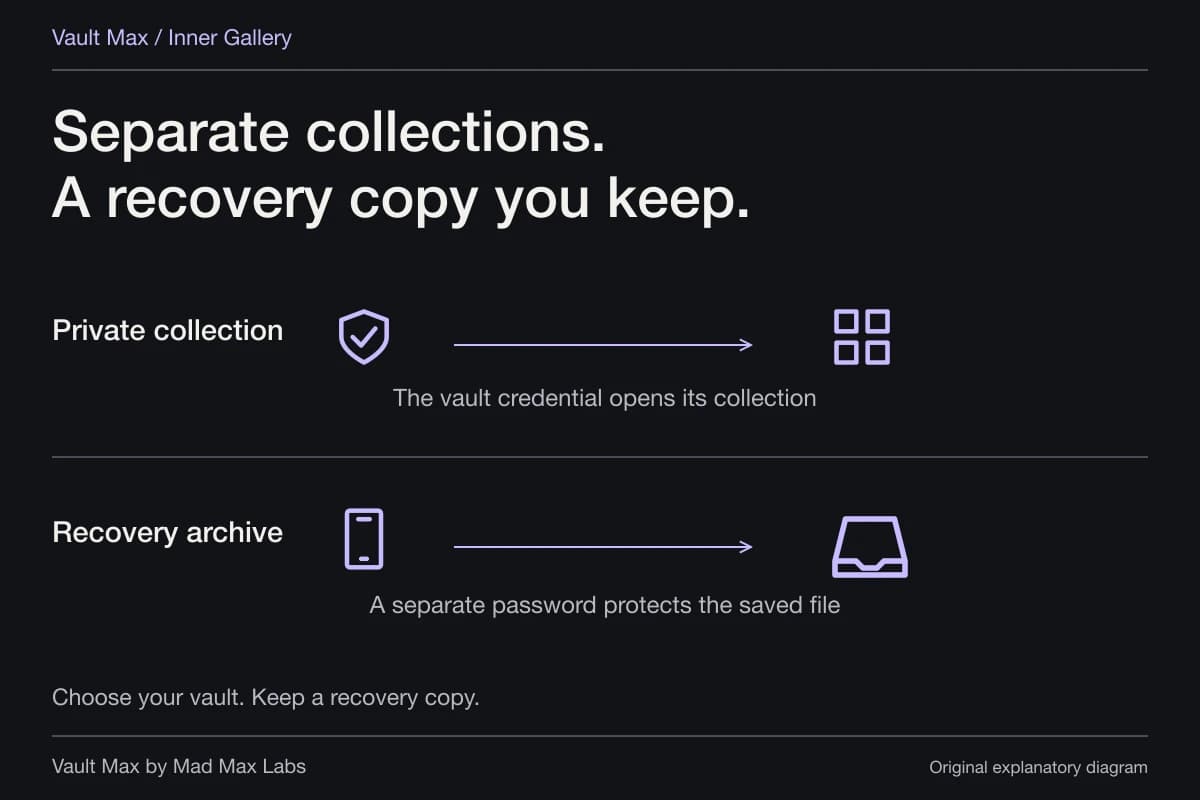
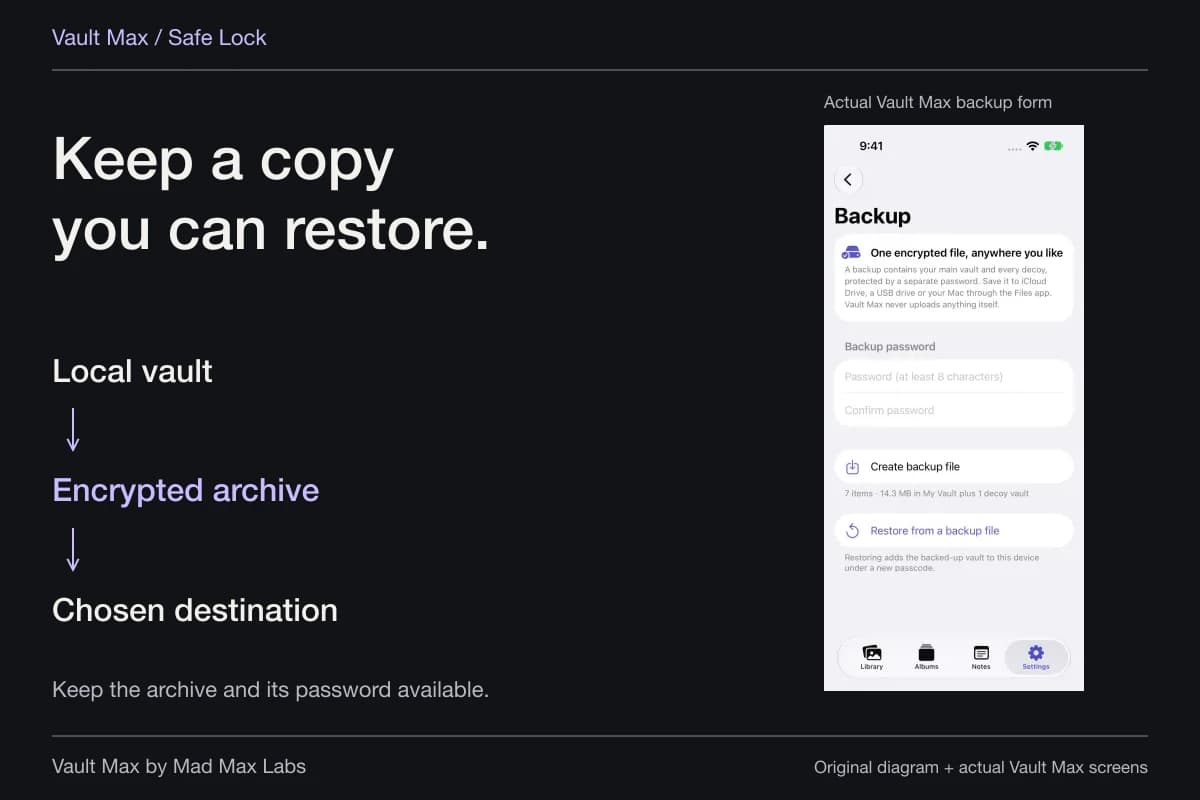
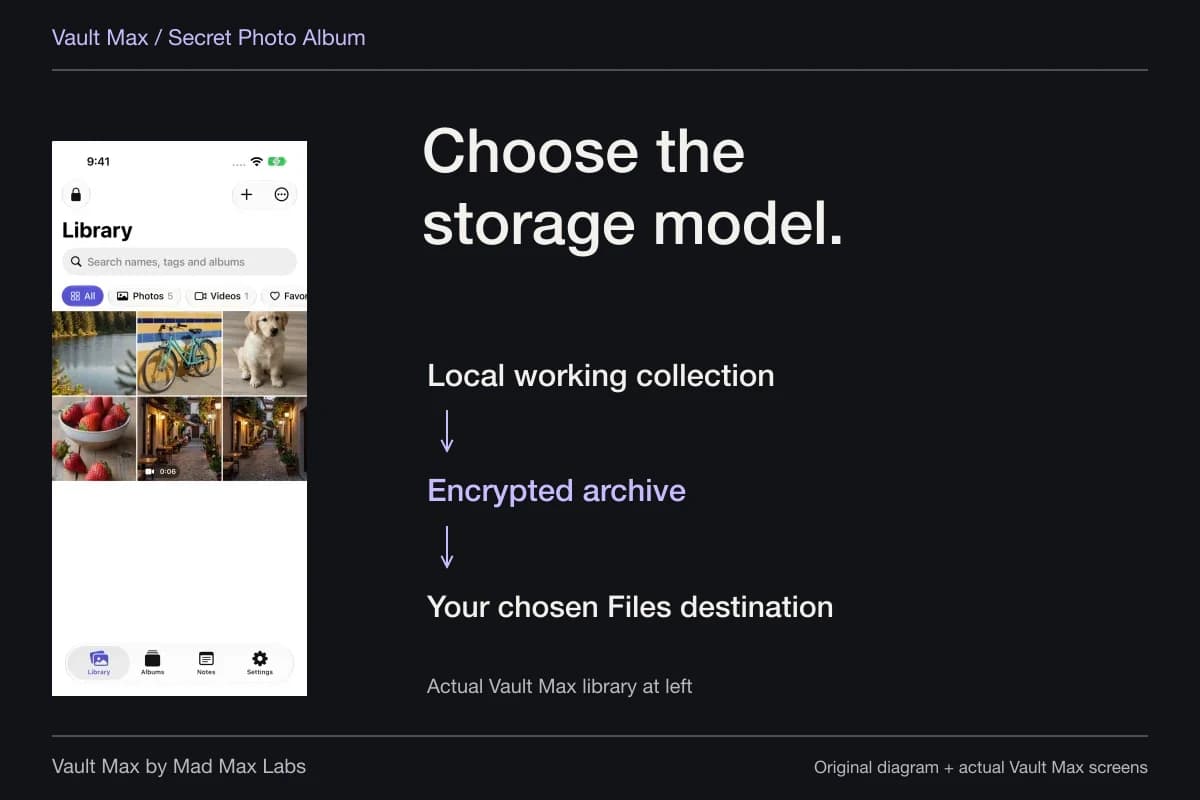
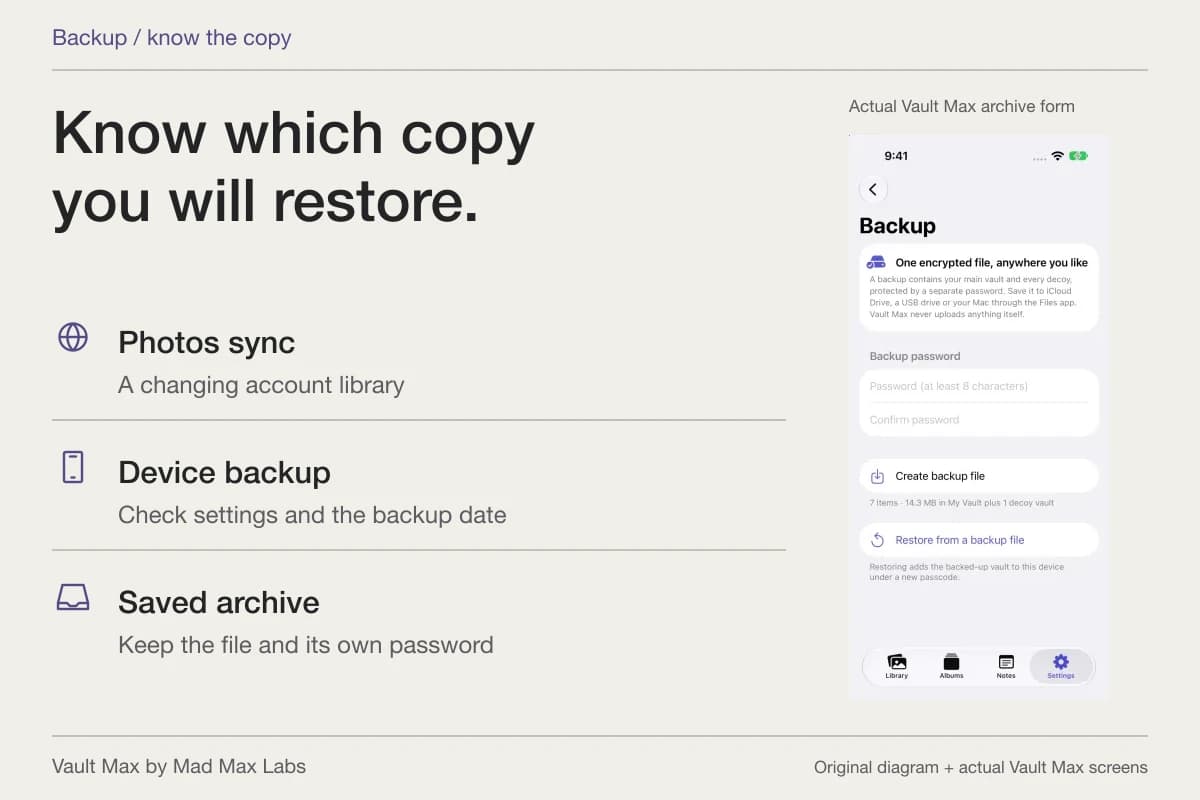
A local collection deserves an explicit recovery file. Create a password-protected .vaultmax archive, choose its destination in Files and keep the archive password independently available. Save somewhere you could reach if the iPad were lost. A file stored only on that tablet shares its loss risk.
The archive is also the deliberate route when moving the collection to another supported installation. It is a snapshot, so later edits require a fresh copy. Do not assume that installing Vault Max on an iPhone silently keeps the tablet's library current there.
Before relying on another device as your recovery destination, follow the archive instructions and inspect the important restored items. Purchase restoration and private-file restoration are different operations. Keep the usable source until you are satisfied with the destination.
- Hide an ordinary Photos sample, reopen Hidden and learn the visibility setting.
- Use a distinct vault credential if ordinary iPad access should not reach this collection.
- Open the actual saved photo or document and check the expected contents.
- Use a recognizable album and reopen the useful saved note.
- Preserve an accessible archive and its password, then lock the vault.
Tap a box as you go. Checks reset when you leave this page.
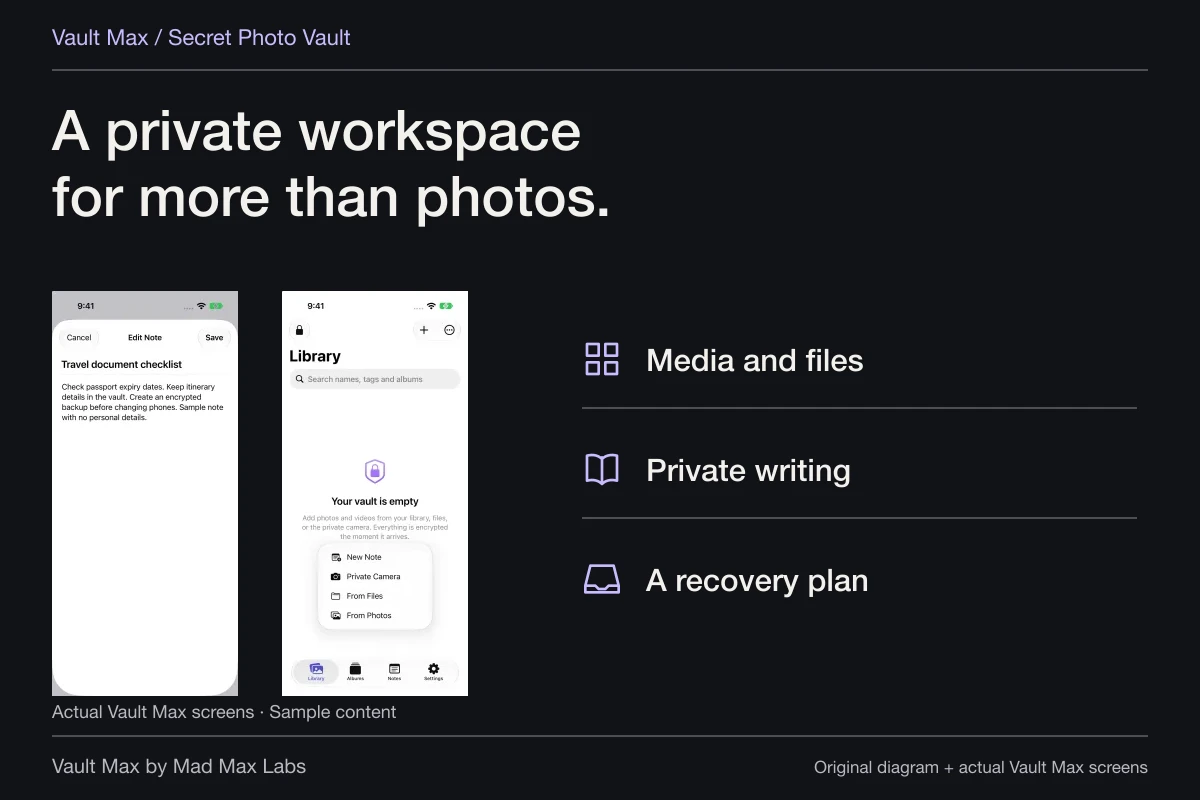
The result should feel like a useful private workspace on the tablet: recognizable files, enough context to understand them and a clear way to finish the session. Vault Max combines those jobs without an app account or a developer-hosted library.
Common questions
Where is the Hidden album on iPad?
In Photos, show the sidebar if necessary, open Utilities and choose Hidden. Use the authentication offered by your device. If Hidden is absent, review Settings → Apps → Photos → Show Hidden Album and the instructions for your iPadOS version.
Can the Hidden album use a different password from the iPad?
Photos uses the device's supported authentication. A separate vault can use its own credential. Choose a different Vault Max code when you want selected files to require a different secret from ordinary iPad access.
Will the Vault Max collection appear on my iPhone automatically?
Vault Max's working collection is local to the device. A separately password-protected archive provides an explicit transfer and recovery route. Keeping another installation current requires a deliberate plan rather than an assumed automatic sync.
Continue reading
More guides
Practical tips for your private library. Swipe or scroll to choose your next guide.
74 guides to explore