
Privacy in practice
Lockdown Mode and private photos: understand the restrictions before changing your routine
Learn what Lockdown Mode changes for photo sharing and everyday access. Keep a practical private collection with separate credentials and a recovery plan.
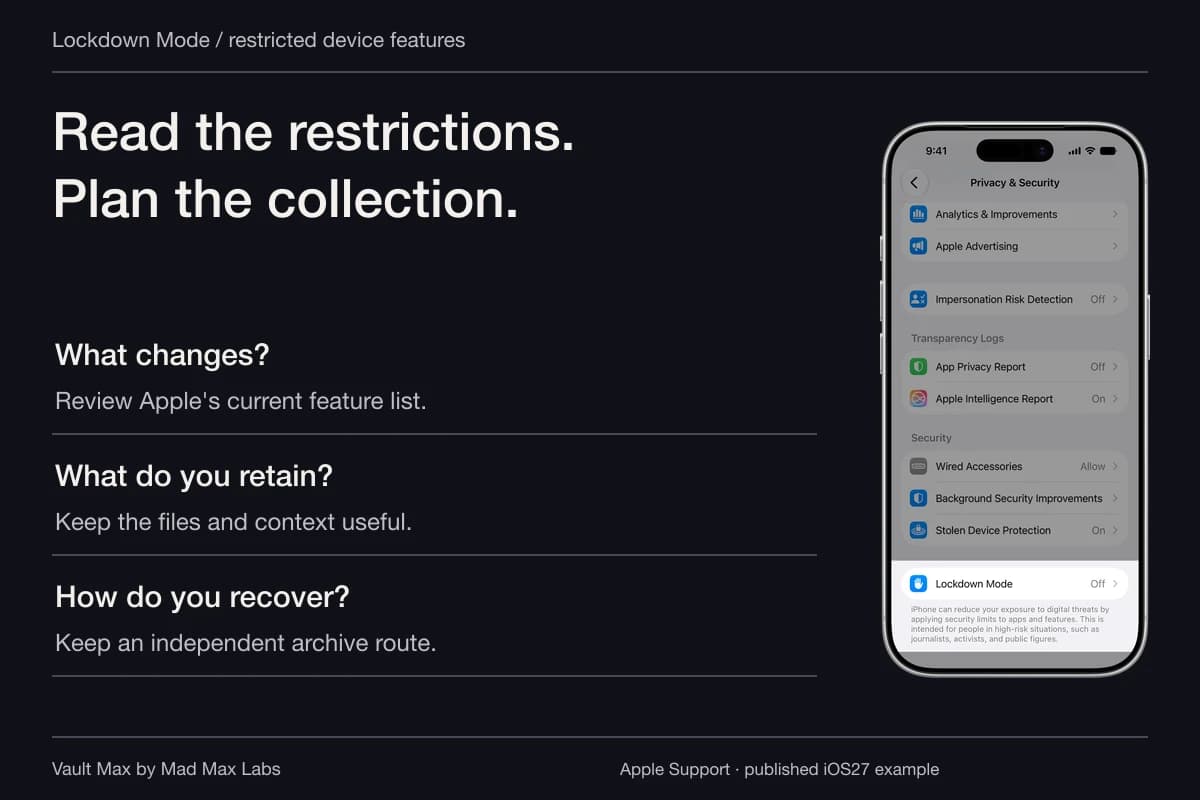
Lockdown Mode changes which device features are available; it does not set a new password for your private photo collection. Apple's photo-specific changes include excluding location when sharing and removing Shared Albums from Photos while the mode is enabled. Keep that distinct from deciding who can open the pictures already on your phone.
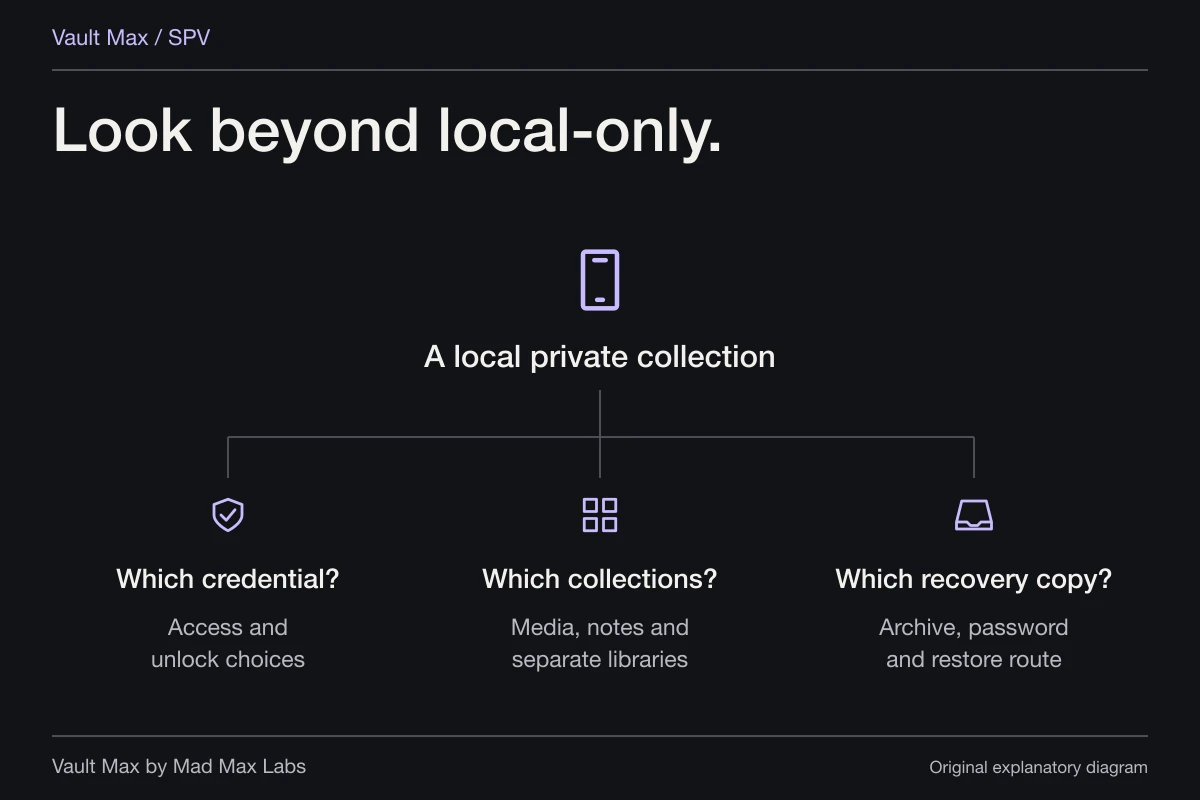
If the everyday goal is a private collection of images, documents and writing, Vault Max provides a direct routine: choose the content, keep it behind its own credential, save useful notes and preserve an encrypted recovery archive. If the concern is a sophisticated targeted attack, Apple's device protection and expert assistance have a different scope.
Start with the reason for the setting
Apple Platform Security describes Lockdown Mode as an optional protection for the small number of people who may be individually targeted by exceptionally sophisticated digital threats. It reduces available functionality to reduce opportunities for attack.
That means a feature becoming inconvenient can be part of the intended behavior. A messaging restriction and a private-library lock answer different questions. Choose the control according to the problem you actually have, rather than enabling every setting with a strong-sounding name and discovering the consequences during an important task.
For a suspected targeted attack, do not use a photo-vault feature list as a security assessment. Vault Max works within the operating system; this guide does not establish that an app can withstand a compromised operating system or neutralize mercenary spyware.
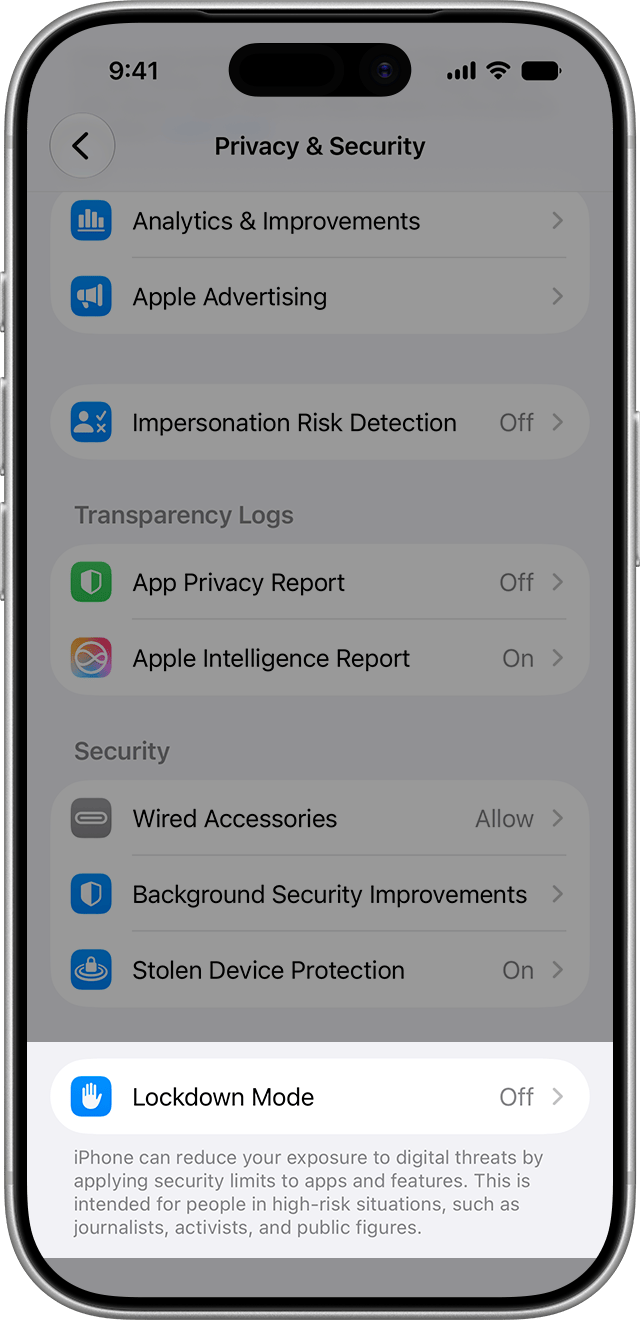
Apple's published iOS27 example highlights the Lockdown Mode row, which is set to Off in this image. It identifies where to begin; it does not show the mode enabled, an attack detected or a completed protection test.
Apple Support · published iOS27 exampleSeparate a restriction from a deleted photograph
Apple's current Lockdown Mode reference lists changes across Photos, Messages, web browsing and other features. In Photos, location information is excluded when sharing, Shared Albums disappear from the app and new Shared Album invitations are blocked. Those albums can still be viewed on devices without Lockdown Mode enabled.
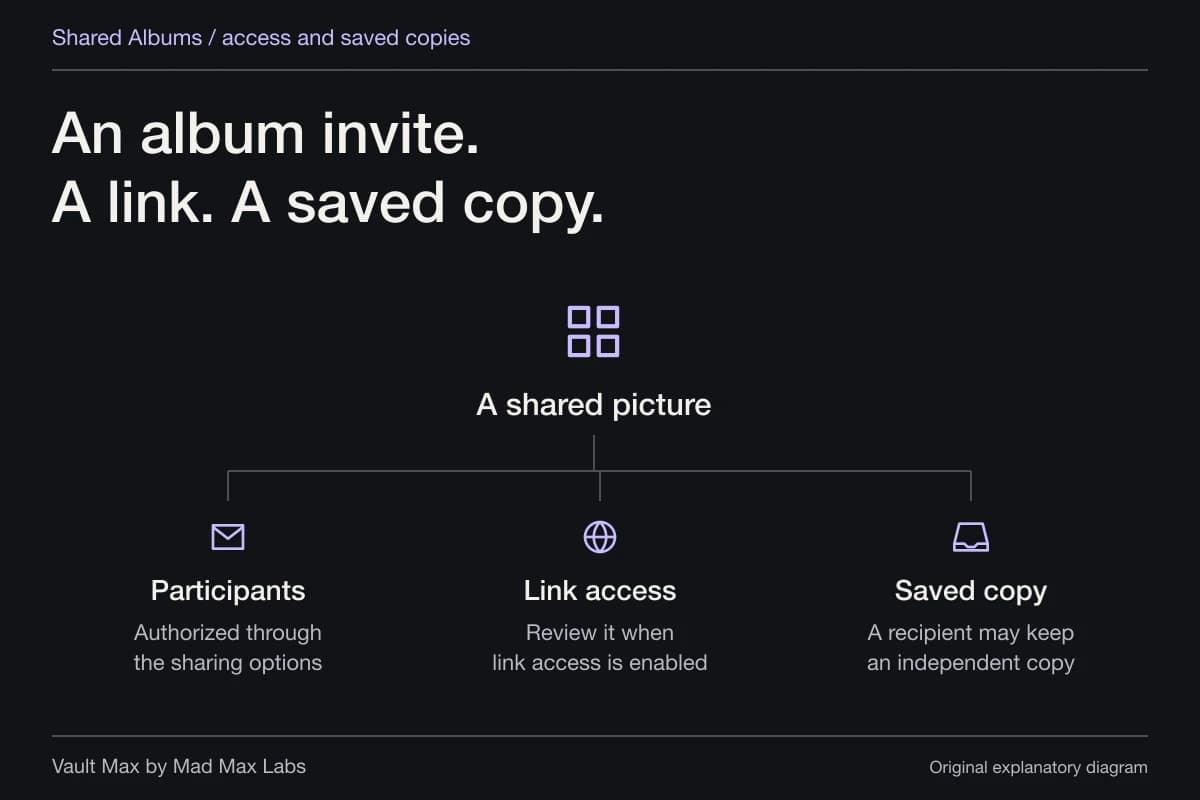
Therefore, an album disappearing from this phone after enabling the mode does not by itself mean its contents were erased. It also does not mean someone else's saved photo was recalled. Check the active mode before treating a missing sharing feature as lost data.
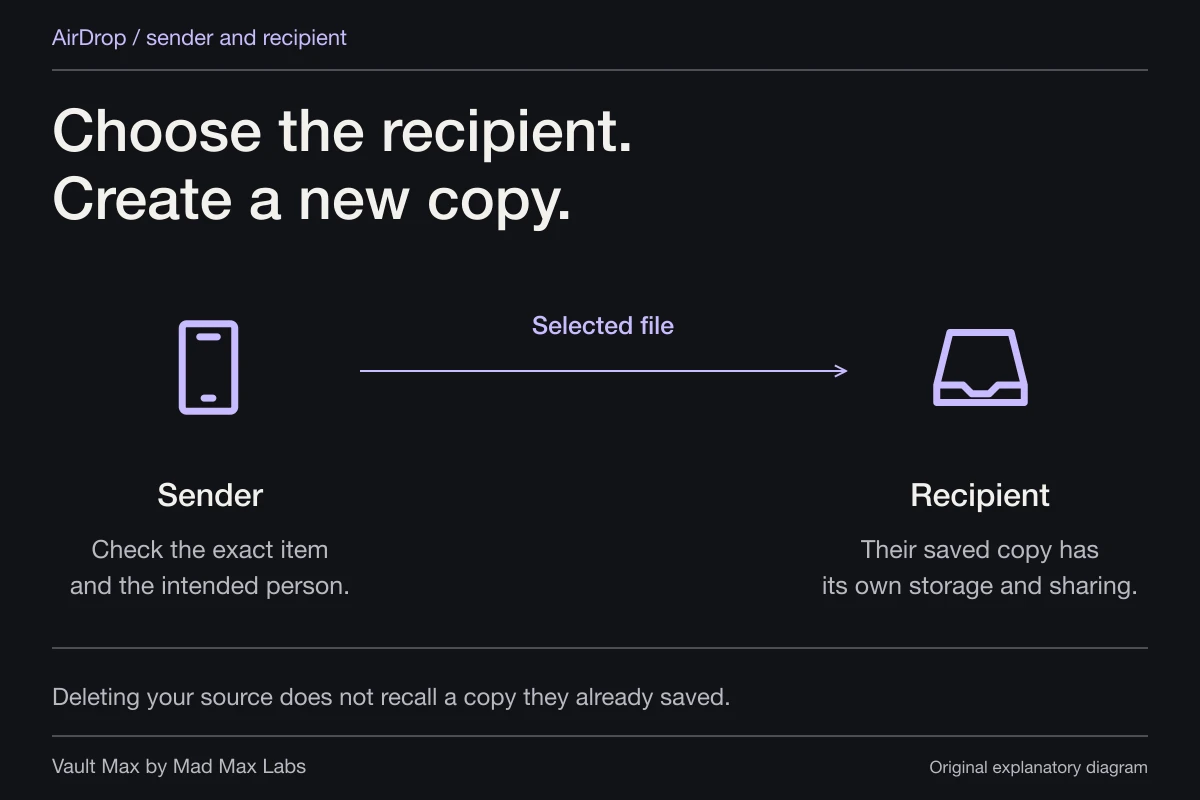
If the goal is to change an album's audience, use the Shared Album privacy workflow. Apple documents participant management separately in its Shared Albums instructions. Removing a participant, changing a link's availability and dealing with retained copies are audience decisions. A device restriction does not substitute for those decisions.
Prepare the ordinary tasks you still need
Before a deliberate settings change, write down the few tasks you rely on: opening important local files, reaching trusted contacts, accessing recovery information and making a backup. Keep the list specific. “Everything works” is difficult to assess; “I can reopen this saved note and locate this archive” is a useful completion check.
Apple's iPhone User Guide explains that Lockdown Mode changes media handling, sharing defaults and connectivity, and that some features become unavailable. A computer/accessory connection also depends on the documented unlock requirements. Prepare a needed transfer deliberately rather than assuming every route will behave as before.
This guide uses Apple's documented behavior and Vault Max's implemented local workflow. It does not claim a new compatibility run of every Vault Max action with Lockdown Mode enabled. If an important task fails on your device, preserve the source and error information before changing security settings or retrying a move.
Enable it through the supported system path
On iPhone, open Settings → Privacy & Security → Lockdown Mode and choose Turn On Lockdown Mode. Follow the confirmation and restart prompts. Apple's Personal Safety setup instructions explain that iPhone, iPad and Mac need their own setup; a supported paired Apple Watch follows the iPhone setting.
After restart, return to the setting and inspect the state. Read any system notices and check the specific tasks on your short list. You are confirming the routine you need, not proving that a device is free from compromise.
If a website or message feature is restricted, avoid immediately excluding everything. Current iOS27 documentation offers specific website, app web-content and contact exceptions. Those exceptions reduce the corresponding protection. Use Apple's current instructions for the exact control; do not confuse a web-content exception with unlimited trust in an entire app or person.
Keep photo access and the private collection deliberate
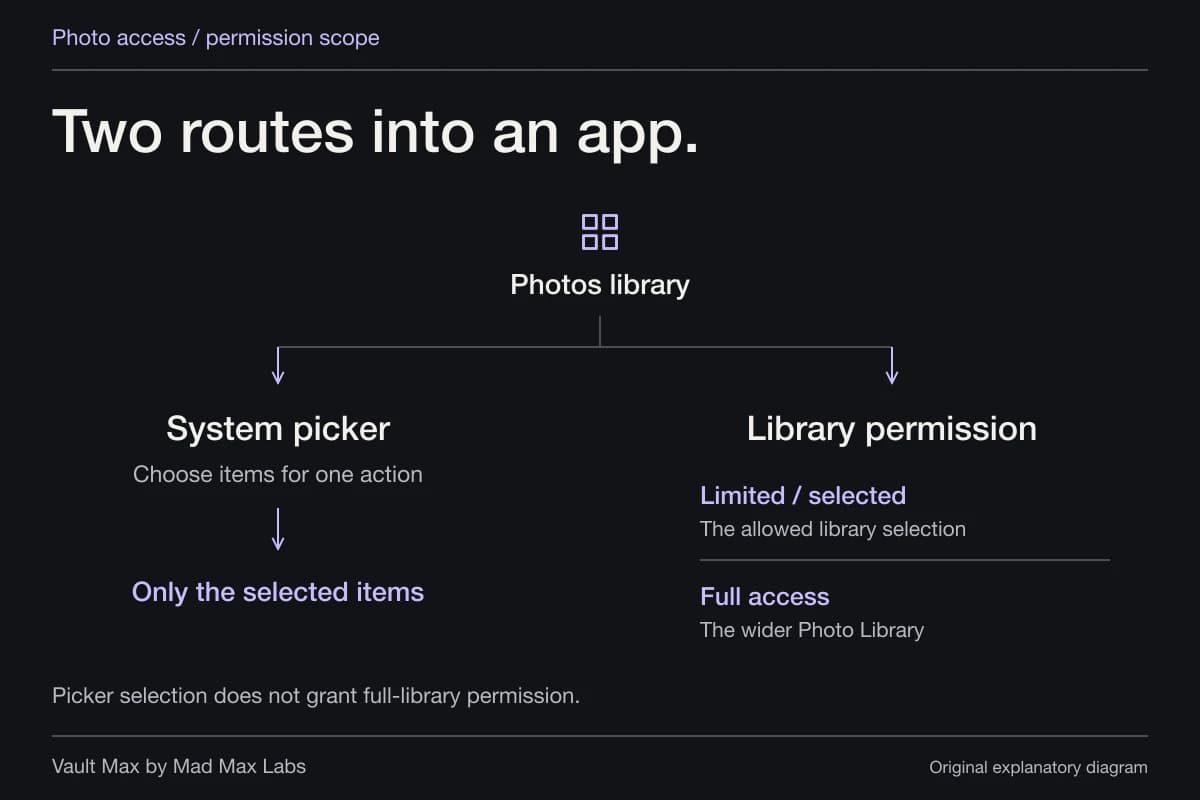
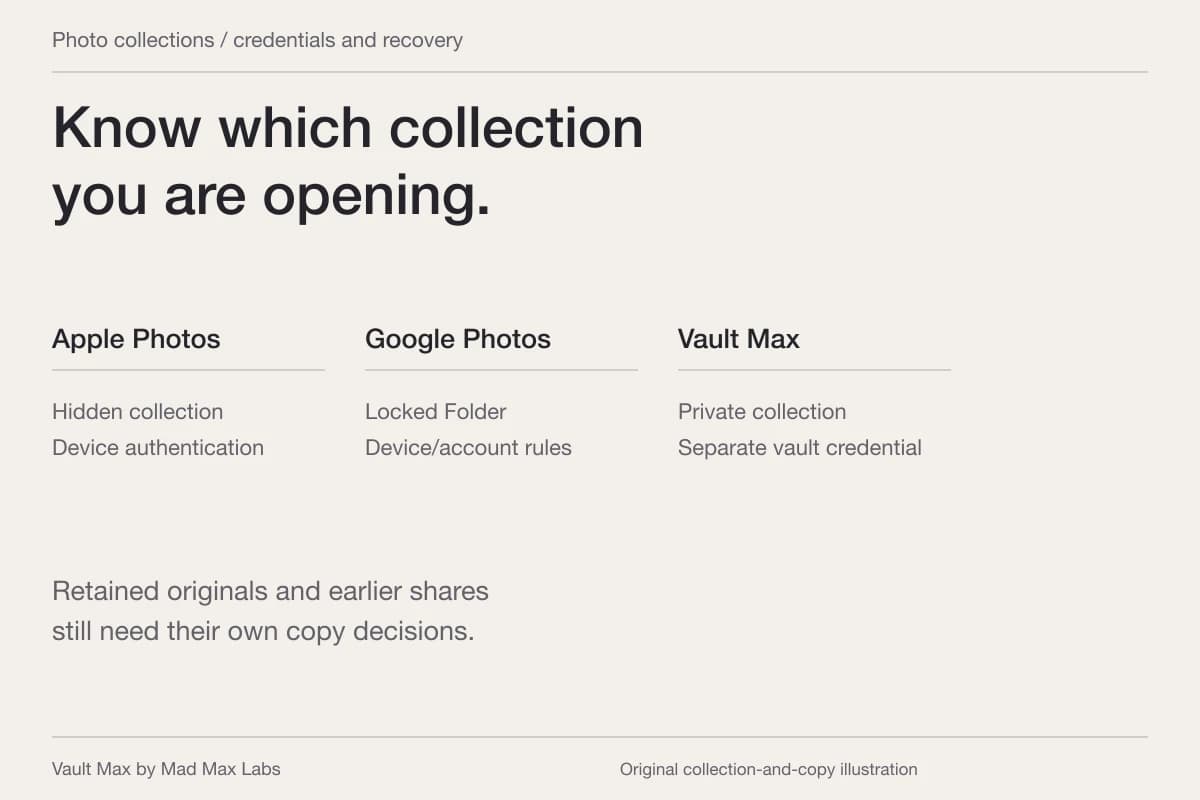
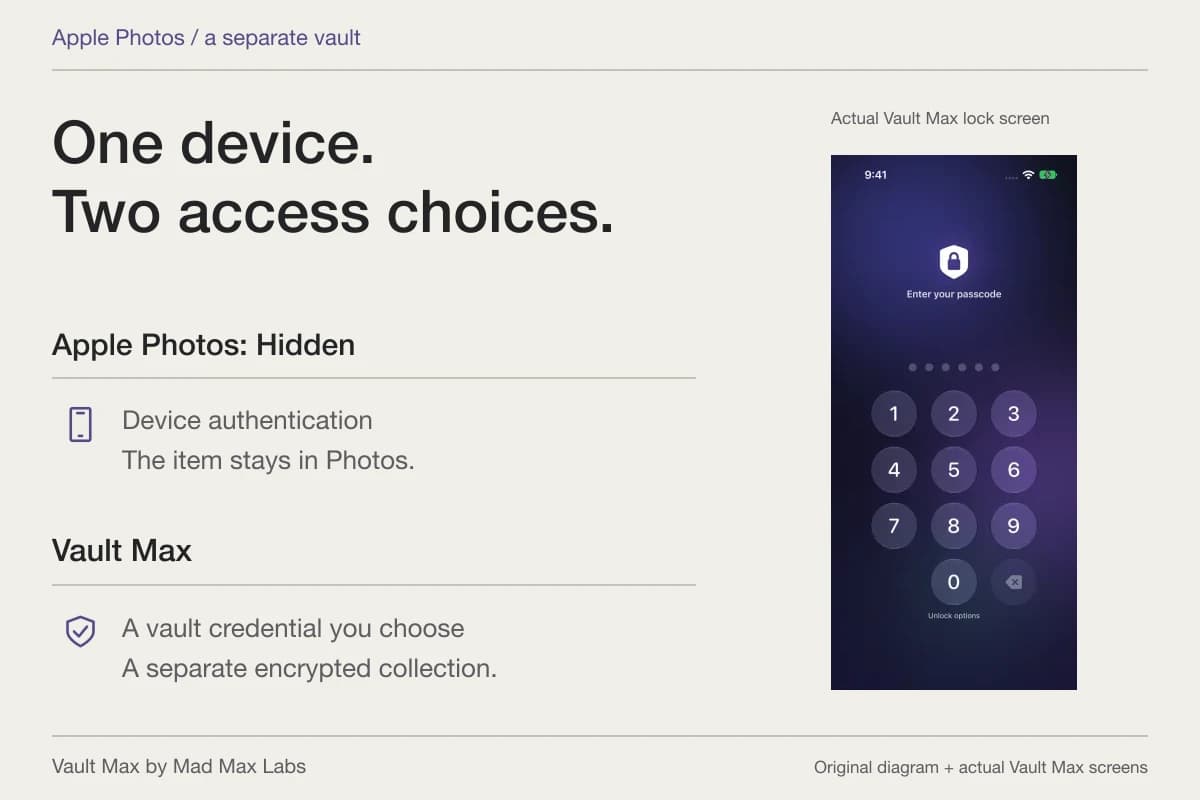
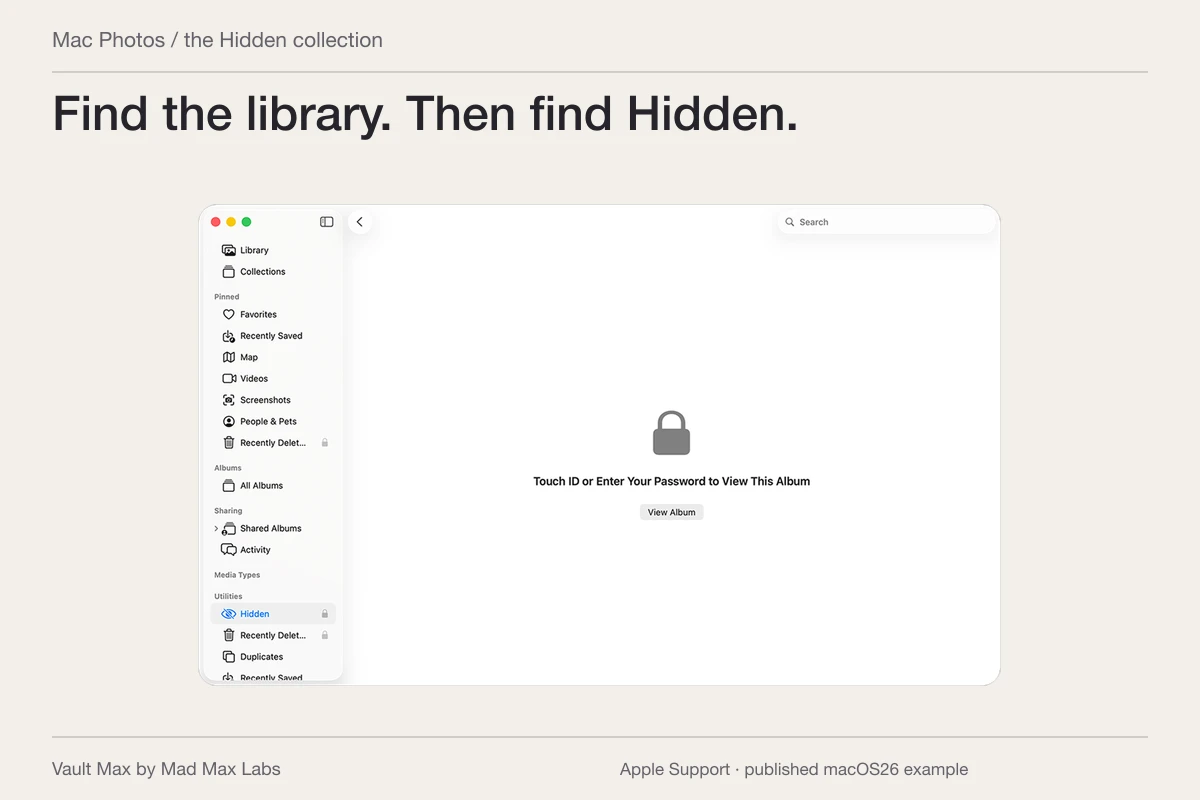
For an ordinary access problem, start with the photograph's actual home. Apple's Hidden album keeps selected items out of normal Photos browsing, with authentication by default on supported systems. It remains part of that Photos library and its sync arrangement.
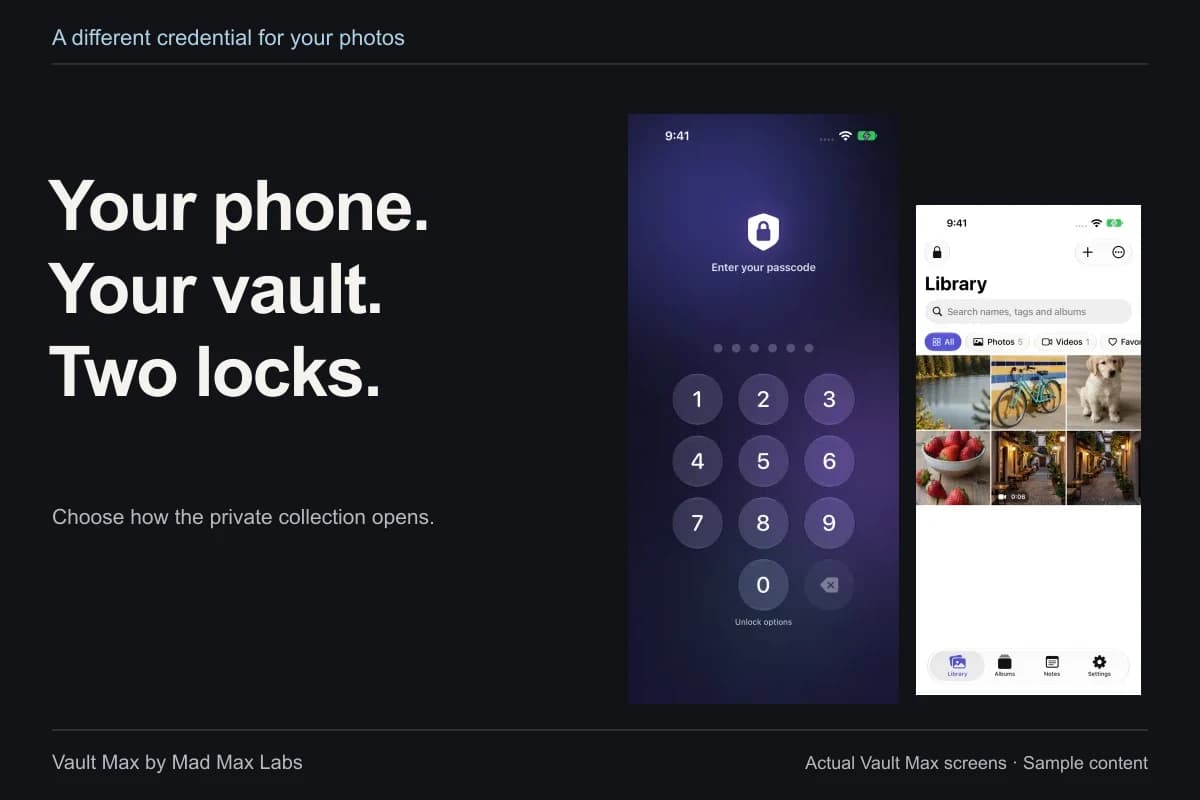
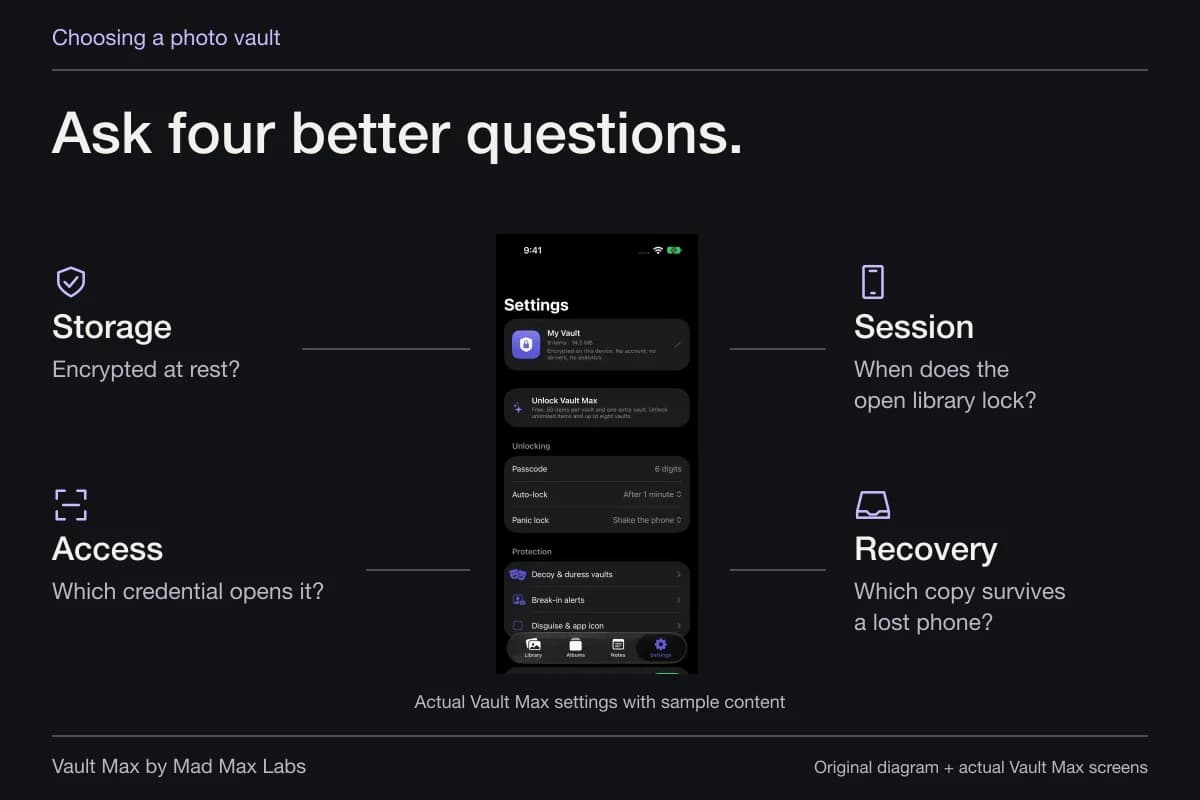
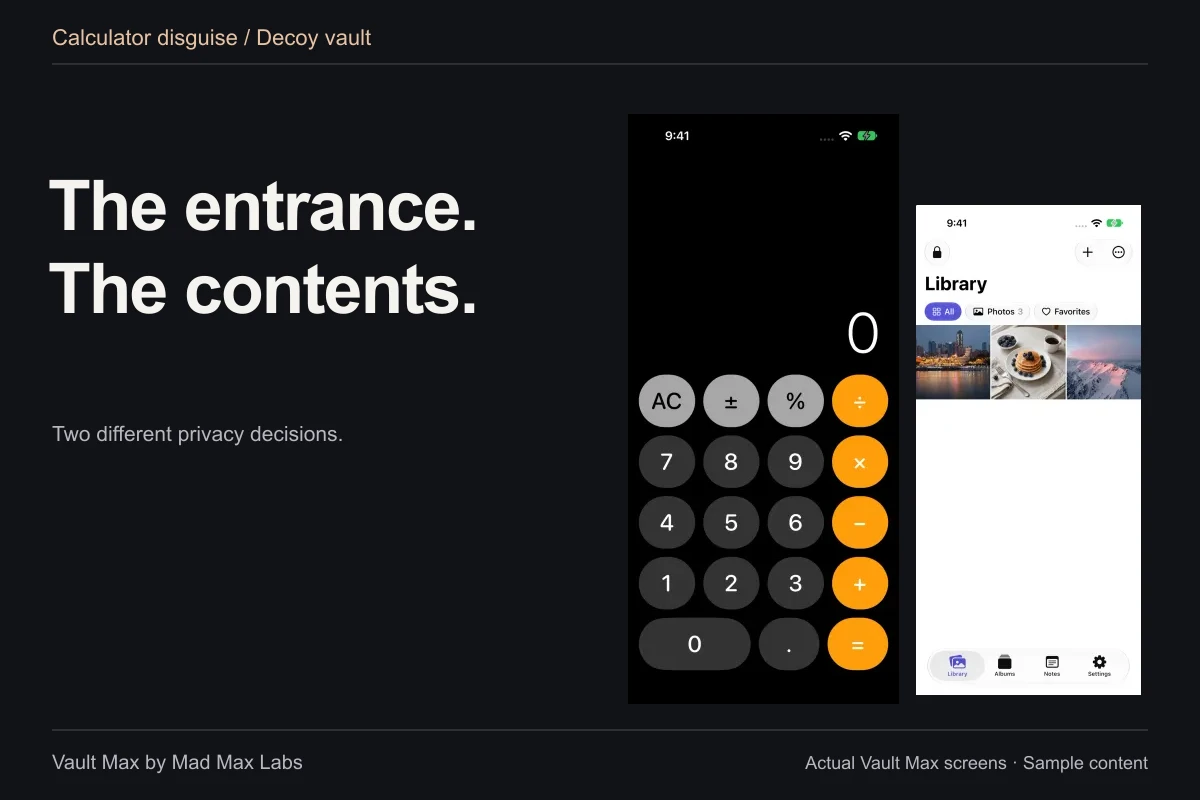
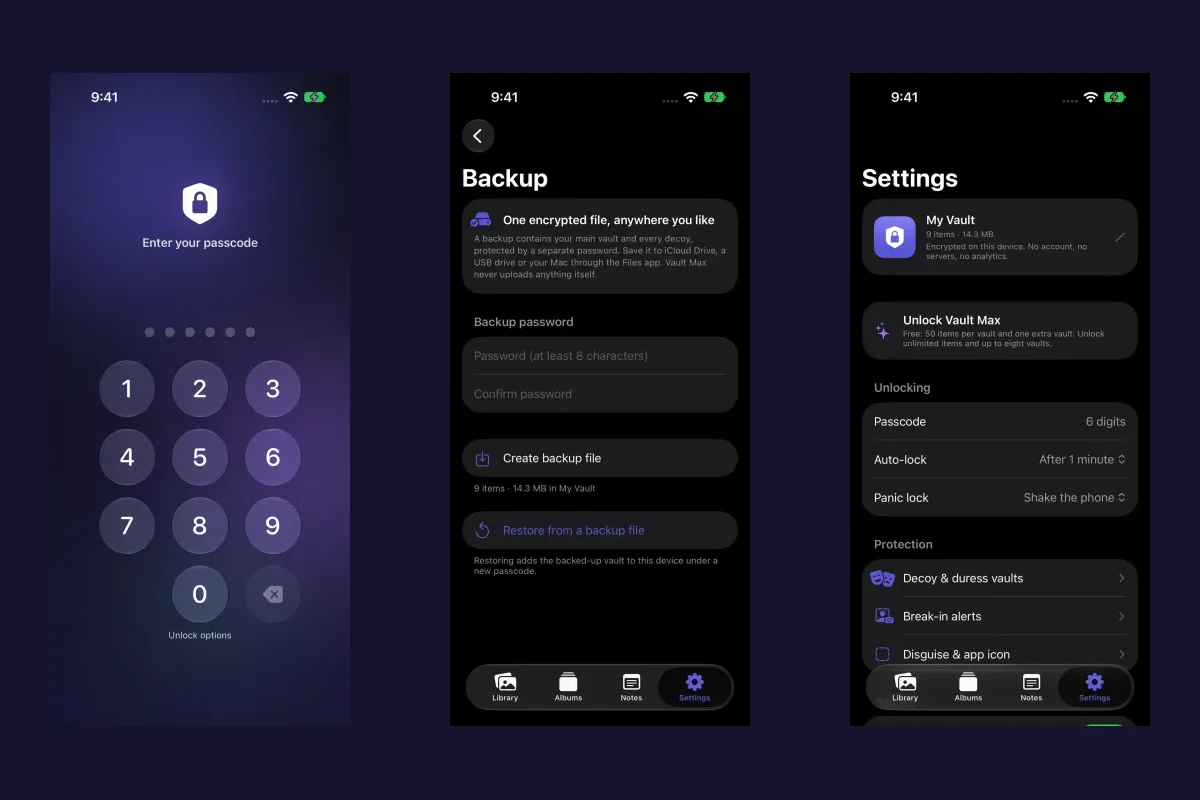
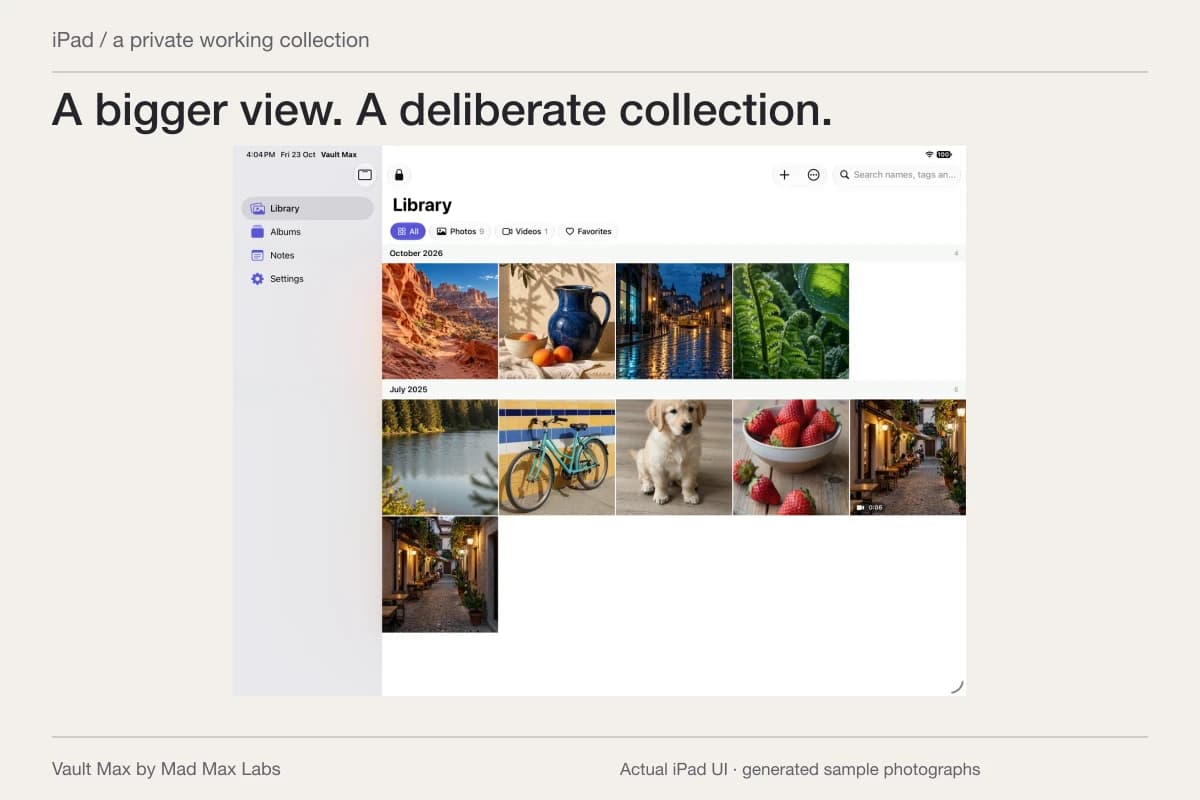
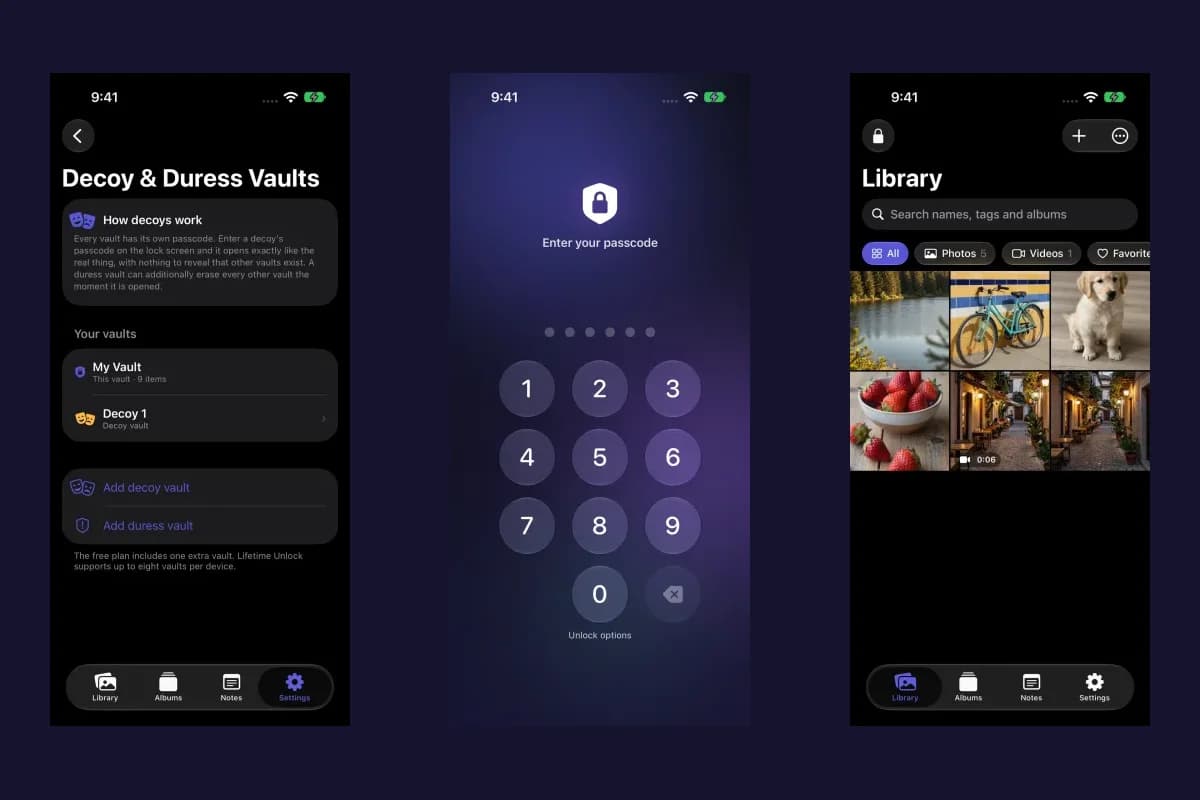
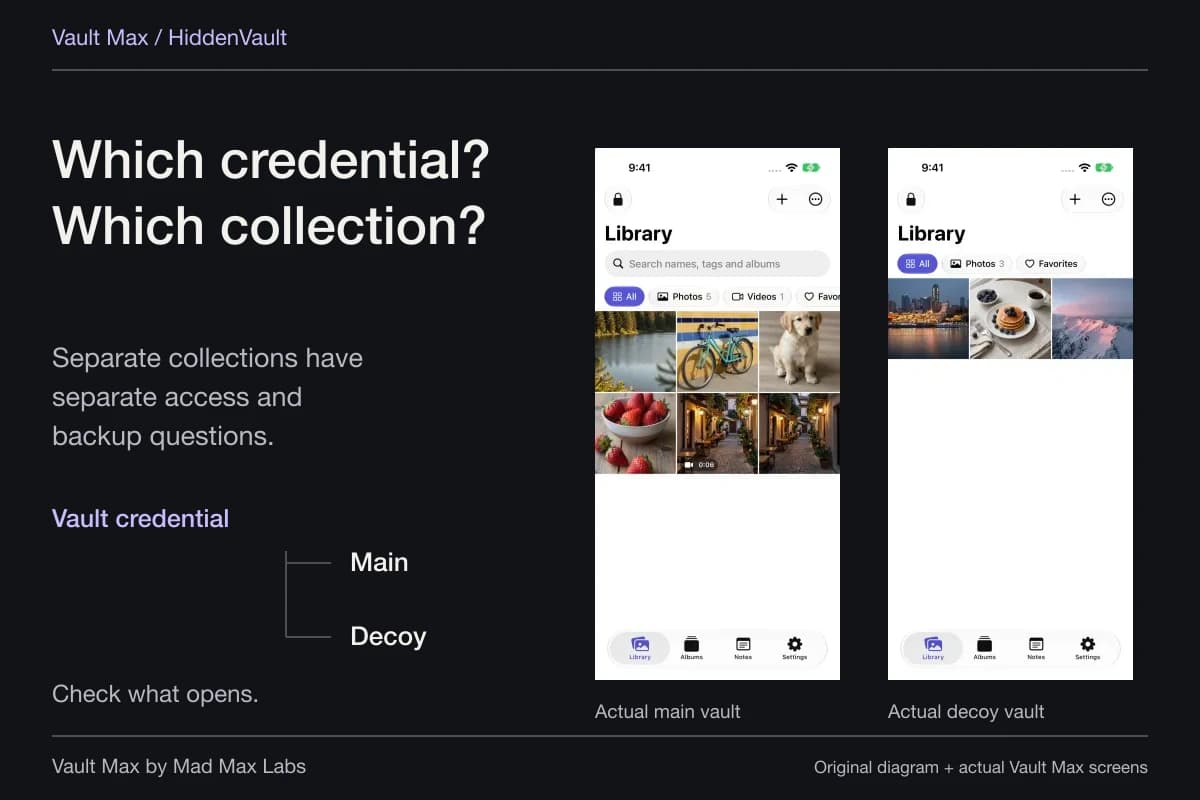
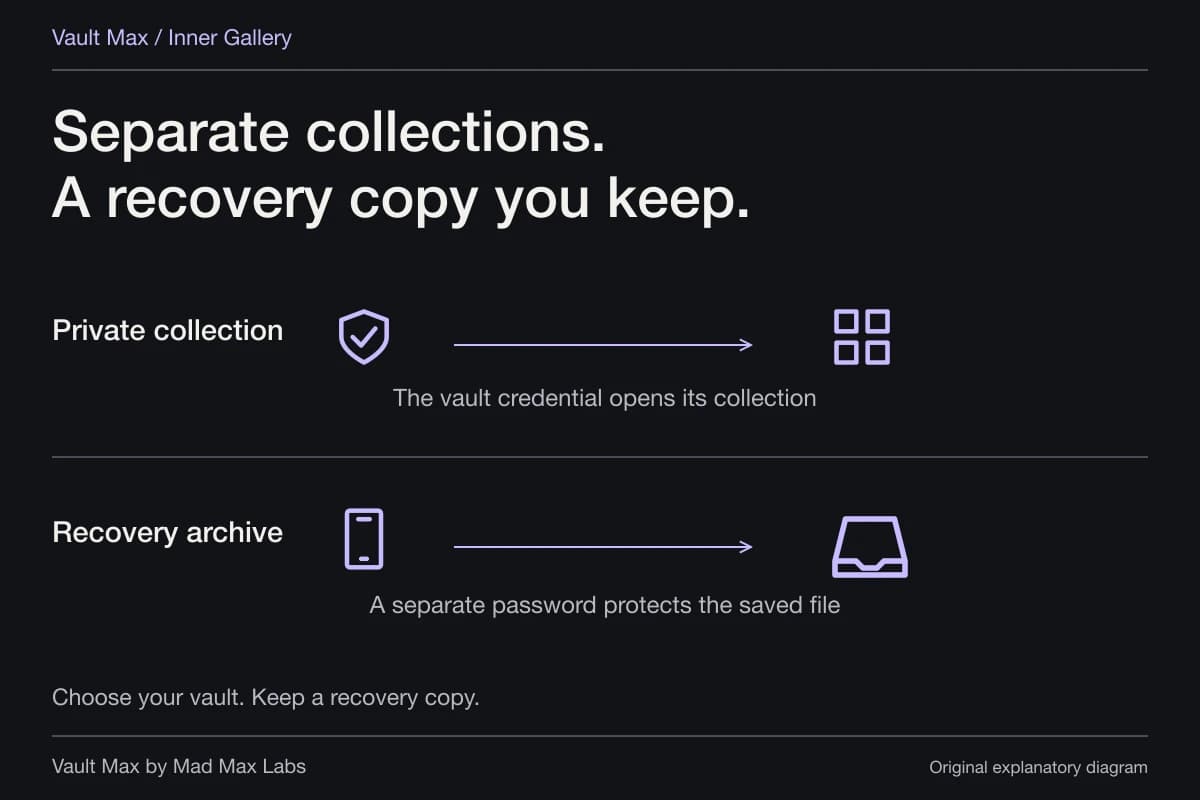
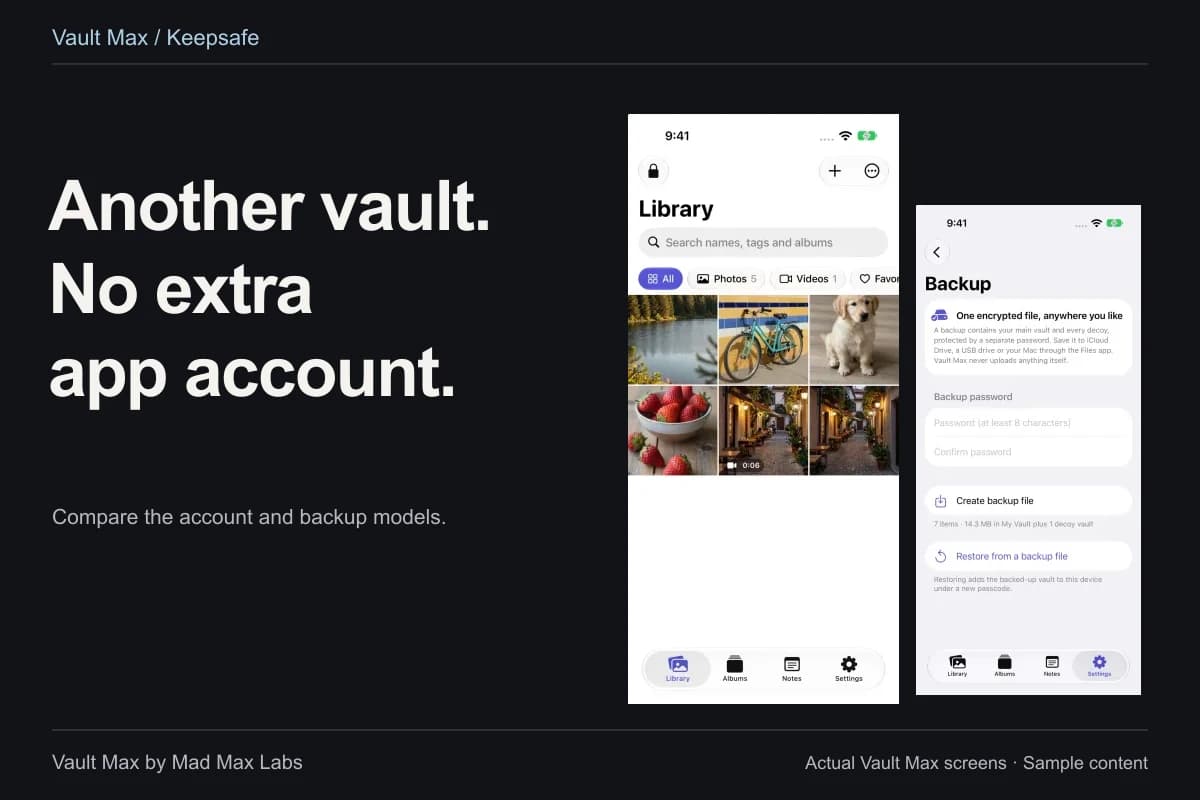
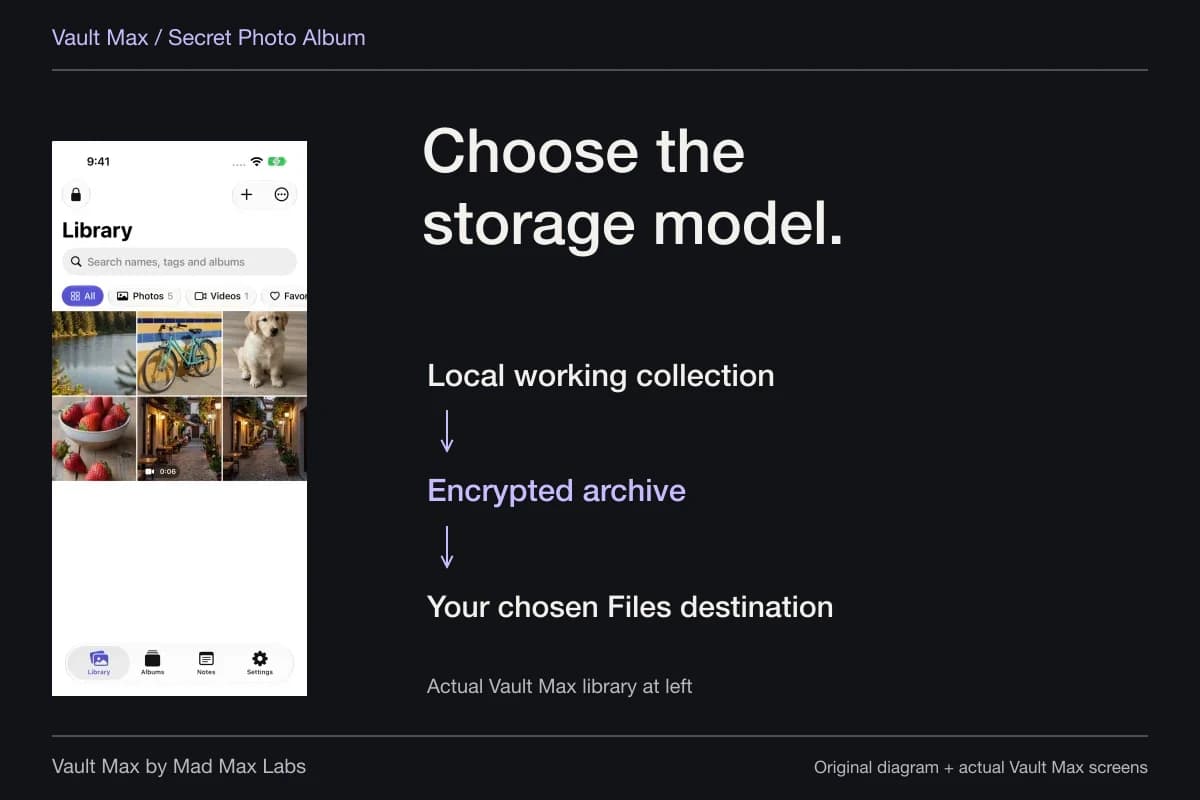
Vault Max stores a separate encrypted working collection on iPhone and iPad without a Vault Max account or a Vault Max cloud library. Choose a credential different from the device passcode when that separation matters. Import a small set, reopen the saved result and decide what should happen to the original copies separately.
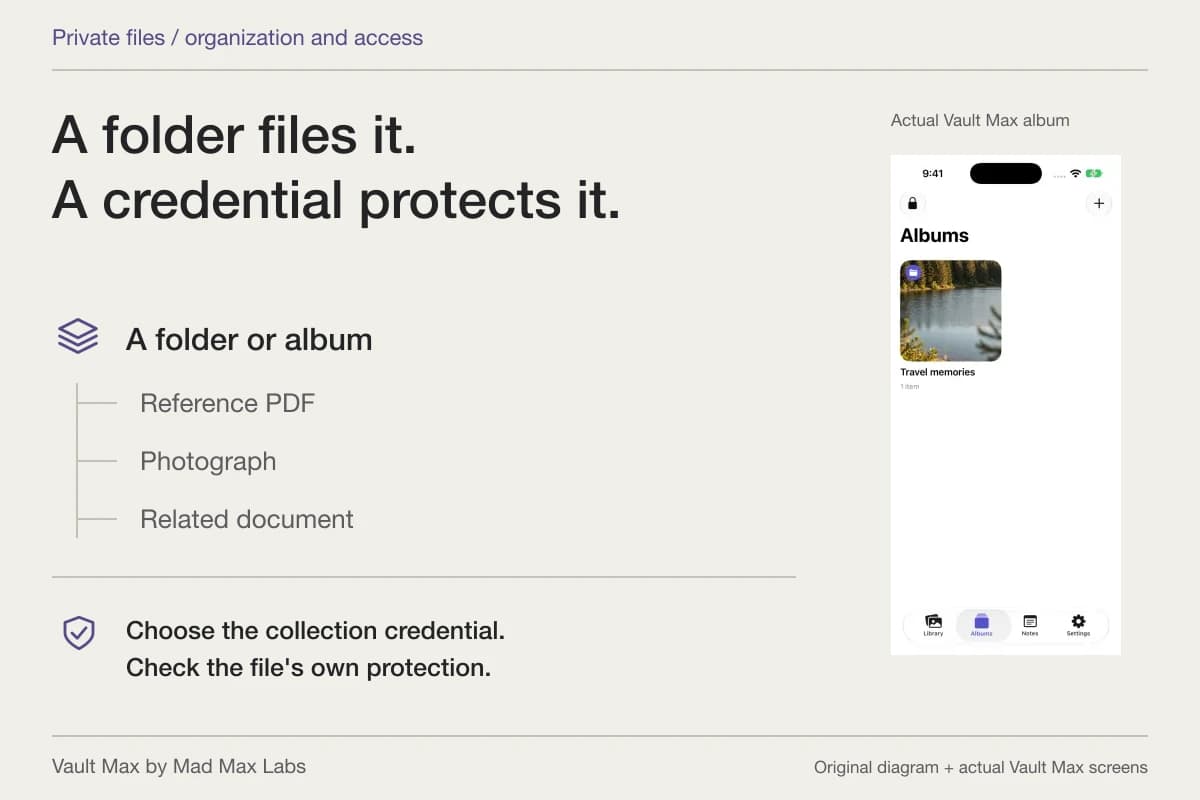
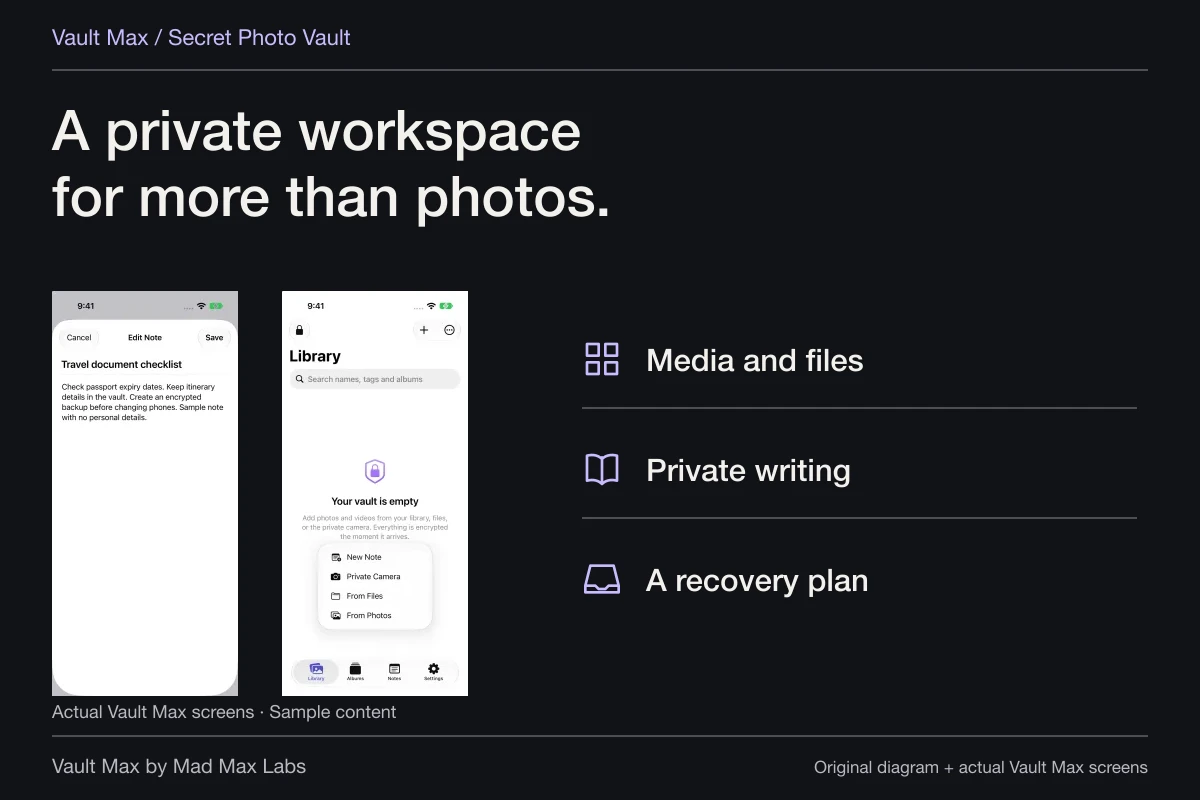
Give the collection a name you will recognize. Albums organize related media and files; Favorites flags an item you return to often. Write the context in an encrypted text note and choose Save. The collection-maintenance guide develops those jobs without pretending an album or a favorite adds another password.
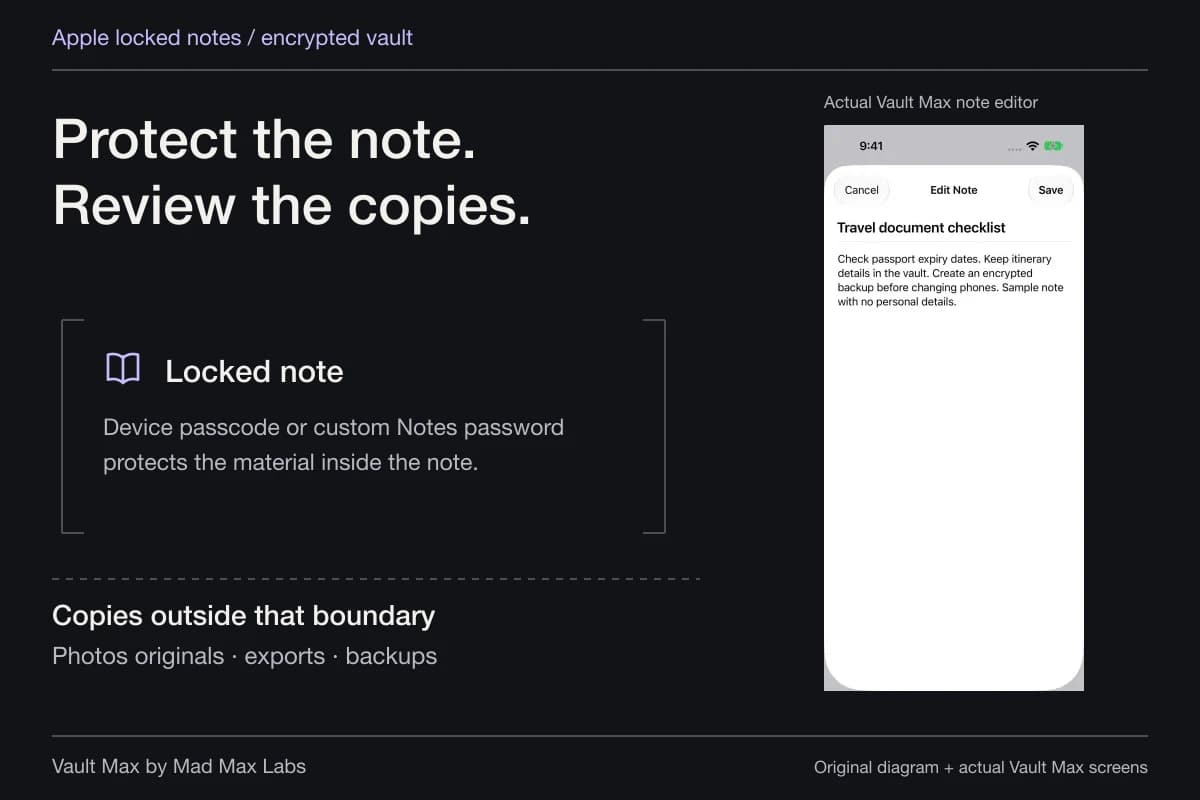
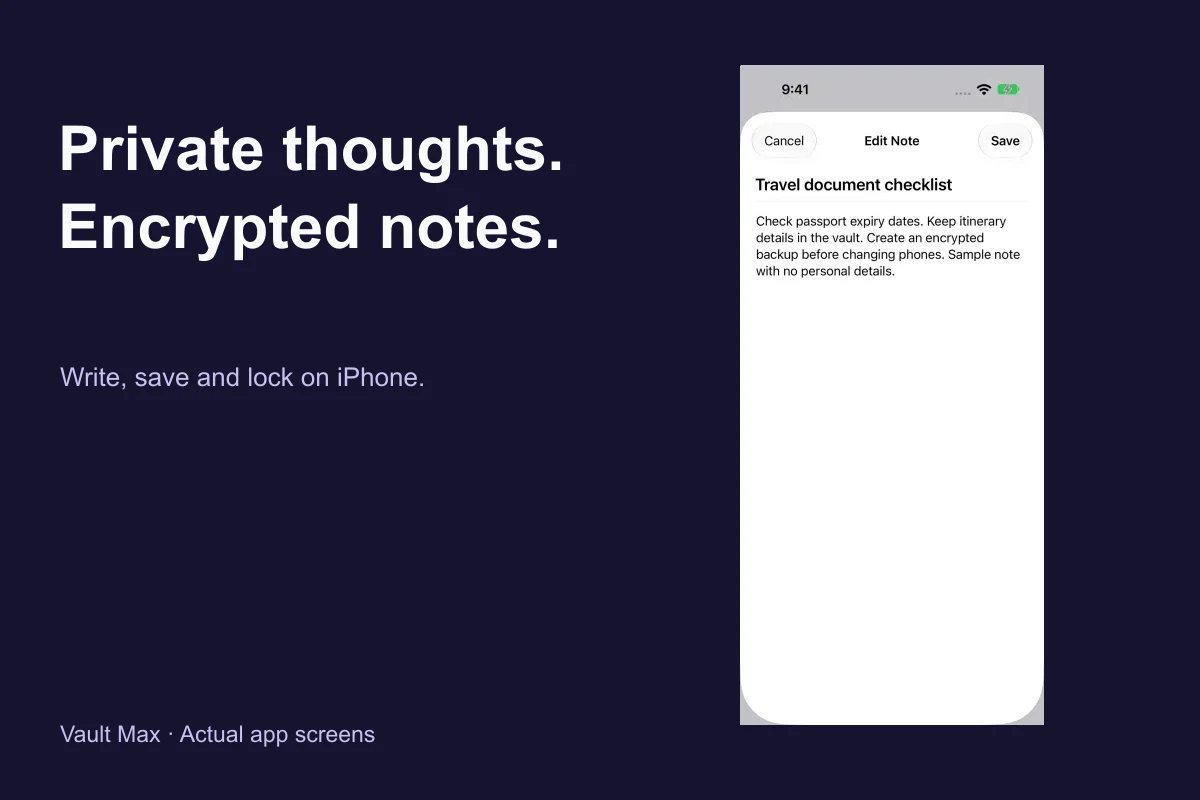
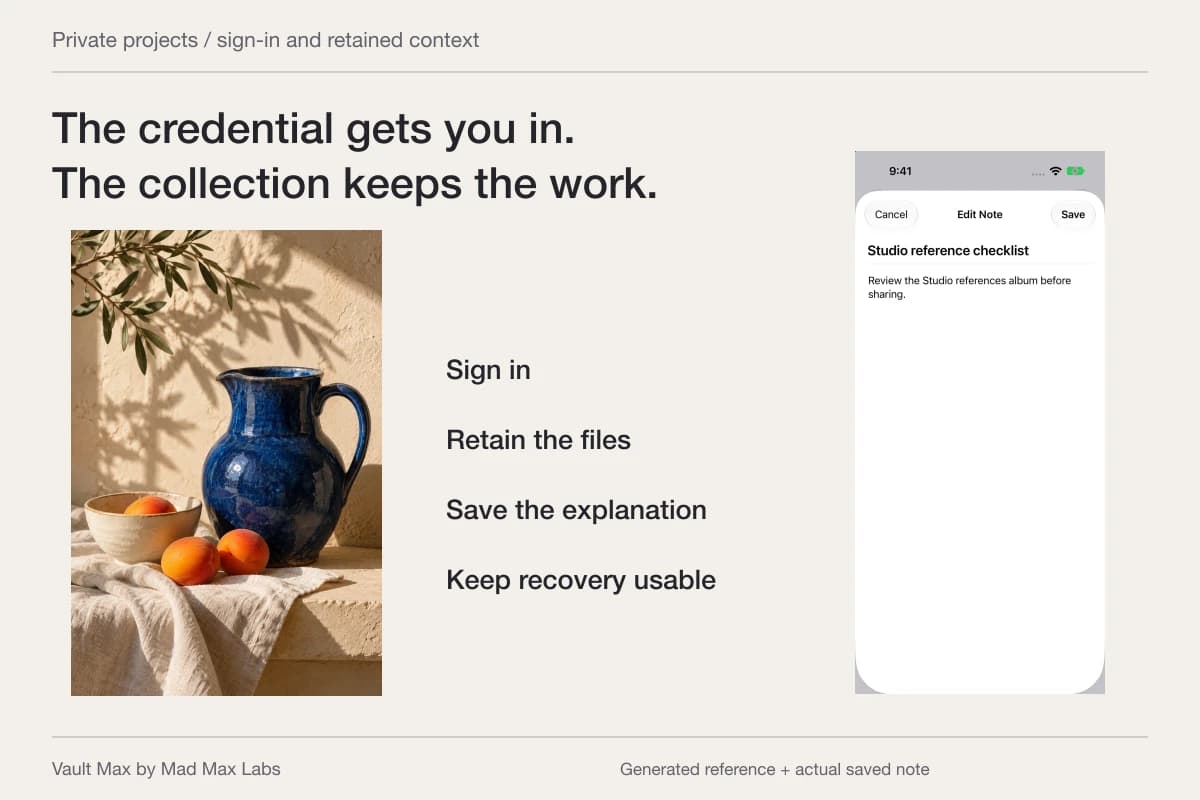
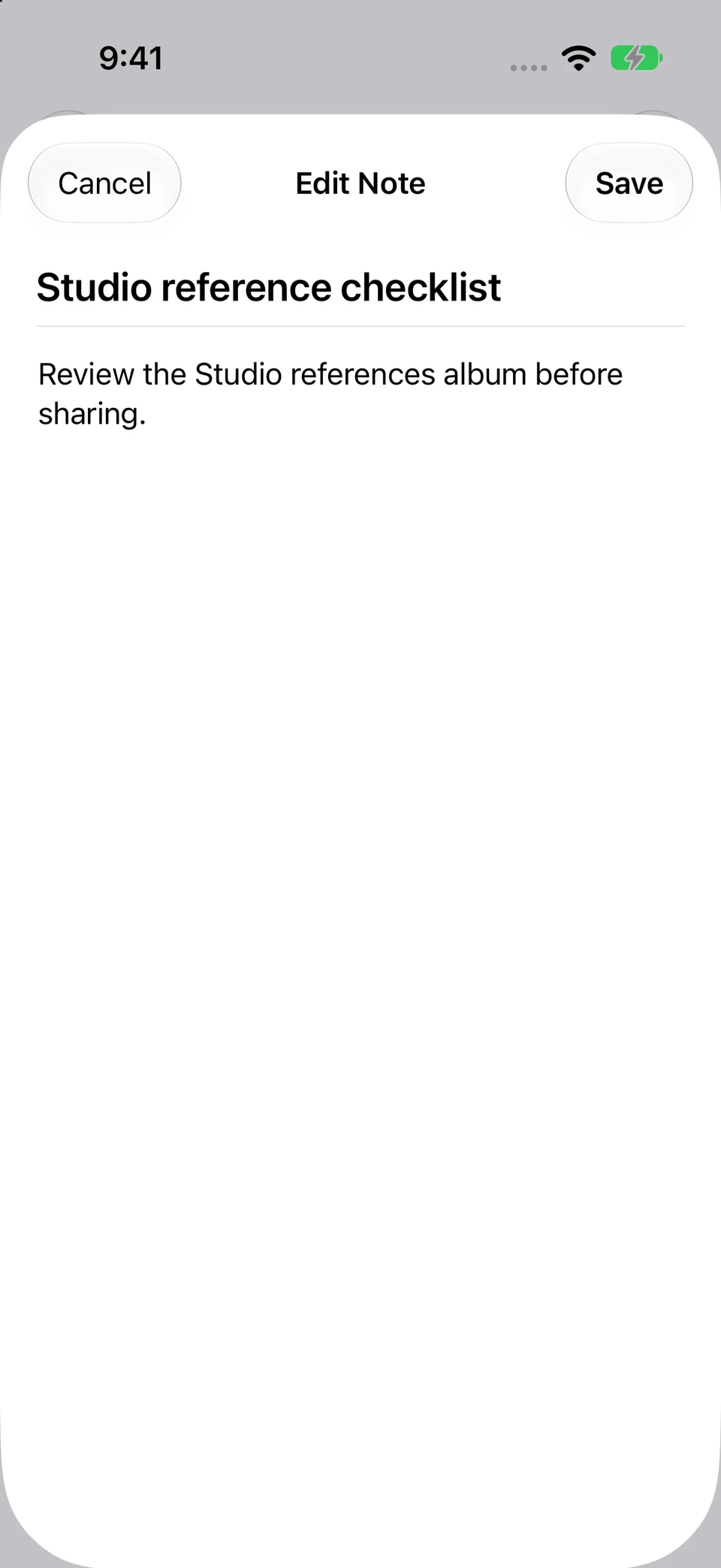
This actual reopened Vault Max note contains a complete fictional reminder to review the sample album before sharing. It illustrates saved local writing; Lockdown Mode was not enabled for this app capture and compatibility under it was not tested.
Actual Vault Max · QA simulator, generated sample photographsA saved, recognizable reminder
Open original image: A saved, recognizable reminder| The task | The relevant decision | A useful completion check |
|---|---|---|
| Reduce exposure to sophisticated targeted attacks | Apple device hardening and appropriate assistance | The intended protection state and essential task list are understood |
| Keep pictures out of casual Photos browsing | Hidden and supported access controls | The selected item is in the intended collection |
| Keep private media and writing behind a distinct credential | A local Vault Max collection | Known access opens the right content and the session can be closed |
| Change who receives shared material | The sharing service's audience controls | Participants and retained copies have been considered |
| Recover if the phone is unavailable | An independently accessible archive and password | The recovery location is known without relying on the phone |
Preserve recovery before a problem becomes urgent
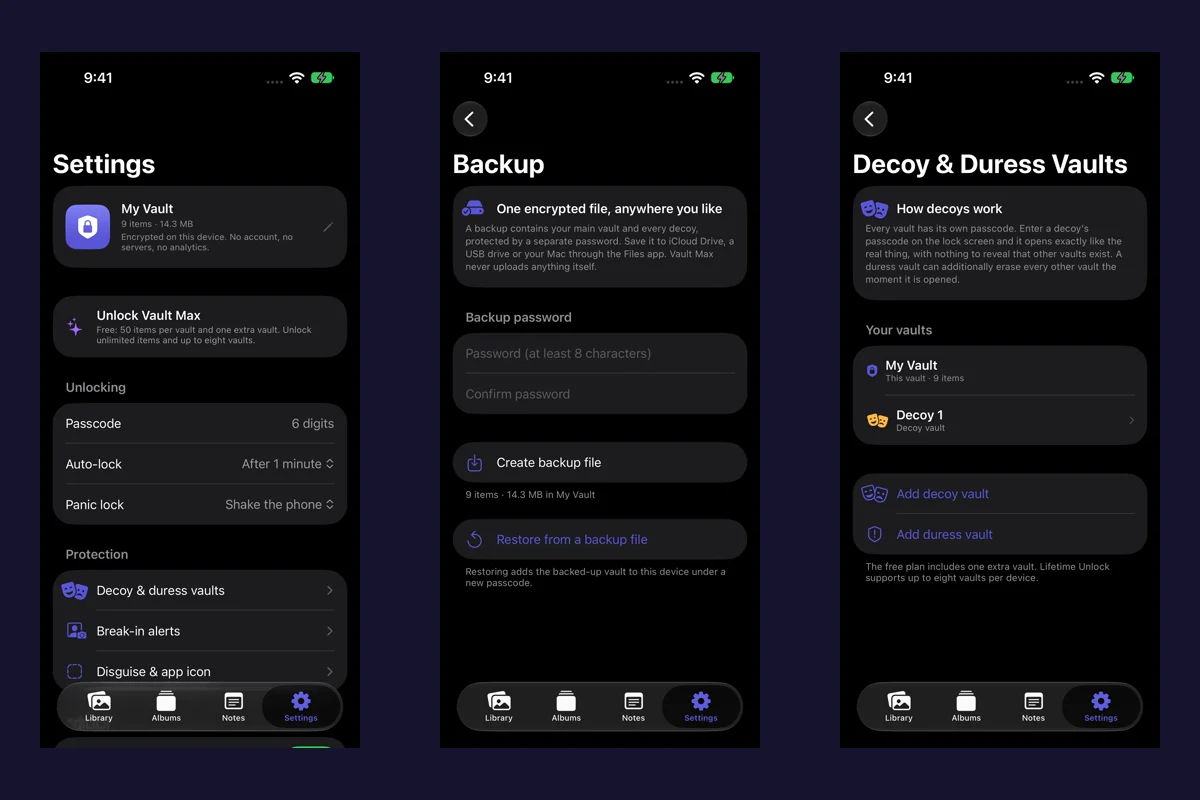
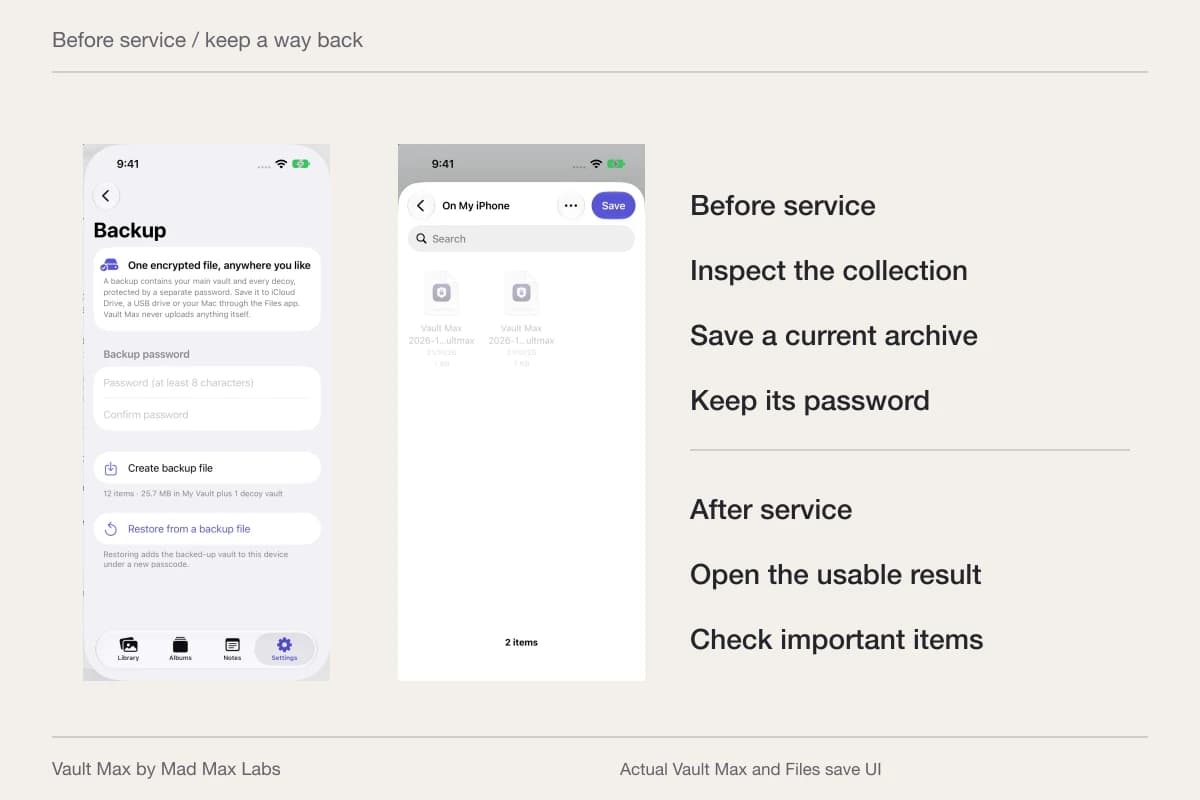
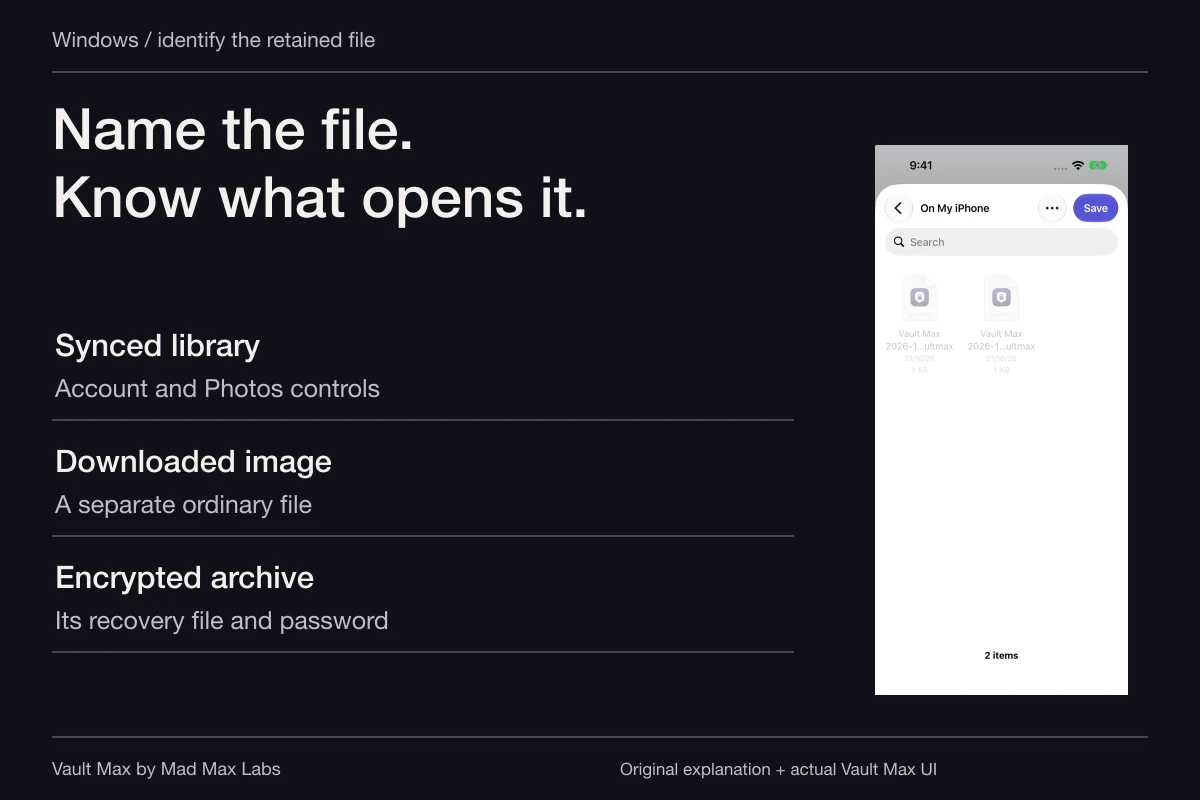
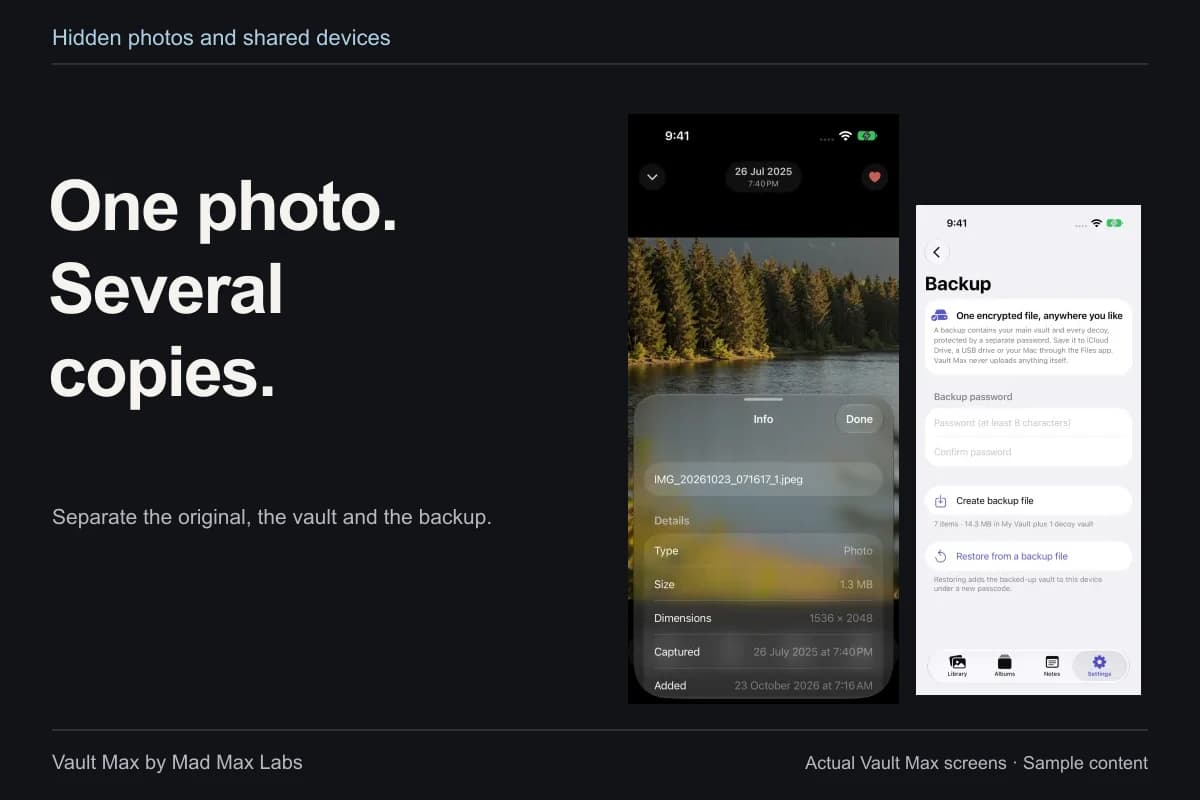
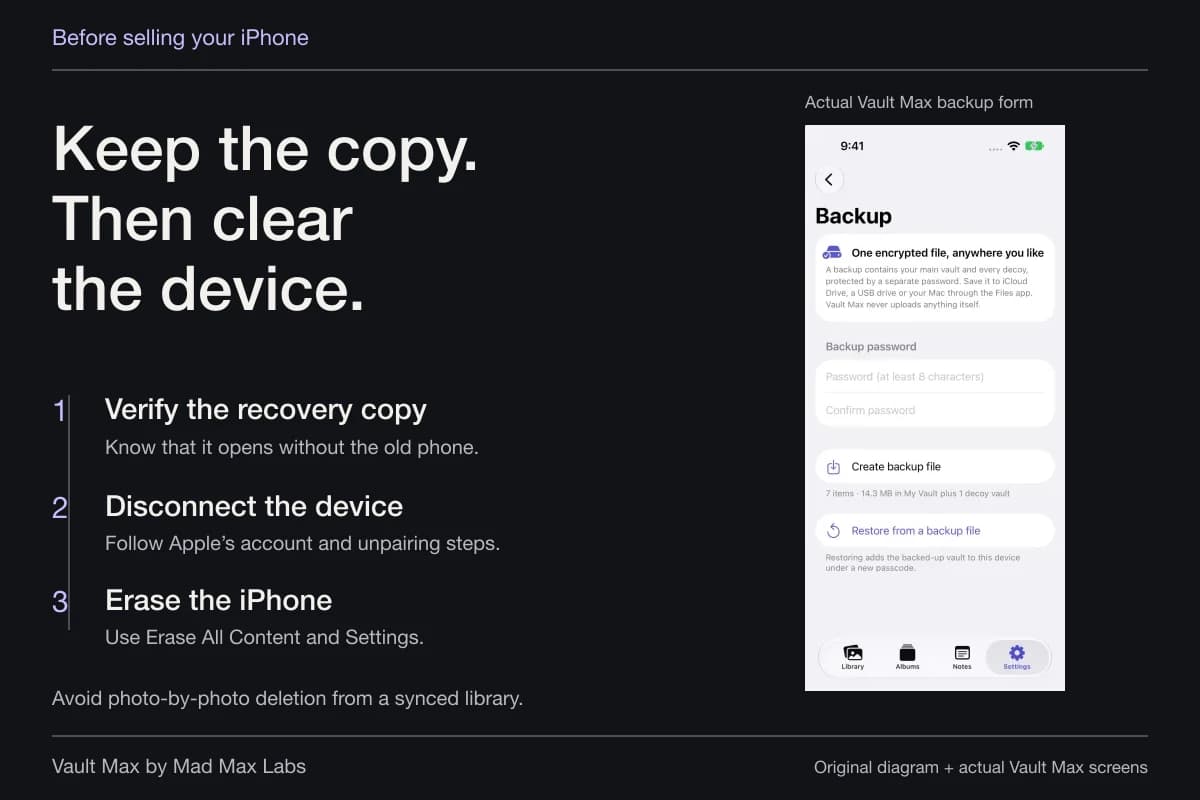
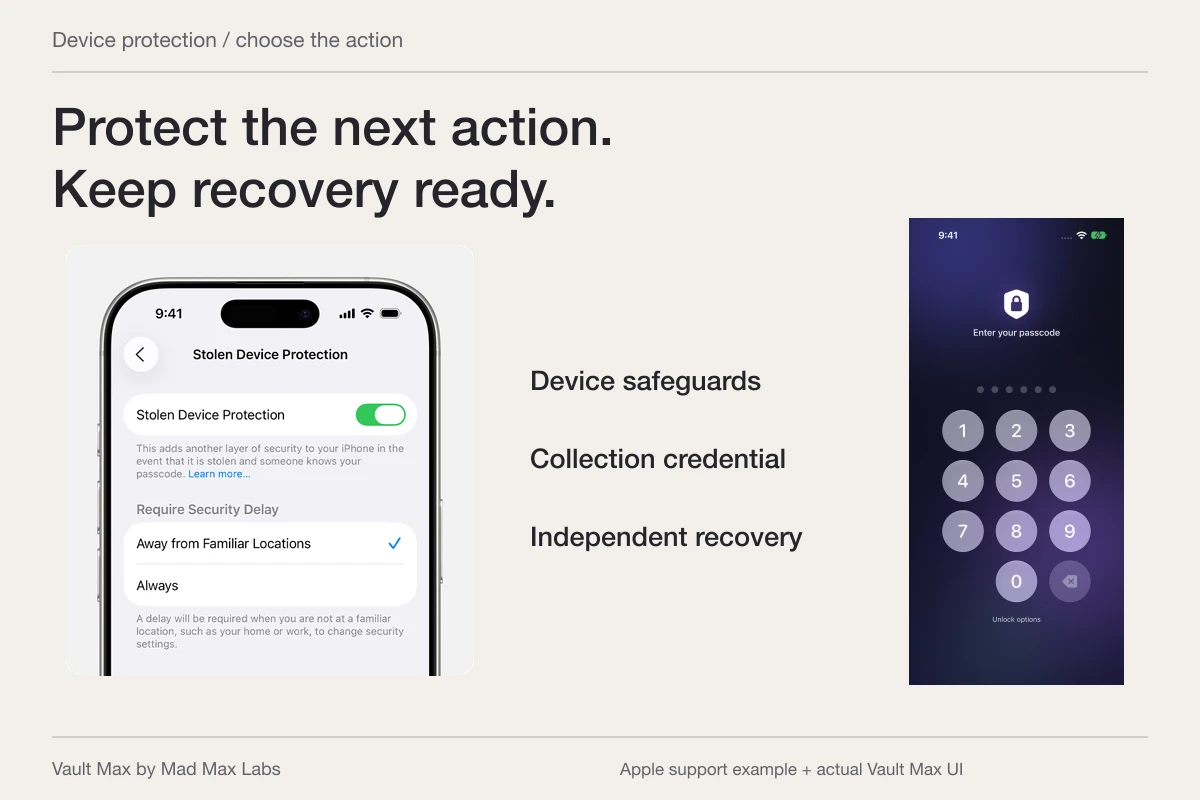
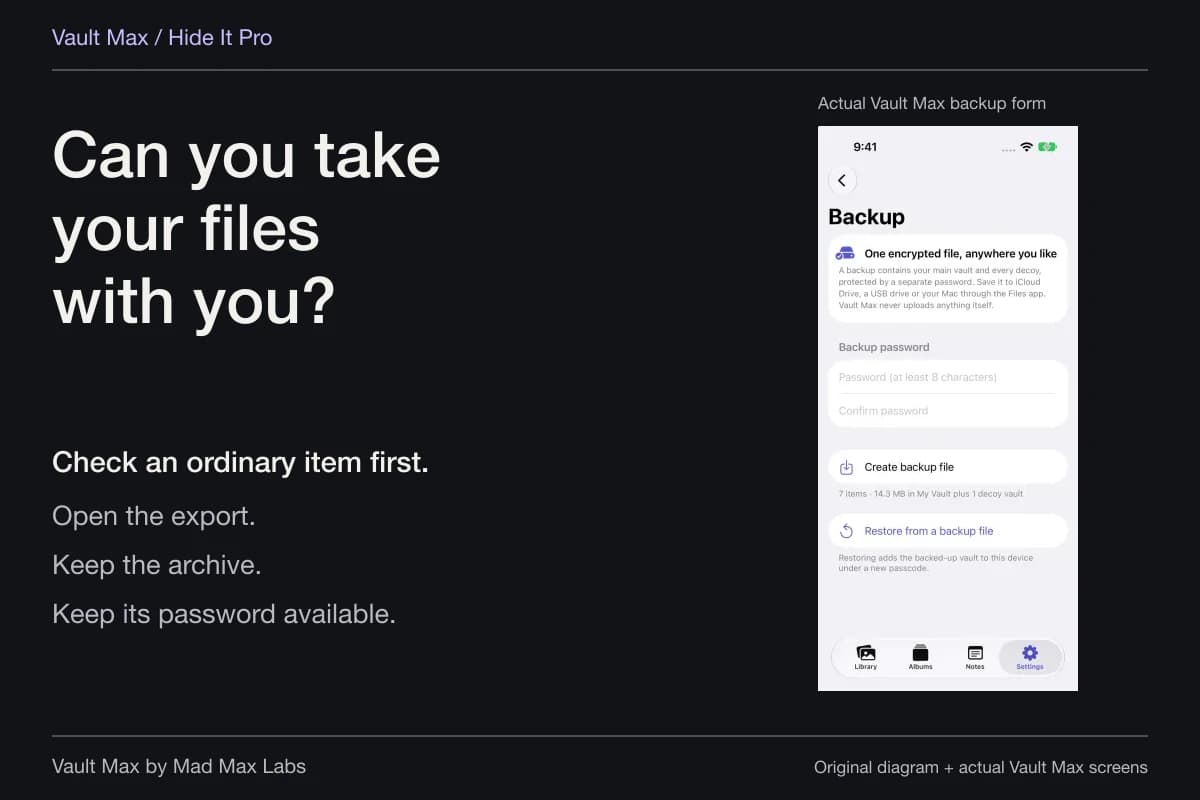
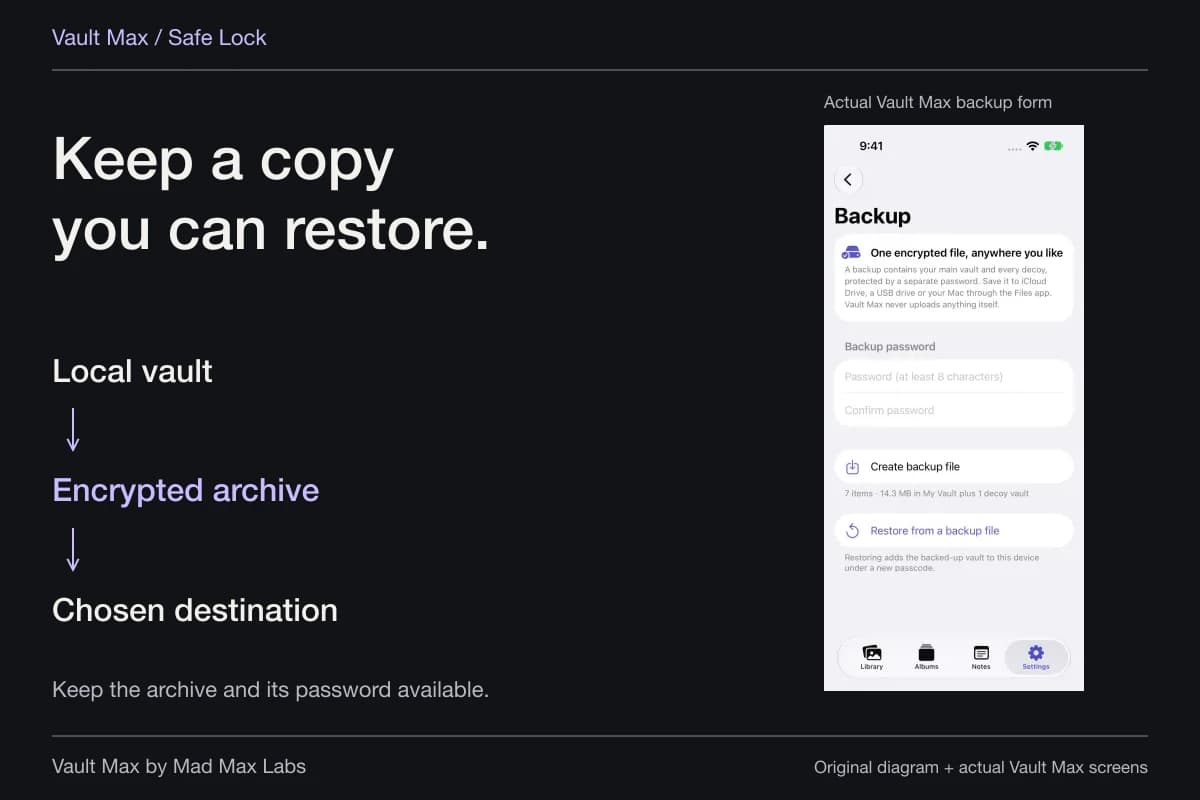
Vault Max's Backup workflow creates a password-protected .vaultmax snapshot at the Files destination you choose. Saving to a cloud-managed destination uses that service for the encrypted archive. Keeping a copy elsewhere can reduce dependence on the phone, but the password must remain available too.
Do not confuse that archive with ordinary Share output. A usable exported photograph belongs to its destination's access rules. A recovery archive is intended for the supported restore workflow. Notes are included in the archive, so a useful written explanation can travel with the backed-up collection.
If you are still able to enter the vault but uncertain about its credential, make an archive while access remains. Already-enabled biometrics may preserve access; changing the vault code requires the current code. The recovery checklist helps identify what you need before deleting an app or resetting anything.
Treat a real threat notification as a different next step
Apple's threat-notification guidance says to verify a notification by signing in directly at Apple's account site and recommends expert help for targeted users, including Access Now's Digital Security Helpline. A request to install a profile or reveal a password is not a reason to follow an unsolicited message.
Keep that response distinct from reorganizing a private album. Your immediate job may be obtaining appropriate assistance, while the ordinary collection routine remains a way to keep your own material understandable and recoverable.
- Everyday viewing access, a sharing audience or a suspected targeted attack?
- Check Lockdown Mode and the current version's restrictions before troubleshooting a missing feature.
- Inspect the specific saved file or note you need, without assuming an untested compatibility result.
- Know the archive destination and separate password before changing or removing the only working copy.
Tap a box as you go. Checks reset when you leave this page.
Common questions
Does Lockdown Mode give Photos a separate password?
No. Apple describes Lockdown Mode as restrictions that reduce the attack surface for sophisticated targeted attacks. Choose Photos controls, a supported system app lock or a separately credentialed private collection for the relevant everyday access task.
Does Lockdown Mode erase my Shared Albums?
Apple says Shared Albums are removed from the Photos app and new invitations are blocked while Lockdown Mode is enabled. They can remain viewable on devices without the mode enabled. That is not the same as deleting the album or recalling participants' saved copies.
Can a private vault replace Lockdown Mode?
No. Vault Max provides an encrypted local working collection and its own access and recovery routine. It is not a substitute for operating-system protections or expert help with a suspected targeted attack.
Continue reading
More guides
Practical tips for your private library. Swipe or scroll to choose your next guide.
74 guides to explore