
Privacy in practice
Share a private file on iPhone: send a copy or share a link
Choose between a PDF attachment and an iCloud Drive collaboration link. Check file ownership, download permissions and what stopping access can actually change.
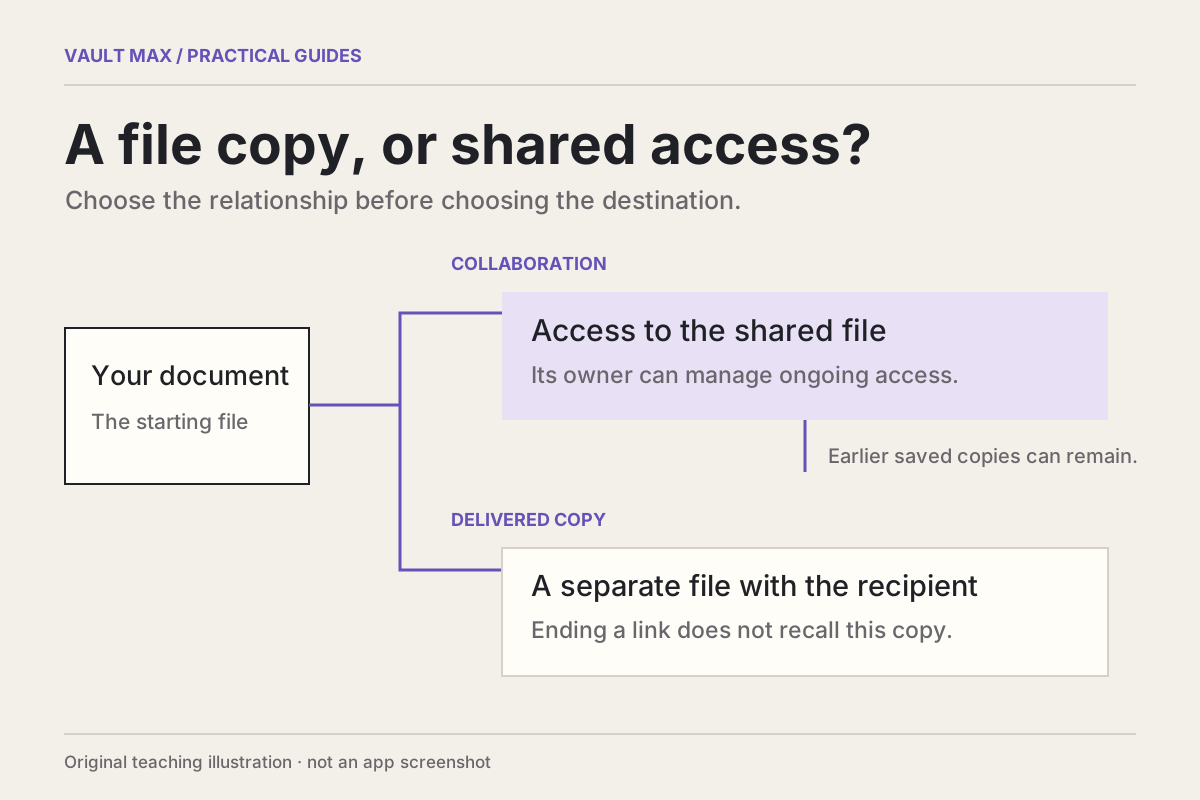
Send a copy when someone needs a particular document; share a managed link when they need access to an ongoing shared item. Before either action, identify the exact file, who owns the hosted item and what the recipient should be able to do. A private PDF and an entire shared folder can expose very different amounts of information.
Consider a fictional studio handoff. Someone needs the two-page Cedar inventory for a delivery. An attachment gives them that version. A collaboration link may be useful when the team needs the inventory as it changes. Choose the arrangement deliberately, then check the contents and audience before completing the handoff.
You can practice with the fictional two-page Cedar inventory PDF. Save it to a location you choose and inspect both pages before trying the copy or sharing route. The sample contains no personal records. A downloaded source and a later imported vault item remain separate copies.
Follow the outgoing document
Explore the example below to see what changes when you send a file, change link permissions or stop future access. It uses fictional documents and people. It does not connect to your account, send anything or inspect what a recipient retained.
A file, its live access, its copies
What changes when sharing stops?
Compare an independent file delivery with iCloud Drive collaboration. The lanes below are an explanation, not Vault Max controls or a connection to your files.
- Owner’s original
- Kept in this modelChanging access does not delete the owner’s original here.
- Live item / link
- Live shared item remains availableOnly invited people have live access; requests, if enabled, still need approval.
- Independent copy
- Still outside link controlAssumed saved earlier: that independent copy remains outside this link’s controls.
Settings apply to the shared file. View permission still allows downloading. Neither option prevents an independent copy.
Starting assumptions loaded. No file operation is performed. The assumed independent copy remains.
Read all copy, permission and revocation rules
- Send a Copy
- The recipient receives a separate file. Changes to your original or a different live link do not recall that delivered copy.
- Share a Link
- In iCloud Drive, choose invited people or anyone with the link. View permission still permits downloading; edit permission permits changes. Neither prevents separate copies. Access Requests, when enabled for chosen people, require approval.
- Remove one invited person
- The owner can remove a specific person under People you choose. Other invited people keep access. An anyone-link audience has no equivalent individual invite list to prune.
- Owner: Stop Sharing
- The live shared item is no longer available to participants and its link stops working. This does not recall an independent file saved earlier. The owner’s original remains.
- Participant: Remove Yourself
- This ends that participant’s membership, not the owner’s sharing for everyone. Anyone-link access can still be granted by the URL. Stop Sharing itself requires the owner; participant management capabilities otherwise vary.
- Re-share after stopping
- Re-sharing with anyone who has the link can make the original link work again. Re-sharing with chosen people makes the original link work only for people invited again.
- A file inside a shared folder
- Its sharing follows the folder. Change the folder’s sharing rather than treating the file as an independent permission boundary; Stop Sharing for that folder affects its shared contents.
- A previously saved independent copy
- It is outside the live link’s controls. This is a copy-ownership explanation, not a tested remote-recall event or a promise about what someone retained.
Vault Max export and Files collaboration are separate steps. Choose the file-delivery route for the task, or review the selected-item export guidance before sending a copy.
Sources: Apple’s iPhone file-sharing guide and iCloud sharing-management guide. Exact controls depend on system version and provider.
The tool changes only this illustration. It does not share a file, create or revoke a link, contact a recipient, inspect saved copies or retain your choices.
The important distinction is where control still exists. You can manage a hosted item you own. A file someone has already saved independently has its own life outside that invitation.
Open the exact file before choosing its route
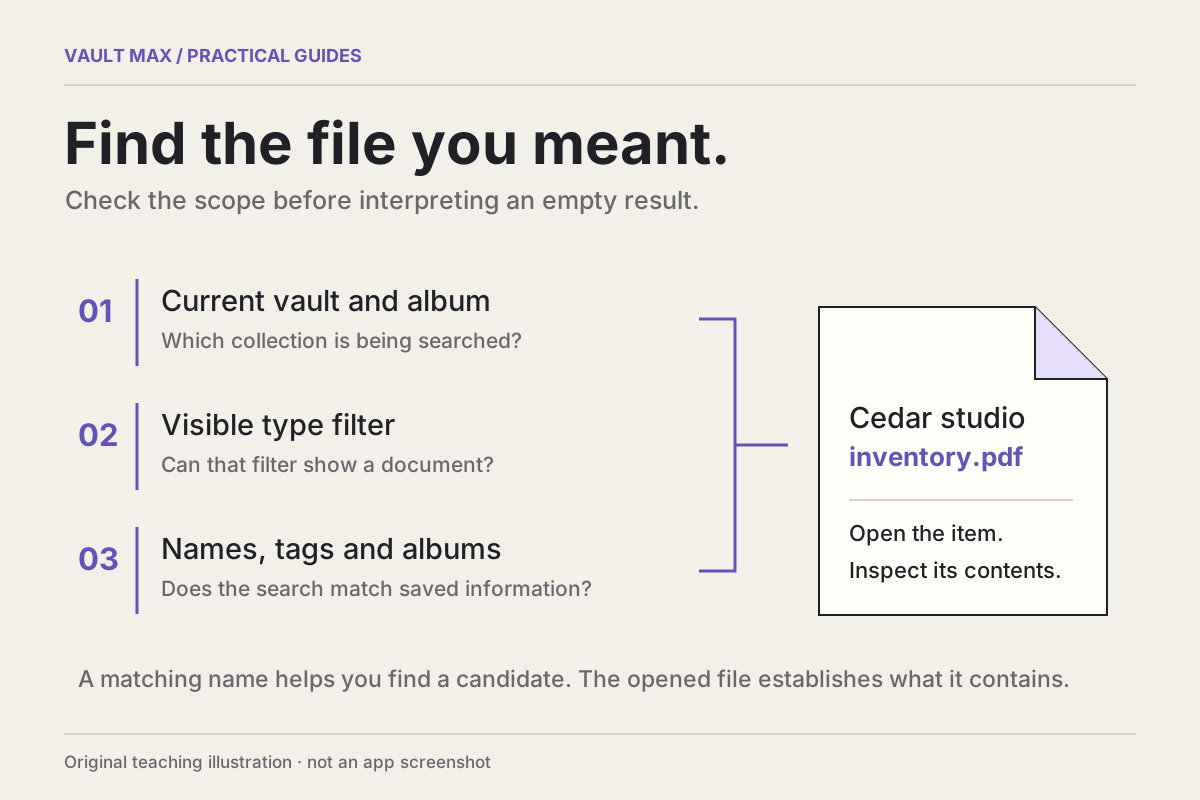
Inspect every page the recipient will receive. Check the title, version, date and any extra page carrying private context. A correct-looking first-page thumbnail cannot establish that the rest of a multipage file is appropriate for this recipient.
If you cannot find the saved item, follow the private-file retrieval steps before creating another import or choosing a similarly named draft.
If the recipient needs a revised document, prepare and inspect that outgoing version first. Keep the useful original in its intended home. A screenshot of one page may omit information that makes the document understandable; a whole folder may include material the recipient never needed.
Our complete-scan guide covers preparing a standalone PDF. This handoff begins with a file you can identify and read. Decide what leaves the collection before deciding which share-sheet icon is fastest.
Understand what leaves Vault Max
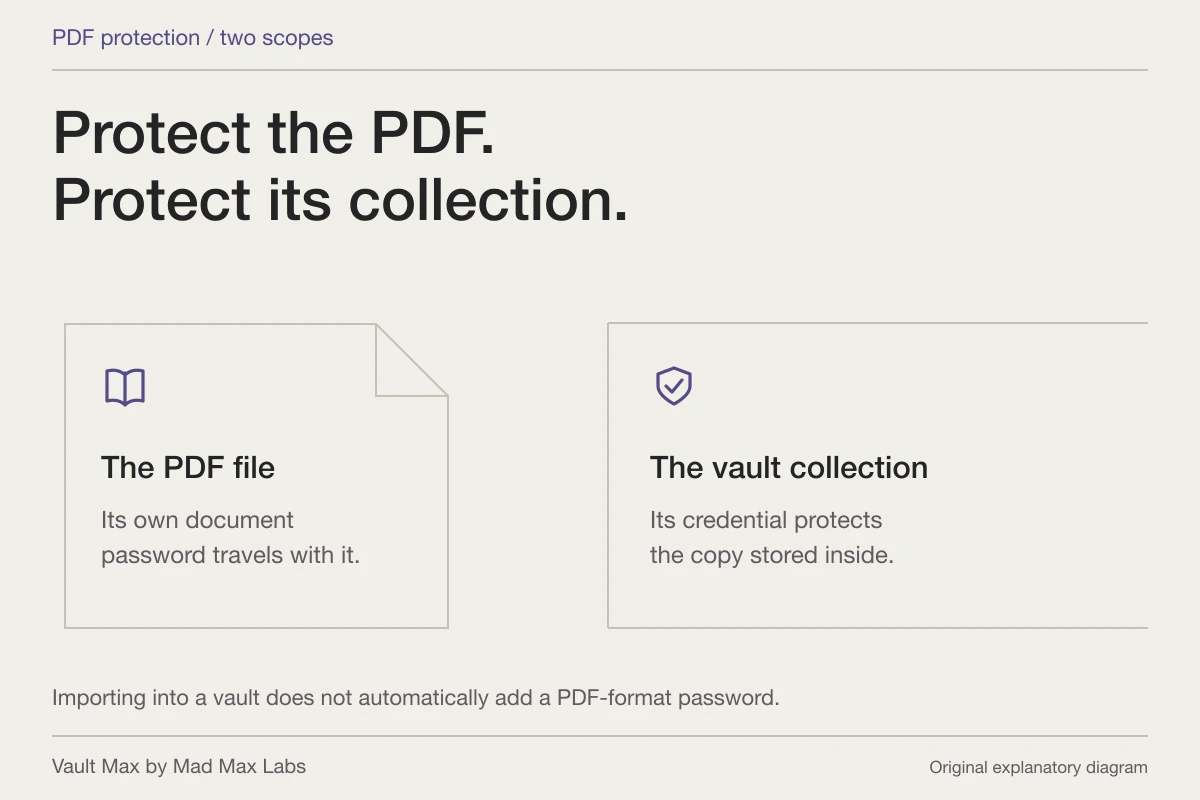
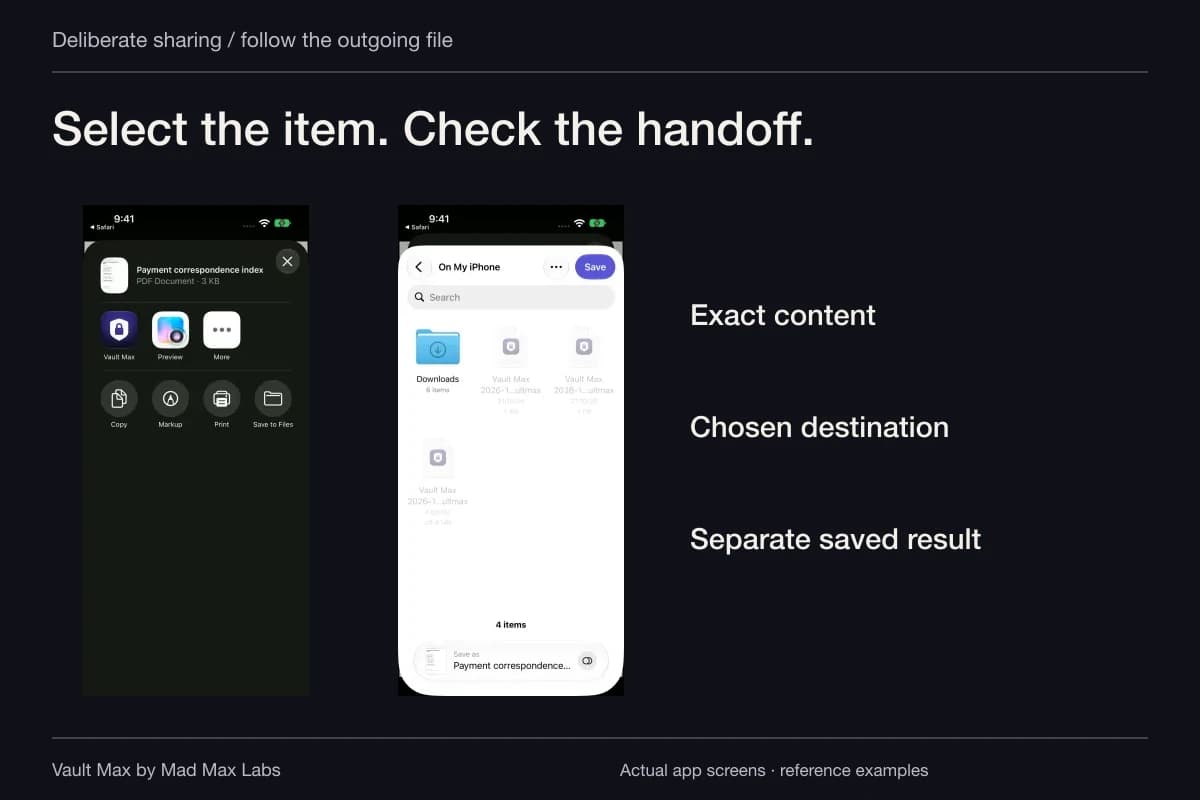
In Vault Max, open the intended item and choose Share to prepare an ordinary usable file for a destination. The recipient receives that outgoing content under the destination's arrangement. Your vault credential is not an access code for the exported PDF.
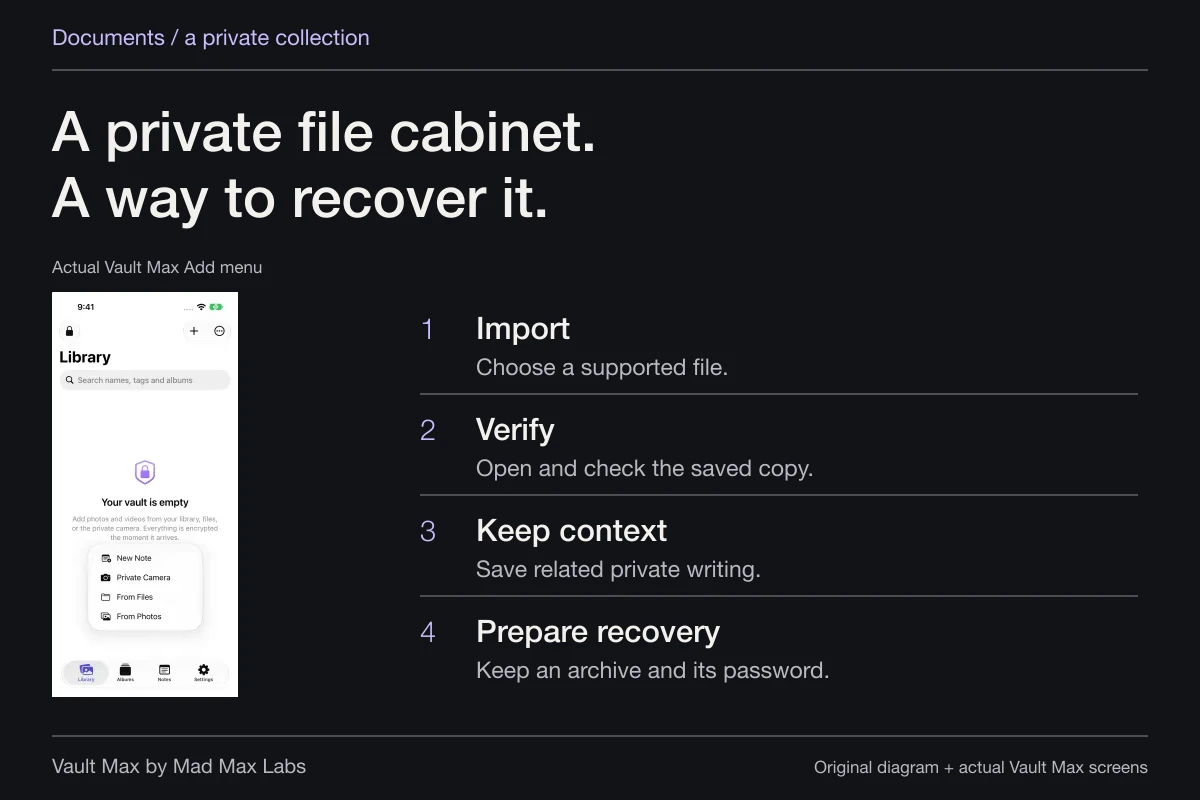
An encrypted .vaultmax recovery archive serves a different purpose: it carries a saved collection for restoration. Use the individual document when that is the material you intend to hand over. The private-photo sharing guide follows item selection and retained-copy checks for pictures.
If you save the document into iCloud Drive before sharing it, that creates another location for the document. iCloud's controls govern the hosted item there. Vault Max's local collection does not become a collaborative library merely because one exported file is later shared through Files.
Vault Max · Actual iPad screens, fictional practice PDF. Select a screen for a closer look.
Send a fixed copy through Files
For an existing file in Files, touch and hold it, choose Share, open the menu beneath the item's title and choose Send a Copy. Then select the delivery method and review its recipient. This is Apple's documented copy-sharing route.
A copy suits an agreed version: a dated reference, a completed attachment or a document the recipient needs to keep. If you later change your working file, treat the sent version as an earlier record. Send a clearly identified replacement when needed instead of assuming that editing your local copy updates someone else's attachment.
If the PDF itself needs a password, prepare that protection before sending and check the resulting file. The PDF-password guide explains that portable protection. It has its own credential and still allows an authorized recipient to read the material.
Share a live iCloud Drive item deliberately
For an item you own in iCloud Drive, choose Share a Link from the title menu. Review People you choose or Anyone with the link, then editing or view and download permission. Invited access can also offer access requests.
Prefer the smallest item that serves the job. Sharing a project folder can include more than the PDF you had in mind. Apple's iCloud sharing-management guide explains that an individual file inside a shared folder follows the folder's sharing settings. Inspect that larger boundary before assuming the file has a narrower audience.
| Recipient's task | A fitting handoff to consider | What to keep clear |
|---|---|---|
| Retain the agreed inventory version | Send the selected PDF copy | Later working edits do not revise an independent copy |
| Consult a changing shared inventory | A hosted link with suitable audience and permissions | View and download permits retaining content |
| Edit the ongoing team document | A shared item with editing permission | Check ownership and the full shared-folder scope |
| See one page while beside you | Show the intended content yourself | Sending a file creates a different retention situation |
Change access using the owner's controls
On iPhone, the owner can touch and hold the shared item and choose Manage Shared File or Manage Shared Folder. Stop Sharing ends live access. For selected-person sharing, the owner can select a participant to remove access.
Apple also documents that re-sharing through Anyone with the link can revive the original link. Selected-person access works for reinvited people. Consider the earlier audience before reusing a shared item.
If you received the item from someone else, identify the owner. Apple's iCloud.com instructions let a participant remove themselves; stopping sharing for everyone requires ownership. Leaving someone else's shared item does not change the owner's other invitations.
Account for independently retained copies
After a recipient saves a separate PDF, its continued existence no longer depends on opening the original collaboration link. That follows from the copy arrangement: changing the live invitation cannot reach into an unrelated saved attachment or screenshot. Treat this as a practical limit when planning a private handoff.
For a mistaken send, use the destination's actual correction or access controls and communicate the correction appropriately. Check what those controls cover. Closing Vault Max ends your local session; it does not recall a file exported earlier. Deleting your own copy also does not prove that a recipient's copy disappeared.
Finish with a recognizable record of the handoff
Check the outgoing filename, intended recipient and chosen route before confirming. For a collaboration item, return to its management screen and review the people and permissions. For an attachment, remember which version you sent so later correspondence remains understandable.
Keep useful context privately beside your working collection: what the document is for and which version matters. You can then close the vault with a clear account of what stayed private, what became an outgoing copy and which hosted access settings you can still manage.
Common questions
What is the difference between sending a copy and sharing an iCloud Drive link?
A sent copy is an outgoing file the recipient can retain independently. An iCloud Drive sharing link provides access to the shared item under its owner, audience and permission settings. Decide whether the recipient needs a fixed document or ongoing access to that item.
Does view-only sharing prevent someone from saving the PDF?
Apple's current iCloud Drive permission is described as view and download only. It restricts editing of the shared item; it does not promise that the recipient cannot retain its contents.
Will Stop Sharing remove a file someone downloaded earlier?
Stop Sharing changes access to the live iCloud Drive item. Treat an earlier independently saved copy, message attachment or screenshot as a separate retained copy. Ordinary Vault Max export has no recipient-copy recall or remote-expiry control.
Continue reading
More guides
Practical tips for your private library. Swipe or scroll to choose your next guide.
5 guides to explore