
Privacy in practice
Keep private documents available offline on iPhone
Prepare an iPhone document for offline access with Files Keep Downloaded or a local vault copy. Separate availability, credentials, sync and independent recovery.
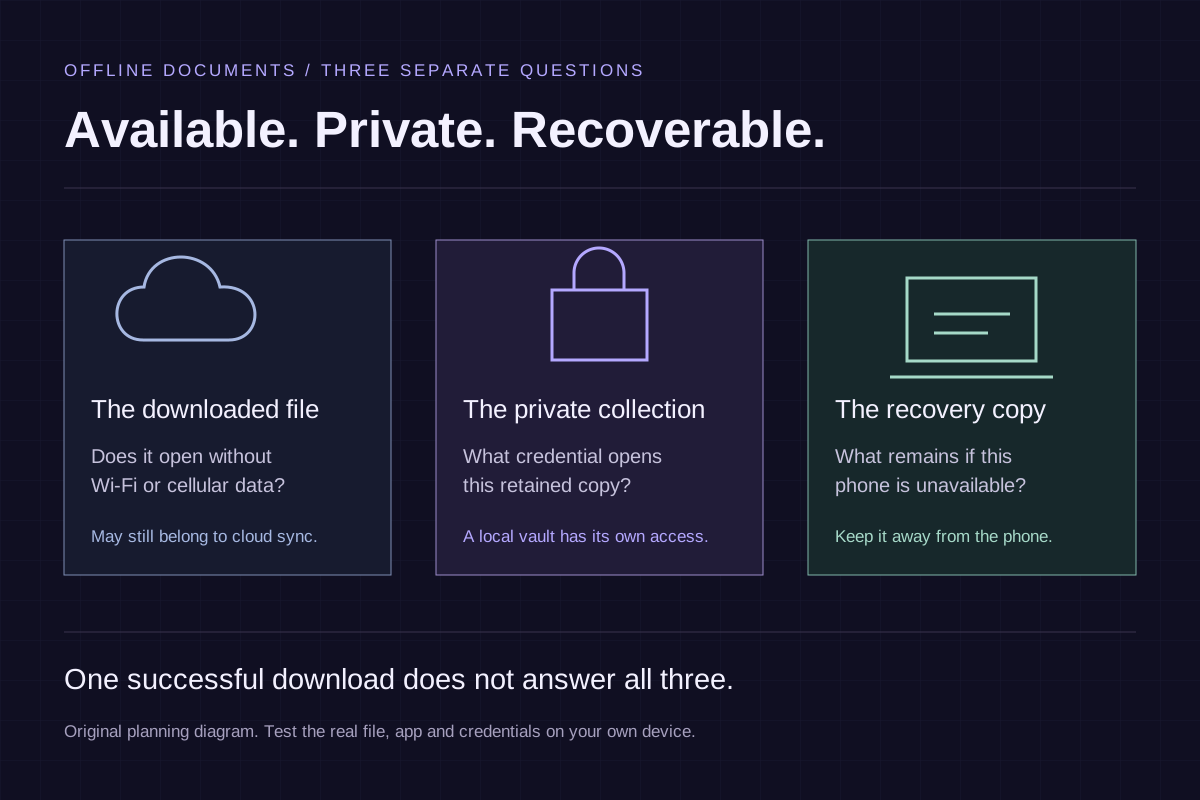
A filename in Files is not the same as a document you have opened without a network connection. Prepare the exact copy you will need, check it on your own phone and keep recovery separate from offline availability.
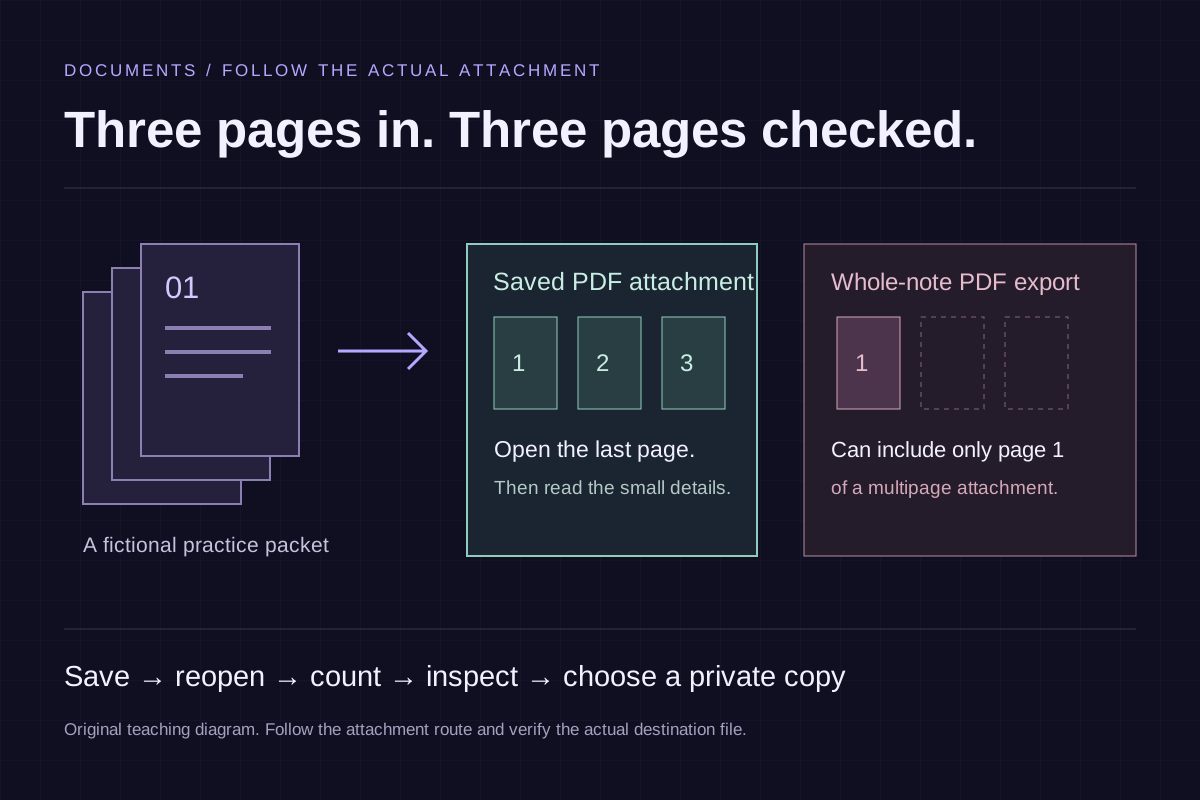
Consider a three-page fictional reference packet you want to read away from Wi-Fi. You need the whole PDF locally, an app that can display it and a usable way to unlock any private collection holding it. You also need a different plan if the phone itself is lost. Those requirements are related, but one download control does not answer all of them.
Identify the real location first
Open Files and check Browse → Locations. Determine whether the document belongs to iCloud Drive, On My iPhone or another provider. If you imported it into Vault Max, distinguish that retained vault copy from its source in Files.
A folder name such as Documents does not answer where the bytes are managed. Two folders with the same name can belong to different providers. A search result or Recent entry can help locate a file, but return to its location before making decisions about download, sync or deletion.
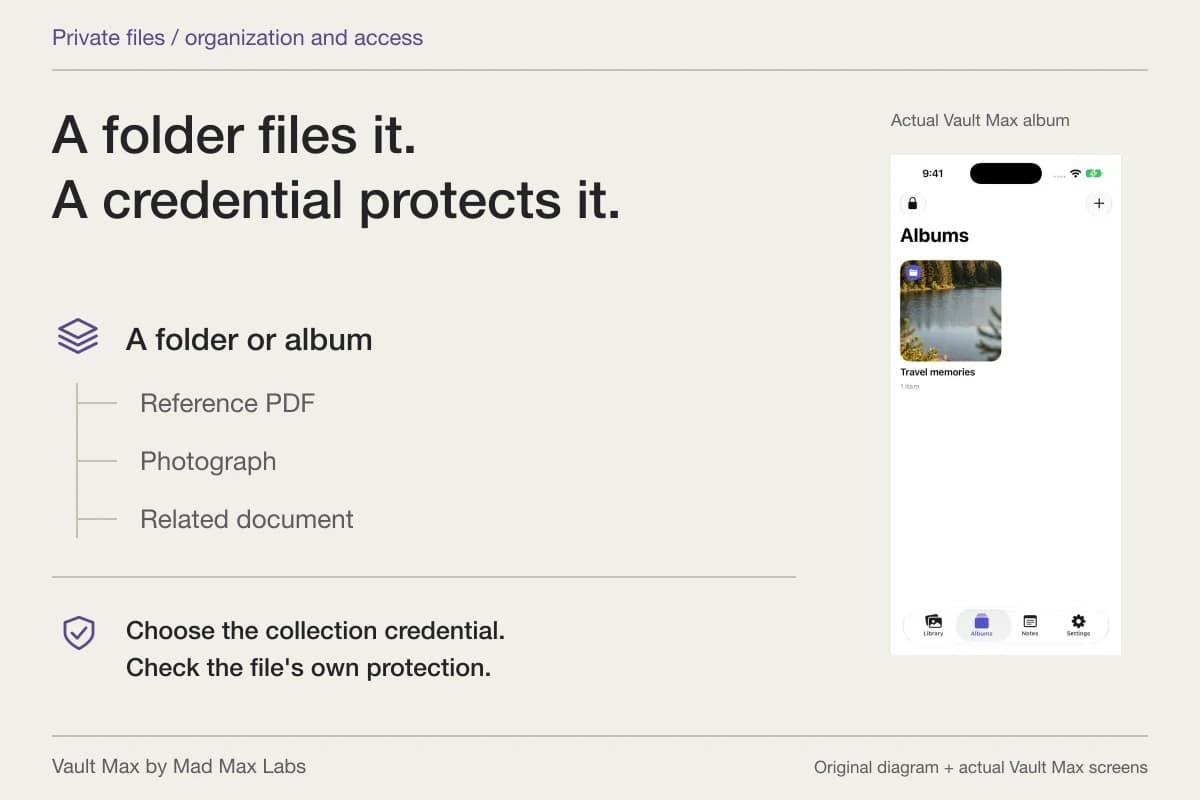
The private files guide explains organization and credentials. Here the immediate task is narrower: make the needed document available and readable when the connection is unavailable.
Use Keep Downloaded for the iCloud Drive copy
Apple's file-transfer guide documents Keep Downloaded: locate the file in Files, touch and hold it, then choose that command. Wait for the needed content to finish downloading before relying on it.
The same guide explains that offline changes sync with iCloud when you reconnect. Keep Downloaded therefore changes local availability; it does not separate the document from its sync relationship. Another provider may offer its own offline command with different conditions, so use that provider's instructions rather than assuming every Files location behaves identically.
If your goal is an independent copy, use a deliberate copy operation and identify its new destination. Apple's archive and copy guide covers copying iCloud material to another location, including downloading optimized content first. Check both files afterward rather than inferring a second complete copy from a folder label.
Check the actual offline result
Do the check while the known source and a connection are still available to resolve problems. Use harmless material until the routine is familiar:
- Open the intended document from its real destination. Check all the pages or items you need.
- Make Wi-Fi and cellular data unavailable for the test. If using Airplane Mode, also check Wi-Fi rather than assuming it is off.
- Leave the preview, return to that location and reopen the actual document.
- Read the last page and a small detail. For a vault copy, test the intended unlock route too.
- Restore your usual connectivity and resolve any missing-file, authentication or format problem before relying on the copy.
This is a check to perform on your own device, not a report that we have just run it for every provider, file format or Vault Max release. A thumbnail can be cached even when the needed document is not fully available. Test the result that matters: opening and reading the real file.
Check the copy you will actually use
From a filename to a usable offline copy
Use these checks on your own device. Ticking a box records your review here; this page cannot inspect a file, download it or confirm a result.
A downloaded file still belongs to sync
Keep Downloaded makes the file available locally. It does not turn it into an independent recovery copy; changes can sync when you reconnect.
Apple’s Keep Downloaded instructionsNext: Identify the actual storage location. Distinguish iCloud Drive, On My iPhone, another provider and a separately imported vault copy.
Read both starting routes
A downloaded file still belongs to sync
Keep Downloaded makes the file available locally. It does not turn it into an independent recovery copy; changes can sync when you reconnect.
Apple’s Keep Downloaded instructionsCheck the local app and the actual file
Open the needed file from its real local destination without a network connection. A vault copy also needs its own usable unlock route. Keep a separate recovery copy.
Plan the recovery copyGive a local private copy its own access plan
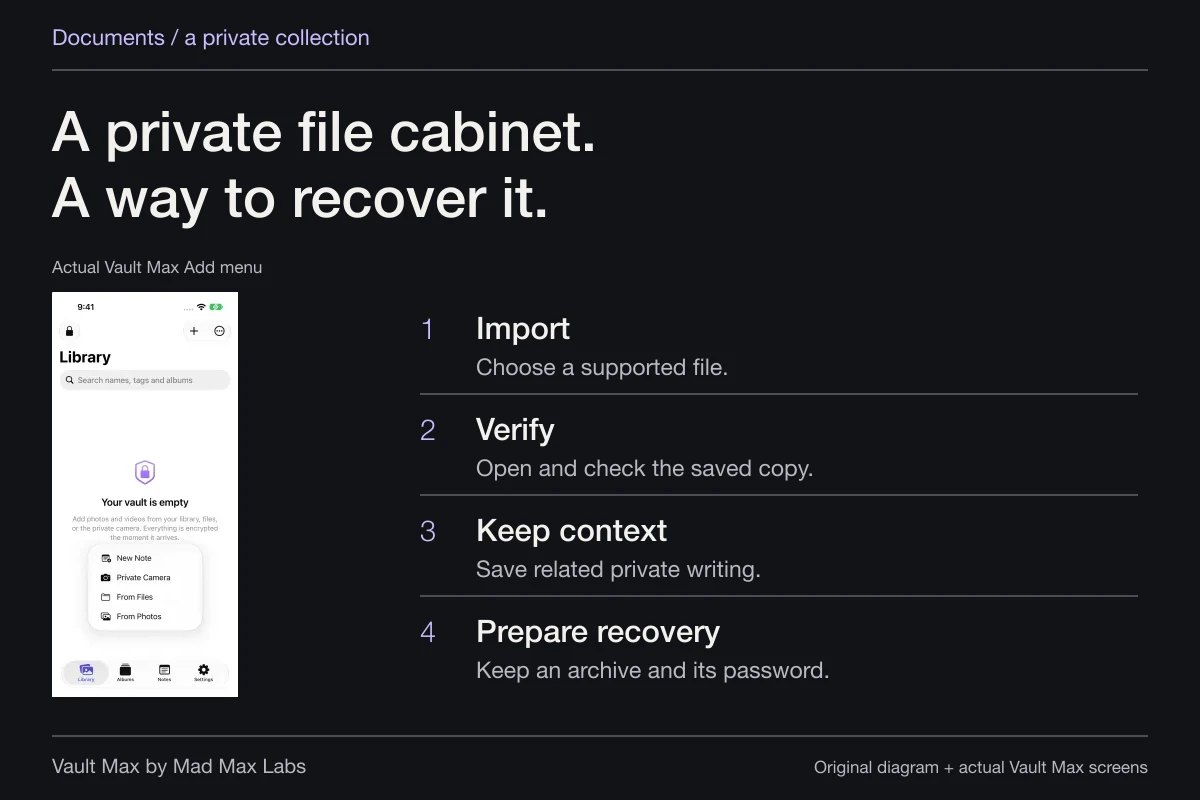
For a Vault Max document, import the prepared file through From Files, open it and inspect the contents. Its local encrypted collection uses its own credential. Keeping material available locally does not remove the need to remember that credential or understand already-enabled biometric access.
The document-cabinet guide covers naming, albums, notes and retrieval. A complete scan is a useful starting point; a photograph of only the first page is a different record.
Check your actual document format and content in the app you will use. Do not turn one successful PDF preview into a promise about every file type, external link or attachment. A document that points to an online resource may have locally readable pages while its linked resource still needs a connection.
Keep local cleanup separate from synchronized deletion
Apple's Files deletion guide distinguishes Remove Download from Delete. Remove Download frees the local downloaded copy of an iCloud file. Deleting an iCloud Drive file affects devices signed in with the same Apple Account.
If you intend to keep a file ready offline, removing its download works against that immediate goal. If you intend to preserve an independent copy, deleting the synced original does not prove that the other copy is complete. Reopen the destination and verify it before deciding what belongs in each location.
The same care applies to app removal. A locally retained vault is dependent on its app and phone; review offload versus delete before using app removal as a storage remedy.
Plan for a missing phone as a separate problem
A copy under On My iPhone or inside a local vault can be useful without the network and still be unavailable after the phone is lost. A recovery archive saved only on that phone has the same location problem.
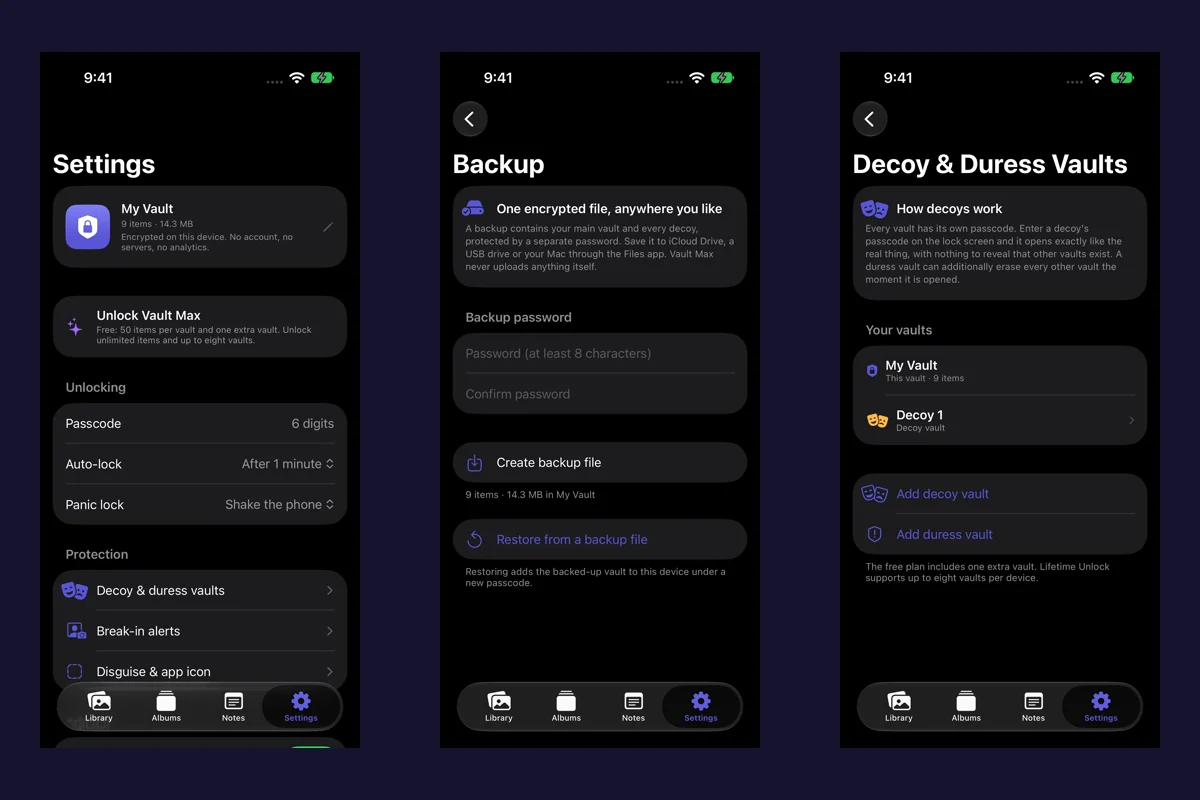
For Vault Max, follow the backup walkthrough to create a separately password-protected archive and save it away from the source phone. Keep the archive password independently available. Then check the destination and intended recovery process while retaining the known working collection.
The end result should answer three concrete questions: Which file opens offline? What credential opens its private location? Which separate copy remains if this phone is gone? Keep the answers specific to the files and devices you actually checked.
Common questions
How do I keep an iCloud Drive document available offline on iPhone?
In Files, locate the file, touch and hold it, then choose Keep Downloaded where available. Wait for the download and open the actual file with Wi-Fi and cellular data unavailable to check your own result. It remains part of iCloud sync.
Is Keep Downloaded the same as a backup?
No. It keeps a local downloaded file available, while changes can still synchronize with iCloud. A recovery copy away from the phone addresses a different problem.
Does Remove Download delete the file from iCloud Drive?
Apple distinguishes Remove Download, which frees local downloaded storage, from Delete. Deleting an iCloud Drive file removes it across devices signed in to the same Apple Account. Check the exact operation and the source you need before acting.
Continue reading
More guides
Practical tips for your private library. Swipe or scroll to choose your next guide.
5 guides to explore