
Backup & recovery
Offload or delete a photo vault? Keep the data decision separate
Understand what Offload App, Delete App and Remove from Home Screen mean for a photo vault. Check retained data, redownload limits and recovery copies first.
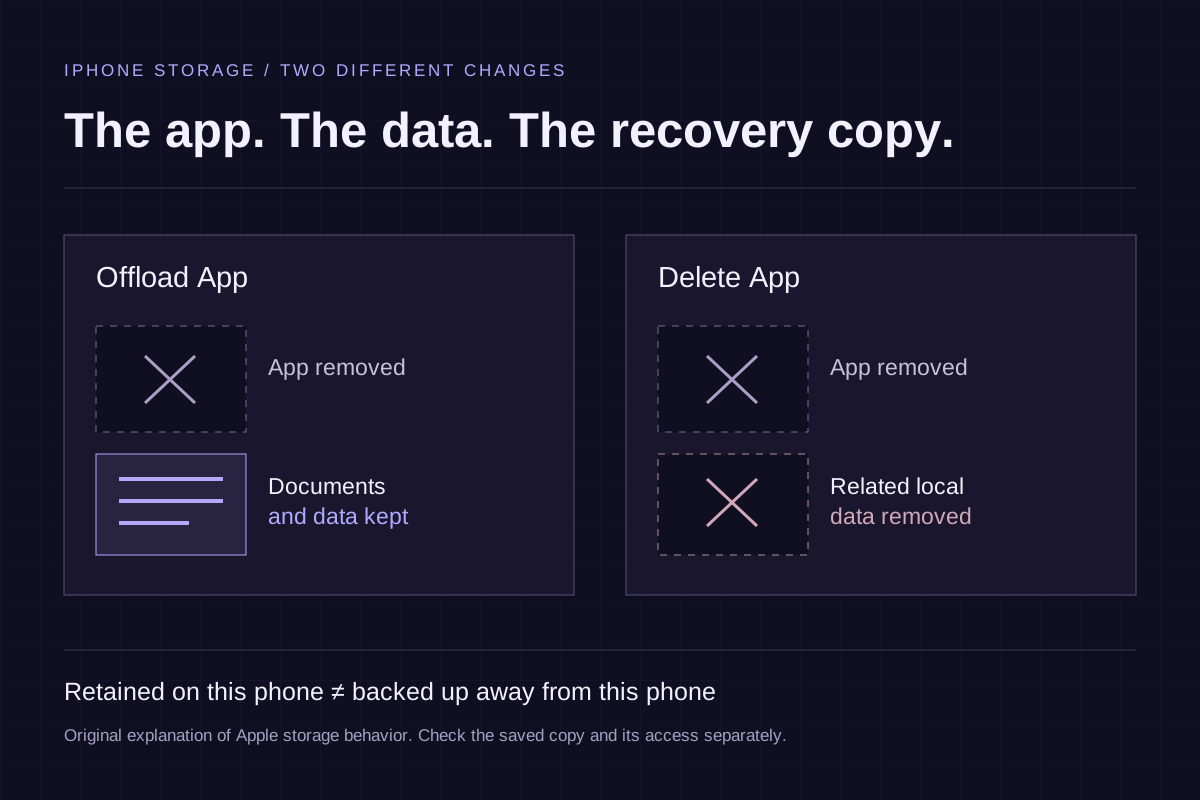
Offloading and deleting an iPhone app are different storage operations. Neither should be your first recovery step when a photo vault holds the only copy you need. Start by identifying the app, its local data and a recovery copy you can reach without relying on the same phone.
This distinction matters when storage is nearly full, an app is misbehaving or a familiar icon has a cloud symbol. The tempting action is to remove something and see whether reinstalling fixes it. With a private library, first establish what would remain and how you would open it again.
Read App Size and Documents & Data separately
Open Settings → General → iPhone Storage, then choose the exact app. Apple's storage explanation distinguishes Offload App, which removes the app while retaining its documents and data, from Delete App, which removes the app and related data.
Those two categories answer different questions. App Size concerns the software installed on the phone. Documents & Data concerns material the app keeps locally. Removing the software can leave the larger collection in place; it does not necessarily reclaim the space you hoped to free.
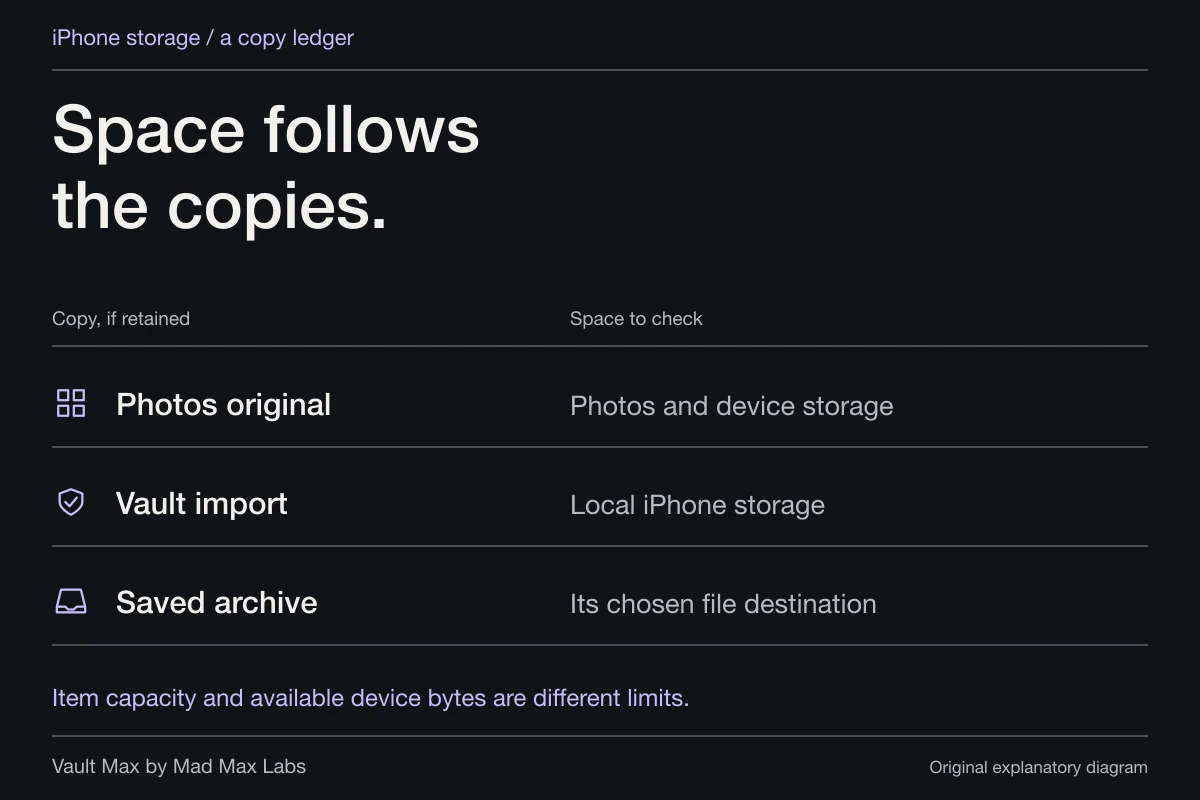
Read the actual sizes and confirmation on your phone. A vault with a small installed app and a large private library is a different storage problem from a large app with little saved content. The vault-space guide explains why importing another encrypted copy can also increase local storage use.
Three actions that sound similar
| Action | What changes | Check separately |
|---|---|---|
| Remove from Home Screen | Where the app is shown; it remains in App Library | Whether the app and collection open normally |
| Offload App | Installed software; Apple says documents and data remain | Correct app availability, reinstall, credentials and retained contents |
| Delete App | Installed software and related local data | Useful originals or a recovery copy elsewhere |
Apple's app-removal instructions distinguish removing an icon from the Home Screen from deleting the app. Read the chosen action rather than inferring it from whether the icon disappeared.
For example, imagine a practice vault containing three fictional document images. Removing its Home Screen icon changes how you find the app. Offloading changes whether its software is currently installed. Deleting makes the local-data question urgent. None of those descriptions establishes that a separately saved archive exists.
Offload is not an independent backup
Retained data on the same phone is still dependent on that phone. It does not give you a recovery copy after the device is lost, erased or damaged. It also does not supply a forgotten vault credential.
Reinstalling has its own requirements. Apple's redownload guide and redownload troubleshooting cover account and app-availability issues. Do not assume that a cloud icon guarantees a particular app version will remain available or compatible forever.
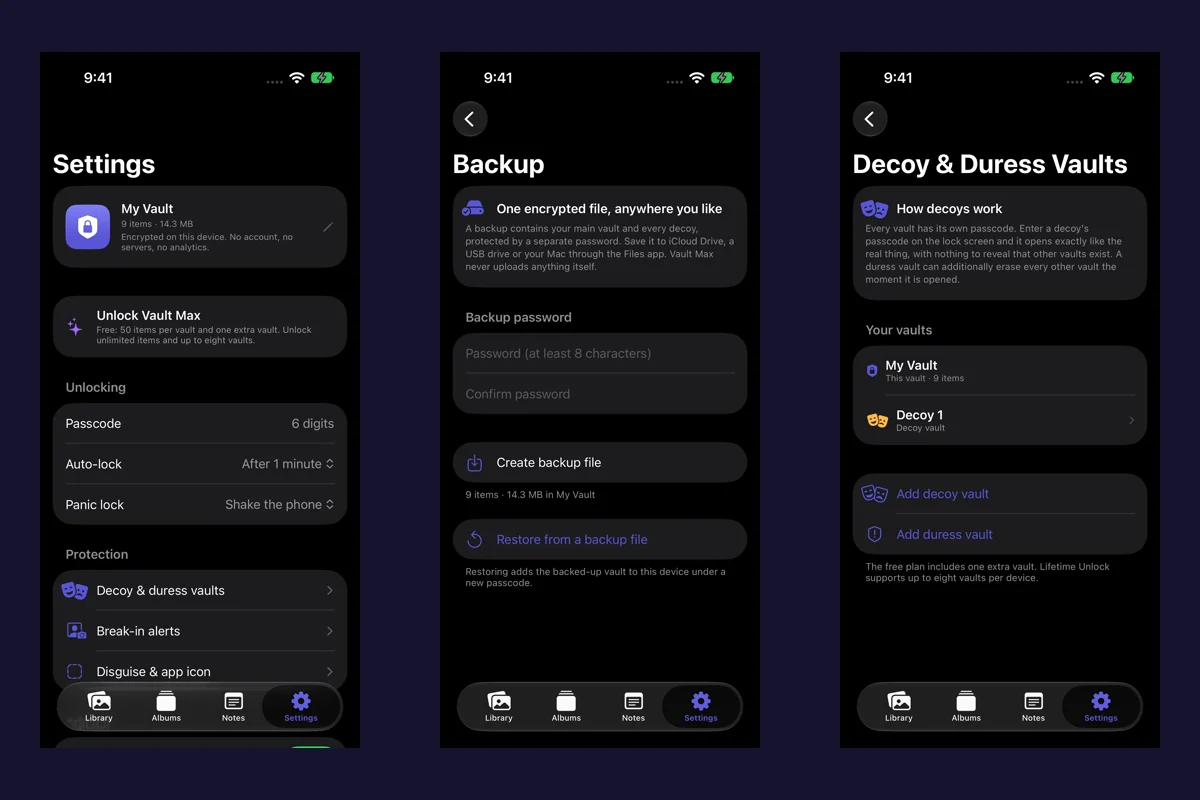
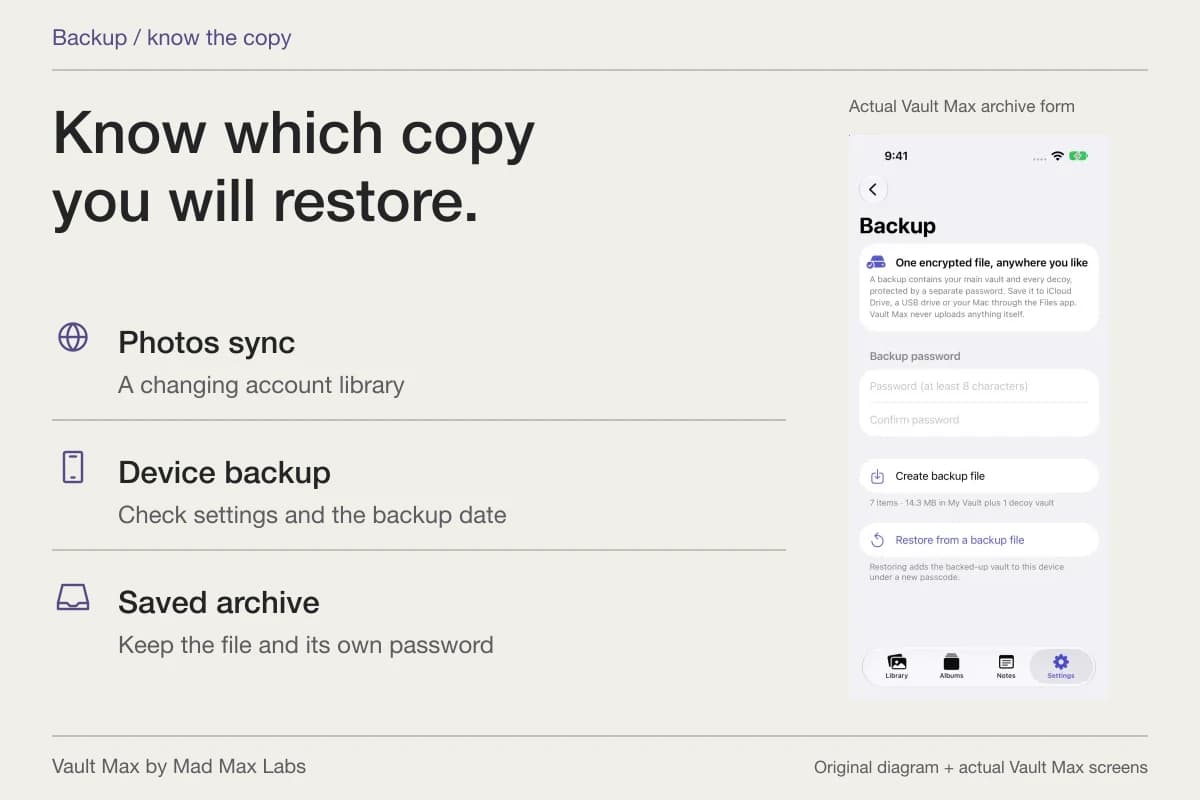
If the app still opens now, use that access to prepare recovery rather than treating offloading as the recovery mechanism. For Vault Max, create a separately password-protected .vaultmax archive, save it away from this phone and keep its archive password available independently. Follow the backup walkthrough for that specific task.
Before you remove anything, identify the copy you would use
Write down the location of the retained material without putting actual passwords into a public checklist. Distinguish an original in Photos, a PDF in Files, the current vault collection and a saved recovery archive. A thumbnail or a file name is only a starting point; open the relevant item and inspect it.
The planner below helps order those checks. Mark only actions completed on your own devices. It cannot inspect your phone, validate an archive or approve deleting the source.
Follow the recovery copy
Plan for the copy that remains after this phone
Separate the working library, archive, password and destination. Use the choices to find the next missing part of your plan.
Keep the working source and existing archives while investigating or testing a replacement. These choices do not verify a file, prove a restore or authorize erasure.
Find the actual saved file before relying on a remembered filename or completed export form.
- 01 / Working source
- Preservation not confirmedThe original library remains a separate copy.
- 02 / Archive
- No saved snapshot reportedSnapshot freshness is your assessment.
- 03 / Archive password
- Availability not confirmedIts only record must not depend on this vault or old phone.
- 04 / Destination
- Restore still needs checkingA restore message alone does not inspect content.
Next part to resolve
Keep the remaining source while you plan
A replacement copy is still being assessed. Removing the source now can remove the only working library.
Keep the original installation, files and older known copies while testing a replacement. An error is a reason to investigate, not remove the source.
Read recovery help or contact supportKeep the remaining source while you plan. A replacement copy is still being assessed. Removing the source now can remove the only working library.
Read the complete copy-check sequence
This sequence remains usable without the planner. If access is already lost, start with the credential and recovery routes before changing the installation.
- am keeping the working source and existing archives
Keep the original installation, files and older known copies while testing a replacement. An error is a reason to investigate, not remove the source.
- checked the vault and content scope
Compare the selected main vault and included descendants, plus important photos, videos, notes and documents. An unrelated vault is a separate inventory.
- can retrieve the archive password independently
Keep its record somewhere you can reach without opening the vault or relying on the old phone. Never type the password into this planner.
- retrieved the actual archive away from the old phone
Check the saved file from another suitable device or destination. A folder name, sync icon or provider sign-in alone does not check the file.
- The restored vault opens on the destination
After following the restore prompts, unlock the intended library. Check included child-vault credentials deliberately; do not experiment with destructive codes.
- inspected representative restored content
Open important photos at full size, play video with sound, read notes and inspect document pages. Check Live Photo motion if relevant and compare with the retained source.
Check the location, not only the export
- I have not located the saved file. Find the actual saved file before relying on a remembered filename or completed export form.
- Only on the original iPhone. A file only on the original phone can be lost with that phone. Keep an additional copy elsewhere.
- On a computer. Retrieve the saved archive on the computer and check that it can reach the intended restore destination.
- On external storage. Check the actual drive, connector and file access from a suitable destination. A drive label alone is not a file check.
- With a Files cloud provider. Check the completed file, provider account access and download away from the old phone. This stores an archive with that provider; it does not turn on automatic Vault Max library sync.
Then check the snapshot and destination
If no archive is saved, create and save an encrypted backup while the vault opens. A saved archive still needs a restore check. Open the destination library and inspect the content while keeping the original and archive.
If the working library changed after the export, create a fresh snapshot, keep the earlier known copy and repeat retrieval and destination checks. Include notes, documents and child vaults, not only the visible photo grid.
Even when every check is reported complete, keep the known archive and password, plan future refreshes and assess device handoff separately. Checked boxes do not establish recovery success or permission to erase the source.
No files, passwords, filenames or account details are requested. The tool does not access devices, save a plan or perform a backup or restore. Your choices last only in this page.
If the only archive is stored under On My iPhone, arrange an independent destination before relying on it for device loss. If the archive password is unknown, locating the archive alone does not resolve access. If you have not checked the destination, keep the current collection while you work through the remaining steps.
If you have already removed the app
First identify what actually happened. Was the icon removed from the Home Screen, was the app offloaded, or did you confirm Delete App? Check the exact product and publisher too: several unrelated apps use similar calculator and vault names.
If it was only removed from the Home Screen, find the installed app in App Library. If it was offloaded, consult Apple's redownload guidance and the app publisher's own recovery documentation. Reinstallation may be needed to use retained data, but access and content still require checking afterward.
After deletion, look for sources you independently retained and recovery routes you set up beforehand. Do not create a story about a cloud backup just because the app offered purchases or used an Apple Account for payment. The iPhone backup guide separates Photos sync, device backups and an app archive.
For a Vault Max credential problem, use the forgotten-code paths. Keep remaining data and known copies in place while you assess them. This article documents Apple's storage behavior; it does not claim a newly completed Vault Max offload, deletion or archive-restore experiment.
A restored purchase is a different result
Restore Purchases concerns the App Store entitlement. A successful purchase check does not recreate private files, discover an archive password or unlock a collection. Keep the purchase question separate from the content-recovery question when contacting support.
Useful support context includes the exact app name, what action was taken, whether the old phone is still available and whether a separately saved archive exists. Do not send passwords or private archive contents. The practical goal is to identify an available supported route before taking another action that changes the remaining copies.
Common questions
Does offloading a photo vault delete its photos?
Apple says Offload App removes the app while keeping its documents and data. That is different from a recovery backup: reopening still depends on reinstalling the correct app and having its required credentials. This guide does not establish a completed Vault Max offload-and-restore test.
Does deleting a photo vault app remove its local data?
Apple describes Delete App as removing the app and its related data. Identify any separately retained Photos or Files originals and usable recovery archives before acting; reinstalling alone does not promise to recover a deleted vault.
Will Restore Purchases bring my private photos back?
No. Restoring a purchase checks an App Store entitlement. It is separate from unlocking a vault or recovering the files and notes stored in it.
Continue reading
More guides
Practical tips for your private library. Swipe or scroll to choose your next guide.
5 guides to explore