
Privacy in practice
Save every page of an iPhone scan as a PDF
Scan several pages into one PDF in Files, or save the actual scan attachment from Notes. Check the last page, readability and destination before a private import.
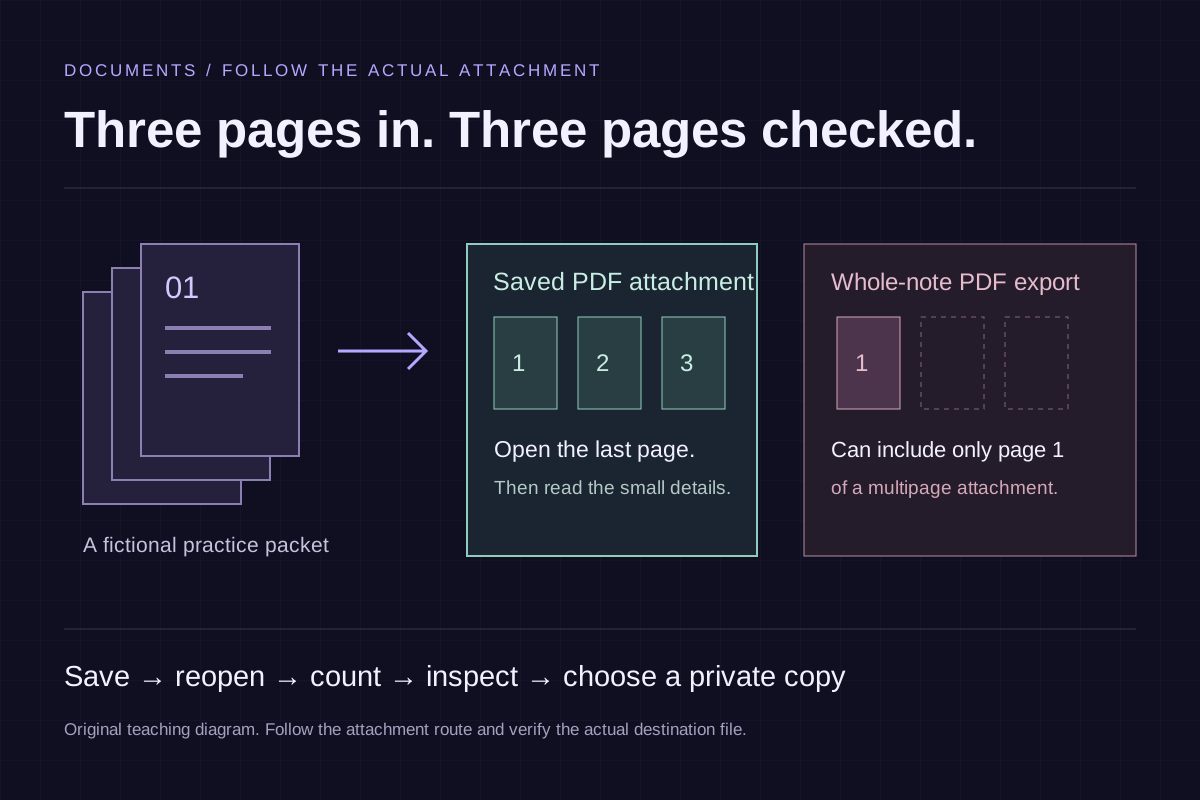
Save the document you need, then open it from the place you saved it. A three-page scan visible inside a note and a standalone PDF containing all three pages are different things to check.
Start with a harmless three-page practice packet. Put a large page number and a small line of text on each sheet. That makes it easy to notice a missing last page, the wrong order or text that becomes unreadable after capture. Use invented content while learning the route; there is no need to practice with a real identity document.
Choose the route that matches your starting point
If the pages are still on paper, scan straight to a file location you can identify. If the document already exists as a scan or PDF inside Notes, share that attachment rather than starting a second scan or assuming that exporting the whole note produces the same document.
| Starting point | Useful destination | Check before continuing |
|---|---|---|
| Paper packet | One saved PDF through Files | Every intended page was captured and saved |
| Scan attached to a note | The attachment’s own PDF saved to Files | The actual attachment was shared with all pages |
| Standalone PDF | The file kept or copied from its known location | Correct version, complete page count and readable details |
You can keep the note's explanatory writing separately if it matters. The document and the note around it do not have to be treated as one interchangeable export.
Scan paper directly into Files
Apple's scanning instructions include a Files route:
- Open Files and use More → Scan Documents.
- Capture the first page. Check the crop before keeping the scan.
- Add the remaining pages before finishing. Review the set rather than stopping after the first sheet.
- Finish with Done, choose the intended location and Save.
Use the current controls on your iOS version if their presentation differs. Keep the source in reach while you review the captured set, especially when the packet mixes single-sided and double-sided sheets.
After saving, leave the capture screen. Find the PDF in Files by its name and actual location, then open it there. That final step distinguishes a saved file you can retrieve from pages that merely looked correct inside the scanner.
Save a scan already inside Notes
Open the note and locate the scanned document or PDF itself. Apple's PDF attachment guide describes the attachment's menu, sharing options and full-screen page view. Use that document's sharing route and save the offered PDF to the location you intend.
There is a specific reason to distinguish this from exporting the note. Apple's note-export documentation states that a whole-note PDF export includes only the first page of an attached multipage PDF or scanned document. An attractive preview can therefore hide an incomplete result for your purpose.
For the practice packet, find page 3 inside the attachment, then find page 3 again in the file saved to Files. Compare page count and order. Do not rely on the note's title or the exported filename to answer whether the complete attachment arrived.
Inspect the saved document in four ways
Look at the whole packet, then inspect small details. These checks are short enough to do before putting the paper away:
- Count: compare the saved PDF with the source, including the final page and any reverse sides you intended to capture.
- Edges: look for cropped words, missing corners, glare and fingers covering content.
- Readability: zoom into a small line of text on more than one page.
- Retrieval: close the preview, return to the actual folder and reopen the intended file.
If something is wrong, correct that source while it is still available. Copying an incomplete PDF into a private collection preserves the incomplete PDF; it cannot add a page the saved document never contained.
Check the copy you will actually use
From a saved scan to a complete document
Use these checks on your own device. Ticking a box records your review here; this page cannot inspect a file, download it or confirm a result.
Save the scan as its own file
In Files, use More → Scan Documents, capture all pages, finish, choose a location and save. Then reopen that saved PDF.
Apple’s scanning instructionsNext: Count every page in the saved PDF. Compare with the paper or original attachment. Open the last page; a first-page preview cannot establish completeness.
Read both starting routes
Save the scan as its own file
In Files, use More → Scan Documents, capture all pages, finish, choose a location and save. Then reopen that saved PDF.
Apple’s scanning instructionsShare the PDF attachment itself
Open the note’s scanned document or PDF and use its attachment menu to share that file. Exporting the whole note can include only the attachment’s first page.
Apple’s PDF attachment instructionsChoose the file's location deliberately
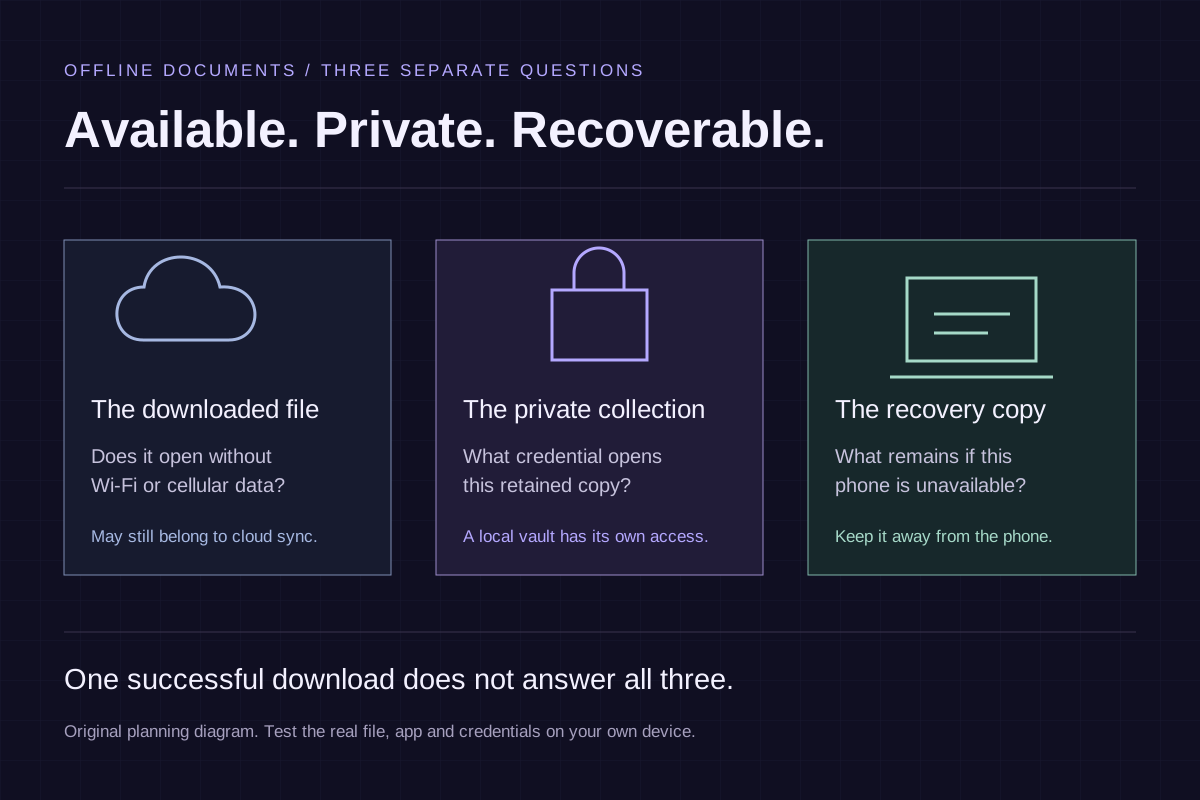
Read the Files location, not just the folder name. iCloud Drive, On My iPhone and another provider have different availability and sync behavior. A local-looking preview does not establish that the whole file will open later without a connection. Use the offline document walkthrough if that is the next requirement.
Use a name that helps distinguish versions without exposing unnecessary private details in a filename. For a practice packet, Practice packet — three pages.pdf is enough. For an actual collection, use a naming convention that will still make sense when you return next month.
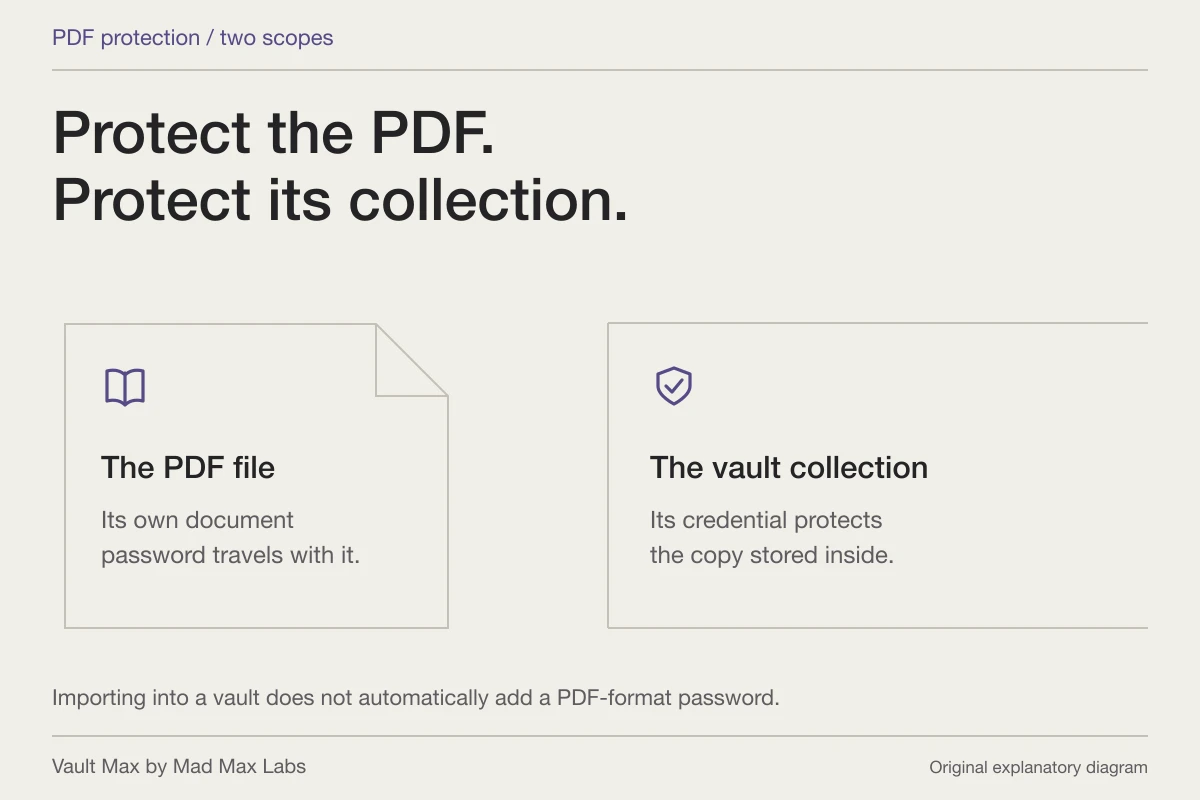
If the document needs a portable password, treat that as its own task. The PDF password guide separates the document's password from a vault credential. Saving a file into a folder alone does not assign it a new independent password.
Import a checked copy into Vault Max
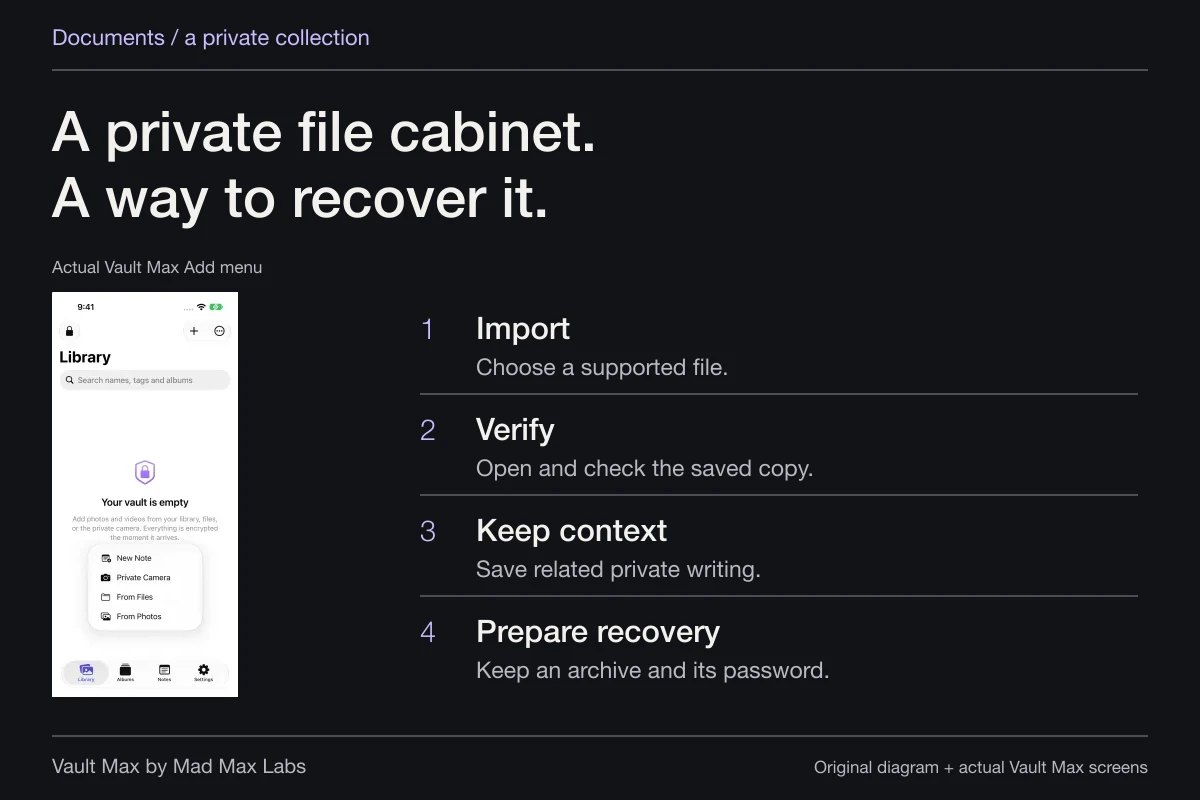
Vault Max can hold a supported saved document through From Files. Select the checked PDF, wait for the import and open the retained item. Inspect the same page count, last page and readable details inside that copy too.
The existing document-cabinet walkthrough also shows the locked Share-sheet intake with a fictional PDF. That is a separate route for a file offered by its source app. Check the saved attachment result; sharing a web address or surrounding note text is not automatically sharing the underlying PDF.
Keep the paper or known complete source while you check the retained copy and arrange recovery. Vault Max's import does not turn it into a scanner, PDF editor or OCR service. This article follows current Apple documentation and a reader-run checklist; it does not claim a fresh native scanning experiment or all-format preservation test.
Once the destination is useful, continue with organization, private context and an independent recovery archive. The successful outcome is a complete document you can find, read and recover, rather than a single successful Share or Save message.
Common questions
Can I scan multiple pages into one PDF on iPhone?
Yes. Apple's Files scanning route lets you add pages before finishing, choose a location and save. Open the saved result and compare its page count with the original material.
Why did my exported Notes PDF lose pages from a scan?
Apple documents that exporting a whole note as a PDF includes only the first page of a multipage PDF or scanned attachment. Use the attachment's own sharing route when you need that document, then inspect the saved destination.
Does putting a scan in Vault Max scan or edit the PDF?
No. Prepare the readable document with the appropriate scanner or document app first. Importing a supported saved file creates a separate vault copy; inspect that retained copy as a separate step.
Continue reading
More guides
Practical tips for your private library. Swipe or scroll to choose your next guide.
5 guides to explore