
Privacy in practice
Share one private photo without opening the whole collection
Share selected private iPhone photos with a clear recipient, content and copy check. Learn where vault export, metadata choices and retained copies meet.
Share the exact photograph the recipient needs, review its contents and outgoing destination, then treat the delivered file as a separate copy. Vault Max lets you choose an item from a private encrypted collection without handing someone the collection's credential. Once you deliberately export it, the destination's controls govern that outgoing copy.
You might need to send a repair reference, a family photograph or one page of a private record. The useful question is specific: which image should this person receive, through which route, and what should remain afterward? Answering those three questions makes the task easier to check.
Decide whether you need to send a copy
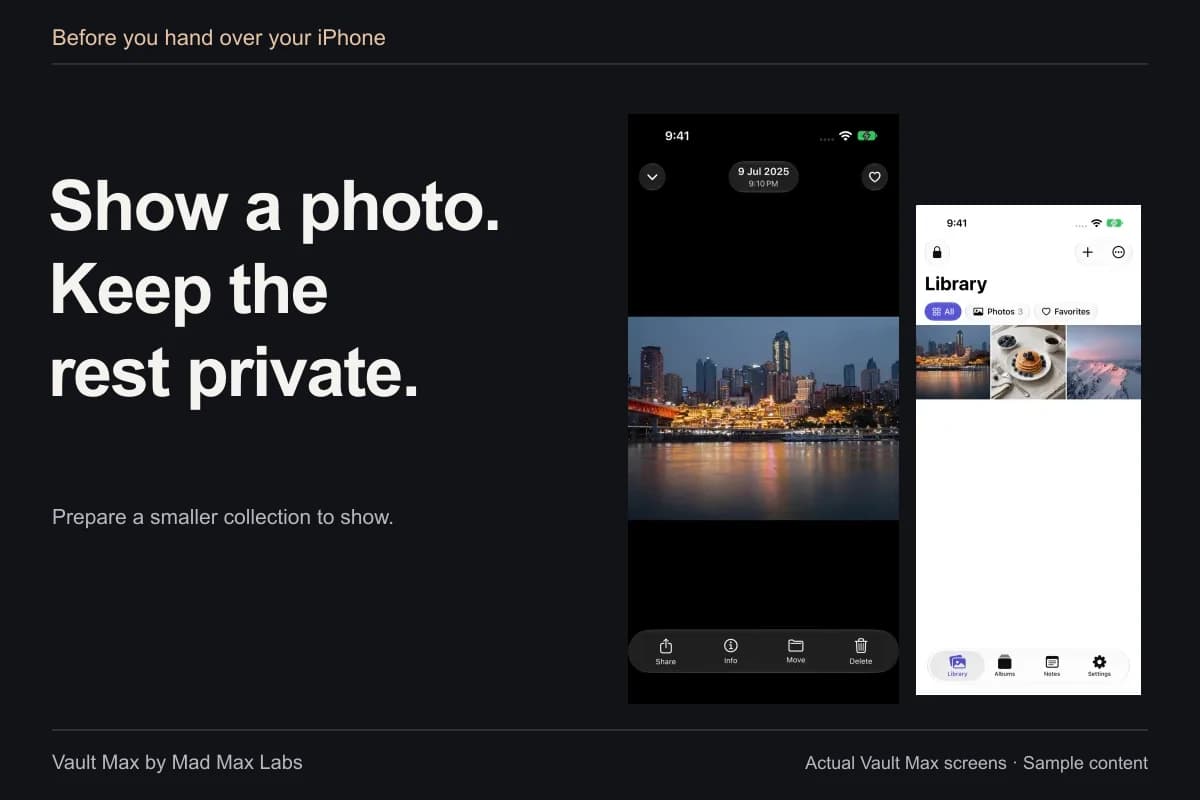
If the other person only needs to see a picture while beside you, consider showing that item yourself. Our single-photo walkthrough covers the local viewing decision. Showing something on your screen and sending its file create different retained-copy situations.
If they need to refer to it later, sending may be appropriate. Ask which address or conversation they want you to use before attaching anything private. A familiar name can identify several contacts, an old group, or an account you no longer intended to include.
For a project example, imagine sending a photograph of a broken cabinet hinge. The recipient needs the hinge and its mounting points. They may not need the invoice, address label or another person's document beside it. Inspect the photograph as information, not merely as a recognizable thumbnail.
Choose the delivery route before preparing the file
For remote delivery, choose an end-to-end encrypted messenger the recipient can use. Signal documents automatic end-to-end encryption. Confirm the conversation's participants; encryption does not prevent a recipient retaining the picture.
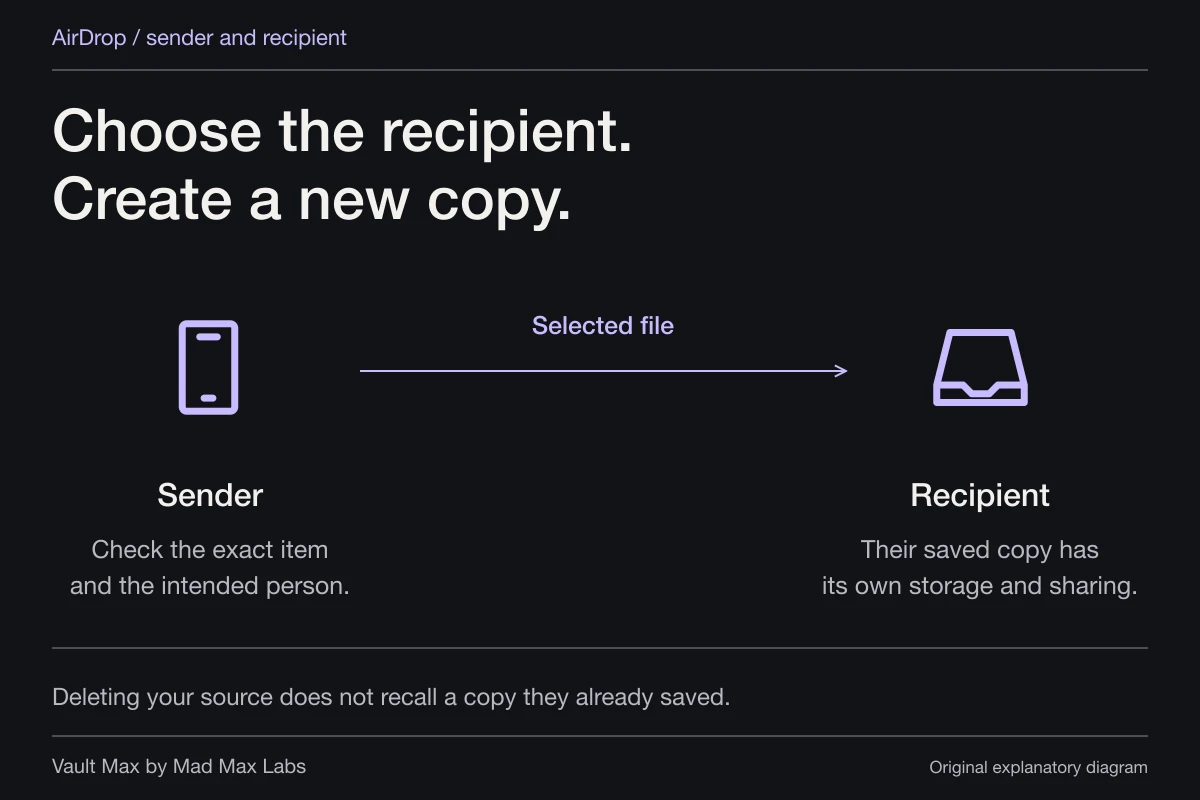
For nearby Apple devices, AirDrop can send the selected file directly to the intended person. Confirm the recipient and follow the displayed acceptance or code prompt rather than trusting a device name alone.
Use a cloud link only when its actual audience and editing permissions suit the handoff. Apple's iCloud Drive guide distinguishes People you choose from Anyone with the link, with a view-and-download option rather than editing. Inspect access requests and the people included before sharing. Those settings belong to the hosting service, after an ordinary Vault Max export. Removing link access cannot retrieve an independently saved copy.
Preparing an outgoing file and delivering it to the intended recipient are different steps.
- 01
Open the chosen item
Check the full content inside your collection.
- 02
Prepare the outgoing file
Review the actual selection and any preparation result.
- 03
Choose the destination
Confirm the account, recipient and attachment preview.
- 04
Check the result
Use the destination’s delivery state and manage retained copies.
Open the intended vault item before choosing Share
Unlock the intended Vault Max collection and find the item. Use a recognizable filename or album when several pictures are similar. Open it at a useful size and inspect the full frame. Confirm that you chose the finished reference rather than an earlier version with additional private context.
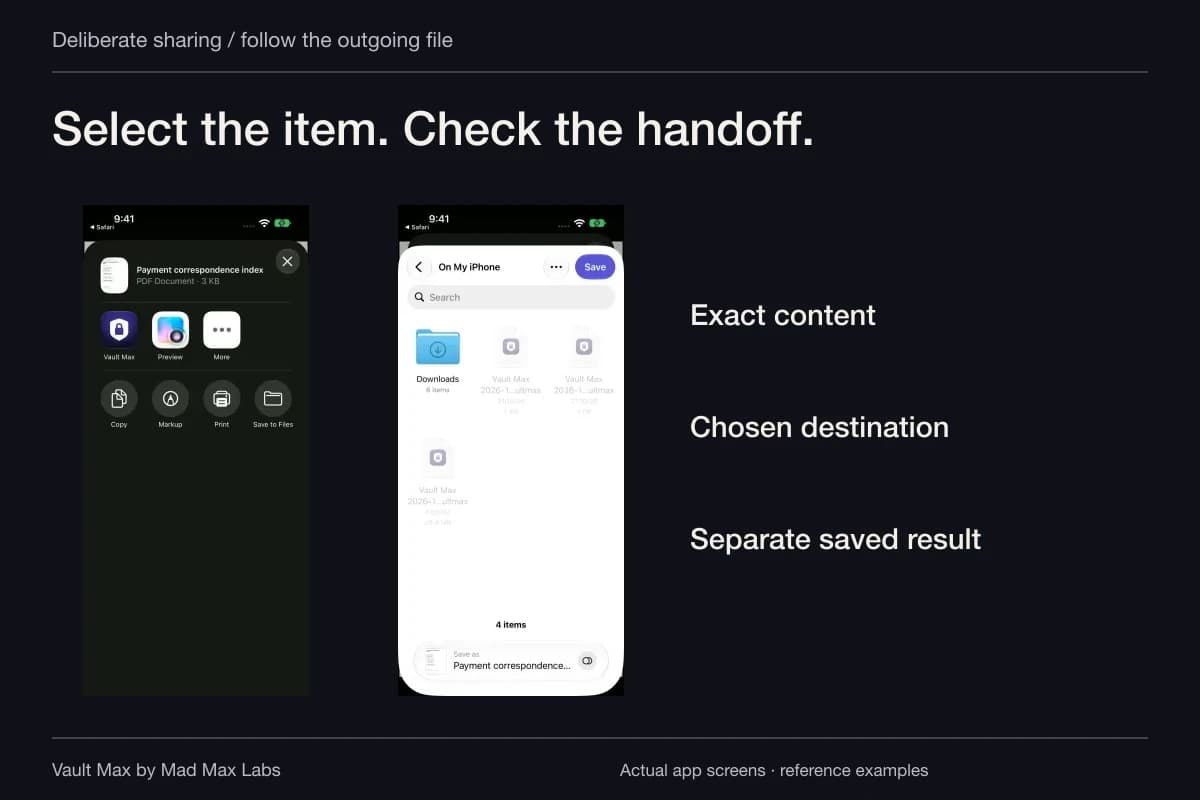
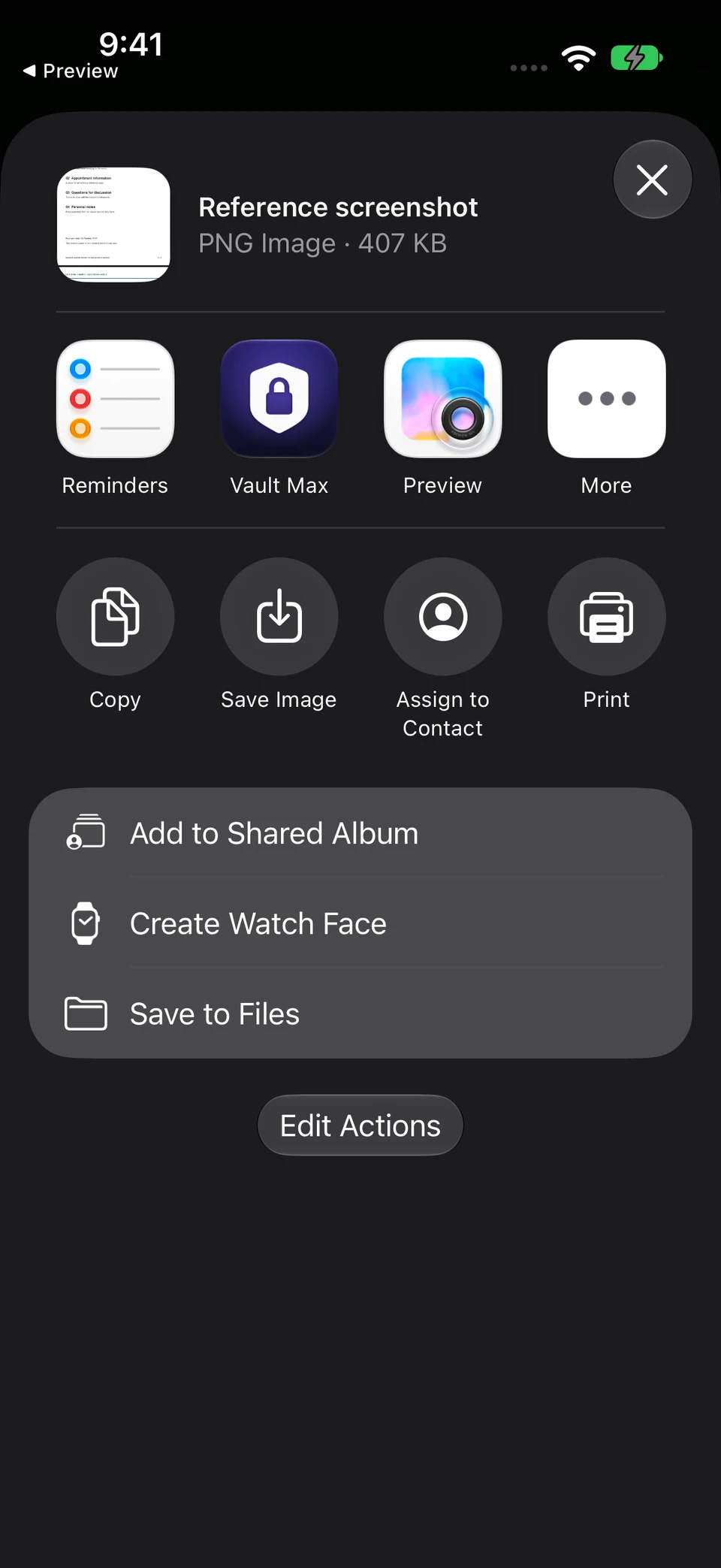
Use Share for the current item, then review the system share sheet and choose the intended destination. Vault Max prepares ordinary usable files for this action. You are sharing that content; the recipient does not receive your vault credential or browse the rest of the collection through that file.
For several items, inspect the selection count and each chosen item before continuing. A nearby thumbnail can be selected accidentally. For a small private send, checking two or three individual pictures is often easier than sending an entire album and asking the recipient to find the right one.
If preparation reports an error, stop and inspect what is actually ready. Do not assume every requested item was prepared successfully, or that reopening a destination means delivery completed. The preparation step and the destination's send action are separate stages.
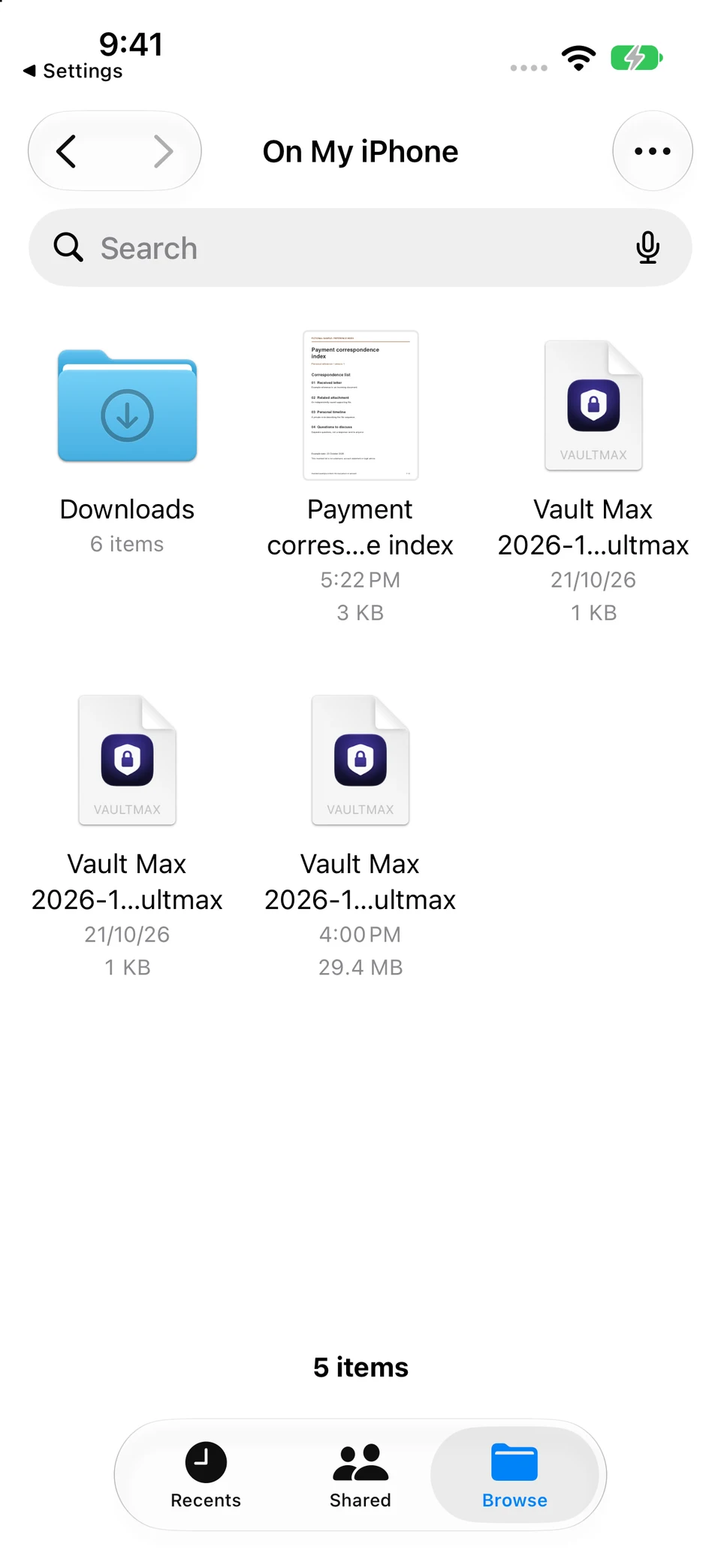
The first screen prepares one sample screenshot for sharing; that sheet was canceled. The second shows a separate fictional PDF exported to Files and present in the chosen folder. Choosing a route and inspecting the saved result are different checks.
Vault Max and iOS Files · Actual screens, fictional reference contentInspect the outgoing image
Open original image: Inspect the outgoing imageCheck a saved-file result
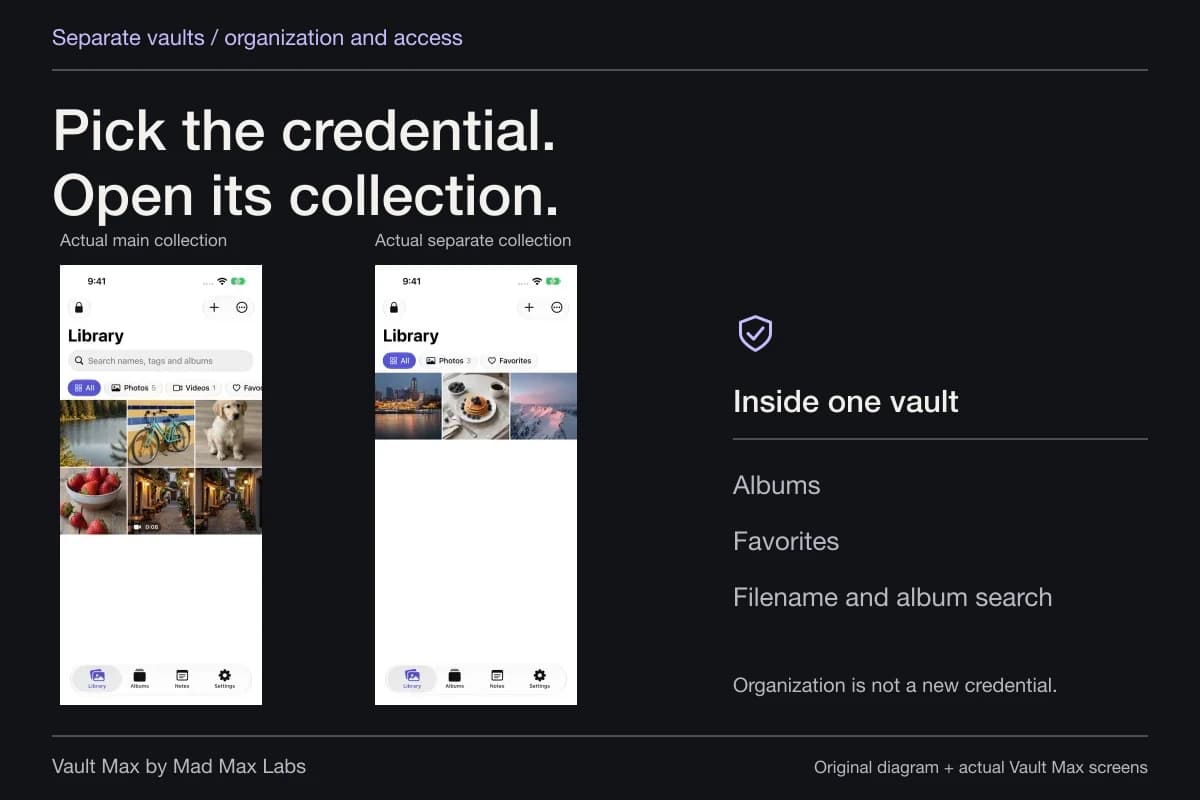
Open original image: Check a saved-file resultMad Max Labs makes Vault Max. Its local collection, separate credential and encrypted notes help keep private references organized until you choose to use them. Ordinary export deliberately crosses that collection boundary; closing the vault afterward does not withdraw the file from its chosen destination.
Check the file's visible contents and information
A filename, visible label or embedded location can disclose context independently of the main subject. Read the complete image, not just its center. If you prepare a different version elsewhere, reopen the actual final file before sending it. A preview of an edit is not proof about every earlier copy.
Apple's current iOS 27 Photos sharing guide places file-format choices under Share → Options and documents Keywords and All Photos Data controls. All Photos Data includes the original with edit history and metadata and is documented there for AirDrop. Choose the information needed for the task.
For location specifically, Apple's location-metadata guide explains inspecting a photo's information and removing its recorded location. Interface labels vary by version. Use the controls actually offered for the selected item rather than following an older screenshot of a different share sheet.
These controls apply in Photos. For a Vault Max export or a different destination, inspect the actual outgoing file and the information that destination offers. If you need a redacted version, prepare and reopen that version before sending it.
Review the recipient after choosing the app
The share sheet chooses a route. The destination may then ask for a contact, account, group or address. Inspect that final recipient and the attachment preview before completing the send. A suggested contact is convenient, but the suggestion itself does not verify your intention.
If you use AirDrop, identify the intended nearby device and confirm with the person. Our AirDrop settings guide explains receiving controls and the separate nearby-sharing setting. Receiving settings help administer your phone; they do not certify the person behind every device name you see.
For a conversation, reopen its header if necessary. Check the participants rather than relying on a familiar thumbnail. Do not add a second service merely because the first send seems slow: first inspect the original destination so you do not create duplicate disclosures while troubleshooting.
| Stage | Question to answer | Useful completion evidence |
|---|---|---|
| Choose the item | Is this the exact image or version needed? | The full image and intended selection count |
| Prepare the export | Did the requested file prepare successfully? | The actual attachment offered to the share destination |
| Choose the recipient | Who will receive it here? | The destination's current address or participant list |
| Complete the send | What did this app actually report? | Its own sent, failed or pending state |
| Review retained copies | What now exists outside the vault? | The attachment, saved file or shared location you deliberately created |
If you notice a mistake after sending
Return to the service where you sent the image. Use its documented unsend, deletion or access controls if available, and understand their time limits and scope. A local deletion and a request to remove a message for other participants are not interchangeable actions.
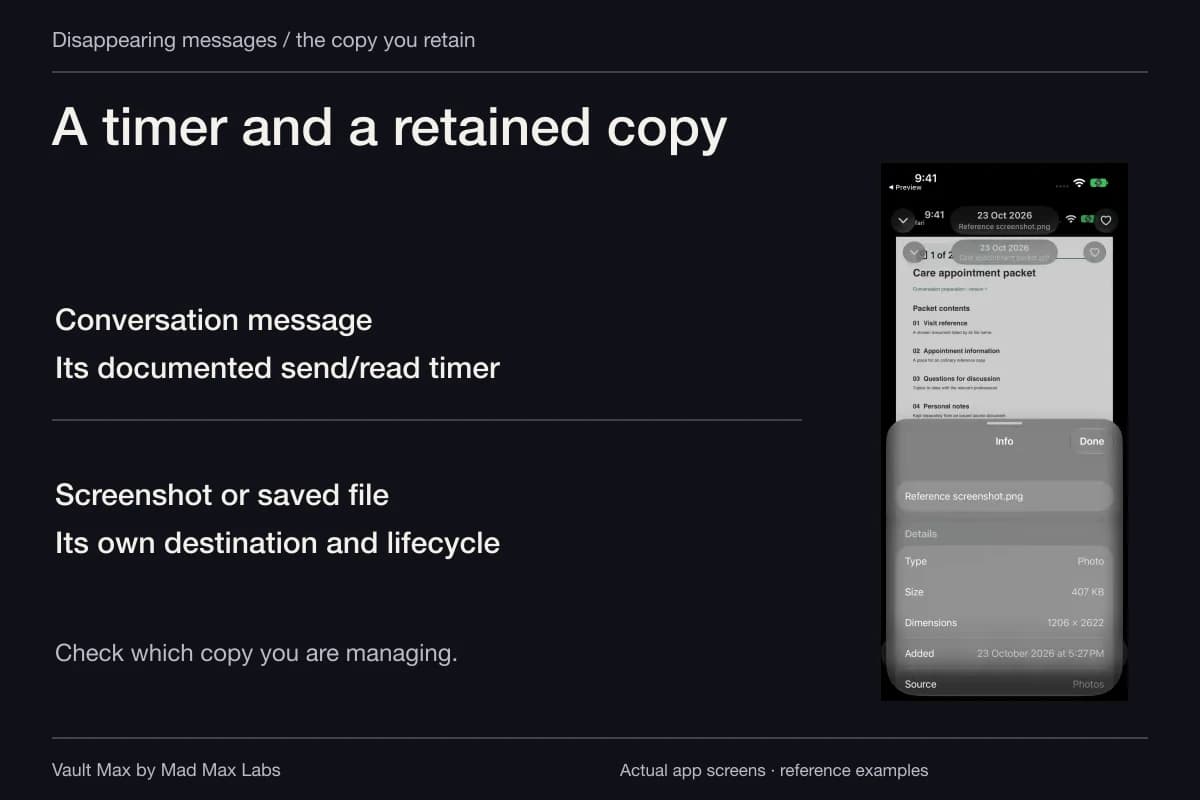
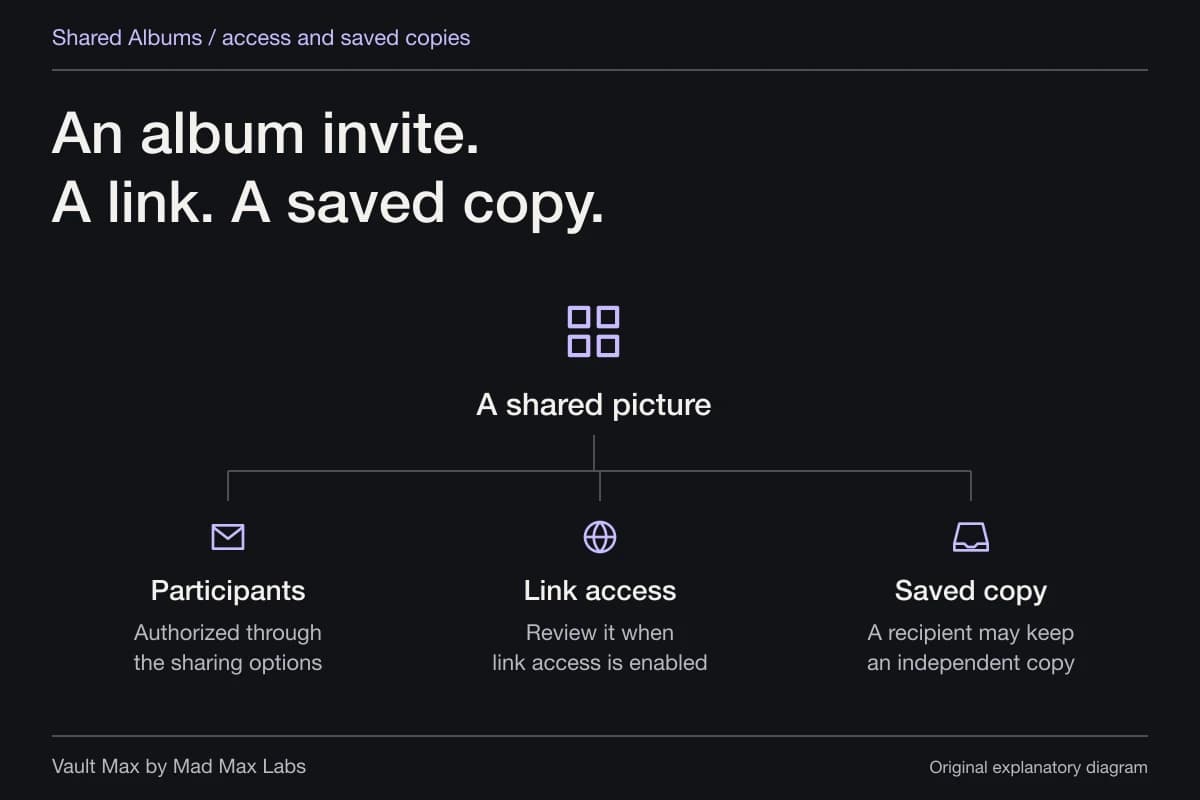
Even a supported removal cannot establish that nobody already downloaded or photographed the image. Signal's timer and deletion distinctions are covered in our disappearing-messages guide. If the destination was a Shared Album, use the album privacy guide for that particular sharing model.
For a cooperative recipient, explain the mistaken send and identify the exact image. For an unwanted public posting, use that platform's reporting route. Keep the outcome precise: a report submitted, an attachment removed or an access setting changed each establishes something narrower than every copy being gone.
Keep the private master and recovery copy useful
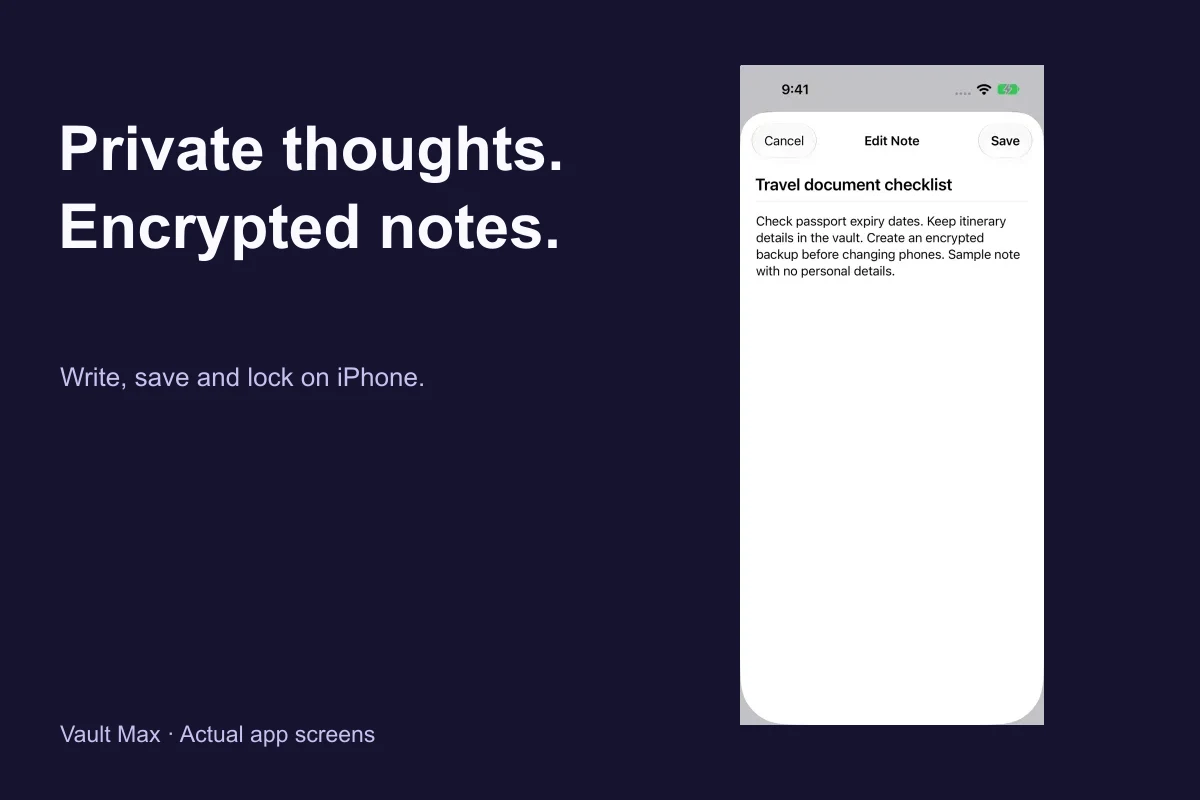
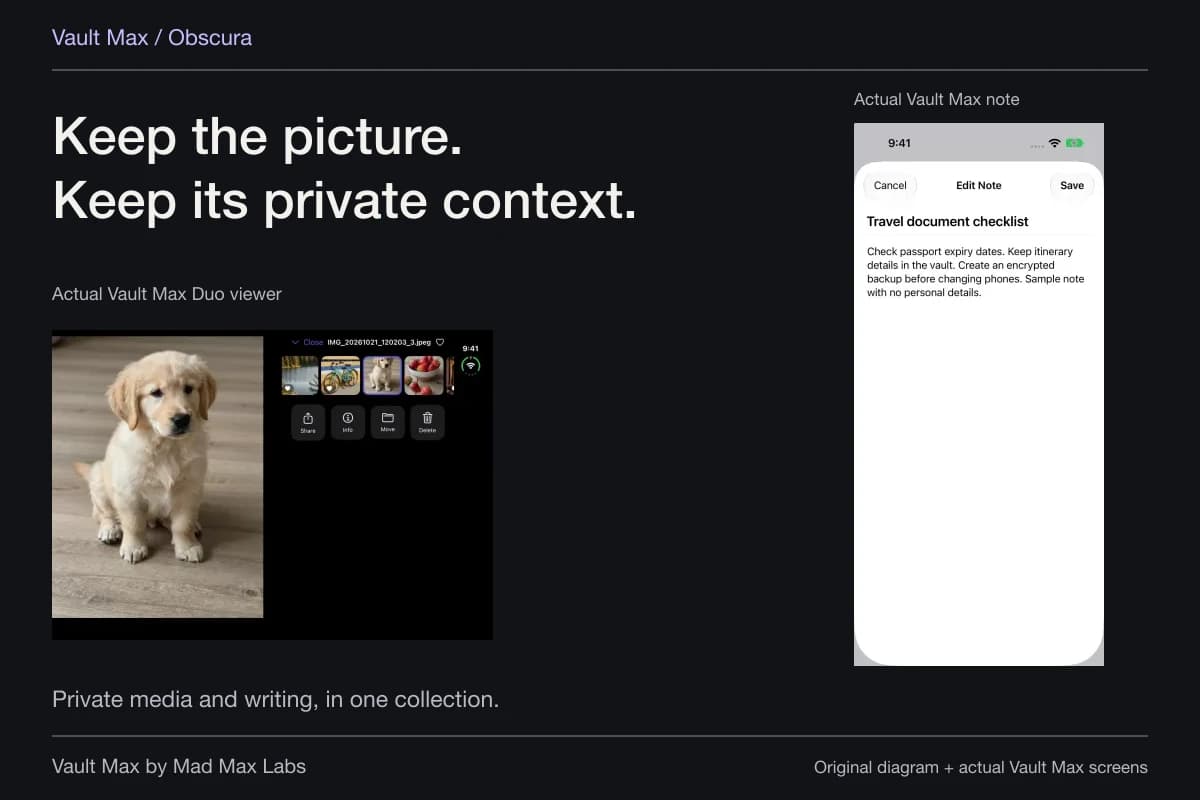
After sharing, retain the version you actually need in the vault and close the session. A short encrypted note can record non-sensitive context, such as the intended use or date, without duplicating an entire conversation. Save it explicitly and reopen it to confirm the useful text was retained.
Review any extra copy you deliberately created in Photos, Files or another app during preparation. Decide whether it still serves a purpose. Verify the retained master and recovery plan before irreversible cleanup, particularly when the picture is difficult to replace.
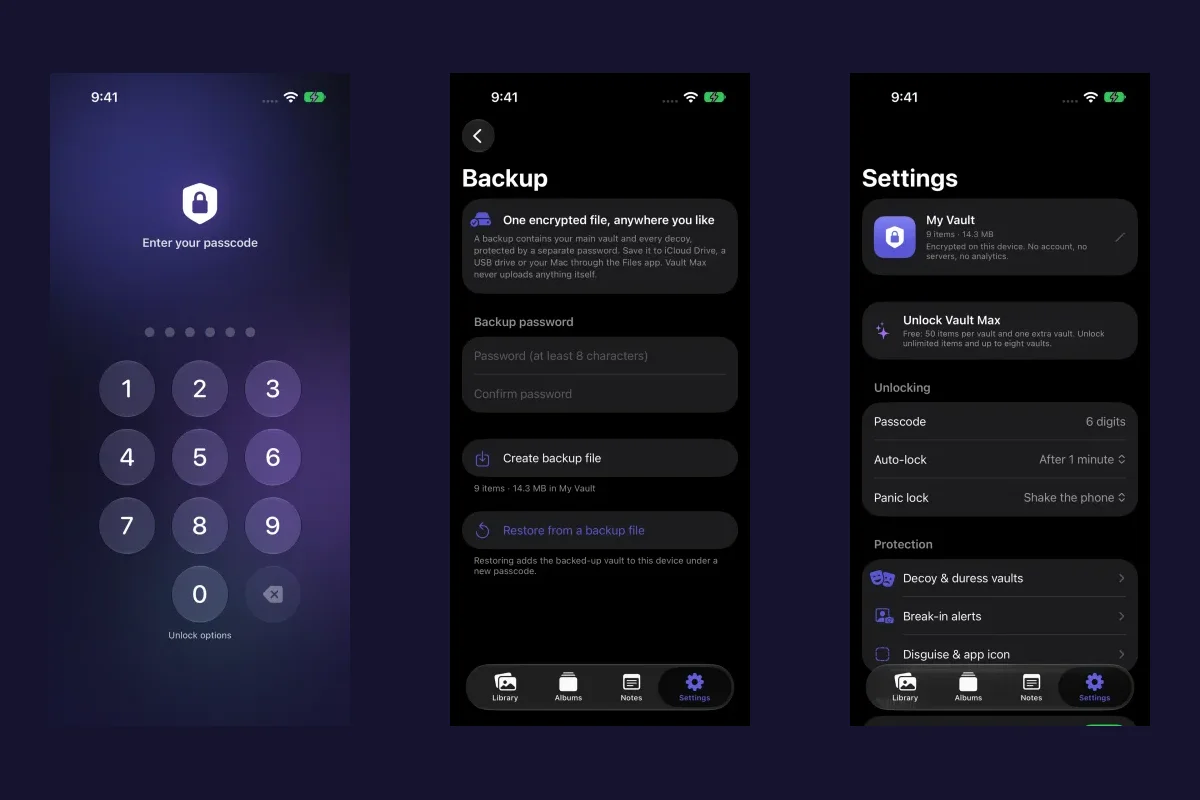
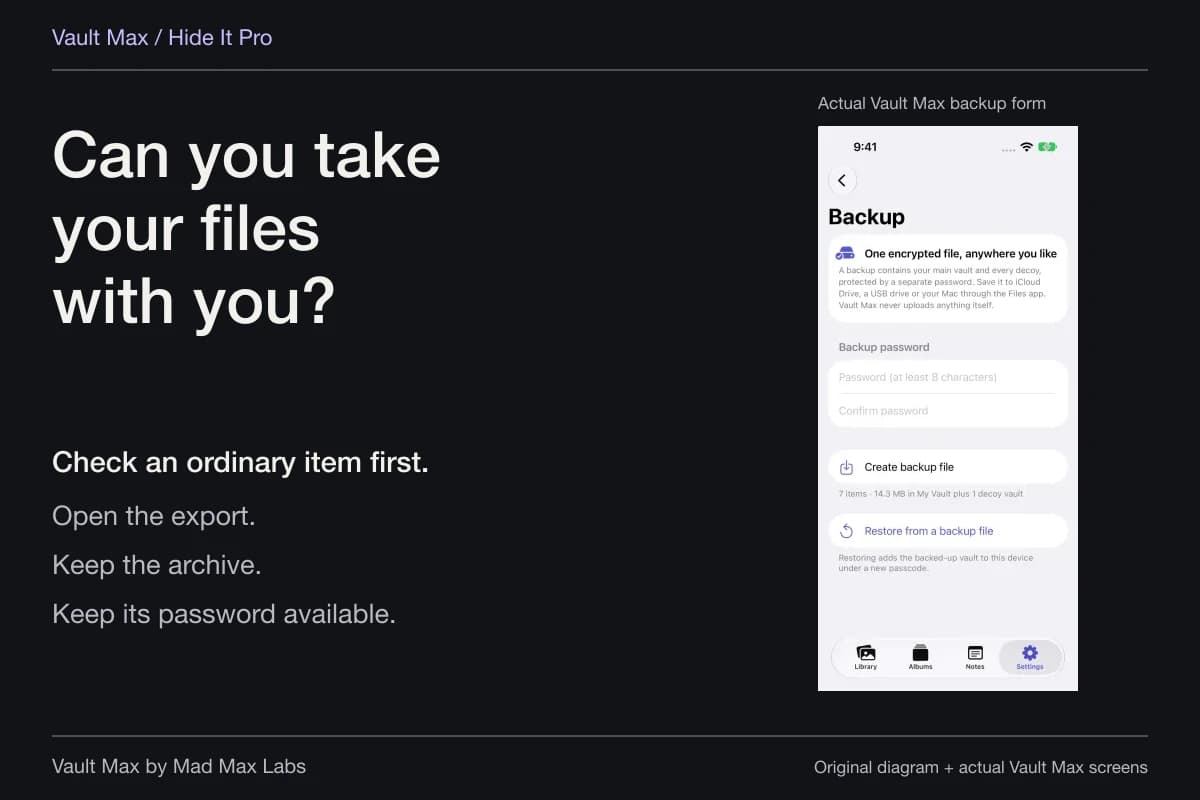
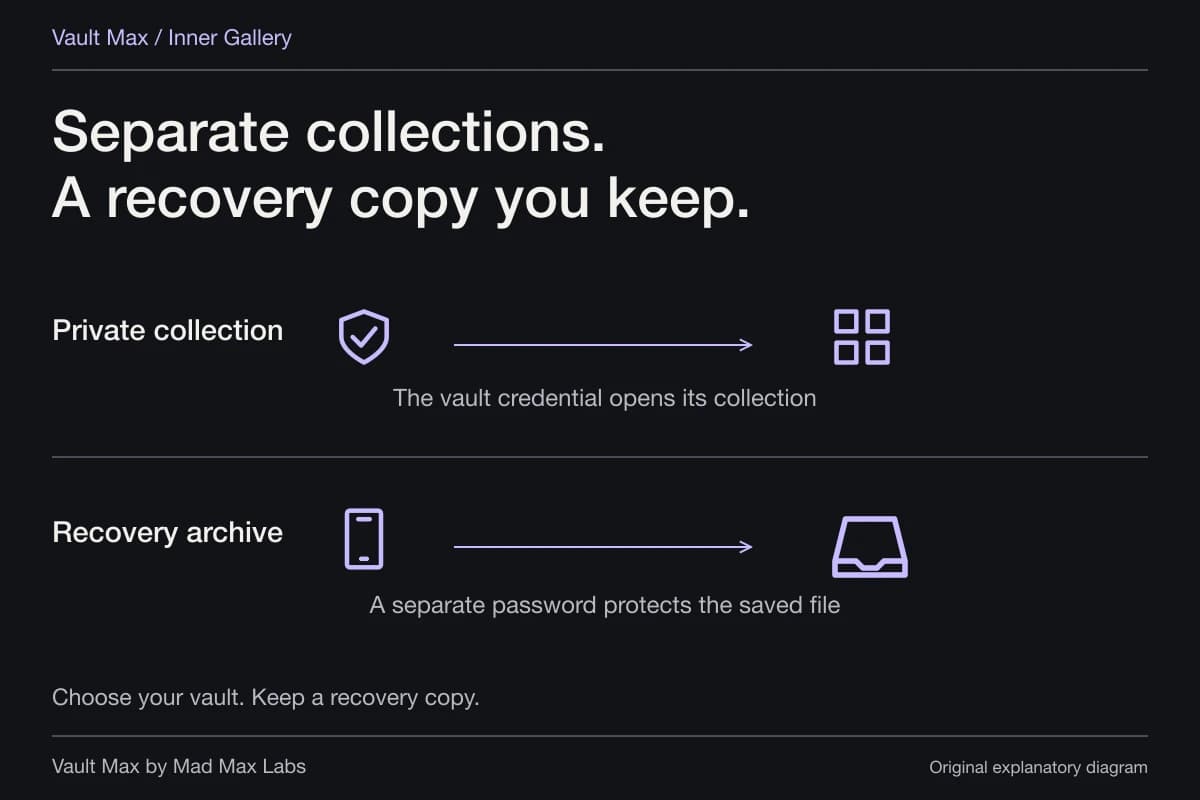
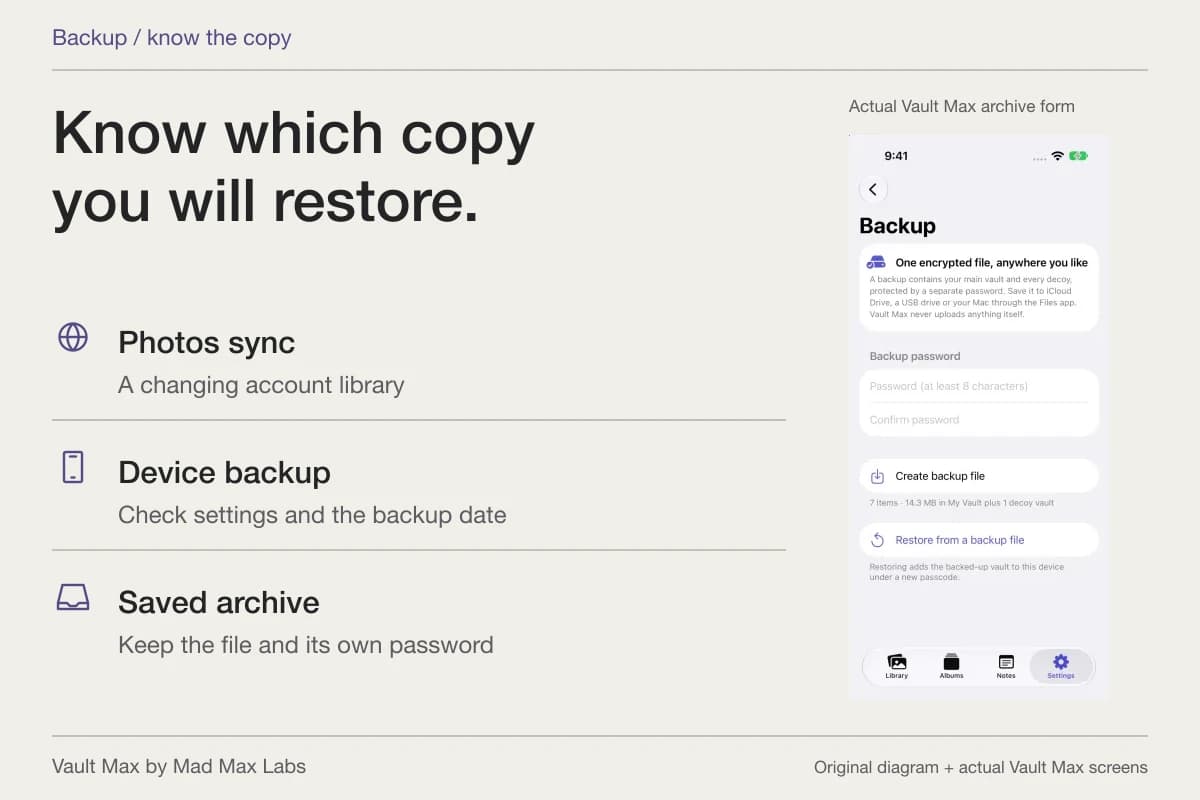
A password-protected .vaultmax archive is a recovery snapshot of the private collection. Keep its separate password independently available and refresh the archive after important changes. Sharing the whole recovery archive is a broader decision than sending one photograph; it should not be the routine shortcut for this task.
- Choose between showing the picture and delivering a copy.
- Review the full image, version, filename and selection count.
- Use relevant source controls and inspect the actual final file.
- Read the final recipient or participants before sending.
- Distinguish prepared, pending, failed and completed states.
- Lock the collection and review extra copies and recovery separately.
Tap a box as you go. Checks reset when you leave this page.
Common questions
Does sharing from Vault Max send my vault credential?
Ordinary Share prepares the selected item as a usable file for the destination you choose. It does not send the vault credential or require the recipient to open your collection. The outgoing file has a separate lifecycle.
Can I revoke a photo after sending it?
Use any deletion or access controls documented by the destination, but do not assume they remove a download, screenshot or earlier attachment. Ordinary Vault Max file export does not provide remote expiry or recipient-copy recall.
Does encryption make the image safe to disclose?
Encryption protects data within its particular storage or transport boundary. You still need to review what the intended recipient can see, which file you selected and whether its visible contents or metadata reveal more than necessary.
Continue reading
More guides
Practical tips for your private library. Swipe or scroll to choose your next guide.
86 guides to explore