
Privacy in practice
Tax documents on iPhone: build a private file for the year you actually need
Organize tax PDFs, receipts and filed copies on iPhone. Build a readable private collection with useful filenames, encrypted notes and an explicit backup.
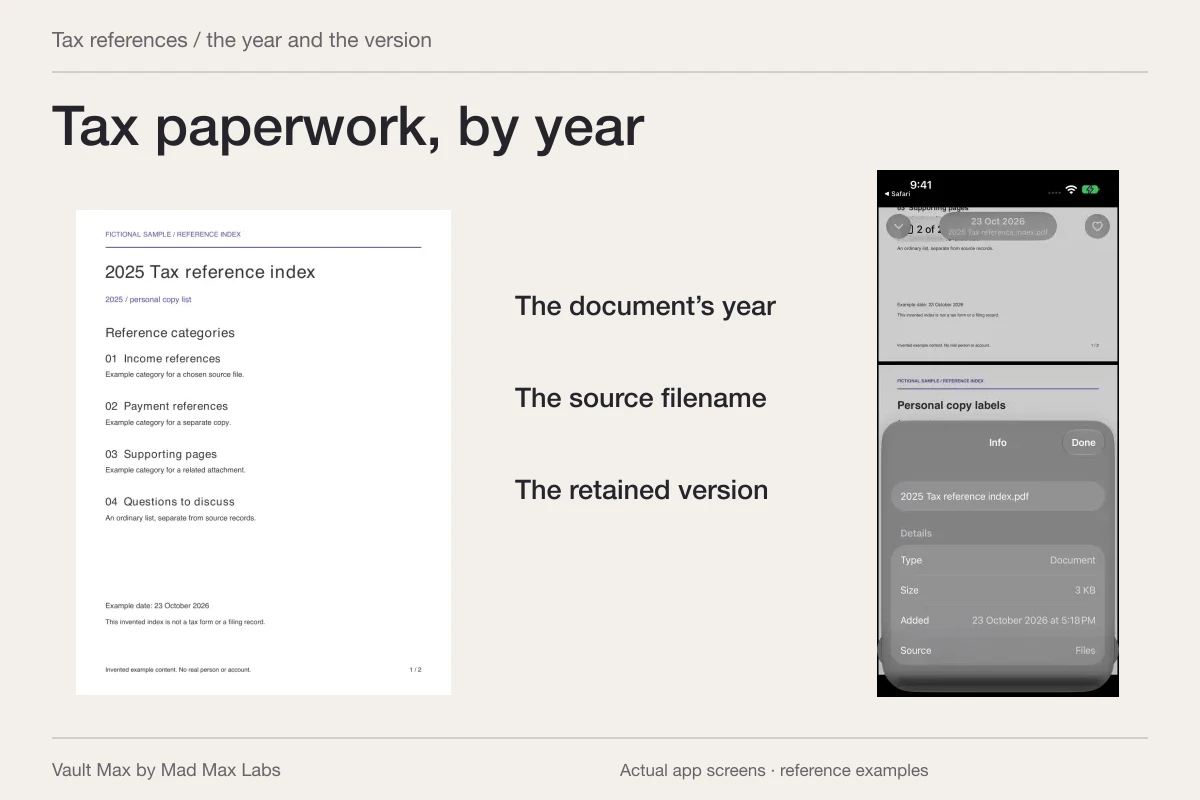
Build the tax collection around a year, a recognizable document name and a checked copy. Vault Max can keep your selected PDFs, receipt photographs and private notes together behind its own credential. You get a local place to retrieve the paperwork without adding a Vault Max account or turning your ordinary photo library into a filing cabinet.
The useful result is concrete: find the correct income document, open every page you need and distinguish it from an earlier draft or another year's file. This guide concerns those retained copies. Your official filing, the source documents and the decisions about tax treatment remain separate.
Start with the year and the purpose of the copy
Choose one year to organize first. A document received this January can concern the previous tax year, so read its heading before assigning it to an album. Use the year the document actually identifies, with a short description of what you retained.
Separate a working collection from the copy of a completed filing. You may have income forms, expense records, correspondence and a return prepared elsewhere. Giving all of them the word “final” makes future retrieval harder. Keep the document's own role visible in its name.
The IRS explains in Topic 305, Recordkeeping that organized records help with preparation and responding to questions. It also makes retention depend on the record and circumstances. An app album cannot make that decision for you; this workflow does not supply a universal discard date.
Retain the readable document, not just its first-screen preview
When an issuer or preparer supplies a PDF, begin with that file. A screenshot of its first page may omit later pages, instructions or an attachment. Open the source, check its title and examine the page count before importing it.
For paper records, prepare a readable scan first. Apple's Preview scanning instructions explain that preparation step. Then bring the resulting file into Vault Max for private storage and retrieval.
Inspect small figures, page edges and both sides when relevant. If the source is unreadable, seek a usable copy through the issuer's normal channel. Repeatedly photographing a blurry printout does not improve the underlying record. Keep the authoritative paperwork according to the requirements that apply to it.
Give the year an album and the files useful names
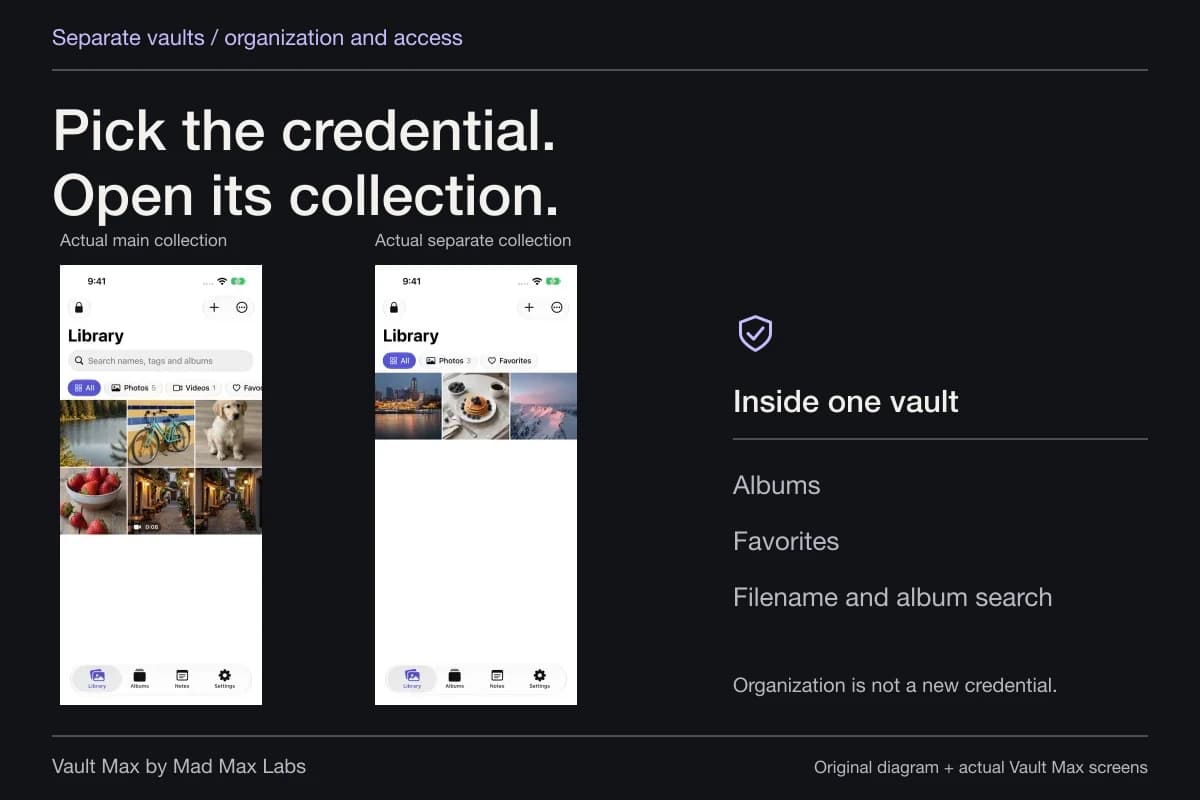
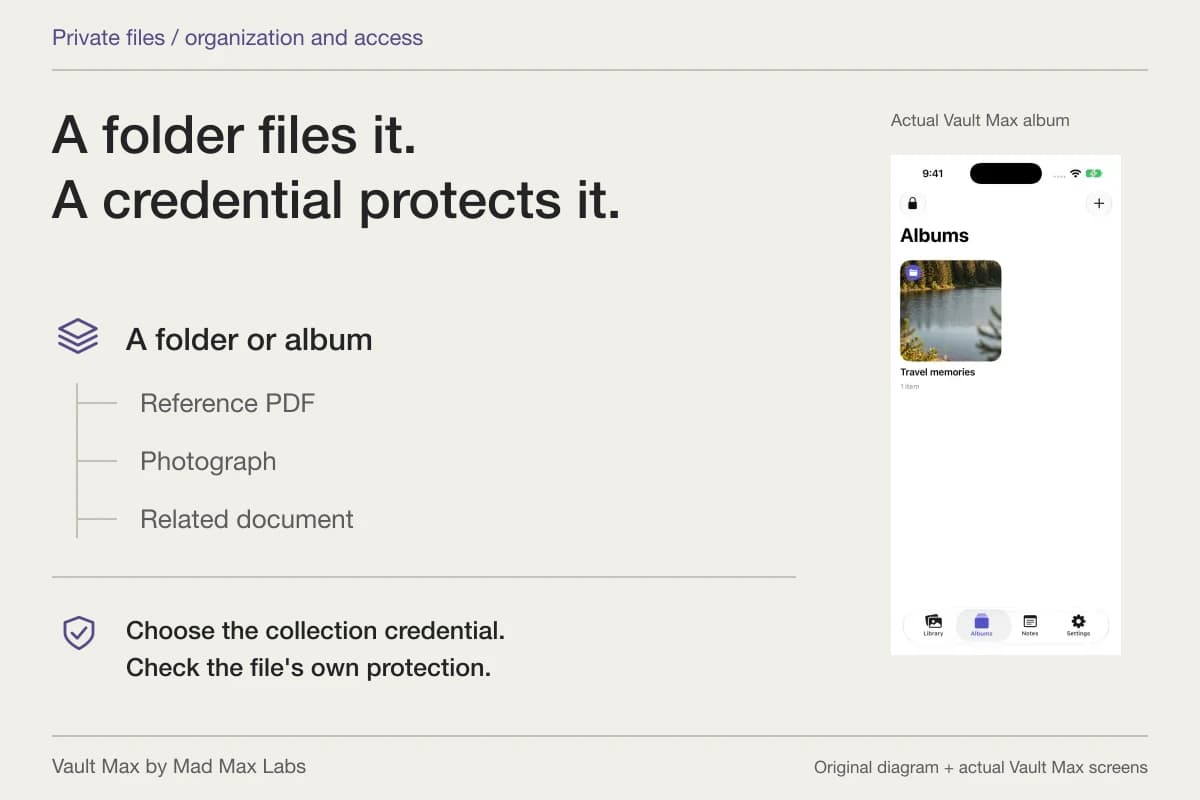
Use an album such as “Tax 2025” inside the vault you normally use for private paperwork. Albums organize items inside an already open collection; they do not add another credential. If documents need a different access credential, put them in a separate vault.
Choose a naming pattern you can recognize next year: year, document type and source. Add a received date or version where it helps distinguish two files. The examples below are fictional labels, not a recommended list of documents for your return.
| Example label | What it distinguishes | What to check inside |
|---|---|---|
| 2025 income-form North Workshop.pdf | The year, source and kind of record | The year and issuer shown on the actual document |
| 2025 receipt equipment 04-18.pdf | A particular reference receipt | The complete item details and all relevant pages |
| 2025 return preparer-copy.pdf | A prepared return rather than an income form | Which version the preparer supplied |
| 2025 filing-confirmation.pdf | A separately retained confirmation | The actual status or reference stated by its issuer |
Avoid placing a full Social Security number, account number or other unnecessary identifier in the filename. The document may already contain sensitive details; repeating them in its label adds little to finding it.
Import a small group, then open the result
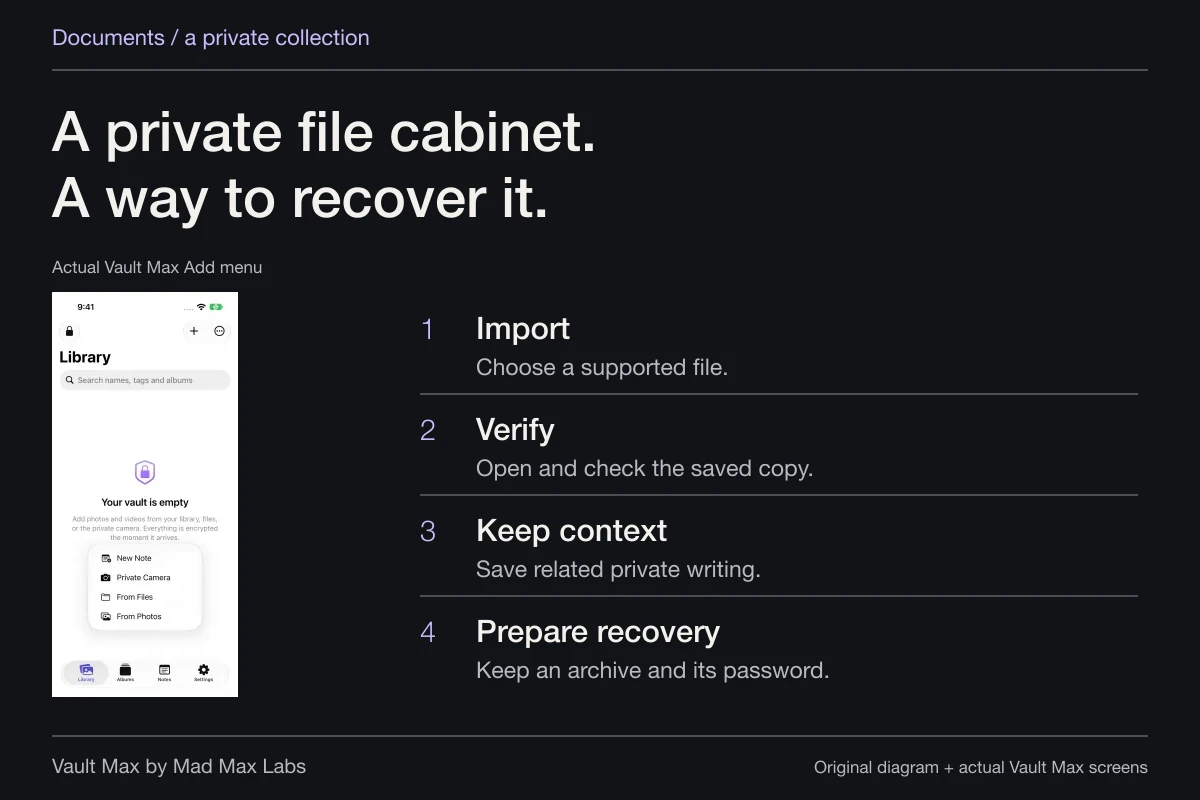
In Vault Max, choose Add → From Files for the prepared PDFs. Use From Photos for existing receipt photographs. Select a manageable group and wait for import before judging the result.
Open a saved document and inspect it through the available Quick Look preview. Confirm the year, contents and page sequence against the source. The preview depends on the file format and system support; a thumbnail alone is not a complete readability check.
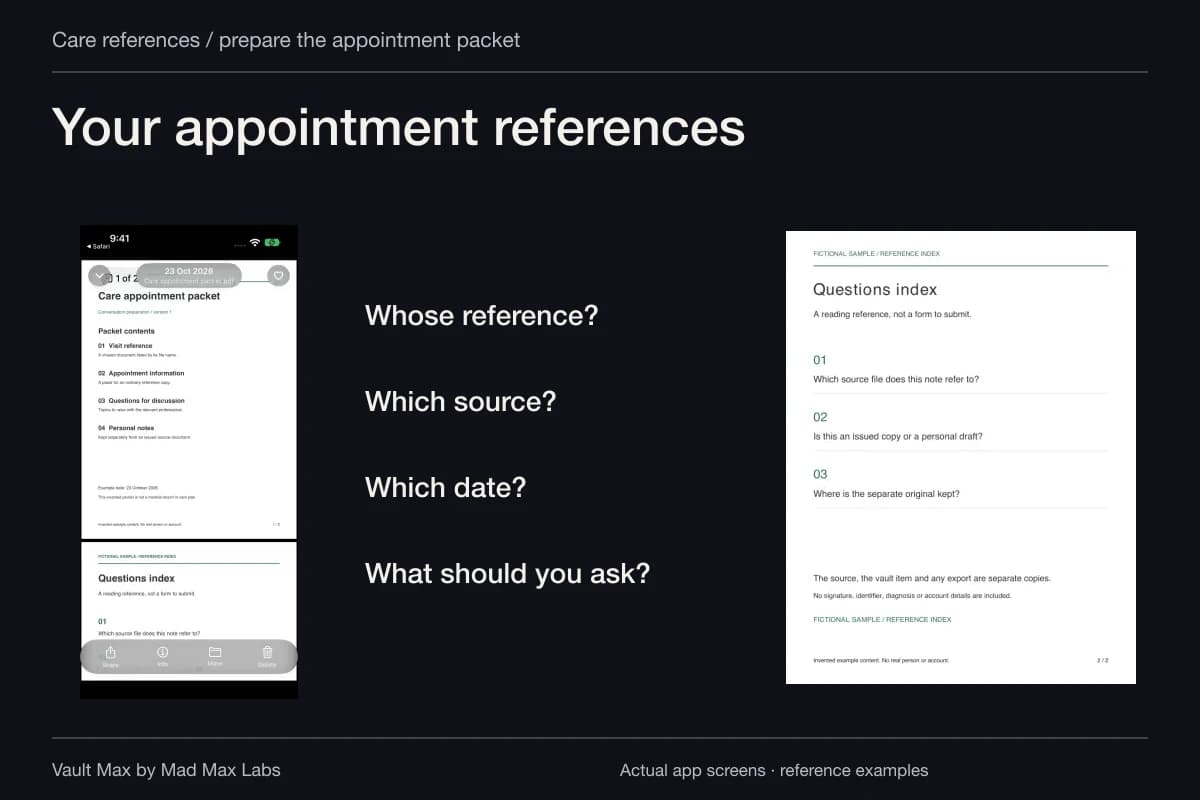
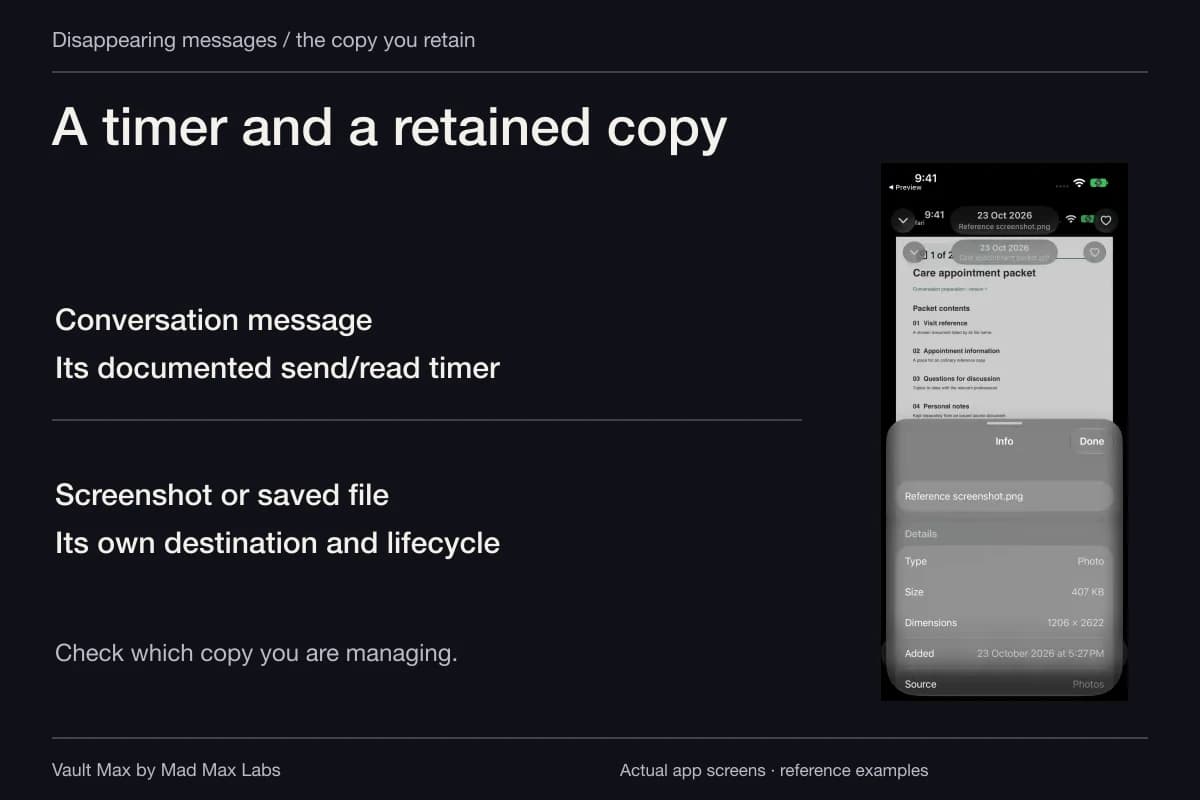
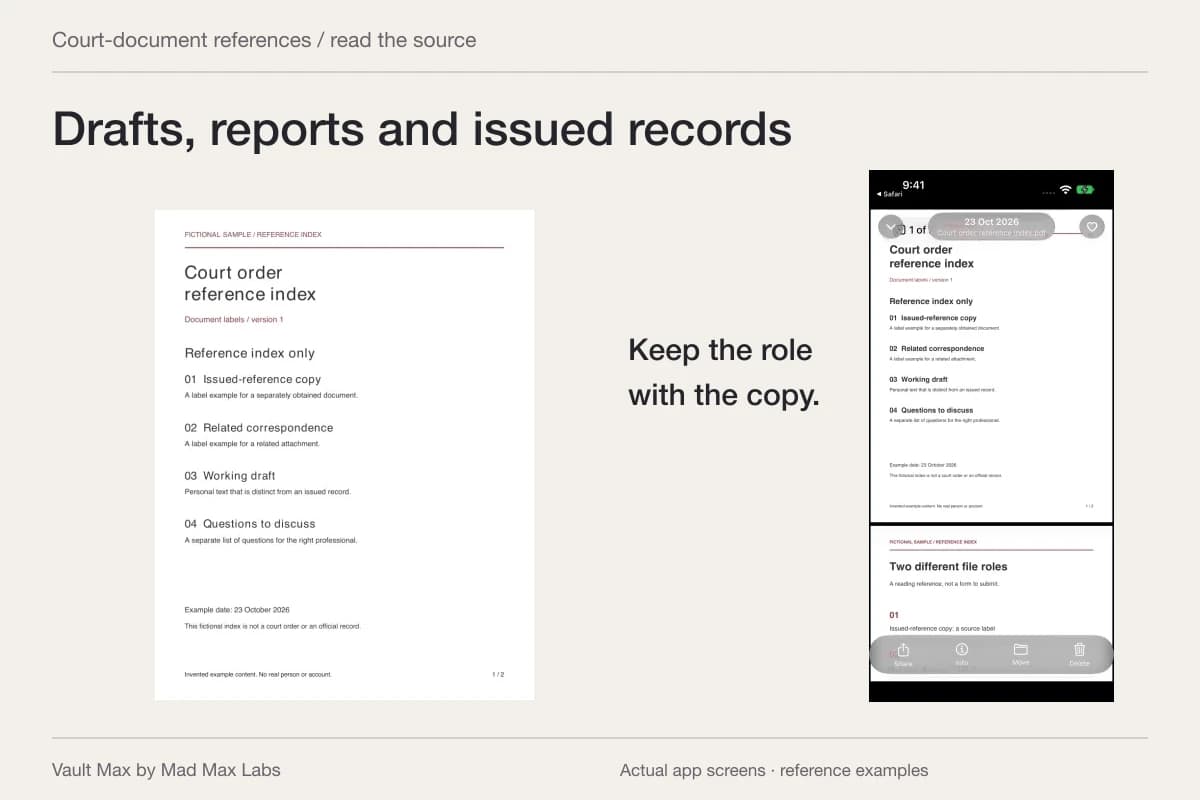
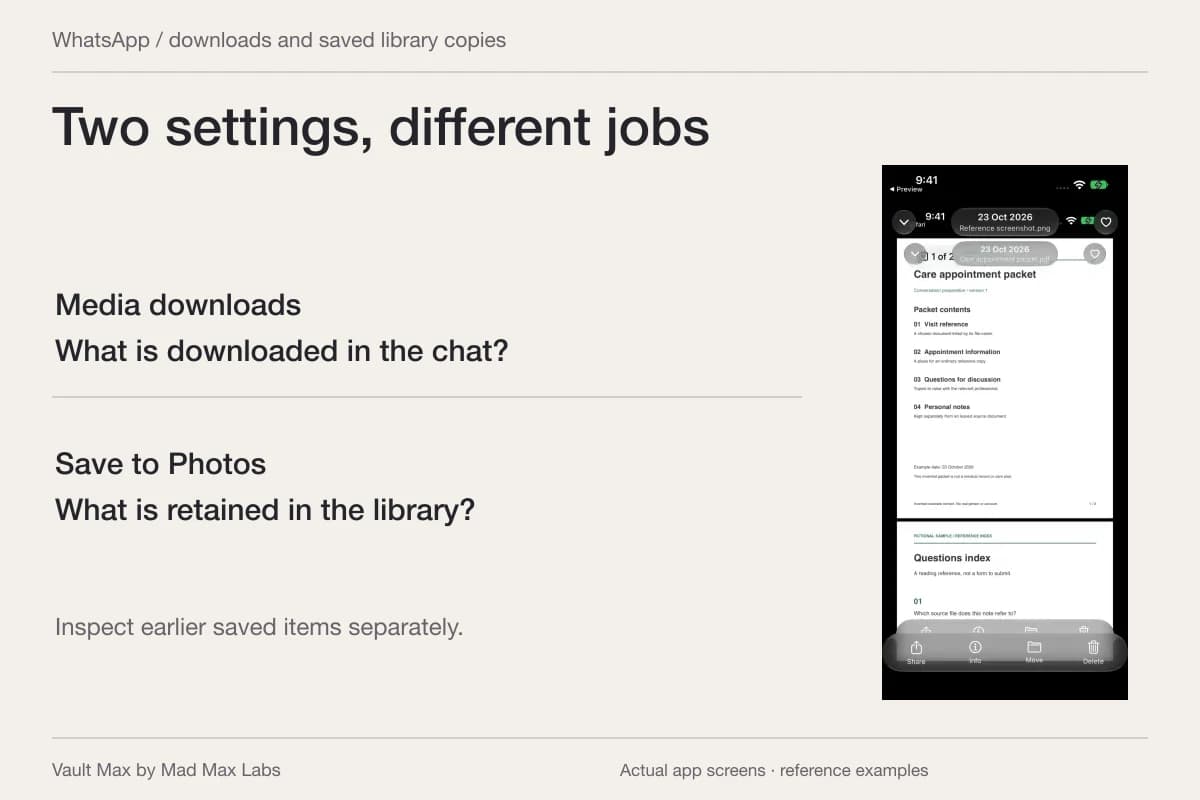
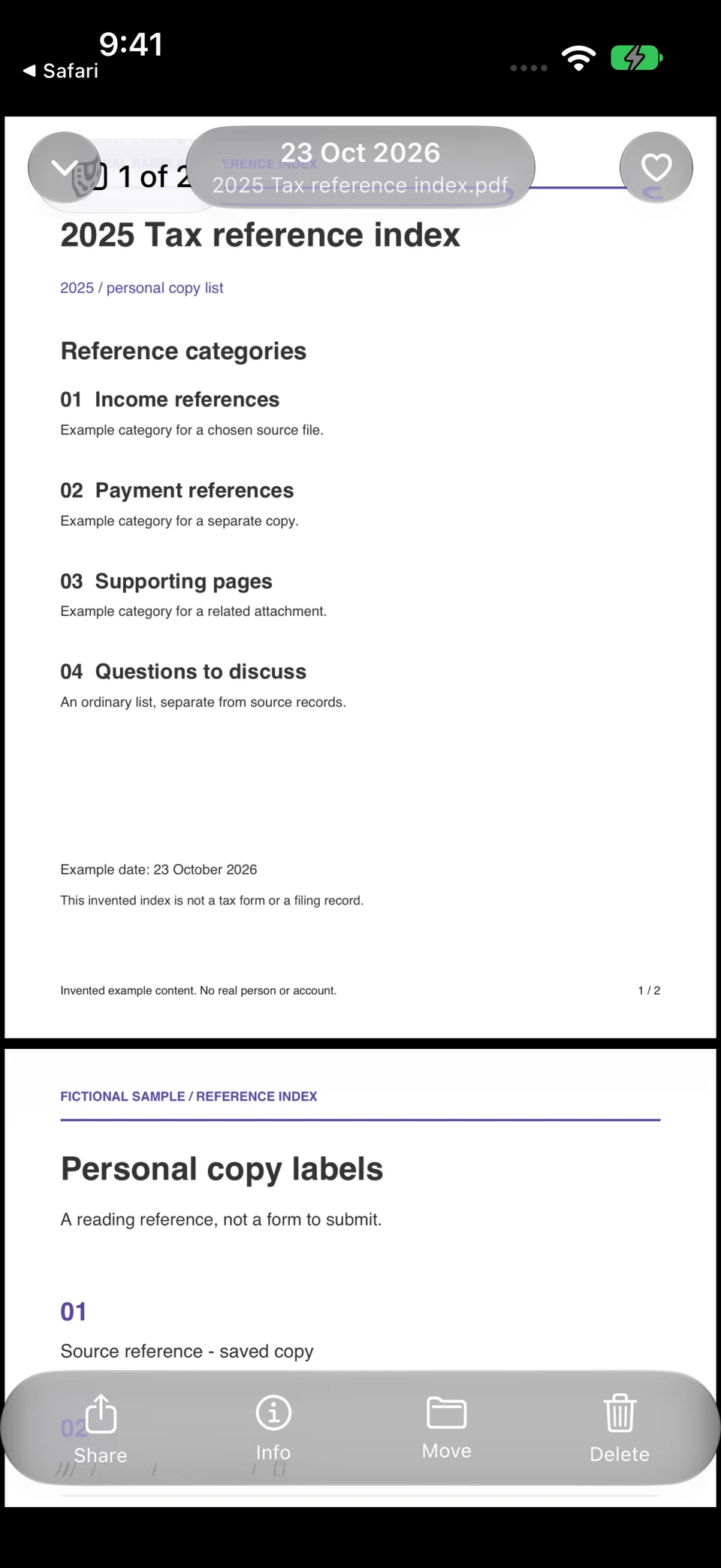
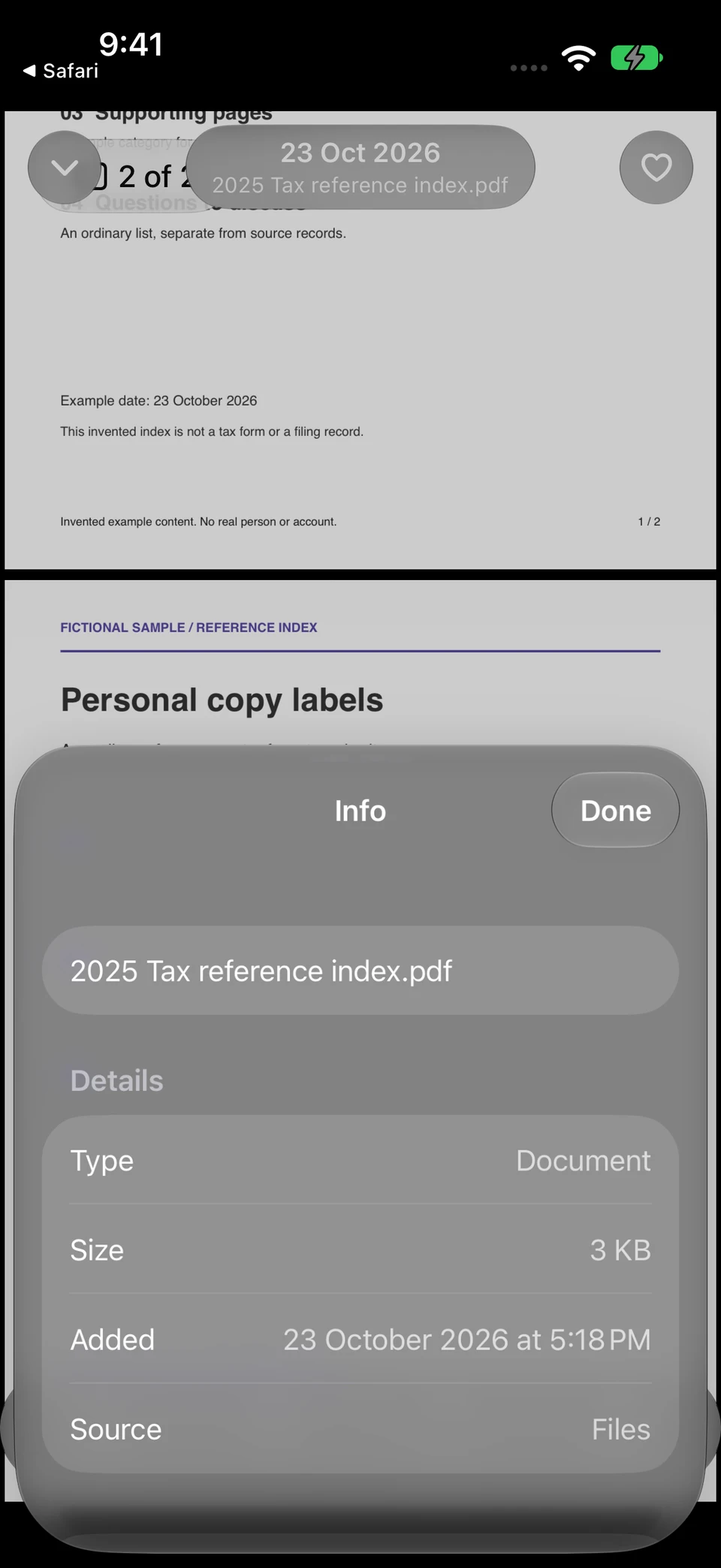
The fictional tax index opens as a two-page PDF. Info identifies the retained filename and Files intake, so you can check the document rather than relying on its thumbnail.
Vault Max · Actual app screens, fictional sample contentRead the retained document
Open original image: Read the retained documentCheck filename and source
Open original image: Check filename and sourceOpen the fictional two-page reference PDF used in this walkthrough. It is a sample index for inspecting the file workflow, rather than an official form or a real record.
Import creates a separate encrypted item. An email attachment, preparer's portal file and source in Files retain their own locations and access settings. Keep those locations understandable rather than assuming one import controls the whole paper trail.
Find one item again after closing the collection
Lock the vault, reopen it and retrieve the income-form example by its filename or album. Vault Max's gallery search uses filenames and album names within the active scope and filter. It does not read the tax PDF's paragraphs or recognize figures in a receipt image.
If the file seems missing, return to the appropriate collection and check the filter. A document can be outside a media-only view. Search with a distinctive part of the filename before repeating an import and creating another confusing version.
Favorites can mark the item you are currently using without importing a second copy. Use it for quick access, while the album remains the year's structure. Once you understand those two jobs, you can keep a larger collection orderly without creating a separate vault for every receipt.
Save a short handoff note beside the collection
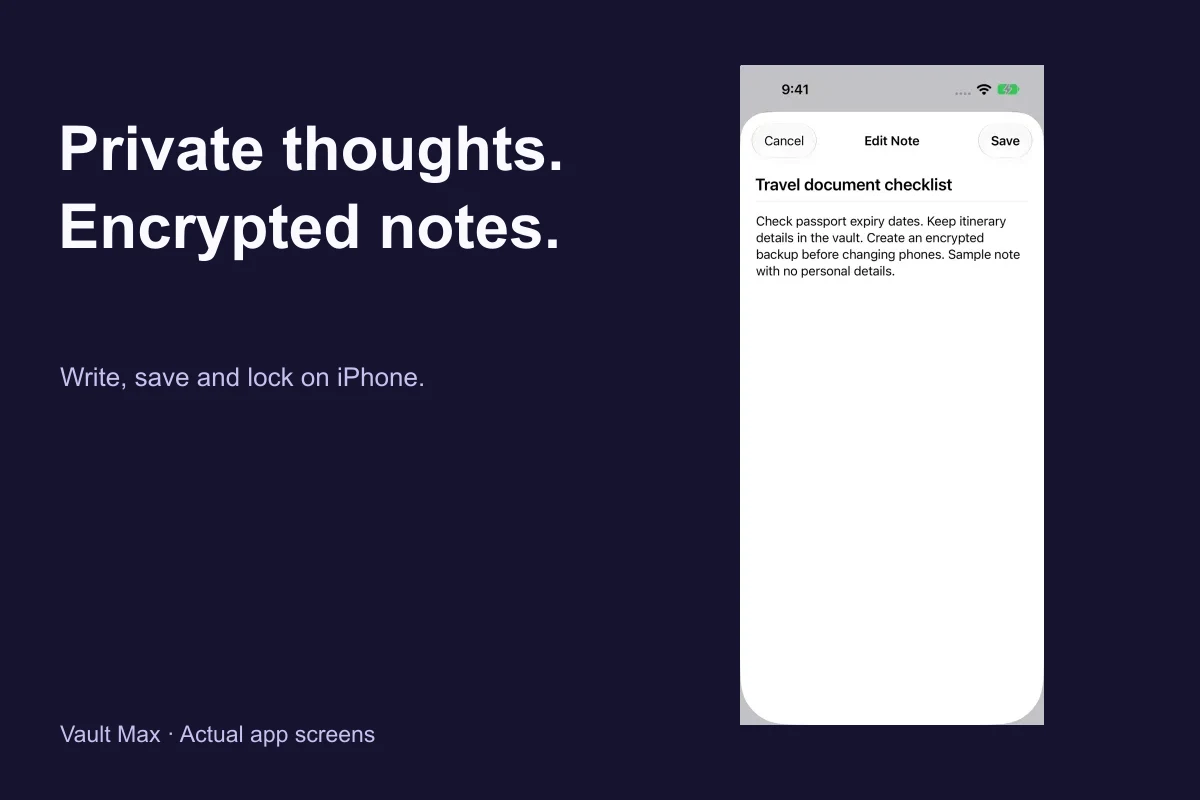
Write an encrypted note with the questions you still need to ask your preparer or the source of an unclear document. Use a recognizable title and choose Save. Reopen it to confirm the text was retained.
For example, note that two similarly named files came from different downloads and identify which source you intend to check. Keep the question separate from the document itself. A personal note saying “check this version” is useful context; it is not a correction to the issuer's PDF.
Vault Max notes have a plain-text title and body. A short heading such as “Questions for the preparer” makes the writing easy to recognize when you open Notes. Keep it concise enough to use alongside the document during that conversation.
Keep a specific copy of what you sent or received
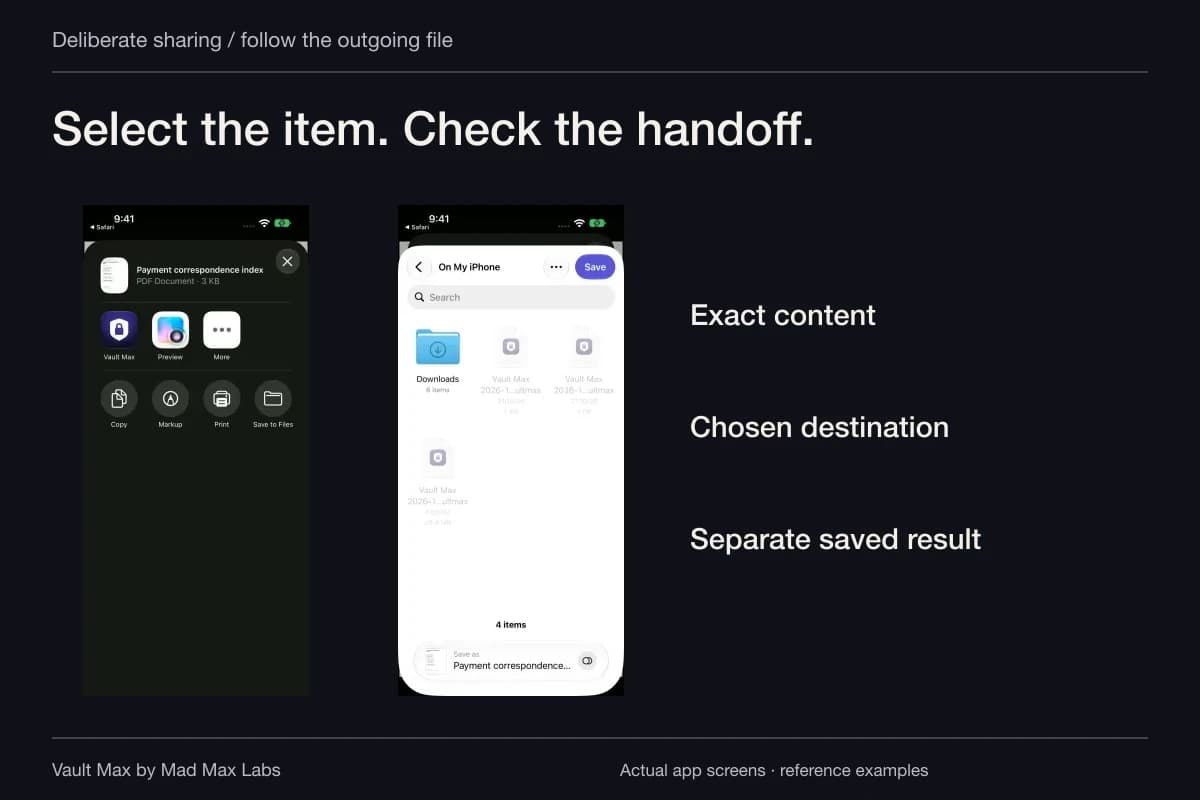
When you exchange material through your preparer's approved channel, identify the exact files and the confirmation that channel provides. A local export is not proof that another party received it. A renamed draft is not the same as a copy of the version actually filed.
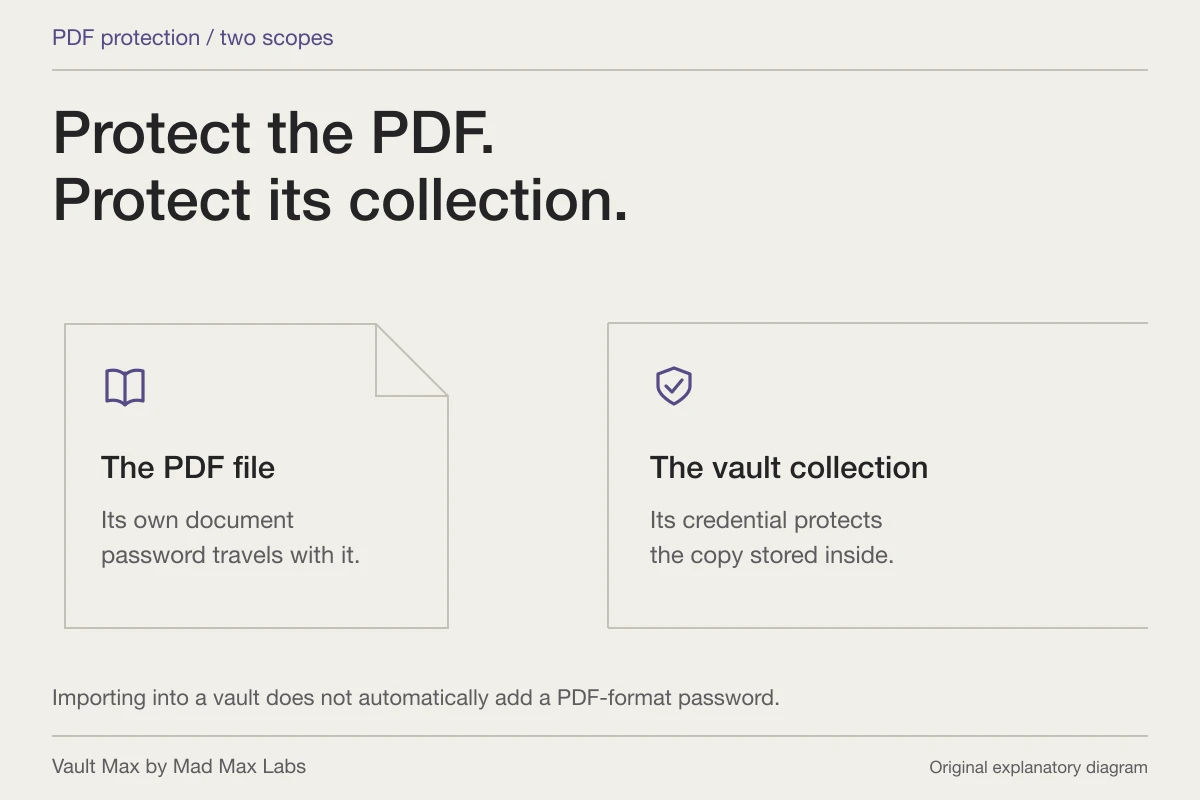
Ordinary Share output is a usable file outside the vault. Its destination's access rules apply. Use the requested delivery channel and check the recipient and attachment before completing a transfer. The vault credential does not become a password on an exported PDF.
The IRS's Publication 17 discusses electronic records as records with continuing requirements. Use its current guidance for the recordkeeping questions relevant to your situation, rather than interpreting encryption as an IRS approval badge.
Refresh recovery when the year's collection changes
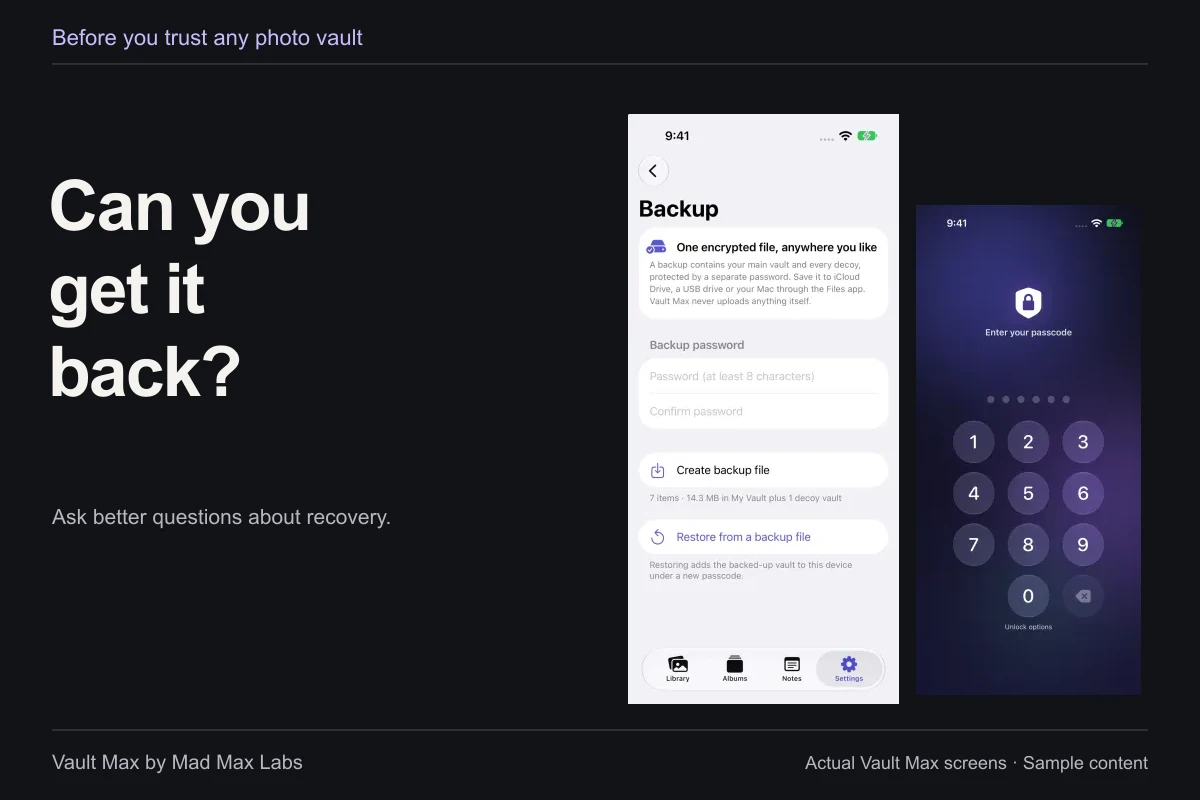
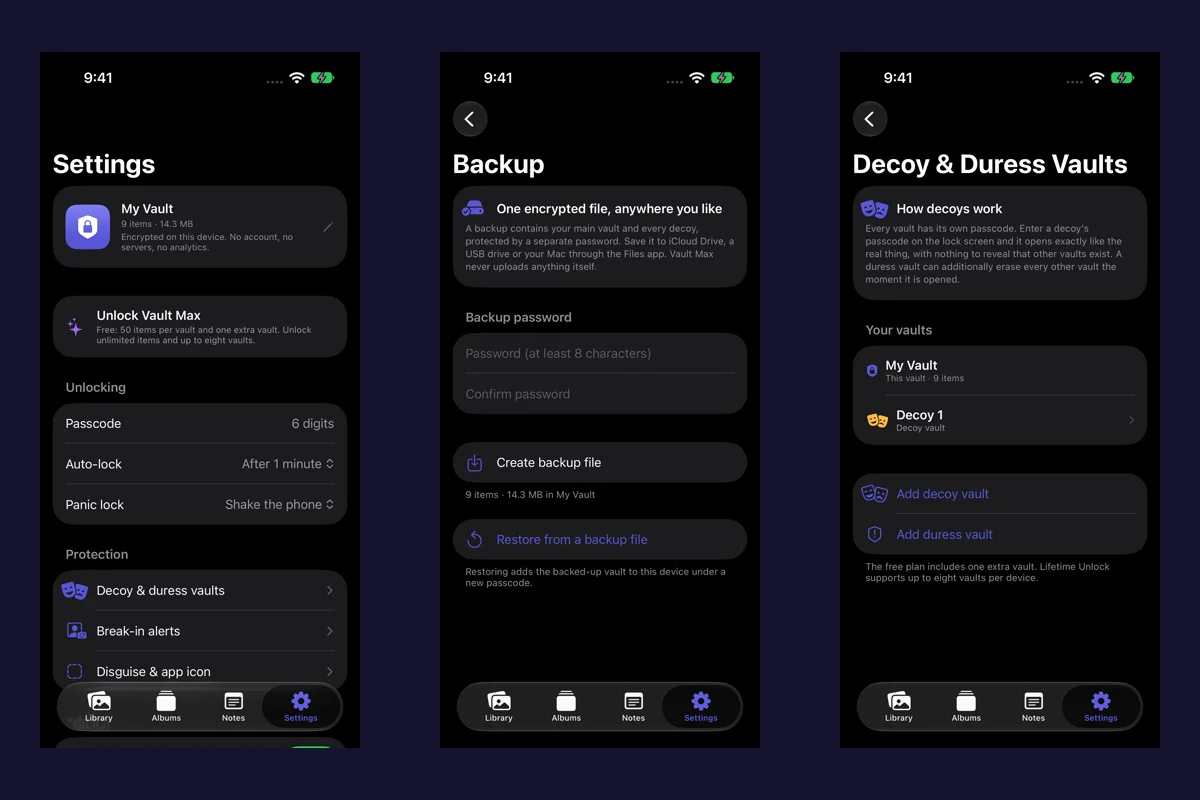
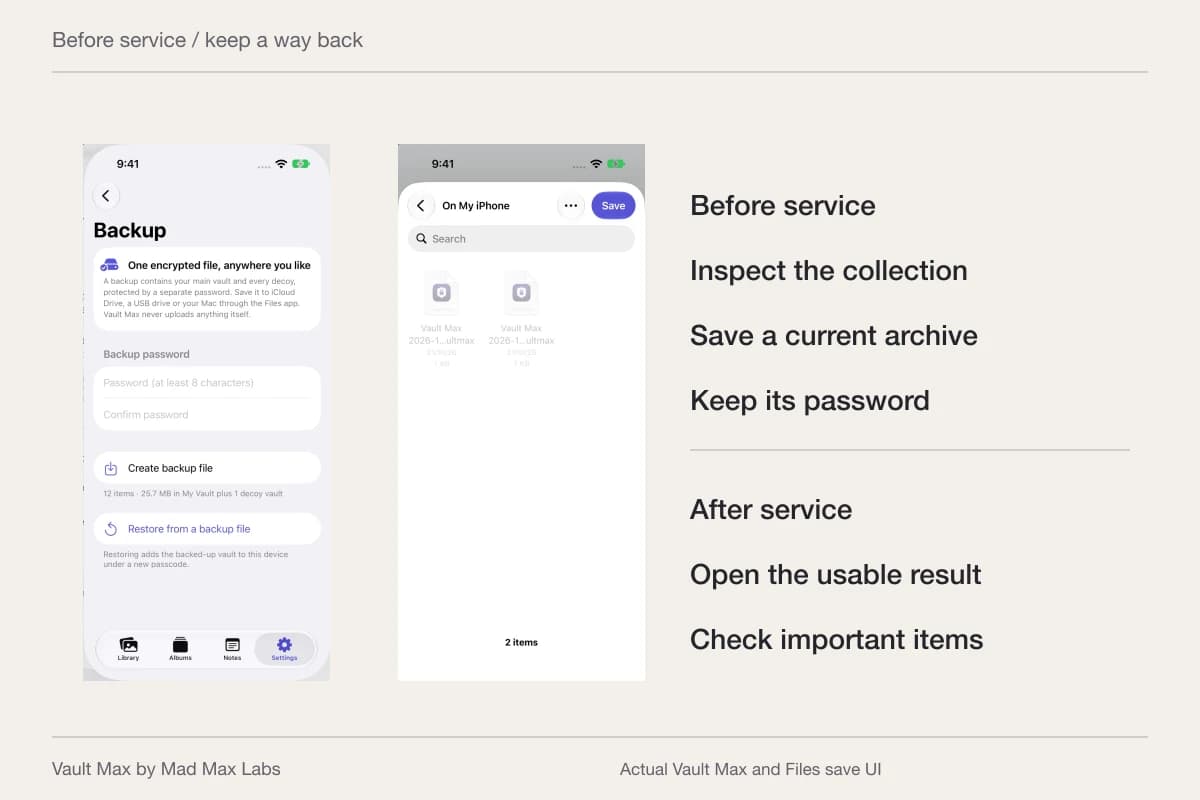
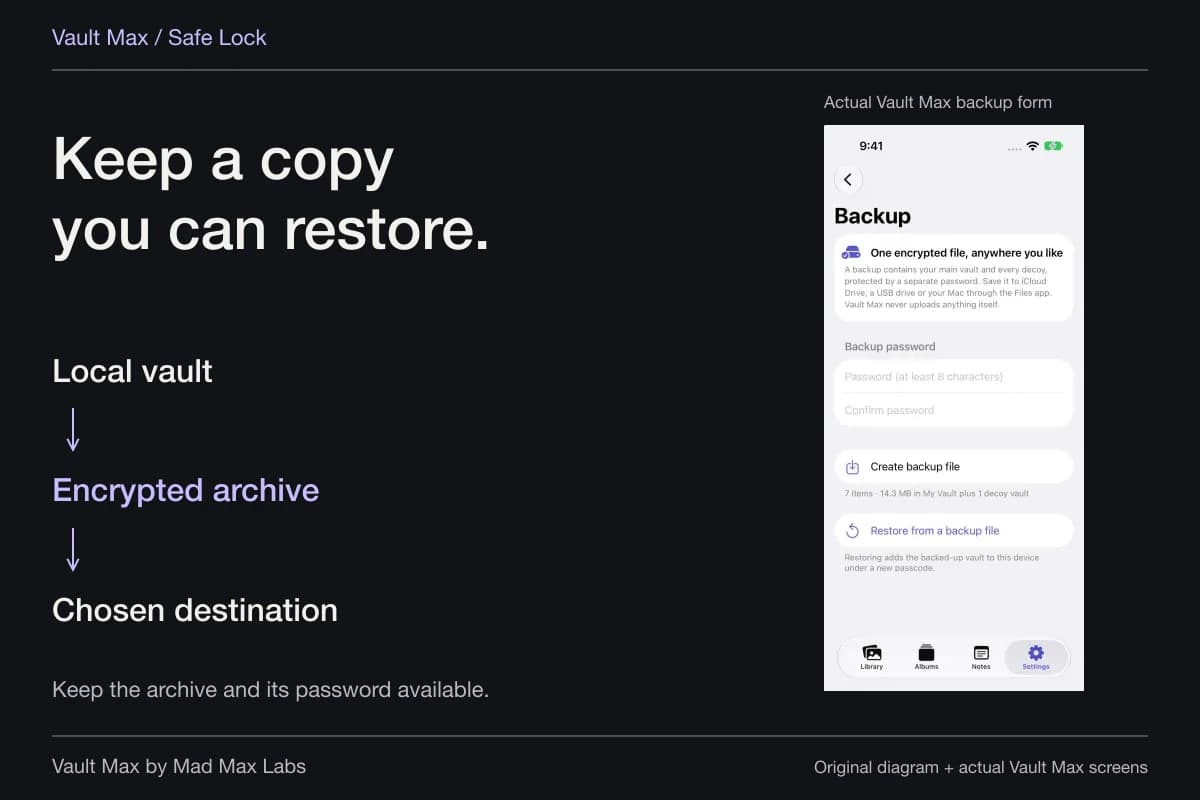
Create a password-protected .vaultmax archive after meaningful additions. Choose a Files destination you can reach if the phone is unavailable and keep the separate archive password accessible independently. Notes are included in that snapshot too.
Record which collection and date the archive represents. A file made before a newly received form cannot contain that later addition. The backup checklist explains what to inspect before relying on a recovery route.
- Distinguish income records, working files, prepared returns and confirmations.
- Check readable pages and the expected source.
- Use the correct album, filename and Files filter.
- Save and reopen the question or version note.
- Retain an accessible archive and its separate password.
Tap a box as you go. Checks reset when you leave this page.
Common questions
How should I organize a tax year in Vault Max?
Use a recognizable album, with filenames that identify the tax year, document type and source. Keep prepared returns and confirmations distinguishable from income forms and working copies. Save your own questions in an encrypted note.
Can I search the text inside a tax PDF?
Vault Max's gallery search matches filenames and album names within the current scope and filter. It is not PDF-body search or OCR. A useful filename helps you retrieve the right document.
Does a photograph of a tax document replace the original?
Treat the image as your reference copy. Keep the authoritative source and follow the requirements applying to your records. A readable vault preview does not certify acceptance or determine a retention period.
Continue reading
More guides
Practical tips for your private library. Swipe or scroll to choose your next guide.



86 guides to explore