
Privacy in practice
Stop WhatsApp photos saving to your iPhone library
Stop WhatsApp photos saving automatically on iPhone, check exceptions for individual chats, and keep selected references without mixing them into Photos.
Turn off WhatsApp's automatic saving preference, then check the setting inside any chat that still adds pictures. WhatsApp's iPhone help calls the global switch Settings → Chats → Save to Camera Roll. Your installed version may use Photos wording. Disabling it addresses future saving; older pictures need their own review.
A busy group can send dozens of images while you need only one useful reference. The sensible result is a quieter everyday library and a deliberate home for the few pictures worth keeping. Start with saving settings, rather than deleting a whole conversation to solve a Photos problem.
Change the global preference and the chat exception
Open WhatsApp's settings, choose Chats, and find the automatic save-to-library control. Turn it off if you want to choose what enters Photos. The publisher's iPhone instructions use the older name Save to Camera Roll for this preference.
Next open a contact or group that has been supplying unwanted images. Tap its name to inspect its information and saving preference. WhatsApp documents Default, Always and Never. Default follows the app-wide preference; Always saves incoming media from that chat; Never does not.
Review both levels before concluding that the switch failed. You may want most conversations to follow the global setting while one project group has a different rule. Make the exception intentional, and reopen the same chat's information to confirm the choice remained selected.
These instructions follow WhatsApp's published iPhone help, checked October 23, 2026. They are not a captured walkthrough of a current WhatsApp installation. If a label differs, look for the setting governing saving into the photo library; an Android media-visibility tutorial describes another platform.
Changing the future saving rule does not remove a picture already retained in another library.
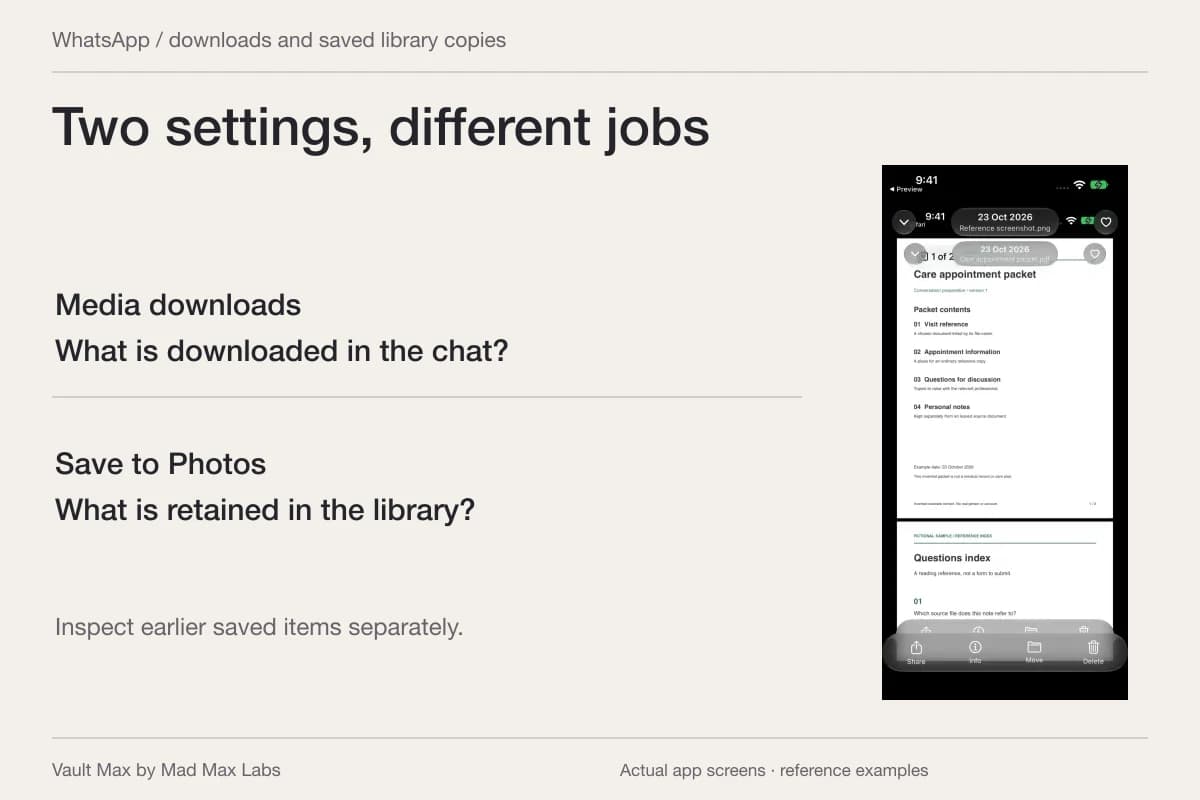
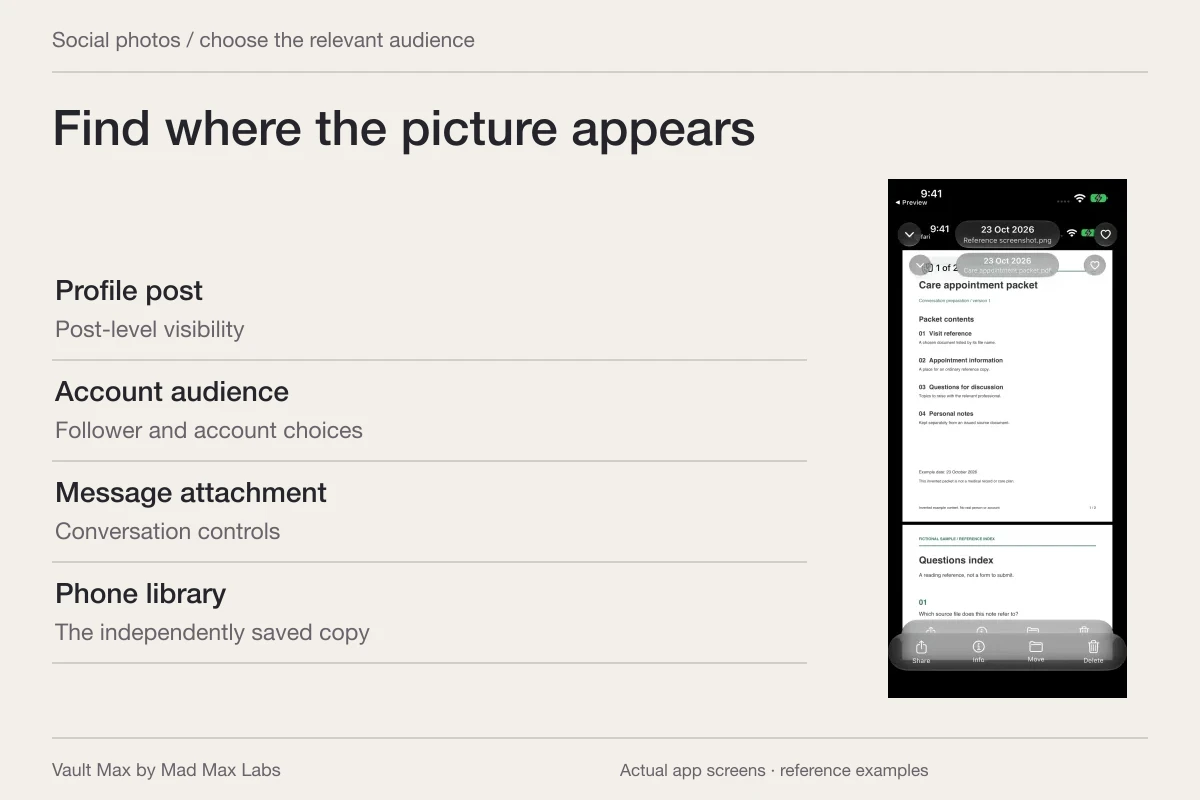
Conversation attachment
The message and its attachment belong to the chat.
Media download choice
Review automatic downloads for the relevant connection and media type.
Save to Photos choice
Review the overall saving rule and the particular chat’s setting.
Inspect that library item separately. A future saving setting is not a cleanup command.
Automatic download answers a different question
Downloading an attachment inside WhatsApp and saving it into Photos are separate decisions. Changing the library-saving preference should not be treated as a command to prevent every attachment download or remove the conversation's own media.
If network use or WhatsApp storage is also the concern, its iPhone auto-download guide places those controls under Settings → Storage and data → Media auto-download. Choose the media type and its allowed connection policy. The published options include Never, Wi-Fi, and Wi-Fi and cellular.
Do one task at a time. First decide what may appear in Photos. Then decide what WhatsApp may download automatically. Changing several unrelated switches together makes it harder to tell which one produced the result you wanted.
| What you want to change | Control to inspect | Completion check |
|---|---|---|
| Future pictures entering Photos | Global saving preference under Chats | Reopen the preference and confirm it is off |
| One group's different behavior | That group's saving exception | Confirm Default or the deliberate Never choice |
| Automatic attachment downloads | Storage and data → Media auto-download | Review each relevant media category |
| Older saved pictures | The actual Photos items | Inspect, retain or delete selected items deliberately |
Check the result with an ordinary picture
Use a harmless example if you want to check behavior with another person. Ask for a plain picture, note which conversation received it, and inspect Photos afterward. Avoid using a private document or intimate image to learn a setting.
Before the check, note whether the same image already exists in the library. Otherwise an older copy can look like a new automatic save. A distinctive, non-sensitive example makes that distinction easier without exposing anything important.
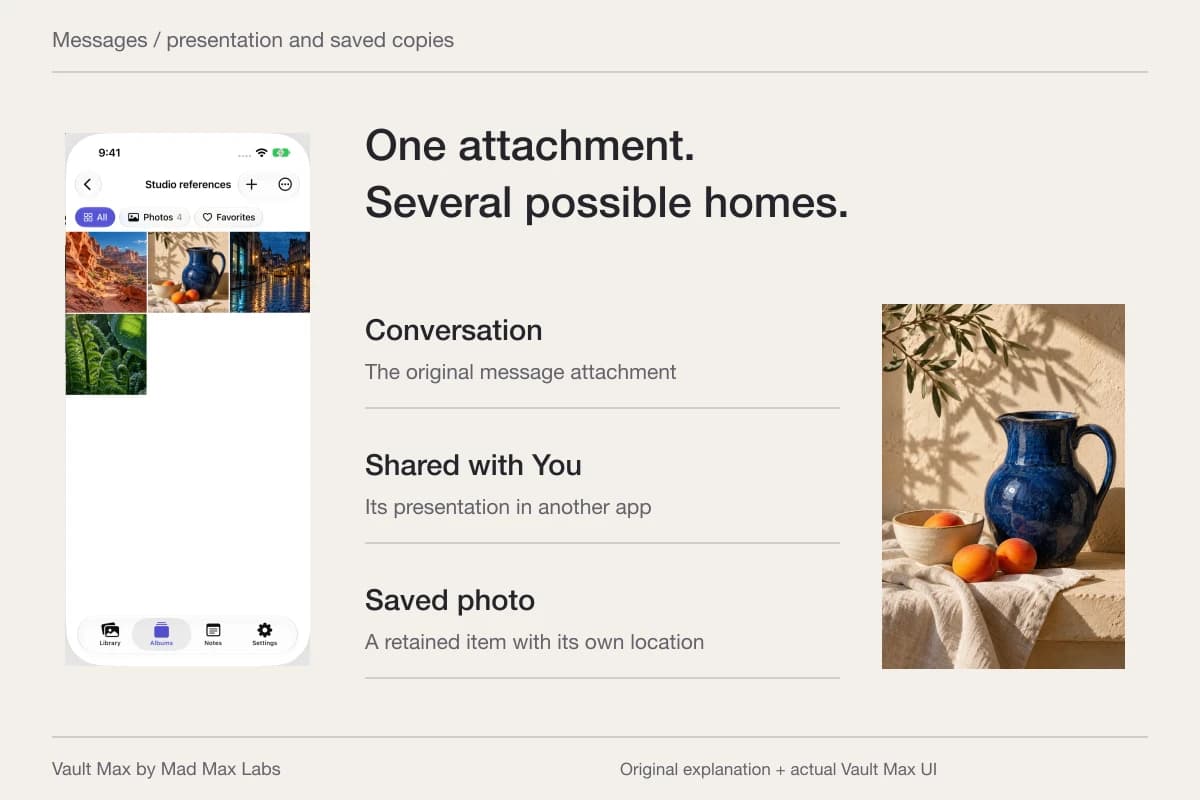
If a new library item appears, revisit that exact conversation's exception. If it appears only inside WhatsApp, do not mistake the attachment for a Photos copy. If another app supplies the picture, change that app's controls. Apple's Shared with You setting belongs to Messages and does not administer WhatsApp.
Keep the reference without keeping the whole stream
Imagine a group sharing photographs of a workshop project. You need the final layout and its measurements, rather than every progress image. Open the full reference and check its details before deciding what to retain. A thumbnail may not reveal a person's name, address or unrelated material at the edge.
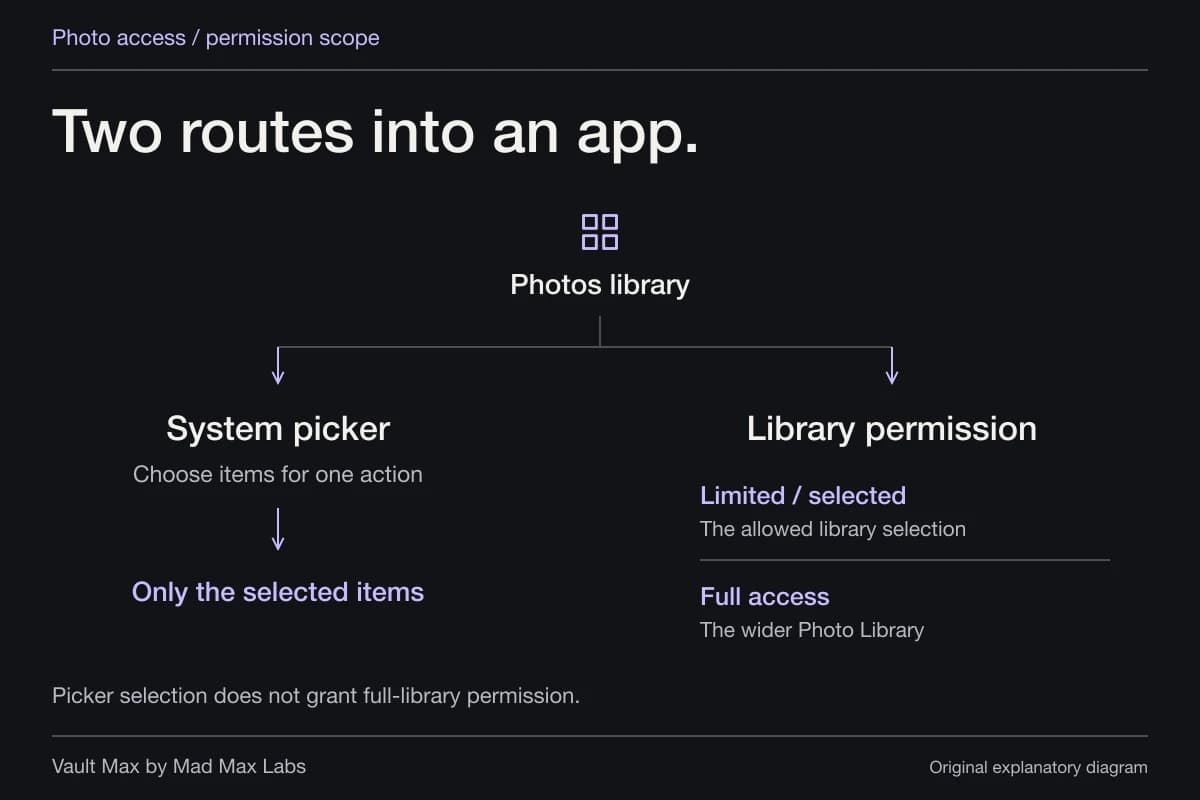
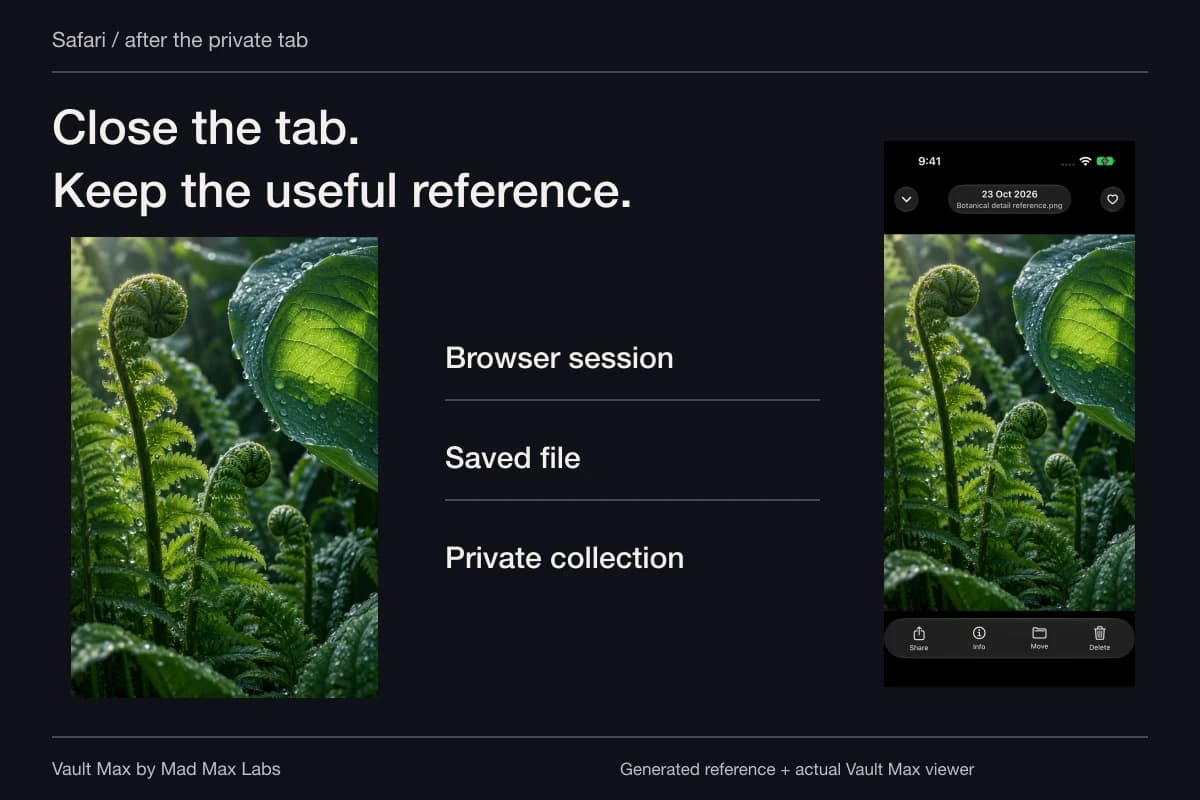
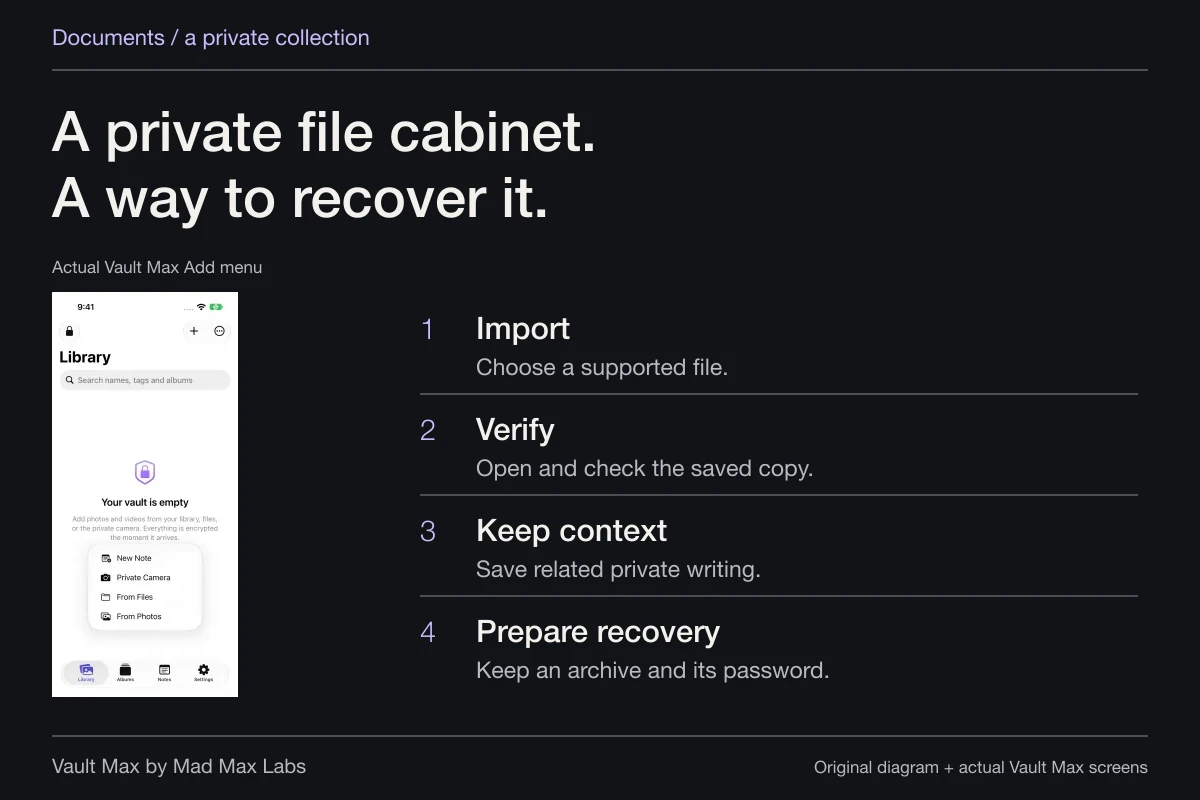
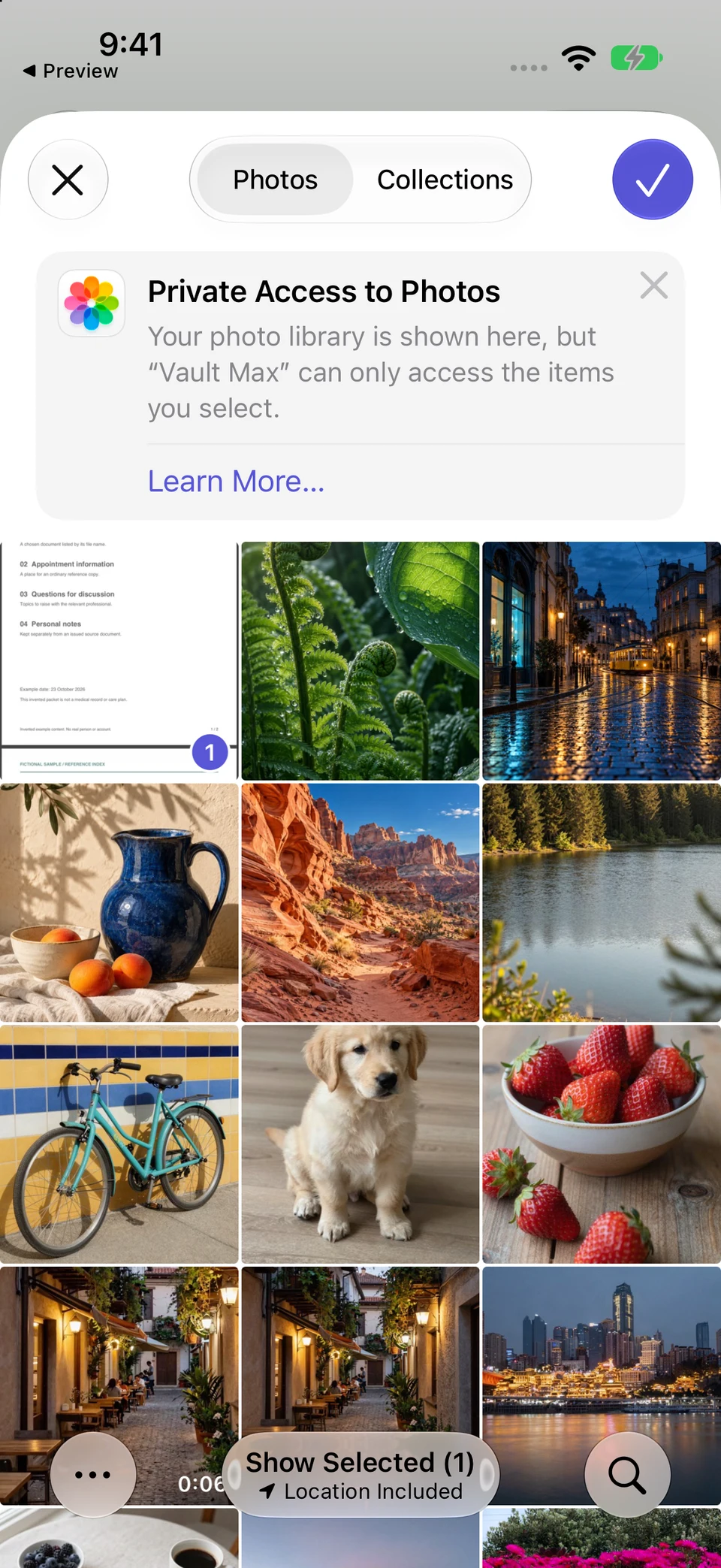
For a wanted picture already saved in Photos, open Vault Max and use From Photos to select that item. Wait for the import and inspect the private result. Give it a recognizable filename and place it in the intended album. Filename search can help you return to that exact reference later.
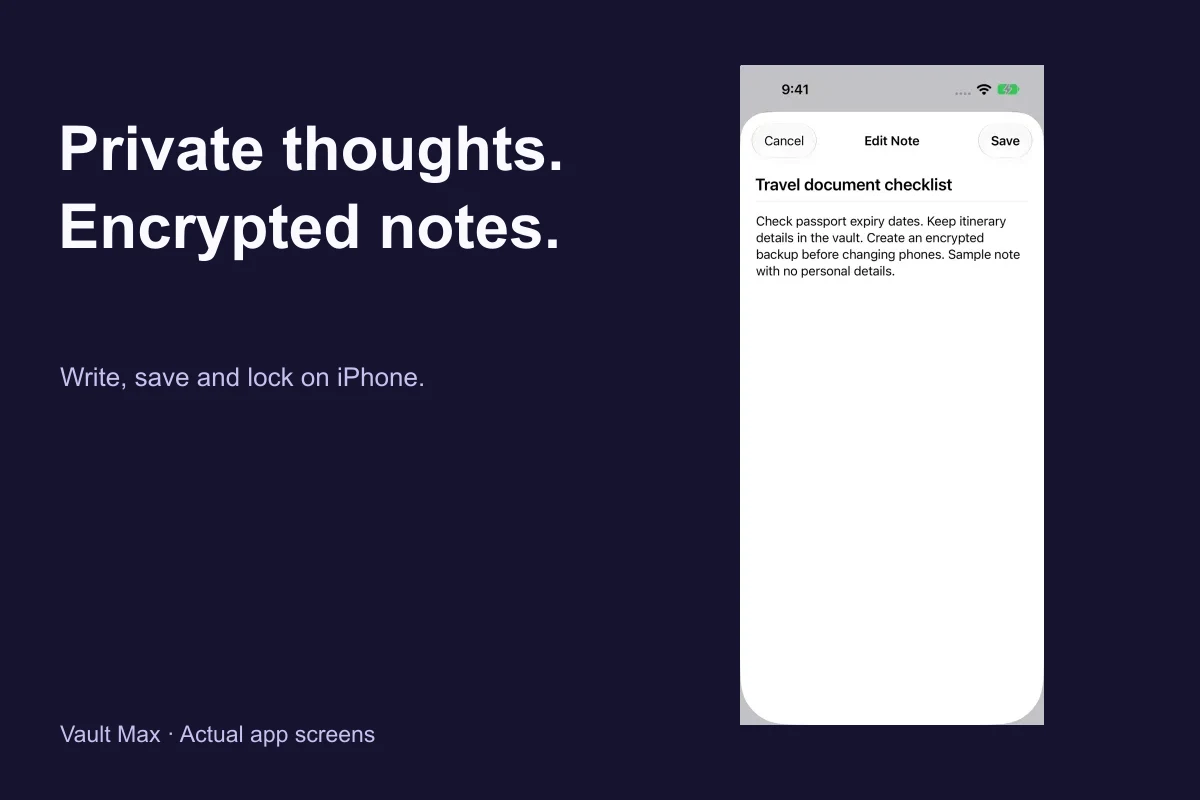
If the useful information is a short instruction, save an encrypted note alongside the collection. Keep only the context you need. Vault Max notes have an explicit Save action, so reopen the note after saving rather than assuming an unfinished editor has become a retained record.
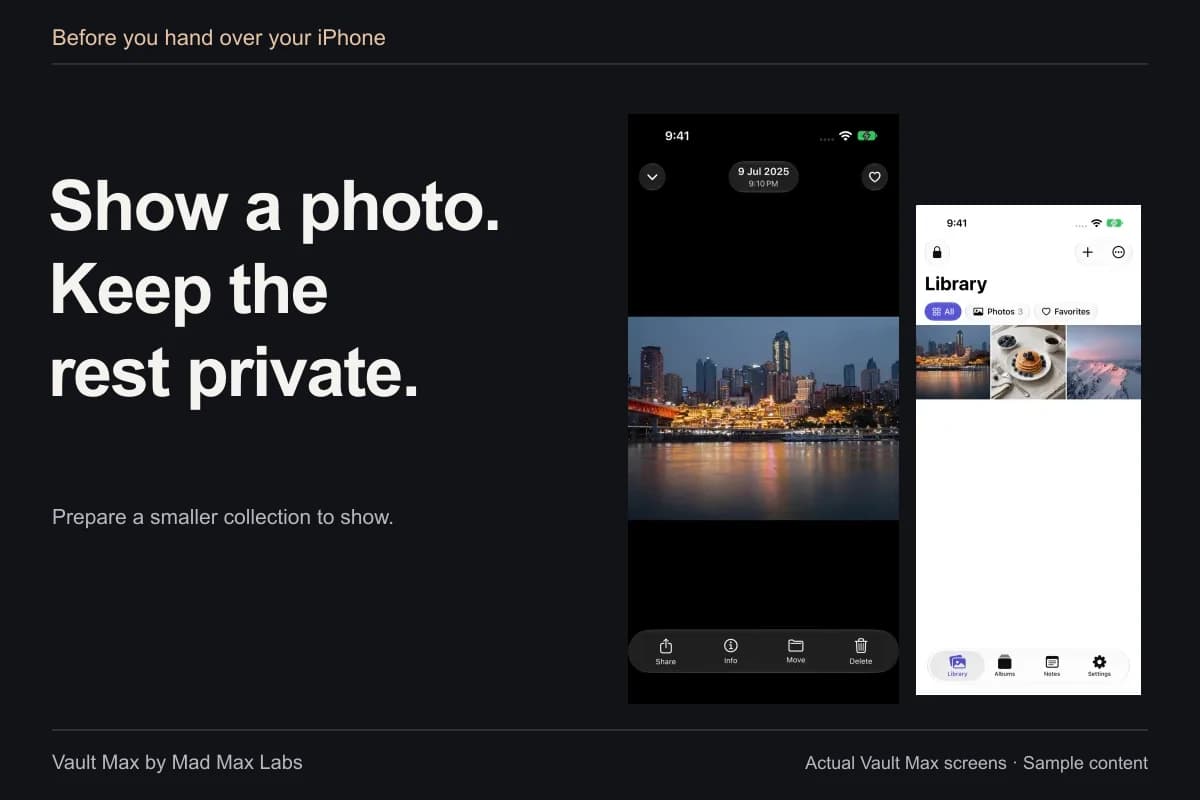
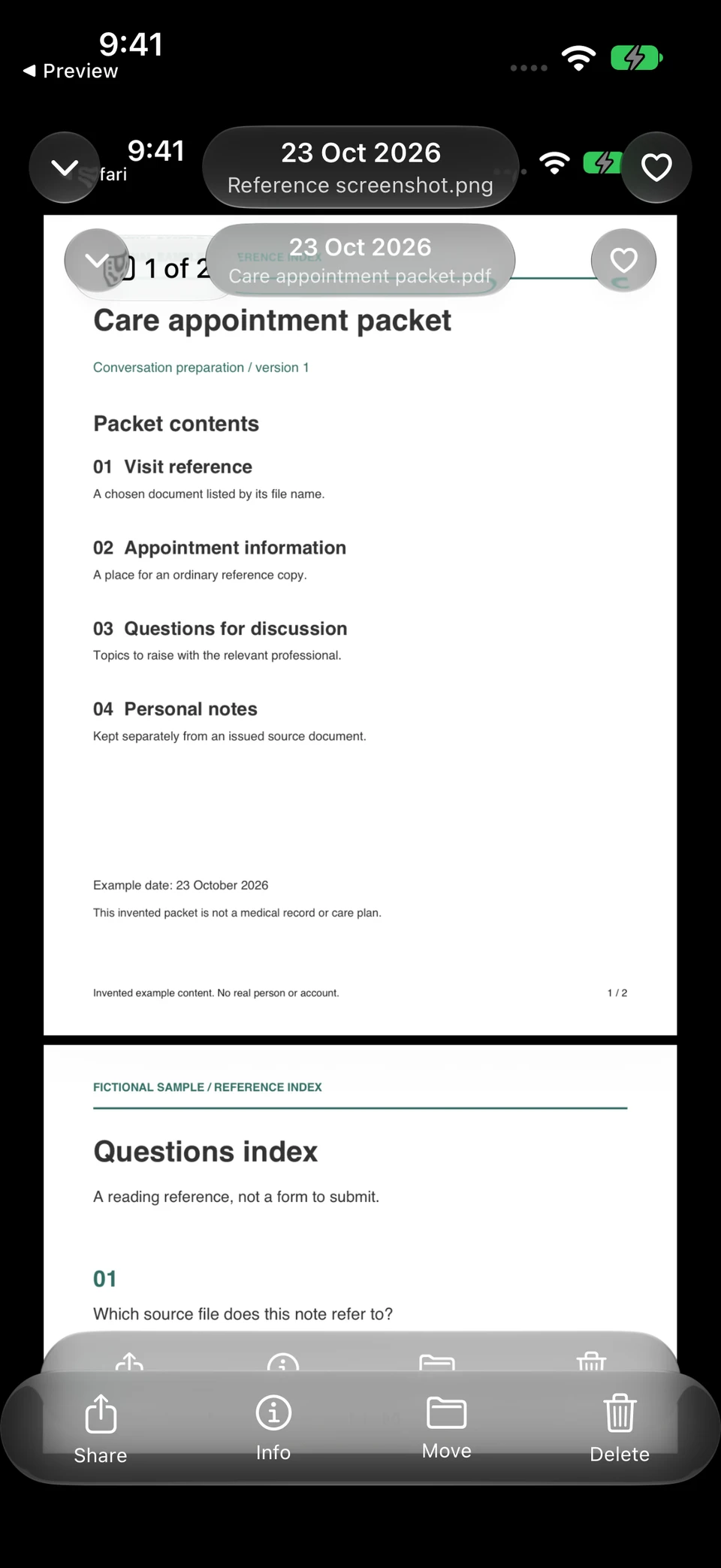
The native Photos picker selects one reference screenshot, then Vault Max opens the retained image. This locally prepared sample illustrates the selection and inspection routine after you identify an image in Photos.
Vault Max and iOS Photos picker · Actual screens, locally prepared sampleSelect the intended image
Open original image: Select the intended imageOpen the retained result
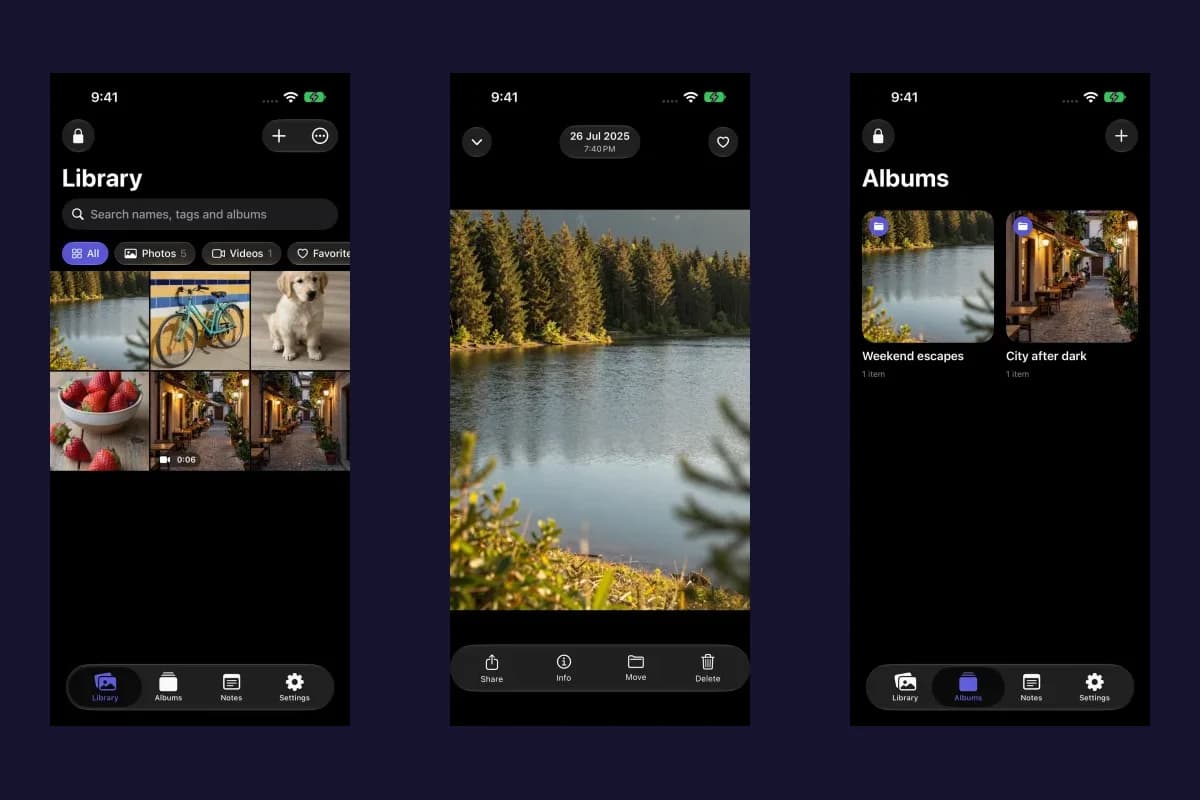
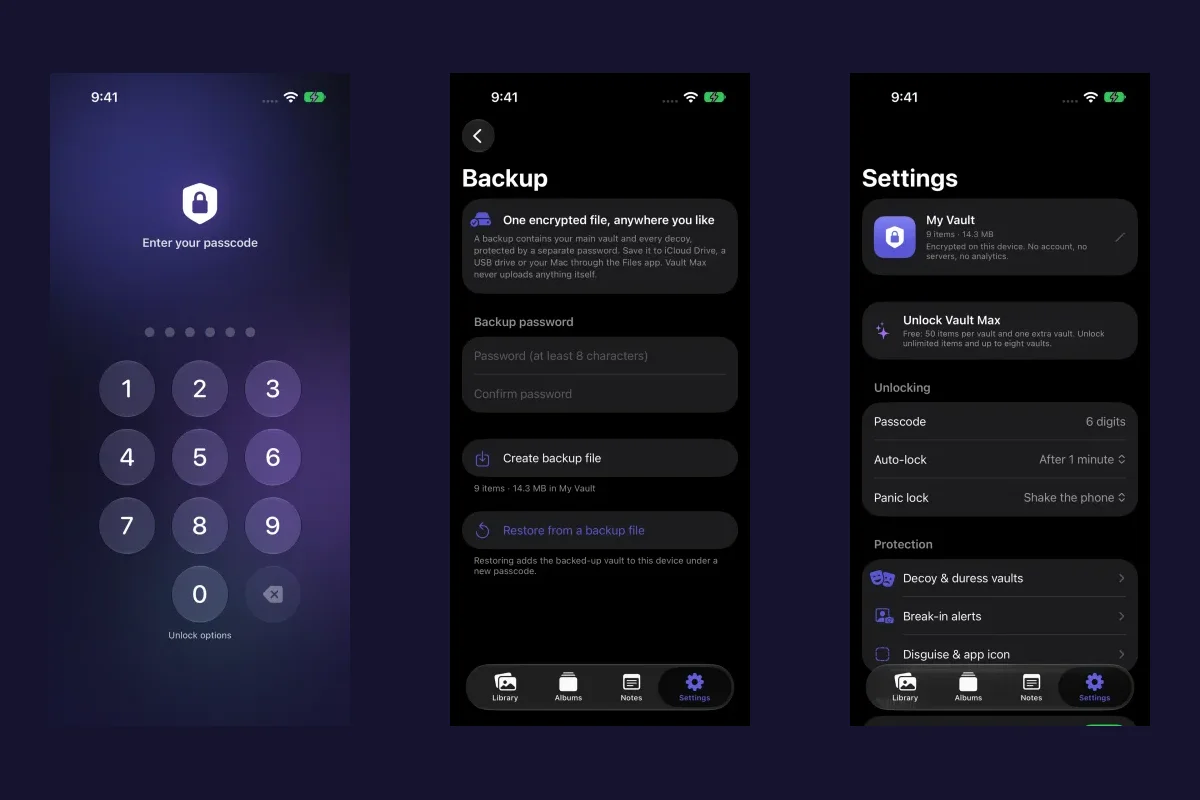
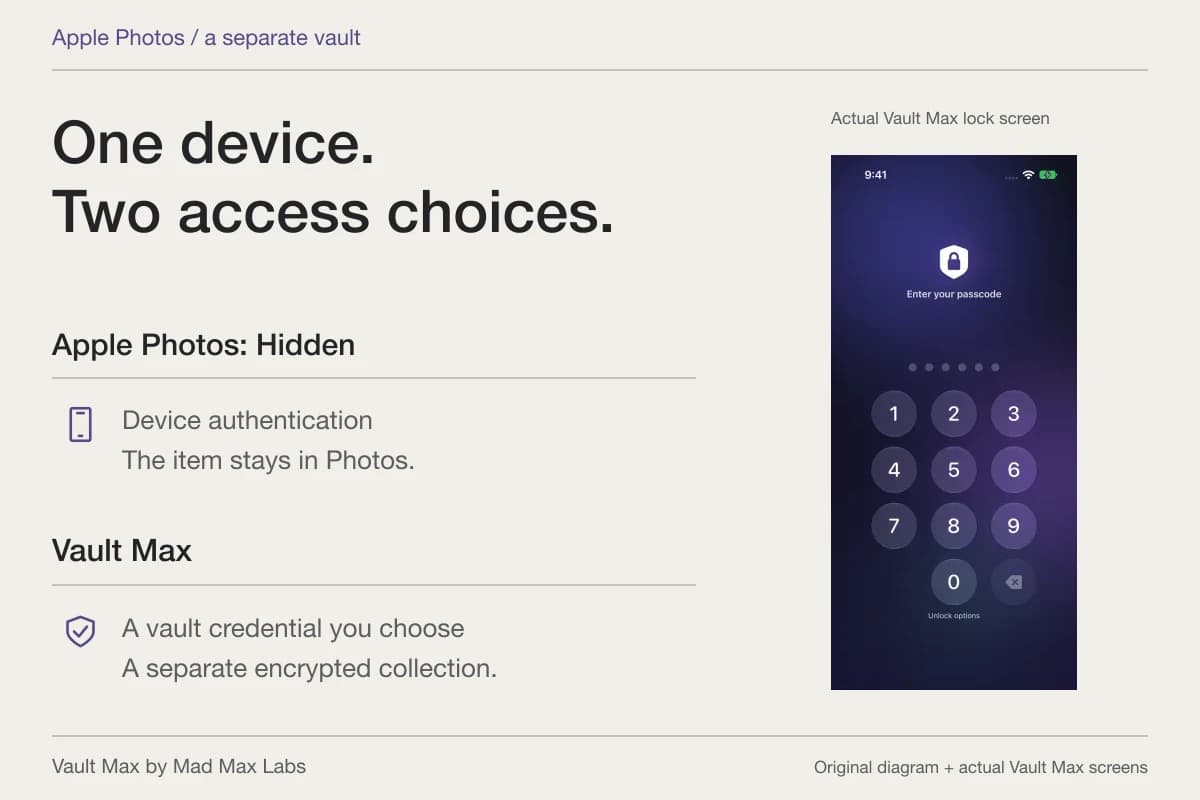
Open original image: Open the retained resultMad Max Labs makes Vault Max. Its separate credential, local encrypted media collection and notes support this retained-reference routine without a Vault Max account. They do not change the WhatsApp conversation or copies another person has already received.
Review older Photos items before cleaning up
Disabling future saving is a good point to pause. Check the private import, then decide whether the original belongs in Photos too. Keeping it can be a valid choice; removing it should follow verification of the copy you intend to rely on.
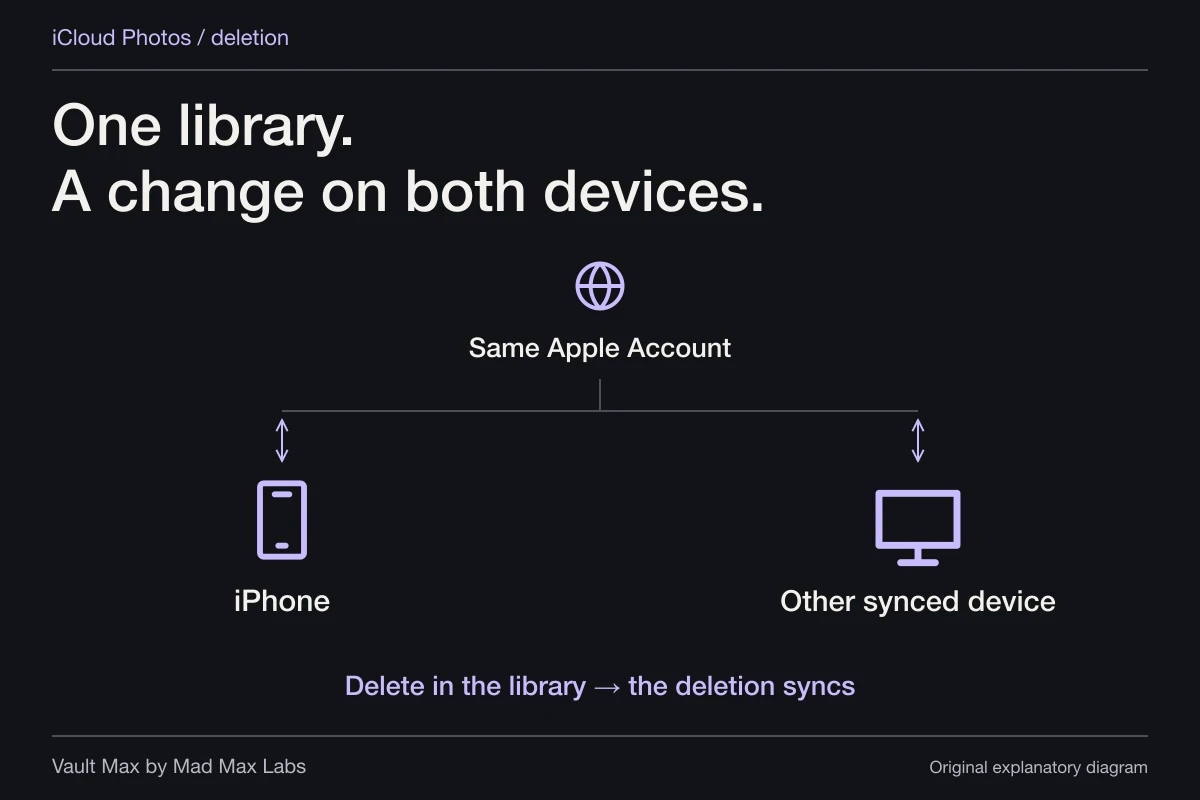
Apple's photo-deletion instructions explain iCloud Photos propagation and the normal Recently Deleted recovery period. A deletion can affect the same library on other synced devices. Conversely, removing an item from the ordinary grid does not mean its recoverable state has already ended.
Review a few selected items first, especially if several look alike. A received image, an edited version and a screenshot can contain different information. Do not remove the only readable version merely because another thumbnail resembles it.
Keep chat cleanup and recovery separate
The original attachment has its own place inside WhatsApp. Before clearing a conversation or deleting media there, decide whether you still need the messages explaining it. Removing a Photos copy is not proof that the attachment was removed, and removing your attachment is not a guarantee about another participant's saved copy.
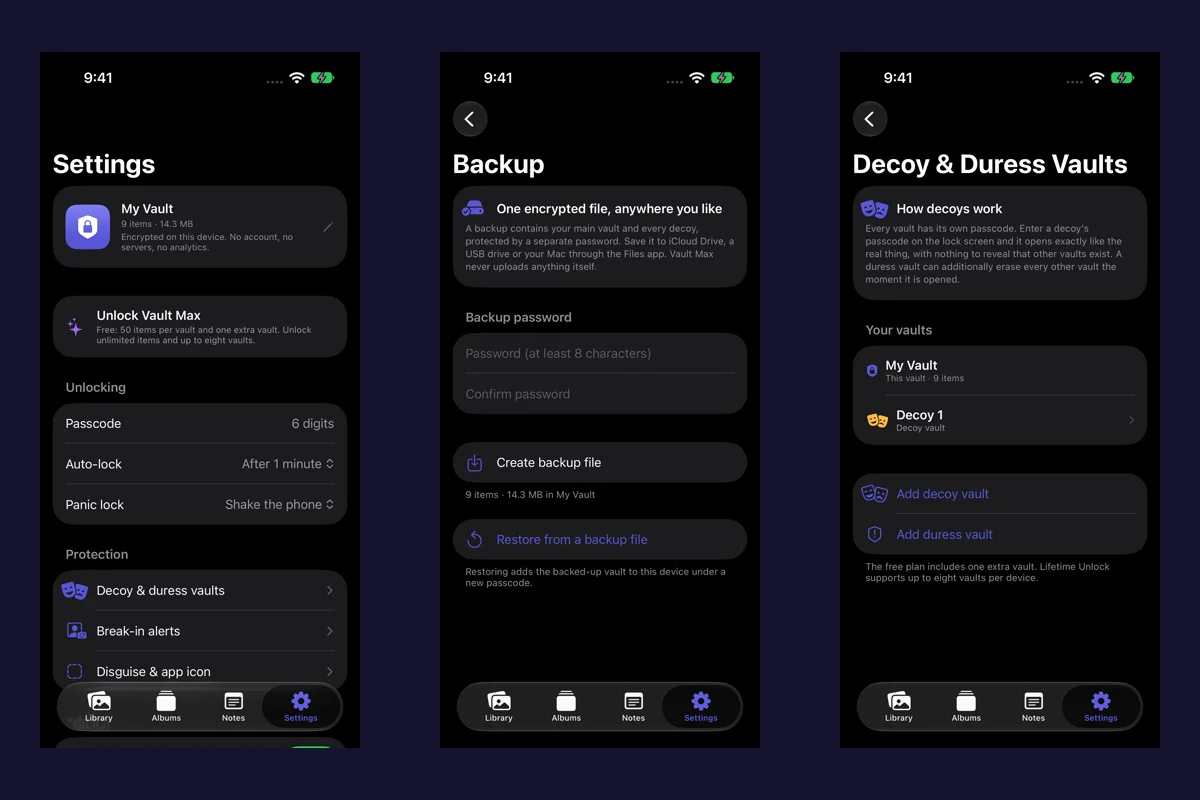
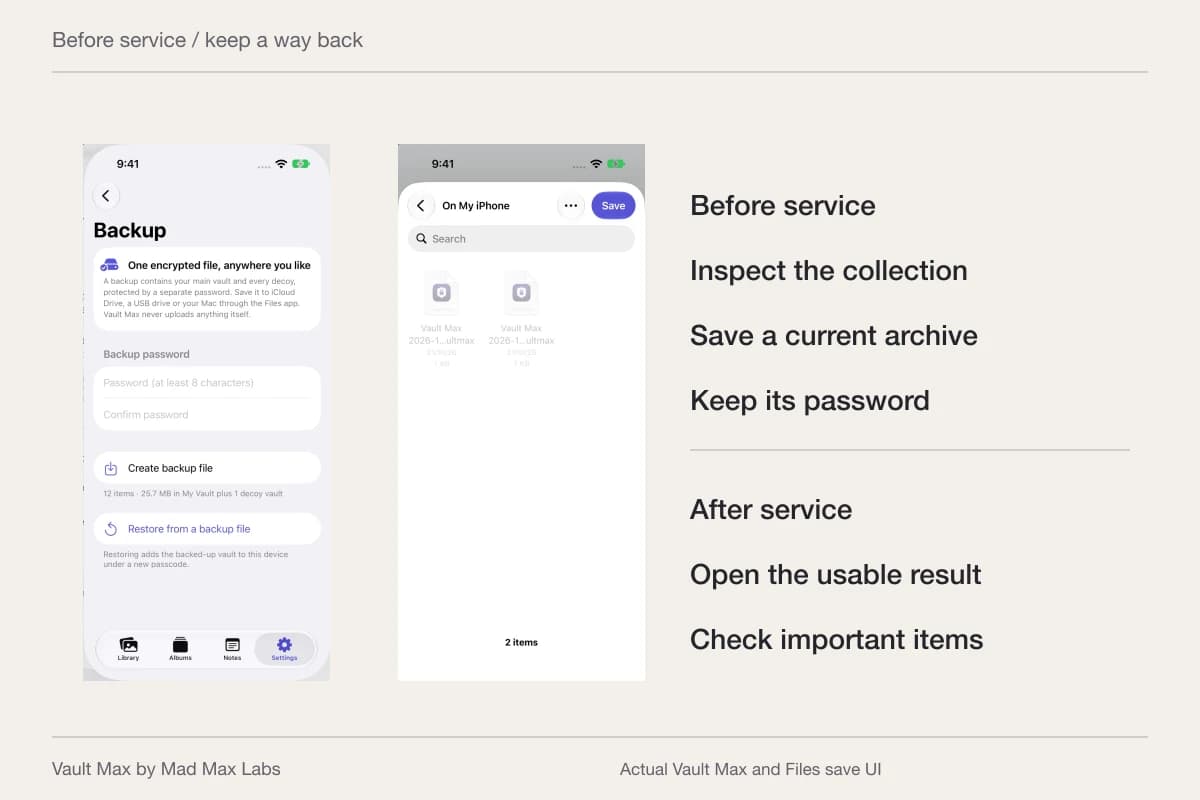
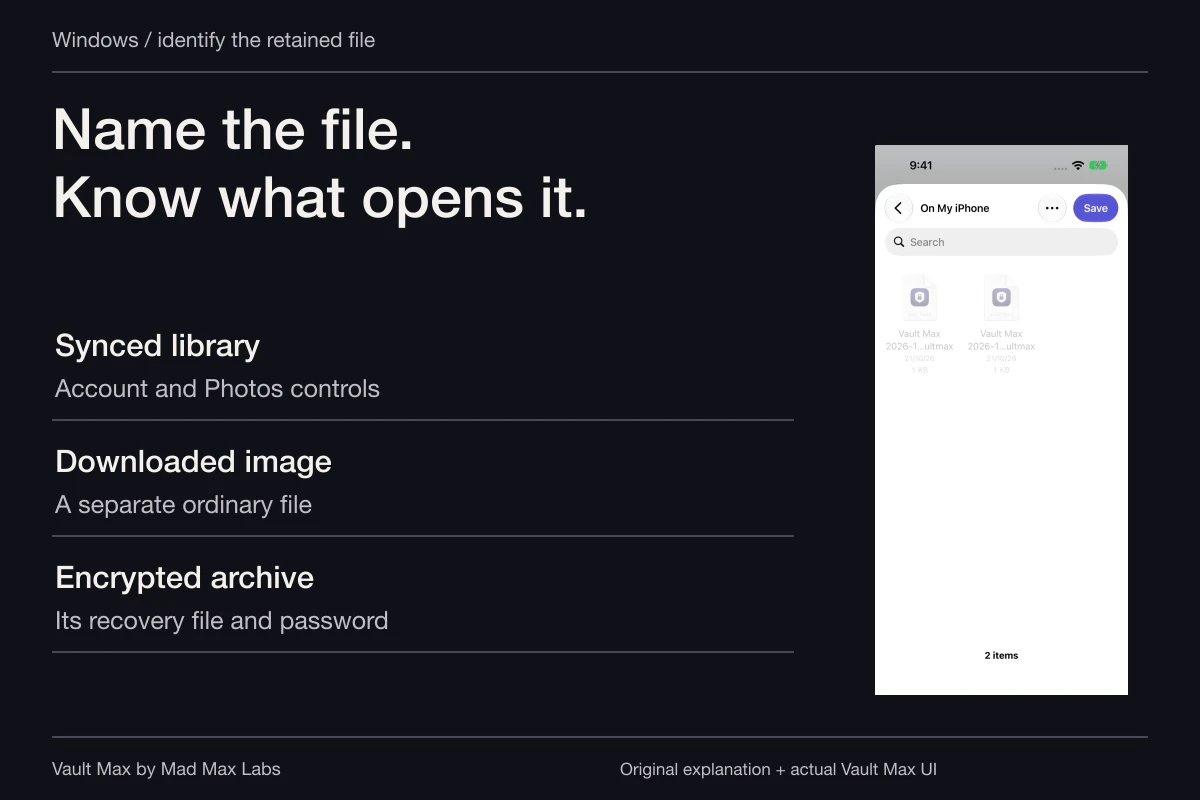
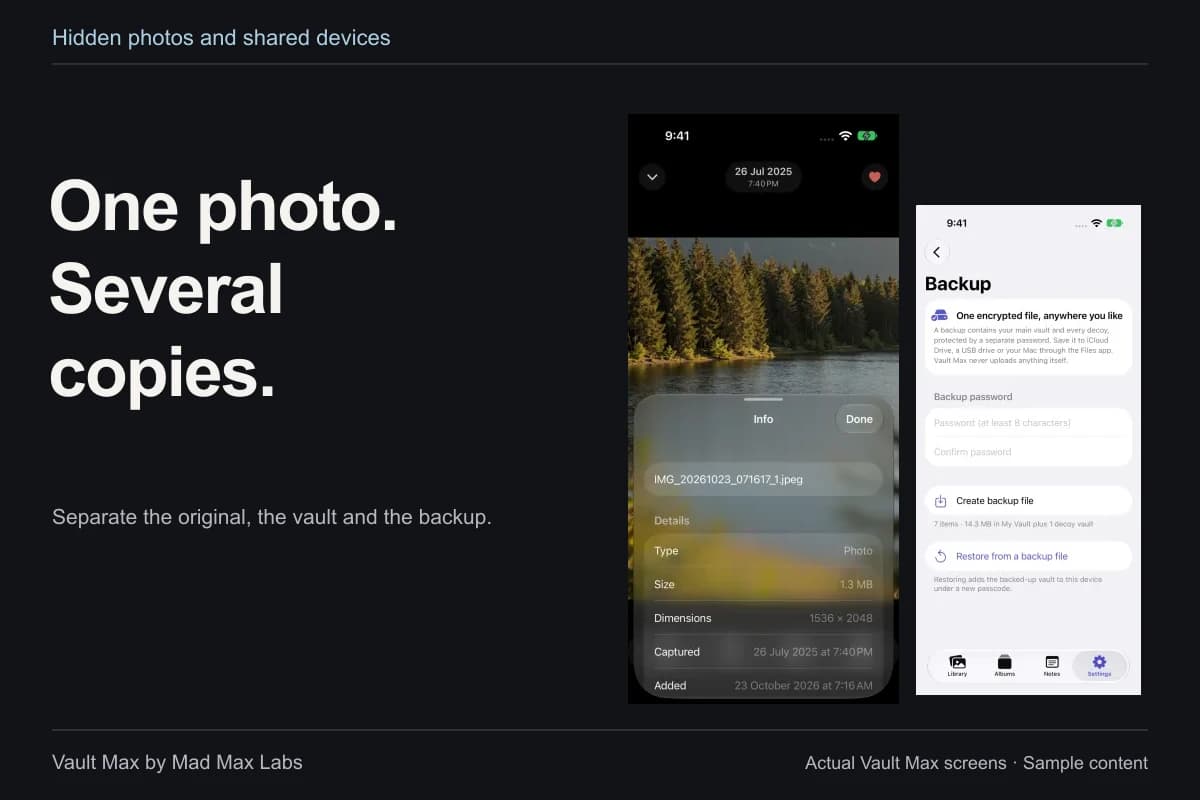
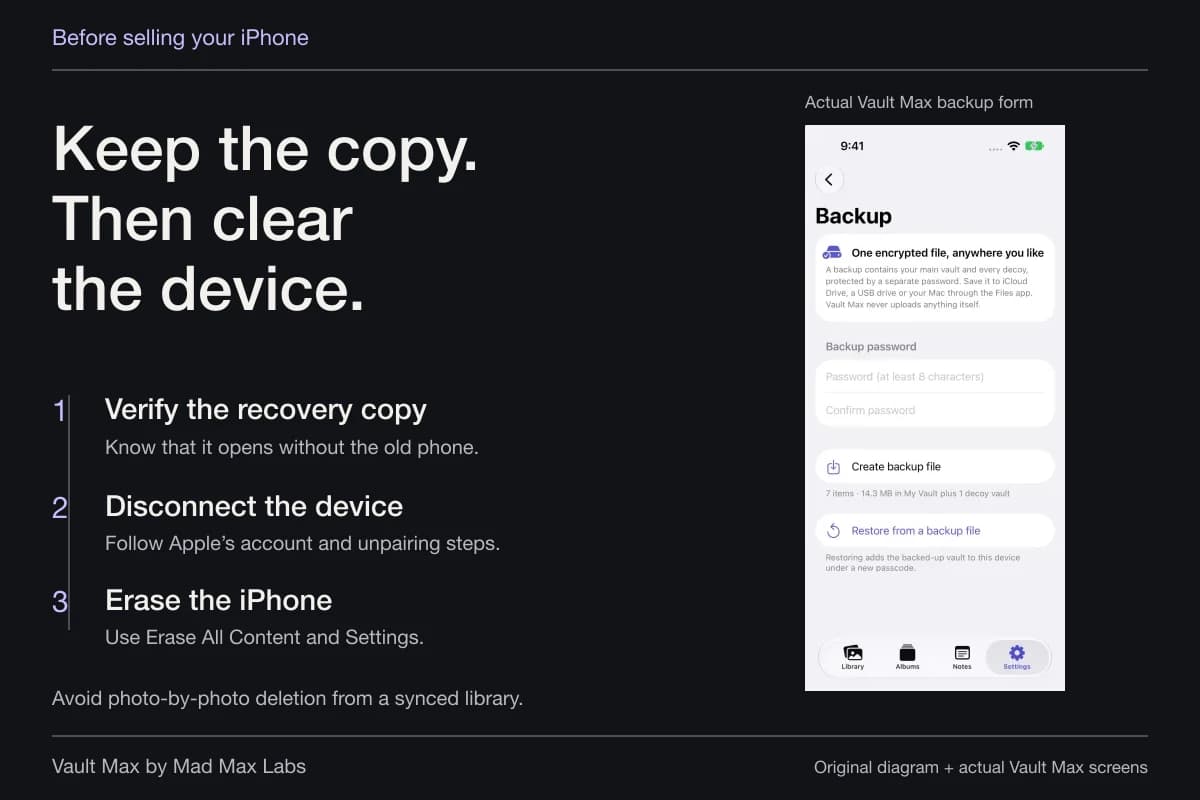
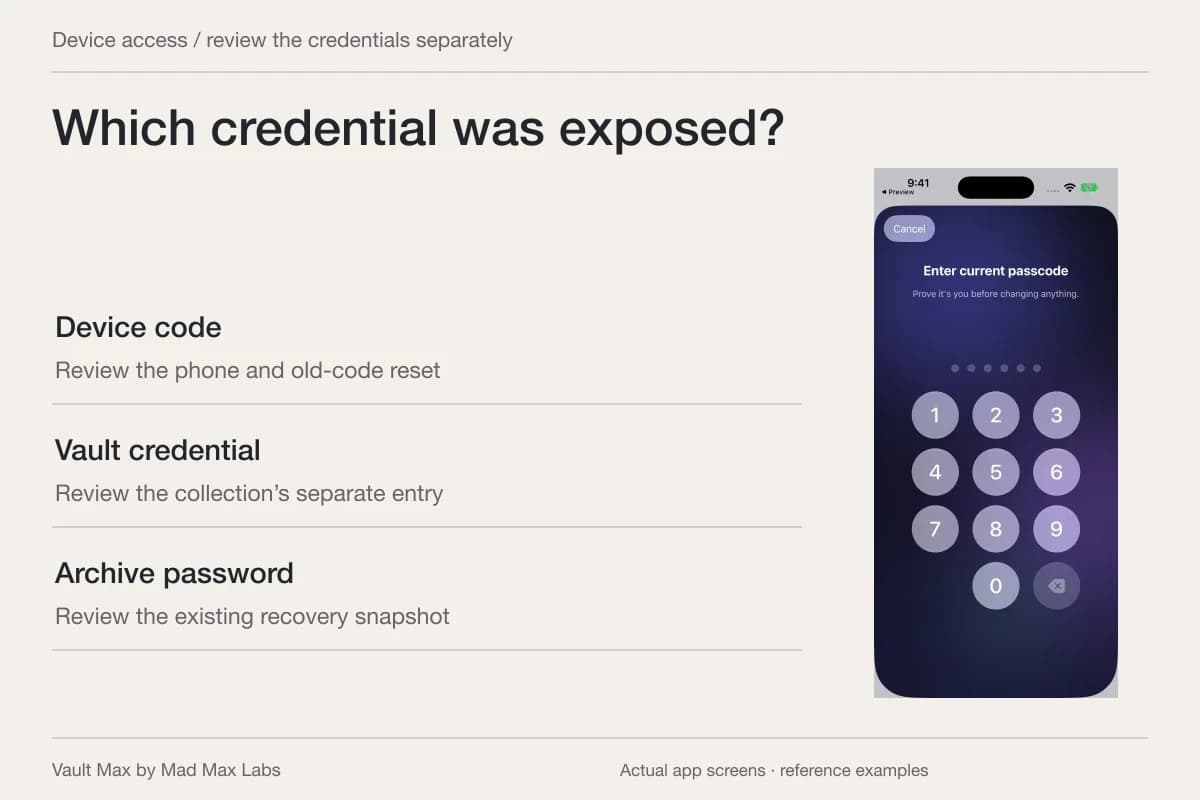
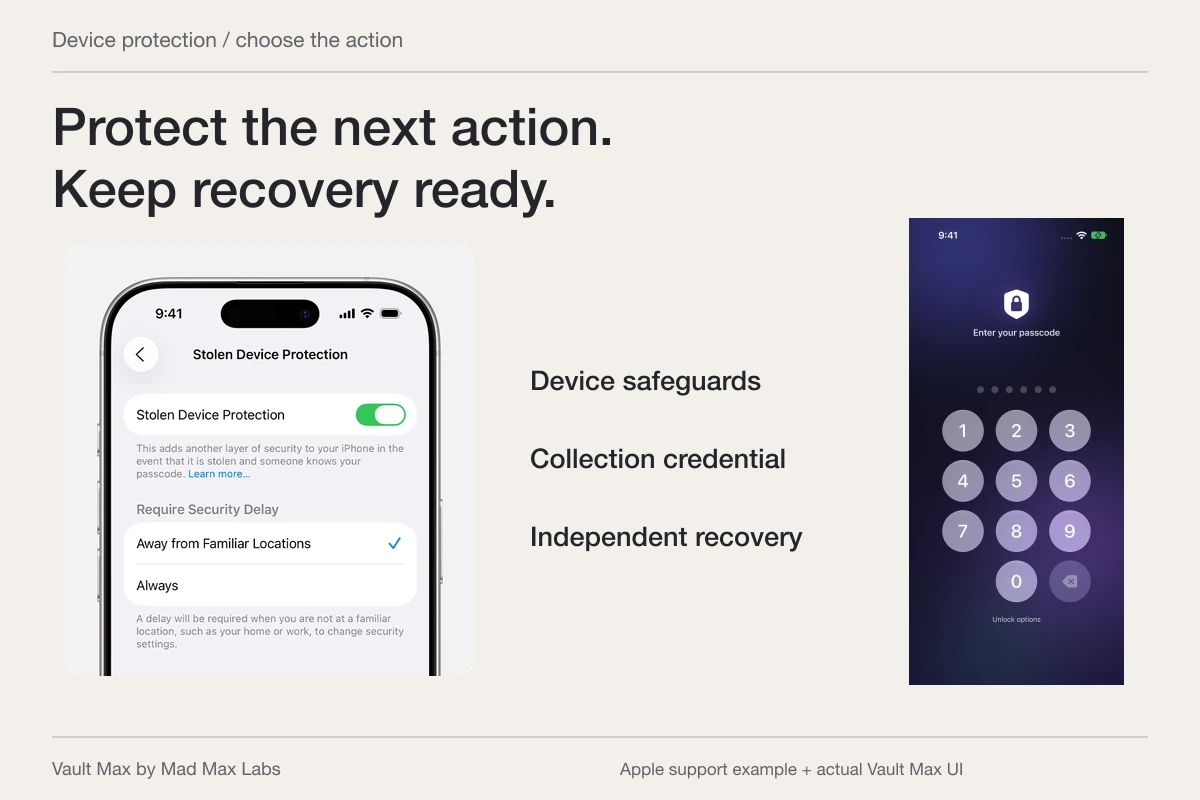
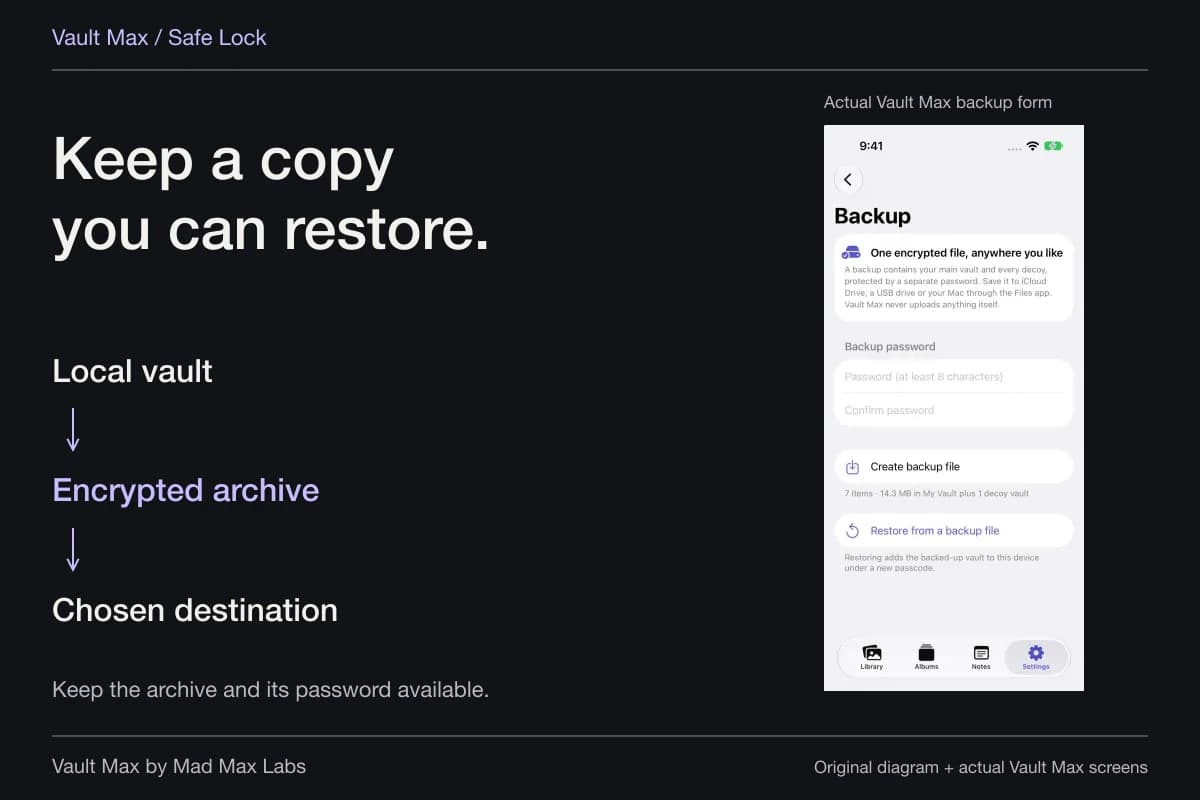
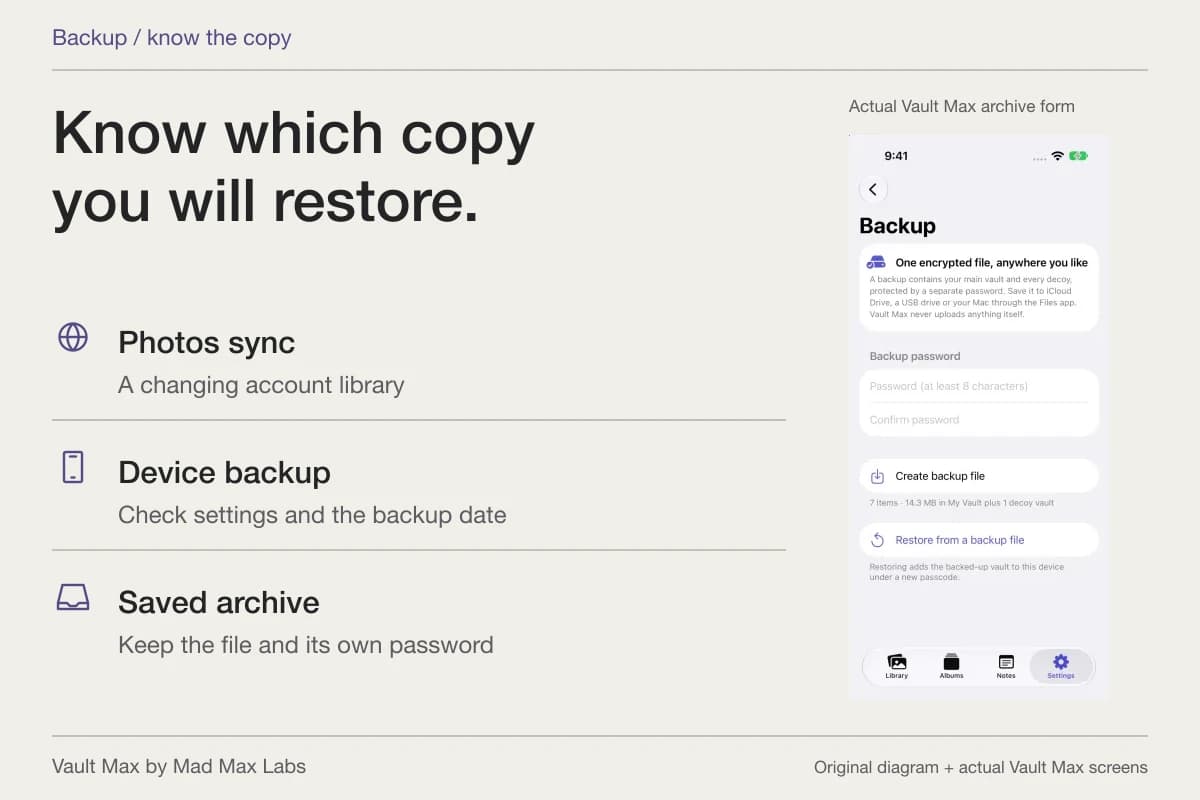
Likewise, a WhatsApp backup and a Vault Max archive serve different collections. For your retained vault items, create a current password-protected .vaultmax archive. Keep it accessible without the old phone and keep its separate password independently available. A saved snapshot needs refreshing after later additions.
If the goal is simply to stop group pictures cluttering Photos, finish that small task first. You can then review older material in a calm, selective pass with a verified private copy and a usable recovery plan.
- Turn off automatic saving if you want to choose what enters Photos.
- Check its exception rather than relying only on the global preference.
- Change attachment auto-download only if that is also part of your goal.
- Open the imported image and reopen any saved context note.
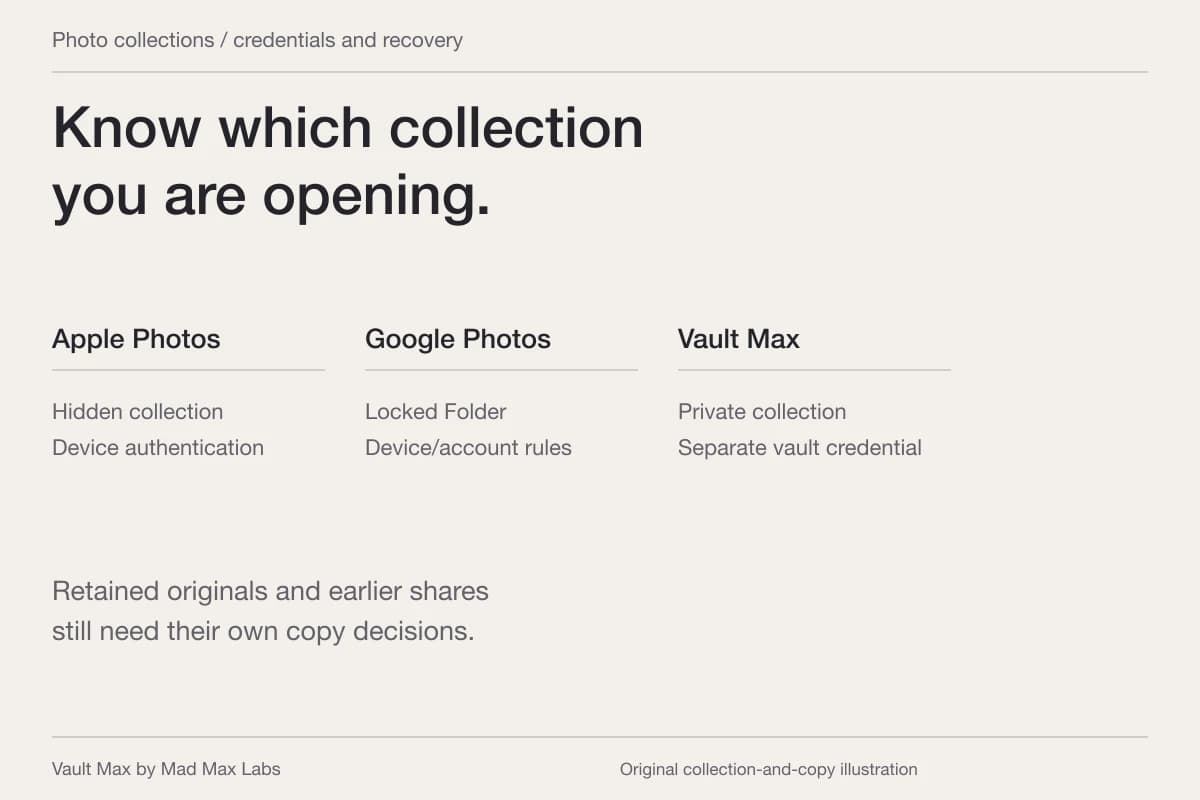
- Treat Photos, the conversation and earlier shares individually.
- Retain an accessible archive and its independently available password before destructive cleanup.
Tap a box as you go. Checks reset when you leave this page.
Common questions
Where do I stop WhatsApp automatically saving pictures?
WhatsApp's iPhone help places the global control under Settings, Chats, Save to Camera Roll. Check the equivalent save-to-Photos control in your installed version and turn it off. Individual chats can have their own exceptions.
Why does one WhatsApp group still save photos?
Open the group or contact information and inspect its saving preference. WhatsApp documents Default, Always and Never; an Always exception can differ from the global preference.
Does disabling automatic saving delete older photos?
Do not use a future-saving preference as a cleanup command. Review existing Photos items, WhatsApp attachments, deliberate exports and backups separately. Verify anything you want to retain before deleting a source.
Continue reading
More guides
Practical tips for your private library. Swipe or scroll to choose your next guide.
86 guides to explore