
Privacy in practice
Private photos and a work-managed iPhone: choose where the personal collection belongs
Check iPhone supervision and work enrollment, separate personal photos from work attachments, and build your private collection on a device you control.
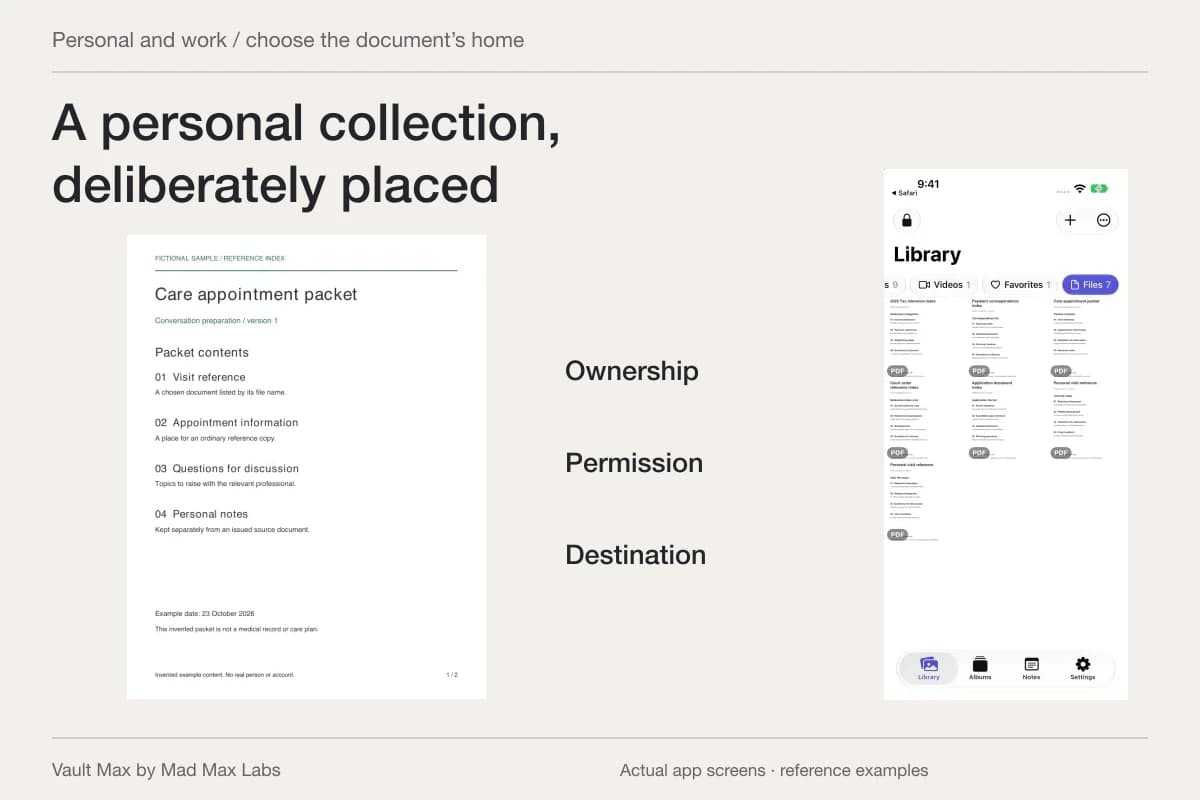
For personal photos, start with who owns and manages the iPhone. A work-owned phone, a personally owned enrolled phone and a personal phone containing a work app are different arrangements. Check which one you have before moving a private library or assuming a lock icon answers every workplace question.
If the phone belongs to your employer, use its personal-use and data-handling policy to decide what belongs there. A personal device you control is often the clearer home for your own references. Vault Max can keep the material you deliberately choose in an encrypted local collection, alongside private notes and a separate credential. Keeping that collection useful begins with a sensible destination, not with guessing what an administrator might see.
Find the actual enrollment arrangement
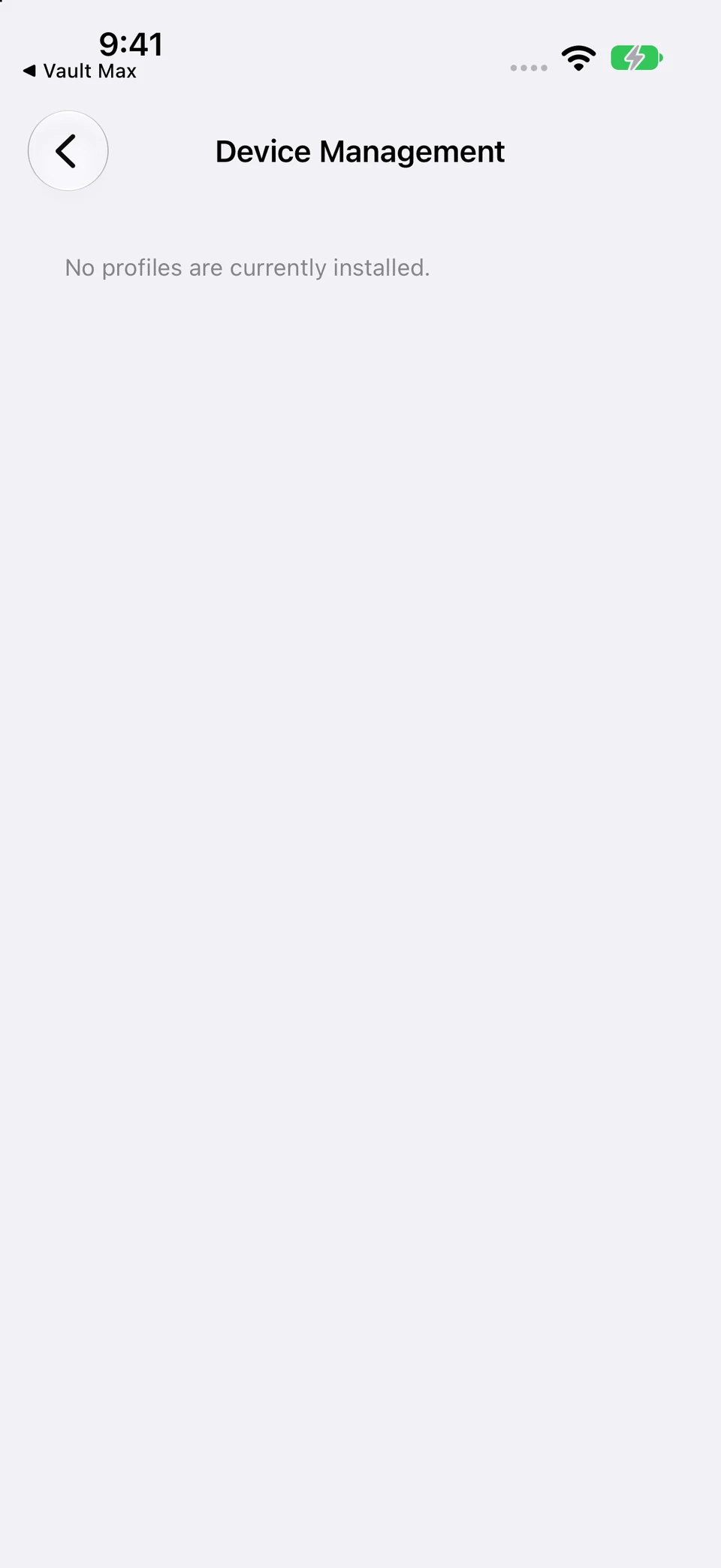
Apple's supervised-device guidance says to look for a supervision message at the top of Settings. To inspect installed management profiles, open Settings → General → VPN & Device Management, then read the relevant profile's details. If the arrangement is unclear, ask the organization's support contact about the features and policies that apply.
Write down the practical answers: who owns the hardware, whether personal use is allowed, how work information may move between apps, and what happens when the phone is returned. A missing switch can be a managed restriction rather than a broken app. Do not erase the device or remove a profile to make a screenshot match someone else's instructions.
A work email account is one clue, not a complete ownership or enrollment record. Likewise, a personal Apple Account on employer-owned hardware does not turn that hardware into a personal device.
General → VPN & Device Management is the place to inspect installed profiles. This actual example is an unmanaged test iPhone; an enrolled device can show different profiles and restrictions.
iOS Settings · Actual unmanaged test-device exampleInspect the arrangement on your own device
Open original image: Inspect the arrangement on your own deviceSeparate management visibility from other kinds of access
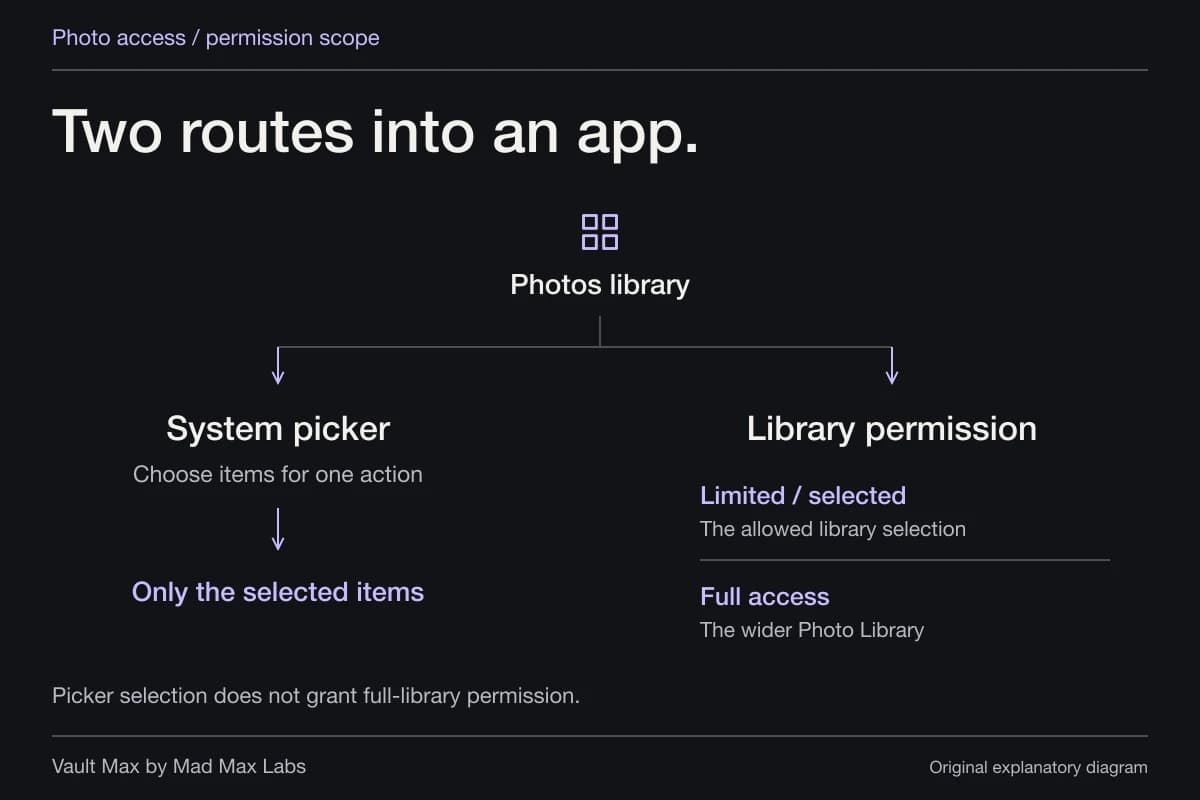
Microsoft's Intune enrollment privacy explanation distinguishes personal contents from device information. It says personal pictures and user-created document contents are not exposed by enrollment, while device details and some app inventory can be visible. That is an explanation of Intune's management information, not a statement that every application, network or person holding a phone has the same access.
Apple's supervision guidance also describes additional restrictions and web-filtering configurations. Read each claim at its actual scope. Avoid both extremes: assuming IT automatically sees every photograph, or assuming an app password makes the device's management arrangement irrelevant.
A coworker scrolling an already unlocked library is another problem entirely. So is displaying a thumbnail while sharing a screen. Identify the route you observed before deciding which control will help.
Decide what belongs on the work device
Imagine three attachments: a picture used for a customer task, a personal appointment reference and an ordinary screenshot taken during a work call. Similar thumbnails can have different owners, permissions and reasons to retain them. Do not copy company information into a personal vault merely because it is convenient to keep everything together.
Use approved work storage for work material. For your own personal records, choose a permitted destination on a device you control and make a deliberate transfer. Check that the result is readable and complete before changing older copies. If the current device is going back to the employer, follow its return process and preserve your permitted personal material first.
| Item or access route | Question to settle | Useful action |
|---|---|---|
| Company document or customer attachment | Which storage and sharing routes are authorized? | Use the approved work workflow |
| Your personal reference PDF | Is personal storage permitted on this device? | Prefer a deliberate collection on your own device |
| A coworker handoff | Can they browse the currently open app? | Close the collection before handing over the phone |
| A presentation or screen share | Which app and screen are visible? | Inspect the actual display, preview and selected content |
| A returned or replaced work phone | Which personal copies can you retain? | Verify permitted saved results before the return process |
Build a personal reference collection you can retrieve
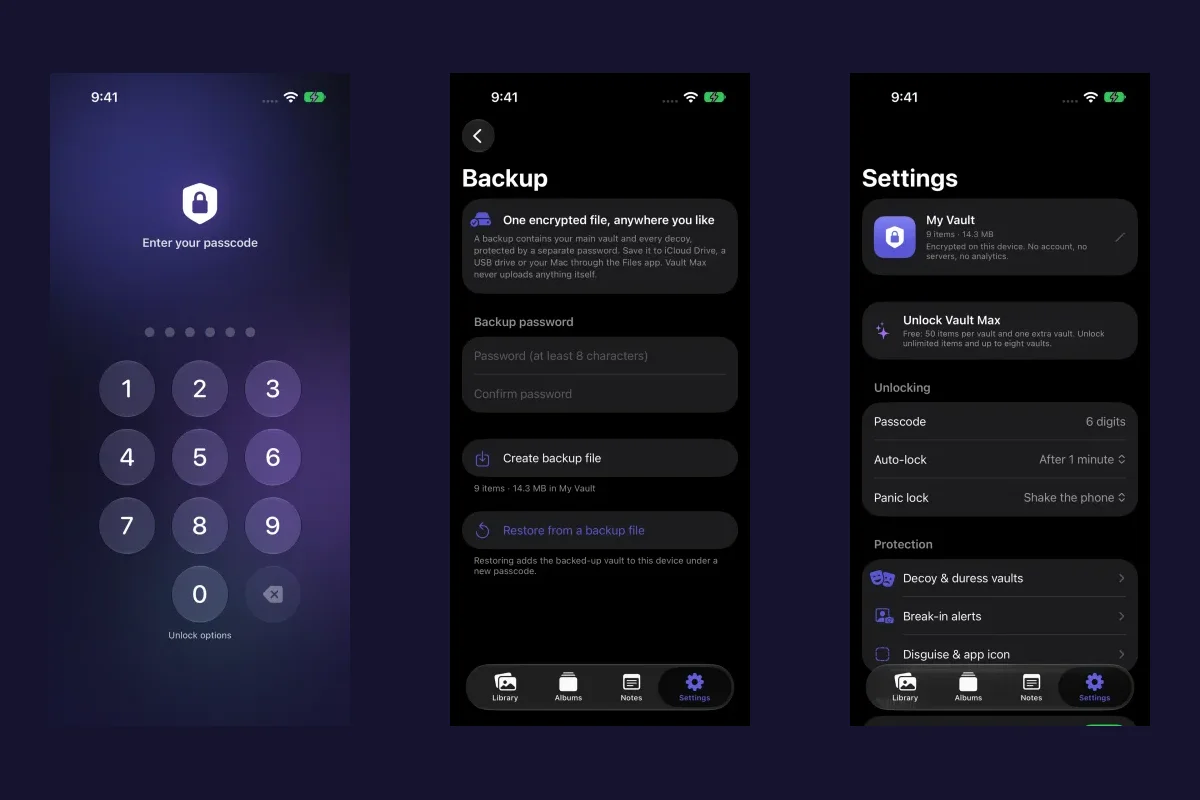
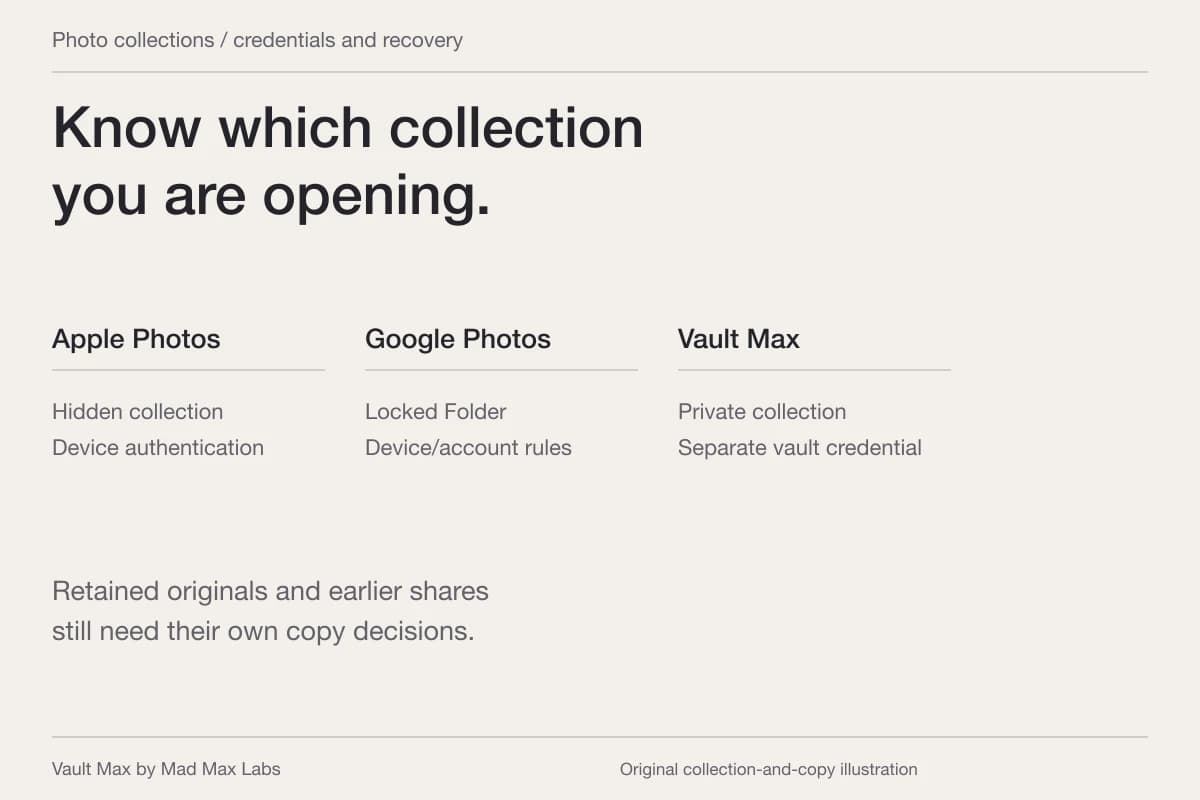
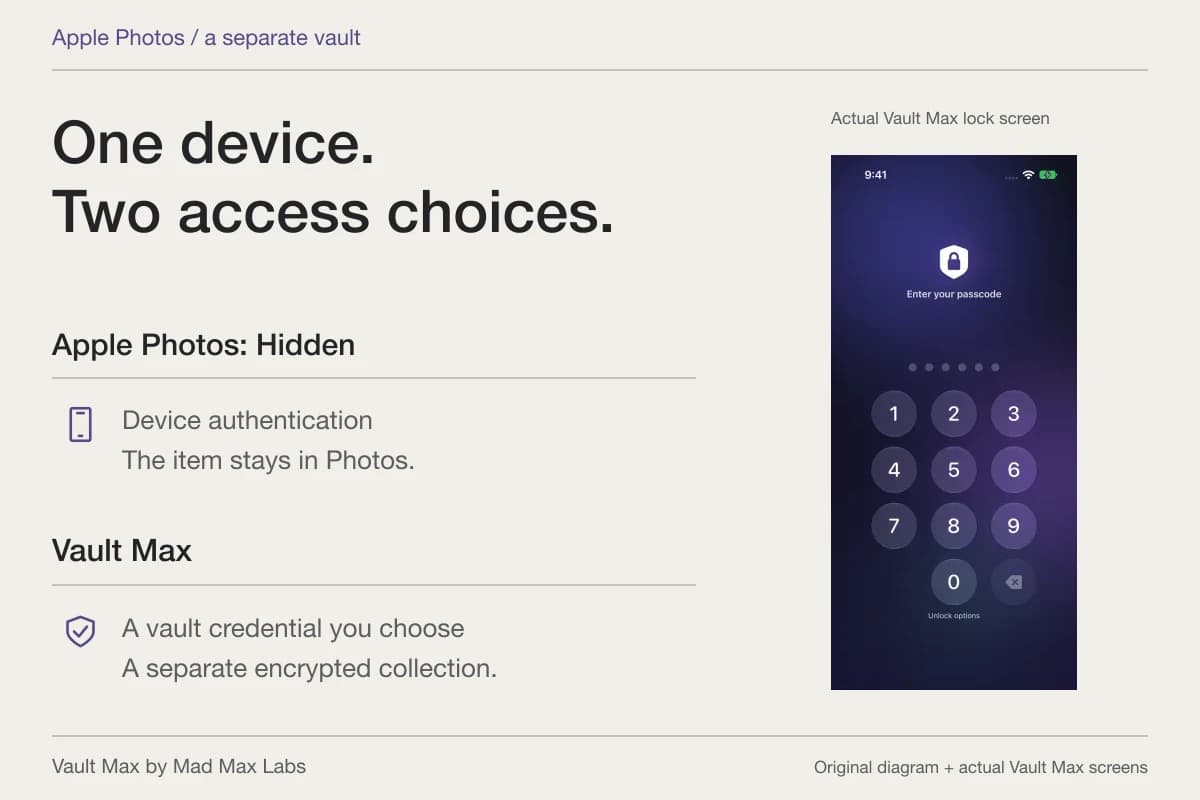
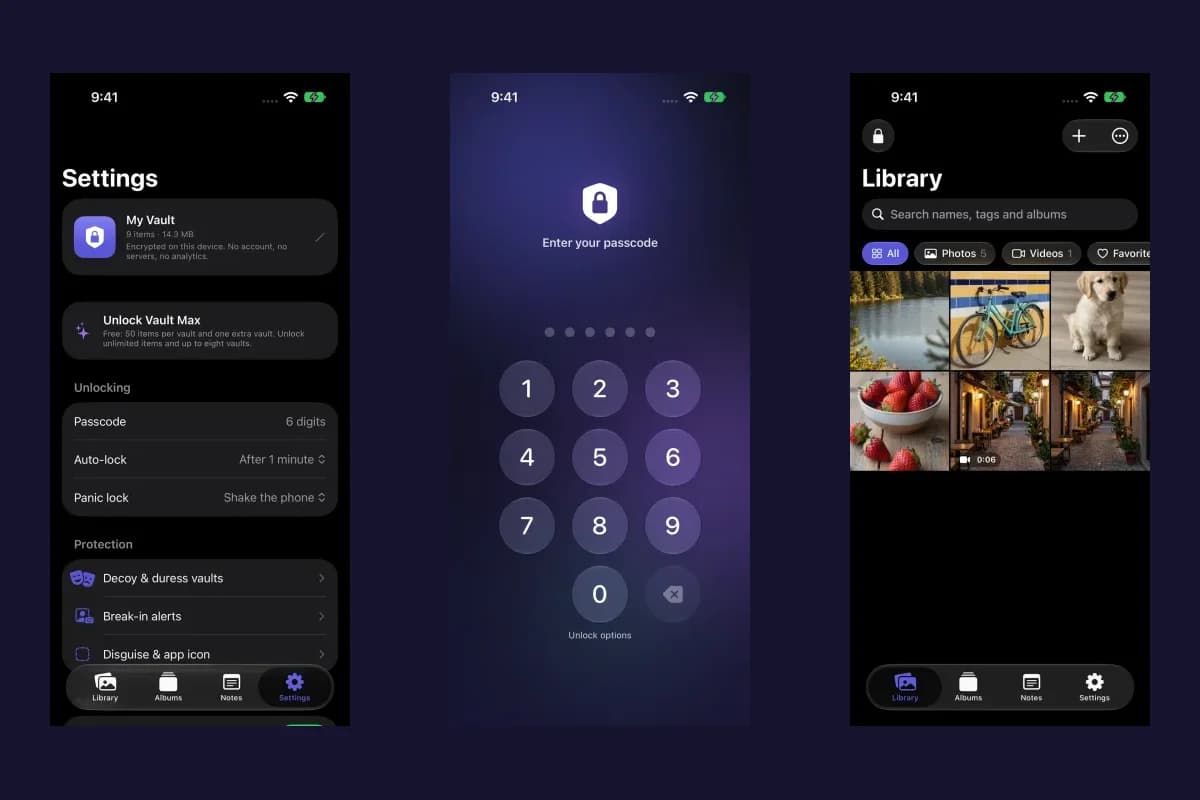
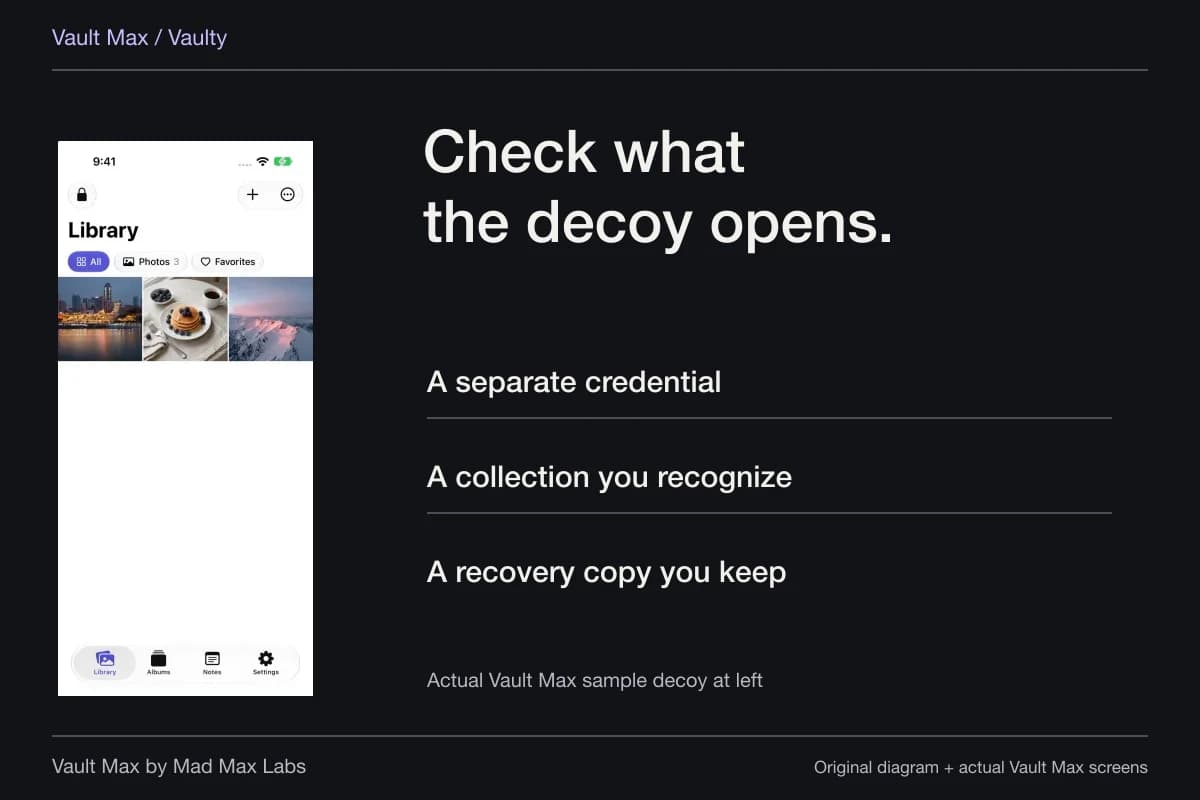
On your own supported iPhone or iPad, Vault Max imports selected photos and files into its encrypted local collection. Use a credential distinct from the device passcode. No Vault Max account or server library is required to keep that working collection.
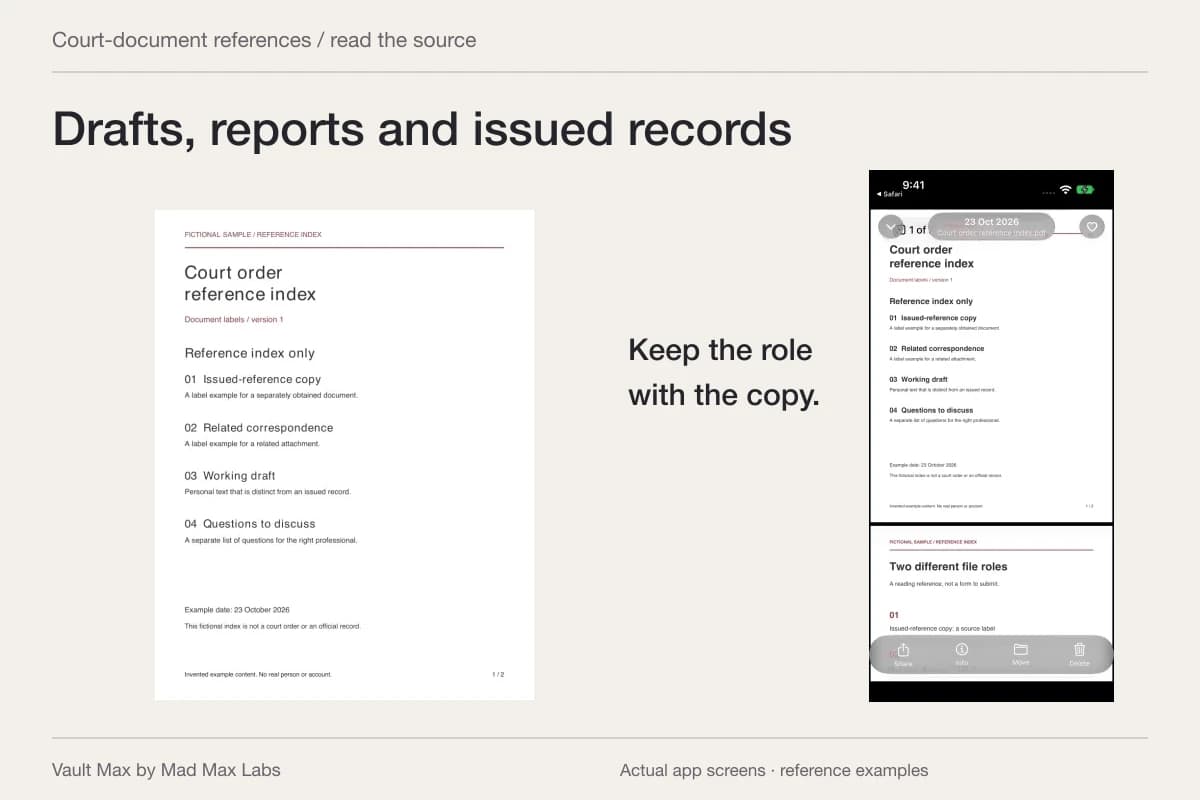
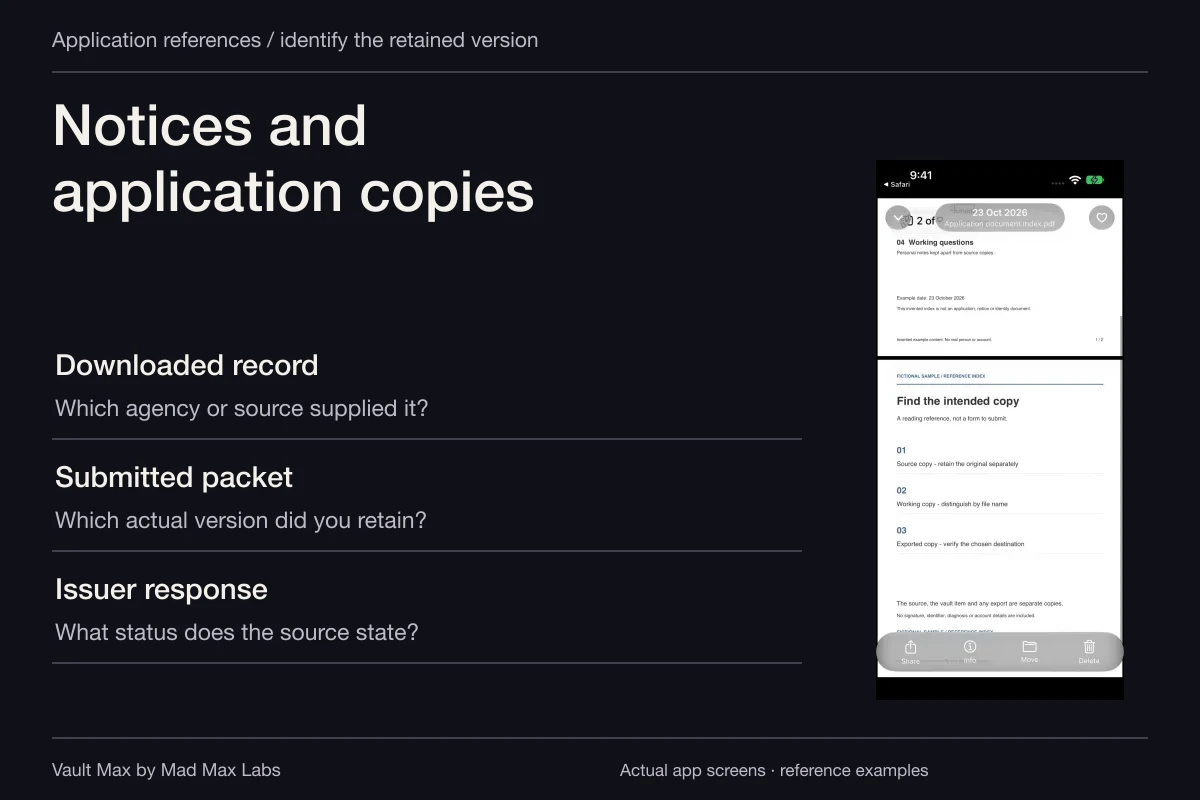
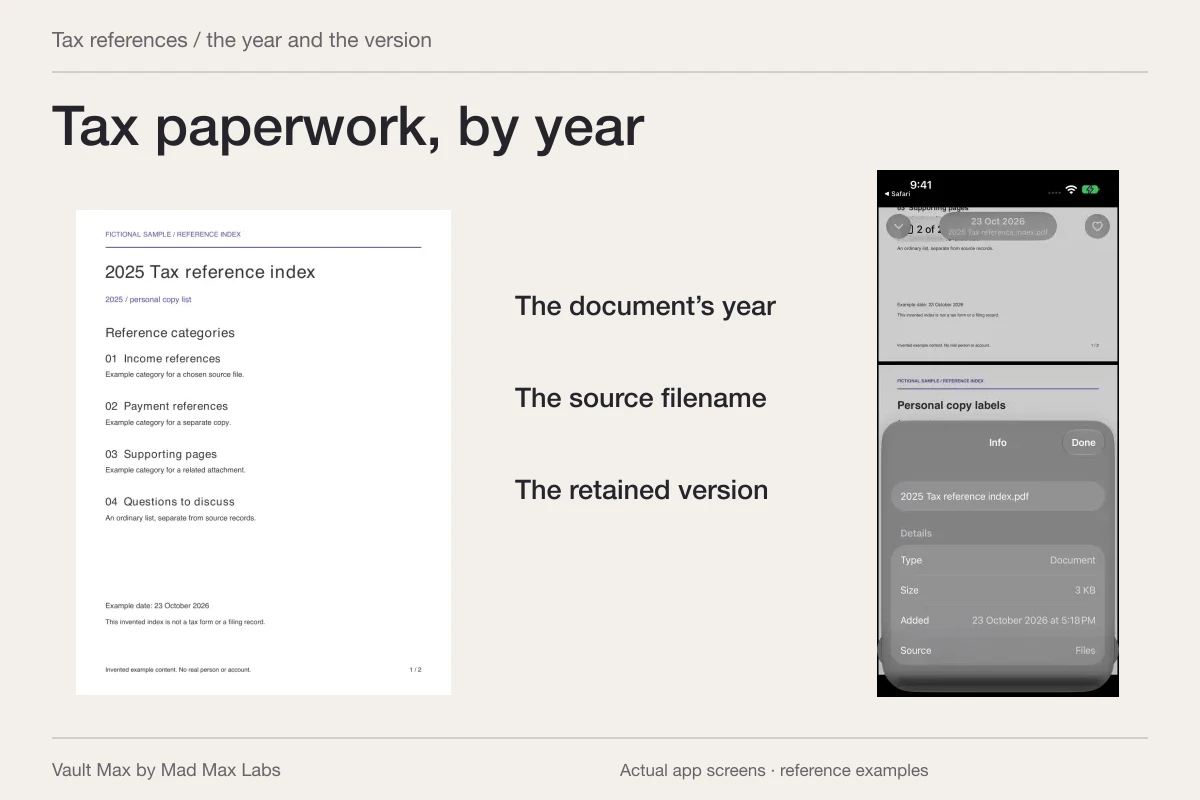
Start small. Import an ordinary reference document, open the full file and read the important page. Check its filename and source information. A thumbnail can help recognition, but it does not establish that all pages arrived or that the document is the version you intended. Use the actual Files import workflow rather than making screenshots of every page.
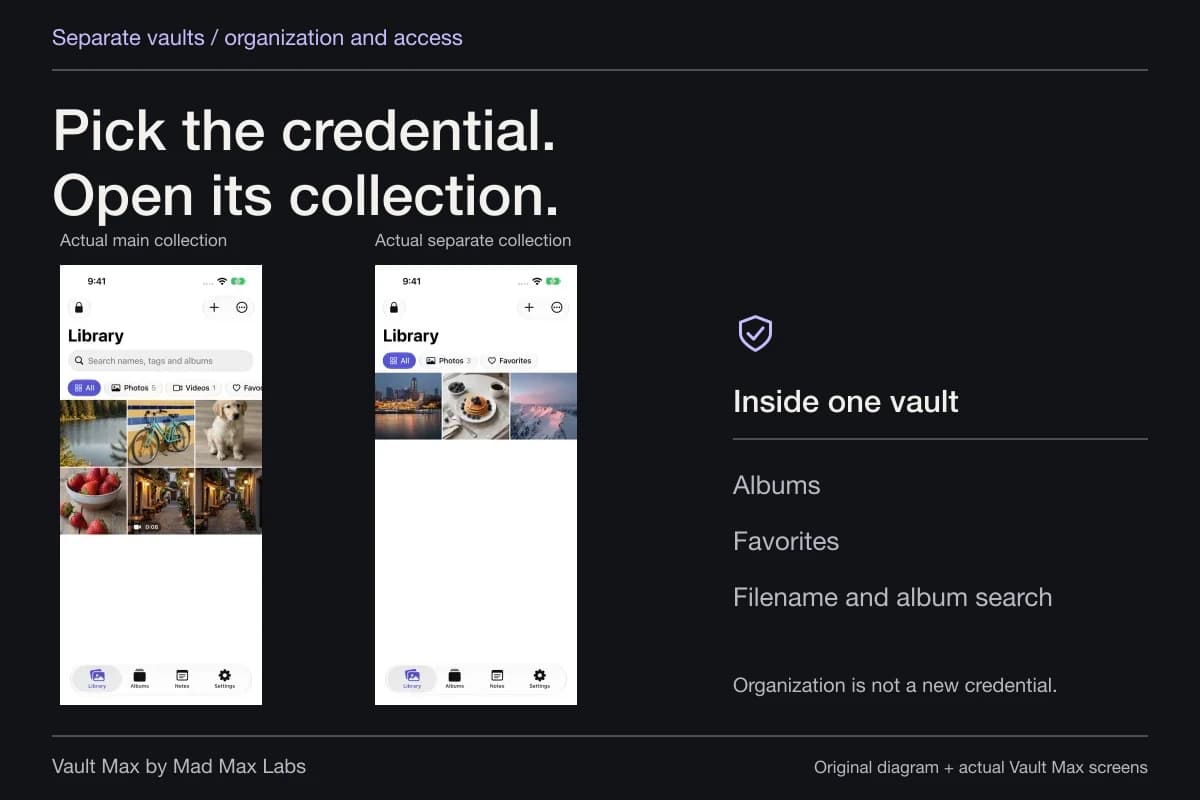
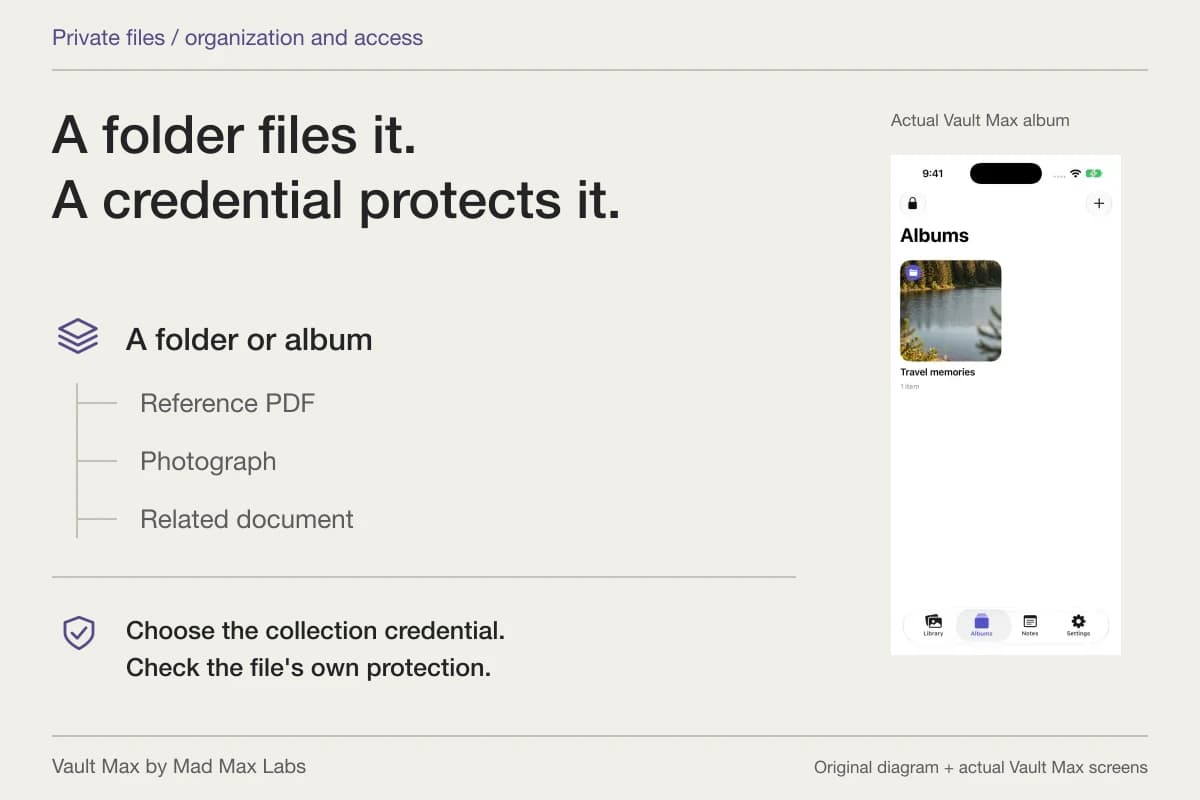
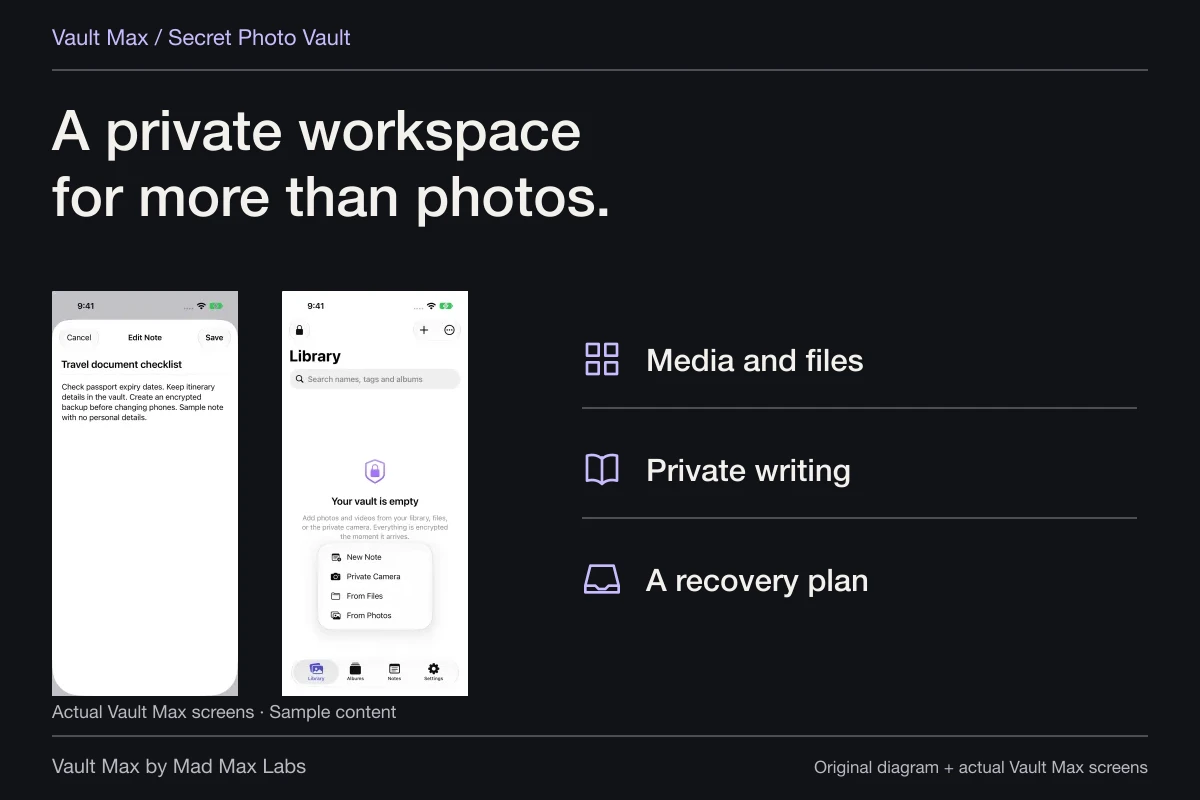
Then organize around a task: Home project, Appointment references or Personal correspondence. Albums group material inside the vault; they do not create separate passwords. Use a genuinely separate vault when you need another credential and collection. Save a short encrypted note for context that would otherwise live in a work message thread.
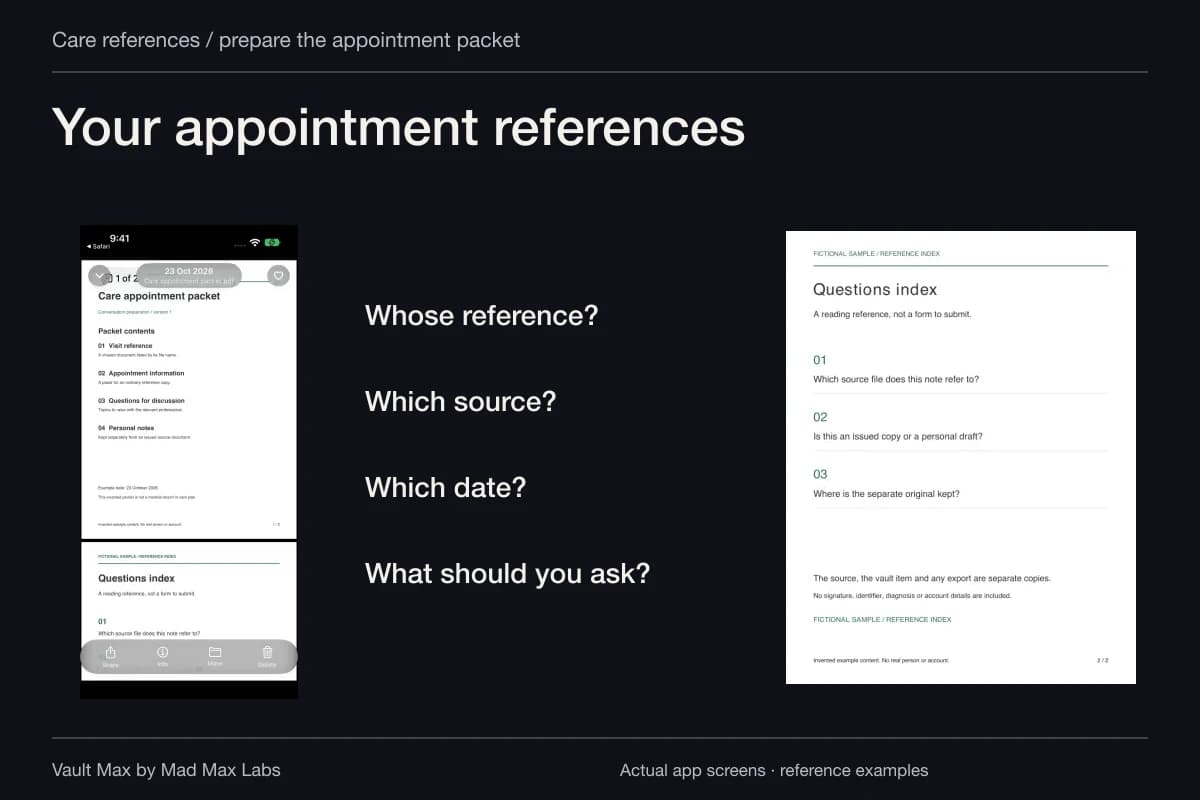
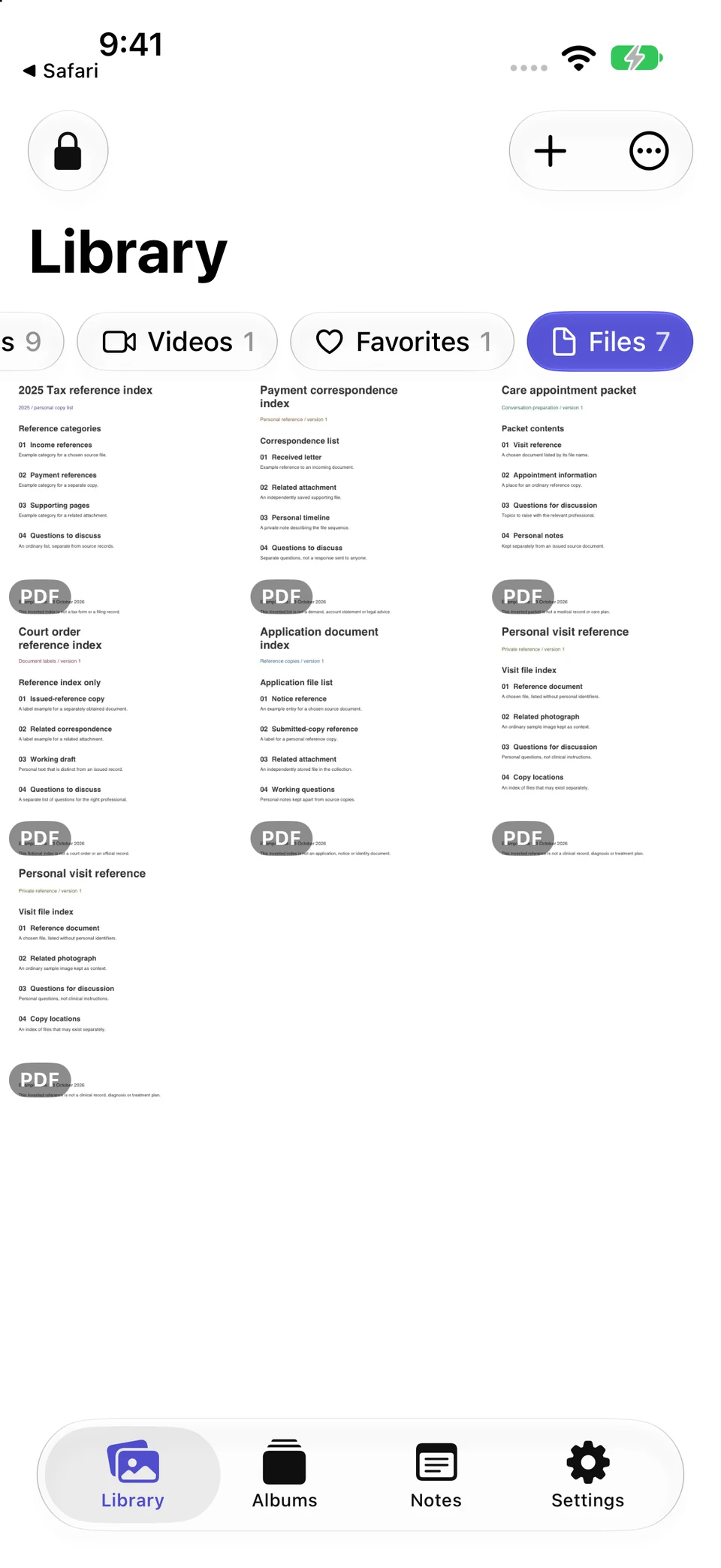
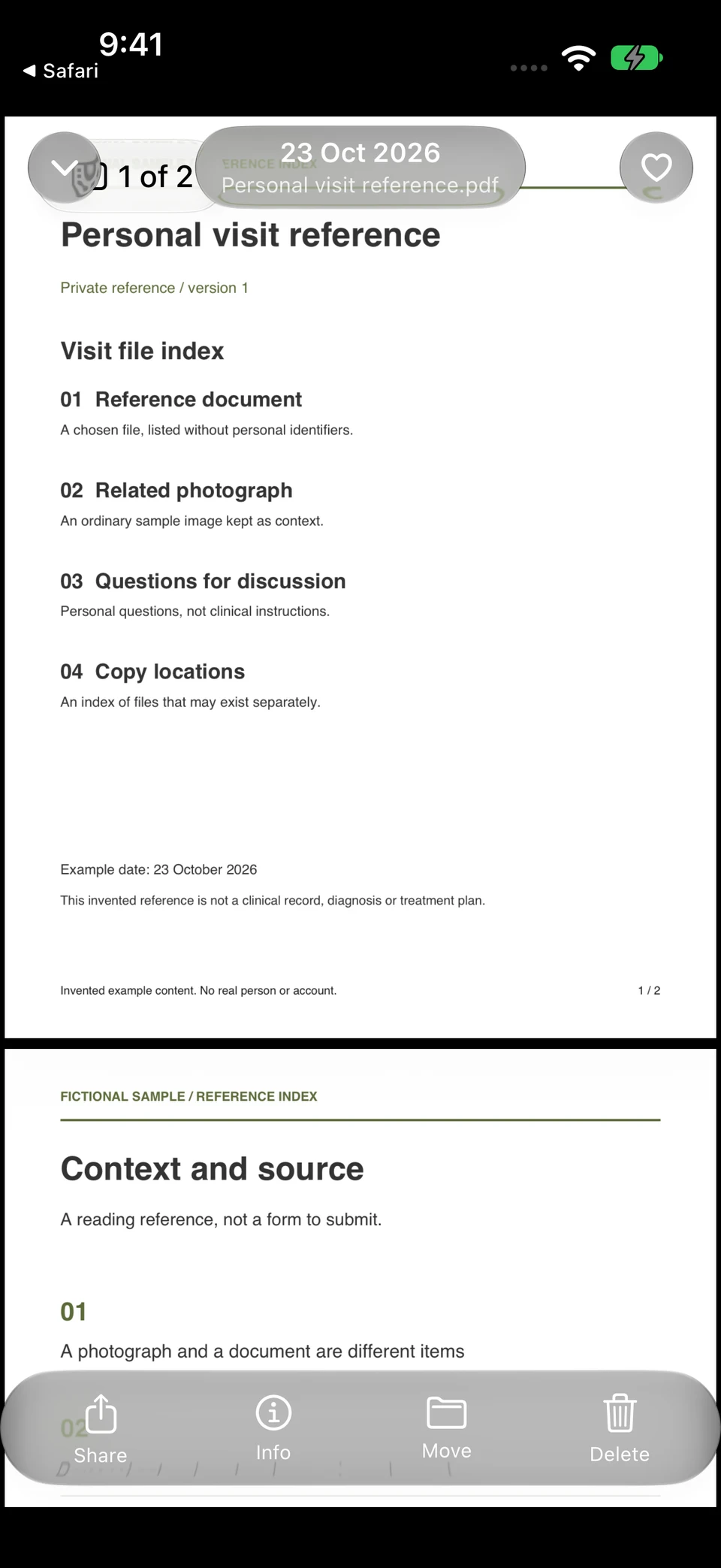
The actual Files filter isolates the reference documents. Opening the fictional personal-visit PDF lets you check the retained file before relying on it. Choose the permitted personal device and destination before building this collection.
Vault Max · Actual app screens, fictional sample contentUse the relevant file view
Open original image: Use the relevant file viewRead the chosen personal reference
Open original image: Read the chosen personal referenceCheck what you are about to show or send
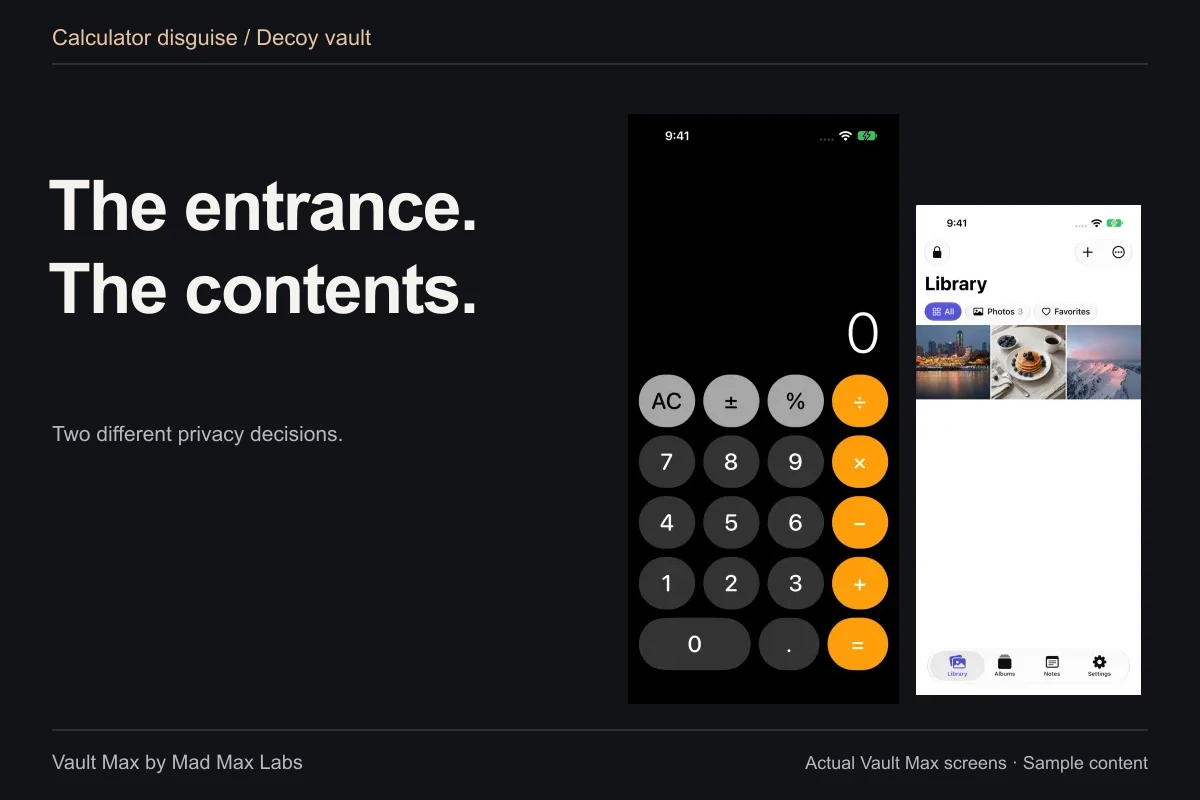
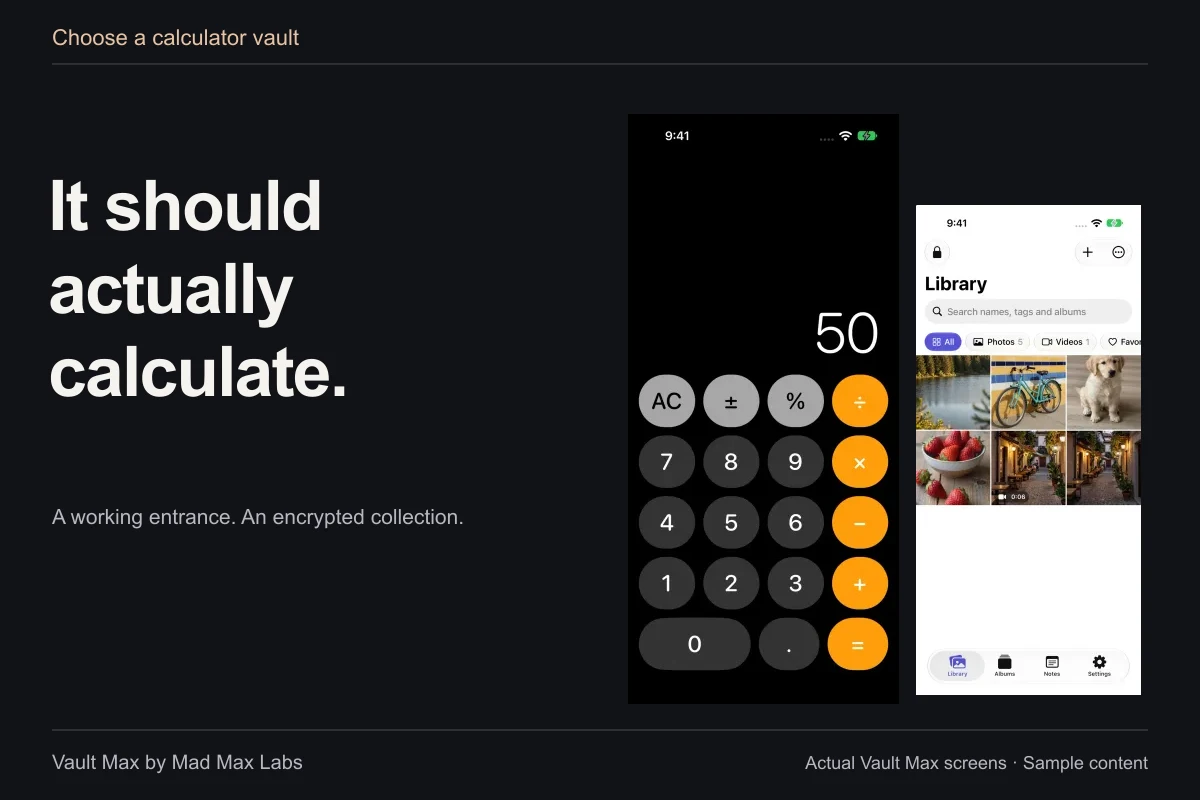
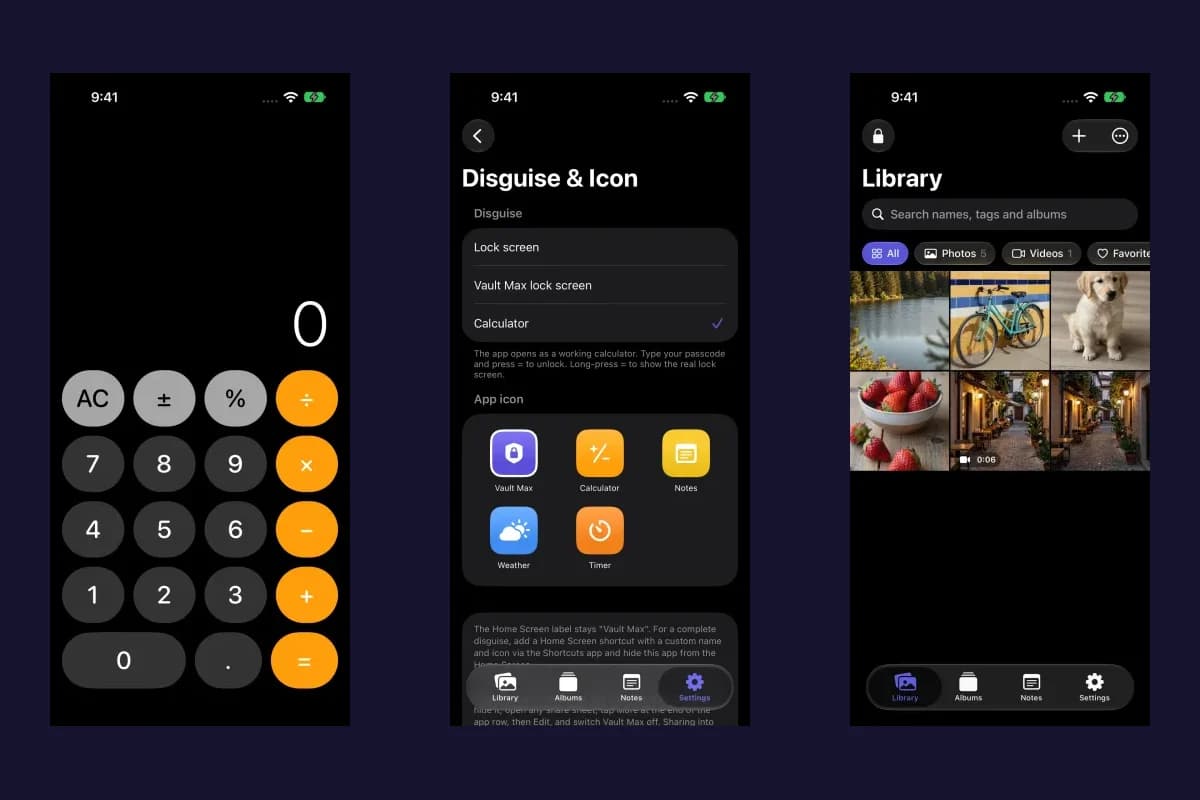
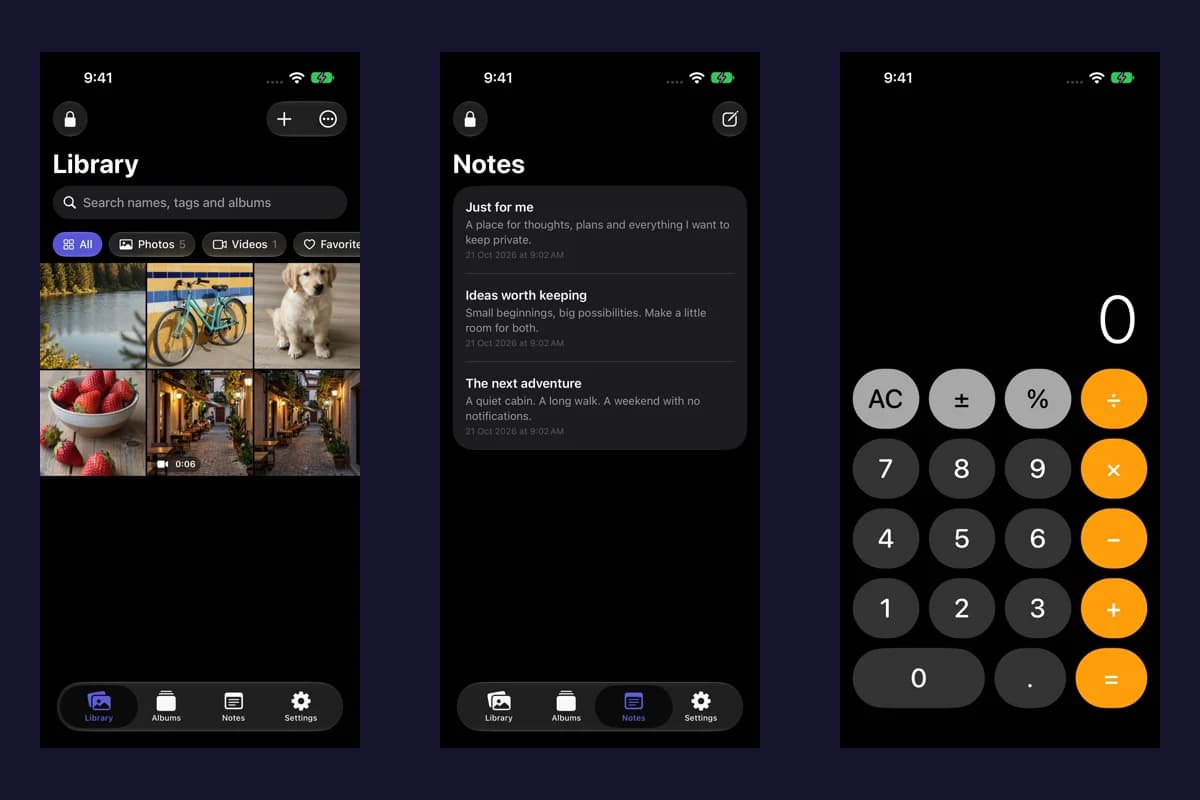
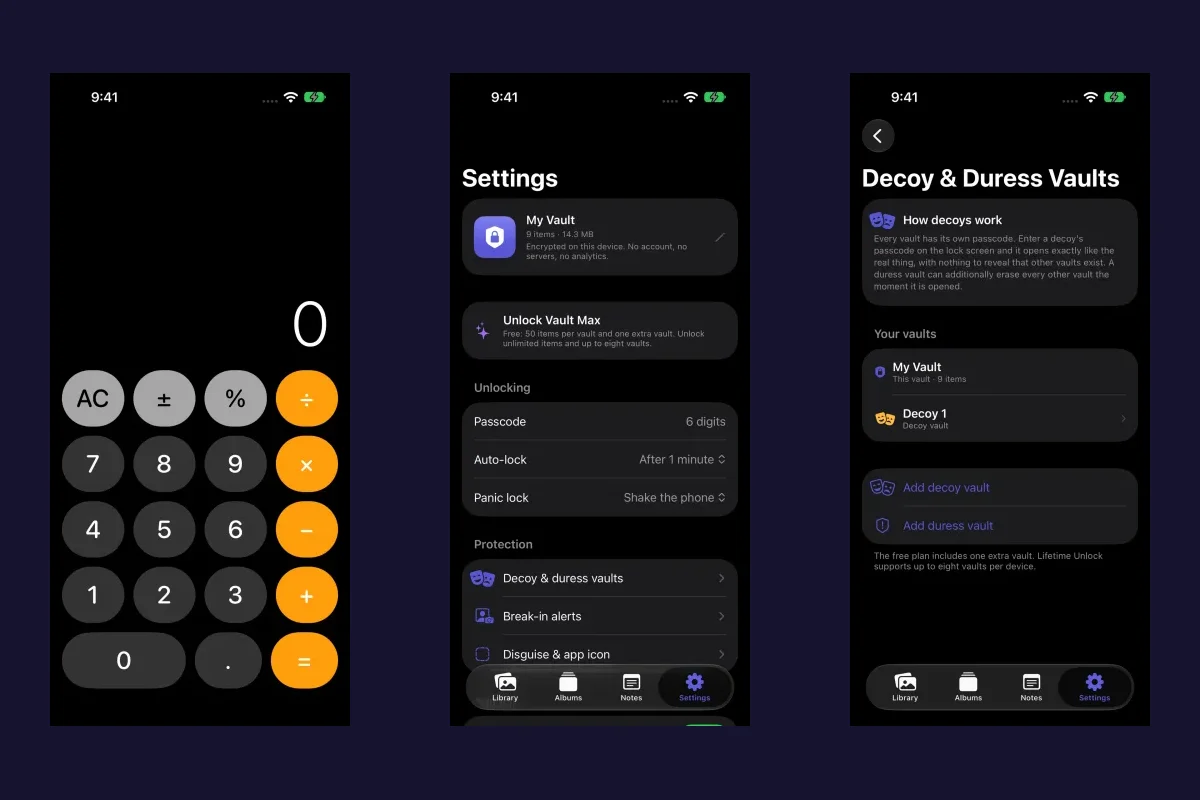
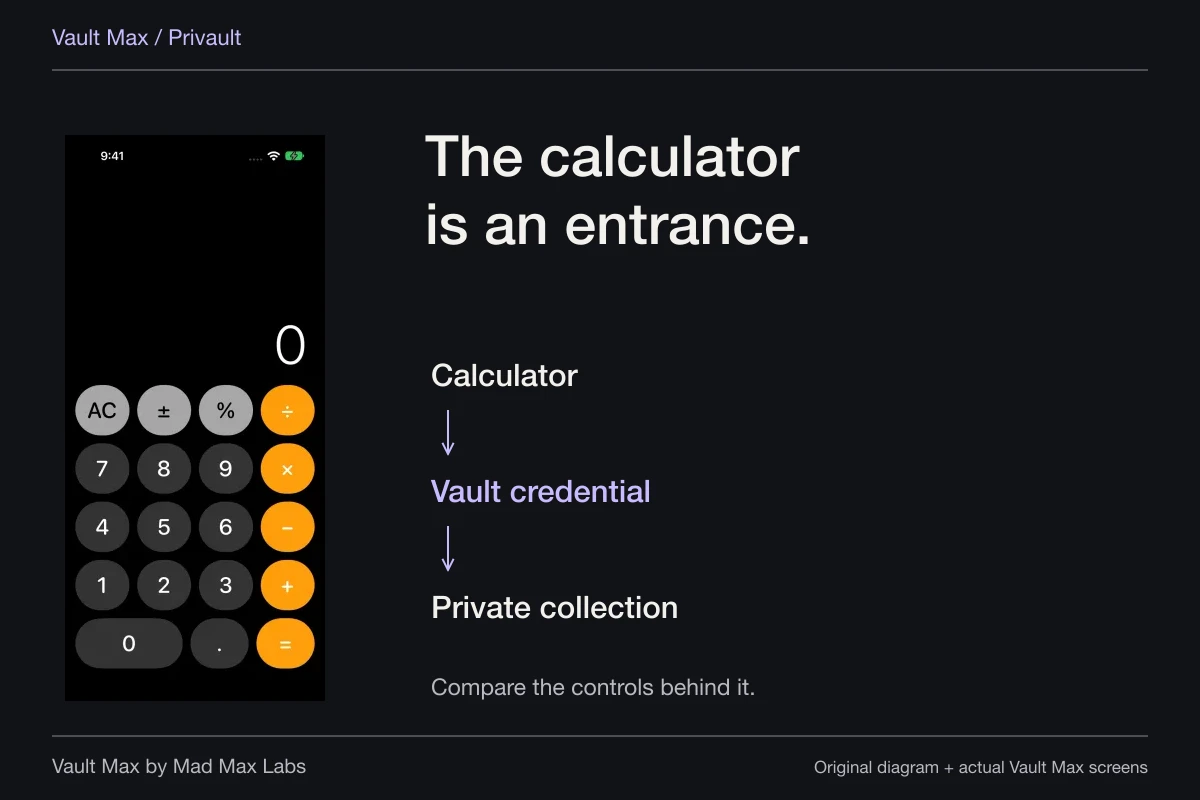
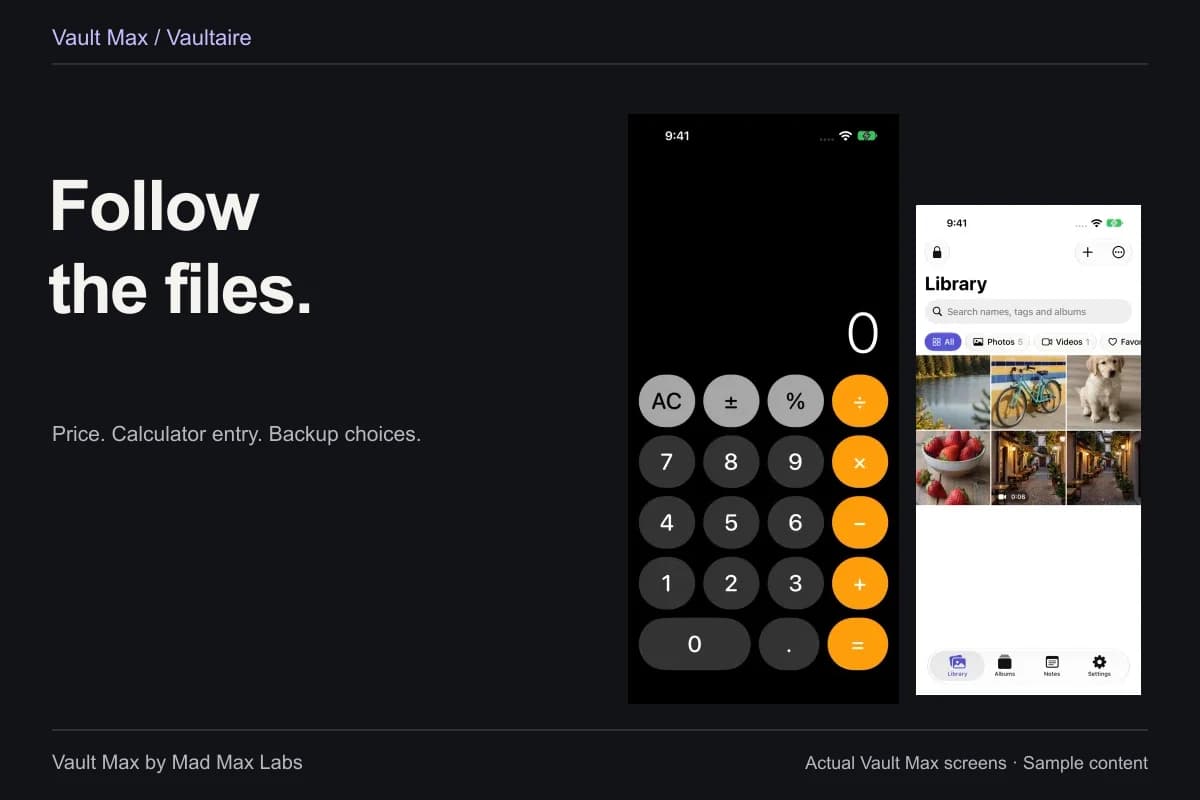
Before handing the phone over, close the private collection. Before a screen share, inspect the selected app, any visible previews and the content already open. A working calculator entrance provides a discreet route into Vault Max, while its lock controls end access to the collection. Neither action replaces checking the actual screen you are presenting.
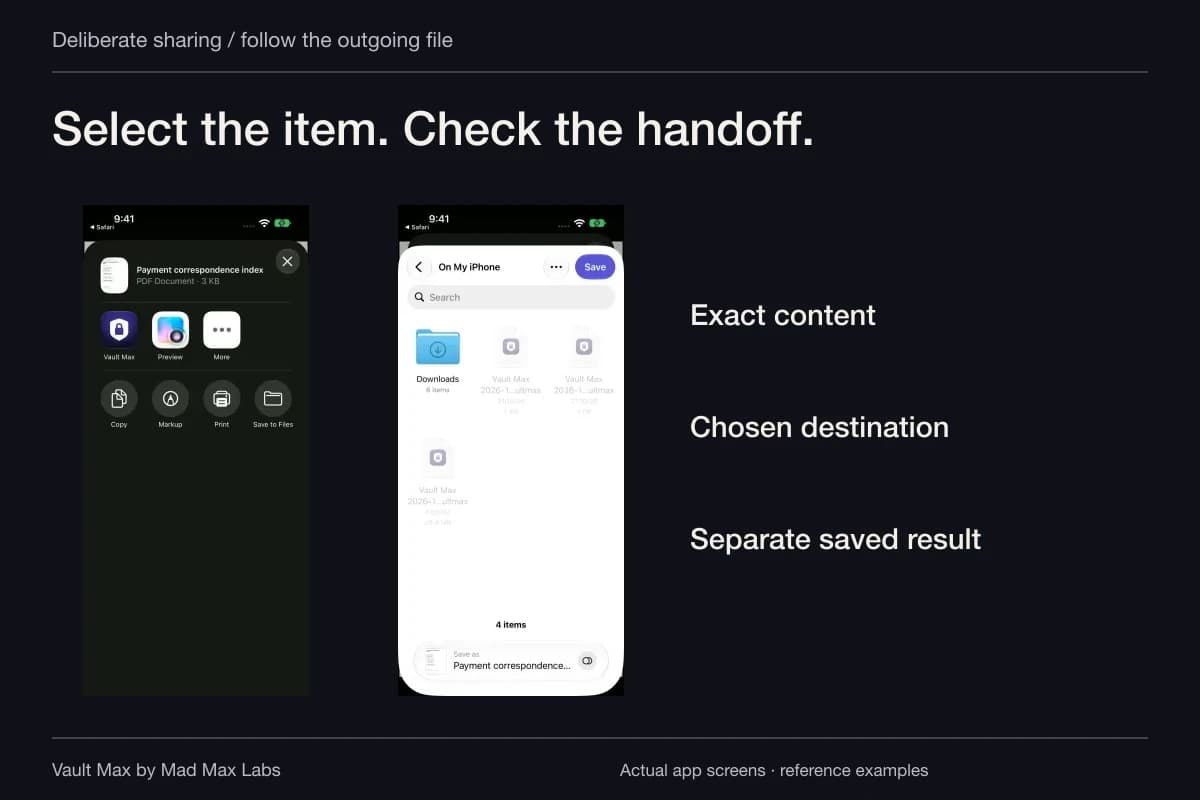
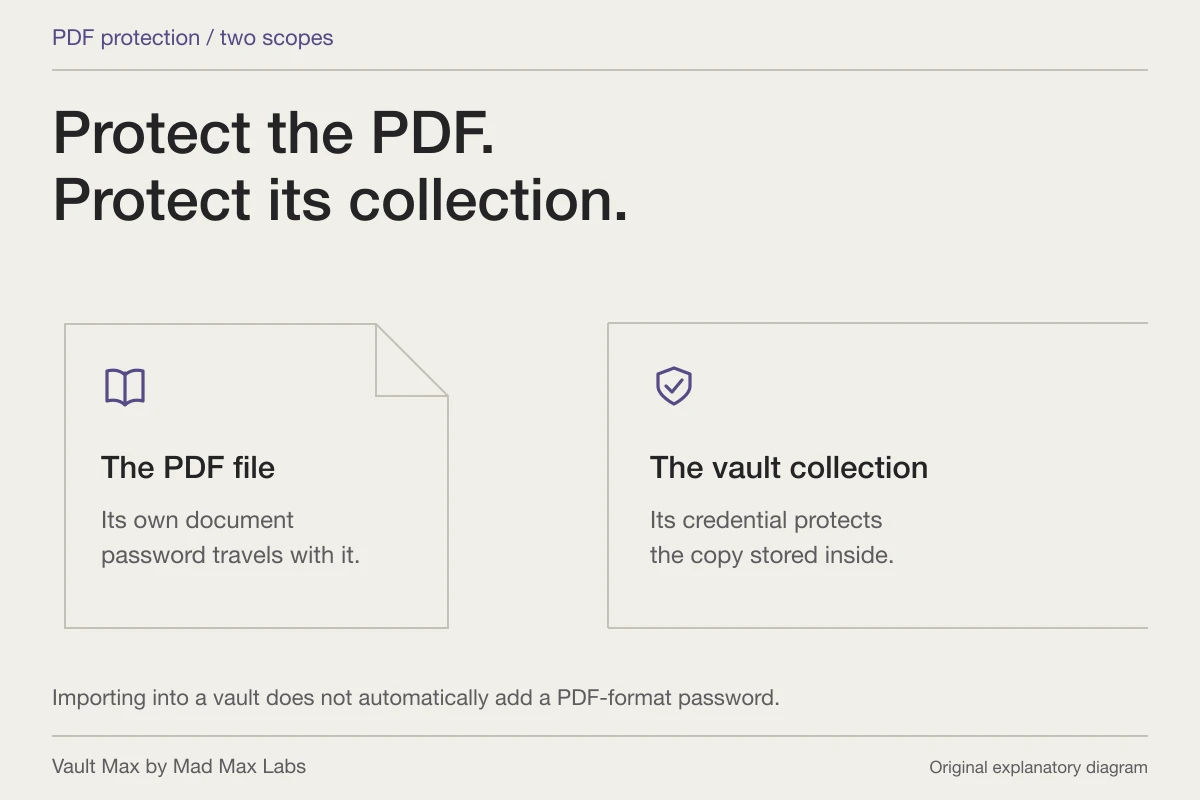
When you intentionally share one reference, open the full item first and select the ordinary export or share action you need. That creates or sends another copy. Its recipient and destination have their own handling rules. Your vault credential stays with the vault; it does not become a password attached to the exported PDF or photo.
Use the private sharing checklist to prepare the chosen output. Avoid using a work account as a convenient personal delivery channel unless that use is permitted and appropriate for the material.
Prepare recovery before a device handback
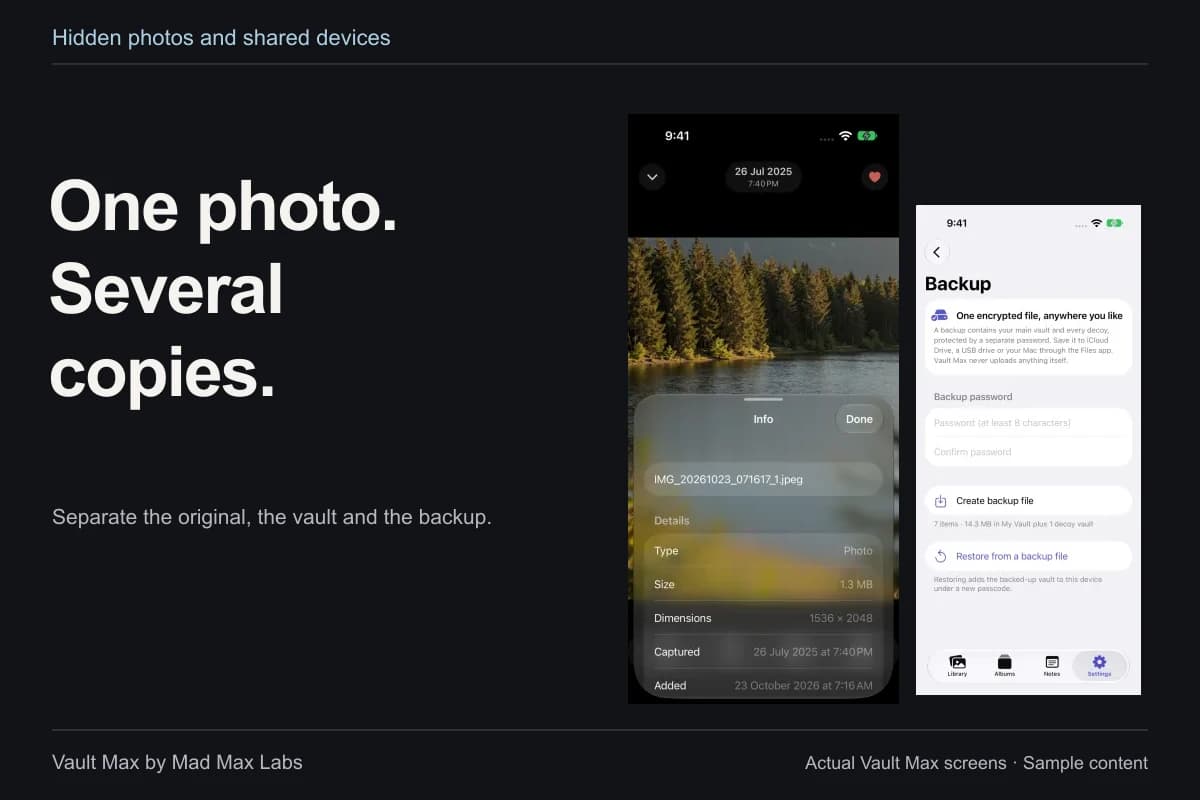
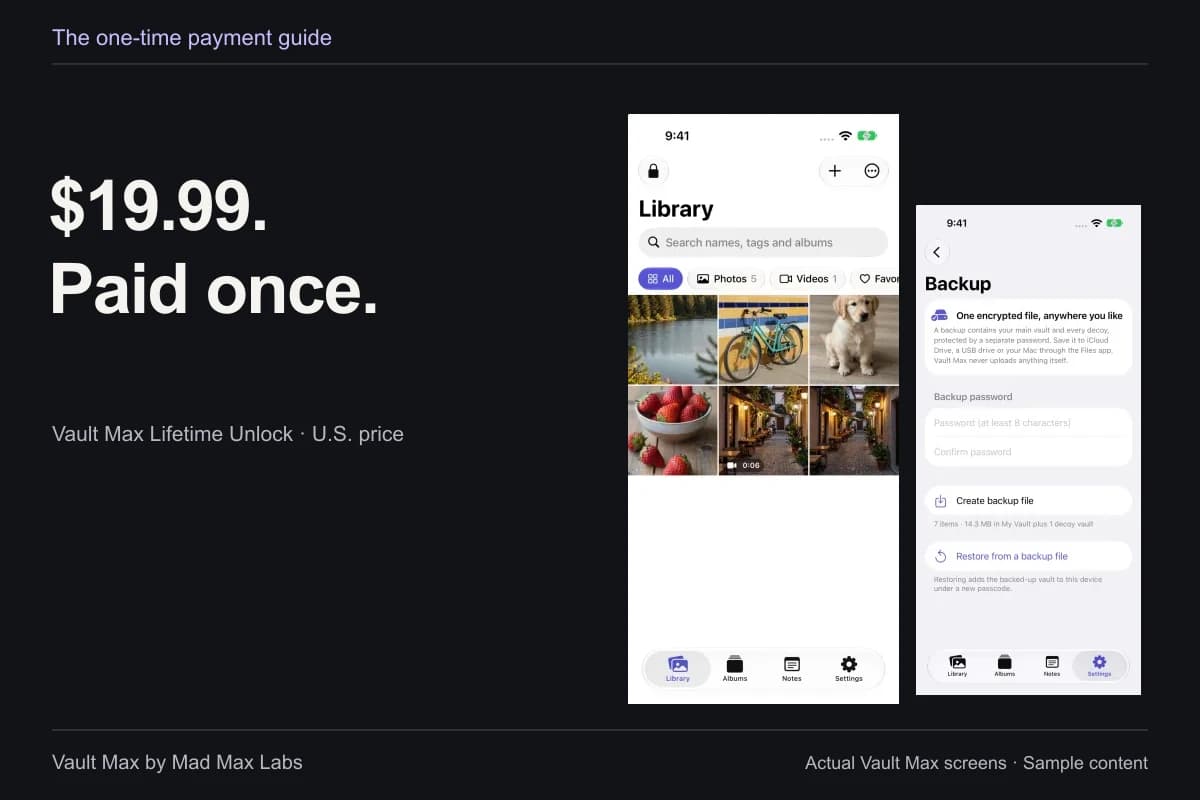
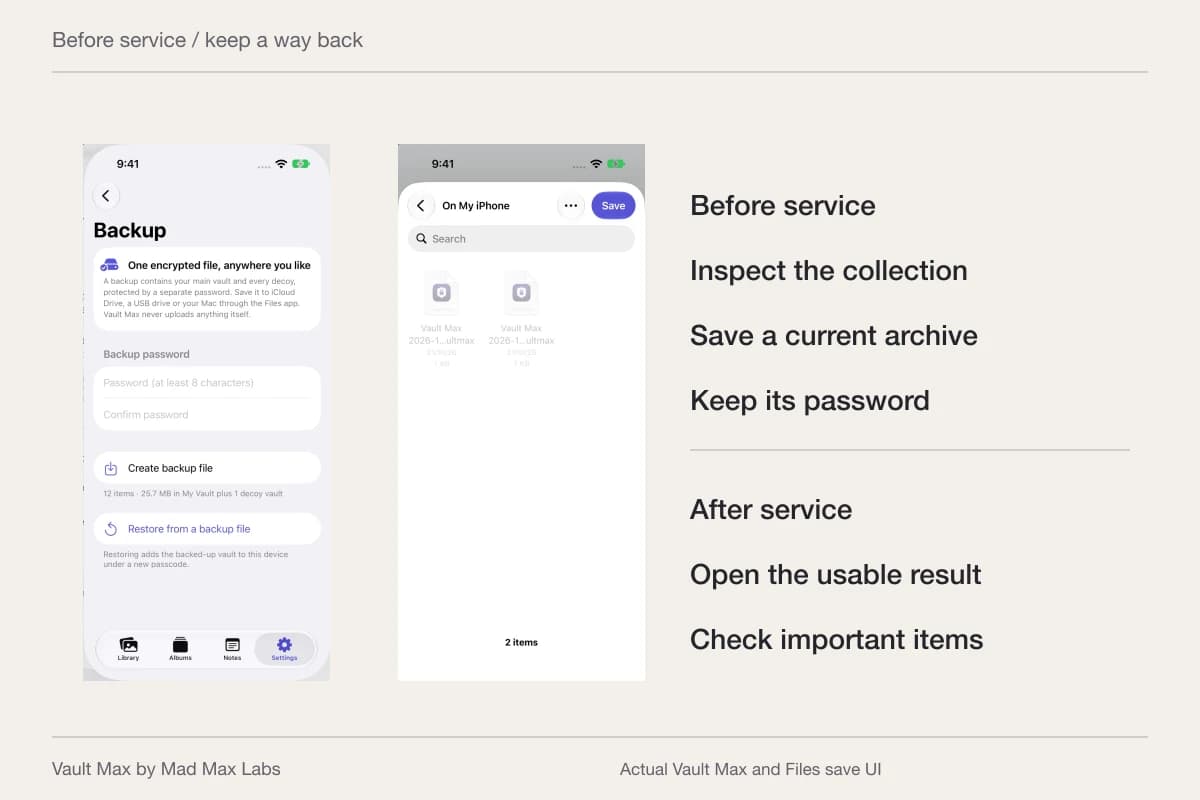
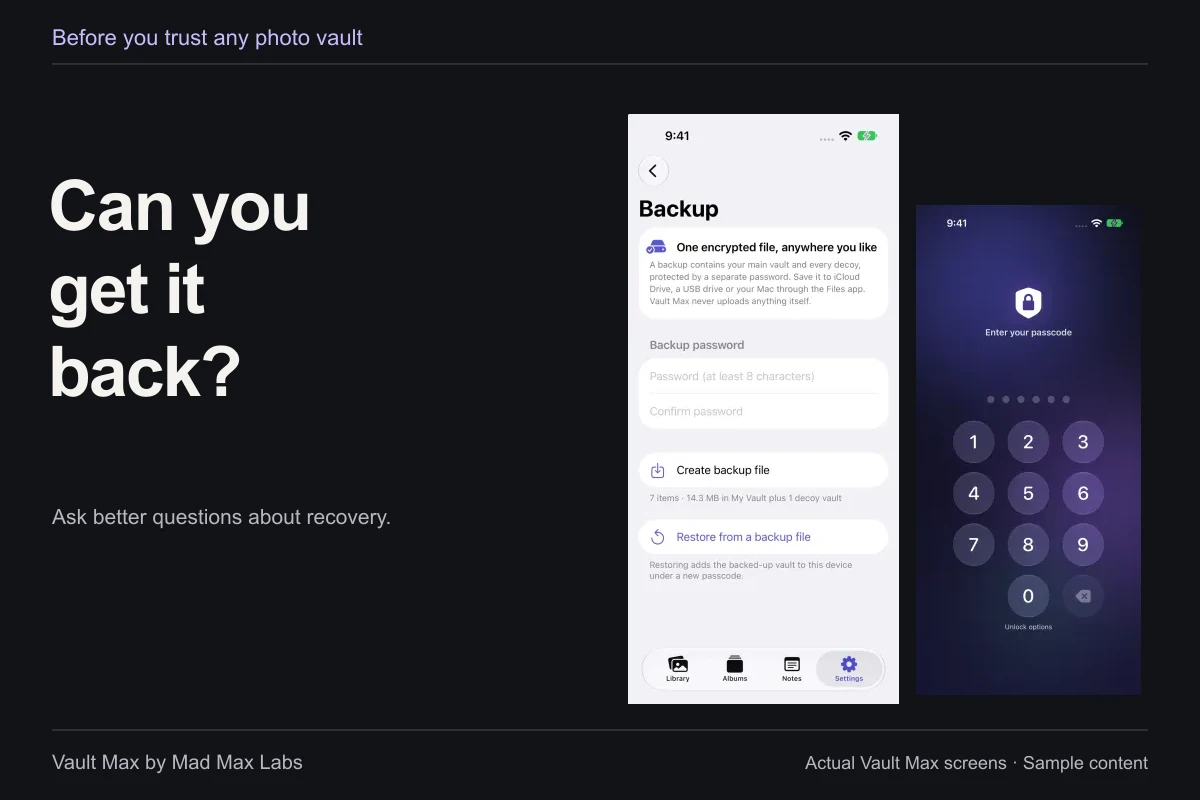
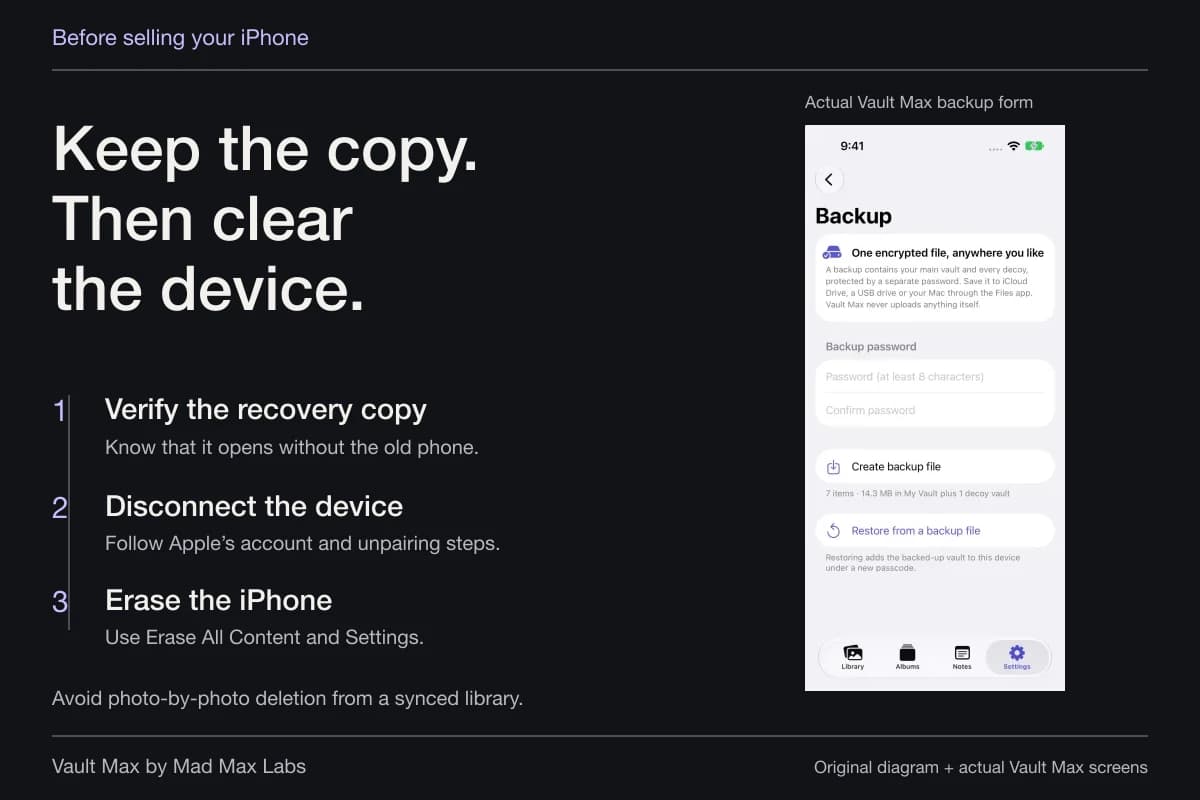
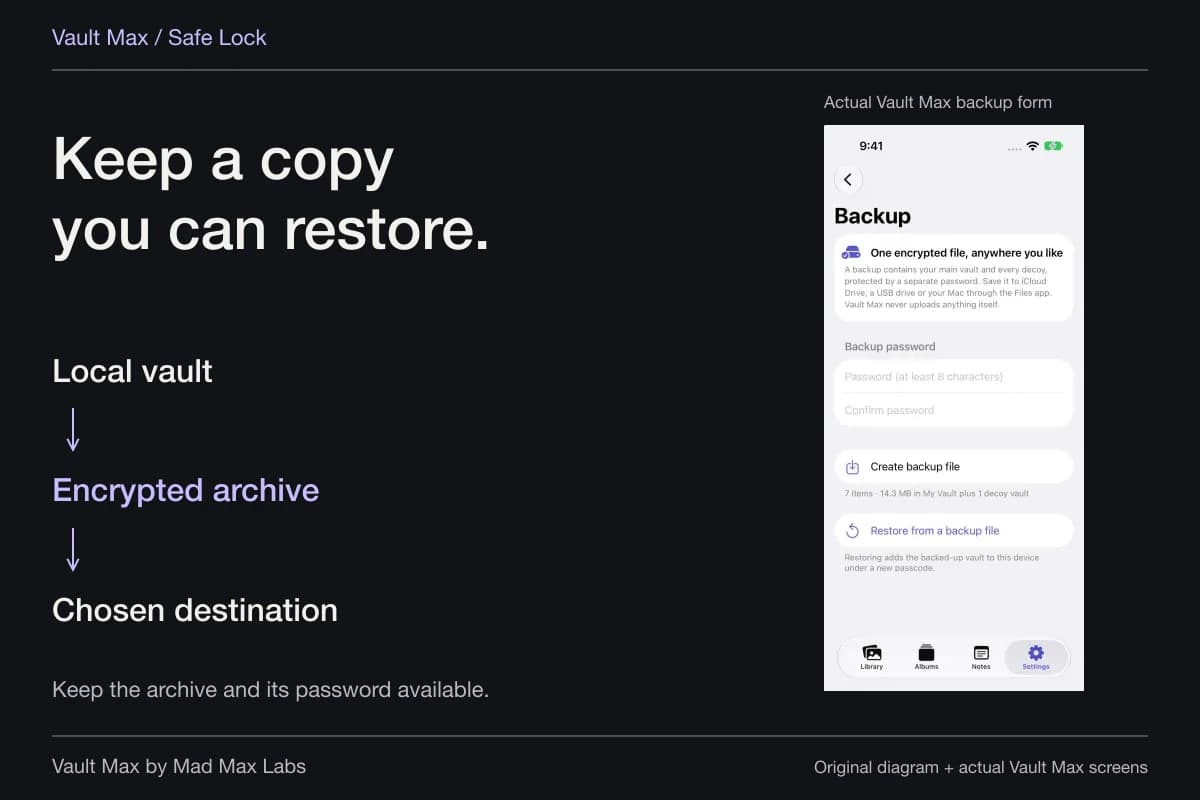
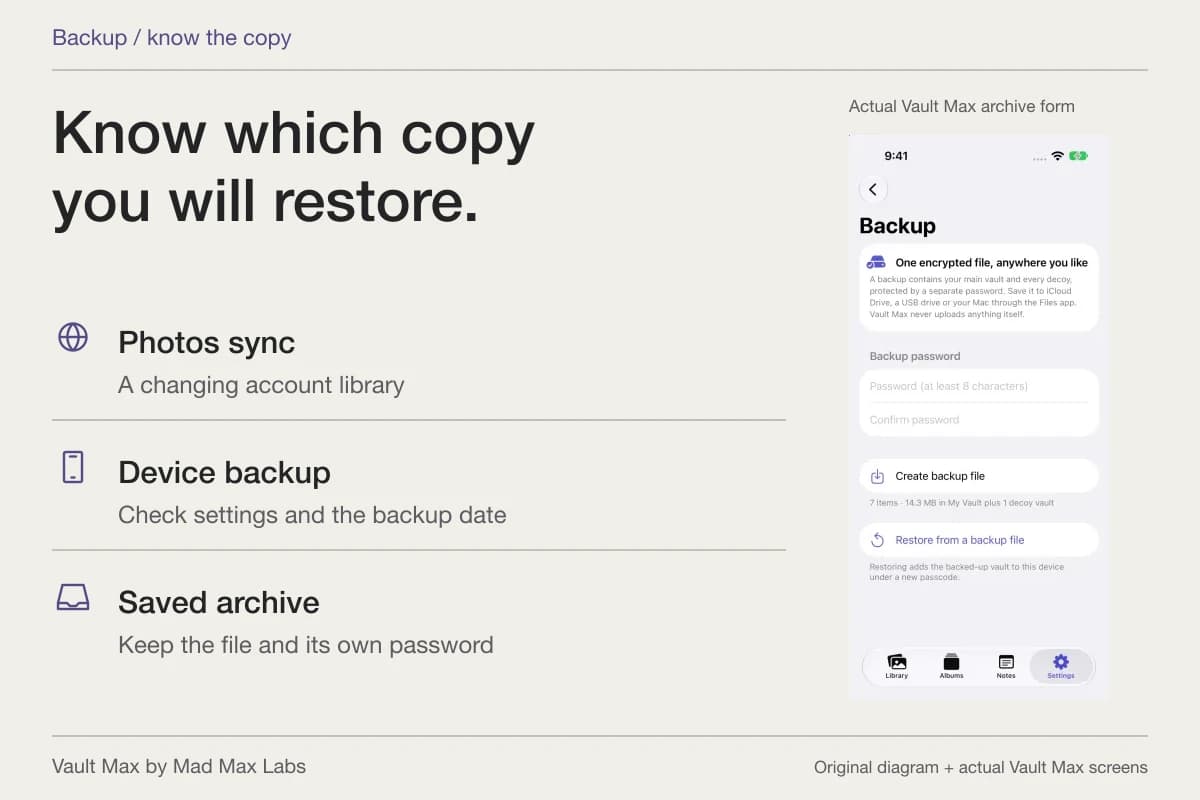
A working collection and a recovery snapshot do different jobs. Vault Max's manual encrypted archive uses its own password and a Files destination you choose. Keep a usable recovery copy somewhere independently reachable, consistent with the ownership of the material. An archive saved only on hardware you are returning is a poor handback plan.
For work information, follow the organization's retention and return rules. For permitted personal information, verify the retained result before cleaning up old copies. Do not erase a managed phone as an improvised privacy fix. Finish the handback through the approved process, with a clear inventory of what you preserved and where it belongs.
- Read the supervision/profile information and relevant policy.
- Settle which files you may retain before moving anything.
- Open the full chosen reference on the device you control.
- Check the visible session, chosen sharing destination and independent recovery copy.
Tap a box as you go. Checks reset when you leave this page.
Common questions
Does enrolling an iPhone let IT browse every personal photo?
Do not assume that. Microsoft says Intune enrollment does not expose personal picture or user-document contents through its enrollment information. Management features, app permissions, network arrangements and physical handoffs are different questions; check your organization's actual configuration.
How can I check whether my iPhone is supervised?
Apple says a supervision message appears at the top of Settings. General → VPN & Device Management shows installed management profiles and their details when present. A work email account alone does not describe the whole enrollment arrangement.
Should I remove a management profile to hide private photos?
Use the organization's support and policy route. Removing management can affect work access and data. A photo-organization task is not a reason to bypass an employer's device controls.
Where does Vault Max fit?
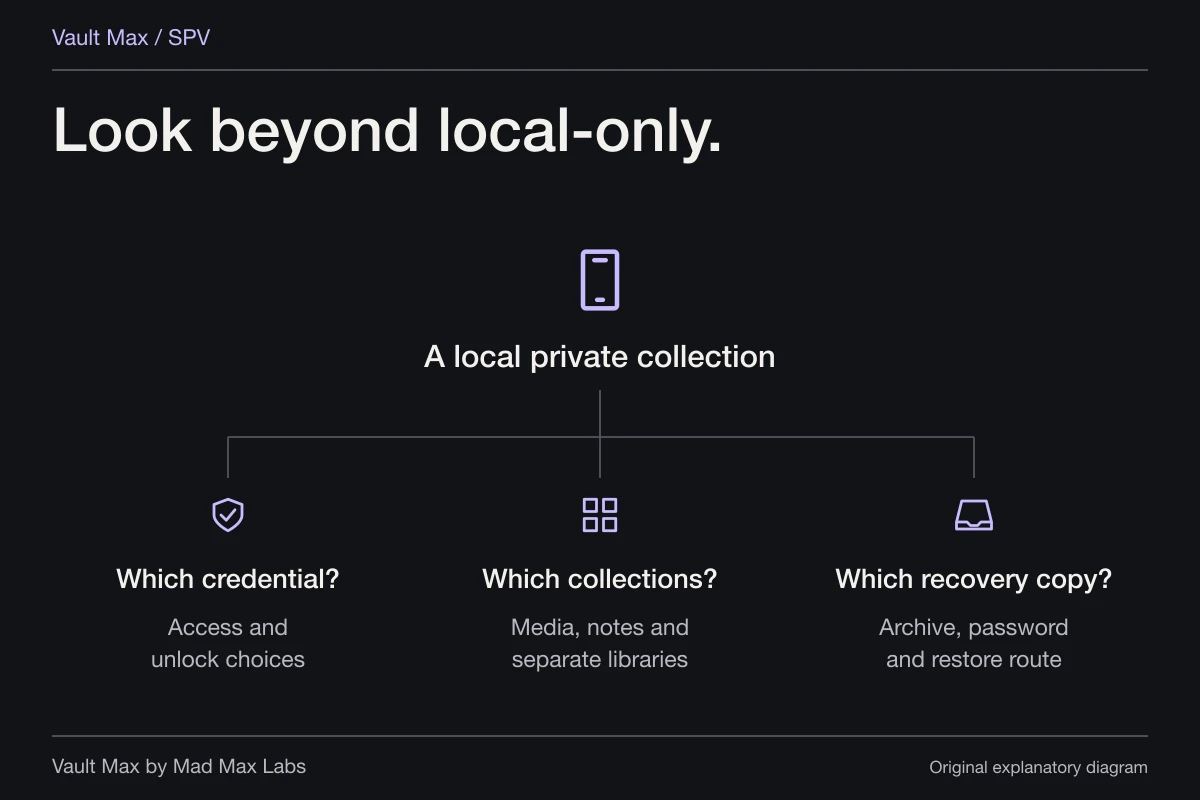
It provides an encrypted local working collection with separate credentials, documents and private notes. On a personal supported device, that gives chosen references a deliberate home without requiring a Vault Max account. It does not change device ownership or the employer's management policy.
Continue reading
More guides
Practical tips for your private library. Swipe or scroll to choose your next guide.
86 guides to explore