
Privacy in practice
Remove a photo album without deleting the photos on iPhone
Remove an unwanted album while keeping its photos. Compare Apple Photos with Vault Max, move individual items out, and understand Favorites and Trash.
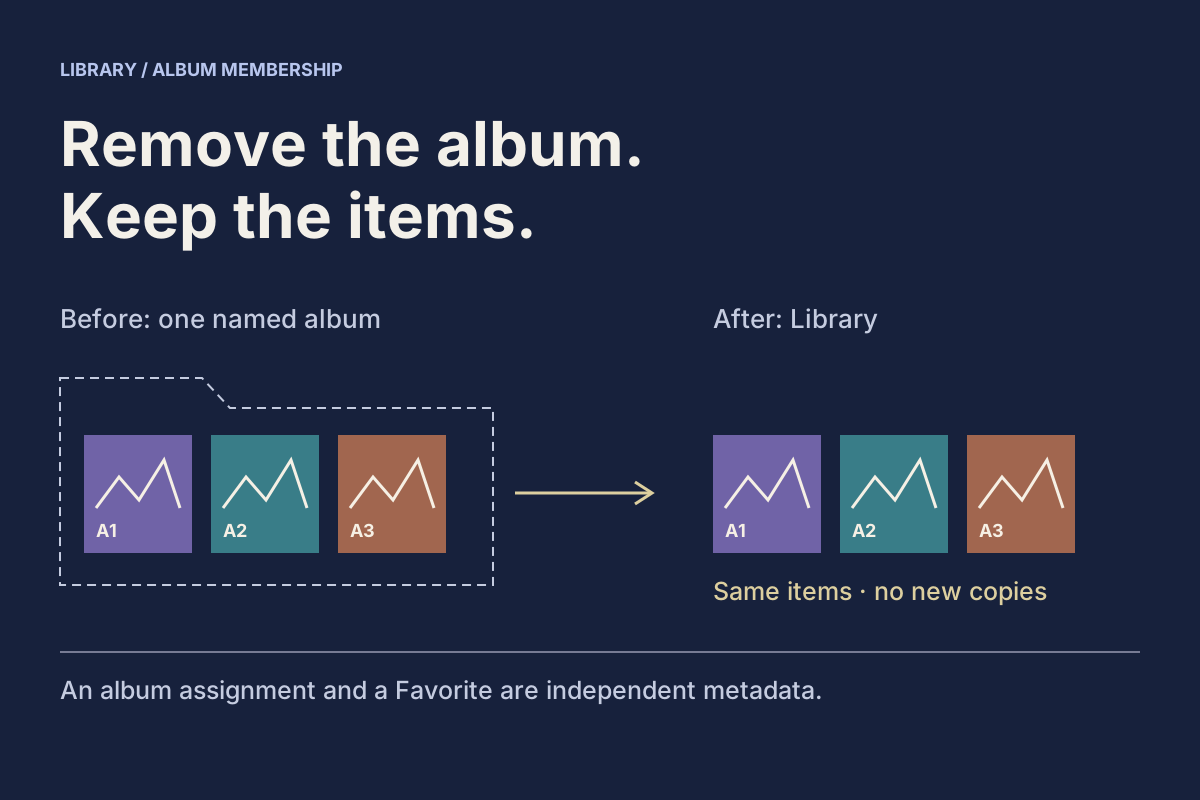
Delete the album container when you want to keep its contents. Delete selected items only when you intend to remove the items themselves. The words can appear close together, so first check which app and which object you are acting on.
An album for a finished project can become clutter even though its pictures remain useful. You can remove that group without reimporting everything or creating another copy. The useful result is a simpler album list and a retained item you can still open from the library.
Decide what should disappear
There are three different jobs: remove one item from a group, remove the entire group, or delete an unwanted item. Choose the smallest operation that finishes your task.
If only one picture was filed incorrectly, move that picture. If the whole project group is obsolete, remove the album. If the picture itself is unwanted, stop and review the item-deletion path separately. A trash icon on an item is not a shortcut for tidying its album membership.
Follow the same item
An album can disappear while its photos remain
Use this fictional Vault Max collection to separate membership, Favorites and deletion. Item letters stay the same across views: another appearance is not another saved copy.
Working set
2 live items
- Item AWindow study.jpg
- Item BWorkshop checklist.pdf
Reference set
1 live item
- Item CPaper fold.mov
Favorites
- Item AWindow study.jpg
- Live Library
- 3
- No album
- 0
- Favorites
- 1
- In Trash
- 0
What changed in the example
Three saved items, two albums and one favorite. The album and Favorites views refer to the same items in Library.
Read every membership and deletion rule
The starting collection
Library contains three saved items: A, Window study.jpg; B, Workshop checklist.pdf; and C, Paper fold.mov. A and B belong to Working set. C belongs to Reference set. Only A is a favorite.
- Move between albums. Move A to Reference set: Working set now shows B, and Reference set shows A and C. Library still has the same three items. A remains a favorite. A has one album assignment, rather than memberships in both albums.
- Return to Library without an album. Move A to Library (no album): A remains live and favorited, with no album assignment. The broader Library is not just the unfiled items; it also includes items assigned to albums.
- Change a favorite. Unfavorite A: its favorite flag changes. The file remains in Library and keeps its album assignment. Favorites is a view of flagged items, not an additional imported copy.
- Delete the album. In the starting example, deleting Working set removes the album and clears the assignments of A and B. Both live items remain in Library. A stays a favorite. The current Vault Max album menu does not offer a separate delete-contents choice.
- Move the item to Trash. Moving A to Trash removes A from the live Library, album and Favorites views. This is a different action from deleting the album. Trash retention, permanent deletion and any surviving outside copies need their own checks.
These rules describe the source-based Vault Max example. Apple Photos and other apps can use different album membership and removal controls; follow the article’s separately named routes.
A fixed teaching example in this page. It cannot read, reorganize or delete your actual photos or vault. Reset restores only the fictional example. No files, credentials or personal details are requested.
Use the fictional collection to compare those choices and inspect the retained library, album assignment and favorite marker. The exercise does not connect to your Photos library or change anything in Vault Max.
Apple Photos: delete an ordinary album, keep its pictures
In Apple's current iPhone Photos guide, the route is Collections → Albums, then touch and hold the unwanted album and choose Delete Album. Apple explains that its contents stay in the photo library and in any other albums they were added to. See Apple's album instructions.
That last detail matters: Apple Photos can show the same library picture in more than one ordinary album. Removing an album does not require making a replacement copy of each picture. Afterward, return to Library and open a familiar retained item.
For one incorrectly grouped picture, use Remove from Album, rather than deleting the picture from the library. Apple's album-item guide describes that separate action. Shared Albums and shared libraries involve other people and different controls; the steps here concern your ordinary personal albums.
Vault Max: one album assignment for each item
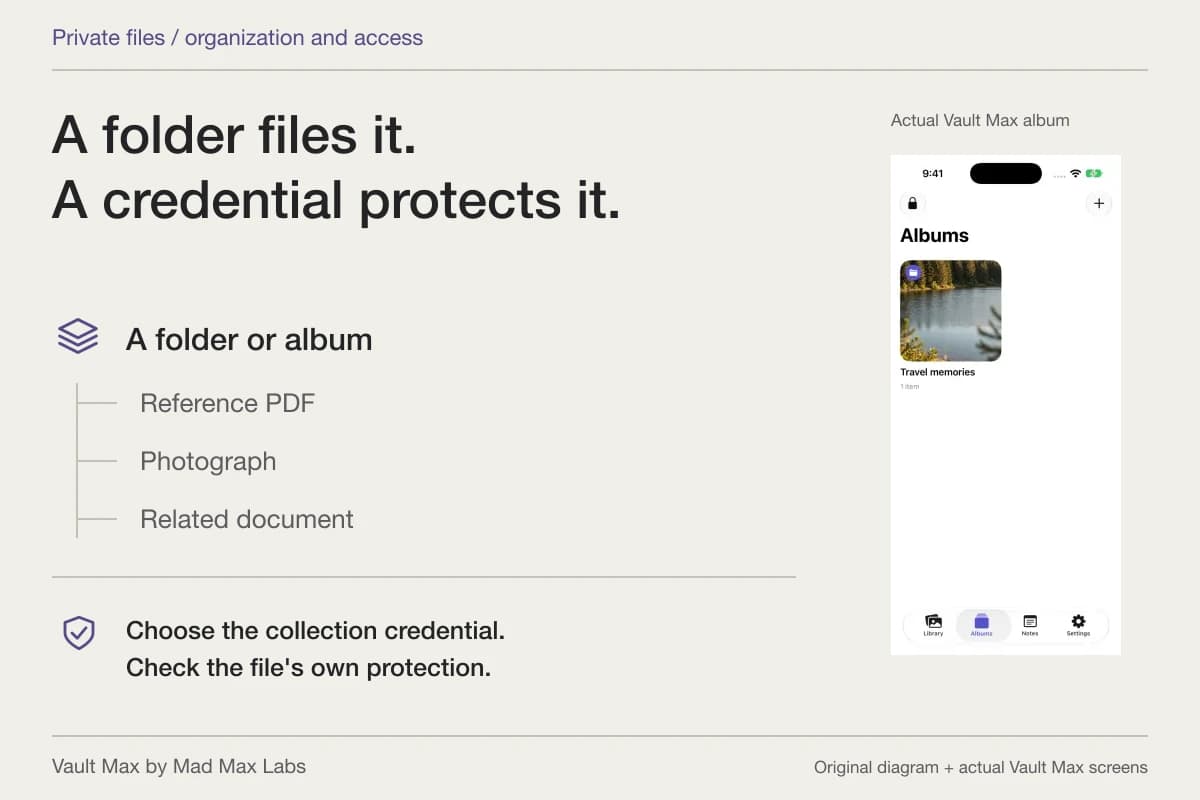
Vault Max also keeps stored items when you use Delete album from an album's menu. The item's album assignment is cleared, and the album disappears. The photo, video or document remains in the current vault's library.
The membership model differs from Apple Photos: a Vault Max item belongs to one album at a time. Moving a picture from Workshop references to Finished project changes its assignment. It does not leave that same item assigned to both albums, and it does not create a second stored picture.
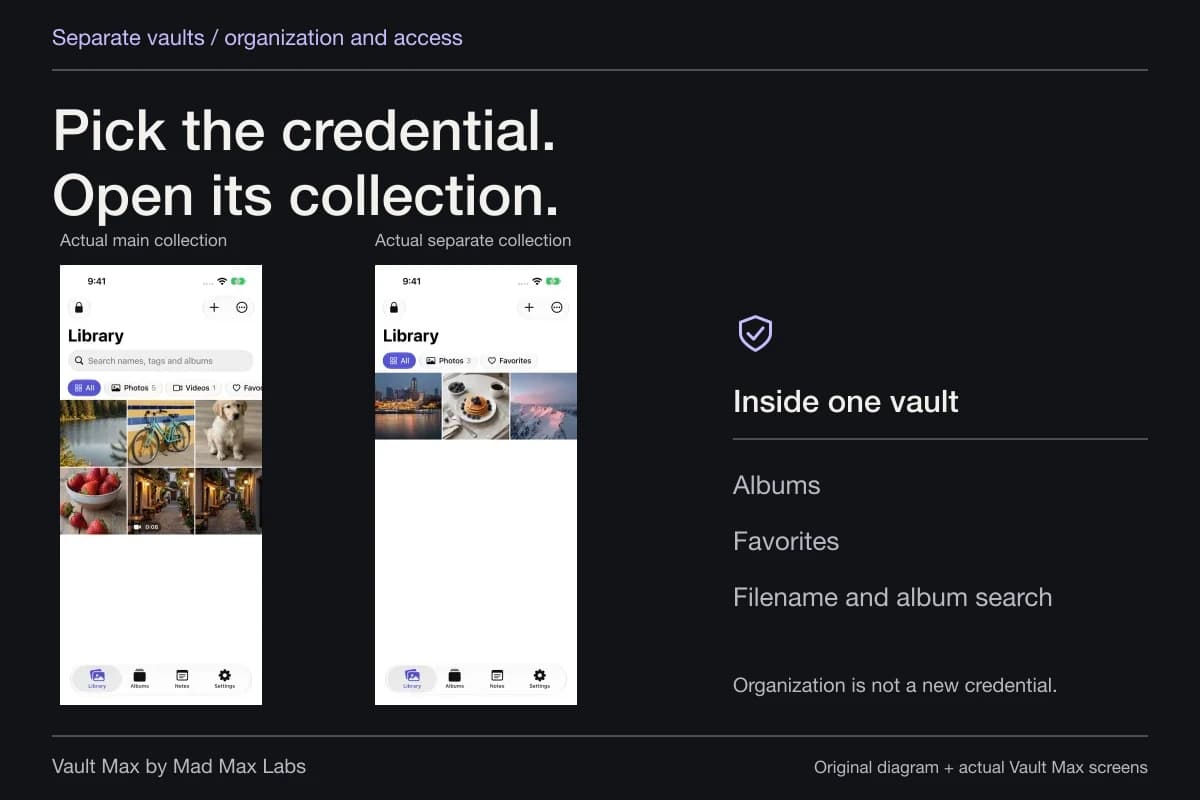
Albums and Favorites also do not create separately locked collections. The credential for the open vault controls access to that collection. Use the separate-collection guide when you need to decide where a project belongs before organizing it.
Remove one item from an album first
For a small correction, open the item and use Move, or select the intended items in the gallery and choose Move. In the destination sheet, Library (no album) removes their album assignment while retaining the items. Choosing another album assigns them there instead.
Begin with a harmless sample if the distinction is unfamiliar. Remember its name and subject, move it to Library without an album, then return to the broader Library and open it. This gives you a clear before-and-after result without removing the whole group.
If you choose Create & move, you are making a new destination album and assigning the selected items to it. That is useful for splitting a large project into smaller groups. Check the selection before applying the move, particularly when a filter or query limits the gallery.
Remove the unwanted Vault Max album
Open Albums, locate the intended album and touch and hold its card to open the menu. Choose Delete album when you want that group removed while retaining its contents.
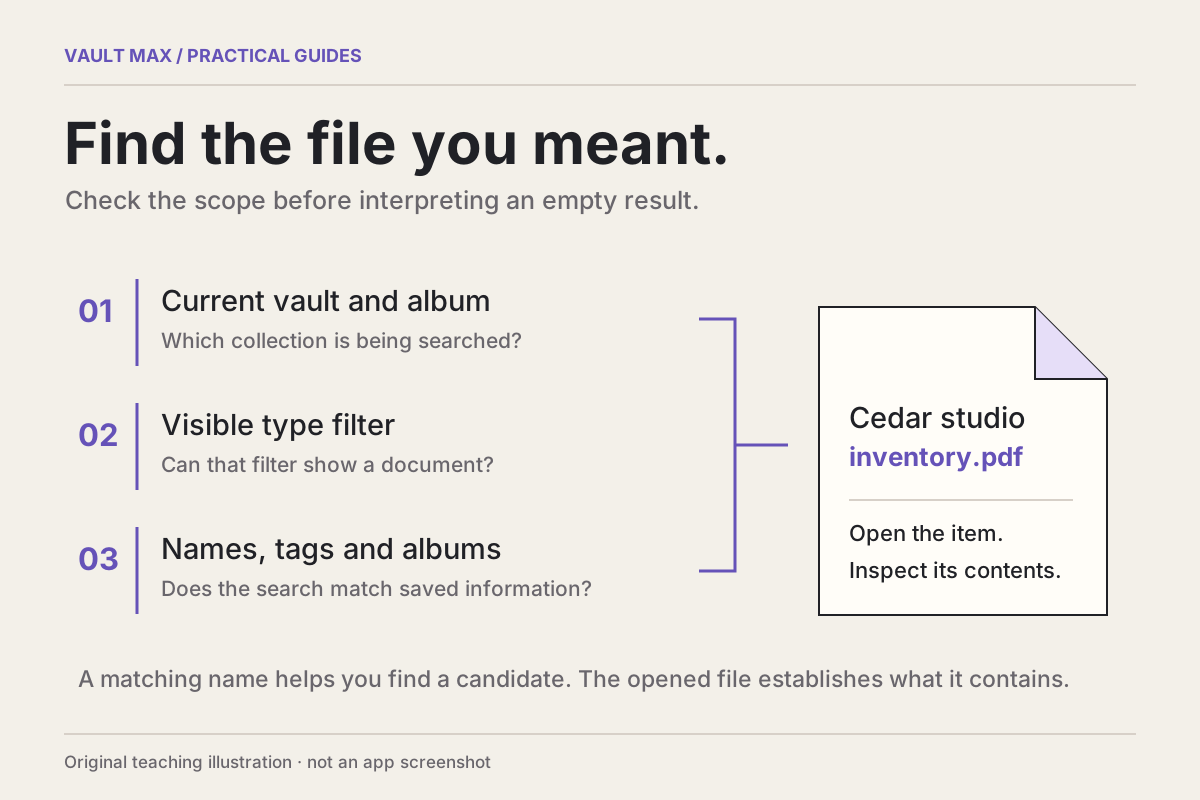
Then go back to Library. Choose a suitable file-type filter, clear an old query and open a recognizable item from the removed album. A document will not appear under Photos, for example; that filter can hide a retained PDF without deleting it.
The file-finding walkthrough explains those scope checks. Use them before assuming that a missing album card means its contents vanished. Reimporting a source immediately can add another copy while leaving the original question unresolved.
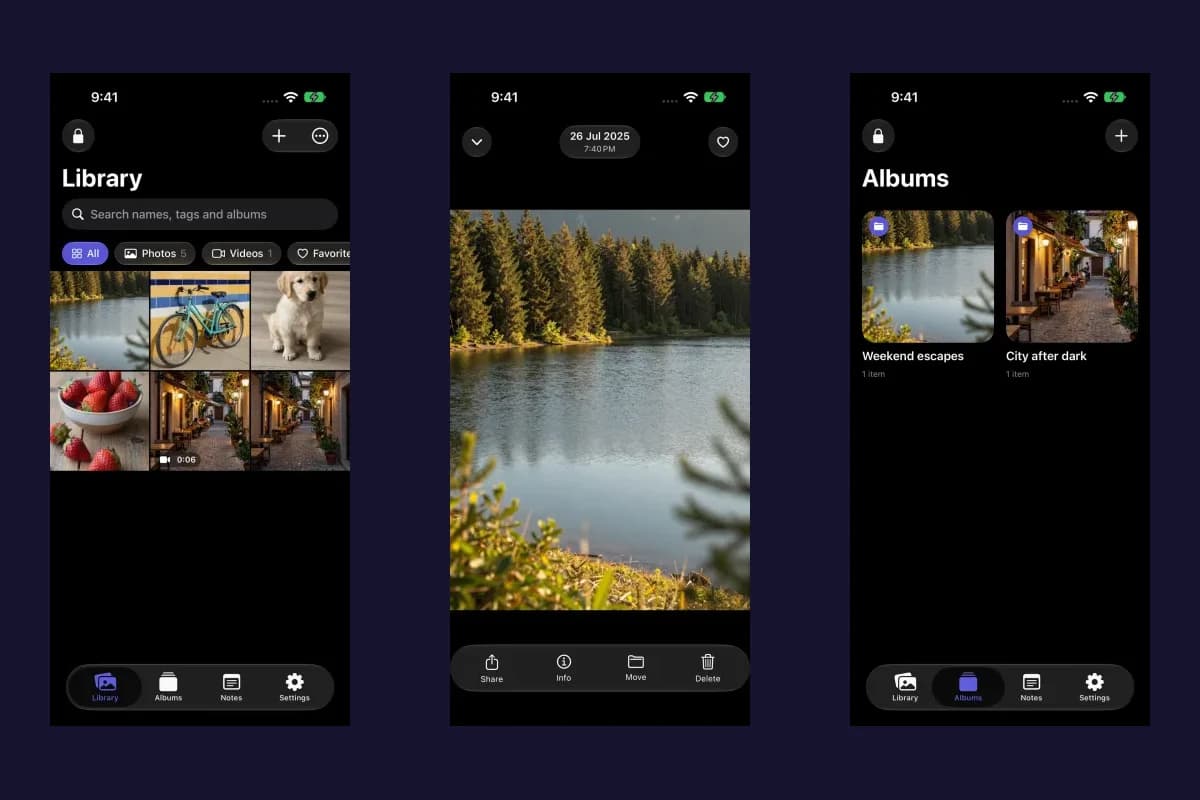
Vault Max · Actual Duo screens, generated reference image. Select a screen for a closer look.
Favorites stays a separate decision
A favorite marker can help you return to an important item even when its project album changes. In Vault Max, album membership and the favorite flag are independent. Moving the item or removing its album does not, by itself, clear that flag.
Think of the album as the item's current project assignment and Favorite as a convenient return marker. Neither makes an additional copy or provides a backup. Removing the favorite marker changes that shortcut, not whether the underlying item exists.
Use a small Favorites collection deliberately. If nearly every item is marked, the view becomes another crowded library rather than a useful shortlist.
If you chose the wrong operation
If you removed only the album, find the retained items, create a replacement album and move the intended items into it. Rebuilding the grouping is different from restoring deleted content. Check a sample before reorganizing the remaining collection.
If you deleted the items themselves in Vault Max, inspect the app's Trash and its configured retention promptly. Do not assume Apple Photos' recovery rules apply to another app. Keep any remaining source copies and recovery archives while investigating.
Album cleanup is not a storage-recovery plan. Before any permanent removal, verify a retained sample and an independent backup you can reach without this phone. Our backup and recovery checklist helps separate an organized working library from a recovery copy.
Finish by reopening one retained item and checking its new route: Library, the replacement album or Favorites. That concrete return path is the confirmation that the cleanup achieved what you intended.
Common questions
Does deleting an album delete its photos?
Deleting an ordinary album in Apple Photos keeps its photos and videos in the library and any other albums they belong to. Vault Max's Delete album action also keeps its items: it clears their album assignment and removes the album. Deleting selected items is a different operation.
Can one Vault Max item belong to two albums?
Each item has one album assignment in Vault Max. Moving it to another album replaces that assignment; choosing Library (no album) clears it. Favorites is an independent marker, so an item can be in an album and marked as a favorite without being duplicated.
Will deleting an album free the space used by its pictures?
Removing an album while retaining its items does not remove those stored pictures or videos. Album cleanup changes organization. Treat storage cleanup and deletion as separate tasks, with retained copies and recovery planning before permanent removal.
Continue reading
More guides
Practical tips for your private library. Swipe or scroll to choose your next guide.
5 guides to explore