
Privacy in practice
Photo vault disguises you can use on iPhone
Compare Calculator, Clock, Desk and other Vault Max covers. Try the unlock route, change the app icon separately and learn what iOS can still show.
Vault Max 1.1 is available. Get the update on the App Store, then follow the walkthrough below.
Practice opening the vault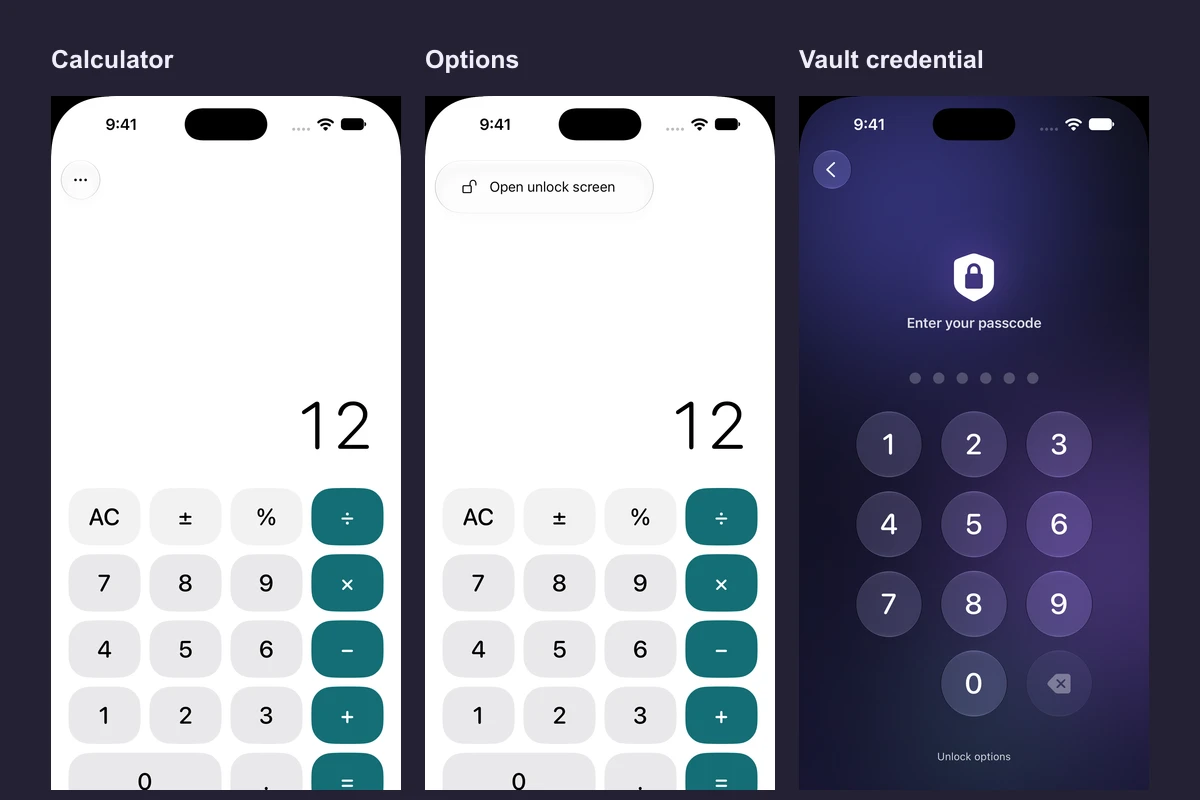
Vault Max 1.1 can open as a working utility while your vault is locked. Choose Calculator for arithmetic, Clock for time at a glance, or Desk for a workspace you arrange yourself. On all eleven covers, tap Options → Open unlock screen to get back to your vault. These cover instructions apply to Vault Max 1.1 on iOS 26 or later.
Open the vault from Clock or Weather
On either cover, tap the three dots (Options) in the top left, then tap Open unlock screen. Unlock the same way you normally do. You can use this menu before Weather loads or when you’ve skipped location access.
If you kept the default gestures, you can also touch and hold the title at the top of Clock or Weather. On Weather, touch and hold the temperature once it appears for another shortcut.
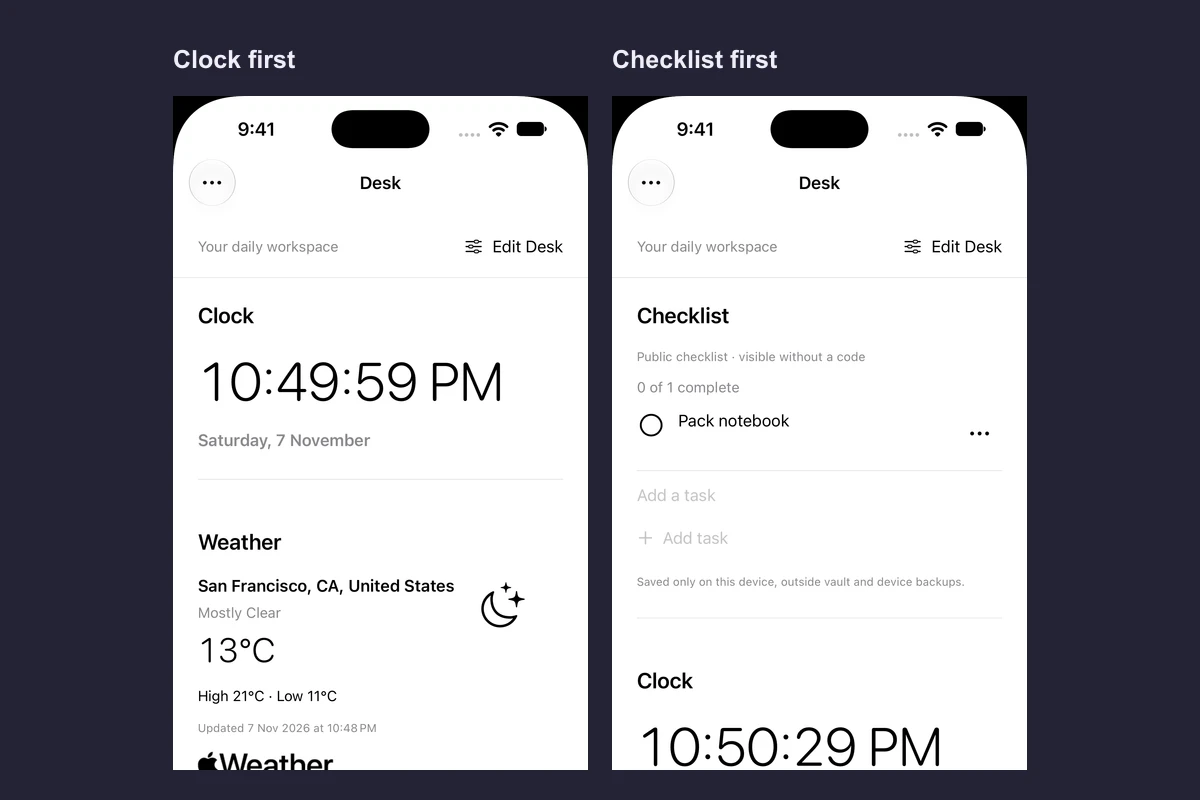
Desk is another cover you can choose. It combines a clock, optional weather and a checklist in one screen, with the same Options menu.
See what a working cover looks like
Native recording · iPhone 18 Pro
From arithmetic to the unlock screen
Calculator is active on the locked app. The same keypad handles a regular calculation, then Options leads to the existing vault PIN screen.
- Calculate 7 + 5
The answer appears on Calculator. The vault stays locked.
- Open Options
Choose Open unlock screen from the menu.
- Go back
The regular PIN screen offers a back button to return to Calculator.
Choose by what you will actually use
| Cover | What you can do with the vault locked | | --- | --- | | Calculator | Do arithmetic. If you use a vault PIN, you can also enter it and press equals. | | Clock | Check local time and choose a clock style. | | Timer | Run or pause an in-app countdown. Plan on a system timer if you need a background alarm. | | Stopwatch | Track elapsed time and record laps during the session. | | Calendar | Browse months and pick a date without connecting your calendars. | | Unit Converter | Convert length, weight and temperature offline. | | Tip Calculator | Calculate a tip and split a bill. | | Tally Counter | Add to, subtract from or reset a tally. | | Notes | Use a cover notebook anyone at the cover can open. | | Weather | View optional Apple Weather and keep public observations. | | Desk | Arrange a clock, optional Weather and a public checklist. |
Start with the thing you would use on an ordinary day. Calculator or Tip Calculator makes sense if you often work out totals. Clock is a quieter choice if you only need the time. Desk gives several jobs their own space. Tally Counter is easy to try without entering anything personal. Use one tap per repetition and check the current tally before you leave.
Timer, Stopwatch and Tally Counter sessions reset when you leave the cover session. Cover notes, weather observations and Desk tasks are saved locally outside the encrypted vault and can be read without unlocking. Use private Notes inside the vault for sensitive text.
Try a cover before switching
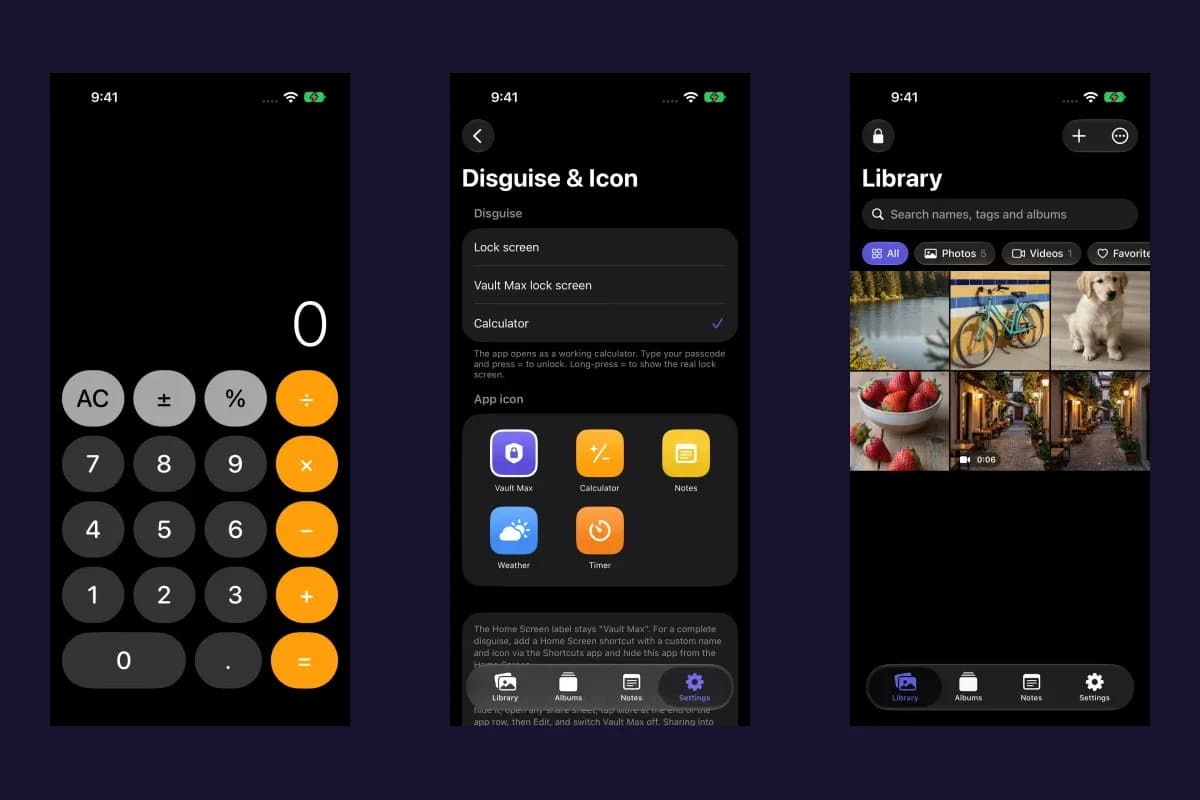
- Unlock Vault Max and open Settings → Disguise & app icon.
- Tap a cover, then tap Try this cover. Use the controls, then tap Done to leave the preview.
- When you are ready to change the locked screen, tap Use followed by the cover name. For example, Use Calculator.
- Go back to the Library and tap Lock. Check that the cover opens and that you can reach the credential screen before relying on it.
Native recording · iPhone 18 Pro
Preview Calculator, then make it the active cover
The setup recording starts in Disguise & Icon and ends on the selected cover after Lock.
- Select Calculator
The detail page shows both Try this cover and Use Calculator.
- Try it, then tap Done
The preview has its own Done control. Closing it returns to the details.
- Apply it and lock
Use Calculator changes the selection. The locked app now opens on Calculator.
Choose a cover
Try the cover
Use the chooser to compare covers. The Calculator preview lets you check the controls before you apply the cover.
Select a screen to inspect it.Practice getting back to the unlock screen
Take the route back from Calculator
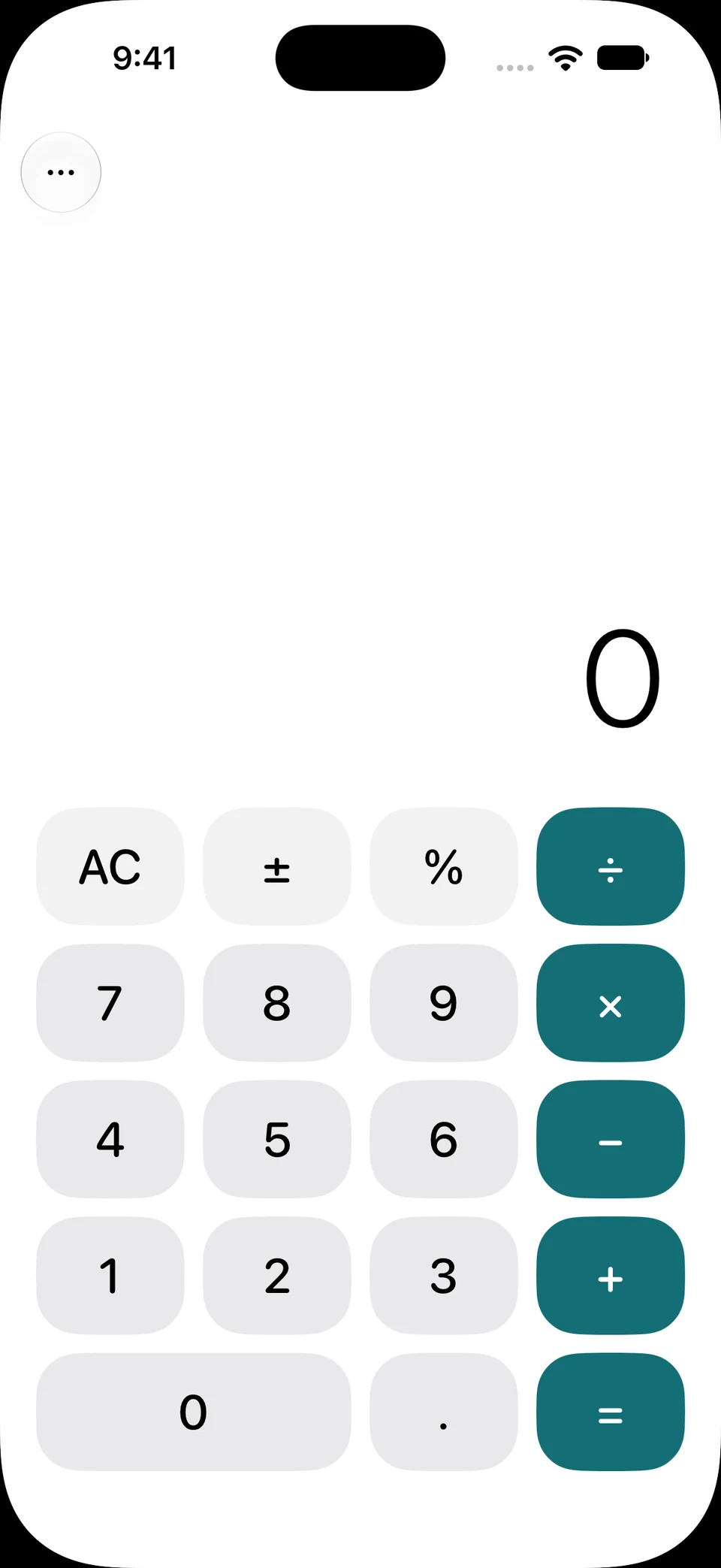
Screen 01 / 04
Calculator is ready to use
You can do arithmetic while the private library stays locked. Play the recording to see the exact keystrokes, or go straight to Options.
A cover changes the locked view. Your existing vault credential still controls access.
This exercise follows the recorded Calculator route. Tap the highlighted Options button on the captured screen, choose Open unlock screen, then tap the back control. The credential screen in the example stops before PIN entry.
Vault Max 1.1, iPhone 17 simulator. Select a screen for a closer look.
In the app, tap Options → Open unlock screen and use the PIN, password, pattern or previously enabled biometric method you already use. Back returns to the cover. For the other utility covers, the default gesture is to touch and hold the title. If you changed the gesture, use Options when you need a reliable route. On Calculator, hold equals to open the regular screen, or use the PIN and equals route if your vault uses a PIN.
Vault Max 1.1, iPhone 18 Pro simulator. Select a screen for a closer look.
Check the cover after you apply it
Try the exact exit you will remember when the cover is unfamiliar. While you still know the credential, confirm this sequence once on your own phone:
- Leave the preview and confirm the current cover is the one you meant to select.
- Lock Vault Max. Look for Options near the top of the cover and choose Open unlock screen.
- If you use a password or pattern, use the regular screen. If you use a PIN on Calculator, clear any earlier expression before entering the complete PIN and pressing equals.
- Open one familiar item after unlocking to confirm you reached the intended vault. If the collection differs, check which credential you entered and whether you opened a separate vault.
If you need to undo the change, unlock and select Vault Max lock screen under Disguise & app icon. Choose the default icon separately if you also changed the Home Screen artwork.
Change the icon separately
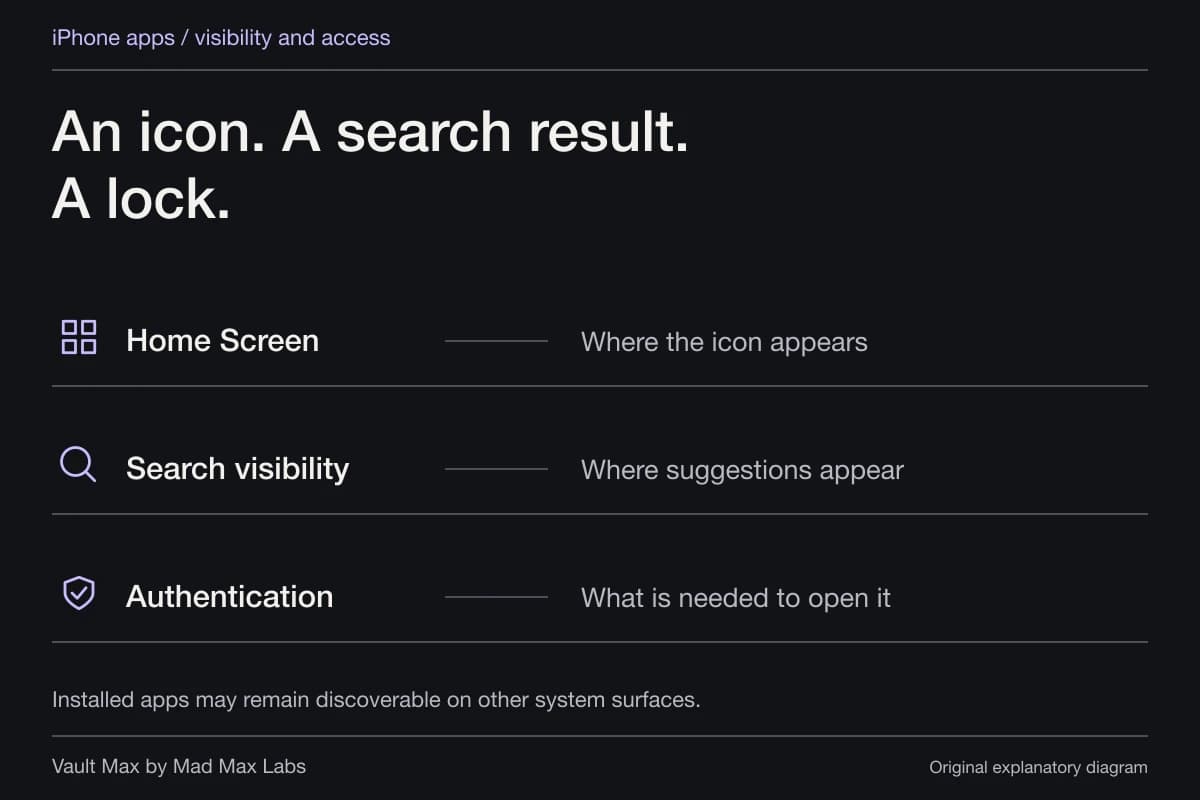
See the icon change and check what stays visible on the Home Screen.
Back in Disguise & app icon, scroll to Home Screen icon to choose artwork independently. You can also use a cover’s matching icon from its detail screen. Desk uses the Clock artwork. Cover appearance and vault theme have separate controls.
The Home Screen label remains Vault Max. iOS can still identify the app in App Library, Settings, purchases and share sheets. For example, you can keep the Vault Max icon and use Desk as the locked cover. You can also use the Clock icon while Calculator is the cover. Changing one setting leaves the other where you set it. If the icon alone makes your route harder to remember, return to the default artwork and keep the cover you find useful.
Use the iPhone app locking and hiding guide if you are trying to control how the system lists or opens the app.
Common questions
Can Vault Max look like something other than a calculator?
Yes. Vault Max 1.1 has eleven working covers, including Clock, Notes, Weather and Desk. Open Disguise & app icon in Settings to try a cover before applying it.
How do I get back into my vault from a disguise?
Open Options on the cover and choose Open unlock screen. Then use your existing vault credential or already-enabled biometric unlock. Calculator also supports PIN and equals, and touch-and-hold on equals opens the regular screen.
Continue reading
More guides
Practical tips for your private library. Swipe or scroll to choose your next guide.
4 guides to explore